FreeSWITCH on Docker
Stanley Wu (吳建澄)
skyeyester@gmail.com
Sep. 04, 2015
Outline
• Background Knowledge of IP Telephony System
• Introduction to FreeSWITCH
• Introduction to Docker
• Why Use FreeSWITCH on Docker?
• How to Configure FreeSWITCH on Docker?
• How to Configure a SIP phone and Verify
FreeSWITCH?
2
Background Knowledge of IP
Telephony System (1/3)
• IP Telephony System is used to transmit voice/video calls
over the IP data network via wired or wireless network
connection.
• IP Telephony System is also known as voice/video over IP
• The benefits of IP Telephony System:
– Low Cost (Reduce telecom cost via toll by pass)
– Scalable (Add extensions flexibility)
– Mobility (Make & receive calls from any place or platform,
Android, iOS, Linux or Windows)
– More advanced features and software integration (video
conference, instant message or linking CRM System)
3
Background Knowledge of IP
Telephony System (2/3)
• The challenges of IP Telephony System:
– Complicated system configuration procedure
– Service quality depends on network quality
• Why we may notice on IP Telephony System?
– The system configuration procedure could be
simplified
– Radio access technology is improved and the
bandwidth, speed, cost are more efficiency
4
Background Knowledge of IP
Telephony System (3/3)
• The key components of IP Telephony System
– IP Phone or Softphone
• LinPhone- LinPhone is a Voice over Internet Protocol (VoIP)
software on iOS and Android platform
• SIPdroid- LinPhone is a VoIP software on Android
• Xlite - X-Lite is a proprietary freeware VoIP soft phone that
uses the Session Initiation Protocol.
– SIP Server or PBX (Private Branch Exchange)
• FreeSWITCH - Telephony platform to facilitate the creation
of voice and chat driven products
• Asterisk - Open Source VoIP PBX
• GNU Gatekeeper - VOIP gatekeeper for H.323
5
Introduction to FreeSWITCH (1/2)
• FreeSWITCH is designed to be a telephony platform, a soft
switch to route and interconnect communications
protocols using a wide range of media, all of this while
being able to handle a growing amount of work.
• Features of FreeSWITCH
– Default implementation is for a PBX or Softswitch
– Modular system allows you to extend the system easily
Applications may be written in C, Java, .NET etc.
– Handle thousands of concurrent channels with media on a
standard PC Interoperates with many different products and
protocols
• such as CallWeaver (formerly known as OpenPBX.org),
• Bayonne, Yate, sipXecs or Asterisk
• Supports SIP, H.323, IAX2 etc.
6
Introduction to FreeSWITCH(2/2)
• Functions of FreeSWITCH
– Become back-to-back user agent (B2BUA)
– Handle all SIP signaling – route calls, transfer calls,
and can even translate codecs between different
legs of the call.
– Transcode RTP streams
– Offer value-added features such as voicemail, call
transfers, and others.
7
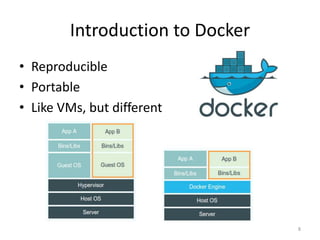
Introduction to Docker
• Reproducible
• Portable
• Like VMs, but different
8
Why FreeSWITCH on Docker? (1/2)
• Docker makes FreeSWITCH installation,
deployment and configuration more easier
• There are a lot of concerns on using Virtual
Machines in Telephony world. Especially for the
server’s that handles the Real Time voice packets,
as voice quality is pretty important in Telephony.
• But the lightweight container can just decrease
the performance into tolerable situation
• We can enhance the whole telephony system
performance in the other part (e.g. latency via
SDN, etc)
9
Why FreeSWITCH on Docker? (2/2)
• Speed
– Each container shares the same kernel as the host operating system, so there is no
overhead of a hypervisor. Resources are allocated as needed, rather than up front.
Docker containers start in a second or less.
• Repeatability
– The way Docker images work and the fact that we can version them has some nice
qualities. A container can be created from an image on any machine and it will
always be the same. As a result of this, images can be tested locally or in a QA
environment.
• Packaging
– Everything needed to run an application is included in the image. This removes the
problem of conflicting versions of libraries on production machines. Customers can
run your image on any host that has Docker installed. Docker is compatible with
Windows, Linux, and OS X.
• Scalability
– We can run multiple containers at the same time and Docker will handle setting up
networking for us. The great thing about using Docker with SIP-related projects is
that all we have to do for a new container is add an SRV record and we are done. 10
How to Configure FreeSWITCH on
Docker? (1/9)
• Server System Environment
– CetOS 6.6 64bit
– 8GB RAM
– 10/100 NIC
– 512GB HardDisk
• Client
– Android/iOS Phone with Linphone APP (Recommend)
– Other SIP phone software
11
How to Configure FreeSWITCH on
Docker? (2/9)
• Install Docker
– $ sudo yum install docker-io
– $ sudo service docker start
– $ sudo chkconfig docker on
• Run Docker without root
– $ sudo groupadd docker
– $ sudo gpasswd -a myusername docker
– $ sudo service docker restart
– $ exit (shall re-login)
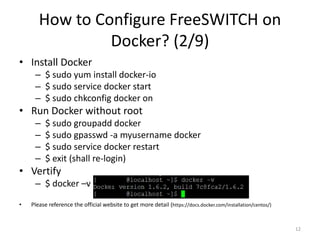
• Vertify
– $ docker –v
• Please reference the official website to get more detail (https://docs.docker.com/installation/centos/)
12
How to Configure FreeSWITCH on
Docker? (3/9)
• Prepare Install FreeSWITCH
– Download the centos docker image
• $ docker pull centos
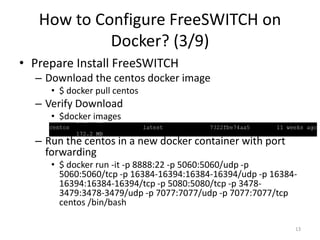
– Verify Download
• $docker images
– Run the centos in a new docker container with port
forwarding
• $ docker run -it -p 8888:22 -p 5060:5060/udp -p
5060:5060/tcp -p 16384-16394:16384-16394/udp -p 16384-
16394:16384-16394/tcp -p 5080:5080/tcp -p 3478-
3479:3478-3479/udp -p 7077:7077/udp -p 7077:7077/tcp
centos /bin/bash
13
How to Configure FreeSWITCH on
Docker? (4/9)
• In the new CentOS container, Install FreeSWITCH
– Install the following dependencies:
• # yum install git autoconf automake libtool gcc-c++ libuuid-devel
zlib-devel libjpeg-devel ncurses-devel openssl-devel e2fsprogs-
devel ldns-devel wget python sqlite-devel libcurl-devel pcre-devel
speex-devel ldns-devel libedit-devel
– Download FreeSWITCH Source and Configure installation
• #cd /usr/local/src/
• # git clone https://freeswitch.org/stash/scm/fs/freeswitch.git
• # cd /usr/local/src/freeswitch
• # git checkout v1.5.14
• # ./bootstrap.sh
• #./configure
14
How to Configure FreeSWITCH on
Docker? (5/9)
• In the new CentOS container, Install FreeSWITCH
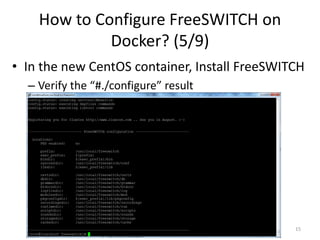
– Verify the “#./configure” result
15
How to Configure FreeSWITCH on
Docker? (6/9)
• In the new CentOS container, Install FreeSWITCH
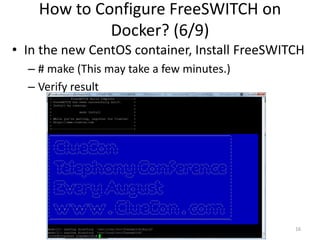
– # make (This may take a few minutes.)
– Verify result
16
How to Configure FreeSWITCH on
Docker? (7/9)
• In the new CentOS container, Install FreeSWITCH
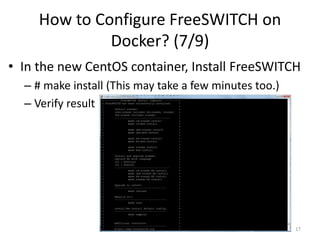
– # make install (This may take a few minutes too.)
– Verify result
17
How to Configure FreeSWITCH on
Docker? (8/9)
• In the new CentOS container, Install FreeSWITCH
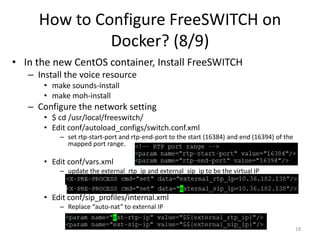
– Install the voice resource
• make sounds-install
• make moh-install
– Configure the network setting
• $ cd /usr/local/freeswitch/
• Edit conf/autoload_configs/switch.conf.xml
– set rtp-start-port and rtp-end-port to the start (16384) and end (16394) of the
mapped port range.
• Edit conf/vars.xml
– update the external_rtp_ip and external_sip_ip to be the virtual IP
• Edit conf/sip_profiles/internal.xml
– Replace “auto-nat” to external IP
18
How to Configure FreeSWITCH on
Docker? (9/9)
• Simple FreeSWITCH operation
– Start FreeSWITCH
• /usr/local/freeswitch/bin/freeswitch -nc
– Stop FreeSWITCH
• freeswitch –stop
• Save the changed image as a new image
– $ docker commit [container-id] [new-image-name]
– Check by $ docker images
19
Configure a SIP phone to verify
FreeSWITCH (1/3)
• FreeSWITCH comes preconfigured with 20 SIP user
accounts. ) The user names are 1000 through 1019. You
can use any of these users for testing.
• Using Linphone (Download by Google Play)
– https://play.google.com/store/apps/details?id=org.linphon
e&hl=zh_TW
• The following are the SIP settings for user 1006:
– Username: 1006
– Authorization Username: 1006
– Password: 1234
– Domain: [IP address of your Docker Host Server]
20
Configure a SIP phone to verify
FreeSWITCH (2/3)
21
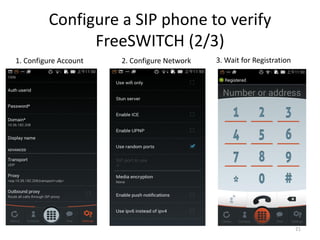
1. Configure Account 2. Configure Network 3. Wait for Registration
Configure a SIP phone to verify
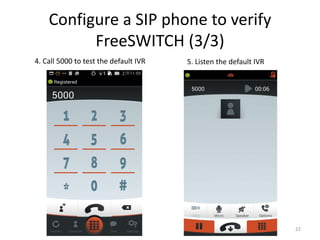
FreeSWITCH (3/3)
22
4. Call 5000 to test the default IVR 5. Listen the default IVR
Reference
• https://docs.docker.com/
• https://freeswitch.org/confluence/display/FRE
ESWITCH/Installation
• http://www.linphone.org/user-guide.html
23

FreeSWITCH on Docker

  • 1.
    FreeSWITCH on Docker StanleyWu (吳建澄) skyeyester@gmail.com Sep. 04, 2015
  • 2.
    Outline • Background Knowledgeof IP Telephony System • Introduction to FreeSWITCH • Introduction to Docker • Why Use FreeSWITCH on Docker? • How to Configure FreeSWITCH on Docker? • How to Configure a SIP phone and Verify FreeSWITCH? 2
  • 3.
    Background Knowledge ofIP Telephony System (1/3) • IP Telephony System is used to transmit voice/video calls over the IP data network via wired or wireless network connection. • IP Telephony System is also known as voice/video over IP • The benefits of IP Telephony System: – Low Cost (Reduce telecom cost via toll by pass) – Scalable (Add extensions flexibility) – Mobility (Make & receive calls from any place or platform, Android, iOS, Linux or Windows) – More advanced features and software integration (video conference, instant message or linking CRM System) 3
  • 4.
    Background Knowledge ofIP Telephony System (2/3) • The challenges of IP Telephony System: – Complicated system configuration procedure – Service quality depends on network quality • Why we may notice on IP Telephony System? – The system configuration procedure could be simplified – Radio access technology is improved and the bandwidth, speed, cost are more efficiency 4
  • 5.
    Background Knowledge ofIP Telephony System (3/3) • The key components of IP Telephony System – IP Phone or Softphone • LinPhone- LinPhone is a Voice over Internet Protocol (VoIP) software on iOS and Android platform • SIPdroid- LinPhone is a VoIP software on Android • Xlite - X-Lite is a proprietary freeware VoIP soft phone that uses the Session Initiation Protocol. – SIP Server or PBX (Private Branch Exchange) • FreeSWITCH - Telephony platform to facilitate the creation of voice and chat driven products • Asterisk - Open Source VoIP PBX • GNU Gatekeeper - VOIP gatekeeper for H.323 5
  • 6.
    Introduction to FreeSWITCH(1/2) • FreeSWITCH is designed to be a telephony platform, a soft switch to route and interconnect communications protocols using a wide range of media, all of this while being able to handle a growing amount of work. • Features of FreeSWITCH – Default implementation is for a PBX or Softswitch – Modular system allows you to extend the system easily Applications may be written in C, Java, .NET etc. – Handle thousands of concurrent channels with media on a standard PC Interoperates with many different products and protocols • such as CallWeaver (formerly known as OpenPBX.org), • Bayonne, Yate, sipXecs or Asterisk • Supports SIP, H.323, IAX2 etc. 6
  • 7.
    Introduction to FreeSWITCH(2/2) •Functions of FreeSWITCH – Become back-to-back user agent (B2BUA) – Handle all SIP signaling – route calls, transfer calls, and can even translate codecs between different legs of the call. – Transcode RTP streams – Offer value-added features such as voicemail, call transfers, and others. 7
  • 8.
    Introduction to Docker •Reproducible • Portable • Like VMs, but different 8
  • 9.
    Why FreeSWITCH onDocker? (1/2) • Docker makes FreeSWITCH installation, deployment and configuration more easier • There are a lot of concerns on using Virtual Machines in Telephony world. Especially for the server’s that handles the Real Time voice packets, as voice quality is pretty important in Telephony. • But the lightweight container can just decrease the performance into tolerable situation • We can enhance the whole telephony system performance in the other part (e.g. latency via SDN, etc) 9
  • 10.
    Why FreeSWITCH onDocker? (2/2) • Speed – Each container shares the same kernel as the host operating system, so there is no overhead of a hypervisor. Resources are allocated as needed, rather than up front. Docker containers start in a second or less. • Repeatability – The way Docker images work and the fact that we can version them has some nice qualities. A container can be created from an image on any machine and it will always be the same. As a result of this, images can be tested locally or in a QA environment. • Packaging – Everything needed to run an application is included in the image. This removes the problem of conflicting versions of libraries on production machines. Customers can run your image on any host that has Docker installed. Docker is compatible with Windows, Linux, and OS X. • Scalability – We can run multiple containers at the same time and Docker will handle setting up networking for us. The great thing about using Docker with SIP-related projects is that all we have to do for a new container is add an SRV record and we are done. 10
  • 11.
    How to ConfigureFreeSWITCH on Docker? (1/9) • Server System Environment – CetOS 6.6 64bit – 8GB RAM – 10/100 NIC – 512GB HardDisk • Client – Android/iOS Phone with Linphone APP (Recommend) – Other SIP phone software 11
  • 12.
    How to ConfigureFreeSWITCH on Docker? (2/9) • Install Docker – $ sudo yum install docker-io – $ sudo service docker start – $ sudo chkconfig docker on • Run Docker without root – $ sudo groupadd docker – $ sudo gpasswd -a myusername docker – $ sudo service docker restart – $ exit (shall re-login) • Vertify – $ docker –v • Please reference the official website to get more detail (https://docs.docker.com/installation/centos/) 12
  • 13.
    How to ConfigureFreeSWITCH on Docker? (3/9) • Prepare Install FreeSWITCH – Download the centos docker image • $ docker pull centos – Verify Download • $docker images – Run the centos in a new docker container with port forwarding • $ docker run -it -p 8888:22 -p 5060:5060/udp -p 5060:5060/tcp -p 16384-16394:16384-16394/udp -p 16384- 16394:16384-16394/tcp -p 5080:5080/tcp -p 3478- 3479:3478-3479/udp -p 7077:7077/udp -p 7077:7077/tcp centos /bin/bash 13
  • 14.
    How to ConfigureFreeSWITCH on Docker? (4/9) • In the new CentOS container, Install FreeSWITCH – Install the following dependencies: • # yum install git autoconf automake libtool gcc-c++ libuuid-devel zlib-devel libjpeg-devel ncurses-devel openssl-devel e2fsprogs- devel ldns-devel wget python sqlite-devel libcurl-devel pcre-devel speex-devel ldns-devel libedit-devel – Download FreeSWITCH Source and Configure installation • #cd /usr/local/src/ • # git clone https://freeswitch.org/stash/scm/fs/freeswitch.git • # cd /usr/local/src/freeswitch • # git checkout v1.5.14 • # ./bootstrap.sh • #./configure 14
  • 15.
    How to ConfigureFreeSWITCH on Docker? (5/9) • In the new CentOS container, Install FreeSWITCH – Verify the “#./configure” result 15
  • 16.
    How to ConfigureFreeSWITCH on Docker? (6/9) • In the new CentOS container, Install FreeSWITCH – # make (This may take a few minutes.) – Verify result 16
  • 17.
    How to ConfigureFreeSWITCH on Docker? (7/9) • In the new CentOS container, Install FreeSWITCH – # make install (This may take a few minutes too.) – Verify result 17
  • 18.
    How to ConfigureFreeSWITCH on Docker? (8/9) • In the new CentOS container, Install FreeSWITCH – Install the voice resource • make sounds-install • make moh-install – Configure the network setting • $ cd /usr/local/freeswitch/ • Edit conf/autoload_configs/switch.conf.xml – set rtp-start-port and rtp-end-port to the start (16384) and end (16394) of the mapped port range. • Edit conf/vars.xml – update the external_rtp_ip and external_sip_ip to be the virtual IP • Edit conf/sip_profiles/internal.xml – Replace “auto-nat” to external IP 18
  • 19.
    How to ConfigureFreeSWITCH on Docker? (9/9) • Simple FreeSWITCH operation – Start FreeSWITCH • /usr/local/freeswitch/bin/freeswitch -nc – Stop FreeSWITCH • freeswitch –stop • Save the changed image as a new image – $ docker commit [container-id] [new-image-name] – Check by $ docker images 19
  • 20.
    Configure a SIPphone to verify FreeSWITCH (1/3) • FreeSWITCH comes preconfigured with 20 SIP user accounts. ) The user names are 1000 through 1019. You can use any of these users for testing. • Using Linphone (Download by Google Play) – https://play.google.com/store/apps/details?id=org.linphon e&hl=zh_TW • The following are the SIP settings for user 1006: – Username: 1006 – Authorization Username: 1006 – Password: 1234 – Domain: [IP address of your Docker Host Server] 20
  • 21.
    Configure a SIPphone to verify FreeSWITCH (2/3) 21 1. Configure Account 2. Configure Network 3. Wait for Registration
  • 22.
    Configure a SIPphone to verify FreeSWITCH (3/3) 22 4. Call 5000 to test the default IVR 5. Listen the default IVR
  • 23.