INFORMATION COMMUNICATIONS TECHNOLOGY Term 2~ Week 5.3 Specific Objective ~ 2.3.2 Specific Objective ~ 2.3.3
Objectives Download information from the internet. Copy and paste information from internet to a different application.
Required Previous Knowledge Students can copy and paste information from one location and paste it in another location.
REVIEW CUT, COPY  AND PASTE  (CCP)
Cut / Copy / Paste (CCP) You can use the Cut / Copy and Paste to move or duplicate text over a long distance or to another application. Example from MS Word to MS Excel. Helps to save time by  not retyping text.
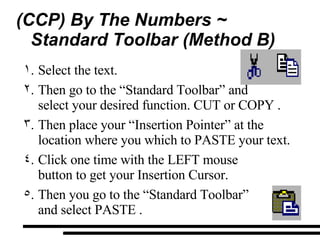
(CCP) By The Numbers ~  Standard Toolbar (Method B) Select the text. Then go to the “Standard Toolbar” and  select your desired function. CUT or COPY . Then place your “Insertion Pointer” at the location where you which to PASTE your text. Click one time with the LEFT mouse  button to get your Insertion Cursor. Then you go to the “Standard Toolbar”  and select PASTE .
REVIEW OPENING AND BROWSING A  WEB PAGE USING HYPER-LINKS
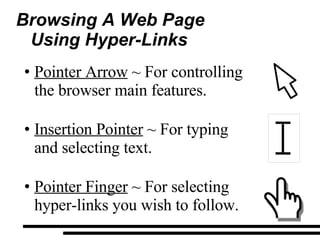
Browsing A Web Page  Using Hyper-Links Pointer Arrow  ~ For controlling the browser main features. Insertion Pointer  ~ For typing  and selecting text. Pointer Finger  ~ For selecting hyper-links you wish to follow.
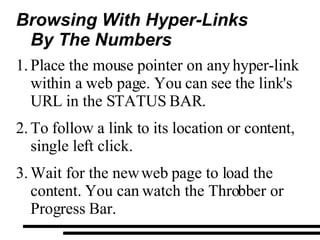
Browsing With Hyper-Links By The Numbers Place the mouse pointer on any hyper-link within a web page. You can see the link's URL in the STATUS BAR. To follow a link to its location or content, single left click. Wait for the new web page to load the content. You can watch the Throbber or Progress Bar.
SAVING A  WEB PAGE  TO A STORAGE DEVICE
Saving A Web Page To A Storage Device You can save a web page that you are viewing on the internet so it can be viewed at another computer that is not connected to the internet.
Saving A Web Page To A Storage Device You will NOT be able to browse the web site, but only view those exact pages you saved when at the café. It is similar to printing to a PDF file, but is still in its native HTML Format.
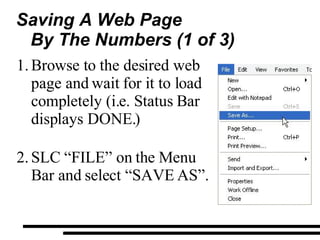
Saving A Web Page By The Numbers (1 of 3) Browse to the desired web page and wait for it to load completely (i.e. Status Bar displays DONE.) SLC “FILE” on the Menu Bar and select “SAVE AS”.
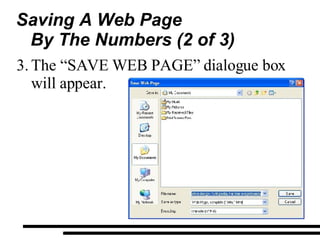
Saving A Web Page By The Numbers (2 of 3) The “SAVE WEB PAGE” dialogue box will appear.
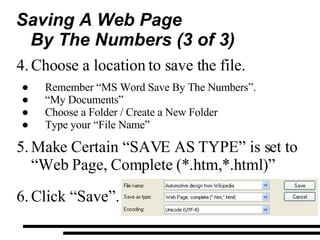
Saving A Web Page By The Numbers (3 of 3) Choose a location to save the file. Remember “MS Word Save By The Numbers”. “ My Documents” Choose a Folder / Create a New Folder Type your “File Name” Make Certain “SAVE AS TYPE” is set to “Web Page, Complete (*.htm,*.html)” Click “Save”.
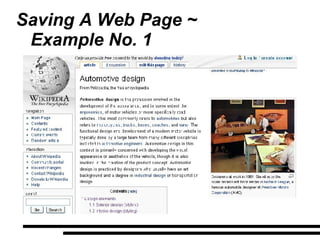
Saving A Web Page ~ Example No. 1
DEMONSTRATION
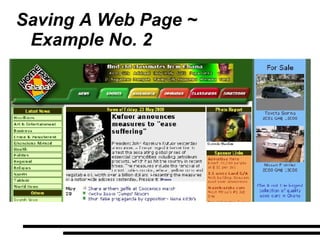
Saving A Web Page ~ Example No. 2
DEMONSTRATION
SAVING / DOWNLOADING
Saving / Downloading Saving  ~ Recording of the current user document to a storage device, can include a network but is not compulsory. Downloading  ~ To transfer from one computer to another via the use of a network.
Saving / Downloading There is a very small difference between Saving and Downloading. Downloading involves storing files from the internet on to a different storage devices. E.g. Hard drive.
Saving / Downloading Not all files that are on-line are able to be downloaded because of copyright laws. They include files that have been uploaded by someone else for us to download and then “take home”. (i.e. Song, Picture, Application, etc.)
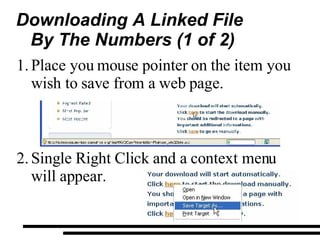
Downloading A Linked File By The Numbers (1 of 2) Place you mouse pointer on the item you wish to save from a web page.  Single Right Click and a context menu will appear.
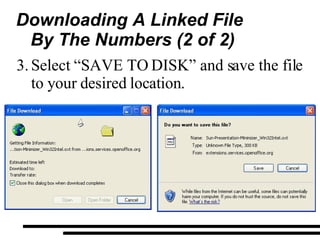
Downloading A Linked File By The Numbers (2 of 2) Select “SAVE TO DISK” and save the file to your desired location.
Saving Graphics/Photos By The Numbers Place your cursor over the graphic image Single Right Click. Select “Save Picture As” option to save it to hard disk. You either maintain old file name or rename it.
DEMONSTRATION
COPYING TEXT FROM A WEB PAGE
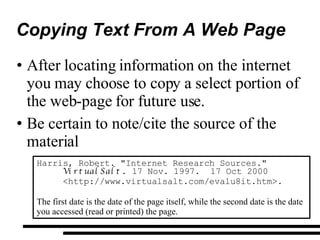
Copying Text From A Web Page After locating information on the internet you may choose to copy a select portion of the web-page for future use. Be certain to note/cite the source of the material Harris, Robert. &quot;Internet Research Sources.&quot;       VirtualSalt . 17 Nov. 1997.  17 Oct 2000       <http://www.virtualsalt.com/evalu8it.htm>. The first date is the date of the page itself, while the second date is the date you accessed (read or printed) the page.
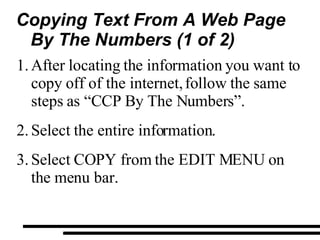
Copying Text From A Web Page  By The Numbers (1 of 2) After locating the information you want to copy off of the internet, follow the same steps as “CCP By The Numbers”. Select the entire information. Select COPY from the EDIT MENU on the menu bar.
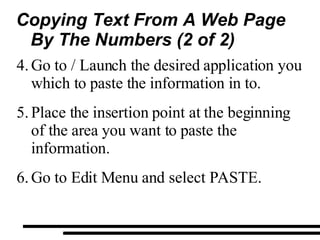
Copying Text From A Web Page  By The Numbers (2 of 2) Go to / Launch the desired application you which to paste the information in to. Place the insertion point at the beginning of the area you want to paste the information. Go to Edit Menu and select PASTE.
DEMONSTRATION
QUESTIONS

Form 1 Term 2 Week 5.3

  • 1.
    INFORMATION COMMUNICATIONS TECHNOLOGYTerm 2~ Week 5.3 Specific Objective ~ 2.3.2 Specific Objective ~ 2.3.3
  • 2.
    Objectives Download informationfrom the internet. Copy and paste information from internet to a different application.
  • 3.
    Required Previous KnowledgeStudents can copy and paste information from one location and paste it in another location.
  • 4.
    REVIEW CUT, COPY AND PASTE (CCP)
  • 5.
    Cut / Copy/ Paste (CCP) You can use the Cut / Copy and Paste to move or duplicate text over a long distance or to another application. Example from MS Word to MS Excel. Helps to save time by not retyping text.
  • 6.
    (CCP) By TheNumbers ~ Standard Toolbar (Method B) Select the text. Then go to the “Standard Toolbar” and select your desired function. CUT or COPY . Then place your “Insertion Pointer” at the location where you which to PASTE your text. Click one time with the LEFT mouse button to get your Insertion Cursor. Then you go to the “Standard Toolbar” and select PASTE .
  • 7.
    REVIEW OPENING ANDBROWSING A WEB PAGE USING HYPER-LINKS
  • 8.
    Browsing A WebPage Using Hyper-Links Pointer Arrow ~ For controlling the browser main features. Insertion Pointer ~ For typing and selecting text. Pointer Finger ~ For selecting hyper-links you wish to follow.
  • 9.
    Browsing With Hyper-LinksBy The Numbers Place the mouse pointer on any hyper-link within a web page. You can see the link's URL in the STATUS BAR. To follow a link to its location or content, single left click. Wait for the new web page to load the content. You can watch the Throbber or Progress Bar.
  • 10.
    SAVING A WEB PAGE TO A STORAGE DEVICE
  • 11.
    Saving A WebPage To A Storage Device You can save a web page that you are viewing on the internet so it can be viewed at another computer that is not connected to the internet.
  • 12.
    Saving A WebPage To A Storage Device You will NOT be able to browse the web site, but only view those exact pages you saved when at the café. It is similar to printing to a PDF file, but is still in its native HTML Format.
  • 13.
    Saving A WebPage By The Numbers (1 of 3) Browse to the desired web page and wait for it to load completely (i.e. Status Bar displays DONE.) SLC “FILE” on the Menu Bar and select “SAVE AS”.
  • 14.
    Saving A WebPage By The Numbers (2 of 3) The “SAVE WEB PAGE” dialogue box will appear.
  • 15.
    Saving A WebPage By The Numbers (3 of 3) Choose a location to save the file. Remember “MS Word Save By The Numbers”. “ My Documents” Choose a Folder / Create a New Folder Type your “File Name” Make Certain “SAVE AS TYPE” is set to “Web Page, Complete (*.htm,*.html)” Click “Save”.
  • 16.
    Saving A WebPage ~ Example No. 1
  • 17.
  • 18.
    Saving A WebPage ~ Example No. 2
  • 19.
  • 20.
  • 21.
    Saving / DownloadingSaving ~ Recording of the current user document to a storage device, can include a network but is not compulsory. Downloading ~ To transfer from one computer to another via the use of a network.
  • 22.
    Saving / DownloadingThere is a very small difference between Saving and Downloading. Downloading involves storing files from the internet on to a different storage devices. E.g. Hard drive.
  • 23.
    Saving / DownloadingNot all files that are on-line are able to be downloaded because of copyright laws. They include files that have been uploaded by someone else for us to download and then “take home”. (i.e. Song, Picture, Application, etc.)
  • 24.
    Downloading A LinkedFile By The Numbers (1 of 2) Place you mouse pointer on the item you wish to save from a web page. Single Right Click and a context menu will appear.
  • 25.
    Downloading A LinkedFile By The Numbers (2 of 2) Select “SAVE TO DISK” and save the file to your desired location.
  • 26.
    Saving Graphics/Photos ByThe Numbers Place your cursor over the graphic image Single Right Click. Select “Save Picture As” option to save it to hard disk. You either maintain old file name or rename it.
  • 27.
  • 28.
  • 29.
    Copying Text FromA Web Page After locating information on the internet you may choose to copy a select portion of the web-page for future use. Be certain to note/cite the source of the material Harris, Robert. &quot;Internet Research Sources.&quot;      VirtualSalt . 17 Nov. 1997.  17 Oct 2000      <http://www.virtualsalt.com/evalu8it.htm>. The first date is the date of the page itself, while the second date is the date you accessed (read or printed) the page.
  • 30.
    Copying Text FromA Web Page By The Numbers (1 of 2) After locating the information you want to copy off of the internet, follow the same steps as “CCP By The Numbers”. Select the entire information. Select COPY from the EDIT MENU on the menu bar.
  • 31.
    Copying Text FromA Web Page By The Numbers (2 of 2) Go to / Launch the desired application you which to paste the information in to. Place the insertion point at the beginning of the area you want to paste the information. Go to Edit Menu and select PASTE.
  • 32.
  • 33.