Chapter 2: Browsing the Web Discovering the Internet:  Brief Concepts and Techniques,  Second Edition   Discovering the Internet  Complete Concepts and Techniques,  Second Edition
Objectives Describe a Web site, common Web page characteristics, and Web servers Explain the role IP addresses, domain names, and URLs play in locating Web pages Start a Web browser and view Web pages Revisit Web pages using browser and desktop shortcuts
Objectives (cont'd) Describe ways to save online information for later use Demonstrate how to change Web browser options Discuss the risks and safeguards related to using the Web
Web Sites, Web Pages, and Web Servers Web Sites Home page is the primary page Number of pages varies depending on site’s purpose and type of content FAQ page lists frequently asked questions and their answers A portal is a special type of Web site that offers a doorway or starting point for browsing the Web
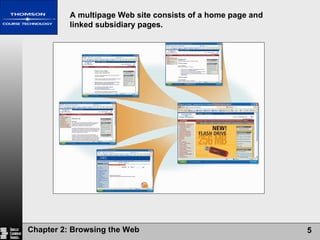
A multipage Web site consists of a home page and linked subsidiary pages.
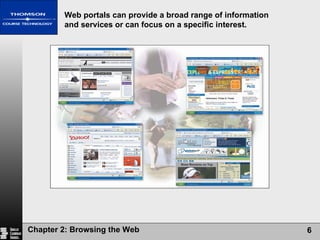
Web portals can provide a broad range of information and services or can focus on a specific interest.
Web Sites, Web Pages, and Web Servers (cont'd) Web Pages Designed to attract visitors and hold their attention Common characteristics Logo and name Images Links Advertisements Search tool Copyright statement and link to privacy policy statement
Web Sites, Web Pages, and Web Servers (cont'd) Web Servers Browser is a client that requests resources from a server Server “serves up” resources upon request Web browsing is example of client-server computing
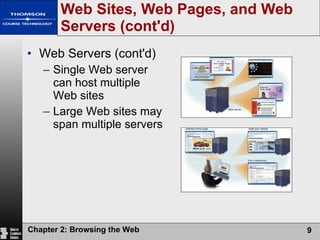
Web Sites, Web Pages, and Web Servers (cont'd) Web Servers (cont'd) Single Web server can host multiple Web sites Large Web sites may span multiple servers
IP Addresses A number that uniquely identifies each computer or device on a network A series of four numbers separated by a period or dot 167.68.24.104 Static IP addresses seldom change Dynamic IP addresses are temporary IP Addresses, Domain Names, and URLs
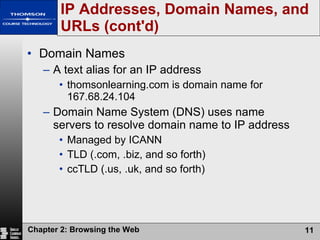
IP Addresses, Domain Names, and URLs (cont'd) Domain Names A text alias for an IP address thomsonlearning.com is domain name for 167.68.24.104 Domain Name System (DNS) uses name servers to resolve domain name to IP address Managed by ICANN TLD (.com, .biz, and so forth) ccTLD (.us, .uk, and so forth)
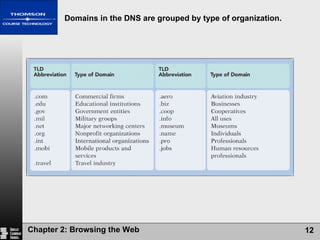
Domains in the DNS are grouped by type of organization.
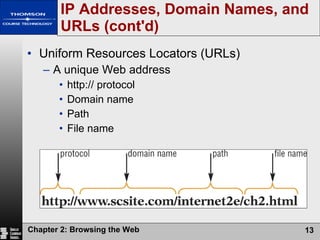
IP Addresses, Domain Names, and URLs (cont'd) Uniform Resources Locators (URLs) A unique Web address http:// protocol Domain name Path File name
Web Browsers Software program used to view Web pages Most commonly used Web browser is Internet Explorer, others include Netscape Opera Deepnet Explorer Firefox Illustrations in the text use Internet Explorer v. 7.0 Appendix A discusses other browsers
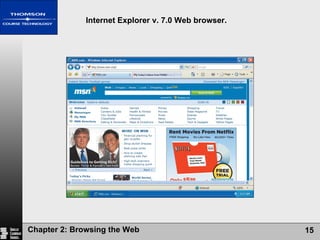
Internet Explorer v. 7.0 Web browser.
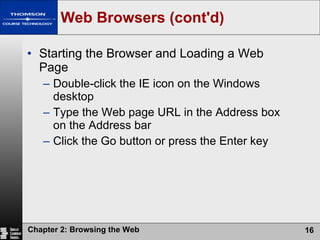
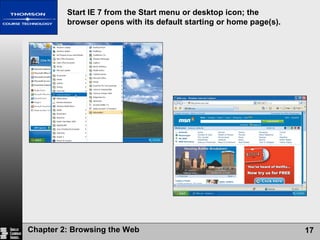
Web Browsers (cont'd) Starting the Browser and Loading a Web Page Double-click the IE icon on the Windows desktop Type the Web page URL in the Address box on the Address bar Click the Go button or press the Enter key
Start IE 7 from the Start menu or desktop icon; the browser opens with its default starting or home page(s).
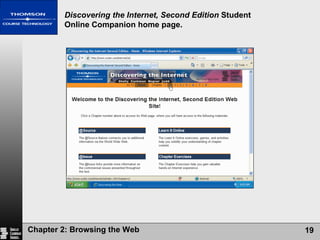
Web Browsers (cont'd) Clicking a Link and Using Web Page Features Links (hyperlinks) allow users to jump to a new location in the same page, to another page at the same Web site, or to a page at another Web site Web pages offer links and other features that allow you to view additional information
Discovering the Internet, Second Edition  Student Online Companion home page.
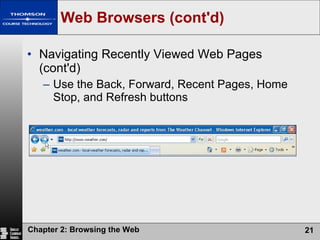
Web Browsers (cont'd) Navigating Recently Viewed Web Pages Use the Back, Forward, Recent Pages, Home Stop, and Refresh buttons Back and Forward – revisit recently viewed pages Recent Pages – list of recently viewed pages Home – reload the default home page(s) Stop – stop downloading a page Refresh – request a fresh copy of the current page from the server
Web Browsers (cont'd) Navigating Recently Viewed Web Pages (cont'd) Use the Back, Forward, Recent Pages, Home Stop, and Refresh buttons
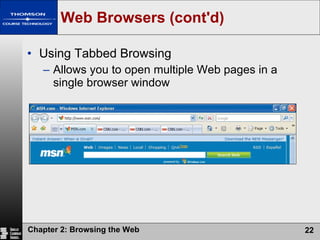
Web Browsers (cont'd) Using Tabbed Browsing Allows you to open multiple Web pages in a single browser window
Web Browsers (cont'd) Using Tabbed Browsing (cont'd) Each page can be opened in its own tab in the tab row Clicking a tab brings the Web page and tab from the tab row background to the foreground Click the New Tab button to open a blank tab then enter URL in the Address box to open a Web page in the new tab
Web Browsers (cont'd) Using Tabbed Browsing (cont'd) Alternatively, press the Alt key as you enter a URL from the Address box to open the page in a new tab Press the Ctrl key or use a shortcut menu to open a linked page in a new tab Click the X or Close icon on a tab to close the page Close the browser and set options to reopen tabbed pages or close all tabs
Web Browsers (cont'd) Using Tabbed Browsing (cont'd) Some tabs are hidden when you open more than six pages because of space limitations in the tab row Click the tab scrolling buttons to view hidden tabs Click the Quick Tabs button to view all open pages in thumbnail miniatures; click a thumbnail to bring that tab to the foreground Click the Tab List button to view a list of all open pages; click a page in the list to bring that tab to the foreground
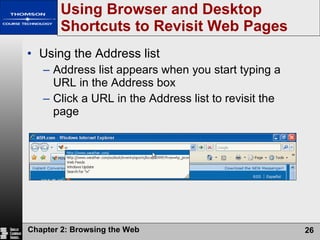
Using Browser and Desktop Shortcuts to Revisit Web Pages Using the Address list Address list appears when you start typing a URL in the Address box Click a URL in the Address list to revisit the page
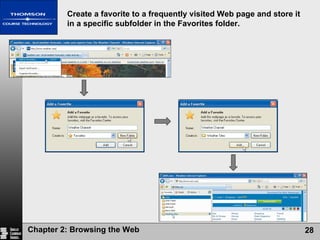
Creating and Using a Favorite A favorite is a shortcut to a frequently viewed Web page Click the Add to Favorites button and click Add to Favorites Add a favorite to the Favorites list Create a folder in which to store the favorite, if desired Click the Favorites button in the Favorites Center to view the Favorites list Using Browser and Desktop Shortcuts to Revisit Web Pages (cont'd)
Create a favorite to a frequently visited Web page and store it in a specific subfolder in the Favorites folder.
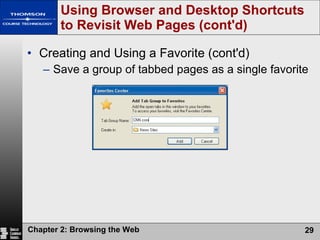
Creating and Using a Favorite (cont'd) Save a group of tabbed pages as a single favorite Using Browser and Desktop Shortcuts to Revisit Web Pages (cont'd)
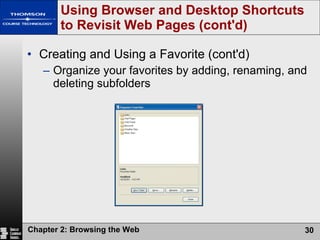
Creating and Using a Favorite (cont'd) Organize your favorites by adding, renaming, and deleting subfolders Using Browser and Desktop Shortcuts to Revisit Web Pages (cont'd)
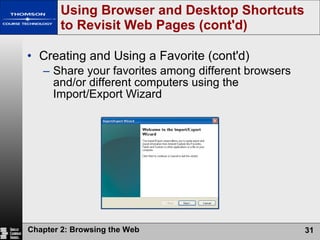
Creating and Using a Favorite (cont'd) Share your favorites among different browsers and/or different computers using the Import/Export Wizard Using Browser and Desktop Shortcuts to Revisit Web Pages (cont'd)
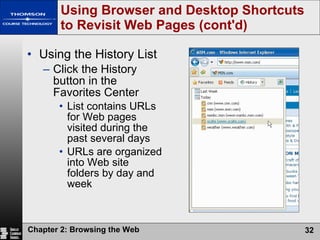
Using the History List Click the History button in the Favorites Center  List contains URLs for Web pages visited during the past several days URLs are organized into Web site folders by day and week Using Browser and Desktop Shortcuts to Revisit Web Pages (cont'd)
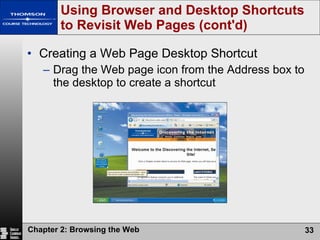
Creating a Web Page Desktop Shortcut Drag the Web page icon from the Address box to the desktop to create a shortcut Using Browser and Desktop Shortcuts to Revisit Web Pages (cont'd)
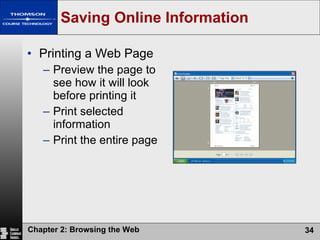
Saving Online Information Printing a Web Page Preview the page to see how it will look before printing it Print selected information Print the entire page
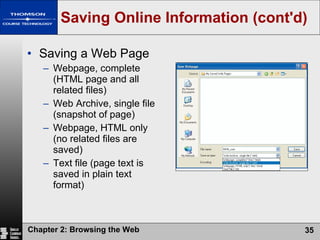
Saving Online Information (cont'd) Saving a Web Page Webpage, complete (HTML page and all related files) Web Archive, single file (snapshot of page) Webpage, HTML only (no related files are saved) Text file (page text is saved in plain text format)
Saving Online Information (cont'd) E-mailing a Web Page Send a page or a link to a page using commands on the Page button on the Command bar Saving a Web Page Image Use a shortcut menu Note that all Web page content, including images, are protected by copyright law
Saving Online Information (cont'd) Adding Web Content to the Active Desktop Windows Active Desktop feature supports the display of dynamic Web content on the desktop Right-drag Web page icon from the Address box to the desktop; click Create Active Desktop items Here on the shortcut menu Displays static information when offline Displays dynamic information when online
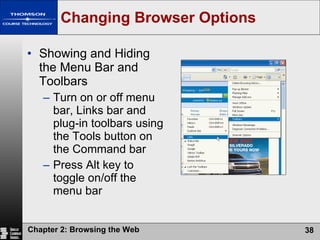
Changing Browser Options Showing and Hiding the Menu Bar and Toolbars Turn on or off menu bar, Links bar and plug-in toolbars using the Tools button on the Command bar Press Alt key to toggle on/off the menu bar
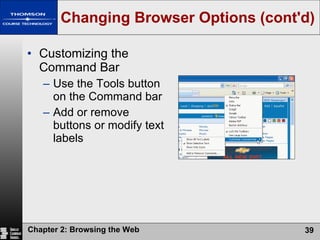
Changing Browser Options (cont'd) Customizing the Command Bar Use the Tools button on the Command bar  Add or remove buttons or modify text labels
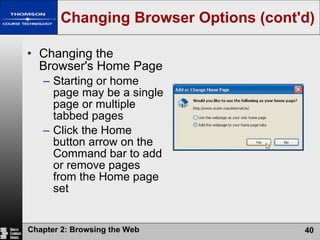
Changing Browser Options (cont'd) Changing the Browser's Home Page Starting or home page may be a single page or multiple tabbed pages Click the Home button arrow on the Command bar to add or remove pages from the Home page set
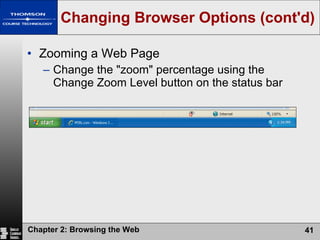
Changing Browser Options (cont'd) Zooming a Web Page Change the "zoom" percentage using the Change Zoom Level button on the status bar
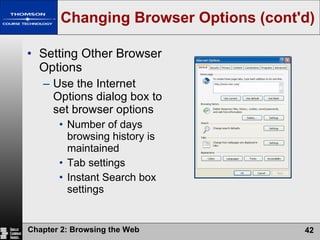
Changing Browser Options (cont'd) Setting Other Browser Options Use the Internet Options dialog box to set browser options Number of days browsing history is maintained Tab settings Instant Search box settings
Using the Web: Risks and Safeguards Protecting Your Computer from Hackers A hacker is individual who uses computer skills to access a network without authorization A firewall is hardware and/or software that blocks outside intruders Home computers: install a personal firewall to protect against hackers BlackICE PC Protection McAfee VirusScan Plus Norton Personal Firewall
Protecting Your Computer from Viruses A computer virus is a small, potentially damaging computer program that can infect a computer and then spread to other computers through Sending/receiving e-mail Downloading files Exchanging word processing or spreadsheet files Install virus protection software to protect against infection Using the Web: Risks and Safeguards (cont'd)
Using the Web: Risks and Safeguards (cont'd) Shopping Safely Online Use reputable online vendors Pay with a credit card over a secure (SSL) connection Use a third-party payment service if participating in online auctions
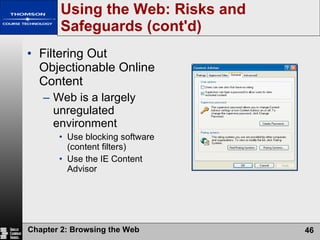
Using the Web: Risks and Safeguards (cont'd) Filtering Out Objectionable Online Content Web is a largely unregulated environment Use blocking software (content filters)  Use the IE Content Advisor
Using the Web: Risks and Safeguards (cont'd) Protecting Against Phishing Sites A phishing site is a phony site designed to look like a legitimate site Used by thieves to collect personal information Name Address Social Security number Bank account information Credit card information IE 7 has built-in Phishing Filter that evaluates sites
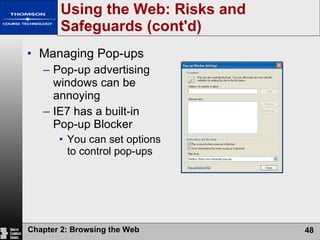
Using the Web: Risks and Safeguards (cont'd) Managing Pop-ups Pop-up advertising windows can be annoying IE7 has a built-in Pop-up Blocker  You can set options to control pop-ups
Using the Web: Risks and Safeguards (cont'd) Keeping Your Personal Information Private Employers have the right to monitor use of computer equipment and Internet access by their employees ECPA and Patriot Act govern what personal information can be collected by the government Look for and read Web sites' posted privacy policies and statements
Using the Web: Risks and Safeguards (cont'd) Keeping Your Personal Information Private (cont'd) At e-business sites, look for membership in TRUSTe program which sets rules for how members gather, use, and protect personal information at member sites
Using the Web: Risks and Safeguards (cont'd) Keeping Your Personal Information Private (cont'd) Be aware of cookies Text files stored on a computer’s hard drive used by companies to store information to customize Web pages, store passwords, track browsing activities, and target advertising Be aware of Web bugs or beacons Hidden graphics embedded in Web pages that collect information
Using the Web: Risks and Safeguards (cont'd) Keeping Your Personal Information Private (cont'd) Change the privacy settings in the Privacy tab in the Internet Options dialog box to control the type of cookies you accept Install software to protect against Web bugs Review Web site privacy policy statements Opt-out of personal information collection at Web sites
Chapter Review The Web is a dynamic environment containing millions of Web sites and billions of pages The number of pages at a Web site varies; but the primary page is the home page A Web portal is a special type of Web site that acts as a starting point or doorway to Web content and services The interaction between a Web browser and a Web server is an example of client/server computing
Chapter Review (cont'd) An IP address is the unique numerical address of a computer on a network A domain name is an easy-to-remember text alias for one or more IP addresses A URL or Web address is the unique address of a Web page
Chapter Review (cont'd) Start a Web browser by double-clicking the browser icon on the desktop or by clicking All Programs on the Start menu Load a Web page by typing the page’s URL in the Address box on the Address bar and clicking the Go button or pressing the Enter key Use Back, Forward, Recent Pages, Home, Stop, and Refresh buttons to revisit pages, load the browser's home page, and refresh the current page
Chapter Review (cont'd) Tabbed browsing allows you to open multiple Web pages in the same browser window Revisit previously viewed Web pages by clicking a URL in the Address list, by creating and clicking a favorite, or by clicking a URL in the History list Print, save, or e-mail a Web page to save its content for later use Customize the browser window by showing or hiding the menu bar, toolbars, the Command bar, and by changing the browser's home page set
Chapter Review (cont'd) Install personal firewall software to protect a personal computer from outside intruders Shop online from reputable vendors, pay by credit card to limit liability, and use a secure Internet connection for the transaction Become familiar with Web site privacy policies and opt-out from information collection at the sites, if desired
Chapter 2 Complete Browsing the Web

Chapter 2 Browsing the Web

  • 1.
    Chapter 2: Browsingthe Web Discovering the Internet: Brief Concepts and Techniques, Second Edition Discovering the Internet Complete Concepts and Techniques, Second Edition
  • 2.
    Objectives Describe aWeb site, common Web page characteristics, and Web servers Explain the role IP addresses, domain names, and URLs play in locating Web pages Start a Web browser and view Web pages Revisit Web pages using browser and desktop shortcuts
  • 3.
    Objectives (cont'd) Describeways to save online information for later use Demonstrate how to change Web browser options Discuss the risks and safeguards related to using the Web
  • 4.
    Web Sites, WebPages, and Web Servers Web Sites Home page is the primary page Number of pages varies depending on site’s purpose and type of content FAQ page lists frequently asked questions and their answers A portal is a special type of Web site that offers a doorway or starting point for browsing the Web
  • 5.
    A multipage Website consists of a home page and linked subsidiary pages.
  • 6.
    Web portals canprovide a broad range of information and services or can focus on a specific interest.
  • 7.
    Web Sites, WebPages, and Web Servers (cont'd) Web Pages Designed to attract visitors and hold their attention Common characteristics Logo and name Images Links Advertisements Search tool Copyright statement and link to privacy policy statement
  • 8.
    Web Sites, WebPages, and Web Servers (cont'd) Web Servers Browser is a client that requests resources from a server Server “serves up” resources upon request Web browsing is example of client-server computing
  • 9.
    Web Sites, WebPages, and Web Servers (cont'd) Web Servers (cont'd) Single Web server can host multiple Web sites Large Web sites may span multiple servers
  • 10.
    IP Addresses Anumber that uniquely identifies each computer or device on a network A series of four numbers separated by a period or dot 167.68.24.104 Static IP addresses seldom change Dynamic IP addresses are temporary IP Addresses, Domain Names, and URLs
  • 11.
    IP Addresses, DomainNames, and URLs (cont'd) Domain Names A text alias for an IP address thomsonlearning.com is domain name for 167.68.24.104 Domain Name System (DNS) uses name servers to resolve domain name to IP address Managed by ICANN TLD (.com, .biz, and so forth) ccTLD (.us, .uk, and so forth)
  • 12.
    Domains in theDNS are grouped by type of organization.
  • 13.
    IP Addresses, DomainNames, and URLs (cont'd) Uniform Resources Locators (URLs) A unique Web address http:// protocol Domain name Path File name
  • 14.
    Web Browsers Softwareprogram used to view Web pages Most commonly used Web browser is Internet Explorer, others include Netscape Opera Deepnet Explorer Firefox Illustrations in the text use Internet Explorer v. 7.0 Appendix A discusses other browsers
  • 15.
    Internet Explorer v.7.0 Web browser.
  • 16.
    Web Browsers (cont'd)Starting the Browser and Loading a Web Page Double-click the IE icon on the Windows desktop Type the Web page URL in the Address box on the Address bar Click the Go button or press the Enter key
  • 17.
    Start IE 7from the Start menu or desktop icon; the browser opens with its default starting or home page(s).
  • 18.
    Web Browsers (cont'd)Clicking a Link and Using Web Page Features Links (hyperlinks) allow users to jump to a new location in the same page, to another page at the same Web site, or to a page at another Web site Web pages offer links and other features that allow you to view additional information
  • 19.
    Discovering the Internet,Second Edition Student Online Companion home page.
  • 20.
    Web Browsers (cont'd)Navigating Recently Viewed Web Pages Use the Back, Forward, Recent Pages, Home Stop, and Refresh buttons Back and Forward – revisit recently viewed pages Recent Pages – list of recently viewed pages Home – reload the default home page(s) Stop – stop downloading a page Refresh – request a fresh copy of the current page from the server
  • 21.
    Web Browsers (cont'd)Navigating Recently Viewed Web Pages (cont'd) Use the Back, Forward, Recent Pages, Home Stop, and Refresh buttons
  • 22.
    Web Browsers (cont'd)Using Tabbed Browsing Allows you to open multiple Web pages in a single browser window
  • 23.
    Web Browsers (cont'd)Using Tabbed Browsing (cont'd) Each page can be opened in its own tab in the tab row Clicking a tab brings the Web page and tab from the tab row background to the foreground Click the New Tab button to open a blank tab then enter URL in the Address box to open a Web page in the new tab
  • 24.
    Web Browsers (cont'd)Using Tabbed Browsing (cont'd) Alternatively, press the Alt key as you enter a URL from the Address box to open the page in a new tab Press the Ctrl key or use a shortcut menu to open a linked page in a new tab Click the X or Close icon on a tab to close the page Close the browser and set options to reopen tabbed pages or close all tabs
  • 25.
    Web Browsers (cont'd)Using Tabbed Browsing (cont'd) Some tabs are hidden when you open more than six pages because of space limitations in the tab row Click the tab scrolling buttons to view hidden tabs Click the Quick Tabs button to view all open pages in thumbnail miniatures; click a thumbnail to bring that tab to the foreground Click the Tab List button to view a list of all open pages; click a page in the list to bring that tab to the foreground
  • 26.
    Using Browser andDesktop Shortcuts to Revisit Web Pages Using the Address list Address list appears when you start typing a URL in the Address box Click a URL in the Address list to revisit the page
  • 27.
    Creating and Usinga Favorite A favorite is a shortcut to a frequently viewed Web page Click the Add to Favorites button and click Add to Favorites Add a favorite to the Favorites list Create a folder in which to store the favorite, if desired Click the Favorites button in the Favorites Center to view the Favorites list Using Browser and Desktop Shortcuts to Revisit Web Pages (cont'd)
  • 28.
    Create a favoriteto a frequently visited Web page and store it in a specific subfolder in the Favorites folder.
  • 29.
    Creating and Usinga Favorite (cont'd) Save a group of tabbed pages as a single favorite Using Browser and Desktop Shortcuts to Revisit Web Pages (cont'd)
  • 30.
    Creating and Usinga Favorite (cont'd) Organize your favorites by adding, renaming, and deleting subfolders Using Browser and Desktop Shortcuts to Revisit Web Pages (cont'd)
  • 31.
    Creating and Usinga Favorite (cont'd) Share your favorites among different browsers and/or different computers using the Import/Export Wizard Using Browser and Desktop Shortcuts to Revisit Web Pages (cont'd)
  • 32.
    Using the HistoryList Click the History button in the Favorites Center List contains URLs for Web pages visited during the past several days URLs are organized into Web site folders by day and week Using Browser and Desktop Shortcuts to Revisit Web Pages (cont'd)
  • 33.
    Creating a WebPage Desktop Shortcut Drag the Web page icon from the Address box to the desktop to create a shortcut Using Browser and Desktop Shortcuts to Revisit Web Pages (cont'd)
  • 34.
    Saving Online InformationPrinting a Web Page Preview the page to see how it will look before printing it Print selected information Print the entire page
  • 35.
    Saving Online Information(cont'd) Saving a Web Page Webpage, complete (HTML page and all related files) Web Archive, single file (snapshot of page) Webpage, HTML only (no related files are saved) Text file (page text is saved in plain text format)
  • 36.
    Saving Online Information(cont'd) E-mailing a Web Page Send a page or a link to a page using commands on the Page button on the Command bar Saving a Web Page Image Use a shortcut menu Note that all Web page content, including images, are protected by copyright law
  • 37.
    Saving Online Information(cont'd) Adding Web Content to the Active Desktop Windows Active Desktop feature supports the display of dynamic Web content on the desktop Right-drag Web page icon from the Address box to the desktop; click Create Active Desktop items Here on the shortcut menu Displays static information when offline Displays dynamic information when online
  • 38.
    Changing Browser OptionsShowing and Hiding the Menu Bar and Toolbars Turn on or off menu bar, Links bar and plug-in toolbars using the Tools button on the Command bar Press Alt key to toggle on/off the menu bar
  • 39.
    Changing Browser Options(cont'd) Customizing the Command Bar Use the Tools button on the Command bar Add or remove buttons or modify text labels
  • 40.
    Changing Browser Options(cont'd) Changing the Browser's Home Page Starting or home page may be a single page or multiple tabbed pages Click the Home button arrow on the Command bar to add or remove pages from the Home page set
  • 41.
    Changing Browser Options(cont'd) Zooming a Web Page Change the "zoom" percentage using the Change Zoom Level button on the status bar
  • 42.
    Changing Browser Options(cont'd) Setting Other Browser Options Use the Internet Options dialog box to set browser options Number of days browsing history is maintained Tab settings Instant Search box settings
  • 43.
    Using the Web:Risks and Safeguards Protecting Your Computer from Hackers A hacker is individual who uses computer skills to access a network without authorization A firewall is hardware and/or software that blocks outside intruders Home computers: install a personal firewall to protect against hackers BlackICE PC Protection McAfee VirusScan Plus Norton Personal Firewall
  • 44.
    Protecting Your Computerfrom Viruses A computer virus is a small, potentially damaging computer program that can infect a computer and then spread to other computers through Sending/receiving e-mail Downloading files Exchanging word processing or spreadsheet files Install virus protection software to protect against infection Using the Web: Risks and Safeguards (cont'd)
  • 45.
    Using the Web:Risks and Safeguards (cont'd) Shopping Safely Online Use reputable online vendors Pay with a credit card over a secure (SSL) connection Use a third-party payment service if participating in online auctions
  • 46.
    Using the Web:Risks and Safeguards (cont'd) Filtering Out Objectionable Online Content Web is a largely unregulated environment Use blocking software (content filters) Use the IE Content Advisor
  • 47.
    Using the Web:Risks and Safeguards (cont'd) Protecting Against Phishing Sites A phishing site is a phony site designed to look like a legitimate site Used by thieves to collect personal information Name Address Social Security number Bank account information Credit card information IE 7 has built-in Phishing Filter that evaluates sites
  • 48.
    Using the Web:Risks and Safeguards (cont'd) Managing Pop-ups Pop-up advertising windows can be annoying IE7 has a built-in Pop-up Blocker You can set options to control pop-ups
  • 49.
    Using the Web:Risks and Safeguards (cont'd) Keeping Your Personal Information Private Employers have the right to monitor use of computer equipment and Internet access by their employees ECPA and Patriot Act govern what personal information can be collected by the government Look for and read Web sites' posted privacy policies and statements
  • 50.
    Using the Web:Risks and Safeguards (cont'd) Keeping Your Personal Information Private (cont'd) At e-business sites, look for membership in TRUSTe program which sets rules for how members gather, use, and protect personal information at member sites
  • 51.
    Using the Web:Risks and Safeguards (cont'd) Keeping Your Personal Information Private (cont'd) Be aware of cookies Text files stored on a computer’s hard drive used by companies to store information to customize Web pages, store passwords, track browsing activities, and target advertising Be aware of Web bugs or beacons Hidden graphics embedded in Web pages that collect information
  • 52.
    Using the Web:Risks and Safeguards (cont'd) Keeping Your Personal Information Private (cont'd) Change the privacy settings in the Privacy tab in the Internet Options dialog box to control the type of cookies you accept Install software to protect against Web bugs Review Web site privacy policy statements Opt-out of personal information collection at Web sites
  • 53.
    Chapter Review TheWeb is a dynamic environment containing millions of Web sites and billions of pages The number of pages at a Web site varies; but the primary page is the home page A Web portal is a special type of Web site that acts as a starting point or doorway to Web content and services The interaction between a Web browser and a Web server is an example of client/server computing
  • 54.
    Chapter Review (cont'd)An IP address is the unique numerical address of a computer on a network A domain name is an easy-to-remember text alias for one or more IP addresses A URL or Web address is the unique address of a Web page
  • 55.
    Chapter Review (cont'd)Start a Web browser by double-clicking the browser icon on the desktop or by clicking All Programs on the Start menu Load a Web page by typing the page’s URL in the Address box on the Address bar and clicking the Go button or pressing the Enter key Use Back, Forward, Recent Pages, Home, Stop, and Refresh buttons to revisit pages, load the browser's home page, and refresh the current page
  • 56.
    Chapter Review (cont'd)Tabbed browsing allows you to open multiple Web pages in the same browser window Revisit previously viewed Web pages by clicking a URL in the Address list, by creating and clicking a favorite, or by clicking a URL in the History list Print, save, or e-mail a Web page to save its content for later use Customize the browser window by showing or hiding the menu bar, toolbars, the Command bar, and by changing the browser's home page set
  • 57.
    Chapter Review (cont'd)Install personal firewall software to protect a personal computer from outside intruders Shop online from reputable vendors, pay by credit card to limit liability, and use a secure Internet connection for the transaction Become familiar with Web site privacy policies and opt-out from information collection at the sites, if desired
  • 58.
    Chapter 2 CompleteBrowsing the Web