Flashcards procedures using
Photoshop
By Amos Mukombero
For ‘Foul Play’ trailer
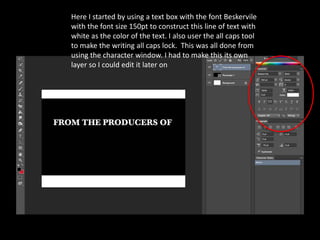
Here I started by using a text box with the font Beskervile
with the font size 150pt to construct this line of text with
white as the color of the text. I also user the all caps tool
to make the writing all caps lock. This was all done from
using the character window. I had to make this its own
layer so I could edit it later on
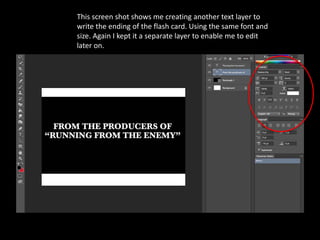
This screen shot shows me creating another text layer to
write the ending of the flash card. Using the same font and
size. Again I kept it a separate layer to enable me to edit
later on.
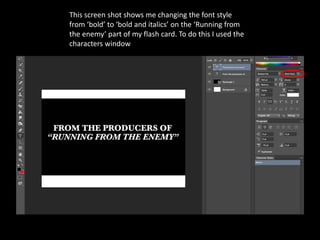
This screen shot shows me changing the font style
from ‘bold’ to ‘bold and italics’ on the ‘Running from
the enemy’ part of my flash card. To do this I used the
characters window
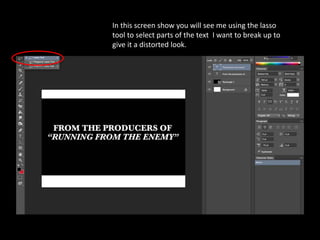
In this screen show you will see me using the lasso
tool to select parts of the text I want to break up to
give it a distorted look.
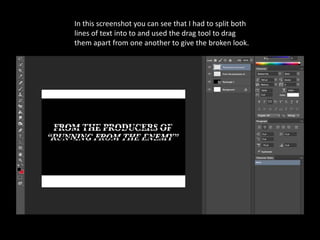
In this screenshot you can see that I had to split both
lines of text into to and used the drag tool to drag
them apart from one another to give the broken look.
I repeated this process for all of our
flashcards. How ever I done it
individually so the breaking wasn’t
identical for all of the flash cards.
Thank you for your time!

Flashcards how

  • 1.
    Flashcards procedures using Photoshop ByAmos Mukombero For ‘Foul Play’ trailer
  • 2.
    Here I startedby using a text box with the font Beskervile with the font size 150pt to construct this line of text with white as the color of the text. I also user the all caps tool to make the writing all caps lock. This was all done from using the character window. I had to make this its own layer so I could edit it later on
  • 3.
    This screen shotshows me creating another text layer to write the ending of the flash card. Using the same font and size. Again I kept it a separate layer to enable me to edit later on.
  • 4.
    This screen shotshows me changing the font style from ‘bold’ to ‘bold and italics’ on the ‘Running from the enemy’ part of my flash card. To do this I used the characters window
  • 5.
    In this screenshow you will see me using the lasso tool to select parts of the text I want to break up to give it a distorted look.
  • 6.
    In this screenshotyou can see that I had to split both lines of text into to and used the drag tool to drag them apart from one another to give the broken look.
  • 7.
    I repeated thisprocess for all of our flashcards. How ever I done it individually so the breaking wasn’t identical for all of the flash cards. Thank you for your time!