•Key Concepts andSkills:
FILE ORGANIZATION AND
HARDWARE
Name: ICT THEORIST
2.
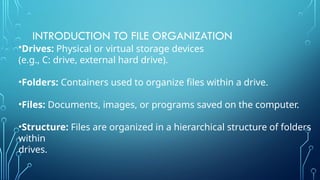
INTRODUCTION TO FILEORGANIZATION
•Drives: Physical or virtual storage devices
(e.g., C: drive, external hard drive).
•Folders: Containers used to organize files within a drive.
•Files: Documents, images, or programs saved on the computer.
•Structure: Files are organized in a hierarchical structure of folders
within
drives.
3.
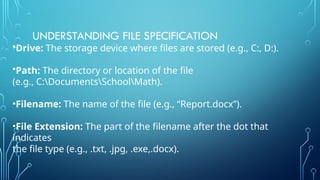
UNDERSTANDING FILE SPECIFICATION
•Drive:The storage device where files are stored (e.g., C:, D:).
•Path: The directory or location of the file
(e.g., C:DocumentsSchoolMath).
•Filename: The name of the file (e.g., “Report.docx”).
•File Extension: The part of the filename after the dot that
indicates
the file type (e.g., .txt, .jpg, .exe,.docx).
5.
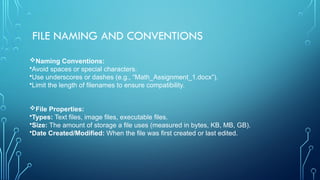
FILE NAMING ANDCONVENTIONS
Naming Conventions:
•Avoid spaces or special characters.
•Use underscores or dashes (e.g., “Math_Assignment_1.docx”).
•Limit the length of filenames to ensure compatibility.
File Properties:
•Types: Text files, image files, executable files.
•Size: The amount of storage a file uses (measured in bytes, KB, MB, GB).
•Date Created/Modified: When the file was first created or last edited.
6.
USING A FILEMANAGER
•File Manager: Software to manage files and folders (e.g., This PC on Windows).
•Hierarchy: Files and folders are arranged in a tree structure with drives at the root,
followed
by folders and subfolders.
•Examples:
•This PC: Displays drives and folders on your computer.
•Libraries: Predefined locations like Documents, Music, Pictures.
7.
ORGANIZING AND MANAGINGFILES
Organize Files: Create, move, and delete folders to arrange files.
Common File Operations:
•Copying: Duplicate files for backup or sharing.
•Renaming: Change file names to be more descriptive.
•Deleting: Remove files permanently or move them to the Recycle Bin.
•Restoring: Restore files from the Recycle Bin if deleted accidentally.
•Moving: Relocate files from one folder to another.
•Searching: Use the search bar to find files by name, type, or date.
•Sorting: Arrange files by name, type, or size for easier access.
File and Folder Views: Icon view, list view, detailed view (shows properties like size and date).
8.
ORGANIZING FILES WHILEPRACTICING
KEYBOARDING SKILLS
Using File Organization in Daily Tasks:
• As you practice keyboarding, save your work into appropriately
named folders.
• Create folders for different tasks, e.g., "Typing Drills,"
"Assignments," etc.
• Save files regularly and maintain an organized structure to avoid
clutter.
9.
INTRODUCTION TO HARDWARE
Definitionof Hardware:
•Physical components of a computer system that allow it to perform tasks.
•Includes devices like the CPU, monitor, keyboard, and peripherals.
Categories of Hardware:
•Input Devices: Devices that send data to the computer (e.g., keyboard, mouse).
•Output Devices: Devices that display or output data (e.g., monitor, printer).
•Storage Devices: Devices used to store data (e.g., hard drives, USB drives).
10.
BASIC CONCEPTS INHARDWARE
Input Devices:
•Examples: Keyboard, mouse, scanner, microphone.
•Function: Allow users to input data or control the computer.
Output Devices:
•Examples: Monitor, printer, speakers.
•Function: Display or output the results of computer processes.
Storage Devices:
•Examples: Hard drives, SSDs, optical drives (CD/DVD), USB drives.
•Function: Store data, programs, and files for later use.
12.
PERIPHERAL DEVICES ANDTHEIR CONNECTION
METHODS
Peripheral Devices: External devices connected to the computer to extend its
functionality (e.g., printers, speakers, external hard drives).
Connection Methods:
• Cabled Connections: USB, HDMI, VGA, Ethernet (wired connections for
stable data transfer).
• Wireless Connections: Bluetooth, Wi-Fi (wireless connections that offer
mobility and flexibility).
13.
SUMMARY AND KEYTAKEAWAYS
•File management involves organizing, naming, and managing files
and folders for easy access and efficiency.
•Hardware is essential for input, output, and storage, allowing the
computer to perform its functions.
•Proper organization and management of files and peripheral devices
improve productivity and reduce clutter.