


53-1003898-01
18 December 2015
Brocade ICX 7250 Switch
Hardware Installation Guide
Supporting FastIron Software Release 8.0.40
© 2015, Brocade Communications Systems, Inc. All Rights Reserved.
ADX, Brocade, Brocade Assurance, the B-wing symbol, DCX, Fabric OS, HyperEdge, ICX, MLX, MyBrocade, OpenScript, The Effortless
Network, VCS, VDX, Vplane, and Vyatta are registered trademarks, and Fabric Vision and vADX are trademarks of Brocade
Communications Systems, Inc., in the United States and/or in other countries. Other brands, products, or service names mentioned may be
trademarks of others.
Notice: This document is for informational purposes only and does not set forth any warranty, expressed or implied, concerning any
equipment, equipment feature, or service offered or to be offered by Brocade. Brocade reserves the right to make changes to this document
at any time, without notice, and assumes no responsibility for its use. This informational document describes features that may not be
currently available. Contact a Brocade sales office for information on feature and product availability. Export of technical data contained in
this document may require an export license from the United States government.
The authors and Brocade Communications Systems, Inc. assume no liability or responsibility to any person or entity with respect to the
accuracy of this document or any loss, cost, liability, or damages arising from the information contained herein or the computer programs that
accompany it.
The product described by this document may contain open source software covered by the GNU General Public License or other open
source license agreements. To find out which open source software is included in Brocade products, view the licensing terms applicable to
the open source software, and obtain a copy of the programming source code, please visit http://www.brocade.com/support/oscd.
Contents
Preface.....................................................................................................................................7
Document conventions......................................................................................7
Text formatting conventions..................................................................7
Command syntax conventions..............................................................7
Notes, cautions, and warnings..............................................................8
Brocade resources............................................................................................9
Contacting Brocade Technical Support.............................................................9
Document feedback........................................................................................ 10
About This Document..............................................................................................................11
What's new in this document...........................................................................11
Supported software.........................................................................................11
Overview.................................................................................................................................13
Hardware features...........................................................................................13
ICX 7250 models.................................................................................13
Network and management interfaces................................................. 14
Installation.............................................................................................................................23
Items included with the ICX 7250 device........................................................ 23
Configuration requirements.............................................................................24
Summary of installation tasks......................................................................... 24
Installation precautions................................................................................... 24
General precautions............................................................................24
Lifting precautions...............................................................................25
Power precautions.............................................................................. 25
Preparing the installation site..........................................................................25
Cabling infrastructure..........................................................................25
Installation location..............................................................................26
Rack mount installation considerations...............................................26
Installing the device.........................................................................................26
Desktop installation.............................................................................26
Rack mount installation (two-post)......................................................27
Wall mount installation........................................................................ 28
Connecting devices in a traditional stack........................................................30
Stacking ports and trunks....................................................................30
Stacking configuration requirements...................................................31
Traditional stack size...........................................................................31
Stacking topologies for a traditional stack...........................................31
Powering on the system..................................................................................32
Installing the EPS4000 .......................................................................................................... 35
EPS4000 external power supply.....................................................................35
EPS4000 features and benefits.......................................................... 36
EPS4000 front and rear panels...........................................................36
LEDs................................................................................................... 37
Brocade ICX 7250 Switch Hardware Installation Guide 3
53-1003898-01
Items included with the EPS4000................................................................. 39
Configuration requirements...........................................................................39
Summary of installation tasks....................................................................... 39
Installation precautions................................................................................. 40
General precautions..........................................................................40
Lifting precautions.............................................................................40
Power precautions............................................................................ 41
Preparing the installation site........................................................................41
Rack-mount installation considerations.............................................41
Installing the device.......................................................................................42
Desktop installation...........................................................................42
Mounting an external power supply in a rack (two-post)...................43
Installing an RPS17 PSU.............................................................................. 45
Uninstalling an RPS17 PSU..........................................................................46
Connecting the EPS4000 cord......................................................................46
Powering on the system................................................................................49
Connecting devices to the external power supply.............................49
Verifying proper operation.............................................................................49
EPS4000 external power supply technical specifications............................. 50
Configuring the Device..........................................................................................................53
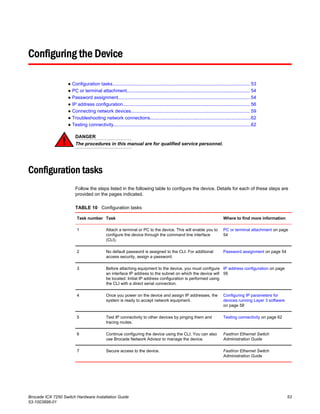
Configuration tasks....................................................................................... 53
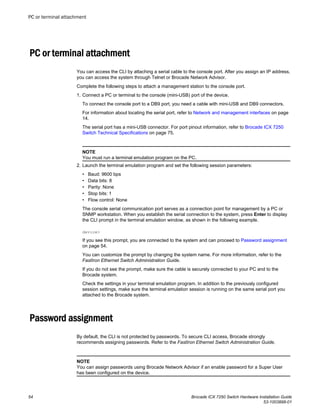
PC or terminal attachment............................................................................ 54
Password assignment...................................................................................54
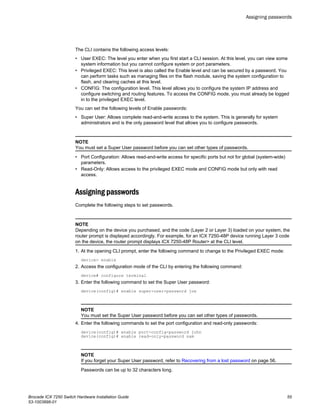
Assigning passwords........................................................................ 55
Recovering from a lost password......................................................56
IP address configuration............................................................................... 56
Devices running Layer 2 software.....................................................56
Devices running Layer 3 software.....................................................57
Connecting network devices......................................................................... 59
Connectors........................................................................................60
Cable specifications.......................................................................... 60
Connecting to Ethernet or Fast Ethernet hubs..................................60
Connecting to workstations, servers, or routers................................61
Connecting a network device to a fiber port......................................61
Troubleshooting network connections.......................................................... 62
Digital optical monitoring...................................................................62
Testing connectivity.......................................................................................62
Pinging an IP address.......................................................................62
Observing LEDs................................................................................63
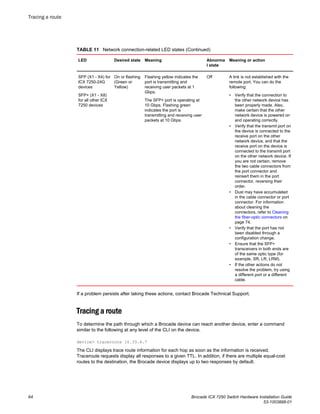
Tracing a route..................................................................................64
Managing an ICX 7250 Device.............................................................................................. 65
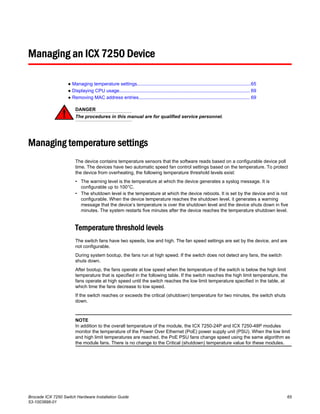
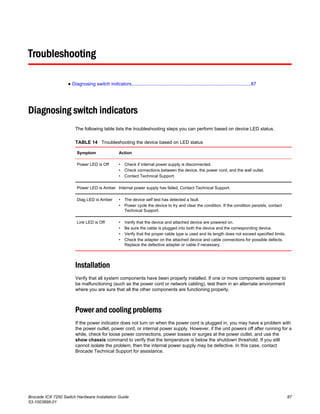
Managing temperature settings.................................................................... 65
Temperature threshold levels............................................................65
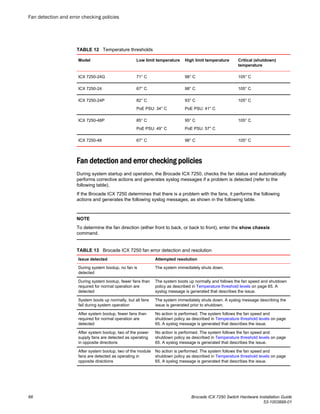
Fan detection and error checking policies........................................ 66
Shutdown reset time and syslog message....................................... 67
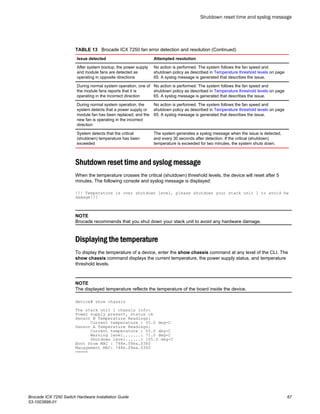
Displaying the temperature............................................................... 67
Displaying syslog messages for temperature................................... 68
Changing the temperature warning level ......................................... 68
Changing the temperature poll time..................................................68
Displaying CPU usage.................................................................................. 69
Removing MAC address entries................................................................... 69
Hardware Maintenance Schedule..........................................................................................71
4 Brocade ICX 7250 Switch Hardware Installation Guide
53-1003898-01
Pre-connection cleaning recommendations....................................................71
Copper or fiber-optic module replacement......................................................71
Removing a copper or fiber-optic module........................................... 71
Installing a fiber-optic transceiver........................................................72
Cabling a fiber-optic transceiver..........................................................73
Cleaning the fiber-optic connectors.....................................................74
Cabling a fiber-optic transceiver......................................................................74
Brocade ICX 7250 Switch Technical Specifications..................................................................75
Troubleshooting .....................................................................................................................87
Diagnosing switch indicators...........................................................................87
Installation...........................................................................................87
Power and cooling problems...............................................................87
In-band access....................................................................................88
Regulatory Statements............................................................................................................89
CE Statement..................................................................................................89
China ROHS................................................................................................... 89
BSMI statement (Taiwan)................................................................................89
Canadian requirements...................................................................................90
China CC statement........................................................................................91
Europe and Australia (CISPR 22 Class A Warning)....................................... 91
FCC warning (US only)................................................................................... 92
Germany......................................................................................................... 92
KCC statement (Republic of Korea)................................................................92
VCCI statement...............................................................................................92
Cautions and Danger Notices..................................................................................................93
Cautions..........................................................................................................93
Danger Notices............................................................................................... 96
Brocade ICX 7250 Switch Hardware Installation Guide 5
53-1003898-01
6 Brocade ICX 7250 Switch Hardware Installation Guide
53-1003898-01
Preface
● Document conventions......................................................................................................7
● Brocade resources............................................................................................................9
● Contacting Brocade Technical Support.............................................................................9
● Document feedback........................................................................................................ 10
Document conventions
The document conventions describe text formatting conventions, command syntax conventions, and
important notice formats used in Brocade technical documentation.
Text formatting conventions
Text formatting conventions such as boldface, italic, or Courier font may be used in the flow of the text
to highlight specific words or phrases.
Format Description
bold text Identifies command names
Identifies keywords and operands
Identifies the names of user-manipulated GUI elements
Identifies text to enter at the GUI
italic text Identifies emphasis
Identifies variables
Identifies document titles
Courier font Identifies CLI output
Identifies command syntax examples
Command syntax conventions
Bold and italic text identify command syntax components. Delimiters and operators define groupings of
parameters and their logical relationships.
Convention Description
bold text Identifies command names, keywords, and command options.
italic text Identifies a variable.
value In Fibre Channel products, a fixed value provided as input to a command
option is printed in plain text, for example, --show WWN.
Brocade ICX 7250 Switch Hardware Installation Guide 7
53-1003898-01
Convention Description
[ ] Syntax components displayed within square brackets are optional.
Default responses to system prompts are enclosed in square brackets.
{ x | y | z } A choice of required parameters is enclosed in curly brackets separated by
vertical bars. You must select one of the options.
In Fibre Channel products, square brackets may be used instead for this
purpose.
x | y A vertical bar separates mutually exclusive elements.
< > Nonprinting characters, for example, passwords, are enclosed in angle
brackets.
... Repeat the previous element, for example, member[member...].
 Indicates a “soft” line break in command examples. If a backslash separates
two lines of a command input, enter the entire command at the prompt without
the backslash.
Notes, cautions, and warnings
Notes, cautions, and warning statements may be used in this document. They are listed in the order of
increasing severity of potential hazards.
NOTE
A Note provides a tip, guidance, or advice, emphasizes important information, or provides a reference
to related information.
ATTENTION
An Attention statement indicates a stronger note, for example, to alert you when traffic might be
interrupted or the device might reboot.
CAUTION
A Caution statement alerts you to situations that can be potentially hazardous to you or cause
damage to hardware, firmware, software, or data.
DANGER
A Danger statement indicates conditions or situations that can be potentially lethal or
extremely hazardous to you. Safety labels are also attached directly to products to warn of
these conditions or situations.
Notes, cautions, and warnings
8 Brocade ICX 7250 Switch Hardware Installation Guide
53-1003898-01
Brocade resources
Visit the Brocade website to locate related documentation for your product and additional Brocade
resources.
You can download additional publications supporting your product at www.brocade.com. Select the
Brocade Products tab to locate your product, then click the Brocade product name or image to open the
individual product page. The user manuals are available in the resources module at the bottom of the
page under the Documentation category.
To get up-to-the-minute information on Brocade products and resources, go to MyBrocade. You can
register at no cost to obtain a user ID and password.
Release notes are available on MyBrocade under Product Downloads.
White papers, online demonstrations, and data sheets are available through the Brocade website.
Contacting Brocade Technical Support
As a Brocade customer, you can contact Brocade Technical Support 24x7 online, by telephone, or by e-
mail. Brocade OEM customers contact their OEM/Solutions provider.
Brocade customers
For product support information and the latest information on contacting the Technical Assistance
Center, go to http://www.brocade.com/services-support/index.html.
If you have purchased Brocade product support directly from Brocade, use one of the following methods
to contact the Brocade Technical Assistance Center 24x7.
Online Telephone E-mail
Preferred method of contact for non-
urgent issues:
• My Cases through MyBrocade
• Software downloads and licensing
tools
• Knowledge Base
Required for Sev 1-Critical and Sev
2-High issues:
• Continental US: 1-800-752-8061
• Europe, Middle East, Africa, and
Asia Pacific: +800-AT FIBREE
(+800 28 34 27 33)
• For areas unable to access toll
free number: +1-408-333-6061
• Toll-free numbers are available in
many countries.
support@brocade.com
Please include:
• Problem summary
• Serial number
• Installation details
• Environment description
Brocade OEM customers
If you have purchased Brocade product support from a Brocade OEM/Solution Provider, contact your
OEM/Solution Provider for all of your product support needs.
• OEM/Solution Providers are trained and certified by Brocade to support Brocade® products.
• Brocade provides backline support for issues that cannot be resolved by the OEM/Solution Provider.
Brocade resources
Brocade ICX 7250 Switch Hardware Installation Guide 9
53-1003898-01
• Brocade Supplemental Support augments your existing OEM support contract, providing direct
access to Brocade expertise. For more information, contact Brocade or your OEM.
• For questions regarding service levels and response times, contact your OEM/Solution Provider.
Document feedback
To send feedback and report errors in the documentation you can use the feedback form posted with
the document or you can e-mail the documentation team.
Quality is our first concern at Brocade and we have made every effort to ensure the accuracy and
completeness of this document. However, if you find an error or an omission, or you think that a topic
needs further development, we want to hear from you. You can provide feedback in two ways:
• Through the online feedback form in the HTML documents posted on www.brocade.com.
• By sending your feedback to documentation@brocade.com.
Provide the publication title, part number, and as much detail as possible, including the topic heading
and page number if applicable, as well as your suggestions for improvement.
Document feedback
10 Brocade ICX 7250 Switch Hardware Installation Guide
53-1003898-01
About This Document
● What's new in this document...........................................................................................11
● Supported software.........................................................................................................11
What's new in this document
This document has the following changes:
The thermal policy information (when the fans operate at a low speed, a high speed, and when the
switch shuts off completely due to overheating) has been updated with new temperature numbers in
Temperature threshold levels on page 65.
Supported software
This document is specific to the Brocade ICX 7450 running FastIron release 08.0.40.
Brocade ICX 7250 Switch Hardware Installation Guide 11
53-1003898-01
Supported software
12 Brocade ICX 7250 Switch Hardware Installation Guide
53-1003898-01
Overview
● Hardware features...........................................................................................................13
Hardware features
The following sections describe the physical characteristics of the devices.
ICX 7250 models
The Brocade ICX 7250 Ethernet switch is available in the models listed in the following table.
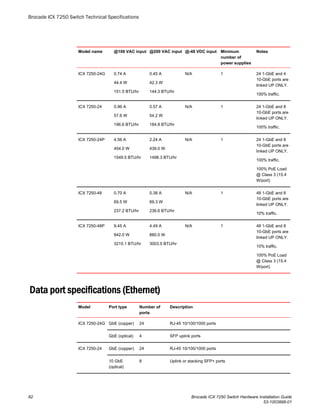
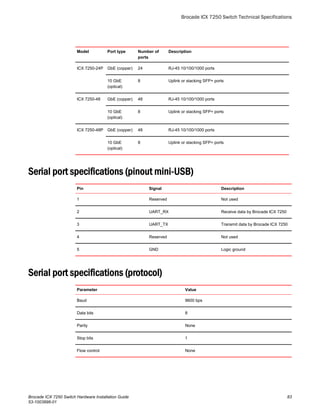
ICX 7250 modelsTABLE 1
Model Description
Brocade ICX 7250-24G 24 fixed 10/100/1000Base-T, non-PoE ports, 4 SFP 1-GbE uplink ports, no stacking, no
EPS4000 connection
Brocade ICX 7250-24 24 fixed 10/100/1000Base-T, non-PoE ports, 8 SFP+ 1-GbE or 10-GbE uplink or
stacking ports, EPS4000 connection
Brocade ICX 7250-24P 24 fixed 10/100/1000Base-T, PoE/PoE+ ports, 8 SFP+ 1-GbE or 10-GbE uplink or
stacking ports, EPS4000 connection
Brocade ICX 7250-48 48 fixed 10/100/1000Base-T, non-PoE ports, 8 SFP+ 1-GbE or 10-GbE uplink or
stacking ports, EPS4000 connection
Brocade ICX 7250-48P 48 fixed 10/100/1000Base-T, PoE/PoE+ ports, 8 SFP+ 1-GbE or 10-GbE uplink or
stacking ports, EPS4000 connection
NOTE
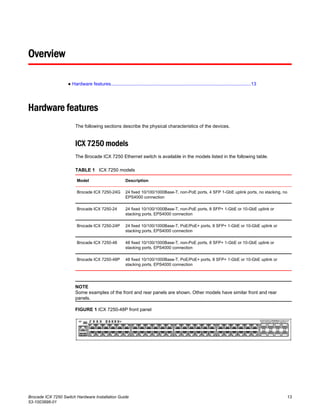
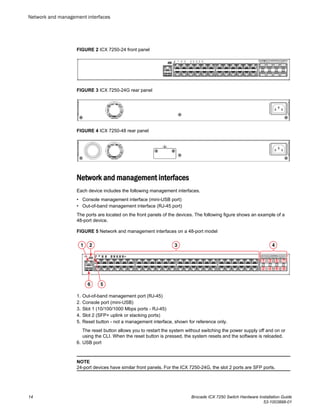
Some examples of the front and rear panels are shown. Other models have similar front and rear
panels.
FIGURE 1 ICX 7250-48P front panel
Brocade ICX 7250 Switch Hardware Installation Guide 13
53-1003898-01
FIGURE 2 ICX 7250-24 front panel
FIGURE 3 ICX 7250-24G rear panel
FIGURE 4 ICX 7250-48 rear panel
Network and management interfaces
Each device includes the following management interfaces.
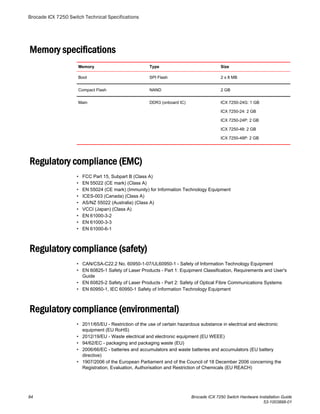
• Console management interface (mini-USB port)
• Out-of-band management interface (RJ-45 port)
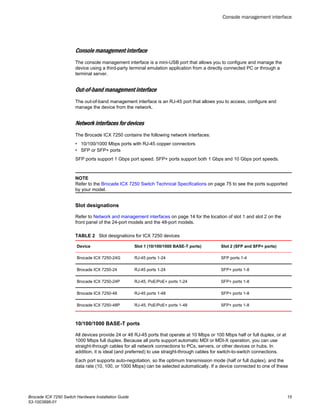
The ports are located on the front panels of the devices. The following figure shows an example of a
48-port device.
FIGURE 5 Network and management interfaces on a 48-port model
1. Out-of-band management port (RJ-45)
2. Console port (mini-USB)
3. Slot 1 (10/100/1000 Mbps ports - RJ-45)
4. Slot 2 (SFP+ uplink or stacking ports)
5. Reset button - not a management interface, shown for reference only.
The reset button allows you to restart the system without switching the power supply off and on or
using the CLI. When the reset button is pressed, the system resets and the software is reloaded.
6. USB port
NOTE
24-port devices have similar front panels. For the ICX 7250-24G, the slot 2 ports are SFP ports.
Network and management interfaces
14 Brocade ICX 7250 Switch Hardware Installation Guide
53-1003898-01
Console management interface
The console management interface is a mini-USB port that allows you to configure and manage the
device using a third-party terminal emulation application from a directly connected PC or through a
terminal server.
Out-of-band management interface
The out-of-band management interface is an RJ-45 port that allows you to access, configure and
manage the device from the network.
Network interfaces for devices
The Brocade ICX 7250 contains the following network interfaces:
• 10/100/1000 Mbps ports with RJ-45 copper connectors
• SFP or SFP+ ports
SFP ports support 1 Gbps port speed. SFP+ ports support both 1 Gbps and 10 Gbps port speeds.
NOTE
Refer to the Brocade ICX 7250 Switch Technical Specifications on page 75 to see the ports supported
by your model.
Slot designations
Refer to Network and management interfaces on page 14 for the location of slot 1 and slot 2 on the
front panel of the 24-port models and the 48-port models.
Slot designations for ICX 7250 devicesTABLE 2
Device Slot 1 (10/100/1000 BASE-T ports) Slot 2 (SFP and SFP+ ports)
Brocade ICX 7250-24G RJ-45 ports 1-24 SFP ports 1-4
Brocade ICX 7250-24 RJ-45 ports 1-24 SFP+ ports 1-8
Brocade ICX 7250-24P RJ-45, PoE/PoE+ ports 1-24 SFP+ ports 1-8
Brocade ICX 7250-48 RJ-45 ports 1-48 SFP+ ports 1-8
Brocade ICX 7250-48P RJ-45, PoE/PoE+ ports 1-48 SFP+ ports 1-8
10/100/1000 BASE-T ports
All devices provide 24 or 48 RJ-45 ports that operate at 10 Mbps or 100 Mbps half or full duplex, or at
1000 Mbps full duplex. Because all ports support automatic MDI or MDI-X operation, you can use
straight-through cables for all network connections to PCs, servers, or other devices or hubs. In
addition, it is ideal (and preferred) to use straight-through cables for switch-to-switch connections.
Each port supports auto-negotiation, so the optimum transmission mode (half or full duplex), and the
data rate (10, 100, or 1000 Mbps) can be selected automatically. If a device connected to one of these
Console management interface
Brocade ICX 7250 Switch Hardware Installation Guide 15
53-1003898-01
ports does not support auto-negotiation, the communication mode of the port can be configured
manually.
SFP or SFP+ fiber ports
The Brocade ICX 7250-24G contains four small form-factor pluggable (SFP) ports (ports 1 through 4).
The top row contains odd-numbered ports and the bottom row contains even-numbered ports. These
ports reside on slot 2 of the switch and can be used as uplink (data) ports. These ports support 1 Gbps
but not 10 Gbps port speeds.
All other Brocade ICX 7250 devices contain eight SFP+ ports that support 1 Gbps or 10 Gbps port
speeds. The top row ports are odd numbered (ports 1, 3, 5, and 7) and the bottom row ports are even
numbered (ports 2, 4, 6, and 8). All ports can be used for stacking or uplinking.
NOTE
You may need software licenses to enable some SFP+ ports at the full 10 Gbps. Refer to the FastIron
Ethernet Switch Software Licensing Guide for more information.
For information about supported SFP and SFP+ transceivers, refer to the Brocade datasheet.
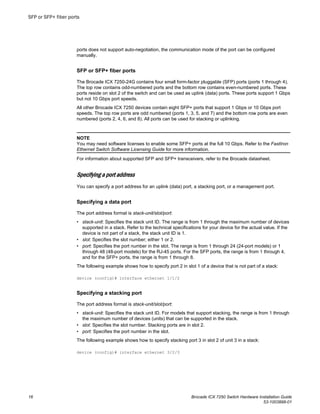
Specifying a port address
You can specify a port address for an uplink (data) port, a stacking port, or a management port.
Specifying a data port
The port address format is stack-unit/slot/port:
• stack-unit: Specifies the stack unit ID. The range is from 1 through the maximum number of devices
supported in a stack. Refer to the technical specifications for your device for the actual value. If the
device is not part of a stack, the stack unit ID is 1.
• slot: Specifies the slot number; either 1 or 2.
• port: Specifies the port number in the slot. The range is from 1 through 24 (24-port models) or 1
through 48 (48-port models) for the RJ-45 ports. For the SFP ports, the range is from 1 through 4,
and for the SFP+ ports, the range is from 1 through 8.
The following example shows how to specify port 2 in slot 1 of a device that is not part of a stack:
device (config)# interface ethernet 1/1/2
Specifying a stacking port
The port address format is stack-unit/slot/port:
• stack-unit: Specifies the stack unit ID. For models that support stacking, the range is from 1 through
the maximum number of devices (units) that can be supported in the stack.
• slot: Specifies the slot number. Stacking ports are in slot 2.
• port: Specifies the port number in the slot.
The following example shows how to specify stacking port 3 in slot 2 of unit 3 in a stack:
device (config)# interface ethernet 3/2/3
SFP or SFP+ fiber ports
16 Brocade ICX 7250 Switch Hardware Installation Guide
53-1003898-01
Specifying a management port
The management port number is always 1. This example shows how to specify the management port:
device (config)# interface management 1
Port, system, and power status LEDs
The devices include LEDs that indicate the status of device components.
NOTE
The following figures show examples of the port status LEDs for similar ports are present for models
with a higher number of ports.
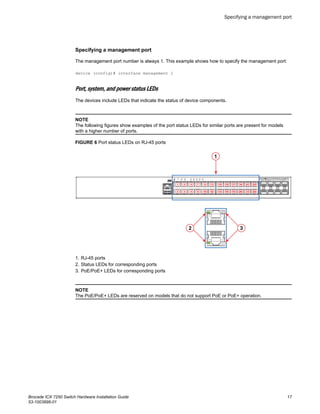
FIGURE 6 Port status LEDs on RJ-45 ports
1. RJ-45 ports
2. Status LEDs for corresponding ports
3. PoE/PoE+ LEDs for corresponding ports
NOTE
The PoE/PoE+ LEDs are reserved on models that do not support PoE or PoE+ operation.
Specifying a management port
Brocade ICX 7250 Switch Hardware Installation Guide 17
53-1003898-01
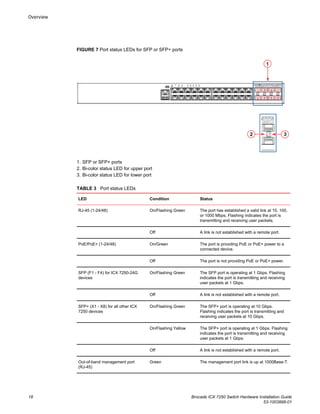
FIGURE 7 Port status LEDs for SFP or SFP+ ports
1. SFP or SFP+ ports
2. Bi-color status LED for upper port
3. Bi-color status LED for lower port
Port status LEDsTABLE 3
LED Condition Status
RJ-45 (1-24/48) On/Flashing Green The port has established a valid link at 10, 100,
or 1000 Mbps. Flashing indicates the port is
transmitting and receiving user packets.
Off A link is not established with a remote port.
PoE/PoE+ (1-24/48) On/Green The port is providing PoE or PoE+ power to a
connected device.
Off The port is not providing PoE or PoE+ power.
SFP (F1 - F4) for ICX 7250-24G
devices
On/Flashing Green The SFP port is operating at 1 Gbps. Flashing
indicates the port is transmitting and receiving
user packets at 1 Gbps.
Off A link is not established with a remote port.
SFP+ (X1 - X8) for all other ICX
7250 devices
On/Flashing Green The SFP+ port is operating at 10 Gbps.
Flashing indicates the port is transmitting and
receiving user packets at 10 Gbps.
On/Flashing Yellow The SFP+ port is operating at 1 Gbps. Flashing
indicates the port is transmitting and receiving
user packets at 1 Gbps.
Off A link is not established with a remote port.
Out-of-band management port
(RJ-45)
Green The management port link is up at 1000Base-T.
Overview
18 Brocade ICX 7250 Switch Hardware Installation Guide
53-1003898-01
Port status LEDs (Continued)TABLE 3
LED Condition Status
Off Either the management port link is up at
100Base-Tx/10Base-T, or the link is down.
Blinking green The port is receiving and transmitting data.
Off No data is being received or transmitted.
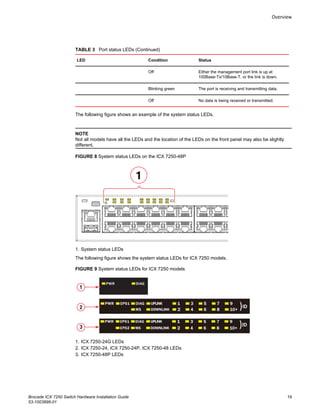
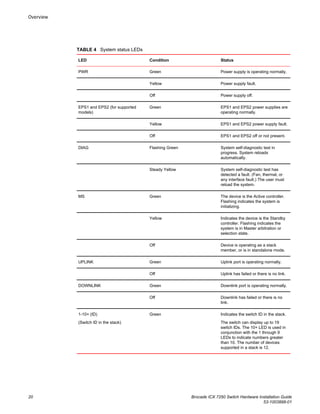
The following figure shows an example of the system status LEDs.
NOTE
Not all models have all the LEDs and the location of the LEDs on the front panel may also be slightly
different.
FIGURE 8 System status LEDs on the ICX 7250-48P
1. System status LEDs
The following figure shows the system status LEDs for ICX 7250 models.
FIGURE 9 System status LEDs for ICX 7250 models
1. ICX 7250-24G LEDs
2. ICX 7250-24, ICX 7250-24P, ICX 7250-48 LEDs
3. ICX 7250-48P LEDs
Overview
Brocade ICX 7250 Switch Hardware Installation Guide 19
53-1003898-01
System status LEDsTABLE 4
LED Condition Status
PWR Green Power supply is operating normally.
Yellow Power supply fault.
Off Power supply off.
EPS1 and EPS2 (for supported
models)
Green EPS1 and EPS2 power supplies are
operating normally.
Yellow EPS1 and EPS2 power supply fault.
Off EPS1 and EPS2 off or not present.
DIAG Flashing Green System self-diagnostic test in
progress. System reloads
automatically.
Steady Yellow System self-diagnostic test has
detected a fault. (Fan, thermal, or
any interface fault.) The user must
reload the system.
MS Green The device is the Active controller.
Flashing indicates the system is
initializing.
Yellow Indicates the device is the Standby
controller. Flashing indicates the
system is in Master arbitration or
selection state.
Off Device is operating as a stack
member, or is in standalone mode.
UPLINK Green Uplink port is operating normally.
Off Uplink has failed or there is no link.
DOWNLINK Green Downlink port is operating normally.
Off Downlink has failed or there is no
link.
1-10+ (ID)
(Switch ID in the stack)
Green Indicates the switch ID in the stack.
The switch can display up to 19
switch IDs. The 10+ LED is used in
conjunction with the 1 through 9
LEDs to indicate numbers greater
than 10. The number of devices
supported in a stack is 12.
Overview
20 Brocade ICX 7250 Switch Hardware Installation Guide
53-1003898-01
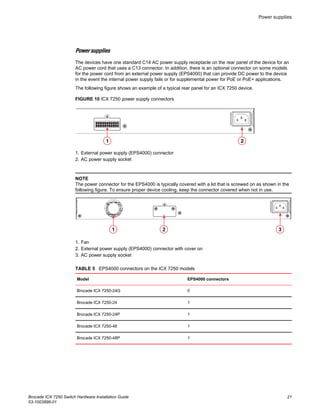
Power supplies
The devices have one standard C14 AC power supply receptacle on the rear panel of the device for an
AC power cord that uses a C13 connector. In addition, there is an optional connector on some models
for the power cord from an external power supply (EPS4000) that can provide DC power to the device
in the event the internal power supply fails or for supplemental power for PoE or PoE+ applications.
The following figure shows an example of a typical rear panel for an ICX 7250 device.
FIGURE 10 ICX 7250 power supply connectors
1. External power supply (EPS4000) connector
2. AC power supply socket
NOTE
The power connector for the EPS4000 is typically covered with a lid that is screwed on as shown in the
following figure. To ensure proper device cooling, keep the connector covered when not in use.
1. Fan
2. External power supply (EPS4000) connector with cover on
3. AC power supply socket
EPS4000 connectors on the ICX 7250 modelsTABLE 5
Model EPS4000 connectors
Brocade ICX 7250-24G 0
Brocade ICX 7250-24 1
Brocade ICX 7250-24P 1
Brocade ICX 7250-48 1
Brocade ICX 7250-48P 1
Power supplies
Brocade ICX 7250 Switch Hardware Installation Guide 21
53-1003898-01
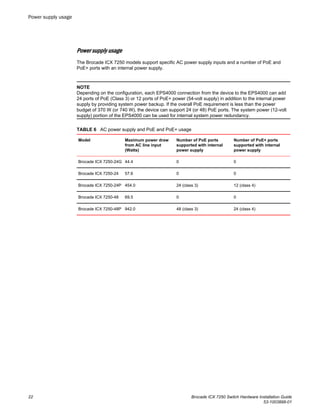
Power supply usage
The Brocade ICX 7250 models support specific AC power supply inputs and a number of PoE and
PoE+ ports with an internal power supply.
NOTE
Depending on the configuration, each EPS4000 connection from the device to the EPS4000 can add
24 ports of PoE (Class 3) or 12 ports of PoE+ power (54-volt supply) in addition to the internal power
supply by providing system power backup. If the overall PoE requirement is less than the power
budget of 370 W (or 740 W), the device can support 24 (or 48) PoE ports. The system power (12-volt
supply) portion of the EPS4000 can be used for internal system power redundancy.
AC power supply and PoE and PoE+ usageTABLE 6
Model Maximum power draw
from AC line input
(Watts)
Number of PoE ports
supported with internal
power supply
Number of PoE+ ports
supported with internal
power supply
Brocade ICX 7250-24G 44.4 0 0
Brocade ICX 7250-24 57.6 0 0
Brocade ICX 7250-24P 454.0 24 (class 3) 12 (class 4)
Brocade ICX 7250-48 69.5 0 0
Brocade ICX 7250-48P 942.0 48 (class 3) 24 (class 4)
Power supply usage
22 Brocade ICX 7250 Switch Hardware Installation Guide
53-1003898-01
Installation
● Items included with the ICX 7250 device........................................................................ 23
● Configuration requirements.............................................................................................24
● Summary of installation tasks......................................................................................... 24
● Installation precautions................................................................................................... 24
● Preparing the installation site..........................................................................................25
● Installing the device.........................................................................................................26
● Connecting devices in a traditional stack........................................................................30
● Powering on the system..................................................................................................32
DANGER
The procedures in this manual are for qualified service personnel.
DANGER
Before beginning the installation, see the precautions in “Power precautions.”
CAUTION
Disassembling any part of the power supply and fan assembly voids the warranty and regulatory
certifications. There are no user-serviceable parts inside the power supply and fan assembly.
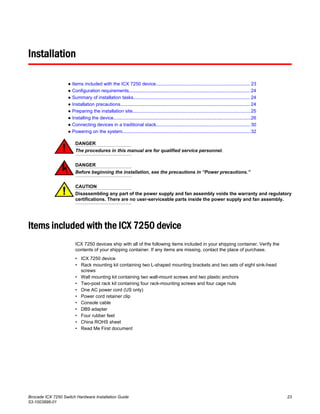
Items included with the ICX 7250 device
ICX 7250 devices ship with all of the following items included in your shipping container. Verify the
contents of your shipping container. If any items are missing, contact the place of purchase.
• ICX 7250 device
• Rack mounting kit containing two L-shaped mounting brackets and two sets of eight sink-head
screws
• Wall mounting kit containing two wall-mount screws and two plastic anchors
• Two-post rack kit containing four rack-mounting screws and four cage nuts
• One AC power cord (US only)
• Power cord retainer clip
• Console cable
• DB9 adapter
• Four rubber feet
• China ROHS sheet
• Read Me First document
Brocade ICX 7250 Switch Hardware Installation Guide 23
53-1003898-01
Configuration requirements
To manage the ICX 7250, you need a management station, such as a PC running a terminal
emulation application, for serial connection to the device.
Use the serial connection to perform basic configuration tasks, including assigning an IP address and
network mask to the system. This information is required to manage the system using the CLI through
Telnet or Brocade Network Advisor.
Summary of installation tasks
Follow the steps in the following table to install your device. Details for each of these steps are
provided on the pages indicated.
Installation tasksTABLE 7
Task number Task Where to find more information
1 Ensure that the physical environment that will host the
device has the proper cabling and ventilation.
Preparing the installation site on page
25
2 Unpack the device and all included accessories. Items included with the ICX 7250 device
on page 23
3 Install the device on a desktop, or in an equipment
rack.
Installing the device on page 26
4 Once the device is installed, plug the device into a
nearby power source that adheres to the regulatory
requirements outlined in this manual.
Powering on the system on page 32
Installation precautions
Follow all precautions when installing a device.
General precautions
DANGER
All fiber-optic interfaces use Class 1 lasers.
CAUTION
Do not install the device in an environment where the operating ambient temperature might
exceed 50°C (122°F).
Configuration requirements
24 Brocade ICX 7250 Switch Hardware Installation Guide
53-1003898-01
CAUTION
Make sure the airflow around the front, sides, and back of the device is not restricted.
Lifting precautions
DANGER
Make sure the rack housing the device is adequately secured to prevent it from becoming
unstable or falling over.
DANGER
Mount the devices you install in a rack as low as possible. Place the heaviest device at the
bottom and progressively place lighter devices above.
Power precautions
CAUTION
Use a separate branch circuit for each power cord, which provides redundancy in case one of
the circuits fails.
CAUTION
Ensure that the device does not overload the power circuits, wiring, and over-current protection.
To determine the possibility of overloading the supply circuits, add the ampere (amp) ratings of
all devices installed on the same circuit as the device. Compare this total with the rating limit for
the circuit. The maximum ampere ratings are usually printed on the devices near the input
power connectors.
DANGER
Disconnect the power cord from all power sources to completely remove power from the device.
DANGER
If the installation requires a different power cord than the one supplied with the device, make
sure you use a power cord displaying the mark of the safety agency that defines the regulations
for power cords in your country. The mark is your assurance that the power cord can be used
safely with the device.
Preparing the installation site
Before installing the device, plan its location and orientation relative to other devices and equipment.
Cabling infrastructure
Ensure that the proper cabling is installed at the site. For information about supported SFP and SFP+
transceivers and cable lengths and types, refer to the Brocade optics family datasheet.
Lifting precautions
Brocade ICX 7250 Switch Hardware Installation Guide 25
53-1003898-01
Installation location
Devices can be mounted in a standard 19-inch equipment rack, on the wall, or on a flat surface.
The site should meet the following requirements:
• Maintain the operating environment as specified in the Technical Specifications.
• Allow a minimum of 7.62 cm (3 in.) of space between the front and the back of the device and walls
or other obstructions for proper airflow.
• Allow at least 7.62 cm (3 in.) of space at the front and back of the device for the twisted-pair, fiber-
optic, and power cabling.
• The site should be accessible for installing, cabling, and maintaining the devices.
• Allow the status LEDs to be clearly visible.
• Allow for twisted-pair cables to be routed away from power lines, fluorescent lighting fixtures, and
other sources of electrical interference, such as radios and transmitters.
• Allow for the unit to be connected to a separate grounded power outlet that provides 100 to 240
VAC, 50 to 60 Hz, within 2 m (6.6 ft) of each device, and is powered from an independent circuit
breaker. As with any equipment, a filter or surge suppressor is recommended.
• Some combinations of intake and exhaust airflows may not be compatible with your environment.
Rack mount installation considerations
Before mounting the device in a rack, ensure that the following rack mount installation requirements
are met:
• Temperature: Because the temperature within a rack assembly may be higher than the ambient
room temperature, check that the rack-environment temperature is within the specified operating
temperature range. Refer to Brocade ICX 7250 Switch Technical Specifications on page 75.
• Airflow: Be sure that the airflow direction for all equipment in a rack is the same or consistent.
• Mechanical loading: Do not place any equipment on top of a rack-mounted unit.
• Circuit overloading: Be sure that the supply circuit to the rack assembly is not overloaded.
• Grounding: Rack-mounted equipment should be properly grounded.
Installing the device
You can install the device on a desktop, the wall, or in an equipment rack.
DANGER
Mount the devices you install in a rack as low as possible. Place the heaviest device at the
bottom and progressively place lighter devices above.
Desktop installation
Complete the following steps to install the ICX 7250 device on a desktop or other flat surface. The
device you are installing might look different than the one in the following illustration.
DANGER
This equipment is suitable for mounting on concrete or other noncombustible surfaces only.
Installation location
26 Brocade ICX 7250 Switch Hardware Installation Guide
53-1003898-01
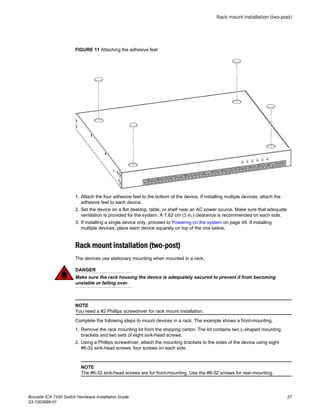
FIGURE 11 Attaching the adhesive feet
1. Attach the four adhesive feet to the bottom of the device. If installing multiple devices, attach the
adhesive feet to each device.
2. Set the device on a flat desktop, table, or shelf near an AC power source. Make sure that adequate
ventilation is provided for the system. A 7.62 cm (3 in.) clearance is recommended on each side.
3. If installing a single device only, proceed to Powering on the system on page 49. If installing
multiple devices, place each device squarely on top of the one below.
Rack mount installation (two-post)
The devices use stationary mounting when mounted in a rack.
DANGER
Make sure the rack housing the device is adequately secured to prevent it from becoming
unstable or falling over.
NOTE
You need a #2 Phillips screwdriver for rack mount installation.
Complete the following steps to mount devices in a rack. The example shows a front-mounting.
1. Remove the rack mounting kit from the shipping carton. The kit contains two L-shaped mounting
brackets and two sets of eight sink-head screws.
2. Using a Phillips screwdriver, attach the mounting brackets to the sides of the device using eight
#6-32 sink-head screws, four screws on each side.
NOTE
The #6-32 sink-head screws are for front-mounting. Use the #8-32 screws for rear-mounting.
Rack mount installation (two-post)
Brocade ICX 7250 Switch Hardware Installation Guide 27
53-1003898-01
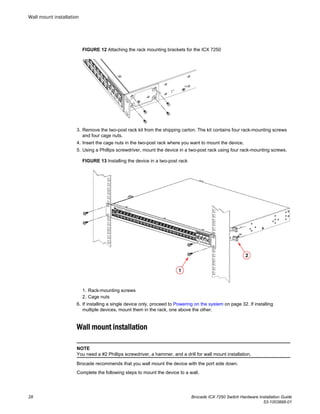
FIGURE 12 Attaching the rack mounting brackets for the ICX 7250
3. Remove the two-post rack kit from the shipping carton. The kit contains four rack-mounting screws
and four cage nuts.
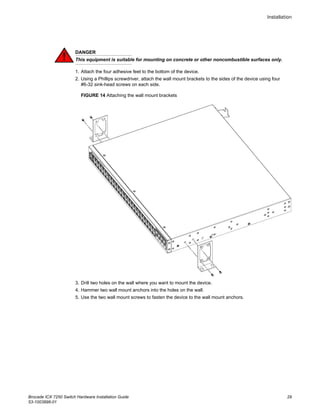
4. Insert the cage nuts in the two-post rack where you want to mount the device.
5. Using a Phillips screwdriver, mount the device in a two-post rack using four rack-mounting screws.
FIGURE 13 Installing the device in a two-post rack
1. Rack-mounting screws
2. Cage nuts
6. If installing a single device only, proceed to Powering on the system on page 32. If installing
multiple devices, mount them in the rack, one above the other.
Wall mount installation
NOTE
You need a #2 Phillips screwdriver, a hammer, and a drill for wall mount installation.
Brocade recommends that you wall mount the device with the port side down.
Complete the following steps to mount the device to a wall.
Wall mount installation
28 Brocade ICX 7250 Switch Hardware Installation Guide
53-1003898-01
DANGER
This equipment is suitable for mounting on concrete or other noncombustible surfaces only.
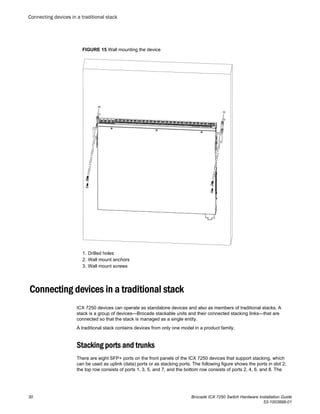
1. Attach the four adhesive feet to the bottom of the device.
2. Using a Phillips screwdriver, attach the wall mount brackets to the sides of the device using four
#6-32 sink-head screws on each side.
FIGURE 14 Attaching the wall mount brackets
3. Drill two holes on the wall where you want to mount the device.
4. Hammer two wall mount anchors into the holes on the wall.
5. Use the two wall mount screws to fasten the device to the wall mount anchors.
Installation
Brocade ICX 7250 Switch Hardware Installation Guide 29
53-1003898-01
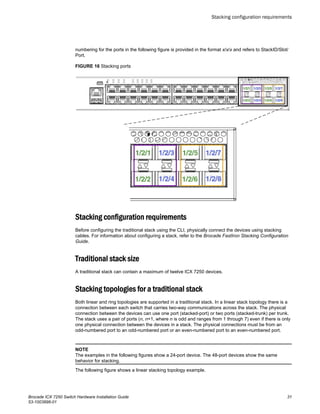
FIGURE 15 Wall mounting the device
1. Drilled holes
2. Wall mount anchors
3. Wall mount screws
Connecting devices in a traditional stack
ICX 7250 devices can operate as standalone devices and also as members of traditional stacks. A
stack is a group of devices—Brocade stackable units and their connected stacking links—that are
connected so that the stack is managed as a single entity.
A traditional stack contains devices from only one model in a product family.
Stacking ports and trunks
There are eight SFP+ ports on the front panels of the ICX 7250 devices that support stacking, which
can be used as uplink (data) ports or as stacking ports. The following figure shows the ports in slot 2;
the top row consists of ports 1, 3, 5, and 7, and the bottom row consists of ports 2, 4, 6, and 8. The
Connecting devices in a traditional stack
30 Brocade ICX 7250 Switch Hardware Installation Guide
53-1003898-01
numbering for the ports in the following figure is provided in the format x/x/x and refers to StackID/Slot/
Port.
FIGURE 16 Stacking ports
Stacking configuration requirements
Before configuring the traditional stack using the CLI, physically connect the devices using stacking
cables. For information about configuring a stack, refer to the Brocade FastIron Stacking Configuration
Guide.
Traditional stack size
A traditional stack can contain a maximum of twelve ICX 7250 devices.
Stacking topologies for a traditional stack
Both linear and ring topologies are supported in a traditional stack. In a linear stack topology there is a
connection between each switch that carries two-way communications across the stack. The physical
connection between the devices can use one port (stacked-port) or two ports (stacked-trunk) per trunk.
The stack uses a pair of ports (n, n+1, where n is odd and ranges from 1 through 7) even if there is only
one physical connection between the devices in a stack. The physical connections must be from an
odd-numbered port to an odd-numbered port or an even-numbered port to an even-numbered port.
NOTE
The examples in the following figures show a 24-port device. The 48-port devices show the same
behavior for stacking.
The following figure shows a linear stacking topology example.
Stacking configuration requirements
Brocade ICX 7250 Switch Hardware Installation Guide 31
53-1003898-01
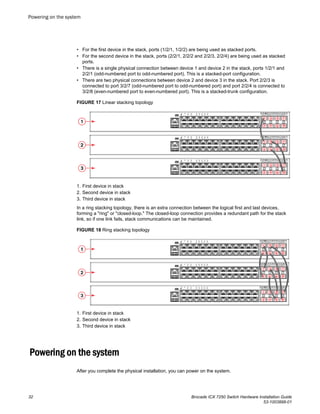
• For the first device in the stack, ports (1/2/1, 1/2/2) are being used as stacked ports.
• For the second device in the stack, ports (2/2/1, 2/2/2 and 2/2/3, 2/2/4) are being used as stacked
ports.
• There is a single physical connection between device 1 and device 2 in the stack, ports 1/2/1 and
2/2/1 (odd-numbered port to odd-numbered port). This is a stacked-port configuration.
• There are two physical connections between device 2 and device 3 in the stack. Port 2/2/3 is
connected to port 3/2/7 (odd-numbered port to odd-numbered port) and port 2/2/4 is connected to
3/2/8 (even-numbered port to even-numbered port). This is a stacked-trunk configuration.
FIGURE 17 Linear stacking topology
1. First device in stack
2. Second device in stack
3. Third device in stack
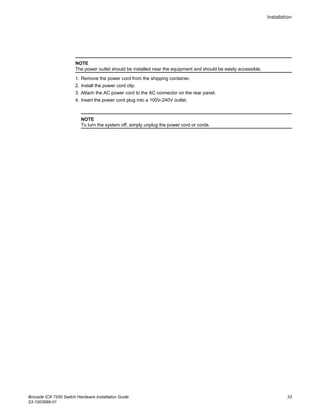
In a ring stacking topology, there is an extra connection between the logical first and last devices,
forming a "ring" or "closed-loop." The closed-loop connection provides a redundant path for the stack
link, so if one link fails, stack communications can be maintained.
FIGURE 18 Ring stacking topology
1. First device in stack
2. Second device in stack
3. Third device in stack
Powering on the system
After you complete the physical installation, you can power on the system.
Powering on the system
32 Brocade ICX 7250 Switch Hardware Installation Guide
53-1003898-01
NOTE
The power outlet should be installed near the equipment and should be easily accessible.
1. Remove the power cord from the shipping container.
2. Install the power cord clip.
3. Attach the AC power cord to the AC connector on the rear panel.
4. Insert the power cord plug into a 100V-240V outlet.
NOTE
To turn the system off, simply unplug the power cord or cords.
Installation
Brocade ICX 7250 Switch Hardware Installation Guide 33
53-1003898-01
Powering on the system
34 Brocade ICX 7250 Switch Hardware Installation Guide
53-1003898-01
Installing the EPS4000
● EPS4000 external power supply.....................................................................................35
● Items included with the EPS4000................................................................................... 39
● Configuration requirements.............................................................................................39
● Summary of installation tasks......................................................................................... 39
● Installation precautions................................................................................................... 40
● Preparing the installation site..........................................................................................41
● Installing the device.........................................................................................................42
● Installing an RPS17 PSU................................................................................................ 45
● Uninstalling an RPS17 PSU............................................................................................46
● Connecting the EPS4000 cord........................................................................................46
● Powering on the system..................................................................................................49
● Verifying proper operation...............................................................................................49
● EPS4000 external power supply technical specifications............................................... 50
DANGER
The procedures in this manual are for qualified service personnel.
DANGER
Before beginning the installation, see the precautions in “Power precautions.”
DANGER
Be careful not to accidently insert your fingers into the fan tray while removing it from the
chassis. The fan may still be spinning at a high speed.
EPS4000 external power supply
In the event of an AC power loss or internal power supply device failure, the Brocade EPS4000 external
power supply can be used as a 12 V, backup power source to a device when any of the DC power
supply ports are connected to an ICX 7250 device. The EPS4000 requires a minimum of one RPS17
Power Supply Unit (PSU) to be functional. Proprietary DC cables are used to connect any of the EPS
DC ports of the EPS4000 to the rear EPS4000 port of an ICX 7250 device that is supported by the
EPS4000. Each RPS17 PSU can provide backup power to one ICX 7250 device. Even though a fully
populated EPS4000 can monitor up to sixteen connected devices, the EPS4000 can provide backup
power without performance degradation to only four ICX 7250 devices.
NOTE
The primary source of 12 V power for an ICX 7250 device is the internal power supply. The EPS4000 is
designed to serve primarily as a backup source of 12 V power. You should service a failed ICX 7250
device as soon as possible after a 12 V power failure is detected.
In case of a 54 V supply failure, the EPS4000 can provide power to multiple devices up to its capacity
limit. You can set the system priority for the power budget allocation for this scenario. The default is for
Brocade ICX 7250 Switch Hardware Installation Guide 35
53-1003898-01
the lower-numbered port to have the higher priority. Should a higher priority device have a 54 V supply
failure while a lower priority device is already being serviced by the PSU, the power supply will not
switch to provide power to the higher priority device to maintain continuity of service. The EPS4000
uses the next PoE-power-budget cycle to reallocate power among the connected ICX 7250 devices.
In the PoE power extension mode, the EPS4000 can also provide additional power to support the PoE
ports as needed. For more information about connecting an ICX 7250 device to the EPS4000, refer to
Connecting devices to the external power supply on page 49.
Each RPS17 PSU can provide up to 740 W at 54 V and 120 W at 12 V. The RPS17 draws power from
a standard AC source and converts it to DC for use by the switches.
NOTE
The internal power supply of the ICX 7250 devices is not a field-replaceable unit (FRU). The devices
must be shut down by administrators for replacement.
Brocade recommends that you pay attention to the PoE or PoE+ port configuration of the device when
connecting to an EPS4000. The internal power supply of each PoE or PoE+ device has a maximum
number of supported PoE or PoE+ ports. Brocade recommends that when the EPS4000 is used as a
redundant power source for the PoE device, that the maximum number of PoE or PoE+ ports of the
external power supply must not exceed the maximum number of PoE or PoE+ ports of the internal
power supply capability of each device.
The following devices are supported by the Brocade EPS4000:
• ICX 7250-24
• ICX 7250-24P
• ICX 7250-48
• ICX 7250-48P
NOTE
The ICX 7250-24G is not supported by the EPS4000.
EPS4000 features and benefits
• Hosts up to four hot-swappable RPS17 power supply units (PSUs).
• Provides N:1 power redundancy at 12 V with each PSU.
• Each RPS17 can deliver a maximum of 740 W at 54 V and 120 W at 12 V.
• A fully populated EPS4000 has 8 DC power ports that can monitor up to 16 switches simultaneously
and provide 12 V redundant power to four switches.
• Provides power redundancy at 54 V and true extended PoE power support.
• 1:1 and 1:2 cables support 54 V or 12 V distribution up to 1 meter.
• Universal (100-240 V) AC line cord draws power from standard power outlet.
• The EPS4000 firmware is field-upgradeable.
• The power to the switches is maintained while the microcontroller unit (MCU) is being reset.
• The power distribution to the connected switches can be controlled per a priority scheme that you
set.
EPS4000 front and rear panels
There are 32 LEDs on the front panel of the EPS4000 to indicate the status for the DC power on the 8
ports. 16 LEDs (Ex.y) are for the 54 VDC and the other sixteen (Rx.y) are for the 12 VDC supply.
There is a reset button next to the LEDs. There are port LEDs for each of the management ports. Both
EPS4000 features and benefits
36 Brocade ICX 7250 Switch Hardware Installation Guide
53-1003898-01
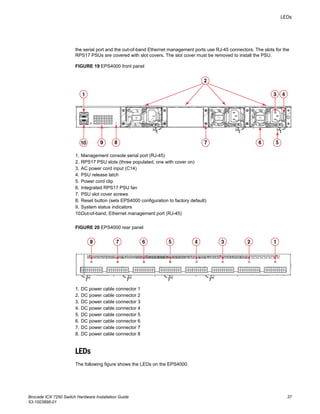
the serial port and the out-of-band Ethernet management ports use RJ-45 connectors. The slots for the
RPS17 PSUs are covered with slot covers. The slot cover must be removed to install the PSU.
FIGURE 19 EPS4000 front panel
1. Management console serial port (RJ-45)
2. RPS17 PSU slots (three populated, one with cover on)
3. AC power cord input (C14)
4. PSU release latch
5. Power cord clip
6. Integrated RPS17 PSU fan
7. PSU slot cover screws
8. Reset button (sets EPS4000 configuration to factory default)
9. System status indicators
10.Out-of-band, Ethernet management port (RJ-45)
FIGURE 20 EPS4000 rear panel
1. DC power cable connector 1
2. DC power cable connector 2
3. DC power cable connector 3
4. DC power cable connector 4
5. DC power cable connector 5
6. DC power cable connector 6
7. DC power cable connector 7
8. DC power cable connector 8
LEDs
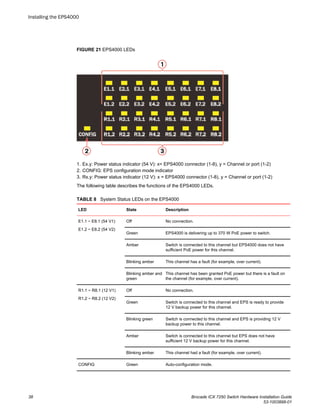
The following figure shows the LEDs on the EPS4000.
LEDs
Brocade ICX 7250 Switch Hardware Installation Guide 37
53-1003898-01
FIGURE 21 EPS4000 LEDs
1. Ex.y: Power status indicator (54 V): x= EPS4000 connector (1-8), y = Channel or port (1-2)
2. CONFIG: EPS configuration mode indicator
3. Rx.y: Power status indicator (12 V): x = EPS4000 connector (1-8), y = Channel or port (1-2)
The following table describes the functions of the EPS4000 LEDs.
System Status LEDs on the EPS4000TABLE 8
LED State Description
E1.1 ~ E8.1 (54 V1)
E1.2 ~ E8.2 (54 V2)
Off No connection.
Green EPS4000 is delivering up to 370 W PoE power to switch.
Amber Switch is connected to this channel but EPS4000 does not have
sufficient PoE power for this channel.
Blinking amber This channel has a fault (for example, over current).
Blinking amber and
green
This channel has been granted PoE power but there is a fault on
the channel (for example, over current).
R1.1 ~ R8.1 (12 V1)
R1.2 ~ R8.2 (12 V2)
Off No connection.
Green Switch is connected to this channel and EPS is ready to provide
12 V backup power for this channel.
Blinking green Switch is connected to this channel and EPS is providing 12 V
backup power to this channel.
Amber Switch is connected to this channel but EPS does not have
sufficient 12 V backup power for this channel.
Blinking amber This channel had a fault (for example, over current).
CONFIG Green Auto-configuration mode.
Installing the EPS4000
38 Brocade ICX 7250 Switch Hardware Installation Guide
53-1003898-01
System Status LEDs on the EPS4000 (Continued)TABLE 8
LED State Description
Amber Manual configuration mode.
Management port LED
(Left down)
Green Management port link up at 100BASE-T mode.
Off Management port link up at 10BASE-T mode or link is down.
Management port LED
(Right down)
Blinking green Indicates management port receive and transmit activity.
Off Indicates no Ethernet traffic on management port.
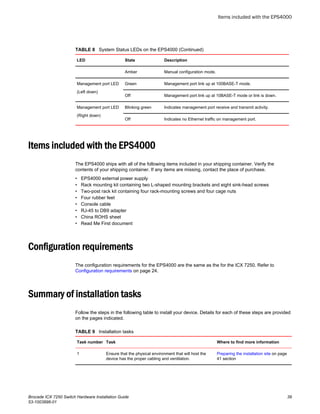
Items included with the EPS4000
The EPS4000 ships with all of the following items included in your shipping container. Verify the
contents of your shipping container. If any items are missing, contact the place of purchase.
• EPS4000 external power supply
• Rack mounting kit containing two L-shaped mounting brackets and eight sink-head screws
• Two-post rack kit containing four rack-mounting screws and four cage nuts
• Four rubber feet
• Console cable
• RJ-45 to DB9 adapter
• China ROHS sheet
• Read Me First document
Configuration requirements
The configuration requirements for the EPS4000 are the same as the for the ICX 7250. Refer to
Configuration requirements on page 24.
Summary of installation tasks
Follow the steps in the following table to install your device. Details for each of these steps are provided
on the pages indicated.
Installation tasksTABLE 9
Task number Task Where to find more information
1 Ensure that the physical environment that will host the
device has the proper cabling and ventilation.
Preparing the installation site on page
41 section
Items included with the EPS4000
Brocade ICX 7250 Switch Hardware Installation Guide 39
53-1003898-01
Installation tasks (Continued)TABLE 9
Task number Task Where to find more information
2 Unpack the device and all included accessories. Items included with the EPS4000 on
page 39 section
3 Install the device on a desktop, or in an equipment rack. Installing the device on page 42
section
4 Once the device is installed, plug the device into a nearby
power source that adheres to the regulatory requirements
outlined in this manual.
Powering on the system on page 49
section
5 Verify that the device is working properly by plugging it
into a power source and verifying that it passes the self
test.
Verifying proper operation on page
49 section
Installation precautions
Follow all precautions when installing a device.
General precautions
DANGER
All fiber-optic interfaces use Class 1 lasers.
CAUTION
Do not install the device in an environment where the operating ambient temperature might
exceed 50°C (122°F).
CAUTION
Make sure the airflow around the front, sides, and back of the device is not restricted.
Lifting precautions
DANGER
Make sure the rack housing the device is adequately secured to prevent it from becoming
unstable or falling over.
DANGER
Mount the devices you install in a rack as low as possible. Place the heaviest device at the
bottom and progressively place lighter devices above.
Installation precautions
40 Brocade ICX 7250 Switch Hardware Installation Guide
53-1003898-01
Power precautions
CAUTION
Use a separate branch circuit for each power cord, which provides redundancy in case one of
the circuits fails.
CAUTION
Ensure that the device does not overload the power circuits, wiring, and over-current protection.
To determine the possibility of overloading the supply circuits, add the ampere (amp) ratings of
all devices installed on the same circuit as the device. Compare this total with the rating limit for
the circuit. The maximum ampere ratings are usually printed on the devices near the input
power connectors.
DANGER
Disconnect the power cord from all power sources to completely remove power from the device.
CAUTION
Before plugging a cable into to any port, be sure to discharge the voltage stored on the cable by
touching the electrical contacts to ground surface.
DANGER
If the installation requires a different power cord than the one supplied with the device, make
sure you use a power cord displaying the mark of the safety agency that defines the regulations
for power cords in your country. The mark is your assurance that the power cord can be used
safely with the device.
Preparing the installation site
EPS4000 external power supplies can be mounted in a standard 19-inch equipment rack or on a flat
surface.
The installation site should meet these requirements:
• Be at the center of all the devices you want to link, and near a power outlet.
• Maintain temperatures within 0 to 50°C (32 to 122°F) and humidity levels within 5 to 95%, non-
condensing.
• Provide adequate space (approximately 5.08 cm [2 in.]) on all sides for proper airflow.
• Be accessible for installing, cabling, and maintaining the devices.
• Allow the status LEDs to be clearly visible.
• Allow for twisted-pair cables to be routed away from power lines, fluorescent lighting fixtures, and
other sources of electrical interference, such as radios and transmitters.
• Provide a separate grounded power outlet that provides 100 to 240 VAC, 50 - 60 Hz, is within 2.44 m
(8 ft) of each device, and is powered from an independent circuit breaker.
• As with any electrical equipment, a filter or surge suppressor is recommended.
Rack-mount installation considerations
Before mounting the external power supply in a rack, consider the following factors:
Power precautions
Brocade ICX 7250 Switch Hardware Installation Guide 41
53-1003898-01
• Temperature: Because the temperature within a rack assembly may be higher than the ambient
room temperature, check that the rack-environment temperature is within the specified operating
temperature range.
• Airflow: Be sure that the airflow direction for all equipment in a rack is the same or consistent.
• Mechanical loading: Do not place any equipment on top of a rack-mounted device.
• Circuit overloading: Be sure that the supply circuit to the rack assembly is not overloaded.
• Grounding: Rack-mounted equipment should be properly grounded.
Installing the device
You can install the device on a desktop or in an equipment rack.
DANGER
Mount the devices you install in a rack as low as possible. Place the heaviest device at the
bottom and progressively place lighter devices above.
NOTE
There are no user-serviceable parts inside the device. Do not open the enclosure, unless you are
installing an RPS17 Power Supply Unit (PSU) as shown in Installing an RPS17 PSU on page 45 or
removing an RPS17 as shown in Uninstalling an RPS17 PSU on page 46.
Desktop installation
Complete the following steps to install on a desktop or other flat surface.
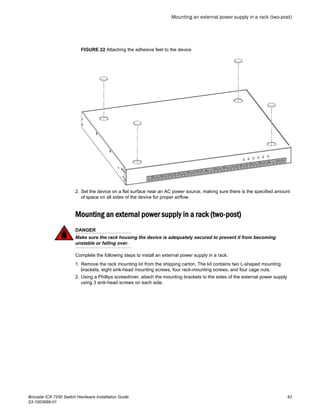
1. Attach the four adhesive feet to the bottom of the device.
NOTE
The process is the same for multiple devices.
Installing the device
42 Brocade ICX 7250 Switch Hardware Installation Guide
53-1003898-01
FIGURE 22 Attaching the adhesive feet to the device
2. Set the device on a flat surface near an AC power source, making sure there is the specified amount
of space on all sides of the device for proper airflow.
Mounting an external power supply in a rack (two-post)
DANGER
Make sure the rack housing the device is adequately secured to prevent it from becoming
unstable or falling over.
Complete the following steps to install an external power supply in a rack.
1. Remove the rack mounting kit from the shipping carton. The kit contains two L-shaped mounting
brackets, eight sink-head mounting screws, four rack-mounting screws, and four cage nuts.
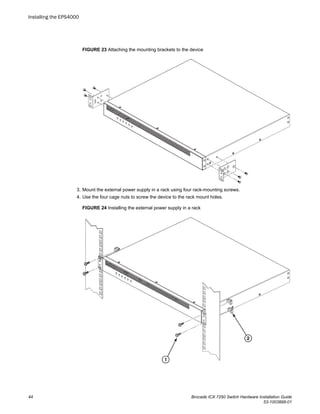
2. Using a Phillips screwdriver, attach the mounting brackets to the sides of the external power supply
using 3 sink-head screws on each side.
Mounting an external power supply in a rack (two-post)
Brocade ICX 7250 Switch Hardware Installation Guide 43
53-1003898-01
FIGURE 23 Attaching the mounting brackets to the device
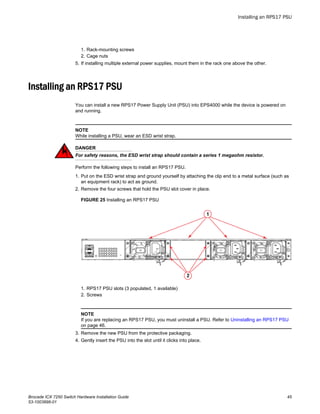
3. Mount the external power supply in a rack using four rack-mounting screws.
4. Use the four cage nuts to screw the device to the rack mount holes.
FIGURE 24 Installing the external power supply in a rack
Installing the EPS4000
44 Brocade ICX 7250 Switch Hardware Installation Guide
53-1003898-01
1. Rack-mounting screws
2. Cage nuts
5. If installing multiple external power supplies, mount them in the rack one above the other.
Installing an RPS17 PSU
You can install a new RPS17 Power Supply Unit (PSU) into EPS4000 while the device is powered on
and running.
NOTE
While installing a PSU, wear an ESD wrist strap.
DANGER
For safety reasons, the ESD wrist strap should contain a series 1 megaohm resistor.
Perform the following steps to install an RPS17 PSU.
1. Put on the ESD wrist strap and ground yourself by attaching the clip end to a metal surface (such as
an equipment rack) to act as ground.
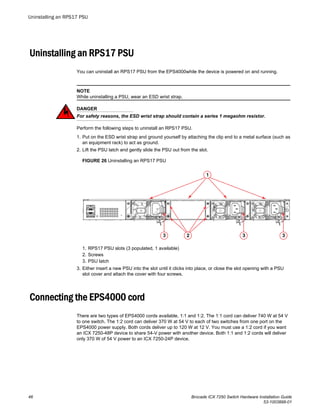
2. Remove the four screws that hold the PSU slot cover in place.
FIGURE 25 Installing an RPS17 PSU
1. RPS17 PSU slots (3 populated, 1 available)
2. Screws
NOTE
If you are replacing an RPS17 PSU, you must uninstall a PSU. Refer to Uninstalling an RPS17 PSU
on page 46.
3. Remove the new PSU from the protective packaging.
4. Gently insert the PSU into the slot until it clicks into place.
Installing an RPS17 PSU
Brocade ICX 7250 Switch Hardware Installation Guide 45
53-1003898-01
Uninstalling an RPS17 PSU
You can uninstall an RPS17 PSU from the EPS4000while the device is powered on and running.
NOTE
While uninstalling a PSU, wear an ESD wrist strap.
DANGER
For safety reasons, the ESD wrist strap should contain a series 1 megaohm resistor.
Perform the following steps to uninstall an RPS17 PSU.
1. Put on the ESD wrist strap and ground yourself by attaching the clip end to a metal surface (such as
an equipment rack) to act as ground.
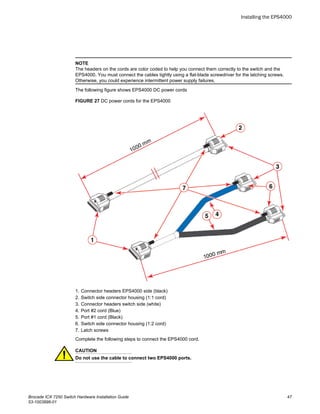
2. Lift the PSU latch and gently slide the PSU out from the slot.
FIGURE 26 Uninstalling an RPS17 PSU
1. RPS17 PSU slots (3 populated, 1 available)
2. Screws
3. PSU latch
3. Either insert a new PSU into the slot until it clicks into place, or close the slot opening with a PSU
slot cover and attach the cover with four screws.
Connecting the EPS4000 cord
There are two types of EPS4000 cords available, 1:1 and 1:2. The 1:1 cord can deliver 740 W at 54 V
to one switch. The 1:2 cord can deliver 370 W at 54 V to each of two switches from one port on the
EPS4000 power supply. Both cords deliver up to 120 W at 12 V. You must use a 1:2 cord if you want
an ICX 7250-48P device to share 54-V power with another device. Both 1:1 and 1:2 cords will deliver
only 370 W of 54 V power to an ICX 7250-24P device.
Uninstalling an RPS17 PSU
46 Brocade ICX 7250 Switch Hardware Installation Guide
53-1003898-01
NOTE
The headers on the cords are color coded to help you connect them correctly to the switch and the
EPS4000. You must connect the cables tightly using a flat-blade screwdriver for the latching screws.
Otherwise, you could experience intermittent power supply failures.
The following figure shows EPS4000 DC power cords
FIGURE 27 DC power cords for the EPS4000
1. Connector headers EPS4000 side (black)
2. Switch side connector housing (1:1 cord)
3. Connector headers switch side (white)
4. Port #2 cord (Blue)
5. Port #1 cord (Black)
6. Switch side connector housing (1:2 cord)
7. Latch screws
Complete the following steps to connect the EPS4000 cord.
CAUTION
Do not use the cable to connect two EPS4000 ports.
Installing the EPS4000
Brocade ICX 7250 Switch Hardware Installation Guide 47
53-1003898-01
NOTE
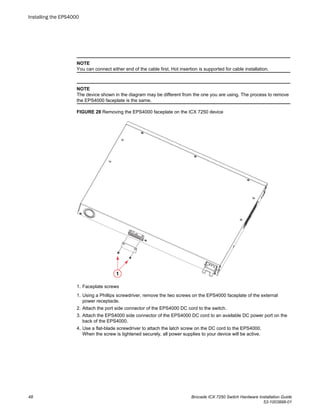
You can connect either end of the cable first. Hot insertion is supported for cable installation.
NOTE
The device shown in the diagram may be different from the one you are using. The process to remove
the EPS4000 faceplate is the same.
FIGURE 28 Removing the EPS4000 faceplate on the ICX 7250 device
1. Faceplate screws
1. Using a Phillips screwdriver, remove the two screws on the EPS4000 faceplate of the external
power receptacle.
2. Attach the port side connector of the EPS4000 DC cord to the switch.
3. Attach the EPS4000 side connector of the EPS4000 DC cord to an available DC power port on the
back of the EPS4000.
4. Use a flat-blade screwdriver to attach the latch screw on the DC cord to the EPS4000.
When the screw is tightened securely, all power supplies to your device will be active.
Installing the EPS4000
48 Brocade ICX 7250 Switch Hardware Installation Guide
53-1003898-01
Powering on the system
After you complete the physical installation, you can power on the system.
NOTE
The power outlet should be installed near the equipment and should be easily accessible.
1. Remove the power cord from the shipping container.
2. Attach the AC power cord to the AC connector on the rear panel.
3. Insert the power cord plug into a 100V-240V outlet.
NOTE
To turn the system off, unplug the power cord or cords.
Connecting devices to the external power supply
Complete the following steps to connect devices to the external power supply.
1. Connect one end of the AC cord to the AC receptacle on the device, and the other end to a grounded
power outlet.
2. Connect one end of an EPS cord to the external power receptacle on the device, and the other end
to an available receptacle on the external power supply.
3. Repeat Step Step 1 and Step Step 2 to connect up to the allowable maximum number of devices to
the external power supply. The maximum number of devices will depend on both the number of
power supply units in the EPS4000 and whether you use 1:1 cords or 1:2 cords.
4. Connect one end of the AC cord to the AC receptacle on the external power supply, and the other
end to a grounded power outlet.
5. Check the LEDs on the external power supply to ensure proper operation with the devices.
Verifying proper operation
After you have installed an external power supply, verify that the device is working properly by plugging
it into a power source and verifying that it passes the self test.
1. Connect the power cord supplied with the device to the power connector on the power supply on the
rear of the device.
2. Insert the other end into a properly grounded electrical outlet.
3. Verify that the LED for the power supply is green.
4. Verify proper operation by observing the LEDs.
LEDs for linked ports will come on during the boot process, and then all LEDs will go off. Once the
boot sequence is complete, LEDs for linked ports will come on again.
Powering on the system
Brocade ICX 7250 Switch Hardware Installation Guide 49
53-1003898-01
EPS4000 external power supply technical specifications
System specifications
System component Description
Enclosure 1U; 19-inch rack-mountable or desktop
Power inlet C14 for AC power
Power outlet Custom connector for DC power to all ICX 7250 devices except ICX 7250-24G
Power supply unit (PSU) Up to four RPS17, field-replaceable units (FRU)
Fans One fan per installed RPS17
Cooling Forced air circulation
Front-to-back airflow
System architecture External power supply (also referred to as external power shelf)
Management
System component Description
Console RJ-45 serial port
Management interface One 10/100 Ethernet, out-of-band management interface (RJ-45 port)
LEDs
System component Description
Power status LEDs Ex.y: 16 bicolor LEDs indicate 54 V power status for the PoE or PoE+ channels
Rx.y: 16 bicolor LEDs indicate 12 V power status for redundant power
NOTE
x = 1 through 8 and y = 1 through 2
System status LED CONFIG: Bicolor LED (green/amber) indicates the configuration mode
Management port status
LEDs
2 green LEDs indicate status and activity
EPS4000 external power supply technical specifications
50 Brocade ICX 7250 Switch Hardware Installation Guide
53-1003898-01
Other
System component Description
RESET Reset button for hardware reset without power cycling. There is a hole in the front
panel to allow access. Sets EPS4000 to factory default settings.
RJ-45 console port Console port for serial access to the device for management
Serial cable RJ-45 console cable
DB9 adapter DB9 adapter for serial connection
Weight and physical dimensions
Fully loaded: Populated with 4 RPS17 Power Supply Units (PSUs).
Model Height Width Depth Weight (empty) Weight (fully
loaded)
EPS4000 4.37 cm
1.72 inches
43.7 cm
17.2 inches
40.6 cm
16.0 inches
4.87 kg
10.7 lb
8.35 kg
18.4 lb
Environmental requirements
Condition Operational Non-operational
Ambient temperature -5°C to 50°C (23°F to 122°F) -25°C to 70°C (-13°F to 158°F)
Relative humidity
(non-condensing)
5% to 95% at 50°C (122°F) 5% to 95% at 70°C (158°F)
Altitude (above sea
level)
0 to 3,000 m (10,000 feet) 0 to 12,000 m (39,000 feet)
Shock 20 G, 11 ms, half-sine wave 33 G, 11 ms, half-sine wave
Vibration 1 G sine, 0.4 gms random, 5-500 Hz 2.4 G sine, 1.1 gms random, 5-500 Hz
Heat dissipation Refer to RPS17 specification section in
Brocade ICX 7250 Switch Technical
Specifications on page 75
N/A
Operating noise Single PSU installed: 46.5 to 48.3 dBA
Four PSUs installed : 53.4 dBA
N/A
Installing the EPS4000
Brocade ICX 7250 Switch Hardware Installation Guide 51
53-1003898-01
Regulatory compliance (EMC)
• FCC Part 15, Subpart B (Class A)
• EN 55022 (CE mark) (Class A)
• EN 55024 (CE mark) (Immunity) for Information Technology Equipment
• ICES-003 (Canada) (Class A)
• AS/NZ 55022 (Australia) (Class A)
• VCCI (Japan) (Class A)
• EN 61000-3-2
• EN 61000-3-3
• EN 61000-6-1
Regulatory compliance (safety)
• CAN/CSA-C22.2 No. 60950-1-07/UL60950-1 - Safety of Information Technology Equipment
• EN 60825-1 Safety of Laser Products - Part 1: Equipment Classification, Requirements and User's
Guide
• EN 60825-2 Safety of Laser Products - Part 2: Safety of Optical Fibre Communications Systems
• EN 60950-1, IEC 60950-1 Safety of Information Technology Equipment
Regulatory compliance (environmental)
• 2011/65/EU - Restriction of the use of certain hazardous substance in electrical and electronic
equipment (EU RoHS)
• 2012/19/EU - Waste electrical and electronic equipment (EU WEEE)
• 94/62/EC - packaging and packaging waste (EU)
• 2006/66/EC - batteries and accumulators and waste batteries and accumulators (EU battery
directive)
• 1907/2006 of the European Parliament and of the Council of 18 December 2006 concerning the
Registration, Evaluation, Authorisation and Restriction of Chemicals (EU REACH)
• Section 1502 of the Dodd-Frank Wall Street Reform and Consumer Protection Act of 2010 - U.S.
Conflict Minerals
• 30/2011/TT-BCT - Vietnam circular
• SJ/T 11363-2006 Requirements for Concentration Limits for Certain Hazardous Substances in EIPs
(China)
• SJ/T 11364-2006 Marking for the Control of Pollution Caused by EIPs (China)
Installing the EPS4000
52 Brocade ICX 7250 Switch Hardware Installation Guide
53-1003898-01
Configuring the Device
● Configuration tasks......................................................................................................... 53
● PC or terminal attachment.............................................................................................. 54
● Password assignment.....................................................................................................54
● IP address configuration................................................................................................. 56
● Connecting network devices........................................................................................... 59
● Troubleshooting network connections.............................................................................62
● Testing connectivity.........................................................................................................62
DANGER
The procedures in this manual are for qualified service personnel.
Configuration tasks
Follow the steps listed in the following table to configure the device. Details for each of these steps are
provided on the pages indicated.
Configuration tasksTABLE 10
Task number Task Where to find more information
1 Attach a terminal or PC to the device. This will enable you to
configure the device through the command line interface
(CLI).
PC or terminal attachment on page
54
2 No default password is assigned to the CLI. For additional
access security, assign a password.
Password assignment on page 54
3 Before attaching equipment to the device, you must configure
an interface IP address to the subnet on which the device will
be located. Initial IP address configuration is performed using
the CLI with a direct serial connection.
IP address configuration on page
56
4 Once you power on the device and assign IP addresses, the
system is ready to accept network equipment.
Configuring IP parameters for
devices running Layer 3 software
on page 58
5 Test IP connectivity to other devices by pinging them and
tracing routes.
Testing connectivity on page 62
6 Continue configuring the device using the CLI. You can also
use Brocade Network Advisor to manage the device.
FastIron Ethernet Switch
Administration Guide
7 Secure access to the device. FastIron Ethernet Switch
Administration Guide
Brocade ICX 7250 Switch Hardware Installation Guide 53
53-1003898-01
PC or terminal attachment
You can access the CLI by attaching a serial cable to the console port. After you assign an IP address,
you can access the system through Telnet or Brocade Network Advisor.
Complete the following steps to attach a management station to the console port.
1. Connect a PC or terminal to the console (mini-USB) port of the device.
To connect the console port to a DB9 port, you need a cable with mini-USB and DB9 connectors.
For information about locating the serial port, refer to Network and management interfaces on page
14.
The serial port has a mini-USB connector. For port pinout information, refer to Brocade ICX 7250
Switch Technical Specifications on page 75.
NOTE
You must run a terminal emulation program on the PC.
2. Launch the terminal emulation program and set the following session parameters:
• Baud: 9600 bps
• Data bits: 8
• Parity: None
• Stop bits: 1
• Flow control: None
The console serial communication port serves as a connection point for management by a PC or
SNMP workstation. When you establish the serial connection to the system, press Enter to display
the CLI prompt in the terminal emulation window, as shown in the following example.
device>
If you see this prompt, you are connected to the system and can proceed to Password assignment
on page 54.
You can customize the prompt by changing the system name. For more information, refer to the
FastIron Ethernet Switch Administration Guide.
If you do not see the prompt, make sure the cable is securely connected to your PC and to the
Brocade system.
Check the settings in your terminal emulation program. In addition to the previously configured
session settings, make sure the terminal emulation session is running on the same serial port you
attached to the Brocade system.
Password assignment
By default, the CLI is not protected by passwords. To secure CLI access, Brocade strongly
recommends assigning passwords. Refer to the FastIron Ethernet Switch Administration Guide.
NOTE
You can assign passwords using Brocade Network Advisor if an enable password for a Super User
has been configured on the device.
PC or terminal attachment
54 Brocade ICX 7250 Switch Hardware Installation Guide
53-1003898-01
The CLI contains the following access levels:
• User EXEC: The level you enter when you first start a CLI session. At this level, you can view some
system information but you cannot configure system or port parameters.
• Privileged EXEC: This level is also called the Enable level and can be secured by a password. You
can perform tasks such as managing files on the flash module, saving the system configuration to
flash, and clearing caches at this level.
• CONFIG: The configuration level. This level allows you to configure the system IP address and
configure switching and routing features. To access the CONFIG mode, you must already be logged
in to the privileged EXEC level.
You can set the following levels of Enable passwords:
• Super User: Allows complete read-and-write access to the system. This is generally for system
administrators and is the only password level that allows you to configure passwords.
NOTE
You must set a Super User password before you can set other types of passwords.
• Port Configuration: Allows read-and-write access for specific ports but not for global (system-wide)
parameters.
• Read-Only: Allows access to the privileged EXEC mode and CONFIG mode but only with read
access.
Assigning passwords
Complete the following steps to set passwords.
NOTE
Depending on the device you purchased, and the code (Layer 2 or Layer 3) loaded on your system, the
router prompt is displayed accordingly. For example, for an ICX 7250-48P device running Layer 3 code
on the device, the router prompt displays ICX 7250-48P Router> at the CLI level.
1. At the opening CLI prompt, enter the following command to change to the Privileged EXEC mode:
device> enable
2. Access the configuration mode of the CLI by entering the following command:
device# configure terminal
3. Enter the following command to set the Super User password:
device(config)# enable super-user-password joe
NOTE
You must set the Super User password before you can set other types of passwords.
4. Enter the following commands to set the port configuration and read-only passwords:
device(config)# enable port-config-password john
device(config)# enable read-only-password sam
NOTE
If you forget your Super User password, refer to Recovering from a lost password on page 56.
Passwords can be up to 32 characters long.
Assigning passwords
Brocade ICX 7250 Switch Hardware Installation Guide 55
53-1003898-01
Recovering from a lost password
By default, the CLI does not require passwords. However, if a password has been configured for the
device but the password has been lost, you can regain Super User access to the device using the
following procedure.
NOTE
Recovery from a lost password requires direct access to the serial port and a system reset.
1. Start a CLI session over the serial interface to the Brocade device.
2. Reboot the device.
3. While the system is booting, before the initial system prompt appears, enter b to enter the boot
monitor mode.
4. Enter no password. (You cannot abbreviate this command.)
5. Enter boot. This command causes the device to bypass the system password check.
After the console prompt reappears, assign a new password.
IP address configuration
You must configure at least one IP address using the serial connection to the CLI before you can
manage the system using the other management interfaces.
Brocade devices support both classical IP network masks (Class A, B, and C subnet masks, and so
on) and Classless Interdomain Routing (CIDR) network prefix masks.
• To enter a classical IP network mask, enter the mask in IP address format. For example, enter
"10.157.22.99 255.255.255.0" for an IP address with a Class C subnet mask.
• To enter a prefix number for a network mask, enter a forward slash (/) and the number of bits in the
mask immediately after the IP address. For example, enter "10.157.22.99/24" for an IP address that
has a network mask with 24 significant ("mask") bits.
By default, the CLI displays network masks in classical IP address format (for example,
255.255.255.0). You can change the display to the prefix format. Refer to the FastIron Ethernet Switch
Administration Guide.
Devices running Layer 2 software
Use the following procedure to configure an IP address on a device running Layer 2 software.
1. At the opening CLI prompt, enter enable.
device> enable
2. Enter the following command at the Privileged EXEC level prompt, and then press Enter . This
command erases the factory test configuration if still present.
device# erase startup-config
Recovering from a lost password
56 Brocade ICX 7250 Switch Hardware Installation Guide
53-1003898-01
CAUTION
Use the erase startup-config command only for new systems. If you enter this command on a
system you have already configured, the command erases the configuration. If you
accidentally do erase the configuration on a configured system, enter the write memory
command to save the running configuration to the startup-config file.
3. Access the global configuration level of the CLI by entering the following command:
device# configure terminal
4. Configure the IP address and mask for the device.
device(config)# ip address 10.22.3.44 255.255.255.0
5. Set a default gateway address for the device.
device(config)# ip default-gateway 10.22.3.1
NOTE
You do not need to assign a default gateway address for single subnet networks.
Devices running Layer 3 software
Before attaching equipment to a Brocade device running Layer 3 software, you must assign an interface
IP address to the subnet on which the device will be located. You must use the serial connection to
assign the first IP address. For subsequent addresses, you also can use the CLI through Telnet.
By default, you can configure up to 24 IP interfaces on each port, virtual interface, and loopback
interface. You can increase this amount to up to 64 IP subnet addresses per port by increasing the size
of the subnet-per-interface table.
The following procedure shows how to add an IP address and mask to a router port.
1. At the opening CLI prompt, enter enable.
device> enable
2. Enter the following command at the privileged EXEC level prompt, and then press Enter . This
command erases the factory test configuration if still present.
device# erase startup-config
CAUTION
Use the erase startup-config command only for new systems. If you enter this command on a
system you have already configured, the command erases the configuration. If you
accidentally do erase the configuration on a configured system, enter the write memory
command to save the running configuration to the startup-config file.
3. Access the global configuration level of the CLI by entering the following command.
device# configure terminal
Brocade(config)#
4. Configure the IP addresses and mask addresses for the interfaces on the router.
device(config)# interface ethernet 2
device(config)# ip address 10.22.3.44 255.255.255.0
Devices running Layer 3 software
Brocade ICX 7250 Switch Hardware Installation Guide 57
53-1003898-01
NOTE
You can use the ip address ip-addr/mask-bits command if you know the subnet mask length. In the
previous example, you could enter ip address 10.22.3.44/24.
Use the secondary option of the ip address command parameter if you have already configured
an IP address within the same subnet on the interface.
Configuring IP parameters for devices running Layer 3 software
You must configure IP parameters for devices running Layer 3 software.
Configuring IP addresses
You can configure an IP address on the following types of Layer 3 interfaces:
• Ethernet port
• Virtual routing interface (also called a Virtual Ethernet or "VE")
• Loopback interface
By default, you can have up to 24 IP addresses on each interface, but you can increase this number to
128 IP addresses.
NOTE
Once you configure a virtual routing interface on a VLAN, you cannot configure Layer 3 interface
parameters on individual ports in the VLAN. Instead, you must configure the parameters on the virtual
routing interface itself.
Assigning an IP address to an Ethernet port
Enter the following commands to assign an IP address to port 1/1/1.
device(config)# interface ethernet 1/1/1
device(config)# ip address 10.45.6.1 255.255.255.0
You also can enter the IP address and mask in CIDR format.
device># ip address 10.45.6.1/24
Assigning an IP address to a loopback interface
Loopback interfaces are always up, regardless of the states of physical interfaces. They can add
stability to the network because they are not subject to route flap problems that can occur due to
unstable links between a Layer 3 device and other devices. You can configure up to four loopback
interfaces on a Layer 3 device.
You can add up to 24 IP addresses to each loopback interface.
NOTE
If you configure the device to use a loopback interface to communicate with a BGP4 neighbor, you
must also configure a loopback interface on the neighbor and configure the neighbor to use that
loopback interface to communicate with the Brocade device.
Configuring IP parameters for devices running Layer 3 software
58 Brocade ICX 7250 Switch Hardware Installation Guide
53-1003898-01
To add a loopback interface, enter the interface loopback num and ip address num commands similar
to the following example.
device(config)# exit
device(config)# interface loopback 1
device(config)# ip address 10.0.0.1/24
You can specify from 1 through the maximum number of virtual interfaces supported on the device by
using the interface loopback num command.. To display the maximum number of virtual interfaces
supported on the device, enter the show default values command.
Assigning an IP address to a virtual routing interface
A virtual interface is a logical port associated with a Layer 3 Virtual LAN (VLAN) configured on a Layer 3
device. You can configure routing parameters on the virtual interface to enable the Layer 3 device to
route protocol traffic from one Layer 3 VLAN to the other, without using an external router.
NOTE
The device uses the lowest MAC address on the device (the MAC address of port 1 or 1/1/1) as the
MAC address for all ports within all virtual interfaces you configure on the device.
Enter commands similar to the following to add a virtual interface to a VLAN and configure an IP
address on the interface.
device(config)# vlan 2 name IP-Subnet_10.1.2.1/24
device(config-vlan-2)# untag 1/1/1 to 1/1/4
device(config-vlan-2)# router-interface ve1
device(config-vlan-2)# interface ve1
device(config-vif-1)# ip address 10.1.2.1/24
The first two commands in this example create a Layer 3 protocol-based VLAN named "IP-
Subnet_10.1.2.1/24" and add a range of untagged ports to the VLAN. The router-interface command
creates virtual interface 1 as the routing interface for the VLAN. The last two commands change to the
interface configuration level for the virtual interface and assign an IP address to the interface.
Deleting an IP address
Enter a command similar to the following to delete an IP address.
device(config-if-1/1/1)# no ip address 10.1.2.1
This command deletes IP address 10.1.2.1. You do not need to enter the subnet mask.
To delete all IP addresses from an interface, enter the following command.
device(config-if-1/1/1)# no ip address *
Connecting network devices
Brocade devices support connections to other vendors’ routers, switches, and hubs, as well other
Brocade devices.
Deleting an IP address
Brocade ICX 7250 Switch Hardware Installation Guide 59
53-1003898-01
Connectors
For port pinouts, refer to Brocade ICX 7250 Switch Technical Specifications on page 75.
Cable specifications
For information about supported transceivers and cable lengths and types, refer to the Brocade optics
family datasheet.
Connecting to Ethernet or Fast Ethernet hubs
For copper connections to Ethernet hubs, a 10/100Base-TX or 1000Base-T switch, or another
Brocade device, a crossover cable is required as shown in the following figure. If the hub is equipped
with an uplink port, it requires a straight-through cable instead of a crossover cable.
NOTE
The 802.3ab standard (automatic MDI or MDIX detection) calls for automatic negotiation of the
connection between two 1000Base-T ports. In this case, a straight-through cable may work just as well
as a crossover cable. For more information, refer to the FastIron Ethernet Switch Administration
Guide.
FIGURE 29 UTP crossover cable
Connectors
60 Brocade ICX 7250 Switch Hardware Installation Guide
53-1003898-01
FIGURE 30 Straight-through cable
Connecting to workstations, servers, or routers
Straight-through UTP cabling is required for direct UTP attachment to workstations, servers, or routers
using network interface cards (NICs).
Fiber cabling is required for direct attachment to Gigabit NICs or switches and routers through fiber
ports. Refer to Connecting a network device to a fiber port on page 61.
Automatic MDI or MDIX detection
All 10/100 and 1000 Mbps Ethernet copper ports on the devices support automatic Media Dependent
Interface (auto-MDI) or automatic Media Dependent Interface Crossover (auto-MDIX) detection. Auto-
MDI or auto-MDIX is enabled on all 10/100 and 1000 Mbps copper ports by default. For each port, you
can disable auto-MDI or auto-MDIX, designate the port as an MDI port, or designate the port as an
MDIX port.
For more information about this feature and how to configure it, refer to the FastIron Ethernet Switch
Administration Guide.
Connecting a network device to a fiber port
For direct attachment from the device to a Gigabit NIC, switch, or router, using a fiber-optic transceiver,
you need fiber cabling with an LC connector.
To connect the device to another network device using a fiber port, you must perform the following
tasks:
• Install a fiber-optic transceiver (SFP or SFP+).
• Cable the fiber-optic transceiver.
For instructions on installing fiber-optic transceivers, refer to Installing a fiber-optic transceiver on page
72.
For instructions on cabling a fiber-optic transceiver, refer to Cabling a fiber-optic transceiver on page
73.
Connecting to workstations, servers, or routers
Brocade ICX 7250 Switch Hardware Installation Guide 61
53-1003898-01
For instructions on cleaning a fiber-optic module, refer to Cleaning the fiber-optic connectors on page
74.
Troubleshooting network connections
• For the indicated port, verify that both ends of the cabling (at the device and the connected device)
are snug.
• Verify that the device and the connected device are both powered on and operating correctly.
• Verify that you have used the correct cable type for the connection:
‐ For twisted-pair connections to an end node, use straight-through cabling.
‐ For fiber-optic connections, verify that the transmit port on the device is connected to the receive
port on the connected device, and that the receive port on the device is connected to the transmit
port on the connected device.
• Use the CLI to verify that the port has not been disabled through a configuration change. If you
have configured an IP address on the device, you also can use Brocade Network Advisor.
• If the other procedures do not resolve the problem, try using a different port or a different cable.
• If a 1-Gbps optic transceiver is inserted into an ICX 7250 device, you must configure the port using
the speed-duplex 1000-full-master command at the interface level.
Digital optical monitoring
NOTE
10 Gbps optical transceivers are not supported on ICX 7250-24G devices.
You can configure your device to monitor optical transceivers in the system, either globally or by
specified port. When this feature is enabled, the system monitors the temperature and signal power
levels for the optical transceivers in the specified ports. Console messages and syslog messages are
sent when optical operating conditions fall below or rise above the SFP and SFP+ manufacturer’s
recommended thresholds. For more information about digital optical monitoring, refer to the FastIron
Ethernet Switch Administration Guide.
Testing connectivity
Test for connectivity by observing the LEDs related to network connection.
Pinging an IP address
To verify that a device can reach another device through the network, enter a command similar to the
following at any level of the CLI.
device> ping 10.33.4.7
NOTE
If you address the ping to the IP broadcast address, the device lists the first four responses.
Troubleshooting network connections
62 Brocade ICX 7250 Switch Hardware Installation Guide
53-1003898-01
Observing LEDs
After you install the network cables, you can observe certain LEDs to determine if the network
connections are functioning properly. The following table outlines the LEDs related to the network
connections, the desired state of each LED, possible abnormal states of each LED, and what to do if an
LED indicates an abnormal state.
Network connection-related LED statesTABLE 11
LED Desired state Meaning Abnorma
l state
Meaning or action
Ethernet
(1-24/48)
On or flashing
(Green)
The port has established a
valid link at 10, 100, or 1000
Mbps. Flashing indicates the
port is transmitting and
receiving user packets.
Off A link is not established with the
remote port. You can do the
following:
• Verify that the connection to
the other network device has
been properly made. Also,
make certain that the other
network device is powered on
and operating correctly.
• Verify that the port has not
been disabled through a
configuration change. You can
use the CLI. If you have
configured an IP address on
the device, you also can use
the Web management
interface or Brocade Network
Advisor.
• If the other actions do not
resolve the problem, try using
a different port or a different
cable.
PoE
(1-24/48)
On (Green) The port is providing PoE
power to a connected device.
Off A link is not established with the
PoE device. You can do the
following:
• Verify that the connection to
the other network device has
been properly made.
• If the other actions do not
resolve the problem, try using
a different port or a different
cable.
Observing LEDs
Brocade ICX 7250 Switch Hardware Installation Guide 63
53-1003898-01
Network connection-related LED states (Continued)TABLE 11
LED Desired state Meaning Abnorma
l state
Meaning or action
SFP (X1 - X4) for
ICX 7250-24G
devices
SFP+ (X1 - X8)
for all other ICX
7250 devices
On or flashing
(Green or
Yellow)
Flashing yellow indicates the
port is transmitting and
receiving user packets at 1
Gbps.
The SFP+ port is operating at
10 Gbps. Flashing green
indicates the port is
transmitting and receiving user
packets at 10 Gbps.
Off A link is not established with the
remote port. You can do the
following:
• Verify that the connection to
the other network device has
been properly made. Also,
make certain that the other
network device is powered on
and operating correctly.
• Verify that the transmit port on
the device is connected to the
receive port on the other
network device, and that the
receive port on the device is
connected to the transmit port
on the other network device. If
you are not certain, remove
the two cable connectors from
the port connector and
reinsert them in the port
connector, reversing their
order.
• Dust may have accumulated
in the cable connector or port
connector. For information
about cleaning the
connectors, refer to Cleaning
the fiber-optic connectors on
page 74.
• Verify that the port has not
been disabled through a
configuration change.
• Ensure that the SFP+
transceivers in both ends are
of the same optic type (for
example, SR, LR, LRM).
• If the other actions do not
resolve the problem, try using
a different port or a different
cable.
If a problem persists after taking these actions, contact Brocade Technical Support.
Tracing a route
To determine the path through which a Brocade device can reach another device, enter a command
similar to the following at any level of the CLI on the device.
device> traceroute 10.33.4.7
The CLI displays trace route information for each hop as soon as the information is received.
Traceroute requests display all responses to a given TTL. In addition, if there are multiple equal-cost
routes to the destination, the Brocade device displays up to two responses by default.
Tracing a route
64 Brocade ICX 7250 Switch Hardware Installation Guide
53-1003898-01
Managing an ICX 7250 Device
● Managing temperature settings.......................................................................................65
● Displaying CPU usage.................................................................................................... 69
● Removing MAC address entries..................................................................................... 69
DANGER
The procedures in this manual are for qualified service personnel.
Managing temperature settings
The device contains temperature sensors that the software reads based on a configurable device poll
time. The devices have two automatic speed fan control settings based on the temperature. To protect
the device from overheating, the following temperature threshold levels exist:
• The warning level is the temperature at which the device generates a syslog message. It is
configurable up to 100°C.
• The shutdown level is the temperature at which the device reboots. It is set by the device and is not
configurable. When the device temperature reaches the shutdown level, it generates a warning
message that the device’s temperature is over the shutdown level and the device shuts down in five
minutes. The system restarts five minutes after the device reaches the temperature shutdown level.
Temperature threshold levels
The switch fans have two speeds, low and high. The fan speed settings are set by the device, and are
not configurable.
During system bootup, the fans run at high speed. If the switch does not detect any fans, the switch
shuts down.
After bootup, the fans operate at low speed when the temperature of the switch is below the high limit
temperature that is specified in the following table. If the switch reaches the high limit temperature, the
fans operate at high speed until the switch reaches the low limit temperature specified in the table, at
which time the fans decrease to low speed.
If the switch reaches or exceeds the critical (shutdown) temperature for two minutes, the switch shuts
down.
NOTE
In addition to the overall temperature of the module, the ICX 7250-24P and ICX 7250-48P modules
monitor the temperature of the Power Over Ethernet (PoE) power supply unit (PSU). When the low limit
and high limit temperatures are reached, the PoE PSU fans change speed using the same algorithm as
the module fans. There is no change to the Critical (shutdown) temperature value for these modules.
Brocade ICX 7250 Switch Hardware Installation Guide 65
53-1003898-01
Temperature thresholdsTABLE 12
Model Low limit temperature High limit temperature Critical (shutdown)
temperature
ICX 7250-24G 71° C 98° C 105° C
ICX 7250-24 67° C 98° C 105° C
ICX 7250-24P 82° C
PoE PSU: 34° C
93° C
PoE PSU: 41° C
105° C
ICX 7250-48P 85° C
PoE PSU: 49° C
95° C
PoE PSU: 57° C
105° C
ICX 7250-48 67° C 98° C 105° C
Fan detection and error checking policies
During system startup and operation, the Brocade ICX 7250, checks the fan status and automatically
performs corrective actions and generates syslog messages if a problem is detected (refer to the
following table).
If the Brocade ICX 7250 determines that there is a problem with the fans, it performs the following
actions and generates the following syslog messages, as shown in the following table.
NOTE
To determine the fan direction (either front to back, or back to front), enter the show chassis
command.
Brocade ICX 7250 fan error detection and resolutionTABLE 13
Issue detected Attempted resolution
During system bootup, no fan is
detected
The system immediately shuts down.
During system bootup, fewer fans than
required for normal operation are
detected
The system boots up normally and follows the fan speed and shutdown
policy as described in Temperature threshold levels on page 65. A
syslog message is generated that describes the issue.
System boots up normally, but all fans
fail during system operation
The system immediately shuts down. A syslog message describing the
issue is generated prior to shutdown.
After system bootup, fewer fans than
required for normal operation are
detected
No action is performed. The system follows the fan speed and
shutdown policy as described in Temperature threshold levels on page
65. A syslog message is generated that describes the issue.
After system bootup, two of the power
supply fans are detected as operating
in opposite directions
No action is performed. The system follows the fan speed and
shutdown policy as described in Temperature threshold levels on page
65. A syslog message is generated that describes the issue.
After system bootup, two of the module
fans are detected as operating in
opposite directions
No action is performed. The system follows the fan speed and
shutdown policy as described in Temperature threshold levels on page
65. A syslog message is generated that describes the issue.
Fan detection and error checking policies
66 Brocade ICX 7250 Switch Hardware Installation Guide
53-1003898-01
Brocade ICX 7250 fan error detection and resolution (Continued)TABLE 13
Issue detected Attempted resolution
After system bootup, the power supply
and module fans are detected as
operating in opposite directions
No action is performed. The system follows the fan speed and
shutdown policy as described in Temperature threshold levels on page
65. A syslog message is generated that describes the issue.
During normal system operation, one of
the module fans reports that it is
operating in the incorrect direction
No action is performed. The system follows the fan speed and
shutdown policy as described in Temperature threshold levels on page
65. A syslog message is generated that describes the issue.
During normal system operation, the
system detects that a power supply or
module fan has been replaced, and the
new fan is operating in the incorrect
direction
No action is performed. The system follows the fan speed and
shutdown policy as described in Temperature threshold levels on page
65. A syslog message is generated that describes the issue.
System detects that the critical
(shutdown) temperature has been
exceeded
The system generates a syslog message when the issue is detected,
and every 30 seconds after detection. If the critical (shutdown)
temperature is exceeded for two minutes, the system shuts down.
Shutdown reset time and syslog message
When the temperature crosses the critical (shutdown) threshold levels, the device will reset after 5
minutes. The following console and syslog message is displayed:
!!! Temperature is over shutdown level, please shutdown your stack unit 1 to avoid hw
damage!!!
NOTE
Brocade recommends that you shut down your stack unit to avoid any hardware damage.
Displaying the temperature
To display the temperature of a device, enter the show chassis command at any level of the CLI. The
show chassis command displays the current temperature, the power supply status, and temperature
threshold levels.
NOTE
The displayed temperature reflects the temperature of the board inside the device.
device# show chassis
The stack unit 1 chassis info:
Power supply present, status ok
Sensor B Temperature Readings:
Current temperature : 55.0 deg-C
Sensor A Temperature Readings:
Current temperature : 50.0 deg-C
Warning level.......: 71.0 deg-C
Shutdown level......: 105.0 deg-C
Boot Prom MAC : 748e.f8ea.0360
Management MAC: 748e.f8ea.0360
=====
Shutdown reset time and syslog message
Brocade ICX 7250 Switch Hardware Installation Guide 67
53-1003898-01
Displaying syslog messages for temperature
The software sends a syslog message and an SNMP trap if the temperature crosses the warning or
shutdown thresholds. If you have configured the device to use a syslog server or SNMP trap receiver,
refer to the documentation for the server or receiver.
To display the system log, enter the show log command at any CLI level.
device# show log
Syslog logging: enabled (0 messages dropped, 0 flushes, 0 overruns)
Buffer logging: level ACDMEINW, 20 messages logged
level code: A=alert C=critical D=debugging M=emergency E=error
I=informational N=notification W=warning
Static Log Buffer:
1d02h07m29s:A:System: Stack unit 1 Temperature 60.0 C degrees, warning level 55.0 C
degrees, shutdown level 65.0 C degrees
1d02h07m29s:W:System: Temperature is over warning level on unit 1
Dec 1 10:16:34:A:System: Stack unit 2 Temperature 46.0 C degrees, warning level
70.0 C degrees, shutdown level 80.0 C degrees
Dec 1 10:16:34:A:System: Temperature on Unit 2 is over shutdown level, system is
going to be reset in 2 seconds
Dynamic Log Buffer (50 lines):
0d00h00m53s:I:STP: VLAN 1 Port 1/2/2 Bridge TC Event (FwdDlyExpiry)
0d00h00m53s:I:STP: VLAN 1 Port 1/2/2 STP State -> FORWARDING (FwdDlyExpiry)
0d00h00m37s:I:STP: VLAN 1 Port 1/2/2 STP State -> LEARNING (FwdDlyExpiry)
0d00h00m26s:I:STP: VLAN 1 Port 1/2/3 STP State -> FORWARDING (FwdDlyExpiry)
0d00h00m26s:I:STP: VLAN 1 Port 1/1/1 STP State -> FORWARDING (FwdDlyExpiry)
0d00h00m24s:I:STP: VLAN 1 Port 1/2/3 STP State -> LEARNING (FwdDlyExpiry)
0d00h00m24s:I:STP: VLAN 1 Port 1/1/1 STP State -> LEARNING (FwdDlyExpiry)
0d00h00m23s:I:STP: VLAN 1 Port 1/2/4 STP State -> BLOCKING (MakeBlking)
0d00h00m22s:I:System: Interface ethernet 1/2/4, state up
0d00h00m22s:I:STP: VLAN 1 Port 1/2/4 STP State -> LISTENING (MakeFwding)
0d00h00m22s:I:System: Interface ethernet 1/2/3, state up
Changing the temperature warning level
To change the temperature at which the device sends a syslog message and an SNMP trap, enter the
temperature warning stack-id value command at the privileged EXEC level of the CLI.
device# temperature warning 1 82
The stack-id variable can be a value from 1 through 12.
The value variable is the temperature warning level, in Celsius. You cannot set this level higher than
the maximum value allowed by your device. The temperature warning level must be at least five
degrees Celsius less than the temperature shutdown level, which is automatically set by the device.
The following console and syslog message is displayed when the temperature reaches the warning
level:
!!! Temperature is over warning level on stack unit 1!!!
Changing the temperature poll time
By default, the software polls the temperature sensor every 60 seconds to get the current temperature.
This poll rate is controlled by the device poll time, which also controls how often the software polls
other system components.
To change the poll time, enter the chassis poll-time value command at the global configuration level.
device(config)# chassis poll-time 200
The value variable can be from 0 through 65535 seconds.
Displaying syslog messages for temperature
68 Brocade ICX 7250 Switch Hardware Installation Guide
53-1003898-01
Displaying CPU usage
You can display the amount of the CPU in use. To do so, enter the show cpu command at any level of
the CLI.
device# show cpu
20 percent busy, from 318 sec ago
1 sec avg: 2 percent busy
5 sec avg: 1 percent busy
60 sec avg: 1 percent busy
300 sec avg: 1 percent busy
Removing MAC address entries
You can remove the following types of learned MAC address entries from the system MAC address
table:
• All MAC address entries
• All MAC address entries for a specified Ethernet port
• All MAC address entries for a specified VLAN
• A specified MAC address entry in all VLANs
For example, to remove entries for the MAC address 00-00-00 in all VLANs, enter the following
command at the privileged EXEC level of the CLI.
device# clear mac-address 00-00-00
Syntax: clear mac-address [ mac-address | ethernet port-num | vlan number ]
If you enter the clear mac-address command without any parameters, the software removes all MAC
entries.
Use the clear mac-address mac-address command to remove a specified MAC address from all
VLANs. Specify the MAC address in the following format: HHHH.HHHH.HHHH.
Use the clear mac-address ethernet port-num command to remove all MAC addresses for a specified
Ethernet port.
Use the clear mac-address vlan number command to remove all MAC addresses for a specified
VLAN.
Displaying CPU usage
Brocade ICX 7250 Switch Hardware Installation Guide 69
53-1003898-01
Removing MAC address entries
70 Brocade ICX 7250 Switch Hardware Installation Guide
53-1003898-01
Hardware Maintenance Schedule
● Pre-connection cleaning recommendations....................................................................71
● Copper or fiber-optic module replacement......................................................................71
● Cabling a fiber-optic transceiver......................................................................................74
DANGER
The procedures in this manual are for qualified service personnel.
Pre-connection cleaning recommendations
TheICX 7250 devices require minimal maintenance for their hardware components. However, Brocade
recommends cleaning the fiber-optic connectors on a fiber-optic port and the connected fiber cable
each time you disconnect or reconnect the cable as shown in Cleaning the fiber-optic connectors on
page 74.
Copper or fiber-optic module replacement
You can replace the copper and fiber-optic modules (SFP and SFP+ transceivers). You can remove an
SFP or an SFP+ transceiver from a slot and replace it with a new one while the ICX 7250 device is
powered on and running.
Removing a copper or fiber-optic module
You can remove a copper or fiber SFP or SFP+ transceiver from a slot while the ICX 7250 device is
powered on and running.
While removing a copper or fiber-optic module, be sure to wear an ESD wrist strap with a plug that can
be inserted in the ESD connector on the ICX 7250 device.
DANGER
For safety reasons, the ESD wrist strap should contain a series 1 megaohm resistor.
To remove a copper or fiber-optic module from an SFP or SFP+ slot, complete the following steps.
1. Put on the ESD wrist strap and ground yourself by attaching the clip end to a metal surface (such as
an equipment rack).
2. Disconnect the copper or fiber cable connector from the port connector.
3. Unlock the copper or fiber-optic module by pulling the bail latch forward, away from the front panel of
the module. This unlocks the module from the front panel.
Brocade ICX 7250 Switch Hardware Installation Guide 71
53-1003898-01
NOTE
On 1000Base-SX ports, the bail latch is enclosed in a black sleeve, and on 1000Base-LX ports, the
bail latch is enclosed in a blue sleeve.
FIGURE 31 Unlocking the bail latch
1. Bail latch
NOTE
The bail latch may be attached to either the top or the bottom of the SFP transceiver.
4. Grasp the bail latch and pull the copper or fiber-optic module out of the port.
FIGURE 32 Removing the fiber-optic module
5. Store the copper or fiber-optic module in a safe, static-free place or in an anti-static bag.
6. If you are installing a new module, install the new copper or fiber-optic module in the port. For
instructions to install a fiber-optic transceiver, refer to Installing a fiber-optic transceiver on page
72.
Installing a fiber-optic transceiver
You can install a new fiber-optic transceiver in an SFP or SFP+ slot while the device is powered on
and running.
While installing a transceiver, wear an ESD wrist strap with a plug that can be inserted in the ESD
connector on the ICX 7250 device.
DANGER
For safety reasons, the ESD wrist strap should contain a series 1 megaohm resistor.
DANGER
All fiber-optic interfaces use Class 1 lasers.
Installing a fiber-optic transceiver
72 Brocade ICX 7250 Switch Hardware Installation Guide
53-1003898-01
Perform the following steps to install a fiber-optic transceiver.
1. Put on the ESD wrist strap and ground yourself by attaching the clip end to a metal surface (such as
an equipment rack) to act as ground.
2. Remove the new transceiver from the protective packaging.
3. Gently insert the transceiver into the slot until it clicks into place. Transceivers are keyed to prevent
incorrect insertion.
NOTE
The location of the fiber-optic interface shown is for illustration purposes only. They may be in a
slightly different location on the device you are using.
FIGURE 33 Installing a transceiver
1. Transceiver
Cabling a fiber-optic transceiver
Perform the following steps to cable a fiber-optic transceiver.
1. Remove the protective covering from the fiber-optic port connectors and store the covering for future
use.
NOTE
Before cabling a fiber-optic transceiver, Brocade strongly recommends cleaning the cable connectors
and the port connectors.
2. Gently insert the cable connector (a tab on each connector should face upward) into the transceiver
connector until the tabs lock into place.
3. Observe the link and active LEDs to determine if the network connections are functioning properly.
For more information about the LED indicators, refer to Observing LEDs on page 63.
Cabling a fiber-optic transceiver
Brocade ICX 7250 Switch Hardware Installation Guide 73
53-1003898-01
Cleaning the fiber-optic connectors
To avoid problems with the connection between the fiber-optic transceiver (SFP or SFP+) and the fiber
cable connectors, Brocade strongly recommends cleaning both connectors each time you disconnect
and reconnect them. Dust can accumulate in the connectors and cause problems, such as reducing
the optic launch power.
To clean the fiber cable connectors, Brocade recommends using a fiber-optic reel-type cleaner. When
not using an SFP or SFP+ connector, make sure to keep the protective covering in place.
Cabling a fiber-optic transceiver
Perform the following steps to cable a fiber-optic transceiver.
1. Remove the protective covering from the fiber-optic port connectors and store the covering for
future use.
NOTE
Before cabling a fiber-optic transceiver, Brocade strongly recommends cleaning the cable
connectors and the port connectors.
2. Gently insert the cable connector (a tab on each connector should face upward) into the transceiver
connector until the tabs lock into place.
3. Observe the link and active LEDs to determine if the network connections are functioning properly.
For more information about the LED indicators, refer to Observing LEDs on page 63.
Cleaning the fiber-optic connectors
74 Brocade ICX 7250 Switch Hardware Installation Guide
53-1003898-01
Brocade ICX 7250 Switch Technical Specifications
This content highlights the features and specifications for the Brocade ICX 7250 switch.
System specifications
System component Description
Enclosure 1U; 19-inch rack-mountable; desktop- or wall-mountable
Power inlet C14 for AC power
Custom connector for DC power from EPS4000 (not available on the ICX 7250-24G)
Power supplies Integrated AC power supply for system and PoE power
External AC power supply (EPS4000) for redundant system power and extended
PoE/PoE+ power (not applicable to the ICX 7250-24G). DC power supplied to the
switches depends on the EPS4000 configuration.
Fans ICX 7250-24G: One fan per device
ICX 7250-24 : One fan per device
ICX 7250-24P: Two fans per device
ICX 7250-48: Two fans per device
ICX 7250-48P: Three fans per device
Cooling Forced air circulation
ICX 7250-24G: front-to-back airflow
All other models: sides-to-back airflow
System architecture Edge Ethernet switches
ICX 7250-24G: SFP uplink ports
ICX 7250-24, ICX 7250-24P, ICX 7250-48, ICX 7250-48P: SFP+ uplink and stacking
ports
ICX 7250-24P, ICX 7250-48P: PoE/PoE+ ports
Brocade ICX 7250 Switch Hardware Installation Guide 75
53-1003898-01
Ethernet
System component Description
Ethernet ports ICX 7250-24G: 24 RJ-45 GbE, 4 SFP GbE
ICX 7250-24: 24 RJ-45 GbE, 8 SFP+ 10 GbE
ICX 7250-24P: 24 RJ-45 GbE with PoE/PoE+, 8 SFP+ 10 GbE
ICX 7250-48: 48 RJ-45 GbE, 8 SFP+ 10 GbE
ICX 7250-48P: 48 RJ-45 GbE with PoE/PoE+, 8 SFP+ 10 GbE
Management interface One 10/100/1000 Ethernet, out-of-band management interface (RJ-45 port)
LEDs
System component Description
Port status LEDs RJ-45: Indicates Ethernet link status and speed
PoE/PoE+: Indicates if a port is providing PoE or PoE+ power to a connected device
SFP/SFP+: Indicates link status and speed for SFP or SFP+ ports
Out-of-band management port: Two single-color LEDS indicate out-of-band
management port link status and speed
System status LEDs PWR: Bicolor LED (green/amber) indicates the internal power status
DIAG: Bicolor LED (green/amber) controlled by software to indicate the system is in
diagnostic mode
NOTE
The following LEDs are not available on the ICX 7250-24G.
EPS1: Bicolor LED (green/amber) indicates if the external power supply (EPS1) is
operating normally
EPS2 (available only on the ICX 7250-48P): Bicolor LED (green/amber) indicates if
the external power supply (EPS2) is operating normally
MS: Bicolor LED (green/amber) controlled by software to indicate master/slave
status in stacking mode
UPLINK: Software-controlled LED (green) to indicate stacking uplink port status
DOWNLINK: Software-controlled LED (green) to indicate stacking uplink port status
(Stack) ID: Ten LEDs (green) to display stacking ID from 1 to 19. The LED marked
10+ is used in conjunction with the others (1 through 9) to indicate stacking IDs 11 to
19.
NOTE
For those devices that support stacking, the maximum stack size is 12 units.
Brocade ICX 7250 Switch Technical Specifications
76 Brocade ICX 7250 Switch Hardware Installation Guide
53-1003898-01
Other
System component Description
RESET Reset button for hardware reset without power cycling. There is a hole in the front
panel to allow access.
Mini-USB port Console port for serial access to the device for management
USB port Standard type-A USB connector for removable media
Serial cable Mini-USB to RJ-45 console cable: BPN 50-1000122-01
RJ-45 connector 2x6 stacked RJ-45 connectors for GbE data ports
Weight and physical dimensions
Model Height Width Depth Weight
ICX 7250-24G 4.37 cm
1.72 in
44.0 cm
17.32 in
28 cm
11 in
3.6 kg
7.9 lb
ICX 7250-24 4.37 cm
1.72 in
44.0 cm
17.32 in
28 cm
11 in
3.8 kg
8.4 lb
ICX 7250-24P 4.37 cm
1.72 in
44.0 cm
17.32 in
28 cm
11 in
4.7 kg
10.3 lb
ICX 7250-48 4.37 cm
1.72 in
44.0 cm
17.32 in
37 cm
14.6 in
4.8 kg
10.6 lb
ICX 7250-48P 4.37 cm
1.72 in
44.0 cm
17.32 in
37 cm
14.6 in
5.9 kg
13.0 lb
Environmental requirements
Condition Operational Non-operational
Ambient temperature -5°C to 50°C (23°F to 122°F) -25°C to 70°C (-13°F to 158°F)
Relative humidity
(non-condensing)
5% to 95% at 50°C (122°F) 5% to 95% at 70°C (158°F)
Brocade ICX 7250 Switch Technical Specifications
Brocade ICX 7250 Switch Hardware Installation Guide 77
53-1003898-01
Condition Operational Non-operational
Altitude (above sea
level)
0 to 3,000 m (10,000 feet) 0 to 12,000 m (39,000 feet)
Shock 20 G, 11 ms, half-sine wave 33 G, 11 ms, half-sine wave
Vibration 1 G sine, 0.4 gms random, 5-500 Hz 2.4 G sine, 1.1 gms random, 5-500 Hz
Airflow ICX 7250-24G: 14.3 CFM (Maximum), 5.7
CFM (Typical)
ICX 7250-24 : 14.0 CFM (Maximum), 5.7
CFM (Typical)
ICX 7250-24P: 34.4 CFM (Maximum), 13.7
CFM (Typical)
ICX 7250-48: 34.8 CFM (Maximum), 13.8
CFM (Typical)
ICX 7250-48P: 45.2 CFM (Maximum), 21.4
CFM (Typical)
N/A
Heat dissipation Refer to Power Consumption specification
sections
N/A
Operating noise ICX 7250-24G: 40 dBA
ICX 7250-24: 41.9 dBA
ICX 7250-24P: 44.7 dBA
ICX 7250-48: 44.5 dBA
ICX 7250-48P: 45.9 dBA
N/A
Power supply specifications (per PSU)
The EPS4000 and its power supply modules (RPS17) are field-replaceable. All other Brocade ICX
7250 power supply units (PSUs) are fixed and internal to the devices. All the PSUs use a C14 inlet
and connect to standard AC power.
NOTE
The EPS4000 must have at least one RPS17 installed to provide power to the supported Brocade ICX
7250 devices.
Brocade ICX 7250 Switch Technical Specifications
78 Brocade ICX 7250 Switch Hardware Installation Guide
53-1003898-01
Device Maximum
output power
rating (DC)
Input voltage Input line
frequency
Maximum
input current
Input line
protection
Maximum
inrush
current
ICX 7250-24G
ICX 7250-24
65 W 100 - 240 VAC
(nominal)
90 - 264 VAC
(range)
50/60 Hz
(nominal)
47 - 63 Hz
(range)
1.5 A (rms) Line fused 40 A at 115
VAC
80 A at 230
VAC
Cold start @
25°C
ICX 7250-24P 525 W 100 - 240 VAC
(nominal)
90 - 264 VAC
(range)
50/60 Hz
(nominal)
47 - 63 Hz
(range)
6 A (rms) Line fused 30 A at 115
VAC
60 A at 230
VAC
Cold start @
25°C
ICX 7250-48 100 W 100 - 240 VAC
(nominal)
90 - 264 VAC
(range)
50/60 Hz
(nominal)
47 - 63 Hz
(range)
2.0 A (rms) Line fused 65 A at 115
VAC
130 A at 230
VAC
Cold start @
25°C
ICX 7250-48P 880 W 100 - 240 VAC
(nominal)
90 - 264 VAC
(range)
50/60 Hz
(nominal)
47 - 63 Hz
(range)
10.8 A (rms) Line and
neutral fused
60 A at 115
VAC
120 A at 230
VAC
Cold start @
25°C
EPS4000 920 W (per
installed PSU)
100 - 240 VAC
(nominal)
90 - 264 VAC
(range)
50/60 Hz
(nominal)
47 - 63 Hz
(range)
13 A (rms) Line and
neutral fused
75 A at 230
VAC
Cold start @
25°C
Power consumption (idle configuration)
Idle: No optics or connections to ports installed and system booted up. Fans at nominal speed.
NOTE
The Brocade ICX 7250 does not support -48 VDC input power.
Brocade ICX 7250 Switch Technical Specifications
Brocade ICX 7250 Switch Hardware Installation Guide 79
53-1003898-01
Model name @100 VAC input @200 VAC input @-48 VDC input Minimum
number of
power supplies
Notes
ICX 7250-24G 0.56 A
33.6 W
114.7 BTU/hr
0.35 A
33.3 W
113.5 BTU/hr
N/A 1 All ports down,
no optics or
cables
connected.
No Load (traffic)
ICX 7250-24 0.71 A
42.6 W
145.4 BTU/hr
0.41 A
39.0 W
132.9 BTU/hr
N/A 1 All ports down,
no optics or
cables
connected.
No Load (traffic)
ICX 7250-24P 0.5 A
48.0 W
163.8 BTU/hr
0.36 A
48.0 W
163.8 BTU/hr
N/A 1 All ports down,
no optics or
cables
connected.
No Load (traffic)
ICX 7250-48 0.51 A
50.6 W
172.8 BTU/hr
0.28 A
51.1 W
174.3 BTU/hr
N/A 1 All ports down,
no optics or
cables
connected.
No Load (traffic)
ICX 7250-48P 0.73 A
70.8 W
241.6 BTU/hr
0.46 A
70.8 W
241.6 BTU/hr
N/A 1 All ports down,
no optics or
cables
connected.
No Load (traffic)
Power consumption (typical configuration)
Typical: 10% traffic rate on all ports with 64-byte packet size and random payload at room
temperature. All ports fully configured. Fans at nominal speed.
NOTE
The Brocade ICX 7250 does not support -48 VDC input power.
Brocade ICX 7250 Switch Technical Specifications
80 Brocade ICX 7250 Switch Hardware Installation Guide
53-1003898-01
Model name @100 VAC input @200 VAC input @-48 VDC input Minimum
number of
power supplies
Notes
ICX 7250-24G 0.71 A
42.6 W
216.9 BTU/hr
0.42 A
39.9 W
136.2 BTU/hr
N/A 1 24 1-GbE and 4
10-GbE ports are
linked UP ONLY.
10% traffic.
ICX 7250-24 0.86 A
51.6 W
176.1 BTU/hr
0.52 A
49.4 W
168.6 BTU/hr
N/A 1 24 1-GbE and 8
10-GbE ports are
linked UP ONLY.
10% traffic.
ICX 7250-24P 4.46 A
441.0 W
1505.2 BTU/hr
2.18 A
428.0 W
1460.8 BTU/hr
N/A 1 24 1-GbE and 8
10-GbE ports are
linked UP ONLY.
10% traffic.
100% PoE Load
@ Class 3 (15.4
W/port)
ICX 7250-48 0.64 A
63.6 W
216.9 BTU/hr
0.34 A
61.1 W
208.6 BTU/hr
N/A 1 48 1-GbE and 8
10-GbE ports are
linked UP ONLY.
10% traffic.
ICX 7250-48P 9.23 A
920.0 W
3140.0 BTU/hr
4.43 A
862.0 W
2942.1 BTU/hr
N/A 1 48 1-GbE and 8
10-GbE ports are
linked UP ONLY.
10% traffic.
100% PoE Load
@ Class 3 (15.4
W/port)
Power consumption (maximum configuration)
Maximum: All ports fully configured with connection and traffic at maximum throughput. Fans at high
speed.
NOTE
The Brocade ICX 7250 does not support -48 VDC input power.
Brocade ICX 7250 Switch Technical Specifications
Brocade ICX 7250 Switch Hardware Installation Guide 81
53-1003898-01
Model name @100 VAC input @200 VAC input @-48 VDC input Minimum
number of
power supplies
Notes
ICX 7250-24G 0.74 A
44.4 W
151.5 BTU/hr
0.45 A
42.3 W
144.3 BTU/hr
N/A 1 24 1-GbE and 4
10-GbE ports are
linked UP ONLY.
100% traffic.
ICX 7250-24 0.96 A
57.6 W
196.6 BTU/hr
0.57 A
54.2 W
184.8 BTU/hr
N/A 1 24 1-GbE and 8
10-GbE ports are
linked UP ONLY.
100% traffic.
ICX 7250-24P 4.56 A
454.0 W
1549.5 BTU/hr
2.24 A
439.0 W
1498.3 BTU/hr
N/A 1 24 1-GbE and 8
10-GbE ports are
linked UP ONLY.
100% traffic.
100% PoE Load
@ Class 3 (15.4
W/port)
ICX 7250-48 0.70 A
69.5 W
237.2 BTU/hr
0.38 A
69.3 W
236.6 BTU/hr
N/A 1 48 1-GbE and 8
10-GbE ports are
linked UP ONLY.
10% traffic.
ICX 7250-48P 9.45 A
942.0 W
3215.1 BTU/hr
4.49 A
880.0 W
3003.5 BTU/hr
N/A 1 48 1-GbE and 8
10-GbE ports are
linked UP ONLY.
10% traffic.
100% PoE Load
@ Class 3 (15.4
W/port)
Data port specifications (Ethernet)
Model Port type Number of
ports
Description
ICX 7250-24G GbE (copper) 24 RJ-45 10/100/1000 ports
GbE (optical) 4 SFP uplink ports
ICX 7250-24 GbE (copper) 24 RJ-45 10/100/1000 ports
10 GbE
(optical)
8 Uplink or stacking SFP+ ports
Brocade ICX 7250 Switch Technical Specifications
82 Brocade ICX 7250 Switch Hardware Installation Guide
53-1003898-01
Model Port type Number of
ports
Description
ICX 7250-24P GbE (copper) 24 RJ-45 10/100/1000 ports
10 GbE
(optical)
8 Uplink or stacking SFP+ ports
ICX 7250-48 GbE (copper) 48 RJ-45 10/100/1000 ports
10 GbE
(optical)
8 Uplink or stacking SFP+ ports
ICX 7250-48P GbE (copper) 48 RJ-45 10/100/1000 ports
10 GbE
(optical)
8 Uplink or stacking SFP+ ports
Serial port specifications (pinout mini-USB)
Pin Signal Description
1 Reserved Not used
2 UART_RX Receive data by Brocade ICX 7250
3 UART_TX Transmit data by Brocade ICX 7250
4 Reserved Not used
5 GND Logic ground
Serial port specifications (protocol)
Parameter Value
Baud 9600 bps
Data bits 8
Parity None
Stop bits 1
Flow control None
Brocade ICX 7250 Switch Technical Specifications
Brocade ICX 7250 Switch Hardware Installation Guide 83
53-1003898-01
Memory specifications
Memory Type Size
Boot SPI Flash 2 x 8 MB
Compact Flash NAND 2 GB
Main DDR3 (onboard IC) ICX 7250-24G: 1 GB
ICX 7250-24: 2 GB
ICX 7250-24P: 2 GB
ICX 7250-48: 2 GB
ICX 7250-48P: 2 GB
Regulatory compliance (EMC)
• FCC Part 15, Subpart B (Class A)
• EN 55022 (CE mark) (Class A)
• EN 55024 (CE mark) (Immunity) for Information Technology Equipment
• ICES-003 (Canada) (Class A)
• AS/NZ 55022 (Australia) (Class A)
• VCCI (Japan) (Class A)
• EN 61000-3-2
• EN 61000-3-3
• EN 61000-6-1
Regulatory compliance (safety)
• CAN/CSA-C22.2 No. 60950-1-07/UL60950-1 - Safety of Information Technology Equipment
• EN 60825-1 Safety of Laser Products - Part 1: Equipment Classification, Requirements and User's
Guide
• EN 60825-2 Safety of Laser Products - Part 2: Safety of Optical Fibre Communications Systems
• EN 60950-1, IEC 60950-1 Safety of Information Technology Equipment
Regulatory compliance (environmental)
• 2011/65/EU - Restriction of the use of certain hazardous substance in electrical and electronic
equipment (EU RoHS)
• 2012/19/EU - Waste electrical and electronic equipment (EU WEEE)
• 94/62/EC - packaging and packaging waste (EU)
• 2006/66/EC - batteries and accumulators and waste batteries and accumulators (EU battery
directive)
• 1907/2006 of the European Parliament and of the Council of 18 December 2006 concerning the
Registration, Evaluation, Authorisation and Restriction of Chemicals (EU REACH)
Brocade ICX 7250 Switch Technical Specifications
84 Brocade ICX 7250 Switch Hardware Installation Guide
53-1003898-01
• Section 1502 of the Dodd-Frank Wall Street Reform and Consumer Protection Act of 2010 - U.S.
Conflict Minerals
• 30/2011/TT-BCT - Vietnam circular
• SJ/T 11363-2006 Requirements for Concentration Limits for Certain Hazardous Substances in EIPs
(China)
• SJ/T 11364-2006 Marking for the Control of Pollution Caused by EIPs (China)
Brocade ICX 7250 Switch Technical Specifications
Brocade ICX 7250 Switch Hardware Installation Guide 85
53-1003898-01
Brocade ICX 7250 Switch Technical Specifications
86 Brocade ICX 7250 Switch Hardware Installation Guide
53-1003898-01
Troubleshooting
● Diagnosing switch indicators...........................................................................................87
Diagnosing switch indicators
The following table lists the troubleshooting steps you can perform based on device LED status.
Troubleshooting the device based on LED statusTABLE 14
Symptom Action
Power LED is Off • Check if internal power supply is disconnected.
• Check connections between the device, the power cord, and the wall outlet.
• Contact Technical Support.
Power LED is Amber Internal power supply has failed. Contact Technical Support.
Diag LED is Amber • The device self test has detected a fault.
• Power cycle the device to try and clear the condition. If the condition persists, contact
Technical Support.
Link LED is Off • Verify that the device and attached device are powered on.
• Be sure the cable is plugged into both the device and the corresponding device.
• Verify that the proper cable type is used and its length does not exceed specified limits.
• Check the adapter on the attached device and cable connections for possible defects.
Replace the defective adapter or cable if necessary.
Installation
Verify that all system components have been properly installed. If one or more components appear to
be malfunctioning (such as the power cord or network cabling), test them in an alternate environment
where you are sure that all the other components are functioning properly.
Power and cooling problems
If the power indicator does not turn on when the power cord is plugged in, you may have a problem with
the power outlet, power cord, or internal power supply. However, if the unit powers off after running for a
while, check for loose power connections, power losses or surges at the power outlet, and use the
show chassis command to verify that the temperature is below the shutdown threshold. If you still
cannot isolate the problem, then the internal power supply may be defective. In this case, contact
Brocade Technical Support for assistance.
Brocade ICX 7250 Switch Hardware Installation Guide 87
53-1003898-01
In-band access
You can access the management agent in the device from anywhere within the attached network
using Telnet or other network management software. However, you must first configure the device
with a valid IP address, subnet mask, and default gateway. If you have trouble establishing a link to
the management agent, check to see if you have a valid network connection. Then verify that you
entered the correct IP address. Also, be sure the port through which you are connecting to the device
has not been disabled. If it has not been disabled, then check the network cabling that runs between
your remote location and the device.
In-band access
88 Brocade ICX 7250 Switch Hardware Installation Guide
53-1003898-01
Regulatory Statements
● CE Statement..................................................................................................................89
● China ROHS................................................................................................................... 89
● BSMI statement (Taiwan)................................................................................................89
● Canadian requirements...................................................................................................90
● China CC statement........................................................................................................91
● Europe and Australia (CISPR 22 Class A Warning)....................................................... 91
● FCC warning (US only)................................................................................................... 92
● Germany......................................................................................................................... 92
● KCC statement (Republic of Korea)................................................................................92
● VCCI statement...............................................................................................................92
CE Statement
ATTENTION
This is a Class A product. In a domestic environment, this product might cause radio interference, and
the user might be required to take corrective measures.
The standards compliance label on this device contains the CE mark which indicates that this system
conforms to the provisions of the following European Council directives, laws, and standards:
• Electromagnetic Compatibility (EMC) Directive 2004/108/EEC
• Low Voltage Directive (LVD) 2006/95/EC
• EN50082-2/EN55024:1998 (European Immunity Requirements)
‐ EN61000-3-2/JEIDA (European and Japanese Harmonics Spec)
‐ EN61000-3-3
China ROHS
Refer to the latest revision of the China ROHS document (P/N 53‐1000428‐xx) which ships with the
product.
BSMI statement (Taiwan)
Brocade ICX 7250 Switch Hardware Installation Guide 89
53-1003898-01
Warning:
This is Class A product. In a domestic environment this product may cause radio interference in which
case the user may be required to take adequate measures.
Canadian requirements
This Class A digital apparatus meets all requirements of the Canadian Interference-Causing
Equipment Regulations, ICES-003 Class A.
Cet appareil numérique de la classe A est conforme à la norme NMB-003 du Canada.
Canadian requirements
90 Brocade ICX 7250 Switch Hardware Installation Guide
53-1003898-01
China CC statement
Europe and Australia (CISPR 22 Class A Warning)
This is a Class A product. In a domestic environment this product may cause radio interference in which
case the user may be required to take adequate measures.
China CC statement
Brocade ICX 7250 Switch Hardware Installation Guide 91
53-1003898-01
FCC warning (US only)
This equipment has been tested and complies with the limits for a Class A computing device pursuant
to Part 15 of the FCC Rules. These limits are designed to provide reasonable protection against
harmful interference when the equipment is operated in a commercial environment.
This equipment generates, uses, and can radiate radio frequency energy, and if not installed and used
in accordance with the instruction manual, might cause harmful interference to radio communications.
Operation of this equipment in a residential area is likely to cause harmful interference, in which case
the user will be required to correct the interference at the user’s own expense.
Germany
Machine noise information regulation - 3. GPSGV, the highest sound pressure level value is 70.0
dB(A) in accordance with EN ISO 7779.
Maschinenlärminformations-Verordnung - 3. GPSGV, der höchste Schalldruckpegel beträgt 70.0
dB(A) gemäss EN ISO 7779.
KCC statement (Republic of Korea)
Class A device (Broadcasting Communication Device for Office Use): This device obtained EMC
registration for office use (Class A), and may be used in places other than home. Sellers and/or users
need to take note of this.
VCCI statement
This is a Class A product based on the standard of the Voluntary Control Council for Interference by
Information Technology Equipment (VCCI). If this equipment is used in a domestic environment, radio
disturbance might arise. When such trouble occurs, the user might be required to take corrective
actions.
FCC warning (US only)
92 Brocade ICX 7250 Switch Hardware Installation Guide
53-1003898-01
Cautions and Danger Notices
● Cautions..........................................................................................................................93
● Danger Notices............................................................................................................... 96
Cautions
A Caution statement alerts you to situations that can be potentially hazardous to you or cause damage
to hardware, firmware, software, or data.
Ein Vorsichthinweis warnt Sie vor potenziellen Personengefahren oder Beschädigung der Hardware,
Firmware, Software oder auch vor einem möglichen Datenverlust
Un message de mise en garde vous alerte sur des situations pouvant présenter un risque potentiel de
dommages corporels ou de dommages matériels, logiciels ou de perte de données.
Un mensaje de precaución le alerta de situaciones que pueden resultar peligrosas para usted o causar
daños en el hardware, el firmware, el software o los datos.
General cautions
CAUTION
Do not install the device in an environment where the operating ambient temperature might
exceed 50°C (122°F).
VORSICHT Das Gerät darf nicht in einer Umgebung mit einer Umgebungsbetriebstemperatur von über
50°C (122°F) installiert werden.
MISE EN
GARDE
N'installez pas le dispositif dans un environnement où la température d'exploitation ambiante
risque de dépasser 50°C (122°F).
PRECAUCIÓN No instale el instrumento en un entorno en el que la temperatura ambiente de operación pueda
exceder los 50°C (122°F).
CAUTION
Make sure the airflow around the front, sides, and back of the device is not restricted.
VORSICHT Stellen Sie sicher, dass an der Vorderseite, den Seiten und an der Rückseite der Luftstrom
nicht behindert wird.
MISE EN
GARDE
Vérifiez que rien ne restreint la circulation d'air devant, derrière et sur les côtés du dispositif et
qu'elle peut se faire librement.
Brocade ICX 7250 Switch Hardware Installation Guide 93
53-1003898-01
PRECAUCIÓN Asegúrese de que el flujo de aire en las inmediaciones de las partes anterior, laterales y
posterior del instrumento no esté restringido.
CAUTION
Ensure that adequate ventilation is provided for the system. A 3 cm clearance is recommended
above the device and 8 cm clearance is recommended on each side.
VORSICHT Stellen Sie sicher, dass das System ausreichend belüftet wird. Über dem Gerät wird 3 cm
Freiraum, auf beiden Seiten jeweils 8 cm Freiraum empfohlen.
MISE EN
GARDE
Assurez-vous que le circuit est correctement ventilé. Il est recommandé de conserver un
espace de 3 cm au-dessus du dispositif, et de 8 cm sur chaque côté.
PRECAUCIÓN Asegúrese de proporcionar una ventilación adecuada al sistema. Se recomienda dejar 3 cm
de espacio libre por encima del dispositivo y 8 cm a cada lado.
CAUTION
Disassembling any part of the power supply and fan assembly voids the warranty and
regulatory certifications. There are no user-serviceable parts inside the power supply and fan
assembly.
VORSICHT Das Zerlegen von Netzteilen oder Lüftereinheiten macht die Garantie und die gesetzlichen
Zertifizierungen ungültig. Die Netzteile und Lüftereinheiten enthalten keine Teile, die vom
Benutzer gewartet werden können.
MISE EN
GARDE
Le démontage d'une pièce du bloc d'alimentation ou du ventilateur annule la garantie et les
certificats de conformité. Aucune pièce du bloc de l'alimentation ou du ventilateur ne peut être
réparée par l'utilisateur.
PRECAUCIÓN Si se desmonta cualquier pieza del módulo de fuente de alimentación y ventiladores, la
garantía y las certificaciones normativas quedan anuladas. En el interior del módulo de fuente
de alimentación y ventiladores no hay piezas que pueda reparar el usuario.
CAUTION
Use the erase startup-config command only for new systems. If you enter this command on a
system you have already configured, the command erases the configuration. If you
accidentally do erase the configuration on a configured system, enter the write memory
command to save the running configuration to the startup-config file.
VORSICHT Verwenden Sie den Befehl Erase startup-config (Löschen Startup-Konfig) nur für neue
Systeme. Wenn Sie diesen Befehl in ein bereits konfiguriertes System eingeben, löscht der
Befehl die Konfiguration. Falls Sie aus Versehen die Konfiguration eines bereits konfigurierten
Systems löschen, geben Sie den BefehlWrite Memory (Speicher schreiben) ein, um die
laufende Konfiguration in der Startup-Konfig-Datei zu speichern.
Cautions and Danger Notices
94 Brocade ICX 7250 Switch Hardware Installation Guide
53-1003898-01
MISE EN
GARDE
N'utilisez la commande erase startup-config que pour les nouveaux systèmes. Si vous
entrez cette commande sur un système que vous avez déjà configuré, elle efface la
configuration. Si vous effacez la configuration par accident sur un système configuré, entrez la
commande write memory pour enregistrer la configuration actuelle dans le fichier startup-
config.
PRECAUCIÓN Use el comando erase startup-config (borrar configuración de inicio) para sistemas nuevos
solamente. Si usted introduce este comando en un sistema que ya ha configurado, el
comando borrará la configuración. Si usted borra accidentalmente la configuración en un
sistema ya configurado, introduzca el comando write memory (escribir memoria) para
guardar la configuración en ejecución en el archivo startup-config.
Electrical cautions
CAUTION
Use a separate branch circuit for each power cord, which provides redundancy in case one of
the circuits fails.
VORSICHT Es empfiehlt sich die Installation eines separaten Stromkreiszweiges für jede Elektroschnur als
Redundanz im Fall des Ausfalls eines Stromkreises.
MISE EN
GARDE
Utilisez un circuit de dérivation différent pour chaque cordon d’alimentation ainsi, il y aura un
circuit redondant en cas de panne d’un des circuits.
PRECAUCIÓN Use un circuito derivado separado para cada cordón de alimentación, con lo que se
proporcionará redundancia en caso de que uno de los circuitos falle.
CAUTION
Ensure that the device does not overload the power circuits, wiring, and over-current protection.
To determine the possibility of overloading the supply circuits, add the ampere (amp) ratings of
all devices installed on the same circuit as the device. Compare this total with the rating limit for
the circuit. The maximum ampere ratings are usually printed on the devices near the input
power connectors.
VORSICHT Stromkreise, Verdrahtung und Überlastschutz dürfen nicht durch das Gerät überbelastet
werden. Addieren Sie die Nennstromleistung (in Ampere) aller Geräte, die am selben
Stromkreis wie das Gerät installiert sind. Somit können Sie feststellen, ob die Gefahr einer
Überbelastung der Versorgungsstromkreise vorliegt. Vergleichen Sie diese Summe mit der
Nennstromgrenze des Stromkreises. Die Höchstnennströme (in Ampere) stehen normalerweise
auf der Geräterückseite neben den Eingangsstromanschlüssen.
MISE EN
GARDE
Assurez-vous que le dispositif ne risque pas de surcharger les circuits d'alimentation, le
câblage et la protection de surintensité. Pour déterminer le risque de surcharge des circuits
d'alimentation, additionnez l'intensité nominale (ampères) de tous les dispositifs installés sur le
même circuit que le dispositif en question. Comparez alors ce total avec la limite de charge du
circuit. L'intensité nominale maximum en ampères est généralement imprimée sur chaque
dispositif près des connecteurs d'entrée d'alimentation.
Cautions and Danger Notices
Brocade ICX 7250 Switch Hardware Installation Guide 95
53-1003898-01
PRECAUCIÓN Verifique que el instrumento no sobrecargue los circuitos de corriente, el cableado y la
protección para sobrecargas. Para determinar la posibilidad de sobrecarga en los circuitos de
suministros, añada las capacidades nominales de corriente (amp) de todos los instrumentos
instalados en el mismo circuito que el instrumento. Compare esta suma con el límite nominal
para el circuito. Las capacidades nominales de corriente máximas están generalmente
impresas en los instrumentos, cerca de los conectores de corriente de entrada.
CAUTION
Before plugging a cable into to any port, be sure to discharge the voltage stored on the cable
by touching the electrical contacts to ground surface.
VORSICHT Bevor Sie ein Kabel in einen Anschluss einstecken, entladen Sie jegliche im Kabel
vorhandene elektrische Spannung, indem Sie mit den elektrischen Kontakten eine geerdete
Oberfläche berühren.
MISE EN
GARDE
Avant de brancher un câble à un port, assurez-vous de décharger la tension du câble en
reliant les contacts électriques à la terre.
PRECAUCIÓN Antes de conectar un cable en cualquier puerto, asegúrese de descargar la tensión
acumulada en el cable tocando la superficie de conexión a tierra con los contactos eléctricos.
CAUTION
Disassembling any part of the power supply and fan assembly voids the warranty and
regulatory certifications. There are no user-serviceable parts inside the power supply and fan
assembly.
VORSICHT Das Zerlegen von Netzteilen oder Lüftereinheiten macht die Garantie und die gesetzlichen
Zertifizierungen ungültig. Die Netzteile und Lüftereinheiten enthalten keine Teile, die vom
Benutzer gewartet werden können.
MISE EN
GARDE
Le démontage d'une pièce du bloc d'alimentation ou du ventilateur annule la garantie et les
certificats de conformité. Aucune pièce du bloc de l'alimentation ou du ventilateur ne peut être
réparée par l'utilisateur.
PRECAUCIÓN Si se desmonta cualquier pieza del módulo de fuente de alimentación y ventiladores, la
garantía y las certificaciones normativas quedan anuladas. En el interior del módulo de fuente
de alimentación y ventiladores no hay piezas que pueda reparar el usuario.
Danger Notices
A Danger statement indicates conditions or situations that can be potentially lethal or extremely
hazardous to you. Safety labels are also attached directly to products to warn of these conditions or
situations.
Ein Gefahrenhinweis warnt vor Bedingungen oder Situationen die tödlich sein können oder Sie extrem
gefährden können. Sicherheitsetiketten sind direkt auf den jeweiligen Produkten angebracht um vor
diesen Bedingungen und Situationen zu warnen.
Danger Notices
96 Brocade ICX 7250 Switch Hardware Installation Guide
53-1003898-01
Un paragraphe Danger indique des conditions ou des situations potentiellement mortelles ou
extrêmement dangereuses. Des labels de sécurité sont posés directement sur le produit et vous
avertissent de ces conditions ou situations
Una advertencia de peligro indica condiciones o situaciones que pueden resultar potencialmente letales
o extremadamente peligrosas. También habrá etiquetas de seguridad pegadas directamente sobre los
productos para advertir de estas condiciones o situaciones.
General dangers
DANGER
The procedures in this manual are for qualified service personnel.
GEFAHR Die Vorgehensweisen in diesem Handbuch sind für qualifiziertes Servicepersonal bestimmt.
DANGER Les procédures décrites dans ce manuel doivent être effectuées par un personnel de
maintenance qualifié.
PELIGRO Los procedimientos de este manual deben llevarlos a cabo técnicos cualificados.
DANGER
Be careful not to accidently insert your fingers into the fan tray while removing it from the
chassis. The fan may still be spinning at a high speed.
GEFAHR Die Finger dürfen nicht versehentlich in das Ventilatorblech gesteckt werden, wenn dieses vom
Gehäuse abgenommen wird. Der Ventilator kann sich unter Umständen noch mit hoher
Geschwindigkeit drehen.
DANGER Faites attention de ne pas accidentellement insérer vos doigts dans le boîtier du ventilateur
lorsque vous l'enlevez du châssis. Il est possible que le ventilateur tourne encore à grande
vitesse
PELIGRO Procure no insertar los dedos accidentalmente en la bandeja del ventilador cuando esté
desmontando el chasis. El ventilador podría estar girando a gran velocidad.
DANGER
This equipment is suitable for mounting on concrete or other noncombustible surfaces only.
GEFAHR Dieses Gerät darf nur auf Beton oder auf andere, nicht brennbare Flächen installiert werden.
DANGER Cet équipement est adapté à être monté sur du béton ou seulement sur d'autres surfaces non
combustibles.
PELIGRO Este equipo es apto para el montaje solamente en superficies de concreto ó en otro tipos de
superficies no combustibles.
Cautions and Danger Notices
Brocade ICX 7250 Switch Hardware Installation Guide 97
53-1003898-01
Electrical dangers
DANGER
Before beginning the installation, see the precautions in “Power precautions.”
GEFAHR Vor der Installation siehe Vorsichtsmaßnahmen unter “Power Precautions”
(Vorsichtsmaßnahmen in Bezug auf elektrische Ablagen).
DANGER Avant de commencer l'installation, consultez les précautions décrites dans “Power
Precautions” (Précautions quant à l'alimentation).
PELIGRO Antes de comenzar la instalación, consulte las precauciones en la sección “Power
Precautions” (Precauciones sobre corriente).
DANGER
Disconnect the power cord from all power sources to completely remove power from the
device.
GEFAHR Ziehen Sie das Stromkabel aus allen Stromquellen, um sicherzustellen, dass dem Gerät kein
Strom zugeführt wird.
DANGER Débranchez le cordon d'alimentation de toutes les sources d'alimentation pour couper
complètement l'alimentation du dispositif.
PELIGRO Para desconectar completamente la corriente del instrumento, desconecte el cordón de
corriente de todas las fuentes de corriente.
DANGER
If the installation requires a different power cord than the one supplied with the device, make
sure you use a power cord displaying the mark of the safety agency that defines the
regulations for power cords in your country. The mark is your assurance that the power cord
can be used safely with the device.
GEFAHR Falls für die Installation ein anderes Stromkabel erforderlich ist (wenn das mit dem Gerät
gelieferte Kabel nicht passt), müssen Sie sicherstellen, dass Sie ein Stromkabel mit dem
Siegel einer Sicherheitsbehörde verwenden, die für die Zertifizierung von Stromkabeln in
Ihrem Land zuständig ist. Das Siegel ist Ihre Garantie, dass das Stromkabel sicher mit Ihrem
Gerät verwendet werden kann.
DANGER Si l'installation nécessite un cordon d'alimentation autre que celui fourni avec le dispositif,
assurez-vous d'utiliser un cordon d'alimentation portant la marque de l'organisation
responsable de la sécurité qui définit les normes et régulations pour les cordons d'alimentation
dans votre pays. Cette marque vous assure que vous pouvez utiliser le cordon d'alimentation
avec le dispositif en toute sécurité.
Cautions and Danger Notices
98 Brocade ICX 7250 Switch Hardware Installation Guide
53-1003898-01
PELIGRO Si la instalación requiere un cordón de corriente distinto al que se ha suministrado con el
instrumento, verifique que usa un cordón de corriente que venga con la marca de la agencia
de seguridad que defina las regulaciones para cordones de corriente en su país. Esta marca
será su garantía de que el cordón de corriente puede ser utilizado con seguridad con el
instrumento.
DANGER
For safety reasons, the ESD wrist strap should contain a series 1 megaohm resistor.
GEFAHR Aus Sicherheitsgründen sollte ein EGB-Armband zum Schutz von elektronischen gefährdeten
Bauelementen mit einem 1 Megaohm-Reihenwiderstand ausgestattet sein.
DANGER Pour des raisons de sécurité, la dragonne ESD doit contenir une résistance de série 1 méga
ohm.
PELIGRO Por razones de seguridad, la correa de muñeca ESD deberá contener un resistor en serie de 1
mega ohmio.
Dangers related to equipment weight
DANGER
Make sure the rack housing the device is adequately secured to prevent it from becoming
unstable or falling over.
GEFAHR Stellen Sie sicher, dass das Gestell für die Unterbringung des Geräts auf angemessene Weise
gesichert ist, so dass das Gestell oder der Schrank nicht wackeln oder umfallen kann.
DANGER Vérifiez que le bâti abritant le dispositif est bien fixé afin qu'il ne devienne pas instable ou qu'il
ne risque pas de tomber.
PELIGRO Verifique que el bastidor que alberga el instrumento está asegurado correctamente para evitar
que pueda hacerse inestable o que caiga.
DANGER
Mount the devices you install in a rack as low as possible. Place the heaviest device at the
bottom and progressively place lighter devices above.
GEFAHR Montieren Sie die Geräte im Gestell so tief wie möglich. Platzieren Sie das schwerste Gerät
ganz unten, während leichtere Geräte je nach Gewicht (je schwerer desto tiefer) darüber
untergebracht werden.
DANGER Montez les dispositifs que vous installez dans un bâti aussi bas que possible. Placez le
dispositif le plus lourd en bas et le plus léger en haut, en plaçant tous les dispositifs
progressivement de bas en haut du plus lourd au plus léger.
Cautions and Danger Notices
Brocade ICX 7250 Switch Hardware Installation Guide 99
53-1003898-01
PELIGRO Monte los instrumentos que instale en un bastidor lo más bajos posible. Ponga el instrumento
más pesado en la parte inferior y los instrumentos progresivamente más livianos más arriba.
Laser dangers
DANGER
All fiber-optic interfaces use Class 1 lasers.
GEFAHR Alle Glasfaser-Schnittstellen verwenden Laser der Klasse 1.
DANGER Toutes les interfaces en fibres optiques utilisent des lasers de classe 1.
PELIGRO Todas las interfaces de fibra óptica utilizan láser de clase 1.
Cautions and Danger Notices
100 Brocade ICX 7250 Switch Hardware Installation Guide
53-1003898-01

Fastiron 08040-icx7250-installguide

  • 1.
    53-1003898-01 18 December 2015 BrocadeICX 7250 Switch Hardware Installation Guide Supporting FastIron Software Release 8.0.40
  • 2.
    © 2015, BrocadeCommunications Systems, Inc. All Rights Reserved. ADX, Brocade, Brocade Assurance, the B-wing symbol, DCX, Fabric OS, HyperEdge, ICX, MLX, MyBrocade, OpenScript, The Effortless Network, VCS, VDX, Vplane, and Vyatta are registered trademarks, and Fabric Vision and vADX are trademarks of Brocade Communications Systems, Inc., in the United States and/or in other countries. Other brands, products, or service names mentioned may be trademarks of others. Notice: This document is for informational purposes only and does not set forth any warranty, expressed or implied, concerning any equipment, equipment feature, or service offered or to be offered by Brocade. Brocade reserves the right to make changes to this document at any time, without notice, and assumes no responsibility for its use. This informational document describes features that may not be currently available. Contact a Brocade sales office for information on feature and product availability. Export of technical data contained in this document may require an export license from the United States government. The authors and Brocade Communications Systems, Inc. assume no liability or responsibility to any person or entity with respect to the accuracy of this document or any loss, cost, liability, or damages arising from the information contained herein or the computer programs that accompany it. The product described by this document may contain open source software covered by the GNU General Public License or other open source license agreements. To find out which open source software is included in Brocade products, view the licensing terms applicable to the open source software, and obtain a copy of the programming source code, please visit http://www.brocade.com/support/oscd.
  • 3.
    Contents Preface.....................................................................................................................................7 Document conventions......................................................................................7 Text formattingconventions..................................................................7 Command syntax conventions..............................................................7 Notes, cautions, and warnings..............................................................8 Brocade resources............................................................................................9 Contacting Brocade Technical Support.............................................................9 Document feedback........................................................................................ 10 About This Document..............................................................................................................11 What's new in this document...........................................................................11 Supported software.........................................................................................11 Overview.................................................................................................................................13 Hardware features...........................................................................................13 ICX 7250 models.................................................................................13 Network and management interfaces................................................. 14 Installation.............................................................................................................................23 Items included with the ICX 7250 device........................................................ 23 Configuration requirements.............................................................................24 Summary of installation tasks......................................................................... 24 Installation precautions................................................................................... 24 General precautions............................................................................24 Lifting precautions...............................................................................25 Power precautions.............................................................................. 25 Preparing the installation site..........................................................................25 Cabling infrastructure..........................................................................25 Installation location..............................................................................26 Rack mount installation considerations...............................................26 Installing the device.........................................................................................26 Desktop installation.............................................................................26 Rack mount installation (two-post)......................................................27 Wall mount installation........................................................................ 28 Connecting devices in a traditional stack........................................................30 Stacking ports and trunks....................................................................30 Stacking configuration requirements...................................................31 Traditional stack size...........................................................................31 Stacking topologies for a traditional stack...........................................31 Powering on the system..................................................................................32 Installing the EPS4000 .......................................................................................................... 35 EPS4000 external power supply.....................................................................35 EPS4000 features and benefits.......................................................... 36 EPS4000 front and rear panels...........................................................36 LEDs................................................................................................... 37 Brocade ICX 7250 Switch Hardware Installation Guide 3 53-1003898-01
  • 4.
    Items included withthe EPS4000................................................................. 39 Configuration requirements...........................................................................39 Summary of installation tasks....................................................................... 39 Installation precautions................................................................................. 40 General precautions..........................................................................40 Lifting precautions.............................................................................40 Power precautions............................................................................ 41 Preparing the installation site........................................................................41 Rack-mount installation considerations.............................................41 Installing the device.......................................................................................42 Desktop installation...........................................................................42 Mounting an external power supply in a rack (two-post)...................43 Installing an RPS17 PSU.............................................................................. 45 Uninstalling an RPS17 PSU..........................................................................46 Connecting the EPS4000 cord......................................................................46 Powering on the system................................................................................49 Connecting devices to the external power supply.............................49 Verifying proper operation.............................................................................49 EPS4000 external power supply technical specifications............................. 50 Configuring the Device..........................................................................................................53 Configuration tasks....................................................................................... 53 PC or terminal attachment............................................................................ 54 Password assignment...................................................................................54 Assigning passwords........................................................................ 55 Recovering from a lost password......................................................56 IP address configuration............................................................................... 56 Devices running Layer 2 software.....................................................56 Devices running Layer 3 software.....................................................57 Connecting network devices......................................................................... 59 Connectors........................................................................................60 Cable specifications.......................................................................... 60 Connecting to Ethernet or Fast Ethernet hubs..................................60 Connecting to workstations, servers, or routers................................61 Connecting a network device to a fiber port......................................61 Troubleshooting network connections.......................................................... 62 Digital optical monitoring...................................................................62 Testing connectivity.......................................................................................62 Pinging an IP address.......................................................................62 Observing LEDs................................................................................63 Tracing a route..................................................................................64 Managing an ICX 7250 Device.............................................................................................. 65 Managing temperature settings.................................................................... 65 Temperature threshold levels............................................................65 Fan detection and error checking policies........................................ 66 Shutdown reset time and syslog message....................................... 67 Displaying the temperature............................................................... 67 Displaying syslog messages for temperature................................... 68 Changing the temperature warning level ......................................... 68 Changing the temperature poll time..................................................68 Displaying CPU usage.................................................................................. 69 Removing MAC address entries................................................................... 69 Hardware Maintenance Schedule..........................................................................................71 4 Brocade ICX 7250 Switch Hardware Installation Guide 53-1003898-01
  • 5.
    Pre-connection cleaning recommendations....................................................71 Copperor fiber-optic module replacement......................................................71 Removing a copper or fiber-optic module........................................... 71 Installing a fiber-optic transceiver........................................................72 Cabling a fiber-optic transceiver..........................................................73 Cleaning the fiber-optic connectors.....................................................74 Cabling a fiber-optic transceiver......................................................................74 Brocade ICX 7250 Switch Technical Specifications..................................................................75 Troubleshooting .....................................................................................................................87 Diagnosing switch indicators...........................................................................87 Installation...........................................................................................87 Power and cooling problems...............................................................87 In-band access....................................................................................88 Regulatory Statements............................................................................................................89 CE Statement..................................................................................................89 China ROHS................................................................................................... 89 BSMI statement (Taiwan)................................................................................89 Canadian requirements...................................................................................90 China CC statement........................................................................................91 Europe and Australia (CISPR 22 Class A Warning)....................................... 91 FCC warning (US only)................................................................................... 92 Germany......................................................................................................... 92 KCC statement (Republic of Korea)................................................................92 VCCI statement...............................................................................................92 Cautions and Danger Notices..................................................................................................93 Cautions..........................................................................................................93 Danger Notices............................................................................................... 96 Brocade ICX 7250 Switch Hardware Installation Guide 5 53-1003898-01
  • 6.
    6 Brocade ICX7250 Switch Hardware Installation Guide 53-1003898-01
  • 7.
    Preface ● Document conventions......................................................................................................7 ●Brocade resources............................................................................................................9 ● Contacting Brocade Technical Support.............................................................................9 ● Document feedback........................................................................................................ 10 Document conventions The document conventions describe text formatting conventions, command syntax conventions, and important notice formats used in Brocade technical documentation. Text formatting conventions Text formatting conventions such as boldface, italic, or Courier font may be used in the flow of the text to highlight specific words or phrases. Format Description bold text Identifies command names Identifies keywords and operands Identifies the names of user-manipulated GUI elements Identifies text to enter at the GUI italic text Identifies emphasis Identifies variables Identifies document titles Courier font Identifies CLI output Identifies command syntax examples Command syntax conventions Bold and italic text identify command syntax components. Delimiters and operators define groupings of parameters and their logical relationships. Convention Description bold text Identifies command names, keywords, and command options. italic text Identifies a variable. value In Fibre Channel products, a fixed value provided as input to a command option is printed in plain text, for example, --show WWN. Brocade ICX 7250 Switch Hardware Installation Guide 7 53-1003898-01
  • 8.
    Convention Description [ ]Syntax components displayed within square brackets are optional. Default responses to system prompts are enclosed in square brackets. { x | y | z } A choice of required parameters is enclosed in curly brackets separated by vertical bars. You must select one of the options. In Fibre Channel products, square brackets may be used instead for this purpose. x | y A vertical bar separates mutually exclusive elements. < > Nonprinting characters, for example, passwords, are enclosed in angle brackets. ... Repeat the previous element, for example, member[member...]. Indicates a “soft” line break in command examples. If a backslash separates two lines of a command input, enter the entire command at the prompt without the backslash. Notes, cautions, and warnings Notes, cautions, and warning statements may be used in this document. They are listed in the order of increasing severity of potential hazards. NOTE A Note provides a tip, guidance, or advice, emphasizes important information, or provides a reference to related information. ATTENTION An Attention statement indicates a stronger note, for example, to alert you when traffic might be interrupted or the device might reboot. CAUTION A Caution statement alerts you to situations that can be potentially hazardous to you or cause damage to hardware, firmware, software, or data. DANGER A Danger statement indicates conditions or situations that can be potentially lethal or extremely hazardous to you. Safety labels are also attached directly to products to warn of these conditions or situations. Notes, cautions, and warnings 8 Brocade ICX 7250 Switch Hardware Installation Guide 53-1003898-01
  • 9.
    Brocade resources Visit theBrocade website to locate related documentation for your product and additional Brocade resources. You can download additional publications supporting your product at www.brocade.com. Select the Brocade Products tab to locate your product, then click the Brocade product name or image to open the individual product page. The user manuals are available in the resources module at the bottom of the page under the Documentation category. To get up-to-the-minute information on Brocade products and resources, go to MyBrocade. You can register at no cost to obtain a user ID and password. Release notes are available on MyBrocade under Product Downloads. White papers, online demonstrations, and data sheets are available through the Brocade website. Contacting Brocade Technical Support As a Brocade customer, you can contact Brocade Technical Support 24x7 online, by telephone, or by e- mail. Brocade OEM customers contact their OEM/Solutions provider. Brocade customers For product support information and the latest information on contacting the Technical Assistance Center, go to http://www.brocade.com/services-support/index.html. If you have purchased Brocade product support directly from Brocade, use one of the following methods to contact the Brocade Technical Assistance Center 24x7. Online Telephone E-mail Preferred method of contact for non- urgent issues: • My Cases through MyBrocade • Software downloads and licensing tools • Knowledge Base Required for Sev 1-Critical and Sev 2-High issues: • Continental US: 1-800-752-8061 • Europe, Middle East, Africa, and Asia Pacific: +800-AT FIBREE (+800 28 34 27 33) • For areas unable to access toll free number: +1-408-333-6061 • Toll-free numbers are available in many countries. support@brocade.com Please include: • Problem summary • Serial number • Installation details • Environment description Brocade OEM customers If you have purchased Brocade product support from a Brocade OEM/Solution Provider, contact your OEM/Solution Provider for all of your product support needs. • OEM/Solution Providers are trained and certified by Brocade to support Brocade® products. • Brocade provides backline support for issues that cannot be resolved by the OEM/Solution Provider. Brocade resources Brocade ICX 7250 Switch Hardware Installation Guide 9 53-1003898-01
  • 10.
    • Brocade SupplementalSupport augments your existing OEM support contract, providing direct access to Brocade expertise. For more information, contact Brocade or your OEM. • For questions regarding service levels and response times, contact your OEM/Solution Provider. Document feedback To send feedback and report errors in the documentation you can use the feedback form posted with the document or you can e-mail the documentation team. Quality is our first concern at Brocade and we have made every effort to ensure the accuracy and completeness of this document. However, if you find an error or an omission, or you think that a topic needs further development, we want to hear from you. You can provide feedback in two ways: • Through the online feedback form in the HTML documents posted on www.brocade.com. • By sending your feedback to documentation@brocade.com. Provide the publication title, part number, and as much detail as possible, including the topic heading and page number if applicable, as well as your suggestions for improvement. Document feedback 10 Brocade ICX 7250 Switch Hardware Installation Guide 53-1003898-01
  • 11.
    About This Document ●What's new in this document...........................................................................................11 ● Supported software.........................................................................................................11 What's new in this document This document has the following changes: The thermal policy information (when the fans operate at a low speed, a high speed, and when the switch shuts off completely due to overheating) has been updated with new temperature numbers in Temperature threshold levels on page 65. Supported software This document is specific to the Brocade ICX 7450 running FastIron release 08.0.40. Brocade ICX 7250 Switch Hardware Installation Guide 11 53-1003898-01
  • 12.
    Supported software 12 BrocadeICX 7250 Switch Hardware Installation Guide 53-1003898-01
  • 13.
    Overview ● Hardware features...........................................................................................................13 Hardwarefeatures The following sections describe the physical characteristics of the devices. ICX 7250 models The Brocade ICX 7250 Ethernet switch is available in the models listed in the following table. ICX 7250 modelsTABLE 1 Model Description Brocade ICX 7250-24G 24 fixed 10/100/1000Base-T, non-PoE ports, 4 SFP 1-GbE uplink ports, no stacking, no EPS4000 connection Brocade ICX 7250-24 24 fixed 10/100/1000Base-T, non-PoE ports, 8 SFP+ 1-GbE or 10-GbE uplink or stacking ports, EPS4000 connection Brocade ICX 7250-24P 24 fixed 10/100/1000Base-T, PoE/PoE+ ports, 8 SFP+ 1-GbE or 10-GbE uplink or stacking ports, EPS4000 connection Brocade ICX 7250-48 48 fixed 10/100/1000Base-T, non-PoE ports, 8 SFP+ 1-GbE or 10-GbE uplink or stacking ports, EPS4000 connection Brocade ICX 7250-48P 48 fixed 10/100/1000Base-T, PoE/PoE+ ports, 8 SFP+ 1-GbE or 10-GbE uplink or stacking ports, EPS4000 connection NOTE Some examples of the front and rear panels are shown. Other models have similar front and rear panels. FIGURE 1 ICX 7250-48P front panel Brocade ICX 7250 Switch Hardware Installation Guide 13 53-1003898-01
  • 14.
    FIGURE 2 ICX7250-24 front panel FIGURE 3 ICX 7250-24G rear panel FIGURE 4 ICX 7250-48 rear panel Network and management interfaces Each device includes the following management interfaces. • Console management interface (mini-USB port) • Out-of-band management interface (RJ-45 port) The ports are located on the front panels of the devices. The following figure shows an example of a 48-port device. FIGURE 5 Network and management interfaces on a 48-port model 1. Out-of-band management port (RJ-45) 2. Console port (mini-USB) 3. Slot 1 (10/100/1000 Mbps ports - RJ-45) 4. Slot 2 (SFP+ uplink or stacking ports) 5. Reset button - not a management interface, shown for reference only. The reset button allows you to restart the system without switching the power supply off and on or using the CLI. When the reset button is pressed, the system resets and the software is reloaded. 6. USB port NOTE 24-port devices have similar front panels. For the ICX 7250-24G, the slot 2 ports are SFP ports. Network and management interfaces 14 Brocade ICX 7250 Switch Hardware Installation Guide 53-1003898-01
  • 15.
    Console management interface Theconsole management interface is a mini-USB port that allows you to configure and manage the device using a third-party terminal emulation application from a directly connected PC or through a terminal server. Out-of-band management interface The out-of-band management interface is an RJ-45 port that allows you to access, configure and manage the device from the network. Network interfaces for devices The Brocade ICX 7250 contains the following network interfaces: • 10/100/1000 Mbps ports with RJ-45 copper connectors • SFP or SFP+ ports SFP ports support 1 Gbps port speed. SFP+ ports support both 1 Gbps and 10 Gbps port speeds. NOTE Refer to the Brocade ICX 7250 Switch Technical Specifications on page 75 to see the ports supported by your model. Slot designations Refer to Network and management interfaces on page 14 for the location of slot 1 and slot 2 on the front panel of the 24-port models and the 48-port models. Slot designations for ICX 7250 devicesTABLE 2 Device Slot 1 (10/100/1000 BASE-T ports) Slot 2 (SFP and SFP+ ports) Brocade ICX 7250-24G RJ-45 ports 1-24 SFP ports 1-4 Brocade ICX 7250-24 RJ-45 ports 1-24 SFP+ ports 1-8 Brocade ICX 7250-24P RJ-45, PoE/PoE+ ports 1-24 SFP+ ports 1-8 Brocade ICX 7250-48 RJ-45 ports 1-48 SFP+ ports 1-8 Brocade ICX 7250-48P RJ-45, PoE/PoE+ ports 1-48 SFP+ ports 1-8 10/100/1000 BASE-T ports All devices provide 24 or 48 RJ-45 ports that operate at 10 Mbps or 100 Mbps half or full duplex, or at 1000 Mbps full duplex. Because all ports support automatic MDI or MDI-X operation, you can use straight-through cables for all network connections to PCs, servers, or other devices or hubs. In addition, it is ideal (and preferred) to use straight-through cables for switch-to-switch connections. Each port supports auto-negotiation, so the optimum transmission mode (half or full duplex), and the data rate (10, 100, or 1000 Mbps) can be selected automatically. If a device connected to one of these Console management interface Brocade ICX 7250 Switch Hardware Installation Guide 15 53-1003898-01
  • 16.
    ports does notsupport auto-negotiation, the communication mode of the port can be configured manually. SFP or SFP+ fiber ports The Brocade ICX 7250-24G contains four small form-factor pluggable (SFP) ports (ports 1 through 4). The top row contains odd-numbered ports and the bottom row contains even-numbered ports. These ports reside on slot 2 of the switch and can be used as uplink (data) ports. These ports support 1 Gbps but not 10 Gbps port speeds. All other Brocade ICX 7250 devices contain eight SFP+ ports that support 1 Gbps or 10 Gbps port speeds. The top row ports are odd numbered (ports 1, 3, 5, and 7) and the bottom row ports are even numbered (ports 2, 4, 6, and 8). All ports can be used for stacking or uplinking. NOTE You may need software licenses to enable some SFP+ ports at the full 10 Gbps. Refer to the FastIron Ethernet Switch Software Licensing Guide for more information. For information about supported SFP and SFP+ transceivers, refer to the Brocade datasheet. Specifying a port address You can specify a port address for an uplink (data) port, a stacking port, or a management port. Specifying a data port The port address format is stack-unit/slot/port: • stack-unit: Specifies the stack unit ID. The range is from 1 through the maximum number of devices supported in a stack. Refer to the technical specifications for your device for the actual value. If the device is not part of a stack, the stack unit ID is 1. • slot: Specifies the slot number; either 1 or 2. • port: Specifies the port number in the slot. The range is from 1 through 24 (24-port models) or 1 through 48 (48-port models) for the RJ-45 ports. For the SFP ports, the range is from 1 through 4, and for the SFP+ ports, the range is from 1 through 8. The following example shows how to specify port 2 in slot 1 of a device that is not part of a stack: device (config)# interface ethernet 1/1/2 Specifying a stacking port The port address format is stack-unit/slot/port: • stack-unit: Specifies the stack unit ID. For models that support stacking, the range is from 1 through the maximum number of devices (units) that can be supported in the stack. • slot: Specifies the slot number. Stacking ports are in slot 2. • port: Specifies the port number in the slot. The following example shows how to specify stacking port 3 in slot 2 of unit 3 in a stack: device (config)# interface ethernet 3/2/3 SFP or SFP+ fiber ports 16 Brocade ICX 7250 Switch Hardware Installation Guide 53-1003898-01
  • 17.
    Specifying a managementport The management port number is always 1. This example shows how to specify the management port: device (config)# interface management 1 Port, system, and power status LEDs The devices include LEDs that indicate the status of device components. NOTE The following figures show examples of the port status LEDs for similar ports are present for models with a higher number of ports. FIGURE 6 Port status LEDs on RJ-45 ports 1. RJ-45 ports 2. Status LEDs for corresponding ports 3. PoE/PoE+ LEDs for corresponding ports NOTE The PoE/PoE+ LEDs are reserved on models that do not support PoE or PoE+ operation. Specifying a management port Brocade ICX 7250 Switch Hardware Installation Guide 17 53-1003898-01
  • 18.
    FIGURE 7 Portstatus LEDs for SFP or SFP+ ports 1. SFP or SFP+ ports 2. Bi-color status LED for upper port 3. Bi-color status LED for lower port Port status LEDsTABLE 3 LED Condition Status RJ-45 (1-24/48) On/Flashing Green The port has established a valid link at 10, 100, or 1000 Mbps. Flashing indicates the port is transmitting and receiving user packets. Off A link is not established with a remote port. PoE/PoE+ (1-24/48) On/Green The port is providing PoE or PoE+ power to a connected device. Off The port is not providing PoE or PoE+ power. SFP (F1 - F4) for ICX 7250-24G devices On/Flashing Green The SFP port is operating at 1 Gbps. Flashing indicates the port is transmitting and receiving user packets at 1 Gbps. Off A link is not established with a remote port. SFP+ (X1 - X8) for all other ICX 7250 devices On/Flashing Green The SFP+ port is operating at 10 Gbps. Flashing indicates the port is transmitting and receiving user packets at 10 Gbps. On/Flashing Yellow The SFP+ port is operating at 1 Gbps. Flashing indicates the port is transmitting and receiving user packets at 1 Gbps. Off A link is not established with a remote port. Out-of-band management port (RJ-45) Green The management port link is up at 1000Base-T. Overview 18 Brocade ICX 7250 Switch Hardware Installation Guide 53-1003898-01
  • 19.
    Port status LEDs(Continued)TABLE 3 LED Condition Status Off Either the management port link is up at 100Base-Tx/10Base-T, or the link is down. Blinking green The port is receiving and transmitting data. Off No data is being received or transmitted. The following figure shows an example of the system status LEDs. NOTE Not all models have all the LEDs and the location of the LEDs on the front panel may also be slightly different. FIGURE 8 System status LEDs on the ICX 7250-48P 1. System status LEDs The following figure shows the system status LEDs for ICX 7250 models. FIGURE 9 System status LEDs for ICX 7250 models 1. ICX 7250-24G LEDs 2. ICX 7250-24, ICX 7250-24P, ICX 7250-48 LEDs 3. ICX 7250-48P LEDs Overview Brocade ICX 7250 Switch Hardware Installation Guide 19 53-1003898-01
  • 20.
    System status LEDsTABLE4 LED Condition Status PWR Green Power supply is operating normally. Yellow Power supply fault. Off Power supply off. EPS1 and EPS2 (for supported models) Green EPS1 and EPS2 power supplies are operating normally. Yellow EPS1 and EPS2 power supply fault. Off EPS1 and EPS2 off or not present. DIAG Flashing Green System self-diagnostic test in progress. System reloads automatically. Steady Yellow System self-diagnostic test has detected a fault. (Fan, thermal, or any interface fault.) The user must reload the system. MS Green The device is the Active controller. Flashing indicates the system is initializing. Yellow Indicates the device is the Standby controller. Flashing indicates the system is in Master arbitration or selection state. Off Device is operating as a stack member, or is in standalone mode. UPLINK Green Uplink port is operating normally. Off Uplink has failed or there is no link. DOWNLINK Green Downlink port is operating normally. Off Downlink has failed or there is no link. 1-10+ (ID) (Switch ID in the stack) Green Indicates the switch ID in the stack. The switch can display up to 19 switch IDs. The 10+ LED is used in conjunction with the 1 through 9 LEDs to indicate numbers greater than 10. The number of devices supported in a stack is 12. Overview 20 Brocade ICX 7250 Switch Hardware Installation Guide 53-1003898-01
  • 21.
    Power supplies The deviceshave one standard C14 AC power supply receptacle on the rear panel of the device for an AC power cord that uses a C13 connector. In addition, there is an optional connector on some models for the power cord from an external power supply (EPS4000) that can provide DC power to the device in the event the internal power supply fails or for supplemental power for PoE or PoE+ applications. The following figure shows an example of a typical rear panel for an ICX 7250 device. FIGURE 10 ICX 7250 power supply connectors 1. External power supply (EPS4000) connector 2. AC power supply socket NOTE The power connector for the EPS4000 is typically covered with a lid that is screwed on as shown in the following figure. To ensure proper device cooling, keep the connector covered when not in use. 1. Fan 2. External power supply (EPS4000) connector with cover on 3. AC power supply socket EPS4000 connectors on the ICX 7250 modelsTABLE 5 Model EPS4000 connectors Brocade ICX 7250-24G 0 Brocade ICX 7250-24 1 Brocade ICX 7250-24P 1 Brocade ICX 7250-48 1 Brocade ICX 7250-48P 1 Power supplies Brocade ICX 7250 Switch Hardware Installation Guide 21 53-1003898-01
  • 22.
    Power supply usage TheBrocade ICX 7250 models support specific AC power supply inputs and a number of PoE and PoE+ ports with an internal power supply. NOTE Depending on the configuration, each EPS4000 connection from the device to the EPS4000 can add 24 ports of PoE (Class 3) or 12 ports of PoE+ power (54-volt supply) in addition to the internal power supply by providing system power backup. If the overall PoE requirement is less than the power budget of 370 W (or 740 W), the device can support 24 (or 48) PoE ports. The system power (12-volt supply) portion of the EPS4000 can be used for internal system power redundancy. AC power supply and PoE and PoE+ usageTABLE 6 Model Maximum power draw from AC line input (Watts) Number of PoE ports supported with internal power supply Number of PoE+ ports supported with internal power supply Brocade ICX 7250-24G 44.4 0 0 Brocade ICX 7250-24 57.6 0 0 Brocade ICX 7250-24P 454.0 24 (class 3) 12 (class 4) Brocade ICX 7250-48 69.5 0 0 Brocade ICX 7250-48P 942.0 48 (class 3) 24 (class 4) Power supply usage 22 Brocade ICX 7250 Switch Hardware Installation Guide 53-1003898-01
  • 23.
    Installation ● Items includedwith the ICX 7250 device........................................................................ 23 ● Configuration requirements.............................................................................................24 ● Summary of installation tasks......................................................................................... 24 ● Installation precautions................................................................................................... 24 ● Preparing the installation site..........................................................................................25 ● Installing the device.........................................................................................................26 ● Connecting devices in a traditional stack........................................................................30 ● Powering on the system..................................................................................................32 DANGER The procedures in this manual are for qualified service personnel. DANGER Before beginning the installation, see the precautions in “Power precautions.” CAUTION Disassembling any part of the power supply and fan assembly voids the warranty and regulatory certifications. There are no user-serviceable parts inside the power supply and fan assembly. Items included with the ICX 7250 device ICX 7250 devices ship with all of the following items included in your shipping container. Verify the contents of your shipping container. If any items are missing, contact the place of purchase. • ICX 7250 device • Rack mounting kit containing two L-shaped mounting brackets and two sets of eight sink-head screws • Wall mounting kit containing two wall-mount screws and two plastic anchors • Two-post rack kit containing four rack-mounting screws and four cage nuts • One AC power cord (US only) • Power cord retainer clip • Console cable • DB9 adapter • Four rubber feet • China ROHS sheet • Read Me First document Brocade ICX 7250 Switch Hardware Installation Guide 23 53-1003898-01
  • 24.
    Configuration requirements To managethe ICX 7250, you need a management station, such as a PC running a terminal emulation application, for serial connection to the device. Use the serial connection to perform basic configuration tasks, including assigning an IP address and network mask to the system. This information is required to manage the system using the CLI through Telnet or Brocade Network Advisor. Summary of installation tasks Follow the steps in the following table to install your device. Details for each of these steps are provided on the pages indicated. Installation tasksTABLE 7 Task number Task Where to find more information 1 Ensure that the physical environment that will host the device has the proper cabling and ventilation. Preparing the installation site on page 25 2 Unpack the device and all included accessories. Items included with the ICX 7250 device on page 23 3 Install the device on a desktop, or in an equipment rack. Installing the device on page 26 4 Once the device is installed, plug the device into a nearby power source that adheres to the regulatory requirements outlined in this manual. Powering on the system on page 32 Installation precautions Follow all precautions when installing a device. General precautions DANGER All fiber-optic interfaces use Class 1 lasers. CAUTION Do not install the device in an environment where the operating ambient temperature might exceed 50°C (122°F). Configuration requirements 24 Brocade ICX 7250 Switch Hardware Installation Guide 53-1003898-01
  • 25.
    CAUTION Make sure theairflow around the front, sides, and back of the device is not restricted. Lifting precautions DANGER Make sure the rack housing the device is adequately secured to prevent it from becoming unstable or falling over. DANGER Mount the devices you install in a rack as low as possible. Place the heaviest device at the bottom and progressively place lighter devices above. Power precautions CAUTION Use a separate branch circuit for each power cord, which provides redundancy in case one of the circuits fails. CAUTION Ensure that the device does not overload the power circuits, wiring, and over-current protection. To determine the possibility of overloading the supply circuits, add the ampere (amp) ratings of all devices installed on the same circuit as the device. Compare this total with the rating limit for the circuit. The maximum ampere ratings are usually printed on the devices near the input power connectors. DANGER Disconnect the power cord from all power sources to completely remove power from the device. DANGER If the installation requires a different power cord than the one supplied with the device, make sure you use a power cord displaying the mark of the safety agency that defines the regulations for power cords in your country. The mark is your assurance that the power cord can be used safely with the device. Preparing the installation site Before installing the device, plan its location and orientation relative to other devices and equipment. Cabling infrastructure Ensure that the proper cabling is installed at the site. For information about supported SFP and SFP+ transceivers and cable lengths and types, refer to the Brocade optics family datasheet. Lifting precautions Brocade ICX 7250 Switch Hardware Installation Guide 25 53-1003898-01
  • 26.
    Installation location Devices canbe mounted in a standard 19-inch equipment rack, on the wall, or on a flat surface. The site should meet the following requirements: • Maintain the operating environment as specified in the Technical Specifications. • Allow a minimum of 7.62 cm (3 in.) of space between the front and the back of the device and walls or other obstructions for proper airflow. • Allow at least 7.62 cm (3 in.) of space at the front and back of the device for the twisted-pair, fiber- optic, and power cabling. • The site should be accessible for installing, cabling, and maintaining the devices. • Allow the status LEDs to be clearly visible. • Allow for twisted-pair cables to be routed away from power lines, fluorescent lighting fixtures, and other sources of electrical interference, such as radios and transmitters. • Allow for the unit to be connected to a separate grounded power outlet that provides 100 to 240 VAC, 50 to 60 Hz, within 2 m (6.6 ft) of each device, and is powered from an independent circuit breaker. As with any equipment, a filter or surge suppressor is recommended. • Some combinations of intake and exhaust airflows may not be compatible with your environment. Rack mount installation considerations Before mounting the device in a rack, ensure that the following rack mount installation requirements are met: • Temperature: Because the temperature within a rack assembly may be higher than the ambient room temperature, check that the rack-environment temperature is within the specified operating temperature range. Refer to Brocade ICX 7250 Switch Technical Specifications on page 75. • Airflow: Be sure that the airflow direction for all equipment in a rack is the same or consistent. • Mechanical loading: Do not place any equipment on top of a rack-mounted unit. • Circuit overloading: Be sure that the supply circuit to the rack assembly is not overloaded. • Grounding: Rack-mounted equipment should be properly grounded. Installing the device You can install the device on a desktop, the wall, or in an equipment rack. DANGER Mount the devices you install in a rack as low as possible. Place the heaviest device at the bottom and progressively place lighter devices above. Desktop installation Complete the following steps to install the ICX 7250 device on a desktop or other flat surface. The device you are installing might look different than the one in the following illustration. DANGER This equipment is suitable for mounting on concrete or other noncombustible surfaces only. Installation location 26 Brocade ICX 7250 Switch Hardware Installation Guide 53-1003898-01
  • 27.
    FIGURE 11 Attachingthe adhesive feet 1. Attach the four adhesive feet to the bottom of the device. If installing multiple devices, attach the adhesive feet to each device. 2. Set the device on a flat desktop, table, or shelf near an AC power source. Make sure that adequate ventilation is provided for the system. A 7.62 cm (3 in.) clearance is recommended on each side. 3. If installing a single device only, proceed to Powering on the system on page 49. If installing multiple devices, place each device squarely on top of the one below. Rack mount installation (two-post) The devices use stationary mounting when mounted in a rack. DANGER Make sure the rack housing the device is adequately secured to prevent it from becoming unstable or falling over. NOTE You need a #2 Phillips screwdriver for rack mount installation. Complete the following steps to mount devices in a rack. The example shows a front-mounting. 1. Remove the rack mounting kit from the shipping carton. The kit contains two L-shaped mounting brackets and two sets of eight sink-head screws. 2. Using a Phillips screwdriver, attach the mounting brackets to the sides of the device using eight #6-32 sink-head screws, four screws on each side. NOTE The #6-32 sink-head screws are for front-mounting. Use the #8-32 screws for rear-mounting. Rack mount installation (two-post) Brocade ICX 7250 Switch Hardware Installation Guide 27 53-1003898-01
  • 28.
    FIGURE 12 Attachingthe rack mounting brackets for the ICX 7250 3. Remove the two-post rack kit from the shipping carton. The kit contains four rack-mounting screws and four cage nuts. 4. Insert the cage nuts in the two-post rack where you want to mount the device. 5. Using a Phillips screwdriver, mount the device in a two-post rack using four rack-mounting screws. FIGURE 13 Installing the device in a two-post rack 1. Rack-mounting screws 2. Cage nuts 6. If installing a single device only, proceed to Powering on the system on page 32. If installing multiple devices, mount them in the rack, one above the other. Wall mount installation NOTE You need a #2 Phillips screwdriver, a hammer, and a drill for wall mount installation. Brocade recommends that you wall mount the device with the port side down. Complete the following steps to mount the device to a wall. Wall mount installation 28 Brocade ICX 7250 Switch Hardware Installation Guide 53-1003898-01
  • 29.
    DANGER This equipment issuitable for mounting on concrete or other noncombustible surfaces only. 1. Attach the four adhesive feet to the bottom of the device. 2. Using a Phillips screwdriver, attach the wall mount brackets to the sides of the device using four #6-32 sink-head screws on each side. FIGURE 14 Attaching the wall mount brackets 3. Drill two holes on the wall where you want to mount the device. 4. Hammer two wall mount anchors into the holes on the wall. 5. Use the two wall mount screws to fasten the device to the wall mount anchors. Installation Brocade ICX 7250 Switch Hardware Installation Guide 29 53-1003898-01
  • 30.
    FIGURE 15 Wallmounting the device 1. Drilled holes 2. Wall mount anchors 3. Wall mount screws Connecting devices in a traditional stack ICX 7250 devices can operate as standalone devices and also as members of traditional stacks. A stack is a group of devices—Brocade stackable units and their connected stacking links—that are connected so that the stack is managed as a single entity. A traditional stack contains devices from only one model in a product family. Stacking ports and trunks There are eight SFP+ ports on the front panels of the ICX 7250 devices that support stacking, which can be used as uplink (data) ports or as stacking ports. The following figure shows the ports in slot 2; the top row consists of ports 1, 3, 5, and 7, and the bottom row consists of ports 2, 4, 6, and 8. The Connecting devices in a traditional stack 30 Brocade ICX 7250 Switch Hardware Installation Guide 53-1003898-01
  • 31.
    numbering for theports in the following figure is provided in the format x/x/x and refers to StackID/Slot/ Port. FIGURE 16 Stacking ports Stacking configuration requirements Before configuring the traditional stack using the CLI, physically connect the devices using stacking cables. For information about configuring a stack, refer to the Brocade FastIron Stacking Configuration Guide. Traditional stack size A traditional stack can contain a maximum of twelve ICX 7250 devices. Stacking topologies for a traditional stack Both linear and ring topologies are supported in a traditional stack. In a linear stack topology there is a connection between each switch that carries two-way communications across the stack. The physical connection between the devices can use one port (stacked-port) or two ports (stacked-trunk) per trunk. The stack uses a pair of ports (n, n+1, where n is odd and ranges from 1 through 7) even if there is only one physical connection between the devices in a stack. The physical connections must be from an odd-numbered port to an odd-numbered port or an even-numbered port to an even-numbered port. NOTE The examples in the following figures show a 24-port device. The 48-port devices show the same behavior for stacking. The following figure shows a linear stacking topology example. Stacking configuration requirements Brocade ICX 7250 Switch Hardware Installation Guide 31 53-1003898-01
  • 32.
    • For thefirst device in the stack, ports (1/2/1, 1/2/2) are being used as stacked ports. • For the second device in the stack, ports (2/2/1, 2/2/2 and 2/2/3, 2/2/4) are being used as stacked ports. • There is a single physical connection between device 1 and device 2 in the stack, ports 1/2/1 and 2/2/1 (odd-numbered port to odd-numbered port). This is a stacked-port configuration. • There are two physical connections between device 2 and device 3 in the stack. Port 2/2/3 is connected to port 3/2/7 (odd-numbered port to odd-numbered port) and port 2/2/4 is connected to 3/2/8 (even-numbered port to even-numbered port). This is a stacked-trunk configuration. FIGURE 17 Linear stacking topology 1. First device in stack 2. Second device in stack 3. Third device in stack In a ring stacking topology, there is an extra connection between the logical first and last devices, forming a "ring" or "closed-loop." The closed-loop connection provides a redundant path for the stack link, so if one link fails, stack communications can be maintained. FIGURE 18 Ring stacking topology 1. First device in stack 2. Second device in stack 3. Third device in stack Powering on the system After you complete the physical installation, you can power on the system. Powering on the system 32 Brocade ICX 7250 Switch Hardware Installation Guide 53-1003898-01
  • 33.
    NOTE The power outletshould be installed near the equipment and should be easily accessible. 1. Remove the power cord from the shipping container. 2. Install the power cord clip. 3. Attach the AC power cord to the AC connector on the rear panel. 4. Insert the power cord plug into a 100V-240V outlet. NOTE To turn the system off, simply unplug the power cord or cords. Installation Brocade ICX 7250 Switch Hardware Installation Guide 33 53-1003898-01
  • 34.
    Powering on thesystem 34 Brocade ICX 7250 Switch Hardware Installation Guide 53-1003898-01
  • 35.
    Installing the EPS4000 ●EPS4000 external power supply.....................................................................................35 ● Items included with the EPS4000................................................................................... 39 ● Configuration requirements.............................................................................................39 ● Summary of installation tasks......................................................................................... 39 ● Installation precautions................................................................................................... 40 ● Preparing the installation site..........................................................................................41 ● Installing the device.........................................................................................................42 ● Installing an RPS17 PSU................................................................................................ 45 ● Uninstalling an RPS17 PSU............................................................................................46 ● Connecting the EPS4000 cord........................................................................................46 ● Powering on the system..................................................................................................49 ● Verifying proper operation...............................................................................................49 ● EPS4000 external power supply technical specifications............................................... 50 DANGER The procedures in this manual are for qualified service personnel. DANGER Before beginning the installation, see the precautions in “Power precautions.” DANGER Be careful not to accidently insert your fingers into the fan tray while removing it from the chassis. The fan may still be spinning at a high speed. EPS4000 external power supply In the event of an AC power loss or internal power supply device failure, the Brocade EPS4000 external power supply can be used as a 12 V, backup power source to a device when any of the DC power supply ports are connected to an ICX 7250 device. The EPS4000 requires a minimum of one RPS17 Power Supply Unit (PSU) to be functional. Proprietary DC cables are used to connect any of the EPS DC ports of the EPS4000 to the rear EPS4000 port of an ICX 7250 device that is supported by the EPS4000. Each RPS17 PSU can provide backup power to one ICX 7250 device. Even though a fully populated EPS4000 can monitor up to sixteen connected devices, the EPS4000 can provide backup power without performance degradation to only four ICX 7250 devices. NOTE The primary source of 12 V power for an ICX 7250 device is the internal power supply. The EPS4000 is designed to serve primarily as a backup source of 12 V power. You should service a failed ICX 7250 device as soon as possible after a 12 V power failure is detected. In case of a 54 V supply failure, the EPS4000 can provide power to multiple devices up to its capacity limit. You can set the system priority for the power budget allocation for this scenario. The default is for Brocade ICX 7250 Switch Hardware Installation Guide 35 53-1003898-01
  • 36.
    the lower-numbered portto have the higher priority. Should a higher priority device have a 54 V supply failure while a lower priority device is already being serviced by the PSU, the power supply will not switch to provide power to the higher priority device to maintain continuity of service. The EPS4000 uses the next PoE-power-budget cycle to reallocate power among the connected ICX 7250 devices. In the PoE power extension mode, the EPS4000 can also provide additional power to support the PoE ports as needed. For more information about connecting an ICX 7250 device to the EPS4000, refer to Connecting devices to the external power supply on page 49. Each RPS17 PSU can provide up to 740 W at 54 V and 120 W at 12 V. The RPS17 draws power from a standard AC source and converts it to DC for use by the switches. NOTE The internal power supply of the ICX 7250 devices is not a field-replaceable unit (FRU). The devices must be shut down by administrators for replacement. Brocade recommends that you pay attention to the PoE or PoE+ port configuration of the device when connecting to an EPS4000. The internal power supply of each PoE or PoE+ device has a maximum number of supported PoE or PoE+ ports. Brocade recommends that when the EPS4000 is used as a redundant power source for the PoE device, that the maximum number of PoE or PoE+ ports of the external power supply must not exceed the maximum number of PoE or PoE+ ports of the internal power supply capability of each device. The following devices are supported by the Brocade EPS4000: • ICX 7250-24 • ICX 7250-24P • ICX 7250-48 • ICX 7250-48P NOTE The ICX 7250-24G is not supported by the EPS4000. EPS4000 features and benefits • Hosts up to four hot-swappable RPS17 power supply units (PSUs). • Provides N:1 power redundancy at 12 V with each PSU. • Each RPS17 can deliver a maximum of 740 W at 54 V and 120 W at 12 V. • A fully populated EPS4000 has 8 DC power ports that can monitor up to 16 switches simultaneously and provide 12 V redundant power to four switches. • Provides power redundancy at 54 V and true extended PoE power support. • 1:1 and 1:2 cables support 54 V or 12 V distribution up to 1 meter. • Universal (100-240 V) AC line cord draws power from standard power outlet. • The EPS4000 firmware is field-upgradeable. • The power to the switches is maintained while the microcontroller unit (MCU) is being reset. • The power distribution to the connected switches can be controlled per a priority scheme that you set. EPS4000 front and rear panels There are 32 LEDs on the front panel of the EPS4000 to indicate the status for the DC power on the 8 ports. 16 LEDs (Ex.y) are for the 54 VDC and the other sixteen (Rx.y) are for the 12 VDC supply. There is a reset button next to the LEDs. There are port LEDs for each of the management ports. Both EPS4000 features and benefits 36 Brocade ICX 7250 Switch Hardware Installation Guide 53-1003898-01
  • 37.
    the serial portand the out-of-band Ethernet management ports use RJ-45 connectors. The slots for the RPS17 PSUs are covered with slot covers. The slot cover must be removed to install the PSU. FIGURE 19 EPS4000 front panel 1. Management console serial port (RJ-45) 2. RPS17 PSU slots (three populated, one with cover on) 3. AC power cord input (C14) 4. PSU release latch 5. Power cord clip 6. Integrated RPS17 PSU fan 7. PSU slot cover screws 8. Reset button (sets EPS4000 configuration to factory default) 9. System status indicators 10.Out-of-band, Ethernet management port (RJ-45) FIGURE 20 EPS4000 rear panel 1. DC power cable connector 1 2. DC power cable connector 2 3. DC power cable connector 3 4. DC power cable connector 4 5. DC power cable connector 5 6. DC power cable connector 6 7. DC power cable connector 7 8. DC power cable connector 8 LEDs The following figure shows the LEDs on the EPS4000. LEDs Brocade ICX 7250 Switch Hardware Installation Guide 37 53-1003898-01
  • 38.
    FIGURE 21 EPS4000LEDs 1. Ex.y: Power status indicator (54 V): x= EPS4000 connector (1-8), y = Channel or port (1-2) 2. CONFIG: EPS configuration mode indicator 3. Rx.y: Power status indicator (12 V): x = EPS4000 connector (1-8), y = Channel or port (1-2) The following table describes the functions of the EPS4000 LEDs. System Status LEDs on the EPS4000TABLE 8 LED State Description E1.1 ~ E8.1 (54 V1) E1.2 ~ E8.2 (54 V2) Off No connection. Green EPS4000 is delivering up to 370 W PoE power to switch. Amber Switch is connected to this channel but EPS4000 does not have sufficient PoE power for this channel. Blinking amber This channel has a fault (for example, over current). Blinking amber and green This channel has been granted PoE power but there is a fault on the channel (for example, over current). R1.1 ~ R8.1 (12 V1) R1.2 ~ R8.2 (12 V2) Off No connection. Green Switch is connected to this channel and EPS is ready to provide 12 V backup power for this channel. Blinking green Switch is connected to this channel and EPS is providing 12 V backup power to this channel. Amber Switch is connected to this channel but EPS does not have sufficient 12 V backup power for this channel. Blinking amber This channel had a fault (for example, over current). CONFIG Green Auto-configuration mode. Installing the EPS4000 38 Brocade ICX 7250 Switch Hardware Installation Guide 53-1003898-01
  • 39.
    System Status LEDson the EPS4000 (Continued)TABLE 8 LED State Description Amber Manual configuration mode. Management port LED (Left down) Green Management port link up at 100BASE-T mode. Off Management port link up at 10BASE-T mode or link is down. Management port LED (Right down) Blinking green Indicates management port receive and transmit activity. Off Indicates no Ethernet traffic on management port. Items included with the EPS4000 The EPS4000 ships with all of the following items included in your shipping container. Verify the contents of your shipping container. If any items are missing, contact the place of purchase. • EPS4000 external power supply • Rack mounting kit containing two L-shaped mounting brackets and eight sink-head screws • Two-post rack kit containing four rack-mounting screws and four cage nuts • Four rubber feet • Console cable • RJ-45 to DB9 adapter • China ROHS sheet • Read Me First document Configuration requirements The configuration requirements for the EPS4000 are the same as the for the ICX 7250. Refer to Configuration requirements on page 24. Summary of installation tasks Follow the steps in the following table to install your device. Details for each of these steps are provided on the pages indicated. Installation tasksTABLE 9 Task number Task Where to find more information 1 Ensure that the physical environment that will host the device has the proper cabling and ventilation. Preparing the installation site on page 41 section Items included with the EPS4000 Brocade ICX 7250 Switch Hardware Installation Guide 39 53-1003898-01
  • 40.
    Installation tasks (Continued)TABLE9 Task number Task Where to find more information 2 Unpack the device and all included accessories. Items included with the EPS4000 on page 39 section 3 Install the device on a desktop, or in an equipment rack. Installing the device on page 42 section 4 Once the device is installed, plug the device into a nearby power source that adheres to the regulatory requirements outlined in this manual. Powering on the system on page 49 section 5 Verify that the device is working properly by plugging it into a power source and verifying that it passes the self test. Verifying proper operation on page 49 section Installation precautions Follow all precautions when installing a device. General precautions DANGER All fiber-optic interfaces use Class 1 lasers. CAUTION Do not install the device in an environment where the operating ambient temperature might exceed 50°C (122°F). CAUTION Make sure the airflow around the front, sides, and back of the device is not restricted. Lifting precautions DANGER Make sure the rack housing the device is adequately secured to prevent it from becoming unstable or falling over. DANGER Mount the devices you install in a rack as low as possible. Place the heaviest device at the bottom and progressively place lighter devices above. Installation precautions 40 Brocade ICX 7250 Switch Hardware Installation Guide 53-1003898-01
  • 41.
    Power precautions CAUTION Use aseparate branch circuit for each power cord, which provides redundancy in case one of the circuits fails. CAUTION Ensure that the device does not overload the power circuits, wiring, and over-current protection. To determine the possibility of overloading the supply circuits, add the ampere (amp) ratings of all devices installed on the same circuit as the device. Compare this total with the rating limit for the circuit. The maximum ampere ratings are usually printed on the devices near the input power connectors. DANGER Disconnect the power cord from all power sources to completely remove power from the device. CAUTION Before plugging a cable into to any port, be sure to discharge the voltage stored on the cable by touching the electrical contacts to ground surface. DANGER If the installation requires a different power cord than the one supplied with the device, make sure you use a power cord displaying the mark of the safety agency that defines the regulations for power cords in your country. The mark is your assurance that the power cord can be used safely with the device. Preparing the installation site EPS4000 external power supplies can be mounted in a standard 19-inch equipment rack or on a flat surface. The installation site should meet these requirements: • Be at the center of all the devices you want to link, and near a power outlet. • Maintain temperatures within 0 to 50°C (32 to 122°F) and humidity levels within 5 to 95%, non- condensing. • Provide adequate space (approximately 5.08 cm [2 in.]) on all sides for proper airflow. • Be accessible for installing, cabling, and maintaining the devices. • Allow the status LEDs to be clearly visible. • Allow for twisted-pair cables to be routed away from power lines, fluorescent lighting fixtures, and other sources of electrical interference, such as radios and transmitters. • Provide a separate grounded power outlet that provides 100 to 240 VAC, 50 - 60 Hz, is within 2.44 m (8 ft) of each device, and is powered from an independent circuit breaker. • As with any electrical equipment, a filter or surge suppressor is recommended. Rack-mount installation considerations Before mounting the external power supply in a rack, consider the following factors: Power precautions Brocade ICX 7250 Switch Hardware Installation Guide 41 53-1003898-01
  • 42.
    • Temperature: Becausethe temperature within a rack assembly may be higher than the ambient room temperature, check that the rack-environment temperature is within the specified operating temperature range. • Airflow: Be sure that the airflow direction for all equipment in a rack is the same or consistent. • Mechanical loading: Do not place any equipment on top of a rack-mounted device. • Circuit overloading: Be sure that the supply circuit to the rack assembly is not overloaded. • Grounding: Rack-mounted equipment should be properly grounded. Installing the device You can install the device on a desktop or in an equipment rack. DANGER Mount the devices you install in a rack as low as possible. Place the heaviest device at the bottom and progressively place lighter devices above. NOTE There are no user-serviceable parts inside the device. Do not open the enclosure, unless you are installing an RPS17 Power Supply Unit (PSU) as shown in Installing an RPS17 PSU on page 45 or removing an RPS17 as shown in Uninstalling an RPS17 PSU on page 46. Desktop installation Complete the following steps to install on a desktop or other flat surface. 1. Attach the four adhesive feet to the bottom of the device. NOTE The process is the same for multiple devices. Installing the device 42 Brocade ICX 7250 Switch Hardware Installation Guide 53-1003898-01
  • 43.
    FIGURE 22 Attachingthe adhesive feet to the device 2. Set the device on a flat surface near an AC power source, making sure there is the specified amount of space on all sides of the device for proper airflow. Mounting an external power supply in a rack (two-post) DANGER Make sure the rack housing the device is adequately secured to prevent it from becoming unstable or falling over. Complete the following steps to install an external power supply in a rack. 1. Remove the rack mounting kit from the shipping carton. The kit contains two L-shaped mounting brackets, eight sink-head mounting screws, four rack-mounting screws, and four cage nuts. 2. Using a Phillips screwdriver, attach the mounting brackets to the sides of the external power supply using 3 sink-head screws on each side. Mounting an external power supply in a rack (two-post) Brocade ICX 7250 Switch Hardware Installation Guide 43 53-1003898-01
  • 44.
    FIGURE 23 Attachingthe mounting brackets to the device 3. Mount the external power supply in a rack using four rack-mounting screws. 4. Use the four cage nuts to screw the device to the rack mount holes. FIGURE 24 Installing the external power supply in a rack Installing the EPS4000 44 Brocade ICX 7250 Switch Hardware Installation Guide 53-1003898-01
  • 45.
    1. Rack-mounting screws 2.Cage nuts 5. If installing multiple external power supplies, mount them in the rack one above the other. Installing an RPS17 PSU You can install a new RPS17 Power Supply Unit (PSU) into EPS4000 while the device is powered on and running. NOTE While installing a PSU, wear an ESD wrist strap. DANGER For safety reasons, the ESD wrist strap should contain a series 1 megaohm resistor. Perform the following steps to install an RPS17 PSU. 1. Put on the ESD wrist strap and ground yourself by attaching the clip end to a metal surface (such as an equipment rack) to act as ground. 2. Remove the four screws that hold the PSU slot cover in place. FIGURE 25 Installing an RPS17 PSU 1. RPS17 PSU slots (3 populated, 1 available) 2. Screws NOTE If you are replacing an RPS17 PSU, you must uninstall a PSU. Refer to Uninstalling an RPS17 PSU on page 46. 3. Remove the new PSU from the protective packaging. 4. Gently insert the PSU into the slot until it clicks into place. Installing an RPS17 PSU Brocade ICX 7250 Switch Hardware Installation Guide 45 53-1003898-01
  • 46.
    Uninstalling an RPS17PSU You can uninstall an RPS17 PSU from the EPS4000while the device is powered on and running. NOTE While uninstalling a PSU, wear an ESD wrist strap. DANGER For safety reasons, the ESD wrist strap should contain a series 1 megaohm resistor. Perform the following steps to uninstall an RPS17 PSU. 1. Put on the ESD wrist strap and ground yourself by attaching the clip end to a metal surface (such as an equipment rack) to act as ground. 2. Lift the PSU latch and gently slide the PSU out from the slot. FIGURE 26 Uninstalling an RPS17 PSU 1. RPS17 PSU slots (3 populated, 1 available) 2. Screws 3. PSU latch 3. Either insert a new PSU into the slot until it clicks into place, or close the slot opening with a PSU slot cover and attach the cover with four screws. Connecting the EPS4000 cord There are two types of EPS4000 cords available, 1:1 and 1:2. The 1:1 cord can deliver 740 W at 54 V to one switch. The 1:2 cord can deliver 370 W at 54 V to each of two switches from one port on the EPS4000 power supply. Both cords deliver up to 120 W at 12 V. You must use a 1:2 cord if you want an ICX 7250-48P device to share 54-V power with another device. Both 1:1 and 1:2 cords will deliver only 370 W of 54 V power to an ICX 7250-24P device. Uninstalling an RPS17 PSU 46 Brocade ICX 7250 Switch Hardware Installation Guide 53-1003898-01
  • 47.
    NOTE The headers onthe cords are color coded to help you connect them correctly to the switch and the EPS4000. You must connect the cables tightly using a flat-blade screwdriver for the latching screws. Otherwise, you could experience intermittent power supply failures. The following figure shows EPS4000 DC power cords FIGURE 27 DC power cords for the EPS4000 1. Connector headers EPS4000 side (black) 2. Switch side connector housing (1:1 cord) 3. Connector headers switch side (white) 4. Port #2 cord (Blue) 5. Port #1 cord (Black) 6. Switch side connector housing (1:2 cord) 7. Latch screws Complete the following steps to connect the EPS4000 cord. CAUTION Do not use the cable to connect two EPS4000 ports. Installing the EPS4000 Brocade ICX 7250 Switch Hardware Installation Guide 47 53-1003898-01
  • 48.
    NOTE You can connecteither end of the cable first. Hot insertion is supported for cable installation. NOTE The device shown in the diagram may be different from the one you are using. The process to remove the EPS4000 faceplate is the same. FIGURE 28 Removing the EPS4000 faceplate on the ICX 7250 device 1. Faceplate screws 1. Using a Phillips screwdriver, remove the two screws on the EPS4000 faceplate of the external power receptacle. 2. Attach the port side connector of the EPS4000 DC cord to the switch. 3. Attach the EPS4000 side connector of the EPS4000 DC cord to an available DC power port on the back of the EPS4000. 4. Use a flat-blade screwdriver to attach the latch screw on the DC cord to the EPS4000. When the screw is tightened securely, all power supplies to your device will be active. Installing the EPS4000 48 Brocade ICX 7250 Switch Hardware Installation Guide 53-1003898-01
  • 49.
    Powering on thesystem After you complete the physical installation, you can power on the system. NOTE The power outlet should be installed near the equipment and should be easily accessible. 1. Remove the power cord from the shipping container. 2. Attach the AC power cord to the AC connector on the rear panel. 3. Insert the power cord plug into a 100V-240V outlet. NOTE To turn the system off, unplug the power cord or cords. Connecting devices to the external power supply Complete the following steps to connect devices to the external power supply. 1. Connect one end of the AC cord to the AC receptacle on the device, and the other end to a grounded power outlet. 2. Connect one end of an EPS cord to the external power receptacle on the device, and the other end to an available receptacle on the external power supply. 3. Repeat Step Step 1 and Step Step 2 to connect up to the allowable maximum number of devices to the external power supply. The maximum number of devices will depend on both the number of power supply units in the EPS4000 and whether you use 1:1 cords or 1:2 cords. 4. Connect one end of the AC cord to the AC receptacle on the external power supply, and the other end to a grounded power outlet. 5. Check the LEDs on the external power supply to ensure proper operation with the devices. Verifying proper operation After you have installed an external power supply, verify that the device is working properly by plugging it into a power source and verifying that it passes the self test. 1. Connect the power cord supplied with the device to the power connector on the power supply on the rear of the device. 2. Insert the other end into a properly grounded electrical outlet. 3. Verify that the LED for the power supply is green. 4. Verify proper operation by observing the LEDs. LEDs for linked ports will come on during the boot process, and then all LEDs will go off. Once the boot sequence is complete, LEDs for linked ports will come on again. Powering on the system Brocade ICX 7250 Switch Hardware Installation Guide 49 53-1003898-01
  • 50.
    EPS4000 external powersupply technical specifications System specifications System component Description Enclosure 1U; 19-inch rack-mountable or desktop Power inlet C14 for AC power Power outlet Custom connector for DC power to all ICX 7250 devices except ICX 7250-24G Power supply unit (PSU) Up to four RPS17, field-replaceable units (FRU) Fans One fan per installed RPS17 Cooling Forced air circulation Front-to-back airflow System architecture External power supply (also referred to as external power shelf) Management System component Description Console RJ-45 serial port Management interface One 10/100 Ethernet, out-of-band management interface (RJ-45 port) LEDs System component Description Power status LEDs Ex.y: 16 bicolor LEDs indicate 54 V power status for the PoE or PoE+ channels Rx.y: 16 bicolor LEDs indicate 12 V power status for redundant power NOTE x = 1 through 8 and y = 1 through 2 System status LED CONFIG: Bicolor LED (green/amber) indicates the configuration mode Management port status LEDs 2 green LEDs indicate status and activity EPS4000 external power supply technical specifications 50 Brocade ICX 7250 Switch Hardware Installation Guide 53-1003898-01
  • 51.
    Other System component Description RESETReset button for hardware reset without power cycling. There is a hole in the front panel to allow access. Sets EPS4000 to factory default settings. RJ-45 console port Console port for serial access to the device for management Serial cable RJ-45 console cable DB9 adapter DB9 adapter for serial connection Weight and physical dimensions Fully loaded: Populated with 4 RPS17 Power Supply Units (PSUs). Model Height Width Depth Weight (empty) Weight (fully loaded) EPS4000 4.37 cm 1.72 inches 43.7 cm 17.2 inches 40.6 cm 16.0 inches 4.87 kg 10.7 lb 8.35 kg 18.4 lb Environmental requirements Condition Operational Non-operational Ambient temperature -5°C to 50°C (23°F to 122°F) -25°C to 70°C (-13°F to 158°F) Relative humidity (non-condensing) 5% to 95% at 50°C (122°F) 5% to 95% at 70°C (158°F) Altitude (above sea level) 0 to 3,000 m (10,000 feet) 0 to 12,000 m (39,000 feet) Shock 20 G, 11 ms, half-sine wave 33 G, 11 ms, half-sine wave Vibration 1 G sine, 0.4 gms random, 5-500 Hz 2.4 G sine, 1.1 gms random, 5-500 Hz Heat dissipation Refer to RPS17 specification section in Brocade ICX 7250 Switch Technical Specifications on page 75 N/A Operating noise Single PSU installed: 46.5 to 48.3 dBA Four PSUs installed : 53.4 dBA N/A Installing the EPS4000 Brocade ICX 7250 Switch Hardware Installation Guide 51 53-1003898-01
  • 52.
    Regulatory compliance (EMC) •FCC Part 15, Subpart B (Class A) • EN 55022 (CE mark) (Class A) • EN 55024 (CE mark) (Immunity) for Information Technology Equipment • ICES-003 (Canada) (Class A) • AS/NZ 55022 (Australia) (Class A) • VCCI (Japan) (Class A) • EN 61000-3-2 • EN 61000-3-3 • EN 61000-6-1 Regulatory compliance (safety) • CAN/CSA-C22.2 No. 60950-1-07/UL60950-1 - Safety of Information Technology Equipment • EN 60825-1 Safety of Laser Products - Part 1: Equipment Classification, Requirements and User's Guide • EN 60825-2 Safety of Laser Products - Part 2: Safety of Optical Fibre Communications Systems • EN 60950-1, IEC 60950-1 Safety of Information Technology Equipment Regulatory compliance (environmental) • 2011/65/EU - Restriction of the use of certain hazardous substance in electrical and electronic equipment (EU RoHS) • 2012/19/EU - Waste electrical and electronic equipment (EU WEEE) • 94/62/EC - packaging and packaging waste (EU) • 2006/66/EC - batteries and accumulators and waste batteries and accumulators (EU battery directive) • 1907/2006 of the European Parliament and of the Council of 18 December 2006 concerning the Registration, Evaluation, Authorisation and Restriction of Chemicals (EU REACH) • Section 1502 of the Dodd-Frank Wall Street Reform and Consumer Protection Act of 2010 - U.S. Conflict Minerals • 30/2011/TT-BCT - Vietnam circular • SJ/T 11363-2006 Requirements for Concentration Limits for Certain Hazardous Substances in EIPs (China) • SJ/T 11364-2006 Marking for the Control of Pollution Caused by EIPs (China) Installing the EPS4000 52 Brocade ICX 7250 Switch Hardware Installation Guide 53-1003898-01
  • 53.
    Configuring the Device ●Configuration tasks......................................................................................................... 53 ● PC or terminal attachment.............................................................................................. 54 ● Password assignment.....................................................................................................54 ● IP address configuration................................................................................................. 56 ● Connecting network devices........................................................................................... 59 ● Troubleshooting network connections.............................................................................62 ● Testing connectivity.........................................................................................................62 DANGER The procedures in this manual are for qualified service personnel. Configuration tasks Follow the steps listed in the following table to configure the device. Details for each of these steps are provided on the pages indicated. Configuration tasksTABLE 10 Task number Task Where to find more information 1 Attach a terminal or PC to the device. This will enable you to configure the device through the command line interface (CLI). PC or terminal attachment on page 54 2 No default password is assigned to the CLI. For additional access security, assign a password. Password assignment on page 54 3 Before attaching equipment to the device, you must configure an interface IP address to the subnet on which the device will be located. Initial IP address configuration is performed using the CLI with a direct serial connection. IP address configuration on page 56 4 Once you power on the device and assign IP addresses, the system is ready to accept network equipment. Configuring IP parameters for devices running Layer 3 software on page 58 5 Test IP connectivity to other devices by pinging them and tracing routes. Testing connectivity on page 62 6 Continue configuring the device using the CLI. You can also use Brocade Network Advisor to manage the device. FastIron Ethernet Switch Administration Guide 7 Secure access to the device. FastIron Ethernet Switch Administration Guide Brocade ICX 7250 Switch Hardware Installation Guide 53 53-1003898-01
  • 54.
    PC or terminalattachment You can access the CLI by attaching a serial cable to the console port. After you assign an IP address, you can access the system through Telnet or Brocade Network Advisor. Complete the following steps to attach a management station to the console port. 1. Connect a PC or terminal to the console (mini-USB) port of the device. To connect the console port to a DB9 port, you need a cable with mini-USB and DB9 connectors. For information about locating the serial port, refer to Network and management interfaces on page 14. The serial port has a mini-USB connector. For port pinout information, refer to Brocade ICX 7250 Switch Technical Specifications on page 75. NOTE You must run a terminal emulation program on the PC. 2. Launch the terminal emulation program and set the following session parameters: • Baud: 9600 bps • Data bits: 8 • Parity: None • Stop bits: 1 • Flow control: None The console serial communication port serves as a connection point for management by a PC or SNMP workstation. When you establish the serial connection to the system, press Enter to display the CLI prompt in the terminal emulation window, as shown in the following example. device> If you see this prompt, you are connected to the system and can proceed to Password assignment on page 54. You can customize the prompt by changing the system name. For more information, refer to the FastIron Ethernet Switch Administration Guide. If you do not see the prompt, make sure the cable is securely connected to your PC and to the Brocade system. Check the settings in your terminal emulation program. In addition to the previously configured session settings, make sure the terminal emulation session is running on the same serial port you attached to the Brocade system. Password assignment By default, the CLI is not protected by passwords. To secure CLI access, Brocade strongly recommends assigning passwords. Refer to the FastIron Ethernet Switch Administration Guide. NOTE You can assign passwords using Brocade Network Advisor if an enable password for a Super User has been configured on the device. PC or terminal attachment 54 Brocade ICX 7250 Switch Hardware Installation Guide 53-1003898-01
  • 55.
    The CLI containsthe following access levels: • User EXEC: The level you enter when you first start a CLI session. At this level, you can view some system information but you cannot configure system or port parameters. • Privileged EXEC: This level is also called the Enable level and can be secured by a password. You can perform tasks such as managing files on the flash module, saving the system configuration to flash, and clearing caches at this level. • CONFIG: The configuration level. This level allows you to configure the system IP address and configure switching and routing features. To access the CONFIG mode, you must already be logged in to the privileged EXEC level. You can set the following levels of Enable passwords: • Super User: Allows complete read-and-write access to the system. This is generally for system administrators and is the only password level that allows you to configure passwords. NOTE You must set a Super User password before you can set other types of passwords. • Port Configuration: Allows read-and-write access for specific ports but not for global (system-wide) parameters. • Read-Only: Allows access to the privileged EXEC mode and CONFIG mode but only with read access. Assigning passwords Complete the following steps to set passwords. NOTE Depending on the device you purchased, and the code (Layer 2 or Layer 3) loaded on your system, the router prompt is displayed accordingly. For example, for an ICX 7250-48P device running Layer 3 code on the device, the router prompt displays ICX 7250-48P Router> at the CLI level. 1. At the opening CLI prompt, enter the following command to change to the Privileged EXEC mode: device> enable 2. Access the configuration mode of the CLI by entering the following command: device# configure terminal 3. Enter the following command to set the Super User password: device(config)# enable super-user-password joe NOTE You must set the Super User password before you can set other types of passwords. 4. Enter the following commands to set the port configuration and read-only passwords: device(config)# enable port-config-password john device(config)# enable read-only-password sam NOTE If you forget your Super User password, refer to Recovering from a lost password on page 56. Passwords can be up to 32 characters long. Assigning passwords Brocade ICX 7250 Switch Hardware Installation Guide 55 53-1003898-01
  • 56.
    Recovering from alost password By default, the CLI does not require passwords. However, if a password has been configured for the device but the password has been lost, you can regain Super User access to the device using the following procedure. NOTE Recovery from a lost password requires direct access to the serial port and a system reset. 1. Start a CLI session over the serial interface to the Brocade device. 2. Reboot the device. 3. While the system is booting, before the initial system prompt appears, enter b to enter the boot monitor mode. 4. Enter no password. (You cannot abbreviate this command.) 5. Enter boot. This command causes the device to bypass the system password check. After the console prompt reappears, assign a new password. IP address configuration You must configure at least one IP address using the serial connection to the CLI before you can manage the system using the other management interfaces. Brocade devices support both classical IP network masks (Class A, B, and C subnet masks, and so on) and Classless Interdomain Routing (CIDR) network prefix masks. • To enter a classical IP network mask, enter the mask in IP address format. For example, enter "10.157.22.99 255.255.255.0" for an IP address with a Class C subnet mask. • To enter a prefix number for a network mask, enter a forward slash (/) and the number of bits in the mask immediately after the IP address. For example, enter "10.157.22.99/24" for an IP address that has a network mask with 24 significant ("mask") bits. By default, the CLI displays network masks in classical IP address format (for example, 255.255.255.0). You can change the display to the prefix format. Refer to the FastIron Ethernet Switch Administration Guide. Devices running Layer 2 software Use the following procedure to configure an IP address on a device running Layer 2 software. 1. At the opening CLI prompt, enter enable. device> enable 2. Enter the following command at the Privileged EXEC level prompt, and then press Enter . This command erases the factory test configuration if still present. device# erase startup-config Recovering from a lost password 56 Brocade ICX 7250 Switch Hardware Installation Guide 53-1003898-01
  • 57.
    CAUTION Use the erasestartup-config command only for new systems. If you enter this command on a system you have already configured, the command erases the configuration. If you accidentally do erase the configuration on a configured system, enter the write memory command to save the running configuration to the startup-config file. 3. Access the global configuration level of the CLI by entering the following command: device# configure terminal 4. Configure the IP address and mask for the device. device(config)# ip address 10.22.3.44 255.255.255.0 5. Set a default gateway address for the device. device(config)# ip default-gateway 10.22.3.1 NOTE You do not need to assign a default gateway address for single subnet networks. Devices running Layer 3 software Before attaching equipment to a Brocade device running Layer 3 software, you must assign an interface IP address to the subnet on which the device will be located. You must use the serial connection to assign the first IP address. For subsequent addresses, you also can use the CLI through Telnet. By default, you can configure up to 24 IP interfaces on each port, virtual interface, and loopback interface. You can increase this amount to up to 64 IP subnet addresses per port by increasing the size of the subnet-per-interface table. The following procedure shows how to add an IP address and mask to a router port. 1. At the opening CLI prompt, enter enable. device> enable 2. Enter the following command at the privileged EXEC level prompt, and then press Enter . This command erases the factory test configuration if still present. device# erase startup-config CAUTION Use the erase startup-config command only for new systems. If you enter this command on a system you have already configured, the command erases the configuration. If you accidentally do erase the configuration on a configured system, enter the write memory command to save the running configuration to the startup-config file. 3. Access the global configuration level of the CLI by entering the following command. device# configure terminal Brocade(config)# 4. Configure the IP addresses and mask addresses for the interfaces on the router. device(config)# interface ethernet 2 device(config)# ip address 10.22.3.44 255.255.255.0 Devices running Layer 3 software Brocade ICX 7250 Switch Hardware Installation Guide 57 53-1003898-01
  • 58.
    NOTE You can usethe ip address ip-addr/mask-bits command if you know the subnet mask length. In the previous example, you could enter ip address 10.22.3.44/24. Use the secondary option of the ip address command parameter if you have already configured an IP address within the same subnet on the interface. Configuring IP parameters for devices running Layer 3 software You must configure IP parameters for devices running Layer 3 software. Configuring IP addresses You can configure an IP address on the following types of Layer 3 interfaces: • Ethernet port • Virtual routing interface (also called a Virtual Ethernet or "VE") • Loopback interface By default, you can have up to 24 IP addresses on each interface, but you can increase this number to 128 IP addresses. NOTE Once you configure a virtual routing interface on a VLAN, you cannot configure Layer 3 interface parameters on individual ports in the VLAN. Instead, you must configure the parameters on the virtual routing interface itself. Assigning an IP address to an Ethernet port Enter the following commands to assign an IP address to port 1/1/1. device(config)# interface ethernet 1/1/1 device(config)# ip address 10.45.6.1 255.255.255.0 You also can enter the IP address and mask in CIDR format. device># ip address 10.45.6.1/24 Assigning an IP address to a loopback interface Loopback interfaces are always up, regardless of the states of physical interfaces. They can add stability to the network because they are not subject to route flap problems that can occur due to unstable links between a Layer 3 device and other devices. You can configure up to four loopback interfaces on a Layer 3 device. You can add up to 24 IP addresses to each loopback interface. NOTE If you configure the device to use a loopback interface to communicate with a BGP4 neighbor, you must also configure a loopback interface on the neighbor and configure the neighbor to use that loopback interface to communicate with the Brocade device. Configuring IP parameters for devices running Layer 3 software 58 Brocade ICX 7250 Switch Hardware Installation Guide 53-1003898-01
  • 59.
    To add aloopback interface, enter the interface loopback num and ip address num commands similar to the following example. device(config)# exit device(config)# interface loopback 1 device(config)# ip address 10.0.0.1/24 You can specify from 1 through the maximum number of virtual interfaces supported on the device by using the interface loopback num command.. To display the maximum number of virtual interfaces supported on the device, enter the show default values command. Assigning an IP address to a virtual routing interface A virtual interface is a logical port associated with a Layer 3 Virtual LAN (VLAN) configured on a Layer 3 device. You can configure routing parameters on the virtual interface to enable the Layer 3 device to route protocol traffic from one Layer 3 VLAN to the other, without using an external router. NOTE The device uses the lowest MAC address on the device (the MAC address of port 1 or 1/1/1) as the MAC address for all ports within all virtual interfaces you configure on the device. Enter commands similar to the following to add a virtual interface to a VLAN and configure an IP address on the interface. device(config)# vlan 2 name IP-Subnet_10.1.2.1/24 device(config-vlan-2)# untag 1/1/1 to 1/1/4 device(config-vlan-2)# router-interface ve1 device(config-vlan-2)# interface ve1 device(config-vif-1)# ip address 10.1.2.1/24 The first two commands in this example create a Layer 3 protocol-based VLAN named "IP- Subnet_10.1.2.1/24" and add a range of untagged ports to the VLAN. The router-interface command creates virtual interface 1 as the routing interface for the VLAN. The last two commands change to the interface configuration level for the virtual interface and assign an IP address to the interface. Deleting an IP address Enter a command similar to the following to delete an IP address. device(config-if-1/1/1)# no ip address 10.1.2.1 This command deletes IP address 10.1.2.1. You do not need to enter the subnet mask. To delete all IP addresses from an interface, enter the following command. device(config-if-1/1/1)# no ip address * Connecting network devices Brocade devices support connections to other vendors’ routers, switches, and hubs, as well other Brocade devices. Deleting an IP address Brocade ICX 7250 Switch Hardware Installation Guide 59 53-1003898-01
  • 60.
    Connectors For port pinouts,refer to Brocade ICX 7250 Switch Technical Specifications on page 75. Cable specifications For information about supported transceivers and cable lengths and types, refer to the Brocade optics family datasheet. Connecting to Ethernet or Fast Ethernet hubs For copper connections to Ethernet hubs, a 10/100Base-TX or 1000Base-T switch, or another Brocade device, a crossover cable is required as shown in the following figure. If the hub is equipped with an uplink port, it requires a straight-through cable instead of a crossover cable. NOTE The 802.3ab standard (automatic MDI or MDIX detection) calls for automatic negotiation of the connection between two 1000Base-T ports. In this case, a straight-through cable may work just as well as a crossover cable. For more information, refer to the FastIron Ethernet Switch Administration Guide. FIGURE 29 UTP crossover cable Connectors 60 Brocade ICX 7250 Switch Hardware Installation Guide 53-1003898-01
  • 61.
    FIGURE 30 Straight-throughcable Connecting to workstations, servers, or routers Straight-through UTP cabling is required for direct UTP attachment to workstations, servers, or routers using network interface cards (NICs). Fiber cabling is required for direct attachment to Gigabit NICs or switches and routers through fiber ports. Refer to Connecting a network device to a fiber port on page 61. Automatic MDI or MDIX detection All 10/100 and 1000 Mbps Ethernet copper ports on the devices support automatic Media Dependent Interface (auto-MDI) or automatic Media Dependent Interface Crossover (auto-MDIX) detection. Auto- MDI or auto-MDIX is enabled on all 10/100 and 1000 Mbps copper ports by default. For each port, you can disable auto-MDI or auto-MDIX, designate the port as an MDI port, or designate the port as an MDIX port. For more information about this feature and how to configure it, refer to the FastIron Ethernet Switch Administration Guide. Connecting a network device to a fiber port For direct attachment from the device to a Gigabit NIC, switch, or router, using a fiber-optic transceiver, you need fiber cabling with an LC connector. To connect the device to another network device using a fiber port, you must perform the following tasks: • Install a fiber-optic transceiver (SFP or SFP+). • Cable the fiber-optic transceiver. For instructions on installing fiber-optic transceivers, refer to Installing a fiber-optic transceiver on page 72. For instructions on cabling a fiber-optic transceiver, refer to Cabling a fiber-optic transceiver on page 73. Connecting to workstations, servers, or routers Brocade ICX 7250 Switch Hardware Installation Guide 61 53-1003898-01
  • 62.
    For instructions oncleaning a fiber-optic module, refer to Cleaning the fiber-optic connectors on page 74. Troubleshooting network connections • For the indicated port, verify that both ends of the cabling (at the device and the connected device) are snug. • Verify that the device and the connected device are both powered on and operating correctly. • Verify that you have used the correct cable type for the connection: ‐ For twisted-pair connections to an end node, use straight-through cabling. ‐ For fiber-optic connections, verify that the transmit port on the device is connected to the receive port on the connected device, and that the receive port on the device is connected to the transmit port on the connected device. • Use the CLI to verify that the port has not been disabled through a configuration change. If you have configured an IP address on the device, you also can use Brocade Network Advisor. • If the other procedures do not resolve the problem, try using a different port or a different cable. • If a 1-Gbps optic transceiver is inserted into an ICX 7250 device, you must configure the port using the speed-duplex 1000-full-master command at the interface level. Digital optical monitoring NOTE 10 Gbps optical transceivers are not supported on ICX 7250-24G devices. You can configure your device to monitor optical transceivers in the system, either globally or by specified port. When this feature is enabled, the system monitors the temperature and signal power levels for the optical transceivers in the specified ports. Console messages and syslog messages are sent when optical operating conditions fall below or rise above the SFP and SFP+ manufacturer’s recommended thresholds. For more information about digital optical monitoring, refer to the FastIron Ethernet Switch Administration Guide. Testing connectivity Test for connectivity by observing the LEDs related to network connection. Pinging an IP address To verify that a device can reach another device through the network, enter a command similar to the following at any level of the CLI. device> ping 10.33.4.7 NOTE If you address the ping to the IP broadcast address, the device lists the first four responses. Troubleshooting network connections 62 Brocade ICX 7250 Switch Hardware Installation Guide 53-1003898-01
  • 63.
    Observing LEDs After youinstall the network cables, you can observe certain LEDs to determine if the network connections are functioning properly. The following table outlines the LEDs related to the network connections, the desired state of each LED, possible abnormal states of each LED, and what to do if an LED indicates an abnormal state. Network connection-related LED statesTABLE 11 LED Desired state Meaning Abnorma l state Meaning or action Ethernet (1-24/48) On or flashing (Green) The port has established a valid link at 10, 100, or 1000 Mbps. Flashing indicates the port is transmitting and receiving user packets. Off A link is not established with the remote port. You can do the following: • Verify that the connection to the other network device has been properly made. Also, make certain that the other network device is powered on and operating correctly. • Verify that the port has not been disabled through a configuration change. You can use the CLI. If you have configured an IP address on the device, you also can use the Web management interface or Brocade Network Advisor. • If the other actions do not resolve the problem, try using a different port or a different cable. PoE (1-24/48) On (Green) The port is providing PoE power to a connected device. Off A link is not established with the PoE device. You can do the following: • Verify that the connection to the other network device has been properly made. • If the other actions do not resolve the problem, try using a different port or a different cable. Observing LEDs Brocade ICX 7250 Switch Hardware Installation Guide 63 53-1003898-01
  • 64.
    Network connection-related LEDstates (Continued)TABLE 11 LED Desired state Meaning Abnorma l state Meaning or action SFP (X1 - X4) for ICX 7250-24G devices SFP+ (X1 - X8) for all other ICX 7250 devices On or flashing (Green or Yellow) Flashing yellow indicates the port is transmitting and receiving user packets at 1 Gbps. The SFP+ port is operating at 10 Gbps. Flashing green indicates the port is transmitting and receiving user packets at 10 Gbps. Off A link is not established with the remote port. You can do the following: • Verify that the connection to the other network device has been properly made. Also, make certain that the other network device is powered on and operating correctly. • Verify that the transmit port on the device is connected to the receive port on the other network device, and that the receive port on the device is connected to the transmit port on the other network device. If you are not certain, remove the two cable connectors from the port connector and reinsert them in the port connector, reversing their order. • Dust may have accumulated in the cable connector or port connector. For information about cleaning the connectors, refer to Cleaning the fiber-optic connectors on page 74. • Verify that the port has not been disabled through a configuration change. • Ensure that the SFP+ transceivers in both ends are of the same optic type (for example, SR, LR, LRM). • If the other actions do not resolve the problem, try using a different port or a different cable. If a problem persists after taking these actions, contact Brocade Technical Support. Tracing a route To determine the path through which a Brocade device can reach another device, enter a command similar to the following at any level of the CLI on the device. device> traceroute 10.33.4.7 The CLI displays trace route information for each hop as soon as the information is received. Traceroute requests display all responses to a given TTL. In addition, if there are multiple equal-cost routes to the destination, the Brocade device displays up to two responses by default. Tracing a route 64 Brocade ICX 7250 Switch Hardware Installation Guide 53-1003898-01
  • 65.
    Managing an ICX7250 Device ● Managing temperature settings.......................................................................................65 ● Displaying CPU usage.................................................................................................... 69 ● Removing MAC address entries..................................................................................... 69 DANGER The procedures in this manual are for qualified service personnel. Managing temperature settings The device contains temperature sensors that the software reads based on a configurable device poll time. The devices have two automatic speed fan control settings based on the temperature. To protect the device from overheating, the following temperature threshold levels exist: • The warning level is the temperature at which the device generates a syslog message. It is configurable up to 100°C. • The shutdown level is the temperature at which the device reboots. It is set by the device and is not configurable. When the device temperature reaches the shutdown level, it generates a warning message that the device’s temperature is over the shutdown level and the device shuts down in five minutes. The system restarts five minutes after the device reaches the temperature shutdown level. Temperature threshold levels The switch fans have two speeds, low and high. The fan speed settings are set by the device, and are not configurable. During system bootup, the fans run at high speed. If the switch does not detect any fans, the switch shuts down. After bootup, the fans operate at low speed when the temperature of the switch is below the high limit temperature that is specified in the following table. If the switch reaches the high limit temperature, the fans operate at high speed until the switch reaches the low limit temperature specified in the table, at which time the fans decrease to low speed. If the switch reaches or exceeds the critical (shutdown) temperature for two minutes, the switch shuts down. NOTE In addition to the overall temperature of the module, the ICX 7250-24P and ICX 7250-48P modules monitor the temperature of the Power Over Ethernet (PoE) power supply unit (PSU). When the low limit and high limit temperatures are reached, the PoE PSU fans change speed using the same algorithm as the module fans. There is no change to the Critical (shutdown) temperature value for these modules. Brocade ICX 7250 Switch Hardware Installation Guide 65 53-1003898-01
  • 66.
    Temperature thresholdsTABLE 12 ModelLow limit temperature High limit temperature Critical (shutdown) temperature ICX 7250-24G 71° C 98° C 105° C ICX 7250-24 67° C 98° C 105° C ICX 7250-24P 82° C PoE PSU: 34° C 93° C PoE PSU: 41° C 105° C ICX 7250-48P 85° C PoE PSU: 49° C 95° C PoE PSU: 57° C 105° C ICX 7250-48 67° C 98° C 105° C Fan detection and error checking policies During system startup and operation, the Brocade ICX 7250, checks the fan status and automatically performs corrective actions and generates syslog messages if a problem is detected (refer to the following table). If the Brocade ICX 7250 determines that there is a problem with the fans, it performs the following actions and generates the following syslog messages, as shown in the following table. NOTE To determine the fan direction (either front to back, or back to front), enter the show chassis command. Brocade ICX 7250 fan error detection and resolutionTABLE 13 Issue detected Attempted resolution During system bootup, no fan is detected The system immediately shuts down. During system bootup, fewer fans than required for normal operation are detected The system boots up normally and follows the fan speed and shutdown policy as described in Temperature threshold levels on page 65. A syslog message is generated that describes the issue. System boots up normally, but all fans fail during system operation The system immediately shuts down. A syslog message describing the issue is generated prior to shutdown. After system bootup, fewer fans than required for normal operation are detected No action is performed. The system follows the fan speed and shutdown policy as described in Temperature threshold levels on page 65. A syslog message is generated that describes the issue. After system bootup, two of the power supply fans are detected as operating in opposite directions No action is performed. The system follows the fan speed and shutdown policy as described in Temperature threshold levels on page 65. A syslog message is generated that describes the issue. After system bootup, two of the module fans are detected as operating in opposite directions No action is performed. The system follows the fan speed and shutdown policy as described in Temperature threshold levels on page 65. A syslog message is generated that describes the issue. Fan detection and error checking policies 66 Brocade ICX 7250 Switch Hardware Installation Guide 53-1003898-01
  • 67.
    Brocade ICX 7250fan error detection and resolution (Continued)TABLE 13 Issue detected Attempted resolution After system bootup, the power supply and module fans are detected as operating in opposite directions No action is performed. The system follows the fan speed and shutdown policy as described in Temperature threshold levels on page 65. A syslog message is generated that describes the issue. During normal system operation, one of the module fans reports that it is operating in the incorrect direction No action is performed. The system follows the fan speed and shutdown policy as described in Temperature threshold levels on page 65. A syslog message is generated that describes the issue. During normal system operation, the system detects that a power supply or module fan has been replaced, and the new fan is operating in the incorrect direction No action is performed. The system follows the fan speed and shutdown policy as described in Temperature threshold levels on page 65. A syslog message is generated that describes the issue. System detects that the critical (shutdown) temperature has been exceeded The system generates a syslog message when the issue is detected, and every 30 seconds after detection. If the critical (shutdown) temperature is exceeded for two minutes, the system shuts down. Shutdown reset time and syslog message When the temperature crosses the critical (shutdown) threshold levels, the device will reset after 5 minutes. The following console and syslog message is displayed: !!! Temperature is over shutdown level, please shutdown your stack unit 1 to avoid hw damage!!! NOTE Brocade recommends that you shut down your stack unit to avoid any hardware damage. Displaying the temperature To display the temperature of a device, enter the show chassis command at any level of the CLI. The show chassis command displays the current temperature, the power supply status, and temperature threshold levels. NOTE The displayed temperature reflects the temperature of the board inside the device. device# show chassis The stack unit 1 chassis info: Power supply present, status ok Sensor B Temperature Readings: Current temperature : 55.0 deg-C Sensor A Temperature Readings: Current temperature : 50.0 deg-C Warning level.......: 71.0 deg-C Shutdown level......: 105.0 deg-C Boot Prom MAC : 748e.f8ea.0360 Management MAC: 748e.f8ea.0360 ===== Shutdown reset time and syslog message Brocade ICX 7250 Switch Hardware Installation Guide 67 53-1003898-01
  • 68.
    Displaying syslog messagesfor temperature The software sends a syslog message and an SNMP trap if the temperature crosses the warning or shutdown thresholds. If you have configured the device to use a syslog server or SNMP trap receiver, refer to the documentation for the server or receiver. To display the system log, enter the show log command at any CLI level. device# show log Syslog logging: enabled (0 messages dropped, 0 flushes, 0 overruns) Buffer logging: level ACDMEINW, 20 messages logged level code: A=alert C=critical D=debugging M=emergency E=error I=informational N=notification W=warning Static Log Buffer: 1d02h07m29s:A:System: Stack unit 1 Temperature 60.0 C degrees, warning level 55.0 C degrees, shutdown level 65.0 C degrees 1d02h07m29s:W:System: Temperature is over warning level on unit 1 Dec 1 10:16:34:A:System: Stack unit 2 Temperature 46.0 C degrees, warning level 70.0 C degrees, shutdown level 80.0 C degrees Dec 1 10:16:34:A:System: Temperature on Unit 2 is over shutdown level, system is going to be reset in 2 seconds Dynamic Log Buffer (50 lines): 0d00h00m53s:I:STP: VLAN 1 Port 1/2/2 Bridge TC Event (FwdDlyExpiry) 0d00h00m53s:I:STP: VLAN 1 Port 1/2/2 STP State -> FORWARDING (FwdDlyExpiry) 0d00h00m37s:I:STP: VLAN 1 Port 1/2/2 STP State -> LEARNING (FwdDlyExpiry) 0d00h00m26s:I:STP: VLAN 1 Port 1/2/3 STP State -> FORWARDING (FwdDlyExpiry) 0d00h00m26s:I:STP: VLAN 1 Port 1/1/1 STP State -> FORWARDING (FwdDlyExpiry) 0d00h00m24s:I:STP: VLAN 1 Port 1/2/3 STP State -> LEARNING (FwdDlyExpiry) 0d00h00m24s:I:STP: VLAN 1 Port 1/1/1 STP State -> LEARNING (FwdDlyExpiry) 0d00h00m23s:I:STP: VLAN 1 Port 1/2/4 STP State -> BLOCKING (MakeBlking) 0d00h00m22s:I:System: Interface ethernet 1/2/4, state up 0d00h00m22s:I:STP: VLAN 1 Port 1/2/4 STP State -> LISTENING (MakeFwding) 0d00h00m22s:I:System: Interface ethernet 1/2/3, state up Changing the temperature warning level To change the temperature at which the device sends a syslog message and an SNMP trap, enter the temperature warning stack-id value command at the privileged EXEC level of the CLI. device# temperature warning 1 82 The stack-id variable can be a value from 1 through 12. The value variable is the temperature warning level, in Celsius. You cannot set this level higher than the maximum value allowed by your device. The temperature warning level must be at least five degrees Celsius less than the temperature shutdown level, which is automatically set by the device. The following console and syslog message is displayed when the temperature reaches the warning level: !!! Temperature is over warning level on stack unit 1!!! Changing the temperature poll time By default, the software polls the temperature sensor every 60 seconds to get the current temperature. This poll rate is controlled by the device poll time, which also controls how often the software polls other system components. To change the poll time, enter the chassis poll-time value command at the global configuration level. device(config)# chassis poll-time 200 The value variable can be from 0 through 65535 seconds. Displaying syslog messages for temperature 68 Brocade ICX 7250 Switch Hardware Installation Guide 53-1003898-01
  • 69.
    Displaying CPU usage Youcan display the amount of the CPU in use. To do so, enter the show cpu command at any level of the CLI. device# show cpu 20 percent busy, from 318 sec ago 1 sec avg: 2 percent busy 5 sec avg: 1 percent busy 60 sec avg: 1 percent busy 300 sec avg: 1 percent busy Removing MAC address entries You can remove the following types of learned MAC address entries from the system MAC address table: • All MAC address entries • All MAC address entries for a specified Ethernet port • All MAC address entries for a specified VLAN • A specified MAC address entry in all VLANs For example, to remove entries for the MAC address 00-00-00 in all VLANs, enter the following command at the privileged EXEC level of the CLI. device# clear mac-address 00-00-00 Syntax: clear mac-address [ mac-address | ethernet port-num | vlan number ] If you enter the clear mac-address command without any parameters, the software removes all MAC entries. Use the clear mac-address mac-address command to remove a specified MAC address from all VLANs. Specify the MAC address in the following format: HHHH.HHHH.HHHH. Use the clear mac-address ethernet port-num command to remove all MAC addresses for a specified Ethernet port. Use the clear mac-address vlan number command to remove all MAC addresses for a specified VLAN. Displaying CPU usage Brocade ICX 7250 Switch Hardware Installation Guide 69 53-1003898-01
  • 70.
    Removing MAC addressentries 70 Brocade ICX 7250 Switch Hardware Installation Guide 53-1003898-01
  • 71.
    Hardware Maintenance Schedule ●Pre-connection cleaning recommendations....................................................................71 ● Copper or fiber-optic module replacement......................................................................71 ● Cabling a fiber-optic transceiver......................................................................................74 DANGER The procedures in this manual are for qualified service personnel. Pre-connection cleaning recommendations TheICX 7250 devices require minimal maintenance for their hardware components. However, Brocade recommends cleaning the fiber-optic connectors on a fiber-optic port and the connected fiber cable each time you disconnect or reconnect the cable as shown in Cleaning the fiber-optic connectors on page 74. Copper or fiber-optic module replacement You can replace the copper and fiber-optic modules (SFP and SFP+ transceivers). You can remove an SFP or an SFP+ transceiver from a slot and replace it with a new one while the ICX 7250 device is powered on and running. Removing a copper or fiber-optic module You can remove a copper or fiber SFP or SFP+ transceiver from a slot while the ICX 7250 device is powered on and running. While removing a copper or fiber-optic module, be sure to wear an ESD wrist strap with a plug that can be inserted in the ESD connector on the ICX 7250 device. DANGER For safety reasons, the ESD wrist strap should contain a series 1 megaohm resistor. To remove a copper or fiber-optic module from an SFP or SFP+ slot, complete the following steps. 1. Put on the ESD wrist strap and ground yourself by attaching the clip end to a metal surface (such as an equipment rack). 2. Disconnect the copper or fiber cable connector from the port connector. 3. Unlock the copper or fiber-optic module by pulling the bail latch forward, away from the front panel of the module. This unlocks the module from the front panel. Brocade ICX 7250 Switch Hardware Installation Guide 71 53-1003898-01
  • 72.
    NOTE On 1000Base-SX ports,the bail latch is enclosed in a black sleeve, and on 1000Base-LX ports, the bail latch is enclosed in a blue sleeve. FIGURE 31 Unlocking the bail latch 1. Bail latch NOTE The bail latch may be attached to either the top or the bottom of the SFP transceiver. 4. Grasp the bail latch and pull the copper or fiber-optic module out of the port. FIGURE 32 Removing the fiber-optic module 5. Store the copper or fiber-optic module in a safe, static-free place or in an anti-static bag. 6. If you are installing a new module, install the new copper or fiber-optic module in the port. For instructions to install a fiber-optic transceiver, refer to Installing a fiber-optic transceiver on page 72. Installing a fiber-optic transceiver You can install a new fiber-optic transceiver in an SFP or SFP+ slot while the device is powered on and running. While installing a transceiver, wear an ESD wrist strap with a plug that can be inserted in the ESD connector on the ICX 7250 device. DANGER For safety reasons, the ESD wrist strap should contain a series 1 megaohm resistor. DANGER All fiber-optic interfaces use Class 1 lasers. Installing a fiber-optic transceiver 72 Brocade ICX 7250 Switch Hardware Installation Guide 53-1003898-01
  • 73.
    Perform the followingsteps to install a fiber-optic transceiver. 1. Put on the ESD wrist strap and ground yourself by attaching the clip end to a metal surface (such as an equipment rack) to act as ground. 2. Remove the new transceiver from the protective packaging. 3. Gently insert the transceiver into the slot until it clicks into place. Transceivers are keyed to prevent incorrect insertion. NOTE The location of the fiber-optic interface shown is for illustration purposes only. They may be in a slightly different location on the device you are using. FIGURE 33 Installing a transceiver 1. Transceiver Cabling a fiber-optic transceiver Perform the following steps to cable a fiber-optic transceiver. 1. Remove the protective covering from the fiber-optic port connectors and store the covering for future use. NOTE Before cabling a fiber-optic transceiver, Brocade strongly recommends cleaning the cable connectors and the port connectors. 2. Gently insert the cable connector (a tab on each connector should face upward) into the transceiver connector until the tabs lock into place. 3. Observe the link and active LEDs to determine if the network connections are functioning properly. For more information about the LED indicators, refer to Observing LEDs on page 63. Cabling a fiber-optic transceiver Brocade ICX 7250 Switch Hardware Installation Guide 73 53-1003898-01
  • 74.
    Cleaning the fiber-opticconnectors To avoid problems with the connection between the fiber-optic transceiver (SFP or SFP+) and the fiber cable connectors, Brocade strongly recommends cleaning both connectors each time you disconnect and reconnect them. Dust can accumulate in the connectors and cause problems, such as reducing the optic launch power. To clean the fiber cable connectors, Brocade recommends using a fiber-optic reel-type cleaner. When not using an SFP or SFP+ connector, make sure to keep the protective covering in place. Cabling a fiber-optic transceiver Perform the following steps to cable a fiber-optic transceiver. 1. Remove the protective covering from the fiber-optic port connectors and store the covering for future use. NOTE Before cabling a fiber-optic transceiver, Brocade strongly recommends cleaning the cable connectors and the port connectors. 2. Gently insert the cable connector (a tab on each connector should face upward) into the transceiver connector until the tabs lock into place. 3. Observe the link and active LEDs to determine if the network connections are functioning properly. For more information about the LED indicators, refer to Observing LEDs on page 63. Cleaning the fiber-optic connectors 74 Brocade ICX 7250 Switch Hardware Installation Guide 53-1003898-01
  • 75.
    Brocade ICX 7250Switch Technical Specifications This content highlights the features and specifications for the Brocade ICX 7250 switch. System specifications System component Description Enclosure 1U; 19-inch rack-mountable; desktop- or wall-mountable Power inlet C14 for AC power Custom connector for DC power from EPS4000 (not available on the ICX 7250-24G) Power supplies Integrated AC power supply for system and PoE power External AC power supply (EPS4000) for redundant system power and extended PoE/PoE+ power (not applicable to the ICX 7250-24G). DC power supplied to the switches depends on the EPS4000 configuration. Fans ICX 7250-24G: One fan per device ICX 7250-24 : One fan per device ICX 7250-24P: Two fans per device ICX 7250-48: Two fans per device ICX 7250-48P: Three fans per device Cooling Forced air circulation ICX 7250-24G: front-to-back airflow All other models: sides-to-back airflow System architecture Edge Ethernet switches ICX 7250-24G: SFP uplink ports ICX 7250-24, ICX 7250-24P, ICX 7250-48, ICX 7250-48P: SFP+ uplink and stacking ports ICX 7250-24P, ICX 7250-48P: PoE/PoE+ ports Brocade ICX 7250 Switch Hardware Installation Guide 75 53-1003898-01
  • 76.
    Ethernet System component Description Ethernetports ICX 7250-24G: 24 RJ-45 GbE, 4 SFP GbE ICX 7250-24: 24 RJ-45 GbE, 8 SFP+ 10 GbE ICX 7250-24P: 24 RJ-45 GbE with PoE/PoE+, 8 SFP+ 10 GbE ICX 7250-48: 48 RJ-45 GbE, 8 SFP+ 10 GbE ICX 7250-48P: 48 RJ-45 GbE with PoE/PoE+, 8 SFP+ 10 GbE Management interface One 10/100/1000 Ethernet, out-of-band management interface (RJ-45 port) LEDs System component Description Port status LEDs RJ-45: Indicates Ethernet link status and speed PoE/PoE+: Indicates if a port is providing PoE or PoE+ power to a connected device SFP/SFP+: Indicates link status and speed for SFP or SFP+ ports Out-of-band management port: Two single-color LEDS indicate out-of-band management port link status and speed System status LEDs PWR: Bicolor LED (green/amber) indicates the internal power status DIAG: Bicolor LED (green/amber) controlled by software to indicate the system is in diagnostic mode NOTE The following LEDs are not available on the ICX 7250-24G. EPS1: Bicolor LED (green/amber) indicates if the external power supply (EPS1) is operating normally EPS2 (available only on the ICX 7250-48P): Bicolor LED (green/amber) indicates if the external power supply (EPS2) is operating normally MS: Bicolor LED (green/amber) controlled by software to indicate master/slave status in stacking mode UPLINK: Software-controlled LED (green) to indicate stacking uplink port status DOWNLINK: Software-controlled LED (green) to indicate stacking uplink port status (Stack) ID: Ten LEDs (green) to display stacking ID from 1 to 19. The LED marked 10+ is used in conjunction with the others (1 through 9) to indicate stacking IDs 11 to 19. NOTE For those devices that support stacking, the maximum stack size is 12 units. Brocade ICX 7250 Switch Technical Specifications 76 Brocade ICX 7250 Switch Hardware Installation Guide 53-1003898-01
  • 77.
    Other System component Description RESETReset button for hardware reset without power cycling. There is a hole in the front panel to allow access. Mini-USB port Console port for serial access to the device for management USB port Standard type-A USB connector for removable media Serial cable Mini-USB to RJ-45 console cable: BPN 50-1000122-01 RJ-45 connector 2x6 stacked RJ-45 connectors for GbE data ports Weight and physical dimensions Model Height Width Depth Weight ICX 7250-24G 4.37 cm 1.72 in 44.0 cm 17.32 in 28 cm 11 in 3.6 kg 7.9 lb ICX 7250-24 4.37 cm 1.72 in 44.0 cm 17.32 in 28 cm 11 in 3.8 kg 8.4 lb ICX 7250-24P 4.37 cm 1.72 in 44.0 cm 17.32 in 28 cm 11 in 4.7 kg 10.3 lb ICX 7250-48 4.37 cm 1.72 in 44.0 cm 17.32 in 37 cm 14.6 in 4.8 kg 10.6 lb ICX 7250-48P 4.37 cm 1.72 in 44.0 cm 17.32 in 37 cm 14.6 in 5.9 kg 13.0 lb Environmental requirements Condition Operational Non-operational Ambient temperature -5°C to 50°C (23°F to 122°F) -25°C to 70°C (-13°F to 158°F) Relative humidity (non-condensing) 5% to 95% at 50°C (122°F) 5% to 95% at 70°C (158°F) Brocade ICX 7250 Switch Technical Specifications Brocade ICX 7250 Switch Hardware Installation Guide 77 53-1003898-01
  • 78.
    Condition Operational Non-operational Altitude(above sea level) 0 to 3,000 m (10,000 feet) 0 to 12,000 m (39,000 feet) Shock 20 G, 11 ms, half-sine wave 33 G, 11 ms, half-sine wave Vibration 1 G sine, 0.4 gms random, 5-500 Hz 2.4 G sine, 1.1 gms random, 5-500 Hz Airflow ICX 7250-24G: 14.3 CFM (Maximum), 5.7 CFM (Typical) ICX 7250-24 : 14.0 CFM (Maximum), 5.7 CFM (Typical) ICX 7250-24P: 34.4 CFM (Maximum), 13.7 CFM (Typical) ICX 7250-48: 34.8 CFM (Maximum), 13.8 CFM (Typical) ICX 7250-48P: 45.2 CFM (Maximum), 21.4 CFM (Typical) N/A Heat dissipation Refer to Power Consumption specification sections N/A Operating noise ICX 7250-24G: 40 dBA ICX 7250-24: 41.9 dBA ICX 7250-24P: 44.7 dBA ICX 7250-48: 44.5 dBA ICX 7250-48P: 45.9 dBA N/A Power supply specifications (per PSU) The EPS4000 and its power supply modules (RPS17) are field-replaceable. All other Brocade ICX 7250 power supply units (PSUs) are fixed and internal to the devices. All the PSUs use a C14 inlet and connect to standard AC power. NOTE The EPS4000 must have at least one RPS17 installed to provide power to the supported Brocade ICX 7250 devices. Brocade ICX 7250 Switch Technical Specifications 78 Brocade ICX 7250 Switch Hardware Installation Guide 53-1003898-01
  • 79.
    Device Maximum output power rating(DC) Input voltage Input line frequency Maximum input current Input line protection Maximum inrush current ICX 7250-24G ICX 7250-24 65 W 100 - 240 VAC (nominal) 90 - 264 VAC (range) 50/60 Hz (nominal) 47 - 63 Hz (range) 1.5 A (rms) Line fused 40 A at 115 VAC 80 A at 230 VAC Cold start @ 25°C ICX 7250-24P 525 W 100 - 240 VAC (nominal) 90 - 264 VAC (range) 50/60 Hz (nominal) 47 - 63 Hz (range) 6 A (rms) Line fused 30 A at 115 VAC 60 A at 230 VAC Cold start @ 25°C ICX 7250-48 100 W 100 - 240 VAC (nominal) 90 - 264 VAC (range) 50/60 Hz (nominal) 47 - 63 Hz (range) 2.0 A (rms) Line fused 65 A at 115 VAC 130 A at 230 VAC Cold start @ 25°C ICX 7250-48P 880 W 100 - 240 VAC (nominal) 90 - 264 VAC (range) 50/60 Hz (nominal) 47 - 63 Hz (range) 10.8 A (rms) Line and neutral fused 60 A at 115 VAC 120 A at 230 VAC Cold start @ 25°C EPS4000 920 W (per installed PSU) 100 - 240 VAC (nominal) 90 - 264 VAC (range) 50/60 Hz (nominal) 47 - 63 Hz (range) 13 A (rms) Line and neutral fused 75 A at 230 VAC Cold start @ 25°C Power consumption (idle configuration) Idle: No optics or connections to ports installed and system booted up. Fans at nominal speed. NOTE The Brocade ICX 7250 does not support -48 VDC input power. Brocade ICX 7250 Switch Technical Specifications Brocade ICX 7250 Switch Hardware Installation Guide 79 53-1003898-01
  • 80.
    Model name @100VAC input @200 VAC input @-48 VDC input Minimum number of power supplies Notes ICX 7250-24G 0.56 A 33.6 W 114.7 BTU/hr 0.35 A 33.3 W 113.5 BTU/hr N/A 1 All ports down, no optics or cables connected. No Load (traffic) ICX 7250-24 0.71 A 42.6 W 145.4 BTU/hr 0.41 A 39.0 W 132.9 BTU/hr N/A 1 All ports down, no optics or cables connected. No Load (traffic) ICX 7250-24P 0.5 A 48.0 W 163.8 BTU/hr 0.36 A 48.0 W 163.8 BTU/hr N/A 1 All ports down, no optics or cables connected. No Load (traffic) ICX 7250-48 0.51 A 50.6 W 172.8 BTU/hr 0.28 A 51.1 W 174.3 BTU/hr N/A 1 All ports down, no optics or cables connected. No Load (traffic) ICX 7250-48P 0.73 A 70.8 W 241.6 BTU/hr 0.46 A 70.8 W 241.6 BTU/hr N/A 1 All ports down, no optics or cables connected. No Load (traffic) Power consumption (typical configuration) Typical: 10% traffic rate on all ports with 64-byte packet size and random payload at room temperature. All ports fully configured. Fans at nominal speed. NOTE The Brocade ICX 7250 does not support -48 VDC input power. Brocade ICX 7250 Switch Technical Specifications 80 Brocade ICX 7250 Switch Hardware Installation Guide 53-1003898-01
  • 81.
    Model name @100VAC input @200 VAC input @-48 VDC input Minimum number of power supplies Notes ICX 7250-24G 0.71 A 42.6 W 216.9 BTU/hr 0.42 A 39.9 W 136.2 BTU/hr N/A 1 24 1-GbE and 4 10-GbE ports are linked UP ONLY. 10% traffic. ICX 7250-24 0.86 A 51.6 W 176.1 BTU/hr 0.52 A 49.4 W 168.6 BTU/hr N/A 1 24 1-GbE and 8 10-GbE ports are linked UP ONLY. 10% traffic. ICX 7250-24P 4.46 A 441.0 W 1505.2 BTU/hr 2.18 A 428.0 W 1460.8 BTU/hr N/A 1 24 1-GbE and 8 10-GbE ports are linked UP ONLY. 10% traffic. 100% PoE Load @ Class 3 (15.4 W/port) ICX 7250-48 0.64 A 63.6 W 216.9 BTU/hr 0.34 A 61.1 W 208.6 BTU/hr N/A 1 48 1-GbE and 8 10-GbE ports are linked UP ONLY. 10% traffic. ICX 7250-48P 9.23 A 920.0 W 3140.0 BTU/hr 4.43 A 862.0 W 2942.1 BTU/hr N/A 1 48 1-GbE and 8 10-GbE ports are linked UP ONLY. 10% traffic. 100% PoE Load @ Class 3 (15.4 W/port) Power consumption (maximum configuration) Maximum: All ports fully configured with connection and traffic at maximum throughput. Fans at high speed. NOTE The Brocade ICX 7250 does not support -48 VDC input power. Brocade ICX 7250 Switch Technical Specifications Brocade ICX 7250 Switch Hardware Installation Guide 81 53-1003898-01
  • 82.
    Model name @100VAC input @200 VAC input @-48 VDC input Minimum number of power supplies Notes ICX 7250-24G 0.74 A 44.4 W 151.5 BTU/hr 0.45 A 42.3 W 144.3 BTU/hr N/A 1 24 1-GbE and 4 10-GbE ports are linked UP ONLY. 100% traffic. ICX 7250-24 0.96 A 57.6 W 196.6 BTU/hr 0.57 A 54.2 W 184.8 BTU/hr N/A 1 24 1-GbE and 8 10-GbE ports are linked UP ONLY. 100% traffic. ICX 7250-24P 4.56 A 454.0 W 1549.5 BTU/hr 2.24 A 439.0 W 1498.3 BTU/hr N/A 1 24 1-GbE and 8 10-GbE ports are linked UP ONLY. 100% traffic. 100% PoE Load @ Class 3 (15.4 W/port) ICX 7250-48 0.70 A 69.5 W 237.2 BTU/hr 0.38 A 69.3 W 236.6 BTU/hr N/A 1 48 1-GbE and 8 10-GbE ports are linked UP ONLY. 10% traffic. ICX 7250-48P 9.45 A 942.0 W 3215.1 BTU/hr 4.49 A 880.0 W 3003.5 BTU/hr N/A 1 48 1-GbE and 8 10-GbE ports are linked UP ONLY. 10% traffic. 100% PoE Load @ Class 3 (15.4 W/port) Data port specifications (Ethernet) Model Port type Number of ports Description ICX 7250-24G GbE (copper) 24 RJ-45 10/100/1000 ports GbE (optical) 4 SFP uplink ports ICX 7250-24 GbE (copper) 24 RJ-45 10/100/1000 ports 10 GbE (optical) 8 Uplink or stacking SFP+ ports Brocade ICX 7250 Switch Technical Specifications 82 Brocade ICX 7250 Switch Hardware Installation Guide 53-1003898-01
  • 83.
    Model Port typeNumber of ports Description ICX 7250-24P GbE (copper) 24 RJ-45 10/100/1000 ports 10 GbE (optical) 8 Uplink or stacking SFP+ ports ICX 7250-48 GbE (copper) 48 RJ-45 10/100/1000 ports 10 GbE (optical) 8 Uplink or stacking SFP+ ports ICX 7250-48P GbE (copper) 48 RJ-45 10/100/1000 ports 10 GbE (optical) 8 Uplink or stacking SFP+ ports Serial port specifications (pinout mini-USB) Pin Signal Description 1 Reserved Not used 2 UART_RX Receive data by Brocade ICX 7250 3 UART_TX Transmit data by Brocade ICX 7250 4 Reserved Not used 5 GND Logic ground Serial port specifications (protocol) Parameter Value Baud 9600 bps Data bits 8 Parity None Stop bits 1 Flow control None Brocade ICX 7250 Switch Technical Specifications Brocade ICX 7250 Switch Hardware Installation Guide 83 53-1003898-01
  • 84.
    Memory specifications Memory TypeSize Boot SPI Flash 2 x 8 MB Compact Flash NAND 2 GB Main DDR3 (onboard IC) ICX 7250-24G: 1 GB ICX 7250-24: 2 GB ICX 7250-24P: 2 GB ICX 7250-48: 2 GB ICX 7250-48P: 2 GB Regulatory compliance (EMC) • FCC Part 15, Subpart B (Class A) • EN 55022 (CE mark) (Class A) • EN 55024 (CE mark) (Immunity) for Information Technology Equipment • ICES-003 (Canada) (Class A) • AS/NZ 55022 (Australia) (Class A) • VCCI (Japan) (Class A) • EN 61000-3-2 • EN 61000-3-3 • EN 61000-6-1 Regulatory compliance (safety) • CAN/CSA-C22.2 No. 60950-1-07/UL60950-1 - Safety of Information Technology Equipment • EN 60825-1 Safety of Laser Products - Part 1: Equipment Classification, Requirements and User's Guide • EN 60825-2 Safety of Laser Products - Part 2: Safety of Optical Fibre Communications Systems • EN 60950-1, IEC 60950-1 Safety of Information Technology Equipment Regulatory compliance (environmental) • 2011/65/EU - Restriction of the use of certain hazardous substance in electrical and electronic equipment (EU RoHS) • 2012/19/EU - Waste electrical and electronic equipment (EU WEEE) • 94/62/EC - packaging and packaging waste (EU) • 2006/66/EC - batteries and accumulators and waste batteries and accumulators (EU battery directive) • 1907/2006 of the European Parliament and of the Council of 18 December 2006 concerning the Registration, Evaluation, Authorisation and Restriction of Chemicals (EU REACH) Brocade ICX 7250 Switch Technical Specifications 84 Brocade ICX 7250 Switch Hardware Installation Guide 53-1003898-01
  • 85.
    • Section 1502of the Dodd-Frank Wall Street Reform and Consumer Protection Act of 2010 - U.S. Conflict Minerals • 30/2011/TT-BCT - Vietnam circular • SJ/T 11363-2006 Requirements for Concentration Limits for Certain Hazardous Substances in EIPs (China) • SJ/T 11364-2006 Marking for the Control of Pollution Caused by EIPs (China) Brocade ICX 7250 Switch Technical Specifications Brocade ICX 7250 Switch Hardware Installation Guide 85 53-1003898-01
  • 86.
    Brocade ICX 7250Switch Technical Specifications 86 Brocade ICX 7250 Switch Hardware Installation Guide 53-1003898-01
  • 87.
    Troubleshooting ● Diagnosing switchindicators...........................................................................................87 Diagnosing switch indicators The following table lists the troubleshooting steps you can perform based on device LED status. Troubleshooting the device based on LED statusTABLE 14 Symptom Action Power LED is Off • Check if internal power supply is disconnected. • Check connections between the device, the power cord, and the wall outlet. • Contact Technical Support. Power LED is Amber Internal power supply has failed. Contact Technical Support. Diag LED is Amber • The device self test has detected a fault. • Power cycle the device to try and clear the condition. If the condition persists, contact Technical Support. Link LED is Off • Verify that the device and attached device are powered on. • Be sure the cable is plugged into both the device and the corresponding device. • Verify that the proper cable type is used and its length does not exceed specified limits. • Check the adapter on the attached device and cable connections for possible defects. Replace the defective adapter or cable if necessary. Installation Verify that all system components have been properly installed. If one or more components appear to be malfunctioning (such as the power cord or network cabling), test them in an alternate environment where you are sure that all the other components are functioning properly. Power and cooling problems If the power indicator does not turn on when the power cord is plugged in, you may have a problem with the power outlet, power cord, or internal power supply. However, if the unit powers off after running for a while, check for loose power connections, power losses or surges at the power outlet, and use the show chassis command to verify that the temperature is below the shutdown threshold. If you still cannot isolate the problem, then the internal power supply may be defective. In this case, contact Brocade Technical Support for assistance. Brocade ICX 7250 Switch Hardware Installation Guide 87 53-1003898-01
  • 88.
    In-band access You canaccess the management agent in the device from anywhere within the attached network using Telnet or other network management software. However, you must first configure the device with a valid IP address, subnet mask, and default gateway. If you have trouble establishing a link to the management agent, check to see if you have a valid network connection. Then verify that you entered the correct IP address. Also, be sure the port through which you are connecting to the device has not been disabled. If it has not been disabled, then check the network cabling that runs between your remote location and the device. In-band access 88 Brocade ICX 7250 Switch Hardware Installation Guide 53-1003898-01
  • 89.
    Regulatory Statements ● CEStatement..................................................................................................................89 ● China ROHS................................................................................................................... 89 ● BSMI statement (Taiwan)................................................................................................89 ● Canadian requirements...................................................................................................90 ● China CC statement........................................................................................................91 ● Europe and Australia (CISPR 22 Class A Warning)....................................................... 91 ● FCC warning (US only)................................................................................................... 92 ● Germany......................................................................................................................... 92 ● KCC statement (Republic of Korea)................................................................................92 ● VCCI statement...............................................................................................................92 CE Statement ATTENTION This is a Class A product. In a domestic environment, this product might cause radio interference, and the user might be required to take corrective measures. The standards compliance label on this device contains the CE mark which indicates that this system conforms to the provisions of the following European Council directives, laws, and standards: • Electromagnetic Compatibility (EMC) Directive 2004/108/EEC • Low Voltage Directive (LVD) 2006/95/EC • EN50082-2/EN55024:1998 (European Immunity Requirements) ‐ EN61000-3-2/JEIDA (European and Japanese Harmonics Spec) ‐ EN61000-3-3 China ROHS Refer to the latest revision of the China ROHS document (P/N 53‐1000428‐xx) which ships with the product. BSMI statement (Taiwan) Brocade ICX 7250 Switch Hardware Installation Guide 89 53-1003898-01
  • 90.
    Warning: This is ClassA product. In a domestic environment this product may cause radio interference in which case the user may be required to take adequate measures. Canadian requirements This Class A digital apparatus meets all requirements of the Canadian Interference-Causing Equipment Regulations, ICES-003 Class A. Cet appareil numérique de la classe A est conforme à la norme NMB-003 du Canada. Canadian requirements 90 Brocade ICX 7250 Switch Hardware Installation Guide 53-1003898-01
  • 91.
    China CC statement Europeand Australia (CISPR 22 Class A Warning) This is a Class A product. In a domestic environment this product may cause radio interference in which case the user may be required to take adequate measures. China CC statement Brocade ICX 7250 Switch Hardware Installation Guide 91 53-1003898-01
  • 92.
    FCC warning (USonly) This equipment has been tested and complies with the limits for a Class A computing device pursuant to Part 15 of the FCC Rules. These limits are designed to provide reasonable protection against harmful interference when the equipment is operated in a commercial environment. This equipment generates, uses, and can radiate radio frequency energy, and if not installed and used in accordance with the instruction manual, might cause harmful interference to radio communications. Operation of this equipment in a residential area is likely to cause harmful interference, in which case the user will be required to correct the interference at the user’s own expense. Germany Machine noise information regulation - 3. GPSGV, the highest sound pressure level value is 70.0 dB(A) in accordance with EN ISO 7779. Maschinenlärminformations-Verordnung - 3. GPSGV, der höchste Schalldruckpegel beträgt 70.0 dB(A) gemäss EN ISO 7779. KCC statement (Republic of Korea) Class A device (Broadcasting Communication Device for Office Use): This device obtained EMC registration for office use (Class A), and may be used in places other than home. Sellers and/or users need to take note of this. VCCI statement This is a Class A product based on the standard of the Voluntary Control Council for Interference by Information Technology Equipment (VCCI). If this equipment is used in a domestic environment, radio disturbance might arise. When such trouble occurs, the user might be required to take corrective actions. FCC warning (US only) 92 Brocade ICX 7250 Switch Hardware Installation Guide 53-1003898-01
  • 93.
    Cautions and DangerNotices ● Cautions..........................................................................................................................93 ● Danger Notices............................................................................................................... 96 Cautions A Caution statement alerts you to situations that can be potentially hazardous to you or cause damage to hardware, firmware, software, or data. Ein Vorsichthinweis warnt Sie vor potenziellen Personengefahren oder Beschädigung der Hardware, Firmware, Software oder auch vor einem möglichen Datenverlust Un message de mise en garde vous alerte sur des situations pouvant présenter un risque potentiel de dommages corporels ou de dommages matériels, logiciels ou de perte de données. Un mensaje de precaución le alerta de situaciones que pueden resultar peligrosas para usted o causar daños en el hardware, el firmware, el software o los datos. General cautions CAUTION Do not install the device in an environment where the operating ambient temperature might exceed 50°C (122°F). VORSICHT Das Gerät darf nicht in einer Umgebung mit einer Umgebungsbetriebstemperatur von über 50°C (122°F) installiert werden. MISE EN GARDE N'installez pas le dispositif dans un environnement où la température d'exploitation ambiante risque de dépasser 50°C (122°F). PRECAUCIÓN No instale el instrumento en un entorno en el que la temperatura ambiente de operación pueda exceder los 50°C (122°F). CAUTION Make sure the airflow around the front, sides, and back of the device is not restricted. VORSICHT Stellen Sie sicher, dass an der Vorderseite, den Seiten und an der Rückseite der Luftstrom nicht behindert wird. MISE EN GARDE Vérifiez que rien ne restreint la circulation d'air devant, derrière et sur les côtés du dispositif et qu'elle peut se faire librement. Brocade ICX 7250 Switch Hardware Installation Guide 93 53-1003898-01
  • 94.
    PRECAUCIÓN Asegúrese deque el flujo de aire en las inmediaciones de las partes anterior, laterales y posterior del instrumento no esté restringido. CAUTION Ensure that adequate ventilation is provided for the system. A 3 cm clearance is recommended above the device and 8 cm clearance is recommended on each side. VORSICHT Stellen Sie sicher, dass das System ausreichend belüftet wird. Über dem Gerät wird 3 cm Freiraum, auf beiden Seiten jeweils 8 cm Freiraum empfohlen. MISE EN GARDE Assurez-vous que le circuit est correctement ventilé. Il est recommandé de conserver un espace de 3 cm au-dessus du dispositif, et de 8 cm sur chaque côté. PRECAUCIÓN Asegúrese de proporcionar una ventilación adecuada al sistema. Se recomienda dejar 3 cm de espacio libre por encima del dispositivo y 8 cm a cada lado. CAUTION Disassembling any part of the power supply and fan assembly voids the warranty and regulatory certifications. There are no user-serviceable parts inside the power supply and fan assembly. VORSICHT Das Zerlegen von Netzteilen oder Lüftereinheiten macht die Garantie und die gesetzlichen Zertifizierungen ungültig. Die Netzteile und Lüftereinheiten enthalten keine Teile, die vom Benutzer gewartet werden können. MISE EN GARDE Le démontage d'une pièce du bloc d'alimentation ou du ventilateur annule la garantie et les certificats de conformité. Aucune pièce du bloc de l'alimentation ou du ventilateur ne peut être réparée par l'utilisateur. PRECAUCIÓN Si se desmonta cualquier pieza del módulo de fuente de alimentación y ventiladores, la garantía y las certificaciones normativas quedan anuladas. En el interior del módulo de fuente de alimentación y ventiladores no hay piezas que pueda reparar el usuario. CAUTION Use the erase startup-config command only for new systems. If you enter this command on a system you have already configured, the command erases the configuration. If you accidentally do erase the configuration on a configured system, enter the write memory command to save the running configuration to the startup-config file. VORSICHT Verwenden Sie den Befehl Erase startup-config (Löschen Startup-Konfig) nur für neue Systeme. Wenn Sie diesen Befehl in ein bereits konfiguriertes System eingeben, löscht der Befehl die Konfiguration. Falls Sie aus Versehen die Konfiguration eines bereits konfigurierten Systems löschen, geben Sie den BefehlWrite Memory (Speicher schreiben) ein, um die laufende Konfiguration in der Startup-Konfig-Datei zu speichern. Cautions and Danger Notices 94 Brocade ICX 7250 Switch Hardware Installation Guide 53-1003898-01
  • 95.
    MISE EN GARDE N'utilisez lacommande erase startup-config que pour les nouveaux systèmes. Si vous entrez cette commande sur un système que vous avez déjà configuré, elle efface la configuration. Si vous effacez la configuration par accident sur un système configuré, entrez la commande write memory pour enregistrer la configuration actuelle dans le fichier startup- config. PRECAUCIÓN Use el comando erase startup-config (borrar configuración de inicio) para sistemas nuevos solamente. Si usted introduce este comando en un sistema que ya ha configurado, el comando borrará la configuración. Si usted borra accidentalmente la configuración en un sistema ya configurado, introduzca el comando write memory (escribir memoria) para guardar la configuración en ejecución en el archivo startup-config. Electrical cautions CAUTION Use a separate branch circuit for each power cord, which provides redundancy in case one of the circuits fails. VORSICHT Es empfiehlt sich die Installation eines separaten Stromkreiszweiges für jede Elektroschnur als Redundanz im Fall des Ausfalls eines Stromkreises. MISE EN GARDE Utilisez un circuit de dérivation différent pour chaque cordon d’alimentation ainsi, il y aura un circuit redondant en cas de panne d’un des circuits. PRECAUCIÓN Use un circuito derivado separado para cada cordón de alimentación, con lo que se proporcionará redundancia en caso de que uno de los circuitos falle. CAUTION Ensure that the device does not overload the power circuits, wiring, and over-current protection. To determine the possibility of overloading the supply circuits, add the ampere (amp) ratings of all devices installed on the same circuit as the device. Compare this total with the rating limit for the circuit. The maximum ampere ratings are usually printed on the devices near the input power connectors. VORSICHT Stromkreise, Verdrahtung und Überlastschutz dürfen nicht durch das Gerät überbelastet werden. Addieren Sie die Nennstromleistung (in Ampere) aller Geräte, die am selben Stromkreis wie das Gerät installiert sind. Somit können Sie feststellen, ob die Gefahr einer Überbelastung der Versorgungsstromkreise vorliegt. Vergleichen Sie diese Summe mit der Nennstromgrenze des Stromkreises. Die Höchstnennströme (in Ampere) stehen normalerweise auf der Geräterückseite neben den Eingangsstromanschlüssen. MISE EN GARDE Assurez-vous que le dispositif ne risque pas de surcharger les circuits d'alimentation, le câblage et la protection de surintensité. Pour déterminer le risque de surcharge des circuits d'alimentation, additionnez l'intensité nominale (ampères) de tous les dispositifs installés sur le même circuit que le dispositif en question. Comparez alors ce total avec la limite de charge du circuit. L'intensité nominale maximum en ampères est généralement imprimée sur chaque dispositif près des connecteurs d'entrée d'alimentation. Cautions and Danger Notices Brocade ICX 7250 Switch Hardware Installation Guide 95 53-1003898-01
  • 96.
    PRECAUCIÓN Verifique queel instrumento no sobrecargue los circuitos de corriente, el cableado y la protección para sobrecargas. Para determinar la posibilidad de sobrecarga en los circuitos de suministros, añada las capacidades nominales de corriente (amp) de todos los instrumentos instalados en el mismo circuito que el instrumento. Compare esta suma con el límite nominal para el circuito. Las capacidades nominales de corriente máximas están generalmente impresas en los instrumentos, cerca de los conectores de corriente de entrada. CAUTION Before plugging a cable into to any port, be sure to discharge the voltage stored on the cable by touching the electrical contacts to ground surface. VORSICHT Bevor Sie ein Kabel in einen Anschluss einstecken, entladen Sie jegliche im Kabel vorhandene elektrische Spannung, indem Sie mit den elektrischen Kontakten eine geerdete Oberfläche berühren. MISE EN GARDE Avant de brancher un câble à un port, assurez-vous de décharger la tension du câble en reliant les contacts électriques à la terre. PRECAUCIÓN Antes de conectar un cable en cualquier puerto, asegúrese de descargar la tensión acumulada en el cable tocando la superficie de conexión a tierra con los contactos eléctricos. CAUTION Disassembling any part of the power supply and fan assembly voids the warranty and regulatory certifications. There are no user-serviceable parts inside the power supply and fan assembly. VORSICHT Das Zerlegen von Netzteilen oder Lüftereinheiten macht die Garantie und die gesetzlichen Zertifizierungen ungültig. Die Netzteile und Lüftereinheiten enthalten keine Teile, die vom Benutzer gewartet werden können. MISE EN GARDE Le démontage d'une pièce du bloc d'alimentation ou du ventilateur annule la garantie et les certificats de conformité. Aucune pièce du bloc de l'alimentation ou du ventilateur ne peut être réparée par l'utilisateur. PRECAUCIÓN Si se desmonta cualquier pieza del módulo de fuente de alimentación y ventiladores, la garantía y las certificaciones normativas quedan anuladas. En el interior del módulo de fuente de alimentación y ventiladores no hay piezas que pueda reparar el usuario. Danger Notices A Danger statement indicates conditions or situations that can be potentially lethal or extremely hazardous to you. Safety labels are also attached directly to products to warn of these conditions or situations. Ein Gefahrenhinweis warnt vor Bedingungen oder Situationen die tödlich sein können oder Sie extrem gefährden können. Sicherheitsetiketten sind direkt auf den jeweiligen Produkten angebracht um vor diesen Bedingungen und Situationen zu warnen. Danger Notices 96 Brocade ICX 7250 Switch Hardware Installation Guide 53-1003898-01
  • 97.
    Un paragraphe Dangerindique des conditions ou des situations potentiellement mortelles ou extrêmement dangereuses. Des labels de sécurité sont posés directement sur le produit et vous avertissent de ces conditions ou situations Una advertencia de peligro indica condiciones o situaciones que pueden resultar potencialmente letales o extremadamente peligrosas. También habrá etiquetas de seguridad pegadas directamente sobre los productos para advertir de estas condiciones o situaciones. General dangers DANGER The procedures in this manual are for qualified service personnel. GEFAHR Die Vorgehensweisen in diesem Handbuch sind für qualifiziertes Servicepersonal bestimmt. DANGER Les procédures décrites dans ce manuel doivent être effectuées par un personnel de maintenance qualifié. PELIGRO Los procedimientos de este manual deben llevarlos a cabo técnicos cualificados. DANGER Be careful not to accidently insert your fingers into the fan tray while removing it from the chassis. The fan may still be spinning at a high speed. GEFAHR Die Finger dürfen nicht versehentlich in das Ventilatorblech gesteckt werden, wenn dieses vom Gehäuse abgenommen wird. Der Ventilator kann sich unter Umständen noch mit hoher Geschwindigkeit drehen. DANGER Faites attention de ne pas accidentellement insérer vos doigts dans le boîtier du ventilateur lorsque vous l'enlevez du châssis. Il est possible que le ventilateur tourne encore à grande vitesse PELIGRO Procure no insertar los dedos accidentalmente en la bandeja del ventilador cuando esté desmontando el chasis. El ventilador podría estar girando a gran velocidad. DANGER This equipment is suitable for mounting on concrete or other noncombustible surfaces only. GEFAHR Dieses Gerät darf nur auf Beton oder auf andere, nicht brennbare Flächen installiert werden. DANGER Cet équipement est adapté à être monté sur du béton ou seulement sur d'autres surfaces non combustibles. PELIGRO Este equipo es apto para el montaje solamente en superficies de concreto ó en otro tipos de superficies no combustibles. Cautions and Danger Notices Brocade ICX 7250 Switch Hardware Installation Guide 97 53-1003898-01
  • 98.
    Electrical dangers DANGER Before beginningthe installation, see the precautions in “Power precautions.” GEFAHR Vor der Installation siehe Vorsichtsmaßnahmen unter “Power Precautions” (Vorsichtsmaßnahmen in Bezug auf elektrische Ablagen). DANGER Avant de commencer l'installation, consultez les précautions décrites dans “Power Precautions” (Précautions quant à l'alimentation). PELIGRO Antes de comenzar la instalación, consulte las precauciones en la sección “Power Precautions” (Precauciones sobre corriente). DANGER Disconnect the power cord from all power sources to completely remove power from the device. GEFAHR Ziehen Sie das Stromkabel aus allen Stromquellen, um sicherzustellen, dass dem Gerät kein Strom zugeführt wird. DANGER Débranchez le cordon d'alimentation de toutes les sources d'alimentation pour couper complètement l'alimentation du dispositif. PELIGRO Para desconectar completamente la corriente del instrumento, desconecte el cordón de corriente de todas las fuentes de corriente. DANGER If the installation requires a different power cord than the one supplied with the device, make sure you use a power cord displaying the mark of the safety agency that defines the regulations for power cords in your country. The mark is your assurance that the power cord can be used safely with the device. GEFAHR Falls für die Installation ein anderes Stromkabel erforderlich ist (wenn das mit dem Gerät gelieferte Kabel nicht passt), müssen Sie sicherstellen, dass Sie ein Stromkabel mit dem Siegel einer Sicherheitsbehörde verwenden, die für die Zertifizierung von Stromkabeln in Ihrem Land zuständig ist. Das Siegel ist Ihre Garantie, dass das Stromkabel sicher mit Ihrem Gerät verwendet werden kann. DANGER Si l'installation nécessite un cordon d'alimentation autre que celui fourni avec le dispositif, assurez-vous d'utiliser un cordon d'alimentation portant la marque de l'organisation responsable de la sécurité qui définit les normes et régulations pour les cordons d'alimentation dans votre pays. Cette marque vous assure que vous pouvez utiliser le cordon d'alimentation avec le dispositif en toute sécurité. Cautions and Danger Notices 98 Brocade ICX 7250 Switch Hardware Installation Guide 53-1003898-01
  • 99.
    PELIGRO Si lainstalación requiere un cordón de corriente distinto al que se ha suministrado con el instrumento, verifique que usa un cordón de corriente que venga con la marca de la agencia de seguridad que defina las regulaciones para cordones de corriente en su país. Esta marca será su garantía de que el cordón de corriente puede ser utilizado con seguridad con el instrumento. DANGER For safety reasons, the ESD wrist strap should contain a series 1 megaohm resistor. GEFAHR Aus Sicherheitsgründen sollte ein EGB-Armband zum Schutz von elektronischen gefährdeten Bauelementen mit einem 1 Megaohm-Reihenwiderstand ausgestattet sein. DANGER Pour des raisons de sécurité, la dragonne ESD doit contenir une résistance de série 1 méga ohm. PELIGRO Por razones de seguridad, la correa de muñeca ESD deberá contener un resistor en serie de 1 mega ohmio. Dangers related to equipment weight DANGER Make sure the rack housing the device is adequately secured to prevent it from becoming unstable or falling over. GEFAHR Stellen Sie sicher, dass das Gestell für die Unterbringung des Geräts auf angemessene Weise gesichert ist, so dass das Gestell oder der Schrank nicht wackeln oder umfallen kann. DANGER Vérifiez que le bâti abritant le dispositif est bien fixé afin qu'il ne devienne pas instable ou qu'il ne risque pas de tomber. PELIGRO Verifique que el bastidor que alberga el instrumento está asegurado correctamente para evitar que pueda hacerse inestable o que caiga. DANGER Mount the devices you install in a rack as low as possible. Place the heaviest device at the bottom and progressively place lighter devices above. GEFAHR Montieren Sie die Geräte im Gestell so tief wie möglich. Platzieren Sie das schwerste Gerät ganz unten, während leichtere Geräte je nach Gewicht (je schwerer desto tiefer) darüber untergebracht werden. DANGER Montez les dispositifs que vous installez dans un bâti aussi bas que possible. Placez le dispositif le plus lourd en bas et le plus léger en haut, en plaçant tous les dispositifs progressivement de bas en haut du plus lourd au plus léger. Cautions and Danger Notices Brocade ICX 7250 Switch Hardware Installation Guide 99 53-1003898-01
  • 100.
    PELIGRO Monte losinstrumentos que instale en un bastidor lo más bajos posible. Ponga el instrumento más pesado en la parte inferior y los instrumentos progresivamente más livianos más arriba. Laser dangers DANGER All fiber-optic interfaces use Class 1 lasers. GEFAHR Alle Glasfaser-Schnittstellen verwenden Laser der Klasse 1. DANGER Toutes les interfaces en fibres optiques utilisent des lasers de classe 1. PELIGRO Todas las interfaces de fibra óptica utilizan láser de clase 1. Cautions and Danger Notices 100 Brocade ICX 7250 Switch Hardware Installation Guide 53-1003898-01