Meghan Kneringer, PowerPoint 2016 (Mac) 1
Purpose of the Eyedropper
By using the eyedropper tool, you can precisely match the colors of
shapes and objects to other parts of your PowerPoint presentation; like
texts or pictures. This tool gives the slides a cohesive look.
Meghan Kneringer, PowerPoint 2016 (Mac) 2
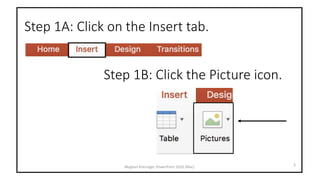
Step 1A: Click on the Insert tab.
Meghan Kneringer, PowerPoint 2016 (Mac) 3
Step 1B: Click the Picture icon.
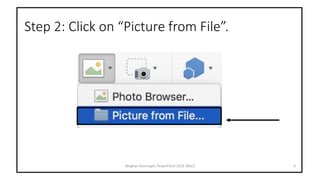
Step 2: Click on “Picture from File”.
Meghan Kneringer, PowerPoint 2016 (Mac) 4
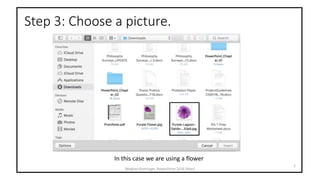
Step 3: Choose a picture.
Meghan Kneringer, PowerPoint 2016 (Mac)
5
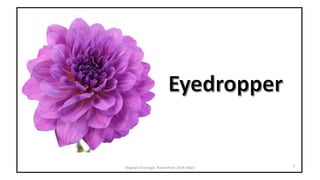
In this case we are using a flower
Step 4: Click “Insert”.
Meghan Kneringer, PowerPoint 2016 (Mac) 6
Step 5: Click the “Insert” tab and insert a text box.
Meghan Kneringer, PowerPoint 2016 (Mac) 7
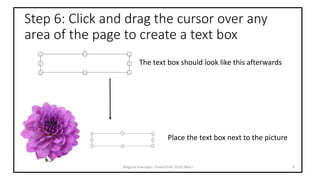
Step 6: Click and drag the cursor over any
area of the page to create a text box
Meghan Kneringer, PowerPoint 2016 (Mac) 8
The text box should look like this afterwards
Place the text box next to the picture
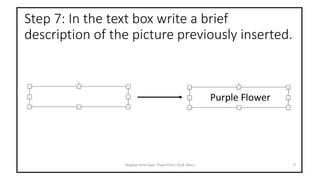
Step 7: In the text box write a brief
description of the picture previously inserted.
Meghan Kneringer, PowerPoint 2016 (Mac) 9
Purple Flower
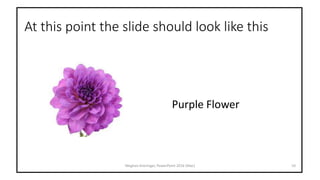
At this point the slide should look like this
Meghan Kneringer, PowerPoint 2016 (Mac) 10
Purple Flower
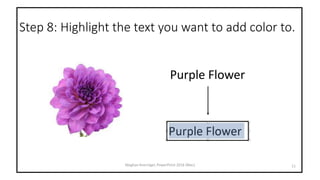
Step 8: Highlight the text you want to add color to.
11Meghan Kneringer, PowerPoint 2016 (Mac)
Purple Flower
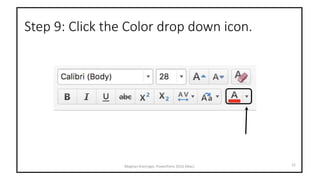
Step 9: Click the Color drop down icon.
12Meghan Kneringer, PowerPoint 2016 (Mac)
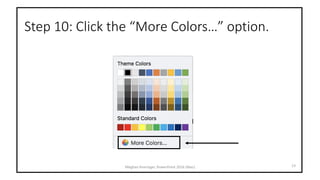
Step 10: Click the “More Colors…” option.
13Meghan Kneringer, PowerPoint 2016 (Mac)
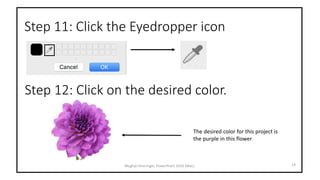
Step 11: Click the Eyedropper icon
14Meghan Kneringer, PowerPoint 2016 (Mac)
Step 12: Click on the desired color.
The desired color for this project is
the purple in this flower
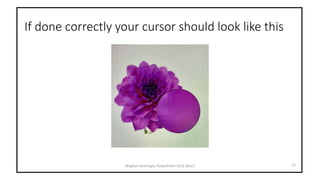
If done correctly your cursor should look like this
Meghan Kneringer, PowerPoint 2016 (Mac) 15
Step 13: Click the “OK” button
16Meghan Kneringer, PowerPoint 2016 (Mac)
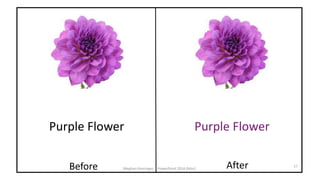
Before After 17
Meghan Kneringer, PowerPoint 2016 (Mac)
Purple Flower Purple Flower

Eyedropper PowerPoint Tool

  • 1.
  • 2.
    Purpose of theEyedropper By using the eyedropper tool, you can precisely match the colors of shapes and objects to other parts of your PowerPoint presentation; like texts or pictures. This tool gives the slides a cohesive look. Meghan Kneringer, PowerPoint 2016 (Mac) 2
  • 3.
    Step 1A: Clickon the Insert tab. Meghan Kneringer, PowerPoint 2016 (Mac) 3 Step 1B: Click the Picture icon.
  • 4.
    Step 2: Clickon “Picture from File”. Meghan Kneringer, PowerPoint 2016 (Mac) 4
  • 5.
    Step 3: Choosea picture. Meghan Kneringer, PowerPoint 2016 (Mac) 5 In this case we are using a flower
  • 6.
    Step 4: Click“Insert”. Meghan Kneringer, PowerPoint 2016 (Mac) 6
  • 7.
    Step 5: Clickthe “Insert” tab and insert a text box. Meghan Kneringer, PowerPoint 2016 (Mac) 7
  • 8.
    Step 6: Clickand drag the cursor over any area of the page to create a text box Meghan Kneringer, PowerPoint 2016 (Mac) 8 The text box should look like this afterwards Place the text box next to the picture
  • 9.
    Step 7: Inthe text box write a brief description of the picture previously inserted. Meghan Kneringer, PowerPoint 2016 (Mac) 9 Purple Flower
  • 10.
    At this pointthe slide should look like this Meghan Kneringer, PowerPoint 2016 (Mac) 10 Purple Flower
  • 11.
    Step 8: Highlightthe text you want to add color to. 11Meghan Kneringer, PowerPoint 2016 (Mac) Purple Flower
  • 12.
    Step 9: Clickthe Color drop down icon. 12Meghan Kneringer, PowerPoint 2016 (Mac)
  • 13.
    Step 10: Clickthe “More Colors…” option. 13Meghan Kneringer, PowerPoint 2016 (Mac)
  • 14.
    Step 11: Clickthe Eyedropper icon 14Meghan Kneringer, PowerPoint 2016 (Mac) Step 12: Click on the desired color. The desired color for this project is the purple in this flower
  • 15.
    If done correctlyyour cursor should look like this Meghan Kneringer, PowerPoint 2016 (Mac) 15
  • 16.
    Step 13: Clickthe “OK” button 16Meghan Kneringer, PowerPoint 2016 (Mac)
  • 17.
    Before After 17 MeghanKneringer, PowerPoint 2016 (Mac) Purple Flower Purple Flower