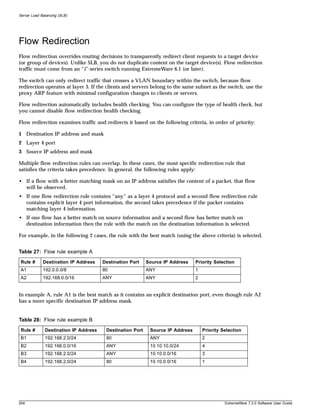
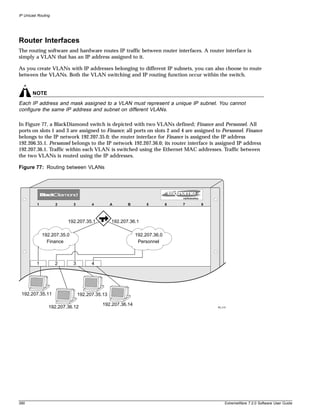
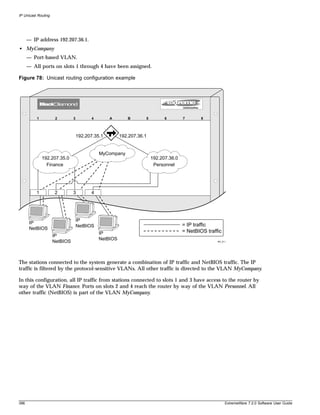
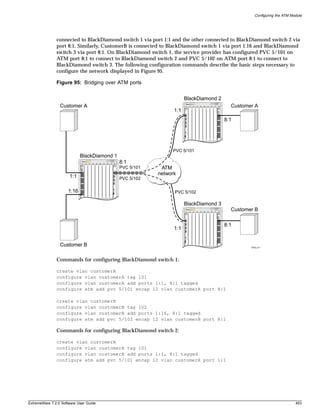
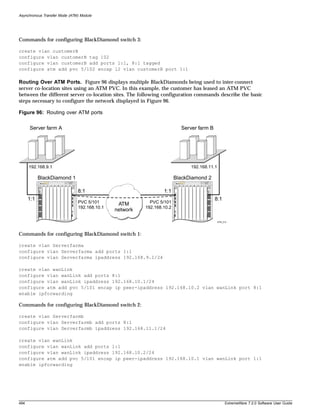
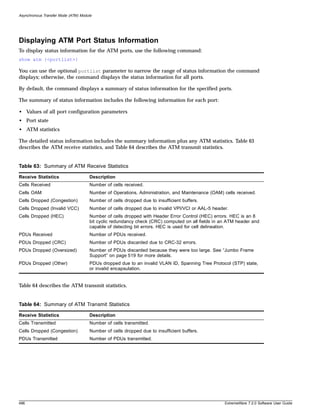
ExtremeWare Software User
Guide

Software Version 7.2.0


                                 Extreme Networks, Inc.
                                     3585 Monroe Street
                           Santa Clara, California 95051
                                          (888) 257-3000
                         http://www.extremenetworks.com

                                Published: December 15, 2003
                               Part number: 100155-00 Rev 01
©2003 Extreme Networks, Inc. All rights reserved. Extreme Networks, ExtremeWare and BlackDiamond are registered
trademarks of Extreme Networks, Inc. in the United States and certain other jurisdictions. ExtremeWare Vista,
ExtremeWorks, ExtremeAssist, ExtremeAssist1, ExtremeAssist2, PartnerAssist, Extreme Standby Router Protocol, ESRP,
SmartTraps, Alpine, Summit, Summit1, Summit4, Summit4/FX, Summit7i, Summit24, Summit48, Summit Virtual
Chassis, SummitLink, SummitGbX, SummitRPS and the Extreme Networks logo are trademarks of Extreme Networks,
Inc., which may be registered or pending registration in certain jurisdictions. The Extreme Turbodrive logo is a service
mark of Extreme Networks, which may be registered or pending registration in certain jurisdictions. Specifications are
subject to change without notice.
Adobe and Reader are registered trademarks of Adobe Systems Incorporated. NetWare and Novell are registered
trademarks of Novell, Inc. Merit is a registered trademark of Merit Network, Inc. Solaris is a trademark of Sun
Microsystems, Inc. F5, BIG/ip, and 3DNS are registered trademarks of F5 Networks, Inc. see/IT is a trademark of F5
Networks, Inc.
                   “Data Fellows”, the triangle symbol, and Data Fellows product names and symbols/logos are
                   trademarks of Data Fellows.
            F-Secure SSH is a registered trademark of Data Fellows.


All other registered trademarks, trademarks and service marks are property of their respective owners.


Authors: Hugh Bussell, Julie Laccabue, Megan Mahar, Richard Small
Production: Hugh Bussell


2
Contents


                                   Preface
                                   Introduction                               27
                                      Terminology                             28
                                   Conventions                                28
                                   Related Publications                       28
                                      Using ExtremeWare Publications Online   29


                   Part 1          Using ExtremeWare

               Chapter 1           ExtremeWare Overview
                                   Summary of Features                        33
                                     Virtual LANs (VLANs)                     34
                                     Spanning Tree Protocol                   35
                                     Quality of Service                       35
                                     Unicast Routing                          35
                                     IP Multicast Routing                     36
                                     Load Sharing                             36
                                   Software Licensing                         36
                                      Router Licensing                        36
                                      Security Licensing                      38
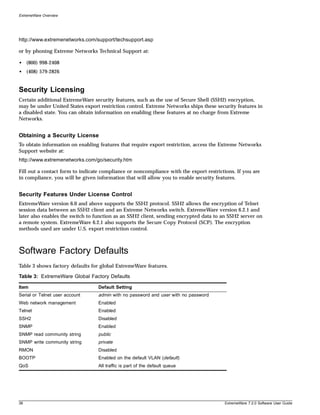
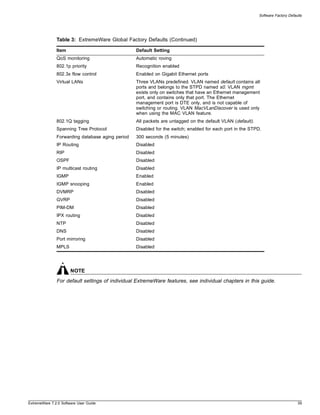
                                   Software Factory Defaults                  38


               Chapter 2           Accessing the Switch
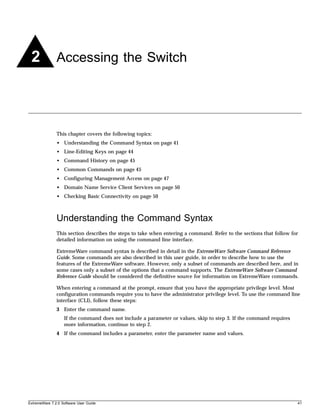
                                   Understanding the Command Syntax           41
                                     Syntax Helper                            42
                                     Command Shortcuts                        42
                                     Modular Switch Numerical Ranges          43
                                     Stand-alone Switch Numerical Ranges      43
                                     Names                                    43


ExtremeWare 7.2.0 Software User Guide                                          3
Contents


                          Symbols                                                                          44
                          Limits                                                                           44
                       Line-Editing Keys                                                                   44
                       Command History                                                                     45
                       Common Commands                                                                     45
                       Configuring Management Access                                                       47
                         User Account                                                                      47
                         Administrator Account                                                             48
                         Default Accounts                                                                  48
                         Creating a Management Account                                                     49
                       Domain Name Service Client Services                                                 50
                       Checking Basic Connectivity                                                         50
                         Ping                                                                              51
                         Traceroute                                                                        51


           Chapter 3   Managing the Switch
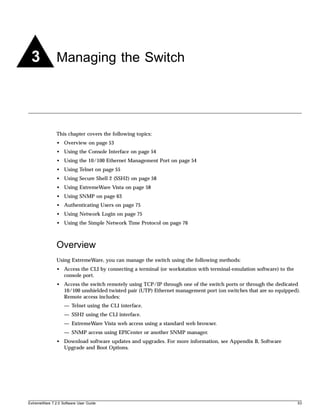
                       Overview                                                                            53
                       Using the Console Interface                                                         54
                       Using the 10/100 Ethernet Management Port                                           54
                       Using Telnet                                                                        55
                          Connecting to Another Host Using Telnet                                          55
                          Configuring Switch IP Parameters                                                 55
                          Disconnecting a Telnet Session                                                   57
                          Controlling Telnet Access                                                        57
                       Using Secure Shell 2 (SSH2)                                                         58
                       Using ExtremeWare Vista                                                             58
                          Controlling Web Access                                                           59
                          Setting Up Your Browser                                                          59
                          Accessing ExtremeWare Vista                                                      60
                          Navigating ExtremeWare Vista                                                     60
                          Saving Changes                                                                   62
                          Filtering Information                                                            62
                          Do a GET When Configuring a VLAN                                                 62
                          Sending Screen Output to Extreme Networks                                        63
                       Using SNMP                                                                          63
                          Enabling and Disabling SNMPv1/v2c and SNMPv3                                     63
                          Accessing Switch Agents                                                          64
                          Supported MIBs                                                                   64
                          Configuring SNMPv1/v2c Settings                                                  64
                          Displaying SNMP Settings                                                         65
                          SNMP Trap Groups                                                                 66


4                                                                        ExtremeWare 7.2.0 Software User Guide
Contents


                                        SNMPv3                                                                  68
                                        SNMPv3 Overview                                                         68
                                        Message Processing                                                      69
                                        SNMPv3 Security                                                         69
                                        MIB Access Control                                                      71
                                        Notification                                                            72
                                   Authenticating Users                                                         75
                                     RADIUS Client                                                              75
                                     TACACS+                                                                    75
                                     Configuring RADIUS Client and TACACS+                                      75
                                   Using Network Login                                                          75
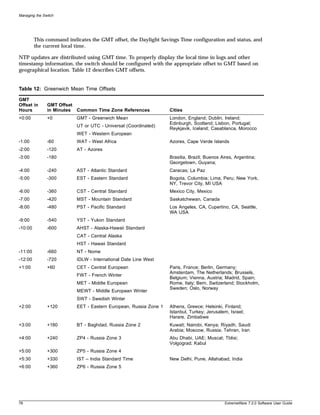
                                   Using the Simple Network Time Protocol                                       76
                                      Configuring and Using SNTP                                                76
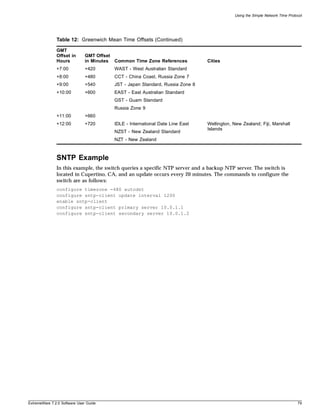
                                      SNTP Example                                                              79


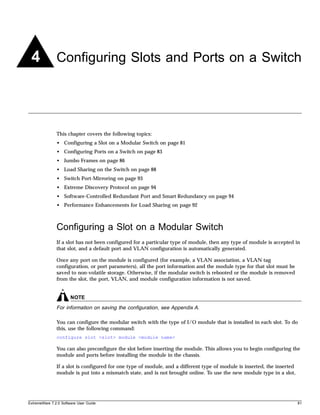
               Chapter 4           Configuring Slots and Ports on a Switch
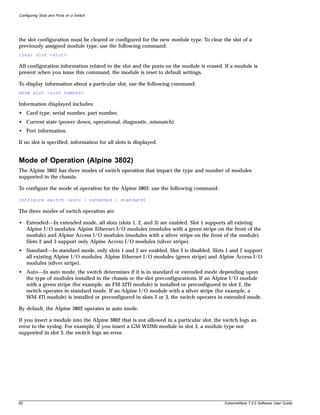
                                   Configuring a Slot on a Modular Switch                                       81
                                     Mode of Operation (Alpine 3802)                                            82
                                   Configuring Ports on a Switch                                                83
                                     Enabling and Disabling Switch Ports                                        83
                                     Configuring Switch Port Speed and Duplex Setting                           83
                                     Configuring Link Detection                                                 85
                                     Configuring Interpacket Gap for 10 Gigabit Ethernet Ports                  85
                                   Jumbo Frames                                                                 86
                                      Enabling Jumbo Frames                                                     86
                                      Path MTU Discovery                                                        87
                                      IP Fragmentation with Jumbo Frames                                        87
                                      IP Fragmentation within a VLAN                                            88
                                   Load Sharing on the Switch                                                   88
                                      Dynamic Versus Static Load Sharing                                        88
                                      Load-Sharing Algorithms                                                   89
                                      Configuring Switch Load Sharing                                           90
                                      Load-Sharing Examples                                                     91
                                      Verifying the Load-Sharing Configuration                                  92
                                      Performance Enhancements for Load Sharing                                 92
                                   Switch Port-Mirroring                                                        93
                                     Modular Switch Port-Mirroring Example                                      93
                                     Stand-alone Switch Port-Mirroring Example                                  94
                                   Extreme Discovery Protocol                                                   94
                                   Software-Controlled Redundant Port and Smart Redundancy                      94
                                      Software-Controlled Redundant Load-Shared Port Groups                     96
                                      Limitations of Software-Controlled Redundant Ports and Port Groups        96


ExtremeWare 7.2.0 Software User Guide                                                                            5
Contents


                          Configuring Software-Controlled Redundant Ports                                        97
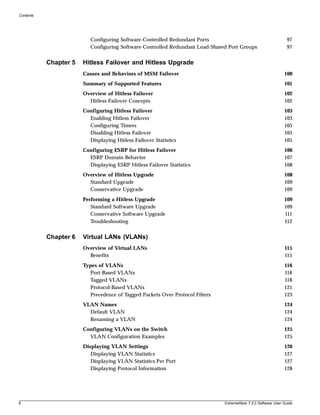
                          Configuring Software-Controlled Redundant Load-Shared Port Groups                      97


           Chapter 5   Hitless Failover and Hitless Upgrade
                       Causes and Behaviors of MSM Failover                                                    100
                       Summary of Supported Features                                                           101
                       Overview of Hitless Failover                                                            102
                         Hitless Failover Concepts                                                             102
                       Configuring Hitless Failover                                                            103
                         Enabling Hitless Failover                                                             103
                         Configuring Timers                                                                    105
                         Disabling Hitless Failover                                                            105
                         Displaying Hitless Failover Statistics                                                105
                       Configuring ESRP for Hitless Failover                                                   106
                         ESRP Domain Behavior                                                                  107
                         Displaying ESRP Hitless Failover Statistics                                           108
                       Overview of Hitless Upgrade                                                             108
                         Standard Upgrade                                                                      109
                         Conservative Upgrade                                                                  109
                       Performing a Hitless Upgrade                                                            109
                          Standard Software Upgrade                                                            109
                          Conservative Software Upgrade                                                        111
                          Troubleshooting                                                                      112


           Chapter 6   Virtual LANs (VLANs)
                       Overview of Virtual LANs                                                                115
                         Benefits                                                                              115
                       Types of VLANs                                                                          116
                          Port-Based VLANs                                                                     116
                          Tagged VLANs                                                                         118
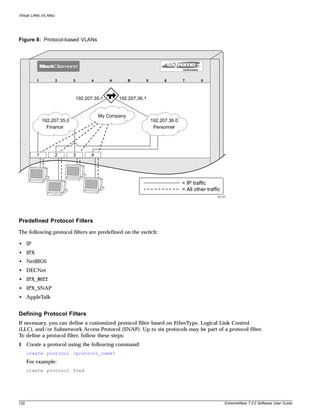
                          Protocol-Based VLANs                                                                 121
                          Precedence of Tagged Packets Over Protocol Filters                                   123
                       VLAN Names                                                                              124
                         Default VLAN                                                                          124
                         Renaming a VLAN                                                                       124
                       Configuring VLANs on the Switch                                                         125
                         VLAN Configuration Examples                                                           125
                       Displaying VLAN Settings                                                                126
                          Displaying VLAN Statistics                                                           127
                          Displaying VLAN Statistics Per Port                                                  127
                          Displaying Protocol Information                                                      128


6                                                                              ExtremeWare 7.2.0 Software User Guide
Contents


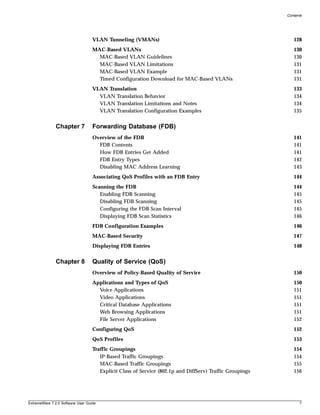
                                   VLAN Tunneling (VMANs)                                                    128
                                   MAC-Based VLANs                                                           130
                                     MAC-Based VLAN Guidelines                                               130
                                     MAC-Based VLAN Limitations                                              131
                                     MAC-Based VLAN Example                                                  131
                                     Timed Configuration Download for MAC-Based VLANs                        131
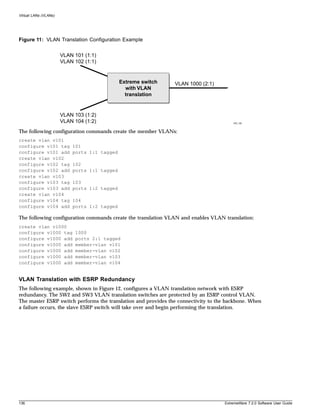
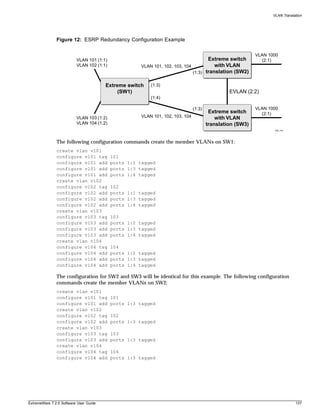
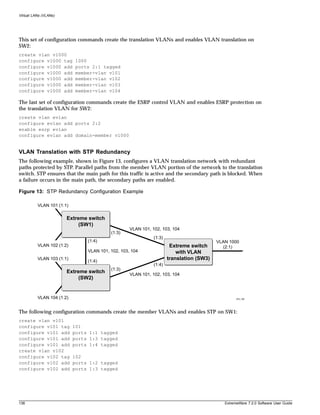
                                   VLAN Translation                                                          133
                                     VLAN Translation Behavior                                               134
                                     VLAN Translation Limitations and Notes                                  134
                                     VLAN Translation Configuration Examples                                 135


               Chapter 7           Forwarding Database (FDB)
                                   Overview of the FDB                                                       141
                                     FDB Contents                                                            141
                                     How FDB Entries Get Added                                               141
                                     FDB Entry Types                                                         142
                                     Disabling MAC Address Learning                                          143
                                   Associating QoS Profiles with an FDB Entry                                144
                                   Scanning the FDB                                                          144
                                      Enabling FDB Scanning                                                  145
                                      Disabling FDB Scanning                                                 145
                                      Configuring the FDB Scan Interval                                      145
                                      Displaying FDB Scan Statistics                                         146
                                   FDB Configuration Examples                                                146
                                   MAC-Based Security                                                        147
                                   Displaying FDB Entries                                                    148


               Chapter 8           Quality of Service (QoS)
                                   Overview of Policy-Based Quality of Service                               150
                                   Applications and Types of QoS                                             150
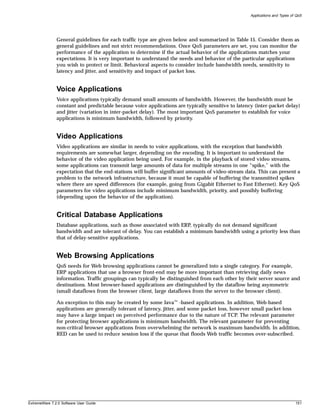
                                     Voice Applications                                                      151
                                     Video Applications                                                      151
                                     Critical Database Applications                                          151
                                     Web Browsing Applications                                               151
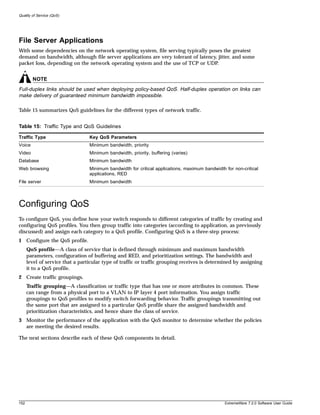
                                     File Server Applications                                                152
                                   Configuring QoS                                                           152
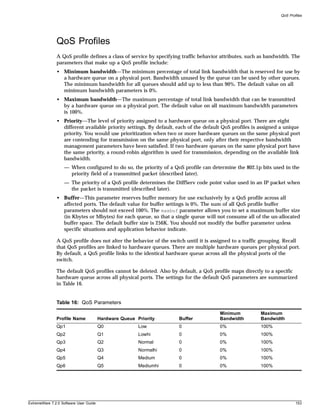
                                   QoS Profiles                                                              153
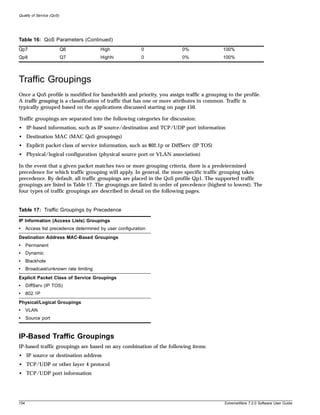
                                   Traffic Groupings                                                         154
                                      IP-Based Traffic Groupings                                             154
                                      MAC-Based Traffic Groupings                                            155
                                      Explicit Class of Service (802.1p and DiffServ) Traffic Groupings      156


ExtremeWare 7.2.0 Software User Guide                                                                           7
Contents


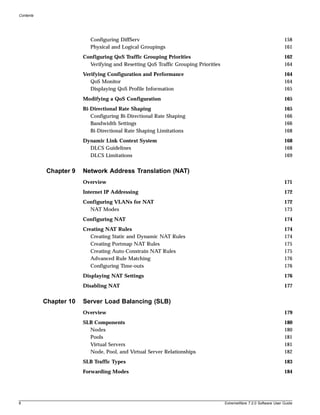
                           Configuring DiffServ                                                                     158
                           Physical and Logical Groupings                                                           161
                        Configuring QoS Traffic Grouping Priorities                                                 162
                          Verifying and Resetting QoS Traffic Grouping Priorities                                   164
                        Verifying Configuration and Performance                                                     164
                           QoS Monitor                                                                              164
                           Displaying QoS Profile Information                                                       165
                        Modifying a QoS Configuration                                                               165
                        Bi-Directional Rate Shaping                                                                 165
                           Configuring Bi-Directional Rate Shaping                                                  166
                           Bandwidth Settings                                                                       166
                           Bi-Directional Rate Shaping Limitations                                                  168
                        Dynamic Link Context System                                                                 168
                          DLCS Guidelines                                                                           168
                          DLCS Limitations                                                                          169


            Chapter 9   Network Address Translation (NAT)
                        Overview                                                                                    171
                        Internet IP Addressing                                                                      172
                        Configuring VLANs for NAT                                                                   172
                          NAT Modes                                                                                 173
                        Configuring NAT                                                                             174
                        Creating NAT Rules                                                                          174
                           Creating Static and Dynamic NAT Rules                                                    174
                           Creating Portmap NAT Rules                                                               175
                           Creating Auto-Constrain NAT Rules                                                        175
                           Advanced Rule Matching                                                                   176
                           Configuring Time-outs                                                                    176
                        Displaying NAT Settings                                                                     176
                        Disabling NAT                                                                               177


           Chapter 10   Server Load Balancing (SLB)
                        Overview                                                                                    179
                        SLB Components                                                                              180
                          Nodes                                                                                     180
                          Pools                                                                                     181
                          Virtual Servers                                                                           181
                          Node, Pool, and Virtual Server Relationships                                              182
                        SLB Traffic Types                                                                           183
                        Forwarding Modes                                                                            184


8                                                                                   ExtremeWare 7.2.0 Software User Guide
Contents


                                        Transparent Mode                                  184
                                        Translation Mode                                  186
                                        Port Translation Mode                             187
                                        GoGo Mode                                         188
                                   Load-Balancing Methods                                 189
                                      Round-Robin                                         189
                                      Ratio                                               189
                                      Least Connections                                   190
                                      Priority                                            190
                                   Advanced SLB Application Example                       190
                                   Using Persistence                                      193
                                      Persistence Methods                                 193
                                      Persistence Levels                                  194
                                      Persistence Types                                   195
                                   Using High Availability System Features                196
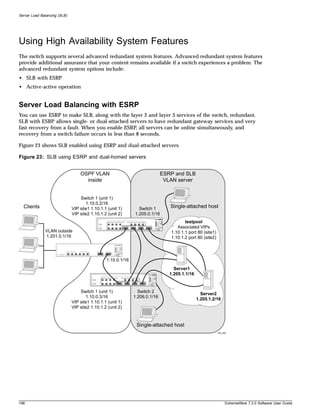
                                      Server Load Balancing with ESRP                     196
                                      Active-Active Operation                             198
                                   Health Checking                                        201
                                     Ping-Check                                           202
                                     TCP-Port-Check                                       202
                                     Service-Check                                        202
                                     3DNS Health Checking                                 203
                                     Maintenance Mode                                     203
                                     Health Checking in GoGo Mode                         203
                                   Flow Redirection                                       204
                                      Web Cache Redirection                               205
                                      Policy-Based Routing                                207


             Chapter 11            Status Monitoring and Statistics
                                   Status Monitoring                                      209
                                   Slot Diagnostics                                       210
                                      Runtime Diagnostics (BlackDiamond Switches)         210
                                      Packet Memory Scanning (BlackDiamond Switches)      211
                                   Port Statistics                                        212
                                   Port Errors                                            213
                                   Port Monitoring Display Keys                           214
                                   System Temperature                                     214
                                   System Health Checking                                 215
                                      Checking the Integrity of the FDB                   216
                                      Testing the Transceivers                            217
                                   Setting the System Recovery Level                      220


ExtremeWare 7.2.0 Software User Guide                                                        9
Contents


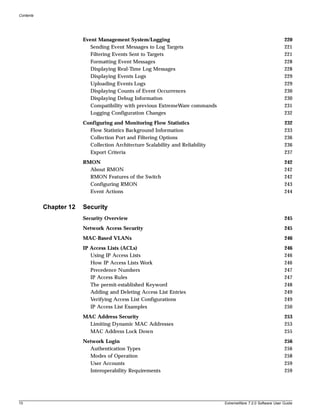
                        Event Management System/Logging                                                         220
                           Sending Event Messages to Log Targets                                                221
                           Filtering Events Sent to Targets                                                     221
                           Formatting Event Messages                                                            228
                           Displaying Real-Time Log Messages                                                    228
                           Displaying Events Logs                                                               229
                           Uploading Events Logs                                                                229
                           Displaying Counts of Event Occurrences                                               230
                           Displaying Debug Information                                                         230
                           Compatibility with previous ExtremeWare commands                                     231
                           Logging Configuration Changes                                                        232
                        Configuring and Monitoring Flow Statistics                                              232
                          Flow Statistics Background Information                                                233
                          Collection Port and Filtering Options                                                 236
                          Collection Architecture Scalability and Reliability                                   236
                          Export Criteria                                                                       237
                        RMON                                                                                    242
                          About RMON                                                                            242
                          RMON Features of the Switch                                                           242
                          Configuring RMON                                                                      243
                          Event Actions                                                                         244


           Chapter 12   Security
                        Security Overview                                                                       245
                        Network Access Security                                                                 245
                        MAC-Based VLANs                                                                         246
                        IP Access Lists (ACLs)                                                                  246
                           Using IP Access Lists                                                                246
                           How IP Access Lists Work                                                             246
                           Precedence Numbers                                                                   247
                           IP Access Rules                                                                      247
                           The permit-established Keyword                                                       248
                           Adding and Deleting Access List Entries                                              249
                           Verifying Access List Configurations                                                 249
                           IP Access List Examples                                                              250
                        MAC Address Security                                                                    253
                          Limiting Dynamic MAC Addresses                                                        253
                          MAC Address Lock Down                                                                 255
                        Network Login                                                                           256
                          Authentication Types                                                                  256
                          Modes of Operation                                                                    258
                          User Accounts                                                                         259
                          Interoperability Requirements                                                         259


10                                                                              ExtremeWare 7.2.0 Software User Guide
Contents


                                        Multiple Supplicant Support                                261
                                        Exclusions and Limitations                                 261
                                        Configuring Network Login                                  262
                                        Web-Based Authentication User Login Using Campus Mode      263
                                        DHCP Server on the Switch                                  264
                                        Displaying DHCP Information                                264
                                        Displaying Network Login Settings                          265
                                        Disabling Network Login                                    265
                                        Additional Configuration Details                           265
                                   Switch Protection                                               266
                                   Routing Access Profiles                                         266
                                   Using Routing Access Profiles                                   266
                                      Creating an Access Profile                                   266
                                      Configuring an Access Profile Mode                           267
                                      Adding an Access Profile Entry                               267
                                      Deleting an Access Profile Entry                             269
                                      Applying Access Profiles                                     269
                                      Routing Profiles for RIP                                     270
                                      Routing Access Profiles for IPX                              271
                                      Routing Access Profiles for OSPF                             271
                                      Routing Access Profiles for DVMRP                            273
                                      Routing Access Profiles for PIM                              274
                                      Routing Access Profiles for BGP                              275
                                   Making Changes to a Routing Access Policy                       275
                                     Removing a Routing Access Policy                              276
                                   Route Maps                                                      276
                                   Using Route Maps                                                276
                                      Creating a Route Map                                         276
                                      Add Entries to the Route Map                                 276
                                      Add Statements to the Route Map Entries                      277
                                      Route Map Operation                                          279
                                      Changes to Route Maps                                        280
                                      Route Maps in BGP                                            280
                                   Denial of Service Protection                                    281
                                     Configuring Denial of Service Protection                      281
                                     Enabling Denial of Service Protection                         282
                                     Disabling Denial of Service Protection                        282
                                     Displaying Denial of Service Settings                         282
                                     How to Deploy DoS Protection                                  282
                                     Blocking SQL Slammer DoS Attacks                              283
                                   Management Access Security                                      284
                                   Authenticating Users Using RADIUS or TACACS+                    284
                                     RADIUS Client                                                 284


ExtremeWare 7.2.0 Software User Guide                                                                11
Contents


                          Configuring TACACS+                                                              290
                        Secure Shell 2 (SSH2)                                                              291
                           Enabling SSH2 for Inbound Switch Access                                         291
                           Using SCP2 from an External SSH2 Client                                         292
                           SSH2 Client Functions on the Switch                                             293


              Part 2    Using Switching and Routing Protocols

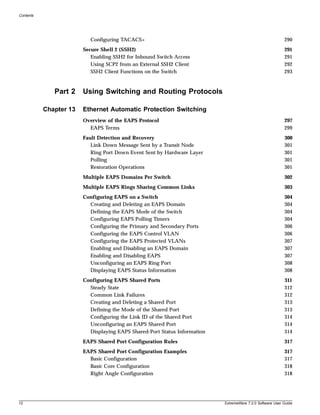
           Chapter 13   Ethernet Automatic Protection Switching
                        Overview of the EAPS Protocol                                                      297
                          EAPS Terms                                                                       299
                        Fault Detection and Recovery                                                       300
                           Link Down Message Sent by a Transit Node                                        301
                           Ring Port Down Event Sent by Hardware Layer                                     301
                           Polling                                                                         301
                           Restoration Operations                                                          301
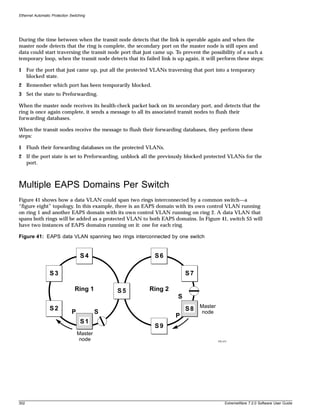
                        Multiple EAPS Domains Per Switch                                                   302
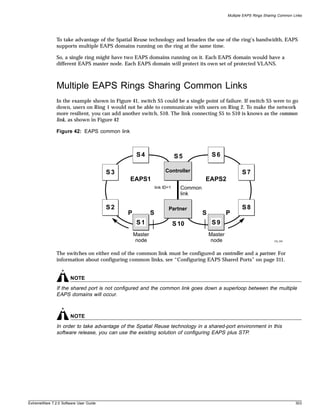
                        Multiple EAPS Rings Sharing Common Links                                           303
                        Configuring EAPS on a Switch                                                       304
                          Creating and Deleting an EAPS Domain                                             304
                          Defining the EAPS Mode of the Switch                                             304
                          Configuring EAPS Polling Timers                                                  304
                          Configuring the Primary and Secondary Ports                                      306
                          Configuring the EAPS Control VLAN                                                306
                          Configuring the EAPS Protected VLANs                                             307
                          Enabling and Disabling an EAPS Domain                                            307
                          Enabling and Disabling EAPS                                                      307
                          Unconfiguring an EAPS Ring Port                                                  308
                          Displaying EAPS Status Information                                               308
                        Configuring EAPS Shared Ports                                                      311
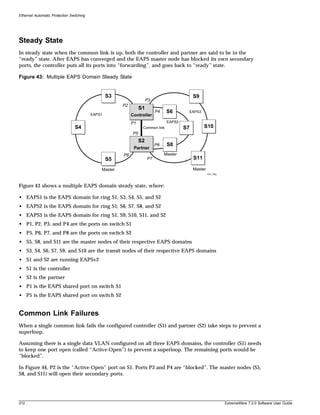
                          Steady State                                                                     312
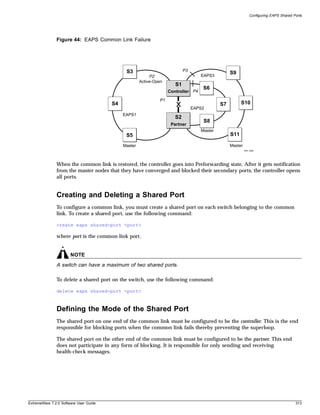
                          Common Link Failures                                                             312
                          Creating and Deleting a Shared Port                                              313
                          Defining the Mode of the Shared Port                                             313
                          Configuring the Link ID of the Shared Port                                       314
                          Unconfiguring an EAPS Shared Port                                                314
                          Displaying EAPS Shared-Port Status Information                                   314
                        EAPS Shared Port Configuration Rules                                               317
                        EAPS Shared Port Configuration Examples                                            317
                          Basic Configuration                                                              317
                          Basic Core Configuration                                                         318
                          Right Angle Configuration                                                        318


12                                                                         ExtremeWare 7.2.0 Software User Guide
Contents


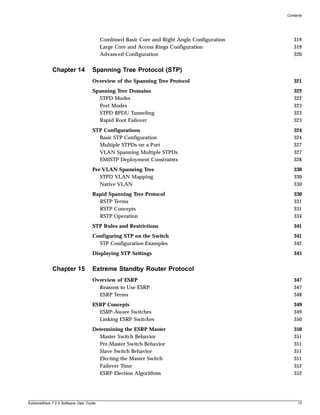
                                        Combined Basic Core and Right Angle Configuration      319
                                        Large Core and Access Rings Configuration              319
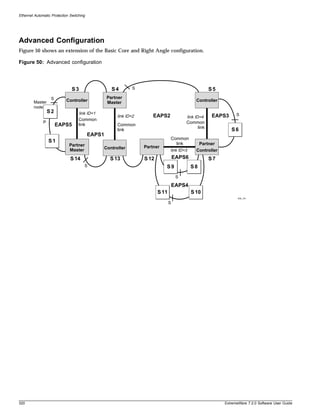
                                        Advanced Configuration                                 320


             Chapter 14            Spanning Tree Protocol (STP)
                                   Overview of the Spanning Tree Protocol                      321
                                   Spanning Tree Domains                                       322
                                     STPD Modes                                                322
                                     Port Modes                                                323
                                     STPD BPDU Tunneling                                       323
                                     Rapid Root Failover                                       323
                                   STP Configurations                                          324
                                     Basic STP Configuration                                   324
                                     Multiple STPDs on a Port                                  327
                                     VLAN Spanning Multiple STPDs                              327
                                     EMISTP Deployment Constraints                             328
                                   Per-VLAN Spanning Tree                                      330
                                      STPD VLAN Mapping                                        330
                                      Native VLAN                                              330
                                   Rapid Spanning Tree Protocol                                330
                                     RSTP Terms                                                331
                                     RSTP Concepts                                             331
                                     RSTP Operation                                            334
                                   STP Rules and Restrictions                                  341
                                   Configuring STP on the Switch                               341
                                     STP Configuration Examples                                342
                                   Displaying STP Settings                                     345


             Chapter 15            Extreme Standby Router Protocol
                                   Overview of ESRP                                            347
                                     Reasons to Use ESRP                                       347
                                     ESRP Terms                                                348
                                   ESRP Concepts                                               349
                                     ESRP-Aware Switches                                       349
                                     Linking ESRP Switches                                     350
                                   Determining the ESRP Master                                 350
                                     Master Switch Behavior                                    351
                                     Pre-Master Switch Behavior                                351
                                     Slave Switch Behavior                                     351
                                     Electing the Master Switch                                351
                                     Failover Time                                             352
                                     ESRP Election Algorithms                                  352


ExtremeWare 7.2.0 Software User Guide                                                            13
Contents


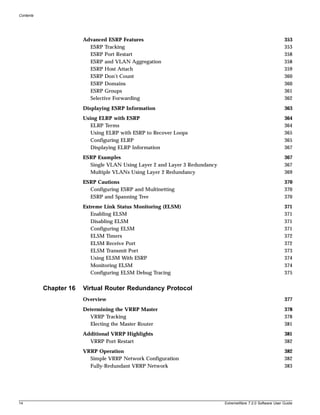
                        Advanced ESRP Features                                                               353
                          ESRP Tracking                                                                      353
                          ESRP Port Restart                                                                  358
                          ESRP and VLAN Aggregation                                                          358
                          ESRP Host Attach                                                                   359
                          ESRP Don’t Count                                                                   360
                          ESRP Domains                                                                       360
                          ESRP Groups                                                                        361
                          Selective Forwarding                                                               362
                        Displaying ESRP Information                                                          363
                        Using ELRP with ESRP                                                                 364
                           ELRP Terms                                                                        364
                           Using ELRP with ESRP to Recover Loops                                             365
                           Configuring ELRP                                                                  365
                           Displaying ELRP Information                                                       367
                        ESRP Examples                                                                        367
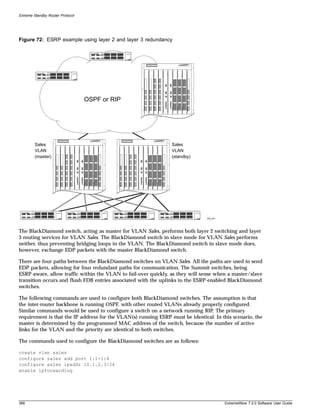
                          Single VLAN Using Layer 2 and Layer 3 Redundancy                                   367
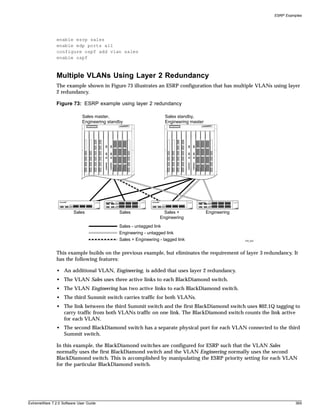
                          Multiple VLANs Using Layer 2 Redundancy                                            369
                        ESRP Cautions                                                                        370
                          Configuring ESRP and Multinetting                                                  370
                          ESRP and Spanning Tree                                                             370
                        Extreme Link Status Monitoring (ELSM)                                                371
                           Enabling ELSM                                                                     371
                           Disabling ELSM                                                                    371
                           Configuring ELSM                                                                  371
                           ELSM Timers                                                                       372
                           ELSM Receive Port                                                                 372
                           ELSM Transmit Port                                                                373
                           Using ELSM With ESRP                                                              374
                           Monitoring ELSM                                                                   374
                           Configuring ELSM Debug Tracing                                                    375


           Chapter 16   Virtual Router Redundancy Protocol
                        Overview                                                                             377
                        Determining the VRRP Master                                                          378
                          VRRP Tracking                                                                      378
                          Electing the Master Router                                                         381
                        Additional VRRP Highlights                                                           381
                          VRRP Port Restart                                                                  382
                        VRRP Operation                                                                       382
                          Simple VRRP Network Configuration                                                  382
                          Fully-Redundant VRRP Network                                                       383


14                                                                           ExtremeWare 7.2.0 Software User Guide
Contents


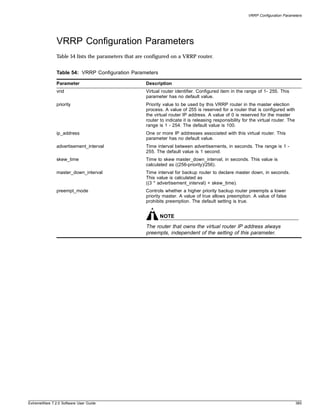
                                   VRRP Configuration Parameters                               385
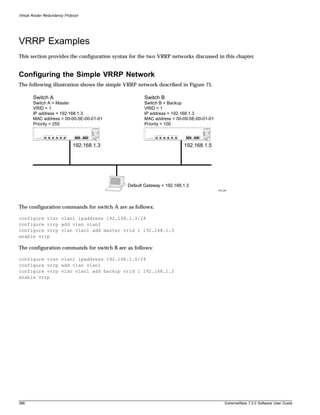
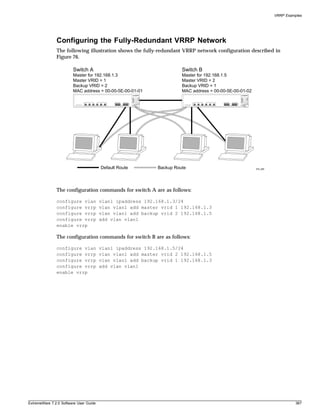
                                   VRRP Examples                                               386
                                     Configuring the Simple VRRP Network                       386
                                     Configuring the Fully-Redundant VRRP Network              387


             Chapter 17            IP Unicast Routing
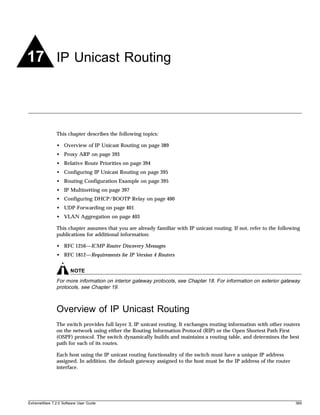
                                   Overview of IP Unicast Routing                              389
                                     Router Interfaces                                         390
                                     Populating the Routing Table                              391
                                     Subnet-Directed Broadcast Forwarding                      392
                                   Proxy ARP                                                   393
                                      ARP-Incapable Devices                                    393
                                      Proxy ARP Between Subnets                                394
                                   Relative Route Priorities                                   394
                                   Configuring IP Unicast Routing                              395
                                     Verifying the IP Unicast Routing Configuration            395
                                   Routing Configuration Example                               395
                                   IP Multinetting                                             397
                                      IP Multinetting Operation                                398
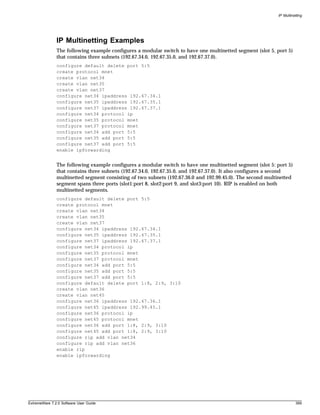
                                      IP Multinetting Examples                                 399
                                   Configuring DHCP/BOOTP Relay                                400
                                     Configuring the DHCP Relay Agent Option (Option 82)       400
                                     Verifying the DHCP/BOOTP Relay Configuration              401
                                   UDP-Forwarding                                              401
                                     Configuring UDP-Forwarding                                401
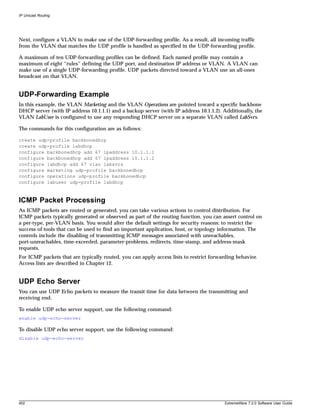
                                     UDP-Forwarding Example                                    402
                                     ICMP Packet Processing                                    402
                                     UDP Echo Server                                           402
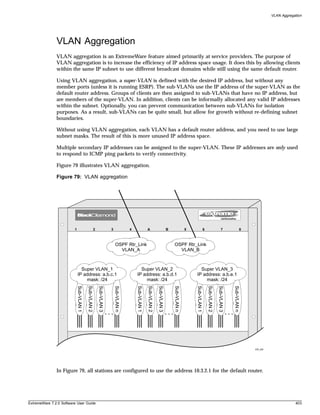
                                   VLAN Aggregation                                            403
                                     VLAN Aggregation Properties                               404
                                     VLAN Aggregation Limitations                              404
                                     VLAN Aggregation SubVLAN Address Range Checking           404
                                     Isolation Option for Communication Between Sub-VLANs      405
                                     VLAN Aggregation Example                                  405
                                     Verifying the VLAN Aggregation Configuration              405


             Chapter 18            Interior Gateway Protocols
                                   Overview                                                    408
                                     RIP Versus Either OSPF or IS-IS                           408
                                   Overview of RIP                                             409
                                     Routing Table                                             409


ExtremeWare 7.2.0 Software User Guide                                                            15
Contents


                           Split Horizon                                                                         409
                           Poison Reverse                                                                        409
                           Triggered Updates                                                                     409
                           Route Advertisement of VLANs                                                          410
                           RIP Version 1 Versus RIP Version 2                                                    410
                        Overview of OSPF                                                                         410
                          Link-State Database                                                                    410
                          Areas                                                                                  412
                          Point-to-Point Support                                                                 415
                        Route Re-Distribution                                                                    415
                          Configuring Route Re-Distribution                                                      416
                          OSPF Timers and Authentication                                                         418
                        RIP Configuration Example                                                                418
                        Configuring OSPF                                                                         420
                          Configuring OSPF Wait Interval                                                         420
                        OSPF Configuration Example                                                               421
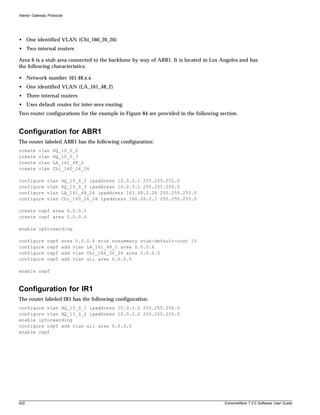
                          Configuration for ABR1                                                                 422
                          Configuration for IR1                                                                  422
                        Displaying OSPF Settings                                                                 423
                           OSPF LSDB Display                                                                     423
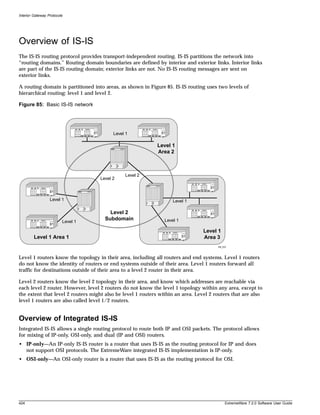
                        Overview of IS-IS                                                                        424
                          Overview of Integrated IS-IS                                                           424
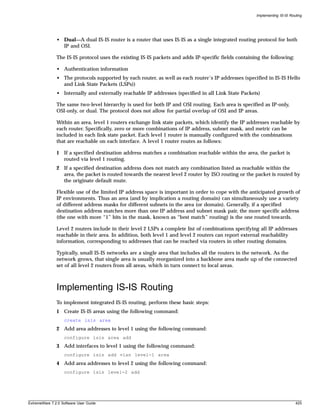
                        Implementing IS-IS Routing                                                               425
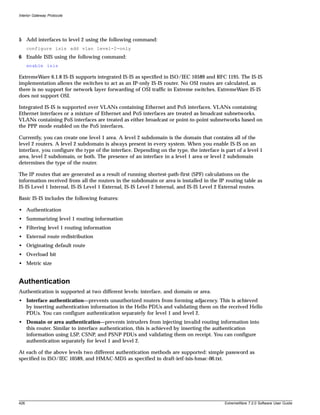
                          Authentication                                                                         426
                          Summarizing Level 1 IP Routing Information                                             427
                          Filtering Level 1 IP Routing Information                                               427
                          External Route Redistribution                                                          427
                          Originating Default Route                                                              427
                          Overload Bit                                                                           427
                          Metric Size                                                                            428
                          Default Routes to Nearest Level 1/2 Switch for Level 1 Only Switches                   428


           Chapter 19   Exterior Gateway Routing Protocols
                        Overview                                                                                 431
                        BGP Attributes                                                                           432
                        BGP Communities                                                                          432
                        BGP Features                                                                             432
                          Route Reflectors                                                                       433
                          Route Confederations                                                                   433
                          Route Aggregation                                                                      436
                          IGP Synchronization                                                                    437
                          Using the Loopback Interface                                                           437


16                                                                               ExtremeWare 7.2.0 Software User Guide
Contents


                                        BGP Peer Groups                                          437
                                        BGP Route Flap Dampening                                 438
                                        BGP Route Selection                                      441
                                        Stripping Out Private AS Numbers from Route Updates      441
                                   Route Re-Distribution                                         441
                                     Configuring Route Re-Distribution                           442


             Chapter 20            IP Multicast Routing
                                   Overview                                                      443
                                     DVMRP Overview                                              444
                                     PIM Overview                                                444
                                     IGMP Overview                                               445
                                     Multicast Tools                                             447
                                     Performance Enhancements for the BlackDiamond Switch        447
                                   Configuring IP Multicasting Routing                           448
                                   Configuration Examples                                        449
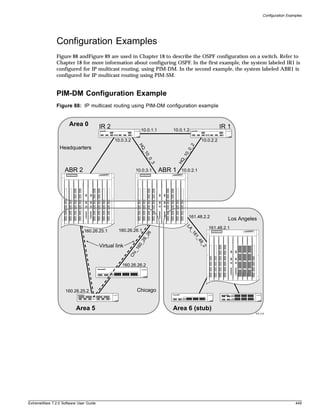
                                     PIM-DM Configuration Example                                449
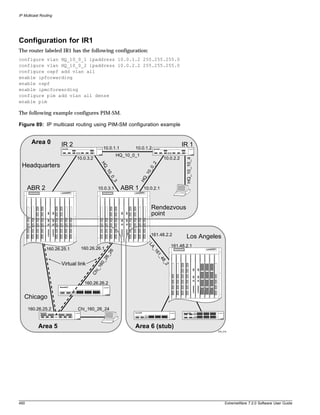
                                     Configuration for IR1                                       450
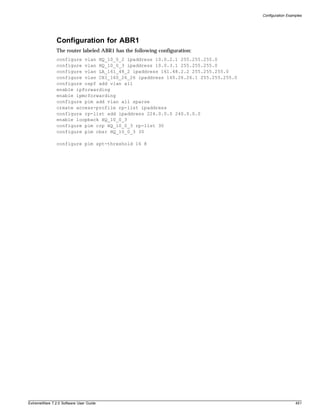
                                     Configuration for ABR1                                      451


             Chapter 21            IPX Routing
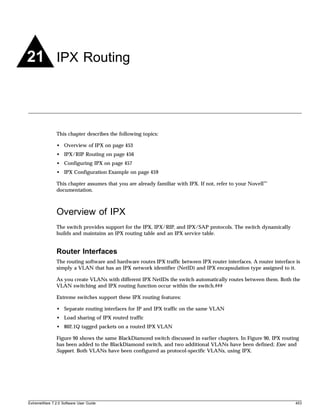
                                   Overview of IPX                                               453
                                     Router Interfaces                                           453
                                     IPX Routing Performance                                     454
                                     IPX Load Sharing                                            455
                                     IPX Encapsulation Types                                     455
                                     Tagged IPX VLANs                                            455
                                     Populating the Routing Table                                456
                                   IPX/RIP Routing                                               456
                                      Routing SAP Advertisements                                 457
                                   Configuring IPX                                               457
                                     Verifying IPX Router Configuration                          458
                                     Protocol-Based VLANs for IPX                                458
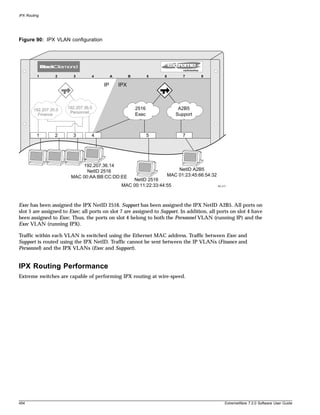
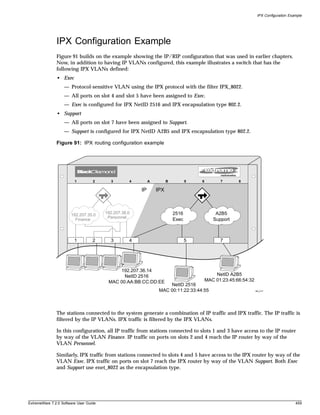
                                   IPX Configuration Example                                     459


                   Part 3          Configuring Modules

             Chapter 22            Accounting and Routing Module (ARM)
                                   Summary of Features                                           463
                                     ARM Module Limitations                                      464
                                     About IP Unicast Forwarding                                 464


ExtremeWare 7.2.0 Software User Guide                                                              17
Contents


                           About Selective Longest Prefix Match                                                464
                           About Destination-Sensitive Accounting                                              466
                        Configuring the ARM                                                                    467
                          Basic Accounting Configuration Information                                           467
                          Basic SLPM Configuration Information                                                 469
                          Configuring Access Profiles                                                          471
                          Using Route Maps                                                                     471
                        ARM Configuration Examples                                                             473
                          Configuring Destination-Sensitive Accounting Based on Destination IP Subnets         473
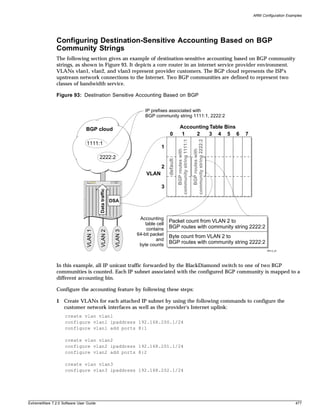
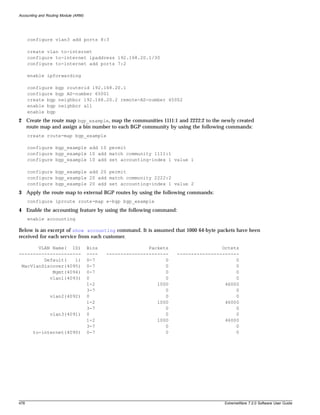
                          Configuring Destination-Sensitive Accounting Based on BGP Community Strings          477
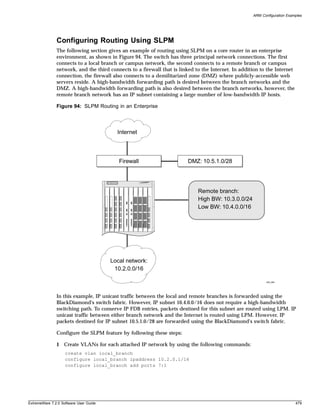
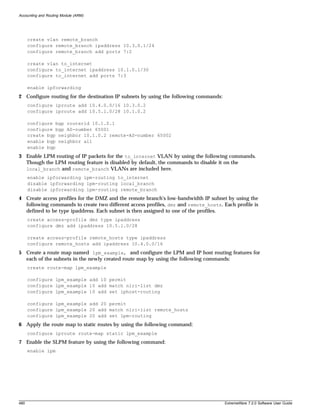
                          Configuring Routing Using SLPM                                                       479
                        Retrieving Accounting Statistics                                                       482
                           Using the CLI to Retrieve Accounting Statistics                                     482
                           Using SNMP to Retrieve Accounting Statistics                                        483
                        Diagnostics Commands                                                                   483
                        Layer 2 and Layer 3 Switching Attributes                                               484
                        Debug Trace Commands                                                                   484
                                                                                                               485


           Chapter 23   Asynchronous Transfer Mode (ATM) Module
                        About the ATM Module                                                                   487
                          Feature Summary                                                                      488
                          Function Summary                                                                     488
                        Configuring the ATM Module                                                             490
                          Basic ATM Module Configuration Information                                           490
                        Configuring and Monitoring ATM Ports                                                   495
                          Configuring PVCs                                                                     495
                          Deleting PVCs                                                                        495
                          Displaying ATM Port Status Information                                               496
                          Displaying PVC Status Information                                                    497
                          Configuring ATM Scrambling                                                           497
                        Configuring and Monitoring SONET                                                       498
                          SONET Parameters and Values                                                          498
                          Configuring SONET Framing                                                            499
                          Configuring SONET Clocking                                                           499
                          Configuring the Signal Fail Threshold                                                499
                          Configuring the Signal Degrade Threshold                                             500
                          Configuring the Section Trace Identifier                                             500
                          Configuring the Path Trace Identifier                                                501
                          Configuring the Signal Label                                                         501
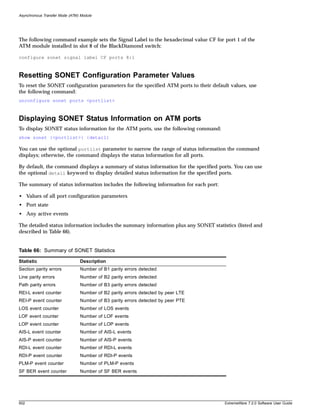
                          Resetting SONET Configuration Parameter Values                                       502
                          Displaying SONET Status Information on ATM ports                                     502


18                                                                             ExtremeWare 7.2.0 Software User Guide
Contents


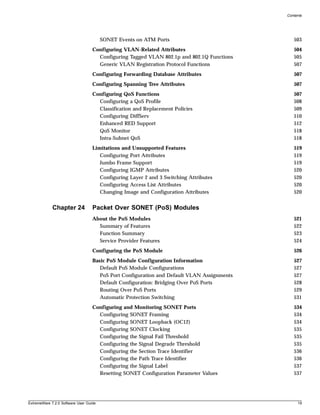
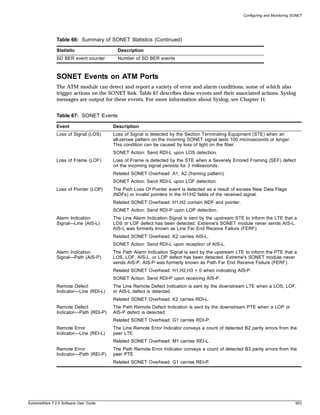
                                        SONET Events on ATM Ports                              503
                                   Configuring VLAN-Related Attributes                         504
                                     Configuring Tagged VLAN 802.1p and 802.1Q Functions       505
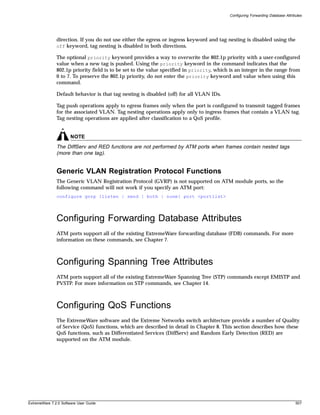
                                     Generic VLAN Registration Protocol Functions              507
                                   Configuring Forwarding Database Attributes                  507
                                   Configuring Spanning Tree Attributes                        507
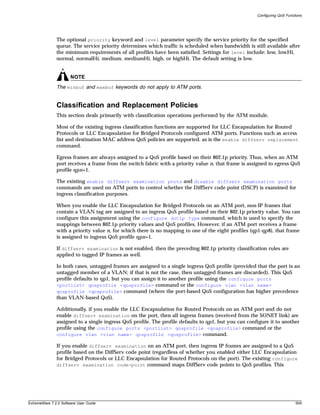
                                   Configuring QoS Functions                                   507
                                     Configuring a QoS Profile                                 508
                                     Classification and Replacement Policies                   509
                                     Configuring DiffServ                                      510
                                     Enhanced RED Support                                      512
                                     QoS Monitor                                               518
                                     Intra-Subnet QoS                                          518
                                   Limitations and Unsupported Features                        519
                                      Configuring Port Attributes                              519
                                      Jumbo Frame Support                                      519
                                      Configuring IGMP Attributes                              520
                                      Configuring Layer 2 and 3 Switching Attributes           520
                                      Configuring Access List Attributes                       520
                                      Changing Image and Configuration Attributes              520


             Chapter 24            Packet Over SONET (PoS) Modules
                                   About the PoS Modules                                       521
                                     Summary of Features                                       522
                                     Function Summary                                          523
                                     Service Provider Features                                 524
                                   Configuring the PoS Module                                  526
                                   Basic PoS Module Configuration Information                  527
                                      Default PoS Module Configurations                        527
                                      PoS Port Configuration and Default VLAN Assignments      527
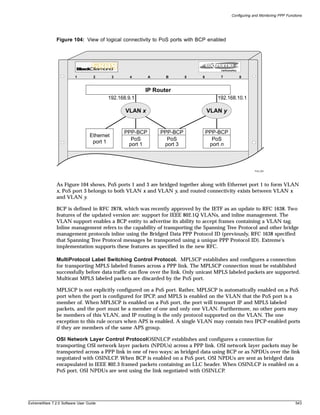
                                      Default Configuration: Bridging Over PoS Ports           528
                                      Routing Over PoS Ports                                   529
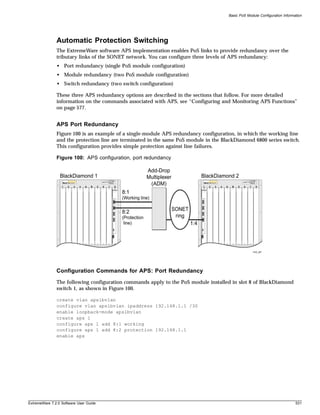
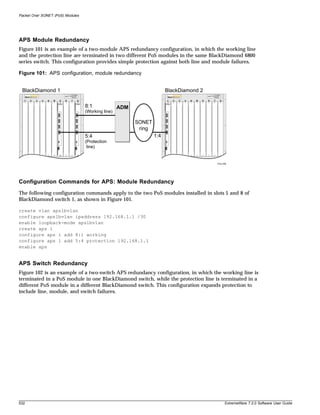
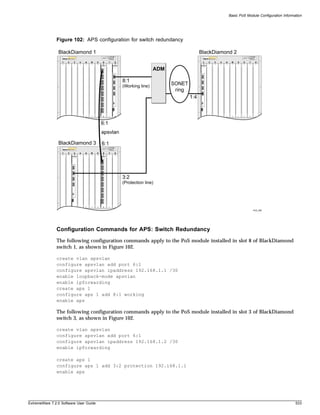
                                      Automatic Protection Switching                           531
                                   Configuring and Monitoring SONET Ports                      534
                                     Configuring SONET Framing                                 534
                                     Configuring SONET Loopback (OC12)                         534
                                     Configuring SONET Clocking                                535
                                     Configuring the Signal Fail Threshold                     535
                                     Configuring the Signal Degrade Threshold                  535
                                     Configuring the Section Trace Identifier                  536
                                     Configuring the Path Trace Identifier                     536
                                     Configuring the Signal Label                              537
                                     Resetting SONET Configuration Parameter Values            537


ExtremeWare 7.2.0 Software User Guide                                                            19
Contents


              Displaying SONET Port Status Information                                             537
              SONET Events                                                                         538
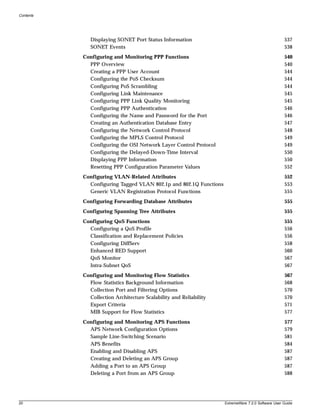
           Configuring and Monitoring PPP Functions                                                540
             PPP Overview                                                                          540
             Creating a PPP User Account                                                           544
             Configuring the PoS Checksum                                                          544
             Configuring PoS Scrambling                                                            544
             Configuring Link Maintenance                                                          545
             Configuring PPP Link Quality Monitoring                                               545
             Configuring PPP Authentication                                                        546
             Configuring the Name and Password for the Port                                        546
             Creating an Authentication Database Entry                                             547
             Configuring the Network Control Protocol                                              548
             Configuring the MPLS Control Protocol                                                 549
             Configuring the OSI Network Layer Control Protocol                                    549
             Configuring the Delayed-Down-Time Interval                                            550
             Displaying PPP Information                                                            550
             Resetting PPP Configuration Parameter Values                                          552
           Configuring VLAN-Related Attributes                                                     552
             Configuring Tagged VLAN 802.1p and 802.1Q Functions                                   553
             Generic VLAN Registration Protocol Functions                                          555
           Configuring Forwarding Database Attributes                                              555
           Configuring Spanning Tree Attributes                                                    555
           Configuring QoS Functions                                                               555
             Configuring a QoS Profile                                                             556
             Classification and Replacement Policies                                               556
             Configuring DiffServ                                                                  558
             Enhanced RED Support                                                                  560
             QoS Monitor                                                                           567
             Intra-Subnet QoS                                                                      567
           Configuring and Monitoring Flow Statistics                                              567
             Flow Statistics Background Information                                                568
             Collection Port and Filtering Options                                                 570
             Collection Architecture Scalability and Reliability                                   570
             Export Criteria                                                                       571
             MIB Support for Flow Statistics                                                       577
           Configuring and Monitoring APS Functions                                                577
             APS Network Configuration Options                                                     579
             Sample Line-Switching Scenario                                                        581
             APS Benefits                                                                          584
             Enabling and Disabling APS                                                            587
             Creating and Deleting an APS Group                                                    587
             Adding a Port to an APS Group                                                         587
             Deleting a Port from an APS Group                                                     588


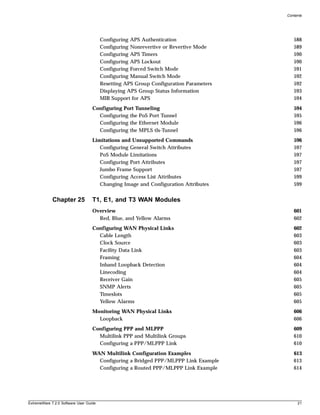
20                                                                 ExtremeWare 7.2.0 Software User Guide
Contents


                                        Configuring APS Authentication                    588
                                        Configuring Nonrevertive or Revertive Mode        589
                                        Configuring APS Timers                            590
                                        Configuring APS Lockout                           590
                                        Configuring Forced Switch Mode                    591
                                        Configuring Manual Switch Mode                    592
                                        Resetting APS Group Configuration Parameters      592
                                        Displaying APS Group Status Information           593
                                        MIB Support for APS                               594
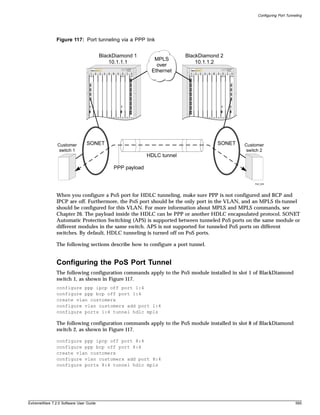
                                   Configuring Port Tunneling                             594
                                     Configuring the PoS Port Tunnel                      595
                                     Configuring the Ethernet Module                      596
                                     Configuring the MPLS tls-Tunnel                      596
                                   Limitations and Unsupported Commands                   596
                                      Configuring General Switch Attributes               597
                                      PoS Module Limitations                              597
                                      Configuring Port Attributes                         597
                                      Jumbo Frame Support                                 597
                                      Configuring Access List Attributes                  599
                                      Changing Image and Configuration Attributes         599


             Chapter 25            T1, E1, and T3 WAN Modules
                                   Overview                                               601
                                     Red, Blue, and Yellow Alarms                         602
                                   Configuring WAN Physical Links                         602
                                     Cable Length                                         603
                                     Clock Source                                         603
                                     Facility Data Link                                   603
                                     Framing                                              604
                                     Inband Loopback Detection                            604
                                     Linecoding                                           604
                                     Receiver Gain                                        605
                                     SNMP Alerts                                          605
                                     Timeslots                                            605
                                     Yellow Alarms                                        605
                                   Monitoring WAN Physical Links                          606
                                     Loopback                                             606
                                   Configuring PPP and MLPPP                              609
                                     Multilink PPP and Multilink Groups                   610
                                     Configuring a PPP/MLPPP Link                         610
                                   WAN Multilink Configuration Examples                   613
                                     Configuring a Bridged PPP/MLPPP Link Example         613
                                     Configuring a Routed PPP/MLPPP Link Example          614


ExtremeWare 7.2.0 Software User Guide                                                       21
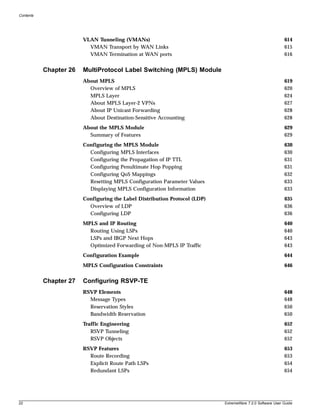
Contents


                        VLAN Tunneling (VMANs)                                                              614
                          VMAN Transport by WAN Links                                                       615
                          VMAN Termination at WAN ports                                                     616


           Chapter 26   MultiProtocol Label Switching (MPLS) Module
                        About MPLS                                                                          619
                          Overview of MPLS                                                                  620
                          MPLS Layer                                                                        624
                          About MPLS Layer-2 VPNs                                                           627
                          About IP Unicast Forwarding                                                       628
                          About Destination-Sensitive Accounting                                            628
                        About the MPLS Module                                                               629
                          Summary of Features                                                               629
                        Configuring the MPLS Module                                                         630
                          Configuring MPLS Interfaces                                                       630
                          Configuring the Propagation of IP TTL                                             631
                          Configuring Penultimate Hop Popping                                               631
                          Configuring QoS Mappings                                                          632
                          Resetting MPLS Configuration Parameter Values                                     633
                          Displaying MPLS Configuration Information                                         633
                        Configuring the Label Distribution Protocol (LDP)                                   635
                          Overview of LDP                                                                   636
                          Configuring LDP                                                                   636
                        MPLS and IP Routing                                                                 640
                          Routing Using LSPs                                                                640
                          LSPs and IBGP Next Hops                                                           643
                          Optimized Forwarding of Non-MPLS IP Traffic                                       643
                        Configuration Example                                                               644
                        MPLS Configuration Constraints                                                      646


           Chapter 27   Configuring RSVP-TE
                        RSVP Elements                                                                       648
                          Message Types                                                                     648
                          Reservation Styles                                                                650
                          Bandwidth Reservation                                                             650
                        Traffic Engineering                                                                 652
                           RSVP Tunneling                                                                   652
                           RSVP Objects                                                                     652
                        RSVP Features                                                                       653
                          Route Recording                                                                   653
                          Explicit Route Path LSPs                                                          654
                          Redundant LSPs                                                                    654


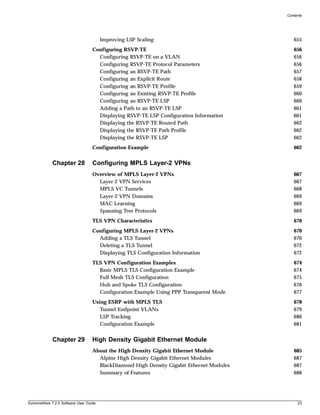
22                                                                          ExtremeWare 7.2.0 Software User Guide
Contents


                                        Improving LSP Scaling                                655
                                   Configuring RSVP-TE                                       656
                                     Configuring RSVP-TE on a VLAN                           656
                                     Configuring RSVP-TE Protocol Parameters                 656
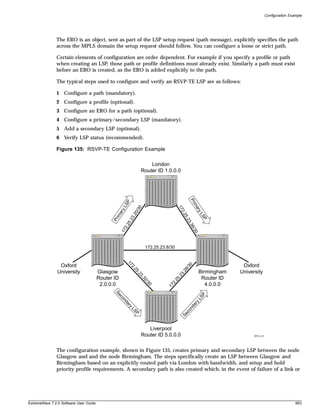
                                     Configuring an RSVP-TE Path                             657
                                     Configuring an Explicit Route                           658
                                     Configuring an RSVP-TE Profile                          659
                                     Configuring an Existing RSVP-TE Profile                 660
                                     Configuring an RSVP-TE LSP                              660
                                     Adding a Path to an RSVP-TE LSP                         661
                                     Displaying RSVP-TE LSP Configuration Information        661
                                     Displaying the RSVP-TE Routed Path                      662
                                     Displaying the RSVP-TE Path Profile                     662
                                     Displaying the RSVP-TE LSP                              662
                                   Configuration Example                                     662


             Chapter 28            Configuring MPLS Layer-2 VPNs
                                   Overview of MPLS Layer-2 VPNs                             667
                                     Layer-2 VPN Services                                    667
                                     MPLS VC Tunnels                                         668
                                     Layer-2 VPN Domains                                     669
                                     MAC Learning                                            669
                                     Spanning Tree Protocols                                 669
                                   TLS VPN Characteristics                                   670
                                   Configuring MPLS Layer-2 VPNs                             670
                                     Adding a TLS Tunnel                                     670
                                     Deleting a TLS Tunnel                                   672
                                     Displaying TLS Configuration Information                672
                                   TLS VPN Configuration Examples                            674
                                     Basic MPLS TLS Configuration Example                    674
                                     Full Mesh TLS Configuration                             675
                                     Hub and Spoke TLS Configuration                         676
                                     Configuration Example Using PPP Transparent Mode        677
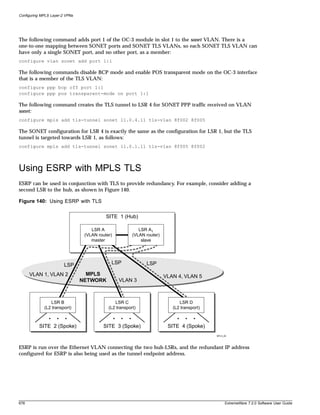
                                   Using ESRP with MPLS TLS                                  678
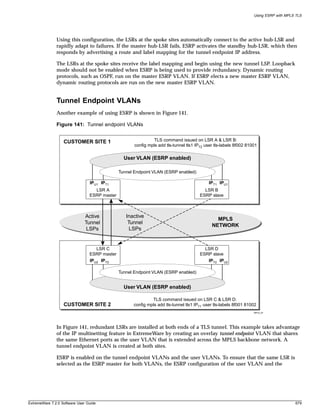
                                      Tunnel Endpoint VLANs                                  679
                                      LSP Tracking                                           680
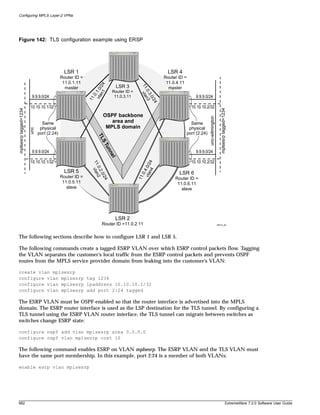
                                      Configuration Example                                  681


             Chapter 29            High Density Gigabit Ethernet Module
                                   About the High Density Gigabit Ethernet Module            685
                                     Alpine High Density Gigabit Ethernet Modules            687
                                     BlackDiamond High Density Gigabit Ethernet Modules      687
                                     Summary of Features                                     688


ExtremeWare 7.2.0 Software User Guide                                                          23
Contents


                           Summary of Functions                                                                 689
                        Configuring the High Density Gigabit Ethernet Module                                    690
                          Configuring Flow Control                                                              690
                          Configuring VLANs                                                                     690
                          Configuring Ingress QoS Functions                                                     691
                          Configuring DiffServ                                                                  695
                          Configuring Rate Limiting on Egress Ports                                             697
                          Displaying Statistics                                                                 698
                        Configuration Examples                                                                  699
                          Configuring Ingress Rate Limiting                                                     699
                          Configuring Bandwidth Requirements for Multiple Types of Traffic                      699


           Chapter 30   Power Over Ethernet
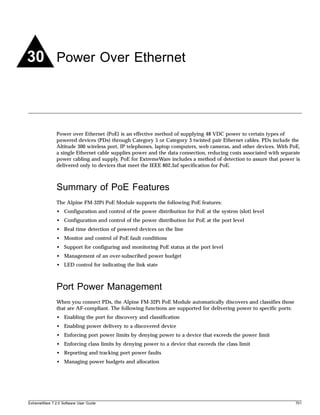
                        Summary of PoE Features                                                                 701
                        Port Power Management                                                                   701
                           Port Power Operator Limit                                                            702
                           Power Budget Management                                                              702
                           Port Power Events                                                                    703
                        Configuring Power Over Ethernet                                                         704
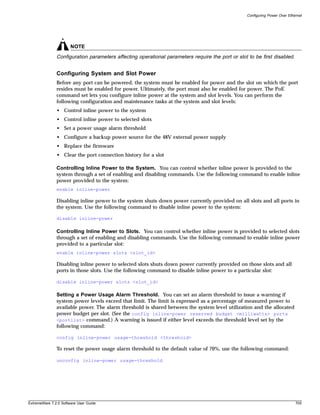
                          Controlling and Monitoring System and Slot Power                                      704
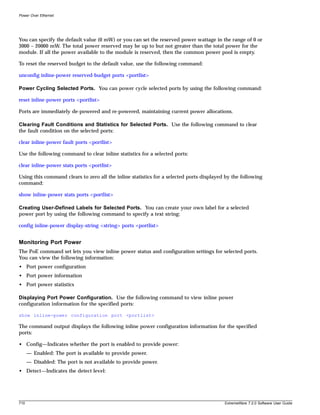
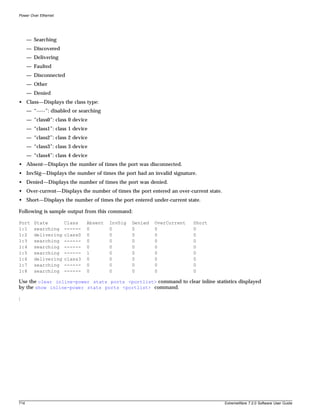
                          Controlling and Monitoring Port Power                                                 708


               Part 4   Appendixes

           Appendix A   Software Upgrade and Boot Options
                        Downloading a New Image                                                                 717
                          Selecting a Primary or a Secondary Image                                              718
                          Downloading Images to Slots and Modules                                               718
                          Understanding the Image Version String                                                719
                          Software Signatures                                                                   720
                          Rebooting the Switch                                                                  720
                          Rebooting a Module                                                                    721
                        Saving Configuration Changes                                                            721
                           Returning to Factory Defaults                                                        722
                        Using TFTP to Upload the Configuration                                                  722
                        Using TFTP to Download the Configuration                                                723
                           Downloading a Complete Configuration                                                 723
                           Downloading an Incremental Configuration                                             723
                           Scheduled Incremental Configuration Download                                         724
                           Remember to Save                                                                     724
                        Synchronizing MSMs                                                                      724


24                                                                              ExtremeWare 7.2.0 Software User Guide
Contents


                                   Upgrading and Accessing BootROM                     724
                                     Upgrading BootROM                                 725
                                     Accessing the BootROM Menu                        725


           Appendix B              Troubleshooting
                                   LEDs                                                727
                                   Using the Command-Line Interface                    728
                                      Port Configuration                               730
                                      VLANs                                            730
                                      STP                                              731
                                   Debug Tracing/Debug Mode                            732
                                   TOP Command                                         732
                                   System Health Check                                 733
                                   System Memory Dump                                  733
                                   System Odometer                                     734
                                   Memory Scanning and Memory Mapping                  735
                                     Modes of Operation                                735
                                     Memory Scanning and Memory Mapping Functions      736
                                     Using Memory Scanning to Screen I/O Modules       742
                                   Reboot Loop Protection                              743
                                     Minimal Mode                                      743
                                   Contacting Extreme Technical Support                744


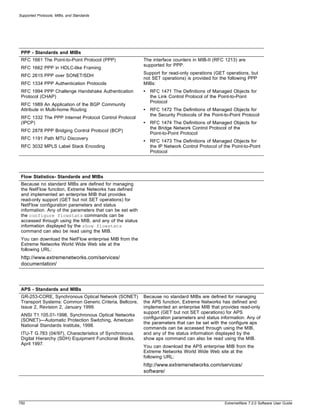
           Appendix C              Supported Protocols, MIBs, and Standards

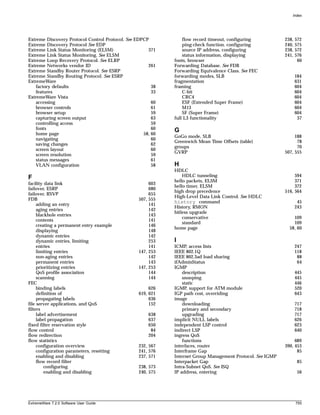
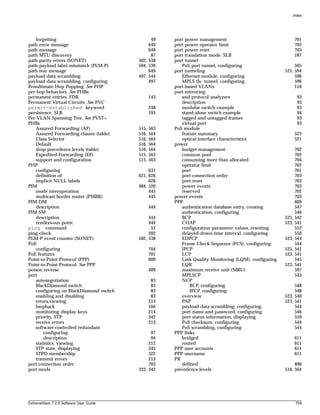
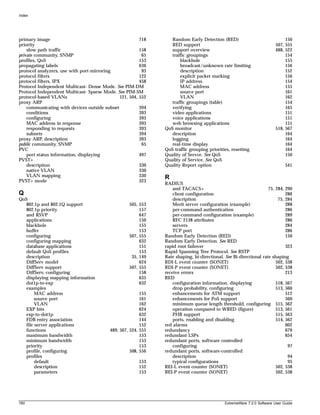
                                   Index

                                   Index of Commands


ExtremeWare 7.2.0 Software User Guide                                                    25
Contents


26         ExtremeWare 7.2.0 Software User Guide
Preface


               This preface provides an overview of this guide, describes guide conventions, and lists other
               publications that might be useful.


               Introduction
               This guide provides the required information to configure ExtremeWare® software running on either
               modular or stand-alone switches from Extreme Networks.

               This guide is intended for use by network administrators who are responsible for installing and setting
               up network equipment. It assumes a basic working knowledge of:

               • Local area networks (LANs)
               • Ethernet concepts
               • Ethernet switching and bridging concepts
               • Routing concepts
               • Internet Protocol (IP) concepts
               • Routing Information Protocol (RIP) and Open Shortest Path First (OSPF).
               • Border Gateway Protocol (BGP-4) concepts
               • IP Multicast concepts
               • Distance Vector Multicast Routing Protocol (DVMRP) concepts
               • Protocol Independent Multicast (PIM) concepts
               • Internet Packet Exchange (IPX) concepts
               • Server Load Balancing (SLB) concepts
               • Simple Network Management Protocol (SNMP)


                       NOTE
               If the information in the release notes shipped with your switch differs from the information in this guide,
               follow the release notes.


ExtremeWare 7.2.0 Software User Guide                                                                                    27
Preface


Terminology
When features, functionality, or operation is specific to a modular or stand-alone switch family, the
family name is used. Explanations about features and operations that are the same across all product
families simply refer to the product as the “switch.”


Conventions
Table 1 and Table 2 list conventions that are used throughout this guide.


Table 1: Notice Icons

Icon       Notice Type       Alerts you to...
           Note              Important features or instructions.


           Caution           Risk of personal injury, system damage, or loss of data.


           Warning           Risk of severe personal injury.


Table 2: Text Conventions
Convention                 Description
Screen displays            This typeface indicates command syntax, or represents information as it appears on the
                           screen.
The words “enter”          When you see the word “enter” in this guide, you must type something, and then press
and “type”                 the Return or Enter key. Do not press the Return or Enter key when an instruction
                           simply says “type.”
[Key] names                Key names are written with brackets, such as [Return] or [Esc].
                           If you must press two or more keys simultaneously, the key names are linked with a
                           plus sign (+). Example:
                              Press [Ctrl]+[Alt]+[Del].
Words in italicized type   Italics emphasize a point or denote new terms at the place where they are defined in
                           the text.


Related Publications
The publications related to this one are:

• ExtremeWare release notes
• ExtremeWare 7.2.0 Software Command Reference Guide
• Extreme Networks Consolidated Hardware Guide

Documentation for Extreme Networks products is available on the World Wide Web at the following
location:


28                                                                                              ExtremeWare 7.2.0 Software User Guide
Related Publications


               http://www.extremenetworks.com/


               Using ExtremeWare Publications Online
               You can access ExtremeWare publications by downloading them from the Extreme Networks World
               Wide Web location or from your ExtremeWare product CD. Publications are provided in Adobe®
               Portable Document Format (PDF). Displaying or printing PDF files requires that your computer be
               equipped with Adobe® Reader® software, which is available free of charge from Adobe Systems
               Incorporated.

               The following two ExtremeWare publications are available as PDF files that are designed to be used
               online together:

               • ExtremeWare Software User Guide
               • ExtremeWare Software Command Reference Guide

               The user guide PDF file provides links that connect you directly to relevant command information in
               the command reference guide PDF file. This quick-referencing capability enables you to easily find
               detailed information in the command reference guide for any command mentioned in the user guide.

               To ensure that the quick-referencing feature functions properly, follow these steps:

               1 Download both the user guide PDF file and the command reference guide PDF file to the same
                 destination directory on your computer.
               2 You may open one or both PDF files and to enable cross-referenced linking between the user guide
                 and command reference guide; however, it is recommended that for ease of use, you keep both files
                 open concurrently on your computer desktop.


                       NOTE
               If you activate a cross-referencing link from the ExtremeWare 7.2 user guide PDF file to the command
               reference PDF file when the command reference PDF file is closed (that is, not currently open on your
               computer desktop), the system will close the user guide PDF file and open the command reference PDF
               file. To keep both PDF files open when you activate a cross-reference link, open both PDF files before
               using the link.


ExtremeWare 7.2.0 Software User Guide                                                                                   29
Preface


30        ExtremeWare 7.2.0 Software User Guide
Part 1
Using ExtremeWare
1             ExtremeWare Overview


               This chapter covers the following topics:

               • Summary of Features on page 33
               • Software Licensing on page 36
               • Software Factory Defaults on page 38

               ExtremeWare is the full-featured software operating system that is designed to run on the Extreme
               Networks families of modular and stand-alone Gigabit Ethernet switches.


                       NOTE
               ExtremeWare 7.2.0 only supports Extreme Networks products that contain the “i” or “t” series chipset.
               This includes the BlackDiamond, Alpine, and Summit “i” series platforms, but does not include the
               Summit 24e3 and Summit 200 series platforms.


               Summary of Features
               The features of ExtremeWare include:
               • Virtual local area networks (VLANs) including support for IEEE 802.1Q and IEEE 802.1p
               • VLAN aggregation
               • Spanning Tree Protocol (STP) (IEEE 802.1D) with multiple STP domains
               • Policy-Based Quality of Service (PB-QoS)
               • Wire-speed Internet Protocol (IP) routing
               • IP Multinetting
               • DHCP/BOOTP Relay
               • Extreme Standby Router Protocol (ESRP)
               • Virtual Router Redundancy Protocol (VRRP)
               • Routing Information Protocol (RIP) version 1 and RIP version 2
               • Open Shortest Path First (OSPF) routing protocol
               • Border Gateway Protocol (BGP) version 4


ExtremeWare 7.2.0 Software User Guide                                                                                  33
ExtremeWare Overview


• Wire-speed IP multicast routing support
• Diffserv support
• Access-policy support for routing protocols
• Access list support for packet filtering
• IGMP snooping to control IP multicast traffic
• Distance Vector Multicast Routing Protocol (DVMRP)
• Protocol Independent Multicast-Dense Mode (PIM-DM)
• Protocol Independent Multicast-Sparse Mode (PIM-SM)
• Wire-speed IPX, IPX/RIP, and IPX/SAP support
• Server Load Balancing (SLB) support
• Load sharing on multiple ports, across all blades (modular switches only)
• RADIUS client and per-command authentication support
• TACACS+ support
• Console command line interface (CLI) connection
• Telnet CLI connection
• SSH2 connection
• ExtremeWare Vista Web-based management interface
• Simple Network Management Protocol (SNMP) support
• Remote Monitoring (RMON)
• System Monitoring (SMON)
• Traffic mirroring
• Network Login support
• Accounting and Routing Module (ARM) support
• Asynchronous Transfer Mode Module (ATM) support
• Packet over SONET (PoS) Module support
• WAN Module support
• MultiProtocol Label Switching (MPLS) support
• Destination-Sensitive Accounting (DSA) support


       NOTE
For more information on Extreme Networks switch components (the BlackDiamond 6800 family, the
Alpine 3800 family, or the Summit™ switch family), see the Extreme Networks Consolidated Hardware
Guide.


Virtual LANs (VLANs)
ExtremeWare has a VLAN feature that enables you to construct your broadcast domains without being
restricted by physical connections. A VLAN is a group of location- and topology-independent devices
that communicate as if they were on the same physical local area network (LAN).

Implementing VLANs on your network has the following three advantages:


34                                                                                  ExtremeWare 7.2.0 Software User Guide
Summary of Features


               • VLANs help to control broadcast traffic. If a device in VLAN Marketing transmits a broadcast frame,
                 only VLAN Marketing devices receive the frame.
               • VLANs provide extra security. Devices in VLAN Marketing can only communicate with devices on
                 VLAN Sales using routing services.
               • VLANs ease the change and movement of devices on networks.


                       NOTE
               For more information on VLANs, see Chapter 6.


               Spanning Tree Protocol
               The switch supports the IEEE 802.1D Spanning Tree Protocol (STP), which is a bridge-based mechanism
               for providing fault tolerance on networks. STP enables you to implement parallel paths for network
               traffic, and ensure that:
               • Redundant paths are disabled when the main paths are operational.
               • Redundant paths are enabled if the main traffic paths fail.

               A single spanning tree can span multiple VLANs.


                       NOTE
               For more information on STP, see Chapter 14.


               Quality of Service
               ExtremeWare has Policy-Based Quality of Service (QoS) features that enable you to specify service levels
               for different traffic groups. By default, all traffic is assigned the normal QoS policy profile. If needed,
               you can create other QoS policies and apply them to different traffic types so that they have different
               guaranteed minimum bandwidth, maximum bandwidth, and priority.


                       NOTE
               For more information on Quality of Service, see Chapter 8.


               Unicast Routing
               The switch can route IP or IPX traffic between the VLANs that are configured as virtual router
               interfaces. Both dynamic and static IP routes are maintained in the routing table. The following routing
               protocols are supported:
               • RIP version 1
               • RIP version 2
               • OSPF version 2
               • IS-IS
               • IPX/RIP
               • BGP version 4


ExtremeWare 7.2.0 Software User Guide                                                                                      35
ExtremeWare Overview


       NOTE
For more information on IP unicast routing, see Chapter 17. For more information on IPX/RIP, see
Chapter 21.


IP Multicast Routing
The switch can use IP multicasting to allow a single IP host to transmit a packet to a group of IP hosts.
ExtremeWare supports multicast routes that are learned by way of the Distance Vector Multicast
Routing Protocol (DVMRP) or the Protocol Independent Multicast (dense mode or sparse mode).


       NOTE
For more information on IP multicast routing, see Chapter 20.


Load Sharing
Load sharing allows you to increase bandwidth and resiliency by using a group of ports to carry traffic
in parallel between systems. The load sharing algorithm allows the switch to use multiple ports as a
single logical port. For example, VLANs see the load-sharing group as a single virtual port. The
algorithm also guarantees packet sequencing between clients.


       NOTE
For information on load sharing, see Chapter 4.


Software Licensing
Some Extreme Networks products have capabilities that are enabled by using a license key. Keys are
typically unique to the switch, and are not transferable. Keys are stored in NVRAM and, once entered,
persist through reboots, software upgrades, and reconfigurations. The following sections describe the
features that are associated with license keys.


Router Licensing
Some switches support software licensing for different levels of router functionality. In ExtremeWare
version 6.0 and above, routing protocol support is separated into two sets: Basic and Full L3. Basic is a
subset of Full L3.


Basic Functionality
Basic functionality requires no license key. All Extreme switches have Basic layer 3 functionality, without
the requirement of a license key. Basic functionality includes all switching functions, and also includes
all available layer 3 QoS, access list, and ESRP functions. Layer 3 routing functions include support for:
• IP routing using RIP version 1 and/or RIP version 2
• IP routing between directly attached VLANs
• IP routing using static routes


36                                                                                        ExtremeWare 7.2.0 Software User Guide
Software Licensing


               • Network Login
               • VRRP


               Full L3 Functionality
               On switches that support router licensing, the Full L3 license enables support of additional routing
               protocols and functions, including:
               • Bidirectional rateshaping on Triumph modules
               • IP routing using OSPF
               • IP multicast routing using DVMRP
               • IP multicast routing using PIM (Dense Mode or Sparse Mode)
               • IP routing using BGP
               • IPX routing (direct, static, and dynamic using IPX/RIP and IPX/SAP)
               • Server load balancing
               • Web cache redirection
               • EAPS
               • NAT
               • IS-IS
               • MPLS
               • ARM
               • PoS
               • ATM


               Product Support
               The Summit1i switch and all BlackDiamond 6800 series switches ship with Full L3 functionality. All
               other Summit models and the Alpine 3800 series switches are available with either Basic or Full L3
               functionality.


               Verifying the Router License
               To verify the router license, use the show switch command.


               Obtaining a Router License
               You can order the desired functionality from the factory, using the appropriate model of the desired
               product. If you order licensing from the factory, the switch arrives packaged with a certificate that
               contains the unique license key(s), and instructions for enabling the correct functionality on the switch.
               The certificate is typically packaged with the switch documentation. Once the license key is entered, it
               should not be necessary to enter the information again. However, we recommend keeping the certificate
               for your records.

               You can upgrade the router licensing of an existing product by purchasing a voucher for the desired
               product and functionality. Please contact your supplier to purchase a voucher.

               The voucher contains information and instructions on obtaining a license key for the switch using the
               Extreme Networks Support website at:


ExtremeWare 7.2.0 Software User Guide                                                                                      37
ExtremeWare Overview


http://www.extremenetworks.com/support/techsupport.asp

or by phoning Extreme Networks Technical Support at:

• (800) 998-2408
• (408) 579-2826


Security Licensing
Certain additional ExtremeWare security features, such as the use of Secure Shell (SSH2) encryption,
may be under United States export restriction control. Extreme Networks ships these security features in
a disabled state. You can obtain information on enabling these features at no charge from Extreme
Networks.


Obtaining a Security License
To obtain information on enabling features that require export restriction, access the Extreme Networks
Support website at:
http://www.extremenetworks.com/go/security.htm

Fill out a contact form to indicate compliance or noncompliance with the export restrictions. If you are
in compliance, you will be given information that will allow you to enable security features.


Security Features Under License Control
ExtremeWare version 6.0 and above supports the SSH2 protocol. SSH2 allows the encryption of Telnet
session data between an SSH2 client and an Extreme Networks switch. ExtremeWare version 6.2.1 and
later also enables the switch to function as an SSH2 client, sending encrypted data to an SSH2 server on
a remote system. ExtremeWare 6.2.1 also supports the Secure Copy Protocol (SCP). The encryption
methods used are under U.S. export restriction control.


Software Factory Defaults
Table 3 shows factory defaults for global ExtremeWare features.

Table 3: ExtremeWare Global Factory Defaults

Item                              Default Setting
Serial or Telnet user account     admin with no password and user with no password
Web network management            Enabled
Telnet                            Enabled
SSH2                              Disabled
SNMP                              Enabled
SNMP read community string        public
SNMP write community string       private
RMON                              Disabled
BOOTP                             Enabled on the default VLAN (default)
QoS                               All traffic is part of the default queue


38                                                                                      ExtremeWare 7.2.0 Software User Guide
Software Factory Defaults


               Table 3: ExtremeWare Global Factory Defaults (Continued)

               Item                               Default Setting
               QoS monitoring                     Automatic roving
               802.1p priority                    Recognition enabled
               802.3x flow control                Enabled on Gigabit Ethernet ports
               Virtual LANs                       Three VLANs predefined. VLAN named default contains all
                                                  ports and belongs to the STPD named s0. VLAN mgmt
                                                  exists only on switches that have an Ethernet management
                                                  port, and contains only that port. The Ethernet
                                                  management port is DTE only, and is not capable of
                                                  switching or routing. VLAN MacVLanDiscover is used only
                                                  when using the MAC VLAN feature.
               802.1Q tagging                     All packets are untagged on the default VLAN (default).
               Spanning Tree Protocol             Disabled for the switch; enabled for each port in the STPD.
               Forwarding database aging period   300 seconds (5 minutes)
               IP Routing                         Disabled
               RIP                                Disabled
               OSPF                               Disabled
               IP multicast routing               Disabled
               IGMP                               Enabled
               IGMP snooping                      Enabled
               DVMRP                              Disabled
               GVRP                               Disabled
               PIM-DM                             Disabled
               IPX routing                        Disabled
               NTP                                Disabled
               DNS                                Disabled
               Port mirroring                     Disabled
               MPLS                               Disabled


                       NOTE
               For default settings of individual ExtremeWare features, see individual chapters in this guide.


ExtremeWare 7.2.0 Software User Guide                                                                                             39
ExtremeWare Overview


40                     ExtremeWare 7.2.0 Software User Guide
2             Accessing the Switch


               This chapter covers the following topics:
               • Understanding the Command Syntax on page 41
               • Line-Editing Keys on page 44
               • Command History on page 45
               • Common Commands on page 45
               • Configuring Management Access on page 47
               • Domain Name Service Client Services on page 50
               • Checking Basic Connectivity on page 50


               Understanding the Command Syntax
               This section describes the steps to take when entering a command. Refer to the sections that follow for
               detailed information on using the command line interface.

               ExtremeWare command syntax is described in detail in the ExtremeWare Software Command Reference
               Guide. Some commands are also described in this user guide, in order to describe how to use the
               features of the ExtremeWare software. However, only a subset of commands are described here, and in
               some cases only a subset of the options that a command supports. The ExtremeWare Software Command
               Reference Guide should be considered the definitive source for information on ExtremeWare commands.

               When entering a command at the prompt, ensure that you have the appropriate privilege level. Most
               configuration commands require you to have the administrator privilege level. To use the command line
               interface (CLI), follow these steps:
               3 Enter the command name.
                   If the command does not include a parameter or values, skip to step 3. If the command requires
                   more information, continue to step 2.
               4 If the command includes a parameter, enter the parameter name and values.


ExtremeWare 7.2.0 Software User Guide                                                                                41
Accessing the Switch


5 The value part of the command specifies how you want the parameter to be set. Values include
  numerics, strings, or addresses, depending on the parameter.
6 After entering the complete command, press [Return].


       NOTE
If an asterisk (*) appears in front of the command-line prompt, it indicates that you have outstanding
configuration changes that have not been saved. For more information on saving configuration changes,
see Appendix A.


Syntax Helper
The CLI has a built-in syntax helper. If you are unsure of the complete syntax for a particular command,
enter as much of the command as possible and press [Tab]. The syntax helper provides a list of options
for the remainder of the command, and places the cursor at the end of the command you have entered
so far, ready for the next option.

If the command is one where the next option is a named component, such as a VLAN, access profile, or
route map, the syntax helper will also list any currently configured names that might be used as the
next option. In situations where this list might be very long, the syntax helper will list only one line of
names, followed by an ellipses to indicate that there are more names than can be displayed.

The syntax helper also provides assistance if you have entered an incorrect command.


Abbreviated Syntax
Abbreviated syntax is the shortest unambiguous allowable abbreviation of a command or parameter.
Typically, this is the first three letters of the command. If you do not enter enough letters to allow the
switch to determine which command you mean, the syntax helper will provide a list of the options
based on the portion of the command you have entered.


       NOTE
When using abbreviated syntax, you must enter enough characters to make the command unambiguous
and distinguishable to the switch.


Command Shortcuts
All named components of the switch configuration must have a unique name. Components are typically
named using the create command. When you enter a command to configure a named component, you
do not need to use the keyword of the component. For example, to create a VLAN, you must enter a
unique VLAN name:
create vlan engineering

Once you have created the VLAN with a unique name, you can then eliminate the keyword vlan from
all other commands that require the name to be entered. For example, instead of entering the modular
switch command
configure vlan engineering delete port 1:3,4:6

you could enter the following shortcut:
configure engineering delete port 1:3,4:6


42                                                                                         ExtremeWare 7.2.0 Software User Guide
Understanding the Command Syntax


               Similarly, on the stand-alone switch, instead of entering the command
               configure vlan engineering delete port 1-3,6

               you could enter the following shortcut:
               configure engineering delete port 1-3,6


               Modular Switch Numerical Ranges
               Commands that require you to enter one or more port numbers on a modular switch use the parameter
               <portlist> in the syntax. A <portlist> can be one port on a particular slot. For example,
               port 3:1

               A <portlist> can be a range of numbers. For example,
               port 3:1-3:3

               You can add additional slot and port numbers to the list, separated by a comma:
               port 3:1,4:8,6:10

               You can specify all ports on a particular slot. For example,
               port 3:*

               indicates all ports on slot 3.

               You can specify a range of slots and ports. For example,
               port 2:3-4:5

               indicates slot 2, port 3 through slot 4, port 5.


               Stand-alone Switch Numerical Ranges
               Commands that require you to enter one or more port numbers on a stand-alone switch use the
               parameter <portlist> in the syntax. A portlist can be a range of numbers, for example:
               port 1-3

               You can add additional port numbers to the list, separated by a comma:
               port 1-3,6,8


               Names
               All named components of the switch configuration must have a unique name. Names must begin with
               an alphabetical character and are delimited by whitespace, unless enclosed in quotation marks. Names
               are not case-sensitive. Names cannot be tokens used on the switch.


ExtremeWare 7.2.0 Software User Guide                                                                                   43
Accessing the Switch


Symbols
You may see a variety of symbols shown as part of the command syntax. These symbols explain how to
enter the command, and you do not type them as part of the command itself. Table 4 summarizes
command syntax symbols.


Table 4: Command Syntax Symbols

Symbol                 Description
angle brackets < >     Enclose a variable or value. You must specify the variable or value. For example, in the
                       syntax
                       configure vlan <vlan name> ipaddress <ipaddress>

                       you must supply a VLAN name for <vlan name> and an address for <ip_address>
                       when entering the command. Do not type the angle brackets.
square brackets [ ]    Enclose a required value or list of required arguments. One or more values or arguments
                       can be specified. For example, in the syntax
                       use image [primary | secondary]
                       you must specify either the primary or secondary image when entering the command. Do
                       not type the square brackets.
vertical bar |         Separates mutually exclusive items in a list, one of which must be entered. For example, in
                       the syntax
                       configure snmp community [read-only | read-write] <string>

                       you must specify either the read or write community string in the command. Do not type the
                       vertical bar.
braces { }             Enclose an optional value or a list of optional arguments. One or more values or arguments
                       can be specified. For example, in the syntax
                       reboot {<date> <time> | cancel}
                       you can specify either a particular date and time combination, or the keyword cancel to
                       cancel a previously scheduled reboot. If you do not specify an argument, the command will
                       prompt, asking if you want to reboot the switch now. Do not type the braces.


Limits
The command line can process up to 200 characters, including spaces. If you enter more than 200
characters, the switch generates a stack overflow error and processes the first 200 characters.


Line-Editing Keys
Table 5 describes the line-editing keys available using the CLI.

Table 5: Line-Editing Keys

Key(s)                 Description
Backspace              Deletes character to left of cursor and shifts remainder of line to left.
Delete or [Ctrl] + D   Deletes character under cursor and shifts remainder of line to left.
[Ctrl] + K             Deletes characters from under cursor to end of line.
Insert                 Toggles on and off. When toggled on, inserts text and shifts previous
                       text to right.


44                                                                                                 ExtremeWare 7.2.0 Software User Guide
Command History


               Table 5: Line-Editing Keys (Continued)

               Key(s)                   Description
               Left Arrow               Moves cursor to left.
               Right Arrow              Moves cursor to right.
               Home or [Ctrl] + A       Moves cursor to first character in line.
               End or [Ctrl] + E        Moves cursor to last character in line.
               [Ctrl] + L               Clears screen and movers cursor to beginning of line.
               [Ctrl] + P or            Displays previous command in command history buffer and places cursor at end of
               Up Arrow                 command.
               [Ctrl] + N or            Displays next command in command history buffer and places cursor at end of command.
               Down Arrow
               [Ctrl] + U               Clears all characters typed from cursor to beginning of line.
               [Ctrl] + W               Deletes previous word.


               Command History
               ExtremeWare “remembers” the last 49 commands you entered. You can display a list of these
               commands by using the following command:
               history


               Common Commands
               Table 6 describes some of the common commands used to manage the switch. Commands specific to a
               particular feature may also be described in other chapters of this guide. For a detailed description of the
               commands and their options, see the ExtremeWare Software Command Reference Guide.


               Table 6: Common Commands

               Command                                                  Description
               clear session <number>                                   Terminates a Telnet session from the switch.
               configure account <user account> {encrypted}             Configures a user account password.
               {<password>}
                                                                        The switch will interactively prompt for a new password, and
                                                                        for reentry of the password to verify it. Passwords must have
                                                                        a minimum of 1 character and can have a maximum of 30
                                                                        characters. Passwords are case-sensitive; user names are
                                                                        not case sensitive.
               configure banner                                         Configures the banner string. You can enter up to 24 rows
                                                                        of 79-column text that is displayed before the login prompt of
                                                                        each session. Press [Return] at the beginning of a line to
                                                                        terminate the command and apply the banner. To clear the
                                                                        banner, press [Return] at the beginning of the first line.
               configure banner netlogin                                Configures the network login banner string. You can enter
                                                                        up to 1024 characters to be displayed before the login
                                                                        prompt of each session.
               configure ports [<portlist> | all | mgmt] auto off       Manually configures the port speed and duplex setting of
               {speed [10 | 100 | 1000]} duplex [half | full]           one or more ports on a switch.


ExtremeWare 7.2.0 Software User Guide                                                                                                    45
Accessing the Switch


Table 6: Common Commands (Continued)

Command                                                 Description
configure slot <slot> module <module name>              Configures a slot for a particular I/O module card.
configure ssh2 key {pregenerated}                       Generates the SSH2 host key.
configure sys-recovery-level [none | [all | critical]   Configures a recovery option for instances where an
[msm-failover | reboot | shutdown | system-dump         exception occurs in ExtremeWare. The msm-failover
[maintenance-mode | msm-failover | reboot |             option is available on BlackDiamond® switches only. If
shutdown]]]                                             msm-failover is specified, a software exception triggers a
                                                        slave MSM failover to master.
configure time <date> <time>                            Configures the system date and time. The format is as
                                                        follows:
                                                        mm/dd/yyyy hh:mm:ss
                                                        The time uses a 24-hour clock format. You cannot set the
                                                        year past 2036.
configure timezone {name <std_timezone_ID>}             Configures the time zone information to the configured offset
<GMT_offset> {autodst {name <dst_timezone_ID>}          from GMT time. The format of gmt_offset is +/- minutes
{<dst_offset>} {begins [every <floatingday> | on        from GMT time. The autodst and noautodst options
<absoluteday>] {at <time_of_day>} {ends [every          enable and disable automatic Daylight Saving Time change
<floatingday> | on <absoluteday>] {at                   based on the North American standard.
<time_of_day>}}} | noautodst}
                                                        Additional options are described in the ExtremeWare
                                                        Software Command Reference Guide.
configure vlan <vlan name> ipaddress <ipaddress>        Configures an IP address and subnet mask for a VLAN.
{<netmask> | <mask length>}
create account [admin | user] <username>                Creates a user account. This command is available to
{encrypted} {<password>}                                admin-level users and to users with RADIUS command
                                                        authorization. The username is between 1 and 30
                                                        characters, the password is between 0 and 30 characters.
create vlan <vlan name>                                 Creates a VLAN.
delete account <username>                               Deletes a user account.
delete vlan <vlan name>                                 Deletes a VLAN.
disable bootp vlan [<vlan name> | all]                  Disables BOOTP for one or more VLANs.
disable cli-config-logging                              Disables logging of CLI commands to the Syslog.
disable clipaging                                       Disables pausing of the screen display when a show
                                                        command output reaches the end of the page.
disable idletimeouts                                    Disables the timer that disconnects all sessions. Once
                                                        disabled, console sessions remain open until the switch is
                                                        rebooted or you logoff. Telnet sessions remain open until
                                                        you close the Telnet client.
disable ports [<portlist> | all]                        Disables a port on the switch.
disable ssh2                                            Disables SSH2 Telnet access to the switch.
disable telnet                                          Disables Telnet access to the switch.
disable web                                             Disables web access to the switch.
enable bootp vlan [<vlan name> | all]                   Enables BOOTP for one or more VLANs.
enable cli-config-logging                               Enables the logging of CLI configuration commands to the
                                                        Syslog for auditing purposes. The default setting is enabled.
enable clipaging                                        Enables pausing of the screen display when showcommand
                                                        output reaches the end of the page. The default setting is
                                                        enabled.
enable idletimeouts                                     Enables a timer that disconnects all sessions (both Telnet
                                                        and console) after 20 minutes of inactivity. The default
                                                        setting is disabled.


46                                                                                                   ExtremeWare 7.2.0 Software User Guide
Configuring Management Access


               Table 6: Common Commands (Continued)

               Command                                              Description
               enable license [basic_L3 | advanced_L3 | full_L3 ]   Enables a particular software feature license. Specify
               <license_key>                                        <license_key> as an integer.
                                                                    The command unconfigure switch {all} does not
                                                                    clear licensing information. This license cannot be disabled
                                                                    once it is enabled on the switch.
               enable ssh2 {access-profile [<access profile> |      Enables SSH2 sessions. By default, SSH2 is enabled with
               none]} {port <tcp_port_number>}                      no access profile, and uses TCP port number 22. To cancel
                                                                    a previously configured access-profile, use the none option.
               enable telnet {access-profile [<access_profile> |    Enables Telnet access to the switch. By default, Telnet is
               none]} {port <tcp_port_number>}                      enabled with no access profile, and uses TCP port number
                                                                    23. To cancel a previously configured access-profile, use the
                                                                    none option.
               enable web {access-profile [<access_profile> |       Enables ExtremeWare Vista™ web access to the switch. By
               none]} {port <tcp_port_number>}                      default, web access is enabled with no access profile, using
                                                                    TCP port number 80. Use the none option to cancel a
                                                                    previously configured access-profile.
               history                                              Displays the previous 49 commands entered on the switch.
               show banner                                          Displays the user-configured banner.
               unconfigure switch {all}                             Resets all switch parameters (with the exception of defined
                                                                    user accounts, and date and time information) to the factory
                                                                    defaults.
                                                                    If you specify the keyword all, the switch erases the
                                                                    currently selected configuration image in flash memory and
                                                                    reboots. As a result, all parameters are reset to default
                                                                    settings.


               Configuring Management Access
               ExtremeWare supports the following two levels of management:
               • User
               • Administrator

               In addition to the management levels, you can optionally use an external RADIUS server to provide CLI
               command authorization checking for each command. For more information on RADIUS, see “RADIUS
               Client” in Chapter 3.


               User Account
               A user-level account has viewing access to all manageable parameters, with the exception of:
               • User account database.
               • SNMP community strings.

               A user-level account can use the ping command to test device reachability, and change the password
               assigned to the account name. If you have logged on with user capabilities, the command-line prompt
               ends with a (>) sign. For example:

               Summit1:2>


ExtremeWare 7.2.0 Software User Guide                                                                                               47
Accessing the Switch


Administrator Account
An administrator-level account can view and change all switch parameters. It can also add and delete
users, and change the password associated with any account name. The administrator can disconnect a
management session that has been established by way of a Telnet connection. If this happens, the user
logged on by way of the Telnet connection is notified that the session has been terminated.

If you have logged on with administrator capabilities, the command-line prompt ends with a (#) sign.
For example:

Summit1:18#


Prompt Text
The prompt text is taken from the SNMP sysname setting. The number that follows the colon indicates
the sequential line/command number.

If an asterisk (*) appears in front of the command-line prompt, it indicates that you have outstanding
configuration changes that have not been saved. For example:

*Summit1:19#


Default Accounts
By default, the switch is configured with two accounts, as shown in Table 7.

Table 7: Default Accounts

Account Name           Access Level
admin                  This user can access and change all manageable parameters. The admin account cannot
                       be deleted.
user                   This user can view (but not change) all manageable parameters, with the following
                       exceptions:
                       •   This user cannot view the user account database.
                       •   This user cannot view the SNMP community strings.


Changing the Default Password
Default accounts do not have passwords assigned to them. Passwords can have a minimum of zero
characters and can have a maximum of 30 characters.


        NOTE
Passwords are case-sensitive; user names are not case-sensitive.

To add a password to the default admin account, follow these steps:
1 Log in to the switch using the name admin.
2 At the password prompt, press [Return].
3 Add a default admin password by entering the following command:
     configure account admin
4 Enter the new password at the prompt.


48                                                                                             ExtremeWare 7.2.0 Software User Guide
Configuring Management Access


               5 Re-enter the new password at the prompt.

               To add a password to the default user account, follow these steps:
               1 Log in to the switch using the name admin.
               2 At the password prompt, press [Return], or enter the password that you have configured for the
                 admin account.
               3 Add a default user password by entering the following command:
                   configure account user
               4 Enter the new password at the prompt.
               5 Re-enter the new password at the prompt.


                       NOTE
               If you forget your password while logged out of the command line interface, contact your local technical
               support representative, who will advise on your next course of action.


               Creating a Management Account
               The switch can have a total of 16 management accounts. You can use the default names (admin and
               user), or you can create new names and passwords for the accounts. Passwords can have a minimum of
               0 characters and can have a maximum of 30 characters.

               To create a new account, follow these steps:
               1 Log in to the switch as admin.
               2 At the password prompt, press [Return], or enter the password that you have configured for the
                 admin account.
               3 Add a new user by using the following command:
                   create account [admin | pppuser | user] <username>
               4 Enter the password at the prompt.
               5 Re-enter the password at the prompt.


               Viewing Accounts
               To view the accounts that have been created, you must have administrator privileges. Use the following
               command to see the accounts:
               show accounts


ExtremeWare 7.2.0 Software User Guide                                                                                     49
Accessing the Switch


Deleting an Account
To delete a account, you must have administrator privileges. To delete an account, use the following
command:
delete account <username>

       NOTE
Do not delete the default administrator account. If you do, it is automatically restored, with no password,
the next time you download a configuration. To ensure security, change the password on the default
account, but do not delete it. The changed password will remain intact through configuration uploads
and downloads.

If you must delete the default account, first create another administrator-level account. Remember to
manually delete the default account again every time you download a configuration.


Domain Name Service Client Services
The Domain Name Service (DNS) client in ExtremeWare augments the following commands to allow
them to accept either IP addresses or host names:
•    telnet
•    download [bootrom | configuration | image]
•    upload configuration
•    ping
•    traceroute

In addition, the nslookup utility can be used to return the IP address of a hostname.

You can specify up to eight DNS servers for use by the DNS client using the following command:

configure dns-client add <ipaddress>

You can specify a default domain for use when a host name is used without a domain. Use the
following command:

configure dns-client default-domain <domain_name>

For example, if you specify the domain “xyz-inc.com” as the default domain, then a command such as
ping accounting1 will be taken as if it had been entered ping accounting1.xyz-inc.com.


Checking Basic Connectivity
The switch offers the following commands for checking basic connectivity:
•    ping
•    traceroute


50                                                                                        ExtremeWare 7.2.0 Software User Guide
Checking Basic Connectivity


               Ping
               The ping command enables you to send Internet Control Message Protocol (ICMP) echo messages to a
               remote IP device. The ping command is available for both the user and administrator privilege level.

               The ping command syntax is:
               ping {udp} {continuous} {size <start_size> {-<end_size}} [<ip_address> | <hostname>]
               {from <src_ipaddress> | with record-route | from <src_ipaddress> with record-route}

               Options for the ping command are described in Table 8.

               Table 8: Ping Command Parameters

               Parameter                 Description
               udp                       Specifies that UDP messages should be sent instead of ICMP echo messages.
                                         When specified, from and with record-route options are not supported.
               continuous                Specifies ICMP echo messages to be sent continuously. This option can be
                                         interrupted by pressing any key.
               size                      Specifies the size of the ICMP request. If both the start_size and end_size are
                                         specified, transmits ICMP requests using 1 byte increments, per packet. If no
                                         end_size is specified, packets of start_size are sent.
               <ipaddress>               Specifies the IP address of the host.
               <hostname>                Specifies the name of the host. To use the hostname, you must first configure DNS.
               from                      Uses the specified source address in the ICMP packet. If not specified, the address
                                         of the transmitting interface is used.
               with record-route         Decodes the list of recorded routes and displays them when the ICMP echo reply is
                                         received.


               If a ping request fails, the switch continues to send ping messages until interrupted. Press any key to
               interrupt a ping request. The statistics are tabulated after the ping is interrupted.


               Traceroute
               The traceroute command enables you to trace the routed path between the switch and a destination
               endstation. The traceroute command syntax is:
               traceroute <host name/ip> {from <source IP address>} {ttl <number>} {port <port
               number>}

               where:
               • ip_address is the IP address of the destination endstation.
               • hostname is the hostname of the destination endstation. To use the hostname, you must first
                 configure DNS.
               • from uses the specified source address in the ICMP packet. If not specified, the address of the
                 transmitting interface is used.
               • ttl configures the switch to trace the hops until the time-to-live has been exceeded for the switch.
               • port uses the specified UDP port number.


ExtremeWare 7.2.0 Software User Guide                                                                                            51
Accessing the Switch


52                     ExtremeWare 7.2.0 Software User Guide
3             Managing the Switch


               This chapter covers the following topics:
               • Overview on page 53
               • Using the Console Interface on page 54
               • Using the 10/100 Ethernet Management Port on page 54
               • Using Telnet on page 55
               • Using Secure Shell 2 (SSH2) on page 58
               • Using ExtremeWare Vista on page 58
               • Using SNMP on page 63
               • Authenticating Users on page 75
               • Using Network Login on page 75
               • Using the Simple Network Time Protocol on page 76


               Overview
               Using ExtremeWare, you can manage the switch using the following methods:
               • Access the CLI by connecting a terminal (or workstation with terminal-emulation software) to the
                 console port.
               • Access the switch remotely using TCP/IP through one of the switch ports or through the dedicated
                 10/100 unshielded twisted pair (UTP) Ethernet management port (on switches that are so equipped).
                 Remote access includes:
                   — Telnet using the CLI interface.
                   — SSH2 using the CLI interface.
                   — ExtremeWare Vista web access using a standard web browser.
                   — SNMP access using EPICenter or another SNMP manager.
               • Download software updates and upgrades. For more information, see Appendix B, Software
                 Upgrade and Boot Options.


ExtremeWare 7.2.0 Software User Guide                                                                               53
Managing the Switch


The switch supports up to the following number of concurrent user sessions:
• One console session
     — Two console sessions are available on a modular switch that has two management modules
       installed.
• Eight Telnet sessions
• Eight SSH2 sessions
• One web session


Using the Console Interface
The CLI built into the switch is accessible by way of the 9-pin, RS-232 port labeled console, located on
the back of the stand-alone switch, or on the front of the modular switch management module.


       NOTE
For more information on the console port pinouts, see the hardware installation guide that shipped with
your switch.

After the connection has been established, you will see the switch prompt and you can log in.


Using the 10/100 Ethernet Management Port
Some Extreme switch models provide a dedicated 10/100 Ethernet management port. This port
provides dedicated remote access to the switch using TCP/IP. It supports the following management
methods:
• Telnet using the CLI interface
• ExtremeWare Vista web access using a standard web browser
• SNMP access using EPICenter or another SNMP manager

The management port is a DTE port, and is not capable of supporting switching or routing functions.
The TCP/IP configuration for the management port is done using the same syntax as used for VLAN
configuration. The VLAN mgmt comes pre configured with only the 10/100 UTP management port as a
member.

You can configure the IP address, subnet mask, and default router for the VLAN mgmt, using the
following commands:

configure vlan <vlan name> ipaddress <ipaddress> {<netmask> | <mask length>}
configure iproute add default <gateway> {<metric>}


54                                                                                        ExtremeWare 7.2.0 Software User Guide
Using Telnet


               Using Telnet
               Any workstation with a Telnet facility should be able to communicate with the switch over a TCP/IP
               network using VT-100 terminal emulation.

               Up to eight active Telnet sessions can access the switch concurrently. If idletimeouts are enabled, the
               Telnet connection will time out after 20 minutes of inactivity. If a connection to a Telnet session is lost
               inadvertently, the switch terminates the session within two hours.

               Before you can start a Telnet session, you must set up the IP parameters described in “Configuring
               Switch IP Parameters” later in this chapter. Telnet is enabled by default.


                       NOTE
               Maximize the Telnet screen so that automatically updating screens display correctly.

               To open the Telnet session, you must specify the IP address of the device that you want to manage.
               Check the user manual supplied with the Telnet facility if you are unsure of how to do this.

               After the connection is established, you will see the switch prompt and you may log in.


               Connecting to Another Host Using Telnet
               You can Telnet from the current CLI session to another host using the following command:
               telnet [<ipaddress> | <hostname>] {<port_number>}

               If the TCP port number is not specified, the Telnet session defaults to port 23. Only VT100 emulation is
               supported.


               Configuring Switch IP Parameters
               To manage the switch by way of a Telnet connection or by using an SNMP Network Manager, you must
               first configure the switch IP parameters.


               Using a BOOTP Server
               If you are using IP and you have a Bootstrap Protocol (BOOTP) server set up correctly on your network,
               you must provide the following information to the BOOTP server:
               • Switch Media Access Control (MAC) address, found on the rear label of the switch
               • IP address
               • Subnet address mask (optional)

               After this is done, the IP address and subnet mask for the switch will be downloaded automatically.
               You can then start managing the switch using this addressing information without further
               configuration.

               You can enable BOOTP on a per-VLAN basis by using the following command:

               enable bootp vlan [<vlan name> | all]

               By default, BOOTP is enabled on the default VLAN.


ExtremeWare 7.2.0 Software User Guide                                                                                        55
Managing the Switch


If you configure the switch to use BOOTP, the switch IP address is not retained through a power cycle,
even if the configuration has been saved. To retain the IP address through a power cycle, you must
configure the IP address of the VLAN using the command-line interface, Telnet, or web interface.

All VLANs within a switch that are configured to use BOOTP to get their IP address use the same MAC
address. Therefore, if you are using BOOTP relay through a router, the BOOTP server relays packets
based on the gateway portion of the BOOTP packet.


       NOTE
For more information on DHCP/BOOTP relay, see Chapter 17.


Manually Configuring the IP Settings
If you are using IP without a BOOTP server, you must enter the IP parameters for the switch in order
for the SNMP Network Manager, Telnet software, or web interface to communicate with the device. To
assign IP parameters to the switch, you must perform the following tasks:
• Log in to the switch with administrator privileges using the console interface.
• Assign an IP address and subnet mask to a VLAN.
     The switch comes configured with a default VLAN named default. To use Telnet or an SNMP
     Network Manager, you must have at least one VLAN on the switch, and it must be assigned an IP
     address and subnet mask. IP addresses are always assigned to each VLAN. The switch can be
     assigned multiple IP addresses.


       NOTE
For information on creating and configuring VLANs, see Chapter 6.

To manually configure the IP settings, follow these steps:
1 Connect a terminal or workstation running terminal-emulation software to the console port, as
  detailed in “Using the Console Interface” on page 54.
2 At your terminal, press [Return] one or more times until you see the login prompt.
3 At the login prompt, enter your user name and password. Note that they are both case-sensitive.
  Ensure that you have entered a user name and password with administrator privileges.
     — If you are logging in for the first time, use the default user name admin to log in with
       administrator privileges. For example:
        login: admin
        Administrator capabilities enable you to access all switch functions. The default user names have
        no passwords assigned.
     — If you have been assigned a user name and password with administrator privileges, enter them at
       the login prompt.
4 At the password prompt, enter the password and press [Return].
     When you have successfully logged in to the switch, the command-line prompt displays the name of
     the switch in its prompt.
5 Assign an IP address and subnetwork mask for the default VLAN by using the following command:
     configure vlan <vlan name> ipaddress <ipaddress> {<netmask> | <mask length>}


56                                                                                        ExtremeWare 7.2.0 Software User Guide
Using Telnet


                   For example:
                   configure vlan default ipaddress 123.45.67.8 255.255.255.0
                   Your changes take effect immediately.


                           NOTE
                   As a general rule, when configuring any IP addresses for the switch, you can express a subnet mask
                   by using dotted decimal notation, or by using classless inter-domain routing notation (CIDR). CIDR
                   uses a forward slash plus the number of bits in the subnet mask. Using CIDR notation, the
                   command identical to the one above would be:

                   configure vlan default ipaddress 123.45.67.8 / 24


               6 Configure the default route for the switch using the following command:
                   configure iproute add default <gateway> {<metric>}
                   For example:
                   configure iproute add default 123.45.67.1
               7 Save your configuration changes so that they will be in effect after the next switch reboot, by using
                 the following command:
                   save configuration {primary | secondary}
               8 When you are finished using the facility, log out of the switch by typing:
                   logout or quit


               Disconnecting a Telnet Session
               An administrator-level account can disconnect a Telnet management session. If this happens, the user
               logged in by way of the Telnet connection is notified that the session has been terminated.

               To terminate a Telnet session, follow these steps:
               1 Log in to the switch with administrator privileges.
               2 Determine the session number of the session you want to terminate by using the following
                 command:
                   show session
               3 Terminate the session by using the following command:
                   clear session <number>


               Controlling Telnet Access
               By default, Telnet services are enabled on the switch. Telnet access can be restricted by the use of an
               access profile. An access profile permits or denies a named list of IP addresses and subnet masks. To
               configure Telnet to use an access profile, use the following command:
               enable telnet {access-profile [<access_profile> | none]} {port <tcp_port_number>}

               Use the none option to remove a previously configured access profile.

               To display the status of Telnet, use the following command:


ExtremeWare 7.2.0 Software User Guide                                                                                    57
Managing the Switch


show management

You can choose to disable Telnet by using the following command:

disable telnet
To re-enable Telnet on the switch, at the console port use the following:
enable telnet

You must be logged in as an administrator to enable or disable Telnet.


       NOTE
For more information on Access Profiles, see Chapter 12.


Using Secure Shell 2 (SSH2)
Secure Shell 2 (SSH2) is a feature of ExtremeWare that allows you to encrypt Telnet session data
between a network administrator using SSH2 client software and the switch, or to send encrypted data
from the switch to an SSH2 client on a remote system. Image and configuration files may also be
transferred to the switch using the Secure Copy Protocol 2 (SCP2). The ExtremeWare CLI provides a
command that enable the switch to function as an SSH2 client, sending commands to a remote system
via an SSH2 session. It also provides commands to copy image and configuration files to the switch
using the SCP2.

For detailed information about SSH2 and SCP2, see Chapter 12, “Security”.


Using ExtremeWare Vista
The ExtremeWare Vista device-management software that runs on the switch allows you to access the
switch over a TCP/IP network using a standard web browser. Any properly configured standard web
browser that supports frames and JavaScript (such as Netscape Navigator 3.0 or above, or Microsoft
Internet Explorer 3.0 or above) can be used to manage the switch.

ExtremeWare Vista provides a subset of the command-line interface (CLI) commands available for
configuring and monitoring the switch. If a particular command is not available using ExtremeWare
Vista, you must use the CLI to access the desired functionality.

To use ExtremeWare Vista, at least one VLAN must be assigned an IP address.


       NOTE
For more information on assigning an IP address, see “Configuring Switch IP Parameters” on page 55.

The default home page of the switch can be accessed using the following command:
http://<ipaddress>

When you access the home page of the switch, you are presented with the Logon screen.


58                                                                                  ExtremeWare 7.2.0 Software User Guide
Using ExtremeWare Vista


               Controlling Web Access
               By default, web access is disabled on the switch. Use of ExtremeWare Vista web access can be restricted
               through the use of an access profile. An access profile permits or denies a named list of IP addresses
               and subnet masks. To configure Vista web access to use an access profile, use the following command:
               enable web {access-profile [<access_profile> | none]} {port <tcp_port_number>}

               Use the none option to remove a previously configured access profile. Apply an access profile only
               when ExtremeWare Vista is enabled.

               To display the status of web access, use the following command:
               show management

               To disable ExtremeWare Vista, use the following command:
               disable web

               To re-enable web access, use the enable web command.

               By default, web access uses TCP port 80. To specify a different port, use the port option in the enable
               web command.

               To configure the timeout for user to enter username/password in the pop-up window use the following
               command:
               configure web login-timeout <seconds>

               By default this timeout is set to 30 seconds.

               You will need to reboot the system in order for these changes to take effect.


                       NOTE
               For more information on rebooting, see Appendix A.


               Setting Up Your Browser
               In general, the default settings that come configured on your browser work well with ExtremeWare
               Vista. The following are recommended settings that you can use to improve the display features and
               functionality of ExtremeWare Vista:
               • After downloading a newer version of the switch image, clear the browser disk and memory cache
                 to see the updated menu screens. You must clear the cache while at the main ExtremeWare Vista
                 Logon screen, so that all underlying .GIF files are updated.
               • Check for newer versions of stored pages. Every visit to the page should be selected as a cache
                 setting.
                   If you are using Netscape Navigator, configure the cache option to check for changes “Every Time”
                   you request a page.
                   If you are using Microsoft Internet Explorer, configure the Temporary Internet Files setting to check
                   for newer versions of stored pages by selecting “Every visit to the page.”
               • Images must be auto-loaded.
               • Use a high-resolution monitor to maximize the amount of information displayed in the content
                 frame. The recommended resolution is 1024 x 768 pixels. You can also use 800 x 600 pixels.


ExtremeWare 7.2.0 Software User Guide                                                                                      59
Managing the Switch


• Turn off one or more of the browser toolbars to maximize the viewing space of the ExtremeWare
  Vista content screen.
• If you will be using ExtremeWare Vista to send an email to the Extreme Networks Technical Support
  department, configure the email settings in your browser.
• Configure the browser to use the following recommended fonts:
     — Proportional font—Times New Roman
     — Fixed-width font—Courier New


Accessing ExtremeWare Vista
To access the default home page of the switch, enter the following URL in your browser:
http://<ip_address>

When you access the home page of the system, you are presented with the Login screen. Enter your
user name and password in the appropriate fields, and click OK.

If you have entered the name and password of an administrator-level account, you have access to all
ExtremeWare Vista pages. If you have used a user-level account name and password, you only have
access to the Statistics and Support information.

If multiple people access the same switch using ExtremeWare Vista, you might see the following error
message:
Web:server busy

To correct this situation, log out of the switch and log in again.


Navigating ExtremeWare Vista
After logging in to the switch, the ExtremeWare Vista home page is displayed.
ExtremeWare Vista divides the browser screen into the following sections:
• Task frame
• Content frame
• Standalone buttons


Task Frame
The task frame has two sections: menu buttons and submenu links. The four task menu buttons are:
• Configuration
• Statistics
• Support
• Logout


60                                                                                   ExtremeWare 7.2.0 Software User Guide
Using ExtremeWare Vista


               Below the task buttons are options. Options are specific to the task button that you select. When you
               select an option, the information displayed in the content frame changes. However, when you select a
               new task button, the content frame does not change until you select a new option.


                       NOTE
               Submitting a configuration page with no change will result in an asterisk (*) appearing at the CLI
               prompt, even though actual configuration values have not changed.


               Content Frame
               The content frame contains the main body of information in ExtremeWare Vista. For example, if you
               select an option from the Configuration task button, enter configuration parameters in the content
               frame. If you select the Statistics task button, statistics are displayed in the content frame.

               Browser Controls. Browser controls include drop-down list boxes, check boxes, and multiselect list
               boxes. A multiselect list box has a scrollbar on the right side of the box. Using a multiselect list box, you
               can select a single item, all items, a set of contiguous items, or multiple noncontiguous items. Table 9
               describes how to make selections from a multiselect list box.


               Table 9: Multiselect List Box Key Definitions

               Selection Type                     Key Sequence
               Single item                        Click the item using the mouse.
               All items                          Click the first item, and drag to the last item.
               Contiguous items                   Click the first desired item, and drag to the last desired item.
               Selected noncontiguous items       Hold down [Ctrl], click the first desired item, click the next desired item, and
                                                  so on.


               Status Messages
               Status messages are displayed at the top of the content frame. The four types of status messages are:
               • Information—Displays information that is useful to know prior to, or as a result of, changing
                 configuration options.
               • Warning—Displays warnings about the switch configuration.
               • Error—Displays errors caused by incorrectly configured settings.
               • Success—Displays informational messages after you click Submit. The message displayed reads,
                 “Request was submitted successfully.”


               Standalone Buttons
               At the bottom of some of the content frames is a section that contains standalone buttons. Standalone
               buttons are used to perform tasks that are not associated with a particular configuration option. An
               example of this is the Reboot Switch button.


ExtremeWare 7.2.0 Software User Guide                                                                                                61
Managing the Switch


Saving Changes
You can save your changes to nonvolatile storage in either of two ways using ExtremeWare Vista:
• Select Save Configuration from the Configuration task button, Switch option.
     This field contains a drop-down list box that allows you to select either the primary or secondary
     configuration area. After you select the configuration area, click Submit to save the changes.
• Click the Logout button.
     If you attempt to log out without saving your changes, ExtremeWare Vista prompts you to save your
     changes.
     If you select Yes, the changes are saved to the selected configuration area. To change the selected
     configuration area, you must go to the Configuration task button, Switch option.


Filtering Information
Some pages have a Filter button. The Filter button is used to display a subset of information on a given
page. For example, on the OSPF configuration page, you can configure authentication based on the
VLAN, area identifier, or virtual link. Once you select a filtering option and click the Filter button, the
form that provides the configuration options displays the available interfaces in the drop-down menu,
based on your filtering selection.

Similarly, in certain Configuration and Statistics pages, information is shown based on a particular slot.

Because modular switches allow you to preconfigure modules without having them physically available
in the chassis, the configuration pages offer a drop-down menu to select any module card that has been
configured on the system, whether or not the module is physically available. By default, information for
the first configured module that is found in the chassis is displayed on the page. You can configure
available slots and ports by filtering on a selected module from the Sort by Slot drop-down menu.

On the Statistics pages, you can only view information for cards that are configured and physically
inserted into the chassis. On these pages, the Sort by Slot drop-down menu displays only these
modules.


Do a GET When Configuring a VLAN
When configuring a VLAN using ExtremeWare Vista, prior to editing the VLAN configuration, you
must first click the get button to ensure that subsequent edits are applied to the correct VLAN. If you
do not click the get button and you submit the changes, the changes will be made to the VLAN that
was previously displayed.

If you configure a VLAN and then delete it, the default VLAN is shown in the VLAN name window, but
the VLAN information contained in the lower portion of the page is not updated. Click the get button
to update the display.


62                                                                                         ExtremeWare 7.2.0 Software User Guide
Using SNMP


               Sending Screen Output to Extreme Networks
               If Extreme Networks requests that you email the output of a particular ExtremeWare Vista screen,
               follow these steps:
               1 Click on the content frame of the screen that you must send.
               2 From Netscape Navigator, select Save Frame As from the File menu, and enter a name for the file.
                   From Microsoft Internet Explorer 3.0, select Save As File from the File menu, and enter a name for
                   the file.
                   From Microsoft Internet Explorer 4.0, right-click in the content frame, select View Source, and save
                   the HTML text by copying it and pasting it into a text editor.
               3 Attach the file to the email message that you are sending to Extreme Networks.


               Using SNMP
               Any Network Manager running the Simple Network Management Protocol (SNMP) can manage the
               switch, provided the Management Information Base (MIB) is installed correctly on the management
               station. Each Network Manager provides its own user interface to the management facilities.

               The following sections describe how to get started if you want to use an SNMP manager. It assumes
               you are already familiar with SNMP management. If not, refer to the following publication:

                       The Simple Book
                       by Marshall T. Rose
                       ISBN 0-13-8121611-9
                       Published by Prentice Hall.


               Enabling and Disabling SNMPv1/v2c and SNMPv3
               ExtremeWare versions since 7.1.0 can concurrently support SNMPv1/v2c and SNMPv3. The default for
               the switch is to have both types of SNMP enabled. Network managers can access the device with either
               SNMPv1/v2c methods or SNMPv3. To enable concurrent support, use the following command:
               enable snmp access

               To prevent any type of SNMP access, use the following command:
               disable snmp access

               To prevent access using SNMPv1/v2c methods and allow access using SNMPv3 methods only, use the
               following commands:
               enable snmp access
               disable snmp access {snmp-v1v2c}

               There is no way to configure the switch to allow SNMPv1/v2c access and prevent SNMPv3 access.

               Most of the commands that support SNMPv1/v2c use the keyword snmp, most of the commands that
               support SNMPv3 use the keyword snmpv3.


ExtremeWare 7.2.0 Software User Guide                                                                                     63
Managing the Switch


Accessing Switch Agents
To have access to the SNMP agent residing in the switch, at least one VLAN must have an IP address
assigned to it.

By default, SNMP access and SNMPv1/v2c traps are enabled. SNMP access and SNMP traps can be
disabled and enabled independently—you can disable SNMP access but still allow SNMP traps to be
sent, or vice versa.


Supported MIBs
In addition to private MIBs, the switch supports the standard MIBs listed in Appendix C.


       NOTE
The SNMP ifAdminStatus MIB value is not saved after a reboot. Ports set to down in the SNMP
ifAdminStatus MIB come back after rebooting. However, if you save the configuration using the CLI or
SNMP after changing the port status to down in the ifAdminStatus MIB, then the change is saved after
a reboot.


Configuring SNMPv1/v2c Settings
The following SNMPv1/v2c parameters can be configured on the switch:
• Authorized trap receivers—An authorized trap receiver can be one or more network management
  stations on your network. The switch sends SNMPv1/v2c traps to all trap receivers. You can have a
  maximum of 16 trap receivers configured for each switch, and you can specify a community string
  and UDP port for individually for each trap receiver. All community strings must also be added to
  the switch using the configure snmp add community command.
     To configure a trap receiver on a switch, use the following command:
     configure snmp add trapreceiver <ip address> {port <number>} community {hex}
     <community string> {from <source ip address>} {mode [enhanced | standard]}
     trap-group {auth-traps{,}} {bgp-traps{,}} {extreme-traps{,}}
     {link-up-down-traps{,}} {ospf-traps{,} {ping-traceroute-traps{,}} {rmon-traps{,}}
     {security-traps{,}} {smart-traps{,}} {stp-traps{,}} {system-traps{,}}
     {vrrp-traps{,}}
     See the Command Reference for a listing of the available traps.
     You can delete a trap receiver using the configure snmp delete trapreceiver command.
     Entries in the trap receiver list can also be created, modified, and deleted using the RMON2
     trapDestTable MIB variable, as described in RFC 2021.
• SNMP read access—The ability to read SNMP information can be restricted through the use of an
  access profile. An access profile permits or denies a named list of IP addresses and subnet masks.
     To configure SNMPv1/v2c read access to use an access profile, use the following command:
     configure snmp access-profile readonly [<access-profile> | none]
     Use the none option to remove a previously configured access profile.
• SNMP read/write access—The ability to read and write SNMP information can be restricted through
  the use of an access profile. An access profile permits or denies a named list of IP addresses and
  subnet masks.
     To configure SNMPv1/v2c read/write access to use an access profile, use the following command:


64                                                                                       ExtremeWare 7.2.0 Software User Guide
Using SNMP


                   configure snmp access-profile readwrite [<access-profile> | none]
                   Use the none option to remove a previously configured access-profile.
               • Community strings—The community strings allow a simple method of authentication between the
                 switch and the remote Network Manager. There are two types of community strings on the switch.
                 Read community strings provide read-only access to the switch. The default read-only community
                 string is public. Read-write community strings provide read and write access to the switch. The
                 default read-write community string is private.
               • System contact (optional)—The system contact is a text field that enables you to enter the name of
                 the person(s) responsible for managing the switch.
               • System name—The system name is the name that you have assigned to this switch. The default
                 name is the model name of the switch (for example, Summit1 switch).
               • System location (optional)—Using the system location field, you can enter an optional location for
                 this switch.
               • Enabling/disabling link up and link down traps (optional)—By default, link up and link down
                 traps (also called port-up-down traps) are enabled on the switch for all ports. SNMPv1 traps for link
                 up and link down are not supported; ExtremeWare uses SNMPv2 traps.
                   You can disable or re-enable the sending of these traps on a per port basis, by using the following
                   commands:
                   disable snmp traps port-up-down ports [all | mgmt | <portlist>]
                   enable snmp traps {port-up-down ports [all | mgmt | <portlist>]}
                   The mgmt option will only appear on platforms having a management port.
               • Enabling/disabling exceed-committed-rate traps—By default these traps are disabled on the switch
                 for all ports. This command is available on “3” series I/O modules only.
                   You can disable or enable the sending of these traps on a per port basis, by using the following
                   command:
                   disable snmp traps exceed-committed-rate ports <portlist> {<Ingress QOS Profile>}
                   enable snmp traps exceed-committed-rate ports <portlist> {<Ingress QOS Profile>}
               • Enabling/disabling MAC-security traps (optional)—MAC-security traps are sent on ports when
                 limit-learning is configured and a new MAC address appears on the port after the port has already
                 learned MAC addresses up to the configured limit. At such instants, a log message is generated in
                 the syslog, a trap is sent out and the port is blackholed. By default, MAC-security traps are disabled
                 on the switch. To enable or re-disable them, the following commands must be used:
                   enable snmp traps mac-security
                   disable snmp traps mac-security


                       NOTE
               To configure learning limits on a set of ports, the command configure ports <portlist> limit-learning can
               be used.


               Displaying SNMP Settings
               To display the SNMP settings configured on the switch, use the following command:
               show management

               This command displays the following information:


ExtremeWare 7.2.0 Software User Guide                                                                                      65
Managing the Switch


• Enable/disable state for Telnet, SSH2, SNMP, and web access, along with access profile information
• SNMP community strings
• Authorized SNMP station list
• SNMP MAC-security traps
• Link up/ link down traps enabled on ports
• SNMP trap receiver list
• SNMP trap groups
• RMON polling configuration
• Login statistics
• Enable/disable status of link up and link down traps
• Enable/disable status of MAC-security traps


SNMP Trap Groups
SNMP trap groups allow you to specify which SNMP traps to send to a particular trap receiver. This
functionality was made possible by the underlying support for SNMPv3. Essentially, a number of
predefined filters are associated with a trap receiver, so that only those traps are sent. If you have
already been using SNMPv1/v2c trap receivers, trap groups are very easy to incorporate into your
network. You cannot define your own trap groups. If you need to define more selectively which
notifications to receive, you will need to use the notification filter capabilities available in SNMPv3.

To configure trap groups, use the following command:
configure snmp add trapreceiver <ip address> {port <number>} community {hex}
<community string> {from <source ip address>} {mode [enhanced | standard]} trap-group
{auth-traps{,}} {bgp-traps{,}} {extreme-traps{,}} {link-up-down-traps{,}}
{ospf-traps{,} {ping-traceroute-traps{,}} {rmon-traps{,}} {security-traps{,}}
{smart-traps{,}} {stp-traps{,}} {system-traps{,}} {vrrp-traps{,}}

For example, to send system and link up/link down traps to the receiver at 10.20.30.44 port 9347 with
the community string private, use the following command:
configure snmp add trapreceiver 10.20.30.44 port 9347 community private trap-group
link-up-down-traps , system-traps

Table 10 lists the currently defined SNMP trap groups. From time to time, new trap groups may be
added to this command.


Table 10: SNMP Trap Groups

Trap Group            Notifications                          MIB Subtree
stp-traps             newRoot                                dot1dBridge, 1.3.6.1.2.1.17
                      topologyChange
bgp-traps             bgpEstablished                         bgpTraps, 1.3.6.1.2.1.15.7
                      bgpBackwardTransition
                      extremeBgpPrefixReachedThreshold       extremeBgpTrapsPrefix, 1.3.6.1.4.1.1916.4.2.0
                      extremeBgpPrefixMaxExceeded


66                                                                                         ExtremeWare 7.2.0 Software User Guide
Using SNMP


               Table 10: SNMP Trap Groups (Continued)

               Trap Group               Notifications                           MIB Subtree
               ospf-traps               ospfIfStateChange                       ospfTraps, 1.3.6.1.2.1.14.16.2
                                        ospfVirtIfStateChange
                                        ospfNbrStateChange
                                        ospfVirtNbrStateChange
                                        ospfIfConfigError
                                        ospfVirtIfConfigError
                                        ospfIfAuthFailure
                                        ospfVirtIfAuthFailure
                                        ospfIfRxBadPacket
                                        ospfVirtIfRxBadPacket
                                        ospfTxRetransmit
                                        ospfVirtIfTxRetransmit
                                        ospfOriginateLsa
                                        ospfMaxAgeLsa
                                        ospfLsdbOverflow
                                        ospfLsdbApproachingOverflow
               ping-traceroute-traps pingTestFailed                             pingNotifications, 1.3.6.1.2.1.80.0
                                     pingTestCompleted
                                     tracerouteTestFailed                       traceRouteNotifications, 1.3.6.1.2.1.81.0
                                     tracerouteTestCompleted
               vrrp-traps               vrrpTrapNewMaster                       vrrpNotifications, 1.3.6.1.2.1.68.0
                                        vrrpTrapAuthFailure
               system-traps             extremeOverheat                         1.3.6.1.4.1.1916.0.6
                                        extremeFanFailed                        1.3.6.1.4.1.1916.0.7
                                        extremeFanOK                            1.3.6.1.4.1.1916.0.8
                                        extremePowerSupplyFail                  1.3.6.1.4.1.1916.0.10
                                        extremePowerSupplyGood                  1.3.6.1.4.1.1916.0.11
                                        extremeModuleStateChange                1.3.6.1.4.1.1916.0.15
                                        extremeHealthCheckFailed                1.3.6.1.4.1.1916.4.1.0.1
                                        extremeCpuUtilizationRisingTrap         1.3.6.1.4.1.1916.4.1.0.2
                                        extremeCpuUtilizationFallingTrap        1.3.6.1.4.1.1916.4.1.0.3
                                        coldStart                               1.3.6.1.6.3.1.1.5.1
                                        warmStart                               1.3.6.1.6.3.1.1.5.2
               extreme-traps            extremeEsrpStateChange                  1.3.6.1.4.1.1916.0.17
                                        extremeEdpNeighborAdded                 1.3.6.1.4.1.1916.0.20
                                        extremeEdpNeighborRemoved               1.3.6.1.4.1.1916.0.21
                                        extremeSlbUnitAdded                     1.3.6.1.4.1.1916.0.18
                                        extremeSlbUnitRemoved                   1.3.6.1.4.1.1916.0.19
               smart-traps              extremeSmartTrap                        1.3.6.1.4.1.1916.0.14
               auth-traps               AuthenticationFailure                   1.3.6.1.6.3.1.1.5.5
                                        extremeInvalidLoginAttempt              1.3.6.1.4.1.1916.0.9
               link-up-down-traps       linkDown                                1.3.6.1.6.3.1.1.5.3
                                        linkUp                                  1.3.6.1.6.3.1.1.5.4
               rmon-traps               risingAlarm                             rmon-traps, 1.3.6.1.2.1.16.0
                                        fallingAlarm
               security-traps           extremeMacLimitExceeded                 1.3.6.1.4.1.1916.4.3.0.1
                                        extremeUnauthorizedPortForMacDetected   1.3.6.1.4.1.1916.4.3.0.2
                                        extremeMacDetectedOnLockedPort          1.3.6.1.4.1.1916.4.3.0.3
                                        extremeNetloginUserLogin                1.3.6.1.4.1.1916.4.3.0.4
                                        extremeNetloginUserLogout               1.3.6.1.4.1.1916.4.3.0.5
                                        extremeNetloginAuthFailure              1.3.6.1.4.1.1916.4.3.0.6


ExtremeWare 7.2.0 Software User Guide                                                                                           67
Managing the Switch


SNMPv3
Beginning in ExtremeWare version 7.1.0, support was added for SNMPv3. SNMPv3 is an enhanced
standard for SNMP that improves the security and privacy of SNMP access to managed devices, and
provides sophisticated control of access to the device MIB. The prior standard versions of SNMP,
SNMPv1 and SNMPv2c provided no privacy and little (or no) security.

The following six RFCs provide the foundation for Extreme Networks implementation of SNMPv3:

• RFC 3410, Introduction to version 3 of the Internet-standard Network Management Framework, provides an
  overview of SNMPv3.
• RFC 3411, An Architecture for Describing SNMP Management Frameworks, talks about SNMP
  architecture, especially the architecture for security and administration.
• RFC 3412, Message Processing and Dispatching for the Simple Network Management Protocol (SNMP),
  talks about the message processing models and dispatching that can be a part of an SNMP engine.
• RFC 3413, SNMPv3 Applications, talks about the different types of applications that can be associated
  with an SNMPv3 engine.
• RFC 3414, The User-Based Security Model for Version 3 of the Simple Network Management Protocol
  (SNMPv3), describes the User-Based Security Model (USM).
• RFC 3415, View-based Access Control Model (VACM) for the Simple Network Management Protocol
  (SNMP), talks about VACM as a way to access the MIB.


SNMPv3 Overview
The SNMPv3 standards for network management were primarily driven the need for greater security
and access control. The new standards use a modular design and model management information by
cleanly defining a message processing subsystem, a security subsystem, and an access control
subsystem.
The message processing (MP) subsystem helps identify the MP model to be used when processing a
received Protocol Data Unit (PDU), the packets used by SNMP for communication. This layer helps in
implementing a multi-lingual agent, so that various versions of SNMP can coexist simultaneously in the
same network.
The security subsystem features the use of various authentication and privacy protocols with various
timeliness checking and engine clock synchronization schemes. SNMPv3 is designed to be secure
against:
• Modification of information, where an in-transit message is altered.
• Masquerades, where an unauthorized entity assumes the identity of an authorized entity.
• Message stream modification, where packets are delayed and/or replayed.
• Disclosure, where packet exchanges are sniffed (examined) and information is learned about the
  contents.
The access control subsystem provides the ability to configure whether access to a managed object in a
local MIB is allowed for a remote principal. The access control scheme allows you to define access
policies based on MIB views, groups, and multiple security levels.
In addition, the SNMPv3 target and notification MIBs provide a more procedural approach for the
generation and filtering of notifications.

SNMPv3 objects are stored in non-volatile memory unless specifically assigned to volatile storage.
Objects defined as permanent cannot be deleted or modified.


68                                                                                      ExtremeWare 7.2.0 Software User Guide
Using SNMP


                       NOTE
               In SNMPv3, many objects can be identified by a human-readable string or by a string of hex octets. In
               many commands, you can use either a character string, or a colon separated string of hex octets to
               specify objects. This is indicated by the keyword hex used in the command.


               Message Processing
               A particular network manager may require messages that conform to a particular version of SNMP. The
               choice of the SNMPv1, SNMPv2, or SNMPv3 message processing model can be configured for each
               network manager as its target address is configured. The selection of the message processing model is
               configured with the mp-model keyword in the following command:
               configure snmpv3 add target-params {hex} <param name> user {hex} <user name> mp-model
               [snmpv1 | snmpv2c | snmpv3] sec-model [snmpv1 | snmpv2c | usm] {sec-level [noauth |
               authnopriv | priv]} {volatile}


               SNMPv3 Security
               In SNMPv3 the User-Based Security Model (USM) for SNMP was introduced. USM deals with security
               related aspects like authentication, encryption of SNMP messages and defining users and their various
               access security levels. This standard also encompass protection against message delay and message
               replay.


               USM Timeliness Mechanisms
               There is one SNMPv3 engine on an Extreme switch, identified by its snmpEngineID. The first four octets
               are fixed to 80:00:07:7C, which represents the Extreme Networks Vendor ID. By default, the additional
               octets for the snmpEngineID are generated from the device MAC address. Every SNMPv3 engine
               necessarily maintains two objects: SNMPEngineBoots, which is the number of reboots the agent has
               experienced and SNMPEngineTime, which is the engine local time since reboot. It has a local copy of
               these objects and the latestReceivedEngineTime for every authoritative engine it wants to communicate
               with. Comparing these objects with the values received in messages and then applying certain rules to
               decide upon the message validity accomplish protection against message delay or message replay.

               In a chassis, the snmpEngineID will be generated using the MAC address of the MSM with which the
               switch boots first. For MSM hitless failover, the same snmpEngineID will be propagated to both of the
               MSMs.

               The snmpEngineID can be configured from the command line, but once the snmpEngineID is changed,
               default users will be reverted back to their original passwords/keys, while non-default users will be
               reset to the security level of no authorization, no privacy. Use the following command to set the
               snmpEngineID:
               configure snmpv3 engine-id <hex octet>

               SNMPEngineBoots can also be configured from the command line. SNMPEngineBoots can be set to any
               desired value but will latch on its maximum, 2147483647. Use the following command to set the
               SNMPEngineBoots:

               configure snmpv3 engine-boots <(1-2147483647)>


ExtremeWare 7.2.0 Software User Guide                                                                                  69
Managing the Switch


Users, Groups, and Security
SNMPv3 controls access and security using the concepts of users, groups, security models, and security
levels.

Users. Users are created by specifying a user name. Depending on whether the user will be using
authentication and/or privacy, you would also specify an authentication protocol (MD5 or SHA) with
password or key, and/or privacy (DES) password or key. To create a user, use the following command:

configure snmpv3 add user {hex} <user name> {authentication [md5 | sha] [hex <hex
octet> | <password>]} {privacy [hex <hex octet> | <password>]} {volatile}

There are a number of default, permanent users initially available.The default user names are: admin,
initial, initialmd5, initialsha, initialmd5Priv, initialshaPriv. The default password for admin is password. For
the other default users, the default password is the user name.

To display information about a user, or all users, use the following command:

show snmpv3 user {{hex} <user name>}

To delete a user, use the following command:

configure snmpv3 delete user [all-non-defaults | {hex} <user name>]


       NOTE
In the SNMPv3 specifications there is the concept of a security name. In the ExtremeWare
implementation, the user name and security name are identical. In this manual we use both terms to
refer to the same thing.

Groups. Groups are used to manage access for the MIB. You use groups to define the security model,
the security level, and the portion of the MIB that members of the group can read or write. To
underscore the access function of groups, groups are defined using the following command:
configure snmpv3 add access {hex} <group name> {sec-model [snmpv1 | snmpv2 | usm]}
{sec-level [noauth | authnopriv | authpriv]} {read-view {hex} <view name>} {
write-view {hex} <view name>} {notify-view {hex} <view name>} {volatile}

The security model and security level are discussed in the section labeled “Security Models and Levels”.
The view names associated with a group define a subset of the MIB (subtree) that can be accessed by
members of the group. The read view defines the subtree that can be read, write view defines the
subtree that can be written to, and notify view defines the subtree that notifications can originate from.
MIB views are discussed in the section “MIB Access Control”.

There are a number of default (permanent) groups already defined. These groups are: admin, initial,
initialmd5, initialsha, initialmd5Priv, initialshaPriv, v1v2c_ro, v1v2c_rw. Use the following command to
display information about the access configuration of a group or all groups:

show snmpv3 access {{hex} <group name>}

Users are associated with groups using the following command:
configure snmpv3 add group {hex} <group name> user {hex} <user name> {sec-model
[snmpv1| snmpv2 | usm]} {volatile}

To show which users are associated with a group, use the following command:


70                                                                                             ExtremeWare 7.2.0 Software User Guide
Using SNMP


               show snmpv3 group {{hex} <group name> {user {hex} <user name>}}

               To delete a group, use the following command:

               configure snmpv3 delete access [all-non-defaults | {{hex} <group name>
               {sec-model [snmpv1 | snmpv2c | usm] sec-level [noauth | authnopriv |
               priv]}}]

               When you delete a group, you do not remove the association between the group. To delete the
               association between a user and a group, use the following command:
               configure snmpv3 delete group {{hex} <group name>} user [all-non-defaults | {{hex}
               <user name> {sec-model [snmpv1|snmpv2c|usm]}}]

               Security Models and Levels. For compatibility, SNMPv3 supports three security models:

               • SNMPv1—no security
               • SNMPv2c—community strings based security
               • SNMPv3—USM security

               The default is User-Based Security Model (USM). You can select the security model based on the
               network manager in your network.

               The three security levels supported by USM are:

               • noAuthnoPriv—No authentication, no privacy. This is the case with existing SNMPv1/v2c agents.
               • AuthnoPriv—Authentication, no privacy. Messages are tested only for authentication.
               • AuthPriv—Authentication, privacy. This represents the highest level of security and requires every
                 message exchange to pass the authentication and encryption tests.
               When a user is created, an authentication method is selected, and the authentication and privacy
               passwords or keys are entered.

               When MD5 authentication is specified, HMAC-MD5-96 is used to achieve authentication with a 16-octet
               key, which generates an 128-bit authorization code. This code is inserted in
               msgAuthenticationParameters field of SNMPv3 PDUs when the security level is specified as either
               AuthnoPriv or AuthPriv. Specifying SHA authentication uses the HMAC-SHA protocol with a 20-octet
               key for authentication.

               For privacy, a 16-octet key is provided as input to DES-CBS encryption protocol, which generates an
               encrypted PDU to be transmitted. DES uses bytes 1-7 to make a 56 bit key. This key (encrypted itself) is
               placed in msgPrivacyParameters of SNMPv3 PDUs when the security level is specified as AuthPriv.


               MIB Access Control
               SNMPv3 provides a fine-grained mechanism for defining which parts of the MIB can be accessed. This
               is referred to as the View-Based Access Control Model (VACM).

               MIB views represent the basic building blocks of VACM. They are used to define a subset of the
               information in the MIB. Access to read, to write, and to generate notifications is based on the
               relationship between a MIB view and an access group. The users of the access group can then read,
               write, or receive notifications from the part of the MIB defined in the MIB view as configured in the
               access group.


ExtremeWare 7.2.0 Software User Guide                                                                                  71
Managing the Switch


A view name, a MIB subtree/mask, and an inclusion or exclusion define every MIB view. For example,
there is a System group defined under the MIB-2 tree. The Object Identifier (OID) for MIB-2 is 1.3.6.1.2,
and the System group is defined as MIB-2.1.1, or directly as 1.3.6.1.2.1.1.

To define a MIB view which includes only the System group, use the following subtree/mask
combination:
1.3.6.1.2.1.1 / 1.1.1.1.1.1.1.0

The mask can also be expressed in hex notation (this is used for the ExtremeWare CLI):
1.3.6.1.2.1.1 / fe

To define a view that includes the entire MIB-2, use the following subtree/mask:

1.3.6.1.2.1.1 / 1.1.1.1.1.0.0.0

which, on the command line, is:
1.3.6.1.2.1.1 / f8

When you create the MIB view, you can choose to include the MIB subtree/mask, or to exclude the MIB
subtree/mask. To create a MIB view, use the following command:
configure snmpv3 add mib-view {hex} <view name> subtree <object identifier> {/<subtree
mask>} {type [included | excluded]} {volatile}

Once the view is created, you can repeatedly use the configure snmpv3 add mib-view command to
include and/or exclude MIB subtree/mask combinations to precisely define the items you wish to
control access to.

In addition to the user created MIB views, there are three default views. They are of storage type
permanent and cannot be deleted, but they can be modified. The default views are: defaultUserView,
defaultAdminView, and defaultNotifyView. To show MIB views, use the following command:
show snmpv3 mib-view {{hex} <view name> {subtree <object identifier>}}

To delete a MIB view, use the following command:
configure snmpv3 delete mib-view [all-non-defaults | {{hex} <view name> {subtree
<object identifier>}}]

MIB views which are being used by security groups cannot be deleted.


Notification
SNMPv3 notification is an enhancement to the concept of SNMP traps. Notifications are messages sent
from an agent to the network manager, typically in response to some state change on the agent system.
With SNMPv3, you can define precisely which traps you want sent, to which receiver by defining filter
profiles to use for the notification receivers.

To configure notifications, you will configure a target address for the process that receives the
notification, a target parameters name, and a list of notification tags. The target parameters specify the
security and message processing models to use for the notifications to the target. The target parameters
name also points to the filter profile used to filter the notifications. Finally, the notification tags are
added to a notification table so that any target addresses using that tag will receive notifications.


72                                                                                        ExtremeWare 7.2.0 Software User Guide
Using SNMP


               Target Addresses
               A target address is similar to the earlier concept of a trap receiver. To configure a target address, use the
               following command:
               configure snmpv3 add target-addr {hex} <addr name> param {hex} <param name> ipaddress
               <ip address> {transport-port <port>} {from <source IP address>} {tag-list {hex} <tag>,
               {hex} <tag>, ...} {volatile}

               In configuring the target address you will supply an address name that will be used to identify the
               target address, a parameters name that will indicate the message processing model and security for the
               messages sent to the target address, and the IP address and port for the receiver. The parameters name
               also is used to indicate the filter profile used for notifications. The target parameters will be discussed in
               the section “Target Parameters”.

               The from option sets the source IP address in the notification packets.

               The tag-list option allows you to associate a list of tags with the target address. The tag defaultNotify
               is set by default. Tags are discussed in the section “Notification Tags”.

               To display target addresses, use the following command:
               show snmpv3 target-addr {{hex} <addr name>}

               To delete a single target address or all target addresses, use the following command:
               configure snmpv3 delete target-addr [{{hex} <addr name>} | all]


               Target Parameters
               Target parameters specify the message processing model, security model, security level, and user name
               (security name) used for messages sent to the target address. See the sections “Message Processing” and
               “Users, Groups, and Security” for more details on these topics. In addition, the target parameter name
               used for a target address points to a filter profile used to filter notifications. When you specify a filter
               profile, you will associate it with a parameter name, so you will need to create different target
               parameter names if you will use different filters for different target addresses.

               Use the following command to create a target parameter name, and set the message processing and
               security settings associated with it:
               configure snmpv3 add target-params {hex} <param name> user {hex} <user name> mp-model
               [snmpv1 | snmpv2c | snmpv3] sec-model [snmpv1 | snmpv2c | usm] {sec-level [noauth |
               authnopriv | priv]} {volatile}

               To display the options associated with a target parameters name, or all target parameters names, use the
               following command:
               show snmpv3 target-params {{hex} <param name>}

               To delete one or all the target parameters, use the following command:
               configure snmpv3 delete target-params [{{hex} <param name>} | all]


               Filter Profiles and Filters
               A filter profile is a collection of filters that specifies which notifications should be sent to a target
               address. A filter is defined by a MIB subtree and mask, and by whether that subtree and mask is
               included or excluded from notification.


ExtremeWare 7.2.0 Software User Guide                                                                                         73
Managing the Switch


When you create a filter profile, you are only associating a filter profile name with a target parameter
name. The filters that make up the profile are created and associated with the profile using a different
command. To create a filter profile, use the following command:
configure snmpv3 add filter-profile {hex} <profile name> param {hex} <param name>
{volatile}

Once the profile name is created, you can associate filters with it using the following command:

configure snmpv3 add filter {hex} <profile name> subtree <object identifier>
{/<subtree mask>} type [included | excluded] {volatile}

The MIB subtree and mask are discussed in the section “MIB Access Control”, as filters are closely
related to MIB views. You can add filters together, including and excluding different subtrees of the MIB
until your filter meets your needs.

To display the association between parameter names and filter profiles, use the following command:
show snmpv3 filter-profile {{hex} <profile name>} {param {hex} <param name>}

To display the filters that belong a filter profile, use the following command:
show snmpv3 filter {{hex} <profile name> {{subtree} <object identifier>}

To delete a filter or all filters from a filter profile, use the following command:
configure snmpv3 delete filter [all | [{hex} <profile name> {subtree <object
identifier>}]]

To remove the association of a filter profile or all filter profiles with a parameter name, use the
following command:
configure snmpv3 delete filter-profile [all |[{hex}<profile name> {param {hex}<param
name>}]]


Notification Tags
When you create a target address, you associate a list of notification tags with the target, or by default,
the defaultNotify tag is associated with the target. When notifications are generated, only targets
associated with tags currently in an internal structure, called snmpNotifyTable, will be notified. To add an
entry to the table, use the following command:
configure snmpv3 add notify {hex} <notify name> tag {hex} <tag> {volatile}

Any targets associated with tags in the snmpNotifyTable will be notified, based on the filter profile
associated with the target.

To display the notifications that are set, use the following command:
show snmpv3 notify {{hex} <notify name>}

To delete an entry from the snmpNotifyTable, use the following command:
configure snmpv3 delete notify [{{hex} <notify name>} | all-non-defaults]

You cannot delete the default entry from the table, so any targets configured with the defaultNotify tag
will always receive notifications consistent with any filter profile specified.


74                                                                                         ExtremeWare 7.2.0 Software User Guide
Authenticating Users


               Configuring Notifications
               Since the target parameters name is used to point to a number of objects used for notifications,
               configure the target parameter name entry first. You can then configure the target address, filter profiles
               and filters, and any necessary notification tags.


               Authenticating Users
               ExtremeWare provides two methods to authenticate users who login to the switch:
               • RADIUS client
               • TACACS+


                       NOTE
               You cannot configure RADIUS and TACACS+ at the same time.


               RADIUS Client
               Remote Authentication Dial In User Service (RADIUS, RFC 2138) is a mechanism for authenticating and
               centrally administrating access to network nodes. The ExtremeWare RADIUS client implementation
               allows authentication for Telnet, Vista, or console access to the switch.


               TACACS+
               Terminal Access Controller Access Control System Plus (TACACS+) is a mechanism for providing
               authentication, authorization, and accounting on a centralized server, similar in function to the RADIUS
               client. The ExtremeWare version of TACACS+ is used to authenticate prospective users who are
               attempting to administer the switch. TACACS+ is used to communicate between the switch and an
               authentication database.


               Configuring RADIUS Client and TACACS+
               For detailed information about configuring a RADIUS client or TACACS+, see Chapter 12.


               Using Network Login
               Network login is a feature designed to control the admission of user packets into a network by giving
               addresses only to users that have been properly authenticated. Network login is controlled by an
               administrator on a per port, per VLAN basis and uses an integration of DHCP, user authentication over
               the web interface, and, sometimes, a RADIUS server to provide a user database or specific configuration
               details.

               When network login is enabled on a port in a VLAN, that port will not forward any packets until
               authentication takes place.

               For detailed information about using Network login, see Chapter 12.


ExtremeWare 7.2.0 Software User Guide                                                                                       75
Managing the Switch


Using the Simple Network Time Protocol
ExtremeWare supports the client portion of the Simple Network Time Protocol (SNTP) Version 3 based
on RFC1769. SNTP can be used by the switch to update and synchronize its internal clock from a
Network Time Protocol (NTP) server. When enabled, the switch sends out a periodic query to the
indicated NTP server, or the switch listens to broadcast NTP updates. In addition, the switch supports
the configured setting for Greenwich Mean time (GMT) offset and the use of Daylight Saving Time.
These features have been tested for year 2000 compliance.


Configuring and Using SNTP
To use SNTP, follow these steps:
1 Identify the host(s) that are configured as NTP server(s). Additionally, identify the preferred method
  for obtaining NTP updates. The options are for the NTP server to send out broadcasts, or for
  switches using NTP to query the NTP server(s) directly. A combination of both methods is possible.
  You must identify the method that should be used for the switch being configured.
2 Configure the Greenwich Mean Time (GMT) offset and Daylight Saving Time preference. The
  command syntax to configure GMT offset and usage of Daylight Saving Time is as follows:
     configure timezone     {name <std_timezone_ID>} <GMT_offset> {autodst {name
     <dst_timezone_ID>}     {<dst_offset>} {begins [every <floatingday> | on <absoluteday>]
     {at <time_of_day>}     {ends [every <floatingday> | on <absoluteday>] {at
     <time_of_day>}}} |     noautodst}
     By default, Daylight Saving Time is assumed to begin on the first Sunday in April at 2:00 AM, and
     end the last Sunday in October at 2:00 AM, and be offset from standard time by one hour. If this is
     the case in your timezone, you can set up automatic daylight savings adjustment with the command:
     configure timezone <GMT_offset> autodst
     If your timezone uses starting and ending dates and times that differ from the default, you can
     specify the starting and ending date and time in terms of a floating day, as follows:
     configure timezone name MET 60 autodst name MDT begins every last sunday march at
     1 ends every last sunday october at 1
     You can also specify a specific date and time, as shown in the following command.
     configure timezone name NZST 720 autodst name NZDT 60 begins every first sunday
     october at 2 ends on 3/16/2002 at 2
     The optional timezone IDs are used to identify the timezone in display commands such as show
     switch.
     Table 11 describes the command options in detail:


Table 11: Time Zone Configuration Command Options
GMT_offset             Specifies a Greenwich Mean Time (GMT) offset, in + or - minutes.
std-timezone-ID        Specifies an optional name for this timezone specification. May be up to six characters in
                       length. The default is an empty string.
autodst                Enables automatic Daylight Savings Time.
dst-timezone-ID        Specifies an optional name for this DST specification. May be up to six characters in
                       length. The default is an empty string.
dst_offset             Specifies an offset from standard time, in minutes. Value is in the range of 1 to 60.
                       Default is 60 minutes.


76                                                                                                ExtremeWare 7.2.0 Software User Guide
Using the Simple Network Time Protocol


               Table 11: Time Zone Configuration Command Options (Continued)
               floating_day             Specifies the day, week, and month of the year to begin or end DST each year. Format is:
                                        <week><day><month> where:
                                        •   <week> is specified as [first | second | third | fourth | last] or 1-5
                                        •   <day> is specified as [sunday | monday | tuesday | wednesday | thursday | friday |
                                            saturday] or 1-7 (where 1 is Sunday)
                                        •   <month> is specified as [january | february | march | april | may | june | july | august |
                                            september | october | november | december] or 1-12
                                        Default for beginning is first sunday april; default for ending is last sunday october.
               absolute_day             Specifies a specific day of a specific year on which to begin or end DST. Format is:
                                        <month>/<day>/<year> where:
                                        •   <month> is specified as 1-12
                                        •   <day> is specified as 1-31
                                        •   <year> is specified as 1970 - 2035
                                        The year must be the same for the begin and end dates.
               time_of_day              Specifies the time of day to begin or end Daylight Savings Time. May be specified as an
                                        hour (0-23) or as hour:minutes. Default is 2:00.
               noautodst                Disables automatic Daylight Savings Time.


                   Automatic Daylight Savings Time (DST) changes can be enabled or disabled. The default setting is
                   enabled. To disable automatic DST, use the command:
                   configure timezone {name <std_timezone_ID>} <GMT_offset> noautodst
               3 Enable the SNTP client using the following command:
                   enable sntp-client
                   Once enabled, the switch sends out a periodic query to the NTP servers defined later (if configured)
                   or listens to broadcast NTP updates from the network. The network time information is
                   automatically saved into the on-board real-time clock.
               4 If you would like this switch to use a directed query to the NTP server, configure the switch to use
                 the NTP server(s). If the switch listens to NTP broadcasts, skip this step. To configure the switch to
                 use a directed query, use the following command:
                   configure sntp-client [primary | secondary] server <host name/ip>]
                   NTP queries are first sent to the primary server. If the primary server does not respond within 1
                   second, or if it is not synchronized, the switch queries the secondary server (if one is configured). If
                   the switch cannot obtain the time, it restarts the query process. Otherwise, the switch waits for the
                   sntp-client update interval before querying again.
               5 Optionally, the interval for which the SNTP client updates the real-time clock of the switch can be
                 changed using the following command:
                   configure sntp-client update-interval <seconds>
                   The default sntp-client update-interval value is 64 seconds.
               6 You can verify the configuration using the following commands:
                   — show sntp-client
                       This command provides configuration and statistics associated with SNTP and its connectivity to
                       the NTP server.
                   — show switch


ExtremeWare 7.2.0 Software User Guide                                                                                                        77
Managing the Switch


         This command indicates the GMT offset, the Daylight Savings Time configuration and status, and
         the current local time.

NTP updates are distributed using GMT time. To properly display the local time in logs and other
timestamp information, the switch should be configured with the appropriate offset to GMT based on
geographical location. Table 12 describes GMT offsets.


Table 12: Greenwich Mean Time Offsets

GMT
Offset in      GMT Offset
Hours          in Minutes Common Time Zone References             Cities
+0:00          +0         GMT - Greenwich Mean                    London, England; Dublin, Ireland;
                                                                  Edinburgh, Scotland; Lisbon, Portugal;
                          UT or UTC - Universal (Coordinated)
                                                                  Reykjavik, Iceland; Casablanca, Morocco
                          WET - Western European
-1:00          -60        WAT - West Africa                       Azores, Cape Verde Islands
-2:00          -120       AT - Azores
-3:00          -180                                               Brasilia, Brazil; Buenos Aires, Argentina;
                                                                  Georgetown, Guyana;
-4:00          -240       AST - Atlantic Standard                 Caracas; La Paz
-5:00          -300       EST - Eastern Standard                  Bogota, Columbia; Lima, Peru; New York,
                                                                  NY, Trevor City, MI USA
-6:00          -360       CST - Central Standard                  Mexico City, Mexico
-7:00          -420       MST - Mountain Standard                 Saskatchewan, Canada
-8:00          -480       PST - Pacific Standard                  Los Angeles, CA, Cupertino, CA, Seattle,
                                                                  WA USA
-9:00          -540       YST - Yukon Standard
-10:00         -600       AHST - Alaska-Hawaii Standard
                          CAT - Central Alaska
                          HST - Hawaii Standard
-11:00         -660       NT - Nome
-12:00         -720       IDLW - International Date Line West
+1:00          +60        CET - Central European                  Paris, France; Berlin, Germany;
                                                                  Amsterdam, The Netherlands; Brussels,
                          FWT - French Winter
                                                                  Belgium; Vienna, Austria; Madrid, Spain;
                          MET - Middle European                   Rome, Italy; Bern, Switzerland; Stockholm,
                                                                  Sweden; Oslo, Norway
                          MEWT - Middle European Winter
                          SWT - Swedish Winter
+2:00          +120       EET - Eastern European, Russia Zone 1   Athens, Greece; Helsinki, Finland;
                                                                  Istanbul, Turkey; Jerusalem, Israel;
                                                                  Harare, Zimbabwe
+3:00          +180       BT - Baghdad, Russia Zone 2             Kuwait; Nairobi, Kenya; Riyadh, Saudi
                                                                  Arabia; Moscow, Russia; Tehran, Iran
+4:00          +240       ZP4 - Russia Zone 3                     Abu Dhabi, UAE; Muscat; Tblisi;
                                                                  Volgograd; Kabul
+5:00          +300       ZP5 - Russia Zone 4
+5:30          +330       IST – India Standard Time               New Delhi, Pune, Allahabad, India
+6:00          +360       ZP6 - Russia Zone 5


78                                                                                           ExtremeWare 7.2.0 Software User Guide
Using the Simple Network Time Protocol


               Table 12: Greenwich Mean Time Offsets (Continued)

               GMT
               Offset in       GMT Offset
               Hours           in Minutes Common Time Zone References          Cities
               +7:00           +420      WAST - West Australian Standard
               +8:00           +480      CCT - China Coast, Russia Zone 7
               +9:00           +540      JST - Japan Standard, Russia Zone 8
               +10:00          +600      EAST - East Australian Standard
                                         GST - Guam Standard
                                         Russia Zone 9
               +11:00          +660
               +12:00          +720      IDLE - International Date Line East   Wellington, New Zealand; Fiji, Marshall
                                                                               Islands
                                         NZST - New Zealand Standard
                                         NZT - New Zealand


               SNTP Example
               In this example, the switch queries a specific NTP server and a backup NTP server. The switch is
               located in Cupertino, CA, and an update occurs every 20 minutes. The commands to configure the
               switch are as follows:
               configure timezone -480 autodst
               configure sntp-client update interval 1200
               enable sntp-client
               configure sntp-client primary server 10.0.1.1
               configure sntp-client secondary server 10.0.1.2


ExtremeWare 7.2.0 Software User Guide                                                                                         79
Managing the Switch


80                    ExtremeWare 7.2.0 Software User Guide
4             Configuring Slots and Ports on a Switch


               This chapter covers the following topics:
               • Configuring a Slot on a Modular Switch on page 81
               • Configuring Ports on a Switch on page 83
               • Jumbo Frames on page 86
               • Load Sharing on the Switch on page 88
               • Switch Port-Mirroring on page 93
               • Extreme Discovery Protocol on page 94
               • Software-Controlled Redundant Port and Smart Redundancy on page 94
               • Performance Enhancements for Load Sharing on page 92


               Configuring a Slot on a Modular Switch
               If a slot has not been configured for a particular type of module, then any type of module is accepted in
               that slot, and a default port and VLAN configuration is automatically generated.

               Once any port on the module is configured (for example, a VLAN association, a VLAN tag
               configuration, or port parameters), all the port information and the module type for that slot must be
               saved to non-volatile storage. Otherwise, if the modular switch is rebooted or the module is removed
               from the slot, the port, VLAN, and module configuration information is not saved.


                       NOTE
               For information on saving the configuration, see Appendix A.

               You can configure the modular switch with the type of I/O module that is installed in each slot. To do
               this, use the following command:
               configure slot <slot> module <module name>

               You can also preconfigure the slot before inserting the module. This allows you to begin configuring the
               module and ports before installing the module in the chassis.

               If a slot is configured for one type of module, and a different type of module is inserted, the inserted
               module is put into a mismatch state, and is not brought online. To use the new module type in a slot,


ExtremeWare 7.2.0 Software User Guide                                                                                     81
Configuring Slots and Ports on a Switch


the slot configuration must be cleared or configured for the new module type. To clear the slot of a
previously assigned module type, use the following command:
clear slot <slot>

All configuration information related to the slot and the ports on the module is erased. If a module is
present when you issue this command, the module is reset to default settings.

To display information about a particular slot, use the following command:
show slot <slot number>

Information displayed includes:
• Card type, serial number, part number.
• Current state (power down, operational, diagnostic, mismatch).
• Port information.

If no slot is specified, information for all slots is displayed.


Mode of Operation (Alpine 3802)
The Alpine 3802 has three modes of switch operation that impact the type and number of modules
supported in the chassis.

To configure the mode of operation for the Alpine 3802, use the following command:

configure switch {auto | extended | standard}

The three modes of switch operation are:

• Extended—In extended mode, all slots (slots 1, 2, and 3) are enabled. Slot 1 supports all existing
  Alpine I/O modules: Alpine Ethernet I/O modules (modules with a green stripe on the front of the
  module) and Alpine Access I/O modules (modules with a silver stripe on the front of the module).
  Slots 2 and 3 support only Alpine Access I/O modules (silver stripe).
• Standard—In standard mode, only slots 1 and 2 are enabled. Slot 3 is disabled. Slots 1 and 2 support
  all existing Alpine I/O modules: Alpine Ethernet I/O modules (green stripe) and Alpine Access I/O
  modules (silver stripe).
• Auto—In auto mode, the switch determines if it is in standard or extended mode depending upon
  the type of modules installed in the chassis or the slot preconfigurations. If an Alpine I/O module
  with a green stripe (for example, an FM-32Ti module) is installed or preconfigured in slot 2, the
  switch operates in standard mode. If an Alpine I/O module with a silver stripe (for example, a
  WM-4Ti module) is installed or preconfigured in slots 2 or 3, the switch operates in extended mode.

By default, the Alpine 3802 operates in auto mode.

If you insert a module into the Alpine 3802 that is not allowed in a particular slot, the switch logs an
error to the syslog. For example, if you insert a GM-WDMi module in slot 3, a module type not
supported in slot 3, the switch logs an error.


82                                                                                        ExtremeWare 7.2.0 Software User Guide
Configuring Ports on a Switch


               Configuring Ports on a Switch
               On a modular switch, the port number is a combination of the slot number and the port number. The
               nomenclature for the port number is as follows:
               slot:port

               For example, if a G4X I/O module (having a total of four ports) is installed in slot 2 of the
               BlackDiamond 6808 chassis, the following ports are valid:

               •   2:1
               •   2:2
               •   2:3
               •   2:4

               You can also use wildcard combinations (*) to specify multiple modular slot and port combinations. The
               following wildcard combinations are allowed:

               • slot:*—Specifies all ports on a particular I/O module.
               • slot:x-slot:y—Specifies a contiguous series of ports on a particular I/O module.
               • slota:x-slotb:y—Specifies a contiguous series of ports that begin on one I/O module and end on
                 another I/O module.


               Enabling and Disabling Switch Ports
               By default, all ports are enabled. To enable or disable one or more ports on a modular switch, use the
               following command:
               enable ports [<portlist> | all]
               disable ports [<portlist> | all]

               To enable or disable one or more ports on a stand-alone switch, use the following command:
               enable ports [<portlist> | all]
               disable ports [<portlist> | all]

               For example, to disable slot 7, ports 3, 5, and 12 through 15 on a modular switch, use the following
               command:
               disable ports 7:3,7:5,7:12-7:15

               For example, to disable ports 3, 5, and 12 through 15 on a stand-alone switch, use the following
               command:
               disable ports 3,5,12-15

               Even though a port is disabled, the link remains enabled for diagnostic purposes.


               Configuring Switch Port Speed and Duplex Setting
               By default, the switch is configured to use autonegotiation to determine the port speed and duplex
               setting for each port. You can manually configure the duplex setting and the speed of 10/100 Mbps
               ports, and you can manually configure the duplex setting of Gigabit Ethernet ports.


ExtremeWare 7.2.0 Software User Guide                                                                                         83
Configuring Slots and Ports on a Switch


10BASE-T and 100BASE-TX ports can connect to either 10BASE-T or 100BASE-T networks. By default,
the ports autonegotiate port speed. You can also configure each port for a particular speed (either 10
Mbps or 100 Mbps).

Gigabit Ethernet ports are statically set to 1 Gbps, and their speed cannot be modified.

VDSL ports default to 10 Mbps, and their speed can be configured as 5 Mbps, 10 Mbps, or to support
the European Telecommunications Standards Institute (ETSI) VDSL standard, ETSI Plan 997. To
configure VDSL ports, use the following command:

configure ports <portlist> vdsl [5meg | 10meg | etsi]

All ports on a stand-alone switch can be configured for half-duplex or full-duplex operation. By default,
the ports autonegotiate the duplex setting.

To configure port speed and duplex setting, use the following command:
configure ports [<portlist> | all | mgmt] auto off {speed [10 | 100 | 1000]} duplex
[half | full]

To configure the system to autonegotiate, use the following command:
configure ports [<portlist> | mgmt | all] auto on

Flow control is fully supported only on Gigabit Ethernet ports. Gigabit ports both advertise support and
respond to pause frames. 10/100 Mbps Ethernet ports also respond to pause frames, but do not
advertise support. Neither 10/100 Mbps or Gigabit Ethernet ports initiate pause frames.

Flow Control is enabled or disabled as part of autonegotiation. If autonegotiation is set to off, flow
control is disabled. When autonegotiation is turned on, flow control is enabled.


Turning Off Autonegotiation for a Gigabit Ethernet Port
In certain interoperability situations, you may need to turn autonegotiation off on a Gigabit Ethernet
port. Even though a Gigabit Ethernet port runs only at full duplex, you must specify the duplex setting.


        NOTE
1000BASE-TX ports support only autonegotiation.

The following example turns autonegotiation off for port 1 on a G4X or G6X module located in slot 1 of
a modular switch:
configure ports 1:1 auto off duplex full

The following example turns autonegotiation off for port 4 (a Gigabit Ethernet port) on a stand-alone
switch:
configure ports 4 auto off duplex full


Turning Off Autopolarity Detection for an Ethernet Port
The autopolarity feature on the Summit48si switch allows the system to detect and respond to the
Ethernet cable type (straight-through vs. crossover cable) used to make the connection to the switch
port. When the autopolarity feature is enabled, the system causes the Ethernet link to come up
regardless of the cable type connected to the port. When the autopolarity feature is disabled, the link


84                                                                                         ExtremeWare 7.2.0 Software User Guide
Configuring Ports on a Switch


               will come up only when a crossover cable is connected to the port. The autopolarity feature is
               supported only on the 10BASE-T and 100BASE-TX switch ports, and enabled by default.

               To disable or enable autopolarity detection, use the following command:

               configure ports [<portlist> | all] auto-polarity [off | on]

               where the following is true:

               • portlist—Specifies one or more ports on the switch
               • all—Specifies all of the ports on the switch
               • off—Disables the autopolarity detection feature on the specified ports
               • on—Enables the autopolarity detection feature on the specified ports

               Under certain conditions, you might opt to turn autopolarity off on one or more 10BASE-T and
               100BASE-TX ports. The following example turns autopolarity off for ports 3-5 on a Summit48si switch:

               configure ports 3-5 auto-polarity off

                       NOTE
               If you attempt to invoke this command on a Gigabit Ethernet switch port, the system displays a
               message indicating that the specified port is not supported by this feature.

               When autopolarity is disabled on one or more Ethernet ports, you can verify that status by using the
               command:

               show configuration

               This command will list the ports for which the feature has been disabled.

               You can also verify the current autopolarity status by using the command:

               show ports {mgmt | <portlist>} info {detail}


               Configuring Link Detection
               ExtremeWare contains an interrupt service routine (ISR) that sends interrupts when links transition. If a
               link continuously transitions, causing the ISR to send continuous interrupts, the middle layer filter
               filters out the continuous interrupt messages. You can configure the interaction between these functions
               using the following command:
               configure ports <portlist> link-detection-level <link-detection-level>


               Configuring Interpacket Gap for 10 Gigabit Ethernet Ports
               You can configure the Interpacket Gap for 10 Gigabit Ethernet ports only. The Interpacket Gap,
               sometimes referred to as the Interframe Gap, is the transmit packet byte-time delay between successive
               data packets mandated by the IEEE for Ethernet networks. Byte-time is the amount of time it takes to
               transmit one byte on the link at the specified or negotiated link speed. The configured Interpacket Gap
               value has no effect on received packets. The default value is 16. The minimum and maximum allowed
               values range between 12 and 1023.


ExtremeWare 7.2.0 Software User Guide                                                                                        85
Configuring Slots and Ports on a Switch


The standard effective Interpacket Gap for 10 Gigabit Ethernet interfaces ranges between 12 and 1023.
Some vendors' 10 Gigabit Ethernet interfaces drop packets when packets are transmitted using a value
of 12. Thus, by increasing the Interpacket Gap, packet transmission is slowed and packet loss can be
minimized or prevented. The Interpacket Gap value need not be modified when interconnecting
Extreme Networks switches over 10 Gigabit Ethernet links. Use the following command to modify the
Interpacket Gap:

configure port <slot:port> interpacket-gap <byte_time>


Jumbo Frames
Jumbo frames are Ethernet frames that are larger than 1522 bytes, including four bytes used for the cyclic
redundancy check (CRC). Extreme products support switching and routing of jumbo frames at
wire-speed on all ports.

Jumbo frames are used between endstations that support larger frame sizes for more efficient transfers
of bulk data. Both endstations involved in the transfer must be capable of supporting jumbo frames.
The switch only performs IP fragmentation, or participates in maximum transmission unit (MTU)
negotiation on behalf of devices that support jumbo frames.


Enabling Jumbo Frames
To enable jumbo frame support, enable jumbo frames on the desired ports. To set the maximum jumbo
frame size, use the following command:
configure jumbo-frame size <number>

The jumbo frame size range is 1523 to 9216. This value describes the maximum size of the frame in
transit (on the wire), and includes 4 bytes of CRC plus another 4 bytes if 802.1Q tagging is being used.

Set the MTU size for the VLAN, using the following command:
configure ip-mtu <number> vlan <vlan name>

The IP MTU default is 1500. The range is 1500-9194.


        NOTE
PoS or ATM must be rebooted if the IP-MTU configuration is changed.

Next, enable support on the physical ports that will carry jumbo frames using the following command:

enable jumbo-frame ports [<portlist> | all]

        NOTE
Some network interface cards (NICs) have a configured maximum MTU size that does not include the
additional 4 bytes of CRC. Ensure that the NIC maximum MTU size is at or below the maximum MTU
size configured on the switch. Frames that are larger than the MTU size configured on the switch are
dropped at the ingress port.


86                                                                                       ExtremeWare 7.2.0 Software User Guide
Jumbo Frames


               Path MTU Discovery
               Using path MTU discovery, a source host assumes that the path MTU is the MTU of the first hop
               (which is known). The host sends all datagrams on that path with the “don’t fragment” (DF) bit set,
               which restricts fragmentation. If any of the datagrams must be fragmented by an Extreme switch along
               the path, the Extreme switch discards the datagrams and returns an ICMP Destination Unreachable
               message to the sending host, with a code meaning “fragmentation needed and DF set”. When the
               source host receives the message (sometimes called a “Datagram Too Big” message), the source host
               reduces its assumed path MTU and retransmits the datagrams.

               The path MTU discovery process ends when one of the following is true:
               • The source host sets the path MTU low enough that its datagrams can be delivered without
                 fragmentation.
               • The source host does not set the DF bit in the datagram headers.

               If it is willing to have datagrams fragmented, a source host can choose not to set the DF bit in datagram
               headers. Normally, the host continues to set DF in all datagrams, so that if the route changes and the
               new path MTU is lower, the host can perform path MTU discovery again.


               IP Fragmentation with Jumbo Frames
               ExtremeWare supports the fragmenting of IP packets. If an IP packet originates in a local network that
               allows large packets and those packets traverse a network that limits packets to a smaller size, the
               packets are fragmented instead of discarded.

               This feature is designed to be used in conjunction with jumbo frames. Frames that are fragmented are
               not processed at wire-speed within the switch fabric.


                       NOTE
               Jumbo frame-to-jumbo frame fragmentation is not supported. Only jumbo frame-to-normal frame
               fragmentation is supported.

               To configure VLANs for IP fragmentation, follow these steps:
               1 Enable jumbo frames on the incoming port.
               2 Add the port to a VLAN.
               3 Assign an IP address to the VLAN.
               4 Enable ipforwarding on the VLAN.
               5 Set the MTU size for the VLAN, using the following command:
                   configure ip-mtu <number> vlan <vlan name>
                   The ip-mtu value can be 1500 or 9194, with 1500 the default.


                       NOTE
               To set the MTU size greater than 1500, all ports in the VLAN must have jumbo frames enabled.


ExtremeWare 7.2.0 Software User Guide                                                                                   87
Configuring Slots and Ports on a Switch


IP Fragmentation within a VLAN
ExtremeWare supports IP fragmentation within a VLAN. This feature does not require you to configure
the MTU size. To use IP fragmentation within a VLAN, follow these steps:
1 Enable jumbo frames on the incoming port.
2 Add the port to a VLAN.
3 Assign an IP address to the VLAN.
4 Enable ipforwarding on the VLAN.

If you leave the MTU size configured to the default value, when you enable jumbo frame support on a
port on the VLAN you will receive a warning that the ip-mtu size for the VLAN is not set at maximum
jumbo frame size. You can ignore this warning if you want IP fragmentation within the VLAN, only.
However, if you do not use jumbo frames, IP fragmentation can only be used for traffic that stays
within the same VLAN. For traffic that is set to other VLANs, to use IP fragmentation, all ports in the
VLAN must be configured for jumbo frame support.


Load Sharing on the Switch
Load sharing allows you to increase bandwidth and availability by using a group of ports to carry
traffic in parallel between switches. Load sharing allows the switch to use multiple ports as a single
logical port. For example, VLANs see the load-sharing group as a single logical port. Most load-sharing
algorithms guarantee packet sequencing between clients.

If a port in a load-sharing group fails, traffic is redistributed to the remaining ports in the load-sharing
group. If the failed port becomes active again, traffic is redistributed to include that port.


        NOTE
Load sharing must be enabled on both ends of the link or a network loop may result. The load-sharing
types (dynamic, static) must match, but the load-sharing algorithms do not need to be the same on both
ends.


Dynamic Versus Static Load Sharing
The two broad categories of load sharing supported on Extreme Network switches are dynamic load
sharing and static load sharing:
• Dynamic load sharing—A grouping of ports that use IEEE 802.3ad load sharing to dynamically
  determine if load sharing is possible, and automatically configure load sharing when possible. Uses
  Link Aggregation Control Protocol (LACP), part of the IEEE 802.3ad standard, to allow the switch to
  dynamically reconfigure the sharing groups. The group is only enabled when LACP detects that the
  other side is also using LACP, and wants these ports to be in a group.
• Static load sharing—A grouping of ports specifically configured to load share. The switch ports at
  each end must be configured as part of a load-sharing group. Additionally, you can choose the
  load-sharing algorithm used by the group. This feature is supported between Extreme Networks
  switches only, but may be compatible with third-party trunking or link-aggregation algorithms.
  Check with an Extreme Networks technical representative for more information.


88                                                                                          ExtremeWare 7.2.0 Software User Guide
Load Sharing on the Switch


               Load-Sharing Algorithms
               Load-sharing algorithms allow you to select the distribution technique used by the load-sharing group
               to determine the output port selection. Algorithm selection is not intended for use in predictive traffic
               engineering. You can only choose the algorithm used in static load sharing, as dynamic load sharing
               exclusively uses an address-based algorithm.

               You can configure one of three load-sharing algorithms on the switch, as follows:

               • Port-based—Uses the ingress port to determine which physical port in the load-sharing group is
                 used to forward traffic out of the switch.
               • Address-based—Uses addressing information to determine which physical port in the load-sharing
                 group to use for forwarding traffic out of the switch. Addressing information is based on the packet
                 protocol, as follows:
                   — IP packets—Uses the source and destination MAC and IP addresses, and the TCP port number.
                   — IPX packets—Uses the source and destination MAC address, and IPX network identifiers.
                   — All other packets—Uses the source and destination MAC address.
               • Round-robin—When the switch receives a stream of packets, it forwards one packet out of each
                 physical port in the load-sharing group using a round-robin scheme.


                       NOTE
               Using the round-robin algorithm, packet sequencing between clients is not guaranteed.

               If you do not explicitly select an algorithm, the port-based scheme is used. However, the address-based
               algorithm has a more even distribution and is the recommended choice, except when running MPLS, in
               which case port-based is recommended.


               Configured IP Address-Based Load Sharing
               When you configure load sharing, the switch examines a specific place in the packet to determine which
               egress port to use for forwarding traffic:
               • For layer 2 load sharing, the switch uses the MAC source address and destination address.
               • For layer 3 load sharing, the switch uses the MAC source address and destination address, and the
                 IP source address and destination address.
               • For layer 4 load sharing, the switch using the MAC source address and destination address, the IP
                 source address and destination address, and the UDP or TCP well-known port number.

               You can control the field examined by the switch for IP address-based load sharing, using the following
               command:
               configure sharing address-based [L2 | L2_L3 | L2_L3_L4]

               where:
               • L2—Indicates that the switch should examine the MAC source and destination address.
               • L3—Indicates that the switch should examine the MAC source address and destination address, and
                 the IP source address and destination address.
               • L4—Indicates that the switch should examine the MAC source address and destination address, the
                 IP source address and destination address, and the UDP or TCP well-known port number.


ExtremeWare 7.2.0 Software User Guide                                                                                       89
Configuring Slots and Ports on a Switch


This feature is available for the address-based load-sharing algorithm, only.

To verify your configuration, use the following command:

show sharing address-based


Configuring Switch Load Sharing
To set up a switch to load share among ports, you must create a load-sharing group of ports. The first
port in the load-sharing group is configured to be the “master” logical port. This is the reference port
used in configuration commands. It can be thought of as the logical port representing the entire port
group.

All the ports in a load-sharing group must have the same exact configuration, including auto
negotiation, duplex setting, ESRP host attach (HA) or don’t-count, and so on. All the ports in a
load-sharing group must also be of the same bandwidth class.

The following rules apply:

• One group can contain up to 8 ports.
• The ports in the group do not need to be contiguous.
• If dynamic load sharing is used (LACP), the ports in the group must be on the same I/O module.
• A load share group that spans multiple modules must use ports that are all of the same maximum
  bandwidth capability.
• When using load sharing with the ESRP HA feature, configure all ports in the same load-sharing
  group as host attach ports. When using load sharing with the ESRP don’t count feature, configure all
  ports in the same load-sharing group as don’t count ports.

On BlackDiamond 6804 and 6808 chassis, the following limitation applies:

• The chassis must use the MSM-3 if you are going to configure a load share group that spans multiple
  modules (cross-module trunking).

On BlackDiamond 6816 chassis, the following limitation applies:

• The ports in the group must be on the same I/O module.

To define a load-sharing group, you assign a group of ports to a single, logical port number. To enable
or disable a load-sharing group, use the following commands:
enable sharing <port> grouping <portlist> {dynamic | algorithm {port-based |
address-based | round-robin}}

disable sharing [<port>]


        NOTE
Do not disable a port that is part of a load-sharing group. Disabling the port prevents it from forwarding
traffic, but still allows the link to initialize. As a result, a partner switch does not receive a valid indication
that the port is not in a forwarding state, and the partner switch will continue to forward packets.


90                                                                                               ExtremeWare 7.2.0 Software User Guide
Load Sharing on the Switch


                       NOTE
               BlackDiamond modules implement local switching; packets that ingress and egress on the same module
               are not passed to the chassis backplane but switched on the module from the ingress to the egress
               port. For this reason, packets arriving on a module that contains any of the configured cross-module
               load sharing ports will only be shared with the ports on that module, and not with the ports on any other
               modules.


               Loopback Detection
               Each port may enable loop detection. This optional feature detects that a port has been looped back to
               the local system. If a loopback is detected, the port is disabled. Note that loopbacks may exist between
               different ports. The feature will disable any port that both has the feature enabled, and receives an
               LACP message that was sent from the local system.

               To enable or disable loopback detection, use the following commands:
               enable lbdetect port <portlist> [retry-timeout<seconds>]

               disable lbdetect port <portlist>


               Load-Sharing Examples
               This section provides examples of how to define load-sharing on modular and stand-alone switches.


               Cross-Module Load Sharing on a Modular Switch
               Cross-module load sharing is available on Alpine chassis, and on BlackDiamond 6804 and 6808 chassis
               that use the MSM-3. The following example defines a load-sharing group that contains ports 9 through
               12 on slot 3, ports 7 through 10 on slot 5, and uses the first port in the slot 3 group as the master logical
               port 9:

               enable sharing 3:9 grouping 3:9-3:12, 5:7-5:10

               In this example, logical port 3:9 represents physical ports 3:9 through 3:12 and 5:7 through 5:10.

               When using load sharing, you should always reference the master logical port of the load-sharing group
               (port 3:9 in the previous example) when configuring or viewing VLANs. VLANs configured to use
               other ports in the load-sharing group will have those ports deleted from the VLAN when load sharing
               becomes enabled.

               For BlackDiamond chassis, packets are locally switched when possible, even with load sharing enabled.
               For example, in the configuration above, packets received on port 3:2 that are destined for the
               load-sharing group will only be shared with the ports 3:9-3:12 and not with ports 5:7-5:10. In contrast,
               packets received on port 2:2 that are destined for the load-sharing group will be shared with the all the
               ports in the load-sharing group (ports 3:9-3:12 and 5:7-5:10).


               Single-Module Load Sharing on a Modular Switch
               Single-module load sharing is supported on all modular switches. The BlackDiamond 6816 chassis, and
               the BlackDiamond 6804 and 6808 chassis without the MSM-3, support only single-module load sharing.
               The following example defines a load-sharing group that contains ports 9 through 12 on slot 3 and uses
               the first port as the master logical port 9:


ExtremeWare 7.2.0 Software User Guide                                                                                          91
Configuring Slots and Ports on a Switch


enable sharing 3:9 grouping 3:9-3:12

In this example, logical port 3:9 represents physical ports 3:9 through 3:12.

When using load sharing, you should always reference the master logical port of the load-sharing group
(port 3:9 in the previous example) when configuring or viewing VLANs. VLANs configured to use
other ports in the load-sharing group will have those ports deleted from the VLAN when load sharing
becomes enabled.


Load Sharing on a Stand-Alone Switch
The following example defines a load-sharing group that contains ports 9 through 12, and uses the first
port in the group as the master logical port 9:

enable sharing 9 grouping 9-12

In this example, logical port 9 represents physical ports 9 through 12.

When using load sharing, you should always reference the master logical port of the load-sharing group
(port 9 in the previous example) when configuring or viewing VLANs. VLANs configured to use other
ports in the load-sharing group will have those ports deleted from the VLAN when load sharing
becomes enabled.


        NOTE
Do not disable a port that is part of a load-sharing group. Disabling the port prevents it from forwarding
traffic, but still allows the link to initialize. As a result, a partner switch does not receive a valid indication
that the port is not in a forwarding state, and the partner switch will continue to forward packets.


Verifying the Load-Sharing Configuration
The screen output resulting from the show ports sharing command lists the ports that are involved in
load sharing and the master logical port identity.


Performance Enhancements for Load Sharing
You can modify the backplane load-sharing policy on BlackDiamond switches to enhance performance.
The default backplane load-sharing policy is port-based. Selecting a policy for a particular situation will
depend on the type of traffic and network topology, however, for many situations an address-based
policy will enhance performance over other policies. You must save for changes to be saved across
reboots.

To configure the switch backplane load-sharing policy, use the following command:
configure backplane-ls-policy [address-based | port-based | round-robin]

and specify the following:

• address-based—address-based load-sharing algorithm
• port-based—port-based load-sharing algorithm
• round-robin—round-robin load-sharing algorithm


92                                                                                               ExtremeWare 7.2.0 Software User Guide
Switch Port-Mirroring


               For more information about the load-sharing algorithms, see “Load-Sharing Algorithms” on page 89.


               Switch Port-Mirroring
               Port-mirroring configures the switch to copy all traffic associated with one or more ports. The monitor
               port can be connected to a network analyzer or RMON probe for packet analysis. The system uses a
               traffic filter that copies a group of traffic to the monitor port.


                       NOTE
               Port mirroring is not supported with CPU-generated traffic. In addition, port mirroring is not supported
               across BlackDiamond modules.

               The traffic filter can be defined based on one of the following criteria:

               • Physical port—All data that traverses the port, regardless of VLAN configuration, is copied to the
                 monitor port.
               • VLAN—All data to and from a particular VLAN, regardless of the physical port configuration, is
                 copied to the monitor port.
               • Virtual port—All data specific to a VLAN on a specific port is copied to the monitor port.

               Up to eight mirroring filters and one monitor port can be configured. Once a port is specified as a
               monitor port, it cannot be used for any other function.


                       NOTE
               Frames that contain errors are not mirrored.

               The mirrored port transmits tagged or untagged frames. This allows you to mirror multiple ports or
               VLANs to a mirror port, while preserving the ability of a single protocol analyzer to track and
               differentiate traffic within a broadcast domain (VLAN) and across broadcast domains (for example,
               across VLANs when routing).


                       NOTE
               When a mirrored port is configured, the forwarding database for items being mirrored (e.g., ports or
               VLANs) is automatically cleared if the link status on the mirrored port changes. This clearing results in
               some temporary flooding until the normal learning process completes. Removing or inserting a probe
               device into the mirror port may appear to cause flooding, but this temporary condition is normal.


               Modular Switch Port-Mirroring Example
               The following example selects slot 7, port 3 as the mirror port, and sends all traffic coming into or out of
               a modular switch on slot 7, port 1 to the mirror port:
               configure mirroring add port 7:1
               enable mirroring to port 7:3


ExtremeWare 7.2.0 Software User Guide                                                                                         93
Configuring Slots and Ports on a Switch


The following example sends all traffic coming into or out of the system on slot 8, port 1 and the VLAN
default to the mirror port:
enable mirroring to port 8:4
configure mirroring add port 8:1 vlan default


Stand-alone Switch Port-Mirroring Example
The following example selects port 3 as the mirror port and sends all traffic coming into or out of the
switch on port 1 to the mirror port:
enable mirroring to port 3
configure mirroring add port 1

The following example sends all traffic coming into or out of the switch on port 1 and the VLAN default
to the mirror port:
configure mirroring add port 1 vlan default


Extreme Discovery Protocol
The Extreme Discovery Protocol (EDP) is used to gather information about neighbor Extreme Networks
switches. EDP is used to by the switches to exchange topology information. EDP is also used by the
Extreme Standby Router Protocol (ESRP), described in Chapter 15. Information communicated using
EDP includes:
• Switch MAC address (switch ID).
• Switch software version information.
• Switch IP address.
• Switch VLAN-IP information.
• Switch port number.

EDP is enabled on all ports by default.

To disable EDP on one or more ports, use the following command:
disable edp ports [<portlist> | all]

To enable EDP on specified ports, use the following command:
enable edp ports [<portlist> | all]

To view EDP port information on the switch, use the following command:
show edp


Software-Controlled Redundant Port and
Smart Redundancy
Using the software-controlled redundant port feature you can back up a specified Ethernet port
(primary) with a redundant, dedicated Ethernet port (backup). If the primary port fails, the switch will
establish a link on the backup port and the backup port becomes active.


94                                                                                       ExtremeWare 7.2.0 Software User Guide
Software-Controlled Redundant Port and Smart Redundancy


               Smart Redundancy is a feature that allows control over how the failover from a backup port to the
               primary port is managed. If this feature is enabled, the switch will attempt to revert to the primary port
               as soon as it can be recovered. If the feature is disabled, the switch will only attempt to reset the
               primary port active if the backup port fails.


                       NOTE
               Smart redundancy is not supported in switches using software redundant ports and load sharing.

               Typical configurations of software-controlled redundant ports include dual-homing from a single switch
               to two different switches (shown in Figure 1) and redundant links between two switches (shown in
               Figure 2).

               Figure 1: Dual-homed redundant link


                                                  1    2                 3    4             5         6       7             8


                                                                                  13            14                 15                16
                                                  9    10               11   12


                                                  1    2                3    4             5         6    7             8


                                                  9    10               11   12            13        14   15            16


                                                  17   18               19   20            21        22   23            24


                                                                                  29            30                31                32
                                                  25   26               27   28


                                              Primary                                      Backup


                                          1   2                3             4         A        B             5                 6         7   8


                                                           1       17


                                                           4       20

                                                           5       21


                                                                                                                                                                           EW_076


ExtremeWare 7.2.0 Software User Guide                                                                                                                                                             95
Configuring Slots and Ports on a Switch


Figure 2: Redundant link between two switches


                                              1    2                3    4             5         6    7            8


                                              9    10               11   12            13        14   15           16


                                              17   18               19   20            21        22   23           24


                                                                              29            30                31            32
                                              25   26               27   28


                                          Primary                                  Backup


                                      1   2                3             4         A        B             5             6        7   8


                                                       1       17


                                                       4       20

                                                       5       21


                                                                                                                                         EW_075


Only one side of the link needs to be configured as redundant, since the redundant port link is held in
standby state on both sides of the link.


Software-Controlled Redundant Load-Shared Port Groups
A load-shared group of Ethernet ports (primary group) can be backed up with a set of load-shared
redundant Ethernet ports (backup group) similar to configuring individual redundant ports. If the
primary load-shared group is active and any link in the group fails, the entire group fails over to the
backup group.
Smart Redundancy is not available for software-controlled redundant load-shared groups, so the switch
will only attempt to revert to the primary group if a port in the backup group fails and the associated
link in the primary group can be re-established.


Limitations of Software-Controlled Redundant Ports and Port Groups
Software-controlled redundant ports and port groups have the following limitations:
• Software-controlled redundant ports can only cover failures where both the TX and RX paths fail.
  For example, if only one optical fiber was damaged or disconnected, the software-controlled
  redundant port would not recognize this as a port failure, and no switch to the backup would occur.
• Auto-negotiation must be enabled on all ports that are associated with the redundant links. This
  includes the primary and backup ports or load-shared port groups, and the associated ports on the
  far-end switch(es). For 10 Gigabit Ethernet ports auto-negotiation is not supported, nor is it required
  for this feature to work.
• You cannot configure hardware redundant ports (such as ports 49 and 50 on a Summit48i) as
  software controlled redundant ports.
• The primary port configuration is not automatically applied to the backup port., so you must
  separately configure both the primary and backup ports. This includes items such as VLANs, QoS,
  and access control lists.


96                                                                                                                                            ExtremeWare 7.2.0 Software User Guide
Software-Controlled Redundant Port and Smart Redundancy


               • The port speeds of software controlled redundant ports must be identical.
               • You can configure only one redundant port for each primary port.
               • You cannot load share two physical ports that are configured as software-controlled redundant ports.
               • Members of the same load sharing trunk cannot be configured as software-controlled redundant
                 ports.
               • Dual-homing of load-shared, software-controlled redundant port groups is not supported.


               Configuring Software-Controlled Redundant Ports
               When provisioning software-controlled redundant ports, configure only one side of the link as
               redundant. In Figure 1 and Figure 2 only the ports on the lower switch would be configured as
               redundant.
               In order to enable the software-controlled redundant port feature the primary and backup ports must be
               set up identically. This will include VLAN configuration, QoS settings, and any Access Control List
               configurations. Finally, all ports (primary, secondary, and both of the associated far-end ports) must be
               configured to have auto-negotiation enabled.
               To configure a software-controlled redundant port, use the following command:
               configure ports [<portlist> | <portid>] redundant [<portlist> | <portid>]
               The first port specified is the primary port. The second port specified is the redundant port.
               To unconfigure a software-controlled redundant port, use the following command:
               unconfigure ports [<portlist> | <port id>] redundant
               To configure the switch for the Smart Redundancy feature, use the following command:
               enable smartredundancy <portlist>
               To disable the Smart Redundancy feature, use the following command:
               disable smartredundancy [<portlist>]


               Configuring Software-Controlled Redundant Load-Shared Port
               Groups
               Configuring redundancy on load-shared port groups is similar to that for an individual port. Each port
               in the load-shared group must have a uniquely associated backup port. Each of these primary/backup
               port pairs must be provisioned identically. It is important to ensure that the configure command is
               entered for each port in the group. If a backup port is not specified for a port in a load-shared group, it
               will not fail over and you would end up with a split group.
               In the following example, a primary load-sharing group 1:1, consisting of ports 1:1-4, is backed up by a
               software-controlled redundant port backup group 2:1, consisting of ports 2:1-4:
               enable sharing 1:1 group 1:1-1:4
               enable sharing 2:1 group 2:1-2:4
               config ports 1:1-1:4 redundant 2:1-2:4
               The following example is identical to the previous one, but each redundant port is configured
               individually:
               enable     sharing 1:1 group 1:1-1:4
               enable     sharing 2:1 group 2:1-2:4
               config     ports 1:1 redundant 2:1
               config     ports 1:2 redundant 2:2


ExtremeWare 7.2.0 Software User Guide                                                                                              97
Configuring Slots and Ports on a Switch


config ports 1:3              redundant 2:3
config ports 1:4              redundant 2:4


98                                            ExtremeWare 7.2.0 Software User Guide
Hitless Failover and Hitless Upgrade


               This chapter describes hitless failover and hitless upgrade, including:
               • Causes and Behaviors of MSM Failover on page 100
               • Summary of Supported Features on page 101
               • Overview of Hitless Failover on page 102
               • Configuring Hitless Failover on page 103
               • Configuring ESRP for Hitless Failover on page 106
               • Overview of Hitless Upgrade on page 108
               • Performing a Hitless Upgrade on page 109

               T-sync is a term used to describe the hitless failover and hitless upgrade features available on the
               BlackDiamond® Management Switch Module 3 (MSM-3). In simple terms, hitless failover transfers switch
               management control from the master MSM-3 to the slave MSM-3 without causing traffic to be dropped.
               Hitless upgrade allows an ExtremeWare® software upgrade on a BlackDiamond 6800 series chassis
               without taking it out of service or losing traffic.


                      NOTE
               To configure hitless failover or hitless upgrade, you must install MSM-3 modules in your BlackDiamond
               chassis; MSM64i modules do not support hitless failover or hitless upgrade.

               If you enable T-sync and normally use scripts to configure your switch, Extreme Networks recommends
               using the download configuration incremental command instead.


                      NOTE
               To use the T-sync features available on the MSM-3 modules, you must install and run ExtremeWare
               7.1.1 or later and BootROM 8.1 or later.


Part Number: 121071-00 Rev 01                                                                                      99
Causes and Behaviors of MSM Failover


Causes and Behaviors of MSM Failover
This section describes the events that cause an MSM failover and the behavior of the system after
failover occurs.

The following events cause an MSM failover:

• Operator command
• Software exception
• Watchdog timeout
• Keepalive failure
• Diagnostic failure
• Hot-removal of the master MSM
• Hard-reset of the master MSM


       NOTE
Operator command and software exception support hitless failover.

Operator Command and Software Exception. Of the listed events, only operator command and
software exception result in a hitless failover. The remaining sections of this guide describe T-sync,
including:
• Supported features
• How to configure the T-sync features
• The behavior surrounding hitless failover and hitless upgrade

Watchdog Timeout and Keepalive Failure. Both the watchdog timeout and the keepalive failure are
long duration events, thus they are not hitless. If one of these events occur:
• All saved operational state information is discarded
• The failed master is hard reset
• The slave uses its own flash configuration file

Diagnostic Failure, Hot-removal, or Hard-reset of the Master MSM. If the master MSM-3
experiences a diagnostic failure or you hot-remove it, a “partial” hitless failover function is performed
and some traffic flows will not experience traffic hits. The switch cannot perform a completely hitless
failover because it lost hardware that it uses during normal operation.

To understand how traffic is affected when MSM-3 hardware is lost, a brief explanation of the switch
fabric is given. Each MSM-3 has switching logic that provides bandwidth to each I/O module. When
two MSM-3s are present, both provide bandwidth so that twice the amount of bandwidth is available.
For each traffic flow that requires inter-module data movement, the I/O module chooses an MSM-3 to
switch the data for that flow. When an MSM-3 is lost, the remaining MSM-3 eventually instructs the I/O
module that all inter-module traffic is to use the switching logic of the remaining MSM-3. In the time
between the loss of an MSM-3 and the reprogramming of the I/O module, traffic destined for the lost
MSM-3 switching logic is dropped.

The I/O module also switches some traffic flows directly between its own ports without MSM-3
involvement.


100                                                                                          Hitless Failover and Hitless Upgrade
Summary of Supported Features


                If you hot-remove the master MSM-3, only half of the switch fabric remains operational. The slave
                becomes the master and reprograms each I/O module to send all traffic through it’s own switch fabric
                logic. In the time between the failure and the reprogramming of the I/O module, traffic destined for the
                removed MSM-3’s switching logic is lost. After the new master recovers, it reprograms the I/O module
                so that all traffic uses the available MSM-3 switching logic.

                If you hard-reset the master MSM-3 (using the recessed reset button on the MSM-3), all of the master’s
                switch programming is lost. As a result, traffic that the I/O module forwards to the master is also lost.
                After a failover occurs, the new master reprograms the “reset” MSM-3’s switch fabric and the switching
                logic of both MSM-3s is available again. In this case, the “Cause of last MSM failover” displayed by the
                show msm-failover command indicates “removal,” and a “partial” hitless failover has occurred.

                A “partial” hitless failover preserves:

                • Data flows in the hardware and software, layer 2 protocol states, configurations, etc.
                • All of the software states and the hardware states that are not interrupted by the diagnostic failure,
                  hot-removal, or hard-reset.

                After a failover caused by hot-removal or diagnostic failure, the I/O modules are reprogrammed to use
                only the switching logic of the remaining MSM-3. After a failover caused by a hard-reset of the master
                MSM-3, the reset MSM-3’s switch fabric is reprogrammed and placed into full operation. Thus, a data
                hit of several seconds occurs for flows that were directed to the failed MSM-3. For flows that were
                directed to the currently active MSM-3, or for inter-module flows, there is no hit.


                Summary of Supported Features
                This section describes the features supported by T-sync. If the information in the release notes differ
                from the information in this guide, follow the release notes.
                • Preserves unsaved configurations across a failover
                • Load sharing
                • Learned MAC address
                • ARP
                • STP
                • EAPSv1
                • IP FDB entries
                • Access lists
                • ESRP
                • SNMP trap failover
                • Configuration via the web, CLI, and SNMP


                         NOTE
                T-sync does not support EAPSv2.


Hitless Failover and Hitless Upgrade                                                                                        101
Overview of Hitless Failover


Overview of Hitless Failover
When you install two MSM-3 modules in a BlackDiamond chassis, one MSM-3 assumes the role of
master and the other assumes the role of slave. The master executes the switch’s management function,
and the slave acts in a standby role. Hitless failover is a mechanism to transfer switch management
control from the master to the slave.

When there is a software exception in the master, the slave may be configured to take over as the
master. Without T-sync, a software exception results in a traffic “hit” because the hardware is
reinitialized and all FDB information is lost. The modules require seconds to complete the initialization,
but it may take minutes to relearn the forwarding information from the network. With T-sync, it is
possible for this transition to occur without interrupting existing unicast traffic flows.

During failover, the master passes control of all system management functions to the slave. In addition,
hitless failover preserves layer 2 data and layer 3 unicast flows for recently routed packets. When a
hitless failover event occurs, the failover timer begins and all previously established traffic flows
continue to function without packet loss. Hitless failover also preserves the:

• Master’s active configuration (both saved and unsaved)
• Forwarding and resolution database entries (layer 2, layer 3, and ARP)
• Loop redundancy and protocol states (STP, EAPS, ESRP, and others)
• Load shared ports
• Access control lists


        NOTE
Hitless failover does not preserve the full route table, routing protocol databases for OSPF, BGP, RIP,
etc., or ICMP traffic.


Hitless Failover Concepts
T-sync preserves the current active configuration across a hitless failover. When you first boot up your
BlackDiamond switch, it uses the master MSM-3 configuration. During the initialization of the slave, the
master’s active configuration is relayed to the slave. As you make configuration changes to the master,
the master relays those individual changes to the slave. When a failover occurs, the slave continues to
use the master’s configuration. Regardless of the number of failovers, the active configuration remains
in effect provided the slave can process it.


        NOTE
It is important to save any switch configuration changes that you make. Configuration changes made in
real-time must be saved on the master MSM-3 to guarantee hitless failover and hitless upgrade
operation. Failure to save the configuration may result in an unstable environment after the hitless
failover or upgrade operation is complete.

If a hitless failover occurs before you can save the changes, the changes are still in effect on the new
master MSM-3. The asterisk appears in front of the command line if unsaved configuration changes are
present after a hitless failover. To save your changes after a hitless failover, use the save command.


102                                                                                         Hitless Failover and Hitless Upgrade
Configuring Hitless Failover


                         NOTE
                If you have a BlackDiamond 6816 switch populated with four MSM-3 modules, the MSMs in slots C
                and D provide extra switch bandwidth; they do not participate in switch management functions.


                Configuring Hitless Failover
                You can configure failover so that one of the following occurs:
                • All links are forced to be in a down state (nothing is preserved)
                • Only the configuration is preserved
                • Only the link up/down state is preserved
                • The configuration and link up/down states are preserved
                • The configuration, link up/down states, and layer 2 FDB and states (STP, EAPS, and ESRP) are
                  preserved
                • The configuration, link up/down states, layer 2 FDB and states, and the layer 3 FDB and ARP table
                  are preserved

                Hitless failover operation utilizes the last two options. To enable hitless failover, see the following
                section, “Enabling Hitless Failover.”

                You can also configure ESRP hitless failover behavior. See “Configuring ESRP for Hitless Failover” on
                page 106 for more information.

                To use the hitless failover feature, you must have a BlackDiamond 6800 series chassis installed with
                MSM-3 modules running ExtremeWare 7.1.1 or later and BootROM 8.1 or later.


                Enabling Hitless Failover
                To enable hitless failover, you need to:
                • Configure the system recovery level to automatically reboot after a software exception
                • Enable the slave MSM-3 to “inherit” its configuration from the master MSM-3
                • Configure the external ports to remain active when a failover occurs
                • Enable the preservation of layer 2 and/or layer 3 state in the slave MSM-3


                         NOTE
                If you have an active Telnet session and initiate a hitless failover on that switch, the session disconnects
                when failover occurs.


                Configuring the System Recovery Level
                You must configure the slave MSM-3 to take over control of the switch if there is a software exception
                on the master. To configure the slave to assume the role of master, use the following command:
                configure sys-recovery-level [all | critical] msm-failover

                where the following is true:


Hitless Failover and Hitless Upgrade                                                                                             103
Configuring Hitless Failover


• all—Configures ExtremeWare to log an error into the syslog and automatically reboot the system
  after any task exception
• critical—Configures ExtremeWare to log an error into the syslog and automatically reboot the
  system after a critical task exception

For more information about this command, see the following chapters:

• “Status Monitoring and Statistics” in the ExtremeWare Software User Guide
• “Commands for Status Monitoring and Statistics” in the ExtremeWare Command Reference Guide


Inheriting the Master’s Software Configuration
To enable the slave MSM-3 to inherit the software configuration from the master MSM-3, use the
following command:

configure msm-failover slave-config [inherited | flash]

where the following is true:

• inherited—Specifies that the slave MSM-3 inherits the software configuration maintained by the
  current master MSM-3 (this supports hitless failover)
• flash—Specifies that the slave MSM-3 use the configuration stored in its flash memory (this is the
  default and does not support hitless failover)
      If you enter the flash keyword, you cannot use the preserve-state option of the configure
      msm-failover link-action command.


Configuring Port Behavior and Preserving Layer 2 and Layer 3 States
In addition to enabling the use of the inherited software configuration, you need to configure the
behavior of the external ports when a failover occurs. To configure the external port response, use the
following command:
configure msm-failover link-action [keep-links-up {preserve-state [l2 | l2_l3]} |
take-links-down]

where the following is true:

• keep-links-up—Configures the external ports to not be reset when MSM failover occurs
• preserve-state—Configures the preservation of the link up and down states


             NOTE
      If you do not enter the preserve-state keyword, layer 2 and layer 3 states are not preserved, and
      the failover or upgrade is not hitless.

      Enter one of the following options to preserver layer 2 and/or layer 3 states:
      — l2—Preserves layer 2 FDB and states (MAC FDB, load sharing, STP, EAPS, and ESRP)
         If you enter l2, additional ESRP configuration is required to preserve the ESRP state. By default,
         the ESRP failover action is none. Configuring the slave to “inherit” the master’s configuration and
         setting the preserve state to l2 or l2_l3 is not sufficient to preserve the ESRP state.
         See “Configuring ESRP for Hitless Failover” on page 106 for more information.
      — l2_l3—Preserves layer 2 FDB and states plus layer 3 states (IPFDB, ARP, access lists, etc.)


104                                                                                           Hitless Failover and Hitless Upgrade
Configuring Hitless Failover


                         • If you enter l2_l3, the unicast hardware IP FDB is also preserved, but the full route table and
                           routing protocol databases for OSPF, BGP, RIP, etc. are not preserved.

                              After a hitless failover has completed, the routing protocols initialize like they do on a full
                              reboot. The neighboring routers see that the router has restarted and the neighbors re-route IP
                              traffic to alternate routes until the switch has reestablished it’s routing databases.

                              Since existing IP traffic flows are preserved in the FDB, data continues to be forwarded for
                              these flows during the start of the hitless failover and the traffic re-route. This has the effect of
                              shortening or eliminating traffic hits for these flows.

                              The design of the neighboring router and/or the network traffic load determines whether a
                              network re-routing operation is or is not hitless.
                         • If you enter l2_l3, you also need to configure ESRP for hitless failover to preserve the ESRP
                           state. See “Configuring ESRP for Hitless Failover” on page 106 for more information.
                • take-links-down—Configures the external ports to be reset when MSM failover occurs (this is the
                  default and does not support hitless failover)


                Configuring Timers
                For switch management functions to hitlessly transition between the master and the slave, timer
                expiration is required. When you initiate hitless failover, the failover timer begins.

                The failover timer configures the time it takes from when hitless failover begins until the relearned
                layer 3 databases are linked to the FDB. All FDB entries that are not linked to one of the databases at the
                timeout are deleted.

                To configure the failover timer, use the following command:

                configure msm-failover timeout <time>

                The time parameter specifies the failover time. By default, the failover time is 60 seconds, and the range
                is 30 to 300 seconds.


                Disabling Hitless Failover
                To disable hitless failover, and return to the factory defaults, use the following command:
                unconfigure msm-failover

                The following occurs after you execute this command:

                • The external ports are reset when an MSM failover occurs
                • No state is preserved when a failover occurs
                • The MSM failover timeout returns to 60 seconds
                • The new master uses the configuration file kept in its flash memory upon failover


                Displaying Hitless Failover Statistics
                To display hitless failover statistics, use the following command:

                show msm-failover


Hitless Failover and Hitless Upgrade                                                                                                   105
Configuring ESRP for Hitless Failover


The output displays the following:

• Current state of the MSM
• Software image information (primary/secondary image, version)
• Cause of the last failover
• Failover configuration (link action, preserve state, slave configuration, timeout)
• ESRP failover mode
• Failover status for the supported subsystems (configuration, layer 2 hardware, layer 3 hardware, STP,
  EAPS, ARP, ESRP)
      Each of the supported subsystems display one of the following states:
      — disable—Hitless failover is disabled. This is also the initial state.
      — initial—Hitless failover is enabled, but the downloading of the subsystem state has not yet started
        for a particular subsystem.
      — xfr—The subsystem’s state is in the process of being transferred to the slave. The state transfer
        includes all of the state for that subsystem.
      — ready—The subsystem has received its state download. In the ready state, it may receive updates
        to its internal states.
      — failed—The subsystem encountered a failure. To clear the failure, reboot the slave MSM.
      — unknown—If this state is displayed, contact Extreme Networks® Technical Support.
      — <not available>—The state and reason for the current slave shows this if the slave is in the
        process of being rebooted or is not present in the chassis.

After a reboot or insertion of a slave MSM-3, use this command to ensure that the slave is ready before
initiating a hitless failover.


Configuring ESRP for Hitless Failover
Extreme Standby Router Protocol (ESRP) operates at both the layer 2 and layer 3 levels. An ESRP
instance has the following states:
• Neutral—The initial state when ESRP is enabled.
• Slave—The slave switch is available to assume the responsibilities of the master switch if the master
  becomes unavailable or criteria for ESRP changes. Forwarding is disabled.
• Pre-master—The ESRP pre-master switch is ready to be master but is going through possible loop
  detection. Forwarding is disabled.
• Master—The ESRP master switch is responsible for responding to clients for layer 3 routing and
  layer 2 switching for the VLAN. Forwarding is enabled.

During the initialization of hitless failover, an ESRP instance is placed in the neutral state. Therefore, a
switch that is in the master state and experiences a non-hitless failover is placed in the neutral state.
This may result in a loss of traffic and the election of a new master.

To prevent standby nodes from renegotiating when the master node attempts a hitless failover, the
master switch sends a notification to the standby nodes indicating a hitless failover attempt. The
standby nodes increase their timeout values so they do not elect a new master. After the master
recovers, it resumes normal communication with the standby nodes, and the standby nodes recognize


106                                                                                            Hitless Failover and Hitless Upgrade
Configuring ESRP for Hitless Failover


                the continued presence of the master. All unicast flows are preserved, and the ports retain the same
                state throughout the failover.

                To configure the desired operation of hitless failover when ESRP is in use, use the following command:

                configure msm-failover esrp-failover-mode [none | rapid-reelection |
                remain-esrp-master-in-l2-domains {<reelect-timeout>}]

                where the following is true:

                • none—Specifies that ESRP does not participate in hitless failover. The master switch blocks its ports
                  during a failover and performs a full initialization of ESRP. This is the default.
                • rapid-reelection—Specifies that ESRP behaves as if none was selected. In addition, if a failover
                  occurs when the switch is the master in an ESRP domain, the switch sends a notification that the
                  standby nodes should elect a new master as soon as possible. This facilitates a faster ESRP master
                  reelection than none.
                • remain-esrp-master-in-l2-domains—Specifies that an ESRP master notifies the standby nodes of
                  the failover and wishes to remain the master. Along with the notification, it sends the amount of
                  time in seconds that the standby nodes should wait before beginning reelection.
                     — reelect-timeout—Specifies the amount of time the standby nodes should wait before beginning
                       reelection. The default is 30 seconds, and the range is 15 - 180 seconds.
                     When the master finishes initializing, it resumes communication with the standby nodes, and the
                     standby nodes revert to their standard timeout value.


                ESRP Domain Behavior
                The configure msm-failover esrp-failover-mode command affects all ESRP domains. However,
                individual domains may respond differently to hitless failover depending on circumstances and
                configurations.

                When using the remain-esrp-master-in-l2-domains option, the behavior is hitless within an ESRP
                domain whenever that domain is configured with layer 2 tracking options only. If you have an ESRP
                domain with layer 3 tracking options, or you configure an ESRP VLAN to have both layer 2 and layer 3
                tracking options, the remain-esrp-master-in-l2-domains option is overridden. Rather, the ESRP
                domain or VLAN assumes the behavior of the rapid-reelection option.


                Table 13: Hitless failover support for ESRP tracking options

                Tracking Option            Hitless Support
                Diagnostic                 Yes
                Environment                Yes
                VLAN                       Yes
                OSPF, BGP, RIP             No
                IP Route                   No
                Ping                       No


                For more information about ESRP and ESRP tracking, see the chapter “Extreme Standby Routing
                Protocol” in the ExtremeWare Software User Guide.


Hitless Failover and Hitless Upgrade                                                                                           107
Overview of Hitless Upgrade


Displaying ESRP Hitless Failover Statistics
To display ESRP hitless failover statistics, use the following command:

show esrp {detail}

The output varies depending upon the configuration and the state of the switch:

• Standby switch—Information about the impending failover and the timeout is displayed
• Layer 3 tracking in use and the failover mode is remain-esrp-master-in-l2-domain—Information
  about rapid reelection and layer 3 tracking is displayed
• Layer 3 tracking is not in use and the failover mode is
  remain-esrp-master-in-l2-domain—Information about remaining the master is displayed
• rapid-reelection—Information about rapid reelection is displayed
• none—Information about not participating in hitless failover is displayed


Overview of Hitless Upgrade
As described previously, when you install two MSM-3 modules in a BlackDiamond chassis, one
assumes the role of master and the other assumes the role of slave. The master executes the switch’s
management function, and the slave acts in a standby role. Hitless upgrade (a component of T-sync) is a
mechanism that allows an upgrade of the ExtremeWare version running on a BlackDiamond chassis
without:
• Taking the switch out of service
• Losing traffic
• Interrupting network operation


       NOTE
It is important to save any switch configuration changes that you make. Configuration changes made in
real-time must be saved on the master MSM-3 to guarantee hitless failover and hitless upgrade
operation. Failure to save the configuration may result in an unstable environment after the hitless
failover or upgrade operation is complete.

You perform a hitless upgrade by downloading the new software image, selecting it, and then forcing a
hitless failover to occur. This guide describes two methods that you can use to perform a hitless
upgrade:

• Standard
• Conservative

Each method results in an upgrade to the new version of ExtremeWare; the difference is which version
is executed if there is another hitless failover. When you perform any upgrade, pre-established flows
remain active, and new flows take additional time.


       NOTE
If you have a BlackDiamond 6816 switch populated with four MSM-3 modules, the MSMs in slots C and
D provide extra switch bandwidth; they do not participate in switch management functions.


108                                                                                       Hitless Failover and Hitless Upgrade
Performing a Hitless Upgrade


                To use the hitless upgrade feature, you must have a BlackDiamond 6800 series chassis installed with
                MSM-3 modules running ExtremeWare 7.1.1 or later and BootROM 8.1 or later.


                Standard Upgrade
                One method of hitless upgrade is a standard upgrade. A standard upgrade causes the new version of
                ExtremeWare to execute on any failover that occurs after the software upgrade. Perform a standard
                upgrade after you qualify the new ExtremeWare release for your network.

                Use the standard approach after you test the new software release and you are ready to implement the
                new software across your entire network.


                Conservative Upgrade
                Another method of hitless upgrade is a conservative upgrade. A conservative upgrade causes the
                previous version of ExtremeWare to execute on any failover that occurs after the upgrade. Perform a
                conservative upgrade when you want to “try” a new version of ExtremeWare.

                Extreme Networks recommends using the conservative approach to:

                • Test a new software release before deploying it across your entire network
                • Test a new software patch
                • Qualify the new ExtremeWare release for your network

                If you are not ready to deploy the new software, you can hitlessly restore the previous software version
                and network configuration. Use the conservative method to test a new ExtremeWare release. Do not use
                this method to run two different versions of ExtremeWare on the master and slave for an extended
                period of time.


                Performing a Hitless Upgrade
                You can perform a hitless software upgrade on an MSM-3 without interrupting network operation. This
                section describes two software upgrade methods and includes a troubleshooting section:
                • Standard Software Upgrade on page 109
                • Conservative Software Upgrade on page 111
                • Troubleshooting on page 112


                Standard Software Upgrade
                The steps described in this section assume the following:
                • MSM-3 installed in slot A is the master
                • Primary image is in use
                • MSM-A is the MSM-3 installed in slot A
                • MSM-B is the MSM-3 installed in slot B
                • You are running ExtremeWare 7.1.1 or later and BootROM 8.1 or later (see the ExtremeWare 7.1.1
                  Release Notes for more information)


Hitless Failover and Hitless Upgrade                                                                                       109
Performing a Hitless Upgrade


• You configured the system for hitless failover operation (see “Configuring Hitless Failover” on
  page 103 for more information)


        NOTE
If you have an active Telnet session and initiate a hitless failover on that switch, the session disconnects
when failover occurs.

To failover to the same, new software image, do the following:

1 Download the new software image to the primary image space using the following command:
      download image [<hostname> | <ip address>] <filename>
      where the following is true:
      • hostname—Specifies the hostname of the TFTP server from which the image should be obtained
        (DNS must be enabled to use this option)
      • ip address—Specifies the IP address of the TFTP server from which the image should be
        obtained
      • filename—Specifies the filename of the new software image
      The primary image loads on both the master and slave MSM.
2 To use the new software image on the slave, you must reboot the slave before the failover can take
  place.
      Reboot MSM-B using the following command:
      reboot slot msm-b
      where msm-b specifies the slave MSM-3 installed in slot B.
      After you reboot the slave, the new software image begins running on the slave.
      The master downloads it’s configurations, FDB entries, etc. to the slave. After the master finishes it’s
      download, the following message is logged:
      Slave MSM initialized for hitless failover operation.
3 Verify that the correct BootROM and ExtremeWare version are loaded using the show switch and
  show version commands.
4 Initiate failover using the following command:
      run msm-failover
      MSM-B becomes the master and runs the new software image. MSM-A becomes the slave and also
      runs the new software image.
5 Verify the slave state using the following command:
      show msm-failover
      You can also verify the slave state by viewing the syslog. To view the syslog, use the following
      command:
      show log


110                                                                                             Hitless Failover and Hitless Upgrade
Performing a Hitless Upgrade


                Conservative Software Upgrade
                The steps described in this section assume the following:
                • MSM-3 installed in slot A is the master
                • Primary image is in use
                • MSM-A is the MSM-3 installed in slot A
                • MSM-B is the MSM-3 installed in slot B
                • You are running ExtremeWare 7.1.1 or later and BootROM 8.1 or later (see the ExtremeWare 7.1.1
                  Release Notes for more information)
                • You configured the system for hitless failover operation (see “Configuring Hitless Failover” on
                  page 103 for more information)


                         NOTE
                If you have an active Telnet session and initiate a hitless failover on that switch, the session disconnects
                when failover occurs.

                To failback to the previous software image, do the following:

                1 Choose the secondary image of MSM-A using the following command:
                     use image secondary
                2 Download the new software image to the secondary image space using the following command:
                     download image [<hostname> | <ip address>] <filename>
                     where the following is true:
                     • hostname—Specifies the hostname of the TFTP server from which the image should be obtained
                       (DNS must be enabled to use this option)
                     • ip address—Specifies the IP address of the TFTP server from which the image should be
                       obtained
                     • filename—Specifies the filename of the new software image
                3 Verify that the correct BootROM and ExtremeWare version are loaded using the show switch and
                  show version commands.
                4 Force the slave to boot up using the new software version. This must happen before failover can
                  occur.
                     Reboot MSM-B using the following command:
                     reboot slot msm-b
                     where msm-b specifies the slave MSM-3 installed in slot B.
                     After the slave is reset, a series of log messages are displayed:
                     • The first message indicates that MSM-B has initialized as a slave
                     • Another message appears for each database download (configurations, FDB entries, etc.)
                     • When all of the databases are downloaded, a message indicates that the slave is fully prepared
                       for execution of a failover
                5 Select the primary image (that now contains the older software release) using the following
                  command:
                     use image primary


Hitless Failover and Hitless Upgrade                                                                                           111
Performing a Hitless Upgrade


6 Initiate failover using the following command:
      run msm-failover
      The failover allows MSM-B to become the master running the new software release. Because the
      current image selected is primary, MSM-A reboots to the old release. MSM-B then downloads the
      original configuration from MSM-A back to MSM-A.


        NOTE
If you issue any configuration command (configuration, enable, disable, create, etc.) after a conservative
upgrade, you are unable to downgrade to the previous software release.

By using the conservative method, you can upgrade or downgrade software without disrupting the
network. This method allows you to test new software releases because you:

• Will not disrupt the network
• Can failback to your previous software version and configurations saved to MSM-A

If you want to failback to MSM-A after you test a software release, enter the run msm-failover
command. MSM-A becomes the master and runs the software and configurations you had in place
before the upgrade.

After you qualify the new software release and determine that you do not want to failback to the
previous software release, enter the use image secondary command. The next time you reboot the
switch, both MSM-3s run the new software image.


Troubleshooting
If you encounter problems during a hitless upgrade, this section may be helpful. If you have a problem
not listed here or in the release notes, contact your Extreme Networks Technical Support representative.


MSM-3 Initialization
If the slave MSM-3 does not initialize properly, you can restart the MSM hardware, including the switch
fabric, using the following command:
reboot slot [msm-a | msm-b] hard-reset

where the following is true:

• msm-a—Specifies the slave MSM-3 module installed in slot A.
• msm-b—Specifies the slave MSM-3 module installed in slot B.
• hard-reset—Restarts the MSM hardware, processor, and switch fabric. If you select this option, you
  will experience some traffic loss.


        NOTE
If you enter the hard-reset option, a hitless upgrade does not occur.

After you enter the hard-reset option, a warning message is displayed that indicates some of the
switch forwarding operations may be briefly interrupted, and you are asked to confirm the operation. If
you do not want to interrupt switch forwarding, do not confirm the operation.


112                                                                                         Hitless Failover and Hitless Upgrade
Performing a Hitless Upgrade


                Unexpected Failover Results
                If you experience unexpected failover results, use the following command to help determine the reason:
                show msm-failover

                Information about the state of the new master and the current slave is displayed:

                • Old states and old reasons of the new master—Helps determine the state of the current master
                  (former slave) before the last failover when it became the master.
                • Current states and current reasons of the new slave—Helps determine the current state of the slave.

                The following three sample scenarios describe how you can use the show msm-failover command to
                help troubleshoot unexpected failover results.

                Scenario 1. If you perform a conservative upgrade and later configure the switch, this causes an
                unexpected failover result. Issuing any configuration command (configuration, enable, disable, create,
                etc.) after a conservative upgrade prevents you from downgrading to the previous software release on
                the slave.

                If this happens, you can change the image of the slave to the new software release and reboot the slave.
                By doing this, the new software image runs on both the master and the slave. After some time, the show
                msm-failover command indicates that the slave is in the ready state and failover to the same software
                release is possible.

                Scenario 2. If a failover occurs and there was a network hit, use the show-msm failover command to
                view the output to find out why the hit occurred.

                Scenario 3. If the slave is in the failed state, hitless failover cannot occur. Use the show-msm failover
                command to view the output to display the reason for the failure.

                Table 14 describes the failover reason codes displayed with the show msm-failover command.


                Table 14: Descriptions of failover reason codes

                Reason Code            Description
                none                   No failure occurred.
                rev(M) > rev(S)        An older version slave is present, but a hitless upgrade from the slave to the master was not
                                       performed.
                hotswap                A slave was removed after performing a conservative upgrade.
                config command         A configuration command was entered after a conservative upgrade. This prevents you from
                                       downgrading to the pervious software release on the slave.
                memory                 Contact Extreme Networks Technical Support.
                brkt ovflow            Contact Extreme Networks Technical Support.
                invalid brkt           Contact Extreme Networks Technical Support.
                invalid subtype        Each subsystem classifies its messages between the master and slave. If the slave does not
                                       recognize a message classifier, an error occurs.
                comm error             This error message is currently not in use. If you see this message, contact Extreme
                                       Networks Technical Support.
                no xh support          This error message is currently not in use. If you see this message, contact Extreme
                                       Networks Technical Support.
                L2,L3 failed           Contact Extreme Networks Technical Support.


Hitless Failover and Hitless Upgrade                                                                                                   113
Performing a Hitless Upgrade


Table 14: Descriptions of failover reason codes (continued)

Reason Code             Description
config failed           This error message is currently not in use. If you see this message, contact Extreme
                        Networks Technical Support.
keepalive               Contact Extreme Networks Technical Support.
watchdog                Contact Extreme Networks Technical Support.


114                                                                                                     Hitless Failover and Hitless Upgrade
6             Virtual LANs (VLANs)


               This chapter covers the following topics:

               • Overview of Virtual LANs on page 115
               • Types of VLANs on page 116
               • VLAN Names on page 124
               • Configuring VLANs on the Switch on page 125
               • Displaying VLAN Settings on page 126
               • VLAN Tunneling (VMANs) on page 128
               • MAC-Based VLANs on page 130
               • VLAN Translation on page 133

               Setting up Virtual Local Area Networks (VLANs) on the switch eases many time-consuming tasks of
               network administration while increasing efficiency in network operations.


               Overview of Virtual LANs
               The term “VLAN” is used to refer to a collection of devices that communicate as if they were on the
               same physical LAN. Any set of ports (including all ports on the switch) is considered a VLAN. LAN
               segments are not restricted by the hardware that physically connects them. The segments are defined by
               flexible user groups you create with the command line interface.


               Benefits
               Implementing VLANs on your networks has the following advantages:
               • VLANs help to control traffic—With traditional networks, congestion can be caused by broadcast
                 traffic that is directed to all network devices, regardless of whether they require it. VLANs increase
                 the efficiency of your network because each VLAN can be set up to contain only those devices that
                 must communicate with each other.
               • VLANs provide extra security—Devices within each VLAN can only communicate with member
                 devices in the same VLAN. If a device in VLAN Marketing must communicate with devices in VLAN
                 Sales, the traffic must cross a routing device.


ExtremeWare 7.2.0 Software User Guide                                                                                 115
Virtual LANs (VLANs)


• VLANs ease the change and movement of devices—With traditional networks, network
  administrators spend much of their time dealing with moves and changes. If users move to a
  different subnetwork, the addresses of each endstation must be updated manually.


Types of VLANs
VLANs can be created according to the following criteria:
• Physical port
• 802.1Q tag
• Ethernet, LLC SAP, or LLC/SNAP Ethernet protocol type
• MAC address
• A combination of these criteria


Port-Based VLANs
In a port-based VLAN, a VLAN name is given to a group of one or more ports on the switch. All ports
are members of the port-based VLAN default. Before you can add any port to another port-based VLAN,
you must remove it from the default VLAN, unless the new VLAN uses a protocol other than the
default protocol any. A port can be a member of only one port-based VLAN.

On the Summit7i switch in Figure 3, ports 9 through 14 are part of VLAN Marketing; ports 25 through
29 are part of VLAN Sales; and ports 21 through 24 and 30 through 32 are in VLAN Finance.

Figure 3: Example of a port-based VLAN on the Summit7i switch


                       Marketing                                                  Finance


                           1    2    3    4         5         6    7         8


  Sales                    9    10   11   12        13        14   15        16


                           17   18   19   20        21        22   23        24


                                               29        30             31         32
                           25   26   27   28


                                                                                            EW_027


For the members of the different IP VLANs to communicate, the traffic must be routed by the switch,
even if they are physically part of the same I/O module. This means that each VLAN must be
configured as a router interface with a unique IP address.


116                                                                                                  ExtremeWare 7.2.0 Software User Guide
Types of VLANs


               Spanning Switches with Port-Based VLANs
               To create a port-based VLAN that spans two switches, you must do two things:
               1 Assign the port on each switch to the VLAN.
               2 Cable the two switches together using one port on each switch per VLAN.

               Figure 4 illustrates a single VLAN that spans a BlackDiamond switch and a Summit7i switch. All ports
               on the BlackDiamond switch belong to VLAN Sales. Ports 1 through 29 on the Summit 7i switch also
               belong to VLAN Sales. The two switches are connected using slot 8, port 4 on system 1 (the
               BlackDiamond switch), and port 29 on system 2 (the Summit7i switch).

               Figure 4: Single port-based VLAN spanning two switches


                                                                Sales
               System 1

                   1   2   3   4   A    B   5   6   7       8
                                                                                                                                    System 2


                                                                        1    2    3    4         5         6    7         8


                                                                        9    10   11   12        13        14   15        16


                                                                        17   18   19   20        21        22   23        24
                                                        1


                                                                                            29        30             31        32
                                                                        25   26   27   28

                                                        2


                                                        3


                                                        4


                                                                                                                                         EW_028


               To create multiple VLANs that span two switches in a port-based VLAN, a port on system 1 must be
               cabled to a port on system 2 for each VLAN you want to have span across the switches. At least one
               port on each switch must be a member of the corresponding VLANs, as well.

               Figure 5 illustrates two VLANs spanning two switches. On system 2, ports 25 through 29 are part of
               VLAN Accounting; ports 21 through 24 and ports 30 through 32 are part of VLAN Engineering. On
               system 1, all port on slot 1 are part of VLAN Accounting; all ports on slot 8 are part of VLAN
               Engineering.


ExtremeWare 7.2.0 Software User Guide                                                                                                                       117
Virtual LANs (VLANs)


Figure 5: Two port-based VLANs spanning two switches

                       System 1
                                1        2        3        4         A      B            5       6         7        8


                                                                    50015


                            1                                                                                   1


                            2                                                                                   2


                            3                                                                                   3


                            4                                                                                   4


                            5                                                                                   5


                            6                                                                                   6


      Accounting                                                                                                             Engineering
                                                  System 2


                       1            2        3        4                         5            6   7         8


                       9            10       11       12                    13           14      15        16


                       17           18       19       20                    21           22      23        24


                                                               29                   30                31                32
                       25           26       27       28


                                                                                                                                           EW_030


VLAN Accounting spans system 1 and system 2 by way of a connection between system 2, port 29 and
system 1, slot 1, port 6. VLAN Engineering spans system 1 and system 2 by way of a connection between
system 2, port 32, and system 1, slot 8, port 6.

Using this configuration, you can create multiple VLANs that span multiple switches, in a
daisy-chained fashion. Each switch must have a dedicated port for each VLAN. Each dedicated port
must be connected to a port that is a member of its VLAN on the next switch.


Tagged VLANs
Tagging is a process that inserts a marker (called a tag) into the Ethernet frame. The tag contains the
identification number of a specific VLAN, called the VLANid.


       NOTE
The use of 802.1Q tagged packets may lead to the appearance of packets slightly bigger than the
current IEEE 802.3/Ethernet maximum of 1,518 bytes. This may affect packet error counters in other
devices, and may also lead to connectivity problems if non-802.1Q bridges or routers are placed in the
path.


118                                                                                                                                                 ExtremeWare 7.2.0 Software User Guide
Types of VLANs


               Uses of Tagged VLANs
               Tagging is most commonly used to create VLANs that span switches. The switch-to-switch connections
               are typically called trunks. Using tags, multiple VLANs can span multiple switches using one or more
               trunks. In a port-based VLAN, each VLAN requires its own pair of trunk ports, as shown in Figure 5.
               Using tags, multiple VLANs can span two switches with a single trunk.

               Another benefit of tagged VLANs is the ability to have a port be a member of multiple VLANs. This is
               particularly useful if you have a device (such as a server) that must belong to multiple VLANs. The
               device must have a NIC that supports 802.1Q tagging.

               A single port can be a member of only one port-based VLAN. All additional VLAN membership for the
               port must be accompanied by tags. In addition to configuring the VLAN tag for the port, the server
               must have a Network Interface Card (NIC) that supports 802.1Q tagging.


               Assigning a VLAN Tag
               Each VLAN may be assigned an 802.1Q VLAN tag. As ports are added to a VLAN with an 802.1Q tag
               defined, you decide whether each port will use tagging for that VLAN. The default mode of the switch
               is to have all ports assigned to the VLAN named default with an 802.1Q VLAN tag (VLANid) of 1
               assigned.

               Not all ports in the VLAN must be tagged. As traffic from a port is forwarded out of the switch, the
               switch determines (in real time) if each destination port should use tagged or untagged packet formats
               for that VLAN. The switch adds and strips tags, as required, by the port configuration for that VLAN.


                       NOTE
               Packets arriving tagged with a VLANid that is not configured on a port will be discarded.

               Figure 6 illustrates the physical view of a network that uses tagged and untagged traffic.


ExtremeWare 7.2.0 Software User Guide                                                                                 119
Virtual LANs (VLANs)


Figure 6: Physical diagram of tagged and untagged traffic


      M = Marketing
                                        System 1
      S = Sales
        = Tagged port
          Marketing & Sales
                                                  M                   S

                                                                              S


           802.1Q
                                    1     2   3       4    A      B       5   6   7   8
        Tagged server
                                                          50015


                                                                                  M


                                                                                  M
                                1


                                M
                                2                                                 S
                                S
                                3


                                                                                  S
                                S
                                4


                                        System 2                                               EW_029


Figure 7 is a logical diagram of the same network.

Figure 7: Logical diagram of tagged and untagged traffic


                 Marketing                                                                    Sales
          System 1                                System 1                        System 1
          Ports 1-4 & 9-12                        Port 25 *                       Ports 5-8, 13-16 & 32
                                                  Port 29 *
          System 2                                System 2                        System 2
          Slot 1, Port 2                          Slot 1, Port 1 *                Slot 1, Port 3
          Slot 2, Ports 1-8 & 17-24                                               Slot 1, Port 4
                                                                                  Slot 2, Ports 9-16 & 25-32


                                                                                          *Tagged Ports        EW_025


In Figure 6 and Figure 7:

• The trunk port on each switch carries traffic for both VLAN Marketing and VLAN Sales.
• The trunk port on each switch is tagged.


120                                                                                                                 ExtremeWare 7.2.0 Software User Guide
Types of VLANs


               • The server connected to port 25 on system 1 has a NIC that supports 802.1Q tagging.
               • The server connected to port 25 on system 1 is a member of both VLAN Marketing and VLAN Sales.
               • All other stations use untagged traffic.

               As data passes out of the switch, the switch determines if the destination port requires the frames to be
               tagged or untagged. All traffic coming from and going to the server is tagged. Traffic coming from and
               going to the trunk ports is tagged. The traffic that comes from and goes to the other stations on this
               network is not tagged.


               Mixing Port-Based and Tagged VLANs
               You can configure the switch using a combination of port-based and tagged VLANs. A given port can
               be a member of multiple VLANs, with the stipulation that only one of its VLANs uses untagged traffic.
               In other words, a port can simultaneously be a member of one port-based VLAN and multiple
               tag-based VLANs.


                       NOTE
               For the purposes of VLAN classification, packets arriving on a port with an 802.1Q tag containing a
               VLANid of zero are treated as untagged.


               Protocol-Based VLANs
               Protocol-based VLANs enable you to define a packet filter that the switch uses as the matching criteria
               to determine if a particular packet belongs to a particular VLAN.

               Protocol-based VLANs are most often used in situations where network segments contain hosts running
               multiple protocols. For example, in Figure 8, the hosts are running both the IP and NetBIOS protocols.

               The IP traffic has been divided into two IP subnets, 192.207.35.0 and 192.207.36.0. The subnets are
               internally routed by the switch. The subnets are assigned different VLAN names, Finance and Personnel,
               respectively. The remainder of the traffic belongs to the VLAN named MyCompany. All ports are
               members of the VLAN MyCompany.


ExtremeWare 7.2.0 Software User Guide                                                                                  121
Virtual LANs (VLANs)


Figure 8: Protocol-based VLANs


          1            2     3          4       A        B     5         6        7        8


                                 192.207.35.1       192.207.36.1


                                            My Company
              192.207.35.0                                         192.207.36.0
                Finance                                             Personnel


          1            2     3         4


                                                                                  = IP traffic
                                                                                  = All other traffic
                                                                                                   BD_007


Predefined Protocol Filters
The following protocol filters are predefined on the switch:

• IP
• IPX
• NetBIOS
• DECNet
• IPX_8022
• IPX_SNAP
• AppleTalk


Defining Protocol Filters
If necessary, you can define a customized protocol filter based on EtherType, Logical Link Control
(LLC), and/or Subnetwork Access Protocol (SNAP). Up to six protocols may be part of a protocol filter.
To define a protocol filter, follow these steps:
1 Create a protocol using the following command:
      create protocol <protocol_name>
      For example:
      create protocol fred


122                                                                                                     ExtremeWare 7.2.0 Software User Guide
Types of VLANs


                   The protocol name can have a maximum of 32 characters.
               2 Configure the protocol using the following command:
                   configure protocol <protocol_name> add <protocol_type> <hex_value>
                   {<protocol_type> <hex_value>} ...
                   Supported protocol types include:
                   — etype—EtherType.
                       The values for etype are four-digit hexadecimal numbers taken from a list maintained by the
                       IEEE. This list can be found at the following URL:
                       http://standards.ieee.org/regauth/ethertype/index.html
                   — llc—LLC Service Advertising Protocol (SAP).
                       The values for llc are four-digit hexadecimal numbers that are created by concatenating a
                       two-digit LLC Destination SAP (DSAP) and a two-digit LLC Source SAP (SSAP).
                   — snap—Ethertype inside an IEEE SNAP packet encapsulation.
                       The values for snap are the same as the values for etype, described previously.
                   For example:
                   configure protocol fred add llc feff
                   configure protocol fred add snap 9999

               A maximum of 15 protocol filters, each containing a maximum of six protocols, can be defined. On
               products that use the Inferno chip set, all 15 protocol filters can be active and configured for use. On all
               other platforms, no more than seven protocols can be active and configured for use.


                       NOTE
               For more information on SNAP for Ethernet protocol types, see TR 11802-5:1997 (ISO/IEC) [ANSI/IEEE
               std. 802.1H, 1997 Edition].


               Deleting a Protocol Filter
               If a protocol filter is deleted from a VLAN, the VLAN is assigned a protocol filter of none. You can
               continue to configure the VLAN. However, no traffic is forwarded to the VLAN until a protocol is
               assigned to it.


               Precedence of Tagged Packets Over Protocol Filters
               If a VLAN is configured to accept tagged packets on a particular port, incoming packets that match the
               tag configuration take precedence over any protocol filters associated with the VLAN.


ExtremeWare 7.2.0 Software User Guide                                                                                    123
Virtual LANs (VLANs)


VLAN Names
Each VLAN is given a name that can be up to 32 characters. VLAN names can use standard
alphanumeric characters. The following characters are not permitted in a VLAN name:
• Space
• Comma
• Quotation mark

VLAN names must begin with an alphabetical letter. Quotation marks can be used to enclose a VLAN
name that includes special characters, including single quotation marks or commas. Spaces may not be
included, even within quotation marks. For example, the names test, test1, and test_15 are acceptable
VLAN names. The names “test&5” and “joe’s” may be used if enclosed in quotation marks. Names such
as “5test” or “test 5” are not permitted.

VLAN names can be specified using the tab key for command completion.

VLAN names are locally significant. That is, VLAN names used on one switch are only meaningful to
that switch. If another switch is connected to it, the VLAN names have no significance to the other
switch.


       NOTE
You should use VLAN names consistently across your entire network.


Default VLAN
The switch ships with one default VLAN that has the following properties:
• The VLAN name is default.
• It contains all the ports on a new or initialized switch.
• The default VLAN is untagged on all ports. It has an internal VLANid of 1.


Renaming a VLAN
To rename an existing VLAN, use the following command:
configure vlan <old_name> name <new_name>

The following rules apply to renaming VLANs:
• Once you change the name of the default VLAN, it cannot be changed back to default.
• You cannot create a new VLAN named default.
• You cannot change the VLAN name MacVlanDiscover. Although the switch accepts a name change,
  once it is rebooted, the original name is recreated.


124                                                                                  ExtremeWare 7.2.0 Software User Guide
Configuring VLANs on the Switch


               Configuring VLANs on the Switch
               This section describes the commands associated with setting up VLANs on the switch. Configuring a
               VLAN involves the following steps:
               1 Create and name the VLAN.
               2 Assign an IP address and mask (if applicable) to the VLAN, if needed.


                       NOTE
               Each IP address and mask assigned to a VLAN must represent a unique IP subnet. You cannot
               configure the same IP subnet on different VLANs.


                       NOTE
               If you plan to use this VLAN as a control VLAN for an EAPS domain, do NOT assign an IP address to
               the VLAN.

               3 Assign a VLANid, if any ports in this VLAN will use a tag.
               4 Assign one or more ports to the VLAN.
                   As you add each port to the VLAN, decide if the port will use an 802.1Q tag.


               VLAN Configuration Examples
               The following modular switch example creates a port-based VLAN named accounting, assigns the IP
               address 132.15.121.1, and assigns slot 2, ports 1, 2, 3, and 6, and slot 4, ports 1 and 2 to it:
               create vlan accounting
               configure accounting ipaddress 132.15.121.1
               configure default delete port 2:1-2:3,2:6,4:1,4:2
               configure accounting add port 2:1-2:3,2:6,4:1,4:2


                       NOTE
               Because VLAN names are unique, you do not need to enter the keyword vlan after you have created
               the unique VLAN name. You can use the VLAN name alone.

               The following stand-alone switch example creates a tag-based VLAN named video. It assigns the
               VLANid 1000. Ports 4 through 8 are added as tagged ports to the VLAN.

               create vlan video
               configure video tag 1000
               configure video add port 4-8 tagged

               The following stand-alone switch example creates a VLAN named sales, with the VLANid 120. The
               VLAN uses both tagged and untagged ports. Ports 1 through 3 are tagged, and ports 4 and 7 are
               untagged. Note that when not explicitly specified, ports are added as untagged.

               create vlan sales
               configure sales tag 120
               configure sales add port 1-3 tagged


ExtremeWare 7.2.0 Software User Guide                                                                                        125
Virtual LANs (VLANs)


configure default delete port 4,7
configure sales add port 4,7

The following modular switch example creates a protocol-based VLAN named ipsales. Slot 5, ports 6
through 8, and slot 6, ports 1, 3, and 4-6 are assigned to the VLAN. In this example, you can add
untagged ports to a new VLAN without first deleting them from the default VLAN, because the new
VLAN uses a protocol other than the default protocol.

create vlan ipsales
configure ipsales protocol ip
configure ipsales add port 5:6-5:8,6:1,6:3-6:6

The following modular switch example defines a protocol filter, myprotocol and applies it to the VLAN
named myvlan. This is an example only, and has no real-world application.

create protocol myprotocol
configure protocol myprotocol add etype 0xf0f0
configure protocol myprotocol add etype 0xffff
create vlan myvlan
configure myvlan protocol myprotocol


Displaying VLAN Settings
To display VLAN settings, use the following command:
show vlan {<vlan name> | detail | stats {vlan} <vlan name>}

The show command displays summary information about each VLAN, which includes:
• Name.
• VLANid.
• How the VLAN was created.
• IP address.
• IPX address (if configured).
• STPD information.
• Protocol information.
• QoS profile information.
• Ports assigned.
• Tagged/untagged status for each port.
• How the ports were added to the VLAN.
• Number of VLANs configured on the switch.

Use the detail option to display the detailed format.


126                                                                                   ExtremeWare 7.2.0 Software User Guide
Displaying VLAN Settings


               Displaying VLAN Statistics
               To display VLAN statistics, use the following command:
               show vlan {<vlan name> | detail | stats {vlan} <vlan name>}

               The information displayed includes:

               • Transmitted and received unicast packets.
               • Transmitted and received multicast packets.
               • Transmitted and received broadcast packets.
               • Transmitted and received bytes.

               You can display statistics for multiple VLANs by entering the name of each VLAN on the command
               line.


               Displaying VLAN Statistics Per Port
               In addition to displaying VLAN statistics on a per-VLAN basis, you can display VLAN statistics on a
               per-port basis, using the following command:
               configure ports <portlist> monitor vlan <vlan name>

               You can monitor up to four VLANs on the same port by issuing the command four times. For example,
               if you want to monitor VLAN dog1, dog2, dog3, and dog4 on port 1, use the following command
               configuration:

               configure      ports     1:*   monitor   vlan   dog1
               configure      ports     1:*   monitor   vlan   dog2
               configure      ports     1:*   monitor   vlan   dog3
               configure      ports     1:*   monitor   vlan   dog4

               After you configure the port, you can use this command to display information for the configured port:

               show ports <portlist> vlan statistics

               After you have configured per-port monitoring, every time you issue the show ports command, the
               latest statistics are displayed directly from the hardware in real-time. This information is not logged.

               To remove the port mask, use the following command:

               unconfigure ports <portlist> monitor vlan <vlan name>

               You must issue the unconfigure command for each VLAN you have configured for the port. For
               example:

               unconfigure        ports   1:*   monitor   vlan   dog1
               unconfigure        ports   1:*   monitor   vlan   dog2
               unconfigure        ports   1:*   monitor   vlan   dog3
               unconfigure        ports   1:*   monitor   vlan   dog4


ExtremeWare 7.2.0 Software User Guide                                                                                      127
Virtual LANs (VLANs)


Displaying Protocol Information
To display protocol information, use the following command:
show protocol {<protocol>}

This show command displays protocol information, which includes:
• Protocol name.
• List of protocol fields.
• VLANs that use the protocol.


VLAN Tunneling (VMANs)
You can “tunnel” any number of 802.1Q and/or Cisco ISL VLANs into a single VLAN that can be
switched through an Extreme Ethernet infrastructure. A given tunnel is completely isolated from other
tunnels or VLANs. This feature is useful in building transparent private networks (VMANs) that need
point-to-point or point-to-multipoint connectivity across an Ethernet infrastructure. The VLAN tagging
methods used within the VMAN tunnel are transparent to the tunnel. For the MAN provider, the
tagging numbers and methods used by the customer are transparent to the provider.

To configure a VMAN tunnel, follow these steps:
1 Modify the 802.1Q Ethertype the switch uses to recognize tagged frames. Extreme Networks
  recommends the use of IEEE registered ethertype 0x88a8 for deploying vMANs.
2 Configure the switch to accept larger MTU size frames (jumbo frames).
3 Create tunnels by creating VLANs and configuring member ports as tagged on switch-to-switch
  ports and untagged on the ingress/egress ports of the tunnel.

Figure 9 illustrates a configuration with VMANs.


128                                                                                   ExtremeWare 7.2.0 Software User Guide
VLAN Tunneling (VMANs)


               Figure 9: VMAN example


                     Tunnel #1                                                                            Tunnel #1
                  ingress/egress                                                                       ingress/egress


                              Ports 1-4                                                         Ports 1-4
                                                       1:1               1:2
                                                       31                 31
                                                             vMAN core
                                                       32                32

                              Ports 5-8                      31    32                           Ports 5-8

                     Tunnel #2                                                                            Tunnel #2
                  ingress/egress                                                                       ingress/egress
                                           Ports 1-4                           Ports 5-8

                                       Tunnel #1                                  Tunnel #2
                                    ingress/egress                             ingress/egress
                                                                                                                   EW_059


               Two tunnels are depicted that have ingress/egress ports on each Summit7i switch.

               The configuration for the Summit7i switches shown in Figure 9 is:
               configure dot1q ethertype 88a8
               enable jumbo-frame ports 31,32
               configure jumbo-frame size 1530
               create vlan Tunnel1
               configure vlan Tunnel1 tag 50
               configure vlan Tunnel1 add port 1-4 untag
               configure vlan Tunnel1 add port 31,32 tagged
               create vlan Tunnel2
               configure vlan Tunnel2 tag 60
               configure vlan Tunnel2 add port 5-8 untag
               create vlan Tunnel2 add port 31,32 tagged

               On the BlackDiamond switch, the configuration is:
               configure dot1q ethertype 88a8
               enable jumbo-frame ports all
               configure jumbo-frame size 1530
               create vlan tunnel1
               configure vlan tunnel1 tag 50
               configure vlan tunnel1 add port 1:1-1:2 tagged
               create vlan tunnel2
               configure vlan tunnel2 tag 60
               configure vlan tunnel2 add port 1:1-1:2 tagged

               Specific to this configuration, a layer 1 or layer 2 redundancy method would also be employed, such as
               Spanning Tree or other methods ExtremeWare offers.


ExtremeWare 7.2.0 Software User Guide                                                                                                  129
Virtual LANs (VLANs)


MAC-Based VLANs
MAC-Based VLANs allow physical ports to be mapped to a VLAN based on the source MAC address
learned in the FDB. This feature allows you to designate a set of ports that have their VLAN
membership dynamically determined by the MAC address of the end station that plugs into the
physical port. You can configure the source MAC address-to-VLAN mapping either offline or
dynamically on the switch. For example, you could use this application for a roaming user who wants
to connect to a network from a conference room. In each room, the user plugs into one of the designated
ports on the switch and is mapped to the appropriate VLAN. Connectivity is maintained to the network
with all of the benefits of the configured VLAN in terms of QoS, routing, and protocol support.


MAC-Based VLAN Guidelines
When using the MAC-to-VLAN mapping, consider the following guidelines:
• A port can only accept connections from an endstation/host and should not be connected to a
  layer-2 repeater device. Connecting to a layer-2 repeater device can cause certain addresses to not be
  mapped to their respective VLAN if they are not correctly configured in the MAC-VLAN
  configuration database. If a repeater device is connected to a MAC-Based VLAN port, and the
  configured MAC-to-VLAN mapped station enters on the repeater, any endstation that is attached to
  the repeater can be mapped to that VLAN while the configured endstation is active in that VLAN.
  Upon removal of the configured MAC-to-VLAN endstation, all other endstations lose connectivity.
• Groups are used as a security measure to allow a MAC address to enter into a VLAN only when the
  group mapping matches the port mapping.
      As an example, the following configuration allows MAC 00:00:00:00:00:aa to enter into the VLAN
      only on ports 10 and 11 because of membership in group 100:
      * Summit48:50 # show mac
      Port    Vlan                      Group           State
      10      MacVlanDiscover           100             Discover
      11      MacVlanDiscover           100             Discover
      12      MacVlanDiscover           any             Discover
      13      MacVlanDiscover           any             Discover
      14      MacVlanDiscover           any             Discover
      Total Entries in Database:2
       Mac                 Vlan          Group
      00:00:00:00:00:aa    sales         100
      00:00:00:00:00:01    sales         any
      2 matching entries


• The group “any” is equivalent to the group “0”. Ports that are configured as “any” allow any MAC
  address to be assigned to a VLAN, regardless of group association.
• Partial configurations of the MAC to VLAN database can be downloaded to the switch using the
  timed download configuration feature.


130                                                                                     ExtremeWare 7.2.0 Software User Guide
MAC-Based VLANs


               MAC-Based VLAN Limitations
               The following list contains the limitations of MAC-based VLANs:
               • Ports participating in MAC VLANs must first be removed from any static VLANs.
               • The MAC- to-VLAN mapping can only be associated with VLANs that exist on the switch.
               • A MAC address cannot be configured to associate with more than 1 VLAN. If this is attempted, the
                 MAC address is associated with the most recent VLAN entry in the MAC-to-VLAN database.
               • The feature is intended to support one client per physical port. Once a client MAC address has
                 successfully registered, the VLAN association remains until the port connection is dropped or the
                 FDB entry ages out.


               MAC-Based VLAN Example
               In this following example, three VLANs are created: engineering, marketing, and sales. A single MAC
               address is associated with each VLAN. The MAC address 00:00:00:00:00:02 has a group number of
               “any” or “0” associated with it, allowing it to be plugged into any port that is in MacVlanDiscover
               mode (ports 10-15 in this case). The MAC address 00:00:00:00:00:01 has a group number of 10 associated
               with it, and can only be assigned to a VLAN if inserted into ports 16 or 17. The MAC address
               00:00:00:00:00:03 has a group number of 200 associated with it and can only be inserted into ports 18
               through 20.
               enable mac-vlan mac-group any ports 10-15
               enable mac-vlan mac-group 10 ports 16-17
               enable mac-vlan mac-group 200 ports 18-20
               configure mac-vlan add mac-address 00:00:00:00:00:01 mac-group 10 engineering
               configure mac-vlan add mac-address 00:00:00:00:00:02 mac-group any marketing
               configure mac-vlan add mac-address 00:00:00:00:00:03 mac-group 200 sales


               Timed Configuration Download for MAC-Based VLANs
               To allow centralized control of MAC-based VLANs over multiple switches, a timed TFTP configuration
               download allows you to download incremental configuration files from a primary or secondary server
               at specified time intervals. The timed downloads are configurable in 24 hour intervals. When a switch
               reboots, the configuration is automatically downloaded immediately after booting, per the configured
               primary and secondary servers.
               To configure the primary and/or secondary server and file name, use the following command:
               configure download server [primary | secondary] [<ip address> | <hostname>] <filename>


ExtremeWare 7.2.0 Software User Guide                                                                                131
Virtual LANs (VLANs)


To enable timed interval downloads, use the following command:

download configuration every <time>

To display timed download information, use the following command:

show switch


Example
In relation to MAC-based VLANs, the downloaded file is an ASCII file that consists of CLI commands
used to configure the most recent MAC-to-VLAN database. This feature is different from the normal
download configuration command in that it allows incremental configuration without the automatic
rebooting of the switch.

The following example shows an incremental configuration file for MAC-based VLAN information that
updates the database and saves changes:

configure      mac-vlan add mac-address 00:00:00:00:00:01 mac-group any engineering
configure      mac-vlan add mac-address 00:00:00:00:ab:02 mac-group any engineering
configure      mac-vlan add mac-address 00:00:00:00:cd:04 mac-group any sales
.
.
configure      mac-vlan add mac-address 00:00:00:00:ab:50 mac-group any sales
configure      mac-vlan add mac-address 00:00:00:00:cd:60 mac-group any sales
save


132                                                                                ExtremeWare 7.2.0 Software User Guide
VLAN Translation


               VLAN Translation
               VLAN translation provides the ability to translate the 802.1Q tags for several VLANs into a single
               VLAN tag. This allows you to aggregate layer 2 VLAN traffic from multiple clients into a single uplink
               VLAN, improving VLAN scaling.

               Figure 10: An Application of VLAN Translation


                          PC1                               PC4

                                          VLAN 101


                                            IAD         VLAN 101 (data)
                                   VLAN                 VLAN 201 (voice)
                          PH1       201

                                                                    VLAN
                                                                 translation
                          PC2                                       switch     VLAN 1 (data)
                                                                               VLAN 2 (voice)
                                          VLAN 102
                                                                                                     MAN core
                                                                                                      router
                                                     VLAN 102 (data)
                                            IAD      VLAN 202 (voice)
                                   VLAN
                          PH2       202


                          PC3
                                          VLAN 103
                                                           VLAN 103 (data)
                                                           VLAN 203 (voice)
                                            IAD
                                   VLAN
                          PH3       203
                                                                                                              EW_105


               In the figure, VLANs 101, 102, and 103 carry data traffic while VLANs 201, 202, and 203 carry voice
               traffic. The voice and data traffic are combined on Integrated Access Devices (IAD) that connect to the
               VLAN translation switch. Each of the three clusters of phones and PCs use two VLANs to separate the
               voice and data traffic. As the traffic is combined, the six VLANs are translated into two. This simplifies
               administration, and scales much better for large installations.

               Conceptually, this is very similar to the existing layer 3 VLAN Aggregation (super-VLANS and
               sub-VLANs) that currently exists in ExtremeWare. The primary differences between these two features
               are:

               • VLAN translation is strictly a layer 2 feature.
               • VLAN translation does not allow communications between the member VLANs.
               • VLAN translation requires the translation VLAN (unlike a super-VLAN) to contain one or more
                 ports.


ExtremeWare 7.2.0 Software User Guide                                                                                    133
Virtual LANs (VLANs)


VLAN Translation Behavior
You should be aware of the behavior of both unicast, broadcast, and multicast traffic when using VLAN
translation.


Unicast Traffic
Traffic on the member VLANs may be either tagged or untagged. Traffic is switched locally between
client devices on the same member VLAN as normal. Traffic cannot be switched between clients on
separate member VLANs. Traffic from any member VLAN destined to the translation VLAN is
switched and the VLAN tag is translated appropriately. Traffic from the translation VLAN destined to
any member VLAN is switched and the VLAN tag is translated.


Broadcast Behavior
Broadcast traffic generated on a member VLAN will be replicated in every other active port of that
VLAN as normal. In addition, the member VLAN traffic will be replicated to every active port in the
translation VLAN and the VLAN tag will be translated appropriately. Broadcast traffic generated on the
translation VLAN will be replicated to every other active port in this VLAN as usual. The caveat in this
scenario is that this traffic will also be replicated to every active port in every member VLAN, with
VLAN tag translation. In effect, the broadcast traffic from the translation VLAN will leak onto all
member VLANs.


Multicast Behavior
IGMP snooping may be enabled on member and translation VLANs so that multicast traffic can be
monitored within the network. IGMP snooping software examines all IGMP control traffic that enters
the switch. IGMP control traffic received on a VLAN translation port is forwarded by the CPU to all
other ports in the translation group. Software VLAN translation is performed on the packets which
cross the translation boundary between member and translation VLANs. The snooping software will
detect ports joining and leaving multicast streams. When a VLAN translation port joins a multicast
group, an FDB entry will be created using information from the IGMP message. The FDB entry will be
added for the requested multicast address and will contain a multicast PTAG. When a VLAN
translation port leaves a multicast group, the port will be removed from the multicast list. The last
VLAN translation port to leave a multicast group will cause the multicast FDB entry to be removed.


VLAN Translation Limitations and Notes
VLAN translation is an layer 2 function only, therefore, a limited subset of protocol support can be
provided. Listed below are the limitations for VLAN translation, and some notes on usage:

• Only “i” series hardware is supported.
• MAC addresses must be unique for devices on all member VLANs connected to the same switch.
• IP addresses may not be configured on member or translation VLANs.
• Member VLANs cannot be configured as a translation VLAN on the same switch.
• Translation VLANs cannot be configured as a member VLAN on the same switch.
• Layer 3 VLAN aggregation cannot be enabled on member or translation VLANs.
• 802.1x authentication cannot be enabled on ports that are included in a member or translation
  VLAN.


134                                                                                     ExtremeWare 7.2.0 Software User Guide
VLAN Translation


               • Network Login cannot be enabled on ports that are included in a member or translation VLAN.
               • DHCP cannot be enabled on ports that are included in a member or translation VLAN.
               • Member or translation VLANs cannot be used by TLS.
               • EDP may be enabled on ports that are included in member and translation VLANs.
               • ESRP cannot be enabled on member or translation VLANs.
               • ESRP BPDUs will be translated through the switch (BPDU tunneling).
               • ESRP redundancy may be provided by adding a translation VLAN as a member of an ESRP domain.
               • STP redundancy may be provided by protecting ports that are included in member VLANs.
               • EAPS control VLANs may not be either member or translation VLANs.
               • EAPS protected VLANs may not be member VLANs. Only translation VLANs may be protected.
               • IGMP snooping may be enabled on member and translation VLANs.
               • VMAN encapsulated VLAN tags are not translated.
               • VLAN translation MACs are accounted for at each port during learning, thus these MACs are used
                 in the calculations for sending MAC security traps.


               Interfaces
               Use the following information for selecting and configuring VLAN translation interfaces:
               • Member and translation VLANs may only contain Ethernet ports, therefore POS, ATM, and WAN
                 (T1, E1, T3) ports are not supported.
               • A single physical port may be added to multiple member VLANs, using different VLAN tags.
               • Member VLANs and translation VLANs may include both tagged and untagged ports.


               VLAN Translation Configuration Examples
               The following configuration examples show VLAN translation used in three scenarios:
               • Basic VLAN Translation on page 135
               • VLAN Translation with ESRP Redundancy on page 136
               • VLAN Translation with STP Redundancy on page 138


               Basic VLAN Translation
               The following example, shown in Figure 11, configures a basic VLAN translation network. This network
               provides VLAN translation between four member VLANs and a single translation VLAN.


ExtremeWare 7.2.0 Software User Guide                                                                                 135
Virtual LANs (VLANs)


Figure 11: VLAN Translation Configuration Example


                       VLAN 101 (1:1)
                       VLAN 102 (1:1)


                                              Extreme switch   VLAN 1000 (2:1)
                                                with VLAN
                                                translation


                       VLAN 103 (1:2)
                       VLAN 104 (1:2)                                                   EW_106


The following configuration commands create the member VLANs:
create vlan v101
configure v101 tag         101
configure v101 add         ports 1:1 tagged
create vlan v102
configure v102 tag         102
configure v102 add         ports 1:1 tagged
create vlan v103
configure v103 tag         103
configure v103 add         ports 1:2 tagged
create vlan v104
configure v104 tag         104
configure v104 add         ports 1:2 tagged

The following configuration commands create the translation VLAN and enables VLAN translation:
create vlan v1000
configure v1000 tag         1000
configure v1000 add         ports 2:1 tagged
configure v1000 add         member-vlan v101
configure v1000 add         member-vlan v102
configure v1000 add         member-vlan v103
configure v1000 add         member-vlan v104


VLAN Translation with ESRP Redundancy
The following example, shown in Figure 12, configures a VLAN translation network with ESRP
redundancy. The SW2 and SW3 VLAN translation switches are protected by an ESRP control VLAN.
The master ESRP switch performs the translation and provides the connectivity to the backbone. When
a failure occurs, the slave ESRP switch will take over and begin performing the translation.


136                                                                                 ExtremeWare 7.2.0 Software User Guide
VLAN Translation


               Figure 12: ESRP Redundancy Configuration Example

                                                                                                            VLAN 1000
                          VLAN 101 (1:1)                                             Extreme switch           (2:1)
                          VLAN 102 (1:1)              VLAN 101, 102, 103, 104           with VLAN
                                                                              (1:3) translation (SW2)

                                        Extreme switch    (1:3)
                                             (SW1)                                               EVLAN (2:2)
                                                          (1:4)

                                                                                (1:3)                       VLAN 1000
                                                                                         Extreme switch       (2:1)
                          VLAN 103 (1:2)              VLAN 101, 102, 103, 104               with VLAN
                          VLAN 104 (1:2)                                                translation (SW3)
                                                                                                                    EW_107


               The following configuration commands create the member VLANs on SW1:
               create vlan v101
               configure v101 tag          101
               configure v101 add          ports 1:1 tagged
               configure v101 add          ports 1:3 tagged
               configure v101 add          ports 1:4 tagged
               create vlan v102
               configure v102 tag          102
               configure v102 add          ports 1:1 tagged
               configure v102 add          ports 1:3 tagged
               configure v102 add          ports 1:4 tagged
               create vlan v103
               configure v103 tag          103
               configure v103 add          ports 1:2 tagged
               configure v103 add          ports 1:3 tagged
               configure v103 add          ports 1:4 tagged
               create vlan v104
               configure v104 tag          104
               configure v104 add          ports 1:2 tagged
               configure v104 add          ports 1:3 tagged
               configure v104 add          ports 1:4 tagged

               The configuration for SW2 and SW3 will be identical for this example. The following configuration
               commands create the member VLANs on SW2:
               create vlan v101
               configure v101 tag          101
               configure v101 add          ports 1:3 tagged
               create vlan v102
               configure v102 tag          102
               configure v102 add          ports 1:3 tagged
               create vlan v103
               configure v103 tag          103
               configure v103 add          ports 1:3 tagged
               create vlan v104
               configure v104 tag          104
               configure v104 add          ports 1:3 tagged


ExtremeWare 7.2.0 Software User Guide                                                                                          137
Virtual LANs (VLANs)


This set of configuration commands create the translation VLANs and enables VLAN translation on
SW2:
create vlan v1000
configure v1000 tag        1000
configure v1000 add        ports 2:1 tagged
configure v1000 add        member-vlan v101
configure v1000 add        member-vlan v102
configure v1000 add        member-vlan v103
configure v1000 add        member-vlan v104

The last set of configuration commands create the ESRP control VLAN and enables ESRP protection on
the translation VLAN for SW2:
create vlan evlan
configure evlan add ports 2:2
enable esrp evlan
configure evlan add domain-member v1000


VLAN Translation with STP Redundancy
The following example, shown in Figure 13, configures a VLAN translation network with redundant
paths protected by STP. Parallel paths from the member VLAN portion of the network to the translation
switch. STP ensures that the main path for this traffic is active and the secondary path is blocked. When
a failure occurs in the main path, the secondary paths are enabled.

Figure 13: STP Redundancy Configuration Example

          VLAN 101 (1:1)

                       Extreme switch
                            (SW1)
                                                   VLAN 101, 102, 103, 104
                                          (1:3)
                                                              (1:3)
                                (1:4)                                                     VLAN 1000
          VLAN 102 (1:2)                                               Extreme switch       (2:1)
                                VLAN 101, 102, 103, 104                   with VLAN
          VLAN 103 (1:1)
                                (1:4)
                                                                      translation (SW3)
                                                              (1:4)
                                          (1:3)
                       Extreme switch
                                                   VLAN 101, 102, 103, 104
                            (SW2)


          VLAN 104 (1:2)                                                                           EW_108


The following configuration commands create the member VLANs and enables STP on SW1:
create vlan v101
configure v101 tag         101
configure v101 add         ports 1:1 tagged
configure v101 add         ports 1:3 tagged
configure v101 add         ports 1:4 tagged
create vlan v102
configure v102 tag         102
configure v102 add         ports 1:2 tagged
configure v102 add         ports 1:3 tagged


138                                                                                          ExtremeWare 7.2.0 Software User Guide
VLAN Translation


               configure v102 add       ports 1:4 tagged
               create vlan v103
               configure v103 tag       103
               configure v103 add       ports 1:3 tagged
               configure v103 add       ports 1:4 tagged
               create vlan v104
               configure v104 tag       104
               configure v104 add       ports 1:3 tagged
               configure v104 add       ports 1:4 tagged
               create stpd stp1
               configure stp1 tag       101
               configure stp1 add       vlan   v101
               configure stp1 add       vlan   v102
               configure stp1 add       vlan   v103
               configure stp1 add       vlan   v104
               enable stpd stp1

               These configuration commands create the member VLANs and enables STP on SW2:
               create vlan v103
               configure v103 tag       103
               configure v103 add       ports 1:1 tagged
               configure v103 add       ports 1:3 tagged
               configure v103 add       ports 1:4 tagged
               create vlan v104
               configure v104 tag       104
               configure v104 add       ports 1:2 tagged
               configure v104 add       ports 1:3 tagged
               configure v104 add       ports 1:4 tagged
               create vlan v101
               configure v101 tag       101
               configure v101 add       ports 1:3 tagged
               configure v101 add       ports 1:4 tagged
               create vlan v102
               configure v102 tag       102
               configure v102 add       ports 1:3 tagged
               configure v102 add       ports 1:4 tagged
               create stpd stp1
               configure stp1 tag       101
               configure stp1 add       vlan   v101
               configure stp1 add       vlan   v102
               configure stp1 add       vlan   v103
               configure stp1 add       vlan   v104
               enable stpd stp1

               This set of configuration commands create the member VLANs and enables STP on SW3:
               create vlan v101
               configure v101 tag       101
               configure v101 add       ports 1:3 tagged
               configure v101 add       ports 1:4 tagged
               create vlan v102
               configure v102 tag       102
               configure v102 add       ports 1:3 tagged
               configure v102 add       ports 1:4 tagged
               create vlan v103
               configure v103 tag       103


ExtremeWare 7.2.0 Software User Guide                                                                           139
Virtual LANs (VLANs)


configure v103 add     ports 1:3 tagged
configure v103 add     ports 1:4 tagged
create vlan v104
configure v104 tag     104
configure v104 add     ports 1:3 tagged
configure v104 add     ports 1:4 tagged
create stpd stp1
configure stp1 tag     101
configure stp1 add     vlan   v101
configure stp1 add     vlan   v102
configure stp1 add     vlan   v103
configure stp1 add     vlan   v104
enable stpd stp1

The last set of configuration commands creates the translation VLAN and enables VLAN translation on
SW3:
create vlan v1000
configure v1000 tag    1000
configure v1000 add    ports 2:1 tagged
configure v1000 add    member-vlan v101
configure v1000 add    member-vlan v102
configure v1000 add    member-vlan v103
configure v1000 add    member-vlan v104


140                                                                                ExtremeWare 7.2.0 Software User Guide
7             Forwarding Database (FDB)


               This chapter describes the following topics:
               • Overview of the FDB on page 141
               • Associating QoS Profiles with an FDB Entry on page 144
               • Scanning the FDB on page 144
               • FDB Configuration Examples on page 146
               • MAC-Based Security on page 147
               • Displaying FDB Entries on page 148


               Overview of the FDB
               The switch maintains a database of all media access control (MAC) addresses received on all of its ports.
               It uses the information in this database to decide whether a frame should be forwarded or filtered.


               FDB Contents
               Each FDB entry consists of the MAC address of the device, an identifier for the port and VLAN on
               which it was received, and the age of the entry. Frames destined for MAC addresses that are not in the
               FDB are flooded to all members of the VLAN.


               How FDB Entries Get Added
               Entries are added into the FDB in the following ways:
               • The switch can learn entries by examining packets it receives. The system updates its FDB with the
                 source MAC address from a packet, the VLAN, and the port identifier on which the source packet is
                 received.
                   The ability to learn MAC addresses can be enabled or disabled on a port-by-port basis. You can also
                   limit the number of addresses that can be learned, or you can “lock down” the current entries and
                   prevent additional MAC address learning.
               • You can enter and update entries using the command line interface (CLI).
               • Certain static entries are added by the system upon switch boot up.


ExtremeWare 7.2.0 Software User Guide                                                                                141
Forwarding Database (FDB)


FDB Entry Types
FDB entries may be dynamic or static, and may be permanent or non-permanent. The following
describes the types of entries that can exist in the FDB:
• Dynamic entries—A dynamic entry is learned by the switch by examining packets to determine the
  source MAC address, VLAN, and port information. The switch then creates or updates an FDB entry
  for that MAC address. Initially, all entries in the database are dynamic, except for certain entries
  created by the switch at boot up.
      Dynamic entries are flushed and relearned (updated) when any of the following take place:
      — A VLAN is deleted.
      — A VLAN identifier (VLANid) is changed.
      — A port mode is changed (tagged/untagged).
      — A port is deleted from a VLAN.
      — A port is disabled.
      — A port enters blocking state.
      — A port QoS setting is changed.
      — A port goes down (link down).
      A non-permanent dynamic entry is initially created when the switch identifies a new source MAC
      address that does not yet have an entry in the FDB. The entry may then be updated as the switch
      continues to encounter the address in the packets it examines. These entries are identified by the “d”
      flag in show fdb output.
      A permanent dynamic entry is created by command through the CLI, but may then be updated as the
      switch encounters the MAC address in the packets that it examines. A permanent dynamic entry is
      typically used to associate QoS profiles with the FDB entry. Permanent dynamic entries are identified
      by the “p” and “d” flags in show fdb output.
      Both types of dynamic entries age—a dynamic entry will be removed from the FDB (aged-out) if the
      device does not transmit for a specified period of time (the aging time). This prevents the database
      from becoming full with obsolete entries by ensuring that when a device is removed from the
      network, its entry is deleted from the database. The aging time is configurable. For more information
      about setting the aging time, see “Configuring the FDB Aging Time” on page 147 later in this
      chapter.
• Static entries—A static entry does not age, and does not get updated through the learning process. It
  is maintained exactly as it was created. Conditions that cause dynamic entries to be updated, such as
  VLAN or port configuration changes, do not affect static entries.
      If the same MAC address is detected on another virtual port that is not defined in the static FDB
      entry for the MAC address, it is handled as a blackhole entry.
      A permanent static entry is created through the command line interface, and can be used to associate
      QoS profiles with a non-aging FDB entry. Permanent static entries are identified by the “s” and “p”
      flags in show fdb output.
      A locked static entry is an entry that was originally learned dynamically, but has been made static
      (locked) using the MAC address lock-down feature. It is identified by the “s” and “l” flags in show
      fdb output. See “MAC Address Lock Down” on page 255 for more information about MAC address
      lock-down.


142                                                                                        ExtremeWare 7.2.0 Software User Guide
Overview of the FDB


                   Non-permanent static entries are created by the switch software for various reasons, typically upon
                   switch boot up. They are identified by the “s” flag in show fdb output.
                   If the FDB entry aging time is set to zero, all entries in the database are considered static, non-aging
                   entries. This means that they do not age, but they are still deleted if the switch is reset.
               • Permanent entries—Permanent entries are retained in the database if the switch is reset or a power
                 off/on cycle occurs. Permanent entries must be created by the system administrator through the
                 command line interface. A permanent entry can either be a unicast or multicast MAC address.
                   Permanent entries may be static, meaning they do not age or get updated, or they may be dynamic,
                   meaning that they do age and can be updated via learning.
                   Permanent entries can have QoS profiles associated with the MAC address. A different QoS profiles
                   may be associated with the MAC address when it is a destination address (an egress QoS profile)
                   than when it is a source address (ingress QoS profile).
                   The stand-alone switches can support a maximum of 64 permanent entries, and the modular
                   switches support a maximum of 254 permanent entries.
               • Blackhole entries—A blackhole entry configures the switch to discard packets with a specified MAC
                 address. Blackhole entries are useful as a security measure or in special circumstances where a
                 specific source or destination address must be discarded. Blackhole entries may be created through
                 the CLI, or they may be created by the switch when a port’s learning limit has been exceeded.
                   Blackhole entries are treated like permanent entries in the event of a switch reset or power off/on
                   cycle. Blackhole entries are never aged out of the database.


               Disabling MAC Address Learning
               By default, MAC address learning is enabled on all ports. You can disable learning on specified ports
               using the following command:
               disable learning ports <portlist>

               If MAC address learning is disabled, only broadcast traffic, EDP traffic, and packets destined to a
               permanent MAC address matching that port number, are forwarded. Use this command in a secure
               environment where access is granted via permanent forwarding databases (FDBs) per port.

               If you disable MAC address learning, you can enable packet flooding on one or more ports. When
               flooding is enabled on a particular port, all frames and packets are passed on to other member ports
               that also have flooding enabled. This includes all broadcast, multicast, known and unknown unicast
               packets (including EPD). To make effective use of this feature you should have flooding enabled on
               more than one port.

               You can enable flooding on specified ports using the following command:

               enable flooding ports <portlist>

               You can disable flooding on specified ports using the following command:

               disable flooding ports <portlist>

               Learning and flooding are mutually exclusive. To enable flooding, learning must be disabled. When
               ports are configured for flooding, the FDB will be flushed for the entire system, which means all the
               entries in the dynamic FDB must be relearned.


ExtremeWare 7.2.0 Software User Guide                                                                                      143
Forwarding Database (FDB)


Associating QoS Profiles with an FDB Entry
You can associate QoS profiles with a MAC address (and VLAN) of a device by creating a permanent
FDB entry and specifying QoS profiles for ingress or egress, or both. The permanent FDB entry can be
either dynamic (it is learned and can be aged out) or static.

To associate a QoS profile with a dynamic FDB entry, use the following command:

create fdbentry [<mac_address> | broadcast-mac | any-mac] vlan <vlan name> dynamic
[qosprofile <qosprofile> {ingress-qosprofile <inqosprofile>} | ingress-qosprofile
<inqosprofile> {qosprofile <qosprofile>}]]
This command associates QoS profiles with packets received from or destined for the specified MAC
address, while still allowing the FDB entry to be dynamically learned. If you specify only the ingress
QoS profile, the egress QoS profile defaults to none, and vice-versa. If both profiles are specified, the
source MAC address of an ingress packet and the destination MAC address of an egress packet are
examined for QoS profile assignment.
The FDB entry is not actually created until the MAC address is encountered as the source MAC address
in a packet. Thus, initially the entry may not appear in the show fdb output. Once the entry has been
learned, it is created as a permanent dynamic entry, designated by “dpm” in the flags field of the show
fdb output.

You can display permanent FDB entries, including their QoS profile associations by using the
permanent option in the following command:

show fdb {<mac_address> | broadcast-mac | permanent | ports <portlist> | remap | vlan
<vlan name>}

To associate a QoS profile with a permanent FDB entry, use the following command:

create fdbentry <mac_address> vlan <vlan name> ports [<portlist> | all] {qosprofile
<qosprofile>} {ingress-qosprofile <inqosprofile>}

This entry will not be aged out, and no learning will occur. If the same MAC address is encountered
through a virtual port not specified in the portlist, it will be handled as a blackhole entry.

Using the any-mac keyword, you can enable traffic from a QoS VLAN to have higher priority than
802.1p traffic. Normally, an 802.1p packet has a higher priority over the VLAN classification. In order to
use this feature, you must create a wildcard permanent FDB entry named any-mac and apply the QoS
profile to the individual MAC entry.


       NOTE
For more information on QoS profiles, see Chapter 8.


Scanning the FDB
You can scan the FDB on a stand-alone switch or on a slot or backplane basis on a modular switch. This
setting is independent of and in addition to the system health check configuration, and the following
commands do not affect the system health check configurations.


144                                                                                        ExtremeWare 7.2.0 Software User Guide
Scanning the FDB


               For more information about the system health checker and configuring the system health checker, see
               Chapter 11.


               Enabling FDB Scanning
               By default, FDB scanning is disabled. To enable FDB scanning on a stand-alone switch, use the
               following command:
               enable fdb-scan

               To enable FDB scanning on an Alpine switch, use the following command:

               enable fdb-scan [all | slot {{backplane} | <slot number> | msm-a | msm-b}]

               To enable FDB scanning on a BlackDiamond switch, use the following command:

               enable fdb-scan [all | slot {{backplane} | <slot number> | msm-a | msm-b}]

               where the following is true:

               • all—Specifies all of the slots in the chassis. This is available on modular switches only.
               • backplane—Specifies the backplane of the Alpine chassis. This is available on Alpine switches only.
               • slot number—Specifies the slot number of the module to scan. This is available on BlackDiamond
                 switches only.
               • msm-a—Specifies the MSM installed in slot A. This is available on BlackDiamond switches only.
               • msm-b—Specifies the MSM installed in slot B. This is available on BlackDiamond switches only.


               Disabling FDB Scanning
               To disable FDB scanning on a stand-alone switch, use the following command:
               disable fdb-scan

               To disable FDB scanning on an Alpine switch, use the following command:

               disable fdb-scan [all | slot {{backplane} | <slot number> | msm-a | msm-b}]

               To disable FDB scanning on a BlackDiamond switch, use the following command:

               disable fdb-scan [all | slot {{backplane} | <slot number> | msm-a | msm-b}]

               If you disable FDB scanning for a slot and the system health check is enabled, the slot is still scanned by
               the system health checker.


               Configuring the FDB Scan Interval
               You can configure the amount of time between FDB scans. To set the interval between FDB scans, use
               the following command:
               configure fdb-scan period <period <1-60>>

               The default is 30 seconds. The range is 1 - 60 seconds. If you configure a timer interval of less than 15
               seconds, the following warning message is displayed and you are asked to confirm the change:

               Setting period below (15) may starve other tasks.


ExtremeWare 7.2.0 Software User Guide                                                                                     145
Forwarding Database (FDB)


Do you wish to do this? (yes, no, cancel) 06/19/2003 10:29.28 <INFO:SYST> serial
admin: configure fdb-scan period 1
n

       NOTE
Extreme Networks recommends an interval period of at least 15 seconds.

To return the FDB scan interval to the factory default of 30 seconds, use the following command:

unconfigure fdb-scan period

If the switch detects too many failures within the specified scan period, the messages are either sent to
the syslog or the configured system health check action is taken.

To configure the action the switch takes when too many failures are detected, use the following
command:

configure fdb-scan failure-action [log | sys-health-check]

where the following is true:

• log—Messages are sent to the syslog. Only one instance of an error messages is logged at this level.
  This is the default configuration.
• sys-health-check—The configured system health check action is taken.

To return the switch to the factory default of sending messages to the syslog, use the following
command:

unconfigure fdb-scan failure-action


Displaying FDB Scan Statistics
To display the FDB scan statistics, use the following command:
show diagnostics sys-health-check

The following is an example of the type of FDB scan statistics output displayed:

FDB Scan results:
           CardState NumFail          NumScan    Entry LastFailTime
BPLNE : Operational        0               64


FDB Configuration Examples
The following example adds a permanent static entry to the FDB:
create fdbentry 00:E0:2B:12:34:56 vlan marketing port 3:4

The permanent entry has the following characteristics:
• MAC address is 00:E0:2B:12:34:56.
• VLAN name is marketing.
• Slot number for this device is 3.


146                                                                                      ExtremeWare 7.2.0 Software User Guide
MAC-Based Security


               • Port number for this device is 4.

               If the MAC address 00:E0:2B:12:34:56 is encountered on any port/VLAN other than VLAN marketing,
               port 3:4, it will be handled as a blackhole entry, and packets from that source will be dropped.

               This example associates the QoS profile qp2 with a dynamic entry for the device at MAC address
               00:A0:23:12:34:56 on VLAN net34 that will be learned by the FDB:
               create fdbentry 00:A0:23:12:34:56 vlan net34 dynamic qosprofile qp2

               This entry has the following characteristics:
               • MAC address is 00:A0:23:12:34:56.
               • VLAN name is net34.
               • The entry will be learned dynamically.
               • QoS profile qp2 will be applied as an egress QoS profile when the entry is learned.


               Overriding 802.1p Priority
               This example associates the QoS profile qp5 with the wildcard permanent FDB entry any-mac on VLAN
               v110:

               create fdbentry any-mac vlan v110 dynamic ingress-qosprofile qp5


               Configuring the FDB Aging Time
               You can configure the again time for dynamic FDB entries using the following command:
               configure fdb agingtime <seconds>

               If the aging time is set to zero, all aging entries in the database are defined as static, nonaging entries.
               This means they will not age out, but non-permanent static entries can be deleted if the switch is reset.


               MAC-Based Security
               MAC-based security allows you to control the way the FDB is learned and populated. By managing
               entries in the FDB, you can block, assign priority (queues), and control packet flows on a per-address
               basis.

               MAC-based security allows you to limit the number of dynamically-learned MAC addresses allowed
               per virtual port. You can also “lock” the FDB entries for a virtual port, so that the current entries will
               not change, and no additional addresses can be learned on the port.

               You can also prioritize or stop packet flows based on the source MAC address of the ingress VLAN or
               the destination MAC address of the egress VLAN.

               For detailed information about MAC-based security, see Chapter 12.


ExtremeWare 7.2.0 Software User Guide                                                                                       147
Forwarding Database (FDB)


Displaying FDB Entries
To display FDB entries, use the following command:
show fdb {<mac_address> | broadcast-mac | permanent | ports <portlist> | remap | vlan
<vlan name>}

where the following is true:
• mac_address—Displays the entry for a particular MAC address.
• broadcast-mac—Specifies the broadcast MAC address. May be used as an alternate to the
  colon-separated byte form of the address ff:ff:ff:ff:ff:ff
• permanent—Displays all permanent entries, including the ingress and egress QoS profiles.
• ports <portlist>—Displays the entries for a set of ports or slots and ports.
• remap—Displays the remapped FDB entries.
• vlan <vlan name>—Displays the entries for a VLAN.

With no options, the command displays all FDB entries.

See the ExtremeWare Software Command Reference Guide for details of the commands related to the FDB.


148                                                                                  ExtremeWare 7.2.0 Software User Guide
8             Quality of Service (QoS)


               This chapter covers the following topics:
               • Overview of Policy-Based Quality of Service on page 150
               • Applications and Types of QoS on page 150
               • Configuring QoS on page 152
               • QoS Profiles on page 153
               • Traffic Groupings on page 154
                   — IP-Based Traffic Groupings on page 154
                   — MAC-Based Traffic Groupings on page 155
                   — Explicit Class of Service (802.1p and DiffServ) Traffic Groupings on page 156
                   — Configuring DiffServ on page 158
                   — Physical and Logical Groupings on page 161
               • Configuring QoS Traffic Grouping Priorities on page 162
               • Verifying Configuration and Performance on page 164
               • Modifying a QoS Configuration on page 165
               • Bi-Directional Rate Shaping on page 165
               • Dynamic Link Context System on page 168
               Policy-based Quality of Service (QoS) is a feature of ExtremeWare and the Extreme switch architecture
               that allows you to specify different service levels for traffic traversing the switch. Policy-based QoS is an
               effective control mechanism for networks that have heterogeneous traffic patterns. Using Policy-based
               QoS, you can specify the service level that a particular traffic type receives.

               This chapter does not describe the additional ingress and egress QoS capabilities available on the High
               Density Gigabit Ethernet “3” series I/O modules. For more information and a full description of the
               High Density Gigabit Ethernet module, see Chapter 29.


ExtremeWare 7.2.0 Software User Guide                                                                                    149
Quality of Service (QoS)


Overview of Policy-Based Quality of Service
Policy-based QoS allows you to protect bandwidth for important categories of applications or
specifically limit the bandwidth associated with less critical traffic. For example, if voice–over-IP traffic
requires a reserved amount of bandwidth to function properly, using policy-based QoS, you can reserve
sufficient bandwidth critical to this type of application. Other applications deemed less critical can be
limited so as to not consume excessive bandwidth. The switch contains separate hardware queues on
every physical port. Each hardware queue is programmed by ExtremeWare with bandwidth
management and prioritization parameters. The bandwidth management and prioritization parameters
that modify the forwarding behavior of the switch affect how the switch transmits traffic for a given
hardware queue on a physical port.

The switch tracks and enforces the minimum and maximum percentage of bandwidth utilization
transmitted on every hardware queue for every port. When two or more hardware queues on the same
physical port are contending for transmission, the switch prioritizes bandwidth use so long as their
respective bandwidth management parameters are satisfied. Up to eight physical queues per port are
available.


        NOTE
Policy-based QoS has no impact on switch performance. Using even the most complex traffic groupings
has no cost in terms of switch performance.

Policy-based QoS can be configured to perform per-port Random Early Detection (RED). Using this
capability, the switch detects when traffic is filling up in any of the eight hardware queues, and
performs a random discard on subsequent packets, based on the configured RED drop-probability.

Instead of dropping sessions during times when the queue depth is exceeded, RED causes the switch to
lower session throughput. The destination node detects the dropped packet, and, using standard TCP
windowing mechanisms, slows the transmission from the source node. RED drop-probability is
configured on a system-wide basis, and has a valid range from 0% to 100%.


Applications and Types of QoS
Different applications have different QoS requirements. The following applications are ones that you
will most commonly encounter and need to prioritize:
• Voice applications
• Video applications
• Critical database applications
• Web browsing applications
• File server applications


150                                                                                         ExtremeWare 7.2.0 Software User Guide
Applications and Types of QoS


               General guidelines for each traffic type are given below and summarized in Table 15. Consider them as
               general guidelines and not strict recommendations. Once QoS parameters are set, you can monitor the
               performance of the application to determine if the actual behavior of the applications matches your
               expectations. It is very important to understand the needs and behavior of the particular applications
               you wish to protect or limit. Behavioral aspects to consider include bandwidth needs, sensitivity to
               latency and jitter, and sensitivity and impact of packet loss.


               Voice Applications
               Voice applications typically demand small amounts of bandwidth. However, the bandwidth must be
               constant and predictable because voice applications are typically sensitive to latency (inter-packet delay)
               and jitter (variation in inter-packet delay). The most important QoS parameter to establish for voice
               applications is minimum bandwidth, followed by priority.


               Video Applications
               Video applications are similar in needs to voice applications, with the exception that bandwidth
               requirements are somewhat larger, depending on the encoding. It is important to understand the
               behavior of the video application being used. For example, in the playback of stored video streams,
               some applications can transmit large amounts of data for multiple streams in one “spike,” with the
               expectation that the end-stations will buffer significant amounts of video-stream data. This can present a
               problem to the network infrastructure, because it must be capable of buffering the transmitted spikes
               where there are speed differences (for example, going from Gigabit Ethernet to Fast Ethernet). Key QoS
               parameters for video applications include minimum bandwidth, priority, and possibly buffering
               (depending upon the behavior of the application).


               Critical Database Applications
               Database applications, such as those associated with ERP, typically do not demand significant
               bandwidth and are tolerant of delay. You can establish a minimum bandwidth using a priority less than
               that of delay-sensitive applications.


               Web Browsing Applications
               QoS needs for Web browsing applications cannot be generalized into a single category. For example,
               ERP applications that use a browser front-end may be more important than retrieving daily news
               information. Traffic groupings can typically be distinguished from each other by their server source and
               destinations. Most browser-based applications are distinguished by the dataflow being asymmetric
               (small dataflows from the browser client, large dataflows from the server to the browser client).

               An exception to this may be created by some Java™ -based applications. In addition, Web-based
               applications are generally tolerant of latency, jitter, and some packet loss, however small packet-loss
               may have a large impact on perceived performance due to the nature of TCP. The relevant parameter
               for protecting browser applications is minimum bandwidth. The relevant parameter for preventing
               non-critical browser applications from overwhelming the network is maximum bandwidth. In addition,
               RED can be used to reduce session loss if the queue that floods Web traffic becomes over-subscribed.


ExtremeWare 7.2.0 Software User Guide                                                                                        151
Quality of Service (QoS)


File Server Applications
With some dependencies on the network operating system, file serving typically poses the greatest
demand on bandwidth, although file server applications are very tolerant of latency, jitter, and some
packet loss, depending on the network operating system and the use of TCP or UDP.


        NOTE
Full-duplex links should be used when deploying policy-based QoS. Half-duplex operation on links can
make delivery of guaranteed minimum bandwidth impossible.

Table 15 summarizes QoS guidelines for the different types of network traffic.


Table 15: Traffic Type and QoS Guidelines

Traffic Type                      Key QoS Parameters
Voice                             Minimum bandwidth, priority
Video                             Minimum bandwidth, priority, buffering (varies)
Database                          Minimum bandwidth
Web browsing                      Minimum bandwidth for critical applications, maximum bandwidth for non-critical
                                  applications, RED
File server                       Minimum bandwidth


Configuring QoS
To configure QoS, you define how your switch responds to different categories of traffic by creating and
configuring QoS profiles. You then group traffic into categories (according to application, as previously
discussed) and assign each category to a QoS profile. Configuring QoS is a three-step process:
1 Configure the QoS profile.
      QoS profile—A class of service that is defined through minimum and maximum bandwidth
      parameters, configuration of buffering and RED, and prioritization settings. The bandwidth and
      level of service that a particular type of traffic or traffic grouping receives is determined by assigning
      it to a QoS profile.
2 Create traffic groupings.
      Traffic grouping—A classification or traffic type that has one or more attributes in common. These
      can range from a physical port to a VLAN to IP layer 4 port information. You assign traffic
      groupings to QoS profiles to modify switch forwarding behavior. Traffic groupings transmitting out
      the same port that are assigned to a particular QoS profile share the assigned bandwidth and
      prioritization characteristics, and hence share the class of service.
3 Monitor the performance of the application with the QoS monitor to determine whether the policies
  are meeting the desired results.

The next sections describe each of these QoS components in detail.


152                                                                                              ExtremeWare 7.2.0 Software User Guide
QoS Profiles


               QoS Profiles
               A QoS profile defines a class of service by specifying traffic behavior attributes, such as bandwidth. The
               parameters that make up a QoS profile include:
               • Minimum bandwidth—The minimum percentage of total link bandwidth that is reserved for use by
                 a hardware queue on a physical port. Bandwidth unused by the queue can be used by other queues.
                 The minimum bandwidth for all queues should add up to less than 90%. The default value on all
                 minimum bandwidth parameters is 0%.
               • Maximum bandwidth—The maximum percentage of total link bandwidth that can be transmitted
                 by a hardware queue on a physical port. The default value on all maximum bandwidth parameters
                 is 100%.
               • Priority—The level of priority assigned to a hardware queue on a physical port. There are eight
                 different available priority settings. By default, each of the default QoS profiles is assigned a unique
                 priority. You would use prioritization when two or more hardware queues on the same physical port
                 are contending for transmission on the same physical port, only after their respective bandwidth
                 management parameters have been satisfied. If two hardware queues on the same physical port have
                 the same priority, a round-robin algorithm is used for transmission, depending on the available link
                 bandwidth.
                   — When configured to do so, the priority of a QoS profile can determine the 802.1p bits used in the
                     priority field of a transmitted packet (described later).
                   — The priority of a QoS profile determines the DiffServ code point value used in an IP packet when
                     the packet is transmitted (described later).
               • Buffer—This parameter reserves buffer memory for use exclusively by a QoS profile across all
                 affected ports. The default value for buffer settings is 0%. The sum of all QoS profile buffer
                 parameters should not exceed 100%. The maxbuf parameter allows you to set a maximum buffer size
                 (in Kbytes or Mbytes) for each queue, so that a single queue will not consume all of the un-allocated
                 buffer space. The default buffer size is 256K. You should not modify the buffer parameter unless
                 specific situations and application behavior indicate.

               A QoS profile does not alter the behavior of the switch until it is assigned to a traffic grouping. Recall
               that QoS profiles are linked to hardware queues. There are multiple hardware queues per physical port.
               By default, a QoS profile links to the identical hardware queue across all the physical ports of the
               switch.

               The default QoS profiles cannot be deleted. Also by default, a QoS profile maps directly to a specific
               hardware queue across all physical ports. The settings for the default QoS parameters are summarized
               in Table 16.


               Table 16: QoS Parameters

                                                                                      Minimum          Maximum
               Profile Name             Hardware Queue Priority     Buffer            Bandwidth        Bandwidth
               Qp1                      Q0              Low         0                 0%               100%
               Qp2                      Q1              Lowhi       0                 0%               100%
               Qp3                      Q2              Normal      0                 0%               100%
               Qp4                      Q3              Normalhi    0                 0%               100%
               Qp5                      Q4              Medium      0                 0%               100%
               Qp6                      Q5              Mediumhi    0                 0%               100%


ExtremeWare 7.2.0 Software User Guide                                                                                   153
Quality of Service (QoS)


Table 16: QoS Parameters (Continued)
Qp7                        Q6           High               0           0%               100%
Qp8                        Q7           Highhi             0           0%               100%


Traffic Groupings
Once a QoS profile is modified for bandwidth and priority, you assign traffic a grouping to the profile.
A traffic grouping is a classification of traffic that has one or more attributes in common. Traffic is
typically grouped based on the applications discussed starting on page 150.

Traffic groupings are separated into the following categories for discussion:
• IP-based information, such as IP source/destination and TCP/UDP port information
• Destination MAC (MAC QoS groupings)
• Explicit packet class of service information, such as 802.1p or DiffServ (IP TOS)
• Physical/logical configuration (physical source port or VLAN association)

In the event that a given packet matches two or more grouping criteria, there is a predetermined
precedence for which traffic grouping will apply. In general, the more specific traffic grouping takes
precedence. By default, all traffic groupings are placed in the QoS profile Qp1. The supported traffic
groupings are listed in Table 17. The groupings are listed in order of precedence (highest to lowest). The
four types of traffic groupings are described in detail on the following pages.


Table 17: Traffic Groupings by Precedence

IP Information (Access Lists) Groupings
•     Access list precedence determined by user configuration
Destination Address MAC-Based Groupings
•     Permanent
•     Dynamic
•     Blackhole
•     Broadcast/unknown rate limiting
Explicit Packet Class of Service Groupings
•     DiffServ (IP TOS)
•     802.1P
Physical/Logical Groupings
•     VLAN
•     Source port


IP-Based Traffic Groupings
IP-based traffic groupings are based on any combination of the following items:
• IP source or destination address
• TCP/UDP or other layer 4 protocol
• TCP/UDP port information


154                                                                                      ExtremeWare 7.2.0 Software User Guide
Traffic Groupings


               IP-based traffic groupings are defined using access lists. Access lists are discussed in detail in
               Chapter 12. By supplying a named QoS profile at the end of the access list command syntax, you can
               prescribe the bandwidth management and priority handling for that traffic grouping. This level of
               packet filtering has no impact on performance.


               MAC-Based Traffic Groupings
               QoS profiles can be assigned to destination MAC addresses. MAC-based traffic groupings are
               configured using the create fdb... command:

               The MAC address options, defined below, are as follows:

               • Permanent
               • Dynamic
               • Blackhole
               • Broadcast/unknown rate limiting


               Permanent MAC addresses
               Permanent MAC addresses can be assigned a QoS profile whenever traffic is destined to the MAC
               address. This can be done when you create a permanent FDB entry using the following command:
               create fdbentry <mac_address> vlan <vlan name> ports [<portlist> | all] {qosprofile
               <qosprofile>} {ingress-qosprofile <inqosprofile>}

               For example:

               create fdbentry 00:11:22:33:44:55 vlan default port 4:1 qosprofile qp2


               Dynamic MAC Addresses
               Dynamic MAC addresses can be assigned a QoS profile whenever traffic is destined to the MAC
               address. This is done using the following command:
               create fdbentry [<mac_address> | broadcast-mac | any-mac] vlan <vlan name> dynamic
               [qosprofile <qosprofile> {ingress-qosprofile <inqosprofile>} | ingress-qosprofile
               <inqosprofile> {qosprofile <qosprofile>}]

               For any port on which the specified MAC address is learned in the specified VLAN, the port is assigned
               the specified QoS profile. For example:

               create fdbentry 00:11:22:33:44:55 vlan default dynamic qosprofile qp3

               The QoS profile is assigned when the MAC address is learned. If a client's location moves, the assigned
               QoS profile moves with the device. If the MAC address entry already exists in the FDB, you can clear
               the forwarding database so that the QoS profile can be applied when the entry is added again. Use the
               following command to clear the FDB:
               clear fdb


               Blackhole MAC Address
               Using the blackhole option configures the switch to not forward any packets to the destination MAC
               address on any ports for the VLAN specified. The blackhole option is configured using the following
               command:


ExtremeWare 7.2.0 Software User Guide                                                                                  155
Quality of Service (QoS)


create fdbentry <mac_address> vlan <vlan name> blackhole {source-mac | dest-mac |
both}

For example:

create fdbentry 00:11:22:33:44:55 vlan default blackhole


Broadcast/Unknown Rate Limiting MAC Address
It is possible to assign broadcast and unknown destination packets to a QoS profile that has the desired
priority and bandwidth parameters. Broadcast/unknown rate limiting is an extension of the QoS feature
used for destination MAC addresses.

For example, if you want to limit broadcast and unknown traffic on the VLAN default to the bandwidth
and priority defined in QoS profile qp3, the command is:

create fdbentry ff:ff:ff:ff:ff:ff vlan default dynamic qp3

        NOTE
IP multicast traffic is subject to broadcast and unknown rate limiting only when IGMP snooping is
disabled.


Verifying MAC-Based QoS Settings
To verify any of the MAC-based QoS settings, use either the command
show fdb permanent

or the command
show qosprofile {<qosprofile>} {port <portlist>}


Explicit Class of Service (802.1p and DiffServ) Traffic Groupings
This category of traffic groupings describes what is sometimes referred to as explicit packet marking, and
refers to information contained within a packet intended to explicitly determine a class of service. That
information includes:
• IP DiffServ code points, formerly known as IP TOS bits
• Prioritization bits used in IEEE 802.1p packets

An advantage of explicit packet marking is that the class of service information can be carried
throughout the network infrastructure, without repeating what can be complex traffic grouping policies
at each switch location. Another advantage is that end stations can perform their own packet marking
on an application-specific basis. Extreme switch products have the capability of observing and
manipulating packet marking information with no performance penalty.

The documented capabilities for 802.1p priority markings or DiffServ capabilities (if supported) are not
impacted by the switching or routing configuration of the switch. For example, 802.1p information can
be preserved across a routed switch boundary and DiffServ code points can be observed or overwritten
across a layer 2 switch boundary.


156                                                                                      ExtremeWare 7.2.0 Software User Guide
Traffic Groupings


               Configuring 802.1p Priority
               Extreme switches support the standard 802.1p priority bits that are part of a tagged Ethernet packet.
               The 802.1p bits can be used to prioritize the packet, and assign it to a particular QoS profile.

               When a packet arrives at the switch, the switch examines the 802.1p priority field maps it to a specific
               hardware queue when subsequently transmitting the packet. The 802.1p priority field is located directly
               following the 802.1Q type field, and preceding the 802.1Q VLAN ID, as shown in Figure 14.

               Figure 14: Ethernet packet encapsulation

                                    802.1Q          802.1p               802.1Q
                                     type           priority             VLAN ID


                                        8100


                   Destination            Source
                                                                        IP packet            CRC
                    address               address
                                                                                                      EW_024


               Observing 802.1p Information
               When ingress traffic that contains 802.1p prioritization information is detected by the switch, the traffic
               is mapped to various hardware queues on the egress port of the switch. Eight hardware queues are
               supported. The transmitting hardware queue determines the bandwidth management and priority
               characteristics used when transmitting packets.

               To control the mapping of 802.1p prioritization values to hardware queues, 802.1p prioritization values
               can be mapped to a QoS profile. The default mapping of each 802.1p priority value to QoS profile is
               shown in Table 18.

               Table 18: 802.1p Priority Value-to-QoS Profile Default Mapping

               Priority Value            QoS Profile
               0                         Qp1
               1                         Qp2
               2                         Qp3
               3                         Qp4
               4                         Qp5
               5                         Qp6
               6                         Qp7
               7                         Qp8


               Changing the Default 802.1p Mapping
               By default, a QoS profile is mapped to a hardware queue, and each QoS profile has configurable
               bandwidth parameters and priority. In this way, an 802.1p priority value seen on ingress can be mapped
               to a particular QoS profile and with specific bandwidth management and priority behavior.


ExtremeWare 7.2.0 Software User Guide                                                                                       157
Quality of Service (QoS)


To change the default mappings of QoS profiles to 802.1p priority values, use the following command:

configure dot1p type <dot1p_priority> qosprofile <qosprofile>


Configuring 802.1p Priority For Slow Path Traffic
Some traffic can originate on the switch, for example Ping or Telnet packets. This traffic comes from the
switch CPU and is referred to as slow path traffic. This traffic is internally tagged with an 802.1p
priority of 7, by default, and egresses the VLAN through the highest queue. If you want to set a
different tag (and priority) use the following command to set the priority to a number between 0 and 7:
configure vlan <vlan name> priority <priority>

Other traffic transported across the switch and VLAN will not be changed, in other words, the 802.1p
values will not be affected by the VLAN priority setting.


Replacing 802.1p Priority Information
By default, 802.1p priority information is not replaced or manipulated, and the information observed on
ingress is preserved when transmitting the packet. This behavior is not affected by the switching or
routing configuration of the switch.

However, the switch is capable of inserting and/or overwriting 802.1p priority information when it
transmits an 802.1Q tagged frame. If 802.1p replacement is enabled, the 802.1p priority information that
is transmitted is determined by the hardware queue that is used when transmitting the packet. To
replace 802.1p priority information, use the following command:

enable dot1p replacement ports [<portlist> | all]

802.1p priority information is replaced according to the hardware queue that is used when transmitting
from the switch. The mapping is described in Table 19. This mapping cannot be changed.

Table 19: Queue to 802.1p Priority Replacement Value

Hardware Queue             802.1p Priority
                           Replacement Value
Q0                         0
Q1                         1
Q2                         2
Q3                         3
Q4                         4
Q5                         5
Q6                         6
Q7                         7


Configuring DiffServ
Contained in the header of every IP packet is a field for IP Type of Service (TOS), now also called the
DiffServ field. The TOS field is used by the switch to determine the type of service provided to the
packet.

Observing DiffServ code points as a traffic grouping mechanism for defining QoS policies and
overwriting the Diffserv code point fields are supported.


158                                                                                     ExtremeWare 7.2.0 Software User Guide
Traffic Groupings


               Figure 15 shows the encapsulation of an IP packet header.

               Figure 15: IP packet header encapsulation


                                                      0    1    2     3       4     5    6    7


                                                          DiffServ code point
                 0                       bits                                                     31

                     Version            IHL       Type-of-service             Total length

                                    Identification                    Flags       Fragment offset

                         Time-to-live                Protocol             Header checksum

                                                   Source address

                                                Destination address

                                                Options (+ padding)

                                                   Data (variable)
                                                                                                  EW_023


               Observing DiffServ Information
               When a packet arrives at the switch on an ingress port, the switch examines the first six of eight TOS
               bits, called the code point. The switch can assign the QoS profile used to subsequently transmit the
               packet based on the code point. The QoS profile controls a hardware queue used when transmitting the
               packet out of the switch, and determines the forwarding characteristics of a particular code point.
               Viewing DiffServ information can be enabled or disabled; by default it is disabled. To view DiffServ
               information, use the following command:
               enable diffserv examination ports [<portlist> | all]


               Changing DiffServ Code point assignments in the Q0S Profile
               Because the code point uses six bits, it has 64 possible values (26 = 64). Be default, the values are
               grouped and assigned to the default QoS profiles listed in Table 20.


               Table 20: Default Code Point-to-QoS Profile Mapping

               Code Point           QoS Profile
               0-7                  Qp1
               8-15                 Qp2
               16-23                Qp3
               24-31                Qp4
               32-39                Qp5
               40-47                Qp6
               48-55                Qp7


ExtremeWare 7.2.0 Software User Guide                                                                                       159
Quality of Service (QoS)


Table 20: Default Code Point-to-QoS Profile Mapping (Continued)

Code Point            QoS Profile
56-63                 Qp8


You can change the QoS profile assignment for all 64 code points using the following command:
configure diffserv examination code-point <code_point> qosprofile <qosprofile> ports
[<portlist> | all] {low-drop-probability | high-drop-probability}

Once assigned, the rest of the switches in the network prioritize the packet using the characteristics
specified by the QoS profile.


Replacing DiffServ Code Points
The switch can be configured to change the DiffServ code point in the packet prior to the packet being
transmitted by the switch. This is done with no impact on switch performance.

The DiffServ code point value used in overwriting a packet is determined by the 802.1p priority value.
The 802.1p priority value is, in turn, determined by the hardware queue used when transmitting a
packet, as described in “Replacing 802.1p Priority Information” on page 158.

It is not necessary to receive or transmit 802.1Q tagged frames, only to understand that the egress
hardware queue, which also determines the 802.1p priority value, can also be configured to determine
the DiffServ code point value if you want to replace the DiffServ code points.

To replace DiffServ code points you must enable both 802.1p replacement and DiffServ replacement
using the following commands:
enable dot1p replacement ports [<portlist> | all]
enable diffserv replacement ports [<portlist> | all]

The default 802.1p priority value to code point mapping is described in Table 21.


Table 21: Default 802.1p Priority Value-to-Code Point Mapping

                           802.1p Priority
Hardware Queue             value             Code Point
Q0                         0                 0
Q1                         1                 8
Q2                         2                 16
Q3                         3                 24
Q4                         4                 32
Q5                         5                 40
Q6                         6                 48
Q7                         7                 56


You then change the 802.1p priority to DiffServ code point mapping to any code point value using the
following command:
configure diffserv replacement priority <value> code-point <code_point> ports
[<portlist> | all]


160                                                                                      ExtremeWare 7.2.0 Software User Guide
Traffic Groupings


               By doing so, the hardware queue used to transmit a packet determines the DiffServ value replaced in
               the IP packet.

               To verify the DiffServ configuration, use the following command:
               show ports {mgmt | <portlist>} [t1 | e1 | t3] info


               DiffServ Example
               In this example, we use DiffServ to signal a class of service throughput and assign any traffic coming
               from network 10.1.2.x with a specific DiffServ code point. This allows all other network switches to send
               and observe the Diffserv code point instead of repeating the same QoS configuration on every network
               switch.

               To configure the switch that handles incoming traffic from network 10.1.2.x, follow these steps:

               1 Configure parameters of the QoS profile QP3:
                   configure qp3 min 10 max 100
               2 Assign a traffic grouping for traffic from network 10.1.2.x to qp3:
                   create access-list TenOneTwo
                   configure TenOneTwo 10.1.2.0/24 permit qp3
               3 To enable the switch to overwrite the DiffServ code point:
                   enable dot1p replacement
                   enable diffserv replacement
               4 Configure the switch so that other switches can signal class of service that this switch should
                 observe:
                   enable diffserv examination

               Table 16 indicates that qp3 is tied to hardware queue Q2. We also know that when replacement is
               enabled all traffic sent out Q2 will contain code point value 16 (according to Table 21). If this is the
               desired code point to use, all traffic from 10.1.2.x will be sent out QP3 (at 10% minimum and 100%
               maximum) with a code point value of 16.


               Physical and Logical Groupings
               Two traffic groupings exist in this category:
               • Source port
               • VLAN


               Source port
               A source port traffic grouping implies that any traffic sourced from this physical port uses the indicated
               QoS profile when the traffic is transmitted out to any other port. To configure a source port traffic
               grouping, use the following command:
               configure ports <portlist> qosprofile <qosprofile>

               In the following modular switch example, all traffic sourced from slot 5 port 7 uses the QoS profile
               named qp3 when being transmitted.
               configure ports 5:7 qosprofile qp3


ExtremeWare 7.2.0 Software User Guide                                                                                        161
Quality of Service (QoS)


VLAN
A VLAN traffic grouping indicates that all intra-VLAN switched traffic and all routed traffic sourced
from the named VLAN uses the indicated QoS profile. To configure a VLAN traffic grouping, use the
following command:
configure vlan <vlan name> qosprofile <qosprofile>

For example, all devices on VLAN servnet require use of the QoS profile qp4. The command to configure
this example is as follows:
configure vlan servnet qosprofile qp4


Verifying Physical and Logical Groupings
To verify settings on ports or VLANs, use the following command:
show qosprofile

The same information is also available for ports or VLANs using one of the following commands:
show ports {mgmt | <portlist>} [t1 | e1 | t3] info

or
show vlan


Configuring QoS Traffic Grouping Priorities
Normally, there is a predetermined precedence for which traffic grouping applies to a given packet that
matches two or more grouping criteria. In general, the more specific traffic grouping takes precedence.
However, you can configure a new set of priorities using the following command:
configure qostype priority [source-mac | dest-mac | access-list | vlan | diffserv |
dot1p] <priority>

The valid priority values are 0 - 15. The default values are shown in Table 22.

Table 22: Traffic Grouping Priority Default Values

QoS Type                   Default Value
source-mac                 7
dest-mac                   8
access-list                11
vlan                       1
diffserv                   3
dot1p                      2


QoS types with a greater value take higher precedence. For example, to force FDB source-mac QoS to
take a higher precedence over FDB dest-mac QoS, use the commands:

configure qostype priority source-mac 9

where 9 is greater than the default value assigned to the dest-mac QoS type.


162                                                                                    ExtremeWare 7.2.0 Software User Guide
Configuring QoS Traffic Grouping Priorities


               Traffic groupings based on the source port always have the lowest priority, and all other traffic
               groupings take priority. You cannot change the priority for source port-based traffic groupings.


ExtremeWare 7.2.0 Software User Guide                                                                                             163
Quality of Service (QoS)


Verifying and Resetting QoS Traffic Grouping Priorities
To verify QoS traffic grouping priority settings, use the command:
show qostype priority
To reset priority settings to their default values, use the command:
unconfigure qostype priority


Verifying Configuration and Performance
Once you have created QoS policies that manage the traffic through the switch, you can use the QoS
monitor to determine whether the application performance meets your expectations.


QoS Monitor
The QoS monitor is a utility that monitors the eight hardware queues (QP1-QP8) associated with any
port(s). The QoS monitor keeps track of the number of frames and the frames per second that a specific
queue is responsible for transmitting on a physical port. Two options are available: a real-time display,
and a separate option for retrieving information in the background and writing it to the log.


Real-Time Performance Monitoring
The real-time display scrolls through the given portlist to provide statistics. You can choose screens for
packet count and packets per second. The specific port being monitored is indicated by an asterisk (*)
appearing after the port number in the display.

The view real-time switch per-port performance, use the following command:
show ports {mgmt | <portlist>} qosmonitor {egress | ingress} {discards}

QoS monitor sampling is configured as follows:
• The port is monitored for 20 seconds before the switch moves on to the next port in the list.
• A port is sampled for five seconds before the packets per second (pps) value is displayed on the
  screen.


Background Performance Monitoring
Monitoring QoS in the background places transmit counter and any “overflow” information into the
switch log. The log notification appears if one of the queues experiences an overflow condition since the
last time it was sampled.

An overflow entry indicates that a queue was over-subscribed at least temporarily, and is useful for
determining correct QoS settings and potential over-subscription issues.


164                                                                                       ExtremeWare 7.2.0 Software User Guide
Modifying a QoS Configuration


               Displaying QoS Profile Information
               The QoS monitor can also be used to verify the QoS configuration and monitor the use of the QoS
               policies that are in place. To display QoS information on the switch, use the following command:
               show qosprofile {<qosprofile>} {port <portlist>}

               Displayed information includes:
               • QoS profile name
               • Minimum bandwidth
               • Maximum bandwidth
               • Priority
               • A list of all traffic groups to which the QoS profile is applied

               Additionally, QoS information can be displayed from the traffic grouping perspective by using one or
               more of the following commands:
               • show fdb permanent—Displays destination MAC entries and their QoS profiles.
               • show switch—Displays information including PACE enable/disable information.
               • show vlan—Displays the QoS profile assignments to the VLAN.
               • show ports {mgmt | <portlist>} [t1 | e1 | t3] info—Displays information including QoS
                 information for the port.


               Modifying a QoS Configuration
               If you make a change to the parameters of a QoS profile after implementing your configuration, the
               timing of the configuration change depends on the traffic grouping involved. The following rules apply:
               • For destination MAC-based grouping (other than permanent), clear the MAC FDB using the
                 command clear fdb. This command should also be issued after a configuration is implemented, as
                 the configuration must be in place before an entry is made in the MAC FDB. For permanent
                 destination MAC-based grouping, re-apply the QoS profile to the static FDB entry, as documented.
                 You can also save and reboot the switch.
               • For physical and logical groupings of a source port or VLAN, re-apply the QoS profile to the source
                 port or VLAN, as documented. You can also save and reboot the switch.


               Bi-Directional Rate Shaping
               Bi-directional rate shaping allows you to manage bandwidth on layer 2 and layer 3 traffic flowing both
               to and from the switch. You can configure up to eight ingress queues per VLAN and up to eight egress
               queues per physical port. By defining minimum and maximum bandwidth for each queue, you define
               committed information rates for each queue. You can define different rates for ingress and egress
               queues.

               You can then provide traffic groupings (such as physical port, VLAN, .1P, DiffServ, IP address, or layer 4
               flow) for the predefined QoS Profiles, thereby directing specific types of traffic to the desired queue.


ExtremeWare 7.2.0 Software User Guide                                                                                       165
Quality of Service (QoS)


Configuring Bi-Directional Rate Shaping
Each VLAN requires a loopback port; all traffic from rate-shaped ports is directed through the loopback
port for that VLAN. To rate-shape ingress traffic, configure QoS normally on the loopback port for the
VLAN. The maximum bandwidth and traffic grouping defined in the QoS profile for the loopback port
defines the rate limit for ingress traffic on rate-shaped ports in that VLAN.

Use the following guidelines for bi-directional rate shaping:

• You must configure a loopback port before adding rate-shaped ports.
• A loopback port cannot be used by an external device.
• You must configure the loopback port with a unique loopback VLAN tag ID.
• Ingress traffic on a port that is configured to use the loopback port will be rate-shaped.
• Ingress traffic on a port that is not configured to use the loopback port will not be rate-shaped.
• Unicast traffic from a non-rate-shaped port to a rate-shaped port within the VLAN will not be
  rate-shaped.
• The aggregate forwarding bandwidth of all rate-shaped ports in a VLAN is determined by the
  setting of the queue parameters of the loopback port.
• For 10/100 Mbps ports, you can configure the loopback port as a 10 Mbps port to achieve lower
  bandwidth values.

To remove the rate-shaping parameters of the loopback port, configure the QoS profile without
specifying the buffer or portlist parameters.


Bandwidth Settings
You apply bandwidth settings to QoS profiles as a percentage of bandwidth. QoS profile bandwidth
settings are in turn applied to queues on physical ports. The impact of the bandwidth setting is
determined by the port speed (10, 100, or 1000 Mbps).


Maximum Bandwidth Settings
The maximum bandwidth settings determine the port bandwidth available to each queue. Use Table 23
to determine the bandwidth associated with each bandwidth setting at different port speeds.

Table 23: Maximum Bandwidth Settings

Bandwidth Setting          Bandwidth at   Bandwidth at          Bandwidth at
(%)                        10 Mbps        100 Mbps              1000 Mbps
2                          200 Kbps       2 Mbps                20 Mbps
3                          310 Kbps       31 Mbps               30 Mbps
5                          490 Kbps       4.9 Mbps              50 Mbps
7                          690 Kbps       6.9 Mbps              69 Mbps
8                          790 Kbps       7.9 Mbps              79 Mbps
10                         960 Kbps       9.6 Mbps              96 Mbps
11                         1.12 Mbps      11.2 Mbps             112 Mbps
15                         1.5 Mbps       15 Mbps               150 Mbps
20                         1.9 Mbps       19 Mbps               190 Mbps
25                         2.5 Mbps       25 Mbps               250 Mbps


166                                                                                      ExtremeWare 7.2.0 Software User Guide
Bi-Directional Rate Shaping


               Table 23: Maximum Bandwidth Settings (Continued)

               Bandwidth Setting        Bandwidth at    Bandwidth at         Bandwidth at
               (%)                      10 Mbps         100 Mbps             1000 Mbps
               30                       3.3 Mbps        33 Mbps              330 Mbps
               35                       3.5 Mbps        35 Mbps              350 Mbps
               40                       4.2 Mbps        42 Mbps              420 Mbps
               50                       5 Mbps          50 Mbps              500 Mbps
               60                       5.7 Mbps        57 Mbps              570 Mbps
               65                       6.5 Mbps        65 Mbps              650 Mbps
               70                       7.3 Mbps        73 Mbps              730 Mbps
               80                       7.9 Mbps        79 Mbps              790 Mbps
               95                       9.5 Mbps        95 Mbps              950 Mbps
               100                      10 Mbps         100 Mbps             1000 Mbps


               If you choose a setting not listed in Table 23, the setting is rounded up to the next value.


               Minimum Bandwidth Settings
               The minimum bandwidth settings determine the port bandwidth reserved for each queue. Use Table 24
               to determine the bandwidth associated with each setting.

               Table 24: Minimum Bandwidth Settings

               Bandwidth Setting        Bandwidth at    Bandwidth at         Bandwidth at
               (%)                      10 Mbps         100 Mbps             1000 Mbps
               4                        420 Kbps        4.2 Mbps             42 Mbps
               6                        570 Kbps        5.7 Mbps             57 Mbps
               8                        750 Kbps        7.5 Mbps             75 Mbps
               9                        930 Kbps        9.3 Mbps             93 Mbps
               10                       1 Mbps          10 Mbps              100 Mbps
               20                       1.87 Mbps       18.7 Mbps            187 Mbps
               25                       2.63 Mbps       26.3 Mbps            263 Mbps
               35                       3.4 Mbps        34 Mbps              340 Mbps
               50                       4.9 Mbps        49 Mbps              490 Mbps
               60                       6.3 Mbps        63 Mbps              630 Mbps
               80                       7.9 Mbps        79 Mbps              790 Mbps
               89                       9.4 Mbps        94 Mbps              940 Mbps


                       NOTE
               Keep the sum of the minimum bandwidth values for the applied QoS profiles less than 90%. If the sum
               exceeds 90%, a lower priority queue might be unable to transmit in a sustained over-subscription
               situation.


ExtremeWare 7.2.0 Software User Guide                                                                                         167
Quality of Service (QoS)


If you choose a setting not listed in Table 24, the setting is rounded up to the next value. If the actual
bandwidth used is below the minimum bandwidth, the additional bandwidth is available for other
queues on that physical port.


Bi-Directional Rate Shaping Limitations
Consider the following limitations when configuring bi-directional rate shaping:
• You must delete all rate-shaped ports before deleting the loopback port.
• If rate-shaped ports within a VLAN use different bandwidth parameters, set the priority of the QoS
  profiles on the loopback port and rate-shaped ports to low.
• Layer 2 rate-shaping only affects a single VLAN.
• On a BlackDiamond switch, the loopback port must be on the same I/O module as the rate-shaped
  ports.
• You must enable IP forwarding on the VLAN prior to adding the loopback port to a VLAN for layer
  3 rate shaping.
• You cannot use tagged ports for rate shaping.
• You cannot use load-shared ports for rate-shaping.
• You cannot run VRRP on a VLAN that is configured for ingress rate shaping.


Dynamic Link Context System
The Dynamic Link Context System (DLCS) is a feature that snoops WINS NetBIOS packets and creates a
mapping between a user name, the IP address or MAC address, and the switch/port. Based on the
information in the packet, DLCS can detect when an end station boots up or a user logs in or out, and
dynamically maps the end station name to the current IP address and switch/port. This information is
available for use by ExtremeWare Enterprise Manager (EEM) version 2.1 or later or EPICenter in setting
policies that can be applied to users and can dynamically follow a user's location. DLCS provides you
with valuable information on a user’s location and associated network attributes. For DLCS to operate
within ExtremeWare, the user or end station must allow for automatic DLCS updates.

This feature is intended for use in conjunction with EPICenter Policy Manager. Refer to the EPICenter
documentation for more information.


DLCS Guidelines
Follow these guidelines when using DLCS:
• Only one user is allowed on one workstation at a given time.
• A user can be logged into many workstations simultaneously.
• An IP-address can be learned on only one port in the network at a given time.
• Multiple IP-addresses can be learned on the same port.
• DLCS mapping is flushed when a user logs in or logs out, or when an end-station is shutdown.


168                                                                                        ExtremeWare 7.2.0 Software User Guide
Dynamic Link Context System


               DLCS Limitations
               Consider the following limitations concerning data received from WINS snooping:
               • DLCS does not work for the WINS server. This is because the WINS server does not send NETBIOS
                 packets on the network (these packets are address to itself).
               • When the IP address of a host is changed, and the host is not immediately rebooted, the old
                 host-to-IP address mapping is never deleted. You must delete the mapping of the host-to-IP address
                 through the Policy Manager.
               • When the host is moved from one port to another port on a switch, the old entry does not age out
                 unless the host is rebooted or a user login operation is performed after the host is moved.
               • DLCS information is dynamic, therefore, if the switch is rebooted, the information is lost. This
                 information is still stored in the policy-server. To delete the information from the policy system, you
                 must explicitly delete configuration parameters from the EEM or EPICenter Policy Applet user
                 interface. As a workaround, you can delete the switch that was rebooted from the list of managed
                 devices in the EEM or EPICenter Inventory Applet, and re-add the switch to the Inventory Manager.
               • DLCS is not supported on hosts that have multiple NIC cards.
               • IPQoS is not supported to a WINS server that is serving more than one VLAN. If you attempt to add
                 a WINS server to serve more than one VLAN, and there are IPQoS rules defined for that server, the
                 command to add the WINS server is rejected.


ExtremeWare 7.2.0 Software User Guide                                                                                     169
Quality of Service (QoS)


170                        ExtremeWare 7.2.0 Software User Guide
9             Network Address Translation (NAT)


               This chapter covers the following topics:
               • Overview on page 171
               • Internet IP Addressing on page 172
               • Configuring VLANs for NAT on page 172
               • Configuring NAT on page 174
               • Creating NAT Rules on page 174
               • Displaying NAT Settings on page 176
               • Disabling NAT on page 177


               Overview
               NAT is a feature that allows one set of IP addresses, typically private IP addresses, to be converted to
               another set of IP addresses, typically public Internet IP addresses. This conversion is done transparently
               by having a NAT device (any Extreme Networks switch using the “i” chipset) rewrite the source IP
               address and Layer 4 port of the packets.

               Figure 16: NAT Overview


                                        Inside              NAT                     Outside
                                                           switch


                                           Outgoing                      Outgoing
                          Private                                                         Internet
                          Network
                                             Incoming                      Incoming


                                                                                                     EW_078


ExtremeWare 7.2.0 Software User Guide                                                                                  171
Network Address Translation (NAT)


You can configure NAT to conserve IP address space by mapping a large number of inside (private)
addresses to a much smaller number of outside (public) addresses.

In implementing NAT, you must configure at least two separate VLANs involved. One VLAN is
configured as inside, and corresponds to the private IP addresses you would like to translate into other
IP addresses. The other type of VLAN is configured as outside, which corresponds to the public
(probably Internet) IP addresses you want the inside addresses translated to. The mappings between
inside and outside IP addresses are done via rules that specify the IP subnets involved and the
algorithms used to translate the addresses.


       NOTE
The NAT modes in ExtremeWare support translating traffic that initiates only from inside addresses.

NAT rules are associated with a single outside VLAN. Multiple rules per outside VLAN are allowed.
The rules take effect in the order they are displayed using the show nat command. Any number of
inside VLANs can use a single outside VLAN, assuming that you have created proper rules. Similarly, a
single inside VLAN can use any number of different outside VLANs, assuming that the rules and
routing are set up properly.

Both TCP and UDP have layer 4 port numbers ranging from 1 to 65535. These layer 4 ports, in
combination with the IP addresses, form a unique identifier which allows hosts (as well as the NAT
switch) to distinguish between separate conversations. NAT operates by replacing the inside IP packet’s
source IP and layer 4 port with an outside IP and layer 4 port. The NAT switch maintains a connection
table to map the return packets on the outside VLAN back into their corresponding inside sessions.


Internet IP Addressing
When implementing NAT in an Internet environment, it is strongly recommended that you use one of
the reserved private IP address ranges for your inside IP addresses. These ranges have been reserved
specifically for networks not directly attached to the Internet. Using IP addresses within these ranges
prevents addressing conflicts with public Internet sites to which you want to connect. The ranges are as
follows:
•      10.0.0.0/8—Reserved Class A private address space
•      172.16.0.0/12—Reserved Class B private address space
•      192.168.0.0/16—Reserved Class C private address space


Configuring VLANs for NAT
You must configure each VLAN participating in NAT as either an inside or outside VLAN. To configure
a VLAN as an inside or outside VLAN, use the following command:
configure nat vlan <vlan name> [inside | outside | none]

When a VLAN is configured to be inside, traffic from that VLAN is translated only if it has a matching
NAT rule. Any unmatched traffic will be routed normally and not be translated. Because all traffic runs
through the central processing unit (CPU), it cannot run at line-rate.


172                                                                                     ExtremeWare 7.2.0 Software User Guide
Configuring VLANs for NAT


               When a VLAN is configured to be outside, it routes all traffic. Because all traffic runs through the CPU,
               it cannot run at line-rate. Normally, outside traffic will be able to initiate connections to the internal
               private IP addresses. If you want to prevent this, you can create IP and ICMP access-lists on the outside
               VLAN ports to deny traffic destined for the inside IP addresses. There is a NAT performance penalty
               when you do this.

               When a VLAN is configured to be none, all NAT functions are disabled and the VLAN operates
               normally.

               Below is a set of example ACL rules to deny outside traffic. These examples assume the inside network
               is 192.168.1.0/24 and the outside VLAN is on port 1.

               create access-list deny_ip ip destination 192.168.1.0/24 source any deny ports 1
               create access-list deny_icmp icmp destination 192.168.1.0/24 source any type any code
               any deny ports 1


               NAT Modes
               There are 4 different modes used to determine how the outside IP addresses and layer 4 ports are
               assigned.
               •      Static mapping
               •      Dynamic mapping
               •      Port-mapping
               •      Auto-constraining


               Static Mapping
               When static mapping is used, each inside IP address uses a single outside IP address. The layer 4 ports
               are not changed, only the IP address is rewritten. Because this mode requires a 1:1 mapping of internal
               to external addresses, it does not make efficient use of the external address space. However, it is useful
               when you have a small number of hosts that need to have their IP addresses rewritten without
               conflicting with other hosts. Because this mode does not rely on layer 4 ports, ICMP traffic is translated
               and allowed to pass.


               Dynamic Mapping
               Dynamic mapping is similar to static mapping in that the layer 4 ports are not rewritten during
               translation. Dynamic mapping is different in that the number of inside hosts can be greater than the
               number of outside hosts. The outside IP addresses are allocated on a first-come, first-serve basis to the
               inside IP addresses. When the last session for a specific inside IP address closes, that outside IP address
               can be used by other hosts. Since this mode does not rely on layer 4 ports, ICMP traffic is translated and
               allowed to pass.


               Port-mapping
               Port-mapping gives you the most efficient use of the external address space. As each new connection is
               initiated from the inside, the NAT device picks the next available source layer 4 port on the first
               available outside IP address. When all ports on a given IP address are in use, the NAT device uses ports
               off of the next outside IP address. Some systems reserve certain port ranges for specific types of traffic,
               so it is possible to map specific source layer 4 port ranges on the inside to specific outside source
               ranges. However, this may cause a small performance penalty. In this case, you would need to make
               several rules using the same inside and outside IP addresses, one for each layer 4 port range. ICMP


ExtremeWare 7.2.0 Software User Guide                                                                                      173
Network Address Translation (NAT)


traffic is not translated in this mode. You must add a dynamic NAT rule for the same IP address range
to allow for ICMP traffic.


Auto-constraining
The auto-constraining algorithm for port-mapping limits the number of outside layer 4 ports a single
inside host can use simultaneously. The limitation is based on the ratio of inside to outside IP addresses.
The outside IP address and layer 4 port space is evenly distributed to all possible inside hosts. This
guarantees that no single inside host can prevent other traffic from flowing through the NAT device.
Because of the large number of simultaneous requests that can be made from a web browser, it is not
recommended that this mode be used when a large number of inside hosts are being translated to a
small number of outside IP addresses. ICMP traffic is not translated in this mode. You must add a
dynamic NAT rule for the same IP address range to allow for ICMP traffic.


Configuring NAT
The behavior of NAT is determined by the rules you create to translate the IP addresses. You must
attach each rule to a specific VLAN. All rules are processed in order. The options specified on the NAT
rule determine the algorithm used to translate the inside IP addresses to the outside IP addresses. For
outgoing (inside to outside) packets, the first rule to match is processed. All following rules are ignored.
All return packets must arrive on the same outside VLAN on which the session went out. For most
configurations, make sure that the outside IP addresses specified in the rule are part of the outside
VLAN’s subnet range, so that the switch can proxy the address resolution protocol (ARP) for those
addresses.

To enable NAT functionality, use the following command:
enable nat


Creating NAT Rules
This section describes how to configure the various types of NAT (static, dynamic, portmap, and
auto-constrain). In the examples in this section, advanced port and destination matching options have
been removed. For information on how to use some of the more advanced rule matching features, see
“Advanced Rule Matching” on page 176.


Creating Static and Dynamic NAT Rules
To create static or dynamic NAT rules, use this command:
configure nat add vlan <vlan name> map source [any | <source_ipaddress>/<mask>]
{l4-port [any | <port> {- <port>}]} {destination <dest_ipaddress>/<mask> {l4-port [any
| <port> {- <port>}]}} to <ip address> [/<mask> | - <ip address>] [tcp | udp | both]
[portmap {<min> - <max>} | auto-constrain]

This is the simplest NAT rule. You specify the outside vlan name, and a subnet of inside IP addresses,
which get translated to the outside IP address using the specified mode (static in this case). For the
outside IP addresses, you can either specify an IP address and netmask or a starting and ending IP
range to determine the IP addresses the switch will translate the inside IP addresses to. If the netmask
for both the source and NAT addresses is /32, the switch will use static NAT translation. If the netmask
for both the source and NAT addresses are not both /32, the switch will use dynamic NAT translation.


174                                                                                        ExtremeWare 7.2.0 Software User Guide
Creating NAT Rules


               Static NAT Rule Example
               configure nat add out_vlan_1 map source 192.168.1.12/32 to 216.52.8.32/32


               Dynamic NAT Rule Example
               configure nat add out_vlan_1 map source 192.168.1.0/24 to 216.52.8.1 - 216.52.8.31


               Creating Portmap NAT Rules
               To configure portmap NAT rules, use this command:

               configure nat add vlan <vlan name> map source [any | <source_ipaddress>/<mask>]
               {l4-port [any | <port> {- <port>}]} {destination <dest_ipaddress>/<mask> {l4-port [any
               | <port> {- <port>}]}} to <ip address> [/<mask> | - <ip address>] [tcp | udp | both]
               [portmap {<min> - <max>} | auto-constrain]

               The addition of an L4 protocol name and the portmap keyword tells the switch to use portmap mode.
               Optionally, you may specify the range of L4 ports the switch chooses on the translated IP addresses, but
               there is a performance penalty for doing this. Remember that portmap mode will only translate TCP
               and/or UDP, so a dynamic NAT rule must be specified after the portmap rule in order to allow ICMP
               packets through without interfering with the portmapping.


               Portmap NAT Rule Example
               configure nat add out_vlan_2 map source 192.168.2.0/25 to 216.52.8.32 /28 both portmap


               Portmap Min-Max Example
               configure nat add out_vlan_2 map source 192.168.2.128/25 to 216.52.8.64/28 tcp portmap
               1024 - 8192


               Creating Auto-Constrain NAT Rules
               To create auto-constrain NAT rules, use the following command:
               configure nat add vlan <vlan name> map source [any | <source_ipaddress>/<mask>]
               {l4-port [any | <port> {- <port>}]} {destination <dest_ipaddress>/<mask> {l4-port [any
               | <port> {- <port>}]}} to <ip address> [/<mask> | - <ip address>] [tcp | udp | both]
               [portmap {<min> - <max>} | auto-constrain]

               This rule uses auto-constrain NAT. Remember that each inside IP address will be restricted in the
               number of simultaneous connections. Most installations should use portmap mode.


               Auto-Constrain Example
               configure nat add out_vlan_3 map source 192.168.3.0/24 to 216.52.8.64/32 both
               auto-constrain


ExtremeWare 7.2.0 Software User Guide                                                                                  175
Network Address Translation (NAT)


Advanced Rule Matching
By default, NAT rules only match connections based on the source IP address of the outgoing packets.
Using the L4-port and destination keywords, you can further limit the scope of the NAT rule so that
it only applied to specific TCP/UDP layer 4 port numbers, or specific outside destination IP addresses.


       NOTE
Once a single rule is matched, no other rules are processed.


Destination Specific NAT
configure nat add vlan <vlan name> map source [any | <source_ipaddress>/<mask>]
{l4-port [any | <port> {- <port>}]} {destination <dest_ipaddress>/<mask> {l4-port [any
| <port> {- <port>}]}} to <ip address> [/<mask> | - <ip address>] [tcp | udp | both]
[portmap {<min> - <max>} | auto-constrain]

The addition of the destination optional keyword after the source IP address and mask allows the
NAT rule to be applied to only packets with a specific destination IP address.


L4-Port Specific NAT
The addition of the L4-port optional keyword after the source IP address and mask allows the NAT
rule to be applied to only packets with a specific L4 source or destination port. If you use the L4-port
command after the source IP/mask, the rule will only match if the port(s) specified are the source
L4-ports. If you use the L4-port command after the destination IP/mask, the rule will only match if the
port(s) specified are the destination L4-ports. Both options may be used together to further limit the
rule.


Configuring Time-outs
When an inside host initiates a session, a session table entry is created. Depending on the type of traffic
or the current TCP state, the table entries time out after the configured time-out expires.


Displaying NAT Settings
To display NAT rules, use the following command:
show nat {timeout | stats | connections | rules {vlan <outside_vlan>}}

This command displays the NAT rules for a specific VLAN. Rules are displayed in the order they are
processed, starting with the first one.

To display NAT traffic statistics, use the following command:
show nat stats

This command displays statistics for the NAT traffic, and includes:
• The number of rules
• The number of current connections
• The number of translated packets on the inside and outside VLANs


176                                                                                       ExtremeWare 7.2.0 Software User Guide
Disabling NAT


               • Information on missed translations

               To display NAT connection information, use the following command:
               show nat connections

               This command displays the current NAT connection table, including source IP/layer 4 port mappings
               from inside to outside.


               Disabling NAT
               To disable NAT, use the following command:
               disable nat


ExtremeWare 7.2.0 Software User Guide                                                                            177
Network Address Translation (NAT)


178                                 ExtremeWare 7.2.0 Software User Guide
10 Server Load Balancing (SLB)


               This chapter describes the following topics:
               • Overview on page 179
               • SLB Components on page 180
               • SLB Traffic Types on page 183
               • Forwarding Modes on page 184
               • Load-Balancing Methods on page 189
               • Advanced SLB Application Example on page 190
               • Using Persistence on page 193
               • Using High Availability System Features on page 196
               • Health Checking on page 201
               • Flow Redirection on page 204


               Overview
               Server load balancing (SLB) transparently distributes client requests among several servers. The main
               use for SLB is for web hosting (using redundant servers to increase the performance and reliability of
               busy websites).

               You can use SLB to manage and balance traffic for client equipment such as web servers, cache servers,
               routers, and proxy servers. SLB is especially useful for e-commerce sites, Internet service providers, and
               managers of large intranets.

               Server load balancing (SLB), longest prefix matching (LPM), and destination-sensitive accounting (DSA)
               are mutually exclusive functions. None of these functions can be simultaneously enabled.


ExtremeWare 7.2.0 Software User Guide                                                                                   179
Server Load Balancing (SLB)


A basic SLB application is shown in Figure 17.

Figure 17: Basic SLB application

  Clients                                                                  Servers


                                                                                     EW_055


All content must be duplicated on all physical servers for server load balancing. To configure SLB,
perform the following basic steps:
1 Create pools and configure the load balancing method for each pool.
2 Add nodes to the pools.
3 Create virtual servers and select the forwarding mode for each virtual server.
4 Assign an SLB traffic type to the server and client VLANs.
5 Enable IP forwarding on the server and client VLANs.
6 Enable SLB.


SLB Components
Three components comprise an SLB system:
• Nodes
• Pools
• Virtual servers

All three components are required for every SLB configuration.


Nodes
A node is an individual service on a physical server, and consists of an IP address and a port number.
All nodes must have identical content. Nodes cannot belong to the same VLAN as the virtual servers
they access.


180                                                                                       ExtremeWare 7.2.0 Software User Guide
SLB Components


               Pools
               A pool is a group of nodes that are mapped to a corresponding virtual server. You can use pools to
               easily scale large networks with many nodes.

               Each pool contains its own load-balancing method. A pool must be associated with a virtual server to
               be used for load balancing. You must create pools before associating them with virtual servers, and
               must delete virtual servers before deleting their associated pools. You cannot delete pools that are still
               associated with a virtual server.


               Virtual Servers
               Virtual servers are the backbone of the SLB configuration. A virtual server is a virtual IP address that
               points to a group of servers. The switch then load balances those groups of servers (or other network
               equipment). Before you configure virtual servers, you need the following:
               • The forwarding mode
               • The name of the pool
               • The virtual IP address
               • The virtual port number

               Virtual servers cannot belong to the same VLAN as the nodes in the pool they reference. Do not
               configure a virtual server with the same IP address as a VLAN.


               Using Standard or Wildcard Virtual Servers
               Each virtual server is associated with a single pool, which can be a group of content servers, routers, or
               cache servers.

               You can configure two different types of virtual servers:
               • Standard virtual servers
                   A standard virtual server represents a site (such as a web site or an FTP site), and provides load
                   balancing for content. Configure the virtual server IP address to be the same IP address as that of the
                   site that the virtual server represents.
               • Wildcard virtual servers
                   A wildcard virtual server load balances transparent network devices such as routers or cache
                   servers. Wildcard virtual servers use a special wildcard IP address (0.0.0.0), and require Transparent
                   mode.


                       NOTE
               For cache server applications, see “Web Cache Redirection” on page 205.


ExtremeWare 7.2.0 Software User Guide                                                                                     181
Server Load Balancing (SLB)


Network Advertisement
Three modes are available for controlling network connectivity to virtual servers. The switch will
automatically select a method based on the virtual server’s subnet.
• Proxy ARP
      If the virtual server is a member of an existing subnet to which the switch is directly attached, the
      switch will respond to ARP requests on behalf of the virtual server. This allows you to implement
      server load balancing on a layer 2 network. The VLAN containing the servers is in a different subnet
      than the client VLAN's subnet. The virtual server will appear to be a member of the client subnet.
• Host-Route
      If the virtual server is not a member of an existing subnet to which the switch is directly attached,
      the switch will add a host-route entry to the routing table. In this situation, all clients require a
      routed path (to the virtual server) that points to the switch's IP address on the client VLAN.
• Subnet-Route
      If the virtual server is separated from the switch by a router, the switch propagates the subnet
      containing the virtual server. You must create a loopback VLAN with the virtual server as a member
      of the loopback VLAN's subnet.
      When you enable the routing protocol to advertise the entire subnet to directly connected routers, a
      single entry is created in the routing table for each subnet advertised. For example, the following
      command enables RIP to advertise routes to all directly connected routers with a cost of 1:
      enable rip export direct cost 1
      When you enable the routing protocol to advertise specific virtual servers, an entry is created in the
      routing table for each virtual server you advertise. For example, the following command enables
      OSPF to advertise a specific virtual server with a cost of 1:
      enable ospf export vip cost 1
      This command exports the virtual servers to the entire network. Extreme Networks recommends this
      method to advertise virtual servers.


Node, Pool, and Virtual Server Relationships
Nodes, pools, and virtual servers have the following relationships:

• Nodes can belong to multiple pools
• Pools can contain multiple nodes
• Pools can be associated with multiple virtual servers
• Virtual servers can be associated with only a single pool


182                                                                                         ExtremeWare 7.2.0 Software User Guide
SLB Traffic Types


               Figure 18 illustrates the relationships of these basic components.

               Figure 18: Basic SLB components


                                                                              Pool
                                                                    load balancing method         Virtual Server
                                   Virtual Server                                                 forwarding mode
                                   forwarding mode           Node
                                                                      Node
                                                        Node
                                                                              Node
                                                                    Node

                                                             Node
                                                                       Node

                                                                             Node


                                                       Pool
                                             load balancing method


                                                      Node     Node        Node


                                                     Node
                                                                    Node

                                                             Node       Node           Node
                   Virtual Server
                   forwarding mode                                                  Node
                                                               Node
                                                      Node                                 Node   Virtual Server
                                                                             Node                 forwarding mode
                                                                                       Node

                                                                       Pool
                                                              load balancing method


                                                                                                                EW_069


               SLB Traffic Types
               SLB traffic must cross a routing boundary for SLB to work. To ensure that traffic crosses a routing
               boundary, assign clients and servers to separate VLANs. You must specify an SLB traffic type for each
               VLAN. The four SLB traffic types are:
               • None—Disables SLB on the VLAN. This is the default setting.
               • Client—Specifies that the VLAN contains clients, and originates requests for virtual servers.


ExtremeWare 7.2.0 Software User Guide                                                                                                 183
Server Load Balancing (SLB)


• Server—Specifies that the VLAN contains nodes, and receives requests for virtual servers.
• Both—Specifies that the VLAN contains both clients and nodes. Clients in this VLAN can only
  access virtual servers whose nodes are outside this VLAN.


       NOTE
You must enable IP forwarding on each VLAN involved in SLB.

You can assign the same SLB traffic type to as many different VLANs as necessary, up to the number of
VLANs supported by the switch.


Forwarding Modes
The forwarding mode is the method the switch uses to forward traffic to the virtual servers. The
forwarding mode determines what happens to the packets as they travel through the switch. The switch
supports the following forwarding modes:
• Transparent
• Translation
• Port Translation
• GoGo

Table 25 summarizes the features supported by each forwarding mode.


Table 25: Forwarding Mode Feature Summary

                              Transparent            Translation            Port Translation       GoGo
Performance                   Hardware-based from CPU-based in both         CPU-based in both      Hardware-based in
                              server-to-client    directions                directions             both directions
Load sharing                  Round-robin, Ratio,    Round-robin, Ratio,    Round-robin, Ratio,    Round-robin (hash)
algorithms                    Priority, Least        Priority, Least        Priority, Least
                              Connections            Connections            Connections
Persistence                   IPSA + Mask, IP list   IPSA + Mask, IP list   IPSA + Mask, IP list   IPSA
Health checking               Layer 3, 4, and 7      Layer 3, 4, and 7      Layer 3, 4, and 7      Layer 3, 4, and 7


Transparent Mode
In transparent mode, the switch does not modify IP addresses before forwarding traffic to the servers.
You must configure all physical servers with the virtual IP address associated with the virtual server.
This virtual IP address is the address seen by clients. You must configure the physical servers with this
address as a loopback address. Configure the loopback address with the most specific subnet mask that
your operating system supports.

In transparent mode, you can directly attach servers or have a layer 2 switch between the SLB switch
and the servers. You cannot have a router between the SLB switch and the servers.

Use transparent mode when you want a balance between features and performance. Figure 19 shows
transparent mode.


184                                                                                                    ExtremeWare 7.2.0 Software User Guide
Forwarding Modes


               Figure 19: Transparent mode

                 Clients                                                                      Servers


                                                                                                 192.168.200.1

                                                                                                 192.168.200.2


                                                             SLB switch
                                                    Two virtual servers configured
                                                            VIP addresses:
                                        192.168.201.2 port 80        192.168.201.2 port 443
                                        representing MyWeb.com       representing MySSL.com
                                        points to pool WebVip        points to pool SSLVip                EW_052


               In Figure 19, the switch is configured to respond to requests for the virtual server by forwarding them
               to the load-balanced servers.

               The servers are configured as follows:
               • The interface for server 1 is 192.168.200.1.
               • The interface for server 2 is 192.168.200.2.
               • The loopback address on the servers is 192.168.201.1 (virtual server).
               • The service is configured to use the appropriate address and port, as specified in the switch
                 configuration.

               Use the following commands to configure the VLANs and the switch IP addresses and subnets:

               create vlan srvr
               create vlan clnt
               create vlan vips
               configure srvr ipaddress 192.168.200.10 /24
               configure clnt ipaddress 10.1.1.1 /24
               configure vips ipaddress 192.168.201.1 /24
               configure srvr add port 29-32
               configure client add port 1-4
               enable ipforwarding

               Use the following commands to create a round-robin pool (MyWeb) and add nodes to the new pool.

               create slb pool MyWeb lb-method round
               configure slb pool MyWeb add 192.168.200.1:80
               configure slb pool MyWeb add 192.168.200.2:80

               Use the following command to create a transparent mode virtual server for the website and assign
               MyWeb to it:

               create slb vip WebVip pool MyWeb mode transparent 192.168.201.2:80


ExtremeWare 7.2.0 Software User Guide                                                                                          185
Server Load Balancing (SLB)


Use the following commands to create a round-robin pool, MySSL and add nodes to the new pool.

create slb pool MySSL lb-method round-robin
configure slb pool MySSL add 192.168.200.1:443
configure slb pool MySSL add 192.168.200.2:443

Use the following command to create a transparent mode virtual server for the website and assign
MySSL to it.

create slb vip SSLVip pool MySSL mode transparent 192.168.201.2:443

Use the following commands to enable SLB, configure the server VLAN to act as the server side, and
configure the client VLAN to act as the client side:

enable slb
configure vlan srvr slb-type server
configure vlan clnt slb-type client

You must configure a loopback address for each IP address to which the server will respond.


Translation Mode
In translation mode, the switch translates the IP address to that of the server to be balanced. You do not
need to configure a loopback address for translation mode.

In translation mode, you can directly attach servers or have a layer 2 switch between the SLB switch
and the servers. You cannot have a router between the SLB switch and the servers.

Use translation mode when you cannot have a loopback address. Figure 20 shows translation mode.

Figure 20: Translation Mode

  Clients                                                                       Servers


                                                                                   192.168.200.1

                                                                                   192.168.200.2


                                               SLB switch
                                      2 virtual servers configured
                                             VIP addresses:
                         192.168.201.2 port 80         192.168.201.2 port 443
                         representing MyWeb.com        representing MySSL.com
                         points to pool WebVip         points to pool SSLVip                EW_053


In Figure 20, the switch is configured to respond to requests for the virtual server by translating them
and forwarding them to the load balanced servers. No additional server configuration is needed.


186                                                                                              ExtremeWare 7.2.0 Software User Guide
Forwarding Modes


               Use the following commands to configure the VLANs and the switch IP addresses and subnets:

               create vlan srvr
               create vlan clnt
               create vlan vips
               configure srvr ipaddress 192.168.200.10 /24
               configure clnt ipaddress 10.1.1.1 /24
               configure vips ipaddress 192.168.201.1 /24
               configure srvr add port 29-32
               configure client add port 1-4
               enable ipforwarding

               Use the following commands to create a round-robin pool, MyWeb, and add nodes to the new pool:

               create slb pool MyWeb lb-method round
               configure slb pool MyWeb add 192.168.200.1:80
               configure slb pool MyWeb add 192.168.200.2:80

               Use the following command to create a translation mode virtual server for the website and assign
               MyWeb to it:

               create slb vip WebVip pool MyWeb mode translation 192.168.201.2:80

               Use the following commands to create a round-robin pool, MySSL, and add nodes to the new pool:

               create slb pool MySSL lb-method round
               configure slb pool MySSL add 192.168.200.1:443
               configure slb pool MySSL add 192.168.200.2:443

               Use the following command to create a translation mode virtual server for the website and assign
               MySSL to it:

               create slb vip SSLVip pool MySSL mode translation 192.168.201.2:443

               Use the following commands to enable SLB, configure the server VLAN to act as the server side, and
               configure the client VLAN to act as the client side:

               enable slb
               configure vlan srvr slb-type server
               configure vlan clnt slb-type client


               Port Translation Mode
               Port translation mode is similar to translation mode, except that the layer 4 port on the virtual server
               can be different from the layer 4 port on the nodes. The switch translates the IP address and port
               address to that of the severs to be balanced.

               In port translation mode, you can directly attach servers or have a layer 2 switch between the SLB
               switch and the servers. You cannot have a router between the SLB switch and the servers.

               Use port translation mode when you must translate layer 4 port numbers in addition to translating IP
               addresses.


ExtremeWare 7.2.0 Software User Guide                                                                                     187
Server Load Balancing (SLB)


GoGo Mode
GoGo mode is a line rate method of server load balancing that forwards traffic without changing packet
content. You must directly attach servers to the SLB switch in GoGo mode.

The optimal configuration is groups of 2, 4, or 8 servers. Because you must directly attach servers, you
do not need to configure nodes, pools, or virtual servers. Instead, you configure all servers with the
same MAC and IP addresses. Clients then see the group of servers as a single server, much like
port-based load sharing.

As in port-based load sharing, the first port in the GoGo mode group is designated the “master” logical
port. Use this port to represent the entire GoGo mode group when configuring health checks or VLAN
membership.

In GoGo mode, the load balancing method is fixed, based on a hashing of the client IP address. GoGo
mode persistence is based on source IP information: a given source address will map to one, and only
one, physical server.

Use GoGo mode when you require performance without any traffic management features. Figure 21
shows GoGo mode.

Figure 21: GoGo mode


                                                             Server 1
                                                             192.168.200.2
                                                             MAC 00-00-00-CO-FF-EE


                                                             Server 2
                                                             192.168.200.2
                                                             MAC 00-00-00-CO-FF-EE
      Clients
                 Server 4                Server 3
              192.168.200.2           192.168.200.2
          MAC 00-00-00-CO-FF-EE   MAC 00-00-00-CO-FF-EE                              EW_040


In Figure 21, the switch is configured to balance all traffic sent to the virtual server based on the client
IP address.

The servers are configured as follows:
• All servers have the same MAC address.
• All servers have the same IP address.
• All servers have the same content.

To configure the switch as indicated in the example, use the following commands:

create vlan server
create vlan client
configure server ipaddress 192.168.200.2 /24
configure client ipaddress 1.1.1.1 /24
configure server add port 29-32


188                                                                                           ExtremeWare 7.2.0 Software User Guide
Load-Balancing Methods


               configure client add port 1-4
               enable slb gogo 29 grouping 29-32
               enable ipforwarding

               In this example, port 29 is designated the master port.

               GoGo mode requires you to place clients and servers into separate VLANs.


               Load-Balancing Methods
               Load-balancing methods are algorithms that determine which node receives a connection hosted by a
               particular virtual server. The forwarding mode determines how the switch forwards traffic; the
               load-balancing method determines where the switch forwards traffic.

               Individual load-balancing methods take into account dynamic factors such as current connection count.
               Because each application of SLB is unique, node performance depends on a number of different factors.
               We recommend that you experiment with different load-balancing methods and choose the one that
               offers the best performance in your particular environment.

               The switch supports the following load balancing methods:
               • Round-robin
               • Ratio
               • Least connections
               • Priority


               Round-Robin
               Round robin passes each new connection request to the next server in line. Because round robin is
               simple and predictable, it is the default load-balancing method.

               Use round-robin if the equipment that you are load balancing is roughly equal in processing speed and
               memory.


               Ratio
               Ratio distributes connections among servers according to ratio weights that you set. The number of
               connections that each server receives is proportionate to the ratio weight you defined for each server.

               Use ratio if the equipment that you are load balancing varies significantly in processing speed and
               memory. For example, if you have one new, high-speed server and two older servers, you can set the
               ratio so that the high-speed server receives twice as many connections as either of the two older servers.

               A ratio of 2 results in twice as much traffic as a ratio of 1. If all nodes use the same weight, connections
               are distributed equally among the nodes. The default ratio is 1.


ExtremeWare 7.2.0 Software User Guide                                                                                      189
Server Load Balancing (SLB)


Least Connections
Least connections method passes a new connection to the node having the least number of active
sessions. The number of active sessions includes only those sessions occurring within the same virtual
server.

Use least connections when the equipment that you are load balancing has similar capabilities. Because
least connections requires more processing, it works best with small pools (under 25 nodes) when you
require intelligent distribution.


Priority
Priority is a variant of round-robin designed to provide redundant “standby” nodes within a pool.
When you add a node to a pool, you can assign a priority level ranging from 1 - 65535, with a higher
number indicating a higher priority.

In priority, the switch uses round-robin to distribute traffic among the active nodes with the highest
priority. If all nodes at that priority level become inactive or reach a session limit maximum, all new
sessions are directed to the nodes at the next lowest priority. The switch monitors the status of the
inactive nodes. As each node becomes active, the switch redistributes traffic according to the priorities.

For example, in a pool with six nodes divided evenly into two priority levels (2 and 1), all sessions are
evenly distributed to the priority 2 nodes. If one of the priority 2 nodes becomes inactive, all traffic is
assigned to the remaining priority 2 nodes. If all of the priority 2 nodes become inactive, all sessions are
directed to the priority 1 nodes. If one of the level 2 nodes becomes active, all new sessions are assigned
to it.

Use priority when you want a set of servers held in reserve, as a back-up pool.


Advanced SLB Application Example
The advanced features described in this section are:
• Persistence
• High availability
• 3DNS support
• Flow redirection
• Health checking

The advanced SLB application example builds upon the basic SLB application example. The advanced
concepts included in this example are:

• Multiple pools.
• Multiple virtual servers.
• Multiple balancing algorithms.
• Multiple types of health checking.
Figure 22 is an example of an advanced SLB application.


190                                                                                        ExtremeWare 7.2.0 Software User Guide
Advanced SLB Application Example


               Figure 22: Advanced SLB configuration


                                                                                                   "FTP1"
                                                                                            Least Connections
                                                                                               192.168.201.2
                                                                                               port 20 (ftpD)
                                                                                               192.168.201.2
                                                                                               port 21 (ftpC)
                                                                                           Layer 4 health checking

                  Clients

                           "Site1" Round Robin                                            Server1       Server2
                      192.168.201.1 port 80 (MyWeb)                                     192.168.200.3 192.168.200.4
                          Layer 4 health checking
                      192.168.201.1 port 443 (MySSL)
                                                                                                  "Site3"
                                                                                              Round Robin
                                                                                              192.168.201.4
                                                                                            port 80 (MyWeb3)
                     Server1     Server2 192.168.200.2                    Server          Layer 3 health checking
                   192.168.200.1                                                              192.168.201.4
                                                                          pools
                                                                                            port 443 (MySSL3)
                                                                                          Layer 3 health checking
                                              "Site2" Round Robin
                                        192.168.201.3 port 80 (MyWeb2)
                                             Layer 7 health checking
                                        192.168.201.3 port 443 (MySSL2)               Server1            Server3
                                                                                    192.168.200.7      192.168.200.9
                                                                                               Server2
                                                                                             192.168.200.8
                                     Server1     Server2 192.168.200.6
                                   192.168.200.5                                      Server4            Server5
                                                                                   192.168.200.10     192.168.200.11
                                                                                                                     EW_051


               To create the VLAN from which outside connections will come, use the following commands:

               create vlan outside
               configure vlan outside ipaddress 172.16.0.1 /16
               configure vlan outside add ports 1-8

               To create is the virtual IP VLAN, use the following commands:

               create vlan sites
               configure vlan sites ipaddress 192.168.201.254 /24

               All virtual servers will use this subnet. There are no ports associated with this VLAN.

               Use the following commands to create the VLAN servers and enable IP forwarding:

               create vlan servers
               configure vlan servers ipaddress 192.168.200.254 /24
               configure vlan servers add ports 9-16
               enable ipforwarding


ExtremeWare 7.2.0 Software User Guide                                                                                                     191
Server Load Balancing (SLB)


Use the following series of commands to create a web site. The site is defined as having two servers:
192.168.200.1 and 192.168.200.2, each with two services (HTTP and SSL). Two virtual servers point at the
appropriate pools. The load-balancing method is round-robin. Both virtual servers use the same IP
address; the difference is the port number. Finally, port checking is enabled to ensure fault tolerance on
each of the servers.

create slb pool site1web
configure slb site1 add 192.168.200.1:80
configure slb site1 add 192.168.200.2:80
create slb pool site1ssl
configure slb site1 add 192.168.200.1:443
configure slb site1 add 192.168.200.2:443
create slb vip myweb pool site1web mode transparent 192.168.201.1:80
create slb vip myssl pool site1ssl mode transparent 192.168.201.1:443
enable slb node 192.168.200.1:80 tcp-port-check
enable slb node 192.168.200.2:80 tcp-port-check
enable slb node 192.168.200.1:443 tcp-port-check
enable slb node 192.168.200.2:443 tcp-port-check

Use the following series of commands to create a second web site. This site is similar to the first site,
except that content checking is enabled on this site.

create slb pool site2web
configure slb site2web add 192.168.200.5:80
configure slb site2web add 192.168.200.6:80
create slb pool site2ssl
configure slb site2ssl add 192.168.200.5:443
configure slb site2ssl add 192.168.200.6:443
create slb vip myweb2 pool site2web mode transparent 192.168.201.3:80
create slb vip myssl2 pool site2ssl mode transparent 192.168.201.3:443
enable slb vip myweb2 service-check
configure slb vip myweb2 service-check http url “/testpage.htm” match-string “test
successful”

Use the following series of commands to create a third web site. This example has one pool with a
wildcard port. The wildcard port allows any port sent to it by the virtual server. All five servers
respond to requests on both port 80 and port 443.

create slb pool site3web
configure slb site3web add       192.168.200.7:0
configure slb site3web add       192.168.200.8:0
configure slb site3web add       192.168.200.9:0
configure slb site3web add       192.168.200.10:0
configure slb site3web add       192.168.200.11:0
create slb vip myweb3 pool       site3web mode transparent 192.168.201.4:80
create slb vip myssl3 pool       site3web mode transparent 192.168.201.4:443


192                                                                                        ExtremeWare 7.2.0 Software User Guide
Using Persistence


               Use the following series of commands to create an FTP site. The site has two servers: 192.168.200.3 and
               192.168.200.4. The servers provide only FTP service. The two different virtual servers and port numbers
               refer to the control and data channels used by the FTP service. Two virtual servers point at the
               appropriate pools.

               The load-balancing method is round-robin. Layer 7 health checking is enabled for the ftpc virtual server.

               create slb pool ftp1c
               configure slb ftp1c add 192.168.200.3:21
               configure slb ftp1c add 192.168.200.4:21
               create slb pool ftp1d
               configure slb ftp1d add 192.168.200.3:20
               configure slb ftp1d add 192.168.200.4:20
               create slb vip ftpc pool ftp1c mode transparent 192.168.201.2:21
               create slb vip ftpd pool ftp1d mode transparent 192.168.201.2:20
               enable slb vip ftpc service-check
               configure slb vip ftpc service-check ftp user test password testpass

               Finally, enable SLB and configure the VLANs to be either client or server, using the following
               commands.

               enable slb
               configure vlan outside slb-type client
               configure vlan servers slb-type server


               Using Persistence
               Persistence ensures that subsequent connections from the same client attach to the same server. To
               configure persistence, you select:
               • persistence method
               • persistence level
               • persistence type

               Persistence is not affected by the load-balancing method unless you select GoGo mode, where the
               persistence is fixed, as described on page 188.


               Persistence Methods
               Persistence methods determine how the persistence table times-out entries. The persistence methods are:
               • Per-session
               • Per-packet


               Per-Session Persistence
               Per-session persistence creates a persistence entry when the first packet arrives from a client with the
               time-out value configured for the virtual server. The entry is removed after the time-out period. The
               entry is not refreshed. Per-session is the default persistence method.

               Use per-session persistence when you want the smallest impact on performance and you can accurately
               gauge your total connection time.


ExtremeWare 7.2.0 Software User Guide                                                                                     193
Server Load Balancing (SLB)


Per-Packet Persistence
Per-packet persistence creates a persistence entry when the first packet arrives and refreshes that entry
each time a new packet arrives. Thus, the entry remains as long as new packets continue to arrive.

Use per-packet persistence when you want to sacrifice a small amount of performance in return for a
time-out period based on connection idle time instead of total connection time.


Persistence Levels
Persistence levels determine how the persistence entries affect multiple virtual servers. Use persistence
levels if you have servers that provide multiple services to a single client (such as, HTTP and SSL). To
use persistence levels, your virtual servers must contain the same physical servers.

The persistence levels are as follows:

• Same-VIP-same-port
• Same-VIP-any-port
• Any-VIP


Same-VIP-Same-Port Persistence
Same-VIP-same-port matches a new client request to a persistence entry only if the destination is the
same virtual server and same port as the original client request. Same-VIP-same-port is the default
persistence method.

Use same-VIP-same-port persistence to ensure that connections from a client are only persistent on the
specific virtual server that is connecting to that client.


Same-VIP-Any-Port Persistence
Same-VIP-any-port persistence directs client requests to the same virtual server even if the port is
different.

Use same-VIP-any-port persistence to ensure that connections from a client are persistent on the virtual
server for all layer 4 services offered on that particular virtual server. For example, if you use HTTP
(port 80) to build a shopping cart, then need to use SSL (port 443) for the credit card transaction at the
end, use same-VIP-any-port persistence to preserve the client session.

If you have virtual servers with the same IP address but a different port, you must configure associated
pools with identical nodes that can service requests on either port.


Any-VIP Persistence
Any-VIP persistence directs all connections from a client to the same virtual server regardless of the
destination.

Use any-VIP persistence to ensure that connections from a client always go to the same server no matter
what layer 4 service they connect to. When you use any-VIP persistence, you must ensure that all
servers have the same content for all services.


194                                                                                      ExtremeWare 7.2.0 Software User Guide
Using Persistence


               Persistence Types
               The switch supports the following types of persistence:
               • Client persistence
               • Proxy client persistence
               • Sticky persistence


               Client Persistence
               Client persistence provides a persist mask feature. You can define a range of IP addresses that map to a
               persistent connection. Any client whose source IP address falls within the range is considered a match
               for the entry.

               Use client persistence to ensure that transactions, from your defined range of IP addresses, that span
               multiple TCP sessions are always connected to the same virtual servers. For example, if you assume
               that a single client uses multiple sessions to fill a shopping cart, you can force all traffic from the same
               range of IP addresses (which you assume to be the same client) to connect to the same virtual server.


               Proxy Client Persistence
               Some networks translate addresses internally with an array of proxy servers. Proxy client persistence
               allows the switch to maintain connections for clients in these types of networks. You can define ranges
               of IP addresses that map to a persistent connection. Any client whose source IP address falls within one
               of the ranges is considered a match for the entry. You must add every range of possible source IP
               addresses.

               Use proxy client persistence to provide persistence for users who are behind proxy servers that change
               the source IP address of client requests from session to session.


               Sticky Persistence
               Sticky persistence is available only on wildcard virtual servers and is especially useful for cache servers.
               Sticky persistence tracks destination IP addresses. When a client attempts to connect to a destination IP
               address, the switch directs the client to the same cache server previously used for that destination IP
               address. This helps you reduce the amount of duplicated content on cache servers in your network.

               Use sticky persistence to provide persistence based on destination IP address. Sticky persistence is
               especially useful when you load balance caching proxy servers. A caching proxy server intercepts web
               requests and returns a cached web page (if that page is available). You can improve the efficiency of
               cache proxy servers by sending similar requests to the same server. Sticky persistence can cache a given
               web page on one proxy server instead of on every proxy server. This saves the other servers from
               duplicating the content.


                       NOTE
               For additional cache server applications, see “Web Cache Redirection” on page 205.


ExtremeWare 7.2.0 Software User Guide                                                                                       195
Server Load Balancing (SLB)


Using High Availability System Features
The switch supports several advanced redundant system features. Advanced redundant system features
provide additional assurance that your content remains available if a switch experiences a problem. The
advanced redundant system options include:
• SLB with ESRP
• Active-active operation


Server Load Balancing with ESRP
You can use ESRP to make SLB, along with the layer 2 and layer 3 services of the switch, redundant.
SLB with ESRP allows single- or dual-attached servers to have redundant gateway services and very
fast recovery from a fault. When you enable ESRP, all servers can be online simultaneously, and
recovery from a switch failure occurs in less than 8 seconds.

Figure 23 shows SLB enabled using ESRP and dual-attached servers.

Figure 23: SLB using ESRP and dual-homed servers


                                  OSPF VLAN                                  ESRP and SLB
                                    inside                                    VLAN server


                                  Switch 1 (unit 1)
                                     1.10.0.2/16
  Clients                     VIP site1 1.10.1.1 (unit 1)       Switch 1        Single-attached host
                              VIP site2 1.10.1.2 (unit 2)     1.205.0.1/16
                                                                                       testpool
                                                                                   Associated VIPs
              VLAN outside                                                      1.10.1.1 port 80 (site1)
              1.201.0.1/16                                                      1.10.1.2 port 80 (site2)


                                                1.10.0.1/16
                                                                                  Server1
                                                                                1.205.1.1/16


                                  Switch 1 (unit 1)             Switch 2
                                                                                                 Server2
                                     1.10.0.3/16              1.206.0.1/16
                                                                                               1.205.1.2/16
                              VIP site1 1.10.1.1 (unit 1)
                              VIP site2 1.10.1.2 (unit 2)


                                                               Single-attached host
                                                                                                           EW_058


196                                                                                                             ExtremeWare 7.2.0 Software User Guide
Using High Availability System Features


               Configuring the Switches for SLB and ESRP
               To create the VLANs, use the following commands:
               create vlan inside
               create vlan server

               To connect the gateway to the VLAN inside, use the following commands:

               configure inside ipaddress 1.10.0.2 /16
               configure inside add port 31

               To configure the servers to connect to the VLAN server on ports 1-4, and configure port 32 to connect to
               the other ESRP switch, use the following commands:

               configure server ipaddress 1.205.0.1 /16
               configure server add port 1-4, 32

               To enable IP forwarding, create a server pool called testpool, and add four servers to it using TCP port
               80, use the following commands:

               enable ipforwarding
               create slb pool testpool
               configure slb pool testpool       add   1.205.1.1:80
               configure slb pool testpool       add   1.205.1.2:80
               configure slb pool testpool       add   1.205.1.3:80
               configure slb pool testpool       add   1.205.1.4:80

               To create SLB virtual server addresses for the two websites (site1 and site2) and associate the server pool
               testpool with it, use the following commands:

               create slb vip site1 pool testpool mode transparent 1.10.1.1:80
               create slb vip site2 pool testpool mode transparent 1.10.1.2:80

               To enable SLB and configure it for the appropriate VLANs (client connections enter from the VLAN
               inside), use the following commands:

               enable slb
               configure inside slb client
               configure server slb server

               To enable OSPF, use the following command:

               enable ospf

               To enable ESRP on the VLAN server and configure the ESRP direct-attached hosts mode to allow the
               proper failover of services, use the following commands:

               enable esrp server
               configure esrp port-mode host ports 1-4, 32

               the interconnection between the switches is also configured as a host port.

               To configure SLB to use ESRP, use the following command:

               configure slb esrp server add unit 1


ExtremeWare 7.2.0 Software User Guide                                                                                           197
Server Load Balancing (SLB)


Note the following about the configurations for the switches running SLB and ESRP:
• You must configure all switch ports connected directly to the servers as ESRP host ports.
• You must configure the link between the two switches as an ESRP host port.
• The configuration uses transparent mode and HTTP services, but can be configured to support any
  of the currently supported load-balancing protocols.
• Both switches are configured as unit 1.
• The SLB and ESRP port configurations are identical on both switches.


Web-Server Configuration
The services must match those configured on the switch; for example, HTTP services configured at TCP
port 7080 on the switch require the servers to allow connections at port 7080. You must ensure that the
SLB configuration is valid before trying to transfer the configuration to an ESRP/SLB configuration.

The two types of ESRP hosts that you can connect to the switches are single-attached hosts and
dual-attached hosts. Single-attached hosts provide no server link redundancy, but allow hosts to be
connected to the same VLAN as the web servers. Dual-attached hosts allow for redundant NICs in the
servers, as well as connections to the switch. When configured as dual-attached hosts, the servers are
supported fully by the ESRP redundant gateway services.


       NOTE
For information on specific NIC card configurations, please contact your NIC vendor.


Active-Active Operation
Active-active operation is a redundant configuration of two switches. If one switch fails, the second
switch takes over the SLB function. By preparing a redundant switch for the possibility of failover, you
provide reliability and availability.

To create an active-active configuration, configure redundant switches with identical SLB configurations,
except for the failover parameters.

Active-active operation uses a gateway ping-check to determine if the active SLB switch has network
connectivity. If the specified IP address is unreachable for a specified duration, the gateway ping-check
triggers a failover to the redundant switch.


       NOTE
When you configure the gateway ping check, specify the IP address of a device other than the
redundant SLB switch.


Configuring Active-Active Operation
Using active-active redundant SLB, you configure one switch as unit 1 and the other switch as unit 2.
You then assign the virtual servers either to unit 1 or to unit 2 (unit 1 is the default). When both
switches are active, each switch performs SLB only for the virtual servers assigned to it. If a switch fails,
the remaining switch performs SLB for the virtual servers assigned to the failed switch.


198                                                                                         ExtremeWare 7.2.0 Software User Guide
Using High Availability System Features


               Use the following command to assign the unit number:

               configure slb failover unit <number> remote-ipaddress <ip address> local-ipaddress <ip
               address> {L4-port <port number>}

               The remote-ip specifies the IP address of the redundant SLB switch. The local-ip specifies the IP
               address of the switch you are configuring.

               You must assign virtual servers with the same virtual IP address to the same unit.


               Sample Active-Active Configuration
               Figure 24 is an example of an active-active failover configuration.

               Figure 24: Active-active configuration

                                             VLAN inside                  VLAN server
                                                                                               testpool
                                                                                           Associated VIPs
                                                                                        1.10.1.1 port 80 (site1)
                                                                                        1.10.1.2 port 80 (site2)
                                            Switch 1 (unit 1)
                                               1.10.0.2/16
                                        VIP site1 1.10.1.1 (unit 1)     Switch 1
                                        VIP site2 1.10.1.2 (unit 2)   1.205.0.1/16
                  Clients
                                                                                       Server1
                                                                                     1.205.1.1/16

                             VLAN outside
                                                                                                  Server2
                             1.201.0.1/16
                                                                                                1.205.1.2/16


                                                                                           Server pools
                                                 1.10.0.1/16
                                                                                               testpool
                                                                                           Associated VIPs
                                                                                        1.10.1.1 port 80 (site1)
                                                                                        1.10.1.2 port 80 (site2)


                                            Switch 2 (unit 2)
                                               1.10.0.3/16
                                        VIP site1 1.10.1.1 (unit 1)     Switch 2       Server1
                                        VIP site2 1.10.1.2 (unit 2)   1.206.0.1/16   1.206.1.1/16


                                                                                                  Server2
                                                                                                1.206.1.2/16

                                                                                                               EW_050


               To configure this example on the first switch, use the following commands:

               create vlan inside
               create vlan server
               configure vlan inside ipaddress 1.10.0.2 /16
               configure vlan inside add port 31
               configure vlan server ipaddress 1.205.0.1 /16


ExtremeWare 7.2.0 Software User Guide                                                                                                       199
Server Load Balancing (SLB)


configure vlan server add port 29-30

enable ipforwarding

create slb pool testpool
configure slb pool testpool add 1.205.1.1:80
configure slb pool testpool add 1.205.1.2:80
create slb vip site1 pool testpool mode transparent 1.10.1.1:80
create slb vip site2 pool testpool mode transparent 1.10.1.2:80

enable slb
configure vlan inside slb-type client
configure vlan server slb-type server

configure slb failover unit 1 remote 1.10.0.3 local 1.10.0.2:1028

enable slb failover

enable slb failover ping

configure slb vip site1 unit 1
configure slb vip site2 unit 2

configure slb fail ping-check 1.10.0.1 freq 1

To configure this example on the second switch, use the following commands:

create vlan inside
create vlan server
configure vlan inside         ipaddress 1.10.0.3 /16
configure vlan inside         add port 31
configure vlan server         ipaddress 1.206.0.1 /16
configure vlan server         add port 29-30

enable ipforwarding

create slb pool testpool
configure slb pool testpool add 1.206.1.1:80
configure slb pool testpool add 1.206.1.2:80
create slb vip site1 pool testpool mode transparent 1.10.1.1:80
create slb vip site2 pool testpool mode transparent 1.10.1.2:80

enable slb
configure vlan inside slb-type client
configure vlan server slb-type server

configure slb failover unit 2 remote 1.10.0.2 local 1.10.0.3:1028
enable slb failover
enable slb fail ping

configure slb vip site1 unit 1
configure slb vip site2 unit 2

configure slb fail ping-check 1.10.0.1 freq 1


200                                                                           ExtremeWare 7.2.0 Software User Guide
Health Checking


               The differences between the configurations of these two switches are the IP addresses and the
               designation of the first switch as unit 1 of the active-active configuration.

               If you use this configuration with only one virtual server, you have an active switch and a standby
               switch, because only one switch is actively performing SLB. This configuration is called
               “active-standby.”


               Active-Active Configuration Notes
               Note the following about active-active configurations:

               • In the design shown in Figure 24, only the servers directly connected to the switch that is actively
                 servicing the virtual server are used in the load-balancing scheme. Without ESRP, you must have
                 another switch interconnecting all the servers.
               • One switch is designated as unit 1 and the other is unit 2. This designation determines which virtual
                 servers are active on each switch in the failover pair.
               • In this configuration, site1 is serviced by switch 1 and has two servers that respond to client requests.
                 Site2 is be serviced by the remote switch (switch 2) and has two other servers that respond to client
                 requests.
               • If you enable ping-check, do not direct it at the remote switch. The ping-check works best when
                 directed at a gateway to ensure that a path out of the network is available to the switch.
               • The configuration uses transparent mode and HTTP services, but can be configured to support any
                 of the currently supported load balancing protocols.
               • The configurations for the switches are identical, with the exception of the failover command.
               • The remote switch is set to unit 2, and the remote/local IP addresses are reversed to accurately
                 describe the network.


               Using Manual Fail-Back
               With manual fail-back, fail-back occurs only when you enter the fail-back command. In an active-active
               configuration, fail-back occurs automatically. If the minor disruption of fail-back makes automatic
               fail-back undesirable, you can enable manual fail-back.


               Health Checking
               Health checking allows you to actively poll nodes to determine their health. The switch makes new
               connections only if the virtual server and node are both enabled and passing health checks. The switch
               considers a virtual server or node active unless a health check fails. If a health check fails, the switch
               considers the virtual server or node inactive. A virtual server or node is also considered inactive if it is
               disabled and has zero active connections. If it is inactive for this reason, the switch stops ping-checks
               and port-checks on the virtual server or node to conserve system resources. The switch resumes ping
               checks and port checks when you enable the virtual server or node.

               The switch does not establish new connections with an inactive node until that node passes all
               configured health checks. If a health check fails and you have enabled the ign-reset parameter on an
               associated virtual server, the switch closes all existing connections for the virtual server by sending a
               TCP reset to the client and node.


ExtremeWare 7.2.0 Software User Guide                                                                                      201
Server Load Balancing (SLB)


The switch supports three types of health checking:
• Ping-check
• Port-check
• Service-check

The switch also supports 3DNS health checking.


Ping-Check
Ping-check operates at layer 3 and is the default health check. The switch sends an ICMP ping to the
configured server or next hop. The default ping frequency is 10 seconds and the default time-out is 30
seconds (three pings). If the node does not respond within 30 seconds, it is considered down. If a server
is configured not to respond to ICMP echo requests, the server will be marked “down” after the first
ping check interval. Ping check is the only health check that will accept a wildcard as the IP port.


TCP-Port-Check
TCP-port-check operates at layer 4 and tests the physical node. The default frequency is 30 seconds and
the default time-out is 90 seconds. If the node does not respond within 90 seconds, it is considered
down. You can use TCP-port-checking to determine if a TCP service, such as httpd, is available. If a
TCP-port-check fails, the IP/port combination is considered unavailable.


Service-Check
Service-check operates at layer 7 and is an application-dependent check defined on a virtual server. The
switch performs a service-check on each node in the pool. The default frequency is 60 seconds and the
default time-out is 180 seconds. Table 26 describes the service-check parameters.


Table 26: Service-Check Parameters

Service                Attribute      Global Default Value
HTTP                   URL            “/”
                       Match-string   Any-content
FTP                    Userid         “anonymous”
                       Password       “anonymous”
Telnet                 Userid         “anonymous”
                       Password       “anonymous”
SMTP                   Dns-domain     Same as the switch DNS domain. If no DNS domain is configured for the
                                      switch, the value is ““.
NNTP                   Newsgroup      “ebusiness”
POP3                   Userid         “anonymous”
                       Password       “anonymous”


If you do not specify the service-check parameters, the switch uses the global default values. You can
configure the global default values.

For HTTP, you can specify both the URL to be retrieved, and a match-string, such as “Welcome.” If
the switch finds the match-string in the first 1000 bytes of the retrieved URL, the service-check passes.


202                                                                                        ExtremeWare 7.2.0 Software User Guide
Health Checking


               A match-string specified as any-content matches any retrieved text. Extreme Networks recommends
               that you create a text file that contains a single word, such as “ok.”

               The FTP, Telnet, and POP3 service-checks establish a connection between the switch and the next hop.
               Service-check logs on and off using the specified userid and password.

               For SMTP, service-check identifies the switch by providing the DNS domain you configure. Extreme
               Networks recommends that you specify a DNS domain that is used only for identification.

               The NNTP service-check connects to the node, logs in, and attaches to the newsgroup specified.

               You configure service-checks for each virtual server, and nodes can be members of multiple virtual
               servers. Therefore, because each node can have multiple service-checks, some service-checks can fail
               while others pass. So to accept a new connection for a virtual server, a node must have passed the
               service-check configured for that virtual server. When showing detailed virtual server information, the
               status for individual nodes is shown with respect to that virtual server.


               3DNS Health Checking
               3DNS is a global load balancing and site redundancy tool. Additional information concerning
               individual server health and performance is gathered by 3DNS when using Transparent or Translational
               modes. When you enable SLB, the switch reports health status to 3DNS using the iQuery™ protocol
               from F5 Networks®. The health status of the nodes within the server farm is based on layer 3, layer 4,
               layer 7, or external health check mechanisms. To enable 3DNS:
               enable slb 3dns iquery-client

               To see what 3DNS devices are currently communicating with the SLB enabled switch:
               show slb 3dns members

               To disable responses to 3DNS queries:
               disable slb 3dns iquery-client

               The switch responds to directed queries from 3DNS. To direct 3DNS queries to the switch, add a
               “Big/IP” device to the 3DNS configuration. Encrypted communications with 3DNS are currently not
               supported.


               Maintenance Mode
               You can put a node or virtual server into maintenance mode by disabling the node or virtual server. In
               maintenance mode, existing connections remain active, but no new connections are permitted. The
               existing connections are either closed by the client and server or are aged out if idle for more than 600
               seconds.


               Health Checking in GoGo Mode
               GoGo mode does not use nodes, pools, or virtual servers. Therefore, to configure health checking when
               using GoGo mode, you must use the GoGo mode health checking commands.


ExtremeWare 7.2.0 Software User Guide                                                                                   203
Server Load Balancing (SLB)


Flow Redirection
Flow redirection overrides routing decisions to transparently redirect client requests to a target device
(or group of devices). Unlike SLB, you do not duplicate content on the target device(s). Flow redirection
traffic must come from an “i”-series switch running ExtremeWare 6.1 (or later).

The switch can only redirect traffic that crosses a VLAN boundary within the switch, because flow
redirection operates at layer 3. If the clients and servers belong to the same subnet as the switch, use the
proxy ARP feature with minimal configuration changes to clients or servers.

Flow redirection automatically includes health checking. You can configure the type of health check, but
you cannot disable flow redirection health checking.

Flow redirection examines traffic and redirects it based on the following criteria, in order of priority:

1 Destination IP address and mask
2 Layer 4 port
3 Source IP address and mask

Multiple flow redirection rules can overlap. In these cases, the most specific redirection rule that
satisfies the criteria takes precedence. In general, the following rules apply:

• If a flow with a better matching mask on an IP address satisfies the content of a packet, that flow
  will be observed.
• If one flow redirection rule contains “any” as a layer 4 protocol and a second flow redirection rule
  contains explicit layer 4 port information, the second takes precedence if the packet contains
  matching layer 4 information.
• If one flow has a better match on source information and a second flow has better match on
  destination information then the rule with the match on the destination information is selected.

For example, in the following 2 cases, the rule with the best match (using the above criteria) is selected.


Table 27: Flow rule example A
 Rule #      Destination IP Address    Destination Port    Source IP Address    Priority Selection
 A1          192.0.0.0/8               80                  ANY                  1
 A2          192.168.0.0/16            ANY                 ANY                  2


In example A, rule A1 is the best match as it contains an explicit destination port, even though rule A2
has a more specific destination IP address mask.


Table 28: Flow rule example B
 Rule #       Destination IP Address    Destination Port    Source IP Address       Priority Selection
 B1           192.168.2.0/24            80                  ANY                     2
 B2           192.168.0.0/16            ANY                 10.10.10.0/24           4
 B3           192.168.2.0/24            ANY                 10.10.0.0/16            3
 B4           192.168.2.0/24            80                  10.10.0.0/16            1


204                                                                                           ExtremeWare 7.2.0 Software User Guide
Flow Redirection


               In example B, rule B4 is the best match as it contains an explicit destination port and a better match on
               the source IP address mask than rule B1.


                       NOTE
               Extreme Networks recommends that you use flow redirection and SLB on separate switches; do not use
               flow redirection and SLB on the same switch. If you must use SLB and flow redirection on the same
               switch, ensure that no overlapping layer 4 IP ports exist in the configuration.

               You must prevent logical loops of redirected traffic. You can use flow redirection for the following:

               • Web cache redirection
               • Policy-based routing


               Web Cache Redirection
               Web cache redirection operates at line rate to redirect traffic from the requested server to a web cache
               server. If the web cache server has a copy of the requested content, it sends the content to the client. If
               the web cache server does not have the requested content, it queries the server for the data, stores it
               locally, and sends a copy to the client.

               When you have web cache redirection enabled, clients connect exclusively to your web cache servers;
               clients never connect to the requested server.

               The switch automatically load-balances your cache servers based on the destination IP address of the
               requested content. Thus, subsequent requests for a destination IP address are redirected to the same
               web cache server, because that web cache server is most likely to contain the requested content. This
               load-balancing reduces the amount of content duplication on your web cache servers.


                       NOTE
               Ensure that the FDB time-out on the switch is higher than the IPARP time-out.


               Web Cache Redirection Example
               Figure 25 uses flow redirection to redirect Web traffic to cache servers. In this example, the clients and
               the cache devices are located on different networks. This is done by creating a different VLAN for the
               clients and cache devices.


ExtremeWare 7.2.0 Software User Guide                                                                                      205
Server Load Balancing (SLB)


Figure 25: Web cache redirection example

                                                Cache servers
                                                                1.10.1.1
                                                                1.10.1.2
                                                                1.10.1.3
                                                                1.10.1.4
                                                                1.10.1.5
                                                                1.10.1.6
                                                                1.10.1.7
                                                                1.10.1.8
  Gateway to clients
        1.12.0.1/16


                                                                           Internet


                                                                                      EW_064


To configure the switch in this example, use the following commands:

create vlan client
configure vlan client add port 1
configure vlan client ipaddress 1.12.0.1/16

create vlan cache
configure vlan cache add port 2
configure vlan cache ipaddress 1.10.1.1/24

create vlan internet
configure vlan internet add port 3
configure vlan internet ipaddress 1.11.1.1/16

enable ipforwarding

create flow-redirect flow1 tcp destination 1.11.1.0/24 ip-port 80 source any

configure      flow1     add   next-hop   1.10.1.2
configure      flow1     add   next-hop   1.10.1.3
configure      flow1     add   next-hop   1.10.1.4
configure      flow1     add   next-hop   1.10.1.5
configure      flow1     add   next-hop   1.10.1.6
configure      flow1     add   next-hop   1.10.1.7
configure      flow1     add   next-hop   1.10.1.8


206                                                                                       ExtremeWare 7.2.0 Software User Guide
Flow Redirection


               Health Checking Example
               This section provides examples that show how to configure Layer 4 and Layer 7 health checking using
               several different methods. Ping-based health checking is the default mode.

               The following example demonstrates server health checking using the L4 destination port. This type of
               health checking is useful for cases where an L7 service check is either undesirable or unavailable:

               create flow-redirect http1 tcp destination 0.0.0.0/0 ip-port 80 source 0.0.0.0 0.0.0.0

               configure flow-redirect http1 service-check L4-port

               configure flow-redirect http1 add next-hop 192.168.0.66

               The following example shows how to configure an L7 service check using HTTP. A server is considered
               available if the switch is able to retrieve the file home.html and that file contains the string “banana.”

               create flow-redirect http2 tcp destination 0.0.0.0/0 ip-port 80 source 0.0.0.0 0.0.0.0

               configure flow-redirect http2 service-check http url 192.168.0.66/home.html
               match-string banana

               configure flow-redirect http2 add next-hop 192.168.0.66

               The principle demonstrated in the preceding HTTP example also applies to verifying functionality of a
               mail server. In this case, an L7 health check supplies the server with the specified username and
               password. As long as the switch can successfully log in, the check passes.

               create flow-redirect pop31 tcp destination 0.0.0.0/0 ip-port 110 source 0.0.0.0
               0.0.0.0

               configure flow-redirect pop31 service-check pop3 user extreme extreme

               configure flow-redirect pop31 add next-hop 192.168.0.66

               The following example shows how to verify that an NNTP newsgroup is active on a server farm:

               create flow-redirect nntp2 tcp destination 0.0.0.0/0 ip-port 119 source 0.0.0.0
               0.0.0.0

               configure flow-redirect nntp2 service-check nntp ng

               configure flow-redirect nntp2 add next-hop 192.168.0.66


               Policy-Based Routing
               Policy based routing is an application of flow redirection that allows you to control routed traffic
               regardless of the routing protocol configured. For example, you can use policy-based routing to force
               SNMP traffic to follow a less efficient but more secure path.

               As with web cache redirection, policy-based routing examines traffic and redirects it based on the
               following criteria (in order of priority):
               1 Destination IP address and mask
               2 Layer 4 port
               3 Source IP address and mask


ExtremeWare 7.2.0 Software User Guide                                                                                    207
Server Load Balancing (SLB)


If the next-hop address is unavailable, the switch routes the traffic normally. You can define several
rules; the precedence of rules is determined by the best match of the rule to the packet. If no rule is
satisfied, no redirection occurs.

If you define multiple next-hop addresses, traffic satisfying the rule is load-shared across the next hop
addresses based on destination IP address. If next hop addresses do not respond to ICMP pings, the
switch resumes normal routing.

Policy-based routing has no impact on switch performance unless you use policy-based routing and SLB
on the same switch.


208                                                                                       ExtremeWare 7.2.0 Software User Guide
11 Status Monitoring and Statistics


               This chapter describes the following topics:

               • Status Monitoring on page 209
               • Slot Diagnostics on page 210
               • Port Statistics on page 212
               • Port Errors on page 213
               • Port Monitoring Display Keys on page 214
               • System Temperature on page 214
               • System Health Checking on page 215
               • Setting the System Recovery Level on page 220
               • Event Management System/Logging on page 220
               • Configuring and Monitoring Flow Statistics on page 232
               • RMON on page 242

               Viewing statistics on a regular basis allows you to see how well your network is performing. If you
               keep simple daily records, you will see trends emerging and notice problems arising before they cause
               major network faults. In this way, statistics can help you get the best out of your network.


               Status Monitoring
               The status monitoring facility provides information about the switch. This information may be useful
               for your technical support representative if you have a problem. ExtremeWare includes many show
               commands that display information about different switch functions and facilities.


                       NOTE
               For more information about show commands for a specific ExtremeWare feature, see the appropriate
               chapter in this guide.


ExtremeWare 7.2.0 Software User Guide                                                                                 209
Status Monitoring and Statistics


Slot Diagnostics
The BlackDiamond switch provides a facility for running normal or extended diagnostics on an I/O
module or a Management Switch Fabric Module (MSM) without affecting the operation of the rest of
the system.

If you select to run the diagnostic routine on an I/O module, that module is taken off-line while the
diagnostic test is performed. Traffic to and from the ports on the module are temporarily unavailable.
Once the diagnostic test is completed, the I/O module is reset and becomes operational again.

You can run normal or extended diagnostics on the slave MSM. The normal diagnostic routing is a short
series of tests that do not test all the internal Application-Specific Integrated Circuit (ASIC) functions.
The extended diagnostic routine tests coverage of all MSM components including the internal ASIC
functions. The slave MSM is taken off-line while the diagnostic test is performed. It is reset and
operational once the test is completed.

If you want the diagnostic routine to run on the master MSM every time the system boots, use the
following command:

configure diagnostics fastpost

To turn off the diagnostic routine, use the following command:

configure diagnostics off

If you want the diagnostic routine to run one time (rather than with each system boot), use the
following command:

run diagnostics [extended | normal | packet memory] slot [<slot number> | msm-a |
msm-b]

where the following is true:

• normal—Takes the switch fabric and ports offline, and performs a simple ASIC and packet loopback
  test on all ports. The test is completed in 30 seconds. CPU and out-of-band management ports are
  not tested in this mode. As a result, console and Telnet access from the management port is available
  during this routine.
• extended—Takes the switch fabric and ports offline, and performs extensive ASIC, ASIC-memory,
  and packet loopback tests. Extended diagnostic tests take a maximum of 15 minutes. The CPU is not
  tested. Console access is available during extended diagnostics.
• <slot>—Specifies the slot number of an I/O module. Once the diagnostics test is complete, the
  system attempts to bring the I/O module back online. This parameter is applicable to the
  BlackDiamond switch, only.
• msm-a | msm-b—Specifies the slot letter of an MSM. If the master MSM is specified, the diagnostic
  routine is performed when the system reboots. Both switch fabric and management ports are taken
  offline during diagnostics. This parameter is applicable to the BlackDiamond switch, only.


Runtime Diagnostics (BlackDiamond Switches)
BlackDiamond switch runtime diagnostics perform a single test on a single I/O module. All error
messages are logged. To perform diagnostics on an I/O module, use the following command:
run diagnostics [extended | normal | packet memory] slot [<slot number> | msm-a |
msm-b]


210                                                                                       ExtremeWare 7.2.0 Software User Guide
Slot Diagnostics


               Use the normal option when you want a fast (30 – 60 seconds) hardware status check. Use the extended
               option when you want a more thorough test. The extended option requires significantly more time to
               complete, depending on the number of ports on the blade.

               You can also execute packet memory scanning for all packet memory associated with the specified I/O
               slot on a BlackDiamond 6804, 6808, or 6816 switches, using the following command:

               run diagnostics packet-memory slot <slot number>

               The packet memory diagnostic scans the specified blade to detect single bit-related memory defects and
               their associated buffer locations. If packet memory defects are detected, their locations are recorded in
               the blade’s EEPROM. Up to eight occurrences can be recorded. If a defect was found during the scan
               process, the card is reset, the defective buffer is mapped out from further use, and the I/O card is
               returned to the operational state. If more than eight defects are detected, or if the defects cannot be
               mapped out, the card is treated as a failed card and left offline. The card should then be returned
               through the RMA process with Extreme Networks Technical Support.


                       NOTE
               Only run extended or packet-memory diagnostics when the switch can be brought off-line. The tests
               conducted during these diagnostics are extensive and can affect traffic that must be processed by the
               system CPU.

               To view results of the normal or extended diagnostics test, use the following command:
               show diagnostics

               To view the results of a packet memory scan, use the following command:
               show diagnostics packet-memory [slot <slot number>]


               Packet Memory Scanning (BlackDiamond Switches)
               You can scan and check the health of individual BlackDiamond modules rather than the overall system
               by configuring packet memory scanning on a per slot basis. If you have the system health check
               configured for auto-recovery, and you configure packet memory scanning on a slot, you can define that
               slot’s behavior if an error is discovered. By default, packet memory scanning is disabled.

               To configure packet memory scanning on a BlackDiamond module, use the following command:

               configure packet-mem-scan-recovery-mode [offline | online] [msm-a | msm-b | <slot
               number>]

               where the following is true:

               • offline—Specifies that a module is taken offline and kept offline if one of the following occurs:
                   — More than eight defects are detected.
                   — Three consecutive checksum error were detected by the health checker, but no new defects were
                     found by the memory scanning and mapping process.
                   — After defects were detected and mapped out, the same checksum errors are again detected by the
                     system health checker.
               • online—Specifies that a faulty module is kept online, regardless of how many errors are detected.
               • msm-a—Specifies the MSM module installed in slot A.


ExtremeWare 7.2.0 Software User Guide                                                                                    211
Status Monitoring and Statistics


• msm-b—Specifies the MSM module installed in slot B.
• slot number—Specifies a module installed in a slot.

This command overrides the system health check auto-recovery setting. If you have the system health
check alarm level configured, the individual packet memory scanning configuration is ignored. See
“System Health Checking” on page 215 for more information about the system health checker.

To disable packet memory scanning and to return to the system health check configured behavior, use
the following command:

unconfigure packet-mem-scan-recovery-mode slot [msm-a | msm-b | <slot number>]]

To view the recovery mode configuration for slots that have packet memory scanning enabled, use the
following command:

show packet-mem-scan-recovery-mode

Where the following information is displayed:

• Global settings for the system health check
• Auto-recovery settings for slots that have packet memory scanning enabled

The following is sample output from this command:

Global sys-health-check 'online' setting              is ONLINE
slot 3: AUTORECOVERY MODE is OFFLINE
MSM-B: AUTORECOVERY MODE is ONLINE

# NOTE Global setting is always online for sys-health-check alarm-level
configurations.
       It is only offline when "sys-health-check auto-recovery <#> offline" is
configured.


Port Statistics
ExtremeWare provides a facility for viewing port statistic information. The summary information lists
values for the current counter against each port on each operational module in the system, and it is
refreshed approximately every 2 seconds. Values are displayed to nine digits of accuracy.

To view port statistics, use the following command:
show ports {mgmt | <portlist>} stats

The following port statistic information is collected by the switch:
• Link Status—The current status of the link. Options are:
      — Ready (the port is ready to accept a link).
      — Active (the link is present at this port).
      — Chassis (the link is connected to a Summit Virtual Chassis).
• Transmitted Packet Count (Tx Pkt Count)—The number of packets that have been successfully
  transmitted by the port.


212                                                                                    ExtremeWare 7.2.0 Software User Guide
Port Errors


               • Transmitted Byte Count (Tx Byte Count)—The total number of data bytes successfully transmitted
                 by the port.
               • Received Packet Count (Rx Pkt Count)—The total number of good packets that have been received
                 by the port.
               • Received Byte Count (RX Byte Count)—The total number of bytes that were received by the port,
                 including bad or lost frames. This number includes bytes contained in the Frame Check Sequence
                 (FCS), but excludes bytes in the preamble.
               • Received Broadcast (RX Bcast)—The total number of frames received by the port that are addressed
                 to a broadcast address.
               • Received Multicast (RX Mcast)—The total number of frames received by the port that are addressed
                 to a multicast address.


               Port Errors
               The switch keeps track of errors for each port.

               To view port transmit errors, use the following command:
               show ports {mgmt | <portlist>} txerrors

               The following port transmit error information is collected by the system:
               • Port Number
               • Link Status—The current status of the link. Options are:
                   — Ready (the port is ready to accept a link).
                   — Active (the link is present at this port).
               • Transmit Collisions (TX Coll)—The total number of collisions seen by the port, regardless of
                 whether a device connected to the port participated in any of the collisions.
               • Transmit Late Collisions (TX Late Coll)—The total number of collisions that have occurred after the
                 port’s transmit window has expired.
               • Transmit Deferred Frames (TX Deferred)—The total number of frames that were transmitted by the
                 port after the first transmission attempt was deferred by other network traffic.
               • Transmit Errored Frames (TX Error)—The total number of frames that were not completely
                 transmitted by the port because of network errors (such as late collisions or excessive collisions).
               • Transmit Parity Frames (TX Parity)—The bit summation has a parity mismatch.

               To view port receive errors, use the following command:
               show ports {mgmt | <portlist>} rxerrors

               The following port receive error information is collected by the switch:
               • Receive Bad CRC Frames (RX CRC)—The total number of frames received by the port that were of
                 the correct length, but contained a bad FCS value.
               • Receive Oversize Frames (RX Over)—The total number of good frames received by the port greater
                 than the supported maximum length of 1,522 bytes. For products that use the “i” chipset, ports with
                 jumbo frames enabled do not increment this counter.
               • Receive Undersize Frames (RX Under)—The total number of frames received by the port that were
                 less than 64 bytes long.


ExtremeWare 7.2.0 Software User Guide                                                                                   213
Status Monitoring and Statistics


• Receive Fragmented Frames (RX Frag)—The total number of frames received by the port were of
  incorrect length and contained a bad FCS value.
• Receive Jabber Frames (RX Jab)—The total number of frames received by the port that was of
  greater than the support maximum length and had a Cyclic Redundancy Check (CRC) error.
• Receive Alignment Errors (RX Align)—The total number of frames received by the port that occurs
  if a frame has a CRC error and does not contain an integral number of octets.
• Receive Frames Lost (RX Lost)—The total number of frames received by the port that were lost
  because of buffer overflow in the switch.


Port Monitoring Display Keys
Table 29 describes the keys used to control the displays that appear when you issue any of the show
port commands.


Table 29: Port Monitoring Display Keys

Key(s)                    Description
U                         Displays the previous page of ports.
D                         Displays the next page of ports.
[Esc] or [Return]         Exits from the screen.
0                         Clears all counters.
[Space]                   Cycles through the following screens:
                          •   Packets per second
                          •   Bytes per second
                          •   Percentage of bandwidth
                          Available using the show port utilization command only.


System Temperature
You can record the system temperature in celsius for the BlackDiamond and Alpine systems to the
syslog. The temperature is recorded every hour.

To record the temperature, use the following command:

enable temperature-logging

By default, the system temperature is not recorded to the syslog.

After you enable the temperature logging feature, you can view the temperature of the system. To view
the temperature, use the following command:

show log

The following is sample temperature output from the show log command:

06/12/2003 19:50:59.00 <Info:ELRP> Current temperature reading [197] is 49C.
06/12/2003 18:50:59.00 <Info:ELRP> Current temperature reading [196] is 48C.


214                                                                                   ExtremeWare 7.2.0 Software User Guide
System Health Checking


               06/12/2003 17:50:59.00 <Info:ELRP> Current temperature reading [195] is 48C.

               To stop recording the temperature, use the following command:

               disable temperature-logging

               If you already enabled temperature logging, and you want to view the current temperature of the
               system, do the following:

               1 Disable the temperature logging feature using the following command:
                   disable temperature-logging
               2 Re-enable the temperature logging feature using the following command:
                   enable temperature-logging
               3 Display the syslog using the following command:
                   show log


               System Health Checking
               The system health checker tests the backplane, the CPU, and I/O modules by periodically forwarding
               packets and checking for the validity of the forwarded packets.

               The system health checker can be configured to handle a failure as an error condition, logging the
               problem to the syslog, or it can attempt auto-recovery of the module that generated the errors.

               The alarm-level and auto-recovery options are mutually exclusive.

               To enable the system health checker, use the following command:

               enable sys-health-check

               To disable the system health checker, use the following command:

               disable sys-health-check

               To configure the switch to respond to a failed health check based on an alarm-level, use the following
               command:

               configure sys-health-check alarm-level [log | system-down | traps | default |
               auto-recovery <number of tries> [online | offline]]

               This command provides the following options:

               • card-down—Posts a CRIT message to the log, sends a trap, and turns off the module.
               • log—Posts a CRIT message to the log.
               • system-down—Posts a CRIT message to the log, sends a trap, and turns off the system.
               • traps—Posts a CRIT message to the log and sends a trap.

               The default option is log.

               To configure the switch for auto-recovery, use the following command:


ExtremeWare 7.2.0 Software User Guide                                                                                   215
Status Monitoring and Statistics


configure sys-health-check auto-recovery <number> [offline | online] | alarm-level
[card-down | default | log | system-down | traps]

The auto-recovery option is used to configure the number of times the system health checker attempts
to automatically reset a faulty module and bring it online. If the module continues to fail more than the
configured number of attempts, the system health checker sets the module to card-down.

When auto-recovery is configured, the occurrence of three consecutive checksum errors will cause a
packet memory (PM) defect detection program to be run against the I/O module. Checksum errors can
include internal and external MAC port parity errors, EDP checksum errors, and CPU packet or
diagnostic packet checksum errors. If defects are detected, the card is taken offline, the memory defect
information is recorded in the card EEPROM, the defective buffer is mapped out of further use, and the
card is returned to operational state. A maximum of 8 defects can be stored in the EEPROM.

After the PM defect detection and mapping process has been run, a card is considered failed and is
taken offline in the following circumstances:
• More than eight defects are detected.
• Three consecutive checksum errors were detected by the health checker, but no new PM defects were
  found by the PM defect detection process.
• After defects were detected and mapped out, the same checksum errors are again detected by the
  system health checker.

The auto-recovery repetition value is ignored in these cases. In any of these cases, please contact
Extreme Technical Support.

To view the status of the system health checker, use the following command:

show diagnostics


Checking the Integrity of the FDB
The system health checker also checks the integrity of the FDB. If you enable the system health checker,
a section of the FDB memory on each module’s switching fabric is non-intrusively compared to the
software copy of the FDB. The switch takes one of the following actions if it detects a bad entry:
• If the entry is not in use—remaps around the entry location
• If the entry is in use, but is safely removable (most MAC and IP-DA entries)—removes the
  questionable entry, allows the table to be rebuilt naturally, and remaps around the entry location
• If the entry is in use and is not safely removable (MAC_NH, IPSA, IPMCDA, IPDP, IPSP,
  IPXSN)—sends a warning message to the log

If the switch detects more than eight questionable entries, it executes the configured failure action and
stops remapping on the switch fabric. To see the questionable and remapped entries, use the show fdb
command. The following information is displayed:

• Questionable entries are marked with a “Q” flag
• Remapped entries are marked with an “R” flag
• Total FDB count

You can also display FDB scan statistics using the following commands:

show diagnostics sys-health-check


216                                                                                       ExtremeWare 7.2.0 Software User Guide
System Health Checking


               To clear the questionable and remapped entries, use the following command:

               clear fdb remap


               Testing the Transceivers
               The transceiver test is a useful diagnostic tool that allows you to test the integrity of the transceivers
               used for communication between the ASICS and the CPU on an MSM or SMMi module. The transceiver
               test is available on modular switches only.


               Enabling the Transceiver Test
               By default, transceiver testing is disabled. To enable the transceiver test on an Alpine switch, use the
               following command:
               enable transceiver-test [all | slot <slot number> {backplane} | msm-a | msm-b]

               To enable the transceiver test on a BlackDiamond switch, use the following command:

               enable transceiver-test [all | slot <slot number> {backplane} | msm-a | msm-b]

               where the following is true:

               • all—Specifies all of the slots in the chassis.
               • backplane—Specifies the backplane of the Alpine chassis. This is available on Alpine switches only.
               • slot number—Specifies the slot number of the module to scan.
               • msm-a—Specifies the MSM installed in slot A. This is available on BlackDiamond switches only.
               • msm-b—Specifies the MSM installed in slot B. This is available on BlackDiamond switches only.

               To determine if you have the transceiver test enabled and the failure action the switch takes, use the
               show switch command. The following is sample transceiver test output:

               Transceiver Diag: Enabled.           Failure action:      log only


               Disabling the Transceiver Test
               To disable the transceiver test on an Alpine switch, use the following command:
               disable transceiver-test [all | slot <slot number> {backplane} | msm-a | msm-b]

               To disable the transceiver test on a BlackDiamond switch, use the following command:

               disable transceiver-test [all | slot <slot number> {backplane} | msm-a | msm-b]


               Configuring the Transceiver Test Parameters
               You can configure the following test parameters:
               • How often the test runs
               • The amount of errors accepted
               • The number of 20-second windows the switch uses to check for errors
               • The action the switch takes if too many failures are detected


ExtremeWare 7.2.0 Software User Guide                                                                                     217
Status Monitoring and Statistics


        NOTE
Extreme Networks does not recommend changing the default transceiver test parameters. The default
parameters are adequate for most networks.

Configuring the Test Period. To configure how often to run the transceiver test, use the following
command:

configure transceiver-test period <period <1-60>>

where the:

• Default is 12 seconds
• Range is 1 - 60 seconds

To return the transceiver test period to the factory default of 12 seconds, use the following command:

unconfigure transceiver-test period

Configuring the Test Threshold. To configure how many errors the switch accepts before an action is
taken, use the following command:

configure transceiver-test threshold <1-8>

where the:

• Default is 3 errors
• Range is 1 - 8 errors

To return the transceiver test threshold to the factory default of 3 errors, use the following command:

unconfigure transceiver-test threshold

Configuring the Test Window. To configure the number of 20-second windows within which the
configured number of errors can occur, use the following command:

configure transceiver-test window <1-8>

where the:

• Default is 8 windows
• Range is 1 - 8 windows

This configuration provides a sliding window. If you keep the window configuration at 8, the switch
checks for errors within the last eight 20-second windows.

To return the transceiver test window to the factory default of 8, use the following command:

unconfigure transceiver-test window

Configuring the Test Failure Action. If the switch detects too many failures within the specified
window, the messages are either sent to the syslog or the configured system health check action is
taken.


218                                                                                      ExtremeWare 7.2.0 Software User Guide
System Health Checking


               To configure the action the switch takes when too many failures are detected, use the following
               command:

               configure transceiver-test failure-action [log | sys-health-check]

               where the following is true:

               • log—Messages are sent to the syslog. Only one instance of an error messages is logged at this level.
                 This is the default.
               • sys-health-check—The configured system health check action is taken.

               To return the switch to the default mode of sending messages to the syslog, use the following
               command:

               unconfigure transceiver-test failure-action

               For more information about these and other transceiver test commands, see the Extreme Networks
               Command Reference Guide.


               Displaying Transceiver Statistics
               To view the transceiver statistics, use the following command:
               show diagnostics

               In addition to other switch diagnostics, you can view the following transceiver statistics:

               • Slot number or backplane
               • Cardtype (if no module is installed in the slot, the card type is unknown)
               • Cardstate
               • Test
               • Pass
               • Fail
               • Time of the last failure

               The following is an example of the type of transceiver statistics output displayed:

               Transceiver system health diag result
               Pass/Fail Counters Are in HEX
               Slot    Cardtype Cardstate   Test        Pass     Fail Time_last_fail
               ----    -------- ---------   ----    -------- -------- --------------
               slot 1 Unknown
               slot 2 WM4T1     Operational MAC        7d456        0
               slot 3 FM8V      Operational MAC        7d456        0
               slot 4 GM4X      Operational MAC        7d456        0
               BPLNE   SMMI     Operational UART       7d454        0
               BPLNE   SMMI     Operational FLASH      7d454        0
               BPLNE   SMMI     Operational SRAM       7d454        0
               BPLNE   SMMI     Operational NVRAM      7d454        0
               BPLNE   SMMI     Operational ENET       7d454        0
               BPLNE   Basbrd   Operational QUAKE      7d454        0
               BPLNE   Basbrd   Operational TWISTER    7d454        0

               To clear the transceiver statistics, use the following command:


ExtremeWare 7.2.0 Software User Guide                                                                                     219
Status Monitoring and Statistics


clear transceiver-test


Setting the System Recovery Level
You can configure the system to automatically reboot after a software task exception, using the
following command:
configure sys-recovery-level [none | [all | critical] [msm-failover | reboot |
shutdown | system-dump [maintenance-mode | msm-failover | reboot | shutdown]]]

Where the following is true:

• none—Configures the level to no recovery.
• all—Configures ExtremeWare to log an error into the syslog and automatically reboot the system
  after any task exception.
• critical—Configures ExtremeWare to log an error into the syslog and automatically reboot the
  system after a critical task exception.

The default setting is none.


Event Management System/Logging
Beginning in ExtremeWare 7.1.0, the system responsible for logging and debugging was updated and
enhanced. We use the general term, event, for any type of occurrence on a switch which could generate
a log message, or require an action. For example, a link going down, a user logging in, a command
entered on the command line, or the software executing a debugging statement, are all events that
might generate a log message. The new system for saving, displaying, and filtering events is called the
Event Management System (EMS). With EMS, you have a lot more options about which events generate
log messages, where the messages are sent, and how they are displayed. Using EMS you can:
• send event messages to a number of logging targets (for example, syslog host and NVRAM)
• filter events on a per-target basis
      — by component, subcomponent, or specific condition (for example, BGP messages, IGMP.Snooping
        messages, or the IP.Forwarding.SlowPathDrop condition)
      — by match expression (for example, any messages containing the string “user5”)
      — by matching parameters (for example, only messages with source IP addresses in the 10.1.2.0/24
        subnet)
      — by severity level (for example, only messages of severity critical, error, or warning)
• change the format of event messages (for example, display the date as “12-May-2003” or
  “2003-05-12”)
• display log messages in real-time, and filter the messages that are displayed, both on the console and
  from telnet sessions
• display stored log messages from the memory buffer or NVRAM
• upload event logs stored in memory to a TFTP server
• display counts of event occurrences, even those not included in filter
• display debug information, using a consistent configuration method


220                                                                                         ExtremeWare 7.2.0 Software User Guide
Event Management System/Logging


               Sending Event Messages to Log Targets
               There are five types of targets that can receive log messages:
               • console display
               • current session (telnet or console display)
               • memory buffer (can contain 200-20,000 messages)
               • NVRAM (messages remain after reboot)
               • syslog host

               The first four types of targets exist by default, but before enabling any syslog host, the host’s
               information needs to be added to the switch using the configure syslog command. Extreme
               Networks EPICenter can be a syslog target.

               By default, the memory buffer and NVRAM targets are already enabled and receive messages. To start
               sending messages to the targets, use the following command:

               enable log target [console-display | memory-buffer | nvram | session | syslog [<host
               name/ip> {:<udp-port>} [local0 ... local7]]]

               Once enabled, the target receives the messages it is configured for. See the section “Target
               Configuration” for information on viewing the current configuration of a target. The memory buffer can
               only contain the configured number of messages, so the oldest message is lost when a new message
               arrives, and the buffer is full.

               Use the following command to stop sending messages to the target:

               disable log target [console-display | memory-buffer | nvram | session | syslog
               [<host name/ip> {:<udp-port>} [local0 ... local7]]]


                       NOTE
               Refer to your UNIX documentation for more information about the syslog host facility.


               Filtering Events Sent to Targets
               Not all event messages are sent to every enabled target. Each target receives only the messages that it is
               configured for.


               Target Configuration
               To specify the messages to send to a enabled target, you will set a message severity level, a filter name,
               and a match expression. These items determine which messages are sent to the target. You can also
               configure the format of the messages in the targets. Each target has a default configuration that mimics
               the expected behavior of prior ExtremeWare releases. For example, the console display target is
               configured to get messages of severity info and greater, the NVRAM target gets messages of severity
               warning and greater, and the memory buffer target gets messages of severity debug-data and greater.
               All the targets are associated by default with a filter named DefaultFilter, that passes all events at or
               above the default severity threshold, like the behavior of earlier releases (the earlier releases had no
               filters). All the targets are also associated with a default match expression that matches any messages
               (the expression that matches any message is displayed as Match : (none) from the command line).
               And finally, each target has a format associated with it.


ExtremeWare 7.2.0 Software User Guide                                                                                      221
Status Monitoring and Statistics


To display the current log configuration of the targets, use the following command:

show log configuration target {console-display | memory-buffer | nvram | session |
syslog <host name/ip> {: <udp-port>}[local0 ... local7]}

To configure a target, there are specific commands for filters, formats, and severity that are discussed in
the following sections.


Severity
Messages are issued with one of the severity level specified by the standard BSD syslog values
(RFC 3164), critical, error, warning, notice, and info, plus three severity levels for extended
debugging, debug-summary, debug-verbose, and debug-data. Note that RFC 3164 syslog values
emergency and alert are not needed since critical is the most severe event in the system.

The three severity levels for extended debugging, debug-summary, debug-verbose, and debug-data,
require that debug mode be enabled (which may cause a performance degradation). See the section
“Displaying Debug Information” for more information about debugging.


Table 30: Severity Levels Assigned by the Switch1

Level                              Description
Critical                           A serious problem has been detected which is compromising the operation of the
                                   system and that the system can not function as expected unless the situation is
                                   remedied. The switch may need to be reset.
Error                              A problem has been detected which is interfering with the normal operation of the
                                   system and that the system is not functioning as expected.
Warning                            An abnormal condition, not interfering with the normal operation of the system, has
                                   been detected which may indicate that the system or the network in general may not
                                   be functioning as expected.
Notice                             A normal but significant condition has been detected, which signals that the system is
                                   functioning as expected.
Info (Informational)               A normal but potentially interesting condition has been detected, which signals that the
                                   system is functioning as expected and simply provides potentially detailed information
                                   or confirmation.
Debug-Summary                      A condition has been detected that may interest a developer determining the reason
                                   underlying some system behavior.
Debug-Verbose                      A condition has been detected that may interest a developer analyzing some system
                                   behavior at a more verbose level than provided by the debug summary information.
Debug-Data                         A condition has been detected that may interest a developer inspecting the data
                                   underlying some system behavior.
1. In ExtremeWare version 7.1.0, the levels alert and emergency were deprecated. The equivalent level is critical.


To configure the severity level of the messages sent to a target, there is more than one command that
you can use. The most direct way to set the severity level of all the sent messages is to use the following
command:
configure log target [console-display | memory-buffer | nvram | session |
syslog [<host name/ip> {: <udp-port>} [local0 ... local7]]]
filter <filter name> {severity <severity> {only}}

When you specify a severity level, messages of that severity and greater will be sent to the target. If you
want only messages of the specified severity to be sent to the target, use the keyword only. For


222                                                                                                         ExtremeWare 7.2.0 Software User Guide
Event Management System/Logging


               example, specifying severity warning will send warning, error, and critical messages, but specifying
               severity warning only will just send warning messages.

               Another command that can be used to configure severity levels is the command used to associate a
               filter with a target:
               configure log target [console-display | memory-buffer | nvram | session |
               syslog [<host name/ip> {: <udp-port>} [local0 ... local7]]]
               filter <filter name> {severity <severity> {only}}

               When you specify a severity level as you associate a filter with a target, you further restrict the
               messages reaching the target. The filter may only allow certain categories of messages to pass. Only the
               messages that pass the filter, and then pass the specified severity level will reach the target.

               Finally, you can specify the severity levels of messages that reach the target by associating a filter with a
               target. The filter can specify exactly which message it will pass. Constructing a filter is discussed in the
               section “Filtering By Components and Conditions”.


               Components and Conditions
               Beginning with the introduction of EMS in release 7.1.0, the event conditions detected by ExtremeWare
               were organized into components and subcomponents. This is somewhat similar to the fault log
               subsystems used in previous versions. Not all conditions have been placed in the
               component/subcomponent structure of EMS, but all the conditions will be moved over time into this
               structure. To get a listing of the components and subcomponents in your release of ExtremeWare, use
               the following command:
                   show log components {<event component> | all}

               For example, to get a listing of the subcomponents that make up the STP component, use the following
               command:
               show log components stp

               The output produced by the command is similar to the following:
                                                                                                   Severity
               Component                Title                                                      Threshold
               -------------------      ----------------------------------------------             ----------
               STP                      Spanning-Tree Protocol (STP)                               Error
                       InBPDU           STP In BPDU subcomponent                                   Warning
                       OutBPDU          STP Out BPDU subcomponent                                  Warning
                       System           STP System subcomponent                                    Error

               In the display above is listed the component, the subcomponents that make up that component, and the
               default severity threshold assigned to that component. A period (.) is used to separate component,
               subcomponent, and condition names in EMS. For example, you can refer to the InBPDU subcomponent
               of the STP component as STP.InBPDU. On the CLI, you can abbreviate or TAB complete any of these.

               A component or subcomponent will often have several conditions associated with it. To see the
               conditions associated with a component, use the following command:

               show log events {<event condition> | [all | <event component>] {severity <severity>
               {only}}} {detail}

               For example, to see the conditions associated with the STP.InBPDU subcomponent, use the following
               command:


ExtremeWare 7.2.0 Software User Guide                                                                                        223
Status Monitoring and Statistics


show log events stp.inbpdu

The output produced by the command is similar to the following:
Comp    SubComp     Condition                           Severity      Parameters
------- ----------- -----------------------             ------------- ----------
STP     InBPDU
                    Drop                                Error              3
                    Dump                                Debug-Data         3
                    Ign                                 Debug-Summary      2
                    Trace                               Info               2

In the display above is listed the four conditions contained in the STP.InBPDU component, the severity
of the condition, and the number of parameters in the event message. In this example, the severities of
the events in the STP.InBPDU subcomponent range from error to debug-summary.

When you use the detail keyword you will see the message text associated with the conditions. For
example, if you want to see the message text and the parameters for the event condition
STP.InBPDU.Trace, use the following command:
show log events stp.inbpdu.trace detail

The output produced by the command is similar to the following:
Comp    SubComp     Condition               Severity      Parameters
------- ----------- ----------------------- ------------- ----------
STP     InBPDU      Trace                   Info           2 Total
                                                           0 - ports
                                                           1 - string
                    "Port=%0%: %1%"

The Comp heading shows the component name, the SubComp heading shows the subcomponent (if any),
the Condition heading shows the event condition, the Severity heading shows the severity assigned
to this condition, the Parameters heading shows the parameters for the condition, and the text string
shows the message that the condition will generate. The parameters in the text string (for example, %0%
and %1% above) will be replaced by the values of these parameters when the condition is encountered,
and output as the event message.

Filtering By Components and Conditions. You may want to send the messages that come from a
specific component that makes up ExtremeWare, or send the message generated by a specific condition.
For example, you might want to send only the messages that come from the STP component, or send
the message that occurs when the IP.Forwarding.SlowPathDrop condition occurs. Or you may want to
exclude messages from a particular component or event. To do this, you will construct a filter that
passes only the items of interest, and associate that filter with a target.

The first step is to create the filter using the create log filter command. You can create a filter
from scratch, or copy another filter to use as a starting point. It may be easiest to copy an existing filter
and modify it. Use the following command to create a filter:
create log filter <name> {copy <filter name>}

If you create a filter from scratch, it will initially block all events until you add events (either the events
from a component or a specific event condition) to pass. You might create a filter from scratch if you
wanted to pass a small set of events, and block most. If you want to exclude a small set of events, there
is a default filter that passes events at or above the default severity threshold (unless the filter has been
modified), named DefaultFilter, that you can copy to use as a starting point for your filter.


224                                                                                          ExtremeWare 7.2.0 Software User Guide
Event Management System/Logging


               Once you have created your filter, you can then configure filter items that include or exclude events
               from the filter. Included events are passed, excluded events are blocked. Use the following command to
               configure your filter:
               configure log filter <filter name> [add | delete] {exclude} events [<event condition>
               | [all | <event component>] {severity <severity> {only}}]

               For example, if you create the filter myFilter from scratch, then issue the following command:

               configure log filter myFilter add events stp

               all STP events will pass myFilter of at least the default threshold severity (for the STP component, the
               default severity threshold is error). You can further modify this filter by specifying additional
               conditions. For example, assume that myFilter is configured as before, and assume that you want to
               exclude any events from the STP subcomponent, STP.OutBPDU. Use the following command to add
               that condition:

               configure log filter myFilter add exclude events stp.outbpdu

               You can continue to modify this filter by adding more filter items. The filters process events by
               comparing the event with the most recently configured filter item first. If the event matches this filter
               item, the incident is either included or excluded, depending on whether the exclude keyword was
               used. Subsequent filter items on the list are compared if necessary. If the list of filter items has been
               exhausted with no match, the event is excluded, and is blocked by the filter.

               To examine the configuration of a filter, use the following command:
               show log configuration filter {<filter name>}

               The output produced by the command (for the earlier filter) is similar to the following:
               Log Filter       Name : myFilter
               I/                                                        Severity
               E Comp           SubComp       Condition                  CEWNISVD
               - -------        -----------   -----------------------    --------
               E STP            OutBPDU       *                          CEWNI+++
               I STP            *             *                          ********

               Include/Exclude: (I) Include, (E) Exclude
               Severity Values: (C) Critical, (E) Error, (W) Warning, (N) Notice, (I) Info
                                (*) Pre-assigned severities in effect for each subcomponent
               Debug Severity : (S) Debug-Summary, (V) Debug-Verbose, (D) Debug-Data
                                (+) Debug Severity requested, but log debug-mode not enabled
               If Match parameters present:
               Parameter Flags: (S) Source, (D) Destination (as applicable)
                                (I) Ingress, (E) Egress, (B) BGP
               Parameter Types: Port - Physical Port list, Slot - Physical Slot #
                                MAC - MAC address, IP - IP Address/netmask, Mask - Netmask
                                VID - Virtual LAN ID (tag), VLAN - Virtual LAN name
                                L4   - Layer-4 Port #, Num - Number, Str - String
                                Nbr - Neighbor, Rtr - Routerid, EAPS - EAPS Domain
               Strict Match   : (Y) every match parameter entered must be present in the event
                                (N) match parameters need not be present in the event

               The show log configuration filter command shows each filter item, in the order that it will be applied
               and whether it will be included or excluded. The above output shows the two filter items, one
               excluding events from the STP.OutBPDU component, the next including the remaining events from the
               STP component. The severity value is shown as “*”, indicating that the component’s default severity


ExtremeWare 7.2.0 Software User Guide                                                                                      225
Status Monitoring and Statistics


threshold controls which messages are passed. The Parameter(s) heading is empty for this filter, since
no match was configured for this filter. Matches are discussed in the section, “Matching Expressions”.

Each time a filter item is added to or deleted from a given filter, the events specified are compared
against the current configuration of the filter to try to logically simplify the configuration. Existing items
will be replaced by logically simpler items if the new item enables rewriting the filter. If the new item is
already included or excluded from the currently configured filter, the new item is not added to the filter.


Matching Expressions
You can specify that messages that reach the target match a specified match expression. The message
text is compared with the match expression to determine whether to pass the message on. To require
that messages match a match expression, is to use the following command:
configure log target [console-display | memory-buffer | nvram | session |
syslog [<host name/ip> {: <udp-port>} [local0 ... local7]]] match [any
|<match-expression>]

The messages reaching the target will match the match-expression, a simple regular expression. The
formatted text string that makes up the message is compared with the match expression, and is passed
to the target if it matches. This command does not affect the filter in place for the target, so the match
expression is only compared with the messages that have already passed the target’s filter. For more
information on controlling the format of the messages, see the section, “Formatting Event Messages”.

Simple Regular Expressions. A simple regular expression is a string of single characters including
the dot character (.), which are optionally combined with quantifiers and constraints. A dot matches any
single character while other characters match only themselves (case is significant). Quantifiers include
the star character (*) that matches zero or more occurrences of the immediately preceding token.
Constraints include the caret character (^) that matches at the beginning of a message, and the currency
character ($) that matches at the end of a message. Bracket expressions are not supported. There are a
number of sources available on the Internet and in various language references describing the operation
of regular expressions. Table 31 shows some examples of regular expressions.


Table 31: Simple Regular Expressions

Regular Expression                 Matches                          Does not match
port                               port 2:3                         poor
                                   import cars                      por
                                   portable structure               pot
..ar                               baar                             bar
                                   bazaar
                                   rebar
port.*vlan                         port 2:3 in vlan test
                                   add ports to vlan
                                   port/vlan
myvlan$                            delete myvlan                    myvlan port 2:3
                                   error in myvlan                  ports 2:4,3:4 myvlan link down


Matching Parameters
Rather than using a text match, ExtremeWare’s EMS allows you to filter more efficiently based on the
message parameter values. In addition to event components and conditions and severity levels, each
filter item can also use parameter values to further limit which messages are passed or blocked. The


226                                                                                         ExtremeWare 7.2.0 Software User Guide
Event Management System/Logging


               process of creating, configuring, and using filters has already been described in the section, “Filtering
               By Components and Conditions”, so this section will discuss matching parameters with a filter item. To
               configure a parameter match filter item, use the following command:

               configure log target [console-display | memory-buffer | nvram | session |
               syslog [<host name/ip> {: <udp-port>} [local0 ... local7]]]
               filter <filter name> {severity <severity> {only}}

               Each event in ExtremeWare is defined with a message format and zero or more parameter types. The
               show log events detail command can be used to display event definitions (the event text and
               parameter types). Only those parameter types that are applicable given the events and severity specified
               are exposed on the CLI. The syntax for the parameter types (represented by <type> in the command
               syntax above) is:

               [bgp [neighbor | routerid] <ip address>
               | eaps <eaps domain name>
               | {destination | source} [ipaddress <ip address> | L4-port <L4-port>| mac-address
               <mac-address>]
               | {egress | ingress} [slot <slot number> | ports <portlist>]
               | netmask <netmask>
               | number <number>
               | string <match expression>
               | vlan <vlan name>
               | vlan tag <vlan tag>]

               The <value> depends on the parameter type specified. As an example, an event may contain a physical
               port number, a source MAC address, and a destination MAC address. To allow only those Bridging
               incidents, of severity notice and above, with a specific source MAC address, use the following
               command:

               configure log filter myFilter add events bridge severity notice match source
               mac-address 00:01:30:23:C1:00

               The string type is used to match a specific string value of an event parameter, such as a user name. A
               string can be specified as a simple regular expression.

               Use the and keyword to specify multiple parameter type/value pairs that must match those in the
               incident. For example, to allow only those events with specific source and destination MAC addresses,
               use the following command:

               configure log filter myFilter add events bridge severity notice match source
               mac-address 00:01:30:23:C1:00 and destination mac-address 01:80:C2:00:00:02

               Match Versus Strict-Match. The match and strict-match keywords control the filter behavior for
               incidents whose event definition does not contain all the parameters specified in a configure log
               filter events match command. This is best explained with an example. Suppose an event in the
               XYZ component, named XYZ.event5, contains a physical port number, a source MAC address, but no
               destination MAC address. If you configure a filter to match a source MAC address and a destination
               MAC address, XYZ.event5 will match the filter when the source MAC address matches regardless of the
               destination MAC address, since the event contains no destination MAC address. If you specify the
               strict-match keyword, then the filter will never match event XYZ.event5, since this event does not
               contain the destination MAC address.

               In other words, if the match keyword is specified, an incident will pass a filter so long as all parameter
               values in the incident match those in the match criteria, but all parameter types in the match criteria
               need not be present in the event definition.


ExtremeWare 7.2.0 Software User Guide                                                                                      227
Status Monitoring and Statistics


Formatting Event Messages
Event messages are made up of a number of items. The individual items can be formatted, however,
EMS does not allow you to vary the order of the items. To format the messages for a particular target,
use the following command:
      configure log target [console-display | memory-buffer | nvram | session |
      syslog [<host name/ip> {:<udp-port>} [local0 ... local7]]]
      format [timestamp [seconds | hundredths | none]
      | date [dd-mm-yyyy | dd-Mmm-yyyy | mm-dd-yyyy | Mmm-dd | yyyy-mm-dd | none]
      | severity [on | off]
      | event-name [component | condition | none | subcomponent]
      | host-name [on | off]
      | priority [on | off]
      | tag-id [on | off]
      | tag-name [on | off]
      | sequence-number [on | off]
      | process-name [on | off]
      | process-id [on | off]
      | source-function [on | off]
      | source-line [on | off]]

Using the default format for the session target, an example log message might appear as:
05/29/2003 12:15:25.00 <Warn:SNTP.RslvSrvrFail> The SNTP server parameter value
(TheWrongServer.example.com) can not be resolved.

If you set the current session format using the following command:
configure log target session format date mm-dd-yyy timestamp seconds event-name
component

The same example would appear as:
05/29/2003 12:16:36 <Warn:SNTP> The SNTP server parameter value
(TheWrongServer.example.com) can not be resolved.

In order to provide some detailed information to technical support, you set the current session format
using the following command:
configure log target session format date mmm-dd timestamp hundredths event-name
condition source-line on process-name on

The same example would appear as:
May 29 12:17:20.11 SNTP: <Warn:SNTP.RslvSrvrFail> tSntpc: (sntpcLib.c:606) The SNTP
server parameter value (TheWrongServer.example.com) can not be resolved.


Displaying Real-Time Log Messages
You can configure the system to maintain a running real-time display of log messages on the console
display or on a (telnet) session. To turn on the log display on the console, use the console-display
option inthe following command:
enable log target [console-display | memory-buffer | nvram | session | syslog [<host
name/ip> {:<udp-port>} [local0 ... local7]]]

This setting may be saved to the FLASH configuration and will be restored on boot up (to the
console-display session).


228                                                                                    ExtremeWare 7.2.0 Software User Guide
Event Management System/Logging


               To turn on log display for the current session:

               enable log target session

               This setting only affects the current session, and is lost when you log off the session.

               The messages that are displayed depend on the configuration and format of the target. See the section,
               “Filtering Events Sent to Targets”, for information on message filtering, and the section, “Formatting
               Event Messages”, for information on message formatting.


               Displaying Events Logs
               The log stored in the memory buffer and the NVRAM can be displayed on the current session (either
               the console display or telnet). Use the following command to display the log:
               show log {messages [memory-buffer | nvram]} {severity <severity> {only}}
               {starting [date <date> time <time> | date <date> | time <time>]} {ending [date
               <date> time <time> | date <date> | time <time>]} {match <match-expression>}
               {format <format>} {chronological}

               There are many options you can use to select the log entries of interest. You can select to display only
               those messages that conform to the specified:

               • severity
               • starting and ending date and time
               • match expression

               The displayed messages can be formatted differently from the format configured for the targets, and
               you can choose to display the messages in order of newest to oldest, or in chronological order (oldest to
               newest).


               Uploading Events Logs
               The log stored in the memory buffer and the NVRAM can be uploaded to a TFTP server. Use the
               following command to upload the log:
               upload log <host name/ip> <filename> {messages [memory-buffer | nvram]}
               {severity <severity> {only}} {starting [date <date> time <time> | date <date>
               | time <time>]} {ending [date <date> time <time> | date <date> | time <time>]}
               {match <match-expression>} {format <format>} {chronological}

               You must specify the TFTP host and the filename to use in uploading the log. There are many options
               you can use to select the log entries of interest. You can select to upload only those messages that
               conform to the specified:

               • severity
               • starting and ending date and time
               • match expression

               The uploaded messages can be formatted differently from the format configured for the targets, and you
               can choose to upload the messages in order of newest to oldest, or in chronological order (oldest to
               newest).


ExtremeWare 7.2.0 Software User Guide                                                                                       229
Status Monitoring and Statistics


Displaying Counts of Event Occurrences
EMS adds the ability to count the number of occurrences of events. Even when an event is filtered from
all log targets, the event is counted. (The exception to this is events of any of the debug severities,
which are only counted when the log debug mode is enabled.) To display the event counters, use the
following command:
show log counters {<event condition> | [all | <event component>] {severity <severity>
{only}}}

Two counters are displayed. One counter displays the number of times an event has occurred, and the
other displays the number of times that notification for the event was made to the system for further
processing. Both counters reflect totals accumulated since reboot or since the counters were cleared
using the clear log counters or clear counters command.

This command also displays an included count (the column titled In in the output). The reference
count is the number of enabled targets receiving notifications of this event without regard to matching
parameters.

The keywords included, notified, and occurred only display events with non-zero counter values for
the corresponding counter.

Output of the command:
show log counters stp.inbpdu severity debug-summary

will be similar to the following:
Comp    SubComp     Condition               Severity      Occurred In Notified
------- ----------- ----------------------- ------------- -------- -- --------
STP     InBPDU
                    Drop                    Error                0   1        0
                    Ign                     Debug-Summary        0+ 0         0
                    Trace                   Info                 0   0        0
Occurred : # of times this event has occurred since last clear or reboot
Flags     : (+) Debug events are not counted while log debug-mode is disabled
In(cluded): # of enabled targets whose filter includes this event
Notified : # of times this event has occurred when 'Included' was non-zero

Output of the command:
show log counters stp.inbpdu.drop

will be similar to the following:
Comp    SubComp     Condition               Severity      Occurred                In Notified
------- ----------- ----------------------- ------------- --------                -- --------
STP     InBPDU
                    Drop                    Error                0                 1           0


Displaying Debug Information
By default, a switch will not generate events of severity Debug-Summary, Debug-Verbose, and
Debug-Data unless the switch is in debug mode. Debug mode causes a performance penalty, so it
should only be enabled for specific cases where it is needed. To place the switch in debug mode, use the
following command:
enable log debug-mode


230                                                                                     ExtremeWare 7.2.0 Software User Guide
Event Management System/Logging


               Once debug mode is enabled, any filters configured for your targets will still affect which messages are
               passed on or blocked.


                       NOTE
               Previous versions of ExtremeWare used the debug-trace command to enable debugging. Not all
               systems in ExtremeWare were converted to use EMS in the initial release. As a result, some debug
               information still requires you to use the corresponding debug-trace command. The show log component
               command displays the systems in your image that are part of EMS. Any systems in EMS will not have
               debug-trace commands, and vice-versa


               Compatibility with previous ExtremeWare commands
               Since EMS provides much more functionality, there are a number of new commands introduced to
               support it. However, if you do not require the enhanced capabilities provided by EMS, you can continue
               to use many of the logging commands that existed in earlier versions of ExtremeWare. For consistency,
               the earlier commands are still supported. Listed below are earlier commands with their new command
               equivalents.


               Enable / disable log display
               The following commands related to the serial port console:

               enable log display
               disable log display

               are equivalent to using the console-display option in the following commands:

               enable log target [console-display | memory-buffer | nvram | session | syslog [<host
               name/ip> {:<udp-port>} [local0 ... local7]]]

               disable log target [console-display | memory-buffer | nvram | session | syslog
               [<host name/ip> {:<udp-port>} [local0 ... local7]]]

               Note that the existing command enable log display applies only to the serial port console. Since the
               ability to display log messages on other sessions was added, the target name session was chosen. For
               clarity, the target name console-display was chosen to refer to the serial port console, previously
               referred to as simply display.


               Configure log display
               The following command related to the serial port console:

               configure log display {<severity>}

               is equivalent to:

               configure log target console-display severity <severity>


               Remote syslog commands
               The following command related to remote syslog hosts:


ExtremeWare 7.2.0 Software User Guide                                                                                     231
Status Monitoring and Statistics


configure syslog {add} <host name/ip> {: <udp-port>} [local0 ... local7] {<severity>}

is equivalent to the following two commands:

configure syslog add <hostname/IP> {: <udp-port>} [local0 ... local7]
configure log target syslog <hostname/IP> {: <udp-port>} [local0 ... local7] severity
<severity>

        NOTE
Refer to your UNIX documentation for more information about the syslog host facility.


Logging Configuration Changes
ExtremeWare allows you to record all configuration changes and their sources that are made using the
CLI by way of telnet or the local console. The changes cause events that are logged to the target logs.
Each log entry includes the user account name that performed the change and the source IP address of
the client (if telnet was used). Configuration logging applies only to commands that result in a
configuration change. To enable configuration logging, use the following command:
enable cli-config-logging

To disable configuration logging, use the following command:
disable cli-config-logging

CLI configuration logging is enabled by default.


Configuring and Monitoring Flow Statistics

        NOTE
This section describes the process of configuring and monitoring flow statistics on Ethernet links. If you
plan to configure and monitor flow statistics on PoS links, see the Packet Over SONET Installation and
User Guide for more information.

The broad growth in Internet and intranet usage has brought with it an increased demand for network
bandwidth and performance that is based on predictable quality of service and security. This movement
is paralleled by the related need for measurement technology that makes it possible to gather, analyze,
and manipulate information about network and application use. NetFlow, originally developed by
Cisco, provides a way for a switch to capture and export traffic classification or precedence information
as data traverses, or flows, across portions of a network.

A network flow is defined as a unidirectional sequence of packets between a particular source device
and destination device that share the same protocol and transport-layer information. Flows are defined
by the following fields: source IP address, destination IP address, source port, destination port, and
protocol type. Per-flow statistics are useful for many management purposes, including:

• Accounting and billing
• Network capacity planning and trend analysis
• Network monitoring


232                                                                                      ExtremeWare 7.2.0 Software User Guide
Configuring and Monitoring Flow Statistics


               • Workload characterization
               • User profiling
               • Data warehousing and mining


               Flow Statistics Background Information
               Per-flow statistics are exported in the NetFlow Version 1 record format described in Table 32. NetFlow
               records are unidirectional in nature, which implies that two flow records are maintained for a typical
               TCP connection: one record for flow in the ingress direction; a second for the flow in the egress
               direction. Also, records are maintained only for TCP and UDP flows.


               Table 32: NetFlow Version 1 Record Format

               Field Name           Octets     Field Description
               srcaddr              4          Source IP address.
               dstaddr              4          Destination IP address.
               nexthop              4          IP address of next-hop router; set to zero for per-flow statistics; set to xFFFF
                                               for filter-based aggregated statistics.
               input                2          (Not supported.) Input interface index.
               output               2          (Not supported.) Output interface index.
               dPkts                4          Number of packets sent in this flow.
               dOctets              4          (Not Supported.) Number of octets sent in this flow.
               First                4          (Not supported.) SysUptime when flow record was created.
               Last                 4          (Not supported.) SysUptime at most-recent, or last packet of flow.
               srcport              2          Source port number, valid only for TCP and UDP flows.
               dstport              2          Destination port number, valid only for TCP and UDP flows.
               pad                  2          Unused field.
               prot                 1          Number identifying the IP protocol; for example, 6=TCP and 17=UDP.
               tos                  1          (Not supported.) IP Type-of-Service (TOS) field value from initial packet that
                                               caused this flow record to be created.
               tcp_flags            1          (Not supported.) Cumulative OR of TCP flags field, valid only when prot=6.
               pad                  7          Unused field.


               Flow records are grouped together into UDP datagrams for export to a flow-collector device. A NetFlow
               Version 1 export datagram can contain up to 25 flow records. Figure 26 shows the format of the export
               datagram; Table 33 describes the export datagram header.

               Figure 26: Format of NetFlow export datagram


ExtremeWare 7.2.0 Software User Guide                                                                                                 233
Status Monitoring and Statistics


octets       16                    48        48                      48

         Header         Flow record 1   Flow record 2   . . .   Flow record 25

                                                                            EW_086


234                                                                              ExtremeWare 7.2.0 Software User Guide
Configuring and Monitoring Flow Statistics


               Table 33: Format of NetFlow Version 1 Export Datagram Header

               Field Name           Octets           Field Description
               version              2                Header version=1.
               count                2                Number of flow records in datagram.
               SysUptime            4                Current time in milliseconds since the switch booted.
               unix_secs            4                (Not Supported.) Current count of seconds since 0000 UTC 1970.
               unix_nsecs           4                (Not Supported.) Current count of residual nanoseconds since 0000 UTV
                                                     1970.


               The IP addresses (or host names) and UDP port numbers of the available flow collectors can be
               configured on a per-switch basis. The flow collection architecture example in Figure 27 illustrates how
               multiple BlackDiamond switches might export flow records to flow-collector devices that, in turn, feed
               records into a central collector-server. Other flow-collector architectures are also possible. For example,
               each switch port configured for flow switching might export statistics to a dedicated flow-collector
               device.

               Figure 27: NetFlow Collection Architecture Example

                                               Accounting/                Profiling
                                                 billing


                                                                                                 User-specific
                                                                                                 applications
                          Network
                          planning


                                                           Centralized
                                                         collector-server
                                                             Summarized
                                                                data

                                        Flow-collector                          Flow-collector
                                           device                                  device
                                             UDP                                      UDP

                                NetFlow            NetFlow                 NetFlow          NetFlow
                                Black               Black                  Black             Black
                               Diamond             Diamond                Diamond           Diamond              PoS_024


               The ExtremeWare NetFlow implementation also enables a single port to distribute statistics across
               multiple groups of flow-collector devices. This NetFlow distribution feature enables a scalable collection
               architecture that is able to accommodate high volumes of exported data. The NetFlow distribution
               feature is enabled by configuring export distribution groups that contain the addresses of multiple
               flow-collector devices. The feature uses a distribution algorithm that ensures all of the records for a


ExtremeWare 7.2.0 Software User Guide                                                                                                     235
Status Monitoring and Statistics


given flow are exported to the same collector. The algorithm also ensures that the flow records of the
ingress direction of a TCP or UDP connection are exported to the same collector. (For Ethernet
applications, only ingress traffic is monitored on Ethernet ports.) For example, multiple filters can be
assigned to a set of ports for the same group. The flow records that match the filters are then sent to one
of the flow collector devices in that group. You can also establish redundancy by configuring multiple
flow collector devices per group so that data is still collected as long as there is one working flow
collector device in that group.

To implement flow-collector devices, you can choose from commercial software products and
public-domain software packages.


Collection Port and Filtering Options
By default, each Ethernet port configured for flow switching maintains statistics for all the flows
traversing the link in the ingress direction.

Generalized filtering options exist that enable you to configure an Ethernet port to maintain statistics
selectively for only those flows that match a specified filter. For example, to monitor aggregated flow
records on Ethernet ports, you could configure an aggregation filter that specifies a range of IP
addresses or ports.

Up to eight filters are supported for each Ethernet port, with a total of 128 filters possible per each I/O
module. The filters consist of a {value, mask} pair for each of the following flow components: destination
IP address, source IP address, destination port, source port, and protocol. Conceptually, the filters work
by logically ANDing the contents of each of these five components of a forwarded flow with the
associated masks from the first filter. Statistics are maintained if the results of the AND operations match
the configured filter values for all fields of the five flow components. If there is not a match on all fields
of the five components, then the operation is repeated for the second filter, and so on. If there is no
match for any of the filters, then statistics are not maintained for the flow.


Collection Architecture Scalability and Reliability
By supporting statistics distribution across groups of flow-collector devices, the NetFlow distribution
function enables a scalable collection architecture that is able to accommodate high volumes of exported
data. The function also includes a health-check feature that significantly improves the reliability of the
collection architecture. The health-checker ensures that only responsive flow-collector devices are
included in the effective export distribution lists.
Up to 32 export distribution groups can be configured on a Black Diamond 6800 series switch. Each of
these groups can contain the addresses of up to eight flow-collector devices. A particular export group
can then be specified for each filter, which provides a high-degree of flexibility.
A filter-based aggregation capability is also offered to further enhance scalability. Each filter can be
configured to be either a per-flow filter or an aggregation filter. When a flow matches a filter that is
configured as an aggregation, normal per-flow statistics are not maintained for the flow. Instead, a
single set of statistics is maintained for all the flows that match the aggregation filter, which can
substantially reduce the volume of exported data.
Aggregated flow statistics are also exported in the NetFlow Version 1 format. The srcaddr, dstaddr,
srcport, dstport, and prot fields of an aggregated flow record are set to the corresponding value
components of the associated filter specification.


236                                                                                          ExtremeWare 7.2.0 Software User Guide
Configuring and Monitoring Flow Statistics


               Export Criteria
               For Ethernet ports, flow records are exported on an age basis. If the age of the flow is greater than a
               configurable time, the record is exported.
               An Ethernet port configured for flow switching transmits a NetFlow Export Datagram when 25 flow
               records are ready for export, or when at least one flow has been awaiting export for one second.

               An Ethernet port configured for capturing flows transmits NetFlow export datagrams when the
               configured time-out expires and exports the data collected by the flow filters configured on that port.
               As the NetFlow on Ethernet links is modeled as port-based, individual ports maintain their configured
               time-outs and export the flows collected by the configured flow filters on the expiry of flow export
               time-out.


               Enabling and Disabling the Flow Statistics Feature on a Switch
               To enable the flow statistics feature on a switch, use the following command:
               enable flowstats

               The flow statistics feature is disabled by default.

               To disable the flow statistics feature on a switch, use the following command:
               disable flowstats


               Enabling and Disabling Flow Statistics on a Port
               To enable the flow statistics function on the specified port, use the following command:
               enable flowstats ports <portlist>

               The flow statistics function is disabled by default.

               To disable the flow statistics function on the specified port, use the following command:
               disable flowstats ports <portlist>


               Configuring the Export Destination
               A single port can distribute statistics across multiple groups of flow-collector devices. This NetFlow
               distribution capability makes it possible to create a collection architecture that scales to accommodate
               high volumes of exported data. It also offers a health-checking function that improves the reliability of
               the collection architecture by ensuring that only responsive flow-collector devices are included in active
               export distribution lists. The distribution algorithm also ensures that all the ingress flow records for a
               given flow are exported to the same collector.

               NetFlow distribution is enabled by configuring export distribution groups that identify the addresses of
               multiple flow-collector devices. You can configure up to 32 export distribution groups on a
               BlackDiamond 6800 series switch, and each group can contain as many as eight flow-collector devices.

               To configure the export groups and flow-collector devices to which NetFlow datagrams are exported,
               use the following command:

               configure flowstats export <group#> [add | delete] [<ipaddress> | <hostname>]
               <udp_port>


ExtremeWare 7.2.0 Software User Guide                                                                                            237
Status Monitoring and Statistics


The group# parameter is an integer in the range from 1 through 32 that identifies the specific group for
which the destination is being configured.

You can use the add and delete keywords to add or delete flow-collector destinations.

To export NetFlow datagrams to a group, you must configure at least one flow-collector destination. By
default, no flow-collector destinations are configured. To configure a flow-collector destination, use
either an IP address and UDP port number pair or a hostname and UDP port number pair to identify
the flow-collector device to which NetFlow export datagrams are to be transmitted. You can configure
up to eight flow-collector destinations for each group. When multiple flow-collectors are configured as
members of the same group, the exported NetFlow datagrams are distributed across the available
destinations.


Configuring the Source IP Address
To configure the IP address that is to be used as the source IP address for NetFlow datagrams to be
exported, use the following command:
configure flowstats source ipaddress <ipaddress>

By default, flow records are exported with the VLAN interface address that has a route to the
configured flow-collector device. Depending on how it is configured, a flow-collector device can use the
source IP address of received NetFlow datagrams to identify the switch that sent the information.

The following command example specifies that the IP address 192.168.100.1 is to be used as the source
IP address for exported NetFlow datagrams.

configure flowstats source ipaddress 192.168.100.1


Configuring Flow Record Time-out
Flow records are exported on an age basis. If the age of the flow record is greater than the configured
time-out, the record is exported.

To configure the time-out value for flow records on the specified port, use the following command:

configure flowstats timeout <minutes> ports [<portlist> | all]

The time-out value is the number of minutes to use in deciding when to export flow records. The
default time-out is 5 minutes.

The following command example specifies a 10-minute time-out for exported NetFlow datagrams on
port 1 of the Ethernet module installed in slot 8 of the BlackDiamond switch.

configure flowstats timeout 10 ports 8:1


Configuring a Flow Record Filter
You can configure an Ethernet port to maintain statistics selectively for only those flows that match a
specified filter. Each Ethernet port supports eight filters for ingress flows.

To configure a flow record filter for the specified Ethernet port, use the following command:

configure flowstats filter <filter#> {aggregation} {export <group#>} ports <portlist>
[ingress | egress] <filterspec>


238                                                                                      ExtremeWare 7.2.0 Software User Guide
Configuring and Monitoring Flow Statistics


               where:

               filter#                  The filter# parameter is an integer in the range from 1 to 8 that identifies the filter being
                                        defined.
               <group#>                 Specifies the group number that identifies the set of flow collector devices to which records
                                        for flows matching the filter are to be exported. If Group is not specified, then group # 1 will
                                        be used as default export group.
               aggregation              To reduce the volume of exported data, use this optional keyword to maintain a single set
                                        of statistics for all the flows that match the specified filter.
               filterspec               Specifies a set of five parameters (four are value/mask pairs) that define the criteria by
                                        which a flow is evaluated to determine if it should be exported. The parameters are:
                                        [{dest-ip <ipaddress_value/mask ipaddress_filtermask>} {source-ip
                                        <ipaddress_value/mask ipaddress_filtermask>} {dest-port
                                        <port_value/port_filtermask>} {source-port
                                        <port_value/port_filtermask>} {protocol
                                        <tcp/udp/ip/protocol_value/protocol_filtermask>} | match-all-flows
                                        |match-no-flows]
                                        All five specifications must be included in the order specified.
                                        The range for port/port_mask is calculated using the following formula:
                                        (minport = port, maxport = 2^(32-port_mask)-1).
                                        Conceptually, the filters work by ANDing the contents of each of the five components of a
                                        forwarded flow with the associated masks from the first defined filter (filter #1). Statistics are
                                        maintained if the results of the AND operations match the configured filter values for all
                                        fields of the sequence. If there is no match, then the operation is repeated for filter #2, and
                                        so on. If there is no match for any of the filters, then statistics are not maintained for the
                                        flow. Filters for any or all of the sequence components can be configured with a single
                                        command.
               match-all-flows          Specifies that the filter should match any flow.
               match-no-flows           Specifies that the filter should discard all flow. This option is not valid for Ethernet blades.
               egress                   Specifies that the filter should capture only egress traffic. This option is not valid for
                                        Ethernet blades.
               ingress                  Specifies that the filter should capture only ingress traffic.


               The following command example configures a filter to collect aggregate statistics for all traffic flowing
               through ports 1-8 from the 192.170.0.0/16 subnet to the 192.171.132.0/24 subnet:
               configure flowstats filter 2 aggregation export 1 ports 1-8 ingress dest-ip
               192.171.132.0/24 source-ip 192.170.0.0/16 dest-port 0/0 source-port 0/0 protocol ip

               Likewise, the following command example configures a filter to collect aggregate statistics for all ingress
               traffic flowing from the 192.171.0.0/16 subnet to the 192.170.0.0/16 subnet and export the flows to
               group 3 for ports 6:1, 7:9, and 8:42
               configure flowstats filter 2 aggregation export 3 ports 6:1,7:9,8:42 ingress dest-ip
               192.170.0.0/16 source-ip 192.171.0.0/16 dest-port 0/0 source-port 0/0 protocol ip

               Finally, the following command configures filter 3 to collect statistics on any flows for ports 4-32 that
               did not match the filters defined in the two previous commands:

               configure flowstats filter 3 aggregation export 1 ports 4-32 ingress match-all-flows


ExtremeWare 7.2.0 Software User Guide                                                                                                          239
Status Monitoring and Statistics


Enabling and Disabling a Flow Record Filter
To enable a specified flow record filter for the specified Ethernet port, use the following command:
enable flowstats filter <filter#> ports <portlist> {ingress | egress}

By default, all filters are enabled after they are configured.

To disable a specified flow record filter for the specified Ethernet port, use the following command:
disable flowstats filter <filter#> ports <portlist> {ingress | egress}

where:

filter#                      The filter# parameter is an integer in the range from 1 to 8 that identifies the filter that is
                             being enabled or disabled.


          NOTE
Ethernet blades can capture ingress traffic only.

The following command example enables filter #2 on port 1 of the Ethernet module installed in slot 8 of
the BlackDiamond switch.
enable flowstats filter 2 ports 8:1

The following command example disables filter #2 on port 1 of the Ethernet module installed in slot 8 of
the BlackDiamond switch.
disable flowstats filter 2 ports 8:1


Enabling and Disabling Flow Statistics Ping-Check
To enable the flow statistics ping-check function for a specified group of collector devices, use the
following command:
enable flowstats ping-check {<group#>}

The ping-check function is disabled by default. The group identifier is option. Not specifying a group
identifier selects all groups.

When the ping-check function is enabled, each of the flow collector devices is pinged periodically to
check its network connectivity. If a flow collector device is repetitively unresponsive, it is temporarily
removed from the export distribution list for that group. The flow collector device will be returned to
the export distribution list automatically when subsequent ping checks are consistently successful.

The following command example enables the ping-check function for export group 2.
enable flowstats ping-check 2

To disable the flow statistics ping-check function for a specified group of collector devices, use the
following command:
disable flowstats ping-check {<group#> | all}

The following command example disables the ping-check function for export group 2.
disable flowstats ping-check 2


240                                                                                                        ExtremeWare 7.2.0 Software User Guide
Configuring and Monitoring Flow Statistics


               Unconfiguring Flow Statistics
               To reset the flow statistics configuration parameters for a specified Ethernet port to their default values,
               use the following command:
               unconfigure flowstats ports [<portlist> | all]

                        NOTE
               This command does not affect the enabled or disabled status of flow statistics collection, nor does it
               affect the configured export destinations.

               The following command example resets the flow statistics configuration parameters for port 1 of the
               module installed in slot 8 of the BlackDiamond switch to their default values.
               unconfigure flowstats ports 8:1


               Displaying Flow Statistics Status Information
               To display status information for the flow statistics function, use the following command:
               show flowstats <portlist>

               where:

               detail                   Use this optional keyword to display detailed NetFlow configuration information.
               group#                   Use this optional parameter with the group keyword to display status information for a
                                        specific export group.
               portlist                 Use this optional parameter to specify one or more ports or slots and ports for which status
                                        information is to be displayed.


               If you enter the show flowstats command with none of the optional keywords or parameters, the
               command displays a summary of status information for all ports.

               The summary status display for a port shows the values for all flow statistics configuration parameters
               for the port.

               The summary status display for an export group includes the following information:
               • Values for all configuration parameters
               • Status of each export destination device

               An example of show flowstats output is shown below:

               # show flowstats
               Flowstats enabled

               Port      Filter     proto   timeout     group    OverflowPkts     flags
               --------------------------------------------------------------------------
               1:1         1         -           5         1         N/A           EIA
               Dest/Src Info: match-all-flows

               Flags:      E - Enable, D - Disable; I - Ingress, S - Egress; A - Aggregation

               The detailed status display for an export group includes the summary information, plus the following
               management information:


ExtremeWare 7.2.0 Software User Guide                                                                                                      241
Status Monitoring and Statistics


• Counts of the number of times each flow collector destination has been taken out of service due to
  health-check (ping check) failures
• The source IP address configuration information


RMON
Using the Remote Monitoring (RMON) capabilities of the switch allows network administrators to
improve system efficiency and reduce the load on the network.

The following sections explain more about the RMON concept and the RMON features supported by
the switch.


        NOTE
You can only use the RMON features of the system if you have an RMON management application, and
have enabled RMON on the switch.


About RMON
RMON is the common abbreviation for the Remote Monitoring Management Information Base (MIB)
system defined by the Internet Engineering Task Force (IETF) documents RFC 1271 and RFC 1757,
which allows you to monitor LANs remotely.

A typical RMON setup consists of the following two components:
• RMON probe—An intelligent, remotely controlled device or software agent that continually collects
  statistics about a LAN segment or VLAN. The probe transfers the information to a management
  workstation on request, or when a predefined threshold is crossed.
• Management workstation—Communicates with the RMON probe and collects the statistics from it.
  The workstation does not have to be on the same network as the probe, and can manage the probe
  by in-band or out-of-band connections.


RMON Features of the Switch
The IETF defines nine groups of Ethernet RMON statistics. The switch supports the following four of
these groups:
• Statistics
• History
• Alarms
• Events

This section describes these groups and discusses how they can be used.


Statistics
The RMON Ethernet Statistics group provides traffic and error statistics showing packets, bytes,
broadcasts, multicasts, and errors on a LAN segment or VLAN.


242                                                                                    ExtremeWare 7.2.0 Software User Guide
RMON


               Information from the Statistics group is used to detect changes in traffic and error patterns in critical
               areas of the network.


               History
               The History group provides historical views of network performance by taking periodic samples of the
               counters supplied by the Statistics group. The group features user-defined sample intervals and bucket
               counters for complete customization of trend analysis.

               The group is useful for analysis of traffic patterns and trends on a LAN segment or VLAN, and to
               establish baseline information indicating normal operating parameters.


               Alarms
               The Alarms group provides a versatile, general mechanism for setting threshold and sampling intervals
               to generate events on any RMON variable. Both rising and falling thresholds are supported, and
               thresholds can be on the absolute value of a variable or its delta value. In addition, alarm thresholds can
               be autocalibrated or set manually.

               Alarms inform you of a network performance problem and can trigger automated action responses
               through the Events group.


               Events
               The Events group creates entries in an event log and/or sends SNMP traps to the management
               workstation. An event is triggered by an RMON alarm. The action taken can be configured to ignore it,
               to log the event, to send an SNMP trap to the receivers listed in the trap receiver table, or to both log
               and send a trap. The RMON traps are defined in RFC 1757 for rising and falling thresholds.

               Effective use of the Events group saves you time. Rather than having to watch real-time graphs for
               important occurrences, you can depend on the Event group for notification. Through the SNMP traps,
               events can trigger other actions, which provides a mechanism for an automated response to certain
               occurrences.


               Configuring RMON
               RMON requires one probe per LAN segment, and standalone RMON probes traditionally have been
               expensive. Therefore, Extreme’s approach has been to build an inexpensive RMON probe into the agent
               of each system. This allows RMON to be widely deployed around the network without costing more
               than traditional network management. The switch accurately maintains RMON statistics at the
               maximum line rate of all of its ports.

               For example, statistics can be related to individual ports. Also, because a probe must be able to see all
               traffic, a stand-alone probe must be attached to a nonsecure port. Implementing RMON in the switch
               means that all ports can have security features enabled.

               To enable or disable the collection of RMON statistics on the switch, use one of the following
               commands:

               enable rmon
               disable rmon


ExtremeWare 7.2.0 Software User Guide                                                                                      243
Status Monitoring and Statistics


By default, RMON is disabled. However, even in the disabled state, the switch responds to RMON
queries and sets for alarms and events. By enabling RMON, the switch begins the processes necessary
for collecting switch statistics.


Event Actions
The actions that you can define for each alarm are shown in Table 34.

Table 34: Event Actions

Action                             High Threshold
No action
Notify only                        Send trap to all trap receivers.
Notify and log                     Send trap; place entry in RMON log.


To be notified of events using SNMP traps, you must configure one or more trap receivers, as described
in Chapter 3.


244                                                                                   ExtremeWare 7.2.0 Software User Guide
12 Security


               This chapter describes the following topics:
               • Security Overview on page 245
               • Network Access Security on page 245
                   — MAC-Based VLANs on page 246
                   — IP Access Lists (ACLs) on page 246
                   — MAC Address Security on page 253
                   — Network Login on page 256
               • Switch Protection on page 266
                   — Routing Access Profiles on page 266
                   — Route Maps on page 276
                   — Denial of Service Protection on page 281
               • Management Access Security on page 284
                   — Authenticating Users Using RADIUS or TACACS+ on page 284
                   — Secure Shell 2 (SSH2) on page 291


               Security Overview
               Extreme Networks products incorporate a number of features designed to enhance the security of your
               network. No one feature can insure security, but by using a number of features in concert, you can
               substantially improve the security of your network. The features described in this chapter are part of an
               overall approach to network security


               Network Access Security
               Network access security features control devices accessing your network. In this category are the
               following features:
               • MAC-Based VLANs
               • IP Access Lists (ACLs)


ExtremeWare 7.2.0 Software User Guide                                                                                 245
Security


• MAC Address Security
• Network Login


MAC-Based VLANs
MAC-Based VLANs allow physical ports to be mapped to a VLAN based on the source MAC address
learned in the FDB. This feature allows you to designate a set of ports that have their VLAN
membership dynamically determined by the MAC address of the end station that plugs into the
physical port. You can configure the source MAC address-to-VLAN mapping either offline or
dynamically on the switch. For example, you could use this application for a roaming user who wants
to connect to a network from a conference room. In each room, the user plugs into one of the designated
ports on the switch and is mapped to the appropriate VLAN. Connectivity is maintained to the network
with all of the benefits of the configured VLAN in terms of QoS, routing, and protocol support.
Detailed information about configuring and using MAC-based VLANs can be found in Chapter 6.


IP Access Lists (ACLs)
IP access lists consist of IP access rules and are used to perform packet filtering and forwarding
decisions on incoming traffic. Each packet arriving on an ingress port is compared to the access list in
sequential order and is either forwarded to a specified QoS profile or dropped. Using access lists has no
impact on switch performance.

Access lists are typically applied to traffic that crosses layer 3 router boundaries, but it is possible to use
access lists within a layer 2 VLAN.

Access lists are often referred to as Access Control Lists (ACLs).


Using IP Access Lists
Each entry that makes up an IP access list contains a unique name. It can also contain an optional,
unique precedence number. The rules of an IP access list consist of a combination of the following six
components:
• IP source address and mask
• IP destination address and mask
• TCP or UDP source port range
• TCP or UDP destination port range
• Physical source port
• Precedence number (optional)


How IP Access Lists Work
When a packet arrives on an ingress port, the packet is compared with the access list rules to determine
a match. When a match is found, the packet is processed. If the access list is of type deny, the packet is
dropped. If the list is of type permit, the packet is forwarded. A permit access list can also apply a QoS
profile to the packet.


246                                                                                          ExtremeWare 7.2.0 Software User Guide
IP Access Lists (ACLs)


               Precedence Numbers
               The precedence number is optional, and determines the order in which each rule is examined by the
               switch. Access list entries that contain a precedence number are evaluated from highest to lowest.
               Precedence numbers range from 1 to 25,600, with the number 1 having the highest precedence.

               You can specify overlapping rules; however, if you are using precedence numbers, overlapping rules
               without precedence numbers are ignored. Therefore, the precedence numbers must be specified among
               all overlapping rules. If a new rule without a precedence number is entered, and this rule overlaps with
               already existing rules, the switch rejects the new rule and resolves the precedences among all remaining
               overlapping rules.

               Configuring access list precedence with an interval value of less than 5 between each rule is
               recommended. This configuration avoids any adverse performance issues, such as very long delays
               between add transactions and loss of access to configuration sessions.


               IP Access Rules
               There are a number of different types of IP access rules and different limits apply to each type. This
               section describes the different types of IP access rules, what each rule is capable of supporting, and any
               limitations associated with each type of rule. The switch allows a maximum total of 5,120 rules to be
               stored in non-volatile configuration storage. This maximum is a sum of IP and ICMP access rule entries.


               ICMP Access Rules
               An access list for ICMP is only effective for traffic routed by the switch. ICMP traffic can either be
               forwarded (routed) by the switch or discarded, but can not contain options for assigning a QoS profile.
               Other configuration options for filtering ICMP include:

               • IP source and destination address and mask.
               • ICMP type code.
               • Physical source port (optional).
               • Numbered precedence (optional).


               Flow Redirect Policies
               IP traffic can either be forwarded (routed) by the switch or redirected to another next-hop MAC
               address. The switch will monitor the next-hop system using system health checks and will stop
               forwarding traffic to a device that is down. You can configure up to 64 flow redirect rules. Flow redirect
               rules are stored separately and therefore are not limited by other ACLs. These rules are identified by:
               • IP source and destination address and mask
               • Layer 4 source port
               • Layer 4 destination port

               If a flow redirect rule is specified with an IP source address mask of less than /20, the system
               automatically enables the subnet mode. Flow redirect rules with mask lengths greater than /20
               automatically enable enumeration mode.

               Use the show flow-redirect command to display whether the system is in subnet mode or
               enumeration mode.


ExtremeWare 7.2.0 Software User Guide                                                                                      247
Security


Netflow Record Filters
Up to eight filters are supported for each Ethernet port, with a total of 128 filters for each switch.
Netflow filters share the same space as ACLs. That means that the total number of ACLs allowed is
limited by the number of Netflow record filters configured. For example, if 128 filters are created, the
numbers of ACLs allowed decreases by 128.


Specifying a Default Rule
To begin constructing an access list, you should specify a default rule. A default rule is a rule that
contains wildcards for destination and source IP address, with no layer 4 information. A default rule
determines if the behavior of the access list is an “implicit deny” or “implicit accept.” If no access list
entry is satisfied, the default rule is used to determine whether the packet is forwarded or dropped. If
no default rule is specified, the default implicit behavior is to forward the packet.

The following example shows a default entry that is used to specify an explicit deny:

create access-list denyall ip dest 0.0.0.0/0 source 0.0.0.0/0 deny ports any

Once the default behavior of the access list is established, you can create additional entries using
precedence numbers.

The following access-list example performs packet filtering in the following sequence, as determined by
the precedence number:

• Deny UDP port 32 and TCP port 23 traffic to the 10.2.XX network.
• All other TCP port 23 traffic destined for other 10.X.X.X networks is permitted using QoS profile
  Qp4.
• All remaining traffic to 10.2.0.0 uses QoS profile Qp3.

With no default rule specified, all remaining traffic is allowed using the default QoS profile.

create access-list deny102_32 udp dest 10.2.0.0/16 ip-port 32 source any ip-port any
deny ports any precedence 10

create access-list deny102_23 tcp dest 10.2.0.0/16 ip-port 23 source any ip-port any
deny ports any precedence 20

create access-list allow10_23 tcp dest 10.0.0.0/8 ip-port 23 source any ip-port any
permit qosprofile qp4 ports any precedence 30

create access-list allow102 ip dest 10.2.0.0/16 source 0.0.0.0/0 permit qosprofile qp3
ports any precedence 40


The permit-established Keyword
The permit-established keyword is used to directionally control attempts to open a TCP session. The
permit-established keyword denies all traffic that matches the TCP source/destination, and has the
SYN=1 and ACK=0 flags set. Thus, TCP session initiation can be explicitly blocked using this keyword.
Traffic from TCP sessions that are already established continue to be permitted.


248                                                                                        ExtremeWare 7.2.0 Software User Guide
IP Access Lists (ACLs)


                       NOTE
               For an example of using the permit-established keyword, see “Using the Permit-Established Keyword”
               on page 250.


               Adding and Deleting Access List Entries
               Entries can be added and deleted to the access list. To add an entry, you must supply a unique name
               and, optionally, a unique precedence number. To modify an existing entry, you must delete the entry
               and retype it, or create a new entry with a new unique name.
               To delete an access list entry, use the following command:
               delete access-list [<name> | all]


               Maximum Entries
               A maximum of 255 entries with an assigned precedence can be used. In addition to the 255 entries,
               entries that do not use precedence can also be created, with the following restrictions:

               • A source IP address must use wildcards or a completely specified mask.
               • The layer 4 source and destination ports must use wildcards or be completely specified (no ranges).
               • No physical source port can be specified.
               • Access list rules that apply to all physical ports are implemented on all BlackDiamond I/O modules.

               On a BlackDiamond switch, the maximum number of access list entries is 255 entries per I/O module.
               One way to economize on the number of entries on a BlackDiamond switch is to provide a physical
               ingress port as a component of an access list rule. In this case, the rule is implemented only on the I/O
               modules that contain the specified ports. By restricting rules to specific I/O modules, you can extend
               the number of access list rules to 5120 (NVRAM limit).

               On BlackDiamond switches, there is a resource on each “i” series I/O module so that the total
               maximum number of ACL entries can be up to 4080 (255*16). Each ACL must specify an ingress
               physical port specific to a single I/O module to avoid using those resources on any other module.

               On Alpine switches, a maximum of 255 ACL entries are supported.


               Verifying Access List Configurations
               To verify access list settings, you can view the access list configuration and see real-time statistics on
               which access list entries are being accessed when processing traffic.

               To view the access list configuration and statistics screen, use the following command:

               show access-list {<name> | port <portlist>}

               To initiate and refresh a running display of access list statistics, use the following command:

               show access-list-monitor


ExtremeWare 7.2.0 Software User Guide                                                                                        249
Security


IP Access List Examples
This section presents two IP access list examples:
• Using the permit-establish keyword
• Filtering ICMP packets


Using the Permit-Established Keyword
This example uses an access list that permits TCP sessions (Telnet, FTP, and HTTP) to be established in
one direction.

The Summit7i, shown in Figure 28, is configured as follows:

• Two VLANs, NET10 VLAN and NET20 VLAN, are defined.
• The IP addresses for NET10 VLAN is 10.10.10.1/24.
• The IP address for NET20 VLAN is 10.10.20.1/24.
• The workstations are configured using addresses 10.10.10.100 and 10.10.20.100.
• IP Forwarding is enabled.

Figure 28: Permit-established access list example topology


                     10.10.10.1                                    10.10.20.1


      10.10.10.100                                                          10.10.20.100

           NET10 VLAN                                               NET20 VLAN
                                                                                           EW_033


The following sections describe the steps used to configure the example.

Step 1 – Deny IP Traffic.
First, create an access-list that blocks all IP-related traffic. This includes any TCP- and UDP-based traffic.
Although ICMP is used in conjunction with IP, it is technically not an IP data packet. Thus, ICMP data
traffic, such as ping traffic, is not affected.

The following command creates the access list:

create access-list denyall ip destination any source any deny ports any

Figure 29 illustrates the outcome of the access list.


250                                                                                             ExtremeWare 7.2.0 Software User Guide
IP Access Lists (ACLs)


               Figure 29: Access list denies all TCP and UDP traffic


                                    10.10.10.1                                     10.10.20.1


                    10.10.10.100                                                            10.10.20.100

                          NET10 VLAN                                                NET20 VLAN


                                                         TCP
                                                               UDP
                                                                     ICMP
                                                                                                           EW_034


               Step 2 – Allow TCP traffic.

               The next set of access list commands permits TCP-based traffic to flow. Because each session is
               bi-directional, an access list must be defined for each direction of the traffic flow. UDP traffic is still
               blocked.

               The following commands create the access list:

               create access-list tcp1 tcp destination 10.10.20.100/32 ip any source 10.10.10.100/32
               ip any permit qp1 ports any precedence 20

               create access-list tcp2 tcp destination 10.10.10.100/32 ip any source 10.10.20.100/32
               ip any permit qp1 ports any precedence 21

               Figure 30 illustrates the outcome of this access list.

               Figure 30: Access list allows TCP traffic


                                                 TCP
                                                       UDP
                                                             ICMP
                 10.10.10.100                                           10.10.20.100            EW_035


               Step 3 - Permit-Established Access List.

               When a TCP session begins, there is a three-way handshake that includes a sequence of a SYN,
               SYN/ACK, and ACK packets. Figure 31 shows an illustration of the handshake that occurs when host A
               initiates a TCP session to host B. After this sequence, actual data can be passed.


ExtremeWare 7.2.0 Software User Guide                                                                                                 251
Security


Figure 31: Host A initiates a TCP session to host B


                          SYN
                              SYN / ACK
                                        ACK
      Host A                                               Host B          EW_036


An access list that uses the permit-established keyword filters the SYN packet in one direction.

Use the permit-established keyword to allow only host A to be able to establish a TCP session to host B
and to prevent any TCP sessions from being initiated by host B, as illustrated in Figure 31. The syntax
for this access list is as follows:

create access-list <name> tcp destination HostA ip-port 23 source HostB ip-port any
permit-established ports any pre 8

           NOTE
This step may not be intuitive. Pay attention to the destination and source address, and the desired
affect.

The exact command line entry for this example is as follows:

create access-list telnet-allow tcp destination 10.10.10.100/32 ip-port 23 source any
ip-port any permit-established ports any pre 8

           NOTE
This rule has a higher precedence than the rule “tcp2.”

Figure 32 shows the final outcome of this access list.

Figure 32: Permit-established access list filters out SYN packet to destination


                                 SYN

                                 SYN
  10.10.10.100                                           10.10.20.100      EW_037


Example 2: Filter ICMP Packets
This example creates an access list that filters out ping (ICMP echo) packets. ICMP echo packets are
defined as type 8 code 0.

The command line syntax to create this access list is as follows:

create access-list denyping icmp destination any source any type 8 code 0 deny ports
any


252                                                                                     ExtremeWare 7.2.0 Software User Guide
MAC Address Security


               The output for this access list is shown in Figure 33.

               Figure 33: ICMP packets are filtered out


                                    10.10.10.1                                  10.10.20.1


                    10.10.10.100                                                         10.10.20.100

                          NET10 VLAN                                             NET20 VLAN


                                                          ICMP

                                                                                                        EW_038


               MAC Address Security
               The switch maintains a database of all media access control (MAC) addresses received on all of its ports.
               It uses the information in this database to decide whether a frame should be forwarded or filtered.
               MAC address security allows you to control the way the Forwarding Database (FDB) is learned and
               populated. By managing entries in the FDB, you can block, assign priority (queues), and control packet
               flows on a per-address basis.

               MAC address security allows you to limit the number of dynamically-learned MAC addresses allowed
               per virtual port. You can also “lock” the FDB entries for a virtual port, so that the current entries will
               not change, and no additional addresses can be learned on the port.


                       NOTE
               You can either limit dynamic MAC FDB entries, or lock down the current MAC FDB entries, but not both.

               You can also prioritize or stop packet flows based on the source MAC address of the ingress VLAN or
               the destination MAC address of the egress VLAN.


               Limiting Dynamic MAC Addresses
               You can set a predefined limit on the number of dynamic MAC addresses that can participate in the
               network. After the FDB reaches the MAC limit, all new source MAC addresses are blackholed at both
               the ingress and egress points. These dynamic blackhole entries prevent the MAC addresses from
               learning and responding to Internet control message protocol (ICMP) and address resolution protocol
               (ARP) packets.

               To limit the number of dynamic MAC addresses that can participate in the network, use the following
               command:


ExtremeWare 7.2.0 Software User Guide                                                                                            253
Security


configure ports [<portlist>          vlan <vlan name> | all]         limit-learning <number>

This command specifies the number of dynamically-learned MAC entries allowed for these ports in this
VLAN. The range is 0 to 500,000 addresses.

When the learned limit is reached, all new source MAC addresses are blackholed at the ingress and
egress points. This prevent these MAC addresses from learning and responding to Internet control
message protocol (ICMP) and address resolution protocol (ARP) packets.

Dynamically learned entries still get aged and can be cleared. If entries are cleared or aged out after the
learning limit has been reached, new entries will then be able to be learned until the limit is reached
again.

Permanent static and permanent dynamic entries can still be added and deleted using the create
fdbentry and delete fdbentry commands. These override any dynamically learned entries.

For ports that have a learning limit in place, the following traffic will still flow to the port:
• Packets destined for permanent MAC addresses and other non-blackholed MAC addresses
• Broadcast traffic
• EDP traffic

Traffic from the permanent MAC and any other non-blackholed MAC addresses will still flow from the
virtual port.

To remove the learning limit, use the following command:

configure ports [<portlist> vlan <vlan name>               | all] unlimited-learning

To verify the configuration, use the following commands:

show vlan <vlan name> security

This command displays the MAC security information for the specified VLAN.

show ports {mgmt | <portlist>} [t1 | e1 | t3] info

This command displays detailed information, including MAC security information, for the specified
port.


SNMP Traps and Syslog Messages For MAC Address Limits
To generate a syslog message and an SNMP trap when the limit is reached and a new source MAC
address attempts to participate in the network, use the following command:

enable snmp traps mac-security

The information generated should help detect unauthorized devices that attempt to access the network.
Enabling the trap also enables the syslog; there is no separate command for that. The command is a
global command; there is no per port or per VLAN control.

To disable the generation of MAC address limit SNMP traps and syslog messages, use the following
command:

disable snmp traps mac-security


254                                                                                           ExtremeWare 7.2.0 Software User Guide
MAC Address Security


               For more information about configuring SNMP and the MAC limit SNMP trap, see “Using SNMP” on
               page 63, in Chapter 3, “Managing the Switch”.


               Limiting MAC Addresses with ESRP Enabled
               If you configure a MAC address limit on VLANS that have ESRP enabled, you should add an
               additional back-to-back link (that has no MAC address limit on these ports) between the ESRP-enabled
               switches. Doing so prevents ESRP PDU from being dropped due to MAC address limit settings.

               Figure 34 is an example of configuring a MAC address limit on an ESRP-enabled VLAN.

               Figure 34: MAC address limits and ESRP-enabled VLANs


                          ESRP               10.1.2.1                  20.1.1.1
                          vlan
                                                        S2                        20.1.2.2
                                        S1
                                                                                             192.10.1.1
                                                                          S4

                                              10.1.2.2


                 10.1.2.100                                                       30.1.1.2      192.10.1.100
                                                        S3
                                             10.1.2.1                  30.1.1.1


                                                                                                          EW_081


               In Figure 34, S2 and S3 are ESRP-enabled switches, while S1 is an ESRP-aware (regular layer 2) switch.
               Configuring a MAC address limit on all S1 ports might prevent ESRP communication between S2 and
               S3. To resolve this, you should add a back-to-back link between S2 and S3. This link is not needed if
               MAC address limiting is configured only on S2 and S3, but not on S1.


               MAC Address Lock Down
               In contrast to limiting learning on virtual ports, you can lock down the existing dynamic FDB entries
               and prevent any additional learning using the following command:

               configure ports [<portlist> vlan <vlan name> | all] lock-learning

               This command causes all dynamic FDB entries associated with the specified VLAN and ports to be
               converted to locked static entries. It also sets the learning limit to zero, so that no new entries can be
               learned. All new source MAC addresses are blackholed.

               Locked entries do not get aged, but can be deleted like a regular permanent entry.

               For ports that have lock-down in effect, the following traffic will still flow to the port:
               • Packets destined for the permanent MAC and other non-blackholed MAC addresses
               • Broadcast traffic


ExtremeWare 7.2.0 Software User Guide                                                                                              255
Security


• EDP traffic

Traffic from the permanent MAC will still flow from the virtual port.

To remove MAC address lock down, use the following command:
configure ports [<portlist>        vlan <vlan name> | all] unlock-learning

When you remove the lock down using the unlock-learning option, the learning-limit is reset to
unlimited, and all associated entries in the FDB are flushed.


Network Login
Network Login is a feature designed to control the admission of user packets into a network by giving
addresses only to users that have been properly authenticated. Network Login is controlled by an
administrator on a per port, per VLAN basis. When Network Login is enabled on a port in a VLAN,
that port will not forward any packets until authentication takes place.

Once Network Login has been enabled on a switch port, that port is placed in a non-forwarding state
until authentication takes place. To authenticate, a user (supplicant) must open a web browser and
provide the appropriate credentials. These credentials are either approved, in which case the port is
placed in forwarding mode, or not approved, and the port remains blocked. The user logout can be
initiated by FDB aging or by submitting a logout request.

There are two types of authentication available to use with Network Login: web-based or 802.1x. There
are also two different modes of operation available to use with Network Login: Campus mode and ISP
mode. The authentication types and modes of operation can be used in any combination. The following
sections describe these choices.


Authentication Types
Authentication is handled either as a web-based process or as described in the IEEE 802.1x specification.
The initial release of Network Login by Extreme Networks supported only web-based authentication,
but later releases have supported both types of authentication.

Although somewhat similar in design and purpose, web-based and 802.1x authentication of Network
Login can be considered complementary, with Extreme Networks offering a smooth transition from
web-based to 802.1x authentication. In fact, both web-based and 802.1x can be configured on the same
switch port. The switch can play the role of the authentication server and authenticate based on its local
database of username and password for web-based authentication; or a RADIUS server can be used as
the authentication server for web-based and 802.1x authentication.


802.1x Authentication
802.1x will soon be considered the standard for network access authentication. 802.1x authentication
currently requires software installed on the client workstation, making it less suitable for a user walk-up
scenario, such as a cyber-café or coffee shop. 802.1x authentication also requires an Extensible
Authentication Protocol (EAP) capable RADIUS server.

A workstation running Windows XP supports 802.1x natively, and does not require additional
authentication software.


256                                                                                       ExtremeWare 7.2.0 Software User Guide
Network Login


               Extreme Networks uses a combination of secure certificates and RADIUS server to authenticate the user
               and configure the switch so that the user is placed on the correct VLAN. When a new user accesses the
               network, 802.1x authenticates the user through a RADIUS server to a user in an NT domain. The reply
               from the RADIUS server checks the groups to which the user belongs and then responds to the switch
               with the proper VLAN. The user is then able to connect to all the resources of the appropriate group
               after logging in to the network.


               Web-Based Authentication
               Web-based Network Login does not require any specific client software and can work with any HTTP
               compliant web browser.

               DHCP is needed for web-based network login because the underlying protocol used to carry
               authentication request-response is HTTP. The client needs an IP address to send and receive HTTP
               packets. However, before the client is authenticated, the only connection is to the authenticator itself. As
               a result, the authenticator must be furnished with a temporary DHCP server to distribute the
               IP address.

               The DHCP allocation for Network Login has short time duration of 20 seconds. It is intended to
               perform web-based network login only. As soon as the client is authenticated, it is deprived of this
               address. Then it has to go to some other DHCP server in the network to obtain a permanent address, as
               is normally done. (DHCP is not required for 802.1x because 802.1x uses only layer-2 frames (EAPOL).)

               URL redirection is a web-based mechanism to redirect any HTTP request to the base URL of the
               authenticator when the port is in unauthenticated mode. In other words when user is trying to login to
               the network using the browser, it will be first redirected to the Network Login page. Only after a
               successful login will the user be connected to the network.


               Co-existence of Web-Based and 802.1x Authentication
               ExtremeWare supports both web-based and 802.1x authentication. Authenticating with 802.1x does not
               require any additional commands besides those used for web-based mode.

               When a port is configured for Network Login, the port is put in unauthenticated state. It is ready to
               perform either type of authentication. Whether to perform web-based or 802.1x is dependent on the
               type of packets being received from the client. Web-based mode uses HTTP, while 802.1x uses EAPOL
               with an Ethertype of 0x888e.

               This implementation provides a smooth migration path from non-802.1x clients to 802.1x clients. The
               advantage of web-based mode is platform-independence. While 802.1x mode is currently supported
               natively only on Windows XP clients, any device with an Internet browser can perform web-based
               Network Login.


               Comparison of Web-Based and 802.1x Authentication

               Pros of 802.1x authentication:

               • In cases where the 802.1x is natively supported, login and authentication happens transparently.
               • Authentication happens at layer 2. Does not involve getting a temporary IP address and subsequent
                 release of the address to a get a more permanent IP address.
               • Allows for periodic, transparent, re-authorization of supplicants.


ExtremeWare 7.2.0 Software User Guide                                                                                     257
Security


Cons of 802.1x authentication:

• 802.1x native support is available only on the newer operating systems like Windows XP.
• 802.1x requires an EAP-capable RADIUS server.
• TLS authentication method involves Public Key Infrastructure, which requires more administration.
• TTLS is still a Funk/Certicom IETF draft proposal and not a fully accepted standard, but it is easy to
  deploy and administer.

Pros of web-based authentication:

• Works with any operating system with a web browser. There is no need for any client side software.
• Provides easier administration based on username and password.

Cons of web-based authentication:

• Login process involves juggling with IP addresses and has to be done outside the scope of a regular
  computer login, therefore it is not tied to Windows login. One has to specifically bring up a login
  page and initiate a login.
• Supplicants cannot be re-authenticated transparently. Cannot be re-authenticated from the
  authenticator side.
• Does not support more secure methods of authentication.


Authentication Methods
The authentication methods supported are a matter between the supplicant and the authentication
server. The most commonly used methods are:

• MD5-Challenge.
• Transport Layer Security (TLS), which uses Public Key Infrastructure (PKI) and strong mutual
  authentication.
• Tunneled TLS (TTLS), which is a Funk/Certicom proposal.

TLS represents the most secure protocol among these methods. TTLS is advertised to be as strong as
TLS. Both TLS and TTLS are certificate-based, which requires setting up a PKI that can issue, renew, and
revoke certificates. TTLS offers ease of deployment because it requires only server certificates and the
client can use the MD5 mode of username/password authentication.

For information on setting up a PKI configuration, refer to the documentation for your particular
RADIUS server and 802.1x client, if using 802.1x authentication.


Modes of Operation
Network login has two modes of operation:
• Campus mode
• ISP mode


258                                                                                    ExtremeWare 7.2.0 Software User Guide
Network Login


               Campus Mode
               Campus mode is meant for mobile users who tend to move from one port to another and connect at
               various locations in the network. In Campus mode, the authenticated port is moved from a temporary
               VLAN to a permanent VLAN, which then has access to external network resources. Campus mode
               requires the use of a RADIUS server as part of the authentication process.


               ISP Mode
               ISP mode is meant for users who will connect through the same port and VLAN each time, as though
               the switch functions as an ISP. In ISP mode, the port and VLAN remain constant. Before the supplicant
               is authenticated, the port is in an unauthenticated state. Once authenticated, the port will forward
               packets.


               User Accounts
               You can create two types of user accounts for authenticating Network Login users:

               • netlogin-only enabled
               • netlogin-only disabled


               Netlogin-Only Enabled
               A netlogin-only enabled user can only log in using Network Login and cannot access the switch using
               the same login.

               Add the following line to the RADIUS server dictionary file for netlogin-only enabled users:
               Extreme:Extreme-Netlogin-Only = Enabled


               Netlogin-Only Disabled
               A netlogin-only disabled user can log in using Network Login and can also access the switch using
               Telnet, SSH, or HTTP.

               Add the following line to the RADIUS server dictionary file for netlogin-only disabled users:
               Extreme:Extreme-Netlogin-Only = Disabled


               Interoperability Requirements
               For Network Login to operate, the user (supplicant) software and the authentication server must
               support common authentication methods. Not all combinations provide the appropriate functionality.

               Supplicant Side
               On the client side, currently, the only platform that natively supports 802.1x is Windows XP, which
               performs MD5 and TLS. Other 802.1x clients are available that support other operating systems and
               support mixes of authentication methods.
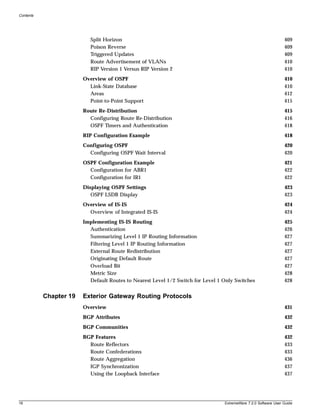


ExtremeWare 7.2.0 Software User Guide                                                                                   259
Security


A Windows XP 802.1x supplicant can be authenticated as a computer or as a user. Computer
authentication requires a certificate installed in the computer certificate store, and user authentication
requires a certificate installed in the individual user's certificate store.

By default, the XP machine performs computer authentication as soon as the computer is powered on,
or at link-up when no user is logged into the machine. User authentication is performed at link-up
when the user is logged in.

The XP machine can be configured to perform computer authentication at link-up even if the user is
logged in.

Any client with a web browser can interoperate using web-based authentication.


Authentication Server Side
The RADIUS server used for authentication has to be EAP-capable. Consider the following when
choosing a RADIUS server:

• The types of authentication methods supported on RADIUS, as mentioned above.
• Need to support both EAP and traditional Username-Password authentication. These are used by
  Network Login and switch console login respectively.
• Need to support Vendor Specific Attributes (VSA). Some important parameters such as
  Extreme-Netlogin-Vlan (destination vlan for port movement after authentication) and
  Extreme-NetLogin-only (authorization for network login only) are brought back as VSAs.
      Table 35 and Table 36 show VSA definitions for both web-based network login and 802.1x network
      login.


Table 35: VSA definitions for web-based network login
 VSA                Attribute Value   Type      Sent-in         Description
 Extreme-Netlogin   203               String    Access-Accept   Name of destination VLAN (must already exist
 -Vlan                                                          on switch) after successful authentication.
 Extreme-Netlogin   204               String    Access-Accept   Destination web page after successful
 -Url                                                           authentication.
 Extreme-Netlogin   205               String    Access-Accept   Text description of network login URL attribute.
 -Url-Desc
 Extreme-Netlogin   206               Integer   Access-Accept   Determines if user can authenticate via other
 -Only                                                          means, such as telnet, console, SSH, or Vista.
                                                                A value of “1” (enabled) indicates that the user
                                                                can only authenticate via network login. A
                                                                value of zero (disabled) indicates that the user
                                                                can also authenticate via other methods.


Table 36: VSA definitions for 802.1x network login
 VSA                Attribute Value   Type      Sent-in         Description
 Extreme-Netlogin   203               String    Access-Accept   Name of destination VLAN (must already exist
 -Vlan                                                          on switch) after successful authentication.


260                                                                                            ExtremeWare 7.2.0 Software User Guide
Network Login


                       NOTE
               The Extreme Networks vendor ID is 1916.


               Multiple Supplicant Support
               An important enhancement over the IEEE 802.1x standard, is that ExtremeWare supports multiple
               clients (supplicants) to be individually authenticated on the same port. This feature makes it possible for
               two client stations to be connected to the same port, with one being authenticated and the other not. A
               port's authentication state is the logical “OR” of the individual MAC's authentication states. In other
               words, a port is authenticated if any of its connected clients is authenticated. Multiple clients can be
               connected to a single port of authentication server through a hub or layer-2 switch.

               Multiple supplicants are supported in ISP mode for both web-based and 802.1x authentication. Multiple
               supplicants are not supported in Campus mode. Versions of ExtremeWare previous to version 7.1.0 did
               not support multiple supplicants.

               The choice of web-based versus 802.1x authentication is again on a per-MAC basis. Among multiple
               clients on the same port, it is possible that some clients use web-based mode to authenticate, and some
               others use 802.1x.

               There are certain restrictions for multiple supplicant support:

               • Web-based mode will not support Campus mode for multiple supplicant because once the first MAC
                 gets authenticated, the port is moved to a different VLAN and therefore other unauthenticated
                 clients (which are still in the original VLAN), cannot have layer 3 message transactions with the
                 authentication server.
               • Once the first MAC is authenticated, the port is transitioned to the authenticated state and other
                 unauthenticated MACs can listen to all data destined for the first MAC. This could raise some
                 security concerns as unauthenticated MACs can listen to all broadcast and multicast traffic directed
                 to a Network Login-authenticated port.


               Exclusions and Limitations
               The following are limitations and exclusions for Network Login:
               • All unauthenticated MACs will be seeing broadcasts and multicasts sent to the port if even a single
                 MAC is authenticated on that port.
               • Network Login must be disabled on a port before that port can be deleted from a VLAN.
               • In Campus mode, once the port moves to the destination VLAN, the original VLAN for that port is
                 not displayed.
               • A Network Login VLAN port should be an untagged Ethernet port and should not be a part of
                 following protocols:
                   — ESRP
                   — STP
                   — VLAN Aggregation
                   — VLAN Translation
               • Network Login is not supported for T1, E1, T3, ATM, PoS and MPLS TLS interfaces.
               • No Hitless Failover support has been added for Network Login.


ExtremeWare 7.2.0 Software User Guide                                                                                    261
Security


• Rate-limiting is not supported on Network Login ports (both web-based and 802.1x).
• Network Login and MAC-limits cannot be used together on the same switch (see “MAC Address
  Security” on page 253).
• EAP-NAK cannot be used to negotiate 802.1x authentication types.


Configuring Network Login
The following configuration example demonstrates how users can initially log in using web-based
authentication, allowing them limited access to the network in order to download the 802.1x client and
a certificate. After the client is configured, the user is then able to access the network by using 802.1x.
The example illustrates the following configuration steps:
1 Create a VLAN on all edge switches called “temp,” which is the initial VLAN to which users will
  connect before they are authenticated.
2 Create a VLAN on all edge and core switches called “guest,” which is the VLAN from which users
  will access the Certificate Authority and be able to download the 802.1x software.

The following example demonstrates the first network login configuration step for a Summit 48si edge
switch:

create vlan temp
configure temp ipaddress 192.168.1.1/24
configure temp add port 1-48
configure vlan temp dhcp-address-range 192.168.1.11 - 192.168.1.200
configure vlan temp dhcp-options default-gateway 192.168.1.1
enable netlogin port 1-48 vlan temp
enable dhcp ports 1-48 vlan temp

Note that the 192.168 IP address range can be used on all switches because the user is on the VLAN
only long enough to log in to the network. After the login is complete, the user is switched to a
permanent VLAN with a real IP address delivered from a real DHCP server.

The following example demonstrates the second network login configuration step for a Summit 48si
edge switch, in which the guest VLAN is created:

create vlan guest
configure guest ipa 45.100.1.101/16
configure guest tag 100
configure guest add port 49-50 tagged
enable bootp relay
configure bootp relay add 45.100.2.101

These commands create the special VLAN called “guest” on the real area of the network. Special
configuration is needed on the RADIUS server to place users on to the appropriate VLAN when they
log in as guests. By using network login in this way, the user goes from unauthenticated to a guest
authentication with limited access to resources.

Note that the 45.100.x.x VLAN does not need to be able to route. Extra authentication can be enabled on
the Certificate Authority server to more firmly verify the identity of users. The 45.100.x.x VLAN will
have the Certificate Authority located on it as well as an HTTP/FTP server to allow the user to
download the needed files.

Once the user has installed the certificate from the Certificate Authority and downloaded the 802.1x
client, the user can reconnect to the network using 802.1x without the need to authenticate via a web


262                                                                                        ExtremeWare 7.2.0 Software User Guide
Network Login


               browser. The authentication is handled using PEAP and certificates. The user will be placed in the
               VLAN that is appropriate for that user’s group.


               Web-Based Authentication User Login Using Campus Mode
               When web-based authentication is used in Campus mode, the user will follow these steps:
               1 Set up the Windows IP configuration for DHCP.
               2 Plug into the port that has network login enabled.
               3 Log in to Windows.
               4 Release any old IP settings and renew the DHCP lease.
                   This is done differently depending on the version of Windows the user is running:
                   — Windows 9x—use the winipcfg tool. Choose the Ethernet adapter that is connected to the port
                     on which network login is enabled. Use the buttons to release the IP configuration and renew the
                     DHCP lease.
                   — Windows NT/2000—use the ipconfig command line utility. Use the command
                     ipconfig/release to release the IP configuration and ipconfig/renew to get the temporary IP
                     address from the switch. If you have more than one Ethernet adapter, specify the adapter by
                     using a number for the adapter following the ipconfig command. You can find the adapter
                     number using the command ipconfig/all.

               At this point, the client will have its temporary IP address. In this example, the client should have
               obtained the an IP address in the range 198.162.32.20 - 198.162.32.80.


                       NOTE
               The idea of explicit release/renew is required to bring the network login client machine in the same
               subnet as the connected VLAN. In Campus Mode using web-based authentication, this requirement is
               mandatory after every logout and before login again as the port moves back and forth between the
               temporary and permanent VLANs. On other hand in ISP Mode, release/renew of IP address is not
               required, as the network login client machine stays in the same subnet as the network login VLAN. In
               ISP mode, when the network login client connects for the first time, it has to make sure that the
               machine IP address is in the same subnet as the VLAN to which it is connected.

               5 Bring up the browser and enter any URL as http://www.123.net or http://1.2.3.4 or switch IP
                 address as http://<IP address>/login (where IP address could be either temporary or Permanent
                 VLAN Interface for Campus Mode). URL redirection redirects any URL and IP address to the
                 network login page This is significant where security matters most, as no knowledge of VLAN
                 interfaces is required to be provided to network login users, as they can login using a URL or IP
                 address.
                   A page opens with a link for Network Login.
               6 Click the Network Login link.
                   A dialog box opens requesting a username and password.
               7 Enter the username and password configured on the RADIUS server.
                   After the user has successfully logged in, the user will be redirected to the URL configured on the
                   RADIUS server.

               During the user login process, the following takes place:


ExtremeWare 7.2.0 Software User Guide                                                                                    263
Security


• Authentication is done through the RADIUS server.
• After successful authentication, the connection information configured on the RADIUS server is
  returned to the switch:
      — the permanent VLAN
      — the URL to be redirected to (optional)
      — the URL description (optional)
• The port is moved to the permanent VLAN.
      You can verify this using the show vlan command. For more information on the show vlan
      command, see “Displaying VLAN Settings” on page 126.

After a successful login has been achieved, there are several ways that a port can return to a
non-authenticated, non-forwarding state:

• The user successfully logs out using the logout web browser window.
• The link from the user to the switch’s port is lost.
• There is no activity on the port for 20 minutes.
• An administrator changes the port state.


           NOTE
Because network login is sensitive to state changes during the authentication process, Extreme
Networks recommends that you do not log out until the login process is complete. The login process is
complete when you receive a permanent address.


DHCP Server on the Switch
A DHCP server with limited configuration capabilities is included in the switch to provide IP addresses
to clients. The DHCP server is not supported as a standalone feature. It is used only as part of the
Network Login feature.

DHCP is enabled on a per port, per VLAN basis. To enable or disable DHCP on a port in a VLAN, use
one of the following commands:

enable dhcp ports <portlist> vlan <vlan name>
disable dhcp ports <portlist> vlan <vlan name>
configure vlan <vlan name> netlogin-lease-timer <seconds>

The switch responds to DHCP requests for unauthenticated clients when DHCP parameters such as
dhcp-address-range and dhcp-options are configured on the network login VLAN. The switch can
also answer DHCP requests after authentication if DHCP is enabled on the specified port. If you want
network login clients to obtain DHCP leases from an external DHCP server elsewhere on the network,
then do not enable DHCP on the switch ports.


Displaying DHCP Information
To display the DHCP configuration, including the DHCP range, DHCP lease timer, network login lease
timer, DHCP-enabled ports, IP address, MAC address, and time assigned to each end device, use the
following command:
show vlan <vlan name> dhcp-address-allocation


264                                                                                      ExtremeWare 7.2.0 Software User Guide
Network Login


               Displaying Network Login Settings
               To display the network login settings, use the following command:

               show netlogin {port <portlist> vlan <vlan name>}


               Disabling Network Login
               Network login must be disabled on a port before you can delete a VLAN that contains that port. To
               disable network login, use the following command:
               disable netlogin ports <portlist> vlan <vlan name>


               Additional Configuration Details
               This section discusses additional configuration like switch DNS name, default redirect page, session
               refresh and logout-privilege. URL redirection requires the switch to be assigned a DNS name. The
               default name is network-access.net. Any DNS query coming to the switch to resolve switch DNS
               name in unauthenticated mode is resolved by the DNS server on the switch in terms of the interface (to
               which the network login port is connected) IP-address.

               To configure the network login base URL, use the following command:
               configure netlogin base-url <url>

               Where <url> is the DNS name of the switch. For example, configure netlogin base-url
               network-access.net makes the switch send DNS responses back to the netlogin clients when a DNS
               query is made for network-access.net.

               To configure the network login redirect page, use the following command:
               configure netlogin redirect-page <url>

               Where <url> defines the redirection information for the users once logged in. This redirection
               information is used only in case the redirection info is missing from RADIUS server. For example,
               configure netlogin base-url http://www.extremenetworks.com redirects all users to this URL
               after they get logged in.

               To enable or disable the network login session refresh, use one of the following commands:
               enable netlogin session-refresh {<minutes>}
               disable netlogin session-refresh

               Where <minutes> ranges from 1 - 255. The default setting is 3 minutes. enable netlogin
               session-refresh {<minutes>} makes the logout window refresh itself at every configured time
               interval. Session -refresh is disabled by default. When you configure the Network Login session
               refresh for the logout window on a BlackDiamond, ensure that the FDB aging timer is greater than the
               Network Login session refresh timer.

               To enable or disable network login logout privilege, use one of the following commands:
               enable netlogin logout-privilege
               disable netlogin logout-privilege

               This command turns the privilege for netlogin users to logout by popping up (or not popping up) the
               logout window. Logout-privilege is enabled by default.

               To enable or disable network login, use one of the following commands:


ExtremeWare 7.2.0 Software User Guide                                                                                265
Security


enable netlogin [web-based | dot1x]
disable netlogin [web-based |dot1x]

By default netlogin is enabled.

To show all network login parameters, use the following command:
show netlogin


Switch Protection
Switch protection features enhance the robustness of switch performance. In this category are the
following features:
• Routing Access Profiles
• Route Maps
• Denial of Service Protection


Routing Access Profiles
Routing access profiles are used to control the advertisement or recognition of routing protocols, such as
RIP, OSPF, IS-IS, or BGP. Routing access profiles can be used to ‘hide’ entire networks, or to trust only
specific sources for routes or ranges of routes. The capabilities of routing access profiles are specific to
the type of routing protocol involved, but are sometimes more efficient and easier to implement than
access lists.


Using Routing Access Profiles
To use routing access profiles, you must perform the following steps:
1 Create an access profile.
2 Configure the access profile to be of type permit, deny, or none.
3 Add entries to the access profile. Entries can be one of the following types:
      — IP addresses and subnet masks
      — IPX node, IPX RIP, and IPX SAP
      — Autonomous system path expressions (as-paths) (BGP only)
      — BGP communities (BGP only)
      — VLAN
4 Apply the access profile.


Creating an Access Profile
The first thing to do when using routing access profiles is to create an access profile. An access profile has
a unique name and contains one of the following entry types:
• A list of IP addresses and associated subnet masks


266                                                                                          ExtremeWare 7.2.0 Software User Guide
Using Routing Access Profiles


               • A list of IPX NetIDs
               • A list of IPX node addresses
               • A list of IPX SAP advertisements
               • One or more autonomous system path expressions (BGP only)
               • One or more BGP community numbers (BGP only)
               • A VLAN

               You must give the access profile a unique name (in the same manner as naming a VLAN, protocol filter,
               or Spanning Tree Domain). To create an access profile, use the following command:

               create access-profile <access profile> type [ipaddress | ipx-node | ipx-net | ipx-sap
               | as-path | bgp-community | vlan]


               Configuring an Access Profile Mode
               After the access profile is created, you must configure the access profile mode. The access profile mode
               determines whether the items in the list are to be permitted access or denied access.

               Three modes are available:

               • Permit—The permit access profile mode permits the operation, as long as it matches any entry in the
                 access profile. If the operation does not match any entries in the list, the operation is denied.
               • Deny—The deny access profile mode denies the operation, as long as it matches any entry in the
                 access profile. If it does not match all specified entries in the list, the operation is permitted.
               • None—Using the none mode, the access profile can contain a combination of permit and deny
                 entries. Each entry must have a permit or deny attribute. The operation is compared with each entry
                 in the list. Once a match is found, the operation is either permitted or denied, depending on the
                 configuration of the matched entry. If no match is found, the operation is implicitly denied.

               To configure the access profile mode, use the following command:

               configure access-profile <access profile> mode [permit | deny | none]


               Adding an Access Profile Entry
               Next, configure the access profile, using the following command:

               configure access-profile <access profile> add {<seq_number>} {permit | deny}
               [ipaddress <ip address> <mask> {exact} | as-path <path-expression> | bgp-community
               [internet | no-export | no-advertise | no-export-subconfed | <as_no:number> | number
               <community>] | ipxnet <netid> <netid mask> | ipxsap <sap_type> <service_name> | vlan]

               The following sections describe the configure access-profile add command.


               Specifying Subnet Masks
               The subnet mask specified in the access profile command is interpreted as a reverse mask. A reverse
               mask indicates the bits that are significant in the IP address. In other words, a reverse mask specifies the
               part of the address that must match the IP address to which the profile is applied.


ExtremeWare 7.2.0 Software User Guide                                                                                         267
Security


If you configure an IP address that is an exact match that is specifically denied or permitted, use a mask
of /32 (for example, 141.251.24.28/32). If the IP address represents all addresses in a subnet address that
you want to deny or permit, then configure the mask to cover only the subnet portion (for example,
141.251.10.0/24). The keyword exact can be used when you wish to match only against the subnet
address, and ignore all addresses within the subnet.

If you are using off-byte boundary subnet masking, the same logic applies, but the configuration is
more tricky. For example, the network address 141.251.24.128/27 represents any host from subnet
141.251.24.128.


Sequence Numbering
You can specify the sequence number for each access profile entry. If you do not specify a sequence
number, entries are sequenced in the order they are added. Each entry is assigned a value of 5 more
than the sequence number of the last entry.


Permit and Deny Entries
If you have configured the access profile mode to be none, you must specify each entry type as either
‘permit’ or ‘deny’. If you do not specify the entry type, it is added as a permit entry. If you have
configured the access profile mode to be permit or deny, it is not necessary to specify a type for each
entry.


IPX Access Profiles
IPX routing access profiles consist of access rules and are used to perform packet filtering and
forwarding decisions on incoming traffic. Each IPX RIP or SAP packet arriving on an ingress port is
compared to each access profile rule in sequential order and is either forwarded or dropped.


Autonomous System Expressions
The AS-path keyword uses a regular expression string to match against the AS path. Regular expression
notation can include any of the characters listed in Table 37.


Table 37: Regular Expression Notation

Character         Definition
N                 As number
N1 - N2           Range of AS numbers, where N1 and N2 are AS numbers and N1 < N2
[Nx ... Ny]       Group of AS numbers, where Nx and N y are AS numbers or a range of AS numbers
[^Nx ... Ny]      Any AS numbers other than the ones in the group
.                 Matches any number
^                 Matches the beginning of the AS path
$                 Matches the end of the AS path
–                 Matches the beginning or end, or a space
-                 Separates the beginning and end of a range of numbers
*                 Matches 0 or more instances
+                 Matches 1 or more instances
?                 Matches 0 or 1 instance
{                 Start of AS SET segment in the AS path


268                                                                                       ExtremeWare 7.2.0 Software User Guide
Using Routing Access Profiles


               Table 37: Regular Expression Notation (Continued)

               Character                Definition
               }                        End of AS SET segment in the AS path
               (                        Start of a confederation segment in the AS path
               )                        End of a confederation segment in the AS path


               Autonomous System Expression Example
               The following example uses combinations of the autonomous system expressions to create a
               complicated access profile:
               create access-profile AS1 type as-path
               configure access-profile AS1 mode none

               These commands create the access profile.

               configure access-profile AS1 add 5 permit as-path “^65535$”

               This command configures the access profile to permit AS paths that contain only (begin and end with)
               AS number 65535.

               configure access-profile AS1 add 10 permit as-path “^65535 14490$”

               This command configures the access profile to permit AS paths beginning with AS number 65535,
               ending with AS number 14490, and containing no other AS paths.

               configure access-profile AS1 add 15 permit as-path “^1 2-8 [11 13 15]$”

               This command configures the access profile to permit AS paths beginning with AS number 1, followed
               by any AS number from 2 - 8, and ending with either AS number 11, 13, or 15.

               configure access-profile AS1 add 20 deny as-path “111 [2-8]”

               This command configures the access profile to deny AS paths beginning with AS number 111 and
               ending with any AS number from 2 - 8.

               configure access-profile AS1 add 25 permit as-path “111 .?”

               This command configures the access profile to permit AS paths beginning with AS number 111 and
               ending with any additional AS number, or beginning and ending with AS number 111.


               Deleting an Access Profile Entry
               To delete an access profile entry, use the following command:
               configure access-profile <access profile> delete <seq_number>


               Applying Access Profiles
               Once the access profile is defined, apply it to one or more routing protocols or VLANs. When an access
               profile is applied to a protocol function (for example, the export of RIP routes) or a VLAN, this forms an
               access policy. A profile can be used by multiple routing protocol functions or VLANs, but a protocol
               function or VLAN can use only one access profile.


ExtremeWare 7.2.0 Software User Guide                                                                                       269
Security


Routing Profiles for RIP
If you are using the RIP protocol, the switch can be configured to use an access profile to determine:

• Trusted Neighbor—Use an access profile to determine trusted RIP router neighbors for the VLAN
  on the switch running RIP. To configure a trusted neighbor policy, use the following command:
      configure rip vlan [<vlan name> | all] trusted-gateway [<access profile> | none]
• Import Filter—Use an access profile to determine which RIP routes are accepted as valid routes. This
  policy can be combined with the trusted neighbor policy to accept selected routes only from a set of
  trusted neighbors. To configure an import filter policy, use the following command:
      configure rip vlan [<vlan name> | all] import-filter [<access profile> | none]
• Export Filter—Use an access profile to determine which RIP routes are advertised into a particular
  VLAN, using the following command:
      configure rip vlan [<vlan name> | all] export-filter [<access profile> | none]


Examples
In the example shown in Figure 35, a switch is configured with two VLANs, Engsvrs and Backbone. The
RIP protocol is used to communicate with other routers on the network. The administrator wants to
allow all internal access to the VLANs on the switch, but no access to the router that connects to the
Internet. The remote router that connects to the Internet has a local interface connected to the corporate
backbone. The IP address of the local interface connected to the corporate backbone is 10.0.0.10/24.

Figure 35: RIP access policy example


                                                    Internet


                                  Internet


                                 10.0.0.10 / 24


                                                  Backbone (RIP)


                      10.0.0.11 / 24                              10.0.0.12 / 24
 Switch being           Engsvrs                                Sales
  configured
                 10.1.1.1 / 24                                    10.2.1.1 / 24


                             Engsvrs                      Sales
                                                                              EW_001


270                                                                                      ExtremeWare 7.2.0 Software User Guide
Using Routing Access Profiles


               Assuming the backbone VLAN interconnects all the routers in the company (and, therefore, the Internet
               router does not have the best routes for other local subnets), the commands to build the access policy
               for the switch would be:

               create access-profile nointernet ipaddress
               configure access-profile nointernet mode deny
               configure access-profile nointernet add 10.0.0.10/32
               configure rip vlan backbone trusted-gateway nointernet

               In addition, if the administrator wants to restrict any user belonging to the VLAN Engsvrs from
               reaching the VLAN Sales (IP address 10.2.1.0/24), the additional access policy commands to build the
               access policy would be:

               create access-profile nosales ipaddress
               configure access-profile nosales mode deny
               configure access-profile nosales add 10.2.1.0/24
               configure rip vlan backbone import-filter nosales

               This configuration results in the switch having no route back to the VLAN Sales.


               Routing Access Profiles for IPX
               If you are using the IPX protocol, the switch can be configured to use an access profile to determine:

               • Import Filter—Use an access profile to determine which IPX/RIP or IPX/SAP routes are accepted as
                 valid routes. To configure an import filter policy, use the following command:
                   configure ipxrip vlan [<vlan name> | all] import-filter [none | <access_profile>]
                   configure ipxsap vlan [<vlan name> | all] import-filter [none | access_profile]]
               • Export Filter—Use an access profile to determine which IPX/RIP and IPX/SAP routes are advertised
                 into a particular VLAN, using the following command:
                   configure ipxrip vlan [<vlan name> | all] export-filter [none | <access_profile>]
                   configure ipxsap vlan [<vlan name> | all] export-filter [none | access_profile]


               Routing Access Profiles for OSPF
               Because OSPF is a link-state protocol, the access profiles associated with OSPF are different in nature
               than those associated with RIP. Access profiles for OSPF are intended to extend the existing filtering and
               security capabilities of OSPF (for example, link authentication and the use of IP address ranges). If you
               are using the OSPF protocol, the switch can be configured to use an access profile to determine any of
               the following:

               • Inter-area Filter—For switches configured to support multiple OSPF areas (an ABR function), an
                 access profile can be applied to an OSPF area that filters a set of OSPF inter-area routes from being
                 sourced from any other areas. To configure an inter-area filter policy, use the following command:
                   configure ospf area <area identifier> interarea-filter [<access profile> | none]
               • External Filter—For switches configured to support multiple OSPF areas (an ABR function), an
                 access profile can be applied to an OSPF area that filters a set of OSPF external routes from being
                 advertised into that area. To configure an external filter policy, use the following command:
                   configure ospf area <area identifier> external-filter [<access profile> |none]


ExtremeWare 7.2.0 Software User Guide                                                                                       271
Security


           NOTE
If any of the external routes specified in the filter have already been advertised, those routes will remain
until the associated LSAs in that area time-out.

• ASBR Filter—For switches configured to support RIP and static route re-distribution into OSPF, an
  access profile can be used to limit the routes that are advertised into OSPF for the switch as a whole.
  To configure an ASBR filter policy, use the following command:
      configure ospf asbr-filter [<access profile> | none]
• Direct Filter—For switches configured to support direct route re-distribution into OSPF, an access
  profile can be used to limit the routes that are advertised into OSPF for the switch as a whole. To
  configure a direct filter policy, use the following command:
      configure ospf direct-filter [<access profile> | none]


272                                                                                        ExtremeWare 7.2.0 Software User Guide
Using Routing Access Profiles


               Example
               Figure 36 illustrates an OSPF network that is similar to the network used previously in the RIP example.
               In this example, access to the Internet is accomplished by using the ASBR function on the switch labeled
               Internet. As a result, all routes to the Internet will be done through external routes. Suppose the
               network administrator wishes to only allow access to certain internet addresses falling within the range
               192.1.1.0/24 to the internal backbone.

               Figure 36: OSPF access policy example


                                                                Internet


                 Switch being                 Internet
                  configured
                                             10.0.0.10 / 24


                                                              Backbone (OSPF)
                                                                area 0.0.0.0


                                   10.0.0.11 / 24                           10.0.0.12 / 24
                                        Engsvrs                            Sales

                             10.1.1.1 / 24                                   10.2.1.1 / 24

                                           Engsvrs                    Sales
                                         area 0.0.0.1              area 0.0.0.2
                                                                                        EW_002


               To configure the switch labeled Internet, the commands would be as follows:

               create access-profile okinternet ipaddress
               configure access-profile okinternet mode permit
               configure access-profile okinternet add 192.1.1.0/24
               configure ospf asbr-filter okinternet


               Routing Access Profiles for DVMRP
               The access policy capabilities for DVMRP are very similar to those for RIP. If you are using the DVMRP
               protocol is used for routing IP multicast traffic, you can configure the switch to use an access profile to
               determine:

               • Trusted Neighbor—Use an access profile to determine trusted DVMRP router neighbors for the
                 VLAN on the switch running DVMRP. To configure a trusted neighbor policy, use the following
                 command:
                   configure dvmrp vlan [<vlan name> | all] trusted-gateway [<access profile> |
                   none]


ExtremeWare 7.2.0 Software User Guide                                                                                        273
Security


• Import Filter—Use an access profile to determine which DVMRP routes are accepted as valid routes.
  To configure an import filter policy, use the following command:
      configure dvmrp vlan [<vlan name> | all] import-filter [<access profile> | none]
• Export Filter—Use an access profile to determine which DVMRP routes are advertised into a
  particular VLAN, using the following command:
      configure dvmrp vlan [<vlan name> | all] export-filter [<access profile> | none]


Example
In this example, the network used in the previous RIP example is configured to run DVMRP. The
network administrator wants to disallow Internet access for multicast traffic to users on the VLAN
Engsvrs. This is accomplished by preventing the learning of routes that originate from the switch labeled
Internet by way of DVMRP on the switch labeled Engsvrs.

To configure the switch labeled Engsvrs, use the following commands:

create access-profile nointernet ipaddress
configure access-profile nointernet mode deny
configure access-profile nointernet add 10.0.0.10/32
configure dvmrp vlan backbone trusted-gateway nointernet

In addition, suppose the administrator wants to preclude users on the VLAN Engsvrs from seeing any
multicast streams that are generated by the VLAN Sales across the backbone. The additional
configuration of the switch labeled Engsvrs is as follows:

create access-profile nosales ipaddress
configure access-profile nosales mode deny
configure access-profile nosales add 10.2.1.0/24
configure dvmrp vlan backbone import-filter nosales


Routing Access Profiles for PIM
Because PIM leverages the unicast routing capability that is already present in the switch, the access
policy capabilities are, by nature, different. If you are using the PIM protocol for routing IP multicast
traffic, you can configure the switch to use an access profile to determine:

• Trusted Neighbor—Use an access profile to determine trusted PIM router neighbors for the VLAN
  on the switch running PIM. To configure a trusted neighbor policy, use the following command:
      configure pim vlan [<vlan name> | all] trusted-gateway [<access profile> | none]


Example
Using PIM, the unicast access profiles can be used to restrict multicast traffic. In this example, a network
similar to the example used in the previous RIP example is also running PIM. The network
administrator wants to disallow Internet access for multicast traffic to users on the VLAN Engsvrs. This
is accomplished by preventing the learning of routes that originate from the switch labeled Internet by
way of PIM on the switch labeled Engsvrs.


274                                                                                        ExtremeWare 7.2.0 Software User Guide
Making Changes to a Routing Access Policy


               To configure the switch labeled Engsvrs, the commands would be as follows:

               create access-profile nointernet ipaddress
               configure access-profile nointernet mode deny
               configure access-profile nointernet add 10.0.0.10/32
               configure pim vlan backbone trusted-gateway nointernet


               Routing Access Profiles for BGP
               If the BGP protocol is being used, the switch can be configured to use an access profile to determine:

               • NLRI filter—Use an access profile to determine the NLRI information that must be exchanged with
                 a neighbor. To configure an NLRI filter policy, use the following command:
                   configure bgp neighbor [<ipaddress> | all] nlri-filter [in | out]
                   [<access_profile> | none]
                   The NLRI filter access policy can be applied to the ingress or egress updates, using the in and out
                   keywords, respectively.
               • Autonomous system path filter—Use an access profile to determine which NLRI information must
                 be exchanged with a neighbor based on the AS path information present in the path attributes of the
                 NLRI. To configure an autonomous system path filter policy, use the following command:
                   configure bgp neighbor [<ipaddress> | all] as-path-filter [in | out]
                   [<access_profile> | none]
                   The autonomous system path filter can be applied to the ingress or egress updates, using the in and
                   out keywords, respectively.


               Making Changes to a Routing Access Policy
               You can change the routing access policy by changing the associated access profile. However, the
               propagation of the change depends on the protocol and policy involved. Propagation of changes
               applied to RIP, DVMRP, and PIM access profiles depend on the respective protocol timers to age-out
               entries.

               In BGP, the change to the policy is immediately effective on the routing information exchanged after the
               policy changes. The changes can be applied on the routing information that had been exchanged before
               the policy changes by issuing a soft reset on the ingress or egress side, depending on the change. For
               soft resets to be applied on the ingress side, the changes must have been previously enabled on the
               neighbor.


                       NOTE
               Changes to profiles applied to OSPF typically require rebooting the switch, or disabling and re-enabling
               OSPF on the switch.


ExtremeWare 7.2.0 Software User Guide                                                                                         275
Security


Removing a Routing Access Policy
To remove a routing access policy, you must remove the access profile from the routing protocol or
VLAN. All the commands that apply an access profile to form an access policy also have the option of
choosing none as the access profile. Using the none option removes any access profile of that particular
type from the protocol or VLAN, and, therefore, removes the access policy.


Route Maps
Route maps are used to modify or filter routes. They are also used to modify or filter routing
information.


Using Route Maps
Route maps are a mechanism that can be used to conditionally control the redistribution of routes
between two routing domains, and to modify the routing information that is redistributed.

Route maps are used in conjunction with the match and set operations. A match operation specifies a
criteria that must be matched. A set operation specifies a change that is made to the route when the
match operation is successful.

To create a route map, follow these steps:

1 Create a route map.
2 Add entries to the route map.
3 Add statements to the route map entries.


Creating a Route Map
To create a route map, use the following command:

create route-map <name>


Add Entries to the Route Map
To add entries to the route map, use the following command:

configure route-map <route-map> add <seq_number> [permit | deny] {match-one |
match-all} {set lpm-routing | set iphost-routing}

where the following is true:

• The sequence number uniquely identifies the entry, and determines the position of the entry in the
  route map. Route maps are evaluated sequentially.
• The permit keyword permits the route; the deny keyword denies the route and is applied only if the
  entry is successful.
• The match-one keyword is a logical “or”. The route map is successful as long as at least one of the
  matching statements is true.


276                                                                                     ExtremeWare 7.2.0 Software User Guide
Using Route Maps


               • The match-all keyword is a logical “and”. The route map is successful when all match statements
                 are true. This is the default setting.


               Add Statements to the Route Map Entries
               To add statements to the route map entries, use one of the following four commands:

               configure route-map <route-map> <seq_number> add match [nlri-list <access profile> |
               as-path [access-profile <access profile> | <as_number>] | community [access-profile
               <access profile> | <as_number>:<number> | number <community> | no-advertise |
               no-export | no-export-subconfed] | next-hop <ip address> | med <number> | tag <number>
               | origin [igp | egp | incomplete]]]

               configure route-map <route-map> <seq_number> add set [as-path <as_number> | community
               [[access-profile <access-profile> | <as_number>:<number> | number <community> |
               no-advertise | no-export | no-export-subconfed] | remove | [add | delete]
               [access-profile <access-profile> | <as no> : <number> | number <community> |
               no-advertise | no-export | no-export-subconfed]] | next-hop <ip address> | med
               [internal | <med_number> | remove | [add | delete] <med_number>] local-preference
               <number> | weight <number> | origin [igp | egp | incomplete] | tag <tag_number> |
               accounting index <index_number> value <value_number> | cost <number> | cost-type
               [ase-type-1 | ase-type-2]]]

               configure route-map <route_map> <seq_number> add goto <new_route_map>

               configure route-map <route-map> add <seq_number> [permit | deny] {match-one |
               match-all} {set lpm-routing | set iphost-routing}

               where the following is true:

               • The route-map is the name of the route map.
               • The sequence number identifies the entry in the route map to which this statement is being added.
               • The match, set, and goto keywords specify the operations to be performed. Within a entry, the
                 statements are sequenced in the order of their operation. The match statements are first, followed by
                 set, and then goto.
               • The nlri-list, as-path, community, next-hop, med, origin, and weight keywords specify the type
                 of values that must be applied using the specified operation against the corresponding attributes as
                 described in Table 38 and Table 39.
               • The accounting-index keyword specifies the bin number assigned to a specific route map as
                 discussed in Table 40.


               Table 38: Match Operation Keywords

               Keyword                                Description
               nlri-list <access_profile>             Matches the NLRI against the specified access profile.
               as-path [<access_profile> | <as-no>]   Matches the AS path in the path attributes against the specified access
                                                      profile or AS number.
               community [access-profile             Matches the communities in the path attribute against the specified BGP
               <access-profile> | <as no>: <number> community access profile or the community number.
               | number <community> | no-advertise |
               no-export | no-export-subconfed]


ExtremeWare 7.2.0 Software User Guide                                                                                           277
Security


Table 38: Match Operation Keywords (Continued)

Keyword                                Description
next-hop <ipaddress>                   Matches the next hop in the path attribute against the specified IP
                                       address.
med <number>                           Matches the MED in the path attribute against the specified MED number.
origin [igp | egp | incomplete]        Matches the origin in the path attribute against the specified origin.
tag <number>                           Matches the tag associated with the redistributed OSPF route.


Table 39: Set Operation Keywords

Keyword                                Definition
as-path <as no>                        Prepends the specified AS number to the AS path in the path attribute.
community [[access-profile              Adds the specified community to the existing community in the path
<access-profile> | <as no>: <number> attribute.
| number <community> | no-advertise |
no-export | no-export-subconfed] |
remove | [add | delete] [access-profile
<access-profile> | <as no>: <number>
| number <community> | no-advertise |
no-export | no-export-subconfed]]
next-hop <ipaddress>                   Sets the next hop in the path attribute to the specified IP address.
med [internal | <number> | remove |    Modifies the MED in the path attribute as specified:
[add | delete] <number>]
                                       •   internal—When used in the BGP neighbor output route map, the
                                           MED attribute is set to a value equal to the metric to reach the
                                           nexthop.
                                       •   <number>—Sets the MED attribute to the specified value.
                                       •   remove—Removes the MED attribute, if present.
                                       •   [add | delete] <number>—Adds or deletes the specified value to or
                                           from the MED that is received. The final result is bound by 0 and
                                           2147483647.
local-preference <number>              Sets the local preference in the path attribute to the specified local
                                       preference number.
weight <number>                        Sets the weight associated with the NLRI to the specified number.
origin [igp | egp | incomplete]        Sets the origin in the path attributes to the specified origin.
tag <number>                           Sets the tag in the route to the specified number.
cost <number>                          Sets the cost of the route to the specified number
cost-type <number>                     Sets the type of the cost associated with the route.
accounting index [ase-type-1 |         Sets the specified accounting index to the specified number.
ase-type-2]


Table 40: Set Operation Keywords

Command                                 Description of Change
accounting-index <index> value          Sets the accounting bin number for the route-mapped accounting index.
<value>                                 The accounting index value is always set to 1 for Destination Sensitive
                                        Accounting.


278                                                                                                 ExtremeWare 7.2.0 Software User Guide
Using Route Maps


               Route Map Operation
               The entries in the route map are processed in the ascending order of the sequence number. Within the
               entry, the match statements are processed first. When the match operation is successful, the set and goto
               statements within the entry are processed, and the action associated with the entry is either applied, or
               else the next entry is processed. If the end of the route map is reached, it is implicitly denied.

               When there are multiple match statement, the primitive match-one or match-all in the entry determines
               how many matches are required for success. When there are no match statements in an entry, the entry
               is considered a successful match.


               Route Map Example
               Figure 37 shows a topology in which route maps are used to filter or modify routing information that is
               exchanged between the neighbors RTA and RTB using BGP.

               Figure 37: Route maps


                                                               AS 1111


                             Internet

                                                                                 RTA
                                                                     10.0.0.1


                                                                     10.0.0.2


                                                                                 RTB

                                                               AS 2222
                                                                                             EW_048


               The following points apply to this example:

               • RTA is a member of in AS 1111 and peers with a router in the Internet to receive the entire Internet
                 routing table.
               • RTB is a member of AS 2222, and has an EBGP connection with RTA through which it receives the
                 Internet routing table.
               • AS 1111 is acting as a transit AS for all traffic between AS 2222 and the Internet. If the administrator
                 of AS 1111 wants to filter out route information about network 221.1.1.0/24 and it’s subnets from
                 being passed on to AS 2222, the administrator can configure a route-map on the egress side of RTA’s
                 EBGP connection with RTB and filter out the routes.


ExtremeWare 7.2.0 Software User Guide                                                                                   279
Security


To configure RTA, use the following commands:

create access-profile iplist type ipaddress
configure iplist add ipaddress 221.1.1.0 / 24

create route-map bgp-out
configure bgp-out add 10 deny
configure bgp-out 10 add match nlri-list iplist
configure bgp-out add 20 permit

configure bgp neighbor 10.0.0.2 route-map-filter out bgp-out
configure bgp neighbor 10.0.0.2 soft-reset out


If you wish to modify the routing information originated from AS 300 to include a MED value of 200,
the sequence of commands would be:

create access-profile aslist type as-path
configure aslist add as-path "^300"

configure bgp-out add 15 permit
configure bgp-out 15 add match as-path access-profile aslist
configure bgp-out 15 add set med 200

configure bgp neighbor 10.0.0.2 soft-reset out


Changes to Route Maps
Changes to the route maps used to modify or filter NLRI information exchanged with neighbors is
immediately effective on the routing information exchanged after the policy changes. The changes can
be applied on the NLRI information that had been exchanged before the policy changes by issuing a
soft reset on the ingress or egress side, depending on the changes. For soft resets to be applied on the
ingress side, the changes must be previously enabled on the neighbor.

Changes to the route maps associated with network aggregation or redistribution commands becomes
effective after a maximum interval of 30 seconds. You can immediately apply them by using the soft
reconfiguration command.


Route Maps in BGP
Route maps are used in BGP to modify/filter NLRI information exchanged with neighbors. They are
also used NLRI information that originates by way of network command, aggregation, or redistribution.


280                                                                                      ExtremeWare 7.2.0 Software User Guide
Denial of Service Protection


               Denial of Service Protection
               A Denial-of-Service (DoS) attack occurs when a critical network or computing resource is overwhelmed
               and rendered inoperative in a way that legitimate requests for service cannot succeed. In its simplest
               form, a Denial of Service attack is indistinguishable from normal heavy traffic. Extreme Network
               switches are not vulnerable to this simple attack because they are all designed to process packets in
               hardware at wire speed. However, there are some operations in any switch or router that are more
               costly than others, and although normal traffic is not a problem, exception traffic must be handled by
               the switch’s CPU in software.

               Some packets that the switch processes in the CPU software include:

               • learning new traffic
               • routing and control protocols including ICMP, BGP and OSPF
               • switch management traffic (switch access by Telnet, SSH, HTTP, SNMP, etc...)
               • other packets directed to the switch that must be discarded by the CPU

               If any one of these functions is overwhelmed, the CPU may be too busy to service other functions and
               switch performance will suffer. Even with very fast CPUs, there will always be ways to overwhelm the
               CPU by with packets requiring costly processing.

               DoS Protection is designed to help prevent this degraded performance by attempting to characterize the
               problem and filter out the offending traffic so that other functions can continue. When a flood of
               packets is received from the switch, DoS Protection will count these packets. When the packet count
               nears the alert threshold, packets headers will be saved. If the threshold is reached, then these headers
               are analyzed, and a hardware access control list (ACL) is created to limit the flow of these packets to the
               CPU. This ACL will remain in place to provide relief to the CPU. Periodically, the ACL will expire, and
               if the attack is still occurring, it will be re-enabled. With the ACL in place, the CPU will have the cycles
               to process legitimate traffic and continue other services.


                       NOTE
               DoS Protection can create an ACL at any one time for only one specific source. Only one ACL can be
               active at any time, so when the switch is suffering an attack from multiple hosts, the CPU will still get
               flooded.


               Configuring Denial of Service Protection
               To configure denial of service protection, use the following command:
               configure cpu-dos-protect [alert-threshold <packets per second>] [notice-threshold
               <packets per second>] [timeout <seconds>] [messages [on | off]] [filter-precedence
               <number>] [filter-type-allowed {destination | source | destination source} {protocol}]

               The default values for the parameters are as follows:

               • alert-threshold—4000 packets per second
               • notice-threshold—4000 packets per second
               • timeout—15 seconds
               • messages—on (messages are sent to syslog)
               • filter-precedence—10


ExtremeWare 7.2.0 Software User Guide                                                                                          281
Security


• filter-type-allowed—destination

If you wish to set all the parameters back to their default values, use the following command:

unconfigure cpu-dos-protect

           NOTE
If you set the filter-precedence to 0, the ACLs created by DoS protection will be overwritten by the
default VLAN QoS profile.


Enabling Denial of Service Protection
Enable denial of service protection using the following command:
enable cpu-dos-protect

Once enabled, denial of service protection creates an access list for packets when the receive packet on a
port is greater than the alert level. For example, if cpu-dos-protect is enabled on a Summit7i switch
and the threshold alert level is set to 3000 packets per second, an access list is created if one of the ports
on the switch receives 3000 or more packets per second. The precedence is set at 10 for the duration of
the timeout.

For example, if you set the timeout to 15 seconds, the ACL is created for 15 seconds. The switch
continues to create access lists for the duration of the timeout until the packet rate declines to less than
the configured threshold alert level.


Disabling Denial of Service Protection
To disable denial of service protection, use the following command:
disable cpu-dos-protect


Displaying Denial of Service Settings
To display denial of service settings and the status of the access list, use the following command:

show cpu-dos-protect


How to Deploy DoS Protection
The conservative way to deploy DoS Protection is to use the simulated mode first. In simulated mode,
DoS Protection is enabled, but no ACLs are generated. To enable the simulated mode, use the
command:

enable cpu-dos-protect simulated

Next, configure the notice threshold. This will help determine the actual traffic received by the CPU by
logging when the traffic exceeds the threshold. This can help understand the types of traffic
encountered, and evaluate whether legitimate traffic may be accidentally blocked. Some examples of
heavy legitimate traffic to the cpu include:

• route loss—during this period, the switch may receive lots of routing updates that cause heavy
  traffic processing loads on the CPU.


282                                                                                          ExtremeWare 7.2.0 Software User Guide
Denial of Service Protection


               • configuration or image upload/download

               To configure the notice threshold, use the following command:

               configure cpu-dos-protect notice-threshold <packets per second>

               Next, configure the alert threshold. If the alert threshold is reached, a simulated ACL is put in place.
               Although packets will not be dropped, this provides good information about the heavy traffic, which
               might be legitimate or might be an attack. The Ethernet address of the source and the type of traffic can
               be characterized by the type of ACL put in place. This is another way to judge if legitimate traffic
               would have been cut off. To configure the alert threshold, use the following command:

               configure cpu-dos-protect alert-threshold <packets per second>

               After normal traffic is characterized, steps should be taken to set:

               • the appropriate notice level if some warning is desired
               • the appropriate alert level at which an ACL is put in place
               • trusted ports from which traffic won’t be blocked

               In some cases, traffic from a switch port or group of ports will never cause an attack. These ports can be
               configured as trusted port and will never be considered for traffic that will generate an ACL. This can
               prevent innocent hosts from being blocked, or ensure that when an innocent host responds to an attack
               that the flood of response packets is not mistaken for the attack. To configure a trusted port, use the
               following command:

               configure cpu-dos-protect trusted-ports [add <port number> | delete <port number> |
               all | none]

               The last step is to enable DoS Protection. At this point, only attack traffic should be blocked and
               legitimate traffic should pass through. To enable the creation of ACLs for DoS Protection, use the
               following command:

               enable cpu-dos-protect


               Blocking SQL Slammer DoS Attacks
               You can block the SQL Slammer DoS attack. SQL Slammer causes high CPU utilization on the next-hop
               switch serving multicast requests as ICMP sender entries are quickly populated into the multicast
               sender list. This leads to a high number of multicast entries in the IGMP snooping entry table, and a
               message similar to the following in the system log:
               <WARN:HW> tBGTask: Reached maximum otp ExtraMC index allocation

               To block and clean up after this task:

               1 Block the attack by creating an ACL to block port 1434 using the following command:
                   create access-list UDP dest any ip-port 1434 source any ip-port any
               2 Remove affected SQL servers from the network
                   You can simply disable the port connecting the server.
               3 Clean up the existing IGMP snooping entries and IPMC cache using the following commands:
                   igmp snooping
                   clear ipmc cache


ExtremeWare 7.2.0 Software User Guide                                                                                        283
Security


4 Disable IGMP snooping on the affected switches.
      Disabling IGMP snooping affects routing protocols using multicast addresses and multicast traffic on
      that switch.


Management Access Security
Management access security features control access to the management functions available on the
switch. These features help insure that any configuration changes to the switch can only be done by
authorized users. In this category are the following features:
• Authenticating Users Using RADIUS or TACACS+
• Secure Shell 2 (SSH2)


Authenticating Users Using RADIUS or TACACS+
ExtremeWare provides two methods to authenticate users who login to the switch:
• RADIUS client
• TACACS+


RADIUS Client
Remote Authentication Dial In User Service (RADIUS, RFC 2138) is a mechanism for authenticating and
centrally administrating access to network nodes. The ExtremeWare RADIUS client implementation
allows authentication for Telnet, Vista, or console access to the switch.


           NOTE
You cannot configure RADIUS and TACACS+ at the same time.

You can define a primary and secondary RADIUS server for the switch to contact. When a user
attempts to login using Telnet, http, or the console, the request is relayed to the primary RADIUS server,
and then to the secondary RADIUS server, if the primary does not respond. If the RADIUS client is
enabled, but access to the RADIUS primary and secondary server fails, the switch uses its local database
for authentication.

The privileges assigned to the user (admin versus nonadmin) at the RADIUS server take precedence
over the configuration in the local switch database.

To configure the RADIUS servers, use the following command:

configure radius [primary | secondary] server [<ipaddress> | <hostname>] {<udp_port>}
client-ip [<ipaddress>]

To configure the timeout if a server fails to respond, use the following command:

configure radius timeout <seconds>


284                                                                                       ExtremeWare 7.2.0 Software User Guide
Authenticating Users Using RADIUS or TACACS+


               Configuring the Shared Secret Password
               In addition to specifying the RADIUS server IP information, RADIUS also contains a means to verify
               communication between network devices and the server. The shared secret is a password configured on
               the network device and RADIUS server, used by each to verify communication.

               To configure the shared secret for RADIUS servers, use the following command:

               configure radius [primary | secondary] shared-secret {encrypted} [<string>]


               Enabling and Disabling RADIUS
               After server information is entered, you can start and stop RADIUS authentication as many times as
               necessary without needing to reconfigure server information.

               To enable RADIUS authentication, use the following command:

               enable radius

               To disable RADIUS authentication, use the following command:

               disable radius


               Configuring RADIUS Accounting
               Extreme switches are capable of sending RADIUS accounting information. As with RADIUS
               authentication, you can specify two servers for receipt of accounting information. You can configure
               RADIUS accounting servers to be the same as the authentication servers, but this is not required.

               To specify RADIUS accounting servers, use the following command:
               configure radius-accounting [primary | secondary] server [<ipaddress> | <hostname>]
               {<udp_port>} client-ip [<ipaddress>]

               To configure the timeout if a server fails to respond, use the following command:

               configure radius-accounting timeout <seconds>

               RADIUS accounting also makes use of the shared secret password mechanism to validate
               communication between network access devices and RADIUS accounting servers.

               To specify shared secret passwords for RADIUS accounting servers, use the following command:

               configure radius-accounting [primary | secondary] shared-secret {encrypted} [<string>]

               After you configure RADIUS accounting server information, you must enable accounting before the
               switch begins transmitting the information. You must enable RADIUS authentication for accounting
               information to be generated. You can enable and disable accounting without affecting the current state
               of RADIUS authentication.

               To enable RADIUS accounting, use the following command:
               enable radius-accounting

               To disable RADIUS accounting, use the following command:
               disable radius-accounting


ExtremeWare 7.2.0 Software User Guide                                                                                       285
Security


Per-Command Authentication Using RADIUS
The RADIUS implementation can be used to perform per-command authentication. Per-command
authentication allows you to define several levels of user capabilities by controlling the permitted
command sets based on the RADIUS username and password. You do not need to configure any
additional switch parameters to take advantage of this capability. The RADIUS server implementation
automatically negotiates the per-command authentication capability with the switch. For examples on
per-command RADIUS configurations, see the next section.


Configuring RADIUS Client
You can define primary and secondary server communication information, and for each RADIUS server,
the RADIUS port number to use when talking to the RADIUS server. The default port value is 1645. The
client IP address is the IP address used by the RADIUS server for communicating back to the switch.


RADIUS RFC 2138 Attributes
The RADIUS RFC 2138 optional attributes supported are as follows:
• User-Name
• User-Password
• Service-Type
• Login-IP-Host


Using RADIUS Servers with Extreme Switches
Extreme Networks switches have two levels of user privilege:
• Read-only
• Read-write

Because there are no CLI commands available to modify the privilege level, access rights are
determined when you log in. For a RADIUS server to identify the administrative privileges of a user,
Extreme switches expect a RADIUS server to transmit the Service-Type attribute in the Access-Accept
packet, after successfully authenticating the user.

Extreme switches grant a RADIUS-authenticated user read-write privilege if a Service-Type value of 6 is
transmitted as part of the Access-Accept message from the Radius server. Other Service-Type values, or
no value, result in the switch granting read-only access to the user. Different implementations of
RADIUS handle attribute transmission differently. You should consult the documentation for your
specific implementation of RADIUS when you configure users for read-write access.


Cistron RADIUS
Cistron RADIUS is a popular server, distributed under GPL. Cistron RADIUS can be found at:
http://www.miquels.cistron.nl/radius/

When you configure the Cistron server for use with Extreme switches, you must pay close attention to
the users file setup. The Cistron RADIUS dictionary associates the word Administrative-User with
Service-Type value 6, and expects the Service-Type entry to appear alone on one line with a leading tab
character.

The following is a user file example for read-write access:


286                                                                                    ExtremeWare 7.2.0 Software User Guide
Authenticating Users Using RADIUS or TACACS+


               adminuser Auth-Type = System

                              Service-Type = Administrative-User,

                              Filter-Id = “unlim”


               Livingston (Lucent) RADIUS
               Livingston RADIUS is produced by Lucent Technologies primarily for use with their portmaster
               products. Version 2.1 is released under a BSD license agreement and can be found at
               ftp://ftp.livingston.com/pub/le/radius/radius21.tar.Z. As with Cistron RADIUS, the Livingston server
               default dictionary associates Administrative-User with Service-Type value 6. The administrative users
               file entry example for Cistron RADIUS also works with Livingston RADIUS.


               RSA Ace
               For users of their SecureID product, RSA offers RADIUS capability as part of their ACE server software.
               With some versions of ACE, the RADIUS shared-secret is incorrectly sent to the switch resulting in an
               inability to authenticate. As a work around, do not configure a shared-secret for RADIUS accounting
               and authentication servers on the switch.


               Limiting Max-Concurrent Sessions with Funk Software’s Steel Belted Radius
               For users who have Funk Software’s Steel Belted Radius (SBR) server, it is possible to limit the number
               of concurrent login sessions using the same user account. This feature allows the use of shared user
               accounts, but limits the number of simultaneous logins to a defined value. Using this feature requires
               Funk Software Steel-Belted-Radius for Radius Authentication & Accounting.

               Complete the following two steps to limit the maximum concurrent login sessions under the same user
               account:

               1 Configure Radius and Radius-Accounting on the switch
                   The Radius and Radius-Accounting servers used for this feature must reside on the same physical
                   Radius server. Standard Radius and Radius-Accounting configuration is required as described earlier
                   in this chapter.
               2 Modify the Funk SBR ‘vendor.ini’ file and user accounts
                   To configure the Funk SBR server, the file ‘vendor.ini’ must be modified to change the Extreme
                   Networks configuration value of ‘ignore-ports’ to yes as shown in the example below:
                         vendor-product             =   Extreme Networks
                         dictionary                 =   Extreme
                         ignore-ports               =   yes
                         port-number-usage          =   per-port-type
                         help-id                    =   2000
                   After modifying the ‘vendor.ini’ file, the desired user accounts must be configured for the
                   Max-Concurrent connections. Using the SBR Administrator application, enable the check box for
                   ‘Max-Concurrent connections’ and fill in the desired number of maximum sessions.


               Extreme RADIUS
               Extreme Networks provides its users, free of charge, a radius server based on Merit RADIUS. Extreme
               RADIUS provides per-command authentication capabilities in addition to the standard set of radius


ExtremeWare 7.2.0 Software User Guide                                                                                        287
Security


features. Source code for Extreme RADIUS can be obtained from the Extreme Networks Technical
Assistance Center and has been tested on Red Hat Linux and Solaris.

When Extreme RADIUS is up and running, the two most commonly changed files will be users and
profiles. The users file contains entries specifying login names and the profiles used for per-command
authentication after they have logged in. Sending a HUP signal to the RADIUS process is sufficient to
get changes in the users file to take place. Extreme RADIUS uses the file named profiles to specify
command lists that are either permitted or denied to a user based on their login identity. Changes to the
profiles file require the RADIUS server to be shutdown and restarted. Sending a HUP signal to the
RADIUS process is not enough to force changes to the profiles file to take effect.

When you create command profiles, you can use an asterisk to indicate any possible ending to any
particular command. The asterisk cannot be used as the beginning of a command. Reserved words for
commands are matched exactly to those in the profiles file. Due to the exact match, it is not enough to
simply enter “sh” for “show” in the profiles file, the complete word must be used. Commands can still
be entered in the switch in partial format.

When you use per-command authentication, you must ensure that communication between the
switch(es) and radius server(s) is not lost. If the RADIUS server crashes while users are logged in, they
will have full administrative access to the switch until they log out. Using two RADIUS servers and
enabling idle timeouts on all switches will greatly reduce the chance of a user gaining elevated access
due to RADIUS server problems.


RADIUS Server Configuration Example (Merit)
Many implementations of RADIUS server use the publicly available Merit© AAA server application,
available on the World Wide Web at:
http://www.merit.edu/aaa

Included below are excerpts from relevant portions of a sample Merit RADIUS server implementation.
The example shows excerpts from the client and user configuration files. The client configuration file
(ClientCfg.txt) defines the authorized source machine, source name, and access level. The user
configuration file (users) defines username, password, and service type information.

ClientCfg.txt

#Client Name            Key             [type]          [version]             [prefix]
#----------------       --------------- -------------- ---------               --------
#10.1.2.3:256           test             type = nas      v2                    pfx
#pm1                    %^$%#*(&!(*&)+   type=nas                              pm1.
#pm2                    :-):-(;^):-}!    type nas                              pm2.
#merit.edu/homeless     hmoemreilte.ses
#homeless               testing          type proxy      v1
#xyz.merit.edu          moretesting      type=Ascend:NAS v1
#anyoldthing:1234       whoknows?        type=NAS+RAD_RFC+ACCT_RFC
10.202.1.3              andrew-linux     type=nas
10.203.1.41             eric             type=nas
10.203.1.42             eric             type=nas
10.0.52.14              samf             type=nas

users

user    Password = ""
     Filter-Id = "unlim"
admin   Password = "", Service-Type = Administrative


288                                                                                      ExtremeWare 7.2.0 Software User Guide
Authenticating Users Using RADIUS or TACACS+


                       Filter-Id = "unlim"

               eric       Password = "", Service-Type = Administrative
                       Filter-Id = "unlim"

               albert     Password = "password", Service-Type = Administrative
                    Filter-Id = "unlim"

               samuel     Password = "password", Service-Type = Administrative
                        Filter-Id = "unlim"


               RADIUS Per-Command Configuration Example
               Building on this example configuration, you can use RADIUS to perform per-command authentication
               to differentiate user capabilities. To do so, use the Extreme-modified RADIUS Merit software that is
               available from the Extreme Networks by contacting Extreme Networks technical support. The software
               is available in compiled format for Solaris™ or Linux™ operating systems, as well as in source code
               format. For all clients that use RADIUS per-command authentication, you must add the following type
               to the client file:
               type:extreme:nas + RAD_RFC + ACCT_RFC

               Within the users configuration file, additional keywords are available for Profile-Name and
               Extreme-CLI-Authorization. To use per-command authentication, enable the CLI authorization
               function and indicate a profile name for that user. If authorization is enabled without specifying a valid
               profile, the user is unable to perform any commands.

               Next, define the desired profiles in an ASCII configuration file called profiles. This file contains
               named profiles of exact or partial strings of CLI commands. A named profile is linked with a user
               through the users file. A profile with the permit on keywords allows use of only the listed commands.
               A profile with the deny keyword allows use of all commands except the listed commands.

               CLI commands can be defined easily in a hierarchal manner by using an asterisk (*) to indicate any
               possible subsequent entry. The parser performs exact string matches on other text to validate
               commands. Commands are separated by a comma (,) or newline.

               Looking at the following example content in profiles for the profile named PROFILE1, which uses the
               deny keyword, the following attributes are associated with the user of this profile:

               • Cannot use any command starting with enable.
               • Cannot issue the disable ipforwarding command.
               • Cannot issue a show switch command.
               • Can perform all other commands.

               We know from the users file that this applies to the users albert and lulu. We also know that eric is
               able to log in, but is unable to perform any commands, because he has no valid profile assigned.

               In PROFILE2, a user associated with this profile can use any enable command, the clear counters
               command and the show management command, but can perform no other functions on the switch. We
               also know from the users file that gerald has these capabilities.

               The following lists the contents of the file users with support for per-command authentication:

               user        Password = ""
                           Filter-Id = "unlim"


ExtremeWare 7.2.0 Software User Guide                                                                                        289
Security


admin        Password = "", Service-Type = Administrative
             Filter-Id = "unlim"

eric         Password = "", Service-Type = Administrative, Profile-Name = ""
             Filter-Id = "unlim"
             Extreme:Extreme-CLI-Authorization = Enabled

albert Password = "", Service-Type = Administrative, Profile-Name =
"Profile1"
           Filter-Id = "unlim"
           Extreme:Extreme-CLI-Authorization = Enabled

lulu    Password = "", Service-Type = Administrative, Profile-Name =
"Profile1"
           Filter-Id = "unlim"
           Extreme:Extreme-CLI-Authorization = Enabled

gerald        Password = "", Service-Type = Administrative, Profile-Name "Profile2"
              Filter-Id = "unlim"
              Extreme:Extreme-CLI-Authorization = Enabled

Contents of the file “profiles”:

PROFILE1 deny
{
enable *, disable ipforwarding
show switch
}

PROFILE2
{
enable *, clear counters
show   management
}

PROFILE3 deny
{
create vlan *, configure iproute *, disable *, show fdb
delete *, configure rip add
}


Configuring TACACS+
Terminal Access Controller Access Control System Plus (TACACS+) is a mechanism for providing
authentication, authorization, and accounting on a centralized server, similar in function to the RADIUS
client. The ExtremeWare version of TACACS+ is used to authenticate prospective users who are
attempting to administer the switch. TACACS+ is used to communicate between the switch and an
authentication database.


           NOTE
You cannot use RADIUS and TACACS+ at the same time.


290                                                                                    ExtremeWare 7.2.0 Software User Guide
Secure Shell 2 (SSH2)


               You can configure two TACACS+ servers, specifying the primary server address, secondary server
               address, and UDP port number to be used for TACACS+ sessions.


               Secure Shell 2 (SSH2)
               Secure Shell 2 (SSH2) is a feature of ExtremeWare that allows you to encrypt Telnet session data
               between a network administrator using SSH2 client software and the switch, or to send encrypted data
               from the switch to an SSH2 client on a remote system. Image and configuration files may also be
               transferred to the switch using the Secure Copy Protocol 2 (SCP2). The ExtremeWare CLI provides a
               command that enable the switch to function as an SSH2 client, sending commands to a remote system
               via an SSH2 session. It also provides commands to copy image and configuration files to the switch
               using the SCP2.

               The ExtremeWare SSH2 switch application is based on the Data Fellows™ SSH2 server implementation.
               It is highly recommended that you use the F-Secure SSH client products from Data Fellows
               corporation. These applications are available for most operating systems. For more information, see the
               Data Fellows website at:

               http://www.datafellows.com.


                       NOTE
               SSH2 is compatible with the Data Fellows SSH2 client version 2.0.12 or above. SSH2 is not compatible
               with SSH1.

               The ExtremeWare SSH2 switch application also works with SSH2 client and server (version 2.x or later)
               from SSH Communication Security, and the free SSH2 and SCP2 implementation (version 2.5 or later)
               from OpenSSH. The SFTP file transfer protocol is required for file transfer using SCP2.


               Enabling SSH2 for Inbound Switch Access
               Because SSH2 is currently under U.S. export restrictions, you must first obtain a security-enabled
               version of the ExtremeWare software from Extreme Networks before you can enable SSH2. The
               procedure for obtaining a security-enabled version of the ExtremeWare software is described in
               Chapter 1.

               You must enable SSH2 on the switch before you can connect to it using an external SSH2 client.
               Enabling SSH2 involves two steps:

               • Enabling SSH2 access, which may include specifying a list of clients that can access the switch, and
                 specifying a TCP port to be used for communication.
                   By default, if you have a security license, SSH2 is enabled using TCP port 22, with no restrictions on
                   client access.
               • Generating or specifying an authentication key for the SSH2 session.

               To enable SSH2, use the following command:

               enable ssh2 {access-profile [<access profile> | none]} {port <tcp_port_number>}

               You can specify a list of predefined clients that are allowed SSH2 access to the switch. To do this, you
               must create an access profile that contains a list of allowed IP addresses.


ExtremeWare 7.2.0 Software User Guide                                                                                     291
Security


You can also specify a TCP port number to be used for SSH2 communication. By default the TCP port
number is 22.

The supported ciphers are 3DES-CBC and Blowfish. The supported key exchange is DSA.

An authentication key must be generated before the switch can accept incoming SSH2 sessions. This can
be done automatically by the switch, or you can enter a previously generated key. To have the key
generated by the switch, use the following command:
configure ssh2 key

You are prompted to enter information to be used in generating the key. The key generation process
takes approximately ten minutes. Once the key has been generated, you should save your configuration
to preserve the key.

To use a key that has been previously created, use the following command:
configure ssh2 key {pregenerated}

You are prompted to enter the pregenerated key.

The key generation process generates the SSH2 private host key. The SSH2 public host key is derived
from the private host key, and is automatically transmitted to the SSH2 client at the beginning of an
SSH2 session.

Before you initiate a session from an SSH2 client, ensure that the client is configured for any nondefault
access list or TCP port information that you have configured on the switch. Once these tasks are
accomplished, you may establish an SSH2-encrypted session with the switch. Clients must have a valid
user name and password on the switch in order to log into the switch after the SSH2 session has been
established.

For additional information on the SSH protocol refer to [FIPS-186] Federal Information Processing
Standards Publication (FIPSPUB) 186, Digital Signature Standard, 18 May 1994. This can be download
from: ftp://ftp.cs.hut.fi/pub/ssh. General technical information is also available from:
http://www.ssh.fi


Using SCP2 from an External SSH2 Client
In ExtremeWare version 6.2.1 or later, the SCP2 protocol is supported for transferring image and
configuration files to the switch from the SSH2 client, and for copying the switch configuration from the
switch to an SSH2 client.


           CAUTION

You can download a configuration to an Extreme Networks switch using SCP. If you do this, you cannot
save this configuration. If you save this configuration and reboot the switch, the configuration will be
corrupted.

The user must have administrator-level access to the switch. The switch can be specified by its switch
name or IP address.

Configuration or image files stored on the system running the SSH2 client may be named as desired by
the user. However, files on the switch have predefined names, as follows:
• configuration.cfg—The current configuration


292                                                                                      ExtremeWare 7.2.0 Software User Guide
Secure Shell 2 (SSH2)


               • incremental.cfg—The current incremental configuration
               • primary.img—The primary ExtremeWare image
               • secondary.img—The secondary ExtremeWare image
               • bootrom.img—The BootROM image

               For example, to copy an image file saved as image1.xtr to switch with IP address 10.10.0.5 as the primary
               image using SCP2, you would enter the following command within your SSH2 session:
               scp image1.xtr admin@10.20.0.5:primary.img

               To copy the configuration from the switch and save it in file config1.save using SCP, you would enter the
               following command within your SSH2 session:

               scp admin@10.10.0.5:configuration.cfg config1.save


               SSH2 Client Functions on the Switch
               In ExtremeWare version 6.2.1 or later, an Extreme Networks switch can function as an SSH2 client. This
               means you can connect from the switch to a remote device running an SSH2 server, and send
               commands to that device. You can also use SCP2 to transfer files to and from the remote device.

               You do not need to enable SSH2 or generate an authentication key to use the SSH2 and SCP2
               commands from the ExtremeWare CLI.

               To send commands to a remote system using SSH2, use the following command:
               ssh2 {cipher [3des | blowfish]} {port <portnum>} {compression [on | off]} {user
               <username>} {debug <debug_level>} {<username>@} [<host> | <ipaddress>] {<remote
               command>}

               The remote commands can be any commands acceptable by the remote system. You can specify the
               login user name as a separate argument, or as part of the user@host specification. If the login user name
               for the remote system is the same as your user name on the switch, you can omit the username
               parameter entirely.

               To initiate a file copy from a remote system to the switch using SCP2, use the following command:
               scp2 {cipher [3des | blowfish]} {port <portnum>} {debug <debug_level>} <user>@
               [<hostname> | <ipaddress>] :<remote_file> [configuration {incremental} | image
               [primary | secondary] | bootrom]

               To initiate a file copy to a remote system from the switch using SCP2, use the following command:
               scp2 {cipher [3des | blowfish]} {port <portnum>} {debug <debug_level>} configuration
               <user>@ [<hostname> | <ipaddress>]:<remote_file>


ExtremeWare 7.2.0 Software User Guide                                                                                    293
Security


294        ExtremeWare 7.2.0 Software User Guide
Part 2
Using Switching and Routing
Protocols
13 Ethernet Automatic Protection Switching


               This chapter describes the use of the Ethernet Automatic Protection Switching (EAPS™) protocol, and
               includes information on the following topics:

               • Overview of the EAPS Protocol on page 297
               • Fault Detection and Recovery on page 300
               • Multiple EAPS Domains Per Switch on page 302
               • Configuring EAPS on a Switch on page 304
               • Configuring EAPS Shared Ports on page 311
               • EAPS Shared Port Configuration Rules on page 317
               • EAPS Shared Port Configuration Examples on page 317


               Overview of the EAPS Protocol
               The EAPS protocol provides fast protection switching to layer 2 switches interconnected in an Ethernet
               ring topology, such as a Metropolitan Area Network (MAN) or large campuses (see Figure 38).

               EAPS protection switching is similar to what can be achieved with the Spanning Tree Protocol (STP),
               but offers the advantage of converging in less than a second when a link in the ring breaks.

               An Ethernet ring built using EAPS can have resilience comparable to that provided by SONET rings, at
               a lower cost and with fewer restraints (e.g., ring size). The EAPS technology developed by Extreme
               Networks to increase the availability and robustness of Ethernet rings is described in RFC 3619: Extreme
               Networks’ Ethernet Automatic Protection Switching (EAPS) Version 1.

               In order to use EAPS, you must enable EDP on the switch and EAPS ring ports. For more information
               on EDP, see Chapter 4.

               EAPS operates by declaring an EAPS domain on a single ring. Any VLAN that warrants fault protection
               is configured on all ring ports in the ring, and is then assigned to an EAPS domain. On that ring
               domain, one switch, or node, is designated the master node (see Figure 39), while all other nodes are
               designated as transit nodes.


ExtremeWare 7.2.0 Software User Guide                                                                                297
Ethernet Automatic Protection Switching


Figure 38: Gigabit Ethernet fiber EAPS MAN ring


                                                  Transit
                                                   node

            Transit
             node


                                                                       Transit
                                          Gigabit Ethernet Fiber        node
                                             EAPS MAN ring
          Transit
           node


                                                            Master
                                                            node                     EW_070


One port of the master node is designated the master node’s primary port (P) to the ring; another port is
designated as the master node’s secondary port (S) to the ring. In normal operation, the master node
blocks the secondary port for all non-control traffic belonging to this EAPS domain, thereby avoiding a
loop in the ring, like STP. Layer 2 switching and learning mechanisms operate per existing standards on
this ring.


        NOTE
Like the master node, each transit node is also configured with a primary port and a secondary port on
the ring, but the primary/secondary port distinction is ignored as long as the node is configured as a
transit node.


298                                                                                       ExtremeWare 7.2.0 Software User Guide
Overview of the EAPS Protocol


               Figure 39: EAPS operation


                                                            S4


                                           S3                                 S5


                                           S2                                 S6
                                                        P         S
                                                            S1                       Secondary port
                                         Direction of                              is logically blocked
                                        health-check
                                          message                       Master
                                                                        node                                 EW_071


               If the ring is complete, the master node logically blocks all data traffic in the transmit and receive
               directions on the secondary port to prevent a loop. If the master node detects a break in the ring, it
               unblocks its secondary port and allows data traffic to be transmitted and received through it.


               EAPS Terms
               Table 41 describes terms associated with EAPS.


               Table 41: EAPS Terms

               Term                       Description
               EAPS domain                A domain consists of a series of switches, or nodes, that comprise a single ring in a
                                          network. An EAPS domain consists of a master node, transit nodes, and on the
                                          master node, one primary port and one secondary port. EAPS operates by declaring
                                          an EAPS domain on a single ring.
               EDP                        Extreme Discovery Protocol. A protocol used to gather information about neighbor
                                          Extreme switches. Extreme switches use EDP to exchange topology information.
               master node                A switch, or node, that is designated the master in an EAPS domain ring. The
                                          master node blocks the secondary port for all non-control traffic belonging to this
                                          EAPS domain, thereby avoiding a loop in the ring.
               transit node               A switch, or node, that is not designated a master in an EAPS domain ring.
               primary port               A port on the master node that is designated the primary port to the ring. The transit
                                          node ignores the primary port distinction as long as the node is configured as a
                                          transit node.
               secondary port             A port on the master node that is designated the secondary port to the ring. The
                                          transit node ignores the secondary port distinction as long as the node is configured
                                          as a transit node.
               control VLAN               A VLAN that sends and receives EAPS messages. You must configure one control
                                          VLAN for each EAPS domain.


ExtremeWare 7.2.0 Software User Guide                                                                                              299
Ethernet Automatic Protection Switching


Table 41: EAPS Terms (Continued)

Term                                Description
protected VLAN                      A VLAN that carries data traffic through an EAPS domain. You must configure one
                                    or more protected VLANs for each EAPS domain. (Also known as data VLAN)
common link                         The physical link between the controller and partner nodes in a network where
                                    multiple EAPS domains share a common link between them.
controller                          The end of a common link responsible for blocking ports if the common link fails
                                    thereby preventing a superloop
partner                             The other end of a common link. This end does not participate in any form of
                                    blocking.


Fault Detection and Recovery
EAPS fault detection on a ring is based on a single control VLAN per EAPS domain. This EAPS domain
provides protection to one or more data-carrying VLANs called protected VLANs.

The control VLAN is used only to send and receive EAPS messages; the protected VLANs carry the
actual data traffic. As long as the ring is complete, the EAPS master node blocks the protected VLANs
from accessing its secondary port.


        NOTE
The control VLAN is not blocked. Messages sent on the control VLAN must be allowed into the switch
for the master node to determine whether the ring is complete.

To avoid loops in the network, the control VLAN must be NOT be configured with an IP address, and
ONLY ring ports may be added to the VLAN.

Figure 40: EAPS fault detection and protection switching

                                    Break
                                    in ring                            S4 sends "link down"
                                                    S4                message to master node


                                  S3                                 S5

S3 sends "link down"
    message to
    master node


                                  S2                                 S6
                                               P          S
                                                    S1           Master node opens secondary port
                                                                       to allow traffic to pass

                                                                Master
                                                                node                                EW_072


300                                                                                                     ExtremeWare 7.2.0 Software User Guide
Fault Detection and Recovery


               A master node detects a ring fault in one of three ways:

               • Link-down message sent by a transit node
               • Ring port down event sent by hardware layers
               • Polling response


               Link Down Message Sent by a Transit Node
               When any transit node detects a loss of link connectivity on any of its ring ports, it immediately sends a
               “link down” message on the control VLAN using its good link to the master node.

               When the master node receives the “link down” message (see Figure 40), it immediately declares a
               “failed” state and opens its logically blocked secondary port on all the protected VLANs. Now, traffic
               can flow through the master’s secondary port. The master node also flushes its FDB and sends a
               message on the control VLAN to all of its associated transit nodes to flush their forwarding databases as
               well, so that all of the switches can learn the new paths to layer 2 end stations on the reconfigured ring
               topology.


               Ring Port Down Event Sent by Hardware Layer
               When a ring port goes down on a master node switch, it is notified by the lower hardware layer and
               immediately goes into a “failed” state.

               If the primary ring port goes down, the secondary port is opened. The normal operation of flushing its
               FDB and sending a “link-down” message to all transit nodes is performed.


               Polling
               The master node transmits a health-check packet on the control VLAN at a user-configurable interval
               (see Figure 39). If the ring is complete, the master node will receive the health-check packet on its
               secondary port (the control VLAN is not blocked on the secondary port). When the master node
               receives the health-check packet, it resets its failtimer and continues normal operation.

               If the master node does not receive the health-check packet before the failtimer interval expires, and the
               failtime expiry action is set to open-secondary-port, it declares a “failed” state and performs the same
               steps described above: it unblocks its secondary port for access by the protected VLANs, flushes its
               forwarding database (FDB), and sends a “flush FDB” message to its associated transit nodes.


               Restoration Operations
               The master node continues sending health-check packets out its primary port even when the master
               node is operating in the failed state. As long as there is a break in the ring, the fail-period timer of the
               master node will continue to expire and the master node will remain in the failed state.

               When the broken link is restored, the master will receive its health-check packet back on its secondary
               port, and will once again declare the ring to be complete. It will logically block the protected VLANs on
               its secondary port, flush its FDB, and send a “flush FDB” message to its associated transit nodes.


ExtremeWare 7.2.0 Software User Guide                                                                                          301
Ethernet Automatic Protection Switching


During the time between when the transit node detects that the link is operable again and when the
master node detects that the ring is complete, the secondary port on the master node is still open and
data could start traversing the transit node port that just came up. To prevent the possibility of a such a
temporary loop, when the transit node detects that its failed link is up again, it will perform these steps:

1 For the port that just came up, put all the protected VLANs traversing that port into a temporary
  blocked state.
2 Remember which port has been temporarily blocked.
3 Set the state to Preforwarding.

When the master node receives its health-check packet back on its secondary port, and detects that the
ring is once again complete, it sends a message to all its associated transit nodes to flush their
forwarding databases.

When the transit nodes receive the message to flush their forwarding databases, they perform these
steps:

1 Flush their forwarding databases on the protected VLANs.
2 If the port state is set to Preforwarding, unblock all the previously blocked protected VLANs for the
  port.


Multiple EAPS Domains Per Switch
Figure 41 shows how a data VLAN could span two rings interconnected by a common switch—a
“figure eight” topology. In this example, there is an EAPS domain with its own control VLAN running
on ring 1 and another EAPS domain with its own control VLAN running on ring 2. A data VLAN that
spans both rings will be added as a protected VLAN to both EAPS domains. In Figure 41, switch S5 will
have two instances of EAPS domains running on it: one for each ring.

Figure 41: EAPS data VLAN spanning two rings interconnected by one switch


                                    S4                     S6

                  S3                                                      S7

                                 Ring 1         S5       Ring 2
                                                                      S
                  S2
                               P            S                             S 8 Master
                                                                              node
                                                                     P
                                    S1
                                                           S9
                                   Master
                                   node                                                EW_073


302                                                                                        ExtremeWare 7.2.0 Software User Guide
Multiple EAPS Rings Sharing Common Links


               To take advantage of the Spatial Reuse technology and broaden the use of the ring’s bandwidth, EAPS
               supports multiple EAPS domains running on the ring at the same time.

               So, a single ring might have two EAPS domains running on it. Each EAPS domain would have a
               different EAPS master node. Each EAPS domain will protect its own set of protected VLANS.


               Multiple EAPS Rings Sharing Common Links
               In the example shown in Figure 41, switch S5 could be a single point of failure. If switch S5 were to go
               down, users on Ring 1 would not be able to communicate with users on Ring 2. To make the network
               more resilient, you can add another switch, S10. The link connecting S5 to S10 is knows as the common
               link, as shown in Figure 42

               Figure 42: EAPS common link


                                                  S4                      S5              S6

                                        S3                         Controller                            S7
                                              EAPS1                                  EAPS2
                                                              link ID=1     Common
                                                                            link

                                        S2                           Partner                             S8
                                             P            S                          S            P
                                                  S1                      S 10            S9
                                                 Master                                  Master
                                                 node                                    node                              EW_095


               The switches on either end of the common link must be configured as controller and a partner. For
               information about configuring common links, see “Configuring EAPS Shared Ports” on page 311.


                       NOTE
               If the shared port is not configured and the common link goes down a superloop between the multiple
               EAPS domains will occur.


                       NOTE
               In order to take advantage of the Spatial Reuse technology in a shared-port environment in this
               software release, you can use the existing solution of configuring EAPS plus STP.


ExtremeWare 7.2.0 Software User Guide                                                                                                 303
Ethernet Automatic Protection Switching


Configuring EAPS on a Switch
This section describes how to configure EAPS on a switch.


Creating and Deleting an EAPS Domain
Each EAPS domain is identified by a unique domain name.

To create an EAPS domain, use the following command:

create eaps <name>

The name parameter is a character string of up to 32 characters that identifies the EAPS domain to be
created. EAPS domain names and VLAN names must be unique: Do not use the same name string to
identify both an EAPS domain and a VLAN.

The following command example creates an EAPS domain named “eaps_1”:

create eaps eaps_1

To delete an EAPS domain, use the following command:

delete eaps <name>

The following command example deletes the EAPS domain “eaps_1”:

delete eaps eaps_1


Defining the EAPS Mode of the Switch
To configure the EAPS node type of the switch, use the following command:
configure eaps <name> mode [master | transit]
One node on the ring must be configured as the master node for the specified domain; all other nodes
on the ring are configured as transit nodes for the same domain.

The following command example identifies this switch as the master node for the EAPS domain named
eaps_1.

configure eaps eaps_1 mode master

The following command example identifies this switch as a transit node for the EAPS domain named
eaps_1.

configure eaps eaps_1 mode transit


Configuring EAPS Polling Timers
To set the values of the polling timers the master node uses for the EAPS health-check packet that is
circulated around the ring for an EAPS domain, use the following command:
configure eaps <name> hellotime <seconds>
configure eaps <name> failtime [<seconds>]


304                                                                                     ExtremeWare 7.2.0 Software User Guide
Configuring EAPS on a Switch


               To configure the action taken if there is a break in the ring, use the following command:

               configure eaps <name> failtime expiry-action [ open-secondary-port | send-alert]

                       NOTE
               These commands apply only to the master node. If you configure the polling timers for a transit node,
               they will be ignored. If you later reconfigure that transit node as the master node, the polling timer
               values will be used as the current values.

               Use the hellotime keyword and its associated seconds parameter to specify the amount of time the
               master node waits between transmissions of health-check packets on the control VLAN. seconds must
               be greater than 0 when you are configuring a master node. The default value is one second.


                       NOTE
               Increasing the hellotime value keeps the processor from sending and processing too many
               health-check packets. Increasing the hellotime value should not affect the network convergence time,
               because transit nodes are already sending “link down” notifications.

               Use the failtime keyword and seconds parameters to specify the amount of time the master node
               waits before the failtimer expires.

               The seconds parameter must be greater than the configured value for hellotime. The default value is
               three seconds.

               You can configure the action taken when the failtimer expires by using the configure eaps failtime
               expiry-action command. Use the send-alert parameter to send an alert when the failtimer expires.
               Instead of going into a “failed” state, the master node remains in a “Complete” or “Init” state, maintains
               the secondary port blocking, and writes a critical error message to syslog warning the user that there is
               a fault in the ring. An SNMP trap is also sent.

               To use the failtimer expiry action of earlier releases, use the open-secondary-port parameter.


                       NOTE
               Increasing the failtime value provides more protection by waiting longer to receive a health-check packet
               when the network is congested.

               The following command examples configure the hellotime value for the EAPS domain “eaps_1” to
               2 seconds, the failtime value to 15 seconds, and the failtime expiry-action to open the secondary port if
               the failtimer expires:

               configure eaps eaps_1 hellotime 2
               configure eaps eaps_1 failtime 15
               configure eaps eaps_1 failtimer expiry-action open-secondary-port


ExtremeWare 7.2.0 Software User Guide                                                                                      305
Ethernet Automatic Protection Switching


Configuring the Primary and Secondary Ports
Each node on the ring connects to the ring through two ring ports. As part of the protection switching
scheme, one port must be configured as the primary port; the other must be configured as the secondary
port.

If the ring is complete, the master node prevents a loop by logically blocking all data traffic in the
transmit and receive directions on its secondary port. If the master node subsequently detects a break in
the ring, it unblocks its secondary port and allows data traffic to be transmitted and received through it.

To configure a node port as primary or secondary, use the following command:

configure eaps <eaps domain> [primary | secondary] port <port number>

The following command example adds port 1 of the module installed in slot 8 of the BlackDiamond
switch to the EAPS domain “eaps_1” as the primary port.

configure eaps eaps_1 primary port 8:1


Configuring the EAPS Control VLAN
You must configure one control VLAN for each EAPS domain. The control VLAN is used only to send
and receive EAPS messages.


        NOTE
A control VLAN cannot belong to more than one EAPS domain. If the domain is active, you cannot
delete the domain or modify the configuration of the control VLAN.

To configure the EAPS control VLAN for the domain, use the following command:

configure eaps <name> add control vlan <vlan_name>

        NOTE
The control VLAN must NOT be configured with an IP address. In addition, only ring ports may be
added to this control VLAN. No other ports can be members of this VLAN. Failure to observe these
restrictions can result in a loop in the network.


        NOTE
When you configure the VLAN that will act as the control VLAN, that VLAN must be assigned a QoS
profile of Qp8, and the ring ports of the control VLAN must be tagged.

By assigning the control VLAN a QoS profile of Qp8 (with the QoS profile HighHi priority setting), you
ensure that EAPS control VLAN traffic is serviced before any other traffic and that control VLAN
messages reach their intended destinations. For example, if the control VLAN is not assigned the
highest priority and a broadcast storm occurs in the network, the control VLAN messages might be
dropped at intermediate points. Assigning the control VLAN the highest priority prevents dropped
control VLAN messages.

Because the QoS profile HighHi priority setting by itself should ensure that the control VLAN traffic
gets through a congested port first, you should not need to set the QoS profile minimum bandwidth


306                                                                                      ExtremeWare 7.2.0 Software User Guide
Configuring EAPS on a Switch


               (minbw) or maximum bandwidth (maxbw) settings. However, if you plan to use QoS (profile priority and
               bandwidth settings) for other traffic, you might need to set a minbw value on Qp8 for control VLAN
               traffic. Whether you need to do this depends entirely on your configuration.

               The following command example adds the control VLAN “keys” to the EAPS domain “eaps_1”.

               configure eaps eaps_1 add control vlan keys


               Configuring the EAPS Protected VLANs
               You must configure one or more protected VLANs for each EAPS domain. The protected VLANs are the
               data-carrying VLANs.


                       NOTE
               When you configure the VLAN that will act as a protected VLAN, the ring ports of the protected VLAN
               must be tagged (except in the case of the default VLAN).

               To configure an EAPS protected VLAN, use the following command:

               configure eaps <name> add protect vlan <vlan_name>

                       NOTE
               As long as the ring is complete, the master node blocks the protected VLANs on its secondary port.

               The following command example adds the protected VLAN “orchid” to the EAPS domain “eaps_1.”

               configure eaps eaps_1 add protect vlan orchid

                       NOTE
               The configuration of the Superbridge, SubBridge, and IP range control VLANs cannot be modified.


               Enabling and Disabling an EAPS Domain
               To enable a specific EAPS domain, use the following command:
               enable eaps {<name>}
               To disable a specific EAPS domain, use the following command:
               disable eaps {<name>}


               Enabling and Disabling EAPS
               To enable the EAPS function for the entire switch, use the following command:
               enable eaps

               To disable the EAPS function for the entire switch, use the following command:
               disable eaps


ExtremeWare 7.2.0 Software User Guide                                                                                   307
Ethernet Automatic Protection Switching


Unconfiguring an EAPS Ring Port
Unconfiguring an EAPS port sets its internal configuration state to INVALID, which causes the port to
appear in the Idle state with a port status of Unknown when you use the show eaps {<name>}
{detail} command to display the status information about the port.

To unconfigure an EAPS primary or secondary ring port for an EAPS domain, use the following
command:

unconfigure eaps <name> [primary | secondary] port

The following command example unconfigures this node’s EAPS primary ring port on the domain
“eaps_1”:

unconfigure eaps eaps_1 primary port


Displaying EAPS Status Information
To display EAPS status information, use the following command:
show eaps summary
This example displays summary EAPS information on a transit node:
EAPS Enabled: Yes
Number of EAPS instances: 3
EAPSD-Bridge links: 6

                                                   Pri     Sec                         Vlan
Domain                 State              Mo   En Port     Port     Control-Vlan (VID) count
------------           ------------       --   -- ------- -------   -----------------------
eaps4                  Links-Up           T    Y    1:1     1:4     cv4         (1004)    1
eaps3                  Links-Up           T    Y    1:1     1:3     cv3         (1003)    1
eaps2                  Links-Up           T    Y    1:1     1:2     cv2         (1002)    1


EAPS shared-port count: 1

                         Link                                 Domain Vlan        RB       RB
Shared-port Mode         Id    Up State                       count count    Nbr State    Id
----------- ---------- ---- -- ---------                      ------ -----   --- ------- -----
1:1          Controller 2      Y   Ready                        3     1      Yes None   None
EAPS Domain list: "eaps2" "eaps3" "eaps4"


To display more detailed EAPS status information, use the following command:
show eaps {<name>} {detail}

If you enter the show eaps command without an argument or keyword, the command displays a
summary of status information for all configured EAPS domains. You can use the detail keyword to
display more detailed status information.


        NOTE
The output displayed by this command depends on whether the node is a transit node or a master
node. The display for a transit node contains information fields that are not shown for a master node.
Also, some state values are different on a transit node than on a master node.


308                                                                                      ExtremeWare 7.2.0 Software User Guide
Configuring EAPS on a Switch


               The following example of the show eaps {<name>} {detail} command displays detailed EAPS
               information for a transit node. Table 42 describes the fields and values in the display.

               * Summit5iTx:39 # show eaps detail
               EAPS Enabled: Yes
               Number of EAPS instances: 1
               EAPSD-Bridge links: 2

                  Name: “eaps1” (instance=0)
                  State: Links Up          [Running: Yes]
                  Enabled: Yes    Mode: Transit
                  Primary port: 13           Port status: Up        Tag status: Tagged
                  Secondary port: 14         Port status: Up        Tag status: Tagged
                  Hello Timer interval: 1 sec      Fail Timer interval: 3 sec
                  Preforwarding Timer interval: 3 sec
                  Last update: From Master Id 00:01:30:B9:4B:E0, at Tue May 6 12:49:25 2003
                  Eaps Domain has following Controller Vlan:
                       Vlan Name             VID    QosProfile
                        “rhsc”               0020   QP8
                  EAPS Domain has following Protected Vlan(s):
                    Vlan Name            VID
                    “traffic”            1001
                  Number of Protected Vlans: 1

               The following example of the show eaps {<name>} {detail} command displays detailed EAPS
               information for a single EAPS domain named “eaps2” on the master node. Table 42 describes significant
               fields and values in the display.

               * Baker15:4 # show eaps2 detail
                 Name: “eaps2” (instance=0)
                 State: Complete         [Running: Yes]
                 Enabled: Yes    Mode: Master
                 Primary port: 14            Port status: Up        Tag status: Tagged
                 Secondary port: 13          Port status: Blocked   Tag status: Tagged
                 Hello Timer interval: 1 sec       Fail Timer interval: 3 sec
                  Failtimer expiry action: Send alert
                 Last update: From Master Id 00:01:30:B9:4B:E0, at Tue May 6 12:49:25 2003
                 Eaps Domain has following Controller Vlan:
                    Vlan Name             VID       QosProfile
                     “rhsc”            0020            QP8
                 EAPS Domain has following Protected Vlan(s):
                   Vlan Name             VID
                   “blue”                1003
                   “traffic”             1001
                 Number of Protected Vlans: 2

               Table 42: show eaps Display Fields

               Field                                Description
               EAPS Enabled:                        Current state of EAPS on this switch:
                                                    •   Yes—EAPS is enabled on the switch.
                                                    •   No—EAPS is not enabled.
               EAPS Fast Convergence:               Displays only when Fast Convergence is on.
               Number of EAPS instances:            Number of EAPS domains created. The maximum number of EAPS
                                                    domains per switch is 64.


ExtremeWare 7.2.0 Software User Guide                                                                                    309
Ethernet Automatic Protection Switching


Table 42: show eaps Display Fields (Continued)

Field                                     Description
EAPSD-Bridge links:                       The total number of EAPS bridge links in the system. The maximum
                                          count is 4096. Each time a VLAN is added to EAPS, this count
                                          increments by 1.
Name:                                     The configured name for this EAPS domain.
(Instance= )                              The instance number is created internally by the system.
State:                                    On a transit node, the command displays one of the following states:
                                          •   Idle—The EAPS domain has been enabled, but the configuration is
                                              not complete.
                                          •   Links-Up—This EAPS domain is running, and both its ports are up
                                              and in the FORWARDING state.
                                          •   Links-Down—This EAPS domain is running, but one or both of its
                                              ports are down.
                                          •   Preforwarding—This EAPS domain is running, and both of its ports
                                              are up, but one of them is in a temporary BLOCKED state.
                                          On a master node, the command displays one of the following states:
                                          •   Idle—The EAPS domain has been enabled, but the configuration is
                                              not complete.
                                          •   Init—The EAPS domain has started but has not yet determined the
                                              status of the ring. The secondary port is in a BLOCKED state.
                                          •   Complete—The ring is in the COMPLETE state for this EAPS
                                              domain.
                                          •   Failed—There is a break in the ring for this EAPS domain.
                                          •   [Failtimer Expired]—When the failtimer expires and it’s action is set
                                              to send-alert, this flag is set. This flag indicates there is a
                                              misconfiguration or hardware problem in the EAPS ring. The EAPS
                                              master node will continue to remain in COMPLETE or INIT state
                                              with it’s secondary port blocking.
[Running: …]                              •   Yes—This EAPS domain is running.
                                          •   No—This EAPS domain is not running.
Enabled:                                  Indicates whether EAPS is enabled on this domain.
                                          •   Y—EAPS is enabled on this domain.
                                          •   N—EAPS is not enabled.
Mode:                                     The configured EAPS mode for this switch: transit (T) or master (M).
Primary/Secondary port:                   The port numbers assigned as the EAPS primary and secondary ports.
                                          On the master node, the port distinction indicates which port is blocked
                                          to avoid a loop.
Port status:                              •   Unknown—This EAPS domain is not running, so the port status has
                                              not yet been determined.
                                          •   Up—The port is up and is forwarding data.
                                          •   Down—The port is down.
                                          •   Blocked—The port is up, but data is blocked from being forwarded.


310                                                                                                ExtremeWare 7.2.0 Software User Guide
Configuring EAPS Shared Ports


               Table 42: show eaps Display Fields (Continued)

               Field                                       Description
               Tag status:                                 Tagged status of the control VLAN:
                                                           •   Tagged—The control VLAN has this port assigned to it, and the port
                                                               is tagged in the VLAN.
                                                           •   Untagged—The control VLAN has this port assigned to it, but the
                                                               port is untagged in the control VLAN.
                                                           •   Undetermined—Either a VLAN has not been added as the control
                                                               VLAN to this EAPS domain or this port has not been added to the
                                                               control VLAN.
               Hello Timer interval:                       The configured value of the timer in seconds, specifying the time that
                                                           the master node waits between transmissions of health-check packets.
               Fail Timer interval:                        The configured value of the timer in seconds, specifying the time that
                                                           the master node waits before the failtimer expires.
               Failtimer expiry action:                    Displays the action taken when the failtimer expires:
                                                           •   Send-alert—Sends a critical message to the syslog when the
                                                               failtimer expires.
                                                           •   Open-secondary-port—Opens the secondary port when the failtimer
                                                               expires.
                                                           Displays only for master nodes.
               Preforwarding Timer interval:1              The configured value of the timer. This value is set internally by the
                                                           EAPS software.
               Last update:1                               Displayed only for transit nodes; indicates the last time the transit node
                                                           received a hello packet from the master node (identified by its MAC
                                                           address).
               EAPS Domain has … Controller Vlans:         Lists the assigned name and ID of the control VLAN.
               EAPS Domain has … Protected Vlans:2         Lists the assigned names and VLAN IDs of all the protected VLANs
                                                           configured on this EAPS domain.
               Number of Protected Vlans:                  The count of protected VLANs configured on this EAPS domain.
               1. These fields apply only to transit nodes; they are not displayed for a master node.
               2. This list is displayed when you use the detail keyword in the show eaps command.


               Configuring EAPS Shared Ports
               The physical link between two nodes in a multiple EAPS domain state is the common link. Each node is
               configured with a shared port to another node in an EAPS domain to create the common link. To
               prevent a superloop from occurring if the common link between the multiple EAPS domains fails, the
               switches on either end of the common link must be configured as controller and a partner.

               If the common link fails, both the controller and partner go into a “blocking” state. The partner never
               actually does any blocking. Only the controller is responsible for blocking to prevent a superloop, while
               at the same time maintaining connectivity. When the common link fails, the controller keeps one of its
               ports in the forwarding state and mark it as “Active-Open”, and the remaining ports will be marked as
               “blocked”.

               When the common link comes back up again, the controller goes from a “blocking” state to a
               ”Preforwarding” state; it keeps the ports temporarily blocked to prevent a temporary loop.


ExtremeWare 7.2.0 Software User Guide                                                                                                 311
Ethernet Automatic Protection Switching


Steady State
In steady state when the common link is up, both the controller and partner are said to be in the
“ready” state. After EAPS has converged and the EAPS master node has blocked its own secondary
ports, the controller puts all its ports into “forwarding”, and goes back to “ready” state.

Figure 43: Multiple EAPS Domain Steady State


                                                  S3                                          S9
                                                                      P3
                                                       P2
                                                                 S1
                                          EAPS1
                                                                           P4    S6       EAPS3
                                                            Controller
                                                            P1                   EAPS2
                                 S4                               Common link            S7         S10
                                                            P5
                                                                 S2
                                                                           P8    S8
                                                             Partner
                                                       P6                       Master
                                                  S5                  P7                      S11

                                              Master                                          Master
                                                                                                       EW_102a


Figure 43 shows a multiple EAPS domain steady state, where:

• EAPS1 is the EAPS domain for ring S1, S3, S4, S5, and S2
• EAPS2 is the EAPS domain for ring S1, S6, S7, S8, and S2
• EAPS3 is the EAPS domain for ring S1, S9, S10, S11, and S2
• P1, P2, P3, and P4 are the ports on switch S1
• P5, P6, P7, and P8 are the ports on switch S2
• S5, S8, and S11 are the master nodes of their respective EAPS domains
• S3, S4, S6, S7, S9, and S10 are the transit nodes of their respective EAPS domains
• S1 and S2 are running EAPSv2
• S1 is the controller
• S2 is the partner
• P1 is the EAPS shared port on switch S1
• P5 is the EAPS shared port on switch S2


Common Link Failures
When a single common link fails the configured controller (S1) and partner (S2) take steps to prevent a
superloop.

Assuming there is a single data VLAN configured on all three EAPS domains, the controller (S1) needs
to keep one port open (called “Active-Open”) to prevent a superloop. The remaining ports would be
“blocked”.

In Figure 44, P2 is the “Active-Open” port on S1. Ports P3 and P4 are “blocked”. The master nodes (S5,
S8, and S11) will open their secondary ports.


312                                                                                                              ExtremeWare 7.2.0 Software User Guide
Configuring EAPS Shared Ports


               Figure 44: EAPS Common Link Failure


                                              S3                            P3
                                                                                    EAPS3
                                                                                                  S9
                                                           P2
                                                      Active-Open
                                                                       S1
                                                                                     S6
                                                                    Controller P4
                                                               P1
                                        S4                             x         EAPS2
                                                                                             S7         S10

                                             EAPS1
                                                                       S2
                                                                                     S8
                                                                     Partner
                                                                                    Master
                                              S5                                                  S11

                                             Master                                               Master
                                                                                                           EW_102b


               When the common link is restored, the controller goes into Preforwarding state. After it gets notification
               from the master nodes that they have converged and blocked their secondary ports, the controller opens
               all ports.


               Creating and Deleting a Shared Port
               To configure a common link, you must create a shared port on each switch belonging to the common
               link. To create a shared port, use the following command:

               create eaps shared-port <port>

               where port is the common link port.


                       NOTE
               A switch can have a maximum of two shared ports.

               To delete a shared port on the switch, use the following command:

               delete eaps shared-port <port>


               Defining the Mode of the Shared Port
               The shared port on one end of the common link must be configured to be the controller. This is the end
               responsible for blocking ports when the common link fails thereby preventing the superloop.

               The shared port on the other end of the common link must be configured to be the partner. This end
               does not participate in any form of blocking. It is responsible for only sending and receiving
               health-check messages.


ExtremeWare 7.2.0 Software User Guide                                                                                                  313
Ethernet Automatic Protection Switching


To configure the mode of the shared port, use the following command:

configure eaps shared-port <port> mode <controller | partner>

        CAUTION

The master secondary port cannot be a shared port. If the master primary port is a shared port, you
must configure the partner before you configure the controller.


Configuring the Link ID of the Shared Port
Each common link in the EAPS network must have a unique link ID. The controller and partner shared
ports belonging to the same common link must have matching link IDs. No other instance in the
network should have that link ID.

To configure the link ID of the shared port, use the following command.

configure eaps shared-port <port> link-id <id>


Unconfiguring an EAPS Shared Port
To unconfigure a link ID on a shared port, use the following command:

unconfigure eaps shared-port <port> link-id

To unconfigure the mode on a shared port, use the following command:

unconfigure eaps shared-port <port> mode

To delete a shared port, use the following command:

delete eaps shared-port <port>


Displaying EAPS Shared-Port Status Information
To display EAPS shared port status information, use the following command:
show eaps {<name>} {detail}

If you enter the show eaps shared-port command without an argument or keyword, the command
displays a summary of status information for all configured EAPS shared ports. You can use the detail
keyword to display more detailed status information about the segments and VLANs associated with
each shared port.


314                                                                                   ExtremeWare 7.2.0 Software User Guide
Configuring EAPS Shared Ports


               The following examples of the show eaps shared-port command displays shared port information
               when the EAPS domain is in a “ready” state (for example, when the common link is up).

               BD_3_42:7 # show eaps shared-port

               EAPS shared-port count: 1

                                                   Link                         Domain Vlan            RB   RB
               Shared-port         Mode            Id       Up   State          count count        Nbr StateId
               -----------         ----------      ----     --   ---------      ------ -----       --- ------------
               1:1                 Controller      2        Y    Ready            3     1          Yes None None

               EAPS Domain list: "eaps2" "eaps3" "eaps4"


               The following example also displays detailed EAPS shared-port information:

               show eaps summary

               The results for this command are as follows:
               EAPS Enabled: Yes
               Number of EAPS instances: 3
               EAPSD-Bridge links: 6

                                                                Pri     Sec                              Vlan
               Domain                   State          Mo   En Port     Port          Control-Vlan (VID) count
               ------------             ------------   --   -- ------- -------        ------------------ -----
               eaps4                    Links-Up       T    Y    1:1     1:4          cv4         (1004)    1
               eaps3                    Links-Up       T    Y    1:1     1:3          cv3         (1003)    1
               eaps2                    Links-Up       T    Y    1:1     1:2          cv2         (1002)    1


               EAPS shared-port count: 1

                                        Link                                    Domain Vlan            RB         RB
               Shared-port Mode         Id    Up State                          count count        Nbr State      Id
               ----------- ---------- ---- -- ---------                         ------ -----       --- -------    -----
               1:1          Controller 2      Y   Ready                           3     1          Yes None       None
               EAPS Domain list: "eaps2" "eaps3" "eaps4"


               Table 43 describes significant fields and values in the display output of show eaps shared-port
               detail commands.


               Table 43: show eaps shared-port Display Fields

               Field                                         Description
               Shared Port                                   Displays the port number of the shared port.
               Mode                                          Indicates whether the switch on either end of the common link is a
                                                             controller or partner. The mode is configured by the user.
               Link ID                                       The link ID configured by the user.


ExtremeWare 7.2.0 Software User Guide                                                                                                 315
Ethernet Automatic Protection Switching


Table 43: show eaps shared-port Display Fields (Continued)

Field                                     Description
Up                                        Displays one of the following:
                                          •   Yes—indicates that the link ID and the mode are configured.
                                          •   No—indicates that the link ID or the mode is not configured.
State                                     Displays one of the following states:
                                          •   Idle—The neighbor cannot be reached.
                                          •   Ready—The EAPS domain is running, the neighbor can be reached,
                                              and the common link is up.
                                          •   Blocking—The EAPS domain is running, the neighbor can be
                                              reached, but the common link is down.
                                          •   Preforwarding—The EAPS domain was in a blocking state, and the
                                              common link came up. To prevent a superloop, a temporary blocking
                                              state is created before going into Ready state.
Domain Count                              •   Indicates the number of EAPS domains sharing the common link.
VLAN Count                                •   Indicates the total number of VLANs that are protected under the
                                              EAPS domains sharing this common link.
Nbr                                       •   Yes—Indicates that the EAPS instance on the other end of the
                                              common link is configured with matching link ID and opposite
                                              modes. For example, if one end of the common link is configured as
                                              a controller, the other end must be configured as a partner.
                                          •   Err—Indicates that the EAPS instance on the other end of the
                                              common link is configured with a matching link ID, but the modes
                                              are configured the same (for example, both modes are configured as
                                              controller, or both modes are configured as partner.
                                          •   No—Indicates one or more of the following:
                                              - The switch on the other end of the common link is not running.
                                              - The shared port has not been created.
                                              - The link IDs on each side of the common link do not match.
                                              - The common link, and any other segment between the controller
                                              and partner are not fully connected.
RB State                                  •   None—This EAPS shared-port is not the “root blocker”.
                                          •   Active—This EAPS shared-port is the “root blocker” and is currently
                                              active.
                                          •   Inactive—This EAPS shared-port is the “root blocker” but is currently
                                              inactive.
RB ID                                     The ID of the root blocker. If the value is none, there are not two or
                                          more common-link failures.
EAPS Domain List                          •   Lists the EAPS domains that share the common link.


316                                                                                               ExtremeWare 7.2.0 Software User Guide
EAPS Shared Port Configuration Rules


               EAPS Shared Port Configuration Rules
               The following rules apply to EAPS shared port configurations:
               • The controller and partner shared ports on either side of a common link must have the same
                 link ID.
               • Each common link must have a unique link ID.
               • The modes on either side of a common link must be different from each other; one must be a
                 controller and one must be a partner.
               • There can be only up to two shared ports per switch.
               • There cannot be more that one controller on a switch.
                   Valid combinations on any one switch are:
                   • 1 controller
                   • 1 partner
                   • 1 controller and 1 partner
                   • 2 partners
               • A shared port cannot be configured on an EAPS master’s secondary port.


               EAPS Shared Port Configuration Examples
               This section provides examples of EAPS shared port configurations.


               Basic Configuration
               This example, shown in Figure 45, is the most basic configuration; two EAPS domains with a single
               common link between them.

               Figure 45: EAPS shared port basic configuration


                                                   S4                      S5              S6

                                        S3                          Controller                           S7
                                              EAPS1                                   EAPS2
                                                               link ID=1     Common
                                                                             link

                                        S2                            Partner                            S8
                                             P             S                          S            P
                                                   S1                      S 10            S9
                                                  Master                                  Master
                                                  node                                    node                             EW_095


ExtremeWare 7.2.0 Software User Guide                                                                                                  317
Ethernet Automatic Protection Switching


Basic Core Configuration
This configuration, shown in Figure 46, shows a core with access rings. In this topology, there are two
EAPS common links.

Figure 46: EAPS shared port basic core configuration

                                                                                                                                   Master
                                                                                                                               S   node

                                S4                                              S7                                                 S 12     P
                                              P1:2                      P1:3
                                                            S5                                     S9
                S3                                   Controller                                  Controller EAPS3
                             EAPS1                                             EAPS2                                           S
                                                     P1:1
                                     Common link               link ID=1                Common link link ID=2                      S 11
                                                                                                                               P    Master
                S2                                      S6                                         S 10                             node
                                                       Partner                                   Partner
                           P              S
                                S1                                         S            P                              EAPS4
                                                                                S8                                                 S 13
                               Master                                                                                                           EW_096

                               node                                            Master
                                                                               node


Right Angle Configuration
In this topology, there are still two EAPS common links, but the common links are adjacent to each
other. To configure a right angle configuration, there must be two common links configured on one of
the switches. Figure 47 shows a Right Angle configuration.

Figure 47: EAPS shared port right angle configuration

                                Master
                                                       S
                                node
                                          S5                            S6
                                                       EAPS1
                                    P
                                                                                  S7                              S 10
                                                            link ID=2           Partner
                          S 4 Controller
                                                            Common             Controller                  EAPS4
                                                              link
                                                                                     link ID=1                     Master
                                               EAPS2                     Common                           S        node
                                S3                                           link
                                                                                            EAPS3                 S9
                                          P
                                                                                Partner                    P               S
                                              S2        S
                                                                 S1
                                          Master                                  S8                          P   S 11
                                          node                                                                                                  EW_097

                                                                                                                  Master


318                                                                                                                                   ExtremeWare 7.2.0 Software User Guide
EAPS Shared Port Configuration Examples


               Combined Basic Core and Right Angle Configuration
               Figure 48 shows a combination Basic Core and Right Angle configuration.

               Figure 48: Basic core and right angle configuration
                                                                Master
                                                                node                    S
                                                                         S7                        S8
                                                  S4                               EAPS5
                                                                 S5        P                                S9
                                                               Partner                 link ID=3        Controller
                                                                                                                              EAPS4         S 14
                                        S3                    Controller           Common                Partner
                                                                                     link                               EAPS3
                                                 EAPS1
                                                                                                                                            Master
                                                                    link ID=1                                                        S      node
                                         P             Common                                      Common link ID=2
                            Master                         link                                        link
                            node                                                                                                          S 13
                                     S2
                                                                                                                                     P
                                                               Partner                                  Controller
                                             S                                     EAPS2
                                                                                                                                                     S
                                                 S1              S6        P                                S 10                           S 15
                                                                         S 12            S          S 11                              P    Master
                                                                                                                                           node           EW_098
                                                                         Master


               Large Core and Access Rings Configuration
               Figure 49 shows a single large core ring with multiple access rings hanging off of it. This is an extension
               of a basic core configuration.

               Figure 49: Large core and access ring configuration

                                                                                         Master
                                                                                         node
                                                                                   P               S
                                                                                            S4
                                                                                                                   S
                                                                  S3                                       S5
                                                                                       EAPS3
                                         S2                     Controller                              Partner                     S6
                                                                                   link ID=40           Master
                                             Partner                                                                        Controller

                            S                                                                                                       EAPS5
                                    EAPS4                                                                                                            S
                                                 link ID=30                                                            link ID=50
                                                                                       EAPS1
                   Master                                                                                                                            Master
                   node      S1                                                                                                              S7      node
                                P
                                         Controller                                                                          Partner             P

                                                                                   link ID=20
                                         S 12                   Controller                              Partner                     S8
                                                                                   EAPS2
                                                                  S 11                                     S9
                                                                                                   P
                                                                               S         S 10
                                                                                                   Master                                            EW_099
                                                                                                   node


ExtremeWare 7.2.0 Software User Guide                                                                                                                              319
Ethernet Automatic Protection Switching


Advanced Configuration
Figure 50 shows an extension of the Basic Core and Right Angle configuration.

Figure 50: Advanced configuration


                               S3                    S4         S                                        S5
                   S                               Partner
        Master              Controller             Master                                        Controller
        node
                  S2               link ID=1
                                                        link ID=2       EAPS2                            EAPS3      S
                                                                                           link ID=4
                                   Common
              P                                                                            Common
                       EAPS5       link                 Common
                                                                                                  link
                                                        link                                                     S6
                                          EAPS1
                                                                                  Common
                  S1                                                                  link
                             Partner                                                              Partner
                                                  Controller        Partner
                             Master                                               link ID=3      Controller
                              S 14                  S 13            S 12              EAPS6              S7
                                      S                                       S9              S8
                                                                                       S

                                                                                      EAPS4
                                                                           S 11               S 10
                                                                                                                     EW_101

                                                                                  S


320                                                                                                           ExtremeWare 7.2.0 Software User Guide
14 Spanning Tree Protocol (STP)


               This chapter covers the following topics:

               • Overview of the Spanning Tree Protocol on page 321
               • Spanning Tree Domains on page 322
               • STP Configurations on page 324
               • Per-VLAN Spanning Tree on page 330
               • Rapid Spanning Tree Protocol on page 330
               • STP Rules and Restrictions on page 341
               • Configuring STP on the Switch on page 341
               • Displaying STP Settings on page 345
               Using the Spanning Tree Protocol (STP) functionality of the switch makes your network more fault
               tolerant. The following sections explain more about STP and the STP features supported by
               ExtremeWare.


                       NOTE
               STP is a part of the 802.1d bridge specification defined by the IEEE Computer Society. To explain STP
               in terms used by the 802.1d specification, the switch will be referred to as a bridge.


               Overview of the Spanning Tree Protocol
               STP is a bridge-based mechanism for providing fault tolerance on networks. STP allows you to
               implement parallel paths for network traffic, and ensure that:
               • Redundant paths are disabled when the main paths are operational.
               • Redundant paths are enabled if the main path fails.


                       NOTE
               STP is not supported in conjunction with ESRP.


ExtremeWare 7.2.0 Software User Guide                                                                             321
Spanning Tree Protocol (STP)


Spanning Tree Domains
The switch can be partitioned into multiple virtual bridges. Each virtual bridge can run an independent
Spanning Tree instance. Each Spanning Tree instance is called a Spanning Tree Domain (STPD). Each
STPD has its own root bridge and active path. After an STPD is created, one or more VLANs can be
assigned to it.

A port can belong to multiple STPDs. In addition, a VLAN can span multiple STPDs.

The key points to remember when configuring VLANs and STP are:

• Each VLAN forms an independent broadcast domain.
• STP blocks paths to create a loop-free environment.
• When STP blocks a path, no data can be transmitted or received on the blocked port.
• Within any given STPD, all VLANs belonging to it use the same spanning tree.

If you delete a STPD, the VLANs that were members of that STPD are also deleted. You must remove
all VLANs associated with the STP before deleting the STPD.


STPD Modes
An STPD has two modes of operation
• 802.1d mode
      Use this mode for backward compatibility with previous STP versions and for compatibility with
      third-party switches using IEEE standard 802.1d. When configured in this mode, all rapid
      configuration mechanisms are disabled.
• 802.1w mode
      Use this mode for compatibility with Rapid Spanning Tree (RSTP). When configured in this mode,
      all rapid configuration mechanisms are enabled. This mode is available for point-to-point links only.
      RSTP is enabled or disabled on a per STPD basis only. You do not enable RSTP on a per port basis.
      For more information about RSTP and RSTP features, see “Rapid Spanning Tree Protocol” on
      page 330.

By default, the:

• STPD operates in 802.1d mode
• Default device configuration contains a single STPD called s0
• Default VLAN is a member of STPD s0

To configure the mode of operation of an STPD, use the following command:

configure stpd <spanning tree name> mode [dot1d | dot1w]

All STP parameters default to the IEEE 802.1d values, as appropriate.


322                                                                                        ExtremeWare 7.2.0 Software User Guide
Spanning Tree Domains


               Port Modes
               An STP port has three modes of operation:

               • 802.1d mode
                   This mode is used for backward compatibility with previous STP versions and for compatibility with
                   third-party switches using IEEE standard 802.1d. BPDUs are sent untagged in 1D mode. Because of
                   this, on any given physical interface there can be only one STPD running in 1D mode.
               • Extreme Multiple Instance Spanning Tree Protocol (EMISTP) mode
                   EMISTP mode is an extension of STP that allows a physical port to belong to multiple STPDs by
                   assigning the port to multiple VLANs. EMISTP adds significant flexibility to STP network design.
                   BPDUs are sent with an 802.1Q tag having an STPD instance Identifier (StpdID) in the VLANid field.
               • PVST+ mode
                   This mode implements PVST+ in compatibility with third-party switches running this version of STP.
                   The STPDs running in this mode have a one-to-one relationship with VLANs, and send and process
                   packets in PVST+ format.

               These port modes are for STP ports, not for physical ports. When a physical port belongs to multiple
               STPDs, it is associated with multiple STP ports. It is possible for the physical port to run in different
               modes for different domains to which it belongs.


               STPD Identifier
               An StpdID is used to identify each STP domain. You assign the StpdID when configuring the domain,
               and that VLAN cannot belong to another STPD.

               An StpdID must be identical to the VLANid of one of the member VLANs in that STP domain.


                       NOTE
               If an STPD contains at least one port not in 1D mode, the STPD must be configured with an StpdID.


               STPD BPDU Tunneling
               You can configure ExtremeWare to allow a BDPU to traverse a VLAN without being processed by STP,
               even if STP is enabled on the port. This is known as BPDU tunneling.

               To enable and disable BPDU tunneling on a VLAN, use one of the following commands:

               enable ignore-bpdu vlan <vlan name>
               disable ignore-bpdu vlan <vlan name>

               If you have a known topology and have switches outside of your network within your STPD, use this
               feature to keep the root bridge within your network.


               Rapid Root Failover
               ExtremeWare supports rapid root failover for faster STP failover recovery times in STP 802.1d mode. If
               the active root port link goes down ExtremeWare recalculates STP and elects a new root port. Rapid root
               failover allows the new root port to immediately begin forwarding, skipping the standard listening and


ExtremeWare 7.2.0 Software User Guide                                                                                      323
Spanning Tree Protocol (STP)


learning phases. Rapid root failover occurs only when the link goes down, and not when there is any
other root port failure, such as missing BPDUs.

The default setting is disabled. To enable rapid root failover, use the following command:

enable stpd <spanning tree name> rapid-root-failover

To display the configuration, use the following command:

show stpd {<spanning tree name> | detail}


STP Configurations
When you assign VLANs to an STPD, pay careful attention to the STP configuration and its effect on
the forwarding of VLAN traffic.

This section describes three types of STP configurations:

• Basic STP
• Multiple STPDs on a single port (EMISTP)
• A VLAN that spans multiple STPDs


Basic STP Configuration
This section describes a basic, 802.1D STP configuration. Figure 51 illustrates a network that uses VLAN
tagging for trunk connections. The following four VLANs have been defined:
• Sales is defined on switch A, switch B, and switch M.
• Personnel is defined on switch A, switch B, and switch M.
• Manufacturing is defined on switch Y, switch Z, and switch M.
• Engineering is defined on switch Y, switch Z, and switch M.
• Marketing is defined on all switches (switch A, switch B, switch Y, switch Z, and switch M).

Two STPDs are defined:
• STPD1 contains VLANs Sales and Personnel.
• STPD2 contains VLANs Manufacturing and Engineering.

The VLAN Marketing is a member of both STPD1 and STPD2.


324                                                                                     ExtremeWare 7.2.0 Software User Guide
STP Configurations


               Figure 51: Multiple Spanning Tree Domains


               Sales, Personnel, Marketing           Manufacturing, Engineering, Marketing


                Switch A                                                         Switch Y


                Switch B                                                         Switch Z
                                                           Switch M
                          STPD 1                                          STPD 2


                        Sales, Personnel, Manufacturing, Engineering, Marketing             EW_011


               When the switches in this configuration start up, STP configures each STPD such that there are no
               active loops in the topology. STP could configure the topology in a number of ways to make it loop-free.

               In Figure 51, the connection between switch A and switch B is put into blocking state, and the
               connection between switch Y and switch Z is put into blocking state. After STP converges, all the
               VLANs can communicate, and all bridging loops are prevented.

               The VLAN Marketing, which has been assigned to both STPD1 and STPD2, communicates using all five
               switches. The topology has no loops, because STP has already blocked the port connection between
               switch A and switch B, and between switch Y and switch Z.

               Within a single STPD, you must be extra careful when configuring your VLANs. Figure 52 illustrates a
               network that has been incorrectly set up using a single STPD so that the STP configuration disables the
               ability of the switches to forward VLAN traffic.


ExtremeWare 7.2.0 Software User Guide                                                                                  325
Spanning Tree Protocol (STP)


Figure 52: Tag-based STP configuration


           Marketing & Sales                      Marketing, Sales & Engineering


  Switch 1                                                                      Switch 3
                                 Switch 2


                                 Sales & Engineering                                 EW_012


The tag-based network in Figure 52 has the following configuration:
• Switch 1 contains VLAN Marketing and VLAN Sales.
• Switch 2 contains VLAN Engineering and VLAN Sales.
• Switch 3 contains VLAN Marketing, VLAN Engineering, and VLAN Sales.
• The tagged trunk connections for three switches form a triangular loop that is not permitted in an
  STP topology.
• All VLANs in each switch are members of the same STPD.

STP can block traffic between switch 1 and switch 3 by disabling the trunk ports for that connection on
each switch.

Switch 2 has no ports assigned to VLAN marketing. Therefore, if the trunk for VLAN marketing on
switches 1 and 3 is blocked, the traffic for VLAN marketing will not be able to traverse the switches.


       NOTE
If an STPD contains multiple VLANs, all VLANs must be configured on all ports in that domain, except
for ports that connect to hosts (edge ports).


326                                                                                        ExtremeWare 7.2.0 Software User Guide
STP Configurations


               Multiple STPDs on a Port
               Traditional 802.1d STP has some inherent limitations when addressing networks that have multiple
               VLANs and multiple STPDs. For example, consider the simple depicted in Figure 53.

               Figure 53: Limitations of Traditional STPD


                                 A           B                            A             B


                       S1                           S2         S1                                 S2


                                 A           B                            A             B
                                                                                                        EW_082


               The two switches are connected by a pair of parallel links. Both switches run two VLANs, A and B. To
               achieve load-balancing between the two links using the traditional approach, you would have to
               associate A and B with two different STPDs, called S1 and S2, respectively, and make the left link carry
               VLAN A traffic while the right link carry VLAN B traffic (or vice versa). If the right link fails, S2 is
               broken and VLAN B traffic is disrupted.

               To optimize the solution, you can use the Extreme Multiple Instance Spanning (EMISTP) mode, which
               allows a port to belong to multiple STPDs. EMISTP adds significant flexibility to STP network design.
               Referring to Figure 53, using EMISTP, you can configure all four ports to belong to both VLANs.

               Assuming that S1 and S2 still correspond to VLANs A and B, respectively, you can fine-tune STP
               parameters to make the left link active in S1 and blocking in S2, while the right link is active in S2 and
               blocking in S1. Once again, if the right link fails, the left link is elected active by the STP algorithm for
               S2, without affecting normal switching of data traffic.

               Using EMISTP, an STPD becomes more of an abstract concept. It does not necessarily correspond to a
               physical domain. It is better regarded as a vehicle to carry VLANs that have STP instances. Because
               VLANs can overlap, so do STPDs. However, even if the different STPDs share the entire topology or
               part of the redundant topology, the STPDs react to topology change events in an independent fashion.


               VLAN Spanning Multiple STPDs
               Traditionally, the mapping from VLANs to STP instances have been one-to-one, or many-to-one. In both
               cases, a VLAN is wholly contained in a single instance. In practical deployment there are cases in which
               a one-to-many mapping is desirable. In a typical large enterprise network, for example, VLANs span
               multiple sites and/or buildings. Each site represents a redundant looped area. However, between any
               two sites the topology is usually very simple.

               Alternatively, the same VLAN may span multiple large geographical areas (because they belong to the
               same enterprise) and may traverse a great many nodes. In this case, it is desirable to have multiple STP
               domains operating in a single VLAN, one for each looped area. The justifications include the following:


ExtremeWare 7.2.0 Software User Guide                                                                                          327
Spanning Tree Protocol (STP)


• The complexity of the STP algorithm increases, and performance drops, with the size and complexity
  of the network. The 802.1d standard specifies a maximum network diameter of 7 hops. By
  segregating a big VLAN into multiple STPDs, you reduce complexity and enhance performance.
• Local to each site, there may be other smaller VLANs that share the same redundant looped area
  with the large VLAN. Some STPDs must be created to protect those VLAN. The ability to partition
  VLANs allows the large VLAN to be “piggybacked” in those STPDs in a site-specific fashion.

Figure 54 has five domains. VLANs green, blue, brown, and yellow are local to each domain. VLAN red
spans all of the four domains. Using a VLAN that spans multiple STPDS, you do not have to create a
separate domain for VLAN red. Instead, VLAN red is “piggybacked” onto those domains local to other
VLANs.

Figure 54: VLAN Spanning Multiple STPDs


                   VLAN red
           S1     VLAN green                            S2


                                    VLAN yellow
                                                                  VLAN red
                                       VLAN red                                  S4
                                                                  VLAN brown
                VLAN red
      S3
                VLAN blue

                                                                                   EW_083


In addition, the configuration in Figure 54 has these features:

• Each site can be administered by a different organization or department within the enterprise.
  Having a site-specific STP implementation makes the administration more flexible and convenient.
• Between the sites the connection usually traverse distribution switches in ways that are known
  beforehand to be “safe” with STP. In other words, the looped areas are already well-defined.


EMISTP Deployment Constraints
While EMISTP greatly enhances STP capability, these features must deployed with care. This section
discusses configuration issues that, if not followed, could lead to an improper deployment of EMISTP.
This section also provides the restrictive principles to abide by in network design.

• While a physical port can belong to multiple STPDs, any VLAN on that port can be in only one
  domain. Put another way, a VLAN can not belong to two domains on the same physical port.
• While a VLAN can span multiple domains, any LAN segment in that VLAN must be in the same
  STPD. VLANs traverse domains only inside switches, not across links. On a single switch, however,
  bridge ports for the same VLAN can be assigned to different STPDs. This scenario is illustrated in
  Figure 55.


328                                                                                     ExtremeWare 7.2.0 Software User Guide
STP Configurations


               Figure 55: VLANs traverse domains inside switches


                                                                          S1

                                          S1


                                          S2

                                                                          S2


                                        Correct                         Wrong                       EW_084


               • The VLAN partition feature is deployed under the premise that the overall inter-domain topology
                 for that VLAN is loop-free. Consider the case in Figure 56, VLAN red (the only VLAN in the figure)
                 spans domains 1, 2, and 3. Inside each domain, STP produces a loop-free topology. However, VLAN
                 red is still looped, because the three domains form a ring among themselves.

               Figure 56: Looped VLAN topology


                                                                   Domain 2
                                        Domain 1


                                                       Domain 3

                                                                                                    EW_085


               A necessary (but not sufficient) condition for a loop-free inter-domain topology is that every two
               domains only meet at a single crossing point.


                       NOTE
               Newly created EMISTP VLANs are not associated with STPD s0 by default.


ExtremeWare 7.2.0 Software User Guide                                                                                      329
Spanning Tree Protocol (STP)


Per-VLAN Spanning Tree
Switching products that implement Per-VLAN Spanning Tree (PVST) have been in existence for many
years and are widely deployed. To support STP configurations that use PVST, ExtremeWare has an
operational mode called PVST+.


       NOTE
In this document, PVST and PVST+ are used interchangeably. PVST+ is an enhanced version of PVST
that is interoperable with 802.1Q STP. The following discussions are in regard to PVST+, if not
specifically mentioned.


STPD VLAN Mapping
Each VLAN participating in PVST+ must be in a separate STPD and the VLAN number must be the
same as the STPD identifier (StpdID).As a result, PVST+ VLANs can not be partitioned.

This fact does not exclude other non-PVST+ VLANs from being grouped into the same STPD. A PVST+
VLAN can be joined by multiple non-PVST+ VLANs to be in the same STP domain.


Native VLAN
In PVST+, the native VLAN must be peered with default VLAN on Extreme devices, as both are the
only VLAN allowed to send and receive untagged packets on the physical port.

Third-party PVST+ devices send VLAN 1 packets in a special manner. ExtremeWare does not support
PVST+ for VLAN 1. Therefore, when the switch receives a packet for VLAN 1, the packet is dropped.

When a PVST+ instance is disabled, the fact that PVST+ uses a different packet format raises an issue. If
the STPD also contains ports not in PVST+ mode, the flooded packet has an incompatible format with
those ports. The packet is not recognized by the devices connected to those ports. Therefore,
ExtremeWare has the following limitation:

• If an STPD contains both PVST+ and non-PVST+ ports, the STPD must not be disabled. Otherwise,
  the BPDUs are flooded in the format of the incoming STP port.


Rapid Spanning Tree Protocol
The Rapid Spanning Tree Protocol (RSTP; 802.1w) provides an enhanced spanning tree algorithm that
improves the convergence speed of bridged networks. RSTP takes advantage of point-to-point links in
the network and actively confirms that a port can safely transition to the forwarding state without
relying on any timer configurations. If a network topology change or failure occurs, RSTP rapidly
recovers network connectivity by confirming the change locally before propagating that change to other
devices across the network. For broadcast links, there is no difference in convergence time between STP
and RSTP.

RSTP supersedes legacy STP protocols, supports the existing STP parameters and configurations, and
allows for seamless interoperability with legacy STP.


330                                                                                     ExtremeWare 7.2.0 Software User Guide
Rapid Spanning Tree Protocol


                       NOTE
               RSTP is not supported in conjunction with ESRP.


               RSTP Terms
               Table 44 describes the terms associated with RSTP.


               Table 44: RSTP Terms

               Term                     Description
               root port                Provides the shortest path to the root bridge. All bridges except the root bridge,
                                        contain one root port. For more information about the root port, see “Port Roles” on
                                        page 331.
               designated port          Provides the shortest path connection to the root bridge for the attached LAN
                                        segment. There is only one designated port on each LAN segment. For more
                                        information about the designated port, see “Port Roles” on page 331.
               alternate port           Supplies an alternate path to the root bridge and the root port. For more information
                                        about the alternate port, see “Port Roles” on page 331.
               backup port              Supports the designated port on the same attached LAN segment. Backup ports only
                                        exist when the bridge is connected as a self-loop or to a shared-media segment. For
                                        more information about the backup port, see “Port Roles” on page 331.
               edge ports               Ports that connect to non-STP devices such as routers, endstations, and other hosts.
                                        Edge ports are not part of the RSTP configuration.
               root bridge              The bridge with the best bridge identifier selected to be the root bridge. There is only
                                        one root bridge in the network. The root bridge is the only bridge in the network that
                                        does not have a root port.


               RSTP Concepts
               This section describes important RSTP concepts.


               Port Roles
               RSTP uses information from BPDUs to assign port roles for each LAN segment. Port roles are not
               user-configurable. Port role assignments are determined based on the following criteria:
               • A unique bridge identifier (MAC address) associated with each bridge
               • The path cost associated with each bridge port
               • A port identifier associated with each bridge port


ExtremeWare 7.2.0 Software User Guide                                                                                             331
Spanning Tree Protocol (STP)


RSTP assigns one of four port roles to bridge ports in the network, as described in Table 45.


Table 45: RSTP port roles

Port Role        Description
Root             Provides the shortest path to the root bridge. There is only one root port per bridge; the root bridge
                 does not have a root port. If a bridge has two or more ports with the same path cost, the port with
                 the best port identifier becomes the root port.
Designated       Provides the shortest path connection to the root bridge for the attached LAN segment. To prevent
                 loops in the network, there is only one designated port on each LAN segment. To select the
                 designated port, all bridges that are connected to a particular segment listen to each other’s
                 BPDUs and agree on the bridge sending the best BPDU. The corresponding port on that bridge
                 becomes the designated port. If there are two or more ports connected to the LAN, the port with
                 the best port identifier (lowest MAC address) becomes the designated port.
Alternate        Provides an alternate path to the root bridge and the root port.
Backup           Supports the designated port on the same attached LAN segment. Backup ports only exist when
                 the bridge is connected as a self-loop or to a shared-media segment.


When RSTP stabilizes, all:

• Root ports and designated ports are in the forwarding state
• Alternate ports and backup ports are in the blocking state

RSTP makes the distinction between the alternate and backup port roles to describe the rapid transition
of the alternate port to the forwarding state if the root port fails.

Ports that connect to non-STP devices are edge ports. Edge ports do not participate in RSTP, and their
role is not confirmed. Edge ports immediately enter the forwarding state.


Link Types
You can configure the link type of a port in an STPD. RSTP tries to rapidly move designated
point-to-point links into the forwarding state when a network topology change or failure occurs. For
rapid convergence to occur, the port must be configured as a point-to-point link.

Table 46 describes the link types.


Table 46: RSTP link types

Port Role         Description
Auto              Specifies the switch to automatically determine the port link type. An auto link behaves like a
                  point-to-point link if the link is in full duplex mode or if link aggregation is enabled on the port.
                  Otherwise, the link behaves like a broadcast link used for 802.1w configurations.
Edge              Specifies a port that does not have a bridge attached. An edge port is placed and held in the STP
                  forwarding state unless a BPDU is received by the port.
Broadcast         Specifies a port attached to a LAN segment with more than two bridges. A port with a broadcast
                  link type cannot participate in rapid reconfiguration. By default, all ports are broadcast links.
Point-to-point    Specifies a port attached to a LAN segment with only two bridges. A port with port-to-port link type
                  can participate in rapid reconfiguration. Used for 802.1w configurations.


332                                                                                                      ExtremeWare 7.2.0 Software User Guide
Rapid Spanning Tree Protocol


               Configuring Link Types. By default, all ports are broadcast links. To configure the ports in an STPD,
               use the following command:

               configure stpd <spanning tree name> ports link-type [auto | edge | broadcast |
               point-to-point] <portlist>
               • auto—Configures the ports as auto links. If the link is in full duplex mode, or if link aggregation is
                 enabled on the port, an auto link behaves like a point-to-point link.
               • edge—Configures the ports as edge ports.
               • point-to-point—Configures the ports for an RSTP environment.

               To display detailed information about the ports in an STPD, use the following command:

               show stpd <spanning tree name> ports <portlist> {detail}


               RSTP Timers
               For RSTP to rapidly recover network connectivity, RSTP requires timer expiration. RSTP derives many
               of the timer values from the existing configured STP timers to meet its rapid recovery requirements
               rather than relying on additional timer configurations. Table 47 describes the user configurable timers,
               and Table 48 describes the timers that are derived from other timers and not user configurable.


               Table 47: User configurable timers

               Timer                      Description
               Hello                      The root bridge uses the hello timer to send out configuration BPDUs through all of
                                          its forwarding ports at a pre-determined, regular time interval. The default value is 2
                                          seconds. The range is 1 to 10 seconds.
               Forward delay              A port moving from the blocking state to the forwarding state uses the forward delay
                                          timer to transition through the listening and learning states. In RSTP, this timer
                                          complements the rapid configuration behavior. If none of the rapid rules are in effect,
                                          the port uses legacy STP rules to move to the forwarding state. The default is 15
                                          seconds. The range is 4 to 30 seconds.


               Table 48: Derived timers

               Timer                      Description
               TCN                        The root port uses the TCN timer when it detects a change in the network topology.
                                          The TCN timer stops when the topology change timer expires or upon receipt of a
                                          topology change acknowledgement. The default value is the same as the value for
                                          the bridge hello timer.
               Topology Change            The topology change timer determines the total time it takes the forwarding ports to
                                          send configuration BPDUs. The default value for the topology change timer depends
                                          upon the mode of the port.
                                          •   1d mode—The sum of the forward delay timer (default value is 15 seconds;
                                              range of 4 to 30 seconds) and the max age timer (default value is 20 seconds;
                                              range of 6 to 40 seconds).
                                          •   1w mode—Double the hello timer (default value is 4 seconds)
               Message age                A port uses the message age timer to time out receiving BPDUs. When a port
                                          receives a superior or equal BPDU, the timer restarts. When the timer expires, the
                                          port becomes a designated port and a configuration update occurs. If the bridge
                                          operates in 1w mode and receives an inferior BPDU, the timer expires early. The
                                          default value is the same as the STPD bridge max age parameter.


ExtremeWare 7.2.0 Software User Guide                                                                                               333
Spanning Tree Protocol (STP)


Table 48: Derived timers (Continued)

Timer                          Description
Hold                           A port uses the hold timer to restrict the rate that successive BPDUs can be sent.
                               The default value is the same as the value for the bridge hello timer.
Recent backup                  The timer starts when a port leaves the backup role. When this timer is running, the
                               port cannot become a root port. The default value is double the hello time
                               (4 seconds).
Recent root                    The timer starts when a port leaves the root port role. When this timer is running,
                               another port cannot become a root port unless the associated port is put into the
                               blocking state. The default value is the same as the forward delay time.


The Protocol migration timer is neither user-configurable nor derived; it has a set value of 3 seconds.
The timer starts when a port transitions from STP (802.1d) mode to RSTP (802.1w) mode and vice versa.
This timer must expire before further mode transitions can occur.


RSTP Operation
In an RSTP environment, there are two bridges on a point-to-point link LAN segment. A switch that
considers itself the unique, designated bridge for the attached LAN segment sends a “propose” message
to the other bridge to request a confirmation of its role. The other bridge on that LAN segment replies
with an “agree” message if they agree with the proposal. The receiving bridge immediately moves its
designated port into the forwarding state.

Before a bridge replies with an “agree” message, it reverts all of its designated ports into the blocking
state. This introduces a temporary partition into the network. The bridge then sends another “propose”
message on all of its designated ports for further confirmation. Since all of the connections are blocked,
the bridge immediately sends an “agree” message to unblock the proposing port without having to wait
for further confirmations to come back or without the worry of temporary loops.

Beginning with the root bridge, each bridge in the network engages in the exchange of “propose” and
“agree” messages until they reach the edge ports. Edge ports connect to non-STP devices and do not
participate in RSTP. Their role does not need to be confirmed. If an edge port receives a BPDU, it enters
an inconsistency state. An inconsistency state puts the edge port into the blocking state and starts the
message age timer. Every time the edge port receives a BPDU, the message age timer restarts. The edge
port remains in the blocking state until no further BPDUs are received and the message age timer
expires.

RSTP attempts to transition root ports and designated ports to the forwarding state and alternate ports
and backup ports to the blocking state as rapidly as possible.

A port transitions to the forwarding state if any of the following is true. The port:

• Has been in either a root or designated port role long enough that the spanning tree information
  supporting this role assignment has reached all of the bridges in the network.


            NOTE
      RSTP is backward compatible with STP, so if a port does not move to the forwarding state with any
      of the RSTP rapid transition rules, a forward delay timer starts and STP behavior takes over.

• Is now a root port and no other ports have a recent role assignment that contradicts with its root
  port role.


334                                                                                                 ExtremeWare 7.2.0 Software User Guide
Rapid Spanning Tree Protocol


               • Is a designated port and attaches to another bridge by a point-to-point link and receives an “agree”
                 message from the other bridge port.
               • Is an edge port.
                   An edge port is a port connected to a non-STP device and is in the forwarding state.

               The preceding sections provide more information about RSTP behavior.


               Root Port Rapid Behavior
               In Figure 57, the diagram on the left displays the initial network topology with a single bridge having
               the following:
               • Two ports connected to a shared LAN segment
               • One port is the designated port
               • One port is the backup port

               The diagram on the right displays a new bridge that:

               • Is connected to the LAN segment
               • Has a superior STP bridge priority
               • Becomes the root bridge and sends a BPDU to the LAN that is received by both ports on the old
                 bridge

               Figure 57: Example of root port rapid behavior


                                                           S3                                           S9
                                                                                P3
                                                                P2
                                                                           S1
                                                   EAPS1
                                                                                     P4    S6       EAPS3
                                                                      Controller
                                                                      P1                   EAPS2
                                            S4                              Common link            S7         S10
                                                                      P5
                                                                           S2
                                                                                     P8    S8
                                                                       Partner
                                                                 P6                       Master
                                                           S5                   P7                      S11

                                                       Master                                           Master
                                                                                                                 EW_102a


               If the backup port receives the BPDU first, STP processes this packet and temporarily elects this port as
               the new root port while the designated port’s role remains unchanged. If the new root port is
               immediately put into the forwarding state, there is a loop between these two ports.

               To prevent this type of loop from occurring, the recent backup timer starts. The root port transition rule
               does not allow a new root port to be in the forwarding state until the recent backup timer expires.

               Another situation may arise if you have more than one bridge, and you lower the port cost for the
               alternate port which makes it the new root port. The previous root port is now an alternate port.
               Depending on your STP implementation, STP may set the new root port to the forwarding state before
               setting the alternate port to the blocking state. This may cause a loop.


ExtremeWare 7.2.0 Software User Guide                                                                                                 335
Spanning Tree Protocol (STP)


To prevent this type of loop from occurring, the recent root timer starts when the port leaves the root
port role. The timer stops if the port enters the blocking state. RSTP requires that the recent root timer
stops on the previous root port before the new root port can enter the forwarding state.


Designated Port Rapid Behavior
When a port becomes a new designated port, or the STP priority changes on an existing designated
port, the port becomes an unsynced designated port. In order for an unsynced designated port to rapidly
move into the forwarding state, the port must propose a confirmation of its role on the attached LAN
segment, unless the port is an edge port. Upon receiving an “agree” message, the port immediately
enters the forwarding state.

If the receiving bridge does not agree and it has a superior STP priority, the receiving bridge replies
with its own BPDU. Otherwise, the receiving bridge keeps silent and the proposing port enters the
forwarding state and starts the forward delay timer.

The link between the new designated port and the LAN segment must be a point-to-point link. If there
is a multi-access link, the “propose” message is sent to multiple recipients. If only one of the recipients
agrees with the proposal, it is possible for the port to erroneously enter the forwarding state after
receiving a single “agree” message.


Receiving Bridge Behavior
The receiving bridge must decide whether or not to accept a proposal from a port. Upon receiving a
proposal for a root port, the receiving bridge:
• Processes the BPDU and computes the new STP topology
• Synchronizes all of the designated ports if the receiving port is the root port of the new topology
• Puts all unsynced, designated ports into the blocking state
• Sends down further “propose” messages
• Sends back an “agree” message through the root port

If the receiving bridge receives a proposal for a designated port, the bridge replies with its own BPDU.
If the proposal is for an alternate or backup port, the bridge keeps silent.


Propagating Topology Change Information
When a change occurs in the topology of the network, such events are communicated through the
network.

In an RSTP environment, only non-edge ports entering the forwarding state cause a topology change. A
loss of network connectivity is not considered a topology change; however, a gain in network
connectivity needs to be communicated. When an RSTP bridge detects a topology change, it starts the
topology change timer, sets the topology change flag on its BPDUs, floods all of the forwarding ports in
the network (including the root ports), and flushes the learned MAC address entries.


Rapid Reconvergence
This section describes the RSTP rapid behavior following a topology change. In this example, the bridge
priorities are assigned based on the order of their alphabetical letters; bridge A has a higher priority
than bridge F.


336                                                                                       ExtremeWare 7.2.0 Software User Guide
Rapid Spanning Tree Protocol


               Suppose we have a network, as shown in Figure 58, with six bridges (bridge A through bridge F) where
               the following is true:

               • Bridge A is the root bridge
               • Bridge D contains an alternate port in the blocking state
               • All other ports in the network are in the forwarding state

               Figure 58: Initial network configuration


                                          A                    B                 C
                                         A,0                   A,1               A,2


                                          F                    E                 D
                                         A,1                   A,2               A,3

                                        Designated     Root            Blocked
                                           port        port              port                    EW_103a


               The preceding steps describe how the network reconverges.

               1 If the link between bridge A and bridge F goes down, bridge F detects the root port is down. At this
                 point, bridge F:
                   • Immediately deletes that port from the STP
                   • Performs a configuration update
                   After the configuration update, bridge F:
                   • Considers itself the new root bridge
                   • Sends a BPDU message on its designated port to bridge E

               Figure 59: Down link detected


                                          A                     B                 C
                                         A,0                   A,1               A,2

                                               Down
                                                link   BPDU

                                           F                    E                 D
                                         F,0                   A,2               A,3

                                        Designated      Root
                                           port         port                                     EW_103b


ExtremeWare 7.2.0 Software User Guide                                                                                   337
Spanning Tree Protocol (STP)


2 Bridge E believes that bridge A is the root bridge. When bridge E receives the BPDU on its root port
  from bridge F, bridge E:
      • Determines that it received an inferior BPDU.
      • Immediately begins the max age timer on its root port
      • Performs a configuration update
      After the configuration update, bridge E:
      • Regards itself as the new root bridge
      • Sends BPDU messages on both of its root ports to bridges F and D, respectively

Figure 60: New root bridge selected


                               A                  B                  C
                               A,0                A,1                A,2

                                                        Designated
                                                           port            Root
                                                                           port
                               F                  E                  D
                               F,0                E,0                A,3

                                                            BPDU
                                                                                    EW_103c


3 When bridge F receives the superior BPDU and configuration update from bridge E, bridge F:
      • Decides that the receiving port is the root port
      • Determines that bridge E is the root bridge.

Figure 61: Communicating new root bridge status to neighbors


                               A                  B                  C
                               A,0                A,1                A,2

                                                        Designated
                                                           port            Root
                                                                           port
                               F                  E                  D
                               E,1                E,0                A,3
                                                                                    EW_103d


338                                                                                       ExtremeWare 7.2.0 Software User Guide
Rapid Spanning Tree Protocol


               4 Bridge D believes that bridge A is the root bridge. When bridge D receives the BPDU from bridge E
                 on its alternate port, bridge D:
                   • Immediately begins the max age timer on its alternate port
                   • Performs a configuration update
                   After the configuration update, bridge D:
                   • Moves the alternate port to a designated port
                   • Sends a “propose” message to bridge E to solicit confirmation of its designated role and to
                     rapidly move the port into the designated state

               Figure 62: Sending a propose message to confirm a port role


                                        A                      B                  C
                                        A,0                  A,1                  A,2

                                                                    Designated
                                                                       port               Root
                                                                                          port
                                        F                      E                  D
                                        E,1                  E,0                  A,3

                                                                   Propose BPDU
                                                                                                   EW_103e


               5 Upon receiving the proposal, bridge E:
                   • Performs a configuration update
                   • Changes its receiving port to a root port
                       The existing designated port enters the blocking state
                   Bridge E then sends:
                   • A “propose” message to bridge F
                   • An “agree” message from its root port to bridge D.

               Figure 63: Communicating port status to neighbors


                                        A                      B                  C
                                        A,0                  A,1                  A,2

                                              Designated              Root
                                                 port                 port

                                        F                      E                  D
                                        E,1                  A,4                  A,3

                                                                   Agree BPDU
                                                                                                   EW_103f


ExtremeWare 7.2.0 Software User Guide                                                                                     339
Spanning Tree Protocol (STP)


6 To complete the topology change, the following occurs:
      • Bridge D moves the port that received the agree message into the forwarding state
      • Bridge F confirms that its receiving port (the port that received the “propose” message) is the root
        port, and immediately replies with an “agree” message to bridge E to unblock the proposing port

Figure 64: Completing the topology change


                               A                B                      C
                               A,0             A,1                     A,2

                                                 Root     Designated
                                                 port        port

                               F                E                      D
                               A,5             A,4                     A,3
                                                                                       EW_103g


Figure 65 displays the new topology.

Figure 65: Final network configuration


                               A                B                      C
                               A,0             A,1                     A,2

                                                 Root     Designated
                                                 port        port

                               F                E                      D
                               A,5             A,4                     A,3
                                                                                       EW_103h


Compatibility With STP (802.1d)
RSTP interoperates with legacy STP protocols; however, the rapid convergence benefits are lost when
interacting with legacy STP bridges.

Each RSTP bridge contains a port protocol migration state machine to ensure that the ports in the STPD
operate in the correct, configured mode. The state machine is a protocol entity within each bridge
configured to run in 802.1w mode. For example, a compatibility issue occurs if you configure 802.1w
mode and the bridge receives an 802.1d BPDU on a port. The receiving port starts the protocol
migration timer and remains in 802.1d mode until the bridge stops receiving 802.1d BPDUs. Each time
the bridge receives an 802.1d BPDU, the timer restarts. When the port migration timer expires, no more
802.1d BPDUs have been received and the bridge returns to its configured setting, 802.1w mode.


340                                                                                          ExtremeWare 7.2.0 Software User Guide
STP Rules and Restrictions


               STP Rules and Restrictions
               This section summarizes the rules and restrictions for configuring STP.

               • The StpdID must be the VLANid of one of its member VLANs, and that VLAN can not be
                 partitioned.
               • A default VLAN can not be partitioned. If a VLAN traverses multiple STP domains, the VLAN must
                 be tagged.
               • An STPD can carry, at most, one VLAN running in PVST+ mode, and its StpdID must be identical
                 with that VLANid. In addition, the PVST+ VLAN can not be partitioned.
               • The default VLAN of a PVST+ port must be identical with the native VLAN on the PVST+ device
                 connected to that port.
               • If a port supports 802.1w-STPD, then the port must be configured with a default VLAN. If not, the
                 BPDUs for that STPD are not flooded when the STPD is disabled.
               • If an STPD contains both PVST+ and non-PVST+ ports, it must be enabled. If it is disable, the
                 BPDUs are flooded in the format of the incoming STP port, which may be incompatible with those of
                 the connected devices.


               Configuring STP on the Switch
               To configure basic STP, follow these steps:
               1 Create one or more STP domains using the following command:
                   create stpd <name>


                           NOTE
                   STPD, VLAN, and QoS profile names must all be unique. For example, a name used to identify a
                   VLAN cannot be used when you create an STPD or a QoS profile.

               2 Add one or more VLANs to the STPD using the following command:
                   configure stpd <spanning tree name> add vlan <vlan name> {ports <portlist> [dot1d
                   | emistp | pvst-plus]}
               3 Enable STP for one or more STP domains using the following command:
                   enable stpd {<spanning tree name>}

               After you have created the STPD, you can optionally configure STP parameters for the STPD.


                       NOTE
               You should not configure any STP parameters unless you have considerable knowledge and experience
               with STP. The default STP parameters are adequate for most networks.

               The following parameters can be configured on each STPD:
               • Hello time
               • Forward delay
               • Max age


ExtremeWare 7.2.0 Software User Guide                                                                                  341
Spanning Tree Protocol (STP)


• Bridge priority
• StpdID

The following parameters can be configured on each port:
• Path cost
• Port priority
• Port mode


       NOTE
The device supports the RFC 1493 Bridge MIB. Parameters of only the s0 default STPD are accessible
through this MIB.


       NOTE
If an STPD contains at least one port not in dot1D mode, the STPD must be configured with an StpdID.


STP Configuration Examples
This section provides three configuration examples:
• Basic 802.1d STP
• EMISTP
• RSTP 802.1w


Basic 802.1d Configuration Example
The following modular switch example creates and enables an STPD named Backbone_st. It assigns the
Manufacturing VLAN to the STPD. It disables STP on slot 2, ports 1 through 7, and slot 3 port 12.
create stpd backbone_st
configure stpd backbone_st add vlan manufacturing
enable stpd backbone_st
disable stpd backbone_st port 2:1-2:7,3:12


342                                                                                 ExtremeWare 7.2.0 Software User Guide
Configuring STP on the Switch


               EMISTP Configuration Example
               Figure 66 is an example of EMISTP.

               Figure 66: EMISTP configuration example


                                  VLAN red
                       S1        VLAN green                        S2


                                                    VLAN yellow
                                                                              VLAN red
                                                     VLAN red                                  S4
                                                                             VLAN brown
                               VLAN red
                  S3
                               VLAN blue

                                                                                                EW_083


               The following commands configure the switch located between S1 and S2:

               create vlan red
               configure red tag 100
               configure red add ports 1-4 tagged

               create vlan green
               configure green tag 200
               configure green add ports 1-2 tagged

               create vlan yellow
               configure yellow tag 300
               configure yellow add ports 3-4 tagged

               create stpd s1
               configure stpd s1 add green
               configure stpd s1 tag 200
               configure stpd s1 add red ports 1-2 emistp

               create stpd s2
               configure stpd s2 add yellow
               configure stpd s2 tag 300
               configure stpd s2 add red ports 3-4 emistp


               RSTP 802.1w Configuration Example
               Figure 67 is an example of a network with multiple STPDs that can benefit from RSTP. For RSTP to
               work, you need to do the following:
               • Create an STPD
               • Configure the mode of operation for the STPD
               • Create the VLANs and assign the ports


ExtremeWare 7.2.0 Software User Guide                                                                                  343
Spanning Tree Protocol (STP)


• Add the VLANs to the STPD
• Configure the port link types
• Enable STP

Figure 67: RSTP example


Sales, Personnel, Marketing          Manufacturing, Engineering, Marketing


Switch A                                                      Switch Y


Switch B                                                      Switch Z
                                          Switch M
           STPD 1                                       STPD 2


         Sales, Personnel, Manufacturing, Engineering, Marketing         EW_011


In this example, the commands configure switch A in STPD1 for rapid reconvergence. Use the same
commands to configure each switch and STPD in the network.

create stpd stpd1
configure stpd stpd1 mode dot1w

create vlan sales
create vlan personnel
create vlan marketing
configure vlan sales add ports 1,2 tagged
configure vlan personnel add ports 1,2 tagged
configure vlan marketing add ports 1,2 tagged

configure stpd stpd1 add vlan sales
configure stpd stpd1 add vlan personnel
configure stpd stpd1 add vlan marketing

configure stpd stpd1 ports link-type point-to-point 1,2

enable stpd stpd1


344                                                                                ExtremeWare 7.2.0 Software User Guide
Displaying STP Settings


               Displaying STP Settings
               To display STP settings, use the following command:
               show stpd {<spanning tree name> | detail}

               This command displays the following information:
               • STPD name
               • STPD state
               • STPD mode of operation
               • Rapid Root Failover
               • Tag
               • Ports
               • Active VLANs
               • Bridge Priority
               • Bridge ID
               • Designated root
               • STPD configuration information

               To display the STP state of a port, use the following command:
               show stpd <spanning tree name> ports <portlist> {detail}

               This command displays the following information:
               • STPD port configuration
               • STPD port mode of operation
               • STPD path cost
               • STPD priority
               • STPD state (root bridge, and so on)
               • Port role (root bridge, edge port, etc.)
               • STPD port state (forwarding, blocking, and so on)
               • Configured port link type
               • Operational port link type

               If you have a VLAN that spans multiple STPDs, use the show vlan <vlan name> stpd command to
               display the STP configuration of the ports assigned to that specific VLAN.

               The command displays the following:

               • STPD port configuration
               • STPD port mode of operation
               • STPD path cost
               • STPD priority
               • STPD state (root bridge, and so on)
               • Port role (root bridge, edge port, etc.)


ExtremeWare 7.2.0 Software User Guide                                                                          345
Spanning Tree Protocol (STP)


• STPD port state (forwarding, blocking, and so on)
• Configured port link type
• Operational port link type


346                                                   ExtremeWare 7.2.0 Software User Guide
15 Extreme Standby Router Protocol


               This chapter covers the following topics:
               • Overview of ESRP on page 347
               • ESRP Concepts on page 349
               • Determining the ESRP Master on page 350
               • Advanced ESRP Features on page 353
               • Displaying ESRP Information on page 363
               • Using ELRP with ESRP on page 364
               • ESRP Examples on page 367
               • ESRP Cautions on page 370
               • Extreme Link Status Monitoring (ELSM) on page 371


               Overview of ESRP
               ESRP is a feature of ExtremeWare that allows multiple switches to provide redundant routing services
               to users. From the workstation’s perspective, there is only one default router (that has one IP address
               and one MAC address), so ARP cache entries in client workstations do not need to be refreshed or
               aged-out.

               In addition to providing layer 3 routing redundancy for IP and IPX, ESRP also provides for layer 2
               redundancy. These “layered” redundancy features can be used in combination or independently. You do
               not have to configure the switch for routing to make valuable use of ESRP. The layer 2 redundancy
               features of ESRP offer fast failure recovery and provide for dual-homed system design. In some
               instances, depending on network system design, ESRP can provide better resiliency than using
               Spanning Tree Protocol (STP) or Virtual Router Redundancy Protocol (VRRP).

               We recommended that all switches participating in ESRP run the same version of ExtremeWare. Not all
               ESRP features are available in all ExtremeWare software releases.


               Reasons to Use ESRP
               You can use ESRP when working with edge-level or aggregation-level redundancy. Deploying ESRP in
               this area of the network allows you to simplify your network design which is important in designing a


ExtremeWare 7.2.0 Software User Guide                                                                                347
Extreme Standby Router Protocol


stable network. ESRP also works well in meshed networks where layer 2 loop protection and layer 3
redundancy are simultaneously required.


ESRP Terms
Table 49 describes terms associated with ESRP.


Table 49: ESRP Terms

Term                              Description
ESRP-aware                        An Extreme switch that is capable of listening to EDP which is the protocol that
                                  ESRP uses to transmit information. For more information see “ESRP Concepts” on
                                  page 349.
ESRP-enabled                      An Extreme switch with the ESRP feature enabled. ESRP-enabled switches include
                                  the ESRP master and slave switches.
EDP                               Extreme Discovery Protocol. A protocol used by ESRP to communicate information
                                  about neighbor Extreme switches. The master and the slave utilize EDP to send
                                  hello packets that contain timers, port count, and other state information pertinent to
                                  ESRP.
master switch                     The master switch is the device with the highest priority based on the election
                                  algorithm. The master is responsible for responding to clients for layer 3 routing and
                                  layer 2 switching for the VLAN. For more information about the master switch, see
                                  “Determining the ESRP Master” on page 350.
pre-master state                  An ESRP switch that is ready to be master but is going through possible loop
                                  detection prior to transitioning to master. For more information about the behavior of
                                  the pre-master switch, see “Pre-Master Switch Behavior” on page 351.
slave switch                      A switch participating in ESRP that is not elected or configured the master. The
                                  slave switch does not respond to ARP requests, but it does exchange EDP packets
                                  with other switches on the same VLAN. The slave switch is available to assume the
                                  responsibilities of the master switch if the master becomes unavailable or criteria for
                                  ESRP changes. For more information about the behavior of the slave switch, see
                                  “Slave Switch Behavior” on page 351.
election algorithm                A user-defined criteria to determine how the master and the slave interact with each
                                  other. The election algorithm also determines which device becomes the master or
                                  the slave and how ESRP makes those decisions. For more information about the
                                  election algorithms, see “ESRP Election Algorithms” on page 352.
priority                          A user-defined field to set the priority values for ESRP. The range of the priority
                                  value is 0 to 255; a higher number has higher priority. The default priority setting is
                                  0. A priority setting of 255 loses the election and the switch remains in slave mode.
                                  To learn more about configuring priority values for ESRP, see “Electing the Master
                                  Switch” on page 351.
tracking                          ESRP uses tracking mechanisms to determine a master. Should the ESRP master
                                  lose the ability to track a selected mechanism, the ESRP slave assumes master. For
                                  more information about the tracking methods used by ESRP, see “ESRP Tracking”
                                  on page 353.
domains                           Domains are a method of increasing scalability for ESRP by creating a domain
                                  master VLAN that controls ESRP election and failover criteria for member-VLANs.
domain master-VLAN                The VLAN that ESRP is enabled on and controls the member-VLANs.
domain member-VLAN                The VLAN that is controlled by the ESRP domain master-VLAN. ESRP cannot be
                                  enabled on this VLAN.
ESRP VLAN                         A VLAN that has ESRP enabled.
ESRP instance                     You enable ESRP on a per-VLAN basis. Each time you enable ESRP on a VLAN is
                                  an ESRP instance.


348                                                                                                      ExtremeWare 7.2.0 Software User Guide
ESRP Concepts


               ESRP Concepts
               ESRP is configured on a per-VLAN basis on each switch. A maximum of four switches can participate
               in providing redundant layer 3 or layer 2 services to a single VLAN. The switches exchange keep-alive
               packets for each VLAN independently. Only one switch (the master) can actively provide layer 3
               routing and/or layer 2 switching for each VLAN. This switch handles the forwarding, ARP requests,
               and routing for this particular VLAN. Other participating switches for the VLAN are in slave mode
               waiting for an ESRP state change.

               For a VLAN with ESRP enabled, each participating switch uses the same MAC address and must be
               configured with the same IP address or IPX NetID. It is possible for one switch to be master for one or
               more VLANs while being in slave for others, thus allowing the load to be split across participating
               switches.


                       NOTE
               If you configure OSPF and ESRP, you must manually configure an OSPF router identifier (ID). Be sure
               that you configure a unique OSPF router ID on each switch running ESRP. For more information on
               configuring OSPF, see Chapter 18.

               To have two or more switches participate in ESRP, the following must be true:

               • For each VLAN to be made redundant, the switches must have the ability to exchange packets on
                 the same layer 2 broadcast domain for that VLAN. Multiple paths of exchange can be used, and
                 typically exist in most network system designs that take advantage of ESRP.
               • For a VLAN to be recognized as participating in ESRP, the assigned IP address or the IPX NETid for
                 the separate switches must be identical. Other aspects of the VLAN, including its name, are ignored.
               • ESRP must be enabled on the desired VLANs for each switch.


                           NOTE
                   ESRP cannot be enabled on the VLAN default.

               • Extreme Discovery Protocol (EDP) must be enabled on the ports that are members of the ESRP
                 VLANs (The default setting is enabled.).
                   To verify EDP status, use the following command:
                   show ports {mgmt | <portlist>} [t1 | e1 | t3] info


                       NOTE
               If you configure a domain master-VLAN for ESRP, the domain master-VLAN must contain all ports
               belonging to the domain member-VLANs in order to operate properly as an ESRP VLAN.


               ESRP-Aware Switches
               Extreme switches that are not running ESRP, but are connected on a network that has other Extreme
               switches running ESRP are ESRP-aware. When ESRP-aware switches are attached to ESRP-enabled
               switches, the ESRP-aware switches reliably perform fail-over and fail-back scenarios in the prescribed
               recovery times. No configuration of this feature is necessary.


ExtremeWare 7.2.0 Software User Guide                                                                                   349
Extreme Standby Router Protocol


       NOTE
If you disable EDP on the switch, the switch is no longer ESRP-aware.

If Extreme switches running ESRP are connected to layer 2 switches that are not manufactured by
Extreme Networks (or Extreme switches that are not running ExtremeWare 4.0 or later), the fail-over
times seen for traffic local to the segment may appear longer, depending on the application involved
and the FDB timer used by the other vendor’s layer 2 switch. As such, ESRP can be used with layer 2
switches from other vendors, but the recovery times vary.

The VLANs associated with the ports connecting an ESRP-aware switch to an ESRP-enabled switch
must be configured using an 802.1Q tag on the connecting port, or, if only a single VLAN is involved, as
untagged using the protocol filter any. ESRP will not function correctly if the ESRP-aware switch
interconnection port is configured for a protocol-sensitive VLAN using untagged traffic. You can also
use port restart in this scenario. For more information about port restart, see “ESRP Port Restart” on
page 358.

To display ESRP-aware information, use the following command:

show esrp-aware vlan <vlan name>

The display includes the group number, MAC address for the master of the group, and age of the
information.


Linking ESRP Switches
When considering system design using ESRP, Extreme Networks recommends using a direct link. Direct
links between ESRP switches are useful under the following conditions:
• A direct link can provide a more direct routed path, if the ESRP switches are routing and supporting
  multiple VLANs where the master/slave configuration is split such that one switch is master for
  some VLANs and a second switch is master for other VLANs. The direct link can contain a unique
  router-to-router VLAN/subnet, so that the most direct routed path between two VLANs with
  different master switches uses a direct link, instead of forwarding through another set of connected
  routers.
• A direct link can be used as a highly reliable method to exchange ESRP hellos, so that the possibility
  of having multiple masters for the same VLAN is lessened, should all downstream layer 2 switches
  fail.
• A direct link is necessary for the ESRP HA option. The direct link is used to provide layer 2
  forwarding services through an ESRP slave switch.

Direct links may contain a router-to-router VLAN, along with VLANs running ESRP. If multiple VLANs
are used on the direct links, use 802.1Q tagging. The direct links may be aggregated into a load-shared
group, if desired. If multiple ESRP VLANs share a host port, each VLAN must be in a different ESRP
group.


Determining the ESRP Master
The ESRP master switch (providing layer 3 routing and/or layer 2 switching services for a VLAN) is
determined by the following default factors:


350                                                                                     ExtremeWare 7.2.0 Software User Guide
Determining the ESRP Master


               • Active ports—The switch that has the greatest number of active ports takes highest precedence.
               • Tracking information—Various types of tracking are used to determine if the switch performing the
                 master ESRP function has connectivity to the outside world. ExtremeWare supports the following
                 types of tracking:
                   — VLAN—Tracks any active port connectivity to one or more designated VLANs
                   — IP route table entry—Tracks specific learned routes from the IP route table
                   — Ping—Tracks ICMP ping connectivity to specified devices
                   — Diagnostics—Tracks the diagnostics of the switch
                   — Environment (health checks)—Tracks the environment of the switch
                   If any of the configured tracking mechanisms fail, the master ESRP switch relinquishes status as
                   master, and remains in slave mode for as long as the tracking mechanism continues to fail.
               • ESRP priority—This is a user-defined field. The range of the priority value is 0 to 255; a higher
                 number has higher priority. The default priority setting is 0. A priority setting of 255 makes an ESRP
                 switch remain in slave mode and is the recommended setting for system maintenance. A switch with
                 a priority setting of 255 will never become the master.
               • System MAC address—The switch with the higher MAC address has higher priority.


               Master Switch Behavior
               If a switch is master, it actively provides layer 3 routing services to other VLANs, and layer 2 switching
               between all the ports of that VLAN. Additionally, the switch exchanges EDP packets with other
               switches that are in slave mode.


               Pre-Master Switch Behavior
               A pre-master switch is ready to transition to master, but is going through possible loop detection prior
               to changing to the master state. This temporary state avoids the possibility of having simultaneous
               masters.


               Slave Switch Behavior
               If a switch is in slave mode, it exchanges EDP packets with other switches on that same VLAN. When a
               switch is in slave mode, it does not perform layer 3 routing or layer 2 switching services for the VLAN.
               From a layer 3 routing protocol perspective (for example, RIP or OSPF), when in slave mode for the
               VLAN, the switch marks the router interface associated with the VLAN as down. From a layer 2
               switching perspective, no forwarding occurs between the member ports of the VLAN; this prevents
               loops and maintains redundancy.

               If you configure the switch to use the optional ESRP Host Attach configuration, the switch continues
               layer 2 forwarding to the master. For more information, see “ESRP Host Attach” on page 359.


               Electing the Master Switch
               A new master can be elected in one of the following ways:
               • A communicated parameter change
               • Loss of communication between master and slave(s)


ExtremeWare 7.2.0 Software User Guide                                                                                      351
Extreme Standby Router Protocol


If a parameter that determines the master changes (for example, link loss or priority change), the
election of the new master typically occurs within one timer cycle (2 seconds by default). If a switch in
slave mode loses its connection with the master, a new election (using the same precedence order
indicated previously) occurs. The new election typically takes place in three times the defined timer
cycle (6 seconds by default).

Before the switch transitions to the master state, the switch enters a temporary pre-master state. While
in the pre-master state the VLAN does not send ESRP PDUs until the pre-master state timeout expires.
When the timeout expires, the slave VLAN operates normally. Traffic is unaffected by the pre-master
state because the master continues to operate normally. The pre-master state avoids the possibility of
having simultaneous masters.

You can configure the pre-master state timeout using the following command:

configure vlan <vlan name> esrp esrp-premaster-timeout <premaster-timer (0-512, 0
restores dflt)>

       CAUTION

Configure the pre-master state timeout only with guidance from Extreme Networks personnel.
Misconfiguration can severely degrade the performance of ESRP and your switch.


Failover Time
Failover time is largely determined by the following factors:
• The ESRP timer setting.
• The routing protocol being used for inter-router connectivity if layer 3 redundancy is used. OSPF
  failover time is faster than RIP failover time.

The failover time associated with the ESRP protocol is dependent on the timer setting and the nature of
the failure. The default timer setting is 2 seconds; the range is 1 to 255 seconds. In most cases, a
non-hardware failover is 2 seconds and a hardware failover is 6 seconds.

If routing is configured, the failover of the particular routing protocol (such as RIP V1, RIP V2, or OSPF)
is added to the failover time associated with ESRP.

If you use OSPF, make your OSPF configuration passive. A passive configuration acts as a stub area and
helps increase the time it takes for recalculating the network. A passive configuration also maintains a
stable OSPF core.


ESRP Election Algorithms
You configure the switch to use one of seven different election algorithms to select the ESRP master.
Each algorithm considers the election factors in a different order of precedence, as follows:

• ports-track-priority-mac—Active ports, tracking information, ESRP priority, MAC address
  (Default)
• ports-track-priority—Active ports, tracking information, ESRP priority
• track-ports-priority-mac—Tracking information, active ports, ESRP priority, MAC address
• track-ports-priority—Tracking information, active ports, ESRP priority
• priority-ports-track-mac—ESRP priority, active ports, tracking information, MAC address


352                                                                                       ExtremeWare 7.2.0 Software User Guide
Advanced ESRP Features


               • priority-track-ports-mac—ESRP priority, tracking information, active ports, MAC address
               • priority-mac-only—ESRP priority, MAC address


                       CAUTION

               All switches in the ESRP network must use the same election algorithm, otherwise loss of connectivity,
               broadcast storms, or other unpredictable behavior may occur.


                       NOTE
               Only the ports-track-priority-mac election algorithm is compatible with ExtremeWare releases prior
               to version 6.0.


               Advanced ESRP Features
               This section describes the following advanced ESRP features:

               • ESRP Tracking on page 353
               • ESRP Port Restart on page 358
               • ESRP and VLAN Aggregation on page 358
               • ESRP Host Attach on page 359
               • ESRP Don’t Count on page 360
               • ESRP Domains on page 360
               • ESRP Groups on page 361
               • Selective Forwarding on page 362


               ESRP Tracking
               Tracking information is used to track various forms of connectivity from the ESRP switch to the outside
               world. This section describes the following ESRP tracking options:
               • ESRP Environment and Diagnostic Tracking on page 353
               • ESRP VLAN Tracking on page 354
               • ESRP Route Table Tracking on page 355
               • ESRP Ping Tracking on page 355
               • OSPF Tracking on page 355
               • BGP Tracking on page 356
               • RIP Tracking on page 356


               ESRP Environment and Diagnostic Tracking
               You can configure ESRP to track hardware status. If a power supply or fan fails, if the chassis is
               overheating, if a non-fully loaded power supply is detected, or if the diagnostics fail, the priority for the
               ESRP VLAN will change to the failover settings. You can track the environment, diagnostics, or both at
               the same time.


ExtremeWare 7.2.0 Software User Guide                                                                                      353
Extreme Standby Router Protocol


        NOTE
Enabling environmental tracking on a BlackDiamond chassis with only one power supply unit (PSU)
installed causes tracking to fail. In this case, the tracking failure occurs by design.

To configure the failover priority for ESRP VLAN, follow these steps:

1 Assign a priority to each ESRP VLAN, using the following command:
      configure vlan <vlan name> esrp priority <value>
      The range of the priority value is 0 to 254; a higher number has a higher priority. The default priority
      setting is 0.


            NOTE
      If you set the priority to 255, the ESRP VLAN will remain in slave mode even if the master ESRP
      VLAN fails.

      You will typically configure both ESRP VLANs with the same priority.
2 Assign the priority flag precedence over the active ports count, using the following command:
      configure vlan <vlan name> esrp esrp-election [ports-track-priority |
      ports-track-priority-mac | track-ports-priority | track-ports-priority-mac |
      priority-ports-track-mac | priority-track-ports-mac | priority-mac-only]
      Because the priority of both ESRP VLANs are set to the same value, ESRP will use the active ports
      count to determine the master ESRP VLAN.
3 Set the failover priority, using the following command:
      configure vlan <vlan name> add [track-diagnostic | track-environment | track-rip |
      track-bgp | track-ospf] failover <priority>
      Where:
      — track-bgp tracks for any available BGP route.
      — track-diagnostic tracks for any diagnostics failure.
      — track-environment tracks for any environmental failure.
      — track-ospf tracks for any available OSPF route.
      — track-rip tracks for any available RIP route.
      The range of the priority value is 0 to 254; a higher number has a higher priority. The default priority
      setting is 0.
      Typically you will set the failover priority lower than the configured priority. Then, if one of the
      ESRP VLANs experiences a hardware or diagnostics failure, it will become the standby VLAN.


ESRP VLAN Tracking
You can configure ESRP to track port connectivity to one or more specified VLANs as criteria for
failover. The number of VLAN active ports are tracked. If the switch is no longer connected to the
specified VLANs, the switch automatically relinquishes master status and remains in slave mode. You
can track a maximum of four routes per VLAN.

To add or delete a tracked VLAN, use one of the following commands:

configure vlan <vlan name> add track-vlan <vlan_tracked>>


354                                                                                          ExtremeWare 7.2.0 Software User Guide
Advanced ESRP Features


               configure vlan <vlan name> delete track-vlan <vlan_tracked>


               ESRP Route Table Tracking
               You can configure ESRP to track specified routes in the route table as criteria for failover. If all of the
               configured routes are not available within the route table, the switch automatically relinquishes master
               status and remains in slave mode. You can track a maximum of four routes per route table.

               To participate in ESRP route table tracking, all ESRP switches must run ExtremeWare version 6.0 or
               later.

               To add or delete a tracked route, use one of the following commands:
               configure vlan <vlan name> add track-iproute <ip address>/<masklength>
               configure vlan <vlan name> delete track-iproute <ipaddress>/<masklength>


               ESRP Ping Tracking
               You can configure ESRP to track connectivity using a simple ping to any device. This may represent the
               default route of the switch, or any device meaningful to network connectivity of the master ESRP
               switch. The switch automatically relinquishes master status and remains in slave mode if a ping
               keepalive fails. You can configure a maximum of four ping tracks.


                       NOTE
               The ESRP ping tracking option cannot be configured to ping an IP address within an ESRP VLAN
               subnet. It should be configured on some other normal VLAN across the router boundary.

               To participate in ESRP ping tracking, all ESRP switches must run ExtremeWare version 6.0 or above.

               To view the status of tracked devices, use the following command:

               show esrp

               To configure ping tracking, use the following command:

               configure vlan <vlan name> add track-ping <ip address> frequency <seconds> miss
               <number>


               OSPF Tracking
               You can configure ESRP to track any available OSPF routes as a criteria for failover. ESRP tracks the
               presence or non-presence of the OSPF routes in the route table. If no OSPF routes are detected, the ESRP
               VLAN priority steps to the failover-priority value specified.

               To configure OSPF tracking, use the following command:

               configure vlan <vlan name> add track-ping <ip address> frequency <seconds> miss
               <number>

               To disable OSPF tracking, use the following command:

               configure vlan <vlan name> delete track-ospf


ExtremeWare 7.2.0 Software User Guide                                                                                     355
Extreme Standby Router Protocol


BGP Tracking
You can configure ESRP to track any available BGP routes as a criteria for failover. ESRP tracks the
presence or non-presence of the BGP routes in the route table. If no BGP routes are detected, the ESRP
VLAN priority steps to the failover-priority value specified.

To configure BGP tracking, use the following command:

configure vlan <vlan name> add track-bgp failover <priority>

To disable BGP tracking, use the following command:

configure vlan <vlan name> delete track-bgp


RIP Tracking
You can configure ESRP to track any available RIP routes as a criteria for failover. ESRP tracks the
presence or non-presence of the RIP routes in the route table. If no RIP routes are detected, the ESRP
VLAN priority steps to the failover-priority value specified.

To configure RIP tracking, use the following command:

configure vlan <vlan name> add track-rip failover <priority>

To disable RIP tracking, use the following command:

configure vlan <vlan name> delete track-rip


ESRP Tracking Example
Figure 68 is an example of ESRP tracking.


356                                                                                     ExtremeWare 7.2.0 Software User Guide
Advanced ESRP Features


               Figure 68: ESRP tracking

                                            ESRP master
                                             200.1.1.1/24

                                              vlan esrp1
                                                                               (track-vlan)
                                                                                vlan vlan1
                          Host 2:
                       200.1.1.14/24                                                       Router
                         Gateway:
                         200.1.1.1


                                                       L2 switch


                                                                                      10.10.10.121


                          Host 1:
                       200.1.1.13/24
                         Gateway:             ESRP slave
                         200.1.1.1            200.1.1.2/24
                                                                                                      EW_080


               To configure VLAN tracking, use the following command:

               configure vlan esrp1 add track-vlan vlan1

               Using the tracking mechanism, if VLAN1 fails, the ESRP master realizes that there is no path to the
               upstream router via the Master switch and implements a failover to the slave.

               To configure route table tracking, use the following command:

               configure vlan esrp1 add track-iproute 10.10.10.0/24

               The route specified in this command must exist in the IP routing table. When the route is no longer
               available, the switch implements a failover to the slave.

               To configure ping tracking, use the following command:

               configure vlan esrp1 add track-ping 10.10.10.121 2 2

               The specified IP address is tracked. If the fail rate is exceeded the switch implements a failover to the
               slave.

               To configure RIP tracking, use the following command:

               configure vlan esrp1 add track-rip failover 20

               The switch tracks RIP routes in its IP routing table. If no RIP routes are available, the switch implements
               a failover to failover priority 20.

               To configure OSPF tracking, use the following command:


ExtremeWare 7.2.0 Software User Guide                                                                                      357
Extreme Standby Router Protocol


configure vlan esrp1 add track-ospf failover 20

The switch tracks OSPF routes in its IP routing table. If no OSPF routes are available, the switch
implements a failover to failover priority 20.

To configure BGP tracking, use the following command:

configure vlan esrp1 add track-bgp failover 20

The switch tracks BGP routes in its IP routing table. If no BGP routes are available, the switch
implements a failover to failover priority 20.


ESRP Port Restart
You can configure ESRP to restart ports in the ESRP master VLAN when the downstream switch is a
non-Extreme switch. This action takes down and restarts the port link to clear and refresh the
downstream ARP table. To configure port restart, use the following command:
configure vlan <vlan name> add ports [<portlist> | all] restart

To disable port restart, use the following command:
configure vlan <vlan name> add ports [<portlist> | all] no-restart

If a switch becomes a slave, ESRP takes down (disconnects) the physical links of member ports that
have port restart enabled. The disconnection of these ports causes downstream devices to remove the
ports from their FDB tables. This feature allows you to use ESRP in networks that include equipment
from other vendors. After 3 seconds the ports re-establish connection with the ESRP switch.

To remove a port from the restart configuration, delete the port from the VLAN and re-add it.


        NOTE
The port restart feature is also available for VRRP. For more information on VRRP, see Chapter 16.


ESRP and VLAN Aggregation
ESRP can be used to provide redundant default router protection to VLAN aggregation clients. ESRP is
enabled on the super-VLAN only (not the sub-VLANs). The procedure is to add ports to the
super-VLAN that is shared with the sub-VLANs. To do so, the super-VLAN should be configured with
an 802.1Q tag, and added as tagged with the sub-VLAN ports to avoid a protocol conflict. Lastly, enable
ESRP on the super-VLAN.


        NOTE
All ports must be tagged for the super-VLAN.

The following example combines ESRP and VLAN aggregation for the super-VLAN vsuper and two
sub-VLANs, v1sub and v2sub, that have ports 1 and 2 as members, respectively.

1 Create the VLANs and set up the super to sub-VLAN relationship.
      create vlan v1sub
      create vlan v2sub


358                                                                                      ExtremeWare 7.2.0 Software User Guide
Advanced ESRP Features


                   create vlan vsuper
                   configure vsuper ipaddress 10.1.2.3/24
                   enable ipforwarding
                   enable ospf
                   configure ospf add vsuper area 0.0.0.0
                   configure v1sub add port 1
                   configure v2sub add port 2
                   configure vsuper add subvlan v1sub
                   configure vsuper add subvlan v2sub
               2 Turn on ESRP for the VLAN vsuper.
                   configure vsuper tag 1234
                   configure vsuper add port 1,2 tagged
                   enable esrp vlan vsuper

               Use the following commands to verify the configuration:

               • show vlan {<vlan name> | detail | stats {vlan} <vlan name>}— Displays super- and
                 sub-VLAN relationships, IP addresses, and port membership.
               • show esrp {detail}—Verifies ESRP is enabled and operational.


               ESRP Host Attach
               ESRP host attach (HA) is an optional ESRP configuration that allows you to connect active hosts directly
               to an ESRP master or slave switch. Normally, the layer 2 redundancy and loop prevention capabilities of
               ESRP do not allow packet forwarding from the slave ESRP switch. ESRP HA allows configured ports
               that do not represent loops to the network to continue layer 2 operation independent of their ESRP
               status.

               ESRP HA is designed for redundancy for dual-homed server connections. HA allows the network to
               continue layer 2 forwarding regardless of the ESRP status. Do not use ESRP HA to interconnect devices
               on the slave ESRP switch instead of connecting directly to the ESRP master switch.

               The ESRP HA option is useful if you are using dual-homed network interface cards (NICs) for server
               farms, and in conjunction with high availability server load-balancing (SLB) configurations, as shown in
               Figure 69. The ESRP HA option is also useful as a means to allow for high availability security where an
               unblocked layer 2 environment is necessary.


ExtremeWare 7.2.0 Software User Guide                                                                                  359
Extreme Standby Router Protocol


Figure 69: ESRP host attach


                           OSPF/BGP-4


                                                                      EW_045


ESRP VLANs that share ESRP HA ports must be members of different ESRP groups. Each port can have
a maximum of four VLANs.

When using load sharing with the ESRP HA feature, configure all ports in the same load-sharing group
as host attach ports.

Other applications allow lower cost redundant routing configurations, because hosts can be directly
attached to the switch involved with ESRP. The ESRP HA feature is used only on switches and I/O
modules that have the “i” series chipset. It also requires at least one link between the master and the
slave ESRP switch for carrying traffic and to exchange ESRP hello packets.


       NOTE
Do not use the ESRP HA feature with the following protocols: STP, EAPS, or VRRP. A broadcast storm
may occur.


ESRP Don’t Count
ESRP don’t count is an optional ESRP port configuration that allows the port to be part of the VLAN,
but if a link failure occurs, it will not trigger a reconvergence. The don’t count feature has the effect of
not counting the host ports and normal ports as active ports. This has the convenience of minimal ESRP
state changes due to frequent client activities like reboots and unplugging laptops.

When using load sharing with the ESRP don’t count feature, configure all ports in the same
load-sharing group as don’t count ports.

To configure don’t count on either a host attach port or a normal port, use the following command:

configure esrp port-mode [host | normal] ports <portlist> {don’t-count}


ESRP Domains
ESRP domains is an optional ESRP configuration that allows you to configure multiple VLANs under
the control of a single instance of the ESRP protocol. By grouping multiple VLANs under one ESRP


360                                                                                        ExtremeWare 7.2.0 Software User Guide
Advanced ESRP Features


               domain, the ESRP protocol can scale to provide protection to large numbers of VLANs. All VLANs
               within an ESRP domain simultaneously share the same active and standby router and failover,
               providing one port of each member VLAN belongs to the domain master, as shown in Figure 70.

               Figure 70: ESRP domains


                                         Software Engineering                       Hardware Engineering
                                        (ESRP Domain Master)                         (Domain Member)


                      Mechanical                  1   2    3    4         5         6    7         8


                      Engineering
                       (Domain
                                                  9   10   11   12        13        14   15        16


                       Member)                   17   18   19   20        21        22   23        24


                                                                     29        30             31        32
                                                 25   26   27   28


                                                                                                             EW_065


               When a port in a member VLAN belongs to the domain master, the member VLAN ports are
               considered when determining the ESRP master. You can configure a maximum of 64 ESRP domains in a
               network.


               ESRP Groups
               ExtremeWare supports running multiple instances of ESRP within the same VLAN or broadcast
               domain. This functionality is called an ESRP group. Though other uses exist, the most typical
               application for multiple ESRP groups is when two or more sets of ESRP switches are providing
               fast-failover protection within a subnet. A maximum of four distinct ESRP groups can be supported on
               a single ESRP switch. You can configure a maximum of 32 ESRP groups in a network.

               For example, two ESRP switches provide L2/L3 connectivity and redundancy for the subnet, while
               another two ESRP switches provide L2 connectivity and redundancy for a portion of the same subnet.
               Figure 71 shows ESRP groups.


ExtremeWare 7.2.0 Software User Guide                                                                                                   361
Extreme Standby Router Protocol


Figure 71: ESRP groups


  ESRP                                                            ESRP
 Group1                                                          Group1
 Master                                                          Standby


 ESRP                             ESRP Group2 Standby
 Group2                                 (L2 only)
 Master
(L2 only)


                                                                                    EW_056


       NOTE
A switch cannot perform both master and slave functions on the same VLAN for separate instances of
ESRP.

An additional user for ESRP groups is ESRP Host Attach (HA), described on page 359.


Selective Forwarding
An ESRP-aware switch floods ESRP PDUs to all ports in an ESRP-aware VLAN and the CPU. This
flooding increases the amount of network traffic because all ports, regardless if they are connected to
switches running the same ESRP group or not, receive ESRP PDUs. To reduce the amount of traffic, you
can select the ports that receive ESRP PDUs by configuring selective forwarding on an ESRP-aware
VLAN. By configuring selective forwarding, you create a portlist for the ESRP groups associated with
an ESRP-aware VLAN, and that portlist is used for forwarding ESRP PDUs on the relevant ports only.

You configure this feature on a per-VLAN basis, and selective forwarding is disabled by default.


       NOTE
Extreme Networks recommends keeping the default settings unless you have considerable knowledge
and experience with ESRP.

To configure selective forwarding, use the following command:

configure vlan <vlan name> esrp group <group_number> add esrp-aware-ports [all |
<portlist>]


362                                                                                      ExtremeWare 7.2.0 Software User Guide
Displaying ESRP Information


               where the following is true:

               • vlan name—Specifies an ESRP-aware VLAN name.
               • group number—Specifies the ESRP group to which this ESRP-aware VLAN belongs. The ESRP
                 group number must be the same as the ESRP-aware VLAN number.
               • all—Specifies all of the ports to be configured. All of the ports must be connected to switches
                 running ESRP, and the ports must connect to the ESRP master and slave switches.
               • portlist—Specifies the ports to be configured. The selected ports must be connected to switches
                 running ESRP, and the ports must connect to the ESRP master and slave switches. May be in the
                 form 1, 2, 3-5, 2:*, 2:5, 2:6-2:8.

               When an ESRP-aware switch receives an ESRP PDU, the software will lookup the group to which the
               PDU belongs and will forward the ESRP PDU to the group's portlist and the CPU.

               You cannot enable selective forwarding on an ESRP-enabled VLAN. If you try to enable selective
               forwarding on an ESRP-enabled VLAN, you see the following message:

               ERROR: vlan meg is esrp enabled. Cannot enable selective forwarding on esrp vlans

               To disable selective forwarding, use the following command:

               configure vlan <vlan name> esrp group <group_number> delete esrp-aware-ports [all |
               <portlist>]

               where the following is true:

               • group number—Specifies the ESRP group to which this ESRP-aware VLAN belongs. The ESRP
                 group number must be the same number as the ESRP-aware VLAN.
               • all—Specifies all of the ports to be disabled.
               • portlist—Specifies the selected ports to be disabled.


               Displaying Selective Forwarding Information
               To display the ESRP-aware VLAN(s), the ESRP group(s), and the ESRP-aware port(s) that receive ESRP
               PDUs, use the following command:
               show esrp-aware-ports {vlan <vlan name>}


               Displaying ESRP Information
               To verify the operational state of an ESRP VLAN and the state of its neighbor, use the following
               command:
               show esrp {detail}

               If you enter the show esrp command without a keyword, the command displays summary ESRP
               status information for the VLANs on the switch. Use the detail keyword to display more detailed
               status information.

               To view tracking information about a particular VLAN, including the VLANs tracked by it and a list of
               the VLANs tracking it, use the following command:

               show vlann


ExtremeWare 7.2.0 Software User Guide                                                                                    363
Extreme Standby Router Protocol


To view ESRP configuration information for a specific VLAN, use the following command:

show esrp vlan

To view ESRP counter information for a specific VLAN, use the following command:

show esrp vlan <vlan name> {counters}}

To view ESRP-aware information for a specific VLAN, including:

• Group number
• MAC address for the master of the group
• Age of the information

use the following command:

show esrp-aware vlan <vlan name>

For more information about any of the commands used to enable, disable, or configure ESRP, refer to
the ExtremeWare Software Command Reference Guide.


Using ELRP with ESRP
Extreme Loop Recovery Protocol (ELRP) is a feature of ExtremeWare that allows you to prevent, detect,
and recover from layer 2 loops in the network. You can use ELRP with other protocols such as ESRP.

With ELRP, each switch, except for the sender, treats the ELRP PDU as a layer 2 multicast packet. The
sender uses the source and destination MAC addresses to identify the packet it sends and receives.
When the sender receives its original packet back, that triggers loop detection and prevention. Once a
loop is detected, the loop recovery agent is notified of the event and takes the necessary actions to
recover from the loop. ELRP operates only on the sending switch; therefore, ELRP operates
transparently across the network.

How a loop recovers is dependent upon the protocol that uses the loop detection services provided by
ELRP. If you are using ELRP in an ESRP environment, ESRP may recover by transitioning the VLAN
state from master to slave. This section describes how ESRP uses ELRP to recover from a loop and the
switch behavior.


ELRP Terms
Table 50 describes terms associated with ELRP.


Table 50: ELRP Terms

Term                              Description
Loop detection                    The process ELRP uses to detect a loop in the network. The switch sending the
                                  ELRP PDU waits to receive its original PDU back. If the switch receives the PDU,
                                  there is a loop in the network.


364                                                                                                 ExtremeWare 7.2.0 Software User Guide
Using ELRP with ESRP


               Table 50: ELRP Terms (Continued)

               Term                      Description
               ELRP PDU                  Extreme Loop Recovery Protocol Protocol Data Unit. A layer 2 multicast packet that
                                         helps the sending switch determine if there is a loop in the network. The sender uses
                                         the source and destination MAC addresses to identify the packet it sends and
                                         receives. When the sender receives its original packet back, that triggers loop
                                         detection and prevention. (Also known as loop-detect packets.)


               Using ELRP with ESRP to Recover Loops
               ELRP sends loop-detect packets to notify ESRP about loops in the network. In an ESRP environment,
               when the current master goes down, one of the slaves becomes the master and continues to forward
               layer 2 and layer 3 traffic for the ESRP VLAN. If a situation occurs when a slave incorrectly concludes
               that the master is down, the slave incorrectly assumes the role of master. This introduces more than one
               master on the VLAN which causes temporary loops and disruption in the network.


                       NOTE
               Because ELRP introduces the pre-master state to ESRP, you must upgrade all ESRP-enabled switches
               within an ESRP domain to ExtremeWare 6.2.2b134 (or later) for ESRP to operate correctly. Earlier
               ExtremeWare releases do not recognize the pre-master state.


               ELRP on ESRP Pre-Master Switch Behavior
               A pre-master switch is an ESRP switch that is ready to transition to master, but is going through
               possible loop detection. A pre-master periodically sends out ELRP loop-detect packets (ELRP PDUs) for
               a specified number of times and waits to make sure that none of the sent ELRP PDUs are received.
               Transition to master occurs only after this additional check is completed. If any of the ELRP PDUs are
               received, the switch transitions from pre-master to slave state. You configure pre-master ELRP loop
               detection on a per VLAN basis.


               ELRP on ESRP Master Switch Behavior
               A master switch is an ESRP switch that sends ELRP PDUs on its VLAN ports. If the master switch
               receives an ELRP PDU that it sent, the master transitions to the slave. While in the slave state, the
               switch transitions to the pre-master state and periodically checks for loops prior to transitioning to the
               master. The pre-master process is described in “ELRP on ESRP Pre-Master Switch Behavior” on
               page 365. You configure the master ELRP loop detection on a per VLAN basis.


               Configuring ELRP
               This section describes the commands used to configure ELRP for use with ESRP. By default, ELRP is
               disabled.


               Configuring the Pre-Master
               If you enable the use of ELRP by ESRP in the pre-master state, ESRP requests ELRP packets sent to
               ensure that there is no loop in the network prior to changing to the master state. If no packets are
               received, there is no loop in the network. By default, the use of ELRP by ESRP in the pre-master state is
               disabled.


ExtremeWare 7.2.0 Software User Guide                                                                                        365
Extreme Standby Router Protocol


To enable the use of ELRP by ESRP in the pre-master state on a per-VLAN basis, and to configure how
often and how many ELRP PDUs are sent in the pre-master state, use the following command:

configure vlan <vlan name> esrp elrp-premaster-poll enable {count <number> | interval
<seconds>}

where the following is true:

• vlan name—Specifies an ESRP-enabled VLAN name.
• number—Specifies the number of times the switch sends ELRP PDUs. The default is 3, and the range
  is 1 to 32.
• seconds—Specifies how often, in seconds, the ELRP PDUs are sent. The default is 1 seconds, and the
  range is 1 to 32 seconds.

To disable the use of ELRP by ESRP in the pre-master state, use the following command:

configure vlan <vlan name> esrp elrp-premaster-poll disable


Configuring the Master
If you enable the use of ELRP by ESRP in the master state, ESRP requests that ELRP packets are
periodically sent to ensure that there is no loop in the network while ESRP is in the master state. By
default, the use of ELRP by ESRP in the master state is disabled.

To enable the use of ELRP by ESRP in the master state on a per-VLAN basis, and to configure how
often the master checks for loops in the network, use the following command:

configure vlan <vlan name> esrp elrp-master-poll enable {interval <seconds>}

where the following is true:

• vlan name—Specifies and ESRP-enabled VLAN name.
• seconds—Specifies how often, in seconds, successive ELRP packets are sent. The default is 1 second,
  and the range is 1 to 32 seconds.

To disable the use of ELRP by ESRP in the master state, use the following command:

configure vlan <vlan name> esrp elrp-master-poll disable


Configuring Ports
You can configure one or more ports of a VLAN where ELRP packet transmission is requested by ESRP.
This allows the ports in your network that might experience loops, such as ports that connect to the
master, slave, or ESRP-aware switches, to receive ELRP packets. You do not need to send ELRP packets
to host ports.

By default, all ports of the VLAN where ESRP is enabled also has ELRP transmission enabled on the
ports.

If you change your network configuration, and a port no longer connects to a master, slave, or
ESRP-aware switch, you can disable ELRP transmission on that port. To disable ELRP transmission, use
the following command:

configure vlan <vlan name> delete elrp-poll ports [<portlist> | all]


366                                                                                      ExtremeWare 7.2.0 Software User Guide
ESRP Examples


               To enable ELRP transmission on a port, use the following command:

               configure vlan <vlan name> add elrp-poll ports [<portlist> | all]


               Displaying ELRP Information
               To display summary ELRP information, use the following command:
               show elrp {<vlan name> | detail}

               If you enter the show elrp command without a keyword, the command displays the total number of:

               • Clients registered with ELRP
               • ELRP packets transmitted
               • ELRP packets received

               Use the vlan name parameter to display information specific to a VLAN, and the detail keyword to
               display more detailed status information for VLANs in the master and pre-master states.

               For more detailed information about the output associated with the show elrp command, see the
               ExtremeWare Command Reference Guide.


               ESRP Examples
               This section provides examples of ESRP configurations.


               Single VLAN Using Layer 2 and Layer 3 Redundancy
               This example, shown in Figure 72, uses a number of Summit switches that perform layer 2 switching for
               VLAN Sales. The Summit switches are dual-homed to the BlackDiamond switches. The BlackDiamond
               switches perform layer 2 switching between the Summit switches and layer 3 routing to the outside
               world. Each Summit switch is dual-homed using active ports to two BlackDiamond switches (as many
               as four could be used). ESRP is enabled on each BlackDiamond switch only for the VLAN that
               interconnects to the Summit switches. Each BlackDiamond switch has the VLAN Sales configured using
               the identical IP address. The BlackDiamond switches then connect to the routed enterprise normally,
               using the desired routing protocol (for example RIP or OSPF).


ExtremeWare 7.2.0 Software User Guide                                                                              367
Extreme Standby Router Protocol


Figure 72: ESRP example using layer 2 and layer 3 redundancy


                                  OSPF or RIP


        Sales                                                    Sales
        VLAN                                                     VLAN
        (master)                                                 (standby)


                                                                                EW_021


The BlackDiamond switch, acting as master for VLAN Sales, performs both layer 2 switching and layer
3 routing services for VLAN Sales. The BlackDiamond switch in slave mode for VLAN Sales performs
neither, thus preventing bridging loops in the VLAN. The BlackDiamond switch in slave mode does,
however, exchange EDP packets with the master BlackDiamond switch.

There are four paths between the BlackDiamond switches on VLAN Sales. All the paths are used to send
EDP packets, allowing for four redundant paths for communication. The Summit switches, being
ESRP-aware, allow traffic within the VLAN to fail-over quickly, as they will sense when a master/slave
transition occurs and flush FDB entries associated with the uplinks to the ESRP-enabled BlackDiamond
switches.

The following commands are used to configure both BlackDiamond switches. The assumption is that
the inter-router backbone is running OSPF, with other routed VLANs already properly configured.
Similar commands would be used to configure a switch on a network running RIP. The primary
requirement is that the IP address for the VLAN(s) running ESRP must be identical. In this scenario, the
master is determined by the programmed MAC address of the switch, because the number of active
links for the VLAN and the priority are identical to both switches.

The commands used to configure the BlackDiamond switches are as follows:

create vlan sales
configure sales add port 1:1-1:4
configure sales ipaddr 10.1.2.3/24
enable ipforwarding


368                                                                                      ExtremeWare 7.2.0 Software User Guide
ESRP Examples


               enable esrp sales
               enable edp ports all
               configure ospf add vlan sales
               enable ospf


               Multiple VLANs Using Layer 2 Redundancy
               The example shown in Figure 73 illustrates an ESRP configuration that has multiple VLANs using layer
               2 redundancy.

               Figure 73: ESRP example using layer 2 redundancy

                             Sales master,                           Sales standby,
                             Engineering standby                     Engineering master


                        Sales                 Sales                 Sales +               Engineering
                                                                  Engineering
                                              Sales - untagged link
                                              Engineering - untagged link
                                              Sales + Engineering - tagged link                         EW_022


               This example builds on the previous example, but eliminates the requirement of layer 3 redundancy. It
               has the following features:

               • An additional VLAN, Engineering, is added that uses layer 2 redundancy.
               • The VLAN Sales uses three active links to each BlackDiamond switch.
               • The VLAN Engineering has two active links to each BlackDiamond switch.
               • The third Summit switch carries traffic for both VLANs.
               • The link between the third Summit switch and the first BlackDiamond switch uses 802.1Q tagging to
                 carry traffic from both VLANs traffic on one link. The BlackDiamond switch counts the link active
                 for each VLAN.
               • The second BlackDiamond switch has a separate physical port for each VLAN connected to the third
                 Summit switch.

               In this example, the BlackDiamond switches are configured for ESRP such that the VLAN Sales
               normally uses the first BlackDiamond switch and the VLAN Engineering normally uses the second
               BlackDiamond switch. This is accomplished by manipulating the ESRP priority setting for each VLAN
               for the particular BlackDiamond switch.


ExtremeWare 7.2.0 Software User Guide                                                                                      369
Extreme Standby Router Protocol


Configuration commands for the first BlackDiamond switch are as follows:
create vlan sales
configure sales tag 10
configure sales add port 1:1-1:2
configure sales add port 1:3 tagged
configure sales ipaddr 10.1.2.3/24
create vlan eng
configure eng tag 20
configure eng add port 1:4
configure eng add port 1:3 tagged
configure eng ipaddr 10.4.5.6/24
enable esrp sales
enable esrp eng
enable edp ports all
configure sales esrp priority 5

Configuration commands for the second BlackDiamond switch are as follows:
create vlan sales
configure sales add port 1:1-1:3
configure sales ipaddr 10.1.2.3/24
create vlan eng
configure eng add port 1:4, 2:1
configure eng ipaddr 10.4.5.6/24
enable esrp sales
enable esrp eng
configure eng esrp priority 5


ESRP Cautions
This section describes important details to be aware of when configuring ESRP.


Configuring ESRP and Multinetting
When configuring ESRP and IP multinetting on the same switch, the parameters that affect the
determination of the ESRP master must be configured identically for all the VLANs involved with IP
multinetting. For example, the number of links in your configuration, the priority settings, and timer
settings must be identical for all affected VLANs.


ESRP and Spanning Tree
A switch running ESRP should not simultaneously participate in the Spanning Tree Protocol (STP) for
the same VLAN(s). Other switches in the VLAN being protected by ESRP may run STP and the switch
running ESRP forwards, but does not filter, STP BPDUs. Therefore, you can combine ESRP and STP on
a network and a VLAN, but you must do so on separate devices. You should be careful to maintain
ESRP connectivity between ESRP master and slave switches when you design a network that uses ESRP
and STP.


370                                                                                     ExtremeWare 7.2.0 Software User Guide
Extreme Link Status Monitoring (ELSM)


               Extreme Link Status Monitoring (ELSM)
               The Extreme Link Status Monitoring (ELSM) protocol allows you to detect remote CPU failures in the
               network. A software or hardware fault might prevent the CPU from transmitting or receiving, leading
               to the sudden failure of the CPU. If the CPU cannot process or send packets, ELSM isolates the
               connections to the faulty switch from the rest of the network. If the switch fabric continues to send
               packets during a CPU failure, the switch may appear to be healthy when it is not.

               An Extreme Networks device with ELSM enabled can detect remote CPU failures by exchanging hello
               packets between two ELSM peers. When ELSM detects a CPU failure as a result of not hearing from its
               neighbor, it brings down the connection to the neighbor. ELSM operates on a point-to-point basis; you
               only configure ELSM on the ports that connect to other devices within the network, but you must
               configure ELSM on both sides of the peer connections.

               ELSM ports use hello packets to communicate information about the health of the network to peer
               ports. The hello packets are received and transmitted by an ELSM-enabled port. The port expects a
               response from its neighbor after it sends a hello packet.


               Enabling ELSM
               To enable ELSM, use the following command:

               enable elsm ports <portlist>

               When you enable ELSM on the specified ports, the ports participate in ELSM with their peers and begin
               exchanging ELSM hellos.

               ELSM works between two connected ports, and each ELSM instance is based on a single port.


               Disabling ELSM
               To disable ELSM, use the following command:

               disable elsm ports <portlist>

               When you disable ELSM on the specified ports, the ports no longer send ELSM hellos to its peer and no
               longer maintain ELSM states.


               Configuring ELSM
               ELSM uses two types of hello packets to communicate the health of the network to other ELSM ports.

               • Hello+ — The device receives a hello from the neighbor device, and no problem is detected
               • Hello- — The device does not receive a hello from the neighbor device, or the device has
                 experienced a critical event.


ExtremeWare 7.2.0 Software User Guide                                                                                      371
Extreme Standby Router Protocol


Table 51 describes the ELSM user-configurable parameters.

Table 51: ELSM user-configurable parameters

Timer          Description
Hello          Specifies the time, in seconds, between consecutive ELSM hellos. Use the same value for the hello
               interval on peer ports. The default is 1. The range is 1 to 128.
Hold           Specifies the number of packets required to transition out of the Down-Wait state to the Up state.
               A hold threshold of 1 means the ELSM port must receive at least one Hello+ packet to transition
               from the Down-Wait state to the Up state.
               The default is 2. The range is 1 to 3.


To configure the hello timer, use the following command:

configure elsm hellotime <1-128> ports <portlist>

To configure the hold threshold, use the following command:

configure elsm hold-threshold <1-3> ports <portlist>


ELSM Timers
Table 52 describes the ELSM timers that are derived from other timers and are not user-configurable.


Table 52: Derived ELSM timers

Timer          Description
Down           Specifies the time it takes for the ELSM receive port to cycle through the following states:
               •   Down
               •   Down-Wait
               •   Up
               If the Hello timer is set to 1 seconds, it takes 4 seconds for the ELSM receive port to cycle through
               the states.
               After the timer expires, the port checks the number of Hello+ packets against the hold threshold. If
               the number of Hello+ packets received is greater than or equal to the configured hold threshold, the
               ELSM receive port moves from the Down-Wait state to the Up state.
               If the number of Hello(+) packets received is less than the configured hold threshold, the ELSM
               receive port moves from the Down-Wait state to the Down state.
               The down timer is 4 times the Hello timer.
Up             When an ELSM-enabled port enters the Up state, the Up timer begins. The timer restarts each time
               the port receives a Hello+ packet. The Up timer is 6 times the Hello timer.
HelloRx        Specifies the time in which a Hello packet is expected, otherwise the ELSM transmit state changes
               from HelloRx+ to HelloRx-. The HelloRx timer is 6 times the Hello timer.


ELSM Receive Port
The ELSM receive port receives hello messages from its peer. The ELSM receive states are:

• Down—Port is down.


372                                                                                                  ExtremeWare 7.2.0 Software User Guide
Extreme Link Status Monitoring (ELSM)


                   When you enable ELSM, the starting state is Up. If it does not receive a Hello message from its
                   neighbor before the Up timeout, it transitions to the Down state. When ELSM is down, data packets
                   are neither received nor transmitted out of that port.
               • Down-Wait—Transitional state.
                   When the port enters the Down-Wait state, the Down timer begins. After the timer expires, the port
                   checks the number of Hello+ packets received against the configured down threshold. If the Hello+
                   packets are greater than or equal to the threshold, the port transitions to the Up state. If the Hello+
                   packets are less than the threshold, the port returns to the Down state and begins the process again.
               • Up—Beginning state, port is up.
                   If ELSM is enabled and the port enters the Up state, the Up timer begins. Each time the port receives
                   a Hello+ packet, the timer restarts and remains in the Up state.
                   If the port no longer receives hello packets for Up-timer seconds, or receives a hello- packet, the port
                   transitions to either the Down or Down-Stuck state.
               • Down-Stuck —Port stays down and requires manual intervention.
                   If you have ELSM automatic restart enabled and the port goes down, ELSM automatically brings up
                   the port if it receives the Hello packets from its neighbor.
                   If you do not have automatic restart enabled, the port goes through the Up, Down, Down-Wait
                   process once. When you first enable ELSM or if you reboot the switch, it goes through the process
                   twice. After it is done with the cycle (or cycles), the port enters the Down-Stuck state.
                   To enable automatic restart, use the following command:
                   enable elsm auto-restart ports <portlist>
                   To disable automatic restart, use the following command:
                   disable elsm auto-restart ports <portlist>
                   To get out of the Down-Stuck state and enter the Down state, you can use one of the following
                   commands:
                   clear elsm auto-restart ports <portlist>
                   enable elsm auto-restart ports <portlist>


               ELSM Transmit Port
               The ELSM transmit port sends hello messages to its peer. The ELSM transmit states are.

               • Init—No ELSM activity, the initial transmit state. The port remains in this state until ELSM is
                 enabled on the port.
               • HelloRx- —Transitions from Init when ELSM is enabled.
                   When you enable ELSM, the port transitions from the Init state to the HelloRx- state. During the
                   HelloRx- state, the port waits to receive neighbor hello messages. Depending on what happens to the
                   port, the following occurs:
                   — Hello+ packet received: The port actively receives hello messages from its neighbor and the
                     network is healthy. The port transitions to the Hello Rx+ state.
                   — Hello- packet received: The neighbor has not received the Hello packet sent by this switch. The
                     switch transitions to HelloRx+ state.
               • HelloRx+ —Up and receives hello messages.
                   In this state, the port receives hello messages from its neighbor and the following occurs:


ExtremeWare 7.2.0 Software User Guide                                                                                           373
Extreme Standby Router Protocol


      — Hello+ packet received: The port actively receives hello messages from its neighbor and the
        network is healthy. The port remains in the Hello Rx+ state and the HelloRx timer is restarted.
      — Hello- packet received: The neighbor has not received the Hello sent by this switch. The switch
        stays in the HelloRx+ state.
      — HelloRX timer: If the HelloRx timer expires, the port returns to the HelloRx- state.
• CriticalEvent—A critical event occurs in the software.
      A critical event occurs when a critical task crash occurs in the software. When the critical event
      clears, the port returns to the HelloRx- state. As long as the port is in the CriticalEvent state, Hello -
      packets are sent to the neighboring device.


Using ELSM With ESRP
You can use ELSM with ESRP to improve the recovery of layer 2 loops in the network. A sudden failure
in the switch CPU may cause the hardware to continue forwarding traffic. This may cause ESRP to
select a second device for forwarding traffic and create a layer 2 loop in the network. With ELSM, if the
CPU fails, ELSM closes the connection to faulty device in the network to prevent loops.


Monitoring ELSM
To verify the operational state of ELSM on a particular port or all ports on a switch, use the following
command:

show elsm ports <portlist>

Following is the output from this command:

ELSM Info Port 9
                Admin                            : Enabled
                Upper Layer Link Status          : Down
                Rx State                         : Down
                Tx State                         : HelloRx(-)
                Hello Time                       : 1 (second)
                Hold Threshold                   : 2
                Auto Restart                     : Enabled
                Rx Hello+                        : 0
                Rx Hello-                        : 0
                Tx Hello+                        : 0
                Tx Hello-                        : 0
                ELSM Up/Down Count               : Up 0 Down 0

Following is the output from the show elsm command:

                Port          Rx State                       Hello Time
                9                 Up                             1

The following ELSM data is displayed by the switch:

• Admin state—enabled or disabled


374                                                                                            ExtremeWare 7.2.0 Software User Guide
Extreme Link Status Monitoring (ELSM)


               • Upper layer link status—up or down
               • Receive State—up, down, down-wait, or down-stuck
               • Transmit state—HelloRx+, HelloRx-, Critical Event, Init
               • Hello time
               • Hold threshold
               • Auto-restart
               • Receive Hello and Transmit Hello packet counters
               • ELSM up/down count

               If ELSM is disabled, only the admin (enabled/disabled) information is displayed.

               To clear the statistics gathered by ELSM, use the following command:

               clear elsm counters ports <portlist>


               Configuring ELSM Debug Tracing
               To configure debug tracing for ELSM ports, use the following command:

               configure debug elsm-port <level> <port number>

               The levels provide the following information:

               • Level 1 is information.
               • Level 2 is trace, and is used to trace the path of code execution.
               • Levels 3 and above are not used.

               To disable debug tracing, set the level to 0.

               To configure ELSM debug tracing for the entire system, use the following command:

               configure debug elsm-system <level>

               The levels provide the following information:

               • Level 1 is information.
               • Level 2 is trace, and is used to trace the path of code execution.
               • Levels 3 and above are not used.

               To disable debug tracing, set the level to 0.


ExtremeWare 7.2.0 Software User Guide                                                                                      375
Extreme Standby Router Protocol


376                               ExtremeWare 7.2.0 Software User Guide
16 Virtual Router Redundancy Protocol


               This chapter covers the following topics:
               • Overview on page 377
               • Determining the VRRP Master on page 378
               • Additional VRRP Highlights on page 381
               • VRRP Operation on page 382
               • VRRP Configuration Parameters on page 385
               • VRRP Examples on page 386

               This chapter assumes that you are already familiar with the Virtual Router Redundancy Protocol
               (VRRP). If not, refer to the following publications for additional information:

               • RFC 2338—Virtual Router Redundancy Protocol (VRRP)
               • RFC 2787—Definitions of Managed Objects for the Virtual Router Redundancy Protocol


               Overview
               Like ESRP, VRRP is a protocol that allows multiple switches to provide redundant routing services to
               users. VRRP is used to eliminate the single point of failure associated with manually configuring a
               default gateway address on each host in a network. Without using VRRP, if the configured default
               gateway fails, you must reconfigure each host on the network to use a different router as the default
               gateway. VRRP provides a redundant path for the hosts. If the default gateway fails, the backup router
               assumes forwarding responsibilities.


                       NOTE
               IGMP snooping must be enabled for VRRP to operate correctly.


ExtremeWare 7.2.0 Software User Guide                                                                              377
Virtual Router Redundancy Protocol


VRRP Terms
Table 53 describes terms associated with VRRP.


Table 53: VRRP Terms

Term                            Description
virtual router                  A VRRP router is a group of one or more physical devices that acts as the default
                                gateway for hosts on the network. The virtual router is identified by a virtual router
                                identifier (VRID) and an IP address.
VRRP router                     Any router that is running VRRP. A VRRP router can participate in one or more virtual
                                routers. A VRRP router can be a backup router for one more master routers.
IP address owner                A single VRRP router that has the IP address of the virtual router configured as its real
                                interface address. The IP address owner responds to TCP/IP packets addressed to the
                                virtual router IP address. The IP address owner is optional in a VRRP configuration.
master router                   The physical device (router) in the virtual router that is responsible for forwarding
                                packets sent to the virtual router, and responding to ARP requests. The master router
                                sends out periodic advertisements that let backup routers on the network know that it is
                                alive. If the IP address owner is identified, it always becomes the master.
backup router                   Any VRRP router in the virtual router that is not elected as the master. The backup
                                router is available to assume forwarding responsibility if the master becomes
                                unavailable.
VRID                            Virtual router identifier. Each virtual router is given a unique VRID. All of the VRRP
                                routers that participate in the virtual router are assigned the same VRID.
virtual router MAC              RFC 2338 assigns a static MAC address for the first 5 octets of the virtual router.
address                         These octets are set to 00-00-5E-00-01. When you configure the VRID, the last octet of
                                the MAC address is dynamically assigned the VRID number.


Determining the VRRP Master
The VRRP master is determined by the following factors:
• IP address—If a router is configured with the IP address of the virtual IP address, it becomes the
  master.
• VRRP priority—This is a user-defined field. The range of the priority value is 1 to 254; a higher
  number has higher priority. The value of 255 is reserved for a router that is configured with the
  virtual router IP address. A value of 0 is reserved for the master router, to indicate it is releasing
  responsibility for the virtual router. The default value is 100.
• Higher IP address—If the routers have the same configured priority, the router with the higher IP
  address becomes the master.


VRRP Tracking
Tracking information is used to track various forms of connectivity from the VRRP router to the outside
world. This section describes the following VRRP tracking options:
• VRRP VLAN tracking
• VRRP route table tracking
• VRRP ping tracking


378                                                                                                      ExtremeWare 7.2.0 Software User Guide
Determining the VRRP Master


               VRRP VLAN Tracking
               You can configure VRRP to track connectivity to one or more specified VLANs as criteria for failover. If
               no active ports remain on the specified VLANs, the router automatically relinquishes master status and
               remains in backup mode.

               To add or delete a tracked VLAN, use one of the following commands:
               configure vlan <vlan name> add track-vlan <vlan_tracked>
               configure vlan <vlan name> delete track-vlan <vlan_tracked>


               VRRP Route Table Tracking
               You can configure VRRP to track specified routes in the route table as criteria for failover. If any of the
               configured routes are not available within the route table, the router automatically relinquishes master
               status and remains in backup mode.

               To add or delete a tracked route, use the following command:
               configure vlan <vlan name> add track-iproute <ip address>/<masklength>


               VRRP Ping Tracking
               You can configure VRRP to track connectivity using a simple ping to any outside responder. The
               responder may represent the default route of the router, or any device meaningful to network
               connectivity of the master VRRP router. The router automatically relinquishes master status and
               remains in backup mode if a ping keepalive fails three consecutive times.

               To add or delete a tracked route, use one of the following commands:

               configure vlan <vlan name> add track-ping <ip address> frequency <seconds> miss
               <number>
               configure vlan <vlan name> delete track-ping <ipaddress>

               To view the status of tracked devices, use the following command:
               show vrrp [vlan <vlan name> | all] {detail}


ExtremeWare 7.2.0 Software User Guide                                                                                       379
Virtual Router Redundancy Protocol


VRRP Tracking Example
Figure 74 is an example of VRRP tracking.

Figure 74: VRRP tracking

                                     VRRP master
                                      200.1.1.1/24
                                                                (track-vlan)
                                                                 vlan vlan1
           Host 2:
        200.1.1.14/24                                                       Router
          Gateway:
          200.1.1.1

                                                L2 switch
                                                 or hub


                                                                       10.10.10.121


           Host 1:
        200.1.1.13/24
          Gateway:                    VRRP backup
          200.1.1.1                    200.1.1.2/24
                                                                                       EW_079


To configure VLAN tracking, as shown in Figure 74, use the following command:

Configure vlan vrrp1 add track-vlan vlan1

Using the tracking mechanism, if VLAN1 fails, the VRRP master realizes that there is no path to
upstream router via the Master switch and implements a failover to the backup.

To configure route table tracking, as shown in Figure 74, use the following command:

configure vlan vrrp1 add track-iproute 10.10.10.0/24

The route specified in this command must exist in the IP routing table. When the route is no longer
available, the switch implements a failover to the backup.

To configure ping tracking, as shown in Figure 74, use the following command:

configure vlan vrrp1 add track-ping 10.10.10.121 2 2

The specified IP address is tracked. If the fail rate is exceeded the switch implements a failover to the
backup.


380                                                                                        ExtremeWare 7.2.0 Software User Guide
Additional VRRP Highlights


               Electing the Master Router
               VRRP uses an election algorithm to dynamically assign responsibility for the master router to one of the
               VRRP routers on the network. A VRRP router is elected master if one of the following is true:

               • The router is the IP address owner.
               • The router is configured with the highest priority (the range is 3 - 255).

               If the master router becomes unavailable, the election process provides dynamic failover and the backup
               router that has the highest priority assumes the role of master.

               A new master is elected when one of the following things happen:
               • VRRP is disabled on the master router.
               • Loss of communication between master and backup router(s).

               When VRRP is disabled on the master interface, the master router sends an advertisement with the
               priority set to 0 to all backup routers. This signals the backup routers that they do not need to wait for
               the master down interval to expire, and the master election process for a new master can begin
               immediately.

               The master down interval is set as follows:

               3 * advertisement interval + skew time

               Where:

               • The advertisement interval is a user-configurable option.
               • The skew time is (256-priority/256).


                       NOTE
               An extremely busy CPU can create a short dual master situation. To avoid this, increase the
               advertisement interval.


               Additional VRRP Highlights
               The following additional points pertain to VRRP:
               • VRRP packets are encapsulated IP packets.
               • The VRRP multicast address is 224.0.0.18.
               • The virtual router MAC address is 00 00 5E 00 01 <vrid>
               • Duplicate virtual router IDs are allowed on the router, but not on the same interface.
               • The maximum number of supported VRIDs per interface is 4.
               • An interconnect link between VRRP routers should not be used, except when VRRP routers have
                 hosts directly attached.
               • A maximum of 64 VRID instances are supported on the router.
               • Up to 4 unique VRIDs can be configured on the router. VRIDs can be re-used, but not on the same
                 interface.


ExtremeWare 7.2.0 Software User Guide                                                                                       381
Virtual Router Redundancy Protocol


• VRRP and Spanning Tree can be simultaneously enabled on the same switch.
• VRRP and ESRP cannot be simultaneously enabled on the same switch.


VRRP Port Restart
You can configure VRRP to restart ports if those ports are members of a VLAN that becomes a backup.
To configure port restart, use the following command:
configure vlan <vlan name> add ports [<portlist> | all] restart

To disable port restart, use the following command:
configure vlan <vlan name> add ports [<portlist> | all] no-restart

If a VLAN becomes a backup, VRRP disconnects member ports that have port restart enabled. The
disconnection of these ports causes downstream devices to remove the ports from their FDB tables. This
feature allows you to use VRRP in networks that include equipment from other vendors. After 3
seconds the ports re-establish connection with the VRRP switch.

To remove a port from the restart configuration, delete the port from the VLAN and re-add it.


       NOTE
The port restart feature is also available for ESRP. For more information on ESRP, see Chapter 15.


VRRP Operation
This section describes two VRRP network configuration:
• A simple VRRP network
• A fully-redundant VRRP network


Simple VRRP Network Configuration
Figure 75 shows a simple VRRP network.


382                                                                                   ExtremeWare 7.2.0 Software User Guide
VRRP Operation


               Figure 75: Simple VRRP network

                       Switch A                                        Switch B
                       Switch A = Master                               Switch B = Backup
                       VRID = 1                                        VRID = 1
                       IP address = 192.168.1.3                        IP address = 192.168.1.3
                       MAC address = 00-00-5E-00-01-01                 MAC address = 00-00-5E-00-01-01
                       Priority = 255                                  Priority = 100


                                        192.168.1.3                                      192.168.1.5


                                                               Default Gateway = 192.168.1.3
                                                                                                         EW_067


               In Figure 75, a virtual router is configured on Switch A and Switch B using these parameters:

               • VRID is 1.
               • MAC address is 00-00-5E-00-01-01.
               • IP address is 192.168.1.3.

               Switch A is configured with a priority of 255. This priority indicates that it is the master router. Switch B
               is configured with a priority of 100. This indicates that it is a backup router.

               The master router is responsible for forwarding packets sent to the virtual router. When the VRRP
               network becomes active, the master router broadcasts an ARP request that contains the virtual router
               MAC address (in this case, 00-00-5E-00-01-01) for each IP address associated with the virtual router.
               Hosts on the network use the virtual router MAC address when they send traffic to the default gateway.

               The virtual router IP address is configured to be the real interface address of the IP address owner. The
               IP address owner is usually the master router. The virtual router IP address is also configured on each
               backup router. However, in the case of the backup router, this IP address is not associated with a
               physical interface. Each physical interface on each backup router must have a unique IP address. The
               virtual router IP address is also used as the default gateway address for each host on the network.

               If the master router fails, the backup router assumes forwarding responsibility for traffic addressed to
               the virtual router MAC address. However, because the IP address associated with the master router is
               not physically located on the backup router, the backup router cannot reply to TCP/IP messages (such
               as pings) sent to the virtual router.


               Fully-Redundant VRRP Network
               You can use two or more VRRP-enabled switches to provide a fully-redundant VRRP configuration on
               your network. Figure 76 shows a fully-redundant VRRP configuration.


ExtremeWare 7.2.0 Software User Guide                                                                                       383
Virtual Router Redundancy Protocol


Figure 76: Fully-redundant VRRP configuration

         Switch A                                     Switch B
         Master for 192.168.1.3                       Master for 192.168.1.5
         Master VRID = 1                              Master VRID = 2
         Backup VRID = 2                              Backup VRID = 1
         MAC address = 00-00-5E-00-01-01              MAC address = 00-00-5E-00-01-02


                         Default Route      Backup Route                                EW_068


In Figure 76, switch A is configured as follows:
• IP address 192.168.1.3
• Master router for VRID 1
• Backup router for VRID 2
• MAC address 00-00-5E-00-01-01

Switch B is configured as follows:
• IP address 192.168.1.5
• Master router for VRID 2
• Backup router for VRID 1
• MAC address 00-00-5E-00-01-02

Both virtual routers are simultaneously operational. The traffic load from the four hosts is split between
them. Host 1 and host 2 are configured to use VRID 1 on switch A as their default gateway. Host 3 and
host 4 are configured to use VRID 2 on switch B as their default gateway. In the event that either switch
fails, the backup router configured is standing by to resume normal operation.


384                                                                                         ExtremeWare 7.2.0 Software User Guide
VRRP Configuration Parameters


               VRRP Configuration Parameters
               Table 54 lists the parameters that are configured on a VRRP router.


               Table 54: VRRP Configuration Parameters

               Parameter                             Description
               vrid                                  Virtual router identifier. Configured item in the range of 1- 255. This
                                                     parameter has no default value.
               priority                              Priority value to be used by this VRRP router in the master election
                                                     process. A value of 255 is reserved for a router that is configured with
                                                     the virtual router IP address. A value of 0 is reserved for the master
                                                     router to indicate it is releasing responsibility for the virtual router. The
                                                     range is 1 - 254. The default value is 100.
               ip_address                            One or more IP addresses associated with this virtual router. This
                                                     parameter has no default value.
               advertisement_interval                Time interval between advertisements, in seconds. The range is 1 -
                                                     255. The default value is 1 second.
               skew_time                             Time to skew master_down_interval, in seconds. This value is
                                                     calculated as ((256-priority)/256).
               master_down_interval                  Time interval for backup router to declare master down, in seconds.
                                                     This value is calculated as
                                                     ((3 * advertisement_interval) + skew_time).
               preempt_mode                          Controls whether a higher priority backup router preempts a lower
                                                     priority master. A value of true allows preemption. A value of false
                                                     prohibits preemption. The default setting is true.


                                                            NOTE
                                                     The router that owns the virtual router IP address always
                                                     preempts, independent of the setting of this parameter.


ExtremeWare 7.2.0 Software User Guide                                                                                                385
Virtual Router Redundancy Protocol


VRRP Examples
This section provides the configuration syntax for the two VRRP networks discussed in this chapter.


Configuring the Simple VRRP Network
The following illustration shows the simple VRRP network described in Figure 75.

        Switch A                                    Switch B
        Switch A = Master                           Switch B = Backup
        VRID = 1                                    VRID = 1
        IP address = 192.168.1.3                    IP address = 192.168.1.3
        MAC address = 00-00-5E-00-01-01             MAC address = 00-00-5E-00-01-01
        Priority = 255                              Priority = 100


                               192.168.1.3                             192.168.1.5


                                             Default Gateway = 192.168.1.3
                                                                                      EW_067


The configuration commands for switch A are as follows:

configure vlan vlan1 ipaddress 192.168.1.3/24
configure vrrp add vlan vlan2
configure vrrp vlan vlan1 add master vrid 1 192.168.1.3
enable vrrp

The configuration commands for switch B are as follows:

configure vlan vlan1 ipaddress 192.168.1.5/24
configure vrrp add vlan vlan1
configure vrrp vlan vlan1 add backup vrid 1 192.168.1.3
enable vrrp


386                                                                                       ExtremeWare 7.2.0 Software User Guide
VRRP Examples


               Configuring the Fully-Redundant VRRP Network
               The following illustration shows the fully-redundant VRRP network configuration described in
               Figure 76.

                        Switch A                                      Switch B
                        Master for 192.168.1.3                        Master for 192.168.1.5
                        Master VRID = 1                               Master VRID = 2
                        Backup VRID = 2                               Backup VRID = 1
                        MAC address = 00-00-5E-00-01-01               MAC address = 00-00-5E-00-01-02


                                        Default Route       Backup Route                                EW_068


               The configuration commands for switch A are as follows:

               configure vlan           vlan1 ipaddress 192.168.1.3/24
               configure vrrp           vlan vlan1 add master vrid 1 192.168.1.3
               configure vrrp           vlan vlan1 add backup vrid 2 192.168.1.5
               configure vrrp           add vlan vlan1
               enable vrrp

               The configuration commands for switch B are as follows:

               configure vlan           vlan1 ipaddress 192.168.1.5/24
               configure vrrp           vlan vlan1 add master vrid 2 192.168.1.5
               configure vrrp           vlan vlan1 add backup vrid 1 192.168.1.3
               configure vrrp           add vlan vlan1
               enable vrrp


ExtremeWare 7.2.0 Software User Guide                                                                                      387
Virtual Router Redundancy Protocol


388                                  ExtremeWare 7.2.0 Software User Guide
17 IP Unicast Routing


               This chapter describes the following topics:

               • Overview of IP Unicast Routing on page 389
               • Proxy ARP on page 393
               • Relative Route Priorities on page 394
               • Configuring IP Unicast Routing on page 395
               • Routing Configuration Example on page 395
               • IP Multinetting on page 397
               • Configuring DHCP/BOOTP Relay on page 400
               • UDP-Forwarding on page 401
               • VLAN Aggregation on page 403

               This chapter assumes that you are already familiar with IP unicast routing. If not, refer to the following
               publications for additional information:

               • RFC 1256—ICMP Router Discovery Messages
               • RFC 1812—Requirements for IP Version 4 Routers


                       NOTE
               For more information on interior gateway protocols, see Chapter 18. For information on exterior gateway
               protocols, see Chapter 19.


               Overview of IP Unicast Routing
               The switch provides full layer 3, IP unicast routing. It exchanges routing information with other routers
               on the network using either the Routing Information Protocol (RIP) or the Open Shortest Path First
               (OSPF) protocol. The switch dynamically builds and maintains a routing table, and determines the best
               path for each of its routes.

               Each host using the IP unicast routing functionality of the switch must have a unique IP address
               assigned. In addition, the default gateway assigned to the host must be the IP address of the router
               interface.


ExtremeWare 7.2.0 Software User Guide                                                                                  389
IP Unicast Routing


Router Interfaces
The routing software and hardware routes IP traffic between router interfaces. A router interface is
simply a VLAN that has an IP address assigned to it.

As you create VLANs with IP addresses belonging to different IP subnets, you can also choose to route
between the VLANs. Both the VLAN switching and IP routing function occur within the switch.


        NOTE
Each IP address and mask assigned to a VLAN must represent a unique IP subnet. You cannot
configure the same IP address and subnet on different VLANs.

In Figure 77, a BlackDiamond switch is depicted with two VLANs defined; Finance and Personnel. All
ports on slots 1 and 3 are assigned to Finance; all ports on slots 2 and 4 are assigned to Personnel. Finance
belongs to the IP network 192.207.35.0; the router interface for Finance is assigned the IP address
192.206.35.1. Personnel belongs to the IP network 192.207.36.0; its router interface is assigned IP address
192.207.36.1. Traffic within each VLAN is switched using the Ethernet MAC addresses. Traffic between
the two VLANs is routed using the IP addresses.

Figure 77: Routing between VLANs


          1          2       3         4         A      B        5         6   7   8


                         192.207.35.1            192.207.36.1

              192.207.35.0                                  192.207.36.0
                Finance                                      Personnel


          1          2       3         4


 192.207.35.11                   192.207.35.13

                                           192.207.36.14
                 192.207.36.12                                                           BD_010


390                                                                                           ExtremeWare 7.2.0 Software User Guide
Overview of IP Unicast Routing


               Populating the Routing Table
               The switch maintains an IP routing table for both network routes and host routes. The table is
               populated from the following sources:
               • Dynamically, by way of routing protocol packets or by ICMP redirects exchanged with other routers
               • Statically, by way of routes entered by the administrator
                   — Default routes, configured by the administrator
                   — Locally, by way of interface addresses assigned to the system
                   — By other static routes, as configured by the administrator


                       NOTE
               If you define a default route, and subsequently delete the VLAN on the subnet associated with the
               default route, the invalid default route entry remains. You must manually delete the configured default
               route.


               Dynamic Routes
               Dynamic routes are typically learned by way of RIP or OSPF. Routers that use RIP or OSPF exchange
               information in their routing tables in the form of advertisements. Using dynamic routes, the routing
               table contains only networks that are reachable.

               Dynamic routes are aged out of the table when an update for the network is not received for a period of
               time, as determined by the routing protocol.


               Static Routes
               Static routes are manually entered into the routing table. Static routes are used to reach networks not
               advertised by routers.

               Static routes can also be used for security reasons, to control which routes you want advertised by the
               router. You can decide if you want all static routes to be advertised, using one of the following
               commands:

               • enable rip export static or disable rip export static
               • enable ospf export static [cost <metric> [ase-type-1 | ase-type-2] {tag <number>}
                 | <route map>] or disable ospf export [bgp | direct | e-bgp | i-bgp | isis |
                   isis-level-1 | isis-level-1-external | isis-level-2 | isis-level-2-external | rip
                   | static | vip]

               The default setting is disabled. Static routes are never aged out of the routing table.

               A static route must be associated with a valid IP subnet. An IP subnet is associated with a single VLAN
               by its IP address and subnet mask. If the VLAN is subsequently deleted, the static route entries using
               that subnet must be deleted manually.


               Multiple Routes
               When there are multiple, conflicting choices of a route to a particular destination, the router picks the
               route with the longest matching network mask. If these are still equal, the router picks the route using
               the following criteria (in the order specified):


ExtremeWare 7.2.0 Software User Guide                                                                                         391
IP Unicast Routing


• Directly attached network interfaces
• ICMP redirects
• Static routes
• Directly attached network interfaces that are not active.


        NOTE
If you define multiple default routes, the route that has the lowest metric is used. If multiple default
routes have the same lowest metric, the system picks one of the routes.

You can also configure blackhole routes—traffic to these destinations is silently dropped.


IP Route Sharing
IP route sharing allows multiple equal-cost routes to be used concurrently. IP route sharing can be used
with static routes or with OSPF routes. In OSPF, this capability is referred to as equal cost multipath
(ECMP) routing. To use IP route sharing, use the following command:
enable iproute sharing

Next, configure static routes and/or OSPF as you would normally. ExtremeWare supports unlimited
route sharing across static routes and up to 12 ECMP routes for OSPF.

Route sharing is useful only in instances where you are constrained for bandwidth. This is typically not
the case using Extreme switches. Using route sharing makes router troubleshooting more difficult
because of the complexity in predicting the path over which the traffic will travel.


Route Maps
Route maps for IP routing can be configured based on the route origin. When routes are added to the IP
routing table from various source, the route map configured for the origin of the route is applied to the
route. After matching on specified characteristics, the characteristics for the route can be modified using
the route maps. The characteristics that can be matched and modified are dependent on the origin of the
route. Route maps for IP routing can be dynamically changed. In the case of direct and static route
origins, the changes are reflected immediately. In the case of routes that are sourced from other origin,
the changes are reflected within 30 seconds.

To configure route maps for IP routing, use the following command:

configure iproute route-map [bgp | direct | e-bgp | i-bgp | ospf | ospf-extern1 |
ospf-extern2 | ospf-inter | ospf-intra | rip | static] [<route map> | none]

To view the route maps for IP routing, use the following command:

show iproute route-map


Subnet-Directed Broadcast Forwarding
You can enable or disable the hardware forwarding of subnet-directed broadcast IP packets. This allows
the switch to forward subnet-directed broadcast packets at wire-speed.

To enable or disable hardware forwarding, use one the following commands:
[enable | disable] ipforwarding fast-direct-broadcast [vlan <vlan_name>]


392                                                                                          ExtremeWare 7.2.0 Software User Guide
Proxy ARP


               The entries are added to the IP forwarding table as standard entries and you can view them using the
               show ipfdb command.

               You can also configure the VLAN router interface to either forward and process all subnet-directed
               broadcast packets, or to simply forward these packets after they have been added to the IP forwarding
               database. The latter option allows you to improve CPU forwarding performance by having upper
               layers, such as UDP and TCP, ignore broadcast packet processing (for example, if the packets have
               IP-options configured).

               To enable or disable broadcast packet processing, use the following command:
               [enable | disable] ipforwarding ignore-broadcast vlan <vlan_name>

               Using these commands together, you can achieve a 30-50% reduction in system processing cycles in
               forwarding subnet-directed broadcast traffic on a BlackDiamond switch, and a 100% reduction on the
               Alpine and Summit switches.


                       NOTE
               Although forwarding performance is improved in the BlackDiamond switch, the CPU continues to
               observe the subnet-directed broadcast packets and does not ignore such packets when traversing
               modules in a BlackDiamond switch. Only I/O modules containing the “i” series chipset support this
               command on the BlackDiamond switch.


               Proxy ARP
               Proxy Address Resolution Protocol (ARP) was first invented so that ARP-capable devices could respond
               to ARP Request packets on behalf of ARP-incapable devices. Proxy ARP can also be used to achieve
               router redundancy and simplify IP client configuration. The switch supports proxy ARP for this type of
               network configuration. The section describes some example of how to use proxy ARP with the switch.


               ARP-Incapable Devices
               To configure the switch to respond to ARP Requests on behalf of devices that are incapable of doing so,
               you must configure the IP address and MAC address of the ARP-incapable device using the use the
               following command:
               configure iparp add proxy <ip address> {<mask>} {<mac_address>} {always}

               Once configured, the system responds to ARP Requests on behalf of the device as long as the following
               conditions are satisfied:

               • The valid IP ARP Request is received on a router interface.
               • The target IP address matches the IP address configured in the proxy ARP table.
               • The proxy ARP table entry indicates that the system should always answer this ARP Request,
                 regardless of the ingress VLAN (the always parameter must be applied).

               Once all the proxy ARP conditions are met, the switch formulates an ARP Response using the
               configured MAC address in the packet.


ExtremeWare 7.2.0 Software User Guide                                                                               393
IP Unicast Routing


Proxy ARP Between Subnets
In some networks, it is desirable to configure the IP host with a wider subnet than the actual subnet
mask of the segment. Proxy ARP can be used so that the router answers ARP Requests for devices
outside of the subnet. As a result, the host communicates as if all devices are local. In reality,
communication with devices outside of the subnet are proxied by the router.

For example, an IP host is configured with a class B address of 100.101.102.103 and a mask of
255.255.0.0. The switch is configured with the IP address 100.101.102.1 and a mask of 255.255.255.0. The
switch is also configured with a proxy ARP entry of IP address 100.101.0.0 and mask 255.255.0.0, without
the always parameter.

When the IP host tries to communicate with the host at address 100.101.45.67, the IP hosts
communicates as if the two hosts are on the same subnet, and sends out an IP ARP Request. The switch
answers on behalf of the device at address 100.101.45.67, using its own MAC address. All subsequent
data packets from 100.101.102.103 are sent to the switch, and the switch routes the packets to
100.101.45.67.


Relative Route Priorities
Table 55 lists the relative priorities assigned to routes depending upon the learned source of the route.


         NOTE
Although these priorities can be changed, do not attempt any manipulation unless you are expertly
familiar with the possible consequences.


Table 55: Relative Route Priorities

Route Origin         Priority
Direct               10
BlackHole            50
Static               1100
ICMP                 1200
OSPFIntra            2200
OSPFInter            2300
RIP                  2400
OSPFExtern1          3200
OSPFExtern2          3300
BOOTP                5000


To change the relative route priority, use the following command:
configure iproute priority [rip | bootp | icmp | static | ospf-intra | ospf-inter |
ospf-as-external | ospf-extern1 | ospf-extern2] <priority>


394                                                                                       ExtremeWare 7.2.0 Software User Guide
Configuring IP Unicast Routing


               Configuring IP Unicast Routing
               This section describes the commands associated with configuring IP unicast routing on the switch. To
               configure routing, follow these steps:
               1 Create and configure two or more VLANs.
               2 Assign each VLAN that will be using routing an IP address using the following command:
                   configure vlan <vlan name> ipaddress <ipaddress> {<netmask> | <mask length>}
                   Ensure that each VLAN has a unique IP address.
               3 Configure a default route using the following command:
                   configure iproute add default <gateway> {<metric>}
                   Default routes are used when the router has no other dynamic or static route to the requested
                   destination.
               4 Turn on IP routing for one or all VLANs using the following command:
                   enable ipforwarding {[broadcast | fast-direct-broadcast | ignore-broadcast]} {vlan
                   <vlan name>}
               5 Turn on RIP or OSPF using one of the following commands:
                   enable ripp
                   enable ospff


               Verifying the IP Unicast Routing Configuration
               Use the show iproute command to display the current configuration of IP unicast routing for the
               switch, and for each VLAN. The show iproute command displays the currently configured routes, and
               includes how each route was learned.

               Additional verification commands include:

               • show iparp—Displays the IP ARP table of the system.
               • show ipfdb—Displays the hosts that have been transmitting or receiving packets, and the port and
                 VLAN for each host.
               • show ipconfig—Displays configuration information for one or more VLANs.


               Routing Configuration Example
               Figure 78 illustrates a BlackDiamond switch that has three VLANs defined as follows:
               • Finance
                   — Protocol-sensitive VLAN using the IP protocol.
                   — All ports on slots 1 and 3 have been assigned.
                   — IP address 192.207.35.1.
               • Personnel
                   — Protocol-sensitive VLAN using the IP protocol.
                   — All ports on slots 2 and 4 have been assigned.


ExtremeWare 7.2.0 Software User Guide                                                                                      395
IP Unicast Routing


      — IP address 192.207.36.1.
• MyCompany
      — Port-based VLAN.
      — All ports on slots 1 through 4 have been assigned.

Figure 78: Unicast routing configuration example


          1           2        3          4       A        B       5         6        7       8


                                   192.207.35.1         192.207.36.1


                                              MyCompany
              192.207.35.0                                             192.207.36.0
                Finance                                                 Personnel


          1          2         3         4


                                   IP
       IP                                                                             = IP traffic
                                   NetBIOS
       NetBIOS
                                              IP                                      = NetBIOS traffic
                     IP
                                              NetBIOS
                     NetBIOS                                                                         BD_011


The stations connected to the system generate a combination of IP traffic and NetBIOS traffic. The IP
traffic is filtered by the protocol-sensitive VLANs. All other traffic is directed to the VLAN MyCompany.

In this configuration, all IP traffic from stations connected to slots 1 and 3 have access to the router by
way of the VLAN Finance. Ports on slots 2 and 4 reach the router by way of the VLAN Personnel. All
other traffic (NetBIOS) is part of the VLAN MyCompany.


396                                                                                                       ExtremeWare 7.2.0 Software User Guide
IP Multinetting


               The example in Figure 78 is configured as follows:

               create vlan Finance
               create vlan Personnel
               create vlan MyCompany

               configure Finance protocol ip
               configure Personnel protocol ip

               configure Finance add port 1:*,3:*
               configure Personnel add port 2:*,4:*
               configure MyCompany add port all

               configure Finance ipaddress 192.207.35.1
               configure Personnel ipaddress 192.207.36.1

               configure rip add vlan Finance
               configure rip add vlan Personnel

               enable ipforwarding
               enable rip


               IP Multinetting
               IP multinetting is used in many legacy IP networks when there is need to overlap multiple subnets onto
               the same physical segment. Though it can be a critical element in a transition strategy, due to the
               additional constraints introduced in troubleshooting and bandwidth, it is recommended that
               multinetting be used as a transitional tactic, and not as a long-term network design strategy.
               On the switch, each subnet is represented by a different VLAN, and each of those VLANs has its own
               IP address. All of the VLANs share the same physical port(s). The switch routes IP traffic from one
               subnet to another, all within the same physical port(s).
               The following rules and comments apply when you are configuring IP multinetting:
               • Multinetting is enabled by default. If you have disabled multinetting, enable it after configuring.
               • Multiple VLANs share the same physical ports; each of the VLANs is configured with an IP address.
               • A maximum of four subnets (or VLANs) on multinetted ports is recommended.
               • All VLANs used in the multinetting application must share the same port assignment.
               • One VLAN is configured to use an IP protocol filter. This is considered the “primary” VLAN
                 interface for the multinetted group.
               • The “secondary” multinetted VLANs can be exported using the export direct command.
               • The FDB aging timer is automatically set to 3,000 seconds (50 minutes).
               • If you are using a UDP or DHCP relay function, only the “primary” VLAN that is configured with
                 the IP protocol filter is capable of servicing these requests.
               • The VLAN default should not be used for multinetting.


ExtremeWare 7.2.0 Software User Guide                                                                                   397
IP Unicast Routing


IP Multinetting Operation
To use IP multinetting, follow these steps:
1 Select a slot (modular switches only) and port on which IP multinetting is to run.
      For example, slot 1, port 2 on a modular switch, or port 2 on a stand-alone switch.
2 Remove the port from the default VLAN using the following command:
      configure default delete port 1:2 (modular switch)
      or
      configure default delete port 2 (stand-alone switch)
3 Create a dummy protocol by using the following command:
      create protocol mnet
4 Create the multinetted subnets using the following commands:
      create vlan net21
      create vlan net22
5 Assign IP addresses to the net VLANs using the following commands:
      configure net21 ipaddress 123.45.21.1 255.255.255.0
      configure net22 ipaddress 192.24.22.1 255.255.255.0
6 Assign one of the subnets to the IP protocol using the following command:
      configure net21 protocol ip
7 Assign the other subnets to the dummy protocol using the following command:
      configure net22 protocol mnet
8 Assign the subnets to a physical port using the following commands:
      configure net21 add port 1:2
      configure net22 add port 1:2
9 Enable IP forwarding on the subnets using the following command:
      enable ipforwarding
10 Enable IP multinetting using the following command:###1
      enable multinetting
11 If you are using RIP, disable RIP on the dummy VLANs using the following command:
      configure rip delete net22


           NOTE
Multinetted VLAN groups must contain identical port assignments.


398                                                                                         ExtremeWare 7.2.0 Software User Guide
IP Multinetting


               IP Multinetting Examples
               The following example configures a modular switch to have one multinetted segment (slot 5, port 5)
               that contains three subnets (192.67.34.0, 192.67.35.0, and 192.67.37.0).
               configure default delete port 5:5
               create protocol mnet
               create vlan net34
               create vlan net35
               create vlan net37
               configure net34 ipaddress 192.67.34.1
               configure net35 ipaddress 192.67.35.1
               configure net37 ipaddress 192.67.37.1
               configure net34 protocol ip
               configure net35 protocol mnet
               configure net37 protocol mnet
               configure net34 add port 5:5
               configure net35 add port 5:5
               configure net37 add port 5:5
               enable ipforwarding


               The following example configures a modular switch to have one multinetted segment (slot 5: port 5)
               that contains three subnets (192.67.34.0, 192.67.35.0, and 192.67.37.0). It also configures a second
               multinetted segment consisting of two subnets (192.67.36.0 and 192.99.45.0). The second multinetted
               segment spans three ports (slot1:port 8, slot2:port 9, and slot3:port 10). RIP is enabled on both
               multinetted segments.
               configure default delete port 5:5
               create protocol mnet
               create vlan net34
               create vlan net35
               create vlan net37
               configure net34 ipaddress 192.67.34.1
               configure net35 ipaddress 192.67.35.1
               configure net37 ipaddress 192.67.37.1
               configure net34 protocol ip
               configure net35 protocol mnet
               configure net37 protocol mnet
               configure net34 add port 5:5
               configure net35 add port 5:5
               configure net37 add port 5:5
               configure default delete port 1:8, 2:9, 3:10
               create vlan net36
               create vlan net45
               configure net36 ipaddress 192.67.36.1
               configure net45 ipaddress 192.99.45.1
               configure net36 protocol ip
               configure net45 protocol mnet
               configure net36 add port 1:8, 2:9, 3:10
               configure net45 add port 1:8, 2:9, 3:10
               configure rip add vlan net34
               configure rip add vlan net36
               enable rip
               enable ipforwarding


ExtremeWare 7.2.0 Software User Guide                                                                                 399
IP Unicast Routing


Configuring DHCP/BOOTP Relay
Once IP unicast routing is configured, you can configure the switch to forward Dynamic Host
Configuration Protocol (DHCP) or BOOTP requests coming from clients on subnets being serviced by
the switch and going to hosts on different subnets. This feature can be used in various applications,
including DHCP services between Windows NT servers and clients running Windows 95. To configure
the relay function, follow these steps:
1 Configure VLANs and IP unicast routing.
2 Enable the DHCP or BOOTP relay function, using the following command:
      enable bootprelay
3 Configure the addresses to which DHCP or BOOTP requests should be directed, using the following
  command:
      configure bootprelay add <ip address>

To delete a BOOTP relay entry, use the following command:

configure bootprelay delete [<ip address> | all]


Configuring the DHCP Relay Agent Option (Option 82)
After configuring and enabling the DHCP/BOOTP relay feature, you can enable the DHCP relay agent
option feature. This feature inserts a piece of information, called option 82, into any DHCP request
packet that is to be relayed by the switch. Similarly, if a DHCP reply received by the switch contains a
valid relay agent option, the option will be stripped from the packet before it is relayed to the client.

The DHCP relay agent option consists of two pieces of data, called sub-options. The first is the agent
circuit ID sub-option, and the second is the agent remote ID sub-option. When the DHCP relay agent
option is enabled on switches running ExtremeWare, the value of these sub-options is set as follows:

• Agent circuit ID sub-option: Contains the ID of the port on which the original DHCP request packet
  was received. This ID is encoded as ((slot_number * 1000) + port_number). For example, if the DHCP
  request were received on port 3:12, the agent circuit ID value would be 3012. On non-slot-based
  switches, the agent circuit ID value is simply the port number.
• Agent remote ID sub-option: Always contains the Ethernet MAC address of the relaying switch.
  You can display the Ethernet MAC address of the switch by issuing the show switch command.

To enable the DHCP relay agent option, use the following command after configuring the
DHCP/BOOTP relay function:

configure bootprelay dhcp-agent information option

To disable the DHCP relay agent option, use the following command:

unconfigure bootprelay dhcp-agent information option

In some instances, a DHCP server may not properly handle a DHCP request packet containing a relay
agent option. To prevent DHCP reply packets with invalid or missing relay agent options from being
forwarded to the client, use the following command:

configure bootprelay dhcp-agent information check

To disable checking of DHCP replies, use this command:


400                                                                                      ExtremeWare 7.2.0 Software User Guide
UDP-Forwarding


               unconfigure bootprelay dhcp-agent information check

               A DHCP relay agent may receive a client DHCP packet that has been forwarded from another relay
               agent. If this relayed packet already contains a relay agent option, then the switch will handle this
               packet according to the configured DHCP relay agent option policy. To configure this policy, use the
               following command:

               configure bootprelay dhcp-agent information policy <policy>

               where <policy> must be one of the following values: replace, keep, or drop. The default relay policy
               is replace. To configure the policy to the default, use this command:

               unconfigure bootprelay dhcp-agent information policy

               For more general information about the DHCP relay agent information option, refer to RFC 3046.


               Verifying the DHCP/BOOTP Relay Configuration
               To verify the DHCP/BOOTP relay configuration, use the following command:
               show ipconfig

               This command displays the configuration of the BOOTP relay service, and the addresses that are
               currently configured.


               UDP-Forwarding
               UDP-forwarding is a flexible and generalized routing utility for handling the directed forwarding of
               broadcast UDP packets. UDP-forwarding allows applications, such as multiple DHCP relay services
               from differing sets of VLANs, to be directed to different DHCP servers. The following rules apply to
               UDP broadcast packets handled by this feature:
               • If the UDP profile includes BOOTP or DHCP, it is handled according to guidelines in RFC 1542.
               • If the UDP profile includes other types of traffic, these packets have the IP destination address
                 modified as configured, and changes are made to the IP and UDP checksums and decrements to the
                 TTL field, as appropriate.

               If the UDP-forwarding is used for BOOTP or DHCP forwarding purposes, do not configure or use the
               existing bootprelay function. However, if the previous bootprelay functions are adequate, you may
               continue to use them.


                       NOTE
               UDP-forwarding only works across a layer 3 boundary.


               Configuring UDP-Forwarding
               To configure UDP-forwarding, the first thing you must do is create a UDP-forward destination profile.
               The profile describes the types of UDP packets (by port number) that are used, and where they are to be
               forwarded. You must give the profile a unique name, in the same manner as a VLAN, protocol filter, or
               Spanning Tree Domain.


ExtremeWare 7.2.0 Software User Guide                                                                                  401
IP Unicast Routing


Next, configure a VLAN to make use of the UDP-forwarding profile. As a result, all incoming traffic
from the VLAN that matches the UDP profile is handled as specified in the UDP-forwarding profile.

A maximum of ten UDP-forwarding profiles can be defined. Each named profile may contain a
maximum of eight “rules” defining the UDP port, and destination IP address or VLAN. A VLAN can
make use of a single UDP-forwarding profile. UDP packets directed toward a VLAN use an all-ones
broadcast on that VLAN.


UDP-Forwarding Example
In this example, the VLAN Marketing and the VLAN Operations are pointed toward a specific backbone
DHCP server (with IP address 10.1.1.1) and a backup server (with IP address 10.1.1.2). Additionally, the
VLAN LabUser is configured to use any responding DHCP server on a separate VLAN called LabSvrs.

The commands for this configuration are as follows:

create udp-profile backbonedhcp
create udp-profile labdhcp
configure backbonedhcp add 67 ipaddress 10.1.1.1
configure backbonedhcp add 67 ipaddress 10.1.1.2
configure labdhcp add 67 vlan labsvrs
configure marketing udp-profile backbonedhcp
configure operations udp-profile backbonedhcp
configure labuser udp-profile labdhcp


ICMP Packet Processing
As ICMP packets are routed or generated, you can take various actions to control distribution. For
ICMP packets typically generated or observed as part of the routing function, you can assert control on
a per-type, per-VLAN basis. You would alter the default settings for security reasons: to restrict the
success of tools that can be used to find an important application, host, or topology information. The
controls include the disabling of transmitting ICMP messages associated with unreachables,
port-unreachables, time-exceeded, parameter-problems, redirects, time-stamp, and address-mask
requests.
For ICMP packets that are typically routed, you can apply access lists to restrict forwarding behavior.
Access lists are described in Chapter 12.


UDP Echo Server
You can use UDP Echo packets to measure the transit time for data between the transmitting and
receiving end.

To enable UDP echo server support, use the following command:
enable udp-echo-server

To disable UDP echo server support, use the following command:
disable udp-echo-server


402                                                                                      ExtremeWare 7.2.0 Software User Guide
VLAN Aggregation


               VLAN Aggregation
               VLAN aggregation is an ExtremeWare feature aimed primarily at service providers. The purpose of
               VLAN aggregation is to increase the efficiency of IP address space usage. It does this by allowing clients
               within the same IP subnet to use different broadcast domains while still using the same default router.

               Using VLAN aggregation, a super-VLAN is defined with the desired IP address, but without any
               member ports (unless it is running ESRP). The sub-VLANs use the IP address of the super-VLAN as the
               default router address. Groups of clients are then assigned to sub-VLANs that have no IP address, but
               are members of the super-VLAN. In addition, clients can be informally allocated any valid IP addresses
               within the subnet. Optionally, you can prevent communication between sub-VLANs for isolation
               purposes. As a result, sub-VLANs can be quite small, but allow for growth without re-defining subnet
               boundaries.

               Without using VLAN aggregation, each VLAN has a default router address, and you need to use large
               subnet masks. The result of this is more unused IP address space.

               Multiple secondary IP addresses can be assigned to the super-VLAN. These IP addresses are only used
               to respond to ICMP ping packets to verify connectivity.

               Figure 79 illustrates VLAN aggregation.

               Figure 79: VLAN aggregation


                         1                             2                3                4                A                         B                5                6                     7                    8


                                                                             OSPF Rtr_Link                                              OSPF Rtr_Link
                                                                               VLAN_A                                                     VLAN_B


                               Super VLAN_1                                                    Super VLAN_2                                                Super VLAN_3
                             IP address: a.b.c.1                                             IP address: a.b.d.1                                         IP address: a.b.e.1
                                 mask: /24                                                       mask: /24                                                   mask: /24
                             Sub-VLAN 1

                                          Sub-VLAN 2

                                                           Sub-VLAN 3


                                                                            Sub-VLAN n


                                                                                             Sub-VLAN 1

                                                                                                          Sub-VLAN 2

                                                                                                                       Sub-VLAN 3


                                                                                                                                        Sub-VLAN n


                                                                                                                                                         Sub-VLAN 1

                                                                                                                                                                          Sub-VLAN 2

                                                                                                                                                                                       Sub-VLAN 3


                                                                                                                                                                                                    Sub-VLAN n


                                                                                                                                                                                                                     EW_026


               In Figure 79, all stations are configured to use the address 10.3.2.1 for the default router.


ExtremeWare 7.2.0 Software User Guide                                                                                                                                                                                                     403
IP Unicast Routing


VLAN Aggregation Properties
VLAN aggregation is a very specific application, and the following properties apply to its operation:

• All broadcast and unknown traffic remains local to the sub-VLAN and does not cross the sub-VLAN
  boundary. All traffic within the sub-VLAN is switched by the sub-VLAN, allowing traffic separation
  between sub-VLANs (while using the same default router address among the sub-VLANs).
• Hosts are located on the sub-VLAN. Each host can assume any IP address within the address range
  of the super-VLAN router interface. Hosts on the sub-VLAN are expected to have the same network
  mask as the super-VLAN and have their default router set to the IP address or the super-VLAN.
• All traffic (IP unicast and IP multicast) between sub-VLANs is routed through the super-VLAN. For
  example, no ICMP redirects are generated for traffic between sub-VLANs, because the super-VLAN
  is responsible for sub-VLAN routing. Unicast IP traffic across the sub-VLANs is facilitated by the
  automatic addition of an ARP entry (similar to a proxy ARP entry) when a sub-VLAN is added to a
  super-VLAN. This feature can be disabled for security purposes.
• IP multicast traffic between sub-VLANs is routed when an IP multicast routing protocol is enabled
  on the super-VLAN.


VLAN Aggregation Limitations
The following limitations apply to VLAN aggregation:

• No additional routers may be located in a sub-VLAN. This feature is only applicable for “leaves” of
  a network.
• A sub-VLAN cannot be a super-VLAN, and vice-versa.
• Sub-VLANs are not assigned an IP address.
• Typically, a super-VLAN has no ports associated with it, except in the case of running ESRP.


VLAN Aggregation SubVLAN Address Range Checking
You can configure subVLAN address ranges on each subVLAN to prohibit the entry of IP addresses
from hosts outside of the configured range.

To configure a subVLAN range, use the following command:

configure vlan <vlan name> subvlan-address-range <ip address1> - <ip address2>

To remove a subVLAN address range, use the following command:

configure vlan <name> subvlan-address-range 0.0.0.0 – 0.0.0.0

To view the subVLAN address range, use the following command:

show vlan {<vlan name> | detail | stats {vlan} <vlan name>}

There is no error checking to prevent the configuration of overlapping subVLAN address ranges
between multiple subVLANs. Doing so can result in unexpected behavior of ARP within the
superVLAN and associated subVLANs.


404                                                                                    ExtremeWare 7.2.0 Software User Guide
VLAN Aggregation


               Isolation Option for Communication Between Sub-VLANs
               To facilitate communication between sub-VLANs, by default, an entry is made in the IP ARP table of
               the super-VLAN that performs a proxy ARP function. This allows clients on one sub-VLAN to
               communicate with clients on another sub-VLAN. In certain circumstances, intra-sub-VLAN
               communication may not be desired for isolation reasons.

               To prevent normal communication between sub-VLANs, disable the automatic addition of the IP ARP
               entries on the super-VLAN using the following command:

               disable subvlan-proxy-arp vlan [<super-vlan name> | all]

                       NOTE
               The isolation option works for normal, dynamic, ARP-based client communication.


               VLAN Aggregation Example
               The follow example illustrates how to configure VLAN aggregation. The VLAN vsuper is created as a
               super-VLAN, and sub-VLANs, vsub1, vsub2, and vsub3 are added to it.

               1 Create and assign an IP address to a VLAN designated as the super-VLAN. This VLAN should have
                 no member ports. Be sure to enable IP forwarding, and any desired routing protocol, on the switch.
                   create vlan vsuper
                   configure vsuper ipaddress 192.201.3.1/24
                   enable ipforwarding
                   enable ospf
                   configure ospf add vsuper
               2 Create and add ports to the sub-VLANs.
                   create vlan vsub1
                   con vsub1 add port 10-12
                   create vlan vsub2
                   configure vsub2 add po 13-15
                   create vlan vsub3
                   configure vsub3 add po 16-18
               3 Configure the super-VLAN by adding the sub-VLANs.
                   configure vsuper add subvlan vsub1
                   configure vsuper add subvlan vsub2
                   configure vsuper add subvlan vsub3
               4 Optionally, disable communication among sub-VLANs.
                   disable subvlan-proxy-arp vlan [<super-vlan name> | all]


               Verifying the VLAN Aggregation Configuration
               The following commands can be used to verify proper VLAN aggregation configuration.

               • show vlan—Indicates the membership of a sub-VLANs in a super-VLAN.
               • show iparp—Indicates an ARP entry that contains sub-VLAN information. Communication with a
                 client on a sub-VLAN must have occurred in order for an entry to be made in the ARP table.


ExtremeWare 7.2.0 Software User Guide                                                                               405
IP Unicast Routing


406                  ExtremeWare 7.2.0 Software User Guide
18 Interior Gateway Protocols


               This chapter describes the following topics:

               • Overview on page 408
               • Overview of RIP on page 409
               • Overview of OSPF on page 410
               • Route Re-Distribution on page 415
               • RIP Configuration Example on page 418
               • Configuring OSPF on page 420
               • OSPF Configuration Example on page 421
               • Displaying OSPF Settings on page 423
               • Overview of IS-IS on page 424
               • Implementing IS-IS Routing on page 425

               This chapter assumes that you are already familiar with IP unicast routing. If not, refer to the following
               publications for additional information:

               • RFC 1058—Routing Information Protocol (RIP)
               • RFC 1195—Use of OSI IS-IS for Routing in TCP/IP and Dual Environments
               • ISO 10589—OSI IS-IS Intra-Domain Routing Protocol (also available as RFC 1142)
               • RFC 1723—RIP Version 2
               • RFC 2178—OSPF Version 2
               • Interconnections: Bridges and Routers
                 by Radia Perlman
                 ISBN 0-201-56332-0
                 Published by Addison-Wesley Publishing Company


ExtremeWare 7.2.0 Software User Guide                                                                                  407
Interior Gateway Protocols


Overview
The switch supports the use of three interior gateway protocols (IGPs); the Routing Information
Protocol (RIP), the Open Shortest Path First (OSPF) protocol, and the Integrated Intermediate
System-to-Intermediate System (IS-IS) dynamic routing protocol for IP unicast routing.

RIP is a distance-vector protocol, based on the Bellman-Ford (or distance-vector) algorithm. The
distance-vector algorithm has been in use for many years, and is widely deployed and understood.

OSPF is a link-state protocol, based on the Dijkstra link-state algorithm. OSPF is a newer Interior
Gateway Protocol (IGP), and solves a number of problems associated with using RIP on today’s
complex networks.

The IS-IS routing protocol is very similar to OSPF. OSPF was derived from the IS-IS protocol. IS-IS also
is a link-state protocol, based on the Dijkstra link-state algorithm. As originally implemented, IS-IS can
support both IP and ISO routing in mixed environments. ExtremeWare Integrated IS-IS supports IP-only
routing.


        NOTE
RIP, OSPF, and IS-IS can be enabled on a single VLAN.


RIP Versus Either OSPF or IS-IS
The distinction between RIP and OSPF or IS-IS lies in the fundamental differences between
distance-vector protocols and link-state protocols. Using a distance-vector protocol, each router creates a
unique routing table from summarized information obtained from neighboring routers. Using a
link-state protocol, every router maintains an identical routing table created from information obtained
from all routers in the autonomous system. Each router builds a shortest path tree, using itself as the
root. The link-state protocol ensures that updates sent to neighboring routers are acknowledged by the
neighbors, verifying that all routers have a consistent network map.

The biggest advantage of using RIP is that it is relatively simple to understand and implement, and it
has been the de facto routing standard for many years.

RIP has a number of limitations that can cause problems in large networks, including:

• A limit of 15 hops between the source and destination networks.
• A large amount of bandwidth taken up by periodic broadcasts of the entire routing table.
• Slow convergence.
• Routing decisions based on hop count; no concept of link costs or delay.
• Flat networks; no concept of areas or boundaries.

OSPF and IS-IS offers many advantages over RIP, including:

• No limitation on hop count.
• Route updates multicast only when changes occur.
• Faster convergence.
• Support for load balancing to multiple routers based on the actual cost of the link.
• Support for hierarchical topologies where the network is divided into areas.


408                                                                                       ExtremeWare 7.2.0 Software User Guide
Overview of RIP


               The details of RIP, OSPF, and IS-IS are explained later in this chapter.


               Overview of RIP
               RIP is an Interior Gateway Protocol (IGP) first used in computer routing in the Advanced Research
               Projects Agency Network (ARPAnet) as early as 1969. It is primarily intended for use in homogeneous
               networks of moderate size.

               To determine the best path to a distant network, a router using RIP always selects the path that has the
               least number of hops. Each router that data must traverse is considered to be one hop.


               Routing Table
               The routing table in a router using RIP contains an entry for every known destination network. Each
               routing table entry contains the following information:
               • IP address of the destination network
               • Metric (hop count) to the destination network
               • IP address of the next router
               • Timer that tracks the amount of time since the entry was last updated

               The router exchanges an update message with each neighbor every 30 seconds (default value), or if
               there is a change to the overall routed topology (also called triggered updates). If a router does not receive
               an update message from its neighbor within the route timeout period (180 seconds by default), the
               router assumes the connection between it and its neighbor is no longer available.


               Split Horizon
               Split horizon is a scheme for avoiding problems caused by including routes in updates sent to the
               router from which the route was learned. Split horizon omits routes learned from a neighbor in updates
               sent to that neighbor.


               Poison Reverse
               Like split horizon, poison reverse is a scheme for eliminating the possibility of loops in the routed
               topology. In this case, a router advertises a route over the same interface that supplied the route, but the
               route uses a hop count of 16, defining it as unreachable.


               Triggered Updates
               Triggered updates occur whenever a router changes the metric for a route, and it is required to send an
               update message immediately, even if it is not yet time for a regular update message to be sent. This will
               generally result in faster convergence, but may also result in more RIP-related traffic.


ExtremeWare 7.2.0 Software User Guide                                                                                       409
Interior Gateway Protocols


Route Advertisement of VLANs
VLANs that are configured with an IP address, but are configured to not route IP or are not configured
to run RIP, do not have their subnets advertised by RIP. Only those VLANs that are configured with an
IP address and are configured to route IP and run RIP have their subnets advertised.


RIP Version 1 Versus RIP Version 2
A new version of RIP, called RIP version 2, expands the functionality of RIP version 1 to include:
• Variable-Length Subnet Masks (VLSMs).
• Support for next-hop addresses, which allows for optimization of routes in certain environments.
• Multicasting.
      RIP version 2 packets can be multicast instead of being broadcast, reducing the load on hosts that do
      not support routing protocols.


        NOTE
If you are using RIP with supernetting/Classless Inter-Domain Routing (CIDR), you must use RIPv2
only. In addition, RIP route aggregation must be turned off.


Overview of OSPF
OSPF is a link-state protocol that distributes routing information between routers belonging to a single
IP domain, also known as an autonomous system (AS). In a link-state routing protocol, each router
maintains a database describing the topology of the autonomous system. Each participating router has
an identical database maintained from the perspective of that router.

From the link-state database (LSDB), each router constructs a tree of shortest paths, using itself as the
root. The shortest path tree provides the route to each destination in the autonomous system. When
several equal-cost routes to a destination exist, traffic can be distributed among them. The cost of a
route is described by a single metric.


Link-State Database
Upon initialization, each router transmits a link-state advertisement (LSA) on each of its interfaces.
LSAs are collected by each router and entered into the LSDB of each router. Once all LSAs are received,
the router uses the LSDB to calculate the best routes for use in the IP routing table. OSPF uses flooding
to distribute LSAs between routers. Any change in routing information is sent to all of the routers in the
network. All routers within an area have the exact same LSDB. Table 56 describes LSA type numbers.


Table 56: LSA Type Numbers

Type Number           Description
1                     Router LSA
2                     Network LSA
3                     Summary LSA
4                     AS summary LSA


410                                                                                       ExtremeWare 7.2.0 Software User Guide
Overview of OSPF


               Table 56: LSA Type Numbers (Continued)

               Type Number          Description
               5                    AS external LSA
               7                    NSSA external LSA
               9                    Link local—Opaque
               10                   Area scoping—Opaque
               11                   AS scoping—Opaque


               OSPF passive adds the interface to the Type 1 LSA, but it does not send hellos or establish adjancencies
               on that interface.


               Database Overflow
               The OSPF database overflow feature allows you to limit the size of the LSDB and to maintain a
               consistent LSDB across all the routers in the domain, which ensures that all routers have a consistent
               view of the network.

               Consistency is achieved by:
               • Limiting the number of external LSAs in the database of each router.
               • Ensuring that all routers have identical LSAs.

               To configure OSPF database overflow, use the following command:
               configure ospf ase-limit <number> {timeout <seconds>}

               where:

               • <number>—Specifies the number of external LSAs that the system supports before it goes into
                 overflow state. A limit value of zero disables the functionality.
                    When the LSDB size limit is reached, OSPF database overflow flushes LSAs from the LSDB. OSPF
                    database overflow flushes the same LSAs from all the routers, which maintains consistency.
               • timeout—Specifies the timeout, in seconds, after which the system ceases to be in overflow state. A
                 timeout value of zero leaves the system in overflow state until OSPF is disabled and re-enabled.


               Opaque LSAs
               Opaque LSAs are a generic OSPF mechanism used to carry auxiliary information in the OSPF database.
               Opaque LSAs are most commonly used to support OSPF traffic engineering.

               Normally, support for opaque LSAs is auto-negotiated between OSPF neighbors. In the event that you
               experience interoperability problems, you can disable opaque LSAs across the entire system using the
               following command:

               disable ospf capability opaque-lsa

               To re-enable opaque LSAs across the entire system, use the following command:

               enable ospf capability opaque-lsa

               If your network uses opaque LSAs, we recommend that all routers on your OSPF network support
               opaque LSAs. Routers that do not support opaque LSAs do not store or flood them. At minimum a


ExtremeWare 7.2.0 Software User Guide                                                                                   411
Interior Gateway Protocols


well-interconnected subsection of your OSPF network needs to support opaque LSAs to maintain
reliability of their transmission.

On an OSPF broadcast network, the designated router (DR) must support opaque LSAs or none of the
other routers on that broadcast network will reliably receive them. You can use the OSPF priority
feature to give preference to an opaque-capable router, so that it becomes the elected DR.

For transmission to continue reliably across the network, the backup designated router (BDR) must also
support opaque LSAs.


        NOTE
Opaque LSAs are supported in ExtremeWare version 6.2 and above.


Areas
OSPF allows parts of a network to be grouped together into areas. The topology within an area is
hidden from the rest of the autonomous system. Hiding this information enables a significant reduction
in LSA traffic, and reduces the computations needed to maintain the LSDB. Routing within the area is
determined only by the topology of the area.

The three types of routers defined by OSPF are as follows:

• Internal Router (IR)—An internal router has all of its interfaces within the same area.
• Area Border Router (ABR)—An ABR has interfaces in multiple areas. It is responsible for
  exchanging summary advertisements with other ABRs. You can create a maximum of 7 non-zero
  areas.
• Autonomous System Border Router (ASBR)—An ASBR acts as a gateway between OSPF and other
  routing protocols, or other autonomous systems.


Backbone Area (Area 0.0.0.0)
Any OSPF network that contains more than one area is required to have an area configured as area
0.0.0.0, also called the backbone. All areas in an autonomous system must be connected to the backbone.
When designing networks, you should start with area 0.0.0.0, and then expand into other areas.


        NOTE
Area 0.0.0.0 exists by default and cannot be deleted or changed.

The backbone allows summary information to be exchanged between ABRs. Every ABR hears the area
summaries from all other ABRs. The ABR then forms a picture of the distance to all networks outside of
its area by examining the collected advertisements, and adding in the backbone distance to each
advertising router.

When a VLAN is configured to run OSPF, you must configure the area for the VLAN. If you want to
configure the VLAN to be part of a different OSPF area, use the following command:

configure ospf vlan area

If this is the first instance of the OSPF area being used, you must create the area first using the
following command:


412                                                                                        ExtremeWare 7.2.0 Software User Guide
Overview of OSPF


               create ospf area


               Stub Areas
               OSPF allows certain areas to be configured as stub areas. A stub area is connected to only one other area.
               The area that connects to a stub area can be the backbone area. External route information is not
               distributed into stub areas. Stub areas are used to reduce memory consumption and computation
               requirements on OSPF routers. Use the following command to configure an OSPF area as a stub area:
               configure ospf area stub stub-default-cost


               Not-So-Stubby-Areas (NSSA)
               NSSAs are similar to the existing OSPF stub area configuration option, but have the following two
               additional capabilities:

               • External routes originating from an ASBR connected to the NSSA can be advertised within the
                 NSSA.
               • External routes originating from the NSSA can be propagated to other areas, including the backbone
                 area.

               The CLI command to control the NSSA function is similar to the command used for configuring a stub
               area, as follows:
               configure ospf area nssa stub-default-cost

               The translate option determines whether type 7 LSAs are translated into type 5 LSAs. When
               configuring an OSPF area as an NSSA, the translate should only be used on NSSA border routers,
               where translation is to be enforced. If translate is not used on any NSSA border router in a NSSA, one
               of the ABRs for that NSSA is elected to perform translation (as indicated in the NSSA specification). The
               option should not be used on NSSA internal routers. Doing so inhibits correct operation of the election
               algorithm.


               Normal Area
               A normal area is an area that is not:
               • Area 0.
               • Stub area.
               • NSSA.

               Virtual links can be configured through normal areas. External routes can be distributed into normal
               areas.


               Virtual Links
               In the situation when a new area is introduced that does not have a direct physical attachment to the
               backbone, a virtual link is used. A virtual link provides a logical path between the ABR of the
               disconnected area and the ABR of the normal area that connects to the backbone. A virtual link must be
               established between two ABRs that have a common area, with one ABR connected to the backbone.
               Figure 80 illustrates a virtual link.


ExtremeWare 7.2.0 Software User Guide                                                                                   413
Interior Gateway Protocols


        NOTE
Virtual links can not be configured through a stub or NSSA area.

Figure 80: Virtual link using Area 1 as a transit area

                              Virtual link


                             ABR                      ABR


          Area 2                             Area 1            Area 0
                                                                             EW_016


Virtual links are also used to repair a discontiguous backbone area. For example, in Figure 81, if the
connection between ABR1 and the backbone fails, the connection using ABR2 provides redundancy so
that the discontiguous area can continue to communicate with the backbone using the virtual link.

Figure 81: Virtual link providing redundancy


                       Virtual link
                                             Area 2

                      ABR 1                                 ABR 2


         Area 1                              Area 0                 Area 3
                                                                                EW_017


414                                                                                      ExtremeWare 7.2.0 Software User Guide
Route Re-Distribution


               Point-to-Point Support
               You can manually configure the OSPF link type for a VLAN. Table 57 describes the link types.


               Table 57: OSPF Link Types

               Link Type                Number of Routers Description
               Auto                     Varies            ExtremeWare automatically determines the OSPF link type based on
                                                          the interface type. This is the default setting.
               Broadcast                Any               Routers must elect a designated router (DR) and a backup designated
                                                          router (BDR) during synchronization. Ethernet is an example of a
                                                          broadcast link.
               Point-to-point           Up to 2           Synchronizes faster than a broadcast link because routers do not elect
                                                          a DR or BDR. Does not operate with more than two routers on the
                                                          same VLAN. PPP is an example of a point-to-point link. An OSPF
                                                          point-to-point link supports only zero to two OSPF routers and does not
                                                          elect a DR or BDR. If you have three or more routers on the VLAN,
                                                          OSPF will fail to synchronize if the neighbor is not configured.
               Passive                                    A passive link does not send or receive OSPF packets.


                       NOTE
               The number of routers in an OSPF point-to-point link is determined per-VLAN, not per-link.


                       NOTE
               All routers in the VLAN must have the same OSPF link type. If there is a mismatch, OSPF attempts to
               operate, but may not be reliable.


               Route Re-Distribution
               RIP, OSPF and IS-IS can be enabled simultaneously on the switch. Route re-distribution allows the
               switch to exchange routes, including static routes, between the three routing protocols. Figure 82 is an
               example of route re-distribution between an OSPF autonomous system and a RIP autonomous system.


ExtremeWare 7.2.0 Software User Guide                                                                                              415
Interior Gateway Protocols


Figure 82: Route re-distribution


                                    OSPF AS
                                   Backbone Area
                                      0.0.0.0


                             ABR


                                       Area
                                     121.2.3.4


       ASBR                                                   ASBR


                                     RIP AS
                                                                             EW_019


Configuring Route Re-Distribution
Exporting routes from one protocol to another, and from that protocol to the first one, are discreet
configuration functions. For example, to run OSPF and RIP simultaneously, you must first configure
both protocols and then verify the independent operation of each. Then you can configure the routes to
export from OSPF to RIP and the routes to export from RIP to OSPF. Likewise, for any other
combinations of protocols, you must separately configure each to export routes to the other.


416                                                                                   ExtremeWare 7.2.0 Software User Guide
Route Re-Distribution


               Re-Distributing Routes into OSPF
               Enable or disable the exporting of BGP, RIP, IS-IS, VIP, static, and direct (interface) routes to OSPF using
               the following commands:
               enable ospf export

               disable ospf export

               These commands enable or disable the exporting of RIP, static, and direct routes by way of LSA to other
               OSPF routers as AS-external type 1 or type 2 routes. The default setting is disabled.

               The cost metric is inserted for all BGP, RIP, IS-IS, VIP, static, and direct routes injected into OSPF. If the
               cost metric is set to 0, the cost is inserted from the route. The tag value is used only by special routing
               applications. Use 0 if you do not have specific requirements for using a tag. The tag value in this
               instance has no relationship with 802.1Q VLAN tagging.

               The same cost, type, and tag values can be inserted for all the export routes, or route maps can be used
               for selective insertion. When a route map is associated with the export command, the route map is
               applied on every exported route. The exported routes can also be filtered using route maps. Routes
               filtered with a route map will be exported as ase-type-1.

               Enable or disable the export of virtual IP addresses to other OSPF routers using the following
               commands:

               enable ospf export vip

               disable ospf export vip

               Verify the configuration using the command:
               show ospf


               Previous Release Issues with OSPF Re-Distribution
               In versions of ExtremeWare prior to release 6.0, direct routes corresponding to the interfaces on which
               RIP was enabled were exported into OSPF as part of RIP routes, using the command enable ospf
               export rip. Using ExtremeWare 6.0 and above, you must configure ExtremeWare to export these direct
               routes to OSPF. You can use an access profile to filter unnecessary direct routes, using the command:

               configure ospf direct-filter


               Re-Distributing Routes into RIP
               Enable or disable the exporting of static, direct, IS-IS, VIP, and OSPF-learned routes into the RIP domain
               using the following commands:
               enable rip export cost

               disable rip export

               These commands enable or disable the exporting of static, direct, and OSPF-learned routes into the RIP
               domain. You can choose which types of OSPF routes are injected, or you can simply choose ospf, which
               will inject all learned OSPF routes regardless of type. The default setting is disabled.


ExtremeWare 7.2.0 Software User Guide                                                                                          417
Interior Gateway Protocols


OSPF Timers and Authentication
Configuring OSPF timers and authentication on a per-area basis is a shorthand for applying the timers
and authentication to each VLAN in the area at the time of configuration. If you add more VLANs to
the area, you must configure the timers and authentication for the new VLANs explicitly. Use the
command:
configure ospf vlan timer


RIP Configuration Example
Figure 83 illustrates a BlackDiamond switch that has three VLANs defined as follows:
• Finance
      — Protocol-sensitive VLAN using the IP protocol.
      — All ports on slots 1 and 3 have been assigned.
      — IP address 192.207.35.1.
• Personnel
      — Protocol-sensitive VLAN using the IP protocol.
      — All ports on slots 2 and 4 have been assigned.
      — IP address 192.207.36.1.
• MyCompany
      — Port-based VLAN.
      — All ports on slots 1 through 4 have been assigned.


418                                                                                    ExtremeWare 7.2.0 Software User Guide
RIP Configuration Example


               Figure 83: RIP configuration example


                         1         2        3          4       A        B       5         6        7       8


                                                192.207.35.1         192.207.36.1


                                                           MyCompany
                             192.207.35.0                                           192.207.36.0
                               Finance                                               Personnel


                         1         2        3         4


                                                IP
                     IP                                                                            = IP traffic
                                                NetBIOS
                     NetBIOS
                                                           IP                                      = NetBIOS traffic
                                 IP
                                                           NetBIOS
                                 NetBIOS                                                                          BD_011


               The stations connected to the system generate a combination of IP traffic and NetBIOS traffic. The IP
               traffic is filtered by the protocol-sensitive VLANs. All other traffic is directed to the VLAN MyCompany.

               In this configuration, all IP traffic from stations connected to slots 1 and 3 have access to the router by
               way of the VLAN Finance. Ports on slots 2 and 4 reach the router by way of the VLAN Personnel. All
               other traffic (NetBIOS) is part of the VLAN MyCompany.

               The example in Figure 83 is configured as follows:

               create vlan Finance
               create vlan Personnel
               create vlan MyCompany

               configure Finance protocol ip
               configure Personnel protocol ip

               configure Finance add port 1:*,3:*
               configure Personnel add port 2:*,4:*
               configure MyCompany add port all

               configure Finance ipaddress 192.207.35.1
               configure Personnel ipaddress 192.207.36.1

               enable ipforwarding
               configure rip add vlan all
               enable rip


ExtremeWare 7.2.0 Software User Guide                                                                                                   419
Interior Gateway Protocols


Configuring OSPF
Each switch that is configured to run OSPF must have a unique router ID. It is recommended that you
manually set the router ID of the switches participating in OSPF, instead of having the switch
automatically choose its router ID based on the highest interface IP address. Not performing this
configuration in larger, dynamic environments could result in an older link state database remaining in
use.


Configuring OSPF Wait Interval
ExtremeWare allows you to configure the OSPF wait interval, rather than using the router dead interval.


        CAUTION

Do not configure OSPF timers unless you are comfortable exceeding OSPF specifications.
Non-standard settings might not be reliable under all circumstances.

To specify the timer intervals, use the following command:

configure ospf vlan timer

You can configure the following parameters:

• Retransmit interval—The length of time that the router waits before retransmitting an LSA that is
  not acknowledged. If you set an interval that is too short, unnecessary retransmissions will result.
  The default value is 5 seconds.
• Transit delay—The length of time it takes to transmit an LSA packet over the interface. The transit
  delay must be greater than 0.
• Hello interval—The interval at which routers send hello packets. Smaller times allow routers to
  discover each other more quickly, but also increase network traffic. The default value is 10 seconds.
• Dead router wait interval (Dead Interval)—The interval after which a neighboring router is
  declared down due to the fact that hello packets are no longer received from the neighbor. This
  interval should be a multiple of the hello interval. The default value is 40 seconds.
• Router wait interval (Wait Timer Interval)—The interval between the interface coming up and the
  election of the DR and BDR. This interval should be greater than the hello interval. If it is close to the
  hello interval, the network synchronizes very quickly, but might not elect the correct DR or BDR. The
  default value is equal to the dead router wait interval.


        NOTE
The OSPF standard specifies that wait times are equal to the dead router wait interval.


420                                                                                        ExtremeWare 7.2.0 Software User Guide
OSPF Configuration Example


               OSPF Configuration Example
               Figure 84 is an example of an autonomous system using OSPF routers. The details of this network
               follow.

               Figure 84: OSPF configuration example


                      Area 0            IR 2                                                                   IR 1
                                                                10.0.1.1       10.0.1.2

                                               10.0.3.2                                             10.0.2.2


                                                             HQ


                                                                                          2
                 Headquarters


                                                                                        0_
                                                               _1


                                                                                      0_
                                                                 0_


                                                                                    _1
                                                                   0_


                                                                                   HQ
                                                                     3
                    ABR 2                                   10.0.3.1       ABR 1    10.0.2.1


                                                                                        161.48.2.2
                                                                                        LA
                                                                                                                  Los Angeles
                                                                                                        161.48.2.1
                              160.26.25.1        160.26.26.1
                                                                                          _1
                                                                     26


                                                                                             61
                                                                 6_


                                                                                               _4
                                                                _2


                                                                                                  8_


                                        Virtual link
                                                            60


                                                                                                    2
                                                          i_1
                                                       Ch


                                                   160.26.26.2


                    160.26.25.2                             Chicago


                          Area 5                                               Area 6 (stub)
                                                                                                                            EW_018


               Area 0 is the backbone area. It is located at the headquarters and has the following characteristics:
               • Two internal routers (IR1 and IR2)
               • Two area border routers (ABR1 and ABR2)
               • Network number 10.0.x.x
               • Two identified VLANs (HQ_10_0_2 and HQ_10_0_3)

               Area 5 is connected to the backbone area by way of ABR1 and ABR2. It is located in Chicago and has
               the following characteristics:

               • Network number 160.26.x.x


ExtremeWare 7.2.0 Software User Guide                                                                                                            421
Interior Gateway Protocols


• One identified VLAN (Chi_160_26_26)
• Two internal routers

Area 6 is a stub area connected to the backbone by way of ABR1. It is located in Los Angeles and has
the following characteristics:

• Network number 161.48.x.x
• One identified VLAN (LA_161_48_2)
• Three internal routers
• Uses default routes for inter-area routing
Two router configurations for the example in Figure 84 are provided in the following section.


Configuration for ABR1
The router labeled ABR1 has the following configuration:
create     vlan     HQ_10_0_2
create     vlan     HQ_10_0_3
create     vlan     LA_161_48_2
create     vlan     Chi_160_26_26

configure       vlan     HQ_10_0_2 ipaddress 10.0.2.1 255.255.255.0
configure       vlan     HQ_10_0_3 ipaddress 10.0.3.1 255.255.255.0
configure       vlan     LA_161_48_26 ipaddress 161.48.2.26 255.255.255.0
configure       vlan     Chi_160_26_26 ipaddress 160.26.2.1 255.255.255.0

create ospf area 0.0.0.5
create ospf area 0.0.0.6

enable ipforwarding

configure       ospf     area 0.0.0.6 stub nosummary stub-default-cost 10
configure       ospf     add vlan LA_161_48_2 area 0.0.0.6
configure       ospf     add vlan Chi_160_26_26 area 0.0.0.5
configure       ospf     add vlan all area 0.0.0.0

enable ospf


Configuration for IR1
The router labeled IR1 has the following configuration:
configure vlan HQ_10_0_1 ipaddress 10.0.1.2 255.255.255.0
configure vlan HQ_10_0_2 ipaddress 10.0.2.2 255.255.255.0
enable ipforwarding
configure ospf add vlan all area 0.0.0.0
enable ospf


422                                                                                    ExtremeWare 7.2.0 Software User Guide
Displaying OSPF Settings


               Displaying OSPF Settings
               There are a number of commands you can use to display settings for OSPF. To show global OSPF
               information, use the show ospf command with no options.

               To display information about one or all OSPF areas, use the following command:
               show ospf area <area identifier>

               The detail option displays information about all OSPF areas in a detail format.

               To display information about OSPF interfaces for an area, a VLAN, or for all interfaces, use the
               following command:
               show ospf interfaces {vlan <vlan name> | area <area identifier>}

               The detail option displays information about all OSPF interfaces in a detail format.


               OSPF LSDB Display
               ExtremeWare provides several filtering criteria for the show ospf lsdb command. You can specify
               multiple search criteria and only results matching all of the criteria are displayed. This allows you to
               control the displayed entries in large routing tables.

               To display the current link-state database, use the following command:
               show ospf lsdb area [all | <area identifier>[/<len>] | detail | interface | lsid
               <id>[/<len>] | lstype [all | as-external | external-type7 | network | opaque-area |
               opaque-global | opaque-local | router | summary-asb |summary-net| routerid
               <id>[/<len>] | stats | summary | vlan <vlan name>]

               The detail option displays all fields of matching LSAs in a multi-line format. The summary option
               displays several important fields of matching LSAs, one line per LSA. The stats option displays the
               number of matching LSAs, but not any of their contents. If not specified, the default is to display in the
               summary format.

               A common use of this command is to omit all optional parameters, resulting in the following shortened
               form:

               show ospf lsdb

               The shortened form displays all areas and all types in a summary format.


ExtremeWare 7.2.0 Software User Guide                                                                                      423
Interior Gateway Protocols


Overview of IS-IS
The IS-IS routing protocol provides transport-independent routing. IS-IS partitions the network into
“routing domains.” Routing domain boundaries are defined by interior and exterior links. Interior links
are part of the IS-IS routing domain; exterior links are not. No IS-IS routing messages are sent on
exterior links.

A routing domain is partitioned into areas, as shown in Figure 85. IS-IS routing uses two levels of
hierarchical routing: level 1 and level 2.

Figure 85: Basic IS-IS network


                                         Level 1

                                                            Level 1
                                                            Area 2


                                              Level 2
                                   Level 2


                  Level 1                                           Level 1

                                       Level 2
                                     Subdomain                  Level 1
                         Level 1

                                                                                 Level 1
        Level 1 Area 1                                                           Area 3
                                                                                       XM_033


Level 1 routers know the topology in their area, including all routers and end systems. Level 1 routers
do not know the identity of routers or end systems outside of their area. Level 1 routers forward all
traffic for destinations outside of their area to a level 2 router in their area.

Level 2 routers know the level 2 topology in their area, and know which addresses are reachable via
each level 2 router. However, level 2 routers do not know the level 1 topology within any area, except to
the extent that level 2 routers might also be level 1 routers within an area. Level 2 routers that are also
level 1 routers are also called level 1/2 routers.


Overview of Integrated IS-IS
Integrated IS-IS allows a single routing protocol to route both IP and OSI packets. The protocol allows
for mixing of IP-only, OSI-only, and dual (IP and OSI) routers.
• IP-only—An IP-only IS-IS router is a router that uses IS-IS as the routing protocol for IP and does
  not support OSI protocols. The ExtremeWare integrated IS-IS implementation is IP-only.
• OSI-only—An OSI-only router is a router that uses IS-IS as the routing protocol for OSI.


424                                                                                         ExtremeWare 7.2.0 Software User Guide
Implementing IS-IS Routing


               • Dual—A dual IS-IS router is a router that uses IS-IS as a single integrated routing protocol for both
                 IP and OSI.

               The IS-IS protocol uses the existing IS-IS packets and adds IP-specific fields containing the following:

               • Authentication information
               • The protocols supported by each router, as well as each router’s IP addresses (specified in IS-IS Hello
                 and Link State Packets (LSPs))
               • Internally and externally reachable IP addresses (specified in all Link State Packets)

               The same two-level hierarchy is used for both IP and OSI routing. Each area is specified as IP-only,
               OSI-only, or dual. The protocol does not allow for partial overlap of OSI and IP areas.

               Within an area, level 1 routers exchange link state packets, which identify the IP addresses reachable by
               each router. Specifically, zero or more combinations of IP address, subnet mask, and metric can be
               included in each link state packet. Each level 1 router is manually configured with the combinations
               that are reachable on each interface. A level 1 router routes as follows:

               1 If a specified destination address matches a combination reachable within the area, the packet is
                 routed via level 1 routing.
               2 If a specified destination address does not match any combination listed as reachable within the
                 area, the packet is routed towards the nearest level 2 router by ISO routing or the packet is routed by
                 the originate default route.

               Flexible use of the limited IP address space is important in order to cope with the anticipated growth of
               IP environments. Thus an area (and by implication a routing domain) can simultaneously use a variety
               of different address masks for different subnets in the area (or domain). Generally, if a specified
               destination address matches more than one IP address and subnet mask pair, the more specific address
               (the one with more “1” bits in the mask, known as “best match” routing) is the one routed towards.

               Level 2 routers include in their level 2 LSPs a complete list of combinations specifying all IP addresses
               reachable in their area. In addition, both level 1 and level 2 routers can report external reachability
               information, corresponding to addresses that can be reached via routers in other routing domains.

               Typically, small IS-IS networks are a single area that includes all the routers in the network. As the
               network grows, that single area is usually reorganized into a backbone area made up of the connected
               set of all level 2 routers from all areas, which in turn connect to local areas.


               Implementing IS-IS Routing
               To implement integrated IS-IS routing, perform these basic steps:
               1 Create IS-IS areas using the following command:
                   create isis area
               2 Add area addresses to level 1 using the following command:
                   configure isis area add
               3 Add interfaces to level 1 using the following command:
                   configure isis add vlan level-1 area
               4 Add area addresses to level 2 using the following command:
                   configure isis level-2 add


ExtremeWare 7.2.0 Software User Guide                                                                                       425
Interior Gateway Protocols


5 Add interfaces to level 2 using the following command:
      configure isis add vlan level-2-only
6 Enable ISIS using the following command:
      enable isis

ExtremeWare 6.1.8 IS-IS supports integrated IS-IS as specified in ISO/IEC 10589 and RFC 1195. The IS-IS
implementation allows the switches to act as an IP-only IS-IS router. No OSI routes are calculated, as
there is no support for network layer forwarding of OSI traffic in Extreme switches. ExtremeWare IS-IS
does not support OSI.

Integrated IS-IS is supported over VLANs containing Ethernet and PoS interfaces. VLANs containing
Ethernet interfaces or a mixture of Ethernet and PoS interfaces are treated as broadcast subnetworks.
VLANs containing PoS interfaces are treated as either broadcast or point-to-point subnetworks based on
the PPP mode enabled on the PoS interfaces.

Currently, you can create one level 1 area. A level 2 subdomain is the domain that contains all of the
level 2 routers. A level 2 subdomain is always present in every system. When you enable IS-IS on an
interface, you configure the type of the interface. Depending on the type, the interface is part of a level 1
area, level 2 subdomain, or both. The presence of an interface in a level 1 area or level 2 subdomain
determines the type of the router.

The IP routes that are generated as a result of running shortest-path-first (SPF) calculations on the
information received from all the routers in the subdomain or area is installed in the IP routing table as
IS-IS Level 1 Internal, IS-IS Level 1 External, IS-IS Level 2 Internal, and IS-IS Level 2 External routes.

Basic IS-IS includes the following features:

• Authentication
• Summarizing level 1 routing information
• Filtering level 1 routing information
• External route redistribution
• Originating default route
• Overload bit
• Metric size


Authentication
Authentication is supported at two different levels: interface, and domain or area.
• Interface authentication—prevents unauthorized routers from forming adjacency. This is achieved
  by inserting authentication information in the Hello PDUs and validating them on the received Hello
  PDUs. You can configure authentication separately for level 1 and level 2.
• Domain or area authentication—prevents intruders from injecting invalid routing information into
  this router. Similar to interface authentication, this is achieved by inserting the authentication
  information using LSP, CSNP, and PSNP PDUs and validating them on receipt. You can configure
  authentication separately for level 1 and level 2.

At each of the above levels two different authentication methods are supported: simple password as
specified in ISO/IEC 10589, and HMAC-MD5 as specified in draft-ietf-isis-hmac-00.txt.


426                                                                                         ExtremeWare 7.2.0 Software User Guide
Implementing IS-IS Routing


               Summarizing Level 1 IP Routing Information
               Level 2 routers include in their level 2 LSPs a list of all combinations (IP address, subnet mask, and
               metric) reachable in the level 1 area attached to them. This information is gathered from the level 1 LSPs
               from all routers in the area. By default the combinations from all the level 1 routers are included in the
               level 2 LSPs. Summarization of the level 1 combinations reduces the amount of information stored on
               the level 2 router and helps in scaling to a large routing domain.

               You can configure the level 1 areas with one or more combinations for announcement in their level 2
               LSPs. The level 1 IP routing information is matched against the summary addresses configured on the
               level 1 area. Matches are included in the level 2 LSP.

               You can also configure the level 2 router to disregard the summary information. This effectively acts as
               a filter, preventing reachability information from being included in the level 2 LSP.


               Filtering Level 1 IP Routing Information
               Level 2 routers include in their level 2 LSPs a list of all combinations (IP address, subnet mask, and
               metric) reachable in the level 1 area attached to them. This information is gathered from the level 1 LSPs
               from all routers in the area. By default the combinations from all the level 1 routers are included in the
               level 2 LSPs. Filtering the level 1 combinations prevents the advertisement of the information to other
               parts of the domain. This creates a network that is reachable only from routers within the area.

               You can configure the level 1 areas in the router with an IP access profile. The level 1 IP routing
               information in the level 2 LSP is matched against the access profile, and if the result is a deny, the
               information is not included in the level 2 LSP.


               External Route Redistribution
               This feature injects routing information learned from other IP routing protocols into an IS-IS domain,
               thereby advertising their reachability in the IS-IS domain. These are included as combinations (IP
               address, subnet mask, and metric) in the locally originated LSPs.

               Redistribution of the routes into the level 1 areas or level 2 subdomain can be controlled based on the
               protocol originating the routing information. The metric and the type of the metric are also configured.
               You can also associate a route map, which can selectively assign metric, metric type, and filter routes.

               You can also configure an Access Profile to filter out unwanted external routes.


               Originating Default Route
               This feature injects IP routing information for the default route in the LSP originated by the router,
               thereby advertising the router as the default gateway.

               Injection of the default route into the level 2 subdomain and level 1 area can be controlled individually.
               You can configure the metric and metric type associated with the default route. You can also configure
               the default to be automatically generated based on the presence of a default route in the kernel routing
               table.


               Overload Bit
               This feature forces the router to set the overload bit (also known as the hippity bit) in its non-pseudo
               node link-state packets. Normally the setting of the overload bit is allowed only when a router runs into


ExtremeWare 7.2.0 Software User Guide                                                                                        427
Interior Gateway Protocols


problems. For example, when a router has a memory shortage, it might be that the Link State database
is not complete, resulting in an incomplete or inaccurate routing table. By setting the overload bit in its
LSPs, other routers can ignore the unreliable router in their SPF calculations until the router has
recovered from its problems.

Set the overload bit when you want to prevent traffic flow.


Metric Size
Normally, IS-IS metrics can have values up to 63. IS-IS generates two type, length, and value (TLV)
codings, one for an IS-IS adjacency (code, length, and value (CLV) 2) and the second for an IP prefix
(CLV 128 and CLV 130). During SPF, if the total cost of the path to a destination exceeds 1023, then
according to ISO/IEC 10587, the path is ignored.

To overcome these restrictions, a second pair of TLVs is available, one for IP prefixes (CLV 135) and the
second for IS-IS adjacency (CLV 22). With these TLVs, IS-IS metrics can have values up 16,777,215 and
the maximum path metric allowed is 4,261,412,864. This allows more flexibility while designing a
domain. These metrics are “wide” metrics.

You can configure a router to originate LSPs with regular metrics, wide metrics, or both.


Default Routes to Nearest Level 1/2 Switch for Level 1 Only Switches
When one router is a level 1 switch, the route to the nearest level 1/2 switch which attaches to a level 2
backbone network may be installed in the kernel routing table of the level 1 switch.

There are three kinds of level 1 only switches:

• a switch that does not attach to any level 1/2 switch; it is part of a level 1 only network
• a switch that attaches to at least one level 1/2 switch, but none of the level 1/2 switches are attached
  to a level 2 backbone network. Here the level 1 non-pseudo node LSP of the level 1/2 switches
  should set the attach bit to 0. A level 1 only switch will not install the default routes based on the
  unattached level 1/2 switch’s LSP information.
• a switch that attaches to at least one level 1/2 switch, and at least one of the level 1/2 switches is
  attached to the level 2 backbone network. Here the level 1 non-pseudo node LSP of the level 1/2
  switch should set the attach bit to 1. A level 1 only switch will install the default routes based on the
  attached level 1/2 switch’s LSP information.

The level 1/2 switch that is attached to the level 2 backbone network when at least one of area
addresses of level 2 LSP received from other level 2 or level 1/2 switches is not in the list of the level 1
union area address set.

When IS-IS installs default routes based on the attached bit, the routes should have a lower priority
than originated default routes. Default routes based on the attached bit can only be installed when an
originated default route does not exist. The metric installed should be 2047(e1) for the regular metric
and 4,261,412,864 (i1) for the wide metric. A maximum of eight equal default routes is supported.

This feature is enabled by default. The level 1 router installs default routes based on the attach bit. To
disable this feature, the attach bit must be ignored. The following command disables this feature by
configuring the router to ignore the attach bit:

enable isis ignore-attached-bit


428                                                                                         ExtremeWare 7.2.0 Software User Guide
Implementing IS-IS Routing


               To enable this feature use the following command:

               disable isis ignore-attached-bit


ExtremeWare 7.2.0 Software User Guide                                                    429
Interior Gateway Protocols


430                          ExtremeWare 7.2.0 Software User Guide
19 Exterior Gateway Routing Protocols


               This chapter covers the following topics:

               • Overview on page 431
               • BGP Attributes on page 432
               • BGP Communities on page 432
               • BGP Features on page 432

               This chapter describes how to configure the Border Gateway Protocol (BGP), an exterior routing
               protocol available on the switch.

               For more information on BGP, refer to the following documents:

               • RFC 1771—Border Gateway Protocol version 4 (BGP-4)
               • RFC 1965—Autonomous System Confederations for BGP
               • RFC 1966—BGP Route Reflection
               • RFC 1997—BGP Communities Attribute
               • RFC 1745—BGP/OSPF Interaction
               • RFC 2439—BGP Route Flap Damping


                       NOTE
               ExtremeWare supports BGP version 4 only.


               Overview
               BGP is an exterior routing protocol that was developed for use in TCP/IP networks. The primary
               function of BGP is to allow different autonomous systems (ASs) to exchange network reachability
               information.

               An autonomous system is a set of routers that are under a single technical administration. This set of
               routers uses a different routing protocol (such as OSPF) for intra-AS routing. One or more routers in the
               AS are configured to be border routers, exchanging information with other border routers (in different
               autonomous systems) on behalf of all of the intra-AS routers.


ExtremeWare 7.2.0 Software User Guide                                                                                 431
Exterior Gateway Routing Protocols


BGP can be used as an exterior gateway protocol (E-BGP), or it can be used within an AS as an interior
gateway protocol (I-BGP).


BGP Attributes
The following well-known BGP attributes are supported by the switch:
• Origin – Defines the origin of the route. Possible values are IGP, EGP, and incomplete.
• AS_Path – The list of ASs that are traversed for this route.
• Next_hop – The IP address of the next hop BGP router to reach the destination listed in the NLRI
  field.
• Multi_Exist_Discriminator – Used to select a particular border router in another AS when multiple
  border routers exist.
• Local_Preference – Used to advertise this router’s degree of preference to other routers within the
  AS.
• Atomic_aggregate – Indicates that the sending border router has used a route aggregate prefix in the
  route update.
• Aggregator – Identifies the BGP router AS number and IP address that performed route aggregation.
• Community – Identifies a group of destinations that share one or more common attributes.
• Cluster_ID – Specifies a 4-byte field used by a route reflector to recognize updates from other route
  reflectors in the same cluster.
• Originator_ID – Specifies the router ID of the originator of the route in the local AS.


BGP Communities
A BGP community is a group of BGP destinations that require common handling. ExtremeWare
supports the following well-known BGP community attributes:

• no-export
• no-advertise
• no-export-subconfed


BGP Features
This section describes the following BGP features supported by ExtremeWare:
• Route Reflectors on page 433
• Route Confederations on page 433
• Route Aggregation on page 436
• IGP Synchronization on page 437
• Using the Loopback Interface on page 437
• BGP Peer Groups on page 437


432                                                                                         ExtremeWare 7.2.0 Software User Guide
BGP Features


               • BGP Route Flap Dampening on page 438


               Route Reflectors
               Another way to overcome the difficulties of creating a fully-meshed AS is to use route reflectors. Route
               reflectors allow a single router to serve as a central routing point for the AS or sub-AS.

               A cluster is formed by the route reflector and its client routers. Peer routers that are not part of the
               cluster must be fully meshed according to the rules of BGP.

               A BGP cluster, including the route reflector and its clients, is shown in Figure 86.

               Figure 86: Route reflectors


                      Non-client                                            Client


                                               Route Reflector

                                                                            Client
                                                                 Cluster
                                                                                                    EW_042


               Route Confederations
               BGP requires networks to use a fully-meshed router configuration. This requirement does not scale well,
               especially when BGP is used as an interior gateway protocol. One way to reduce the size of a
               fully-meshed AS is to divide the AS into multiple sub-autonomous systems and group them into a
               routing confederation. Within the confederation, each sub-AS must be fully-meshed. The confederation is
               advertised to other networks as a single AS.


ExtremeWare 7.2.0 Software User Guide                                                                                     433
Exterior Gateway Routing Protocols


Route Confederation Example
Figure 87 shows an example of a confederation.

Figure 87: Routing confederation


              AS 200
                                     SubAS 65001
                  A                                                              B
  EBGP                                192.1.1.6/30    192.1.1.5/30                    192.1.1.9/30

       192.1.1.17/30                                                  192.1.1.22/30
                                              IBGP

                      192.1.1.18/30                      192.1.1.21/30

                                          C
                                                                                         EBGP


  EBGP                                192.1.1.13/30   192.1.1.14/30

                                                 IBGP                                 192.1.1.10/30
                  E                                                   D

                                      SubAS 65002
                                                                                               EW_049


In this example, AS 200 has five BGP speakers. Without a confederation, BGP would require that the
routes in AS 200 be fully meshed. Using the confederation, AS 200 is split into two sub-ASs: AS65001
and AS65002. Each sub-AS is fully meshed, and IBGP is running among its members. EBGP is used
between sub-AS 65001 and sub-AS 65002. Router B and router D are EBGP peers. EBGP is also used
between the confederation and outside ASs.

To configure router A, use the following commands:

create vlan ab
configure vlan ab add port 1
configure vlan ab ipaddress 192.1.1.6/30
enable ipforwarding vlan ab
configure ospf add vlan ab area 0.0.0.0

create vlan ac
configure vlan ac add port 2
configure vlan ac ipaddress 192.1.1.17/30
enable ipforwarding vlan ac
configure ospf add vlan ac area 0.0.0.0

disable bgp
configure bgp as-number 65001
configure bgp routerid 192.1.1.17
configure bgp confederation-id 200
enable bgp


434                                                                                                     ExtremeWare 7.2.0 Software User Guide
BGP Features


               create bgp neighbor 192.1.1.5 as-number remote-AS-number 65001
               create bgp neighbor 192.1.1.18 as-number remote-AS-number 65001
               enable bgp neighbor all

               To configure router B, use the following commands:

               create vlan ba
               configure vlan ba add port 1
               configure vlan ba ipaddress 192.1.1.5/30
               enable ipforwarding vlan ba
               configure ospf add vlan ba area 0.0.0.0

               create vlan bc
               configure vlan bc add port 2
               configure vlan bc ipaddress 192.1.1.22/30
               enable ipforwarding vlan bc
               configure ospf add vlan bc area 0.0.0.0

               create vlan bd
               configure vlan bd add port 3
               configure vlan bd ipaddress 192.1.1.9/30
               enable ipforwarding vlan bd
               configure ospf add vlan bd area 0.0.0.0

               disable bgp
               configure bgp as-number 65001
               configure bgp routerid 192.1.1.22
               configure bgp confederation-id 200
               enable bgp

               create bgp neighbor 192.1.1.6 as-number remote-AS-number 65001
               create bgp neighbor 192.1.1.21 as-number remote-AS-number 65001
               create bgp neighbor 192.1.1.10 as-number remote-AS-number 65002
               configure bgp add confederation-peer sub-AS-number 65002
               enable bgp neighbor all

               To configure router C, use the following commands:

               create vlan ca
               configure vlan ca add port 1
               configure vlan ca ipaddress 192.1.1.18/30
               enable ipforwarding vlan ca
               configure ospf add vlan ca area 0.0.0.0

               create vlan cb
               configure vlan cb add port 2
               configure vlan cb ipaddress 192.1.1.21/30
               enable ipforwarding vlan cb
               configure ospf add vlan cb area 0.0.0.0

               disable bgp
               configure bgp as-number 65001
               configure bgp routerid 192.1.1.21
               configure bgp confederation-id 200
               enable bgp

               create bgp neighbor 192.1.1.22 as-number remote-AS-number 65001


ExtremeWare 7.2.0 Software User Guide                                                    435
Exterior Gateway Routing Protocols


create bgp neighbor 192.1.1.17 as-number remote-AS-number 65001
enable bgp neighbor all


To configure router D, use the following commands:

create vlan db
configure vlan db add port 1
configure vlan db ipaddress 192.1.1.10/30
enable ipforwarding vlan db
configure ospf add vlan db area 0.0.0.0

create vlan de
configure vlan de add port 2
configure vlan de ipaddress 192.1.1.14/30
enable ipforwarding vlan de
configure ospf add vlan de area 0.0.0.0

disable bgp
configure bgp as-number 65002
configure bgp routerid 192.1.1.14
configure bgp confederation-id 200
enable bgp

create bgp neighbor 192.1.1.9 as-number remote-AS-number 65001
create bgp neighbor 192.1.1.13 as-number remote-AS-number 65002
configure bgp add confederation-peer sub-AS-number 65001
enable bgp neighbor all

To configure router E, use the following commands:

create vlan ed
configure vlan ed add port 1
configure vlan ed ipaddress 192.1.1.13/30
enable ipforwarding vlan ed
configure ospf add vlan ed area 0.0.0.0

disable bgp
configure bgp as-number 65002
configure bgp routerid 192.1.1.13
configure bgp confederation-id 200
enable bgp

create bgp neighbor 192.1.1.14 as-number remote-AS-number 65002
enable bgp neighbor 192.1.1.14


Route Aggregation
Route aggregation is the process of combining the characteristics of several routes so that they are
advertised as a single route. Aggregation reduces the amount of information that a BGP speaker must
store and exchange with other BGP speakers. Reducing the information that is stored and exchanged
also reduces the size of the routing table.


436                                                                                  ExtremeWare 7.2.0 Software User Guide
BGP Features


               Using Route Aggregation
               To use BGP route aggregation, follow these steps:
               1 Enable aggregation using the following command:
                   enable bgp aggregation
               2 Create an aggregate route using the following commands:
                   configure bgp add aggregate-address <ip address>/<mask length> {as-set | as-match}
                   {summary-only} {advertise-route-map <route-map>} {attribute-route-map <route-map>}


               IGP Synchronization
               You can configure an AS to be a transit AS, so that it can pass traffic through from one AS to a third AS.
               When you configure a transit AS, it is important that the routes advertised by BGP are consistent with
               the routes that are available within the AS using its interior gateway protocol. To ensure consistency,
               BGP should be synchronized with the IGP used within the AS. This will ensure that the routes
               advertised by BGP are, in fact, reachable within the AS. IGP synchronization is enabled by default.


               Using the Loopback Interface
               If you are using BGP as your interior gateway protocol, you may decide to advertise the interface as
               available, regardless of the status of any particular interface. The loopback interface can also be used for
               EBGP multihop. Using the loopback interface eliminates multiple, unnecessary route changes.


               BGP Peer Groups
               You can use BGP peer groups to group together up to 128 BGP neighbors. All neighbors within the peer
               group inherit the parameters of the BGP peer group. The following mandatory parameters are shared
               by all neighbors in a peer group:
               • remote AS
               • source-interface
               • out-nlri-filter
               • out-aspath-filter
               • out-route-map
               • send-community
               • next-hop-self

               Each BGP peer group is assigned a unique name when it is created. To create or delete peer groups, use
               the following command:

               create bgp peer-group <name>
               delete bgp peer-group <peer group>

               Changes made to the parameters of a peer group are applied to all neighbors in the peer group.
               Modifying the following parameters will automatically disable and enable the neighbors before changes
               take effect:

               • remote-as
               • timer


ExtremeWare 7.2.0 Software User Guide                                                                                    437
Exterior Gateway Routing Protocols


• source-interface
• soft-in-reset
• password


Adding Neighbors to a BGP Peer Group
To create a new neighbor and add it to a BGP peer group, use the following command:
create bgp neighbor <ip address> peer-group <peer group> {multi-hop}

The new neighbor is created as part of the peer group and inherits all of the existing parameters of the
peer group. The peer group must have remote AS configured.

To add an existing neighbor to a peer group, use the following command:

configure bgp neighbor [<ip address> | all] peer-group <peer group> {acquire-all}

If you do not specify acquire-all, only the mandatory parameters are inherited from the peer group. If
you specify acquire-all, all of the parameters of the peer group are inherited. This command disables the
neighbor before adding it to the peer group.

To remove a neighbor from a peer group, use the following command:

configure bgp neighbor [<ip address> | all] peer-group none

When you remove a neighbor from a peer group, it retains the parameter settings of the group. The
parameter values are not reset to those the neighbor had before it inherited the peer group values.


BGP Route Flap Dampening
Route flap dampening is a BGP feature designed to minimize the propagation of flapping routes across
an internetwork. A route is considered to be flapping when it is repeatedly available, then unavailable,
then available, then unavailable, and so on. When a route becomes unavailable, a Withdrawal message
is sent to other connected routers, which in turn propagate the Withdrawal message to other routers. As
the route becomes available again, an Advertisement message is sent and propagated throughout the
network. As a route repeatedly changes from available to unavailable, large numbers of messages
propagate throughout the network. This is a problem in an internetwork connected to the Internet
because a route flap in the Internet backbone usually involves many routes.


Minimizing the Route Flap
The route flap dampening feature minimizes the flapping problem as follows. Suppose that the route to
network 172.25.0.0 flaps. The router (in which route dampening is enabled) assigns network 172.25.0.0 a
penalty of 1000 and moves it to a “history” state in which the penalty value is monitored. The router
continues to advertise the status of the route to neighbors. The penalties are cumulative. When the route
flaps so often that the penalty exceeds a configurable suppress limit, the router stops advertising the
route to network 172.25.0.0, regardless of how many times it flaps. Thus, the route is dampened.
The penalty placed on network 172.25.0.0 is decayed until the reuse limit is reached, upon which the
route is once again advertised. At half of the reuse limit, the dampening information for the route to
network 172.25.0.0 is removed.

The penalty is decayed by reducing the penalty value by one-half at the end of a configurable time
period, called the half-life. Routes that flap many times may reach a maximum penalty level, or ceiling,
after which no additional penalty is added. The ceiling value is not directly configurable, but the


438                                                                                     ExtremeWare 7.2.0 Software User Guide
BGP Features


               configuration parameter used in practice is the maximum route suppression time. No matter how often
               a route has flapped, once it stops flapping, it will again be advertised after the maximum route
               suppression time.


               Configuring Route Flap Dampening
               BGP route flap dampening can be enabled on a per BGP peer session basis, for a BGP peer group, or for
               a set of routes, using a route map.

               Use the following command to enable route flap dampening over BGP peer sessions:
               configure bgp neighbor [<ip address> | all] dampening {{<half-life> {<reuse>
               <suppress> <max-suppress> }} | {route-map <route map>}}

               Use the following command to enable route flap dampening for a BGP peer group:

               configure bgp neighbor [<ip address> | all] dampening {{<half-life> {<reuse>
               <suppress> <max-suppress> }} | {route-map <route map>}}

               You can supply the dampening parameters through the route map or directly in the CLI command, but
               not both (these are mutually exclusive).

               For route maps there is a set operation to configure dampening parameters. Use the following
               command to add a set statement to a route map for dampening:

               configure route-map <route map> <sequence number> add set dampening <half-life>
               <reuse-limit> <suppress-limit> <max-suppress>


               Disabling Route Flap Dampening
               Use the following command to disable route flap dampening for a BGP neighbor (disabling the
               dampening will also delete all the configured dampening parameters):

               configure bgp neighbor [<ipaddress> | all] no-dampening

               Use the following command to disable route flap dampening for a BGP peer group:

               configure bgp peer-group <name> no-dampening


               Viewing the Route Flap Dampening Configuration
               Use the following command to view the configured values of the route flap dampening parameters for
               a BGP neighbor:

               show bgp neighbor <ip address> {[accepted-routes | flap-statistics | received-routes |
               rejected-routes | suppressed-routes | transmitted-routes] {detail} [community
               [access-profile <access profile> | no-advertise | no-export | no-export-subconfed |
               number <community number> | <autonomous system id>:<bgp community>] | as-path
               [<as-path-expression> | access-profile <access profile>] | route-map <route map> |
               network <ip address>/<mask> {exact} | all]}

               Use the following command to view the configured values of the route flap dampening parameters for
               a BGP peer group:

               show bgp peer-group {detail | <peer group> {detail}}


ExtremeWare 7.2.0 Software User Guide                                                                                 439
Exterior Gateway Routing Protocols


Viewing Route Flap Statistics
Use the following command to view the flap statistics of a particular route from BGP neighbor:
show bgp neighbor              <ip address> flap-statistics network <ip address>/<mask> {exact}
Use the following command to view the flap statistics of all the routes from a particular BGP neighbor:
show bgp neighbor <ip address> flap-statistics {detail} all
Use the following command to view the flap statistics of all the routes which matches a route map filter
from a particular BGP neighbor:
show bgp neighbor <ip address> flap-statistics {detail} route-map <route map>
Use the following command to view the flap statistics of all the routes which matches a community
criteria from a particular BGP neighbor:
show bgp neighbor <ip address> flap-statistics {detail} [community [access-profile
<access-profile> | <autonomous-system-id>:<bgp-community> | number <community_number>
| no-advertise | no-export | no-export-subconfed]
Use the following command to view the flap statistics of all the routes which matches a AS-PATH
criteria from a particular BGP neighbor:
show bgp neighbor <ip address> flap-statistics {detail} as-path [access-profile
<access-profile> | <path-expression]


Clearing Route Flap Statistics
Use the following command to delete the flap statistics of a particular route from BGP neighbor:
clear bgp neighbor              <ip address> flap-statistics network <ip address>/<mask> {exact}
Use the following command to delete the flap statistics of all the routes from a particular BGP neighbor:
clear bgp neighbor <ip address> flap-statistics all
Use the following command to delete the flap statistics of all the routes which matches a route map
filter from a particular BGP neighbor:
clear bgp neighbor <ip address> flap-statistics route-map <route map>
Use the following command to delete the flap statistics of all the routes which matches a community
criteria from a particular BGP neighbor:
clear bgp neighbor <ip address> flap-statistics [community [access-profile
<access-profile> | <autonomous-system-id>:<bgp-community> | number <community_number>
| no-advertise | no-export | no-export-subconfed]
Use the following command to delete the flap statistics of all the routes which matches a AS-PATH
criteria from a particular BGP neighbor
clear bgp neighbor <ip address> flap-statistics {detail} as-path [access-profile
<access-profile> | <path-expression]


Viewing Suppressed Routes
Use the following command to view a particular suppressed route from BGP neighbor
show bgp neighbor              <ip address> suppressed-routes network <ip address>/<mask> {exact}
Use the following command to view all the suppressed routes from a particular BGP neighbor
show bgp neighbor              <ip address> suppressed-routes {detail} all
Use the following command to view all the suppressed routes which matches a route-map filter from a
particular BGP neighbor


440                                                                                     ExtremeWare 7.2.0 Software User Guide
Route Re-Distribution


               show bgp neighbor        <ip address> suppressed-routes {detail} route-map <route map>
               Use the following command to view all the suppressed routes which matches a community criteria from
               a particular BGP neighbor
               show bgp neighbor <ip address> suppressed-routes {detail} [community [access-profile
               <access-profile> | <autonomous-system-id>:<bgp-community> | number <community_number>
               | no-advertise | no-export | no-export-subconfed]
               Use the following command to view all the suppressed routes which matches a AS-PATH criteria from a
               particular BGP neighbor
               show bgp neighbor <ip address> suppressed-routes {detail} as-path [access-profile
               <access-profile> | <path-expression]


               BGP Route Selection
               BGP will select routes based on the following precedence (from highest to lowest):
               • higher weight
               • higher local preference
               • shortest length (shortest AS path)
               • lowest origin code
               • lowest MED
               • route from external peer
               • lowest cost to Next Hop
               • lowest routerID


               Stripping Out Private AS Numbers from Route Updates
               Private AS numbers are AS numbers in the range 64512 through 65534. You can remove private AS
               numbers from the AS path attribute in updates that are sent to external BGP (EBGP) neighbors. Possible
               reasons for using private AS numbers include:
               • The remote AS does not have officially allocated AS numbers.
               • You want to conserve AS numbers if you are multi-homed to the local AS.

               Private AS numbers should not be advertised on the Internet. Private AS numbers can only be used
               locally within an administrative domain. Therefore, when routes are advertised out to the Internet, the
               routes can be stripped out from the AS Paths of the advertised routes using this feature.

               To configure private AS numbers to be removed from updates, use the following command:
               enable bgp neighbor [<ip address> | all] remove-private-AS-numbers

               To disable this feature, use the following command:

               disable bgp neighbor [<ip address> | all] remove-private-AS-numbers


               Route Re-Distribution
               BGP, OSPF, and RIP can be enabled simultaneously on the switch. Route re-distribution allows the
               switch to exchange routes, including static, direct, and VIP routes, between any two routing protocols.


ExtremeWare 7.2.0 Software User Guide                                                                                    441
Exterior Gateway Routing Protocols


Exporting routes from OSPF to BGP, and from BGP to OSPF, are discreet configuration functions. To run
OSPF and BGP simultaneously, you must first configure both protocols and then verify the independent
operation of each. Then you can configure the routes to export from OSPF to BGP and the routes to
export from BGP to OSPF.


Configuring Route Re-Distribution
Exporting routes between any two routing protocols are discreet configuration functions. For example,
you must configure the switch to export routes from OSPF to BGP and, if desired, you must configure
the switch to export routes from BGP to OSPF. You must first configure both protocols and then verify
the independent operation of each. Then you can configure the routes to export from OSPF to BGP and
the routes to export from BGP to OSPF.

You can use route maps to associate BGP attributes including Community, NextHop, MED, Origin, and
Local Preference with the routes. Route maps can also be used to filter out exported routes.

To enable or disable the exporting of OSPF, IS-IS, RIP, static, direct (interface), and VIP routes to BGP,
use the following commands:
enable bgp export [[direct | ospf | ospf-extern1 | ospf-extern2 | ospf-inter |
ospf-intra | isis | isis-level-1 | isis-level-1-external | isis-level-2 |
isis-level-2-external | rip | static | vip] {<route map>}

disable bgp export [direct | ospf | ospf-extern1 | ospf-extern2 | ospf-inter |
ospf-intra | isis | isis-level-1 | isis-level-1-external | isis-level-2 |
isis-level-2-external | rip | static | vip]

Using the export command to redistribute routes complements the redistribution of routes using the
configure bgp add network command. The configure bgp add network command adds the route
to BGP only if the route is present in the routing table. The enable bgp export command redistributes
an individual route from the routing table to BGP. If you use both commands to redistribute routes, the
routes redistributed using the network command take precedence over routes redistributed using the
export command.


442                                                                                        ExtremeWare 7.2.0 Software User Guide
20 IP Multicast Routing


               This chapter covers the following topics:
               • Overview on page 443
                   — DVMRP Overview on page 444
                   — PIM Overview on page 444
                   — IGMP Overview on page 445
                   — Multicast Tools on page 447
               • Configuring IP Multicasting Routing on page 448
               • Configuration Examples on page 449

               For more information on IP multicasting, refer to the following publications:

               • RFC 1112 – Host Extension for IP Multicasting
               • RFC 2236 – Internet Group Management Protocol, Version 2
               • DVMRP Version 3 – draft_ietf_dvmrp_v3_07
               • PIM-DM Version 2 – draft_ietf_pim_v2_dm_03
               • PIM-SM Version 2 – draft_ietf_pim_sm_v2_new_04

               The following URLs point to the Web sites for the IETF Working Groups:

               IETF DVMRP Working Group:
               http://www.ietf.org/html.charters/idmr-charter.html

               IEFT PIM Working Group:
               http://www.ietf.org/html.charters/pim-charter.html


               Overview
               IP multicast routing is a function that allows a single IP host to send a packet to a group of IP hosts.
               This group of hosts can include devices that reside on the local network, within a private network, or
               outside of the local network.


ExtremeWare 7.2.0 Software User Guide                                                                                     443
IP Multicast Routing


IP multicast routing consists of the following functions:

• A router that can forward IP multicast packets.
• A router-to-router multicast routing protocol (for example, Distance Vector Multicast Routing
  Protocol (DVMRP) or Protocol Independent Multicast (PIM)).
• A method for the IP host to communicate its multicast group membership to a router (for example,
  Internet Group Management Protocol (IGMP)).


        NOTE
You should configure IP unicast routing before you configure IP multicast routing.


DVMRP Overview
DVMRP is a distance vector protocol that is used to exchange routing and multicast information
between routers. Like RIP, DVMRP periodically sends the entire routing table to its neighbors.

DVMRP has a mechanism that allows it to prune and graft multicast trees to reduce the bandwidth
consumed by IP multicast traffic.


PIM Overview
The switch supports both dense mode and sparse mode operation. You can configure dense mode or
sparse mode on a per-interface basis. Once enabled, some interfaces can run dense mode, while others
run sparse mode.


PIM Dense Mode
Protocol Independent Multicast-Dense Mode (PIM-DM) is a multicast routing protocol that is similar to
DVMRP. PIM-DM routers perform reverse path multicasting (RPM). However, instead of exchanging its
own unicast route tables for the RPM algorithm, PIM-DM uses the existing unicast route table for the
reverse path. As a result, PIM-DM requires less system memory.

PIM-DM is a broadcast and prune protocol. Using PIM-DM, multicast routes are pruned and grafted in
a way similar to DVMRP.


PIM Sparse Mode (PIM-SM)
Unlike PIM-DM, PIM-SM is an explicit join and prune protocol, and it supports shared trees as well as
shortest path trees (SPTs). The routers must explicitly join the group(s) in which they are interested in
becoming a member, which is beneficial for large networks that have group members who are sparsely
distributed.

Using PIM-SM, the router sends a join message to the rendezvous point (RP). The RP is a central
multicast router that is responsible for receiving and distributing multicast packets. By default, the user
configured RP is dynamic. You can also define a static RP in your network.

When a router has a multicast packet to distribute, it encapsulates the packet in a unicast message and
sends it to the RP. The RP decapsulates the multicast packet and distributes it among all member
routers.


444                                                                                       ExtremeWare 7.2.0 Software User Guide
Overview


               When a router determines that the multicast rate has exceeded a configured threshold, that router can
               send an explicit join to the originating router. Once this occurs, the receiving router gets the multicast
               directly from the sending router, and bypasses the RP.


                       NOTE
               You can run either PIM-DM or PIM-SM per VLAN.


               PIM Mode Interoperation
               An Extreme Networks switch can function as a PIM multicast border router (PMBR). A PMBR
               integrates PIM-SM and PIM-DM traffic.

               When forwarding PIM-DM traffic into a PIM-SM network, the PMBR notifies the RP that the PIM-DM
               network exists. The PMBR forwards PIM-DM multicast packets to the RP, which, in turn, forwards the
               packets to those routers that have joined the multicast group.

               The PMBR also forwards PIM-SM traffic to a PIM-DM network, based on the (*.*.RP) entry. The PMBR
               sends a join message to the RP and the PMBR forwards traffic from the RP into the PIM-DM network.

               No commands are required to enable PIM mode interoperation. PIM mode interoperation is
               automatically enabled when a dense mode interface and a sparse mode interface are enabled on the
               same switch.


               IGMP Overview
               IGMP is a protocol used by an IP host to register its IP multicast group membership with a router.
               Periodically, the router queries the multicast group to see if the group is still in use. If the group is still
               active, a single IP host responds to the query, and group registration is maintained.

               IGMP is enabled by default on the switch. However, the switch can be configured to disable the
               generation of periodic IGMP query packets. IGMP should be enabled when the switch is configured to
               perform IP unicast or IP multicast routing. IGMP must be enabled if the switch is configured for
               DVMRP.


               IGMP Snooping
               IGMP snooping is a layer 2 function of the switch. It does not require multicast routing to be enabled. In
               IGMP snooping, the layer 2 switch keeps track of IGMP requests, and only forwards multicast traffic to
               the part of the local network that requires it. IGMP snooping optimizes the usage of network
               bandwidth, and prevents multicast traffic from being flooded to parts of the local network that do not
               need it. The switch does not reduce any IP multicast traffic in the local multicast domain (224.0.0.x).

               IGMP snooping is enabled by default on the switch. If IGMP snooping is disabled, all IGMP and IP
               multicast traffic floods within a given VLAN. IGMP snooping expects at least one device on every
               VLAN to periodically generate IGMP query messages. The static IGMP snooping entries do not require
               periodic query. An optional optimization for IGMP snooping is the strict recognition of multicast routers
               only if the remote devices have joined the DVMRP (224.0.0.4) or PIM (244.0.0.13) multicast groups.

               When a port sends an IGMP leave message, the switch removes the IGMP snooping entry after 1000
               milli-seconds (the leave time is configurable, ranging from 0 to 10000 ms). The switch sends a query to
               determine which ports want to remain in the multicast group. If other members of the VLAN want to


ExtremeWare 7.2.0 Software User Guide                                                                                       445
IP Multicast Routing


remain in the multicast group, the router ignores the leave message, but the port that requests removal
is removed from the IGMP snooping table.

If the last port within a VLAN sends an IGMP leave message, then the router will not receive any
responses to the query, and the router immediately will remove the VLAN from the multicast group.


Static IGMP
In order to receive multicast traffic, a host needs to explicitly join a multicast group by sending an
IGMP request, then the traffic is forwarded to that host. There are situations where you would like
multicast traffic to be forwarded to a port where a multicast enabled host is not available (for example,
testing multicast configurations). Static IGMP emulates a host or router attached to a switch port, so
that multicast traffic will be forwarded to that port. Emulate a host to forward a particular multicast
group to a port; emulate a router to forward all multicast groups to a port. Use the following command
to emulate a host on a port:
configure igmp snooping vlan <vlan name> ports <portlist> add static group <ip
address>

Use the following command to emulate a multicast router on a port:

configure igmp snooping vlan <vlan name> ports <portlist> add static router

To remove these entries, use the corresponding command:

configure igmp snooping vlan <vlan name> ports <portlist> delete static group [<ip
address> | all]
configure igmp snooping vlan <vlan name> ports <portlist> delete static router

To display the IGMP snooping static groups, use the following command:
show igmp snooping {vlan <vlan name>} static group


IGMP Snooping Filters
IGMP snooping filters allow you to configure an access profile on a port to allow or deny IGMP report
and leave packets coming into the port. For details on creating access profiles, see the section, “Routing
Access Profiles” on page 266. For the access profiles used as IGMP snooping filters, all the profile entries
should IP address type entries, and the IP address of each entry must be in the class-D multicast
address space, but should not be in the multicast control subnet range (224.0.0.x/24). After you have
created an access profile, use the following command to associate the access profile and filter with a set
of ports:
configure igmp snooping vlan <vlan name> ports <portlist> filter [<access profile> |
none]

To remove the filter, use the none option as shown in tyhe following example:
configure igmp snooping vlan <vlan name> ports <portlist> filter none

To display the IGMP snooping filters, use the following command:
show igmp snooping {vlan <vlan name>} filter


446                                                                                        ExtremeWare 7.2.0 Software User Guide
Overview


               Multicast Tools
               ExtremeWare provides two commonly available tools to monitor and troubleshoot IP multicast, mrinfo
               and mtrace.


               Mrinfo
               The multicast router information tool, (mrinfo), uses the facility provided in DVMRP for requesting
               information from a router that could be used for tracing and troubleshooting. A request is sent to a
               multicast router, and the router responds with the following information:
               • code version
               • system multicast information
               • interface information
                   — interface IP address
                   — interface multicast capabilities
                   — metric configured on the interface
                   — threshold configured on the interface
                   — count and IP address of the neighbors discovered on the interface

               Use the following command to send an mrinfo request:

               mrinfo <ip address> {from <ip address>} {timeout <seconds>}


               Mtrace
               Multicast trace (mtrace) relies on a feature of multicast routers that is accessed using the IGMP protocol.
               Since multicast uses reverse path forwarding, a multicast trace is run from the destination to the source.
               A query packet is sent to the last-hop multicast router. This router builds a trace response packet, fills in
               a report for its hop, and forwards the packet to the next upstream router. As the request is forwarded,
               each router in turn adds its own report to the trace response. When the request reaches the first-hop
               router, the filled in request is sent back to the system requesting the trace. The request will also be
               returned if the maximum hop limit is reached.

               If a router does not support the mtrace functionality, it will silently drop the request packet and no
               information will be returned. For this situation, you could send the trace with a small number of
               maximum hops allowed, increasing the number of hops as the stream is traced.

               The group IP address must be in the class-D multicast address space, but should not be in the multicast
               control subnet range (224.0.0.x/24).

               Use the following command to trace a multicast stream:
               mtrace source <ip address> {destination <ip address>} {group <ip address>} {from <ip
               address>} {gateway <ip address >} {timeout <seconds>} {maximum-hops <number>}


               Performance Enhancements for the BlackDiamond Switch
               The BlackDiamond switch can optimize multicast data forwarding performance for modules that use
               the “i” series chipset. To increase the performance of multicast applications, you can disable I/O
               modules in the system that do not use the “i” series chipset.


ExtremeWare 7.2.0 Software User Guide                                                                                    447
IP Multicast Routing


In addition, you can modify the backplane load-sharing policy for more robust support of multicast
streams.


        NOTE
The round-robin algorithm is not supported on non-“i” series I/O modules. The default backplane
loadsharing policy is “port-based”.

To configure the switch backplane load-sharing policy, use this command:
configure backplane-ls-policy [address-based | port-based | round-robin]

        NOTE
For more information on load sharing, see Chapter 4.


Configuring IP Multicasting Routing
To configure IP multicast routing, you must do the following:
1 Configure the system for IP unicast routing.
2 Enable multicast routing on the interface using the following command:
      enable ipmcforwarding {vlan <vlan name>}
3 Enable DVMRP or PIM on all IP multicast routing interfaces using one of the following commands:
      configure dvmrp add vlan [<vlan name> | all]
      configure pim add vlan [<vlan name> | all] {dense | sparse}
4 Enable DVMRP or PIM on the router using one of the following commands:
      enable dvmrp rxmode vlan [<vlan name> | all] or enable dvmrp txmode vlan [vlan
      <vlan name> | all]
      enable pim


448                                                                                   ExtremeWare 7.2.0 Software User Guide
Configuration Examples


               Configuration Examples
               Figure 88 andFigure 89 are used in Chapter 18 to describe the OSPF configuration on a switch. Refer to
               Chapter 18 for more information about configuring OSPF. In the first example, the system labeled IR1 is
               configured for IP multicast routing, using PIM-DM. In the second example, the system labeled ABR1 is
               configured for IP multicast routing using PIM-SM.


               PIM-DM Configuration Example
               Figure 88: IP multicast routing using PIM-DM configuration example


                      Area 0            IR 2                                                                   IR 1
                                                                10.0.1.1       10.0.1.2

                                               10.0.3.2                                             10.0.2.2
                                                             HQ


                                                                                          2
                 Headquarters


                                                                                        0_
                                                                 _1


                                                                                        0_
                                                                  0_


                                                                                    _1
                                                                     0_


                                                                                   HQ
                                                                      3


                    ABR 2                                   10.0.3.1       ABR 1    10.0.2.1


                                                                                         161.48.2.2
                                                                                                                  Los Angeles
                                                                                        LA


                                                                                                        161.48.2.1
                              160.26.25.1        160.26.26.1
                                                                                          _1
                                                                     26


                                                                                             61
                                                                 6_


                                                                                               _4
                                                                _2


                                                                                                  8_


                                        Virtual link
                                                            60


                                                                                                    2
                                                          i_1
                                                       Ch


                                                   160.26.26.2


                    160.26.25.2                             Chicago


                          Area 5                                               Area 6 (stub)
                                                                                                                            EW_018


ExtremeWare 7.2.0 Software User Guide                                                                                                             449
IP Multicast Routing


Configuration for IR1
The router labeled IR1 has the following configuration:
configure vlan HQ_10_0_1 ipaddress 10.0.1.2 255.255.255.0
configure vlan HQ_10_0_2 ipaddress 10.0.2.2 255.255.255.0
configure ospf add vlan all
enable ipforwarding
enable ospf
enable ipmcforwarding
configure pim add vlan all dense
enable pim

The following example configures PIM-SM.

Figure 89: IP multicast routing using PIM-SM configuration example


       Area 0          IR 2                                                                     IR 1
                                               10.0.1.1         10.0.1.2
                                                         HQ_10_0_1
                              10.0.3.2                                               10.0.2.2


                                                                                                 HQ_10_10_4
                                            HQ


                                                                           2

 Headquarters
                                                                          0_
                                                _1


                                                                          0_
                                                 0_


                                                                      _1
                                                    0_


                                                                     HQ
                                                     3


      ABR 2                                10.0.3.1       ABR 1       10.0.2.1


                                                                           Rendezvous
                                                                           point


                                                                           161.48.2.2            Los Angeles
                                                                          LA


                                                                                         161.48.2.1
                160.26.25.1     160.26.26.1
                                                                           _1
                                                    26


                                                                               61
                                                6_


                                                                                _4
                                               _2


                                                                                    8_


                       Virtual link
                                           60


                                                                                     2
                                         i_1
                                      Ch


                                  160.26.26.2


   Chicago
      160.26.25.2              Chi_160_26_24


           Area 5                                               Area 6 (stub)
                                                                                                              EW_018


450                                                                                                               ExtremeWare 7.2.0 Software User Guide
Configuration Examples


               Configuration for ABR1
               The router labeled ABR1 has the following configuration:
               configure vlan HQ_10_0_2 ipaddress 10.0.2.1 255.255.255.0
               configure vlan HQ_10_0_3 ipaddress 10.0.3.1 255.255.255.0
               configure vlan LA_161_48_2 ipaddress 161.48.2.2 255.255.255.0
               configure vlan CHI_160_26_26 ipaddress 160.26.26.1 255.255.255.0
               configure ospf add vlan all
               enable ipforwarding
               enable ipmcforwarding
               configure pim add vlan all sparse
               create access-profile rp-list ipaddress
               configure rp-list add ipaddress 224.0.0.0 240.0.0.0
               enable loopback HQ_10_0_3
               configure pim crp HQ_10_0_3 rp-list 30
               configure pim cbsr HQ_10_0_3 30

               configure pim spt-threshold 16 8


ExtremeWare 7.2.0 Software User Guide                                                               451
IP Multicast Routing


452                    ExtremeWare 7.2.0 Software User Guide
21 IPX Routing


               This chapter describes the following topics:

               • Overview of IPX on page 453
               • IPX/RIP Routing on page 456
               • Configuring IPX on page 457
               • IPX Configuration Example on page 459

               This chapter assumes that you are already familiar with IPX. If not, refer to your Novell™
               documentation.


               Overview of IPX
               The switch provides support for the IPX, IPX/RIP, and IPX/SAP protocols. The switch dynamically
               builds and maintains an IPX routing table and an IPX service table.


               Router Interfaces
               The routing software and hardware routes IPX traffic between IPX router interfaces. A router interface is
               simply a VLAN that has an IPX network identifier (NetID) and IPX encapsulation type assigned to it.

               As you create VLANs with different IPX NetIDs the switch automatically routes between them. Both the
               VLAN switching and IPX routing function occur within the switch.###

               Extreme switches support these IPX routing features:

               • Separate routing interfaces for IP and IPX traffic on the same VLAN
               • Load sharing of IPX routed traffic
               • 802.1Q tagged packets on a routed IPX VLAN

               Figure 90 shows the same BlackDiamond switch discussed in earlier chapters. In Figure 90, IPX routing
               has been added to the BlackDiamond switch, and two additional VLANs have been defined; Exec and
               Support. Both VLANs have been configured as protocol-specific VLANs, using IPX.


ExtremeWare 7.2.0 Software User Guide                                                                                 453
IPX Routing


Figure 90: IPX VLAN configuration


          1       2      3        4        A         B          5   6         7       8

                                      IP       IPX


                       192.207.36.0                      2516               A2B5
        192.207.35.0
                        Personnel
          Finance                                        Exec              Support


         1        2      3        4                             5             7


                            192.207.36.14
                              NetID 2516                                    NetID A2B5
                        MAC 00:AA:BB:CC:DD:EE                           MAC 01:23:45:66:54:32
                                                    NetID 2516
                                                MAC 00:11:22:33:44:55                           BD_017


Exec has been assigned the IPX NetID 2516. Support has been assigned the IPX NetID A2B5. All ports on
slot 5 are assigned to Exec; all ports on slot 7 are assigned to Support. In addition, all ports on slot 4 have
been assigned to Exec. Thus, the ports on slot 4 belong to both the Personnel VLAN (running IP) and the
Exec VLAN (running IPX).

Traffic within each VLAN is switched using the Ethernet MAC address. Traffic between Exec and
Support is routed using the IPX NetID. Traffic cannot be sent between the IP VLANs (Finance and
Personnel) and the IPX VLANs (Exec and Support).


IPX Routing Performance
Extreme switches are capable of performing IPX routing at wire-speed.


454                                                                                                  ExtremeWare 7.2.0 Software User Guide
Overview of IPX


               IPX Load Sharing
               ExtremeWare supports IPX load sharing on all products that use the “i” chipset. No additional
               configuration is required to support this function, simply configure load sharing as you would
               normally.


                       NOTE
               For more information on load sharing, see Chapter 4.


               IPX Encapsulation Types
               Novell NetWare™ supports four types of frame encapsulation. The ExtremeWare term for each type is
               described in Table 58.

               Table 58: IPX Encapsulation Types

               Name                     Description
               ENET_II                  The frame uses the standard Ethernet 2 header.
               ENET_8023                The frame includes the IEEE 802.3 length field, but does not include the IEEE 802.2 Logical
                                        Link Control (LLC) header. This encapsulation is used by NetWare version 2.x and the
                                        original 3.x version.
               ENET_8022                The frame uses the standard IEEE format and includes the IEEE 802.2 LLC header. This
                                        encapsulation is used by NetWare version 3.12 and 4.x.
               ENET_SNAP                The frame adds a Subnetwork Access Protocol (SNAP) header to the IEEE 802.2 LLC
                                        header.


               To configure a VLAN to use a particular encapsulation type, use the following command:

               configure vlan <vlan name> xnetid <netid> [enet_ii | enet_8023 | enet_8022 |
               enet_snap]


               Tagged IPX VLANs
               ExtremeWare supports tagged 802.1Q traffic on an IPX VLAN that is performing routing. Tagging is
               most commonly used to create VLANs that span multiple switches. Using VLAN tags, multiple VLANs
               can span multiple switches using one or more trunks. In a port-based VLAN, each VLAN requires its
               own pair of trunk ports.

               Another benefit of tagged VLANs is the ability to have a port be a member of multiple VLANs. This is
               particularly useful if you have a device (such as a server) that must belong to multiple VLANs. A single
               port can be a member of only one port-based VLAN. All additional VLAN memberships for that port
               must be configured with tags.

               To configure a tagged IPX VLAN, assign a tag to the VLAN using the following command:
               configure vlan <vlan name> tag <vlan tag>

               The valid range is from 1 to 4095.

               To assign tagged ports to the VLAN, use the following command:
               configure vlan <vlan name> add ports <portlist> {tagged | untagged} {nobroadcast}
               {soft-rate-limit}


ExtremeWare 7.2.0 Software User Guide                                                                                                 455
IPX Routing


To display your VLAN settings, use the following command:
show vlan {<vlan name> | detail | stats {vlan} <vlan name>}}


Populating the Routing Table
The switch builds and maintains an IPX routing table. As in the case of IP, the table is populated using
dynamic and static entries.


Dynamic Routes
Dynamic routes are typically learned by way of IPX/RIP. Routers that use IPX/RIP exchange
information in their routing tables in the form of advertisements. Using dynamic routes, the routing
table contains only networks that are reachable.

Dynamic routes are aged out of the table when an update for the network is not received for a period of
time, as determined by the routing protocol.


Static Routes
Static routes are manually entered into the routing table. Static routes are used to reach networks not
advertised by routers. You can configure up to 64 static IPX routes on the switch. Static routes are never
aged out of the routing table. Static routes are advertised to the network using IPX/RIP.


IPX/RIP Routing
The switch supports the use of IPX/RIP for unicast routing. IPX/RIP is different from IP/RIP. However,
many of the concepts are the same. ExtremeWare supports the following IPX/RIP features:
• Split horizon
• Poison reverse
• Triggered Updates

Route information is entered into the IPX route table in one of the following two ways:

• Dynamically, by way of RIP
• Statically, using the command:
      configure ipxroute add [<dest_netid> | default] <next_hop_id> <next_hop_node_addr>
      <hops> <tics>

IPX/RIP is automatically enabled when a NetID is assigned to the VLAN. To remove the advertisement
of an IPX VLAN, use the command:
configure ipxrip delete vlan [<vlan name> | all]


456                                                                                       ExtremeWare 7.2.0 Software User Guide
Configuring IPX


               GNS Support
               ExtremeWare supports the Get Nearest Server (GNS) reply function. When a NetID is assigned to the
               switch, the GNS reply service is automatically enabled. When a station requests a particular service on
               the network (for example, locating a print server), the station sends a GNS request and the switch
               responds to the request. If GNS-reply is disabled, the switch drops the request.

               To disable GNS-reply, use the following command:

               disable ipxsap gns-reply {vlan <vlan name>}


               Routing SAP Advertisements
               The switch contains an IPX Service Table, and propagates SAP advertisements to other IPX routers on
               the network. Each SAP advertisement contains the following:
               • Service type
               • Server name
               • Server NetID
               • Server node address

               The service information is entered into the IPX Service Table in one of the following two ways:

               • Dynamically, by way of SAP
               • Statically, using the following command:
                   configure ipxservice add <service_type> <service_name> <netid> <mac_address>
                   <socket> <hops>


               Configuring IPX
               This section describes the commands associated with configuring IPX, IPX/RIP, and IPX/SAP on the
               switch. To configure IPX routing, follow these steps:
               1 Create at least two VLANs.
               2 If you are combining an IPX VLAN with another VLAN on the same port(s), you must use a
                 protocol filter on one of the VLANs, or use 802.1Q tagging.
               3 Assign each VLAN a NetID and encapsulation type using the following command:
                   configure vlan <vlan name> xnetid <netid> [enet_ii | enet_8023 | enet_8022 |
                   enet_snap]
                   Ensure that each VLAN has a unique IPX NetID and that the encapsulation type matches the VLAN
                   protocol.
                   Every IPX VLAN has an internal VLAN ID that is created automatically. Every MAC address
                   learned from the port associated with the IPX VLAN has two forwarding database (FDB) entries:
                   — external VLAN ID entry
                   — internal VLAN ID entry

               Once you configure the IPX VLAN information, IPX forwarding automatically begins to function.
               Specifically, configuring the IPX VLAN automatically enables the IPX/RIP, IPX/SAP, and SAP GNS
               services.


ExtremeWare 7.2.0 Software User Guide                                                                                  457
IPX Routing


Verifying IPX Router Configuration
You can use the following commands to verify the IPX routing configuration:
• show vlan—In addition to other information, this command displays the IPX NetID setting and
  encapsulation type.
• show ipxconfig—This command is analogous to the show ipconfig command for the IP protocol.
  It displays summary global IPX configuration information followed by per-VLAN information.
  Information includes enable/disable status for IPX/RIP, IPX/SAP, IPX route sharing, IPX service
  sharing, and so on.
• show ipxroute—This command is analogous to the show iproute command for the IP protocol. It
  displays static and learned routes, along with information about the VLAN that uses the route, hop
  count, age of the route, and so on.
• show ipxsap—This command displays the enable status of IPX/SAP for the VLAN, and its
  operational and administrative status (including the GNS reply service). It also lists any identified
  IPX/SAP neighbors, SAP packet statistics, and several other timer settings.
• show ipxrip—This command displays the enable status of IPX/RIP for the VLAN, including
  operational and administrative status. It also lists any identified IPX/RIP neighbors, RIP packet
  statistics, and several other timer settings.
• show ipxservice—This command displays the contents of the IPX Service Table.


Protocol-Based VLANs for IPX
When combining IPX VLANs with other VLANs on the same physical port, it may be necessary to
assign a protocol filter to the VLAN. This is especially true if it is not possible to use 802.1Q VLAN
tagging. For convenience, IPX-specific protocol filters have been defined and named in the default
configuration of the switch. Each filter is associated with a protocol encapsulation type. The IPX-specific
protocol filters and the associated encapsulation type of each are described in Table 59.


Table 59: IPX Protocol Filters and Encapsulation Types

                                                                       Used for Filtering IPX
Protocol Name                      Protocol Filter                     Encapsulation Type
IPX                                eypte 0x8137                        enet_ii
IPX_8022                           llc 0xe0e0                          enet_802_2
IPX_snap                           SNAP 0x8137                         enet_snap


It is not possible to define a protocol-sensitive VLAN for filtering the IPX enet_8023 encapsulation
type. Instead, use a protocol-sensitive filter on the other VLANs that share the same ports, leaving the
enet_8023 encapsulation VLAN configured using the any protocol.


458                                                                                       ExtremeWare 7.2.0 Software User Guide
IPX Configuration Example


               IPX Configuration Example
               Figure 91 builds on the example showing the IP/RIP configuration that was used in earlier chapters.
               Now, in addition to having IP VLANs configured, this example illustrates a switch that has the
               following IPX VLANs defined:
               • Exec
                   — Protocol-sensitive VLAN using the IPX protocol with the filter IPX_8022.
                   — All ports on slot 4 and slot 5 have been assigned to Exec.
                   — Exec is configured for IPX NetID 2516 and IPX encapsulation type 802.2.
               • Support
                   — All ports on slot 7 have been assigned to Support.
                   — Support is configured for IPX NetID A2B5 and IPX encapsulation type 802.2.

               Figure 91: IPX routing configuration example


                         1         2      3        4        A         B          5   6         7       8

                                                       IP       IPX


                                        192.207.36.0                      2516               A2B5
                       192.207.35.0
                                         Personnel
                         Finance                                          Exec              Support


                         1         2      3        4                             5             7


                                             192.207.36.14
                                               NetID 2516                                    NetID A2B5
                                         MAC 00:AA:BB:CC:DD:EE                           MAC 01:23:45:66:54:32
                                                                     NetID 2516
                                                                 MAC 00:11:22:33:44:55                           BD_017


               The stations connected to the system generate a combination of IP traffic and IPX traffic. The IP traffic is
               filtered by the IP VLANs. IPX traffic is filtered by the IPX VLANs.

               In this configuration, all IP traffic from stations connected to slots 1 and 3 have access to the IP router
               by way of the VLAN Finance. IP traffic on ports on slots 2 and 4 reach the IP router by way of the
               VLAN Personnel.

               Similarly, IPX traffic from stations connected to slots 4 and 5 have access to the IPX router by way of the
               VLAN Exec. IPX traffic on ports on slot 7 reach the IPX router by way of the VLAN Support. Both Exec
               and Support use enet_8022 as the encapsulation type.


ExtremeWare 7.2.0 Software User Guide                                                                                                  459
IPX Routing


The IPX configuration shown in example in Figure 91 is as follows:

create vlan Exec
create vlan Support

configure Exec protocol ipx_8022

configure Exec add port 4:*,5:*
configure Support add port 7:*

configure Exec xnetid 2516 enet_8022
configure Support xnetid A2B5 enet_8022


460                                                                  ExtremeWare 7.2.0 Software User Guide
Part 3
Configuring Modules
22 Accounting and Routing Module (ARM)


               The Accounting and Routing Module (ARM) is a self-contained module for the BlackDiamond 6800
               series chassis-based system. Unlike most other BlackDiamond modules, there are no external network
               interfaces on the ARM. Instead, the ARM provides advanced IP services for the other input/output
               (I/O) modules installed in the chassis. The ARM contains a powerful set of packet processing resources
               that operate in a one-armed fashion: receiving frames from the switch fabric, processing the frames, and
               transmitting the frames back into the switch fabric. More specifically, the accounting feature is used to
               track and record IP unicast packets. This enables you to create custom billing rates for your customers.

               This chapter covers the following topics:

               • Summary of Features on page 463
               • Configuring the ARM on page 467
               • ARM Configuration Examples on page 473
               • Retrieving Accounting Statistics on page 482
               • Diagnostics Commands on page 483
               • Layer 2 and Layer 3 Switching Attributes on page 484
               • Debug Trace Commands on page 484


               Summary of Features
               The ARM includes the following features:
               • Selective Longest Prefix Match—IP unicast packets are routed in the ARM hardware using a longest
                 prefix match (LPM) algorithm. This differs from the BlackDiamond switch fabric, which uses an
                 exact match algorithm. The BlackDiamond switch fabric has great forwarding capacity, but the ARM
                 module has better handling of large numbers (hundreds of thousands) of destination IP addresses to
                 match each packet’s destination IP address. To take advantage of the BlackDiamond switch fabric
                 forwarding capacity and the ARM module’s scalability, the ARM module can be configured to use
                 the BlackDiamond switch fabric for some routes and the ARM’s LPM for others. This feature is
                 called Selective Longest Prefix Match (Selective-LPM).
               • Destination-Sensitive Accounting—Destination Sensitive Accounting gives you the flexibility to bill
                 your customers at predetermined and different rates. The rates are based on the customers’ IP
                 unicast packet destinations.


ExtremeWare 7.2.0 Software User Guide                                                                                 463
Accounting and Routing Module (ARM)


      The accounting feature categorizes IP unicast packets using two parameters, input VLAN ID and
      accounting bin number. The VLAN ID is used to identify from which customer the packet is
      received. The accounting bin number is associated with the route used to forward the packet.
      External billing application servers can correlate the accounting bin number to a specific billing rate.


ARM Module Limitations
The following limitations apply to the ARM module:
• SLB is a mutually exclusive function with ARM
• Selective LPM is not supported when Accounting is enabled (all IP traffic is LPM routed)
• Flows are not redirected if the flow redirection rule destination matches a subnet that is LPM
  enabled
• IPX routing is not supported
• PoS/ATM bridging is not compatible with ARM when two MSMs are installed
• ARM and MPLS modules cannot be installed in the same switch
• Commands with port parameters are not directly applicable to the ARM


About IP Unicast Forwarding
IP unicast forwarding is performed on the ARM to facilitate implementation of accounting. When lpm
or accounting is enabled, the ARM, rather than the switch fabric hardware, performs some or all of the
layer-3 IP unicast forwarding. Layer-2 switching and layer-3 IP multicast forwarding are unaffected.

The ExtremeWare software distributes its IP unicast routing table, ARP table, and interface IP addresses
to each ARM so that every ARM contains the same IP routing database.

Each ARM has sufficient capacity to support 239 K IP longest prefix match lookup route entries. Each
route entry also supports up to four equal-cost paths, providing a maximum routing database capacity
of 958 K routes. IP forwarding is configurable per VLAN.

Each ARM IP routing database provides an aggregate IP forwarding throughput of up to 4 Gbps. The
total forwarding throughput for a single BlackDiamond chassis can be scaled up to 16 Gbps by adding
up to three ARMs. ARMs interface to the BlackDiamond switch fabric via four 1 Gbps internal links. IP
unicast traffic is internally forwarded from the BlackDiamond I/O modules using one of three
backplane load sharing policies: port-based, address-based, or round-robin. The default backplane
load-sharing policy is port-based. The round-robin load sharing backplane is not recommended because
packet ordering is not guaranteed.


About Selective Longest Prefix Match
Selective Longest Prefix Match (SLPM) provides control over the method by which IP unicast packets
are routed. The routing method can be specified for individual VLANs and routes. Packets may either
be routed using the Longest Prefix Match (LPM) algorithm, or they may be routed using an IP
address-caching method. To configure SLPM on a per VLAN basis, the ExtremeWare enable
ipforwarding lpm-routing and disable ipforwarding lpm-routing commands are used. To
configure SLPM on a per route basis, the ExtremeWare route-map command is used.

The LPM algorithm is supported in two ways on the BlackDiamond. The first method is implemented
by the ExtremeWare software and runs on the MSM's CPU. The second method is implemented in
hardware on either the MPLS module or the ARM. When one or more MPLS modules or ARMs are


464                                                                                          ExtremeWare 7.2.0 Software User Guide
Summary of Features


               installed and active, LPM processing is performed on those modules. Packets destined to VLANs or
               routes that are configured for LPM are forwarded to the MPLS modules or ARMs for processing when
               SLPM is enabled. The term for packets forwarded in this manner is “LPM routing.”

               The IP address-caching method is implemented in hardware on both the MSM and many of the I/O
               modules. On Extreme Networks products, this IP address cache is called the IP Forwarding Database
               (IP FDB). Packets destined to VLANs or routes that are not configured for LPM routing will not be sent
               to the MPLS module or ARM for processing. The term for packets forwarded in this manner is “IP host
               routing.” The default forwarding behavior for IP unicast packets is IP host routing.

               Due to the nature of the IP FDB, the overall system performance can suffer under adverse conditions.
               Under heavy traffic loads with a large number of destination IP addresses, updating IP FDB entries can
               tax the system's CPU resources. Similarly, network topology changes can cause large numbers of IP FDB
               entries to be added or deleted, taxing the system's CPU. Enabling LPM routing can allow forwarding
               decisions for one or more traffic flows to bypass the IP FDB and reduce the load on the CPU.

               SLPM, when enabled, also augments the performance of “slow path” forwarding. Under normal
               circumstances, if an IP packet received by the system has a destination IP address that cannot be found
               in the IP FDB, the CPU must forward that packet. Inserting an MPLS module or ARM, and enabling
               SLPM allows slow path processing to be performed by the module's hardware at a greatly accelerated
               rate.

               The choice of when to configure LPM routing versus IP host routing depends on two criteria:

               • The ratio of destination IP addresses to IP routes.
               • Bandwidth requirements for IP traffic flows.

               When the ratio of destination IP addresses to IP routes is extremely high, as is usually the case for a
               switch connected to the Internet, LPM routing should be considered. Typically, LPM routing would be
               enabled for any VLAN containing ports that connect to the Internet. However, LPM routing can be
               beneficial in any circumstance where the number of IP addresses in a destination network greatly
               exceeds the number of routes being advertised by that network. For example, LPM routing could be
               enabled for a network consisting mainly of end-user computers or one consisting of dial-up customers.

               The amount of bandwidth required by specific IP traffic flows needs to considered as well. LPM routing
               is performed by hardware on the MPLS modules or ARMs installed in the system. Each module is
               capable of processing 4 Gbps of traffic at maximum, and a maximum of four modules can be installed.
               This places an upper limit of 16 Gbps of throughput for traffic being LPM routed. If the aggregate
               bandwidth for a set of IP traffic flows exceeds the LPM routing bandwidth, then IP host routing should
               be used. An example where IP host routing is beneficial is a core router connecting multiple campus
               networks to each other.

               A special set of commands is used to configure the SLPM function. Table describes the commands
               added to the ExtremeWare software for configuring SLPM.

               Table 60: SLPM Commands

               Command                                   Description of Change
               configure iproute route-map [bgp          Configures how the specified route map is to be applied to IP routing tables. If
               | direct | e-bgp | i-bgp | ospf |         none is selected, it disassociates the route map from the routing protocol.
               ospf-extern1 | ospf-extern2 |
               ospf-inter | ospf-intra | rip | static]
               [<route map> | none]
               configure route-map <route-map> Configures IP host routing for the specified route map entry.
               <sequence-number> [add | delete
               ] set iphost-routing


ExtremeWare 7.2.0 Software User Guide                                                                                                    465
Accounting and Routing Module (ARM)


Table 60: SLPM Commands (Continued)

Command                                  Description of Change
configure route-map <route-map> Configures LPM routing for the specified route map entry.
<sequence-number> [add | delete
] set lpm-routing
disable ipforwarding lpm-routing         Disable the LPM routing feature for the specified VLAN. If no VLAN is
{vlan <vlan name>}                       specified, LPM routing is disabled for all VLANs except the management
                                         VLAN.
disable lpm                              Disables the SLPM function.
enable ipforwarding lpm-routing          Enables the LPM routing feature for the specified VLAN. If no VLAN is
{vlan <vlan name>}                       specified, LPM routing is enabled for all VLANs except the management
                                         VLAN.
enable lpm                               Enables the SLPM function.
show lpm                                 Indicates if SLPM is currently enabled or disabled.


       NOTE
SLB, Selective-LPM and DSA are mutually exclusive functions and cannot be simultaneously enabled.


About Destination-Sensitive Accounting
Destination-sensitive accounting (DSA) collects statistics that are maintained for forwarded IP traffic to
support billing on a destination basis. To configure destination-sensitive accounting, a bin number can
be assigned to one or more IP route entries using the ExtremeWare route-map command.

Bin numbers are integers that range from 0-7 and their only intrinsic meaning is to identify a particular
set of accounting statistics. Each bin contains a 64-bit count of the number of packets that have been
forwarded and a 64-bit count of the number of bytes that have been forwarded. When the MPLS/ARM
module forwards an IP packet, the bin number from the forwarding database entry for the IP
destination is used to identify the set of counters to be updated. Packets forwarded to the MSM CPU
are not counted.

Eight unique bins are maintained for each of the possible 4096 VLAN IDs. Logically, the bins are
organized as a two-dimensional array, with the row index being a VLAN ID and the column index
being a bin number. Thus, when an IP frame is forwarded, the input VLAN ID selects the row and the
bin number from the forwarding database entry selects the column. The use of input VLAN ID enables
billing statistics to be maintained on a per customer basis where the VLAN ID identifies the customer.

DSA can run on either an MPLS or ARM module.

You use a special set of commands to configure the accounting function. Table 61 describes the
commands added to the ExtremeWare software for configuring accounting.

Table 61: Accounting Commands

Command                                  Description of Change
clear accounting counters                Clears (zeroes out) all of the accounting statistics.
configure iproute route-map              Configures how the specified route map is to be applied to IP routing tables. If
[ospf-intra | ospf-inter |               none is selected, it disassociates the route map from the routing protocol.
ospf-extern1 | ospf-extern2 | ospf
| rip | static | e-bgp | i-bgp | bgp |
direct] <route-map> | none


466                                                                                                     ExtremeWare 7.2.0 Software User Guide
Configuring the ARM


               Table 61: Accounting Commands (Continued)

               Command                          Description of Change
               configure route-map <route-map> Configures the accounting bin number to be associated with the specified
               <sequence_number> [add |        route map entry. The accounting-index value is always set to 1 for
               delete] set accounting-index 1  destination-sensitive accounting.
               value <bin_number>
               disable accounting               Disables the destination-sensitive accounting function.
               enable accounting                Enables the destination-sensitive accounting function.
               show accounting {vlan <vlan      Displays accounting statistics for the specified VLAN. If no VLAN is specified,
               name>}}                          statistics for all VLANs are displayed.


                       NOTE
               SLB, Selective-LPM and DSA are mutually exclusive functions and cannot be simultaneously enabled.


               Configuring the ARM
               This section describes the ExtremeWare commands that support the ARM. For hardware installation
               information on the BlackDiamond 6800 series switch, see the Extreme Networks Consolidated Hardware
               Guide.


                       NOTE
               Documentation for Extreme Networks products is available on the World Wide Web at the Extreme
               Networks home page at http://www.extremenetworks.com.

               This section includes information on the following topics:

               • Basic Accounting Configuration Information on page 467
               • Basic SLPM Configuration Information on page 469
               • Using Route Maps on page 471


               Basic Accounting Configuration Information
               This section uses several typical usage and configuration schemes to provide a brief overview of the
               accounting configuration process as a general context for the detailed command description sections
               that follow.

               In the most basic terms, to enable the accounting function, you must enable the accounting feature,
               create a customer VLAN ID, enable IP forwarding, and configure the accounting bin using the route
               map feature.

               You use a special set of commands to configure the accounting function. Due to the redirection of all
               incoming IP unicast packets to the ARM, the accounting feature is incompatible with ExtremeWare
               Server Load Balancing, and Selective-LPM. These features cannot be enabled simultaneously.


ExtremeWare 7.2.0 Software User Guide                                                                                           467
Accounting and Routing Module (ARM)


The following sections describe how to create a customer VLAN ID, how to enable and disable IP
forwarding, how to configure the accounting bin, and how to display destination-based accounting
statistics.


Creating Customer VLAN IDs
A unique VLAN ID is used to identify each of your customers. You create a VLAN ID to identify each
customer and retrieve the accounting bin count for that customer. To create a customer VLAN ID, use
the following commands:
create vlan <vlan name>
configure vlan <vlan name> tag <vlan tag>
configure vlan <vlan name> add ports <portlist> {tagged | untagged} {nobroadcast}
{soft-rate-limit}

The name parameter is the name of the VLAN you created.

The vlanid parameter is the number assigned to the VLAN. The valid numerical range for a VLAN ID
is from 1 to 4095.

The portlist parameter specifies one or more ports assigned to the VLAN.

The tagged | untagged keyword configures the ports as tagged or untagged.

The nobroadcast keyword prevents the switch from forwarding broadcast, multicast, and unknown
unicast traffic.

The following command example creates a customer VLAN named acme with a VLAN ID of 100. Ports
1 and 2 in slot 6 are assigned to the VLAN.

create vlan acme
configure vlan acme tag 100
configure vlan acme add ports 6:1-6:2 tagged

See Chapter 6 for more information.


Enabling and Disabling IP Forwarding
ExtremeWare allows IP forwarding to be enabled on a per-VLAN basis. To enable IP forwarding on a
specific VLAN, use the following command:
enable ipforwarding {[broadcast | fast-direct-broadcast | ignore-broadcast]} {vlan
<vlan name>}

The name parameter is the name of the VLAN you created.

The following command example enables IP forwarding on a VLAN named acme:

enable ipforwarding acme

To disable IP forwarding on a specific VLAN, use the following command:

disable ipforwarding {[broadcast | fast-direct-broadcast | ignore-broadcast]} {vlan
<vlan name>}

The following command example disables IP forwarding on a VLAN named acme:

disable ipforwarding acme


468                                                                                 ExtremeWare 7.2.0 Software User Guide
Configuring the ARM


               Configuring the Accounting Bin
               Destination Sensitive Accounting collects statistics that are maintained for forwarded IP traffic to
               support billing on a destination basis. To configure Destination Sensitive Accounting, a bin number may
               be assigned to one or more IP route entries using the ExtremeWare route-map command.

               Bin numbers are integers that range from 0-7 and their only intrinsic meaning is to identify a particular
               set of accounting statistics. Each bin contains a 64-bit count of the number of packets that have been
               forwarded and a 64-bit count of the number of bytes that have been forwarded. When the ARM
               forwards an IP packet, the bin number from the forwarding database entry for the IP destination is used
               to identify the set of counters to be updated.

               Eight unique bins are maintained for each of the possible 4096 VLAN IDs. Logically, the bins are
               organized as a 2-dimensional array, with the row index being a VLAN ID and the column index being a
               bin number. Thus, when an IP frame is forwarded, the input VLAN ID selects the row and the bin
               number from the forwarding database entry selects the column. The use of input VLAN ID enables
               billing statistics to be maintained on a per customer basis where the VLAN ID identifies the customer.


               Displaying Accounting Statistics
               To display accounting statistics, use the following command:
               show accounting {vlan <vlan name>}

               If you specify the optional vlan parameter, traffic statistics for that VLAN are displayed. If you do not
               specify the vlan parameter, traffic statistics for all VLANS are displayed. The statistics include eight
               bins per VLAN, where each bin includes the number of packets and bytes forwarded and IP
               destinations associated with the bin.


               Basic SLPM Configuration Information
               This section provides a brief overview of the SLPM configuration process as a general context for the
               detailed command description sections that follow.

               In the most basic terms, to enable the SLPM function, you must configure LPM and IP host routing for
               the configured VLANs, optionally configure LPM and IP host routing using route maps, and enable the
               SLPM feature.

               You use a special set of commands to configure the SLPM function. Due to the selective redirection of
               incoming IP unicast packets to the MPLS module or ARM, the SLPM feature is incompatible with
               ExtremeWare Server Load Balancing, and Destination Sensitive Accounting. These features cannot be
               enabled simultaneously.

               The following sections describe how to configure LPM and IP host routing for the configured VLANs,
               how to configure LPM and IP host routing using route maps, how to enable and disable SLPM, and
               how to display information about SLPM.


               Configuring VLAN-Based LPM and IP Host Routing
               Selecting a routing method for a VLAN will cause all packets forwarded to that VLAN to use the
               specified routing method. To configure LPM routing for a VLAN, use the following command:

               enable ipforwarding lpm-routing {vlan <vlan name>}

               To configure IP host routing for a VLAN, use the following command:


ExtremeWare 7.2.0 Software User Guide                                                                                    469
Accounting and Routing Module (ARM)


disable ipforwarding lpm-routing {vlan <vlan name>}

For both commands, if a VLAN is specified, the command applies only to that VLAN. If no VLAN is
specified, then all VLANs except for the management VLAN are affected. This command only affects
VLANs that exist at the time the command is issued.

If neither of these commands is issued, then the default selection is to use IP host routing for all
VLANs.

The following command example enables LPM routing for the VLAN named customer1 and disables
LPM routing (selecting IP host routing) for the VLAN named srvr-farm.

enable ipforwarding lpm-routing customer1
disable ipforwarding lpm-routing srvr-farm


Configuring Route-Based LPM and IP Host Routing
In some circumstances, a finer grain of control is required when selecting a routing method. To select
LPM or IP host routing for one or more IP route entries, use the ExtremeWare route map commands, for
example, create route-map and configure route-map add.

When configuring LPM or IP host routing using route maps, be aware that the routing method specified
in the route map entries overrides the routing method configured for a VLAN. This override only
applies to IP route entries that match the route map criteria. This feature allows packets destined to a
specific route to, for example, be IP host routed, while all other packets forwarded to the same VLAN
are LPM routed.


Enabling and Disabling the SLPM Feature
Once LPM and IP host routing have been configured for both VLANs and IP route entries, the SLPM
feature must be enabled. To enable SLPM, use the following command:

enable lpm

To disable SLPM, use the following command:

disable lpm

It is allowable to enable the SLPM feature even though LPM routing has not been configured for any
VLAN or IP route entry. In this case, the MPLS module or ARM takes over “slow path” forwarding
from the MSM CPU. Any packet received by the system whose destination IP address cannot be found
in the IP FDB, is forwarded using the slow path. The MPLS module or ARM, when SLPM is enabled,
augments the performance of the slow path, providing a greatly accelerated forwarding rate.


470                                                                                        ExtremeWare 7.2.0 Software User Guide
Configuring the ARM


               Displaying SLPM Information
               To determine if the SLPM feature has been enabled, use the following command:

               show lpm

               This command will report if SLPM is enabled or disabled.

               The ExtremeWare show vlan and show iproute commands have been modified to indicate which
               VLANs and IP route entries have been enabled for LPM routing. A VLAN for which LPM routing has
               been enabled will display an “I” (capital “i”) in the flags field of the show vlan command output. An IP
               route entry for which LPM routing has been enabled will display a “P” in the flags field of the show
               iproute command.


               Configuring Access Profiles
               The ExtremeWare route-map command is used for configuring LPM routing and assigning accounting
               bin numbers to specific destinations. To configure route map access policies, it may be necessary to
               define an access profile.

               For more information about access profiles, see Chapter 12.


               Using Route Maps
               Route maps are used to conditionally configure LPM routing and also to conditionally assign
               accounting bin numbers to route destinations. Route maps are used in conjunction with the match and
               set operations. A match operation specifies a criteria that must be matched. A set operation specifies a
               change that is made to the route when the match operation is successful.


               Configuring the Accounting Bin Number for Route Map Entry
               To configure an accounting bin number associated with a specified route map entry, use the following
               command:
               configure route-map <route-map> <sequence_number> [add | delete] set accounting-index
               1 value <bin_number>

               Where the following is true:

               • The route-map parameter identifies a particular route map.
               • The sequence_number parameter identifies a specific entry in that route map. The sequence number
                 must be associated with a match statement.
               • The set accounting-index 1 value keyword phrase indicates that the following parameter is an
                 accounting bin number.
               • The bin_number parameter is an integer between 0—7, and allows you to define the accounting bin
                 number.


               Configuring the Routing Method for Route Map Entry
               To the configure the routing method associated with a specified route map entry, use the following
               commands:
               configure route-map <route-map> <sequence-number> [add | delete ] set iphost-routing
               configure route-map <route-map> <sequence-number> [add | delete ] set lpm-routing


ExtremeWare 7.2.0 Software User Guide                                                                                   471
Accounting and Routing Module (ARM)


Where the following is true:

• The route-map parameter identifies a particular route map.
• The sequence_number parameter identifies a specific entry in that route map. The sequence number
  must be associated with a match statement.
• The set iphost-routing keyword phrase indicates that IP host routing is to be used for IP route
  entries matching this route map entry's criteria.
• The set lpm-routing keyword phrase indicates that LPM routing is to be used for IP route entries
  matching this route map entry's criteria.


Applying the Route Map to the IP Routing Table
To configure how the specified route map is applied to IP routing table entries, use the following
command:
configure iproute route-map [bgp | direct | e-bgp | i-bgp | ospf | ospf-extern1 |
ospf-extern2 | ospf-inter | ospf-intra | rip | static] [<route map> | none]

Where the following is true:

• The ospf-intra (intra-area), ospf-inter (inter-area), ospf-extern1 (external type 1),
  ospf-extern2 (external type 2), ospf, rip, static, e-bgp (exterior gateway protocol), i-bgp
  (interior gateway protocol), bgp (border gateway protocol), and direct (directly connected subnets)
  are keywords that identify route sources that are inserted into the IP routing table.

The configured route map is applied when routes of the specified source type are entered into the
routing table. If there is a match between a route map entry and routing table entry, then the specified
action is taken. For accounting, the configured bin number is associated with the matching routing table
entry. If there is no match, the bin number 0 is assigned to the routing table entry. For SLPM, the
configured routing method is selected for the matching routing table entry. If there is no match, the
routing method selected will be based on the routing method for the VLAN associated with the routing
table entry's next-hop.


Displaying the Configured Route Maps for the IP Route Table
To display the configured route maps for the IP route table, use the following command:

show iproute route-map

The following command displays the route map associated with each IP route protocol:
show iproute route-map
Route Origin Route-Map
Direct              dsb1
Static              dsb1
OSPFIntra           dsb2
OSPFInter           dsb2
RIP                 dsb1
OSPFExt1            dsb2
OSPFExt2            dsb2
EBGP                dsb2


472                                                                                     ExtremeWare 7.2.0 Software User Guide
ARM Configuration Examples


               IBGP                 dsb2


               If a route map is excluded from the IP routing table, the route origins for that specific route map are not
               displayed. For example, if you exclude ospf from the iproute configuration command configure
               iproute route-map ospf none, OSPF information is not displayed in the show iproute route-map
               command:
               show iproute route-map
               Route Origin Route-Map
               Direct               dsb1
               Static               dsb1
               RIP                  dsb1
               EBGP                 dsb2
               IBGP                 dsb2


               ARM Configuration Examples
               This section provides the following examples:
               • Configuring Destination-Sensitive Accounting Based on Destination IP Subnets on page 473
               • Configuring Destination-Sensitive Accounting Based on BGP Community Strings on page 477
               • Configuring Routing Using SLPM on page 479


               Configuring Destination-Sensitive Accounting Based on Destination
               IP Subnets
               The following section gives an example of destination-sensitive accounting based on destination IP
               subnets, as shown in Figure 92. It depicts a core router in a network services provider environment.
               VLANs vlan1, vlan2, and vlan3 represent provider customers. The IP subnet cloud represents the
               provider's internal network where services are hosted. Three classes of service are defined, with each
               class residing on its own IP subnet.


ExtremeWare 7.2.0 Software User Guide                                                                                      473
Accounting and Routing Module (ARM)


Figure 92: Destination Sensitive Accounting Based on IP Subnets


                            IP Subnet
                              cloud                                                     Accounting Table Bins
                      192.168.100.0/24                                         0         1   2    3                  4                  5                 6   7
                         192.168.101.0/24


                                                                                                 192.168.100.0/24
                                                                                                                    192.168.101.0/24
                                                                                                                                       192.168.102.0/24
                                                                         1
                        192.168.102.0/24


                                                                              default
                                                                         2
                                                                 VLAN
                                                                         3
                                    Data traffic


                                                   DSA


                                                              Accounting
                                                                 table cell
                                                                              Packet count from
                                                                  contains    VLAN 3 to 192.168.100.0/24
                           VLAN 1

                                      VLAN 2

                                                    VLAN 3


                                                             64-bit packet    Byte count from
                                                                      and
                                                              byte counts
                                                                              VLAN 3 to 192.168.100.0/24
                                                                                                                                                                        MPLS_22


In this example, all IP unicast traffic is forwarded by the BlackDiamond switch to one of three subnets.
Each IP subnet is mapped to a different accounting bin.

Configure the accounting feature by following these steps:

1 Create VLANs for each attached IP subnet by using the following commands to configure the
  customer network interfaces as well as the provider's internal network interface. In this example, the
  provider is using OSPF to advertise network service IP subnets.
      create vlan vlan1
      configure vlan1 ipaddress 192.168.200.1/24
      configure vlan1 add ports 8:1

      create vlan vlan2
      configure vlan2 ipaddress 192.168.201.1/24
      configure vlan2 add ports 8:2

      create vlan vlan3
      configure vlan3 ipaddress 192.168.202.1/24
      configure vlan3 add ports 8:3

      create vlan backbone
      configure backbone ipaddress 192.168.10.1/30
      configure backbone add ports 7:1

      enable ipforwarding

      configure ospf add backbone area 0.0.0.0
      enable ospf


474                                                                                                                                                               ExtremeWare 7.2.0 Software User Guide
ARM Configuration Examples


               2 Create access profiles for each destination subnet by using the following commands to create three
                 different profiles: service1, service2, and service3. Each profile is defined to be type ipaddress. Each
                 subnet is then assigned to one of the profiles.
                    create access-profile service1 type ipaddress
                    configure service1 add ipaddress 192.168.100.0/24

                    create access-profile service2 type ipaddress
                    configure service2 add ipaddress 192.168.101.0/24

                    create access-profile service3 type ipaddress
                    configure service3 add ipaddress 192.168.102.0/24
               3 Create a route map named service_example by using the following commands:
                    create route-map service_example

                    configure service_example add 10 permit
                    configure service_example 10 add match nlri-list service1

                    configure service_example add 20 permit
                    configure service_example 20 add match nlri-list service2

                    configure service_example add 30 permit
                    configure service_example 30 add match nlri-list service3
               4 Assign bin numbers to each route map entry by using the following commands:
                    configure service_example 10 add set accounting-index 1 value 3
                    configure service_example 20 add set accounting-index 1 value 4
                    configure service_example 30 add set accounting-index 1 value 5
               5 Correlate the route map to OSPF intra-area routes by using the following command:
                    configure iproute route-map ospf-intra service_example

               6. Enable the accounting feature by using the following command:

                    enable accounting

               The show iproute detail command displays the bin number, if any, that is associated with a
               particular route. This command is useful for verifying that bin number configurations are correct.

               Below is an excerpt from the output of the show iproute detail command for this example
               configuration

               Destination: 192.168.100.0/24
               Gateway: 192.168.10.2     Metric: 14                      Origin: *OSPFIntra
               Flags: UG-----umP-        Acct-1: 3                       Duration: 0d:1h:07m:43s
               Use: 0       M-Use: 0     VLAN: backbone

               Destination: 192.168.101.0/24
               Gateway: 192.168.10.2     Metric: 14                      Origin: *OSPFIntra
               Flags: UG-----umP-        Acct-1: 4                       Duration: 0d:1h:07m:43s
               Use: 0       M-Use: 0     VLAN: backbone

               Destination: 192.168.102.0/24
               Gateway: 192.168.10.2     Metric: 14                      Origin: *OSPFIntra
               Flags: UG-----umP-        Acct-1: 5                       Duration: 0d:1h:07m:43s
               Use: 0       M-Use: 0     VLAN: backbone


ExtremeWare 7.2.0 Software User Guide                                                                                      475
Accounting and Routing Module (ARM)


Origin(OR): (b) BlackHole, (be) EBGP, (bg) BGP, (bi) IBGP, (bo) BOOTP
            (ct) CBT, (d) Direct, (df) DownIF, (dv) DVMRP, (e1) ISISL1Ext
            (e2) ISISL2Ext, (h) Hardcoded, (i) ICMP, (i1) ISISL1
            (i2) ISISL2, (ma) MPLSIntra, (mr) MPLSInter, (mo) MOSPF
            (o) OSPF, (o1) OSPFExt1, (o2) OSPFExt2, (oa) OSPFIntra
            (oe) OSPFAsExt, (or) OSPFInter, (pd) PIM-DM, (ps) PIM-SM
            (r) RIP, (ra) RtAdvrt, (s) Static, (sv) SLB_VIP, (un) UnKnown
            (*) Preferred route

Flags: (B)      BlackHole, (D) Dynamic, (G) Gateway, (H) Host Route
       (L)      Direct LDP LSP, (l) Indirect LDP LSP, (m) Multicast
       (P)      LPM-routing, (R) Modified, (S) Static, (T) Direct RSVP-TE LSP
       (t)      Indirect RSVP-TE LSP, (u) Unicast, (U) Up

Mask distribution:
    1 routes at length 8                          8 routes at length 24
    2 routes at length 30

Route origin distribution:
    6 routes from Direct                          3 routes from OSPFIntra
    2 routes from EBGP

Total number of routes = 11.

The show accounting command lists the packet and octect counts for each bin number per VLAN. Bin
0 is always the default bin and is used to maintain traffic statistics for packets that do not match any of
the route map profiles. Bins that have the same packet and octect counts are grouped together. All
maintained statistics are 64-bit values.

Below is an excerpt of the show accounting command. It is assumed that 1000 64-byte packets have
been received for each service from each customer.

       VLAN Name( ID)                 Bins                  Packets                   Octets
----------------------                ----   ----------------------   ----------------------
         Default(   1)                0-7                         0                        0
 MacVlanDiscover(4095)                0-7                         0                        0
            Mgmt(4094)                0-7                         0                        0
           vlan1(4093)                0-2                         0                        0
                                      3-5                      1000                    46000
                                      6-7                         0                        0
                vlan2(4092)           0-2                         0                        0
                                      3-5                      1000                    46000
                                      6-7                         0                        0
                vlan3(4091)           0-2                         0                        0
                                      3-5                      1000                    46000
                                      6-7                         0                        0
            backbone(4090)            0-7                         0                        0


476                                                                                       ExtremeWare 7.2.0 Software User Guide
ARM Configuration Examples


               Configuring Destination-Sensitive Accounting Based on BGP
               Community Strings
               The following section gives an example of destination-sensitive accounting based on BGP community
               strings, as shown in Figure 93. It depicts a core router in an internet service provider environment.
               VLANs vlan1, vlan2, and vlan3 represent provider customers. The BGP cloud represents the ISP's
               upstream network connections to the Internet. Two BGP communities are defined to represent two
               classes of bandwidth service.

               Figure 93: Destination Sensitive Accounting Based on BGP

                                                                      IP prefixes associated with
                                                                      BGP community string 1111:1, 2222:2

                               BGP cloud                                                        Accounting Table Bins
                                                                                    0            1   2    3 4 5 6                                7


                                                                                             community string 1111:1


                                                                                                                       community string 2222:2
                                1111:1
                                                                              1


                                                                                                BGP routes with


                                                                                                                          BGP routes with
                                         2222:2

                                                                                   default
                                                                              2
                                                                      VLAN

                                                                              3
                                         Data traffic


                                                        DSA


                                                                   Accounting
                                                                      table cell
                                                                                   Packet count from VLAN 2 to
                                                                       contains    BGP routes with community string 2222:2
                                VLAN 1

                                          VLAN 2

                                                         VLAN 3


                                                                  64-bit packet    Byte count from VLAN 2 to
                                                                           and
                                                                   byte counts
                                                                                   BGP routes with community string 2222:2
                                                                                                                                                            MPLS_23


               In this example, all IP unicast traffic forwarded by the BlackDiamond switch to one of two BGP
               communities is counted. Each IP subnet associated with the configured BGP community is mapped to a
               different accounting bin.

               Configure the accounting feature by following these steps:

               1 Create VLANs for each attached IP subnet by using the following commands to configure the
                 customer network interfaces as well as the provider's Internet uplink:
                    create vlan vlan1
                    configure vlan1 ipaddress 192.168.200.1/24
                    configure vlan1 add ports 8:1

                    create vlan vlan2
                    configure vlan2 ipaddress 192.168.201.1/24
                    configure vlan2 add ports 8:2

                    create vlan vlan3
                    configure vlan3 ipaddress 192.168.202.1/24


ExtremeWare 7.2.0 Software User Guide                                                                                                                                      477
Accounting and Routing Module (ARM)


      configure vlan3 add ports 8:3

      create vlan to-internet
      configure to-internet ipaddress 192.168.20.1/30
      configure to-internet add ports 7:2

      enable ipforwarding

      configure bgp routerid 192.168.20.1
      configure bgp AS-number 65001
      create bgp neighbor 192.168.20.2 remote-AS-number 65002
      enable bgp neighbor all
      enable bgp
2 Create the route map bgp_example, map the communities 1111:1 and 2222:2 to the newly created
  route map and assign a bin number to each BGP community by using the following commands:
      create route-map bgp_example

      configure bgp_example add 10 permit
      configure bgp_example 10 add match community 1111:1
      configure bgp_example 10 add set accounting-index 1 value 1

      configure bgp_example add 20 permit
      configure bgp_example 20 add match community 2222:2
      configure bgp_example 20 add set accounting-index 1 value 2
3 Apply the route map to external BGP routes by using the following commands:
      configure iproute route-map e-bgp bgp_example
4 Enable the accounting feature by using the following command:
      enable accounting

Below is an excerpt of show accounting command. It is assumed that 1000 64-byte packets have been
received for each service from each customer.

       VLAN Name( ID)                 Bins                  Packets                   Octets
----------------------                ----   ----------------------   ----------------------
         Default(   1)                0-7                         0                        0
 MacVlanDiscover(4095)                0-7                         0                        0
            Mgmt(4094)                0-7                         0                        0
           vlan1(4093)                0                           0                        0
                                      1-2                      1000                    46000
                                      3-7                         0                        0
                vlan2(4092)           0                           0                        0
                                      1-2                      1000                    46000
                                      3-7                         0                        0
                vlan3(4091)           0                           0                        0
                                      1-2                      1000                    46000
                                      3-7                         0                        0
        to-internet(4090)             0-7                         0                        0


478                                                                                   ExtremeWare 7.2.0 Software User Guide
ARM Configuration Examples


               Configuring Routing Using SLPM
               The following section gives an example of routing using SLPM on a core router in an enterprise
               environment, as shown in Figure 94. The switch has three principal network connections. The first
               connects to a local branch or campus network, the second connects to a remote branch or campus
               network, and the third connects to a firewall that is linked to the Internet. In addition to the Internet
               connection, the firewall also connects to a demilitarized zone (DMZ) where publicly-accessible web
               servers reside. A high-bandwidth forwarding path is desired between the branch networks and the
               DMZ. A high-bandwidth forwarding path is also desired between the branch networks, however, the
               remote branch network has an IP subnet containing a large number of low-bandwidth IP hosts.

               Figure 94: SLPM Routing in an Enterprise


                                          Internet


                                           Firewall                     DMZ: 10.5.1.0/28


                                                                             Remote branch:
                                                                             High BW: 10.3.0.0/24
                                                                             Low BW: 10.4.0.0/16


                                        Local network:
                                         10.2.0.0/16

                                                                                                            EW_094


               In this example, IP unicast traffic between the local and remote branches is forwarded using the
               BlackDiamond's switch fabric. However, IP subnet 10.4.0.0/16 does not require a high-bandwidth
               switching path. To conserve IP FDB entries, packets destined for this subnet are routed using LPM. IP
               unicast traffic between either branch network and the Internet is routed using LPM. However, IP
               packets destined for IP subnet 10.5.1.0/28 are forwarded using the BlackDiamond's switch fabric.

               Configure the SLPM feature by following these steps:

               1 Create VLANs for each attached IP network by using the following commands:
                    create vlan local_branch
                    configure local_branch ipaddress 10.2.0.1/16
                    configure local_branch add ports 7:1


ExtremeWare 7.2.0 Software User Guide                                                                                      479
Accounting and Routing Module (ARM)


      create vlan remote_branch
      configure remote_branch ipaddress 10.3.0.1/24
      configure remote_branch add ports 7:2

      create vlan to_internet
      configure to_internet ipaddress 10.1.0.1/30
      configure to_internet add ports 7:3

      enable ipforwarding
2 Configure routing for the destination IP subnets by using the following commands:
      configure iproute add 10.4.0.0/16 10.3.0.2
      configure iproute add 10.5.1.0/28 10.1.0.2

      configure bgp routerid 10.1.0.1
      configure bgp AS-number 65001
      create bgp neighbor 10.1.0.2 remote-AS-number 65002
      enable bgp neighbor all
      enable bgp
3 Enable LPM routing of IP packets for the to_internet VLAN by using the following commands.
  Though the LPM routing feature is disabled by default, the commands to disable it on the
  local_branch and remote_branch VLANs are included here.
      enable ipforwarding lpm-routing to_internet
      disable ipforwarding lpm-routing local_branch
      disable ipforwarding lpm-routing remote_branch
4 Create access profiles for the DMZ and the remote branch's low-bandwidth IP subnet by using the
  following commands to create two different access profiles, dmz and remote_hosts. Each profile is
  defined to be type ipaddress. Each subnet is then assigned to one of the profiles.
      create access-profile dmz type ipaddress
      configure dmz add ipaddress 10.5.1.0/28

      create access-profile remote_hosts type ipaddress
      configure remote_hosts add ipaddress 10.4.0.0/16
5 Create a route map named lpm_example, and configure the LPM and IP host routing features for
  each of the subnets in the newly created route map by using the following commands:
      create route-map lpm_example

      configure lpm_example add 10 permit
      configure lpm_example 10 add match nlri-list dmz
      configure lpm_example 10 add set iphost-routing

      configure lpm_example add 20 permit
      configure lpm_example 20 add match nlri-list remote_hosts
      configure lpm_example 20 add set lpm-routing
6 Apply the route map to static routes by using the following command:
      configure iproute route-map static lpm_example
7 Enable the SLPM feature by using the following command:
      enable lpm


480                                                                                   ExtremeWare 7.2.0 Software User Guide
ARM Configuration Examples


               The show vlan command has been enhanced to indicate which VLANs have the LPM routing feature
               enabled. The LPM routing feature is indicated by an “I” in the flags column of the show vlan
               command output.

               Below is the output of the show vlan command for this example:

               Name                     VID    Protocol Addr          Flags          Proto   Super   Ports       STP
               Default                  1      0.0.0.0        /BP   -----f-------   ANY              0/0     0
               MacVlanDiscover          4095   ------------------   -----           ANY              0/0     0
               Mgmt                     4094   ------------------   -----           ANY              1/1     0
               local_branch             4093   10.2.0.1       /16   -----f-------   ANY              1/1     0
               remote_branch            4092   10.3.0.1       /24   -----f-------   ANY              1/1     0
               to_internet              4091   10.1.0.1       /30   -----f-I-----   ANY              1/1     0

               Flags: (C)       Domain-masterVlan, (c) Domain-memberVlan, (d) DVMRP Enabled
                      (E)       ESRP Slave, (f) IP Forwarding Enabled, (G) GVRP Enabled
                      (i)       ISIS Enabled, (I) IP Forwarding lpm-routing Enabled
                      (L)       Loopback Enabled, (M) ESRP Master, (m) IPmc Forwarding Enabled
                      (N)       GNS Reply Enabled, (o) OSPF Enabled, (P) IPX SAP Enabled
                      (p)       PIM Enabled, (R) SubVLAN IP Range Configured, (r) RIP Enabled
                      (S)       SuperVlan, (s) SubVlan, (v) VRRP Enabled, (X) IPX RIP Enabled
                      (2)       IPX Type 20 Forwarding Enabled

               Total number of Vlan(s) : 6

               The show iproute command has been enhanced to indicate which routes have the LPM routing feature
               enabled. The LPM routing feature is indicated by a “P” in the flags column of the show iproute
               command output.

               Below is the output of the show iproute command for this example:

               Ori   Destination               Gateway        Mtr   Flags         VLAN         Duration
               *d    10.1.0.0/30               10.1.0.1       1     U------u-P-   to_inter     0d:0h:11m:34s
               *s    10.5.1.0/28               10.1.0.2       1     UG---S-um--   to_inter     0d:0h:00m:21s
               *d    10.3.0.0/24               10.3.0.1       1     U------u---   remote_b     0d:0h:11m:46s
               *d    10.2.0.0/16               10.2.0.1       1     U------u---   local_br     0d:0h:11m:56s
               *s    10.4.0.0/16               10.3.0.2       1     UG---S-umP-   remote_b     0d:0h:00m:02s
               *d    127.0.0.1/8               127.0.0.1      0     U-H----um--   Default      0d:0h:19m:34s

               Origin(OR): (b) BlackHole, (be) EBGP, (bg) BGP, (bi) IBGP, (bo) BOOTP
                           (ct) CBT, (d) Direct, (df) DownIF, (dv) DVMRP, (e1) ISISL1Ext
                           (e2) ISISL2Ext, (h) Hardcoded, (i) ICMP, (i1) ISISL1
                           (i2) ISISL2, (ma) MPLSIntra, (mr) MPLSInter, (mo) MOSPF
                           (o) OSPF, (o1) OSPFExt1, (o2) OSPFExt2, (oa) OSPFIntra
                           (oe) OSPFAsExt, (or) OSPFInter, (pd) PIM-DM, (ps) PIM-SM
                           (r) RIP, (ra) RtAdvrt, (s) Static, (sv) SLB_VIP, (un) UnKnown
                           (*) Preferred route

               Flags: (B)       BlackHole, (D) Dynamic, (G) Gateway, (H) Host Route
                      (L)       Direct LDP LSP, (l) Indirect LDP LSP, (m) Multicast
                      (P)       LPM-routing, (R) Modified, (S) Static, (T) Direct RSVP-TE LSP
                      (t)       Indirect RSVP-TE LSP, (u) Unicast, (U) Up

               Mask distribution:
                   1 routes at length 8                    2 routes at length 16
                   1 routes at length 24                   1 routes at length 28


ExtremeWare 7.2.0 Software User Guide                                                                                  481
Accounting and Routing Module (ARM)


      1 routes at length 30

Route origin distribution:
    4 routes from Direct                          2 routes from Static

Total number of routes = 6.


Retrieving Accounting Statistics
Accounting statistics are used to bill your customers. Destination Sensitive Accounting gives you the
flexibility to bill your customers at predetermined and different rates. For a given set of counts, the
source VLAN ID identifies the customer and the accounting bin number corresponds to a billing rate.
You need to retrieve the destination sensitive accounting 64-bit counts of the number of packets and the
number of bytes forwarded to the accounting bin. The following sections describe how to retrieve the
accounting statistics using the Command Line Interface (CLI) or Simple Network Management Protocol
(SNMP).


Using the CLI to Retrieve Accounting Statistics
You can display the accounting statistics for a single VLAN or all VLANs by issuing the show
accounting {vlan <vlan name>} command. The show accounting command lists the packet and
octet counts for each bin number per VLAN. Omitting the VLAN name displays the accounting
statistics for all the VLANs.

In the following command example, traffic originates from VLANs six1, six2, six3, seven1, seven2,
seven3, and seven4. All traffic received is sent to destinations mapped to accounting bin 0.

       VLAN Name( ID)                 Bins                Packets                 Octets
----------------------                ---- ---------------------- ----------------------
         Default(   1)                0-7                       0                      0
 MacVlanDiscover(4095)                0-7                       0                      0
         vlan100(4093)                0-7                       0                      0
            six1(4085)                0                 840438040            38660149840
                                      1-7                       0                      0
                  six2(4084)          0                 838650339            38577915594
                                      1-7                       0                      0
                  six3(4083)          0                 839173438            38601978148
                                      1-7                       0                      0
                 six4(4082)           0-7                       0                      0
               seven1(4081)           0                 871702314            40098306444
                                      1-7                       0                      0
               seven2(4080)           0                 871281308            40078940168
                                      1-7                       0                      0
               seven3(4079)           0                 870416088            40039140048
                                      1-7                       0                      0
               seven4(4078)           0                 870447512            40040585552
                                      1-7                       0                      0


482                                                                                     ExtremeWare 7.2.0 Software User Guide
Diagnostics Commands


               Using SNMP to Retrieve Accounting Statistics
               Any network manager running SNMP can retrieve accounting statistics provided the Management
               Information Base (MIB) is installed correctly on the management station. Each network manager
               provides its own user interface to the management facilities. With support for the
               CISCO-BGP-POLICY-ACCOUNTING-MIB, you can retrieve accounting statistics using SNMP.

               For information about the CISCO-BGP-POLICY-ACCOUNTING-MIB:

               1 Go to http://www.cisco.com/public/mibs.
               2 Select SNMP v2 MIBs.
               3 Select CISCO-BGP-POLICY-ACCOUNTING-MIB.my for information about the MIB.

               In this MIB, the accounting statistics are indexed using the following commands:

               • interface index ( ifIndex)
               • traffic index ( cbpAcctTrafficIndex)

               To map a VLAN ID to an interface index, use the interface index of the router interface on the VLAN.
               The accounting bin number corresponds directly to the traffic index.

               Refer to your SNMP Manager documentation for information on how to load MIBs for use within the
               network manager.


               Diagnostics Commands
               The show diag slot <slot> iproute command displays the ARM IP routing table. The ARM IP
               routing table is similar to the IP routing table maintained on the MSM module, but differs in the
               following ways:
               • A maximum of four equal cost routes are stored.
               • Directly attached hosts are inserted into the ARM IP routing table as host routes (OR=ho).

               The following commands display the ARM IP routing table:

               show diag slot <slot> iproute [origin | summary | <ipaddress>]

               show diag slot <slot> iproute origin [bgp | blackhole | direct | e-bgp | best-route |
               i-bgp | ospf-extern1 | ospf-extern2 | ospf-inter | ospf-intra | rip | static]

               Below is an example of the show diagnostics slot <slot number> iproute command:

                                                                              GWay                    VLAN
                 OR   Destination         Gateway            Gateway MAC      Flags   VLAN     Acct   Flags
                 d    192.168.20.0/30     192.168.20.1       000130032000     mf_L    to-internet      0 _____
                 d    192.168.10.0/30     192.168.10.1       000130032000     mf_L    backbone    0   _____
                 d    192.168.200.0/24    192.168.200.1      000130032000     mf_L    vlan1       0   _____
                 d    192.168.201.0/24    192.168.201.1      000130032000     mf_L    vlan2       0   _____
                 d    192.168.202.0/24    192.168.202.1      000130032000     mf_L    vlan3       0   _____
                 ho   192.168.10.2/32     192.168.10.2       00a2f1000001     mf__    backbone    0   f_urt
                 ho   192.168.20.2/32     192.168.20.2       00a2f2000001     mf__    to-internet      0 f_urt
                 be   192.168.52.0/24     192.168.20.2       00a2f2000001     mf__    to-internet      1 f_urt
                 be   192.168.53.0/24     192.168.20.2       00a2f2000001     mf__    to-internet      2 f_urt


ExtremeWare 7.2.0 Software User Guide                                                                                 483
Accounting and Routing Module (ARM)


 oa 192.168.100.0/24                  192.168.10.2     00a2f1000001   mf__   backbone   3 f_urt
 oa 192.168.101.0/24                  192.168.10.2     00a2f1000001   mf__   backbone   4 f_urt
 oa 192.168.102.0/24                  192.168.10.2     00a2f1000001   mf__   backbone   5 f_urt

Origin(OR): b - BlackHole, bg - BGP, be - EBGP, bi - IBGP, bo - BOOTP, ct - CBT
            d - Direct, df - DownIF, dv - DVMRP, h - Hardcoded, ho - Host
            i - ICMP, mo - MOSPF, o - OSPF, oa - OSPFIntra, or - OSPFInter
            oe - OSPFAsExt, o1 - OSPFExt1, o2 - OSPFExt2, pd - PIM-DM
            ps - PIM-SM, r - RIP, ra - RtAdvrt, s - Static, sv - SLB_VIP
            mp - MPLS, un - UnKnown.

Flags: d - Discard, f - IP Forwarding, m - MAC Address Valid, L - Local Route

Vlan Flags: f - IP Forwarding, I - IP Forwarding lpm-routing, r - Redirect,
            t - Send Time Exceeded, u - Unreachable

Total number of routes = 12.

Mask distribution:
    8 routes at length 24                            2 routes at length 30
    2 routes at length 32

Route origin distribution:
     5 routes from Direct                            3 routes from OSPFIntra
     2 routes from EBGP                              2 routes from Host


Layer 2 and Layer 3 Switching Attributes

       NOTE
The ARM relies on the MSM switch fabric to support the layer 2 switching functions.

If Destination Sensitive Accounting is enabled, the switch fabric hardware does not perform layer 3
switching for any protocols. The ARM performs layer 3 forwarding for unicast IP packets.

All of the IP routing protocols are supported: RIP, OSPF, BGP, DVMRP, PIM.

IPX routing is not supported when Destination Sensitive Accounting is enabled.

Jumbo Ethernet frames are supported by the ARM.

Server Load Balancing (SLB) feature is not supported by the ARM.


Debug Trace Commands
System-level debug tracing is provided for the accounting subsystem. To enable this support, use the
following command:
configure debug-trace accounting <debug level>


484                                                                                      ExtremeWare 7.2.0 Software User Guide
System-level debug tracing is provided for the Network Processor card (npcard) subsystem. To enable
               this support, use the following command:

               configure debug-trace npcard <debug level>

                       NOTE
               The debug commands should be used only under the guidance of Extreme Networks technical
               personnel.

               In general, the “level” maps the severity of the log message. Table 62 displays the definitions for the
               npcard subsystem.

               Table 62: NPCard Debug Log Messages

               Debug Level              Debug Level Definition
               0—Error                  Indicates that a severe event has occurred that most likely will result in
                                        the termination or improper operation of the ARM.
               1—Warning                Indicates that a major event has occurred. It may represent a negative
                                        operation. It should be reviewed to ensure proper continuation of ARM
                                        operation.
               2—Informational          Indicates a minor event has occurred.
               3—Debug                  Provides additional information to support engineers for the purpose of
                                        diagnosing network problems.


ExtremeWare 7.2.0 Software User Guide                                                                                    485
Accounting and Routing Module (ARM)


486                                   ExtremeWare 7.2.0 Software User Guide
23 Asynchronous Transfer Mode (ATM)
               Module


               The Asynchronous Transfer Mode (ATM) module is an I/O module for the BlackDiamond 6800 series
               chassis-based system. The ATM module connects a BlackDiamond 6800 series switch to the ATM
               infrastructure used by service providers or enterprise customers.

               This chapter includes information on the following topics:

               • About the ATM Module on page 487
               • Configuring the ATM Module on page 490


               About the ATM Module
               Key applications for the ATM module are: interconnecting metropolitan area networks across an ATM
               network infrastructure, interconnecting server co-location network sites directly using ATM links, and
               providing connectivity between a legacy Enterprise ATM network and an Ethernet backbone.

               In the first application, the metropolitan area network service provider can build service network sites
               in various cities, then use ATM modules in a BlackDiamond 6800 series switch to connect those cities to
               a carrier’s ATM infrastructure.

               In the second application, operators of server co-location networks can use ATM modules in
               BlackDiamond 6800 series switches to create an ATM-based connection between server co-location sites.
               The result is that their network is simpler to manage, and problems can be isolated and resolved more
               expediently.

               In the third application, a service provider can provide Ethernet-based services by using ATM modules
               in a BlackDiamond 6800 series switch to connect their Enterprise ATM network to an Ethernet
               backbone.

               Extreme Networks offers the ATM module in the following configuration:

               • A3cSi: four OC-3c/STM-1 single-mode, intermediate-reach optical interfaces
               • A3cMi: four OC-3 multimode, short-reach optical interfaces


ExtremeWare 7.2.0 Software User Guide                                                                                487
Asynchronous Transfer Mode (ATM) Module


Feature Summary
The ATM module supports the following key networking functions:
• Synchronous Optical Network (SONET) and Synchronous Digital Hierarchy (SDH) modes of
  operation
• IP routing via the Logical Link Control (LLC) Encapsulation for Routed Protocols compatible with
  RFC 2684/RFC 1483
• Transparent LAN Services (TLS) over Asynchronous Transfer Mode (ATM) via the LLC
  Encapsulation Bridged Protocols compatible with RFC 2684/RFC 1483
• Permanent Virtual Circuits (PVCs) may be associated with one or more VLANs
• Routed and bridged encapsulations on the same PVC
• Jumbo frames
• Quality of Service (QoS) and Differentiated Services (DiffServ) features, including support for:
      — Eight ingress queues and eight egress queues per interface
      — Ingress and egress rate shaping and limiting
      — IEEE 802.1p VLAN priorities
      — Weighted RED (WRED) congestion avoidance algorithm
      — Assured Forwarding and Expedited Forwarding RFCs
• Service provider specific features, such as:
      — Flexible remapping of DiffServ codepoints
      — Flexible remapping of IEEE 802.1Q VLAN IDs
      — VLAN tunneling via nested 802.1Q tags


Function Summary
The following sections provide brief descriptions of the key functions provided by the ATM module.
Each of these sections is expanded into greater detail in “Configuring the ATM Module” on page 490.


Asynchronous Transfer Mode (ATM)
ATM is a connection-oriented packet transmission technique that is widely used in existing
telecommunications networks to transport voice, video, and data. ATM uses fixed size data packets
called “cells” which are 53-bytes long and have a header that includes a connection identifier. The
connection identifier makes it possible to support more than one point-to-point connection on a single
physical ATM connection. The switches in an ATM network use the connection identifier in each cell to
forward the cell to the next hop.


Synchronous Optical Network (SONET) and
Synchronous Digital Hierarchy (SDH)
SONET and SDH are the two terms used to identify a time division multiplexing technology that is
optimized for transporting voice traffic across a digital optical network, but that is also capable of
providing high-speed capacity for transporting data.

The term SONET is used to identify the technology used within the North American digital network. Its
standards are published by Bellcore and the American National Standards Institute (ANSI). The term
SDH is used to identify the equivalent standard approved by the International Telecommunication


488                                                                                      ExtremeWare 7.2.0 Software User Guide
About the ATM Module


               Union (ITU) for use in Europe and elsewhere in the global digital network. Because SDH evolved out of
               SONET, the two standards are closely related and have been widely accepted as a dominant choice for
               implementations requiring high transport capacity and resistance to failure. The term SONET is used
               through out this guide. In instances where there are differences between SONET and SDH, the
               differences are explicitly called out.


               Jumbo Frames
               The ATM module ports provide jumbo frame support that is similar to that provided by Ethernet ports
               on a BlackDiamond 6800 series switch.
               Jumbo frames are Ethernet frames that are larger than 1522 bytes, including four bytes used for the
               cyclic redundancy check (CRC). Extreme products support switching and routing of jumbo frames at
               wire-speed on all ports.

               Jumbo frames are used between endstations that support larger frame sizes for more efficient transfers
               of bulk data. Both endstations involved in the transfer must be capable of supporting jumbo frames.


               QoS and Differentiated Services
               The ATM module supports eight ingress queues and eight egress queues per port. The scheduling
               parameters for these queues (minimum bandwidth, maximum bandwidth, priority level, etc.) are
               controlled by QoS profiles that you can customize for individual ingress or egress queues on a specific
               ATM port.

               You can assign frames to queues based on IEEE 802.1p priorities, Differentiated Services Code Points
               (DSCPs), or by configuring a QoS profile for the port or VLAN. You can tailor the DSCP-to-queue
               mapping on a per-port basis. Most of the existing ingress classification functions, along with the
               DiffServ replacement functions, are also supported for ATM ports.

               The supported DiffServ functions maximize user flexibility while providing all of the features needed to
               support the standard per-hop behaviors (PHBs), including:

               • Default
               • Class Selector
               • Assured Forwarding
               • Expedited Forwarding

               The ATM module also provides flexible support for the well-known Weighted RED (WRED) congestion
               avoidance algorithm.


               Service Provider Features
               The ATM module provides the following features for service provider environments:
               • DSCP mapping
               • VLAN ID (VID) tag mapping
               • VLAN ID (VID) tag nesting
               • VLAN to PVC mapping


ExtremeWare 7.2.0 Software User Guide                                                                                  489
Asynchronous Transfer Mode (ATM) Module


DSCP Mapping. You can use the diffserv dscp-mapping command to configure a mapped
relationship between an input DSCP and an associated output DSCP. Each ATM port supports three
DSCP mapping tables: one of the tables is used in the ingress direction; two are used for egress flows
(onto the ATM link). The two egress tables are for the congested and noncongested states, as
determined by the RED algorithm. If RED is not enabled on the ATM port, the egress congested-state
mapping table is not used.

In the ingress direction, the input DSCP of a packet received from the ATM link is replaced by an
output DSCP before the packet is forwarded. In the egress direction, the operation is similar, except that
the DSCP mapping occurs before the packet is transmitted onto the ATM link.

One potential use of the DSCP mapping capability is to reconcile varying DiffServ policies at the
boundary between autonomous systems, such as at the boundary between two ISPs. The availability of
different tables for the congested and noncongested states is useful in marking operations that increase
the probability of packets being dropped during times of congestion, as discussed in the DiffServ
Assured Forwarding RFC (RFC 2597).

VLAN ID (VID) Tag Mapping. An analogous feature has been added for the managing of 802.1Q tags.
The dot1q tagmapping command provides support for VLAN ID (VID) mapping tables. Each ATM
port supports two VID tables: one table is used in the ingress direction; the other is used in the egress
direction. Each of the tables enables an input VID to be mapped to an output VID. This feature is useful
in reconciling policy differences at the boundary between the customer and the service provider.

VLAN ID (VID) Tag Nesting. Another related enhancement provides support for nested 802.1Q tags by
allowing a tag push or tag pop attribute to be associated with a VID. The push attribute indicates that a
new tag is to be added to the frame, while the pop attribute indicates that the top-level tag is to be
removed from the frame. This capability is augmented by an option that allows the 802.1p priority of
the frame to be either preserved or set to a user-configurable value when a new tag is pushed. These
functions make it possible for service providers to tunnel customer-specific VLANs across a common
ATM backbone in a very simple manner.

VLAN to PVC Mapping. VLAN to PVC mapping can be used by service providers to isolate and
provision a customer’s traffic using different VLANs and PVCs for each customer. Thus, a service
provider can securely transport a customer’s Ethernet traffic across an ATM backbone or vice-versa.


Configuring the ATM Module
This section describes the ExtremeWare commands that support the ATM module. For hardware
installation information on the BlackDiamond 6800 series switch, see the Extreme Networks Consolidated
Hardware Guide.


       NOTE
Documentation for Extreme Networks products is available on the World Wide Web at the Extreme
Networks home page at http://www.extremenetworks.com/.


Basic ATM Module Configuration Information
This section uses several typical usage and configuration schemes to provide a brief overview of the
ATM module configuration process as a general context for the detailed command description sections
that follow.


490                                                                                      ExtremeWare 7.2.0 Software User Guide
Configuring the ATM Module


               ATM Module Characteristics
               ATM is a packet transmission technique that uses fixed size data frames called “cells”. Each cell is
               53-bytes long and includes a 5-byte ATM header and 48-byte payload. The ATM header includes a
               Virtual Path Identifier (VPI) and a Virtual Circuit Identifier (VCI). The VPI/VCI pair uniquely identifies
               a Virtual Circuit (VC) which is a logical connection configured on a physical ATM link. Each VC is a
               separate point-to-point connection and the ATM network uses the VPI/VCI in each ATM cell to
               determine how to forward the cell. Intermediate ATM switches in the network may change the
               VPI/VCI values for a VC so the same VC may be identified by a different VPI/VCI at the termination
               point. Multiple VCs can be configured on a single physical ATM link. The ATM module supports
               Permanent Virtual Circuits PVCs which are VCs that have been pre-provisioned by the ATM service
               provider. To connect to a service provider’s ATM network using a PVC, the VPI and VCI values must
               be obtained from the ATM service provider. The ATM module does not support Switched Virtual
               Connections (SVCs) which are VCs that are dynamically established using a signalling protocol.

               The ATM module segments each outbound packet into ATM cells before transmitting and conversely
               re-assembles received cells into packets. Before segmenting a packet, the ATM module encapsulates the
               packet in an ATM Adaption Layer (AAL-5) format as defined in IETF RFC 2684/1483. The ATM module
               supports two types of encapsulations as defined in IETF RFC 2684/1483: LLC Encapsulation for Routed
               Protocols and LLC Encapsulation for Bridged Protocols. After the packets are segmented into ATM cells,
               the cells are transported inside a SONET payload.

               The contents of ATM cells can be scrambled to randomize the pattern of 1s and 0s carried in the cells.
               Randomizing the bits can prevent long strings of all 1s and 0s. Transitions between 1s and 0s are used
               by the physical layer to maintain clocking and achieve signal synchronization which can improve the
               performance of delineating received ATM cells. The ATM module supports cell scrambling.

               The ATM module responds to Operations, Administrations and Maintenance (OAM) F5 loopback cells
               but does not generate them. Loopback can be used to detect if the remote device is still active.


                       NOTE
               The ATM module can support one PVC per VLAN for each port. The BlackDiamond 6800 series switch
               can support 3000 VLANs.


               Default ATM Module Configurations
               When the BlackDiamond 6800 series switch is powered on, the ExtremeWare software determines which
               slots are occupied by I/O modules, determines whether it has a configuration for each module, and
               generates a default configuration for each slot that is occupied by an I/O module that has not yet been
               configured. The default configuration is the minimal set of configuration parameter settings that will
               allow the I/O module and its ports to function.
               By default, only ports 1 and 3 on the ATM module are assigned to the default VLAN, while ports 2 and
               4 are not assigned to a VLAN. By default, ATM scrambling is enabled for all ATM ports. Before any
               data can be forwarded across an ATM port, PVCs must be configured on the port and mapped to a
               VLAN. Use the configure atm add pvc command to configure PVCs on the port and map PVCs to a
               VLAN. See “Configuring PVCs” on page 495 for more details.


               Bridging and Routing Over ATM Ports
               The ATM module supports bridging and routing across ATM PVCs. Frames can be forwarded across
               ATM PVCs using either bridged or routed protocol encapsulations as defined in IETF RFC 2648/1483.
               When using the bridged protocol encapsulation, the ATM module forwards the entire Ethernet frame


ExtremeWare 7.2.0 Software User Guide                                                                                      491
Asynchronous Transfer Mode (ATM) Module


(except the Frame Check Sequence) across an ATM PVC. The ATM PVC looks like an Ethernet segment
to the rest of the switch. The Ethernet frame can carry any protocol including IP, IPX, and MPLS, and it
can also include 802.1Q and 802.1p tags. The ATM module can also use the routed protocol
encapsulation for sending IP packets across an ATM PVC. When using the routed protocol
encapsulation, the ATM module strips the Ethernet header and only forwards the IP datagram across
the ATM PVC, resulting in improved throughput for IP packets.

Before packets can be forwarded over ATM ports, at least one PVC must be configured on the port and
mapped to a VLAN using the configure atm add pvc command. Each PVC must be mapped to one
or more VLANs and each mapping must be designated to use the bridged protocol encapsulation
(using the encap l2 keywords in the configure atm add pvc command) or the routed protocol
encapsulation (using the encap ip keywords in the configure atm add pvc command). Both
encapsulations can be simultaneously used on a PVC as long as they are associated with different
VLANs. ExtremeWare supports up to 500 routed VLANs and 4000 total VLANs in the BlackDiamond
switch. When a routed VLAN is configured, the total number of VLANs supported in the
BlackDiamond switch is 1500.

Each ATM port can support the previously described VLAN limits, and the following rules govern the
association of PVCs with VLANs:

• Each PVC configured on a given ATM port must be associated with one or more VLANs.
• The same VLAN cannot be associated with multiple PVCs on the same ATM port.
• Ports 1 and 2 on the same ATM module may not be bridged together; similarly, ports 3 and 4 on the
  same ATM module may not be bridged together. Ports 1 and 2 or ports 3 and 4 may not be members
  of the same VLAN.
• Ports 1 and 2 on the same ATM module may not use the same VPI/VCI for a PVC; similarly, ports 3
  and 4 on the same ATM module may not use the same VPI/VCI for a PVC.
• Both encapsulation types may be carried on the same PVC as long as they are associated with
  different VLANs.
• Multiple tagged VLANs may be configured to use the L2 encapsulation on the same PVC.
• Only one VLAN may be configured to use the IP encapsulation on a given PVC.
• Only one untagged VLAN may use the L2 encapsulation on a given PVC.
• When the IP encapsulation is configured, the ATM port must be the only member of the associated
  VLAN, and the IP address of the peer router must be configured using the peer-ipaddress
  <ipaddress> parameter in the configure atm add pvc command.

Frames received on an ATM port for VLANs that the ATM port is not a member of are discarded.
Additionally, frames received from a PVC that contain a VLAN ID which does not match the VLAN ID
associated with any of the VLANs configured for that PVC are discarded. Similarly, a frame received
from the switch backplane is only forwarded on a PVC when the VLAN ID in the frame matches the
VLAN ID associated with one of the VLANs configured for that PVC.

The ATM module supports all of the Spanning Tree Protocol (STP) commands. STP Bridge Protocol
Data Units (BPDUs) are sent on a PVC when an L2 encapsulated VLAN associated with the PVC has
been added to an STP domain. STP BPDUs are always transmitted as untagged frames on ATM PVCs.
The enable ignore-stp vlan command can be used to indicate that the spanning tree forwarding
state should be ignored for a particular VLAN.

Bridging Over ATM ports. Figure 95 displays multiple BlackDiamonds being used by an Ethernet
Service Provider to provide point-to-point connectivity between their customer’s Ethernet networks
using ATM PVCs. In this example, CustomerA has an Ethernet network in two different locations, one


492                                                                                     ExtremeWare 7.2.0 Software User Guide
Configuring the ATM Module


               connected to BlackDiamond switch 1 via port 1:1 and the other connected to BlackDiamond switch 2 via
               port 8:1. Similarly, CustomerB is connected to BlackDiamond switch 1 via port 1:16 and BlackDiamond
               switch 3 via port 8:1. On BlackDiamond switch 1, the service provider has configured PVC 5/101 on
               ATM port 8:1 to connect to BlackDiamond switch 2 and PVC 5/102 on ATM port 8:1 to connect to
               BlackDiamond switch 3. The following configuration commands describe the basic steps necessary to
               configure the network displayed in Figure 95.

               Figure 95: Bridging over ATM ports


                                                                                             BlackDiamond 2
                 Customer A                                                                  1   2   3   4   A   B   5   6   7   8     Customer A
                                                                                       1:1
                                                                                                                                     8:1


                                                                                      PVC 5/101
                            BlackDiamond 1
                             1   2   3   4   A   B   5   6   7   8   8:1
                                                                     PVC 5/101    ATM
                                                                                 network
                      1:1                                            PVC 5/102

                     1:16                                                              PVC 5/102

                                                                                             BlackDiamond 3
                                                                                             1   2   3   4   A   B   5   6   7   8
                                                                                                                                       Customer B

                                                                                                                                     8:1
                                                                                       1:1


                 Customer B                                                                                                                   ATM_011


               Commands for configuring BlackDiamond switch 1:

               create vlan customerA
               configure vlan customerA tag 101
               configure vlan customerA add ports 1:1, 8:1 tagged
               configure atm add pvc 5/101 encap l2 vlan customerA port 8:1

               create vlan customerB
               configure vlan customerB tag 102
               configure vlan customerB add ports 1:16, 8:1 tagged
               configure atm add pvc 5/102 encap l2 vlan customerB port 8:1

               Commands for configuring BlackDiamond switch 2:

               create vlan customerA
               configure vlan customerA tag 101
               configure vlan customerA add ports 1:1, 8:1 tagged
               configure atm add pvc 5/101 encap l2 vlan customerA port 1:1


ExtremeWare 7.2.0 Software User Guide                                                                                                                                 493
Asynchronous Transfer Mode (ATM) Module


Commands for configuring BlackDiamond switch 3:

create vlan customerB
configure vlan customerB tag 102
configure vlan customerB add ports 1:1, 8:1 tagged
configure atm add pvc 5/102 encap l2 vlan customerB port 1:1

Routing Over ATM Ports. Figure 96 displays multiple BlackDiamonds being used to inter-connect
server co-location sites using an ATM PVC. In this example, the customer has leased an ATM PVC
between the different server co-location sites. The following configuration commands describe the basic
steps necessary to configure the network displayed in Figure 96.

Figure 96: Routing over ATM ports


      Server farm A                                                                                 Server farm B


      192.168.9.1                                                                                           192.168.11.1

            BlackDiamond 1                                                                  BlackDiamond 2
            1   2   3   4   A   B   5   6   7   8                                           1   2   3   4   A   B   5   6   7   8


                                                    8:1                              1:1
      1:1                                                                                                                           8:1
                                                    PVC 5/101       ATM        PVC 5/101
                                                    192.168.10.1             192.168.10.2
                                                                   network

                                                                                                                                    ATM_012


Commands for configuring BlackDiamond switch 1:

create vlan Serverfarma
configure vlan Serverfarma add ports 1:1
configure vlan Serverfarma ipaddress 192.168.9.1/24

create vlan wanLink
configure vlan wanLink add ports 8:1
configure vlan wanLink ipaddress 192.168.10.1/24
configure atm add pvc 5/101 encap ip peer-ipaddress 192.168.10.2 vlan wanLink port 8:1
enable ipforwarding

Commands for configuring BlackDiamond switch 2:

create vlan Serverfarmb
configure vlan Serverfarmb add ports 8:1
configure vlan Serverfarmb ipaddress 192.168.11.1/24

create vlan wanLink
configure vlan wanLink add ports 1:1
configure vlan wanLink ipaddress 192.168.10.2/24
configure atm add pvc 5/101 encap ip peer-ipaddress 192.168.10.1 vlan wanLink port 1:1
enable ipforwarding


494                                                                                                                                       ExtremeWare 7.2.0 Software User Guide
Configuring and Monitoring ATM Ports


               Configuring and Monitoring ATM Ports
               This section describes the commands used to configure ATM ports and provides information on the
               following topics:
               • Configuring PVCs on page 495
               • Deleting PVCs on page 495
               • Displaying ATM Port Status Information on page 496
               • Displaying PVC Status Information on page 497
               • Configuring ATM Scrambling on page 497


               Configuring PVCs
               This section describes how to configure a PVC on an ATM port.

               The following command is used to define a PVC on an ATM port:

               configure atm add pvc <vpi/vci> encap [l2 | ip peer-ipaddress <ipaddress>] vlan <vlan
               name> ports <portlist>

               Where the following is true:

               • The PVC is identified by the specified vpi and vci parameters. The vpi parameter is an integer in
                 the range of 0 through 15. The vci parameter is an integer in the range of 17 through 4095.
               • The encap parameter indicates the type of encapsulation that is to be used on the PVC for traffic
                 from the associated VLAN. The l2 keyword is an abbreviation for Layer-2 and indicates the LLC
                 Encapsulation for Bridged Protocols (defined in RFC 2684). The ip keyword indicates that the VLAN
                 will carry only routed IP traffic and that the LLC Encapsulation for Routed Protocols (defined in
                 RFC 2684) should be used.


               Deleting PVCs
               The following command is used to delete a PVC configuration on an ATM port:

               configure atm delete pvc [<vpi / vci> | all] {vlan <vlan name>} ports <portlist>

               This command deletes the specified PVC configuration on the specified ATM port(s). The optional vlan
               parameter may be used to limit the scope of the command to the specified VLAN. The PVC may still
               exist following command execution if multiple VLANs have been configured to use the PVC. If the
               vlan parameter is omitted, the PVC configuration is deleted for all VLANs on the specified ATM
               port(s).

               The command can be used to delete configuration information for the PVC identified via the vpi and
               vci parameters for all PVCs defined for the specified VLAN(s) or port(s). The all keyword may also be
               used as the portlist parameter to indicate that the command should be applied to all ATM ports. A PVC
               is completely deleted when there are no longer any VLANs configured for the PVC on a given ATM
               port.


                       NOTE
               All associated PVCs must be deleted before an ATM port can be removed from a VLAN.


ExtremeWare 7.2.0 Software User Guide                                                                                     495
Asynchronous Transfer Mode (ATM) Module


Displaying ATM Port Status Information
To display status information for the ATM ports, use the following command:
show atm {<portlist>}

You can use the optional portlist parameter to narrow the range of status information the command
displays; otherwise, the command displays the status information for all ports.

By default, the command displays a summary of status information for the specified ports.

The summary of status information includes the following information for each port:

• Values of all port configuration parameters
• Port state
• ATM statistics

The detailed status information includes the summary information plus any ATM statistics. Table 63
describes the ATM receive statistics, and Table 64 describes the ATM transmit statistics.


Table 63: Summary of ATM Receive Statistics

Receive Statistics                   Description
Cells Received                       Number of cells received.
Cells OAM                            Number of Operations, Administration, and Maintenance (OAM) cells received.
Cells Dropped (Congestion)           Number of cells dropped due to insufficient buffers.
Cells Dropped (Invalid VCC)          Number of cells dropped due to invalid VPI/VCI or AAL-5 header.
Cells Dropped (HEC)                  Number of cells dropped with Header Error Control (HEC) errors. HEC is an 8
                                     bit cyclic redundancy check (CRC) computed on all fields in an ATM header and
                                     capable of detecting bit errors. HEC is used for cell delineation.
PDUs Received                        Number of PDUs received.
PDUs Dropped (CRC)                   Number of PDUs discarded due to CRC-32 errors.
PDUs Dropped (Oversized)             Number of PDUs discarded because they were too large. See “Jumbo Frame
                                     Support” on page 519 for more details.
PDUs Dropped (Other)                 PDUs dropped due to an invalid VLAN ID, Spanning Tree Protocol (STP) state,
                                     or invalid encapsulation.


Table 64 describes the ATM transmit statistics.


Table 64: Summary of ATM Transmit Statistics

Receive Statistics                   Description
Cells Transmitted                    Number of cells transmitted.
Cells Dropped (Congestion)           Number of cells dropped due to insufficient buffers.
PDUs Transmitted                     Number of PDUs transmitted.


496                                                                                               ExtremeWare 7.2.0 Software User Guide
Configuring and Monitoring ATM Ports


               Displaying PVC Status Information
               To display status information for a PVC, use the following command:
               show atm [<vpi / vci> | all] {vlan <vlan name>} ports <portlist>

               You can specify a particular PVC to display information for, or you can specify that information for all
               PVCs be displayed.

               You can use the optional vlan parameter to narrow the range of status information the command
               displays; otherwise, the command displays status information for all VLANs.

               You can use the optional portlist parameter to narrow the range of status information the command
               displays; otherwise, the command displays the status information for all PVCs associated with all ATM
               ports.

               By default, the command displays a summary of status information for the specified PVC.

               The summary of status information includes the following information for each PVC:

               • Port number
               • VPI/VCI
               • VLAN IDs on this PVC
               • Type of PVC (L2 or IP)
               • Peer IP address (for IP PVCs)
               • Received octets
               • Received packets
               • Transmitted octets
               • Transmitted packets

               The following command example displays all of the PVC status information for a PVC configured on an
               ATM port in a BlackDiamond switch:

               show atm pvc 5/101 port 1:1


               Configuring ATM Scrambling
               To enable or disable payload data scrambling on the specified port, use the following command:
               configure atm scrambling [on | off] ports <portlist>

               Choose either on or off. Scrambling is enabled by default.

               Scrambling is used to improve signal synchronization and the performance of the ATM cell delineation
               process.

               The following command example turns off the scrambling function for port 1 of the ATM module
               installed in slot 8 of the BlackDiamond switch.

               configure atm scrambling off ports 8:1


ExtremeWare 7.2.0 Software User Guide                                                                                        497
Asynchronous Transfer Mode (ATM) Module


Configuring and Monitoring SONET
This section describes the commands used to configure and monitor SONET-specific attributes on ATM
ports and provides information on the following topics:
• SONET Parameters and Values on page 498
• Configuring SONET Framing on page 499
• Configuring SONET Clocking on page 499
• Configuring the Signal Fail Threshold on page 499
• Configuring the Signal Degrade Threshold on page 500
• Configuring the Section Trace Identifier on page 500
• Configuring the Path Trace Identifier on page 501
• Configuring the Signal Label on page 501
• Resetting SONET Configuration Parameter Values on page 502
• Displaying SONET Status Information on ATM ports on page 502
• SONET Events on ATM Ports on page 503


SONET Parameters and Values
Table 65 describes the SONET parameters and values.


Table 65: SONET Parameters and Values

Parameter                               Possible Values              Default Value
Framing                                 SONET or SDH                 SONET
Clock source                            internal or line             internal
Signal Failure   threshold1             10-3   through   10-5        10-5
Signal Degrade threshold2               10-5 through 10-9            10-6
J0 Section Trace    byte3               0 through 255                1
J0 Section Trace    string4             Maximum of 15 characters     15 NULL characters
J1 Path Trace identifier      string5   Maximum of 62 characters     NULL characters
C2 Signal Label6                        0 through xFF                auto
1. B2 bit error rate (BER) threshold; a Signal Failure (SF) event is generated if the BER exceeds the
   specified threshold.
2. B2 bit error rate (BER) threshold; a Signal Degrade (SD) event is generated if the BER exceeds the
   specified threshold.
3. The default value of 1 is per ANSI T1.105-1995. This parameter applies only when SONET framing is
   configured on the port.
4. This parameter applies only when SDH framing is configured on the port.
5. When SDH framing is configured on the port, only the first 15 characters of the string are applied.
6. Set automatically based on synchronous payload envelope (SPE) payload type.


498                                                                                                      ExtremeWare 7.2.0 Software User Guide
Configuring and Monitoring SONET


               Configuring SONET Framing
               You can configure each port for framing that complies with either the SONET standard or the SDH
               standard. SONET is primarily an American standard; SDH is the international version. The default is
               SONET.

               To configure the framing for the specified SONET feature on an ATM port, use the following command:

               configure sonet framing [sonet | sdh] ports <portlist>

               The following command example selects SDH framing for port 1 of the ATM module installed in slot 8
               of the BlackDiamond switch.

               configure sonet framing sdh ports 8:1


               Configuring SONET Clocking
               You can configure each port on the ATM module to use either line clocking, where the clock source is
               recovered from the received bit stream, or internal clocking, where the clock source is based on an
               internal clock. The default is internal.
               To configure the clocking source for the specified ATM port, use the following command:
               configure sonet clocking [line | internal] ports <portlist>

               The following command example selects line clocking for port 1 of the ATM module installed in slot 8
               of the BlackDiamond switch.

               configure sonet clocking line ports 8:1


               Configuring the Signal Fail Threshold
               A Signal Failure (SF) event is generated if the bit error rate (BER) for the SONET line exceeds the
               configured threshold. An SF event brings the port down.

               To configure the Signal Fail threshold for the specified ATM port, use the following command:

               configure sonet threshold signal fail <error_rate> ports <portlist>

               The error_rate parameter is an integer in the range from 3 to 5, where the SF BER is 10-error_rate. The
               default value of the error_rate parameter is 5, which equates to an SF bit error rate of 10-5, or 1 per
               hundred thousand.

               The following command example sets the Signal Fail threshold value to 3 for port 1 of the ATM module
               installed in slot 8 of the BlackDiamond switch.

               configure sonet threshold signal fail 3 ports 8:1

                       NOTE
               You can set the signal fail threshold to a value different than the default value of 5 if your particular
               application has a very low tolerance for errors. In general, you should not change the default setting
               unless you are an expert and have a specific reason for the change.


ExtremeWare 7.2.0 Software User Guide                                                                                         499
Asynchronous Transfer Mode (ATM) Module


Configuring the Signal Degrade Threshold
A Signal Degrade (SD) event is generated if the BER for the SONET line exceeds the configured Signal
Degrade threshold.

To configure the Signal Degrade threshold for the specified ATM port, use the following command:

configure sonet threshold signal degrade <error_rate> ports <portlist>

The error_rate parameter is an integer in the range from 5 to 9, where the SD bit error rate is
10-error_rate. The default value of the error_rate parameter is 6, which equates to an SD bit error rate of
10-6, or 1 per million.

The following command example sets the Signal Degrade threshold value to 8 for port 1 of the ATM
module installed in slot 8 of the BlackDiamond switch.

configure sonet threshold signal degrade 8 ports 8:1

       NOTE
You can set the signal degrade threshold to a different value than the default value of 6 depending on
your particular application’s tolerance for errors. In general, you should not change the default setting
unless you are an expert and have a specific reason for the change.


Configuring the Section Trace Identifier
Section trace is a maintenance feature of SONET. One byte of the Section Overhead associated with each
SONET frame is used to carry information identifying the transmitting equipment.

To configure the Section Trace identifier for the specified ATM port, use the following command:

configure sonet trace section [<id_byte> | string <id_string>] ports <portlist>

In this command, the Section Trace identifier can take one of two forms: an ID byte (id_byte) or an ID
string (id_string).

The id_byte parameter is an integer in the range from 1 to 255, with a default value of 1. This
parameter applies only when SONET framing is configured, in which case, the configured id_byte
value is transmitted in each SONET frame.

The id_string parameter is a string of up to 15 characters. By default, the <id_string> parameter
contains 15 NULL characters. This parameter applies only when SDH framing is configured, in which
case the SDH framing cycles repetitively through a 15-character string, sending one character per frame.
If the configured string contains fewer than 15 characters, it is padded to full length by NULL
characters.


500                                                                                       ExtremeWare 7.2.0 Software User Guide
Configuring and Monitoring SONET


               The following command example sets the Section Trace identifier to the string “1800wombat” for port 1
               of the ATM module installed in slot 8 of the BlackDiamond switch:

               configure sonet trace section string 1800wombat ports 8:1


               Configuring the Path Trace Identifier
               Path trace is a maintenance feature of SONET. One byte of the Path Overhead associated with each
               SONET frame is used to carry information identifying the originating Path Terminating Equipment
               (PTE).

               To configure the Path Trace identifier for the specified ATM port, use the following command:

               configure sonet trace path <id_string> ports <portlist>

               The id_string parameter defaults to a string of 62 NULL characters.

               When SONET framing is configured, a 62-character string is transmitted repetitively, one character per
               frame. If the configured string consists of fewer than 62 characters, it is padded to its full length with
               NULL characters.

               When SDH framing is configured, the maximum length of the id_string parameter is 15 characters. If
               the configured string consists of more than 15 characters, it is truncated to 15 characters.

               The following command example sets the Path Trace identifier to the string “parador” for port 1 of the
               ATM module installed in slot 8 of the BlackDiamond switch.

               configure sonet trace path parador ports 8:1


               Configuring the Signal Label
               The Signal Label field occupies one byte (C2) of the Path Overhead associated with each SONET frame.
               It is used to indicate the type of contents carried in the Synchronous Payload Envelope (SPE). For
               example, 0x13 indicates that the SONET SPE contains ATM cells.

               To configure the C2 Signal Label value for the specified ATM port, use the following command:

               configure sonet signal label [auto | <hex_octet>] ports <portlist>

               The hex_octet parameter is specified as a hexadecimal integer in the range from 00 to FF. It may be
               necessary to specify a particular Signal Label value in order to interoperate with implementations that
               do not follow the standard conventions for the Signal Label field.

               To determine whether you need to specify a particular Signal Label value, perform the following tasks:

               1 Use the show sonet command to display SONET status information on ATM ports.
               2 Look for a Path Payload Label Mismatch (PLM-P) event indicating that the received payload type
                 does not match the expected payload.
               3 Compare the contents of the received C2 field (Signal Label value) with the contents of the
                 transmitted C2 field.

               If no Signal Label value is specified, the command defaults to auto, which causes the value of the
               Signal Label field to be set automatically based on standard conventions for the given payload type.


ExtremeWare 7.2.0 Software User Guide                                                                                        501
Asynchronous Transfer Mode (ATM) Module


The following command example sets the Signal Label to the hexadecimal value CF for port 1 of the
ATM module installed in slot 8 of the BlackDiamond switch:

configure sonet signal label CF ports 8:1


Resetting SONET Configuration Parameter Values
To reset the SONET configuration parameters for the specified ATM ports to their default values, use
the following command:
unconfigure sonet ports <portlist>


Displaying SONET Status Information on ATM ports
To display SONET status information for the ATM ports, use the following command:
show sonet {<portlist>} {detail}

You can use the optional portlist parameter to narrow the range of status information the command
displays; otherwise, the command displays the status information for all ports.

By default, the command displays a summary of status information for the specified ports. You can use
the optional detail keyword to display detailed status information for the specified ports.

The summary of status information includes the following information for each port:

• Values of all port configuration parameters
• Port state
• Any active events

The detailed status information includes the summary information plus any SONET statistics (listed and
described in Table 66).


Table 66: Summary of SONET Statistics

Statistic                       Description
Section parity errors           Number of B1 parity errors detected
Line parity errors              Number of B2 parity errors detected
Path parity errors              Number of B3 parity errors detected
REI-L event counter             Number of B2 parity errors detected by peer LTE
REI-P event counter             Number of B3 parity errors detected by peer PTE
LOS event counter               Number of LOS events
LOF event counter               Number of LOF events
LOP event counter               Number of LOP events
AIS-L event counter             Number of AIS-L events
AIS-P event counter             Number of AIS-P events
RDI-L event counter             Number of RDI-L events
RDI-P event counter             Number of RDI-P events
PLM-P event counter             Number of PLM-P events
SF BER event counter            Number of SF BER events


502                                                                                   ExtremeWare 7.2.0 Software User Guide
Configuring and Monitoring SONET


               Table 66: Summary of SONET Statistics (Continued)

               Statistic                  Description
               SD BER event counter       Number of SD BER events


               SONET Events on ATM Ports
               The ATM module can detect and report a variety of error and alarm conditions, some of which also
               trigger actions on the SONET link. Table 67 describes these events and their associated actions. Syslog
               messages are output for these events. For more information about Syslog, see Chapter 11.


               Table 67: SONET Events

               Event                    Description
               Loss of Signal (LOS)     Loss of Signal is detected by the Section Terminating Equipment (STE) when an
                                        all-zeroes pattern on the incoming SONET signal lasts 100 microseconds or longer.
                                        This condition can be caused by loss of light on the fiber.
                                        SONET Action: Send RDI-L upon LOS detection.
               Loss of Frame (LOF)      Loss of Frame is detected by the STE when a Severely Errored Framing (SEF) defect
                                        on the incoming signal persists for 3 milliseconds.
                                        Related SONET Overhead: A1, A2 (framing pattern).
                                        SONET Action: Send RDI-L upon LOF detection.
               Loss of Pointer (LOP)    The Path Loss Of Pointer event is detected as a result of excess New Data Flags
                                        (NDFs) or invalid pointers in the H1/H2 fields of the received signal.
                                        Related SONET Overhead: H1,H2 contain NDF and pointer.
                                        SONET Action: Send RDI-P upon LOP detection.
               Alarm Indication         The Line Alarm Indication Signal is sent by the upstream STE to inform the LTE that a
               Signal—Line (AIS-L)      LOS or LOF defect has been detected. Extreme's SONET module never sends AIS-L.
                                        AIS-L was formerly known as Line Far End Receive Failure (FERF).
                                        Related SONET Overhead: K2 carries AIS-L.
                                        SONET Action: Send RDI-L upon reception of AIS-L.
               Alarm Indication         The Path Alarm Indication Signal is sent by the upstream LTE to inform the PTE that a
               Signal—Path (AIS-P)      LOS, LOF, AIS-L, or LOP defect has been detected. Extreme's SONET module never
                                        sends AIS-P. AIS-P was formerly known as Path Far End Receive Failure (FERF).
                                        Related SONET Overhead: H1,H2,H3 = 0 when indicating AIS-P.
                                        SONET Action: Send RDI-P upon receiving AIS-P.
               Remote Defect            The Line Remote Defect Indication is sent by the downstream LTE when a LOS, LOF,
               Indicator—Line (RDI-L)   or AIS-L defect is detected.
                                        Related SONET Overhead: K2 carries RDI-L.
               Remote Defect            The Path Remote Defect Indication is sent by the downstream PTE when a LOP or
               Indicator—Path (RDI-P)   AIS-P defect is detected.
                                        Related SONET Overhead: G1 carries RDI-P.
               Remote Error             The Line Remote Error Indicator conveys a count of detected B2 parity errors from the
               Indicator—Line (REI-L)   peer LTE.
                                        Related SONET Overhead: M1 carries REI-L.
               Remote Error             The Path Remote Error Indicator conveys a count of detected B3 parity errors from the
               Indicator—Path (REI-P)   peer PTE.
                                        Related SONET Overhead: G1 carries REI-P.


ExtremeWare 7.2.0 Software User Guide                                                                                           503
Asynchronous Transfer Mode (ATM) Module


Table 67: SONET Events (Continued)

Event                         Description
Path Payload Label            The Path Payload Label Mismatch event occurs when the received payload type does
Mismatch (PLM-P)              not match the expected payload. This event is commonly caused by a Signal Label or
                              scrambling mode mismatch configuration error.
                              Related SONET Overhead: C2 carries the Signal Label.
Signal Failure Bit Error      The Signal Failure BER event occurs when the B2 bit error rate exceeds the configured
Rate (SF BER)                 SF threshold.
                              Related SONET Overhead: B2 carries line parity.
                              SONET Action: Send RDI-L upon detecting SF BER event.
Signal Degrade Bit Error      The Signal Degrade BER event occurs when the B2 bit error rate exceeds the
Rate (SD BER)                 configured SD threshold. This event is used for APS switching.
                              Related SONET Overhead: B2 carries line parity.


Configuring VLAN-Related Attributes
The ExtremeWare software and the Extreme Networks switch architecture provide a range of Virtual
Local Area Network (VLAN) features. This section describes how these features are supported on the
ATM module.


        NOTE
This section assumes some familiarity with the Extreme Networks implementation of VLAN features. For
more information about VLAN-related features supported by ExtremeWare, see Chapter 6, “Virtual LANs
(VLANs)” on page 115.

This section provides information on the following topics:

• Configuring Tagged VLAN 802.1p and 802.1Q Functions on page 505
• Generic VLAN Registration Protocol Functions on page 507

ATM module ports do not support protocol-based VLANs or MAC address VLANs. Thus, there are
restrictions on the use of the following commands:

•     configure vlan <vlan name> add ports <portlist> {tagged | untagged} {nobroadcast}
      {soft-rate-limit}
•     configure vlan <vlan name> delete port <portlist>
•     configure vlan <vlan name> protocol [<protocol_name> | any]
•     enable mac-vlan mac-group [any | <group_number>] port <portlist>


504                                                                                                ExtremeWare 7.2.0 Software User Guide
Configuring VLAN-Related Attributes


               The restrictions are as follows:

               • An ATM port cannot be added to a VLAN if the VLAN is a protocol-based VLAN.
               • A VLAN cannot be configured to be a protocol-based VLAN if the VLAN contains an ATM port.
               • A MAC address VLAN cannot be enabled on an ATM port.

               The configure vlan <vlan name> protocol [<protocol_name> | any] command is supported,
               because it can be used to configure the default VLAN for ATM ports.

               In the configure vlan <vlan name> add ports <portlist> {tagged | untagged}
               {nobroadcast} {soft-rate-limit} command, ATM ports support the optional tagged and
               untagged keywords when LLC encapsulation for bridged protocols is enabled, and ignore them when
               LLC encapsulation for routed protocols is enabled.


               Configuring Tagged VLAN 802.1p and 802.1Q Functions

                       NOTE
               The dot1q tag mapping and tag nesting commands are supported only by ATM ports and apply only
               when LLC encapsulation for bridged protocols is enabled on the ATM port.

               The following ExtremeWare commands are supported for the ATM module:

               • configure dot1q ethertype <ethertype>
               • configure dot1p type <dot1p_priority> qosprofile <qosprofile>


                       NOTE
               If an ATM port receives a frame with a priority value “n” that is not mapped to a profile in the range from
               qp1 through qp8, the frame is assigned to QoS profile qpn+1.

               The following commands provide ATM module support for managing 802.1Q tags:

               •   configure dot1q tagmapping <input_vlanid/output_vlanid> ports <portlist> {egress
                   {priority <priority>} | ingress {priority <priority>}}
               •   configure dot1q tagnesting {<vlanid> | <vlanid_range>} [off | pop | push
                   <new_vlanid> {priority <priority>}] ports <portlist> {egress | ingress}


               Configuring VLAN Tag Mapping Tables
               The configure dot1q tagmapping ports command provides support for VLAN ID (VID) mapping
               tables. Each ATM port supports two VID tables: one table is used in the ingress direction; the other is
               used in the egress direction. These tables make it possible to map an input VID to an output VID, which
               can be useful in reconciling policy differences at the boundary between the customer and the service
               provider. The tables also allow the option of preserving the 802.1p priority or overwriting the priority
               with a configured value.

               To configure the VLAN tag mapping tables for an ATM port, use the following command:

               configure dot1q tagmapping <input_vlanid/output_vlanid> ports <portlist> {egress
               {priority <priority>} | ingress {priority <priority>}}


ExtremeWare 7.2.0 Software User Guide                                                                                          505
Asynchronous Transfer Mode (ATM) Module


The input_vlanid and output_vlanid parameters are both integers in the range from 1 to 4095 and
must be separated by a slash character.

The priority parameter is an integer in the range from 0 to 7.

Use the egress keyword to apply the mapping of the input VLAN ID to the output VLAN ID to frames
received from the switch backplane prior to transmitting them onto the ATM link. Use the ingress
keyword to apply the mapping to input frames received from the ATM link. The mappings are applied
after they are classified to a QoS profile. Frames containing the VLAN ID specified in input_vlanid are
changed so that the VLAN ID is set to the value specified in output_vlanid before the frame is
forwarded.

If you omit both the egress and the ingress keywords, the command automatically applies the
specified mapping to the egress direction, and also applies a symmetrical mapping (with the
input_vlanid and output_vlanid values reversed) to the ingress direction.

These tables also give you the option of preserving the 802.1p priority or overwriting the priority with a
user-configured value. Using the priority keyword in the command indicates that the 802.1p priority
field is to be set to the value specified in priority. To preserve the 802.1p priority, do not enter the
priority keyword and value when using this command.

The default behavior is that the tables are initialized such that VLAN IDs are not altered by the
mapping operations, and frame priority is preserved. For example, an input VLAN ID of n is always
mapped to an output VLAN ID of n, and the 802.1p priority field is not changed.


Configuring VLAN Tag Nesting Attributes
The configure dot1q tagnesting command provides support for 802.1Q tags by allowing a tag push
or pop attribute to be associated with a VLAN ID. The push attribute indicates that a new tag is to be
added to the frame, while the pop attribute indicates that the top-level tag is to be removed from the
frame. The command also gives you the option to preserve the 802.1p priority of the frame or set it to a
configured value when a new tag is added (pushed) to the frame. VLAN ID (VID) mapping occurs
before a new tag is pushed, and after a nested tag is popped.

To configure the VLAN tag nesting attributes for an ATM port, use the following command:

configure dot1q tagnesting {<vlanid> | <vlanid_range>} [off | pop | push <new_vlanid>
{priority <priority>}] ports <portlist> {egress | ingress}

The vlanid parameter is an integer in the range from 1 to 4095. The vlanid_range parameter is
specified in the form start_vlanid-end_vlanid, where the start and end values are both integers in the
range from 1 to 4095 and must be separated by a hyphen.

The push keyword indicates that a new tag is to be added to frames containing the VID specified in
vlanid or to one of the VIDs in the range specified in vlanid_range. The new tag added to frames
contains the value specified in new_vlanid.

The pop keyword indicates that the top-level tag is to be removed from frames when that tag contains
either the VID specified in vlanid or any one of the VIDs in the range specified in vlanid_range.

If you do not specify a VID or a range of VIDs, the command settings are applied to all VIDs.

Tag operations can be performed in either the egress direction (to the ATM link) or the ingress direction
(from the ATM link). If you do not specify a direction, the default behavior is that tag operations are
performed in the egress direction. If you do not use either the egress or ingress keyword and tag
pushing is configured, a corresponding tag pop operation is automatically configured for the ingress


506                                                                                      ExtremeWare 7.2.0 Software User Guide
Configuring Forwarding Database Attributes


               direction. If you do not use either the egress or ingress keyword and tag nesting is disabled using the
               off keyword, tag nesting is disabled in both directions.

               The optional priority keyword provides a way to overwrite the 802.1p priority with a user-configured
               value when a new tag is pushed. Using the priority keyword in the command indicates that the
               802.1p priority field is to be set to the value specified in priority, which is an integer in the range from
               0 to 7. To preserve the 802.1p priority, do not enter the priority keyword and value when using this
               command.

               Default behavior is that tag nesting is disabled (off) for all VLAN IDs.

               Tag push operations apply to egress frames only when the port is configured to transmit tagged frames
               for the associated VLAN. Tag nesting operations apply only to ingress frames that contain a VLAN tag.
               Tag nesting operations are applied after classification to a QoS profile.


                       NOTE
               The DiffServ and RED functions are not performed by ATM ports when frames contain nested tags
               (more than one tag).


               Generic VLAN Registration Protocol Functions
               The Generic VLAN Registration Protocol (GVRP) is not supported on ATM module ports, so the
               following command will not work if you specify an ATM port:
               configure gvrp {listen | send | both | none} port <portlist>


               Configuring Forwarding Database Attributes
               ATM ports support all of the existing ExtremeWare forwarding database (FDB) commands. For more
               information on these commands, see Chapter 7.


               Configuring Spanning Tree Attributes
               ATM ports support all of the existing ExtremeWare Spanning Tree (STP) commands except EMISTP and
               PVSTP. For more information on STP commands, see Chapter 14.


               Configuring QoS Functions
               The ExtremeWare software and the Extreme Networks switch architecture provide a number of Quality
               of Service (QoS) functions, which are described in detail in Chapter 8. This section describes how these
               QoS functions, such as Differentiated Services (DiffServ) and Random Early Detection (RED) are
               supported on the ATM module.


ExtremeWare 7.2.0 Software User Guide                                                                                            507
Asynchronous Transfer Mode (ATM) Module


       NOTE
This section assumes some familiarity with the Extreme Networks implementation of QoS and DiffServ
features. For more information about QoS and DiffServ features supported by ExtremeWare, see
Chapter 8.

This section contains information on the following topics:

• Configuring a QoS Profile on page 508
• Classification and Replacement Policies on page 509
• Configuring DiffServ on page 510
• Enhanced RED Support on page 512


Configuring a QoS Profile
The ATM module supports eight ingress queues and eight egress queues per port. The scheduling
parameters (minimum bandwidth, maximum bandwidth and priority level) for these queues are
controlled by QoS profiles qp1 through qp8, which are defined using the existing ExtremeWare
configure qosprofile command.

This command has been enhanced to allow you to configure more module-specific parameters on a
port-by-port basis, including the ability to customize the QoS profile parameters for individual ingress
or egress queues on a specific ATM port.

The syntax and description of the enhanced configure qosprofile command are described below.

To configure the scheduling parameters for a specified QoS profile, use the following command:

configure qosprofile <qosprofile> minbw <min_percent> maxbw <max_percent> priority
<level> {[minbuf <percent> maxbuf <number> [K | M] | maxbuff <number> [K | M] |
<portlist>]}

The optional egress and ingress keywords apply only to ATM ports. As stated earlier, the ATM
module supports eight egress queues and eight ingress queues per port, and the scheduling parameters
for these queues are controlled by QoS profiles qp1-qp8, which means queue #0 is controlled by qp1,
queue #1 is controlled by qp2, and so on.

The optional portlist parameter allows QoS profiles to be customized on a port-by-port basis for the
ATM module. The egress and ingress keywords allow you to fine-tune the customization (down to a
particular egress or ingress queue on a given port). If you do not enter either the egress or ingress
keyword in the command, the configured parameters apply to the egress queue associated with the
specified QoS profile by default.

The minbw parameter specifies the minimum percentage of the bandwidth guaranteed to be available to
the specified queue for transmissions from the QoS profile. The value is an integer in the range from 0
through 100. The default value is 0. The sum of the minimum bandwidth parameters across all eight
QoS profiles cannot exceed 90%.

The maxbw parameter specifies the maximum percentage of the bandwidth that the specified queue can
use for transmissions from the QoS profile. The value is an integer in the range from 1 through 100. The
default value is 100.


508                                                                                     ExtremeWare 7.2.0 Software User Guide
Configuring QoS Functions


               The optional priority keyword and level parameter specify the service priority for the specified
               queue. The service priority determines which traffic is scheduled when bandwidth is still available after
               the minimum requirements of all profiles have been satisfied. Settings for level include: low, lowHi,
               normal, normalHi, medium, mediumHi, high, or highHi. The default setting is low.


                       NOTE
               The minbuf and maxbuf keywords do not apply to ATM ports.


               Classification and Replacement Policies
               This section deals primarily with classification operations performed by the ATM module.

               Most of the existing ingress classification functions are supported for LLC Encapsulation for Routed
               Protocols or LLC Encapsulation for Bridged Protocols configured ATM ports. Functions such as access
               list and destination MAC address QoS policies are supported, as is the enable diffserv replacement
               command.

               Egress frames are always assigned to a QoS profile based on their 802.1p priority. Thus, when an ATM
               port receives a frame from the switch fabric with a priority value n, that frame is assigned to egress QoS
               profile qpn+1.

               The existing enable diffserv examination ports and disable diffserv examination ports
               commands are used on ATM ports to control whether the DiffServ code point (DSCP) is examined for
               ingress classification purposes.

               When you enable the LLC Encapsulation for Bridged Protocols on an ATM port, non-IP frames that
               contain a VLAN tag are assigned to an ingress QoS profile based on their 802.1p priority value. You can
               configure this assignment using the configure dot1p type command, which is used to specify the
               mappings between 802.1p priority values and QoS profiles. However, if an ATM port receives a frame
               with a priority value n, for which there is no mapping to one of the eight profiles (qp1-qp8), that frame
               is assigned to ingress QoS profile qpn+1.

               If diffserv examination is not enabled, then the preceding 802.1p priority classification rules are
               applied to tagged IP frames as well.

               In both cases, untagged frames are assigned to a single ingress QoS profile (provided that the port is an
               untagged member of a VLAN; if that is not the case, then untagged frames are discarded). This QoS
               profile defaults to qp1, but you can assign it to another profile using the configure ports
               <portlist> qosprofile <qosprofile> command or the configure vlan <vlan name>
               qosprofile <qosprofile> command (where the port-based QoS configuration has higher precedence
               than VLAN-based QoS).

               Additionally, if you enable the LLC Encapsulation for Routed Protocols on an ATM port and do not
               enable diffserv examination on the port, then all ingress frames (received from the SONET link) are
               assigned to a single ingress QoS profile. The profile defaults to qp1, but you can configure it to another
               profile using the configure ports <portlist> qosprofile <qosprofile> command or the
               configure vlan <vlan name> qosprofile <qosprofile> command.

               If you enable diffserv examination on an ATM port, then ingress IP frames are assigned to a QoS
               profile based on the DiffServ code point (regardless of whether you enabled either LLC Encapsulation
               for Bridged Protocols or LLC Encapsulation for Routed Protocols on the port). The existing configure
               diffserv examination code-point command maps DiffServ code points to QoS profiles. This


ExtremeWare 7.2.0 Software User Guide                                                                                      509
Asynchronous Transfer Mode (ATM) Module


command has been enhanced for use with ATM ports. The syntax and description of the enhanced
configure diffserv examination code-point qosprofile ports command are given below.

Also note that, in all cases, the 802.1p priority bits of ingress frames forwarded to the switch backplane
are set based on the ingress QoS profile classification. More specifically, the 802.1p priority value is set
to qp# – 1. For example, if the packet is classified to qp5, then the 802.1p priority value is set to 4.


Configuring DiffServ
All of the existing ExtremeWare DiffServ commands are supported by ATM ports with IP frames that
are encapsulated for bridged or routed protocols. ATM ports also support a DiffServ code point (DSCP)
mapping function that you configure using the configure diffserv dscp-mapping command, which
is described below. The DSCP is a 6-bit value in the IP-TOS byte of the IP packet header. For more
information on DSCPs, see Chapter 8.


DiffServ Classification
When a packet arrives at the switch on an ingress port, the switch examines the first six of eight TOS
bits, called the code point. The switch can assign the QoS profile used to subsequently transmit the
packet based on the code point. The QoS profile controls a hardware queue used when transmitting the
packet out of the switch, and determines the forwarding characteristics of a particular code point. The
examination of DiffServ information is disabled by default. To enable examination of DiffServ
information, use the command:
enable diffserv examination ports [<portlist> | all]


Changing DiffServ Code Point Assignments in the QoS Profile
Because the code point uses six bits, it has 64 possible values (26 = 64). By default, the values are
grouped and assigned to the default QoS profiles listed in Table 68.


Table 68: Default Code Point-to-QoS Profile Mapping

Code Point                    QoS Profile
0-7                           Qp1
8-15                          Qp2
16-23                         Qp3
24-31                         Qp4
32-39                         Qp5
40-47                         Qp6
48-55                         Qp7
56-63                         Qp8


To configure the mapping between a DiffServ code point and a specified QoS profile, use the following
command:
configure diffserv examination code-point <code_point> qosprofile <qosprofile> ports
[<portlist> | all] {low-drop-probability | high-drop-probability}

The mapping is applied in the ingress direction—for IP packets received from the ATM link.


510                                                                                        ExtremeWare 7.2.0 Software User Guide
Configuring QoS Functions


               The optional low-drop-probability and high-drop-probability keywords apply only to ATM ports.
               If you do not enter either of these keywords in the command, the command uses
               low-drop-probability as the default.

               The low-drop-probability and high-drop-probability keywords are useful in conjunction with the
               Weighted RED (WRED) implementation provided by ATM ports. This implementation supports two
               different drop probabilities: one for DiffServ code points designated as having low drop-probability;
               another for DiffServ code points designated as having high drop-probability. These keywords give you
               complete flexibility in assigning DiffServ code points to these two drop-probability levels.


               Configuring DiffServ Code Point Mapping Tables
               You can use the diffserv dscp-mapping command to configure a mapped relationship between an
               input DSCP and an associated output DSCP. Each ATM port supports three DSCP mapping tables: one
               of the tables is used in the ingress direction; two are used for egress flows (onto the ATM link). The two
               egress tables are for the congested and noncongested states, as determined by the RED algorithm. If
               RED is not enabled on the ATM port, the egress congested-state mapping table is not used.

               In the ingress direction, the input DSCP of a packet received from the ATM link is replaced by an
               output DSCP before the packet is forwarded. In the egress direction, the operation is similar, except that
               the DSCP mapping occurs before the packet is transmitted onto the ATM link.

               One potential use of the DSCP mapping capability is to reconcile varying DiffServ policies at the
               boundary between autonomous systems, such as at the boundary between two ISPs. The availability of
               different tables for the congested and noncongested states is useful in marking operations that increase
               the probability of packets being dropped during times of congestion, as discussed in the DiffServ
               Assured Forwarding RFC (RFC 2597).


                       NOTE
               This command applies only to ATM ports with IP frames that are encapsulated for bridged or routed
               protocols. You should also be aware that DSCP mapping is performed even when the
               diffserv examination function is disabled on the port.


               To configure the mapping between an input DSCP and an associated output DSCP, use the following
               command:

               configure diffserv dscp-mapping <input_codepoint>/<output_codepoint> ports <portlist>
               {egress {no-congestion | congestion} | ingress}

               where:

               input_codepoint          Specifies one of the 64 possible DiffServ code point values as the input code point.
               output_codepoint         Specifies one of the 64 possible DiffServ code point values as the output code point.
               egress                   Applies the DSCP mapping to the egress direction.
               no-congestion            Applies the DSCP mapping to the egress mapping table for the non-congested state.
               congestion               Applies the DSCP mapping to the egress mapping table for the congested state.
               ingress                  Applies the DSCP mapping to the ingress direction.


               If you omit the no-congestion and congestion keywords, the command applies the mapping to the
               tables for both states.


ExtremeWare 7.2.0 Software User Guide                                                                                            511
Asynchronous Transfer Mode (ATM) Module


If you omit the egress and ingress keywords, the command applies the mapping to the egress
direction, and automatically configures a symmetrical mapping (with the input_codepoint and
output_codepoint values reversed) in the ingress direction.

By default, all the tables are initialized such that DSCPs are not altered by the mapping operations. For
example, an input DSCP value of n is always mapped to an output DSCP value of n.


Resetting DiffServ Code Point Mapping Tables
To reset the DSCP mapping tables for a specified ATM port to their default values, use the following
command:
unconfigure diffserv dscp-mapping ports <portlist>


Replacing DiffServ Code Points
To replace DiffServ code points, you must use the following command to enable DiffServ replacement:
enable diffserv replacement ports [<portlist> | all]

You then change the 802.1p priority to DiffServ code point mapping to any code point value using the
following command:

configure diffserv replacement priority <value> code-point <code_point> ports
[<portlist> | all]

By doing so, the hardware queue used to transmit a packet determines the DiffServ value replaced in
the IP packet.

To verify the DiffServ configuration, use the command:

show ports {mgmt | <portlist>} info {detail}


Enhanced RED Support
Random Early Detection (RED) is a congestion avoidance mechanism. The basic idea behind RED is that
most data transports detect packet loss and will, therefore, restrain transmission—if only
temporarily—when they detect dropped packets. Consequently, if the switch needs to signal another
device to slow transmission due to congestion, RED provides a way of intelligently dropping packets.

This section describes the changes and additions to ExtremeWare to support RED in conjunction with
ATM modules that have IP frames encapsulated in bridged or routed protocols. The Extreme
implementation of RED combines the functions of the RED algorithm with IP precedence to provide
support for preferential traffic handling for higher-priority packets. This implementation provides
weighted RED (WRED) functionality through two packet-drop probabilities (described below), so that a
device can selectively drop lower-priority traffic when an interface begins to show signs of congestion.
This capability is combined with DiffServ attributes to allow you to tailor performance characteristics
for different classes of service.


512                                                                                      ExtremeWare 7.2.0 Software User Guide
Configuring QoS Functions


               Configuring RED Drop Probability
               To configure the RED drop probability for a specified ATM port, use the following command:

               configure red [drop-probability | low-drop-probability | high-drop-probability]
               <percent> {ports <portlist>}

               The optional low-drop-probability, high-drop-probability, and ports keywords are supported
               only for ATM ports.

               If you omit the ports keyword, the command applies the setting to all ports.

               The drop probability is specified as a percentage, where the percent parameter is an integer in the
               range from 1 to 100.

               Weighted RED (WRED) functionality is supported through two different drop probabilities: a
               low-drop-probability and a high-drop-probability. The DiffServ code points of IP packets indicate
               whether the packet should be dropped with low probability or high probability, and the appropriate
               percentage is then applied if WRED is active.


                       NOTE
               WRED is applied only to IP packets. The configure diffserv examination code-point command
               gives you complete flexibility in assigning DSCPs to the two different drop-probability levels. This
               configured mapping of DSCPs to drop-probability levels is used by WRED even if diffserv
               examination is disabled on the port.


               The drop-probability keyword indicates that the specified percentage should be used for both the
               low and high drop-probabilities. This effectively disables WRED and reverts to standard RED operation.
               For ATM ports, both the low and high drop-probabilities default to 10%.

               The role of the configured drop probability in RED operation on ATM ports is illustrated in Figure 97A.
               RED is active when the average queue length is between the minimum and maximum thresholds. In
               this region, the probability that a given packet is dropped increases in a straight line up to the
               configured drop probability at the maximum threshold. All packets are dropped when the average
               queue length exceeds the maximum threshold.

               The operation of WRED on ATM ports is depicted in Figure 97B. In this case, the drop probability
               depends not only on the average queue length, but also upon whether the DSCP indicates that the
               packet should be dropped with a low or high probability, which is to say, the DSCP of the packet
               controls which curve is used.


ExtremeWare 7.2.0 Software User Guide                                                                                    513
Asynchronous Transfer Mode (ATM) Module


Figure 97: Comparisons of RED and WRED operation


        A. RED Operation on ATM Ports
               100

        Packet
                        Configured drop-probability
         drop
      probability

                    0
                                 Minimum                            Maximum
                                 threshold                          threshold
                                             Average queue length


        B. WRED Operation on ATM Ports
               100

        Packet
                           High-drop-probability
         drop
      probability
                           Low-drop-probability

                    0
                                 Minimum                            Maximum
                                 threshold                          threshold
                                             Average queue length               ATM_010


Enabling and Disabling RED on ATM Ports
The existing ExtremeWare commands to enable and disable RED ports have been enhanced to provide
RED configuration attributes for the ATM module. Because the ATM module supports eight egress
queues per port, the commands were enhanced to allow the user a way to enable RED selectively on an
individual port and queue basis. By default, RED is disabled.

To enable RED on a specified ATM port, use the following command:

enable red ports [mgmt | <portlist>]

To disable RED on a specified ATM port, use the following command:

disable red ports <portlist>

The optional queue keyword applies only to ATM ports. You can use this keyword to enable or disable
the RED function on an individual queue basis.

The queue# parameter is an integer in the range from 0 to 7, and identifies one of the eight egress
queues. If you omit the queue keyword, the command applies to all of the queues for the ATM port.


514                                                                                       ExtremeWare 7.2.0 Software User Guide
Configuring QoS Functions


               Configuring the RED Minimum Queue Length Threshold
               The packet drop probability is based, in part, on the RED minimum queue length threshold. When the
               average queue length exceeds this threshold, the RED algorithm is activated and begins dropping
               packets. The packet drop rate increases in a linear fashion as the average queue length increases or until
               the average queue length hits the maximum threshold.


                       NOTE
               This command applies only to PoS and ATM ports.

               To configure the minimum queue length threshold for RED operation on a specified ATM port, use the
               following command:

               configure red min-threshold <percent> ports <portlist>

               The threshold value is specified as a percentage in the range from 1 to 100. For ATM ports, the
               minimum threshold is a percentage of 1000 packet buffers, and the maximum threshold is set to the
               value calculated by the formula:

               minimum ((3 * minimum threshold buffers), maximum available buffers)

               By default, the minimum threshold for ATM ports is 10%, or 100 buffers; thus, the default maximum
               threshold is 300 buffers.

               You can use the show ports info command to display the settings of the minimum and maximum
               thresholds, displayed in terms of the number of buffers.

               Use the ports keyword to configure the threshold parameter on specific ATM ports.


               Support for Standard Per-Hop Behaviors
               The per-hop behavior (PHB) describes the externally observable packet forwarding handling (or
               “behavior”) to be applied by the receiving network element when there are competing requests for
               resources such as bandwidth and buffer space. In the packet forwarding path, differentiated services are
               identified by mapping the differentiated services code point (DSCP) contained in the IP packet header
               to a specific forwarding behavior at each network element along its path. The DSCP is 6 bits wide, and
               takes the form xxxxxx, where x can be either 0 or 1. The DSCP field is capable of identifying one of 64
               distinct code points. For purposes of code point allocation and management, the code point space is
               divided into three pools: one pool of 32 code points (pool 1) constitutes the recommended code points
               to be allocated as standards; a second pool of 16 code points (pool 2) is set aside for experimental or
               local use; a third pool of 16 code points (pool 3) that are initially set aside for experimental or local use,
               but that might be used for standard assignments if pool 1 is ever exhausted. The mapping of DSCPs to
               PHBs is a user-configurable function, as described below.

               The current standards call for two PHBs: Assured Forwarding (AF) and Expedited Forwarding (EF).
               The EF PHB describes the required behavior for voice-over-IP service. The AF PHB consists of four
               independently forwarded AF classes: AF1, AF2, AF3, and AF4. Within each of these classes, an IP
               packet can be assigned to different levels of drop precedence (used to determine drop probability)
               depending on how many levels of drop precedence the implementation supports. RFC 2597 describes
               two schemes for drop-precedence levels: a three-level scheme (see Table 69) and a two-level scheme (see
               Table 70). The three-level scheme supports low, medium, and high drop-precedence levels for the AF
               classes; the two-level scheme supports low and high drop-precedence levels (and groups the medium


ExtremeWare 7.2.0 Software User Guide                                                                                         515
Asynchronous Transfer Mode (ATM) Module


drop-precedence code-points with the high drop-precedence code-points). The Extreme implementation
for the ATM module supports the two-level drop-precedence scheme.


Table 69: Assured Forwarding Classes and Three-Level Drop Precedence
Drop-Precedence Level         AF1              AF2              AF3              AF4
Low drop precedence           (AF11) 001010    (AF21) 010010    (AF31) 011010    (AF41) 100010
Medium drop precedence (AF12) 001100           (AF22) 010100    (AF32) 011100    (AF42) 100100
High drop precedence          (AF13) 001110    (AF23) 010110    (AF33) 011110    (AF43) 100110


Table 70: Assured Forwarding Classes and Two-Level Drop Precedence
Drop-Precedence Level         AF1              AF2              AF3              AF4
Low drop precedence           (AF11) 001010    (AF21) 010010    (AF31) 011010    (AF41) 100010
High drop precedence          (AF12) 001100    (AF22) 010100    (AF32) 011100    (AF42) 100100
                              (AF13) 001110    (AF23) 010110    (AF33) 011110    (AF43) 100110


In addition, a network element that complies with the DiffServ standards must also provide a
recommended default code point, which must be unique for code points in the standard space. The
default PHB describes the common, best-effort forwarding behavior offered by existing network
elements, as defined in RFC 1812.

As an additional differentiation, a set of code points has been allocated for use as the Class Selector
code points, which describe the minimum forwarding handling requirements needed to preserve
compatibility with existing practices while respecting flexibility for the future.

Table 71 and the command examples that follow show how the standard per-hop behaviors (PHBs)
might be mapped onto ExtremeWare QoS profiles qp1 through qp8.


Table 71: Mapping PHBs to QoS Profiles
PHB        Default     Class Selector         AF1      AF2        AF3      AF4         EF
QoS        qp1         qp2          qp3       qp4      qp5        qp6      qp7         qp8
Profile
DSCP       000000      001000       110000    001010   010010     011010   100010      101110
                       010000       111000    001100   010100     011100   100100
                       011000                 001110   010110     011110   100110
                       100000
                       101000


The DSCPs associated with a PHB are assigned to the appropriate QoS profile using the configure
diffserv examination code-point command. For example, the following command sets up the
mapping for the EF PHB:

configure diffserv examination code-point 46 qosprofile qp8 ports 2:1-2:2

Additional configuration steps for ATM ports in this example are as follows:


516                                                                                              ExtremeWare 7.2.0 Software User Guide
Configuring QoS Functions


               • Enable RED for all PHBs except the EF PHB. For example:
                   enable red ports 2:1-2:2
                   disable red ports 2:1-2:2 queue 8
               • Configure a high drop-probability of 20% on the ATM ports. For example:
                   configure red high-drop-probability 20 ports 2:1-2:2
               • Enable examination of DiffServ information. For example:
                   enable diffserv examination ports 2:1-2:2
               • Configure the default PHB. For example:
                   configure diffserv examination code-point 0 qosprofile qp1 ports 2:1-2:2
               • Configure the Class Selectors. For example:
                   configure diffserv examination code-point     8 qosprofile qp2
                      ports 2:1-2:2 high-drop-probability
                   configure diffserv examination code-point     16 qosprofile qp2
                      ports 2:1-2:2 high-drop-probability
                   configure diffserv examination code-point     24 qosprofile qp2
                      ports 2:1-2:2 high-drop-probability
                   configure diffserv examination code-point     32 qosprofile qp2
                      ports 2:1-2:2 low-drop-probability
                   configure diffserv examination code-point     40 qosprofile qp2
                      ports 2:1-2:2 low-drop-probability
                   configure diffserv examination code-point     48 qosprofile qp3
                      ports 2:1-2:2 high-drop-probability
                   configure diffserv examination code-point     56 qosprofile qp3
                      ports 2:1-2:2 low-drop-probability
               • Configure the drop-probability for the DSCPs assigned to AF1 through AF4.
                   For example, for AF1 (qp4):
                   configure diffserv examination code-point 10 qosprofile qp4
                      ports 2:1-2:2 low-drop-probability
                   configure diffserv examination code-point 12 qosprofile qp4
                      ports 2:1-2:2 high-drop-probability
                   configure diffserv examination code-point 14 qosprofile qp4
                      ports 2:1-2:2 high-drop-probability
                   For example, for AF2 (qp5):
                   configure diffserv examination code-point 18 qosprofile qp5
                      ports 2:1-2:2 low-drop-probability
                   configure diffserv examination code-point 20 qosprofile qp5
                      ports 2:1-2:2 high-drop-probability
                   configure diffserv examination code-point 22 qosprofile qp5
                      ports 2:1-2:2 high-drop-probability
                   For example, for AF3 (qp6):
                   configure diffserv examination code-point 26 qosprofile qp6
                      ports 2:1-2:2 low-drop-probability
                   configure diffserv examination code-point 28 qosprofile qp6
                      ports 2:1-2:2 high-drop-probability
                   configure diffserv examination code-point 30 qosprofile qp6
                      ports 2:1-2:2 high-drop-probability


ExtremeWare 7.2.0 Software User Guide                                                                             517
Asynchronous Transfer Mode (ATM) Module


      For example, for AF4 (qp7):
      configure diffserv examination code-point 34 qosprofile qp7
         ports 2:1-2:2 low-drop-probability
      configure diffserv examination code-point 36 qosprofile qp7
         ports 2:1-2:2 high-drop-probability
      configure diffserv examination code-point 38 qosprofile qp7
         ports 2:1-2:2 high-drop-probability
• Configure the congested-state mappings for DSCPs 10 (AF11), 18 (AF21), 26 (AF31), and 34 (AF41).
  For example:
      configure    diffserv     dscp-mapping   10/12   egress   congestion
      configure    diffserv     dscp-mapping   18/20   egress   congestion
      configure    diffserv     dscp-mapping   26/28   egress   congestion
      configure    diffserv     dscp-mapping   34/36   egress   congestion
• Use the EF PHB to configure bandwidth reservation and rate limiting. For example:
      configure diffserv examination code-point 46 qosprofile qp8 ports 2:1-2:2
      configure qosprofile qp8 minbw 10 maxbw 20 2:1-2:2 egress
      configure qosprofile qp8 minbw 10 maxbw 20 2:1-2:2 ingress


Displaying RED Configuration Information for ATM Module Ports
While the syntax of the existing show ports info command has not changed, the output of the
command now displays the RED and DiffServ configuration parameters associated with ATM module
ports.

To display QoS, RED, and DiffServ information for a specified ATM port, use the following command:

show ports {mgmt | <portlist>} info {detail}

        NOTE
For ATM ports, the existing show ports qosmonitor command has also been enhanced to display the
number of packet transmissions and discards from each queue (in both egress and ingress directions).


QoS Monitor
The QoS Monitor utility is supported for ATM module ports. The QoS Monitor and its associated
ExtremeWare commands are described in Chapter 8.


Intra-Subnet QoS
Intra-Subnet QoS (ISQ) is not supported on switches that use the “i” chipset; the ATM module is
supported only on switches that use the “i” chipset.


518                                                                                   ExtremeWare 7.2.0 Software User Guide
Limitations and Unsupported Features


               Limitations and Unsupported Features
               This section describes additional command and configuration information related to the use of the ATM
               module. This section includes information on the following topics:
               • Configuring Port Attributes on page 519
               • Jumbo Frame Support on page 519
               • Configuring IGMP Attributes on page 520
               • Configuring Layer 2 and 3 Switching Attributes on page 520
               • Configuring Access List Attributes on page 520
               • Changing Image and Configuration Attributes on page 520


               Configuring Port Attributes
               The following ExtremeWare port commands are not supported for the ATM module:

               •   show ports {mgmt | <portlist>} collisions
               •   configure ports [<portlist> | all | mgmt] auto off {speed [10 | 100 | 1000]}
                   duplex [half | full]
               •   configure ports [<portlist> | mgmt | all] auto on
               •   disable smartredundancy [<portlist>]
               •   enable sharing <port> grouping <portlist> {dynamic | algorithm {port-based |
                   address-based | round-robin}}
               •   enable mirroring to port [<port>] [tagged | untagged]
               •   disable learning ports <portlist>
               •   configure mirroring add [<mac_address> | vlan <vlan name> {ports <port number>} |
                   ports <portnumber> {vlan <vlan name>}]]


               Jumbo Frame Support
               The jumbo frame size affects the size of the payload that can be transmitted or received on an ATM
               port.

               If jumbo frame support is enabled on an ATM port, the following can occur:

               • No frames received from the switch backplane will be discarded due to being too large. Nor will any
                 IP frames be fragmented.
               • PDUs received from the ATM link with routed protocol encapsulation will be discarded if the size of
                 the IP packet exceeds (configured JUMBO_FRAME_MTU -22) octets.
               • PDUs received from the ATM link with bridged protocol encapsulation will be discarded if the size
                 of the Ethernet frame (including a VLAN tag but excluding the LAN FCS) exceeds (CONFIGURED
                 JUMBO_FRAME_MTU - 4) octets. If the Ethernet frame does not include a VLAN tag field, then the
                 frame will be discarded if the size of the Ethernet frame (excluding the LAN FCS) exceeds
                 (CONFIGURED JUMBO_FRAME_MTU - 8) octets.

               If jumbo frame support is not enabled on an ATM port, the following can occur:


ExtremeWare 7.2.0 Software User Guide                                                                                       519
Asynchronous Transfer Mode (ATM) Module


• Frames received from the switch backplane, whose size exceeds 1522 octets, will not be forwarded
  onto the ATM link. IP frames that meet this criteria will be sent to the MSM CPU for
  fragmentation/Path MTU Discovery processing. Non-IP frames that meet this criteria will be
  discarded.
• PDUs received from the ATM link with routed protocol encapsulation will be discarded if the size of
  the IP packet exceeds 1500 octets.
• PDUs received from the ATM link with bridged protocol encapsulation will be discarded if the size
  of Ethernet frame (including a VLAN tag but excluding the LAN FCS) exceeds 1518 octets. If the
  Ethernet frame does not include a VLAN tag field, then the frame will be discarded if the size of the
  Ethernet frame (excluding the LAN FCS) exceeds 1514 octets.

Consider these factors when configuring jumbo frame support on an ATM port:

• When the jumbo frame size is changed from a value of 6129 or less to a value greater than 6129, any
  ATM module that has ports with jumbo frame support enabled must be rebooted for the change to
  take effect.

For more information on the ExtremeWare jumbo frame commands, see Chapter 4.


Configuring IGMP Attributes
For more information on the ExtremeWare IGMP commands, see Chapter 20


Configuring Layer 2 and 3 Switching Attributes
All of the IP routing protocols are supported for either L2 encapsulation or IP encapsulation: RIP, OSPF,
BGP, DVMRP, and PIM.

When L2 encapsulation is enabled on an ATM port, IPX RIP and SAP are supported.


Configuring Access List Attributes
For more information on the ExtremeWare access list commands, see Chapter 12.


       NOTE
On the ATM module, the access list functions apply to port pairs, where ports 1 and 2 are a pair, and
ports 3 and 4 are a pair. This pairing scheme means that the ports in a given pair share the same
access lists: ports 1 and 2 share the same lists, while ports 3 and 4 share their access lists. For
example, if an access list is configured for port 1, that access list also applies to port 2, and vice versa.


Changing Image and Configuration Attributes
For more information about these commands and operations, see Appendix A.


520                                                                                         ExtremeWare 7.2.0 Software User Guide
24 Packet Over SONET (PoS) Modules


               The Packet over SONET (PoS) modules are I/O modules for the BlackDiamond 6800 series
               chassis-based system. These modules connect a BlackDiamond 6800 series switch to the SONET
               infrastructure used by metropolitan area service providers and operators of server co-location networks.

               This chapter includes information on the following topics:

               • About the PoS Modules on page 521
               • Configuring the PoS Module on page 526


               About the PoS Modules
               Two key applications for the PoS modules are: interconnecting metropolitan area networks across the
               SONET network infrastructure, and interconnecting server co-location network sites directly using
               SONET links.

               In the first application, the metropolitan area network service provider can build service network sites
               in various cities, then use PoS modules in a BlackDiamond 6800 series switch to connect those cities to a
               carrier’s SONET infrastructure.

               In the second application, operators of server co-location networks can use PoS modules in
               BlackDiamond 6800 series switches to create a SONET-based connection between server co-location
               sites. The result is that their network is simpler to manage, and problems can be isolated and resolved
               more expediently.

               Extreme Networks offers the PoS module in the following configurations:

               • P3cMi: four OC-3 multimode, short-reach optical interfaces
               • P3cSi: four OC-3 single-mode, intermediate-reach optical interfaces
               • P12cMi: two OC-12 multimode, short-reach optical interfaces
               • P12cSi: two OC-12 single-mode, intermediate-reach optical interfaces


                       NOTE
               The “c” in the names of the modules indicates that the optical interfaces on these modules operate in
               concatenated mode, which enables all the bandwidth to be devoted to a single payload stream.


ExtremeWare 7.2.0 Software User Guide                                                                                 521
Packet Over SONET (PoS) Modules


The P3cMi (multimode version) operates in the 1310 nanometer (nm) wavelength window at a typical
maximum cable distance of 2 kilometers (km) or 1.24 miles (mi). The P12cMi (multimode version) also
operates in the 1310 nanometer (nm) wavelength, but at a typical maximum cable distance of 500 meters
(m) or 0.31 (mi). The P3cSi and P12cSi (single-mode versions) also operate in the 1310 nanometer (nm)
wavelength window, but at a typical maximum cable distance of 15 km or 9.32 (mi). All four versions of
the PoS module use industry-standard duplex SC optical fiber connectors.


Summary of Features
The PoS modules provide the following key networking functions:

• Support for both Synchronous Optical Network (SONET) and Synchronous Digital Hierarchy (SDH)
  modes of operation
• Support for the Point-to-Point Protocol (PPP) suite, including:
      — Link Control Protocol (LCP)
      — Link Maintenance option for LCP
      — Link Quality Report (LQR) Protocol
      — Password Authentication Protocol (PAP)
      — Challenge Handshake Authentication Protocol (CHAP)
      — IP Control Protocol (IPCP)
      — Bridging Control Protocol (BCP)
      — Extreme Discovery Protocol Control Protocol (EDPCP)
      — OSI Network Layer Control Protocol (OSINLCP)
      — Support for MultiProtocol Label Switching Control Protocol (MPLSCP) via PPP
• Efficient support for IP routing over SONET via IPCP
• Support for Transparent LAN Services (TLS) over SONET via BCP
• Support for jumbo frames
• Extensive support for Quality of Service (QoS) and Differentiated Services (DiffServ), including:
      — Eight ingress queues and eight egress queues per interface
      — Ingress and egress rate shaping and limiting
      — IEEE 802.1Q VLAN priorities
      — Weighted RED (WRED) congestion avoidance algorithm
      — Assured Forwarding and Expedited Forwarding RFCs
• Support for service provider specific features, such as:
      — Flexible remapping of DiffServ codepoints
      — Flexible remapping of IEEE 802.1Q VLAN IDs
      — VLAN tunneling via nested 802.1Q tags
      — Port tunneling of High-Level Data Link Control (HDLC) byte streams
• Support for NetFlow Version 1 per-flow statistics, including:
      — Capacity for two million flow records per PoS module
      — Scalability via distribution to groups of flow-record collector devices


522                                                                                    ExtremeWare 7.2.0 Software User Guide
About the PoS Modules


                   — Filters enabling statistics to be maintained for selected flows
                   — Aggregation option for further reducing the volume of exported data
               • Resiliency with fast recovery from SONET link failures via support for Automatic Protection
                 Switching (APS) protocol in multiple configurations, including networks where the working and
                 protection lines are:
                   — Terminated in the same SONET module
                   — Terminated in different SONET modules residing in the same BlackDiamond 6800 series system
                   — Terminated in different SONET modules residing in different BlackDiamond 6800 series systems


               Function Summary
               The following sections provide brief descriptions of the key functions provided by the PoS modules.
               Each of these sections is expanded into greater detail in “Configuring the PoS Module” on page 526.


               SONET and SDH
               SONET and SDH are the two terms used to identify a time division multiplexing technology that is
               optimized for transporting voice traffic across a digital optical network, but that is also capable of
               providing high-speed capacity for transporting data.

               The term SONET is used to identify the technology used within the North American digital network. Its
               standards are published by Bellcore and the American National Standards Institute (ANSI). The term
               SDH is used to identify the equivalent standard approved by the International Telecommunication
               Union (ITU) for use in Europe and elsewhere in the global digital network. Because SDH evolved out of
               SONET, the two standards are closely joined and have been widely accepted as a dominant choice for
               implementations requiring high transport capacity and resistance to failure.


               PPP
               PPP encompasses a suite of protocols designed to provide standard methods for transporting datagrams
               over point-to-point links. The use of PPP over SONET links is commonly referred to as Packet over
               SONET, or PoS. The Extreme Networks implementation of PPP for the PoS module provides support for
               the following protocols in the PPP suite:
               • Link Control Protocol (LCP)
               • Link Quality Report (LQR) Protocol
               • Challenge Handshake Authentication Protocol (CHAP)
               • Password Authentication Protocol (PAP)
               • IP Control Protocol (IPCP)
               • Bridging Control Protocol (BCP)
               • Extreme Discovery Protocol Control Protocol (EDPCP)
               • MultiProtocol Label Switching Control Protocol (MPLSCP)
               • OSI Network Layer Control Protocol (OSINLCP)


               MPLS
               The PoS module ports provide MPLS support via a PPP link. The MPLS Control Protocol (MPLSCP)
               allows MPLS labeled packets to be transported across a PPP link.


ExtremeWare 7.2.0 Software User Guide                                                                                    523
Packet Over SONET (PoS) Modules


Jumbo Frames
The PoS module ports provide jumbo frame support that is similar to that provided by Ethernet ports
on a BlackDiamond 6800 series switch.
Jumbo frames are Ethernet frames that are larger than 1522 bytes, including four bytes used for the
cyclic redundancy check (CRC). Extreme products support switching and routing of jumbo frames at
wire-speed on all ports.

Jumbo frames are used between endstations that support larger frame sizes for more efficient transfers
of bulk data. Both endstations involved in the transfer must be capable of supporting jumbo frames.


QoS and Differentiated Services
The PoS modules support eight ingress queues and eight egress queues per port. The scheduling
parameters for these queues (minimum bandwidth, maximum bandwidth, priority level, etc.) are
controlled by QoS profiles that you can customize for individual ingress or egress queues on a specific
PoS port.

You can assign frames to queues based on IEEE 802.1p priorities, MPLS EXP values, Differentiated
Services Code Points (DSCPs), or by configuring a QoS profile for the port or VLAN. You can tailor the
DSCP-to-queue mapping for ingress or egress directions on a per-port basis. Most of the existing ingress
classification functions, along with the DiffServ replacement functions, are also supported for PoS ports.

The supported DiffServ functions maximize user flexibility while providing all of the features needed to
support the standard per-hop behaviors (PHBs), including:

• Default
• Class Selector
• Assured Forwarding
• Expedited Forwarding

The PoS modules also provide flexible support for the well-known Weighted RED (WRED) congestion
avoidance algorithm.


Service Provider Features
The PoS modules provide the following features for service provider environments:
• DSCP mapping
• VLAN ID (VID) tag mapping
• VLAN ID (VID) tag nesting
• Port tunneling

You can use the diffserv dscp-mapping command to configure a mapped relationship between an
input DSCP and an associated output DSCP. Each PoS port supports three DSCP mapping tables: one of
the tables is used in the ingress direction; two are used for egress flows (onto the SONET link). The two
egress tables are for the congested and noncongested states, as determined by the RED algorithm. If
RED is not enabled on the PoS port, the egress congested-state mapping table is not used.

In the ingress direction, the input DSCP of a packet received from the SONET link is replaced by an
output DSCP before the packet is forwarded. In the egress direction, the operation is similar, except that
the DSCP mapping occurs before the packet is transmitted onto the SONET link.


524                                                                                      ExtremeWare 7.2.0 Software User Guide
About the PoS Modules


               One potential use of the DSCP mapping capability is to reconcile varying DiffServ policies at the
               boundary between autonomous systems, such as at the boundary between two ISPs. The availability of
               different tables for the congested and noncongested states is useful in marking operations that increase
               the probability of packets being dropped during times of congestion, as discussed in the DiffServ
               Assured Forwarding RFC (RFC 2597).

               An analogous feature has been added for managing 802.1Q tags. The dot1q tagmapping command
               provides support for VLAN ID (VID) mapping tables. Each PoS port supports two VID tables: one table
               is used in the ingress direction; the other is used in the egress direction. Each of the tables enables an
               input VID to be mapped to an output VID. This feature is useful in reconciling policy differences at the
               boundary between the customer and the service provider.

               Another related enhancement provides support for nested 802.1Q tags by allowing a tag push or tag pop
               attribute to be associated with a VID. The push attribute indicates that a new tag is to be added to the
               frame, while the pop attribute indicates that the top-level tag is to be removed from the frame. This
               capability is augmented by an option that allows the 802.1p priority of the frame to be either preserved
               or set to a user-configurable value when a new tag is pushed. These functions make it possible for
               service providers to tunnel customer-specific VLANs across a common SONET backbone in a very
               simple manner.

               The PoS module also supports port tunneling. Port tunneling can be used to encapsulate and transport
               the raw High-Level Data Link Control (HDLC) encapsulated byte stream from one PoS port to another
               PoS port across an MPLS network. This allows service providers to tunnel different types of SONET
               HDLC streams across a non-SONET backbone like Ethernet.


               NetFlow Statistics
               Each PoS port can maintain and export statistics for the flows that traverse the associated SONET link.

               Per-flow statistics are useful for many management purposes, including:

               • Accounting and billing
               • Network capacity planning and trend analysis
               • Network monitoring
               • Workload characterization
               • User profiling
               • Data warehousing and mining

               Each PoS module can maintain two million flow records. Per-flow statistics are reported in the NetFlow,
               Version 1 format, which groups flow records together into UDP datagrams for export to a flow-collector
               device.

               The PoS module also provides a NetFlow distribution feature to provide a growth path to more scalable
               and robust collection architectures. This feature allows a single PoS port to distribute statistics across
               multiple groups of flow-collector devices in a load-balanced manner. The function also includes a
               health-check feature that significantly improves the reliability of the collection architecture. The
               health-checker ensures that only responsive flow-collector devices are included in the effective export
               distribution lists.

               To further enhance scalability, the PoS module also offers filters and filter-based aggregation options
               that allow you to configure a PoS port to maintain statistics selectively for only those flows matching
               specified filters. The aggregation options can further reduce the volume of exported data by enabling a
               single set of statistics to be maintained for all the flows that match an aggregation filter.


ExtremeWare 7.2.0 Software User Guide                                                                                    525
Packet Over SONET (PoS) Modules


Automatic Protection Switching
Automatic Protection Switching, or APS, is a physical-layer resiliency feature specified in the SONET
standards. Multiplex Section Protection, or MSP, is the APS equivalent in the SDH standard, which is
also supported by the PoS module. Throughout this guide, the terms APS and Automatic Protection
Switching are used to refer to the protection switching features of both standards.

Of the various protection switching modes specified in the SONET/SDH standards, the BlackDiamond
6800 series switches use the linear 1+1 architecture to protect tributary SONET lines. In the linear 1+1
architecture, there is one protection line for each working line. If the working line fails, traffic is
automatically switched to the protection line. You can also control whether traffic switched to the
protection line is automatically switched back to the working line when it is restored to service.

The Extreme Networks implementation supports network configurations where:

• Working and protection lines are terminated in the same PoS module.
• Working and protection lines are terminated in different PoS modules residing in the same
  BlackDiamond 6800 series switch.
• Working and protection lines are terminated in different PoS modules residing in different
  BlackDiamond 6800 series switches.


Configuring the PoS Module
This section describes the ExtremeWare commands that support the PoS module. For hardware
installation information on the BlackDiamond 6800 series switch, see the Extreme Networks Consolidated
Hardware Guide.


       NOTE
Documentation for Extreme Networks products is available on the World Wide Web at the Extreme
Networks home page at http://www.extremenetworks.com/.

This section includes information on the following topics:

• Basic PoS Module Configuration Information on page 527
• Configuring and Monitoring SONET Ports on page 534
• Configuring and Monitoring PPP Functions on page 540
• Configuring VLAN-Related Attributes on page 552
• Configuring Forwarding Database Attributes on page 555
• Configuring Spanning Tree Attributes on page 555
• Configuring QoS Functions on page 555
• Configuring and Monitoring Flow Statistics on page 567
• Configuring and Monitoring APS Functions on page 577
• Configuring Port Tunneling on page 594
• Limitations and Unsupported Commands on page 596


526                                                                                     ExtremeWare 7.2.0 Software User Guide
Basic PoS Module Configuration Information


               Basic PoS Module Configuration Information
               This section uses several typical usage and configuration schemes to provide a brief overview of the
               PoS module configuration process as a general context for the detailed command description sections
               that follow.


               Default PoS Module Configurations
               When the BlackDiamond 6800 series switch is powered on, the ExtremeWare software determines which
               slots are occupied by I/O modules, determines whether it has a configuration for each module, and
               generates a default configuration for each slot that is occupied by an I/O module that has not yet been
               configured. The default configuration is the minimal set of configuration parameter settings that will
               allow the I/O module and its ports to function.
               For the PoS modules, the default configuration depends on whether the module is an OC-3 module
               (P3cSi or P3cMi) or an OC-12 module (P12cSi or P12cMi). The OC-3 modules have some port-pairing
               considerations that affect configuration (see “PoS Port Configuration and Default VLAN Assignments”
               on page 527). In either case, the default configuration on the PoS module is for bridging (see “Default
               Configuration: Bridging Over PoS Ports” on page 528), with the Bridging Control Protocol (BCP)
               enabled, so that the module’s ports are brought up as members of the default VLAN and traffic is
               bridged between all ports in the VLAN. The default configuration includes values for the configurable
               SONET link parameters.

               To perform routing over PoS ports using the IP Control Protocol (IPCP), or to take advantage of other
               features and capabilities, such as providing redundancy over the tributary links of the SONET network
               using Automatic Protection Switching (APS), you will need to perform additional configuration tasks.
               For examples of how to extend the configuration, see “Routing Over PoS Ports” on page 529 and
               “Automatic Protection Switching” on page 531.


               PoS Port Configuration and Default VLAN Assignments
               The ports on the PoS modules are identified by a port number that is a combination of the slot number
               where the module is installed and the port number on the module. The nomenclature for the port
               number is as follows:
               slot:port

               For example, you would refer to the four ports on an OC-3 PoS module installed in slot 4 of the
               BlackDiamond 6800 series chassis by the port numbers 4:1, 4:2, 4:3, and 4:4.


                       NOTE
               For more information about port numbers and port configuration, see Chapter 4.

               Because the default Point-to-Point Protocol (PPP) network control protocol is the Bridge Control
               Protocol (BCP), all PoS ports are initially enabled for bridging. By default, only ports 1 and 3 on the
               OC-3 PoS modules are assigned to the default VLAN, while ports 2 and 4 are not assigned to a VLAN.

               Because the first port pair on the OC-3 PoS modules (ports 1 and 2) and the second port pair (ports 3
               and 4) use a common link to the switch backplane, ports belonging to the same port pair cannot be
               assigned to the same VLAN. The only exception to this rule is when APS is defined and one of the two
               ports of a port pair is used as the working line port, while the second port is used as the protection line
               port.


ExtremeWare 7.2.0 Software User Guide                                                                                           527
Packet Over SONET (PoS) Modules


              NOTE
The port-pair restriction described above for the OC-3 PoS modules does not apply to the OC-12 PoS
module.


Default Configuration: Bridging Over PoS Ports
The default configuration of the OC-3 PoS module enables you to connect either port 1 or 3 of an OC-3
PoS module in a BlackDiamond 6800 series switch to either port 1 or 3 of an OC-3 PoS module in a
second BlackDiamond switch. In this configuration, all ports reside in the default VLAN and traffic is
bridged between all ports in the VLAN. If you enable the Spanning Tree protocol, you can connect more
ports in parallel, but they will be blocked for traffic transmission. Loadsharing is not supported over
PoS links.


Configuration Commands for BCP
The bridged network example shown in Figure 98 does not require additional configuration commands
for BCP support, because the default SONET and PPP configuration values will bring up the ports as
members of the default VLAN. However, the commands to enable BCP together with the default
SONET values (see Table 72) are listed below for reference. The command unconfigure ppp ports
<portlist> will also reset the configuration to these default values.

Figure 98: Default configuration for BCP

  BlackDiamond 1                                                 BlackDiamond 2
      1   2    3   4   A   B   5   6   7   8                     1   2   3   4   A   B   5   6   7   8


                                               8:1
                                                           1:3
                                                     BCP


                                                                                                         PoS_005


Configuring Default SONET and PPP Settings
The following configuration commands apply to the PoS module installed in slot 8 of BlackDiamond
switch 1, as shown in Figure 98.
configure ppp                  echo off ports 8:1
configure ppp                  authentication off ports 8:1
configure ppp                  quality off ports 8:1
configure ppp                  user "extreme" encrypted "f7P*8aPO+86+'RL8E?MDZBJV`F)UC.-"
   ports 8:1
configure ppp                  bcp on ports 8:1
configure ppp                  ipcp off ports 8:1
configure ppp                  pos checksum 32 ports 8:1
configure ppp                  pos scrambling on ports 8:1
configure ppp                  delayed-down-time 1 ports 8:1


528                                                                                                                ExtremeWare 7.2.0 Software User Guide
Basic PoS Module Configuration Information


               Table 72 lists the configurable SONET link parameters and their default values.


               Table 72: SONET Parameters and Values

               Parameter                                     Possible Values                Default Value
               Framing                                       SONET or SDH                   SONET
               Clock source                                  internal or line               internal
               Signal Failure threshold1                     10-3 through 10-5              10-5
               Signal Degrade threshold2                     10-5 through 10-9              10-6
               J0 Section Trace           byte3              0 through 255                  1
               J0 Section Trace           string4            Maximum of 15 characters       15 NULL characters
               J1 Path Trace identifier string5              Maximum of 64 characters       IP address of port’s VLAN (in
                                                                                            dotted-decimal notation)
               C2 Signal Label                               0 through xFF                  auto6
               1. B2 bit error rate (BER) threshold; a Signal Failure (SF) event is generated if the BER exceeds the
                  specified threshold.
               2. B2 bit error rate (BER) threshold; a Signal Degrade (SD) event is generated if the BER exceeds the
                  specified threshold.
               3. The default value of 1 is per ANSI T1.105-1995. This parameter applies only when SONET framing is
                  configured on the port.
               4. This parameter applies only when SDH framing is configured on the port.
               5. When SDH framing is configured on the port, only the first 15 characters of the string are applied.
               6. Set automatically based on synchronous payload envelope (SPE) payload type.


               Routing Over PoS Ports
               While you can configure BCP to perform routing over PoS ports, IPCP might be a better choice than
               BCP in those cases where the link will carry only routed IP traffic, because it provides a more efficient
               encapsulation scheme than does BCP, and thereby increases the maximum link throughput.

               To take best advantage of the wire-speed layer 3 routing capabilities of the BlackDiamond 6800 series
               switch using the PoS module, configure IPCP as the PPP network control protocol to route between the
               PoS ports and any other VLANs. If you do not configure APS, an IPCP port must be the only port in a
               VLAN.

               Figure 99: IPCP configuration

                 BlackDiamond 1                                                         BlackDiamond 2
                  1   2   3   4   A   B     5   6   7   8                               1   2   3   4   A   B   5   6   7   8


                                                            8:1 IPCP             1:1


                                                            8:2    IPCP          1:3


                                                                                                                                PoS_006


ExtremeWare 7.2.0 Software User Guide                                                                                                                     529
Packet Over SONET (PoS) Modules


Configuration Commands for IPCP
For the IPCP routing network configuration example shown in Figure 99, the default configuration
parameter settings for PoS ports should be suitable for most installations. Thus, only minimal additional
configuration is needed to get IPCP up and running on a PoS port. The necessary configuration steps
are:

1 Create a VLAN for each SONET port using the create vlan <vlan name> command.
2 Add each SONET port to a VLAN using the configure vlan <vlan name> add ports
  <portlist> {tagged | untagged} {nobroadcast} {soft-rate-limit} command.
3 Define an IP router port on each VLAN by assigning an IP address to each VLAN using the
      configure vlan <vlan name> ipaddress <ipaddress> {<netmask> | <mask length>}
      command, and enable IP forwarding using the enable ipforwarding command.
4 Disable BCP on the SONET ports using the configure ppp bcp off ports <portlist>
  command, and then enable IPCP on the SONET ports using the configure ppp ipcp on ports
  <portlist> command.

The following configuration commands apply to the PoS module installed in slot 8 of BlackDiamond
switch 1, as shown in Figure 99.

configure ppp bcp off ports 8:1, 8:2
configure ppp ipcp on ports 8:1, 8:2
create vlan vlanipcp1
create vlan vlanipcp2
configure vlanipcp1 ipaddress 192.168.100.1 /30
configure vlanipcp2 ipaddress 192.168.200.1 /30
enable ipforwarding vlanipcp1
enable ipforwarding vlanipcp2
configure vlanipcp1 add ports 8:1
configure vlanipcp2 add ports 8:2

The following configuration commands apply to the PoS module installed in slot 1 of BlackDiamond
switch 2, as shown in Figure 99.

configure ppp bcp off ports 1:1, 1:3
configure ppp ipcp on ports 1:1, 1:3
create vlan vlanipcp1
create vlan vlanipcp2
configure vlanipcp1 ipaddress 192.168.100.2 /30
configure vlanipcp2 ipaddress 192.168.200.2 /30
enable ipforwarding vlanipcp1
enable ipforwarding vlanipcp2
configure vlanipcp1 add ports 1:3
configure vlanipcp2 add ports 1:1


530                                                                                     ExtremeWare 7.2.0 Software User Guide
Basic PoS Module Configuration Information


               Automatic Protection Switching
               The ExtremeWare software APS implementation enables PoS links to provide redundancy over the
               tributary links of the SONET network. You can configure three levels of APS redundancy:
               • Port redundancy (single PoS module configuration)
               • Module redundancy (two PoS module configuration)
               • Switch redundancy (two switch configuration)

               These three APS redundancy options are described in the sections that follow. For more detailed
               information on the commands associated with APS, see “Configuring and Monitoring APS Functions”
               on page 577.


               APS Port Redundancy
               Figure 100 is an example of a single-module APS redundancy configuration, in which the working line
               and the protection line are terminated in the same PoS module in the BlackDiamond 6800 series switch.
               This configuration provides simple protection against line failures.

               Figure 100: APS configuration, port redundancy

                                                                        Add-Drop
                 BlackDiamond 1                                         Multiplexer                 BlackDiamond 2
                  1   2   3   4   A   B   5   6   7   8
                                                                         (ADM)                      1   2   3   4   A     B   5   6   7     8

                                                          8:1
                                                          (Working line)


                                                          8:2                         SONET
                                                          (Protection                  ring
                                                           line)                              1:4


                                                                                                                                          PoS_007


               Configuration Commands for APS: Port Redundancy
               The following configuration commands apply to the PoS module installed in slot 8 of BlackDiamond
               switch 1, as shown in Figure 100.

               create vlan apslbvlan
               configure vlan apslbvlan ipaddress 192.168.1.1 /30
               enable loopback-mode apslbvlan
               create aps 1
               configure aps 1 add 8:1 working
               configure aps 1 add 8:2 protection 192.168.1.1
               enable aps


ExtremeWare 7.2.0 Software User Guide                                                                                                                         531
Packet Over SONET (PoS) Modules


APS Module Redundancy
Figure 101 is an example of a two-module APS redundancy configuration, in which the working line
and the protection line are terminated in two different PoS modules in the same BlackDiamond 6800
series switch. This configuration provides simple protection against both line and module failures.

Figure 101: APS configuration, module redundancy


 BlackDiamond 1                                                                BlackDiamond 2
  1   2   3   4   A   B   5   6   7   8                                        1   2   3   4   A   B   5   6   7     8

                                          8:1              ADM
                                          (Working line)

                                                                 SONET
                                                                  ring
                                          5:4                            1:4
                                          (Protection
                                           line)


                                                                                                                   PoS_008


Configuration Commands for APS: Module Redundancy
The following configuration commands apply to the two PoS modules installed in slots 5 and 8 of
BlackDiamond switch 1, as shown in Figure 101.

create vlan apslbvlan
configure apslbvlan ipaddress 192.168.1.1 /30
enable loopback-mode apslbvlan
create aps 1
configure aps 1 add 8:1 working
configure aps 1 add 5:4 protection 192.168.1.1
enable aps


APS Switch Redundancy
Figure 102 is an example of a two-switch APS redundancy configuration, in which the working line is
terminated in a PoS module in one BlackDiamond switch, while the protection line is terminated in a
different PoS module in a different BlackDiamond switch. This configuration expands protection to
include line, module, and switch failures.


532                                                                                                                      ExtremeWare 7.2.0 Software User Guide
Basic PoS Module Configuration Information


               Figure 102: APS configuration for switch redundancy

                BlackDiamond 1                                                                   BlackDiamond 2
                  1   2   3   4   A   B   5   6     7   8                                         1   2   3   4   A    B   5   6   7    8


                                                                             ADM

                                                            8:1
                                                            (Working line)
                                                                                   SONET
                                                                                    ring
                                                                                           1:4


                                              6:1
                                              apsvlan

                BlackDiamond 3                6:1
                  1   2   3   4   A   B   5   6     7   8


                                                            3:2
                                                            (Protection line)


                                                                                                                                       PoS_009


               Configuration Commands for APS: Switch Redundancy
               The following configuration commands apply to the PoS module installed in slot 8 of BlackDiamond
               switch 1, as shown in Figure 102.

               create vlan apsvlan
               configure apsvlan add port 6:1
               configure apsvlan ipaddress 192.168.1.1 /30
               enable loopback-mode apsvlan
               enable ipforwarding
               create aps 1
               configure aps 1 add 8:1 working
               enable aps

               The following configuration commands apply to the PoS module installed in slot 3 of BlackDiamond
               switch 3, as shown in Figure 102.

               create vlan apsvlan
               configure apsvlan add port 6:1
               configure apsvlan ipaddress 192.168.1.2 /30
               enable ipforwarding

               create aps 1
               configure aps 1 add 3:2 protection 192.168.1.1
               enable aps


ExtremeWare 7.2.0 Software User Guide                                                                                                                       533
Packet Over SONET (PoS) Modules


Configuring and Monitoring SONET Ports
This section provides information on the following topics:

• Configuring SONET Framing on page 534
• Configuring SONET Loopback (OC12) on page 534
• Configuring the Signal Fail Threshold on page 535
• Configuring the Signal Degrade Threshold on page 535
• Configuring the Section Trace Identifier on page 536
• Configuring the Path Trace Identifier on page 536
• Configuring the Signal Label on page 537
• Resetting SONET Configuration Parameter Values on page 537
• Displaying SONET Port Status Information on page 537


Configuring SONET Framing
You can configure each port for framing that complies with either the SONET standard or the SDH
standard. SONET is primarily an American standard; SDH is the international version. The default is
SONET.

To configure the framing for the specified SONET port, use the following command:

configure sonet framing ports

The following command example selects SDH framing for port 1 of the PoS module installed in slot 8 of
the BlackDiamond switch.

configure sonet framing sdh ports 8:1


Configuring SONET Loopback (OC12)
SONET loopback is only available on OC-12 ports. Configuring loopback on a SONET port may be
useful for diagnostics or network troubleshooting. When internal loopback is configured, the
transmitted signal is looped back onto the receive interface. When line loopback is configured, the
received signal is looped back onto the transmit interface.

To configure SONET loopback, use the following command:

configure sonet loop

To configure loopback on SONET port 1 of the PoS module installed in slot 8 of the BlackDiamond
switch:

configure sonet loop internal ports 8:1


534                                                                                    ExtremeWare 7.2.0 Software User Guide
Configuring and Monitoring SONET Ports


               Configuring SONET Clocking
               You can configure each port on the PoS module to use either line clocking, where the clock source is
               recovered from the received bit stream, or internal clocking, where the clock source is based on an
               internal clock. The default is internal.
               To configure the clocking source for the specified SONET port, use the following command:
               configure sonet clocking [line | internal] ports <portlist>

               The following command example selects line clocking for port 1 of the PoS module installed in slot 8 of
               the BlackDiamond switch.

               configure sonet clocking line ports 8:1


               Configuring the Signal Fail Threshold
               A Signal Failure (SF) event is generated if the bit error rate (BER) for the SONET line exceeds the
               configured threshold. An SF event brings the port down. If Automatic Protection Switching (APS) is
               enabled on the port, an SF event initiates a line switch.

               To configure the Signal Fail threshold for the specified SONET port, use the following command:

               configure sonet threshold signal fail <error_rate> ports <portlist>

               The error_rate parameter is an integer in the range from 3 to 5, where the SF BER is 10-error_rate. The
               default value of the error_rate parameter is 5, which equates to an SF bit error rate of 10-5, or 1 per
               hundred thousand.

               The following command example sets the Signal Fail threshold value to 3 for port 1 of the PoS module
               installed in slot 8 of the BlackDiamond switch.

               configure sonet threshold signal fail 3 ports 8:1

                       NOTE
               You can set the signal degrade threshold to a different value than the default value of 6 depending on
               your particular application’s tolerance for errors. In general, you should not change the default setting
               unless you are an expert and have a specific reason for the change.


               Configuring the Signal Degrade Threshold
               A Signal Degrade (SD) event is generated if the BER for the SONET line exceeds the configured Signal
               Degrade threshold. If APS is enabled on the port, an SD event initiates a line switch.

               To configure the Signal Degrade threshold for the specified SONET port, use the following command:

               configure sonet threshold signal degrade <error_rate> ports <portlist>

               The error_rate parameter is an integer in the range from 5 to 9, where the SD bit error rate is
               10-error_rate. The default value of the error_rate parameter is 6, which equates to an SD bit error rate of
               10-6, or 1 per million.

               The following command example sets the Signal Degrade threshold value to 8 for port 1 of the PoS
               module installed in slot 8 of the BlackDiamond switch.

               configure sonet threshold signal degrade 8 ports 8:1


ExtremeWare 7.2.0 Software User Guide                                                                                         535
Packet Over SONET (PoS) Modules


       NOTE
You can set the signal degrade threshold to a different value than the default value of 6 depending on
your particular application’s tolerance for errors. In general, you should not change the default setting
unless you are an expert and have a specific reason for the change.


Configuring the Section Trace Identifier
Section trace is a maintenance feature of SONET. One byte of the Section Overhead associated with each
SONET frame is used to carry information identifying the transmitting equipment.

To configure the Section Trace identifier for the specified SONET port, use the following command:

configure sonet trace section [<id_byte> | string <id_string>] ports <portlist>

In this command, the Section Trace identifier can take one of two forms: an ID byte (id_byte) or an ID
string (id_string).

The id_byte parameter is an integer in the range from 1 to 255, with a default value of 1. This
parameter applies only when SONET framing is configured, in which case, the configured id_byte
value is transmitted in each SONET frame.

The id_string parameter is a string of up to 15 characters. By default, the <id_string> parameter
contains 15 NULL characters. This parameter applies only when SDH framing is configured, in which
case the SDH framing cycles repetitively through a 15-character string, sending one character per frame.
If the configured string contains fewer than 15 characters, it is padded to full length by NULL
characters.

The following command example sets the Section Trace identifier to the string “1800wombat” for port 1
of the PoS module installed in slot 8 of the BlackDiamond switch.

configure sonet trace section string 1800wombat ports 8:1


Configuring the Path Trace Identifier
Path trace is a maintenance feature of SONET. One byte of the Path Overhead associated with each
SONET frame is used to carry information identifying the originating Path Terminating Equipment
(PTE).

To configure the Path Trace identifier for the specified SONET port, use the following command:

configure sonet trace path <id_string> ports <portlist>

The id_string parameter is a string of up to 64 characters. By default, the id_string parameter
contains the IP address assigned to the VLAN to which the port belongs. This IP address is represented
in dotted-decimal notation. If no IP address is assigned to the port’s VLAN, the id_string parameter
defaults to a string of 64 NULL characters.

When SONET framing is configured, a 64-character string is transmitted repetitively, one character per
frame. If the configured string consists of fewer than 64 characters, it is padded to its full length with
NULL characters.

When SDH framing is configured, the maximum length of the id_string parameter is 15 characters. If
the configured string consists of more than 15 characters, it is truncated to 15 characters.


536                                                                                       ExtremeWare 7.2.0 Software User Guide
Configuring and Monitoring SONET Ports


               The following command example sets the Path Trace identifier to the string “parador” for port 1 of the
               PoS module installed in slot 8 of the BlackDiamond switch.

               configure sonet trace path parador ports 8:1


               Configuring the Signal Label
               The Signal Label field occupies one byte (C2) of the Path Overhead associated with each SONET frame.
               It is used to indicate the type of contents carried in the Synchronous Payload Envelope (SPE). For
               example, 0x16 indicates scrambled PPP/HDLC, while 0xCF indicates unscrambled PPP/HDLC.

               To configure the C2 Signal Label value for the specified SONET port, use the following command:

               configure sonet signal label [auto | <hex_octet>] ports <portlist>

               The value parameter is specified as a hexadecimal integer in the range from 00 to FF. It may be
               necessary to specify a particular Signal Label value in order to interoperate with implementations that
               do not follow the standard conventions for the Signal Label field.

               To determine whether you need to specify a particular Signal Label value, perform the following tasks:

               1 Use the show sonet command to display SONET port status information.
               2 Look for a Path Payload Label Mismatch (PLM-P) event indicating that the received payload type
                 does not match the expected payload.
               3 Compare the contents of the received C2 field (Signal Label value) with the contents of the
                 transmitted C2 field.

               If no Signal Label value is specified, the command defaults to auto, which causes the value of the
               Signal Label field to be set automatically based on standard conventions for the given payload type.

               The following command example sets the Signal Label to the hexadecimal value CF for port 1 of the
               PoS module installed in slot 8 of the BlackDiamond switch.

               configure sonet signal label CF ports 8:1


               Resetting SONET Configuration Parameter Values
               To reset the SONET configuration parameters for the specified SONET ports to their default values, use
               the following command:
               unconfigure sonet ports <portlist>


               Displaying SONET Port Status Information
               To display status information for the SONET ports, use the following command:
               show sonet {<portlist>} {detail}

               You can use the optional portlist parameter to narrow the range of status information the command
               displays; otherwise, the command displays the status information for all ports.

               By default, the command displays a summary of status information for the specified ports. You can use
               the optional detail keyword to display detailed status information for the specified ports.

               The summary of status information includes the following information for each port:


ExtremeWare 7.2.0 Software User Guide                                                                                       537
Packet Over SONET (PoS) Modules


• Values of all port configuration parameters
• Port state
• Any active events

The detailed status information includes the summary information plus any SONET statistics (listed and
described in Table 73).


Table 73: Summary of SONET Statistics

Statistic                         Description
Section parity errors             Number of B1 parity errors detected
Line parity errors                Number of B2 parity errors detected
Path parity errors                Number of B3 parity errors detected
REI-L event counter               Number of B2 parity errors detected by peer LTE
REI-P event counter               Number of B3 parity errors detected by peer PTE
LOS event counter                 Number of LOS events
LOF event counter                 Number of LOF events
LOP event counter                 Number of LOP events
AIS-L event counter               Number of AIS-L events
AIS-P event counter               Number of AIS-P events
RDI-L event counter               Number of RDI-L events
RDI-P event counter               Number of RDI-P events
PLM-P event counter               Number of PLM-P events
SF BER event counter              Number of SF BER events
SD BER event counter              Number of SD BER events


SONET Events
The PoS module can detect and report a variety of error and alarm conditions, some of which also
trigger actions on the SONET link. Table 74 describes these events and their associated actions. Syslog
messages are output for these events.


Table 74: SONET Events

Event                        Description
Loss of Signal (LOS)         Loss of Signal is detected by the Section Terminating Equipment (STE) when an
                             all-zeroes pattern on the incoming SONET signal lasts 100 microseconds or longer.
                             This condition can be caused by loss of light.
                             SONET Action: Send RDI-L upon LOS detection.
Loss of Frame (LOF)          Loss of Frame is detected by the STE when a Severely Errored Framing (SEF) defect
                             on the incoming signal persists for 3 milliseconds.
                             Related SONET Overhead: A1, A2 (framing pattern).
                             SONET Action: Send RDI-L upon LOF detection.


538                                                                                              ExtremeWare 7.2.0 Software User Guide
Configuring and Monitoring SONET Ports


               Table 74: SONET Events (Continued)

               Event                      Description
               Loss of Pointer (LOP)      The Path Loss Of Pointer event is detected as a result of excess New Data Flags
                                          (NDFs) or invalid pointers in the H1/H2 fields of the received signal.
                                          Related SONET Overhead: H1,H2 contain NDF and pointer.
                                          SONET Action: Send RDI-P upon LOP detection.
               Alarm Indication           The Line Alarm Indication Signal is sent by the upstream STE to inform the LTE that a
               Signal—Line (AIS-L)        LOS or LOF defect has been detected. Extreme's SONET module never sends AIS-L.
                                          AIS-L was formerly known as Line Far End Receive Failure (FERF).
                                          Related SONET Overhead: K2 carries AIS-L.
                                          SONET Action: Send RDI-L upon reception of AIS-L.
               Alarm Indication           The Path Alarm Indication Signal is sent by the upstream LTE to inform the PTE that a
               Signal—Path (AIS-P)        LOS, LOF, AIS-L, or LOP defect has been detected. Extreme's SONET module never
                                          sends AIS-P. AIS-P was formerly known as Path Far End Receive Failure (FERF).
                                          Related SONET Overhead: H1,H2,H3 = 0 when indicating AIS-P.
                                          SONET Action: Send RDI-P upon receiving AIS-P.
               Remote Defect              The Line Remote Defect Indication is sent by the downstream LTE when a LOS, LOF,
               Indicator—Line (RDI-L)     or AIS-L defect is detected.
                                          Related SONET Overhead: K2 carries RDI-L.
               Remote Defect              The Path Remote Defect Indication is sent by the downstream PTE when a LOP or
               Indicator—Path (RDI-P)     AIS-P defect is detected.
                                          Related SONET Overhead: G1 carries RDI-P.
               Remote Error               The Line Remote Error Indicator conveys a count of detected B2 parity errors from the
               Indicator—Line (REI-L)     peer LTE.
                                          Related SONET Overhead: M1 carries REI-L.
               Remote Error               The Path Remote Error Indicator conveys a count of detected B3 parity errors from the
               Indicator—Path (REI-P)     peer PTE.
                                          Related SONET Overhead: G1 carries REI-P.
               Path Payload Label         The Path Payload Label Mismatch event occurs when the received payload type does
               Mismatch (PLM-P)           not match the expected payload. This event is commonly caused by a Signal Label or
                                          scrambling mode mismatch configuration error.
                                          Related SONET Overhead: C2 carries the Signal Label.
               Signal Failure Bit Error   The Signal Failure BER event occurs when the B2 bit error rate exceeds the configured
               Rate (SF BER)              SF threshold. This event is used for APS switching.
                                          Related SONET Overhead: B2 carries line parity.
                                          SONET Action: Send RDI-L upon detecting SF BER event.
               Signal Degrade Bit Error   The Signal Degrade BER event occurs when the B2 bit error rate exceeds the
               Rate (SD BER)              configured SD threshold. This event is used for APS switching.
                                          Related SONET Overhead: B2 carries line parity.
               Automatic Protection       An APS event occurs when the value of K1 or K2 changes. This event is an input to
               Switching (APS)            the APS state machine, which is responsible for handling the event and outputting the
                                          appropriate syslog message. The LOS, LOF, AIS-L, SF BER, and SD BER events are
                                          also input to the APS state machine.
                                          Related SONET Overhead: K1,K2


ExtremeWare 7.2.0 Software User Guide                                                                                              539
Packet Over SONET (PoS) Modules


Configuring and Monitoring PPP Functions
This section describes the commands you use to configure PPP attributes for PoS module ports.

This section provides information on the following topics:

• PPP Overview on page 540
• Configuring the PoS Checksum on page 544
• Configuring PoS Scrambling on page 544
• Configuring Link Maintenance on page 545
• Configuring PPP Link Quality Monitoring on page 545
• Configuring PPP Authentication on page 546
• Configuring the Name and Password for the Port on page 546
• Creating an Authentication Database Entry on page 547
• Configuring the Network Control Protocol on page 548
• Configuring the MPLS Control Protocol on page 549
• Configuring the Delayed-Down-Time Interval on page 550
• Displaying PPP Information on page 550
• Resetting PPP Configuration Parameter Values on page 552


PPP Overview
The Point-to-Point Protocol (PPP) encompasses a suite of protocols designed to provide standard
methods for transporting datagrams over point-to-point links. The use of PPP over SONET links is
commonly referred to as Packet over SONET, or PoS. The Extreme Networks implementation of PPP for
the PoS module provides support for the following protocols in the PPP suite:
• Link Control Protocol (LCP)
• Link Quality Report (LQR) Protocol
• Challenge Handshake Authentication Protocol (CHAP)
• Password Authentication Protocol (PAP)
• IP Control Protocol (IPCP)
• Bridging Control Protocol (BCP)
• MultiProtocol Label Switching Control Protocol (MPLSCP)


540                                                                                  ExtremeWare 7.2.0 Software User Guide
Configuring and Monitoring PPP Functions


               • OSI Network Layer Control Protocol (OSINLCP)
               • Extreme Discovery Protocol Control Protocol (EDPCP)

               Link Control Protocol. The Link Control Protocol (LCP) establishes a logical connection with the peer
               LCP entity through an exchange of configuration packets. Data traffic cannot flow over the SONET link
               until LCP has successfully established this connection. LCP is also responsible for negotiating options
               that are independent of particular network layer protocols, such as the Quality Report, Authentication
               Protocol, and Maximum Receive Unit options.

               Quality Protocol Configuration Option. The LCP Quality Protocol configuration option can be used
               to specify the use of the Link Quality Report (LQR) Protocol to monitor the quality of the SONET link.
               If the LQR Protocol detects that the quality of the link is less than a configured threshold, all network
               layer protocols running over the link are brought down. This process of determining data loss and link
               viability is referred to as Link Quality Monitoring (LQM).

               Link Maintenance Configuration Option. In addition to the LQR option, the Extreme Networks
               implementation of PPP also provides a Link Maintenance configuration option. When link maintenance
               is enabled on a port and that port is not receiving data packets, the link maintenance facility
               periodically transmits LCP echo-request packets. If an echo-reply is not received within a configured
               interval, LCP brings the link down.

               Authentication Protocols. The Extreme Networks implementation of PPP uses the Challenge
               Handshake Authentication Protocol (CHAP) and the Password Authentication Protocol (PAP) to
               authenticate peer network elements. PAP is a simple protocol based on a clear-text user name and
               password pair, while CHAP is a stronger authentication protocol that uses the Message Digest, Version
               5 (MD5) one-way hash algorithm. In the use of either protocol, if authentication fails, the connection
               with the peer is terminated.

               IP Control Protocol. IPCP is a member of a family of Network Control Protocols (NCPs) defined for
               use with PPP. IPCP establishes and configures a connection to transport IP datagrams efficiently across
               a PPP link between two routers. When IPCP is enabled on a PoS port, all data forwarded over the
               SONET link must be routed by the BlackDiamond 6800 series switch, as illustrated in Figure 103.


ExtremeWare 7.2.0 Software User Guide                                                                                         541
Packet Over SONET (PoS) Modules


Figure 103: View of logical connectivity to PoS ports with IPCP enabled


         1         2        3      4         A     B        5   6       7      8


                                         IP Router
                 192.168.9.1                 192.168.10.1              192.168.11.1

                          VLAN a                       VLAN x       VLAN y


                                                    PPP-IPCP    PPP-IPCP
                 Ethernet         Ethernet
                                                       PoS         PoS
                  port 1           port n             port 1      port n


                                                                                      PoS_021


Generally, when IPCP is enabled on a port, the port must be a member of one and only one VLAN.
Furthermore, no other ports may be members of this VLAN, and IP routing is the only protocol
supported on the VLAN. The one exception to this rule occurs when APS is enabled. A single VLAN
may contain two IPCP-enabled ports if they are members of the same APS group.

Bridging Control Protocol. BCP establishes and configures a connection for transporting Ethernet
MAC frames across a PPP link. The BCP link must be established successfully before data traffic can
flow over the link. Because BCP carries Ethernet MAC frames, any protocol can be transported across a
BCP connection. In a simplified sense, BCP allows the PoS link to appear as an Ethernet LAN segment
to the rest of the switch, so BCP makes it possible for LAN services to be extended transparently across
SONET wide-area networks. Therefore, the port can be a member of multiple VLANs, and frames can
be either bridged or routed onto the link, as illustrated in Figure 104.


542                                                                                         ExtremeWare 7.2.0 Software User Guide
Configuring and Monitoring PPP Functions


               Figure 104: View of logical connectivity to PoS ports with BCP enabled


                         1         2        3    4        A    B        5     6       7         8


                                                      IP Router
                                        192.168.9.1                                  192.168.10.1

                                                VLAN x                            VLAN y


                                                PPP-BCP       PPP-BCP             PPP-BCP
                                 Ethernet
                                                  PoS           PoS                 PoS
                                  port 1         port 1        port 3              port n


                                                                                                         PoS_022


               As Figure 104 shows, PoS ports 1 and 3 are bridged together along with Ethernet port 1 to form VLAN
               x, PoS port 3 belongs to both VLAN x and VLAN y, and routed connectivity exists between VLAN x
               and VLAN y.

               BCP is defined in RFC 2878, which was recently approved by the IETF as an update to RFC 1638. Two
               features of the updated version are: support for IEEE 802.1Q VLANs, and inline management. The
               VLAN support enables a BCP entity to advertise its ability to accept frames containing a VLAN tag.
               Inline management refers to the capability of transporting the Spanning Tree Protocol and other bridge
               management protocols inline using the Bridged Data PPP Protocol ID (previously, RFC 1638 specified
               that Spanning Tree Protocol messages be transported using a unique PPP Protocol ID). Extreme's
               implementation supports these features as specified in the new RFC.

               MultiProtocol Label Switching Control Protocol. MPLSCP establishes and configures a connection
               for transporting MPLS labeled frames across a PPP link. The MPLSCP connection must be established
               successfully before data traffic can flow over the link. Only unicast MPLS labeled packets are supported.
               Multicast MPLS labeled packets are discarded by the PoS port.

               MPLSCP is not explicitly configured on a PoS port. Rather, MPLSCP is automatically enabled on a PoS
               port when the port is configured for IPCP, and MPLS is enabled on the VLAN that the PoS port is a
               member of. When MPLSCP is enabled on a PoS port, the port will transport IP and MPLS labeled
               packets, and the port must be a member of one and only one VLAN. Furthermore, no other ports may
               be members of this VLAN, and IP routing is the only protocol supported on the VLAN. The one
               exception to this rule occurs when APS is enabled. A single VLAN may contain two IPCP-enabled ports
               if they are members of the same APS group.

               OSI Network Layer Control ProtocolOSINLCP establishes and configures a connection for
               transporting OSI network layer packets (NPDUs) across a PPP link. OSI network layer packets may be
               transported across a PPP link in one of two ways: as bridged data using BCP or as NPDUs over the link
               negotiated with OSINLCP. When BCP is enabled on a PoS port, OSI NPDUs are sent as bridged data
               encapsulated in IEEE 802.3 framed packets containing an LLC header. When OSINLCP is enabled on a
               PoS port, OSI NPDUs are sent using the link negotiated with OSINLCP.


ExtremeWare 7.2.0 Software User Guide                                                                                           543
Packet Over SONET (PoS) Modules


OSINLCP is not explicitly configured on a PoS port, it is automatically enabled on a PoS port when the
port is configured for IPCP and IS-IS is enabled on the VLAN that the PoS port is a member of. When
OSINLCP is enabled on a PoS port, the port will transport IP as well as OSI network layer packets. As
with IPCP, the port must be a member of one and only one VLAN. Furthermore, no other ports may be
members of this VLAN, and IP routing is the only protocol supported on the VLAN. The one exception
to this rule occurs when APS is enabled. A single VLAN may contain two IPCP-enabled ports if they
are members of the same APS group.

Extreme Discovery Protocol Control Protocol. EDPCP supports the exchange of EDP control
packets across PoS links. EDP is used to gather information about neighboring Extreme switches, and to
exchange topology information. EDPCP uses PPP protocol ID 0x820D; EDP packets use PPP protocol ID
0x020D. These PPP protocol IDs were assigned by the Internet Assigned Numbers Authority (IANA).
When the PPP peer is from a vendor other than Extreme, EDPCP is disabled on the link.


Creating a PPP User Account
The following command is an enhanced application of the existing ExtremeWare create account
command. The pppuser keyword is used to specify the name of a local database entry that is used to
authenticate PPP peers.

create account pppuser <username> {encrypted} {<password>}

The PPP use of this command is described in “Creating an Authentication Database Entry” on page 547.


Configuring the PoS Checksum
To configure the size of the HDLC Frame Check Sequence (FCS) to be used on the specified SONET
port, use the following command:
configure ppp pos checksum [32 | 16] ports <portlist>

Choose either the 32-bit FCS or the 16-bit FCS. A 32-bit FCS is the default. RFC 2615 recommends the
use of the 32-bit FCS.


       NOTE
For OC-3 applications, RFC 2615 allows the use of a 16-bit FCS, but recommends using a 32-bit FCS.
You should limit your use of the 16-bit FCS to supporting interoperability with equipment that does not
support the 32-bit FCS.

The following command example sets the FCS to 16 for port 1 of the PoS module installed in slot 8 of
the BlackDiamond switch.

configure ppp pos checksum 16 ports 8:1


Configuring PoS Scrambling
To enable or disable payload data scrambling on the specified port, use the following command:
configure ppp pos scrambling [on | off] ports <portlist>

Choose either on or off. Scrambling is enabled by default.


544                                                                                    ExtremeWare 7.2.0 Software User Guide
Configuring and Monitoring PPP Functions


               RFC 2615 recommends that the SONET payload be scrambled. The option of disabling scrambling is
               provided for backward compatibility with an earlier PoS standard. Scrambling was introduced in RFC
               2615 to alleviate potential security problems where malicious users might intentionally generate packets
               with bit patterns that create SONET synchronization problems.

               The following command example turns off the scrambling function for port 1 of the PoS module
               installed in slot 8 of the BlackDiamond switch.

               configure ppp pos scrambling off ports 8:1


               Configuring Link Maintenance
               The Extreme Networks implementation of PPP provides a link maintenance configuration option. When
               link maintenance is enabled on a port and that port is not receiving data packets, the link maintenance
               facility periodically transmits Link Control protocol (LCP) echo-request packets. If an echo-reply is not
               received within a configured interval, LCP brings the link down.

               To enable the link maintenance protocol on a specified PPP port, use the following command:

               configure ppp echo [<seconds> <consecutive_misses> | off] ports <portlist>

               The seconds parameter is an integer in the range from 1 to 300 that specifies the period between
               transmissions of echo-request packets.

               The consecutive_misses parameter is an integer in the range from 1 to 100 that determines how long
               PPP waits for a reply. If an echo-reply is not received within an interval of duration (consecutive_misses *
               seconds) seconds, the link is brought down.

               When APS is enabled on a SONET port, link maintenance should also be enabled on that port.

               The link maintenance protocol is off by default. If you enable link maintenance, the recommended
               seconds value is 3, and the recommended consecutive_misses value is 10.

               The following example enables link maintenance on port 1 of a PoS module in slot 8 and sets seconds
               to 3 and consecutive misses to 10.

               configure ppp echo 3 10 ports 8:1


               Configuring PPP Link Quality Monitoring
               The Link Control Protocol (LCP) establishes a logical connection with the peer LCP entity through an
               exchange of configuration packets. Data traffic cannot flow over the SONET link until LCP has
               successfully established this connection. LCP also allows the negotiation of a quality monitoring
               protocol to monitor the viability of the PPP link on a continuous basis. This process of determining data
               loss and link viability is referred to as Link Quality Monitoring (LQM).

               The LQM protocol uses the Link Quality Report (LQR) packet as a mechanism in the test of the PPP
               link. The LQM protocol periodically transmits LQR packets containing counts of packets and octets that
               have been transmitted and successfully received. This information enables the LQM protocol to
               determine the percentage of data that is being dropped due to poor link quality. If the drop percentage
               is greater than a configured threshold, all network-layer protocols are brought down. Bringing a
               poor-quality link down may be desirable when an alternate network path exists, or when billing is
               based on the amount of data transmitted. By default, LQM is off.

               To enable the LQM protocol on a specified PPP port, use the following command:


ExtremeWare 7.2.0 Software User Guide                                                                                           545
Packet Over SONET (PoS) Modules


configure ppp quality [off | <required_percent> {<seconds>}] ports <portlist>

The required_percent parameter is an integer in the range from 1 to 99 that is used to determine the
drop percentage threshold, where:

drop percentage threshold = (100–<required_percent>).

The optional seconds parameter is an integer in the range from 1 to 300. This parameter value
determines how often quality reports should be received from the peer LQR entity. If you do not specify
a value for the seconds parameter, the command uses the default value of 30 seconds.

It can take up to seven reporting intervals for LCP to bring a link down. If the link quality improves
subsequent to being brought down, LCP automatically brings the link back up. This type of service
restoration takes a minimum of seven reporting intervals.

The following example enables the LQM protocol on port 1 of a PoS module in slot 3 and sets
required_percent to 95. Because no value is specified for the optional seconds parameter, the
command uses the default of 30 seconds.

configure ppp quality 95 ports 3:1


Configuring PPP Authentication
The Extreme Networks implementation of PPP uses the Challenge Handshake Authentication Protocol
(CHAP) and the Password Authentication Protocol (PAP) to authenticate peer network elements. PAP is
a simple protocol based on a clear-text user name and password pair, while CHAP is a stronger
authentication protocol that uses the Message Digest, Version 5 (MD5) one-way hash algorithm. In the
use of either protocol, if authentication fails, the connection with the peer is terminated.

To configure authentication on a specified PPP port, use the following command:

configure ppp authentication [off | chap | pap | chap-pap] ports <portlist>

The default is authentication off, meaning the peer is not authenticated.

When you configure authentication using the chap keyword, the peer is authenticated using CHAP.

When you configure authentication using the pap keyword, the peer is authenticated using PAP.

When you configure authentication using the chap-pap keyword, a request is made to authenticate the
peer using CHAP, but PAP may be used if the peer does not support CHAP.

The following command example turns on CHAP authentication for port 1 of the PoS module installed
in slot 8 of the BlackDiamond switch.

configure ppp authentication chap ports 8:1


Configuring the Name and Password for the Port
In the event a PPP peer requests authentication, the Extreme Networks implementation of PPP responds
to the peer’s CHAP or PAP authentication requests regardless of whether the port is configured to
authenticate the peer.

To configure the name and password for a specified PPP port, use the following command:


546                                                                                     ExtremeWare 7.2.0 Software User Guide
Configuring and Monitoring PPP Functions


               configure ppp user <name> {encrypted} {<password>} ports <portlist>

               The name and password parameters can contain a maximum of 32 alphanumeric characters each. As an
               option, you can use double quotation characters as delimiters to enclose the name and password
               parameters.

               If you do not specify a password parameter in this command, the command prompts you to enter the
               new password two times: the first time to set the new password; the second time to confirm the
               password.

               The factory default value for both the name and password parameters is the word extreme.


                       NOTE
               You should not attempt to use the encrypted keyword. It is used by the switch when generating an
               ASCII configuration.


               The following command example sets the name to “titus” and sets the password to “1Afortune” for
               port 1 of the PoS module installed in slot 8 of the BlackDiamond switch.

               configure ppp user "titus" "1Afortune" ports 8:1


               Creating an Authentication Database Entry
               Responses to authentication requests include a username. When the requesting entity receives a
               response, it searches its local database for an entry with the specified username. When an entry is
               located, the associated password is used to validate the authentication response.

               To create a local database entry that can be used to authenticate a PPP peer, use the following
               command:

               create account pppuser <username> {encrypted} {<password>}

               The name and password parameters are both character strings of up to 32 alphanumeric characters. Both
               strings must start with an alphabetic character, but can be any combination of alphanumerical
               characters thereafter. As an option, you can use double quotation characters as delimiters to enclose the
               name and password parameters.

               If you do not specify a password string in this command, the command prompts you to enter the
               password two times: the first time to set the string; the second time to confirm it.


                       NOTE
               You should not attempt to use the encrypted keyword. It is used by the switch when generating an
               ASCII configuration.

               The following command example sets the authentication database name to “stretch” and sets the
               password to “baserunner” for port 1 of the PoS module installed in slot 8 of the BlackDiamond switch.

               create account pppuser "stretch" "baserunner" ports 8:1


ExtremeWare 7.2.0 Software User Guide                                                                                         547
Packet Over SONET (PoS) Modules


Configuring the Network Control Protocol
The Network Control Protocol is configured on a per-port basis, meaning that different ports on the
same module can be running either the Bridging Control Protocol (BCP) or the IP Control Protocol
(IPCP)—both protocols cannot be configured at the same time on any port.

Generally, when IPCP is configured on a port, that port must be a member of a single VLAN. Further,
no other ports on this switch can be members of this VLAN, and IP routing is the only protocol
supported on this VLAN. The one exception to this rule is when Automatic Protection Switching (APS)
is enabled. In which case, a single VLAN may contain two ports configured for IPCP if they are both
members of the same APS group.


       NOTE
For more information about setting up VLANs, see Chapter 6.

BCP establishes and configures a connection for transporting Ethernet MAC frames across a PPP link.
Because BCP carries Ethernet MAC frames, any protocol can be transported across a BCP connection. In
a simplified sense, BCP allows the PoS link to appear as an Ethernet LAN segment to the rest of the
switch, so BCP makes it possible for LAN services to be extended transparently across SONET
wide-area networks. Therefore, the port can be a member of multiple VLANs, and frames can be either
bridged or routed onto the link.

Generally, most of the switch capabilities provided for Ethernet ports are also available for PoS ports
configured for BCP. One exception is that there are restrictions on which OC-3 PoS module ports can be
bridged together (be configured as members of the same VLAN). Ports 1 and 2 on the same OC-3 PoS
module cannot be bridged together, and ports 3 and 4 on the same OC-3 PoS module cannot be bridged
together—unless they are members of the same APS group. There are no such restrictions on OC-12 PoS
module ports.

To configure the Network Control Protocol for a specified PPP port, use the following command:

configure ppp [bcp [on | off] | ipcp [on {peer-ipaddress <ip address>} | off]] ports
<portlist>

By default, BCP is enabled on all PoS ports. BCP cannot be configured on a port unless IPCP is off;
IPCP cannot be configured on a port unless BCP is off.

When used with IPCP, the optional peer-ipaddress keyword and parameter value provides a way to
configure the IP address of the peer router. This capability is useful with peer routers that do not
advertise their IP address through the IPCP IP-Address configuration option. If the peer router does
advertise an IP address through IPCP, the configured value for peer-ipaddress is ignored.

The following command example turns IPCP off and BCP on for port 1 of the PoS module installed in
slot 8 of the BlackDiamond switch.

configure ppp ipcp off port 8:1
configure ppp bcp on port 8:1


548                                                                                    ExtremeWare 7.2.0 Software User Guide
Configuring and Monitoring PPP Functions


               Configuring the MPLS Control Protocol
               MPLSCP establishes and configures a connection for transporting MPLS labeled frames across a PPP
               link. The MPLSCP connection must be established successfully before MPLS labeled data traffic can
               flow over the link. Only unicast MPLS labeled packets are supported. Multicast MPLS labeled packets
               are discarded by the PoS port.

               MPLSCP is not explicitly configured on a PoS port. However, MPLSCP is automatically enabled on a
               PoS port when the port is configured for IPCP and MPLS is enabled on the VLAN that the PoS port is a
               member of. When MPLSCP is enabled on a PoS port, the port will transport IP and MPLS labeled
               packets, and the port must be a member of one and only one VLAN. Furthermore, no other ports may
               be members of this VLAN, and IP routing is the only protocol supported on the VLAN. The one
               exception to this rule occurs when APS is enabled. A single VLAN may contain two IPCP-enabled ports
               if they are members of the same APS group.


                       NOTE
               You must have a PoS module and an MPLS module installed in your BlackDiamond switch to use MPLS
               on a PoS port.

               To configure MPLSCP on a PoS port, complete the following steps:
               1 Create a VLAN for the PoS port using the create vlan <vlan name> command.
               2 Add the PoS port to the VLAN using the configure vlan <vlan name> add ports <portlist>
                 {tagged | untagged} {nobroadcast} {soft-rate-limit} command.
               3 Define an IP router port on the VLAN by assigning an IP address to the VLAN using the configure
                 vlan <vlan name> ipaddress <ipaddress> {<netmask> | <mask length>} command.
               4 Disable BCP on the PoS port using the configure ppp bcp off ports <portlist> command
                 and enable IPCP on the PoS port using the configure ppp ipcp on ports <portlist>
                 command.
               5 Configure MPLS on the VLAN using the configure mpls add vlan [<vlan name> | all] {ldp
                 | rsvp-te} command.

               The following command example creates a VLAN named vlan1 and configures MPLSCP on PoS port 8:1
               on VLAN vlan1:

               create vlan vlan1
               configure vlan vlan1 add ports 8:1
               configure vlan vlan1 ipaddress 192.168.100.1
               configure ppp bcp off ports 8:1
               configure ppp ipcp on ports 8:1
               configure mpls add vlan vlan1

               For more information about MPLS and configuring MPLS, see Chapter 26.


               Configuring the OSI Network Layer Control Protocol
               OSINLCP implementation is based on RFC 1337. OSINLCP establishes and configures a connection for
               transporting OSI network layer packets (NPDUs) across a PPP link. OSI network layer packets may be
               transported across a PPP link in one of two ways: as bridged data using BCP or as NPDUs over the link
               negotiated with OSINLCP. When BCP is enabled on a PoS port, OSI NPDUs are sent as bridged data


ExtremeWare 7.2.0 Software User Guide                                                                                      549
Packet Over SONET (PoS) Modules


encapsulated in IEEE 802.3 framed packets containing an LLC header. When OSINLCP is enabled on a
PoS port, OSI NPDUs are sent using the link negotiated with OSINLCP.

OSINLCP is not explicitly configured on a PoS port, it is automatically enabled on a PoS port when the
port is configured for IPCP and IS-IS is enabled on the VLAN that the PoS port is a member of. When
OSINLCP is enabled on a PoS port, the port will transport IP as well as OSI network layer packets. As
with IPCP, the port must be a member of one and only one VLAN. Furthermore, no other ports may be
members of this VLAN, and IP routing is the only protocol supported on the VLAN. The one exception
to this rule occurs when APS is enabled. A single VLAN may contain two IPCP-enabled ports if they
are members of the same APS group.

To configure OSINLCP on a PoS port, complete the following steps:

1 Create a VLAN for the PoS port using the create vlan <vlan name> command.
2 Add the PoS port to the VLAN using the configure vlan <vlan name> add ports <portlist>
  {tagged | untagged} {nobroadcast} {soft-rate-limit} command.
3 Define an IP router port on the VLAN by assigning an IP address using the configure vlan <vlan
  name> ipaddress <ipaddress> {<netmask> | <mask length>} command.
4 Disable BCP on the SONET port using the configure ppp bcp off ports <portlist> command,
  and then enable IPCP with configure ppp ipcp on ports <portlist>.
5 Enable IS-IS on the VLAN using the configure isis add vlan [<vlan name> | all]
  [[level-1 | level-1-2] area <isis area identifier> | level-2-only] command.


Configuring the Delayed-Down-Time Interval
The delayed-down-time interval is the amount of time that PPP waits before declaring a port down
after a physical link failure has been detected. A non-zero value is useful when recovery from the link
failure is fast, for example, when APS is enabled on a SONET port. In this case, APS may recover from
the link failure before PPP responds, thereby minimizing network down time. Generally, you should set
a non-zero value for the delayed-down-time interval any time APS is configured at either end of the
link.

To configure the delayed-down-time interval for a specified PPP port, use the following command:

configure ppp delayed-down-time <seconds> ports <portlist>

The value of the seconds parameter is an integer number in the range from 0 to 20 seconds. The default
is 1 second.


       NOTE
A delayed-down-time interval of one second is usually sufficient to accommodate APS line switches.

The following command example sets the delayed-down-time interval to 2 seconds for port 1 of the PoS
module installed in slot 8 of the BlackDiamond switch.

configure ppp delayed-down-time 2 ports 8:1


Displaying PPP Information
To display status information for PPP ports, use the following command:


550                                                                                    ExtremeWare 7.2.0 Software User Guide
Configuring and Monitoring PPP Functions


               show ppp {<portlist>} {detail}

               If you enter the show ppp command without an argument or keyword, the command displays status
               information for all PPP ports. Use the optional portlist parameter to display status information for
               one or more specific ports.

               By default, the command displays a summary of status information for the specified PPP port. Use the
               detail keyword to display detailed status information.

               The summary display includes the following status information for each PPP port:

               • Values of all PPP configuration parameters
               • Physical link status
                   — operational
                   — down
                   — LCP state
                   — IPCP/BCP state
                   — EDPCP state
                   — MPLSCP state
                   — OSINLCP state
                   — link packet and octet counters

               The detailed display includes the information reported in the summary display, and adds the following
               status and management counters:

               • Detailed link status:
                   — PPP link phase
               • Detailed LCP status:
                   — LCP options negotiated (local and remote)
                   — LCP packet counters
                   — Number of link-down events due to PPP maintenance
               • Detailed authentication status:
                   — Remote username (if applicable)
                   — CHAP or PAP packet counters
               • Detailed BCP or IPCP status:
                   — Options negotiated (local and remote)
                   — Packet counters
               • Detailed LQM status:
                   — Statistics from the most recent Link Quality Report (LQR)
                   — Time since the most recent LQR
                   — LQR packet counters
                   — Number of link-down events due to LQM


ExtremeWare 7.2.0 Software User Guide                                                                                       551
Packet Over SONET (PoS) Modules


Resetting PPP Configuration Parameter Values
To reset the PPP configuration parameters for the specified port to their default values, use the
following command:
unconfigure ppp ports <portlist>


Configuring VLAN-Related Attributes
The ExtremeWare software and the Extreme Networks switch architecture provide a range of Virtual
Local Area Network (VLAN) features, which are described in detail in Chapter 6. This section describes
how these features are supported on the PoS module.


        NOTE
This section assumes some familiarity with the Extreme Networks implementation of VLAN features as
described in Chapter 6.

PoS module ports do not support protocol-based VLANs or MAC address VLANs. Thus, there are
restrictions on the use of the following commands:

•     configure vlan <vlan name> add ports <portlist> {tagged | untagged} {nobroadcast}
      {soft-rate-limit}
•     configure vlan <vlan name> delete port <portlist>
•     configure vlan <vlan name> protocol [<protocol_name> | any]
•     enable mac-vlan mac-group [any | <group_number>] port <portlist>

The restrictions are as follows:

• A PoS port cannot be added to a VLAN if the VLAN is a protocol-based VLAN.
• A VLAN cannot be configured to be a protocol-based VLAN if the VLAN contains a PoS port.
• A MAC address VLAN cannot be enabled on a PoS port.

The configure vlan <vlan name> protocol [<protocol_name> | any] command is supported,
because it can be used to configure the default VLAN for PoS ports.

In the configure vlan <vlan name> add ports <portlist> {tagged | untagged}
{nobroadcast} {soft-rate-limit} command, PoS ports support the optional tagged and untagged
keywords when BCP is enabled, and ignore them when IPCP is enabled.

IPCP and BCP are mutually exclusive configuration options for a given PoS port: they cannot both be
enabled simultaneously on the same PoS port. Generally, when IPCP is enabled on a port, the port must
be a member of one and only one VLAN. Furthermore, no other ports may be members of this VLAN,
and IP routing is the only protocol supported on the VLAN. The one exception to this rule occurs when
APS is enabled. A single VLAN may contain two IPCP-enabled ports if they are members of the same
APS group.


552                                                                                      ExtremeWare 7.2.0 Software User Guide
Configuring VLAN-Related Attributes


               Configuring Tagged VLAN 802.1p and 802.1Q Functions

                       NOTE
               The dot1q tag mapping and tag nesting commands are supported only by PoS ports and apply only
               when BCP is enabled on the PoS port.

               The following ExtremeWare commands are supported for the PoS module:

               • configure dot1q ethertype <ethertype>
               • configure dot1p type <dot1p_priority> qosprofile <qosprofile>


                       NOTE
               If a PoS port receives a frame with a priority value “n” that is not mapped to a profile in the range from
               qp1 through qp8, the frame is assigned to QoS profile qpn+1.

               The following commands provide PoS module support for managing 802.1Q tags:

               •   configure dot1q tagmapping <input_vlanid/output_vlanid> ports <portlist> {egress
                   {priority <priority>} | ingress {priority <priority>}}
               •   configure dot1q tagnesting {<vlanid> | <vlanid_range>} [off | pop | push
                   <new_vlanid> {priority <priority>}] ports <portlist> {egress | ingress}


               Configuring VLAN Tag Mapping Tables
               The configure dot1q tagmapping command provides support for VLAN ID (VID) mapping tables.
               Each PoS port supports two VID tables: one table is used in the ingress direction; the other is used in
               the egress direction. These tables make it possible to map an input VID to an output VID, which can be
               useful in reconciling policy differences at the boundary between the customer and the service provider.
               The tables also allow the option of preserving the 802.1p priority or overwriting the priority with a
               configured value.

               To configure the VLAN tag mapping tables for a PoS port, use the following command:

               configure dot1q tagmapping <input_vlanid/output_vlanid> ports <portlist> {egress
               {priority <priority>} | ingress {priority <priority>}}

               The input_vlanid and output_vlanid parameters are both integers in the range from 1 to 4095 and
               must be separated by a slash character.

               The priority parameter is an integer in the range from 0 to 7.

               Use the egress keyword to apply the mapping of the input VLAN ID to the output VLAN ID to frames
               received from the switch backplane prior to transmitting them onto the PPP link. Use the ingress
               keyword to apply the mapping to input frames received from the PPP link. The mappings are applied
               after they are classified to a QoS profile. Frames containing the VLAN ID specified in input_vlanid are
               changed so that the VLAN ID is set to the value specified in output_vlanid before the frame is
               forwarded.

               If you omit both the egress and the ingress keywords, the command automatically applies the
               specified mapping to the egress direction, and also applies a symmetrical mapping (with the
               input_vlanid and output_vlanid values reversed) to the ingress direction.


ExtremeWare 7.2.0 Software User Guide                                                                                         553
Packet Over SONET (PoS) Modules


These tables also give you the option of preserving the 802.1p priority or overwriting the priority with a
user-configured value. Using the priority keyword in the command indicates that the 802.1p priority
field is to be set to the value specified in priority. To preserve the 802.1p priority, do not enter the
priority keyword and value when using this command.

The default behavior is that the tables are initialized such that VLAN IDs are not altered by the
mapping operations, and frame priority is preserved. For example, an input VLAN ID of n is always
mapped to an output VLAN ID of n, and the 802.1p priority field is not changed.


Configuring VLAN Tag Nesting Attributes
The configure dot1q tagnesting command provides support for 802.1Q tags by allowing a tag push
or pop attribute to be associated with a VLAN ID. The push attribute indicates that a new tag is to be
added to the frame, while the pop attribute indicates that the top-level tag is to be removed from the
frame. The command also gives you the option to preserve the 802.1p priority of the frame or set it to a
configured value when a new tag is added (pushed) to the frame. VLAN ID (VID) mapping occurs
before a new tag is pushed, and after a nested tag is popped.

To configure the VLAN tag nesting attributes for a PoS port, use the following command:

configure dot1q tagnesting {<vlanid> | <vlanid_range>} [off | pop | push <new_vlanid>
{priority <priority>}] ports <portlist> {egress | ingress}

The vlanid parameter is an integer in the range from 1 to 4095. The vlanid_range parameter is
specified in the form start_vlanid-end_vlanid, where the start and end values are both integers in the
range from 1 to 4095 and must be separated by a hyphen.

The push keyword indicates that a new tag is to be added to frames containing the VID specified in
vlanid or to one of the VIDs in the range specified in vlanid_range. The new tag added to frames
contains the value specified in new_vlanid.

The pop keyword indicates that the top-level tag is to be removed from frames when that tag contains
either the VID specified in vlanid or any one of the VIDs in the range specified in vlanid_range.

If you do not specify a VID or a range of VIDs, the command settings are applied to all VIDs.

Tag operations can be performed in either the egress direction (to the SONET link) or the ingress
direction (from the SONET link). If you do not specify a direction, the default behavior is that tag
operations are performed in the egress direction. If you do not use either the egress or ingress
keyword and tag pushing is configured, a corresponding tag pop operation is automatically configured
for the ingress direction. If you do not use either the egress or ingress keyword and tag nesting is
disabled using the off keyword, tag nesting is disabled in both directions.

The optional priority keyword provides a way to overwrite the 802.1p priority with a user-configured
value when a new tag is pushed. Using the priority keyword in the command indicates that the
802.1p priority field is to be set to the value specified in priority, which is an integer in the range from
0 to 7. To preserve the 802.1p priority, do not enter the priority keyword and value when using this
command.

Default behavior is that tag nesting is disabled (off) for all VLAN IDs.

Tag push operations apply to egress frames only when the port is configured to transmit tagged frames
for the associated VLAN. Tag nesting operations apply only to ingress frames that contain a VLAN tag.
Tag nesting operations are applied after classification to a QoS profile.


554                                                                                        ExtremeWare 7.2.0 Software User Guide
Configuring Forwarding Database Attributes


                       NOTE
               The default PPP MRU is sufficient for a single level of tag nesting (where the frame contains two VLAN
               tags) between two Extreme Networks switches. If higher levels of VLAN tag nesting are needed, jumbo
               frame support must be enabled.


                       NOTE
               The DiffServ and RED functions are not performed by PoS ports when frames contain nested tags
               (more than one tag).


               Generic VLAN Registration Protocol Functions
               The Generic VLAN Registration Protocol (GVRP) is not supported on PoS module ports, so the
               following command will not work if you specify a PoS port:
               configure gvrp {listen | send | both | none} port <portlist>


               Configuring Forwarding Database Attributes
               PoS ports support all of the existing ExtremeWare forwarding database (FDB) commands. For more
               information on these commands, see Chapter 7.


               Configuring Spanning Tree Attributes
               PoS ports support all of the existing ExtremeWare Spanning Tree commands. For more information on
               these commands, see Chapter 14.


               Configuring QoS Functions
               The ExtremeWare software and the Extreme Networks switch architecture provide a number of Quality
               of Service (QoS) functions, which are described in detail in Chapter 8. This section describes how these
               QoS functions, such as Differentiated Services (DiffServ) and Random Early Detection (RED) are
               supported on the PoS module.


                       NOTE
               This section assumes some familiarity with the Extreme Networks implementation of QoS and DiffServ
               features as described in Chapter 8.

               This section contains information on the following topics:

               • Configuring a QoS Profile on page 556
               • Classification and Replacement Policies on page 556
               • Configuring DiffServ on page 558


ExtremeWare 7.2.0 Software User Guide                                                                                          555
Packet Over SONET (PoS) Modules


• Enhanced RED Support on page 560


Configuring a QoS Profile
The SONET modules support eight ingress queues and eight egress queues per port. The scheduling
parameters (minimum bandwidth, maximum bandwidth and priority level) for these queues are
controlled by QoS profiles qp1 through qp8, which are defined using the existing ExtremeWare
configure qosprofile command.

This command has been enhanced to allow you to configure more module-specific parameters on a
port-by-port basis, including the ability to customize the QoS profile parameters for individual ingress
or egress queues on a specific SONET port.

The syntax and description of the enhanced configure qosprofile command are described below.

To configure the scheduling parameters for a specified QoS profile, use the following command:

configure qosprofile <qosprofile> minbw <min_percent> maxbw <max_percent> priority
<level> {[minbuf <percent> maxbuf <number> [K | M] | maxbuff <number> [K | M] |
<portlist>]}

The optional egress and ingress keywords apply only to PoS ports. As stated earlier, the PoS modules
support eight egress queues and eight ingress queues per port, and the scheduling parameters for these
queues are controlled by QoS profiles qp1-qp8, which means queue #0 is controlled by qp1, queue #1 is
controlled by qp2, and so on.

The optional portlist parameter allows QoS profiles to be customized on a port-by-port basis for the
PoS modules. The egress and ingress keywords allow you to fine-tune the customization (down to a
particular egress or ingress queue on a given port). If you do not enter either the egress or ingress
keyword in the command, the configured parameters apply to the egress queue associated with the
specified QoS profile by default.

The minbw parameter specifies the minimum percentage of the bandwidth guaranteed to be available to
the specified queue for transmissions from the QoS profile. The value is an integer in the range from 0
through 100. The default value is 0. The sum of the minimum bandwidth parameters across all eight
QoS profiles cannot exceed 90%.

The maxbw parameter specifies the maximum percentage of the bandwidth that the specified queue can
use for transmissions from the QoS profile. The value is an integer in the range from 1 through 100. The
default value is 100.

The optional priority keyword and level parameter specify the service priority for the specified
queue. The service priority determines which traffic is scheduled when bandwidth is still available after
the minimum requirements of all profiles have been satisfied. Settings for level include: low, lowHi,
normal, normalHi, medium, mediumHi, high, or highHi. The default setting is low.


       NOTE
The minbuf and maxbuf keywords do not apply to PoS ports.


Classification and Replacement Policies
This section deals primarily with classification operations performed by IPCP or BCP configured PoS
ports.


556                                                                                     ExtremeWare 7.2.0 Software User Guide
Configuring QoS Functions


               Most of the existing ingress classification functions are supported for IPCP or BCP configured PoS ports.
               Functions such as access list and destination MAC address QoS policies are supported, as is the
               enable diffserv replacement command.

               Egress frames are always assigned to a QoS profile based on their 802.1p priority. Thus, when a PoS
               port receives a frame from the switch fabric with a priority value n, that frame is assigned to egress QoS
               profile qpn+1.

               The existing enable diffserv examination ports and disable diffserv examination ports
               commands are used on PoS ports to control whether the DiffServ code point (DSCP) is examined for
               ingress classification purposes.

               When you enable the PPP Bridging Control Protocol (BCP) on a PoS port, non-IP frames that contain a
               VLAN tag are assigned to an ingress QoS profile based on their 802.1p priority value. You can configure
               this assignment using the configure dot1p type command, which is used to specify the mappings
               between 802.1p priority values and QoS profiles. However, if a PoS port receives a frame with a priority
               value n, for which there is no mapping to one of the eight profiles (qp1-qp8), that frame is assigned to
               ingress QoS profile qpn+1.

               If diffserv examination is not enabled, then the preceding 802.1p priority classification rules are
               applied to tagged IP frames as well.

               In both cases, untagged frames are assigned to a single ingress QoS profile (provided that the port is an
               untagged member of a VLAN; if that is not the case, then untagged frames are discarded). This QoS
               profile defaults to qp1, but you can assign it to another profile using the configure ports
               <portlist> qosprofile <qosprofile> command or the configure vlan <vlan name>
               qosprofile <qosprofile> command (where the port-based QoS configuration has higher precedence
               than VLAN-based QoS).

               Additionally, if you enable the PPP IP Control Protocol (IPCP) on a PoS port and do not enable
               diffserv examination on the port, then all ingress frames (received from the SONET link) are
               assigned to a single ingress QoS profile. The profile defaults to qp1, but you can configure it to another
               profile using the configure ports <portlist> qosprofile <qosprofile> command or the
               configure vlan <vlan name> qosprofile <qosprofile> command.

               If you enable diffserv examination on a PoS port, then ingress IP frames are assigned to a QoS
               profile based on the DiffServ code point (regardless of whether you enabled either BCP or IPCP on the
               port). The existing configure diffserv examination code-point command maps DiffServ code
               points to QoS profiles. This command has been enhanced for use with PoS ports. The syntax and
               description of the enhanced configure diffserv examination code-point command are given
               below.

               Also note that, in all cases, the 802.1p priority bits of ingress frames forwarded to the switch backplane
               are set based on the ingress QoS profile classification. More specifically, the 802.1p priority value is set
               to qp# – 1. For example, if the packet is classified to qp5, then the 802.1p priority value is set to 4.

               When you enable MPLSCP on a PoS port, classification for MPLS labeled packets is done based only on
               the EXP bits in the label stack entry of the ingress frame. The EXP bits are used to map an ingress frame
               to an 802.1p priority and assigned to the corresponding ingress queue. Before the frame is forwarded to
               the switch backplane, the 802.1p bits in the frame are set based on the exp-to-dot1p mapping. You can
               use the configure mpls qos-mapping exp-to-dot1p command to configure the EXP to 802.1p
               mapping. You can use the configure dot1p type dot1p_priority command to configure the 802.1p
               to QoS mapping.


ExtremeWare 7.2.0 Software User Guide                                                                                        557
Packet Over SONET (PoS) Modules


When you configure MPLSCP on a PoS port, other types of ingress commands such as configure
diffserv examination code-point, configure ports <portlist> qosprofile <qosprofile>,
and configure vlan <vlan name> qosprofile <qosprofile> are supported only for IPCP data
frames and not MPLS labeled frames. Similarly, egress replacement commands such as enable dot1p
replacement and enable diffserv replacement are supported only for IPCP data frame and not
MPLS labeled frames.


Configuring DiffServ
All of the existing ExtremeWare DiffServ commands are supported by PoS ports with IP frames that are
encapsulated in BCP or IPCP, not MPLSCP (including the enhancements to the configure diffserv
examination code-point command, described earlier in this chapter). PoS ports also support a
DiffServ code point (DSCP) mapping function that you configure using the configure diffserv
dscp-mapping command, which is described below. The DSCP is a 6-bit value in the IP-TOS byte of the
IP packet header. For more information on DSCPs, see “Configuring DiffServ” in Chapter 8.


DiffServ Classification
When a packet arrives at the switch on an ingress port, the switch examines the first six of eight TOS
bits, called the code point. The switch can assign the QoS profile used to subsequently transmit the
packet based on the code point. The QoS profile controls a hardware queue used when transmitting the
packet out of the switch, and determines the forwarding characteristics of a particular code point. The
examination of DiffServ information is disabled by default. To enable examination of DiffServ
information, use the command:
enable diffserv examination ports [<portlist> | all]


Changing DiffServ Code Point Assignments in the QoS Profile
Because the code point uses six bits, it has 64 possible values (26 = 64). By default, the values are
grouped and assigned to the default QoS profiles listed in Table 75.


Table 75: Default Code Point-to-QoS Profile Mapping

Code Point                   QoS Profile
0-7                          Qp1
8-15                         Qp2
16-23                        Qp3
24-31                        Qp4
32-39                        Qp5
40-47                        Qp6
48-55                        Qp7
56-63                        Qp8


To configure the mapping between a DiffServ code point and a specified QoS profile, use the following
command:
configure diffserv examination code-point <code_point>
   qosprofile <qosprofile> ports <portlist>
   {low-drop-probability | high-drop-probability}


558                                                                                        ExtremeWare 7.2.0 Software User Guide
Configuring QoS Functions


               The mapping is applied in the ingress direction—for IP packets received from the SONET link.

               The optional low-drop-probability and high-drop-probability keywords apply only to PoS ports.
               If you do not enter either of these keywords in the command, the command uses
               low-drop-probability as the default.

               The low-drop-probability and high-drop-probability keywords are useful in conjunction with the
               Weighted RED (WRED) implementation provided by PoS ports. This implementation supports two
               different drop probabilities: one for DiffServ code points designated as having low drop-probability;
               another for DiffServ code points designated as having high drop-probability. These keywords give you
               complete flexibility in assigning DiffServ code points to these two drop-probability levels.


               Configuring DiffServ Code Point Mapping Tables
               You can use the diffserv dscp-mapping command to configure a mapped relationship between an
               input DSCP and an associated output DSCP. Each PoS port supports three DSCP mapping tables: one of
               the tables is used in the ingress direction; two are used for egress flows (onto the SONET link). The two
               egress tables are for the congested and noncongested states, as determined by the RED algorithm. If
               RED is not enabled on the PoS port, the egress congested-state mapping table is not used.

               In the ingress direction, the input DSCP of a packet received from the SONET link is replaced by an
               output DSCP before the packet is forwarded. In the egress direction, the operation is similar, except that
               the DSCP mapping occurs before the packet is transmitted onto the SONET link.

               One potential use of the DSCP mapping capability is to reconcile varying DiffServ policies at the
               boundary between autonomous systems, such as at the boundary between two ISPs. The availability of
               different tables for the congested and noncongested states is useful in marking operations that increase
               the probability of packets being dropped during times of congestion, as discussed in the DiffServ
               Assured Forwarding RFC (RFC 2597).


                       NOTE
               This command applies only to PoS ports with IP frames that are encapsulated in BCP or IPCP, not
               MLSCP. You should also be aware that DSCP mapping is performed even when the
               diffserv examination function is disabled on the port.


               To configure the mapping between an input DSCP and an associated output DSCP, use the following
               command:

               configure diffserv dscp-mapping <input_codepoint>/<output_codepoint> ports <portlist>
               {egress {no-congestion | congestion} | ingress}

               where:

               input_codepoint          Specifies one of the 64 possible DiffServ code point values as the input code point.
               output_codepoint         Specifies one of the 64 possible DiffServ code point values as the output code point.
               egress                   Applies the DSCP mapping to the egress direction.
               no-congestion            Applies the DSCP mapping to the egress mapping table for the non-congested state.
               congestion               Applies the DSCP mapping to the egress mapping table for the congested state.
               ingress                  Applies the DSCP mapping to the ingress direction.


ExtremeWare 7.2.0 Software User Guide                                                                                            559
Packet Over SONET (PoS) Modules


If you omit the no-congestion and congestion keywords, the command applies the mapping to the
tables for both states.

If you omit the egress and ingress keywords, the command applies the mapping to the egress
direction, and automatically configures a symmetrical mapping (with the input_codepoint and
output_codepoint values reversed) in the ingress direction.

By default, all the tables are initialized such that DSCPs are not altered by the mapping operations. For
example, an input DSCP value of n is always mapped to an output DSCP value of n.


Resetting DiffServ Code Point Mapping Tables
To reset the DSCP mapping tables for a specified PoS port to their default values, use the following
command:
unconfigure diffserv dscp-mapping ports <portlist>


Replacing DiffServ Code Points
To replace DiffServ code points, you must use the following command to enable DiffServ replacement:
enable diffserv replacement ports [<portlist> | all]

You then change the 802.1p priority to DiffServ code point mapping to any code point value using the
following command:

configure diffserv replacement priority <value> code-point <code_point> ports
[<portlist> | all]

By doing so, the hardware queue used to transmit a packet determines the DiffServ value replaced in
the IP packet.

To verify the DiffServ configuration, use the command:

show ports {mgmt | <portlist>} info {detail}


Enhanced RED Support
Random Early Detection (RED) is a congestion avoidance mechanism. The basic idea behind RED is that
most data transports detect packet loss and will, therefore, restrain transmission—if only
temporarily—when they detect dropped packets. Consequently, if the switch needs to signal another
device to slow transmission due to congestion, RED provides a way of intelligently dropping packets.

This section describes the changes and additions to ExtremeWare to support RED in conjunction with
PoS modules that have IP frames encapsulated in BCP or IPCP, not MPLSCP. The Extreme
implementation of RED combines the functions of the RED algorithm with IP precedence to provide
support for preferential traffic handling for higher-priority packets. This implementation provides
weighted RED (WRED) functionality through two packet-drop probabilities (described below), so that a
device can selectively drop lower-priority traffic when an interface begins to show signs of congestion.
This capability is combined with DiffServ attributes to allow you to tailor performance characteristics
for different classes of service.


Configuring RED Drop Probability
To configure the RED drop probability for a specified PoS port, use the following command:


560                                                                                      ExtremeWare 7.2.0 Software User Guide
Configuring QoS Functions


               configure red [drop-probability | low-drop-probability | high-drop-probability]
               <percent> {ports <portlist>}

               The optional low-drop-probability, high-drop-probability, and ports keywords are supported
               only for SONET ports.

               If you omit the ports keyword, the command applies the setting to all ports.

               The drop probability is specified as a percentage, where the percent parameter is an integer in the
               range from 1 to 100.

               Weighted RED (WRED) functionality is supported through two different drop probabilities: a
               low-drop-probability and a high-drop-probability. The DiffServ code points of IP packets indicate
               whether the packet should be dropped with low probability or high probability, and the appropriate
               percentage is then applied if WRED is active.


                       NOTE
               WRED is applied only to IP packets. The configure diffserv examination code-point command
               gives you complete flexibility in assigning DSCPs to the two different drop-probability levels. This
               configured mapping of DSCPs to drop-probability levels is used by WRED even if diffserv
               examination is disabled on the port.


               The drop-probability keyword indicates that the specified percentage should be used for both the
               low and high drop-probabilities. This effectively disables WRED and reverts to standard RED operation.
               For SONET ports, both the low and high drop-probabilities default to 10%.

               The role of the configured drop probability in RED operation on SONET ports is illustrated in
               Figure 105A. RED is active when the average queue length is between the minimum and maximum
               thresholds. In this region, the probability that a given packet is dropped increases in a straight line up
               to the configured drop probability at the maximum threshold. All packets are dropped when the
               average queue length exceeds the maximum threshold.

               The operation of WRED on SONET ports is depicted in Figure 105B. In this case, the drop probability
               depends not only on the average queue length, but also upon whether the DSCP indicates that the
               packet should be dropped with a low or high probability, which is to say, the DSCP of the packet
               controls which curve is used.


ExtremeWare 7.2.0 Software User Guide                                                                                       561
Packet Over SONET (PoS) Modules


Figure 105: Comparisons of RED and WRED operation

        A. RED Operation on SONET Ports
               100

        Packet
                        Configured drop-probability
         drop
      probability

                    0
                                  Minimum                            Maximum
                                  threshold                          threshold
                                              Average queue length


        B. WRED Operation on SONET Ports
               100

        Packet
                           High-drop-probability
         drop
      probability
                           Low-drop-probability

                    0
                                  Minimum                            Maximum
                                  threshold                          threshold
                                              Average queue length                    PoS_010


Enabling and Disabling RED Ports
The existing ExtremeWare commands to enable and disable RED ports have been enhanced to provide
RED configuration attributes for the PoS modules. Because the PoS modules support eight egress
queues per port, the commands were enhanced to allow the user a way to enable RED selectively on an
individual port and queue basis. By default, RED is disabled.

To enable RED on a specified PoS port, use the following command:

enable red ports <portlist> queue <queue#>

To disable RED on a specified PoS port, use the following command:

disable red ports <portlist> queue <queue#>

The optional queue keyword applies only to SONET ports. You can use this keyword to enable or
disable the RED function on an individual queue basis.

The queue# parameter is an integer in the range from 0 to 7, and identifies one of the eight egress
queues. If you omit the queue keyword, the command applies to all of the queues for the PoS port.


Configuring the RED Minimum Queue Length Threshold
The packet drop probability is based, in part, on the RED minimum queue length threshold. When the
average queue length exceeds this threshold, the RED algorithm is activated and begins dropping
packets. The packet drop rate increases in a linear fashion as the average queue length increases or until
the average queue length hits the maximum threshold.


562                                                                                        ExtremeWare 7.2.0 Software User Guide
Configuring QoS Functions


                       NOTE
                This command applies only to SONET ports.


               To configure the minimum queue length threshold for RED operation on a specified PoS port, use the
               following command:

               configure red min-threshold <percent> ports <portlist>

               The threshold value is specified as a percentage in the range from 1 to 100. For SONET ports, the
               minimum threshold is a percentage of 1000 packet buffers, and the maximum threshold is set to the
               value calculated by the formula:

               minimum ((3 * minimum threshold buffers), maximum available buffers)

               By default, the minimum threshold for SONET ports is 10%, or 100 buffers; thus, the default maximum
               threshold is 300 buffers.

               You can use the show ports {mgmt | <portlist>} info {detail} command to display the settings
               of the minimum and maximum thresholds, displayed in terms of the number of buffers.

               Use the ports keyword to configure the threshold parameter on specific SONET ports.


               Support for Standard Per-Hop Behaviors
               The per-hop behavior (PHB) describes the externally observable packet forwarding handling (or
               “behavior”) to be applied by the receiving network element when there are competing requests for
               resources such as bandwidth and buffer space. In the packet forwarding path, differentiated services are
               identified by mapping the differentiated services code point (DSCP) contained in the IP packet header
               to a specific forwarding behavior at each network element along its path. The DSCP is 6 bits wide, and
               takes the form xxxxxx, where x can be either 0 or 1. The DSCP field is capable of identifying one of 64
               distinct code points. For purposes of code point allocation and management, the code point space is
               divided into three pools: one pool of 32 code points (pool 1) constitutes the recommended code points
               to be allocated as standards; a second pool of 16 code points (pool 2) is set aside for experimental or
               local use; a third pool of 16 code points (pool 3) that are initially set aside for experimental or local use,
               but that might be used for standard assignments if pool 1 is ever exhausted. The mapping of DSCPs to
               PHBs is a user-configurable function, as described below.

               The current standards call for two PHBs: Assured Forwarding (AF) and Expedited Forwarding (EF).
               The EF PHB describes the required behavior for voice-over-IP service. The AF PHB consists of four
               independently forwarded AF classes: AF1, AF2, AF3, and AF4. Within each of these classes, an IP
               packet can be assigned to different levels of drop precedence (used to determine drop probability)
               depending on how many levels of drop precedence the implementation supports. RFC 2597 describes
               two schemes for drop-precedence levels: a three-level scheme (see Table 76) and a two-level scheme (see
               Table 77). The three-level scheme supports low, medium, and high drop-precedence levels for the AF
               classes; the two-level scheme supports low and high drop-precedence levels (and groups the medium
               drop-precedence code-points with the high drop-precedence code-points). The Extreme implementation
               for the PoS module supports the two-level drop-precedence scheme.


ExtremeWare 7.2.0 Software User Guide                                                                                         563
Packet Over SONET (PoS) Modules


Table 76: Assured Forwarding Classes and Three-Level Drop Precedence
Drop-Precedence Level        AF1              AF2              AF3              AF4
Low drop precedence          (AF11) 001010    (AF21) 010010    (AF31) 011010    (AF41) 100010
Medium drop precedence (AF12) 001100          (AF22) 010100    (AF32) 011100    (AF42) 100100
High drop precedence         (AF13) 001110    (AF23) 010110    (AF33) 011110    (AF43) 100110


Table 77: Assured Forwarding Classes and Two-Level Drop Precedence
Drop-Precedence Level        AF1              AF2              AF3              AF4
Low drop precedence          (AF11) 001010    (AF21) 010010    (AF31) 011010    (AF41) 100010
High drop precedence         (AF12) 001100    (AF22) 010100    (AF32) 011100    (AF42) 100100
                             (AF13) 001110    (AF23) 010110    (AF33) 011110    (AF43) 100110


In addition, a network element that complies with the DiffServ standards must also provide a
recommended default code point, which must be unique for code points in the standard space. The
default PHB describes the common, best-effort forwarding behavior offered by existing network
elements, as defined in RFC 1812.

As an additional differentiation, a set of code points has been allocated for use as the Class Selector
code points, which describe the minimum forwarding handling requirements needed to preserve
compatibility with existing practices while respecting flexibility for the future.

Table 78 and the command examples that follow show how the standard per-hop behaviors (PHBs)
might be mapped onto ExtremeWare QoS profiles qp1 through qp8.


Table 78: Mapping PHBs to QoS Profiles
PHB        Default    Class Selector         AF1      AF2        AF3      AF4         EF
QoS        qp1        qp2          qp3       qp4      qp5        qp6      qp7         qp8
Profile
DSCP       000000     001000       110000    001010   010010     011010   100010      101110
                      010000       111000    001100   010100     011100   100100
                      011000                 001110   010110     011110   100110
                      100000
                      101000


The DSCPs associated with a PHB are assigned to the appropriate QoS profile using the configure
diffserv examination code-point command. For example, the following command sets up the
mapping for the EF PHB:

configure diffserv examination code-point 46 qosprofile qp8 ports 2:1-2:2

Additional configuration steps for SONET ports in this example are as follows:

• Enable RED for all PHBs except the EF PHB. For example:
      enable red ports 2:1-2:2
      disable red ports 2:1-2:2 queue 8
• Configure a high drop-probability of 20% on the SONET ports. For example:


564                                                                                             ExtremeWare 7.2.0 Software User Guide
Configuring QoS Functions


                   configure red high-drop-probability 20 ports 2:1-2:2
               • Enable examination of DiffServ information. For example:
                   enable diffserv examination ports 2:1-2:2
               • Configure the default PHB. For example:
                   configure diffserv examination code-point 0 qosprofile qp1 ports 2:1-2:2
               • Configure the Class Selectors. For example:
                   configure diffserv examination code-point     8 qosprofile qp2
                      ports 2:1-2:2 high-drop-probability
                   configure diffserv examination code-point     16 qosprofile qp2
                      ports 2:1-2:2 high-drop-probability
                   configure diffserv examination code-point     24 qosprofile qp2
                      ports 2:1-2:2 high-drop-probability
                   configure diffserv examination code-point     32 qosprofile qp2
                      ports 2:1-2:2 low-drop-probability
                   configure diffserv examination code-point     40 qosprofile qp2
                      ports 2:1-2:2 low-drop-probability
                   configure diffserv examination code-point     48 qosprofile qp3
                      ports 2:1-2:2 high-drop-probability
                   configure diffserv examination code-point     56 qosprofile qp3
                      ports 2:1-2:2 low-drop-probability


ExtremeWare 7.2.0 Software User Guide                                                                       565
Packet Over SONET (PoS) Modules


• Configure the drop-probability for the DSCPs assigned to AF1 through AF4.
      For example, for AF1 (qp4):
      configure diffserv examination code-point 10 qosprofile qp4
         ports 2:1-2:2 low-drop-probability
      configure diffserv examination code-point 12 qosprofile qp4
         ports 2:1-2:2 high-drop-probability
      configure diffserv examination code-point 14 qosprofile qp4
         ports 2:1-2:2 high-drop-probability
      For example, for AF2 (qp5):
      configure diffserv examination code-point 18 qosprofile qp5
         ports 2:1-2:2 low-drop-probability
      configure diffserv examination code-point 20 qosprofile qp5
         ports 2:1-2:2 high-drop-probability
      configure diffserv examination code-point 22 qosprofile qp5
         ports 2:1-2:2 high-drop-probability
      For example, for AF3 (qp6):
      configure diffserv examination code-point 26 qosprofile qp6
         ports 2:1-2:2 low-drop-probability
      configure diffserv examination code-point 28 qosprofile qp6
         ports 2:1-2:2 high-drop-probability
      configure diffserv examination code-point 30 qosprofile qp6
         ports 2:1-2:2 high-drop-probability
      For example, for AF4 (qp7):
      configure diffserv examination code-point 34 qosprofile qp7
         ports 2:1-2:2 low-drop-probability
      configure diffserv examination code-point 36 qosprofile qp7
         ports 2:1-2:2 high-drop-probability
      configure diffserv examination code-point 38 qosprofile qp7
         ports 2:1-2:2 high-drop-probability
• Configure the congested-state mappings for DSCPs 10 (AF11), 18 (AF21), 26 (AF31), and 34 (AF41).
  For example:
      configure   diffserv        dscp-mapping   10/12   egress   congestion
      configure   diffserv        dscp-mapping   18/20   egress   congestion
      configure   diffserv        dscp-mapping   26/28   egress   congestion
      configure   diffserv        dscp-mapping   34/36   egress   congestion
• Use the EF PHB to configure bandwidth reservation and rate limiting. For example:
      configure diffserv examination code-point 46 qosprofile qp8 ports 2:1-2:2
      configure qosprofile qp8 minbw 10 maxbw 20 2:1-2:2 egress
      configure qosprofile qp8 minbw 10 maxbw 20 2:1-2:2 ingress


566                                                                                   ExtremeWare 7.2.0 Software User Guide
Configuring and Monitoring Flow Statistics


               Displaying RED Configuration Information for PoS Module Ports
               While the syntax of the existing show ports info detail command has not changed, the output of
               the command now displays the RED and DiffServ configuration parameters associated with PoS
               module ports.

               To display QoS, RED, and DiffServ information for a specified PoS port, use the following command:

               show ports {mgmt | <portlist>} info {detail}

                       NOTE
               For PoS ports, the existing show ports qosmonitor command has also been enhanced to display the
               number of packet transmissions and discards from each queue (in both egress and ingress directions).


               QoS Monitor
               The QoS Monitor utility is supported for PoS module ports. The QoS Monitor and its associated
               ExtremeWare commands are described in Chapter 8.


               Intra-Subnet QoS
               Intra-Subnet QoS (ISQ) is not supported on switches that use the “i” chipset; the PoS module is
               supported only on switches that use the “i” chipset.


               Configuring and Monitoring Flow Statistics
               Each PoS port can maintain and export traffic statistics for the flows that traverse the associated SONET
               link. A flow is defined as a unidirectional sequence of packets between a particular source device and
               destination device that share the same protocol and transport-layer information. Flows are defined by
               the following fields: source IP address, destination IP address, source port, destination port, protocol
               type, and SONET interface. Per-flow statistics are useful for many management purposes, including:
               • Accounting and billing
               • Network capacity planning and trend analysis
               • Network monitoring
               • Workload characterization
               • User profiling
               • Data warehousing and mining


ExtremeWare 7.2.0 Software User Guide                                                                                           567
Packet Over SONET (PoS) Modules


Flow Statistics Background Information
Each PoS module can maintain two million flow records. Per-flow statistics are exported in the NetFlow
Version 1 record format described in Table 79. NetFlow records are unidirectional in nature, which
implies that two flow records are maintained for a typical TCP connection: one record for flow in the
ingress direction; a second for the flow in the egress direction. Also, records are maintained only for
TCP and UDP flows.


Table 79: NetFlow Version 1 Record Format

Field Name         Octets           Field Description
srcaddr            4                Source IP address
dstaddr            4                Destination IP address
nexthop            4                IP address of next-hop router; set to zero for per-flow statistics; set to xFFFF
                                    for filter-based aggregated statistics
input              2                Input interface index; set to index of PoS interface for ingress flows received
                                    from the SONET link; set to zero for egress flows that are being transmitted
                                    over the SONET link
output             2                Output interface index; set to index of PoS interface for egress flows that are
                                    being transmitted over the SONET link; set to zero for ingress flows received
                                    from the SONET link
dPkts              4                Number of packets sent in this flow
dOctets            4                Number of octets sent in this flow
First              4                SysUptime when flow record was created
Last               4                SysUptime at most-recent, or last packet of flow
srcport            2                Source port number, valid only for TCP and UDP flows
dstport            2                Destination port number, valid only for TCP and UDP flows
pad                2                Unused field
prot               1                Number identifying the IP protocol; for example, 6=TCP and 17=UDP
tos                1                IP Type-of-Service (TOS) field value from initial packet that caused this flow
                                    record to be created
tcp_flags          1                Cumulative OR of TCP flags field, valid only when prot=6
pad                11               Unused field


Flow records are grouped together into UDP datagrams for export to a flow-collector device. A NetFlow
Version 1 export datagram can contain up to 25 flow records. Figure 106 shows the format of the export
datagram; Table 80 describes the export datagram header.

Figure 106: Format of NetFlow export datagram

octets      16              52                52                                        52

          Header    Flow record 1      Flow record 2             . . .           Flow record n

                                                                                                PoS_023


568                                                                                                  ExtremeWare 7.2.0 Software User Guide
Configuring and Monitoring Flow Statistics


               Table 80: Format of NetFlow Version 1 Export Datagram Header

               Field Name           Octets      Field Description
               version              2           Header version=1.
               count                2           Number of flow records in datagram.
               SysUptime            4           Current time in milliseconds since the switch booted.
               unix_secs            4           Current count of seconds since 0000 UTC 1970.
               unix_nsecs           4           Current count of residual nanoseconds since 0000 UTV 1970.


               The IP addresses (or hostnames) and UDP port numbers of the available flow collectors can be
               configured on a per-switch basis. The flow collection architecture example in Figure 107 illustrates how
               multiple BlackDiamond switches might export flow records to flow-collector devices that, in turn, feed
               records into a central collector-server. Other flow-collector architectures are also possible. For example,
               each SONET port might export statistics to a dedicated flow-collector device.

               The ExtremeWare NetFlow implementation for the PoS module also enables a single SONET port to
               distribute statistics across multiple groups of flow-collector devices. This NetFlow distribution feature
               enables a scalable collection architecture that is able to accommodate high volumes of exported data.
               The NetFlow distribution feature is enabled by configuring export distribution groups that contain the
               addresses of multiple flow-collector devices. The feature uses a distribution algorithm that ensures all of
               the records for a given flow are exported to the same collector. The algorithm also ensures that the flow
               records for both the ingress and egress directions of a TCP or UDP connection are exported to the same
               collector when both flows traverse the SONET link and both filters are configured to export to the same
               group. For example, a potentially different group can be associated with a filter. The flow records that
               match the filter are then sent to one of the flow collector devices in that group. You could also establish
               redundancy by allowing multiple flow collector devices per group so that data is still collected as long
               as there is one working flow collector device in that group.

               To implement flow-collector devices, you can choose from commercial software products and
               public-domain software packages.


ExtremeWare 7.2.0 Software User Guide                                                                                                569
Packet Over SONET (PoS) Modules


Figure 107: NetFlow Collection Architecture Example

                                  Accounting/                Profiling
                                    billing


                                                                                  User-specific
                                                                                  applications
         Network
         planning


                                             Centralized
                                           collector-server
                                                Summarized
                                                   data

                    Flow-collector                                 Flow-collector
                       device                                         device
                            UDP                                          UDP

               NetFlow              NetFlow                   NetFlow          NetFlow
               Black                Black                     Black             Black
              Diamond              Diamond                   Diamond           Diamond            PoS_024


Collection Port and Filtering Options
By default, each PoS port maintains statistics for all the flows traversing the SONET link in both the
ingress and egress directions. However, generalized filtering options exist that enable a port to maintain
statistics only for ingress flows, only for egress flows, or only for selected ingress and/or egress flows.

You can use these filtering options to configure a PoS port to maintain statistics selectively for only
those flows that match a specified filter. Up to 16 filters are supported for each PoS port: eight filters for
ingress flows; eight filters for egress flows. The filters consist of a {value,mask} pair for each of the
following flow components: destination IP address, source IP address, destination port, source port, and
protocol. Conceptually, the filters work by logically ANDing the contents of each of these five
components of a forwarded flow with the associated masks from the first filter. Statistics are maintained
if the results of the AND operations match the configured filter values for all fields of the five flow
components. If there is not a match on all fields of the five components, then the operation is repeated
for the second filter, and so on. If there is no match for any of the filters, then statistics are not
maintained for the flow.


Collection Architecture Scalability and Reliability
By supporting statistics distribution across groups of flow-collector devices, the NetFlow distribution
function enables a scalable collection architecture that is able to accommodate high volumes of exported
data. The function also includes a health-check feature that significantly improves the reliability of the
collection architecture. The health-checker ensures that only responsive flow-collector devices are
included in the effective export distribution lists.


570                                                                                                    ExtremeWare 7.2.0 Software User Guide
Configuring and Monitoring Flow Statistics


               Up to 32 export distribution groups can be configured on a Black Diamond 6800 series switch. Each of
               these groups can contain the addresses of up to eight flow-collector devices. A particular export group
               can then be specified for each filter, which provides a high-degree of flexibility.
               A filter-based aggregation capability is also offered to further enhance scalability. Each filter can be
               configured to be either a per-flow filter or an aggregation filter. When a flow matches a filter that is
               configured as an aggregation, normal per-flow statistics are not maintained for the flow. Instead, a
               single set of statistics is maintained for all the flows that match the aggregation filter, which can
               substantially reduce the volume of exported data.
               Aggregated flow statistics are also exported in the NetFlow Version 1 format. The nexthop field of the
               flow record (see Table 79) is set to xFFFF to indicate that the record is associated with a filter-based
               aggregation. The srcaddr, dstaddr, srcport, dstport, and prot fields of an aggregated flow record are set to
               the corresponding value components of the associated filter specification.


               Export Criteria
               TCP flow records are exported when the associated connection is terminated. Flow records are also
               exported on an age basis. All flow records, including aggregation records, are examined at least once
               every 30 minutes. If the age of the flow is greater than a configurable time, the record is exported. If the
               flow is still active, a new flow record will be created when the next packet arrives.
               The PoS module transmits a NetFlow Export Datagram when 25 flow records are ready for export, or
               when at least one flow has been awaiting export for one second.


               Enabling and Disabling Flow Statistics
               To enable the flow statistics function on the specified SONET port, use the following command:
               enable flowstats ports <portlist>

               The flow statistics function is disabled by default.


                       NOTE
               Flow statistics are collected only on SONET ports that are configured to use the IP Control Protocol
               (IPCP). No flow statistics are collected on ports that are configured to use the Bridging Control Protocol
               (BCP). You will not be prevented from enabling the flow statistics function on ports not configured for
               IPCP, but statistics will not be collected on those ports.

               To disable the flow statistics function on the specified SONET port, use the following command:
               disable flowstats ports <portlist>

               The flow statistics function is disabled by default.


               Configuring the Export Destination
               A single SONET port can distribute statistics across multiple groups of flow-collector devices. This
               NetFlow distribution capability makes it possible to create a collection architecture that scales to
               accommodate high volumes of exported data. It also offers a health-checking function that improves the
               reliability of the collection architecture by ensuring that only responsive flow-collector devices are
               included in active export distribution lists.

               The distribution algorithm ensures that all the records for a given flow are exported to the same
               collector. The algorithm also ensures that flow records for both the ingress and egress directions of a


ExtremeWare 7.2.0 Software User Guide                                                                                               571
Packet Over SONET (PoS) Modules


TCP or UDP connection are exported to the same collector (when both flows traverse the same SONET
link and both filters are configured to export to the same group).

NetFlow distribution is enabled by configuring export distribution groups that identify the addresses of
multiple flow-collector devices. You can configure up to 32 export distribution groups on a
BlackDiamond 6800 series switch, and each group can contain as many as eight flow-collector devices.

To configure the export groups and flow-collector devices to which NetFlow datagrams are exported,
use the following command:

configure flowstats export <group#> delete [<ipaddress> | <hostname>] <udp_port>

The optional group# parameter is an integer in the range from 1 through 32 that identifies the specific
group for which the destination is being configured. If you do not specify a value for the group#
parameter, the parameter value defaults to 1.

You can use the add and delete keywords to add or delete flow-collector destinations.

To export NetFlow datagrams to a group, you must configure at least one flow-collector destination. By
default, no flow-collector destinations are configured. To configure a flow-collector destination, use
either an IP address and UDP port number pair or a hostname and UDP port number pair to identify
the flow-collector device to which NetFlow export datagrams are to be transmitted. You can configure
up to eight flow-collector destinations for each group. When multiple flow-collectors are configured as
members of the same group, the exported NetFlow datagrams are distributed across the available
destinations.


Configuring the Source IP Address
To configure the IP address that is to be used as the source IP address for NetFlow datagrams to be
exported, use the following command:
configure flowstats source ipaddress <ipaddress>

No NetFlow datagrams are exported until the source IP address is configured. Depending on how it is
configured, a flow-collector device can use the source IP address of received NetFlow datagrams to
identify the switch that sent the information.


       NOTE
The configured IP address should be associated with a VLAN that has loopback-mode enabled.

The following command example specifies that the IP address 192.168.100.1 is to be used as the source
IP address for exported NetFlow datagrams.

configure flowstats source ipaddress 192.168.100.1


Configuring Flow Record Timeout
Flow records are exported on an age basis: All flow records are examined at least once every 30
minutes. If the age of the flow record is greater than the configured timeout, the record is exported. If
the flow is still active, a new flow record will be created when the next packet arrives.

To configure the timeout value for flow records on the specified SONET port, use the following
command:


572                                                                                       ExtremeWare 7.2.0 Software User Guide
Configuring and Monitoring Flow Statistics


               configure flowstats timeout <minutes> ports [<portlist> | all]

               The timeout value is the number of minutes to use in deciding when to export flow records. The
               number is an integer in the range from 1 to 1440. The default timeout is 5 minutes.

               The following command example specifies a 10-minute timeout for exported NetFlow datagrams on
               port 1 of the PoS module installed in slot 8 of the BlackDiamond switch.

               configure flowstats timeout 10 ports 8:1


               Configuring a Flow Record Filter
               You can configure a SONET port to maintain statistics selectively for only those flows that match a
               specified filter. Each port on an PoS module supports 16 filters: eight filters for ingress flows; eight
               filters for egress flows.

               To configure a flow record filter for the specified SONET port, use the following command:

               configure flowstats filter <filter#> {aggregation} {export <group#>} ports <portlist>
               [ingress | egress] <filterspec>

               where:

               filter#                  The filter# parameter is an integer in the range from 1 to 8 that operates with either
                                        the ingress or egress keyword to identify the filter that is being defined.
               aggregation              To reduce the volume of exported data, use this optional keyword to maintain a single
                                        set of statistics for all the flows that match the specified filter.
               export <group#>          To specify a particular export distribution group on a per-filter basis, use the optional
                                        export keyword with a group number value to identify the set of flow collector devices
                                        to which records for flows matching the filter are to be exported. If you do not specify a
                                        value for group#, the value defaults to 1.
               ingress                  Use this keyword to specify that the filter being defined in the command is one of the
                                        eight filters to be applied to ingress flows.
               egress                   Use this keyword to specify that the filter being defined in the command is one of the
                                        eight filters to be applied to egress flows.


ExtremeWare 7.2.0 Software User Guide                                                                                                   573
Packet Over SONET (PoS) Modules


filterspec                   Each filter is defined using a value/filtermask pair for each of the five components in
                             the following sequence:
                             {destination IP address, source IP address,
                             destination port number, source port number, protocol}
                             in the form:
                             [{dest-ip <ipaddress_value/ipaddress_filtermask>}
                             {source-ip <ipaddress_value/ipaddress_filtermask>}
                             {dest-port <port_value/port_filtermask>}
                             {source-port <port_value/port_filtermask>}
                             {protocol <protocol_value/protocol_filtermask>} |
                             match-all-flows | match-no-flows]
                             The ipaddress_filtermask, port_filtermask, and protocol_filtermask
                             parameters are configured using hexadecimal notation.
                             You can also use either the match-all-flows keyword or the match-no-flows
                             keyword in place of settings for the five components. The match-all-flows keyword
                             adjusts the value/filtermask settings for all the components to 0/0 such that the filter
                             matches any flow. The match-no-flows keyword adjusts the value/filtermask settings
                             for all the components such that the filter does not match any flow.
                             By default, filter #1 is configured to match-all-flows, and the remaining filters are
                             configured to match-no-flows.
                             Conceptually, the filters work by ANDing the contents of each of the five components of
                             a forwarded flow with the associated masks from the first defined filter (filter #1).
                             Statistics are maintained if the results of the AND operations match the configured filter
                             values for all fields of the sequence. If there is no match, then the operation is repeated
                             for filter #2, and so on. If there is no match for any of the filters, then statistics are not
                             maintained for the flow. Filters for any or all of the sequence components can be
                             configured with a single command.


The following command example configures a filter to collect statistics on ingress flows destined for
192.168.1.1 from the 192.169.0.0/16 subnet with a destination port of 80 using protocol 6.

configure flowstats filter 1 export 1 ports all ingress
   dest-ip 192.168.1.1/FFFFFFFF source-ip 192.169.0.0/FFFF0000
   dest-port 80/FFFF source-port 0/0 protocol 6/FF

Likewise, the following command example configures a filter to collect statistics on egress traffic from
the 192.168.0.0/16 subnet to 192.169.1.1 with a destination port of 80 using protocol 6.

configure flowstats filter 1 export 1 ports all egress
   dest-ip 192.169.1.1/FFFFFFFF source-ip 192.168.0.0/FFFF0000
   dest-port 80/FFFF source-port 0/0 protocol 6/FF

The following command example configures a filter to collect aggregate statistics for all egress traffic
flowing from the 192.170.0.0/16 subnet to the 192.171.255.255 subnet.

configure flowstats filter 2 aggregation export 1 ports all egress
   dest-ip 192.171.0.0/FFFF0000 source-ip 192.170.0.0/FFFF0000
   dest-port 0/0 source-port 0/0 protocol 0/0

Likewise, the following command example configures a filter to collect aggregate statistics for all ingress
traffic flowing from the 192.171.0.0/16 subnet to the 192.170.0.0/16 subnet.

configure flowstats filter 2 aggregation export 1 ports all ingress
   dest-ip 192.170.0.0/FFFF0000 source-ip 192.171.0.0/FFFF0000
   dest-port 0/0 source-port 0/0 protocol 0/0


574                                                                                                      ExtremeWare 7.2.0 Software User Guide
Configuring and Monitoring Flow Statistics


               Finally, the following command examples configure two filters—an egress filter and an ingress filter—
               to collect statistics on any remaining flows that did not match the ingress and egress filters defined in
               the four previous command examples.

               configure flowstats filter 3 export 1 ports all egress match-all-flows
               configure flowstats filter 3 export 1 ports all ingress match-all-flows


               Enabling and Disabling a Flow Record Filter
               To enable a specified flow record filter for the specified SONET port, use the following command:

               enable flowstats filter <filter#> ports <portlist> {ingress | egress}

               By default, filter #1 is enabled on all SONET ports for both ingress and egress flows, and all remaining
               filters are disabled.

               To disable a specified flow record filter for the specified SONET port, use the following command:

               disable flowstats filter <filter#> ports <portlist> {ingress | egress}

               where:

               filter#                  The filter# parameter is an integer in the range from 1 to 8 that operates with either
                                        the ingress or egress keyword to identify the filter that is being enabled or disabled.
               ingress                  Use this keyword to specify that the filter being enabled or disabled is one of the eight
                                        filters to be applied to ingress flows.
               egress                   Use this keyword to specify that the filter being enabled or disabled is one of the eight
                                        filters to be applied to egress flows.


               The following command example enables ingress filter #2 on port 1 of the PoS module installed in slot 8
               of the BlackDiamond switch.

               enable flowstats filter 2 ports 8:1 ingress

               The following command example disables ingress filter #2 on port 1 of the PoS module installed in slot
               8 of the BlackDiamond switch.

               disable flowstats filter 2 ports 8:1 ingress


               Enabling and Disabling Flow Statistics Ping-Check
               To enable the flow statistics ping-check function for a specified group of collector devices, use the
               following command:

               enable flowstats ping-check {<group#>}

               If you do not specify a value for the group# parameter, the ping-check function is enabled for all
               collector groups.

               The ping-check function is enabled by default.

               When the ping-check function is enabled, each of the flow collector devices is pinged periodically to
               check its network connectivity. If a flow collector device is repetitively unresponsive, it is temporarily


ExtremeWare 7.2.0 Software User Guide                                                                                                   575
Packet Over SONET (PoS) Modules


removed from the export distribution list for that group. The flow collector device will be returned to
the export distribution list automatically when subsequent ping checks are consistently successful.

The following command example enables the ping-check function for export group 2.

enable flowstats ping-check 2

To disable the flow statistics ping-check function for a specified group of collector devices, use the
following command:

disable flowstats ping-check {<group#> | all}

If you do not specify a value for the group# parameter, the ping-check function is disabled for all
collector groups.

The following command example disables the ping-check function for export group 2.

disable flowstats ping-check 2


Unconfiguring Flow Statistics
To reset the flow statistics configuration parameters for a specified SONET port to their default values,
use the following command:
unconfigure flowstats ports [<portlist> | all]

       NOTE
This command does not affect the enabled or disabled status of flow statistics collection, nor does it
affect the configured export destinations.

The following command example resets the flow statistics configuration parameters for port 1 of the
PoS module installed in slot 8 of the BlackDiamond switch to their default values.

unconfigure flowstats ports 8:1


Displaying Flow Statistics Status Information
To display status information for the flow statistics function, use the following command:
show flowstats {<portlist> | export {<group#>}}

where:

portlist                     Use this optional parameter to specify the SONET port for which status information is
                             to be displayed.
export                       Use this optional keyword to display status information for export groups, which are
                             configured on a switch-wide basis.
group#                       Use this optional parameter with the export keyword to display status information for
                             a specific export group. If you do not specify a value for the group# parameter, the
                             export keyword by itself displays status information for all export groups.
detail                       Use this optional keyword to display detailed export group status information.


If you enter the show flowstats command with none of the optional keywords or parameters, the
command displays a summary of status information for all ports.


576                                                                                                 ExtremeWare 7.2.0 Software User Guide
Configuring and Monitoring APS Functions


               The summary status display for a port includes the following information:

               • Values for all flow statistics configuration parameters
               • Count of flow records that have been exported
               • Counts of the number of packets/bytes for which flow statistics were not maintained because of
                 insufficient resources

               The summary status display for an export group includes the following information:

               • Values for all configuration parameters
               • Status of each export destination device

               The detailed status display for an export group includes the summary information, plus the following
               management information:

               • Counts of the flow records that have been exported to each flow collector destination
               • Counts of the number of times each flow collector destination has been taken out of service due to
                 health-check (ping check) failures


               MIB Support for Flow Statistics
               Because there are no standard MIBs defined for managing the NetFlow function, Extreme Networks has
               defined and implemented an enterprise MIB that provides read-only support (GET operations but not
               SET operations) for NetFlow configuration parameters and status information. Any of the parameters
               that can be set with the configure flowstats commands can be accessed using the MIB, and any of
               the status information displayed by the show flowstats command can also be read using the MIB. For
               more information on the MIB, see Appendix B, “Supported MIBs and Standards.”


               Configuring and Monitoring APS Functions
               Automatic Protection Switching, or APS, is a resiliency feature specified in the SONET standards. Of the
               different modes of operation defined in the APS specifications, the BlackDiamond 6800 series switch
               supports the Linear 1+1 APS architecture to protect tributary SONET lines connecting switches to
               Add-Drop Multiplexers (ADMs). Linear APS can be contrasted with the Ring APS architectures, which
               protect the lines between the equipment comprising a SONET ring. Figure 108 is an example of the
               Linear 1+1 architecture, where there is one protection line for each working line, and the ADM
               transmits the same data to both the working line and the protection line.


ExtremeWare 7.2.0 Software User Guide                                                                                        577
Packet Over SONET (PoS) Modules


Figure 108: Linear 1+1 APS architecture

 BlackDiamond
  1   2   3   4   A   B   5   6   7   8


                                                            ADM                 PoS
                                          Working line
                                                                  SONET        device
                                                                   ring

                                          Protection line


                                                                                    PoS_011


The APS standards specify both unidirectional and bidirectional-switching modes. In the bidirectional
mode, both ends must select, or receive data from, the same line. Thus, switching from one line to
another must be coordinated. This synchronization is achieved using APS protocols that are carried in
the K1 and K2 bytes of the SONET line overhead. The K1 and K2 bytes must be transmitted on the
protection line, and may also be transmitted on the working line; however, receivers cannot assume that
the K1 and K2 bytes will be transmitted on the working line.

Bidirectional switching is advantageous for data communication applications where the working line
and the protection line are terminated in different switches, as depicted in Figure 109. Because the
working and protection lines form a single SONET interface with respect to the rest of the network, it is
clearly more straightforward and efficient for one switch to handle all the payload transmission and
reception responsibilities for the interface. Consequently, the BlackDiamond 6800 series switch supports
bidirectional switching, but not unidirectional switching.


578                                                                                           ExtremeWare 7.2.0 Software User Guide
Configuring and Monitoring APS Functions


               Figure 109: Linear 1+1 APS architecture with two switches

                                        Virtual router
                  BlackDiamond 1
                    1   2   3   4   A   B   5   6   7   8


                                                            Working
                                                            line


                                                                               SONET
                                                                                                   PoS
                                                Ethernet                 ADM    ring              device
                  BlackDiamond 2
                    1   2   3   4   A   B   5   6   7   8


                                                            Protection
                                                            line


                                                                                                        PoS_012


               The 1+1 architecture can also operate in revertive or nonrevertive mode, which allows you to determine
               what action should be taken when traffic is active on the protection line and the working line becomes
               operational. The BlackDiamond 6800 series switch supports both revertive and non-revertive modes of
               operation.

               In revertive mode, when traffic is active on the protection line and the working line becomes
               operational, traffic will be switched automatically from the protection line to the working line.

               Conversely, in nonrevertive mode, when traffic is active on the protection line and the working line
               becomes operational, traffic will remain on the protection line (until either manual intervention or a
               failure on the protection line forces a switch back to the working line).


               APS Network Configuration Options
               Three basic APS configurations are supported:
               • Two-switch configuration, where the working line is terminated in one BlackDiamond switch and
                 the protection line is terminated in another.
               • Two-module configuration, where the working line and the protection line are terminated in two
                 different SONET modules that reside in the same BlackDiamond chassis.
               • Single-module configuration, where the working line and the protection line are terminated in the
                 same BlackDiamond SONET module.


ExtremeWare 7.2.0 Software User Guide                                                                                          579
Packet Over SONET (PoS) Modules


Because the two-switch configuration is the most advanced, it is discussed first, followed by the two
simpler configurations.

In the two-switch configuration (see Figure 110), the two BlackDiamond switches form a virtual APS
switch. The PoS interface in BlackDiamond switch #1 is configured to be the working line, while the PoS
interface in BlackDiamond switch #2 is configured to be the protection line. The same IP address is
configured for both PoS interfaces. In this example, the common IP address is 192.168.10.1. The use of a
common IP address enables the neighboring PPP router to view the virtual APS switch as a single
router entity; the neighboring router is unaware that its partner is actually two cooperating switches.
Figure 111 illustrates the logical PPP connectivity between the virtual APS router and the neighboring
PPP router.


          NOTE
Note: The two-switch configuration is supported only if PPP is configured on the PoS ports. The
two-switch configuration is not supported if HDLC tunneling is configured on the PoS ports.

Figure 110: Virtual APS router configuration

                          Virtual router
      BlackDiamond 1
      1   2   3   4   A   B   5   6   7   8


                                              192.168.10.1
                                              Working
                                              line


                                                                   SONET
                                                                                 PoS
                                  Ethernet                   ADM    ring        device
      BlackDiamond 2
      1   2   3   4   A   B   5   6   7   8


                                              Protection
                                              line
                                              192.168.10.1


                                                                                    PoS_013


580                                                                                       ExtremeWare 7.2.0 Software User Guide
Configuring and Monitoring APS Functions


               Figure 111: Logical PPP connectivity to virtual APS router

                Virtual APS router                                          Neighbor PPP router


                                  PoS 192.168.10.1   SONET     192.168.10.2 PoS


                                                                                                    PoS_014


               Another important characteristic of the virtual APS router configuration shown in Figure 110 is the
               Ethernet link between BlackDiamond #1 and BlackDiamond #2. This Ethernet link provides an
               out-of-band communications channel that provides a way for the two switches to synchronize their use
               of the SONET interfaces. For example, if BlackDiamond #1 detects poor signal quality on the working
               line, it sends a message over the Ethernet link to BlackDiamond #2, which initiates a switch to the
               protection line. The Ethernet link is also used to carry heartbeat messages that enable the protection
               switch to take over if the working switch fails.

               The two-module and single-module configurations are similar to the two-switch configuration, except
               that there is no out-of-band Ethernet communications link. These configurations are simpler, because a
               single switch manages both the working line and the protection line. One advantage of the simpler
               single-switch configurations is faster network-recovery times following a line or module failure. The
               single-module configuration protects against line failures, while the two-module configuration protects
               against both line and module failures. The two-switch configuration further expands the protection
               scope to include line, module, and switch failures.


               Sample Line-Switching Scenario
               In the following sample line-switching scenario, the working router initiates the APS switch to the
               protection line. In this sample scenario, assume that the working line is active, and that the working
               router initiates a switch to the protection line upon detecting a signal fail or signal degrade condition on
               the working line. The working router initiates the line switch by sending a message to the protection
               router over the out-of-band Ethernet connection. All APS-related Ethernet communications between the
               working router and the protection router are via UDP. Upon receiving the message, the protection
               router invokes the APS protocol to request that the ADM switch to the protection line. The APS protocol
               is carried in the K1 and K2 bytes of the SONET overhead. The format of the K1 and K2 bytes is
               illustrated in Figure 112.


ExtremeWare 7.2.0 Software User Guide                                                                                           581
Packet Over SONET (PoS) Modules


Figure 112: Format of SONET K1 and K2 Bytes

  bit #    1                      4    5                   8

K1              REQUEST                    CHANNEL #

  bit #    1                      4    5      6            8
                                                 MODE /
K2              CHANNEL #             ARCH
                                               INDICATION

Legend
  REQUEST
               0000   No Request
               0001   Do Not revert (nonrevertive only)
               0010   Reverse Request (bidirectional only)
               0100   Excercise
               0110   Wait-To-Restore (revertive only)
               1000   Manual Switch
               1010   Signal Degrade
               1100   Signal Fail
               1110   Forced Switch
               1111   Lockout of Protection

      CHANNEL #
          K1 - number of channel issuing request (1=>working, 0=>protection)
          K2 - 0 if channel # in received K1=0, else channel # bridged to protection line

      ARCHITECTURE
          0 => provisioned for 1+1 architecture

      MODE / INDICATION
               100    Provisioned for Unidirectional Switching Mode
               101    Provisioned for Bidirectional Switching Mode
               110    Line Remote Defect Indication (RDI-L)
               111    Line Alarm Indication Signal (AIS-L)                            PoS_019


Based on the K1 and K2 definitions, Table 81 shows the detailed APS protocol exchanges for switching
from the working line to the protection line. The example assumes the switch occurs because a Signal
Degrade condition is detected on the working line. All APS protocol exchanges occur on the protection
line, between the protection router and the ADM.


Table 81: APS Protocol for Switch from Working Line to Protection Line

Protect Router → ADM         ADM → Protect Router         Comments
K1 Byte         K2 Byte      K1 Byte         K2 Byte
0000 0000       0000 0 101   0000 0000       0000 0 101   No failures; working line active. Example is provisioned for
                                                          1+1 architecture and bidirectional switching mode.
1010 0001       0000 0 101   0000 0000       0000 0 101   Protection router receives Signal Degrade message from
                                                          working router over Ethernet link, and sends Signal Degrade
                                                          request for channel 1 (the working line) to the ADM.


582                                                                                                   ExtremeWare 7.2.0 Software User Guide
Configuring and Monitoring APS Functions


               Table 81: APS Protocol for Switch from Working Line to Protection Line (Continued)

               Protect Router → ADM         ADM → Protect Router     Comments
               K1 Byte         K2 Byte      K1 Byte     K2 Byte
               1010 0001       0000 0 101   0010 0001   0001 0 101   ADM acknowledges the Signal Degrade request by sending
                                                                     Reverse Request for channel 1 in K1; K2 indicates that the
                                                                     ADM has bridged channel 1 to the protection line.
               1010 0001       0001 0 101   0010 0001   0001 0 101   Protection router selects (receives) channel 1 data from the
                                                                     protection line based on received K2, and uses K2 to
                                                                     indicate that channel 1 is bridged to the protection line.
               1010 0001       0001 0 101   0010 0001   0001 0 101   ADM selects (receives) channel 1 data from the protection
                                                                     line based on received K2.


               After the APS line switch has completed, the protection router sends a message to the working router
               over the Ethernet link. The message indicates that the line switch has been performed. The working
               router responds by taking down the SONET interface and initiating a routing topology update.
               Similarly, the protection router brings the SONET interface up and advertises availability of routes
               accessible via the SONET interface. The neighboring PPP router will think that its partner (which is now
               the protection router) has renegotiated the link. On the LAN side, packets with destinations accessible
               via the SONET interface will be forwarded to the protection router. These packets may be forwarded to
               the protection router as a result of the routing topology updates or the Extreme Standby Router Protocol
               (ESRP).


ExtremeWare 7.2.0 Software User Guide                                                                                                 583
Packet Over SONET (PoS) Modules


APS Benefits
In this section, we examine the benefits provided by APS. A typical redundant switch configuration is
illustrated in Figure 113. In this scheme, both BlackDiamond switches have two SONET interfaces that
are connected to different ADMs. In this configuration, no switch, PoS interface, SONET line, or ADM
represents a single point-of-failure. Compare this with the APS configuration depicted in Figure 114.

Figure 113: Typical redundant switch configuration without APS

  BlackDiamond 1
      1   2   3   4   A   B   5   6   7   8


                                              192.168.10.1
                                                                 ADM
                                                                  1
                                              192.168.20.1


  BlackDiamond 2
      1   2   3   4   A   B   5   6   7   8


                                              192.168.10.3
                                                                 ADM
                                                                  2
                                              192.168.20.3


                                                                            PoS_015


584                                                                                   ExtremeWare 7.2.0 Software User Guide
Configuring and Monitoring APS Functions


               Figure 114: Redundant switch configuration with APS

                                    Virtual APS router
                   BlackDiamond 1
                    1   2   3   4   A   B   5   6    7   8

                                                                             Working line
                                                             192.168.10.1     Group 1
                                                                                                 ADM
                                                                                                  1
                                                             192.168.20.1

                                                                            Protection line
                                                                               Group 1


                                                    Ethernet
                   BlackDiamond 2
                    1   2   3   4   A   B   5   6    7   8                  Protection line
                                                                               Group 2
                                                             192.168.10.1
                                                                                                 ADM
                                                                                                  2
                                                             192.168.20.1
                                                                             Working line
                                                                              Group 2


                                                                                                        PoS_016


               While these two configurations appear similar, the significant difference between them is that the
               BlackDiamond switches in Figure 114 appear to the rest of the network as two PoS interfaces (IP
               addresses 192.168.10.1 and 192.168.20.1), as opposed to the four PoS interfaces shown in Figure 113 (IP
               addresses 192.168.10.1, 192.168.20.1, 192.168.10.3, and 192.168.20.3). The configuration in Figure 114
               enables customers to purchase half the SONET bandwidth without sacrificing resiliency. In fact, the APS
               configuration offers increased resiliency by virtue of not reducing maximum throughput as a result of a
               single line or switch failure. Furthermore, if the extra bandwidth is needed, two larger bandwidth
               interfaces are more efficient than four smaller bandwidth interfaces, due to suboptimal load-balancing.

               Figure 115 shows an APS configuration that provides faster network recovery from SONET line failures
               or degradations. Recovery is faster in this case because no routing topology updates are needed.
               Recovery is isolated to the switch and ADM pair connected to the failed line, and consists of performing
               an APS line switch operation. The downside of the configuration shown in Figure 115, relative to
               Figure 114, is that failure of a BlackDiamond switch will reduce the maximum SONET bandwidth by
               half. Note that failure of an ADM will also halve the maximum available bandwidth in either
               configuration.


ExtremeWare 7.2.0 Software User Guide                                                                                             585
Packet Over SONET (PoS) Modules


Figure 115: APS configuration providing faster recovery from line failure

 BlackDiamond 1
  1   2   3   4   A   B   5   6   7   8

                                                                    Working line
                                          192.168.10.1               Group 1
                                                                                     ADM
                                                                                      1
                                          192.168.10.1
                                                                   Protection line
                                                                      Group 1


 BlackDiamond 2
  1   2   3   4   A   B   5   6   7   8

                                                                   Protection line
                                          192.168.20.1                Group 2
                                                                                     ADM
                                                                                      2
                                          192.168.20.1
                                                                    Working line
                                                                     Group 2


                                                                                               PoS_017


As mentioned earlier, APS can also be applied to the interconnection of bridges. Figure 116 illustrates a
configuration where two PoS ports are members of the same VLAN. Assume that, in this example, both
PoS ports are configured to run BCP on the common VLAN and bridge traffic for the VLAN across the
SONET link. Assigning the two PoS ports to the same APS group improves the resiliency of the bridged
network by enabling faster recovery from SONET line failures relative to that achieved by the Spanning
Tree Protocol (STP). This recovery is accomplished by simply performing a local APS line switch.
Because APS recovers at layer 1, the Spanning Tree Protocol does not need to be informed of the line
failure, and therefore, no time-consuming STP reconvergence is necessary.

Figure 116: APS in bridging configuration


                                                          Working line
                                                           Group 1
 Ethernet
                          VLAN                                             ADM
                            X
                                                         Protection line
                                                            Group 1


                                                                                     PoS_018


586                                                                                                      ExtremeWare 7.2.0 Software User Guide
Configuring and Monitoring APS Functions


               Enabling and Disabling APS
               To enable the APS function for the entire switch, use the following command:
               enable aps
               To disable the APS function for the entire switch, use the following command:
               disable aps


               Creating and Deleting an APS Group
               An APS group includes one working line and one protection line. The working line and protection line
               can reside on the same BlackDiamond switch or on two different BlackDiamond switches. The group is
               identified by a unique number.

               To create an APS group, use the following command:

               create aps <group#>

               The group# parameter is an integer in the range from 1 through 65535 that identifies the APS group to
               be created. The APS group numbers must be unique across all BlackDiamond switches that are
               cooperating to provide the APS function. The group numbers must also be used in a consistent manner
               across BlackDiamond switches. For example, if the working line is assigned to group #1 on
               BlackDiamond #1, and the associated protection line resides on BlackDiamond #2, the protection line
               must also be assigned to group #1 on BlackDiamond #2. The group# is used to identify the partner line,
               which can be either the working line or the protection line, in Ethernet messages exchanged by
               BlackDiamond switches that are cooperating to provide the APS function.

               The following command example creates APS group 1001 on the BlackDiamond switch:

               create aps 1001

               To delete an APS group, use the following command:

               delete aps <group#>

               The group# parameter is an integer in the range from 1 to 65535 that identifies the APS group to be
               deleted.

               The following command example deletes APS group 1001:

               delete aps 1001


               Adding a Port to an APS Group
               To add a SONET port to an APS group, use the following command:
               configure aps <group#> add <port> [working | protection <ip address>]

               The group# parameter is an integer in the range from 1 to 65535 that identifies the APS group to which
               the specified port is to be added.

               The port parameter identifies the SONET port that is to be added to the APS group.

               You must also specify whether the port is the APS working or protection line. You can add only one
               working line and one protection line to an APS group. If you designate the port the protection line, then
               you must also specify the IP address (ipaddress parameter) of the BlackDiamond switch where the


ExtremeWare 7.2.0 Software User Guide                                                                                         587
Packet Over SONET (PoS) Modules


working line resides. This IP address is used to send APS control messages to the BlackDiamond switch
containing the working line.


       NOTE
The configured IP address should be associated with an Ethernet VLAN that has loopback mode
enabled to minimize the impact of network outages on APS functionality. Also, when using APS to
protect links on different BlackDiamond 6800 series switches, the network connecting the working and
protection switches must always have sufficient bandwidth to support APS control transfers.

In routing configurations, the working line and the protection line should represent the same IP address
from the perspective of the neighboring PPP switch. When the working line and protection line reside
in the same BlackDiamond switch, both ports should be members of the same VLAN. The case where
both the working line and the protection line for an APS group reside in the same BlackDiamond switch
is the only situation where IPCP can be enabled on multiple SONET ports that are members of the same
VLAN. In general, if IPCP is enabled on a PoS module port, that port can be a member of only one
VLAN and no other ports on that switch can be members of that VLAN.

The following command example adds port 1 of the module installed in slot 8 of the BlackDiamond
switch to APS group 1001 as the working line.

configure aps 1001 add 8:1 working


Deleting a Port from an APS Group
To delete a SONET port from an APS group, use the following command:
configure aps <group#> delete <port>

The group# parameter is an integer in the range from 1 to 65535 that identifies the APS group from
which the specified port is to be deleted.

The port parameter identifies the SONET port that is to be deleted from the APS group.


       NOTE
Deleting the working line from an APS group initiates a switch to the protection line, but deleting the
active protection line from an APS group does not initiate a switch to the working line.

The following command example deletes port 1 of the module installed in slot 8 of the BlackDiamond
switch from APS group 1001.

configure aps 1001 delete 8:1


Configuring APS Authentication
The authentication string is used to validate APS control frames received over an Ethernet link. If
authentication fails, the associated APS control frame is discarded.

To configure authentication of APS control messages, use the following command:

configure aps <group#> authenticate [off | on <string>]


588                                                                                      ExtremeWare 7.2.0 Software User Guide
Configuring and Monitoring APS Functions


               The group# parameter is an integer in the range from 1 to 65535 that identifies the APS group to which
               the authentication command applies.

               You must also specify whether authentication is to be turned off or turned on. The default setting is off.

               If you are enabling authentication, you must also specify a text authentication string of no more than
               eight alphanumeric characters as part of the command. If the working line and the protection line for an
               APS group reside in different BlackDiamond switches, the same authentication string must be
               configured at both BlackDiamond switches; otherwise, authentication will not work.

               The following command example enables APS authentication for group 1001, with “seer5dog” as the
               authentication string.

               configure aps 1001 authenticate on seer5dog


               Configuring Nonrevertive or Revertive Mode
               You can configure the APS action that should be taken when traffic is active on the protection line and
               the working line becomes operational.

               The default switching mode is nonrevertive switching, which means traffic remains on the protection
               line until either manual intervention or a failure on the protection line forces a switch back to the
               working line.

               If you configure revertive switching mode on an APS group, traffic is switched automatically from the
               protection line to the working line after the user-defined Wait-To-Restore (WTR) period. The WTR
               period minimizes frequent switching due to intermittent errors on the working line by restoring service
               only when no errors are detected on the working line during the WTR period.


                       NOTE
               A longer WTR period provides more protection against frequent switching by waiting to assure that the
               working line is fully operational, but prolongs the time it takes to restore traffic to the working line after it
               is fully operational.

               To configure APS operation in either nonrevertive or revertive switching mode, use the following
               command:

               configure aps <group#> [nonrevert | revert <minutes>]

               The group# parameter is an integer in the range from 1 to 65535 that identifies the APS group to which
               the configuration command applies.

               The minutes parameter is an integer in the range from 0 to 12. If you select revertive switching mode,
               you must enter a value for minutes.


                       NOTE
               This command applies only to SONET ports performing the protection line function.


ExtremeWare 7.2.0 Software User Guide                                                                                               589
Packet Over SONET (PoS) Modules


The following command example configures APS group 1001 to operate in revertive switching mode,
with a WTR of 5 minutes.

configure aps 1001 revert 5


Configuring APS Timers
To set the values of the timers used in the APS hello protocol that is exchanged between the working
and protection switches for an APS group, use the following command:
configure aps <group#> timers <seconds> <consecutive_misses>

The group# parameter is an integer in the range from 1 to 65535 that identifies the APS group to which
this configuration command applies.

The seconds parameter is an integer in the range from 1 to 300 that specifies the amount of time the
protection switch waits between transmissions of hello packets to the working switch. The default value
is 1.

The consecutive_misses parameter is an integer in the range from 1 to 100 that controls the time
interval the protection switch waits before assuming that the working switch has failed. If the working
switch does not respond within consecutive_misses hello intervals, or ( consecutive_misses *
seconds) seconds, the protection switch assumes that the working switch has failed and initiates a line
switch. The default value is 5.


       NOTE
In some cases, even if the working switch and working line are both operational, congestion might
temporarily slow the response time of the working switch to the point that the protection switch assumes
the working switch has failed, causing premature or unnecessary line switches. While setting larger
values for seconds and consecutive_misses will protect against premature or unnecessary line
switches, they can also delay a line switch when an actual switch failure occurs.


       NOTE
This command applies only to SONET ports performing the protection line function.

The following command example configures the timers for APS group 1001 to 1 second and 3
consecutive misses.

configure aps 1001 timers 1 3


Configuring APS Lockout
You can specify that an APS group operates in lockout mode, which means switches from the working
line to the protection line are prohibited until you turn off lockout mode for that APS group. You
should use this command when you want to prevent a switchover to the protection line, such as when
the protection line is being reprovisioned, repaired, or debugged.

To control whether a switch to the protection line is locked out, use the following command:

configure aps <group#> lockout [off | on]


590                                                                                     ExtremeWare 7.2.0 Software User Guide
Configuring and Monitoring APS Functions


               The group# parameter is an integer in the range from 1 to 65535 that identifies the APS group to which
               the lockout command applies.

               By default, lockout mode is off.


                       NOTE
               This command applies only to SONET ports performing the protection line function. Also, the settings
               from this command are not preserved when the switch reboots.

               The following command example turns on lockout mode for APS group 1001.

               configure aps 1001 lockout on


               Configuring Forced Switch Mode
               You can request that an APS group be forced to use the working line as the active line, or be forced to
               use the protection line as the active line. Use this command when you plan to perform service on the
               other link and don’t want a switchover to occur.

               To request that an APS group be forced to use a specified line as the active line, use the following
               command:

               configure aps <group#> force [off | working | protection]

               The group# parameter is an integer in the range from 1 to 65535 that identifies the APS group to which
               the force command applies.

               The off keyword turns off forced switch mode. By default, force switch mode is off.

               The working keyword forces the specified APS group to use the working line as the active line. The
               protection keyword forces the specified APS group to use the protection line as the active line.

               A forced switch is a high priority request. Only three events can override a forced switch request:

               • A configure aps force off command
               • A configure aps lockout on command (that was either in effect before the force command or
                 issued after the force command)
               • A Signal Fail condition detected on the protection line


                       NOTE
               This command applies only to SONET ports performing the protection line function. Also, the settings
               from this command are not preserved when the switch reboots.

               The following command example forces APS group 1001 to use the protection line as the active line:

               configure aps 1001 force protection


ExtremeWare 7.2.0 Software User Guide                                                                                          591
Packet Over SONET (PoS) Modules


Configuring Manual Switch Mode
You can manually determine whether an APS group uses its working line as the active line, or uses its
protection line as the active line. One potential use of this capability is to perform a manual switch back
to the working line after an error condition has cleared without waiting for the full Wait-To-Restore
period to elapse.

To manually determine whether an APS group uses its working line or its protection line as the active
line, use the following command:

configure aps <group#> manual [off | working | protection]

The group# parameter is an integer in the range from 1 to 65535 that identifies the APS group to which
the command applies.

The off keyword turns off manual switch mode. By default, manual switch mode is off.

The working keyword causes the specified APS group to use the working line as the active line. The
protection keyword causes the specified APS group to use the protection line as the active line.

A manual switch is a lower priority request than a forced switch. The following events can override a
manual switch:

• A configure aps manual off command
• A configure aps force working or a configure aps force protection command
• A configure aps lockout on command
• A detected Signal Fail or Signal Degrade line condition


       NOTE
This command applies only to SONET ports performing the protection line function. Also, the settings
from this command are not preserved when the switch reboots.

The following command example configures APS group 1001 to use its working line as the active line:

configure aps 1001 manual working


Resetting APS Group Configuration Parameters
To reset the APS group configuration parameters to their default values, use the following command:
unconfigure aps <group#>

The group# parameter is an integer in the range from 1 to 65535 that identifies a particular APS group.


       NOTE
This command does not affect the ports that have been added to the APS group, but does cancel any
outstanding lockout, force, or switch requests.


The following command example resets the configuration parameters of APS group 1001 to their default
values:


592                                                                                       ExtremeWare 7.2.0 Software User Guide
Configuring and Monitoring APS Functions


               unconfigure aps 1001


               Displaying APS Group Status Information
               To display APS group status information, use the following command:
               show aps {<group#>} {detail}

               The optional group# parameter is an integer in the range from 1 to 65535 that identifies a particular
               APS group for which status is to be shown.

               If you enter the show aps command without an argument or keyword, the command displays a
               summary of status information for all configured APS groups. You can use the detail keyword to
               display more detailed status information.

               Summary status includes the following information for each APS group:

               • Provisioned values of all APS configuration parameters, including SONET port numbers and
                 whether the ports are performing the working or protection line function.
               • An indication of whether the line associated with each configured port is active or inactive from an
                 APS perspective, along with a timestamp indicating when the last APS state change occurred.
               • An indication of whether an error condition currently exists on the line associated with each
                 configured port, along with a timestamp indicating when the last error occurred (errors include
                 Signal Fail and Signal Degrade Events).
               • An indication of whether a Signal Fail (SF) or Signal Degrade (SD) Event due to an excessive Bit
                 Error Rate (BER) currently exists on the line associated with each configured port. The BER
                 thresholds that cause SF and SD Events can be specified as part of configuring a SONET port.
               • Counts of the number of SF and SD Events initiated by each configured port due to an excessive
                 BER.
               • A count of the number of APS Authentication Failures, which is a count of the number of received
                 APS control packets that have been discarded due to authentication failures.

               Detailed status includes the information reported in the summary status along with additional status
               and management counters. Detailed status only applies to ports performing the protection line function.

               Detailed management counters reported for each protection-line port include:

               • Automatic line switches initiated by the working-line switch, by the protection-line switch, and by
                 the ADM
               • Line switches initiated due to external commands, such as through either the configure aps
                 <group#> force command or the configure aps <group#> manual command)
               • Line switches completed successfully
               • Hello Protocol failures (this count is included as a component of the counter for automatic line
                 switches initiated by the protection-line switch)
               • APS mode mismatch failures, which occur when the ADM indicates that it is provisioned for the 1:n
                 APS architecture, or when the ADM indicates that it is provisioned for unidirectional-switching
                 mode
               • Protection switching byte failures, which occur when the received K1 byte is either inconsistent or
                 contains an invalid request code


ExtremeWare 7.2.0 Software User Guide                                                                                         593
Packet Over SONET (PoS) Modules


• Channel mismatch failures, which occur when the channel number in the transmitted K1 byte does
  not match the channel number in the received K2 byte
• Far-end protection line failures, which occur when a Signal Fail request code is received on the
  protection line

Additional detailed status information reported for each protection-line port includes:

• Current contents of received K1 and K2 bytes
• Contents of K1 and K2 bytes that are currently being transmitted
• Indication of whether an APS Mode Mismatch Failure is currently active
• Indication of whether a Protection Switching Byte Failure is currently active
• Indication of whether a Channel Mismatch Failure is currently active
• Indication of whether a Far-End Protection Line Failure is currently active


MIB Support for APS
Because no standard MIBs are defined for managing the APS function, Extreme Networks has defined
and implemented an enterprise MIB that provides read-only support (GET operations but not SET
operations) for APS configuration parameters and status information. Any of the parameters that can be
set with the configure aps commands can be accessed using the MIB, and any of the status
information displayed by the show aps command can also be read using the MIB. For more information
on the MIB, see Appendix B.


Configuring Port Tunneling
Port tunneling can be used to encapsulate and transport the raw High-Level Data Link Control (HDLC)
encapsulated byte stream from one PoS port to another PoS port across an MPLS network. This allows
service providers to tunnel different types of SONET HDLC streams across a non-SONET backbone like
Ethernet. The initial implementation of port tunneling requires an MPLS backbone network.

The following ExtremeWare port command has been added to support HDLC tunneling on a PoS
module:

configure ports <portlist> tunnel hdlc [off | mpls]

After you configure the PoS port, you can tunnel HDLC encapsulated frames from a PoS port across a
SONET or Ethernet based MPLS network. The ingress PoS port encapsulates the entire HDLC frame,
including the HDLC header and FCS, inside an Ethernet/MPLS header. HDLC control bytes are
de-stuffed on the ingress PoS port. The egress PoS port strips the Ethernet/MPLS header and forwards
the HDLC frame. HDLC control bytes are stuffed on the egress PoS ports. HDLC idle bytes, x7E, are not
tunneled, but runts and aborted frames are tunneled. Figure 117 displays port tunneling between PoS
port 1:4 on BlackDiamond switch 1 and PoS port 8:4 on BlackDiamond switch 2 with a PPP link
between Customer switch 1 and Customer switch 2. PPP is not terminated on either BlackDiamond
switch 1 or BlackDiamond switch 2.


594                                                                                       ExtremeWare 7.2.0 Software User Guide
Configuring Port Tunneling


               Figure 117: Port tunneling via a PPP link


                                          BlackDiamond 1                                BlackDiamond 2
                                                                            MPLS
                                              10.1.1.1                                      10.1.1.2
                                                                             over
                                  1   2   3   4   A   B   5   6   7   8
                                                                           Ethernet       1   2   3   4   A   B   5   6   7   8


                Customer        SONET                                                                             SONET           Customer
                 switch 1                                                                                                          switch 2
                                                                          HDLC tunnel

                                                      PPP payload

                                                                                                                                      PoS_029


               When you configure a PoS port for HDLC tunneling, make sure PPP is not configured and BCP and
               IPCP are off. Furthermore, the PoS port should be the only port in the VLAN, and an MPLS tls-tunnel
               should be configured for this VLAN. For more information about MPLS and MPLS commands, see
               Chapter 26. The payload inside the HDLC can be PPP or another HDLC encapsulated protocol. SONET
               Automatic Protection Switching (APS) is supported between tunneled PoS ports on the same module or
               different modules in the same switch. APS is not supported for tunneled PoS ports on different
               switches. By default, HDLC tunneling is turned off on PoS ports.

               The following sections describe how to configure a port tunnel.


               Configuring the PoS Port Tunnel
               The following configuration commands apply to the PoS module installed in slot 1 of BlackDiamond
               switch 1, as shown in Figure 117.
               configure ppp ipcp off port 1:4
               configure ppp bcp off port 1:4
               create vlan customerx
               configure vlan customerx add port 1:4
               configure ports 1:4 tunnel hdlc mpls

               The following configuration commands apply to the PoS module installed in slot 8 of BlackDiamond
               switch 2, as shown in Figure 117.

               configure ppp ipcp off port 8:4
               configure ppp bcp off port 8:4
               create vlan customerx
               configure vlan customerx add port 8:4
               configure ports 8:4 tunnel hdlc mpls


ExtremeWare 7.2.0 Software User Guide                                                                                                                         595
Packet Over SONET (PoS) Modules


       NOTE
The PoS port should be the only port in the VLAN.


Configuring the Ethernet Module
The following configuration commands apply to the Ethernet module installed in slot 8 of
BlackDiamond switch 1, as shown in Figure 117.
create vlan mplsCloud
configure vlan mplsCloud add port 8:1
configure vlan mplsCloud ipaddress 10.1.1.1/24
enable ipforwarding mplsCloud
configure ospf routerid automatic
configure ospf add vlan mplsCloud area 0.0.0.0
enable ospf

The following configuration commands apply to the Ethernet/MPLS module installed in slot 1 of
BlackDiamond switch 2, as shown in Figure 117.

create vlan mplsCloud
configure vlan mplsCloud add port 1:1
configure vlan mplsCloud ipaddress 10.1.1.2/24
enable ipforwarding mplsCloud
configure ospf routerid automatic
configure ospf add vlan mplsCloud area 0.0.0.0
enable ospf


Configuring the MPLS tls-Tunnel
The following configuration commands create an MPLS tls-tunnel between BlackDiamond switch 1 and
BlackDiamond switch 2, as shown in Figure 117.
configure mpls add vlan mplsCloud
configure mpls add tls-tunnel BD2 10.1.1.2 customerX tls-labels 8F100 8F200
enable mpls

The following configuration commands create an MPLS tls-tunnel between BlackDiamond switch 2 and
BlackDiamond switch 1, as shown in Figure 117.

configure mpls add vlan mplsCloud
configure mpls add tls-tunnel BD1 10.1.1.1 customerX tls-labels 8F200 8F100
enable mpls


Limitations and Unsupported Commands
This section describes additional command and configuration information related to the use of the PoS
modules. This section includes information on the following topics:
• Configuring General Switch Attributes on page 597
• PoS Module Limitations on page 597
• Configuring Port Attributes on page 597


596                                                                                   ExtremeWare 7.2.0 Software User Guide
Limitations and Unsupported Commands


               • Configuring Access List Attributes on page 599
               • Configuring Access List Attributes on page 599
               • Configuring Access List Attributes on page 599
               • Changing Image and Configuration Attributes on page 599


               Configuring General Switch Attributes
               The PoS module supports all of the general ExtremeWare switch commands.


               PoS Module Limitations
               The following limitations apply to PoS modules:
               • EAPS, ESRP, VRRP, and GVRP are not supported on SONET interfaces
               • Protocol and MAC-based VLANs are not supported on SONET interfaces
               • EMISTP and PVSTP are not supported over SONET interfaces
               • No ISIS support over ATM IP PVCs
               • PoS/ATM bridging is not compatible with MPLS/ARM when two MSMs are installed


               Configuring Port Attributes
               The following ExtremeWare port commands are not supported for the PoS module:

               •   show ports {mgmt | <portlist>} collisions
               •   configure ports [<portlist> | all | mgmt] auto off {speed [10 | 100 | 1000]}
                   duplex [half | full]
               •   configure ports [<portlist> | mgmt | all] auto on
               •   enable smartredundancy <portlist>
               •   enable sharing <port> grouping <portlist> {dynamic | algorithm {port-based |
                   address-based | round-robin}}
               •   enable mirroring to port [<port>] [tagged | untagged]
               •   disable learning ports <portlist>
               •   configure mirroring add [<mac_address> | vlan <vlan name> {ports <port number>} |
                   ports <portnumber> {vlan <vlan name>}]


               Jumbo Frame Support
               The Extreme Networks implementation of PPP supports the Link Control Protocol (LCP) maximum
               receive unit (MRU) option, which specifies the maximum number of octets that a PPP information field
               can contain and still be received successfully. In the Extreme Networks implementation, the advertised
               MRU size depends mainly on two factors:

               • Whether IPCP or BCP is enabled on the PoS port
               • Whether jumbo frame support is enabled on the PoS port


ExtremeWare 7.2.0 Software User Guide                                                                                    597
Packet Over SONET (PoS) Modules


If IPCP is configured on the port and jumbo frame support is not enabled, the Extreme Networks
implementation of PPP advertises an MRU of 1500 octets and requires that the peer have an MRU of at
least 1500 octets.

If BCP is configured on the port and jumbo frame support is not enabled, the advertised MRU is 24
octets larger than in the corresponding IPCP case. The additional octets are needed to accommodate the
larger frame size associated with the bridged format, which includes the MAC header. If VLAN tags are
to be transmitted, the peer’s MRU must be at least 1520 octets; otherwise, the peer’s MRU must be a
minimum of 1516 octets.

If IPCP is configured on the port and jumbo frame support is enabled on the port, the advertised MRU
size in octets is calculated using the following formula:

(configured jumbo frame MTU – 22)

and the peer is also required to have an MRU at least this large.

If BCP is configured on the port and jumbo frame support is enabled on the port, the peer’s MRU must
be (configured jumbo frame MTU – 6) octets at a minimum, and at least (configured jumbo frame MTU
– 2) octets if VLAN tags are to be transmitted.

Consider these factors when configuring jumbo frame support on a PoS port:

• Because the jumbo frame MTU setting affects the PPP MRU setting of the PoS port and the peer,
  changing the jumbo frame MTU setting can have the following results:
      — Temporary disruption of the logical connection because the Link Control Protocol might need to
        terminate the logical connection and then re-establish it with larger MRU sizes.
      — Longer term disruption of the logical connection because of the requirement that the logical
        connection can only be established when (a) jumbo frame support is enabled on the peer PoS
        port, and (b) the same jumbo frame MTU size must be configured on both ends of the logical
        connection when the peer is also a BlackDiamond switch.
• When the jumbo frame size is changed from a value of 8191 or less to a value greater than 8192, any
  PoS modules that have ports with jumbo frame support enabled must be rebooted for the change to
  take effect.
• The peer MRU is always allowed to be greater than or equal to the MRU size of the local port.
• Fragmentation and path MTU discovery is performed, but is based on checking the peer’s MRU in
  conjunction with the IP MTU configured for the egress VLAN (which can be set using the
  configure ip-mtu <number> vlan <vlan name> command), rather than the jumbo frame MTU
  setting.
For more information on the ExtremeWare jumbo frame commands, see Chapter 4.


598                                                                                     ExtremeWare 7.2.0 Software User Guide
Limitations and Unsupported Commands


               Configuring Access List Attributes
               For more information on the ExtremeWare access list commands, see Chapter 12.


                       NOTE
               On the OC-3 PoS module, the access list functions apply to port pairs, where ports 1 and 2 are a pair,
               and ports 3 and 4 are a pair. This pairing scheme means that the ports in a given pair share the same
               access lists: ports 1 and 2 share the same lists, while ports 3 and 4 share their access lists. For
               example, if an access list is configured for port 1, that access list also applies to port 2, and vice versa.
               This restriction does not apply to the OC-12 PoS module.


               Changing Image and Configuration Attributes
               The PoS module supports all of the ExtremeWare commands associated with managing image and
               configuration attributes. For more information about these commands and operations, see Appendix A.


ExtremeWare 7.2.0 Software User Guide                                                                                         599
Packet Over SONET (PoS) Modules


600                               ExtremeWare 7.2.0 Software User Guide
25 T1, E1, and T3 WAN Modules


               This chapter describes the T1, E1, and T3 features that can be configured in the ExtremeWare. It covers
               the following topics:

               • Overview on page 601
               • Configuring WAN Physical Links on page 602
               • Monitoring WAN Physical Links on page 606
               • Configuring PPP and MLPPP on page 609
               • WAN Multilink Configuration Examples on page 613
               • VLAN Tunneling (VMANs) on page 614


               Overview
               In this document, WAN refers to either T1, E1, or T3 technologies. T1 is a mature technology originally
               developed for voice telephone transmission. It was used to aggregate a number of voice lines into a
               single connection to the telephone network. Today, T1 is also used to transmit digital data using widely
               available equipment and established wiring commonly available in diverse locations.

               A similar technology standard is in use in Europe, namely E1. T1 and E1 are similar, but not identical.

               Higher bandwidth characterizes T3 connections. Essentially, a T3 connection is equivalent to a bundle of
               28 T1 connections. Extreme Networks support unchannelized T3 only.

               The T1 and E1 modules maintain a subset of the switch’s FDB entries. The SMMi and WAN module
               FDBs are synchronized via occasional SMMi flooding of dynamic entries. Static entries are synchronized
               as you enter them. This allows you to configure multiple T1 and E1 ports on the same module in the
               same VLAN when using BCP.

               Layer 2 multicast traffic is treated as broadcast traffic by the T1 and E1 modules.

               The following features are not supported on T1 or E1 modules:

               • T1 port mirroring
               • Static Load sharing
               • Software-Controlled Redundant Ports
               • ACLs on a per port basis


ExtremeWare 7.2.0 Software User Guide                                                                                601
T1, E1, and T3 WAN Modules


• Per port egress QoS
• Traffic Grouping for source ports
• BiDirectional Rate Shaping
• DLCS
• MAC address and protocol-based VLANs that include T1 ports
• VLAN aggregation


Red, Blue, and Yellow Alarms
WAN links have error detection built into the link hardware. The hardware can detect different types of
errors, labeled red, blue and yellow alarms.

A red alarm occurs when the signal is lost or an out of frame error occurs. An out of frame error can be
caused when the framing type configured for the local interface does not match the framing type of the
incoming signal or when the incoming signal does not contain a framing pattern.

A yellow alarm is also called a Remote Alarm Indication (RAI). When the remote end of a link does not
receive a signal, it will transmit a yellow alarm signal back to the local end.

A blue alarm is also called an Alarm Indication Signal (AIS). A blue alarm indicates that a device
somewhere upstream has experienced a loss of signal.

Alarms affecting a link can be viewed by using one of the show commands, for example, show ports
t1 alarms.


Configuring WAN Physical Links
There are a number of parameters that can be configured for a WAN link. If you have control of both
sides of the link, then the default configuration is probably the best choice. If you must connect to a line
controlled by another organization, you will need to configure the line to correspond with the settings
at the other end. Some parameters are only configurable, or only apply to some of the WAN link types.
The following list of parameters also displays which types of WAN links allow you to configure that
parameter:
• Cable Length (T1, T3)
• Clock Source (T1, E1, T3)
• Facility Data Link (T1)
• Framing (T1, E1, T3)
• Inband Loopback Detection (T1)
• Linecoding (T1)
• Receiver Gain (E1)
• SNMP Alerts (T1, E1, T3)
• Timeslots (E1)
• Yellow Alarms (T1)


602                                                                                        ExtremeWare 7.2.0 Software User Guide
Configuring WAN Physical Links


               Cable Length
               Longer cable lengths cause greater losses for signals, so transmitter hardware must transmit at a higher
               level to transmit data successfully. However, too high a signal level can cause crosstalk from one cable
               to another. The cablelength parameter allows you to control the transmitter signal level for your
               conditions. Typically, your service provider will suggest the correct level.

               The parameter values available differ for T1 and T3 links. For E1, the parameter value is not changeable,
               but is always set to 120 Ohms. However, for E1 links you can configure the receiver gain to meet your
               conditions. See “Receiver Gain” on page 605.

               For short haul connections (less than 1000 feet) the typical equipment uses less sensitive receivers. The
               transmitter level for T1 is set by selecting a cable length in feet, from the following values: 133, 266, 399,
               533 or 655. For T3, select from the following values: 249 or 900. Choose the next higher value if the cable
               length provided by your service provider does not match one of these values. For example, choose 133
               for a 50 foot cable and 533 for a 450 foot cable. The default value is 133, which corresponds to cables in
               the range of 0-133 feet.

               For longer distances (up to 6000 feet) T1 equipment uses more sensitive receivers, and crosstalk is more
               likely to occur. Under these conditions, the transmitter level is set by selecting a transmitter attenuation
               level in dB from the following values: -22.5, -15, -7.5, or 0.

               From lowest to highest transmitter level, use the following values for the configure ports t1
               cablelength command: -22.5 db, -15 db, -7.5 db, 0 db, 133 feet, 266 feet, 399 feet, 533 feet, and 655 feet.

               To configure the cable length, use one of the following commands:

               configure ports <portlist> t1 cablelength [[0 | -7.5 | -15 | -22.5] db | [133 | 266 |
               399 | 533 | 655] feet]
               configure ports <portlist> t3 cablelength [349 | 900] feet


               Clock Source
               A clock is used to synchronize data transmission on the line. Generally, one end of the link provides the
               master clock, and the other end of the link recovers the clock from the signal on the line. By default the
               clock source is derived from the line. If needed, an internal clock is available. To configure the clock
               source, use the following command:
               configure ports <portlist> [t1 | e1 | t3] clock source [internal | line]

                       NOTE
               If the clock source is configured as “line”, but the clock cannot be recovered from the signal on the line,
               the hardware will use the internal clock instead.


               Facility Data Link
               Facility data link (FDL) for T1 links uses twelve bits in the ESF frame to signal information about line
               and connection status. Since FDL is only meaningful for ESF framing, FDL settings are ignored when a
               port is configured for SF framing. See “Inband Loopback Detection” for information on configuring
               framing.


ExtremeWare 7.2.0 Software User Guide                                                                                          603
T1, E1, and T3 WAN Modules


The two T1 standards supported for FDL are ATT, described by the ATT 54016 specification, and ANSI,
described by the T1.403 standard. The default value is off. To configure FDL, use the following
command:

configure ports <portlist> t1 fdl [off | att | ansi]


Framing
Framing is used to synchronize data transmission on the line. Framing allows the hardware to
determine when each packet starts and ends. The two choices for T1 framing are Super Frame (SF), also
known as D4, and Extended Super Frame (ESF). The ESF scheme is a newer standard and is enabled by
default. To choose the T1 framing scheme, use the following command:
configure ports <portlist> t1 framing [esf | sf]

If you choose to use SF framing, you should disable yellow alarm detection for the T1 line. SF framing
may generate false yellow alarms. See “Yellow Alarms” on page 605 for more details.

The framing choices for E1 are CRC4 or no-CRC4. To choose the E1 framing scheme, use the following
command:

configure ports <portlist> e1 framing [crc4 | no-crc4]

The framing choices for T3 are C-bit and M13. To choose the T3 framing scheme, use the following
command:

configure ports <portlist> t3 framing [c-bit | m13]


Inband Loopback Detection
When inband loopback detection is enabled, a specific sequence of data in the signal payload from the
remote end of the T1 link will cause the local end to enter network line loopback mode and send any
received signal back to the remote end. Inband loopback detection is only possible if the FDL standard
is configured as ATT. See “Facility Data Link” on page 603 for more details. By default, inband loopback
detection is off. See “Loopback” on page 606 for more information about loopback modes. To configure
inband loopback detection, use the following command:
configure ports <portlist> t1 lbdetect [off | inband]


Linecoding
Linecoding is the convention used to encode signals for transmission over the line.

For T1 connections you can choose from two linecoding standards, bipolar eight zero suppression
(B8ZS) or alternate mark inversion (AMI). The default value is B8ZS. To configure linecoding, use the
following command:

configure ports <portlist> t1 linecoding [b8zs | ami]


604                                                                                    ExtremeWare 7.2.0 Software User Guide
Configuring WAN Physical Links


               Receiver Gain
               The receiver gain for E1 links can be configured to improve performance of the link. Changing the
               receiver gain can help to receive the E1 signal or to reduce crosstalk. Receiver gain is only configurable
               for E1 links. To configure receiver gain, use the following command:
               configure ports <portlist> e1 receivergain [-12 | -43] db


               SNMP Alerts
               If the WAN module hardware detects a red, yellow, or blue alarm, the alarms are displayed by using a
               show command. Additionally, the module can be configured to send an SNMP alert to the SMMi in the
               switch when red, yellow, or blue alarms are detected. If the module is configured to send SNMP alerts,
               and the switch is configured to send SNMP trap messages, then the switch will send a message to any
               SNMP trap receivers that have been configured. To configure SNMP trap receivers, and for more
               information about configuring SNMP in ExtremeWare, see Chapter 3.

               The module can also be configured not to send an SNMP alert to the SMMi. Any red, yellow, or blue
               alarms will not be reported to the SNMP trap receivers. The default value for SNMP alerts is enabled.
               To configure whether SNMP alerts are generated from WAN alarms, use the following command:

               configure ports <portlist> [t1 | e1 | t3] snmp alert [enable | disable]


               Timeslots
               The E1 signal is divided into thirty-two timeslots, numbered 0 through 31. The first timeslot (0) is
               reserved and cannot be used to transmit data. The timeslot numbered 16 is often used for voice phone
               calls in installations that combine voice and data. For installations that use the full E1 bandwith for data
               communications, you will not need to configure which timeslots are used. For installations that do not
               use the total E1 bandwith, your E1 provider will tell you which timeslots to use.

               To configure which timeslots to use for your E1 link, use the following command:

               configure ports <portlist> e1 timeslots <timeslots>

               A timeslot list uses a dash to represent a range of numbers and a comma to separate single numbers or
               ranges. Valid timeslots range from 1 to 31. For example, to specify timeslots 1 through 15 and 17
               through 31 for the E1 port 1 on slot 4, use the following command:

               configure ports 4:1 e1 timeslots 1-15,17-31


               Yellow Alarms
               A yellow alarm occurs on a device when its signal is not received at the remote end. It is also called a
               Remote Alarm Indication (RAI). You can disable detection and generation of yellow alarms for a T1
               port. When SF framing is used, yellow alarm detection and generation should be set to off, because
               detection of yellow alarms is not reliable when data traffic is transmitted with SF framing (data traffic
               often contains bit combinations that do not occur for encoded voice traffic). The default value for yellow
               alarm generation and detection is both. To configure yellow alarms, use the following command:
               configure ports <portlist> t1 yellow [detection | generation | both | off]


ExtremeWare 7.2.0 Software User Guide                                                                                         605
T1, E1, and T3 WAN Modules


Monitoring WAN Physical Links
T1, E1, and T3 devices have a built-in facility designed for troubleshooting the physical link, called
loopback. The link can also be monitored using show commands to display the current configuration of
the link, any alarms on the link, link statistics, and link errors.


Loopback
The WAN device can be set up to loopback, that is, return a transmitted signal back to the sender so it
can be compared with the original. There are several different types of loopback available to test
different parts of the device and the line, as specified in the T1, E1, and T3 standards.

Figure 118: Normal operation of WAN link


                   Local WAN Port                   Remote WAN Port

  Data in                                                                      Data out


 Data out                                                                       Data in
                             Framer                        Framer

                                             Data with framing                             XM_010


During normal operation of a link, as the local data stream enters the framer, the appropriate framing
bits are inserted into the data, and the framed signal is transmitted to the remote end. At the remote
end, the process is reversed as the framing bits are discarded and the data stream is passed to the
remote system.

Loopback can be enabled on the near-end of a WAN link, but only the T1 and T3 modules can enable
loopback on the far-end of a link. The near-end loopback modes are controlled directly by the hardware
on the near-end. Far-end loopback modes require the cooperation of the far-end hardware. A message is
sent to the far-end to cause it to enter a far-end loopback mode. When loopback is enabled on a WAN
port, the green port LED will blink.


Near-end Loopback Modes
The near-end of T1 links can be enabled for the following three loopback modes:
• Local
• Network Line
• Network Payload
The near-end of E1 and T3 links can be enabled for the following two loopback modes:
• Local
• Network Line

The local loopback mode reflects the data stream internally to the near-end. The network line loopback
mode reflects the signal to the far-end. The network payload mode reflects the data carried in the signal
and regenerates framing information back to the far-end.


606                                                                                       ExtremeWare 7.2.0 Software User Guide
Monitoring WAN Physical Links


               Figure 119: Local loopback mode


                                          Local WAN Port               Remote WAN Port

                  Data in                                                                       Data out


                 Data out                                                                       Data in
                                           Framer                             Framer
                                                                                                              XM_011


               Local Loopback Mode. When the local port is enabled for local loopback, the local data stream goes
               into the framer and the framing bits are inserted into the data, but the data is not transmitted to the
               remote end. Instead, it is sent back through the local framer, the framing bits are discarded, and the
               original data is returned. This mode tests the local end.

               Figure 120: Network line loopback mode

                                         Local WAN Port              Remote WAN Port

                   Data in                                                                     Data out


                  Data out                                                                     Data in
                                         Framer                             Framer
                                                                                                           XM_012


               Network Line Loopback Mode. When the local port is enabled for network line loopback mode, the
               received signal is sent back to the remote end without reframing the data. This mode primarily tests the
               integrity of the line from the remote side.

               Figure 121: Network payload loopback mode

                                        Local WAN Port              Remote WAN Port

                 Data in                                                                     Data out


                Data out                                                                      Data in
                                                  Framer                   Framer
                                                                                                          XM_013


               Network Payload Loopback Mode. When the local port is enabled for network payload mode, the
               framer removes the framing bits from the received signal and recovers the transmitted data. This same
               data is then reframed and transmitted back to the remote end. This mode tests the line and the local
               circuitry from the remote side.


ExtremeWare 7.2.0 Software User Guide                                                                                     607
T1, E1, and T3 WAN Modules


Far-End Loopback Modes
The far-end of T1 links can be enabled for the following two loopback modes:
• Remote Line
• Remote Payload
The far-end of T3 links can be enabled for the following loopback mode:
• Remote Line

The remote line mode reflects the received signal back to the near-end. The remote payload mode
reflects the data and regenerates the framing information back to the near-end.

Figure 122: Remote line loopback mode

                  Local WAN Port                  Remote WAN Port

Data in                                                                        Data out


Data out                                                                       Data in
                         Framer                              Framer
                                                                                            XM_014


Remote Line Loopback Mode. When the local port is enabled for remote line loopback mode, it sends
a request to the remote end to enter the equivalent of network line loopback mode. The signal
transmitted to the remote end will be retransmitted as received back to the local end.


       NOTE
If the T1 line is configured to use the ATT FDL standard, the remote end must be configured to detect
inband loopback requests for the remote end to enter remote line loopback mode.

Figure 123: Remote payload loopback mode


                  Local WAN Port                 Remote WAN Port

 Data in                                                                       Data out


Data out                                                                       Data in
                             Framer                Framer
                                                                                             XM_015


Remote Payload Loopback Mode. When the local port is enabled for remote payload loopback mode,
it sends a request to the remote end to enter the equivalent of network payload loopback mode. When
the remote end enters loopback mode, the framer at the remote end removes the framing bits from the
received signal and recovers the transmitted data. This same data is then reframed and transmitted back
to the local end.


608                                                                                       ExtremeWare 7.2.0 Software User Guide
Configuring PPP and MLPPP


               Enabling Loopback Mode
               To enable a local loopback mode, use one of the following commands:

               enable ports <portlist> [t1 | e1 | t3] loopback [local | network line]
               enable ports <portlist> t1 loopback network payload

               To enable a remote loopback mode, use the following command:

               enable ports <portlist> [t1 | t3] loopback remote [line | payload | loopdown]


               Disabling Loopback Mode
               Use the following command to return the near and remote side of a T1, E1 or T3 link from loopback
               mode to normal mode:

               disable ports <portlist> [t1 | e1 | t3] loopback

               You can also use the following command to return the remote T1 or T3 port to normal function from
               loopback mode:

               enable ports <portlist> [t1 | t3] loopback remote [line | payload | loopdown]


               Configuring PPP and MLPPP
               Point-to-Point Protocol (PPP) is used across the entire range of communication speeds and devices
               found on the internet. Typically, PPP uses Layer 3 to connect two broadcast networks, say two Ethernet
               LANs, into a single WAN by transporting IP packets over a link. PPP can also use Layer 2 to bridge
               VLAN traffic.

               Multilink PPP (MLPPP) is a protocol for combining a number of PPP links into one bundle that
               transports traffic over the links in the bundle. Multilink PPP is supported for T1 and E1 technologies in
               ExtremeWare, but not for T3. Instead, a T3 link is configured as a single PPP link.

               A multilink group is a bundle of individual PPP links that are configured to work together as a single
               link. With a multilink group configured, it is easy to add or remove PPP links in order to provide
               appropriate bandwidth. The multilink group balances traffic among the individual PPP links and
               properly sequences packets across the multilink group.

               Typically, you would create a multilink group, configure the multilink group by adding T1 or E1 ports
               and configuring PPP/MLPPP parameters, add the multilink group to a VLAN, and finally, enable the
               multilink group.

               For a T3 port, you would configure its PPP parameters and add it to a VLAN.

               This section covers the following topics:

               • Multilink PPP and Multilink Groups on page 610
               • Configuring a PPP/MLPPP Link on page 610


ExtremeWare 7.2.0 Software User Guide                                                                                   609
T1, E1, and T3 WAN Modules


Multilink PPP and Multilink Groups
Each multilink PPP group is given a name, up to 16 characters in length. All named components of the
switch configuration must have unique names, so multilink groups and VLANs cannot have identical
names. See Chapter 2 for more information on allowable names for named components. Components
are named using the create command. Once a component is named, you do not need to use the
keyword for the component (see the shortcut below).

Create the multilink group using the following command:

create multilink <groupname>

Once the multilink group is created, assign ports to it. All T1/E1 ports must be added as tagged ports.
If the ports are configured as IPCP ports, then the tags will be stripped as traffic passes over the link.
BCP-configured ports will pass the tag across the link. See the section “Encapsulation” for more
information. Add ports by using the following command:

configure multilink <groupname> add ports <portlist>

or you can use the following shortcut:

configure <groupname> add ports <portlist> tag

If the first port added to a multilink group is already configured for PPP, the multilink group will
inherit the configuration of the first port. Any other ports added to the link will be configured to match
the multilink configuration. The next section lists the configuration commands for multilink groups and
single PPP links.

Once the multilink group has been configured, it is added to a VLAN so that it can pass traffic from the
VLAN across the link. To add a multilink group to a VLAN, use the following command:
configure vlan <vlan name> add multilink <groupname>

Typically the last step in configuring a multilink group is to use the following command to enable it:

enable multilink <groupname>

Any changes to an enabled multilink group will not take effect until the multilink group is restarted. To
restart a multilink group, use the following command:

restart multilink <groupname>


Configuring a PPP/MLPPP Link
All of the PPP configuration commands can be used to configure a single port or to configure a
multilink group, so the following sections for PPP links also apply to MLPPP links. To configure a
PPP/MLPPP link you will need to choose the authentication and encapsulation for the link.

If you change the configuration of an enabled PPP or MLPPP link, the changes will not take effect until
the link is restarted. To restart a PPP link, use the following command:

restart ports [<portlist>

To restart an MLPPP link, use the following command:

restart multilink <groupname>


610                                                                                       ExtremeWare 7.2.0 Software User Guide
Configuring PPP and MLPPP


               Authentication
               By default, no authentication is configured on PPP links since the WM-4T1i module will typically be
               used with leased lines—where both sides of the link are controlled and authentication is not required. If
               authentication is needed, the WM-4T1i module supports either PAP or CHAP. Password authentication
               protocol (PAP) authenticates a user as the connection is established by sending a username and
               password. Challenge Handshake Authentication Protocol (CHAP) authenticates a user by sending a
               challenge across the link. The remote end calculates a response based on the user password and sends
               the response back across the link. CHAP is a more secure authentication protocol than PAP. The link can
               also be configured to attempt to use CHAP first, followed by PAP, if CHAP fails.

               To configure authentication on a PPP link, use the following command:

               configure ppp authentication [off | chap | pap | chap-pap] [ports <portlist> |
               multilink <groupname>]

               PPP Link Username. When the local end of a link initiates a PPP connection, the local end must send
               the appropriate authentication information. For PAP it sends the username and password, for CHAP it
               sends the username and must respond correctly to the challenge, and for no authentication it sends
               nothing. To configure the username and password used to initiate the link, use the following command:

               configure ppp user <name> {encrypted} {<password>} [ports <portlist> | multilink
               <groupname>]

               The encrypted keyword is used to hide the password when the switch configuration is displayed; it
               does not control whether the password is encrypted across the link during authentication.

               PPP User Accounts. When the remote end initiates the link, the local end must verify the
               authentication information. The local end maintains a list of authorized user accounts and passwords.
               To add a user to the list, use the following command:

               create account pppuser <username> {encrypted} {<password>}


               Encapsulation
               The packets passed over the PPP/MLPPP link can use either bridged or routed encapsulation. You
               would use bridged packets if you plan to have VLANs span the link. You would use routed packets if
               the link connects two different routed networks or separate VLANs.

               Using bridged packets allows the VLAN tags to be carried across the PPP/MLPPP link. Bridged packets
               are transported using the PPP Bridging Control Protocol (BCP), described in RFC 2878, except in the
               case of Legacy BCP, described below. When the encapsulation is set to BCP, 802.1Q and 802.1p
               information is preserved and transported across the link.

               Routed packets are transported across a PPP/MLPPP link using IP Control Protocol (IPCP), described in
               RFC 1332. This is the encapsulation that is familiar to most users of PPP. The routed packets do not
               contain Ethernet headers so cannot preserve VLAN tags. However, the WAN ports still must be added
               as tagged ports to the VLAN that contains them. The module uses the tags internally and strips them
               off before the packets are transmitted. The IP addresses used for the PPP/MLPPP link are taken from
               the IP address assigned to the VLAN at each end of the link. The VLAN that contains the IPCP
               encapsulated PPP/MLPPP ports cannot contain other ports. In other words, the only ports allowed in
               the VLAN are those that make up the IPCP encapsulated link. There can only be one VLAN spanning
               an IPCP-encapsulated link.


ExtremeWare 7.2.0 Software User Guide                                                                                    611
T1, E1, and T3 WAN Modules


You must have one and only one encapsulation type configured on a PPP/MLPPP link. Setting BCP
encapsulation off implies that IPCP encapsulation is on. The default setting is BCP encapsulation on and
IPCP encapsulation off. To configure encapsulation, use the following command:

configure ppp [bcp [on | off] | ipcp [on | off]] [ports <portlist> | multilink
<groupname>]

Legacy BCP. Some routers supported by other vendors implemented BCP using an older standard,
RFC 1638. For interoperability, the Extreme Networks implementation supports both standards. The
limitation with RFC 1638-based BCP is that 802.1Q tags are not supported. So Legacy BCP cannot
support multiple VLANs or preserve 802.1p priority across the PPP link. Both types of BCP can operate
over single and multilink PPP.

When BCP is negotiated over a link, RFC 2878 BCP is initially proposed. If the peer only supports
Legacy BCP (RFC 1638), then the link is made using Legacy BCP. Since the WAN module ports are
always configured as tagged ports, the VLAN tag is removed in the egress direction and inserted in the
egress direction when BCP is operating in Legacy mode.

There is no Legacy BCP specific configuration, and the display for the command show ppp info is
identical for BCP and Legacy BCP. To determine if the link is using Legacy BCP, use the following
command:

show log warning

and look for the message:

BCP: Legacy BCP UP;Only a single VLAN over BCP is supported


612                                                                                    ExtremeWare 7.2.0 Software User Guide
WAN Multilink Configuration Examples


               WAN Multilink Configuration Examples
               The following examples show how to configure WAN links with multilink groups.


               Configuring a Bridged PPP/MLPPP Link Example
               The following example shows how to configure a BCP-encapsulated multilink group. BCP is the default
               encapsulation, so it is not explicitly included in this example. While only one VLAN is shown in this
               example, you may configure multiple VLANs across the link. The configure ports t1 clocksource
               command is included to show where you might need to configure the T1 parameters for your link. Each
               T1 port in the multilink group will have the same T1 and PPP configurations. If you change the
               configuration for a single port, the change will affect the entire group.

               Figure 124: BCP multilink example


                                        VLAN alpha
                                        tag = 1001
                                                 Multilink bcp_example
                                                 encapsulation = BCP
                                                                         T1 port 4:1
                                                              PPP
                                                                                              To
                                                                         T1 port 4:2
                                                              PPP                           switch
                                                                         T1 port 4:3         #2
                                                              PPP


                   Switch #1                                                                         XM_007


               create vlan alpha
               configure alpha tag 1001
               create multilink bcp_example
               configure ports 4:1-4:3 t1 clocksource internal
               configure bcp_example add ports 4:1-4:3 tag
               configure alpha add multilink bcp_example
               enable bcp_example


ExtremeWare 7.2.0 Software User Guide                                                                                     613
T1, E1, and T3 WAN Modules


Configuring a Routed PPP/MLPPP Link Example
The following example shows how to configure a IPCP-encapsulated multilink group. The VLAN that
contains the IPCP-encapsulated multilink group cannot contain any other ports, and only one VLAN is
allowed across the link. Notice that the T1 ports must be added as tagged ports even though the tag
will be removed before the packet is transmitted over this link.

Figure 125: IPCP multilink example


                       VLAN beta tag = 1001
                     IP address = 10.10.10.1/24

                               Multilink ipcp_example
                               encapsulation = IPCP
                                                        T1 port 4:1
                                             PPP
                                                                              To
                                                        T1 port 4:2
                                             PPP                            switch
                                                        T1 port 4:3          #2
                                             PPP


      Switch #1                                                                      XM_008


create vlan beta
configure beta tag 1001
configure beta ipaddress 10.10.10.1/24
create multilink ipcp_example
configure ipcp_example add ports 4:1-4:3 tag
configure ppp ipcp on ports 4:1-4:3
configure beta add multilink ipcp_example
enable ipcp_example


VLAN Tunneling (VMANs)
The procedure for creating VMANs over Ethernet links is described in Chapter 6, “Virtual LANs
(VLANs)”. Here is the procedure from Chapter 6:

To configure a VMAN tunnel, follow these steps:
1 Modify the 802.1Q Ethertype the switch uses to recognize tagged frames. Extreme Networks
  recommends the use of IEEE registered Ethertype 0x88a8 for deploying vMANs. (You will need to
  reboot the switch after modifying the 802.1Q Ethertype.)
2 Configure the switch to accept larger MTU size frames (jumbo frames).
3 Create tunnels by creating VLANs and configuring member ports as tagged on switch-to-switch
  ports and untagged on the ingress/egress or termination ports of the tunnel.


614                                                                                     ExtremeWare 7.2.0 Software User Guide
VLAN Tunneling (VMANs)


               However, some of the commands needed for the steps are different for the WAN ports. For WAN links,
               PPP is used to transport the packets, so an additional command, configure ppp mru, is used for step 2
               to allow the larger frame sizes to be transported. For step 3, the command, enable vman termination,
               is used for the ingress/egress ports to allow untagged packets to enter and leave the ports. In general,
               WAN ports are tagged ports, but for this special VMAN termination usage, the ports deliver
               unencapsulated packets (the WAN ports are still added as tagged ports in the CLI).

               The PPP type must be set to BCP, not IPCP, but this is not shown in the examples since BCP is the
               default. PPP also adds some overhead to the packets, therefore the PPP MRU size is set to a higher
               value than the Ethernet jumbo frame size. For multilink groups, the overhead is six bytes. For single
               PPP links, the overhead is two bytes.

               There are two cases to consider: VMAN tunnels transported switch-to-switch across a WAN link and
               WAN ports as ingress/egress ports of a tunnel.


                       NOTE
               When you modify the 802.1Q Ethertype, you must reboot the switch for the change to take effect.


               VMAN Transport by WAN Links
               VMAN transport refers to a port that transports one or more VMAN tunnels across a link. Typically,
               you would configure a group of T1 or E1 ports as a multilink group for VMAN transport. A T3 link
               cannot be configured as a multilink group, so the second example below must be used for a T3 link.

               In the two following examples, the WAN ports act as a trunk to transport the tunnels, while the
               Ethernet ports act as ingress/egress ports to the VMAN tunnel.


               Multilink VMAN Transport Example
               In this first example, the WAN ports 1:1 and 1:2 are configured as the multilink group link1, used to
               transport the two VMAN tunnel VLANS tunnel1 and tunnel2 across the VMAN cloud, while the
               Ethernet ports 2:1-2:2 deliver untagged tunnel1 VLAN packets and Ethernet ports 2:3-2:4 deliver
               untagged tunnel2 VLAN packets.

               configure dot1q ethertype 88a8
               enable jumbo-frame ports 1:1-1:2
               configure jumbo-frame size 1530
               create multilink link1
               configure multilink link1 ports 1:1-1:2
               configure ppp mru 1536 multilink link1
               create vlan tunnel1
               configure vlan tunnel1 tag 50
               configure vlan tunnel1 add multilink link1 tagged
               create vlan tunnel2
               configure vlan tunnel2 tag 60
               configure vlan tunnel2 add multilink link1 tagged

               configure vlan tunnel1 add port 2:1-2:2 untag
               configure vlan tunnel2 add port 2:3-2:4 untag


ExtremeWare 7.2.0 Software User Guide                                                                                  615
T1, E1, and T3 WAN Modules


Single PPP Link VMAN Transport
In this second example, the WAN port 1:1 is used like the multilink group in the first example to
transport the two VMAN tunnel VLANs tunnel1 and tunnel2 across the VMAN cloud, while the
Ethernet ports 2:1-2:2 deliver untagged tunnel1 VLAN packets and Ethernet ports 2:3-2:4 deliver
untagged tunnel2 VLAN packets.

configure dot1q ethertype 88a8
enable jumbo-frame ports 1:1
configure jumbo-frame size 1530
configure ppp mru 1532 1:1
create vlan tunnel1
configure vlan tunnel1 tag 50
configure vlan tunnel1 add port 1:1 tagged
create vlan tunnel2
configure vlan tunnel2 tag 60
configure vlan tunnel2 add port 1:1 tagged

configure vlan tunnel1 add port 2:1-2:2 untag
configure vlan tunnel2 add port 2:3-2:4 untag


VMAN Termination at WAN ports
VMAN termination is the VMAN tunnel ingress/egress port that delivers the VLAN packets. You can
configure a group of T1 or E1 ports as a multilink group for VMAN termination, or a single port can act
as the ingress/egress port for the tunnel. A T3 link cannot be configured as a multilink group, so the
second example below must be used for a T3 link.

Opposite to the previous two examples, for the next two examples, the Ethernet ports act as a trunk to
transport the tunnels, while the WAN ports act as ingress/egress ports to the VMAN tunnel.


Multilink VMAN Termination
In this first example, the WAN ports 1:1 and 1:2 are configured as the multilink group link1, used to
terminate the VMAN tunnel VLAN tunnel1. Ports 1:3 and 1:4 are configured as the multilink group link2
to terminate the VMAN tunnel VLAN tunnel2. The Ethernet ports 2:1-2:2 provide the tunnel transport
across the VMAN cloud.

configure dot1q ethertype 88a8
enable jumbo-frame ports 2:1-2:2
configure jumbo-frame size 1530
create vlan tunnel1
configure vlan tunnel1 tag 50
configure vlan tunnel1 add port 2:1-2:2 tagged
create vlan tunnel2
configure vlan tunnel2 tag 60
configure vlan tunnel2 add port 2:1-2:2 tagged

create multilink link1
configure multilink link1 add ports 1:1-1:2
enable vman termination multilink link1
configure dot1q ethertype 8100 link1
configure vlan tunnel1 add multilink link1
create multilink link2
configure multilink link1 add ports 1:3-1:4


616                                                                                    ExtremeWare 7.2.0 Software User Guide
VLAN Tunneling (VMANs)


               enable vman termination multilink link2
               configure dot1q ethertype 8100 link1
               configure vlan tunnel2 add multilink link2


               Single PPP Link VMAN Termination
               In this second example, the WAN port 1:1 is configured as a single PPP link, used to terminate the
               VMAN tunnel VLAN tunnel1. Port 1:3 is configured to terminate the VMAN tunnel VLAN tunnel2. The
               Ethernet ports 2:1-2:2 provide the tunnel transport across the VMAN cloud.

               configure dot1q ethertype 88a8
               enable jumbo-frame ports 2:1-2:2
               configure jumbo-frame size 1530
               create vlan tunnel1
               configure vlan tunnel1 tag 50
               configure vlan tunnel1 add port 2:1-2:2 tagged
               create vlan tunnel2
               configure vlan tunnel2 tag 60
               configure vlan tunnel2 add port 2:1-2:2 tagged

               enable vman termination ports 1:1,1:3
               configure dot1q ethertype 8100 port 1:1,1:3
               configure vlan tunnel1 add port 1:1 tag
               configure vlan tunnel2 add port 1:3 tag


ExtremeWare 7.2.0 Software User Guide                                                                             617
T1, E1, and T3 WAN Modules


618                          ExtremeWare 7.2.0 Software User Guide
26 MultiProtocol Label Switching (MPLS)
               Module


               The MPLS module is a self-contained module for the BlackDiamond 6800 series chassis-based system.
               Unlike other BlackDiamond modules, there are no external network interfaces on the MPLS module.
               Instead, the MPLS module provides advanced IP services for the other input/output (I/O) modules
               installed in the chassis. The MPLS module contains a powerful set of packet processing resources that
               operate in a one-armed fashion: receiving frames from the switch fabric, processing the frames, and
               transmitting the frames back into the switch fabric.

               This chapter covers the following topics:

               • About MPLS on page 619
               • About the MPLS Module on page 629
               • Configuring the MPLS Module on page 630
               • Configuring the Label Distribution Protocol (LDP) on page 635
               • MPLS and IP Routing on page 640
               • Configuration Example on page 644


               About MPLS
               MPLS is a technology that allows routers to make protocol-independent forwarding decisions based on
               fixed-length labels. The use of MPLS labels enables routers to avoid the processing overhead of delving
               deeply into each packet and performing complex route lookup operations based upon destination IP
               addresses.

               In an MPLS environment, incoming packets are initially assigned “labels” by a Label Edge Router
               (LER). The labels allow the packets to be more efficiently handled by MPLS-capable routers at each
               point along the forwarding path.

               An MPLS label essentially consists of a short fixed-length value carried within each packet header and
               that identifies a Forwarding Equivalence Class (FEC). The FEC tells the router how to handle the
               packet. An FEC is defined to be a group of packets that are forwarded in the same manner. Examples of
               FECs include an IP prefix, a host address, or a VLAN ID. The label concept in MPLS is analogous to
               other connection identifiers, such as an ATM VPI/VCI or a Frame Relay DLCI.


ExtremeWare 7.2.0 Software User Guide                                                                               619
MultiProtocol Label Switching (MPLS) Module


By mapping to a specific FEC, the MPLS label efficiently provides the router with all of the local link
information needed for immediate forwarding to the next hop. MPLS creates a Label Switched Path
(LSP) along which each Label Switch Router (LSR) can make forwarding decisions based solely upon
the content of the labels. At each hop, the LSR simply strips off the existing label and applies a new one
that tells the next LSR how to forward the packet.


Overview of MPLS
MPLS encompasses a growing set of protocols defined by the IETF. True to its name, MPLS is based on
a label-switching forwarding algorithm. ATM and Frame Relay are examples of other protocols that use
label-switching forwarding algorithms.

Conceptually, label switching is straightforward. A label is a relatively short, fixed-length identifier that
is used to forward packets received from a given link. The label value is locally significant to a
particular link and is assigned by the receiving entity.

Because labels are relatively short (for example, 20 bits in a MPLS shim header), the label of a received
packet can be used as an index into a linear array containing the forwarding database. Forwarding
database entries indicate the outgoing port and any label(s) to be applied to forwarded frames. Thus,
forwarding may consist of a simple lookup and replacement of the incoming label with the appropriate
outgoing label (otherwise known as label swapping).

Figure 126 illustrates an MPLS network.

Figure 126: MPLS network


                                                                     Egress
                                                                      LER
                 Ingress
                   LER                                                     Destination IP
      Source IP                               LSR                            network
       network                                              LSR
                                                                         LSP


                                               MPLS cloud                               MPLS_05


MPLS Module Limitations
The following limitations apply to the MPLS module:
• The only applicable QoS commands are dot1p-to-exp and exp-to-dot1p
• SLB and Flow Redirection are mutually exclusive functions with MPLS
• Port state changes on TLS VLANs as a result of EAPS, VRRP, and STP state changes are not
  supported
• MPLS does not advertise a label mapping for a default route
• There is no support for indirect LSPs across ISIS networks
• No native MPLS RIP support is provided (labels can be advertised for RIP routes exported into
  OSPF)
• MPLS does not advertise label mappings for BGP routes exported into OSPF


620                                                                                           ExtremeWare 7.2.0 Software User Guide
About MPLS


               • IP multicast MPLS is not supported
               • IPX MPLS is not supported
               • GVRP is not supported over MPLS LSPs
               • PoS/ATM bridging is not compatible with MPLS when two MSMs installed
               • ARM and MPLS modules cannot be installed in the same switch
               • Commands with port parameters are not directly applicable to the MPLS module


               MPLS Terms and Acronyms
               Table 82 defines common MPLS terms and acronyms.


               Table 82: MPLS Terms and Acronyms

               Term or Acronym          Description
               CSPF                     Constrained Shortest Path First. Route selection determined by an algorithm based on
                                        available link bandwidth and path cost.
               DoD                      Downstream-on-Demand. Distribution of labels as a result of explicit upstream label
                                        requests.
               DU                       Downstream Unsolicited. Distribution of labels downstream without an explicit label
                                        request.
               FEC                      Forward Equivalence Class. A group of packets that are forwarded in the same manner
                                        (for example, over the same Label Switched Path).
               Label                    A short, fixed-length identifier used to forward packets from a given link.
               Label stack              A set of one or more MPLS labels used by MPLS to forward packets to the appropriate
                                        destination.
               Label swapping           Lookup and replacement of an incoming label with the appropriate outgoing label.
               LDP                      Label Distribution Protocol. A protocol defined by the IETF used to establish an MPLS
                                        Label Switched Path (LSP).
               LER                      Label Edge Router. A Label Switch Router that is at the beginning (ingress) or end
                                        (egress) of a Label Switched Path.
               LSP                      Label Switched Path. The unidirectional MPLS connection between two routers over
                                        which packets are sent.
               LSR                      Label Switch Router. A router that receives and transmits packets on an MPLS network.
               MPLS                     MultiProtocol Label Switching. A set of protocols defined by the IETF used to transmit
                                        information based on a label-switching forwarding algorithm.
               NHLFE                    Next Hop Label Forwarding Entry. The NHLFE represents the MPLS router next hop
                                        along the LSP.
               PHP                      Penultimate Hop Popping. A label stack optimization used for conserving the number of
                                        allocated labels.
               RSVP                     Resource ReSerVation Protocol. A resource setup protocol designed for an integrated
                                        services network.
               RSVP-TE                  The combination of RSVP and MPLS label signaling to provide traffic engineered LSPs
                                        as specified in draft-ietf-mpls-rsvp-lsp-tunnel-09.txt.
               Shim header              MPLS-specific header information that is inserted between layer-2 and layer-3 information
                                        in the data packet.
               SP                       Service Provider. An entity that provides network services for individuals or organizations.
               TE                       Traffic Engineering. The provisioning of an autonomous flow along a specified network
                                        path.


ExtremeWare 7.2.0 Software User Guide                                                                                             621
MultiProtocol Label Switching (MPLS) Module


Table 82: MPLS Terms and Acronyms (Continued)

Term or Acronym              Description
TLS                          Transparent LAN Services. A method for providing layer-2 virtual private networks
                             (VPNs).
TLS Tunnel                   A specific type of VC tunnel that carries only VLAN tagged Ethernet traffic.
Tunnel LSP                   Any active RSVP-TE LSP used to forward IP traffic through an MPLS network.
VC                           Virtual Circuit. A logical point-to-point connection.
VC Tunnel                    A two label stack LSP used to tunnel a specific type of traffic. The type of traffic carried
                             over the VC tunnel is negotiated when VC tunnel is established.
VPLS                         Virtual Private LAN Services. A multipoint Layer-2 VPN service that has the
                             property that all VC tunnels within a VPN are signaled with the same vcid,
                             where the vcid represents the VPN identifier.
VPN                          Virtual Private Network. A logical private network domain that spans a public or service
                             provider network infrastructure.


Label Switched Paths
Protocols that use label switching are connection-oriented. In MPLS, the connections are called Label
Switched Paths (LSPs) and are unidirectional in nature.

LSPs are established using LDP or RSVP-TE. Once established, an LSP can be used to carry IP traffic or
to tunnel other types of traffic, such as bridged MAC frames. The tunnel aspects of LSPs, which are
important in supporting virtual private networks (VPNs), result from the fact that forwarding is based
solely on labels and not on any other information carried within the packet.

Label Advertisement Modes. MPLS provides two modes for advertising labels:

• Downstream-on-demand (DoD)
• Downstream unsolicited (DU)

Using DoD mode, label bindings are only distributed in response to explicit requests. A typical LSP
establishment flow begins when the ingress LER originates a label request message to request a label
binding for a particular FEC (for a particular IP address prefix or IP host address). The label request
message follows the normal routed path to the FEC. The egress LER responds with a label mapping
message that includes a label binding for the FEC. The label mapping message then follows the routed
path back to the ingress LSR, and an unsolicited label binding is provided by each LSR along the path.
LSP establishment is complete when the ingress LER receives the label mapping message.

Conversely, using DU mode, an LSR may distribute label bindings to LSRs that have not specifically
requested them. These bindings are distributed using the label mapping message, as in
downstream-on-demand mode. From an LDP message perspective, the primary difference using DU
mode is the lack of a preceding label request message.

Architecturally, the difference is more significant, because the DU mode is often associated with a
topology-driven strategy, where labels are routinely assigned to entries as they are inserted into the
routing database. In either case, an LSR only uses a label binding to switch traffic if the binding was
received from the current next hop for the associated FEC.

Both label advertisement modes can be concurrently deployed in the same network. However, for a
given adjacency, the two LSRs must agree on the discipline. Negotiation procedures specify that DU
mode be used when a conflict exists. Label request messages can still be used when MPLS is operating
in unsolicited mode.


622                                                                                                      ExtremeWare 7.2.0 Software User Guide
About MPLS


               The Extreme LDP implementation supports DU mode only. RSVP-TE, by definition, is DoD.

               Label Retention Modes. MPLS provides two modes for label retention:

               • Conservative
               • Liberal

               Using conservative label retention mode, an LSR retains only the label-to-FEC mappings that it
               currently needs (mappings received from the current next hop for the FEC). Using liberal retention
               mode, LSRs keep all the mappings that have been advertised to them. The trade-off is memory
               resources saved by conservative mode versus the potential of quicker response to routing changes made
               possible by liberal retention (for example, when the label binding for a new next hop is already resident
               in memory).

               The Extreme MPLS implementation supports liberal label retention, only.

               LSP Control Modes. MPLS provides two LSP control modes:

               • Independent
               • Ordered

               Using independent LSP control, each LSR makes independent decisions to bind labels to FECs. By
               contrast, using ordered LSP control, the initial label for an LSP is always assigned by the egress LSR for
               the associated FEC (either in response to a label request message or by virtue of sending an unsolicited
               label mapping message).

               More specifically, using ordered LSP control, an LSR only binds a label to a particular FEC if it is the
               egress LSR for the FEC, or if it has already received a label binding for the FEC from its next hop for the
               FEC. True to its name, the mode provides a more controlled environment that yields benefits such as
               preventing loops and ensuring use of consistent FECs throughout the network.

               The Extreme MPLS implementation supports ordered LSP control, only.


               Label Switch Routers
               MPLS protocols are designed primarily for routed IP networks and are implemented by Label Switch
               Routers (LSRs). The router where an LSP originates is called the ingress LSR, while the router where an
               LSP terminates is called the egress LSR.

               Ingress and egress LSRs are also referred to as Label Edge Routers (LERs). For any particular LSP, a router
               is either an ingress LER, an intermediate LSR, or an egress LER. However, a router may function as an
               LER for one LSP, while simultaneously function as an intermediate LSR for another LSP.


ExtremeWare 7.2.0 Software User Guide                                                                                   623
MultiProtocol Label Switching (MPLS) Module


Figure 127 illustrates the three types of LSRs.

Figure 127: LSR types


                                                                           LSR for
                                                                           LSP A       Destination
                                                        LSP A                          IP network
                Ingress                                                                 for LSP B
                                                        LSP B
                  LER                  LSR
                                                           Egress LER
      Source IP                                             for LSP B
       network                    MPLS cloud
                                                                                      Destination
                                                    Egress LER for LSP A              IP network
                                                                                       for LSP A
                                                                                                     MPLS_12


The functions of the LSR types are described in Table 83.


Table 83: LSR Functions

LSR                                 Function
Ingress LER                         Inserts one or more labels into packets transmitted onto an LSP.
Intermediate LSR                    Forwards packets via label swapping.
Egress LER                          Removes the last label(s) before forwarding packets received from an LSP.


Supporting Quality of Service Features
Quality of Service (QoS) LSP support is an important attribute of MPLS. MPLS supports the
Differentiated Services (DiffServ) model of QoS. The DiffServ QoS model is supported by mapping
different traffic classes to different LSPs, or by using the EXP bits in the MPLS shim header to identify
traffic classes with particular forwarding requirements.


MPLS Layer
MPLS can be thought of as a shim-layer between layer 2 and layer 3 of the protocol stack. MPLS
provides connection services to layer-3 functions while making use of link-layer services from layer-2.
To achieve this, MPLS defines a shim header that is inserted between the link layer header and the
network layer header of transmitted frames. The format of a 32-bit MPLS shim header is illustrated in
Figure 128.

Figure 128: MPLS shim header


              Label                       EXP       bottom-of-stack          TTL
             (20 bits)                   (3 bits)       (1 bits)           (8 bits)
                                                                                           MPLS_01


624                                                                                                        ExtremeWare 7.2.0 Software User Guide
About MPLS


               MPLS Label Stack
               The MPLS shim header is also referred to as a label stack, because it can contain multiple entries. Each
               entry contains the following fields:
               • 20-bit label
               • 3-bit experimental (EXP) field
                   The EXP field can be used to identify different traffic classes to support the DiffServ QoS model.
               • 1-bit bottom-of-stack flag
                   The bottom-of-stack bit is set to 1 to indicate the last stack entry.
               • 8-bit Time-To-Live (TTL) field.
                   The TTL field is used for loop mitigation, similar to the TTL field carried in IP headers.

               The format of an MPLS label stack containing two entries is shown in Figure 129.

               Figure 129: MPLS label stack


                                        bottom-of-stack                                 bottom-of-stack
                   Label 1       EXP          =0          TTL    Label 2       EXP            =1              TTL

                                                                                                                 MPLS_02


               Figure 130 illustrates the format of a unicast MPLS frame on an Ethernet link. The MAC addresses are
               those of the adjacent MPLS router interfaces. The x8847 Ethertype value indicates that the frame
               contains a MPLS unicast packet. A different Ethertype value (x8848) is used to identify MPLS multicast
               packets.

               Figure 130: MPLS unicast frame on Ethernet


                                              Ethertype      MPLS          remainder
                  MAC DA           MAC SA
                                               x8847       label stack      of frame
                                                                                                MPLS_03


               Figure 131 shows the format of a unicast MPLS frame that contains an 802.1Q VLAN tag. In both cases,
               the Ethertype values no longer identify the network layer protocol type. This implies that, generally, the
               protocol type must be inferable from the MPLS label value(s). For example, when only one type of
               protocol is carried on a given LSP.

               Figure 131: MPLS unicast frame on tagged Ethernet VLAN


                                              Ethertype                  Ethertype       MPLS             remainder
                  MAC DA          MAC SA                   VLAN tag
                                               x8100                      x8847        label stack         of frame
                                                                                                                 MPLS_04


               The approach of the shim header encapsulation is similar for Packet over SONET (PoS) interfaces
               running PPP. For PoS interfaces running PPP, the MPLS shim header follows the PPP Protocol ID (PID)
               field. A PID of x0281 is used to indicate MPLS unicast, while a PID of x0283 identifies MPLS multicast.


ExtremeWare 7.2.0 Software User Guide                                                                                             625
MultiProtocol Label Switching (MPLS) Module


MPLS can also take advantage of technologies that can carry labels in the link layer header. For
example, MPLS labels can be carried in the VPI/VCI fields of ATM cell headers. Frame Relay provides
another example; an MPLS label can be carried in the DLCI field.


       NOTE
For more detailed information on MPLS encapsulations, see RFC 3032, MPLS Label Stack Encoding.


Penultimate Hop Popping
Penultimate hop popping (PHP) is an LSR label stack processing optimization feature. When enabled,
the LSR can “pop” (or discard) the remaining label stack and forward the packet to the last router along
the LSP as a normal Ethernet packet.

By popping the label stack one hop prior to the LSP egress router, the egress router is spared having to
do two lookups. After the label stack has been popped by the penultimate hop LSR, the LSP egress
router must only perform an address lookup to forward the packet to the destination.

PHP label advertisements using implicit NULL labels can be optionally enabled. Support for receiving
implicit NULL label advertisements by neighbor LSRs is always enabled. For example, if an LSR
advertises implicit NULL labels for IP prefixes, the neighbor LSRs must support PHP.


Label Binding
Label binding is the process of, and the rules used to, associate labels with FECs. LSRs construct label
mappings and forwarding tables that comprise two types of labels: labels that are locally assigned and
labels that are remotely assigned.

Locally assigned labels are labels that are chosen and assigned locally by the LSR. For example, when
the LSR assigns a label for an advertised direct interface. This binding information is communicated to
neighboring LSRs. Neighbor LSRs view this binding information as remotely assigned.

Remotely assigned labels are labels that are assigned based on binding information received from
another LSR.


Label Space Partitioning
The Extreme MPLS implementation supports approximately 64 K locally-assigned labels. The label
space is partitioned as described in Table 84.


Table 84: MPLS Label Space Partitions

Label Range                        Label Partition Description
x00000-x0000F                      Defined/reserved by MPLS standards specified in RFC 3032.
x00010-x0BBFF                      LSR Partition—Used to identify intermediate LSR LSPs.
(48,112)
x8C000-x8FFFF                      TLS LER Partition—Used to identify the VLAN for which TLS traffic is destined
(16,384)                           when performing the egress LER function.
xCBC00-xCBFFF                      IP LER Partition—Used for mappings to IP FECs when performing the egress LER
(1024)                             function.


626                                                                                                 ExtremeWare 7.2.0 Software User Guide
About MPLS


               The partitioning described in Table 84 maximizes forwarding performance, and supports efficient load
               sharing of MPLS traffic across the Gigabit Ethernet backplane links of high-speed input/output
               modules.

               The data path uses the least significant 16 bits of the label (bits 0-15) as an index when a label lookup is
               required. The next 2 bits of the label (bits 16-17) are currently not used by the data path. The most
               significant 2 bits of the label (bits 18-19) are used to identify the partition. The data path uses the label
               partition bits in conjunction with the bottom-of-stack flag to efficiently determine how a label should be
               processed, as described in Table 85.


               Table 85: Label Processing by the NP Data Path

               Partition                Bottom-of-stack   Label Processing
               LSR                      Don’t Care        Perform label lookup.
               IP                       Yes               Remove MPLS header and perform normal IP forwarding.
               TLS                      Yes               Remove MPLS header and parse encapsulated Ethernet frame as if it
                                                          were received.
               IP or TLS                No                Pop the label and repeat processing on the next label.


               The MPLS module does not limit the number of labels that can be popped by the egress LSR function,
               as indicated in Table 85.

               When the switch performs label swapping as a transit or intermediate LSR, no hard limits are imposed
               on the maximum size of the label stack, other than the constraint of not exceeding the maximum frame
               size supported by the physical links comprising the LSP. You should enable jumbo frame support on the
               ports that are members of an MPLS VLAN. The jumbo frame size should be set to accommodate the
               addition of a maximally-sized label stack. For example, a jumbo frame size of at least 1530 bytes is
               needed to support a two-level label stack on a tagged Ethernet port and a jumbo frame size of at least
               1548 bytes is needed to support a TLS encapsulated MPLS frame.


               About MPLS Layer-2 VPNs
               As networks grow and become more pervasive, the need to separate the physical network infrastructure
               from the logical network or VLAN organization has become increasingly important. By logically
               separating the network topology from the service provided by the physical network, services are more
               easily managed, reliability through increased redundancy is improved, and you gain more efficient use
               of the physical network infrastructure.

               By mapping a VLAN to a specific set of MPLS tunnels, you can create virtual private networks (VPNs).
               Within a VPN, all traffic is opaquely transported across the service provider network. Each VPN can be
               managed and provisioned independently.

               VPNs may have two or more customer points of presence (PoP). All PoPs are interconnected using
               point-to-point tunnels. If there are two PoPs in the VPN, the VPN is considered to be point-to-point. If
               there are more than two PoPs in the VPN, the VPN is considered to be multipoint. Multipoint VPNs can
               be fully-meshed or hub-and-spoke.

               Layer-2 VPNs are constructed from a set of interconnected point-to-point MPLS tunnels. Tunnel
               endpoint nodes operate as virtual VPN switches, bridging traffic between tunnels and the local egress
               VLAN. MAC caching is integrated into the MPLS module. Source MAC addresses within each VPN are
               associated with the tunnel from which the packet is received. Up to 256K MAC addresses can be


ExtremeWare 7.2.0 Software User Guide                                                                                         627
MultiProtocol Label Switching (MPLS) Module


cached. Within a VPN, once a MAC address has been learned, unicast traffic destined to the cached
MAC address is transmitted over a single tunnel. Integrated VPN MAC caching enhancement increases
network performance and improves VPN scalability.

For information about configuring MPLS Layer-2 VPNs, see Chapter 28.


About IP Unicast Forwarding
IP unicast forwarding is performed on the MPLS module to facilitate implementation of MPLS and
accounting. When MPLS or accounting functions are enabled, the MPLS module, rather than the switch
fabric hardware, performs layer-3 IP unicast forwarding. Layer-2 switching and Layer-3 IP multicast
forwarding are unaffected.

The MSM distributes its IP unicast routing table, ARP table, MPLS incoming label mappings (ILMs),
FEC-to-NHFLE database, and interface IP addresses to each MPLS module so that every MPLS module
contains the same IP routing database.

Each MPLS module has sufficient capacity to support 256K IP longest prefix match lookup route entries.
Each route entry also supports up to four equal-cost paths. IP forwarding is configurable per VLAN.

Each MPLS module IP routing database provides an aggregate IP forwarding throughput of up to 4
Gbps. The total forwarding throughput for a single BlackDiamond chassis can be scaled up to 16 Gbps
by adding up to four MPLS modules. MPLS modules interface to the BlackDiamond switch fabric via
four 1 Gbps internal links. IP unicast traffic is internally forwarded from the BlackDiamond I/O
modules using one of three backplane load-sharing policies: port-based, address-based, or round-robin.
See Chapter 17 for more information.


About Destination-Sensitive Accounting
Destination-sensitive accounting allows you to bill your customers at different rates depending upon
the destination of the IP unicast packets they send.

Destination-sensitive accounting categorizes IP unicast packets according to two parameters:

• The ID of the VLAN from which the packet was received
• The accounting bin number associated with the route used to forward the packet

For each category, 64-bit counts of both the number of packets and number of bytes forwarded,
including those locally delivered to the MSM CPU, are collected. Eight accounting bin numbers, with
values from 0-7, are available for each of the possible 4096 VLAN IDs. This yields a maximum of 32768
sets of accounting statistics.

You use accounting statistics to bill your customers. For a given set of statistics, the source VLAN ID
identifies the customer and the accounting bin number corresponds to a billing rate.

Use the ExtremeWare route-map function to configure policies that assign accounting bin numbers to IP
routes. Bin 0 is the default bin. Any route that does not have an explicit bin assignment via the
route-map function defaults to bin 0.

You retrieve accounting statistics via the command-line interface (CLI) and Simple Network
Management Protocol (SNMP).


628                                                                                      ExtremeWare 7.2.0 Software User Guide
About the MPLS Module


               About the MPLS Module
               The MPLS module contains a powerful set of network processors specifically programmed to
               implement the MPLS function. The card has no external ports, but contains four full-duplex gigabit
               Ethernet internal ports to the BlackDiamond backplane switch fabric. Each internal processor provides
               media speed packet processing for two internal full-duplex gigabit Ethernet ports. The MPLS module
               operates in a one-armed fashion: receiving frames from the switch fabric, processing the frames, and
               transmitting the frames back into the switch fabric to the appropriate I/O module output port.


                       NOTE
               MPLS modules are only compatible with “i” series MSM modules.


               Summary of Features
               The MPLS module includes the following features:
               • MultiProtocol label switching (MPLS)—MultiProtocol Label Switching (MPLS) is a forwarding
                 algorithm that uses short, fixed-length labels to make next-hop forwarding decisions for each packet
                 in a stream.
               • Selective Longest Prefix Match—IP unicast packets are routed in the ARM hardware using a longest
                 prefix match (LPM) algorithm. This differs from the BlackDiamond switch fabric, which uses an
                 exact match algorithm. The BlackDiamond switch fabric has great forwarding capacity, but the ARM
                 module has better handling of large numbers (hundreds of thousands) of destination IP addresses to
                 match each packet’s destination IP address. To take advantage of the BlackDiamond switch fabric
                 forwarding capacity and the ARM module’s scalability, the ARM module can be configured to use
                 the BlackDiamond switch fabric for some routes and the ARM’s LPM for others. This feature is
                 called Selective Longest Prefix Match (Selective-LPM).
               • Destination-sensitive accounting—Counts of IP packets and bytes are maintained based on the IP
                 routes used to forward packets. Destination-sensitive accounting gives you the flexibility to bill your
                 customers at predetermined and different rates. The rates are based on the customers’ IP unicast
                 packet destinations.
                   The accounting feature categorizes IP unicast packets using two parameters, input VLAN ID and
                   accounting bin number. The VLAN ID is used to identify from which customer the packet is
                   received. The accounting bin number is associated with the route used to forward the packet.
                   External billing application servers can correlate the accounting bin number to a specific billing rate.


ExtremeWare 7.2.0 Software User Guide                                                                                     629
MultiProtocol Label Switching (MPLS) Module


Configuring the MPLS Module
This section describes how to configure the MPLS module. For hardware installation information for the
BlackDiamond 6800 series switch, see the Extreme Networks Consolidated Hardware Guide.


       NOTE
Documentation for Extreme Networks products is available at the Extreme Networks home page at
http://www.extremenetworks.com/.

This section describes how to configure:
• MPLS interfaces
• LDP
• OSPF support
• QoS support
• Filter support


Configuring MPLS Interfaces
To configure MPLS interfaces, first enable MPLS on the router by using the following command:
enable mpls

Next, enable MPLS on a specific VLAN or on all VLANs, using the following command:

configure mpls add vlan [<vlan name> | all] {ldp | rsvp-te}

MPLS must be enabled on all VLANs that transmit or receive MPLS-encapsulated frames. Using the
configure mpls add vlan command causes the LDP neighbor discovery process to begin on the
specified VLAN.


       NOTE
The specified VLAN must be configured with an IP address, and have IP forwarding enabled. IGMP
snooping must also be enabled on the switch.

If all VLANs are selected, MPLS is enabled on all VLANs that have an IP address and IP forwarding
enabled. This command optionally enables LDP or RSVP-TE for the specified VLAN. If not specified,
both LDP and RSVP-TE are enabled on the specified VLAN.

If you have enabled MPLS on an OSPF interface that is used to reach a particular destination, make sure
that you enable MPLS on all additional OSPF interfaces that can reach that same destination (for
example, enable MPLS on all VLANs that are connected to the backbone network).


Configuring the Maximum Transmission Unit Size
After you have enabled MPLS, you can configure the maximum transmission unit (MTU) size using the
following command:
configure mpls vlan [<vlan name> | all] ip-mtu <number>


630                                                                                    ExtremeWare 7.2.0 Software User Guide
Configuring the MPLS Module


               This command configures the IP MTU for frames transmitted onto MPLS LSPs via the specified egress
               VLAN. The default settings is 1496 bytes. If all is selected, the configuring MTU applies to all
               MPLS-enabled VLANs.

               This command applies to the ingress LSR only when a received IP packet is destined for an MPLS LSP.
               In this case, if the length of the IP packet exceeds the configured MTU size for the egress VLAN and the
               Don’t Fragment (DF) bit is not set in the IP header of the packet, the packet is fragmented before it is
               forwarded onto an MPLS LSP. If the DF bit is set in the packet header, Path MTU Discovery starts.

               Fragmentation is based on either the minimum value of the configured MPLS IP MTU size or the
               configured IP MTU size for the egress VLAN. (The IP MTU size is configured using the configure
               ip-mtu <number> vlan <vlan name> command.)

               You should configure the MPLS IP MTU so that the addition of the MPLS label stack the link layer
               header does not cause the packet to be too large to be transmitted on the egress ports. To avoid
               potential problems, you should enable jumbo frame support on all ports that are members of an MPLS
               VLAN.


               Configuring the Propagation of IP TTL
               To enable or disable the propagation of the IP time-to-live (TTL) function, use the following command:
               configure mpls propagate-ip-ttl [enabled | disabled]

               This command enables and disables the propagation of the IP TTL value for routed IP packets. The
               default setting is enabled.


                       NOTE
               You must maintain identical propagate-ip-ttl settings on all LERs in the MPLS domain. Not doing so
               may cause packets to loop endlessly and not be purged from the network if a routing loop is
               inadvertently introduced.

               When propagate-ip-ttl is disabled, the LSP is viewed as a point-to-point link between the ingress
               LSR and the egress LSR. Intermediate LSRs in the MPLS network are not viewed as router hops (from
               an IP TTL perspective). In this case, the IP TTL is decremented once by the ingress LSR and once by the
               egress LSR. When disabled, the MPLS TTL is set to 255 by the ingress LSR and is independent of the IP
               TTL.

               When propagate-ip-ttl is enabled, each LSR is viewed as a router hop (from an IP TTL perspective).
               When a packet traverses an LSP, it emerges with the same TTL value that it would have had if it had
               traversed the same sequence of routers without being label-switched. When enabled, the MPLS TTL
               field is initially set by the IP TTL field at the ingress LSR, and the IP TTL field is set to the MPLS TTL
               by the egress LSR.


               Configuring Penultimate Hop Popping
               To enable or disable PHP, use the following command:
               configure mpls php [enabled | disabled]

               This command enables or disables whether PHP is requested by the egress LER.

               When PHP is enabled, PHP is requested on all LSPs for which the switch is the egress LER.


ExtremeWare 7.2.0 Software User Guide                                                                                      631
MultiProtocol Label Switching (MPLS) Module


PHP is requested by assigning the Implicit Null Label in an advertised mapping. PHP is always
performed when requested by an egress LSR (for example, when the switch is acting as an intermediate
LSR). The Implicit Null Label is always used in conjunction with routes exported by OSPF, regardless of
the PHP configuration.

This command can only be executed when MPLS is disabled. The default setting is disabled.


Configuring QoS Mappings
To configure QoS mappings, use the following command:
configure mpls qos-mapping [dot1p-to-exp | exp-to-dot1p] [all |
<input_value>]/<output_value>

This command configures MPLS QoS mappings. If all is specified, all input values are mapped to the
specified <output_value>. The valid range of integers for the <input_value> and the <output_value>
is 0 to 7. By default, the mapping tables are initialized such than an <input_value> of n is mapped to
an <output_value> of n.

Two mappings are supported:

• dot1p-to-exp
• exp-to-dot1p


Dot1p-to-exp Mappings
The dot1p-to-exp mappings are used by the ingress LSR. When a non-MPLS ingress frame arrives at the
MPLS module, the frame always contains an IEEE 802.1p priority field.

The value of the priority field is set based on the QoS classification performed by the ingress I/O
module. The ingress I/O modules assign each packet to a hardware queue, based on the configured
ExtremeWare QoS policies. There is a one-to-one mapping between the hardware queue and the 802.1p
priority values that are inserted into frames forwarded to the MPLS module. For example, the 802.1p
priority value is set to 0 for frames forwarded from hardware queue 0, set to 1 for frames forwarded
from hardware queue 1, and so on.

The dot1p-to-exp table maps 802.1 priority values to MPLS EXP values. The table is completely flexible,
such that any 802.1p priority <input_value> can be mapped to any EXP <output_value>. The EXP
output_value is set in the MPLS header of the packet as it is forwarded to the MPLS network.


Exp-to-dot1p Mappings
The exp-to-dot1p mappings are used when the switch performs label swapping as an intermediate LSR
and when the switch is the egress LSR. In both of these cases, the MPLS module receives an
MPLS-encapsulated frame.

The EXP field in the frame is used as an <input_value> to the exp-to-dot1p table. The corresponding
<output_value> is an 802.1p priority value. The 802.1p priority value is inserted into the frame before
the frame is forwarded by the MPLS module.

The exp-to-dot1p table is completely flexible, such that any EXP <input_value> can be mapped to any
802.1p priority <output_value>.


632                                                                                    ExtremeWare 7.2.0 Software User Guide
Configuring the MPLS Module


               The exp-to-dot1p table is also used by Packet over SONET (PoS) ports when classifying
               MPLS-encapsulated packets received from the SONET link. When a PoS port receives an
               MPLS-encapsulated packet from the SONET link, the packet is classified based on the EXP value in the
               MPLS shim header. The EXP value from the received frame is used as an index into the exp-to-dot1p
               mapping table to retrieve and 802.1p priority value. The frame is then assigned to a QoS profile, based
               on the retrieved 802.1p priority value. The mappings between 802.1p priority values and QoS profiles
               are configured using the following command:

               configure dot1p type

                       NOTE
               For more information on QoS, see Chapter 8. For more information on the PoS module, see
               Chapter 24.


               Resetting MPLS Configuration Parameter Values
               To reset MPLS configuration parameters to their default values, use the following command:
               unconfigure mpls

               This command resets the following configuration parameters:

               • IP-MTU
               • LDP propagation filter settings on all VLANs
               • LDP advertisement filter settings
               • LDP session timers
               • RSVP-TE interface parameters
               • RSVP-TE profile parameters
               • Settings for propagate-ip-ttl
               • QoS mapping tables

               To restore the default values for the QoS mapping tables, use the following command:

               unconfigure mpls qos-mapping [dotp-to-exp | exp-to-dot1p | lsp <lsp_name>]

               The default contents of either QoS mapping table maps an input value of n to an output value of n.


               Displaying MPLS Configuration Information
               You can display MPLS information about the following topics:
               • MPLS configuration information for the entire switch or for a specific VLAN
               • MPLS forwarding entry information
               • MPLS LDP peer information
               • MPLS RSVP-TE peer information
               • MPLS label mapping information
               • MPLS QoS mapping information


ExtremeWare 7.2.0 Software User Guide                                                                                   633
MultiProtocol Label Switching (MPLS) Module


Displaying MPLS Configuration Information
To display MPLS configuration information, use the following command:
show mpls {vlan <vlan name>} {detail}

When the vlan parameter is omitted, this command displays the values of all MPLS configuration
parameters that apply to the entire switch, the current status of peer LSRs, and a list of the VLANs for
which MPLS is enabled.

When the vlan parameter is specified, this command displays the current values of the MPLS
configuration parameters that are specific to the VLAN.

If the optional detail keyword is specified, additional detailed VLAN information is displayed.


Displaying MPLS Interface Information
To display MPLS interface information, use the following command:
show mpls interface {ldp | targeted-ldp | rsvp-te}

When the optional parameters are omitted, this command displays information for all of the configured
MPLS VLAN interfaces. When the ldp, rsvp-te, or targeted-ldp parameters are supplied, this
command will display only those interfaces of that type.

When the vlan parameter is specified, this command displays the current values of the MPLS interface
parameters that are specific to the VLAN.


Displaying MPLS Forwarding Entry Information
To display MPLS forwarding entry information, use the following command:
show mpls forwarding {summary | detail | inactive | host <ipaddress> {detail |
inactive} | prefix <ipaddress/masklength> {detail | inactive} | rsvp-te <ipaddress>
{detail}}

This command displays information from the Forwarding Equivalence Class (FEC)-to-Next Hop Label
Forwarding Entry (NHLFE) database. This command also displays information for RSVP-TE LSPs.

If the host or prefix keywords are specified, summary information is displayed for a single FEC. Use
the summary keyword to display summary route information associated with labeled paths.

By default, the information displayed includes:

• Next hop IP address
• Outgoing label
• Interface number of the outgoing VLAN

If the detail keyword is specified, the following additional information is displayed:

• Outgoing port number
• Counts of packets and bytes that have been transmitted using the database entry

By default, information is displayed for active mappings. To display information for liberally-retained
inactive mappings, use the inactive keyword. An inactive mapping is a mapping that was received from
an LDP peer, but is not being used to reach the associated FEC. Using the inactive keyword causes


634                                                                                      ExtremeWare 7.2.0 Software User Guide
Configuring the Label Distribution Protocol (LDP)


               inactive mappings to be displayed. The inactive keyword does not apply to RSVP-TE LSPs, because
               RSVP-TE operates in downstream-on-demand mode.


               Displaying MPLS Label Mapping Information
               To display MPLS label mapping information, use the following command:
               show mpls label {summary {detail} | <label_number> {detail} | host <ipaddress>
               {detail} | prefix <ipaddress/masklength> {detail} | rsvp-te <ipaddress> {detail}}

               This command displays information from the Incoming Label Map (ILM), which is used when
               forwarding packets that arrive labeled as MPLS packets.

               When the label_number parameter is omitted, summary information is displayed for all incoming label
               assignments that have been made by the switch. When the label_number is specified, summary
               information is displayed for the label.

               Use the fec keyword to display the label associated with an FEC. You can specify both host and prefix
               FEC types. The summary keyword displays the number of labels allocated from each label range
               partition.

               By default, the information displayed includes:

               • Next hop IP address
               • Outgoing and incoming labels
               • Interface number of the outgoing VLAN
               • FEC associated with the incoming label

               If the detail keyword is specified, the following additional information is displayed:

               • Outgoing port number
               • Counts of packets and bytes that have been received with the incoming label
               • Counts of packets and bytes that have been transmitted with the outgoing label
               • LSP type

               This command also displays information from the Incoming Label Map (ILM) for RSVP-TE LSPs.


               Displaying MPLS QoS Mapping Information
               To display MPLS QoS mapping information, use the following command:
               show mpls qos-mappings

               Configured mappings for both dot1p-to-exp and exp-to-dot1p are displayed.


               Configuring the Label Distribution Protocol (LDP)
               This section describes the Label Distribution Protocol (LDP), part of MPLS, and covers the following
               topics:

               • Overview of MPLS on page 620
               • Configuring LDP on page 636


ExtremeWare 7.2.0 Software User Guide                                                                                              635
MultiProtocol Label Switching (MPLS) Module


• Configuration Example on page 644


Overview of LDP
The Label Distribution Protocol (LDP) is a protocol defined by the IETF for the purpose of establishing
an MPLS LSP. Using LDP, peer LSRs exchange label binding information to create the LSP.


LDP Neighbor Discovery
LDP includes a neighbor discovery protocol that runs over UDP. Using the basic discovery mechanism,
each LSR periodically multicasts a hello message to a well-known UDP port to which all LSRs listen.
These hello messages are transmitted to the all routers on this subnet multicast group. When a neighbor is
discovered, a hello-adjacency is formed and the LSR with the numerically greater IP address is denoted
as the active LSR.

Hello messages must continue to be received periodically for the hello-adjacency to be maintained. The
hold time that specifies the duration for which a hello message remains valid defaults to 15 seconds in
the basic discovery mechanism and can be negotiated by the peer LSRs as part of the HELLO exchange.
During the HELLO exchange, each LSR proposes a value and the lower of the two is used as the hold
time.

Targeted LDP Sessions between nondirectly connected LSRs are supported using an extended discovery
mechanism. In this case, targeted hello messages are periodically sent to a specific IP address. The
default HELLO time for targeted LDP sessions is 45 seconds.

After the hello-adjacency is formed, the active LSR initiates establishment of a TCP connection to the
peer LSR. At this point, an LDP session is initiated over the TCP connection. The LDP session consists
of an exchange of LDP messages that are used to setup, maintain, and release the session.


Advertising Labels
You can control whether labels are advertised for:

• Direct routes
• RIP routes exported by OSPF
• Static routes exported by OSPF

To conserve label space, the Implicit NULL Label is advertised for RIP and static routes exported by
OSPF. The Implicit NULL Label is advertised for direct routes when PHP is enabled.


Propagating Labels
LDP propagates labels for FECs that exactly match a routing table entry, with the exception of mappings
for 32-bit prefixes corresponding to OSPF router IDs (where the router ID IP addresses are dynamically
learned from the advertising router field of received OSPF router and AS external LSAs).


Configuring LDP
This section describes the following tasks:
• Configuring LDP on a VLAN on page 637


636                                                                                      ExtremeWare 7.2.0 Software User Guide
Configuring the Label Distribution Protocol (LDP)


               • Configuring LDP Filters on page 637
               • Configuring LDP Session Timers on page 638
               • Restoring LDP Session Timers on page 639
               • Displaying LDP Peer Information on page 639


               Configuring LDP on a VLAN
               To configure LDP on a VLAN, use the following command:
               configure mpls add vlan [<vlan name> | all] {ldp | rsvp-te}

               This command enables LDP on one of all VLAN. If not specified, both LDP and RSVP-TE are enabled
               on the specified VLAN.

               To disable LDP on a VLAN, use the following command:

               configure mpls delete vlan [<vlan name> | all] {ldp | rsvp-te}

               This command disables LDP on one or all VLANs. This command terminates all LDP sessions and all
               established LDP LSPs.


               Configuring LDP Filters
               You can configure two types of LDP filters:
               • Label propagation filters
               • Label advertisement filters

               Configuring an LDP Label Propagation Filter. To configure an LDP label propagation filter, use the
               following command:
               configure mpls vlan [<vlan name> | all] ldp propagate [all | none | route-map
               <route_map>]

               This command configures a filter to be used by LDP when propagating unsolicited label mappings to
               all LDP neighbors on the specified VLAN. If all VLANs are selected, the settings of this command apply
               to all MPLS-enabled VLANs.

               You can configure the propagation filter, as follows:

               • all—Unsolicited label mappings are propagated to the VLAN. This is the default setting.
               • none—No unsolicited label mappings are propagated to the VLAN.
               • route-map <route_map>—The specified route map is used to permit or deny the propagation of
                 unsolicited label mappings to the VLAN.
                   The only supported route map match operation keyword is nlri-list. If selected, the access_profile
                   parameter of the nlri-list keyword is compared to the FEC that is associated with each label
                   mapping.


                       NOTE
               For more information on route maps, see Chapter 12.


ExtremeWare 7.2.0 Software User Guide                                                                                            637
MultiProtocol Label Switching (MPLS) Module


Configuring an LDP Label Advertisement Filter. To configure an LDP label advertisement filter, use
the following command:
configure mpls ldp advertise [direct | rip | static] [all | none | route-map
<route_map>]

This command configures a filter to be used by LDP when originating unsolicited label mapping
advertisements to LDP neighbors.

You can configure how the advertisement filter is applied, as follows:

• direct—The advertisement filter is applied to the FECs associated with direct routes exported by
  OSPF.
• rip—The advertisement filter is applied to the FECs associated with RIP routes exported by OSPF.
• static—The advertisement filter is applied to the FECs associated with static routes exported by
  OSPF.

You can configure the advertisement filter, as follows:

• all—All unsolicited label mappings are originated for all routes of the specified type (direct, RIP, or
  static). This is the default setting for direct routes.
• none—No unsolicited label mappings are originated for all routes of the specified type. This is the
  default setting for RIP and static routes.
• route-map <route_map>—The specified route map is used to permit or deny the origination of
  unsolicited label mappings for all routes of the specified type.
      The only supported route map match operation keyword is nlri-list. If selected, the access_profile
      parameter of the nlri-list keyword is compared to the FEC that is associated with each route.

RIP and static routes are advertised with the Implicit NULL label and direct routes are advertised with
an MPLS label, unless PHP is enabled.

You can control the number of labels advertised using the configure mpls ldp advertise command.
Advertising labels for a large number of routes may increase the required number of labels that must be
allocated by LSRs. Take care to insure that the number of labels advertised by LERs does not
overwhelm the label capacity of the LSRs.


Configuring LDP Session Timers
To configure LDP session timers, use the following command:

configure mpls [ldp | targeted-ldp] [hello | keep-alive] <hold_time> <interval_time>

LDP session timers are separately configurable for LDP and targeted LDP sessions. The hello
<hold_time> <interval_time> parameter specifies the amount of time (in seconds) that a hello
message received from a neighboring LSR remains valid. If a hello message is not received from a
particular neighboring LSR within the specified hello <hold_time>, the hello-adjacency is not
maintained with that neighboring LSR.

The session keep-alive <hold_time> <interval_time> parameter specifies the time (in seconds)
during which an LDP message must be received for the LDP session with a particular peer LSR to be
maintained. If an LDP PDU is not received within the specified session keep-alive <interval_time>,
the corresponding LDP session is torn down.


638                                                                                     ExtremeWare 7.2.0 Software User Guide
Configuring the Label Distribution Protocol (LDP)


               The minimum and maximum values for both the hello <hold_time> <interval_time> and
               keep-alive <hold_time> <interval_time> are 6 and 65,534, respectively.

               The default values are as follows:

               • ldp hello <hold_time> – 15
               • targeted-ldp hello <hold_time> – 45
               • ldp hello <interval_time> – 5
               • targeted-ldp hello <interval_time> – 15
               • ldp keep-alive <hold_time> – 40
               • targeted-ldp keep-alive <hold_time> – 60
               • ldp keep-alive <interval_time> – 13
               • targeted-ldp keep-alive <interval_time> – 20

               This command can only be executed when MPLS is disabled.


               Restoring LDP Session Timers
               To restore the default values for LDP session timers, use the following command:
               unconfigure mpls

               This command can only be executed when MPLS is disabled.


               Displaying LDP Peer Information
               To display MPLS LDP peer information, use the following command:
               show mpls ldp {<ipaddress>} {detail}

               This command displays information about the status of LDP peers. Summary information is displayed
               for all known LDP peers and LDP peer sessions. If you specify the <ipaddress> of the LDP peer,
               information for a single LDP peer is displayed. To display additional information in the comprehensive
               detailed format, use the detail keyword.

               By default the information displayed includes:

               • Peer type (targeted or not targeted)
               • Peer sessions
               • Peer state
               • Uptime

               If you specify the detail keyword, the following additional information is displayed:

               • Discontinuity time
               • Negotiated label distribution
               • Next hop address


ExtremeWare 7.2.0 Software User Guide                                                                                            639
MultiProtocol Label Switching (MPLS) Module


MPLS and IP Routing
This section describes how MPLS and IP routing work together to forward information on your
network.

This section covers the following topics:

• Routing Using LSPs on page 640
• LSPs and IBGP Next Hops on page 643
• Optimized Forwarding of Non-MPLS IP Traffic on page 643

MPLS provides a great deal of flexibility for routing packets. Received IP unicast frames can be
transmitted over LSPs or routed normally. If a matching FEC exists for the received packet, the packet is
transmitted over an LSP that is associated with the FEC. The packet is encapsulated using an MPLS
shim header before being transmitted.

Received MPLS packets can be label switched or routed normally toward the destination. Packets that
are in the middle of an LSP are label switched. The incoming label is swapped for a new outgoing label
and the packet is transmitted to the next LSR. For packets that have arrived at the end of an LSP (the
egress end of the LSP), the label is popped. If this label is the bottom of the stack, the shim header is
stripped and the packets are routed to the destination as normal IP packets.


        NOTE
Multicast routing is not supported.

An MPLS domain is generally defined to be an OSPF or IS-IS autonomous system (AS). You can use
MPLS to reach destinations inside one of these AS types. You can also use MPLS to reach destinations
outside of an OSPF AS.


Routing Using LSPs
This section describes the following topics:
• Routing Using Direct and Indirect LSPs on page 640
• LSP Precedence and Interaction on page 642
• Equal Cost LSPs on page 642
• Overriding IBGP Metrics for RSVP-TE LSPs on page 643


Routing Using Direct and Indirect LSPs
Using MPLS, two types of LSPs can be used to route a packet to its destination:

• Direct LSP
      An LSP is considered direct with respect to an FEC if it has been associated with the FEC via LDP or
      RSVP-TE. Direct LSPs are supported for both OSPF and IS-IS IGP networks.
• Indirect LSP
      An LSP is considered indirect with respect to an FEC if it has been associated with the FEC via a
      routing protocol. Indirect LSPs are supported for both OSPF and IS-IS IGP networks only.


640                                                                                       ExtremeWare 7.2.0 Software User Guide
MPLS and IP Routing


               Figure 132 illustrates the concept of direct and indirect LSPs.

               Figure 132: Direct and indirect LSPs


                               LSR A                         LSR B                     LSR C
                              Router ID                     Router ID                 Router ID
                              10.3.1.1        Subnet        10.2.1.1    Subnet        10.1.1.1
                                                                                                  10.0.1.0/24
                                               30
                                               31
                                               32                                                 10.0.2.0/24
                Direct
                                               33
                LSPs
                                               34
                                                                                                  10.0.3.0/24


                                             Bound labels
                                              for LSR A                                                  MPLS_17


               Table 86 describes the label bindings in the MPLS forwarding table for LSR A that are maintained for
               FECs reachable via LSR A to LSR C, shown in Figure 132.


               Table 86: Label Bindings for LSR A

               Destination                Next Hop              Direct LSP Label Indirect LSP Label
               10.1.1.1/32                10.2.1.1              31               30
               10.0.1.0/24                10.2.1.1              32               31
               10.0.2.0/24                10.2.1.1              33               31
               10.0.3.0/24                10.2.1.1              34               31


               A direct LSP is always preferred over an indirect LSP. When a route table entry is added or updated,
               MPLS first checks for the existence of a direct LSP. If a direct LSP exists, the information is simply
               added to the route table entry at that time.

               Managing indirect LSP entries is more involved. The OSPF Shortest Path First (SPF) algorithm
               determines the availability of indirect LSPs through an egress router. The intra-area SPF algorithm
               begins with the calculating router as the root of a graph. The graph is expanded by examining the
               networks connected to the root and then the routers connected to those networks. Continuing in this
               manner, the graph is built as a series of parent and child nodes. A check is made for a direct LSP as
               each entry is added. A check is also made for an indirect LSP that can be inherited from the parent
               node. Thus, for each route table entry, the modified SPF algorithm determines whether a direct LSP is
               available and whether an indirect LSP is available for use whenever a direct LSP is not present.

               This design allows label mapping changes for direct LSPs to be managed without requiring an SPF
               recalculation. An SPF recalculation is performed when advertisements and withdrawals of label
               mappings for /32 FECs are received, which is analogous to the situation where an OSPF link changes
               state.

               The modification to the SPF algorithm described above is important, because it enables the capabilities
               provided by LDP or RVSP-TE LSPs to be fully utilized, while minimizing the resources devoted to label
               management.


ExtremeWare 7.2.0 Software User Guide                                                                                             641
MultiProtocol Label Switching (MPLS) Module


For example, in a network where all the LSRs implement this feature (such as an all-Extreme MPLS
network), labels only need to be advertised for the router IDs of the LSRs. Yet, LSPs can still be used to
route traffic destined for any OSPF route.

More specifically, LSPs can be used for all routes advertised by OSPF, with the possible exception of
LDP LSPs to routes summarized by OSPF area border routers (ABRs). The problem with using routes
summarized by OSPF ABRs is that route summarization can prevent label mappings from being
propagated for the links internal to the area being summarized, since a LSR will typically only
propagate labels for FECs that exactly match a routing table entry.


LSP Precedence and Interaction
LSPs can be LDP or RSVP-TE based, and can be either direct or indirect with respect to a given set.
RSVP-TE based LSPs are preferred over LDP LSPs and direct LSPs are preferred over indirect LSPs.
Routed IP traffic always flows over an LSP, if one is available. Therefore, if an LSP is established or torn
down, routed IP traffic may flow over a more preferred or next best LSP, respectively. These changes
take place whenever there is an OSPF routing topology change, LDP label advertisement event, or
RSVP-TE signaling action.

Traffic is never load-shared across LSPs of different types. For example, if multiple LSPs exist for an
FEC that has one RSVP-TE LSP and four equal-cost LDP LSPs, all IP routed traffic for the FEC flows
across the single RSVP-TE LSP (not load-shared among the five active LSPs). If the RSVP-TE LSP is torn
down, the IP routed traffic is then load-shared across the four remaining equal-cost LDP LSPs.


Equal Cost LSPs
Traditional IP routers provide session-level IP traffic load distribution across equal cost routed paths.
When MPLS is enabled, multiple equal cost routed paths may result in multiple active LSPs for a given
FEC. If a label binding for the FEC exists, only the multipath route entries for the FEC that have a label
binding are included in the load distribution forwarding table for the FEC. Thus, load distribution of IP
traffic is performed over MPLS LSPs or over traditional IP routed paths, but not both simultaneously.
MPLS LSPs are always preferred over IP routed paths.

The MPLS module supports distributing IP traffic to an FEC across a maximum of four LSPs. If more
than four LSPs are available for an FEC, only four LSP are used. Ingress IP traffic is load-balanced
across multiple LSPs using a hashing algorithm based on the IP addresses of the packet. The IP hash
algorithm is based on a hash of the source and destination IP addresses. LSR traffic is load balanced
across multiple LSPs using a hash algorithm based only on the label stack and MAC addresses of the
packet. The label stack and MAC address hash algorithm is based on a hash of the source and
destination MAC addresses and the label stack.

TLS tunnels use a two-label stack to tunnel Layer 2 traffic across an IP MPLS domain. If multiple
equal-cost LSPs exist to the egress tunnel LSR, TLS tunnel traffic is distributed across the LSPs using
multiple two-label stack MPLS headers. Each two-label stack MPLS header has a different outer label,
each outer label representing a different NHLFE, with the same inner label representing the TLS VLAN.
TLS tunnels can be logically bound to multiple equal-cost LSPs.

As stated earlier, up to four equal-cost LSPs are supported per FEC. Non-IP ingress tunnel traffic is
distributed across TLS tunnel LSPs based on the MAC addresses of the packet. Ingress IP tunnel traffic
is distributed based on the IP addresses of the packet. The distribution hash algorithms are similar to
those previously discussed.


642                                                                                        ExtremeWare 7.2.0 Software User Guide
MPLS and IP Routing


               Overriding IBGP Metrics for RSVP-TE LSPs
               By default, RSVP-TE LSPs inherit the underlying IGP path cost. You can override the path cost by
               configuring the LSP IGP metric. The IGP metric can only be specified for RSVP-TE LSPs. RSVP-TE LSPs
               can be assigned a fixed cost metric, independent of the actual topological IGP cost metric. By controlling
               the path cost for RSVP-TE LSPs, you can manipulate how different traffic flows are tunneled across an
               MPLS domain. For example, if the RSVP-TE IGP path cost is set higher than its actual IGP metric, the
               LSP is not used to transport IP routed traffic, but can still be used to transport TLS VLAN traffic.


               LSPs and IBGP Next Hops
               You can also use indirect LSPs to reach BGP next hops. For example, an IBGP session is established
               across the OSPF/MPLS backbone, and the communicating routers run both OSPF and IBGP. When an
               IBGP route is installed, MPLS determines whether a direct LSP exists to the destination and whether an
               indirect LSP exists to the BGP next hop. If an indirect LSP exists to the BGP next hop, the LSP is
               included in the indirect LSP field of the route table entry. If an LSP to an EBGP next hop is not
               available, a check is made for an LSP to the ASBR used to reach the BGP next hop.

               The recalculation requirements for BGP are similar to those for OSPF; when an indirect LSP to an ASBR
               (corresponding to a BGP next hop router) changes state; the BGP routing table entries must be checked
               to ensure their LSP information is still valid.


               Multivendor Support for Indirect LSPs
               To support the use of indirect LSPs, Extreme LSRs automatically advertise a label mapping for a /32
               LSP to its OSPF router ID (configured using the configure ospf routerid command).

               Unfortunately, some MPLS implementations do not support indirect LSPs, and they require that a label
               mapping be advertised for each FEC. If your MPLS network includes equipment that does not support
               indirect LSPs, you must use configuration commands to explicitly control the advertising of labels.


               Optimized Forwarding of Non-MPLS IP Traffic
               By default, IP packets received by the switch are passed to the MPLS module for IP forwarding. This
               allows IP packets to be forwarded into LSPs. However, not all IP routes necessarily have LSPs as their
               next hops. When the MPLS module finds that the route for an IP packet has a normal IP next hop (no
               LSP to the destination IP address), it sends the destination IP address of the packet to the MSM. The
               MSM then installs an IP FDB entry for that IP address. From that point, until a routing change causes
               the IP FDB entry to be deleted or the destination IP address becomes reachable via a newly established
               LSP, IP packets for that IP address are forwarded by the switch without going through the MPLS
               module.

               This installation of IP FDB entries is disabled when Destination-Sensitive Accounting is enabled.


ExtremeWare 7.2.0 Software User Guide                                                                                    643
MultiProtocol Label Switching (MPLS) Module


Configuration Example
The network configuration, shown in Figure 133, illustrates how to configure a BlackDiamond switch to
support a routed MPLS network.

Figure 133: MPLS configuration example


                                                                       11
                                            4                               .0
                                         /2
                                          0                                  .3
                                       1.
                                       .                               vl
                                                                           an .0/2
                                     .0 n1            LSR 3                        4
                                   11 vla       Router ID =11.0.3.11
                                                                             3


 9.9.9.0/24                                                                                              12.12.12.0/24
      unc                                    OSPF backbone area                                               duke
                                                    and
                                     11         MPLS domain
                                        .0                            4
                  LSR 1                    .2                      /2                        LSR 4
                                     vla   0  .                 .0
            Router ID =11.0.1.11        n2 /24                         0.4 4           Router ID =11.0.4.11
                                                                    1.        n
                                                                   1      vla


                                                      LSR 2
                                                Router ID =11.0.2.11                                                 MPLS_18


The four switches, labeled LSR 1, LSR 2, LSR 3, and LSR 4, have the same physical hardware
configuration. Each switch contains an F48ti module, a G8xi module, an MPLS module, and an MSMi
module. The switches are all interconnected via Gigabit Ethernet to form the OSPF backbone area and
the MPLS domain. In this example, two directly connected OSPF-disabled VLANs are shown: unc and
duke. Traffic between unc and duke follows routed paths over indirect LSPs established between LSR 1
and LSR 4.

The commands used to configure LSR 1 are described below. The remaining LSRs are configured
similarly.

The following commands configure the module types for the specific BlackDiamond slots:
configure slot 2 module f48t
configure slot 3 module g8x
configure slot 7 module mpls

The following command sets the maximum jumbo frame size for the switch chassis to 1600:
configure jumbo-frame size 1600

The following commands create the VLANs:

create vlan vlan1
create vlan vlan2
create vlan unc


644                                                                                                                        ExtremeWare 7.2.0 Software User Guide
Configuration Example


               The following commands configure the VLAN IP address and assign ports participating in each VLAN:
               configure      vlan      vlan1 ipaddress 11.0.1.1/24
               configure      vlan      vlan1 add port 3:2 untagged
               configure      vlan      vlan2 ipaddress 11.0.2.1/24
               configure      vlan      vlan2 add port 3:3 untagged
               configure      vlan      unc ipaddress 9.9.9.0/24
               configure      vlan      unc add port 2:24 untagged

               The following commands enable IP packet forwarding for the specified VLANs:

               enable ipforwarding vlan1
               enable ipforwarding vlan2
               enable ipforwarding unc

               The following commands enable IP forwarding on the configured VLANs. The MTU size is increased
               on the MPLS VLANs to accommodate the MPLS shim header:
               enable ipforwarding vlan vlan1
               configure ip-mtu 1550 vlan vlan1
               enable ipforwarding vlan vlan2
               configure ip-mtu 1550 vlan vlan2
               enable ipforwarding vlan unc

               The following command enables MPLS on VLANs vlan1 and vlan2:
               configure mpls add vlan vlan1
               configure mpls add vlan vlan2

               The following command globally enables MPLS on the switch:
               enable mpls

               The following commands add vlan1 and vlan2 to the backbone area, each with a cost of 10. The 0.0.0.0
               (backbone) area does not need to be created because it exists by default:
               configure      ospf      add vlan vlan2 area 0.0.0.0
               configure      ospf      vlan vlan2 cost 10
               configure      ospf      add vlan vlan1 area 0.0.0.0
               configure      ospf      vlan vlan1 cost 10

               The following command enables distribution of local (direct) interfaces into the OSPF area:
               enable ospf export direct cost 10 ase-type-1

               The following commands configure the OSPF router ID on the switch and enable the distribution of a
               route for the OSPF router ID in the router LSA. Originating the router ID as a host route allows other
               routers in the same OSPF area to establish indirect LSPs for external routes to this router:
               configure ospf routerid 11.0.1.11
               enable ospf originate-router-id

               The following command enables OSPF:
               enable ospf


ExtremeWare 7.2.0 Software User Guide                                                                                   645
MultiProtocol Label Switching (MPLS) Module


MPLS Configuration Constraints
MPLS has the following configuration constraints:

• GVRP—GVRP is not supported over MPLS LSPs.
• Server Load Balancing (SLB)—SLB and MPLS are mutually exclusive functions. Both functions
  cannot be simultaneously enabled.
• IP flow redirection—IP flow redirection commands and MPLS are mutually exclusive functions.
  Both functions cannot be enabled simultaneously.
• IGMP snooping—OSPF and LDP session establishment require the MSM to receive and process IP
  multicast frames. Therefore, IGMP snooping must be enabled to support MPLS.


646                                                                              ExtremeWare 7.2.0 Software User Guide
27 Configuring RSVP-TE


               This chapter describes the Resource Reservation Protocol (RSVP), traffic engineering (TE) extensions to
               RSVP, and how you configure RSVP-TE using ExtremeWare.

               This chapter covers the following topics:

               • RSVP Elements on page 648
               • Traffic Engineering on page 652
               • RSVP Features on page 653
               • Configuring RSVP-TE on page 656
               • Configuration Example on page 662

               RSVP is a protocol that defines procedures for signaling QoS requirements and reserving the necessary
               resources for a router to provide a requested service to all nodes along a data path.

               RSVP is not a routing protocol. It works in conjunction with unicast and multicast routing protocols. An
               RSVP process consults a local routing database to obtain routing information. Routing protocols
               determine where packets get forwarded; RSVP is concerned with the QoS of those packets that are
               forwarded in accordance with the routing protocol.

               Reservation requests for a flow follow the same path through the network as the data comprising the
               flow. RSVP reservations are unidirectional in nature, and the source initiates the reservation procedure
               by transmitting a path message containing a traffic specification (Tspec) object. The Tspec describes the
               source traffic characteristics in terms of peak data rate, average data rate, burst size, and
               minimum/maximum packet sizes.

               RSVP-TE is a set of traffic engineering extensions to RSVP. RSVP-TE extensions enable RSVP to be used
               for traffic engineering in MPLS environments. The primary extensions add support for assigning MPLS
               labels and specifying explicit paths as a sequence of loose and strict routes. These extensions are
               supported by including label request and explicit route objects in the path message. A destination
               responds to a label request by including a label object in its reserve message. Labels are then
               subsequently assigned at each node the reserve message traverses. Thus, RSVP-TE operates in
               downstream-on-demand label advertisement mode with ordered LSP control.


                       NOTE
               ExtremeWare does not support native RSVP. RSVP is supported only on TE LSPs.


ExtremeWare 7.2.0 Software User Guide                                                                                 647
Configuring RSVP-TE


RSVP Elements
This section describes the following elements of the RSVP protocol:
• Message Types on page 648
• Reservation Styles on page 650
• Bandwidth Reservation on page 650


Message Types
RSVP has two basic message types, path message and reserve message, as shown in Figure 134.

Figure 134: RSVP Messages

              Previous             Incoming              Outgoing             Next
                hops              interfaces            interfaces            hops

                         Data                                   Data
                  A                    a                  c                    C
                         Path                                   Path
                                Resv                                   Resv
                                               Router
                  B                                                            D
                         Data                                   Data
                                       b                  d
                         Path                                   Path
                                Resv                                   Resv
                 B'                                                            D'
                                                                                     MPLS_27


In addition to the path and reserve messages, RSVP has the following additional message types:

• Path error message
• Reservation error message
• Path tear message
• Reserve tear message
• Reservation confirm message


Path Message
The RSVP path message is used to store state information about each node in the path. Each RSVP
sender periodically transmits a path message downstream along the route for each data path. The path
state includes, at minimum, the IP address of the previous hop node. This IP address is used to route
the reserve message on a hop-by-hop basis, in the reverse direction.

In addition to the previous hop address, the path message contains the sender Tspec and Adspec. The
reservation message carries the flowspec.


648                                                                                        ExtremeWare 7.2.0 Software User Guide
RSVP Elements


               Reservation Message
               Each receiver host transmits an RSVP reservation request to its upstream neighbor. Reservation
               messages follow the reverse path that the data packets use. The reservation message creates and
               maintains a reservation state in each node on the path.

               Reservation messages are eventually delivered to the sender, so that the sender can configure
               appropriate traffic control parameters for the first hop node.


               Path Error Message
               The path error message is used to report errors that are encountered when processing path or
               reservation messages. Path error messages travel upstream towards the sender. Path error messages do
               not modify the state of any node; they are only reported to the sender.


               Reservation Error Message
               The reservation error message is used to report errors that are encountered when processing reserve
               messages. In addition, reservation error messages are used to report the spontaneous disruption of a
               reservation. Reservation error messages travel downstream to the receiver.


               Path Tear Message
               The path tear message is used to delete a matching path state. When used for a multicast session, path
               tear messages can only match the path state for the incoming interface on which the path tear message
               arrived. If there is no matching path state, the path tear message is discarded.

               Path tear messages are initiated by senders or by the expiration of the path state timeout. Path tear
               messages travel downstream towards all receivers. The routing of a path tear message is identical to the
               corresponding path message.

               When a path state is deleted as the result of the path tear message, the related reservation state must
               also be adjusted to maintain consistency in the node. The adjustment depends on the reservation style.


               Reservation Tear Message
               The reservation tear message deletes the matching reservation state. If there is no matching reservation
               state, the message is discarded. The reservation tear message can delete any subset of the filter
               specification in FF-style or SE-style reservation state. Reservation styles are described in Table 87.

               Reservation tear messages are initiated explicitly by receivers or by a node in which the reservation
               state has timed out. Reservation tear messages travel upstream towards all matching senders.


               Reservation Confirm Message
               The reservation confirmation message is used to acknowledge a reservation request. Reservation
               confirmation messages are sent to the receiver host.


ExtremeWare 7.2.0 Software User Guide                                                                                  649
Configuring RSVP-TE


Reservation Styles
A reservation style is a set of options that is included in the reservation request.

One reservation style concerns how reservations requested by different senders within the same session
are handled. This type of reservation style is handled in one of two ways: either create a distinct
reservation for each sender in the session, or use a single reservation that is shared among all packets of
the selected senders.

Another reservation style concerns how senders are selected. Again, there are two choices: an explicit list
of all selected senders or a wildcard that implies all senders in the session.

Table 87 describes the relationship between reservation attributes and styles
.


Table 87: Reservation Attributes and Styles

Sender Selection      Distinct Reservation Style Shared Reservation Style
Explicit              Fixed filter (FF)          Shared explicit (SE)
Wildcard              Not defined                Wildcard filter (WF)


The following sections describe the three reservation styles:
• Fixed filter
• Shared explicit
• Wildcard


Fixed Filter
The fixed filter (FF) reservation style uses a distinct reservation and an explicit sender selection. A fixed
filter reservation creates a distinct reservation for data packets for a particular sender.


Shared Explicit
The shared explicit (SE) reservation style uses a shared reservation and an explicit sender selection. A
shared explicit reservation creates a single reservation that is shared by selected upstream senders. This
style permits a receiver to specify the set of senders to be included.

The Extreme MPLS implementation does not support SE reservation style.


Wildcard
The wildcard (WF) reservation style uses the shared reservation and wildcard sender options. A
wildcard reservation creates a single reservation that is shared by data flows from all upstream senders.

The Extreme MPLS implementation does not support WF reservation style.


Bandwidth Reservation
As mentioned previously, RSVP reservations are unidirectional in nature. The source initiates the
reservation procedure by transmitting a path message containing a Sender Tspec object. The Tspec
describes the source traffic characteristics in terms of peak data rate, average data rate, burst size, and
minimum/maximum packet sizes. The path message can also contain an optional AdSpec object that is


650                                                                                         ExtremeWare 7.2.0 Software User Guide
RSVP Elements


               updated by network elements along the path to indicate information such as the availability of
               particular QoS services, the maximum bandwidth available along the path, the minimum path latency,
               and the path maximum transmission unit (MTU).

               LSRs make a bandwidth reservation on a per-LSP basis. Only Controlled-Load1 service requests are
               supported. When bandwidth is requested, it is possible for the the LSP to be established, even when the
               requested bandwidth is not reserved. You must verify that the requested bandwidth was actually
               reserved. In cases when the bandwidth reserved is less than the amount requested, you can manually
               tear down the LSP and resignal it using a different path. CSPF is not supported. To specify a best effort
               LSP, configure the reserved bandwidth as zero.


               Bandwidth Accounting
               ExtremeWare RSVP-TE supports the accounting of bandwidth reserved. The available bandwidth
               specified in the Adspec object is not modified when the path message is forwarded to the LSP endpoint.
               As reserve messages are processed, the reserved bandwidth specified in the Flowspec is added to the
               total reserved bandwidth for the appropriate VLANs. LSP path message setup and hold priorities are
               not used to preempt previously established LSPs established through an Extreme LSR.

               ExtremeWare does not support SE style labels. Therefore, increasing the reserved bandwidth parameter
               for an LSP will force the LSP to be torn down. If the LSP is torn down, the LSP is resignaled with the
               new reserved bandwidth value. There are no guarantees that the LSRs along the path will be able to
               accommodate the increased bandwidth reservation request.


               RSVP State
               State is installed at each device traversed by the path message, but no resources are reserved. Among
               other things, the state identifies the adjacent RSVP nodes, which describes the path for the reservation.
               Resources are not actually reserved until the receiver responds to the path message with a reserve
               message.

               Upon receiving a path message, a destination may examine the Tspec and the AdSpec from the sender,
               in conjunction with local status/policy information, to determine the actual QoS specification that is to
               be included in the reserve message. The reserve message follows the reverse of the path established by
               the path message and the appropriate resources are reserved at each node.

               The state maintained by RSVP is temporary, or soft. Consequently, path and reserve messages must be
               periodically retransmitted to maintain an active reservation. Soft state is advantageous because it
               naturally adapts to changing network conditions, such as topology changes that alter the routed path
               for a flow. However, the increased control traffic load can be a scalability concern. For this reason,
               considerable work has been done towards reducing RSVP refresh overhead through the implementation
               of RFC 2961, RSVP Overhead Refresh Reduction Extensions. One aspect of RSVP refresh reduction enables
               a very long refresh timer by adding support for reliable delivery of RSVP control messages. Prior to
               refresh reduction, the refresh timer had to be relatively short to ensure timely reservation establishment
               in the event of a dropped packet. Further reductions are achieved through a mechanism called summary
               refresh, which involves transmitting only the message identifiers associated with the RSVP messages to
               be refreshed, instead of transmitting the entire unchanged contents of the RSVP messages, and bundling
               the message identifiers for multiple refresh operations into a single packet.


                  1.   Controlled Load service is defined in RFC 2211.


ExtremeWare 7.2.0 Software User Guide                                                                                  651
Configuring RSVP-TE


Traffic Engineering
This section describes RSVP traffic engineering and the following topics:
• RSVP Tunneling on page 652
• RSVP Objects on page 652


RSVP Tunneling
An RSVP tunnel sends traffic from an ingress node through an LSP. The traffic that flows through the
LSP is opaque (or tunneled) to the intermediate nodes along the path. Traffic flowing through the tunnel
to an intermediate node along the path is identified by the previous hop and is forwarded, based on the
label value(s), to the downstream node.

RSVP tunnels can:

• Establish tunnels with or without QoS requirements.
• Dynamically reroute an established tunnel.
• Observe the actual route traversed by a tunnel.
• Identify and diagnose tunnels.
• Use administrative policy control to preempt an established tunnel.
• Perform downstream-on-demand label allocation, distribution, and binding.


RSVP Objects
This section describes the RSVP objects that are used to establish RSVP-TE LSPs:
• Label
• Label request
• Explicit route
• Record route
• Session attribute


Label
The label object is carried in the reservation message and is used to communicate a next hop label for
the requested tunnel endpoint IP address upstream to towards the sender.


Label Request
A label request object specifies that a label binding for the tunneled path is requested. It also provides
information about the network layer protocol that is carried by the tunnel. The network layer protocol
sent through a tunnel is not assumed to be IP and cannot be deduced from the layer-2 protocol header,
which simply identifies the higher layer protocol as MPLS. Therefore, the layer-3 Protocol ID (PID)
value must be set in the Label Request Object, so that the egress node can properly handle the tunneled
data. Extreme switches only support the IP PID value (0x0800).

To create an RSVP-TE LSP, the sender on the MPLS path creates an RSVP path message and inserts the
label request object into the path message.


652                                                                                      ExtremeWare 7.2.0 Software User Guide
RSVP Features


               Explicit Route
               The explicit route object specifies the route of the traffic as a sequence of nodes. Nodes may be loosely
               or strictly specified.

               The explicit route object is used by the MPLS sender if the sender knows about a route that:

               • Has a high likelihood of meeting the QoS requirements of the tunnel
               • Uses the network resources efficiently
               • Satisfies policy criteria

               If any of the above criteria are met, the sender can decide to use the explicit route for some or all of its
               sessions. To do this, the sender node adds an explicit route object to the path message.

               After the session has been established, the sender node can dynamically reroute the session (if, for
               example, if discovers a better route) by changing the explicit route object.


               Record Route
               The record route object is used by the sender to receive information about the actual route traversed by
               the RSVP-TE LSP. It is also used by the sender to request notification if there are changes to the routing
               path. Intermediate or transit nodes can optionally use the RRO to provide loop detection.

               To use the object, the sender adds the record route object to the path message.


               Session Attribute
               The session attribute object can also be added to the path message. It is used for identifying and
               diagnosing the session. The session attribute includes the following information:

               • Setup and hold priorities
               • Resource affinities
               • Local protection


               RSVP Features
               This section covers the following features of RSVP:
               • Route recording
               • Explicit route path LSPs
               • Redundant LSPs
               • Improving LSP scaling


               Route Recording
               The route a path takes can be recorded. Recording the path allows the ingress LER to know, on a
               hop-by-hop basis, which LSRs the path traverses. Knowing the actual path of an LSP can be especially
               useful for diagnosing various network issues.


ExtremeWare 7.2.0 Software User Guide                                                                                     653
Configuring RSVP-TE


Network path recording is configurable per LSP. If enabled, the record route object (RRO) is inserted
into the path message using a single RRO subobject, representing the ingress LER. When a path
message is received by an Extreme LSR that contains an RRO, an RRO IPv4 subobject representing the
/32 address of the outgoing interface of the path message is pushed onto the top1 of the first RRO. If
the setup of an LSP originates from an Extreme LER for which route recording is enabled, the path
message is originated with an RRO containing a single RRO subobject specifying the outgoing interface
address of the path message. A similar RRO is constructed as the RESV message goes from egress node
to ingress node.

The label recording flag is not supported by Extreme LSRs. This flag instructs all LSRs along the LSP to
include the advertised downstream label in a label object as part of the RRO. If an Extreme LSR receives
a path message with the label recording flag set in the RRO, the LSR does not push a label subobject
onto the RRO.

If a path message is received that contains an RRO, the Extreme LSR uses the RRO to perform loop
detection. The RRO is scanned to verify that the path message has not already traversed this LSR. If the
RRO contains an IPv4 subobject that represents a local LSR interface, the path message is dropped and a
“Routing Problem” error message is sent to the originating LER with an error value of “Loop detected.”


Explicit Route Path LSPs
An explicit route is a specified path through a routed network topology. The path may be strictly or
loosely specified. If strictly specified, each node or group of nodes along the path must be configured.
Thus, no deviation from the specified path is allowed.
Loosely specified paths allow for local flexibility in fulfilling the requested path to the destination. This
feature allows for significant leeway by the LSR in choosing the next hop when incomplete information
about the details of the path is generated by the LER. Each node along the path may use other metrics
to pick the next hop along the path, such as bandwidth available, class of service, or link cost.

An explicit routed path is encoded using the explicit route object (ERO) and is transmitted in the path
message. The ERO consists of a list of subobjects, each of which describes an abstract node. By
definition, an abstract node can be an IPv4 Prefix, IPv6 Prefix, or an autonomous system (AS) number.
ExtremeWare RSVP-TE supports IPv4 abstract nodes, only. They can be an IP prefix interface address or
an OSPF router-id. The /32 IP address may represent the OSPF router ID, direct interface, or loopback
address.

Received path messages with EROs that contain any other subobject type result in the transmittal of an
“Unknown object class” error message. All LSRs along the specified path must support the inclusion of
the ERO in the path message for an explicitly routed path to be successfully set up.

All ERO subobjects describing the path must be defined by the ingress LER.


Redundant LSPs
Two methods are available for provisioning redundant RSVP-TE LSPs at the ingress LER. The first uses
the concept of secondary or backup LSPs and the second relies on equal-cost LSP route metrics.

Redundant RSVP-TE LSPs can be configured to provide alternate paths in the event that the primary
path fails. Secondary paths are fully provisioned preestablished RSVP-TE LSPs that are maintained as
inactive TE /32 routes to the path endpoint. If the primary path is torn down, the primary path TE /32
route is removed from the routing table, and a TE /32 route representing one of the active secondary


  1.    RRO is organized as a LIFO stack.


654                                                                                         ExtremeWare 7.2.0 Software User Guide
RSVP Features


               paths is installed as the preferred path for the LSP. If multiple secondary are paths available, the
               secondary path is randomly selected. If the primary path is reestablished, the primary path TE /32
               route is reinstalled as the preferred path.

               Stateful failovers can be managed by configuring only secondary paths for an LSP. When no primary
               paths are configured for an LSP, a TE /32 route representing one of the secondary paths is installed in
               the route table. If the secondary path fails, for which a TE /32 route has been installed in the route
               table, another secondary TE /32 route representing separate path is installed in the route table
               (provided one is configured and active). Secondary path TE /32 routes remain the preferred route
               unless a primary path is configured for the LSP, the active secondary path fails, or the active secondary
               path is deleted. Thus, no switch-back to the original secondary path is performed if the original
               secondary path fails and is later reestablished.

               Parallel RSVP-TE LSPs can exist to the same endpoint. Parallel LSPs exist when multiple paths are
               configured to the same egress LSR, with each LSP having a configured metric that is less than, or equal
               to, the interior gateway protocol (IGP) metric. In both cases, a TE /32 route to the egress LER is
               installed in the route table of the ingress LER for all of the best equal-cost RSVP-TE paths. Traffic is
               distributed across up to four TE /32 routes based on a MAC and IP address hash algorithms. If one of
               the LSPs fail, the traffic is redistributed across the remaining active LSPs. In this example, no LSP
               secondary paths are required.


               Ping Health Checking
               After an LSP has been established, the egress LSR may be optionally pinged to determine end-to-end
               path connectivity. If a ping response is not received within [2 * ping-interval – 1] seconds, the LSP is
               considered unavailable. You can specify how frequently an ICMP echo request is transmitted to the
               egress LER IP address on the established LSP.


               Improving LSP Scaling
               You can improve LSP scaling by configuring the following RSVP-TE parameters:
               • refresh-time—The refresh-time specifies the interval for sending refresh path messages. RSVP
                 refresh messages provide soft state link-level keep-alive information for previously established paths
                 and enable the switch to detect when an LSP is no longer active. RSVP sessions are torn down if an
                 RSVP refresh message is not received from a neighbor within [(keep-multiplier + 0.5) * 1.5 *
                 refresh-time] seconds. The valid refresh-time may be set to any value between one and 36000 seconds.
                 The default setting is 30 seconds. Configuring a longer refresh time reduces both switch and network
                 overhead.
               • summary-refresh-time—The summary-refresh-time, specified in tenths of a second, indicates the
                 time interval for sending summary refresh RSVP messages. The summary-refresh-time must be less
                 than the configured refresh-time. The default summary-refresh-time is zero, indicating that no
                 summary refresh RSVP messages are sent. The summary-refresh-time value may be set to any value
                 between zero to 100 (or 10 seconds). If configured, the bundled and summary refresh RSVP
                 messages are only sent to RSVP-TE peers supporting RSVP refresh reduction.
               • bundle-time—The bundle-time, specified in tenths of a second, indicates the maximum amount of
                 time a transmit buffer is held so that multiple RSVP messages can be bundled into a single PDU. The
                 default bundle-time is zero, indicating that RSVP message bundling is not enabled. The bundle-time
                 value can be set to any value between zero and 30 (or 3 seconds).


ExtremeWare 7.2.0 Software User Guide                                                                                     655
Configuring RSVP-TE


Configuring RSVP-TE
This section describes the following tasks:
• Configuring RSVP-TE on a VLAN on page 656
• Configuring RSVP-TE Protocol Parameters on page 656
• Configuring an RSVP-TE Path on page 657
• Configuring an Explicit Route on page 658
• Configuring an RSVP-TE Profile on page 659
• Configuring an Existing RSVP-TE Profile on page 660
• Configuring an RSVP-TE LSP on page 660
• Adding a Path to an RSVP-TE LSP on page 661
• Displaying RSVP-TE LSP Configuration Information on page 661
• Displaying the RSVP-TE Routed Path on page 662
• Displaying the RSVP-TE Path Profile on page 662
• Displaying the RSVP-TE LSP on page 662


Configuring RSVP-TE on a VLAN
To configure RSVP-TE on one or all VLANs, use the following command:
configure mpls add vlan [<vlan name> | all] {ldp | rsvp-te}

To disable RSVP-TE on a VLAN, use the following command:

configure mpls delete vlan [<vlan name> | all] {ldp | rsvp-te}

This command disables RSVP-TE on one or all VLANs. Deleting RSVP-TE causes all TE LSPs to be
released, and prevents TE LSPs from being established or accepted on the specified VLAN.


Configuring RSVP-TE Protocol Parameters
To configure RSVP-TE protocol parameters, use the following command:
configure mpls rsvp-te vlan [<vlan name> | all] {hello-interval <seconds>}
{refresh-time <seconds>} {summary-refresh-time <tenth-seconds>} {bundle-time
<tenth-seconds>} {keep-multiplier <number>}

This command configures the RSVP-TE protocol parameters for the specified VLAN. The RSVP-TE
keyword all indicates that the configuration changes apply to all RSVP-TE enabled VLANs.

The hello-interval time specifies the RSVP hello packet transmission interval. The RSVP hello packet
is used by the switch to detect when a RSVP-TE peer is no longer reachable. If an RSVP hello packet is
not received from a peer with [hello-interval * keep-multiplier] seconds, the peer is declared down
and all RSVP sessions to and from that peer are torn down. The default hello-interval time is zero,
indicating that RSVP hellos are not enabled. The hello-interval may be set to any value between zero
and 60 seconds.

The refresh-time parameter specifies the interval for sending refresh path messages. RSVP refresh
messages provide “soft state” link-level keep-alive information for previously established paths and


656                                                                                    ExtremeWare 7.2.0 Software User Guide
Configuring RSVP-TE


               enables the switch to detect when an LSP is no longer active. RSVP sessions are torn down if an RSVP
               refresh message is not received from a neighbor within [(keep-multiplier + 0.5) * 1.5 * refresh-time]
               seconds. The default refresh-time is 30 seconds and the default keep-multiplier value is three. The
               minimum and maximum refresh-time values are one and 36,000 seconds (or ten hours) respectively.
               The minimum and maximum keep-multiplier values are one and 255 respectively.

               The bundle-time, specified in tenths of a second, indicates the maximum amount of time a transmit
               buffer is held so that multiple RSVP messages can be bundled into a single PDU. The default
               bundle-time is zero, indicating that RSVP message bundling is not enabled. The bundle-time value
               may be set to any value between zero and 30 (or 3 seconds).

               The summary-refresh-time, specified in tenths of a second, indicates the time interval for sending
               summary refresh RSVP messages. The summary-refresh-time must be less than the configured
               refresh-time. The default summary-refresh-time is zero, indicating that no summary refresh RSVP
               messages are sent. The summary-refresh-time value may be set to any value between zero to 100 (or
               10 seconds).

               If configured, the bundled and summary refresh RSVP messages are only sent to RSVP-TE peers
               supporting RSVP refresh reduction.


               Configuring an RSVP-TE Path
               To add an RSVP-TE routed path, use the following command:
               configure mpls rsvp-te add path <path_name> [<ipaddress> | <host_name>] {from
               <local_endpoint_vlan>}

               The <path_name> and <ipaddress> or <host_name> must be specified for the path. The <path_name>
               parameter is a character string that is to used to identify the path within the switch. The <path_name>
               string must begin with an alphabetic character, and may contain up to 31 additional alphanumeric
               characters. Each <path_name> represents a routed path to a single IP destination.

               If the <host_name> is specified, the DNS client on the switch must be configured so that the
               <host_name> can first be resolved to an IP address. Alternate routed paths to the same IP destination
               may be configured by adding additional <path_names> and specifying the same <ipaddress> or
               <host_name> as the path endpoint.

               The RSVP-TE path is not signaled until an LSP is added with the specified <path_name>. If no explicit
               route objects are configured, the path will follow the best-routed path to the configured <ipaddress>
               (or IP address obtained from DNS name resolution). Optionally, the from keyword can be used to
               specify the <local_endpoint_vlan> from which the path is signaled. The maximum number of
               configurable paths is 255.

               To delete an RSVP-TE path, use the following command:

               configure mpls rsvp-te delete path [<path_name> | all]

               This command deletes a configured MPLS RSVP-TE routed path with the specified <path_name>. All
               associated configuration information for <path_name> is deleted. A path cannot be deleted as long as
               the <path_name> is associated with an LSP. If the all keyword is specified, all paths not associated with
               an LSP are deleted.


ExtremeWare 7.2.0 Software User Guide                                                                                   657
Configuring RSVP-TE


Configuring an Explicit Route
To add an RSVP-TE explicit route, use the following command:
configure mpls rsvp-te path <path_name> add ero [ipaddress <ipaddress/masklength> |
<host_name>] {strict | loose} {order <number>}

This command adds an IP address to the explicit route object (ERO) for the specified path name. The
RSVP-TE routed path may be described by a configured sequence of the LSRs and/or subnets traversed
by the path. Each defined LSR or subnet represents an ERO subobject. Up to 64 subobjects can be added
to each path name.

When specifying an LSR using the <host_name> parameter, the DNS client on the switch must be
configured so that the <host_name> can first be resolved to an IP address. The ipaddress keyword
identifies an LSR using either a /32 address, which may represent an LSR router ID, loopback address,
or direct router interface, or an IP prefix, which represents a directly connected subnet. Each IP address
or prefix is included in the ERO as an IPv4 subobject.

If the IP address is specified as strict, the strict subobject must be topologically1 adjacent to the
previous subobject as listed in the ERO. If the IP address is specified as loose, the loose subobject is not
required to be topologically adjacent to the previous subobject as listed in the ERO. If omitted, the
default subobject attribute is loose. Each IP address or prefix is included in the ERO as an IPv4
subobject.

If the subobject matches a direct router interface or a directly attached subnet, the switch verifies that
the path message is received on the matching router interface. If the LSR specified matches the OSPF
router ID or a configured loopback IP address, the router interface which the packet is received is
ignored.

The LSR path order is optionally specified using the order keyword. The order number parameter is
an integer value from 1 to 65535. IP prefixes with a lower number are sequenced before IP prefixes with
a higher number. You can specify multiple paths and assign them an order number. The order number
determines the path that the LSP follows. Thus, the LSP path follows the configured path of the IP
prefix with the order value from low to high. If the order keyword is not specified, the number value
for the LSR defaults to a value 100 higher than the current highest number value.

If the list of IP prefixes, added to the path, does not reflect an actual path through the network topology,
the path message is returned with an error from a downstream LSR and the LSP is not established.

The order of a configured subobject can not be changed. The ERO subobject must be deleted and
re-added using a different order. If a subobject is added to or deleted from the ERO while the associated
LSP is established, the path is torn down and is resignaled using the new ERO.

Duplicate ERO subobjects are not allowed. Defining an ERO for the path is optional. If you do not
configure an ERO, the path is signaled along the best-routed path and the ERO is not included in the
path message. When the last subobject in the ERO of the path message is reached and the egress IP
node of the path has not been reached, the remaining path to the egress node is signaled along the
best-routed path. Specification of an ERO could lead to undesirable routed paths, so you should be
careful when terminating the ERO routed-path definition prior to the configured path egress node.


  1.   The LSP next hop matches either the interface IP address or the OSPF router-id of the immediate neighbor
       LSR.


658                                                                                              ExtremeWare 7.2.0 Software User Guide
Configuring RSVP-TE


               To delete an RSVP-TE explicit route, use the following command:

               configure mpls rsvp-te path <path_name> delete ero [all | ipaddress
               <ipaddress/masklength> | <host_name> | order <number>]

               This command deletes an LSR or subnet from the ERO for the specified path name. The LSR is specified
               using the ipaddress, <host_name>, or order parameter. If an LSR is deleted from an ERO while the
               associated LSP is established, the path is torn down and is resignaled using a new ERO. Use the all
               keyword to delete the entire ERO from the path name. When there is no configured ERO, the path is no
               longer required to take an explicit routed path. The path is then signaled along the best-routed path and
               no ERO is included in the path message.


               Configuring an RSVP-TE Profile
               To add an RSVP-TE profile, use the following command:
               configure mpls rsvp-te add profile <profile_name> {bandwidth <bps>} {setup-priority
               <priority>} {hold-priority <priority>} {retry-timeout <seconds>} {hop-count <number>}
               {ping-interval <seconds>} {metric [<metric> | igp-tracking} {record [enabled |
               disabled]}

               A profile is a set of attributes that are applied to the LSP when the LSP is configured using the
               configure mpls rsvp-te add lsp command. A default profile is provided which cannot be deleted,
               but can be applied to any configured LSP. The profile name for the default profile is default. The default
               profile parameter values are initially set to their respective default values. The maximum number of
               configurable profiles is 255 (one of which is reserved for the default profile).

               The bandwidth parameter specifies the desired reserved bandwidth for the LSP. Any positive integer
               bps value is valid. Optionally, you can append the characters, k for kilobits, m for megabits, or g for
               gigabits, to the bps value to specify the unit of measure. If the k, m, or g, character is omitted, the unit
               of measure is assumed to be kilobits. The default bandwidth bps value is zero, which indicates that the
               QoS for the LSP is best effort. ExtremeWare does not support bandwidth reservation.

               The setup-priority and hold-priority are optional parameters indicating the LSP priority. During
               path set up, if the requested bandwidth cannot be reserved through the LSR, the setup-priority
               parameter is compared to the hold-priority of existing LSPs to determine if any of the existing LSPs
               need to be preempted to allow a higher priority LSP to be established. Lower numerical values
               represent higher priorities. The setup-priority range is 0 to 7 and the default value is 7. The
               hold-priority range is also 0 to 7 and is set equal to the setup-priority by default. ExtremeWare
               does not support LSP preemption.

               The retry-timeout keyword specifies the maximum number of seconds the switch allows for LSP
               setup. If the LSP cannot be established within retry-timeout seconds, the LSP is resignaled. The
               default value for retry-timeout is 30 seconds with a configurable range of 5 to 600 seconds. The
               hop-count parameter limits the number of LSRs the path can traverse, including the ingress and egress
               router. The default hop-count value is 255 with a configurable range of two to 255.

               After an LSP has established, the egress LSR may be optionally pinged to determine end-to-end path
               connectivity. If a ping response is not received within [2 * ping-interval – 1] seconds, the LSP is
               considered unavailable. The ping-interval keyword specifies how frequently an ICMP echo request is
               transmitted to the egress LSR IP address on the established LSP. The default ping-interval is zero,
               which indicates no end-to-end LSP health checking is performed. You can set the ping-interval value
               to any interval between 0 and 60 seconds.


ExtremeWare 7.2.0 Software User Guide                                                                                      659
Configuring RSVP-TE


The route metric is used to determine if an established RSVP-TE LSP will actually be used to send
data. Whenever the configured metric is less than, or equal, to the calculated IGP metric, the LSP is
used for sending routed IP traffic. In this case, the LSP is also used to send TLS data when the TLS
tunnel is configured by specifying the tunnel LSP endpoint IP address. Traffic is distributed across up to
four equal-cost LSPs. The valid metric values range from 1 to 65535. Specifying the igp-tracking
keyword forces the route metric to track the underlying IGP metrics. If no IGP metric exists for the LSP
(for example, the LSP traverses a RIP network), the metric is ignored. Tracking IGP metrics is the
default behavior.

The record keyword is used to enable hop-by-hop path recording. The enabled keyword causes the
record route object (RRO) to be inserted into the path message. The RRO is returned in the reserve
message and contains a list of IPv4 subobjects that describe the RSVP-TE path. Path recording by
default is disabled. When disabled, no RRO is inserted into the path message.

To delete an RSVP-TE path profile, use the following command:

configure mpls rsvp-te delete profile [<profile_name> | all]

This command deletes a configured RSVP-TE profile with the specified profile name. The default profile
cannot be deleted. If a profile is associated with a configured LSP, the profile cannot be deleted. If you
specify the all keyword, all profiles not associated with an LSP are deleted (except for the default
profile).


Configuring an Existing RSVP-TE Profile
To configure an existing RSVP-TE profile, use the following command:
configure mpls rsvp-te profile <profile_name> {bandwidth <bps>} {hop-count <number>}
{setup-priority <priority>} {hold-priority <priority>} {retry-timeout <seconds>}
{ping-interval <seconds>} {metric [<metric> | igp-tracking]} {record [enabled |
disabled]}

This command configures RSVP-TE attributes for the specified profile. The <profile_name> must have
been previously added. All of the LSP profile values are updated dynamically. For LSPs configured with
this profile, the LSP parameters are updated automatically with the sending of the next refresh path
message. If the metric is changed, all LSPs using this profile are rechecked against the calculated IGP
metric. In some cases, the LSP may be torn down because of a profile configuration change. For
example, if the bandwidth value is increased, the LSRs along the existing path may not be able to
accommodate the additional reserved bandwidth. In this scenario, the LSP is torn down and resignaled.


Configuring an RSVP-TE LSP
To add an RSVP-TE LSP, use the following command:
configure mpls rsvp-te add lsp <lsp_name> path <path_name> {<profile_name>} {primary |
secondary}

Both the <lsp_name> and <path_name> must be specified. The <lsp_name> parameter is a character
string that is to be used to identify the LSP within the switch. The <lsp_name> string must begin with
an alphabetic character and can contain up to 31 additional alphanumeric characters. The
<profile_name> is optional. If omitted, the default profile is applied to the LSP. The LSP is immediately
signaled as soon as it is configured. The maximum number of configurable LSPs is 1024.

To delete an RSVP-TE LSP, use the following command:

configure mpls rsvp-te delete lsp [<lsp_name> | all]


660                                                                                      ExtremeWare 7.2.0 Software User Guide
Configuring RSVP-TE


               Deleting an LSP name disassociates all configured paths with this LSP and all configuration information
               for the LSP name is deleted. LSPs cannot be deleted if the specified <lsp_name> has been configured as
               the LSP for a TLS tunnel. If you specify the all keyword, all LSPs not associated with a TLS tunnel are
               deleted.


               Adding a Path to an RSVP-TE LSP
               To add a path to an RSVP-TE LSP, use the following command:
               configure mpls rsvp-te lsp <lsp_name> add path <path_name> {<profile_name>} {secondary
               | primary}

               The <lsp_name> must represent a configured LSP. Only one primary path and up to two secondary
               paths can be added per <lsp_name>. The <path_name> specified defaults to primary when no primary
               path has been configured for <lsp_name> and defaults to secondary if the primary path has been
               previously configured for <lsp_name>.

               You do not need to configure the primary path for an LSP. Each <path_name> added to an <lsp_name>
               must be unique, but a <path_name> can be associated with multiple LSP names.

               All configured primary and secondary paths for the <lsp_name> must have the same endpoint IP
               address. For example, three paths can be configured for the <lsp_name>, but all paths should represent
               different topological paths through the network to the same LSP endpoint.

               Adding a secondary <path_name> designates a path as a hot-standby redundant path, used in the event
               that the primary or secondary path cannot be established or fails. Provided the <path_name> has not
               already been established, all path names are signaled as soon as they are associated with an
               <lsp_name>. If the primary <path_name> fails, is not configured, or cannot be established after the
               specified LSP retry-timeout, one of the configured secondary paths may become the active path for
               <lsp_name>. All of the secondary paths have equal preference; the first one available is chosen. If at any
               time the primary path is established, <lsp_name> immediately switches to using the primary path. If a
               secondary path fails while in use, the remaining configured secondary paths can become the active path
               for <lsp_name>.

               To delete a path from an RSVP-TE LSP, use the following command:

               configure mpls rsvp-te delete lsp [<lsp_name> | all]

               When you issue this command, the LSP associated with the path is immediately torn down. If the
               deleted path represents the in-use LSP for <lsp_name> and another secondary path is configured, the
               LSP immediately fails over to an alternate LSP. Because at least one path must be defined for each LSP,
               the last configured path cannot be deleted from the LSP.


               Displaying RSVP-TE LSP Configuration Information
               To display RSVP-TE LSP configuration information, use the following command:
               show mpls rsvp-te {<ipaddress>} {detail}

               This command displays information about the status of RSVP-TE enabled interfaces. Summary
               information is displayed for all known RSVP-TE peers including the peer IP address and peer status. If
               you specify the ipaddress of the RSVP-TE interface, the information for a single RSVP-TE interface is
               displayed. Additional information is displayed in the detailed format if you specify the optional detail
               keyword. The more detailed RSVP-TE information includes the number and type of RSVP messages
               transmitted through the local RSVP-TE interface.


ExtremeWare 7.2.0 Software User Guide                                                                                    661
Configuring RSVP-TE


Displaying the RSVP-TE Routed Path
To display the RSVP-TE routed path, use the following command:
show mpls rsvp-te path {<path_name>} {detail}

This command displays the configuration and status information for MPLS RSVP-TE routed paths.
Information is listed in tabular format and includes the path name, path endpoint LSR IP address, and
local VLAN (if configured). If the path endpoint is specified as a host name, the host name and the DNS
resolved IP address are both displayed. If a specific path name is specified, only information for the
specified path is displayed. If you specify the optional detail keyword, the list of subobjects specified
for the explicit route object and any LSPs that are configured to use the path are displayed.


Displaying the RSVP-TE Path Profile
To display the RSVP-TE path profile, use the following command:
show mpls rsvp-te profile {<profile_name>}

By default, this command displays all configured profile parameters for the specified profile. If the
profile name is omitted, the profile parameter values for all configured LSP profiles are displayed.


Displaying the RSVP-TE LSP
To displays the RSVP-TE LSP, use the following command:
show mpls rsvp-te lsp {<lsp_name>} {detail}

This command displays the configuration and status information for RSVP-TE LSPs. Information is
listed in tabular format and includes the LSP name, LSP state, active path name, bandwidth requested,
bandwidth actually reserved, ERO flag, egress LSR, LSP up-time, and RSVP error codes (if LSP setup
failed). If you specify a specific LSP name, only information for the specified LSP is displayed. If you
specify the optional detail keyword, additional information is displayed for each LSP. The detailed
information includes a list of all configured paths, including the path state, error codes for the LSP
associated with each path, up-time for each LSP, the RRO (if enabled) for each LSP, the bound profile
name, and a list of TLS tunnels configured to use the LSP.


Configuration Example
RSVP-TE LSPs comprise profiles, paths, and the actual LSP. This section describes how to configure an
RSVP-TE LSP.

Configuring RSVP LSPs is a multi-step process with some optional steps, depending on the specific
requirements of the LSP. Conceptually, a number of mandatory elements must be configured to create
an RSVP-TE LSP. In addition, you can also configure optional elements. In certain configurations, there
are also order dependencies.

The profile contains constraints that you wish to apply to the LSP. These constraints may affect the path
selected across the MPLS domain in order to meet. Examples of profile parameters include bandwidth,
setup, and hold priority relative to other configured LSPs.

The path can be used to specify the local and remote endpoints for the LSP and, optionally, the explicit
path across the MPLS domain that the LSP should follow.


662                                                                                      ExtremeWare 7.2.0 Software User Guide
Configuration Example


               The ERO is an object, sent as part of the LSP setup request (path message), explicitly specifies the path
               across the MPLS domain the setup request should follow. You can configure a loose or strict path.

               Certain elements of configuration are order dependent. For example if you specify a profile or path
               when creating an LSP, those path or profile definitions must already exist. Similarly a path must exist
               before an ERO is created, as the ERO is added explicitly to the path.

               The typical steps used to configure and verify an RSVP-TE LSP are as follows:

               1 Configure a path (mandatory).
               2 Configure a profile (optional).
               3 Configure an ERO for a path (optional).
               4 Configure a primary/secondary LSP (mandatory).
               5 Add a secondary LSP (optional).
               6 Verify LSP status (recommended).

               Figure 135: RSVP-TE Configuration Example

                                                                          London
                                                                      Router ID 1.0.0.0


                                                                                                   Pr
                                                       P


                                                                                                    im
                                                     LS


                                                                                        17
                                                                  0


                                                                                                     ar
                                                                0/3
                                                      y


                                                                                                         yL
                                                                                         2.2
                                                   ar

                                                            3.2
                                                 im


                                                                                                          SP
                                                                                             5.2
                                              Pr


                                                          5.2


                                                                                               3.3
                                                      2.2


                                                                                                   6/3
                                                    17


                                                                                                     0


                                                                       172.25.23.8/30
                                                          17


                Oxford                                                                                                 Oxford
                                                                                               30
                                                            2.


                                                                                              /
                                                                                           28
                                                               25


               University               Glasgow                                                          Birmingham   University
                                                                                           .
                                                                 .2


                                                                                        23
                                                                    3.


                                        Router ID                                                         Router ID
                                                                                       .
                                                                                    25
                                                                       3
                                                                      2/


                                                                                   2.


                                         2.0.0.0                                                            4.0.0.0
                                                                           30


                                                                                 17
                                               Se


                                                                                                           P
                                                                                                         LS
                                                  co
                                                    nd


                                                                                                     y
                                                                                                 ar
                                                          ar


                                                                                               nd
                                                          y
                                                            LS


                                                                                             co
                                                                P


                                                                                           Se


                                                                         Liverpool
                                                                      Router ID 5.0.0.0                                     MPLS_24


               The configuration example, shown in Figure 135, creates primary and secondary LSP between the node
               Glasgow and and the node Birmingham. The steps specifically create an LSP between Glasgow and
               Birmingham based on an explicitly routed path via London with bandwidth, and setup and hold
               priority profile requirements. A secondary path is also created which, in the event of failure of a link or


ExtremeWare 7.2.0 Software User Guide                                                                                                                  663
Configuring RSVP-TE


node on the primary path, activates the secondary path for the LSP. This path is Glasgow, Birmingham
via Liverpool.


       NOTE
An initial step of adding RSVP-TE to a VLAN must be carried out for all VLANs over which the user
wishes RSVP-TE LSPs to be signaled. This is a one-time operation.

The following commands add RSVP signaling capabilities to the specified VLANs:

configure mpls add vlan gla-lon rsvp-te
configure mpls add vlan gla-liv rsvp-te

The following commands create an LSP profile named Glasgow-Birmingham-pro. LSPs that use the
Glasgow-Birmingham-pro profile are signaled with a reserved bandwidth of 10 Mbps and an LSP setup
and hold priority of 5.

configure mpls rsvp-te add profile Glasgow-Birmingham-pro bandwidth 10m setup-priority
5 hold-priority 5

The following commands define the primary and secondary paths between Glasgow and Birmingham.
The paths are defined such that they originate from a loopback VLAN called loop and terminate at the
endpoint 4.0.0.0.

configure mpls rsvp-te add path Glasgow-Birmingham-pri-path 4.0.0.0 from loop
configure mpls rsvp-te add path Glasgow-Birmingham-sec-path 4.0.0.0 from loop

The following commands strictly pin each path to an LSR, such that each path takes a different route to
the endpoint 4.0.0.0. Path Glasgow-Birmingham-pri-path is routed through LSR 1.0.0.0 and path
Glasgow-Birmingham-sec-path is routed through LSR 5.0.0.0.

configure mpls rsvp-te path Glasgow-Birmingham-pri-path add ero ipaddress 1.0.0.0
strict
configure mpls rsvp-te path Glasgow-Birmingham-sec-path add ero ipaddress 5.0.0.0
strict

The following commands configure two RSVP-TE LSPs; one is the primary and the other is a secondary
or backup LSP. Each LSP uses the same profile but different paths.

configure mpls rsvp add lsp Glasgow-Birmingham-lsp path Glasgow-Birmingham-pri-path
Glasgow-Birmingham-pro primary

configure mpls rsvp lsp Glasgow-Birmingham-lsp add path Glasgow-Birmingham-sec-path
Glasgow-Birmingham-pro secondary

       NOTE
The secondary LSP is signaled, however it remains in a standby state unless the primary path becomes
unavailable.

By default, a TLS tunnel flows over any available LSP. However, a TLS tunnel can be specifically
directed to use a configured RSVP-TE based LSP. Configuration is no different from configuring an
LDP-based TLS tunnel, except that the RSVP-TE LSP is explicitly specified. The following command
specifically directs the TLS tunnel to use a previously configured RSVP-TE:


664                                                                                    ExtremeWare 7.2.0 Software User Guide
Configuration Example


               configure mpls add tls-tunnel Glasgow-Birmingham-cust1 lsp Glasgow-Birmingham-lsp
               oxford-university vcid 50 from 2.0.0.0


ExtremeWare 7.2.0 Software User Guide                                                                    665
Configuring RSVP-TE


666                   ExtremeWare 7.2.0 Software User Guide
28 Configuring MPLS Layer-2 VPNs


               This chapter describes Layer-2 VPN services and the following topics:

               • Overview of MPLS Layer-2 VPNs on page 667
               • TLS VPN Characteristics on page 670
               • Configuring MPLS Layer-2 VPNs on page 670
               • TLS VPN Configuration Examples on page 674
               • Using ESRP with MPLS TLS on page 678


               Overview of MPLS Layer-2 VPNs
               The idea behind transparent LAN services (TLS) over MPLS is to enable Layer-2 virtual private
               networking (VPN) service offerings in a simple manner that is easy to deploy and operate. Layer-2 VPN
               services, based on a combination of Ethernet and MPLS/IP technologies, are designed to enable service
               providers to offer Ethernet business private line services. These services are also referred to as
               Transparent LAN Services (TLS) or Virtual Private LAN Services (VPLS). Layer-2 VPN services use a
               simple Layer-2 interface at the customer edge combined with the resilience and scalability of an
               MPLS/IP core to provide VPN connectivity.


               Layer-2 VPN Services
               There are two basic types of Layer-2 VPN services. The first is a VLAN service. This service
               transparently interconnects two or more VLAN segments together over an MPLS network. The
               configured VLAN IDs for the customer switch interfaces are not required to match, as long as the TLS
               egress LSR overwrites the VLAN tag with the locally defined VLAN ID, or if the local VLAN is
               untagged, strips the 802.1Q tag completely. The second service is a port service. This service
               transparently interconnects two or more ports together over an MPLS network. Traffic is transported
               unmodified between ports.

               Extremeware supports both services, but only the VLAN service is interoperable with other vendor
               implementations. Port-based TLS service requires that the dot1q tag ethertype be configured to 9100. By
               changing the configured dot1q ethertype value, the Ethernet switch ports treat 8100 tagged traffic as
               untagged and insert a new dot1q tag with the configured ethertype value. By inserting a new dot1q tag,
               all traffic received on a single port can be aggregated into a single VLAN and transported across an
               MPLS domain as a VLAN service. All TLS edge switches must be configured to use the same dot1q
               ethertype value.


ExtremeWare 7.2.0 Software User Guide                                                                               667
Configuring MPLS Layer-2 VPNs


MPLS VC Tunnels
MPLS virtual circuit (VC) tunnels are logical connections between two LERs over an LSP. Like ATM
VCs, these connections can be signaled ( dynamic) or statically configured. Dynamic TLS tunnel
connections are commonly referred to as VC tunnels, because the TLS tunnel label is signaled based on
the configured VC identifier (vcid). The signaled VC label is used to create a two-label stack LSP. The
outer label is the LSP label obtained from LDP or RSVP-TE and the inner label is the signaled VC label.
LERs also signal the VC type when attempting to establish a VC tunnel. Extremeware only supports the
VLAN VC type and reject all other VC types, including the Ethernet VC type used to signal Ethernet
port service.

VLAN type VC tunnels are also referred to as TLS tunnels. Static TLS tunnels are not signaled. The
ingress and egress VC label for each TLS tunnel must be configured at each end of the tunnel. Both
static and dynamic TLS tunnels can be configured simultaneously, but both share the same 16K TLS
LER label space partition.


Transporting 802.1Q Tagged Frames
When an 802.1Q Ethernet frame is encapsulated for transport over a VC tunnel, the entire frame is
included, except for the preamble and FCS. The 4-byte VLAN tag field is transmitted as is, but may be
overwritten by the egress LER. The option to overwrite the VLAN tag allows two (possibly
independently administered) VLAN segments with different VLAN IDs to be treated as a single VLAN.


Establishing LDP LSPs to TLS Tunnel Endpoints
The TLS tunnel endpoint is identified using an IP address configuration parameter, and LDP must set
up a tunnel LSP to the configured IP address before Layer-2 traffic can be transported. To ensure that
the tunnel LSP is established, both an OSPF route and a MPLS label mapping must be advertised for the
configured IP address.

When the peer LSR is also an Extreme switch, the following options are available for ensuring that an
OSPF route is advertised for the tunnel endpoint IP address:

• A route is advertised when OSPF is enabled on the VLAN to which the IP address is assigned (using
  the configure ospf add vlan command on the peer switch).
• A route is advertised when the peer switch is configured to distribute direct routes into the OSPF
  domain (via the enable ospf export direct command). The export option should be used
  when the tunnel LSP needs to cross OSPF area boundaries or when the Extreme Standby Routing
  Protocol (ESRP) is enabled on the VLAN to which the IP address is assigned.

In either case, LDP must be configured to advertise label mappings for direct routing interfaces.

In some configurations, you may want to enable loopback mode on the VLAN to which the tunnel
endpoint IP address is assigned. One situation where loopback mode may be useful is when multiple
physical interfaces, associated with different VLANs, are connected to the MPLS backbone. In this case,
use of loopback-mode can provide redundancy by enabling TLS traffic to continue even when the
physical interfaces associated with the tunnel endpoint IP address VLAN fail.


LSP Selection
By default, a TLS tunnel will use any available LSP to the TLS tunnel endpoint IP address. If there are
multiple equal cost LSPs, the TLS tunnel is load shared across up to four LSPs. Optionally, a TLS tunnel
can be configured to use a specific RSVP-TE LSP. If the RSVP-TE LSP metric is set higher than its


668                                                                                     ExtremeWare 7.2.0 Software User Guide
Overview of MPLS Layer-2 VPNs


               underlying IGP metric, the LSP is not used to forward normal routed IP and is only used to forward
               TLS VLAN traffic.


               Layer-2 VPN Domains
               Layer-2 VPN domains can be created by configuring multiple TLS tunnels for a single VLAN. Each TLS
               tunnel connects the local TLS VLAN instance to an egress LER, to form a Layer-2 VPN domain.
               Integrated MAC caching is supported on the MPLS module. This allows the switch to learn MAC
               addresses of devices that are located on the TLS tunnel egress LER. If the destination MAC address is
               known, the packet is forwarded into the learned TLS tunnel or onto the local VLAN. If the destination
               MAC is unknown, or the packet is a broadcast or multicast packet, the packet can be flooded in one of
               two configurable modes.

               • Spoke
                   Packets received from the local VLAN are flooded into all TLS tunnels. Packets received from a TLS
                   tunnel are retransmitted out every TLS tunnel and the local TLS VLAN, except for the interface that
                   the packets were received.
               • Core
                   Packets received from the local VLAN are flooded into all TLS tunnels. Packets received from a TLS
                   tunnel are forwarded to the local TLS VLAN and flooded to all spoke TLS tunnels.


               MAC Learning
               Learned MAC addresses are associated with the TLS tunnel from which the packet was received. The
               learned MAC address is always inserted into the FDB as though it was learned on the local VLAN (and
               not the VLAN identified in the dot1q tag in the received TLS tunnel packet). MAC addresses learned
               from TLS tunnels use the same FDB aging timers as those MAC addresses learned on Ethernet
               interfaces. Any MAC address associated with a TLS tunnel is automatically cleared from the FDB when
               the VC label for the TLS tunnel is withdrawn.

               MAC addresses may appear to move between TLS tunnels. This can occur for various legitimate
               reasons. The FDB aging timers will clear stale MAC entries, but in certain redundant configurations, it is
               possible for MAC addresses to become associated with an incorrect TLS tunnel. To prevent these
               scenarios from causing lengthy connectivity interruptions, the Extreme switch relearns source MAC
               addresses on all received packets and withdraws VC labels for the associated TLS tunnels when a local
               TLS VLAN goes down. By always relearning MAC addresses, MAC addresses are more likely to be
               associated with the correct TLS tunnel. Withdrawing a VC label when a local TLS VLAN goes down
               forces the remote LSR to remove stale MAC addresses from its FDB associated with the TLS tunnel of
               the withdrawn VC label. Thus, all egress LERs are assured of relearning the new location of any MAC
               address that may have been previously associated with the down VLAN. If the VC label was
               withdrawn due to a down local TLS VLAN, the VC label is readvertised when at least one other local
               TLS VLAN port becomes active.


               Spanning Tree Protocols
               There is some debate as to the benefit of supporting Spanning Tree Protocols (STP) within a Layer-2
               VPN. The idea is that STPs could be used to provide redundant VPN data paths that could be
               unblocked if the STP detects a spanning tree topology failure. In general, it is believed that introducing
               TLS VPN STPs increases network complexity with very little real benefit. Because each TLS tunnel is
               carried over an LSP, MPLS already provides a sufficient level redundancy. For example, if a TLS tunnel


ExtremeWare 7.2.0 Software User Guide                                                                                      669
Configuring MPLS Layer-2 VPNs


is using an LDP established LSP, provided there are parallel routed paths to the TLS tunnel endpoint,
the TLS tunnel will automatically shift from a withdrawn or failed LSP to the next best available LSP.
For tunnel LSPs established using RSVP-TE, secondary LSPs can be configured that can be hot-swapped
in the event of a primary LSP failure. Thus, even though the underlying tunnel LSP may have changed,
the Layer-2 VPN data plane remains unaffected.


TLS VPN Characteristics
Characteristics of TLS include:
• Use of LDP or RSVP-TE to establish tunnel LSPs.
• Tunnel support for dynamic TLS tunnels using Targeted LDP sessions or static TLS tunnels using
  configured VC labels.
• Tunnel endpoints are identified via configured IP addresses or specified RSVP-TE LSPs.

VLAN label mappings are configured at both ends of a TLS tunnel. Support for signalling VLAN label
to VLAN ID mappings using configured VC ID and Group ID (as specified in the Martini IETF drafts)
or using the manually configured ingress and egress VLAN labels.

• All tunneled frames are in tagged Ethernet format.
• Support is provided for tunneling frames received from Ethernet ports or PoS ports running the
  Bridge Control Protocol (BCP).
• VLAN IDs can be different at each end of a TLS tunnel, the VLAN ID is set by the egress switch to
  match that of the locally configured VLAN.
• Support for full-mesh and hub-and-spoke VPN architectures with an integrated 256k tunnel MAC
  cache.
• Support for up to 8 tunnel endpoints per VPN and up to 16k total tunnels per LER.
• Tunnel traffic can be load-shared across up to four equal cost LSPs.


Configuring MPLS Layer-2 VPNs
This section describes how to configure MPLS Layer-2 VPNs, and includes the following topics:
• Adding a TLS Tunnel on page 670
• Deleting a TLS Tunnel on page 672
• Displaying TLS Configuration Information on page 672


Adding a TLS Tunnel
To add a static labeled TLS tunnel, use the following command:
configure mpls add tls-tunnel <tunnel_name> [lsp <lsp_name> | <ipaddress>
|<host_name>] <local_vlan_name> tls-labels <ingress_label> <egress_label> {mode [core
|spoke]}

To add a dynamic labeled TLS tunnel (martini-draft compliant), use the following command:


670                                                                                   ExtremeWare 7.2.0 Software User Guide
Configuring MPLS Layer-2 VPNs


               configure mpls add tls-tunnel <tunnel_name> [lsp <lsp_name> | <ipaddress> |
               <host_name>] <local_vlan_name> [tls-labels <ingress_label> <egress_label> | vcid
               <vcid> {<groupid>} {from [<local_endpoint_ipaddress> | <local_endpoint_vlan>]}]

               The <tunnel_name> parameter is a character string that is to be used to identify the TLS tunnel within
               the switch. It must begin with an alphabetic character and can contain up to 31 additional alphanumeric
               characters.

               The <ipaddress> parameter identifies the peer LSR that is the endpoint of the tunnel. This IP address
               should be configured with a 32-bit prefix on the peer LSR. When the peer LSR is also an Extreme
               switch, either OSPF must also be enabled on the VLAN to which the IP address is assigned (using the
               configure ospf add vlan command on the peer switch), or the peer switch must be configured to
               distribute direct routes into the OSPF domain (using the enable ospf export direct command). The
               ospf export command should be used when the tunnel LSP needs to cross OSPF area boundaries or
               when ESRP is enabled on the VLAN to which the IP address is assigned.

               The TLS tunnel peer may also be specified with the host_name parameter. If the tunnel peer LSR is
               specified using this parameter, the DNS client must be configured so that the host name can first be
               resolved to an IP address. TLS tunnel endpoints that begin with an alphabetic character are assumed to
               be host names and DNS resolution is attempted.

               The <lsp_name> parameter can be used to explicitly identify the RSVP-TE LSP path to the egress TLS
               LSR. When an LSP name is specified, a targeted LDP session is established across the specified RSVP-TE
               LSP. The LSP endpoint specified by the associated path is used as the endpoint for the targeted LDP
               session.

               The <local_vlan_name> parameter identifies the Layer-2 traffic that is to be transported. All of the
               local traffic received by the switch for this VLAN is transported across the tunnel.

               The tls-labels parameters specify the innermost labels of the tunnel label stack and are used to
               configure static TLS label tunnels. The <egress_label> is inserted into the MPLS header of Layer-2
               frames forwarded onto the tunnel LSP by this switch, and must be meaningful to the peer TLS node.

               All traffic received from the tunnel LSP that contains the <ingress_label> is forwarded to the local
               VLAN identified by the <local_vlan_name> parameter.

               When ingress traffic is forwarded to the local VLAN, the VLAN ID is set to the VLAN ID of the local
               VLAN, without regard to the VLAN ID in the MAC header of the frame received from the tunnel LSP.
               Thus, there is no requirement that all sites of an extended VLAN be configured to use the same VLAN
               ID. This can simplify network management in some situations.

               The tls-labels parameters are specified using hexadecimal notation. The value of the ingress_label
               parameter must be unique within the switch (the same <ingress_label> value cannot be used for two
               different tunnels). The valid range of the ingress label parameter is [8C000..8FFFF].

               The valid range of the <egress_label> parameter is [00010..FFFFF]. If the peer LSR is also an Extreme
               switch, then the <egress_label> must be in the range [8C000..8FFFF].

               Because LSPs are unidirectional in nature, coordinated configuration is required at both tunnel endpoint
               switches. The <egress_label> at one tunnel endpoint switch must match the <ingress_label> at the
               other tunnel endpoint switch, and vice versa.

               The <vcid> and <groupid> parameters are used to configure dynamic TLS tunnels when full
               martini-draft TLS tunnel compliance is desired. The vcid and groupid values are advertised on a
               targeted LDP session to the specified tunnel endpoint IP address in a martini-draft defined FEC-TLV.
               Each LER advertises the vcid, groupid, and VLAN label in the Label Mapping message across an LDP


ExtremeWare 7.2.0 Software User Guide                                                                                    671
Configuring MPLS Layer-2 VPNs


session. This three-tuple TLS tunnel information allows each egress LER to dynamically bind the TLS
tunnel to a local VLAN. The vcid is a non-zero 32-bit ID that defines the tunnel connection and the
optionally specified groupid is a 32-bit value that defines logical virtual tunnel connection group. The
groupid value defaults to zero if not explicitly configured.

The optional from parameter defines the <local_endpoint_ipaddress> from which the dynamic TLS
tunnel is established. Since dynamic TLS tunnels must first establish an LDP session to the endpoint
prior to exchanging tunnel vcid parameters, the TLS endpoint switch must be capable of accepting LDP
Targeted Hello messages for the configured TLS tunnel's targeted ipaddress. By default, the
local_endpoint_ipaddress is the configured OSPF Router ID. The from parameter must be specified
when dynamic TLS tunnels are used in conjunction with ESRP. The local_endpoint_ipaddress should
be configured to match the local ESRP VLAN's interface IP address. This allows dynamic TLS tunnels to
properly fail over to the slave switch when both the master and the slave switch are configured with the
same local_endpoint_ipaddress.

Optionally, the local_endpoint_vlan may be specified in place of the local_endpoint_ipaddress.
There is no TLS tunnel functional difference between these two configuration parameters. If the
local_endpoint_vlan parameter is specified, the local endpoint IP address used for the TLS tunnel is
the IP interface address of the specified local_endpoint_vlan.

The optional mode parameter configures the broadcast and unknown packet-forwarding behavior for the
TLS tunnel. The flood mode options are core and spoke. When two or more TLS tunnels are configured
for the same TLS VLAN, each configured TLS tunnel and the local TLS VLAN are treated as separate
bridge ports within a single L2 broadcast domain. When the mode is configured as spoke, all received
flood traffic (for example, broadcast, multicast, and unknown unicast packets) is retransmitted out every
TLS tunnel and the local TLS VLAN, except for the interface that the packet was received. When the
mode is configured as core, flood traffic received from a TLS tunnel is forwarded to the local TLS VLAN
and is flooded to all spoke TLS tunnels. Flood traffic received from the local TLS VLAN is retransmitted
onto every TLS tunnel regardless of its configured mode. The default mode is core.


Deleting a TLS Tunnel
To delete one or all TLS tunnels, use the following command:
configure mpls delete tls-tunnel [<tunnel_name> | group <groupid> | all]

This command deletes the TLS tunnel with the specified tunnel name. Specify the <groupid> if you
want to delete all TLS tunnels belonging to a specific group. Use the all keyword to delete all TLS
tunnels.


Displaying TLS Configuration Information
To display TLS configuration information, use the following command:
show mpls tls-tunnel {summary | detail | <tunnel_name> {detail} | vlan <vlan_name>
{detail}}

This command displays configuration and status information for one or all TLS tunnels. The
information displayed for each tunnel includes:

• The values of all configuration parameters for the tunnel.
• The current status of the tunnel LSP.


672                                                                                      ExtremeWare 7.2.0 Software User Guide
Configuring MPLS Layer-2 VPNs


               If the optional detail keyword is specified, TLS tunnel information is displayed using the
               comprehensive detail format. This format includes transmit and receive counts in terms of packets and
               bytes.

               If the optional summary keyword is specified, summary TLS tunnel counts are displayed. The summary
               counters displayed include the total number of active static and dynamic TLS tunnels.

                If the vlan <vlan name> keyword is specified, only information about TLS tunnels associated with
               this local VLAN are displayed

               If the sorted vcid keyword is specified, the dynamic TLS tunnels are displayed in ascending order
               based on their vcid.

               The example MPLS TLS network configuration provided is based on the routed MPLS network
               configuration shown in Figure 136.


ExtremeWare 7.2.0 Software User Guide                                                                                  673
Configuring MPLS Layer-2 VPNs


TLS VPN Configuration Examples
This section provides the following TLS configuration examples:
• Basic MPLS TLS Configuration Example on page 674
• Configuration Example Using PPP Transparent Mode on page 677


Basic MPLS TLS Configuration Example
This MPLS TLS network configuration shown in Figure 136, is based on the routed MPLS network
configuration example, shown in Figure 136.

Figure 136: MPLS TLS configuration example


                                                                       11
                                            4                               .0
                                         /2
                                          0                                .3
                                       1.
                                       .                               vl
                                                                         an .0/2
                                     .0 n1                LSR 3                  4
                                   11 vla       Router ID =11.0.3.11
                                                                           3

                                              OSPF backbone area
 9.9.9.0/24                                                                                             9.9.9.0/24
                                                     and
      unc                                       MPLS domain                                                unc-
                                      TL                                                                wilmington
                                              ST
                                                un
                  LSR 1                             ne                                     LSR 4
                                                                          n4 24


                                                      l
                                      11


            Router ID =11.0.1.11                                                     Router ID =11.0.4.11
                                                                       vla .0/
                                     .0 an2


                                                                            .4
                                       .2
                                         vl


                                                                         .0
                                          .0


                                                                   11
                                             /2
                                                4


                                                          LSR 2
                                                Router ID =11.0.2.11                                            MPLS_19


In this configuration example, a new VLAN, unc-wilmington, is configured on LSR 4, with a router
interface of 9.9.9.1/24. Because TLS provides Layer-2 transport capabilities over MPLS, both TLS
VLANs are part of the same IP subnet. Exporting of direct interfaces is disabled so that external OSPF
routes are not exported into the backbone area.

The commands used to create a TLS Tunnel between LSR 1 and LSR 4 follow.

The following command creates a TLS tunnel to LSR 4 (11.0.4.11) for traffic originating from VLAN unc:

configure mpls add tls-tunnel rt40 11.0.4.11 unc tls-labels 8f001 8f004

The following command creates a TLS tunnel to LSR 1 (11.0.1.11) for traffic originating from VLAN
unc-wilmington:

> configure mpls add tls-tunnel rt40 11.0.1.11 unc-wilmington tls-labels 8f004 8f001


674                                                                                                                   ExtremeWare 7.2.0 Software User Guide
TLS VPN Configuration Examples


               Full Mesh TLS Configuration
               The example, shown in Figure 137, configures a four node full-mesh MPLS TLS configuration. Each LER
               MPLS configuration includes a TLS tunnel to every other LER. The egress VLAN for the VPN is called
               ncsu. The target IP address (e.g. 11.100.100.2) shown in each TLS configuration command must be either
               a Router ID or Loopback VLAN interface address.

               Figure 137: Full mesh Configuration Example


                                                         ncsu


                                                                   MPLS 1
                                                                   RTR ID=
                                                                   11.100.100.1

                                         VC 13                          VC 12

                           MPLS 3                                                      MPLS 2
                          RTR ID=                          VC 14                       RTR ID=
                      11.100.100.3                                                     11.100.100.2
                                                 VC 23
                     ncsu                                                                    ncsu

                                           VC 34                     VC 24

                                             MPLS 4
                                            RTR ID=
                                        11.100.100.4


                                                         ncsu                                         MPLS_26
                                                                                                       EW_093


               Each of the following commands configure a TLS tunnel to an LER for which the VLAN ncsu has a PoP.
               In order for each TLS tunnel to become active, a matching TLS tunnel definition with the same VC ID
               must be configured on the target LER.


               mpls1
               configure mpls add tls t12 11.100.100.2 ncsu vcid 1 mode core
               configure mpls add tls t13 11.100.100.3 ncsu vcid 1 mode core
               configure mpls add tls t14 11.100.100.4 ncsu vcid 1 mode core


               mpls2
               configure mpls add tls t12 11.100.100.1 ncsu vcid 1 mode core
               configure mpls add tls t23 11.100.100.3 ncsu vcid 1 mode core
               configure mpls add tls t24 11.100.100.4 ncsu vcid 1 mode core


               mpls3
               configure mpls add tls t13 11.100.100.1 ncsu vcid 1 mode core
               configure mpls add tls t23 11.100.100.2 ncsu vcid 1 mode core


ExtremeWare 7.2.0 Software User Guide                                                                                   675
Configuring MPLS Layer-2 VPNs


configure mpls add tls t34 11.100.100.4 ncsu vcid 1 mode core


mpls4
configure mpls add tls t14 11.100.100.1 ncsu vcid 1 mode core
configure mpls add tls t24 11.100.100.2 ncsu vcid 1 mode core
configure mpls add tls t34 11.100.100.3 ncsu vcid 1 mode core


Hub and Spoke TLS Configuration
The following example, shown in Figure 138 , configures a four node hub-and-spoke MPLS TLS
configuration. The hub LER MPLS configuration includes a TLS tunnel to every other LER. Each spoke
LER MPLS configuration includes a TLS tunnel to only the hub LER. The egress VLAN for the VPN is
called ncsu. The target IP address (e.g. 11.100.100.2) shown in each TLS configuration command must be
either a Router ID or Loopback VLAN interface address.

Figure 138: Hub and spoke configuration example


                                        ncsu


                                                   MPLS 1
                                                   RTR ID=
                                                   11.100.100.1

                                VC 13                   VC 12

           MPLS 3                                                      MPLS 2
          RTR ID=                                                      RTR ID=
      11.100.100.3                         VC 14                       11.100.100.2

      ncsu                                                                   ncsu


                                                   MPLS 4
                                                   RTR ID=
                                                   11.100.100.4


                                        ncsu
                                                                                      MPLS_26


Each of the following commands configure a TLS tunnel to an LER for which the VLAN ncsu has a PoP.
In order for each TLS tunnel to become active, a matching TLS tunnel definition with the same VC ID
must be configured on the target LER.


mpls1
configure mpls add tls t12 11.100.100.2 ncsu vcid 1 mode spoke
configure mpls add tls t13 11.100.100.3 ncsu vcid 1 mode spoke
configure mpls add tls t14 11.100.100.4 ncsu vcid 1 mode spoke


676                                                                                         ExtremeWare 7.2.0 Software User Guide
TLS VPN Configuration Examples


               mpls2
               configure mpls add tls t12 11.100.100.1 ncsu vcid 1 mode spoke


               mpls3
               configure mpls add tls t13 11.100.100.1 ncsu vcid 1 mode spoke


               mpls4
               configure mpls add tls t14 11.100.100.1 ncsu vcid 1 mode spoke


               Configuration Example Using PPP Transparent Mode
               The configuration example, shown in Figure 139, illustrates how to configure a pair of BlackDiamond
               switches so that SONET PPP traffic is transparently transported across an MPLS domain. If an OC-3 or
               OC-12 SONET module is installed in the BlackDiamond chassis, PPP traffic received on a SONET port
               that is a member of a TLS VLAN is transparently transported across the MPLS domain to the
               destination switch to be transmitted out of a matching SONET interface.

               Figure 139: TLS configuration example using PPP transparent mode


                                                                       24
                                                                                            11


                                                                  0/
                                                                                                .0


                                                              .
                                                           .1
                                                                                            .3 3


                                                      .0                1      LSR 3
                                                                                              vla

                                                                                              .0


                                                 11               an
                                                                                                 /2


                                                             vl
                                                                                                  n


                                                                         Router ID =11.0.3.11
                                                                                                    4


                                                         OSPF backbone area
                        OC-3                                                                                          OC-3
                                                                   and
                       SONET                                MPLS domain                                               SONET
                                                      TL
                                                         ST
                                                           un
                                        LSR 1                 ne                                          LSR 4
                                                                                               n4 4
                                                  11


                                                                 l
                                                                                            vla .0/2
                                                           .0


                                   Router ID =                                                          Router ID =
                                                             .2


                                                                                                  4
                                                  vla


                                                                                              .0.


                                    11.0.1.11                                                            11.0.4.11
                                                                  .0
                                                                       /2
                                                       n2


                                                                                           11
                                                                        4


                                                                               LSR 2
                                                                        Router ID =11.0.2.11                                  MPLS_21


               The configuration commands for this example follow.

               The following command configures the OC-3 module for slot 1:
               configure slot 1 module oc3

               The following command creates the VLAN that is used to configure the TLS tunnel for transparently
               transporting PPP traffic:
               create vlan sonet


ExtremeWare 7.2.0 Software User Guide                                                                                                              677
Configuring MPLS Layer-2 VPNs


The following command adds port 1 of the OC-3 module in slot 1 to the sonet VLAN. There is a
one-to-one mapping between SONET ports and SONET TLS VLANs, so each SONET TLS VLAN can
have only a single SONET port, and no other port, as a member:
configure vlan sonet add port 1:1

The following commands disable BCP mode and enable POS transparent mode on the OC-3 interface
that is a member of the TLS VLAN:
configure ppp bcp off port 1:1
configure ppp pos transparent-mode on port 1:1

The following command creates the TLS tunnel to LSR 4 for SONET PPP traffic received on VLAN
sonet:
configure mpls add tls-tunnel sonet 11.0.4.11 tls-vlan 8f002 8f005

The SONET configuration for LSR 4 is exactly the same as the configuration for LSR 1, but the TLS
tunnel is targeted towards LSR 1, as follows:
configure mpls add tls-tunnel sonet 11.0.1.11 tls-vlan 8f005 8f002


Using ESRP with MPLS TLS
ESRP can be used in conjunction with TLS to provide redundancy. For example, consider adding a
second LSR to the hub, as shown in Figure 140.

Figure 140: Using ESRP with TLS

                                           SITE 1 (Hub)

                                    LSR A                   LSR A1
                                 (VLAN router)           (VLAN router)
                                    master                   slave


                        LSP                  LSP               LSP

      VLAN 1, VLAN 2              MPLS                                   VLAN 4, VLAN 5
                                NETWORK           VLAN 3


                LSR B                          LSR C                           LSR D
             (L2 transport)                 (L2 transport)                  (L2 transport)

               . . .                             . . .                        . . .
          SITE 2 (Spoke)                  SITE 3 (Spoke)                  SITE 4 (Spoke)
                                                                                             MPLS_09


ESRP is run over the Ethernet VLAN connecting the two hub-LSRs, and the redundant IP address
configured for ESRP is also being used as the tunnel endpoint address.


678                                                                                                ExtremeWare 7.2.0 Software User Guide
Using ESRP with MPLS TLS


               Using this configuration, the LSRs at the spoke sites automatically connect to the active hub-LSR and
               rapidly adapt to failures. If the master hub-LSR fails, ESRP activates the standby hub-LSR, which then
               responds by advertising a route and label mapping for the tunnel endpoint IP address.

               The LSRs at the spoke sites receive the label mapping and begin using the new tunnel LSP. Loopback
               mode should not be enabled when ESRP is being used to provide redundancy. Dynamic routing
               protocols, such as OSPF, run on the master ESRP VLAN. If ESRP elects a new master ESRP VLAN,
               dynamic routing protocols are run on the new master ESRP VLAN.


               Tunnel Endpoint VLANs
               Another example of using ESRP is shown in Figure 141.

               Figure 141: Tunnel endpoint VLANs


                   CUSTOMER SITE 1                             TLS command issued on LSR A & LSR B:
                                                      config mpls add tls-tunnel tls1 IPT2 user tls-labels 8f002 81001

                                                 User VLAN (ESRP enabled)

                                               Tunnel Endpoint VLAN (ESRP enabled)

                                 IPU1 IPT1                                                  IPT1 IPU1
                                   LSR A                                                  LSR B
                                 ESRP master                                            ESRP slave


                              Active              Inactive
                                                                                                MPLS
                              Tunnel               Tunnel
                                                                                              NETWORK
                               LSPs                 LSPs


                                    LSR C                                                 LSR D
                                 ESRP master                                            ESRP slave
                                 IPU2 IPT2                                                 IPT2 IPU2

                                               Tunnel Endpoint VLAN (ESRP enabled)


                                                 User VLAN (ESRP enabled)

                                                              TLS command issued on LSR C & LSR D:
                   CUSTOMER SITE 2                   config mpls add tls-tunnel tls1 IPT1 user tls-labels 8f001 81002
                                                                                                                    MPLS_07


               In Figure 141, redundant LSRs are installed at both ends of a TLS tunnel. This example takes advantage
               of the IP multinetting feature in ExtremeWare by creating an overlay tunnel endpoint VLAN that shares
               the same Ethernet ports as the user VLAN that is extended across the MPLS backbone network. A
               tunnel endpoint VLAN is created at both sites.

               ESRP is enabled on the tunnel endpoint VLANs and the user VLANs. To ensure that the same LSR is
               selected as the ESRP master for both VLANs, the ESRP configuration of the user VLAN and the


ExtremeWare 7.2.0 Software User Guide                                                                                                   679
Configuring MPLS Layer-2 VPNs


associated tunnel endpoint VLAN must be identical. Enabling ESRP on the user VLAN ensures that
only one LSR (the ESRP master) forwards traffic for the VLAN at each site.

The redundant IP address configured on the tunnel endpoint VLAN (IPT1) is also used as the tunnel
endpoint address in the same manner as described for the preceding example. Therefore, it is the ESRP
master for the user VLAN that forwards traffic onto the tunnel LSP, and it is the ESRP master for the
tunnel endpoint VLAN that forwards traffic received from the tunnel LSP (as a consequence of being
the LSR with which the tunnel LSP is established).

The tunnel endpoint VLANs are created specifically to provide fault-tolerant tunnel endpoint IP
addresses in a manner that is totally transparent to the user VLAN. ESRP is used to provide the
fault-tolerant IP addresses. The tunnel endpoint IP addresses could be defined on the user VLAN
instead. However, an OSPF route must be advertised for a tunnel endpoint IP address to ensure that the
underlying LSP is established by LDP. By creating the tunnel endpoint VLAN the IP address defined on
the user VLAN does not need to be exported into the MPLS backbone (which would expose
information about the user VLAN to the MPLS backbone).

IP addresses are defined on the user VLAN (IPU1) for ESRP purposes, but these addresses are only used
locally at each site. In this example, IP addresses would have to be defined on a different set of VLANs
to provide the connectivity to the MPLS backbone. These MPLS VLANs are not depicted in Figure 141.
The MPLS VLANs contain a different set of physical ports than the user VLAN, and MPLS must be
enabled on the MPLS VLANs.

ESRP standby LSRs preestablish tunnel LSPs to the ESRP master LSR at the other site. The
pre-established tunnel LSPs are inactive as long as the LSR is in standby mode, but can expedite
recovery from a failure. For example, if LSR A were to fail, LSR B would become the ESRP master at
Site 1, and LSR B would already have an LSP established to LSR C. Upon becoming ESRP master, LSR B
would advertise an OSPF route and a MPLS label mapping for IPT1, and LSR C would then begin using
the new tunnel LSP to LSR B.

The ESRP route table tracking feature is also useful in conjunction with TLS. ESRP route table tracking
can be configured to initiate an ESRP failover when no route is available to the tunnel endpoint IP
address. For example, LSR A can be configured to initiate a failover to LSR B when its route table does
not have an entry for IPT2. Each of the LSRs would be configured to use ESRP route table tracking in a
similar manner.


LSP Tracking
LSP tracking provides MPLS with specific ESRP selection criteria for determining the ESRP status of a
VLAN. LSP tracking is similar to route tracking and ping tracking in ESRP. As shown in Figure 141,
ESRP can be configured to protect the user VLAN from disruptions in the MPLS network core. For
example, LSR A and LSR B can be configured to track an established LSP to IPT2. If a network
disruption causes the LSP from LSR A to LSR C to fail, ESRP detects the condition and fails over to LSR
B (provided LSR B has an established LSP to LSR C). This type of LSP protection is especially useful
when providing ESRP redundant TLS L2 VPN services using Traffic Engineered LSPs that take
completely different paths (for example, LSP from LSR A to LSR C and LSP from LSR B to LSR C).

Using ESRP domains, LSP tracking can be easily scaled to support several TLS VLANs that are tunneled
across an L2 VPN using a single LSP. Instead of each TLS VLAN tracking the same LSP, all of the TLS
VLANs are placed into an ESRP domain for which there is one non-TLS VLAN, configured to track the
state of the LSP. When ESRP detects that the LSP has failed, all of the VLANs in the configured ESRP
domain transition to neutral state and the backup LSR becomes the master switch for all of the TLS
VLANs.


680                                                                                    ExtremeWare 7.2.0 Software User Guide
Using ESRP with MPLS TLS


               To configure LSP tracking, use the following commands:

               configure vlan <vlan name> add track-lsp [<lsp_name> | ipaddress
               <ipaddress>/<masklength>]

               configure vlan <vlan name> delete track-lsp [<lsp_name> | ipaddress
               <ipaddress>/<masklength> | all]

               This command configures the LSPs tracked by ESRP in order to determine the ESRP state of the
               specified VLAN. The add track-lsp command configures ESRP to track up to eight LSPs. Fail over to
               the slave switch is based on the total number of established tracked LSPs. The switch with the greatest
               number of established tracked LSPs is elected the master switch for the specified VLAN. Specifying the
               parameter <lsp_name> instructs ESRP to track the status of an RSVP-TE LSP. Specifying the ipaddress
               keyword instructs ESRP to track the LSP status for the IP prefix as defined by the
               <ipaddress/masklength> parameter. Both types of LSPs can be tracked simultaneously. The delete
               track-lsp command removes an LSP from ESRP tracking for the specified VLAN. If you specify the
               all keyword, all configured LSPs are removed from ESRP tracking for the specified VLAN.


               Configuration Example
               The MPLS TLS ESRP configuration example, shown in Figure 142, illustrates how to configure a pair of
               BlackDiamond switches to provide redundant Layer-2 VPN services over an MPLS domain. Two
               additional switches have been added to the TLS MPLS network configuration example shown in
               Figure 136, LSR 5 and LSR 6. LSR 5 and LSR 6 provide redundant connectivity for TLS VLANs into the
               MPLS domain.


ExtremeWare 7.2.0 Software User Guide                                                                                 681
Configuring MPLS Layer-2 VPNs


Figure 142: TLS configuration example using ERSP


                                             LSR 1                                                          LSR 4
                                           Router ID =                                                    Router ID =
                                            11.0.1.11                                                      11.0.4.11


                                                             n1 /24
                                                                             LSR 3


                                                                                        11 vla
                                             master                                                         master

                                                          vla .1.0


                                                                                          .0 . n 3
                                                                         Router ID =


                                                                                              3 .0
                                                           .0
                        9.9.9.0/24                                        11.0.3.11                                         9.9.9.0/24
                                                         11


                                                                                                   /2 4
                       10.10.10.1/32                                                                                      10.10.10.2/32
mplsesrp tagged=1234


                                                                                                                                                          mplsesrp tagged=1234
                                                                  OSPF backbone


                                                                                                                                      unc-wilmington
                               Same                                  area and                                             Same
                              physical                             MPLS domain                                           physical
                       unc


                             port (2:24)                                                                                port (2:24)
                                                              TL
                                                                ST
                                                                  un


                        9.9.9.0/24                                                                                          9.9.9.0/24
                                                                        ne
                                                                        l


                       10.10.10.1/32                                                                                      10.10.10.2/32
                                                                                          n4 4
                                                          11 vlan


                                                                                       vla 4.0/2
                                                            .0. 2


                                             LSR 5
                                                               2.0


                                                                                                                 LSR 6
                                                                                        .0.


                                           Router ID =
                                                                   /2


                                                                                       11


                                                                                                               Router ID =
                                                                  4


                                            11.0.5.11                                                           11.0.6.11
                                              slave                                                               slave


                                                                             LSR 2
                                                                 Router ID =11.0.2.11                                                                  MPLS_20


The following sections describe how to configure LSR 1 and LSR 5.

The following commands create a tagged ESRP VLAN over which ESRP control packets flow. Tagging
the VLAN separates the customer's local traffic from the ESRP control packets and prevents OSPF
routes from the MPLS service provider domain from leaking into the customer's VLAN:

create vlan mplsesrp
configure vlan mplsesrp tag 1234
configure vlan mplsesrp ipaddress 10.10.10.1/32
configure vlan mplsesrp add port 2:24 tagged

The ESRP VLAN must be OSPF-enabled so that the router interface is advertised into the MPLS
domain. The ESRP router interface is used as the LSP destination for the TLS tunnel. By configuring a
TLS tunnel using the ESRP VLAN router interface, the TLS tunnel can migrate between switches as
switches change ESRP state:

configure ospf add vlan mplsesrp area 0.0.0.0
configure ospf vlan mplsesrp cost 10

The following command enables ESRP on VLAN mplsesrp. The ESRP VLAN and the TLS VLAN must
have the same port membership. In this example, port 2:24 is a member of both VLANs:

enable esrp vlan mplsesrp


682                                                                                                                                                                       ExtremeWare 7.2.0 Software User Guide
Using ESRP with MPLS TLS


               The following command creates a TLS tunnel from VLAN unc to the master switch providing
               connectivity for VLAN unc-wilmington:

               configure mpls add tls-tunnel rt40 10.10.10.2 unc vcid 1 from mplsesrp

               From an ESRP perspective, LSR 5 is configured identically as LSR 1.

               LSR 4 and LSR 6 are configured in a very similar manner to LSR 1 and LSR 5. A tagged ESRP control
               VLAN is created between them and given an IP address. The ESRP VLAN is also OSPF-enabled so that
               the router interface is advertised into the MPLS domain.

               create vlan mplsesrp
               configure vlan mplsesrp tag 1234
               configure vlan mplsesrp ipaddress 10.10.10.2/32
               configure vlan mplsesrp add port 2:24 tagged

               configure ospf add vlan mplsesrp area 0.0.0.0
               configure ospf vlan mplsesrp cost 10

               enable esrp vlan mplsesrp

               And finally, a TLS tunnel is created from VLAN unc-wilmington to the master switch providing
               connectivity for VLAN unc. This configuration command is issued on both LSR 4 and LSR 6.

               configure mpls add tls-tunnel rt40 10.10.10.1 unc-wilmington vcid 1 from mplsesrp


ExtremeWare 7.2.0 Software User Guide                                                                               683
Configuring MPLS Layer-2 VPNs


684                             ExtremeWare 7.2.0 Software User Guide
29 High Density Gigabit Ethernet Module


               The High Density Gigabit Ethernet modules (also known as “3” series modules) are I/O modules for
               both the Alpine 3800 series and the BlackDiamond 6800 series chassis-based systems. These modules
               support bi-directional traffic management to control the rate of information that flows into (ingress) or
               out of (egress) a switched network from one individual network port.

               The “3” series modules are designed for metro service providers and enterprise environments. In a
               service provider environment, service providers can control the flow of data on a per customer basis. In
               an enterprise environment, businesses can use these modules to control user access or where desktop or
               server interfaces require high-density Gigabit Ethernet capability.

               The “3” series modules also support the QoS functions, commands, and configurations described in
               Chapter 8.


                       NOTE
               The 10GX3 module does not support the enhanced QoS functions described in this chapter.

               This chapter covers the following topics:
               • About the High Density Gigabit Ethernet Module on page 685
               • Configuring the High Density Gigabit Ethernet Module on page 690
               • Configuration Examples on page 699


               About the High Density Gigabit Ethernet Module
               The High Density Gigabit Ethernet I/O modules support oversubscribed, high-density Gigabit Ethernet
               interfaces on both the Alpine and BlackDiamond chassis. In addition to oversubscription, you can
               enable flow control on a per-port basis to stop incoming traffic when too much congestion occurs. You
               can also configure the receive and transmit data rates on individual ports.

               There are eight ingress queues per physical port, and you use the following to classify the queues for
               the type of traffic being handled by the port:

               • VLAN ID
               • VLAN priority


ExtremeWare 7.2.0 Software User Guide                                                                                   685
High Density Gigabit Ethernet Module


• DiffServ code point
• Application examination rules (IP protocol number or TCP/UDP port number)


686                                                                           ExtremeWare 7.2.0 Software User Guide
About the High Density Gigabit Ethernet Module


               Table 88 lists the       “3”   series I/O modules offered by Extreme Networks.


               Table 88:     “3”   series I/O modules

               Chassis               Module Name         Description
               Alpine
                                     GM-16X3             16 1000BASE-X ports available through 16 mini-GBIC slots
                                     GM-16T3             16 1000BASE-T ports available through 16 RJ-45 ports
               BlackDiamond
                                     G16X3               16 1000BASE-X ports available through 16 mini-GBIC slots
                                     G24T3               24 1000BASE-T ports available through 24 RJ-45 ports


               Alpine High Density Gigabit Ethernet Modules
               The Alpine 3800 series chassis supports two types of High Density Gigabit Ethernet I/O modules. The
               GM-16X3 and the GM-16T3 ports are oversubscribed 4:1 to the Alpine backplane. Each module has four
               groups of four ports each, and each group multiplexes traffic into a single full duplex gigabit link to the
               switch fabric.

               To take advantage of this architecture, use a single port in each group before using all of the ports in
               any particular group. Table 89 lists the port groups for the GM-16X3 and GM-16T3 modules.


               Table 89: GM-16X3 and GM-16T3 port groups

               Ports                                 Group
               1, 2, 3, 4                            1
               5, 6, 7, 8                            2
               9, 10, 11, 12                         3
               13, 14, 15, 16                        4


               Each port group provides fully independent backplane connectivity. To define the maximum amount of
               over-subscription, you can activate one, two, three, or all four ports within a port group. For example, if
               you activate two ports in group one, only those two ports share a gigabit link to the backplane.


                       NOTE
               If congestion is detected on a port with flow control enabled, a flow control PAUSE frame is sent out
               that port. The PAUSE frame is not sent out on the other ports in the group.

               For more information about these and other Alpine modules, see the Extreme Networks Consolidated
               Hardware Guide.


               BlackDiamond High Density Gigabit Ethernet Modules
               The BlackDiamond 6800 series switch supports two types of High Density Gigabit Ethernet I/O
               modules. The G16X3 and G24T3 ports are oversubscribed to the module’s switch fabric. The G16X3 has


ExtremeWare 7.2.0 Software User Guide                                                                                                      687
High Density Gigabit Ethernet Module


eight groups of two ports each, and the G24T3 has six groups of four ports each. Each group
multiplexes traffic into a single full duplex gigabit link to the switch fabric.

To take advantage of this architecture, use a single port in each group before using all of the ports in
any particular group. Table 90 lists the groups for the G16X3 module, and Table 91 lists the groups for
the G24T3 module.


Table 90: G16X3 port groups

Ports                                  Group
1, 2                                   1
3, 4                                   2
5, 6                                   3
7, 8                                   4
9, 10                                  5
11, 12                                 6
13, 14                                 7
15, 16                                 8


Table 91: G24T3 port groups

Ports                                  Group
1, 2, 3, 4                             1
5, 6, 7, 8                             2
9, 10, 11, 12                          3
13, 14, 15, 16                         4
17, 18, 19, 20                         5
21, 22, 23, 24                         6


         NOTE
If congestion is detected on a port with flow control enabled, a flow control PAUSE frame is sent out
that port. The PAUSE frame is not sent out on the other port in the group.

For more information about these and other BlackDiamond modules, see the Extreme Networks
Consolidated Hardware Guide.


Summary of Features
The    “3”   series I/O modules support the following features:
• T-Control—Guarantees any level of bandwidth (from 1 kbps to 1 Gbps) to any port on the module,
  configures ingress rate limiting and shaping for oversubscription and traffic management
• Access Control Lists (ACL)—Accommodates up to 10,000 hardware-based wire-speed ACLs


688                                                                                      ExtremeWare 7.2.0 Software User Guide
About the High Density Gigabit Ethernet Module


               • Ingress Quality of Service (IQoS) and Differentiated Services (DiffServ)
                   — Eight ingress and eight egress queues per interface
                   — Ingress rate shaping and limiting for prioritizing different levels of traffic coming into or going
                     out of the module
                   — Random Early Discard (RED) congestion avoidance algorithm
               • Two-tier rate limiting
                   — Committed Information Rate (CIR)—Tiered rate shaping for guaranteed traffic
                   — Peak Rate (PR)—Burst services to ensure bandwidth efficiency
               • Wire-speed IP/IPX routing using RIP v1/v2, OSPF, BGP4, PIM, and DVMRP
               • Finer granularity (1 kbps precision) egress rate-limiting per port


               Summary of Functions
               The following sections provide descriptions of the key functions provided by the        “3”   series modules.


               T-Control
               Triumph-based T-Control enables per-application traffic classification and tagging to deliver
               bi-directional traffic management. T-Control supports eight ingress queues, eight egress queues, and a
               hierarchical egress queue for managing aggregate output traffic on each port. Each queue runs at
               wire-speed and individually configured to rate-shape traffic. Rate-shaping allows you to control over
               how much bandwidth each port, user, and application will receive.

               With T-Control you can maintain detailed statistics for all in-profile, out-profile, and dropped traffic on
               each queue. Use this data to track and control port utilization, application behavior, and for service
               providers, usage-based billing.


               Ingress Quality of Service
               The “3” series modules support eight ingress queues and eight egress queues per port. The scheduling
               parameters for these queues (minimum bandwidth, maximum bandwidth, etc.) are controlled by ingress
               QoS profiles that you can customize for individual ingress or egress queues on a specific “3” series port.

               You can assign frames to queues based on IEEE 802.1p priorities, DiffServ code points (DSCPs), or by
               configuring an ingress QoS profile for the VLAN. You can tailor the DSCP-to-queue mapping on a
               per-port basis.

               The   “3”   series module also provides flexible support for the RED congestion avoidance algorithm.

               The “3” series modules also support the QoS functions and configurations described in Chapter 8. Since
               the High Density Gigabit Ethernet modules have their own commands to implement ingress rate
               limiting, you do not need to configure the internal loopback port.


               Two-Tier Rate Limiting
               T-Control ingress queues accommodate and use a two-tiered method for handling rate limiting.
               Implementing a two-tier rate limiting mechanism for each queue allows the port to be maximally
               utilized by allowing applications to burst and still provide guaranteed access for critical applications.
               Use the following settings to control the rate of traffic through ingress queues:


ExtremeWare 7.2.0 Software User Guide                                                                                             689
High Density Gigabit Ethernet Module


• Committed Information Rate (CIR)
• Peak Rate (PR)

The CIR (specified in either bps or a percentage of the link speed) is the rate of traffic guaranteed to
reach the backplane (also considered high priority traffic). Depending on conditions, traffic that exceeds
the CIR may be dropped.

The PR is a rate equal to or greater than the CIR but less than or equal to the link speed that sets the
maximum burst rate that the queue can reach (also considered low priority traffic).


Configuring the High Density Gigabit Ethernet Module
This section describes the ExtremeWare commands that support the “3” series I/O modules. For
hardware installation on the Alpine 3800 series switch or the BlackDiamond 6800 series switch, see the
Extreme Networks Consolidated Hardware Guide.


       NOTE
Documentation for Extreme Networks products is available on the World Wide Web at the Extreme
Networks home page at http://www.extremenetworks.com/.


Configuring Flow Control
You can configure 802.3x flow control on your “3” series module. Because these modules are
oversubscribed to the module switch fabric, traffic can congest. Flow control allows you to stop
incoming traffic when too much congestion occurs.

Flow control sends a PAUSE frame to the transmitter when traffic approaches the congestion threshold
for a specific queue. The PAUSE frame is sent before the queue overflows, so throughput is slightly
reduced when flow control is enabled. Flow control is auto-negotiated and is disabled if both ports do
not support it.

Flow control is disabled by default. To enable 802.3x flow control, use the following command:

enable flow-control ports [<portlist> | all]

To disable 802.3x flow control, use the following command:

disable flow-control ports [<portlist> | all]

Use the all keyword to specify all configured “3” series ports.

To see the flow control configuration, use the show ports configuration command. DSBL indicates
that flow control is disabled on that port. ENBL indicates that flow control is enabled while
auto-negotiation is off for that port. If flow control and auto-negotiation are both enabled, the
negotiated flow control value is displayed.


Configuring VLANs
To configure a VLAN to use a particular ingress QoS profile, use the following command:
configure vlan <vlan name> qosprofile ingress [<Ingress QOS profile> | none]


690                                                                                       ExtremeWare 7.2.0 Software User Guide
Configuring the High Density Gigabit Ethernet Module


               where the following is true:

               • vlan name specifies a VLAN name.
               • Ingress QOS profile specifies an ingress QoS profile, such as IQP1.
               • none specifies that traffic from this VLAN is not associated with any ingress queue based on VLAN
                 ID. This is the default setting.

               All VLANs are set to the default ingress QoS profile none.


               Configuring Ingress QoS Functions
               You can configure ingress QoS on your “3” series module. Ingress QoS is used to prioritize, rate-limit,
               and rate-shape traffic received on the “3” series ports. The following sections describe the commands
               used to configure ingress QoS on your “3” series module.


                       NOTE
               Untagged packets are always dot1q VLAN tagged internally. Therefore, ingress classification based on
               dot1p is always valid if there are no higher priority classifications that are valid. Configuring the ingress
               qostype priority for dot1p above any other classification method will effectively disable that classification.
               Untagged packets get their dot1p VLAN priority bits set to the value configured by configure vlan
               <vlan> qosprofile <QoS Profile Name> and configure port <port> qosprofile <QoS
               Profile Name>. The former command takes precedence over the latter.


               Configuring Ingress QoS Settings
               Congestion can cause ingress traffic with different dot1p priority values or different DiffServ code
               points to be dropped on oversubscribed “3” series I/O modules. Ingress QoS allows received traffic
               with different VLAN priority values, different DiffServ code points (IP TOS), or from different VLANs
               to be classified to up to eight different ingress queues. This allows for specified traffic types to be
               queued separately so they remain unaffected by congestion in other ingress queues. Default ingress QoS
               settings avoid discards of higher priority traffic (identified by DiffServ code point or VLAN priority) in
               the presence of ingress congestion.

               DiffServ examination is enabled by default on all “3” series ports; DiffServ examination is disabled by
               default on all other ports.

               To configure ingress QoS, use the following command:

               configure qostype ingress priority [diffserv | dot1p | vlan | application]
               <qos-priority (0-15)>

               where the following is true:

               • diffserv specifies the ingress priority based on DiffServ information. The default is 3.
               • dot1p specifies the ingress priority based on dot1p information. The default is 1.
               • vlan specifies the ingress priority of VLAN ID-based input queue selection. The default is 2.
               • application specifies the priority of the ingress queue selection based on application examination
                 rules (IP protocol number and TCP/UDP port numbers). The default is 5.
               • priority range is 0-15 (15 is the highest priority). Each queue selection criteria must have a unique
                 priority (no ties).


ExtremeWare 7.2.0 Software User Guide                                                                                                691
High Density Gigabit Ethernet Module


Ingress QoS types with a greater value take higher precedence. The queue selection criteria with the
highest priority, if enabled in the received packet, is used first, followed by the remaining criteria in
descending order.

To restore the default ingress QoS settings, use the following command:

unconfigure qostype ingress priority

To view the ingress QoS settings on your    “3”   series module, use the following command:

show qostype ingress priority

The following is sample output from this command:

Ingress QoS Type                       Priority
Application                               5
Diffserv                                  3
Vlan                                      2
Dot1p                                     1


Configuring Application Examination Rules
Creating application examination rules configures ingress queue classification based on application QoS
(IP protocol number, TCP ports, or UDP ports). The command for creating application examination
rules is similar to the existing config diffserv examination command except that it has more
arguments and can overlap on the same ports, so an application name is used to identify each rule. The
none instead of IQoS profile means that AQoS is not used for queue classification for the matching
packets and the next lower ingress qostype priority (queue classification) is used. Precedence is
required, since a match on multiple rules is possible. Up to 1,000 application examination rules can be
created.

To create application examination rules, use the following command:

create application examination <application name> [ip-protocol <number> | [tcp-port |
udp-port] <number> match [source-only | dest-only | source-or-dest] ] [<Ingress QOS
profile> | none] precedence <(1-65000)>

where the following is true:
• application name specifies the name string to associate with this rule.
• ip-protocol specifies that a match will be attempted on the IP protocol number in the received
  packets.
• tcp-port specifies that a match will be attempted on the TCP port numbers in the received packets.
• udp-port specifies that a match will be attempted on the UDP port numbers in the received packets.
• source-only specifies that when doing TCP or UDP comparisons, only source port numbers will be
  compared.
• dest-only specifies that when doing TCP or UDP comparisons, only destination port numbers will
  be compared.
• source-or-dest specifies that when doing TCP or UDP comparisons, both source and destination
  port numbers will be compared. The match is successful if either source or destination port equals
  the specified port number.
• Ingress QoS profile specifies an ingress QoS profile name to associate with any ingress packets
  matching this rule.


692                                                                                        ExtremeWare 7.2.0 Software User Guide
Configuring the High Density Gigabit Ethernet Module


               • none specifies that traffic matching this rule will not be associated with any ingress queue based on
                 application examination.
               • precedence specifies the precedence value for this rule. If an incoming packets matches multiple
                 rules, the precedence number is used to determine which rule to apply (lower number = higher
                 precedence).

               To delete an previously configured application rule, use the following command:

               delete {application examination} <application name>
               Up to 60 application examination rules can be associated with each port. To add or delete an application
               examination rule to or from ports on a specified “3” series module, use the following command:
               configure {application examination} <application name> [add | delete] ports
               [<portlist> | all]

               To enable or disable application examination rules on specified ports, use the following commands:

               enable application examination ports [<portlist | all]
               disable application examination ports [<portlist | all]

               To view the configured application examination rules on your   “3”   series module, use the following
               command:

               show {application examination} {<application name>}

               The following is sample output from this command:

                                  IP TCP/UDP
                       Name Typ Prt Port Match      Q Prec Ports
               ============ === === ===== ====== ==== ====== ==================================
                      TCP20 tcp   6    20    dst IQP3   100 4:1, 4:2, 4:3, 4:4, 4:5, 4:6
                                                            4:7, 4:8, 4:9, 4:10, 4:11, 4:12
                                                            4:13, 4:14, 4:15, 4:16, 4:17, 4:18
                                                            4:19, 4:20, 4:21, 4:22, 4:23, 4:24


               Configuring Ingress QoS Profiles
               The “3” series modules support eight ingress queues. The scheduling parameters (minimum bandwidth
               and maximum bandwidth) for these queues are controlled by ingress QoS profiles IQP1 through IQP8,
               which means queue #0 is controlled by IQP1, queue #1 is controlled by IQP2, and so on.

               Define Ingress QoS profiles with the following command:

               configure qosprofile ingress <Ingress QOS profile> [minbw <percent> % maxbw <percent>
               % | committed-rate <bps> [k | m] peak-rate <bps> [k | m]] red-threshold <percent> %
               maxbuf <percent> % ports [<portlist> | all]

               where the following is true:

               • Ingress QoS profile specifies an ingress QoS profile. Ingress QoS profiles are IQP1 through IQP8.
               • minbw specifies the minimum percentage of the bandwidth guaranteed to be available to the
                 specified queue for transmissions from the ingress QoS profile.


ExtremeWare 7.2.0 Software User Guide                                                                                               693
High Density Gigabit Ethernet Module


              NOTE
      The sum of the committed rate and the equivalent rate for the configured minbw percent for all
      ingress queues on a port must not exceed 250 mpbs for 4:1 oversubscribed platforms (GM-16T3,
      GM-16X3, and G24T3) and 500 mbps for 2:1 oversubscribed platforms (G16X3).

• maxbw specifies the maximum percentage of the bandwidth that the specified queue can use for
  transmissions from the ingress QoS profile. The range is 0-100. The default is 100.
• committed-rate specifies the minimum bandwidth for the specified queue in either kbps or mbps.


              NOTE
      The sum of the committed rate and the equivalent rate for the configured minbw percent for all
      ingress queues on a port must not exceed 250 mpbs for 4:1 oversubscribed platforms (GM-16T3,
      GM-16X3, and G24T3) and 500 mbps for 2:1 oversubscribed platforms (G16X3).

• peak-rate specifies the maximum bandwidth for the specified queue in either kbps or mbps. The
  range is:
      — kbps: 0 to 1000000
      — mbps: 0 to 1000
• red-threshold specifies the ingress queue fill percentage when the “3” series module begins to
  randomly discard packets as the queue fill percentage approaches the maximum queue size. The
  range is 0-100. The default is 100.
• maxbuf specifies the ingress queue size as a percentage of the maximum size available. The range is
  0-100. The default is 100.
• portlist allows ingress QoS profiles to be customized on a port-by-port basis for the “3” series
  module. If you select the all keyword, all “3” series ports are selected.

The    “3”   series modules support commands for notification of actual or impending ingress traffic loss.

Disable or enable the sending of these traps on a per port basis, by using the following command:

disable snmp traps exceed-committed-rate ports <portlist> {<Ingress QOS Profile>}
enable snmp traps exceed-committed-rate ports <portlist> {<Ingress QOS Profile>}

By default these traps are disabled on the switch for all ports. Committed and peak rate violations will
be written to the syslog when this trap is enabled.

To view the ingress QoS profiles on your       “3”   series module, use the following command:

show qosprofile ingress {<Ingress QOS profile>} {<portlist>}

where the following is true:

• Ingress QOS profile specifies an optional ingress QoS profile. Ingress QoS profiles are IQP1
  through IQP8. If you do not specify an ingress QoS profile, all ingress QoS profiles for the specified
  ports are displayed.
• portlist specifies one or more slots and ports.

The units displayed are the same units that you used when you configured the ingress QoS profile.

Following is sample output from this command:


694                                                                                          ExtremeWare 7.2.0 Software User Guide
Configuring the High Density Gigabit Ethernet Module


                                  MinBw %/        MaxBw %/
                Port Queue Committed-Rate        Peak-Rate   RED % MaxBuf %
               =============================================================
                 1:1 IQP1           1000 k          1000 m   100 %     100 %
                      IQP2             0 %           100 %   100 %     100 %
                      IQP3             0 %           100 %   100 %     100 %
                      IQP4             0 %           100 %   100 %     100 %
                      IQP5             0 %           100 %   100 %     100 %
                      IQP6             0 %           100 %   100 %     100 %
                      IQP7             0 %           100 %   100 %     100 %
                      IQP8             0 %           100 %   100 %     100 %
                 1:2 IQP1              0 %           100 %   100 %     100 %
                      IQP2             0 %           100 %   100 %     100 %
                      IQP3             0 %           100 %   100 %     100 %
                      IQP4             0 %           100 %   100 %     100 %
                      IQP5             0 %           100 %   100 %     100 %
                      IQP6             0 %           100 %   100 %     100 %


               Configuring DiffServ
               This section describes the DiffServ commands used and supported for configuring rate limiting on the
               “3” series modules. Rate limiting allows you to control the rate of information and the amount of

               bandwidth used for incoming and outgoing traffic in your network. When a packet arrives on a “3”
               series ingress port, the switch examines the first six of eight TOS bits, called the code point. Based on the
               code point, the switch can assign the ingress QoS profile used for ingress rate limiting and ingress rate
               shaping. The examination of DiffServ information is enabled by default on “3” series modules but
               disabled by default for ports on all other I/O modules.


               DiffServ Code Point Assignments
               Because the code point uses 6 bits, it has 64 possible values. By default, the values are grouped and
               assigned to the default ingress QoS profiles listed in Table 92.


               Table 92: Default code point to ingress QoS profile mapping

               Code Point                        Ingress QoS Profile
               0-7                               IQP1
               8-15                              IQP2
               16-23                             IQP3
               24-31                             IQP4
               32-39                             IQP5
               40-47                             IQP6
               48-55                             IQP7
               56-63                             IQP8


               Replacing Ingress DiffServ Code Points
               You can configure both low-priority and high-priority traffic values to overwrite the DiffServ code point
               for ingress traffic. DiffServ ingress replacement is only done on IP Ethernet II (Ethertype) encapsulated
               frames. Frames that are IPX, LLC, or SNAP encapsulated are passed through with no DiffServ code
               point alterations. By default, DiffServ ingress replacement is disabled for all queues on all ports.


ExtremeWare 7.2.0 Software User Guide                                                                                                695
High Density Gigabit Ethernet Module


To configure DiffServ replacement, use the following command:
configure diffserv ingress replacement low-priority code-point <number> high-priority
code-point <number> ports [<portlist> | all] {<Ingress QOS profile>}

where the following is true:

• low-priority code-point specifies the low-priority DiffServ code point (IP TOS) value to use to
  overwrite low-priority ingress traffic. The default is 0. The range is 0 to 63.
• high-priority code-point specifies the high-priority DiffServ code point (IP TOS) value to use to
  overwrite high-priority ingress traffic. The default is 0. The range is 0 to 63.
• portlist specifies one or more       “3”   series ports. If you specify the all keyword, all “3” series ports
  are selected.
• Ingress QOS profile specifies an optional ingress QoS profile. If you do not specify an ingress
  QoS profile, all ingress QoS profiles for the indicated ports will be affected.

To enable the replacement of ingress DiffServ code points, use the following command:

enable diffserv ingress replacement [high-priority | low-priority |
low-and-high-priority] ports [<portlist> | all] {<Ingress QOS profile>}

where the following is true:

• high-priority enables DiffServ for high-priority traffic (traffic received below the committed rate
  configured for the ingress QoS profile).
• low-priority enables DiffServ for low-priority traffic (traffic received above the committed rate
  configured for the ingress QoS profile).
• low-and-high-priority enables DiffServ for both low-priority and high-priority traffic.
• portlist specifies one or more       “3”   series ports. If you specify the all keyword, all   “3”   series ports
  are selected.
• Ingress QOS profile specifies an optional ingress QoS profile. If you do not specify an ingress
  QoS profile, all ingress QoS profiles for the indicated ports will be affected.

To verify the DiffServ configuration, use the following command:

show ports {mgmt | <portlist>} info {detail}

When you specify the detail keyword, the output displays the flow control state and the ingress QoS
profile, ingress IPTOS replacement, and egress rate limiting configurations.

To disable the replacement of Ingress DiffServ code points, use the following command:

enable diffserv ingress replacement [high-priority | low-priority |
low-and-high-priority] ports [<portlist> | all] {<Ingress QOS profile>}


Resetting Ingress DiffServ Code Points
To reset the DiffServ code point for a specified      “3”   series port, use the following command:
unconfigure diffserv ingress replacement ports [<portlist> | all]


696                                                                                               ExtremeWare 7.2.0 Software User Guide
Configuring the High Density Gigabit Ethernet Module


               Configuring Rate Limiting on Egress Ports
               You can configure the amount of bandwidth available for outgoing traffic on a “3” series module. The
               rate you configure is applicable to the aggregate of all outgoing traffic on a port.


                       NOTE
               This setting is independent of any “i” series egress rate-limiting configurations that you have on the
               switch and is applied to the aggregate bandwidth after the “i” series per-queue egress rate-limiting.

               You can configure either the maximum percentage of bandwidth or the maximum speed allowed for
               egress traffic on a selected port. To configure the maximum egress rate limit on a “3” series port, use the
               following command:
               configure ports <portlist> egress-rate-limit [percent <percent> | rate <bps> [k | m]]

               where the following is true:

               • portlist specifies one or more     “3”   series ports.
               • percent specifies the maximum percentage of bandwidth allowed for all egress traffic for each
                 selected port. The range is 0 to 100. The default is 100.
               • bps specifies the maximum bandwidth for all egress traffic for each selected ports in either kbps or
                 mbps. The range is:
                   — kbps: 0 to 1000000
                   — mbps: 0 to 1000
               • k specifies kilobits per second.
               • m specifies megabits per second.

               To display the maximum egress rate limit on the specified “3” series ports, use the following command:

               show ports {<portlist>} egress-rate-limit

               The following is sample output from this command:

               PORT     Egress-Rate
               =====================
                 2:1           100 %
                 2:2           100 %
                 2:3           100 %
                 2:4          1000 k
                 2:5           100 %
                 2:6            10 m
                 2:7           100 %
                 2:8           100 %
                 2:9           100 %
                2:10           100 %
                2:11           100 %
                2:12           100 %
                2:13           100 %
                2:14           100 %
                2:15           100 %
                2:16           100 %


ExtremeWare 7.2.0 Software User Guide                                                                                              697
High Density Gigabit Ethernet Module


Egress Rate Limiting Example
In this example, the outbound traffic on slot 4, port 2 of a “3” series module goes into a router that
accommodates only 10% of the bandwidth. You can configure an egress rate limit for this traffic.

To configure an egress rate limit for the outbound traffic, use the following command:

configure port 4:2 egress-rate-limit percent 10

To verify and display the egress rate limit on the specified “3” series ports, use the following command:

show ports 4:2 egress-rate-limit


Displaying Statistics
To display real-time ingress statistics for one or more    “3”   series ports, use the following command:
show ports {<portlist>} ingress stats {detail}

If you do not specify the detail keyword, the output indicates the following:

• Port Number
• Link Status—The current status of the link. Options are:
      — Ready (R): The port is ready to accept a link.
      — Active (A): The link is present at this port.
      — Disabled (D): The link is disabled at this port.
      — Not Present (NP): The link is not present at this port.
• High Priority Bytes—Sum, per port, of the bytes forwarded for received high-priority packets (traffic
  received below the committed rate configured for the ingress QoS profile).
• Low Priority Bytes—Sum, per port, of the bytes forwarded for received low-priority packets (traffic
  received above the committed rate configured for the ingress QoS profile).
• Received Total Bytes—The total number of bytes that were received by the port.
• Receive Bytes Dropped—Total number of bytes dropped for this port.
• Total Percent Dropped—Percentage of incoming bytes dropped due to oversubscription congestion
  or ingress rate limiting. Displayed with a precision of 1/100 of a percent.
• Transmit XOFF—Total number of XOFF flow control packets sent from this port.

If you specify the detail keyword, the following additional information is displayed per ingress queue:

• Queue—One of eight ingress queue names for this port.
• High Priority Bytes—Sum, per ingress queue, of the bytes forwarded for received high-priority
  packets.
• Low Priority Bytes—Sum, per ingress queue, of the bytes forwarded for received low-priority
  packets.
• Total Percent Dropped—Percentage of incoming bytes on this queue dropped due to
  oversubscription congestion. This is determined using cumulative counters, so is not a rate. This will
  be displayed with a precision of 1%.
• Byte Rates—The following three rate values will always either add up to 0% or 100%:


698                                                                                            ExtremeWare 7.2.0 Software User Guide
Configuration Examples


                   — High Priority Percentage—The ratio of high priority traffic forwarded on this queue to the total
                     bytes received on this queue.
                   — Low Priority Percentage—The ratio of low priority traffic forwarded on this queue to the total
                     bytes received on this queue.
                   — Dropped Percentage—Percentage of receive bytes dropped by this queue relative to the total
                     number of bytes input to this queue.


               Configuration Examples
               This section provides configuration examples for the High Density Gigabit Ethernet module.


               Configuring Ingress Rate Limiting
               In this example, use DiffServ and ingress rate-limiting to guarantee at least 10 mbps of bandwidth for
               incoming financial services traffic on slot 4, port 1 of a “3” series module in a BlackDiamond switch. Per
               the DiffServ defaults (as shown in Table 92), the traffic has a DiffServ code point (TOS value) of 23 that
               corresponds to the ingress QOS profile IQP3.
               configure qosprofile ingress iqp3 committed-rate 10 m peak-rate 1000 m red-threshold
               100 % maxbuf 100 % ports 4:1

               Next change the DiffServ code point from 23 to 60 to allocate the financial services traffic to ingress QoS
               profile IQP8 on a second BlackDiamond switch.

               configure diffserv ingress replacement low-priority code-point 60 high-priority
               code-point 60 ports 4:1 iqp3

               enable diffserv replacement low-and-high-priority ports 4:1 iqp3

               To display the port configuration, use the following command:

               show ports 4:1 info detail

               To display the ingress QoS profile statistics, use the following command:

               show ports 4:1 ingress stats detail


               Configuring Bandwidth Requirements for Multiple Types of Traffic
               You can configure your “3” series module to have specific bandwidth requirements for multiple types of
               incoming traffic. In this example, there are two types of traffic: web and administrative entering the
               BlackDiamond switch on slot 3, port 1. We want to ensure that the web traffic receives 10 - 20% of the
               bandwidth only, and the administrative traffic is guaranteed at least 5% of the bandwidth.

               This example assumes that you have already created the VLANs v50 and v60.

               1 To ensure that critical data is not lost, configure each type of traffic to a specific VLAN and ingress
                 QoS profile:
                   • Web—VLAN v50 with a tag of 6 and an ingress QoS profile of 6
                   • Administrative—VLAN v60 with a tag 7 and an ingress QoS profile of 7


ExtremeWare 7.2.0 Software User Guide                                                                                      699
High Density Gigabit Ethernet Module


      configure      vlan    v50       tag 6
      configure      vlan    v60       tag 7
      configure      vlan    v50       qosprofile ingress iqp6
      configure      vlan    v60       qosprofile ingress iqp7
2 Add the ingress port, 3:1, as a tagged port to both VLANs.
      configure vlan v50 add ports 3:1 tagged
      configure vlan v60 add ports 3:1 tagged
3 Configure the QoS type ingress priority for VLAN to the highest level.
      configure qostype ingress priority vlan 10
4 Configure the bandwidth requirements for each type of traffic:
      • Web—10 - 20%
      • Administrative—Guaranteed at least 5%
      configure iqp6 minbw 10 % maxbw 20 % red-threshold 100 % maxbuf 100 % ports 3:1
      configure iqp7 minbw 5 % maxbw 100% red-threshold 100 % maxbuf 100% ports 3:1


700                                                                        ExtremeWare 7.2.0 Software User Guide
30 Power Over Ethernet


               Power over Ethernet (PoE) is an effective method of supplying 48 VDC power to certain types of
               powered devices (PDs) through Category 5 or Category 3 twisted pair Ethernet cables. PDs include the
               Altitude 300 wireless port, IP telephones, laptop computers, web cameras, and other devices. With PoE,
               a single Ethernet cable supplies power and the data connection, reducing costs associated with separate
               power cabling and supply. PoE for ExtremeWare includes a method of detection to assure that power is
               delivered only to devices that meet the IEEE 802.3af specification for PoE.


               Summary of PoE Features
               The Alpine FM-32Pi PoE Module supports the following PoE features:
               • Configuration and control of the power distribution for PoE at the system (slot) level
               • Configuration and control of the power distribution for PoE at the port level
               • Real time detection of powered devices on the line
               • Monitor and control of PoE fault conditions
               • Support for configuring and monitoring PoE status at the port level
               • Management of an over-subscribed power budget
               • LED control for indicating the link state


               Port Power Management
               When you connect PDs, the Alpine FM-32Pi PoE Module automatically discovers and classifies those
               that are AF-compliant. The following functions are supported for delivering power to specific ports:
               • Enabling the port for discovery and classification
               • Enabling power delivery to a discovered device
               • Enforcing port power limits by denying power to a device that exceeds the power limit
               • Enforcing class limits by denying power to a device that exceeds the class limit
               • Reporting and tracking port power faults
               • Managing power budgets and allocation


ExtremeWare 7.2.0 Software User Guide                                                                                 701
Power Over Ethernet


For detailed information about using the PoE command set to configure and manage PoE, see the
ExtremeWare Software Command Reference Guide.


Port Power Operator Limit
Each port is configured by default to permit AF-compliant devices and to cause a fault for any device
that exceeds the power level defined for the device class. You can also use the following command to
specify a power limit on a per-port basis:

config inline-power violation-precedence [advertised-class | operator-limit |
max-class-operator | none] ports <portlist>

Power is allowed up to maximum limit (20 watts). There are several options for defining a violation
policy and creating a device fault:

• Class violation—Power is removed if the PD consumes more than the discovered class limit.
• Operator limit—Power is removed if the PD consumes more than the operator-specified limit.
• Maximum of operator limit and class—Power is removed if the PD consumes more than the operator
  limit or discovered class limit, whichever is greater.
• None—Power is removed if the device exceeds the maximum limit of 20 watts.


Power Budget Management
The Alpine FM-32Pi PoE Module software is responsible for managing overall power consumption to
ensure that it does not attempt to deliver more power than is available. You can configure the way in
which the Alpine FM-32Pi PoE Module allocates power to devices upon power-up and in the event that
available power is reduced.


Reserved Power
You can reserve power for devices connected to a specific port by using the following command:

config inline-power reserved budget <milliwatts> ports <portlist>

When a new device is discovered, its defined power requirement is first subtracted from the reserved
power pool. If there is sufficient reserved power on the port, the device is powered. Otherwise the
remaining power is subtracted from the common pool, and the device is powered if there is sufficient
reserved plus common power available. Reserved power is subtracted from the common pool and
unavailable to other ports. The total reserved power cannot exceed the total available power.


       NOTE
A connected device may draw more power than the amount reserved, due to configuration error or
oversight. The switch provides notification if this occurs.


Common Power Pool
The common power pool represents the total amount of power available on a per-slot basis, less any
power reserved or allocated to currently powered devices. When a new device is discovered, its defined
power requirements are subtracted from the common power pool. If the common pool does not have


702                                                                                   ExtremeWare 7.2.0 Software User Guide
Port Power Management


               sufficient available power, power is not supplied to the device. In this case, the port is placed in a
               power-denied state. The device can be powered at a later time if more power becomes available to the
               common power pool due to another device disconnecting or if previously reserved power becomes
               available.

               If multiple devices are in the denied state and more power becomes available, the devices are powered
               in order of connection.


               Port Connection Order
               The Alpine FM32Pi PoE Module software tracks the order of connection for powered devices. The
               connection order is recorded at the time a device is first discovered and classified. The connection order
               is reset if the device is disconnected. This connection order is maintained even if the switch is powered
               down or power is interrupted, and the device must be discovered again.

               During system startup, ports are powered initially based only on the connection order. During normal
               system operations, port power order is determined based on discovery time. The port with the earliest
               discovery time is powered first.

               You can view the connection history for a selected port by using the following command:

               show inline-power info [port <portlist | detail port <portlist]

               You can view the port connection order for a selected slot by using the following command:

               show inline-power stats slot <slotlist>

               You can clear the connection history for a selected slot by using the following command:

               clear inline-power connection-history slot <slot_number>


               Port Power Reset
               You can set ports to experience a power-down, discover, power-up cycle without returning the power to
               the common pool. This allows you to reset powered devices without losing their claim to the common
               power pool or connection order.

               The following command power cycles the specified ports:

               reset inline-power ports <portlist>

               Ports are immediately de-powered and re-powered, maintaining current power allocations.


               Port Power Events
               If a port has sufficient reserved power for a newly discovered and classified device, the device receives
               power. If additional power is required and the common pool has sufficient available power, the device
               is powered and the incremental power is subtracted from the common pool. If the port does not have
               reserved power, but sufficient power is available from the common pool, the power is subtracted from
               the pool.

               Port power budget is determined based upon the maximum class power levels or operator specification,
               not actual consumed power. For example, if a port is configured with an operator limit of 20 watts and
               the violation precedence is set to the operator limit, then 20 watts is budgeted for the port even if a 5


ExtremeWare 7.2.0 Software User Guide                                                                                   703
Power Over Ethernet


watt 802.3af compliant device is connected. The following configuration commands are used to
configure the operator limit and violation precedence:

config inline-power operator-limit <milliwatts> ports <portlist>

config inline-power violation-precedence [advertised-class | operator-limit |
max-class-operator | none] ports <portlist>

If a sufficient mix of reserved and common power is not available, the port enters a denied state and is
not given power.

Ports are powered based upon their discovery time. Ports with the oldest discovery time are powered
first.

If a device consumes more power than it is allocated by class type, it is considered a class violation. The
device enters a fault state, and unreserved power is returned to the common pool. Power is also
returned to the common pool if a port is disconnected. The device stays in the fault state until you
explicitly clear the fault, disable the port for power, or disconnect the device.

You can clear a fault by using the following command:

clear inline-power fault ports <portlist>

You can disable a port for power by using the following command:

disable inline-power [ports all | <portlist>]


Configuring Power Over Ethernet
Power Over Ethernet on the Alpine chassis supports a full set of configuration and monitoring
commands that allow you to:
• Configure and control power distribution for PoE at the system (slot) level
• Configure and control power distribution for PoE at the port level
• Detect powered devices on the line in real time
• Monitor and control fault conditions
• Configure and monitor status at the port level
• Manage an over-subscribed power budget

Use the inline power commands described in the following sections to configure PoE on Alpine FM32Pi
Module ports. For detailed information about using the PoE command set to configure and manage
PoE, see the ExtremeWare Software Command Reference Guide.


Controlling and Monitoring System and Slot Power
Use the general switch management commands described in this section to control and monitor power
at the system level and slot level. The main power supply information and settings apply to the system.
System power to the PoE controller is provided by the main PSU (Power-One PALS 400). This unit
provides power, temperature, and fan monitoring status.


704                                                                                       ExtremeWare 7.2.0 Software User Guide
Configuring Power Over Ethernet


                       NOTE
               Configuration parameters affecting operational parameters require the port or slot to be first disabled.


               Configuring System and Slot Power
               Before any port can be powered, the system must be enabled for power and the slot on which the port
               resides must be enabled for power. Ultimately, the port must also be enabled for power. The PoE
               command set lets you configure inline power at the system and slot levels. You can perform the
               following configuration and maintenance tasks at the system and slot levels:
               • Control inline power to the system
               • Control inline power to selected slots
               • Set a power usage alarm threshold
               • Configure a backup power source for the 48V external power supply
               • Replace the firmware
               • Clear the port connection history for a slot

               Controlling Inline Power to the System. You can control whether inline power is provided to the
               system through a set of enabling and disabling commands. Use the following command to enable inline
               power provided to the system:
               enable inline-power

               Disabling inline power to the system shuts down power currently provided on all slots and all ports in
               the system. Use the following command to disable inline power to the system:

               disable inline-power

               Controlling Inline Power to Slots. You can control whether inline power is provided to selected slots
               through a set of enabling and disabling commands. Use the following command to enable inline power
               provided to a particular slot:
               enable inline-power slots <slot_id>

               Disabling inline power to selected slots shuts down power currently provided on those slots and all
               ports in those slots. Use the following command to disable inline power to a particular slot:

               disable inline-power slots <slot_id>

               Setting a Power Usage Alarm Threshold. You can set an alarm threshold to issue a warning if
               system power levels exceed that limit. The limit is expressed as a percentage of measured power to
               available power. The alarm threshold is shared between the system level utilization and the allocated
               power budget per slot. (See the config inline-power reserved budget <milliwatts> ports
               <portlist> command.) A warning is issued if either level exceeds the threshold level set by the
               following command:

               config inline-power usage-threshold <threshold>

               To reset the power usage alarm threshold to the default value of 70%, use the following command:

               unconfig inline-power usage-threshold


ExtremeWare 7.2.0 Software User Guide                                                                                        705
Power Over Ethernet


Configuring a Backup Power Source. You can optionally set up the internal power supply to
provide backup power if the external 48V power source loses power. Use the following command to
add or remove backup power:

config inline-power backup-source [internal | none] slot <slot_number>

Using the internal keyword selects the internal power supply as the backup power source. Using the
none keyword removes any backup power supply for the external 48V power source. Use the following
command to reset the backup power source to its default value for the specified slot:

unconfig inline-power backup-source slot <slot_number>

Resetting the backup power source does not take effect until the power is cycled on the slot.

Replacing the Firmware. A version of PoE firmware is built into ExtremeWare to allow easy
replacement if necessary. If the current micro controller firmware becomes corrupted, ExtremeWare logs
a message in syslog prompting for a firmware upgrade. Use the following command to download the
firmware to the selected slot:

download firmware slot <slot_number>

Clearing Port Connection History for a Slot. You can clear the port connection history for a specified
slot by using the following command:

clear inline-power connection-history slot <slot_number>


Monitoring System and Slot Power
The PoE command set lets you view inline power status for the system and selected slots. You can view
the following information:
• System power status
• Slot power status
• Slot power configuration
• Slot power statistics

Displaying System Power Status. Use the following command to view global inline power
information for the system:

show inline-power

This command provides status for the following areas:

• Nominal power available
• Operational status of the main power supply
• Condition of the backup power device
• Configured power usage threshold for the system
• Condition of the firmware


706                                                                                     ExtremeWare 7.2.0 Software User Guide
Configuring Power Over Ethernet


               Following is sample output from this command:

                              Inline Power System Information
                   System maximum inline-power: 32 watts
                   Power Usage: 70% (22 watts)

               Slot             Main PSU Status      Backup PSU Status         Firmware Status
               1                     OFF          Present, ACTIVATED              Operational

               Displaying Slot Power Status. Use the following command to view inline power information for the
               specified slots:

               show inline-power slot <slotlist>

               This command provides status for the following areas:

               • Configured amount of available common power (configured minus configured reserved)
               • Amount of allocated common power
               • Amount of configured reserved power
               • Amount of utilized reserved power
               • Measured power

               Following is sample output from this command:

                       Common Power                        Reserved Power
               Slot Configured    Allocated           Configured   Allocated      Measured Usage
               1    22000mW       5400mW              10000mW      10000mW           150 mW

               Displaying Slot Power Configuration. Use the following command to view inline power
               configuration information for the specified slots:

               show inline-power configuration slot <slotlist>

               This command lets you view the following configuration settings for the specified slots:

               • Power status (enabled or disabled)
               • Current setting of backup power source (internal or none)
               • Power source currently supplying power (internal or external)
               • Configured alarm threshold

               Following is sample output from this command:

               Slot Status Cfg PSU Backup         PSU Active      Usage Threshold
               1    Enabled Internal              Internal        70%

               Displaying Slot Power Statistics. Use the following command to view inline power statistics for the
               specified slots:

               show inline-power stats slot <slotlist>

               • This command lets you view how many ports are faulted, powered, and waiting for power for the
                 slot. It also lists ports by current connection order. (The maximum is 32 ports for the Alpine FM32Pi
                 PoE Module.)


ExtremeWare 7.2.0 Software User Guide                                                                                      707
Power Over Ethernet


Following is sample output from this command:

PoE firmware status: Operational
PoE firmware revision: 1.6
Connection Order: 3 15
Total ports powered: 1
Total ports waiting for power: 0
Total ports faulted: 0
Total ports disabled: 1


Controlling and Monitoring Port Power
Use the commands described in this section to control and monitor power at the port level. Before any
port can be powered, the system must be enabled for power and the slot on which the port resides must
be enabled for power. Ultimately, the port must also be enabled for power.


Configuring Port Power
The PoE command set lets you configure inline power at the system and slot levels. (See “Configuring
System and Slot Power” on page 705.) Power control is also provided on a per port basis. You can
perform the following configuration and maintenance tasks for selected ports:

• Control inline power.
• Control the power detection mechanism.
• Set the power limit.
• Set the violation precedence.
• Set the reserved power level.
• Power cycle.
• Clear fault conditions.
• Create user-defined labels.

Controlling Inline Power to Ports. You can control whether inline power is provided to selected ports
through a set of enabling and disabling commands. Use the following command to enable inline power
provided to selected ports:
enable inline-power [ports all | <portlist>]

Disabling inline power to selected ports shuts down power currently provided to those ports. Disabling
a port providing power to a powered device (PD) will immediately remove power to the PD. The
system defaults to enabling power on all 10/100 ports. Use the following command to disable inline
power to the system:

disable inline-power [ports all | <portlist>]

Controlling the Power Detection Mechanism for Selected Ports. You can control the power
detection mechanism for selected ports by using the following command:

config inline-power detection [auto | discovery-test-only] ports <portlist>

Test mode forces power discovery operations; however, power is not supplied to detected PDs.


708                                                                                   ExtremeWare 7.2.0 Software User Guide
Configuring Power Over Ethernet


               To reset the power detection scheme to the default, use the following command:

               unconfig inline-power detection ports <portlist>

               Setting the Power Limit for Selected Ports. You can set the power limit for specified ports by using
               the following command:

               config inline-power operator-limit <milliwatts> ports <portlist>

               You can set the power limit to the default value (15400 mW minimum according to the IEEE 802.3af
               specification) or you can specify wattage in the range of 3000 – 20000 mW. This command is used with
               the violation precedence setting and it has no effect if either none or advertised-class is selected for
               the violation precedence. (See “Setting the Violation Precedence for Selected Ports.”)

               To reset the operator limit back to the default value, use the following command:

               unconfig inline-power operator-limit ports <portlist>

               Setting the Violation Precedence for Selected Ports. You can set the violation precedence for
               selected ports by using the following command:

               config inline-power violation-precedence [advertised-class | operator-limit |
               max-class-operator | none] ports <portlist>

               Power will be removed or denied to PDs connected to the selected ports if the PD consumes more
               power than the entered limit. The default value is max-class-operator, which removes or denies
               power if the PD consumes power beyond the detected class limit or the configured operator limit,
               whichever is greater.

               Limits associated with the available keywords are shown in the following table:

               Table 93: Violation Precedence Values

               Keyword                      Description
               advertised-class             Removes or denies power if an IEEE 802.3af-compliant power device (PD)
                                            consumes power beyond its advertised class limit.
               operator-limit               Removes or denies power if the PD consumes power beyond the configured
                                            operator limit.
               max-class-operator           Removes or denies power if the PD consumes power beyond the detected
                                            class limit or the operator limit, whichever is greater. Max-class-operator is the
                                            default value.
               none                         Removes or denies power if the PD exceeds the maximum limit of 20 watts.


               The operator limit is configured with the following command:

               unconfig inline-power operator-limit ports <portlist>

               To reset the violation precedence to the default value, use the following command:

               unconfig inline-power violation-precedence ports <portlist>

               Setting the Reserved Power Level for Selected Ports. You can set the reserved power for selected
               ports by using the following command:

               config inline-power reserved budget <milliwatts> ports <portlist>


ExtremeWare 7.2.0 Software User Guide                                                                                             709
Power Over Ethernet


You can specify the default value (0 mW) or you can set the reserved power wattage in the range of 0 or
3000 – 20000 mW. The total power reserved may be up to but not greater than the total power for the
module. If all the power available to the module is reserved, then the common power pool is empty.

To reset the reserved budget to the default value, use the following command:

unconfig inline-power reserved-budget ports <portlist>

Power Cycling Selected Ports. You can power cycle selected ports by using the following command:

reset inline-power ports <portlist>

Ports are immediately de-powered and re-powered, maintaining current power allocations.

Clearing Fault Conditions and Statistics for Selected Ports. Use the following command to clear
the fault condition on the selected ports:

clear inline-power fault ports <portlist>

Use the following command to clear inline statistics for a selected ports:

clear inline-power stats ports <portlist>

Using this command clears to zero all the inline statistics for a selected ports displayed by the following
command:

show inline-power stats ports <portlist>

Creating User-Defined Labels for Selected Ports. You can create your own label for a selected
power port by using the following command to specify a text string:

config inline-power display-string <string> ports <portlist>


Monitoring Port Power
The PoE command set lets you view inline power status and configuration settings for selected ports.
You can view the following information:
• Port power configuration
• Port power information
• Port power statistics

Displaying Port Power Configuration. Use the following command to view inline power
configuration information for the specified ports:

show inline-power configuration port <portlist>

The command output displays the following inline power configuration information for the specified
ports:

• Config—Indicates whether the port is enabled to provide power:
      — Enabled: The port is available to provide power.
      — Disabled: The port is not available to provide power.
• Detect—Indicates the detect level:


710                                                                                       ExtremeWare 7.2.0 Software User Guide
Configuring Power Over Ethernet


                   — Auto: The port will power up if there is enough available power.
                   — Test: The port will not power up. Indicates a test mode to determine whether the port can be
                     discovered.
               • Rsvd Pwr—Displays the amount of configured reserved power in watts.
               • Oper Lmt—Displays the configured operator limit in watts. The operator limit is used only with
                 violation precedence.
               • Viol Prec—Displays the violation precedence settings:
                   — ADVERTISED-LIMIT: Removes or denies power if an IEEE 802.3af-compliant powered device
                     (PD) consumes power beyond its advertised class limit.
                   — OPERATOR-LIMIT: Removes or denies power if the PD consumes power beyond the configured
                     operator limit.
                   — MAX-CLASS-OPERATOR: Removes or denies power if the PD consumes power beyond the
                     maximum of the detected class limit or the operator limit.
                   — NONE: Removes or denies power if the PD consumes power in excess of the regulatory
                     maximum allowable wattage.
               • Label—Displays a text string, up to 13 characters in length, associated with the port.

               Following is sample output from this command:

               Port    Config       Detect   Rsvd Pwr   Oper Lmt   Viol Prec          Label
               1:1     enabled      auto     0.0        15.4       max-class-operator
               1:2     enabled      auto     10.0       15.4       advertised-limit   test_port2
               1:3     enabled      auto     0.0        15.4       max-class-operator
               1:4     enabled      auto     0.0        15.4       max-class-operator
               1:5     enabled      auto     0.0        15.4       max-class-operator
               1:6     enabled      auto     0.0        15.4       max-class-operator test_port6
               1:7     enabled      auto     0.0        15.4       max-class-operator

               Displaying Port Power Information. Use the following command to view inline power information
               for the specified ports:

               show inline-power info [port <portlist | detail port <portlist]

               You can use this command to generate a summary report or a detailed report.

               Summary output displays the following inline power information for the specified ports:

               • State—Displays the port power state:
                   — Disabled
                   — Searching
                   — Discovered
                   — Delivering
                   — Faulted
                   — Disconnected
                   — Other
                   — Denied
               • Class—Displays the class type:


ExtremeWare 7.2.0 Software User Guide                                                                                      711
Power Over Ethernet


      — “-----”: disabled or searching
      — “class0”: class 0 device
      — “class1”: class 1 device
      — “class2”: class 2 device
      — “class3”: class 3 device
• Connect History—Displays the connection order of the port from the connection history (if one
  exists):
      — 0: No connection history exists or the port is not in the history list.
      — 1 – 32: There is a connection history and the port is in the history list.
• Volts—Displays the measured voltage. A value from 0 – 2V is valid for ports that are in a searching
  or discovered state.
• Curr—Displays the measure current in milli Amps (mA).
• Res—Displays the measured resistance in kilo Ohms (Kohms). A value greater than 100 Kohms
  indicates an empty port.
• Power—Displays the measured power in watts.
• Fault—Displays the fault value:
      — 0: No fault
      — 1: Over voltage
      — 2: Over voltage spike
      — 3: Peak over current
      — 4: Overload
      — 8: Discovery resistance failed
      — 9: Class violation
      — 10: Disconnect
      — 11: Discovery resistance, A2D fail
      — 12: Classify, A2D fail
      — 13: Sample A2D fail
      — 14: Device fault, A2D fail

The detail command lists all inline power information for the selected ports. Detail output displays the
following information:

• Configured Admin State
• Inline Power State
• MIB Detect Status
• Label
• Violation Precedence
• Operator Limit
• Detection
• Reserved Power
• Inline Type


712                                                                                     ExtremeWare 7.2.0 Software User Guide
Configuring Power Over Ethernet


               • Connect Order
               • PD Class
               • Max Allowed Power
               • Measured Power
               • Line Voltage
               • Discovered Resistance
               • Discovered Capacitance
               • Current
               • Fault Status
               The following example displays summary inline power information for port 1:
               show inline info port 1:*

               Following is sample output from the summary form of the command:

               Port State               Class   Connect     Volts     Curr     Res     Power      Fault
                                                History               (mA)     (Kohms) (Watts)
               1:1     searching        -----      0        0.0       0        0.0     0.00       0
               The following example displays detail inline power information for port 1:
               show inline info detail port 1:1

               Following is sample output from detail form of the command:

                            Configured Admin State:       Enabled
                                Inline Power State:       searching
                                MIB Detect SStatus:       searching
                                             Lable:
                              Violation Precedence:       max-class-operator
                                    Operator Limit:       15400 milliwatts
                                         Detection:       auto
                                    Reserved Power:       0 milliwatts
                                       Inline Type:       other
                                     Connect Order:       none
                                          PD Class:
                                 Max Allowed Power:       0.0 W
                                    Measured Power:       0.0 W
                                      Line Voltage:       0.0 Volts
                             Discovered Resistance:       0.0K ohms
                            Discovered Capacitance:       0 uF
                                           Current:       0 mA
                                      Fault Status:       None

               Displaying Port Power Statistics. Use the following command to view inline power statistics for
               selected ports:

               show inline-power stats ports <portlist>

               The command output displays the following inline power statistics for the specified ports:

               • State—Displays the inline power state:
                   — Disabled


ExtremeWare 7.2.0 Software User Guide                                                                                       713
Power Over Ethernet


      — Searching
      — Discovered
      — Delivering
      — Faulted
      — Disconnected
      — Other
      — Denied
• Class—Displays the class type:
      — “-----”: disabled or searching
      — “class0”: class 0 device
      — “class1”: class 1 device
      — “class2”: class 2 device
      — “class3”: class 3 device
      — “class4”: class 4 device
• Absent—Displays the number of times the port was disconnected.
• InvSig—Displays the number of times the port had an invalid signature.
• Denied—Displays the number of times the port was denied.
• Over-current—Displays the number of times the port entered an over-current state.
• Short—Displays the number of times the port entered under-current state.

Following is sample output from this command:

Port     State        Class    Absent    InvSig   Denied   OverCurrent   Short
1:1      searching    ------   0         0        0        0             0
1:2      delivering   class0   0         0        0        0             0
1:3      searching    ------   0         0        0        0             0
1:4      searching    ------   0         0        0        0             0
1:5      searching    ------   1         0        0        0             0
1:6      delivering   class3   0         0        0        0             0
1:7      searching    ------   0         0        0        0             0
1:8      searching    ------   0         0        0        0             0

Use the clear inline-power stats ports <portlist> command to clear inline statistics displayed
by the show inline-power stats ports <portlist> command.

:


714                                                                                   ExtremeWare 7.2.0 Software User Guide
Part 4
Appendixes
A Software Upgrade and Boot Options


               This appendix describes the following topics:

               • Downloading a New Image on page 717
               • Saving Configuration Changes on page 721
               • Using TFTP to Download the Configuration on page 723
               • Synchronizing MSMs on page 724
               • Upgrading and Accessing BootROM on page 724


               Downloading a New Image
               The image file contains the executable code that runs on the switch. It comes preinstalled from the
               factory. As new versions of the image are released, you should upgrade the software running on your
               system.

               The image is upgraded by using a download procedure from either a Trivial File Transfer Protocol
               (TFTP) server on the network or from a PC connected to the serial port using the XMODEM protocol.
               Downloading a new image involves the following steps:
               • Load the new image onto a TFTP server on your network (if you will be using TFTP).
               • Load the new image onto a PC (if you will be using XMODEM).
               • Download the new image to the switch using the following command:
                   download image [<hostname> | <ipaddress>] [<filename> | all-images
                   <filename_prefix> {image-type [non-ssh | ssh]}] {primary | secondary} {slot
                   <slot>}
                   where the following is true:
                   hostname—Is the hostname of the TFTP server. (You must enable DNS to use this option.)
                   ipaddress—Is the IP address of the TFTP server.
                   filename—Is the filename of the new image.
                   primary—Indicates the primary image.
                   secondary—Indicates the secondary image.


ExtremeWare 7.2.0 Software User Guide                                                                            717
Software Upgrade and Boot Options


Selecting a Primary or a Secondary Image
The switch can store up to two images: a primary and a secondary. When you download a new image,
you must select into which image space (primary or secondary) the new image should be placed. If not
indicated, the next selected boot-up image space is used. This is the primary image space by default,
but it can be changed with the following command:
use image [primary | secondary] {slot <slot>}

If two MSMs are installed in the BlackDiamond switch, the downloaded image is saved to the same
location on each one.

You can select which image the switch will load on the next reboot by using the use image command:


Downloading Images to Slots and Modules
To download an image to an individual slot on an Alpine switch, use the following command:
download image [<hostname> | <ipaddress>] [<filename> | all-images <filename_prefix>
{image-type [non-ssh | ssh]}] {primary | secondary} {slot <slot>}

If you have modules that run a software image in the Alpine or BlackDiamond chassis, and you want to
download an image to all installed modules, use the following command:

download image [<hostname> | <ipaddress>] [<filename> | all-images <filename_prefix>
{image-type [non-ssh | ssh]}] {primary | secondary} {slot <slot>}
• Use the all-images <filename_prefix> parameter to download the operational images for all
  installed modules.
      — filename_prefix—Specifies the filename prefix (the filename without the image extension) of
        the new image.
      — All of the operational images files must be located in the same directory on the TFTP server and
        they must have the same filename prefix.
• Enter the filename prefix, not the filename, to successfully download the software.
      — For example, if you enter v700b68.xtr, the command fails because the file extension (.xtr) is
        included, and v700b68.xtr.xtr is not found.
      — If you enter v700b68, without the file extension, the command executes.
• By default, if the ExtremeWare version currently running contains security features that are subject to
  export restrictions (for example, SSH2), the image downloaded contains the security features.
      To download an image type different from the type currently running, specify the optional
      image-type keyword followed by either non-ssh or ssh.
      — non-ssh—Specifies an ExtremeWare image without export-restricted security features
      — ssh—Specifies an ExtremeWare image containing export-restricted security features
• The main ExtremeWare image always downloads first.
      The download image process proceeds with each slot starting at slot 1.
      — If the main ExtremeWare image cannot be found, the download image process is discontinued.
      — If a specific image file is not found for a specific module, an error is displayed and the download
        process continues to the next module.
• Slots with modules that do not support separate operational images (for example, the G8Xi or the
  GM-4Ti module) are skipped.


718                                                                                       ExtremeWare 7.2.0 Software User Guide
Downloading a New Image


               Table 94 lists the supported modules and operational images:


               Table 94: Supported modules and operational images

               Module Name              Image Extension       Image Description
               MSM, SMMi                xtr                   ExtremeWare image
               MSM                      Gxtr                  6816 ExtremeWare image
               MSM, SMMi                Sxtr                  SSH ExtremeWare image
               MSM                      SGxtr                 SSH 6816 ExtremeWare image
               ARM                      arm                   ARM image
               A3cSi                    atm3                  ATM OC-3 image
               P3cSi, P3cMi             oc3                   PoS OC-3 image
               P12cSi, P12cMi           oc12                  PoS OC-12 image
               MPLS                     mpls                  MPLS image
               WM-4E1i                  e1                    E1 WAN image
               WM-4T1i                  t1                    T1 WAN image
               WM-1T3i                  t3                    T3 WAN image


               Understanding the Image Version String
               The image version string contains build information for each version of ExtremeWare. You can use
               either the show version or show switch command to display the ExtremeWare version running on
               your switch.

               Depending on the CLI command, the output is structured as follows:

               • show version
                   Version <major>.<sub_major>.<minor> (Build<build>) {[branch | beta | tech |
                   patch]{<image_version>}.<image_description>-r<branch_revision>}
               • show switch
                   <major>.<sub_major>.<minor>b<build>{[branch | beta | tech |
                   patch]{<image_version>}.<image_description>-r<branch_revision>}

               Table 95 describes the image version fields.


               Table 95: Image version fields

               Field                    Description
               major                    Specifies the ExtremeWare Major version number.
               sub_major                Specifies the ExtremeWare Sub-major version number.
               minor                    Specifies the ExtremeWare Minor version number.
               build                    Specifies the ExtremeWare build number. This value is reset to zero for each new Major and
                                        Minor release.
               image_version            Identifies the Technology Release or Beta image version.
                                        The image version number is zero for all but Technology Releases and Beta releases.


ExtremeWare 7.2.0 Software User Guide                                                                                             719
Software Upgrade and Boot Options


Table 95: Image version fields (Continued)

Field                   Description
image_description       Identifies a specific Patch, Beta Release, Technology Release, or Development Branch
                        Release.
branch_revision         Indicates an incremental build on a specific branch.
                        The branch revision number is zero for General Availability and Sustaining releases.


Table 96 displays sample show version and show switch output for various ExtremeWare versions.


Table 96: Sample show output

Release Type        Show Version Command                                        Show Switch Command
Major               Version 7.0.0 (Build 61)                                    7.0.0b61
Minor               Version 7.0.1 (Build 4)                                     7.0.1b4
Sustaining          Version 7.0.0 (Build 68)                                    7.0.0b68
Patch               Version 7.0.0 (Build 61) patch.030131-01-r1                 7.0.0b61 patch.030131-01-r1
Technology          Version 7.0.0 (Build 68) tech2.ipv6-r4                      7.0.0b68 tech2.ipv6-r4
Beta                Version 7.0.1 (Build 3) beta1.triumph-r4                    7.0.1b3 beta1.triumph-r4
Development         Version 7.0.0 (Build 67) branch.triumph-r5                  7.0.0b67 branch.triumph-r5
Branch


Software Signatures
Each ExtremeWare image contains a unique signature. The BootROM checks for signature compatibility
and denies an incompatible software upgrade. In addition, the software checks both the installed
BootROM and software and also denies an incompatible upgrade.

ExtremeWare 6.2.2 build 56 is the first ExtremeWare release to incorporate software signatures. You
must upgrade to ExtremeWare 6.2.2 build 56 before upgrading to later ExtremeWare builds.


Rebooting the Switch
To reboot the switch, use the following command:
reboot {time <date> <time> | cancel} {slot <slot number> | msm-a | msm-b}

where date is the date and time is the time (using a 24-hour clock format) when the switch will be
rebooted. The values use the following format:

mm/dd/yyyy hh:mm:ss

If you do not specify a reboot time, the reboot occurs immediately following the command, and any
previously schedule reboots are cancelled. To cancel a previously scheduled reboot, use the cancel
option.

To reboot the Alpine 3802, use the following command:

reboot {time <date> <time> | cancel} {slot <slot number> | msm-a | msm-b}


720                                                                                                ExtremeWare 7.2.0 Software User Guide
Saving Configuration Changes


               Rebooting a Module
               To reboot a module in a specific slot, rather than rebooting the switch, use the following command:

               reboot {time <date> <time> | cancel} {slot <slot number> | msm-a | msm-b}

               with the additional options available:

               • slot number— Specifies the slot where the module is installed
               • msm-a—Specifies a BlackDiamond MSM module installed in slot A
               • msm-b—Specifies a BlackDiamond MSM module installed in slot B

               In general, the modules that can be rebooted have separate images from the ExtremeWare image for the
               switch. The following modules can be rebooted:

               • E1
               • T1
               • T3
               • ARM
               • ATM
               • MPLS
               • PoS
               • Slave or switch fabric MSM modules


                       NOTE
               When you configure a timed reboot of an MSM, there is no show output in the CLI to view the
               configuration.

               The E1, T1, and T3 reboot slot command does not support the time or cancel keywords, so this
               command can only be executed immediately.


               Saving Configuration Changes
               The configuration is the customized set of parameters that you have selected to run on the switch. As
               you make configuration changes, the new settings are stored in run-time memory. Settings that are
               stored in run-time memory are not retained by the switch when the switch is rebooted. To retain the
               settings, and have them load when you reboot the switch, you must save the configuration to
               nonvolatile storage.

               The switch can store two different configurations: a primary and a secondary. When you save
               configuration changes, you can select to which configuration you want the changes saved. If you do not
               specify, the changes are saved to the configuration area currently in use.

               To save the configuration, use the following command:
               save configuration {primary | secondary}

               To use the configuration, use the following command:


ExtremeWare 7.2.0 Software User Guide                                                                                    721
Software Upgrade and Boot Options


use configuration [primary | secondary] [slot <slot_number> | all]

The configuration takes effect on the next reboot.


       NOTE
If the switch is rebooted while in the middle of a configuration save, the switch boots to factory default
settings. The configuration that is not in the process of being saved is unaffected.


Returning to Factory Defaults
To return the switch configuration to factory defaults, use the following command:
unconfigure switch

This command resets the entire configuration, with the exception of user accounts and passwords that
have been configured, and the date and time.

To erase the currently selected configuration image and reset all switch parameters, use the following
command:
unconfigure switch all


Using TFTP to Upload the Configuration
You can upload the current configuration to a TFTP server on your network. The uploaded ASCII file
retains the command-line interface (CLI) format. This allows you to:
• Modify the configuration using a text editor, and later download a copy of the file to the same
  switch, or to one or more different switches.
• Send a copy of the configuration file to the Extreme Networks Technical Support department for
  problem-solving purposes.
• Automatically upload the configuration file every day, so that the TFTP server can archive the
  configuration on a daily basis. Because the filename is not changed, the configured file stored in the
  TFTP server is overwritten every day.

To upload the configuration, use the following command:

upload configuration [<ip address> | <hostname>] <filename> {every <time>}

where the following is true:

• ipaddress—Is the IP address of the TFTP server.
• hostname—Is the hostname of the TFTP server. (You must enable DNS to use this option.)
• filename—Is the name of the ASCII file. The filename can be up to 255 characters long, and cannot
  include any spaces, commas, quotation marks, or special characters.
• every <time>—Specifies the time of day you want the configuration automatically uploaded on a
  daily basis. If not specified, the current configuration is immediately uploaded to the TFTP server.

To cancel a previously scheduled configuration upload, use the following command:

upload configuration cancel


722                                                                                       ExtremeWare 7.2.0 Software User Guide
Using TFTP to Download the Configuration


               Using TFTP to Download the Configuration
               You can download ASCII files that contain CLI commands to the switch to modify the switch
               configuration. Three types of configuration scenarios that can be downloaded:
               • Complete configuration
               • Incremental configuration
               • Scheduled incremental configuration

               Configurations created in a chassis are not supported in a different model chassis. For example, a
               configuration from a BlackDiamond 6808 is not supported in a BlackDiamond 6804. Configurations for
               different models generate error messages for any line in the configuration that concerns unavailable
               slots.

               If you load a configuration from a different model, you can safely write the correct configuration over
               the unsupported configuration.


               Downloading a Complete Configuration
               Downloading a complete configuration replicates or restores the entire configuration to the switch. You
               typically use this type of download in conjunction with the upload configuration command, which
               generates a complete switch configuration in an ASCII format. As part of the complete configuration
               download, the switch is automatically rebooted.

               To download a complete configuration, use the download configuration command using the
               following syntax:

               download configuration [<ip address> | <hostname>] <filename>

               After the ASCII configuration is downloaded by way of TFTP, you are prompted to reboot the switch.
               The downloaded configuration file is stored in current switch memory during the rebooting process,
               and is not retained if the switch has a power failure.

               When the switch completes booting, it treats the downloaded configuration file as a script of CLI
               commands, and automatically executes the commands. If your CLI connection is through a Telnet
               connection (and not the console port), your connection is terminated when the switch reboots, but the
               command executes normally.


               Downloading an Incremental Configuration
               A partial or incremental change to the switch configuration may be accomplished by downloaded
               ASCII files that contain CLI commands. These commands are interpreted as a script of CLI commands,
               and take effect at the time of the download, without requiring a reboot of the switch.

               To download an incremental configuration, use the following command:

               download configuration [<ip address> | <hostname>] <filename> {incremental}

               Do not download an incremental configuration when you have time-critical applications running. When
               you download an incremental configuration, the switch immediately processes the changes, which can
               affect the processing of other tasks. We recommend that you either download small incremental
               configurations, or schedule downloads during maintenance windows.


ExtremeWare 7.2.0 Software User Guide                                                                                        723
Software Upgrade and Boot Options


Scheduled Incremental Configuration Download
You can schedule the switch to download a partial or incremental configuration on a regular basis. You
could use this feature to update the configuration of the switch regularly from a centrally administered
TFTP server. As part of the scheduled incremental download, you can optionally configure a backup
TFTP server.

To configure the primary and/or secondary TFTP server and filename, use the following command:

configure download server [primary | secondary] [<ip address> | <hostname>] <filename>

To enable scheduled incremental downloads, use the following command:

download configuration every <time>

To display scheduled download information, use the following command:

show switch

To cancel scheduled incremental downloads, use the following command:

download configuration cancel


Remember to Save
Regardless of which download option is used, configurations are downloaded into switch runtime
memory, only. The configuration is saved only when the save command is issued, or if the
configuration file, itself, contains the save command.

If the configuration currently running in the switch does not match the configuration that the switch
used when it originally booted, an asterisk (*) appears before the command line prompt when using the
CLI.


Synchronizing MSMs
On the BlackDiamond switch, you can take the master MSM configurations and images and replicate
them on the slave MSM using the following command:
synchronize

In addition to replicating the configuration settings and images, this command also replicates which
configuration or image the MSM should use on subsequent reboots. This command does not replicate
the run-time configuration. You must use the save configuration command to store the run-time
configuration first.


Upgrading and Accessing BootROM
The BootROM of the switch initializes certain important switch variables during the boot process. If
necessary, BootROM can be upgraded, after the switch has booted, using TFTP. In the event the switch
does not boot properly, some boot option functions can be accessed through a special BootROM menu.


724                                                                                     ExtremeWare 7.2.0 Software User Guide
Upgrading and Accessing BootROM


               Upgrading BootROM
               Upgrading BootROM is done using TFTP (from the CLI), after the switch has booted. Upgrade the
               BootROM only when asked to do so by an Extreme Networks technical representative. To upgrade the
               BootROM, use the following command:
               download bootrom [<ip address> | <hostname>] <filename> {slot <slot>}


               Accessing the BootROM Menu
               Interaction with the BootROM menu is only required under special circumstances, and should be done
               only under the direction of Extreme Networks Customer Support. The necessity of using these functions
               implies a non-standard problem which requires the assistance of Extreme Networks Customer Support.

               To access the BootROM menu, follow these steps:

               1 Attach a serial cable to the console port of the switch.
               2 Attach the other end of the serial cable to a properly configured terminal or terminal emulator,
                 power cycle the switch while depressing the spacebar on the keyboard of the terminal.
                   As soon as you see the BootROM-> prompt, release the spacebar. You can see a simple help menu by
                   pressing h . Options in the menu include
                   — Selecting the image to boot from
                   — Booting to factory default configuration
                   — Performing a serial download of an image

               For example, to change the image that the switch boots from in flash memory, press 1 for the image
               stored in primary or 2 for the image stored in secondary. Then, press the f key to boot from newly
               selected on-board flash memory.

               To boot to factory default configuration, press the d key for default and the f key to boot from the
               configured on-board flash.

               To perform a serial download, you can optionally change the baud rate to 38.4K using the b command,
               and then press the s key to prepare the switch for an image to be sent from your terminal using the
               XMODEM protocol. After this has completed, select the g command, to boot the image that is currently
               in RAM. The switch restores the console port to 9600 bps, and begins the boot process.


                       NOTE
               Doing a serial download does not store an image into flash, it only allows the switch to boot an
               operational image so that a normal TFTP upgrade from the CLI can then be performed.


ExtremeWare 7.2.0 Software User Guide                                                                                     725
Software Upgrade and Boot Options


726                                 ExtremeWare 7.2.0 Software User Guide
B Troubleshooting


               If you encounter problems when using the switch, this appendix may be helpful. If you have a problem
               not listed here or in the release notes, contact your local technical support representative.


               LEDs
               Power LED does not light:

               Check that the power cable is firmly connected to the device and to the supply outlet.

               On powering-up, the MGMT LED lights yellow:

               The device has failed its Power On Self Test (POST) and you should contact your supplier for advice.

               A link is connected, but the Status LED does not light:

               Check that:
               • All connections are secure.
               • Cables are free from damage.
               • The devices at both ends of the link are powered-up.
               • Both ends of the Gigabit link are set to the same autonegotiation state.
                   The Gigabit link must be enabled or disabled on both sides. If the two sides are different, typically
                   the side with autonegotiation disabled will have the link LED lit, and the side with autonegotiation
                   enabled will not be lit. The default configuration for a Gigabit port is autonegotiation enabled. This
                   can be verified by entering the following command:
                   show ports {mgmt | <portlist>} configuration

               On power-on, some I/O modules do not boot:

               Check if you are using 110V power input. The BlackDiamond switch powers only up to four modules if
               it is connected to a 110V outlet.

               Error LED on the MSM turns amber:

               Check the syslog message for a “critical” software errors.


ExtremeWare 7.2.0 Software User Guide                                                                                  727
Troubleshooting


Status LED on the I/O module turns amber:

Check the syslog message for a related I/O module error. If the error is an inserted an I/O module that
conflicts with the software configuration, use one of the following commands to reset the slot
configuration:

clear slot

configure slot <slot> module <module name>

Otherwise, contact Extreme Networks for further assistance.

ENV LED on the MSM turns amber:

Check each of the power supplies and all of the fans. Additionally, the status of these is indicated in the
show switch display. Look for the “Temperature” and “Power Supply” entries in the display.

Switch does not power up:

All products manufactured by Extreme Networks use digital power supplies with surge protection. In
the event of a power surge, the protection circuits shut down the power supply. To reset, unplug the
switch for 1 minute, plug it back in, and attempt to power up the switch.

If this does not work, try using a different power source (different power strip/outlet) and power cord.


Using the Command-Line Interface
The initial welcome prompt does not display:

Check that your terminal or terminal emulator is correctly configured.

For console port access, you may need to press [Return] several times before the welcome prompt
appears.

Check the settings on your terminal or terminal emulator. The settings are 9600 baud, 8 data bits, 1 stop
bit, no parity, XON/OFF flow control enabled.

The SNMP Network Manager cannot access the device:

Check that the device IP address, subnet mask, and default router are correctly configured, and that the
device has been reset.

Check that the device IP address is correctly recorded by the SNMP Network Manager (refer to the user
documentation for the Network Manager).

Check that the community strings configured for the system and Network Manager are the same.

Check that the SNMPv3 USM, Auth, and VACM configured fore the system and Network Manager are
the same.

Check that SNMP access was not disabled for the system.


728                                                                                       ExtremeWare 7.2.0 Software User Guide
Using the Command-Line Interface


               The Telnet workstation cannot access the device:

               Check that the device IP address, subnet mask and default router are correctly configured, and that the
               device has been reset. Ensure that you enter the IP address of the switch correctly when invoking the
               Telnet facility. Check that Telnet access was not disabled for the switch. If you attempt to log in and the
               maximum number of Telnet sessions are being used, you should receive an error message indicating so.

               Traps are not received by the SNMP Network Manager:

               Check that the SNMP Network Manager's IP address and community string are correctly configured,
               and that the IP address of the Trap Receiver is configured properly on the system.

               The SNMP Network Manager or Telnet workstation can no longer access the device:

               Check that Telnet access or SNMP access is enabled.

               Check that the port through which you are trying to access the device has not been disabled. If it is
               enabled, check the connections and network cabling at the port.

               Check that the port through which you are trying to access the device is in a correctly configured
               VLAN.

               Try accessing the device through a different port. If you can now access the device, a problem with the
               original port is indicated. Re-examine the connections and cabling.

               A network problem may be preventing you accessing the device over the network. Try accessing the
               device through the console port.

               Check that the community strings configured for the device and the Network Manager are the same.

               Check that SNMP access was not disabled for the system.

               Permanent entries remain in the FDB:

               If you have made a permanent entry in the FDB (which requires you to specify the VLAN to which it
               belongs and then delete the VLAN), the FDB entry will remain. Though causing no harm, you must
               manually delete the entry from the FDB if you want to remove it.

               Default and Static Routes:

               If you have defined static or default routes, those routes will remain in the configuration independent of
               whether the VLAN and VLAN IP address that used them remains. You should manually delete the
               routes if no VLAN IP address is capable of using them.

               You forget your password and cannot log in:

               If you are not an administrator, another user having administrator access level can log in, delete your
               user name, and create a new user name for you, with a new password.

               Alternatively, another user having administrator access level can log in and initialize the device. This
               will return all configuration information (including passwords) to the initial values.

               In the case where no one knows a password for an administrator level user, contact your supplier.


ExtremeWare 7.2.0 Software User Guide                                                                                        729
Troubleshooting


Port Configuration
No link light on 10/100 Base port:

If patching from a hub or switch to another hub or switch, ensure that you are using a CAT5 cross-over
cable. This is a CAT5 cable that has pins 1&2 on one end connected to pins 3&6 on the other end.

Excessive RX CRC errors:

When a device that has auto-negotiation disabled is connected to a Extreme switch that has
auto-negotiation enabled, the Extreme switch links at the correct speed, but in half duplex mode. The
Extreme switch 10/100 physical interface uses a method called parallel detection to bring up the link.
Because the other network device is not participating in auto-negotiation (and does not advertise its
capabilities), parallel detection on the Extreme switch is only able to sense 10Mbps versus 100Mbps
speed, and not the duplex mode. Therefore, the switch establishes the link in half duplex mode using
the correct speed.

The only way to establish a full duplex link is to either force it at both sides, or run auto-negotiation on
both sides (using full duplex as an advertised capability, which is the default setting on the Extreme
switch).


        NOTE
A mismatch of duplex mode between the Extreme switch and another network device will cause poor
network performance. Viewing statistics using the show ports rxerrors command on the Extreme
switch may display a constant increment of CRC errors. This is characteristic of a duplex mismatch
between devices. This is NOT a problem with the Extreme switch.

Always verify that the Extreme switch and the network device match in configuration for speed and
duplex.

No link light on Gigabit fiber port:

Check to ensure that the transmit fiber goes to the receive fiber side of the other device, and vice-versa.
All gigabit fiber cables are of the cross-over type.

The Extreme switch has auto-negotiation set to on by default for gigabit ports. These ports need to be
set to auto off (using the command configure port <port #> auto off) if you are connecting it to
devices that do not support auto-negotiation.

Ensure that you are using multi-mode fiber (MMF) when using a 1000BASE-SX GBIC, and single mode
fiber (SMF) when using a 1000BASE-LX GBIC. 1000BASE-SX does not work with SMF. 1000BASE-LX
works with MMF, but requires the use of a mode conditioning patchcord (MCP).


VLANs
You cannot add a port to a VLAN:

If you attempt to add a port to a VLAN and get an error message similar to

localhost:7 # configure vlan marketing add port 1:1,1:2
ERROR: Protocol conflict on port 1:5


730                                                                                        ExtremeWare 7.2.0 Software User Guide
Using the Command-Line Interface


               you already have a VLAN using untagged traffic on a port. Only one VLAN using untagged traffic can
               be configured on a single physical port.

               VLAN configuration can be verified by using the following command:

               show vlan {<vlan name> | detail | stats {vlan} <vlan name>}

               The solution for this error is to remove ports 1 and 2 from the VLAN currently using untagged traffic
               on those ports. If this were the “default” VLAN, the command would be

               localhost:23 # configure vlan default del port 1:1,1:2

               which should now allow you to re-enter the previous command without error as follows:

               localhost:26 # configure vlan red add port 1:1,1:2

               VLAN names:

               There are restrictions on VLAN names. They cannot contain whitespaces and cannot start with a
               numeric value unless you use quotation marks around the name. If a name contains whitespaces, starts
               with a number, or contains non-alphabetical characters, you must use quotation marks whenever
               referring to the VLAN name.

               802.1Q links do not work correctly:

               Remember that VLAN names are only locally significant through the command-line interface. For two
               switches to communicate across a 802.1Q link, the VLAN ID for the VLAN on one switch should have a
               corresponding VLAN ID for the VLAN on the other switch.

               If you are connecting to a third-party device and have checked that the VLAN IDs are the same, the
               Ethertype field used to identify packets as 802.1Q packets may differ between the devices. The default
               value used by the switch is 8100. If the third-party device differs from this and cannot be changed, you
               may change the 802.1Q Ethertype used by the switch with the following command:

               configure dot1q ethertype <ethertype>

               Changing this parameter changes how the system recognizes all tagged frames received, as well as the
               value it inserts in all tagged frames it transmits.

               VLANs, IP Addresses and default routes:

               The system can have an IP address for each configured VLAN. It is necessary to have an IP address
               associated with a VLAN if you intend to manage (Telnet, SNMP, ping) through that VLAN or route IP
               traffic. You can also configure multiple default routes for the system. The system first tries the default
               route with the lowest cost metric.


               STP
               You have connected an endstation directly to the switch and the endstation fails to boot correctly:

               The switch has STP enabled, and the endstation is booting before the STP initialization process is
               complete. Specify that STP has been disabled for that VLAN, or turn off STP for the switch ports of the
               endstation and devices to which it is attempting to connect, and then reboot the endstation.


ExtremeWare 7.2.0 Software User Guide                                                                                        731
Troubleshooting


The switch keeps aging out endstation entries in the switch Forwarding Database (FDB):

Reduce the number of topology changes by disabling STP on those systems that do not use redundant
paths.

Specify that the endstation entries are static or permanent.


Debug Tracing/Debug Mode
In ExtremeWare version 7.1.0, the Event Management System (EMS) facility was added to ExtremeWare.
EMS provides a standardized way to filter and store messages generated by the switch. Many of the
systems in ExtremeWare are moving into EMS. As a system is converted to EMS, the corresponding
debug trace command associated with that system is removed. With EMS, you must enable debug
mode to display debug information. To enable or disable debug mode for EMS, use the following
commands:
enable log debug-mode
disable log debug-mode

Once debug mode is enabled, you can configure EMS to capture specific debug information from the
switch. Details of EMS can be found in Chapter 11, “Status Monitoring and Statistics” on page 209.

For the systems not yet converted to EMS, ExtremeWare includes a debug tracing facility for the switch.
The show debug-trace command can be applied to one or all VLANs, as follows:

show debug-trace {vlan <vlan name>}

The debug commands should only be used under the guidance of Extreme Networks technical
personnel.

To reset all debug-tracing to the default level, use the following command:

clear debug-trace

To change the debug tracing facility for a certain system to a specified debug level, use the following
command:

configure debug-trace <system> <level> vlan <vlan name>

Some of the debug trace systems commands can be applied to a particular VLAN, some apply to the
switch as a whole, so the vlan option is not available with all systems.

To display the debug tracing configuration, use the following command:

show debug-trace <system> vlan <vlan name>

Again, the vlan option is not available with every system.


TOP Command
The top command is a utility that indicates CPU utilization by process.


732                                                                                      ExtremeWare 7.2.0 Software User Guide
System Health Check


               System Health Check
               The system health check tests both the backplane and the CPU by periodically forwarding packets and
               checking for the validity of these packets. All error messages are logged in the syslog and the
               diagnostics CLI show output. A “CRIT” message will be posted to the log if any of the packet tests fail.
               If you observe a failure, please contact Extreme Technical Support.

               To enable system health check, use the following command:
               enable sys-health-check

               System health check is enabled by default.

               To disable the system health checker, use the following command:
               disable sys-health-check

               To configure the system health checker, use the following command:
               configure sys-health-check alarm-level [log | system-down | traps | default |
               auto-recovery <number of tries> [online | offline]]

               This command allows you to configure the switch’s reaction to a failed health check, and provides the
               following options:
               • log—posts a CRIT message to the log
               • traps—posts a CRIT message to the log and sends a trap
               • card-down—posts a CRIT message to the log, sends a trap, and brings the module down
               • system-down—posts a CRIT message to the log, sends a trap, and brings the system down

               The default option is log.

               To view the status of the system health checker, use this command:

               show diagnostics


               System Memory Dump
               You can download the entire contents of memory through the Ethernet management port. This is used
               only for troubleshooting, and should not be used without assistance from Extreme Networks technical
               support.

               To transfer the dump, use the following command:
               upload system-dump [<ip address>]

               If you do not specify an IP address, the configured system-dump server IP address is used.

               To specify the IP address to which to transfer a dump if the system-dump option is specified in the
               configuration, use the following command:
               configure system-dump server <ip address>

               This address is also used if no address is provided in the upload system-dump command. The default
               is 0 or “no IP”.


ExtremeWare 7.2.0 Software User Guide                                                                                   733
Troubleshooting


To set an optional timeout for the dump transfer, use the following command:
configure system-dump timeout <seconds>

The default is 0. The minimum non-zero value is 120 seconds. The minimum recommended value is 480
seconds.

To return the system-dump configuration to the defaults, use the following command:
unconfigure system-dump

To display the system-dump server IP and dump-timeout, use the following command:
show system-dump

To specify a memory dump if a task generates a software exception, use the following command:
configure sys-recovery-level [none | [all | critical] [msm-failover | reboot |
shutdown | system-dump [maintenance-mode | msm-failover | reboot | shutdown]]]

The four options specify the action taken when the dump transfer is complete. The actions occur
whether or not the dump was successful. The maintenance-mode option leaves the switch in whatever
state it was in before the dump.


System Odometer
Each field replaceable component contains a system odometer counter in EEPROM. You can use the
show switch command to see how long an individual component has been in service since it was
manufactured. The odometer is supported on the following components:


Alpine
• SMMi
• Baseboard
• All modules
• PSU


BlackDiamond
• Master MSM and slave MSM
• Backplane
• All modules


Summit7i
• CPU
• Baseboard
• I/O boards


Summit48i
• CPU


734                                                                                   ExtremeWare 7.2.0 Software User Guide
Memory Scanning and Memory Mapping


               • Daughter card


               Summit5i
               • CPU
               • Daughter card


               Summit1i
               • CPU


               Memory Scanning and Memory Mapping
               Memory scanning and memory mapping identify and correct fabric checksum issues. Sometimes
               referred to as EDP checksums, today Extreme Networks recognizes all these issues under the general
               category of checksum errors.

               Hard drives use disk scanning tools to map out bad sectors in order to allow the drive to remain
               operational with no adverse effect on performance, capacity, or reliability. Memory scanning and
               memory mapping function similarly.

               Memory scanning is designed to help isolate one of the major root causes for checksum errors. Memory
               scanning detects with a high probability all current single bit permanent failures in the switch memory
               that would result in checksum errors.

               Memory mapping can correct up to 8 of these detected permanent single bit errors by reconfiguring the
               memory maps around the problem areas. Memory scanning and memory mapping are two separate
               functions. Scanning detects the faulted portion of the memory. Mapping re-maps the memory to remove
               the faulted memory section.


               Modes of Operation
               The memory scanning feature has two modes of operation: manual mode, which is the default and
               recommended mode; and automatic mode, which is only used in redundant networks.
               Memory scanning is supported on the following modules and platforms:
               • BlackDiamond 6816, BlackDiamond 6808, and BlackDiamond 6804
               • BlackDiamond modules - MSM, F96Ti, F48Ti, G8Xi, G8Ti, G12SXi, G16Xi, G16Ti, 10G XENPAK
               • Alpine 3808, Alpine 3804, and Alpine 3802
               • Summit48i, Summit7i, Summit5i, Summit1i, and Summit48si


ExtremeWare 7.2.0 Software User Guide                                                                                   735
Troubleshooting


Manual Mode
Manual mode is initiated by the following command:
run diagnostics packet-memory

        NOTE
This command is available on ExtremeWare 6.2.1 for BlackDiamond I/O modules, and ExtremeWare
6.2.2 and higher for BlackDiamond MSM, Alpine, and stackables. The command is only executed on
one module at a time, although you can queue up two run diagnostics commands at a time.


Automatic Mode (Auto Scan)
Automatic mode for initiating memory scanning is set up after the auto-recovery option is enabled
under the system health check configuration. This is done using the following commands:

For stackable and Alpine switches:

configure sys-health-check alarm-level [log | system-down | traps | default |
auto-recovery <number of tries> [online | offline]]

For BlackDiamond switches:

configure sys-health-check alarm-level [log | system-down | traps | default |
auto-recovery <number of tries> [online | offline]]

Automatic mode status is listed in the show switch output sys-health-check field.

Once auto-recovery mode is enabled, an automated background polling task checks every 20 seconds to
see if any checksums have occurred. Three consecutive samples must be corrupted for any module to
invoke autoscan. If autoscan is invoked, regardless of platform type or number of errors, there is an
initial period where the device is taken offline so the scan can be run.


Memory Scanning and Memory Mapping Functions
Once initiated (either automatically or by manual control) the memory scanning feature takes the
selected module offline, and initiates a thorough memory write-read operation to detect any permanent
single bit errors within the module's memory. This takes approximately 90 seconds and the module
remains offline for the duration of the scan.
Memory scanning and memory mapping behavior differs based on the platform, the mode you
configure (online or offline), and whether you configure auto-recovery or run the diagnostics manually.


736                                                                                    ExtremeWare 7.2.0 Software User Guide
Memory Scanning and Memory Mapping


               Table 97 describes the behavior of the switch if you configure auto-recovery using the configure
               sys-health-check command. The behavior differs based on the hardware configuration, the mode
               selected (online or offline), and the number of errors detected.

               Table 97: Auto-recovery memory scanning and memory mapping behavior

                Platform                Online   Offline   New Errors Detected   Behavior
                Alpine                    P                         0            Switch kept online.
                                          P                        1-7           Errors mapped, switch kept online.
                                          P                        >7            Errors not mapped, switch kept online.
                                                    P               0            Switch enters limited commands mode.
                                                    P              1-7           Errors mapped, switch kept online.
                                                    P              >7            Errors not mapped, switch enters limited
                                                                                 commands mode.
                Summit                    P                         0            Switch kept online.
                                          P                        1-7           Errors mapped, switch kept online.
                                          P                        >7            Errors not mapped, switch kept online.
                                                    P               0            Switch enters limited commands mode.
                                                    P              1-7           Errors mapped, switch kept online.
                                                    P              >7            Errors not mapped, switch enters limited
                                                                                 commands mode.
                BlackDiamond              P                         0            Switch kept online.
                with one MSM
                                          P                        1-7           Errors mapped, switch kept online.
                (or slave MSM
                is offline)               P                        >7            Errors not mapped, switch kept online.
                                                    P               0            Switch enters limited commands mode.
                                                    P              1-7           Errors mapped, switch kept online.
                                                    P              >7            Errors not mapped, switch enters limited
                                                                                 commands mode.
                BlackDiamond              P                         0            MSM kept online.
                with two
                                          P                        1-7           Errors mapped, MSM kept online.
                MSM’s, errors
                on Master                 P                        >7            Errors not mapped, MSM kept online.
                                                    P               0            Master MSM fails over.
                                                    P              1-7           Errors mapped, MSM kept online.
                                                    P              >7            Errors not mapped, Master MSM fails over.
                BlackDiamond              P                         0            MSM kept online.
                with two
                                          P                        1-7           Errors mapped, MSM kept online.
                MSM’s, errors
                on Slave                  P                        >7            Errors not mapped, MSM kept online.
                                                    P               0            Slave MSM taken offline.
                                                    P              1-7           Errors mapped, MSM kept online.
                                                    P              >7            Errors not mapped, Slave MSM taken offline.


ExtremeWare 7.2.0 Software User Guide                                                                                                737
Troubleshooting


Table 97: Auto-recovery memory scanning and memory mapping behavior (Continued)

 Platform         Online   Offline   New Errors Detected   Behavior
 BlackDiamond       P                         0            Both kept online.
 with two
                    P                        1-7           Errors mapped, both kept online.
 MSM’s, errors
 on both            P                        >7            Errors not mapped, both kept online.
                              P               0            Both enter limited commands mode.
                              P              1-7           Errors mapped, both kept online.
                              P              >7            Errors not mapped, both enter limited commands
                                                           mode.
 BlackDiamond       P                         0            MSM kept online.
 6816 MSM’s in
                    P                        1-7           Errors mapped, MSM kept online.
 slots C and D
                    P                        >7            Errors not mapped, MSM kept online.
                              P               0            MSM taken offline
                              P              1-7           Errors mapped, MSM kept online.
                              P              >7            Errors not mapped, MSM taken offline.
 Alpine and         P                         0            Module kept online.
 BlackDiamond
                    P                        1-7           Errors mapped, module kept online.
 “i” series I/O
 modules            P                        >7            Errors not mapped, module kept online.
                              P               0            Module taken offline
                              P              1-7           Errors mapped, module kept online.
                              P              >7            Errors not mapped, module taken offline.


Table 98 describes the behavior of the switch if you run diagnostics manually using the run
diagnostics command with the normal option. The behavior differs based on the hardware
configuration, the mode selected (online or offline) using the configure sys-health-check
command, and the number of errors detected.

Table 98: Manual diagnostics memory scanning and memory mapping behavior, normal

 Platform         Online   Offline   New Errors Detected   Behavior
 Alpine             P                         0            Switch kept online.
                    P                        1-7           Errors mapped, switch kept online.
                    P                        >7            Errors not mapped, switch kept online.
                              P               0            Switch kept online.
                              P              1-7           Errors mapped, switch kept online.
                              P              >7            Errors not mapped, switch enters limited
                                                           commands mode.
 Summit             P                         0            Switch kept online.
                    P                        1-7           Errors mapped, switch kept online.
                    P                        >7            Errors not mapped, switch kept online.
                              P               0            Switch kept online.
                              P              1-7           Errors mapped, switch kept online.
                              P              >7            Errors not mapped, switch enters limited
                                                           commands mode.


738                                                                                        ExtremeWare 7.2.0 Software User Guide
Memory Scanning and Memory Mapping


               Table 98: Manual diagnostics memory scanning and memory mapping behavior, normal (Continued)

                Platform                Online   Offline   New Errors Detected       Behavior
                BlackDiamond              P                         0                Switch kept online.
                with one MSM
                                          P                        1-7               Errors mapped, switch kept online.
                (or slave MSM
                is offline)               P                        >7                Errors not mapped, switch kept online.
                                                    P               0                Switch kept online.
                                                    P              1-7               Errors mapped, switch kept online.
                                                    P              >7                Errors not mapped, switch enters limited
                                                                                     commands mode.
                BlackDiamond              P                         0                MSM kept online.
                with two
                                          P                        1-7               Errors mapped, MSM kept online.
                MSM’s, errors
                on Master                 P                        >7                Errors not mapped, MSM kept online.
                                                    P               0                MSM kept online.
                                                    P              1-7               Errors mapped, MSM kept online.
                                                    P              >7                Errors not mapped, Master MSM fails over.
                BlackDiamond              P                         0                MSM kept online.
                with two
                                          P                        1-7               Errors mapped, MSM kept online.
                MSM’s, errors
                on Slave                  P                        >7                Errors not mapped, MSM kept online.
                                                    P               0                MSM kept online.
                                                    P              1-7               Errors mapped, MSM kept online.
                                                    P              >7                Errors not mapped, Slave MSM enters limited
                                                                                     commands mode.
                BlackDiamond              P                         0                MSM kept online.
                6816 MSM’s in
                                          P                        1-7               Errors mapped, MSM kept online.
                slots C and D
                                          P                        >7                Errors not mapped, MSM kept online.
                                                    P               0                MSM kept online.
                                                    P              1-7               Errors mapped, MSM kept online.
                                                    P              >7                Errors not mapped, MSM taken offline.
                Alpine and                P                         0                Module kept online.
                BlackDiamond
                                          P                        1-7               Errors mapped, module kept online.
                “i” series I/O
                modules                   P                        >7                Errors not mapped, module kept online.
                                                    P               0                Module kept online.
                                                    P              1-7               Errors mapped, module kept online.
                                                    P              >7                Errors not mapped, module taken offline.


               Table 99 describes the behavior of the switch if you run diagnostics manually using the run
               diagnostics command with the extended option. The behavior differs based on the hardware
               configuration and whether errors are detected (the mode selected has no effect).

               Table 99: Manual diagnostics memory scanning and memory mapping behavior, extended

                Platform                                                 Errors Detected?       Behavior
                Alpine                                                           Y              Switch enters limited commands mode.
                                                                                 N              Switch kept online.


ExtremeWare 7.2.0 Software User Guide                                                                                                    739
Troubleshooting


Table 99: Manual diagnostics memory scanning and memory mapping behavior, extended (Continued)

 Platform                                       Errors Detected?   Behavior
 Summit                                                Y           Switch enters limited commands mode.
                                                       N           Switch kept online.
 BlackDiamond with one MSM (or slave MSM is            Y           Switch enters limited commands mode.
 offline)
                                                       N           Switch kept online.
 BlackDiamond with two MSM’s, errors on                Y           Master MSM fails over.
 Master
                                                       N           MSM kept online.
 BlackDiamond with two MSM’s, errors on Slave          Y           MSM taken offline.
                                                       N           MSM kept online.
 BlackDiamond 6816 MSM’s in slots C and D              Y           Module taken offline.
                                                       N           Module kept online.
 Alpine and BlackDiamond “i” series I/O                Y           Module taken offline.
 modules
                                                       N           Module kept online.
 BlackDiamond non-“i” series I/O modules               Y           Module taken offline.
                                                       N           Module kept online.


Limited Commands Mode
Both manual and automatic diagnostics results can put the switch into limited commands mode. In
limited commands mode, all tasks are suspended, I/O modules are powered down, and a limited set of
commands are available for troubleshooting or corrective action. The available commands are:
• clear log
• configure diagnostics
• configure iparp
• configure iproute add default
• configure vlan ipaddress
• download bootrom
• download configuration
• download image
• ping
• reboot
• show iparp
• show iproute
• show log
• show version
• show vlan
• unconfigure switch
• use configuration
• use image
• show diagnostics


740                                                                                        ExtremeWare 7.2.0 Software User Guide
Memory Scanning and Memory Mapping


               Effects of Running Memory Scanning on the Switch
               During the scanning period, the module is taken offline. Expect a minimum offline time of 90 seconds.
               Up to eight correctable single bit errors are corrected, with minimal loss to the total memory buffers.

               In extremely rare cases, non-correctable errors are detected by memory scanning. In these circumstances
               the condition is noted, but no corrective action is possible. In manual mode the module is returned to
               online service after all possible corrective actions have been taken.

               During the memory scan the CPU utilization is high and mostly dedicated to executing the diagnostics
               as is normal for running any diagnostic on the modules. During this time other network activities
               where this system is expected to be a timely participant could be adversely affected, for example, STP,
               OSPF.


               Using Memory Scanning
               If the system has checksum error messages occurring consistently over any period of time, manually
               initiate a memory scan within a network maintenance window that allows for total unavailability of the
               entire system.

               The targeted I/O module is offline for the duration of the manually initiated scan, and the entire system
               can be adversely affected due to the CPU utilization being almost totally dedicated to the diagnostic
               memory scan. Memory scanning can also be run during a stage in process for new modules and or
               systems.

               It is extremely unlikely that more than 8 detectable errors are ever detected on any module; however if
               this does occur the module may be permanently marked down (if offline option is enabled). With the
               offline option enabled, it is left in a non-operational state and cannot be used in a system running
               ExtremeWare 6.2.2 version or higher software. If that happens, the module needs to be replaced.

               Online options can bring the module online even with 8 or more detectable errors, but the module must
               still be replaced.


               Recommended Mode
               Extreme Networks strongly recommends that only manual mode memory scanning be used and that
               appropriate maintenance windows be arranged for the entire system, not just the intended I/O module
               paths. In addition to packet memory scan, extended diagnostics must also be run during this window
               as together these tests can detect not only problems with the packet memory but any other problems
               with the module. Further, the BlackDiamond chassis must be isolated either physically or logically from
               the network during the diagnostics run. This ensures that various network features converge properly.

               We also recommend that, if possible, memory scanning be performed while actual fabric checksums are
               being reported in the log. Although this is not an absolute requirement, and in fact is not a factor in the
               actual memory scan, by executing manual memory scanning while there are checksums occurring
               provides the best correlation between this diagnostic and the actual event.


               Memory Scanning and Fabric Checksums
               Memory scanning can only address fabric checksum attributed to errors in the memory area of the
               switching fabric. In this specific regard it can detect several error conditions in the memory, however it
               only corrects a maximum of eight of these single bit error instances.


ExtremeWare 7.2.0 Software User Guide                                                                                      741
Troubleshooting


Other types of checksum can occur and are signaled under the general checksum log message. These
are not detected or corrected by memory scanning. Within an Extreme Networks switch, the following
high-level diagram represents the basic data path for packets ingressing and egressing the switch fabric.

Figure 143: Switch Fabric

                                                                  Packet memory
                    Control bus                                   SRAM banks access via a
                                                                  Direct Access Controller (DMAC)


                                                                    2a
                                                                                CPU
                                  ASIC     ASIC                              sub-system
                                                           DMAC


                                     2b


                  Packet bus
                   (PBUS)                              3
                                            1

                                   MAC                     MAC                PHY port &
                                                                              MAC layer
                                                                                                    EW_092


A switch fabric is essentially an extremely high-speed data path between multiple ports, which has a
certain degree of flexibility through a forwarding database, to examine and switch packets intelligently
between their ingress ports and their egress ports.

Data typically enters the switch fabric after passing through the PHY ports and the MAC device layers.
From the ingress point of the MAC the data is moved to temporary storage in the packet memory.
Checksums are applied at the point of entry to the switch fabric, and these checksums are validated
upon exit of the switch fabric. If the checksum does not evaluate correctly to the contents of the packet
then some corruption has occurred to that packet.

Corruption can occur anywhere along the data path and storage. These corruptions are extremely rare
but with a high traffic switch fabric even a temporary PBUS or memory problem can lead to a large
amount of individual packet corruptions.

If packet corruption occurs in the switch fabric it must occur frequently or consistently to be considered
a problem. Nonetheless, log messages are generated to signal when any fabric checksums occur.
Consistent checksum log messages indicate a problem. ExtremeWare also protects the CPU from
corrupted packets by evaluating the checksums placed by the MAC devices whenever these packets are
sent up to the CPU for processing.


Using Memory Scanning to Screen I/O Modules
Memory scanning is available in ExtremeWare 6.2.2 or higher. To check modules supported by the
memory scanning feature, you can screen existing or new modules without having to upgrade or certify
new software on your networks. No particular configuration or traffic load is needed to execute
memory scanning on the supported modules. Simply load the latest ExtremeWare onto a spare chassis
with a default configuration and scan the modules as needed


742                                                                                          ExtremeWare 7.2.0 Software User Guide
Reboot Loop Protection


               If your environment does not support a spare chassis or it would be impractical to rotate through the
               installed modules, then consider temporarily upgrading to the latest ExtremeWare during an extended
               maintenance window to perform memory scanning on modules in the field.

               To do this, schedule an extended maintenance window and prepare the system for a temporary
               upgrade. Do not convert or save the configuration on the switch. It is not possible to correctly run an
               ExtremeWare 6.2.2 (or later) configuration on an older version of ExtremeWare.

               In temporarily upgrading your systems, plan to roll back the systems to the original working code
               image and configuration. This means you need the original ExtremeWare code version accessible by
               TFTP server from the switch. You also need the latest saved configuration accessible to download back
               to the switch from a TFTP server.

               No particular configuration is needed to support running memory scanning. You can use the existing
               default configuration to scan the supported modules and then restore the system to the original
               ExtremeWare version and configuration.

               If you must support a large campus environment with several BlackDiamond or Alpine systems for this
               screening operation, you can temporarily dedicate a single MSM to the latest version of ExtremeWare
               for the exercise and manually move this around to each system to scan the modules. For stackable
               platforms, you must load the latest ExtremeWare on every switch to run this test.

               Be aware that any memory defect found and mapped out under this exercise does not remain mapped
               out when those modules are returned to a pervious version of ExtremeWare. ExtremeWare does not
               have the capability to use the mapped out information located in the detected module's EEPROM. The
               validity of this temporary screening exercise is limited to identifying modules with memory defects.


               Reboot Loop Protection
               If the system reboots due to a failure that remains after the reboot, it reboots when it detects the failure
               again. To protect against continuous reboot loops, you can configure reboot loop protection using the
               following command:
               configure reboot-loop-protection threshold <time-interval> <count>

               If the switch reboots the specified number of times within the specified time interval, it stops rebooting
               and comes up in minimal mode. If you reboot the switch manually or use the run msm-failover or
               run diagnostics commands, the time interval and count are both reset to 0.


               Minimal Mode
               In minimal mode, only the CPU, NVRAM, management port, and minimal tasks are active. The
               following commands are supported in minimal mode:
               • reboot
               • unconfigure switch all
               • unconfigure switch
               • use image
               • use configuration
               • download bootrom
               • download image


ExtremeWare 7.2.0 Software User Guide                                                                                       743
Troubleshooting


• download configuration
• configure iparp
• configure vlan ipaddress
• configure iproute add default
• configure diagnostics
• show iproute
• show iparp
• show vlan
• show version
• show log
• ping
• clear log
• clear log diag-status


Contacting Extreme Technical Support
If you have a network issue that you are unable to resolve, contact Extreme Networks technical support.
Extreme Networks maintains several Technical Assistance Centers (TACs) around the world to answer
networking questions and resolve network problems. You can contact technical support by phone at:

• (800) 998-2408
• (408) 579-2826

or by email at:

• support@extremenetworks.com

You can also visit the support website at:
http://www.extremenetworks.com/services/resources/

to download software updates (requires a service contract) and documentation (including a .pdf version
of this manual).


744                                                                                    ExtremeWare 7.2.0 Software User Guide
C Supported Protocols, MIBs, and
               Standards


               The following is a list of software standards and protocols supported by ExtremeWare.


                General Routing and Switching
                RFC 1812 Requirements for IP Version 4 Routers         RFC 826 Ethernet Address Resolution Protocol: Or
                                                                       converting network protocol addresses to 48.bit
                RFC 1519 An Architecture for IP Address Allocation
                                                                       Ethernet address for transmission on Ethernet
                with CIDR
                                                                       hardware
                RFC 1256 ICMP Router Discovery Messages
                                                                       RFC 2338 Virtual Router Redundancy Protocol
                RFC 783 TFTP Protocol (revision 2)
                                                                       Extreme Standby Router Protocol (ESRP)
                RFC 951 Bootstrap Protocol
                                                                       IPX RIP/SAP Router specification
                RFC 1542 Clarifications and Extensions for the
                                                                       IEEE 802.1D-1998 Spanning Tree Protocol
                Bootstrap Protocol
                                                                       IEEE 802.1W - 2001 Rapid Spanning Tree Protocol
                RFC 2131 Dynamic Host Configuration Protocol
                                                                       IEEE 802.1Q - 1998 Virtual Bridged Local Area
                RFC 1591 Domain Name System Structure and
                                                                       Networks
                Delegation
                                                                       Ethernet Automatic Protection Switching (EAPS)
                RFC 1122 Requirements for Internet Hosts -
                Communication Layers                                   Multiple Instances of Spanning Tree (PVST, 802.1Q
                                                                       interoperable)
                RFC 768 User Datagram Protocol
                                                                       Software controlled redundant PHYs
                RFC 791 Internet Protocol
                                                                       RFC 3619 Ethernet Automatic Protection Switching
                RFC 792 Internet Control Message Protocol
                                                                       (EAPS) Version 1
                RFC 793 Transmission Control Protocol


                VLANs
                IEEE 802.1Q VLAN Tagging                               Multiple STP domains per VLAN
                IEEE 802.3ad Static ConfigPort-based VLANs             RFC 3069 VLAN Aggregation for Efficient IP Address
                                                                       Allocation
                IEEE 802.1v VLAN classification by Protocol and Port
                                                                       VLAN Translation
                Port-based VLANs
                                                                       RFC 2674 Definitions of Managed Objects for Bridges
                MAC-based VLANs
                                                                       with Traffic Classes, Multicast Filtering, and Virtual LAN
                Protocol-sensitive VLANs                               Extensions
                Virtual MANs


ExtremeWare 7.2.0 Software User Guide                                                                                          745
Supported Protocols, MIBs, and Standards


 Quality of Service
 IEEE 802.1D -1998 (802.1p) Packet Priority                 RFC 2475 An Architecture for Differentiated Service
 RFC 2474 Definition of the Differentiated Services Field   Layer 1-4, Layer 7 (user name) Policy-Based Mapping
 (DS Field) in the IPv4 and IPv6 Headers
                                                            Policy-Based Mapping/Overwriting of DiffServ code
 RFC 2598 An Expedited Forwarding PHB                       points, .1p priority
 RFC 2597 Assured Forwarding PHB Group                      DLCS (Dynamic Link Context System, WINS snooping)
                                                            for integration with EPICenter Policy Manager
 Bi-directional Rate Shaping


 RIP
 RFC 1058 Routing Information Protocol                      RFC 2453 RIP Version 2


 OSPF
 RFC 2328 OSPF Version 2                                    RFC 1765 OSPF Database Overflow
 RFC 1587 The OSPF NSSA Option                              RFC 2370 The OSPF Opaque LSA Option


 IS-IS
 RFC 1142 (ISO 10589), IS-IS protocol                       IS-IS HMAC-MD5 Authentication
 RFC 1195 Use of OSI IS-IS for Routing in TCP/IP and        ISO 10589 OSI IS-IS Intra-Domain Routing Protocol
 Dual Environments                                          (Replicated as RFC 1142)
 RFC 2104 HMAC: Keyed-Hashing for Message
 Authentication


 BGP4
 RFC 1771 A Border Gateway Protocol 4 (BGP-4)               RFC 1997 BGP Communities Attribute
 RFC 1965 Autonomous System Confederations for              RFC 1745 BGP4/IDRP for IP---OSPF Interaction
 BGP
                                                            RFC 2385 Protection of BGP Sessions via the TCP
 RFC 1966 BGP Route Reflection                              MD5 Signature Option
 RFC 2796 BGP Route Reflection - An Alternative to          RFC 2439 BGP Route Flap Dampening
 Full Mesh IBGP


 IP Multicast
 RFC 2362 Protocol Independent Multicast-Sparse Mode        IGMP Snooping with Configurable Router Registration
 (PIM-SM): Protocol Specification                           Forwarding
 PIM-DM Draft IETF PIM Dense Mode v2-dm-03)                 Static IGMP Membership
 DVMRP v3 draft IETF DVMRP v3-07                            IGMP Filters
 RFC 1112 Host extensions for IP multicasting               Mtrace, draft-letf-idmr-traceroute-imp-07
 RFC 2236 Internet Group Management Protocol,               Mrinfo
 Version 2


746                                                                                                ExtremeWare 7.2.0 Software User Guide
Management - SNMP & MIBs
                RFC 1157 Simple Network Management Protocol              RFC-1212 Concise MIB definitions
                (SNMP)
                                                                         RFC-1213 Management Information Base for Network
                RFC-1215 Convention for defining traps for use with      Management of TCP/IP-based internets: MIB-II
                the SNMP
                                                                         RFC 1757 Remote Network Monitoring Management
                RFC 1573 Evolution of Interface                          Information Base
                RFC 1901 Introduction to Community-based SNMPv2          RFC 2021 Remote Network Monitoring Management
                                                                         Information Base Version 2 using SMIv2
                RFC 1902 Structure of Management Information for
                Version 2 of the Simple Network Management Protocol      RFC 2613 Remote Network Monitoring MIB Extensions
                (SNMPv2)                                                 for Switched Networks Version 1.0
                RFC 1903 Textual Conventions for Version 2 of the        RFC 2233 Evolution of the Interfaces Group of MIB-II
                Simple Network Management Protocol (SNMPv2)
                                                                         RFC 2096 IP Forwarding Table MIB
                RFC 1904 Conformance Statements for Version 2 of
                                                                         RFC 1724 RIP Version 2 MIB Extension
                the Simple Network Management Protocol (SNMPv2)
                                                                         RFC 1850 OSPF Version 2 Management Information
                RFC 1905 Protocol Operations for Version 2 of the
                                                                         Base
                Simple Network Management Protocol (SNMPv2)
                                                                         RFC 1155 Structure and identification of management
                RFC 1906 Transport Mappings for Version 2 of the
                                                                         information for TCP/IP-based internets
                Simple Network Management Protocol (SNMPv2)
                                                                   RFC 1406 Definitions of Managed Objects for the DS1
                RFC 1907 Management Information Base for Version 2
                                                                   and E1 Interface types
                of the Simple Network Management Protocol (SNMPv2)
                                                                   RFC 1407 Definitions of Managed Objects for the
                RFC 1908 Coexistence between Version 1 and Version
                                                                   DS3/E3 Interface Type
                2 of the Internet-standard Network Management
                Framework                                          RFC 1493 Definitions of Managed Objects for Bridges
                RFC 2570 - 2575 SNMPv3, user based security,             Draft-letf-bridge-rstpmib-03.txt – Definitions of Managed
                encryption and authentication                            Objects for Bridges with Rapid Spanning Tree Protocol
                RFC 2576 Coexistence between SNMP Version 1,             RFC 1354 IPv4 Forwarding Table MIB
                Version 2 and Version 3
                                                                         RFC 2037 Entity MIB
                RFC 3410 Introduction and Applicability Statements for
                                                                         RFC 1650 Definitions of Managed Objects for the
                Internet-Standard Management Framework
                                                                         Ethernet-like Interface Types using SMIv2
                RFC 3411 An Architecture for Describing Simple
                                                                         RFC 1657 Definitions of Managed Objects for the
                Network Management Protocol (SNMP) Management
                                                                         Fourth Version of the Border Gateway Protocol (BGP-4)
                Frameworks
                                                                         using SMIv2
                RFC 3412 Message Processing and Dispatching for the
                                                                         RFC 2665 Definitions of Managed Objects for the
                Simple Network Management Protocol (SNMP)
                                                                         Ethernet-like Interface Types
                RFC 3413 Simple Network Management Protocol
                                                                         RFC 2668 Definitions of Managed Objects for IEEE
                (SNMP) Applications
                                                                         802.3 Medium Attachment Units (MAUs)
                RFC 3414 User-based Security Model (USM) for
                                                                         RFC 2787 Definitions of Managed Objects for the
                version 3 of the Simple Network Management Protocol
                                                                         Virtual Router Redundancy Protocol
                (SNMPv3)
                                                                         RFC 2925 Definitions of Managed Objects for Remote
                RFC 3415 View-based Access Control Model (VACM)
                                                                         Ping, Traceroute, and Lookup Operations
                for the Simple Network Management Protocol
                                                                         RFC 1643 Ethernet MIB
                ExtremeWare vendor MIB (includes ACL, MAC FDB, IP
                FDB, MAC Address Security, QoS policy and VLAN           IEEE-802.1x MIB
                configuration and statistics, STP and others)
                                                                         Extreme extensions to 802.1x-MIB


ExtremeWare 7.2.0 Software User Guide                                                                                           747
Supported Protocols, MIBs, and Standards


 Management - Other:
 RFC 1866 Hypertext Markup Language - 2.0               NetFlow version 1 export
 RFC 2068 Hypertext Transfer Protocol -- HTTP/1.1       Configuration logging
 RFC 854 Telnet Protocol Specification                  Multiple Images, Multiple Configs
 HTML/ HTTP management                                  BSD System Logging Protocol (SYSLOG), with Multiple
                                                        Syslog Servers
 Secure Shell 2 (SSH2) client and server
                                                        999 Local Messages (criticals stored across reboots)
 Secure Copy 2 (SCP2) client and server
                                                        RFC 2030 Simple Network Time Protocol (SNTP)
 Telnet client and server
                                                        Version 4 for IPv4, IPv6 and OSI


 Security
 Routing protocol authentication (see above)            Multiple supplicants for Network Login (web-based and
                                                        802.1x modes)
 Secure Shell (SSHv2) & Secure Copy (SCPv2) with
 encryption/authentication                              RADIUS Per-command Authentication
 SNMPv3 user based security, with                       Access Profiles on All Routing Protocols
 encryption/authentication
                                                        Access Profiles on All Management Methods
 RFC 1492 An Access Control Protocol, Sometimes
                                                        Network Login (including DHCP / RADIUS integration)
 Called TACACS
                                                        MAC Address Security / Lockdown
 RFC 2138 Remote Authentication Dial In User Service
 (RADIUS)                                               Network Address Translation (NAT)
 RFC 2139 RADIUS Accounting                             Layer 2/3/4/7 Access Control Lists (ACLs)
 IEEE 802.1x Port Based Network Access Control


 Denial of Service Protection
 RFC 2267 Network Ingress Filtering: Defeating Denial   •   CA--96.21.tcp_syn_flooding
 of Service Attacks which employ IP Source Address
                                                        •   CA--96.01.UDP_service_denial
 Spoofing
                                                        •   CA--95.01.IP_Spoofing_Attacks_and_Hijacked_
 RPF (Unicast Reverse Path Forwarding) Control
                                                            Terminal_Connections
 Wire-speed ACLs
                                                        •   CA-2002-03: SNMP vulnerabilities
 Rate Limiting by ACLs
                                                        Host Attacks
 IP Broadcast Forwarding Control
                                                        •   Syndrop
 ICMP and IP-Option Response Control
                                                        •   Nestea
 Server Load Balancing with Layer 3,4 Protection of
                                                        •   Latierra
 Servers
                                                        •   Newtear
 SYN attack protection
                                                        •   Bonk
 Uni-directional Session Control
                                                        •   Winnuke
 CERT (http://www.cert.org)
                                                        •   Raped
 •    CA--97.28.Teardrop_Land -Teardrop and “LAND”
      attack                                            •   Simping
 •    IP Options Attack                                 •   Sping
 •    CA--98-13-tcp-denial-of-service                   •   Ascend
 •    CA--98.01.smurf                                   •   Stream
 •    CA--96.26.ping


748                                                                                            ExtremeWare 7.2.0 Software User Guide
MPLS - Standards and MIBs
                RFC 2212 Specification of Guaranteed Quality of               The Extreme MPLS implementation provides read-only
                Service                                                       (GET but not SET) support for a subset of the MPLS
                                                                              LSR MIB, as defined in the Internet Draft
                RFC 2961 RSVP Overhead Refresh Reduction
                                                                              draft-ietf-mpls-lsr-mib-07.txt, and a subset of the MPLS
                Extensions
                                                                              LDP MIB, as defined in the Internet Draft
                RFC 3032 MPLS Label Stack Encoding                            draft-ietf-mpls-ldp-mib-07.txt.
                RFC 3031 Multiprotocol Label Switching Architecture
                RFC 3036 LDP Specification
                Martini drafts: draft-martini-circuit-encap-mpls-04.txt and
                draft-martini-l2circuit-trans-mpls-08.txt
                RSVP-TE LSP tunnel draft:
                draft-ietf-mpls-rsvp-lsp-tunnel-09.txt
                Traffic Engineering Extensions to OSPF:
                draft-katz-yeung-ospf-traffic-06.txt


                ATM - Standards and MIBs
                The interface counters in MIB-II (RFC 1213) are
                supported for ATM.
                Support for read-only operations (GET operations, but
                not SET operations) is provided for selected objects in
                the standard ATM MIB (RFC 2515). Additional MIB
                objects to support ATM have also been added to the
                Extreme Networks private MIB.


                SONET/SDH - Standards and MIBs
                GR-253-CORE, Synchronous Optical Network (SONET)              A subset of RFC 2558, Definitions of Managed Objects
                Transport Systems: Common Generic Criteria, Bellcore,         for the SONET/SDH Interface Type, has been
                Issue 2, Revision 2, January 1999.                            implemented. The Virtual Tributary (VT) group and the
                                                                              Section/Line/Path interval tables were not implemented.
                ANSI T1.105.02-1995, Synchronous Optical Network
                                                                              Read-only support (GET operations, but not SET
                (SONET)—Payload Mappings, American National
                                                                              operations) has been implemented for the remainder of
                Standards Institute, 1995.
                                                                              the MIB.
                ITU-T G.707 (03/96), Network Node Interfaces for the
                Synchronous Digital Hierarchy (SDH), March 1996.


                DiffServ - Standards and MIBs
                RFC 2474 Definition of the Differentiated Services Field      The Extreme Networks implementation of RED is based
                (DS Field) in the IPv4 and IPv6 Headers                       on the well-known paper Random Early Detection
                                                                              Gateways for Congestion Avoidance, by Sally Floyd
                RFC 2475 An Architecture for Differentiated Services
                                                                              and Van Jacobson. The Extreme Networks
                RFC 2597 Assured Forwarding PHB Group                         implementation of RED also complies with the
                                                                              recommendations published in RFC 2309,
                RFC 2598 An Expedited Forwarding PHB
                                                                              Recommendations on Queue Management and
                                                                              Congestion Avoidance in the Internet.


ExtremeWare 7.2.0 Software User Guide                                                                                                749
Supported Protocols, MIBs, and Standards


 PPP - Standards and MIBs
 RFC 1661 The Point-to-Point Protocol (PPP)                The interface counters in MIB-II (RFC 1213) are
                                                           supported for PPP.
 RFC 1662 PPP in HDLC-like Framing
                                                           Support for read-only operations (GET operations, but
 RFC 2615 PPP over SONET/SDH
                                                           not SET operations) is provided for the following PPP
 RFC 1334 PPP Authentication Protocols                     MIBs:
 RFC 1994 PPP Challenge Handshake Authentication           •   RFC 1471 The Definitions of Managed Objects for
 Protocol (CHAP)                                               the Link Control Protocol of the Point-to-Point
                                                               Protocol
 RFC 1989 An Application of the BGP Community
 Attribute in Multi-home Routing                           •   RFC 1472 The Definitions of Managed Objects for
                                                               the Security Protocols of the Point-to-Point Protocol
 RFC 1332 The PPP Internet Protocol Control Protocol
 (IPCP)                                                    •   RFC 1474 The Definitions of Managed Objects for
                                                               the Bridge Network Control Protocol of the
 RFC 2878 PPP Bridging Control Protocol (BCP)
                                                               Point-to-Point Protocol
 RFC 1191 Path MTU Discovery
                                                           •   RFC 1473 The Definitions of Managed Objects for
 RFC 3032 MPLS Label Stack Encoding                            the IP Network Control Protocol of the Point-to-Point
                                                               Protocol


 Flow Statistics- Standards and MIBs
 Because no standard MIBs are defined for managing
 the NetFlow function, Extreme Networks has defined
 and implemented an enterprise MIB that provides
 read-only support (GET but not SET operations) for
 NetFlow configuration parameters and status
 information. Any of the parameters that can be set with
 the configure flowstats commands can be
 accessed through using the MIB, and any of the status
 information displayed by the show flowstats
 command can also be read using the MIB.
 You can download the NetFlow enterprise MIB from the
 Extreme Networks World Wide Web site at the
 following URL:
 http://www.extremenetworks.com/services/
 documentation/


 APS - Standards and MIBs
 GR-253-CORE, Synchronous Optical Network (SONET)          Because no standard MIBs are defined for managing
 Transport Systems: Common Generic Criteria, Bellcore,     the APS function, Extreme Networks has defined and
 Issue 2, Revision 2, January 1999.                        implemented an enterprise MIB that provides read-only
                                                           support (GET but not SET operations) for APS
 ANSI T1.105.01-1998, Synchronous Optical Networks
                                                           configuration parameters and status information. Any of
 (SONET)—Automatic Protection Switching, American
                                                           the parameters that can be set with the configure aps
 National Standards Institute, 1998.
                                                           commands can be accessed through using the MIB,
 ITU-T G.783 (04/97), Characteristics of Synchronous       and any of the status information displayed by the
 Digital Hierarchy (SDH) Equipment Functional Blocks,      show aps command can also be read using the MIB.
 April 1997.
                                                           You can download the APS enterprise MIB from the
                                                           Extreme Networks World Wide Web site at the
                                                           following URL:
                                                           http://www.extremenetworks.com/services/
                                                           software/


750                                                                                                ExtremeWare 7.2.0 Software User Guide
Index


Numerics                                                   SNMP, retrieving statistics                        483
1d mode, STP                                     323   accounts
3DNS                                             203       creating                                            49
802.1p                                           611       deleting                                            50
   slow path traffic                             158       viewing                                             49
802.1p command support                      505, 553   ACLs                                                   246
802.1Q                                           611   Address Resolution Protocol. See ARP
802.1Q command support                      505, 553   admin account                                           48
802.1Q encapsulation, TLS                   667, 668   Adspec                                                 648
802.3ad load sharing                              88   advertising labels                              622,   636
                                                       agent circuit ID sub-option                            400
                                                       agent remote ID sub-option                             400
A                                                      aging entries, FDB                                     142
AAL-5                                           491    AIS-L event counter (SONET)                     502,   538
access control lists                            246    AIS-P event counter (SONET)                     502,   538
access levels                                    47    alarm actions                                          244
access list support for ATM module              520    alarm indication signal—line (AIS-L)            503,   539
access list support for PoS modules             599    alarm indication signal—path (AIS-P)            503,   539
access lists                                           alarms                                                 602
   Alpine switch maximum entries                249    Alarms, RMON                                           243
   BlackDiamond switch maximum entries          249    Alpine switch
   default QoS profile                          248        access list maximum entries                        249
   default rule                                 248        system temperature                                 214
   deleting                                     249    alternate mark inversion (AMI)                         604
   description                                  246    AMI linecoding                                         604
   examples                                     250    APS
   ICMP filter example                          252        authentication, configuring                        588
   ICMP traffic                                 247        configuration examples
   maximum entries                              249        configuration overview                             577
   permit-established example                   250        configuration parameter values, resetting          592
   permit-established keyword                   248        configuration quickstart                           531
   precedence number                            247        enabling and disabling                             587
   restrictions                                 249        hello timers, configuring                          590
   Summit switch maximum entries                249        line group
   verifying settings                           249            creating and deleting                          587
access profile                                                 forced switch mode, configuring                591
   configuration                                471            lockout, configuring                           590
access profiles                                                manual switch mode, configuring                592
   ExtremeWare Vista                             59            port, adding                                   587
   reverse mask                                 267            port, deleting                                 588
   SNMP                                          64            status information, displaying                 593
   Telnet                                        57        module redundancy                                  531
Accounting and Routing Module. See ARM                     nonrevertive mode, configuring                     589
accounting bin configuration                466, 469       port redundancy                                    531
accounting configuration commands (table)        466       revertive mode, configuring                        589
accounting statistics                            469       single-module port redundancy example              531
   CLI, retrieving statistics                    482


ExtremeWare 7.2.0 Software User Guide                                                                         751
Index


    summary of support                              526        description                                             431
    switch redundancy                               531        features                                                432
    two-module port redundancy example              532        IGP synchronization                                     437
    two-switch redundancy example                   532        loopback interface                                      437
area 0, OSPF                                        412        peer groups
areas, OSPF                                         412            creating                                            437
ARM                                                                description                                         437
ARP                                                                mandatory parameters                                437
    and VLAN aggregation                             404           neighbors                                           438
    communicating with devices outside subnet        394       redistributing to OSPF                                  441
    configuring proxy ARP                            393       route aggregation                                       436
    disabling additions on superVLAN                 405       route maps                                              280
    incapable device                                 393       route reflectors                                        433
    proxy ARP between subnets                        394       route selection                                         441
    proxy ARP, description of                        393       routing access policies                                 275
    responding to ARP requests                       393   BGP Next Hop                                                643
    subVLANs                                         404   Bi-directional rate shaping                                 165
    superVLANs                                       404       limitations                                             168
    table, displaying                                395       loopback port                                           166
Assured Forwarding (AF) PHB                     515, 563       maximum bandwidth settings                              166
Asynchrononous Transfer Mode. See ATM                          maximum bandwidth settings (table)                      166
atestReceivedEngineTime                              69        minimum bandwidth settings                              167
ATM                                                 491        minimum bandwidth settings (table)                      167
    overview                                        491    binding labels, description of                              626
    port status information, displaying             496    bipolar eight zero suppression (B8ZS)                       604
    receive statistics, summary (table)             496    BlackDiamond switch
    transmit statistics, summary (table)            496        access list maximum entries                            249
ATM Adaption Layer. See AAL-5                                  default slot configuration                        491, 527
ATM module                                                     MSMs, synchronizing                                    724
    feature summary                                 488        port configuration                                      83
ATM scrambling, configuring                         497        system temperature                                     214
authentication                                      611    blackhole entries, FDB                                143, 253
    APS, configuring                                588    blue alarms                                                602
    PPP                                                    BOOTP
        local database entry, creating              547        and UDP-Forwarding                                      401
        port name and password, configuring         546        using                                                    55
        protocol, configuring                       546    BOOTP relay
AuthnoPriv                                           71        configuring                                             400
AuthPriv                                             71    BootROM
Automatic Protection Switching. See APS                        menu, accessing                                         725
autonegotiation                                                prompt                                                  725
    description                                      83        upgrading                                               725
autonomous system, description                      431    Border Gateway Protocol. See BGP
autopolarity                                         84    BPDU tunneling                                              323
                                                           bridged PPP links                                           611
B                                                          Bridging Control Protocol. See BCP
                                                           bridging over PoS ports                                     528
B8ZS linecoding                                     604
                                                           browser
backbone area, OSPF                                 412
                                                               controls                                                 61
basic configuration tasks                           527
                                                               fonts                                                    60
BCP
                                                               setting up                                               59
   basic configuration tasks                         528
   configuring                                       548
   default configuration for bridging                528   C
   Legacy                                            612   cable length                                           603
   OC-3 port pairs                                   527   Campus mode                                            258
   overview                                     523, 542   C-bit T3 line framing                                  604
BCP and TLS                                          670   Challenge Handshake Authentication Protocol (CHAP) 611
BCP encapsulation                                    611   Challenge Handshake Authentication Protocol. See CHAP
BGP                                             484, 520   CHAP                                                   611
   attributes                                        432      configuring                                         546
   autonomous system                                 431      MD5 hash algorithm                                  541
   autonomous system path                            432      overview                                       523, 541
   cluster                                           433   CIR
   community                                         432      defined                                             690


752                                                                                   ExtremeWare 7.2.0 Software User Guide
Index


CLI                                                      controlling Telnet access                                  57
    accounting statistics, retrieving              482   conventions
    command history                                 45       notice icons, About This Guide                         28
    command shortcuts                               42       text, About This Guide                                 28
    line-editing keys                               44   CRC                                                       489
    named components                                43   CRC4 E1 line framing                                      604
    numerical ranges, BlackDiamond switch           43   creating VLAN IDs                                         468
    numerical ranges, Summit switch                 43   customer VLAN IDs                                         468
    symbols                                         44   Cyclic Redundancy Check. See CRC
    syntax helper                                   42
    using                                                D
clock source                                       603
                                                         database applications, and QoS                            151
code points
                                                         database overflow, OSPF                                   411
    assignments, changing                   510,   558
                                                         debug trace support for ARM modules                       484
    class selector                          516,   564
                                                         default
    default                                 516,   564
                                                             gateway                                               377
    mapping tables, resetting               512,   560
                                                             passwords                                              48
    mapping, configuring                    511,   559
                                                             settings                                               38
    replacing                               512,   560
                                                             settings, SONET (table)                        498,   529
code points, ingress
                                                             slot configuration                             491,   527
    replacing                                      696
                                                             STP domain                                            322
command
                                                             users                                                  48
    history                                         45
                                                         default VLAN                                              124
    shortcuts                                       42
                                                         delayed-down-time interval (PPP), configuring             550
    syntax, understanding                           41
                                                         deleting a session                                         57
Command Line Interface. See CLI
                                                         denial of service protection                              281
Command-Line Interface. See CLI
                                                         destination-sensitive accounting, definition of           628
Committed Information Rate See CIR
                                                         DHCP and UDP-Forwarding                                   401
common commands (table)                             45
                                                         DHCP relay agent option (option 82)                       400
common power pool                                  702
                                                         DHCP relay, configuring                                   400
communicating with devices outside subnet          394
                                                         DHCP server, used as part of network login                264
complete configuration download                    723
                                                         diagnostics
concatenated mode                                  521
                                                             display IP routing table                              483
configuration
                                                         Differentiated Services Code Points. See DSCP
    downloading                                    723
                                                         Differentiated Services. See DiffServ
    downloading complete                           723
                                                         DiffServ
    downloading incremental                        723
                                                             code points
    logging                                        232
                                                                 assignments, changing                      510,   558
    primary and secondary                          721
                                                                 Assured Forwarding                         516,   564
    saving changes                                 721
                                                                 Class Selector                             516,   564
    schedule download                              724
                                                                 default                                    516,   564
    uploading to file                              722
                                                                 Expedited Forwarding                       516,   564
configuring
                                                                 mapping tables, configuring                511,   559
    accounting bins                                466
                                                                 mapping tables, resetting                  512,   560
    E1 port                                        602
                                                                 QoS profile mapping assignments (table)    510,   558
    encapsulation                                  612
                                                                 replacement, enabling                      512,   560
    label advertisement filters                    638
                                                             code points, ingress
    LDP                                            637
                                                                 replacement, enabling                             696
    LDP label propagation filters                  637
                                                             configuring                                    510,   558
    LDP session timers                             638
                                                             mapping PHBs to QoS profiles (table)           516,   564
    MPLS interfaces                                630
                                                         DiffServ, configuring                                     158
    MTU                                            630
                                                         direct LSP                                                640
    PHP                                            631
                                                         disabling a switch port                                    83
    QoS mappings                                   632
                                                         disabling route advertising (RIP)                         410
    resetting parameters                           633
                                                         disconnecting a Telnet session                             57
    T1 port                                        602
                                                         displaying accounting statistics                          469
    TLS tunnel                                     670
                                                         displaying MPLS information                               633
    TTL propagation                                631
                                                         Distance Vector Multicast Routing Protocol. See DVMRP
configuring accounting bins                        469
                                                         distance-vector protocol, description                     408
configuring PoE                                    704
                                                         DLCS
conservative hitless upgrade
                                                             description                                           168
    performing                                     111
                                                             guidelines                                            168
conservative label retention mode                  623
                                                             limitations                                           169
console connection                                  54
                                                         DNS


ExtremeWare 7.2.0 Software User Guide                                                                              753
Index


   description                                            50       example                                             327
Domain Name Service. See DNS                                       rules                                               328
domains, STP                                             322   enabling a switch port                                   83
downloading incremental configuration                    723   encapsulation
downstream unsolicited (DU), definition of               621       BCP                                                 611
downstream unsolicited mode                              622       configuring                                         612
downstream-on-demand mode                                622       IPCP                                                611
drop probability (RED), configuring               513,   560   equal cost LSPs                                         642
DSCP                                              489,   689   Equal Cost Multi-Path (ECMP) routing. See IP route sharing
DSCP mapping                                             490   errors, port                                            213
DVMRP                                             484,   520   ESF (Extended Super Frame) T1 line framing              604
   description                                           444   ESRP
   routing access policies                               273       activating standby hub                              679
dynamic entries, FDB                              142,   253       and IP multinetting                                 370
dynamic routes                                    391,   456       and STP                                             370
                                                                   and TLS                                             678
E                                                                  and VLAN aggregation                                358
                                                                   and VRRP                                            382
E1 port
                                                                   BGP tracking                                        356
   clock source                                          603
                                                                   configuration example (figure)                      682
   configuring                                           602
                                                                   description                                         347
   framing                                               604
                                                                   diagnostic tracking                                 353
EAPS
                                                                   direct link                                         350
   common link                                           311
                                                                   domains                                             360
   domain, creating and deleting                         304
                                                                   don’t count                                         360
   enabling and disabling a domain                       307
                                                                   environment tracking                                353
   enabling and disabling on a switch                    307
                                                                   ESLM, using with                                    374
   polling timers, configuring                           304
                                                                   example                                             367
   ring port, unconfiguring                              308
                                                                   failover                                            680
   shared port
                                                                   failover time                                       352
       configuration rules                             317
                                                                   groups                                              361
       configuring the domain ID                       314
                                                                   host attach                                         359
       creating and deleting                           313
                                                                   linking switches                                    350
       defining the mode                               313
                                                                   load sharing and                                90, 360
   shared port, common link failure                    312
                                                                   master
   shared ports                                        311
                                                                       behavior                                        351
   show eaps display fields (table)               309, 315
                                                                       definition                                      349
   show eaps shared-port display fields (table)        315
                                                                       determining                                     350
   status information, displaying                 308, 314
                                                                       electing                                        351
   switch mode, defining                               304
                                                                       election algorithms                             352
ECMP. See IP route sharing
                                                                   multiple VLANs sharing a host port                  350
EDP
                                                                   OSPF tracking                                       355
   description                                          94
                                                                   ping tracking                                       355
EDPCP                                             523, 544
                                                                   port restart                                        358
ELRP
                                                                   pre-master
   description                                           364
                                                                       behavior                                        351
   master
                                                                   redundancy                                          679
       behavior                                          365
                                                                   restarting ports                                    358
   pre-master
                                                                   RIP tracking                                        356
       behavior                                          365
                                                                   route table tracking                           355, 680
   terms                                                 364
                                                                   selective forwarding                                362
ELSM
                                                                   slave mode
   configuring                                           371
                                                                       behavior                                        351
   debug tracing                                         375
                                                                       definition                                      349
   disabling                                             371
                                                                   super-VLAN                                          358
   enabling                                              371
                                                                   terms                                               348
   ESRP, using with                                      374
                                                                   tracking, description                               353
   hello packets                                         371
                                                                   tunnel endpoint VLAN                                679
   hello time                                            372
                                                               establishing a Telnet session                            55
   monitoring                                            374
                                                               Events, RMON                                            243
   receive port                                          372
                                                               EXP field                                               625
   timers                                                372
                                                               Expedited Forwarding (EF) PHB                      515, 563
   transmit port                                         373
                                                               explicit route                                          654
EMISTP
                                                               export restrictions                                      38
   description                                           323


754                                                                                       ExtremeWare 7.2.0 Software User Guide
Index


Extreme Discovery Protocol Control Protocol. See EDPCP           flow record timeout, configuring           238,   572
Extreme Discovery Protocol See EDP                               ping-check function, configuring           240,   575
Extreme Link Status Monitoring (ELSM)                 371        source IP address, configuring             238,   572
Extreme Link Status Monitoring. See ELSM                         status information, displaying             241,   576
Extreme Loop Recovery Protocol. See ELRP                     fonts, browser                                         60
Extreme Networks vendor ID                            261    Forwarding Database. See FDB
Extreme Standby Router Protocol. See ESRP                    Forwarding Equivalence Class. See FEC
Extreme Standby Routing Protocol. See ESRP                   forwarding modes, SLB                                 184
ExtremeWare                                                  fragmentation                                         631
   factory defaults                                     38   framing                                               604
   features                                             33       C-bit                                             604
ExtremeWare Vista                                                CRC4                                              604
   accessing                                            60       ESF (Extended Super Frame)                        604
   browser controls                                     61       M13                                               604
   browser setup                                        59       SF (Super Frame)                                  604
   capturing screen output                              63   full L3 functionality                                  37
   controlling access                                   59
   fonts                                                60   G
   home page                                        58, 60
                                                             GoGo mode, SLB                                      188
   navigating                                           60
                                                             Greenwich Mean Time Offsets (table)                  78
   saving changes                                       62
                                                             groups                                               70
   screen layout                                        60
                                                             GVRP                                           507, 555
   screen resolution                                    59
   status messages                                      61
   VLAN configuration                                   58   H
                                                             HDLC
F                                                                HDLC tunneling                                  594
                                                             hello packets, ELSM                                 371
facility data link                                     603
                                                             hello timer, ELSM                                   372
failover, ESRP                                         680
                                                             high drop precedence                           516, 564
failover, RSVP                                         655
                                                             High-Level Data Link Control. See HDLC
FDB                                               507, 555
                                                             history command                                        45
     adding an entry                                   141
                                                             History, RMON                                         243
     aging entries                                     142
                                                             hitless upgrade
     blackhole entries                                 143
                                                                 conservative                                   109
     contents                                          141
                                                                 standard                                       109
     creating a permanent entry example                146
                                                             home page                                        58, 60
     displaying                                        148
     dynamic entries                                   142
     dynamic entries, limiting                         253   I
     entries                                           141   ICMP, access lists                                    247
     limiting entries                             147, 253   IEEE 802.1Q                                           118
     non-aging entries                                 142   IEEE 802.3ad load sharing                              88
     permanent entries                                 143   ifAdminStatus                                          64
     prioritizing entries                         147, 253   IGMP
     QoS profile association                           144       description                                       445
     scanning                                          144       snooping                                          445
FEC                                                              static                                            446
     binding labels                                    626   IGMP, support for ATM module                          520
     definition of                                619, 621   IGP path cost, overriding                             643
     propagating labels                                636   image
file server applications, and QoS                      152       downloading                                       717
filters                                                          primary and secondary                             718
     label advertisement                              638        upgrading                                         717
     label propagation                                637    implicit NULL labels                                  626
fixed filter reservation style                        650    independent LSP control                               623
flow control                                           84    indirect LSP                                          640
flow redirection                                      204    ingress QoS
flow statistics                                                  functions                                       689
     configuration overview                       232, 567   interfaces, router                             390, 453
     configuration parameters, resetting          241, 576   Interframe Gap                                       85
     enabling and disabling                       237, 571   Internet Group Management Protocol. See IGMP
     flow record filter                                      Interpacket Gap                                        85
         configuring                              238, 573   Intra-Subnet QoS. See ISQ
         enabling and disabling                   240, 575   IP address, entering                                   56


ExtremeWare 7.2.0 Software User Guide                                                                              755
Index


IP Control Protocol. See IPCP                               static routes                                        456
IP multicast routing                                    tagged VLANs                                             455
    configuring                               448       verifying router configuration                           458
    description                           36, 443   IPX/RIP
    DVMRP                                               configuring                                              457
        description                          444        routing table,populating                                 456
    example                                  449    IPX/SAP
    IGMP                                                configuring                                              457
        description                          445    IS-IS
        snooping                             445        redistributing routes                                    416
    PIM mode interoperation                  445    ISP mode                                                     258
    PIM multicast border router (PMBR)       445    ISQ
    PIM-DM                                   444
    PIM-SM                                   444    J
IP multinetting
                                                    jumbo frame support                               484, 489, 524
    description                              397
                                                       LCP MRU                                                  597
    example                                  399
                                                       MTU                                                      598
    primary VLAN interface                   397
                                                    jumbo frames
    secondary VLAN interface                 397
                                                       description                                               86
    using                                    398
                                                       enabling                                                  86
IP route sharing                             392
                                                       IP fragmentation                                          87
IP routing table                             483
                                                       path MTU discovery                                        87
IP unicast forwarding                        464
                                                    jumbo frames, supporting                               627, 631
    described                                628
    longest prefix match                     628
    throughput                               628    K
IP unicast packets, routing                  640    keys
IP unicast routing                                     line-editing                                               44
    BOOTP relay                              400       port monitoring                                           214
    configuration examples                   395
    configuring                              395    L
    default gateway                          389
                                                    Label Edge Router. See LER
    description                               35
                                                    label object                                                 652
    DHCP relay                               400
                                                    label processing by the NP data path (table)                 627
    ECMP
                                                    label retention modes                                        623
    enabling                                 395
                                                    label space partitioning (table)                             626
    IP route sharing                         392
                                                    label stack
    multinetting, description                397
                                                        definition of                                      621, 625
    multinetting, example                    399
                                                        encapsulation                                           625
    proxy ARP                                393
                                                    Label Switch Path. See LSP
    route maps                               392
                                                    Label Switch Router. See LSR
    router interfaces                        390
                                                    labels
    routing table
                                                        advertising                                             636
        dynamic routes                       391
                                                        advertising modes                                       622
        multiple routes                      391
                                                        and route maps                                          638
        populating                           391
                                                        binding                                                 626
        static routes                        391
                                                        configuring label advertisement filters                 638
    verifying the configuration              395
                                                        configuring propagation filters                         637
IPCP
                                                        definition of                                      619, 621
    basic configuration for routing           529
                                                        displaying mappings                                     635
    configuring                               548
                                                        length                                                  620
    overview                             523, 541
                                                        locally assigned                                        626
IPCP encapsulation                            611
                                                        NULL label, advertising                                 636
IPX                                           520
                                                        popping                                                 627
    configuration example                     459
                                                        propagating                                             636
    configuring                               457
                                                        remotely assigned                                       626
    load sharing                              455
                                                        retention modes                                         623
    protocol filters                          458
                                                        space partitioning                                      626
    protocol-based VLANs                      458
                                                        swapping                                      620, 621, 627
    router interfaces                         453
                                                    label-switch forwarding algorithms                          620
    routing access policies                   271
                                                    LACP                                                         88
    routing table
                                                    LCP
        dynamic routes                       456
                                                        jumbo frame MRU                                          597
        populating                           456
                                                        Quality Report option                                    541


756                                                                             ExtremeWare 7.2.0 Software User Guide
Index


    support                             523, 541   LOP event counter (SONET)                       502,   538
LDP                                                LOS event counter (SONET)                       502,   538
    advertising label mappings in TLS        668   loss of frame (LOF)                             503,   538
    configuring filters                      637   loss of pointer (LOP)                           503,   539
    definition of                       621, 636   loss of signal (LOS)                            503,   538
    hello-adjacency                          636   low drop precedence                             516,   564
    message exchange                         636   LPS
    neighbor discovery protocol              636       tunnel, definition of                              622
    propagation filters                            LQM
        configuring                     637, 638       configuring                                      545
        route maps                      637, 638       overview                                         541
    session timers, configuring              638   LQR                                             523, 541
    targeted sessions                        636   LSM
Legacy BCP                                   612       timers                                             372
LER                                                LSP
    definition of                           621        and TLS                                            668
    described                               623        and TLS tunnels                                    642
liberal label retention mode                623        control modes                                      623
license keys                                 37        definition of                                      621
licensing                                              direct                                             640
    basic functionality                       36       equal cost                                         642
    description                               36       indirect                                           640
    full L3 functionality                     37       load-sharing                                       642
    license keys                              37       multivendor support for indirect                   643
    ordering                                  37       overriding IGP path cost                           643
    verifying                                 37       precedence                                         642
line parity errors (SONET)              502, 538       routing                                            640
linecoding                                   604       scaling                                            655
    AMI                                      604   LSR
    B8ZS                                     604       definition of                                      621
line-editing keys                             44       egress, definition of                              623
Link Control Protocol. See LCP                         functions (table)                                  624
Link Quality Monitoring. See LQM                       ingress, definition of                             623
Link Quality Report Protocol. See LQR                  LER, description of                                623
link types                                             locally assigned labels                            626
    configuring in RSTP                     333        remotely assigned labels                           626
link up and link down traps                  65
link-state database                         410    M
link-state protocol, description            408
                                                   M13 T3 line framing                                  604
load balancing methods, SLB                 189
                                                   MAC-based security                              147, 253
load sharing
                                                   MAC-based VLANs                                 504, 552
    algorithms                               89
                                                      description                                  130, 246
    configuring                              90
                                                      example                                           131
    description                              88
                                                      groups                                            130
    dynamic                                  88
                                                      guidelines                                        130
    ESRP
                                                      limitations                                       131
        don’t count                      90, 360
                                                      timed configuration download                      131
        host attach                      90, 360
                                                   maintenance mode, SLB                                203
    load-sharing group, description           88
                                                   management access                                     47
    master port                               90
                                                   management port                                       54
    static                                    88
                                                   Management Switch Fabric Module. See MSM
    verifying the configuration               92
                                                   master port
load-sharing                                 642
                                                      load sharing                                       90
local routing database                       647
                                                   maximum receive unit. See MRU
locally assigned labels                      626
                                                   maximum Telnet session                                55
LOF event counter (SONET)               502, 538
                                                   maximum transmission unit (MTU)                      651
logging
                                                   Maximum Transmission Unit. See MTU
    configuration changes                   232
                                                   maximum transmission unit. See MTU
    QoS monitor                             164
                                                   MD5 hash algorithm                                   541
logging in                                   48
                                                   medium drop precedence                          516, 564
Logical Link Control. See LLC
                                                   mgmt VLAN                                             54
longest prefix match                        628
                                                   MIBs                                                  64
loopback detection                          604
                                                   minimum queue length threshold (RED), configuring 515,
loopback port                               166
                                                    562


ExtremeWare 7.2.0 Software User Guide                                                                     757
Index


MLPPP                                                      609      DHCP server as part of                           264
mode of operation                                                   disabling                                        265
  Alpine 3802                                               82      settings, displaying                             265
modular switch                                                   Next Hop Label Forward Entry (NHLFE), definition of 621
  configuring load sharing                                  90   noAuthnoPriv                                         71
  enabling and disabling ports                              83   non-aging entries, FDB                              142
  jumbo frames                                              86   Not-So-Stubby_Area. See NSSA
  load sharing example                                      91   npcard debug log messages (table)                   485
  port number                                               83   NSSA. See OSPF
  port-mirroring, virtual port                              93
  slot configuration                                        81   O
  verifying load sharing                                    92
                                                                 OAM                                                    491
monitoring the switch                                      209
                                                                 opaque LSAs, OSPF                                      411
MPLS
                                                                 Open Shortest Path First. See OSPF
  and OSPF AS                                              640
                                                                 opening a Telnet session                                55
  configuration example (figure)                           644
                                                                 Operations, Administrations and Maintenance. See OAM
  configuring interfaces                                   630
                                                                 optical interfaces
  definition of                           619, 620, 621,   629
                                                                     OC-12 multimode                                    521
  displaying information                                   633
                                                                     OC-12 single-mode                                  521
  label stack                                              625
                                                                     OC-3 multimode                                     521
  overview                                                 523
                                                                     OC-3 single-mode                                   521
  packet classification                                    557
                                                                     OC-3c/STM-1 single-mode                            487
  resetting configuration parameters                       633
                                                                 option 82, DHCP relay agent                            400
  routing IP unicast packets                               640
                                                                 ordered LSP control                                    623
  sample network (figure)                                  620
                                                                 OSPF                                              484, 520
  shim layer                                               624
                                                                     advantages                                         408
  terms and acronyms (table)                               621
                                                                     area 0                                             412
MPLSCP
                                                                     areas                                              412
  configuration                                            543
                                                                     backbone area                                      412
  overview                                                 543
                                                                     configuration example                              421
MRU                                                        597
                                                                     consistency                                        411
MSM                                                         54
                                                                     database overflow                                  411
MTU                                                        598
                                                                     description                                   408, 410
  configuring                                              630
                                                                     display filtering                                  423
  fragmentation                                            631
                                                                     link type                                          415
  jumbo frames, supporting                                 631
                                                                     link-state database                                410
multilink group                                            610
                                                                     MPLS domain                                        640
  adding to VLAN                                           610
                                                                     normal area                                        413
Multilink PPP (MLPPP)                                      609
                                                                     NSSA                                               413
multinetting. See IP multinetting
                                                                     opaque LSAs                                        411
multiple routes                                            391
                                                                     point-to-point links                               415
MultiProtocol Label Switch. See MPLS
                                                                     redistributing routes                              416
MultiProtocol Label Switching Control Protocol. See
                                                                     redistributing to BGP                              441
 MPLSCP
                                                                     router types                                       412
MultiProtocol Label Switching. See MPLS
                                                                     routing access policies                            271
                                                                     settings, displaying                               423
N                                                                    SFP algorithm                                      641
names, VLANs                                               124       SPF recalculation                                  641
NAT                                                                  stub area                                          413
    creating rules                                         176       virtual link                                       413
    rule matching                                          176       wait interval, configuring                         420
native VLAN, PVST+                                         330   OSPF passive                                           411
NCP
    BCP, configuring                                       548   P
    configuring                                            548
                                                                 packet memory scanning                                     211
    default configuration                                  527
                                                                 PAP                                                        611
    IPCP, configuring                                      548
                                                                    configuring                                             546
neighbor discovery protocol, LDP                           636
                                                                    overview                                           523, 541
NetFlow statistics support                                 525
                                                                 partial hitless failover                                   101
Network Address Translation. See NAT
                                                                 Password authentication protocol (PAP)                     611
Network Control Protocol. See NCP
                                                                 Password Authentication Protocol. See PAP
network login                                        75, 256
                                                                 passwords
    campus mode
                                                                    default                                                   48
        user login                                         263


758                                                                                         ExtremeWare 7.2.0 Software User Guide
Index


   forgetting                                 49     port power management                                  701
path error message                           649     port power operator limit                              702
path message                                 648     port power reset                                       703
path MTU discovery                            87     port translation mode, SLB                             187
path parity errors (SONET)              502, 538     port tunnel
path payload label mismatch (PLM-P)     504, 539        PoS port tunnel, configuring                      595
path tear message                            649     port tunneling                                  525, 594
payload data scrambling                 497, 544        Ethernet module, configuring                      596
payload data scrambling, configuring         497        MPLS tls- tunnel, configuring                     596
Penultimate Hop Popping. See PHP                     port-based VLANs                                     116
per-hop behaviors. See PHBs                          port-mirroring
permanent entries, FDB                         143      and protocol analyzers                               93
Permanent Virtual Circuits. See PVC                     description                                          93
permit-established keyword                     248      modular switch example                               93
persistence, SLB                               195      stand-alone switch example                           94
Per-VLAN Spanning Tree. See PVST+                       tagged and untagged frames                           93
PHBs                                                    virtual port                                         93
   Assured Forwarding (AF)              515,   563   PoS module
   Assured Forwarding classes (table)   516,   564      feature summary                                     522
   Class Selector                       516,   564      optical interface characteristics                   521
   Default                              516,   564   power
   drop precedence levels (table)       516,   564      budget management                                   702
   Expedited Forwarding (EF)            515,   563      common pool                                         702
   support and configuration            515,   563      consuming more than allocated                       704
PHP                                                     operator limit                                      702
   configuring                               631        port                                                701
   definition of                        621, 626        port connection order                               703
   implicit NULL labels                      626        port reset                                          703
PIM                                     484, 520        power events                                        703
   mode interoperation                       445        reserved                                            702
   multicast border router (PMBR)            445     power events                                           703
PIM-DM                                               PPP                                                    609
   description                                 444      authentication database entry, creating             547
PIM-SM                                                  authentication, configuring                         546
   description                               444        BCP                                          523,   542
   rendezvous point                          444        CHAP                                         523,   541
ping command                                  51        configuration parameter values, resetting           552
ping-check                                   202        delayed-down-time interval, configuring             550
PLM-P event counter (SONET)             502, 538        EDPCP                                        523,   544
PoE                                                     Frame Check Sequence (FCS), configuring             544
   configuring                                 704      IPCP                                         523,   541
PoE features                                   701      LCP                                          523,   541
Point-to-Point Protocol (PPP)                  609      Link Quality Monitoring (LQM), configuring          545
Point-to-Point Protocol. See PPP                        LQR                                          523,   541
poison reverse                                 409      maximum receive unit (MRU)                          597
port                                                    MPLSCP                                              543
   autonegotiation                              83      NCP
   BlackDiamond switch                          83           BCP, configuring                             548
   configuring on BlackDiamond switch           83           IPCP, configuring                            548
   enabling and disabling                       83      overview                                     523, 540
   errors,viewing                              213      PAP                                          523, 541
   loopback                                    166      payload data scrambling, configuring              544
   monitoring display keys                     214      port name and password, configuring               546
   priority, STP                               342      port status information, displaying               550
   receive errors                              213      PoS checksum, configuring                         544
   software-controlled redundant                        PoS scrambling, configuring                       544
        configuring                           97     PPP links
        description                           94        bridged                                             611
   statistics, viewing                       212        routed                                              611
   STP state, displaying                     345     PPP user accounts                                      611
   STPD membership                           322     PPP username                                           611
   transmit errors                           213     PR
port connection order                        703        defined                                           690
port mode                               323, 342     precedence levels                               516, 564


ExtremeWare 7.2.0 Software User Guide                                                                       759
Index


primary image                                           718       Random Early Detection (RED)                               150
priority                                                          RED support                                           507, 555
    slow path traffic                                   158       support overview                                      488, 522
private community, SNMP                                  65       traffic groupings                                          154
profiles, QoS                                           153           blackhole                                              155
propagating labels                                      636           broadcast/unknown rate limiting                        156
protocol analyzers, use with port-mirroring              93           description                                            152
protocol filters                                        122           explicit packet marking                                156
protocol filters, IPX                                   458           IP address                                             154
Protocol Independent Multicast- Dense Mode. See PIM-DM                MAC address                                            155
Protocol Independent Multicast- Sparse Mode. See PIM-SM               source port                                            161
protocol-based VLANs                          121, 504, 552           VLAN                                                   162
proxy ARP                                                         traffic groupings (table)                                  154
    communicating with devices outside subnet           394       verifying                                                  165
    conditions                                          393       video applications                                         151
    configuring                                         393       voice applications                                         151
    MAC address in response                             393       web browsing applications                                  151
    responding to requests                              393    QoS monitor                                              518, 567
    subnets                                             394       description                                                164
proxy ARP, description                                  393       logging                                                    164
public community, SNMP                                   65       real-time display                                          164
PVC                                                            QoS traffic grouping priorities, resetting                    164
    port status information, displaying                 497    Quality of Servce. See QoS                                    150
PVST+                                                          Quality of Service. See QoS
    description                                         330    Quality Report option                                          541
    native VLAN                                         330
    VLAN mapping                                        330    R
PVST+ mode                                              323
                                                               RADIUS
                                                                   and TACACS+                                     75, 284, 290
Q                                                                  client configuration                                     286
QoS                                                                description                                          75, 284
   802.1p and 802.1Q support                       505, 553        Merit server configuration (example)                     288
   802.1p priority                                      157        per-command authentication                               286
   and RSVP                                             647        per-command configuration (example)                      289
   applications                                         150        RFC 2138 attributes                                      286
   blackhole                                            155        servers                                                  284
   buffer                                               153        TCP port                                                 286
   configuring                                     507, 555    Random Early Detection (RED)                                 150
   configuring mapping                                  632    Random Early Detection. See RED
   database applications                                151    rapid root failover                                          323
   default QoS profiles                                 153    Rapid Spanning Tree Protocol. See RSTP
   description                                      35, 149    Rate shaping, bi-directional. See Bi-directional rate shaping
   DiffServ model                                       624    RDI-L event counter (SONET)                             502, 538
   DiffServ support                                507, 555    RDI-P event counter (SONET)                             502, 538
   DiffServ, configuring                                158    receive errors                                               213
   displaying mapping information                       635    RED
   dot1p-to-exp                                         632        configuration information, displaying               518, 567
   examples                                                        drop probability, configuring                       513, 560
        MAC address                                      155       enhancements for ATM support                             512
        source port                                      161       enhancements for PoS support                             560
        VLAN                                             162       minimum queue length threshold, configuring 515, 562
   EXP bits                                              624       operation compared to WRED (figure)                 513, 561
   exp-to-dot1p                                          632       PHB support                                         515, 563
   FDB entry association                                 144       ports, enabling and disabling                       514, 562
   file server applications                              152   red alarms                                                   602
   functions                              489, 507, 524, 555   redundancy                                                   679
   maximum bandwidth                                     153   redundant LSPs                                               654
   minimum bandwidth                                     153   redundant ports, software controlled
   priority                                              153       configuring                                               97
   profile, configuring                             508, 556   redundant ports, software-controlled
   profiles                                                        description                                               94
        default                                         153        typical configurations                                    95
        description                                     152    REI-L event counter (SONET)                             502, 538
        parameters                                      153    REI-P event counter (SONET)                             502, 538


760                                                                                          ExtremeWare 7.2.0 Software User Guide
Index


relay agent option, DHCP option 82                 400   route table tracking, ESRP                   680
remote defect indicator—line (RDI-L)        503,   539   routed PPP links                             611
remote defect indicator—path (RDI-P)        503,   539   router interfaces                       390, 453
remote error indicator—line (REI-L)         503,   539   router licensing
remote error indicator—path (REI-P)         503,   539      basic functionality                       36
Remote Monitoring. See RMON                                 description                               36
remotely assigned label                            626      full L3 functionality                     37
renaming a VLAN                                    124      license keys                              37
reservation attributes and styles (table)          650      ordering                                  37
reservation confirmation message                   649      verifying                                 37
reservation error message                          649   router types, OSPF                          412
reservation message                                649   routing access policies
reservation requests                               647      access profile
reservation styles                                 650           applying                            269
reservation tear message                           649           changing                            275
reserved power                                     702           configuring                         267
reset to factory defaults                          722           creating                            266
Resource ReserVation Protocol. See RSVP                          types                               267
responding to ARP requests                       393        BGP                                      275
reverse mask                                     267        deny                                     267
RFC 1332                                         611        DVMRP                                    273
RFC 1638                                         612        examples
RFC 2878                                         611             DVMRP                               274
RIP                                         484, 520             OSPF                                273
    advantages                                   408             PIM                                 274
    configuration example                        418             RIP                                 270
    description                             408, 409        IPX                                      271
    disabling route advertising                  410        none                                     267
    enabling                                     395        OSPF                                     271
    limitations                                  408        permit                                   267
    poison reverse                               409        PIM                                      274
    redistributing routes                        416        removing                                 276
    redistributing to BGP                        441        RIP                                      270
    routing access policies                      270        using                                    266
    routing table entries                        409     Routing Information Protocol. See RIP
    split horizon                                409     routing IP unicast packets                  640
    triggered updates                            409     routing over PoS ports                      529
    version 2                                    410     routing table, populating                   391
RMON                                                     routing table, populating IPX               456
    alarm actions                                  244   routing. See IP unicast routing
    Alarms group                                   243   RSTP
    Events group                                   243      alternate port                           332
    features supported                             242      auto link                                332
    History group                                  243      backup port                              332
    probe                                          242      broadcast link                           332
    Statistics group                               242      configuring link types                   333
route map                                                   designated port                          332
    and LDP propagation filters             637, 638        designated port rapid behavior           336
    labels                                       638        edge link                                332
route maps                                                  edge ports                               332
    BGP                                            280      operation                                334
    changing                                       280      overview                                 330
    creating                                       276      point-to-point link                      332
    description                                    276      port roles                               332
    example                                        279      propogating topology information         336
    goto entries                                   277      receiving bridge behavior                336
    IP unicast routing                             392      root port                                332
    match entries                                  277      root port rapid behavior                 335
    match operation keywords (table)               277      terms                                    331
    processing                                     279      timers                                   333
    set entries                                    277   RSVP
    set operation keywords (table)                 278      alternate paths                          654
route recording, RSVP                              653      and QoS                                  647
route sharing. See IP route sharing                         bandwidth accounting                     651


ExtremeWare 7.2.0 Software User Guide                                                                 761
Index


   definition of                               621, 647          3DNS support                                                203
   explicit route                              653, 654          active-active                                               198
   fixed filter reservation style                   650          active-active operation                                     198
   label                                            652          client persistence                                          195
   label request                                    652          components                                                  180
   LSP scaling                                      655          description                                                 179
   message types                                    648          failover                                                    198
   objects                                          652          forwarding mode                                             184
   path error message                               649          gateway ping-checking                                       198
   path message                                     648          GoGo mode                                                   188
   path tear message                                649          health checking                                             202
   ping health checking                             655          high availability                                           196
   record route                                     653          host-route                                                  182
   redundant LSPs                                   654          least connections                                           190
   reservation confirmation message                 649          load balancing methods                                      189
   reservation error message                        649          maintenance mode                                            203
   reservation message                              649          manual fail-back                                            201
   reservation requests                             647          nodes                                                       180
   reservation styles                               650          persistence                                                 195
   reservation tear message                         649          ping-check                                                  202
   route recording                                  653          pools                                                       181
   RSVP-TE                                          647          port translation mode                                       187
   RSVP-TE, definition of                           621          priority mode                                               190
   session attribute                                653          proxy ARP                                                   182
   shared explicit reservation style                650          proxy client persistence                                    195
   state                                            651          ratio                                                       189
   traffic engineering extensions                   647          round-robin                                                 189
   tunneling                                        652          service-check                                               202
   wildcard reservation style                       650          standard virtual servers                                    181
RSVP-TE, definition of                              621          sticky persistence                                          195
                                                                 subnet-route                                                182
S                                                                tcp-port-check                                              202
                                                                 traffic type                                                183
SAP                                                 520
                                                                 translation mode                                            186
saving changes using ExtremeWare Vista               62
                                                                 transparent mode                                            184
saving configuration changes                        721
                                                                 VIPs                                                        181
scanning the FDB                                    144
                                                                 virtual servers                                             181
scheduling configuration download                   724
                                                                 wildcard virtual servers                                    181
screen resolution, ExtremeWare Vista                 59
                                                          slot
SD BER event counter (SONET)                   503, 538
                                                             automatic configuration                                          81
SDH                                            488, 523
                                                             clearing                                                         82
secondary image                                     718
                                                             manually configuring                                             81
section parity errors (SONET)                  502, 538
                                                             mismatch                                                         81
security licensing
                                                             packet memory scanning                                          211
    description                                     38
                                                          slow path traffic                                                  158
    obtaining                                       38
                                                          smart redundancy                                                    95
security name                                       70
                                                          SNAP protocol                                                      123
Server Load Balancing See SLB
                                                          SNMP
Server Load Balancing. See SLB
                                                             accounting statistics, retrieving                               483
service provide                                     621
                                                             community strings                                                65
service-check                                       202
                                                             configuring                                                      64
sessions, deleting                                   57
                                                             controlling access                                               64
SF (Super Frame) T1 line framing                    604
                                                             read access                                                      64
SF BER event counter (SONET)                   502, 538
                                                             read/write access                                                64
shared explicit reservation style                   650
                                                             settings, displaying                                             65
shim header                                         621
                                                             supported MIBs                                                   64
    described                                       624
                                                             system contact                                                   65
    illustration                                    624
                                                             system location                                                  65
shim layer                                          624
                                                             system name                                                      65
shortcuts, command                                   42
                                                             trap receivers                                                   64
showing MPLS information                            633
                                                             using                                                            63
signal degrade bit error rate (SD BER)         504, 539
                                                          SNMP ifAdminStatus MIB value                                        64
signal failure bit error rate (SF BER)         504, 539
                                                          SNMPEngineBoots                                                     69
Simple Network Management Protocol. See SNMP
                                                          snmpEngineID                                                        69
SLB


762                                                                                         ExtremeWare 7.2.0 Software User Guide
Index


SNMPEngineTime                                              69       bridge priority                              342
SNTP                                                                 configurable parameters                      341
    configuring                                             76       configuration examples                       342
    Daylight Savings Time                                   76       configuring                                  341
    description                                             76       description                                   35
    example                                                 79       displaying settings                          345
    Greenwich Mean Time offset                              76       domains                                      322
    Greenwich Mean Time Offsets (table)                     78       EMISTP
    NTP servers                                             76           description                              323
software licensing                                                       example                                  327
    security features                                       38           rules                                    328
    SSH2 protocol                                           38       ExtremeWare commands                    507, 555
software-controlled redundant ports                                  forward delay                                341
    typical configuration                                   95       hello time                                   341
SONET                                                                max age                                      341
    clock source                            498, 499, 529, 535       overview                                     321
    configuration parameter values, resetting         502, 537       path cost                                    342
    configuration parameter values, summary (table)       498,       port mode                                    342
      529                                                            port modes                                   323
    error and alarm events (table)                    503, 538       port priority                                342
    framing type                            498, 499, 529, 534       port state, displaying                       345
    overview                                          488, 523       PVST+
    Path Trace identifier                   498, 501, 529, 536           description                              330
    port status information, displaying               502, 537           mode                                     323
    Section Trace byte                      498, 500, 529, 536       rapid root failover                          323
    Section Trace identifier                498, 500, 529, 536       rules and restrictions                       341
    Signal Degrade threshold                498, 500, 529, 535       StpdID                                  323, 342
    Signal Fail threshold                   498, 499, 529, 535       support                                 507, 555
    Signal Label                            498, 501, 529, 537   STPD modes                                       322
    statistics (table)                                502, 538   stub area, OSPF                                  413
space partitioning, labels                                 626   sub-options, DHCP relay agent option             400
Spanning Tree Protocol. See STP                                  sub-VLAN                                         403
speed, ports                                                84   Summit switch
split horizon                                              409       access list maximum entries                  249
SSH2 protocol                                                    super-VLAN                                  358, 403
    authentication key                                     292   SVC                                              491
    description                                    38, 58, 291   switch
    enabling                                               291       monitoring                                   209
    predefined clients                                     291       RMON features                                242
    TCP port number                                        292   Switched Virtual Connection. See SVC
stand-alone switch                                               synchronizing MSMs                               724
    enabling and disabling ports                            83   Synchronous Digital Hierarchy. See SDH
    jumbo frames                                            86   Synchronous Optical Network. See SONET
    load sharing                                            90   syntax, understanding                             41
    load sharing example                                    92   system contact, SNMP                              65
    port-mirroring, virtual port                            93   system location, SNMP                             65
    verifying load sharing                                  92   system name, SNMP                                 65
standard hitless upgrade                                         system temperature                               214
    performing                                             109
static IGMP                                                446   T
static routes                                         391, 456
                                                                 T1 port
statistics
                                                                     cable length                                 603
    port                                                   212
                                                                     clock source                                 603
    VLAN, per port                                         127
                                                                     configuring                                  602
Statistics, RMON                                           242
                                                                     facility data link                           603
status monitoring                                          209
                                                                     framing                                      604
STP
                                                                     linecoding                                   604
    1D mode                                                323
                                                                     loopback detection                           604
    advanced example                                       327
                                                                 TACACS+
    and ESRP                                               370
                                                                     and RADIUS                           75, 284, 290
    and VLANs                                              322
                                                                     description                               75, 290
    and VRRP                                               382
                                                                     servers, specifying                           291
    basic configuration example                            324
                                                                 tag mapping                                  505, 553
    BPDU tunneling                                         323
                                                                 tag nesting                                  506, 554


ExtremeWare 7.2.0 Software User Guide                                                                             763
Index


tagging, VLAN                                          118      configuring                                                 401
T-Control                                              688      description                                                 401
    defined                                            689      example                                                     402
tcp-port-check                                         202      profiles                                                    402
technical support                                      744      VLANs                                                       402
Telnet                                                       upgrading the image                                            717
    connecting to another host                          55   uploading the configuration                                    722
    controlling access                                  57   user accounts, PPP                                             611
    disconnecting a session                             57   user name                                                       70
    maximum sessions                                    55   username, PPP                                                  611
    opening a session                                   55   users
    using                                               55      access levels                                                47
Terminal Access Controller Access Control System Plus. See      authenticating                                          75, 284
  TACACS+                                                       creating                                                     49
TFTP                                                            default                                                      48
    server                                             717      viewing                                                      49
    using                                              722
timed configuration download, MAC-based VLANs          131   V
TLS
                                                             VC                                                             491
    802.1Q encapsulation                          667, 668
                                                             VC tunnel, definition of                                       622
    advertising label mappings                         668
                                                             vendor ID, Extreme Networks                                    261
    and BCP                                            670
                                                             video applications, and QoS                                    151
    and ESRP                                           678
                                                             viewing accounts                                                49
    and LSPs                                           668
                                                             VIPs, SLB                                                      181
    basic configuration example (figure)               674
                                                             virtual circuit identifier                                     491
    characteristics                                    670
                                                             virtual circuit, definition of                                 622
    configuration example using ESRP (figure)          682
                                                             Virtual Circuit. See VC
    configuration example using PPP transparent mode
                                                             Virtual LANs. See VLANs
       (figure)                                        677
                                                             virtual link, OSPF                                             413
    definition of                                 622, 667
                                                             virtual path identifier                                        491
    deleting tunnels                                   672
                                                             virtual private LAN (VPN), definition of                       622
    displaying configuration information               672
                                                             virtual router, VRRP                                           378
    loopback mode                                      668
                                                             VLAN aggregation
    OSPF routes                                        668
                                                                 description                                                403
    tunnel endpoint VLAN                               679
                                                                 limitations                                                404
    tunnel endpoints, configuring                      668
                                                                 properties                                                 404
    tunnel labels                                      668
                                                                 proxy ARP                                                  405
    tunnel, definition of                              622
                                                                 secondary IP address                                       403
    tunnels and LSP                                    642
                                                                 sub-VLAN                                                   403
    tunnels, configuring                               670
                                                                 super-VLAN                                                 403
    VLAN IDs                                           670
                                                             VLAN IDs
    VLAN label mappings                                670
                                                                 creating                                                   468
    VLAN labels                                        670
                                                             VLAN labels                                                    670
traceroute                                              51
                                                             VLAN tagging                                                   118
traceroute command                                      51
                                                             VLAN tags                                                      611
traffic engineering (TE), definition of                621
                                                             VLANs
traffic groupings                                      154
                                                                 and ExtremeWare Vista                                       58
translation mode, SLB                                  186
                                                                 and STP                                                    322
transmit errors                                        213
                                                                 assigning a tag                                            119
Transparent LAN Services. See TLS
                                                                 benefits                                                   115
transparent mode, SLB                                  184
                                                                 configuration examples                                     125
triggered updates                                      409
                                                                 configuring                                                125
trunks                                                 119
                                                                 default                                                    124
Tspec object                                      647, 648
                                                                 description                                                 34
T-Sync
                                                                 disabling route advertising                                410
    defined                                             99
                                                                 displaying settings                                        126
tunnel endpoint VLAN                                   679
                                                                 IP fragmentation                                            88
tunnel labels                                          668
                                                                 MAC-based
tunneling                                         128, 652
                                                                     description                                      130, 246
                                                                     example                                               131
U                                                                    groups                                                130
UDP-Forwarding                                                       guidelines                                            130
  and BOOTP                                           401            limitations                                           131
  and DHCP                                            401            timed configuration download                          131


764                                                                                        ExtremeWare 7.2.0 Software User Guide
Index


   mgmt                                               54   WRED
   mixing port-based and tagged                      121     drop probability            511, 512, 513, 559, 560, 561
   names                                             124     operation compared to RED (figure)              513, 561
   port-based                                        116
   protocol filters                                  122   X
   protocol-based                                    121
                                                           xmodem                                                717
   protocol-based, IPX                               458
   renaming                                          124
   routing                                      395, 457   Y
   statistics, per port                              127   yellow alarms                                         602
   tag mapping                                  505, 553
   tag nesting                                  506, 554
   tagged                                            118
   tagged VLAN 802.1p and 802.1Q functions      505, 553
   trunks                                            119
   tunneling                                         128
   types                                             116
   UDP-Forwarding                                    402
vMAN tunneling
   configuring                                  128, 614
   description                                       128
   example                                           128
voice applications, QoS                              151
VPLS, definition of                                  622
VRRP
   advertisement interval                       381, 385
   and ESRP                                          382
   and Spanning Tree                                 382
   backup router                                     378
   configuration parameters (table)                  385
   default gateway                                   377
   description                                       377
   electing the master                               381
   examples                                          386
   interfaces                                        378
   IP address                                   378, 385
   IP address owner                                  378
   MAC address                                       378
   master
       determining                                   378
   master down interval                         381, 385
   master router                                     378
   multicast address                                 381
   operation                                         382
   ping tracking                                     379
   port restart                                      382
   preempt mode                                      385
   priority                                378, 381, 385
   redundancy                                        383
   restarting ports                                  382
   route table tracking                              379
   skew time                                    381, 385
   tracking, description                             378
   virtual router                                    378
   virtual router identifier (VRID)             378, 385
   virtual router MAC address              378, 381, 383
   VLAN tracking                                     379
   VRRP router                                       378

W
Web access, controlling                              59
web browsing applications, and QoS                  151
Weighted RED. See WRED
wildcard reservation style                          650


ExtremeWare 7.2.0 Software User Guide                                                                             765
Index


766     ExtremeWare 7.2.0 Software User Guide
Index of Commands


C                                                          configure atm scrambling                               497
clear accounting counters                            466   configure backplane-ls-policy                      92, 448
clear counters                                  230, 289   configure banner                                        45
clear debug-trace                                    732   configure banner netlogin                               45
clear elsm auto-restart ports                        373   configure bgp add aggregate-address                    437
clear elsm counters ports                            375   configure bgp add network                              442
clear fdb                                            155   configure bgp neighbor as-path-filter                  275
clear fdb remap                                      217   configure bgp neighbor dampening                       439
clear inline-power connection-history slot      703, 706   configure bgp neighbor nlri-filter                     275
clear inline-power fault ports                  704, 710   configure bgp neighbor peer-group                      438
clear inline-power stats ports                  710, 714   configure bgp peer-group no dampening                  439
clear ipmc cache                                     283   configure bootprelay add                               400
clear log counters                                   230   configure bootprelay delete                            400
clear session                                     45, 57   configure bootprelay dhcp-agent information check
clear slot                                       82, 728     400
clear transceiver-test                               220   configure bootprelay dhcp-agent information option
config inline-power backup-source                    706     400
config inline-power detection                        708   configure bootprelay dhcp-agent information policy
config inline-power display-string                   710     401
config inline-power operator-limit                   704   configure cpu-dos-protect                              281
config inline-power operator-limt                    709   configure cpu-dos-protect trusted-ports                283
config inline-power reserved budget        702, 705, 709   configure debug elsm-port                              375
config inline-power usage-threshold                  705   configure debug elsm-system                            375
config inline-power violation-precedence 702, 704, 709     configure debug-trace accounting                       484
configure access-profile add                         267   configure debug-trace npcard                           485
configure access-profile delete                      269   configure diagnostics                                  210
configure access-profile mode                        267   configure diffserv dscp-mapping                   511, 559
configure account                                     45   configure diffserv examanation code-point qosprofile
configure application examination ports              693     ports                                                510
configure aps                                        589   configure diffserv examination code-point 160, 510, 558
configure aps add                                    587   configure diffserv ingress replacement ports           696
configure aps authenticate                           588   configure diffserv replacement                         160
configure aps delete                                 588   configure diffserv replacement priority           512, 560
configure aps force                                  591   configure dns-client add                                50
configure aps lockout                                590   configure dns-client default-domain                     50
configure aps manual                                 592   configure dot1p type               158, 505, 509, 553, 633
configure aps timers                                 590   configure dot1p_priority                               557
configure atm add pvc                      491, 492, 495   configure dot1q ethertype                    505, 553, 731
configure atm delete pvc                             495   configure dot1q tagmapping ports                  505, 553


ExtremeWare 7.2.0 Software User Guide                                                                               1
Index of Commands


configure dot1q tagnesting                           554   configure mirroring add                         519, 597
configure dot1q tagnesting ports          505, 506, 553    configure mpls add tls-tunnel                        670
configure download server                      131, 724    configure mpls add tls-tunnel vcid                   671
configure dvmrp add vlan                             448   configure mpls add vlan               549, 630, 637, 656
configure dvmrp vlan export-filter                   274   configure mpls delete tls-tunnel                     672
configure dvmrp vlan import-filter                   274   configure mpls delete vlan                      637, 656
configure dvmrp vlan trusted-gateway                 273   configure mpls hello-hold-time                       638
configure eaps add protect vlan                      307   configure mpls ldp advertise                         638
configure eaps failtime                              304   configure mpls php                                   631
configure eaps failtime expiry-action                305   configure mpls propagate-ip-ttl                      631
configure eaps hellotime                             304   configure mpls qos-mapping                      557, 632
configure eaps mode                                  304   configure mpls rsvp-te add lsp                  659, 660
configure eaps primary port                          306   configure mpls rsvp-te add path                      657
configure eaps secondary port                        306   configure mpls rsvp-te add profile                   659
configure eaps shared-port domain                    314   configure mpls rsvp-te delete lsp               660, 661
configure eaps shared-port mode                      314   configure mpls rsvp-te delete path                   657
configure elsm hellotime                             372   configure mpls rsvp-te delete profile                660
configure elsm hold-threshold                        372   configure mpls rsvp-te lsp add path                  661
configure esrp port-mode ports                       360   configure mpls rsvp-te path add ero                  658
configure fdb agingtime                              147   configure mpls rsvp-te path delete ero               659
configure fdb-scan failure-action                    146   configure mpls rsvp-te profile                       660
configure fdb-scan period                            145   configure mpls rsvp-te vlan                          656
configure flowstats export                     237, 572    configure mpls vlan ip-mtu                           630
configure flowstats filter ports               238, 573    configure mpls vlan ldp propagate                    637
configure flowstats source                           238   configure msm-failover esrp-failover-mode            107
configure flowstats source ipaddress                 572   configure msm-failover link-action                   104
configure flowstats timeout ports              238, 573    configure msm-failover slave-config                  104
configure gvrp                                 507, 555    configure msm-failover timeout                       105
configure igmp snooping add static group             446   configure multilink add ports                        610
configure igmp snooping add static router            446   configure nat add vlan map source          174, 175, 176
configure igmp snooping delete static group          446   configure nat vlan                                   172
configure igmp snooping delete static router         446   configure netlogin base-url                          265
configure igmp snooping filter                       446   configure netlogin redirect-page                     265
configure iparp add proxy                            393   configure osfp area nssa                             413
configure ip-mtu vlan                        86, 87, 631   configure osfp area stub                             413
configure iproute add default                54, 57, 395   configure osfp ase-limit                             411
configure iproute priority                           394   configure ospf add vlan                              671
configure iproute route-map               392, 465, 472    configure ospf area external-filter                  271
configure iproute-map                                466   configure ospf area interarea-filter                 271
configure ipxrip delete                              456   configure ospf asbr-filter                           272
configure ipxrip vlan export-filter                  271   configure ospf direct-filter                    272, 417
configure ipxrip vlan import-filter                  271   configure ospf routerid                              643
configure ipxroute add                               456   configure ospf vlan area                             412
configure ipxsap export-filter                       271   configure ospf vlan timer                       418, 420
configure ipxsap import filter                       271   configure packet-mem-scan-recovery-mode slot         211
configure ipxservice add                             457   configure pim add vlan                               448
configure isis add vlan area                         550   configure pim vlan trusted-gateway                   274
configure jumbo-frame size                            86   configure port interpacket-gap                        86
configure log display                                231   configure ports auto off                45, 84, 519, 597
configure log filter                                 225   configure ports auto on                     84, 519, 597
configure log filter events match                    227   configure ports auto-polarity off                     85
configure log target filter                    223, 227    configure ports auto-polarity on                      85
configure log target format                          228   configure ports clock source                         603
configure log target match                           226   configure ports e1 framing                           604


2                                                                                    ExtremeWare 7.2.0 Software User Guide
Index of Commands


configure ports e1 receivergain                      605   configure sharing address-based                        89
configure ports e1 timeslots                         605   configure slb failover unit local-ipaddress           199
configure ports egress-rate-limit                    697   configure slot module                         46, 81, 728
configure ports limit-learning                       254   configure snmp add community                           64
configure ports link-detection-level                  85   configure snmp add trapreceiver community              64
configure ports lock-learning                        255   configure snmp add trapreceiver community
configure ports monitor vlan                         127     trap-group                                           66
configure ports qosprofile            161, 509, 557, 558   configure snmp delete trapreceiver                     64
configure ports redundant                             97   configure snmp readonly access-profile                 64
configure ports snmp alert                           605   configure snmp readwrite access-profile                65
configure ports t1 cablelength                       603   configure snmpv3 add access                            70
configure ports t1 fd1                               604   configure snmpv3 add filter subtree type               74
configure ports t1 framing                           604   configure snmpv3 add filter-profile param              74
configure ports t1 lbdetect                          604   configure snmpv3 add group user                        70
configure ports t1 linecoding                        604   configure snmpv3 add mib-view                          72
configure ports t1 yellow                            605   configure snmpv3 add mib-view subtree                  72
configure ports t3 cablelength                       603   configure snmpv3 add notify tag                        74
configure ports t3 framing                           604   configure snmpv3 add target-addr param ipaddress 73
configure ports tunnel hdlc                          594   configure snmpv3 add target-params                     69
configure ports unlimited-learning                   254   configure snmpv3 add user                              70
configure ports unlock-learning                      256   configure snmpv3 delete access                         71
configure ports vds1                                  84   configure snmpv3 delete filter                         74
configure ppp                                   548, 612   configure snmpv3 delete filter-profile                 74
configure ppp authentication                    546, 611   configure snmpv3 delete group user                     71
configure ppp delayed-down-time                      550   configure snmpv3 delete mib-view                       72
configure ppp echo                                   545   configure snmpv3 delete notify                         74
configure ppp pos checksum                           544   configure snmpv3 delete target-addr                    73
configure ppp pos scrambling                         544   configure snmpv3 delete target-params                  73
configure ppp quality                                546   configure snmpv3 delete user                           70
configure ppp user                              547, 611   configure snmpv3 engine-boots                          69
configure protocol add                               123   configure snmpv3 engine-id                             69
configure qosprofile                            508, 556   configure snmpv3 target-params user mp-model           73
configure qosprofile ingress                         693   configure sntp-client                                  77
configure qostype ingress priority                   691   configure sntp-client update-interval                  77
configure qostype priority                           162   configure sonet clocking                         499, 535
configure radius server client-ip                    284   configure sonet framing                               499
configure radius shared-secret                       285   configure sonet framing ports                         534
configure radius timeout                             284   configure sonet loop                                  534
configure radius-accounting                          285   configure sonet signal label                     501, 537
configure radius-accounting timeout                  285   configure sonet threshold signal degrade         500, 535
configure reboot-loop-protection threshold           743   configure sonet threshold signal fail            499, 535
configure red                                   513, 561   configure sonet trace path                       501, 536
configure red min-threshold ports               515, 563   configure sonet trace section                    500, 536
configure rip export direct                          182   configure ssh2 key                                46, 292
configure rip export vip                             182   configure ssh2 key pregenerated                       292
configure rip vlan export-filter                     270   configure stpd add vlan                               341
configure rip vlan import-filter                     270   configure stpd mode                                   322
configure rip vlan trusted-gateway                   270   configure stpd port link-type                         333
configure route-map add                    276, 277, 470   configure switch                                       82
configure route-map add goto                         277   configure sys-health-check alarm-level      215, 733, 736
configure route-map set accounting-index        465, 467   configure sys-health-check auto-recovery              216
configure route-map set accounting-index 1 value 471       configure syslog                                      232
configure route-map set iphost-routing               471   configure sys-recovery-level                 46, 220, 734
configure route-map set lpm-routing             466, 471   configure sys-recovery-level msm-failover             103


ExtremeWare 7.2.0 Software User Guide                                                                                3
Index of Commands


configure system-dump server                           733   create application examination                          692
configure system-dump timeout                          734   create aps                                              587
configure time                                          46   create bgp neighbor peer-group                          438
configure timezone                                  46, 76   create bgp peer-group                                   437
configure transceiver-test failure-action              219   create eaps                                             304
configure transceiver-test period                      218   create eaps shared-port                                 313
configure transceiver-test threshold                   218   create fdbentry vlan blackhole                          156
configure transceiver-test window                      218   create fdbentry vlan dynamic                       144, 155
configure vlan add elrp-poll ports                     366   create fdbentry vlan ports                         144, 155
configure vlan add esrp elrp-poll ports                367   create isis area                                        425
configure vlan add multilink                           610   create log filter                                       224
configure vlan add ports 455, 504, 505, 530, 549, 550, 552   create multilink                                        610
configure vlan add ports no-restart               358, 382   create ospf area                                        413
configure vlan add ports restart                  358, 382   create protocol                                         122
configure vlan add track-bgp                           356   create route-map                                   276, 470
configure vlan add track-environment failover          354   create stpd                                             341
configure vlan add track-iproute                  355, 379   create vlan                          46, 468, 530, 549, 550
configure vlan add track-lsp                           681   create vlan add ports                                   468
configure vlan add track-ospf                          355   create vlan tag                                         468
configure vlan add track-ping                     355, 379
configure vlan add track-route                         355   D
configure vlan add track-vlan                     354, 379   delete access-list                                       249
configure vlan delete esrp elrp-poll ports             366   delete account                                        46, 50
configure vlan delete port                        504, 552   delete application examination                           693
configure vlan delete track-bgp                        356   delete aps                                               587
configure vlan delete track-lsp                        681   delete bgp peer-group                                    437
configure vlan delete track-ospf                       355   delete eaps                                              304
configure vlan delete track-route                      355   delete eaps shared-port                             313, 314
configure vlan delete track-vlan             354, 355, 379   delete fdbentry                                          254
configure vlan esrp elrp-master-poll enable            366   delete vlan                                               46
configure vlan esrp elrp-premaster-poll disable        366   disable accounting                                       467
configure vlan esrp elrp-premaster-poll enable         366   disable application examination ports                    693
configure vlan esrp esrp-election                      354   disable aps                                              587
configure vlan esrp esrp-premaster-timeout             352   disable bgp export                                       442
configure vlan esrp group add esrp-aware-ports         362   disable bootp vlan                                        46
configure vlan esrp group delete esrp-aware-ports 363        disable cli-config-logging                           46, 232
configure vlan esrp priority                           354   disable clipaging                                         46
configure vlan ipaddress            56, 395, 530, 549, 550   disable cpu-dos-protect                                  282
configure vlan ipadress                                 46   disable dhcp ports vlan                                  264
configure vlan name                                    124   disable diffserv examanation ports                  509, 557
configure vlan netlogin-lease-timer                    264   disable diffserv ingress replacement ports               696
configure vlan priority                                158   disable eaps                                             307
configure vlan protocol                           504, 552   disable edp ports                                         94
configure vlan protocol any                       505, 552   disable elsm auto-restart ports                          373
configure vlan qosprofile               162, 509, 557, 558   disable elsm ports                                       371
configure vlan qosprofile ingress                      690   disable fdb-scan                                         145
configure vlan subvlan-address-range                   404   disable flooding ports                                   143
configure vlan tag                                     455   disable flow-control ports                               690
configure vlan xnetid                             455, 457   disable flowstats filter ports                      240, 575
configure web login-timeout                             59   disable flowstats ping-check                        240, 576
create access-list icmp                                252   disable flowstats ports                             237, 571
create access-profile type                             267   disable idletimeouts                                      46
create account                                      46, 49   disable ignore-bpdu                                      323
create account pppuser                       544, 547, 611   disable inline-power                                     705


4                                                                                      ExtremeWare 7.2.0 Software User Guide
Index of Commands


disable inline-power ports                      704, 708   E
disable inline-power slots                           705   enable accounting                                    467
disable ipforwarding                            289, 468   enable application examination ports                 693
disable ipforwarding fast-direct-broadcast           392   enable aps                                           587
disable ipforwarding ignore-broadcast                393   enable bgp aggregation                               437
disable ipforwarding lpm-routing           464, 466, 470   enable bgp export                                    442
disable ipxsap gns-reply                             457   enable bgp neighbor remove-private-as-numbers 441
disable isis ignore-attached-bit                     429   enable bootp vlan                                 46, 55
disable learning ports                     143, 519, 597   enable bootprelay                                    400
disable log debug-mode                               732   enable cli-config-logging                        46, 232
disable log display                                  231   enable clipaging                                      46
disable log target                              221, 231   enable cpu-dos-protect                          282, 283
disable lpm                                     466, 470   enable cpu-dos-protect simulated                     282
disable nat                                          177   enable dhcp ports vlan                               264
disable netlogin                                     266   enable diffserv examination ports    159, 509, 510, 557,
disable netlogin logout-privilege                    265     558
disable netlogin ports vlan                          265   enable diffserv ingress replacement ports            696
disable netlogin session-refresh                     265   enable diffserv replacement ports          160, 512, 560
disable ospf capability opaque-lsa                   411   enable dot1p replacement ports                  158, 160
disable ospf export                                  391   enable dvmrp rxmode vlan                             448
disable ospf export rip                              417   enable dvmrp txmode vlan                             448
disable ospf export static                           417   enable eaps                                          307
disable ospf export vip                              417   enable edp ports                                      94
disable ports                                     46, 83   enable elsm auto-restart ports                       373
disable ports loopback                               609   enable elsm ports                                    371
disable radius                                       285   enable fdb-scan                                      145
disable radius-accounting                            285   enable fdb-scan slot                                 145
disable red ports                               514, 562   enable flooding ports                                143
disable rip export                              391, 417   enable flow-control ports                            690
disable rmon                                         243   enable flowstats                                     237
disable sharing                                   90, 91   enable flowstats filter ports                   240, 575
disable slb 3dns iquery-client                       203   enable flowstats ping-check                     240, 575
disable smartredundancy                               97   enable flowstats ports                          237, 571
disable snmp access                                   63   enable idletimeouts                                   46
disable snmp traps exceed-committed-rate ports       65,   enable ignore-bpdu                                   323
  694                                                      enable ignore-stp vlan                               492
disable snmp traps mac-security                  65, 254   enable inline-power                                  705
disable snmp traps port-up-down ports                 65   enable inline-power ports                            708
disable ssh2                                          46   enable inline-power slots                            705
disable stpd rapid-root-failover                     324   enable ipforwarding                        395, 398, 468
disable subvlan-proxy-arp vlan                       405   enable ipforwarding fast-direct-broadcast            392
disable sys-health-check                        215, 733   enable ipforwarding ignore-broadcast                 393
disable telnet                                    46, 58   enable ipforwarding lpm routing                      464
disable temperature-logging                          215   enable ipforwarding lpm-routing                 466, 469
disable transceiver-test                             217   enable ipmcforwarding                                448
disable udp-echo-server                              402   enable isis                                          426
disable web                                       46, 59   enable isis ignore-attached-bit                      428
download bootrom                                 50, 725   enable jumbo-frame ports                              86
download configuration                      50, 132, 723   enable license                                        47
download configuration cancel                        724   enable log debug-mode                           230, 732
download configuration every                    132, 724   enable log display                                   231
download firmware slot                               706   enable log target                          221, 228, 231
download image                              50, 717, 718   enable log target session                            229
                                                           enable lpm                                 466, 470, 480


ExtremeWare 7.2.0 Software User Guide                                                                               5
Index of Commands


enable mac-vlan mac-group port               504, 552   M
enable mirroring                             519, 597   mrinfo                                                    447
enable mpls                                       630   mtrace                                                    447
enable multilink                                  610
enable multinetting                               398   N
enable nat                                        174   nslookup                                                    50
enable netlogin                                   266
enable netlogin logout-privilege                  265   P
enable netlogin session-refresh                   265   ping                                               47, 50, 51
enable ospf                                       395
enable ospf capability opaque-lsa                 411   Q
enable ospf export direct                    668, 671   quit                                                        57
enable ospf export rip                            417
enable ospf export static                    391, 417
                                                        R
enable ospf export vip                            417
                                                        reboot                                        112, 720, 721
enable pim                                        448
                                                        reset inline-power ports                           703, 710
enable ports                                       83
                                                        restart multilink                                       610
enable ports loopback                             609
                                                        restart ports                                           610
enable ports loopback remote                      609
                                                        run diagnostics                          210, 738, 739, 743
enable ports t1 loopback network payload          609
                                                        run diagnostics packet-memory                           211
enable radius                                     285
                                                        run msm-failover                                   112, 743
enable radius-accounting                          285
enable red ports                             514, 562
enable rip                                        395
                                                        S
                                                        save configuration                          57, 721, 724
enable rip export                                 417
                                                        scp2                                                 293
enable rip export cost                            391
                                                        show {application examination} {}                    693
enable rmon                                       243
                                                        show access-list                                     249
enable route sharing                              392
                                                        show access-list-monitor                             249
enable sharing                               519, 597
                                                        show accounting                  467, 469, 476, 478, 482
enable sharing grouping                        90, 91
                                                        show accounts                                         49
enable smartredundancy                   97, 519, 597
                                                        show application examination                         693
enable snmp access                                 63
                                                        show aps                                             593
enable snmp traps                                  65
                                                        show atm                                             496
enable snmp traps exceed-committed-rate ports 65, 694
                                                        show atm pvc                                         497
enable snmp traps mac-security                65, 254
                                                        show banner                                           47
enable sntp-client                                 77
                                                        show bgp neighbor                                    439
enable ssh2                                   47, 291
                                                        show bgp peer-group                                  439
enable stpd                                       341
                                                        show configuration                                    85
enable stpd rapid-root-failver                    324
                                                        show cpu-dos-protect                                 282
enable sys-health-check                      215, 733
                                                        show debug-trace                                     732
enable telnet                              47, 57, 58
                                                        show debug-trace vlan                                732
enable temperature-logging                   214, 215
                                                        show debug-tracing                                   732
enable transceiver-test                           217
                                                        show diagnostics                      211, 216, 219, 733
enable udp-echo-server                            402
                                                        show diagnostics packet-memory slot                  211
enable vman termination                           615
                                                        show eaps                                            308
enable web                                     47, 59
                                                        show eaps shared-port                                314
                                                        show eaps summary                                    308
H                                                       show edp                                              94
history                                        45, 47
                                                        show elrp                                            367
                                                        show elsm                                            374
L                                                       show elsm ports                                      374
logout                                            57    show esrp                             108, 355, 359, 363
                                                        show esrp vlan                                       364


6                                                                                 ExtremeWare 7.2.0 Software User Guide
Index of Commands


show esrp-aware vlan                           350, 364   show packet-msm-scan-recovery-mode                      212
show esrp-aware-ports                               363   show ports collisions                              519, 597
show fdb                                  144, 148, 216   show ports configuration                           690, 727
show fdb permanent                             156, 165   show ports egress-rate-limit                            697
show flow-redirect                                  247   show ports info 85, 161, 162, 165, 349, 512, 515, 518, 560,
show flowstats                                 241, 576     563, 567, 696
show igmp snooping filter                           446   show ports info detail                                  254
show igmp snooping static group                     446   show ports ingress stats                                698
show inline-power                                   706   show ports qosmonitor                              164, 518
show inline-power configuration port                710   show ports rxerrors                                     213
show inline-power configuration slot                707   show ports sharing                                       92
show inline-power info                         703, 711   show ports stats                                        212
show inline-power slot                              707   show ports txerrors                                     213
show inline-power stats ports        703, 710, 713, 714   show ports vlan statistics                              127
show inline-power stats slot                        707   show ppp                                                551
show iparp                                     395, 405   show protocol                                           128
show ipconfig                             395, 401, 458   show qosprofile                               156, 162, 165
show ipfdb                                     393, 395   show qosprofile ingress                                 694
show iproute                         395, 458, 481, 483   show qostype ingress priority                           692
show iproute route-map                              392   show qostype priority                                   164
show ipxconfig                                      458   show session                                             57
show ipxrip                                         458   show sharing address-based                               90
show ipxroute                                       458   show slb 3dns members                                   203
show ipxsap                                         458   show slot                                           82, 483
show ipxservice                                     458   show snmpv3 access                                       70
show log                                  214, 215, 229   show snmpv3 filter                                       74
show log components                                 223   show snmpv3 filter-profile                               74
show log configuration filter                       225   show snmpv3 group                                        71
show log configuration target                       222   show snmpv3 mib-view                                     72
show log counters                                   230   show snmpv3 notify                                       74
show log events                                     223   show snmpv3 target-addr                                  73
show lpm                                       466, 471   show snmpv3 target-params                                73
show management                         58, 59, 65, 289   show snmpv3 user                                         70
show mpls                                           634   show sntp client                                         77
show mpls forwarding                                634   show sonet                                    501, 502, 537
show mpls interface                                 634   show stpd                                          324, 345
show mpls label                                     635   show stpd ports                                    333, 345
show mpls ldp                                       639   show switch 76, 77, 132, 165, 217, 289, 400, 719, 720, 724,
show mpls qos-mapping                               635     728, 734, 736
show mpls rsvp-te                                   661   show system-dump                                        734
show mpls rsvp-te lsp                               662   show version                                       719, 720
show mpls rsvp-te path                              662   show vlan 126, 162, 165, 264, 359, 363, 404, 405, 456, 458,
show mpls rsvp-te profile                           662     481, 731
show mpls tls-tunnel                                672   show vlan dhcp-address-allocation                       264
show msm-failover                              105, 113   show vlan security                                      254
show nat                                            172   show vlan stats                                         127
show nat rules                                      176   show vlan stpd                                          345
show netlogin                                       266   show vrrp                                               379
show netlogin vlan                                  265   ssh2                                                    293
show ospf                                      417, 423   synchronize                                             724
show ospf area                                      423
show ospf interfaces                                423   T
show ospf lsdb                                      423   telnet                                               50, 55
show ospf lsdb area lstype                          423   traceroute                                           50, 51


ExtremeWare 7.2.0 Software User Guide                                                                                7
Index of Commands


U
unconfig inline-power backup-source slot             706
unconfig inline-power detection ports                709
unconfig inline-power operator-limit ports           709
unconfig inline-power reserved-budget ports          710
unconfig inline-power usage-threshold                705
unconfig inline-power violation-precedence ports 709
unconfigure aps                                      592
unconfigure bootprelay dhcp-agent information check
  401
unconfigure bootprelay dhcp-agent information option
  400
unconfigure bootprelay dhcp-agent information policy
  401
unconfigure cpu-dos-protect                          282
unconfigure diffserv dscp-mapping ports         512, 560
unconfigure diffserv ingress replacement ports       696
unconfigure eaps primary port                        308
unconfigure eaps secondary port                      308
unconfigure eaps shared-port link-id                 314
unconfigure eaps shared-port mode                    314
unconfigure fdb-scan failure-action                  146
unconfigure fdb-scan period                          146
unconfigure flowstats ports                     241, 576
unconfigure mpls                                633, 639
unconfigure mpls qos-mapping                         633
unconfigure msm-failover                             105
unconfigure packet-mem-scan-recovery-mode slot 212
unconfigure port redundant                            97
unconfigure ports monitor vlan                       127
unconfigure ppp ports                           528, 552
unconfigure qostype ingress priority                 692
unconfigure qostype priority                         164
unconfigure sonet ports                         502, 537
unconfigure switch                               47, 722
unconfigure system-dump                              734
unconfigure transceiver-test failure-action          219
unconfigure transceiver-test period                  218
unconfigure transceiver-test threshold               218
unconfigure transceiver-test window                  218
upload configuration                        50, 722, 723
upload configuration cancel                          722
upload log                                           229
upload system-dump                                   733
use configuration                                    722
use image                                            718


8                                                          ExtremeWare 7.2.0 Software User Guide

Extreme wareuserguide72

  • 1.
    ExtremeWare Software User Guide SoftwareVersion 7.2.0 Extreme Networks, Inc. 3585 Monroe Street Santa Clara, California 95051 (888) 257-3000 http://www.extremenetworks.com Published: December 15, 2003 Part number: 100155-00 Rev 01
  • 2.
    ©2003 Extreme Networks,Inc. All rights reserved. Extreme Networks, ExtremeWare and BlackDiamond are registered trademarks of Extreme Networks, Inc. in the United States and certain other jurisdictions. ExtremeWare Vista, ExtremeWorks, ExtremeAssist, ExtremeAssist1, ExtremeAssist2, PartnerAssist, Extreme Standby Router Protocol, ESRP, SmartTraps, Alpine, Summit, Summit1, Summit4, Summit4/FX, Summit7i, Summit24, Summit48, Summit Virtual Chassis, SummitLink, SummitGbX, SummitRPS and the Extreme Networks logo are trademarks of Extreme Networks, Inc., which may be registered or pending registration in certain jurisdictions. The Extreme Turbodrive logo is a service mark of Extreme Networks, which may be registered or pending registration in certain jurisdictions. Specifications are subject to change without notice. Adobe and Reader are registered trademarks of Adobe Systems Incorporated. NetWare and Novell are registered trademarks of Novell, Inc. Merit is a registered trademark of Merit Network, Inc. Solaris is a trademark of Sun Microsystems, Inc. F5, BIG/ip, and 3DNS are registered trademarks of F5 Networks, Inc. see/IT is a trademark of F5 Networks, Inc. “Data Fellows”, the triangle symbol, and Data Fellows product names and symbols/logos are trademarks of Data Fellows. F-Secure SSH is a registered trademark of Data Fellows. All other registered trademarks, trademarks and service marks are property of their respective owners. Authors: Hugh Bussell, Julie Laccabue, Megan Mahar, Richard Small Production: Hugh Bussell 2
  • 3.
    Contents Preface Introduction 27 Terminology 28 Conventions 28 Related Publications 28 Using ExtremeWare Publications Online 29 Part 1 Using ExtremeWare Chapter 1 ExtremeWare Overview Summary of Features 33 Virtual LANs (VLANs) 34 Spanning Tree Protocol 35 Quality of Service 35 Unicast Routing 35 IP Multicast Routing 36 Load Sharing 36 Software Licensing 36 Router Licensing 36 Security Licensing 38 Software Factory Defaults 38 Chapter 2 Accessing the Switch Understanding the Command Syntax 41 Syntax Helper 42 Command Shortcuts 42 Modular Switch Numerical Ranges 43 Stand-alone Switch Numerical Ranges 43 Names 43 ExtremeWare 7.2.0 Software User Guide 3
  • 4.
    Contents Symbols 44 Limits 44 Line-Editing Keys 44 Command History 45 Common Commands 45 Configuring Management Access 47 User Account 47 Administrator Account 48 Default Accounts 48 Creating a Management Account 49 Domain Name Service Client Services 50 Checking Basic Connectivity 50 Ping 51 Traceroute 51 Chapter 3 Managing the Switch Overview 53 Using the Console Interface 54 Using the 10/100 Ethernet Management Port 54 Using Telnet 55 Connecting to Another Host Using Telnet 55 Configuring Switch IP Parameters 55 Disconnecting a Telnet Session 57 Controlling Telnet Access 57 Using Secure Shell 2 (SSH2) 58 Using ExtremeWare Vista 58 Controlling Web Access 59 Setting Up Your Browser 59 Accessing ExtremeWare Vista 60 Navigating ExtremeWare Vista 60 Saving Changes 62 Filtering Information 62 Do a GET When Configuring a VLAN 62 Sending Screen Output to Extreme Networks 63 Using SNMP 63 Enabling and Disabling SNMPv1/v2c and SNMPv3 63 Accessing Switch Agents 64 Supported MIBs 64 Configuring SNMPv1/v2c Settings 64 Displaying SNMP Settings 65 SNMP Trap Groups 66 4 ExtremeWare 7.2.0 Software User Guide
  • 5.
    Contents SNMPv3 68 SNMPv3 Overview 68 Message Processing 69 SNMPv3 Security 69 MIB Access Control 71 Notification 72 Authenticating Users 75 RADIUS Client 75 TACACS+ 75 Configuring RADIUS Client and TACACS+ 75 Using Network Login 75 Using the Simple Network Time Protocol 76 Configuring and Using SNTP 76 SNTP Example 79 Chapter 4 Configuring Slots and Ports on a Switch Configuring a Slot on a Modular Switch 81 Mode of Operation (Alpine 3802) 82 Configuring Ports on a Switch 83 Enabling and Disabling Switch Ports 83 Configuring Switch Port Speed and Duplex Setting 83 Configuring Link Detection 85 Configuring Interpacket Gap for 10 Gigabit Ethernet Ports 85 Jumbo Frames 86 Enabling Jumbo Frames 86 Path MTU Discovery 87 IP Fragmentation with Jumbo Frames 87 IP Fragmentation within a VLAN 88 Load Sharing on the Switch 88 Dynamic Versus Static Load Sharing 88 Load-Sharing Algorithms 89 Configuring Switch Load Sharing 90 Load-Sharing Examples 91 Verifying the Load-Sharing Configuration 92 Performance Enhancements for Load Sharing 92 Switch Port-Mirroring 93 Modular Switch Port-Mirroring Example 93 Stand-alone Switch Port-Mirroring Example 94 Extreme Discovery Protocol 94 Software-Controlled Redundant Port and Smart Redundancy 94 Software-Controlled Redundant Load-Shared Port Groups 96 Limitations of Software-Controlled Redundant Ports and Port Groups 96 ExtremeWare 7.2.0 Software User Guide 5
  • 6.
    Contents Configuring Software-Controlled Redundant Ports 97 Configuring Software-Controlled Redundant Load-Shared Port Groups 97 Chapter 5 Hitless Failover and Hitless Upgrade Causes and Behaviors of MSM Failover 100 Summary of Supported Features 101 Overview of Hitless Failover 102 Hitless Failover Concepts 102 Configuring Hitless Failover 103 Enabling Hitless Failover 103 Configuring Timers 105 Disabling Hitless Failover 105 Displaying Hitless Failover Statistics 105 Configuring ESRP for Hitless Failover 106 ESRP Domain Behavior 107 Displaying ESRP Hitless Failover Statistics 108 Overview of Hitless Upgrade 108 Standard Upgrade 109 Conservative Upgrade 109 Performing a Hitless Upgrade 109 Standard Software Upgrade 109 Conservative Software Upgrade 111 Troubleshooting 112 Chapter 6 Virtual LANs (VLANs) Overview of Virtual LANs 115 Benefits 115 Types of VLANs 116 Port-Based VLANs 116 Tagged VLANs 118 Protocol-Based VLANs 121 Precedence of Tagged Packets Over Protocol Filters 123 VLAN Names 124 Default VLAN 124 Renaming a VLAN 124 Configuring VLANs on the Switch 125 VLAN Configuration Examples 125 Displaying VLAN Settings 126 Displaying VLAN Statistics 127 Displaying VLAN Statistics Per Port 127 Displaying Protocol Information 128 6 ExtremeWare 7.2.0 Software User Guide
  • 7.
    Contents VLAN Tunneling (VMANs) 128 MAC-Based VLANs 130 MAC-Based VLAN Guidelines 130 MAC-Based VLAN Limitations 131 MAC-Based VLAN Example 131 Timed Configuration Download for MAC-Based VLANs 131 VLAN Translation 133 VLAN Translation Behavior 134 VLAN Translation Limitations and Notes 134 VLAN Translation Configuration Examples 135 Chapter 7 Forwarding Database (FDB) Overview of the FDB 141 FDB Contents 141 How FDB Entries Get Added 141 FDB Entry Types 142 Disabling MAC Address Learning 143 Associating QoS Profiles with an FDB Entry 144 Scanning the FDB 144 Enabling FDB Scanning 145 Disabling FDB Scanning 145 Configuring the FDB Scan Interval 145 Displaying FDB Scan Statistics 146 FDB Configuration Examples 146 MAC-Based Security 147 Displaying FDB Entries 148 Chapter 8 Quality of Service (QoS) Overview of Policy-Based Quality of Service 150 Applications and Types of QoS 150 Voice Applications 151 Video Applications 151 Critical Database Applications 151 Web Browsing Applications 151 File Server Applications 152 Configuring QoS 152 QoS Profiles 153 Traffic Groupings 154 IP-Based Traffic Groupings 154 MAC-Based Traffic Groupings 155 Explicit Class of Service (802.1p and DiffServ) Traffic Groupings 156 ExtremeWare 7.2.0 Software User Guide 7
  • 8.
    Contents Configuring DiffServ 158 Physical and Logical Groupings 161 Configuring QoS Traffic Grouping Priorities 162 Verifying and Resetting QoS Traffic Grouping Priorities 164 Verifying Configuration and Performance 164 QoS Monitor 164 Displaying QoS Profile Information 165 Modifying a QoS Configuration 165 Bi-Directional Rate Shaping 165 Configuring Bi-Directional Rate Shaping 166 Bandwidth Settings 166 Bi-Directional Rate Shaping Limitations 168 Dynamic Link Context System 168 DLCS Guidelines 168 DLCS Limitations 169 Chapter 9 Network Address Translation (NAT) Overview 171 Internet IP Addressing 172 Configuring VLANs for NAT 172 NAT Modes 173 Configuring NAT 174 Creating NAT Rules 174 Creating Static and Dynamic NAT Rules 174 Creating Portmap NAT Rules 175 Creating Auto-Constrain NAT Rules 175 Advanced Rule Matching 176 Configuring Time-outs 176 Displaying NAT Settings 176 Disabling NAT 177 Chapter 10 Server Load Balancing (SLB) Overview 179 SLB Components 180 Nodes 180 Pools 181 Virtual Servers 181 Node, Pool, and Virtual Server Relationships 182 SLB Traffic Types 183 Forwarding Modes 184 8 ExtremeWare 7.2.0 Software User Guide
  • 9.
    Contents Transparent Mode 184 Translation Mode 186 Port Translation Mode 187 GoGo Mode 188 Load-Balancing Methods 189 Round-Robin 189 Ratio 189 Least Connections 190 Priority 190 Advanced SLB Application Example 190 Using Persistence 193 Persistence Methods 193 Persistence Levels 194 Persistence Types 195 Using High Availability System Features 196 Server Load Balancing with ESRP 196 Active-Active Operation 198 Health Checking 201 Ping-Check 202 TCP-Port-Check 202 Service-Check 202 3DNS Health Checking 203 Maintenance Mode 203 Health Checking in GoGo Mode 203 Flow Redirection 204 Web Cache Redirection 205 Policy-Based Routing 207 Chapter 11 Status Monitoring and Statistics Status Monitoring 209 Slot Diagnostics 210 Runtime Diagnostics (BlackDiamond Switches) 210 Packet Memory Scanning (BlackDiamond Switches) 211 Port Statistics 212 Port Errors 213 Port Monitoring Display Keys 214 System Temperature 214 System Health Checking 215 Checking the Integrity of the FDB 216 Testing the Transceivers 217 Setting the System Recovery Level 220 ExtremeWare 7.2.0 Software User Guide 9
  • 10.
    Contents Event Management System/Logging 220 Sending Event Messages to Log Targets 221 Filtering Events Sent to Targets 221 Formatting Event Messages 228 Displaying Real-Time Log Messages 228 Displaying Events Logs 229 Uploading Events Logs 229 Displaying Counts of Event Occurrences 230 Displaying Debug Information 230 Compatibility with previous ExtremeWare commands 231 Logging Configuration Changes 232 Configuring and Monitoring Flow Statistics 232 Flow Statistics Background Information 233 Collection Port and Filtering Options 236 Collection Architecture Scalability and Reliability 236 Export Criteria 237 RMON 242 About RMON 242 RMON Features of the Switch 242 Configuring RMON 243 Event Actions 244 Chapter 12 Security Security Overview 245 Network Access Security 245 MAC-Based VLANs 246 IP Access Lists (ACLs) 246 Using IP Access Lists 246 How IP Access Lists Work 246 Precedence Numbers 247 IP Access Rules 247 The permit-established Keyword 248 Adding and Deleting Access List Entries 249 Verifying Access List Configurations 249 IP Access List Examples 250 MAC Address Security 253 Limiting Dynamic MAC Addresses 253 MAC Address Lock Down 255 Network Login 256 Authentication Types 256 Modes of Operation 258 User Accounts 259 Interoperability Requirements 259 10 ExtremeWare 7.2.0 Software User Guide
  • 11.
    Contents Multiple Supplicant Support 261 Exclusions and Limitations 261 Configuring Network Login 262 Web-Based Authentication User Login Using Campus Mode 263 DHCP Server on the Switch 264 Displaying DHCP Information 264 Displaying Network Login Settings 265 Disabling Network Login 265 Additional Configuration Details 265 Switch Protection 266 Routing Access Profiles 266 Using Routing Access Profiles 266 Creating an Access Profile 266 Configuring an Access Profile Mode 267 Adding an Access Profile Entry 267 Deleting an Access Profile Entry 269 Applying Access Profiles 269 Routing Profiles for RIP 270 Routing Access Profiles for IPX 271 Routing Access Profiles for OSPF 271 Routing Access Profiles for DVMRP 273 Routing Access Profiles for PIM 274 Routing Access Profiles for BGP 275 Making Changes to a Routing Access Policy 275 Removing a Routing Access Policy 276 Route Maps 276 Using Route Maps 276 Creating a Route Map 276 Add Entries to the Route Map 276 Add Statements to the Route Map Entries 277 Route Map Operation 279 Changes to Route Maps 280 Route Maps in BGP 280 Denial of Service Protection 281 Configuring Denial of Service Protection 281 Enabling Denial of Service Protection 282 Disabling Denial of Service Protection 282 Displaying Denial of Service Settings 282 How to Deploy DoS Protection 282 Blocking SQL Slammer DoS Attacks 283 Management Access Security 284 Authenticating Users Using RADIUS or TACACS+ 284 RADIUS Client 284 ExtremeWare 7.2.0 Software User Guide 11
  • 12.
    Contents Configuring TACACS+ 290 Secure Shell 2 (SSH2) 291 Enabling SSH2 for Inbound Switch Access 291 Using SCP2 from an External SSH2 Client 292 SSH2 Client Functions on the Switch 293 Part 2 Using Switching and Routing Protocols Chapter 13 Ethernet Automatic Protection Switching Overview of the EAPS Protocol 297 EAPS Terms 299 Fault Detection and Recovery 300 Link Down Message Sent by a Transit Node 301 Ring Port Down Event Sent by Hardware Layer 301 Polling 301 Restoration Operations 301 Multiple EAPS Domains Per Switch 302 Multiple EAPS Rings Sharing Common Links 303 Configuring EAPS on a Switch 304 Creating and Deleting an EAPS Domain 304 Defining the EAPS Mode of the Switch 304 Configuring EAPS Polling Timers 304 Configuring the Primary and Secondary Ports 306 Configuring the EAPS Control VLAN 306 Configuring the EAPS Protected VLANs 307 Enabling and Disabling an EAPS Domain 307 Enabling and Disabling EAPS 307 Unconfiguring an EAPS Ring Port 308 Displaying EAPS Status Information 308 Configuring EAPS Shared Ports 311 Steady State 312 Common Link Failures 312 Creating and Deleting a Shared Port 313 Defining the Mode of the Shared Port 313 Configuring the Link ID of the Shared Port 314 Unconfiguring an EAPS Shared Port 314 Displaying EAPS Shared-Port Status Information 314 EAPS Shared Port Configuration Rules 317 EAPS Shared Port Configuration Examples 317 Basic Configuration 317 Basic Core Configuration 318 Right Angle Configuration 318 12 ExtremeWare 7.2.0 Software User Guide
  • 13.
    Contents Combined Basic Core and Right Angle Configuration 319 Large Core and Access Rings Configuration 319 Advanced Configuration 320 Chapter 14 Spanning Tree Protocol (STP) Overview of the Spanning Tree Protocol 321 Spanning Tree Domains 322 STPD Modes 322 Port Modes 323 STPD BPDU Tunneling 323 Rapid Root Failover 323 STP Configurations 324 Basic STP Configuration 324 Multiple STPDs on a Port 327 VLAN Spanning Multiple STPDs 327 EMISTP Deployment Constraints 328 Per-VLAN Spanning Tree 330 STPD VLAN Mapping 330 Native VLAN 330 Rapid Spanning Tree Protocol 330 RSTP Terms 331 RSTP Concepts 331 RSTP Operation 334 STP Rules and Restrictions 341 Configuring STP on the Switch 341 STP Configuration Examples 342 Displaying STP Settings 345 Chapter 15 Extreme Standby Router Protocol Overview of ESRP 347 Reasons to Use ESRP 347 ESRP Terms 348 ESRP Concepts 349 ESRP-Aware Switches 349 Linking ESRP Switches 350 Determining the ESRP Master 350 Master Switch Behavior 351 Pre-Master Switch Behavior 351 Slave Switch Behavior 351 Electing the Master Switch 351 Failover Time 352 ESRP Election Algorithms 352 ExtremeWare 7.2.0 Software User Guide 13
  • 14.
    Contents Advanced ESRP Features 353 ESRP Tracking 353 ESRP Port Restart 358 ESRP and VLAN Aggregation 358 ESRP Host Attach 359 ESRP Don’t Count 360 ESRP Domains 360 ESRP Groups 361 Selective Forwarding 362 Displaying ESRP Information 363 Using ELRP with ESRP 364 ELRP Terms 364 Using ELRP with ESRP to Recover Loops 365 Configuring ELRP 365 Displaying ELRP Information 367 ESRP Examples 367 Single VLAN Using Layer 2 and Layer 3 Redundancy 367 Multiple VLANs Using Layer 2 Redundancy 369 ESRP Cautions 370 Configuring ESRP and Multinetting 370 ESRP and Spanning Tree 370 Extreme Link Status Monitoring (ELSM) 371 Enabling ELSM 371 Disabling ELSM 371 Configuring ELSM 371 ELSM Timers 372 ELSM Receive Port 372 ELSM Transmit Port 373 Using ELSM With ESRP 374 Monitoring ELSM 374 Configuring ELSM Debug Tracing 375 Chapter 16 Virtual Router Redundancy Protocol Overview 377 Determining the VRRP Master 378 VRRP Tracking 378 Electing the Master Router 381 Additional VRRP Highlights 381 VRRP Port Restart 382 VRRP Operation 382 Simple VRRP Network Configuration 382 Fully-Redundant VRRP Network 383 14 ExtremeWare 7.2.0 Software User Guide
  • 15.
    Contents VRRP Configuration Parameters 385 VRRP Examples 386 Configuring the Simple VRRP Network 386 Configuring the Fully-Redundant VRRP Network 387 Chapter 17 IP Unicast Routing Overview of IP Unicast Routing 389 Router Interfaces 390 Populating the Routing Table 391 Subnet-Directed Broadcast Forwarding 392 Proxy ARP 393 ARP-Incapable Devices 393 Proxy ARP Between Subnets 394 Relative Route Priorities 394 Configuring IP Unicast Routing 395 Verifying the IP Unicast Routing Configuration 395 Routing Configuration Example 395 IP Multinetting 397 IP Multinetting Operation 398 IP Multinetting Examples 399 Configuring DHCP/BOOTP Relay 400 Configuring the DHCP Relay Agent Option (Option 82) 400 Verifying the DHCP/BOOTP Relay Configuration 401 UDP-Forwarding 401 Configuring UDP-Forwarding 401 UDP-Forwarding Example 402 ICMP Packet Processing 402 UDP Echo Server 402 VLAN Aggregation 403 VLAN Aggregation Properties 404 VLAN Aggregation Limitations 404 VLAN Aggregation SubVLAN Address Range Checking 404 Isolation Option for Communication Between Sub-VLANs 405 VLAN Aggregation Example 405 Verifying the VLAN Aggregation Configuration 405 Chapter 18 Interior Gateway Protocols Overview 408 RIP Versus Either OSPF or IS-IS 408 Overview of RIP 409 Routing Table 409 ExtremeWare 7.2.0 Software User Guide 15
  • 16.
    Contents Split Horizon 409 Poison Reverse 409 Triggered Updates 409 Route Advertisement of VLANs 410 RIP Version 1 Versus RIP Version 2 410 Overview of OSPF 410 Link-State Database 410 Areas 412 Point-to-Point Support 415 Route Re-Distribution 415 Configuring Route Re-Distribution 416 OSPF Timers and Authentication 418 RIP Configuration Example 418 Configuring OSPF 420 Configuring OSPF Wait Interval 420 OSPF Configuration Example 421 Configuration for ABR1 422 Configuration for IR1 422 Displaying OSPF Settings 423 OSPF LSDB Display 423 Overview of IS-IS 424 Overview of Integrated IS-IS 424 Implementing IS-IS Routing 425 Authentication 426 Summarizing Level 1 IP Routing Information 427 Filtering Level 1 IP Routing Information 427 External Route Redistribution 427 Originating Default Route 427 Overload Bit 427 Metric Size 428 Default Routes to Nearest Level 1/2 Switch for Level 1 Only Switches 428 Chapter 19 Exterior Gateway Routing Protocols Overview 431 BGP Attributes 432 BGP Communities 432 BGP Features 432 Route Reflectors 433 Route Confederations 433 Route Aggregation 436 IGP Synchronization 437 Using the Loopback Interface 437 16 ExtremeWare 7.2.0 Software User Guide
  • 17.
    Contents BGP Peer Groups 437 BGP Route Flap Dampening 438 BGP Route Selection 441 Stripping Out Private AS Numbers from Route Updates 441 Route Re-Distribution 441 Configuring Route Re-Distribution 442 Chapter 20 IP Multicast Routing Overview 443 DVMRP Overview 444 PIM Overview 444 IGMP Overview 445 Multicast Tools 447 Performance Enhancements for the BlackDiamond Switch 447 Configuring IP Multicasting Routing 448 Configuration Examples 449 PIM-DM Configuration Example 449 Configuration for IR1 450 Configuration for ABR1 451 Chapter 21 IPX Routing Overview of IPX 453 Router Interfaces 453 IPX Routing Performance 454 IPX Load Sharing 455 IPX Encapsulation Types 455 Tagged IPX VLANs 455 Populating the Routing Table 456 IPX/RIP Routing 456 Routing SAP Advertisements 457 Configuring IPX 457 Verifying IPX Router Configuration 458 Protocol-Based VLANs for IPX 458 IPX Configuration Example 459 Part 3 Configuring Modules Chapter 22 Accounting and Routing Module (ARM) Summary of Features 463 ARM Module Limitations 464 About IP Unicast Forwarding 464 ExtremeWare 7.2.0 Software User Guide 17
  • 18.
    Contents About Selective Longest Prefix Match 464 About Destination-Sensitive Accounting 466 Configuring the ARM 467 Basic Accounting Configuration Information 467 Basic SLPM Configuration Information 469 Configuring Access Profiles 471 Using Route Maps 471 ARM Configuration Examples 473 Configuring Destination-Sensitive Accounting Based on Destination IP Subnets 473 Configuring Destination-Sensitive Accounting Based on BGP Community Strings 477 Configuring Routing Using SLPM 479 Retrieving Accounting Statistics 482 Using the CLI to Retrieve Accounting Statistics 482 Using SNMP to Retrieve Accounting Statistics 483 Diagnostics Commands 483 Layer 2 and Layer 3 Switching Attributes 484 Debug Trace Commands 484 485 Chapter 23 Asynchronous Transfer Mode (ATM) Module About the ATM Module 487 Feature Summary 488 Function Summary 488 Configuring the ATM Module 490 Basic ATM Module Configuration Information 490 Configuring and Monitoring ATM Ports 495 Configuring PVCs 495 Deleting PVCs 495 Displaying ATM Port Status Information 496 Displaying PVC Status Information 497 Configuring ATM Scrambling 497 Configuring and Monitoring SONET 498 SONET Parameters and Values 498 Configuring SONET Framing 499 Configuring SONET Clocking 499 Configuring the Signal Fail Threshold 499 Configuring the Signal Degrade Threshold 500 Configuring the Section Trace Identifier 500 Configuring the Path Trace Identifier 501 Configuring the Signal Label 501 Resetting SONET Configuration Parameter Values 502 Displaying SONET Status Information on ATM ports 502 18 ExtremeWare 7.2.0 Software User Guide
  • 19.
    Contents SONET Events on ATM Ports 503 Configuring VLAN-Related Attributes 504 Configuring Tagged VLAN 802.1p and 802.1Q Functions 505 Generic VLAN Registration Protocol Functions 507 Configuring Forwarding Database Attributes 507 Configuring Spanning Tree Attributes 507 Configuring QoS Functions 507 Configuring a QoS Profile 508 Classification and Replacement Policies 509 Configuring DiffServ 510 Enhanced RED Support 512 QoS Monitor 518 Intra-Subnet QoS 518 Limitations and Unsupported Features 519 Configuring Port Attributes 519 Jumbo Frame Support 519 Configuring IGMP Attributes 520 Configuring Layer 2 and 3 Switching Attributes 520 Configuring Access List Attributes 520 Changing Image and Configuration Attributes 520 Chapter 24 Packet Over SONET (PoS) Modules About the PoS Modules 521 Summary of Features 522 Function Summary 523 Service Provider Features 524 Configuring the PoS Module 526 Basic PoS Module Configuration Information 527 Default PoS Module Configurations 527 PoS Port Configuration and Default VLAN Assignments 527 Default Configuration: Bridging Over PoS Ports 528 Routing Over PoS Ports 529 Automatic Protection Switching 531 Configuring and Monitoring SONET Ports 534 Configuring SONET Framing 534 Configuring SONET Loopback (OC12) 534 Configuring SONET Clocking 535 Configuring the Signal Fail Threshold 535 Configuring the Signal Degrade Threshold 535 Configuring the Section Trace Identifier 536 Configuring the Path Trace Identifier 536 Configuring the Signal Label 537 Resetting SONET Configuration Parameter Values 537 ExtremeWare 7.2.0 Software User Guide 19
  • 20.
    Contents Displaying SONET Port Status Information 537 SONET Events 538 Configuring and Monitoring PPP Functions 540 PPP Overview 540 Creating a PPP User Account 544 Configuring the PoS Checksum 544 Configuring PoS Scrambling 544 Configuring Link Maintenance 545 Configuring PPP Link Quality Monitoring 545 Configuring PPP Authentication 546 Configuring the Name and Password for the Port 546 Creating an Authentication Database Entry 547 Configuring the Network Control Protocol 548 Configuring the MPLS Control Protocol 549 Configuring the OSI Network Layer Control Protocol 549 Configuring the Delayed-Down-Time Interval 550 Displaying PPP Information 550 Resetting PPP Configuration Parameter Values 552 Configuring VLAN-Related Attributes 552 Configuring Tagged VLAN 802.1p and 802.1Q Functions 553 Generic VLAN Registration Protocol Functions 555 Configuring Forwarding Database Attributes 555 Configuring Spanning Tree Attributes 555 Configuring QoS Functions 555 Configuring a QoS Profile 556 Classification and Replacement Policies 556 Configuring DiffServ 558 Enhanced RED Support 560 QoS Monitor 567 Intra-Subnet QoS 567 Configuring and Monitoring Flow Statistics 567 Flow Statistics Background Information 568 Collection Port and Filtering Options 570 Collection Architecture Scalability and Reliability 570 Export Criteria 571 MIB Support for Flow Statistics 577 Configuring and Monitoring APS Functions 577 APS Network Configuration Options 579 Sample Line-Switching Scenario 581 APS Benefits 584 Enabling and Disabling APS 587 Creating and Deleting an APS Group 587 Adding a Port to an APS Group 587 Deleting a Port from an APS Group 588 20 ExtremeWare 7.2.0 Software User Guide
  • 21.
    Contents Configuring APS Authentication 588 Configuring Nonrevertive or Revertive Mode 589 Configuring APS Timers 590 Configuring APS Lockout 590 Configuring Forced Switch Mode 591 Configuring Manual Switch Mode 592 Resetting APS Group Configuration Parameters 592 Displaying APS Group Status Information 593 MIB Support for APS 594 Configuring Port Tunneling 594 Configuring the PoS Port Tunnel 595 Configuring the Ethernet Module 596 Configuring the MPLS tls-Tunnel 596 Limitations and Unsupported Commands 596 Configuring General Switch Attributes 597 PoS Module Limitations 597 Configuring Port Attributes 597 Jumbo Frame Support 597 Configuring Access List Attributes 599 Changing Image and Configuration Attributes 599 Chapter 25 T1, E1, and T3 WAN Modules Overview 601 Red, Blue, and Yellow Alarms 602 Configuring WAN Physical Links 602 Cable Length 603 Clock Source 603 Facility Data Link 603 Framing 604 Inband Loopback Detection 604 Linecoding 604 Receiver Gain 605 SNMP Alerts 605 Timeslots 605 Yellow Alarms 605 Monitoring WAN Physical Links 606 Loopback 606 Configuring PPP and MLPPP 609 Multilink PPP and Multilink Groups 610 Configuring a PPP/MLPPP Link 610 WAN Multilink Configuration Examples 613 Configuring a Bridged PPP/MLPPP Link Example 613 Configuring a Routed PPP/MLPPP Link Example 614 ExtremeWare 7.2.0 Software User Guide 21
  • 22.
    Contents VLAN Tunneling (VMANs) 614 VMAN Transport by WAN Links 615 VMAN Termination at WAN ports 616 Chapter 26 MultiProtocol Label Switching (MPLS) Module About MPLS 619 Overview of MPLS 620 MPLS Layer 624 About MPLS Layer-2 VPNs 627 About IP Unicast Forwarding 628 About Destination-Sensitive Accounting 628 About the MPLS Module 629 Summary of Features 629 Configuring the MPLS Module 630 Configuring MPLS Interfaces 630 Configuring the Propagation of IP TTL 631 Configuring Penultimate Hop Popping 631 Configuring QoS Mappings 632 Resetting MPLS Configuration Parameter Values 633 Displaying MPLS Configuration Information 633 Configuring the Label Distribution Protocol (LDP) 635 Overview of LDP 636 Configuring LDP 636 MPLS and IP Routing 640 Routing Using LSPs 640 LSPs and IBGP Next Hops 643 Optimized Forwarding of Non-MPLS IP Traffic 643 Configuration Example 644 MPLS Configuration Constraints 646 Chapter 27 Configuring RSVP-TE RSVP Elements 648 Message Types 648 Reservation Styles 650 Bandwidth Reservation 650 Traffic Engineering 652 RSVP Tunneling 652 RSVP Objects 652 RSVP Features 653 Route Recording 653 Explicit Route Path LSPs 654 Redundant LSPs 654 22 ExtremeWare 7.2.0 Software User Guide
  • 23.
    Contents Improving LSP Scaling 655 Configuring RSVP-TE 656 Configuring RSVP-TE on a VLAN 656 Configuring RSVP-TE Protocol Parameters 656 Configuring an RSVP-TE Path 657 Configuring an Explicit Route 658 Configuring an RSVP-TE Profile 659 Configuring an Existing RSVP-TE Profile 660 Configuring an RSVP-TE LSP 660 Adding a Path to an RSVP-TE LSP 661 Displaying RSVP-TE LSP Configuration Information 661 Displaying the RSVP-TE Routed Path 662 Displaying the RSVP-TE Path Profile 662 Displaying the RSVP-TE LSP 662 Configuration Example 662 Chapter 28 Configuring MPLS Layer-2 VPNs Overview of MPLS Layer-2 VPNs 667 Layer-2 VPN Services 667 MPLS VC Tunnels 668 Layer-2 VPN Domains 669 MAC Learning 669 Spanning Tree Protocols 669 TLS VPN Characteristics 670 Configuring MPLS Layer-2 VPNs 670 Adding a TLS Tunnel 670 Deleting a TLS Tunnel 672 Displaying TLS Configuration Information 672 TLS VPN Configuration Examples 674 Basic MPLS TLS Configuration Example 674 Full Mesh TLS Configuration 675 Hub and Spoke TLS Configuration 676 Configuration Example Using PPP Transparent Mode 677 Using ESRP with MPLS TLS 678 Tunnel Endpoint VLANs 679 LSP Tracking 680 Configuration Example 681 Chapter 29 High Density Gigabit Ethernet Module About the High Density Gigabit Ethernet Module 685 Alpine High Density Gigabit Ethernet Modules 687 BlackDiamond High Density Gigabit Ethernet Modules 687 Summary of Features 688 ExtremeWare 7.2.0 Software User Guide 23
  • 24.
    Contents Summary of Functions 689 Configuring the High Density Gigabit Ethernet Module 690 Configuring Flow Control 690 Configuring VLANs 690 Configuring Ingress QoS Functions 691 Configuring DiffServ 695 Configuring Rate Limiting on Egress Ports 697 Displaying Statistics 698 Configuration Examples 699 Configuring Ingress Rate Limiting 699 Configuring Bandwidth Requirements for Multiple Types of Traffic 699 Chapter 30 Power Over Ethernet Summary of PoE Features 701 Port Power Management 701 Port Power Operator Limit 702 Power Budget Management 702 Port Power Events 703 Configuring Power Over Ethernet 704 Controlling and Monitoring System and Slot Power 704 Controlling and Monitoring Port Power 708 Part 4 Appendixes Appendix A Software Upgrade and Boot Options Downloading a New Image 717 Selecting a Primary or a Secondary Image 718 Downloading Images to Slots and Modules 718 Understanding the Image Version String 719 Software Signatures 720 Rebooting the Switch 720 Rebooting a Module 721 Saving Configuration Changes 721 Returning to Factory Defaults 722 Using TFTP to Upload the Configuration 722 Using TFTP to Download the Configuration 723 Downloading a Complete Configuration 723 Downloading an Incremental Configuration 723 Scheduled Incremental Configuration Download 724 Remember to Save 724 Synchronizing MSMs 724 24 ExtremeWare 7.2.0 Software User Guide
  • 25.
    Contents Upgrading and Accessing BootROM 724 Upgrading BootROM 725 Accessing the BootROM Menu 725 Appendix B Troubleshooting LEDs 727 Using the Command-Line Interface 728 Port Configuration 730 VLANs 730 STP 731 Debug Tracing/Debug Mode 732 TOP Command 732 System Health Check 733 System Memory Dump 733 System Odometer 734 Memory Scanning and Memory Mapping 735 Modes of Operation 735 Memory Scanning and Memory Mapping Functions 736 Using Memory Scanning to Screen I/O Modules 742 Reboot Loop Protection 743 Minimal Mode 743 Contacting Extreme Technical Support 744 Appendix C Supported Protocols, MIBs, and Standards Index Index of Commands ExtremeWare 7.2.0 Software User Guide 25
  • 26.
    Contents 26 ExtremeWare 7.2.0 Software User Guide
  • 27.
    Preface This preface provides an overview of this guide, describes guide conventions, and lists other publications that might be useful. Introduction This guide provides the required information to configure ExtremeWare® software running on either modular or stand-alone switches from Extreme Networks. This guide is intended for use by network administrators who are responsible for installing and setting up network equipment. It assumes a basic working knowledge of: • Local area networks (LANs) • Ethernet concepts • Ethernet switching and bridging concepts • Routing concepts • Internet Protocol (IP) concepts • Routing Information Protocol (RIP) and Open Shortest Path First (OSPF). • Border Gateway Protocol (BGP-4) concepts • IP Multicast concepts • Distance Vector Multicast Routing Protocol (DVMRP) concepts • Protocol Independent Multicast (PIM) concepts • Internet Packet Exchange (IPX) concepts • Server Load Balancing (SLB) concepts • Simple Network Management Protocol (SNMP) NOTE If the information in the release notes shipped with your switch differs from the information in this guide, follow the release notes. ExtremeWare 7.2.0 Software User Guide 27
  • 28.
    Preface Terminology When features, functionality,or operation is specific to a modular or stand-alone switch family, the family name is used. Explanations about features and operations that are the same across all product families simply refer to the product as the “switch.” Conventions Table 1 and Table 2 list conventions that are used throughout this guide. Table 1: Notice Icons Icon Notice Type Alerts you to... Note Important features or instructions. Caution Risk of personal injury, system damage, or loss of data. Warning Risk of severe personal injury. Table 2: Text Conventions Convention Description Screen displays This typeface indicates command syntax, or represents information as it appears on the screen. The words “enter” When you see the word “enter” in this guide, you must type something, and then press and “type” the Return or Enter key. Do not press the Return or Enter key when an instruction simply says “type.” [Key] names Key names are written with brackets, such as [Return] or [Esc]. If you must press two or more keys simultaneously, the key names are linked with a plus sign (+). Example: Press [Ctrl]+[Alt]+[Del]. Words in italicized type Italics emphasize a point or denote new terms at the place where they are defined in the text. Related Publications The publications related to this one are: • ExtremeWare release notes • ExtremeWare 7.2.0 Software Command Reference Guide • Extreme Networks Consolidated Hardware Guide Documentation for Extreme Networks products is available on the World Wide Web at the following location: 28 ExtremeWare 7.2.0 Software User Guide
  • 29.
    Related Publications http://www.extremenetworks.com/ Using ExtremeWare Publications Online You can access ExtremeWare publications by downloading them from the Extreme Networks World Wide Web location or from your ExtremeWare product CD. Publications are provided in Adobe® Portable Document Format (PDF). Displaying or printing PDF files requires that your computer be equipped with Adobe® Reader® software, which is available free of charge from Adobe Systems Incorporated. The following two ExtremeWare publications are available as PDF files that are designed to be used online together: • ExtremeWare Software User Guide • ExtremeWare Software Command Reference Guide The user guide PDF file provides links that connect you directly to relevant command information in the command reference guide PDF file. This quick-referencing capability enables you to easily find detailed information in the command reference guide for any command mentioned in the user guide. To ensure that the quick-referencing feature functions properly, follow these steps: 1 Download both the user guide PDF file and the command reference guide PDF file to the same destination directory on your computer. 2 You may open one or both PDF files and to enable cross-referenced linking between the user guide and command reference guide; however, it is recommended that for ease of use, you keep both files open concurrently on your computer desktop. NOTE If you activate a cross-referencing link from the ExtremeWare 7.2 user guide PDF file to the command reference PDF file when the command reference PDF file is closed (that is, not currently open on your computer desktop), the system will close the user guide PDF file and open the command reference PDF file. To keep both PDF files open when you activate a cross-reference link, open both PDF files before using the link. ExtremeWare 7.2.0 Software User Guide 29
  • 30.
    Preface 30 ExtremeWare 7.2.0 Software User Guide
  • 31.
  • 33.
    1 ExtremeWare Overview This chapter covers the following topics: • Summary of Features on page 33 • Software Licensing on page 36 • Software Factory Defaults on page 38 ExtremeWare is the full-featured software operating system that is designed to run on the Extreme Networks families of modular and stand-alone Gigabit Ethernet switches. NOTE ExtremeWare 7.2.0 only supports Extreme Networks products that contain the “i” or “t” series chipset. This includes the BlackDiamond, Alpine, and Summit “i” series platforms, but does not include the Summit 24e3 and Summit 200 series platforms. Summary of Features The features of ExtremeWare include: • Virtual local area networks (VLANs) including support for IEEE 802.1Q and IEEE 802.1p • VLAN aggregation • Spanning Tree Protocol (STP) (IEEE 802.1D) with multiple STP domains • Policy-Based Quality of Service (PB-QoS) • Wire-speed Internet Protocol (IP) routing • IP Multinetting • DHCP/BOOTP Relay • Extreme Standby Router Protocol (ESRP) • Virtual Router Redundancy Protocol (VRRP) • Routing Information Protocol (RIP) version 1 and RIP version 2 • Open Shortest Path First (OSPF) routing protocol • Border Gateway Protocol (BGP) version 4 ExtremeWare 7.2.0 Software User Guide 33
  • 34.
    ExtremeWare Overview • Wire-speedIP multicast routing support • Diffserv support • Access-policy support for routing protocols • Access list support for packet filtering • IGMP snooping to control IP multicast traffic • Distance Vector Multicast Routing Protocol (DVMRP) • Protocol Independent Multicast-Dense Mode (PIM-DM) • Protocol Independent Multicast-Sparse Mode (PIM-SM) • Wire-speed IPX, IPX/RIP, and IPX/SAP support • Server Load Balancing (SLB) support • Load sharing on multiple ports, across all blades (modular switches only) • RADIUS client and per-command authentication support • TACACS+ support • Console command line interface (CLI) connection • Telnet CLI connection • SSH2 connection • ExtremeWare Vista Web-based management interface • Simple Network Management Protocol (SNMP) support • Remote Monitoring (RMON) • System Monitoring (SMON) • Traffic mirroring • Network Login support • Accounting and Routing Module (ARM) support • Asynchronous Transfer Mode Module (ATM) support • Packet over SONET (PoS) Module support • WAN Module support • MultiProtocol Label Switching (MPLS) support • Destination-Sensitive Accounting (DSA) support NOTE For more information on Extreme Networks switch components (the BlackDiamond 6800 family, the Alpine 3800 family, or the Summit™ switch family), see the Extreme Networks Consolidated Hardware Guide. Virtual LANs (VLANs) ExtremeWare has a VLAN feature that enables you to construct your broadcast domains without being restricted by physical connections. A VLAN is a group of location- and topology-independent devices that communicate as if they were on the same physical local area network (LAN). Implementing VLANs on your network has the following three advantages: 34 ExtremeWare 7.2.0 Software User Guide
  • 35.
    Summary of Features • VLANs help to control broadcast traffic. If a device in VLAN Marketing transmits a broadcast frame, only VLAN Marketing devices receive the frame. • VLANs provide extra security. Devices in VLAN Marketing can only communicate with devices on VLAN Sales using routing services. • VLANs ease the change and movement of devices on networks. NOTE For more information on VLANs, see Chapter 6. Spanning Tree Protocol The switch supports the IEEE 802.1D Spanning Tree Protocol (STP), which is a bridge-based mechanism for providing fault tolerance on networks. STP enables you to implement parallel paths for network traffic, and ensure that: • Redundant paths are disabled when the main paths are operational. • Redundant paths are enabled if the main traffic paths fail. A single spanning tree can span multiple VLANs. NOTE For more information on STP, see Chapter 14. Quality of Service ExtremeWare has Policy-Based Quality of Service (QoS) features that enable you to specify service levels for different traffic groups. By default, all traffic is assigned the normal QoS policy profile. If needed, you can create other QoS policies and apply them to different traffic types so that they have different guaranteed minimum bandwidth, maximum bandwidth, and priority. NOTE For more information on Quality of Service, see Chapter 8. Unicast Routing The switch can route IP or IPX traffic between the VLANs that are configured as virtual router interfaces. Both dynamic and static IP routes are maintained in the routing table. The following routing protocols are supported: • RIP version 1 • RIP version 2 • OSPF version 2 • IS-IS • IPX/RIP • BGP version 4 ExtremeWare 7.2.0 Software User Guide 35
  • 36.
    ExtremeWare Overview NOTE For more information on IP unicast routing, see Chapter 17. For more information on IPX/RIP, see Chapter 21. IP Multicast Routing The switch can use IP multicasting to allow a single IP host to transmit a packet to a group of IP hosts. ExtremeWare supports multicast routes that are learned by way of the Distance Vector Multicast Routing Protocol (DVMRP) or the Protocol Independent Multicast (dense mode or sparse mode). NOTE For more information on IP multicast routing, see Chapter 20. Load Sharing Load sharing allows you to increase bandwidth and resiliency by using a group of ports to carry traffic in parallel between systems. The load sharing algorithm allows the switch to use multiple ports as a single logical port. For example, VLANs see the load-sharing group as a single virtual port. The algorithm also guarantees packet sequencing between clients. NOTE For information on load sharing, see Chapter 4. Software Licensing Some Extreme Networks products have capabilities that are enabled by using a license key. Keys are typically unique to the switch, and are not transferable. Keys are stored in NVRAM and, once entered, persist through reboots, software upgrades, and reconfigurations. The following sections describe the features that are associated with license keys. Router Licensing Some switches support software licensing for different levels of router functionality. In ExtremeWare version 6.0 and above, routing protocol support is separated into two sets: Basic and Full L3. Basic is a subset of Full L3. Basic Functionality Basic functionality requires no license key. All Extreme switches have Basic layer 3 functionality, without the requirement of a license key. Basic functionality includes all switching functions, and also includes all available layer 3 QoS, access list, and ESRP functions. Layer 3 routing functions include support for: • IP routing using RIP version 1 and/or RIP version 2 • IP routing between directly attached VLANs • IP routing using static routes 36 ExtremeWare 7.2.0 Software User Guide
  • 37.
    Software Licensing • Network Login • VRRP Full L3 Functionality On switches that support router licensing, the Full L3 license enables support of additional routing protocols and functions, including: • Bidirectional rateshaping on Triumph modules • IP routing using OSPF • IP multicast routing using DVMRP • IP multicast routing using PIM (Dense Mode or Sparse Mode) • IP routing using BGP • IPX routing (direct, static, and dynamic using IPX/RIP and IPX/SAP) • Server load balancing • Web cache redirection • EAPS • NAT • IS-IS • MPLS • ARM • PoS • ATM Product Support The Summit1i switch and all BlackDiamond 6800 series switches ship with Full L3 functionality. All other Summit models and the Alpine 3800 series switches are available with either Basic or Full L3 functionality. Verifying the Router License To verify the router license, use the show switch command. Obtaining a Router License You can order the desired functionality from the factory, using the appropriate model of the desired product. If you order licensing from the factory, the switch arrives packaged with a certificate that contains the unique license key(s), and instructions for enabling the correct functionality on the switch. The certificate is typically packaged with the switch documentation. Once the license key is entered, it should not be necessary to enter the information again. However, we recommend keeping the certificate for your records. You can upgrade the router licensing of an existing product by purchasing a voucher for the desired product and functionality. Please contact your supplier to purchase a voucher. The voucher contains information and instructions on obtaining a license key for the switch using the Extreme Networks Support website at: ExtremeWare 7.2.0 Software User Guide 37
  • 38.
    ExtremeWare Overview http://www.extremenetworks.com/support/techsupport.asp or byphoning Extreme Networks Technical Support at: • (800) 998-2408 • (408) 579-2826 Security Licensing Certain additional ExtremeWare security features, such as the use of Secure Shell (SSH2) encryption, may be under United States export restriction control. Extreme Networks ships these security features in a disabled state. You can obtain information on enabling these features at no charge from Extreme Networks. Obtaining a Security License To obtain information on enabling features that require export restriction, access the Extreme Networks Support website at: http://www.extremenetworks.com/go/security.htm Fill out a contact form to indicate compliance or noncompliance with the export restrictions. If you are in compliance, you will be given information that will allow you to enable security features. Security Features Under License Control ExtremeWare version 6.0 and above supports the SSH2 protocol. SSH2 allows the encryption of Telnet session data between an SSH2 client and an Extreme Networks switch. ExtremeWare version 6.2.1 and later also enables the switch to function as an SSH2 client, sending encrypted data to an SSH2 server on a remote system. ExtremeWare 6.2.1 also supports the Secure Copy Protocol (SCP). The encryption methods used are under U.S. export restriction control. Software Factory Defaults Table 3 shows factory defaults for global ExtremeWare features. Table 3: ExtremeWare Global Factory Defaults Item Default Setting Serial or Telnet user account admin with no password and user with no password Web network management Enabled Telnet Enabled SSH2 Disabled SNMP Enabled SNMP read community string public SNMP write community string private RMON Disabled BOOTP Enabled on the default VLAN (default) QoS All traffic is part of the default queue 38 ExtremeWare 7.2.0 Software User Guide
  • 39.
    Software Factory Defaults Table 3: ExtremeWare Global Factory Defaults (Continued) Item Default Setting QoS monitoring Automatic roving 802.1p priority Recognition enabled 802.3x flow control Enabled on Gigabit Ethernet ports Virtual LANs Three VLANs predefined. VLAN named default contains all ports and belongs to the STPD named s0. VLAN mgmt exists only on switches that have an Ethernet management port, and contains only that port. The Ethernet management port is DTE only, and is not capable of switching or routing. VLAN MacVLanDiscover is used only when using the MAC VLAN feature. 802.1Q tagging All packets are untagged on the default VLAN (default). Spanning Tree Protocol Disabled for the switch; enabled for each port in the STPD. Forwarding database aging period 300 seconds (5 minutes) IP Routing Disabled RIP Disabled OSPF Disabled IP multicast routing Disabled IGMP Enabled IGMP snooping Enabled DVMRP Disabled GVRP Disabled PIM-DM Disabled IPX routing Disabled NTP Disabled DNS Disabled Port mirroring Disabled MPLS Disabled NOTE For default settings of individual ExtremeWare features, see individual chapters in this guide. ExtremeWare 7.2.0 Software User Guide 39
  • 40.
    ExtremeWare Overview 40 ExtremeWare 7.2.0 Software User Guide
  • 41.
    2 Accessing the Switch This chapter covers the following topics: • Understanding the Command Syntax on page 41 • Line-Editing Keys on page 44 • Command History on page 45 • Common Commands on page 45 • Configuring Management Access on page 47 • Domain Name Service Client Services on page 50 • Checking Basic Connectivity on page 50 Understanding the Command Syntax This section describes the steps to take when entering a command. Refer to the sections that follow for detailed information on using the command line interface. ExtremeWare command syntax is described in detail in the ExtremeWare Software Command Reference Guide. Some commands are also described in this user guide, in order to describe how to use the features of the ExtremeWare software. However, only a subset of commands are described here, and in some cases only a subset of the options that a command supports. The ExtremeWare Software Command Reference Guide should be considered the definitive source for information on ExtremeWare commands. When entering a command at the prompt, ensure that you have the appropriate privilege level. Most configuration commands require you to have the administrator privilege level. To use the command line interface (CLI), follow these steps: 3 Enter the command name. If the command does not include a parameter or values, skip to step 3. If the command requires more information, continue to step 2. 4 If the command includes a parameter, enter the parameter name and values. ExtremeWare 7.2.0 Software User Guide 41
  • 42.
    Accessing the Switch 5The value part of the command specifies how you want the parameter to be set. Values include numerics, strings, or addresses, depending on the parameter. 6 After entering the complete command, press [Return]. NOTE If an asterisk (*) appears in front of the command-line prompt, it indicates that you have outstanding configuration changes that have not been saved. For more information on saving configuration changes, see Appendix A. Syntax Helper The CLI has a built-in syntax helper. If you are unsure of the complete syntax for a particular command, enter as much of the command as possible and press [Tab]. The syntax helper provides a list of options for the remainder of the command, and places the cursor at the end of the command you have entered so far, ready for the next option. If the command is one where the next option is a named component, such as a VLAN, access profile, or route map, the syntax helper will also list any currently configured names that might be used as the next option. In situations where this list might be very long, the syntax helper will list only one line of names, followed by an ellipses to indicate that there are more names than can be displayed. The syntax helper also provides assistance if you have entered an incorrect command. Abbreviated Syntax Abbreviated syntax is the shortest unambiguous allowable abbreviation of a command or parameter. Typically, this is the first three letters of the command. If you do not enter enough letters to allow the switch to determine which command you mean, the syntax helper will provide a list of the options based on the portion of the command you have entered. NOTE When using abbreviated syntax, you must enter enough characters to make the command unambiguous and distinguishable to the switch. Command Shortcuts All named components of the switch configuration must have a unique name. Components are typically named using the create command. When you enter a command to configure a named component, you do not need to use the keyword of the component. For example, to create a VLAN, you must enter a unique VLAN name: create vlan engineering Once you have created the VLAN with a unique name, you can then eliminate the keyword vlan from all other commands that require the name to be entered. For example, instead of entering the modular switch command configure vlan engineering delete port 1:3,4:6 you could enter the following shortcut: configure engineering delete port 1:3,4:6 42 ExtremeWare 7.2.0 Software User Guide
  • 43.
    Understanding the CommandSyntax Similarly, on the stand-alone switch, instead of entering the command configure vlan engineering delete port 1-3,6 you could enter the following shortcut: configure engineering delete port 1-3,6 Modular Switch Numerical Ranges Commands that require you to enter one or more port numbers on a modular switch use the parameter <portlist> in the syntax. A <portlist> can be one port on a particular slot. For example, port 3:1 A <portlist> can be a range of numbers. For example, port 3:1-3:3 You can add additional slot and port numbers to the list, separated by a comma: port 3:1,4:8,6:10 You can specify all ports on a particular slot. For example, port 3:* indicates all ports on slot 3. You can specify a range of slots and ports. For example, port 2:3-4:5 indicates slot 2, port 3 through slot 4, port 5. Stand-alone Switch Numerical Ranges Commands that require you to enter one or more port numbers on a stand-alone switch use the parameter <portlist> in the syntax. A portlist can be a range of numbers, for example: port 1-3 You can add additional port numbers to the list, separated by a comma: port 1-3,6,8 Names All named components of the switch configuration must have a unique name. Names must begin with an alphabetical character and are delimited by whitespace, unless enclosed in quotation marks. Names are not case-sensitive. Names cannot be tokens used on the switch. ExtremeWare 7.2.0 Software User Guide 43
  • 44.
    Accessing the Switch Symbols Youmay see a variety of symbols shown as part of the command syntax. These symbols explain how to enter the command, and you do not type them as part of the command itself. Table 4 summarizes command syntax symbols. Table 4: Command Syntax Symbols Symbol Description angle brackets < > Enclose a variable or value. You must specify the variable or value. For example, in the syntax configure vlan <vlan name> ipaddress <ipaddress> you must supply a VLAN name for <vlan name> and an address for <ip_address> when entering the command. Do not type the angle brackets. square brackets [ ] Enclose a required value or list of required arguments. One or more values or arguments can be specified. For example, in the syntax use image [primary | secondary] you must specify either the primary or secondary image when entering the command. Do not type the square brackets. vertical bar | Separates mutually exclusive items in a list, one of which must be entered. For example, in the syntax configure snmp community [read-only | read-write] <string> you must specify either the read or write community string in the command. Do not type the vertical bar. braces { } Enclose an optional value or a list of optional arguments. One or more values or arguments can be specified. For example, in the syntax reboot {<date> <time> | cancel} you can specify either a particular date and time combination, or the keyword cancel to cancel a previously scheduled reboot. If you do not specify an argument, the command will prompt, asking if you want to reboot the switch now. Do not type the braces. Limits The command line can process up to 200 characters, including spaces. If you enter more than 200 characters, the switch generates a stack overflow error and processes the first 200 characters. Line-Editing Keys Table 5 describes the line-editing keys available using the CLI. Table 5: Line-Editing Keys Key(s) Description Backspace Deletes character to left of cursor and shifts remainder of line to left. Delete or [Ctrl] + D Deletes character under cursor and shifts remainder of line to left. [Ctrl] + K Deletes characters from under cursor to end of line. Insert Toggles on and off. When toggled on, inserts text and shifts previous text to right. 44 ExtremeWare 7.2.0 Software User Guide
  • 45.
    Command History Table 5: Line-Editing Keys (Continued) Key(s) Description Left Arrow Moves cursor to left. Right Arrow Moves cursor to right. Home or [Ctrl] + A Moves cursor to first character in line. End or [Ctrl] + E Moves cursor to last character in line. [Ctrl] + L Clears screen and movers cursor to beginning of line. [Ctrl] + P or Displays previous command in command history buffer and places cursor at end of Up Arrow command. [Ctrl] + N or Displays next command in command history buffer and places cursor at end of command. Down Arrow [Ctrl] + U Clears all characters typed from cursor to beginning of line. [Ctrl] + W Deletes previous word. Command History ExtremeWare “remembers” the last 49 commands you entered. You can display a list of these commands by using the following command: history Common Commands Table 6 describes some of the common commands used to manage the switch. Commands specific to a particular feature may also be described in other chapters of this guide. For a detailed description of the commands and their options, see the ExtremeWare Software Command Reference Guide. Table 6: Common Commands Command Description clear session <number> Terminates a Telnet session from the switch. configure account <user account> {encrypted} Configures a user account password. {<password>} The switch will interactively prompt for a new password, and for reentry of the password to verify it. Passwords must have a minimum of 1 character and can have a maximum of 30 characters. Passwords are case-sensitive; user names are not case sensitive. configure banner Configures the banner string. You can enter up to 24 rows of 79-column text that is displayed before the login prompt of each session. Press [Return] at the beginning of a line to terminate the command and apply the banner. To clear the banner, press [Return] at the beginning of the first line. configure banner netlogin Configures the network login banner string. You can enter up to 1024 characters to be displayed before the login prompt of each session. configure ports [<portlist> | all | mgmt] auto off Manually configures the port speed and duplex setting of {speed [10 | 100 | 1000]} duplex [half | full] one or more ports on a switch. ExtremeWare 7.2.0 Software User Guide 45
  • 46.
    Accessing the Switch Table6: Common Commands (Continued) Command Description configure slot <slot> module <module name> Configures a slot for a particular I/O module card. configure ssh2 key {pregenerated} Generates the SSH2 host key. configure sys-recovery-level [none | [all | critical] Configures a recovery option for instances where an [msm-failover | reboot | shutdown | system-dump exception occurs in ExtremeWare. The msm-failover [maintenance-mode | msm-failover | reboot | option is available on BlackDiamond® switches only. If shutdown]]] msm-failover is specified, a software exception triggers a slave MSM failover to master. configure time <date> <time> Configures the system date and time. The format is as follows: mm/dd/yyyy hh:mm:ss The time uses a 24-hour clock format. You cannot set the year past 2036. configure timezone {name <std_timezone_ID>} Configures the time zone information to the configured offset <GMT_offset> {autodst {name <dst_timezone_ID>} from GMT time. The format of gmt_offset is +/- minutes {<dst_offset>} {begins [every <floatingday> | on from GMT time. The autodst and noautodst options <absoluteday>] {at <time_of_day>} {ends [every enable and disable automatic Daylight Saving Time change <floatingday> | on <absoluteday>] {at based on the North American standard. <time_of_day>}}} | noautodst} Additional options are described in the ExtremeWare Software Command Reference Guide. configure vlan <vlan name> ipaddress <ipaddress> Configures an IP address and subnet mask for a VLAN. {<netmask> | <mask length>} create account [admin | user] <username> Creates a user account. This command is available to {encrypted} {<password>} admin-level users and to users with RADIUS command authorization. The username is between 1 and 30 characters, the password is between 0 and 30 characters. create vlan <vlan name> Creates a VLAN. delete account <username> Deletes a user account. delete vlan <vlan name> Deletes a VLAN. disable bootp vlan [<vlan name> | all] Disables BOOTP for one or more VLANs. disable cli-config-logging Disables logging of CLI commands to the Syslog. disable clipaging Disables pausing of the screen display when a show command output reaches the end of the page. disable idletimeouts Disables the timer that disconnects all sessions. Once disabled, console sessions remain open until the switch is rebooted or you logoff. Telnet sessions remain open until you close the Telnet client. disable ports [<portlist> | all] Disables a port on the switch. disable ssh2 Disables SSH2 Telnet access to the switch. disable telnet Disables Telnet access to the switch. disable web Disables web access to the switch. enable bootp vlan [<vlan name> | all] Enables BOOTP for one or more VLANs. enable cli-config-logging Enables the logging of CLI configuration commands to the Syslog for auditing purposes. The default setting is enabled. enable clipaging Enables pausing of the screen display when showcommand output reaches the end of the page. The default setting is enabled. enable idletimeouts Enables a timer that disconnects all sessions (both Telnet and console) after 20 minutes of inactivity. The default setting is disabled. 46 ExtremeWare 7.2.0 Software User Guide
  • 47.
    Configuring Management Access Table 6: Common Commands (Continued) Command Description enable license [basic_L3 | advanced_L3 | full_L3 ] Enables a particular software feature license. Specify <license_key> <license_key> as an integer. The command unconfigure switch {all} does not clear licensing information. This license cannot be disabled once it is enabled on the switch. enable ssh2 {access-profile [<access profile> | Enables SSH2 sessions. By default, SSH2 is enabled with none]} {port <tcp_port_number>} no access profile, and uses TCP port number 22. To cancel a previously configured access-profile, use the none option. enable telnet {access-profile [<access_profile> | Enables Telnet access to the switch. By default, Telnet is none]} {port <tcp_port_number>} enabled with no access profile, and uses TCP port number 23. To cancel a previously configured access-profile, use the none option. enable web {access-profile [<access_profile> | Enables ExtremeWare Vista™ web access to the switch. By none]} {port <tcp_port_number>} default, web access is enabled with no access profile, using TCP port number 80. Use the none option to cancel a previously configured access-profile. history Displays the previous 49 commands entered on the switch. show banner Displays the user-configured banner. unconfigure switch {all} Resets all switch parameters (with the exception of defined user accounts, and date and time information) to the factory defaults. If you specify the keyword all, the switch erases the currently selected configuration image in flash memory and reboots. As a result, all parameters are reset to default settings. Configuring Management Access ExtremeWare supports the following two levels of management: • User • Administrator In addition to the management levels, you can optionally use an external RADIUS server to provide CLI command authorization checking for each command. For more information on RADIUS, see “RADIUS Client” in Chapter 3. User Account A user-level account has viewing access to all manageable parameters, with the exception of: • User account database. • SNMP community strings. A user-level account can use the ping command to test device reachability, and change the password assigned to the account name. If you have logged on with user capabilities, the command-line prompt ends with a (>) sign. For example: Summit1:2> ExtremeWare 7.2.0 Software User Guide 47
  • 48.
    Accessing the Switch AdministratorAccount An administrator-level account can view and change all switch parameters. It can also add and delete users, and change the password associated with any account name. The administrator can disconnect a management session that has been established by way of a Telnet connection. If this happens, the user logged on by way of the Telnet connection is notified that the session has been terminated. If you have logged on with administrator capabilities, the command-line prompt ends with a (#) sign. For example: Summit1:18# Prompt Text The prompt text is taken from the SNMP sysname setting. The number that follows the colon indicates the sequential line/command number. If an asterisk (*) appears in front of the command-line prompt, it indicates that you have outstanding configuration changes that have not been saved. For example: *Summit1:19# Default Accounts By default, the switch is configured with two accounts, as shown in Table 7. Table 7: Default Accounts Account Name Access Level admin This user can access and change all manageable parameters. The admin account cannot be deleted. user This user can view (but not change) all manageable parameters, with the following exceptions: • This user cannot view the user account database. • This user cannot view the SNMP community strings. Changing the Default Password Default accounts do not have passwords assigned to them. Passwords can have a minimum of zero characters and can have a maximum of 30 characters. NOTE Passwords are case-sensitive; user names are not case-sensitive. To add a password to the default admin account, follow these steps: 1 Log in to the switch using the name admin. 2 At the password prompt, press [Return]. 3 Add a default admin password by entering the following command: configure account admin 4 Enter the new password at the prompt. 48 ExtremeWare 7.2.0 Software User Guide
  • 49.
    Configuring Management Access 5 Re-enter the new password at the prompt. To add a password to the default user account, follow these steps: 1 Log in to the switch using the name admin. 2 At the password prompt, press [Return], or enter the password that you have configured for the admin account. 3 Add a default user password by entering the following command: configure account user 4 Enter the new password at the prompt. 5 Re-enter the new password at the prompt. NOTE If you forget your password while logged out of the command line interface, contact your local technical support representative, who will advise on your next course of action. Creating a Management Account The switch can have a total of 16 management accounts. You can use the default names (admin and user), or you can create new names and passwords for the accounts. Passwords can have a minimum of 0 characters and can have a maximum of 30 characters. To create a new account, follow these steps: 1 Log in to the switch as admin. 2 At the password prompt, press [Return], or enter the password that you have configured for the admin account. 3 Add a new user by using the following command: create account [admin | pppuser | user] <username> 4 Enter the password at the prompt. 5 Re-enter the password at the prompt. Viewing Accounts To view the accounts that have been created, you must have administrator privileges. Use the following command to see the accounts: show accounts ExtremeWare 7.2.0 Software User Guide 49
  • 50.
    Accessing the Switch Deletingan Account To delete a account, you must have administrator privileges. To delete an account, use the following command: delete account <username> NOTE Do not delete the default administrator account. If you do, it is automatically restored, with no password, the next time you download a configuration. To ensure security, change the password on the default account, but do not delete it. The changed password will remain intact through configuration uploads and downloads. If you must delete the default account, first create another administrator-level account. Remember to manually delete the default account again every time you download a configuration. Domain Name Service Client Services The Domain Name Service (DNS) client in ExtremeWare augments the following commands to allow them to accept either IP addresses or host names: • telnet • download [bootrom | configuration | image] • upload configuration • ping • traceroute In addition, the nslookup utility can be used to return the IP address of a hostname. You can specify up to eight DNS servers for use by the DNS client using the following command: configure dns-client add <ipaddress> You can specify a default domain for use when a host name is used without a domain. Use the following command: configure dns-client default-domain <domain_name> For example, if you specify the domain “xyz-inc.com” as the default domain, then a command such as ping accounting1 will be taken as if it had been entered ping accounting1.xyz-inc.com. Checking Basic Connectivity The switch offers the following commands for checking basic connectivity: • ping • traceroute 50 ExtremeWare 7.2.0 Software User Guide
  • 51.
    Checking Basic Connectivity Ping The ping command enables you to send Internet Control Message Protocol (ICMP) echo messages to a remote IP device. The ping command is available for both the user and administrator privilege level. The ping command syntax is: ping {udp} {continuous} {size <start_size> {-<end_size}} [<ip_address> | <hostname>] {from <src_ipaddress> | with record-route | from <src_ipaddress> with record-route} Options for the ping command are described in Table 8. Table 8: Ping Command Parameters Parameter Description udp Specifies that UDP messages should be sent instead of ICMP echo messages. When specified, from and with record-route options are not supported. continuous Specifies ICMP echo messages to be sent continuously. This option can be interrupted by pressing any key. size Specifies the size of the ICMP request. If both the start_size and end_size are specified, transmits ICMP requests using 1 byte increments, per packet. If no end_size is specified, packets of start_size are sent. <ipaddress> Specifies the IP address of the host. <hostname> Specifies the name of the host. To use the hostname, you must first configure DNS. from Uses the specified source address in the ICMP packet. If not specified, the address of the transmitting interface is used. with record-route Decodes the list of recorded routes and displays them when the ICMP echo reply is received. If a ping request fails, the switch continues to send ping messages until interrupted. Press any key to interrupt a ping request. The statistics are tabulated after the ping is interrupted. Traceroute The traceroute command enables you to trace the routed path between the switch and a destination endstation. The traceroute command syntax is: traceroute <host name/ip> {from <source IP address>} {ttl <number>} {port <port number>} where: • ip_address is the IP address of the destination endstation. • hostname is the hostname of the destination endstation. To use the hostname, you must first configure DNS. • from uses the specified source address in the ICMP packet. If not specified, the address of the transmitting interface is used. • ttl configures the switch to trace the hops until the time-to-live has been exceeded for the switch. • port uses the specified UDP port number. ExtremeWare 7.2.0 Software User Guide 51
  • 52.
    Accessing the Switch 52 ExtremeWare 7.2.0 Software User Guide
  • 53.
    3 Managing the Switch This chapter covers the following topics: • Overview on page 53 • Using the Console Interface on page 54 • Using the 10/100 Ethernet Management Port on page 54 • Using Telnet on page 55 • Using Secure Shell 2 (SSH2) on page 58 • Using ExtremeWare Vista on page 58 • Using SNMP on page 63 • Authenticating Users on page 75 • Using Network Login on page 75 • Using the Simple Network Time Protocol on page 76 Overview Using ExtremeWare, you can manage the switch using the following methods: • Access the CLI by connecting a terminal (or workstation with terminal-emulation software) to the console port. • Access the switch remotely using TCP/IP through one of the switch ports or through the dedicated 10/100 unshielded twisted pair (UTP) Ethernet management port (on switches that are so equipped). Remote access includes: — Telnet using the CLI interface. — SSH2 using the CLI interface. — ExtremeWare Vista web access using a standard web browser. — SNMP access using EPICenter or another SNMP manager. • Download software updates and upgrades. For more information, see Appendix B, Software Upgrade and Boot Options. ExtremeWare 7.2.0 Software User Guide 53
  • 54.
    Managing the Switch Theswitch supports up to the following number of concurrent user sessions: • One console session — Two console sessions are available on a modular switch that has two management modules installed. • Eight Telnet sessions • Eight SSH2 sessions • One web session Using the Console Interface The CLI built into the switch is accessible by way of the 9-pin, RS-232 port labeled console, located on the back of the stand-alone switch, or on the front of the modular switch management module. NOTE For more information on the console port pinouts, see the hardware installation guide that shipped with your switch. After the connection has been established, you will see the switch prompt and you can log in. Using the 10/100 Ethernet Management Port Some Extreme switch models provide a dedicated 10/100 Ethernet management port. This port provides dedicated remote access to the switch using TCP/IP. It supports the following management methods: • Telnet using the CLI interface • ExtremeWare Vista web access using a standard web browser • SNMP access using EPICenter or another SNMP manager The management port is a DTE port, and is not capable of supporting switching or routing functions. The TCP/IP configuration for the management port is done using the same syntax as used for VLAN configuration. The VLAN mgmt comes pre configured with only the 10/100 UTP management port as a member. You can configure the IP address, subnet mask, and default router for the VLAN mgmt, using the following commands: configure vlan <vlan name> ipaddress <ipaddress> {<netmask> | <mask length>} configure iproute add default <gateway> {<metric>} 54 ExtremeWare 7.2.0 Software User Guide
  • 55.
    Using Telnet Using Telnet Any workstation with a Telnet facility should be able to communicate with the switch over a TCP/IP network using VT-100 terminal emulation. Up to eight active Telnet sessions can access the switch concurrently. If idletimeouts are enabled, the Telnet connection will time out after 20 minutes of inactivity. If a connection to a Telnet session is lost inadvertently, the switch terminates the session within two hours. Before you can start a Telnet session, you must set up the IP parameters described in “Configuring Switch IP Parameters” later in this chapter. Telnet is enabled by default. NOTE Maximize the Telnet screen so that automatically updating screens display correctly. To open the Telnet session, you must specify the IP address of the device that you want to manage. Check the user manual supplied with the Telnet facility if you are unsure of how to do this. After the connection is established, you will see the switch prompt and you may log in. Connecting to Another Host Using Telnet You can Telnet from the current CLI session to another host using the following command: telnet [<ipaddress> | <hostname>] {<port_number>} If the TCP port number is not specified, the Telnet session defaults to port 23. Only VT100 emulation is supported. Configuring Switch IP Parameters To manage the switch by way of a Telnet connection or by using an SNMP Network Manager, you must first configure the switch IP parameters. Using a BOOTP Server If you are using IP and you have a Bootstrap Protocol (BOOTP) server set up correctly on your network, you must provide the following information to the BOOTP server: • Switch Media Access Control (MAC) address, found on the rear label of the switch • IP address • Subnet address mask (optional) After this is done, the IP address and subnet mask for the switch will be downloaded automatically. You can then start managing the switch using this addressing information without further configuration. You can enable BOOTP on a per-VLAN basis by using the following command: enable bootp vlan [<vlan name> | all] By default, BOOTP is enabled on the default VLAN. ExtremeWare 7.2.0 Software User Guide 55
  • 56.
    Managing the Switch Ifyou configure the switch to use BOOTP, the switch IP address is not retained through a power cycle, even if the configuration has been saved. To retain the IP address through a power cycle, you must configure the IP address of the VLAN using the command-line interface, Telnet, or web interface. All VLANs within a switch that are configured to use BOOTP to get their IP address use the same MAC address. Therefore, if you are using BOOTP relay through a router, the BOOTP server relays packets based on the gateway portion of the BOOTP packet. NOTE For more information on DHCP/BOOTP relay, see Chapter 17. Manually Configuring the IP Settings If you are using IP without a BOOTP server, you must enter the IP parameters for the switch in order for the SNMP Network Manager, Telnet software, or web interface to communicate with the device. To assign IP parameters to the switch, you must perform the following tasks: • Log in to the switch with administrator privileges using the console interface. • Assign an IP address and subnet mask to a VLAN. The switch comes configured with a default VLAN named default. To use Telnet or an SNMP Network Manager, you must have at least one VLAN on the switch, and it must be assigned an IP address and subnet mask. IP addresses are always assigned to each VLAN. The switch can be assigned multiple IP addresses. NOTE For information on creating and configuring VLANs, see Chapter 6. To manually configure the IP settings, follow these steps: 1 Connect a terminal or workstation running terminal-emulation software to the console port, as detailed in “Using the Console Interface” on page 54. 2 At your terminal, press [Return] one or more times until you see the login prompt. 3 At the login prompt, enter your user name and password. Note that they are both case-sensitive. Ensure that you have entered a user name and password with administrator privileges. — If you are logging in for the first time, use the default user name admin to log in with administrator privileges. For example: login: admin Administrator capabilities enable you to access all switch functions. The default user names have no passwords assigned. — If you have been assigned a user name and password with administrator privileges, enter them at the login prompt. 4 At the password prompt, enter the password and press [Return]. When you have successfully logged in to the switch, the command-line prompt displays the name of the switch in its prompt. 5 Assign an IP address and subnetwork mask for the default VLAN by using the following command: configure vlan <vlan name> ipaddress <ipaddress> {<netmask> | <mask length>} 56 ExtremeWare 7.2.0 Software User Guide
  • 57.
    Using Telnet For example: configure vlan default ipaddress 123.45.67.8 255.255.255.0 Your changes take effect immediately. NOTE As a general rule, when configuring any IP addresses for the switch, you can express a subnet mask by using dotted decimal notation, or by using classless inter-domain routing notation (CIDR). CIDR uses a forward slash plus the number of bits in the subnet mask. Using CIDR notation, the command identical to the one above would be: configure vlan default ipaddress 123.45.67.8 / 24 6 Configure the default route for the switch using the following command: configure iproute add default <gateway> {<metric>} For example: configure iproute add default 123.45.67.1 7 Save your configuration changes so that they will be in effect after the next switch reboot, by using the following command: save configuration {primary | secondary} 8 When you are finished using the facility, log out of the switch by typing: logout or quit Disconnecting a Telnet Session An administrator-level account can disconnect a Telnet management session. If this happens, the user logged in by way of the Telnet connection is notified that the session has been terminated. To terminate a Telnet session, follow these steps: 1 Log in to the switch with administrator privileges. 2 Determine the session number of the session you want to terminate by using the following command: show session 3 Terminate the session by using the following command: clear session <number> Controlling Telnet Access By default, Telnet services are enabled on the switch. Telnet access can be restricted by the use of an access profile. An access profile permits or denies a named list of IP addresses and subnet masks. To configure Telnet to use an access profile, use the following command: enable telnet {access-profile [<access_profile> | none]} {port <tcp_port_number>} Use the none option to remove a previously configured access profile. To display the status of Telnet, use the following command: ExtremeWare 7.2.0 Software User Guide 57
  • 58.
    Managing the Switch showmanagement You can choose to disable Telnet by using the following command: disable telnet To re-enable Telnet on the switch, at the console port use the following: enable telnet You must be logged in as an administrator to enable or disable Telnet. NOTE For more information on Access Profiles, see Chapter 12. Using Secure Shell 2 (SSH2) Secure Shell 2 (SSH2) is a feature of ExtremeWare that allows you to encrypt Telnet session data between a network administrator using SSH2 client software and the switch, or to send encrypted data from the switch to an SSH2 client on a remote system. Image and configuration files may also be transferred to the switch using the Secure Copy Protocol 2 (SCP2). The ExtremeWare CLI provides a command that enable the switch to function as an SSH2 client, sending commands to a remote system via an SSH2 session. It also provides commands to copy image and configuration files to the switch using the SCP2. For detailed information about SSH2 and SCP2, see Chapter 12, “Security”. Using ExtremeWare Vista The ExtremeWare Vista device-management software that runs on the switch allows you to access the switch over a TCP/IP network using a standard web browser. Any properly configured standard web browser that supports frames and JavaScript (such as Netscape Navigator 3.0 or above, or Microsoft Internet Explorer 3.0 or above) can be used to manage the switch. ExtremeWare Vista provides a subset of the command-line interface (CLI) commands available for configuring and monitoring the switch. If a particular command is not available using ExtremeWare Vista, you must use the CLI to access the desired functionality. To use ExtremeWare Vista, at least one VLAN must be assigned an IP address. NOTE For more information on assigning an IP address, see “Configuring Switch IP Parameters” on page 55. The default home page of the switch can be accessed using the following command: http://<ipaddress> When you access the home page of the switch, you are presented with the Logon screen. 58 ExtremeWare 7.2.0 Software User Guide
  • 59.
    Using ExtremeWare Vista Controlling Web Access By default, web access is disabled on the switch. Use of ExtremeWare Vista web access can be restricted through the use of an access profile. An access profile permits or denies a named list of IP addresses and subnet masks. To configure Vista web access to use an access profile, use the following command: enable web {access-profile [<access_profile> | none]} {port <tcp_port_number>} Use the none option to remove a previously configured access profile. Apply an access profile only when ExtremeWare Vista is enabled. To display the status of web access, use the following command: show management To disable ExtremeWare Vista, use the following command: disable web To re-enable web access, use the enable web command. By default, web access uses TCP port 80. To specify a different port, use the port option in the enable web command. To configure the timeout for user to enter username/password in the pop-up window use the following command: configure web login-timeout <seconds> By default this timeout is set to 30 seconds. You will need to reboot the system in order for these changes to take effect. NOTE For more information on rebooting, see Appendix A. Setting Up Your Browser In general, the default settings that come configured on your browser work well with ExtremeWare Vista. The following are recommended settings that you can use to improve the display features and functionality of ExtremeWare Vista: • After downloading a newer version of the switch image, clear the browser disk and memory cache to see the updated menu screens. You must clear the cache while at the main ExtremeWare Vista Logon screen, so that all underlying .GIF files are updated. • Check for newer versions of stored pages. Every visit to the page should be selected as a cache setting. If you are using Netscape Navigator, configure the cache option to check for changes “Every Time” you request a page. If you are using Microsoft Internet Explorer, configure the Temporary Internet Files setting to check for newer versions of stored pages by selecting “Every visit to the page.” • Images must be auto-loaded. • Use a high-resolution monitor to maximize the amount of information displayed in the content frame. The recommended resolution is 1024 x 768 pixels. You can also use 800 x 600 pixels. ExtremeWare 7.2.0 Software User Guide 59
  • 60.
    Managing the Switch •Turn off one or more of the browser toolbars to maximize the viewing space of the ExtremeWare Vista content screen. • If you will be using ExtremeWare Vista to send an email to the Extreme Networks Technical Support department, configure the email settings in your browser. • Configure the browser to use the following recommended fonts: — Proportional font—Times New Roman — Fixed-width font—Courier New Accessing ExtremeWare Vista To access the default home page of the switch, enter the following URL in your browser: http://<ip_address> When you access the home page of the system, you are presented with the Login screen. Enter your user name and password in the appropriate fields, and click OK. If you have entered the name and password of an administrator-level account, you have access to all ExtremeWare Vista pages. If you have used a user-level account name and password, you only have access to the Statistics and Support information. If multiple people access the same switch using ExtremeWare Vista, you might see the following error message: Web:server busy To correct this situation, log out of the switch and log in again. Navigating ExtremeWare Vista After logging in to the switch, the ExtremeWare Vista home page is displayed. ExtremeWare Vista divides the browser screen into the following sections: • Task frame • Content frame • Standalone buttons Task Frame The task frame has two sections: menu buttons and submenu links. The four task menu buttons are: • Configuration • Statistics • Support • Logout 60 ExtremeWare 7.2.0 Software User Guide
  • 61.
    Using ExtremeWare Vista Below the task buttons are options. Options are specific to the task button that you select. When you select an option, the information displayed in the content frame changes. However, when you select a new task button, the content frame does not change until you select a new option. NOTE Submitting a configuration page with no change will result in an asterisk (*) appearing at the CLI prompt, even though actual configuration values have not changed. Content Frame The content frame contains the main body of information in ExtremeWare Vista. For example, if you select an option from the Configuration task button, enter configuration parameters in the content frame. If you select the Statistics task button, statistics are displayed in the content frame. Browser Controls. Browser controls include drop-down list boxes, check boxes, and multiselect list boxes. A multiselect list box has a scrollbar on the right side of the box. Using a multiselect list box, you can select a single item, all items, a set of contiguous items, or multiple noncontiguous items. Table 9 describes how to make selections from a multiselect list box. Table 9: Multiselect List Box Key Definitions Selection Type Key Sequence Single item Click the item using the mouse. All items Click the first item, and drag to the last item. Contiguous items Click the first desired item, and drag to the last desired item. Selected noncontiguous items Hold down [Ctrl], click the first desired item, click the next desired item, and so on. Status Messages Status messages are displayed at the top of the content frame. The four types of status messages are: • Information—Displays information that is useful to know prior to, or as a result of, changing configuration options. • Warning—Displays warnings about the switch configuration. • Error—Displays errors caused by incorrectly configured settings. • Success—Displays informational messages after you click Submit. The message displayed reads, “Request was submitted successfully.” Standalone Buttons At the bottom of some of the content frames is a section that contains standalone buttons. Standalone buttons are used to perform tasks that are not associated with a particular configuration option. An example of this is the Reboot Switch button. ExtremeWare 7.2.0 Software User Guide 61
  • 62.
    Managing the Switch SavingChanges You can save your changes to nonvolatile storage in either of two ways using ExtremeWare Vista: • Select Save Configuration from the Configuration task button, Switch option. This field contains a drop-down list box that allows you to select either the primary or secondary configuration area. After you select the configuration area, click Submit to save the changes. • Click the Logout button. If you attempt to log out without saving your changes, ExtremeWare Vista prompts you to save your changes. If you select Yes, the changes are saved to the selected configuration area. To change the selected configuration area, you must go to the Configuration task button, Switch option. Filtering Information Some pages have a Filter button. The Filter button is used to display a subset of information on a given page. For example, on the OSPF configuration page, you can configure authentication based on the VLAN, area identifier, or virtual link. Once you select a filtering option and click the Filter button, the form that provides the configuration options displays the available interfaces in the drop-down menu, based on your filtering selection. Similarly, in certain Configuration and Statistics pages, information is shown based on a particular slot. Because modular switches allow you to preconfigure modules without having them physically available in the chassis, the configuration pages offer a drop-down menu to select any module card that has been configured on the system, whether or not the module is physically available. By default, information for the first configured module that is found in the chassis is displayed on the page. You can configure available slots and ports by filtering on a selected module from the Sort by Slot drop-down menu. On the Statistics pages, you can only view information for cards that are configured and physically inserted into the chassis. On these pages, the Sort by Slot drop-down menu displays only these modules. Do a GET When Configuring a VLAN When configuring a VLAN using ExtremeWare Vista, prior to editing the VLAN configuration, you must first click the get button to ensure that subsequent edits are applied to the correct VLAN. If you do not click the get button and you submit the changes, the changes will be made to the VLAN that was previously displayed. If you configure a VLAN and then delete it, the default VLAN is shown in the VLAN name window, but the VLAN information contained in the lower portion of the page is not updated. Click the get button to update the display. 62 ExtremeWare 7.2.0 Software User Guide
  • 63.
    Using SNMP Sending Screen Output to Extreme Networks If Extreme Networks requests that you email the output of a particular ExtremeWare Vista screen, follow these steps: 1 Click on the content frame of the screen that you must send. 2 From Netscape Navigator, select Save Frame As from the File menu, and enter a name for the file. From Microsoft Internet Explorer 3.0, select Save As File from the File menu, and enter a name for the file. From Microsoft Internet Explorer 4.0, right-click in the content frame, select View Source, and save the HTML text by copying it and pasting it into a text editor. 3 Attach the file to the email message that you are sending to Extreme Networks. Using SNMP Any Network Manager running the Simple Network Management Protocol (SNMP) can manage the switch, provided the Management Information Base (MIB) is installed correctly on the management station. Each Network Manager provides its own user interface to the management facilities. The following sections describe how to get started if you want to use an SNMP manager. It assumes you are already familiar with SNMP management. If not, refer to the following publication: The Simple Book by Marshall T. Rose ISBN 0-13-8121611-9 Published by Prentice Hall. Enabling and Disabling SNMPv1/v2c and SNMPv3 ExtremeWare versions since 7.1.0 can concurrently support SNMPv1/v2c and SNMPv3. The default for the switch is to have both types of SNMP enabled. Network managers can access the device with either SNMPv1/v2c methods or SNMPv3. To enable concurrent support, use the following command: enable snmp access To prevent any type of SNMP access, use the following command: disable snmp access To prevent access using SNMPv1/v2c methods and allow access using SNMPv3 methods only, use the following commands: enable snmp access disable snmp access {snmp-v1v2c} There is no way to configure the switch to allow SNMPv1/v2c access and prevent SNMPv3 access. Most of the commands that support SNMPv1/v2c use the keyword snmp, most of the commands that support SNMPv3 use the keyword snmpv3. ExtremeWare 7.2.0 Software User Guide 63
  • 64.
    Managing the Switch AccessingSwitch Agents To have access to the SNMP agent residing in the switch, at least one VLAN must have an IP address assigned to it. By default, SNMP access and SNMPv1/v2c traps are enabled. SNMP access and SNMP traps can be disabled and enabled independently—you can disable SNMP access but still allow SNMP traps to be sent, or vice versa. Supported MIBs In addition to private MIBs, the switch supports the standard MIBs listed in Appendix C. NOTE The SNMP ifAdminStatus MIB value is not saved after a reboot. Ports set to down in the SNMP ifAdminStatus MIB come back after rebooting. However, if you save the configuration using the CLI or SNMP after changing the port status to down in the ifAdminStatus MIB, then the change is saved after a reboot. Configuring SNMPv1/v2c Settings The following SNMPv1/v2c parameters can be configured on the switch: • Authorized trap receivers—An authorized trap receiver can be one or more network management stations on your network. The switch sends SNMPv1/v2c traps to all trap receivers. You can have a maximum of 16 trap receivers configured for each switch, and you can specify a community string and UDP port for individually for each trap receiver. All community strings must also be added to the switch using the configure snmp add community command. To configure a trap receiver on a switch, use the following command: configure snmp add trapreceiver <ip address> {port <number>} community {hex} <community string> {from <source ip address>} {mode [enhanced | standard]} trap-group {auth-traps{,}} {bgp-traps{,}} {extreme-traps{,}} {link-up-down-traps{,}} {ospf-traps{,} {ping-traceroute-traps{,}} {rmon-traps{,}} {security-traps{,}} {smart-traps{,}} {stp-traps{,}} {system-traps{,}} {vrrp-traps{,}} See the Command Reference for a listing of the available traps. You can delete a trap receiver using the configure snmp delete trapreceiver command. Entries in the trap receiver list can also be created, modified, and deleted using the RMON2 trapDestTable MIB variable, as described in RFC 2021. • SNMP read access—The ability to read SNMP information can be restricted through the use of an access profile. An access profile permits or denies a named list of IP addresses and subnet masks. To configure SNMPv1/v2c read access to use an access profile, use the following command: configure snmp access-profile readonly [<access-profile> | none] Use the none option to remove a previously configured access profile. • SNMP read/write access—The ability to read and write SNMP information can be restricted through the use of an access profile. An access profile permits or denies a named list of IP addresses and subnet masks. To configure SNMPv1/v2c read/write access to use an access profile, use the following command: 64 ExtremeWare 7.2.0 Software User Guide
  • 65.
    Using SNMP configure snmp access-profile readwrite [<access-profile> | none] Use the none option to remove a previously configured access-profile. • Community strings—The community strings allow a simple method of authentication between the switch and the remote Network Manager. There are two types of community strings on the switch. Read community strings provide read-only access to the switch. The default read-only community string is public. Read-write community strings provide read and write access to the switch. The default read-write community string is private. • System contact (optional)—The system contact is a text field that enables you to enter the name of the person(s) responsible for managing the switch. • System name—The system name is the name that you have assigned to this switch. The default name is the model name of the switch (for example, Summit1 switch). • System location (optional)—Using the system location field, you can enter an optional location for this switch. • Enabling/disabling link up and link down traps (optional)—By default, link up and link down traps (also called port-up-down traps) are enabled on the switch for all ports. SNMPv1 traps for link up and link down are not supported; ExtremeWare uses SNMPv2 traps. You can disable or re-enable the sending of these traps on a per port basis, by using the following commands: disable snmp traps port-up-down ports [all | mgmt | <portlist>] enable snmp traps {port-up-down ports [all | mgmt | <portlist>]} The mgmt option will only appear on platforms having a management port. • Enabling/disabling exceed-committed-rate traps—By default these traps are disabled on the switch for all ports. This command is available on “3” series I/O modules only. You can disable or enable the sending of these traps on a per port basis, by using the following command: disable snmp traps exceed-committed-rate ports <portlist> {<Ingress QOS Profile>} enable snmp traps exceed-committed-rate ports <portlist> {<Ingress QOS Profile>} • Enabling/disabling MAC-security traps (optional)—MAC-security traps are sent on ports when limit-learning is configured and a new MAC address appears on the port after the port has already learned MAC addresses up to the configured limit. At such instants, a log message is generated in the syslog, a trap is sent out and the port is blackholed. By default, MAC-security traps are disabled on the switch. To enable or re-disable them, the following commands must be used: enable snmp traps mac-security disable snmp traps mac-security NOTE To configure learning limits on a set of ports, the command configure ports <portlist> limit-learning can be used. Displaying SNMP Settings To display the SNMP settings configured on the switch, use the following command: show management This command displays the following information: ExtremeWare 7.2.0 Software User Guide 65
  • 66.
    Managing the Switch •Enable/disable state for Telnet, SSH2, SNMP, and web access, along with access profile information • SNMP community strings • Authorized SNMP station list • SNMP MAC-security traps • Link up/ link down traps enabled on ports • SNMP trap receiver list • SNMP trap groups • RMON polling configuration • Login statistics • Enable/disable status of link up and link down traps • Enable/disable status of MAC-security traps SNMP Trap Groups SNMP trap groups allow you to specify which SNMP traps to send to a particular trap receiver. This functionality was made possible by the underlying support for SNMPv3. Essentially, a number of predefined filters are associated with a trap receiver, so that only those traps are sent. If you have already been using SNMPv1/v2c trap receivers, trap groups are very easy to incorporate into your network. You cannot define your own trap groups. If you need to define more selectively which notifications to receive, you will need to use the notification filter capabilities available in SNMPv3. To configure trap groups, use the following command: configure snmp add trapreceiver <ip address> {port <number>} community {hex} <community string> {from <source ip address>} {mode [enhanced | standard]} trap-group {auth-traps{,}} {bgp-traps{,}} {extreme-traps{,}} {link-up-down-traps{,}} {ospf-traps{,} {ping-traceroute-traps{,}} {rmon-traps{,}} {security-traps{,}} {smart-traps{,}} {stp-traps{,}} {system-traps{,}} {vrrp-traps{,}} For example, to send system and link up/link down traps to the receiver at 10.20.30.44 port 9347 with the community string private, use the following command: configure snmp add trapreceiver 10.20.30.44 port 9347 community private trap-group link-up-down-traps , system-traps Table 10 lists the currently defined SNMP trap groups. From time to time, new trap groups may be added to this command. Table 10: SNMP Trap Groups Trap Group Notifications MIB Subtree stp-traps newRoot dot1dBridge, 1.3.6.1.2.1.17 topologyChange bgp-traps bgpEstablished bgpTraps, 1.3.6.1.2.1.15.7 bgpBackwardTransition extremeBgpPrefixReachedThreshold extremeBgpTrapsPrefix, 1.3.6.1.4.1.1916.4.2.0 extremeBgpPrefixMaxExceeded 66 ExtremeWare 7.2.0 Software User Guide
  • 67.
    Using SNMP Table 10: SNMP Trap Groups (Continued) Trap Group Notifications MIB Subtree ospf-traps ospfIfStateChange ospfTraps, 1.3.6.1.2.1.14.16.2 ospfVirtIfStateChange ospfNbrStateChange ospfVirtNbrStateChange ospfIfConfigError ospfVirtIfConfigError ospfIfAuthFailure ospfVirtIfAuthFailure ospfIfRxBadPacket ospfVirtIfRxBadPacket ospfTxRetransmit ospfVirtIfTxRetransmit ospfOriginateLsa ospfMaxAgeLsa ospfLsdbOverflow ospfLsdbApproachingOverflow ping-traceroute-traps pingTestFailed pingNotifications, 1.3.6.1.2.1.80.0 pingTestCompleted tracerouteTestFailed traceRouteNotifications, 1.3.6.1.2.1.81.0 tracerouteTestCompleted vrrp-traps vrrpTrapNewMaster vrrpNotifications, 1.3.6.1.2.1.68.0 vrrpTrapAuthFailure system-traps extremeOverheat 1.3.6.1.4.1.1916.0.6 extremeFanFailed 1.3.6.1.4.1.1916.0.7 extremeFanOK 1.3.6.1.4.1.1916.0.8 extremePowerSupplyFail 1.3.6.1.4.1.1916.0.10 extremePowerSupplyGood 1.3.6.1.4.1.1916.0.11 extremeModuleStateChange 1.3.6.1.4.1.1916.0.15 extremeHealthCheckFailed 1.3.6.1.4.1.1916.4.1.0.1 extremeCpuUtilizationRisingTrap 1.3.6.1.4.1.1916.4.1.0.2 extremeCpuUtilizationFallingTrap 1.3.6.1.4.1.1916.4.1.0.3 coldStart 1.3.6.1.6.3.1.1.5.1 warmStart 1.3.6.1.6.3.1.1.5.2 extreme-traps extremeEsrpStateChange 1.3.6.1.4.1.1916.0.17 extremeEdpNeighborAdded 1.3.6.1.4.1.1916.0.20 extremeEdpNeighborRemoved 1.3.6.1.4.1.1916.0.21 extremeSlbUnitAdded 1.3.6.1.4.1.1916.0.18 extremeSlbUnitRemoved 1.3.6.1.4.1.1916.0.19 smart-traps extremeSmartTrap 1.3.6.1.4.1.1916.0.14 auth-traps AuthenticationFailure 1.3.6.1.6.3.1.1.5.5 extremeInvalidLoginAttempt 1.3.6.1.4.1.1916.0.9 link-up-down-traps linkDown 1.3.6.1.6.3.1.1.5.3 linkUp 1.3.6.1.6.3.1.1.5.4 rmon-traps risingAlarm rmon-traps, 1.3.6.1.2.1.16.0 fallingAlarm security-traps extremeMacLimitExceeded 1.3.6.1.4.1.1916.4.3.0.1 extremeUnauthorizedPortForMacDetected 1.3.6.1.4.1.1916.4.3.0.2 extremeMacDetectedOnLockedPort 1.3.6.1.4.1.1916.4.3.0.3 extremeNetloginUserLogin 1.3.6.1.4.1.1916.4.3.0.4 extremeNetloginUserLogout 1.3.6.1.4.1.1916.4.3.0.5 extremeNetloginAuthFailure 1.3.6.1.4.1.1916.4.3.0.6 ExtremeWare 7.2.0 Software User Guide 67
  • 68.
    Managing the Switch SNMPv3 Beginningin ExtremeWare version 7.1.0, support was added for SNMPv3. SNMPv3 is an enhanced standard for SNMP that improves the security and privacy of SNMP access to managed devices, and provides sophisticated control of access to the device MIB. The prior standard versions of SNMP, SNMPv1 and SNMPv2c provided no privacy and little (or no) security. The following six RFCs provide the foundation for Extreme Networks implementation of SNMPv3: • RFC 3410, Introduction to version 3 of the Internet-standard Network Management Framework, provides an overview of SNMPv3. • RFC 3411, An Architecture for Describing SNMP Management Frameworks, talks about SNMP architecture, especially the architecture for security and administration. • RFC 3412, Message Processing and Dispatching for the Simple Network Management Protocol (SNMP), talks about the message processing models and dispatching that can be a part of an SNMP engine. • RFC 3413, SNMPv3 Applications, talks about the different types of applications that can be associated with an SNMPv3 engine. • RFC 3414, The User-Based Security Model for Version 3 of the Simple Network Management Protocol (SNMPv3), describes the User-Based Security Model (USM). • RFC 3415, View-based Access Control Model (VACM) for the Simple Network Management Protocol (SNMP), talks about VACM as a way to access the MIB. SNMPv3 Overview The SNMPv3 standards for network management were primarily driven the need for greater security and access control. The new standards use a modular design and model management information by cleanly defining a message processing subsystem, a security subsystem, and an access control subsystem. The message processing (MP) subsystem helps identify the MP model to be used when processing a received Protocol Data Unit (PDU), the packets used by SNMP for communication. This layer helps in implementing a multi-lingual agent, so that various versions of SNMP can coexist simultaneously in the same network. The security subsystem features the use of various authentication and privacy protocols with various timeliness checking and engine clock synchronization schemes. SNMPv3 is designed to be secure against: • Modification of information, where an in-transit message is altered. • Masquerades, where an unauthorized entity assumes the identity of an authorized entity. • Message stream modification, where packets are delayed and/or replayed. • Disclosure, where packet exchanges are sniffed (examined) and information is learned about the contents. The access control subsystem provides the ability to configure whether access to a managed object in a local MIB is allowed for a remote principal. The access control scheme allows you to define access policies based on MIB views, groups, and multiple security levels. In addition, the SNMPv3 target and notification MIBs provide a more procedural approach for the generation and filtering of notifications. SNMPv3 objects are stored in non-volatile memory unless specifically assigned to volatile storage. Objects defined as permanent cannot be deleted or modified. 68 ExtremeWare 7.2.0 Software User Guide
  • 69.
    Using SNMP NOTE In SNMPv3, many objects can be identified by a human-readable string or by a string of hex octets. In many commands, you can use either a character string, or a colon separated string of hex octets to specify objects. This is indicated by the keyword hex used in the command. Message Processing A particular network manager may require messages that conform to a particular version of SNMP. The choice of the SNMPv1, SNMPv2, or SNMPv3 message processing model can be configured for each network manager as its target address is configured. The selection of the message processing model is configured with the mp-model keyword in the following command: configure snmpv3 add target-params {hex} <param name> user {hex} <user name> mp-model [snmpv1 | snmpv2c | snmpv3] sec-model [snmpv1 | snmpv2c | usm] {sec-level [noauth | authnopriv | priv]} {volatile} SNMPv3 Security In SNMPv3 the User-Based Security Model (USM) for SNMP was introduced. USM deals with security related aspects like authentication, encryption of SNMP messages and defining users and their various access security levels. This standard also encompass protection against message delay and message replay. USM Timeliness Mechanisms There is one SNMPv3 engine on an Extreme switch, identified by its snmpEngineID. The first four octets are fixed to 80:00:07:7C, which represents the Extreme Networks Vendor ID. By default, the additional octets for the snmpEngineID are generated from the device MAC address. Every SNMPv3 engine necessarily maintains two objects: SNMPEngineBoots, which is the number of reboots the agent has experienced and SNMPEngineTime, which is the engine local time since reboot. It has a local copy of these objects and the latestReceivedEngineTime for every authoritative engine it wants to communicate with. Comparing these objects with the values received in messages and then applying certain rules to decide upon the message validity accomplish protection against message delay or message replay. In a chassis, the snmpEngineID will be generated using the MAC address of the MSM with which the switch boots first. For MSM hitless failover, the same snmpEngineID will be propagated to both of the MSMs. The snmpEngineID can be configured from the command line, but once the snmpEngineID is changed, default users will be reverted back to their original passwords/keys, while non-default users will be reset to the security level of no authorization, no privacy. Use the following command to set the snmpEngineID: configure snmpv3 engine-id <hex octet> SNMPEngineBoots can also be configured from the command line. SNMPEngineBoots can be set to any desired value but will latch on its maximum, 2147483647. Use the following command to set the SNMPEngineBoots: configure snmpv3 engine-boots <(1-2147483647)> ExtremeWare 7.2.0 Software User Guide 69
  • 70.
    Managing the Switch Users,Groups, and Security SNMPv3 controls access and security using the concepts of users, groups, security models, and security levels. Users. Users are created by specifying a user name. Depending on whether the user will be using authentication and/or privacy, you would also specify an authentication protocol (MD5 or SHA) with password or key, and/or privacy (DES) password or key. To create a user, use the following command: configure snmpv3 add user {hex} <user name> {authentication [md5 | sha] [hex <hex octet> | <password>]} {privacy [hex <hex octet> | <password>]} {volatile} There are a number of default, permanent users initially available.The default user names are: admin, initial, initialmd5, initialsha, initialmd5Priv, initialshaPriv. The default password for admin is password. For the other default users, the default password is the user name. To display information about a user, or all users, use the following command: show snmpv3 user {{hex} <user name>} To delete a user, use the following command: configure snmpv3 delete user [all-non-defaults | {hex} <user name>] NOTE In the SNMPv3 specifications there is the concept of a security name. In the ExtremeWare implementation, the user name and security name are identical. In this manual we use both terms to refer to the same thing. Groups. Groups are used to manage access for the MIB. You use groups to define the security model, the security level, and the portion of the MIB that members of the group can read or write. To underscore the access function of groups, groups are defined using the following command: configure snmpv3 add access {hex} <group name> {sec-model [snmpv1 | snmpv2 | usm]} {sec-level [noauth | authnopriv | authpriv]} {read-view {hex} <view name>} { write-view {hex} <view name>} {notify-view {hex} <view name>} {volatile} The security model and security level are discussed in the section labeled “Security Models and Levels”. The view names associated with a group define a subset of the MIB (subtree) that can be accessed by members of the group. The read view defines the subtree that can be read, write view defines the subtree that can be written to, and notify view defines the subtree that notifications can originate from. MIB views are discussed in the section “MIB Access Control”. There are a number of default (permanent) groups already defined. These groups are: admin, initial, initialmd5, initialsha, initialmd5Priv, initialshaPriv, v1v2c_ro, v1v2c_rw. Use the following command to display information about the access configuration of a group or all groups: show snmpv3 access {{hex} <group name>} Users are associated with groups using the following command: configure snmpv3 add group {hex} <group name> user {hex} <user name> {sec-model [snmpv1| snmpv2 | usm]} {volatile} To show which users are associated with a group, use the following command: 70 ExtremeWare 7.2.0 Software User Guide
  • 71.
    Using SNMP show snmpv3 group {{hex} <group name> {user {hex} <user name>}} To delete a group, use the following command: configure snmpv3 delete access [all-non-defaults | {{hex} <group name> {sec-model [snmpv1 | snmpv2c | usm] sec-level [noauth | authnopriv | priv]}}] When you delete a group, you do not remove the association between the group. To delete the association between a user and a group, use the following command: configure snmpv3 delete group {{hex} <group name>} user [all-non-defaults | {{hex} <user name> {sec-model [snmpv1|snmpv2c|usm]}}] Security Models and Levels. For compatibility, SNMPv3 supports three security models: • SNMPv1—no security • SNMPv2c—community strings based security • SNMPv3—USM security The default is User-Based Security Model (USM). You can select the security model based on the network manager in your network. The three security levels supported by USM are: • noAuthnoPriv—No authentication, no privacy. This is the case with existing SNMPv1/v2c agents. • AuthnoPriv—Authentication, no privacy. Messages are tested only for authentication. • AuthPriv—Authentication, privacy. This represents the highest level of security and requires every message exchange to pass the authentication and encryption tests. When a user is created, an authentication method is selected, and the authentication and privacy passwords or keys are entered. When MD5 authentication is specified, HMAC-MD5-96 is used to achieve authentication with a 16-octet key, which generates an 128-bit authorization code. This code is inserted in msgAuthenticationParameters field of SNMPv3 PDUs when the security level is specified as either AuthnoPriv or AuthPriv. Specifying SHA authentication uses the HMAC-SHA protocol with a 20-octet key for authentication. For privacy, a 16-octet key is provided as input to DES-CBS encryption protocol, which generates an encrypted PDU to be transmitted. DES uses bytes 1-7 to make a 56 bit key. This key (encrypted itself) is placed in msgPrivacyParameters of SNMPv3 PDUs when the security level is specified as AuthPriv. MIB Access Control SNMPv3 provides a fine-grained mechanism for defining which parts of the MIB can be accessed. This is referred to as the View-Based Access Control Model (VACM). MIB views represent the basic building blocks of VACM. They are used to define a subset of the information in the MIB. Access to read, to write, and to generate notifications is based on the relationship between a MIB view and an access group. The users of the access group can then read, write, or receive notifications from the part of the MIB defined in the MIB view as configured in the access group. ExtremeWare 7.2.0 Software User Guide 71
  • 72.
    Managing the Switch Aview name, a MIB subtree/mask, and an inclusion or exclusion define every MIB view. For example, there is a System group defined under the MIB-2 tree. The Object Identifier (OID) for MIB-2 is 1.3.6.1.2, and the System group is defined as MIB-2.1.1, or directly as 1.3.6.1.2.1.1. To define a MIB view which includes only the System group, use the following subtree/mask combination: 1.3.6.1.2.1.1 / 1.1.1.1.1.1.1.0 The mask can also be expressed in hex notation (this is used for the ExtremeWare CLI): 1.3.6.1.2.1.1 / fe To define a view that includes the entire MIB-2, use the following subtree/mask: 1.3.6.1.2.1.1 / 1.1.1.1.1.0.0.0 which, on the command line, is: 1.3.6.1.2.1.1 / f8 When you create the MIB view, you can choose to include the MIB subtree/mask, or to exclude the MIB subtree/mask. To create a MIB view, use the following command: configure snmpv3 add mib-view {hex} <view name> subtree <object identifier> {/<subtree mask>} {type [included | excluded]} {volatile} Once the view is created, you can repeatedly use the configure snmpv3 add mib-view command to include and/or exclude MIB subtree/mask combinations to precisely define the items you wish to control access to. In addition to the user created MIB views, there are three default views. They are of storage type permanent and cannot be deleted, but they can be modified. The default views are: defaultUserView, defaultAdminView, and defaultNotifyView. To show MIB views, use the following command: show snmpv3 mib-view {{hex} <view name> {subtree <object identifier>}} To delete a MIB view, use the following command: configure snmpv3 delete mib-view [all-non-defaults | {{hex} <view name> {subtree <object identifier>}}] MIB views which are being used by security groups cannot be deleted. Notification SNMPv3 notification is an enhancement to the concept of SNMP traps. Notifications are messages sent from an agent to the network manager, typically in response to some state change on the agent system. With SNMPv3, you can define precisely which traps you want sent, to which receiver by defining filter profiles to use for the notification receivers. To configure notifications, you will configure a target address for the process that receives the notification, a target parameters name, and a list of notification tags. The target parameters specify the security and message processing models to use for the notifications to the target. The target parameters name also points to the filter profile used to filter the notifications. Finally, the notification tags are added to a notification table so that any target addresses using that tag will receive notifications. 72 ExtremeWare 7.2.0 Software User Guide
  • 73.
    Using SNMP Target Addresses A target address is similar to the earlier concept of a trap receiver. To configure a target address, use the following command: configure snmpv3 add target-addr {hex} <addr name> param {hex} <param name> ipaddress <ip address> {transport-port <port>} {from <source IP address>} {tag-list {hex} <tag>, {hex} <tag>, ...} {volatile} In configuring the target address you will supply an address name that will be used to identify the target address, a parameters name that will indicate the message processing model and security for the messages sent to the target address, and the IP address and port for the receiver. The parameters name also is used to indicate the filter profile used for notifications. The target parameters will be discussed in the section “Target Parameters”. The from option sets the source IP address in the notification packets. The tag-list option allows you to associate a list of tags with the target address. The tag defaultNotify is set by default. Tags are discussed in the section “Notification Tags”. To display target addresses, use the following command: show snmpv3 target-addr {{hex} <addr name>} To delete a single target address or all target addresses, use the following command: configure snmpv3 delete target-addr [{{hex} <addr name>} | all] Target Parameters Target parameters specify the message processing model, security model, security level, and user name (security name) used for messages sent to the target address. See the sections “Message Processing” and “Users, Groups, and Security” for more details on these topics. In addition, the target parameter name used for a target address points to a filter profile used to filter notifications. When you specify a filter profile, you will associate it with a parameter name, so you will need to create different target parameter names if you will use different filters for different target addresses. Use the following command to create a target parameter name, and set the message processing and security settings associated with it: configure snmpv3 add target-params {hex} <param name> user {hex} <user name> mp-model [snmpv1 | snmpv2c | snmpv3] sec-model [snmpv1 | snmpv2c | usm] {sec-level [noauth | authnopriv | priv]} {volatile} To display the options associated with a target parameters name, or all target parameters names, use the following command: show snmpv3 target-params {{hex} <param name>} To delete one or all the target parameters, use the following command: configure snmpv3 delete target-params [{{hex} <param name>} | all] Filter Profiles and Filters A filter profile is a collection of filters that specifies which notifications should be sent to a target address. A filter is defined by a MIB subtree and mask, and by whether that subtree and mask is included or excluded from notification. ExtremeWare 7.2.0 Software User Guide 73
  • 74.
    Managing the Switch Whenyou create a filter profile, you are only associating a filter profile name with a target parameter name. The filters that make up the profile are created and associated with the profile using a different command. To create a filter profile, use the following command: configure snmpv3 add filter-profile {hex} <profile name> param {hex} <param name> {volatile} Once the profile name is created, you can associate filters with it using the following command: configure snmpv3 add filter {hex} <profile name> subtree <object identifier> {/<subtree mask>} type [included | excluded] {volatile} The MIB subtree and mask are discussed in the section “MIB Access Control”, as filters are closely related to MIB views. You can add filters together, including and excluding different subtrees of the MIB until your filter meets your needs. To display the association between parameter names and filter profiles, use the following command: show snmpv3 filter-profile {{hex} <profile name>} {param {hex} <param name>} To display the filters that belong a filter profile, use the following command: show snmpv3 filter {{hex} <profile name> {{subtree} <object identifier>} To delete a filter or all filters from a filter profile, use the following command: configure snmpv3 delete filter [all | [{hex} <profile name> {subtree <object identifier>}]] To remove the association of a filter profile or all filter profiles with a parameter name, use the following command: configure snmpv3 delete filter-profile [all |[{hex}<profile name> {param {hex}<param name>}]] Notification Tags When you create a target address, you associate a list of notification tags with the target, or by default, the defaultNotify tag is associated with the target. When notifications are generated, only targets associated with tags currently in an internal structure, called snmpNotifyTable, will be notified. To add an entry to the table, use the following command: configure snmpv3 add notify {hex} <notify name> tag {hex} <tag> {volatile} Any targets associated with tags in the snmpNotifyTable will be notified, based on the filter profile associated with the target. To display the notifications that are set, use the following command: show snmpv3 notify {{hex} <notify name>} To delete an entry from the snmpNotifyTable, use the following command: configure snmpv3 delete notify [{{hex} <notify name>} | all-non-defaults] You cannot delete the default entry from the table, so any targets configured with the defaultNotify tag will always receive notifications consistent with any filter profile specified. 74 ExtremeWare 7.2.0 Software User Guide
  • 75.
    Authenticating Users Configuring Notifications Since the target parameters name is used to point to a number of objects used for notifications, configure the target parameter name entry first. You can then configure the target address, filter profiles and filters, and any necessary notification tags. Authenticating Users ExtremeWare provides two methods to authenticate users who login to the switch: • RADIUS client • TACACS+ NOTE You cannot configure RADIUS and TACACS+ at the same time. RADIUS Client Remote Authentication Dial In User Service (RADIUS, RFC 2138) is a mechanism for authenticating and centrally administrating access to network nodes. The ExtremeWare RADIUS client implementation allows authentication for Telnet, Vista, or console access to the switch. TACACS+ Terminal Access Controller Access Control System Plus (TACACS+) is a mechanism for providing authentication, authorization, and accounting on a centralized server, similar in function to the RADIUS client. The ExtremeWare version of TACACS+ is used to authenticate prospective users who are attempting to administer the switch. TACACS+ is used to communicate between the switch and an authentication database. Configuring RADIUS Client and TACACS+ For detailed information about configuring a RADIUS client or TACACS+, see Chapter 12. Using Network Login Network login is a feature designed to control the admission of user packets into a network by giving addresses only to users that have been properly authenticated. Network login is controlled by an administrator on a per port, per VLAN basis and uses an integration of DHCP, user authentication over the web interface, and, sometimes, a RADIUS server to provide a user database or specific configuration details. When network login is enabled on a port in a VLAN, that port will not forward any packets until authentication takes place. For detailed information about using Network login, see Chapter 12. ExtremeWare 7.2.0 Software User Guide 75
  • 76.
    Managing the Switch Usingthe Simple Network Time Protocol ExtremeWare supports the client portion of the Simple Network Time Protocol (SNTP) Version 3 based on RFC1769. SNTP can be used by the switch to update and synchronize its internal clock from a Network Time Protocol (NTP) server. When enabled, the switch sends out a periodic query to the indicated NTP server, or the switch listens to broadcast NTP updates. In addition, the switch supports the configured setting for Greenwich Mean time (GMT) offset and the use of Daylight Saving Time. These features have been tested for year 2000 compliance. Configuring and Using SNTP To use SNTP, follow these steps: 1 Identify the host(s) that are configured as NTP server(s). Additionally, identify the preferred method for obtaining NTP updates. The options are for the NTP server to send out broadcasts, or for switches using NTP to query the NTP server(s) directly. A combination of both methods is possible. You must identify the method that should be used for the switch being configured. 2 Configure the Greenwich Mean Time (GMT) offset and Daylight Saving Time preference. The command syntax to configure GMT offset and usage of Daylight Saving Time is as follows: configure timezone {name <std_timezone_ID>} <GMT_offset> {autodst {name <dst_timezone_ID>} {<dst_offset>} {begins [every <floatingday> | on <absoluteday>] {at <time_of_day>} {ends [every <floatingday> | on <absoluteday>] {at <time_of_day>}}} | noautodst} By default, Daylight Saving Time is assumed to begin on the first Sunday in April at 2:00 AM, and end the last Sunday in October at 2:00 AM, and be offset from standard time by one hour. If this is the case in your timezone, you can set up automatic daylight savings adjustment with the command: configure timezone <GMT_offset> autodst If your timezone uses starting and ending dates and times that differ from the default, you can specify the starting and ending date and time in terms of a floating day, as follows: configure timezone name MET 60 autodst name MDT begins every last sunday march at 1 ends every last sunday october at 1 You can also specify a specific date and time, as shown in the following command. configure timezone name NZST 720 autodst name NZDT 60 begins every first sunday october at 2 ends on 3/16/2002 at 2 The optional timezone IDs are used to identify the timezone in display commands such as show switch. Table 11 describes the command options in detail: Table 11: Time Zone Configuration Command Options GMT_offset Specifies a Greenwich Mean Time (GMT) offset, in + or - minutes. std-timezone-ID Specifies an optional name for this timezone specification. May be up to six characters in length. The default is an empty string. autodst Enables automatic Daylight Savings Time. dst-timezone-ID Specifies an optional name for this DST specification. May be up to six characters in length. The default is an empty string. dst_offset Specifies an offset from standard time, in minutes. Value is in the range of 1 to 60. Default is 60 minutes. 76 ExtremeWare 7.2.0 Software User Guide
  • 77.
    Using the SimpleNetwork Time Protocol Table 11: Time Zone Configuration Command Options (Continued) floating_day Specifies the day, week, and month of the year to begin or end DST each year. Format is: <week><day><month> where: • <week> is specified as [first | second | third | fourth | last] or 1-5 • <day> is specified as [sunday | monday | tuesday | wednesday | thursday | friday | saturday] or 1-7 (where 1 is Sunday) • <month> is specified as [january | february | march | april | may | june | july | august | september | october | november | december] or 1-12 Default for beginning is first sunday april; default for ending is last sunday october. absolute_day Specifies a specific day of a specific year on which to begin or end DST. Format is: <month>/<day>/<year> where: • <month> is specified as 1-12 • <day> is specified as 1-31 • <year> is specified as 1970 - 2035 The year must be the same for the begin and end dates. time_of_day Specifies the time of day to begin or end Daylight Savings Time. May be specified as an hour (0-23) or as hour:minutes. Default is 2:00. noautodst Disables automatic Daylight Savings Time. Automatic Daylight Savings Time (DST) changes can be enabled or disabled. The default setting is enabled. To disable automatic DST, use the command: configure timezone {name <std_timezone_ID>} <GMT_offset> noautodst 3 Enable the SNTP client using the following command: enable sntp-client Once enabled, the switch sends out a periodic query to the NTP servers defined later (if configured) or listens to broadcast NTP updates from the network. The network time information is automatically saved into the on-board real-time clock. 4 If you would like this switch to use a directed query to the NTP server, configure the switch to use the NTP server(s). If the switch listens to NTP broadcasts, skip this step. To configure the switch to use a directed query, use the following command: configure sntp-client [primary | secondary] server <host name/ip>] NTP queries are first sent to the primary server. If the primary server does not respond within 1 second, or if it is not synchronized, the switch queries the secondary server (if one is configured). If the switch cannot obtain the time, it restarts the query process. Otherwise, the switch waits for the sntp-client update interval before querying again. 5 Optionally, the interval for which the SNTP client updates the real-time clock of the switch can be changed using the following command: configure sntp-client update-interval <seconds> The default sntp-client update-interval value is 64 seconds. 6 You can verify the configuration using the following commands: — show sntp-client This command provides configuration and statistics associated with SNTP and its connectivity to the NTP server. — show switch ExtremeWare 7.2.0 Software User Guide 77
  • 78.
    Managing the Switch This command indicates the GMT offset, the Daylight Savings Time configuration and status, and the current local time. NTP updates are distributed using GMT time. To properly display the local time in logs and other timestamp information, the switch should be configured with the appropriate offset to GMT based on geographical location. Table 12 describes GMT offsets. Table 12: Greenwich Mean Time Offsets GMT Offset in GMT Offset Hours in Minutes Common Time Zone References Cities +0:00 +0 GMT - Greenwich Mean London, England; Dublin, Ireland; Edinburgh, Scotland; Lisbon, Portugal; UT or UTC - Universal (Coordinated) Reykjavik, Iceland; Casablanca, Morocco WET - Western European -1:00 -60 WAT - West Africa Azores, Cape Verde Islands -2:00 -120 AT - Azores -3:00 -180 Brasilia, Brazil; Buenos Aires, Argentina; Georgetown, Guyana; -4:00 -240 AST - Atlantic Standard Caracas; La Paz -5:00 -300 EST - Eastern Standard Bogota, Columbia; Lima, Peru; New York, NY, Trevor City, MI USA -6:00 -360 CST - Central Standard Mexico City, Mexico -7:00 -420 MST - Mountain Standard Saskatchewan, Canada -8:00 -480 PST - Pacific Standard Los Angeles, CA, Cupertino, CA, Seattle, WA USA -9:00 -540 YST - Yukon Standard -10:00 -600 AHST - Alaska-Hawaii Standard CAT - Central Alaska HST - Hawaii Standard -11:00 -660 NT - Nome -12:00 -720 IDLW - International Date Line West +1:00 +60 CET - Central European Paris, France; Berlin, Germany; Amsterdam, The Netherlands; Brussels, FWT - French Winter Belgium; Vienna, Austria; Madrid, Spain; MET - Middle European Rome, Italy; Bern, Switzerland; Stockholm, Sweden; Oslo, Norway MEWT - Middle European Winter SWT - Swedish Winter +2:00 +120 EET - Eastern European, Russia Zone 1 Athens, Greece; Helsinki, Finland; Istanbul, Turkey; Jerusalem, Israel; Harare, Zimbabwe +3:00 +180 BT - Baghdad, Russia Zone 2 Kuwait; Nairobi, Kenya; Riyadh, Saudi Arabia; Moscow, Russia; Tehran, Iran +4:00 +240 ZP4 - Russia Zone 3 Abu Dhabi, UAE; Muscat; Tblisi; Volgograd; Kabul +5:00 +300 ZP5 - Russia Zone 4 +5:30 +330 IST – India Standard Time New Delhi, Pune, Allahabad, India +6:00 +360 ZP6 - Russia Zone 5 78 ExtremeWare 7.2.0 Software User Guide
  • 79.
    Using the SimpleNetwork Time Protocol Table 12: Greenwich Mean Time Offsets (Continued) GMT Offset in GMT Offset Hours in Minutes Common Time Zone References Cities +7:00 +420 WAST - West Australian Standard +8:00 +480 CCT - China Coast, Russia Zone 7 +9:00 +540 JST - Japan Standard, Russia Zone 8 +10:00 +600 EAST - East Australian Standard GST - Guam Standard Russia Zone 9 +11:00 +660 +12:00 +720 IDLE - International Date Line East Wellington, New Zealand; Fiji, Marshall Islands NZST - New Zealand Standard NZT - New Zealand SNTP Example In this example, the switch queries a specific NTP server and a backup NTP server. The switch is located in Cupertino, CA, and an update occurs every 20 minutes. The commands to configure the switch are as follows: configure timezone -480 autodst configure sntp-client update interval 1200 enable sntp-client configure sntp-client primary server 10.0.1.1 configure sntp-client secondary server 10.0.1.2 ExtremeWare 7.2.0 Software User Guide 79
  • 80.
    Managing the Switch 80 ExtremeWare 7.2.0 Software User Guide
  • 81.
    4 Configuring Slots and Ports on a Switch This chapter covers the following topics: • Configuring a Slot on a Modular Switch on page 81 • Configuring Ports on a Switch on page 83 • Jumbo Frames on page 86 • Load Sharing on the Switch on page 88 • Switch Port-Mirroring on page 93 • Extreme Discovery Protocol on page 94 • Software-Controlled Redundant Port and Smart Redundancy on page 94 • Performance Enhancements for Load Sharing on page 92 Configuring a Slot on a Modular Switch If a slot has not been configured for a particular type of module, then any type of module is accepted in that slot, and a default port and VLAN configuration is automatically generated. Once any port on the module is configured (for example, a VLAN association, a VLAN tag configuration, or port parameters), all the port information and the module type for that slot must be saved to non-volatile storage. Otherwise, if the modular switch is rebooted or the module is removed from the slot, the port, VLAN, and module configuration information is not saved. NOTE For information on saving the configuration, see Appendix A. You can configure the modular switch with the type of I/O module that is installed in each slot. To do this, use the following command: configure slot <slot> module <module name> You can also preconfigure the slot before inserting the module. This allows you to begin configuring the module and ports before installing the module in the chassis. If a slot is configured for one type of module, and a different type of module is inserted, the inserted module is put into a mismatch state, and is not brought online. To use the new module type in a slot, ExtremeWare 7.2.0 Software User Guide 81
  • 82.
    Configuring Slots andPorts on a Switch the slot configuration must be cleared or configured for the new module type. To clear the slot of a previously assigned module type, use the following command: clear slot <slot> All configuration information related to the slot and the ports on the module is erased. If a module is present when you issue this command, the module is reset to default settings. To display information about a particular slot, use the following command: show slot <slot number> Information displayed includes: • Card type, serial number, part number. • Current state (power down, operational, diagnostic, mismatch). • Port information. If no slot is specified, information for all slots is displayed. Mode of Operation (Alpine 3802) The Alpine 3802 has three modes of switch operation that impact the type and number of modules supported in the chassis. To configure the mode of operation for the Alpine 3802, use the following command: configure switch {auto | extended | standard} The three modes of switch operation are: • Extended—In extended mode, all slots (slots 1, 2, and 3) are enabled. Slot 1 supports all existing Alpine I/O modules: Alpine Ethernet I/O modules (modules with a green stripe on the front of the module) and Alpine Access I/O modules (modules with a silver stripe on the front of the module). Slots 2 and 3 support only Alpine Access I/O modules (silver stripe). • Standard—In standard mode, only slots 1 and 2 are enabled. Slot 3 is disabled. Slots 1 and 2 support all existing Alpine I/O modules: Alpine Ethernet I/O modules (green stripe) and Alpine Access I/O modules (silver stripe). • Auto—In auto mode, the switch determines if it is in standard or extended mode depending upon the type of modules installed in the chassis or the slot preconfigurations. If an Alpine I/O module with a green stripe (for example, an FM-32Ti module) is installed or preconfigured in slot 2, the switch operates in standard mode. If an Alpine I/O module with a silver stripe (for example, a WM-4Ti module) is installed or preconfigured in slots 2 or 3, the switch operates in extended mode. By default, the Alpine 3802 operates in auto mode. If you insert a module into the Alpine 3802 that is not allowed in a particular slot, the switch logs an error to the syslog. For example, if you insert a GM-WDMi module in slot 3, a module type not supported in slot 3, the switch logs an error. 82 ExtremeWare 7.2.0 Software User Guide
  • 83.
    Configuring Ports ona Switch Configuring Ports on a Switch On a modular switch, the port number is a combination of the slot number and the port number. The nomenclature for the port number is as follows: slot:port For example, if a G4X I/O module (having a total of four ports) is installed in slot 2 of the BlackDiamond 6808 chassis, the following ports are valid: • 2:1 • 2:2 • 2:3 • 2:4 You can also use wildcard combinations (*) to specify multiple modular slot and port combinations. The following wildcard combinations are allowed: • slot:*—Specifies all ports on a particular I/O module. • slot:x-slot:y—Specifies a contiguous series of ports on a particular I/O module. • slota:x-slotb:y—Specifies a contiguous series of ports that begin on one I/O module and end on another I/O module. Enabling and Disabling Switch Ports By default, all ports are enabled. To enable or disable one or more ports on a modular switch, use the following command: enable ports [<portlist> | all] disable ports [<portlist> | all] To enable or disable one or more ports on a stand-alone switch, use the following command: enable ports [<portlist> | all] disable ports [<portlist> | all] For example, to disable slot 7, ports 3, 5, and 12 through 15 on a modular switch, use the following command: disable ports 7:3,7:5,7:12-7:15 For example, to disable ports 3, 5, and 12 through 15 on a stand-alone switch, use the following command: disable ports 3,5,12-15 Even though a port is disabled, the link remains enabled for diagnostic purposes. Configuring Switch Port Speed and Duplex Setting By default, the switch is configured to use autonegotiation to determine the port speed and duplex setting for each port. You can manually configure the duplex setting and the speed of 10/100 Mbps ports, and you can manually configure the duplex setting of Gigabit Ethernet ports. ExtremeWare 7.2.0 Software User Guide 83
  • 84.
    Configuring Slots andPorts on a Switch 10BASE-T and 100BASE-TX ports can connect to either 10BASE-T or 100BASE-T networks. By default, the ports autonegotiate port speed. You can also configure each port for a particular speed (either 10 Mbps or 100 Mbps). Gigabit Ethernet ports are statically set to 1 Gbps, and their speed cannot be modified. VDSL ports default to 10 Mbps, and their speed can be configured as 5 Mbps, 10 Mbps, or to support the European Telecommunications Standards Institute (ETSI) VDSL standard, ETSI Plan 997. To configure VDSL ports, use the following command: configure ports <portlist> vdsl [5meg | 10meg | etsi] All ports on a stand-alone switch can be configured for half-duplex or full-duplex operation. By default, the ports autonegotiate the duplex setting. To configure port speed and duplex setting, use the following command: configure ports [<portlist> | all | mgmt] auto off {speed [10 | 100 | 1000]} duplex [half | full] To configure the system to autonegotiate, use the following command: configure ports [<portlist> | mgmt | all] auto on Flow control is fully supported only on Gigabit Ethernet ports. Gigabit ports both advertise support and respond to pause frames. 10/100 Mbps Ethernet ports also respond to pause frames, but do not advertise support. Neither 10/100 Mbps or Gigabit Ethernet ports initiate pause frames. Flow Control is enabled or disabled as part of autonegotiation. If autonegotiation is set to off, flow control is disabled. When autonegotiation is turned on, flow control is enabled. Turning Off Autonegotiation for a Gigabit Ethernet Port In certain interoperability situations, you may need to turn autonegotiation off on a Gigabit Ethernet port. Even though a Gigabit Ethernet port runs only at full duplex, you must specify the duplex setting. NOTE 1000BASE-TX ports support only autonegotiation. The following example turns autonegotiation off for port 1 on a G4X or G6X module located in slot 1 of a modular switch: configure ports 1:1 auto off duplex full The following example turns autonegotiation off for port 4 (a Gigabit Ethernet port) on a stand-alone switch: configure ports 4 auto off duplex full Turning Off Autopolarity Detection for an Ethernet Port The autopolarity feature on the Summit48si switch allows the system to detect and respond to the Ethernet cable type (straight-through vs. crossover cable) used to make the connection to the switch port. When the autopolarity feature is enabled, the system causes the Ethernet link to come up regardless of the cable type connected to the port. When the autopolarity feature is disabled, the link 84 ExtremeWare 7.2.0 Software User Guide
  • 85.
    Configuring Ports ona Switch will come up only when a crossover cable is connected to the port. The autopolarity feature is supported only on the 10BASE-T and 100BASE-TX switch ports, and enabled by default. To disable or enable autopolarity detection, use the following command: configure ports [<portlist> | all] auto-polarity [off | on] where the following is true: • portlist—Specifies one or more ports on the switch • all—Specifies all of the ports on the switch • off—Disables the autopolarity detection feature on the specified ports • on—Enables the autopolarity detection feature on the specified ports Under certain conditions, you might opt to turn autopolarity off on one or more 10BASE-T and 100BASE-TX ports. The following example turns autopolarity off for ports 3-5 on a Summit48si switch: configure ports 3-5 auto-polarity off NOTE If you attempt to invoke this command on a Gigabit Ethernet switch port, the system displays a message indicating that the specified port is not supported by this feature. When autopolarity is disabled on one or more Ethernet ports, you can verify that status by using the command: show configuration This command will list the ports for which the feature has been disabled. You can also verify the current autopolarity status by using the command: show ports {mgmt | <portlist>} info {detail} Configuring Link Detection ExtremeWare contains an interrupt service routine (ISR) that sends interrupts when links transition. If a link continuously transitions, causing the ISR to send continuous interrupts, the middle layer filter filters out the continuous interrupt messages. You can configure the interaction between these functions using the following command: configure ports <portlist> link-detection-level <link-detection-level> Configuring Interpacket Gap for 10 Gigabit Ethernet Ports You can configure the Interpacket Gap for 10 Gigabit Ethernet ports only. The Interpacket Gap, sometimes referred to as the Interframe Gap, is the transmit packet byte-time delay between successive data packets mandated by the IEEE for Ethernet networks. Byte-time is the amount of time it takes to transmit one byte on the link at the specified or negotiated link speed. The configured Interpacket Gap value has no effect on received packets. The default value is 16. The minimum and maximum allowed values range between 12 and 1023. ExtremeWare 7.2.0 Software User Guide 85
  • 86.
    Configuring Slots andPorts on a Switch The standard effective Interpacket Gap for 10 Gigabit Ethernet interfaces ranges between 12 and 1023. Some vendors' 10 Gigabit Ethernet interfaces drop packets when packets are transmitted using a value of 12. Thus, by increasing the Interpacket Gap, packet transmission is slowed and packet loss can be minimized or prevented. The Interpacket Gap value need not be modified when interconnecting Extreme Networks switches over 10 Gigabit Ethernet links. Use the following command to modify the Interpacket Gap: configure port <slot:port> interpacket-gap <byte_time> Jumbo Frames Jumbo frames are Ethernet frames that are larger than 1522 bytes, including four bytes used for the cyclic redundancy check (CRC). Extreme products support switching and routing of jumbo frames at wire-speed on all ports. Jumbo frames are used between endstations that support larger frame sizes for more efficient transfers of bulk data. Both endstations involved in the transfer must be capable of supporting jumbo frames. The switch only performs IP fragmentation, or participates in maximum transmission unit (MTU) negotiation on behalf of devices that support jumbo frames. Enabling Jumbo Frames To enable jumbo frame support, enable jumbo frames on the desired ports. To set the maximum jumbo frame size, use the following command: configure jumbo-frame size <number> The jumbo frame size range is 1523 to 9216. This value describes the maximum size of the frame in transit (on the wire), and includes 4 bytes of CRC plus another 4 bytes if 802.1Q tagging is being used. Set the MTU size for the VLAN, using the following command: configure ip-mtu <number> vlan <vlan name> The IP MTU default is 1500. The range is 1500-9194. NOTE PoS or ATM must be rebooted if the IP-MTU configuration is changed. Next, enable support on the physical ports that will carry jumbo frames using the following command: enable jumbo-frame ports [<portlist> | all] NOTE Some network interface cards (NICs) have a configured maximum MTU size that does not include the additional 4 bytes of CRC. Ensure that the NIC maximum MTU size is at or below the maximum MTU size configured on the switch. Frames that are larger than the MTU size configured on the switch are dropped at the ingress port. 86 ExtremeWare 7.2.0 Software User Guide
  • 87.
    Jumbo Frames Path MTU Discovery Using path MTU discovery, a source host assumes that the path MTU is the MTU of the first hop (which is known). The host sends all datagrams on that path with the “don’t fragment” (DF) bit set, which restricts fragmentation. If any of the datagrams must be fragmented by an Extreme switch along the path, the Extreme switch discards the datagrams and returns an ICMP Destination Unreachable message to the sending host, with a code meaning “fragmentation needed and DF set”. When the source host receives the message (sometimes called a “Datagram Too Big” message), the source host reduces its assumed path MTU and retransmits the datagrams. The path MTU discovery process ends when one of the following is true: • The source host sets the path MTU low enough that its datagrams can be delivered without fragmentation. • The source host does not set the DF bit in the datagram headers. If it is willing to have datagrams fragmented, a source host can choose not to set the DF bit in datagram headers. Normally, the host continues to set DF in all datagrams, so that if the route changes and the new path MTU is lower, the host can perform path MTU discovery again. IP Fragmentation with Jumbo Frames ExtremeWare supports the fragmenting of IP packets. If an IP packet originates in a local network that allows large packets and those packets traverse a network that limits packets to a smaller size, the packets are fragmented instead of discarded. This feature is designed to be used in conjunction with jumbo frames. Frames that are fragmented are not processed at wire-speed within the switch fabric. NOTE Jumbo frame-to-jumbo frame fragmentation is not supported. Only jumbo frame-to-normal frame fragmentation is supported. To configure VLANs for IP fragmentation, follow these steps: 1 Enable jumbo frames on the incoming port. 2 Add the port to a VLAN. 3 Assign an IP address to the VLAN. 4 Enable ipforwarding on the VLAN. 5 Set the MTU size for the VLAN, using the following command: configure ip-mtu <number> vlan <vlan name> The ip-mtu value can be 1500 or 9194, with 1500 the default. NOTE To set the MTU size greater than 1500, all ports in the VLAN must have jumbo frames enabled. ExtremeWare 7.2.0 Software User Guide 87
  • 88.
    Configuring Slots andPorts on a Switch IP Fragmentation within a VLAN ExtremeWare supports IP fragmentation within a VLAN. This feature does not require you to configure the MTU size. To use IP fragmentation within a VLAN, follow these steps: 1 Enable jumbo frames on the incoming port. 2 Add the port to a VLAN. 3 Assign an IP address to the VLAN. 4 Enable ipforwarding on the VLAN. If you leave the MTU size configured to the default value, when you enable jumbo frame support on a port on the VLAN you will receive a warning that the ip-mtu size for the VLAN is not set at maximum jumbo frame size. You can ignore this warning if you want IP fragmentation within the VLAN, only. However, if you do not use jumbo frames, IP fragmentation can only be used for traffic that stays within the same VLAN. For traffic that is set to other VLANs, to use IP fragmentation, all ports in the VLAN must be configured for jumbo frame support. Load Sharing on the Switch Load sharing allows you to increase bandwidth and availability by using a group of ports to carry traffic in parallel between switches. Load sharing allows the switch to use multiple ports as a single logical port. For example, VLANs see the load-sharing group as a single logical port. Most load-sharing algorithms guarantee packet sequencing between clients. If a port in a load-sharing group fails, traffic is redistributed to the remaining ports in the load-sharing group. If the failed port becomes active again, traffic is redistributed to include that port. NOTE Load sharing must be enabled on both ends of the link or a network loop may result. The load-sharing types (dynamic, static) must match, but the load-sharing algorithms do not need to be the same on both ends. Dynamic Versus Static Load Sharing The two broad categories of load sharing supported on Extreme Network switches are dynamic load sharing and static load sharing: • Dynamic load sharing—A grouping of ports that use IEEE 802.3ad load sharing to dynamically determine if load sharing is possible, and automatically configure load sharing when possible. Uses Link Aggregation Control Protocol (LACP), part of the IEEE 802.3ad standard, to allow the switch to dynamically reconfigure the sharing groups. The group is only enabled when LACP detects that the other side is also using LACP, and wants these ports to be in a group. • Static load sharing—A grouping of ports specifically configured to load share. The switch ports at each end must be configured as part of a load-sharing group. Additionally, you can choose the load-sharing algorithm used by the group. This feature is supported between Extreme Networks switches only, but may be compatible with third-party trunking or link-aggregation algorithms. Check with an Extreme Networks technical representative for more information. 88 ExtremeWare 7.2.0 Software User Guide
  • 89.
    Load Sharing onthe Switch Load-Sharing Algorithms Load-sharing algorithms allow you to select the distribution technique used by the load-sharing group to determine the output port selection. Algorithm selection is not intended for use in predictive traffic engineering. You can only choose the algorithm used in static load sharing, as dynamic load sharing exclusively uses an address-based algorithm. You can configure one of three load-sharing algorithms on the switch, as follows: • Port-based—Uses the ingress port to determine which physical port in the load-sharing group is used to forward traffic out of the switch. • Address-based—Uses addressing information to determine which physical port in the load-sharing group to use for forwarding traffic out of the switch. Addressing information is based on the packet protocol, as follows: — IP packets—Uses the source and destination MAC and IP addresses, and the TCP port number. — IPX packets—Uses the source and destination MAC address, and IPX network identifiers. — All other packets—Uses the source and destination MAC address. • Round-robin—When the switch receives a stream of packets, it forwards one packet out of each physical port in the load-sharing group using a round-robin scheme. NOTE Using the round-robin algorithm, packet sequencing between clients is not guaranteed. If you do not explicitly select an algorithm, the port-based scheme is used. However, the address-based algorithm has a more even distribution and is the recommended choice, except when running MPLS, in which case port-based is recommended. Configured IP Address-Based Load Sharing When you configure load sharing, the switch examines a specific place in the packet to determine which egress port to use for forwarding traffic: • For layer 2 load sharing, the switch uses the MAC source address and destination address. • For layer 3 load sharing, the switch uses the MAC source address and destination address, and the IP source address and destination address. • For layer 4 load sharing, the switch using the MAC source address and destination address, the IP source address and destination address, and the UDP or TCP well-known port number. You can control the field examined by the switch for IP address-based load sharing, using the following command: configure sharing address-based [L2 | L2_L3 | L2_L3_L4] where: • L2—Indicates that the switch should examine the MAC source and destination address. • L3—Indicates that the switch should examine the MAC source address and destination address, and the IP source address and destination address. • L4—Indicates that the switch should examine the MAC source address and destination address, the IP source address and destination address, and the UDP or TCP well-known port number. ExtremeWare 7.2.0 Software User Guide 89
  • 90.
    Configuring Slots andPorts on a Switch This feature is available for the address-based load-sharing algorithm, only. To verify your configuration, use the following command: show sharing address-based Configuring Switch Load Sharing To set up a switch to load share among ports, you must create a load-sharing group of ports. The first port in the load-sharing group is configured to be the “master” logical port. This is the reference port used in configuration commands. It can be thought of as the logical port representing the entire port group. All the ports in a load-sharing group must have the same exact configuration, including auto negotiation, duplex setting, ESRP host attach (HA) or don’t-count, and so on. All the ports in a load-sharing group must also be of the same bandwidth class. The following rules apply: • One group can contain up to 8 ports. • The ports in the group do not need to be contiguous. • If dynamic load sharing is used (LACP), the ports in the group must be on the same I/O module. • A load share group that spans multiple modules must use ports that are all of the same maximum bandwidth capability. • When using load sharing with the ESRP HA feature, configure all ports in the same load-sharing group as host attach ports. When using load sharing with the ESRP don’t count feature, configure all ports in the same load-sharing group as don’t count ports. On BlackDiamond 6804 and 6808 chassis, the following limitation applies: • The chassis must use the MSM-3 if you are going to configure a load share group that spans multiple modules (cross-module trunking). On BlackDiamond 6816 chassis, the following limitation applies: • The ports in the group must be on the same I/O module. To define a load-sharing group, you assign a group of ports to a single, logical port number. To enable or disable a load-sharing group, use the following commands: enable sharing <port> grouping <portlist> {dynamic | algorithm {port-based | address-based | round-robin}} disable sharing [<port>] NOTE Do not disable a port that is part of a load-sharing group. Disabling the port prevents it from forwarding traffic, but still allows the link to initialize. As a result, a partner switch does not receive a valid indication that the port is not in a forwarding state, and the partner switch will continue to forward packets. 90 ExtremeWare 7.2.0 Software User Guide
  • 91.
    Load Sharing onthe Switch NOTE BlackDiamond modules implement local switching; packets that ingress and egress on the same module are not passed to the chassis backplane but switched on the module from the ingress to the egress port. For this reason, packets arriving on a module that contains any of the configured cross-module load sharing ports will only be shared with the ports on that module, and not with the ports on any other modules. Loopback Detection Each port may enable loop detection. This optional feature detects that a port has been looped back to the local system. If a loopback is detected, the port is disabled. Note that loopbacks may exist between different ports. The feature will disable any port that both has the feature enabled, and receives an LACP message that was sent from the local system. To enable or disable loopback detection, use the following commands: enable lbdetect port <portlist> [retry-timeout<seconds>] disable lbdetect port <portlist> Load-Sharing Examples This section provides examples of how to define load-sharing on modular and stand-alone switches. Cross-Module Load Sharing on a Modular Switch Cross-module load sharing is available on Alpine chassis, and on BlackDiamond 6804 and 6808 chassis that use the MSM-3. The following example defines a load-sharing group that contains ports 9 through 12 on slot 3, ports 7 through 10 on slot 5, and uses the first port in the slot 3 group as the master logical port 9: enable sharing 3:9 grouping 3:9-3:12, 5:7-5:10 In this example, logical port 3:9 represents physical ports 3:9 through 3:12 and 5:7 through 5:10. When using load sharing, you should always reference the master logical port of the load-sharing group (port 3:9 in the previous example) when configuring or viewing VLANs. VLANs configured to use other ports in the load-sharing group will have those ports deleted from the VLAN when load sharing becomes enabled. For BlackDiamond chassis, packets are locally switched when possible, even with load sharing enabled. For example, in the configuration above, packets received on port 3:2 that are destined for the load-sharing group will only be shared with the ports 3:9-3:12 and not with ports 5:7-5:10. In contrast, packets received on port 2:2 that are destined for the load-sharing group will be shared with the all the ports in the load-sharing group (ports 3:9-3:12 and 5:7-5:10). Single-Module Load Sharing on a Modular Switch Single-module load sharing is supported on all modular switches. The BlackDiamond 6816 chassis, and the BlackDiamond 6804 and 6808 chassis without the MSM-3, support only single-module load sharing. The following example defines a load-sharing group that contains ports 9 through 12 on slot 3 and uses the first port as the master logical port 9: ExtremeWare 7.2.0 Software User Guide 91
  • 92.
    Configuring Slots andPorts on a Switch enable sharing 3:9 grouping 3:9-3:12 In this example, logical port 3:9 represents physical ports 3:9 through 3:12. When using load sharing, you should always reference the master logical port of the load-sharing group (port 3:9 in the previous example) when configuring or viewing VLANs. VLANs configured to use other ports in the load-sharing group will have those ports deleted from the VLAN when load sharing becomes enabled. Load Sharing on a Stand-Alone Switch The following example defines a load-sharing group that contains ports 9 through 12, and uses the first port in the group as the master logical port 9: enable sharing 9 grouping 9-12 In this example, logical port 9 represents physical ports 9 through 12. When using load sharing, you should always reference the master logical port of the load-sharing group (port 9 in the previous example) when configuring or viewing VLANs. VLANs configured to use other ports in the load-sharing group will have those ports deleted from the VLAN when load sharing becomes enabled. NOTE Do not disable a port that is part of a load-sharing group. Disabling the port prevents it from forwarding traffic, but still allows the link to initialize. As a result, a partner switch does not receive a valid indication that the port is not in a forwarding state, and the partner switch will continue to forward packets. Verifying the Load-Sharing Configuration The screen output resulting from the show ports sharing command lists the ports that are involved in load sharing and the master logical port identity. Performance Enhancements for Load Sharing You can modify the backplane load-sharing policy on BlackDiamond switches to enhance performance. The default backplane load-sharing policy is port-based. Selecting a policy for a particular situation will depend on the type of traffic and network topology, however, for many situations an address-based policy will enhance performance over other policies. You must save for changes to be saved across reboots. To configure the switch backplane load-sharing policy, use the following command: configure backplane-ls-policy [address-based | port-based | round-robin] and specify the following: • address-based—address-based load-sharing algorithm • port-based—port-based load-sharing algorithm • round-robin—round-robin load-sharing algorithm 92 ExtremeWare 7.2.0 Software User Guide
  • 93.
    Switch Port-Mirroring For more information about the load-sharing algorithms, see “Load-Sharing Algorithms” on page 89. Switch Port-Mirroring Port-mirroring configures the switch to copy all traffic associated with one or more ports. The monitor port can be connected to a network analyzer or RMON probe for packet analysis. The system uses a traffic filter that copies a group of traffic to the monitor port. NOTE Port mirroring is not supported with CPU-generated traffic. In addition, port mirroring is not supported across BlackDiamond modules. The traffic filter can be defined based on one of the following criteria: • Physical port—All data that traverses the port, regardless of VLAN configuration, is copied to the monitor port. • VLAN—All data to and from a particular VLAN, regardless of the physical port configuration, is copied to the monitor port. • Virtual port—All data specific to a VLAN on a specific port is copied to the monitor port. Up to eight mirroring filters and one monitor port can be configured. Once a port is specified as a monitor port, it cannot be used for any other function. NOTE Frames that contain errors are not mirrored. The mirrored port transmits tagged or untagged frames. This allows you to mirror multiple ports or VLANs to a mirror port, while preserving the ability of a single protocol analyzer to track and differentiate traffic within a broadcast domain (VLAN) and across broadcast domains (for example, across VLANs when routing). NOTE When a mirrored port is configured, the forwarding database for items being mirrored (e.g., ports or VLANs) is automatically cleared if the link status on the mirrored port changes. This clearing results in some temporary flooding until the normal learning process completes. Removing or inserting a probe device into the mirror port may appear to cause flooding, but this temporary condition is normal. Modular Switch Port-Mirroring Example The following example selects slot 7, port 3 as the mirror port, and sends all traffic coming into or out of a modular switch on slot 7, port 1 to the mirror port: configure mirroring add port 7:1 enable mirroring to port 7:3 ExtremeWare 7.2.0 Software User Guide 93
  • 94.
    Configuring Slots andPorts on a Switch The following example sends all traffic coming into or out of the system on slot 8, port 1 and the VLAN default to the mirror port: enable mirroring to port 8:4 configure mirroring add port 8:1 vlan default Stand-alone Switch Port-Mirroring Example The following example selects port 3 as the mirror port and sends all traffic coming into or out of the switch on port 1 to the mirror port: enable mirroring to port 3 configure mirroring add port 1 The following example sends all traffic coming into or out of the switch on port 1 and the VLAN default to the mirror port: configure mirroring add port 1 vlan default Extreme Discovery Protocol The Extreme Discovery Protocol (EDP) is used to gather information about neighbor Extreme Networks switches. EDP is used to by the switches to exchange topology information. EDP is also used by the Extreme Standby Router Protocol (ESRP), described in Chapter 15. Information communicated using EDP includes: • Switch MAC address (switch ID). • Switch software version information. • Switch IP address. • Switch VLAN-IP information. • Switch port number. EDP is enabled on all ports by default. To disable EDP on one or more ports, use the following command: disable edp ports [<portlist> | all] To enable EDP on specified ports, use the following command: enable edp ports [<portlist> | all] To view EDP port information on the switch, use the following command: show edp Software-Controlled Redundant Port and Smart Redundancy Using the software-controlled redundant port feature you can back up a specified Ethernet port (primary) with a redundant, dedicated Ethernet port (backup). If the primary port fails, the switch will establish a link on the backup port and the backup port becomes active. 94 ExtremeWare 7.2.0 Software User Guide
  • 95.
    Software-Controlled Redundant Portand Smart Redundancy Smart Redundancy is a feature that allows control over how the failover from a backup port to the primary port is managed. If this feature is enabled, the switch will attempt to revert to the primary port as soon as it can be recovered. If the feature is disabled, the switch will only attempt to reset the primary port active if the backup port fails. NOTE Smart redundancy is not supported in switches using software redundant ports and load sharing. Typical configurations of software-controlled redundant ports include dual-homing from a single switch to two different switches (shown in Figure 1) and redundant links between two switches (shown in Figure 2). Figure 1: Dual-homed redundant link 1 2 3 4 5 6 7 8 13 14 15 16 9 10 11 12 1 2 3 4 5 6 7 8 9 10 11 12 13 14 15 16 17 18 19 20 21 22 23 24 29 30 31 32 25 26 27 28 Primary Backup 1 2 3 4 A B 5 6 7 8 1 17 4 20 5 21 EW_076 ExtremeWare 7.2.0 Software User Guide 95
  • 96.
    Configuring Slots andPorts on a Switch Figure 2: Redundant link between two switches 1 2 3 4 5 6 7 8 9 10 11 12 13 14 15 16 17 18 19 20 21 22 23 24 29 30 31 32 25 26 27 28 Primary Backup 1 2 3 4 A B 5 6 7 8 1 17 4 20 5 21 EW_075 Only one side of the link needs to be configured as redundant, since the redundant port link is held in standby state on both sides of the link. Software-Controlled Redundant Load-Shared Port Groups A load-shared group of Ethernet ports (primary group) can be backed up with a set of load-shared redundant Ethernet ports (backup group) similar to configuring individual redundant ports. If the primary load-shared group is active and any link in the group fails, the entire group fails over to the backup group. Smart Redundancy is not available for software-controlled redundant load-shared groups, so the switch will only attempt to revert to the primary group if a port in the backup group fails and the associated link in the primary group can be re-established. Limitations of Software-Controlled Redundant Ports and Port Groups Software-controlled redundant ports and port groups have the following limitations: • Software-controlled redundant ports can only cover failures where both the TX and RX paths fail. For example, if only one optical fiber was damaged or disconnected, the software-controlled redundant port would not recognize this as a port failure, and no switch to the backup would occur. • Auto-negotiation must be enabled on all ports that are associated with the redundant links. This includes the primary and backup ports or load-shared port groups, and the associated ports on the far-end switch(es). For 10 Gigabit Ethernet ports auto-negotiation is not supported, nor is it required for this feature to work. • You cannot configure hardware redundant ports (such as ports 49 and 50 on a Summit48i) as software controlled redundant ports. • The primary port configuration is not automatically applied to the backup port., so you must separately configure both the primary and backup ports. This includes items such as VLANs, QoS, and access control lists. 96 ExtremeWare 7.2.0 Software User Guide
  • 97.
    Software-Controlled Redundant Portand Smart Redundancy • The port speeds of software controlled redundant ports must be identical. • You can configure only one redundant port for each primary port. • You cannot load share two physical ports that are configured as software-controlled redundant ports. • Members of the same load sharing trunk cannot be configured as software-controlled redundant ports. • Dual-homing of load-shared, software-controlled redundant port groups is not supported. Configuring Software-Controlled Redundant Ports When provisioning software-controlled redundant ports, configure only one side of the link as redundant. In Figure 1 and Figure 2 only the ports on the lower switch would be configured as redundant. In order to enable the software-controlled redundant port feature the primary and backup ports must be set up identically. This will include VLAN configuration, QoS settings, and any Access Control List configurations. Finally, all ports (primary, secondary, and both of the associated far-end ports) must be configured to have auto-negotiation enabled. To configure a software-controlled redundant port, use the following command: configure ports [<portlist> | <portid>] redundant [<portlist> | <portid>] The first port specified is the primary port. The second port specified is the redundant port. To unconfigure a software-controlled redundant port, use the following command: unconfigure ports [<portlist> | <port id>] redundant To configure the switch for the Smart Redundancy feature, use the following command: enable smartredundancy <portlist> To disable the Smart Redundancy feature, use the following command: disable smartredundancy [<portlist>] Configuring Software-Controlled Redundant Load-Shared Port Groups Configuring redundancy on load-shared port groups is similar to that for an individual port. Each port in the load-shared group must have a uniquely associated backup port. Each of these primary/backup port pairs must be provisioned identically. It is important to ensure that the configure command is entered for each port in the group. If a backup port is not specified for a port in a load-shared group, it will not fail over and you would end up with a split group. In the following example, a primary load-sharing group 1:1, consisting of ports 1:1-4, is backed up by a software-controlled redundant port backup group 2:1, consisting of ports 2:1-4: enable sharing 1:1 group 1:1-1:4 enable sharing 2:1 group 2:1-2:4 config ports 1:1-1:4 redundant 2:1-2:4 The following example is identical to the previous one, but each redundant port is configured individually: enable sharing 1:1 group 1:1-1:4 enable sharing 2:1 group 2:1-2:4 config ports 1:1 redundant 2:1 config ports 1:2 redundant 2:2 ExtremeWare 7.2.0 Software User Guide 97
  • 98.
    Configuring Slots andPorts on a Switch config ports 1:3 redundant 2:3 config ports 1:4 redundant 2:4 98 ExtremeWare 7.2.0 Software User Guide
  • 99.
    Hitless Failover andHitless Upgrade This chapter describes hitless failover and hitless upgrade, including: • Causes and Behaviors of MSM Failover on page 100 • Summary of Supported Features on page 101 • Overview of Hitless Failover on page 102 • Configuring Hitless Failover on page 103 • Configuring ESRP for Hitless Failover on page 106 • Overview of Hitless Upgrade on page 108 • Performing a Hitless Upgrade on page 109 T-sync is a term used to describe the hitless failover and hitless upgrade features available on the BlackDiamond® Management Switch Module 3 (MSM-3). In simple terms, hitless failover transfers switch management control from the master MSM-3 to the slave MSM-3 without causing traffic to be dropped. Hitless upgrade allows an ExtremeWare® software upgrade on a BlackDiamond 6800 series chassis without taking it out of service or losing traffic. NOTE To configure hitless failover or hitless upgrade, you must install MSM-3 modules in your BlackDiamond chassis; MSM64i modules do not support hitless failover or hitless upgrade. If you enable T-sync and normally use scripts to configure your switch, Extreme Networks recommends using the download configuration incremental command instead. NOTE To use the T-sync features available on the MSM-3 modules, you must install and run ExtremeWare 7.1.1 or later and BootROM 8.1 or later. Part Number: 121071-00 Rev 01 99
  • 100.
    Causes and Behaviorsof MSM Failover Causes and Behaviors of MSM Failover This section describes the events that cause an MSM failover and the behavior of the system after failover occurs. The following events cause an MSM failover: • Operator command • Software exception • Watchdog timeout • Keepalive failure • Diagnostic failure • Hot-removal of the master MSM • Hard-reset of the master MSM NOTE Operator command and software exception support hitless failover. Operator Command and Software Exception. Of the listed events, only operator command and software exception result in a hitless failover. The remaining sections of this guide describe T-sync, including: • Supported features • How to configure the T-sync features • The behavior surrounding hitless failover and hitless upgrade Watchdog Timeout and Keepalive Failure. Both the watchdog timeout and the keepalive failure are long duration events, thus they are not hitless. If one of these events occur: • All saved operational state information is discarded • The failed master is hard reset • The slave uses its own flash configuration file Diagnostic Failure, Hot-removal, or Hard-reset of the Master MSM. If the master MSM-3 experiences a diagnostic failure or you hot-remove it, a “partial” hitless failover function is performed and some traffic flows will not experience traffic hits. The switch cannot perform a completely hitless failover because it lost hardware that it uses during normal operation. To understand how traffic is affected when MSM-3 hardware is lost, a brief explanation of the switch fabric is given. Each MSM-3 has switching logic that provides bandwidth to each I/O module. When two MSM-3s are present, both provide bandwidth so that twice the amount of bandwidth is available. For each traffic flow that requires inter-module data movement, the I/O module chooses an MSM-3 to switch the data for that flow. When an MSM-3 is lost, the remaining MSM-3 eventually instructs the I/O module that all inter-module traffic is to use the switching logic of the remaining MSM-3. In the time between the loss of an MSM-3 and the reprogramming of the I/O module, traffic destined for the lost MSM-3 switching logic is dropped. The I/O module also switches some traffic flows directly between its own ports without MSM-3 involvement. 100 Hitless Failover and Hitless Upgrade
  • 101.
    Summary of SupportedFeatures If you hot-remove the master MSM-3, only half of the switch fabric remains operational. The slave becomes the master and reprograms each I/O module to send all traffic through it’s own switch fabric logic. In the time between the failure and the reprogramming of the I/O module, traffic destined for the removed MSM-3’s switching logic is lost. After the new master recovers, it reprograms the I/O module so that all traffic uses the available MSM-3 switching logic. If you hard-reset the master MSM-3 (using the recessed reset button on the MSM-3), all of the master’s switch programming is lost. As a result, traffic that the I/O module forwards to the master is also lost. After a failover occurs, the new master reprograms the “reset” MSM-3’s switch fabric and the switching logic of both MSM-3s is available again. In this case, the “Cause of last MSM failover” displayed by the show msm-failover command indicates “removal,” and a “partial” hitless failover has occurred. A “partial” hitless failover preserves: • Data flows in the hardware and software, layer 2 protocol states, configurations, etc. • All of the software states and the hardware states that are not interrupted by the diagnostic failure, hot-removal, or hard-reset. After a failover caused by hot-removal or diagnostic failure, the I/O modules are reprogrammed to use only the switching logic of the remaining MSM-3. After a failover caused by a hard-reset of the master MSM-3, the reset MSM-3’s switch fabric is reprogrammed and placed into full operation. Thus, a data hit of several seconds occurs for flows that were directed to the failed MSM-3. For flows that were directed to the currently active MSM-3, or for inter-module flows, there is no hit. Summary of Supported Features This section describes the features supported by T-sync. If the information in the release notes differ from the information in this guide, follow the release notes. • Preserves unsaved configurations across a failover • Load sharing • Learned MAC address • ARP • STP • EAPSv1 • IP FDB entries • Access lists • ESRP • SNMP trap failover • Configuration via the web, CLI, and SNMP NOTE T-sync does not support EAPSv2. Hitless Failover and Hitless Upgrade 101
  • 102.
    Overview of HitlessFailover Overview of Hitless Failover When you install two MSM-3 modules in a BlackDiamond chassis, one MSM-3 assumes the role of master and the other assumes the role of slave. The master executes the switch’s management function, and the slave acts in a standby role. Hitless failover is a mechanism to transfer switch management control from the master to the slave. When there is a software exception in the master, the slave may be configured to take over as the master. Without T-sync, a software exception results in a traffic “hit” because the hardware is reinitialized and all FDB information is lost. The modules require seconds to complete the initialization, but it may take minutes to relearn the forwarding information from the network. With T-sync, it is possible for this transition to occur without interrupting existing unicast traffic flows. During failover, the master passes control of all system management functions to the slave. In addition, hitless failover preserves layer 2 data and layer 3 unicast flows for recently routed packets. When a hitless failover event occurs, the failover timer begins and all previously established traffic flows continue to function without packet loss. Hitless failover also preserves the: • Master’s active configuration (both saved and unsaved) • Forwarding and resolution database entries (layer 2, layer 3, and ARP) • Loop redundancy and protocol states (STP, EAPS, ESRP, and others) • Load shared ports • Access control lists NOTE Hitless failover does not preserve the full route table, routing protocol databases for OSPF, BGP, RIP, etc., or ICMP traffic. Hitless Failover Concepts T-sync preserves the current active configuration across a hitless failover. When you first boot up your BlackDiamond switch, it uses the master MSM-3 configuration. During the initialization of the slave, the master’s active configuration is relayed to the slave. As you make configuration changes to the master, the master relays those individual changes to the slave. When a failover occurs, the slave continues to use the master’s configuration. Regardless of the number of failovers, the active configuration remains in effect provided the slave can process it. NOTE It is important to save any switch configuration changes that you make. Configuration changes made in real-time must be saved on the master MSM-3 to guarantee hitless failover and hitless upgrade operation. Failure to save the configuration may result in an unstable environment after the hitless failover or upgrade operation is complete. If a hitless failover occurs before you can save the changes, the changes are still in effect on the new master MSM-3. The asterisk appears in front of the command line if unsaved configuration changes are present after a hitless failover. To save your changes after a hitless failover, use the save command. 102 Hitless Failover and Hitless Upgrade
  • 103.
    Configuring Hitless Failover NOTE If you have a BlackDiamond 6816 switch populated with four MSM-3 modules, the MSMs in slots C and D provide extra switch bandwidth; they do not participate in switch management functions. Configuring Hitless Failover You can configure failover so that one of the following occurs: • All links are forced to be in a down state (nothing is preserved) • Only the configuration is preserved • Only the link up/down state is preserved • The configuration and link up/down states are preserved • The configuration, link up/down states, and layer 2 FDB and states (STP, EAPS, and ESRP) are preserved • The configuration, link up/down states, layer 2 FDB and states, and the layer 3 FDB and ARP table are preserved Hitless failover operation utilizes the last two options. To enable hitless failover, see the following section, “Enabling Hitless Failover.” You can also configure ESRP hitless failover behavior. See “Configuring ESRP for Hitless Failover” on page 106 for more information. To use the hitless failover feature, you must have a BlackDiamond 6800 series chassis installed with MSM-3 modules running ExtremeWare 7.1.1 or later and BootROM 8.1 or later. Enabling Hitless Failover To enable hitless failover, you need to: • Configure the system recovery level to automatically reboot after a software exception • Enable the slave MSM-3 to “inherit” its configuration from the master MSM-3 • Configure the external ports to remain active when a failover occurs • Enable the preservation of layer 2 and/or layer 3 state in the slave MSM-3 NOTE If you have an active Telnet session and initiate a hitless failover on that switch, the session disconnects when failover occurs. Configuring the System Recovery Level You must configure the slave MSM-3 to take over control of the switch if there is a software exception on the master. To configure the slave to assume the role of master, use the following command: configure sys-recovery-level [all | critical] msm-failover where the following is true: Hitless Failover and Hitless Upgrade 103
  • 104.
    Configuring Hitless Failover •all—Configures ExtremeWare to log an error into the syslog and automatically reboot the system after any task exception • critical—Configures ExtremeWare to log an error into the syslog and automatically reboot the system after a critical task exception For more information about this command, see the following chapters: • “Status Monitoring and Statistics” in the ExtremeWare Software User Guide • “Commands for Status Monitoring and Statistics” in the ExtremeWare Command Reference Guide Inheriting the Master’s Software Configuration To enable the slave MSM-3 to inherit the software configuration from the master MSM-3, use the following command: configure msm-failover slave-config [inherited | flash] where the following is true: • inherited—Specifies that the slave MSM-3 inherits the software configuration maintained by the current master MSM-3 (this supports hitless failover) • flash—Specifies that the slave MSM-3 use the configuration stored in its flash memory (this is the default and does not support hitless failover) If you enter the flash keyword, you cannot use the preserve-state option of the configure msm-failover link-action command. Configuring Port Behavior and Preserving Layer 2 and Layer 3 States In addition to enabling the use of the inherited software configuration, you need to configure the behavior of the external ports when a failover occurs. To configure the external port response, use the following command: configure msm-failover link-action [keep-links-up {preserve-state [l2 | l2_l3]} | take-links-down] where the following is true: • keep-links-up—Configures the external ports to not be reset when MSM failover occurs • preserve-state—Configures the preservation of the link up and down states NOTE If you do not enter the preserve-state keyword, layer 2 and layer 3 states are not preserved, and the failover or upgrade is not hitless. Enter one of the following options to preserver layer 2 and/or layer 3 states: — l2—Preserves layer 2 FDB and states (MAC FDB, load sharing, STP, EAPS, and ESRP) If you enter l2, additional ESRP configuration is required to preserve the ESRP state. By default, the ESRP failover action is none. Configuring the slave to “inherit” the master’s configuration and setting the preserve state to l2 or l2_l3 is not sufficient to preserve the ESRP state. See “Configuring ESRP for Hitless Failover” on page 106 for more information. — l2_l3—Preserves layer 2 FDB and states plus layer 3 states (IPFDB, ARP, access lists, etc.) 104 Hitless Failover and Hitless Upgrade
  • 105.
    Configuring Hitless Failover • If you enter l2_l3, the unicast hardware IP FDB is also preserved, but the full route table and routing protocol databases for OSPF, BGP, RIP, etc. are not preserved. After a hitless failover has completed, the routing protocols initialize like they do on a full reboot. The neighboring routers see that the router has restarted and the neighbors re-route IP traffic to alternate routes until the switch has reestablished it’s routing databases. Since existing IP traffic flows are preserved in the FDB, data continues to be forwarded for these flows during the start of the hitless failover and the traffic re-route. This has the effect of shortening or eliminating traffic hits for these flows. The design of the neighboring router and/or the network traffic load determines whether a network re-routing operation is or is not hitless. • If you enter l2_l3, you also need to configure ESRP for hitless failover to preserve the ESRP state. See “Configuring ESRP for Hitless Failover” on page 106 for more information. • take-links-down—Configures the external ports to be reset when MSM failover occurs (this is the default and does not support hitless failover) Configuring Timers For switch management functions to hitlessly transition between the master and the slave, timer expiration is required. When you initiate hitless failover, the failover timer begins. The failover timer configures the time it takes from when hitless failover begins until the relearned layer 3 databases are linked to the FDB. All FDB entries that are not linked to one of the databases at the timeout are deleted. To configure the failover timer, use the following command: configure msm-failover timeout <time> The time parameter specifies the failover time. By default, the failover time is 60 seconds, and the range is 30 to 300 seconds. Disabling Hitless Failover To disable hitless failover, and return to the factory defaults, use the following command: unconfigure msm-failover The following occurs after you execute this command: • The external ports are reset when an MSM failover occurs • No state is preserved when a failover occurs • The MSM failover timeout returns to 60 seconds • The new master uses the configuration file kept in its flash memory upon failover Displaying Hitless Failover Statistics To display hitless failover statistics, use the following command: show msm-failover Hitless Failover and Hitless Upgrade 105
  • 106.
    Configuring ESRP forHitless Failover The output displays the following: • Current state of the MSM • Software image information (primary/secondary image, version) • Cause of the last failover • Failover configuration (link action, preserve state, slave configuration, timeout) • ESRP failover mode • Failover status for the supported subsystems (configuration, layer 2 hardware, layer 3 hardware, STP, EAPS, ARP, ESRP) Each of the supported subsystems display one of the following states: — disable—Hitless failover is disabled. This is also the initial state. — initial—Hitless failover is enabled, but the downloading of the subsystem state has not yet started for a particular subsystem. — xfr—The subsystem’s state is in the process of being transferred to the slave. The state transfer includes all of the state for that subsystem. — ready—The subsystem has received its state download. In the ready state, it may receive updates to its internal states. — failed—The subsystem encountered a failure. To clear the failure, reboot the slave MSM. — unknown—If this state is displayed, contact Extreme Networks® Technical Support. — <not available>—The state and reason for the current slave shows this if the slave is in the process of being rebooted or is not present in the chassis. After a reboot or insertion of a slave MSM-3, use this command to ensure that the slave is ready before initiating a hitless failover. Configuring ESRP for Hitless Failover Extreme Standby Router Protocol (ESRP) operates at both the layer 2 and layer 3 levels. An ESRP instance has the following states: • Neutral—The initial state when ESRP is enabled. • Slave—The slave switch is available to assume the responsibilities of the master switch if the master becomes unavailable or criteria for ESRP changes. Forwarding is disabled. • Pre-master—The ESRP pre-master switch is ready to be master but is going through possible loop detection. Forwarding is disabled. • Master—The ESRP master switch is responsible for responding to clients for layer 3 routing and layer 2 switching for the VLAN. Forwarding is enabled. During the initialization of hitless failover, an ESRP instance is placed in the neutral state. Therefore, a switch that is in the master state and experiences a non-hitless failover is placed in the neutral state. This may result in a loss of traffic and the election of a new master. To prevent standby nodes from renegotiating when the master node attempts a hitless failover, the master switch sends a notification to the standby nodes indicating a hitless failover attempt. The standby nodes increase their timeout values so they do not elect a new master. After the master recovers, it resumes normal communication with the standby nodes, and the standby nodes recognize 106 Hitless Failover and Hitless Upgrade
  • 107.
    Configuring ESRP forHitless Failover the continued presence of the master. All unicast flows are preserved, and the ports retain the same state throughout the failover. To configure the desired operation of hitless failover when ESRP is in use, use the following command: configure msm-failover esrp-failover-mode [none | rapid-reelection | remain-esrp-master-in-l2-domains {<reelect-timeout>}] where the following is true: • none—Specifies that ESRP does not participate in hitless failover. The master switch blocks its ports during a failover and performs a full initialization of ESRP. This is the default. • rapid-reelection—Specifies that ESRP behaves as if none was selected. In addition, if a failover occurs when the switch is the master in an ESRP domain, the switch sends a notification that the standby nodes should elect a new master as soon as possible. This facilitates a faster ESRP master reelection than none. • remain-esrp-master-in-l2-domains—Specifies that an ESRP master notifies the standby nodes of the failover and wishes to remain the master. Along with the notification, it sends the amount of time in seconds that the standby nodes should wait before beginning reelection. — reelect-timeout—Specifies the amount of time the standby nodes should wait before beginning reelection. The default is 30 seconds, and the range is 15 - 180 seconds. When the master finishes initializing, it resumes communication with the standby nodes, and the standby nodes revert to their standard timeout value. ESRP Domain Behavior The configure msm-failover esrp-failover-mode command affects all ESRP domains. However, individual domains may respond differently to hitless failover depending on circumstances and configurations. When using the remain-esrp-master-in-l2-domains option, the behavior is hitless within an ESRP domain whenever that domain is configured with layer 2 tracking options only. If you have an ESRP domain with layer 3 tracking options, or you configure an ESRP VLAN to have both layer 2 and layer 3 tracking options, the remain-esrp-master-in-l2-domains option is overridden. Rather, the ESRP domain or VLAN assumes the behavior of the rapid-reelection option. Table 13: Hitless failover support for ESRP tracking options Tracking Option Hitless Support Diagnostic Yes Environment Yes VLAN Yes OSPF, BGP, RIP No IP Route No Ping No For more information about ESRP and ESRP tracking, see the chapter “Extreme Standby Routing Protocol” in the ExtremeWare Software User Guide. Hitless Failover and Hitless Upgrade 107
  • 108.
    Overview of HitlessUpgrade Displaying ESRP Hitless Failover Statistics To display ESRP hitless failover statistics, use the following command: show esrp {detail} The output varies depending upon the configuration and the state of the switch: • Standby switch—Information about the impending failover and the timeout is displayed • Layer 3 tracking in use and the failover mode is remain-esrp-master-in-l2-domain—Information about rapid reelection and layer 3 tracking is displayed • Layer 3 tracking is not in use and the failover mode is remain-esrp-master-in-l2-domain—Information about remaining the master is displayed • rapid-reelection—Information about rapid reelection is displayed • none—Information about not participating in hitless failover is displayed Overview of Hitless Upgrade As described previously, when you install two MSM-3 modules in a BlackDiamond chassis, one assumes the role of master and the other assumes the role of slave. The master executes the switch’s management function, and the slave acts in a standby role. Hitless upgrade (a component of T-sync) is a mechanism that allows an upgrade of the ExtremeWare version running on a BlackDiamond chassis without: • Taking the switch out of service • Losing traffic • Interrupting network operation NOTE It is important to save any switch configuration changes that you make. Configuration changes made in real-time must be saved on the master MSM-3 to guarantee hitless failover and hitless upgrade operation. Failure to save the configuration may result in an unstable environment after the hitless failover or upgrade operation is complete. You perform a hitless upgrade by downloading the new software image, selecting it, and then forcing a hitless failover to occur. This guide describes two methods that you can use to perform a hitless upgrade: • Standard • Conservative Each method results in an upgrade to the new version of ExtremeWare; the difference is which version is executed if there is another hitless failover. When you perform any upgrade, pre-established flows remain active, and new flows take additional time. NOTE If you have a BlackDiamond 6816 switch populated with four MSM-3 modules, the MSMs in slots C and D provide extra switch bandwidth; they do not participate in switch management functions. 108 Hitless Failover and Hitless Upgrade
  • 109.
    Performing a HitlessUpgrade To use the hitless upgrade feature, you must have a BlackDiamond 6800 series chassis installed with MSM-3 modules running ExtremeWare 7.1.1 or later and BootROM 8.1 or later. Standard Upgrade One method of hitless upgrade is a standard upgrade. A standard upgrade causes the new version of ExtremeWare to execute on any failover that occurs after the software upgrade. Perform a standard upgrade after you qualify the new ExtremeWare release for your network. Use the standard approach after you test the new software release and you are ready to implement the new software across your entire network. Conservative Upgrade Another method of hitless upgrade is a conservative upgrade. A conservative upgrade causes the previous version of ExtremeWare to execute on any failover that occurs after the upgrade. Perform a conservative upgrade when you want to “try” a new version of ExtremeWare. Extreme Networks recommends using the conservative approach to: • Test a new software release before deploying it across your entire network • Test a new software patch • Qualify the new ExtremeWare release for your network If you are not ready to deploy the new software, you can hitlessly restore the previous software version and network configuration. Use the conservative method to test a new ExtremeWare release. Do not use this method to run two different versions of ExtremeWare on the master and slave for an extended period of time. Performing a Hitless Upgrade You can perform a hitless software upgrade on an MSM-3 without interrupting network operation. This section describes two software upgrade methods and includes a troubleshooting section: • Standard Software Upgrade on page 109 • Conservative Software Upgrade on page 111 • Troubleshooting on page 112 Standard Software Upgrade The steps described in this section assume the following: • MSM-3 installed in slot A is the master • Primary image is in use • MSM-A is the MSM-3 installed in slot A • MSM-B is the MSM-3 installed in slot B • You are running ExtremeWare 7.1.1 or later and BootROM 8.1 or later (see the ExtremeWare 7.1.1 Release Notes for more information) Hitless Failover and Hitless Upgrade 109
  • 110.
    Performing a HitlessUpgrade • You configured the system for hitless failover operation (see “Configuring Hitless Failover” on page 103 for more information) NOTE If you have an active Telnet session and initiate a hitless failover on that switch, the session disconnects when failover occurs. To failover to the same, new software image, do the following: 1 Download the new software image to the primary image space using the following command: download image [<hostname> | <ip address>] <filename> where the following is true: • hostname—Specifies the hostname of the TFTP server from which the image should be obtained (DNS must be enabled to use this option) • ip address—Specifies the IP address of the TFTP server from which the image should be obtained • filename—Specifies the filename of the new software image The primary image loads on both the master and slave MSM. 2 To use the new software image on the slave, you must reboot the slave before the failover can take place. Reboot MSM-B using the following command: reboot slot msm-b where msm-b specifies the slave MSM-3 installed in slot B. After you reboot the slave, the new software image begins running on the slave. The master downloads it’s configurations, FDB entries, etc. to the slave. After the master finishes it’s download, the following message is logged: Slave MSM initialized for hitless failover operation. 3 Verify that the correct BootROM and ExtremeWare version are loaded using the show switch and show version commands. 4 Initiate failover using the following command: run msm-failover MSM-B becomes the master and runs the new software image. MSM-A becomes the slave and also runs the new software image. 5 Verify the slave state using the following command: show msm-failover You can also verify the slave state by viewing the syslog. To view the syslog, use the following command: show log 110 Hitless Failover and Hitless Upgrade
  • 111.
    Performing a HitlessUpgrade Conservative Software Upgrade The steps described in this section assume the following: • MSM-3 installed in slot A is the master • Primary image is in use • MSM-A is the MSM-3 installed in slot A • MSM-B is the MSM-3 installed in slot B • You are running ExtremeWare 7.1.1 or later and BootROM 8.1 or later (see the ExtremeWare 7.1.1 Release Notes for more information) • You configured the system for hitless failover operation (see “Configuring Hitless Failover” on page 103 for more information) NOTE If you have an active Telnet session and initiate a hitless failover on that switch, the session disconnects when failover occurs. To failback to the previous software image, do the following: 1 Choose the secondary image of MSM-A using the following command: use image secondary 2 Download the new software image to the secondary image space using the following command: download image [<hostname> | <ip address>] <filename> where the following is true: • hostname—Specifies the hostname of the TFTP server from which the image should be obtained (DNS must be enabled to use this option) • ip address—Specifies the IP address of the TFTP server from which the image should be obtained • filename—Specifies the filename of the new software image 3 Verify that the correct BootROM and ExtremeWare version are loaded using the show switch and show version commands. 4 Force the slave to boot up using the new software version. This must happen before failover can occur. Reboot MSM-B using the following command: reboot slot msm-b where msm-b specifies the slave MSM-3 installed in slot B. After the slave is reset, a series of log messages are displayed: • The first message indicates that MSM-B has initialized as a slave • Another message appears for each database download (configurations, FDB entries, etc.) • When all of the databases are downloaded, a message indicates that the slave is fully prepared for execution of a failover 5 Select the primary image (that now contains the older software release) using the following command: use image primary Hitless Failover and Hitless Upgrade 111
  • 112.
    Performing a HitlessUpgrade 6 Initiate failover using the following command: run msm-failover The failover allows MSM-B to become the master running the new software release. Because the current image selected is primary, MSM-A reboots to the old release. MSM-B then downloads the original configuration from MSM-A back to MSM-A. NOTE If you issue any configuration command (configuration, enable, disable, create, etc.) after a conservative upgrade, you are unable to downgrade to the previous software release. By using the conservative method, you can upgrade or downgrade software without disrupting the network. This method allows you to test new software releases because you: • Will not disrupt the network • Can failback to your previous software version and configurations saved to MSM-A If you want to failback to MSM-A after you test a software release, enter the run msm-failover command. MSM-A becomes the master and runs the software and configurations you had in place before the upgrade. After you qualify the new software release and determine that you do not want to failback to the previous software release, enter the use image secondary command. The next time you reboot the switch, both MSM-3s run the new software image. Troubleshooting If you encounter problems during a hitless upgrade, this section may be helpful. If you have a problem not listed here or in the release notes, contact your Extreme Networks Technical Support representative. MSM-3 Initialization If the slave MSM-3 does not initialize properly, you can restart the MSM hardware, including the switch fabric, using the following command: reboot slot [msm-a | msm-b] hard-reset where the following is true: • msm-a—Specifies the slave MSM-3 module installed in slot A. • msm-b—Specifies the slave MSM-3 module installed in slot B. • hard-reset—Restarts the MSM hardware, processor, and switch fabric. If you select this option, you will experience some traffic loss. NOTE If you enter the hard-reset option, a hitless upgrade does not occur. After you enter the hard-reset option, a warning message is displayed that indicates some of the switch forwarding operations may be briefly interrupted, and you are asked to confirm the operation. If you do not want to interrupt switch forwarding, do not confirm the operation. 112 Hitless Failover and Hitless Upgrade
  • 113.
    Performing a HitlessUpgrade Unexpected Failover Results If you experience unexpected failover results, use the following command to help determine the reason: show msm-failover Information about the state of the new master and the current slave is displayed: • Old states and old reasons of the new master—Helps determine the state of the current master (former slave) before the last failover when it became the master. • Current states and current reasons of the new slave—Helps determine the current state of the slave. The following three sample scenarios describe how you can use the show msm-failover command to help troubleshoot unexpected failover results. Scenario 1. If you perform a conservative upgrade and later configure the switch, this causes an unexpected failover result. Issuing any configuration command (configuration, enable, disable, create, etc.) after a conservative upgrade prevents you from downgrading to the previous software release on the slave. If this happens, you can change the image of the slave to the new software release and reboot the slave. By doing this, the new software image runs on both the master and the slave. After some time, the show msm-failover command indicates that the slave is in the ready state and failover to the same software release is possible. Scenario 2. If a failover occurs and there was a network hit, use the show-msm failover command to view the output to find out why the hit occurred. Scenario 3. If the slave is in the failed state, hitless failover cannot occur. Use the show-msm failover command to view the output to display the reason for the failure. Table 14 describes the failover reason codes displayed with the show msm-failover command. Table 14: Descriptions of failover reason codes Reason Code Description none No failure occurred. rev(M) > rev(S) An older version slave is present, but a hitless upgrade from the slave to the master was not performed. hotswap A slave was removed after performing a conservative upgrade. config command A configuration command was entered after a conservative upgrade. This prevents you from downgrading to the pervious software release on the slave. memory Contact Extreme Networks Technical Support. brkt ovflow Contact Extreme Networks Technical Support. invalid brkt Contact Extreme Networks Technical Support. invalid subtype Each subsystem classifies its messages between the master and slave. If the slave does not recognize a message classifier, an error occurs. comm error This error message is currently not in use. If you see this message, contact Extreme Networks Technical Support. no xh support This error message is currently not in use. If you see this message, contact Extreme Networks Technical Support. L2,L3 failed Contact Extreme Networks Technical Support. Hitless Failover and Hitless Upgrade 113
  • 114.
    Performing a HitlessUpgrade Table 14: Descriptions of failover reason codes (continued) Reason Code Description config failed This error message is currently not in use. If you see this message, contact Extreme Networks Technical Support. keepalive Contact Extreme Networks Technical Support. watchdog Contact Extreme Networks Technical Support. 114 Hitless Failover and Hitless Upgrade
  • 115.
    6 Virtual LANs (VLANs) This chapter covers the following topics: • Overview of Virtual LANs on page 115 • Types of VLANs on page 116 • VLAN Names on page 124 • Configuring VLANs on the Switch on page 125 • Displaying VLAN Settings on page 126 • VLAN Tunneling (VMANs) on page 128 • MAC-Based VLANs on page 130 • VLAN Translation on page 133 Setting up Virtual Local Area Networks (VLANs) on the switch eases many time-consuming tasks of network administration while increasing efficiency in network operations. Overview of Virtual LANs The term “VLAN” is used to refer to a collection of devices that communicate as if they were on the same physical LAN. Any set of ports (including all ports on the switch) is considered a VLAN. LAN segments are not restricted by the hardware that physically connects them. The segments are defined by flexible user groups you create with the command line interface. Benefits Implementing VLANs on your networks has the following advantages: • VLANs help to control traffic—With traditional networks, congestion can be caused by broadcast traffic that is directed to all network devices, regardless of whether they require it. VLANs increase the efficiency of your network because each VLAN can be set up to contain only those devices that must communicate with each other. • VLANs provide extra security—Devices within each VLAN can only communicate with member devices in the same VLAN. If a device in VLAN Marketing must communicate with devices in VLAN Sales, the traffic must cross a routing device. ExtremeWare 7.2.0 Software User Guide 115
  • 116.
    Virtual LANs (VLANs) •VLANs ease the change and movement of devices—With traditional networks, network administrators spend much of their time dealing with moves and changes. If users move to a different subnetwork, the addresses of each endstation must be updated manually. Types of VLANs VLANs can be created according to the following criteria: • Physical port • 802.1Q tag • Ethernet, LLC SAP, or LLC/SNAP Ethernet protocol type • MAC address • A combination of these criteria Port-Based VLANs In a port-based VLAN, a VLAN name is given to a group of one or more ports on the switch. All ports are members of the port-based VLAN default. Before you can add any port to another port-based VLAN, you must remove it from the default VLAN, unless the new VLAN uses a protocol other than the default protocol any. A port can be a member of only one port-based VLAN. On the Summit7i switch in Figure 3, ports 9 through 14 are part of VLAN Marketing; ports 25 through 29 are part of VLAN Sales; and ports 21 through 24 and 30 through 32 are in VLAN Finance. Figure 3: Example of a port-based VLAN on the Summit7i switch Marketing Finance 1 2 3 4 5 6 7 8 Sales 9 10 11 12 13 14 15 16 17 18 19 20 21 22 23 24 29 30 31 32 25 26 27 28 EW_027 For the members of the different IP VLANs to communicate, the traffic must be routed by the switch, even if they are physically part of the same I/O module. This means that each VLAN must be configured as a router interface with a unique IP address. 116 ExtremeWare 7.2.0 Software User Guide
  • 117.
    Types of VLANs Spanning Switches with Port-Based VLANs To create a port-based VLAN that spans two switches, you must do two things: 1 Assign the port on each switch to the VLAN. 2 Cable the two switches together using one port on each switch per VLAN. Figure 4 illustrates a single VLAN that spans a BlackDiamond switch and a Summit7i switch. All ports on the BlackDiamond switch belong to VLAN Sales. Ports 1 through 29 on the Summit 7i switch also belong to VLAN Sales. The two switches are connected using slot 8, port 4 on system 1 (the BlackDiamond switch), and port 29 on system 2 (the Summit7i switch). Figure 4: Single port-based VLAN spanning two switches Sales System 1 1 2 3 4 A B 5 6 7 8 System 2 1 2 3 4 5 6 7 8 9 10 11 12 13 14 15 16 17 18 19 20 21 22 23 24 1 29 30 31 32 25 26 27 28 2 3 4 EW_028 To create multiple VLANs that span two switches in a port-based VLAN, a port on system 1 must be cabled to a port on system 2 for each VLAN you want to have span across the switches. At least one port on each switch must be a member of the corresponding VLANs, as well. Figure 5 illustrates two VLANs spanning two switches. On system 2, ports 25 through 29 are part of VLAN Accounting; ports 21 through 24 and ports 30 through 32 are part of VLAN Engineering. On system 1, all port on slot 1 are part of VLAN Accounting; all ports on slot 8 are part of VLAN Engineering. ExtremeWare 7.2.0 Software User Guide 117
  • 118.
    Virtual LANs (VLANs) Figure5: Two port-based VLANs spanning two switches System 1 1 2 3 4 A B 5 6 7 8 50015 1 1 2 2 3 3 4 4 5 5 6 6 Accounting Engineering System 2 1 2 3 4 5 6 7 8 9 10 11 12 13 14 15 16 17 18 19 20 21 22 23 24 29 30 31 32 25 26 27 28 EW_030 VLAN Accounting spans system 1 and system 2 by way of a connection between system 2, port 29 and system 1, slot 1, port 6. VLAN Engineering spans system 1 and system 2 by way of a connection between system 2, port 32, and system 1, slot 8, port 6. Using this configuration, you can create multiple VLANs that span multiple switches, in a daisy-chained fashion. Each switch must have a dedicated port for each VLAN. Each dedicated port must be connected to a port that is a member of its VLAN on the next switch. Tagged VLANs Tagging is a process that inserts a marker (called a tag) into the Ethernet frame. The tag contains the identification number of a specific VLAN, called the VLANid. NOTE The use of 802.1Q tagged packets may lead to the appearance of packets slightly bigger than the current IEEE 802.3/Ethernet maximum of 1,518 bytes. This may affect packet error counters in other devices, and may also lead to connectivity problems if non-802.1Q bridges or routers are placed in the path. 118 ExtremeWare 7.2.0 Software User Guide
  • 119.
    Types of VLANs Uses of Tagged VLANs Tagging is most commonly used to create VLANs that span switches. The switch-to-switch connections are typically called trunks. Using tags, multiple VLANs can span multiple switches using one or more trunks. In a port-based VLAN, each VLAN requires its own pair of trunk ports, as shown in Figure 5. Using tags, multiple VLANs can span two switches with a single trunk. Another benefit of tagged VLANs is the ability to have a port be a member of multiple VLANs. This is particularly useful if you have a device (such as a server) that must belong to multiple VLANs. The device must have a NIC that supports 802.1Q tagging. A single port can be a member of only one port-based VLAN. All additional VLAN membership for the port must be accompanied by tags. In addition to configuring the VLAN tag for the port, the server must have a Network Interface Card (NIC) that supports 802.1Q tagging. Assigning a VLAN Tag Each VLAN may be assigned an 802.1Q VLAN tag. As ports are added to a VLAN with an 802.1Q tag defined, you decide whether each port will use tagging for that VLAN. The default mode of the switch is to have all ports assigned to the VLAN named default with an 802.1Q VLAN tag (VLANid) of 1 assigned. Not all ports in the VLAN must be tagged. As traffic from a port is forwarded out of the switch, the switch determines (in real time) if each destination port should use tagged or untagged packet formats for that VLAN. The switch adds and strips tags, as required, by the port configuration for that VLAN. NOTE Packets arriving tagged with a VLANid that is not configured on a port will be discarded. Figure 6 illustrates the physical view of a network that uses tagged and untagged traffic. ExtremeWare 7.2.0 Software User Guide 119
  • 120.
    Virtual LANs (VLANs) Figure6: Physical diagram of tagged and untagged traffic M = Marketing System 1 S = Sales = Tagged port Marketing & Sales M S S 802.1Q 1 2 3 4 A B 5 6 7 8 Tagged server 50015 M M 1 M 2 S S 3 S S 4 System 2 EW_029 Figure 7 is a logical diagram of the same network. Figure 7: Logical diagram of tagged and untagged traffic Marketing Sales System 1 System 1 System 1 Ports 1-4 & 9-12 Port 25 * Ports 5-8, 13-16 & 32 Port 29 * System 2 System 2 System 2 Slot 1, Port 2 Slot 1, Port 1 * Slot 1, Port 3 Slot 2, Ports 1-8 & 17-24 Slot 1, Port 4 Slot 2, Ports 9-16 & 25-32 *Tagged Ports EW_025 In Figure 6 and Figure 7: • The trunk port on each switch carries traffic for both VLAN Marketing and VLAN Sales. • The trunk port on each switch is tagged. 120 ExtremeWare 7.2.0 Software User Guide
  • 121.
    Types of VLANs • The server connected to port 25 on system 1 has a NIC that supports 802.1Q tagging. • The server connected to port 25 on system 1 is a member of both VLAN Marketing and VLAN Sales. • All other stations use untagged traffic. As data passes out of the switch, the switch determines if the destination port requires the frames to be tagged or untagged. All traffic coming from and going to the server is tagged. Traffic coming from and going to the trunk ports is tagged. The traffic that comes from and goes to the other stations on this network is not tagged. Mixing Port-Based and Tagged VLANs You can configure the switch using a combination of port-based and tagged VLANs. A given port can be a member of multiple VLANs, with the stipulation that only one of its VLANs uses untagged traffic. In other words, a port can simultaneously be a member of one port-based VLAN and multiple tag-based VLANs. NOTE For the purposes of VLAN classification, packets arriving on a port with an 802.1Q tag containing a VLANid of zero are treated as untagged. Protocol-Based VLANs Protocol-based VLANs enable you to define a packet filter that the switch uses as the matching criteria to determine if a particular packet belongs to a particular VLAN. Protocol-based VLANs are most often used in situations where network segments contain hosts running multiple protocols. For example, in Figure 8, the hosts are running both the IP and NetBIOS protocols. The IP traffic has been divided into two IP subnets, 192.207.35.0 and 192.207.36.0. The subnets are internally routed by the switch. The subnets are assigned different VLAN names, Finance and Personnel, respectively. The remainder of the traffic belongs to the VLAN named MyCompany. All ports are members of the VLAN MyCompany. ExtremeWare 7.2.0 Software User Guide 121
  • 122.
    Virtual LANs (VLANs) Figure8: Protocol-based VLANs 1 2 3 4 A B 5 6 7 8 192.207.35.1 192.207.36.1 My Company 192.207.35.0 192.207.36.0 Finance Personnel 1 2 3 4 = IP traffic = All other traffic BD_007 Predefined Protocol Filters The following protocol filters are predefined on the switch: • IP • IPX • NetBIOS • DECNet • IPX_8022 • IPX_SNAP • AppleTalk Defining Protocol Filters If necessary, you can define a customized protocol filter based on EtherType, Logical Link Control (LLC), and/or Subnetwork Access Protocol (SNAP). Up to six protocols may be part of a protocol filter. To define a protocol filter, follow these steps: 1 Create a protocol using the following command: create protocol <protocol_name> For example: create protocol fred 122 ExtremeWare 7.2.0 Software User Guide
  • 123.
    Types of VLANs The protocol name can have a maximum of 32 characters. 2 Configure the protocol using the following command: configure protocol <protocol_name> add <protocol_type> <hex_value> {<protocol_type> <hex_value>} ... Supported protocol types include: — etype—EtherType. The values for etype are four-digit hexadecimal numbers taken from a list maintained by the IEEE. This list can be found at the following URL: http://standards.ieee.org/regauth/ethertype/index.html — llc—LLC Service Advertising Protocol (SAP). The values for llc are four-digit hexadecimal numbers that are created by concatenating a two-digit LLC Destination SAP (DSAP) and a two-digit LLC Source SAP (SSAP). — snap—Ethertype inside an IEEE SNAP packet encapsulation. The values for snap are the same as the values for etype, described previously. For example: configure protocol fred add llc feff configure protocol fred add snap 9999 A maximum of 15 protocol filters, each containing a maximum of six protocols, can be defined. On products that use the Inferno chip set, all 15 protocol filters can be active and configured for use. On all other platforms, no more than seven protocols can be active and configured for use. NOTE For more information on SNAP for Ethernet protocol types, see TR 11802-5:1997 (ISO/IEC) [ANSI/IEEE std. 802.1H, 1997 Edition]. Deleting a Protocol Filter If a protocol filter is deleted from a VLAN, the VLAN is assigned a protocol filter of none. You can continue to configure the VLAN. However, no traffic is forwarded to the VLAN until a protocol is assigned to it. Precedence of Tagged Packets Over Protocol Filters If a VLAN is configured to accept tagged packets on a particular port, incoming packets that match the tag configuration take precedence over any protocol filters associated with the VLAN. ExtremeWare 7.2.0 Software User Guide 123
  • 124.
    Virtual LANs (VLANs) VLANNames Each VLAN is given a name that can be up to 32 characters. VLAN names can use standard alphanumeric characters. The following characters are not permitted in a VLAN name: • Space • Comma • Quotation mark VLAN names must begin with an alphabetical letter. Quotation marks can be used to enclose a VLAN name that includes special characters, including single quotation marks or commas. Spaces may not be included, even within quotation marks. For example, the names test, test1, and test_15 are acceptable VLAN names. The names “test&5” and “joe’s” may be used if enclosed in quotation marks. Names such as “5test” or “test 5” are not permitted. VLAN names can be specified using the tab key for command completion. VLAN names are locally significant. That is, VLAN names used on one switch are only meaningful to that switch. If another switch is connected to it, the VLAN names have no significance to the other switch. NOTE You should use VLAN names consistently across your entire network. Default VLAN The switch ships with one default VLAN that has the following properties: • The VLAN name is default. • It contains all the ports on a new or initialized switch. • The default VLAN is untagged on all ports. It has an internal VLANid of 1. Renaming a VLAN To rename an existing VLAN, use the following command: configure vlan <old_name> name <new_name> The following rules apply to renaming VLANs: • Once you change the name of the default VLAN, it cannot be changed back to default. • You cannot create a new VLAN named default. • You cannot change the VLAN name MacVlanDiscover. Although the switch accepts a name change, once it is rebooted, the original name is recreated. 124 ExtremeWare 7.2.0 Software User Guide
  • 125.
    Configuring VLANs onthe Switch Configuring VLANs on the Switch This section describes the commands associated with setting up VLANs on the switch. Configuring a VLAN involves the following steps: 1 Create and name the VLAN. 2 Assign an IP address and mask (if applicable) to the VLAN, if needed. NOTE Each IP address and mask assigned to a VLAN must represent a unique IP subnet. You cannot configure the same IP subnet on different VLANs. NOTE If you plan to use this VLAN as a control VLAN for an EAPS domain, do NOT assign an IP address to the VLAN. 3 Assign a VLANid, if any ports in this VLAN will use a tag. 4 Assign one or more ports to the VLAN. As you add each port to the VLAN, decide if the port will use an 802.1Q tag. VLAN Configuration Examples The following modular switch example creates a port-based VLAN named accounting, assigns the IP address 132.15.121.1, and assigns slot 2, ports 1, 2, 3, and 6, and slot 4, ports 1 and 2 to it: create vlan accounting configure accounting ipaddress 132.15.121.1 configure default delete port 2:1-2:3,2:6,4:1,4:2 configure accounting add port 2:1-2:3,2:6,4:1,4:2 NOTE Because VLAN names are unique, you do not need to enter the keyword vlan after you have created the unique VLAN name. You can use the VLAN name alone. The following stand-alone switch example creates a tag-based VLAN named video. It assigns the VLANid 1000. Ports 4 through 8 are added as tagged ports to the VLAN. create vlan video configure video tag 1000 configure video add port 4-8 tagged The following stand-alone switch example creates a VLAN named sales, with the VLANid 120. The VLAN uses both tagged and untagged ports. Ports 1 through 3 are tagged, and ports 4 and 7 are untagged. Note that when not explicitly specified, ports are added as untagged. create vlan sales configure sales tag 120 configure sales add port 1-3 tagged ExtremeWare 7.2.0 Software User Guide 125
  • 126.
    Virtual LANs (VLANs) configuredefault delete port 4,7 configure sales add port 4,7 The following modular switch example creates a protocol-based VLAN named ipsales. Slot 5, ports 6 through 8, and slot 6, ports 1, 3, and 4-6 are assigned to the VLAN. In this example, you can add untagged ports to a new VLAN without first deleting them from the default VLAN, because the new VLAN uses a protocol other than the default protocol. create vlan ipsales configure ipsales protocol ip configure ipsales add port 5:6-5:8,6:1,6:3-6:6 The following modular switch example defines a protocol filter, myprotocol and applies it to the VLAN named myvlan. This is an example only, and has no real-world application. create protocol myprotocol configure protocol myprotocol add etype 0xf0f0 configure protocol myprotocol add etype 0xffff create vlan myvlan configure myvlan protocol myprotocol Displaying VLAN Settings To display VLAN settings, use the following command: show vlan {<vlan name> | detail | stats {vlan} <vlan name>} The show command displays summary information about each VLAN, which includes: • Name. • VLANid. • How the VLAN was created. • IP address. • IPX address (if configured). • STPD information. • Protocol information. • QoS profile information. • Ports assigned. • Tagged/untagged status for each port. • How the ports were added to the VLAN. • Number of VLANs configured on the switch. Use the detail option to display the detailed format. 126 ExtremeWare 7.2.0 Software User Guide
  • 127.
    Displaying VLAN Settings Displaying VLAN Statistics To display VLAN statistics, use the following command: show vlan {<vlan name> | detail | stats {vlan} <vlan name>} The information displayed includes: • Transmitted and received unicast packets. • Transmitted and received multicast packets. • Transmitted and received broadcast packets. • Transmitted and received bytes. You can display statistics for multiple VLANs by entering the name of each VLAN on the command line. Displaying VLAN Statistics Per Port In addition to displaying VLAN statistics on a per-VLAN basis, you can display VLAN statistics on a per-port basis, using the following command: configure ports <portlist> monitor vlan <vlan name> You can monitor up to four VLANs on the same port by issuing the command four times. For example, if you want to monitor VLAN dog1, dog2, dog3, and dog4 on port 1, use the following command configuration: configure ports 1:* monitor vlan dog1 configure ports 1:* monitor vlan dog2 configure ports 1:* monitor vlan dog3 configure ports 1:* monitor vlan dog4 After you configure the port, you can use this command to display information for the configured port: show ports <portlist> vlan statistics After you have configured per-port monitoring, every time you issue the show ports command, the latest statistics are displayed directly from the hardware in real-time. This information is not logged. To remove the port mask, use the following command: unconfigure ports <portlist> monitor vlan <vlan name> You must issue the unconfigure command for each VLAN you have configured for the port. For example: unconfigure ports 1:* monitor vlan dog1 unconfigure ports 1:* monitor vlan dog2 unconfigure ports 1:* monitor vlan dog3 unconfigure ports 1:* monitor vlan dog4 ExtremeWare 7.2.0 Software User Guide 127
  • 128.
    Virtual LANs (VLANs) DisplayingProtocol Information To display protocol information, use the following command: show protocol {<protocol>} This show command displays protocol information, which includes: • Protocol name. • List of protocol fields. • VLANs that use the protocol. VLAN Tunneling (VMANs) You can “tunnel” any number of 802.1Q and/or Cisco ISL VLANs into a single VLAN that can be switched through an Extreme Ethernet infrastructure. A given tunnel is completely isolated from other tunnels or VLANs. This feature is useful in building transparent private networks (VMANs) that need point-to-point or point-to-multipoint connectivity across an Ethernet infrastructure. The VLAN tagging methods used within the VMAN tunnel are transparent to the tunnel. For the MAN provider, the tagging numbers and methods used by the customer are transparent to the provider. To configure a VMAN tunnel, follow these steps: 1 Modify the 802.1Q Ethertype the switch uses to recognize tagged frames. Extreme Networks recommends the use of IEEE registered ethertype 0x88a8 for deploying vMANs. 2 Configure the switch to accept larger MTU size frames (jumbo frames). 3 Create tunnels by creating VLANs and configuring member ports as tagged on switch-to-switch ports and untagged on the ingress/egress ports of the tunnel. Figure 9 illustrates a configuration with VMANs. 128 ExtremeWare 7.2.0 Software User Guide
  • 129.
    VLAN Tunneling (VMANs) Figure 9: VMAN example Tunnel #1 Tunnel #1 ingress/egress ingress/egress Ports 1-4 Ports 1-4 1:1 1:2 31 31 vMAN core 32 32 Ports 5-8 31 32 Ports 5-8 Tunnel #2 Tunnel #2 ingress/egress ingress/egress Ports 1-4 Ports 5-8 Tunnel #1 Tunnel #2 ingress/egress ingress/egress EW_059 Two tunnels are depicted that have ingress/egress ports on each Summit7i switch. The configuration for the Summit7i switches shown in Figure 9 is: configure dot1q ethertype 88a8 enable jumbo-frame ports 31,32 configure jumbo-frame size 1530 create vlan Tunnel1 configure vlan Tunnel1 tag 50 configure vlan Tunnel1 add port 1-4 untag configure vlan Tunnel1 add port 31,32 tagged create vlan Tunnel2 configure vlan Tunnel2 tag 60 configure vlan Tunnel2 add port 5-8 untag create vlan Tunnel2 add port 31,32 tagged On the BlackDiamond switch, the configuration is: configure dot1q ethertype 88a8 enable jumbo-frame ports all configure jumbo-frame size 1530 create vlan tunnel1 configure vlan tunnel1 tag 50 configure vlan tunnel1 add port 1:1-1:2 tagged create vlan tunnel2 configure vlan tunnel2 tag 60 configure vlan tunnel2 add port 1:1-1:2 tagged Specific to this configuration, a layer 1 or layer 2 redundancy method would also be employed, such as Spanning Tree or other methods ExtremeWare offers. ExtremeWare 7.2.0 Software User Guide 129
  • 130.
    Virtual LANs (VLANs) MAC-BasedVLANs MAC-Based VLANs allow physical ports to be mapped to a VLAN based on the source MAC address learned in the FDB. This feature allows you to designate a set of ports that have their VLAN membership dynamically determined by the MAC address of the end station that plugs into the physical port. You can configure the source MAC address-to-VLAN mapping either offline or dynamically on the switch. For example, you could use this application for a roaming user who wants to connect to a network from a conference room. In each room, the user plugs into one of the designated ports on the switch and is mapped to the appropriate VLAN. Connectivity is maintained to the network with all of the benefits of the configured VLAN in terms of QoS, routing, and protocol support. MAC-Based VLAN Guidelines When using the MAC-to-VLAN mapping, consider the following guidelines: • A port can only accept connections from an endstation/host and should not be connected to a layer-2 repeater device. Connecting to a layer-2 repeater device can cause certain addresses to not be mapped to their respective VLAN if they are not correctly configured in the MAC-VLAN configuration database. If a repeater device is connected to a MAC-Based VLAN port, and the configured MAC-to-VLAN mapped station enters on the repeater, any endstation that is attached to the repeater can be mapped to that VLAN while the configured endstation is active in that VLAN. Upon removal of the configured MAC-to-VLAN endstation, all other endstations lose connectivity. • Groups are used as a security measure to allow a MAC address to enter into a VLAN only when the group mapping matches the port mapping. As an example, the following configuration allows MAC 00:00:00:00:00:aa to enter into the VLAN only on ports 10 and 11 because of membership in group 100: * Summit48:50 # show mac Port Vlan Group State 10 MacVlanDiscover 100 Discover 11 MacVlanDiscover 100 Discover 12 MacVlanDiscover any Discover 13 MacVlanDiscover any Discover 14 MacVlanDiscover any Discover Total Entries in Database:2 Mac Vlan Group 00:00:00:00:00:aa sales 100 00:00:00:00:00:01 sales any 2 matching entries • The group “any” is equivalent to the group “0”. Ports that are configured as “any” allow any MAC address to be assigned to a VLAN, regardless of group association. • Partial configurations of the MAC to VLAN database can be downloaded to the switch using the timed download configuration feature. 130 ExtremeWare 7.2.0 Software User Guide
  • 131.
    MAC-Based VLANs MAC-Based VLAN Limitations The following list contains the limitations of MAC-based VLANs: • Ports participating in MAC VLANs must first be removed from any static VLANs. • The MAC- to-VLAN mapping can only be associated with VLANs that exist on the switch. • A MAC address cannot be configured to associate with more than 1 VLAN. If this is attempted, the MAC address is associated with the most recent VLAN entry in the MAC-to-VLAN database. • The feature is intended to support one client per physical port. Once a client MAC address has successfully registered, the VLAN association remains until the port connection is dropped or the FDB entry ages out. MAC-Based VLAN Example In this following example, three VLANs are created: engineering, marketing, and sales. A single MAC address is associated with each VLAN. The MAC address 00:00:00:00:00:02 has a group number of “any” or “0” associated with it, allowing it to be plugged into any port that is in MacVlanDiscover mode (ports 10-15 in this case). The MAC address 00:00:00:00:00:01 has a group number of 10 associated with it, and can only be assigned to a VLAN if inserted into ports 16 or 17. The MAC address 00:00:00:00:00:03 has a group number of 200 associated with it and can only be inserted into ports 18 through 20. enable mac-vlan mac-group any ports 10-15 enable mac-vlan mac-group 10 ports 16-17 enable mac-vlan mac-group 200 ports 18-20 configure mac-vlan add mac-address 00:00:00:00:00:01 mac-group 10 engineering configure mac-vlan add mac-address 00:00:00:00:00:02 mac-group any marketing configure mac-vlan add mac-address 00:00:00:00:00:03 mac-group 200 sales Timed Configuration Download for MAC-Based VLANs To allow centralized control of MAC-based VLANs over multiple switches, a timed TFTP configuration download allows you to download incremental configuration files from a primary or secondary server at specified time intervals. The timed downloads are configurable in 24 hour intervals. When a switch reboots, the configuration is automatically downloaded immediately after booting, per the configured primary and secondary servers. To configure the primary and/or secondary server and file name, use the following command: configure download server [primary | secondary] [<ip address> | <hostname>] <filename> ExtremeWare 7.2.0 Software User Guide 131
  • 132.
    Virtual LANs (VLANs) Toenable timed interval downloads, use the following command: download configuration every <time> To display timed download information, use the following command: show switch Example In relation to MAC-based VLANs, the downloaded file is an ASCII file that consists of CLI commands used to configure the most recent MAC-to-VLAN database. This feature is different from the normal download configuration command in that it allows incremental configuration without the automatic rebooting of the switch. The following example shows an incremental configuration file for MAC-based VLAN information that updates the database and saves changes: configure mac-vlan add mac-address 00:00:00:00:00:01 mac-group any engineering configure mac-vlan add mac-address 00:00:00:00:ab:02 mac-group any engineering configure mac-vlan add mac-address 00:00:00:00:cd:04 mac-group any sales . . configure mac-vlan add mac-address 00:00:00:00:ab:50 mac-group any sales configure mac-vlan add mac-address 00:00:00:00:cd:60 mac-group any sales save 132 ExtremeWare 7.2.0 Software User Guide
  • 133.
    VLAN Translation VLAN Translation VLAN translation provides the ability to translate the 802.1Q tags for several VLANs into a single VLAN tag. This allows you to aggregate layer 2 VLAN traffic from multiple clients into a single uplink VLAN, improving VLAN scaling. Figure 10: An Application of VLAN Translation PC1 PC4 VLAN 101 IAD VLAN 101 (data) VLAN VLAN 201 (voice) PH1 201 VLAN translation PC2 switch VLAN 1 (data) VLAN 2 (voice) VLAN 102 MAN core router VLAN 102 (data) IAD VLAN 202 (voice) VLAN PH2 202 PC3 VLAN 103 VLAN 103 (data) VLAN 203 (voice) IAD VLAN PH3 203 EW_105 In the figure, VLANs 101, 102, and 103 carry data traffic while VLANs 201, 202, and 203 carry voice traffic. The voice and data traffic are combined on Integrated Access Devices (IAD) that connect to the VLAN translation switch. Each of the three clusters of phones and PCs use two VLANs to separate the voice and data traffic. As the traffic is combined, the six VLANs are translated into two. This simplifies administration, and scales much better for large installations. Conceptually, this is very similar to the existing layer 3 VLAN Aggregation (super-VLANS and sub-VLANs) that currently exists in ExtremeWare. The primary differences between these two features are: • VLAN translation is strictly a layer 2 feature. • VLAN translation does not allow communications between the member VLANs. • VLAN translation requires the translation VLAN (unlike a super-VLAN) to contain one or more ports. ExtremeWare 7.2.0 Software User Guide 133
  • 134.
    Virtual LANs (VLANs) VLANTranslation Behavior You should be aware of the behavior of both unicast, broadcast, and multicast traffic when using VLAN translation. Unicast Traffic Traffic on the member VLANs may be either tagged or untagged. Traffic is switched locally between client devices on the same member VLAN as normal. Traffic cannot be switched between clients on separate member VLANs. Traffic from any member VLAN destined to the translation VLAN is switched and the VLAN tag is translated appropriately. Traffic from the translation VLAN destined to any member VLAN is switched and the VLAN tag is translated. Broadcast Behavior Broadcast traffic generated on a member VLAN will be replicated in every other active port of that VLAN as normal. In addition, the member VLAN traffic will be replicated to every active port in the translation VLAN and the VLAN tag will be translated appropriately. Broadcast traffic generated on the translation VLAN will be replicated to every other active port in this VLAN as usual. The caveat in this scenario is that this traffic will also be replicated to every active port in every member VLAN, with VLAN tag translation. In effect, the broadcast traffic from the translation VLAN will leak onto all member VLANs. Multicast Behavior IGMP snooping may be enabled on member and translation VLANs so that multicast traffic can be monitored within the network. IGMP snooping software examines all IGMP control traffic that enters the switch. IGMP control traffic received on a VLAN translation port is forwarded by the CPU to all other ports in the translation group. Software VLAN translation is performed on the packets which cross the translation boundary between member and translation VLANs. The snooping software will detect ports joining and leaving multicast streams. When a VLAN translation port joins a multicast group, an FDB entry will be created using information from the IGMP message. The FDB entry will be added for the requested multicast address and will contain a multicast PTAG. When a VLAN translation port leaves a multicast group, the port will be removed from the multicast list. The last VLAN translation port to leave a multicast group will cause the multicast FDB entry to be removed. VLAN Translation Limitations and Notes VLAN translation is an layer 2 function only, therefore, a limited subset of protocol support can be provided. Listed below are the limitations for VLAN translation, and some notes on usage: • Only “i” series hardware is supported. • MAC addresses must be unique for devices on all member VLANs connected to the same switch. • IP addresses may not be configured on member or translation VLANs. • Member VLANs cannot be configured as a translation VLAN on the same switch. • Translation VLANs cannot be configured as a member VLAN on the same switch. • Layer 3 VLAN aggregation cannot be enabled on member or translation VLANs. • 802.1x authentication cannot be enabled on ports that are included in a member or translation VLAN. 134 ExtremeWare 7.2.0 Software User Guide
  • 135.
    VLAN Translation • Network Login cannot be enabled on ports that are included in a member or translation VLAN. • DHCP cannot be enabled on ports that are included in a member or translation VLAN. • Member or translation VLANs cannot be used by TLS. • EDP may be enabled on ports that are included in member and translation VLANs. • ESRP cannot be enabled on member or translation VLANs. • ESRP BPDUs will be translated through the switch (BPDU tunneling). • ESRP redundancy may be provided by adding a translation VLAN as a member of an ESRP domain. • STP redundancy may be provided by protecting ports that are included in member VLANs. • EAPS control VLANs may not be either member or translation VLANs. • EAPS protected VLANs may not be member VLANs. Only translation VLANs may be protected. • IGMP snooping may be enabled on member and translation VLANs. • VMAN encapsulated VLAN tags are not translated. • VLAN translation MACs are accounted for at each port during learning, thus these MACs are used in the calculations for sending MAC security traps. Interfaces Use the following information for selecting and configuring VLAN translation interfaces: • Member and translation VLANs may only contain Ethernet ports, therefore POS, ATM, and WAN (T1, E1, T3) ports are not supported. • A single physical port may be added to multiple member VLANs, using different VLAN tags. • Member VLANs and translation VLANs may include both tagged and untagged ports. VLAN Translation Configuration Examples The following configuration examples show VLAN translation used in three scenarios: • Basic VLAN Translation on page 135 • VLAN Translation with ESRP Redundancy on page 136 • VLAN Translation with STP Redundancy on page 138 Basic VLAN Translation The following example, shown in Figure 11, configures a basic VLAN translation network. This network provides VLAN translation between four member VLANs and a single translation VLAN. ExtremeWare 7.2.0 Software User Guide 135
  • 136.
    Virtual LANs (VLANs) Figure11: VLAN Translation Configuration Example VLAN 101 (1:1) VLAN 102 (1:1) Extreme switch VLAN 1000 (2:1) with VLAN translation VLAN 103 (1:2) VLAN 104 (1:2) EW_106 The following configuration commands create the member VLANs: create vlan v101 configure v101 tag 101 configure v101 add ports 1:1 tagged create vlan v102 configure v102 tag 102 configure v102 add ports 1:1 tagged create vlan v103 configure v103 tag 103 configure v103 add ports 1:2 tagged create vlan v104 configure v104 tag 104 configure v104 add ports 1:2 tagged The following configuration commands create the translation VLAN and enables VLAN translation: create vlan v1000 configure v1000 tag 1000 configure v1000 add ports 2:1 tagged configure v1000 add member-vlan v101 configure v1000 add member-vlan v102 configure v1000 add member-vlan v103 configure v1000 add member-vlan v104 VLAN Translation with ESRP Redundancy The following example, shown in Figure 12, configures a VLAN translation network with ESRP redundancy. The SW2 and SW3 VLAN translation switches are protected by an ESRP control VLAN. The master ESRP switch performs the translation and provides the connectivity to the backbone. When a failure occurs, the slave ESRP switch will take over and begin performing the translation. 136 ExtremeWare 7.2.0 Software User Guide
  • 137.
    VLAN Translation Figure 12: ESRP Redundancy Configuration Example VLAN 1000 VLAN 101 (1:1) Extreme switch (2:1) VLAN 102 (1:1) VLAN 101, 102, 103, 104 with VLAN (1:3) translation (SW2) Extreme switch (1:3) (SW1) EVLAN (2:2) (1:4) (1:3) VLAN 1000 Extreme switch (2:1) VLAN 103 (1:2) VLAN 101, 102, 103, 104 with VLAN VLAN 104 (1:2) translation (SW3) EW_107 The following configuration commands create the member VLANs on SW1: create vlan v101 configure v101 tag 101 configure v101 add ports 1:1 tagged configure v101 add ports 1:3 tagged configure v101 add ports 1:4 tagged create vlan v102 configure v102 tag 102 configure v102 add ports 1:1 tagged configure v102 add ports 1:3 tagged configure v102 add ports 1:4 tagged create vlan v103 configure v103 tag 103 configure v103 add ports 1:2 tagged configure v103 add ports 1:3 tagged configure v103 add ports 1:4 tagged create vlan v104 configure v104 tag 104 configure v104 add ports 1:2 tagged configure v104 add ports 1:3 tagged configure v104 add ports 1:4 tagged The configuration for SW2 and SW3 will be identical for this example. The following configuration commands create the member VLANs on SW2: create vlan v101 configure v101 tag 101 configure v101 add ports 1:3 tagged create vlan v102 configure v102 tag 102 configure v102 add ports 1:3 tagged create vlan v103 configure v103 tag 103 configure v103 add ports 1:3 tagged create vlan v104 configure v104 tag 104 configure v104 add ports 1:3 tagged ExtremeWare 7.2.0 Software User Guide 137
  • 138.
    Virtual LANs (VLANs) Thisset of configuration commands create the translation VLANs and enables VLAN translation on SW2: create vlan v1000 configure v1000 tag 1000 configure v1000 add ports 2:1 tagged configure v1000 add member-vlan v101 configure v1000 add member-vlan v102 configure v1000 add member-vlan v103 configure v1000 add member-vlan v104 The last set of configuration commands create the ESRP control VLAN and enables ESRP protection on the translation VLAN for SW2: create vlan evlan configure evlan add ports 2:2 enable esrp evlan configure evlan add domain-member v1000 VLAN Translation with STP Redundancy The following example, shown in Figure 13, configures a VLAN translation network with redundant paths protected by STP. Parallel paths from the member VLAN portion of the network to the translation switch. STP ensures that the main path for this traffic is active and the secondary path is blocked. When a failure occurs in the main path, the secondary paths are enabled. Figure 13: STP Redundancy Configuration Example VLAN 101 (1:1) Extreme switch (SW1) VLAN 101, 102, 103, 104 (1:3) (1:3) (1:4) VLAN 1000 VLAN 102 (1:2) Extreme switch (2:1) VLAN 101, 102, 103, 104 with VLAN VLAN 103 (1:1) (1:4) translation (SW3) (1:4) (1:3) Extreme switch VLAN 101, 102, 103, 104 (SW2) VLAN 104 (1:2) EW_108 The following configuration commands create the member VLANs and enables STP on SW1: create vlan v101 configure v101 tag 101 configure v101 add ports 1:1 tagged configure v101 add ports 1:3 tagged configure v101 add ports 1:4 tagged create vlan v102 configure v102 tag 102 configure v102 add ports 1:2 tagged configure v102 add ports 1:3 tagged 138 ExtremeWare 7.2.0 Software User Guide
  • 139.
    VLAN Translation configure v102 add ports 1:4 tagged create vlan v103 configure v103 tag 103 configure v103 add ports 1:3 tagged configure v103 add ports 1:4 tagged create vlan v104 configure v104 tag 104 configure v104 add ports 1:3 tagged configure v104 add ports 1:4 tagged create stpd stp1 configure stp1 tag 101 configure stp1 add vlan v101 configure stp1 add vlan v102 configure stp1 add vlan v103 configure stp1 add vlan v104 enable stpd stp1 These configuration commands create the member VLANs and enables STP on SW2: create vlan v103 configure v103 tag 103 configure v103 add ports 1:1 tagged configure v103 add ports 1:3 tagged configure v103 add ports 1:4 tagged create vlan v104 configure v104 tag 104 configure v104 add ports 1:2 tagged configure v104 add ports 1:3 tagged configure v104 add ports 1:4 tagged create vlan v101 configure v101 tag 101 configure v101 add ports 1:3 tagged configure v101 add ports 1:4 tagged create vlan v102 configure v102 tag 102 configure v102 add ports 1:3 tagged configure v102 add ports 1:4 tagged create stpd stp1 configure stp1 tag 101 configure stp1 add vlan v101 configure stp1 add vlan v102 configure stp1 add vlan v103 configure stp1 add vlan v104 enable stpd stp1 This set of configuration commands create the member VLANs and enables STP on SW3: create vlan v101 configure v101 tag 101 configure v101 add ports 1:3 tagged configure v101 add ports 1:4 tagged create vlan v102 configure v102 tag 102 configure v102 add ports 1:3 tagged configure v102 add ports 1:4 tagged create vlan v103 configure v103 tag 103 ExtremeWare 7.2.0 Software User Guide 139
  • 140.
    Virtual LANs (VLANs) configurev103 add ports 1:3 tagged configure v103 add ports 1:4 tagged create vlan v104 configure v104 tag 104 configure v104 add ports 1:3 tagged configure v104 add ports 1:4 tagged create stpd stp1 configure stp1 tag 101 configure stp1 add vlan v101 configure stp1 add vlan v102 configure stp1 add vlan v103 configure stp1 add vlan v104 enable stpd stp1 The last set of configuration commands creates the translation VLAN and enables VLAN translation on SW3: create vlan v1000 configure v1000 tag 1000 configure v1000 add ports 2:1 tagged configure v1000 add member-vlan v101 configure v1000 add member-vlan v102 configure v1000 add member-vlan v103 configure v1000 add member-vlan v104 140 ExtremeWare 7.2.0 Software User Guide
  • 141.
    7 Forwarding Database (FDB) This chapter describes the following topics: • Overview of the FDB on page 141 • Associating QoS Profiles with an FDB Entry on page 144 • Scanning the FDB on page 144 • FDB Configuration Examples on page 146 • MAC-Based Security on page 147 • Displaying FDB Entries on page 148 Overview of the FDB The switch maintains a database of all media access control (MAC) addresses received on all of its ports. It uses the information in this database to decide whether a frame should be forwarded or filtered. FDB Contents Each FDB entry consists of the MAC address of the device, an identifier for the port and VLAN on which it was received, and the age of the entry. Frames destined for MAC addresses that are not in the FDB are flooded to all members of the VLAN. How FDB Entries Get Added Entries are added into the FDB in the following ways: • The switch can learn entries by examining packets it receives. The system updates its FDB with the source MAC address from a packet, the VLAN, and the port identifier on which the source packet is received. The ability to learn MAC addresses can be enabled or disabled on a port-by-port basis. You can also limit the number of addresses that can be learned, or you can “lock down” the current entries and prevent additional MAC address learning. • You can enter and update entries using the command line interface (CLI). • Certain static entries are added by the system upon switch boot up. ExtremeWare 7.2.0 Software User Guide 141
  • 142.
    Forwarding Database (FDB) FDBEntry Types FDB entries may be dynamic or static, and may be permanent or non-permanent. The following describes the types of entries that can exist in the FDB: • Dynamic entries—A dynamic entry is learned by the switch by examining packets to determine the source MAC address, VLAN, and port information. The switch then creates or updates an FDB entry for that MAC address. Initially, all entries in the database are dynamic, except for certain entries created by the switch at boot up. Dynamic entries are flushed and relearned (updated) when any of the following take place: — A VLAN is deleted. — A VLAN identifier (VLANid) is changed. — A port mode is changed (tagged/untagged). — A port is deleted from a VLAN. — A port is disabled. — A port enters blocking state. — A port QoS setting is changed. — A port goes down (link down). A non-permanent dynamic entry is initially created when the switch identifies a new source MAC address that does not yet have an entry in the FDB. The entry may then be updated as the switch continues to encounter the address in the packets it examines. These entries are identified by the “d” flag in show fdb output. A permanent dynamic entry is created by command through the CLI, but may then be updated as the switch encounters the MAC address in the packets that it examines. A permanent dynamic entry is typically used to associate QoS profiles with the FDB entry. Permanent dynamic entries are identified by the “p” and “d” flags in show fdb output. Both types of dynamic entries age—a dynamic entry will be removed from the FDB (aged-out) if the device does not transmit for a specified period of time (the aging time). This prevents the database from becoming full with obsolete entries by ensuring that when a device is removed from the network, its entry is deleted from the database. The aging time is configurable. For more information about setting the aging time, see “Configuring the FDB Aging Time” on page 147 later in this chapter. • Static entries—A static entry does not age, and does not get updated through the learning process. It is maintained exactly as it was created. Conditions that cause dynamic entries to be updated, such as VLAN or port configuration changes, do not affect static entries. If the same MAC address is detected on another virtual port that is not defined in the static FDB entry for the MAC address, it is handled as a blackhole entry. A permanent static entry is created through the command line interface, and can be used to associate QoS profiles with a non-aging FDB entry. Permanent static entries are identified by the “s” and “p” flags in show fdb output. A locked static entry is an entry that was originally learned dynamically, but has been made static (locked) using the MAC address lock-down feature. It is identified by the “s” and “l” flags in show fdb output. See “MAC Address Lock Down” on page 255 for more information about MAC address lock-down. 142 ExtremeWare 7.2.0 Software User Guide
  • 143.
    Overview of theFDB Non-permanent static entries are created by the switch software for various reasons, typically upon switch boot up. They are identified by the “s” flag in show fdb output. If the FDB entry aging time is set to zero, all entries in the database are considered static, non-aging entries. This means that they do not age, but they are still deleted if the switch is reset. • Permanent entries—Permanent entries are retained in the database if the switch is reset or a power off/on cycle occurs. Permanent entries must be created by the system administrator through the command line interface. A permanent entry can either be a unicast or multicast MAC address. Permanent entries may be static, meaning they do not age or get updated, or they may be dynamic, meaning that they do age and can be updated via learning. Permanent entries can have QoS profiles associated with the MAC address. A different QoS profiles may be associated with the MAC address when it is a destination address (an egress QoS profile) than when it is a source address (ingress QoS profile). The stand-alone switches can support a maximum of 64 permanent entries, and the modular switches support a maximum of 254 permanent entries. • Blackhole entries—A blackhole entry configures the switch to discard packets with a specified MAC address. Blackhole entries are useful as a security measure or in special circumstances where a specific source or destination address must be discarded. Blackhole entries may be created through the CLI, or they may be created by the switch when a port’s learning limit has been exceeded. Blackhole entries are treated like permanent entries in the event of a switch reset or power off/on cycle. Blackhole entries are never aged out of the database. Disabling MAC Address Learning By default, MAC address learning is enabled on all ports. You can disable learning on specified ports using the following command: disable learning ports <portlist> If MAC address learning is disabled, only broadcast traffic, EDP traffic, and packets destined to a permanent MAC address matching that port number, are forwarded. Use this command in a secure environment where access is granted via permanent forwarding databases (FDBs) per port. If you disable MAC address learning, you can enable packet flooding on one or more ports. When flooding is enabled on a particular port, all frames and packets are passed on to other member ports that also have flooding enabled. This includes all broadcast, multicast, known and unknown unicast packets (including EPD). To make effective use of this feature you should have flooding enabled on more than one port. You can enable flooding on specified ports using the following command: enable flooding ports <portlist> You can disable flooding on specified ports using the following command: disable flooding ports <portlist> Learning and flooding are mutually exclusive. To enable flooding, learning must be disabled. When ports are configured for flooding, the FDB will be flushed for the entire system, which means all the entries in the dynamic FDB must be relearned. ExtremeWare 7.2.0 Software User Guide 143
  • 144.
    Forwarding Database (FDB) AssociatingQoS Profiles with an FDB Entry You can associate QoS profiles with a MAC address (and VLAN) of a device by creating a permanent FDB entry and specifying QoS profiles for ingress or egress, or both. The permanent FDB entry can be either dynamic (it is learned and can be aged out) or static. To associate a QoS profile with a dynamic FDB entry, use the following command: create fdbentry [<mac_address> | broadcast-mac | any-mac] vlan <vlan name> dynamic [qosprofile <qosprofile> {ingress-qosprofile <inqosprofile>} | ingress-qosprofile <inqosprofile> {qosprofile <qosprofile>}]] This command associates QoS profiles with packets received from or destined for the specified MAC address, while still allowing the FDB entry to be dynamically learned. If you specify only the ingress QoS profile, the egress QoS profile defaults to none, and vice-versa. If both profiles are specified, the source MAC address of an ingress packet and the destination MAC address of an egress packet are examined for QoS profile assignment. The FDB entry is not actually created until the MAC address is encountered as the source MAC address in a packet. Thus, initially the entry may not appear in the show fdb output. Once the entry has been learned, it is created as a permanent dynamic entry, designated by “dpm” in the flags field of the show fdb output. You can display permanent FDB entries, including their QoS profile associations by using the permanent option in the following command: show fdb {<mac_address> | broadcast-mac | permanent | ports <portlist> | remap | vlan <vlan name>} To associate a QoS profile with a permanent FDB entry, use the following command: create fdbentry <mac_address> vlan <vlan name> ports [<portlist> | all] {qosprofile <qosprofile>} {ingress-qosprofile <inqosprofile>} This entry will not be aged out, and no learning will occur. If the same MAC address is encountered through a virtual port not specified in the portlist, it will be handled as a blackhole entry. Using the any-mac keyword, you can enable traffic from a QoS VLAN to have higher priority than 802.1p traffic. Normally, an 802.1p packet has a higher priority over the VLAN classification. In order to use this feature, you must create a wildcard permanent FDB entry named any-mac and apply the QoS profile to the individual MAC entry. NOTE For more information on QoS profiles, see Chapter 8. Scanning the FDB You can scan the FDB on a stand-alone switch or on a slot or backplane basis on a modular switch. This setting is independent of and in addition to the system health check configuration, and the following commands do not affect the system health check configurations. 144 ExtremeWare 7.2.0 Software User Guide
  • 145.
    Scanning the FDB For more information about the system health checker and configuring the system health checker, see Chapter 11. Enabling FDB Scanning By default, FDB scanning is disabled. To enable FDB scanning on a stand-alone switch, use the following command: enable fdb-scan To enable FDB scanning on an Alpine switch, use the following command: enable fdb-scan [all | slot {{backplane} | <slot number> | msm-a | msm-b}] To enable FDB scanning on a BlackDiamond switch, use the following command: enable fdb-scan [all | slot {{backplane} | <slot number> | msm-a | msm-b}] where the following is true: • all—Specifies all of the slots in the chassis. This is available on modular switches only. • backplane—Specifies the backplane of the Alpine chassis. This is available on Alpine switches only. • slot number—Specifies the slot number of the module to scan. This is available on BlackDiamond switches only. • msm-a—Specifies the MSM installed in slot A. This is available on BlackDiamond switches only. • msm-b—Specifies the MSM installed in slot B. This is available on BlackDiamond switches only. Disabling FDB Scanning To disable FDB scanning on a stand-alone switch, use the following command: disable fdb-scan To disable FDB scanning on an Alpine switch, use the following command: disable fdb-scan [all | slot {{backplane} | <slot number> | msm-a | msm-b}] To disable FDB scanning on a BlackDiamond switch, use the following command: disable fdb-scan [all | slot {{backplane} | <slot number> | msm-a | msm-b}] If you disable FDB scanning for a slot and the system health check is enabled, the slot is still scanned by the system health checker. Configuring the FDB Scan Interval You can configure the amount of time between FDB scans. To set the interval between FDB scans, use the following command: configure fdb-scan period <period <1-60>> The default is 30 seconds. The range is 1 - 60 seconds. If you configure a timer interval of less than 15 seconds, the following warning message is displayed and you are asked to confirm the change: Setting period below (15) may starve other tasks. ExtremeWare 7.2.0 Software User Guide 145
  • 146.
    Forwarding Database (FDB) Doyou wish to do this? (yes, no, cancel) 06/19/2003 10:29.28 <INFO:SYST> serial admin: configure fdb-scan period 1 n NOTE Extreme Networks recommends an interval period of at least 15 seconds. To return the FDB scan interval to the factory default of 30 seconds, use the following command: unconfigure fdb-scan period If the switch detects too many failures within the specified scan period, the messages are either sent to the syslog or the configured system health check action is taken. To configure the action the switch takes when too many failures are detected, use the following command: configure fdb-scan failure-action [log | sys-health-check] where the following is true: • log—Messages are sent to the syslog. Only one instance of an error messages is logged at this level. This is the default configuration. • sys-health-check—The configured system health check action is taken. To return the switch to the factory default of sending messages to the syslog, use the following command: unconfigure fdb-scan failure-action Displaying FDB Scan Statistics To display the FDB scan statistics, use the following command: show diagnostics sys-health-check The following is an example of the type of FDB scan statistics output displayed: FDB Scan results: CardState NumFail NumScan Entry LastFailTime BPLNE : Operational 0 64 FDB Configuration Examples The following example adds a permanent static entry to the FDB: create fdbentry 00:E0:2B:12:34:56 vlan marketing port 3:4 The permanent entry has the following characteristics: • MAC address is 00:E0:2B:12:34:56. • VLAN name is marketing. • Slot number for this device is 3. 146 ExtremeWare 7.2.0 Software User Guide
  • 147.
    MAC-Based Security • Port number for this device is 4. If the MAC address 00:E0:2B:12:34:56 is encountered on any port/VLAN other than VLAN marketing, port 3:4, it will be handled as a blackhole entry, and packets from that source will be dropped. This example associates the QoS profile qp2 with a dynamic entry for the device at MAC address 00:A0:23:12:34:56 on VLAN net34 that will be learned by the FDB: create fdbentry 00:A0:23:12:34:56 vlan net34 dynamic qosprofile qp2 This entry has the following characteristics: • MAC address is 00:A0:23:12:34:56. • VLAN name is net34. • The entry will be learned dynamically. • QoS profile qp2 will be applied as an egress QoS profile when the entry is learned. Overriding 802.1p Priority This example associates the QoS profile qp5 with the wildcard permanent FDB entry any-mac on VLAN v110: create fdbentry any-mac vlan v110 dynamic ingress-qosprofile qp5 Configuring the FDB Aging Time You can configure the again time for dynamic FDB entries using the following command: configure fdb agingtime <seconds> If the aging time is set to zero, all aging entries in the database are defined as static, nonaging entries. This means they will not age out, but non-permanent static entries can be deleted if the switch is reset. MAC-Based Security MAC-based security allows you to control the way the FDB is learned and populated. By managing entries in the FDB, you can block, assign priority (queues), and control packet flows on a per-address basis. MAC-based security allows you to limit the number of dynamically-learned MAC addresses allowed per virtual port. You can also “lock” the FDB entries for a virtual port, so that the current entries will not change, and no additional addresses can be learned on the port. You can also prioritize or stop packet flows based on the source MAC address of the ingress VLAN or the destination MAC address of the egress VLAN. For detailed information about MAC-based security, see Chapter 12. ExtremeWare 7.2.0 Software User Guide 147
  • 148.
    Forwarding Database (FDB) DisplayingFDB Entries To display FDB entries, use the following command: show fdb {<mac_address> | broadcast-mac | permanent | ports <portlist> | remap | vlan <vlan name>} where the following is true: • mac_address—Displays the entry for a particular MAC address. • broadcast-mac—Specifies the broadcast MAC address. May be used as an alternate to the colon-separated byte form of the address ff:ff:ff:ff:ff:ff • permanent—Displays all permanent entries, including the ingress and egress QoS profiles. • ports <portlist>—Displays the entries for a set of ports or slots and ports. • remap—Displays the remapped FDB entries. • vlan <vlan name>—Displays the entries for a VLAN. With no options, the command displays all FDB entries. See the ExtremeWare Software Command Reference Guide for details of the commands related to the FDB. 148 ExtremeWare 7.2.0 Software User Guide
  • 149.
    8 Quality of Service (QoS) This chapter covers the following topics: • Overview of Policy-Based Quality of Service on page 150 • Applications and Types of QoS on page 150 • Configuring QoS on page 152 • QoS Profiles on page 153 • Traffic Groupings on page 154 — IP-Based Traffic Groupings on page 154 — MAC-Based Traffic Groupings on page 155 — Explicit Class of Service (802.1p and DiffServ) Traffic Groupings on page 156 — Configuring DiffServ on page 158 — Physical and Logical Groupings on page 161 • Configuring QoS Traffic Grouping Priorities on page 162 • Verifying Configuration and Performance on page 164 • Modifying a QoS Configuration on page 165 • Bi-Directional Rate Shaping on page 165 • Dynamic Link Context System on page 168 Policy-based Quality of Service (QoS) is a feature of ExtremeWare and the Extreme switch architecture that allows you to specify different service levels for traffic traversing the switch. Policy-based QoS is an effective control mechanism for networks that have heterogeneous traffic patterns. Using Policy-based QoS, you can specify the service level that a particular traffic type receives. This chapter does not describe the additional ingress and egress QoS capabilities available on the High Density Gigabit Ethernet “3” series I/O modules. For more information and a full description of the High Density Gigabit Ethernet module, see Chapter 29. ExtremeWare 7.2.0 Software User Guide 149
  • 150.
    Quality of Service(QoS) Overview of Policy-Based Quality of Service Policy-based QoS allows you to protect bandwidth for important categories of applications or specifically limit the bandwidth associated with less critical traffic. For example, if voice–over-IP traffic requires a reserved amount of bandwidth to function properly, using policy-based QoS, you can reserve sufficient bandwidth critical to this type of application. Other applications deemed less critical can be limited so as to not consume excessive bandwidth. The switch contains separate hardware queues on every physical port. Each hardware queue is programmed by ExtremeWare with bandwidth management and prioritization parameters. The bandwidth management and prioritization parameters that modify the forwarding behavior of the switch affect how the switch transmits traffic for a given hardware queue on a physical port. The switch tracks and enforces the minimum and maximum percentage of bandwidth utilization transmitted on every hardware queue for every port. When two or more hardware queues on the same physical port are contending for transmission, the switch prioritizes bandwidth use so long as their respective bandwidth management parameters are satisfied. Up to eight physical queues per port are available. NOTE Policy-based QoS has no impact on switch performance. Using even the most complex traffic groupings has no cost in terms of switch performance. Policy-based QoS can be configured to perform per-port Random Early Detection (RED). Using this capability, the switch detects when traffic is filling up in any of the eight hardware queues, and performs a random discard on subsequent packets, based on the configured RED drop-probability. Instead of dropping sessions during times when the queue depth is exceeded, RED causes the switch to lower session throughput. The destination node detects the dropped packet, and, using standard TCP windowing mechanisms, slows the transmission from the source node. RED drop-probability is configured on a system-wide basis, and has a valid range from 0% to 100%. Applications and Types of QoS Different applications have different QoS requirements. The following applications are ones that you will most commonly encounter and need to prioritize: • Voice applications • Video applications • Critical database applications • Web browsing applications • File server applications 150 ExtremeWare 7.2.0 Software User Guide
  • 151.
    Applications and Typesof QoS General guidelines for each traffic type are given below and summarized in Table 15. Consider them as general guidelines and not strict recommendations. Once QoS parameters are set, you can monitor the performance of the application to determine if the actual behavior of the applications matches your expectations. It is very important to understand the needs and behavior of the particular applications you wish to protect or limit. Behavioral aspects to consider include bandwidth needs, sensitivity to latency and jitter, and sensitivity and impact of packet loss. Voice Applications Voice applications typically demand small amounts of bandwidth. However, the bandwidth must be constant and predictable because voice applications are typically sensitive to latency (inter-packet delay) and jitter (variation in inter-packet delay). The most important QoS parameter to establish for voice applications is minimum bandwidth, followed by priority. Video Applications Video applications are similar in needs to voice applications, with the exception that bandwidth requirements are somewhat larger, depending on the encoding. It is important to understand the behavior of the video application being used. For example, in the playback of stored video streams, some applications can transmit large amounts of data for multiple streams in one “spike,” with the expectation that the end-stations will buffer significant amounts of video-stream data. This can present a problem to the network infrastructure, because it must be capable of buffering the transmitted spikes where there are speed differences (for example, going from Gigabit Ethernet to Fast Ethernet). Key QoS parameters for video applications include minimum bandwidth, priority, and possibly buffering (depending upon the behavior of the application). Critical Database Applications Database applications, such as those associated with ERP, typically do not demand significant bandwidth and are tolerant of delay. You can establish a minimum bandwidth using a priority less than that of delay-sensitive applications. Web Browsing Applications QoS needs for Web browsing applications cannot be generalized into a single category. For example, ERP applications that use a browser front-end may be more important than retrieving daily news information. Traffic groupings can typically be distinguished from each other by their server source and destinations. Most browser-based applications are distinguished by the dataflow being asymmetric (small dataflows from the browser client, large dataflows from the server to the browser client). An exception to this may be created by some Java™ -based applications. In addition, Web-based applications are generally tolerant of latency, jitter, and some packet loss, however small packet-loss may have a large impact on perceived performance due to the nature of TCP. The relevant parameter for protecting browser applications is minimum bandwidth. The relevant parameter for preventing non-critical browser applications from overwhelming the network is maximum bandwidth. In addition, RED can be used to reduce session loss if the queue that floods Web traffic becomes over-subscribed. ExtremeWare 7.2.0 Software User Guide 151
  • 152.
    Quality of Service(QoS) File Server Applications With some dependencies on the network operating system, file serving typically poses the greatest demand on bandwidth, although file server applications are very tolerant of latency, jitter, and some packet loss, depending on the network operating system and the use of TCP or UDP. NOTE Full-duplex links should be used when deploying policy-based QoS. Half-duplex operation on links can make delivery of guaranteed minimum bandwidth impossible. Table 15 summarizes QoS guidelines for the different types of network traffic. Table 15: Traffic Type and QoS Guidelines Traffic Type Key QoS Parameters Voice Minimum bandwidth, priority Video Minimum bandwidth, priority, buffering (varies) Database Minimum bandwidth Web browsing Minimum bandwidth for critical applications, maximum bandwidth for non-critical applications, RED File server Minimum bandwidth Configuring QoS To configure QoS, you define how your switch responds to different categories of traffic by creating and configuring QoS profiles. You then group traffic into categories (according to application, as previously discussed) and assign each category to a QoS profile. Configuring QoS is a three-step process: 1 Configure the QoS profile. QoS profile—A class of service that is defined through minimum and maximum bandwidth parameters, configuration of buffering and RED, and prioritization settings. The bandwidth and level of service that a particular type of traffic or traffic grouping receives is determined by assigning it to a QoS profile. 2 Create traffic groupings. Traffic grouping—A classification or traffic type that has one or more attributes in common. These can range from a physical port to a VLAN to IP layer 4 port information. You assign traffic groupings to QoS profiles to modify switch forwarding behavior. Traffic groupings transmitting out the same port that are assigned to a particular QoS profile share the assigned bandwidth and prioritization characteristics, and hence share the class of service. 3 Monitor the performance of the application with the QoS monitor to determine whether the policies are meeting the desired results. The next sections describe each of these QoS components in detail. 152 ExtremeWare 7.2.0 Software User Guide
  • 153.
    QoS Profiles QoS Profiles A QoS profile defines a class of service by specifying traffic behavior attributes, such as bandwidth. The parameters that make up a QoS profile include: • Minimum bandwidth—The minimum percentage of total link bandwidth that is reserved for use by a hardware queue on a physical port. Bandwidth unused by the queue can be used by other queues. The minimum bandwidth for all queues should add up to less than 90%. The default value on all minimum bandwidth parameters is 0%. • Maximum bandwidth—The maximum percentage of total link bandwidth that can be transmitted by a hardware queue on a physical port. The default value on all maximum bandwidth parameters is 100%. • Priority—The level of priority assigned to a hardware queue on a physical port. There are eight different available priority settings. By default, each of the default QoS profiles is assigned a unique priority. You would use prioritization when two or more hardware queues on the same physical port are contending for transmission on the same physical port, only after their respective bandwidth management parameters have been satisfied. If two hardware queues on the same physical port have the same priority, a round-robin algorithm is used for transmission, depending on the available link bandwidth. — When configured to do so, the priority of a QoS profile can determine the 802.1p bits used in the priority field of a transmitted packet (described later). — The priority of a QoS profile determines the DiffServ code point value used in an IP packet when the packet is transmitted (described later). • Buffer—This parameter reserves buffer memory for use exclusively by a QoS profile across all affected ports. The default value for buffer settings is 0%. The sum of all QoS profile buffer parameters should not exceed 100%. The maxbuf parameter allows you to set a maximum buffer size (in Kbytes or Mbytes) for each queue, so that a single queue will not consume all of the un-allocated buffer space. The default buffer size is 256K. You should not modify the buffer parameter unless specific situations and application behavior indicate. A QoS profile does not alter the behavior of the switch until it is assigned to a traffic grouping. Recall that QoS profiles are linked to hardware queues. There are multiple hardware queues per physical port. By default, a QoS profile links to the identical hardware queue across all the physical ports of the switch. The default QoS profiles cannot be deleted. Also by default, a QoS profile maps directly to a specific hardware queue across all physical ports. The settings for the default QoS parameters are summarized in Table 16. Table 16: QoS Parameters Minimum Maximum Profile Name Hardware Queue Priority Buffer Bandwidth Bandwidth Qp1 Q0 Low 0 0% 100% Qp2 Q1 Lowhi 0 0% 100% Qp3 Q2 Normal 0 0% 100% Qp4 Q3 Normalhi 0 0% 100% Qp5 Q4 Medium 0 0% 100% Qp6 Q5 Mediumhi 0 0% 100% ExtremeWare 7.2.0 Software User Guide 153
  • 154.
    Quality of Service(QoS) Table 16: QoS Parameters (Continued) Qp7 Q6 High 0 0% 100% Qp8 Q7 Highhi 0 0% 100% Traffic Groupings Once a QoS profile is modified for bandwidth and priority, you assign traffic a grouping to the profile. A traffic grouping is a classification of traffic that has one or more attributes in common. Traffic is typically grouped based on the applications discussed starting on page 150. Traffic groupings are separated into the following categories for discussion: • IP-based information, such as IP source/destination and TCP/UDP port information • Destination MAC (MAC QoS groupings) • Explicit packet class of service information, such as 802.1p or DiffServ (IP TOS) • Physical/logical configuration (physical source port or VLAN association) In the event that a given packet matches two or more grouping criteria, there is a predetermined precedence for which traffic grouping will apply. In general, the more specific traffic grouping takes precedence. By default, all traffic groupings are placed in the QoS profile Qp1. The supported traffic groupings are listed in Table 17. The groupings are listed in order of precedence (highest to lowest). The four types of traffic groupings are described in detail on the following pages. Table 17: Traffic Groupings by Precedence IP Information (Access Lists) Groupings • Access list precedence determined by user configuration Destination Address MAC-Based Groupings • Permanent • Dynamic • Blackhole • Broadcast/unknown rate limiting Explicit Packet Class of Service Groupings • DiffServ (IP TOS) • 802.1P Physical/Logical Groupings • VLAN • Source port IP-Based Traffic Groupings IP-based traffic groupings are based on any combination of the following items: • IP source or destination address • TCP/UDP or other layer 4 protocol • TCP/UDP port information 154 ExtremeWare 7.2.0 Software User Guide
  • 155.
    Traffic Groupings IP-based traffic groupings are defined using access lists. Access lists are discussed in detail in Chapter 12. By supplying a named QoS profile at the end of the access list command syntax, you can prescribe the bandwidth management and priority handling for that traffic grouping. This level of packet filtering has no impact on performance. MAC-Based Traffic Groupings QoS profiles can be assigned to destination MAC addresses. MAC-based traffic groupings are configured using the create fdb... command: The MAC address options, defined below, are as follows: • Permanent • Dynamic • Blackhole • Broadcast/unknown rate limiting Permanent MAC addresses Permanent MAC addresses can be assigned a QoS profile whenever traffic is destined to the MAC address. This can be done when you create a permanent FDB entry using the following command: create fdbentry <mac_address> vlan <vlan name> ports [<portlist> | all] {qosprofile <qosprofile>} {ingress-qosprofile <inqosprofile>} For example: create fdbentry 00:11:22:33:44:55 vlan default port 4:1 qosprofile qp2 Dynamic MAC Addresses Dynamic MAC addresses can be assigned a QoS profile whenever traffic is destined to the MAC address. This is done using the following command: create fdbentry [<mac_address> | broadcast-mac | any-mac] vlan <vlan name> dynamic [qosprofile <qosprofile> {ingress-qosprofile <inqosprofile>} | ingress-qosprofile <inqosprofile> {qosprofile <qosprofile>}] For any port on which the specified MAC address is learned in the specified VLAN, the port is assigned the specified QoS profile. For example: create fdbentry 00:11:22:33:44:55 vlan default dynamic qosprofile qp3 The QoS profile is assigned when the MAC address is learned. If a client's location moves, the assigned QoS profile moves with the device. If the MAC address entry already exists in the FDB, you can clear the forwarding database so that the QoS profile can be applied when the entry is added again. Use the following command to clear the FDB: clear fdb Blackhole MAC Address Using the blackhole option configures the switch to not forward any packets to the destination MAC address on any ports for the VLAN specified. The blackhole option is configured using the following command: ExtremeWare 7.2.0 Software User Guide 155
  • 156.
    Quality of Service(QoS) create fdbentry <mac_address> vlan <vlan name> blackhole {source-mac | dest-mac | both} For example: create fdbentry 00:11:22:33:44:55 vlan default blackhole Broadcast/Unknown Rate Limiting MAC Address It is possible to assign broadcast and unknown destination packets to a QoS profile that has the desired priority and bandwidth parameters. Broadcast/unknown rate limiting is an extension of the QoS feature used for destination MAC addresses. For example, if you want to limit broadcast and unknown traffic on the VLAN default to the bandwidth and priority defined in QoS profile qp3, the command is: create fdbentry ff:ff:ff:ff:ff:ff vlan default dynamic qp3 NOTE IP multicast traffic is subject to broadcast and unknown rate limiting only when IGMP snooping is disabled. Verifying MAC-Based QoS Settings To verify any of the MAC-based QoS settings, use either the command show fdb permanent or the command show qosprofile {<qosprofile>} {port <portlist>} Explicit Class of Service (802.1p and DiffServ) Traffic Groupings This category of traffic groupings describes what is sometimes referred to as explicit packet marking, and refers to information contained within a packet intended to explicitly determine a class of service. That information includes: • IP DiffServ code points, formerly known as IP TOS bits • Prioritization bits used in IEEE 802.1p packets An advantage of explicit packet marking is that the class of service information can be carried throughout the network infrastructure, without repeating what can be complex traffic grouping policies at each switch location. Another advantage is that end stations can perform their own packet marking on an application-specific basis. Extreme switch products have the capability of observing and manipulating packet marking information with no performance penalty. The documented capabilities for 802.1p priority markings or DiffServ capabilities (if supported) are not impacted by the switching or routing configuration of the switch. For example, 802.1p information can be preserved across a routed switch boundary and DiffServ code points can be observed or overwritten across a layer 2 switch boundary. 156 ExtremeWare 7.2.0 Software User Guide
  • 157.
    Traffic Groupings Configuring 802.1p Priority Extreme switches support the standard 802.1p priority bits that are part of a tagged Ethernet packet. The 802.1p bits can be used to prioritize the packet, and assign it to a particular QoS profile. When a packet arrives at the switch, the switch examines the 802.1p priority field maps it to a specific hardware queue when subsequently transmitting the packet. The 802.1p priority field is located directly following the 802.1Q type field, and preceding the 802.1Q VLAN ID, as shown in Figure 14. Figure 14: Ethernet packet encapsulation 802.1Q 802.1p 802.1Q type priority VLAN ID 8100 Destination Source IP packet CRC address address EW_024 Observing 802.1p Information When ingress traffic that contains 802.1p prioritization information is detected by the switch, the traffic is mapped to various hardware queues on the egress port of the switch. Eight hardware queues are supported. The transmitting hardware queue determines the bandwidth management and priority characteristics used when transmitting packets. To control the mapping of 802.1p prioritization values to hardware queues, 802.1p prioritization values can be mapped to a QoS profile. The default mapping of each 802.1p priority value to QoS profile is shown in Table 18. Table 18: 802.1p Priority Value-to-QoS Profile Default Mapping Priority Value QoS Profile 0 Qp1 1 Qp2 2 Qp3 3 Qp4 4 Qp5 5 Qp6 6 Qp7 7 Qp8 Changing the Default 802.1p Mapping By default, a QoS profile is mapped to a hardware queue, and each QoS profile has configurable bandwidth parameters and priority. In this way, an 802.1p priority value seen on ingress can be mapped to a particular QoS profile and with specific bandwidth management and priority behavior. ExtremeWare 7.2.0 Software User Guide 157
  • 158.
    Quality of Service(QoS) To change the default mappings of QoS profiles to 802.1p priority values, use the following command: configure dot1p type <dot1p_priority> qosprofile <qosprofile> Configuring 802.1p Priority For Slow Path Traffic Some traffic can originate on the switch, for example Ping or Telnet packets. This traffic comes from the switch CPU and is referred to as slow path traffic. This traffic is internally tagged with an 802.1p priority of 7, by default, and egresses the VLAN through the highest queue. If you want to set a different tag (and priority) use the following command to set the priority to a number between 0 and 7: configure vlan <vlan name> priority <priority> Other traffic transported across the switch and VLAN will not be changed, in other words, the 802.1p values will not be affected by the VLAN priority setting. Replacing 802.1p Priority Information By default, 802.1p priority information is not replaced or manipulated, and the information observed on ingress is preserved when transmitting the packet. This behavior is not affected by the switching or routing configuration of the switch. However, the switch is capable of inserting and/or overwriting 802.1p priority information when it transmits an 802.1Q tagged frame. If 802.1p replacement is enabled, the 802.1p priority information that is transmitted is determined by the hardware queue that is used when transmitting the packet. To replace 802.1p priority information, use the following command: enable dot1p replacement ports [<portlist> | all] 802.1p priority information is replaced according to the hardware queue that is used when transmitting from the switch. The mapping is described in Table 19. This mapping cannot be changed. Table 19: Queue to 802.1p Priority Replacement Value Hardware Queue 802.1p Priority Replacement Value Q0 0 Q1 1 Q2 2 Q3 3 Q4 4 Q5 5 Q6 6 Q7 7 Configuring DiffServ Contained in the header of every IP packet is a field for IP Type of Service (TOS), now also called the DiffServ field. The TOS field is used by the switch to determine the type of service provided to the packet. Observing DiffServ code points as a traffic grouping mechanism for defining QoS policies and overwriting the Diffserv code point fields are supported. 158 ExtremeWare 7.2.0 Software User Guide
  • 159.
    Traffic Groupings Figure 15 shows the encapsulation of an IP packet header. Figure 15: IP packet header encapsulation 0 1 2 3 4 5 6 7 DiffServ code point 0 bits 31 Version IHL Type-of-service Total length Identification Flags Fragment offset Time-to-live Protocol Header checksum Source address Destination address Options (+ padding) Data (variable) EW_023 Observing DiffServ Information When a packet arrives at the switch on an ingress port, the switch examines the first six of eight TOS bits, called the code point. The switch can assign the QoS profile used to subsequently transmit the packet based on the code point. The QoS profile controls a hardware queue used when transmitting the packet out of the switch, and determines the forwarding characteristics of a particular code point. Viewing DiffServ information can be enabled or disabled; by default it is disabled. To view DiffServ information, use the following command: enable diffserv examination ports [<portlist> | all] Changing DiffServ Code point assignments in the Q0S Profile Because the code point uses six bits, it has 64 possible values (26 = 64). Be default, the values are grouped and assigned to the default QoS profiles listed in Table 20. Table 20: Default Code Point-to-QoS Profile Mapping Code Point QoS Profile 0-7 Qp1 8-15 Qp2 16-23 Qp3 24-31 Qp4 32-39 Qp5 40-47 Qp6 48-55 Qp7 ExtremeWare 7.2.0 Software User Guide 159
  • 160.
    Quality of Service(QoS) Table 20: Default Code Point-to-QoS Profile Mapping (Continued) Code Point QoS Profile 56-63 Qp8 You can change the QoS profile assignment for all 64 code points using the following command: configure diffserv examination code-point <code_point> qosprofile <qosprofile> ports [<portlist> | all] {low-drop-probability | high-drop-probability} Once assigned, the rest of the switches in the network prioritize the packet using the characteristics specified by the QoS profile. Replacing DiffServ Code Points The switch can be configured to change the DiffServ code point in the packet prior to the packet being transmitted by the switch. This is done with no impact on switch performance. The DiffServ code point value used in overwriting a packet is determined by the 802.1p priority value. The 802.1p priority value is, in turn, determined by the hardware queue used when transmitting a packet, as described in “Replacing 802.1p Priority Information” on page 158. It is not necessary to receive or transmit 802.1Q tagged frames, only to understand that the egress hardware queue, which also determines the 802.1p priority value, can also be configured to determine the DiffServ code point value if you want to replace the DiffServ code points. To replace DiffServ code points you must enable both 802.1p replacement and DiffServ replacement using the following commands: enable dot1p replacement ports [<portlist> | all] enable diffserv replacement ports [<portlist> | all] The default 802.1p priority value to code point mapping is described in Table 21. Table 21: Default 802.1p Priority Value-to-Code Point Mapping 802.1p Priority Hardware Queue value Code Point Q0 0 0 Q1 1 8 Q2 2 16 Q3 3 24 Q4 4 32 Q5 5 40 Q6 6 48 Q7 7 56 You then change the 802.1p priority to DiffServ code point mapping to any code point value using the following command: configure diffserv replacement priority <value> code-point <code_point> ports [<portlist> | all] 160 ExtremeWare 7.2.0 Software User Guide
  • 161.
    Traffic Groupings By doing so, the hardware queue used to transmit a packet determines the DiffServ value replaced in the IP packet. To verify the DiffServ configuration, use the following command: show ports {mgmt | <portlist>} [t1 | e1 | t3] info DiffServ Example In this example, we use DiffServ to signal a class of service throughput and assign any traffic coming from network 10.1.2.x with a specific DiffServ code point. This allows all other network switches to send and observe the Diffserv code point instead of repeating the same QoS configuration on every network switch. To configure the switch that handles incoming traffic from network 10.1.2.x, follow these steps: 1 Configure parameters of the QoS profile QP3: configure qp3 min 10 max 100 2 Assign a traffic grouping for traffic from network 10.1.2.x to qp3: create access-list TenOneTwo configure TenOneTwo 10.1.2.0/24 permit qp3 3 To enable the switch to overwrite the DiffServ code point: enable dot1p replacement enable diffserv replacement 4 Configure the switch so that other switches can signal class of service that this switch should observe: enable diffserv examination Table 16 indicates that qp3 is tied to hardware queue Q2. We also know that when replacement is enabled all traffic sent out Q2 will contain code point value 16 (according to Table 21). If this is the desired code point to use, all traffic from 10.1.2.x will be sent out QP3 (at 10% minimum and 100% maximum) with a code point value of 16. Physical and Logical Groupings Two traffic groupings exist in this category: • Source port • VLAN Source port A source port traffic grouping implies that any traffic sourced from this physical port uses the indicated QoS profile when the traffic is transmitted out to any other port. To configure a source port traffic grouping, use the following command: configure ports <portlist> qosprofile <qosprofile> In the following modular switch example, all traffic sourced from slot 5 port 7 uses the QoS profile named qp3 when being transmitted. configure ports 5:7 qosprofile qp3 ExtremeWare 7.2.0 Software User Guide 161
  • 162.
    Quality of Service(QoS) VLAN A VLAN traffic grouping indicates that all intra-VLAN switched traffic and all routed traffic sourced from the named VLAN uses the indicated QoS profile. To configure a VLAN traffic grouping, use the following command: configure vlan <vlan name> qosprofile <qosprofile> For example, all devices on VLAN servnet require use of the QoS profile qp4. The command to configure this example is as follows: configure vlan servnet qosprofile qp4 Verifying Physical and Logical Groupings To verify settings on ports or VLANs, use the following command: show qosprofile The same information is also available for ports or VLANs using one of the following commands: show ports {mgmt | <portlist>} [t1 | e1 | t3] info or show vlan Configuring QoS Traffic Grouping Priorities Normally, there is a predetermined precedence for which traffic grouping applies to a given packet that matches two or more grouping criteria. In general, the more specific traffic grouping takes precedence. However, you can configure a new set of priorities using the following command: configure qostype priority [source-mac | dest-mac | access-list | vlan | diffserv | dot1p] <priority> The valid priority values are 0 - 15. The default values are shown in Table 22. Table 22: Traffic Grouping Priority Default Values QoS Type Default Value source-mac 7 dest-mac 8 access-list 11 vlan 1 diffserv 3 dot1p 2 QoS types with a greater value take higher precedence. For example, to force FDB source-mac QoS to take a higher precedence over FDB dest-mac QoS, use the commands: configure qostype priority source-mac 9 where 9 is greater than the default value assigned to the dest-mac QoS type. 162 ExtremeWare 7.2.0 Software User Guide
  • 163.
    Configuring QoS TrafficGrouping Priorities Traffic groupings based on the source port always have the lowest priority, and all other traffic groupings take priority. You cannot change the priority for source port-based traffic groupings. ExtremeWare 7.2.0 Software User Guide 163
  • 164.
    Quality of Service(QoS) Verifying and Resetting QoS Traffic Grouping Priorities To verify QoS traffic grouping priority settings, use the command: show qostype priority To reset priority settings to their default values, use the command: unconfigure qostype priority Verifying Configuration and Performance Once you have created QoS policies that manage the traffic through the switch, you can use the QoS monitor to determine whether the application performance meets your expectations. QoS Monitor The QoS monitor is a utility that monitors the eight hardware queues (QP1-QP8) associated with any port(s). The QoS monitor keeps track of the number of frames and the frames per second that a specific queue is responsible for transmitting on a physical port. Two options are available: a real-time display, and a separate option for retrieving information in the background and writing it to the log. Real-Time Performance Monitoring The real-time display scrolls through the given portlist to provide statistics. You can choose screens for packet count and packets per second. The specific port being monitored is indicated by an asterisk (*) appearing after the port number in the display. The view real-time switch per-port performance, use the following command: show ports {mgmt | <portlist>} qosmonitor {egress | ingress} {discards} QoS monitor sampling is configured as follows: • The port is monitored for 20 seconds before the switch moves on to the next port in the list. • A port is sampled for five seconds before the packets per second (pps) value is displayed on the screen. Background Performance Monitoring Monitoring QoS in the background places transmit counter and any “overflow” information into the switch log. The log notification appears if one of the queues experiences an overflow condition since the last time it was sampled. An overflow entry indicates that a queue was over-subscribed at least temporarily, and is useful for determining correct QoS settings and potential over-subscription issues. 164 ExtremeWare 7.2.0 Software User Guide
  • 165.
    Modifying a QoSConfiguration Displaying QoS Profile Information The QoS monitor can also be used to verify the QoS configuration and monitor the use of the QoS policies that are in place. To display QoS information on the switch, use the following command: show qosprofile {<qosprofile>} {port <portlist>} Displayed information includes: • QoS profile name • Minimum bandwidth • Maximum bandwidth • Priority • A list of all traffic groups to which the QoS profile is applied Additionally, QoS information can be displayed from the traffic grouping perspective by using one or more of the following commands: • show fdb permanent—Displays destination MAC entries and their QoS profiles. • show switch—Displays information including PACE enable/disable information. • show vlan—Displays the QoS profile assignments to the VLAN. • show ports {mgmt | <portlist>} [t1 | e1 | t3] info—Displays information including QoS information for the port. Modifying a QoS Configuration If you make a change to the parameters of a QoS profile after implementing your configuration, the timing of the configuration change depends on the traffic grouping involved. The following rules apply: • For destination MAC-based grouping (other than permanent), clear the MAC FDB using the command clear fdb. This command should also be issued after a configuration is implemented, as the configuration must be in place before an entry is made in the MAC FDB. For permanent destination MAC-based grouping, re-apply the QoS profile to the static FDB entry, as documented. You can also save and reboot the switch. • For physical and logical groupings of a source port or VLAN, re-apply the QoS profile to the source port or VLAN, as documented. You can also save and reboot the switch. Bi-Directional Rate Shaping Bi-directional rate shaping allows you to manage bandwidth on layer 2 and layer 3 traffic flowing both to and from the switch. You can configure up to eight ingress queues per VLAN and up to eight egress queues per physical port. By defining minimum and maximum bandwidth for each queue, you define committed information rates for each queue. You can define different rates for ingress and egress queues. You can then provide traffic groupings (such as physical port, VLAN, .1P, DiffServ, IP address, or layer 4 flow) for the predefined QoS Profiles, thereby directing specific types of traffic to the desired queue. ExtremeWare 7.2.0 Software User Guide 165
  • 166.
    Quality of Service(QoS) Configuring Bi-Directional Rate Shaping Each VLAN requires a loopback port; all traffic from rate-shaped ports is directed through the loopback port for that VLAN. To rate-shape ingress traffic, configure QoS normally on the loopback port for the VLAN. The maximum bandwidth and traffic grouping defined in the QoS profile for the loopback port defines the rate limit for ingress traffic on rate-shaped ports in that VLAN. Use the following guidelines for bi-directional rate shaping: • You must configure a loopback port before adding rate-shaped ports. • A loopback port cannot be used by an external device. • You must configure the loopback port with a unique loopback VLAN tag ID. • Ingress traffic on a port that is configured to use the loopback port will be rate-shaped. • Ingress traffic on a port that is not configured to use the loopback port will not be rate-shaped. • Unicast traffic from a non-rate-shaped port to a rate-shaped port within the VLAN will not be rate-shaped. • The aggregate forwarding bandwidth of all rate-shaped ports in a VLAN is determined by the setting of the queue parameters of the loopback port. • For 10/100 Mbps ports, you can configure the loopback port as a 10 Mbps port to achieve lower bandwidth values. To remove the rate-shaping parameters of the loopback port, configure the QoS profile without specifying the buffer or portlist parameters. Bandwidth Settings You apply bandwidth settings to QoS profiles as a percentage of bandwidth. QoS profile bandwidth settings are in turn applied to queues on physical ports. The impact of the bandwidth setting is determined by the port speed (10, 100, or 1000 Mbps). Maximum Bandwidth Settings The maximum bandwidth settings determine the port bandwidth available to each queue. Use Table 23 to determine the bandwidth associated with each bandwidth setting at different port speeds. Table 23: Maximum Bandwidth Settings Bandwidth Setting Bandwidth at Bandwidth at Bandwidth at (%) 10 Mbps 100 Mbps 1000 Mbps 2 200 Kbps 2 Mbps 20 Mbps 3 310 Kbps 31 Mbps 30 Mbps 5 490 Kbps 4.9 Mbps 50 Mbps 7 690 Kbps 6.9 Mbps 69 Mbps 8 790 Kbps 7.9 Mbps 79 Mbps 10 960 Kbps 9.6 Mbps 96 Mbps 11 1.12 Mbps 11.2 Mbps 112 Mbps 15 1.5 Mbps 15 Mbps 150 Mbps 20 1.9 Mbps 19 Mbps 190 Mbps 25 2.5 Mbps 25 Mbps 250 Mbps 166 ExtremeWare 7.2.0 Software User Guide
  • 167.
    Bi-Directional Rate Shaping Table 23: Maximum Bandwidth Settings (Continued) Bandwidth Setting Bandwidth at Bandwidth at Bandwidth at (%) 10 Mbps 100 Mbps 1000 Mbps 30 3.3 Mbps 33 Mbps 330 Mbps 35 3.5 Mbps 35 Mbps 350 Mbps 40 4.2 Mbps 42 Mbps 420 Mbps 50 5 Mbps 50 Mbps 500 Mbps 60 5.7 Mbps 57 Mbps 570 Mbps 65 6.5 Mbps 65 Mbps 650 Mbps 70 7.3 Mbps 73 Mbps 730 Mbps 80 7.9 Mbps 79 Mbps 790 Mbps 95 9.5 Mbps 95 Mbps 950 Mbps 100 10 Mbps 100 Mbps 1000 Mbps If you choose a setting not listed in Table 23, the setting is rounded up to the next value. Minimum Bandwidth Settings The minimum bandwidth settings determine the port bandwidth reserved for each queue. Use Table 24 to determine the bandwidth associated with each setting. Table 24: Minimum Bandwidth Settings Bandwidth Setting Bandwidth at Bandwidth at Bandwidth at (%) 10 Mbps 100 Mbps 1000 Mbps 4 420 Kbps 4.2 Mbps 42 Mbps 6 570 Kbps 5.7 Mbps 57 Mbps 8 750 Kbps 7.5 Mbps 75 Mbps 9 930 Kbps 9.3 Mbps 93 Mbps 10 1 Mbps 10 Mbps 100 Mbps 20 1.87 Mbps 18.7 Mbps 187 Mbps 25 2.63 Mbps 26.3 Mbps 263 Mbps 35 3.4 Mbps 34 Mbps 340 Mbps 50 4.9 Mbps 49 Mbps 490 Mbps 60 6.3 Mbps 63 Mbps 630 Mbps 80 7.9 Mbps 79 Mbps 790 Mbps 89 9.4 Mbps 94 Mbps 940 Mbps NOTE Keep the sum of the minimum bandwidth values for the applied QoS profiles less than 90%. If the sum exceeds 90%, a lower priority queue might be unable to transmit in a sustained over-subscription situation. ExtremeWare 7.2.0 Software User Guide 167
  • 168.
    Quality of Service(QoS) If you choose a setting not listed in Table 24, the setting is rounded up to the next value. If the actual bandwidth used is below the minimum bandwidth, the additional bandwidth is available for other queues on that physical port. Bi-Directional Rate Shaping Limitations Consider the following limitations when configuring bi-directional rate shaping: • You must delete all rate-shaped ports before deleting the loopback port. • If rate-shaped ports within a VLAN use different bandwidth parameters, set the priority of the QoS profiles on the loopback port and rate-shaped ports to low. • Layer 2 rate-shaping only affects a single VLAN. • On a BlackDiamond switch, the loopback port must be on the same I/O module as the rate-shaped ports. • You must enable IP forwarding on the VLAN prior to adding the loopback port to a VLAN for layer 3 rate shaping. • You cannot use tagged ports for rate shaping. • You cannot use load-shared ports for rate-shaping. • You cannot run VRRP on a VLAN that is configured for ingress rate shaping. Dynamic Link Context System The Dynamic Link Context System (DLCS) is a feature that snoops WINS NetBIOS packets and creates a mapping between a user name, the IP address or MAC address, and the switch/port. Based on the information in the packet, DLCS can detect when an end station boots up or a user logs in or out, and dynamically maps the end station name to the current IP address and switch/port. This information is available for use by ExtremeWare Enterprise Manager (EEM) version 2.1 or later or EPICenter in setting policies that can be applied to users and can dynamically follow a user's location. DLCS provides you with valuable information on a user’s location and associated network attributes. For DLCS to operate within ExtremeWare, the user or end station must allow for automatic DLCS updates. This feature is intended for use in conjunction with EPICenter Policy Manager. Refer to the EPICenter documentation for more information. DLCS Guidelines Follow these guidelines when using DLCS: • Only one user is allowed on one workstation at a given time. • A user can be logged into many workstations simultaneously. • An IP-address can be learned on only one port in the network at a given time. • Multiple IP-addresses can be learned on the same port. • DLCS mapping is flushed when a user logs in or logs out, or when an end-station is shutdown. 168 ExtremeWare 7.2.0 Software User Guide
  • 169.
    Dynamic Link ContextSystem DLCS Limitations Consider the following limitations concerning data received from WINS snooping: • DLCS does not work for the WINS server. This is because the WINS server does not send NETBIOS packets on the network (these packets are address to itself). • When the IP address of a host is changed, and the host is not immediately rebooted, the old host-to-IP address mapping is never deleted. You must delete the mapping of the host-to-IP address through the Policy Manager. • When the host is moved from one port to another port on a switch, the old entry does not age out unless the host is rebooted or a user login operation is performed after the host is moved. • DLCS information is dynamic, therefore, if the switch is rebooted, the information is lost. This information is still stored in the policy-server. To delete the information from the policy system, you must explicitly delete configuration parameters from the EEM or EPICenter Policy Applet user interface. As a workaround, you can delete the switch that was rebooted from the list of managed devices in the EEM or EPICenter Inventory Applet, and re-add the switch to the Inventory Manager. • DLCS is not supported on hosts that have multiple NIC cards. • IPQoS is not supported to a WINS server that is serving more than one VLAN. If you attempt to add a WINS server to serve more than one VLAN, and there are IPQoS rules defined for that server, the command to add the WINS server is rejected. ExtremeWare 7.2.0 Software User Guide 169
  • 170.
    Quality of Service(QoS) 170 ExtremeWare 7.2.0 Software User Guide
  • 171.
    9 Network Address Translation (NAT) This chapter covers the following topics: • Overview on page 171 • Internet IP Addressing on page 172 • Configuring VLANs for NAT on page 172 • Configuring NAT on page 174 • Creating NAT Rules on page 174 • Displaying NAT Settings on page 176 • Disabling NAT on page 177 Overview NAT is a feature that allows one set of IP addresses, typically private IP addresses, to be converted to another set of IP addresses, typically public Internet IP addresses. This conversion is done transparently by having a NAT device (any Extreme Networks switch using the “i” chipset) rewrite the source IP address and Layer 4 port of the packets. Figure 16: NAT Overview Inside NAT Outside switch Outgoing Outgoing Private Internet Network Incoming Incoming EW_078 ExtremeWare 7.2.0 Software User Guide 171
  • 172.
    Network Address Translation(NAT) You can configure NAT to conserve IP address space by mapping a large number of inside (private) addresses to a much smaller number of outside (public) addresses. In implementing NAT, you must configure at least two separate VLANs involved. One VLAN is configured as inside, and corresponds to the private IP addresses you would like to translate into other IP addresses. The other type of VLAN is configured as outside, which corresponds to the public (probably Internet) IP addresses you want the inside addresses translated to. The mappings between inside and outside IP addresses are done via rules that specify the IP subnets involved and the algorithms used to translate the addresses. NOTE The NAT modes in ExtremeWare support translating traffic that initiates only from inside addresses. NAT rules are associated with a single outside VLAN. Multiple rules per outside VLAN are allowed. The rules take effect in the order they are displayed using the show nat command. Any number of inside VLANs can use a single outside VLAN, assuming that you have created proper rules. Similarly, a single inside VLAN can use any number of different outside VLANs, assuming that the rules and routing are set up properly. Both TCP and UDP have layer 4 port numbers ranging from 1 to 65535. These layer 4 ports, in combination with the IP addresses, form a unique identifier which allows hosts (as well as the NAT switch) to distinguish between separate conversations. NAT operates by replacing the inside IP packet’s source IP and layer 4 port with an outside IP and layer 4 port. The NAT switch maintains a connection table to map the return packets on the outside VLAN back into their corresponding inside sessions. Internet IP Addressing When implementing NAT in an Internet environment, it is strongly recommended that you use one of the reserved private IP address ranges for your inside IP addresses. These ranges have been reserved specifically for networks not directly attached to the Internet. Using IP addresses within these ranges prevents addressing conflicts with public Internet sites to which you want to connect. The ranges are as follows: • 10.0.0.0/8—Reserved Class A private address space • 172.16.0.0/12—Reserved Class B private address space • 192.168.0.0/16—Reserved Class C private address space Configuring VLANs for NAT You must configure each VLAN participating in NAT as either an inside or outside VLAN. To configure a VLAN as an inside or outside VLAN, use the following command: configure nat vlan <vlan name> [inside | outside | none] When a VLAN is configured to be inside, traffic from that VLAN is translated only if it has a matching NAT rule. Any unmatched traffic will be routed normally and not be translated. Because all traffic runs through the central processing unit (CPU), it cannot run at line-rate. 172 ExtremeWare 7.2.0 Software User Guide
  • 173.
    Configuring VLANs forNAT When a VLAN is configured to be outside, it routes all traffic. Because all traffic runs through the CPU, it cannot run at line-rate. Normally, outside traffic will be able to initiate connections to the internal private IP addresses. If you want to prevent this, you can create IP and ICMP access-lists on the outside VLAN ports to deny traffic destined for the inside IP addresses. There is a NAT performance penalty when you do this. When a VLAN is configured to be none, all NAT functions are disabled and the VLAN operates normally. Below is a set of example ACL rules to deny outside traffic. These examples assume the inside network is 192.168.1.0/24 and the outside VLAN is on port 1. create access-list deny_ip ip destination 192.168.1.0/24 source any deny ports 1 create access-list deny_icmp icmp destination 192.168.1.0/24 source any type any code any deny ports 1 NAT Modes There are 4 different modes used to determine how the outside IP addresses and layer 4 ports are assigned. • Static mapping • Dynamic mapping • Port-mapping • Auto-constraining Static Mapping When static mapping is used, each inside IP address uses a single outside IP address. The layer 4 ports are not changed, only the IP address is rewritten. Because this mode requires a 1:1 mapping of internal to external addresses, it does not make efficient use of the external address space. However, it is useful when you have a small number of hosts that need to have their IP addresses rewritten without conflicting with other hosts. Because this mode does not rely on layer 4 ports, ICMP traffic is translated and allowed to pass. Dynamic Mapping Dynamic mapping is similar to static mapping in that the layer 4 ports are not rewritten during translation. Dynamic mapping is different in that the number of inside hosts can be greater than the number of outside hosts. The outside IP addresses are allocated on a first-come, first-serve basis to the inside IP addresses. When the last session for a specific inside IP address closes, that outside IP address can be used by other hosts. Since this mode does not rely on layer 4 ports, ICMP traffic is translated and allowed to pass. Port-mapping Port-mapping gives you the most efficient use of the external address space. As each new connection is initiated from the inside, the NAT device picks the next available source layer 4 port on the first available outside IP address. When all ports on a given IP address are in use, the NAT device uses ports off of the next outside IP address. Some systems reserve certain port ranges for specific types of traffic, so it is possible to map specific source layer 4 port ranges on the inside to specific outside source ranges. However, this may cause a small performance penalty. In this case, you would need to make several rules using the same inside and outside IP addresses, one for each layer 4 port range. ICMP ExtremeWare 7.2.0 Software User Guide 173
  • 174.
    Network Address Translation(NAT) traffic is not translated in this mode. You must add a dynamic NAT rule for the same IP address range to allow for ICMP traffic. Auto-constraining The auto-constraining algorithm for port-mapping limits the number of outside layer 4 ports a single inside host can use simultaneously. The limitation is based on the ratio of inside to outside IP addresses. The outside IP address and layer 4 port space is evenly distributed to all possible inside hosts. This guarantees that no single inside host can prevent other traffic from flowing through the NAT device. Because of the large number of simultaneous requests that can be made from a web browser, it is not recommended that this mode be used when a large number of inside hosts are being translated to a small number of outside IP addresses. ICMP traffic is not translated in this mode. You must add a dynamic NAT rule for the same IP address range to allow for ICMP traffic. Configuring NAT The behavior of NAT is determined by the rules you create to translate the IP addresses. You must attach each rule to a specific VLAN. All rules are processed in order. The options specified on the NAT rule determine the algorithm used to translate the inside IP addresses to the outside IP addresses. For outgoing (inside to outside) packets, the first rule to match is processed. All following rules are ignored. All return packets must arrive on the same outside VLAN on which the session went out. For most configurations, make sure that the outside IP addresses specified in the rule are part of the outside VLAN’s subnet range, so that the switch can proxy the address resolution protocol (ARP) for those addresses. To enable NAT functionality, use the following command: enable nat Creating NAT Rules This section describes how to configure the various types of NAT (static, dynamic, portmap, and auto-constrain). In the examples in this section, advanced port and destination matching options have been removed. For information on how to use some of the more advanced rule matching features, see “Advanced Rule Matching” on page 176. Creating Static and Dynamic NAT Rules To create static or dynamic NAT rules, use this command: configure nat add vlan <vlan name> map source [any | <source_ipaddress>/<mask>] {l4-port [any | <port> {- <port>}]} {destination <dest_ipaddress>/<mask> {l4-port [any | <port> {- <port>}]}} to <ip address> [/<mask> | - <ip address>] [tcp | udp | both] [portmap {<min> - <max>} | auto-constrain] This is the simplest NAT rule. You specify the outside vlan name, and a subnet of inside IP addresses, which get translated to the outside IP address using the specified mode (static in this case). For the outside IP addresses, you can either specify an IP address and netmask or a starting and ending IP range to determine the IP addresses the switch will translate the inside IP addresses to. If the netmask for both the source and NAT addresses is /32, the switch will use static NAT translation. If the netmask for both the source and NAT addresses are not both /32, the switch will use dynamic NAT translation. 174 ExtremeWare 7.2.0 Software User Guide
  • 175.
    Creating NAT Rules Static NAT Rule Example configure nat add out_vlan_1 map source 192.168.1.12/32 to 216.52.8.32/32 Dynamic NAT Rule Example configure nat add out_vlan_1 map source 192.168.1.0/24 to 216.52.8.1 - 216.52.8.31 Creating Portmap NAT Rules To configure portmap NAT rules, use this command: configure nat add vlan <vlan name> map source [any | <source_ipaddress>/<mask>] {l4-port [any | <port> {- <port>}]} {destination <dest_ipaddress>/<mask> {l4-port [any | <port> {- <port>}]}} to <ip address> [/<mask> | - <ip address>] [tcp | udp | both] [portmap {<min> - <max>} | auto-constrain] The addition of an L4 protocol name and the portmap keyword tells the switch to use portmap mode. Optionally, you may specify the range of L4 ports the switch chooses on the translated IP addresses, but there is a performance penalty for doing this. Remember that portmap mode will only translate TCP and/or UDP, so a dynamic NAT rule must be specified after the portmap rule in order to allow ICMP packets through without interfering with the portmapping. Portmap NAT Rule Example configure nat add out_vlan_2 map source 192.168.2.0/25 to 216.52.8.32 /28 both portmap Portmap Min-Max Example configure nat add out_vlan_2 map source 192.168.2.128/25 to 216.52.8.64/28 tcp portmap 1024 - 8192 Creating Auto-Constrain NAT Rules To create auto-constrain NAT rules, use the following command: configure nat add vlan <vlan name> map source [any | <source_ipaddress>/<mask>] {l4-port [any | <port> {- <port>}]} {destination <dest_ipaddress>/<mask> {l4-port [any | <port> {- <port>}]}} to <ip address> [/<mask> | - <ip address>] [tcp | udp | both] [portmap {<min> - <max>} | auto-constrain] This rule uses auto-constrain NAT. Remember that each inside IP address will be restricted in the number of simultaneous connections. Most installations should use portmap mode. Auto-Constrain Example configure nat add out_vlan_3 map source 192.168.3.0/24 to 216.52.8.64/32 both auto-constrain ExtremeWare 7.2.0 Software User Guide 175
  • 176.
    Network Address Translation(NAT) Advanced Rule Matching By default, NAT rules only match connections based on the source IP address of the outgoing packets. Using the L4-port and destination keywords, you can further limit the scope of the NAT rule so that it only applied to specific TCP/UDP layer 4 port numbers, or specific outside destination IP addresses. NOTE Once a single rule is matched, no other rules are processed. Destination Specific NAT configure nat add vlan <vlan name> map source [any | <source_ipaddress>/<mask>] {l4-port [any | <port> {- <port>}]} {destination <dest_ipaddress>/<mask> {l4-port [any | <port> {- <port>}]}} to <ip address> [/<mask> | - <ip address>] [tcp | udp | both] [portmap {<min> - <max>} | auto-constrain] The addition of the destination optional keyword after the source IP address and mask allows the NAT rule to be applied to only packets with a specific destination IP address. L4-Port Specific NAT The addition of the L4-port optional keyword after the source IP address and mask allows the NAT rule to be applied to only packets with a specific L4 source or destination port. If you use the L4-port command after the source IP/mask, the rule will only match if the port(s) specified are the source L4-ports. If you use the L4-port command after the destination IP/mask, the rule will only match if the port(s) specified are the destination L4-ports. Both options may be used together to further limit the rule. Configuring Time-outs When an inside host initiates a session, a session table entry is created. Depending on the type of traffic or the current TCP state, the table entries time out after the configured time-out expires. Displaying NAT Settings To display NAT rules, use the following command: show nat {timeout | stats | connections | rules {vlan <outside_vlan>}} This command displays the NAT rules for a specific VLAN. Rules are displayed in the order they are processed, starting with the first one. To display NAT traffic statistics, use the following command: show nat stats This command displays statistics for the NAT traffic, and includes: • The number of rules • The number of current connections • The number of translated packets on the inside and outside VLANs 176 ExtremeWare 7.2.0 Software User Guide
  • 177.
    Disabling NAT • Information on missed translations To display NAT connection information, use the following command: show nat connections This command displays the current NAT connection table, including source IP/layer 4 port mappings from inside to outside. Disabling NAT To disable NAT, use the following command: disable nat ExtremeWare 7.2.0 Software User Guide 177
  • 178.
    Network Address Translation(NAT) 178 ExtremeWare 7.2.0 Software User Guide
  • 179.
    10 Server LoadBalancing (SLB) This chapter describes the following topics: • Overview on page 179 • SLB Components on page 180 • SLB Traffic Types on page 183 • Forwarding Modes on page 184 • Load-Balancing Methods on page 189 • Advanced SLB Application Example on page 190 • Using Persistence on page 193 • Using High Availability System Features on page 196 • Health Checking on page 201 • Flow Redirection on page 204 Overview Server load balancing (SLB) transparently distributes client requests among several servers. The main use for SLB is for web hosting (using redundant servers to increase the performance and reliability of busy websites). You can use SLB to manage and balance traffic for client equipment such as web servers, cache servers, routers, and proxy servers. SLB is especially useful for e-commerce sites, Internet service providers, and managers of large intranets. Server load balancing (SLB), longest prefix matching (LPM), and destination-sensitive accounting (DSA) are mutually exclusive functions. None of these functions can be simultaneously enabled. ExtremeWare 7.2.0 Software User Guide 179
  • 180.
    Server Load Balancing(SLB) A basic SLB application is shown in Figure 17. Figure 17: Basic SLB application Clients Servers EW_055 All content must be duplicated on all physical servers for server load balancing. To configure SLB, perform the following basic steps: 1 Create pools and configure the load balancing method for each pool. 2 Add nodes to the pools. 3 Create virtual servers and select the forwarding mode for each virtual server. 4 Assign an SLB traffic type to the server and client VLANs. 5 Enable IP forwarding on the server and client VLANs. 6 Enable SLB. SLB Components Three components comprise an SLB system: • Nodes • Pools • Virtual servers All three components are required for every SLB configuration. Nodes A node is an individual service on a physical server, and consists of an IP address and a port number. All nodes must have identical content. Nodes cannot belong to the same VLAN as the virtual servers they access. 180 ExtremeWare 7.2.0 Software User Guide
  • 181.
    SLB Components Pools A pool is a group of nodes that are mapped to a corresponding virtual server. You can use pools to easily scale large networks with many nodes. Each pool contains its own load-balancing method. A pool must be associated with a virtual server to be used for load balancing. You must create pools before associating them with virtual servers, and must delete virtual servers before deleting their associated pools. You cannot delete pools that are still associated with a virtual server. Virtual Servers Virtual servers are the backbone of the SLB configuration. A virtual server is a virtual IP address that points to a group of servers. The switch then load balances those groups of servers (or other network equipment). Before you configure virtual servers, you need the following: • The forwarding mode • The name of the pool • The virtual IP address • The virtual port number Virtual servers cannot belong to the same VLAN as the nodes in the pool they reference. Do not configure a virtual server with the same IP address as a VLAN. Using Standard or Wildcard Virtual Servers Each virtual server is associated with a single pool, which can be a group of content servers, routers, or cache servers. You can configure two different types of virtual servers: • Standard virtual servers A standard virtual server represents a site (such as a web site or an FTP site), and provides load balancing for content. Configure the virtual server IP address to be the same IP address as that of the site that the virtual server represents. • Wildcard virtual servers A wildcard virtual server load balances transparent network devices such as routers or cache servers. Wildcard virtual servers use a special wildcard IP address (0.0.0.0), and require Transparent mode. NOTE For cache server applications, see “Web Cache Redirection” on page 205. ExtremeWare 7.2.0 Software User Guide 181
  • 182.
    Server Load Balancing(SLB) Network Advertisement Three modes are available for controlling network connectivity to virtual servers. The switch will automatically select a method based on the virtual server’s subnet. • Proxy ARP If the virtual server is a member of an existing subnet to which the switch is directly attached, the switch will respond to ARP requests on behalf of the virtual server. This allows you to implement server load balancing on a layer 2 network. The VLAN containing the servers is in a different subnet than the client VLAN's subnet. The virtual server will appear to be a member of the client subnet. • Host-Route If the virtual server is not a member of an existing subnet to which the switch is directly attached, the switch will add a host-route entry to the routing table. In this situation, all clients require a routed path (to the virtual server) that points to the switch's IP address on the client VLAN. • Subnet-Route If the virtual server is separated from the switch by a router, the switch propagates the subnet containing the virtual server. You must create a loopback VLAN with the virtual server as a member of the loopback VLAN's subnet. When you enable the routing protocol to advertise the entire subnet to directly connected routers, a single entry is created in the routing table for each subnet advertised. For example, the following command enables RIP to advertise routes to all directly connected routers with a cost of 1: enable rip export direct cost 1 When you enable the routing protocol to advertise specific virtual servers, an entry is created in the routing table for each virtual server you advertise. For example, the following command enables OSPF to advertise a specific virtual server with a cost of 1: enable ospf export vip cost 1 This command exports the virtual servers to the entire network. Extreme Networks recommends this method to advertise virtual servers. Node, Pool, and Virtual Server Relationships Nodes, pools, and virtual servers have the following relationships: • Nodes can belong to multiple pools • Pools can contain multiple nodes • Pools can be associated with multiple virtual servers • Virtual servers can be associated with only a single pool 182 ExtremeWare 7.2.0 Software User Guide
  • 183.
    SLB Traffic Types Figure 18 illustrates the relationships of these basic components. Figure 18: Basic SLB components Pool load balancing method Virtual Server Virtual Server forwarding mode forwarding mode Node Node Node Node Node Node Node Node Pool load balancing method Node Node Node Node Node Node Node Node Virtual Server forwarding mode Node Node Node Node Virtual Server Node forwarding mode Node Pool load balancing method EW_069 SLB Traffic Types SLB traffic must cross a routing boundary for SLB to work. To ensure that traffic crosses a routing boundary, assign clients and servers to separate VLANs. You must specify an SLB traffic type for each VLAN. The four SLB traffic types are: • None—Disables SLB on the VLAN. This is the default setting. • Client—Specifies that the VLAN contains clients, and originates requests for virtual servers. ExtremeWare 7.2.0 Software User Guide 183
  • 184.
    Server Load Balancing(SLB) • Server—Specifies that the VLAN contains nodes, and receives requests for virtual servers. • Both—Specifies that the VLAN contains both clients and nodes. Clients in this VLAN can only access virtual servers whose nodes are outside this VLAN. NOTE You must enable IP forwarding on each VLAN involved in SLB. You can assign the same SLB traffic type to as many different VLANs as necessary, up to the number of VLANs supported by the switch. Forwarding Modes The forwarding mode is the method the switch uses to forward traffic to the virtual servers. The forwarding mode determines what happens to the packets as they travel through the switch. The switch supports the following forwarding modes: • Transparent • Translation • Port Translation • GoGo Table 25 summarizes the features supported by each forwarding mode. Table 25: Forwarding Mode Feature Summary Transparent Translation Port Translation GoGo Performance Hardware-based from CPU-based in both CPU-based in both Hardware-based in server-to-client directions directions both directions Load sharing Round-robin, Ratio, Round-robin, Ratio, Round-robin, Ratio, Round-robin (hash) algorithms Priority, Least Priority, Least Priority, Least Connections Connections Connections Persistence IPSA + Mask, IP list IPSA + Mask, IP list IPSA + Mask, IP list IPSA Health checking Layer 3, 4, and 7 Layer 3, 4, and 7 Layer 3, 4, and 7 Layer 3, 4, and 7 Transparent Mode In transparent mode, the switch does not modify IP addresses before forwarding traffic to the servers. You must configure all physical servers with the virtual IP address associated with the virtual server. This virtual IP address is the address seen by clients. You must configure the physical servers with this address as a loopback address. Configure the loopback address with the most specific subnet mask that your operating system supports. In transparent mode, you can directly attach servers or have a layer 2 switch between the SLB switch and the servers. You cannot have a router between the SLB switch and the servers. Use transparent mode when you want a balance between features and performance. Figure 19 shows transparent mode. 184 ExtremeWare 7.2.0 Software User Guide
  • 185.
    Forwarding Modes Figure 19: Transparent mode Clients Servers 192.168.200.1 192.168.200.2 SLB switch Two virtual servers configured VIP addresses: 192.168.201.2 port 80 192.168.201.2 port 443 representing MyWeb.com representing MySSL.com points to pool WebVip points to pool SSLVip EW_052 In Figure 19, the switch is configured to respond to requests for the virtual server by forwarding them to the load-balanced servers. The servers are configured as follows: • The interface for server 1 is 192.168.200.1. • The interface for server 2 is 192.168.200.2. • The loopback address on the servers is 192.168.201.1 (virtual server). • The service is configured to use the appropriate address and port, as specified in the switch configuration. Use the following commands to configure the VLANs and the switch IP addresses and subnets: create vlan srvr create vlan clnt create vlan vips configure srvr ipaddress 192.168.200.10 /24 configure clnt ipaddress 10.1.1.1 /24 configure vips ipaddress 192.168.201.1 /24 configure srvr add port 29-32 configure client add port 1-4 enable ipforwarding Use the following commands to create a round-robin pool (MyWeb) and add nodes to the new pool. create slb pool MyWeb lb-method round configure slb pool MyWeb add 192.168.200.1:80 configure slb pool MyWeb add 192.168.200.2:80 Use the following command to create a transparent mode virtual server for the website and assign MyWeb to it: create slb vip WebVip pool MyWeb mode transparent 192.168.201.2:80 ExtremeWare 7.2.0 Software User Guide 185
  • 186.
    Server Load Balancing(SLB) Use the following commands to create a round-robin pool, MySSL and add nodes to the new pool. create slb pool MySSL lb-method round-robin configure slb pool MySSL add 192.168.200.1:443 configure slb pool MySSL add 192.168.200.2:443 Use the following command to create a transparent mode virtual server for the website and assign MySSL to it. create slb vip SSLVip pool MySSL mode transparent 192.168.201.2:443 Use the following commands to enable SLB, configure the server VLAN to act as the server side, and configure the client VLAN to act as the client side: enable slb configure vlan srvr slb-type server configure vlan clnt slb-type client You must configure a loopback address for each IP address to which the server will respond. Translation Mode In translation mode, the switch translates the IP address to that of the server to be balanced. You do not need to configure a loopback address for translation mode. In translation mode, you can directly attach servers or have a layer 2 switch between the SLB switch and the servers. You cannot have a router between the SLB switch and the servers. Use translation mode when you cannot have a loopback address. Figure 20 shows translation mode. Figure 20: Translation Mode Clients Servers 192.168.200.1 192.168.200.2 SLB switch 2 virtual servers configured VIP addresses: 192.168.201.2 port 80 192.168.201.2 port 443 representing MyWeb.com representing MySSL.com points to pool WebVip points to pool SSLVip EW_053 In Figure 20, the switch is configured to respond to requests for the virtual server by translating them and forwarding them to the load balanced servers. No additional server configuration is needed. 186 ExtremeWare 7.2.0 Software User Guide
  • 187.
    Forwarding Modes Use the following commands to configure the VLANs and the switch IP addresses and subnets: create vlan srvr create vlan clnt create vlan vips configure srvr ipaddress 192.168.200.10 /24 configure clnt ipaddress 10.1.1.1 /24 configure vips ipaddress 192.168.201.1 /24 configure srvr add port 29-32 configure client add port 1-4 enable ipforwarding Use the following commands to create a round-robin pool, MyWeb, and add nodes to the new pool: create slb pool MyWeb lb-method round configure slb pool MyWeb add 192.168.200.1:80 configure slb pool MyWeb add 192.168.200.2:80 Use the following command to create a translation mode virtual server for the website and assign MyWeb to it: create slb vip WebVip pool MyWeb mode translation 192.168.201.2:80 Use the following commands to create a round-robin pool, MySSL, and add nodes to the new pool: create slb pool MySSL lb-method round configure slb pool MySSL add 192.168.200.1:443 configure slb pool MySSL add 192.168.200.2:443 Use the following command to create a translation mode virtual server for the website and assign MySSL to it: create slb vip SSLVip pool MySSL mode translation 192.168.201.2:443 Use the following commands to enable SLB, configure the server VLAN to act as the server side, and configure the client VLAN to act as the client side: enable slb configure vlan srvr slb-type server configure vlan clnt slb-type client Port Translation Mode Port translation mode is similar to translation mode, except that the layer 4 port on the virtual server can be different from the layer 4 port on the nodes. The switch translates the IP address and port address to that of the severs to be balanced. In port translation mode, you can directly attach servers or have a layer 2 switch between the SLB switch and the servers. You cannot have a router between the SLB switch and the servers. Use port translation mode when you must translate layer 4 port numbers in addition to translating IP addresses. ExtremeWare 7.2.0 Software User Guide 187
  • 188.
    Server Load Balancing(SLB) GoGo Mode GoGo mode is a line rate method of server load balancing that forwards traffic without changing packet content. You must directly attach servers to the SLB switch in GoGo mode. The optimal configuration is groups of 2, 4, or 8 servers. Because you must directly attach servers, you do not need to configure nodes, pools, or virtual servers. Instead, you configure all servers with the same MAC and IP addresses. Clients then see the group of servers as a single server, much like port-based load sharing. As in port-based load sharing, the first port in the GoGo mode group is designated the “master” logical port. Use this port to represent the entire GoGo mode group when configuring health checks or VLAN membership. In GoGo mode, the load balancing method is fixed, based on a hashing of the client IP address. GoGo mode persistence is based on source IP information: a given source address will map to one, and only one, physical server. Use GoGo mode when you require performance without any traffic management features. Figure 21 shows GoGo mode. Figure 21: GoGo mode Server 1 192.168.200.2 MAC 00-00-00-CO-FF-EE Server 2 192.168.200.2 MAC 00-00-00-CO-FF-EE Clients Server 4 Server 3 192.168.200.2 192.168.200.2 MAC 00-00-00-CO-FF-EE MAC 00-00-00-CO-FF-EE EW_040 In Figure 21, the switch is configured to balance all traffic sent to the virtual server based on the client IP address. The servers are configured as follows: • All servers have the same MAC address. • All servers have the same IP address. • All servers have the same content. To configure the switch as indicated in the example, use the following commands: create vlan server create vlan client configure server ipaddress 192.168.200.2 /24 configure client ipaddress 1.1.1.1 /24 configure server add port 29-32 188 ExtremeWare 7.2.0 Software User Guide
  • 189.
    Load-Balancing Methods configure client add port 1-4 enable slb gogo 29 grouping 29-32 enable ipforwarding In this example, port 29 is designated the master port. GoGo mode requires you to place clients and servers into separate VLANs. Load-Balancing Methods Load-balancing methods are algorithms that determine which node receives a connection hosted by a particular virtual server. The forwarding mode determines how the switch forwards traffic; the load-balancing method determines where the switch forwards traffic. Individual load-balancing methods take into account dynamic factors such as current connection count. Because each application of SLB is unique, node performance depends on a number of different factors. We recommend that you experiment with different load-balancing methods and choose the one that offers the best performance in your particular environment. The switch supports the following load balancing methods: • Round-robin • Ratio • Least connections • Priority Round-Robin Round robin passes each new connection request to the next server in line. Because round robin is simple and predictable, it is the default load-balancing method. Use round-robin if the equipment that you are load balancing is roughly equal in processing speed and memory. Ratio Ratio distributes connections among servers according to ratio weights that you set. The number of connections that each server receives is proportionate to the ratio weight you defined for each server. Use ratio if the equipment that you are load balancing varies significantly in processing speed and memory. For example, if you have one new, high-speed server and two older servers, you can set the ratio so that the high-speed server receives twice as many connections as either of the two older servers. A ratio of 2 results in twice as much traffic as a ratio of 1. If all nodes use the same weight, connections are distributed equally among the nodes. The default ratio is 1. ExtremeWare 7.2.0 Software User Guide 189
  • 190.
    Server Load Balancing(SLB) Least Connections Least connections method passes a new connection to the node having the least number of active sessions. The number of active sessions includes only those sessions occurring within the same virtual server. Use least connections when the equipment that you are load balancing has similar capabilities. Because least connections requires more processing, it works best with small pools (under 25 nodes) when you require intelligent distribution. Priority Priority is a variant of round-robin designed to provide redundant “standby” nodes within a pool. When you add a node to a pool, you can assign a priority level ranging from 1 - 65535, with a higher number indicating a higher priority. In priority, the switch uses round-robin to distribute traffic among the active nodes with the highest priority. If all nodes at that priority level become inactive or reach a session limit maximum, all new sessions are directed to the nodes at the next lowest priority. The switch monitors the status of the inactive nodes. As each node becomes active, the switch redistributes traffic according to the priorities. For example, in a pool with six nodes divided evenly into two priority levels (2 and 1), all sessions are evenly distributed to the priority 2 nodes. If one of the priority 2 nodes becomes inactive, all traffic is assigned to the remaining priority 2 nodes. If all of the priority 2 nodes become inactive, all sessions are directed to the priority 1 nodes. If one of the level 2 nodes becomes active, all new sessions are assigned to it. Use priority when you want a set of servers held in reserve, as a back-up pool. Advanced SLB Application Example The advanced features described in this section are: • Persistence • High availability • 3DNS support • Flow redirection • Health checking The advanced SLB application example builds upon the basic SLB application example. The advanced concepts included in this example are: • Multiple pools. • Multiple virtual servers. • Multiple balancing algorithms. • Multiple types of health checking. Figure 22 is an example of an advanced SLB application. 190 ExtremeWare 7.2.0 Software User Guide
  • 191.
    Advanced SLB ApplicationExample Figure 22: Advanced SLB configuration "FTP1" Least Connections 192.168.201.2 port 20 (ftpD) 192.168.201.2 port 21 (ftpC) Layer 4 health checking Clients "Site1" Round Robin Server1 Server2 192.168.201.1 port 80 (MyWeb) 192.168.200.3 192.168.200.4 Layer 4 health checking 192.168.201.1 port 443 (MySSL) "Site3" Round Robin 192.168.201.4 port 80 (MyWeb3) Server1 Server2 192.168.200.2 Server Layer 3 health checking 192.168.200.1 192.168.201.4 pools port 443 (MySSL3) Layer 3 health checking "Site2" Round Robin 192.168.201.3 port 80 (MyWeb2) Layer 7 health checking 192.168.201.3 port 443 (MySSL2) Server1 Server3 192.168.200.7 192.168.200.9 Server2 192.168.200.8 Server1 Server2 192.168.200.6 192.168.200.5 Server4 Server5 192.168.200.10 192.168.200.11 EW_051 To create the VLAN from which outside connections will come, use the following commands: create vlan outside configure vlan outside ipaddress 172.16.0.1 /16 configure vlan outside add ports 1-8 To create is the virtual IP VLAN, use the following commands: create vlan sites configure vlan sites ipaddress 192.168.201.254 /24 All virtual servers will use this subnet. There are no ports associated with this VLAN. Use the following commands to create the VLAN servers and enable IP forwarding: create vlan servers configure vlan servers ipaddress 192.168.200.254 /24 configure vlan servers add ports 9-16 enable ipforwarding ExtremeWare 7.2.0 Software User Guide 191
  • 192.
    Server Load Balancing(SLB) Use the following series of commands to create a web site. The site is defined as having two servers: 192.168.200.1 and 192.168.200.2, each with two services (HTTP and SSL). Two virtual servers point at the appropriate pools. The load-balancing method is round-robin. Both virtual servers use the same IP address; the difference is the port number. Finally, port checking is enabled to ensure fault tolerance on each of the servers. create slb pool site1web configure slb site1 add 192.168.200.1:80 configure slb site1 add 192.168.200.2:80 create slb pool site1ssl configure slb site1 add 192.168.200.1:443 configure slb site1 add 192.168.200.2:443 create slb vip myweb pool site1web mode transparent 192.168.201.1:80 create slb vip myssl pool site1ssl mode transparent 192.168.201.1:443 enable slb node 192.168.200.1:80 tcp-port-check enable slb node 192.168.200.2:80 tcp-port-check enable slb node 192.168.200.1:443 tcp-port-check enable slb node 192.168.200.2:443 tcp-port-check Use the following series of commands to create a second web site. This site is similar to the first site, except that content checking is enabled on this site. create slb pool site2web configure slb site2web add 192.168.200.5:80 configure slb site2web add 192.168.200.6:80 create slb pool site2ssl configure slb site2ssl add 192.168.200.5:443 configure slb site2ssl add 192.168.200.6:443 create slb vip myweb2 pool site2web mode transparent 192.168.201.3:80 create slb vip myssl2 pool site2ssl mode transparent 192.168.201.3:443 enable slb vip myweb2 service-check configure slb vip myweb2 service-check http url “/testpage.htm” match-string “test successful” Use the following series of commands to create a third web site. This example has one pool with a wildcard port. The wildcard port allows any port sent to it by the virtual server. All five servers respond to requests on both port 80 and port 443. create slb pool site3web configure slb site3web add 192.168.200.7:0 configure slb site3web add 192.168.200.8:0 configure slb site3web add 192.168.200.9:0 configure slb site3web add 192.168.200.10:0 configure slb site3web add 192.168.200.11:0 create slb vip myweb3 pool site3web mode transparent 192.168.201.4:80 create slb vip myssl3 pool site3web mode transparent 192.168.201.4:443 192 ExtremeWare 7.2.0 Software User Guide
  • 193.
    Using Persistence Use the following series of commands to create an FTP site. The site has two servers: 192.168.200.3 and 192.168.200.4. The servers provide only FTP service. The two different virtual servers and port numbers refer to the control and data channels used by the FTP service. Two virtual servers point at the appropriate pools. The load-balancing method is round-robin. Layer 7 health checking is enabled for the ftpc virtual server. create slb pool ftp1c configure slb ftp1c add 192.168.200.3:21 configure slb ftp1c add 192.168.200.4:21 create slb pool ftp1d configure slb ftp1d add 192.168.200.3:20 configure slb ftp1d add 192.168.200.4:20 create slb vip ftpc pool ftp1c mode transparent 192.168.201.2:21 create slb vip ftpd pool ftp1d mode transparent 192.168.201.2:20 enable slb vip ftpc service-check configure slb vip ftpc service-check ftp user test password testpass Finally, enable SLB and configure the VLANs to be either client or server, using the following commands. enable slb configure vlan outside slb-type client configure vlan servers slb-type server Using Persistence Persistence ensures that subsequent connections from the same client attach to the same server. To configure persistence, you select: • persistence method • persistence level • persistence type Persistence is not affected by the load-balancing method unless you select GoGo mode, where the persistence is fixed, as described on page 188. Persistence Methods Persistence methods determine how the persistence table times-out entries. The persistence methods are: • Per-session • Per-packet Per-Session Persistence Per-session persistence creates a persistence entry when the first packet arrives from a client with the time-out value configured for the virtual server. The entry is removed after the time-out period. The entry is not refreshed. Per-session is the default persistence method. Use per-session persistence when you want the smallest impact on performance and you can accurately gauge your total connection time. ExtremeWare 7.2.0 Software User Guide 193
  • 194.
    Server Load Balancing(SLB) Per-Packet Persistence Per-packet persistence creates a persistence entry when the first packet arrives and refreshes that entry each time a new packet arrives. Thus, the entry remains as long as new packets continue to arrive. Use per-packet persistence when you want to sacrifice a small amount of performance in return for a time-out period based on connection idle time instead of total connection time. Persistence Levels Persistence levels determine how the persistence entries affect multiple virtual servers. Use persistence levels if you have servers that provide multiple services to a single client (such as, HTTP and SSL). To use persistence levels, your virtual servers must contain the same physical servers. The persistence levels are as follows: • Same-VIP-same-port • Same-VIP-any-port • Any-VIP Same-VIP-Same-Port Persistence Same-VIP-same-port matches a new client request to a persistence entry only if the destination is the same virtual server and same port as the original client request. Same-VIP-same-port is the default persistence method. Use same-VIP-same-port persistence to ensure that connections from a client are only persistent on the specific virtual server that is connecting to that client. Same-VIP-Any-Port Persistence Same-VIP-any-port persistence directs client requests to the same virtual server even if the port is different. Use same-VIP-any-port persistence to ensure that connections from a client are persistent on the virtual server for all layer 4 services offered on that particular virtual server. For example, if you use HTTP (port 80) to build a shopping cart, then need to use SSL (port 443) for the credit card transaction at the end, use same-VIP-any-port persistence to preserve the client session. If you have virtual servers with the same IP address but a different port, you must configure associated pools with identical nodes that can service requests on either port. Any-VIP Persistence Any-VIP persistence directs all connections from a client to the same virtual server regardless of the destination. Use any-VIP persistence to ensure that connections from a client always go to the same server no matter what layer 4 service they connect to. When you use any-VIP persistence, you must ensure that all servers have the same content for all services. 194 ExtremeWare 7.2.0 Software User Guide
  • 195.
    Using Persistence Persistence Types The switch supports the following types of persistence: • Client persistence • Proxy client persistence • Sticky persistence Client Persistence Client persistence provides a persist mask feature. You can define a range of IP addresses that map to a persistent connection. Any client whose source IP address falls within the range is considered a match for the entry. Use client persistence to ensure that transactions, from your defined range of IP addresses, that span multiple TCP sessions are always connected to the same virtual servers. For example, if you assume that a single client uses multiple sessions to fill a shopping cart, you can force all traffic from the same range of IP addresses (which you assume to be the same client) to connect to the same virtual server. Proxy Client Persistence Some networks translate addresses internally with an array of proxy servers. Proxy client persistence allows the switch to maintain connections for clients in these types of networks. You can define ranges of IP addresses that map to a persistent connection. Any client whose source IP address falls within one of the ranges is considered a match for the entry. You must add every range of possible source IP addresses. Use proxy client persistence to provide persistence for users who are behind proxy servers that change the source IP address of client requests from session to session. Sticky Persistence Sticky persistence is available only on wildcard virtual servers and is especially useful for cache servers. Sticky persistence tracks destination IP addresses. When a client attempts to connect to a destination IP address, the switch directs the client to the same cache server previously used for that destination IP address. This helps you reduce the amount of duplicated content on cache servers in your network. Use sticky persistence to provide persistence based on destination IP address. Sticky persistence is especially useful when you load balance caching proxy servers. A caching proxy server intercepts web requests and returns a cached web page (if that page is available). You can improve the efficiency of cache proxy servers by sending similar requests to the same server. Sticky persistence can cache a given web page on one proxy server instead of on every proxy server. This saves the other servers from duplicating the content. NOTE For additional cache server applications, see “Web Cache Redirection” on page 205. ExtremeWare 7.2.0 Software User Guide 195
  • 196.
    Server Load Balancing(SLB) Using High Availability System Features The switch supports several advanced redundant system features. Advanced redundant system features provide additional assurance that your content remains available if a switch experiences a problem. The advanced redundant system options include: • SLB with ESRP • Active-active operation Server Load Balancing with ESRP You can use ESRP to make SLB, along with the layer 2 and layer 3 services of the switch, redundant. SLB with ESRP allows single- or dual-attached servers to have redundant gateway services and very fast recovery from a fault. When you enable ESRP, all servers can be online simultaneously, and recovery from a switch failure occurs in less than 8 seconds. Figure 23 shows SLB enabled using ESRP and dual-attached servers. Figure 23: SLB using ESRP and dual-homed servers OSPF VLAN ESRP and SLB inside VLAN server Switch 1 (unit 1) 1.10.0.2/16 Clients VIP site1 1.10.1.1 (unit 1) Switch 1 Single-attached host VIP site2 1.10.1.2 (unit 2) 1.205.0.1/16 testpool Associated VIPs VLAN outside 1.10.1.1 port 80 (site1) 1.201.0.1/16 1.10.1.2 port 80 (site2) 1.10.0.1/16 Server1 1.205.1.1/16 Switch 1 (unit 1) Switch 2 Server2 1.10.0.3/16 1.206.0.1/16 1.205.1.2/16 VIP site1 1.10.1.1 (unit 1) VIP site2 1.10.1.2 (unit 2) Single-attached host EW_058 196 ExtremeWare 7.2.0 Software User Guide
  • 197.
    Using High AvailabilitySystem Features Configuring the Switches for SLB and ESRP To create the VLANs, use the following commands: create vlan inside create vlan server To connect the gateway to the VLAN inside, use the following commands: configure inside ipaddress 1.10.0.2 /16 configure inside add port 31 To configure the servers to connect to the VLAN server on ports 1-4, and configure port 32 to connect to the other ESRP switch, use the following commands: configure server ipaddress 1.205.0.1 /16 configure server add port 1-4, 32 To enable IP forwarding, create a server pool called testpool, and add four servers to it using TCP port 80, use the following commands: enable ipforwarding create slb pool testpool configure slb pool testpool add 1.205.1.1:80 configure slb pool testpool add 1.205.1.2:80 configure slb pool testpool add 1.205.1.3:80 configure slb pool testpool add 1.205.1.4:80 To create SLB virtual server addresses for the two websites (site1 and site2) and associate the server pool testpool with it, use the following commands: create slb vip site1 pool testpool mode transparent 1.10.1.1:80 create slb vip site2 pool testpool mode transparent 1.10.1.2:80 To enable SLB and configure it for the appropriate VLANs (client connections enter from the VLAN inside), use the following commands: enable slb configure inside slb client configure server slb server To enable OSPF, use the following command: enable ospf To enable ESRP on the VLAN server and configure the ESRP direct-attached hosts mode to allow the proper failover of services, use the following commands: enable esrp server configure esrp port-mode host ports 1-4, 32 the interconnection between the switches is also configured as a host port. To configure SLB to use ESRP, use the following command: configure slb esrp server add unit 1 ExtremeWare 7.2.0 Software User Guide 197
  • 198.
    Server Load Balancing(SLB) Note the following about the configurations for the switches running SLB and ESRP: • You must configure all switch ports connected directly to the servers as ESRP host ports. • You must configure the link between the two switches as an ESRP host port. • The configuration uses transparent mode and HTTP services, but can be configured to support any of the currently supported load-balancing protocols. • Both switches are configured as unit 1. • The SLB and ESRP port configurations are identical on both switches. Web-Server Configuration The services must match those configured on the switch; for example, HTTP services configured at TCP port 7080 on the switch require the servers to allow connections at port 7080. You must ensure that the SLB configuration is valid before trying to transfer the configuration to an ESRP/SLB configuration. The two types of ESRP hosts that you can connect to the switches are single-attached hosts and dual-attached hosts. Single-attached hosts provide no server link redundancy, but allow hosts to be connected to the same VLAN as the web servers. Dual-attached hosts allow for redundant NICs in the servers, as well as connections to the switch. When configured as dual-attached hosts, the servers are supported fully by the ESRP redundant gateway services. NOTE For information on specific NIC card configurations, please contact your NIC vendor. Active-Active Operation Active-active operation is a redundant configuration of two switches. If one switch fails, the second switch takes over the SLB function. By preparing a redundant switch for the possibility of failover, you provide reliability and availability. To create an active-active configuration, configure redundant switches with identical SLB configurations, except for the failover parameters. Active-active operation uses a gateway ping-check to determine if the active SLB switch has network connectivity. If the specified IP address is unreachable for a specified duration, the gateway ping-check triggers a failover to the redundant switch. NOTE When you configure the gateway ping check, specify the IP address of a device other than the redundant SLB switch. Configuring Active-Active Operation Using active-active redundant SLB, you configure one switch as unit 1 and the other switch as unit 2. You then assign the virtual servers either to unit 1 or to unit 2 (unit 1 is the default). When both switches are active, each switch performs SLB only for the virtual servers assigned to it. If a switch fails, the remaining switch performs SLB for the virtual servers assigned to the failed switch. 198 ExtremeWare 7.2.0 Software User Guide
  • 199.
    Using High AvailabilitySystem Features Use the following command to assign the unit number: configure slb failover unit <number> remote-ipaddress <ip address> local-ipaddress <ip address> {L4-port <port number>} The remote-ip specifies the IP address of the redundant SLB switch. The local-ip specifies the IP address of the switch you are configuring. You must assign virtual servers with the same virtual IP address to the same unit. Sample Active-Active Configuration Figure 24 is an example of an active-active failover configuration. Figure 24: Active-active configuration VLAN inside VLAN server testpool Associated VIPs 1.10.1.1 port 80 (site1) 1.10.1.2 port 80 (site2) Switch 1 (unit 1) 1.10.0.2/16 VIP site1 1.10.1.1 (unit 1) Switch 1 VIP site2 1.10.1.2 (unit 2) 1.205.0.1/16 Clients Server1 1.205.1.1/16 VLAN outside Server2 1.201.0.1/16 1.205.1.2/16 Server pools 1.10.0.1/16 testpool Associated VIPs 1.10.1.1 port 80 (site1) 1.10.1.2 port 80 (site2) Switch 2 (unit 2) 1.10.0.3/16 VIP site1 1.10.1.1 (unit 1) Switch 2 Server1 VIP site2 1.10.1.2 (unit 2) 1.206.0.1/16 1.206.1.1/16 Server2 1.206.1.2/16 EW_050 To configure this example on the first switch, use the following commands: create vlan inside create vlan server configure vlan inside ipaddress 1.10.0.2 /16 configure vlan inside add port 31 configure vlan server ipaddress 1.205.0.1 /16 ExtremeWare 7.2.0 Software User Guide 199
  • 200.
    Server Load Balancing(SLB) configure vlan server add port 29-30 enable ipforwarding create slb pool testpool configure slb pool testpool add 1.205.1.1:80 configure slb pool testpool add 1.205.1.2:80 create slb vip site1 pool testpool mode transparent 1.10.1.1:80 create slb vip site2 pool testpool mode transparent 1.10.1.2:80 enable slb configure vlan inside slb-type client configure vlan server slb-type server configure slb failover unit 1 remote 1.10.0.3 local 1.10.0.2:1028 enable slb failover enable slb failover ping configure slb vip site1 unit 1 configure slb vip site2 unit 2 configure slb fail ping-check 1.10.0.1 freq 1 To configure this example on the second switch, use the following commands: create vlan inside create vlan server configure vlan inside ipaddress 1.10.0.3 /16 configure vlan inside add port 31 configure vlan server ipaddress 1.206.0.1 /16 configure vlan server add port 29-30 enable ipforwarding create slb pool testpool configure slb pool testpool add 1.206.1.1:80 configure slb pool testpool add 1.206.1.2:80 create slb vip site1 pool testpool mode transparent 1.10.1.1:80 create slb vip site2 pool testpool mode transparent 1.10.1.2:80 enable slb configure vlan inside slb-type client configure vlan server slb-type server configure slb failover unit 2 remote 1.10.0.2 local 1.10.0.3:1028 enable slb failover enable slb fail ping configure slb vip site1 unit 1 configure slb vip site2 unit 2 configure slb fail ping-check 1.10.0.1 freq 1 200 ExtremeWare 7.2.0 Software User Guide
  • 201.
    Health Checking The differences between the configurations of these two switches are the IP addresses and the designation of the first switch as unit 1 of the active-active configuration. If you use this configuration with only one virtual server, you have an active switch and a standby switch, because only one switch is actively performing SLB. This configuration is called “active-standby.” Active-Active Configuration Notes Note the following about active-active configurations: • In the design shown in Figure 24, only the servers directly connected to the switch that is actively servicing the virtual server are used in the load-balancing scheme. Without ESRP, you must have another switch interconnecting all the servers. • One switch is designated as unit 1 and the other is unit 2. This designation determines which virtual servers are active on each switch in the failover pair. • In this configuration, site1 is serviced by switch 1 and has two servers that respond to client requests. Site2 is be serviced by the remote switch (switch 2) and has two other servers that respond to client requests. • If you enable ping-check, do not direct it at the remote switch. The ping-check works best when directed at a gateway to ensure that a path out of the network is available to the switch. • The configuration uses transparent mode and HTTP services, but can be configured to support any of the currently supported load balancing protocols. • The configurations for the switches are identical, with the exception of the failover command. • The remote switch is set to unit 2, and the remote/local IP addresses are reversed to accurately describe the network. Using Manual Fail-Back With manual fail-back, fail-back occurs only when you enter the fail-back command. In an active-active configuration, fail-back occurs automatically. If the minor disruption of fail-back makes automatic fail-back undesirable, you can enable manual fail-back. Health Checking Health checking allows you to actively poll nodes to determine their health. The switch makes new connections only if the virtual server and node are both enabled and passing health checks. The switch considers a virtual server or node active unless a health check fails. If a health check fails, the switch considers the virtual server or node inactive. A virtual server or node is also considered inactive if it is disabled and has zero active connections. If it is inactive for this reason, the switch stops ping-checks and port-checks on the virtual server or node to conserve system resources. The switch resumes ping checks and port checks when you enable the virtual server or node. The switch does not establish new connections with an inactive node until that node passes all configured health checks. If a health check fails and you have enabled the ign-reset parameter on an associated virtual server, the switch closes all existing connections for the virtual server by sending a TCP reset to the client and node. ExtremeWare 7.2.0 Software User Guide 201
  • 202.
    Server Load Balancing(SLB) The switch supports three types of health checking: • Ping-check • Port-check • Service-check The switch also supports 3DNS health checking. Ping-Check Ping-check operates at layer 3 and is the default health check. The switch sends an ICMP ping to the configured server or next hop. The default ping frequency is 10 seconds and the default time-out is 30 seconds (three pings). If the node does not respond within 30 seconds, it is considered down. If a server is configured not to respond to ICMP echo requests, the server will be marked “down” after the first ping check interval. Ping check is the only health check that will accept a wildcard as the IP port. TCP-Port-Check TCP-port-check operates at layer 4 and tests the physical node. The default frequency is 30 seconds and the default time-out is 90 seconds. If the node does not respond within 90 seconds, it is considered down. You can use TCP-port-checking to determine if a TCP service, such as httpd, is available. If a TCP-port-check fails, the IP/port combination is considered unavailable. Service-Check Service-check operates at layer 7 and is an application-dependent check defined on a virtual server. The switch performs a service-check on each node in the pool. The default frequency is 60 seconds and the default time-out is 180 seconds. Table 26 describes the service-check parameters. Table 26: Service-Check Parameters Service Attribute Global Default Value HTTP URL “/” Match-string Any-content FTP Userid “anonymous” Password “anonymous” Telnet Userid “anonymous” Password “anonymous” SMTP Dns-domain Same as the switch DNS domain. If no DNS domain is configured for the switch, the value is ““. NNTP Newsgroup “ebusiness” POP3 Userid “anonymous” Password “anonymous” If you do not specify the service-check parameters, the switch uses the global default values. You can configure the global default values. For HTTP, you can specify both the URL to be retrieved, and a match-string, such as “Welcome.” If the switch finds the match-string in the first 1000 bytes of the retrieved URL, the service-check passes. 202 ExtremeWare 7.2.0 Software User Guide
  • 203.
    Health Checking A match-string specified as any-content matches any retrieved text. Extreme Networks recommends that you create a text file that contains a single word, such as “ok.” The FTP, Telnet, and POP3 service-checks establish a connection between the switch and the next hop. Service-check logs on and off using the specified userid and password. For SMTP, service-check identifies the switch by providing the DNS domain you configure. Extreme Networks recommends that you specify a DNS domain that is used only for identification. The NNTP service-check connects to the node, logs in, and attaches to the newsgroup specified. You configure service-checks for each virtual server, and nodes can be members of multiple virtual servers. Therefore, because each node can have multiple service-checks, some service-checks can fail while others pass. So to accept a new connection for a virtual server, a node must have passed the service-check configured for that virtual server. When showing detailed virtual server information, the status for individual nodes is shown with respect to that virtual server. 3DNS Health Checking 3DNS is a global load balancing and site redundancy tool. Additional information concerning individual server health and performance is gathered by 3DNS when using Transparent or Translational modes. When you enable SLB, the switch reports health status to 3DNS using the iQuery™ protocol from F5 Networks®. The health status of the nodes within the server farm is based on layer 3, layer 4, layer 7, or external health check mechanisms. To enable 3DNS: enable slb 3dns iquery-client To see what 3DNS devices are currently communicating with the SLB enabled switch: show slb 3dns members To disable responses to 3DNS queries: disable slb 3dns iquery-client The switch responds to directed queries from 3DNS. To direct 3DNS queries to the switch, add a “Big/IP” device to the 3DNS configuration. Encrypted communications with 3DNS are currently not supported. Maintenance Mode You can put a node or virtual server into maintenance mode by disabling the node or virtual server. In maintenance mode, existing connections remain active, but no new connections are permitted. The existing connections are either closed by the client and server or are aged out if idle for more than 600 seconds. Health Checking in GoGo Mode GoGo mode does not use nodes, pools, or virtual servers. Therefore, to configure health checking when using GoGo mode, you must use the GoGo mode health checking commands. ExtremeWare 7.2.0 Software User Guide 203
  • 204.
    Server Load Balancing(SLB) Flow Redirection Flow redirection overrides routing decisions to transparently redirect client requests to a target device (or group of devices). Unlike SLB, you do not duplicate content on the target device(s). Flow redirection traffic must come from an “i”-series switch running ExtremeWare 6.1 (or later). The switch can only redirect traffic that crosses a VLAN boundary within the switch, because flow redirection operates at layer 3. If the clients and servers belong to the same subnet as the switch, use the proxy ARP feature with minimal configuration changes to clients or servers. Flow redirection automatically includes health checking. You can configure the type of health check, but you cannot disable flow redirection health checking. Flow redirection examines traffic and redirects it based on the following criteria, in order of priority: 1 Destination IP address and mask 2 Layer 4 port 3 Source IP address and mask Multiple flow redirection rules can overlap. In these cases, the most specific redirection rule that satisfies the criteria takes precedence. In general, the following rules apply: • If a flow with a better matching mask on an IP address satisfies the content of a packet, that flow will be observed. • If one flow redirection rule contains “any” as a layer 4 protocol and a second flow redirection rule contains explicit layer 4 port information, the second takes precedence if the packet contains matching layer 4 information. • If one flow has a better match on source information and a second flow has better match on destination information then the rule with the match on the destination information is selected. For example, in the following 2 cases, the rule with the best match (using the above criteria) is selected. Table 27: Flow rule example A Rule # Destination IP Address Destination Port Source IP Address Priority Selection A1 192.0.0.0/8 80 ANY 1 A2 192.168.0.0/16 ANY ANY 2 In example A, rule A1 is the best match as it contains an explicit destination port, even though rule A2 has a more specific destination IP address mask. Table 28: Flow rule example B Rule # Destination IP Address Destination Port Source IP Address Priority Selection B1 192.168.2.0/24 80 ANY 2 B2 192.168.0.0/16 ANY 10.10.10.0/24 4 B3 192.168.2.0/24 ANY 10.10.0.0/16 3 B4 192.168.2.0/24 80 10.10.0.0/16 1 204 ExtremeWare 7.2.0 Software User Guide
  • 205.
    Flow Redirection In example B, rule B4 is the best match as it contains an explicit destination port and a better match on the source IP address mask than rule B1. NOTE Extreme Networks recommends that you use flow redirection and SLB on separate switches; do not use flow redirection and SLB on the same switch. If you must use SLB and flow redirection on the same switch, ensure that no overlapping layer 4 IP ports exist in the configuration. You must prevent logical loops of redirected traffic. You can use flow redirection for the following: • Web cache redirection • Policy-based routing Web Cache Redirection Web cache redirection operates at line rate to redirect traffic from the requested server to a web cache server. If the web cache server has a copy of the requested content, it sends the content to the client. If the web cache server does not have the requested content, it queries the server for the data, stores it locally, and sends a copy to the client. When you have web cache redirection enabled, clients connect exclusively to your web cache servers; clients never connect to the requested server. The switch automatically load-balances your cache servers based on the destination IP address of the requested content. Thus, subsequent requests for a destination IP address are redirected to the same web cache server, because that web cache server is most likely to contain the requested content. This load-balancing reduces the amount of content duplication on your web cache servers. NOTE Ensure that the FDB time-out on the switch is higher than the IPARP time-out. Web Cache Redirection Example Figure 25 uses flow redirection to redirect Web traffic to cache servers. In this example, the clients and the cache devices are located on different networks. This is done by creating a different VLAN for the clients and cache devices. ExtremeWare 7.2.0 Software User Guide 205
  • 206.
    Server Load Balancing(SLB) Figure 25: Web cache redirection example Cache servers 1.10.1.1 1.10.1.2 1.10.1.3 1.10.1.4 1.10.1.5 1.10.1.6 1.10.1.7 1.10.1.8 Gateway to clients 1.12.0.1/16 Internet EW_064 To configure the switch in this example, use the following commands: create vlan client configure vlan client add port 1 configure vlan client ipaddress 1.12.0.1/16 create vlan cache configure vlan cache add port 2 configure vlan cache ipaddress 1.10.1.1/24 create vlan internet configure vlan internet add port 3 configure vlan internet ipaddress 1.11.1.1/16 enable ipforwarding create flow-redirect flow1 tcp destination 1.11.1.0/24 ip-port 80 source any configure flow1 add next-hop 1.10.1.2 configure flow1 add next-hop 1.10.1.3 configure flow1 add next-hop 1.10.1.4 configure flow1 add next-hop 1.10.1.5 configure flow1 add next-hop 1.10.1.6 configure flow1 add next-hop 1.10.1.7 configure flow1 add next-hop 1.10.1.8 206 ExtremeWare 7.2.0 Software User Guide
  • 207.
    Flow Redirection Health Checking Example This section provides examples that show how to configure Layer 4 and Layer 7 health checking using several different methods. Ping-based health checking is the default mode. The following example demonstrates server health checking using the L4 destination port. This type of health checking is useful for cases where an L7 service check is either undesirable or unavailable: create flow-redirect http1 tcp destination 0.0.0.0/0 ip-port 80 source 0.0.0.0 0.0.0.0 configure flow-redirect http1 service-check L4-port configure flow-redirect http1 add next-hop 192.168.0.66 The following example shows how to configure an L7 service check using HTTP. A server is considered available if the switch is able to retrieve the file home.html and that file contains the string “banana.” create flow-redirect http2 tcp destination 0.0.0.0/0 ip-port 80 source 0.0.0.0 0.0.0.0 configure flow-redirect http2 service-check http url 192.168.0.66/home.html match-string banana configure flow-redirect http2 add next-hop 192.168.0.66 The principle demonstrated in the preceding HTTP example also applies to verifying functionality of a mail server. In this case, an L7 health check supplies the server with the specified username and password. As long as the switch can successfully log in, the check passes. create flow-redirect pop31 tcp destination 0.0.0.0/0 ip-port 110 source 0.0.0.0 0.0.0.0 configure flow-redirect pop31 service-check pop3 user extreme extreme configure flow-redirect pop31 add next-hop 192.168.0.66 The following example shows how to verify that an NNTP newsgroup is active on a server farm: create flow-redirect nntp2 tcp destination 0.0.0.0/0 ip-port 119 source 0.0.0.0 0.0.0.0 configure flow-redirect nntp2 service-check nntp ng configure flow-redirect nntp2 add next-hop 192.168.0.66 Policy-Based Routing Policy based routing is an application of flow redirection that allows you to control routed traffic regardless of the routing protocol configured. For example, you can use policy-based routing to force SNMP traffic to follow a less efficient but more secure path. As with web cache redirection, policy-based routing examines traffic and redirects it based on the following criteria (in order of priority): 1 Destination IP address and mask 2 Layer 4 port 3 Source IP address and mask ExtremeWare 7.2.0 Software User Guide 207
  • 208.
    Server Load Balancing(SLB) If the next-hop address is unavailable, the switch routes the traffic normally. You can define several rules; the precedence of rules is determined by the best match of the rule to the packet. If no rule is satisfied, no redirection occurs. If you define multiple next-hop addresses, traffic satisfying the rule is load-shared across the next hop addresses based on destination IP address. If next hop addresses do not respond to ICMP pings, the switch resumes normal routing. Policy-based routing has no impact on switch performance unless you use policy-based routing and SLB on the same switch. 208 ExtremeWare 7.2.0 Software User Guide
  • 209.
    11 Status Monitoringand Statistics This chapter describes the following topics: • Status Monitoring on page 209 • Slot Diagnostics on page 210 • Port Statistics on page 212 • Port Errors on page 213 • Port Monitoring Display Keys on page 214 • System Temperature on page 214 • System Health Checking on page 215 • Setting the System Recovery Level on page 220 • Event Management System/Logging on page 220 • Configuring and Monitoring Flow Statistics on page 232 • RMON on page 242 Viewing statistics on a regular basis allows you to see how well your network is performing. If you keep simple daily records, you will see trends emerging and notice problems arising before they cause major network faults. In this way, statistics can help you get the best out of your network. Status Monitoring The status monitoring facility provides information about the switch. This information may be useful for your technical support representative if you have a problem. ExtremeWare includes many show commands that display information about different switch functions and facilities. NOTE For more information about show commands for a specific ExtremeWare feature, see the appropriate chapter in this guide. ExtremeWare 7.2.0 Software User Guide 209
  • 210.
    Status Monitoring andStatistics Slot Diagnostics The BlackDiamond switch provides a facility for running normal or extended diagnostics on an I/O module or a Management Switch Fabric Module (MSM) without affecting the operation of the rest of the system. If you select to run the diagnostic routine on an I/O module, that module is taken off-line while the diagnostic test is performed. Traffic to and from the ports on the module are temporarily unavailable. Once the diagnostic test is completed, the I/O module is reset and becomes operational again. You can run normal or extended diagnostics on the slave MSM. The normal diagnostic routing is a short series of tests that do not test all the internal Application-Specific Integrated Circuit (ASIC) functions. The extended diagnostic routine tests coverage of all MSM components including the internal ASIC functions. The slave MSM is taken off-line while the diagnostic test is performed. It is reset and operational once the test is completed. If you want the diagnostic routine to run on the master MSM every time the system boots, use the following command: configure diagnostics fastpost To turn off the diagnostic routine, use the following command: configure diagnostics off If you want the diagnostic routine to run one time (rather than with each system boot), use the following command: run diagnostics [extended | normal | packet memory] slot [<slot number> | msm-a | msm-b] where the following is true: • normal—Takes the switch fabric and ports offline, and performs a simple ASIC and packet loopback test on all ports. The test is completed in 30 seconds. CPU and out-of-band management ports are not tested in this mode. As a result, console and Telnet access from the management port is available during this routine. • extended—Takes the switch fabric and ports offline, and performs extensive ASIC, ASIC-memory, and packet loopback tests. Extended diagnostic tests take a maximum of 15 minutes. The CPU is not tested. Console access is available during extended diagnostics. • <slot>—Specifies the slot number of an I/O module. Once the diagnostics test is complete, the system attempts to bring the I/O module back online. This parameter is applicable to the BlackDiamond switch, only. • msm-a | msm-b—Specifies the slot letter of an MSM. If the master MSM is specified, the diagnostic routine is performed when the system reboots. Both switch fabric and management ports are taken offline during diagnostics. This parameter is applicable to the BlackDiamond switch, only. Runtime Diagnostics (BlackDiamond Switches) BlackDiamond switch runtime diagnostics perform a single test on a single I/O module. All error messages are logged. To perform diagnostics on an I/O module, use the following command: run diagnostics [extended | normal | packet memory] slot [<slot number> | msm-a | msm-b] 210 ExtremeWare 7.2.0 Software User Guide
  • 211.
    Slot Diagnostics Use the normal option when you want a fast (30 – 60 seconds) hardware status check. Use the extended option when you want a more thorough test. The extended option requires significantly more time to complete, depending on the number of ports on the blade. You can also execute packet memory scanning for all packet memory associated with the specified I/O slot on a BlackDiamond 6804, 6808, or 6816 switches, using the following command: run diagnostics packet-memory slot <slot number> The packet memory diagnostic scans the specified blade to detect single bit-related memory defects and their associated buffer locations. If packet memory defects are detected, their locations are recorded in the blade’s EEPROM. Up to eight occurrences can be recorded. If a defect was found during the scan process, the card is reset, the defective buffer is mapped out from further use, and the I/O card is returned to the operational state. If more than eight defects are detected, or if the defects cannot be mapped out, the card is treated as a failed card and left offline. The card should then be returned through the RMA process with Extreme Networks Technical Support. NOTE Only run extended or packet-memory diagnostics when the switch can be brought off-line. The tests conducted during these diagnostics are extensive and can affect traffic that must be processed by the system CPU. To view results of the normal or extended diagnostics test, use the following command: show diagnostics To view the results of a packet memory scan, use the following command: show diagnostics packet-memory [slot <slot number>] Packet Memory Scanning (BlackDiamond Switches) You can scan and check the health of individual BlackDiamond modules rather than the overall system by configuring packet memory scanning on a per slot basis. If you have the system health check configured for auto-recovery, and you configure packet memory scanning on a slot, you can define that slot’s behavior if an error is discovered. By default, packet memory scanning is disabled. To configure packet memory scanning on a BlackDiamond module, use the following command: configure packet-mem-scan-recovery-mode [offline | online] [msm-a | msm-b | <slot number>] where the following is true: • offline—Specifies that a module is taken offline and kept offline if one of the following occurs: — More than eight defects are detected. — Three consecutive checksum error were detected by the health checker, but no new defects were found by the memory scanning and mapping process. — After defects were detected and mapped out, the same checksum errors are again detected by the system health checker. • online—Specifies that a faulty module is kept online, regardless of how many errors are detected. • msm-a—Specifies the MSM module installed in slot A. ExtremeWare 7.2.0 Software User Guide 211
  • 212.
    Status Monitoring andStatistics • msm-b—Specifies the MSM module installed in slot B. • slot number—Specifies a module installed in a slot. This command overrides the system health check auto-recovery setting. If you have the system health check alarm level configured, the individual packet memory scanning configuration is ignored. See “System Health Checking” on page 215 for more information about the system health checker. To disable packet memory scanning and to return to the system health check configured behavior, use the following command: unconfigure packet-mem-scan-recovery-mode slot [msm-a | msm-b | <slot number>]] To view the recovery mode configuration for slots that have packet memory scanning enabled, use the following command: show packet-mem-scan-recovery-mode Where the following information is displayed: • Global settings for the system health check • Auto-recovery settings for slots that have packet memory scanning enabled The following is sample output from this command: Global sys-health-check 'online' setting is ONLINE slot 3: AUTORECOVERY MODE is OFFLINE MSM-B: AUTORECOVERY MODE is ONLINE # NOTE Global setting is always online for sys-health-check alarm-level configurations. It is only offline when "sys-health-check auto-recovery <#> offline" is configured. Port Statistics ExtremeWare provides a facility for viewing port statistic information. The summary information lists values for the current counter against each port on each operational module in the system, and it is refreshed approximately every 2 seconds. Values are displayed to nine digits of accuracy. To view port statistics, use the following command: show ports {mgmt | <portlist>} stats The following port statistic information is collected by the switch: • Link Status—The current status of the link. Options are: — Ready (the port is ready to accept a link). — Active (the link is present at this port). — Chassis (the link is connected to a Summit Virtual Chassis). • Transmitted Packet Count (Tx Pkt Count)—The number of packets that have been successfully transmitted by the port. 212 ExtremeWare 7.2.0 Software User Guide
  • 213.
    Port Errors • Transmitted Byte Count (Tx Byte Count)—The total number of data bytes successfully transmitted by the port. • Received Packet Count (Rx Pkt Count)—The total number of good packets that have been received by the port. • Received Byte Count (RX Byte Count)—The total number of bytes that were received by the port, including bad or lost frames. This number includes bytes contained in the Frame Check Sequence (FCS), but excludes bytes in the preamble. • Received Broadcast (RX Bcast)—The total number of frames received by the port that are addressed to a broadcast address. • Received Multicast (RX Mcast)—The total number of frames received by the port that are addressed to a multicast address. Port Errors The switch keeps track of errors for each port. To view port transmit errors, use the following command: show ports {mgmt | <portlist>} txerrors The following port transmit error information is collected by the system: • Port Number • Link Status—The current status of the link. Options are: — Ready (the port is ready to accept a link). — Active (the link is present at this port). • Transmit Collisions (TX Coll)—The total number of collisions seen by the port, regardless of whether a device connected to the port participated in any of the collisions. • Transmit Late Collisions (TX Late Coll)—The total number of collisions that have occurred after the port’s transmit window has expired. • Transmit Deferred Frames (TX Deferred)—The total number of frames that were transmitted by the port after the first transmission attempt was deferred by other network traffic. • Transmit Errored Frames (TX Error)—The total number of frames that were not completely transmitted by the port because of network errors (such as late collisions or excessive collisions). • Transmit Parity Frames (TX Parity)—The bit summation has a parity mismatch. To view port receive errors, use the following command: show ports {mgmt | <portlist>} rxerrors The following port receive error information is collected by the switch: • Receive Bad CRC Frames (RX CRC)—The total number of frames received by the port that were of the correct length, but contained a bad FCS value. • Receive Oversize Frames (RX Over)—The total number of good frames received by the port greater than the supported maximum length of 1,522 bytes. For products that use the “i” chipset, ports with jumbo frames enabled do not increment this counter. • Receive Undersize Frames (RX Under)—The total number of frames received by the port that were less than 64 bytes long. ExtremeWare 7.2.0 Software User Guide 213
  • 214.
    Status Monitoring andStatistics • Receive Fragmented Frames (RX Frag)—The total number of frames received by the port were of incorrect length and contained a bad FCS value. • Receive Jabber Frames (RX Jab)—The total number of frames received by the port that was of greater than the support maximum length and had a Cyclic Redundancy Check (CRC) error. • Receive Alignment Errors (RX Align)—The total number of frames received by the port that occurs if a frame has a CRC error and does not contain an integral number of octets. • Receive Frames Lost (RX Lost)—The total number of frames received by the port that were lost because of buffer overflow in the switch. Port Monitoring Display Keys Table 29 describes the keys used to control the displays that appear when you issue any of the show port commands. Table 29: Port Monitoring Display Keys Key(s) Description U Displays the previous page of ports. D Displays the next page of ports. [Esc] or [Return] Exits from the screen. 0 Clears all counters. [Space] Cycles through the following screens: • Packets per second • Bytes per second • Percentage of bandwidth Available using the show port utilization command only. System Temperature You can record the system temperature in celsius for the BlackDiamond and Alpine systems to the syslog. The temperature is recorded every hour. To record the temperature, use the following command: enable temperature-logging By default, the system temperature is not recorded to the syslog. After you enable the temperature logging feature, you can view the temperature of the system. To view the temperature, use the following command: show log The following is sample temperature output from the show log command: 06/12/2003 19:50:59.00 <Info:ELRP> Current temperature reading [197] is 49C. 06/12/2003 18:50:59.00 <Info:ELRP> Current temperature reading [196] is 48C. 214 ExtremeWare 7.2.0 Software User Guide
  • 215.
    System Health Checking 06/12/2003 17:50:59.00 <Info:ELRP> Current temperature reading [195] is 48C. To stop recording the temperature, use the following command: disable temperature-logging If you already enabled temperature logging, and you want to view the current temperature of the system, do the following: 1 Disable the temperature logging feature using the following command: disable temperature-logging 2 Re-enable the temperature logging feature using the following command: enable temperature-logging 3 Display the syslog using the following command: show log System Health Checking The system health checker tests the backplane, the CPU, and I/O modules by periodically forwarding packets and checking for the validity of the forwarded packets. The system health checker can be configured to handle a failure as an error condition, logging the problem to the syslog, or it can attempt auto-recovery of the module that generated the errors. The alarm-level and auto-recovery options are mutually exclusive. To enable the system health checker, use the following command: enable sys-health-check To disable the system health checker, use the following command: disable sys-health-check To configure the switch to respond to a failed health check based on an alarm-level, use the following command: configure sys-health-check alarm-level [log | system-down | traps | default | auto-recovery <number of tries> [online | offline]] This command provides the following options: • card-down—Posts a CRIT message to the log, sends a trap, and turns off the module. • log—Posts a CRIT message to the log. • system-down—Posts a CRIT message to the log, sends a trap, and turns off the system. • traps—Posts a CRIT message to the log and sends a trap. The default option is log. To configure the switch for auto-recovery, use the following command: ExtremeWare 7.2.0 Software User Guide 215
  • 216.
    Status Monitoring andStatistics configure sys-health-check auto-recovery <number> [offline | online] | alarm-level [card-down | default | log | system-down | traps] The auto-recovery option is used to configure the number of times the system health checker attempts to automatically reset a faulty module and bring it online. If the module continues to fail more than the configured number of attempts, the system health checker sets the module to card-down. When auto-recovery is configured, the occurrence of three consecutive checksum errors will cause a packet memory (PM) defect detection program to be run against the I/O module. Checksum errors can include internal and external MAC port parity errors, EDP checksum errors, and CPU packet or diagnostic packet checksum errors. If defects are detected, the card is taken offline, the memory defect information is recorded in the card EEPROM, the defective buffer is mapped out of further use, and the card is returned to operational state. A maximum of 8 defects can be stored in the EEPROM. After the PM defect detection and mapping process has been run, a card is considered failed and is taken offline in the following circumstances: • More than eight defects are detected. • Three consecutive checksum errors were detected by the health checker, but no new PM defects were found by the PM defect detection process. • After defects were detected and mapped out, the same checksum errors are again detected by the system health checker. The auto-recovery repetition value is ignored in these cases. In any of these cases, please contact Extreme Technical Support. To view the status of the system health checker, use the following command: show diagnostics Checking the Integrity of the FDB The system health checker also checks the integrity of the FDB. If you enable the system health checker, a section of the FDB memory on each module’s switching fabric is non-intrusively compared to the software copy of the FDB. The switch takes one of the following actions if it detects a bad entry: • If the entry is not in use—remaps around the entry location • If the entry is in use, but is safely removable (most MAC and IP-DA entries)—removes the questionable entry, allows the table to be rebuilt naturally, and remaps around the entry location • If the entry is in use and is not safely removable (MAC_NH, IPSA, IPMCDA, IPDP, IPSP, IPXSN)—sends a warning message to the log If the switch detects more than eight questionable entries, it executes the configured failure action and stops remapping on the switch fabric. To see the questionable and remapped entries, use the show fdb command. The following information is displayed: • Questionable entries are marked with a “Q” flag • Remapped entries are marked with an “R” flag • Total FDB count You can also display FDB scan statistics using the following commands: show diagnostics sys-health-check 216 ExtremeWare 7.2.0 Software User Guide
  • 217.
    System Health Checking To clear the questionable and remapped entries, use the following command: clear fdb remap Testing the Transceivers The transceiver test is a useful diagnostic tool that allows you to test the integrity of the transceivers used for communication between the ASICS and the CPU on an MSM or SMMi module. The transceiver test is available on modular switches only. Enabling the Transceiver Test By default, transceiver testing is disabled. To enable the transceiver test on an Alpine switch, use the following command: enable transceiver-test [all | slot <slot number> {backplane} | msm-a | msm-b] To enable the transceiver test on a BlackDiamond switch, use the following command: enable transceiver-test [all | slot <slot number> {backplane} | msm-a | msm-b] where the following is true: • all—Specifies all of the slots in the chassis. • backplane—Specifies the backplane of the Alpine chassis. This is available on Alpine switches only. • slot number—Specifies the slot number of the module to scan. • msm-a—Specifies the MSM installed in slot A. This is available on BlackDiamond switches only. • msm-b—Specifies the MSM installed in slot B. This is available on BlackDiamond switches only. To determine if you have the transceiver test enabled and the failure action the switch takes, use the show switch command. The following is sample transceiver test output: Transceiver Diag: Enabled. Failure action: log only Disabling the Transceiver Test To disable the transceiver test on an Alpine switch, use the following command: disable transceiver-test [all | slot <slot number> {backplane} | msm-a | msm-b] To disable the transceiver test on a BlackDiamond switch, use the following command: disable transceiver-test [all | slot <slot number> {backplane} | msm-a | msm-b] Configuring the Transceiver Test Parameters You can configure the following test parameters: • How often the test runs • The amount of errors accepted • The number of 20-second windows the switch uses to check for errors • The action the switch takes if too many failures are detected ExtremeWare 7.2.0 Software User Guide 217
  • 218.
    Status Monitoring andStatistics NOTE Extreme Networks does not recommend changing the default transceiver test parameters. The default parameters are adequate for most networks. Configuring the Test Period. To configure how often to run the transceiver test, use the following command: configure transceiver-test period <period <1-60>> where the: • Default is 12 seconds • Range is 1 - 60 seconds To return the transceiver test period to the factory default of 12 seconds, use the following command: unconfigure transceiver-test period Configuring the Test Threshold. To configure how many errors the switch accepts before an action is taken, use the following command: configure transceiver-test threshold <1-8> where the: • Default is 3 errors • Range is 1 - 8 errors To return the transceiver test threshold to the factory default of 3 errors, use the following command: unconfigure transceiver-test threshold Configuring the Test Window. To configure the number of 20-second windows within which the configured number of errors can occur, use the following command: configure transceiver-test window <1-8> where the: • Default is 8 windows • Range is 1 - 8 windows This configuration provides a sliding window. If you keep the window configuration at 8, the switch checks for errors within the last eight 20-second windows. To return the transceiver test window to the factory default of 8, use the following command: unconfigure transceiver-test window Configuring the Test Failure Action. If the switch detects too many failures within the specified window, the messages are either sent to the syslog or the configured system health check action is taken. 218 ExtremeWare 7.2.0 Software User Guide
  • 219.
    System Health Checking To configure the action the switch takes when too many failures are detected, use the following command: configure transceiver-test failure-action [log | sys-health-check] where the following is true: • log—Messages are sent to the syslog. Only one instance of an error messages is logged at this level. This is the default. • sys-health-check—The configured system health check action is taken. To return the switch to the default mode of sending messages to the syslog, use the following command: unconfigure transceiver-test failure-action For more information about these and other transceiver test commands, see the Extreme Networks Command Reference Guide. Displaying Transceiver Statistics To view the transceiver statistics, use the following command: show diagnostics In addition to other switch diagnostics, you can view the following transceiver statistics: • Slot number or backplane • Cardtype (if no module is installed in the slot, the card type is unknown) • Cardstate • Test • Pass • Fail • Time of the last failure The following is an example of the type of transceiver statistics output displayed: Transceiver system health diag result Pass/Fail Counters Are in HEX Slot Cardtype Cardstate Test Pass Fail Time_last_fail ---- -------- --------- ---- -------- -------- -------------- slot 1 Unknown slot 2 WM4T1 Operational MAC 7d456 0 slot 3 FM8V Operational MAC 7d456 0 slot 4 GM4X Operational MAC 7d456 0 BPLNE SMMI Operational UART 7d454 0 BPLNE SMMI Operational FLASH 7d454 0 BPLNE SMMI Operational SRAM 7d454 0 BPLNE SMMI Operational NVRAM 7d454 0 BPLNE SMMI Operational ENET 7d454 0 BPLNE Basbrd Operational QUAKE 7d454 0 BPLNE Basbrd Operational TWISTER 7d454 0 To clear the transceiver statistics, use the following command: ExtremeWare 7.2.0 Software User Guide 219
  • 220.
    Status Monitoring andStatistics clear transceiver-test Setting the System Recovery Level You can configure the system to automatically reboot after a software task exception, using the following command: configure sys-recovery-level [none | [all | critical] [msm-failover | reboot | shutdown | system-dump [maintenance-mode | msm-failover | reboot | shutdown]]] Where the following is true: • none—Configures the level to no recovery. • all—Configures ExtremeWare to log an error into the syslog and automatically reboot the system after any task exception. • critical—Configures ExtremeWare to log an error into the syslog and automatically reboot the system after a critical task exception. The default setting is none. Event Management System/Logging Beginning in ExtremeWare 7.1.0, the system responsible for logging and debugging was updated and enhanced. We use the general term, event, for any type of occurrence on a switch which could generate a log message, or require an action. For example, a link going down, a user logging in, a command entered on the command line, or the software executing a debugging statement, are all events that might generate a log message. The new system for saving, displaying, and filtering events is called the Event Management System (EMS). With EMS, you have a lot more options about which events generate log messages, where the messages are sent, and how they are displayed. Using EMS you can: • send event messages to a number of logging targets (for example, syslog host and NVRAM) • filter events on a per-target basis — by component, subcomponent, or specific condition (for example, BGP messages, IGMP.Snooping messages, or the IP.Forwarding.SlowPathDrop condition) — by match expression (for example, any messages containing the string “user5”) — by matching parameters (for example, only messages with source IP addresses in the 10.1.2.0/24 subnet) — by severity level (for example, only messages of severity critical, error, or warning) • change the format of event messages (for example, display the date as “12-May-2003” or “2003-05-12”) • display log messages in real-time, and filter the messages that are displayed, both on the console and from telnet sessions • display stored log messages from the memory buffer or NVRAM • upload event logs stored in memory to a TFTP server • display counts of event occurrences, even those not included in filter • display debug information, using a consistent configuration method 220 ExtremeWare 7.2.0 Software User Guide
  • 221.
    Event Management System/Logging Sending Event Messages to Log Targets There are five types of targets that can receive log messages: • console display • current session (telnet or console display) • memory buffer (can contain 200-20,000 messages) • NVRAM (messages remain after reboot) • syslog host The first four types of targets exist by default, but before enabling any syslog host, the host’s information needs to be added to the switch using the configure syslog command. Extreme Networks EPICenter can be a syslog target. By default, the memory buffer and NVRAM targets are already enabled and receive messages. To start sending messages to the targets, use the following command: enable log target [console-display | memory-buffer | nvram | session | syslog [<host name/ip> {:<udp-port>} [local0 ... local7]]] Once enabled, the target receives the messages it is configured for. See the section “Target Configuration” for information on viewing the current configuration of a target. The memory buffer can only contain the configured number of messages, so the oldest message is lost when a new message arrives, and the buffer is full. Use the following command to stop sending messages to the target: disable log target [console-display | memory-buffer | nvram | session | syslog [<host name/ip> {:<udp-port>} [local0 ... local7]]] NOTE Refer to your UNIX documentation for more information about the syslog host facility. Filtering Events Sent to Targets Not all event messages are sent to every enabled target. Each target receives only the messages that it is configured for. Target Configuration To specify the messages to send to a enabled target, you will set a message severity level, a filter name, and a match expression. These items determine which messages are sent to the target. You can also configure the format of the messages in the targets. Each target has a default configuration that mimics the expected behavior of prior ExtremeWare releases. For example, the console display target is configured to get messages of severity info and greater, the NVRAM target gets messages of severity warning and greater, and the memory buffer target gets messages of severity debug-data and greater. All the targets are associated by default with a filter named DefaultFilter, that passes all events at or above the default severity threshold, like the behavior of earlier releases (the earlier releases had no filters). All the targets are also associated with a default match expression that matches any messages (the expression that matches any message is displayed as Match : (none) from the command line). And finally, each target has a format associated with it. ExtremeWare 7.2.0 Software User Guide 221
  • 222.
    Status Monitoring andStatistics To display the current log configuration of the targets, use the following command: show log configuration target {console-display | memory-buffer | nvram | session | syslog <host name/ip> {: <udp-port>}[local0 ... local7]} To configure a target, there are specific commands for filters, formats, and severity that are discussed in the following sections. Severity Messages are issued with one of the severity level specified by the standard BSD syslog values (RFC 3164), critical, error, warning, notice, and info, plus three severity levels for extended debugging, debug-summary, debug-verbose, and debug-data. Note that RFC 3164 syslog values emergency and alert are not needed since critical is the most severe event in the system. The three severity levels for extended debugging, debug-summary, debug-verbose, and debug-data, require that debug mode be enabled (which may cause a performance degradation). See the section “Displaying Debug Information” for more information about debugging. Table 30: Severity Levels Assigned by the Switch1 Level Description Critical A serious problem has been detected which is compromising the operation of the system and that the system can not function as expected unless the situation is remedied. The switch may need to be reset. Error A problem has been detected which is interfering with the normal operation of the system and that the system is not functioning as expected. Warning An abnormal condition, not interfering with the normal operation of the system, has been detected which may indicate that the system or the network in general may not be functioning as expected. Notice A normal but significant condition has been detected, which signals that the system is functioning as expected. Info (Informational) A normal but potentially interesting condition has been detected, which signals that the system is functioning as expected and simply provides potentially detailed information or confirmation. Debug-Summary A condition has been detected that may interest a developer determining the reason underlying some system behavior. Debug-Verbose A condition has been detected that may interest a developer analyzing some system behavior at a more verbose level than provided by the debug summary information. Debug-Data A condition has been detected that may interest a developer inspecting the data underlying some system behavior. 1. In ExtremeWare version 7.1.0, the levels alert and emergency were deprecated. The equivalent level is critical. To configure the severity level of the messages sent to a target, there is more than one command that you can use. The most direct way to set the severity level of all the sent messages is to use the following command: configure log target [console-display | memory-buffer | nvram | session | syslog [<host name/ip> {: <udp-port>} [local0 ... local7]]] filter <filter name> {severity <severity> {only}} When you specify a severity level, messages of that severity and greater will be sent to the target. If you want only messages of the specified severity to be sent to the target, use the keyword only. For 222 ExtremeWare 7.2.0 Software User Guide
  • 223.
    Event Management System/Logging example, specifying severity warning will send warning, error, and critical messages, but specifying severity warning only will just send warning messages. Another command that can be used to configure severity levels is the command used to associate a filter with a target: configure log target [console-display | memory-buffer | nvram | session | syslog [<host name/ip> {: <udp-port>} [local0 ... local7]]] filter <filter name> {severity <severity> {only}} When you specify a severity level as you associate a filter with a target, you further restrict the messages reaching the target. The filter may only allow certain categories of messages to pass. Only the messages that pass the filter, and then pass the specified severity level will reach the target. Finally, you can specify the severity levels of messages that reach the target by associating a filter with a target. The filter can specify exactly which message it will pass. Constructing a filter is discussed in the section “Filtering By Components and Conditions”. Components and Conditions Beginning with the introduction of EMS in release 7.1.0, the event conditions detected by ExtremeWare were organized into components and subcomponents. This is somewhat similar to the fault log subsystems used in previous versions. Not all conditions have been placed in the component/subcomponent structure of EMS, but all the conditions will be moved over time into this structure. To get a listing of the components and subcomponents in your release of ExtremeWare, use the following command: show log components {<event component> | all} For example, to get a listing of the subcomponents that make up the STP component, use the following command: show log components stp The output produced by the command is similar to the following: Severity Component Title Threshold ------------------- ---------------------------------------------- ---------- STP Spanning-Tree Protocol (STP) Error InBPDU STP In BPDU subcomponent Warning OutBPDU STP Out BPDU subcomponent Warning System STP System subcomponent Error In the display above is listed the component, the subcomponents that make up that component, and the default severity threshold assigned to that component. A period (.) is used to separate component, subcomponent, and condition names in EMS. For example, you can refer to the InBPDU subcomponent of the STP component as STP.InBPDU. On the CLI, you can abbreviate or TAB complete any of these. A component or subcomponent will often have several conditions associated with it. To see the conditions associated with a component, use the following command: show log events {<event condition> | [all | <event component>] {severity <severity> {only}}} {detail} For example, to see the conditions associated with the STP.InBPDU subcomponent, use the following command: ExtremeWare 7.2.0 Software User Guide 223
  • 224.
    Status Monitoring andStatistics show log events stp.inbpdu The output produced by the command is similar to the following: Comp SubComp Condition Severity Parameters ------- ----------- ----------------------- ------------- ---------- STP InBPDU Drop Error 3 Dump Debug-Data 3 Ign Debug-Summary 2 Trace Info 2 In the display above is listed the four conditions contained in the STP.InBPDU component, the severity of the condition, and the number of parameters in the event message. In this example, the severities of the events in the STP.InBPDU subcomponent range from error to debug-summary. When you use the detail keyword you will see the message text associated with the conditions. For example, if you want to see the message text and the parameters for the event condition STP.InBPDU.Trace, use the following command: show log events stp.inbpdu.trace detail The output produced by the command is similar to the following: Comp SubComp Condition Severity Parameters ------- ----------- ----------------------- ------------- ---------- STP InBPDU Trace Info 2 Total 0 - ports 1 - string "Port=%0%: %1%" The Comp heading shows the component name, the SubComp heading shows the subcomponent (if any), the Condition heading shows the event condition, the Severity heading shows the severity assigned to this condition, the Parameters heading shows the parameters for the condition, and the text string shows the message that the condition will generate. The parameters in the text string (for example, %0% and %1% above) will be replaced by the values of these parameters when the condition is encountered, and output as the event message. Filtering By Components and Conditions. You may want to send the messages that come from a specific component that makes up ExtremeWare, or send the message generated by a specific condition. For example, you might want to send only the messages that come from the STP component, or send the message that occurs when the IP.Forwarding.SlowPathDrop condition occurs. Or you may want to exclude messages from a particular component or event. To do this, you will construct a filter that passes only the items of interest, and associate that filter with a target. The first step is to create the filter using the create log filter command. You can create a filter from scratch, or copy another filter to use as a starting point. It may be easiest to copy an existing filter and modify it. Use the following command to create a filter: create log filter <name> {copy <filter name>} If you create a filter from scratch, it will initially block all events until you add events (either the events from a component or a specific event condition) to pass. You might create a filter from scratch if you wanted to pass a small set of events, and block most. If you want to exclude a small set of events, there is a default filter that passes events at or above the default severity threshold (unless the filter has been modified), named DefaultFilter, that you can copy to use as a starting point for your filter. 224 ExtremeWare 7.2.0 Software User Guide
  • 225.
    Event Management System/Logging Once you have created your filter, you can then configure filter items that include or exclude events from the filter. Included events are passed, excluded events are blocked. Use the following command to configure your filter: configure log filter <filter name> [add | delete] {exclude} events [<event condition> | [all | <event component>] {severity <severity> {only}}] For example, if you create the filter myFilter from scratch, then issue the following command: configure log filter myFilter add events stp all STP events will pass myFilter of at least the default threshold severity (for the STP component, the default severity threshold is error). You can further modify this filter by specifying additional conditions. For example, assume that myFilter is configured as before, and assume that you want to exclude any events from the STP subcomponent, STP.OutBPDU. Use the following command to add that condition: configure log filter myFilter add exclude events stp.outbpdu You can continue to modify this filter by adding more filter items. The filters process events by comparing the event with the most recently configured filter item first. If the event matches this filter item, the incident is either included or excluded, depending on whether the exclude keyword was used. Subsequent filter items on the list are compared if necessary. If the list of filter items has been exhausted with no match, the event is excluded, and is blocked by the filter. To examine the configuration of a filter, use the following command: show log configuration filter {<filter name>} The output produced by the command (for the earlier filter) is similar to the following: Log Filter Name : myFilter I/ Severity E Comp SubComp Condition CEWNISVD - ------- ----------- ----------------------- -------- E STP OutBPDU * CEWNI+++ I STP * * ******** Include/Exclude: (I) Include, (E) Exclude Severity Values: (C) Critical, (E) Error, (W) Warning, (N) Notice, (I) Info (*) Pre-assigned severities in effect for each subcomponent Debug Severity : (S) Debug-Summary, (V) Debug-Verbose, (D) Debug-Data (+) Debug Severity requested, but log debug-mode not enabled If Match parameters present: Parameter Flags: (S) Source, (D) Destination (as applicable) (I) Ingress, (E) Egress, (B) BGP Parameter Types: Port - Physical Port list, Slot - Physical Slot # MAC - MAC address, IP - IP Address/netmask, Mask - Netmask VID - Virtual LAN ID (tag), VLAN - Virtual LAN name L4 - Layer-4 Port #, Num - Number, Str - String Nbr - Neighbor, Rtr - Routerid, EAPS - EAPS Domain Strict Match : (Y) every match parameter entered must be present in the event (N) match parameters need not be present in the event The show log configuration filter command shows each filter item, in the order that it will be applied and whether it will be included or excluded. The above output shows the two filter items, one excluding events from the STP.OutBPDU component, the next including the remaining events from the STP component. The severity value is shown as “*”, indicating that the component’s default severity ExtremeWare 7.2.0 Software User Guide 225
  • 226.
    Status Monitoring andStatistics threshold controls which messages are passed. The Parameter(s) heading is empty for this filter, since no match was configured for this filter. Matches are discussed in the section, “Matching Expressions”. Each time a filter item is added to or deleted from a given filter, the events specified are compared against the current configuration of the filter to try to logically simplify the configuration. Existing items will be replaced by logically simpler items if the new item enables rewriting the filter. If the new item is already included or excluded from the currently configured filter, the new item is not added to the filter. Matching Expressions You can specify that messages that reach the target match a specified match expression. The message text is compared with the match expression to determine whether to pass the message on. To require that messages match a match expression, is to use the following command: configure log target [console-display | memory-buffer | nvram | session | syslog [<host name/ip> {: <udp-port>} [local0 ... local7]]] match [any |<match-expression>] The messages reaching the target will match the match-expression, a simple regular expression. The formatted text string that makes up the message is compared with the match expression, and is passed to the target if it matches. This command does not affect the filter in place for the target, so the match expression is only compared with the messages that have already passed the target’s filter. For more information on controlling the format of the messages, see the section, “Formatting Event Messages”. Simple Regular Expressions. A simple regular expression is a string of single characters including the dot character (.), which are optionally combined with quantifiers and constraints. A dot matches any single character while other characters match only themselves (case is significant). Quantifiers include the star character (*) that matches zero or more occurrences of the immediately preceding token. Constraints include the caret character (^) that matches at the beginning of a message, and the currency character ($) that matches at the end of a message. Bracket expressions are not supported. There are a number of sources available on the Internet and in various language references describing the operation of regular expressions. Table 31 shows some examples of regular expressions. Table 31: Simple Regular Expressions Regular Expression Matches Does not match port port 2:3 poor import cars por portable structure pot ..ar baar bar bazaar rebar port.*vlan port 2:3 in vlan test add ports to vlan port/vlan myvlan$ delete myvlan myvlan port 2:3 error in myvlan ports 2:4,3:4 myvlan link down Matching Parameters Rather than using a text match, ExtremeWare’s EMS allows you to filter more efficiently based on the message parameter values. In addition to event components and conditions and severity levels, each filter item can also use parameter values to further limit which messages are passed or blocked. The 226 ExtremeWare 7.2.0 Software User Guide
  • 227.
    Event Management System/Logging process of creating, configuring, and using filters has already been described in the section, “Filtering By Components and Conditions”, so this section will discuss matching parameters with a filter item. To configure a parameter match filter item, use the following command: configure log target [console-display | memory-buffer | nvram | session | syslog [<host name/ip> {: <udp-port>} [local0 ... local7]]] filter <filter name> {severity <severity> {only}} Each event in ExtremeWare is defined with a message format and zero or more parameter types. The show log events detail command can be used to display event definitions (the event text and parameter types). Only those parameter types that are applicable given the events and severity specified are exposed on the CLI. The syntax for the parameter types (represented by <type> in the command syntax above) is: [bgp [neighbor | routerid] <ip address> | eaps <eaps domain name> | {destination | source} [ipaddress <ip address> | L4-port <L4-port>| mac-address <mac-address>] | {egress | ingress} [slot <slot number> | ports <portlist>] | netmask <netmask> | number <number> | string <match expression> | vlan <vlan name> | vlan tag <vlan tag>] The <value> depends on the parameter type specified. As an example, an event may contain a physical port number, a source MAC address, and a destination MAC address. To allow only those Bridging incidents, of severity notice and above, with a specific source MAC address, use the following command: configure log filter myFilter add events bridge severity notice match source mac-address 00:01:30:23:C1:00 The string type is used to match a specific string value of an event parameter, such as a user name. A string can be specified as a simple regular expression. Use the and keyword to specify multiple parameter type/value pairs that must match those in the incident. For example, to allow only those events with specific source and destination MAC addresses, use the following command: configure log filter myFilter add events bridge severity notice match source mac-address 00:01:30:23:C1:00 and destination mac-address 01:80:C2:00:00:02 Match Versus Strict-Match. The match and strict-match keywords control the filter behavior for incidents whose event definition does not contain all the parameters specified in a configure log filter events match command. This is best explained with an example. Suppose an event in the XYZ component, named XYZ.event5, contains a physical port number, a source MAC address, but no destination MAC address. If you configure a filter to match a source MAC address and a destination MAC address, XYZ.event5 will match the filter when the source MAC address matches regardless of the destination MAC address, since the event contains no destination MAC address. If you specify the strict-match keyword, then the filter will never match event XYZ.event5, since this event does not contain the destination MAC address. In other words, if the match keyword is specified, an incident will pass a filter so long as all parameter values in the incident match those in the match criteria, but all parameter types in the match criteria need not be present in the event definition. ExtremeWare 7.2.0 Software User Guide 227
  • 228.
    Status Monitoring andStatistics Formatting Event Messages Event messages are made up of a number of items. The individual items can be formatted, however, EMS does not allow you to vary the order of the items. To format the messages for a particular target, use the following command: configure log target [console-display | memory-buffer | nvram | session | syslog [<host name/ip> {:<udp-port>} [local0 ... local7]]] format [timestamp [seconds | hundredths | none] | date [dd-mm-yyyy | dd-Mmm-yyyy | mm-dd-yyyy | Mmm-dd | yyyy-mm-dd | none] | severity [on | off] | event-name [component | condition | none | subcomponent] | host-name [on | off] | priority [on | off] | tag-id [on | off] | tag-name [on | off] | sequence-number [on | off] | process-name [on | off] | process-id [on | off] | source-function [on | off] | source-line [on | off]] Using the default format for the session target, an example log message might appear as: 05/29/2003 12:15:25.00 <Warn:SNTP.RslvSrvrFail> The SNTP server parameter value (TheWrongServer.example.com) can not be resolved. If you set the current session format using the following command: configure log target session format date mm-dd-yyy timestamp seconds event-name component The same example would appear as: 05/29/2003 12:16:36 <Warn:SNTP> The SNTP server parameter value (TheWrongServer.example.com) can not be resolved. In order to provide some detailed information to technical support, you set the current session format using the following command: configure log target session format date mmm-dd timestamp hundredths event-name condition source-line on process-name on The same example would appear as: May 29 12:17:20.11 SNTP: <Warn:SNTP.RslvSrvrFail> tSntpc: (sntpcLib.c:606) The SNTP server parameter value (TheWrongServer.example.com) can not be resolved. Displaying Real-Time Log Messages You can configure the system to maintain a running real-time display of log messages on the console display or on a (telnet) session. To turn on the log display on the console, use the console-display option inthe following command: enable log target [console-display | memory-buffer | nvram | session | syslog [<host name/ip> {:<udp-port>} [local0 ... local7]]] This setting may be saved to the FLASH configuration and will be restored on boot up (to the console-display session). 228 ExtremeWare 7.2.0 Software User Guide
  • 229.
    Event Management System/Logging To turn on log display for the current session: enable log target session This setting only affects the current session, and is lost when you log off the session. The messages that are displayed depend on the configuration and format of the target. See the section, “Filtering Events Sent to Targets”, for information on message filtering, and the section, “Formatting Event Messages”, for information on message formatting. Displaying Events Logs The log stored in the memory buffer and the NVRAM can be displayed on the current session (either the console display or telnet). Use the following command to display the log: show log {messages [memory-buffer | nvram]} {severity <severity> {only}} {starting [date <date> time <time> | date <date> | time <time>]} {ending [date <date> time <time> | date <date> | time <time>]} {match <match-expression>} {format <format>} {chronological} There are many options you can use to select the log entries of interest. You can select to display only those messages that conform to the specified: • severity • starting and ending date and time • match expression The displayed messages can be formatted differently from the format configured for the targets, and you can choose to display the messages in order of newest to oldest, or in chronological order (oldest to newest). Uploading Events Logs The log stored in the memory buffer and the NVRAM can be uploaded to a TFTP server. Use the following command to upload the log: upload log <host name/ip> <filename> {messages [memory-buffer | nvram]} {severity <severity> {only}} {starting [date <date> time <time> | date <date> | time <time>]} {ending [date <date> time <time> | date <date> | time <time>]} {match <match-expression>} {format <format>} {chronological} You must specify the TFTP host and the filename to use in uploading the log. There are many options you can use to select the log entries of interest. You can select to upload only those messages that conform to the specified: • severity • starting and ending date and time • match expression The uploaded messages can be formatted differently from the format configured for the targets, and you can choose to upload the messages in order of newest to oldest, or in chronological order (oldest to newest). ExtremeWare 7.2.0 Software User Guide 229
  • 230.
    Status Monitoring andStatistics Displaying Counts of Event Occurrences EMS adds the ability to count the number of occurrences of events. Even when an event is filtered from all log targets, the event is counted. (The exception to this is events of any of the debug severities, which are only counted when the log debug mode is enabled.) To display the event counters, use the following command: show log counters {<event condition> | [all | <event component>] {severity <severity> {only}}} Two counters are displayed. One counter displays the number of times an event has occurred, and the other displays the number of times that notification for the event was made to the system for further processing. Both counters reflect totals accumulated since reboot or since the counters were cleared using the clear log counters or clear counters command. This command also displays an included count (the column titled In in the output). The reference count is the number of enabled targets receiving notifications of this event without regard to matching parameters. The keywords included, notified, and occurred only display events with non-zero counter values for the corresponding counter. Output of the command: show log counters stp.inbpdu severity debug-summary will be similar to the following: Comp SubComp Condition Severity Occurred In Notified ------- ----------- ----------------------- ------------- -------- -- -------- STP InBPDU Drop Error 0 1 0 Ign Debug-Summary 0+ 0 0 Trace Info 0 0 0 Occurred : # of times this event has occurred since last clear or reboot Flags : (+) Debug events are not counted while log debug-mode is disabled In(cluded): # of enabled targets whose filter includes this event Notified : # of times this event has occurred when 'Included' was non-zero Output of the command: show log counters stp.inbpdu.drop will be similar to the following: Comp SubComp Condition Severity Occurred In Notified ------- ----------- ----------------------- ------------- -------- -- -------- STP InBPDU Drop Error 0 1 0 Displaying Debug Information By default, a switch will not generate events of severity Debug-Summary, Debug-Verbose, and Debug-Data unless the switch is in debug mode. Debug mode causes a performance penalty, so it should only be enabled for specific cases where it is needed. To place the switch in debug mode, use the following command: enable log debug-mode 230 ExtremeWare 7.2.0 Software User Guide
  • 231.
    Event Management System/Logging Once debug mode is enabled, any filters configured for your targets will still affect which messages are passed on or blocked. NOTE Previous versions of ExtremeWare used the debug-trace command to enable debugging. Not all systems in ExtremeWare were converted to use EMS in the initial release. As a result, some debug information still requires you to use the corresponding debug-trace command. The show log component command displays the systems in your image that are part of EMS. Any systems in EMS will not have debug-trace commands, and vice-versa Compatibility with previous ExtremeWare commands Since EMS provides much more functionality, there are a number of new commands introduced to support it. However, if you do not require the enhanced capabilities provided by EMS, you can continue to use many of the logging commands that existed in earlier versions of ExtremeWare. For consistency, the earlier commands are still supported. Listed below are earlier commands with their new command equivalents. Enable / disable log display The following commands related to the serial port console: enable log display disable log display are equivalent to using the console-display option in the following commands: enable log target [console-display | memory-buffer | nvram | session | syslog [<host name/ip> {:<udp-port>} [local0 ... local7]]] disable log target [console-display | memory-buffer | nvram | session | syslog [<host name/ip> {:<udp-port>} [local0 ... local7]]] Note that the existing command enable log display applies only to the serial port console. Since the ability to display log messages on other sessions was added, the target name session was chosen. For clarity, the target name console-display was chosen to refer to the serial port console, previously referred to as simply display. Configure log display The following command related to the serial port console: configure log display {<severity>} is equivalent to: configure log target console-display severity <severity> Remote syslog commands The following command related to remote syslog hosts: ExtremeWare 7.2.0 Software User Guide 231
  • 232.
    Status Monitoring andStatistics configure syslog {add} <host name/ip> {: <udp-port>} [local0 ... local7] {<severity>} is equivalent to the following two commands: configure syslog add <hostname/IP> {: <udp-port>} [local0 ... local7] configure log target syslog <hostname/IP> {: <udp-port>} [local0 ... local7] severity <severity> NOTE Refer to your UNIX documentation for more information about the syslog host facility. Logging Configuration Changes ExtremeWare allows you to record all configuration changes and their sources that are made using the CLI by way of telnet or the local console. The changes cause events that are logged to the target logs. Each log entry includes the user account name that performed the change and the source IP address of the client (if telnet was used). Configuration logging applies only to commands that result in a configuration change. To enable configuration logging, use the following command: enable cli-config-logging To disable configuration logging, use the following command: disable cli-config-logging CLI configuration logging is enabled by default. Configuring and Monitoring Flow Statistics NOTE This section describes the process of configuring and monitoring flow statistics on Ethernet links. If you plan to configure and monitor flow statistics on PoS links, see the Packet Over SONET Installation and User Guide for more information. The broad growth in Internet and intranet usage has brought with it an increased demand for network bandwidth and performance that is based on predictable quality of service and security. This movement is paralleled by the related need for measurement technology that makes it possible to gather, analyze, and manipulate information about network and application use. NetFlow, originally developed by Cisco, provides a way for a switch to capture and export traffic classification or precedence information as data traverses, or flows, across portions of a network. A network flow is defined as a unidirectional sequence of packets between a particular source device and destination device that share the same protocol and transport-layer information. Flows are defined by the following fields: source IP address, destination IP address, source port, destination port, and protocol type. Per-flow statistics are useful for many management purposes, including: • Accounting and billing • Network capacity planning and trend analysis • Network monitoring 232 ExtremeWare 7.2.0 Software User Guide
  • 233.
    Configuring and MonitoringFlow Statistics • Workload characterization • User profiling • Data warehousing and mining Flow Statistics Background Information Per-flow statistics are exported in the NetFlow Version 1 record format described in Table 32. NetFlow records are unidirectional in nature, which implies that two flow records are maintained for a typical TCP connection: one record for flow in the ingress direction; a second for the flow in the egress direction. Also, records are maintained only for TCP and UDP flows. Table 32: NetFlow Version 1 Record Format Field Name Octets Field Description srcaddr 4 Source IP address. dstaddr 4 Destination IP address. nexthop 4 IP address of next-hop router; set to zero for per-flow statistics; set to xFFFF for filter-based aggregated statistics. input 2 (Not supported.) Input interface index. output 2 (Not supported.) Output interface index. dPkts 4 Number of packets sent in this flow. dOctets 4 (Not Supported.) Number of octets sent in this flow. First 4 (Not supported.) SysUptime when flow record was created. Last 4 (Not supported.) SysUptime at most-recent, or last packet of flow. srcport 2 Source port number, valid only for TCP and UDP flows. dstport 2 Destination port number, valid only for TCP and UDP flows. pad 2 Unused field. prot 1 Number identifying the IP protocol; for example, 6=TCP and 17=UDP. tos 1 (Not supported.) IP Type-of-Service (TOS) field value from initial packet that caused this flow record to be created. tcp_flags 1 (Not supported.) Cumulative OR of TCP flags field, valid only when prot=6. pad 7 Unused field. Flow records are grouped together into UDP datagrams for export to a flow-collector device. A NetFlow Version 1 export datagram can contain up to 25 flow records. Figure 26 shows the format of the export datagram; Table 33 describes the export datagram header. Figure 26: Format of NetFlow export datagram ExtremeWare 7.2.0 Software User Guide 233
  • 234.
    Status Monitoring andStatistics octets 16 48 48 48 Header Flow record 1 Flow record 2 . . . Flow record 25 EW_086 234 ExtremeWare 7.2.0 Software User Guide
  • 235.
    Configuring and MonitoringFlow Statistics Table 33: Format of NetFlow Version 1 Export Datagram Header Field Name Octets Field Description version 2 Header version=1. count 2 Number of flow records in datagram. SysUptime 4 Current time in milliseconds since the switch booted. unix_secs 4 (Not Supported.) Current count of seconds since 0000 UTC 1970. unix_nsecs 4 (Not Supported.) Current count of residual nanoseconds since 0000 UTV 1970. The IP addresses (or host names) and UDP port numbers of the available flow collectors can be configured on a per-switch basis. The flow collection architecture example in Figure 27 illustrates how multiple BlackDiamond switches might export flow records to flow-collector devices that, in turn, feed records into a central collector-server. Other flow-collector architectures are also possible. For example, each switch port configured for flow switching might export statistics to a dedicated flow-collector device. Figure 27: NetFlow Collection Architecture Example Accounting/ Profiling billing User-specific applications Network planning Centralized collector-server Summarized data Flow-collector Flow-collector device device UDP UDP NetFlow NetFlow NetFlow NetFlow Black Black Black Black Diamond Diamond Diamond Diamond PoS_024 The ExtremeWare NetFlow implementation also enables a single port to distribute statistics across multiple groups of flow-collector devices. This NetFlow distribution feature enables a scalable collection architecture that is able to accommodate high volumes of exported data. The NetFlow distribution feature is enabled by configuring export distribution groups that contain the addresses of multiple flow-collector devices. The feature uses a distribution algorithm that ensures all of the records for a ExtremeWare 7.2.0 Software User Guide 235
  • 236.
    Status Monitoring andStatistics given flow are exported to the same collector. The algorithm also ensures that the flow records of the ingress direction of a TCP or UDP connection are exported to the same collector. (For Ethernet applications, only ingress traffic is monitored on Ethernet ports.) For example, multiple filters can be assigned to a set of ports for the same group. The flow records that match the filters are then sent to one of the flow collector devices in that group. You can also establish redundancy by configuring multiple flow collector devices per group so that data is still collected as long as there is one working flow collector device in that group. To implement flow-collector devices, you can choose from commercial software products and public-domain software packages. Collection Port and Filtering Options By default, each Ethernet port configured for flow switching maintains statistics for all the flows traversing the link in the ingress direction. Generalized filtering options exist that enable you to configure an Ethernet port to maintain statistics selectively for only those flows that match a specified filter. For example, to monitor aggregated flow records on Ethernet ports, you could configure an aggregation filter that specifies a range of IP addresses or ports. Up to eight filters are supported for each Ethernet port, with a total of 128 filters possible per each I/O module. The filters consist of a {value, mask} pair for each of the following flow components: destination IP address, source IP address, destination port, source port, and protocol. Conceptually, the filters work by logically ANDing the contents of each of these five components of a forwarded flow with the associated masks from the first filter. Statistics are maintained if the results of the AND operations match the configured filter values for all fields of the five flow components. If there is not a match on all fields of the five components, then the operation is repeated for the second filter, and so on. If there is no match for any of the filters, then statistics are not maintained for the flow. Collection Architecture Scalability and Reliability By supporting statistics distribution across groups of flow-collector devices, the NetFlow distribution function enables a scalable collection architecture that is able to accommodate high volumes of exported data. The function also includes a health-check feature that significantly improves the reliability of the collection architecture. The health-checker ensures that only responsive flow-collector devices are included in the effective export distribution lists. Up to 32 export distribution groups can be configured on a Black Diamond 6800 series switch. Each of these groups can contain the addresses of up to eight flow-collector devices. A particular export group can then be specified for each filter, which provides a high-degree of flexibility. A filter-based aggregation capability is also offered to further enhance scalability. Each filter can be configured to be either a per-flow filter or an aggregation filter. When a flow matches a filter that is configured as an aggregation, normal per-flow statistics are not maintained for the flow. Instead, a single set of statistics is maintained for all the flows that match the aggregation filter, which can substantially reduce the volume of exported data. Aggregated flow statistics are also exported in the NetFlow Version 1 format. The srcaddr, dstaddr, srcport, dstport, and prot fields of an aggregated flow record are set to the corresponding value components of the associated filter specification. 236 ExtremeWare 7.2.0 Software User Guide
  • 237.
    Configuring and MonitoringFlow Statistics Export Criteria For Ethernet ports, flow records are exported on an age basis. If the age of the flow is greater than a configurable time, the record is exported. An Ethernet port configured for flow switching transmits a NetFlow Export Datagram when 25 flow records are ready for export, or when at least one flow has been awaiting export for one second. An Ethernet port configured for capturing flows transmits NetFlow export datagrams when the configured time-out expires and exports the data collected by the flow filters configured on that port. As the NetFlow on Ethernet links is modeled as port-based, individual ports maintain their configured time-outs and export the flows collected by the configured flow filters on the expiry of flow export time-out. Enabling and Disabling the Flow Statistics Feature on a Switch To enable the flow statistics feature on a switch, use the following command: enable flowstats The flow statistics feature is disabled by default. To disable the flow statistics feature on a switch, use the following command: disable flowstats Enabling and Disabling Flow Statistics on a Port To enable the flow statistics function on the specified port, use the following command: enable flowstats ports <portlist> The flow statistics function is disabled by default. To disable the flow statistics function on the specified port, use the following command: disable flowstats ports <portlist> Configuring the Export Destination A single port can distribute statistics across multiple groups of flow-collector devices. This NetFlow distribution capability makes it possible to create a collection architecture that scales to accommodate high volumes of exported data. It also offers a health-checking function that improves the reliability of the collection architecture by ensuring that only responsive flow-collector devices are included in active export distribution lists. The distribution algorithm also ensures that all the ingress flow records for a given flow are exported to the same collector. NetFlow distribution is enabled by configuring export distribution groups that identify the addresses of multiple flow-collector devices. You can configure up to 32 export distribution groups on a BlackDiamond 6800 series switch, and each group can contain as many as eight flow-collector devices. To configure the export groups and flow-collector devices to which NetFlow datagrams are exported, use the following command: configure flowstats export <group#> [add | delete] [<ipaddress> | <hostname>] <udp_port> ExtremeWare 7.2.0 Software User Guide 237
  • 238.
    Status Monitoring andStatistics The group# parameter is an integer in the range from 1 through 32 that identifies the specific group for which the destination is being configured. You can use the add and delete keywords to add or delete flow-collector destinations. To export NetFlow datagrams to a group, you must configure at least one flow-collector destination. By default, no flow-collector destinations are configured. To configure a flow-collector destination, use either an IP address and UDP port number pair or a hostname and UDP port number pair to identify the flow-collector device to which NetFlow export datagrams are to be transmitted. You can configure up to eight flow-collector destinations for each group. When multiple flow-collectors are configured as members of the same group, the exported NetFlow datagrams are distributed across the available destinations. Configuring the Source IP Address To configure the IP address that is to be used as the source IP address for NetFlow datagrams to be exported, use the following command: configure flowstats source ipaddress <ipaddress> By default, flow records are exported with the VLAN interface address that has a route to the configured flow-collector device. Depending on how it is configured, a flow-collector device can use the source IP address of received NetFlow datagrams to identify the switch that sent the information. The following command example specifies that the IP address 192.168.100.1 is to be used as the source IP address for exported NetFlow datagrams. configure flowstats source ipaddress 192.168.100.1 Configuring Flow Record Time-out Flow records are exported on an age basis. If the age of the flow record is greater than the configured time-out, the record is exported. To configure the time-out value for flow records on the specified port, use the following command: configure flowstats timeout <minutes> ports [<portlist> | all] The time-out value is the number of minutes to use in deciding when to export flow records. The default time-out is 5 minutes. The following command example specifies a 10-minute time-out for exported NetFlow datagrams on port 1 of the Ethernet module installed in slot 8 of the BlackDiamond switch. configure flowstats timeout 10 ports 8:1 Configuring a Flow Record Filter You can configure an Ethernet port to maintain statistics selectively for only those flows that match a specified filter. Each Ethernet port supports eight filters for ingress flows. To configure a flow record filter for the specified Ethernet port, use the following command: configure flowstats filter <filter#> {aggregation} {export <group#>} ports <portlist> [ingress | egress] <filterspec> 238 ExtremeWare 7.2.0 Software User Guide
  • 239.
    Configuring and MonitoringFlow Statistics where: filter# The filter# parameter is an integer in the range from 1 to 8 that identifies the filter being defined. <group#> Specifies the group number that identifies the set of flow collector devices to which records for flows matching the filter are to be exported. If Group is not specified, then group # 1 will be used as default export group. aggregation To reduce the volume of exported data, use this optional keyword to maintain a single set of statistics for all the flows that match the specified filter. filterspec Specifies a set of five parameters (four are value/mask pairs) that define the criteria by which a flow is evaluated to determine if it should be exported. The parameters are: [{dest-ip <ipaddress_value/mask ipaddress_filtermask>} {source-ip <ipaddress_value/mask ipaddress_filtermask>} {dest-port <port_value/port_filtermask>} {source-port <port_value/port_filtermask>} {protocol <tcp/udp/ip/protocol_value/protocol_filtermask>} | match-all-flows |match-no-flows] All five specifications must be included in the order specified. The range for port/port_mask is calculated using the following formula: (minport = port, maxport = 2^(32-port_mask)-1). Conceptually, the filters work by ANDing the contents of each of the five components of a forwarded flow with the associated masks from the first defined filter (filter #1). Statistics are maintained if the results of the AND operations match the configured filter values for all fields of the sequence. If there is no match, then the operation is repeated for filter #2, and so on. If there is no match for any of the filters, then statistics are not maintained for the flow. Filters for any or all of the sequence components can be configured with a single command. match-all-flows Specifies that the filter should match any flow. match-no-flows Specifies that the filter should discard all flow. This option is not valid for Ethernet blades. egress Specifies that the filter should capture only egress traffic. This option is not valid for Ethernet blades. ingress Specifies that the filter should capture only ingress traffic. The following command example configures a filter to collect aggregate statistics for all traffic flowing through ports 1-8 from the 192.170.0.0/16 subnet to the 192.171.132.0/24 subnet: configure flowstats filter 2 aggregation export 1 ports 1-8 ingress dest-ip 192.171.132.0/24 source-ip 192.170.0.0/16 dest-port 0/0 source-port 0/0 protocol ip Likewise, the following command example configures a filter to collect aggregate statistics for all ingress traffic flowing from the 192.171.0.0/16 subnet to the 192.170.0.0/16 subnet and export the flows to group 3 for ports 6:1, 7:9, and 8:42 configure flowstats filter 2 aggregation export 3 ports 6:1,7:9,8:42 ingress dest-ip 192.170.0.0/16 source-ip 192.171.0.0/16 dest-port 0/0 source-port 0/0 protocol ip Finally, the following command configures filter 3 to collect statistics on any flows for ports 4-32 that did not match the filters defined in the two previous commands: configure flowstats filter 3 aggregation export 1 ports 4-32 ingress match-all-flows ExtremeWare 7.2.0 Software User Guide 239
  • 240.
    Status Monitoring andStatistics Enabling and Disabling a Flow Record Filter To enable a specified flow record filter for the specified Ethernet port, use the following command: enable flowstats filter <filter#> ports <portlist> {ingress | egress} By default, all filters are enabled after they are configured. To disable a specified flow record filter for the specified Ethernet port, use the following command: disable flowstats filter <filter#> ports <portlist> {ingress | egress} where: filter# The filter# parameter is an integer in the range from 1 to 8 that identifies the filter that is being enabled or disabled. NOTE Ethernet blades can capture ingress traffic only. The following command example enables filter #2 on port 1 of the Ethernet module installed in slot 8 of the BlackDiamond switch. enable flowstats filter 2 ports 8:1 The following command example disables filter #2 on port 1 of the Ethernet module installed in slot 8 of the BlackDiamond switch. disable flowstats filter 2 ports 8:1 Enabling and Disabling Flow Statistics Ping-Check To enable the flow statistics ping-check function for a specified group of collector devices, use the following command: enable flowstats ping-check {<group#>} The ping-check function is disabled by default. The group identifier is option. Not specifying a group identifier selects all groups. When the ping-check function is enabled, each of the flow collector devices is pinged periodically to check its network connectivity. If a flow collector device is repetitively unresponsive, it is temporarily removed from the export distribution list for that group. The flow collector device will be returned to the export distribution list automatically when subsequent ping checks are consistently successful. The following command example enables the ping-check function for export group 2. enable flowstats ping-check 2 To disable the flow statistics ping-check function for a specified group of collector devices, use the following command: disable flowstats ping-check {<group#> | all} The following command example disables the ping-check function for export group 2. disable flowstats ping-check 2 240 ExtremeWare 7.2.0 Software User Guide
  • 241.
    Configuring and MonitoringFlow Statistics Unconfiguring Flow Statistics To reset the flow statistics configuration parameters for a specified Ethernet port to their default values, use the following command: unconfigure flowstats ports [<portlist> | all] NOTE This command does not affect the enabled or disabled status of flow statistics collection, nor does it affect the configured export destinations. The following command example resets the flow statistics configuration parameters for port 1 of the module installed in slot 8 of the BlackDiamond switch to their default values. unconfigure flowstats ports 8:1 Displaying Flow Statistics Status Information To display status information for the flow statistics function, use the following command: show flowstats <portlist> where: detail Use this optional keyword to display detailed NetFlow configuration information. group# Use this optional parameter with the group keyword to display status information for a specific export group. portlist Use this optional parameter to specify one or more ports or slots and ports for which status information is to be displayed. If you enter the show flowstats command with none of the optional keywords or parameters, the command displays a summary of status information for all ports. The summary status display for a port shows the values for all flow statistics configuration parameters for the port. The summary status display for an export group includes the following information: • Values for all configuration parameters • Status of each export destination device An example of show flowstats output is shown below: # show flowstats Flowstats enabled Port Filter proto timeout group OverflowPkts flags -------------------------------------------------------------------------- 1:1 1 - 5 1 N/A EIA Dest/Src Info: match-all-flows Flags: E - Enable, D - Disable; I - Ingress, S - Egress; A - Aggregation The detailed status display for an export group includes the summary information, plus the following management information: ExtremeWare 7.2.0 Software User Guide 241
  • 242.
    Status Monitoring andStatistics • Counts of the number of times each flow collector destination has been taken out of service due to health-check (ping check) failures • The source IP address configuration information RMON Using the Remote Monitoring (RMON) capabilities of the switch allows network administrators to improve system efficiency and reduce the load on the network. The following sections explain more about the RMON concept and the RMON features supported by the switch. NOTE You can only use the RMON features of the system if you have an RMON management application, and have enabled RMON on the switch. About RMON RMON is the common abbreviation for the Remote Monitoring Management Information Base (MIB) system defined by the Internet Engineering Task Force (IETF) documents RFC 1271 and RFC 1757, which allows you to monitor LANs remotely. A typical RMON setup consists of the following two components: • RMON probe—An intelligent, remotely controlled device or software agent that continually collects statistics about a LAN segment or VLAN. The probe transfers the information to a management workstation on request, or when a predefined threshold is crossed. • Management workstation—Communicates with the RMON probe and collects the statistics from it. The workstation does not have to be on the same network as the probe, and can manage the probe by in-band or out-of-band connections. RMON Features of the Switch The IETF defines nine groups of Ethernet RMON statistics. The switch supports the following four of these groups: • Statistics • History • Alarms • Events This section describes these groups and discusses how they can be used. Statistics The RMON Ethernet Statistics group provides traffic and error statistics showing packets, bytes, broadcasts, multicasts, and errors on a LAN segment or VLAN. 242 ExtremeWare 7.2.0 Software User Guide
  • 243.
    RMON Information from the Statistics group is used to detect changes in traffic and error patterns in critical areas of the network. History The History group provides historical views of network performance by taking periodic samples of the counters supplied by the Statistics group. The group features user-defined sample intervals and bucket counters for complete customization of trend analysis. The group is useful for analysis of traffic patterns and trends on a LAN segment or VLAN, and to establish baseline information indicating normal operating parameters. Alarms The Alarms group provides a versatile, general mechanism for setting threshold and sampling intervals to generate events on any RMON variable. Both rising and falling thresholds are supported, and thresholds can be on the absolute value of a variable or its delta value. In addition, alarm thresholds can be autocalibrated or set manually. Alarms inform you of a network performance problem and can trigger automated action responses through the Events group. Events The Events group creates entries in an event log and/or sends SNMP traps to the management workstation. An event is triggered by an RMON alarm. The action taken can be configured to ignore it, to log the event, to send an SNMP trap to the receivers listed in the trap receiver table, or to both log and send a trap. The RMON traps are defined in RFC 1757 for rising and falling thresholds. Effective use of the Events group saves you time. Rather than having to watch real-time graphs for important occurrences, you can depend on the Event group for notification. Through the SNMP traps, events can trigger other actions, which provides a mechanism for an automated response to certain occurrences. Configuring RMON RMON requires one probe per LAN segment, and standalone RMON probes traditionally have been expensive. Therefore, Extreme’s approach has been to build an inexpensive RMON probe into the agent of each system. This allows RMON to be widely deployed around the network without costing more than traditional network management. The switch accurately maintains RMON statistics at the maximum line rate of all of its ports. For example, statistics can be related to individual ports. Also, because a probe must be able to see all traffic, a stand-alone probe must be attached to a nonsecure port. Implementing RMON in the switch means that all ports can have security features enabled. To enable or disable the collection of RMON statistics on the switch, use one of the following commands: enable rmon disable rmon ExtremeWare 7.2.0 Software User Guide 243
  • 244.
    Status Monitoring andStatistics By default, RMON is disabled. However, even in the disabled state, the switch responds to RMON queries and sets for alarms and events. By enabling RMON, the switch begins the processes necessary for collecting switch statistics. Event Actions The actions that you can define for each alarm are shown in Table 34. Table 34: Event Actions Action High Threshold No action Notify only Send trap to all trap receivers. Notify and log Send trap; place entry in RMON log. To be notified of events using SNMP traps, you must configure one or more trap receivers, as described in Chapter 3. 244 ExtremeWare 7.2.0 Software User Guide
  • 245.
    12 Security This chapter describes the following topics: • Security Overview on page 245 • Network Access Security on page 245 — MAC-Based VLANs on page 246 — IP Access Lists (ACLs) on page 246 — MAC Address Security on page 253 — Network Login on page 256 • Switch Protection on page 266 — Routing Access Profiles on page 266 — Route Maps on page 276 — Denial of Service Protection on page 281 • Management Access Security on page 284 — Authenticating Users Using RADIUS or TACACS+ on page 284 — Secure Shell 2 (SSH2) on page 291 Security Overview Extreme Networks products incorporate a number of features designed to enhance the security of your network. No one feature can insure security, but by using a number of features in concert, you can substantially improve the security of your network. The features described in this chapter are part of an overall approach to network security Network Access Security Network access security features control devices accessing your network. In this category are the following features: • MAC-Based VLANs • IP Access Lists (ACLs) ExtremeWare 7.2.0 Software User Guide 245
  • 246.
    Security • MAC AddressSecurity • Network Login MAC-Based VLANs MAC-Based VLANs allow physical ports to be mapped to a VLAN based on the source MAC address learned in the FDB. This feature allows you to designate a set of ports that have their VLAN membership dynamically determined by the MAC address of the end station that plugs into the physical port. You can configure the source MAC address-to-VLAN mapping either offline or dynamically on the switch. For example, you could use this application for a roaming user who wants to connect to a network from a conference room. In each room, the user plugs into one of the designated ports on the switch and is mapped to the appropriate VLAN. Connectivity is maintained to the network with all of the benefits of the configured VLAN in terms of QoS, routing, and protocol support. Detailed information about configuring and using MAC-based VLANs can be found in Chapter 6. IP Access Lists (ACLs) IP access lists consist of IP access rules and are used to perform packet filtering and forwarding decisions on incoming traffic. Each packet arriving on an ingress port is compared to the access list in sequential order and is either forwarded to a specified QoS profile or dropped. Using access lists has no impact on switch performance. Access lists are typically applied to traffic that crosses layer 3 router boundaries, but it is possible to use access lists within a layer 2 VLAN. Access lists are often referred to as Access Control Lists (ACLs). Using IP Access Lists Each entry that makes up an IP access list contains a unique name. It can also contain an optional, unique precedence number. The rules of an IP access list consist of a combination of the following six components: • IP source address and mask • IP destination address and mask • TCP or UDP source port range • TCP or UDP destination port range • Physical source port • Precedence number (optional) How IP Access Lists Work When a packet arrives on an ingress port, the packet is compared with the access list rules to determine a match. When a match is found, the packet is processed. If the access list is of type deny, the packet is dropped. If the list is of type permit, the packet is forwarded. A permit access list can also apply a QoS profile to the packet. 246 ExtremeWare 7.2.0 Software User Guide
  • 247.
    IP Access Lists(ACLs) Precedence Numbers The precedence number is optional, and determines the order in which each rule is examined by the switch. Access list entries that contain a precedence number are evaluated from highest to lowest. Precedence numbers range from 1 to 25,600, with the number 1 having the highest precedence. You can specify overlapping rules; however, if you are using precedence numbers, overlapping rules without precedence numbers are ignored. Therefore, the precedence numbers must be specified among all overlapping rules. If a new rule without a precedence number is entered, and this rule overlaps with already existing rules, the switch rejects the new rule and resolves the precedences among all remaining overlapping rules. Configuring access list precedence with an interval value of less than 5 between each rule is recommended. This configuration avoids any adverse performance issues, such as very long delays between add transactions and loss of access to configuration sessions. IP Access Rules There are a number of different types of IP access rules and different limits apply to each type. This section describes the different types of IP access rules, what each rule is capable of supporting, and any limitations associated with each type of rule. The switch allows a maximum total of 5,120 rules to be stored in non-volatile configuration storage. This maximum is a sum of IP and ICMP access rule entries. ICMP Access Rules An access list for ICMP is only effective for traffic routed by the switch. ICMP traffic can either be forwarded (routed) by the switch or discarded, but can not contain options for assigning a QoS profile. Other configuration options for filtering ICMP include: • IP source and destination address and mask. • ICMP type code. • Physical source port (optional). • Numbered precedence (optional). Flow Redirect Policies IP traffic can either be forwarded (routed) by the switch or redirected to another next-hop MAC address. The switch will monitor the next-hop system using system health checks and will stop forwarding traffic to a device that is down. You can configure up to 64 flow redirect rules. Flow redirect rules are stored separately and therefore are not limited by other ACLs. These rules are identified by: • IP source and destination address and mask • Layer 4 source port • Layer 4 destination port If a flow redirect rule is specified with an IP source address mask of less than /20, the system automatically enables the subnet mode. Flow redirect rules with mask lengths greater than /20 automatically enable enumeration mode. Use the show flow-redirect command to display whether the system is in subnet mode or enumeration mode. ExtremeWare 7.2.0 Software User Guide 247
  • 248.
    Security Netflow Record Filters Upto eight filters are supported for each Ethernet port, with a total of 128 filters for each switch. Netflow filters share the same space as ACLs. That means that the total number of ACLs allowed is limited by the number of Netflow record filters configured. For example, if 128 filters are created, the numbers of ACLs allowed decreases by 128. Specifying a Default Rule To begin constructing an access list, you should specify a default rule. A default rule is a rule that contains wildcards for destination and source IP address, with no layer 4 information. A default rule determines if the behavior of the access list is an “implicit deny” or “implicit accept.” If no access list entry is satisfied, the default rule is used to determine whether the packet is forwarded or dropped. If no default rule is specified, the default implicit behavior is to forward the packet. The following example shows a default entry that is used to specify an explicit deny: create access-list denyall ip dest 0.0.0.0/0 source 0.0.0.0/0 deny ports any Once the default behavior of the access list is established, you can create additional entries using precedence numbers. The following access-list example performs packet filtering in the following sequence, as determined by the precedence number: • Deny UDP port 32 and TCP port 23 traffic to the 10.2.XX network. • All other TCP port 23 traffic destined for other 10.X.X.X networks is permitted using QoS profile Qp4. • All remaining traffic to 10.2.0.0 uses QoS profile Qp3. With no default rule specified, all remaining traffic is allowed using the default QoS profile. create access-list deny102_32 udp dest 10.2.0.0/16 ip-port 32 source any ip-port any deny ports any precedence 10 create access-list deny102_23 tcp dest 10.2.0.0/16 ip-port 23 source any ip-port any deny ports any precedence 20 create access-list allow10_23 tcp dest 10.0.0.0/8 ip-port 23 source any ip-port any permit qosprofile qp4 ports any precedence 30 create access-list allow102 ip dest 10.2.0.0/16 source 0.0.0.0/0 permit qosprofile qp3 ports any precedence 40 The permit-established Keyword The permit-established keyword is used to directionally control attempts to open a TCP session. The permit-established keyword denies all traffic that matches the TCP source/destination, and has the SYN=1 and ACK=0 flags set. Thus, TCP session initiation can be explicitly blocked using this keyword. Traffic from TCP sessions that are already established continue to be permitted. 248 ExtremeWare 7.2.0 Software User Guide
  • 249.
    IP Access Lists(ACLs) NOTE For an example of using the permit-established keyword, see “Using the Permit-Established Keyword” on page 250. Adding and Deleting Access List Entries Entries can be added and deleted to the access list. To add an entry, you must supply a unique name and, optionally, a unique precedence number. To modify an existing entry, you must delete the entry and retype it, or create a new entry with a new unique name. To delete an access list entry, use the following command: delete access-list [<name> | all] Maximum Entries A maximum of 255 entries with an assigned precedence can be used. In addition to the 255 entries, entries that do not use precedence can also be created, with the following restrictions: • A source IP address must use wildcards or a completely specified mask. • The layer 4 source and destination ports must use wildcards or be completely specified (no ranges). • No physical source port can be specified. • Access list rules that apply to all physical ports are implemented on all BlackDiamond I/O modules. On a BlackDiamond switch, the maximum number of access list entries is 255 entries per I/O module. One way to economize on the number of entries on a BlackDiamond switch is to provide a physical ingress port as a component of an access list rule. In this case, the rule is implemented only on the I/O modules that contain the specified ports. By restricting rules to specific I/O modules, you can extend the number of access list rules to 5120 (NVRAM limit). On BlackDiamond switches, there is a resource on each “i” series I/O module so that the total maximum number of ACL entries can be up to 4080 (255*16). Each ACL must specify an ingress physical port specific to a single I/O module to avoid using those resources on any other module. On Alpine switches, a maximum of 255 ACL entries are supported. Verifying Access List Configurations To verify access list settings, you can view the access list configuration and see real-time statistics on which access list entries are being accessed when processing traffic. To view the access list configuration and statistics screen, use the following command: show access-list {<name> | port <portlist>} To initiate and refresh a running display of access list statistics, use the following command: show access-list-monitor ExtremeWare 7.2.0 Software User Guide 249
  • 250.
    Security IP Access ListExamples This section presents two IP access list examples: • Using the permit-establish keyword • Filtering ICMP packets Using the Permit-Established Keyword This example uses an access list that permits TCP sessions (Telnet, FTP, and HTTP) to be established in one direction. The Summit7i, shown in Figure 28, is configured as follows: • Two VLANs, NET10 VLAN and NET20 VLAN, are defined. • The IP addresses for NET10 VLAN is 10.10.10.1/24. • The IP address for NET20 VLAN is 10.10.20.1/24. • The workstations are configured using addresses 10.10.10.100 and 10.10.20.100. • IP Forwarding is enabled. Figure 28: Permit-established access list example topology 10.10.10.1 10.10.20.1 10.10.10.100 10.10.20.100 NET10 VLAN NET20 VLAN EW_033 The following sections describe the steps used to configure the example. Step 1 – Deny IP Traffic. First, create an access-list that blocks all IP-related traffic. This includes any TCP- and UDP-based traffic. Although ICMP is used in conjunction with IP, it is technically not an IP data packet. Thus, ICMP data traffic, such as ping traffic, is not affected. The following command creates the access list: create access-list denyall ip destination any source any deny ports any Figure 29 illustrates the outcome of the access list. 250 ExtremeWare 7.2.0 Software User Guide
  • 251.
    IP Access Lists(ACLs) Figure 29: Access list denies all TCP and UDP traffic 10.10.10.1 10.10.20.1 10.10.10.100 10.10.20.100 NET10 VLAN NET20 VLAN TCP UDP ICMP EW_034 Step 2 – Allow TCP traffic. The next set of access list commands permits TCP-based traffic to flow. Because each session is bi-directional, an access list must be defined for each direction of the traffic flow. UDP traffic is still blocked. The following commands create the access list: create access-list tcp1 tcp destination 10.10.20.100/32 ip any source 10.10.10.100/32 ip any permit qp1 ports any precedence 20 create access-list tcp2 tcp destination 10.10.10.100/32 ip any source 10.10.20.100/32 ip any permit qp1 ports any precedence 21 Figure 30 illustrates the outcome of this access list. Figure 30: Access list allows TCP traffic TCP UDP ICMP 10.10.10.100 10.10.20.100 EW_035 Step 3 - Permit-Established Access List. When a TCP session begins, there is a three-way handshake that includes a sequence of a SYN, SYN/ACK, and ACK packets. Figure 31 shows an illustration of the handshake that occurs when host A initiates a TCP session to host B. After this sequence, actual data can be passed. ExtremeWare 7.2.0 Software User Guide 251
  • 252.
    Security Figure 31: HostA initiates a TCP session to host B SYN SYN / ACK ACK Host A Host B EW_036 An access list that uses the permit-established keyword filters the SYN packet in one direction. Use the permit-established keyword to allow only host A to be able to establish a TCP session to host B and to prevent any TCP sessions from being initiated by host B, as illustrated in Figure 31. The syntax for this access list is as follows: create access-list <name> tcp destination HostA ip-port 23 source HostB ip-port any permit-established ports any pre 8 NOTE This step may not be intuitive. Pay attention to the destination and source address, and the desired affect. The exact command line entry for this example is as follows: create access-list telnet-allow tcp destination 10.10.10.100/32 ip-port 23 source any ip-port any permit-established ports any pre 8 NOTE This rule has a higher precedence than the rule “tcp2.” Figure 32 shows the final outcome of this access list. Figure 32: Permit-established access list filters out SYN packet to destination SYN SYN 10.10.10.100 10.10.20.100 EW_037 Example 2: Filter ICMP Packets This example creates an access list that filters out ping (ICMP echo) packets. ICMP echo packets are defined as type 8 code 0. The command line syntax to create this access list is as follows: create access-list denyping icmp destination any source any type 8 code 0 deny ports any 252 ExtremeWare 7.2.0 Software User Guide
  • 253.
    MAC Address Security The output for this access list is shown in Figure 33. Figure 33: ICMP packets are filtered out 10.10.10.1 10.10.20.1 10.10.10.100 10.10.20.100 NET10 VLAN NET20 VLAN ICMP EW_038 MAC Address Security The switch maintains a database of all media access control (MAC) addresses received on all of its ports. It uses the information in this database to decide whether a frame should be forwarded or filtered. MAC address security allows you to control the way the Forwarding Database (FDB) is learned and populated. By managing entries in the FDB, you can block, assign priority (queues), and control packet flows on a per-address basis. MAC address security allows you to limit the number of dynamically-learned MAC addresses allowed per virtual port. You can also “lock” the FDB entries for a virtual port, so that the current entries will not change, and no additional addresses can be learned on the port. NOTE You can either limit dynamic MAC FDB entries, or lock down the current MAC FDB entries, but not both. You can also prioritize or stop packet flows based on the source MAC address of the ingress VLAN or the destination MAC address of the egress VLAN. Limiting Dynamic MAC Addresses You can set a predefined limit on the number of dynamic MAC addresses that can participate in the network. After the FDB reaches the MAC limit, all new source MAC addresses are blackholed at both the ingress and egress points. These dynamic blackhole entries prevent the MAC addresses from learning and responding to Internet control message protocol (ICMP) and address resolution protocol (ARP) packets. To limit the number of dynamic MAC addresses that can participate in the network, use the following command: ExtremeWare 7.2.0 Software User Guide 253
  • 254.
    Security configure ports [<portlist> vlan <vlan name> | all] limit-learning <number> This command specifies the number of dynamically-learned MAC entries allowed for these ports in this VLAN. The range is 0 to 500,000 addresses. When the learned limit is reached, all new source MAC addresses are blackholed at the ingress and egress points. This prevent these MAC addresses from learning and responding to Internet control message protocol (ICMP) and address resolution protocol (ARP) packets. Dynamically learned entries still get aged and can be cleared. If entries are cleared or aged out after the learning limit has been reached, new entries will then be able to be learned until the limit is reached again. Permanent static and permanent dynamic entries can still be added and deleted using the create fdbentry and delete fdbentry commands. These override any dynamically learned entries. For ports that have a learning limit in place, the following traffic will still flow to the port: • Packets destined for permanent MAC addresses and other non-blackholed MAC addresses • Broadcast traffic • EDP traffic Traffic from the permanent MAC and any other non-blackholed MAC addresses will still flow from the virtual port. To remove the learning limit, use the following command: configure ports [<portlist> vlan <vlan name> | all] unlimited-learning To verify the configuration, use the following commands: show vlan <vlan name> security This command displays the MAC security information for the specified VLAN. show ports {mgmt | <portlist>} [t1 | e1 | t3] info This command displays detailed information, including MAC security information, for the specified port. SNMP Traps and Syslog Messages For MAC Address Limits To generate a syslog message and an SNMP trap when the limit is reached and a new source MAC address attempts to participate in the network, use the following command: enable snmp traps mac-security The information generated should help detect unauthorized devices that attempt to access the network. Enabling the trap also enables the syslog; there is no separate command for that. The command is a global command; there is no per port or per VLAN control. To disable the generation of MAC address limit SNMP traps and syslog messages, use the following command: disable snmp traps mac-security 254 ExtremeWare 7.2.0 Software User Guide
  • 255.
    MAC Address Security For more information about configuring SNMP and the MAC limit SNMP trap, see “Using SNMP” on page 63, in Chapter 3, “Managing the Switch”. Limiting MAC Addresses with ESRP Enabled If you configure a MAC address limit on VLANS that have ESRP enabled, you should add an additional back-to-back link (that has no MAC address limit on these ports) between the ESRP-enabled switches. Doing so prevents ESRP PDU from being dropped due to MAC address limit settings. Figure 34 is an example of configuring a MAC address limit on an ESRP-enabled VLAN. Figure 34: MAC address limits and ESRP-enabled VLANs ESRP 10.1.2.1 20.1.1.1 vlan S2 20.1.2.2 S1 192.10.1.1 S4 10.1.2.2 10.1.2.100 30.1.1.2 192.10.1.100 S3 10.1.2.1 30.1.1.1 EW_081 In Figure 34, S2 and S3 are ESRP-enabled switches, while S1 is an ESRP-aware (regular layer 2) switch. Configuring a MAC address limit on all S1 ports might prevent ESRP communication between S2 and S3. To resolve this, you should add a back-to-back link between S2 and S3. This link is not needed if MAC address limiting is configured only on S2 and S3, but not on S1. MAC Address Lock Down In contrast to limiting learning on virtual ports, you can lock down the existing dynamic FDB entries and prevent any additional learning using the following command: configure ports [<portlist> vlan <vlan name> | all] lock-learning This command causes all dynamic FDB entries associated with the specified VLAN and ports to be converted to locked static entries. It also sets the learning limit to zero, so that no new entries can be learned. All new source MAC addresses are blackholed. Locked entries do not get aged, but can be deleted like a regular permanent entry. For ports that have lock-down in effect, the following traffic will still flow to the port: • Packets destined for the permanent MAC and other non-blackholed MAC addresses • Broadcast traffic ExtremeWare 7.2.0 Software User Guide 255
  • 256.
    Security • EDP traffic Trafficfrom the permanent MAC will still flow from the virtual port. To remove MAC address lock down, use the following command: configure ports [<portlist> vlan <vlan name> | all] unlock-learning When you remove the lock down using the unlock-learning option, the learning-limit is reset to unlimited, and all associated entries in the FDB are flushed. Network Login Network Login is a feature designed to control the admission of user packets into a network by giving addresses only to users that have been properly authenticated. Network Login is controlled by an administrator on a per port, per VLAN basis. When Network Login is enabled on a port in a VLAN, that port will not forward any packets until authentication takes place. Once Network Login has been enabled on a switch port, that port is placed in a non-forwarding state until authentication takes place. To authenticate, a user (supplicant) must open a web browser and provide the appropriate credentials. These credentials are either approved, in which case the port is placed in forwarding mode, or not approved, and the port remains blocked. The user logout can be initiated by FDB aging or by submitting a logout request. There are two types of authentication available to use with Network Login: web-based or 802.1x. There are also two different modes of operation available to use with Network Login: Campus mode and ISP mode. The authentication types and modes of operation can be used in any combination. The following sections describe these choices. Authentication Types Authentication is handled either as a web-based process or as described in the IEEE 802.1x specification. The initial release of Network Login by Extreme Networks supported only web-based authentication, but later releases have supported both types of authentication. Although somewhat similar in design and purpose, web-based and 802.1x authentication of Network Login can be considered complementary, with Extreme Networks offering a smooth transition from web-based to 802.1x authentication. In fact, both web-based and 802.1x can be configured on the same switch port. The switch can play the role of the authentication server and authenticate based on its local database of username and password for web-based authentication; or a RADIUS server can be used as the authentication server for web-based and 802.1x authentication. 802.1x Authentication 802.1x will soon be considered the standard for network access authentication. 802.1x authentication currently requires software installed on the client workstation, making it less suitable for a user walk-up scenario, such as a cyber-café or coffee shop. 802.1x authentication also requires an Extensible Authentication Protocol (EAP) capable RADIUS server. A workstation running Windows XP supports 802.1x natively, and does not require additional authentication software. 256 ExtremeWare 7.2.0 Software User Guide
  • 257.
    Network Login Extreme Networks uses a combination of secure certificates and RADIUS server to authenticate the user and configure the switch so that the user is placed on the correct VLAN. When a new user accesses the network, 802.1x authenticates the user through a RADIUS server to a user in an NT domain. The reply from the RADIUS server checks the groups to which the user belongs and then responds to the switch with the proper VLAN. The user is then able to connect to all the resources of the appropriate group after logging in to the network. Web-Based Authentication Web-based Network Login does not require any specific client software and can work with any HTTP compliant web browser. DHCP is needed for web-based network login because the underlying protocol used to carry authentication request-response is HTTP. The client needs an IP address to send and receive HTTP packets. However, before the client is authenticated, the only connection is to the authenticator itself. As a result, the authenticator must be furnished with a temporary DHCP server to distribute the IP address. The DHCP allocation for Network Login has short time duration of 20 seconds. It is intended to perform web-based network login only. As soon as the client is authenticated, it is deprived of this address. Then it has to go to some other DHCP server in the network to obtain a permanent address, as is normally done. (DHCP is not required for 802.1x because 802.1x uses only layer-2 frames (EAPOL).) URL redirection is a web-based mechanism to redirect any HTTP request to the base URL of the authenticator when the port is in unauthenticated mode. In other words when user is trying to login to the network using the browser, it will be first redirected to the Network Login page. Only after a successful login will the user be connected to the network. Co-existence of Web-Based and 802.1x Authentication ExtremeWare supports both web-based and 802.1x authentication. Authenticating with 802.1x does not require any additional commands besides those used for web-based mode. When a port is configured for Network Login, the port is put in unauthenticated state. It is ready to perform either type of authentication. Whether to perform web-based or 802.1x is dependent on the type of packets being received from the client. Web-based mode uses HTTP, while 802.1x uses EAPOL with an Ethertype of 0x888e. This implementation provides a smooth migration path from non-802.1x clients to 802.1x clients. The advantage of web-based mode is platform-independence. While 802.1x mode is currently supported natively only on Windows XP clients, any device with an Internet browser can perform web-based Network Login. Comparison of Web-Based and 802.1x Authentication Pros of 802.1x authentication: • In cases where the 802.1x is natively supported, login and authentication happens transparently. • Authentication happens at layer 2. Does not involve getting a temporary IP address and subsequent release of the address to a get a more permanent IP address. • Allows for periodic, transparent, re-authorization of supplicants. ExtremeWare 7.2.0 Software User Guide 257
  • 258.
    Security Cons of 802.1xauthentication: • 802.1x native support is available only on the newer operating systems like Windows XP. • 802.1x requires an EAP-capable RADIUS server. • TLS authentication method involves Public Key Infrastructure, which requires more administration. • TTLS is still a Funk/Certicom IETF draft proposal and not a fully accepted standard, but it is easy to deploy and administer. Pros of web-based authentication: • Works with any operating system with a web browser. There is no need for any client side software. • Provides easier administration based on username and password. Cons of web-based authentication: • Login process involves juggling with IP addresses and has to be done outside the scope of a regular computer login, therefore it is not tied to Windows login. One has to specifically bring up a login page and initiate a login. • Supplicants cannot be re-authenticated transparently. Cannot be re-authenticated from the authenticator side. • Does not support more secure methods of authentication. Authentication Methods The authentication methods supported are a matter between the supplicant and the authentication server. The most commonly used methods are: • MD5-Challenge. • Transport Layer Security (TLS), which uses Public Key Infrastructure (PKI) and strong mutual authentication. • Tunneled TLS (TTLS), which is a Funk/Certicom proposal. TLS represents the most secure protocol among these methods. TTLS is advertised to be as strong as TLS. Both TLS and TTLS are certificate-based, which requires setting up a PKI that can issue, renew, and revoke certificates. TTLS offers ease of deployment because it requires only server certificates and the client can use the MD5 mode of username/password authentication. For information on setting up a PKI configuration, refer to the documentation for your particular RADIUS server and 802.1x client, if using 802.1x authentication. Modes of Operation Network login has two modes of operation: • Campus mode • ISP mode 258 ExtremeWare 7.2.0 Software User Guide
  • 259.
    Network Login Campus Mode Campus mode is meant for mobile users who tend to move from one port to another and connect at various locations in the network. In Campus mode, the authenticated port is moved from a temporary VLAN to a permanent VLAN, which then has access to external network resources. Campus mode requires the use of a RADIUS server as part of the authentication process. ISP Mode ISP mode is meant for users who will connect through the same port and VLAN each time, as though the switch functions as an ISP. In ISP mode, the port and VLAN remain constant. Before the supplicant is authenticated, the port is in an unauthenticated state. Once authenticated, the port will forward packets. User Accounts You can create two types of user accounts for authenticating Network Login users: • netlogin-only enabled • netlogin-only disabled Netlogin-Only Enabled A netlogin-only enabled user can only log in using Network Login and cannot access the switch using the same login. Add the following line to the RADIUS server dictionary file for netlogin-only enabled users: Extreme:Extreme-Netlogin-Only = Enabled Netlogin-Only Disabled A netlogin-only disabled user can log in using Network Login and can also access the switch using Telnet, SSH, or HTTP. Add the following line to the RADIUS server dictionary file for netlogin-only disabled users: Extreme:Extreme-Netlogin-Only = Disabled Interoperability Requirements For Network Login to operate, the user (supplicant) software and the authentication server must support common authentication methods. Not all combinations provide the appropriate functionality. Supplicant Side On the client side, currently, the only platform that natively supports 802.1x is Windows XP, which performs MD5 and TLS. Other 802.1x clients are available that support other operating systems and support mixes of authentication methods. ExtremeWare 7.2.0 Software User Guide 259
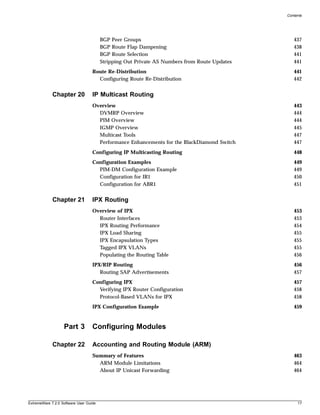
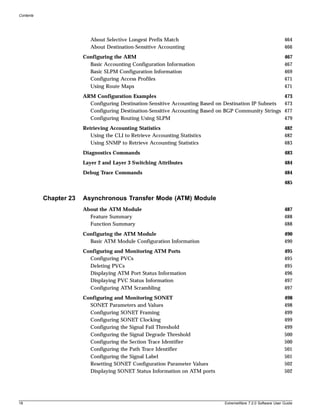
  • 260.
    Security A Windows XP802.1x supplicant can be authenticated as a computer or as a user. Computer authentication requires a certificate installed in the computer certificate store, and user authentication requires a certificate installed in the individual user's certificate store. By default, the XP machine performs computer authentication as soon as the computer is powered on, or at link-up when no user is logged into the machine. User authentication is performed at link-up when the user is logged in. The XP machine can be configured to perform computer authentication at link-up even if the user is logged in. Any client with a web browser can interoperate using web-based authentication. Authentication Server Side The RADIUS server used for authentication has to be EAP-capable. Consider the following when choosing a RADIUS server: • The types of authentication methods supported on RADIUS, as mentioned above. • Need to support both EAP and traditional Username-Password authentication. These are used by Network Login and switch console login respectively. • Need to support Vendor Specific Attributes (VSA). Some important parameters such as Extreme-Netlogin-Vlan (destination vlan for port movement after authentication) and Extreme-NetLogin-only (authorization for network login only) are brought back as VSAs. Table 35 and Table 36 show VSA definitions for both web-based network login and 802.1x network login. Table 35: VSA definitions for web-based network login VSA Attribute Value Type Sent-in Description Extreme-Netlogin 203 String Access-Accept Name of destination VLAN (must already exist -Vlan on switch) after successful authentication. Extreme-Netlogin 204 String Access-Accept Destination web page after successful -Url authentication. Extreme-Netlogin 205 String Access-Accept Text description of network login URL attribute. -Url-Desc Extreme-Netlogin 206 Integer Access-Accept Determines if user can authenticate via other -Only means, such as telnet, console, SSH, or Vista. A value of “1” (enabled) indicates that the user can only authenticate via network login. A value of zero (disabled) indicates that the user can also authenticate via other methods. Table 36: VSA definitions for 802.1x network login VSA Attribute Value Type Sent-in Description Extreme-Netlogin 203 String Access-Accept Name of destination VLAN (must already exist -Vlan on switch) after successful authentication. 260 ExtremeWare 7.2.0 Software User Guide
  • 261.
    Network Login NOTE The Extreme Networks vendor ID is 1916. Multiple Supplicant Support An important enhancement over the IEEE 802.1x standard, is that ExtremeWare supports multiple clients (supplicants) to be individually authenticated on the same port. This feature makes it possible for two client stations to be connected to the same port, with one being authenticated and the other not. A port's authentication state is the logical “OR” of the individual MAC's authentication states. In other words, a port is authenticated if any of its connected clients is authenticated. Multiple clients can be connected to a single port of authentication server through a hub or layer-2 switch. Multiple supplicants are supported in ISP mode for both web-based and 802.1x authentication. Multiple supplicants are not supported in Campus mode. Versions of ExtremeWare previous to version 7.1.0 did not support multiple supplicants. The choice of web-based versus 802.1x authentication is again on a per-MAC basis. Among multiple clients on the same port, it is possible that some clients use web-based mode to authenticate, and some others use 802.1x. There are certain restrictions for multiple supplicant support: • Web-based mode will not support Campus mode for multiple supplicant because once the first MAC gets authenticated, the port is moved to a different VLAN and therefore other unauthenticated clients (which are still in the original VLAN), cannot have layer 3 message transactions with the authentication server. • Once the first MAC is authenticated, the port is transitioned to the authenticated state and other unauthenticated MACs can listen to all data destined for the first MAC. This could raise some security concerns as unauthenticated MACs can listen to all broadcast and multicast traffic directed to a Network Login-authenticated port. Exclusions and Limitations The following are limitations and exclusions for Network Login: • All unauthenticated MACs will be seeing broadcasts and multicasts sent to the port if even a single MAC is authenticated on that port. • Network Login must be disabled on a port before that port can be deleted from a VLAN. • In Campus mode, once the port moves to the destination VLAN, the original VLAN for that port is not displayed. • A Network Login VLAN port should be an untagged Ethernet port and should not be a part of following protocols: — ESRP — STP — VLAN Aggregation — VLAN Translation • Network Login is not supported for T1, E1, T3, ATM, PoS and MPLS TLS interfaces. • No Hitless Failover support has been added for Network Login. ExtremeWare 7.2.0 Software User Guide 261
  • 262.
    Security • Rate-limiting isnot supported on Network Login ports (both web-based and 802.1x). • Network Login and MAC-limits cannot be used together on the same switch (see “MAC Address Security” on page 253). • EAP-NAK cannot be used to negotiate 802.1x authentication types. Configuring Network Login The following configuration example demonstrates how users can initially log in using web-based authentication, allowing them limited access to the network in order to download the 802.1x client and a certificate. After the client is configured, the user is then able to access the network by using 802.1x. The example illustrates the following configuration steps: 1 Create a VLAN on all edge switches called “temp,” which is the initial VLAN to which users will connect before they are authenticated. 2 Create a VLAN on all edge and core switches called “guest,” which is the VLAN from which users will access the Certificate Authority and be able to download the 802.1x software. The following example demonstrates the first network login configuration step for a Summit 48si edge switch: create vlan temp configure temp ipaddress 192.168.1.1/24 configure temp add port 1-48 configure vlan temp dhcp-address-range 192.168.1.11 - 192.168.1.200 configure vlan temp dhcp-options default-gateway 192.168.1.1 enable netlogin port 1-48 vlan temp enable dhcp ports 1-48 vlan temp Note that the 192.168 IP address range can be used on all switches because the user is on the VLAN only long enough to log in to the network. After the login is complete, the user is switched to a permanent VLAN with a real IP address delivered from a real DHCP server. The following example demonstrates the second network login configuration step for a Summit 48si edge switch, in which the guest VLAN is created: create vlan guest configure guest ipa 45.100.1.101/16 configure guest tag 100 configure guest add port 49-50 tagged enable bootp relay configure bootp relay add 45.100.2.101 These commands create the special VLAN called “guest” on the real area of the network. Special configuration is needed on the RADIUS server to place users on to the appropriate VLAN when they log in as guests. By using network login in this way, the user goes from unauthenticated to a guest authentication with limited access to resources. Note that the 45.100.x.x VLAN does not need to be able to route. Extra authentication can be enabled on the Certificate Authority server to more firmly verify the identity of users. The 45.100.x.x VLAN will have the Certificate Authority located on it as well as an HTTP/FTP server to allow the user to download the needed files. Once the user has installed the certificate from the Certificate Authority and downloaded the 802.1x client, the user can reconnect to the network using 802.1x without the need to authenticate via a web 262 ExtremeWare 7.2.0 Software User Guide
  • 263.
    Network Login browser. The authentication is handled using PEAP and certificates. The user will be placed in the VLAN that is appropriate for that user’s group. Web-Based Authentication User Login Using Campus Mode When web-based authentication is used in Campus mode, the user will follow these steps: 1 Set up the Windows IP configuration for DHCP. 2 Plug into the port that has network login enabled. 3 Log in to Windows. 4 Release any old IP settings and renew the DHCP lease. This is done differently depending on the version of Windows the user is running: — Windows 9x—use the winipcfg tool. Choose the Ethernet adapter that is connected to the port on which network login is enabled. Use the buttons to release the IP configuration and renew the DHCP lease. — Windows NT/2000—use the ipconfig command line utility. Use the command ipconfig/release to release the IP configuration and ipconfig/renew to get the temporary IP address from the switch. If you have more than one Ethernet adapter, specify the adapter by using a number for the adapter following the ipconfig command. You can find the adapter number using the command ipconfig/all. At this point, the client will have its temporary IP address. In this example, the client should have obtained the an IP address in the range 198.162.32.20 - 198.162.32.80. NOTE The idea of explicit release/renew is required to bring the network login client machine in the same subnet as the connected VLAN. In Campus Mode using web-based authentication, this requirement is mandatory after every logout and before login again as the port moves back and forth between the temporary and permanent VLANs. On other hand in ISP Mode, release/renew of IP address is not required, as the network login client machine stays in the same subnet as the network login VLAN. In ISP mode, when the network login client connects for the first time, it has to make sure that the machine IP address is in the same subnet as the VLAN to which it is connected. 5 Bring up the browser and enter any URL as http://www.123.net or http://1.2.3.4 or switch IP address as http://<IP address>/login (where IP address could be either temporary or Permanent VLAN Interface for Campus Mode). URL redirection redirects any URL and IP address to the network login page This is significant where security matters most, as no knowledge of VLAN interfaces is required to be provided to network login users, as they can login using a URL or IP address. A page opens with a link for Network Login. 6 Click the Network Login link. A dialog box opens requesting a username and password. 7 Enter the username and password configured on the RADIUS server. After the user has successfully logged in, the user will be redirected to the URL configured on the RADIUS server. During the user login process, the following takes place: ExtremeWare 7.2.0 Software User Guide 263
  • 264.
    Security • Authentication isdone through the RADIUS server. • After successful authentication, the connection information configured on the RADIUS server is returned to the switch: — the permanent VLAN — the URL to be redirected to (optional) — the URL description (optional) • The port is moved to the permanent VLAN. You can verify this using the show vlan command. For more information on the show vlan command, see “Displaying VLAN Settings” on page 126. After a successful login has been achieved, there are several ways that a port can return to a non-authenticated, non-forwarding state: • The user successfully logs out using the logout web browser window. • The link from the user to the switch’s port is lost. • There is no activity on the port for 20 minutes. • An administrator changes the port state. NOTE Because network login is sensitive to state changes during the authentication process, Extreme Networks recommends that you do not log out until the login process is complete. The login process is complete when you receive a permanent address. DHCP Server on the Switch A DHCP server with limited configuration capabilities is included in the switch to provide IP addresses to clients. The DHCP server is not supported as a standalone feature. It is used only as part of the Network Login feature. DHCP is enabled on a per port, per VLAN basis. To enable or disable DHCP on a port in a VLAN, use one of the following commands: enable dhcp ports <portlist> vlan <vlan name> disable dhcp ports <portlist> vlan <vlan name> configure vlan <vlan name> netlogin-lease-timer <seconds> The switch responds to DHCP requests for unauthenticated clients when DHCP parameters such as dhcp-address-range and dhcp-options are configured on the network login VLAN. The switch can also answer DHCP requests after authentication if DHCP is enabled on the specified port. If you want network login clients to obtain DHCP leases from an external DHCP server elsewhere on the network, then do not enable DHCP on the switch ports. Displaying DHCP Information To display the DHCP configuration, including the DHCP range, DHCP lease timer, network login lease timer, DHCP-enabled ports, IP address, MAC address, and time assigned to each end device, use the following command: show vlan <vlan name> dhcp-address-allocation 264 ExtremeWare 7.2.0 Software User Guide
  • 265.
    Network Login Displaying Network Login Settings To display the network login settings, use the following command: show netlogin {port <portlist> vlan <vlan name>} Disabling Network Login Network login must be disabled on a port before you can delete a VLAN that contains that port. To disable network login, use the following command: disable netlogin ports <portlist> vlan <vlan name> Additional Configuration Details This section discusses additional configuration like switch DNS name, default redirect page, session refresh and logout-privilege. URL redirection requires the switch to be assigned a DNS name. The default name is network-access.net. Any DNS query coming to the switch to resolve switch DNS name in unauthenticated mode is resolved by the DNS server on the switch in terms of the interface (to which the network login port is connected) IP-address. To configure the network login base URL, use the following command: configure netlogin base-url <url> Where <url> is the DNS name of the switch. For example, configure netlogin base-url network-access.net makes the switch send DNS responses back to the netlogin clients when a DNS query is made for network-access.net. To configure the network login redirect page, use the following command: configure netlogin redirect-page <url> Where <url> defines the redirection information for the users once logged in. This redirection information is used only in case the redirection info is missing from RADIUS server. For example, configure netlogin base-url http://www.extremenetworks.com redirects all users to this URL after they get logged in. To enable or disable the network login session refresh, use one of the following commands: enable netlogin session-refresh {<minutes>} disable netlogin session-refresh Where <minutes> ranges from 1 - 255. The default setting is 3 minutes. enable netlogin session-refresh {<minutes>} makes the logout window refresh itself at every configured time interval. Session -refresh is disabled by default. When you configure the Network Login session refresh for the logout window on a BlackDiamond, ensure that the FDB aging timer is greater than the Network Login session refresh timer. To enable or disable network login logout privilege, use one of the following commands: enable netlogin logout-privilege disable netlogin logout-privilege This command turns the privilege for netlogin users to logout by popping up (or not popping up) the logout window. Logout-privilege is enabled by default. To enable or disable network login, use one of the following commands: ExtremeWare 7.2.0 Software User Guide 265
  • 266.
    Security enable netlogin [web-based| dot1x] disable netlogin [web-based |dot1x] By default netlogin is enabled. To show all network login parameters, use the following command: show netlogin Switch Protection Switch protection features enhance the robustness of switch performance. In this category are the following features: • Routing Access Profiles • Route Maps • Denial of Service Protection Routing Access Profiles Routing access profiles are used to control the advertisement or recognition of routing protocols, such as RIP, OSPF, IS-IS, or BGP. Routing access profiles can be used to ‘hide’ entire networks, or to trust only specific sources for routes or ranges of routes. The capabilities of routing access profiles are specific to the type of routing protocol involved, but are sometimes more efficient and easier to implement than access lists. Using Routing Access Profiles To use routing access profiles, you must perform the following steps: 1 Create an access profile. 2 Configure the access profile to be of type permit, deny, or none. 3 Add entries to the access profile. Entries can be one of the following types: — IP addresses and subnet masks — IPX node, IPX RIP, and IPX SAP — Autonomous system path expressions (as-paths) (BGP only) — BGP communities (BGP only) — VLAN 4 Apply the access profile. Creating an Access Profile The first thing to do when using routing access profiles is to create an access profile. An access profile has a unique name and contains one of the following entry types: • A list of IP addresses and associated subnet masks 266 ExtremeWare 7.2.0 Software User Guide
  • 267.
    Using Routing AccessProfiles • A list of IPX NetIDs • A list of IPX node addresses • A list of IPX SAP advertisements • One or more autonomous system path expressions (BGP only) • One or more BGP community numbers (BGP only) • A VLAN You must give the access profile a unique name (in the same manner as naming a VLAN, protocol filter, or Spanning Tree Domain). To create an access profile, use the following command: create access-profile <access profile> type [ipaddress | ipx-node | ipx-net | ipx-sap | as-path | bgp-community | vlan] Configuring an Access Profile Mode After the access profile is created, you must configure the access profile mode. The access profile mode determines whether the items in the list are to be permitted access or denied access. Three modes are available: • Permit—The permit access profile mode permits the operation, as long as it matches any entry in the access profile. If the operation does not match any entries in the list, the operation is denied. • Deny—The deny access profile mode denies the operation, as long as it matches any entry in the access profile. If it does not match all specified entries in the list, the operation is permitted. • None—Using the none mode, the access profile can contain a combination of permit and deny entries. Each entry must have a permit or deny attribute. The operation is compared with each entry in the list. Once a match is found, the operation is either permitted or denied, depending on the configuration of the matched entry. If no match is found, the operation is implicitly denied. To configure the access profile mode, use the following command: configure access-profile <access profile> mode [permit | deny | none] Adding an Access Profile Entry Next, configure the access profile, using the following command: configure access-profile <access profile> add {<seq_number>} {permit | deny} [ipaddress <ip address> <mask> {exact} | as-path <path-expression> | bgp-community [internet | no-export | no-advertise | no-export-subconfed | <as_no:number> | number <community>] | ipxnet <netid> <netid mask> | ipxsap <sap_type> <service_name> | vlan] The following sections describe the configure access-profile add command. Specifying Subnet Masks The subnet mask specified in the access profile command is interpreted as a reverse mask. A reverse mask indicates the bits that are significant in the IP address. In other words, a reverse mask specifies the part of the address that must match the IP address to which the profile is applied. ExtremeWare 7.2.0 Software User Guide 267
  • 268.
    Security If you configurean IP address that is an exact match that is specifically denied or permitted, use a mask of /32 (for example, 141.251.24.28/32). If the IP address represents all addresses in a subnet address that you want to deny or permit, then configure the mask to cover only the subnet portion (for example, 141.251.10.0/24). The keyword exact can be used when you wish to match only against the subnet address, and ignore all addresses within the subnet. If you are using off-byte boundary subnet masking, the same logic applies, but the configuration is more tricky. For example, the network address 141.251.24.128/27 represents any host from subnet 141.251.24.128. Sequence Numbering You can specify the sequence number for each access profile entry. If you do not specify a sequence number, entries are sequenced in the order they are added. Each entry is assigned a value of 5 more than the sequence number of the last entry. Permit and Deny Entries If you have configured the access profile mode to be none, you must specify each entry type as either ‘permit’ or ‘deny’. If you do not specify the entry type, it is added as a permit entry. If you have configured the access profile mode to be permit or deny, it is not necessary to specify a type for each entry. IPX Access Profiles IPX routing access profiles consist of access rules and are used to perform packet filtering and forwarding decisions on incoming traffic. Each IPX RIP or SAP packet arriving on an ingress port is compared to each access profile rule in sequential order and is either forwarded or dropped. Autonomous System Expressions The AS-path keyword uses a regular expression string to match against the AS path. Regular expression notation can include any of the characters listed in Table 37. Table 37: Regular Expression Notation Character Definition N As number N1 - N2 Range of AS numbers, where N1 and N2 are AS numbers and N1 < N2 [Nx ... Ny] Group of AS numbers, where Nx and N y are AS numbers or a range of AS numbers [^Nx ... Ny] Any AS numbers other than the ones in the group . Matches any number ^ Matches the beginning of the AS path $ Matches the end of the AS path – Matches the beginning or end, or a space - Separates the beginning and end of a range of numbers * Matches 0 or more instances + Matches 1 or more instances ? Matches 0 or 1 instance { Start of AS SET segment in the AS path 268 ExtremeWare 7.2.0 Software User Guide
  • 269.
    Using Routing AccessProfiles Table 37: Regular Expression Notation (Continued) Character Definition } End of AS SET segment in the AS path ( Start of a confederation segment in the AS path ) End of a confederation segment in the AS path Autonomous System Expression Example The following example uses combinations of the autonomous system expressions to create a complicated access profile: create access-profile AS1 type as-path configure access-profile AS1 mode none These commands create the access profile. configure access-profile AS1 add 5 permit as-path “^65535$” This command configures the access profile to permit AS paths that contain only (begin and end with) AS number 65535. configure access-profile AS1 add 10 permit as-path “^65535 14490$” This command configures the access profile to permit AS paths beginning with AS number 65535, ending with AS number 14490, and containing no other AS paths. configure access-profile AS1 add 15 permit as-path “^1 2-8 [11 13 15]$” This command configures the access profile to permit AS paths beginning with AS number 1, followed by any AS number from 2 - 8, and ending with either AS number 11, 13, or 15. configure access-profile AS1 add 20 deny as-path “111 [2-8]” This command configures the access profile to deny AS paths beginning with AS number 111 and ending with any AS number from 2 - 8. configure access-profile AS1 add 25 permit as-path “111 .?” This command configures the access profile to permit AS paths beginning with AS number 111 and ending with any additional AS number, or beginning and ending with AS number 111. Deleting an Access Profile Entry To delete an access profile entry, use the following command: configure access-profile <access profile> delete <seq_number> Applying Access Profiles Once the access profile is defined, apply it to one or more routing protocols or VLANs. When an access profile is applied to a protocol function (for example, the export of RIP routes) or a VLAN, this forms an access policy. A profile can be used by multiple routing protocol functions or VLANs, but a protocol function or VLAN can use only one access profile. ExtremeWare 7.2.0 Software User Guide 269
  • 270.
    Security Routing Profiles forRIP If you are using the RIP protocol, the switch can be configured to use an access profile to determine: • Trusted Neighbor—Use an access profile to determine trusted RIP router neighbors for the VLAN on the switch running RIP. To configure a trusted neighbor policy, use the following command: configure rip vlan [<vlan name> | all] trusted-gateway [<access profile> | none] • Import Filter—Use an access profile to determine which RIP routes are accepted as valid routes. This policy can be combined with the trusted neighbor policy to accept selected routes only from a set of trusted neighbors. To configure an import filter policy, use the following command: configure rip vlan [<vlan name> | all] import-filter [<access profile> | none] • Export Filter—Use an access profile to determine which RIP routes are advertised into a particular VLAN, using the following command: configure rip vlan [<vlan name> | all] export-filter [<access profile> | none] Examples In the example shown in Figure 35, a switch is configured with two VLANs, Engsvrs and Backbone. The RIP protocol is used to communicate with other routers on the network. The administrator wants to allow all internal access to the VLANs on the switch, but no access to the router that connects to the Internet. The remote router that connects to the Internet has a local interface connected to the corporate backbone. The IP address of the local interface connected to the corporate backbone is 10.0.0.10/24. Figure 35: RIP access policy example Internet Internet 10.0.0.10 / 24 Backbone (RIP) 10.0.0.11 / 24 10.0.0.12 / 24 Switch being Engsvrs Sales configured 10.1.1.1 / 24 10.2.1.1 / 24 Engsvrs Sales EW_001 270 ExtremeWare 7.2.0 Software User Guide
  • 271.
    Using Routing AccessProfiles Assuming the backbone VLAN interconnects all the routers in the company (and, therefore, the Internet router does not have the best routes for other local subnets), the commands to build the access policy for the switch would be: create access-profile nointernet ipaddress configure access-profile nointernet mode deny configure access-profile nointernet add 10.0.0.10/32 configure rip vlan backbone trusted-gateway nointernet In addition, if the administrator wants to restrict any user belonging to the VLAN Engsvrs from reaching the VLAN Sales (IP address 10.2.1.0/24), the additional access policy commands to build the access policy would be: create access-profile nosales ipaddress configure access-profile nosales mode deny configure access-profile nosales add 10.2.1.0/24 configure rip vlan backbone import-filter nosales This configuration results in the switch having no route back to the VLAN Sales. Routing Access Profiles for IPX If you are using the IPX protocol, the switch can be configured to use an access profile to determine: • Import Filter—Use an access profile to determine which IPX/RIP or IPX/SAP routes are accepted as valid routes. To configure an import filter policy, use the following command: configure ipxrip vlan [<vlan name> | all] import-filter [none | <access_profile>] configure ipxsap vlan [<vlan name> | all] import-filter [none | access_profile]] • Export Filter—Use an access profile to determine which IPX/RIP and IPX/SAP routes are advertised into a particular VLAN, using the following command: configure ipxrip vlan [<vlan name> | all] export-filter [none | <access_profile>] configure ipxsap vlan [<vlan name> | all] export-filter [none | access_profile] Routing Access Profiles for OSPF Because OSPF is a link-state protocol, the access profiles associated with OSPF are different in nature than those associated with RIP. Access profiles for OSPF are intended to extend the existing filtering and security capabilities of OSPF (for example, link authentication and the use of IP address ranges). If you are using the OSPF protocol, the switch can be configured to use an access profile to determine any of the following: • Inter-area Filter—For switches configured to support multiple OSPF areas (an ABR function), an access profile can be applied to an OSPF area that filters a set of OSPF inter-area routes from being sourced from any other areas. To configure an inter-area filter policy, use the following command: configure ospf area <area identifier> interarea-filter [<access profile> | none] • External Filter—For switches configured to support multiple OSPF areas (an ABR function), an access profile can be applied to an OSPF area that filters a set of OSPF external routes from being advertised into that area. To configure an external filter policy, use the following command: configure ospf area <area identifier> external-filter [<access profile> |none] ExtremeWare 7.2.0 Software User Guide 271
  • 272.
    Security NOTE If any of the external routes specified in the filter have already been advertised, those routes will remain until the associated LSAs in that area time-out. • ASBR Filter—For switches configured to support RIP and static route re-distribution into OSPF, an access profile can be used to limit the routes that are advertised into OSPF for the switch as a whole. To configure an ASBR filter policy, use the following command: configure ospf asbr-filter [<access profile> | none] • Direct Filter—For switches configured to support direct route re-distribution into OSPF, an access profile can be used to limit the routes that are advertised into OSPF for the switch as a whole. To configure a direct filter policy, use the following command: configure ospf direct-filter [<access profile> | none] 272 ExtremeWare 7.2.0 Software User Guide
  • 273.
    Using Routing AccessProfiles Example Figure 36 illustrates an OSPF network that is similar to the network used previously in the RIP example. In this example, access to the Internet is accomplished by using the ASBR function on the switch labeled Internet. As a result, all routes to the Internet will be done through external routes. Suppose the network administrator wishes to only allow access to certain internet addresses falling within the range 192.1.1.0/24 to the internal backbone. Figure 36: OSPF access policy example Internet Switch being Internet configured 10.0.0.10 / 24 Backbone (OSPF) area 0.0.0.0 10.0.0.11 / 24 10.0.0.12 / 24 Engsvrs Sales 10.1.1.1 / 24 10.2.1.1 / 24 Engsvrs Sales area 0.0.0.1 area 0.0.0.2 EW_002 To configure the switch labeled Internet, the commands would be as follows: create access-profile okinternet ipaddress configure access-profile okinternet mode permit configure access-profile okinternet add 192.1.1.0/24 configure ospf asbr-filter okinternet Routing Access Profiles for DVMRP The access policy capabilities for DVMRP are very similar to those for RIP. If you are using the DVMRP protocol is used for routing IP multicast traffic, you can configure the switch to use an access profile to determine: • Trusted Neighbor—Use an access profile to determine trusted DVMRP router neighbors for the VLAN on the switch running DVMRP. To configure a trusted neighbor policy, use the following command: configure dvmrp vlan [<vlan name> | all] trusted-gateway [<access profile> | none] ExtremeWare 7.2.0 Software User Guide 273
  • 274.
    Security • Import Filter—Usean access profile to determine which DVMRP routes are accepted as valid routes. To configure an import filter policy, use the following command: configure dvmrp vlan [<vlan name> | all] import-filter [<access profile> | none] • Export Filter—Use an access profile to determine which DVMRP routes are advertised into a particular VLAN, using the following command: configure dvmrp vlan [<vlan name> | all] export-filter [<access profile> | none] Example In this example, the network used in the previous RIP example is configured to run DVMRP. The network administrator wants to disallow Internet access for multicast traffic to users on the VLAN Engsvrs. This is accomplished by preventing the learning of routes that originate from the switch labeled Internet by way of DVMRP on the switch labeled Engsvrs. To configure the switch labeled Engsvrs, use the following commands: create access-profile nointernet ipaddress configure access-profile nointernet mode deny configure access-profile nointernet add 10.0.0.10/32 configure dvmrp vlan backbone trusted-gateway nointernet In addition, suppose the administrator wants to preclude users on the VLAN Engsvrs from seeing any multicast streams that are generated by the VLAN Sales across the backbone. The additional configuration of the switch labeled Engsvrs is as follows: create access-profile nosales ipaddress configure access-profile nosales mode deny configure access-profile nosales add 10.2.1.0/24 configure dvmrp vlan backbone import-filter nosales Routing Access Profiles for PIM Because PIM leverages the unicast routing capability that is already present in the switch, the access policy capabilities are, by nature, different. If you are using the PIM protocol for routing IP multicast traffic, you can configure the switch to use an access profile to determine: • Trusted Neighbor—Use an access profile to determine trusted PIM router neighbors for the VLAN on the switch running PIM. To configure a trusted neighbor policy, use the following command: configure pim vlan [<vlan name> | all] trusted-gateway [<access profile> | none] Example Using PIM, the unicast access profiles can be used to restrict multicast traffic. In this example, a network similar to the example used in the previous RIP example is also running PIM. The network administrator wants to disallow Internet access for multicast traffic to users on the VLAN Engsvrs. This is accomplished by preventing the learning of routes that originate from the switch labeled Internet by way of PIM on the switch labeled Engsvrs. 274 ExtremeWare 7.2.0 Software User Guide
  • 275.
    Making Changes toa Routing Access Policy To configure the switch labeled Engsvrs, the commands would be as follows: create access-profile nointernet ipaddress configure access-profile nointernet mode deny configure access-profile nointernet add 10.0.0.10/32 configure pim vlan backbone trusted-gateway nointernet Routing Access Profiles for BGP If the BGP protocol is being used, the switch can be configured to use an access profile to determine: • NLRI filter—Use an access profile to determine the NLRI information that must be exchanged with a neighbor. To configure an NLRI filter policy, use the following command: configure bgp neighbor [<ipaddress> | all] nlri-filter [in | out] [<access_profile> | none] The NLRI filter access policy can be applied to the ingress or egress updates, using the in and out keywords, respectively. • Autonomous system path filter—Use an access profile to determine which NLRI information must be exchanged with a neighbor based on the AS path information present in the path attributes of the NLRI. To configure an autonomous system path filter policy, use the following command: configure bgp neighbor [<ipaddress> | all] as-path-filter [in | out] [<access_profile> | none] The autonomous system path filter can be applied to the ingress or egress updates, using the in and out keywords, respectively. Making Changes to a Routing Access Policy You can change the routing access policy by changing the associated access profile. However, the propagation of the change depends on the protocol and policy involved. Propagation of changes applied to RIP, DVMRP, and PIM access profiles depend on the respective protocol timers to age-out entries. In BGP, the change to the policy is immediately effective on the routing information exchanged after the policy changes. The changes can be applied on the routing information that had been exchanged before the policy changes by issuing a soft reset on the ingress or egress side, depending on the change. For soft resets to be applied on the ingress side, the changes must have been previously enabled on the neighbor. NOTE Changes to profiles applied to OSPF typically require rebooting the switch, or disabling and re-enabling OSPF on the switch. ExtremeWare 7.2.0 Software User Guide 275
  • 276.
    Security Removing a RoutingAccess Policy To remove a routing access policy, you must remove the access profile from the routing protocol or VLAN. All the commands that apply an access profile to form an access policy also have the option of choosing none as the access profile. Using the none option removes any access profile of that particular type from the protocol or VLAN, and, therefore, removes the access policy. Route Maps Route maps are used to modify or filter routes. They are also used to modify or filter routing information. Using Route Maps Route maps are a mechanism that can be used to conditionally control the redistribution of routes between two routing domains, and to modify the routing information that is redistributed. Route maps are used in conjunction with the match and set operations. A match operation specifies a criteria that must be matched. A set operation specifies a change that is made to the route when the match operation is successful. To create a route map, follow these steps: 1 Create a route map. 2 Add entries to the route map. 3 Add statements to the route map entries. Creating a Route Map To create a route map, use the following command: create route-map <name> Add Entries to the Route Map To add entries to the route map, use the following command: configure route-map <route-map> add <seq_number> [permit | deny] {match-one | match-all} {set lpm-routing | set iphost-routing} where the following is true: • The sequence number uniquely identifies the entry, and determines the position of the entry in the route map. Route maps are evaluated sequentially. • The permit keyword permits the route; the deny keyword denies the route and is applied only if the entry is successful. • The match-one keyword is a logical “or”. The route map is successful as long as at least one of the matching statements is true. 276 ExtremeWare 7.2.0 Software User Guide
  • 277.
    Using Route Maps • The match-all keyword is a logical “and”. The route map is successful when all match statements are true. This is the default setting. Add Statements to the Route Map Entries To add statements to the route map entries, use one of the following four commands: configure route-map <route-map> <seq_number> add match [nlri-list <access profile> | as-path [access-profile <access profile> | <as_number>] | community [access-profile <access profile> | <as_number>:<number> | number <community> | no-advertise | no-export | no-export-subconfed] | next-hop <ip address> | med <number> | tag <number> | origin [igp | egp | incomplete]]] configure route-map <route-map> <seq_number> add set [as-path <as_number> | community [[access-profile <access-profile> | <as_number>:<number> | number <community> | no-advertise | no-export | no-export-subconfed] | remove | [add | delete] [access-profile <access-profile> | <as no> : <number> | number <community> | no-advertise | no-export | no-export-subconfed]] | next-hop <ip address> | med [internal | <med_number> | remove | [add | delete] <med_number>] local-preference <number> | weight <number> | origin [igp | egp | incomplete] | tag <tag_number> | accounting index <index_number> value <value_number> | cost <number> | cost-type [ase-type-1 | ase-type-2]]] configure route-map <route_map> <seq_number> add goto <new_route_map> configure route-map <route-map> add <seq_number> [permit | deny] {match-one | match-all} {set lpm-routing | set iphost-routing} where the following is true: • The route-map is the name of the route map. • The sequence number identifies the entry in the route map to which this statement is being added. • The match, set, and goto keywords specify the operations to be performed. Within a entry, the statements are sequenced in the order of their operation. The match statements are first, followed by set, and then goto. • The nlri-list, as-path, community, next-hop, med, origin, and weight keywords specify the type of values that must be applied using the specified operation against the corresponding attributes as described in Table 38 and Table 39. • The accounting-index keyword specifies the bin number assigned to a specific route map as discussed in Table 40. Table 38: Match Operation Keywords Keyword Description nlri-list <access_profile> Matches the NLRI against the specified access profile. as-path [<access_profile> | <as-no>] Matches the AS path in the path attributes against the specified access profile or AS number. community [access-profile Matches the communities in the path attribute against the specified BGP <access-profile> | <as no>: <number> community access profile or the community number. | number <community> | no-advertise | no-export | no-export-subconfed] ExtremeWare 7.2.0 Software User Guide 277
  • 278.
    Security Table 38: MatchOperation Keywords (Continued) Keyword Description next-hop <ipaddress> Matches the next hop in the path attribute against the specified IP address. med <number> Matches the MED in the path attribute against the specified MED number. origin [igp | egp | incomplete] Matches the origin in the path attribute against the specified origin. tag <number> Matches the tag associated with the redistributed OSPF route. Table 39: Set Operation Keywords Keyword Definition as-path <as no> Prepends the specified AS number to the AS path in the path attribute. community [[access-profile Adds the specified community to the existing community in the path <access-profile> | <as no>: <number> attribute. | number <community> | no-advertise | no-export | no-export-subconfed] | remove | [add | delete] [access-profile <access-profile> | <as no>: <number> | number <community> | no-advertise | no-export | no-export-subconfed]] next-hop <ipaddress> Sets the next hop in the path attribute to the specified IP address. med [internal | <number> | remove | Modifies the MED in the path attribute as specified: [add | delete] <number>] • internal—When used in the BGP neighbor output route map, the MED attribute is set to a value equal to the metric to reach the nexthop. • <number>—Sets the MED attribute to the specified value. • remove—Removes the MED attribute, if present. • [add | delete] <number>—Adds or deletes the specified value to or from the MED that is received. The final result is bound by 0 and 2147483647. local-preference <number> Sets the local preference in the path attribute to the specified local preference number. weight <number> Sets the weight associated with the NLRI to the specified number. origin [igp | egp | incomplete] Sets the origin in the path attributes to the specified origin. tag <number> Sets the tag in the route to the specified number. cost <number> Sets the cost of the route to the specified number cost-type <number> Sets the type of the cost associated with the route. accounting index [ase-type-1 | Sets the specified accounting index to the specified number. ase-type-2] Table 40: Set Operation Keywords Command Description of Change accounting-index <index> value Sets the accounting bin number for the route-mapped accounting index. <value> The accounting index value is always set to 1 for Destination Sensitive Accounting. 278 ExtremeWare 7.2.0 Software User Guide
  • 279.
    Using Route Maps Route Map Operation The entries in the route map are processed in the ascending order of the sequence number. Within the entry, the match statements are processed first. When the match operation is successful, the set and goto statements within the entry are processed, and the action associated with the entry is either applied, or else the next entry is processed. If the end of the route map is reached, it is implicitly denied. When there are multiple match statement, the primitive match-one or match-all in the entry determines how many matches are required for success. When there are no match statements in an entry, the entry is considered a successful match. Route Map Example Figure 37 shows a topology in which route maps are used to filter or modify routing information that is exchanged between the neighbors RTA and RTB using BGP. Figure 37: Route maps AS 1111 Internet RTA 10.0.0.1 10.0.0.2 RTB AS 2222 EW_048 The following points apply to this example: • RTA is a member of in AS 1111 and peers with a router in the Internet to receive the entire Internet routing table. • RTB is a member of AS 2222, and has an EBGP connection with RTA through which it receives the Internet routing table. • AS 1111 is acting as a transit AS for all traffic between AS 2222 and the Internet. If the administrator of AS 1111 wants to filter out route information about network 221.1.1.0/24 and it’s subnets from being passed on to AS 2222, the administrator can configure a route-map on the egress side of RTA’s EBGP connection with RTB and filter out the routes. ExtremeWare 7.2.0 Software User Guide 279
  • 280.
    Security To configure RTA,use the following commands: create access-profile iplist type ipaddress configure iplist add ipaddress 221.1.1.0 / 24 create route-map bgp-out configure bgp-out add 10 deny configure bgp-out 10 add match nlri-list iplist configure bgp-out add 20 permit configure bgp neighbor 10.0.0.2 route-map-filter out bgp-out configure bgp neighbor 10.0.0.2 soft-reset out If you wish to modify the routing information originated from AS 300 to include a MED value of 200, the sequence of commands would be: create access-profile aslist type as-path configure aslist add as-path "^300" configure bgp-out add 15 permit configure bgp-out 15 add match as-path access-profile aslist configure bgp-out 15 add set med 200 configure bgp neighbor 10.0.0.2 soft-reset out Changes to Route Maps Changes to the route maps used to modify or filter NLRI information exchanged with neighbors is immediately effective on the routing information exchanged after the policy changes. The changes can be applied on the NLRI information that had been exchanged before the policy changes by issuing a soft reset on the ingress or egress side, depending on the changes. For soft resets to be applied on the ingress side, the changes must be previously enabled on the neighbor. Changes to the route maps associated with network aggregation or redistribution commands becomes effective after a maximum interval of 30 seconds. You can immediately apply them by using the soft reconfiguration command. Route Maps in BGP Route maps are used in BGP to modify/filter NLRI information exchanged with neighbors. They are also used NLRI information that originates by way of network command, aggregation, or redistribution. 280 ExtremeWare 7.2.0 Software User Guide
  • 281.
    Denial of ServiceProtection Denial of Service Protection A Denial-of-Service (DoS) attack occurs when a critical network or computing resource is overwhelmed and rendered inoperative in a way that legitimate requests for service cannot succeed. In its simplest form, a Denial of Service attack is indistinguishable from normal heavy traffic. Extreme Network switches are not vulnerable to this simple attack because they are all designed to process packets in hardware at wire speed. However, there are some operations in any switch or router that are more costly than others, and although normal traffic is not a problem, exception traffic must be handled by the switch’s CPU in software. Some packets that the switch processes in the CPU software include: • learning new traffic • routing and control protocols including ICMP, BGP and OSPF • switch management traffic (switch access by Telnet, SSH, HTTP, SNMP, etc...) • other packets directed to the switch that must be discarded by the CPU If any one of these functions is overwhelmed, the CPU may be too busy to service other functions and switch performance will suffer. Even with very fast CPUs, there will always be ways to overwhelm the CPU by with packets requiring costly processing. DoS Protection is designed to help prevent this degraded performance by attempting to characterize the problem and filter out the offending traffic so that other functions can continue. When a flood of packets is received from the switch, DoS Protection will count these packets. When the packet count nears the alert threshold, packets headers will be saved. If the threshold is reached, then these headers are analyzed, and a hardware access control list (ACL) is created to limit the flow of these packets to the CPU. This ACL will remain in place to provide relief to the CPU. Periodically, the ACL will expire, and if the attack is still occurring, it will be re-enabled. With the ACL in place, the CPU will have the cycles to process legitimate traffic and continue other services. NOTE DoS Protection can create an ACL at any one time for only one specific source. Only one ACL can be active at any time, so when the switch is suffering an attack from multiple hosts, the CPU will still get flooded. Configuring Denial of Service Protection To configure denial of service protection, use the following command: configure cpu-dos-protect [alert-threshold <packets per second>] [notice-threshold <packets per second>] [timeout <seconds>] [messages [on | off]] [filter-precedence <number>] [filter-type-allowed {destination | source | destination source} {protocol}] The default values for the parameters are as follows: • alert-threshold—4000 packets per second • notice-threshold—4000 packets per second • timeout—15 seconds • messages—on (messages are sent to syslog) • filter-precedence—10 ExtremeWare 7.2.0 Software User Guide 281
  • 282.
    Security • filter-type-allowed—destination If youwish to set all the parameters back to their default values, use the following command: unconfigure cpu-dos-protect NOTE If you set the filter-precedence to 0, the ACLs created by DoS protection will be overwritten by the default VLAN QoS profile. Enabling Denial of Service Protection Enable denial of service protection using the following command: enable cpu-dos-protect Once enabled, denial of service protection creates an access list for packets when the receive packet on a port is greater than the alert level. For example, if cpu-dos-protect is enabled on a Summit7i switch and the threshold alert level is set to 3000 packets per second, an access list is created if one of the ports on the switch receives 3000 or more packets per second. The precedence is set at 10 for the duration of the timeout. For example, if you set the timeout to 15 seconds, the ACL is created for 15 seconds. The switch continues to create access lists for the duration of the timeout until the packet rate declines to less than the configured threshold alert level. Disabling Denial of Service Protection To disable denial of service protection, use the following command: disable cpu-dos-protect Displaying Denial of Service Settings To display denial of service settings and the status of the access list, use the following command: show cpu-dos-protect How to Deploy DoS Protection The conservative way to deploy DoS Protection is to use the simulated mode first. In simulated mode, DoS Protection is enabled, but no ACLs are generated. To enable the simulated mode, use the command: enable cpu-dos-protect simulated Next, configure the notice threshold. This will help determine the actual traffic received by the CPU by logging when the traffic exceeds the threshold. This can help understand the types of traffic encountered, and evaluate whether legitimate traffic may be accidentally blocked. Some examples of heavy legitimate traffic to the cpu include: • route loss—during this period, the switch may receive lots of routing updates that cause heavy traffic processing loads on the CPU. 282 ExtremeWare 7.2.0 Software User Guide
  • 283.
    Denial of ServiceProtection • configuration or image upload/download To configure the notice threshold, use the following command: configure cpu-dos-protect notice-threshold <packets per second> Next, configure the alert threshold. If the alert threshold is reached, a simulated ACL is put in place. Although packets will not be dropped, this provides good information about the heavy traffic, which might be legitimate or might be an attack. The Ethernet address of the source and the type of traffic can be characterized by the type of ACL put in place. This is another way to judge if legitimate traffic would have been cut off. To configure the alert threshold, use the following command: configure cpu-dos-protect alert-threshold <packets per second> After normal traffic is characterized, steps should be taken to set: • the appropriate notice level if some warning is desired • the appropriate alert level at which an ACL is put in place • trusted ports from which traffic won’t be blocked In some cases, traffic from a switch port or group of ports will never cause an attack. These ports can be configured as trusted port and will never be considered for traffic that will generate an ACL. This can prevent innocent hosts from being blocked, or ensure that when an innocent host responds to an attack that the flood of response packets is not mistaken for the attack. To configure a trusted port, use the following command: configure cpu-dos-protect trusted-ports [add <port number> | delete <port number> | all | none] The last step is to enable DoS Protection. At this point, only attack traffic should be blocked and legitimate traffic should pass through. To enable the creation of ACLs for DoS Protection, use the following command: enable cpu-dos-protect Blocking SQL Slammer DoS Attacks You can block the SQL Slammer DoS attack. SQL Slammer causes high CPU utilization on the next-hop switch serving multicast requests as ICMP sender entries are quickly populated into the multicast sender list. This leads to a high number of multicast entries in the IGMP snooping entry table, and a message similar to the following in the system log: <WARN:HW> tBGTask: Reached maximum otp ExtraMC index allocation To block and clean up after this task: 1 Block the attack by creating an ACL to block port 1434 using the following command: create access-list UDP dest any ip-port 1434 source any ip-port any 2 Remove affected SQL servers from the network You can simply disable the port connecting the server. 3 Clean up the existing IGMP snooping entries and IPMC cache using the following commands: igmp snooping clear ipmc cache ExtremeWare 7.2.0 Software User Guide 283
  • 284.
    Security 4 Disable IGMPsnooping on the affected switches. Disabling IGMP snooping affects routing protocols using multicast addresses and multicast traffic on that switch. Management Access Security Management access security features control access to the management functions available on the switch. These features help insure that any configuration changes to the switch can only be done by authorized users. In this category are the following features: • Authenticating Users Using RADIUS or TACACS+ • Secure Shell 2 (SSH2) Authenticating Users Using RADIUS or TACACS+ ExtremeWare provides two methods to authenticate users who login to the switch: • RADIUS client • TACACS+ RADIUS Client Remote Authentication Dial In User Service (RADIUS, RFC 2138) is a mechanism for authenticating and centrally administrating access to network nodes. The ExtremeWare RADIUS client implementation allows authentication for Telnet, Vista, or console access to the switch. NOTE You cannot configure RADIUS and TACACS+ at the same time. You can define a primary and secondary RADIUS server for the switch to contact. When a user attempts to login using Telnet, http, or the console, the request is relayed to the primary RADIUS server, and then to the secondary RADIUS server, if the primary does not respond. If the RADIUS client is enabled, but access to the RADIUS primary and secondary server fails, the switch uses its local database for authentication. The privileges assigned to the user (admin versus nonadmin) at the RADIUS server take precedence over the configuration in the local switch database. To configure the RADIUS servers, use the following command: configure radius [primary | secondary] server [<ipaddress> | <hostname>] {<udp_port>} client-ip [<ipaddress>] To configure the timeout if a server fails to respond, use the following command: configure radius timeout <seconds> 284 ExtremeWare 7.2.0 Software User Guide
  • 285.
    Authenticating Users UsingRADIUS or TACACS+ Configuring the Shared Secret Password In addition to specifying the RADIUS server IP information, RADIUS also contains a means to verify communication between network devices and the server. The shared secret is a password configured on the network device and RADIUS server, used by each to verify communication. To configure the shared secret for RADIUS servers, use the following command: configure radius [primary | secondary] shared-secret {encrypted} [<string>] Enabling and Disabling RADIUS After server information is entered, you can start and stop RADIUS authentication as many times as necessary without needing to reconfigure server information. To enable RADIUS authentication, use the following command: enable radius To disable RADIUS authentication, use the following command: disable radius Configuring RADIUS Accounting Extreme switches are capable of sending RADIUS accounting information. As with RADIUS authentication, you can specify two servers for receipt of accounting information. You can configure RADIUS accounting servers to be the same as the authentication servers, but this is not required. To specify RADIUS accounting servers, use the following command: configure radius-accounting [primary | secondary] server [<ipaddress> | <hostname>] {<udp_port>} client-ip [<ipaddress>] To configure the timeout if a server fails to respond, use the following command: configure radius-accounting timeout <seconds> RADIUS accounting also makes use of the shared secret password mechanism to validate communication between network access devices and RADIUS accounting servers. To specify shared secret passwords for RADIUS accounting servers, use the following command: configure radius-accounting [primary | secondary] shared-secret {encrypted} [<string>] After you configure RADIUS accounting server information, you must enable accounting before the switch begins transmitting the information. You must enable RADIUS authentication for accounting information to be generated. You can enable and disable accounting without affecting the current state of RADIUS authentication. To enable RADIUS accounting, use the following command: enable radius-accounting To disable RADIUS accounting, use the following command: disable radius-accounting ExtremeWare 7.2.0 Software User Guide 285
  • 286.
    Security Per-Command Authentication UsingRADIUS The RADIUS implementation can be used to perform per-command authentication. Per-command authentication allows you to define several levels of user capabilities by controlling the permitted command sets based on the RADIUS username and password. You do not need to configure any additional switch parameters to take advantage of this capability. The RADIUS server implementation automatically negotiates the per-command authentication capability with the switch. For examples on per-command RADIUS configurations, see the next section. Configuring RADIUS Client You can define primary and secondary server communication information, and for each RADIUS server, the RADIUS port number to use when talking to the RADIUS server. The default port value is 1645. The client IP address is the IP address used by the RADIUS server for communicating back to the switch. RADIUS RFC 2138 Attributes The RADIUS RFC 2138 optional attributes supported are as follows: • User-Name • User-Password • Service-Type • Login-IP-Host Using RADIUS Servers with Extreme Switches Extreme Networks switches have two levels of user privilege: • Read-only • Read-write Because there are no CLI commands available to modify the privilege level, access rights are determined when you log in. For a RADIUS server to identify the administrative privileges of a user, Extreme switches expect a RADIUS server to transmit the Service-Type attribute in the Access-Accept packet, after successfully authenticating the user. Extreme switches grant a RADIUS-authenticated user read-write privilege if a Service-Type value of 6 is transmitted as part of the Access-Accept message from the Radius server. Other Service-Type values, or no value, result in the switch granting read-only access to the user. Different implementations of RADIUS handle attribute transmission differently. You should consult the documentation for your specific implementation of RADIUS when you configure users for read-write access. Cistron RADIUS Cistron RADIUS is a popular server, distributed under GPL. Cistron RADIUS can be found at: http://www.miquels.cistron.nl/radius/ When you configure the Cistron server for use with Extreme switches, you must pay close attention to the users file setup. The Cistron RADIUS dictionary associates the word Administrative-User with Service-Type value 6, and expects the Service-Type entry to appear alone on one line with a leading tab character. The following is a user file example for read-write access: 286 ExtremeWare 7.2.0 Software User Guide
  • 287.
    Authenticating Users UsingRADIUS or TACACS+ adminuser Auth-Type = System Service-Type = Administrative-User, Filter-Id = “unlim” Livingston (Lucent) RADIUS Livingston RADIUS is produced by Lucent Technologies primarily for use with their portmaster products. Version 2.1 is released under a BSD license agreement and can be found at ftp://ftp.livingston.com/pub/le/radius/radius21.tar.Z. As with Cistron RADIUS, the Livingston server default dictionary associates Administrative-User with Service-Type value 6. The administrative users file entry example for Cistron RADIUS also works with Livingston RADIUS. RSA Ace For users of their SecureID product, RSA offers RADIUS capability as part of their ACE server software. With some versions of ACE, the RADIUS shared-secret is incorrectly sent to the switch resulting in an inability to authenticate. As a work around, do not configure a shared-secret for RADIUS accounting and authentication servers on the switch. Limiting Max-Concurrent Sessions with Funk Software’s Steel Belted Radius For users who have Funk Software’s Steel Belted Radius (SBR) server, it is possible to limit the number of concurrent login sessions using the same user account. This feature allows the use of shared user accounts, but limits the number of simultaneous logins to a defined value. Using this feature requires Funk Software Steel-Belted-Radius for Radius Authentication & Accounting. Complete the following two steps to limit the maximum concurrent login sessions under the same user account: 1 Configure Radius and Radius-Accounting on the switch The Radius and Radius-Accounting servers used for this feature must reside on the same physical Radius server. Standard Radius and Radius-Accounting configuration is required as described earlier in this chapter. 2 Modify the Funk SBR ‘vendor.ini’ file and user accounts To configure the Funk SBR server, the file ‘vendor.ini’ must be modified to change the Extreme Networks configuration value of ‘ignore-ports’ to yes as shown in the example below: vendor-product = Extreme Networks dictionary = Extreme ignore-ports = yes port-number-usage = per-port-type help-id = 2000 After modifying the ‘vendor.ini’ file, the desired user accounts must be configured for the Max-Concurrent connections. Using the SBR Administrator application, enable the check box for ‘Max-Concurrent connections’ and fill in the desired number of maximum sessions. Extreme RADIUS Extreme Networks provides its users, free of charge, a radius server based on Merit RADIUS. Extreme RADIUS provides per-command authentication capabilities in addition to the standard set of radius ExtremeWare 7.2.0 Software User Guide 287
  • 288.
    Security features. Source codefor Extreme RADIUS can be obtained from the Extreme Networks Technical Assistance Center and has been tested on Red Hat Linux and Solaris. When Extreme RADIUS is up and running, the two most commonly changed files will be users and profiles. The users file contains entries specifying login names and the profiles used for per-command authentication after they have logged in. Sending a HUP signal to the RADIUS process is sufficient to get changes in the users file to take place. Extreme RADIUS uses the file named profiles to specify command lists that are either permitted or denied to a user based on their login identity. Changes to the profiles file require the RADIUS server to be shutdown and restarted. Sending a HUP signal to the RADIUS process is not enough to force changes to the profiles file to take effect. When you create command profiles, you can use an asterisk to indicate any possible ending to any particular command. The asterisk cannot be used as the beginning of a command. Reserved words for commands are matched exactly to those in the profiles file. Due to the exact match, it is not enough to simply enter “sh” for “show” in the profiles file, the complete word must be used. Commands can still be entered in the switch in partial format. When you use per-command authentication, you must ensure that communication between the switch(es) and radius server(s) is not lost. If the RADIUS server crashes while users are logged in, they will have full administrative access to the switch until they log out. Using two RADIUS servers and enabling idle timeouts on all switches will greatly reduce the chance of a user gaining elevated access due to RADIUS server problems. RADIUS Server Configuration Example (Merit) Many implementations of RADIUS server use the publicly available Merit© AAA server application, available on the World Wide Web at: http://www.merit.edu/aaa Included below are excerpts from relevant portions of a sample Merit RADIUS server implementation. The example shows excerpts from the client and user configuration files. The client configuration file (ClientCfg.txt) defines the authorized source machine, source name, and access level. The user configuration file (users) defines username, password, and service type information. ClientCfg.txt #Client Name Key [type] [version] [prefix] #---------------- --------------- -------------- --------- -------- #10.1.2.3:256 test type = nas v2 pfx #pm1 %^$%#*(&!(*&)+ type=nas pm1. #pm2 :-):-(;^):-}! type nas pm2. #merit.edu/homeless hmoemreilte.ses #homeless testing type proxy v1 #xyz.merit.edu moretesting type=Ascend:NAS v1 #anyoldthing:1234 whoknows? type=NAS+RAD_RFC+ACCT_RFC 10.202.1.3 andrew-linux type=nas 10.203.1.41 eric type=nas 10.203.1.42 eric type=nas 10.0.52.14 samf type=nas users user Password = "" Filter-Id = "unlim" admin Password = "", Service-Type = Administrative 288 ExtremeWare 7.2.0 Software User Guide
  • 289.
    Authenticating Users UsingRADIUS or TACACS+ Filter-Id = "unlim" eric Password = "", Service-Type = Administrative Filter-Id = "unlim" albert Password = "password", Service-Type = Administrative Filter-Id = "unlim" samuel Password = "password", Service-Type = Administrative Filter-Id = "unlim" RADIUS Per-Command Configuration Example Building on this example configuration, you can use RADIUS to perform per-command authentication to differentiate user capabilities. To do so, use the Extreme-modified RADIUS Merit software that is available from the Extreme Networks by contacting Extreme Networks technical support. The software is available in compiled format for Solaris™ or Linux™ operating systems, as well as in source code format. For all clients that use RADIUS per-command authentication, you must add the following type to the client file: type:extreme:nas + RAD_RFC + ACCT_RFC Within the users configuration file, additional keywords are available for Profile-Name and Extreme-CLI-Authorization. To use per-command authentication, enable the CLI authorization function and indicate a profile name for that user. If authorization is enabled without specifying a valid profile, the user is unable to perform any commands. Next, define the desired profiles in an ASCII configuration file called profiles. This file contains named profiles of exact or partial strings of CLI commands. A named profile is linked with a user through the users file. A profile with the permit on keywords allows use of only the listed commands. A profile with the deny keyword allows use of all commands except the listed commands. CLI commands can be defined easily in a hierarchal manner by using an asterisk (*) to indicate any possible subsequent entry. The parser performs exact string matches on other text to validate commands. Commands are separated by a comma (,) or newline. Looking at the following example content in profiles for the profile named PROFILE1, which uses the deny keyword, the following attributes are associated with the user of this profile: • Cannot use any command starting with enable. • Cannot issue the disable ipforwarding command. • Cannot issue a show switch command. • Can perform all other commands. We know from the users file that this applies to the users albert and lulu. We also know that eric is able to log in, but is unable to perform any commands, because he has no valid profile assigned. In PROFILE2, a user associated with this profile can use any enable command, the clear counters command and the show management command, but can perform no other functions on the switch. We also know from the users file that gerald has these capabilities. The following lists the contents of the file users with support for per-command authentication: user Password = "" Filter-Id = "unlim" ExtremeWare 7.2.0 Software User Guide 289
  • 290.
    Security admin Password = "", Service-Type = Administrative Filter-Id = "unlim" eric Password = "", Service-Type = Administrative, Profile-Name = "" Filter-Id = "unlim" Extreme:Extreme-CLI-Authorization = Enabled albert Password = "", Service-Type = Administrative, Profile-Name = "Profile1" Filter-Id = "unlim" Extreme:Extreme-CLI-Authorization = Enabled lulu Password = "", Service-Type = Administrative, Profile-Name = "Profile1" Filter-Id = "unlim" Extreme:Extreme-CLI-Authorization = Enabled gerald Password = "", Service-Type = Administrative, Profile-Name "Profile2" Filter-Id = "unlim" Extreme:Extreme-CLI-Authorization = Enabled Contents of the file “profiles”: PROFILE1 deny { enable *, disable ipforwarding show switch } PROFILE2 { enable *, clear counters show management } PROFILE3 deny { create vlan *, configure iproute *, disable *, show fdb delete *, configure rip add } Configuring TACACS+ Terminal Access Controller Access Control System Plus (TACACS+) is a mechanism for providing authentication, authorization, and accounting on a centralized server, similar in function to the RADIUS client. The ExtremeWare version of TACACS+ is used to authenticate prospective users who are attempting to administer the switch. TACACS+ is used to communicate between the switch and an authentication database. NOTE You cannot use RADIUS and TACACS+ at the same time. 290 ExtremeWare 7.2.0 Software User Guide
  • 291.
    Secure Shell 2(SSH2) You can configure two TACACS+ servers, specifying the primary server address, secondary server address, and UDP port number to be used for TACACS+ sessions. Secure Shell 2 (SSH2) Secure Shell 2 (SSH2) is a feature of ExtremeWare that allows you to encrypt Telnet session data between a network administrator using SSH2 client software and the switch, or to send encrypted data from the switch to an SSH2 client on a remote system. Image and configuration files may also be transferred to the switch using the Secure Copy Protocol 2 (SCP2). The ExtremeWare CLI provides a command that enable the switch to function as an SSH2 client, sending commands to a remote system via an SSH2 session. It also provides commands to copy image and configuration files to the switch using the SCP2. The ExtremeWare SSH2 switch application is based on the Data Fellows™ SSH2 server implementation. It is highly recommended that you use the F-Secure SSH client products from Data Fellows corporation. These applications are available for most operating systems. For more information, see the Data Fellows website at: http://www.datafellows.com. NOTE SSH2 is compatible with the Data Fellows SSH2 client version 2.0.12 or above. SSH2 is not compatible with SSH1. The ExtremeWare SSH2 switch application also works with SSH2 client and server (version 2.x or later) from SSH Communication Security, and the free SSH2 and SCP2 implementation (version 2.5 or later) from OpenSSH. The SFTP file transfer protocol is required for file transfer using SCP2. Enabling SSH2 for Inbound Switch Access Because SSH2 is currently under U.S. export restrictions, you must first obtain a security-enabled version of the ExtremeWare software from Extreme Networks before you can enable SSH2. The procedure for obtaining a security-enabled version of the ExtremeWare software is described in Chapter 1. You must enable SSH2 on the switch before you can connect to it using an external SSH2 client. Enabling SSH2 involves two steps: • Enabling SSH2 access, which may include specifying a list of clients that can access the switch, and specifying a TCP port to be used for communication. By default, if you have a security license, SSH2 is enabled using TCP port 22, with no restrictions on client access. • Generating or specifying an authentication key for the SSH2 session. To enable SSH2, use the following command: enable ssh2 {access-profile [<access profile> | none]} {port <tcp_port_number>} You can specify a list of predefined clients that are allowed SSH2 access to the switch. To do this, you must create an access profile that contains a list of allowed IP addresses. ExtremeWare 7.2.0 Software User Guide 291
  • 292.
    Security You can alsospecify a TCP port number to be used for SSH2 communication. By default the TCP port number is 22. The supported ciphers are 3DES-CBC and Blowfish. The supported key exchange is DSA. An authentication key must be generated before the switch can accept incoming SSH2 sessions. This can be done automatically by the switch, or you can enter a previously generated key. To have the key generated by the switch, use the following command: configure ssh2 key You are prompted to enter information to be used in generating the key. The key generation process takes approximately ten minutes. Once the key has been generated, you should save your configuration to preserve the key. To use a key that has been previously created, use the following command: configure ssh2 key {pregenerated} You are prompted to enter the pregenerated key. The key generation process generates the SSH2 private host key. The SSH2 public host key is derived from the private host key, and is automatically transmitted to the SSH2 client at the beginning of an SSH2 session. Before you initiate a session from an SSH2 client, ensure that the client is configured for any nondefault access list or TCP port information that you have configured on the switch. Once these tasks are accomplished, you may establish an SSH2-encrypted session with the switch. Clients must have a valid user name and password on the switch in order to log into the switch after the SSH2 session has been established. For additional information on the SSH protocol refer to [FIPS-186] Federal Information Processing Standards Publication (FIPSPUB) 186, Digital Signature Standard, 18 May 1994. This can be download from: ftp://ftp.cs.hut.fi/pub/ssh. General technical information is also available from: http://www.ssh.fi Using SCP2 from an External SSH2 Client In ExtremeWare version 6.2.1 or later, the SCP2 protocol is supported for transferring image and configuration files to the switch from the SSH2 client, and for copying the switch configuration from the switch to an SSH2 client. CAUTION You can download a configuration to an Extreme Networks switch using SCP. If you do this, you cannot save this configuration. If you save this configuration and reboot the switch, the configuration will be corrupted. The user must have administrator-level access to the switch. The switch can be specified by its switch name or IP address. Configuration or image files stored on the system running the SSH2 client may be named as desired by the user. However, files on the switch have predefined names, as follows: • configuration.cfg—The current configuration 292 ExtremeWare 7.2.0 Software User Guide
  • 293.
    Secure Shell 2(SSH2) • incremental.cfg—The current incremental configuration • primary.img—The primary ExtremeWare image • secondary.img—The secondary ExtremeWare image • bootrom.img—The BootROM image For example, to copy an image file saved as image1.xtr to switch with IP address 10.10.0.5 as the primary image using SCP2, you would enter the following command within your SSH2 session: scp image1.xtr admin@10.20.0.5:primary.img To copy the configuration from the switch and save it in file config1.save using SCP, you would enter the following command within your SSH2 session: scp admin@10.10.0.5:configuration.cfg config1.save SSH2 Client Functions on the Switch In ExtremeWare version 6.2.1 or later, an Extreme Networks switch can function as an SSH2 client. This means you can connect from the switch to a remote device running an SSH2 server, and send commands to that device. You can also use SCP2 to transfer files to and from the remote device. You do not need to enable SSH2 or generate an authentication key to use the SSH2 and SCP2 commands from the ExtremeWare CLI. To send commands to a remote system using SSH2, use the following command: ssh2 {cipher [3des | blowfish]} {port <portnum>} {compression [on | off]} {user <username>} {debug <debug_level>} {<username>@} [<host> | <ipaddress>] {<remote command>} The remote commands can be any commands acceptable by the remote system. You can specify the login user name as a separate argument, or as part of the user@host specification. If the login user name for the remote system is the same as your user name on the switch, you can omit the username parameter entirely. To initiate a file copy from a remote system to the switch using SCP2, use the following command: scp2 {cipher [3des | blowfish]} {port <portnum>} {debug <debug_level>} <user>@ [<hostname> | <ipaddress>] :<remote_file> [configuration {incremental} | image [primary | secondary] | bootrom] To initiate a file copy to a remote system from the switch using SCP2, use the following command: scp2 {cipher [3des | blowfish]} {port <portnum>} {debug <debug_level>} configuration <user>@ [<hostname> | <ipaddress>]:<remote_file> ExtremeWare 7.2.0 Software User Guide 293
  • 294.
    Security 294 ExtremeWare 7.2.0 Software User Guide
  • 295.
    Part 2 Using Switchingand Routing Protocols
  • 297.
    13 Ethernet AutomaticProtection Switching This chapter describes the use of the Ethernet Automatic Protection Switching (EAPS™) protocol, and includes information on the following topics: • Overview of the EAPS Protocol on page 297 • Fault Detection and Recovery on page 300 • Multiple EAPS Domains Per Switch on page 302 • Configuring EAPS on a Switch on page 304 • Configuring EAPS Shared Ports on page 311 • EAPS Shared Port Configuration Rules on page 317 • EAPS Shared Port Configuration Examples on page 317 Overview of the EAPS Protocol The EAPS protocol provides fast protection switching to layer 2 switches interconnected in an Ethernet ring topology, such as a Metropolitan Area Network (MAN) or large campuses (see Figure 38). EAPS protection switching is similar to what can be achieved with the Spanning Tree Protocol (STP), but offers the advantage of converging in less than a second when a link in the ring breaks. An Ethernet ring built using EAPS can have resilience comparable to that provided by SONET rings, at a lower cost and with fewer restraints (e.g., ring size). The EAPS technology developed by Extreme Networks to increase the availability and robustness of Ethernet rings is described in RFC 3619: Extreme Networks’ Ethernet Automatic Protection Switching (EAPS) Version 1. In order to use EAPS, you must enable EDP on the switch and EAPS ring ports. For more information on EDP, see Chapter 4. EAPS operates by declaring an EAPS domain on a single ring. Any VLAN that warrants fault protection is configured on all ring ports in the ring, and is then assigned to an EAPS domain. On that ring domain, one switch, or node, is designated the master node (see Figure 39), while all other nodes are designated as transit nodes. ExtremeWare 7.2.0 Software User Guide 297
  • 298.
    Ethernet Automatic ProtectionSwitching Figure 38: Gigabit Ethernet fiber EAPS MAN ring Transit node Transit node Transit Gigabit Ethernet Fiber node EAPS MAN ring Transit node Master node EW_070 One port of the master node is designated the master node’s primary port (P) to the ring; another port is designated as the master node’s secondary port (S) to the ring. In normal operation, the master node blocks the secondary port for all non-control traffic belonging to this EAPS domain, thereby avoiding a loop in the ring, like STP. Layer 2 switching and learning mechanisms operate per existing standards on this ring. NOTE Like the master node, each transit node is also configured with a primary port and a secondary port on the ring, but the primary/secondary port distinction is ignored as long as the node is configured as a transit node. 298 ExtremeWare 7.2.0 Software User Guide
  • 299.
    Overview of theEAPS Protocol Figure 39: EAPS operation S4 S3 S5 S2 S6 P S S1 Secondary port Direction of is logically blocked health-check message Master node EW_071 If the ring is complete, the master node logically blocks all data traffic in the transmit and receive directions on the secondary port to prevent a loop. If the master node detects a break in the ring, it unblocks its secondary port and allows data traffic to be transmitted and received through it. EAPS Terms Table 41 describes terms associated with EAPS. Table 41: EAPS Terms Term Description EAPS domain A domain consists of a series of switches, or nodes, that comprise a single ring in a network. An EAPS domain consists of a master node, transit nodes, and on the master node, one primary port and one secondary port. EAPS operates by declaring an EAPS domain on a single ring. EDP Extreme Discovery Protocol. A protocol used to gather information about neighbor Extreme switches. Extreme switches use EDP to exchange topology information. master node A switch, or node, that is designated the master in an EAPS domain ring. The master node blocks the secondary port for all non-control traffic belonging to this EAPS domain, thereby avoiding a loop in the ring. transit node A switch, or node, that is not designated a master in an EAPS domain ring. primary port A port on the master node that is designated the primary port to the ring. The transit node ignores the primary port distinction as long as the node is configured as a transit node. secondary port A port on the master node that is designated the secondary port to the ring. The transit node ignores the secondary port distinction as long as the node is configured as a transit node. control VLAN A VLAN that sends and receives EAPS messages. You must configure one control VLAN for each EAPS domain. ExtremeWare 7.2.0 Software User Guide 299
  • 300.
    Ethernet Automatic ProtectionSwitching Table 41: EAPS Terms (Continued) Term Description protected VLAN A VLAN that carries data traffic through an EAPS domain. You must configure one or more protected VLANs for each EAPS domain. (Also known as data VLAN) common link The physical link between the controller and partner nodes in a network where multiple EAPS domains share a common link between them. controller The end of a common link responsible for blocking ports if the common link fails thereby preventing a superloop partner The other end of a common link. This end does not participate in any form of blocking. Fault Detection and Recovery EAPS fault detection on a ring is based on a single control VLAN per EAPS domain. This EAPS domain provides protection to one or more data-carrying VLANs called protected VLANs. The control VLAN is used only to send and receive EAPS messages; the protected VLANs carry the actual data traffic. As long as the ring is complete, the EAPS master node blocks the protected VLANs from accessing its secondary port. NOTE The control VLAN is not blocked. Messages sent on the control VLAN must be allowed into the switch for the master node to determine whether the ring is complete. To avoid loops in the network, the control VLAN must be NOT be configured with an IP address, and ONLY ring ports may be added to the VLAN. Figure 40: EAPS fault detection and protection switching Break in ring S4 sends "link down" S4 message to master node S3 S5 S3 sends "link down" message to master node S2 S6 P S S1 Master node opens secondary port to allow traffic to pass Master node EW_072 300 ExtremeWare 7.2.0 Software User Guide
  • 301.
    Fault Detection andRecovery A master node detects a ring fault in one of three ways: • Link-down message sent by a transit node • Ring port down event sent by hardware layers • Polling response Link Down Message Sent by a Transit Node When any transit node detects a loss of link connectivity on any of its ring ports, it immediately sends a “link down” message on the control VLAN using its good link to the master node. When the master node receives the “link down” message (see Figure 40), it immediately declares a “failed” state and opens its logically blocked secondary port on all the protected VLANs. Now, traffic can flow through the master’s secondary port. The master node also flushes its FDB and sends a message on the control VLAN to all of its associated transit nodes to flush their forwarding databases as well, so that all of the switches can learn the new paths to layer 2 end stations on the reconfigured ring topology. Ring Port Down Event Sent by Hardware Layer When a ring port goes down on a master node switch, it is notified by the lower hardware layer and immediately goes into a “failed” state. If the primary ring port goes down, the secondary port is opened. The normal operation of flushing its FDB and sending a “link-down” message to all transit nodes is performed. Polling The master node transmits a health-check packet on the control VLAN at a user-configurable interval (see Figure 39). If the ring is complete, the master node will receive the health-check packet on its secondary port (the control VLAN is not blocked on the secondary port). When the master node receives the health-check packet, it resets its failtimer and continues normal operation. If the master node does not receive the health-check packet before the failtimer interval expires, and the failtime expiry action is set to open-secondary-port, it declares a “failed” state and performs the same steps described above: it unblocks its secondary port for access by the protected VLANs, flushes its forwarding database (FDB), and sends a “flush FDB” message to its associated transit nodes. Restoration Operations The master node continues sending health-check packets out its primary port even when the master node is operating in the failed state. As long as there is a break in the ring, the fail-period timer of the master node will continue to expire and the master node will remain in the failed state. When the broken link is restored, the master will receive its health-check packet back on its secondary port, and will once again declare the ring to be complete. It will logically block the protected VLANs on its secondary port, flush its FDB, and send a “flush FDB” message to its associated transit nodes. ExtremeWare 7.2.0 Software User Guide 301
  • 302.
    Ethernet Automatic ProtectionSwitching During the time between when the transit node detects that the link is operable again and when the master node detects that the ring is complete, the secondary port on the master node is still open and data could start traversing the transit node port that just came up. To prevent the possibility of a such a temporary loop, when the transit node detects that its failed link is up again, it will perform these steps: 1 For the port that just came up, put all the protected VLANs traversing that port into a temporary blocked state. 2 Remember which port has been temporarily blocked. 3 Set the state to Preforwarding. When the master node receives its health-check packet back on its secondary port, and detects that the ring is once again complete, it sends a message to all its associated transit nodes to flush their forwarding databases. When the transit nodes receive the message to flush their forwarding databases, they perform these steps: 1 Flush their forwarding databases on the protected VLANs. 2 If the port state is set to Preforwarding, unblock all the previously blocked protected VLANs for the port. Multiple EAPS Domains Per Switch Figure 41 shows how a data VLAN could span two rings interconnected by a common switch—a “figure eight” topology. In this example, there is an EAPS domain with its own control VLAN running on ring 1 and another EAPS domain with its own control VLAN running on ring 2. A data VLAN that spans both rings will be added as a protected VLAN to both EAPS domains. In Figure 41, switch S5 will have two instances of EAPS domains running on it: one for each ring. Figure 41: EAPS data VLAN spanning two rings interconnected by one switch S4 S6 S3 S7 Ring 1 S5 Ring 2 S S2 P S S 8 Master node P S1 S9 Master node EW_073 302 ExtremeWare 7.2.0 Software User Guide
  • 303.
    Multiple EAPS RingsSharing Common Links To take advantage of the Spatial Reuse technology and broaden the use of the ring’s bandwidth, EAPS supports multiple EAPS domains running on the ring at the same time. So, a single ring might have two EAPS domains running on it. Each EAPS domain would have a different EAPS master node. Each EAPS domain will protect its own set of protected VLANS. Multiple EAPS Rings Sharing Common Links In the example shown in Figure 41, switch S5 could be a single point of failure. If switch S5 were to go down, users on Ring 1 would not be able to communicate with users on Ring 2. To make the network more resilient, you can add another switch, S10. The link connecting S5 to S10 is knows as the common link, as shown in Figure 42 Figure 42: EAPS common link S4 S5 S6 S3 Controller S7 EAPS1 EAPS2 link ID=1 Common link S2 Partner S8 P S S P S1 S 10 S9 Master Master node node EW_095 The switches on either end of the common link must be configured as controller and a partner. For information about configuring common links, see “Configuring EAPS Shared Ports” on page 311. NOTE If the shared port is not configured and the common link goes down a superloop between the multiple EAPS domains will occur. NOTE In order to take advantage of the Spatial Reuse technology in a shared-port environment in this software release, you can use the existing solution of configuring EAPS plus STP. ExtremeWare 7.2.0 Software User Guide 303
  • 304.
    Ethernet Automatic ProtectionSwitching Configuring EAPS on a Switch This section describes how to configure EAPS on a switch. Creating and Deleting an EAPS Domain Each EAPS domain is identified by a unique domain name. To create an EAPS domain, use the following command: create eaps <name> The name parameter is a character string of up to 32 characters that identifies the EAPS domain to be created. EAPS domain names and VLAN names must be unique: Do not use the same name string to identify both an EAPS domain and a VLAN. The following command example creates an EAPS domain named “eaps_1”: create eaps eaps_1 To delete an EAPS domain, use the following command: delete eaps <name> The following command example deletes the EAPS domain “eaps_1”: delete eaps eaps_1 Defining the EAPS Mode of the Switch To configure the EAPS node type of the switch, use the following command: configure eaps <name> mode [master | transit] One node on the ring must be configured as the master node for the specified domain; all other nodes on the ring are configured as transit nodes for the same domain. The following command example identifies this switch as the master node for the EAPS domain named eaps_1. configure eaps eaps_1 mode master The following command example identifies this switch as a transit node for the EAPS domain named eaps_1. configure eaps eaps_1 mode transit Configuring EAPS Polling Timers To set the values of the polling timers the master node uses for the EAPS health-check packet that is circulated around the ring for an EAPS domain, use the following command: configure eaps <name> hellotime <seconds> configure eaps <name> failtime [<seconds>] 304 ExtremeWare 7.2.0 Software User Guide
  • 305.
    Configuring EAPS ona Switch To configure the action taken if there is a break in the ring, use the following command: configure eaps <name> failtime expiry-action [ open-secondary-port | send-alert] NOTE These commands apply only to the master node. If you configure the polling timers for a transit node, they will be ignored. If you later reconfigure that transit node as the master node, the polling timer values will be used as the current values. Use the hellotime keyword and its associated seconds parameter to specify the amount of time the master node waits between transmissions of health-check packets on the control VLAN. seconds must be greater than 0 when you are configuring a master node. The default value is one second. NOTE Increasing the hellotime value keeps the processor from sending and processing too many health-check packets. Increasing the hellotime value should not affect the network convergence time, because transit nodes are already sending “link down” notifications. Use the failtime keyword and seconds parameters to specify the amount of time the master node waits before the failtimer expires. The seconds parameter must be greater than the configured value for hellotime. The default value is three seconds. You can configure the action taken when the failtimer expires by using the configure eaps failtime expiry-action command. Use the send-alert parameter to send an alert when the failtimer expires. Instead of going into a “failed” state, the master node remains in a “Complete” or “Init” state, maintains the secondary port blocking, and writes a critical error message to syslog warning the user that there is a fault in the ring. An SNMP trap is also sent. To use the failtimer expiry action of earlier releases, use the open-secondary-port parameter. NOTE Increasing the failtime value provides more protection by waiting longer to receive a health-check packet when the network is congested. The following command examples configure the hellotime value for the EAPS domain “eaps_1” to 2 seconds, the failtime value to 15 seconds, and the failtime expiry-action to open the secondary port if the failtimer expires: configure eaps eaps_1 hellotime 2 configure eaps eaps_1 failtime 15 configure eaps eaps_1 failtimer expiry-action open-secondary-port ExtremeWare 7.2.0 Software User Guide 305
  • 306.
    Ethernet Automatic ProtectionSwitching Configuring the Primary and Secondary Ports Each node on the ring connects to the ring through two ring ports. As part of the protection switching scheme, one port must be configured as the primary port; the other must be configured as the secondary port. If the ring is complete, the master node prevents a loop by logically blocking all data traffic in the transmit and receive directions on its secondary port. If the master node subsequently detects a break in the ring, it unblocks its secondary port and allows data traffic to be transmitted and received through it. To configure a node port as primary or secondary, use the following command: configure eaps <eaps domain> [primary | secondary] port <port number> The following command example adds port 1 of the module installed in slot 8 of the BlackDiamond switch to the EAPS domain “eaps_1” as the primary port. configure eaps eaps_1 primary port 8:1 Configuring the EAPS Control VLAN You must configure one control VLAN for each EAPS domain. The control VLAN is used only to send and receive EAPS messages. NOTE A control VLAN cannot belong to more than one EAPS domain. If the domain is active, you cannot delete the domain or modify the configuration of the control VLAN. To configure the EAPS control VLAN for the domain, use the following command: configure eaps <name> add control vlan <vlan_name> NOTE The control VLAN must NOT be configured with an IP address. In addition, only ring ports may be added to this control VLAN. No other ports can be members of this VLAN. Failure to observe these restrictions can result in a loop in the network. NOTE When you configure the VLAN that will act as the control VLAN, that VLAN must be assigned a QoS profile of Qp8, and the ring ports of the control VLAN must be tagged. By assigning the control VLAN a QoS profile of Qp8 (with the QoS profile HighHi priority setting), you ensure that EAPS control VLAN traffic is serviced before any other traffic and that control VLAN messages reach their intended destinations. For example, if the control VLAN is not assigned the highest priority and a broadcast storm occurs in the network, the control VLAN messages might be dropped at intermediate points. Assigning the control VLAN the highest priority prevents dropped control VLAN messages. Because the QoS profile HighHi priority setting by itself should ensure that the control VLAN traffic gets through a congested port first, you should not need to set the QoS profile minimum bandwidth 306 ExtremeWare 7.2.0 Software User Guide
  • 307.
    Configuring EAPS ona Switch (minbw) or maximum bandwidth (maxbw) settings. However, if you plan to use QoS (profile priority and bandwidth settings) for other traffic, you might need to set a minbw value on Qp8 for control VLAN traffic. Whether you need to do this depends entirely on your configuration. The following command example adds the control VLAN “keys” to the EAPS domain “eaps_1”. configure eaps eaps_1 add control vlan keys Configuring the EAPS Protected VLANs You must configure one or more protected VLANs for each EAPS domain. The protected VLANs are the data-carrying VLANs. NOTE When you configure the VLAN that will act as a protected VLAN, the ring ports of the protected VLAN must be tagged (except in the case of the default VLAN). To configure an EAPS protected VLAN, use the following command: configure eaps <name> add protect vlan <vlan_name> NOTE As long as the ring is complete, the master node blocks the protected VLANs on its secondary port. The following command example adds the protected VLAN “orchid” to the EAPS domain “eaps_1.” configure eaps eaps_1 add protect vlan orchid NOTE The configuration of the Superbridge, SubBridge, and IP range control VLANs cannot be modified. Enabling and Disabling an EAPS Domain To enable a specific EAPS domain, use the following command: enable eaps {<name>} To disable a specific EAPS domain, use the following command: disable eaps {<name>} Enabling and Disabling EAPS To enable the EAPS function for the entire switch, use the following command: enable eaps To disable the EAPS function for the entire switch, use the following command: disable eaps ExtremeWare 7.2.0 Software User Guide 307
  • 308.
    Ethernet Automatic ProtectionSwitching Unconfiguring an EAPS Ring Port Unconfiguring an EAPS port sets its internal configuration state to INVALID, which causes the port to appear in the Idle state with a port status of Unknown when you use the show eaps {<name>} {detail} command to display the status information about the port. To unconfigure an EAPS primary or secondary ring port for an EAPS domain, use the following command: unconfigure eaps <name> [primary | secondary] port The following command example unconfigures this node’s EAPS primary ring port on the domain “eaps_1”: unconfigure eaps eaps_1 primary port Displaying EAPS Status Information To display EAPS status information, use the following command: show eaps summary This example displays summary EAPS information on a transit node: EAPS Enabled: Yes Number of EAPS instances: 3 EAPSD-Bridge links: 6 Pri Sec Vlan Domain State Mo En Port Port Control-Vlan (VID) count ------------ ------------ -- -- ------- ------- ----------------------- eaps4 Links-Up T Y 1:1 1:4 cv4 (1004) 1 eaps3 Links-Up T Y 1:1 1:3 cv3 (1003) 1 eaps2 Links-Up T Y 1:1 1:2 cv2 (1002) 1 EAPS shared-port count: 1 Link Domain Vlan RB RB Shared-port Mode Id Up State count count Nbr State Id ----------- ---------- ---- -- --------- ------ ----- --- ------- ----- 1:1 Controller 2 Y Ready 3 1 Yes None None EAPS Domain list: "eaps2" "eaps3" "eaps4" To display more detailed EAPS status information, use the following command: show eaps {<name>} {detail} If you enter the show eaps command without an argument or keyword, the command displays a summary of status information for all configured EAPS domains. You can use the detail keyword to display more detailed status information. NOTE The output displayed by this command depends on whether the node is a transit node or a master node. The display for a transit node contains information fields that are not shown for a master node. Also, some state values are different on a transit node than on a master node. 308 ExtremeWare 7.2.0 Software User Guide
  • 309.
    Configuring EAPS ona Switch The following example of the show eaps {<name>} {detail} command displays detailed EAPS information for a transit node. Table 42 describes the fields and values in the display. * Summit5iTx:39 # show eaps detail EAPS Enabled: Yes Number of EAPS instances: 1 EAPSD-Bridge links: 2 Name: “eaps1” (instance=0) State: Links Up [Running: Yes] Enabled: Yes Mode: Transit Primary port: 13 Port status: Up Tag status: Tagged Secondary port: 14 Port status: Up Tag status: Tagged Hello Timer interval: 1 sec Fail Timer interval: 3 sec Preforwarding Timer interval: 3 sec Last update: From Master Id 00:01:30:B9:4B:E0, at Tue May 6 12:49:25 2003 Eaps Domain has following Controller Vlan: Vlan Name VID QosProfile “rhsc” 0020 QP8 EAPS Domain has following Protected Vlan(s): Vlan Name VID “traffic” 1001 Number of Protected Vlans: 1 The following example of the show eaps {<name>} {detail} command displays detailed EAPS information for a single EAPS domain named “eaps2” on the master node. Table 42 describes significant fields and values in the display. * Baker15:4 # show eaps2 detail Name: “eaps2” (instance=0) State: Complete [Running: Yes] Enabled: Yes Mode: Master Primary port: 14 Port status: Up Tag status: Tagged Secondary port: 13 Port status: Blocked Tag status: Tagged Hello Timer interval: 1 sec Fail Timer interval: 3 sec Failtimer expiry action: Send alert Last update: From Master Id 00:01:30:B9:4B:E0, at Tue May 6 12:49:25 2003 Eaps Domain has following Controller Vlan: Vlan Name VID QosProfile “rhsc” 0020 QP8 EAPS Domain has following Protected Vlan(s): Vlan Name VID “blue” 1003 “traffic” 1001 Number of Protected Vlans: 2 Table 42: show eaps Display Fields Field Description EAPS Enabled: Current state of EAPS on this switch: • Yes—EAPS is enabled on the switch. • No—EAPS is not enabled. EAPS Fast Convergence: Displays only when Fast Convergence is on. Number of EAPS instances: Number of EAPS domains created. The maximum number of EAPS domains per switch is 64. ExtremeWare 7.2.0 Software User Guide 309
  • 310.
    Ethernet Automatic ProtectionSwitching Table 42: show eaps Display Fields (Continued) Field Description EAPSD-Bridge links: The total number of EAPS bridge links in the system. The maximum count is 4096. Each time a VLAN is added to EAPS, this count increments by 1. Name: The configured name for this EAPS domain. (Instance= ) The instance number is created internally by the system. State: On a transit node, the command displays one of the following states: • Idle—The EAPS domain has been enabled, but the configuration is not complete. • Links-Up—This EAPS domain is running, and both its ports are up and in the FORWARDING state. • Links-Down—This EAPS domain is running, but one or both of its ports are down. • Preforwarding—This EAPS domain is running, and both of its ports are up, but one of them is in a temporary BLOCKED state. On a master node, the command displays one of the following states: • Idle—The EAPS domain has been enabled, but the configuration is not complete. • Init—The EAPS domain has started but has not yet determined the status of the ring. The secondary port is in a BLOCKED state. • Complete—The ring is in the COMPLETE state for this EAPS domain. • Failed—There is a break in the ring for this EAPS domain. • [Failtimer Expired]—When the failtimer expires and it’s action is set to send-alert, this flag is set. This flag indicates there is a misconfiguration or hardware problem in the EAPS ring. The EAPS master node will continue to remain in COMPLETE or INIT state with it’s secondary port blocking. [Running: …] • Yes—This EAPS domain is running. • No—This EAPS domain is not running. Enabled: Indicates whether EAPS is enabled on this domain. • Y—EAPS is enabled on this domain. • N—EAPS is not enabled. Mode: The configured EAPS mode for this switch: transit (T) or master (M). Primary/Secondary port: The port numbers assigned as the EAPS primary and secondary ports. On the master node, the port distinction indicates which port is blocked to avoid a loop. Port status: • Unknown—This EAPS domain is not running, so the port status has not yet been determined. • Up—The port is up and is forwarding data. • Down—The port is down. • Blocked—The port is up, but data is blocked from being forwarded. 310 ExtremeWare 7.2.0 Software User Guide
  • 311.
    Configuring EAPS SharedPorts Table 42: show eaps Display Fields (Continued) Field Description Tag status: Tagged status of the control VLAN: • Tagged—The control VLAN has this port assigned to it, and the port is tagged in the VLAN. • Untagged—The control VLAN has this port assigned to it, but the port is untagged in the control VLAN. • Undetermined—Either a VLAN has not been added as the control VLAN to this EAPS domain or this port has not been added to the control VLAN. Hello Timer interval: The configured value of the timer in seconds, specifying the time that the master node waits between transmissions of health-check packets. Fail Timer interval: The configured value of the timer in seconds, specifying the time that the master node waits before the failtimer expires. Failtimer expiry action: Displays the action taken when the failtimer expires: • Send-alert—Sends a critical message to the syslog when the failtimer expires. • Open-secondary-port—Opens the secondary port when the failtimer expires. Displays only for master nodes. Preforwarding Timer interval:1 The configured value of the timer. This value is set internally by the EAPS software. Last update:1 Displayed only for transit nodes; indicates the last time the transit node received a hello packet from the master node (identified by its MAC address). EAPS Domain has … Controller Vlans: Lists the assigned name and ID of the control VLAN. EAPS Domain has … Protected Vlans:2 Lists the assigned names and VLAN IDs of all the protected VLANs configured on this EAPS domain. Number of Protected Vlans: The count of protected VLANs configured on this EAPS domain. 1. These fields apply only to transit nodes; they are not displayed for a master node. 2. This list is displayed when you use the detail keyword in the show eaps command. Configuring EAPS Shared Ports The physical link between two nodes in a multiple EAPS domain state is the common link. Each node is configured with a shared port to another node in an EAPS domain to create the common link. To prevent a superloop from occurring if the common link between the multiple EAPS domains fails, the switches on either end of the common link must be configured as controller and a partner. If the common link fails, both the controller and partner go into a “blocking” state. The partner never actually does any blocking. Only the controller is responsible for blocking to prevent a superloop, while at the same time maintaining connectivity. When the common link fails, the controller keeps one of its ports in the forwarding state and mark it as “Active-Open”, and the remaining ports will be marked as “blocked”. When the common link comes back up again, the controller goes from a “blocking” state to a ”Preforwarding” state; it keeps the ports temporarily blocked to prevent a temporary loop. ExtremeWare 7.2.0 Software User Guide 311
  • 312.
    Ethernet Automatic ProtectionSwitching Steady State In steady state when the common link is up, both the controller and partner are said to be in the “ready” state. After EAPS has converged and the EAPS master node has blocked its own secondary ports, the controller puts all its ports into “forwarding”, and goes back to “ready” state. Figure 43: Multiple EAPS Domain Steady State S3 S9 P3 P2 S1 EAPS1 P4 S6 EAPS3 Controller P1 EAPS2 S4 Common link S7 S10 P5 S2 P8 S8 Partner P6 Master S5 P7 S11 Master Master EW_102a Figure 43 shows a multiple EAPS domain steady state, where: • EAPS1 is the EAPS domain for ring S1, S3, S4, S5, and S2 • EAPS2 is the EAPS domain for ring S1, S6, S7, S8, and S2 • EAPS3 is the EAPS domain for ring S1, S9, S10, S11, and S2 • P1, P2, P3, and P4 are the ports on switch S1 • P5, P6, P7, and P8 are the ports on switch S2 • S5, S8, and S11 are the master nodes of their respective EAPS domains • S3, S4, S6, S7, S9, and S10 are the transit nodes of their respective EAPS domains • S1 and S2 are running EAPSv2 • S1 is the controller • S2 is the partner • P1 is the EAPS shared port on switch S1 • P5 is the EAPS shared port on switch S2 Common Link Failures When a single common link fails the configured controller (S1) and partner (S2) take steps to prevent a superloop. Assuming there is a single data VLAN configured on all three EAPS domains, the controller (S1) needs to keep one port open (called “Active-Open”) to prevent a superloop. The remaining ports would be “blocked”. In Figure 44, P2 is the “Active-Open” port on S1. Ports P3 and P4 are “blocked”. The master nodes (S5, S8, and S11) will open their secondary ports. 312 ExtremeWare 7.2.0 Software User Guide
  • 313.
    Configuring EAPS SharedPorts Figure 44: EAPS Common Link Failure S3 P3 EAPS3 S9 P2 Active-Open S1 S6 Controller P4 P1 S4 x EAPS2 S7 S10 EAPS1 S2 S8 Partner Master S5 S11 Master Master EW_102b When the common link is restored, the controller goes into Preforwarding state. After it gets notification from the master nodes that they have converged and blocked their secondary ports, the controller opens all ports. Creating and Deleting a Shared Port To configure a common link, you must create a shared port on each switch belonging to the common link. To create a shared port, use the following command: create eaps shared-port <port> where port is the common link port. NOTE A switch can have a maximum of two shared ports. To delete a shared port on the switch, use the following command: delete eaps shared-port <port> Defining the Mode of the Shared Port The shared port on one end of the common link must be configured to be the controller. This is the end responsible for blocking ports when the common link fails thereby preventing the superloop. The shared port on the other end of the common link must be configured to be the partner. This end does not participate in any form of blocking. It is responsible for only sending and receiving health-check messages. ExtremeWare 7.2.0 Software User Guide 313
  • 314.
    Ethernet Automatic ProtectionSwitching To configure the mode of the shared port, use the following command: configure eaps shared-port <port> mode <controller | partner> CAUTION The master secondary port cannot be a shared port. If the master primary port is a shared port, you must configure the partner before you configure the controller. Configuring the Link ID of the Shared Port Each common link in the EAPS network must have a unique link ID. The controller and partner shared ports belonging to the same common link must have matching link IDs. No other instance in the network should have that link ID. To configure the link ID of the shared port, use the following command. configure eaps shared-port <port> link-id <id> Unconfiguring an EAPS Shared Port To unconfigure a link ID on a shared port, use the following command: unconfigure eaps shared-port <port> link-id To unconfigure the mode on a shared port, use the following command: unconfigure eaps shared-port <port> mode To delete a shared port, use the following command: delete eaps shared-port <port> Displaying EAPS Shared-Port Status Information To display EAPS shared port status information, use the following command: show eaps {<name>} {detail} If you enter the show eaps shared-port command without an argument or keyword, the command displays a summary of status information for all configured EAPS shared ports. You can use the detail keyword to display more detailed status information about the segments and VLANs associated with each shared port. 314 ExtremeWare 7.2.0 Software User Guide
  • 315.
    Configuring EAPS SharedPorts The following examples of the show eaps shared-port command displays shared port information when the EAPS domain is in a “ready” state (for example, when the common link is up). BD_3_42:7 # show eaps shared-port EAPS shared-port count: 1 Link Domain Vlan RB RB Shared-port Mode Id Up State count count Nbr StateId ----------- ---------- ---- -- --------- ------ ----- --- ------------ 1:1 Controller 2 Y Ready 3 1 Yes None None EAPS Domain list: "eaps2" "eaps3" "eaps4" The following example also displays detailed EAPS shared-port information: show eaps summary The results for this command are as follows: EAPS Enabled: Yes Number of EAPS instances: 3 EAPSD-Bridge links: 6 Pri Sec Vlan Domain State Mo En Port Port Control-Vlan (VID) count ------------ ------------ -- -- ------- ------- ------------------ ----- eaps4 Links-Up T Y 1:1 1:4 cv4 (1004) 1 eaps3 Links-Up T Y 1:1 1:3 cv3 (1003) 1 eaps2 Links-Up T Y 1:1 1:2 cv2 (1002) 1 EAPS shared-port count: 1 Link Domain Vlan RB RB Shared-port Mode Id Up State count count Nbr State Id ----------- ---------- ---- -- --------- ------ ----- --- ------- ----- 1:1 Controller 2 Y Ready 3 1 Yes None None EAPS Domain list: "eaps2" "eaps3" "eaps4" Table 43 describes significant fields and values in the display output of show eaps shared-port detail commands. Table 43: show eaps shared-port Display Fields Field Description Shared Port Displays the port number of the shared port. Mode Indicates whether the switch on either end of the common link is a controller or partner. The mode is configured by the user. Link ID The link ID configured by the user. ExtremeWare 7.2.0 Software User Guide 315
  • 316.
    Ethernet Automatic ProtectionSwitching Table 43: show eaps shared-port Display Fields (Continued) Field Description Up Displays one of the following: • Yes—indicates that the link ID and the mode are configured. • No—indicates that the link ID or the mode is not configured. State Displays one of the following states: • Idle—The neighbor cannot be reached. • Ready—The EAPS domain is running, the neighbor can be reached, and the common link is up. • Blocking—The EAPS domain is running, the neighbor can be reached, but the common link is down. • Preforwarding—The EAPS domain was in a blocking state, and the common link came up. To prevent a superloop, a temporary blocking state is created before going into Ready state. Domain Count • Indicates the number of EAPS domains sharing the common link. VLAN Count • Indicates the total number of VLANs that are protected under the EAPS domains sharing this common link. Nbr • Yes—Indicates that the EAPS instance on the other end of the common link is configured with matching link ID and opposite modes. For example, if one end of the common link is configured as a controller, the other end must be configured as a partner. • Err—Indicates that the EAPS instance on the other end of the common link is configured with a matching link ID, but the modes are configured the same (for example, both modes are configured as controller, or both modes are configured as partner. • No—Indicates one or more of the following: - The switch on the other end of the common link is not running. - The shared port has not been created. - The link IDs on each side of the common link do not match. - The common link, and any other segment between the controller and partner are not fully connected. RB State • None—This EAPS shared-port is not the “root blocker”. • Active—This EAPS shared-port is the “root blocker” and is currently active. • Inactive—This EAPS shared-port is the “root blocker” but is currently inactive. RB ID The ID of the root blocker. If the value is none, there are not two or more common-link failures. EAPS Domain List • Lists the EAPS domains that share the common link. 316 ExtremeWare 7.2.0 Software User Guide
  • 317.
    EAPS Shared PortConfiguration Rules EAPS Shared Port Configuration Rules The following rules apply to EAPS shared port configurations: • The controller and partner shared ports on either side of a common link must have the same link ID. • Each common link must have a unique link ID. • The modes on either side of a common link must be different from each other; one must be a controller and one must be a partner. • There can be only up to two shared ports per switch. • There cannot be more that one controller on a switch. Valid combinations on any one switch are: • 1 controller • 1 partner • 1 controller and 1 partner • 2 partners • A shared port cannot be configured on an EAPS master’s secondary port. EAPS Shared Port Configuration Examples This section provides examples of EAPS shared port configurations. Basic Configuration This example, shown in Figure 45, is the most basic configuration; two EAPS domains with a single common link between them. Figure 45: EAPS shared port basic configuration S4 S5 S6 S3 Controller S7 EAPS1 EAPS2 link ID=1 Common link S2 Partner S8 P S S P S1 S 10 S9 Master Master node node EW_095 ExtremeWare 7.2.0 Software User Guide 317
  • 318.
    Ethernet Automatic ProtectionSwitching Basic Core Configuration This configuration, shown in Figure 46, shows a core with access rings. In this topology, there are two EAPS common links. Figure 46: EAPS shared port basic core configuration Master S node S4 S7 S 12 P P1:2 P1:3 S5 S9 S3 Controller Controller EAPS3 EAPS1 EAPS2 S P1:1 Common link link ID=1 Common link link ID=2 S 11 P Master S2 S6 S 10 node Partner Partner P S S1 S P EAPS4 S8 S 13 Master EW_096 node Master node Right Angle Configuration In this topology, there are still two EAPS common links, but the common links are adjacent to each other. To configure a right angle configuration, there must be two common links configured on one of the switches. Figure 47 shows a Right Angle configuration. Figure 47: EAPS shared port right angle configuration Master S node S5 S6 EAPS1 P S7 S 10 link ID=2 Partner S 4 Controller Common Controller EAPS4 link link ID=1 Master EAPS2 Common S node S3 link EAPS3 S9 P Partner P S S2 S S1 Master S8 P S 11 node EW_097 Master 318 ExtremeWare 7.2.0 Software User Guide
  • 319.
    EAPS Shared PortConfiguration Examples Combined Basic Core and Right Angle Configuration Figure 48 shows a combination Basic Core and Right Angle configuration. Figure 48: Basic core and right angle configuration Master node S S7 S8 S4 EAPS5 S5 P S9 Partner link ID=3 Controller EAPS4 S 14 S3 Controller Common Partner link EAPS3 EAPS1 Master link ID=1 S node P Common Common link ID=2 Master link link node S 13 S2 P Partner Controller S EAPS2 S S1 S6 P S 10 S 15 S 12 S S 11 P Master node EW_098 Master Large Core and Access Rings Configuration Figure 49 shows a single large core ring with multiple access rings hanging off of it. This is an extension of a basic core configuration. Figure 49: Large core and access ring configuration Master node P S S4 S S3 S5 EAPS3 S2 Controller Partner S6 link ID=40 Master Partner Controller S EAPS5 EAPS4 S link ID=30 link ID=50 EAPS1 Master Master node S1 S7 node P Controller Partner P link ID=20 S 12 Controller Partner S8 EAPS2 S 11 S9 P S S 10 Master EW_099 node ExtremeWare 7.2.0 Software User Guide 319
  • 320.
    Ethernet Automatic ProtectionSwitching Advanced Configuration Figure 50 shows an extension of the Basic Core and Right Angle configuration. Figure 50: Advanced configuration S3 S4 S S5 S Partner Master Controller Master Controller node S2 link ID=1 link ID=2 EAPS2 EAPS3 S link ID=4 Common P Common EAPS5 link Common link link S6 EAPS1 Common S1 link Partner Partner Controller Partner Master link ID=3 Controller S 14 S 13 S 12 EAPS6 S7 S S9 S8 S EAPS4 S 11 S 10 EW_101 S 320 ExtremeWare 7.2.0 Software User Guide
  • 321.
    14 Spanning TreeProtocol (STP) This chapter covers the following topics: • Overview of the Spanning Tree Protocol on page 321 • Spanning Tree Domains on page 322 • STP Configurations on page 324 • Per-VLAN Spanning Tree on page 330 • Rapid Spanning Tree Protocol on page 330 • STP Rules and Restrictions on page 341 • Configuring STP on the Switch on page 341 • Displaying STP Settings on page 345 Using the Spanning Tree Protocol (STP) functionality of the switch makes your network more fault tolerant. The following sections explain more about STP and the STP features supported by ExtremeWare. NOTE STP is a part of the 802.1d bridge specification defined by the IEEE Computer Society. To explain STP in terms used by the 802.1d specification, the switch will be referred to as a bridge. Overview of the Spanning Tree Protocol STP is a bridge-based mechanism for providing fault tolerance on networks. STP allows you to implement parallel paths for network traffic, and ensure that: • Redundant paths are disabled when the main paths are operational. • Redundant paths are enabled if the main path fails. NOTE STP is not supported in conjunction with ESRP. ExtremeWare 7.2.0 Software User Guide 321
  • 322.
    Spanning Tree Protocol(STP) Spanning Tree Domains The switch can be partitioned into multiple virtual bridges. Each virtual bridge can run an independent Spanning Tree instance. Each Spanning Tree instance is called a Spanning Tree Domain (STPD). Each STPD has its own root bridge and active path. After an STPD is created, one or more VLANs can be assigned to it. A port can belong to multiple STPDs. In addition, a VLAN can span multiple STPDs. The key points to remember when configuring VLANs and STP are: • Each VLAN forms an independent broadcast domain. • STP blocks paths to create a loop-free environment. • When STP blocks a path, no data can be transmitted or received on the blocked port. • Within any given STPD, all VLANs belonging to it use the same spanning tree. If you delete a STPD, the VLANs that were members of that STPD are also deleted. You must remove all VLANs associated with the STP before deleting the STPD. STPD Modes An STPD has two modes of operation • 802.1d mode Use this mode for backward compatibility with previous STP versions and for compatibility with third-party switches using IEEE standard 802.1d. When configured in this mode, all rapid configuration mechanisms are disabled. • 802.1w mode Use this mode for compatibility with Rapid Spanning Tree (RSTP). When configured in this mode, all rapid configuration mechanisms are enabled. This mode is available for point-to-point links only. RSTP is enabled or disabled on a per STPD basis only. You do not enable RSTP on a per port basis. For more information about RSTP and RSTP features, see “Rapid Spanning Tree Protocol” on page 330. By default, the: • STPD operates in 802.1d mode • Default device configuration contains a single STPD called s0 • Default VLAN is a member of STPD s0 To configure the mode of operation of an STPD, use the following command: configure stpd <spanning tree name> mode [dot1d | dot1w] All STP parameters default to the IEEE 802.1d values, as appropriate. 322 ExtremeWare 7.2.0 Software User Guide
  • 323.
    Spanning Tree Domains Port Modes An STP port has three modes of operation: • 802.1d mode This mode is used for backward compatibility with previous STP versions and for compatibility with third-party switches using IEEE standard 802.1d. BPDUs are sent untagged in 1D mode. Because of this, on any given physical interface there can be only one STPD running in 1D mode. • Extreme Multiple Instance Spanning Tree Protocol (EMISTP) mode EMISTP mode is an extension of STP that allows a physical port to belong to multiple STPDs by assigning the port to multiple VLANs. EMISTP adds significant flexibility to STP network design. BPDUs are sent with an 802.1Q tag having an STPD instance Identifier (StpdID) in the VLANid field. • PVST+ mode This mode implements PVST+ in compatibility with third-party switches running this version of STP. The STPDs running in this mode have a one-to-one relationship with VLANs, and send and process packets in PVST+ format. These port modes are for STP ports, not for physical ports. When a physical port belongs to multiple STPDs, it is associated with multiple STP ports. It is possible for the physical port to run in different modes for different domains to which it belongs. STPD Identifier An StpdID is used to identify each STP domain. You assign the StpdID when configuring the domain, and that VLAN cannot belong to another STPD. An StpdID must be identical to the VLANid of one of the member VLANs in that STP domain. NOTE If an STPD contains at least one port not in 1D mode, the STPD must be configured with an StpdID. STPD BPDU Tunneling You can configure ExtremeWare to allow a BDPU to traverse a VLAN without being processed by STP, even if STP is enabled on the port. This is known as BPDU tunneling. To enable and disable BPDU tunneling on a VLAN, use one of the following commands: enable ignore-bpdu vlan <vlan name> disable ignore-bpdu vlan <vlan name> If you have a known topology and have switches outside of your network within your STPD, use this feature to keep the root bridge within your network. Rapid Root Failover ExtremeWare supports rapid root failover for faster STP failover recovery times in STP 802.1d mode. If the active root port link goes down ExtremeWare recalculates STP and elects a new root port. Rapid root failover allows the new root port to immediately begin forwarding, skipping the standard listening and ExtremeWare 7.2.0 Software User Guide 323
  • 324.
    Spanning Tree Protocol(STP) learning phases. Rapid root failover occurs only when the link goes down, and not when there is any other root port failure, such as missing BPDUs. The default setting is disabled. To enable rapid root failover, use the following command: enable stpd <spanning tree name> rapid-root-failover To display the configuration, use the following command: show stpd {<spanning tree name> | detail} STP Configurations When you assign VLANs to an STPD, pay careful attention to the STP configuration and its effect on the forwarding of VLAN traffic. This section describes three types of STP configurations: • Basic STP • Multiple STPDs on a single port (EMISTP) • A VLAN that spans multiple STPDs Basic STP Configuration This section describes a basic, 802.1D STP configuration. Figure 51 illustrates a network that uses VLAN tagging for trunk connections. The following four VLANs have been defined: • Sales is defined on switch A, switch B, and switch M. • Personnel is defined on switch A, switch B, and switch M. • Manufacturing is defined on switch Y, switch Z, and switch M. • Engineering is defined on switch Y, switch Z, and switch M. • Marketing is defined on all switches (switch A, switch B, switch Y, switch Z, and switch M). Two STPDs are defined: • STPD1 contains VLANs Sales and Personnel. • STPD2 contains VLANs Manufacturing and Engineering. The VLAN Marketing is a member of both STPD1 and STPD2. 324 ExtremeWare 7.2.0 Software User Guide
  • 325.
    STP Configurations Figure 51: Multiple Spanning Tree Domains Sales, Personnel, Marketing Manufacturing, Engineering, Marketing Switch A Switch Y Switch B Switch Z Switch M STPD 1 STPD 2 Sales, Personnel, Manufacturing, Engineering, Marketing EW_011 When the switches in this configuration start up, STP configures each STPD such that there are no active loops in the topology. STP could configure the topology in a number of ways to make it loop-free. In Figure 51, the connection between switch A and switch B is put into blocking state, and the connection between switch Y and switch Z is put into blocking state. After STP converges, all the VLANs can communicate, and all bridging loops are prevented. The VLAN Marketing, which has been assigned to both STPD1 and STPD2, communicates using all five switches. The topology has no loops, because STP has already blocked the port connection between switch A and switch B, and between switch Y and switch Z. Within a single STPD, you must be extra careful when configuring your VLANs. Figure 52 illustrates a network that has been incorrectly set up using a single STPD so that the STP configuration disables the ability of the switches to forward VLAN traffic. ExtremeWare 7.2.0 Software User Guide 325
  • 326.
    Spanning Tree Protocol(STP) Figure 52: Tag-based STP configuration Marketing & Sales Marketing, Sales & Engineering Switch 1 Switch 3 Switch 2 Sales & Engineering EW_012 The tag-based network in Figure 52 has the following configuration: • Switch 1 contains VLAN Marketing and VLAN Sales. • Switch 2 contains VLAN Engineering and VLAN Sales. • Switch 3 contains VLAN Marketing, VLAN Engineering, and VLAN Sales. • The tagged trunk connections for three switches form a triangular loop that is not permitted in an STP topology. • All VLANs in each switch are members of the same STPD. STP can block traffic between switch 1 and switch 3 by disabling the trunk ports for that connection on each switch. Switch 2 has no ports assigned to VLAN marketing. Therefore, if the trunk for VLAN marketing on switches 1 and 3 is blocked, the traffic for VLAN marketing will not be able to traverse the switches. NOTE If an STPD contains multiple VLANs, all VLANs must be configured on all ports in that domain, except for ports that connect to hosts (edge ports). 326 ExtremeWare 7.2.0 Software User Guide
  • 327.
    STP Configurations Multiple STPDs on a Port Traditional 802.1d STP has some inherent limitations when addressing networks that have multiple VLANs and multiple STPDs. For example, consider the simple depicted in Figure 53. Figure 53: Limitations of Traditional STPD A B A B S1 S2 S1 S2 A B A B EW_082 The two switches are connected by a pair of parallel links. Both switches run two VLANs, A and B. To achieve load-balancing between the two links using the traditional approach, you would have to associate A and B with two different STPDs, called S1 and S2, respectively, and make the left link carry VLAN A traffic while the right link carry VLAN B traffic (or vice versa). If the right link fails, S2 is broken and VLAN B traffic is disrupted. To optimize the solution, you can use the Extreme Multiple Instance Spanning (EMISTP) mode, which allows a port to belong to multiple STPDs. EMISTP adds significant flexibility to STP network design. Referring to Figure 53, using EMISTP, you can configure all four ports to belong to both VLANs. Assuming that S1 and S2 still correspond to VLANs A and B, respectively, you can fine-tune STP parameters to make the left link active in S1 and blocking in S2, while the right link is active in S2 and blocking in S1. Once again, if the right link fails, the left link is elected active by the STP algorithm for S2, without affecting normal switching of data traffic. Using EMISTP, an STPD becomes more of an abstract concept. It does not necessarily correspond to a physical domain. It is better regarded as a vehicle to carry VLANs that have STP instances. Because VLANs can overlap, so do STPDs. However, even if the different STPDs share the entire topology or part of the redundant topology, the STPDs react to topology change events in an independent fashion. VLAN Spanning Multiple STPDs Traditionally, the mapping from VLANs to STP instances have been one-to-one, or many-to-one. In both cases, a VLAN is wholly contained in a single instance. In practical deployment there are cases in which a one-to-many mapping is desirable. In a typical large enterprise network, for example, VLANs span multiple sites and/or buildings. Each site represents a redundant looped area. However, between any two sites the topology is usually very simple. Alternatively, the same VLAN may span multiple large geographical areas (because they belong to the same enterprise) and may traverse a great many nodes. In this case, it is desirable to have multiple STP domains operating in a single VLAN, one for each looped area. The justifications include the following: ExtremeWare 7.2.0 Software User Guide 327
  • 328.
    Spanning Tree Protocol(STP) • The complexity of the STP algorithm increases, and performance drops, with the size and complexity of the network. The 802.1d standard specifies a maximum network diameter of 7 hops. By segregating a big VLAN into multiple STPDs, you reduce complexity and enhance performance. • Local to each site, there may be other smaller VLANs that share the same redundant looped area with the large VLAN. Some STPDs must be created to protect those VLAN. The ability to partition VLANs allows the large VLAN to be “piggybacked” in those STPDs in a site-specific fashion. Figure 54 has five domains. VLANs green, blue, brown, and yellow are local to each domain. VLAN red spans all of the four domains. Using a VLAN that spans multiple STPDS, you do not have to create a separate domain for VLAN red. Instead, VLAN red is “piggybacked” onto those domains local to other VLANs. Figure 54: VLAN Spanning Multiple STPDs VLAN red S1 VLAN green S2 VLAN yellow VLAN red VLAN red S4 VLAN brown VLAN red S3 VLAN blue EW_083 In addition, the configuration in Figure 54 has these features: • Each site can be administered by a different organization or department within the enterprise. Having a site-specific STP implementation makes the administration more flexible and convenient. • Between the sites the connection usually traverse distribution switches in ways that are known beforehand to be “safe” with STP. In other words, the looped areas are already well-defined. EMISTP Deployment Constraints While EMISTP greatly enhances STP capability, these features must deployed with care. This section discusses configuration issues that, if not followed, could lead to an improper deployment of EMISTP. This section also provides the restrictive principles to abide by in network design. • While a physical port can belong to multiple STPDs, any VLAN on that port can be in only one domain. Put another way, a VLAN can not belong to two domains on the same physical port. • While a VLAN can span multiple domains, any LAN segment in that VLAN must be in the same STPD. VLANs traverse domains only inside switches, not across links. On a single switch, however, bridge ports for the same VLAN can be assigned to different STPDs. This scenario is illustrated in Figure 55. 328 ExtremeWare 7.2.0 Software User Guide
  • 329.
    STP Configurations Figure 55: VLANs traverse domains inside switches S1 S1 S2 S2 Correct Wrong EW_084 • The VLAN partition feature is deployed under the premise that the overall inter-domain topology for that VLAN is loop-free. Consider the case in Figure 56, VLAN red (the only VLAN in the figure) spans domains 1, 2, and 3. Inside each domain, STP produces a loop-free topology. However, VLAN red is still looped, because the three domains form a ring among themselves. Figure 56: Looped VLAN topology Domain 2 Domain 1 Domain 3 EW_085 A necessary (but not sufficient) condition for a loop-free inter-domain topology is that every two domains only meet at a single crossing point. NOTE Newly created EMISTP VLANs are not associated with STPD s0 by default. ExtremeWare 7.2.0 Software User Guide 329
  • 330.
    Spanning Tree Protocol(STP) Per-VLAN Spanning Tree Switching products that implement Per-VLAN Spanning Tree (PVST) have been in existence for many years and are widely deployed. To support STP configurations that use PVST, ExtremeWare has an operational mode called PVST+. NOTE In this document, PVST and PVST+ are used interchangeably. PVST+ is an enhanced version of PVST that is interoperable with 802.1Q STP. The following discussions are in regard to PVST+, if not specifically mentioned. STPD VLAN Mapping Each VLAN participating in PVST+ must be in a separate STPD and the VLAN number must be the same as the STPD identifier (StpdID).As a result, PVST+ VLANs can not be partitioned. This fact does not exclude other non-PVST+ VLANs from being grouped into the same STPD. A PVST+ VLAN can be joined by multiple non-PVST+ VLANs to be in the same STP domain. Native VLAN In PVST+, the native VLAN must be peered with default VLAN on Extreme devices, as both are the only VLAN allowed to send and receive untagged packets on the physical port. Third-party PVST+ devices send VLAN 1 packets in a special manner. ExtremeWare does not support PVST+ for VLAN 1. Therefore, when the switch receives a packet for VLAN 1, the packet is dropped. When a PVST+ instance is disabled, the fact that PVST+ uses a different packet format raises an issue. If the STPD also contains ports not in PVST+ mode, the flooded packet has an incompatible format with those ports. The packet is not recognized by the devices connected to those ports. Therefore, ExtremeWare has the following limitation: • If an STPD contains both PVST+ and non-PVST+ ports, the STPD must not be disabled. Otherwise, the BPDUs are flooded in the format of the incoming STP port. Rapid Spanning Tree Protocol The Rapid Spanning Tree Protocol (RSTP; 802.1w) provides an enhanced spanning tree algorithm that improves the convergence speed of bridged networks. RSTP takes advantage of point-to-point links in the network and actively confirms that a port can safely transition to the forwarding state without relying on any timer configurations. If a network topology change or failure occurs, RSTP rapidly recovers network connectivity by confirming the change locally before propagating that change to other devices across the network. For broadcast links, there is no difference in convergence time between STP and RSTP. RSTP supersedes legacy STP protocols, supports the existing STP parameters and configurations, and allows for seamless interoperability with legacy STP. 330 ExtremeWare 7.2.0 Software User Guide
  • 331.
    Rapid Spanning TreeProtocol NOTE RSTP is not supported in conjunction with ESRP. RSTP Terms Table 44 describes the terms associated with RSTP. Table 44: RSTP Terms Term Description root port Provides the shortest path to the root bridge. All bridges except the root bridge, contain one root port. For more information about the root port, see “Port Roles” on page 331. designated port Provides the shortest path connection to the root bridge for the attached LAN segment. There is only one designated port on each LAN segment. For more information about the designated port, see “Port Roles” on page 331. alternate port Supplies an alternate path to the root bridge and the root port. For more information about the alternate port, see “Port Roles” on page 331. backup port Supports the designated port on the same attached LAN segment. Backup ports only exist when the bridge is connected as a self-loop or to a shared-media segment. For more information about the backup port, see “Port Roles” on page 331. edge ports Ports that connect to non-STP devices such as routers, endstations, and other hosts. Edge ports are not part of the RSTP configuration. root bridge The bridge with the best bridge identifier selected to be the root bridge. There is only one root bridge in the network. The root bridge is the only bridge in the network that does not have a root port. RSTP Concepts This section describes important RSTP concepts. Port Roles RSTP uses information from BPDUs to assign port roles for each LAN segment. Port roles are not user-configurable. Port role assignments are determined based on the following criteria: • A unique bridge identifier (MAC address) associated with each bridge • The path cost associated with each bridge port • A port identifier associated with each bridge port ExtremeWare 7.2.0 Software User Guide 331
  • 332.
    Spanning Tree Protocol(STP) RSTP assigns one of four port roles to bridge ports in the network, as described in Table 45. Table 45: RSTP port roles Port Role Description Root Provides the shortest path to the root bridge. There is only one root port per bridge; the root bridge does not have a root port. If a bridge has two or more ports with the same path cost, the port with the best port identifier becomes the root port. Designated Provides the shortest path connection to the root bridge for the attached LAN segment. To prevent loops in the network, there is only one designated port on each LAN segment. To select the designated port, all bridges that are connected to a particular segment listen to each other’s BPDUs and agree on the bridge sending the best BPDU. The corresponding port on that bridge becomes the designated port. If there are two or more ports connected to the LAN, the port with the best port identifier (lowest MAC address) becomes the designated port. Alternate Provides an alternate path to the root bridge and the root port. Backup Supports the designated port on the same attached LAN segment. Backup ports only exist when the bridge is connected as a self-loop or to a shared-media segment. When RSTP stabilizes, all: • Root ports and designated ports are in the forwarding state • Alternate ports and backup ports are in the blocking state RSTP makes the distinction between the alternate and backup port roles to describe the rapid transition of the alternate port to the forwarding state if the root port fails. Ports that connect to non-STP devices are edge ports. Edge ports do not participate in RSTP, and their role is not confirmed. Edge ports immediately enter the forwarding state. Link Types You can configure the link type of a port in an STPD. RSTP tries to rapidly move designated point-to-point links into the forwarding state when a network topology change or failure occurs. For rapid convergence to occur, the port must be configured as a point-to-point link. Table 46 describes the link types. Table 46: RSTP link types Port Role Description Auto Specifies the switch to automatically determine the port link type. An auto link behaves like a point-to-point link if the link is in full duplex mode or if link aggregation is enabled on the port. Otherwise, the link behaves like a broadcast link used for 802.1w configurations. Edge Specifies a port that does not have a bridge attached. An edge port is placed and held in the STP forwarding state unless a BPDU is received by the port. Broadcast Specifies a port attached to a LAN segment with more than two bridges. A port with a broadcast link type cannot participate in rapid reconfiguration. By default, all ports are broadcast links. Point-to-point Specifies a port attached to a LAN segment with only two bridges. A port with port-to-port link type can participate in rapid reconfiguration. Used for 802.1w configurations. 332 ExtremeWare 7.2.0 Software User Guide
  • 333.
    Rapid Spanning TreeProtocol Configuring Link Types. By default, all ports are broadcast links. To configure the ports in an STPD, use the following command: configure stpd <spanning tree name> ports link-type [auto | edge | broadcast | point-to-point] <portlist> • auto—Configures the ports as auto links. If the link is in full duplex mode, or if link aggregation is enabled on the port, an auto link behaves like a point-to-point link. • edge—Configures the ports as edge ports. • point-to-point—Configures the ports for an RSTP environment. To display detailed information about the ports in an STPD, use the following command: show stpd <spanning tree name> ports <portlist> {detail} RSTP Timers For RSTP to rapidly recover network connectivity, RSTP requires timer expiration. RSTP derives many of the timer values from the existing configured STP timers to meet its rapid recovery requirements rather than relying on additional timer configurations. Table 47 describes the user configurable timers, and Table 48 describes the timers that are derived from other timers and not user configurable. Table 47: User configurable timers Timer Description Hello The root bridge uses the hello timer to send out configuration BPDUs through all of its forwarding ports at a pre-determined, regular time interval. The default value is 2 seconds. The range is 1 to 10 seconds. Forward delay A port moving from the blocking state to the forwarding state uses the forward delay timer to transition through the listening and learning states. In RSTP, this timer complements the rapid configuration behavior. If none of the rapid rules are in effect, the port uses legacy STP rules to move to the forwarding state. The default is 15 seconds. The range is 4 to 30 seconds. Table 48: Derived timers Timer Description TCN The root port uses the TCN timer when it detects a change in the network topology. The TCN timer stops when the topology change timer expires or upon receipt of a topology change acknowledgement. The default value is the same as the value for the bridge hello timer. Topology Change The topology change timer determines the total time it takes the forwarding ports to send configuration BPDUs. The default value for the topology change timer depends upon the mode of the port. • 1d mode—The sum of the forward delay timer (default value is 15 seconds; range of 4 to 30 seconds) and the max age timer (default value is 20 seconds; range of 6 to 40 seconds). • 1w mode—Double the hello timer (default value is 4 seconds) Message age A port uses the message age timer to time out receiving BPDUs. When a port receives a superior or equal BPDU, the timer restarts. When the timer expires, the port becomes a designated port and a configuration update occurs. If the bridge operates in 1w mode and receives an inferior BPDU, the timer expires early. The default value is the same as the STPD bridge max age parameter. ExtremeWare 7.2.0 Software User Guide 333
  • 334.
    Spanning Tree Protocol(STP) Table 48: Derived timers (Continued) Timer Description Hold A port uses the hold timer to restrict the rate that successive BPDUs can be sent. The default value is the same as the value for the bridge hello timer. Recent backup The timer starts when a port leaves the backup role. When this timer is running, the port cannot become a root port. The default value is double the hello time (4 seconds). Recent root The timer starts when a port leaves the root port role. When this timer is running, another port cannot become a root port unless the associated port is put into the blocking state. The default value is the same as the forward delay time. The Protocol migration timer is neither user-configurable nor derived; it has a set value of 3 seconds. The timer starts when a port transitions from STP (802.1d) mode to RSTP (802.1w) mode and vice versa. This timer must expire before further mode transitions can occur. RSTP Operation In an RSTP environment, there are two bridges on a point-to-point link LAN segment. A switch that considers itself the unique, designated bridge for the attached LAN segment sends a “propose” message to the other bridge to request a confirmation of its role. The other bridge on that LAN segment replies with an “agree” message if they agree with the proposal. The receiving bridge immediately moves its designated port into the forwarding state. Before a bridge replies with an “agree” message, it reverts all of its designated ports into the blocking state. This introduces a temporary partition into the network. The bridge then sends another “propose” message on all of its designated ports for further confirmation. Since all of the connections are blocked, the bridge immediately sends an “agree” message to unblock the proposing port without having to wait for further confirmations to come back or without the worry of temporary loops. Beginning with the root bridge, each bridge in the network engages in the exchange of “propose” and “agree” messages until they reach the edge ports. Edge ports connect to non-STP devices and do not participate in RSTP. Their role does not need to be confirmed. If an edge port receives a BPDU, it enters an inconsistency state. An inconsistency state puts the edge port into the blocking state and starts the message age timer. Every time the edge port receives a BPDU, the message age timer restarts. The edge port remains in the blocking state until no further BPDUs are received and the message age timer expires. RSTP attempts to transition root ports and designated ports to the forwarding state and alternate ports and backup ports to the blocking state as rapidly as possible. A port transitions to the forwarding state if any of the following is true. The port: • Has been in either a root or designated port role long enough that the spanning tree information supporting this role assignment has reached all of the bridges in the network. NOTE RSTP is backward compatible with STP, so if a port does not move to the forwarding state with any of the RSTP rapid transition rules, a forward delay timer starts and STP behavior takes over. • Is now a root port and no other ports have a recent role assignment that contradicts with its root port role. 334 ExtremeWare 7.2.0 Software User Guide
  • 335.
    Rapid Spanning TreeProtocol • Is a designated port and attaches to another bridge by a point-to-point link and receives an “agree” message from the other bridge port. • Is an edge port. An edge port is a port connected to a non-STP device and is in the forwarding state. The preceding sections provide more information about RSTP behavior. Root Port Rapid Behavior In Figure 57, the diagram on the left displays the initial network topology with a single bridge having the following: • Two ports connected to a shared LAN segment • One port is the designated port • One port is the backup port The diagram on the right displays a new bridge that: • Is connected to the LAN segment • Has a superior STP bridge priority • Becomes the root bridge and sends a BPDU to the LAN that is received by both ports on the old bridge Figure 57: Example of root port rapid behavior S3 S9 P3 P2 S1 EAPS1 P4 S6 EAPS3 Controller P1 EAPS2 S4 Common link S7 S10 P5 S2 P8 S8 Partner P6 Master S5 P7 S11 Master Master EW_102a If the backup port receives the BPDU first, STP processes this packet and temporarily elects this port as the new root port while the designated port’s role remains unchanged. If the new root port is immediately put into the forwarding state, there is a loop between these two ports. To prevent this type of loop from occurring, the recent backup timer starts. The root port transition rule does not allow a new root port to be in the forwarding state until the recent backup timer expires. Another situation may arise if you have more than one bridge, and you lower the port cost for the alternate port which makes it the new root port. The previous root port is now an alternate port. Depending on your STP implementation, STP may set the new root port to the forwarding state before setting the alternate port to the blocking state. This may cause a loop. ExtremeWare 7.2.0 Software User Guide 335
  • 336.
    Spanning Tree Protocol(STP) To prevent this type of loop from occurring, the recent root timer starts when the port leaves the root port role. The timer stops if the port enters the blocking state. RSTP requires that the recent root timer stops on the previous root port before the new root port can enter the forwarding state. Designated Port Rapid Behavior When a port becomes a new designated port, or the STP priority changes on an existing designated port, the port becomes an unsynced designated port. In order for an unsynced designated port to rapidly move into the forwarding state, the port must propose a confirmation of its role on the attached LAN segment, unless the port is an edge port. Upon receiving an “agree” message, the port immediately enters the forwarding state. If the receiving bridge does not agree and it has a superior STP priority, the receiving bridge replies with its own BPDU. Otherwise, the receiving bridge keeps silent and the proposing port enters the forwarding state and starts the forward delay timer. The link between the new designated port and the LAN segment must be a point-to-point link. If there is a multi-access link, the “propose” message is sent to multiple recipients. If only one of the recipients agrees with the proposal, it is possible for the port to erroneously enter the forwarding state after receiving a single “agree” message. Receiving Bridge Behavior The receiving bridge must decide whether or not to accept a proposal from a port. Upon receiving a proposal for a root port, the receiving bridge: • Processes the BPDU and computes the new STP topology • Synchronizes all of the designated ports if the receiving port is the root port of the new topology • Puts all unsynced, designated ports into the blocking state • Sends down further “propose” messages • Sends back an “agree” message through the root port If the receiving bridge receives a proposal for a designated port, the bridge replies with its own BPDU. If the proposal is for an alternate or backup port, the bridge keeps silent. Propagating Topology Change Information When a change occurs in the topology of the network, such events are communicated through the network. In an RSTP environment, only non-edge ports entering the forwarding state cause a topology change. A loss of network connectivity is not considered a topology change; however, a gain in network connectivity needs to be communicated. When an RSTP bridge detects a topology change, it starts the topology change timer, sets the topology change flag on its BPDUs, floods all of the forwarding ports in the network (including the root ports), and flushes the learned MAC address entries. Rapid Reconvergence This section describes the RSTP rapid behavior following a topology change. In this example, the bridge priorities are assigned based on the order of their alphabetical letters; bridge A has a higher priority than bridge F. 336 ExtremeWare 7.2.0 Software User Guide
  • 337.
    Rapid Spanning TreeProtocol Suppose we have a network, as shown in Figure 58, with six bridges (bridge A through bridge F) where the following is true: • Bridge A is the root bridge • Bridge D contains an alternate port in the blocking state • All other ports in the network are in the forwarding state Figure 58: Initial network configuration A B C A,0 A,1 A,2 F E D A,1 A,2 A,3 Designated Root Blocked port port port EW_103a The preceding steps describe how the network reconverges. 1 If the link between bridge A and bridge F goes down, bridge F detects the root port is down. At this point, bridge F: • Immediately deletes that port from the STP • Performs a configuration update After the configuration update, bridge F: • Considers itself the new root bridge • Sends a BPDU message on its designated port to bridge E Figure 59: Down link detected A B C A,0 A,1 A,2 Down link BPDU F E D F,0 A,2 A,3 Designated Root port port EW_103b ExtremeWare 7.2.0 Software User Guide 337
  • 338.
    Spanning Tree Protocol(STP) 2 Bridge E believes that bridge A is the root bridge. When bridge E receives the BPDU on its root port from bridge F, bridge E: • Determines that it received an inferior BPDU. • Immediately begins the max age timer on its root port • Performs a configuration update After the configuration update, bridge E: • Regards itself as the new root bridge • Sends BPDU messages on both of its root ports to bridges F and D, respectively Figure 60: New root bridge selected A B C A,0 A,1 A,2 Designated port Root port F E D F,0 E,0 A,3 BPDU EW_103c 3 When bridge F receives the superior BPDU and configuration update from bridge E, bridge F: • Decides that the receiving port is the root port • Determines that bridge E is the root bridge. Figure 61: Communicating new root bridge status to neighbors A B C A,0 A,1 A,2 Designated port Root port F E D E,1 E,0 A,3 EW_103d 338 ExtremeWare 7.2.0 Software User Guide
  • 339.
    Rapid Spanning TreeProtocol 4 Bridge D believes that bridge A is the root bridge. When bridge D receives the BPDU from bridge E on its alternate port, bridge D: • Immediately begins the max age timer on its alternate port • Performs a configuration update After the configuration update, bridge D: • Moves the alternate port to a designated port • Sends a “propose” message to bridge E to solicit confirmation of its designated role and to rapidly move the port into the designated state Figure 62: Sending a propose message to confirm a port role A B C A,0 A,1 A,2 Designated port Root port F E D E,1 E,0 A,3 Propose BPDU EW_103e 5 Upon receiving the proposal, bridge E: • Performs a configuration update • Changes its receiving port to a root port The existing designated port enters the blocking state Bridge E then sends: • A “propose” message to bridge F • An “agree” message from its root port to bridge D. Figure 63: Communicating port status to neighbors A B C A,0 A,1 A,2 Designated Root port port F E D E,1 A,4 A,3 Agree BPDU EW_103f ExtremeWare 7.2.0 Software User Guide 339
  • 340.
    Spanning Tree Protocol(STP) 6 To complete the topology change, the following occurs: • Bridge D moves the port that received the agree message into the forwarding state • Bridge F confirms that its receiving port (the port that received the “propose” message) is the root port, and immediately replies with an “agree” message to bridge E to unblock the proposing port Figure 64: Completing the topology change A B C A,0 A,1 A,2 Root Designated port port F E D A,5 A,4 A,3 EW_103g Figure 65 displays the new topology. Figure 65: Final network configuration A B C A,0 A,1 A,2 Root Designated port port F E D A,5 A,4 A,3 EW_103h Compatibility With STP (802.1d) RSTP interoperates with legacy STP protocols; however, the rapid convergence benefits are lost when interacting with legacy STP bridges. Each RSTP bridge contains a port protocol migration state machine to ensure that the ports in the STPD operate in the correct, configured mode. The state machine is a protocol entity within each bridge configured to run in 802.1w mode. For example, a compatibility issue occurs if you configure 802.1w mode and the bridge receives an 802.1d BPDU on a port. The receiving port starts the protocol migration timer and remains in 802.1d mode until the bridge stops receiving 802.1d BPDUs. Each time the bridge receives an 802.1d BPDU, the timer restarts. When the port migration timer expires, no more 802.1d BPDUs have been received and the bridge returns to its configured setting, 802.1w mode. 340 ExtremeWare 7.2.0 Software User Guide
  • 341.
    STP Rules andRestrictions STP Rules and Restrictions This section summarizes the rules and restrictions for configuring STP. • The StpdID must be the VLANid of one of its member VLANs, and that VLAN can not be partitioned. • A default VLAN can not be partitioned. If a VLAN traverses multiple STP domains, the VLAN must be tagged. • An STPD can carry, at most, one VLAN running in PVST+ mode, and its StpdID must be identical with that VLANid. In addition, the PVST+ VLAN can not be partitioned. • The default VLAN of a PVST+ port must be identical with the native VLAN on the PVST+ device connected to that port. • If a port supports 802.1w-STPD, then the port must be configured with a default VLAN. If not, the BPDUs for that STPD are not flooded when the STPD is disabled. • If an STPD contains both PVST+ and non-PVST+ ports, it must be enabled. If it is disable, the BPDUs are flooded in the format of the incoming STP port, which may be incompatible with those of the connected devices. Configuring STP on the Switch To configure basic STP, follow these steps: 1 Create one or more STP domains using the following command: create stpd <name> NOTE STPD, VLAN, and QoS profile names must all be unique. For example, a name used to identify a VLAN cannot be used when you create an STPD or a QoS profile. 2 Add one or more VLANs to the STPD using the following command: configure stpd <spanning tree name> add vlan <vlan name> {ports <portlist> [dot1d | emistp | pvst-plus]} 3 Enable STP for one or more STP domains using the following command: enable stpd {<spanning tree name>} After you have created the STPD, you can optionally configure STP parameters for the STPD. NOTE You should not configure any STP parameters unless you have considerable knowledge and experience with STP. The default STP parameters are adequate for most networks. The following parameters can be configured on each STPD: • Hello time • Forward delay • Max age ExtremeWare 7.2.0 Software User Guide 341
  • 342.
    Spanning Tree Protocol(STP) • Bridge priority • StpdID The following parameters can be configured on each port: • Path cost • Port priority • Port mode NOTE The device supports the RFC 1493 Bridge MIB. Parameters of only the s0 default STPD are accessible through this MIB. NOTE If an STPD contains at least one port not in dot1D mode, the STPD must be configured with an StpdID. STP Configuration Examples This section provides three configuration examples: • Basic 802.1d STP • EMISTP • RSTP 802.1w Basic 802.1d Configuration Example The following modular switch example creates and enables an STPD named Backbone_st. It assigns the Manufacturing VLAN to the STPD. It disables STP on slot 2, ports 1 through 7, and slot 3 port 12. create stpd backbone_st configure stpd backbone_st add vlan manufacturing enable stpd backbone_st disable stpd backbone_st port 2:1-2:7,3:12 342 ExtremeWare 7.2.0 Software User Guide
  • 343.
    Configuring STP onthe Switch EMISTP Configuration Example Figure 66 is an example of EMISTP. Figure 66: EMISTP configuration example VLAN red S1 VLAN green S2 VLAN yellow VLAN red VLAN red S4 VLAN brown VLAN red S3 VLAN blue EW_083 The following commands configure the switch located between S1 and S2: create vlan red configure red tag 100 configure red add ports 1-4 tagged create vlan green configure green tag 200 configure green add ports 1-2 tagged create vlan yellow configure yellow tag 300 configure yellow add ports 3-4 tagged create stpd s1 configure stpd s1 add green configure stpd s1 tag 200 configure stpd s1 add red ports 1-2 emistp create stpd s2 configure stpd s2 add yellow configure stpd s2 tag 300 configure stpd s2 add red ports 3-4 emistp RSTP 802.1w Configuration Example Figure 67 is an example of a network with multiple STPDs that can benefit from RSTP. For RSTP to work, you need to do the following: • Create an STPD • Configure the mode of operation for the STPD • Create the VLANs and assign the ports ExtremeWare 7.2.0 Software User Guide 343
  • 344.
    Spanning Tree Protocol(STP) • Add the VLANs to the STPD • Configure the port link types • Enable STP Figure 67: RSTP example Sales, Personnel, Marketing Manufacturing, Engineering, Marketing Switch A Switch Y Switch B Switch Z Switch M STPD 1 STPD 2 Sales, Personnel, Manufacturing, Engineering, Marketing EW_011 In this example, the commands configure switch A in STPD1 for rapid reconvergence. Use the same commands to configure each switch and STPD in the network. create stpd stpd1 configure stpd stpd1 mode dot1w create vlan sales create vlan personnel create vlan marketing configure vlan sales add ports 1,2 tagged configure vlan personnel add ports 1,2 tagged configure vlan marketing add ports 1,2 tagged configure stpd stpd1 add vlan sales configure stpd stpd1 add vlan personnel configure stpd stpd1 add vlan marketing configure stpd stpd1 ports link-type point-to-point 1,2 enable stpd stpd1 344 ExtremeWare 7.2.0 Software User Guide
  • 345.
    Displaying STP Settings Displaying STP Settings To display STP settings, use the following command: show stpd {<spanning tree name> | detail} This command displays the following information: • STPD name • STPD state • STPD mode of operation • Rapid Root Failover • Tag • Ports • Active VLANs • Bridge Priority • Bridge ID • Designated root • STPD configuration information To display the STP state of a port, use the following command: show stpd <spanning tree name> ports <portlist> {detail} This command displays the following information: • STPD port configuration • STPD port mode of operation • STPD path cost • STPD priority • STPD state (root bridge, and so on) • Port role (root bridge, edge port, etc.) • STPD port state (forwarding, blocking, and so on) • Configured port link type • Operational port link type If you have a VLAN that spans multiple STPDs, use the show vlan <vlan name> stpd command to display the STP configuration of the ports assigned to that specific VLAN. The command displays the following: • STPD port configuration • STPD port mode of operation • STPD path cost • STPD priority • STPD state (root bridge, and so on) • Port role (root bridge, edge port, etc.) ExtremeWare 7.2.0 Software User Guide 345
  • 346.
    Spanning Tree Protocol(STP) • STPD port state (forwarding, blocking, and so on) • Configured port link type • Operational port link type 346 ExtremeWare 7.2.0 Software User Guide
  • 347.
    15 Extreme StandbyRouter Protocol This chapter covers the following topics: • Overview of ESRP on page 347 • ESRP Concepts on page 349 • Determining the ESRP Master on page 350 • Advanced ESRP Features on page 353 • Displaying ESRP Information on page 363 • Using ELRP with ESRP on page 364 • ESRP Examples on page 367 • ESRP Cautions on page 370 • Extreme Link Status Monitoring (ELSM) on page 371 Overview of ESRP ESRP is a feature of ExtremeWare that allows multiple switches to provide redundant routing services to users. From the workstation’s perspective, there is only one default router (that has one IP address and one MAC address), so ARP cache entries in client workstations do not need to be refreshed or aged-out. In addition to providing layer 3 routing redundancy for IP and IPX, ESRP also provides for layer 2 redundancy. These “layered” redundancy features can be used in combination or independently. You do not have to configure the switch for routing to make valuable use of ESRP. The layer 2 redundancy features of ESRP offer fast failure recovery and provide for dual-homed system design. In some instances, depending on network system design, ESRP can provide better resiliency than using Spanning Tree Protocol (STP) or Virtual Router Redundancy Protocol (VRRP). We recommended that all switches participating in ESRP run the same version of ExtremeWare. Not all ESRP features are available in all ExtremeWare software releases. Reasons to Use ESRP You can use ESRP when working with edge-level or aggregation-level redundancy. Deploying ESRP in this area of the network allows you to simplify your network design which is important in designing a ExtremeWare 7.2.0 Software User Guide 347
  • 348.
    Extreme Standby RouterProtocol stable network. ESRP also works well in meshed networks where layer 2 loop protection and layer 3 redundancy are simultaneously required. ESRP Terms Table 49 describes terms associated with ESRP. Table 49: ESRP Terms Term Description ESRP-aware An Extreme switch that is capable of listening to EDP which is the protocol that ESRP uses to transmit information. For more information see “ESRP Concepts” on page 349. ESRP-enabled An Extreme switch with the ESRP feature enabled. ESRP-enabled switches include the ESRP master and slave switches. EDP Extreme Discovery Protocol. A protocol used by ESRP to communicate information about neighbor Extreme switches. The master and the slave utilize EDP to send hello packets that contain timers, port count, and other state information pertinent to ESRP. master switch The master switch is the device with the highest priority based on the election algorithm. The master is responsible for responding to clients for layer 3 routing and layer 2 switching for the VLAN. For more information about the master switch, see “Determining the ESRP Master” on page 350. pre-master state An ESRP switch that is ready to be master but is going through possible loop detection prior to transitioning to master. For more information about the behavior of the pre-master switch, see “Pre-Master Switch Behavior” on page 351. slave switch A switch participating in ESRP that is not elected or configured the master. The slave switch does not respond to ARP requests, but it does exchange EDP packets with other switches on the same VLAN. The slave switch is available to assume the responsibilities of the master switch if the master becomes unavailable or criteria for ESRP changes. For more information about the behavior of the slave switch, see “Slave Switch Behavior” on page 351. election algorithm A user-defined criteria to determine how the master and the slave interact with each other. The election algorithm also determines which device becomes the master or the slave and how ESRP makes those decisions. For more information about the election algorithms, see “ESRP Election Algorithms” on page 352. priority A user-defined field to set the priority values for ESRP. The range of the priority value is 0 to 255; a higher number has higher priority. The default priority setting is 0. A priority setting of 255 loses the election and the switch remains in slave mode. To learn more about configuring priority values for ESRP, see “Electing the Master Switch” on page 351. tracking ESRP uses tracking mechanisms to determine a master. Should the ESRP master lose the ability to track a selected mechanism, the ESRP slave assumes master. For more information about the tracking methods used by ESRP, see “ESRP Tracking” on page 353. domains Domains are a method of increasing scalability for ESRP by creating a domain master VLAN that controls ESRP election and failover criteria for member-VLANs. domain master-VLAN The VLAN that ESRP is enabled on and controls the member-VLANs. domain member-VLAN The VLAN that is controlled by the ESRP domain master-VLAN. ESRP cannot be enabled on this VLAN. ESRP VLAN A VLAN that has ESRP enabled. ESRP instance You enable ESRP on a per-VLAN basis. Each time you enable ESRP on a VLAN is an ESRP instance. 348 ExtremeWare 7.2.0 Software User Guide
  • 349.
    ESRP Concepts ESRP Concepts ESRP is configured on a per-VLAN basis on each switch. A maximum of four switches can participate in providing redundant layer 3 or layer 2 services to a single VLAN. The switches exchange keep-alive packets for each VLAN independently. Only one switch (the master) can actively provide layer 3 routing and/or layer 2 switching for each VLAN. This switch handles the forwarding, ARP requests, and routing for this particular VLAN. Other participating switches for the VLAN are in slave mode waiting for an ESRP state change. For a VLAN with ESRP enabled, each participating switch uses the same MAC address and must be configured with the same IP address or IPX NetID. It is possible for one switch to be master for one or more VLANs while being in slave for others, thus allowing the load to be split across participating switches. NOTE If you configure OSPF and ESRP, you must manually configure an OSPF router identifier (ID). Be sure that you configure a unique OSPF router ID on each switch running ESRP. For more information on configuring OSPF, see Chapter 18. To have two or more switches participate in ESRP, the following must be true: • For each VLAN to be made redundant, the switches must have the ability to exchange packets on the same layer 2 broadcast domain for that VLAN. Multiple paths of exchange can be used, and typically exist in most network system designs that take advantage of ESRP. • For a VLAN to be recognized as participating in ESRP, the assigned IP address or the IPX NETid for the separate switches must be identical. Other aspects of the VLAN, including its name, are ignored. • ESRP must be enabled on the desired VLANs for each switch. NOTE ESRP cannot be enabled on the VLAN default. • Extreme Discovery Protocol (EDP) must be enabled on the ports that are members of the ESRP VLANs (The default setting is enabled.). To verify EDP status, use the following command: show ports {mgmt | <portlist>} [t1 | e1 | t3] info NOTE If you configure a domain master-VLAN for ESRP, the domain master-VLAN must contain all ports belonging to the domain member-VLANs in order to operate properly as an ESRP VLAN. ESRP-Aware Switches Extreme switches that are not running ESRP, but are connected on a network that has other Extreme switches running ESRP are ESRP-aware. When ESRP-aware switches are attached to ESRP-enabled switches, the ESRP-aware switches reliably perform fail-over and fail-back scenarios in the prescribed recovery times. No configuration of this feature is necessary. ExtremeWare 7.2.0 Software User Guide 349
  • 350.
    Extreme Standby RouterProtocol NOTE If you disable EDP on the switch, the switch is no longer ESRP-aware. If Extreme switches running ESRP are connected to layer 2 switches that are not manufactured by Extreme Networks (or Extreme switches that are not running ExtremeWare 4.0 or later), the fail-over times seen for traffic local to the segment may appear longer, depending on the application involved and the FDB timer used by the other vendor’s layer 2 switch. As such, ESRP can be used with layer 2 switches from other vendors, but the recovery times vary. The VLANs associated with the ports connecting an ESRP-aware switch to an ESRP-enabled switch must be configured using an 802.1Q tag on the connecting port, or, if only a single VLAN is involved, as untagged using the protocol filter any. ESRP will not function correctly if the ESRP-aware switch interconnection port is configured for a protocol-sensitive VLAN using untagged traffic. You can also use port restart in this scenario. For more information about port restart, see “ESRP Port Restart” on page 358. To display ESRP-aware information, use the following command: show esrp-aware vlan <vlan name> The display includes the group number, MAC address for the master of the group, and age of the information. Linking ESRP Switches When considering system design using ESRP, Extreme Networks recommends using a direct link. Direct links between ESRP switches are useful under the following conditions: • A direct link can provide a more direct routed path, if the ESRP switches are routing and supporting multiple VLANs where the master/slave configuration is split such that one switch is master for some VLANs and a second switch is master for other VLANs. The direct link can contain a unique router-to-router VLAN/subnet, so that the most direct routed path between two VLANs with different master switches uses a direct link, instead of forwarding through another set of connected routers. • A direct link can be used as a highly reliable method to exchange ESRP hellos, so that the possibility of having multiple masters for the same VLAN is lessened, should all downstream layer 2 switches fail. • A direct link is necessary for the ESRP HA option. The direct link is used to provide layer 2 forwarding services through an ESRP slave switch. Direct links may contain a router-to-router VLAN, along with VLANs running ESRP. If multiple VLANs are used on the direct links, use 802.1Q tagging. The direct links may be aggregated into a load-shared group, if desired. If multiple ESRP VLANs share a host port, each VLAN must be in a different ESRP group. Determining the ESRP Master The ESRP master switch (providing layer 3 routing and/or layer 2 switching services for a VLAN) is determined by the following default factors: 350 ExtremeWare 7.2.0 Software User Guide
  • 351.
    Determining the ESRPMaster • Active ports—The switch that has the greatest number of active ports takes highest precedence. • Tracking information—Various types of tracking are used to determine if the switch performing the master ESRP function has connectivity to the outside world. ExtremeWare supports the following types of tracking: — VLAN—Tracks any active port connectivity to one or more designated VLANs — IP route table entry—Tracks specific learned routes from the IP route table — Ping—Tracks ICMP ping connectivity to specified devices — Diagnostics—Tracks the diagnostics of the switch — Environment (health checks)—Tracks the environment of the switch If any of the configured tracking mechanisms fail, the master ESRP switch relinquishes status as master, and remains in slave mode for as long as the tracking mechanism continues to fail. • ESRP priority—This is a user-defined field. The range of the priority value is 0 to 255; a higher number has higher priority. The default priority setting is 0. A priority setting of 255 makes an ESRP switch remain in slave mode and is the recommended setting for system maintenance. A switch with a priority setting of 255 will never become the master. • System MAC address—The switch with the higher MAC address has higher priority. Master Switch Behavior If a switch is master, it actively provides layer 3 routing services to other VLANs, and layer 2 switching between all the ports of that VLAN. Additionally, the switch exchanges EDP packets with other switches that are in slave mode. Pre-Master Switch Behavior A pre-master switch is ready to transition to master, but is going through possible loop detection prior to changing to the master state. This temporary state avoids the possibility of having simultaneous masters. Slave Switch Behavior If a switch is in slave mode, it exchanges EDP packets with other switches on that same VLAN. When a switch is in slave mode, it does not perform layer 3 routing or layer 2 switching services for the VLAN. From a layer 3 routing protocol perspective (for example, RIP or OSPF), when in slave mode for the VLAN, the switch marks the router interface associated with the VLAN as down. From a layer 2 switching perspective, no forwarding occurs between the member ports of the VLAN; this prevents loops and maintains redundancy. If you configure the switch to use the optional ESRP Host Attach configuration, the switch continues layer 2 forwarding to the master. For more information, see “ESRP Host Attach” on page 359. Electing the Master Switch A new master can be elected in one of the following ways: • A communicated parameter change • Loss of communication between master and slave(s) ExtremeWare 7.2.0 Software User Guide 351
  • 352.
    Extreme Standby RouterProtocol If a parameter that determines the master changes (for example, link loss or priority change), the election of the new master typically occurs within one timer cycle (2 seconds by default). If a switch in slave mode loses its connection with the master, a new election (using the same precedence order indicated previously) occurs. The new election typically takes place in three times the defined timer cycle (6 seconds by default). Before the switch transitions to the master state, the switch enters a temporary pre-master state. While in the pre-master state the VLAN does not send ESRP PDUs until the pre-master state timeout expires. When the timeout expires, the slave VLAN operates normally. Traffic is unaffected by the pre-master state because the master continues to operate normally. The pre-master state avoids the possibility of having simultaneous masters. You can configure the pre-master state timeout using the following command: configure vlan <vlan name> esrp esrp-premaster-timeout <premaster-timer (0-512, 0 restores dflt)> CAUTION Configure the pre-master state timeout only with guidance from Extreme Networks personnel. Misconfiguration can severely degrade the performance of ESRP and your switch. Failover Time Failover time is largely determined by the following factors: • The ESRP timer setting. • The routing protocol being used for inter-router connectivity if layer 3 redundancy is used. OSPF failover time is faster than RIP failover time. The failover time associated with the ESRP protocol is dependent on the timer setting and the nature of the failure. The default timer setting is 2 seconds; the range is 1 to 255 seconds. In most cases, a non-hardware failover is 2 seconds and a hardware failover is 6 seconds. If routing is configured, the failover of the particular routing protocol (such as RIP V1, RIP V2, or OSPF) is added to the failover time associated with ESRP. If you use OSPF, make your OSPF configuration passive. A passive configuration acts as a stub area and helps increase the time it takes for recalculating the network. A passive configuration also maintains a stable OSPF core. ESRP Election Algorithms You configure the switch to use one of seven different election algorithms to select the ESRP master. Each algorithm considers the election factors in a different order of precedence, as follows: • ports-track-priority-mac—Active ports, tracking information, ESRP priority, MAC address (Default) • ports-track-priority—Active ports, tracking information, ESRP priority • track-ports-priority-mac—Tracking information, active ports, ESRP priority, MAC address • track-ports-priority—Tracking information, active ports, ESRP priority • priority-ports-track-mac—ESRP priority, active ports, tracking information, MAC address 352 ExtremeWare 7.2.0 Software User Guide
  • 353.
    Advanced ESRP Features • priority-track-ports-mac—ESRP priority, tracking information, active ports, MAC address • priority-mac-only—ESRP priority, MAC address CAUTION All switches in the ESRP network must use the same election algorithm, otherwise loss of connectivity, broadcast storms, or other unpredictable behavior may occur. NOTE Only the ports-track-priority-mac election algorithm is compatible with ExtremeWare releases prior to version 6.0. Advanced ESRP Features This section describes the following advanced ESRP features: • ESRP Tracking on page 353 • ESRP Port Restart on page 358 • ESRP and VLAN Aggregation on page 358 • ESRP Host Attach on page 359 • ESRP Don’t Count on page 360 • ESRP Domains on page 360 • ESRP Groups on page 361 • Selective Forwarding on page 362 ESRP Tracking Tracking information is used to track various forms of connectivity from the ESRP switch to the outside world. This section describes the following ESRP tracking options: • ESRP Environment and Diagnostic Tracking on page 353 • ESRP VLAN Tracking on page 354 • ESRP Route Table Tracking on page 355 • ESRP Ping Tracking on page 355 • OSPF Tracking on page 355 • BGP Tracking on page 356 • RIP Tracking on page 356 ESRP Environment and Diagnostic Tracking You can configure ESRP to track hardware status. If a power supply or fan fails, if the chassis is overheating, if a non-fully loaded power supply is detected, or if the diagnostics fail, the priority for the ESRP VLAN will change to the failover settings. You can track the environment, diagnostics, or both at the same time. ExtremeWare 7.2.0 Software User Guide 353
  • 354.
    Extreme Standby RouterProtocol NOTE Enabling environmental tracking on a BlackDiamond chassis with only one power supply unit (PSU) installed causes tracking to fail. In this case, the tracking failure occurs by design. To configure the failover priority for ESRP VLAN, follow these steps: 1 Assign a priority to each ESRP VLAN, using the following command: configure vlan <vlan name> esrp priority <value> The range of the priority value is 0 to 254; a higher number has a higher priority. The default priority setting is 0. NOTE If you set the priority to 255, the ESRP VLAN will remain in slave mode even if the master ESRP VLAN fails. You will typically configure both ESRP VLANs with the same priority. 2 Assign the priority flag precedence over the active ports count, using the following command: configure vlan <vlan name> esrp esrp-election [ports-track-priority | ports-track-priority-mac | track-ports-priority | track-ports-priority-mac | priority-ports-track-mac | priority-track-ports-mac | priority-mac-only] Because the priority of both ESRP VLANs are set to the same value, ESRP will use the active ports count to determine the master ESRP VLAN. 3 Set the failover priority, using the following command: configure vlan <vlan name> add [track-diagnostic | track-environment | track-rip | track-bgp | track-ospf] failover <priority> Where: — track-bgp tracks for any available BGP route. — track-diagnostic tracks for any diagnostics failure. — track-environment tracks for any environmental failure. — track-ospf tracks for any available OSPF route. — track-rip tracks for any available RIP route. The range of the priority value is 0 to 254; a higher number has a higher priority. The default priority setting is 0. Typically you will set the failover priority lower than the configured priority. Then, if one of the ESRP VLANs experiences a hardware or diagnostics failure, it will become the standby VLAN. ESRP VLAN Tracking You can configure ESRP to track port connectivity to one or more specified VLANs as criteria for failover. The number of VLAN active ports are tracked. If the switch is no longer connected to the specified VLANs, the switch automatically relinquishes master status and remains in slave mode. You can track a maximum of four routes per VLAN. To add or delete a tracked VLAN, use one of the following commands: configure vlan <vlan name> add track-vlan <vlan_tracked>> 354 ExtremeWare 7.2.0 Software User Guide
  • 355.
    Advanced ESRP Features configure vlan <vlan name> delete track-vlan <vlan_tracked> ESRP Route Table Tracking You can configure ESRP to track specified routes in the route table as criteria for failover. If all of the configured routes are not available within the route table, the switch automatically relinquishes master status and remains in slave mode. You can track a maximum of four routes per route table. To participate in ESRP route table tracking, all ESRP switches must run ExtremeWare version 6.0 or later. To add or delete a tracked route, use one of the following commands: configure vlan <vlan name> add track-iproute <ip address>/<masklength> configure vlan <vlan name> delete track-iproute <ipaddress>/<masklength> ESRP Ping Tracking You can configure ESRP to track connectivity using a simple ping to any device. This may represent the default route of the switch, or any device meaningful to network connectivity of the master ESRP switch. The switch automatically relinquishes master status and remains in slave mode if a ping keepalive fails. You can configure a maximum of four ping tracks. NOTE The ESRP ping tracking option cannot be configured to ping an IP address within an ESRP VLAN subnet. It should be configured on some other normal VLAN across the router boundary. To participate in ESRP ping tracking, all ESRP switches must run ExtremeWare version 6.0 or above. To view the status of tracked devices, use the following command: show esrp To configure ping tracking, use the following command: configure vlan <vlan name> add track-ping <ip address> frequency <seconds> miss <number> OSPF Tracking You can configure ESRP to track any available OSPF routes as a criteria for failover. ESRP tracks the presence or non-presence of the OSPF routes in the route table. If no OSPF routes are detected, the ESRP VLAN priority steps to the failover-priority value specified. To configure OSPF tracking, use the following command: configure vlan <vlan name> add track-ping <ip address> frequency <seconds> miss <number> To disable OSPF tracking, use the following command: configure vlan <vlan name> delete track-ospf ExtremeWare 7.2.0 Software User Guide 355
  • 356.
    Extreme Standby RouterProtocol BGP Tracking You can configure ESRP to track any available BGP routes as a criteria for failover. ESRP tracks the presence or non-presence of the BGP routes in the route table. If no BGP routes are detected, the ESRP VLAN priority steps to the failover-priority value specified. To configure BGP tracking, use the following command: configure vlan <vlan name> add track-bgp failover <priority> To disable BGP tracking, use the following command: configure vlan <vlan name> delete track-bgp RIP Tracking You can configure ESRP to track any available RIP routes as a criteria for failover. ESRP tracks the presence or non-presence of the RIP routes in the route table. If no RIP routes are detected, the ESRP VLAN priority steps to the failover-priority value specified. To configure RIP tracking, use the following command: configure vlan <vlan name> add track-rip failover <priority> To disable RIP tracking, use the following command: configure vlan <vlan name> delete track-rip ESRP Tracking Example Figure 68 is an example of ESRP tracking. 356 ExtremeWare 7.2.0 Software User Guide
  • 357.
    Advanced ESRP Features Figure 68: ESRP tracking ESRP master 200.1.1.1/24 vlan esrp1 (track-vlan) vlan vlan1 Host 2: 200.1.1.14/24 Router Gateway: 200.1.1.1 L2 switch 10.10.10.121 Host 1: 200.1.1.13/24 Gateway: ESRP slave 200.1.1.1 200.1.1.2/24 EW_080 To configure VLAN tracking, use the following command: configure vlan esrp1 add track-vlan vlan1 Using the tracking mechanism, if VLAN1 fails, the ESRP master realizes that there is no path to the upstream router via the Master switch and implements a failover to the slave. To configure route table tracking, use the following command: configure vlan esrp1 add track-iproute 10.10.10.0/24 The route specified in this command must exist in the IP routing table. When the route is no longer available, the switch implements a failover to the slave. To configure ping tracking, use the following command: configure vlan esrp1 add track-ping 10.10.10.121 2 2 The specified IP address is tracked. If the fail rate is exceeded the switch implements a failover to the slave. To configure RIP tracking, use the following command: configure vlan esrp1 add track-rip failover 20 The switch tracks RIP routes in its IP routing table. If no RIP routes are available, the switch implements a failover to failover priority 20. To configure OSPF tracking, use the following command: ExtremeWare 7.2.0 Software User Guide 357
  • 358.
    Extreme Standby RouterProtocol configure vlan esrp1 add track-ospf failover 20 The switch tracks OSPF routes in its IP routing table. If no OSPF routes are available, the switch implements a failover to failover priority 20. To configure BGP tracking, use the following command: configure vlan esrp1 add track-bgp failover 20 The switch tracks BGP routes in its IP routing table. If no BGP routes are available, the switch implements a failover to failover priority 20. ESRP Port Restart You can configure ESRP to restart ports in the ESRP master VLAN when the downstream switch is a non-Extreme switch. This action takes down and restarts the port link to clear and refresh the downstream ARP table. To configure port restart, use the following command: configure vlan <vlan name> add ports [<portlist> | all] restart To disable port restart, use the following command: configure vlan <vlan name> add ports [<portlist> | all] no-restart If a switch becomes a slave, ESRP takes down (disconnects) the physical links of member ports that have port restart enabled. The disconnection of these ports causes downstream devices to remove the ports from their FDB tables. This feature allows you to use ESRP in networks that include equipment from other vendors. After 3 seconds the ports re-establish connection with the ESRP switch. To remove a port from the restart configuration, delete the port from the VLAN and re-add it. NOTE The port restart feature is also available for VRRP. For more information on VRRP, see Chapter 16. ESRP and VLAN Aggregation ESRP can be used to provide redundant default router protection to VLAN aggregation clients. ESRP is enabled on the super-VLAN only (not the sub-VLANs). The procedure is to add ports to the super-VLAN that is shared with the sub-VLANs. To do so, the super-VLAN should be configured with an 802.1Q tag, and added as tagged with the sub-VLAN ports to avoid a protocol conflict. Lastly, enable ESRP on the super-VLAN. NOTE All ports must be tagged for the super-VLAN. The following example combines ESRP and VLAN aggregation for the super-VLAN vsuper and two sub-VLANs, v1sub and v2sub, that have ports 1 and 2 as members, respectively. 1 Create the VLANs and set up the super to sub-VLAN relationship. create vlan v1sub create vlan v2sub 358 ExtremeWare 7.2.0 Software User Guide
  • 359.
    Advanced ESRP Features create vlan vsuper configure vsuper ipaddress 10.1.2.3/24 enable ipforwarding enable ospf configure ospf add vsuper area 0.0.0.0 configure v1sub add port 1 configure v2sub add port 2 configure vsuper add subvlan v1sub configure vsuper add subvlan v2sub 2 Turn on ESRP for the VLAN vsuper. configure vsuper tag 1234 configure vsuper add port 1,2 tagged enable esrp vlan vsuper Use the following commands to verify the configuration: • show vlan {<vlan name> | detail | stats {vlan} <vlan name>}— Displays super- and sub-VLAN relationships, IP addresses, and port membership. • show esrp {detail}—Verifies ESRP is enabled and operational. ESRP Host Attach ESRP host attach (HA) is an optional ESRP configuration that allows you to connect active hosts directly to an ESRP master or slave switch. Normally, the layer 2 redundancy and loop prevention capabilities of ESRP do not allow packet forwarding from the slave ESRP switch. ESRP HA allows configured ports that do not represent loops to the network to continue layer 2 operation independent of their ESRP status. ESRP HA is designed for redundancy for dual-homed server connections. HA allows the network to continue layer 2 forwarding regardless of the ESRP status. Do not use ESRP HA to interconnect devices on the slave ESRP switch instead of connecting directly to the ESRP master switch. The ESRP HA option is useful if you are using dual-homed network interface cards (NICs) for server farms, and in conjunction with high availability server load-balancing (SLB) configurations, as shown in Figure 69. The ESRP HA option is also useful as a means to allow for high availability security where an unblocked layer 2 environment is necessary. ExtremeWare 7.2.0 Software User Guide 359
  • 360.
    Extreme Standby RouterProtocol Figure 69: ESRP host attach OSPF/BGP-4 EW_045 ESRP VLANs that share ESRP HA ports must be members of different ESRP groups. Each port can have a maximum of four VLANs. When using load sharing with the ESRP HA feature, configure all ports in the same load-sharing group as host attach ports. Other applications allow lower cost redundant routing configurations, because hosts can be directly attached to the switch involved with ESRP. The ESRP HA feature is used only on switches and I/O modules that have the “i” series chipset. It also requires at least one link between the master and the slave ESRP switch for carrying traffic and to exchange ESRP hello packets. NOTE Do not use the ESRP HA feature with the following protocols: STP, EAPS, or VRRP. A broadcast storm may occur. ESRP Don’t Count ESRP don’t count is an optional ESRP port configuration that allows the port to be part of the VLAN, but if a link failure occurs, it will not trigger a reconvergence. The don’t count feature has the effect of not counting the host ports and normal ports as active ports. This has the convenience of minimal ESRP state changes due to frequent client activities like reboots and unplugging laptops. When using load sharing with the ESRP don’t count feature, configure all ports in the same load-sharing group as don’t count ports. To configure don’t count on either a host attach port or a normal port, use the following command: configure esrp port-mode [host | normal] ports <portlist> {don’t-count} ESRP Domains ESRP domains is an optional ESRP configuration that allows you to configure multiple VLANs under the control of a single instance of the ESRP protocol. By grouping multiple VLANs under one ESRP 360 ExtremeWare 7.2.0 Software User Guide
  • 361.
    Advanced ESRP Features domain, the ESRP protocol can scale to provide protection to large numbers of VLANs. All VLANs within an ESRP domain simultaneously share the same active and standby router and failover, providing one port of each member VLAN belongs to the domain master, as shown in Figure 70. Figure 70: ESRP domains Software Engineering Hardware Engineering (ESRP Domain Master) (Domain Member) Mechanical 1 2 3 4 5 6 7 8 Engineering (Domain 9 10 11 12 13 14 15 16 Member) 17 18 19 20 21 22 23 24 29 30 31 32 25 26 27 28 EW_065 When a port in a member VLAN belongs to the domain master, the member VLAN ports are considered when determining the ESRP master. You can configure a maximum of 64 ESRP domains in a network. ESRP Groups ExtremeWare supports running multiple instances of ESRP within the same VLAN or broadcast domain. This functionality is called an ESRP group. Though other uses exist, the most typical application for multiple ESRP groups is when two or more sets of ESRP switches are providing fast-failover protection within a subnet. A maximum of four distinct ESRP groups can be supported on a single ESRP switch. You can configure a maximum of 32 ESRP groups in a network. For example, two ESRP switches provide L2/L3 connectivity and redundancy for the subnet, while another two ESRP switches provide L2 connectivity and redundancy for a portion of the same subnet. Figure 71 shows ESRP groups. ExtremeWare 7.2.0 Software User Guide 361
  • 362.
    Extreme Standby RouterProtocol Figure 71: ESRP groups ESRP ESRP Group1 Group1 Master Standby ESRP ESRP Group2 Standby Group2 (L2 only) Master (L2 only) EW_056 NOTE A switch cannot perform both master and slave functions on the same VLAN for separate instances of ESRP. An additional user for ESRP groups is ESRP Host Attach (HA), described on page 359. Selective Forwarding An ESRP-aware switch floods ESRP PDUs to all ports in an ESRP-aware VLAN and the CPU. This flooding increases the amount of network traffic because all ports, regardless if they are connected to switches running the same ESRP group or not, receive ESRP PDUs. To reduce the amount of traffic, you can select the ports that receive ESRP PDUs by configuring selective forwarding on an ESRP-aware VLAN. By configuring selective forwarding, you create a portlist for the ESRP groups associated with an ESRP-aware VLAN, and that portlist is used for forwarding ESRP PDUs on the relevant ports only. You configure this feature on a per-VLAN basis, and selective forwarding is disabled by default. NOTE Extreme Networks recommends keeping the default settings unless you have considerable knowledge and experience with ESRP. To configure selective forwarding, use the following command: configure vlan <vlan name> esrp group <group_number> add esrp-aware-ports [all | <portlist>] 362 ExtremeWare 7.2.0 Software User Guide
  • 363.
    Displaying ESRP Information where the following is true: • vlan name—Specifies an ESRP-aware VLAN name. • group number—Specifies the ESRP group to which this ESRP-aware VLAN belongs. The ESRP group number must be the same as the ESRP-aware VLAN number. • all—Specifies all of the ports to be configured. All of the ports must be connected to switches running ESRP, and the ports must connect to the ESRP master and slave switches. • portlist—Specifies the ports to be configured. The selected ports must be connected to switches running ESRP, and the ports must connect to the ESRP master and slave switches. May be in the form 1, 2, 3-5, 2:*, 2:5, 2:6-2:8. When an ESRP-aware switch receives an ESRP PDU, the software will lookup the group to which the PDU belongs and will forward the ESRP PDU to the group's portlist and the CPU. You cannot enable selective forwarding on an ESRP-enabled VLAN. If you try to enable selective forwarding on an ESRP-enabled VLAN, you see the following message: ERROR: vlan meg is esrp enabled. Cannot enable selective forwarding on esrp vlans To disable selective forwarding, use the following command: configure vlan <vlan name> esrp group <group_number> delete esrp-aware-ports [all | <portlist>] where the following is true: • group number—Specifies the ESRP group to which this ESRP-aware VLAN belongs. The ESRP group number must be the same number as the ESRP-aware VLAN. • all—Specifies all of the ports to be disabled. • portlist—Specifies the selected ports to be disabled. Displaying Selective Forwarding Information To display the ESRP-aware VLAN(s), the ESRP group(s), and the ESRP-aware port(s) that receive ESRP PDUs, use the following command: show esrp-aware-ports {vlan <vlan name>} Displaying ESRP Information To verify the operational state of an ESRP VLAN and the state of its neighbor, use the following command: show esrp {detail} If you enter the show esrp command without a keyword, the command displays summary ESRP status information for the VLANs on the switch. Use the detail keyword to display more detailed status information. To view tracking information about a particular VLAN, including the VLANs tracked by it and a list of the VLANs tracking it, use the following command: show vlann ExtremeWare 7.2.0 Software User Guide 363
  • 364.
    Extreme Standby RouterProtocol To view ESRP configuration information for a specific VLAN, use the following command: show esrp vlan To view ESRP counter information for a specific VLAN, use the following command: show esrp vlan <vlan name> {counters}} To view ESRP-aware information for a specific VLAN, including: • Group number • MAC address for the master of the group • Age of the information use the following command: show esrp-aware vlan <vlan name> For more information about any of the commands used to enable, disable, or configure ESRP, refer to the ExtremeWare Software Command Reference Guide. Using ELRP with ESRP Extreme Loop Recovery Protocol (ELRP) is a feature of ExtremeWare that allows you to prevent, detect, and recover from layer 2 loops in the network. You can use ELRP with other protocols such as ESRP. With ELRP, each switch, except for the sender, treats the ELRP PDU as a layer 2 multicast packet. The sender uses the source and destination MAC addresses to identify the packet it sends and receives. When the sender receives its original packet back, that triggers loop detection and prevention. Once a loop is detected, the loop recovery agent is notified of the event and takes the necessary actions to recover from the loop. ELRP operates only on the sending switch; therefore, ELRP operates transparently across the network. How a loop recovers is dependent upon the protocol that uses the loop detection services provided by ELRP. If you are using ELRP in an ESRP environment, ESRP may recover by transitioning the VLAN state from master to slave. This section describes how ESRP uses ELRP to recover from a loop and the switch behavior. ELRP Terms Table 50 describes terms associated with ELRP. Table 50: ELRP Terms Term Description Loop detection The process ELRP uses to detect a loop in the network. The switch sending the ELRP PDU waits to receive its original PDU back. If the switch receives the PDU, there is a loop in the network. 364 ExtremeWare 7.2.0 Software User Guide
  • 365.
    Using ELRP withESRP Table 50: ELRP Terms (Continued) Term Description ELRP PDU Extreme Loop Recovery Protocol Protocol Data Unit. A layer 2 multicast packet that helps the sending switch determine if there is a loop in the network. The sender uses the source and destination MAC addresses to identify the packet it sends and receives. When the sender receives its original packet back, that triggers loop detection and prevention. (Also known as loop-detect packets.) Using ELRP with ESRP to Recover Loops ELRP sends loop-detect packets to notify ESRP about loops in the network. In an ESRP environment, when the current master goes down, one of the slaves becomes the master and continues to forward layer 2 and layer 3 traffic for the ESRP VLAN. If a situation occurs when a slave incorrectly concludes that the master is down, the slave incorrectly assumes the role of master. This introduces more than one master on the VLAN which causes temporary loops and disruption in the network. NOTE Because ELRP introduces the pre-master state to ESRP, you must upgrade all ESRP-enabled switches within an ESRP domain to ExtremeWare 6.2.2b134 (or later) for ESRP to operate correctly. Earlier ExtremeWare releases do not recognize the pre-master state. ELRP on ESRP Pre-Master Switch Behavior A pre-master switch is an ESRP switch that is ready to transition to master, but is going through possible loop detection. A pre-master periodically sends out ELRP loop-detect packets (ELRP PDUs) for a specified number of times and waits to make sure that none of the sent ELRP PDUs are received. Transition to master occurs only after this additional check is completed. If any of the ELRP PDUs are received, the switch transitions from pre-master to slave state. You configure pre-master ELRP loop detection on a per VLAN basis. ELRP on ESRP Master Switch Behavior A master switch is an ESRP switch that sends ELRP PDUs on its VLAN ports. If the master switch receives an ELRP PDU that it sent, the master transitions to the slave. While in the slave state, the switch transitions to the pre-master state and periodically checks for loops prior to transitioning to the master. The pre-master process is described in “ELRP on ESRP Pre-Master Switch Behavior” on page 365. You configure the master ELRP loop detection on a per VLAN basis. Configuring ELRP This section describes the commands used to configure ELRP for use with ESRP. By default, ELRP is disabled. Configuring the Pre-Master If you enable the use of ELRP by ESRP in the pre-master state, ESRP requests ELRP packets sent to ensure that there is no loop in the network prior to changing to the master state. If no packets are received, there is no loop in the network. By default, the use of ELRP by ESRP in the pre-master state is disabled. ExtremeWare 7.2.0 Software User Guide 365
  • 366.
    Extreme Standby RouterProtocol To enable the use of ELRP by ESRP in the pre-master state on a per-VLAN basis, and to configure how often and how many ELRP PDUs are sent in the pre-master state, use the following command: configure vlan <vlan name> esrp elrp-premaster-poll enable {count <number> | interval <seconds>} where the following is true: • vlan name—Specifies an ESRP-enabled VLAN name. • number—Specifies the number of times the switch sends ELRP PDUs. The default is 3, and the range is 1 to 32. • seconds—Specifies how often, in seconds, the ELRP PDUs are sent. The default is 1 seconds, and the range is 1 to 32 seconds. To disable the use of ELRP by ESRP in the pre-master state, use the following command: configure vlan <vlan name> esrp elrp-premaster-poll disable Configuring the Master If you enable the use of ELRP by ESRP in the master state, ESRP requests that ELRP packets are periodically sent to ensure that there is no loop in the network while ESRP is in the master state. By default, the use of ELRP by ESRP in the master state is disabled. To enable the use of ELRP by ESRP in the master state on a per-VLAN basis, and to configure how often the master checks for loops in the network, use the following command: configure vlan <vlan name> esrp elrp-master-poll enable {interval <seconds>} where the following is true: • vlan name—Specifies and ESRP-enabled VLAN name. • seconds—Specifies how often, in seconds, successive ELRP packets are sent. The default is 1 second, and the range is 1 to 32 seconds. To disable the use of ELRP by ESRP in the master state, use the following command: configure vlan <vlan name> esrp elrp-master-poll disable Configuring Ports You can configure one or more ports of a VLAN where ELRP packet transmission is requested by ESRP. This allows the ports in your network that might experience loops, such as ports that connect to the master, slave, or ESRP-aware switches, to receive ELRP packets. You do not need to send ELRP packets to host ports. By default, all ports of the VLAN where ESRP is enabled also has ELRP transmission enabled on the ports. If you change your network configuration, and a port no longer connects to a master, slave, or ESRP-aware switch, you can disable ELRP transmission on that port. To disable ELRP transmission, use the following command: configure vlan <vlan name> delete elrp-poll ports [<portlist> | all] 366 ExtremeWare 7.2.0 Software User Guide
  • 367.
    ESRP Examples To enable ELRP transmission on a port, use the following command: configure vlan <vlan name> add elrp-poll ports [<portlist> | all] Displaying ELRP Information To display summary ELRP information, use the following command: show elrp {<vlan name> | detail} If you enter the show elrp command without a keyword, the command displays the total number of: • Clients registered with ELRP • ELRP packets transmitted • ELRP packets received Use the vlan name parameter to display information specific to a VLAN, and the detail keyword to display more detailed status information for VLANs in the master and pre-master states. For more detailed information about the output associated with the show elrp command, see the ExtremeWare Command Reference Guide. ESRP Examples This section provides examples of ESRP configurations. Single VLAN Using Layer 2 and Layer 3 Redundancy This example, shown in Figure 72, uses a number of Summit switches that perform layer 2 switching for VLAN Sales. The Summit switches are dual-homed to the BlackDiamond switches. The BlackDiamond switches perform layer 2 switching between the Summit switches and layer 3 routing to the outside world. Each Summit switch is dual-homed using active ports to two BlackDiamond switches (as many as four could be used). ESRP is enabled on each BlackDiamond switch only for the VLAN that interconnects to the Summit switches. Each BlackDiamond switch has the VLAN Sales configured using the identical IP address. The BlackDiamond switches then connect to the routed enterprise normally, using the desired routing protocol (for example RIP or OSPF). ExtremeWare 7.2.0 Software User Guide 367
  • 368.
    Extreme Standby RouterProtocol Figure 72: ESRP example using layer 2 and layer 3 redundancy OSPF or RIP Sales Sales VLAN VLAN (master) (standby) EW_021 The BlackDiamond switch, acting as master for VLAN Sales, performs both layer 2 switching and layer 3 routing services for VLAN Sales. The BlackDiamond switch in slave mode for VLAN Sales performs neither, thus preventing bridging loops in the VLAN. The BlackDiamond switch in slave mode does, however, exchange EDP packets with the master BlackDiamond switch. There are four paths between the BlackDiamond switches on VLAN Sales. All the paths are used to send EDP packets, allowing for four redundant paths for communication. The Summit switches, being ESRP-aware, allow traffic within the VLAN to fail-over quickly, as they will sense when a master/slave transition occurs and flush FDB entries associated with the uplinks to the ESRP-enabled BlackDiamond switches. The following commands are used to configure both BlackDiamond switches. The assumption is that the inter-router backbone is running OSPF, with other routed VLANs already properly configured. Similar commands would be used to configure a switch on a network running RIP. The primary requirement is that the IP address for the VLAN(s) running ESRP must be identical. In this scenario, the master is determined by the programmed MAC address of the switch, because the number of active links for the VLAN and the priority are identical to both switches. The commands used to configure the BlackDiamond switches are as follows: create vlan sales configure sales add port 1:1-1:4 configure sales ipaddr 10.1.2.3/24 enable ipforwarding 368 ExtremeWare 7.2.0 Software User Guide
  • 369.
    ESRP Examples enable esrp sales enable edp ports all configure ospf add vlan sales enable ospf Multiple VLANs Using Layer 2 Redundancy The example shown in Figure 73 illustrates an ESRP configuration that has multiple VLANs using layer 2 redundancy. Figure 73: ESRP example using layer 2 redundancy Sales master, Sales standby, Engineering standby Engineering master Sales Sales Sales + Engineering Engineering Sales - untagged link Engineering - untagged link Sales + Engineering - tagged link EW_022 This example builds on the previous example, but eliminates the requirement of layer 3 redundancy. It has the following features: • An additional VLAN, Engineering, is added that uses layer 2 redundancy. • The VLAN Sales uses three active links to each BlackDiamond switch. • The VLAN Engineering has two active links to each BlackDiamond switch. • The third Summit switch carries traffic for both VLANs. • The link between the third Summit switch and the first BlackDiamond switch uses 802.1Q tagging to carry traffic from both VLANs traffic on one link. The BlackDiamond switch counts the link active for each VLAN. • The second BlackDiamond switch has a separate physical port for each VLAN connected to the third Summit switch. In this example, the BlackDiamond switches are configured for ESRP such that the VLAN Sales normally uses the first BlackDiamond switch and the VLAN Engineering normally uses the second BlackDiamond switch. This is accomplished by manipulating the ESRP priority setting for each VLAN for the particular BlackDiamond switch. ExtremeWare 7.2.0 Software User Guide 369
  • 370.
    Extreme Standby RouterProtocol Configuration commands for the first BlackDiamond switch are as follows: create vlan sales configure sales tag 10 configure sales add port 1:1-1:2 configure sales add port 1:3 tagged configure sales ipaddr 10.1.2.3/24 create vlan eng configure eng tag 20 configure eng add port 1:4 configure eng add port 1:3 tagged configure eng ipaddr 10.4.5.6/24 enable esrp sales enable esrp eng enable edp ports all configure sales esrp priority 5 Configuration commands for the second BlackDiamond switch are as follows: create vlan sales configure sales add port 1:1-1:3 configure sales ipaddr 10.1.2.3/24 create vlan eng configure eng add port 1:4, 2:1 configure eng ipaddr 10.4.5.6/24 enable esrp sales enable esrp eng configure eng esrp priority 5 ESRP Cautions This section describes important details to be aware of when configuring ESRP. Configuring ESRP and Multinetting When configuring ESRP and IP multinetting on the same switch, the parameters that affect the determination of the ESRP master must be configured identically for all the VLANs involved with IP multinetting. For example, the number of links in your configuration, the priority settings, and timer settings must be identical for all affected VLANs. ESRP and Spanning Tree A switch running ESRP should not simultaneously participate in the Spanning Tree Protocol (STP) for the same VLAN(s). Other switches in the VLAN being protected by ESRP may run STP and the switch running ESRP forwards, but does not filter, STP BPDUs. Therefore, you can combine ESRP and STP on a network and a VLAN, but you must do so on separate devices. You should be careful to maintain ESRP connectivity between ESRP master and slave switches when you design a network that uses ESRP and STP. 370 ExtremeWare 7.2.0 Software User Guide
  • 371.
    Extreme Link StatusMonitoring (ELSM) Extreme Link Status Monitoring (ELSM) The Extreme Link Status Monitoring (ELSM) protocol allows you to detect remote CPU failures in the network. A software or hardware fault might prevent the CPU from transmitting or receiving, leading to the sudden failure of the CPU. If the CPU cannot process or send packets, ELSM isolates the connections to the faulty switch from the rest of the network. If the switch fabric continues to send packets during a CPU failure, the switch may appear to be healthy when it is not. An Extreme Networks device with ELSM enabled can detect remote CPU failures by exchanging hello packets between two ELSM peers. When ELSM detects a CPU failure as a result of not hearing from its neighbor, it brings down the connection to the neighbor. ELSM operates on a point-to-point basis; you only configure ELSM on the ports that connect to other devices within the network, but you must configure ELSM on both sides of the peer connections. ELSM ports use hello packets to communicate information about the health of the network to peer ports. The hello packets are received and transmitted by an ELSM-enabled port. The port expects a response from its neighbor after it sends a hello packet. Enabling ELSM To enable ELSM, use the following command: enable elsm ports <portlist> When you enable ELSM on the specified ports, the ports participate in ELSM with their peers and begin exchanging ELSM hellos. ELSM works between two connected ports, and each ELSM instance is based on a single port. Disabling ELSM To disable ELSM, use the following command: disable elsm ports <portlist> When you disable ELSM on the specified ports, the ports no longer send ELSM hellos to its peer and no longer maintain ELSM states. Configuring ELSM ELSM uses two types of hello packets to communicate the health of the network to other ELSM ports. • Hello+ — The device receives a hello from the neighbor device, and no problem is detected • Hello- — The device does not receive a hello from the neighbor device, or the device has experienced a critical event. ExtremeWare 7.2.0 Software User Guide 371
  • 372.
    Extreme Standby RouterProtocol Table 51 describes the ELSM user-configurable parameters. Table 51: ELSM user-configurable parameters Timer Description Hello Specifies the time, in seconds, between consecutive ELSM hellos. Use the same value for the hello interval on peer ports. The default is 1. The range is 1 to 128. Hold Specifies the number of packets required to transition out of the Down-Wait state to the Up state. A hold threshold of 1 means the ELSM port must receive at least one Hello+ packet to transition from the Down-Wait state to the Up state. The default is 2. The range is 1 to 3. To configure the hello timer, use the following command: configure elsm hellotime <1-128> ports <portlist> To configure the hold threshold, use the following command: configure elsm hold-threshold <1-3> ports <portlist> ELSM Timers Table 52 describes the ELSM timers that are derived from other timers and are not user-configurable. Table 52: Derived ELSM timers Timer Description Down Specifies the time it takes for the ELSM receive port to cycle through the following states: • Down • Down-Wait • Up If the Hello timer is set to 1 seconds, it takes 4 seconds for the ELSM receive port to cycle through the states. After the timer expires, the port checks the number of Hello+ packets against the hold threshold. If the number of Hello+ packets received is greater than or equal to the configured hold threshold, the ELSM receive port moves from the Down-Wait state to the Up state. If the number of Hello(+) packets received is less than the configured hold threshold, the ELSM receive port moves from the Down-Wait state to the Down state. The down timer is 4 times the Hello timer. Up When an ELSM-enabled port enters the Up state, the Up timer begins. The timer restarts each time the port receives a Hello+ packet. The Up timer is 6 times the Hello timer. HelloRx Specifies the time in which a Hello packet is expected, otherwise the ELSM transmit state changes from HelloRx+ to HelloRx-. The HelloRx timer is 6 times the Hello timer. ELSM Receive Port The ELSM receive port receives hello messages from its peer. The ELSM receive states are: • Down—Port is down. 372 ExtremeWare 7.2.0 Software User Guide
  • 373.
    Extreme Link StatusMonitoring (ELSM) When you enable ELSM, the starting state is Up. If it does not receive a Hello message from its neighbor before the Up timeout, it transitions to the Down state. When ELSM is down, data packets are neither received nor transmitted out of that port. • Down-Wait—Transitional state. When the port enters the Down-Wait state, the Down timer begins. After the timer expires, the port checks the number of Hello+ packets received against the configured down threshold. If the Hello+ packets are greater than or equal to the threshold, the port transitions to the Up state. If the Hello+ packets are less than the threshold, the port returns to the Down state and begins the process again. • Up—Beginning state, port is up. If ELSM is enabled and the port enters the Up state, the Up timer begins. Each time the port receives a Hello+ packet, the timer restarts and remains in the Up state. If the port no longer receives hello packets for Up-timer seconds, or receives a hello- packet, the port transitions to either the Down or Down-Stuck state. • Down-Stuck —Port stays down and requires manual intervention. If you have ELSM automatic restart enabled and the port goes down, ELSM automatically brings up the port if it receives the Hello packets from its neighbor. If you do not have automatic restart enabled, the port goes through the Up, Down, Down-Wait process once. When you first enable ELSM or if you reboot the switch, it goes through the process twice. After it is done with the cycle (or cycles), the port enters the Down-Stuck state. To enable automatic restart, use the following command: enable elsm auto-restart ports <portlist> To disable automatic restart, use the following command: disable elsm auto-restart ports <portlist> To get out of the Down-Stuck state and enter the Down state, you can use one of the following commands: clear elsm auto-restart ports <portlist> enable elsm auto-restart ports <portlist> ELSM Transmit Port The ELSM transmit port sends hello messages to its peer. The ELSM transmit states are. • Init—No ELSM activity, the initial transmit state. The port remains in this state until ELSM is enabled on the port. • HelloRx- —Transitions from Init when ELSM is enabled. When you enable ELSM, the port transitions from the Init state to the HelloRx- state. During the HelloRx- state, the port waits to receive neighbor hello messages. Depending on what happens to the port, the following occurs: — Hello+ packet received: The port actively receives hello messages from its neighbor and the network is healthy. The port transitions to the Hello Rx+ state. — Hello- packet received: The neighbor has not received the Hello packet sent by this switch. The switch transitions to HelloRx+ state. • HelloRx+ —Up and receives hello messages. In this state, the port receives hello messages from its neighbor and the following occurs: ExtremeWare 7.2.0 Software User Guide 373
  • 374.
    Extreme Standby RouterProtocol — Hello+ packet received: The port actively receives hello messages from its neighbor and the network is healthy. The port remains in the Hello Rx+ state and the HelloRx timer is restarted. — Hello- packet received: The neighbor has not received the Hello sent by this switch. The switch stays in the HelloRx+ state. — HelloRX timer: If the HelloRx timer expires, the port returns to the HelloRx- state. • CriticalEvent—A critical event occurs in the software. A critical event occurs when a critical task crash occurs in the software. When the critical event clears, the port returns to the HelloRx- state. As long as the port is in the CriticalEvent state, Hello - packets are sent to the neighboring device. Using ELSM With ESRP You can use ELSM with ESRP to improve the recovery of layer 2 loops in the network. A sudden failure in the switch CPU may cause the hardware to continue forwarding traffic. This may cause ESRP to select a second device for forwarding traffic and create a layer 2 loop in the network. With ELSM, if the CPU fails, ELSM closes the connection to faulty device in the network to prevent loops. Monitoring ELSM To verify the operational state of ELSM on a particular port or all ports on a switch, use the following command: show elsm ports <portlist> Following is the output from this command: ELSM Info Port 9 Admin : Enabled Upper Layer Link Status : Down Rx State : Down Tx State : HelloRx(-) Hello Time : 1 (second) Hold Threshold : 2 Auto Restart : Enabled Rx Hello+ : 0 Rx Hello- : 0 Tx Hello+ : 0 Tx Hello- : 0 ELSM Up/Down Count : Up 0 Down 0 Following is the output from the show elsm command: Port Rx State Hello Time 9 Up 1 The following ELSM data is displayed by the switch: • Admin state—enabled or disabled 374 ExtremeWare 7.2.0 Software User Guide
  • 375.
    Extreme Link StatusMonitoring (ELSM) • Upper layer link status—up or down • Receive State—up, down, down-wait, or down-stuck • Transmit state—HelloRx+, HelloRx-, Critical Event, Init • Hello time • Hold threshold • Auto-restart • Receive Hello and Transmit Hello packet counters • ELSM up/down count If ELSM is disabled, only the admin (enabled/disabled) information is displayed. To clear the statistics gathered by ELSM, use the following command: clear elsm counters ports <portlist> Configuring ELSM Debug Tracing To configure debug tracing for ELSM ports, use the following command: configure debug elsm-port <level> <port number> The levels provide the following information: • Level 1 is information. • Level 2 is trace, and is used to trace the path of code execution. • Levels 3 and above are not used. To disable debug tracing, set the level to 0. To configure ELSM debug tracing for the entire system, use the following command: configure debug elsm-system <level> The levels provide the following information: • Level 1 is information. • Level 2 is trace, and is used to trace the path of code execution. • Levels 3 and above are not used. To disable debug tracing, set the level to 0. ExtremeWare 7.2.0 Software User Guide 375
  • 376.
    Extreme Standby RouterProtocol 376 ExtremeWare 7.2.0 Software User Guide
  • 377.
    16 Virtual RouterRedundancy Protocol This chapter covers the following topics: • Overview on page 377 • Determining the VRRP Master on page 378 • Additional VRRP Highlights on page 381 • VRRP Operation on page 382 • VRRP Configuration Parameters on page 385 • VRRP Examples on page 386 This chapter assumes that you are already familiar with the Virtual Router Redundancy Protocol (VRRP). If not, refer to the following publications for additional information: • RFC 2338—Virtual Router Redundancy Protocol (VRRP) • RFC 2787—Definitions of Managed Objects for the Virtual Router Redundancy Protocol Overview Like ESRP, VRRP is a protocol that allows multiple switches to provide redundant routing services to users. VRRP is used to eliminate the single point of failure associated with manually configuring a default gateway address on each host in a network. Without using VRRP, if the configured default gateway fails, you must reconfigure each host on the network to use a different router as the default gateway. VRRP provides a redundant path for the hosts. If the default gateway fails, the backup router assumes forwarding responsibilities. NOTE IGMP snooping must be enabled for VRRP to operate correctly. ExtremeWare 7.2.0 Software User Guide 377
  • 378.
    Virtual Router RedundancyProtocol VRRP Terms Table 53 describes terms associated with VRRP. Table 53: VRRP Terms Term Description virtual router A VRRP router is a group of one or more physical devices that acts as the default gateway for hosts on the network. The virtual router is identified by a virtual router identifier (VRID) and an IP address. VRRP router Any router that is running VRRP. A VRRP router can participate in one or more virtual routers. A VRRP router can be a backup router for one more master routers. IP address owner A single VRRP router that has the IP address of the virtual router configured as its real interface address. The IP address owner responds to TCP/IP packets addressed to the virtual router IP address. The IP address owner is optional in a VRRP configuration. master router The physical device (router) in the virtual router that is responsible for forwarding packets sent to the virtual router, and responding to ARP requests. The master router sends out periodic advertisements that let backup routers on the network know that it is alive. If the IP address owner is identified, it always becomes the master. backup router Any VRRP router in the virtual router that is not elected as the master. The backup router is available to assume forwarding responsibility if the master becomes unavailable. VRID Virtual router identifier. Each virtual router is given a unique VRID. All of the VRRP routers that participate in the virtual router are assigned the same VRID. virtual router MAC RFC 2338 assigns a static MAC address for the first 5 octets of the virtual router. address These octets are set to 00-00-5E-00-01. When you configure the VRID, the last octet of the MAC address is dynamically assigned the VRID number. Determining the VRRP Master The VRRP master is determined by the following factors: • IP address—If a router is configured with the IP address of the virtual IP address, it becomes the master. • VRRP priority—This is a user-defined field. The range of the priority value is 1 to 254; a higher number has higher priority. The value of 255 is reserved for a router that is configured with the virtual router IP address. A value of 0 is reserved for the master router, to indicate it is releasing responsibility for the virtual router. The default value is 100. • Higher IP address—If the routers have the same configured priority, the router with the higher IP address becomes the master. VRRP Tracking Tracking information is used to track various forms of connectivity from the VRRP router to the outside world. This section describes the following VRRP tracking options: • VRRP VLAN tracking • VRRP route table tracking • VRRP ping tracking 378 ExtremeWare 7.2.0 Software User Guide
  • 379.
    Determining the VRRPMaster VRRP VLAN Tracking You can configure VRRP to track connectivity to one or more specified VLANs as criteria for failover. If no active ports remain on the specified VLANs, the router automatically relinquishes master status and remains in backup mode. To add or delete a tracked VLAN, use one of the following commands: configure vlan <vlan name> add track-vlan <vlan_tracked> configure vlan <vlan name> delete track-vlan <vlan_tracked> VRRP Route Table Tracking You can configure VRRP to track specified routes in the route table as criteria for failover. If any of the configured routes are not available within the route table, the router automatically relinquishes master status and remains in backup mode. To add or delete a tracked route, use the following command: configure vlan <vlan name> add track-iproute <ip address>/<masklength> VRRP Ping Tracking You can configure VRRP to track connectivity using a simple ping to any outside responder. The responder may represent the default route of the router, or any device meaningful to network connectivity of the master VRRP router. The router automatically relinquishes master status and remains in backup mode if a ping keepalive fails three consecutive times. To add or delete a tracked route, use one of the following commands: configure vlan <vlan name> add track-ping <ip address> frequency <seconds> miss <number> configure vlan <vlan name> delete track-ping <ipaddress> To view the status of tracked devices, use the following command: show vrrp [vlan <vlan name> | all] {detail} ExtremeWare 7.2.0 Software User Guide 379
  • 380.
    Virtual Router RedundancyProtocol VRRP Tracking Example Figure 74 is an example of VRRP tracking. Figure 74: VRRP tracking VRRP master 200.1.1.1/24 (track-vlan) vlan vlan1 Host 2: 200.1.1.14/24 Router Gateway: 200.1.1.1 L2 switch or hub 10.10.10.121 Host 1: 200.1.1.13/24 Gateway: VRRP backup 200.1.1.1 200.1.1.2/24 EW_079 To configure VLAN tracking, as shown in Figure 74, use the following command: Configure vlan vrrp1 add track-vlan vlan1 Using the tracking mechanism, if VLAN1 fails, the VRRP master realizes that there is no path to upstream router via the Master switch and implements a failover to the backup. To configure route table tracking, as shown in Figure 74, use the following command: configure vlan vrrp1 add track-iproute 10.10.10.0/24 The route specified in this command must exist in the IP routing table. When the route is no longer available, the switch implements a failover to the backup. To configure ping tracking, as shown in Figure 74, use the following command: configure vlan vrrp1 add track-ping 10.10.10.121 2 2 The specified IP address is tracked. If the fail rate is exceeded the switch implements a failover to the backup. 380 ExtremeWare 7.2.0 Software User Guide
  • 381.
    Additional VRRP Highlights Electing the Master Router VRRP uses an election algorithm to dynamically assign responsibility for the master router to one of the VRRP routers on the network. A VRRP router is elected master if one of the following is true: • The router is the IP address owner. • The router is configured with the highest priority (the range is 3 - 255). If the master router becomes unavailable, the election process provides dynamic failover and the backup router that has the highest priority assumes the role of master. A new master is elected when one of the following things happen: • VRRP is disabled on the master router. • Loss of communication between master and backup router(s). When VRRP is disabled on the master interface, the master router sends an advertisement with the priority set to 0 to all backup routers. This signals the backup routers that they do not need to wait for the master down interval to expire, and the master election process for a new master can begin immediately. The master down interval is set as follows: 3 * advertisement interval + skew time Where: • The advertisement interval is a user-configurable option. • The skew time is (256-priority/256). NOTE An extremely busy CPU can create a short dual master situation. To avoid this, increase the advertisement interval. Additional VRRP Highlights The following additional points pertain to VRRP: • VRRP packets are encapsulated IP packets. • The VRRP multicast address is 224.0.0.18. • The virtual router MAC address is 00 00 5E 00 01 <vrid> • Duplicate virtual router IDs are allowed on the router, but not on the same interface. • The maximum number of supported VRIDs per interface is 4. • An interconnect link between VRRP routers should not be used, except when VRRP routers have hosts directly attached. • A maximum of 64 VRID instances are supported on the router. • Up to 4 unique VRIDs can be configured on the router. VRIDs can be re-used, but not on the same interface. ExtremeWare 7.2.0 Software User Guide 381
  • 382.
    Virtual Router RedundancyProtocol • VRRP and Spanning Tree can be simultaneously enabled on the same switch. • VRRP and ESRP cannot be simultaneously enabled on the same switch. VRRP Port Restart You can configure VRRP to restart ports if those ports are members of a VLAN that becomes a backup. To configure port restart, use the following command: configure vlan <vlan name> add ports [<portlist> | all] restart To disable port restart, use the following command: configure vlan <vlan name> add ports [<portlist> | all] no-restart If a VLAN becomes a backup, VRRP disconnects member ports that have port restart enabled. The disconnection of these ports causes downstream devices to remove the ports from their FDB tables. This feature allows you to use VRRP in networks that include equipment from other vendors. After 3 seconds the ports re-establish connection with the VRRP switch. To remove a port from the restart configuration, delete the port from the VLAN and re-add it. NOTE The port restart feature is also available for ESRP. For more information on ESRP, see Chapter 15. VRRP Operation This section describes two VRRP network configuration: • A simple VRRP network • A fully-redundant VRRP network Simple VRRP Network Configuration Figure 75 shows a simple VRRP network. 382 ExtremeWare 7.2.0 Software User Guide
  • 383.
    VRRP Operation Figure 75: Simple VRRP network Switch A Switch B Switch A = Master Switch B = Backup VRID = 1 VRID = 1 IP address = 192.168.1.3 IP address = 192.168.1.3 MAC address = 00-00-5E-00-01-01 MAC address = 00-00-5E-00-01-01 Priority = 255 Priority = 100 192.168.1.3 192.168.1.5 Default Gateway = 192.168.1.3 EW_067 In Figure 75, a virtual router is configured on Switch A and Switch B using these parameters: • VRID is 1. • MAC address is 00-00-5E-00-01-01. • IP address is 192.168.1.3. Switch A is configured with a priority of 255. This priority indicates that it is the master router. Switch B is configured with a priority of 100. This indicates that it is a backup router. The master router is responsible for forwarding packets sent to the virtual router. When the VRRP network becomes active, the master router broadcasts an ARP request that contains the virtual router MAC address (in this case, 00-00-5E-00-01-01) for each IP address associated with the virtual router. Hosts on the network use the virtual router MAC address when they send traffic to the default gateway. The virtual router IP address is configured to be the real interface address of the IP address owner. The IP address owner is usually the master router. The virtual router IP address is also configured on each backup router. However, in the case of the backup router, this IP address is not associated with a physical interface. Each physical interface on each backup router must have a unique IP address. The virtual router IP address is also used as the default gateway address for each host on the network. If the master router fails, the backup router assumes forwarding responsibility for traffic addressed to the virtual router MAC address. However, because the IP address associated with the master router is not physically located on the backup router, the backup router cannot reply to TCP/IP messages (such as pings) sent to the virtual router. Fully-Redundant VRRP Network You can use two or more VRRP-enabled switches to provide a fully-redundant VRRP configuration on your network. Figure 76 shows a fully-redundant VRRP configuration. ExtremeWare 7.2.0 Software User Guide 383
  • 384.
    Virtual Router RedundancyProtocol Figure 76: Fully-redundant VRRP configuration Switch A Switch B Master for 192.168.1.3 Master for 192.168.1.5 Master VRID = 1 Master VRID = 2 Backup VRID = 2 Backup VRID = 1 MAC address = 00-00-5E-00-01-01 MAC address = 00-00-5E-00-01-02 Default Route Backup Route EW_068 In Figure 76, switch A is configured as follows: • IP address 192.168.1.3 • Master router for VRID 1 • Backup router for VRID 2 • MAC address 00-00-5E-00-01-01 Switch B is configured as follows: • IP address 192.168.1.5 • Master router for VRID 2 • Backup router for VRID 1 • MAC address 00-00-5E-00-01-02 Both virtual routers are simultaneously operational. The traffic load from the four hosts is split between them. Host 1 and host 2 are configured to use VRID 1 on switch A as their default gateway. Host 3 and host 4 are configured to use VRID 2 on switch B as their default gateway. In the event that either switch fails, the backup router configured is standing by to resume normal operation. 384 ExtremeWare 7.2.0 Software User Guide
  • 385.
    VRRP Configuration Parameters VRRP Configuration Parameters Table 54 lists the parameters that are configured on a VRRP router. Table 54: VRRP Configuration Parameters Parameter Description vrid Virtual router identifier. Configured item in the range of 1- 255. This parameter has no default value. priority Priority value to be used by this VRRP router in the master election process. A value of 255 is reserved for a router that is configured with the virtual router IP address. A value of 0 is reserved for the master router to indicate it is releasing responsibility for the virtual router. The range is 1 - 254. The default value is 100. ip_address One or more IP addresses associated with this virtual router. This parameter has no default value. advertisement_interval Time interval between advertisements, in seconds. The range is 1 - 255. The default value is 1 second. skew_time Time to skew master_down_interval, in seconds. This value is calculated as ((256-priority)/256). master_down_interval Time interval for backup router to declare master down, in seconds. This value is calculated as ((3 * advertisement_interval) + skew_time). preempt_mode Controls whether a higher priority backup router preempts a lower priority master. A value of true allows preemption. A value of false prohibits preemption. The default setting is true. NOTE The router that owns the virtual router IP address always preempts, independent of the setting of this parameter. ExtremeWare 7.2.0 Software User Guide 385
  • 386.
    Virtual Router RedundancyProtocol VRRP Examples This section provides the configuration syntax for the two VRRP networks discussed in this chapter. Configuring the Simple VRRP Network The following illustration shows the simple VRRP network described in Figure 75. Switch A Switch B Switch A = Master Switch B = Backup VRID = 1 VRID = 1 IP address = 192.168.1.3 IP address = 192.168.1.3 MAC address = 00-00-5E-00-01-01 MAC address = 00-00-5E-00-01-01 Priority = 255 Priority = 100 192.168.1.3 192.168.1.5 Default Gateway = 192.168.1.3 EW_067 The configuration commands for switch A are as follows: configure vlan vlan1 ipaddress 192.168.1.3/24 configure vrrp add vlan vlan2 configure vrrp vlan vlan1 add master vrid 1 192.168.1.3 enable vrrp The configuration commands for switch B are as follows: configure vlan vlan1 ipaddress 192.168.1.5/24 configure vrrp add vlan vlan1 configure vrrp vlan vlan1 add backup vrid 1 192.168.1.3 enable vrrp 386 ExtremeWare 7.2.0 Software User Guide
  • 387.
    VRRP Examples Configuring the Fully-Redundant VRRP Network The following illustration shows the fully-redundant VRRP network configuration described in Figure 76. Switch A Switch B Master for 192.168.1.3 Master for 192.168.1.5 Master VRID = 1 Master VRID = 2 Backup VRID = 2 Backup VRID = 1 MAC address = 00-00-5E-00-01-01 MAC address = 00-00-5E-00-01-02 Default Route Backup Route EW_068 The configuration commands for switch A are as follows: configure vlan vlan1 ipaddress 192.168.1.3/24 configure vrrp vlan vlan1 add master vrid 1 192.168.1.3 configure vrrp vlan vlan1 add backup vrid 2 192.168.1.5 configure vrrp add vlan vlan1 enable vrrp The configuration commands for switch B are as follows: configure vlan vlan1 ipaddress 192.168.1.5/24 configure vrrp vlan vlan1 add master vrid 2 192.168.1.5 configure vrrp vlan vlan1 add backup vrid 1 192.168.1.3 configure vrrp add vlan vlan1 enable vrrp ExtremeWare 7.2.0 Software User Guide 387
  • 388.
    Virtual Router RedundancyProtocol 388 ExtremeWare 7.2.0 Software User Guide
  • 389.
    17 IP UnicastRouting This chapter describes the following topics: • Overview of IP Unicast Routing on page 389 • Proxy ARP on page 393 • Relative Route Priorities on page 394 • Configuring IP Unicast Routing on page 395 • Routing Configuration Example on page 395 • IP Multinetting on page 397 • Configuring DHCP/BOOTP Relay on page 400 • UDP-Forwarding on page 401 • VLAN Aggregation on page 403 This chapter assumes that you are already familiar with IP unicast routing. If not, refer to the following publications for additional information: • RFC 1256—ICMP Router Discovery Messages • RFC 1812—Requirements for IP Version 4 Routers NOTE For more information on interior gateway protocols, see Chapter 18. For information on exterior gateway protocols, see Chapter 19. Overview of IP Unicast Routing The switch provides full layer 3, IP unicast routing. It exchanges routing information with other routers on the network using either the Routing Information Protocol (RIP) or the Open Shortest Path First (OSPF) protocol. The switch dynamically builds and maintains a routing table, and determines the best path for each of its routes. Each host using the IP unicast routing functionality of the switch must have a unique IP address assigned. In addition, the default gateway assigned to the host must be the IP address of the router interface. ExtremeWare 7.2.0 Software User Guide 389
  • 390.
    IP Unicast Routing RouterInterfaces The routing software and hardware routes IP traffic between router interfaces. A router interface is simply a VLAN that has an IP address assigned to it. As you create VLANs with IP addresses belonging to different IP subnets, you can also choose to route between the VLANs. Both the VLAN switching and IP routing function occur within the switch. NOTE Each IP address and mask assigned to a VLAN must represent a unique IP subnet. You cannot configure the same IP address and subnet on different VLANs. In Figure 77, a BlackDiamond switch is depicted with two VLANs defined; Finance and Personnel. All ports on slots 1 and 3 are assigned to Finance; all ports on slots 2 and 4 are assigned to Personnel. Finance belongs to the IP network 192.207.35.0; the router interface for Finance is assigned the IP address 192.206.35.1. Personnel belongs to the IP network 192.207.36.0; its router interface is assigned IP address 192.207.36.1. Traffic within each VLAN is switched using the Ethernet MAC addresses. Traffic between the two VLANs is routed using the IP addresses. Figure 77: Routing between VLANs 1 2 3 4 A B 5 6 7 8 192.207.35.1 192.207.36.1 192.207.35.0 192.207.36.0 Finance Personnel 1 2 3 4 192.207.35.11 192.207.35.13 192.207.36.14 192.207.36.12 BD_010 390 ExtremeWare 7.2.0 Software User Guide
  • 391.
    Overview of IPUnicast Routing Populating the Routing Table The switch maintains an IP routing table for both network routes and host routes. The table is populated from the following sources: • Dynamically, by way of routing protocol packets or by ICMP redirects exchanged with other routers • Statically, by way of routes entered by the administrator — Default routes, configured by the administrator — Locally, by way of interface addresses assigned to the system — By other static routes, as configured by the administrator NOTE If you define a default route, and subsequently delete the VLAN on the subnet associated with the default route, the invalid default route entry remains. You must manually delete the configured default route. Dynamic Routes Dynamic routes are typically learned by way of RIP or OSPF. Routers that use RIP or OSPF exchange information in their routing tables in the form of advertisements. Using dynamic routes, the routing table contains only networks that are reachable. Dynamic routes are aged out of the table when an update for the network is not received for a period of time, as determined by the routing protocol. Static Routes Static routes are manually entered into the routing table. Static routes are used to reach networks not advertised by routers. Static routes can also be used for security reasons, to control which routes you want advertised by the router. You can decide if you want all static routes to be advertised, using one of the following commands: • enable rip export static or disable rip export static • enable ospf export static [cost <metric> [ase-type-1 | ase-type-2] {tag <number>} | <route map>] or disable ospf export [bgp | direct | e-bgp | i-bgp | isis | isis-level-1 | isis-level-1-external | isis-level-2 | isis-level-2-external | rip | static | vip] The default setting is disabled. Static routes are never aged out of the routing table. A static route must be associated with a valid IP subnet. An IP subnet is associated with a single VLAN by its IP address and subnet mask. If the VLAN is subsequently deleted, the static route entries using that subnet must be deleted manually. Multiple Routes When there are multiple, conflicting choices of a route to a particular destination, the router picks the route with the longest matching network mask. If these are still equal, the router picks the route using the following criteria (in the order specified): ExtremeWare 7.2.0 Software User Guide 391
  • 392.
    IP Unicast Routing •Directly attached network interfaces • ICMP redirects • Static routes • Directly attached network interfaces that are not active. NOTE If you define multiple default routes, the route that has the lowest metric is used. If multiple default routes have the same lowest metric, the system picks one of the routes. You can also configure blackhole routes—traffic to these destinations is silently dropped. IP Route Sharing IP route sharing allows multiple equal-cost routes to be used concurrently. IP route sharing can be used with static routes or with OSPF routes. In OSPF, this capability is referred to as equal cost multipath (ECMP) routing. To use IP route sharing, use the following command: enable iproute sharing Next, configure static routes and/or OSPF as you would normally. ExtremeWare supports unlimited route sharing across static routes and up to 12 ECMP routes for OSPF. Route sharing is useful only in instances where you are constrained for bandwidth. This is typically not the case using Extreme switches. Using route sharing makes router troubleshooting more difficult because of the complexity in predicting the path over which the traffic will travel. Route Maps Route maps for IP routing can be configured based on the route origin. When routes are added to the IP routing table from various source, the route map configured for the origin of the route is applied to the route. After matching on specified characteristics, the characteristics for the route can be modified using the route maps. The characteristics that can be matched and modified are dependent on the origin of the route. Route maps for IP routing can be dynamically changed. In the case of direct and static route origins, the changes are reflected immediately. In the case of routes that are sourced from other origin, the changes are reflected within 30 seconds. To configure route maps for IP routing, use the following command: configure iproute route-map [bgp | direct | e-bgp | i-bgp | ospf | ospf-extern1 | ospf-extern2 | ospf-inter | ospf-intra | rip | static] [<route map> | none] To view the route maps for IP routing, use the following command: show iproute route-map Subnet-Directed Broadcast Forwarding You can enable or disable the hardware forwarding of subnet-directed broadcast IP packets. This allows the switch to forward subnet-directed broadcast packets at wire-speed. To enable or disable hardware forwarding, use one the following commands: [enable | disable] ipforwarding fast-direct-broadcast [vlan <vlan_name>] 392 ExtremeWare 7.2.0 Software User Guide
  • 393.
    Proxy ARP The entries are added to the IP forwarding table as standard entries and you can view them using the show ipfdb command. You can also configure the VLAN router interface to either forward and process all subnet-directed broadcast packets, or to simply forward these packets after they have been added to the IP forwarding database. The latter option allows you to improve CPU forwarding performance by having upper layers, such as UDP and TCP, ignore broadcast packet processing (for example, if the packets have IP-options configured). To enable or disable broadcast packet processing, use the following command: [enable | disable] ipforwarding ignore-broadcast vlan <vlan_name> Using these commands together, you can achieve a 30-50% reduction in system processing cycles in forwarding subnet-directed broadcast traffic on a BlackDiamond switch, and a 100% reduction on the Alpine and Summit switches. NOTE Although forwarding performance is improved in the BlackDiamond switch, the CPU continues to observe the subnet-directed broadcast packets and does not ignore such packets when traversing modules in a BlackDiamond switch. Only I/O modules containing the “i” series chipset support this command on the BlackDiamond switch. Proxy ARP Proxy Address Resolution Protocol (ARP) was first invented so that ARP-capable devices could respond to ARP Request packets on behalf of ARP-incapable devices. Proxy ARP can also be used to achieve router redundancy and simplify IP client configuration. The switch supports proxy ARP for this type of network configuration. The section describes some example of how to use proxy ARP with the switch. ARP-Incapable Devices To configure the switch to respond to ARP Requests on behalf of devices that are incapable of doing so, you must configure the IP address and MAC address of the ARP-incapable device using the use the following command: configure iparp add proxy <ip address> {<mask>} {<mac_address>} {always} Once configured, the system responds to ARP Requests on behalf of the device as long as the following conditions are satisfied: • The valid IP ARP Request is received on a router interface. • The target IP address matches the IP address configured in the proxy ARP table. • The proxy ARP table entry indicates that the system should always answer this ARP Request, regardless of the ingress VLAN (the always parameter must be applied). Once all the proxy ARP conditions are met, the switch formulates an ARP Response using the configured MAC address in the packet. ExtremeWare 7.2.0 Software User Guide 393
  • 394.
    IP Unicast Routing ProxyARP Between Subnets In some networks, it is desirable to configure the IP host with a wider subnet than the actual subnet mask of the segment. Proxy ARP can be used so that the router answers ARP Requests for devices outside of the subnet. As a result, the host communicates as if all devices are local. In reality, communication with devices outside of the subnet are proxied by the router. For example, an IP host is configured with a class B address of 100.101.102.103 and a mask of 255.255.0.0. The switch is configured with the IP address 100.101.102.1 and a mask of 255.255.255.0. The switch is also configured with a proxy ARP entry of IP address 100.101.0.0 and mask 255.255.0.0, without the always parameter. When the IP host tries to communicate with the host at address 100.101.45.67, the IP hosts communicates as if the two hosts are on the same subnet, and sends out an IP ARP Request. The switch answers on behalf of the device at address 100.101.45.67, using its own MAC address. All subsequent data packets from 100.101.102.103 are sent to the switch, and the switch routes the packets to 100.101.45.67. Relative Route Priorities Table 55 lists the relative priorities assigned to routes depending upon the learned source of the route. NOTE Although these priorities can be changed, do not attempt any manipulation unless you are expertly familiar with the possible consequences. Table 55: Relative Route Priorities Route Origin Priority Direct 10 BlackHole 50 Static 1100 ICMP 1200 OSPFIntra 2200 OSPFInter 2300 RIP 2400 OSPFExtern1 3200 OSPFExtern2 3300 BOOTP 5000 To change the relative route priority, use the following command: configure iproute priority [rip | bootp | icmp | static | ospf-intra | ospf-inter | ospf-as-external | ospf-extern1 | ospf-extern2] <priority> 394 ExtremeWare 7.2.0 Software User Guide
  • 395.
    Configuring IP UnicastRouting Configuring IP Unicast Routing This section describes the commands associated with configuring IP unicast routing on the switch. To configure routing, follow these steps: 1 Create and configure two or more VLANs. 2 Assign each VLAN that will be using routing an IP address using the following command: configure vlan <vlan name> ipaddress <ipaddress> {<netmask> | <mask length>} Ensure that each VLAN has a unique IP address. 3 Configure a default route using the following command: configure iproute add default <gateway> {<metric>} Default routes are used when the router has no other dynamic or static route to the requested destination. 4 Turn on IP routing for one or all VLANs using the following command: enable ipforwarding {[broadcast | fast-direct-broadcast | ignore-broadcast]} {vlan <vlan name>} 5 Turn on RIP or OSPF using one of the following commands: enable ripp enable ospff Verifying the IP Unicast Routing Configuration Use the show iproute command to display the current configuration of IP unicast routing for the switch, and for each VLAN. The show iproute command displays the currently configured routes, and includes how each route was learned. Additional verification commands include: • show iparp—Displays the IP ARP table of the system. • show ipfdb—Displays the hosts that have been transmitting or receiving packets, and the port and VLAN for each host. • show ipconfig—Displays configuration information for one or more VLANs. Routing Configuration Example Figure 78 illustrates a BlackDiamond switch that has three VLANs defined as follows: • Finance — Protocol-sensitive VLAN using the IP protocol. — All ports on slots 1 and 3 have been assigned. — IP address 192.207.35.1. • Personnel — Protocol-sensitive VLAN using the IP protocol. — All ports on slots 2 and 4 have been assigned. ExtremeWare 7.2.0 Software User Guide 395
  • 396.
    IP Unicast Routing — IP address 192.207.36.1. • MyCompany — Port-based VLAN. — All ports on slots 1 through 4 have been assigned. Figure 78: Unicast routing configuration example 1 2 3 4 A B 5 6 7 8 192.207.35.1 192.207.36.1 MyCompany 192.207.35.0 192.207.36.0 Finance Personnel 1 2 3 4 IP IP = IP traffic NetBIOS NetBIOS IP = NetBIOS traffic IP NetBIOS NetBIOS BD_011 The stations connected to the system generate a combination of IP traffic and NetBIOS traffic. The IP traffic is filtered by the protocol-sensitive VLANs. All other traffic is directed to the VLAN MyCompany. In this configuration, all IP traffic from stations connected to slots 1 and 3 have access to the router by way of the VLAN Finance. Ports on slots 2 and 4 reach the router by way of the VLAN Personnel. All other traffic (NetBIOS) is part of the VLAN MyCompany. 396 ExtremeWare 7.2.0 Software User Guide
  • 397.
    IP Multinetting The example in Figure 78 is configured as follows: create vlan Finance create vlan Personnel create vlan MyCompany configure Finance protocol ip configure Personnel protocol ip configure Finance add port 1:*,3:* configure Personnel add port 2:*,4:* configure MyCompany add port all configure Finance ipaddress 192.207.35.1 configure Personnel ipaddress 192.207.36.1 configure rip add vlan Finance configure rip add vlan Personnel enable ipforwarding enable rip IP Multinetting IP multinetting is used in many legacy IP networks when there is need to overlap multiple subnets onto the same physical segment. Though it can be a critical element in a transition strategy, due to the additional constraints introduced in troubleshooting and bandwidth, it is recommended that multinetting be used as a transitional tactic, and not as a long-term network design strategy. On the switch, each subnet is represented by a different VLAN, and each of those VLANs has its own IP address. All of the VLANs share the same physical port(s). The switch routes IP traffic from one subnet to another, all within the same physical port(s). The following rules and comments apply when you are configuring IP multinetting: • Multinetting is enabled by default. If you have disabled multinetting, enable it after configuring. • Multiple VLANs share the same physical ports; each of the VLANs is configured with an IP address. • A maximum of four subnets (or VLANs) on multinetted ports is recommended. • All VLANs used in the multinetting application must share the same port assignment. • One VLAN is configured to use an IP protocol filter. This is considered the “primary” VLAN interface for the multinetted group. • The “secondary” multinetted VLANs can be exported using the export direct command. • The FDB aging timer is automatically set to 3,000 seconds (50 minutes). • If you are using a UDP or DHCP relay function, only the “primary” VLAN that is configured with the IP protocol filter is capable of servicing these requests. • The VLAN default should not be used for multinetting. ExtremeWare 7.2.0 Software User Guide 397
  • 398.
    IP Unicast Routing IPMultinetting Operation To use IP multinetting, follow these steps: 1 Select a slot (modular switches only) and port on which IP multinetting is to run. For example, slot 1, port 2 on a modular switch, or port 2 on a stand-alone switch. 2 Remove the port from the default VLAN using the following command: configure default delete port 1:2 (modular switch) or configure default delete port 2 (stand-alone switch) 3 Create a dummy protocol by using the following command: create protocol mnet 4 Create the multinetted subnets using the following commands: create vlan net21 create vlan net22 5 Assign IP addresses to the net VLANs using the following commands: configure net21 ipaddress 123.45.21.1 255.255.255.0 configure net22 ipaddress 192.24.22.1 255.255.255.0 6 Assign one of the subnets to the IP protocol using the following command: configure net21 protocol ip 7 Assign the other subnets to the dummy protocol using the following command: configure net22 protocol mnet 8 Assign the subnets to a physical port using the following commands: configure net21 add port 1:2 configure net22 add port 1:2 9 Enable IP forwarding on the subnets using the following command: enable ipforwarding 10 Enable IP multinetting using the following command:###1 enable multinetting 11 If you are using RIP, disable RIP on the dummy VLANs using the following command: configure rip delete net22 NOTE Multinetted VLAN groups must contain identical port assignments. 398 ExtremeWare 7.2.0 Software User Guide
  • 399.
    IP Multinetting IP Multinetting Examples The following example configures a modular switch to have one multinetted segment (slot 5, port 5) that contains three subnets (192.67.34.0, 192.67.35.0, and 192.67.37.0). configure default delete port 5:5 create protocol mnet create vlan net34 create vlan net35 create vlan net37 configure net34 ipaddress 192.67.34.1 configure net35 ipaddress 192.67.35.1 configure net37 ipaddress 192.67.37.1 configure net34 protocol ip configure net35 protocol mnet configure net37 protocol mnet configure net34 add port 5:5 configure net35 add port 5:5 configure net37 add port 5:5 enable ipforwarding The following example configures a modular switch to have one multinetted segment (slot 5: port 5) that contains three subnets (192.67.34.0, 192.67.35.0, and 192.67.37.0). It also configures a second multinetted segment consisting of two subnets (192.67.36.0 and 192.99.45.0). The second multinetted segment spans three ports (slot1:port 8, slot2:port 9, and slot3:port 10). RIP is enabled on both multinetted segments. configure default delete port 5:5 create protocol mnet create vlan net34 create vlan net35 create vlan net37 configure net34 ipaddress 192.67.34.1 configure net35 ipaddress 192.67.35.1 configure net37 ipaddress 192.67.37.1 configure net34 protocol ip configure net35 protocol mnet configure net37 protocol mnet configure net34 add port 5:5 configure net35 add port 5:5 configure net37 add port 5:5 configure default delete port 1:8, 2:9, 3:10 create vlan net36 create vlan net45 configure net36 ipaddress 192.67.36.1 configure net45 ipaddress 192.99.45.1 configure net36 protocol ip configure net45 protocol mnet configure net36 add port 1:8, 2:9, 3:10 configure net45 add port 1:8, 2:9, 3:10 configure rip add vlan net34 configure rip add vlan net36 enable rip enable ipforwarding ExtremeWare 7.2.0 Software User Guide 399
  • 400.
    IP Unicast Routing ConfiguringDHCP/BOOTP Relay Once IP unicast routing is configured, you can configure the switch to forward Dynamic Host Configuration Protocol (DHCP) or BOOTP requests coming from clients on subnets being serviced by the switch and going to hosts on different subnets. This feature can be used in various applications, including DHCP services between Windows NT servers and clients running Windows 95. To configure the relay function, follow these steps: 1 Configure VLANs and IP unicast routing. 2 Enable the DHCP or BOOTP relay function, using the following command: enable bootprelay 3 Configure the addresses to which DHCP or BOOTP requests should be directed, using the following command: configure bootprelay add <ip address> To delete a BOOTP relay entry, use the following command: configure bootprelay delete [<ip address> | all] Configuring the DHCP Relay Agent Option (Option 82) After configuring and enabling the DHCP/BOOTP relay feature, you can enable the DHCP relay agent option feature. This feature inserts a piece of information, called option 82, into any DHCP request packet that is to be relayed by the switch. Similarly, if a DHCP reply received by the switch contains a valid relay agent option, the option will be stripped from the packet before it is relayed to the client. The DHCP relay agent option consists of two pieces of data, called sub-options. The first is the agent circuit ID sub-option, and the second is the agent remote ID sub-option. When the DHCP relay agent option is enabled on switches running ExtremeWare, the value of these sub-options is set as follows: • Agent circuit ID sub-option: Contains the ID of the port on which the original DHCP request packet was received. This ID is encoded as ((slot_number * 1000) + port_number). For example, if the DHCP request were received on port 3:12, the agent circuit ID value would be 3012. On non-slot-based switches, the agent circuit ID value is simply the port number. • Agent remote ID sub-option: Always contains the Ethernet MAC address of the relaying switch. You can display the Ethernet MAC address of the switch by issuing the show switch command. To enable the DHCP relay agent option, use the following command after configuring the DHCP/BOOTP relay function: configure bootprelay dhcp-agent information option To disable the DHCP relay agent option, use the following command: unconfigure bootprelay dhcp-agent information option In some instances, a DHCP server may not properly handle a DHCP request packet containing a relay agent option. To prevent DHCP reply packets with invalid or missing relay agent options from being forwarded to the client, use the following command: configure bootprelay dhcp-agent information check To disable checking of DHCP replies, use this command: 400 ExtremeWare 7.2.0 Software User Guide
  • 401.
    UDP-Forwarding unconfigure bootprelay dhcp-agent information check A DHCP relay agent may receive a client DHCP packet that has been forwarded from another relay agent. If this relayed packet already contains a relay agent option, then the switch will handle this packet according to the configured DHCP relay agent option policy. To configure this policy, use the following command: configure bootprelay dhcp-agent information policy <policy> where <policy> must be one of the following values: replace, keep, or drop. The default relay policy is replace. To configure the policy to the default, use this command: unconfigure bootprelay dhcp-agent information policy For more general information about the DHCP relay agent information option, refer to RFC 3046. Verifying the DHCP/BOOTP Relay Configuration To verify the DHCP/BOOTP relay configuration, use the following command: show ipconfig This command displays the configuration of the BOOTP relay service, and the addresses that are currently configured. UDP-Forwarding UDP-forwarding is a flexible and generalized routing utility for handling the directed forwarding of broadcast UDP packets. UDP-forwarding allows applications, such as multiple DHCP relay services from differing sets of VLANs, to be directed to different DHCP servers. The following rules apply to UDP broadcast packets handled by this feature: • If the UDP profile includes BOOTP or DHCP, it is handled according to guidelines in RFC 1542. • If the UDP profile includes other types of traffic, these packets have the IP destination address modified as configured, and changes are made to the IP and UDP checksums and decrements to the TTL field, as appropriate. If the UDP-forwarding is used for BOOTP or DHCP forwarding purposes, do not configure or use the existing bootprelay function. However, if the previous bootprelay functions are adequate, you may continue to use them. NOTE UDP-forwarding only works across a layer 3 boundary. Configuring UDP-Forwarding To configure UDP-forwarding, the first thing you must do is create a UDP-forward destination profile. The profile describes the types of UDP packets (by port number) that are used, and where they are to be forwarded. You must give the profile a unique name, in the same manner as a VLAN, protocol filter, or Spanning Tree Domain. ExtremeWare 7.2.0 Software User Guide 401
  • 402.
    IP Unicast Routing Next,configure a VLAN to make use of the UDP-forwarding profile. As a result, all incoming traffic from the VLAN that matches the UDP profile is handled as specified in the UDP-forwarding profile. A maximum of ten UDP-forwarding profiles can be defined. Each named profile may contain a maximum of eight “rules” defining the UDP port, and destination IP address or VLAN. A VLAN can make use of a single UDP-forwarding profile. UDP packets directed toward a VLAN use an all-ones broadcast on that VLAN. UDP-Forwarding Example In this example, the VLAN Marketing and the VLAN Operations are pointed toward a specific backbone DHCP server (with IP address 10.1.1.1) and a backup server (with IP address 10.1.1.2). Additionally, the VLAN LabUser is configured to use any responding DHCP server on a separate VLAN called LabSvrs. The commands for this configuration are as follows: create udp-profile backbonedhcp create udp-profile labdhcp configure backbonedhcp add 67 ipaddress 10.1.1.1 configure backbonedhcp add 67 ipaddress 10.1.1.2 configure labdhcp add 67 vlan labsvrs configure marketing udp-profile backbonedhcp configure operations udp-profile backbonedhcp configure labuser udp-profile labdhcp ICMP Packet Processing As ICMP packets are routed or generated, you can take various actions to control distribution. For ICMP packets typically generated or observed as part of the routing function, you can assert control on a per-type, per-VLAN basis. You would alter the default settings for security reasons: to restrict the success of tools that can be used to find an important application, host, or topology information. The controls include the disabling of transmitting ICMP messages associated with unreachables, port-unreachables, time-exceeded, parameter-problems, redirects, time-stamp, and address-mask requests. For ICMP packets that are typically routed, you can apply access lists to restrict forwarding behavior. Access lists are described in Chapter 12. UDP Echo Server You can use UDP Echo packets to measure the transit time for data between the transmitting and receiving end. To enable UDP echo server support, use the following command: enable udp-echo-server To disable UDP echo server support, use the following command: disable udp-echo-server 402 ExtremeWare 7.2.0 Software User Guide
  • 403.
    VLAN Aggregation VLAN Aggregation VLAN aggregation is an ExtremeWare feature aimed primarily at service providers. The purpose of VLAN aggregation is to increase the efficiency of IP address space usage. It does this by allowing clients within the same IP subnet to use different broadcast domains while still using the same default router. Using VLAN aggregation, a super-VLAN is defined with the desired IP address, but without any member ports (unless it is running ESRP). The sub-VLANs use the IP address of the super-VLAN as the default router address. Groups of clients are then assigned to sub-VLANs that have no IP address, but are members of the super-VLAN. In addition, clients can be informally allocated any valid IP addresses within the subnet. Optionally, you can prevent communication between sub-VLANs for isolation purposes. As a result, sub-VLANs can be quite small, but allow for growth without re-defining subnet boundaries. Without using VLAN aggregation, each VLAN has a default router address, and you need to use large subnet masks. The result of this is more unused IP address space. Multiple secondary IP addresses can be assigned to the super-VLAN. These IP addresses are only used to respond to ICMP ping packets to verify connectivity. Figure 79 illustrates VLAN aggregation. Figure 79: VLAN aggregation 1 2 3 4 A B 5 6 7 8 OSPF Rtr_Link OSPF Rtr_Link VLAN_A VLAN_B Super VLAN_1 Super VLAN_2 Super VLAN_3 IP address: a.b.c.1 IP address: a.b.d.1 IP address: a.b.e.1 mask: /24 mask: /24 mask: /24 Sub-VLAN 1 Sub-VLAN 2 Sub-VLAN 3 Sub-VLAN n Sub-VLAN 1 Sub-VLAN 2 Sub-VLAN 3 Sub-VLAN n Sub-VLAN 1 Sub-VLAN 2 Sub-VLAN 3 Sub-VLAN n EW_026 In Figure 79, all stations are configured to use the address 10.3.2.1 for the default router. ExtremeWare 7.2.0 Software User Guide 403
  • 404.
    IP Unicast Routing VLANAggregation Properties VLAN aggregation is a very specific application, and the following properties apply to its operation: • All broadcast and unknown traffic remains local to the sub-VLAN and does not cross the sub-VLAN boundary. All traffic within the sub-VLAN is switched by the sub-VLAN, allowing traffic separation between sub-VLANs (while using the same default router address among the sub-VLANs). • Hosts are located on the sub-VLAN. Each host can assume any IP address within the address range of the super-VLAN router interface. Hosts on the sub-VLAN are expected to have the same network mask as the super-VLAN and have their default router set to the IP address or the super-VLAN. • All traffic (IP unicast and IP multicast) between sub-VLANs is routed through the super-VLAN. For example, no ICMP redirects are generated for traffic between sub-VLANs, because the super-VLAN is responsible for sub-VLAN routing. Unicast IP traffic across the sub-VLANs is facilitated by the automatic addition of an ARP entry (similar to a proxy ARP entry) when a sub-VLAN is added to a super-VLAN. This feature can be disabled for security purposes. • IP multicast traffic between sub-VLANs is routed when an IP multicast routing protocol is enabled on the super-VLAN. VLAN Aggregation Limitations The following limitations apply to VLAN aggregation: • No additional routers may be located in a sub-VLAN. This feature is only applicable for “leaves” of a network. • A sub-VLAN cannot be a super-VLAN, and vice-versa. • Sub-VLANs are not assigned an IP address. • Typically, a super-VLAN has no ports associated with it, except in the case of running ESRP. VLAN Aggregation SubVLAN Address Range Checking You can configure subVLAN address ranges on each subVLAN to prohibit the entry of IP addresses from hosts outside of the configured range. To configure a subVLAN range, use the following command: configure vlan <vlan name> subvlan-address-range <ip address1> - <ip address2> To remove a subVLAN address range, use the following command: configure vlan <name> subvlan-address-range 0.0.0.0 – 0.0.0.0 To view the subVLAN address range, use the following command: show vlan {<vlan name> | detail | stats {vlan} <vlan name>} There is no error checking to prevent the configuration of overlapping subVLAN address ranges between multiple subVLANs. Doing so can result in unexpected behavior of ARP within the superVLAN and associated subVLANs. 404 ExtremeWare 7.2.0 Software User Guide
  • 405.
    VLAN Aggregation Isolation Option for Communication Between Sub-VLANs To facilitate communication between sub-VLANs, by default, an entry is made in the IP ARP table of the super-VLAN that performs a proxy ARP function. This allows clients on one sub-VLAN to communicate with clients on another sub-VLAN. In certain circumstances, intra-sub-VLAN communication may not be desired for isolation reasons. To prevent normal communication between sub-VLANs, disable the automatic addition of the IP ARP entries on the super-VLAN using the following command: disable subvlan-proxy-arp vlan [<super-vlan name> | all] NOTE The isolation option works for normal, dynamic, ARP-based client communication. VLAN Aggregation Example The follow example illustrates how to configure VLAN aggregation. The VLAN vsuper is created as a super-VLAN, and sub-VLANs, vsub1, vsub2, and vsub3 are added to it. 1 Create and assign an IP address to a VLAN designated as the super-VLAN. This VLAN should have no member ports. Be sure to enable IP forwarding, and any desired routing protocol, on the switch. create vlan vsuper configure vsuper ipaddress 192.201.3.1/24 enable ipforwarding enable ospf configure ospf add vsuper 2 Create and add ports to the sub-VLANs. create vlan vsub1 con vsub1 add port 10-12 create vlan vsub2 configure vsub2 add po 13-15 create vlan vsub3 configure vsub3 add po 16-18 3 Configure the super-VLAN by adding the sub-VLANs. configure vsuper add subvlan vsub1 configure vsuper add subvlan vsub2 configure vsuper add subvlan vsub3 4 Optionally, disable communication among sub-VLANs. disable subvlan-proxy-arp vlan [<super-vlan name> | all] Verifying the VLAN Aggregation Configuration The following commands can be used to verify proper VLAN aggregation configuration. • show vlan—Indicates the membership of a sub-VLANs in a super-VLAN. • show iparp—Indicates an ARP entry that contains sub-VLAN information. Communication with a client on a sub-VLAN must have occurred in order for an entry to be made in the ARP table. ExtremeWare 7.2.0 Software User Guide 405
  • 406.
    IP Unicast Routing 406 ExtremeWare 7.2.0 Software User Guide
  • 407.
    18 Interior GatewayProtocols This chapter describes the following topics: • Overview on page 408 • Overview of RIP on page 409 • Overview of OSPF on page 410 • Route Re-Distribution on page 415 • RIP Configuration Example on page 418 • Configuring OSPF on page 420 • OSPF Configuration Example on page 421 • Displaying OSPF Settings on page 423 • Overview of IS-IS on page 424 • Implementing IS-IS Routing on page 425 This chapter assumes that you are already familiar with IP unicast routing. If not, refer to the following publications for additional information: • RFC 1058—Routing Information Protocol (RIP) • RFC 1195—Use of OSI IS-IS for Routing in TCP/IP and Dual Environments • ISO 10589—OSI IS-IS Intra-Domain Routing Protocol (also available as RFC 1142) • RFC 1723—RIP Version 2 • RFC 2178—OSPF Version 2 • Interconnections: Bridges and Routers by Radia Perlman ISBN 0-201-56332-0 Published by Addison-Wesley Publishing Company ExtremeWare 7.2.0 Software User Guide 407
  • 408.
    Interior Gateway Protocols Overview Theswitch supports the use of three interior gateway protocols (IGPs); the Routing Information Protocol (RIP), the Open Shortest Path First (OSPF) protocol, and the Integrated Intermediate System-to-Intermediate System (IS-IS) dynamic routing protocol for IP unicast routing. RIP is a distance-vector protocol, based on the Bellman-Ford (or distance-vector) algorithm. The distance-vector algorithm has been in use for many years, and is widely deployed and understood. OSPF is a link-state protocol, based on the Dijkstra link-state algorithm. OSPF is a newer Interior Gateway Protocol (IGP), and solves a number of problems associated with using RIP on today’s complex networks. The IS-IS routing protocol is very similar to OSPF. OSPF was derived from the IS-IS protocol. IS-IS also is a link-state protocol, based on the Dijkstra link-state algorithm. As originally implemented, IS-IS can support both IP and ISO routing in mixed environments. ExtremeWare Integrated IS-IS supports IP-only routing. NOTE RIP, OSPF, and IS-IS can be enabled on a single VLAN. RIP Versus Either OSPF or IS-IS The distinction between RIP and OSPF or IS-IS lies in the fundamental differences between distance-vector protocols and link-state protocols. Using a distance-vector protocol, each router creates a unique routing table from summarized information obtained from neighboring routers. Using a link-state protocol, every router maintains an identical routing table created from information obtained from all routers in the autonomous system. Each router builds a shortest path tree, using itself as the root. The link-state protocol ensures that updates sent to neighboring routers are acknowledged by the neighbors, verifying that all routers have a consistent network map. The biggest advantage of using RIP is that it is relatively simple to understand and implement, and it has been the de facto routing standard for many years. RIP has a number of limitations that can cause problems in large networks, including: • A limit of 15 hops between the source and destination networks. • A large amount of bandwidth taken up by periodic broadcasts of the entire routing table. • Slow convergence. • Routing decisions based on hop count; no concept of link costs or delay. • Flat networks; no concept of areas or boundaries. OSPF and IS-IS offers many advantages over RIP, including: • No limitation on hop count. • Route updates multicast only when changes occur. • Faster convergence. • Support for load balancing to multiple routers based on the actual cost of the link. • Support for hierarchical topologies where the network is divided into areas. 408 ExtremeWare 7.2.0 Software User Guide
  • 409.
    Overview of RIP The details of RIP, OSPF, and IS-IS are explained later in this chapter. Overview of RIP RIP is an Interior Gateway Protocol (IGP) first used in computer routing in the Advanced Research Projects Agency Network (ARPAnet) as early as 1969. It is primarily intended for use in homogeneous networks of moderate size. To determine the best path to a distant network, a router using RIP always selects the path that has the least number of hops. Each router that data must traverse is considered to be one hop. Routing Table The routing table in a router using RIP contains an entry for every known destination network. Each routing table entry contains the following information: • IP address of the destination network • Metric (hop count) to the destination network • IP address of the next router • Timer that tracks the amount of time since the entry was last updated The router exchanges an update message with each neighbor every 30 seconds (default value), or if there is a change to the overall routed topology (also called triggered updates). If a router does not receive an update message from its neighbor within the route timeout period (180 seconds by default), the router assumes the connection between it and its neighbor is no longer available. Split Horizon Split horizon is a scheme for avoiding problems caused by including routes in updates sent to the router from which the route was learned. Split horizon omits routes learned from a neighbor in updates sent to that neighbor. Poison Reverse Like split horizon, poison reverse is a scheme for eliminating the possibility of loops in the routed topology. In this case, a router advertises a route over the same interface that supplied the route, but the route uses a hop count of 16, defining it as unreachable. Triggered Updates Triggered updates occur whenever a router changes the metric for a route, and it is required to send an update message immediately, even if it is not yet time for a regular update message to be sent. This will generally result in faster convergence, but may also result in more RIP-related traffic. ExtremeWare 7.2.0 Software User Guide 409
  • 410.
    Interior Gateway Protocols RouteAdvertisement of VLANs VLANs that are configured with an IP address, but are configured to not route IP or are not configured to run RIP, do not have their subnets advertised by RIP. Only those VLANs that are configured with an IP address and are configured to route IP and run RIP have their subnets advertised. RIP Version 1 Versus RIP Version 2 A new version of RIP, called RIP version 2, expands the functionality of RIP version 1 to include: • Variable-Length Subnet Masks (VLSMs). • Support for next-hop addresses, which allows for optimization of routes in certain environments. • Multicasting. RIP version 2 packets can be multicast instead of being broadcast, reducing the load on hosts that do not support routing protocols. NOTE If you are using RIP with supernetting/Classless Inter-Domain Routing (CIDR), you must use RIPv2 only. In addition, RIP route aggregation must be turned off. Overview of OSPF OSPF is a link-state protocol that distributes routing information between routers belonging to a single IP domain, also known as an autonomous system (AS). In a link-state routing protocol, each router maintains a database describing the topology of the autonomous system. Each participating router has an identical database maintained from the perspective of that router. From the link-state database (LSDB), each router constructs a tree of shortest paths, using itself as the root. The shortest path tree provides the route to each destination in the autonomous system. When several equal-cost routes to a destination exist, traffic can be distributed among them. The cost of a route is described by a single metric. Link-State Database Upon initialization, each router transmits a link-state advertisement (LSA) on each of its interfaces. LSAs are collected by each router and entered into the LSDB of each router. Once all LSAs are received, the router uses the LSDB to calculate the best routes for use in the IP routing table. OSPF uses flooding to distribute LSAs between routers. Any change in routing information is sent to all of the routers in the network. All routers within an area have the exact same LSDB. Table 56 describes LSA type numbers. Table 56: LSA Type Numbers Type Number Description 1 Router LSA 2 Network LSA 3 Summary LSA 4 AS summary LSA 410 ExtremeWare 7.2.0 Software User Guide
  • 411.
    Overview of OSPF Table 56: LSA Type Numbers (Continued) Type Number Description 5 AS external LSA 7 NSSA external LSA 9 Link local—Opaque 10 Area scoping—Opaque 11 AS scoping—Opaque OSPF passive adds the interface to the Type 1 LSA, but it does not send hellos or establish adjancencies on that interface. Database Overflow The OSPF database overflow feature allows you to limit the size of the LSDB and to maintain a consistent LSDB across all the routers in the domain, which ensures that all routers have a consistent view of the network. Consistency is achieved by: • Limiting the number of external LSAs in the database of each router. • Ensuring that all routers have identical LSAs. To configure OSPF database overflow, use the following command: configure ospf ase-limit <number> {timeout <seconds>} where: • <number>—Specifies the number of external LSAs that the system supports before it goes into overflow state. A limit value of zero disables the functionality. When the LSDB size limit is reached, OSPF database overflow flushes LSAs from the LSDB. OSPF database overflow flushes the same LSAs from all the routers, which maintains consistency. • timeout—Specifies the timeout, in seconds, after which the system ceases to be in overflow state. A timeout value of zero leaves the system in overflow state until OSPF is disabled and re-enabled. Opaque LSAs Opaque LSAs are a generic OSPF mechanism used to carry auxiliary information in the OSPF database. Opaque LSAs are most commonly used to support OSPF traffic engineering. Normally, support for opaque LSAs is auto-negotiated between OSPF neighbors. In the event that you experience interoperability problems, you can disable opaque LSAs across the entire system using the following command: disable ospf capability opaque-lsa To re-enable opaque LSAs across the entire system, use the following command: enable ospf capability opaque-lsa If your network uses opaque LSAs, we recommend that all routers on your OSPF network support opaque LSAs. Routers that do not support opaque LSAs do not store or flood them. At minimum a ExtremeWare 7.2.0 Software User Guide 411
  • 412.
    Interior Gateway Protocols well-interconnectedsubsection of your OSPF network needs to support opaque LSAs to maintain reliability of their transmission. On an OSPF broadcast network, the designated router (DR) must support opaque LSAs or none of the other routers on that broadcast network will reliably receive them. You can use the OSPF priority feature to give preference to an opaque-capable router, so that it becomes the elected DR. For transmission to continue reliably across the network, the backup designated router (BDR) must also support opaque LSAs. NOTE Opaque LSAs are supported in ExtremeWare version 6.2 and above. Areas OSPF allows parts of a network to be grouped together into areas. The topology within an area is hidden from the rest of the autonomous system. Hiding this information enables a significant reduction in LSA traffic, and reduces the computations needed to maintain the LSDB. Routing within the area is determined only by the topology of the area. The three types of routers defined by OSPF are as follows: • Internal Router (IR)—An internal router has all of its interfaces within the same area. • Area Border Router (ABR)—An ABR has interfaces in multiple areas. It is responsible for exchanging summary advertisements with other ABRs. You can create a maximum of 7 non-zero areas. • Autonomous System Border Router (ASBR)—An ASBR acts as a gateway between OSPF and other routing protocols, or other autonomous systems. Backbone Area (Area 0.0.0.0) Any OSPF network that contains more than one area is required to have an area configured as area 0.0.0.0, also called the backbone. All areas in an autonomous system must be connected to the backbone. When designing networks, you should start with area 0.0.0.0, and then expand into other areas. NOTE Area 0.0.0.0 exists by default and cannot be deleted or changed. The backbone allows summary information to be exchanged between ABRs. Every ABR hears the area summaries from all other ABRs. The ABR then forms a picture of the distance to all networks outside of its area by examining the collected advertisements, and adding in the backbone distance to each advertising router. When a VLAN is configured to run OSPF, you must configure the area for the VLAN. If you want to configure the VLAN to be part of a different OSPF area, use the following command: configure ospf vlan area If this is the first instance of the OSPF area being used, you must create the area first using the following command: 412 ExtremeWare 7.2.0 Software User Guide
  • 413.
    Overview of OSPF create ospf area Stub Areas OSPF allows certain areas to be configured as stub areas. A stub area is connected to only one other area. The area that connects to a stub area can be the backbone area. External route information is not distributed into stub areas. Stub areas are used to reduce memory consumption and computation requirements on OSPF routers. Use the following command to configure an OSPF area as a stub area: configure ospf area stub stub-default-cost Not-So-Stubby-Areas (NSSA) NSSAs are similar to the existing OSPF stub area configuration option, but have the following two additional capabilities: • External routes originating from an ASBR connected to the NSSA can be advertised within the NSSA. • External routes originating from the NSSA can be propagated to other areas, including the backbone area. The CLI command to control the NSSA function is similar to the command used for configuring a stub area, as follows: configure ospf area nssa stub-default-cost The translate option determines whether type 7 LSAs are translated into type 5 LSAs. When configuring an OSPF area as an NSSA, the translate should only be used on NSSA border routers, where translation is to be enforced. If translate is not used on any NSSA border router in a NSSA, one of the ABRs for that NSSA is elected to perform translation (as indicated in the NSSA specification). The option should not be used on NSSA internal routers. Doing so inhibits correct operation of the election algorithm. Normal Area A normal area is an area that is not: • Area 0. • Stub area. • NSSA. Virtual links can be configured through normal areas. External routes can be distributed into normal areas. Virtual Links In the situation when a new area is introduced that does not have a direct physical attachment to the backbone, a virtual link is used. A virtual link provides a logical path between the ABR of the disconnected area and the ABR of the normal area that connects to the backbone. A virtual link must be established between two ABRs that have a common area, with one ABR connected to the backbone. Figure 80 illustrates a virtual link. ExtremeWare 7.2.0 Software User Guide 413
  • 414.
    Interior Gateway Protocols NOTE Virtual links can not be configured through a stub or NSSA area. Figure 80: Virtual link using Area 1 as a transit area Virtual link ABR ABR Area 2 Area 1 Area 0 EW_016 Virtual links are also used to repair a discontiguous backbone area. For example, in Figure 81, if the connection between ABR1 and the backbone fails, the connection using ABR2 provides redundancy so that the discontiguous area can continue to communicate with the backbone using the virtual link. Figure 81: Virtual link providing redundancy Virtual link Area 2 ABR 1 ABR 2 Area 1 Area 0 Area 3 EW_017 414 ExtremeWare 7.2.0 Software User Guide
  • 415.
    Route Re-Distribution Point-to-Point Support You can manually configure the OSPF link type for a VLAN. Table 57 describes the link types. Table 57: OSPF Link Types Link Type Number of Routers Description Auto Varies ExtremeWare automatically determines the OSPF link type based on the interface type. This is the default setting. Broadcast Any Routers must elect a designated router (DR) and a backup designated router (BDR) during synchronization. Ethernet is an example of a broadcast link. Point-to-point Up to 2 Synchronizes faster than a broadcast link because routers do not elect a DR or BDR. Does not operate with more than two routers on the same VLAN. PPP is an example of a point-to-point link. An OSPF point-to-point link supports only zero to two OSPF routers and does not elect a DR or BDR. If you have three or more routers on the VLAN, OSPF will fail to synchronize if the neighbor is not configured. Passive A passive link does not send or receive OSPF packets. NOTE The number of routers in an OSPF point-to-point link is determined per-VLAN, not per-link. NOTE All routers in the VLAN must have the same OSPF link type. If there is a mismatch, OSPF attempts to operate, but may not be reliable. Route Re-Distribution RIP, OSPF and IS-IS can be enabled simultaneously on the switch. Route re-distribution allows the switch to exchange routes, including static routes, between the three routing protocols. Figure 82 is an example of route re-distribution between an OSPF autonomous system and a RIP autonomous system. ExtremeWare 7.2.0 Software User Guide 415
  • 416.
    Interior Gateway Protocols Figure82: Route re-distribution OSPF AS Backbone Area 0.0.0.0 ABR Area 121.2.3.4 ASBR ASBR RIP AS EW_019 Configuring Route Re-Distribution Exporting routes from one protocol to another, and from that protocol to the first one, are discreet configuration functions. For example, to run OSPF and RIP simultaneously, you must first configure both protocols and then verify the independent operation of each. Then you can configure the routes to export from OSPF to RIP and the routes to export from RIP to OSPF. Likewise, for any other combinations of protocols, you must separately configure each to export routes to the other. 416 ExtremeWare 7.2.0 Software User Guide
  • 417.
    Route Re-Distribution Re-Distributing Routes into OSPF Enable or disable the exporting of BGP, RIP, IS-IS, VIP, static, and direct (interface) routes to OSPF using the following commands: enable ospf export disable ospf export These commands enable or disable the exporting of RIP, static, and direct routes by way of LSA to other OSPF routers as AS-external type 1 or type 2 routes. The default setting is disabled. The cost metric is inserted for all BGP, RIP, IS-IS, VIP, static, and direct routes injected into OSPF. If the cost metric is set to 0, the cost is inserted from the route. The tag value is used only by special routing applications. Use 0 if you do not have specific requirements for using a tag. The tag value in this instance has no relationship with 802.1Q VLAN tagging. The same cost, type, and tag values can be inserted for all the export routes, or route maps can be used for selective insertion. When a route map is associated with the export command, the route map is applied on every exported route. The exported routes can also be filtered using route maps. Routes filtered with a route map will be exported as ase-type-1. Enable or disable the export of virtual IP addresses to other OSPF routers using the following commands: enable ospf export vip disable ospf export vip Verify the configuration using the command: show ospf Previous Release Issues with OSPF Re-Distribution In versions of ExtremeWare prior to release 6.0, direct routes corresponding to the interfaces on which RIP was enabled were exported into OSPF as part of RIP routes, using the command enable ospf export rip. Using ExtremeWare 6.0 and above, you must configure ExtremeWare to export these direct routes to OSPF. You can use an access profile to filter unnecessary direct routes, using the command: configure ospf direct-filter Re-Distributing Routes into RIP Enable or disable the exporting of static, direct, IS-IS, VIP, and OSPF-learned routes into the RIP domain using the following commands: enable rip export cost disable rip export These commands enable or disable the exporting of static, direct, and OSPF-learned routes into the RIP domain. You can choose which types of OSPF routes are injected, or you can simply choose ospf, which will inject all learned OSPF routes regardless of type. The default setting is disabled. ExtremeWare 7.2.0 Software User Guide 417
  • 418.
    Interior Gateway Protocols OSPFTimers and Authentication Configuring OSPF timers and authentication on a per-area basis is a shorthand for applying the timers and authentication to each VLAN in the area at the time of configuration. If you add more VLANs to the area, you must configure the timers and authentication for the new VLANs explicitly. Use the command: configure ospf vlan timer RIP Configuration Example Figure 83 illustrates a BlackDiamond switch that has three VLANs defined as follows: • Finance — Protocol-sensitive VLAN using the IP protocol. — All ports on slots 1 and 3 have been assigned. — IP address 192.207.35.1. • Personnel — Protocol-sensitive VLAN using the IP protocol. — All ports on slots 2 and 4 have been assigned. — IP address 192.207.36.1. • MyCompany — Port-based VLAN. — All ports on slots 1 through 4 have been assigned. 418 ExtremeWare 7.2.0 Software User Guide
  • 419.
    RIP Configuration Example Figure 83: RIP configuration example 1 2 3 4 A B 5 6 7 8 192.207.35.1 192.207.36.1 MyCompany 192.207.35.0 192.207.36.0 Finance Personnel 1 2 3 4 IP IP = IP traffic NetBIOS NetBIOS IP = NetBIOS traffic IP NetBIOS NetBIOS BD_011 The stations connected to the system generate a combination of IP traffic and NetBIOS traffic. The IP traffic is filtered by the protocol-sensitive VLANs. All other traffic is directed to the VLAN MyCompany. In this configuration, all IP traffic from stations connected to slots 1 and 3 have access to the router by way of the VLAN Finance. Ports on slots 2 and 4 reach the router by way of the VLAN Personnel. All other traffic (NetBIOS) is part of the VLAN MyCompany. The example in Figure 83 is configured as follows: create vlan Finance create vlan Personnel create vlan MyCompany configure Finance protocol ip configure Personnel protocol ip configure Finance add port 1:*,3:* configure Personnel add port 2:*,4:* configure MyCompany add port all configure Finance ipaddress 192.207.35.1 configure Personnel ipaddress 192.207.36.1 enable ipforwarding configure rip add vlan all enable rip ExtremeWare 7.2.0 Software User Guide 419
  • 420.
    Interior Gateway Protocols ConfiguringOSPF Each switch that is configured to run OSPF must have a unique router ID. It is recommended that you manually set the router ID of the switches participating in OSPF, instead of having the switch automatically choose its router ID based on the highest interface IP address. Not performing this configuration in larger, dynamic environments could result in an older link state database remaining in use. Configuring OSPF Wait Interval ExtremeWare allows you to configure the OSPF wait interval, rather than using the router dead interval. CAUTION Do not configure OSPF timers unless you are comfortable exceeding OSPF specifications. Non-standard settings might not be reliable under all circumstances. To specify the timer intervals, use the following command: configure ospf vlan timer You can configure the following parameters: • Retransmit interval—The length of time that the router waits before retransmitting an LSA that is not acknowledged. If you set an interval that is too short, unnecessary retransmissions will result. The default value is 5 seconds. • Transit delay—The length of time it takes to transmit an LSA packet over the interface. The transit delay must be greater than 0. • Hello interval—The interval at which routers send hello packets. Smaller times allow routers to discover each other more quickly, but also increase network traffic. The default value is 10 seconds. • Dead router wait interval (Dead Interval)—The interval after which a neighboring router is declared down due to the fact that hello packets are no longer received from the neighbor. This interval should be a multiple of the hello interval. The default value is 40 seconds. • Router wait interval (Wait Timer Interval)—The interval between the interface coming up and the election of the DR and BDR. This interval should be greater than the hello interval. If it is close to the hello interval, the network synchronizes very quickly, but might not elect the correct DR or BDR. The default value is equal to the dead router wait interval. NOTE The OSPF standard specifies that wait times are equal to the dead router wait interval. 420 ExtremeWare 7.2.0 Software User Guide
  • 421.
    OSPF Configuration Example OSPF Configuration Example Figure 84 is an example of an autonomous system using OSPF routers. The details of this network follow. Figure 84: OSPF configuration example Area 0 IR 2 IR 1 10.0.1.1 10.0.1.2 10.0.3.2 10.0.2.2 HQ 2 Headquarters 0_ _1 0_ 0_ _1 0_ HQ 3 ABR 2 10.0.3.1 ABR 1 10.0.2.1 161.48.2.2 LA Los Angeles 161.48.2.1 160.26.25.1 160.26.26.1 _1 26 61 6_ _4 _2 8_ Virtual link 60 2 i_1 Ch 160.26.26.2 160.26.25.2 Chicago Area 5 Area 6 (stub) EW_018 Area 0 is the backbone area. It is located at the headquarters and has the following characteristics: • Two internal routers (IR1 and IR2) • Two area border routers (ABR1 and ABR2) • Network number 10.0.x.x • Two identified VLANs (HQ_10_0_2 and HQ_10_0_3) Area 5 is connected to the backbone area by way of ABR1 and ABR2. It is located in Chicago and has the following characteristics: • Network number 160.26.x.x ExtremeWare 7.2.0 Software User Guide 421
  • 422.
    Interior Gateway Protocols •One identified VLAN (Chi_160_26_26) • Two internal routers Area 6 is a stub area connected to the backbone by way of ABR1. It is located in Los Angeles and has the following characteristics: • Network number 161.48.x.x • One identified VLAN (LA_161_48_2) • Three internal routers • Uses default routes for inter-area routing Two router configurations for the example in Figure 84 are provided in the following section. Configuration for ABR1 The router labeled ABR1 has the following configuration: create vlan HQ_10_0_2 create vlan HQ_10_0_3 create vlan LA_161_48_2 create vlan Chi_160_26_26 configure vlan HQ_10_0_2 ipaddress 10.0.2.1 255.255.255.0 configure vlan HQ_10_0_3 ipaddress 10.0.3.1 255.255.255.0 configure vlan LA_161_48_26 ipaddress 161.48.2.26 255.255.255.0 configure vlan Chi_160_26_26 ipaddress 160.26.2.1 255.255.255.0 create ospf area 0.0.0.5 create ospf area 0.0.0.6 enable ipforwarding configure ospf area 0.0.0.6 stub nosummary stub-default-cost 10 configure ospf add vlan LA_161_48_2 area 0.0.0.6 configure ospf add vlan Chi_160_26_26 area 0.0.0.5 configure ospf add vlan all area 0.0.0.0 enable ospf Configuration for IR1 The router labeled IR1 has the following configuration: configure vlan HQ_10_0_1 ipaddress 10.0.1.2 255.255.255.0 configure vlan HQ_10_0_2 ipaddress 10.0.2.2 255.255.255.0 enable ipforwarding configure ospf add vlan all area 0.0.0.0 enable ospf 422 ExtremeWare 7.2.0 Software User Guide
  • 423.
    Displaying OSPF Settings Displaying OSPF Settings There are a number of commands you can use to display settings for OSPF. To show global OSPF information, use the show ospf command with no options. To display information about one or all OSPF areas, use the following command: show ospf area <area identifier> The detail option displays information about all OSPF areas in a detail format. To display information about OSPF interfaces for an area, a VLAN, or for all interfaces, use the following command: show ospf interfaces {vlan <vlan name> | area <area identifier>} The detail option displays information about all OSPF interfaces in a detail format. OSPF LSDB Display ExtremeWare provides several filtering criteria for the show ospf lsdb command. You can specify multiple search criteria and only results matching all of the criteria are displayed. This allows you to control the displayed entries in large routing tables. To display the current link-state database, use the following command: show ospf lsdb area [all | <area identifier>[/<len>] | detail | interface | lsid <id>[/<len>] | lstype [all | as-external | external-type7 | network | opaque-area | opaque-global | opaque-local | router | summary-asb |summary-net| routerid <id>[/<len>] | stats | summary | vlan <vlan name>] The detail option displays all fields of matching LSAs in a multi-line format. The summary option displays several important fields of matching LSAs, one line per LSA. The stats option displays the number of matching LSAs, but not any of their contents. If not specified, the default is to display in the summary format. A common use of this command is to omit all optional parameters, resulting in the following shortened form: show ospf lsdb The shortened form displays all areas and all types in a summary format. ExtremeWare 7.2.0 Software User Guide 423
  • 424.
    Interior Gateway Protocols Overviewof IS-IS The IS-IS routing protocol provides transport-independent routing. IS-IS partitions the network into “routing domains.” Routing domain boundaries are defined by interior and exterior links. Interior links are part of the IS-IS routing domain; exterior links are not. No IS-IS routing messages are sent on exterior links. A routing domain is partitioned into areas, as shown in Figure 85. IS-IS routing uses two levels of hierarchical routing: level 1 and level 2. Figure 85: Basic IS-IS network Level 1 Level 1 Area 2 Level 2 Level 2 Level 1 Level 1 Level 2 Subdomain Level 1 Level 1 Level 1 Level 1 Area 1 Area 3 XM_033 Level 1 routers know the topology in their area, including all routers and end systems. Level 1 routers do not know the identity of routers or end systems outside of their area. Level 1 routers forward all traffic for destinations outside of their area to a level 2 router in their area. Level 2 routers know the level 2 topology in their area, and know which addresses are reachable via each level 2 router. However, level 2 routers do not know the level 1 topology within any area, except to the extent that level 2 routers might also be level 1 routers within an area. Level 2 routers that are also level 1 routers are also called level 1/2 routers. Overview of Integrated IS-IS Integrated IS-IS allows a single routing protocol to route both IP and OSI packets. The protocol allows for mixing of IP-only, OSI-only, and dual (IP and OSI) routers. • IP-only—An IP-only IS-IS router is a router that uses IS-IS as the routing protocol for IP and does not support OSI protocols. The ExtremeWare integrated IS-IS implementation is IP-only. • OSI-only—An OSI-only router is a router that uses IS-IS as the routing protocol for OSI. 424 ExtremeWare 7.2.0 Software User Guide
  • 425.
    Implementing IS-IS Routing • Dual—A dual IS-IS router is a router that uses IS-IS as a single integrated routing protocol for both IP and OSI. The IS-IS protocol uses the existing IS-IS packets and adds IP-specific fields containing the following: • Authentication information • The protocols supported by each router, as well as each router’s IP addresses (specified in IS-IS Hello and Link State Packets (LSPs)) • Internally and externally reachable IP addresses (specified in all Link State Packets) The same two-level hierarchy is used for both IP and OSI routing. Each area is specified as IP-only, OSI-only, or dual. The protocol does not allow for partial overlap of OSI and IP areas. Within an area, level 1 routers exchange link state packets, which identify the IP addresses reachable by each router. Specifically, zero or more combinations of IP address, subnet mask, and metric can be included in each link state packet. Each level 1 router is manually configured with the combinations that are reachable on each interface. A level 1 router routes as follows: 1 If a specified destination address matches a combination reachable within the area, the packet is routed via level 1 routing. 2 If a specified destination address does not match any combination listed as reachable within the area, the packet is routed towards the nearest level 2 router by ISO routing or the packet is routed by the originate default route. Flexible use of the limited IP address space is important in order to cope with the anticipated growth of IP environments. Thus an area (and by implication a routing domain) can simultaneously use a variety of different address masks for different subnets in the area (or domain). Generally, if a specified destination address matches more than one IP address and subnet mask pair, the more specific address (the one with more “1” bits in the mask, known as “best match” routing) is the one routed towards. Level 2 routers include in their level 2 LSPs a complete list of combinations specifying all IP addresses reachable in their area. In addition, both level 1 and level 2 routers can report external reachability information, corresponding to addresses that can be reached via routers in other routing domains. Typically, small IS-IS networks are a single area that includes all the routers in the network. As the network grows, that single area is usually reorganized into a backbone area made up of the connected set of all level 2 routers from all areas, which in turn connect to local areas. Implementing IS-IS Routing To implement integrated IS-IS routing, perform these basic steps: 1 Create IS-IS areas using the following command: create isis area 2 Add area addresses to level 1 using the following command: configure isis area add 3 Add interfaces to level 1 using the following command: configure isis add vlan level-1 area 4 Add area addresses to level 2 using the following command: configure isis level-2 add ExtremeWare 7.2.0 Software User Guide 425
  • 426.
    Interior Gateway Protocols 5Add interfaces to level 2 using the following command: configure isis add vlan level-2-only 6 Enable ISIS using the following command: enable isis ExtremeWare 6.1.8 IS-IS supports integrated IS-IS as specified in ISO/IEC 10589 and RFC 1195. The IS-IS implementation allows the switches to act as an IP-only IS-IS router. No OSI routes are calculated, as there is no support for network layer forwarding of OSI traffic in Extreme switches. ExtremeWare IS-IS does not support OSI. Integrated IS-IS is supported over VLANs containing Ethernet and PoS interfaces. VLANs containing Ethernet interfaces or a mixture of Ethernet and PoS interfaces are treated as broadcast subnetworks. VLANs containing PoS interfaces are treated as either broadcast or point-to-point subnetworks based on the PPP mode enabled on the PoS interfaces. Currently, you can create one level 1 area. A level 2 subdomain is the domain that contains all of the level 2 routers. A level 2 subdomain is always present in every system. When you enable IS-IS on an interface, you configure the type of the interface. Depending on the type, the interface is part of a level 1 area, level 2 subdomain, or both. The presence of an interface in a level 1 area or level 2 subdomain determines the type of the router. The IP routes that are generated as a result of running shortest-path-first (SPF) calculations on the information received from all the routers in the subdomain or area is installed in the IP routing table as IS-IS Level 1 Internal, IS-IS Level 1 External, IS-IS Level 2 Internal, and IS-IS Level 2 External routes. Basic IS-IS includes the following features: • Authentication • Summarizing level 1 routing information • Filtering level 1 routing information • External route redistribution • Originating default route • Overload bit • Metric size Authentication Authentication is supported at two different levels: interface, and domain or area. • Interface authentication—prevents unauthorized routers from forming adjacency. This is achieved by inserting authentication information in the Hello PDUs and validating them on the received Hello PDUs. You can configure authentication separately for level 1 and level 2. • Domain or area authentication—prevents intruders from injecting invalid routing information into this router. Similar to interface authentication, this is achieved by inserting the authentication information using LSP, CSNP, and PSNP PDUs and validating them on receipt. You can configure authentication separately for level 1 and level 2. At each of the above levels two different authentication methods are supported: simple password as specified in ISO/IEC 10589, and HMAC-MD5 as specified in draft-ietf-isis-hmac-00.txt. 426 ExtremeWare 7.2.0 Software User Guide
  • 427.
    Implementing IS-IS Routing Summarizing Level 1 IP Routing Information Level 2 routers include in their level 2 LSPs a list of all combinations (IP address, subnet mask, and metric) reachable in the level 1 area attached to them. This information is gathered from the level 1 LSPs from all routers in the area. By default the combinations from all the level 1 routers are included in the level 2 LSPs. Summarization of the level 1 combinations reduces the amount of information stored on the level 2 router and helps in scaling to a large routing domain. You can configure the level 1 areas with one or more combinations for announcement in their level 2 LSPs. The level 1 IP routing information is matched against the summary addresses configured on the level 1 area. Matches are included in the level 2 LSP. You can also configure the level 2 router to disregard the summary information. This effectively acts as a filter, preventing reachability information from being included in the level 2 LSP. Filtering Level 1 IP Routing Information Level 2 routers include in their level 2 LSPs a list of all combinations (IP address, subnet mask, and metric) reachable in the level 1 area attached to them. This information is gathered from the level 1 LSPs from all routers in the area. By default the combinations from all the level 1 routers are included in the level 2 LSPs. Filtering the level 1 combinations prevents the advertisement of the information to other parts of the domain. This creates a network that is reachable only from routers within the area. You can configure the level 1 areas in the router with an IP access profile. The level 1 IP routing information in the level 2 LSP is matched against the access profile, and if the result is a deny, the information is not included in the level 2 LSP. External Route Redistribution This feature injects routing information learned from other IP routing protocols into an IS-IS domain, thereby advertising their reachability in the IS-IS domain. These are included as combinations (IP address, subnet mask, and metric) in the locally originated LSPs. Redistribution of the routes into the level 1 areas or level 2 subdomain can be controlled based on the protocol originating the routing information. The metric and the type of the metric are also configured. You can also associate a route map, which can selectively assign metric, metric type, and filter routes. You can also configure an Access Profile to filter out unwanted external routes. Originating Default Route This feature injects IP routing information for the default route in the LSP originated by the router, thereby advertising the router as the default gateway. Injection of the default route into the level 2 subdomain and level 1 area can be controlled individually. You can configure the metric and metric type associated with the default route. You can also configure the default to be automatically generated based on the presence of a default route in the kernel routing table. Overload Bit This feature forces the router to set the overload bit (also known as the hippity bit) in its non-pseudo node link-state packets. Normally the setting of the overload bit is allowed only when a router runs into ExtremeWare 7.2.0 Software User Guide 427
  • 428.
    Interior Gateway Protocols problems.For example, when a router has a memory shortage, it might be that the Link State database is not complete, resulting in an incomplete or inaccurate routing table. By setting the overload bit in its LSPs, other routers can ignore the unreliable router in their SPF calculations until the router has recovered from its problems. Set the overload bit when you want to prevent traffic flow. Metric Size Normally, IS-IS metrics can have values up to 63. IS-IS generates two type, length, and value (TLV) codings, one for an IS-IS adjacency (code, length, and value (CLV) 2) and the second for an IP prefix (CLV 128 and CLV 130). During SPF, if the total cost of the path to a destination exceeds 1023, then according to ISO/IEC 10587, the path is ignored. To overcome these restrictions, a second pair of TLVs is available, one for IP prefixes (CLV 135) and the second for IS-IS adjacency (CLV 22). With these TLVs, IS-IS metrics can have values up 16,777,215 and the maximum path metric allowed is 4,261,412,864. This allows more flexibility while designing a domain. These metrics are “wide” metrics. You can configure a router to originate LSPs with regular metrics, wide metrics, or both. Default Routes to Nearest Level 1/2 Switch for Level 1 Only Switches When one router is a level 1 switch, the route to the nearest level 1/2 switch which attaches to a level 2 backbone network may be installed in the kernel routing table of the level 1 switch. There are three kinds of level 1 only switches: • a switch that does not attach to any level 1/2 switch; it is part of a level 1 only network • a switch that attaches to at least one level 1/2 switch, but none of the level 1/2 switches are attached to a level 2 backbone network. Here the level 1 non-pseudo node LSP of the level 1/2 switches should set the attach bit to 0. A level 1 only switch will not install the default routes based on the unattached level 1/2 switch’s LSP information. • a switch that attaches to at least one level 1/2 switch, and at least one of the level 1/2 switches is attached to the level 2 backbone network. Here the level 1 non-pseudo node LSP of the level 1/2 switch should set the attach bit to 1. A level 1 only switch will install the default routes based on the attached level 1/2 switch’s LSP information. The level 1/2 switch that is attached to the level 2 backbone network when at least one of area addresses of level 2 LSP received from other level 2 or level 1/2 switches is not in the list of the level 1 union area address set. When IS-IS installs default routes based on the attached bit, the routes should have a lower priority than originated default routes. Default routes based on the attached bit can only be installed when an originated default route does not exist. The metric installed should be 2047(e1) for the regular metric and 4,261,412,864 (i1) for the wide metric. A maximum of eight equal default routes is supported. This feature is enabled by default. The level 1 router installs default routes based on the attach bit. To disable this feature, the attach bit must be ignored. The following command disables this feature by configuring the router to ignore the attach bit: enable isis ignore-attached-bit 428 ExtremeWare 7.2.0 Software User Guide
  • 429.
    Implementing IS-IS Routing To enable this feature use the following command: disable isis ignore-attached-bit ExtremeWare 7.2.0 Software User Guide 429
  • 430.
    Interior Gateway Protocols 430 ExtremeWare 7.2.0 Software User Guide
  • 431.
    19 Exterior GatewayRouting Protocols This chapter covers the following topics: • Overview on page 431 • BGP Attributes on page 432 • BGP Communities on page 432 • BGP Features on page 432 This chapter describes how to configure the Border Gateway Protocol (BGP), an exterior routing protocol available on the switch. For more information on BGP, refer to the following documents: • RFC 1771—Border Gateway Protocol version 4 (BGP-4) • RFC 1965—Autonomous System Confederations for BGP • RFC 1966—BGP Route Reflection • RFC 1997—BGP Communities Attribute • RFC 1745—BGP/OSPF Interaction • RFC 2439—BGP Route Flap Damping NOTE ExtremeWare supports BGP version 4 only. Overview BGP is an exterior routing protocol that was developed for use in TCP/IP networks. The primary function of BGP is to allow different autonomous systems (ASs) to exchange network reachability information. An autonomous system is a set of routers that are under a single technical administration. This set of routers uses a different routing protocol (such as OSPF) for intra-AS routing. One or more routers in the AS are configured to be border routers, exchanging information with other border routers (in different autonomous systems) on behalf of all of the intra-AS routers. ExtremeWare 7.2.0 Software User Guide 431
  • 432.
    Exterior Gateway RoutingProtocols BGP can be used as an exterior gateway protocol (E-BGP), or it can be used within an AS as an interior gateway protocol (I-BGP). BGP Attributes The following well-known BGP attributes are supported by the switch: • Origin – Defines the origin of the route. Possible values are IGP, EGP, and incomplete. • AS_Path – The list of ASs that are traversed for this route. • Next_hop – The IP address of the next hop BGP router to reach the destination listed in the NLRI field. • Multi_Exist_Discriminator – Used to select a particular border router in another AS when multiple border routers exist. • Local_Preference – Used to advertise this router’s degree of preference to other routers within the AS. • Atomic_aggregate – Indicates that the sending border router has used a route aggregate prefix in the route update. • Aggregator – Identifies the BGP router AS number and IP address that performed route aggregation. • Community – Identifies a group of destinations that share one or more common attributes. • Cluster_ID – Specifies a 4-byte field used by a route reflector to recognize updates from other route reflectors in the same cluster. • Originator_ID – Specifies the router ID of the originator of the route in the local AS. BGP Communities A BGP community is a group of BGP destinations that require common handling. ExtremeWare supports the following well-known BGP community attributes: • no-export • no-advertise • no-export-subconfed BGP Features This section describes the following BGP features supported by ExtremeWare: • Route Reflectors on page 433 • Route Confederations on page 433 • Route Aggregation on page 436 • IGP Synchronization on page 437 • Using the Loopback Interface on page 437 • BGP Peer Groups on page 437 432 ExtremeWare 7.2.0 Software User Guide
  • 433.
    BGP Features • BGP Route Flap Dampening on page 438 Route Reflectors Another way to overcome the difficulties of creating a fully-meshed AS is to use route reflectors. Route reflectors allow a single router to serve as a central routing point for the AS or sub-AS. A cluster is formed by the route reflector and its client routers. Peer routers that are not part of the cluster must be fully meshed according to the rules of BGP. A BGP cluster, including the route reflector and its clients, is shown in Figure 86. Figure 86: Route reflectors Non-client Client Route Reflector Client Cluster EW_042 Route Confederations BGP requires networks to use a fully-meshed router configuration. This requirement does not scale well, especially when BGP is used as an interior gateway protocol. One way to reduce the size of a fully-meshed AS is to divide the AS into multiple sub-autonomous systems and group them into a routing confederation. Within the confederation, each sub-AS must be fully-meshed. The confederation is advertised to other networks as a single AS. ExtremeWare 7.2.0 Software User Guide 433
  • 434.
    Exterior Gateway RoutingProtocols Route Confederation Example Figure 87 shows an example of a confederation. Figure 87: Routing confederation AS 200 SubAS 65001 A B EBGP 192.1.1.6/30 192.1.1.5/30 192.1.1.9/30 192.1.1.17/30 192.1.1.22/30 IBGP 192.1.1.18/30 192.1.1.21/30 C EBGP EBGP 192.1.1.13/30 192.1.1.14/30 IBGP 192.1.1.10/30 E D SubAS 65002 EW_049 In this example, AS 200 has five BGP speakers. Without a confederation, BGP would require that the routes in AS 200 be fully meshed. Using the confederation, AS 200 is split into two sub-ASs: AS65001 and AS65002. Each sub-AS is fully meshed, and IBGP is running among its members. EBGP is used between sub-AS 65001 and sub-AS 65002. Router B and router D are EBGP peers. EBGP is also used between the confederation and outside ASs. To configure router A, use the following commands: create vlan ab configure vlan ab add port 1 configure vlan ab ipaddress 192.1.1.6/30 enable ipforwarding vlan ab configure ospf add vlan ab area 0.0.0.0 create vlan ac configure vlan ac add port 2 configure vlan ac ipaddress 192.1.1.17/30 enable ipforwarding vlan ac configure ospf add vlan ac area 0.0.0.0 disable bgp configure bgp as-number 65001 configure bgp routerid 192.1.1.17 configure bgp confederation-id 200 enable bgp 434 ExtremeWare 7.2.0 Software User Guide
  • 435.
    BGP Features create bgp neighbor 192.1.1.5 as-number remote-AS-number 65001 create bgp neighbor 192.1.1.18 as-number remote-AS-number 65001 enable bgp neighbor all To configure router B, use the following commands: create vlan ba configure vlan ba add port 1 configure vlan ba ipaddress 192.1.1.5/30 enable ipforwarding vlan ba configure ospf add vlan ba area 0.0.0.0 create vlan bc configure vlan bc add port 2 configure vlan bc ipaddress 192.1.1.22/30 enable ipforwarding vlan bc configure ospf add vlan bc area 0.0.0.0 create vlan bd configure vlan bd add port 3 configure vlan bd ipaddress 192.1.1.9/30 enable ipforwarding vlan bd configure ospf add vlan bd area 0.0.0.0 disable bgp configure bgp as-number 65001 configure bgp routerid 192.1.1.22 configure bgp confederation-id 200 enable bgp create bgp neighbor 192.1.1.6 as-number remote-AS-number 65001 create bgp neighbor 192.1.1.21 as-number remote-AS-number 65001 create bgp neighbor 192.1.1.10 as-number remote-AS-number 65002 configure bgp add confederation-peer sub-AS-number 65002 enable bgp neighbor all To configure router C, use the following commands: create vlan ca configure vlan ca add port 1 configure vlan ca ipaddress 192.1.1.18/30 enable ipforwarding vlan ca configure ospf add vlan ca area 0.0.0.0 create vlan cb configure vlan cb add port 2 configure vlan cb ipaddress 192.1.1.21/30 enable ipforwarding vlan cb configure ospf add vlan cb area 0.0.0.0 disable bgp configure bgp as-number 65001 configure bgp routerid 192.1.1.21 configure bgp confederation-id 200 enable bgp create bgp neighbor 192.1.1.22 as-number remote-AS-number 65001 ExtremeWare 7.2.0 Software User Guide 435
  • 436.
    Exterior Gateway RoutingProtocols create bgp neighbor 192.1.1.17 as-number remote-AS-number 65001 enable bgp neighbor all To configure router D, use the following commands: create vlan db configure vlan db add port 1 configure vlan db ipaddress 192.1.1.10/30 enable ipforwarding vlan db configure ospf add vlan db area 0.0.0.0 create vlan de configure vlan de add port 2 configure vlan de ipaddress 192.1.1.14/30 enable ipforwarding vlan de configure ospf add vlan de area 0.0.0.0 disable bgp configure bgp as-number 65002 configure bgp routerid 192.1.1.14 configure bgp confederation-id 200 enable bgp create bgp neighbor 192.1.1.9 as-number remote-AS-number 65001 create bgp neighbor 192.1.1.13 as-number remote-AS-number 65002 configure bgp add confederation-peer sub-AS-number 65001 enable bgp neighbor all To configure router E, use the following commands: create vlan ed configure vlan ed add port 1 configure vlan ed ipaddress 192.1.1.13/30 enable ipforwarding vlan ed configure ospf add vlan ed area 0.0.0.0 disable bgp configure bgp as-number 65002 configure bgp routerid 192.1.1.13 configure bgp confederation-id 200 enable bgp create bgp neighbor 192.1.1.14 as-number remote-AS-number 65002 enable bgp neighbor 192.1.1.14 Route Aggregation Route aggregation is the process of combining the characteristics of several routes so that they are advertised as a single route. Aggregation reduces the amount of information that a BGP speaker must store and exchange with other BGP speakers. Reducing the information that is stored and exchanged also reduces the size of the routing table. 436 ExtremeWare 7.2.0 Software User Guide
  • 437.
    BGP Features Using Route Aggregation To use BGP route aggregation, follow these steps: 1 Enable aggregation using the following command: enable bgp aggregation 2 Create an aggregate route using the following commands: configure bgp add aggregate-address <ip address>/<mask length> {as-set | as-match} {summary-only} {advertise-route-map <route-map>} {attribute-route-map <route-map>} IGP Synchronization You can configure an AS to be a transit AS, so that it can pass traffic through from one AS to a third AS. When you configure a transit AS, it is important that the routes advertised by BGP are consistent with the routes that are available within the AS using its interior gateway protocol. To ensure consistency, BGP should be synchronized with the IGP used within the AS. This will ensure that the routes advertised by BGP are, in fact, reachable within the AS. IGP synchronization is enabled by default. Using the Loopback Interface If you are using BGP as your interior gateway protocol, you may decide to advertise the interface as available, regardless of the status of any particular interface. The loopback interface can also be used for EBGP multihop. Using the loopback interface eliminates multiple, unnecessary route changes. BGP Peer Groups You can use BGP peer groups to group together up to 128 BGP neighbors. All neighbors within the peer group inherit the parameters of the BGP peer group. The following mandatory parameters are shared by all neighbors in a peer group: • remote AS • source-interface • out-nlri-filter • out-aspath-filter • out-route-map • send-community • next-hop-self Each BGP peer group is assigned a unique name when it is created. To create or delete peer groups, use the following command: create bgp peer-group <name> delete bgp peer-group <peer group> Changes made to the parameters of a peer group are applied to all neighbors in the peer group. Modifying the following parameters will automatically disable and enable the neighbors before changes take effect: • remote-as • timer ExtremeWare 7.2.0 Software User Guide 437
  • 438.
    Exterior Gateway RoutingProtocols • source-interface • soft-in-reset • password Adding Neighbors to a BGP Peer Group To create a new neighbor and add it to a BGP peer group, use the following command: create bgp neighbor <ip address> peer-group <peer group> {multi-hop} The new neighbor is created as part of the peer group and inherits all of the existing parameters of the peer group. The peer group must have remote AS configured. To add an existing neighbor to a peer group, use the following command: configure bgp neighbor [<ip address> | all] peer-group <peer group> {acquire-all} If you do not specify acquire-all, only the mandatory parameters are inherited from the peer group. If you specify acquire-all, all of the parameters of the peer group are inherited. This command disables the neighbor before adding it to the peer group. To remove a neighbor from a peer group, use the following command: configure bgp neighbor [<ip address> | all] peer-group none When you remove a neighbor from a peer group, it retains the parameter settings of the group. The parameter values are not reset to those the neighbor had before it inherited the peer group values. BGP Route Flap Dampening Route flap dampening is a BGP feature designed to minimize the propagation of flapping routes across an internetwork. A route is considered to be flapping when it is repeatedly available, then unavailable, then available, then unavailable, and so on. When a route becomes unavailable, a Withdrawal message is sent to other connected routers, which in turn propagate the Withdrawal message to other routers. As the route becomes available again, an Advertisement message is sent and propagated throughout the network. As a route repeatedly changes from available to unavailable, large numbers of messages propagate throughout the network. This is a problem in an internetwork connected to the Internet because a route flap in the Internet backbone usually involves many routes. Minimizing the Route Flap The route flap dampening feature minimizes the flapping problem as follows. Suppose that the route to network 172.25.0.0 flaps. The router (in which route dampening is enabled) assigns network 172.25.0.0 a penalty of 1000 and moves it to a “history” state in which the penalty value is monitored. The router continues to advertise the status of the route to neighbors. The penalties are cumulative. When the route flaps so often that the penalty exceeds a configurable suppress limit, the router stops advertising the route to network 172.25.0.0, regardless of how many times it flaps. Thus, the route is dampened. The penalty placed on network 172.25.0.0 is decayed until the reuse limit is reached, upon which the route is once again advertised. At half of the reuse limit, the dampening information for the route to network 172.25.0.0 is removed. The penalty is decayed by reducing the penalty value by one-half at the end of a configurable time period, called the half-life. Routes that flap many times may reach a maximum penalty level, or ceiling, after which no additional penalty is added. The ceiling value is not directly configurable, but the 438 ExtremeWare 7.2.0 Software User Guide
  • 439.
    BGP Features configuration parameter used in practice is the maximum route suppression time. No matter how often a route has flapped, once it stops flapping, it will again be advertised after the maximum route suppression time. Configuring Route Flap Dampening BGP route flap dampening can be enabled on a per BGP peer session basis, for a BGP peer group, or for a set of routes, using a route map. Use the following command to enable route flap dampening over BGP peer sessions: configure bgp neighbor [<ip address> | all] dampening {{<half-life> {<reuse> <suppress> <max-suppress> }} | {route-map <route map>}} Use the following command to enable route flap dampening for a BGP peer group: configure bgp neighbor [<ip address> | all] dampening {{<half-life> {<reuse> <suppress> <max-suppress> }} | {route-map <route map>}} You can supply the dampening parameters through the route map or directly in the CLI command, but not both (these are mutually exclusive). For route maps there is a set operation to configure dampening parameters. Use the following command to add a set statement to a route map for dampening: configure route-map <route map> <sequence number> add set dampening <half-life> <reuse-limit> <suppress-limit> <max-suppress> Disabling Route Flap Dampening Use the following command to disable route flap dampening for a BGP neighbor (disabling the dampening will also delete all the configured dampening parameters): configure bgp neighbor [<ipaddress> | all] no-dampening Use the following command to disable route flap dampening for a BGP peer group: configure bgp peer-group <name> no-dampening Viewing the Route Flap Dampening Configuration Use the following command to view the configured values of the route flap dampening parameters for a BGP neighbor: show bgp neighbor <ip address> {[accepted-routes | flap-statistics | received-routes | rejected-routes | suppressed-routes | transmitted-routes] {detail} [community [access-profile <access profile> | no-advertise | no-export | no-export-subconfed | number <community number> | <autonomous system id>:<bgp community>] | as-path [<as-path-expression> | access-profile <access profile>] | route-map <route map> | network <ip address>/<mask> {exact} | all]} Use the following command to view the configured values of the route flap dampening parameters for a BGP peer group: show bgp peer-group {detail | <peer group> {detail}} ExtremeWare 7.2.0 Software User Guide 439
  • 440.
    Exterior Gateway RoutingProtocols Viewing Route Flap Statistics Use the following command to view the flap statistics of a particular route from BGP neighbor: show bgp neighbor <ip address> flap-statistics network <ip address>/<mask> {exact} Use the following command to view the flap statistics of all the routes from a particular BGP neighbor: show bgp neighbor <ip address> flap-statistics {detail} all Use the following command to view the flap statistics of all the routes which matches a route map filter from a particular BGP neighbor: show bgp neighbor <ip address> flap-statistics {detail} route-map <route map> Use the following command to view the flap statistics of all the routes which matches a community criteria from a particular BGP neighbor: show bgp neighbor <ip address> flap-statistics {detail} [community [access-profile <access-profile> | <autonomous-system-id>:<bgp-community> | number <community_number> | no-advertise | no-export | no-export-subconfed] Use the following command to view the flap statistics of all the routes which matches a AS-PATH criteria from a particular BGP neighbor: show bgp neighbor <ip address> flap-statistics {detail} as-path [access-profile <access-profile> | <path-expression] Clearing Route Flap Statistics Use the following command to delete the flap statistics of a particular route from BGP neighbor: clear bgp neighbor <ip address> flap-statistics network <ip address>/<mask> {exact} Use the following command to delete the flap statistics of all the routes from a particular BGP neighbor: clear bgp neighbor <ip address> flap-statistics all Use the following command to delete the flap statistics of all the routes which matches a route map filter from a particular BGP neighbor: clear bgp neighbor <ip address> flap-statistics route-map <route map> Use the following command to delete the flap statistics of all the routes which matches a community criteria from a particular BGP neighbor: clear bgp neighbor <ip address> flap-statistics [community [access-profile <access-profile> | <autonomous-system-id>:<bgp-community> | number <community_number> | no-advertise | no-export | no-export-subconfed] Use the following command to delete the flap statistics of all the routes which matches a AS-PATH criteria from a particular BGP neighbor clear bgp neighbor <ip address> flap-statistics {detail} as-path [access-profile <access-profile> | <path-expression] Viewing Suppressed Routes Use the following command to view a particular suppressed route from BGP neighbor show bgp neighbor <ip address> suppressed-routes network <ip address>/<mask> {exact} Use the following command to view all the suppressed routes from a particular BGP neighbor show bgp neighbor <ip address> suppressed-routes {detail} all Use the following command to view all the suppressed routes which matches a route-map filter from a particular BGP neighbor 440 ExtremeWare 7.2.0 Software User Guide
  • 441.
    Route Re-Distribution show bgp neighbor <ip address> suppressed-routes {detail} route-map <route map> Use the following command to view all the suppressed routes which matches a community criteria from a particular BGP neighbor show bgp neighbor <ip address> suppressed-routes {detail} [community [access-profile <access-profile> | <autonomous-system-id>:<bgp-community> | number <community_number> | no-advertise | no-export | no-export-subconfed] Use the following command to view all the suppressed routes which matches a AS-PATH criteria from a particular BGP neighbor show bgp neighbor <ip address> suppressed-routes {detail} as-path [access-profile <access-profile> | <path-expression] BGP Route Selection BGP will select routes based on the following precedence (from highest to lowest): • higher weight • higher local preference • shortest length (shortest AS path) • lowest origin code • lowest MED • route from external peer • lowest cost to Next Hop • lowest routerID Stripping Out Private AS Numbers from Route Updates Private AS numbers are AS numbers in the range 64512 through 65534. You can remove private AS numbers from the AS path attribute in updates that are sent to external BGP (EBGP) neighbors. Possible reasons for using private AS numbers include: • The remote AS does not have officially allocated AS numbers. • You want to conserve AS numbers if you are multi-homed to the local AS. Private AS numbers should not be advertised on the Internet. Private AS numbers can only be used locally within an administrative domain. Therefore, when routes are advertised out to the Internet, the routes can be stripped out from the AS Paths of the advertised routes using this feature. To configure private AS numbers to be removed from updates, use the following command: enable bgp neighbor [<ip address> | all] remove-private-AS-numbers To disable this feature, use the following command: disable bgp neighbor [<ip address> | all] remove-private-AS-numbers Route Re-Distribution BGP, OSPF, and RIP can be enabled simultaneously on the switch. Route re-distribution allows the switch to exchange routes, including static, direct, and VIP routes, between any two routing protocols. ExtremeWare 7.2.0 Software User Guide 441
  • 442.
    Exterior Gateway RoutingProtocols Exporting routes from OSPF to BGP, and from BGP to OSPF, are discreet configuration functions. To run OSPF and BGP simultaneously, you must first configure both protocols and then verify the independent operation of each. Then you can configure the routes to export from OSPF to BGP and the routes to export from BGP to OSPF. Configuring Route Re-Distribution Exporting routes between any two routing protocols are discreet configuration functions. For example, you must configure the switch to export routes from OSPF to BGP and, if desired, you must configure the switch to export routes from BGP to OSPF. You must first configure both protocols and then verify the independent operation of each. Then you can configure the routes to export from OSPF to BGP and the routes to export from BGP to OSPF. You can use route maps to associate BGP attributes including Community, NextHop, MED, Origin, and Local Preference with the routes. Route maps can also be used to filter out exported routes. To enable or disable the exporting of OSPF, IS-IS, RIP, static, direct (interface), and VIP routes to BGP, use the following commands: enable bgp export [[direct | ospf | ospf-extern1 | ospf-extern2 | ospf-inter | ospf-intra | isis | isis-level-1 | isis-level-1-external | isis-level-2 | isis-level-2-external | rip | static | vip] {<route map>} disable bgp export [direct | ospf | ospf-extern1 | ospf-extern2 | ospf-inter | ospf-intra | isis | isis-level-1 | isis-level-1-external | isis-level-2 | isis-level-2-external | rip | static | vip] Using the export command to redistribute routes complements the redistribution of routes using the configure bgp add network command. The configure bgp add network command adds the route to BGP only if the route is present in the routing table. The enable bgp export command redistributes an individual route from the routing table to BGP. If you use both commands to redistribute routes, the routes redistributed using the network command take precedence over routes redistributed using the export command. 442 ExtremeWare 7.2.0 Software User Guide
  • 443.
    20 IP MulticastRouting This chapter covers the following topics: • Overview on page 443 — DVMRP Overview on page 444 — PIM Overview on page 444 — IGMP Overview on page 445 — Multicast Tools on page 447 • Configuring IP Multicasting Routing on page 448 • Configuration Examples on page 449 For more information on IP multicasting, refer to the following publications: • RFC 1112 – Host Extension for IP Multicasting • RFC 2236 – Internet Group Management Protocol, Version 2 • DVMRP Version 3 – draft_ietf_dvmrp_v3_07 • PIM-DM Version 2 – draft_ietf_pim_v2_dm_03 • PIM-SM Version 2 – draft_ietf_pim_sm_v2_new_04 The following URLs point to the Web sites for the IETF Working Groups: IETF DVMRP Working Group: http://www.ietf.org/html.charters/idmr-charter.html IEFT PIM Working Group: http://www.ietf.org/html.charters/pim-charter.html Overview IP multicast routing is a function that allows a single IP host to send a packet to a group of IP hosts. This group of hosts can include devices that reside on the local network, within a private network, or outside of the local network. ExtremeWare 7.2.0 Software User Guide 443
  • 444.
    IP Multicast Routing IPmulticast routing consists of the following functions: • A router that can forward IP multicast packets. • A router-to-router multicast routing protocol (for example, Distance Vector Multicast Routing Protocol (DVMRP) or Protocol Independent Multicast (PIM)). • A method for the IP host to communicate its multicast group membership to a router (for example, Internet Group Management Protocol (IGMP)). NOTE You should configure IP unicast routing before you configure IP multicast routing. DVMRP Overview DVMRP is a distance vector protocol that is used to exchange routing and multicast information between routers. Like RIP, DVMRP periodically sends the entire routing table to its neighbors. DVMRP has a mechanism that allows it to prune and graft multicast trees to reduce the bandwidth consumed by IP multicast traffic. PIM Overview The switch supports both dense mode and sparse mode operation. You can configure dense mode or sparse mode on a per-interface basis. Once enabled, some interfaces can run dense mode, while others run sparse mode. PIM Dense Mode Protocol Independent Multicast-Dense Mode (PIM-DM) is a multicast routing protocol that is similar to DVMRP. PIM-DM routers perform reverse path multicasting (RPM). However, instead of exchanging its own unicast route tables for the RPM algorithm, PIM-DM uses the existing unicast route table for the reverse path. As a result, PIM-DM requires less system memory. PIM-DM is a broadcast and prune protocol. Using PIM-DM, multicast routes are pruned and grafted in a way similar to DVMRP. PIM Sparse Mode (PIM-SM) Unlike PIM-DM, PIM-SM is an explicit join and prune protocol, and it supports shared trees as well as shortest path trees (SPTs). The routers must explicitly join the group(s) in which they are interested in becoming a member, which is beneficial for large networks that have group members who are sparsely distributed. Using PIM-SM, the router sends a join message to the rendezvous point (RP). The RP is a central multicast router that is responsible for receiving and distributing multicast packets. By default, the user configured RP is dynamic. You can also define a static RP in your network. When a router has a multicast packet to distribute, it encapsulates the packet in a unicast message and sends it to the RP. The RP decapsulates the multicast packet and distributes it among all member routers. 444 ExtremeWare 7.2.0 Software User Guide
  • 445.
    Overview When a router determines that the multicast rate has exceeded a configured threshold, that router can send an explicit join to the originating router. Once this occurs, the receiving router gets the multicast directly from the sending router, and bypasses the RP. NOTE You can run either PIM-DM or PIM-SM per VLAN. PIM Mode Interoperation An Extreme Networks switch can function as a PIM multicast border router (PMBR). A PMBR integrates PIM-SM and PIM-DM traffic. When forwarding PIM-DM traffic into a PIM-SM network, the PMBR notifies the RP that the PIM-DM network exists. The PMBR forwards PIM-DM multicast packets to the RP, which, in turn, forwards the packets to those routers that have joined the multicast group. The PMBR also forwards PIM-SM traffic to a PIM-DM network, based on the (*.*.RP) entry. The PMBR sends a join message to the RP and the PMBR forwards traffic from the RP into the PIM-DM network. No commands are required to enable PIM mode interoperation. PIM mode interoperation is automatically enabled when a dense mode interface and a sparse mode interface are enabled on the same switch. IGMP Overview IGMP is a protocol used by an IP host to register its IP multicast group membership with a router. Periodically, the router queries the multicast group to see if the group is still in use. If the group is still active, a single IP host responds to the query, and group registration is maintained. IGMP is enabled by default on the switch. However, the switch can be configured to disable the generation of periodic IGMP query packets. IGMP should be enabled when the switch is configured to perform IP unicast or IP multicast routing. IGMP must be enabled if the switch is configured for DVMRP. IGMP Snooping IGMP snooping is a layer 2 function of the switch. It does not require multicast routing to be enabled. In IGMP snooping, the layer 2 switch keeps track of IGMP requests, and only forwards multicast traffic to the part of the local network that requires it. IGMP snooping optimizes the usage of network bandwidth, and prevents multicast traffic from being flooded to parts of the local network that do not need it. The switch does not reduce any IP multicast traffic in the local multicast domain (224.0.0.x). IGMP snooping is enabled by default on the switch. If IGMP snooping is disabled, all IGMP and IP multicast traffic floods within a given VLAN. IGMP snooping expects at least one device on every VLAN to periodically generate IGMP query messages. The static IGMP snooping entries do not require periodic query. An optional optimization for IGMP snooping is the strict recognition of multicast routers only if the remote devices have joined the DVMRP (224.0.0.4) or PIM (244.0.0.13) multicast groups. When a port sends an IGMP leave message, the switch removes the IGMP snooping entry after 1000 milli-seconds (the leave time is configurable, ranging from 0 to 10000 ms). The switch sends a query to determine which ports want to remain in the multicast group. If other members of the VLAN want to ExtremeWare 7.2.0 Software User Guide 445
  • 446.
    IP Multicast Routing remainin the multicast group, the router ignores the leave message, but the port that requests removal is removed from the IGMP snooping table. If the last port within a VLAN sends an IGMP leave message, then the router will not receive any responses to the query, and the router immediately will remove the VLAN from the multicast group. Static IGMP In order to receive multicast traffic, a host needs to explicitly join a multicast group by sending an IGMP request, then the traffic is forwarded to that host. There are situations where you would like multicast traffic to be forwarded to a port where a multicast enabled host is not available (for example, testing multicast configurations). Static IGMP emulates a host or router attached to a switch port, so that multicast traffic will be forwarded to that port. Emulate a host to forward a particular multicast group to a port; emulate a router to forward all multicast groups to a port. Use the following command to emulate a host on a port: configure igmp snooping vlan <vlan name> ports <portlist> add static group <ip address> Use the following command to emulate a multicast router on a port: configure igmp snooping vlan <vlan name> ports <portlist> add static router To remove these entries, use the corresponding command: configure igmp snooping vlan <vlan name> ports <portlist> delete static group [<ip address> | all] configure igmp snooping vlan <vlan name> ports <portlist> delete static router To display the IGMP snooping static groups, use the following command: show igmp snooping {vlan <vlan name>} static group IGMP Snooping Filters IGMP snooping filters allow you to configure an access profile on a port to allow or deny IGMP report and leave packets coming into the port. For details on creating access profiles, see the section, “Routing Access Profiles” on page 266. For the access profiles used as IGMP snooping filters, all the profile entries should IP address type entries, and the IP address of each entry must be in the class-D multicast address space, but should not be in the multicast control subnet range (224.0.0.x/24). After you have created an access profile, use the following command to associate the access profile and filter with a set of ports: configure igmp snooping vlan <vlan name> ports <portlist> filter [<access profile> | none] To remove the filter, use the none option as shown in tyhe following example: configure igmp snooping vlan <vlan name> ports <portlist> filter none To display the IGMP snooping filters, use the following command: show igmp snooping {vlan <vlan name>} filter 446 ExtremeWare 7.2.0 Software User Guide
  • 447.
    Overview Multicast Tools ExtremeWare provides two commonly available tools to monitor and troubleshoot IP multicast, mrinfo and mtrace. Mrinfo The multicast router information tool, (mrinfo), uses the facility provided in DVMRP for requesting information from a router that could be used for tracing and troubleshooting. A request is sent to a multicast router, and the router responds with the following information: • code version • system multicast information • interface information — interface IP address — interface multicast capabilities — metric configured on the interface — threshold configured on the interface — count and IP address of the neighbors discovered on the interface Use the following command to send an mrinfo request: mrinfo <ip address> {from <ip address>} {timeout <seconds>} Mtrace Multicast trace (mtrace) relies on a feature of multicast routers that is accessed using the IGMP protocol. Since multicast uses reverse path forwarding, a multicast trace is run from the destination to the source. A query packet is sent to the last-hop multicast router. This router builds a trace response packet, fills in a report for its hop, and forwards the packet to the next upstream router. As the request is forwarded, each router in turn adds its own report to the trace response. When the request reaches the first-hop router, the filled in request is sent back to the system requesting the trace. The request will also be returned if the maximum hop limit is reached. If a router does not support the mtrace functionality, it will silently drop the request packet and no information will be returned. For this situation, you could send the trace with a small number of maximum hops allowed, increasing the number of hops as the stream is traced. The group IP address must be in the class-D multicast address space, but should not be in the multicast control subnet range (224.0.0.x/24). Use the following command to trace a multicast stream: mtrace source <ip address> {destination <ip address>} {group <ip address>} {from <ip address>} {gateway <ip address >} {timeout <seconds>} {maximum-hops <number>} Performance Enhancements for the BlackDiamond Switch The BlackDiamond switch can optimize multicast data forwarding performance for modules that use the “i” series chipset. To increase the performance of multicast applications, you can disable I/O modules in the system that do not use the “i” series chipset. ExtremeWare 7.2.0 Software User Guide 447
  • 448.
    IP Multicast Routing Inaddition, you can modify the backplane load-sharing policy for more robust support of multicast streams. NOTE The round-robin algorithm is not supported on non-“i” series I/O modules. The default backplane loadsharing policy is “port-based”. To configure the switch backplane load-sharing policy, use this command: configure backplane-ls-policy [address-based | port-based | round-robin] NOTE For more information on load sharing, see Chapter 4. Configuring IP Multicasting Routing To configure IP multicast routing, you must do the following: 1 Configure the system for IP unicast routing. 2 Enable multicast routing on the interface using the following command: enable ipmcforwarding {vlan <vlan name>} 3 Enable DVMRP or PIM on all IP multicast routing interfaces using one of the following commands: configure dvmrp add vlan [<vlan name> | all] configure pim add vlan [<vlan name> | all] {dense | sparse} 4 Enable DVMRP or PIM on the router using one of the following commands: enable dvmrp rxmode vlan [<vlan name> | all] or enable dvmrp txmode vlan [vlan <vlan name> | all] enable pim 448 ExtremeWare 7.2.0 Software User Guide
  • 449.
    Configuration Examples Configuration Examples Figure 88 andFigure 89 are used in Chapter 18 to describe the OSPF configuration on a switch. Refer to Chapter 18 for more information about configuring OSPF. In the first example, the system labeled IR1 is configured for IP multicast routing, using PIM-DM. In the second example, the system labeled ABR1 is configured for IP multicast routing using PIM-SM. PIM-DM Configuration Example Figure 88: IP multicast routing using PIM-DM configuration example Area 0 IR 2 IR 1 10.0.1.1 10.0.1.2 10.0.3.2 10.0.2.2 HQ 2 Headquarters 0_ _1 0_ 0_ _1 0_ HQ 3 ABR 2 10.0.3.1 ABR 1 10.0.2.1 161.48.2.2 Los Angeles LA 161.48.2.1 160.26.25.1 160.26.26.1 _1 26 61 6_ _4 _2 8_ Virtual link 60 2 i_1 Ch 160.26.26.2 160.26.25.2 Chicago Area 5 Area 6 (stub) EW_018 ExtremeWare 7.2.0 Software User Guide 449
  • 450.
    IP Multicast Routing Configurationfor IR1 The router labeled IR1 has the following configuration: configure vlan HQ_10_0_1 ipaddress 10.0.1.2 255.255.255.0 configure vlan HQ_10_0_2 ipaddress 10.0.2.2 255.255.255.0 configure ospf add vlan all enable ipforwarding enable ospf enable ipmcforwarding configure pim add vlan all dense enable pim The following example configures PIM-SM. Figure 89: IP multicast routing using PIM-SM configuration example Area 0 IR 2 IR 1 10.0.1.1 10.0.1.2 HQ_10_0_1 10.0.3.2 10.0.2.2 HQ_10_10_4 HQ 2 Headquarters 0_ _1 0_ 0_ _1 0_ HQ 3 ABR 2 10.0.3.1 ABR 1 10.0.2.1 Rendezvous point 161.48.2.2 Los Angeles LA 161.48.2.1 160.26.25.1 160.26.26.1 _1 26 61 6_ _4 _2 8_ Virtual link 60 2 i_1 Ch 160.26.26.2 Chicago 160.26.25.2 Chi_160_26_24 Area 5 Area 6 (stub) EW_018 450 ExtremeWare 7.2.0 Software User Guide
  • 451.
    Configuration Examples Configuration for ABR1 The router labeled ABR1 has the following configuration: configure vlan HQ_10_0_2 ipaddress 10.0.2.1 255.255.255.0 configure vlan HQ_10_0_3 ipaddress 10.0.3.1 255.255.255.0 configure vlan LA_161_48_2 ipaddress 161.48.2.2 255.255.255.0 configure vlan CHI_160_26_26 ipaddress 160.26.26.1 255.255.255.0 configure ospf add vlan all enable ipforwarding enable ipmcforwarding configure pim add vlan all sparse create access-profile rp-list ipaddress configure rp-list add ipaddress 224.0.0.0 240.0.0.0 enable loopback HQ_10_0_3 configure pim crp HQ_10_0_3 rp-list 30 configure pim cbsr HQ_10_0_3 30 configure pim spt-threshold 16 8 ExtremeWare 7.2.0 Software User Guide 451
  • 452.
    IP Multicast Routing 452 ExtremeWare 7.2.0 Software User Guide
  • 453.
    21 IPX Routing This chapter describes the following topics: • Overview of IPX on page 453 • IPX/RIP Routing on page 456 • Configuring IPX on page 457 • IPX Configuration Example on page 459 This chapter assumes that you are already familiar with IPX. If not, refer to your Novell™ documentation. Overview of IPX The switch provides support for the IPX, IPX/RIP, and IPX/SAP protocols. The switch dynamically builds and maintains an IPX routing table and an IPX service table. Router Interfaces The routing software and hardware routes IPX traffic between IPX router interfaces. A router interface is simply a VLAN that has an IPX network identifier (NetID) and IPX encapsulation type assigned to it. As you create VLANs with different IPX NetIDs the switch automatically routes between them. Both the VLAN switching and IPX routing function occur within the switch.### Extreme switches support these IPX routing features: • Separate routing interfaces for IP and IPX traffic on the same VLAN • Load sharing of IPX routed traffic • 802.1Q tagged packets on a routed IPX VLAN Figure 90 shows the same BlackDiamond switch discussed in earlier chapters. In Figure 90, IPX routing has been added to the BlackDiamond switch, and two additional VLANs have been defined; Exec and Support. Both VLANs have been configured as protocol-specific VLANs, using IPX. ExtremeWare 7.2.0 Software User Guide 453
  • 454.
    IPX Routing Figure 90:IPX VLAN configuration 1 2 3 4 A B 5 6 7 8 IP IPX 192.207.36.0 2516 A2B5 192.207.35.0 Personnel Finance Exec Support 1 2 3 4 5 7 192.207.36.14 NetID 2516 NetID A2B5 MAC 00:AA:BB:CC:DD:EE MAC 01:23:45:66:54:32 NetID 2516 MAC 00:11:22:33:44:55 BD_017 Exec has been assigned the IPX NetID 2516. Support has been assigned the IPX NetID A2B5. All ports on slot 5 are assigned to Exec; all ports on slot 7 are assigned to Support. In addition, all ports on slot 4 have been assigned to Exec. Thus, the ports on slot 4 belong to both the Personnel VLAN (running IP) and the Exec VLAN (running IPX). Traffic within each VLAN is switched using the Ethernet MAC address. Traffic between Exec and Support is routed using the IPX NetID. Traffic cannot be sent between the IP VLANs (Finance and Personnel) and the IPX VLANs (Exec and Support). IPX Routing Performance Extreme switches are capable of performing IPX routing at wire-speed. 454 ExtremeWare 7.2.0 Software User Guide
  • 455.
    Overview of IPX IPX Load Sharing ExtremeWare supports IPX load sharing on all products that use the “i” chipset. No additional configuration is required to support this function, simply configure load sharing as you would normally. NOTE For more information on load sharing, see Chapter 4. IPX Encapsulation Types Novell NetWare™ supports four types of frame encapsulation. The ExtremeWare term for each type is described in Table 58. Table 58: IPX Encapsulation Types Name Description ENET_II The frame uses the standard Ethernet 2 header. ENET_8023 The frame includes the IEEE 802.3 length field, but does not include the IEEE 802.2 Logical Link Control (LLC) header. This encapsulation is used by NetWare version 2.x and the original 3.x version. ENET_8022 The frame uses the standard IEEE format and includes the IEEE 802.2 LLC header. This encapsulation is used by NetWare version 3.12 and 4.x. ENET_SNAP The frame adds a Subnetwork Access Protocol (SNAP) header to the IEEE 802.2 LLC header. To configure a VLAN to use a particular encapsulation type, use the following command: configure vlan <vlan name> xnetid <netid> [enet_ii | enet_8023 | enet_8022 | enet_snap] Tagged IPX VLANs ExtremeWare supports tagged 802.1Q traffic on an IPX VLAN that is performing routing. Tagging is most commonly used to create VLANs that span multiple switches. Using VLAN tags, multiple VLANs can span multiple switches using one or more trunks. In a port-based VLAN, each VLAN requires its own pair of trunk ports. Another benefit of tagged VLANs is the ability to have a port be a member of multiple VLANs. This is particularly useful if you have a device (such as a server) that must belong to multiple VLANs. A single port can be a member of only one port-based VLAN. All additional VLAN memberships for that port must be configured with tags. To configure a tagged IPX VLAN, assign a tag to the VLAN using the following command: configure vlan <vlan name> tag <vlan tag> The valid range is from 1 to 4095. To assign tagged ports to the VLAN, use the following command: configure vlan <vlan name> add ports <portlist> {tagged | untagged} {nobroadcast} {soft-rate-limit} ExtremeWare 7.2.0 Software User Guide 455
  • 456.
    IPX Routing To displayyour VLAN settings, use the following command: show vlan {<vlan name> | detail | stats {vlan} <vlan name>}} Populating the Routing Table The switch builds and maintains an IPX routing table. As in the case of IP, the table is populated using dynamic and static entries. Dynamic Routes Dynamic routes are typically learned by way of IPX/RIP. Routers that use IPX/RIP exchange information in their routing tables in the form of advertisements. Using dynamic routes, the routing table contains only networks that are reachable. Dynamic routes are aged out of the table when an update for the network is not received for a period of time, as determined by the routing protocol. Static Routes Static routes are manually entered into the routing table. Static routes are used to reach networks not advertised by routers. You can configure up to 64 static IPX routes on the switch. Static routes are never aged out of the routing table. Static routes are advertised to the network using IPX/RIP. IPX/RIP Routing The switch supports the use of IPX/RIP for unicast routing. IPX/RIP is different from IP/RIP. However, many of the concepts are the same. ExtremeWare supports the following IPX/RIP features: • Split horizon • Poison reverse • Triggered Updates Route information is entered into the IPX route table in one of the following two ways: • Dynamically, by way of RIP • Statically, using the command: configure ipxroute add [<dest_netid> | default] <next_hop_id> <next_hop_node_addr> <hops> <tics> IPX/RIP is automatically enabled when a NetID is assigned to the VLAN. To remove the advertisement of an IPX VLAN, use the command: configure ipxrip delete vlan [<vlan name> | all] 456 ExtremeWare 7.2.0 Software User Guide
  • 457.
    Configuring IPX GNS Support ExtremeWare supports the Get Nearest Server (GNS) reply function. When a NetID is assigned to the switch, the GNS reply service is automatically enabled. When a station requests a particular service on the network (for example, locating a print server), the station sends a GNS request and the switch responds to the request. If GNS-reply is disabled, the switch drops the request. To disable GNS-reply, use the following command: disable ipxsap gns-reply {vlan <vlan name>} Routing SAP Advertisements The switch contains an IPX Service Table, and propagates SAP advertisements to other IPX routers on the network. Each SAP advertisement contains the following: • Service type • Server name • Server NetID • Server node address The service information is entered into the IPX Service Table in one of the following two ways: • Dynamically, by way of SAP • Statically, using the following command: configure ipxservice add <service_type> <service_name> <netid> <mac_address> <socket> <hops> Configuring IPX This section describes the commands associated with configuring IPX, IPX/RIP, and IPX/SAP on the switch. To configure IPX routing, follow these steps: 1 Create at least two VLANs. 2 If you are combining an IPX VLAN with another VLAN on the same port(s), you must use a protocol filter on one of the VLANs, or use 802.1Q tagging. 3 Assign each VLAN a NetID and encapsulation type using the following command: configure vlan <vlan name> xnetid <netid> [enet_ii | enet_8023 | enet_8022 | enet_snap] Ensure that each VLAN has a unique IPX NetID and that the encapsulation type matches the VLAN protocol. Every IPX VLAN has an internal VLAN ID that is created automatically. Every MAC address learned from the port associated with the IPX VLAN has two forwarding database (FDB) entries: — external VLAN ID entry — internal VLAN ID entry Once you configure the IPX VLAN information, IPX forwarding automatically begins to function. Specifically, configuring the IPX VLAN automatically enables the IPX/RIP, IPX/SAP, and SAP GNS services. ExtremeWare 7.2.0 Software User Guide 457
  • 458.
    IPX Routing Verifying IPXRouter Configuration You can use the following commands to verify the IPX routing configuration: • show vlan—In addition to other information, this command displays the IPX NetID setting and encapsulation type. • show ipxconfig—This command is analogous to the show ipconfig command for the IP protocol. It displays summary global IPX configuration information followed by per-VLAN information. Information includes enable/disable status for IPX/RIP, IPX/SAP, IPX route sharing, IPX service sharing, and so on. • show ipxroute—This command is analogous to the show iproute command for the IP protocol. It displays static and learned routes, along with information about the VLAN that uses the route, hop count, age of the route, and so on. • show ipxsap—This command displays the enable status of IPX/SAP for the VLAN, and its operational and administrative status (including the GNS reply service). It also lists any identified IPX/SAP neighbors, SAP packet statistics, and several other timer settings. • show ipxrip—This command displays the enable status of IPX/RIP for the VLAN, including operational and administrative status. It also lists any identified IPX/RIP neighbors, RIP packet statistics, and several other timer settings. • show ipxservice—This command displays the contents of the IPX Service Table. Protocol-Based VLANs for IPX When combining IPX VLANs with other VLANs on the same physical port, it may be necessary to assign a protocol filter to the VLAN. This is especially true if it is not possible to use 802.1Q VLAN tagging. For convenience, IPX-specific protocol filters have been defined and named in the default configuration of the switch. Each filter is associated with a protocol encapsulation type. The IPX-specific protocol filters and the associated encapsulation type of each are described in Table 59. Table 59: IPX Protocol Filters and Encapsulation Types Used for Filtering IPX Protocol Name Protocol Filter Encapsulation Type IPX eypte 0x8137 enet_ii IPX_8022 llc 0xe0e0 enet_802_2 IPX_snap SNAP 0x8137 enet_snap It is not possible to define a protocol-sensitive VLAN for filtering the IPX enet_8023 encapsulation type. Instead, use a protocol-sensitive filter on the other VLANs that share the same ports, leaving the enet_8023 encapsulation VLAN configured using the any protocol. 458 ExtremeWare 7.2.0 Software User Guide
  • 459.
    IPX Configuration Example IPX Configuration Example Figure 91 builds on the example showing the IP/RIP configuration that was used in earlier chapters. Now, in addition to having IP VLANs configured, this example illustrates a switch that has the following IPX VLANs defined: • Exec — Protocol-sensitive VLAN using the IPX protocol with the filter IPX_8022. — All ports on slot 4 and slot 5 have been assigned to Exec. — Exec is configured for IPX NetID 2516 and IPX encapsulation type 802.2. • Support — All ports on slot 7 have been assigned to Support. — Support is configured for IPX NetID A2B5 and IPX encapsulation type 802.2. Figure 91: IPX routing configuration example 1 2 3 4 A B 5 6 7 8 IP IPX 192.207.36.0 2516 A2B5 192.207.35.0 Personnel Finance Exec Support 1 2 3 4 5 7 192.207.36.14 NetID 2516 NetID A2B5 MAC 00:AA:BB:CC:DD:EE MAC 01:23:45:66:54:32 NetID 2516 MAC 00:11:22:33:44:55 BD_017 The stations connected to the system generate a combination of IP traffic and IPX traffic. The IP traffic is filtered by the IP VLANs. IPX traffic is filtered by the IPX VLANs. In this configuration, all IP traffic from stations connected to slots 1 and 3 have access to the IP router by way of the VLAN Finance. IP traffic on ports on slots 2 and 4 reach the IP router by way of the VLAN Personnel. Similarly, IPX traffic from stations connected to slots 4 and 5 have access to the IPX router by way of the VLAN Exec. IPX traffic on ports on slot 7 reach the IPX router by way of the VLAN Support. Both Exec and Support use enet_8022 as the encapsulation type. ExtremeWare 7.2.0 Software User Guide 459
  • 460.
    IPX Routing The IPXconfiguration shown in example in Figure 91 is as follows: create vlan Exec create vlan Support configure Exec protocol ipx_8022 configure Exec add port 4:*,5:* configure Support add port 7:* configure Exec xnetid 2516 enet_8022 configure Support xnetid A2B5 enet_8022 460 ExtremeWare 7.2.0 Software User Guide
  • 461.
  • 463.
    22 Accounting andRouting Module (ARM) The Accounting and Routing Module (ARM) is a self-contained module for the BlackDiamond 6800 series chassis-based system. Unlike most other BlackDiamond modules, there are no external network interfaces on the ARM. Instead, the ARM provides advanced IP services for the other input/output (I/O) modules installed in the chassis. The ARM contains a powerful set of packet processing resources that operate in a one-armed fashion: receiving frames from the switch fabric, processing the frames, and transmitting the frames back into the switch fabric. More specifically, the accounting feature is used to track and record IP unicast packets. This enables you to create custom billing rates for your customers. This chapter covers the following topics: • Summary of Features on page 463 • Configuring the ARM on page 467 • ARM Configuration Examples on page 473 • Retrieving Accounting Statistics on page 482 • Diagnostics Commands on page 483 • Layer 2 and Layer 3 Switching Attributes on page 484 • Debug Trace Commands on page 484 Summary of Features The ARM includes the following features: • Selective Longest Prefix Match—IP unicast packets are routed in the ARM hardware using a longest prefix match (LPM) algorithm. This differs from the BlackDiamond switch fabric, which uses an exact match algorithm. The BlackDiamond switch fabric has great forwarding capacity, but the ARM module has better handling of large numbers (hundreds of thousands) of destination IP addresses to match each packet’s destination IP address. To take advantage of the BlackDiamond switch fabric forwarding capacity and the ARM module’s scalability, the ARM module can be configured to use the BlackDiamond switch fabric for some routes and the ARM’s LPM for others. This feature is called Selective Longest Prefix Match (Selective-LPM). • Destination-Sensitive Accounting—Destination Sensitive Accounting gives you the flexibility to bill your customers at predetermined and different rates. The rates are based on the customers’ IP unicast packet destinations. ExtremeWare 7.2.0 Software User Guide 463
  • 464.
    Accounting and RoutingModule (ARM) The accounting feature categorizes IP unicast packets using two parameters, input VLAN ID and accounting bin number. The VLAN ID is used to identify from which customer the packet is received. The accounting bin number is associated with the route used to forward the packet. External billing application servers can correlate the accounting bin number to a specific billing rate. ARM Module Limitations The following limitations apply to the ARM module: • SLB is a mutually exclusive function with ARM • Selective LPM is not supported when Accounting is enabled (all IP traffic is LPM routed) • Flows are not redirected if the flow redirection rule destination matches a subnet that is LPM enabled • IPX routing is not supported • PoS/ATM bridging is not compatible with ARM when two MSMs are installed • ARM and MPLS modules cannot be installed in the same switch • Commands with port parameters are not directly applicable to the ARM About IP Unicast Forwarding IP unicast forwarding is performed on the ARM to facilitate implementation of accounting. When lpm or accounting is enabled, the ARM, rather than the switch fabric hardware, performs some or all of the layer-3 IP unicast forwarding. Layer-2 switching and layer-3 IP multicast forwarding are unaffected. The ExtremeWare software distributes its IP unicast routing table, ARP table, and interface IP addresses to each ARM so that every ARM contains the same IP routing database. Each ARM has sufficient capacity to support 239 K IP longest prefix match lookup route entries. Each route entry also supports up to four equal-cost paths, providing a maximum routing database capacity of 958 K routes. IP forwarding is configurable per VLAN. Each ARM IP routing database provides an aggregate IP forwarding throughput of up to 4 Gbps. The total forwarding throughput for a single BlackDiamond chassis can be scaled up to 16 Gbps by adding up to three ARMs. ARMs interface to the BlackDiamond switch fabric via four 1 Gbps internal links. IP unicast traffic is internally forwarded from the BlackDiamond I/O modules using one of three backplane load sharing policies: port-based, address-based, or round-robin. The default backplane load-sharing policy is port-based. The round-robin load sharing backplane is not recommended because packet ordering is not guaranteed. About Selective Longest Prefix Match Selective Longest Prefix Match (SLPM) provides control over the method by which IP unicast packets are routed. The routing method can be specified for individual VLANs and routes. Packets may either be routed using the Longest Prefix Match (LPM) algorithm, or they may be routed using an IP address-caching method. To configure SLPM on a per VLAN basis, the ExtremeWare enable ipforwarding lpm-routing and disable ipforwarding lpm-routing commands are used. To configure SLPM on a per route basis, the ExtremeWare route-map command is used. The LPM algorithm is supported in two ways on the BlackDiamond. The first method is implemented by the ExtremeWare software and runs on the MSM's CPU. The second method is implemented in hardware on either the MPLS module or the ARM. When one or more MPLS modules or ARMs are 464 ExtremeWare 7.2.0 Software User Guide
  • 465.
    Summary of Features installed and active, LPM processing is performed on those modules. Packets destined to VLANs or routes that are configured for LPM are forwarded to the MPLS modules or ARMs for processing when SLPM is enabled. The term for packets forwarded in this manner is “LPM routing.” The IP address-caching method is implemented in hardware on both the MSM and many of the I/O modules. On Extreme Networks products, this IP address cache is called the IP Forwarding Database (IP FDB). Packets destined to VLANs or routes that are not configured for LPM routing will not be sent to the MPLS module or ARM for processing. The term for packets forwarded in this manner is “IP host routing.” The default forwarding behavior for IP unicast packets is IP host routing. Due to the nature of the IP FDB, the overall system performance can suffer under adverse conditions. Under heavy traffic loads with a large number of destination IP addresses, updating IP FDB entries can tax the system's CPU resources. Similarly, network topology changes can cause large numbers of IP FDB entries to be added or deleted, taxing the system's CPU. Enabling LPM routing can allow forwarding decisions for one or more traffic flows to bypass the IP FDB and reduce the load on the CPU. SLPM, when enabled, also augments the performance of “slow path” forwarding. Under normal circumstances, if an IP packet received by the system has a destination IP address that cannot be found in the IP FDB, the CPU must forward that packet. Inserting an MPLS module or ARM, and enabling SLPM allows slow path processing to be performed by the module's hardware at a greatly accelerated rate. The choice of when to configure LPM routing versus IP host routing depends on two criteria: • The ratio of destination IP addresses to IP routes. • Bandwidth requirements for IP traffic flows. When the ratio of destination IP addresses to IP routes is extremely high, as is usually the case for a switch connected to the Internet, LPM routing should be considered. Typically, LPM routing would be enabled for any VLAN containing ports that connect to the Internet. However, LPM routing can be beneficial in any circumstance where the number of IP addresses in a destination network greatly exceeds the number of routes being advertised by that network. For example, LPM routing could be enabled for a network consisting mainly of end-user computers or one consisting of dial-up customers. The amount of bandwidth required by specific IP traffic flows needs to considered as well. LPM routing is performed by hardware on the MPLS modules or ARMs installed in the system. Each module is capable of processing 4 Gbps of traffic at maximum, and a maximum of four modules can be installed. This places an upper limit of 16 Gbps of throughput for traffic being LPM routed. If the aggregate bandwidth for a set of IP traffic flows exceeds the LPM routing bandwidth, then IP host routing should be used. An example where IP host routing is beneficial is a core router connecting multiple campus networks to each other. A special set of commands is used to configure the SLPM function. Table describes the commands added to the ExtremeWare software for configuring SLPM. Table 60: SLPM Commands Command Description of Change configure iproute route-map [bgp Configures how the specified route map is to be applied to IP routing tables. If | direct | e-bgp | i-bgp | ospf | none is selected, it disassociates the route map from the routing protocol. ospf-extern1 | ospf-extern2 | ospf-inter | ospf-intra | rip | static] [<route map> | none] configure route-map <route-map> Configures IP host routing for the specified route map entry. <sequence-number> [add | delete ] set iphost-routing ExtremeWare 7.2.0 Software User Guide 465
  • 466.
    Accounting and RoutingModule (ARM) Table 60: SLPM Commands (Continued) Command Description of Change configure route-map <route-map> Configures LPM routing for the specified route map entry. <sequence-number> [add | delete ] set lpm-routing disable ipforwarding lpm-routing Disable the LPM routing feature for the specified VLAN. If no VLAN is {vlan <vlan name>} specified, LPM routing is disabled for all VLANs except the management VLAN. disable lpm Disables the SLPM function. enable ipforwarding lpm-routing Enables the LPM routing feature for the specified VLAN. If no VLAN is {vlan <vlan name>} specified, LPM routing is enabled for all VLANs except the management VLAN. enable lpm Enables the SLPM function. show lpm Indicates if SLPM is currently enabled or disabled. NOTE SLB, Selective-LPM and DSA are mutually exclusive functions and cannot be simultaneously enabled. About Destination-Sensitive Accounting Destination-sensitive accounting (DSA) collects statistics that are maintained for forwarded IP traffic to support billing on a destination basis. To configure destination-sensitive accounting, a bin number can be assigned to one or more IP route entries using the ExtremeWare route-map command. Bin numbers are integers that range from 0-7 and their only intrinsic meaning is to identify a particular set of accounting statistics. Each bin contains a 64-bit count of the number of packets that have been forwarded and a 64-bit count of the number of bytes that have been forwarded. When the MPLS/ARM module forwards an IP packet, the bin number from the forwarding database entry for the IP destination is used to identify the set of counters to be updated. Packets forwarded to the MSM CPU are not counted. Eight unique bins are maintained for each of the possible 4096 VLAN IDs. Logically, the bins are organized as a two-dimensional array, with the row index being a VLAN ID and the column index being a bin number. Thus, when an IP frame is forwarded, the input VLAN ID selects the row and the bin number from the forwarding database entry selects the column. The use of input VLAN ID enables billing statistics to be maintained on a per customer basis where the VLAN ID identifies the customer. DSA can run on either an MPLS or ARM module. You use a special set of commands to configure the accounting function. Table 61 describes the commands added to the ExtremeWare software for configuring accounting. Table 61: Accounting Commands Command Description of Change clear accounting counters Clears (zeroes out) all of the accounting statistics. configure iproute route-map Configures how the specified route map is to be applied to IP routing tables. If [ospf-intra | ospf-inter | none is selected, it disassociates the route map from the routing protocol. ospf-extern1 | ospf-extern2 | ospf | rip | static | e-bgp | i-bgp | bgp | direct] <route-map> | none 466 ExtremeWare 7.2.0 Software User Guide
  • 467.
    Configuring the ARM Table 61: Accounting Commands (Continued) Command Description of Change configure route-map <route-map> Configures the accounting bin number to be associated with the specified <sequence_number> [add | route map entry. The accounting-index value is always set to 1 for delete] set accounting-index 1 destination-sensitive accounting. value <bin_number> disable accounting Disables the destination-sensitive accounting function. enable accounting Enables the destination-sensitive accounting function. show accounting {vlan <vlan Displays accounting statistics for the specified VLAN. If no VLAN is specified, name>}} statistics for all VLANs are displayed. NOTE SLB, Selective-LPM and DSA are mutually exclusive functions and cannot be simultaneously enabled. Configuring the ARM This section describes the ExtremeWare commands that support the ARM. For hardware installation information on the BlackDiamond 6800 series switch, see the Extreme Networks Consolidated Hardware Guide. NOTE Documentation for Extreme Networks products is available on the World Wide Web at the Extreme Networks home page at http://www.extremenetworks.com. This section includes information on the following topics: • Basic Accounting Configuration Information on page 467 • Basic SLPM Configuration Information on page 469 • Using Route Maps on page 471 Basic Accounting Configuration Information This section uses several typical usage and configuration schemes to provide a brief overview of the accounting configuration process as a general context for the detailed command description sections that follow. In the most basic terms, to enable the accounting function, you must enable the accounting feature, create a customer VLAN ID, enable IP forwarding, and configure the accounting bin using the route map feature. You use a special set of commands to configure the accounting function. Due to the redirection of all incoming IP unicast packets to the ARM, the accounting feature is incompatible with ExtremeWare Server Load Balancing, and Selective-LPM. These features cannot be enabled simultaneously. ExtremeWare 7.2.0 Software User Guide 467
  • 468.
    Accounting and RoutingModule (ARM) The following sections describe how to create a customer VLAN ID, how to enable and disable IP forwarding, how to configure the accounting bin, and how to display destination-based accounting statistics. Creating Customer VLAN IDs A unique VLAN ID is used to identify each of your customers. You create a VLAN ID to identify each customer and retrieve the accounting bin count for that customer. To create a customer VLAN ID, use the following commands: create vlan <vlan name> configure vlan <vlan name> tag <vlan tag> configure vlan <vlan name> add ports <portlist> {tagged | untagged} {nobroadcast} {soft-rate-limit} The name parameter is the name of the VLAN you created. The vlanid parameter is the number assigned to the VLAN. The valid numerical range for a VLAN ID is from 1 to 4095. The portlist parameter specifies one or more ports assigned to the VLAN. The tagged | untagged keyword configures the ports as tagged or untagged. The nobroadcast keyword prevents the switch from forwarding broadcast, multicast, and unknown unicast traffic. The following command example creates a customer VLAN named acme with a VLAN ID of 100. Ports 1 and 2 in slot 6 are assigned to the VLAN. create vlan acme configure vlan acme tag 100 configure vlan acme add ports 6:1-6:2 tagged See Chapter 6 for more information. Enabling and Disabling IP Forwarding ExtremeWare allows IP forwarding to be enabled on a per-VLAN basis. To enable IP forwarding on a specific VLAN, use the following command: enable ipforwarding {[broadcast | fast-direct-broadcast | ignore-broadcast]} {vlan <vlan name>} The name parameter is the name of the VLAN you created. The following command example enables IP forwarding on a VLAN named acme: enable ipforwarding acme To disable IP forwarding on a specific VLAN, use the following command: disable ipforwarding {[broadcast | fast-direct-broadcast | ignore-broadcast]} {vlan <vlan name>} The following command example disables IP forwarding on a VLAN named acme: disable ipforwarding acme 468 ExtremeWare 7.2.0 Software User Guide
  • 469.
    Configuring the ARM Configuring the Accounting Bin Destination Sensitive Accounting collects statistics that are maintained for forwarded IP traffic to support billing on a destination basis. To configure Destination Sensitive Accounting, a bin number may be assigned to one or more IP route entries using the ExtremeWare route-map command. Bin numbers are integers that range from 0-7 and their only intrinsic meaning is to identify a particular set of accounting statistics. Each bin contains a 64-bit count of the number of packets that have been forwarded and a 64-bit count of the number of bytes that have been forwarded. When the ARM forwards an IP packet, the bin number from the forwarding database entry for the IP destination is used to identify the set of counters to be updated. Eight unique bins are maintained for each of the possible 4096 VLAN IDs. Logically, the bins are organized as a 2-dimensional array, with the row index being a VLAN ID and the column index being a bin number. Thus, when an IP frame is forwarded, the input VLAN ID selects the row and the bin number from the forwarding database entry selects the column. The use of input VLAN ID enables billing statistics to be maintained on a per customer basis where the VLAN ID identifies the customer. Displaying Accounting Statistics To display accounting statistics, use the following command: show accounting {vlan <vlan name>} If you specify the optional vlan parameter, traffic statistics for that VLAN are displayed. If you do not specify the vlan parameter, traffic statistics for all VLANS are displayed. The statistics include eight bins per VLAN, where each bin includes the number of packets and bytes forwarded and IP destinations associated with the bin. Basic SLPM Configuration Information This section provides a brief overview of the SLPM configuration process as a general context for the detailed command description sections that follow. In the most basic terms, to enable the SLPM function, you must configure LPM and IP host routing for the configured VLANs, optionally configure LPM and IP host routing using route maps, and enable the SLPM feature. You use a special set of commands to configure the SLPM function. Due to the selective redirection of incoming IP unicast packets to the MPLS module or ARM, the SLPM feature is incompatible with ExtremeWare Server Load Balancing, and Destination Sensitive Accounting. These features cannot be enabled simultaneously. The following sections describe how to configure LPM and IP host routing for the configured VLANs, how to configure LPM and IP host routing using route maps, how to enable and disable SLPM, and how to display information about SLPM. Configuring VLAN-Based LPM and IP Host Routing Selecting a routing method for a VLAN will cause all packets forwarded to that VLAN to use the specified routing method. To configure LPM routing for a VLAN, use the following command: enable ipforwarding lpm-routing {vlan <vlan name>} To configure IP host routing for a VLAN, use the following command: ExtremeWare 7.2.0 Software User Guide 469
  • 470.
    Accounting and RoutingModule (ARM) disable ipforwarding lpm-routing {vlan <vlan name>} For both commands, if a VLAN is specified, the command applies only to that VLAN. If no VLAN is specified, then all VLANs except for the management VLAN are affected. This command only affects VLANs that exist at the time the command is issued. If neither of these commands is issued, then the default selection is to use IP host routing for all VLANs. The following command example enables LPM routing for the VLAN named customer1 and disables LPM routing (selecting IP host routing) for the VLAN named srvr-farm. enable ipforwarding lpm-routing customer1 disable ipforwarding lpm-routing srvr-farm Configuring Route-Based LPM and IP Host Routing In some circumstances, a finer grain of control is required when selecting a routing method. To select LPM or IP host routing for one or more IP route entries, use the ExtremeWare route map commands, for example, create route-map and configure route-map add. When configuring LPM or IP host routing using route maps, be aware that the routing method specified in the route map entries overrides the routing method configured for a VLAN. This override only applies to IP route entries that match the route map criteria. This feature allows packets destined to a specific route to, for example, be IP host routed, while all other packets forwarded to the same VLAN are LPM routed. Enabling and Disabling the SLPM Feature Once LPM and IP host routing have been configured for both VLANs and IP route entries, the SLPM feature must be enabled. To enable SLPM, use the following command: enable lpm To disable SLPM, use the following command: disable lpm It is allowable to enable the SLPM feature even though LPM routing has not been configured for any VLAN or IP route entry. In this case, the MPLS module or ARM takes over “slow path” forwarding from the MSM CPU. Any packet received by the system whose destination IP address cannot be found in the IP FDB, is forwarded using the slow path. The MPLS module or ARM, when SLPM is enabled, augments the performance of the slow path, providing a greatly accelerated forwarding rate. 470 ExtremeWare 7.2.0 Software User Guide
  • 471.
    Configuring the ARM Displaying SLPM Information To determine if the SLPM feature has been enabled, use the following command: show lpm This command will report if SLPM is enabled or disabled. The ExtremeWare show vlan and show iproute commands have been modified to indicate which VLANs and IP route entries have been enabled for LPM routing. A VLAN for which LPM routing has been enabled will display an “I” (capital “i”) in the flags field of the show vlan command output. An IP route entry for which LPM routing has been enabled will display a “P” in the flags field of the show iproute command. Configuring Access Profiles The ExtremeWare route-map command is used for configuring LPM routing and assigning accounting bin numbers to specific destinations. To configure route map access policies, it may be necessary to define an access profile. For more information about access profiles, see Chapter 12. Using Route Maps Route maps are used to conditionally configure LPM routing and also to conditionally assign accounting bin numbers to route destinations. Route maps are used in conjunction with the match and set operations. A match operation specifies a criteria that must be matched. A set operation specifies a change that is made to the route when the match operation is successful. Configuring the Accounting Bin Number for Route Map Entry To configure an accounting bin number associated with a specified route map entry, use the following command: configure route-map <route-map> <sequence_number> [add | delete] set accounting-index 1 value <bin_number> Where the following is true: • The route-map parameter identifies a particular route map. • The sequence_number parameter identifies a specific entry in that route map. The sequence number must be associated with a match statement. • The set accounting-index 1 value keyword phrase indicates that the following parameter is an accounting bin number. • The bin_number parameter is an integer between 0—7, and allows you to define the accounting bin number. Configuring the Routing Method for Route Map Entry To the configure the routing method associated with a specified route map entry, use the following commands: configure route-map <route-map> <sequence-number> [add | delete ] set iphost-routing configure route-map <route-map> <sequence-number> [add | delete ] set lpm-routing ExtremeWare 7.2.0 Software User Guide 471
  • 472.
    Accounting and RoutingModule (ARM) Where the following is true: • The route-map parameter identifies a particular route map. • The sequence_number parameter identifies a specific entry in that route map. The sequence number must be associated with a match statement. • The set iphost-routing keyword phrase indicates that IP host routing is to be used for IP route entries matching this route map entry's criteria. • The set lpm-routing keyword phrase indicates that LPM routing is to be used for IP route entries matching this route map entry's criteria. Applying the Route Map to the IP Routing Table To configure how the specified route map is applied to IP routing table entries, use the following command: configure iproute route-map [bgp | direct | e-bgp | i-bgp | ospf | ospf-extern1 | ospf-extern2 | ospf-inter | ospf-intra | rip | static] [<route map> | none] Where the following is true: • The ospf-intra (intra-area), ospf-inter (inter-area), ospf-extern1 (external type 1), ospf-extern2 (external type 2), ospf, rip, static, e-bgp (exterior gateway protocol), i-bgp (interior gateway protocol), bgp (border gateway protocol), and direct (directly connected subnets) are keywords that identify route sources that are inserted into the IP routing table. The configured route map is applied when routes of the specified source type are entered into the routing table. If there is a match between a route map entry and routing table entry, then the specified action is taken. For accounting, the configured bin number is associated with the matching routing table entry. If there is no match, the bin number 0 is assigned to the routing table entry. For SLPM, the configured routing method is selected for the matching routing table entry. If there is no match, the routing method selected will be based on the routing method for the VLAN associated with the routing table entry's next-hop. Displaying the Configured Route Maps for the IP Route Table To display the configured route maps for the IP route table, use the following command: show iproute route-map The following command displays the route map associated with each IP route protocol: show iproute route-map Route Origin Route-Map Direct dsb1 Static dsb1 OSPFIntra dsb2 OSPFInter dsb2 RIP dsb1 OSPFExt1 dsb2 OSPFExt2 dsb2 EBGP dsb2 472 ExtremeWare 7.2.0 Software User Guide
  • 473.
    ARM Configuration Examples IBGP dsb2 If a route map is excluded from the IP routing table, the route origins for that specific route map are not displayed. For example, if you exclude ospf from the iproute configuration command configure iproute route-map ospf none, OSPF information is not displayed in the show iproute route-map command: show iproute route-map Route Origin Route-Map Direct dsb1 Static dsb1 RIP dsb1 EBGP dsb2 IBGP dsb2 ARM Configuration Examples This section provides the following examples: • Configuring Destination-Sensitive Accounting Based on Destination IP Subnets on page 473 • Configuring Destination-Sensitive Accounting Based on BGP Community Strings on page 477 • Configuring Routing Using SLPM on page 479 Configuring Destination-Sensitive Accounting Based on Destination IP Subnets The following section gives an example of destination-sensitive accounting based on destination IP subnets, as shown in Figure 92. It depicts a core router in a network services provider environment. VLANs vlan1, vlan2, and vlan3 represent provider customers. The IP subnet cloud represents the provider's internal network where services are hosted. Three classes of service are defined, with each class residing on its own IP subnet. ExtremeWare 7.2.0 Software User Guide 473
  • 474.
    Accounting and RoutingModule (ARM) Figure 92: Destination Sensitive Accounting Based on IP Subnets IP Subnet cloud Accounting Table Bins 192.168.100.0/24 0 1 2 3 4 5 6 7 192.168.101.0/24 192.168.100.0/24 192.168.101.0/24 192.168.102.0/24 1 192.168.102.0/24 default 2 VLAN 3 Data traffic DSA Accounting table cell Packet count from contains VLAN 3 to 192.168.100.0/24 VLAN 1 VLAN 2 VLAN 3 64-bit packet Byte count from and byte counts VLAN 3 to 192.168.100.0/24 MPLS_22 In this example, all IP unicast traffic is forwarded by the BlackDiamond switch to one of three subnets. Each IP subnet is mapped to a different accounting bin. Configure the accounting feature by following these steps: 1 Create VLANs for each attached IP subnet by using the following commands to configure the customer network interfaces as well as the provider's internal network interface. In this example, the provider is using OSPF to advertise network service IP subnets. create vlan vlan1 configure vlan1 ipaddress 192.168.200.1/24 configure vlan1 add ports 8:1 create vlan vlan2 configure vlan2 ipaddress 192.168.201.1/24 configure vlan2 add ports 8:2 create vlan vlan3 configure vlan3 ipaddress 192.168.202.1/24 configure vlan3 add ports 8:3 create vlan backbone configure backbone ipaddress 192.168.10.1/30 configure backbone add ports 7:1 enable ipforwarding configure ospf add backbone area 0.0.0.0 enable ospf 474 ExtremeWare 7.2.0 Software User Guide
  • 475.
    ARM Configuration Examples 2 Create access profiles for each destination subnet by using the following commands to create three different profiles: service1, service2, and service3. Each profile is defined to be type ipaddress. Each subnet is then assigned to one of the profiles. create access-profile service1 type ipaddress configure service1 add ipaddress 192.168.100.0/24 create access-profile service2 type ipaddress configure service2 add ipaddress 192.168.101.0/24 create access-profile service3 type ipaddress configure service3 add ipaddress 192.168.102.0/24 3 Create a route map named service_example by using the following commands: create route-map service_example configure service_example add 10 permit configure service_example 10 add match nlri-list service1 configure service_example add 20 permit configure service_example 20 add match nlri-list service2 configure service_example add 30 permit configure service_example 30 add match nlri-list service3 4 Assign bin numbers to each route map entry by using the following commands: configure service_example 10 add set accounting-index 1 value 3 configure service_example 20 add set accounting-index 1 value 4 configure service_example 30 add set accounting-index 1 value 5 5 Correlate the route map to OSPF intra-area routes by using the following command: configure iproute route-map ospf-intra service_example 6. Enable the accounting feature by using the following command: enable accounting The show iproute detail command displays the bin number, if any, that is associated with a particular route. This command is useful for verifying that bin number configurations are correct. Below is an excerpt from the output of the show iproute detail command for this example configuration Destination: 192.168.100.0/24 Gateway: 192.168.10.2 Metric: 14 Origin: *OSPFIntra Flags: UG-----umP- Acct-1: 3 Duration: 0d:1h:07m:43s Use: 0 M-Use: 0 VLAN: backbone Destination: 192.168.101.0/24 Gateway: 192.168.10.2 Metric: 14 Origin: *OSPFIntra Flags: UG-----umP- Acct-1: 4 Duration: 0d:1h:07m:43s Use: 0 M-Use: 0 VLAN: backbone Destination: 192.168.102.0/24 Gateway: 192.168.10.2 Metric: 14 Origin: *OSPFIntra Flags: UG-----umP- Acct-1: 5 Duration: 0d:1h:07m:43s Use: 0 M-Use: 0 VLAN: backbone ExtremeWare 7.2.0 Software User Guide 475
  • 476.
    Accounting and RoutingModule (ARM) Origin(OR): (b) BlackHole, (be) EBGP, (bg) BGP, (bi) IBGP, (bo) BOOTP (ct) CBT, (d) Direct, (df) DownIF, (dv) DVMRP, (e1) ISISL1Ext (e2) ISISL2Ext, (h) Hardcoded, (i) ICMP, (i1) ISISL1 (i2) ISISL2, (ma) MPLSIntra, (mr) MPLSInter, (mo) MOSPF (o) OSPF, (o1) OSPFExt1, (o2) OSPFExt2, (oa) OSPFIntra (oe) OSPFAsExt, (or) OSPFInter, (pd) PIM-DM, (ps) PIM-SM (r) RIP, (ra) RtAdvrt, (s) Static, (sv) SLB_VIP, (un) UnKnown (*) Preferred route Flags: (B) BlackHole, (D) Dynamic, (G) Gateway, (H) Host Route (L) Direct LDP LSP, (l) Indirect LDP LSP, (m) Multicast (P) LPM-routing, (R) Modified, (S) Static, (T) Direct RSVP-TE LSP (t) Indirect RSVP-TE LSP, (u) Unicast, (U) Up Mask distribution: 1 routes at length 8 8 routes at length 24 2 routes at length 30 Route origin distribution: 6 routes from Direct 3 routes from OSPFIntra 2 routes from EBGP Total number of routes = 11. The show accounting command lists the packet and octect counts for each bin number per VLAN. Bin 0 is always the default bin and is used to maintain traffic statistics for packets that do not match any of the route map profiles. Bins that have the same packet and octect counts are grouped together. All maintained statistics are 64-bit values. Below is an excerpt of the show accounting command. It is assumed that 1000 64-byte packets have been received for each service from each customer. VLAN Name( ID) Bins Packets Octets ---------------------- ---- ---------------------- ---------------------- Default( 1) 0-7 0 0 MacVlanDiscover(4095) 0-7 0 0 Mgmt(4094) 0-7 0 0 vlan1(4093) 0-2 0 0 3-5 1000 46000 6-7 0 0 vlan2(4092) 0-2 0 0 3-5 1000 46000 6-7 0 0 vlan3(4091) 0-2 0 0 3-5 1000 46000 6-7 0 0 backbone(4090) 0-7 0 0 476 ExtremeWare 7.2.0 Software User Guide
  • 477.
    ARM Configuration Examples Configuring Destination-Sensitive Accounting Based on BGP Community Strings The following section gives an example of destination-sensitive accounting based on BGP community strings, as shown in Figure 93. It depicts a core router in an internet service provider environment. VLANs vlan1, vlan2, and vlan3 represent provider customers. The BGP cloud represents the ISP's upstream network connections to the Internet. Two BGP communities are defined to represent two classes of bandwidth service. Figure 93: Destination Sensitive Accounting Based on BGP IP prefixes associated with BGP community string 1111:1, 2222:2 BGP cloud Accounting Table Bins 0 1 2 3 4 5 6 7 community string 1111:1 community string 2222:2 1111:1 1 BGP routes with BGP routes with 2222:2 default 2 VLAN 3 Data traffic DSA Accounting table cell Packet count from VLAN 2 to contains BGP routes with community string 2222:2 VLAN 1 VLAN 2 VLAN 3 64-bit packet Byte count from VLAN 2 to and byte counts BGP routes with community string 2222:2 MPLS_23 In this example, all IP unicast traffic forwarded by the BlackDiamond switch to one of two BGP communities is counted. Each IP subnet associated with the configured BGP community is mapped to a different accounting bin. Configure the accounting feature by following these steps: 1 Create VLANs for each attached IP subnet by using the following commands to configure the customer network interfaces as well as the provider's Internet uplink: create vlan vlan1 configure vlan1 ipaddress 192.168.200.1/24 configure vlan1 add ports 8:1 create vlan vlan2 configure vlan2 ipaddress 192.168.201.1/24 configure vlan2 add ports 8:2 create vlan vlan3 configure vlan3 ipaddress 192.168.202.1/24 ExtremeWare 7.2.0 Software User Guide 477
  • 478.
    Accounting and RoutingModule (ARM) configure vlan3 add ports 8:3 create vlan to-internet configure to-internet ipaddress 192.168.20.1/30 configure to-internet add ports 7:2 enable ipforwarding configure bgp routerid 192.168.20.1 configure bgp AS-number 65001 create bgp neighbor 192.168.20.2 remote-AS-number 65002 enable bgp neighbor all enable bgp 2 Create the route map bgp_example, map the communities 1111:1 and 2222:2 to the newly created route map and assign a bin number to each BGP community by using the following commands: create route-map bgp_example configure bgp_example add 10 permit configure bgp_example 10 add match community 1111:1 configure bgp_example 10 add set accounting-index 1 value 1 configure bgp_example add 20 permit configure bgp_example 20 add match community 2222:2 configure bgp_example 20 add set accounting-index 1 value 2 3 Apply the route map to external BGP routes by using the following commands: configure iproute route-map e-bgp bgp_example 4 Enable the accounting feature by using the following command: enable accounting Below is an excerpt of show accounting command. It is assumed that 1000 64-byte packets have been received for each service from each customer. VLAN Name( ID) Bins Packets Octets ---------------------- ---- ---------------------- ---------------------- Default( 1) 0-7 0 0 MacVlanDiscover(4095) 0-7 0 0 Mgmt(4094) 0-7 0 0 vlan1(4093) 0 0 0 1-2 1000 46000 3-7 0 0 vlan2(4092) 0 0 0 1-2 1000 46000 3-7 0 0 vlan3(4091) 0 0 0 1-2 1000 46000 3-7 0 0 to-internet(4090) 0-7 0 0 478 ExtremeWare 7.2.0 Software User Guide
  • 479.
    ARM Configuration Examples Configuring Routing Using SLPM The following section gives an example of routing using SLPM on a core router in an enterprise environment, as shown in Figure 94. The switch has three principal network connections. The first connects to a local branch or campus network, the second connects to a remote branch or campus network, and the third connects to a firewall that is linked to the Internet. In addition to the Internet connection, the firewall also connects to a demilitarized zone (DMZ) where publicly-accessible web servers reside. A high-bandwidth forwarding path is desired between the branch networks and the DMZ. A high-bandwidth forwarding path is also desired between the branch networks, however, the remote branch network has an IP subnet containing a large number of low-bandwidth IP hosts. Figure 94: SLPM Routing in an Enterprise Internet Firewall DMZ: 10.5.1.0/28 Remote branch: High BW: 10.3.0.0/24 Low BW: 10.4.0.0/16 Local network: 10.2.0.0/16 EW_094 In this example, IP unicast traffic between the local and remote branches is forwarded using the BlackDiamond's switch fabric. However, IP subnet 10.4.0.0/16 does not require a high-bandwidth switching path. To conserve IP FDB entries, packets destined for this subnet are routed using LPM. IP unicast traffic between either branch network and the Internet is routed using LPM. However, IP packets destined for IP subnet 10.5.1.0/28 are forwarded using the BlackDiamond's switch fabric. Configure the SLPM feature by following these steps: 1 Create VLANs for each attached IP network by using the following commands: create vlan local_branch configure local_branch ipaddress 10.2.0.1/16 configure local_branch add ports 7:1 ExtremeWare 7.2.0 Software User Guide 479
  • 480.
    Accounting and RoutingModule (ARM) create vlan remote_branch configure remote_branch ipaddress 10.3.0.1/24 configure remote_branch add ports 7:2 create vlan to_internet configure to_internet ipaddress 10.1.0.1/30 configure to_internet add ports 7:3 enable ipforwarding 2 Configure routing for the destination IP subnets by using the following commands: configure iproute add 10.4.0.0/16 10.3.0.2 configure iproute add 10.5.1.0/28 10.1.0.2 configure bgp routerid 10.1.0.1 configure bgp AS-number 65001 create bgp neighbor 10.1.0.2 remote-AS-number 65002 enable bgp neighbor all enable bgp 3 Enable LPM routing of IP packets for the to_internet VLAN by using the following commands. Though the LPM routing feature is disabled by default, the commands to disable it on the local_branch and remote_branch VLANs are included here. enable ipforwarding lpm-routing to_internet disable ipforwarding lpm-routing local_branch disable ipforwarding lpm-routing remote_branch 4 Create access profiles for the DMZ and the remote branch's low-bandwidth IP subnet by using the following commands to create two different access profiles, dmz and remote_hosts. Each profile is defined to be type ipaddress. Each subnet is then assigned to one of the profiles. create access-profile dmz type ipaddress configure dmz add ipaddress 10.5.1.0/28 create access-profile remote_hosts type ipaddress configure remote_hosts add ipaddress 10.4.0.0/16 5 Create a route map named lpm_example, and configure the LPM and IP host routing features for each of the subnets in the newly created route map by using the following commands: create route-map lpm_example configure lpm_example add 10 permit configure lpm_example 10 add match nlri-list dmz configure lpm_example 10 add set iphost-routing configure lpm_example add 20 permit configure lpm_example 20 add match nlri-list remote_hosts configure lpm_example 20 add set lpm-routing 6 Apply the route map to static routes by using the following command: configure iproute route-map static lpm_example 7 Enable the SLPM feature by using the following command: enable lpm 480 ExtremeWare 7.2.0 Software User Guide
  • 481.
    ARM Configuration Examples The show vlan command has been enhanced to indicate which VLANs have the LPM routing feature enabled. The LPM routing feature is indicated by an “I” in the flags column of the show vlan command output. Below is the output of the show vlan command for this example: Name VID Protocol Addr Flags Proto Super Ports STP Default 1 0.0.0.0 /BP -----f------- ANY 0/0 0 MacVlanDiscover 4095 ------------------ ----- ANY 0/0 0 Mgmt 4094 ------------------ ----- ANY 1/1 0 local_branch 4093 10.2.0.1 /16 -----f------- ANY 1/1 0 remote_branch 4092 10.3.0.1 /24 -----f------- ANY 1/1 0 to_internet 4091 10.1.0.1 /30 -----f-I----- ANY 1/1 0 Flags: (C) Domain-masterVlan, (c) Domain-memberVlan, (d) DVMRP Enabled (E) ESRP Slave, (f) IP Forwarding Enabled, (G) GVRP Enabled (i) ISIS Enabled, (I) IP Forwarding lpm-routing Enabled (L) Loopback Enabled, (M) ESRP Master, (m) IPmc Forwarding Enabled (N) GNS Reply Enabled, (o) OSPF Enabled, (P) IPX SAP Enabled (p) PIM Enabled, (R) SubVLAN IP Range Configured, (r) RIP Enabled (S) SuperVlan, (s) SubVlan, (v) VRRP Enabled, (X) IPX RIP Enabled (2) IPX Type 20 Forwarding Enabled Total number of Vlan(s) : 6 The show iproute command has been enhanced to indicate which routes have the LPM routing feature enabled. The LPM routing feature is indicated by a “P” in the flags column of the show iproute command output. Below is the output of the show iproute command for this example: Ori Destination Gateway Mtr Flags VLAN Duration *d 10.1.0.0/30 10.1.0.1 1 U------u-P- to_inter 0d:0h:11m:34s *s 10.5.1.0/28 10.1.0.2 1 UG---S-um-- to_inter 0d:0h:00m:21s *d 10.3.0.0/24 10.3.0.1 1 U------u--- remote_b 0d:0h:11m:46s *d 10.2.0.0/16 10.2.0.1 1 U------u--- local_br 0d:0h:11m:56s *s 10.4.0.0/16 10.3.0.2 1 UG---S-umP- remote_b 0d:0h:00m:02s *d 127.0.0.1/8 127.0.0.1 0 U-H----um-- Default 0d:0h:19m:34s Origin(OR): (b) BlackHole, (be) EBGP, (bg) BGP, (bi) IBGP, (bo) BOOTP (ct) CBT, (d) Direct, (df) DownIF, (dv) DVMRP, (e1) ISISL1Ext (e2) ISISL2Ext, (h) Hardcoded, (i) ICMP, (i1) ISISL1 (i2) ISISL2, (ma) MPLSIntra, (mr) MPLSInter, (mo) MOSPF (o) OSPF, (o1) OSPFExt1, (o2) OSPFExt2, (oa) OSPFIntra (oe) OSPFAsExt, (or) OSPFInter, (pd) PIM-DM, (ps) PIM-SM (r) RIP, (ra) RtAdvrt, (s) Static, (sv) SLB_VIP, (un) UnKnown (*) Preferred route Flags: (B) BlackHole, (D) Dynamic, (G) Gateway, (H) Host Route (L) Direct LDP LSP, (l) Indirect LDP LSP, (m) Multicast (P) LPM-routing, (R) Modified, (S) Static, (T) Direct RSVP-TE LSP (t) Indirect RSVP-TE LSP, (u) Unicast, (U) Up Mask distribution: 1 routes at length 8 2 routes at length 16 1 routes at length 24 1 routes at length 28 ExtremeWare 7.2.0 Software User Guide 481
  • 482.
    Accounting and RoutingModule (ARM) 1 routes at length 30 Route origin distribution: 4 routes from Direct 2 routes from Static Total number of routes = 6. Retrieving Accounting Statistics Accounting statistics are used to bill your customers. Destination Sensitive Accounting gives you the flexibility to bill your customers at predetermined and different rates. For a given set of counts, the source VLAN ID identifies the customer and the accounting bin number corresponds to a billing rate. You need to retrieve the destination sensitive accounting 64-bit counts of the number of packets and the number of bytes forwarded to the accounting bin. The following sections describe how to retrieve the accounting statistics using the Command Line Interface (CLI) or Simple Network Management Protocol (SNMP). Using the CLI to Retrieve Accounting Statistics You can display the accounting statistics for a single VLAN or all VLANs by issuing the show accounting {vlan <vlan name>} command. The show accounting command lists the packet and octet counts for each bin number per VLAN. Omitting the VLAN name displays the accounting statistics for all the VLANs. In the following command example, traffic originates from VLANs six1, six2, six3, seven1, seven2, seven3, and seven4. All traffic received is sent to destinations mapped to accounting bin 0. VLAN Name( ID) Bins Packets Octets ---------------------- ---- ---------------------- ---------------------- Default( 1) 0-7 0 0 MacVlanDiscover(4095) 0-7 0 0 vlan100(4093) 0-7 0 0 six1(4085) 0 840438040 38660149840 1-7 0 0 six2(4084) 0 838650339 38577915594 1-7 0 0 six3(4083) 0 839173438 38601978148 1-7 0 0 six4(4082) 0-7 0 0 seven1(4081) 0 871702314 40098306444 1-7 0 0 seven2(4080) 0 871281308 40078940168 1-7 0 0 seven3(4079) 0 870416088 40039140048 1-7 0 0 seven4(4078) 0 870447512 40040585552 1-7 0 0 482 ExtremeWare 7.2.0 Software User Guide
  • 483.
    Diagnostics Commands Using SNMP to Retrieve Accounting Statistics Any network manager running SNMP can retrieve accounting statistics provided the Management Information Base (MIB) is installed correctly on the management station. Each network manager provides its own user interface to the management facilities. With support for the CISCO-BGP-POLICY-ACCOUNTING-MIB, you can retrieve accounting statistics using SNMP. For information about the CISCO-BGP-POLICY-ACCOUNTING-MIB: 1 Go to http://www.cisco.com/public/mibs. 2 Select SNMP v2 MIBs. 3 Select CISCO-BGP-POLICY-ACCOUNTING-MIB.my for information about the MIB. In this MIB, the accounting statistics are indexed using the following commands: • interface index ( ifIndex) • traffic index ( cbpAcctTrafficIndex) To map a VLAN ID to an interface index, use the interface index of the router interface on the VLAN. The accounting bin number corresponds directly to the traffic index. Refer to your SNMP Manager documentation for information on how to load MIBs for use within the network manager. Diagnostics Commands The show diag slot <slot> iproute command displays the ARM IP routing table. The ARM IP routing table is similar to the IP routing table maintained on the MSM module, but differs in the following ways: • A maximum of four equal cost routes are stored. • Directly attached hosts are inserted into the ARM IP routing table as host routes (OR=ho). The following commands display the ARM IP routing table: show diag slot <slot> iproute [origin | summary | <ipaddress>] show diag slot <slot> iproute origin [bgp | blackhole | direct | e-bgp | best-route | i-bgp | ospf-extern1 | ospf-extern2 | ospf-inter | ospf-intra | rip | static] Below is an example of the show diagnostics slot <slot number> iproute command: GWay VLAN OR Destination Gateway Gateway MAC Flags VLAN Acct Flags d 192.168.20.0/30 192.168.20.1 000130032000 mf_L to-internet 0 _____ d 192.168.10.0/30 192.168.10.1 000130032000 mf_L backbone 0 _____ d 192.168.200.0/24 192.168.200.1 000130032000 mf_L vlan1 0 _____ d 192.168.201.0/24 192.168.201.1 000130032000 mf_L vlan2 0 _____ d 192.168.202.0/24 192.168.202.1 000130032000 mf_L vlan3 0 _____ ho 192.168.10.2/32 192.168.10.2 00a2f1000001 mf__ backbone 0 f_urt ho 192.168.20.2/32 192.168.20.2 00a2f2000001 mf__ to-internet 0 f_urt be 192.168.52.0/24 192.168.20.2 00a2f2000001 mf__ to-internet 1 f_urt be 192.168.53.0/24 192.168.20.2 00a2f2000001 mf__ to-internet 2 f_urt ExtremeWare 7.2.0 Software User Guide 483
  • 484.
    Accounting and RoutingModule (ARM) oa 192.168.100.0/24 192.168.10.2 00a2f1000001 mf__ backbone 3 f_urt oa 192.168.101.0/24 192.168.10.2 00a2f1000001 mf__ backbone 4 f_urt oa 192.168.102.0/24 192.168.10.2 00a2f1000001 mf__ backbone 5 f_urt Origin(OR): b - BlackHole, bg - BGP, be - EBGP, bi - IBGP, bo - BOOTP, ct - CBT d - Direct, df - DownIF, dv - DVMRP, h - Hardcoded, ho - Host i - ICMP, mo - MOSPF, o - OSPF, oa - OSPFIntra, or - OSPFInter oe - OSPFAsExt, o1 - OSPFExt1, o2 - OSPFExt2, pd - PIM-DM ps - PIM-SM, r - RIP, ra - RtAdvrt, s - Static, sv - SLB_VIP mp - MPLS, un - UnKnown. Flags: d - Discard, f - IP Forwarding, m - MAC Address Valid, L - Local Route Vlan Flags: f - IP Forwarding, I - IP Forwarding lpm-routing, r - Redirect, t - Send Time Exceeded, u - Unreachable Total number of routes = 12. Mask distribution: 8 routes at length 24 2 routes at length 30 2 routes at length 32 Route origin distribution: 5 routes from Direct 3 routes from OSPFIntra 2 routes from EBGP 2 routes from Host Layer 2 and Layer 3 Switching Attributes NOTE The ARM relies on the MSM switch fabric to support the layer 2 switching functions. If Destination Sensitive Accounting is enabled, the switch fabric hardware does not perform layer 3 switching for any protocols. The ARM performs layer 3 forwarding for unicast IP packets. All of the IP routing protocols are supported: RIP, OSPF, BGP, DVMRP, PIM. IPX routing is not supported when Destination Sensitive Accounting is enabled. Jumbo Ethernet frames are supported by the ARM. Server Load Balancing (SLB) feature is not supported by the ARM. Debug Trace Commands System-level debug tracing is provided for the accounting subsystem. To enable this support, use the following command: configure debug-trace accounting <debug level> 484 ExtremeWare 7.2.0 Software User Guide
  • 485.
    System-level debug tracingis provided for the Network Processor card (npcard) subsystem. To enable this support, use the following command: configure debug-trace npcard <debug level> NOTE The debug commands should be used only under the guidance of Extreme Networks technical personnel. In general, the “level” maps the severity of the log message. Table 62 displays the definitions for the npcard subsystem. Table 62: NPCard Debug Log Messages Debug Level Debug Level Definition 0—Error Indicates that a severe event has occurred that most likely will result in the termination or improper operation of the ARM. 1—Warning Indicates that a major event has occurred. It may represent a negative operation. It should be reviewed to ensure proper continuation of ARM operation. 2—Informational Indicates a minor event has occurred. 3—Debug Provides additional information to support engineers for the purpose of diagnosing network problems. ExtremeWare 7.2.0 Software User Guide 485
  • 486.
    Accounting and RoutingModule (ARM) 486 ExtremeWare 7.2.0 Software User Guide
  • 487.
    23 Asynchronous TransferMode (ATM) Module The Asynchronous Transfer Mode (ATM) module is an I/O module for the BlackDiamond 6800 series chassis-based system. The ATM module connects a BlackDiamond 6800 series switch to the ATM infrastructure used by service providers or enterprise customers. This chapter includes information on the following topics: • About the ATM Module on page 487 • Configuring the ATM Module on page 490 About the ATM Module Key applications for the ATM module are: interconnecting metropolitan area networks across an ATM network infrastructure, interconnecting server co-location network sites directly using ATM links, and providing connectivity between a legacy Enterprise ATM network and an Ethernet backbone. In the first application, the metropolitan area network service provider can build service network sites in various cities, then use ATM modules in a BlackDiamond 6800 series switch to connect those cities to a carrier’s ATM infrastructure. In the second application, operators of server co-location networks can use ATM modules in BlackDiamond 6800 series switches to create an ATM-based connection between server co-location sites. The result is that their network is simpler to manage, and problems can be isolated and resolved more expediently. In the third application, a service provider can provide Ethernet-based services by using ATM modules in a BlackDiamond 6800 series switch to connect their Enterprise ATM network to an Ethernet backbone. Extreme Networks offers the ATM module in the following configuration: • A3cSi: four OC-3c/STM-1 single-mode, intermediate-reach optical interfaces • A3cMi: four OC-3 multimode, short-reach optical interfaces ExtremeWare 7.2.0 Software User Guide 487
  • 488.
    Asynchronous Transfer Mode(ATM) Module Feature Summary The ATM module supports the following key networking functions: • Synchronous Optical Network (SONET) and Synchronous Digital Hierarchy (SDH) modes of operation • IP routing via the Logical Link Control (LLC) Encapsulation for Routed Protocols compatible with RFC 2684/RFC 1483 • Transparent LAN Services (TLS) over Asynchronous Transfer Mode (ATM) via the LLC Encapsulation Bridged Protocols compatible with RFC 2684/RFC 1483 • Permanent Virtual Circuits (PVCs) may be associated with one or more VLANs • Routed and bridged encapsulations on the same PVC • Jumbo frames • Quality of Service (QoS) and Differentiated Services (DiffServ) features, including support for: — Eight ingress queues and eight egress queues per interface — Ingress and egress rate shaping and limiting — IEEE 802.1p VLAN priorities — Weighted RED (WRED) congestion avoidance algorithm — Assured Forwarding and Expedited Forwarding RFCs • Service provider specific features, such as: — Flexible remapping of DiffServ codepoints — Flexible remapping of IEEE 802.1Q VLAN IDs — VLAN tunneling via nested 802.1Q tags Function Summary The following sections provide brief descriptions of the key functions provided by the ATM module. Each of these sections is expanded into greater detail in “Configuring the ATM Module” on page 490. Asynchronous Transfer Mode (ATM) ATM is a connection-oriented packet transmission technique that is widely used in existing telecommunications networks to transport voice, video, and data. ATM uses fixed size data packets called “cells” which are 53-bytes long and have a header that includes a connection identifier. The connection identifier makes it possible to support more than one point-to-point connection on a single physical ATM connection. The switches in an ATM network use the connection identifier in each cell to forward the cell to the next hop. Synchronous Optical Network (SONET) and Synchronous Digital Hierarchy (SDH) SONET and SDH are the two terms used to identify a time division multiplexing technology that is optimized for transporting voice traffic across a digital optical network, but that is also capable of providing high-speed capacity for transporting data. The term SONET is used to identify the technology used within the North American digital network. Its standards are published by Bellcore and the American National Standards Institute (ANSI). The term SDH is used to identify the equivalent standard approved by the International Telecommunication 488 ExtremeWare 7.2.0 Software User Guide
  • 489.
    About the ATMModule Union (ITU) for use in Europe and elsewhere in the global digital network. Because SDH evolved out of SONET, the two standards are closely related and have been widely accepted as a dominant choice for implementations requiring high transport capacity and resistance to failure. The term SONET is used through out this guide. In instances where there are differences between SONET and SDH, the differences are explicitly called out. Jumbo Frames The ATM module ports provide jumbo frame support that is similar to that provided by Ethernet ports on a BlackDiamond 6800 series switch. Jumbo frames are Ethernet frames that are larger than 1522 bytes, including four bytes used for the cyclic redundancy check (CRC). Extreme products support switching and routing of jumbo frames at wire-speed on all ports. Jumbo frames are used between endstations that support larger frame sizes for more efficient transfers of bulk data. Both endstations involved in the transfer must be capable of supporting jumbo frames. QoS and Differentiated Services The ATM module supports eight ingress queues and eight egress queues per port. The scheduling parameters for these queues (minimum bandwidth, maximum bandwidth, priority level, etc.) are controlled by QoS profiles that you can customize for individual ingress or egress queues on a specific ATM port. You can assign frames to queues based on IEEE 802.1p priorities, Differentiated Services Code Points (DSCPs), or by configuring a QoS profile for the port or VLAN. You can tailor the DSCP-to-queue mapping on a per-port basis. Most of the existing ingress classification functions, along with the DiffServ replacement functions, are also supported for ATM ports. The supported DiffServ functions maximize user flexibility while providing all of the features needed to support the standard per-hop behaviors (PHBs), including: • Default • Class Selector • Assured Forwarding • Expedited Forwarding The ATM module also provides flexible support for the well-known Weighted RED (WRED) congestion avoidance algorithm. Service Provider Features The ATM module provides the following features for service provider environments: • DSCP mapping • VLAN ID (VID) tag mapping • VLAN ID (VID) tag nesting • VLAN to PVC mapping ExtremeWare 7.2.0 Software User Guide 489
  • 490.
    Asynchronous Transfer Mode(ATM) Module DSCP Mapping. You can use the diffserv dscp-mapping command to configure a mapped relationship between an input DSCP and an associated output DSCP. Each ATM port supports three DSCP mapping tables: one of the tables is used in the ingress direction; two are used for egress flows (onto the ATM link). The two egress tables are for the congested and noncongested states, as determined by the RED algorithm. If RED is not enabled on the ATM port, the egress congested-state mapping table is not used. In the ingress direction, the input DSCP of a packet received from the ATM link is replaced by an output DSCP before the packet is forwarded. In the egress direction, the operation is similar, except that the DSCP mapping occurs before the packet is transmitted onto the ATM link. One potential use of the DSCP mapping capability is to reconcile varying DiffServ policies at the boundary between autonomous systems, such as at the boundary between two ISPs. The availability of different tables for the congested and noncongested states is useful in marking operations that increase the probability of packets being dropped during times of congestion, as discussed in the DiffServ Assured Forwarding RFC (RFC 2597). VLAN ID (VID) Tag Mapping. An analogous feature has been added for the managing of 802.1Q tags. The dot1q tagmapping command provides support for VLAN ID (VID) mapping tables. Each ATM port supports two VID tables: one table is used in the ingress direction; the other is used in the egress direction. Each of the tables enables an input VID to be mapped to an output VID. This feature is useful in reconciling policy differences at the boundary between the customer and the service provider. VLAN ID (VID) Tag Nesting. Another related enhancement provides support for nested 802.1Q tags by allowing a tag push or tag pop attribute to be associated with a VID. The push attribute indicates that a new tag is to be added to the frame, while the pop attribute indicates that the top-level tag is to be removed from the frame. This capability is augmented by an option that allows the 802.1p priority of the frame to be either preserved or set to a user-configurable value when a new tag is pushed. These functions make it possible for service providers to tunnel customer-specific VLANs across a common ATM backbone in a very simple manner. VLAN to PVC Mapping. VLAN to PVC mapping can be used by service providers to isolate and provision a customer’s traffic using different VLANs and PVCs for each customer. Thus, a service provider can securely transport a customer’s Ethernet traffic across an ATM backbone or vice-versa. Configuring the ATM Module This section describes the ExtremeWare commands that support the ATM module. For hardware installation information on the BlackDiamond 6800 series switch, see the Extreme Networks Consolidated Hardware Guide. NOTE Documentation for Extreme Networks products is available on the World Wide Web at the Extreme Networks home page at http://www.extremenetworks.com/. Basic ATM Module Configuration Information This section uses several typical usage and configuration schemes to provide a brief overview of the ATM module configuration process as a general context for the detailed command description sections that follow. 490 ExtremeWare 7.2.0 Software User Guide
  • 491.
    Configuring the ATMModule ATM Module Characteristics ATM is a packet transmission technique that uses fixed size data frames called “cells”. Each cell is 53-bytes long and includes a 5-byte ATM header and 48-byte payload. The ATM header includes a Virtual Path Identifier (VPI) and a Virtual Circuit Identifier (VCI). The VPI/VCI pair uniquely identifies a Virtual Circuit (VC) which is a logical connection configured on a physical ATM link. Each VC is a separate point-to-point connection and the ATM network uses the VPI/VCI in each ATM cell to determine how to forward the cell. Intermediate ATM switches in the network may change the VPI/VCI values for a VC so the same VC may be identified by a different VPI/VCI at the termination point. Multiple VCs can be configured on a single physical ATM link. The ATM module supports Permanent Virtual Circuits PVCs which are VCs that have been pre-provisioned by the ATM service provider. To connect to a service provider’s ATM network using a PVC, the VPI and VCI values must be obtained from the ATM service provider. The ATM module does not support Switched Virtual Connections (SVCs) which are VCs that are dynamically established using a signalling protocol. The ATM module segments each outbound packet into ATM cells before transmitting and conversely re-assembles received cells into packets. Before segmenting a packet, the ATM module encapsulates the packet in an ATM Adaption Layer (AAL-5) format as defined in IETF RFC 2684/1483. The ATM module supports two types of encapsulations as defined in IETF RFC 2684/1483: LLC Encapsulation for Routed Protocols and LLC Encapsulation for Bridged Protocols. After the packets are segmented into ATM cells, the cells are transported inside a SONET payload. The contents of ATM cells can be scrambled to randomize the pattern of 1s and 0s carried in the cells. Randomizing the bits can prevent long strings of all 1s and 0s. Transitions between 1s and 0s are used by the physical layer to maintain clocking and achieve signal synchronization which can improve the performance of delineating received ATM cells. The ATM module supports cell scrambling. The ATM module responds to Operations, Administrations and Maintenance (OAM) F5 loopback cells but does not generate them. Loopback can be used to detect if the remote device is still active. NOTE The ATM module can support one PVC per VLAN for each port. The BlackDiamond 6800 series switch can support 3000 VLANs. Default ATM Module Configurations When the BlackDiamond 6800 series switch is powered on, the ExtremeWare software determines which slots are occupied by I/O modules, determines whether it has a configuration for each module, and generates a default configuration for each slot that is occupied by an I/O module that has not yet been configured. The default configuration is the minimal set of configuration parameter settings that will allow the I/O module and its ports to function. By default, only ports 1 and 3 on the ATM module are assigned to the default VLAN, while ports 2 and 4 are not assigned to a VLAN. By default, ATM scrambling is enabled for all ATM ports. Before any data can be forwarded across an ATM port, PVCs must be configured on the port and mapped to a VLAN. Use the configure atm add pvc command to configure PVCs on the port and map PVCs to a VLAN. See “Configuring PVCs” on page 495 for more details. Bridging and Routing Over ATM Ports The ATM module supports bridging and routing across ATM PVCs. Frames can be forwarded across ATM PVCs using either bridged or routed protocol encapsulations as defined in IETF RFC 2648/1483. When using the bridged protocol encapsulation, the ATM module forwards the entire Ethernet frame ExtremeWare 7.2.0 Software User Guide 491
  • 492.
    Asynchronous Transfer Mode(ATM) Module (except the Frame Check Sequence) across an ATM PVC. The ATM PVC looks like an Ethernet segment to the rest of the switch. The Ethernet frame can carry any protocol including IP, IPX, and MPLS, and it can also include 802.1Q and 802.1p tags. The ATM module can also use the routed protocol encapsulation for sending IP packets across an ATM PVC. When using the routed protocol encapsulation, the ATM module strips the Ethernet header and only forwards the IP datagram across the ATM PVC, resulting in improved throughput for IP packets. Before packets can be forwarded over ATM ports, at least one PVC must be configured on the port and mapped to a VLAN using the configure atm add pvc command. Each PVC must be mapped to one or more VLANs and each mapping must be designated to use the bridged protocol encapsulation (using the encap l2 keywords in the configure atm add pvc command) or the routed protocol encapsulation (using the encap ip keywords in the configure atm add pvc command). Both encapsulations can be simultaneously used on a PVC as long as they are associated with different VLANs. ExtremeWare supports up to 500 routed VLANs and 4000 total VLANs in the BlackDiamond switch. When a routed VLAN is configured, the total number of VLANs supported in the BlackDiamond switch is 1500. Each ATM port can support the previously described VLAN limits, and the following rules govern the association of PVCs with VLANs: • Each PVC configured on a given ATM port must be associated with one or more VLANs. • The same VLAN cannot be associated with multiple PVCs on the same ATM port. • Ports 1 and 2 on the same ATM module may not be bridged together; similarly, ports 3 and 4 on the same ATM module may not be bridged together. Ports 1 and 2 or ports 3 and 4 may not be members of the same VLAN. • Ports 1 and 2 on the same ATM module may not use the same VPI/VCI for a PVC; similarly, ports 3 and 4 on the same ATM module may not use the same VPI/VCI for a PVC. • Both encapsulation types may be carried on the same PVC as long as they are associated with different VLANs. • Multiple tagged VLANs may be configured to use the L2 encapsulation on the same PVC. • Only one VLAN may be configured to use the IP encapsulation on a given PVC. • Only one untagged VLAN may use the L2 encapsulation on a given PVC. • When the IP encapsulation is configured, the ATM port must be the only member of the associated VLAN, and the IP address of the peer router must be configured using the peer-ipaddress <ipaddress> parameter in the configure atm add pvc command. Frames received on an ATM port for VLANs that the ATM port is not a member of are discarded. Additionally, frames received from a PVC that contain a VLAN ID which does not match the VLAN ID associated with any of the VLANs configured for that PVC are discarded. Similarly, a frame received from the switch backplane is only forwarded on a PVC when the VLAN ID in the frame matches the VLAN ID associated with one of the VLANs configured for that PVC. The ATM module supports all of the Spanning Tree Protocol (STP) commands. STP Bridge Protocol Data Units (BPDUs) are sent on a PVC when an L2 encapsulated VLAN associated with the PVC has been added to an STP domain. STP BPDUs are always transmitted as untagged frames on ATM PVCs. The enable ignore-stp vlan command can be used to indicate that the spanning tree forwarding state should be ignored for a particular VLAN. Bridging Over ATM ports. Figure 95 displays multiple BlackDiamonds being used by an Ethernet Service Provider to provide point-to-point connectivity between their customer’s Ethernet networks using ATM PVCs. In this example, CustomerA has an Ethernet network in two different locations, one 492 ExtremeWare 7.2.0 Software User Guide
  • 493.
    Configuring the ATMModule connected to BlackDiamond switch 1 via port 1:1 and the other connected to BlackDiamond switch 2 via port 8:1. Similarly, CustomerB is connected to BlackDiamond switch 1 via port 1:16 and BlackDiamond switch 3 via port 8:1. On BlackDiamond switch 1, the service provider has configured PVC 5/101 on ATM port 8:1 to connect to BlackDiamond switch 2 and PVC 5/102 on ATM port 8:1 to connect to BlackDiamond switch 3. The following configuration commands describe the basic steps necessary to configure the network displayed in Figure 95. Figure 95: Bridging over ATM ports BlackDiamond 2 Customer A 1 2 3 4 A B 5 6 7 8 Customer A 1:1 8:1 PVC 5/101 BlackDiamond 1 1 2 3 4 A B 5 6 7 8 8:1 PVC 5/101 ATM network 1:1 PVC 5/102 1:16 PVC 5/102 BlackDiamond 3 1 2 3 4 A B 5 6 7 8 Customer B 8:1 1:1 Customer B ATM_011 Commands for configuring BlackDiamond switch 1: create vlan customerA configure vlan customerA tag 101 configure vlan customerA add ports 1:1, 8:1 tagged configure atm add pvc 5/101 encap l2 vlan customerA port 8:1 create vlan customerB configure vlan customerB tag 102 configure vlan customerB add ports 1:16, 8:1 tagged configure atm add pvc 5/102 encap l2 vlan customerB port 8:1 Commands for configuring BlackDiamond switch 2: create vlan customerA configure vlan customerA tag 101 configure vlan customerA add ports 1:1, 8:1 tagged configure atm add pvc 5/101 encap l2 vlan customerA port 1:1 ExtremeWare 7.2.0 Software User Guide 493
  • 494.
    Asynchronous Transfer Mode(ATM) Module Commands for configuring BlackDiamond switch 3: create vlan customerB configure vlan customerB tag 102 configure vlan customerB add ports 1:1, 8:1 tagged configure atm add pvc 5/102 encap l2 vlan customerB port 1:1 Routing Over ATM Ports. Figure 96 displays multiple BlackDiamonds being used to inter-connect server co-location sites using an ATM PVC. In this example, the customer has leased an ATM PVC between the different server co-location sites. The following configuration commands describe the basic steps necessary to configure the network displayed in Figure 96. Figure 96: Routing over ATM ports Server farm A Server farm B 192.168.9.1 192.168.11.1 BlackDiamond 1 BlackDiamond 2 1 2 3 4 A B 5 6 7 8 1 2 3 4 A B 5 6 7 8 8:1 1:1 1:1 8:1 PVC 5/101 ATM PVC 5/101 192.168.10.1 192.168.10.2 network ATM_012 Commands for configuring BlackDiamond switch 1: create vlan Serverfarma configure vlan Serverfarma add ports 1:1 configure vlan Serverfarma ipaddress 192.168.9.1/24 create vlan wanLink configure vlan wanLink add ports 8:1 configure vlan wanLink ipaddress 192.168.10.1/24 configure atm add pvc 5/101 encap ip peer-ipaddress 192.168.10.2 vlan wanLink port 8:1 enable ipforwarding Commands for configuring BlackDiamond switch 2: create vlan Serverfarmb configure vlan Serverfarmb add ports 8:1 configure vlan Serverfarmb ipaddress 192.168.11.1/24 create vlan wanLink configure vlan wanLink add ports 1:1 configure vlan wanLink ipaddress 192.168.10.2/24 configure atm add pvc 5/101 encap ip peer-ipaddress 192.168.10.1 vlan wanLink port 1:1 enable ipforwarding 494 ExtremeWare 7.2.0 Software User Guide
  • 495.
    Configuring and MonitoringATM Ports Configuring and Monitoring ATM Ports This section describes the commands used to configure ATM ports and provides information on the following topics: • Configuring PVCs on page 495 • Deleting PVCs on page 495 • Displaying ATM Port Status Information on page 496 • Displaying PVC Status Information on page 497 • Configuring ATM Scrambling on page 497 Configuring PVCs This section describes how to configure a PVC on an ATM port. The following command is used to define a PVC on an ATM port: configure atm add pvc <vpi/vci> encap [l2 | ip peer-ipaddress <ipaddress>] vlan <vlan name> ports <portlist> Where the following is true: • The PVC is identified by the specified vpi and vci parameters. The vpi parameter is an integer in the range of 0 through 15. The vci parameter is an integer in the range of 17 through 4095. • The encap parameter indicates the type of encapsulation that is to be used on the PVC for traffic from the associated VLAN. The l2 keyword is an abbreviation for Layer-2 and indicates the LLC Encapsulation for Bridged Protocols (defined in RFC 2684). The ip keyword indicates that the VLAN will carry only routed IP traffic and that the LLC Encapsulation for Routed Protocols (defined in RFC 2684) should be used. Deleting PVCs The following command is used to delete a PVC configuration on an ATM port: configure atm delete pvc [<vpi / vci> | all] {vlan <vlan name>} ports <portlist> This command deletes the specified PVC configuration on the specified ATM port(s). The optional vlan parameter may be used to limit the scope of the command to the specified VLAN. The PVC may still exist following command execution if multiple VLANs have been configured to use the PVC. If the vlan parameter is omitted, the PVC configuration is deleted for all VLANs on the specified ATM port(s). The command can be used to delete configuration information for the PVC identified via the vpi and vci parameters for all PVCs defined for the specified VLAN(s) or port(s). The all keyword may also be used as the portlist parameter to indicate that the command should be applied to all ATM ports. A PVC is completely deleted when there are no longer any VLANs configured for the PVC on a given ATM port. NOTE All associated PVCs must be deleted before an ATM port can be removed from a VLAN. ExtremeWare 7.2.0 Software User Guide 495
  • 496.
    Asynchronous Transfer Mode(ATM) Module Displaying ATM Port Status Information To display status information for the ATM ports, use the following command: show atm {<portlist>} You can use the optional portlist parameter to narrow the range of status information the command displays; otherwise, the command displays the status information for all ports. By default, the command displays a summary of status information for the specified ports. The summary of status information includes the following information for each port: • Values of all port configuration parameters • Port state • ATM statistics The detailed status information includes the summary information plus any ATM statistics. Table 63 describes the ATM receive statistics, and Table 64 describes the ATM transmit statistics. Table 63: Summary of ATM Receive Statistics Receive Statistics Description Cells Received Number of cells received. Cells OAM Number of Operations, Administration, and Maintenance (OAM) cells received. Cells Dropped (Congestion) Number of cells dropped due to insufficient buffers. Cells Dropped (Invalid VCC) Number of cells dropped due to invalid VPI/VCI or AAL-5 header. Cells Dropped (HEC) Number of cells dropped with Header Error Control (HEC) errors. HEC is an 8 bit cyclic redundancy check (CRC) computed on all fields in an ATM header and capable of detecting bit errors. HEC is used for cell delineation. PDUs Received Number of PDUs received. PDUs Dropped (CRC) Number of PDUs discarded due to CRC-32 errors. PDUs Dropped (Oversized) Number of PDUs discarded because they were too large. See “Jumbo Frame Support” on page 519 for more details. PDUs Dropped (Other) PDUs dropped due to an invalid VLAN ID, Spanning Tree Protocol (STP) state, or invalid encapsulation. Table 64 describes the ATM transmit statistics. Table 64: Summary of ATM Transmit Statistics Receive Statistics Description Cells Transmitted Number of cells transmitted. Cells Dropped (Congestion) Number of cells dropped due to insufficient buffers. PDUs Transmitted Number of PDUs transmitted. 496 ExtremeWare 7.2.0 Software User Guide
  • 497.
    Configuring and MonitoringATM Ports Displaying PVC Status Information To display status information for a PVC, use the following command: show atm [<vpi / vci> | all] {vlan <vlan name>} ports <portlist> You can specify a particular PVC to display information for, or you can specify that information for all PVCs be displayed. You can use the optional vlan parameter to narrow the range of status information the command displays; otherwise, the command displays status information for all VLANs. You can use the optional portlist parameter to narrow the range of status information the command displays; otherwise, the command displays the status information for all PVCs associated with all ATM ports. By default, the command displays a summary of status information for the specified PVC. The summary of status information includes the following information for each PVC: • Port number • VPI/VCI • VLAN IDs on this PVC • Type of PVC (L2 or IP) • Peer IP address (for IP PVCs) • Received octets • Received packets • Transmitted octets • Transmitted packets The following command example displays all of the PVC status information for a PVC configured on an ATM port in a BlackDiamond switch: show atm pvc 5/101 port 1:1 Configuring ATM Scrambling To enable or disable payload data scrambling on the specified port, use the following command: configure atm scrambling [on | off] ports <portlist> Choose either on or off. Scrambling is enabled by default. Scrambling is used to improve signal synchronization and the performance of the ATM cell delineation process. The following command example turns off the scrambling function for port 1 of the ATM module installed in slot 8 of the BlackDiamond switch. configure atm scrambling off ports 8:1 ExtremeWare 7.2.0 Software User Guide 497
  • 498.
    Asynchronous Transfer Mode(ATM) Module Configuring and Monitoring SONET This section describes the commands used to configure and monitor SONET-specific attributes on ATM ports and provides information on the following topics: • SONET Parameters and Values on page 498 • Configuring SONET Framing on page 499 • Configuring SONET Clocking on page 499 • Configuring the Signal Fail Threshold on page 499 • Configuring the Signal Degrade Threshold on page 500 • Configuring the Section Trace Identifier on page 500 • Configuring the Path Trace Identifier on page 501 • Configuring the Signal Label on page 501 • Resetting SONET Configuration Parameter Values on page 502 • Displaying SONET Status Information on ATM ports on page 502 • SONET Events on ATM Ports on page 503 SONET Parameters and Values Table 65 describes the SONET parameters and values. Table 65: SONET Parameters and Values Parameter Possible Values Default Value Framing SONET or SDH SONET Clock source internal or line internal Signal Failure threshold1 10-3 through 10-5 10-5 Signal Degrade threshold2 10-5 through 10-9 10-6 J0 Section Trace byte3 0 through 255 1 J0 Section Trace string4 Maximum of 15 characters 15 NULL characters J1 Path Trace identifier string5 Maximum of 62 characters NULL characters C2 Signal Label6 0 through xFF auto 1. B2 bit error rate (BER) threshold; a Signal Failure (SF) event is generated if the BER exceeds the specified threshold. 2. B2 bit error rate (BER) threshold; a Signal Degrade (SD) event is generated if the BER exceeds the specified threshold. 3. The default value of 1 is per ANSI T1.105-1995. This parameter applies only when SONET framing is configured on the port. 4. This parameter applies only when SDH framing is configured on the port. 5. When SDH framing is configured on the port, only the first 15 characters of the string are applied. 6. Set automatically based on synchronous payload envelope (SPE) payload type. 498 ExtremeWare 7.2.0 Software User Guide
  • 499.
    Configuring and MonitoringSONET Configuring SONET Framing You can configure each port for framing that complies with either the SONET standard or the SDH standard. SONET is primarily an American standard; SDH is the international version. The default is SONET. To configure the framing for the specified SONET feature on an ATM port, use the following command: configure sonet framing [sonet | sdh] ports <portlist> The following command example selects SDH framing for port 1 of the ATM module installed in slot 8 of the BlackDiamond switch. configure sonet framing sdh ports 8:1 Configuring SONET Clocking You can configure each port on the ATM module to use either line clocking, where the clock source is recovered from the received bit stream, or internal clocking, where the clock source is based on an internal clock. The default is internal. To configure the clocking source for the specified ATM port, use the following command: configure sonet clocking [line | internal] ports <portlist> The following command example selects line clocking for port 1 of the ATM module installed in slot 8 of the BlackDiamond switch. configure sonet clocking line ports 8:1 Configuring the Signal Fail Threshold A Signal Failure (SF) event is generated if the bit error rate (BER) for the SONET line exceeds the configured threshold. An SF event brings the port down. To configure the Signal Fail threshold for the specified ATM port, use the following command: configure sonet threshold signal fail <error_rate> ports <portlist> The error_rate parameter is an integer in the range from 3 to 5, where the SF BER is 10-error_rate. The default value of the error_rate parameter is 5, which equates to an SF bit error rate of 10-5, or 1 per hundred thousand. The following command example sets the Signal Fail threshold value to 3 for port 1 of the ATM module installed in slot 8 of the BlackDiamond switch. configure sonet threshold signal fail 3 ports 8:1 NOTE You can set the signal fail threshold to a value different than the default value of 5 if your particular application has a very low tolerance for errors. In general, you should not change the default setting unless you are an expert and have a specific reason for the change. ExtremeWare 7.2.0 Software User Guide 499
  • 500.
    Asynchronous Transfer Mode(ATM) Module Configuring the Signal Degrade Threshold A Signal Degrade (SD) event is generated if the BER for the SONET line exceeds the configured Signal Degrade threshold. To configure the Signal Degrade threshold for the specified ATM port, use the following command: configure sonet threshold signal degrade <error_rate> ports <portlist> The error_rate parameter is an integer in the range from 5 to 9, where the SD bit error rate is 10-error_rate. The default value of the error_rate parameter is 6, which equates to an SD bit error rate of 10-6, or 1 per million. The following command example sets the Signal Degrade threshold value to 8 for port 1 of the ATM module installed in slot 8 of the BlackDiamond switch. configure sonet threshold signal degrade 8 ports 8:1 NOTE You can set the signal degrade threshold to a different value than the default value of 6 depending on your particular application’s tolerance for errors. In general, you should not change the default setting unless you are an expert and have a specific reason for the change. Configuring the Section Trace Identifier Section trace is a maintenance feature of SONET. One byte of the Section Overhead associated with each SONET frame is used to carry information identifying the transmitting equipment. To configure the Section Trace identifier for the specified ATM port, use the following command: configure sonet trace section [<id_byte> | string <id_string>] ports <portlist> In this command, the Section Trace identifier can take one of two forms: an ID byte (id_byte) or an ID string (id_string). The id_byte parameter is an integer in the range from 1 to 255, with a default value of 1. This parameter applies only when SONET framing is configured, in which case, the configured id_byte value is transmitted in each SONET frame. The id_string parameter is a string of up to 15 characters. By default, the <id_string> parameter contains 15 NULL characters. This parameter applies only when SDH framing is configured, in which case the SDH framing cycles repetitively through a 15-character string, sending one character per frame. If the configured string contains fewer than 15 characters, it is padded to full length by NULL characters. 500 ExtremeWare 7.2.0 Software User Guide
  • 501.
    Configuring and MonitoringSONET The following command example sets the Section Trace identifier to the string “1800wombat” for port 1 of the ATM module installed in slot 8 of the BlackDiamond switch: configure sonet trace section string 1800wombat ports 8:1 Configuring the Path Trace Identifier Path trace is a maintenance feature of SONET. One byte of the Path Overhead associated with each SONET frame is used to carry information identifying the originating Path Terminating Equipment (PTE). To configure the Path Trace identifier for the specified ATM port, use the following command: configure sonet trace path <id_string> ports <portlist> The id_string parameter defaults to a string of 62 NULL characters. When SONET framing is configured, a 62-character string is transmitted repetitively, one character per frame. If the configured string consists of fewer than 62 characters, it is padded to its full length with NULL characters. When SDH framing is configured, the maximum length of the id_string parameter is 15 characters. If the configured string consists of more than 15 characters, it is truncated to 15 characters. The following command example sets the Path Trace identifier to the string “parador” for port 1 of the ATM module installed in slot 8 of the BlackDiamond switch. configure sonet trace path parador ports 8:1 Configuring the Signal Label The Signal Label field occupies one byte (C2) of the Path Overhead associated with each SONET frame. It is used to indicate the type of contents carried in the Synchronous Payload Envelope (SPE). For example, 0x13 indicates that the SONET SPE contains ATM cells. To configure the C2 Signal Label value for the specified ATM port, use the following command: configure sonet signal label [auto | <hex_octet>] ports <portlist> The hex_octet parameter is specified as a hexadecimal integer in the range from 00 to FF. It may be necessary to specify a particular Signal Label value in order to interoperate with implementations that do not follow the standard conventions for the Signal Label field. To determine whether you need to specify a particular Signal Label value, perform the following tasks: 1 Use the show sonet command to display SONET status information on ATM ports. 2 Look for a Path Payload Label Mismatch (PLM-P) event indicating that the received payload type does not match the expected payload. 3 Compare the contents of the received C2 field (Signal Label value) with the contents of the transmitted C2 field. If no Signal Label value is specified, the command defaults to auto, which causes the value of the Signal Label field to be set automatically based on standard conventions for the given payload type. ExtremeWare 7.2.0 Software User Guide 501
  • 502.
    Asynchronous Transfer Mode(ATM) Module The following command example sets the Signal Label to the hexadecimal value CF for port 1 of the ATM module installed in slot 8 of the BlackDiamond switch: configure sonet signal label CF ports 8:1 Resetting SONET Configuration Parameter Values To reset the SONET configuration parameters for the specified ATM ports to their default values, use the following command: unconfigure sonet ports <portlist> Displaying SONET Status Information on ATM ports To display SONET status information for the ATM ports, use the following command: show sonet {<portlist>} {detail} You can use the optional portlist parameter to narrow the range of status information the command displays; otherwise, the command displays the status information for all ports. By default, the command displays a summary of status information for the specified ports. You can use the optional detail keyword to display detailed status information for the specified ports. The summary of status information includes the following information for each port: • Values of all port configuration parameters • Port state • Any active events The detailed status information includes the summary information plus any SONET statistics (listed and described in Table 66). Table 66: Summary of SONET Statistics Statistic Description Section parity errors Number of B1 parity errors detected Line parity errors Number of B2 parity errors detected Path parity errors Number of B3 parity errors detected REI-L event counter Number of B2 parity errors detected by peer LTE REI-P event counter Number of B3 parity errors detected by peer PTE LOS event counter Number of LOS events LOF event counter Number of LOF events LOP event counter Number of LOP events AIS-L event counter Number of AIS-L events AIS-P event counter Number of AIS-P events RDI-L event counter Number of RDI-L events RDI-P event counter Number of RDI-P events PLM-P event counter Number of PLM-P events SF BER event counter Number of SF BER events 502 ExtremeWare 7.2.0 Software User Guide
  • 503.
    Configuring and MonitoringSONET Table 66: Summary of SONET Statistics (Continued) Statistic Description SD BER event counter Number of SD BER events SONET Events on ATM Ports The ATM module can detect and report a variety of error and alarm conditions, some of which also trigger actions on the SONET link. Table 67 describes these events and their associated actions. Syslog messages are output for these events. For more information about Syslog, see Chapter 11. Table 67: SONET Events Event Description Loss of Signal (LOS) Loss of Signal is detected by the Section Terminating Equipment (STE) when an all-zeroes pattern on the incoming SONET signal lasts 100 microseconds or longer. This condition can be caused by loss of light on the fiber. SONET Action: Send RDI-L upon LOS detection. Loss of Frame (LOF) Loss of Frame is detected by the STE when a Severely Errored Framing (SEF) defect on the incoming signal persists for 3 milliseconds. Related SONET Overhead: A1, A2 (framing pattern). SONET Action: Send RDI-L upon LOF detection. Loss of Pointer (LOP) The Path Loss Of Pointer event is detected as a result of excess New Data Flags (NDFs) or invalid pointers in the H1/H2 fields of the received signal. Related SONET Overhead: H1,H2 contain NDF and pointer. SONET Action: Send RDI-P upon LOP detection. Alarm Indication The Line Alarm Indication Signal is sent by the upstream STE to inform the LTE that a Signal—Line (AIS-L) LOS or LOF defect has been detected. Extreme's SONET module never sends AIS-L. AIS-L was formerly known as Line Far End Receive Failure (FERF). Related SONET Overhead: K2 carries AIS-L. SONET Action: Send RDI-L upon reception of AIS-L. Alarm Indication The Path Alarm Indication Signal is sent by the upstream LTE to inform the PTE that a Signal—Path (AIS-P) LOS, LOF, AIS-L, or LOP defect has been detected. Extreme's SONET module never sends AIS-P. AIS-P was formerly known as Path Far End Receive Failure (FERF). Related SONET Overhead: H1,H2,H3 = 0 when indicating AIS-P. SONET Action: Send RDI-P upon receiving AIS-P. Remote Defect The Line Remote Defect Indication is sent by the downstream LTE when a LOS, LOF, Indicator—Line (RDI-L) or AIS-L defect is detected. Related SONET Overhead: K2 carries RDI-L. Remote Defect The Path Remote Defect Indication is sent by the downstream PTE when a LOP or Indicator—Path (RDI-P) AIS-P defect is detected. Related SONET Overhead: G1 carries RDI-P. Remote Error The Line Remote Error Indicator conveys a count of detected B2 parity errors from the Indicator—Line (REI-L) peer LTE. Related SONET Overhead: M1 carries REI-L. Remote Error The Path Remote Error Indicator conveys a count of detected B3 parity errors from the Indicator—Path (REI-P) peer PTE. Related SONET Overhead: G1 carries REI-P. ExtremeWare 7.2.0 Software User Guide 503
  • 504.
    Asynchronous Transfer Mode(ATM) Module Table 67: SONET Events (Continued) Event Description Path Payload Label The Path Payload Label Mismatch event occurs when the received payload type does Mismatch (PLM-P) not match the expected payload. This event is commonly caused by a Signal Label or scrambling mode mismatch configuration error. Related SONET Overhead: C2 carries the Signal Label. Signal Failure Bit Error The Signal Failure BER event occurs when the B2 bit error rate exceeds the configured Rate (SF BER) SF threshold. Related SONET Overhead: B2 carries line parity. SONET Action: Send RDI-L upon detecting SF BER event. Signal Degrade Bit Error The Signal Degrade BER event occurs when the B2 bit error rate exceeds the Rate (SD BER) configured SD threshold. This event is used for APS switching. Related SONET Overhead: B2 carries line parity. Configuring VLAN-Related Attributes The ExtremeWare software and the Extreme Networks switch architecture provide a range of Virtual Local Area Network (VLAN) features. This section describes how these features are supported on the ATM module. NOTE This section assumes some familiarity with the Extreme Networks implementation of VLAN features. For more information about VLAN-related features supported by ExtremeWare, see Chapter 6, “Virtual LANs (VLANs)” on page 115. This section provides information on the following topics: • Configuring Tagged VLAN 802.1p and 802.1Q Functions on page 505 • Generic VLAN Registration Protocol Functions on page 507 ATM module ports do not support protocol-based VLANs or MAC address VLANs. Thus, there are restrictions on the use of the following commands: • configure vlan <vlan name> add ports <portlist> {tagged | untagged} {nobroadcast} {soft-rate-limit} • configure vlan <vlan name> delete port <portlist> • configure vlan <vlan name> protocol [<protocol_name> | any] • enable mac-vlan mac-group [any | <group_number>] port <portlist> 504 ExtremeWare 7.2.0 Software User Guide
  • 505.
    Configuring VLAN-Related Attributes The restrictions are as follows: • An ATM port cannot be added to a VLAN if the VLAN is a protocol-based VLAN. • A VLAN cannot be configured to be a protocol-based VLAN if the VLAN contains an ATM port. • A MAC address VLAN cannot be enabled on an ATM port. The configure vlan <vlan name> protocol [<protocol_name> | any] command is supported, because it can be used to configure the default VLAN for ATM ports. In the configure vlan <vlan name> add ports <portlist> {tagged | untagged} {nobroadcast} {soft-rate-limit} command, ATM ports support the optional tagged and untagged keywords when LLC encapsulation for bridged protocols is enabled, and ignore them when LLC encapsulation for routed protocols is enabled. Configuring Tagged VLAN 802.1p and 802.1Q Functions NOTE The dot1q tag mapping and tag nesting commands are supported only by ATM ports and apply only when LLC encapsulation for bridged protocols is enabled on the ATM port. The following ExtremeWare commands are supported for the ATM module: • configure dot1q ethertype <ethertype> • configure dot1p type <dot1p_priority> qosprofile <qosprofile> NOTE If an ATM port receives a frame with a priority value “n” that is not mapped to a profile in the range from qp1 through qp8, the frame is assigned to QoS profile qpn+1. The following commands provide ATM module support for managing 802.1Q tags: • configure dot1q tagmapping <input_vlanid/output_vlanid> ports <portlist> {egress {priority <priority>} | ingress {priority <priority>}} • configure dot1q tagnesting {<vlanid> | <vlanid_range>} [off | pop | push <new_vlanid> {priority <priority>}] ports <portlist> {egress | ingress} Configuring VLAN Tag Mapping Tables The configure dot1q tagmapping ports command provides support for VLAN ID (VID) mapping tables. Each ATM port supports two VID tables: one table is used in the ingress direction; the other is used in the egress direction. These tables make it possible to map an input VID to an output VID, which can be useful in reconciling policy differences at the boundary between the customer and the service provider. The tables also allow the option of preserving the 802.1p priority or overwriting the priority with a configured value. To configure the VLAN tag mapping tables for an ATM port, use the following command: configure dot1q tagmapping <input_vlanid/output_vlanid> ports <portlist> {egress {priority <priority>} | ingress {priority <priority>}} ExtremeWare 7.2.0 Software User Guide 505
  • 506.
    Asynchronous Transfer Mode(ATM) Module The input_vlanid and output_vlanid parameters are both integers in the range from 1 to 4095 and must be separated by a slash character. The priority parameter is an integer in the range from 0 to 7. Use the egress keyword to apply the mapping of the input VLAN ID to the output VLAN ID to frames received from the switch backplane prior to transmitting them onto the ATM link. Use the ingress keyword to apply the mapping to input frames received from the ATM link. The mappings are applied after they are classified to a QoS profile. Frames containing the VLAN ID specified in input_vlanid are changed so that the VLAN ID is set to the value specified in output_vlanid before the frame is forwarded. If you omit both the egress and the ingress keywords, the command automatically applies the specified mapping to the egress direction, and also applies a symmetrical mapping (with the input_vlanid and output_vlanid values reversed) to the ingress direction. These tables also give you the option of preserving the 802.1p priority or overwriting the priority with a user-configured value. Using the priority keyword in the command indicates that the 802.1p priority field is to be set to the value specified in priority. To preserve the 802.1p priority, do not enter the priority keyword and value when using this command. The default behavior is that the tables are initialized such that VLAN IDs are not altered by the mapping operations, and frame priority is preserved. For example, an input VLAN ID of n is always mapped to an output VLAN ID of n, and the 802.1p priority field is not changed. Configuring VLAN Tag Nesting Attributes The configure dot1q tagnesting command provides support for 802.1Q tags by allowing a tag push or pop attribute to be associated with a VLAN ID. The push attribute indicates that a new tag is to be added to the frame, while the pop attribute indicates that the top-level tag is to be removed from the frame. The command also gives you the option to preserve the 802.1p priority of the frame or set it to a configured value when a new tag is added (pushed) to the frame. VLAN ID (VID) mapping occurs before a new tag is pushed, and after a nested tag is popped. To configure the VLAN tag nesting attributes for an ATM port, use the following command: configure dot1q tagnesting {<vlanid> | <vlanid_range>} [off | pop | push <new_vlanid> {priority <priority>}] ports <portlist> {egress | ingress} The vlanid parameter is an integer in the range from 1 to 4095. The vlanid_range parameter is specified in the form start_vlanid-end_vlanid, where the start and end values are both integers in the range from 1 to 4095 and must be separated by a hyphen. The push keyword indicates that a new tag is to be added to frames containing the VID specified in vlanid or to one of the VIDs in the range specified in vlanid_range. The new tag added to frames contains the value specified in new_vlanid. The pop keyword indicates that the top-level tag is to be removed from frames when that tag contains either the VID specified in vlanid or any one of the VIDs in the range specified in vlanid_range. If you do not specify a VID or a range of VIDs, the command settings are applied to all VIDs. Tag operations can be performed in either the egress direction (to the ATM link) or the ingress direction (from the ATM link). If you do not specify a direction, the default behavior is that tag operations are performed in the egress direction. If you do not use either the egress or ingress keyword and tag pushing is configured, a corresponding tag pop operation is automatically configured for the ingress 506 ExtremeWare 7.2.0 Software User Guide
  • 507.
    Configuring Forwarding DatabaseAttributes direction. If you do not use either the egress or ingress keyword and tag nesting is disabled using the off keyword, tag nesting is disabled in both directions. The optional priority keyword provides a way to overwrite the 802.1p priority with a user-configured value when a new tag is pushed. Using the priority keyword in the command indicates that the 802.1p priority field is to be set to the value specified in priority, which is an integer in the range from 0 to 7. To preserve the 802.1p priority, do not enter the priority keyword and value when using this command. Default behavior is that tag nesting is disabled (off) for all VLAN IDs. Tag push operations apply to egress frames only when the port is configured to transmit tagged frames for the associated VLAN. Tag nesting operations apply only to ingress frames that contain a VLAN tag. Tag nesting operations are applied after classification to a QoS profile. NOTE The DiffServ and RED functions are not performed by ATM ports when frames contain nested tags (more than one tag). Generic VLAN Registration Protocol Functions The Generic VLAN Registration Protocol (GVRP) is not supported on ATM module ports, so the following command will not work if you specify an ATM port: configure gvrp {listen | send | both | none} port <portlist> Configuring Forwarding Database Attributes ATM ports support all of the existing ExtremeWare forwarding database (FDB) commands. For more information on these commands, see Chapter 7. Configuring Spanning Tree Attributes ATM ports support all of the existing ExtremeWare Spanning Tree (STP) commands except EMISTP and PVSTP. For more information on STP commands, see Chapter 14. Configuring QoS Functions The ExtremeWare software and the Extreme Networks switch architecture provide a number of Quality of Service (QoS) functions, which are described in detail in Chapter 8. This section describes how these QoS functions, such as Differentiated Services (DiffServ) and Random Early Detection (RED) are supported on the ATM module. ExtremeWare 7.2.0 Software User Guide 507
  • 508.
    Asynchronous Transfer Mode(ATM) Module NOTE This section assumes some familiarity with the Extreme Networks implementation of QoS and DiffServ features. For more information about QoS and DiffServ features supported by ExtremeWare, see Chapter 8. This section contains information on the following topics: • Configuring a QoS Profile on page 508 • Classification and Replacement Policies on page 509 • Configuring DiffServ on page 510 • Enhanced RED Support on page 512 Configuring a QoS Profile The ATM module supports eight ingress queues and eight egress queues per port. The scheduling parameters (minimum bandwidth, maximum bandwidth and priority level) for these queues are controlled by QoS profiles qp1 through qp8, which are defined using the existing ExtremeWare configure qosprofile command. This command has been enhanced to allow you to configure more module-specific parameters on a port-by-port basis, including the ability to customize the QoS profile parameters for individual ingress or egress queues on a specific ATM port. The syntax and description of the enhanced configure qosprofile command are described below. To configure the scheduling parameters for a specified QoS profile, use the following command: configure qosprofile <qosprofile> minbw <min_percent> maxbw <max_percent> priority <level> {[minbuf <percent> maxbuf <number> [K | M] | maxbuff <number> [K | M] | <portlist>]} The optional egress and ingress keywords apply only to ATM ports. As stated earlier, the ATM module supports eight egress queues and eight ingress queues per port, and the scheduling parameters for these queues are controlled by QoS profiles qp1-qp8, which means queue #0 is controlled by qp1, queue #1 is controlled by qp2, and so on. The optional portlist parameter allows QoS profiles to be customized on a port-by-port basis for the ATM module. The egress and ingress keywords allow you to fine-tune the customization (down to a particular egress or ingress queue on a given port). If you do not enter either the egress or ingress keyword in the command, the configured parameters apply to the egress queue associated with the specified QoS profile by default. The minbw parameter specifies the minimum percentage of the bandwidth guaranteed to be available to the specified queue for transmissions from the QoS profile. The value is an integer in the range from 0 through 100. The default value is 0. The sum of the minimum bandwidth parameters across all eight QoS profiles cannot exceed 90%. The maxbw parameter specifies the maximum percentage of the bandwidth that the specified queue can use for transmissions from the QoS profile. The value is an integer in the range from 1 through 100. The default value is 100. 508 ExtremeWare 7.2.0 Software User Guide
  • 509.
    Configuring QoS Functions The optional priority keyword and level parameter specify the service priority for the specified queue. The service priority determines which traffic is scheduled when bandwidth is still available after the minimum requirements of all profiles have been satisfied. Settings for level include: low, lowHi, normal, normalHi, medium, mediumHi, high, or highHi. The default setting is low. NOTE The minbuf and maxbuf keywords do not apply to ATM ports. Classification and Replacement Policies This section deals primarily with classification operations performed by the ATM module. Most of the existing ingress classification functions are supported for LLC Encapsulation for Routed Protocols or LLC Encapsulation for Bridged Protocols configured ATM ports. Functions such as access list and destination MAC address QoS policies are supported, as is the enable diffserv replacement command. Egress frames are always assigned to a QoS profile based on their 802.1p priority. Thus, when an ATM port receives a frame from the switch fabric with a priority value n, that frame is assigned to egress QoS profile qpn+1. The existing enable diffserv examination ports and disable diffserv examination ports commands are used on ATM ports to control whether the DiffServ code point (DSCP) is examined for ingress classification purposes. When you enable the LLC Encapsulation for Bridged Protocols on an ATM port, non-IP frames that contain a VLAN tag are assigned to an ingress QoS profile based on their 802.1p priority value. You can configure this assignment using the configure dot1p type command, which is used to specify the mappings between 802.1p priority values and QoS profiles. However, if an ATM port receives a frame with a priority value n, for which there is no mapping to one of the eight profiles (qp1-qp8), that frame is assigned to ingress QoS profile qpn+1. If diffserv examination is not enabled, then the preceding 802.1p priority classification rules are applied to tagged IP frames as well. In both cases, untagged frames are assigned to a single ingress QoS profile (provided that the port is an untagged member of a VLAN; if that is not the case, then untagged frames are discarded). This QoS profile defaults to qp1, but you can assign it to another profile using the configure ports <portlist> qosprofile <qosprofile> command or the configure vlan <vlan name> qosprofile <qosprofile> command (where the port-based QoS configuration has higher precedence than VLAN-based QoS). Additionally, if you enable the LLC Encapsulation for Routed Protocols on an ATM port and do not enable diffserv examination on the port, then all ingress frames (received from the SONET link) are assigned to a single ingress QoS profile. The profile defaults to qp1, but you can configure it to another profile using the configure ports <portlist> qosprofile <qosprofile> command or the configure vlan <vlan name> qosprofile <qosprofile> command. If you enable diffserv examination on an ATM port, then ingress IP frames are assigned to a QoS profile based on the DiffServ code point (regardless of whether you enabled either LLC Encapsulation for Bridged Protocols or LLC Encapsulation for Routed Protocols on the port). The existing configure diffserv examination code-point command maps DiffServ code points to QoS profiles. This ExtremeWare 7.2.0 Software User Guide 509
  • 510.
    Asynchronous Transfer Mode(ATM) Module command has been enhanced for use with ATM ports. The syntax and description of the enhanced configure diffserv examination code-point qosprofile ports command are given below. Also note that, in all cases, the 802.1p priority bits of ingress frames forwarded to the switch backplane are set based on the ingress QoS profile classification. More specifically, the 802.1p priority value is set to qp# – 1. For example, if the packet is classified to qp5, then the 802.1p priority value is set to 4. Configuring DiffServ All of the existing ExtremeWare DiffServ commands are supported by ATM ports with IP frames that are encapsulated for bridged or routed protocols. ATM ports also support a DiffServ code point (DSCP) mapping function that you configure using the configure diffserv dscp-mapping command, which is described below. The DSCP is a 6-bit value in the IP-TOS byte of the IP packet header. For more information on DSCPs, see Chapter 8. DiffServ Classification When a packet arrives at the switch on an ingress port, the switch examines the first six of eight TOS bits, called the code point. The switch can assign the QoS profile used to subsequently transmit the packet based on the code point. The QoS profile controls a hardware queue used when transmitting the packet out of the switch, and determines the forwarding characteristics of a particular code point. The examination of DiffServ information is disabled by default. To enable examination of DiffServ information, use the command: enable diffserv examination ports [<portlist> | all] Changing DiffServ Code Point Assignments in the QoS Profile Because the code point uses six bits, it has 64 possible values (26 = 64). By default, the values are grouped and assigned to the default QoS profiles listed in Table 68. Table 68: Default Code Point-to-QoS Profile Mapping Code Point QoS Profile 0-7 Qp1 8-15 Qp2 16-23 Qp3 24-31 Qp4 32-39 Qp5 40-47 Qp6 48-55 Qp7 56-63 Qp8 To configure the mapping between a DiffServ code point and a specified QoS profile, use the following command: configure diffserv examination code-point <code_point> qosprofile <qosprofile> ports [<portlist> | all] {low-drop-probability | high-drop-probability} The mapping is applied in the ingress direction—for IP packets received from the ATM link. 510 ExtremeWare 7.2.0 Software User Guide
  • 511.
    Configuring QoS Functions The optional low-drop-probability and high-drop-probability keywords apply only to ATM ports. If you do not enter either of these keywords in the command, the command uses low-drop-probability as the default. The low-drop-probability and high-drop-probability keywords are useful in conjunction with the Weighted RED (WRED) implementation provided by ATM ports. This implementation supports two different drop probabilities: one for DiffServ code points designated as having low drop-probability; another for DiffServ code points designated as having high drop-probability. These keywords give you complete flexibility in assigning DiffServ code points to these two drop-probability levels. Configuring DiffServ Code Point Mapping Tables You can use the diffserv dscp-mapping command to configure a mapped relationship between an input DSCP and an associated output DSCP. Each ATM port supports three DSCP mapping tables: one of the tables is used in the ingress direction; two are used for egress flows (onto the ATM link). The two egress tables are for the congested and noncongested states, as determined by the RED algorithm. If RED is not enabled on the ATM port, the egress congested-state mapping table is not used. In the ingress direction, the input DSCP of a packet received from the ATM link is replaced by an output DSCP before the packet is forwarded. In the egress direction, the operation is similar, except that the DSCP mapping occurs before the packet is transmitted onto the ATM link. One potential use of the DSCP mapping capability is to reconcile varying DiffServ policies at the boundary between autonomous systems, such as at the boundary between two ISPs. The availability of different tables for the congested and noncongested states is useful in marking operations that increase the probability of packets being dropped during times of congestion, as discussed in the DiffServ Assured Forwarding RFC (RFC 2597). NOTE This command applies only to ATM ports with IP frames that are encapsulated for bridged or routed protocols. You should also be aware that DSCP mapping is performed even when the diffserv examination function is disabled on the port. To configure the mapping between an input DSCP and an associated output DSCP, use the following command: configure diffserv dscp-mapping <input_codepoint>/<output_codepoint> ports <portlist> {egress {no-congestion | congestion} | ingress} where: input_codepoint Specifies one of the 64 possible DiffServ code point values as the input code point. output_codepoint Specifies one of the 64 possible DiffServ code point values as the output code point. egress Applies the DSCP mapping to the egress direction. no-congestion Applies the DSCP mapping to the egress mapping table for the non-congested state. congestion Applies the DSCP mapping to the egress mapping table for the congested state. ingress Applies the DSCP mapping to the ingress direction. If you omit the no-congestion and congestion keywords, the command applies the mapping to the tables for both states. ExtremeWare 7.2.0 Software User Guide 511
  • 512.
    Asynchronous Transfer Mode(ATM) Module If you omit the egress and ingress keywords, the command applies the mapping to the egress direction, and automatically configures a symmetrical mapping (with the input_codepoint and output_codepoint values reversed) in the ingress direction. By default, all the tables are initialized such that DSCPs are not altered by the mapping operations. For example, an input DSCP value of n is always mapped to an output DSCP value of n. Resetting DiffServ Code Point Mapping Tables To reset the DSCP mapping tables for a specified ATM port to their default values, use the following command: unconfigure diffserv dscp-mapping ports <portlist> Replacing DiffServ Code Points To replace DiffServ code points, you must use the following command to enable DiffServ replacement: enable diffserv replacement ports [<portlist> | all] You then change the 802.1p priority to DiffServ code point mapping to any code point value using the following command: configure diffserv replacement priority <value> code-point <code_point> ports [<portlist> | all] By doing so, the hardware queue used to transmit a packet determines the DiffServ value replaced in the IP packet. To verify the DiffServ configuration, use the command: show ports {mgmt | <portlist>} info {detail} Enhanced RED Support Random Early Detection (RED) is a congestion avoidance mechanism. The basic idea behind RED is that most data transports detect packet loss and will, therefore, restrain transmission—if only temporarily—when they detect dropped packets. Consequently, if the switch needs to signal another device to slow transmission due to congestion, RED provides a way of intelligently dropping packets. This section describes the changes and additions to ExtremeWare to support RED in conjunction with ATM modules that have IP frames encapsulated in bridged or routed protocols. The Extreme implementation of RED combines the functions of the RED algorithm with IP precedence to provide support for preferential traffic handling for higher-priority packets. This implementation provides weighted RED (WRED) functionality through two packet-drop probabilities (described below), so that a device can selectively drop lower-priority traffic when an interface begins to show signs of congestion. This capability is combined with DiffServ attributes to allow you to tailor performance characteristics for different classes of service. 512 ExtremeWare 7.2.0 Software User Guide
  • 513.
    Configuring QoS Functions Configuring RED Drop Probability To configure the RED drop probability for a specified ATM port, use the following command: configure red [drop-probability | low-drop-probability | high-drop-probability] <percent> {ports <portlist>} The optional low-drop-probability, high-drop-probability, and ports keywords are supported only for ATM ports. If you omit the ports keyword, the command applies the setting to all ports. The drop probability is specified as a percentage, where the percent parameter is an integer in the range from 1 to 100. Weighted RED (WRED) functionality is supported through two different drop probabilities: a low-drop-probability and a high-drop-probability. The DiffServ code points of IP packets indicate whether the packet should be dropped with low probability or high probability, and the appropriate percentage is then applied if WRED is active. NOTE WRED is applied only to IP packets. The configure diffserv examination code-point command gives you complete flexibility in assigning DSCPs to the two different drop-probability levels. This configured mapping of DSCPs to drop-probability levels is used by WRED even if diffserv examination is disabled on the port. The drop-probability keyword indicates that the specified percentage should be used for both the low and high drop-probabilities. This effectively disables WRED and reverts to standard RED operation. For ATM ports, both the low and high drop-probabilities default to 10%. The role of the configured drop probability in RED operation on ATM ports is illustrated in Figure 97A. RED is active when the average queue length is between the minimum and maximum thresholds. In this region, the probability that a given packet is dropped increases in a straight line up to the configured drop probability at the maximum threshold. All packets are dropped when the average queue length exceeds the maximum threshold. The operation of WRED on ATM ports is depicted in Figure 97B. In this case, the drop probability depends not only on the average queue length, but also upon whether the DSCP indicates that the packet should be dropped with a low or high probability, which is to say, the DSCP of the packet controls which curve is used. ExtremeWare 7.2.0 Software User Guide 513
  • 514.
    Asynchronous Transfer Mode(ATM) Module Figure 97: Comparisons of RED and WRED operation A. RED Operation on ATM Ports 100 Packet Configured drop-probability drop probability 0 Minimum Maximum threshold threshold Average queue length B. WRED Operation on ATM Ports 100 Packet High-drop-probability drop probability Low-drop-probability 0 Minimum Maximum threshold threshold Average queue length ATM_010 Enabling and Disabling RED on ATM Ports The existing ExtremeWare commands to enable and disable RED ports have been enhanced to provide RED configuration attributes for the ATM module. Because the ATM module supports eight egress queues per port, the commands were enhanced to allow the user a way to enable RED selectively on an individual port and queue basis. By default, RED is disabled. To enable RED on a specified ATM port, use the following command: enable red ports [mgmt | <portlist>] To disable RED on a specified ATM port, use the following command: disable red ports <portlist> The optional queue keyword applies only to ATM ports. You can use this keyword to enable or disable the RED function on an individual queue basis. The queue# parameter is an integer in the range from 0 to 7, and identifies one of the eight egress queues. If you omit the queue keyword, the command applies to all of the queues for the ATM port. 514 ExtremeWare 7.2.0 Software User Guide
  • 515.
    Configuring QoS Functions Configuring the RED Minimum Queue Length Threshold The packet drop probability is based, in part, on the RED minimum queue length threshold. When the average queue length exceeds this threshold, the RED algorithm is activated and begins dropping packets. The packet drop rate increases in a linear fashion as the average queue length increases or until the average queue length hits the maximum threshold. NOTE This command applies only to PoS and ATM ports. To configure the minimum queue length threshold for RED operation on a specified ATM port, use the following command: configure red min-threshold <percent> ports <portlist> The threshold value is specified as a percentage in the range from 1 to 100. For ATM ports, the minimum threshold is a percentage of 1000 packet buffers, and the maximum threshold is set to the value calculated by the formula: minimum ((3 * minimum threshold buffers), maximum available buffers) By default, the minimum threshold for ATM ports is 10%, or 100 buffers; thus, the default maximum threshold is 300 buffers. You can use the show ports info command to display the settings of the minimum and maximum thresholds, displayed in terms of the number of buffers. Use the ports keyword to configure the threshold parameter on specific ATM ports. Support for Standard Per-Hop Behaviors The per-hop behavior (PHB) describes the externally observable packet forwarding handling (or “behavior”) to be applied by the receiving network element when there are competing requests for resources such as bandwidth and buffer space. In the packet forwarding path, differentiated services are identified by mapping the differentiated services code point (DSCP) contained in the IP packet header to a specific forwarding behavior at each network element along its path. The DSCP is 6 bits wide, and takes the form xxxxxx, where x can be either 0 or 1. The DSCP field is capable of identifying one of 64 distinct code points. For purposes of code point allocation and management, the code point space is divided into three pools: one pool of 32 code points (pool 1) constitutes the recommended code points to be allocated as standards; a second pool of 16 code points (pool 2) is set aside for experimental or local use; a third pool of 16 code points (pool 3) that are initially set aside for experimental or local use, but that might be used for standard assignments if pool 1 is ever exhausted. The mapping of DSCPs to PHBs is a user-configurable function, as described below. The current standards call for two PHBs: Assured Forwarding (AF) and Expedited Forwarding (EF). The EF PHB describes the required behavior for voice-over-IP service. The AF PHB consists of four independently forwarded AF classes: AF1, AF2, AF3, and AF4. Within each of these classes, an IP packet can be assigned to different levels of drop precedence (used to determine drop probability) depending on how many levels of drop precedence the implementation supports. RFC 2597 describes two schemes for drop-precedence levels: a three-level scheme (see Table 69) and a two-level scheme (see Table 70). The three-level scheme supports low, medium, and high drop-precedence levels for the AF classes; the two-level scheme supports low and high drop-precedence levels (and groups the medium ExtremeWare 7.2.0 Software User Guide 515
  • 516.
    Asynchronous Transfer Mode(ATM) Module drop-precedence code-points with the high drop-precedence code-points). The Extreme implementation for the ATM module supports the two-level drop-precedence scheme. Table 69: Assured Forwarding Classes and Three-Level Drop Precedence Drop-Precedence Level AF1 AF2 AF3 AF4 Low drop precedence (AF11) 001010 (AF21) 010010 (AF31) 011010 (AF41) 100010 Medium drop precedence (AF12) 001100 (AF22) 010100 (AF32) 011100 (AF42) 100100 High drop precedence (AF13) 001110 (AF23) 010110 (AF33) 011110 (AF43) 100110 Table 70: Assured Forwarding Classes and Two-Level Drop Precedence Drop-Precedence Level AF1 AF2 AF3 AF4 Low drop precedence (AF11) 001010 (AF21) 010010 (AF31) 011010 (AF41) 100010 High drop precedence (AF12) 001100 (AF22) 010100 (AF32) 011100 (AF42) 100100 (AF13) 001110 (AF23) 010110 (AF33) 011110 (AF43) 100110 In addition, a network element that complies with the DiffServ standards must also provide a recommended default code point, which must be unique for code points in the standard space. The default PHB describes the common, best-effort forwarding behavior offered by existing network elements, as defined in RFC 1812. As an additional differentiation, a set of code points has been allocated for use as the Class Selector code points, which describe the minimum forwarding handling requirements needed to preserve compatibility with existing practices while respecting flexibility for the future. Table 71 and the command examples that follow show how the standard per-hop behaviors (PHBs) might be mapped onto ExtremeWare QoS profiles qp1 through qp8. Table 71: Mapping PHBs to QoS Profiles PHB Default Class Selector AF1 AF2 AF3 AF4 EF QoS qp1 qp2 qp3 qp4 qp5 qp6 qp7 qp8 Profile DSCP 000000 001000 110000 001010 010010 011010 100010 101110 010000 111000 001100 010100 011100 100100 011000 001110 010110 011110 100110 100000 101000 The DSCPs associated with a PHB are assigned to the appropriate QoS profile using the configure diffserv examination code-point command. For example, the following command sets up the mapping for the EF PHB: configure diffserv examination code-point 46 qosprofile qp8 ports 2:1-2:2 Additional configuration steps for ATM ports in this example are as follows: 516 ExtremeWare 7.2.0 Software User Guide
  • 517.
    Configuring QoS Functions • Enable RED for all PHBs except the EF PHB. For example: enable red ports 2:1-2:2 disable red ports 2:1-2:2 queue 8 • Configure a high drop-probability of 20% on the ATM ports. For example: configure red high-drop-probability 20 ports 2:1-2:2 • Enable examination of DiffServ information. For example: enable diffserv examination ports 2:1-2:2 • Configure the default PHB. For example: configure diffserv examination code-point 0 qosprofile qp1 ports 2:1-2:2 • Configure the Class Selectors. For example: configure diffserv examination code-point 8 qosprofile qp2 ports 2:1-2:2 high-drop-probability configure diffserv examination code-point 16 qosprofile qp2 ports 2:1-2:2 high-drop-probability configure diffserv examination code-point 24 qosprofile qp2 ports 2:1-2:2 high-drop-probability configure diffserv examination code-point 32 qosprofile qp2 ports 2:1-2:2 low-drop-probability configure diffserv examination code-point 40 qosprofile qp2 ports 2:1-2:2 low-drop-probability configure diffserv examination code-point 48 qosprofile qp3 ports 2:1-2:2 high-drop-probability configure diffserv examination code-point 56 qosprofile qp3 ports 2:1-2:2 low-drop-probability • Configure the drop-probability for the DSCPs assigned to AF1 through AF4. For example, for AF1 (qp4): configure diffserv examination code-point 10 qosprofile qp4 ports 2:1-2:2 low-drop-probability configure diffserv examination code-point 12 qosprofile qp4 ports 2:1-2:2 high-drop-probability configure diffserv examination code-point 14 qosprofile qp4 ports 2:1-2:2 high-drop-probability For example, for AF2 (qp5): configure diffserv examination code-point 18 qosprofile qp5 ports 2:1-2:2 low-drop-probability configure diffserv examination code-point 20 qosprofile qp5 ports 2:1-2:2 high-drop-probability configure diffserv examination code-point 22 qosprofile qp5 ports 2:1-2:2 high-drop-probability For example, for AF3 (qp6): configure diffserv examination code-point 26 qosprofile qp6 ports 2:1-2:2 low-drop-probability configure diffserv examination code-point 28 qosprofile qp6 ports 2:1-2:2 high-drop-probability configure diffserv examination code-point 30 qosprofile qp6 ports 2:1-2:2 high-drop-probability ExtremeWare 7.2.0 Software User Guide 517
  • 518.
    Asynchronous Transfer Mode(ATM) Module For example, for AF4 (qp7): configure diffserv examination code-point 34 qosprofile qp7 ports 2:1-2:2 low-drop-probability configure diffserv examination code-point 36 qosprofile qp7 ports 2:1-2:2 high-drop-probability configure diffserv examination code-point 38 qosprofile qp7 ports 2:1-2:2 high-drop-probability • Configure the congested-state mappings for DSCPs 10 (AF11), 18 (AF21), 26 (AF31), and 34 (AF41). For example: configure diffserv dscp-mapping 10/12 egress congestion configure diffserv dscp-mapping 18/20 egress congestion configure diffserv dscp-mapping 26/28 egress congestion configure diffserv dscp-mapping 34/36 egress congestion • Use the EF PHB to configure bandwidth reservation and rate limiting. For example: configure diffserv examination code-point 46 qosprofile qp8 ports 2:1-2:2 configure qosprofile qp8 minbw 10 maxbw 20 2:1-2:2 egress configure qosprofile qp8 minbw 10 maxbw 20 2:1-2:2 ingress Displaying RED Configuration Information for ATM Module Ports While the syntax of the existing show ports info command has not changed, the output of the command now displays the RED and DiffServ configuration parameters associated with ATM module ports. To display QoS, RED, and DiffServ information for a specified ATM port, use the following command: show ports {mgmt | <portlist>} info {detail} NOTE For ATM ports, the existing show ports qosmonitor command has also been enhanced to display the number of packet transmissions and discards from each queue (in both egress and ingress directions). QoS Monitor The QoS Monitor utility is supported for ATM module ports. The QoS Monitor and its associated ExtremeWare commands are described in Chapter 8. Intra-Subnet QoS Intra-Subnet QoS (ISQ) is not supported on switches that use the “i” chipset; the ATM module is supported only on switches that use the “i” chipset. 518 ExtremeWare 7.2.0 Software User Guide
  • 519.
    Limitations and UnsupportedFeatures Limitations and Unsupported Features This section describes additional command and configuration information related to the use of the ATM module. This section includes information on the following topics: • Configuring Port Attributes on page 519 • Jumbo Frame Support on page 519 • Configuring IGMP Attributes on page 520 • Configuring Layer 2 and 3 Switching Attributes on page 520 • Configuring Access List Attributes on page 520 • Changing Image and Configuration Attributes on page 520 Configuring Port Attributes The following ExtremeWare port commands are not supported for the ATM module: • show ports {mgmt | <portlist>} collisions • configure ports [<portlist> | all | mgmt] auto off {speed [10 | 100 | 1000]} duplex [half | full] • configure ports [<portlist> | mgmt | all] auto on • disable smartredundancy [<portlist>] • enable sharing <port> grouping <portlist> {dynamic | algorithm {port-based | address-based | round-robin}} • enable mirroring to port [<port>] [tagged | untagged] • disable learning ports <portlist> • configure mirroring add [<mac_address> | vlan <vlan name> {ports <port number>} | ports <portnumber> {vlan <vlan name>}]] Jumbo Frame Support The jumbo frame size affects the size of the payload that can be transmitted or received on an ATM port. If jumbo frame support is enabled on an ATM port, the following can occur: • No frames received from the switch backplane will be discarded due to being too large. Nor will any IP frames be fragmented. • PDUs received from the ATM link with routed protocol encapsulation will be discarded if the size of the IP packet exceeds (configured JUMBO_FRAME_MTU -22) octets. • PDUs received from the ATM link with bridged protocol encapsulation will be discarded if the size of the Ethernet frame (including a VLAN tag but excluding the LAN FCS) exceeds (CONFIGURED JUMBO_FRAME_MTU - 4) octets. If the Ethernet frame does not include a VLAN tag field, then the frame will be discarded if the size of the Ethernet frame (excluding the LAN FCS) exceeds (CONFIGURED JUMBO_FRAME_MTU - 8) octets. If jumbo frame support is not enabled on an ATM port, the following can occur: ExtremeWare 7.2.0 Software User Guide 519
  • 520.
    Asynchronous Transfer Mode(ATM) Module • Frames received from the switch backplane, whose size exceeds 1522 octets, will not be forwarded onto the ATM link. IP frames that meet this criteria will be sent to the MSM CPU for fragmentation/Path MTU Discovery processing. Non-IP frames that meet this criteria will be discarded. • PDUs received from the ATM link with routed protocol encapsulation will be discarded if the size of the IP packet exceeds 1500 octets. • PDUs received from the ATM link with bridged protocol encapsulation will be discarded if the size of Ethernet frame (including a VLAN tag but excluding the LAN FCS) exceeds 1518 octets. If the Ethernet frame does not include a VLAN tag field, then the frame will be discarded if the size of the Ethernet frame (excluding the LAN FCS) exceeds 1514 octets. Consider these factors when configuring jumbo frame support on an ATM port: • When the jumbo frame size is changed from a value of 6129 or less to a value greater than 6129, any ATM module that has ports with jumbo frame support enabled must be rebooted for the change to take effect. For more information on the ExtremeWare jumbo frame commands, see Chapter 4. Configuring IGMP Attributes For more information on the ExtremeWare IGMP commands, see Chapter 20 Configuring Layer 2 and 3 Switching Attributes All of the IP routing protocols are supported for either L2 encapsulation or IP encapsulation: RIP, OSPF, BGP, DVMRP, and PIM. When L2 encapsulation is enabled on an ATM port, IPX RIP and SAP are supported. Configuring Access List Attributes For more information on the ExtremeWare access list commands, see Chapter 12. NOTE On the ATM module, the access list functions apply to port pairs, where ports 1 and 2 are a pair, and ports 3 and 4 are a pair. This pairing scheme means that the ports in a given pair share the same access lists: ports 1 and 2 share the same lists, while ports 3 and 4 share their access lists. For example, if an access list is configured for port 1, that access list also applies to port 2, and vice versa. Changing Image and Configuration Attributes For more information about these commands and operations, see Appendix A. 520 ExtremeWare 7.2.0 Software User Guide
  • 521.
    24 Packet OverSONET (PoS) Modules The Packet over SONET (PoS) modules are I/O modules for the BlackDiamond 6800 series chassis-based system. These modules connect a BlackDiamond 6800 series switch to the SONET infrastructure used by metropolitan area service providers and operators of server co-location networks. This chapter includes information on the following topics: • About the PoS Modules on page 521 • Configuring the PoS Module on page 526 About the PoS Modules Two key applications for the PoS modules are: interconnecting metropolitan area networks across the SONET network infrastructure, and interconnecting server co-location network sites directly using SONET links. In the first application, the metropolitan area network service provider can build service network sites in various cities, then use PoS modules in a BlackDiamond 6800 series switch to connect those cities to a carrier’s SONET infrastructure. In the second application, operators of server co-location networks can use PoS modules in BlackDiamond 6800 series switches to create a SONET-based connection between server co-location sites. The result is that their network is simpler to manage, and problems can be isolated and resolved more expediently. Extreme Networks offers the PoS module in the following configurations: • P3cMi: four OC-3 multimode, short-reach optical interfaces • P3cSi: four OC-3 single-mode, intermediate-reach optical interfaces • P12cMi: two OC-12 multimode, short-reach optical interfaces • P12cSi: two OC-12 single-mode, intermediate-reach optical interfaces NOTE The “c” in the names of the modules indicates that the optical interfaces on these modules operate in concatenated mode, which enables all the bandwidth to be devoted to a single payload stream. ExtremeWare 7.2.0 Software User Guide 521
  • 522.
    Packet Over SONET(PoS) Modules The P3cMi (multimode version) operates in the 1310 nanometer (nm) wavelength window at a typical maximum cable distance of 2 kilometers (km) or 1.24 miles (mi). The P12cMi (multimode version) also operates in the 1310 nanometer (nm) wavelength, but at a typical maximum cable distance of 500 meters (m) or 0.31 (mi). The P3cSi and P12cSi (single-mode versions) also operate in the 1310 nanometer (nm) wavelength window, but at a typical maximum cable distance of 15 km or 9.32 (mi). All four versions of the PoS module use industry-standard duplex SC optical fiber connectors. Summary of Features The PoS modules provide the following key networking functions: • Support for both Synchronous Optical Network (SONET) and Synchronous Digital Hierarchy (SDH) modes of operation • Support for the Point-to-Point Protocol (PPP) suite, including: — Link Control Protocol (LCP) — Link Maintenance option for LCP — Link Quality Report (LQR) Protocol — Password Authentication Protocol (PAP) — Challenge Handshake Authentication Protocol (CHAP) — IP Control Protocol (IPCP) — Bridging Control Protocol (BCP) — Extreme Discovery Protocol Control Protocol (EDPCP) — OSI Network Layer Control Protocol (OSINLCP) — Support for MultiProtocol Label Switching Control Protocol (MPLSCP) via PPP • Efficient support for IP routing over SONET via IPCP • Support for Transparent LAN Services (TLS) over SONET via BCP • Support for jumbo frames • Extensive support for Quality of Service (QoS) and Differentiated Services (DiffServ), including: — Eight ingress queues and eight egress queues per interface — Ingress and egress rate shaping and limiting — IEEE 802.1Q VLAN priorities — Weighted RED (WRED) congestion avoidance algorithm — Assured Forwarding and Expedited Forwarding RFCs • Support for service provider specific features, such as: — Flexible remapping of DiffServ codepoints — Flexible remapping of IEEE 802.1Q VLAN IDs — VLAN tunneling via nested 802.1Q tags — Port tunneling of High-Level Data Link Control (HDLC) byte streams • Support for NetFlow Version 1 per-flow statistics, including: — Capacity for two million flow records per PoS module — Scalability via distribution to groups of flow-record collector devices 522 ExtremeWare 7.2.0 Software User Guide
  • 523.
    About the PoSModules — Filters enabling statistics to be maintained for selected flows — Aggregation option for further reducing the volume of exported data • Resiliency with fast recovery from SONET link failures via support for Automatic Protection Switching (APS) protocol in multiple configurations, including networks where the working and protection lines are: — Terminated in the same SONET module — Terminated in different SONET modules residing in the same BlackDiamond 6800 series system — Terminated in different SONET modules residing in different BlackDiamond 6800 series systems Function Summary The following sections provide brief descriptions of the key functions provided by the PoS modules. Each of these sections is expanded into greater detail in “Configuring the PoS Module” on page 526. SONET and SDH SONET and SDH are the two terms used to identify a time division multiplexing technology that is optimized for transporting voice traffic across a digital optical network, but that is also capable of providing high-speed capacity for transporting data. The term SONET is used to identify the technology used within the North American digital network. Its standards are published by Bellcore and the American National Standards Institute (ANSI). The term SDH is used to identify the equivalent standard approved by the International Telecommunication Union (ITU) for use in Europe and elsewhere in the global digital network. Because SDH evolved out of SONET, the two standards are closely joined and have been widely accepted as a dominant choice for implementations requiring high transport capacity and resistance to failure. PPP PPP encompasses a suite of protocols designed to provide standard methods for transporting datagrams over point-to-point links. The use of PPP over SONET links is commonly referred to as Packet over SONET, or PoS. The Extreme Networks implementation of PPP for the PoS module provides support for the following protocols in the PPP suite: • Link Control Protocol (LCP) • Link Quality Report (LQR) Protocol • Challenge Handshake Authentication Protocol (CHAP) • Password Authentication Protocol (PAP) • IP Control Protocol (IPCP) • Bridging Control Protocol (BCP) • Extreme Discovery Protocol Control Protocol (EDPCP) • MultiProtocol Label Switching Control Protocol (MPLSCP) • OSI Network Layer Control Protocol (OSINLCP) MPLS The PoS module ports provide MPLS support via a PPP link. The MPLS Control Protocol (MPLSCP) allows MPLS labeled packets to be transported across a PPP link. ExtremeWare 7.2.0 Software User Guide 523
  • 524.
    Packet Over SONET(PoS) Modules Jumbo Frames The PoS module ports provide jumbo frame support that is similar to that provided by Ethernet ports on a BlackDiamond 6800 series switch. Jumbo frames are Ethernet frames that are larger than 1522 bytes, including four bytes used for the cyclic redundancy check (CRC). Extreme products support switching and routing of jumbo frames at wire-speed on all ports. Jumbo frames are used between endstations that support larger frame sizes for more efficient transfers of bulk data. Both endstations involved in the transfer must be capable of supporting jumbo frames. QoS and Differentiated Services The PoS modules support eight ingress queues and eight egress queues per port. The scheduling parameters for these queues (minimum bandwidth, maximum bandwidth, priority level, etc.) are controlled by QoS profiles that you can customize for individual ingress or egress queues on a specific PoS port. You can assign frames to queues based on IEEE 802.1p priorities, MPLS EXP values, Differentiated Services Code Points (DSCPs), or by configuring a QoS profile for the port or VLAN. You can tailor the DSCP-to-queue mapping for ingress or egress directions on a per-port basis. Most of the existing ingress classification functions, along with the DiffServ replacement functions, are also supported for PoS ports. The supported DiffServ functions maximize user flexibility while providing all of the features needed to support the standard per-hop behaviors (PHBs), including: • Default • Class Selector • Assured Forwarding • Expedited Forwarding The PoS modules also provide flexible support for the well-known Weighted RED (WRED) congestion avoidance algorithm. Service Provider Features The PoS modules provide the following features for service provider environments: • DSCP mapping • VLAN ID (VID) tag mapping • VLAN ID (VID) tag nesting • Port tunneling You can use the diffserv dscp-mapping command to configure a mapped relationship between an input DSCP and an associated output DSCP. Each PoS port supports three DSCP mapping tables: one of the tables is used in the ingress direction; two are used for egress flows (onto the SONET link). The two egress tables are for the congested and noncongested states, as determined by the RED algorithm. If RED is not enabled on the PoS port, the egress congested-state mapping table is not used. In the ingress direction, the input DSCP of a packet received from the SONET link is replaced by an output DSCP before the packet is forwarded. In the egress direction, the operation is similar, except that the DSCP mapping occurs before the packet is transmitted onto the SONET link. 524 ExtremeWare 7.2.0 Software User Guide
  • 525.
    About the PoSModules One potential use of the DSCP mapping capability is to reconcile varying DiffServ policies at the boundary between autonomous systems, such as at the boundary between two ISPs. The availability of different tables for the congested and noncongested states is useful in marking operations that increase the probability of packets being dropped during times of congestion, as discussed in the DiffServ Assured Forwarding RFC (RFC 2597). An analogous feature has been added for managing 802.1Q tags. The dot1q tagmapping command provides support for VLAN ID (VID) mapping tables. Each PoS port supports two VID tables: one table is used in the ingress direction; the other is used in the egress direction. Each of the tables enables an input VID to be mapped to an output VID. This feature is useful in reconciling policy differences at the boundary between the customer and the service provider. Another related enhancement provides support for nested 802.1Q tags by allowing a tag push or tag pop attribute to be associated with a VID. The push attribute indicates that a new tag is to be added to the frame, while the pop attribute indicates that the top-level tag is to be removed from the frame. This capability is augmented by an option that allows the 802.1p priority of the frame to be either preserved or set to a user-configurable value when a new tag is pushed. These functions make it possible for service providers to tunnel customer-specific VLANs across a common SONET backbone in a very simple manner. The PoS module also supports port tunneling. Port tunneling can be used to encapsulate and transport the raw High-Level Data Link Control (HDLC) encapsulated byte stream from one PoS port to another PoS port across an MPLS network. This allows service providers to tunnel different types of SONET HDLC streams across a non-SONET backbone like Ethernet. NetFlow Statistics Each PoS port can maintain and export statistics for the flows that traverse the associated SONET link. Per-flow statistics are useful for many management purposes, including: • Accounting and billing • Network capacity planning and trend analysis • Network monitoring • Workload characterization • User profiling • Data warehousing and mining Each PoS module can maintain two million flow records. Per-flow statistics are reported in the NetFlow, Version 1 format, which groups flow records together into UDP datagrams for export to a flow-collector device. The PoS module also provides a NetFlow distribution feature to provide a growth path to more scalable and robust collection architectures. This feature allows a single PoS port to distribute statistics across multiple groups of flow-collector devices in a load-balanced manner. The function also includes a health-check feature that significantly improves the reliability of the collection architecture. The health-checker ensures that only responsive flow-collector devices are included in the effective export distribution lists. To further enhance scalability, the PoS module also offers filters and filter-based aggregation options that allow you to configure a PoS port to maintain statistics selectively for only those flows matching specified filters. The aggregation options can further reduce the volume of exported data by enabling a single set of statistics to be maintained for all the flows that match an aggregation filter. ExtremeWare 7.2.0 Software User Guide 525
  • 526.
    Packet Over SONET(PoS) Modules Automatic Protection Switching Automatic Protection Switching, or APS, is a physical-layer resiliency feature specified in the SONET standards. Multiplex Section Protection, or MSP, is the APS equivalent in the SDH standard, which is also supported by the PoS module. Throughout this guide, the terms APS and Automatic Protection Switching are used to refer to the protection switching features of both standards. Of the various protection switching modes specified in the SONET/SDH standards, the BlackDiamond 6800 series switches use the linear 1+1 architecture to protect tributary SONET lines. In the linear 1+1 architecture, there is one protection line for each working line. If the working line fails, traffic is automatically switched to the protection line. You can also control whether traffic switched to the protection line is automatically switched back to the working line when it is restored to service. The Extreme Networks implementation supports network configurations where: • Working and protection lines are terminated in the same PoS module. • Working and protection lines are terminated in different PoS modules residing in the same BlackDiamond 6800 series switch. • Working and protection lines are terminated in different PoS modules residing in different BlackDiamond 6800 series switches. Configuring the PoS Module This section describes the ExtremeWare commands that support the PoS module. For hardware installation information on the BlackDiamond 6800 series switch, see the Extreme Networks Consolidated Hardware Guide. NOTE Documentation for Extreme Networks products is available on the World Wide Web at the Extreme Networks home page at http://www.extremenetworks.com/. This section includes information on the following topics: • Basic PoS Module Configuration Information on page 527 • Configuring and Monitoring SONET Ports on page 534 • Configuring and Monitoring PPP Functions on page 540 • Configuring VLAN-Related Attributes on page 552 • Configuring Forwarding Database Attributes on page 555 • Configuring Spanning Tree Attributes on page 555 • Configuring QoS Functions on page 555 • Configuring and Monitoring Flow Statistics on page 567 • Configuring and Monitoring APS Functions on page 577 • Configuring Port Tunneling on page 594 • Limitations and Unsupported Commands on page 596 526 ExtremeWare 7.2.0 Software User Guide
  • 527.
    Basic PoS ModuleConfiguration Information Basic PoS Module Configuration Information This section uses several typical usage and configuration schemes to provide a brief overview of the PoS module configuration process as a general context for the detailed command description sections that follow. Default PoS Module Configurations When the BlackDiamond 6800 series switch is powered on, the ExtremeWare software determines which slots are occupied by I/O modules, determines whether it has a configuration for each module, and generates a default configuration for each slot that is occupied by an I/O module that has not yet been configured. The default configuration is the minimal set of configuration parameter settings that will allow the I/O module and its ports to function. For the PoS modules, the default configuration depends on whether the module is an OC-3 module (P3cSi or P3cMi) or an OC-12 module (P12cSi or P12cMi). The OC-3 modules have some port-pairing considerations that affect configuration (see “PoS Port Configuration and Default VLAN Assignments” on page 527). In either case, the default configuration on the PoS module is for bridging (see “Default Configuration: Bridging Over PoS Ports” on page 528), with the Bridging Control Protocol (BCP) enabled, so that the module’s ports are brought up as members of the default VLAN and traffic is bridged between all ports in the VLAN. The default configuration includes values for the configurable SONET link parameters. To perform routing over PoS ports using the IP Control Protocol (IPCP), or to take advantage of other features and capabilities, such as providing redundancy over the tributary links of the SONET network using Automatic Protection Switching (APS), you will need to perform additional configuration tasks. For examples of how to extend the configuration, see “Routing Over PoS Ports” on page 529 and “Automatic Protection Switching” on page 531. PoS Port Configuration and Default VLAN Assignments The ports on the PoS modules are identified by a port number that is a combination of the slot number where the module is installed and the port number on the module. The nomenclature for the port number is as follows: slot:port For example, you would refer to the four ports on an OC-3 PoS module installed in slot 4 of the BlackDiamond 6800 series chassis by the port numbers 4:1, 4:2, 4:3, and 4:4. NOTE For more information about port numbers and port configuration, see Chapter 4. Because the default Point-to-Point Protocol (PPP) network control protocol is the Bridge Control Protocol (BCP), all PoS ports are initially enabled for bridging. By default, only ports 1 and 3 on the OC-3 PoS modules are assigned to the default VLAN, while ports 2 and 4 are not assigned to a VLAN. Because the first port pair on the OC-3 PoS modules (ports 1 and 2) and the second port pair (ports 3 and 4) use a common link to the switch backplane, ports belonging to the same port pair cannot be assigned to the same VLAN. The only exception to this rule is when APS is defined and one of the two ports of a port pair is used as the working line port, while the second port is used as the protection line port. ExtremeWare 7.2.0 Software User Guide 527
  • 528.
    Packet Over SONET(PoS) Modules NOTE The port-pair restriction described above for the OC-3 PoS modules does not apply to the OC-12 PoS module. Default Configuration: Bridging Over PoS Ports The default configuration of the OC-3 PoS module enables you to connect either port 1 or 3 of an OC-3 PoS module in a BlackDiamond 6800 series switch to either port 1 or 3 of an OC-3 PoS module in a second BlackDiamond switch. In this configuration, all ports reside in the default VLAN and traffic is bridged between all ports in the VLAN. If you enable the Spanning Tree protocol, you can connect more ports in parallel, but they will be blocked for traffic transmission. Loadsharing is not supported over PoS links. Configuration Commands for BCP The bridged network example shown in Figure 98 does not require additional configuration commands for BCP support, because the default SONET and PPP configuration values will bring up the ports as members of the default VLAN. However, the commands to enable BCP together with the default SONET values (see Table 72) are listed below for reference. The command unconfigure ppp ports <portlist> will also reset the configuration to these default values. Figure 98: Default configuration for BCP BlackDiamond 1 BlackDiamond 2 1 2 3 4 A B 5 6 7 8 1 2 3 4 A B 5 6 7 8 8:1 1:3 BCP PoS_005 Configuring Default SONET and PPP Settings The following configuration commands apply to the PoS module installed in slot 8 of BlackDiamond switch 1, as shown in Figure 98. configure ppp echo off ports 8:1 configure ppp authentication off ports 8:1 configure ppp quality off ports 8:1 configure ppp user "extreme" encrypted "f7P*8aPO+86+'RL8E?MDZBJV`F)UC.-" ports 8:1 configure ppp bcp on ports 8:1 configure ppp ipcp off ports 8:1 configure ppp pos checksum 32 ports 8:1 configure ppp pos scrambling on ports 8:1 configure ppp delayed-down-time 1 ports 8:1 528 ExtremeWare 7.2.0 Software User Guide
  • 529.
    Basic PoS ModuleConfiguration Information Table 72 lists the configurable SONET link parameters and their default values. Table 72: SONET Parameters and Values Parameter Possible Values Default Value Framing SONET or SDH SONET Clock source internal or line internal Signal Failure threshold1 10-3 through 10-5 10-5 Signal Degrade threshold2 10-5 through 10-9 10-6 J0 Section Trace byte3 0 through 255 1 J0 Section Trace string4 Maximum of 15 characters 15 NULL characters J1 Path Trace identifier string5 Maximum of 64 characters IP address of port’s VLAN (in dotted-decimal notation) C2 Signal Label 0 through xFF auto6 1. B2 bit error rate (BER) threshold; a Signal Failure (SF) event is generated if the BER exceeds the specified threshold. 2. B2 bit error rate (BER) threshold; a Signal Degrade (SD) event is generated if the BER exceeds the specified threshold. 3. The default value of 1 is per ANSI T1.105-1995. This parameter applies only when SONET framing is configured on the port. 4. This parameter applies only when SDH framing is configured on the port. 5. When SDH framing is configured on the port, only the first 15 characters of the string are applied. 6. Set automatically based on synchronous payload envelope (SPE) payload type. Routing Over PoS Ports While you can configure BCP to perform routing over PoS ports, IPCP might be a better choice than BCP in those cases where the link will carry only routed IP traffic, because it provides a more efficient encapsulation scheme than does BCP, and thereby increases the maximum link throughput. To take best advantage of the wire-speed layer 3 routing capabilities of the BlackDiamond 6800 series switch using the PoS module, configure IPCP as the PPP network control protocol to route between the PoS ports and any other VLANs. If you do not configure APS, an IPCP port must be the only port in a VLAN. Figure 99: IPCP configuration BlackDiamond 1 BlackDiamond 2 1 2 3 4 A B 5 6 7 8 1 2 3 4 A B 5 6 7 8 8:1 IPCP 1:1 8:2 IPCP 1:3 PoS_006 ExtremeWare 7.2.0 Software User Guide 529
  • 530.
    Packet Over SONET(PoS) Modules Configuration Commands for IPCP For the IPCP routing network configuration example shown in Figure 99, the default configuration parameter settings for PoS ports should be suitable for most installations. Thus, only minimal additional configuration is needed to get IPCP up and running on a PoS port. The necessary configuration steps are: 1 Create a VLAN for each SONET port using the create vlan <vlan name> command. 2 Add each SONET port to a VLAN using the configure vlan <vlan name> add ports <portlist> {tagged | untagged} {nobroadcast} {soft-rate-limit} command. 3 Define an IP router port on each VLAN by assigning an IP address to each VLAN using the configure vlan <vlan name> ipaddress <ipaddress> {<netmask> | <mask length>} command, and enable IP forwarding using the enable ipforwarding command. 4 Disable BCP on the SONET ports using the configure ppp bcp off ports <portlist> command, and then enable IPCP on the SONET ports using the configure ppp ipcp on ports <portlist> command. The following configuration commands apply to the PoS module installed in slot 8 of BlackDiamond switch 1, as shown in Figure 99. configure ppp bcp off ports 8:1, 8:2 configure ppp ipcp on ports 8:1, 8:2 create vlan vlanipcp1 create vlan vlanipcp2 configure vlanipcp1 ipaddress 192.168.100.1 /30 configure vlanipcp2 ipaddress 192.168.200.1 /30 enable ipforwarding vlanipcp1 enable ipforwarding vlanipcp2 configure vlanipcp1 add ports 8:1 configure vlanipcp2 add ports 8:2 The following configuration commands apply to the PoS module installed in slot 1 of BlackDiamond switch 2, as shown in Figure 99. configure ppp bcp off ports 1:1, 1:3 configure ppp ipcp on ports 1:1, 1:3 create vlan vlanipcp1 create vlan vlanipcp2 configure vlanipcp1 ipaddress 192.168.100.2 /30 configure vlanipcp2 ipaddress 192.168.200.2 /30 enable ipforwarding vlanipcp1 enable ipforwarding vlanipcp2 configure vlanipcp1 add ports 1:3 configure vlanipcp2 add ports 1:1 530 ExtremeWare 7.2.0 Software User Guide
  • 531.
    Basic PoS ModuleConfiguration Information Automatic Protection Switching The ExtremeWare software APS implementation enables PoS links to provide redundancy over the tributary links of the SONET network. You can configure three levels of APS redundancy: • Port redundancy (single PoS module configuration) • Module redundancy (two PoS module configuration) • Switch redundancy (two switch configuration) These three APS redundancy options are described in the sections that follow. For more detailed information on the commands associated with APS, see “Configuring and Monitoring APS Functions” on page 577. APS Port Redundancy Figure 100 is an example of a single-module APS redundancy configuration, in which the working line and the protection line are terminated in the same PoS module in the BlackDiamond 6800 series switch. This configuration provides simple protection against line failures. Figure 100: APS configuration, port redundancy Add-Drop BlackDiamond 1 Multiplexer BlackDiamond 2 1 2 3 4 A B 5 6 7 8 (ADM) 1 2 3 4 A B 5 6 7 8 8:1 (Working line) 8:2 SONET (Protection ring line) 1:4 PoS_007 Configuration Commands for APS: Port Redundancy The following configuration commands apply to the PoS module installed in slot 8 of BlackDiamond switch 1, as shown in Figure 100. create vlan apslbvlan configure vlan apslbvlan ipaddress 192.168.1.1 /30 enable loopback-mode apslbvlan create aps 1 configure aps 1 add 8:1 working configure aps 1 add 8:2 protection 192.168.1.1 enable aps ExtremeWare 7.2.0 Software User Guide 531
  • 532.
    Packet Over SONET(PoS) Modules APS Module Redundancy Figure 101 is an example of a two-module APS redundancy configuration, in which the working line and the protection line are terminated in two different PoS modules in the same BlackDiamond 6800 series switch. This configuration provides simple protection against both line and module failures. Figure 101: APS configuration, module redundancy BlackDiamond 1 BlackDiamond 2 1 2 3 4 A B 5 6 7 8 1 2 3 4 A B 5 6 7 8 8:1 ADM (Working line) SONET ring 5:4 1:4 (Protection line) PoS_008 Configuration Commands for APS: Module Redundancy The following configuration commands apply to the two PoS modules installed in slots 5 and 8 of BlackDiamond switch 1, as shown in Figure 101. create vlan apslbvlan configure apslbvlan ipaddress 192.168.1.1 /30 enable loopback-mode apslbvlan create aps 1 configure aps 1 add 8:1 working configure aps 1 add 5:4 protection 192.168.1.1 enable aps APS Switch Redundancy Figure 102 is an example of a two-switch APS redundancy configuration, in which the working line is terminated in a PoS module in one BlackDiamond switch, while the protection line is terminated in a different PoS module in a different BlackDiamond switch. This configuration expands protection to include line, module, and switch failures. 532 ExtremeWare 7.2.0 Software User Guide
  • 533.
    Basic PoS ModuleConfiguration Information Figure 102: APS configuration for switch redundancy BlackDiamond 1 BlackDiamond 2 1 2 3 4 A B 5 6 7 8 1 2 3 4 A B 5 6 7 8 ADM 8:1 (Working line) SONET ring 1:4 6:1 apsvlan BlackDiamond 3 6:1 1 2 3 4 A B 5 6 7 8 3:2 (Protection line) PoS_009 Configuration Commands for APS: Switch Redundancy The following configuration commands apply to the PoS module installed in slot 8 of BlackDiamond switch 1, as shown in Figure 102. create vlan apsvlan configure apsvlan add port 6:1 configure apsvlan ipaddress 192.168.1.1 /30 enable loopback-mode apsvlan enable ipforwarding create aps 1 configure aps 1 add 8:1 working enable aps The following configuration commands apply to the PoS module installed in slot 3 of BlackDiamond switch 3, as shown in Figure 102. create vlan apsvlan configure apsvlan add port 6:1 configure apsvlan ipaddress 192.168.1.2 /30 enable ipforwarding create aps 1 configure aps 1 add 3:2 protection 192.168.1.1 enable aps ExtremeWare 7.2.0 Software User Guide 533
  • 534.
    Packet Over SONET(PoS) Modules Configuring and Monitoring SONET Ports This section provides information on the following topics: • Configuring SONET Framing on page 534 • Configuring SONET Loopback (OC12) on page 534 • Configuring the Signal Fail Threshold on page 535 • Configuring the Signal Degrade Threshold on page 535 • Configuring the Section Trace Identifier on page 536 • Configuring the Path Trace Identifier on page 536 • Configuring the Signal Label on page 537 • Resetting SONET Configuration Parameter Values on page 537 • Displaying SONET Port Status Information on page 537 Configuring SONET Framing You can configure each port for framing that complies with either the SONET standard or the SDH standard. SONET is primarily an American standard; SDH is the international version. The default is SONET. To configure the framing for the specified SONET port, use the following command: configure sonet framing ports The following command example selects SDH framing for port 1 of the PoS module installed in slot 8 of the BlackDiamond switch. configure sonet framing sdh ports 8:1 Configuring SONET Loopback (OC12) SONET loopback is only available on OC-12 ports. Configuring loopback on a SONET port may be useful for diagnostics or network troubleshooting. When internal loopback is configured, the transmitted signal is looped back onto the receive interface. When line loopback is configured, the received signal is looped back onto the transmit interface. To configure SONET loopback, use the following command: configure sonet loop To configure loopback on SONET port 1 of the PoS module installed in slot 8 of the BlackDiamond switch: configure sonet loop internal ports 8:1 534 ExtremeWare 7.2.0 Software User Guide
  • 535.
    Configuring and MonitoringSONET Ports Configuring SONET Clocking You can configure each port on the PoS module to use either line clocking, where the clock source is recovered from the received bit stream, or internal clocking, where the clock source is based on an internal clock. The default is internal. To configure the clocking source for the specified SONET port, use the following command: configure sonet clocking [line | internal] ports <portlist> The following command example selects line clocking for port 1 of the PoS module installed in slot 8 of the BlackDiamond switch. configure sonet clocking line ports 8:1 Configuring the Signal Fail Threshold A Signal Failure (SF) event is generated if the bit error rate (BER) for the SONET line exceeds the configured threshold. An SF event brings the port down. If Automatic Protection Switching (APS) is enabled on the port, an SF event initiates a line switch. To configure the Signal Fail threshold for the specified SONET port, use the following command: configure sonet threshold signal fail <error_rate> ports <portlist> The error_rate parameter is an integer in the range from 3 to 5, where the SF BER is 10-error_rate. The default value of the error_rate parameter is 5, which equates to an SF bit error rate of 10-5, or 1 per hundred thousand. The following command example sets the Signal Fail threshold value to 3 for port 1 of the PoS module installed in slot 8 of the BlackDiamond switch. configure sonet threshold signal fail 3 ports 8:1 NOTE You can set the signal degrade threshold to a different value than the default value of 6 depending on your particular application’s tolerance for errors. In general, you should not change the default setting unless you are an expert and have a specific reason for the change. Configuring the Signal Degrade Threshold A Signal Degrade (SD) event is generated if the BER for the SONET line exceeds the configured Signal Degrade threshold. If APS is enabled on the port, an SD event initiates a line switch. To configure the Signal Degrade threshold for the specified SONET port, use the following command: configure sonet threshold signal degrade <error_rate> ports <portlist> The error_rate parameter is an integer in the range from 5 to 9, where the SD bit error rate is 10-error_rate. The default value of the error_rate parameter is 6, which equates to an SD bit error rate of 10-6, or 1 per million. The following command example sets the Signal Degrade threshold value to 8 for port 1 of the PoS module installed in slot 8 of the BlackDiamond switch. configure sonet threshold signal degrade 8 ports 8:1 ExtremeWare 7.2.0 Software User Guide 535
  • 536.
    Packet Over SONET(PoS) Modules NOTE You can set the signal degrade threshold to a different value than the default value of 6 depending on your particular application’s tolerance for errors. In general, you should not change the default setting unless you are an expert and have a specific reason for the change. Configuring the Section Trace Identifier Section trace is a maintenance feature of SONET. One byte of the Section Overhead associated with each SONET frame is used to carry information identifying the transmitting equipment. To configure the Section Trace identifier for the specified SONET port, use the following command: configure sonet trace section [<id_byte> | string <id_string>] ports <portlist> In this command, the Section Trace identifier can take one of two forms: an ID byte (id_byte) or an ID string (id_string). The id_byte parameter is an integer in the range from 1 to 255, with a default value of 1. This parameter applies only when SONET framing is configured, in which case, the configured id_byte value is transmitted in each SONET frame. The id_string parameter is a string of up to 15 characters. By default, the <id_string> parameter contains 15 NULL characters. This parameter applies only when SDH framing is configured, in which case the SDH framing cycles repetitively through a 15-character string, sending one character per frame. If the configured string contains fewer than 15 characters, it is padded to full length by NULL characters. The following command example sets the Section Trace identifier to the string “1800wombat” for port 1 of the PoS module installed in slot 8 of the BlackDiamond switch. configure sonet trace section string 1800wombat ports 8:1 Configuring the Path Trace Identifier Path trace is a maintenance feature of SONET. One byte of the Path Overhead associated with each SONET frame is used to carry information identifying the originating Path Terminating Equipment (PTE). To configure the Path Trace identifier for the specified SONET port, use the following command: configure sonet trace path <id_string> ports <portlist> The id_string parameter is a string of up to 64 characters. By default, the id_string parameter contains the IP address assigned to the VLAN to which the port belongs. This IP address is represented in dotted-decimal notation. If no IP address is assigned to the port’s VLAN, the id_string parameter defaults to a string of 64 NULL characters. When SONET framing is configured, a 64-character string is transmitted repetitively, one character per frame. If the configured string consists of fewer than 64 characters, it is padded to its full length with NULL characters. When SDH framing is configured, the maximum length of the id_string parameter is 15 characters. If the configured string consists of more than 15 characters, it is truncated to 15 characters. 536 ExtremeWare 7.2.0 Software User Guide
  • 537.
    Configuring and MonitoringSONET Ports The following command example sets the Path Trace identifier to the string “parador” for port 1 of the PoS module installed in slot 8 of the BlackDiamond switch. configure sonet trace path parador ports 8:1 Configuring the Signal Label The Signal Label field occupies one byte (C2) of the Path Overhead associated with each SONET frame. It is used to indicate the type of contents carried in the Synchronous Payload Envelope (SPE). For example, 0x16 indicates scrambled PPP/HDLC, while 0xCF indicates unscrambled PPP/HDLC. To configure the C2 Signal Label value for the specified SONET port, use the following command: configure sonet signal label [auto | <hex_octet>] ports <portlist> The value parameter is specified as a hexadecimal integer in the range from 00 to FF. It may be necessary to specify a particular Signal Label value in order to interoperate with implementations that do not follow the standard conventions for the Signal Label field. To determine whether you need to specify a particular Signal Label value, perform the following tasks: 1 Use the show sonet command to display SONET port status information. 2 Look for a Path Payload Label Mismatch (PLM-P) event indicating that the received payload type does not match the expected payload. 3 Compare the contents of the received C2 field (Signal Label value) with the contents of the transmitted C2 field. If no Signal Label value is specified, the command defaults to auto, which causes the value of the Signal Label field to be set automatically based on standard conventions for the given payload type. The following command example sets the Signal Label to the hexadecimal value CF for port 1 of the PoS module installed in slot 8 of the BlackDiamond switch. configure sonet signal label CF ports 8:1 Resetting SONET Configuration Parameter Values To reset the SONET configuration parameters for the specified SONET ports to their default values, use the following command: unconfigure sonet ports <portlist> Displaying SONET Port Status Information To display status information for the SONET ports, use the following command: show sonet {<portlist>} {detail} You can use the optional portlist parameter to narrow the range of status information the command displays; otherwise, the command displays the status information for all ports. By default, the command displays a summary of status information for the specified ports. You can use the optional detail keyword to display detailed status information for the specified ports. The summary of status information includes the following information for each port: ExtremeWare 7.2.0 Software User Guide 537
  • 538.
    Packet Over SONET(PoS) Modules • Values of all port configuration parameters • Port state • Any active events The detailed status information includes the summary information plus any SONET statistics (listed and described in Table 73). Table 73: Summary of SONET Statistics Statistic Description Section parity errors Number of B1 parity errors detected Line parity errors Number of B2 parity errors detected Path parity errors Number of B3 parity errors detected REI-L event counter Number of B2 parity errors detected by peer LTE REI-P event counter Number of B3 parity errors detected by peer PTE LOS event counter Number of LOS events LOF event counter Number of LOF events LOP event counter Number of LOP events AIS-L event counter Number of AIS-L events AIS-P event counter Number of AIS-P events RDI-L event counter Number of RDI-L events RDI-P event counter Number of RDI-P events PLM-P event counter Number of PLM-P events SF BER event counter Number of SF BER events SD BER event counter Number of SD BER events SONET Events The PoS module can detect and report a variety of error and alarm conditions, some of which also trigger actions on the SONET link. Table 74 describes these events and their associated actions. Syslog messages are output for these events. Table 74: SONET Events Event Description Loss of Signal (LOS) Loss of Signal is detected by the Section Terminating Equipment (STE) when an all-zeroes pattern on the incoming SONET signal lasts 100 microseconds or longer. This condition can be caused by loss of light. SONET Action: Send RDI-L upon LOS detection. Loss of Frame (LOF) Loss of Frame is detected by the STE when a Severely Errored Framing (SEF) defect on the incoming signal persists for 3 milliseconds. Related SONET Overhead: A1, A2 (framing pattern). SONET Action: Send RDI-L upon LOF detection. 538 ExtremeWare 7.2.0 Software User Guide
  • 539.
    Configuring and MonitoringSONET Ports Table 74: SONET Events (Continued) Event Description Loss of Pointer (LOP) The Path Loss Of Pointer event is detected as a result of excess New Data Flags (NDFs) or invalid pointers in the H1/H2 fields of the received signal. Related SONET Overhead: H1,H2 contain NDF and pointer. SONET Action: Send RDI-P upon LOP detection. Alarm Indication The Line Alarm Indication Signal is sent by the upstream STE to inform the LTE that a Signal—Line (AIS-L) LOS or LOF defect has been detected. Extreme's SONET module never sends AIS-L. AIS-L was formerly known as Line Far End Receive Failure (FERF). Related SONET Overhead: K2 carries AIS-L. SONET Action: Send RDI-L upon reception of AIS-L. Alarm Indication The Path Alarm Indication Signal is sent by the upstream LTE to inform the PTE that a Signal—Path (AIS-P) LOS, LOF, AIS-L, or LOP defect has been detected. Extreme's SONET module never sends AIS-P. AIS-P was formerly known as Path Far End Receive Failure (FERF). Related SONET Overhead: H1,H2,H3 = 0 when indicating AIS-P. SONET Action: Send RDI-P upon receiving AIS-P. Remote Defect The Line Remote Defect Indication is sent by the downstream LTE when a LOS, LOF, Indicator—Line (RDI-L) or AIS-L defect is detected. Related SONET Overhead: K2 carries RDI-L. Remote Defect The Path Remote Defect Indication is sent by the downstream PTE when a LOP or Indicator—Path (RDI-P) AIS-P defect is detected. Related SONET Overhead: G1 carries RDI-P. Remote Error The Line Remote Error Indicator conveys a count of detected B2 parity errors from the Indicator—Line (REI-L) peer LTE. Related SONET Overhead: M1 carries REI-L. Remote Error The Path Remote Error Indicator conveys a count of detected B3 parity errors from the Indicator—Path (REI-P) peer PTE. Related SONET Overhead: G1 carries REI-P. Path Payload Label The Path Payload Label Mismatch event occurs when the received payload type does Mismatch (PLM-P) not match the expected payload. This event is commonly caused by a Signal Label or scrambling mode mismatch configuration error. Related SONET Overhead: C2 carries the Signal Label. Signal Failure Bit Error The Signal Failure BER event occurs when the B2 bit error rate exceeds the configured Rate (SF BER) SF threshold. This event is used for APS switching. Related SONET Overhead: B2 carries line parity. SONET Action: Send RDI-L upon detecting SF BER event. Signal Degrade Bit Error The Signal Degrade BER event occurs when the B2 bit error rate exceeds the Rate (SD BER) configured SD threshold. This event is used for APS switching. Related SONET Overhead: B2 carries line parity. Automatic Protection An APS event occurs when the value of K1 or K2 changes. This event is an input to Switching (APS) the APS state machine, which is responsible for handling the event and outputting the appropriate syslog message. The LOS, LOF, AIS-L, SF BER, and SD BER events are also input to the APS state machine. Related SONET Overhead: K1,K2 ExtremeWare 7.2.0 Software User Guide 539
  • 540.
    Packet Over SONET(PoS) Modules Configuring and Monitoring PPP Functions This section describes the commands you use to configure PPP attributes for PoS module ports. This section provides information on the following topics: • PPP Overview on page 540 • Configuring the PoS Checksum on page 544 • Configuring PoS Scrambling on page 544 • Configuring Link Maintenance on page 545 • Configuring PPP Link Quality Monitoring on page 545 • Configuring PPP Authentication on page 546 • Configuring the Name and Password for the Port on page 546 • Creating an Authentication Database Entry on page 547 • Configuring the Network Control Protocol on page 548 • Configuring the MPLS Control Protocol on page 549 • Configuring the Delayed-Down-Time Interval on page 550 • Displaying PPP Information on page 550 • Resetting PPP Configuration Parameter Values on page 552 PPP Overview The Point-to-Point Protocol (PPP) encompasses a suite of protocols designed to provide standard methods for transporting datagrams over point-to-point links. The use of PPP over SONET links is commonly referred to as Packet over SONET, or PoS. The Extreme Networks implementation of PPP for the PoS module provides support for the following protocols in the PPP suite: • Link Control Protocol (LCP) • Link Quality Report (LQR) Protocol • Challenge Handshake Authentication Protocol (CHAP) • Password Authentication Protocol (PAP) • IP Control Protocol (IPCP) • Bridging Control Protocol (BCP) • MultiProtocol Label Switching Control Protocol (MPLSCP) 540 ExtremeWare 7.2.0 Software User Guide
  • 541.
    Configuring and MonitoringPPP Functions • OSI Network Layer Control Protocol (OSINLCP) • Extreme Discovery Protocol Control Protocol (EDPCP) Link Control Protocol. The Link Control Protocol (LCP) establishes a logical connection with the peer LCP entity through an exchange of configuration packets. Data traffic cannot flow over the SONET link until LCP has successfully established this connection. LCP is also responsible for negotiating options that are independent of particular network layer protocols, such as the Quality Report, Authentication Protocol, and Maximum Receive Unit options. Quality Protocol Configuration Option. The LCP Quality Protocol configuration option can be used to specify the use of the Link Quality Report (LQR) Protocol to monitor the quality of the SONET link. If the LQR Protocol detects that the quality of the link is less than a configured threshold, all network layer protocols running over the link are brought down. This process of determining data loss and link viability is referred to as Link Quality Monitoring (LQM). Link Maintenance Configuration Option. In addition to the LQR option, the Extreme Networks implementation of PPP also provides a Link Maintenance configuration option. When link maintenance is enabled on a port and that port is not receiving data packets, the link maintenance facility periodically transmits LCP echo-request packets. If an echo-reply is not received within a configured interval, LCP brings the link down. Authentication Protocols. The Extreme Networks implementation of PPP uses the Challenge Handshake Authentication Protocol (CHAP) and the Password Authentication Protocol (PAP) to authenticate peer network elements. PAP is a simple protocol based on a clear-text user name and password pair, while CHAP is a stronger authentication protocol that uses the Message Digest, Version 5 (MD5) one-way hash algorithm. In the use of either protocol, if authentication fails, the connection with the peer is terminated. IP Control Protocol. IPCP is a member of a family of Network Control Protocols (NCPs) defined for use with PPP. IPCP establishes and configures a connection to transport IP datagrams efficiently across a PPP link between two routers. When IPCP is enabled on a PoS port, all data forwarded over the SONET link must be routed by the BlackDiamond 6800 series switch, as illustrated in Figure 103. ExtremeWare 7.2.0 Software User Guide 541
  • 542.
    Packet Over SONET(PoS) Modules Figure 103: View of logical connectivity to PoS ports with IPCP enabled 1 2 3 4 A B 5 6 7 8 IP Router 192.168.9.1 192.168.10.1 192.168.11.1 VLAN a VLAN x VLAN y PPP-IPCP PPP-IPCP Ethernet Ethernet PoS PoS port 1 port n port 1 port n PoS_021 Generally, when IPCP is enabled on a port, the port must be a member of one and only one VLAN. Furthermore, no other ports may be members of this VLAN, and IP routing is the only protocol supported on the VLAN. The one exception to this rule occurs when APS is enabled. A single VLAN may contain two IPCP-enabled ports if they are members of the same APS group. Bridging Control Protocol. BCP establishes and configures a connection for transporting Ethernet MAC frames across a PPP link. The BCP link must be established successfully before data traffic can flow over the link. Because BCP carries Ethernet MAC frames, any protocol can be transported across a BCP connection. In a simplified sense, BCP allows the PoS link to appear as an Ethernet LAN segment to the rest of the switch, so BCP makes it possible for LAN services to be extended transparently across SONET wide-area networks. Therefore, the port can be a member of multiple VLANs, and frames can be either bridged or routed onto the link, as illustrated in Figure 104. 542 ExtremeWare 7.2.0 Software User Guide
  • 543.
    Configuring and MonitoringPPP Functions Figure 104: View of logical connectivity to PoS ports with BCP enabled 1 2 3 4 A B 5 6 7 8 IP Router 192.168.9.1 192.168.10.1 VLAN x VLAN y PPP-BCP PPP-BCP PPP-BCP Ethernet PoS PoS PoS port 1 port 1 port 3 port n PoS_022 As Figure 104 shows, PoS ports 1 and 3 are bridged together along with Ethernet port 1 to form VLAN x, PoS port 3 belongs to both VLAN x and VLAN y, and routed connectivity exists between VLAN x and VLAN y. BCP is defined in RFC 2878, which was recently approved by the IETF as an update to RFC 1638. Two features of the updated version are: support for IEEE 802.1Q VLANs, and inline management. The VLAN support enables a BCP entity to advertise its ability to accept frames containing a VLAN tag. Inline management refers to the capability of transporting the Spanning Tree Protocol and other bridge management protocols inline using the Bridged Data PPP Protocol ID (previously, RFC 1638 specified that Spanning Tree Protocol messages be transported using a unique PPP Protocol ID). Extreme's implementation supports these features as specified in the new RFC. MultiProtocol Label Switching Control Protocol. MPLSCP establishes and configures a connection for transporting MPLS labeled frames across a PPP link. The MPLSCP connection must be established successfully before data traffic can flow over the link. Only unicast MPLS labeled packets are supported. Multicast MPLS labeled packets are discarded by the PoS port. MPLSCP is not explicitly configured on a PoS port. Rather, MPLSCP is automatically enabled on a PoS port when the port is configured for IPCP, and MPLS is enabled on the VLAN that the PoS port is a member of. When MPLSCP is enabled on a PoS port, the port will transport IP and MPLS labeled packets, and the port must be a member of one and only one VLAN. Furthermore, no other ports may be members of this VLAN, and IP routing is the only protocol supported on the VLAN. The one exception to this rule occurs when APS is enabled. A single VLAN may contain two IPCP-enabled ports if they are members of the same APS group. OSI Network Layer Control ProtocolOSINLCP establishes and configures a connection for transporting OSI network layer packets (NPDUs) across a PPP link. OSI network layer packets may be transported across a PPP link in one of two ways: as bridged data using BCP or as NPDUs over the link negotiated with OSINLCP. When BCP is enabled on a PoS port, OSI NPDUs are sent as bridged data encapsulated in IEEE 802.3 framed packets containing an LLC header. When OSINLCP is enabled on a PoS port, OSI NPDUs are sent using the link negotiated with OSINLCP. ExtremeWare 7.2.0 Software User Guide 543
  • 544.
    Packet Over SONET(PoS) Modules OSINLCP is not explicitly configured on a PoS port, it is automatically enabled on a PoS port when the port is configured for IPCP and IS-IS is enabled on the VLAN that the PoS port is a member of. When OSINLCP is enabled on a PoS port, the port will transport IP as well as OSI network layer packets. As with IPCP, the port must be a member of one and only one VLAN. Furthermore, no other ports may be members of this VLAN, and IP routing is the only protocol supported on the VLAN. The one exception to this rule occurs when APS is enabled. A single VLAN may contain two IPCP-enabled ports if they are members of the same APS group. Extreme Discovery Protocol Control Protocol. EDPCP supports the exchange of EDP control packets across PoS links. EDP is used to gather information about neighboring Extreme switches, and to exchange topology information. EDPCP uses PPP protocol ID 0x820D; EDP packets use PPP protocol ID 0x020D. These PPP protocol IDs were assigned by the Internet Assigned Numbers Authority (IANA). When the PPP peer is from a vendor other than Extreme, EDPCP is disabled on the link. Creating a PPP User Account The following command is an enhanced application of the existing ExtremeWare create account command. The pppuser keyword is used to specify the name of a local database entry that is used to authenticate PPP peers. create account pppuser <username> {encrypted} {<password>} The PPP use of this command is described in “Creating an Authentication Database Entry” on page 547. Configuring the PoS Checksum To configure the size of the HDLC Frame Check Sequence (FCS) to be used on the specified SONET port, use the following command: configure ppp pos checksum [32 | 16] ports <portlist> Choose either the 32-bit FCS or the 16-bit FCS. A 32-bit FCS is the default. RFC 2615 recommends the use of the 32-bit FCS. NOTE For OC-3 applications, RFC 2615 allows the use of a 16-bit FCS, but recommends using a 32-bit FCS. You should limit your use of the 16-bit FCS to supporting interoperability with equipment that does not support the 32-bit FCS. The following command example sets the FCS to 16 for port 1 of the PoS module installed in slot 8 of the BlackDiamond switch. configure ppp pos checksum 16 ports 8:1 Configuring PoS Scrambling To enable or disable payload data scrambling on the specified port, use the following command: configure ppp pos scrambling [on | off] ports <portlist> Choose either on or off. Scrambling is enabled by default. 544 ExtremeWare 7.2.0 Software User Guide
  • 545.
    Configuring and MonitoringPPP Functions RFC 2615 recommends that the SONET payload be scrambled. The option of disabling scrambling is provided for backward compatibility with an earlier PoS standard. Scrambling was introduced in RFC 2615 to alleviate potential security problems where malicious users might intentionally generate packets with bit patterns that create SONET synchronization problems. The following command example turns off the scrambling function for port 1 of the PoS module installed in slot 8 of the BlackDiamond switch. configure ppp pos scrambling off ports 8:1 Configuring Link Maintenance The Extreme Networks implementation of PPP provides a link maintenance configuration option. When link maintenance is enabled on a port and that port is not receiving data packets, the link maintenance facility periodically transmits Link Control protocol (LCP) echo-request packets. If an echo-reply is not received within a configured interval, LCP brings the link down. To enable the link maintenance protocol on a specified PPP port, use the following command: configure ppp echo [<seconds> <consecutive_misses> | off] ports <portlist> The seconds parameter is an integer in the range from 1 to 300 that specifies the period between transmissions of echo-request packets. The consecutive_misses parameter is an integer in the range from 1 to 100 that determines how long PPP waits for a reply. If an echo-reply is not received within an interval of duration (consecutive_misses * seconds) seconds, the link is brought down. When APS is enabled on a SONET port, link maintenance should also be enabled on that port. The link maintenance protocol is off by default. If you enable link maintenance, the recommended seconds value is 3, and the recommended consecutive_misses value is 10. The following example enables link maintenance on port 1 of a PoS module in slot 8 and sets seconds to 3 and consecutive misses to 10. configure ppp echo 3 10 ports 8:1 Configuring PPP Link Quality Monitoring The Link Control Protocol (LCP) establishes a logical connection with the peer LCP entity through an exchange of configuration packets. Data traffic cannot flow over the SONET link until LCP has successfully established this connection. LCP also allows the negotiation of a quality monitoring protocol to monitor the viability of the PPP link on a continuous basis. This process of determining data loss and link viability is referred to as Link Quality Monitoring (LQM). The LQM protocol uses the Link Quality Report (LQR) packet as a mechanism in the test of the PPP link. The LQM protocol periodically transmits LQR packets containing counts of packets and octets that have been transmitted and successfully received. This information enables the LQM protocol to determine the percentage of data that is being dropped due to poor link quality. If the drop percentage is greater than a configured threshold, all network-layer protocols are brought down. Bringing a poor-quality link down may be desirable when an alternate network path exists, or when billing is based on the amount of data transmitted. By default, LQM is off. To enable the LQM protocol on a specified PPP port, use the following command: ExtremeWare 7.2.0 Software User Guide 545
  • 546.
    Packet Over SONET(PoS) Modules configure ppp quality [off | <required_percent> {<seconds>}] ports <portlist> The required_percent parameter is an integer in the range from 1 to 99 that is used to determine the drop percentage threshold, where: drop percentage threshold = (100–<required_percent>). The optional seconds parameter is an integer in the range from 1 to 300. This parameter value determines how often quality reports should be received from the peer LQR entity. If you do not specify a value for the seconds parameter, the command uses the default value of 30 seconds. It can take up to seven reporting intervals for LCP to bring a link down. If the link quality improves subsequent to being brought down, LCP automatically brings the link back up. This type of service restoration takes a minimum of seven reporting intervals. The following example enables the LQM protocol on port 1 of a PoS module in slot 3 and sets required_percent to 95. Because no value is specified for the optional seconds parameter, the command uses the default of 30 seconds. configure ppp quality 95 ports 3:1 Configuring PPP Authentication The Extreme Networks implementation of PPP uses the Challenge Handshake Authentication Protocol (CHAP) and the Password Authentication Protocol (PAP) to authenticate peer network elements. PAP is a simple protocol based on a clear-text user name and password pair, while CHAP is a stronger authentication protocol that uses the Message Digest, Version 5 (MD5) one-way hash algorithm. In the use of either protocol, if authentication fails, the connection with the peer is terminated. To configure authentication on a specified PPP port, use the following command: configure ppp authentication [off | chap | pap | chap-pap] ports <portlist> The default is authentication off, meaning the peer is not authenticated. When you configure authentication using the chap keyword, the peer is authenticated using CHAP. When you configure authentication using the pap keyword, the peer is authenticated using PAP. When you configure authentication using the chap-pap keyword, a request is made to authenticate the peer using CHAP, but PAP may be used if the peer does not support CHAP. The following command example turns on CHAP authentication for port 1 of the PoS module installed in slot 8 of the BlackDiamond switch. configure ppp authentication chap ports 8:1 Configuring the Name and Password for the Port In the event a PPP peer requests authentication, the Extreme Networks implementation of PPP responds to the peer’s CHAP or PAP authentication requests regardless of whether the port is configured to authenticate the peer. To configure the name and password for a specified PPP port, use the following command: 546 ExtremeWare 7.2.0 Software User Guide
  • 547.
    Configuring and MonitoringPPP Functions configure ppp user <name> {encrypted} {<password>} ports <portlist> The name and password parameters can contain a maximum of 32 alphanumeric characters each. As an option, you can use double quotation characters as delimiters to enclose the name and password parameters. If you do not specify a password parameter in this command, the command prompts you to enter the new password two times: the first time to set the new password; the second time to confirm the password. The factory default value for both the name and password parameters is the word extreme. NOTE You should not attempt to use the encrypted keyword. It is used by the switch when generating an ASCII configuration. The following command example sets the name to “titus” and sets the password to “1Afortune” for port 1 of the PoS module installed in slot 8 of the BlackDiamond switch. configure ppp user "titus" "1Afortune" ports 8:1 Creating an Authentication Database Entry Responses to authentication requests include a username. When the requesting entity receives a response, it searches its local database for an entry with the specified username. When an entry is located, the associated password is used to validate the authentication response. To create a local database entry that can be used to authenticate a PPP peer, use the following command: create account pppuser <username> {encrypted} {<password>} The name and password parameters are both character strings of up to 32 alphanumeric characters. Both strings must start with an alphabetic character, but can be any combination of alphanumerical characters thereafter. As an option, you can use double quotation characters as delimiters to enclose the name and password parameters. If you do not specify a password string in this command, the command prompts you to enter the password two times: the first time to set the string; the second time to confirm it. NOTE You should not attempt to use the encrypted keyword. It is used by the switch when generating an ASCII configuration. The following command example sets the authentication database name to “stretch” and sets the password to “baserunner” for port 1 of the PoS module installed in slot 8 of the BlackDiamond switch. create account pppuser "stretch" "baserunner" ports 8:1 ExtremeWare 7.2.0 Software User Guide 547
  • 548.
    Packet Over SONET(PoS) Modules Configuring the Network Control Protocol The Network Control Protocol is configured on a per-port basis, meaning that different ports on the same module can be running either the Bridging Control Protocol (BCP) or the IP Control Protocol (IPCP)—both protocols cannot be configured at the same time on any port. Generally, when IPCP is configured on a port, that port must be a member of a single VLAN. Further, no other ports on this switch can be members of this VLAN, and IP routing is the only protocol supported on this VLAN. The one exception to this rule is when Automatic Protection Switching (APS) is enabled. In which case, a single VLAN may contain two ports configured for IPCP if they are both members of the same APS group. NOTE For more information about setting up VLANs, see Chapter 6. BCP establishes and configures a connection for transporting Ethernet MAC frames across a PPP link. Because BCP carries Ethernet MAC frames, any protocol can be transported across a BCP connection. In a simplified sense, BCP allows the PoS link to appear as an Ethernet LAN segment to the rest of the switch, so BCP makes it possible for LAN services to be extended transparently across SONET wide-area networks. Therefore, the port can be a member of multiple VLANs, and frames can be either bridged or routed onto the link. Generally, most of the switch capabilities provided for Ethernet ports are also available for PoS ports configured for BCP. One exception is that there are restrictions on which OC-3 PoS module ports can be bridged together (be configured as members of the same VLAN). Ports 1 and 2 on the same OC-3 PoS module cannot be bridged together, and ports 3 and 4 on the same OC-3 PoS module cannot be bridged together—unless they are members of the same APS group. There are no such restrictions on OC-12 PoS module ports. To configure the Network Control Protocol for a specified PPP port, use the following command: configure ppp [bcp [on | off] | ipcp [on {peer-ipaddress <ip address>} | off]] ports <portlist> By default, BCP is enabled on all PoS ports. BCP cannot be configured on a port unless IPCP is off; IPCP cannot be configured on a port unless BCP is off. When used with IPCP, the optional peer-ipaddress keyword and parameter value provides a way to configure the IP address of the peer router. This capability is useful with peer routers that do not advertise their IP address through the IPCP IP-Address configuration option. If the peer router does advertise an IP address through IPCP, the configured value for peer-ipaddress is ignored. The following command example turns IPCP off and BCP on for port 1 of the PoS module installed in slot 8 of the BlackDiamond switch. configure ppp ipcp off port 8:1 configure ppp bcp on port 8:1 548 ExtremeWare 7.2.0 Software User Guide
  • 549.
    Configuring and MonitoringPPP Functions Configuring the MPLS Control Protocol MPLSCP establishes and configures a connection for transporting MPLS labeled frames across a PPP link. The MPLSCP connection must be established successfully before MPLS labeled data traffic can flow over the link. Only unicast MPLS labeled packets are supported. Multicast MPLS labeled packets are discarded by the PoS port. MPLSCP is not explicitly configured on a PoS port. However, MPLSCP is automatically enabled on a PoS port when the port is configured for IPCP and MPLS is enabled on the VLAN that the PoS port is a member of. When MPLSCP is enabled on a PoS port, the port will transport IP and MPLS labeled packets, and the port must be a member of one and only one VLAN. Furthermore, no other ports may be members of this VLAN, and IP routing is the only protocol supported on the VLAN. The one exception to this rule occurs when APS is enabled. A single VLAN may contain two IPCP-enabled ports if they are members of the same APS group. NOTE You must have a PoS module and an MPLS module installed in your BlackDiamond switch to use MPLS on a PoS port. To configure MPLSCP on a PoS port, complete the following steps: 1 Create a VLAN for the PoS port using the create vlan <vlan name> command. 2 Add the PoS port to the VLAN using the configure vlan <vlan name> add ports <portlist> {tagged | untagged} {nobroadcast} {soft-rate-limit} command. 3 Define an IP router port on the VLAN by assigning an IP address to the VLAN using the configure vlan <vlan name> ipaddress <ipaddress> {<netmask> | <mask length>} command. 4 Disable BCP on the PoS port using the configure ppp bcp off ports <portlist> command and enable IPCP on the PoS port using the configure ppp ipcp on ports <portlist> command. 5 Configure MPLS on the VLAN using the configure mpls add vlan [<vlan name> | all] {ldp | rsvp-te} command. The following command example creates a VLAN named vlan1 and configures MPLSCP on PoS port 8:1 on VLAN vlan1: create vlan vlan1 configure vlan vlan1 add ports 8:1 configure vlan vlan1 ipaddress 192.168.100.1 configure ppp bcp off ports 8:1 configure ppp ipcp on ports 8:1 configure mpls add vlan vlan1 For more information about MPLS and configuring MPLS, see Chapter 26. Configuring the OSI Network Layer Control Protocol OSINLCP implementation is based on RFC 1337. OSINLCP establishes and configures a connection for transporting OSI network layer packets (NPDUs) across a PPP link. OSI network layer packets may be transported across a PPP link in one of two ways: as bridged data using BCP or as NPDUs over the link negotiated with OSINLCP. When BCP is enabled on a PoS port, OSI NPDUs are sent as bridged data ExtremeWare 7.2.0 Software User Guide 549
  • 550.
    Packet Over SONET(PoS) Modules encapsulated in IEEE 802.3 framed packets containing an LLC header. When OSINLCP is enabled on a PoS port, OSI NPDUs are sent using the link negotiated with OSINLCP. OSINLCP is not explicitly configured on a PoS port, it is automatically enabled on a PoS port when the port is configured for IPCP and IS-IS is enabled on the VLAN that the PoS port is a member of. When OSINLCP is enabled on a PoS port, the port will transport IP as well as OSI network layer packets. As with IPCP, the port must be a member of one and only one VLAN. Furthermore, no other ports may be members of this VLAN, and IP routing is the only protocol supported on the VLAN. The one exception to this rule occurs when APS is enabled. A single VLAN may contain two IPCP-enabled ports if they are members of the same APS group. To configure OSINLCP on a PoS port, complete the following steps: 1 Create a VLAN for the PoS port using the create vlan <vlan name> command. 2 Add the PoS port to the VLAN using the configure vlan <vlan name> add ports <portlist> {tagged | untagged} {nobroadcast} {soft-rate-limit} command. 3 Define an IP router port on the VLAN by assigning an IP address using the configure vlan <vlan name> ipaddress <ipaddress> {<netmask> | <mask length>} command. 4 Disable BCP on the SONET port using the configure ppp bcp off ports <portlist> command, and then enable IPCP with configure ppp ipcp on ports <portlist>. 5 Enable IS-IS on the VLAN using the configure isis add vlan [<vlan name> | all] [[level-1 | level-1-2] area <isis area identifier> | level-2-only] command. Configuring the Delayed-Down-Time Interval The delayed-down-time interval is the amount of time that PPP waits before declaring a port down after a physical link failure has been detected. A non-zero value is useful when recovery from the link failure is fast, for example, when APS is enabled on a SONET port. In this case, APS may recover from the link failure before PPP responds, thereby minimizing network down time. Generally, you should set a non-zero value for the delayed-down-time interval any time APS is configured at either end of the link. To configure the delayed-down-time interval for a specified PPP port, use the following command: configure ppp delayed-down-time <seconds> ports <portlist> The value of the seconds parameter is an integer number in the range from 0 to 20 seconds. The default is 1 second. NOTE A delayed-down-time interval of one second is usually sufficient to accommodate APS line switches. The following command example sets the delayed-down-time interval to 2 seconds for port 1 of the PoS module installed in slot 8 of the BlackDiamond switch. configure ppp delayed-down-time 2 ports 8:1 Displaying PPP Information To display status information for PPP ports, use the following command: 550 ExtremeWare 7.2.0 Software User Guide
  • 551.
    Configuring and MonitoringPPP Functions show ppp {<portlist>} {detail} If you enter the show ppp command without an argument or keyword, the command displays status information for all PPP ports. Use the optional portlist parameter to display status information for one or more specific ports. By default, the command displays a summary of status information for the specified PPP port. Use the detail keyword to display detailed status information. The summary display includes the following status information for each PPP port: • Values of all PPP configuration parameters • Physical link status — operational — down — LCP state — IPCP/BCP state — EDPCP state — MPLSCP state — OSINLCP state — link packet and octet counters The detailed display includes the information reported in the summary display, and adds the following status and management counters: • Detailed link status: — PPP link phase • Detailed LCP status: — LCP options negotiated (local and remote) — LCP packet counters — Number of link-down events due to PPP maintenance • Detailed authentication status: — Remote username (if applicable) — CHAP or PAP packet counters • Detailed BCP or IPCP status: — Options negotiated (local and remote) — Packet counters • Detailed LQM status: — Statistics from the most recent Link Quality Report (LQR) — Time since the most recent LQR — LQR packet counters — Number of link-down events due to LQM ExtremeWare 7.2.0 Software User Guide 551
  • 552.
    Packet Over SONET(PoS) Modules Resetting PPP Configuration Parameter Values To reset the PPP configuration parameters for the specified port to their default values, use the following command: unconfigure ppp ports <portlist> Configuring VLAN-Related Attributes The ExtremeWare software and the Extreme Networks switch architecture provide a range of Virtual Local Area Network (VLAN) features, which are described in detail in Chapter 6. This section describes how these features are supported on the PoS module. NOTE This section assumes some familiarity with the Extreme Networks implementation of VLAN features as described in Chapter 6. PoS module ports do not support protocol-based VLANs or MAC address VLANs. Thus, there are restrictions on the use of the following commands: • configure vlan <vlan name> add ports <portlist> {tagged | untagged} {nobroadcast} {soft-rate-limit} • configure vlan <vlan name> delete port <portlist> • configure vlan <vlan name> protocol [<protocol_name> | any] • enable mac-vlan mac-group [any | <group_number>] port <portlist> The restrictions are as follows: • A PoS port cannot be added to a VLAN if the VLAN is a protocol-based VLAN. • A VLAN cannot be configured to be a protocol-based VLAN if the VLAN contains a PoS port. • A MAC address VLAN cannot be enabled on a PoS port. The configure vlan <vlan name> protocol [<protocol_name> | any] command is supported, because it can be used to configure the default VLAN for PoS ports. In the configure vlan <vlan name> add ports <portlist> {tagged | untagged} {nobroadcast} {soft-rate-limit} command, PoS ports support the optional tagged and untagged keywords when BCP is enabled, and ignore them when IPCP is enabled. IPCP and BCP are mutually exclusive configuration options for a given PoS port: they cannot both be enabled simultaneously on the same PoS port. Generally, when IPCP is enabled on a port, the port must be a member of one and only one VLAN. Furthermore, no other ports may be members of this VLAN, and IP routing is the only protocol supported on the VLAN. The one exception to this rule occurs when APS is enabled. A single VLAN may contain two IPCP-enabled ports if they are members of the same APS group. 552 ExtremeWare 7.2.0 Software User Guide
  • 553.
    Configuring VLAN-Related Attributes Configuring Tagged VLAN 802.1p and 802.1Q Functions NOTE The dot1q tag mapping and tag nesting commands are supported only by PoS ports and apply only when BCP is enabled on the PoS port. The following ExtremeWare commands are supported for the PoS module: • configure dot1q ethertype <ethertype> • configure dot1p type <dot1p_priority> qosprofile <qosprofile> NOTE If a PoS port receives a frame with a priority value “n” that is not mapped to a profile in the range from qp1 through qp8, the frame is assigned to QoS profile qpn+1. The following commands provide PoS module support for managing 802.1Q tags: • configure dot1q tagmapping <input_vlanid/output_vlanid> ports <portlist> {egress {priority <priority>} | ingress {priority <priority>}} • configure dot1q tagnesting {<vlanid> | <vlanid_range>} [off | pop | push <new_vlanid> {priority <priority>}] ports <portlist> {egress | ingress} Configuring VLAN Tag Mapping Tables The configure dot1q tagmapping command provides support for VLAN ID (VID) mapping tables. Each PoS port supports two VID tables: one table is used in the ingress direction; the other is used in the egress direction. These tables make it possible to map an input VID to an output VID, which can be useful in reconciling policy differences at the boundary between the customer and the service provider. The tables also allow the option of preserving the 802.1p priority or overwriting the priority with a configured value. To configure the VLAN tag mapping tables for a PoS port, use the following command: configure dot1q tagmapping <input_vlanid/output_vlanid> ports <portlist> {egress {priority <priority>} | ingress {priority <priority>}} The input_vlanid and output_vlanid parameters are both integers in the range from 1 to 4095 and must be separated by a slash character. The priority parameter is an integer in the range from 0 to 7. Use the egress keyword to apply the mapping of the input VLAN ID to the output VLAN ID to frames received from the switch backplane prior to transmitting them onto the PPP link. Use the ingress keyword to apply the mapping to input frames received from the PPP link. The mappings are applied after they are classified to a QoS profile. Frames containing the VLAN ID specified in input_vlanid are changed so that the VLAN ID is set to the value specified in output_vlanid before the frame is forwarded. If you omit both the egress and the ingress keywords, the command automatically applies the specified mapping to the egress direction, and also applies a symmetrical mapping (with the input_vlanid and output_vlanid values reversed) to the ingress direction. ExtremeWare 7.2.0 Software User Guide 553
  • 554.
    Packet Over SONET(PoS) Modules These tables also give you the option of preserving the 802.1p priority or overwriting the priority with a user-configured value. Using the priority keyword in the command indicates that the 802.1p priority field is to be set to the value specified in priority. To preserve the 802.1p priority, do not enter the priority keyword and value when using this command. The default behavior is that the tables are initialized such that VLAN IDs are not altered by the mapping operations, and frame priority is preserved. For example, an input VLAN ID of n is always mapped to an output VLAN ID of n, and the 802.1p priority field is not changed. Configuring VLAN Tag Nesting Attributes The configure dot1q tagnesting command provides support for 802.1Q tags by allowing a tag push or pop attribute to be associated with a VLAN ID. The push attribute indicates that a new tag is to be added to the frame, while the pop attribute indicates that the top-level tag is to be removed from the frame. The command also gives you the option to preserve the 802.1p priority of the frame or set it to a configured value when a new tag is added (pushed) to the frame. VLAN ID (VID) mapping occurs before a new tag is pushed, and after a nested tag is popped. To configure the VLAN tag nesting attributes for a PoS port, use the following command: configure dot1q tagnesting {<vlanid> | <vlanid_range>} [off | pop | push <new_vlanid> {priority <priority>}] ports <portlist> {egress | ingress} The vlanid parameter is an integer in the range from 1 to 4095. The vlanid_range parameter is specified in the form start_vlanid-end_vlanid, where the start and end values are both integers in the range from 1 to 4095 and must be separated by a hyphen. The push keyword indicates that a new tag is to be added to frames containing the VID specified in vlanid or to one of the VIDs in the range specified in vlanid_range. The new tag added to frames contains the value specified in new_vlanid. The pop keyword indicates that the top-level tag is to be removed from frames when that tag contains either the VID specified in vlanid or any one of the VIDs in the range specified in vlanid_range. If you do not specify a VID or a range of VIDs, the command settings are applied to all VIDs. Tag operations can be performed in either the egress direction (to the SONET link) or the ingress direction (from the SONET link). If you do not specify a direction, the default behavior is that tag operations are performed in the egress direction. If you do not use either the egress or ingress keyword and tag pushing is configured, a corresponding tag pop operation is automatically configured for the ingress direction. If you do not use either the egress or ingress keyword and tag nesting is disabled using the off keyword, tag nesting is disabled in both directions. The optional priority keyword provides a way to overwrite the 802.1p priority with a user-configured value when a new tag is pushed. Using the priority keyword in the command indicates that the 802.1p priority field is to be set to the value specified in priority, which is an integer in the range from 0 to 7. To preserve the 802.1p priority, do not enter the priority keyword and value when using this command. Default behavior is that tag nesting is disabled (off) for all VLAN IDs. Tag push operations apply to egress frames only when the port is configured to transmit tagged frames for the associated VLAN. Tag nesting operations apply only to ingress frames that contain a VLAN tag. Tag nesting operations are applied after classification to a QoS profile. 554 ExtremeWare 7.2.0 Software User Guide
  • 555.
    Configuring Forwarding DatabaseAttributes NOTE The default PPP MRU is sufficient for a single level of tag nesting (where the frame contains two VLAN tags) between two Extreme Networks switches. If higher levels of VLAN tag nesting are needed, jumbo frame support must be enabled. NOTE The DiffServ and RED functions are not performed by PoS ports when frames contain nested tags (more than one tag). Generic VLAN Registration Protocol Functions The Generic VLAN Registration Protocol (GVRP) is not supported on PoS module ports, so the following command will not work if you specify a PoS port: configure gvrp {listen | send | both | none} port <portlist> Configuring Forwarding Database Attributes PoS ports support all of the existing ExtremeWare forwarding database (FDB) commands. For more information on these commands, see Chapter 7. Configuring Spanning Tree Attributes PoS ports support all of the existing ExtremeWare Spanning Tree commands. For more information on these commands, see Chapter 14. Configuring QoS Functions The ExtremeWare software and the Extreme Networks switch architecture provide a number of Quality of Service (QoS) functions, which are described in detail in Chapter 8. This section describes how these QoS functions, such as Differentiated Services (DiffServ) and Random Early Detection (RED) are supported on the PoS module. NOTE This section assumes some familiarity with the Extreme Networks implementation of QoS and DiffServ features as described in Chapter 8. This section contains information on the following topics: • Configuring a QoS Profile on page 556 • Classification and Replacement Policies on page 556 • Configuring DiffServ on page 558 ExtremeWare 7.2.0 Software User Guide 555
  • 556.
    Packet Over SONET(PoS) Modules • Enhanced RED Support on page 560 Configuring a QoS Profile The SONET modules support eight ingress queues and eight egress queues per port. The scheduling parameters (minimum bandwidth, maximum bandwidth and priority level) for these queues are controlled by QoS profiles qp1 through qp8, which are defined using the existing ExtremeWare configure qosprofile command. This command has been enhanced to allow you to configure more module-specific parameters on a port-by-port basis, including the ability to customize the QoS profile parameters for individual ingress or egress queues on a specific SONET port. The syntax and description of the enhanced configure qosprofile command are described below. To configure the scheduling parameters for a specified QoS profile, use the following command: configure qosprofile <qosprofile> minbw <min_percent> maxbw <max_percent> priority <level> {[minbuf <percent> maxbuf <number> [K | M] | maxbuff <number> [K | M] | <portlist>]} The optional egress and ingress keywords apply only to PoS ports. As stated earlier, the PoS modules support eight egress queues and eight ingress queues per port, and the scheduling parameters for these queues are controlled by QoS profiles qp1-qp8, which means queue #0 is controlled by qp1, queue #1 is controlled by qp2, and so on. The optional portlist parameter allows QoS profiles to be customized on a port-by-port basis for the PoS modules. The egress and ingress keywords allow you to fine-tune the customization (down to a particular egress or ingress queue on a given port). If you do not enter either the egress or ingress keyword in the command, the configured parameters apply to the egress queue associated with the specified QoS profile by default. The minbw parameter specifies the minimum percentage of the bandwidth guaranteed to be available to the specified queue for transmissions from the QoS profile. The value is an integer in the range from 0 through 100. The default value is 0. The sum of the minimum bandwidth parameters across all eight QoS profiles cannot exceed 90%. The maxbw parameter specifies the maximum percentage of the bandwidth that the specified queue can use for transmissions from the QoS profile. The value is an integer in the range from 1 through 100. The default value is 100. The optional priority keyword and level parameter specify the service priority for the specified queue. The service priority determines which traffic is scheduled when bandwidth is still available after the minimum requirements of all profiles have been satisfied. Settings for level include: low, lowHi, normal, normalHi, medium, mediumHi, high, or highHi. The default setting is low. NOTE The minbuf and maxbuf keywords do not apply to PoS ports. Classification and Replacement Policies This section deals primarily with classification operations performed by IPCP or BCP configured PoS ports. 556 ExtremeWare 7.2.0 Software User Guide
  • 557.
    Configuring QoS Functions Most of the existing ingress classification functions are supported for IPCP or BCP configured PoS ports. Functions such as access list and destination MAC address QoS policies are supported, as is the enable diffserv replacement command. Egress frames are always assigned to a QoS profile based on their 802.1p priority. Thus, when a PoS port receives a frame from the switch fabric with a priority value n, that frame is assigned to egress QoS profile qpn+1. The existing enable diffserv examination ports and disable diffserv examination ports commands are used on PoS ports to control whether the DiffServ code point (DSCP) is examined for ingress classification purposes. When you enable the PPP Bridging Control Protocol (BCP) on a PoS port, non-IP frames that contain a VLAN tag are assigned to an ingress QoS profile based on their 802.1p priority value. You can configure this assignment using the configure dot1p type command, which is used to specify the mappings between 802.1p priority values and QoS profiles. However, if a PoS port receives a frame with a priority value n, for which there is no mapping to one of the eight profiles (qp1-qp8), that frame is assigned to ingress QoS profile qpn+1. If diffserv examination is not enabled, then the preceding 802.1p priority classification rules are applied to tagged IP frames as well. In both cases, untagged frames are assigned to a single ingress QoS profile (provided that the port is an untagged member of a VLAN; if that is not the case, then untagged frames are discarded). This QoS profile defaults to qp1, but you can assign it to another profile using the configure ports <portlist> qosprofile <qosprofile> command or the configure vlan <vlan name> qosprofile <qosprofile> command (where the port-based QoS configuration has higher precedence than VLAN-based QoS). Additionally, if you enable the PPP IP Control Protocol (IPCP) on a PoS port and do not enable diffserv examination on the port, then all ingress frames (received from the SONET link) are assigned to a single ingress QoS profile. The profile defaults to qp1, but you can configure it to another profile using the configure ports <portlist> qosprofile <qosprofile> command or the configure vlan <vlan name> qosprofile <qosprofile> command. If you enable diffserv examination on a PoS port, then ingress IP frames are assigned to a QoS profile based on the DiffServ code point (regardless of whether you enabled either BCP or IPCP on the port). The existing configure diffserv examination code-point command maps DiffServ code points to QoS profiles. This command has been enhanced for use with PoS ports. The syntax and description of the enhanced configure diffserv examination code-point command are given below. Also note that, in all cases, the 802.1p priority bits of ingress frames forwarded to the switch backplane are set based on the ingress QoS profile classification. More specifically, the 802.1p priority value is set to qp# – 1. For example, if the packet is classified to qp5, then the 802.1p priority value is set to 4. When you enable MPLSCP on a PoS port, classification for MPLS labeled packets is done based only on the EXP bits in the label stack entry of the ingress frame. The EXP bits are used to map an ingress frame to an 802.1p priority and assigned to the corresponding ingress queue. Before the frame is forwarded to the switch backplane, the 802.1p bits in the frame are set based on the exp-to-dot1p mapping. You can use the configure mpls qos-mapping exp-to-dot1p command to configure the EXP to 802.1p mapping. You can use the configure dot1p type dot1p_priority command to configure the 802.1p to QoS mapping. ExtremeWare 7.2.0 Software User Guide 557
  • 558.
    Packet Over SONET(PoS) Modules When you configure MPLSCP on a PoS port, other types of ingress commands such as configure diffserv examination code-point, configure ports <portlist> qosprofile <qosprofile>, and configure vlan <vlan name> qosprofile <qosprofile> are supported only for IPCP data frames and not MPLS labeled frames. Similarly, egress replacement commands such as enable dot1p replacement and enable diffserv replacement are supported only for IPCP data frame and not MPLS labeled frames. Configuring DiffServ All of the existing ExtremeWare DiffServ commands are supported by PoS ports with IP frames that are encapsulated in BCP or IPCP, not MPLSCP (including the enhancements to the configure diffserv examination code-point command, described earlier in this chapter). PoS ports also support a DiffServ code point (DSCP) mapping function that you configure using the configure diffserv dscp-mapping command, which is described below. The DSCP is a 6-bit value in the IP-TOS byte of the IP packet header. For more information on DSCPs, see “Configuring DiffServ” in Chapter 8. DiffServ Classification When a packet arrives at the switch on an ingress port, the switch examines the first six of eight TOS bits, called the code point. The switch can assign the QoS profile used to subsequently transmit the packet based on the code point. The QoS profile controls a hardware queue used when transmitting the packet out of the switch, and determines the forwarding characteristics of a particular code point. The examination of DiffServ information is disabled by default. To enable examination of DiffServ information, use the command: enable diffserv examination ports [<portlist> | all] Changing DiffServ Code Point Assignments in the QoS Profile Because the code point uses six bits, it has 64 possible values (26 = 64). By default, the values are grouped and assigned to the default QoS profiles listed in Table 75. Table 75: Default Code Point-to-QoS Profile Mapping Code Point QoS Profile 0-7 Qp1 8-15 Qp2 16-23 Qp3 24-31 Qp4 32-39 Qp5 40-47 Qp6 48-55 Qp7 56-63 Qp8 To configure the mapping between a DiffServ code point and a specified QoS profile, use the following command: configure diffserv examination code-point <code_point> qosprofile <qosprofile> ports <portlist> {low-drop-probability | high-drop-probability} 558 ExtremeWare 7.2.0 Software User Guide
  • 559.
    Configuring QoS Functions The mapping is applied in the ingress direction—for IP packets received from the SONET link. The optional low-drop-probability and high-drop-probability keywords apply only to PoS ports. If you do not enter either of these keywords in the command, the command uses low-drop-probability as the default. The low-drop-probability and high-drop-probability keywords are useful in conjunction with the Weighted RED (WRED) implementation provided by PoS ports. This implementation supports two different drop probabilities: one for DiffServ code points designated as having low drop-probability; another for DiffServ code points designated as having high drop-probability. These keywords give you complete flexibility in assigning DiffServ code points to these two drop-probability levels. Configuring DiffServ Code Point Mapping Tables You can use the diffserv dscp-mapping command to configure a mapped relationship between an input DSCP and an associated output DSCP. Each PoS port supports three DSCP mapping tables: one of the tables is used in the ingress direction; two are used for egress flows (onto the SONET link). The two egress tables are for the congested and noncongested states, as determined by the RED algorithm. If RED is not enabled on the PoS port, the egress congested-state mapping table is not used. In the ingress direction, the input DSCP of a packet received from the SONET link is replaced by an output DSCP before the packet is forwarded. In the egress direction, the operation is similar, except that the DSCP mapping occurs before the packet is transmitted onto the SONET link. One potential use of the DSCP mapping capability is to reconcile varying DiffServ policies at the boundary between autonomous systems, such as at the boundary between two ISPs. The availability of different tables for the congested and noncongested states is useful in marking operations that increase the probability of packets being dropped during times of congestion, as discussed in the DiffServ Assured Forwarding RFC (RFC 2597). NOTE This command applies only to PoS ports with IP frames that are encapsulated in BCP or IPCP, not MLSCP. You should also be aware that DSCP mapping is performed even when the diffserv examination function is disabled on the port. To configure the mapping between an input DSCP and an associated output DSCP, use the following command: configure diffserv dscp-mapping <input_codepoint>/<output_codepoint> ports <portlist> {egress {no-congestion | congestion} | ingress} where: input_codepoint Specifies one of the 64 possible DiffServ code point values as the input code point. output_codepoint Specifies one of the 64 possible DiffServ code point values as the output code point. egress Applies the DSCP mapping to the egress direction. no-congestion Applies the DSCP mapping to the egress mapping table for the non-congested state. congestion Applies the DSCP mapping to the egress mapping table for the congested state. ingress Applies the DSCP mapping to the ingress direction. ExtremeWare 7.2.0 Software User Guide 559
  • 560.
    Packet Over SONET(PoS) Modules If you omit the no-congestion and congestion keywords, the command applies the mapping to the tables for both states. If you omit the egress and ingress keywords, the command applies the mapping to the egress direction, and automatically configures a symmetrical mapping (with the input_codepoint and output_codepoint values reversed) in the ingress direction. By default, all the tables are initialized such that DSCPs are not altered by the mapping operations. For example, an input DSCP value of n is always mapped to an output DSCP value of n. Resetting DiffServ Code Point Mapping Tables To reset the DSCP mapping tables for a specified PoS port to their default values, use the following command: unconfigure diffserv dscp-mapping ports <portlist> Replacing DiffServ Code Points To replace DiffServ code points, you must use the following command to enable DiffServ replacement: enable diffserv replacement ports [<portlist> | all] You then change the 802.1p priority to DiffServ code point mapping to any code point value using the following command: configure diffserv replacement priority <value> code-point <code_point> ports [<portlist> | all] By doing so, the hardware queue used to transmit a packet determines the DiffServ value replaced in the IP packet. To verify the DiffServ configuration, use the command: show ports {mgmt | <portlist>} info {detail} Enhanced RED Support Random Early Detection (RED) is a congestion avoidance mechanism. The basic idea behind RED is that most data transports detect packet loss and will, therefore, restrain transmission—if only temporarily—when they detect dropped packets. Consequently, if the switch needs to signal another device to slow transmission due to congestion, RED provides a way of intelligently dropping packets. This section describes the changes and additions to ExtremeWare to support RED in conjunction with PoS modules that have IP frames encapsulated in BCP or IPCP, not MPLSCP. The Extreme implementation of RED combines the functions of the RED algorithm with IP precedence to provide support for preferential traffic handling for higher-priority packets. This implementation provides weighted RED (WRED) functionality through two packet-drop probabilities (described below), so that a device can selectively drop lower-priority traffic when an interface begins to show signs of congestion. This capability is combined with DiffServ attributes to allow you to tailor performance characteristics for different classes of service. Configuring RED Drop Probability To configure the RED drop probability for a specified PoS port, use the following command: 560 ExtremeWare 7.2.0 Software User Guide
  • 561.
    Configuring QoS Functions configure red [drop-probability | low-drop-probability | high-drop-probability] <percent> {ports <portlist>} The optional low-drop-probability, high-drop-probability, and ports keywords are supported only for SONET ports. If you omit the ports keyword, the command applies the setting to all ports. The drop probability is specified as a percentage, where the percent parameter is an integer in the range from 1 to 100. Weighted RED (WRED) functionality is supported through two different drop probabilities: a low-drop-probability and a high-drop-probability. The DiffServ code points of IP packets indicate whether the packet should be dropped with low probability or high probability, and the appropriate percentage is then applied if WRED is active. NOTE WRED is applied only to IP packets. The configure diffserv examination code-point command gives you complete flexibility in assigning DSCPs to the two different drop-probability levels. This configured mapping of DSCPs to drop-probability levels is used by WRED even if diffserv examination is disabled on the port. The drop-probability keyword indicates that the specified percentage should be used for both the low and high drop-probabilities. This effectively disables WRED and reverts to standard RED operation. For SONET ports, both the low and high drop-probabilities default to 10%. The role of the configured drop probability in RED operation on SONET ports is illustrated in Figure 105A. RED is active when the average queue length is between the minimum and maximum thresholds. In this region, the probability that a given packet is dropped increases in a straight line up to the configured drop probability at the maximum threshold. All packets are dropped when the average queue length exceeds the maximum threshold. The operation of WRED on SONET ports is depicted in Figure 105B. In this case, the drop probability depends not only on the average queue length, but also upon whether the DSCP indicates that the packet should be dropped with a low or high probability, which is to say, the DSCP of the packet controls which curve is used. ExtremeWare 7.2.0 Software User Guide 561
  • 562.
    Packet Over SONET(PoS) Modules Figure 105: Comparisons of RED and WRED operation A. RED Operation on SONET Ports 100 Packet Configured drop-probability drop probability 0 Minimum Maximum threshold threshold Average queue length B. WRED Operation on SONET Ports 100 Packet High-drop-probability drop probability Low-drop-probability 0 Minimum Maximum threshold threshold Average queue length PoS_010 Enabling and Disabling RED Ports The existing ExtremeWare commands to enable and disable RED ports have been enhanced to provide RED configuration attributes for the PoS modules. Because the PoS modules support eight egress queues per port, the commands were enhanced to allow the user a way to enable RED selectively on an individual port and queue basis. By default, RED is disabled. To enable RED on a specified PoS port, use the following command: enable red ports <portlist> queue <queue#> To disable RED on a specified PoS port, use the following command: disable red ports <portlist> queue <queue#> The optional queue keyword applies only to SONET ports. You can use this keyword to enable or disable the RED function on an individual queue basis. The queue# parameter is an integer in the range from 0 to 7, and identifies one of the eight egress queues. If you omit the queue keyword, the command applies to all of the queues for the PoS port. Configuring the RED Minimum Queue Length Threshold The packet drop probability is based, in part, on the RED minimum queue length threshold. When the average queue length exceeds this threshold, the RED algorithm is activated and begins dropping packets. The packet drop rate increases in a linear fashion as the average queue length increases or until the average queue length hits the maximum threshold. 562 ExtremeWare 7.2.0 Software User Guide
  • 563.
    Configuring QoS Functions NOTE This command applies only to SONET ports. To configure the minimum queue length threshold for RED operation on a specified PoS port, use the following command: configure red min-threshold <percent> ports <portlist> The threshold value is specified as a percentage in the range from 1 to 100. For SONET ports, the minimum threshold is a percentage of 1000 packet buffers, and the maximum threshold is set to the value calculated by the formula: minimum ((3 * minimum threshold buffers), maximum available buffers) By default, the minimum threshold for SONET ports is 10%, or 100 buffers; thus, the default maximum threshold is 300 buffers. You can use the show ports {mgmt | <portlist>} info {detail} command to display the settings of the minimum and maximum thresholds, displayed in terms of the number of buffers. Use the ports keyword to configure the threshold parameter on specific SONET ports. Support for Standard Per-Hop Behaviors The per-hop behavior (PHB) describes the externally observable packet forwarding handling (or “behavior”) to be applied by the receiving network element when there are competing requests for resources such as bandwidth and buffer space. In the packet forwarding path, differentiated services are identified by mapping the differentiated services code point (DSCP) contained in the IP packet header to a specific forwarding behavior at each network element along its path. The DSCP is 6 bits wide, and takes the form xxxxxx, where x can be either 0 or 1. The DSCP field is capable of identifying one of 64 distinct code points. For purposes of code point allocation and management, the code point space is divided into three pools: one pool of 32 code points (pool 1) constitutes the recommended code points to be allocated as standards; a second pool of 16 code points (pool 2) is set aside for experimental or local use; a third pool of 16 code points (pool 3) that are initially set aside for experimental or local use, but that might be used for standard assignments if pool 1 is ever exhausted. The mapping of DSCPs to PHBs is a user-configurable function, as described below. The current standards call for two PHBs: Assured Forwarding (AF) and Expedited Forwarding (EF). The EF PHB describes the required behavior for voice-over-IP service. The AF PHB consists of four independently forwarded AF classes: AF1, AF2, AF3, and AF4. Within each of these classes, an IP packet can be assigned to different levels of drop precedence (used to determine drop probability) depending on how many levels of drop precedence the implementation supports. RFC 2597 describes two schemes for drop-precedence levels: a three-level scheme (see Table 76) and a two-level scheme (see Table 77). The three-level scheme supports low, medium, and high drop-precedence levels for the AF classes; the two-level scheme supports low and high drop-precedence levels (and groups the medium drop-precedence code-points with the high drop-precedence code-points). The Extreme implementation for the PoS module supports the two-level drop-precedence scheme. ExtremeWare 7.2.0 Software User Guide 563
  • 564.
    Packet Over SONET(PoS) Modules Table 76: Assured Forwarding Classes and Three-Level Drop Precedence Drop-Precedence Level AF1 AF2 AF3 AF4 Low drop precedence (AF11) 001010 (AF21) 010010 (AF31) 011010 (AF41) 100010 Medium drop precedence (AF12) 001100 (AF22) 010100 (AF32) 011100 (AF42) 100100 High drop precedence (AF13) 001110 (AF23) 010110 (AF33) 011110 (AF43) 100110 Table 77: Assured Forwarding Classes and Two-Level Drop Precedence Drop-Precedence Level AF1 AF2 AF3 AF4 Low drop precedence (AF11) 001010 (AF21) 010010 (AF31) 011010 (AF41) 100010 High drop precedence (AF12) 001100 (AF22) 010100 (AF32) 011100 (AF42) 100100 (AF13) 001110 (AF23) 010110 (AF33) 011110 (AF43) 100110 In addition, a network element that complies with the DiffServ standards must also provide a recommended default code point, which must be unique for code points in the standard space. The default PHB describes the common, best-effort forwarding behavior offered by existing network elements, as defined in RFC 1812. As an additional differentiation, a set of code points has been allocated for use as the Class Selector code points, which describe the minimum forwarding handling requirements needed to preserve compatibility with existing practices while respecting flexibility for the future. Table 78 and the command examples that follow show how the standard per-hop behaviors (PHBs) might be mapped onto ExtremeWare QoS profiles qp1 through qp8. Table 78: Mapping PHBs to QoS Profiles PHB Default Class Selector AF1 AF2 AF3 AF4 EF QoS qp1 qp2 qp3 qp4 qp5 qp6 qp7 qp8 Profile DSCP 000000 001000 110000 001010 010010 011010 100010 101110 010000 111000 001100 010100 011100 100100 011000 001110 010110 011110 100110 100000 101000 The DSCPs associated with a PHB are assigned to the appropriate QoS profile using the configure diffserv examination code-point command. For example, the following command sets up the mapping for the EF PHB: configure diffserv examination code-point 46 qosprofile qp8 ports 2:1-2:2 Additional configuration steps for SONET ports in this example are as follows: • Enable RED for all PHBs except the EF PHB. For example: enable red ports 2:1-2:2 disable red ports 2:1-2:2 queue 8 • Configure a high drop-probability of 20% on the SONET ports. For example: 564 ExtremeWare 7.2.0 Software User Guide
  • 565.
    Configuring QoS Functions configure red high-drop-probability 20 ports 2:1-2:2 • Enable examination of DiffServ information. For example: enable diffserv examination ports 2:1-2:2 • Configure the default PHB. For example: configure diffserv examination code-point 0 qosprofile qp1 ports 2:1-2:2 • Configure the Class Selectors. For example: configure diffserv examination code-point 8 qosprofile qp2 ports 2:1-2:2 high-drop-probability configure diffserv examination code-point 16 qosprofile qp2 ports 2:1-2:2 high-drop-probability configure diffserv examination code-point 24 qosprofile qp2 ports 2:1-2:2 high-drop-probability configure diffserv examination code-point 32 qosprofile qp2 ports 2:1-2:2 low-drop-probability configure diffserv examination code-point 40 qosprofile qp2 ports 2:1-2:2 low-drop-probability configure diffserv examination code-point 48 qosprofile qp3 ports 2:1-2:2 high-drop-probability configure diffserv examination code-point 56 qosprofile qp3 ports 2:1-2:2 low-drop-probability ExtremeWare 7.2.0 Software User Guide 565
  • 566.
    Packet Over SONET(PoS) Modules • Configure the drop-probability for the DSCPs assigned to AF1 through AF4. For example, for AF1 (qp4): configure diffserv examination code-point 10 qosprofile qp4 ports 2:1-2:2 low-drop-probability configure diffserv examination code-point 12 qosprofile qp4 ports 2:1-2:2 high-drop-probability configure diffserv examination code-point 14 qosprofile qp4 ports 2:1-2:2 high-drop-probability For example, for AF2 (qp5): configure diffserv examination code-point 18 qosprofile qp5 ports 2:1-2:2 low-drop-probability configure diffserv examination code-point 20 qosprofile qp5 ports 2:1-2:2 high-drop-probability configure diffserv examination code-point 22 qosprofile qp5 ports 2:1-2:2 high-drop-probability For example, for AF3 (qp6): configure diffserv examination code-point 26 qosprofile qp6 ports 2:1-2:2 low-drop-probability configure diffserv examination code-point 28 qosprofile qp6 ports 2:1-2:2 high-drop-probability configure diffserv examination code-point 30 qosprofile qp6 ports 2:1-2:2 high-drop-probability For example, for AF4 (qp7): configure diffserv examination code-point 34 qosprofile qp7 ports 2:1-2:2 low-drop-probability configure diffserv examination code-point 36 qosprofile qp7 ports 2:1-2:2 high-drop-probability configure diffserv examination code-point 38 qosprofile qp7 ports 2:1-2:2 high-drop-probability • Configure the congested-state mappings for DSCPs 10 (AF11), 18 (AF21), 26 (AF31), and 34 (AF41). For example: configure diffserv dscp-mapping 10/12 egress congestion configure diffserv dscp-mapping 18/20 egress congestion configure diffserv dscp-mapping 26/28 egress congestion configure diffserv dscp-mapping 34/36 egress congestion • Use the EF PHB to configure bandwidth reservation and rate limiting. For example: configure diffserv examination code-point 46 qosprofile qp8 ports 2:1-2:2 configure qosprofile qp8 minbw 10 maxbw 20 2:1-2:2 egress configure qosprofile qp8 minbw 10 maxbw 20 2:1-2:2 ingress 566 ExtremeWare 7.2.0 Software User Guide
  • 567.
    Configuring and MonitoringFlow Statistics Displaying RED Configuration Information for PoS Module Ports While the syntax of the existing show ports info detail command has not changed, the output of the command now displays the RED and DiffServ configuration parameters associated with PoS module ports. To display QoS, RED, and DiffServ information for a specified PoS port, use the following command: show ports {mgmt | <portlist>} info {detail} NOTE For PoS ports, the existing show ports qosmonitor command has also been enhanced to display the number of packet transmissions and discards from each queue (in both egress and ingress directions). QoS Monitor The QoS Monitor utility is supported for PoS module ports. The QoS Monitor and its associated ExtremeWare commands are described in Chapter 8. Intra-Subnet QoS Intra-Subnet QoS (ISQ) is not supported on switches that use the “i” chipset; the PoS module is supported only on switches that use the “i” chipset. Configuring and Monitoring Flow Statistics Each PoS port can maintain and export traffic statistics for the flows that traverse the associated SONET link. A flow is defined as a unidirectional sequence of packets between a particular source device and destination device that share the same protocol and transport-layer information. Flows are defined by the following fields: source IP address, destination IP address, source port, destination port, protocol type, and SONET interface. Per-flow statistics are useful for many management purposes, including: • Accounting and billing • Network capacity planning and trend analysis • Network monitoring • Workload characterization • User profiling • Data warehousing and mining ExtremeWare 7.2.0 Software User Guide 567
  • 568.
    Packet Over SONET(PoS) Modules Flow Statistics Background Information Each PoS module can maintain two million flow records. Per-flow statistics are exported in the NetFlow Version 1 record format described in Table 79. NetFlow records are unidirectional in nature, which implies that two flow records are maintained for a typical TCP connection: one record for flow in the ingress direction; a second for the flow in the egress direction. Also, records are maintained only for TCP and UDP flows. Table 79: NetFlow Version 1 Record Format Field Name Octets Field Description srcaddr 4 Source IP address dstaddr 4 Destination IP address nexthop 4 IP address of next-hop router; set to zero for per-flow statistics; set to xFFFF for filter-based aggregated statistics input 2 Input interface index; set to index of PoS interface for ingress flows received from the SONET link; set to zero for egress flows that are being transmitted over the SONET link output 2 Output interface index; set to index of PoS interface for egress flows that are being transmitted over the SONET link; set to zero for ingress flows received from the SONET link dPkts 4 Number of packets sent in this flow dOctets 4 Number of octets sent in this flow First 4 SysUptime when flow record was created Last 4 SysUptime at most-recent, or last packet of flow srcport 2 Source port number, valid only for TCP and UDP flows dstport 2 Destination port number, valid only for TCP and UDP flows pad 2 Unused field prot 1 Number identifying the IP protocol; for example, 6=TCP and 17=UDP tos 1 IP Type-of-Service (TOS) field value from initial packet that caused this flow record to be created tcp_flags 1 Cumulative OR of TCP flags field, valid only when prot=6 pad 11 Unused field Flow records are grouped together into UDP datagrams for export to a flow-collector device. A NetFlow Version 1 export datagram can contain up to 25 flow records. Figure 106 shows the format of the export datagram; Table 80 describes the export datagram header. Figure 106: Format of NetFlow export datagram octets 16 52 52 52 Header Flow record 1 Flow record 2 . . . Flow record n PoS_023 568 ExtremeWare 7.2.0 Software User Guide
  • 569.
    Configuring and MonitoringFlow Statistics Table 80: Format of NetFlow Version 1 Export Datagram Header Field Name Octets Field Description version 2 Header version=1. count 2 Number of flow records in datagram. SysUptime 4 Current time in milliseconds since the switch booted. unix_secs 4 Current count of seconds since 0000 UTC 1970. unix_nsecs 4 Current count of residual nanoseconds since 0000 UTV 1970. The IP addresses (or hostnames) and UDP port numbers of the available flow collectors can be configured on a per-switch basis. The flow collection architecture example in Figure 107 illustrates how multiple BlackDiamond switches might export flow records to flow-collector devices that, in turn, feed records into a central collector-server. Other flow-collector architectures are also possible. For example, each SONET port might export statistics to a dedicated flow-collector device. The ExtremeWare NetFlow implementation for the PoS module also enables a single SONET port to distribute statistics across multiple groups of flow-collector devices. This NetFlow distribution feature enables a scalable collection architecture that is able to accommodate high volumes of exported data. The NetFlow distribution feature is enabled by configuring export distribution groups that contain the addresses of multiple flow-collector devices. The feature uses a distribution algorithm that ensures all of the records for a given flow are exported to the same collector. The algorithm also ensures that the flow records for both the ingress and egress directions of a TCP or UDP connection are exported to the same collector when both flows traverse the SONET link and both filters are configured to export to the same group. For example, a potentially different group can be associated with a filter. The flow records that match the filter are then sent to one of the flow collector devices in that group. You could also establish redundancy by allowing multiple flow collector devices per group so that data is still collected as long as there is one working flow collector device in that group. To implement flow-collector devices, you can choose from commercial software products and public-domain software packages. ExtremeWare 7.2.0 Software User Guide 569
  • 570.
    Packet Over SONET(PoS) Modules Figure 107: NetFlow Collection Architecture Example Accounting/ Profiling billing User-specific applications Network planning Centralized collector-server Summarized data Flow-collector Flow-collector device device UDP UDP NetFlow NetFlow NetFlow NetFlow Black Black Black Black Diamond Diamond Diamond Diamond PoS_024 Collection Port and Filtering Options By default, each PoS port maintains statistics for all the flows traversing the SONET link in both the ingress and egress directions. However, generalized filtering options exist that enable a port to maintain statistics only for ingress flows, only for egress flows, or only for selected ingress and/or egress flows. You can use these filtering options to configure a PoS port to maintain statistics selectively for only those flows that match a specified filter. Up to 16 filters are supported for each PoS port: eight filters for ingress flows; eight filters for egress flows. The filters consist of a {value,mask} pair for each of the following flow components: destination IP address, source IP address, destination port, source port, and protocol. Conceptually, the filters work by logically ANDing the contents of each of these five components of a forwarded flow with the associated masks from the first filter. Statistics are maintained if the results of the AND operations match the configured filter values for all fields of the five flow components. If there is not a match on all fields of the five components, then the operation is repeated for the second filter, and so on. If there is no match for any of the filters, then statistics are not maintained for the flow. Collection Architecture Scalability and Reliability By supporting statistics distribution across groups of flow-collector devices, the NetFlow distribution function enables a scalable collection architecture that is able to accommodate high volumes of exported data. The function also includes a health-check feature that significantly improves the reliability of the collection architecture. The health-checker ensures that only responsive flow-collector devices are included in the effective export distribution lists. 570 ExtremeWare 7.2.0 Software User Guide
  • 571.
    Configuring and MonitoringFlow Statistics Up to 32 export distribution groups can be configured on a Black Diamond 6800 series switch. Each of these groups can contain the addresses of up to eight flow-collector devices. A particular export group can then be specified for each filter, which provides a high-degree of flexibility. A filter-based aggregation capability is also offered to further enhance scalability. Each filter can be configured to be either a per-flow filter or an aggregation filter. When a flow matches a filter that is configured as an aggregation, normal per-flow statistics are not maintained for the flow. Instead, a single set of statistics is maintained for all the flows that match the aggregation filter, which can substantially reduce the volume of exported data. Aggregated flow statistics are also exported in the NetFlow Version 1 format. The nexthop field of the flow record (see Table 79) is set to xFFFF to indicate that the record is associated with a filter-based aggregation. The srcaddr, dstaddr, srcport, dstport, and prot fields of an aggregated flow record are set to the corresponding value components of the associated filter specification. Export Criteria TCP flow records are exported when the associated connection is terminated. Flow records are also exported on an age basis. All flow records, including aggregation records, are examined at least once every 30 minutes. If the age of the flow is greater than a configurable time, the record is exported. If the flow is still active, a new flow record will be created when the next packet arrives. The PoS module transmits a NetFlow Export Datagram when 25 flow records are ready for export, or when at least one flow has been awaiting export for one second. Enabling and Disabling Flow Statistics To enable the flow statistics function on the specified SONET port, use the following command: enable flowstats ports <portlist> The flow statistics function is disabled by default. NOTE Flow statistics are collected only on SONET ports that are configured to use the IP Control Protocol (IPCP). No flow statistics are collected on ports that are configured to use the Bridging Control Protocol (BCP). You will not be prevented from enabling the flow statistics function on ports not configured for IPCP, but statistics will not be collected on those ports. To disable the flow statistics function on the specified SONET port, use the following command: disable flowstats ports <portlist> The flow statistics function is disabled by default. Configuring the Export Destination A single SONET port can distribute statistics across multiple groups of flow-collector devices. This NetFlow distribution capability makes it possible to create a collection architecture that scales to accommodate high volumes of exported data. It also offers a health-checking function that improves the reliability of the collection architecture by ensuring that only responsive flow-collector devices are included in active export distribution lists. The distribution algorithm ensures that all the records for a given flow are exported to the same collector. The algorithm also ensures that flow records for both the ingress and egress directions of a ExtremeWare 7.2.0 Software User Guide 571
  • 572.
    Packet Over SONET(PoS) Modules TCP or UDP connection are exported to the same collector (when both flows traverse the same SONET link and both filters are configured to export to the same group). NetFlow distribution is enabled by configuring export distribution groups that identify the addresses of multiple flow-collector devices. You can configure up to 32 export distribution groups on a BlackDiamond 6800 series switch, and each group can contain as many as eight flow-collector devices. To configure the export groups and flow-collector devices to which NetFlow datagrams are exported, use the following command: configure flowstats export <group#> delete [<ipaddress> | <hostname>] <udp_port> The optional group# parameter is an integer in the range from 1 through 32 that identifies the specific group for which the destination is being configured. If you do not specify a value for the group# parameter, the parameter value defaults to 1. You can use the add and delete keywords to add or delete flow-collector destinations. To export NetFlow datagrams to a group, you must configure at least one flow-collector destination. By default, no flow-collector destinations are configured. To configure a flow-collector destination, use either an IP address and UDP port number pair or a hostname and UDP port number pair to identify the flow-collector device to which NetFlow export datagrams are to be transmitted. You can configure up to eight flow-collector destinations for each group. When multiple flow-collectors are configured as members of the same group, the exported NetFlow datagrams are distributed across the available destinations. Configuring the Source IP Address To configure the IP address that is to be used as the source IP address for NetFlow datagrams to be exported, use the following command: configure flowstats source ipaddress <ipaddress> No NetFlow datagrams are exported until the source IP address is configured. Depending on how it is configured, a flow-collector device can use the source IP address of received NetFlow datagrams to identify the switch that sent the information. NOTE The configured IP address should be associated with a VLAN that has loopback-mode enabled. The following command example specifies that the IP address 192.168.100.1 is to be used as the source IP address for exported NetFlow datagrams. configure flowstats source ipaddress 192.168.100.1 Configuring Flow Record Timeout Flow records are exported on an age basis: All flow records are examined at least once every 30 minutes. If the age of the flow record is greater than the configured timeout, the record is exported. If the flow is still active, a new flow record will be created when the next packet arrives. To configure the timeout value for flow records on the specified SONET port, use the following command: 572 ExtremeWare 7.2.0 Software User Guide
  • 573.
    Configuring and MonitoringFlow Statistics configure flowstats timeout <minutes> ports [<portlist> | all] The timeout value is the number of minutes to use in deciding when to export flow records. The number is an integer in the range from 1 to 1440. The default timeout is 5 minutes. The following command example specifies a 10-minute timeout for exported NetFlow datagrams on port 1 of the PoS module installed in slot 8 of the BlackDiamond switch. configure flowstats timeout 10 ports 8:1 Configuring a Flow Record Filter You can configure a SONET port to maintain statistics selectively for only those flows that match a specified filter. Each port on an PoS module supports 16 filters: eight filters for ingress flows; eight filters for egress flows. To configure a flow record filter for the specified SONET port, use the following command: configure flowstats filter <filter#> {aggregation} {export <group#>} ports <portlist> [ingress | egress] <filterspec> where: filter# The filter# parameter is an integer in the range from 1 to 8 that operates with either the ingress or egress keyword to identify the filter that is being defined. aggregation To reduce the volume of exported data, use this optional keyword to maintain a single set of statistics for all the flows that match the specified filter. export <group#> To specify a particular export distribution group on a per-filter basis, use the optional export keyword with a group number value to identify the set of flow collector devices to which records for flows matching the filter are to be exported. If you do not specify a value for group#, the value defaults to 1. ingress Use this keyword to specify that the filter being defined in the command is one of the eight filters to be applied to ingress flows. egress Use this keyword to specify that the filter being defined in the command is one of the eight filters to be applied to egress flows. ExtremeWare 7.2.0 Software User Guide 573
  • 574.
    Packet Over SONET(PoS) Modules filterspec Each filter is defined using a value/filtermask pair for each of the five components in the following sequence: {destination IP address, source IP address, destination port number, source port number, protocol} in the form: [{dest-ip <ipaddress_value/ipaddress_filtermask>} {source-ip <ipaddress_value/ipaddress_filtermask>} {dest-port <port_value/port_filtermask>} {source-port <port_value/port_filtermask>} {protocol <protocol_value/protocol_filtermask>} | match-all-flows | match-no-flows] The ipaddress_filtermask, port_filtermask, and protocol_filtermask parameters are configured using hexadecimal notation. You can also use either the match-all-flows keyword or the match-no-flows keyword in place of settings for the five components. The match-all-flows keyword adjusts the value/filtermask settings for all the components to 0/0 such that the filter matches any flow. The match-no-flows keyword adjusts the value/filtermask settings for all the components such that the filter does not match any flow. By default, filter #1 is configured to match-all-flows, and the remaining filters are configured to match-no-flows. Conceptually, the filters work by ANDing the contents of each of the five components of a forwarded flow with the associated masks from the first defined filter (filter #1). Statistics are maintained if the results of the AND operations match the configured filter values for all fields of the sequence. If there is no match, then the operation is repeated for filter #2, and so on. If there is no match for any of the filters, then statistics are not maintained for the flow. Filters for any or all of the sequence components can be configured with a single command. The following command example configures a filter to collect statistics on ingress flows destined for 192.168.1.1 from the 192.169.0.0/16 subnet with a destination port of 80 using protocol 6. configure flowstats filter 1 export 1 ports all ingress dest-ip 192.168.1.1/FFFFFFFF source-ip 192.169.0.0/FFFF0000 dest-port 80/FFFF source-port 0/0 protocol 6/FF Likewise, the following command example configures a filter to collect statistics on egress traffic from the 192.168.0.0/16 subnet to 192.169.1.1 with a destination port of 80 using protocol 6. configure flowstats filter 1 export 1 ports all egress dest-ip 192.169.1.1/FFFFFFFF source-ip 192.168.0.0/FFFF0000 dest-port 80/FFFF source-port 0/0 protocol 6/FF The following command example configures a filter to collect aggregate statistics for all egress traffic flowing from the 192.170.0.0/16 subnet to the 192.171.255.255 subnet. configure flowstats filter 2 aggregation export 1 ports all egress dest-ip 192.171.0.0/FFFF0000 source-ip 192.170.0.0/FFFF0000 dest-port 0/0 source-port 0/0 protocol 0/0 Likewise, the following command example configures a filter to collect aggregate statistics for all ingress traffic flowing from the 192.171.0.0/16 subnet to the 192.170.0.0/16 subnet. configure flowstats filter 2 aggregation export 1 ports all ingress dest-ip 192.170.0.0/FFFF0000 source-ip 192.171.0.0/FFFF0000 dest-port 0/0 source-port 0/0 protocol 0/0 574 ExtremeWare 7.2.0 Software User Guide
  • 575.
    Configuring and MonitoringFlow Statistics Finally, the following command examples configure two filters—an egress filter and an ingress filter— to collect statistics on any remaining flows that did not match the ingress and egress filters defined in the four previous command examples. configure flowstats filter 3 export 1 ports all egress match-all-flows configure flowstats filter 3 export 1 ports all ingress match-all-flows Enabling and Disabling a Flow Record Filter To enable a specified flow record filter for the specified SONET port, use the following command: enable flowstats filter <filter#> ports <portlist> {ingress | egress} By default, filter #1 is enabled on all SONET ports for both ingress and egress flows, and all remaining filters are disabled. To disable a specified flow record filter for the specified SONET port, use the following command: disable flowstats filter <filter#> ports <portlist> {ingress | egress} where: filter# The filter# parameter is an integer in the range from 1 to 8 that operates with either the ingress or egress keyword to identify the filter that is being enabled or disabled. ingress Use this keyword to specify that the filter being enabled or disabled is one of the eight filters to be applied to ingress flows. egress Use this keyword to specify that the filter being enabled or disabled is one of the eight filters to be applied to egress flows. The following command example enables ingress filter #2 on port 1 of the PoS module installed in slot 8 of the BlackDiamond switch. enable flowstats filter 2 ports 8:1 ingress The following command example disables ingress filter #2 on port 1 of the PoS module installed in slot 8 of the BlackDiamond switch. disable flowstats filter 2 ports 8:1 ingress Enabling and Disabling Flow Statistics Ping-Check To enable the flow statistics ping-check function for a specified group of collector devices, use the following command: enable flowstats ping-check {<group#>} If you do not specify a value for the group# parameter, the ping-check function is enabled for all collector groups. The ping-check function is enabled by default. When the ping-check function is enabled, each of the flow collector devices is pinged periodically to check its network connectivity. If a flow collector device is repetitively unresponsive, it is temporarily ExtremeWare 7.2.0 Software User Guide 575
  • 576.
    Packet Over SONET(PoS) Modules removed from the export distribution list for that group. The flow collector device will be returned to the export distribution list automatically when subsequent ping checks are consistently successful. The following command example enables the ping-check function for export group 2. enable flowstats ping-check 2 To disable the flow statistics ping-check function for a specified group of collector devices, use the following command: disable flowstats ping-check {<group#> | all} If you do not specify a value for the group# parameter, the ping-check function is disabled for all collector groups. The following command example disables the ping-check function for export group 2. disable flowstats ping-check 2 Unconfiguring Flow Statistics To reset the flow statistics configuration parameters for a specified SONET port to their default values, use the following command: unconfigure flowstats ports [<portlist> | all] NOTE This command does not affect the enabled or disabled status of flow statistics collection, nor does it affect the configured export destinations. The following command example resets the flow statistics configuration parameters for port 1 of the PoS module installed in slot 8 of the BlackDiamond switch to their default values. unconfigure flowstats ports 8:1 Displaying Flow Statistics Status Information To display status information for the flow statistics function, use the following command: show flowstats {<portlist> | export {<group#>}} where: portlist Use this optional parameter to specify the SONET port for which status information is to be displayed. export Use this optional keyword to display status information for export groups, which are configured on a switch-wide basis. group# Use this optional parameter with the export keyword to display status information for a specific export group. If you do not specify a value for the group# parameter, the export keyword by itself displays status information for all export groups. detail Use this optional keyword to display detailed export group status information. If you enter the show flowstats command with none of the optional keywords or parameters, the command displays a summary of status information for all ports. 576 ExtremeWare 7.2.0 Software User Guide
  • 577.
    Configuring and MonitoringAPS Functions The summary status display for a port includes the following information: • Values for all flow statistics configuration parameters • Count of flow records that have been exported • Counts of the number of packets/bytes for which flow statistics were not maintained because of insufficient resources The summary status display for an export group includes the following information: • Values for all configuration parameters • Status of each export destination device The detailed status display for an export group includes the summary information, plus the following management information: • Counts of the flow records that have been exported to each flow collector destination • Counts of the number of times each flow collector destination has been taken out of service due to health-check (ping check) failures MIB Support for Flow Statistics Because there are no standard MIBs defined for managing the NetFlow function, Extreme Networks has defined and implemented an enterprise MIB that provides read-only support (GET operations but not SET operations) for NetFlow configuration parameters and status information. Any of the parameters that can be set with the configure flowstats commands can be accessed using the MIB, and any of the status information displayed by the show flowstats command can also be read using the MIB. For more information on the MIB, see Appendix B, “Supported MIBs and Standards.” Configuring and Monitoring APS Functions Automatic Protection Switching, or APS, is a resiliency feature specified in the SONET standards. Of the different modes of operation defined in the APS specifications, the BlackDiamond 6800 series switch supports the Linear 1+1 APS architecture to protect tributary SONET lines connecting switches to Add-Drop Multiplexers (ADMs). Linear APS can be contrasted with the Ring APS architectures, which protect the lines between the equipment comprising a SONET ring. Figure 108 is an example of the Linear 1+1 architecture, where there is one protection line for each working line, and the ADM transmits the same data to both the working line and the protection line. ExtremeWare 7.2.0 Software User Guide 577
  • 578.
    Packet Over SONET(PoS) Modules Figure 108: Linear 1+1 APS architecture BlackDiamond 1 2 3 4 A B 5 6 7 8 ADM PoS Working line SONET device ring Protection line PoS_011 The APS standards specify both unidirectional and bidirectional-switching modes. In the bidirectional mode, both ends must select, or receive data from, the same line. Thus, switching from one line to another must be coordinated. This synchronization is achieved using APS protocols that are carried in the K1 and K2 bytes of the SONET line overhead. The K1 and K2 bytes must be transmitted on the protection line, and may also be transmitted on the working line; however, receivers cannot assume that the K1 and K2 bytes will be transmitted on the working line. Bidirectional switching is advantageous for data communication applications where the working line and the protection line are terminated in different switches, as depicted in Figure 109. Because the working and protection lines form a single SONET interface with respect to the rest of the network, it is clearly more straightforward and efficient for one switch to handle all the payload transmission and reception responsibilities for the interface. Consequently, the BlackDiamond 6800 series switch supports bidirectional switching, but not unidirectional switching. 578 ExtremeWare 7.2.0 Software User Guide
  • 579.
    Configuring and MonitoringAPS Functions Figure 109: Linear 1+1 APS architecture with two switches Virtual router BlackDiamond 1 1 2 3 4 A B 5 6 7 8 Working line SONET PoS Ethernet ADM ring device BlackDiamond 2 1 2 3 4 A B 5 6 7 8 Protection line PoS_012 The 1+1 architecture can also operate in revertive or nonrevertive mode, which allows you to determine what action should be taken when traffic is active on the protection line and the working line becomes operational. The BlackDiamond 6800 series switch supports both revertive and non-revertive modes of operation. In revertive mode, when traffic is active on the protection line and the working line becomes operational, traffic will be switched automatically from the protection line to the working line. Conversely, in nonrevertive mode, when traffic is active on the protection line and the working line becomes operational, traffic will remain on the protection line (until either manual intervention or a failure on the protection line forces a switch back to the working line). APS Network Configuration Options Three basic APS configurations are supported: • Two-switch configuration, where the working line is terminated in one BlackDiamond switch and the protection line is terminated in another. • Two-module configuration, where the working line and the protection line are terminated in two different SONET modules that reside in the same BlackDiamond chassis. • Single-module configuration, where the working line and the protection line are terminated in the same BlackDiamond SONET module. ExtremeWare 7.2.0 Software User Guide 579
  • 580.
    Packet Over SONET(PoS) Modules Because the two-switch configuration is the most advanced, it is discussed first, followed by the two simpler configurations. In the two-switch configuration (see Figure 110), the two BlackDiamond switches form a virtual APS switch. The PoS interface in BlackDiamond switch #1 is configured to be the working line, while the PoS interface in BlackDiamond switch #2 is configured to be the protection line. The same IP address is configured for both PoS interfaces. In this example, the common IP address is 192.168.10.1. The use of a common IP address enables the neighboring PPP router to view the virtual APS switch as a single router entity; the neighboring router is unaware that its partner is actually two cooperating switches. Figure 111 illustrates the logical PPP connectivity between the virtual APS router and the neighboring PPP router. NOTE Note: The two-switch configuration is supported only if PPP is configured on the PoS ports. The two-switch configuration is not supported if HDLC tunneling is configured on the PoS ports. Figure 110: Virtual APS router configuration Virtual router BlackDiamond 1 1 2 3 4 A B 5 6 7 8 192.168.10.1 Working line SONET PoS Ethernet ADM ring device BlackDiamond 2 1 2 3 4 A B 5 6 7 8 Protection line 192.168.10.1 PoS_013 580 ExtremeWare 7.2.0 Software User Guide
  • 581.
    Configuring and MonitoringAPS Functions Figure 111: Logical PPP connectivity to virtual APS router Virtual APS router Neighbor PPP router PoS 192.168.10.1 SONET 192.168.10.2 PoS PoS_014 Another important characteristic of the virtual APS router configuration shown in Figure 110 is the Ethernet link between BlackDiamond #1 and BlackDiamond #2. This Ethernet link provides an out-of-band communications channel that provides a way for the two switches to synchronize their use of the SONET interfaces. For example, if BlackDiamond #1 detects poor signal quality on the working line, it sends a message over the Ethernet link to BlackDiamond #2, which initiates a switch to the protection line. The Ethernet link is also used to carry heartbeat messages that enable the protection switch to take over if the working switch fails. The two-module and single-module configurations are similar to the two-switch configuration, except that there is no out-of-band Ethernet communications link. These configurations are simpler, because a single switch manages both the working line and the protection line. One advantage of the simpler single-switch configurations is faster network-recovery times following a line or module failure. The single-module configuration protects against line failures, while the two-module configuration protects against both line and module failures. The two-switch configuration further expands the protection scope to include line, module, and switch failures. Sample Line-Switching Scenario In the following sample line-switching scenario, the working router initiates the APS switch to the protection line. In this sample scenario, assume that the working line is active, and that the working router initiates a switch to the protection line upon detecting a signal fail or signal degrade condition on the working line. The working router initiates the line switch by sending a message to the protection router over the out-of-band Ethernet connection. All APS-related Ethernet communications between the working router and the protection router are via UDP. Upon receiving the message, the protection router invokes the APS protocol to request that the ADM switch to the protection line. The APS protocol is carried in the K1 and K2 bytes of the SONET overhead. The format of the K1 and K2 bytes is illustrated in Figure 112. ExtremeWare 7.2.0 Software User Guide 581
  • 582.
    Packet Over SONET(PoS) Modules Figure 112: Format of SONET K1 and K2 Bytes bit # 1 4 5 8 K1 REQUEST CHANNEL # bit # 1 4 5 6 8 MODE / K2 CHANNEL # ARCH INDICATION Legend REQUEST 0000 No Request 0001 Do Not revert (nonrevertive only) 0010 Reverse Request (bidirectional only) 0100 Excercise 0110 Wait-To-Restore (revertive only) 1000 Manual Switch 1010 Signal Degrade 1100 Signal Fail 1110 Forced Switch 1111 Lockout of Protection CHANNEL # K1 - number of channel issuing request (1=>working, 0=>protection) K2 - 0 if channel # in received K1=0, else channel # bridged to protection line ARCHITECTURE 0 => provisioned for 1+1 architecture MODE / INDICATION 100 Provisioned for Unidirectional Switching Mode 101 Provisioned for Bidirectional Switching Mode 110 Line Remote Defect Indication (RDI-L) 111 Line Alarm Indication Signal (AIS-L) PoS_019 Based on the K1 and K2 definitions, Table 81 shows the detailed APS protocol exchanges for switching from the working line to the protection line. The example assumes the switch occurs because a Signal Degrade condition is detected on the working line. All APS protocol exchanges occur on the protection line, between the protection router and the ADM. Table 81: APS Protocol for Switch from Working Line to Protection Line Protect Router → ADM ADM → Protect Router Comments K1 Byte K2 Byte K1 Byte K2 Byte 0000 0000 0000 0 101 0000 0000 0000 0 101 No failures; working line active. Example is provisioned for 1+1 architecture and bidirectional switching mode. 1010 0001 0000 0 101 0000 0000 0000 0 101 Protection router receives Signal Degrade message from working router over Ethernet link, and sends Signal Degrade request for channel 1 (the working line) to the ADM. 582 ExtremeWare 7.2.0 Software User Guide
  • 583.
    Configuring and MonitoringAPS Functions Table 81: APS Protocol for Switch from Working Line to Protection Line (Continued) Protect Router → ADM ADM → Protect Router Comments K1 Byte K2 Byte K1 Byte K2 Byte 1010 0001 0000 0 101 0010 0001 0001 0 101 ADM acknowledges the Signal Degrade request by sending Reverse Request for channel 1 in K1; K2 indicates that the ADM has bridged channel 1 to the protection line. 1010 0001 0001 0 101 0010 0001 0001 0 101 Protection router selects (receives) channel 1 data from the protection line based on received K2, and uses K2 to indicate that channel 1 is bridged to the protection line. 1010 0001 0001 0 101 0010 0001 0001 0 101 ADM selects (receives) channel 1 data from the protection line based on received K2. After the APS line switch has completed, the protection router sends a message to the working router over the Ethernet link. The message indicates that the line switch has been performed. The working router responds by taking down the SONET interface and initiating a routing topology update. Similarly, the protection router brings the SONET interface up and advertises availability of routes accessible via the SONET interface. The neighboring PPP router will think that its partner (which is now the protection router) has renegotiated the link. On the LAN side, packets with destinations accessible via the SONET interface will be forwarded to the protection router. These packets may be forwarded to the protection router as a result of the routing topology updates or the Extreme Standby Router Protocol (ESRP). ExtremeWare 7.2.0 Software User Guide 583
  • 584.
    Packet Over SONET(PoS) Modules APS Benefits In this section, we examine the benefits provided by APS. A typical redundant switch configuration is illustrated in Figure 113. In this scheme, both BlackDiamond switches have two SONET interfaces that are connected to different ADMs. In this configuration, no switch, PoS interface, SONET line, or ADM represents a single point-of-failure. Compare this with the APS configuration depicted in Figure 114. Figure 113: Typical redundant switch configuration without APS BlackDiamond 1 1 2 3 4 A B 5 6 7 8 192.168.10.1 ADM 1 192.168.20.1 BlackDiamond 2 1 2 3 4 A B 5 6 7 8 192.168.10.3 ADM 2 192.168.20.3 PoS_015 584 ExtremeWare 7.2.0 Software User Guide
  • 585.
    Configuring and MonitoringAPS Functions Figure 114: Redundant switch configuration with APS Virtual APS router BlackDiamond 1 1 2 3 4 A B 5 6 7 8 Working line 192.168.10.1 Group 1 ADM 1 192.168.20.1 Protection line Group 1 Ethernet BlackDiamond 2 1 2 3 4 A B 5 6 7 8 Protection line Group 2 192.168.10.1 ADM 2 192.168.20.1 Working line Group 2 PoS_016 While these two configurations appear similar, the significant difference between them is that the BlackDiamond switches in Figure 114 appear to the rest of the network as two PoS interfaces (IP addresses 192.168.10.1 and 192.168.20.1), as opposed to the four PoS interfaces shown in Figure 113 (IP addresses 192.168.10.1, 192.168.20.1, 192.168.10.3, and 192.168.20.3). The configuration in Figure 114 enables customers to purchase half the SONET bandwidth without sacrificing resiliency. In fact, the APS configuration offers increased resiliency by virtue of not reducing maximum throughput as a result of a single line or switch failure. Furthermore, if the extra bandwidth is needed, two larger bandwidth interfaces are more efficient than four smaller bandwidth interfaces, due to suboptimal load-balancing. Figure 115 shows an APS configuration that provides faster network recovery from SONET line failures or degradations. Recovery is faster in this case because no routing topology updates are needed. Recovery is isolated to the switch and ADM pair connected to the failed line, and consists of performing an APS line switch operation. The downside of the configuration shown in Figure 115, relative to Figure 114, is that failure of a BlackDiamond switch will reduce the maximum SONET bandwidth by half. Note that failure of an ADM will also halve the maximum available bandwidth in either configuration. ExtremeWare 7.2.0 Software User Guide 585
  • 586.
    Packet Over SONET(PoS) Modules Figure 115: APS configuration providing faster recovery from line failure BlackDiamond 1 1 2 3 4 A B 5 6 7 8 Working line 192.168.10.1 Group 1 ADM 1 192.168.10.1 Protection line Group 1 BlackDiamond 2 1 2 3 4 A B 5 6 7 8 Protection line 192.168.20.1 Group 2 ADM 2 192.168.20.1 Working line Group 2 PoS_017 As mentioned earlier, APS can also be applied to the interconnection of bridges. Figure 116 illustrates a configuration where two PoS ports are members of the same VLAN. Assume that, in this example, both PoS ports are configured to run BCP on the common VLAN and bridge traffic for the VLAN across the SONET link. Assigning the two PoS ports to the same APS group improves the resiliency of the bridged network by enabling faster recovery from SONET line failures relative to that achieved by the Spanning Tree Protocol (STP). This recovery is accomplished by simply performing a local APS line switch. Because APS recovers at layer 1, the Spanning Tree Protocol does not need to be informed of the line failure, and therefore, no time-consuming STP reconvergence is necessary. Figure 116: APS in bridging configuration Working line Group 1 Ethernet VLAN ADM X Protection line Group 1 PoS_018 586 ExtremeWare 7.2.0 Software User Guide
  • 587.
    Configuring and MonitoringAPS Functions Enabling and Disabling APS To enable the APS function for the entire switch, use the following command: enable aps To disable the APS function for the entire switch, use the following command: disable aps Creating and Deleting an APS Group An APS group includes one working line and one protection line. The working line and protection line can reside on the same BlackDiamond switch or on two different BlackDiamond switches. The group is identified by a unique number. To create an APS group, use the following command: create aps <group#> The group# parameter is an integer in the range from 1 through 65535 that identifies the APS group to be created. The APS group numbers must be unique across all BlackDiamond switches that are cooperating to provide the APS function. The group numbers must also be used in a consistent manner across BlackDiamond switches. For example, if the working line is assigned to group #1 on BlackDiamond #1, and the associated protection line resides on BlackDiamond #2, the protection line must also be assigned to group #1 on BlackDiamond #2. The group# is used to identify the partner line, which can be either the working line or the protection line, in Ethernet messages exchanged by BlackDiamond switches that are cooperating to provide the APS function. The following command example creates APS group 1001 on the BlackDiamond switch: create aps 1001 To delete an APS group, use the following command: delete aps <group#> The group# parameter is an integer in the range from 1 to 65535 that identifies the APS group to be deleted. The following command example deletes APS group 1001: delete aps 1001 Adding a Port to an APS Group To add a SONET port to an APS group, use the following command: configure aps <group#> add <port> [working | protection <ip address>] The group# parameter is an integer in the range from 1 to 65535 that identifies the APS group to which the specified port is to be added. The port parameter identifies the SONET port that is to be added to the APS group. You must also specify whether the port is the APS working or protection line. You can add only one working line and one protection line to an APS group. If you designate the port the protection line, then you must also specify the IP address (ipaddress parameter) of the BlackDiamond switch where the ExtremeWare 7.2.0 Software User Guide 587
  • 588.
    Packet Over SONET(PoS) Modules working line resides. This IP address is used to send APS control messages to the BlackDiamond switch containing the working line. NOTE The configured IP address should be associated with an Ethernet VLAN that has loopback mode enabled to minimize the impact of network outages on APS functionality. Also, when using APS to protect links on different BlackDiamond 6800 series switches, the network connecting the working and protection switches must always have sufficient bandwidth to support APS control transfers. In routing configurations, the working line and the protection line should represent the same IP address from the perspective of the neighboring PPP switch. When the working line and protection line reside in the same BlackDiamond switch, both ports should be members of the same VLAN. The case where both the working line and the protection line for an APS group reside in the same BlackDiamond switch is the only situation where IPCP can be enabled on multiple SONET ports that are members of the same VLAN. In general, if IPCP is enabled on a PoS module port, that port can be a member of only one VLAN and no other ports on that switch can be members of that VLAN. The following command example adds port 1 of the module installed in slot 8 of the BlackDiamond switch to APS group 1001 as the working line. configure aps 1001 add 8:1 working Deleting a Port from an APS Group To delete a SONET port from an APS group, use the following command: configure aps <group#> delete <port> The group# parameter is an integer in the range from 1 to 65535 that identifies the APS group from which the specified port is to be deleted. The port parameter identifies the SONET port that is to be deleted from the APS group. NOTE Deleting the working line from an APS group initiates a switch to the protection line, but deleting the active protection line from an APS group does not initiate a switch to the working line. The following command example deletes port 1 of the module installed in slot 8 of the BlackDiamond switch from APS group 1001. configure aps 1001 delete 8:1 Configuring APS Authentication The authentication string is used to validate APS control frames received over an Ethernet link. If authentication fails, the associated APS control frame is discarded. To configure authentication of APS control messages, use the following command: configure aps <group#> authenticate [off | on <string>] 588 ExtremeWare 7.2.0 Software User Guide
  • 589.
    Configuring and MonitoringAPS Functions The group# parameter is an integer in the range from 1 to 65535 that identifies the APS group to which the authentication command applies. You must also specify whether authentication is to be turned off or turned on. The default setting is off. If you are enabling authentication, you must also specify a text authentication string of no more than eight alphanumeric characters as part of the command. If the working line and the protection line for an APS group reside in different BlackDiamond switches, the same authentication string must be configured at both BlackDiamond switches; otherwise, authentication will not work. The following command example enables APS authentication for group 1001, with “seer5dog” as the authentication string. configure aps 1001 authenticate on seer5dog Configuring Nonrevertive or Revertive Mode You can configure the APS action that should be taken when traffic is active on the protection line and the working line becomes operational. The default switching mode is nonrevertive switching, which means traffic remains on the protection line until either manual intervention or a failure on the protection line forces a switch back to the working line. If you configure revertive switching mode on an APS group, traffic is switched automatically from the protection line to the working line after the user-defined Wait-To-Restore (WTR) period. The WTR period minimizes frequent switching due to intermittent errors on the working line by restoring service only when no errors are detected on the working line during the WTR period. NOTE A longer WTR period provides more protection against frequent switching by waiting to assure that the working line is fully operational, but prolongs the time it takes to restore traffic to the working line after it is fully operational. To configure APS operation in either nonrevertive or revertive switching mode, use the following command: configure aps <group#> [nonrevert | revert <minutes>] The group# parameter is an integer in the range from 1 to 65535 that identifies the APS group to which the configuration command applies. The minutes parameter is an integer in the range from 0 to 12. If you select revertive switching mode, you must enter a value for minutes. NOTE This command applies only to SONET ports performing the protection line function. ExtremeWare 7.2.0 Software User Guide 589
  • 590.
    Packet Over SONET(PoS) Modules The following command example configures APS group 1001 to operate in revertive switching mode, with a WTR of 5 minutes. configure aps 1001 revert 5 Configuring APS Timers To set the values of the timers used in the APS hello protocol that is exchanged between the working and protection switches for an APS group, use the following command: configure aps <group#> timers <seconds> <consecutive_misses> The group# parameter is an integer in the range from 1 to 65535 that identifies the APS group to which this configuration command applies. The seconds parameter is an integer in the range from 1 to 300 that specifies the amount of time the protection switch waits between transmissions of hello packets to the working switch. The default value is 1. The consecutive_misses parameter is an integer in the range from 1 to 100 that controls the time interval the protection switch waits before assuming that the working switch has failed. If the working switch does not respond within consecutive_misses hello intervals, or ( consecutive_misses * seconds) seconds, the protection switch assumes that the working switch has failed and initiates a line switch. The default value is 5. NOTE In some cases, even if the working switch and working line are both operational, congestion might temporarily slow the response time of the working switch to the point that the protection switch assumes the working switch has failed, causing premature or unnecessary line switches. While setting larger values for seconds and consecutive_misses will protect against premature or unnecessary line switches, they can also delay a line switch when an actual switch failure occurs. NOTE This command applies only to SONET ports performing the protection line function. The following command example configures the timers for APS group 1001 to 1 second and 3 consecutive misses. configure aps 1001 timers 1 3 Configuring APS Lockout You can specify that an APS group operates in lockout mode, which means switches from the working line to the protection line are prohibited until you turn off lockout mode for that APS group. You should use this command when you want to prevent a switchover to the protection line, such as when the protection line is being reprovisioned, repaired, or debugged. To control whether a switch to the protection line is locked out, use the following command: configure aps <group#> lockout [off | on] 590 ExtremeWare 7.2.0 Software User Guide
  • 591.
    Configuring and MonitoringAPS Functions The group# parameter is an integer in the range from 1 to 65535 that identifies the APS group to which the lockout command applies. By default, lockout mode is off. NOTE This command applies only to SONET ports performing the protection line function. Also, the settings from this command are not preserved when the switch reboots. The following command example turns on lockout mode for APS group 1001. configure aps 1001 lockout on Configuring Forced Switch Mode You can request that an APS group be forced to use the working line as the active line, or be forced to use the protection line as the active line. Use this command when you plan to perform service on the other link and don’t want a switchover to occur. To request that an APS group be forced to use a specified line as the active line, use the following command: configure aps <group#> force [off | working | protection] The group# parameter is an integer in the range from 1 to 65535 that identifies the APS group to which the force command applies. The off keyword turns off forced switch mode. By default, force switch mode is off. The working keyword forces the specified APS group to use the working line as the active line. The protection keyword forces the specified APS group to use the protection line as the active line. A forced switch is a high priority request. Only three events can override a forced switch request: • A configure aps force off command • A configure aps lockout on command (that was either in effect before the force command or issued after the force command) • A Signal Fail condition detected on the protection line NOTE This command applies only to SONET ports performing the protection line function. Also, the settings from this command are not preserved when the switch reboots. The following command example forces APS group 1001 to use the protection line as the active line: configure aps 1001 force protection ExtremeWare 7.2.0 Software User Guide 591
  • 592.
    Packet Over SONET(PoS) Modules Configuring Manual Switch Mode You can manually determine whether an APS group uses its working line as the active line, or uses its protection line as the active line. One potential use of this capability is to perform a manual switch back to the working line after an error condition has cleared without waiting for the full Wait-To-Restore period to elapse. To manually determine whether an APS group uses its working line or its protection line as the active line, use the following command: configure aps <group#> manual [off | working | protection] The group# parameter is an integer in the range from 1 to 65535 that identifies the APS group to which the command applies. The off keyword turns off manual switch mode. By default, manual switch mode is off. The working keyword causes the specified APS group to use the working line as the active line. The protection keyword causes the specified APS group to use the protection line as the active line. A manual switch is a lower priority request than a forced switch. The following events can override a manual switch: • A configure aps manual off command • A configure aps force working or a configure aps force protection command • A configure aps lockout on command • A detected Signal Fail or Signal Degrade line condition NOTE This command applies only to SONET ports performing the protection line function. Also, the settings from this command are not preserved when the switch reboots. The following command example configures APS group 1001 to use its working line as the active line: configure aps 1001 manual working Resetting APS Group Configuration Parameters To reset the APS group configuration parameters to their default values, use the following command: unconfigure aps <group#> The group# parameter is an integer in the range from 1 to 65535 that identifies a particular APS group. NOTE This command does not affect the ports that have been added to the APS group, but does cancel any outstanding lockout, force, or switch requests. The following command example resets the configuration parameters of APS group 1001 to their default values: 592 ExtremeWare 7.2.0 Software User Guide
  • 593.
    Configuring and MonitoringAPS Functions unconfigure aps 1001 Displaying APS Group Status Information To display APS group status information, use the following command: show aps {<group#>} {detail} The optional group# parameter is an integer in the range from 1 to 65535 that identifies a particular APS group for which status is to be shown. If you enter the show aps command without an argument or keyword, the command displays a summary of status information for all configured APS groups. You can use the detail keyword to display more detailed status information. Summary status includes the following information for each APS group: • Provisioned values of all APS configuration parameters, including SONET port numbers and whether the ports are performing the working or protection line function. • An indication of whether the line associated with each configured port is active or inactive from an APS perspective, along with a timestamp indicating when the last APS state change occurred. • An indication of whether an error condition currently exists on the line associated with each configured port, along with a timestamp indicating when the last error occurred (errors include Signal Fail and Signal Degrade Events). • An indication of whether a Signal Fail (SF) or Signal Degrade (SD) Event due to an excessive Bit Error Rate (BER) currently exists on the line associated with each configured port. The BER thresholds that cause SF and SD Events can be specified as part of configuring a SONET port. • Counts of the number of SF and SD Events initiated by each configured port due to an excessive BER. • A count of the number of APS Authentication Failures, which is a count of the number of received APS control packets that have been discarded due to authentication failures. Detailed status includes the information reported in the summary status along with additional status and management counters. Detailed status only applies to ports performing the protection line function. Detailed management counters reported for each protection-line port include: • Automatic line switches initiated by the working-line switch, by the protection-line switch, and by the ADM • Line switches initiated due to external commands, such as through either the configure aps <group#> force command or the configure aps <group#> manual command) • Line switches completed successfully • Hello Protocol failures (this count is included as a component of the counter for automatic line switches initiated by the protection-line switch) • APS mode mismatch failures, which occur when the ADM indicates that it is provisioned for the 1:n APS architecture, or when the ADM indicates that it is provisioned for unidirectional-switching mode • Protection switching byte failures, which occur when the received K1 byte is either inconsistent or contains an invalid request code ExtremeWare 7.2.0 Software User Guide 593
  • 594.
    Packet Over SONET(PoS) Modules • Channel mismatch failures, which occur when the channel number in the transmitted K1 byte does not match the channel number in the received K2 byte • Far-end protection line failures, which occur when a Signal Fail request code is received on the protection line Additional detailed status information reported for each protection-line port includes: • Current contents of received K1 and K2 bytes • Contents of K1 and K2 bytes that are currently being transmitted • Indication of whether an APS Mode Mismatch Failure is currently active • Indication of whether a Protection Switching Byte Failure is currently active • Indication of whether a Channel Mismatch Failure is currently active • Indication of whether a Far-End Protection Line Failure is currently active MIB Support for APS Because no standard MIBs are defined for managing the APS function, Extreme Networks has defined and implemented an enterprise MIB that provides read-only support (GET operations but not SET operations) for APS configuration parameters and status information. Any of the parameters that can be set with the configure aps commands can be accessed using the MIB, and any of the status information displayed by the show aps command can also be read using the MIB. For more information on the MIB, see Appendix B. Configuring Port Tunneling Port tunneling can be used to encapsulate and transport the raw High-Level Data Link Control (HDLC) encapsulated byte stream from one PoS port to another PoS port across an MPLS network. This allows service providers to tunnel different types of SONET HDLC streams across a non-SONET backbone like Ethernet. The initial implementation of port tunneling requires an MPLS backbone network. The following ExtremeWare port command has been added to support HDLC tunneling on a PoS module: configure ports <portlist> tunnel hdlc [off | mpls] After you configure the PoS port, you can tunnel HDLC encapsulated frames from a PoS port across a SONET or Ethernet based MPLS network. The ingress PoS port encapsulates the entire HDLC frame, including the HDLC header and FCS, inside an Ethernet/MPLS header. HDLC control bytes are de-stuffed on the ingress PoS port. The egress PoS port strips the Ethernet/MPLS header and forwards the HDLC frame. HDLC control bytes are stuffed on the egress PoS ports. HDLC idle bytes, x7E, are not tunneled, but runts and aborted frames are tunneled. Figure 117 displays port tunneling between PoS port 1:4 on BlackDiamond switch 1 and PoS port 8:4 on BlackDiamond switch 2 with a PPP link between Customer switch 1 and Customer switch 2. PPP is not terminated on either BlackDiamond switch 1 or BlackDiamond switch 2. 594 ExtremeWare 7.2.0 Software User Guide
  • 595.
    Configuring Port Tunneling Figure 117: Port tunneling via a PPP link BlackDiamond 1 BlackDiamond 2 MPLS 10.1.1.1 10.1.1.2 over 1 2 3 4 A B 5 6 7 8 Ethernet 1 2 3 4 A B 5 6 7 8 Customer SONET SONET Customer switch 1 switch 2 HDLC tunnel PPP payload PoS_029 When you configure a PoS port for HDLC tunneling, make sure PPP is not configured and BCP and IPCP are off. Furthermore, the PoS port should be the only port in the VLAN, and an MPLS tls-tunnel should be configured for this VLAN. For more information about MPLS and MPLS commands, see Chapter 26. The payload inside the HDLC can be PPP or another HDLC encapsulated protocol. SONET Automatic Protection Switching (APS) is supported between tunneled PoS ports on the same module or different modules in the same switch. APS is not supported for tunneled PoS ports on different switches. By default, HDLC tunneling is turned off on PoS ports. The following sections describe how to configure a port tunnel. Configuring the PoS Port Tunnel The following configuration commands apply to the PoS module installed in slot 1 of BlackDiamond switch 1, as shown in Figure 117. configure ppp ipcp off port 1:4 configure ppp bcp off port 1:4 create vlan customerx configure vlan customerx add port 1:4 configure ports 1:4 tunnel hdlc mpls The following configuration commands apply to the PoS module installed in slot 8 of BlackDiamond switch 2, as shown in Figure 117. configure ppp ipcp off port 8:4 configure ppp bcp off port 8:4 create vlan customerx configure vlan customerx add port 8:4 configure ports 8:4 tunnel hdlc mpls ExtremeWare 7.2.0 Software User Guide 595
  • 596.
    Packet Over SONET(PoS) Modules NOTE The PoS port should be the only port in the VLAN. Configuring the Ethernet Module The following configuration commands apply to the Ethernet module installed in slot 8 of BlackDiamond switch 1, as shown in Figure 117. create vlan mplsCloud configure vlan mplsCloud add port 8:1 configure vlan mplsCloud ipaddress 10.1.1.1/24 enable ipforwarding mplsCloud configure ospf routerid automatic configure ospf add vlan mplsCloud area 0.0.0.0 enable ospf The following configuration commands apply to the Ethernet/MPLS module installed in slot 1 of BlackDiamond switch 2, as shown in Figure 117. create vlan mplsCloud configure vlan mplsCloud add port 1:1 configure vlan mplsCloud ipaddress 10.1.1.2/24 enable ipforwarding mplsCloud configure ospf routerid automatic configure ospf add vlan mplsCloud area 0.0.0.0 enable ospf Configuring the MPLS tls-Tunnel The following configuration commands create an MPLS tls-tunnel between BlackDiamond switch 1 and BlackDiamond switch 2, as shown in Figure 117. configure mpls add vlan mplsCloud configure mpls add tls-tunnel BD2 10.1.1.2 customerX tls-labels 8F100 8F200 enable mpls The following configuration commands create an MPLS tls-tunnel between BlackDiamond switch 2 and BlackDiamond switch 1, as shown in Figure 117. configure mpls add vlan mplsCloud configure mpls add tls-tunnel BD1 10.1.1.1 customerX tls-labels 8F200 8F100 enable mpls Limitations and Unsupported Commands This section describes additional command and configuration information related to the use of the PoS modules. This section includes information on the following topics: • Configuring General Switch Attributes on page 597 • PoS Module Limitations on page 597 • Configuring Port Attributes on page 597 596 ExtremeWare 7.2.0 Software User Guide
  • 597.
    Limitations and UnsupportedCommands • Configuring Access List Attributes on page 599 • Configuring Access List Attributes on page 599 • Configuring Access List Attributes on page 599 • Changing Image and Configuration Attributes on page 599 Configuring General Switch Attributes The PoS module supports all of the general ExtremeWare switch commands. PoS Module Limitations The following limitations apply to PoS modules: • EAPS, ESRP, VRRP, and GVRP are not supported on SONET interfaces • Protocol and MAC-based VLANs are not supported on SONET interfaces • EMISTP and PVSTP are not supported over SONET interfaces • No ISIS support over ATM IP PVCs • PoS/ATM bridging is not compatible with MPLS/ARM when two MSMs are installed Configuring Port Attributes The following ExtremeWare port commands are not supported for the PoS module: • show ports {mgmt | <portlist>} collisions • configure ports [<portlist> | all | mgmt] auto off {speed [10 | 100 | 1000]} duplex [half | full] • configure ports [<portlist> | mgmt | all] auto on • enable smartredundancy <portlist> • enable sharing <port> grouping <portlist> {dynamic | algorithm {port-based | address-based | round-robin}} • enable mirroring to port [<port>] [tagged | untagged] • disable learning ports <portlist> • configure mirroring add [<mac_address> | vlan <vlan name> {ports <port number>} | ports <portnumber> {vlan <vlan name>}] Jumbo Frame Support The Extreme Networks implementation of PPP supports the Link Control Protocol (LCP) maximum receive unit (MRU) option, which specifies the maximum number of octets that a PPP information field can contain and still be received successfully. In the Extreme Networks implementation, the advertised MRU size depends mainly on two factors: • Whether IPCP or BCP is enabled on the PoS port • Whether jumbo frame support is enabled on the PoS port ExtremeWare 7.2.0 Software User Guide 597
  • 598.
    Packet Over SONET(PoS) Modules If IPCP is configured on the port and jumbo frame support is not enabled, the Extreme Networks implementation of PPP advertises an MRU of 1500 octets and requires that the peer have an MRU of at least 1500 octets. If BCP is configured on the port and jumbo frame support is not enabled, the advertised MRU is 24 octets larger than in the corresponding IPCP case. The additional octets are needed to accommodate the larger frame size associated with the bridged format, which includes the MAC header. If VLAN tags are to be transmitted, the peer’s MRU must be at least 1520 octets; otherwise, the peer’s MRU must be a minimum of 1516 octets. If IPCP is configured on the port and jumbo frame support is enabled on the port, the advertised MRU size in octets is calculated using the following formula: (configured jumbo frame MTU – 22) and the peer is also required to have an MRU at least this large. If BCP is configured on the port and jumbo frame support is enabled on the port, the peer’s MRU must be (configured jumbo frame MTU – 6) octets at a minimum, and at least (configured jumbo frame MTU – 2) octets if VLAN tags are to be transmitted. Consider these factors when configuring jumbo frame support on a PoS port: • Because the jumbo frame MTU setting affects the PPP MRU setting of the PoS port and the peer, changing the jumbo frame MTU setting can have the following results: — Temporary disruption of the logical connection because the Link Control Protocol might need to terminate the logical connection and then re-establish it with larger MRU sizes. — Longer term disruption of the logical connection because of the requirement that the logical connection can only be established when (a) jumbo frame support is enabled on the peer PoS port, and (b) the same jumbo frame MTU size must be configured on both ends of the logical connection when the peer is also a BlackDiamond switch. • When the jumbo frame size is changed from a value of 8191 or less to a value greater than 8192, any PoS modules that have ports with jumbo frame support enabled must be rebooted for the change to take effect. • The peer MRU is always allowed to be greater than or equal to the MRU size of the local port. • Fragmentation and path MTU discovery is performed, but is based on checking the peer’s MRU in conjunction with the IP MTU configured for the egress VLAN (which can be set using the configure ip-mtu <number> vlan <vlan name> command), rather than the jumbo frame MTU setting. For more information on the ExtremeWare jumbo frame commands, see Chapter 4. 598 ExtremeWare 7.2.0 Software User Guide
  • 599.
    Limitations and UnsupportedCommands Configuring Access List Attributes For more information on the ExtremeWare access list commands, see Chapter 12. NOTE On the OC-3 PoS module, the access list functions apply to port pairs, where ports 1 and 2 are a pair, and ports 3 and 4 are a pair. This pairing scheme means that the ports in a given pair share the same access lists: ports 1 and 2 share the same lists, while ports 3 and 4 share their access lists. For example, if an access list is configured for port 1, that access list also applies to port 2, and vice versa. This restriction does not apply to the OC-12 PoS module. Changing Image and Configuration Attributes The PoS module supports all of the ExtremeWare commands associated with managing image and configuration attributes. For more information about these commands and operations, see Appendix A. ExtremeWare 7.2.0 Software User Guide 599
  • 600.
    Packet Over SONET(PoS) Modules 600 ExtremeWare 7.2.0 Software User Guide
  • 601.
    25 T1, E1,and T3 WAN Modules This chapter describes the T1, E1, and T3 features that can be configured in the ExtremeWare. It covers the following topics: • Overview on page 601 • Configuring WAN Physical Links on page 602 • Monitoring WAN Physical Links on page 606 • Configuring PPP and MLPPP on page 609 • WAN Multilink Configuration Examples on page 613 • VLAN Tunneling (VMANs) on page 614 Overview In this document, WAN refers to either T1, E1, or T3 technologies. T1 is a mature technology originally developed for voice telephone transmission. It was used to aggregate a number of voice lines into a single connection to the telephone network. Today, T1 is also used to transmit digital data using widely available equipment and established wiring commonly available in diverse locations. A similar technology standard is in use in Europe, namely E1. T1 and E1 are similar, but not identical. Higher bandwidth characterizes T3 connections. Essentially, a T3 connection is equivalent to a bundle of 28 T1 connections. Extreme Networks support unchannelized T3 only. The T1 and E1 modules maintain a subset of the switch’s FDB entries. The SMMi and WAN module FDBs are synchronized via occasional SMMi flooding of dynamic entries. Static entries are synchronized as you enter them. This allows you to configure multiple T1 and E1 ports on the same module in the same VLAN when using BCP. Layer 2 multicast traffic is treated as broadcast traffic by the T1 and E1 modules. The following features are not supported on T1 or E1 modules: • T1 port mirroring • Static Load sharing • Software-Controlled Redundant Ports • ACLs on a per port basis ExtremeWare 7.2.0 Software User Guide 601
  • 602.
    T1, E1, andT3 WAN Modules • Per port egress QoS • Traffic Grouping for source ports • BiDirectional Rate Shaping • DLCS • MAC address and protocol-based VLANs that include T1 ports • VLAN aggregation Red, Blue, and Yellow Alarms WAN links have error detection built into the link hardware. The hardware can detect different types of errors, labeled red, blue and yellow alarms. A red alarm occurs when the signal is lost or an out of frame error occurs. An out of frame error can be caused when the framing type configured for the local interface does not match the framing type of the incoming signal or when the incoming signal does not contain a framing pattern. A yellow alarm is also called a Remote Alarm Indication (RAI). When the remote end of a link does not receive a signal, it will transmit a yellow alarm signal back to the local end. A blue alarm is also called an Alarm Indication Signal (AIS). A blue alarm indicates that a device somewhere upstream has experienced a loss of signal. Alarms affecting a link can be viewed by using one of the show commands, for example, show ports t1 alarms. Configuring WAN Physical Links There are a number of parameters that can be configured for a WAN link. If you have control of both sides of the link, then the default configuration is probably the best choice. If you must connect to a line controlled by another organization, you will need to configure the line to correspond with the settings at the other end. Some parameters are only configurable, or only apply to some of the WAN link types. The following list of parameters also displays which types of WAN links allow you to configure that parameter: • Cable Length (T1, T3) • Clock Source (T1, E1, T3) • Facility Data Link (T1) • Framing (T1, E1, T3) • Inband Loopback Detection (T1) • Linecoding (T1) • Receiver Gain (E1) • SNMP Alerts (T1, E1, T3) • Timeslots (E1) • Yellow Alarms (T1) 602 ExtremeWare 7.2.0 Software User Guide
  • 603.
    Configuring WAN PhysicalLinks Cable Length Longer cable lengths cause greater losses for signals, so transmitter hardware must transmit at a higher level to transmit data successfully. However, too high a signal level can cause crosstalk from one cable to another. The cablelength parameter allows you to control the transmitter signal level for your conditions. Typically, your service provider will suggest the correct level. The parameter values available differ for T1 and T3 links. For E1, the parameter value is not changeable, but is always set to 120 Ohms. However, for E1 links you can configure the receiver gain to meet your conditions. See “Receiver Gain” on page 605. For short haul connections (less than 1000 feet) the typical equipment uses less sensitive receivers. The transmitter level for T1 is set by selecting a cable length in feet, from the following values: 133, 266, 399, 533 or 655. For T3, select from the following values: 249 or 900. Choose the next higher value if the cable length provided by your service provider does not match one of these values. For example, choose 133 for a 50 foot cable and 533 for a 450 foot cable. The default value is 133, which corresponds to cables in the range of 0-133 feet. For longer distances (up to 6000 feet) T1 equipment uses more sensitive receivers, and crosstalk is more likely to occur. Under these conditions, the transmitter level is set by selecting a transmitter attenuation level in dB from the following values: -22.5, -15, -7.5, or 0. From lowest to highest transmitter level, use the following values for the configure ports t1 cablelength command: -22.5 db, -15 db, -7.5 db, 0 db, 133 feet, 266 feet, 399 feet, 533 feet, and 655 feet. To configure the cable length, use one of the following commands: configure ports <portlist> t1 cablelength [[0 | -7.5 | -15 | -22.5] db | [133 | 266 | 399 | 533 | 655] feet] configure ports <portlist> t3 cablelength [349 | 900] feet Clock Source A clock is used to synchronize data transmission on the line. Generally, one end of the link provides the master clock, and the other end of the link recovers the clock from the signal on the line. By default the clock source is derived from the line. If needed, an internal clock is available. To configure the clock source, use the following command: configure ports <portlist> [t1 | e1 | t3] clock source [internal | line] NOTE If the clock source is configured as “line”, but the clock cannot be recovered from the signal on the line, the hardware will use the internal clock instead. Facility Data Link Facility data link (FDL) for T1 links uses twelve bits in the ESF frame to signal information about line and connection status. Since FDL is only meaningful for ESF framing, FDL settings are ignored when a port is configured for SF framing. See “Inband Loopback Detection” for information on configuring framing. ExtremeWare 7.2.0 Software User Guide 603
  • 604.
    T1, E1, andT3 WAN Modules The two T1 standards supported for FDL are ATT, described by the ATT 54016 specification, and ANSI, described by the T1.403 standard. The default value is off. To configure FDL, use the following command: configure ports <portlist> t1 fdl [off | att | ansi] Framing Framing is used to synchronize data transmission on the line. Framing allows the hardware to determine when each packet starts and ends. The two choices for T1 framing are Super Frame (SF), also known as D4, and Extended Super Frame (ESF). The ESF scheme is a newer standard and is enabled by default. To choose the T1 framing scheme, use the following command: configure ports <portlist> t1 framing [esf | sf] If you choose to use SF framing, you should disable yellow alarm detection for the T1 line. SF framing may generate false yellow alarms. See “Yellow Alarms” on page 605 for more details. The framing choices for E1 are CRC4 or no-CRC4. To choose the E1 framing scheme, use the following command: configure ports <portlist> e1 framing [crc4 | no-crc4] The framing choices for T3 are C-bit and M13. To choose the T3 framing scheme, use the following command: configure ports <portlist> t3 framing [c-bit | m13] Inband Loopback Detection When inband loopback detection is enabled, a specific sequence of data in the signal payload from the remote end of the T1 link will cause the local end to enter network line loopback mode and send any received signal back to the remote end. Inband loopback detection is only possible if the FDL standard is configured as ATT. See “Facility Data Link” on page 603 for more details. By default, inband loopback detection is off. See “Loopback” on page 606 for more information about loopback modes. To configure inband loopback detection, use the following command: configure ports <portlist> t1 lbdetect [off | inband] Linecoding Linecoding is the convention used to encode signals for transmission over the line. For T1 connections you can choose from two linecoding standards, bipolar eight zero suppression (B8ZS) or alternate mark inversion (AMI). The default value is B8ZS. To configure linecoding, use the following command: configure ports <portlist> t1 linecoding [b8zs | ami] 604 ExtremeWare 7.2.0 Software User Guide
  • 605.
    Configuring WAN PhysicalLinks Receiver Gain The receiver gain for E1 links can be configured to improve performance of the link. Changing the receiver gain can help to receive the E1 signal or to reduce crosstalk. Receiver gain is only configurable for E1 links. To configure receiver gain, use the following command: configure ports <portlist> e1 receivergain [-12 | -43] db SNMP Alerts If the WAN module hardware detects a red, yellow, or blue alarm, the alarms are displayed by using a show command. Additionally, the module can be configured to send an SNMP alert to the SMMi in the switch when red, yellow, or blue alarms are detected. If the module is configured to send SNMP alerts, and the switch is configured to send SNMP trap messages, then the switch will send a message to any SNMP trap receivers that have been configured. To configure SNMP trap receivers, and for more information about configuring SNMP in ExtremeWare, see Chapter 3. The module can also be configured not to send an SNMP alert to the SMMi. Any red, yellow, or blue alarms will not be reported to the SNMP trap receivers. The default value for SNMP alerts is enabled. To configure whether SNMP alerts are generated from WAN alarms, use the following command: configure ports <portlist> [t1 | e1 | t3] snmp alert [enable | disable] Timeslots The E1 signal is divided into thirty-two timeslots, numbered 0 through 31. The first timeslot (0) is reserved and cannot be used to transmit data. The timeslot numbered 16 is often used for voice phone calls in installations that combine voice and data. For installations that use the full E1 bandwith for data communications, you will not need to configure which timeslots are used. For installations that do not use the total E1 bandwith, your E1 provider will tell you which timeslots to use. To configure which timeslots to use for your E1 link, use the following command: configure ports <portlist> e1 timeslots <timeslots> A timeslot list uses a dash to represent a range of numbers and a comma to separate single numbers or ranges. Valid timeslots range from 1 to 31. For example, to specify timeslots 1 through 15 and 17 through 31 for the E1 port 1 on slot 4, use the following command: configure ports 4:1 e1 timeslots 1-15,17-31 Yellow Alarms A yellow alarm occurs on a device when its signal is not received at the remote end. It is also called a Remote Alarm Indication (RAI). You can disable detection and generation of yellow alarms for a T1 port. When SF framing is used, yellow alarm detection and generation should be set to off, because detection of yellow alarms is not reliable when data traffic is transmitted with SF framing (data traffic often contains bit combinations that do not occur for encoded voice traffic). The default value for yellow alarm generation and detection is both. To configure yellow alarms, use the following command: configure ports <portlist> t1 yellow [detection | generation | both | off] ExtremeWare 7.2.0 Software User Guide 605
  • 606.
    T1, E1, andT3 WAN Modules Monitoring WAN Physical Links T1, E1, and T3 devices have a built-in facility designed for troubleshooting the physical link, called loopback. The link can also be monitored using show commands to display the current configuration of the link, any alarms on the link, link statistics, and link errors. Loopback The WAN device can be set up to loopback, that is, return a transmitted signal back to the sender so it can be compared with the original. There are several different types of loopback available to test different parts of the device and the line, as specified in the T1, E1, and T3 standards. Figure 118: Normal operation of WAN link Local WAN Port Remote WAN Port Data in Data out Data out Data in Framer Framer Data with framing XM_010 During normal operation of a link, as the local data stream enters the framer, the appropriate framing bits are inserted into the data, and the framed signal is transmitted to the remote end. At the remote end, the process is reversed as the framing bits are discarded and the data stream is passed to the remote system. Loopback can be enabled on the near-end of a WAN link, but only the T1 and T3 modules can enable loopback on the far-end of a link. The near-end loopback modes are controlled directly by the hardware on the near-end. Far-end loopback modes require the cooperation of the far-end hardware. A message is sent to the far-end to cause it to enter a far-end loopback mode. When loopback is enabled on a WAN port, the green port LED will blink. Near-end Loopback Modes The near-end of T1 links can be enabled for the following three loopback modes: • Local • Network Line • Network Payload The near-end of E1 and T3 links can be enabled for the following two loopback modes: • Local • Network Line The local loopback mode reflects the data stream internally to the near-end. The network line loopback mode reflects the signal to the far-end. The network payload mode reflects the data carried in the signal and regenerates framing information back to the far-end. 606 ExtremeWare 7.2.0 Software User Guide
  • 607.
    Monitoring WAN PhysicalLinks Figure 119: Local loopback mode Local WAN Port Remote WAN Port Data in Data out Data out Data in Framer Framer XM_011 Local Loopback Mode. When the local port is enabled for local loopback, the local data stream goes into the framer and the framing bits are inserted into the data, but the data is not transmitted to the remote end. Instead, it is sent back through the local framer, the framing bits are discarded, and the original data is returned. This mode tests the local end. Figure 120: Network line loopback mode Local WAN Port Remote WAN Port Data in Data out Data out Data in Framer Framer XM_012 Network Line Loopback Mode. When the local port is enabled for network line loopback mode, the received signal is sent back to the remote end without reframing the data. This mode primarily tests the integrity of the line from the remote side. Figure 121: Network payload loopback mode Local WAN Port Remote WAN Port Data in Data out Data out Data in Framer Framer XM_013 Network Payload Loopback Mode. When the local port is enabled for network payload mode, the framer removes the framing bits from the received signal and recovers the transmitted data. This same data is then reframed and transmitted back to the remote end. This mode tests the line and the local circuitry from the remote side. ExtremeWare 7.2.0 Software User Guide 607
  • 608.
    T1, E1, andT3 WAN Modules Far-End Loopback Modes The far-end of T1 links can be enabled for the following two loopback modes: • Remote Line • Remote Payload The far-end of T3 links can be enabled for the following loopback mode: • Remote Line The remote line mode reflects the received signal back to the near-end. The remote payload mode reflects the data and regenerates the framing information back to the near-end. Figure 122: Remote line loopback mode Local WAN Port Remote WAN Port Data in Data out Data out Data in Framer Framer XM_014 Remote Line Loopback Mode. When the local port is enabled for remote line loopback mode, it sends a request to the remote end to enter the equivalent of network line loopback mode. The signal transmitted to the remote end will be retransmitted as received back to the local end. NOTE If the T1 line is configured to use the ATT FDL standard, the remote end must be configured to detect inband loopback requests for the remote end to enter remote line loopback mode. Figure 123: Remote payload loopback mode Local WAN Port Remote WAN Port Data in Data out Data out Data in Framer Framer XM_015 Remote Payload Loopback Mode. When the local port is enabled for remote payload loopback mode, it sends a request to the remote end to enter the equivalent of network payload loopback mode. When the remote end enters loopback mode, the framer at the remote end removes the framing bits from the received signal and recovers the transmitted data. This same data is then reframed and transmitted back to the local end. 608 ExtremeWare 7.2.0 Software User Guide
  • 609.
    Configuring PPP andMLPPP Enabling Loopback Mode To enable a local loopback mode, use one of the following commands: enable ports <portlist> [t1 | e1 | t3] loopback [local | network line] enable ports <portlist> t1 loopback network payload To enable a remote loopback mode, use the following command: enable ports <portlist> [t1 | t3] loopback remote [line | payload | loopdown] Disabling Loopback Mode Use the following command to return the near and remote side of a T1, E1 or T3 link from loopback mode to normal mode: disable ports <portlist> [t1 | e1 | t3] loopback You can also use the following command to return the remote T1 or T3 port to normal function from loopback mode: enable ports <portlist> [t1 | t3] loopback remote [line | payload | loopdown] Configuring PPP and MLPPP Point-to-Point Protocol (PPP) is used across the entire range of communication speeds and devices found on the internet. Typically, PPP uses Layer 3 to connect two broadcast networks, say two Ethernet LANs, into a single WAN by transporting IP packets over a link. PPP can also use Layer 2 to bridge VLAN traffic. Multilink PPP (MLPPP) is a protocol for combining a number of PPP links into one bundle that transports traffic over the links in the bundle. Multilink PPP is supported for T1 and E1 technologies in ExtremeWare, but not for T3. Instead, a T3 link is configured as a single PPP link. A multilink group is a bundle of individual PPP links that are configured to work together as a single link. With a multilink group configured, it is easy to add or remove PPP links in order to provide appropriate bandwidth. The multilink group balances traffic among the individual PPP links and properly sequences packets across the multilink group. Typically, you would create a multilink group, configure the multilink group by adding T1 or E1 ports and configuring PPP/MLPPP parameters, add the multilink group to a VLAN, and finally, enable the multilink group. For a T3 port, you would configure its PPP parameters and add it to a VLAN. This section covers the following topics: • Multilink PPP and Multilink Groups on page 610 • Configuring a PPP/MLPPP Link on page 610 ExtremeWare 7.2.0 Software User Guide 609
  • 610.
    T1, E1, andT3 WAN Modules Multilink PPP and Multilink Groups Each multilink PPP group is given a name, up to 16 characters in length. All named components of the switch configuration must have unique names, so multilink groups and VLANs cannot have identical names. See Chapter 2 for more information on allowable names for named components. Components are named using the create command. Once a component is named, you do not need to use the keyword for the component (see the shortcut below). Create the multilink group using the following command: create multilink <groupname> Once the multilink group is created, assign ports to it. All T1/E1 ports must be added as tagged ports. If the ports are configured as IPCP ports, then the tags will be stripped as traffic passes over the link. BCP-configured ports will pass the tag across the link. See the section “Encapsulation” for more information. Add ports by using the following command: configure multilink <groupname> add ports <portlist> or you can use the following shortcut: configure <groupname> add ports <portlist> tag If the first port added to a multilink group is already configured for PPP, the multilink group will inherit the configuration of the first port. Any other ports added to the link will be configured to match the multilink configuration. The next section lists the configuration commands for multilink groups and single PPP links. Once the multilink group has been configured, it is added to a VLAN so that it can pass traffic from the VLAN across the link. To add a multilink group to a VLAN, use the following command: configure vlan <vlan name> add multilink <groupname> Typically the last step in configuring a multilink group is to use the following command to enable it: enable multilink <groupname> Any changes to an enabled multilink group will not take effect until the multilink group is restarted. To restart a multilink group, use the following command: restart multilink <groupname> Configuring a PPP/MLPPP Link All of the PPP configuration commands can be used to configure a single port or to configure a multilink group, so the following sections for PPP links also apply to MLPPP links. To configure a PPP/MLPPP link you will need to choose the authentication and encapsulation for the link. If you change the configuration of an enabled PPP or MLPPP link, the changes will not take effect until the link is restarted. To restart a PPP link, use the following command: restart ports [<portlist> To restart an MLPPP link, use the following command: restart multilink <groupname> 610 ExtremeWare 7.2.0 Software User Guide
  • 611.
    Configuring PPP andMLPPP Authentication By default, no authentication is configured on PPP links since the WM-4T1i module will typically be used with leased lines—where both sides of the link are controlled and authentication is not required. If authentication is needed, the WM-4T1i module supports either PAP or CHAP. Password authentication protocol (PAP) authenticates a user as the connection is established by sending a username and password. Challenge Handshake Authentication Protocol (CHAP) authenticates a user by sending a challenge across the link. The remote end calculates a response based on the user password and sends the response back across the link. CHAP is a more secure authentication protocol than PAP. The link can also be configured to attempt to use CHAP first, followed by PAP, if CHAP fails. To configure authentication on a PPP link, use the following command: configure ppp authentication [off | chap | pap | chap-pap] [ports <portlist> | multilink <groupname>] PPP Link Username. When the local end of a link initiates a PPP connection, the local end must send the appropriate authentication information. For PAP it sends the username and password, for CHAP it sends the username and must respond correctly to the challenge, and for no authentication it sends nothing. To configure the username and password used to initiate the link, use the following command: configure ppp user <name> {encrypted} {<password>} [ports <portlist> | multilink <groupname>] The encrypted keyword is used to hide the password when the switch configuration is displayed; it does not control whether the password is encrypted across the link during authentication. PPP User Accounts. When the remote end initiates the link, the local end must verify the authentication information. The local end maintains a list of authorized user accounts and passwords. To add a user to the list, use the following command: create account pppuser <username> {encrypted} {<password>} Encapsulation The packets passed over the PPP/MLPPP link can use either bridged or routed encapsulation. You would use bridged packets if you plan to have VLANs span the link. You would use routed packets if the link connects two different routed networks or separate VLANs. Using bridged packets allows the VLAN tags to be carried across the PPP/MLPPP link. Bridged packets are transported using the PPP Bridging Control Protocol (BCP), described in RFC 2878, except in the case of Legacy BCP, described below. When the encapsulation is set to BCP, 802.1Q and 802.1p information is preserved and transported across the link. Routed packets are transported across a PPP/MLPPP link using IP Control Protocol (IPCP), described in RFC 1332. This is the encapsulation that is familiar to most users of PPP. The routed packets do not contain Ethernet headers so cannot preserve VLAN tags. However, the WAN ports still must be added as tagged ports to the VLAN that contains them. The module uses the tags internally and strips them off before the packets are transmitted. The IP addresses used for the PPP/MLPPP link are taken from the IP address assigned to the VLAN at each end of the link. The VLAN that contains the IPCP encapsulated PPP/MLPPP ports cannot contain other ports. In other words, the only ports allowed in the VLAN are those that make up the IPCP encapsulated link. There can only be one VLAN spanning an IPCP-encapsulated link. ExtremeWare 7.2.0 Software User Guide 611
  • 612.
    T1, E1, andT3 WAN Modules You must have one and only one encapsulation type configured on a PPP/MLPPP link. Setting BCP encapsulation off implies that IPCP encapsulation is on. The default setting is BCP encapsulation on and IPCP encapsulation off. To configure encapsulation, use the following command: configure ppp [bcp [on | off] | ipcp [on | off]] [ports <portlist> | multilink <groupname>] Legacy BCP. Some routers supported by other vendors implemented BCP using an older standard, RFC 1638. For interoperability, the Extreme Networks implementation supports both standards. The limitation with RFC 1638-based BCP is that 802.1Q tags are not supported. So Legacy BCP cannot support multiple VLANs or preserve 802.1p priority across the PPP link. Both types of BCP can operate over single and multilink PPP. When BCP is negotiated over a link, RFC 2878 BCP is initially proposed. If the peer only supports Legacy BCP (RFC 1638), then the link is made using Legacy BCP. Since the WAN module ports are always configured as tagged ports, the VLAN tag is removed in the egress direction and inserted in the egress direction when BCP is operating in Legacy mode. There is no Legacy BCP specific configuration, and the display for the command show ppp info is identical for BCP and Legacy BCP. To determine if the link is using Legacy BCP, use the following command: show log warning and look for the message: BCP: Legacy BCP UP;Only a single VLAN over BCP is supported 612 ExtremeWare 7.2.0 Software User Guide
  • 613.
    WAN Multilink ConfigurationExamples WAN Multilink Configuration Examples The following examples show how to configure WAN links with multilink groups. Configuring a Bridged PPP/MLPPP Link Example The following example shows how to configure a BCP-encapsulated multilink group. BCP is the default encapsulation, so it is not explicitly included in this example. While only one VLAN is shown in this example, you may configure multiple VLANs across the link. The configure ports t1 clocksource command is included to show where you might need to configure the T1 parameters for your link. Each T1 port in the multilink group will have the same T1 and PPP configurations. If you change the configuration for a single port, the change will affect the entire group. Figure 124: BCP multilink example VLAN alpha tag = 1001 Multilink bcp_example encapsulation = BCP T1 port 4:1 PPP To T1 port 4:2 PPP switch T1 port 4:3 #2 PPP Switch #1 XM_007 create vlan alpha configure alpha tag 1001 create multilink bcp_example configure ports 4:1-4:3 t1 clocksource internal configure bcp_example add ports 4:1-4:3 tag configure alpha add multilink bcp_example enable bcp_example ExtremeWare 7.2.0 Software User Guide 613
  • 614.
    T1, E1, andT3 WAN Modules Configuring a Routed PPP/MLPPP Link Example The following example shows how to configure a IPCP-encapsulated multilink group. The VLAN that contains the IPCP-encapsulated multilink group cannot contain any other ports, and only one VLAN is allowed across the link. Notice that the T1 ports must be added as tagged ports even though the tag will be removed before the packet is transmitted over this link. Figure 125: IPCP multilink example VLAN beta tag = 1001 IP address = 10.10.10.1/24 Multilink ipcp_example encapsulation = IPCP T1 port 4:1 PPP To T1 port 4:2 PPP switch T1 port 4:3 #2 PPP Switch #1 XM_008 create vlan beta configure beta tag 1001 configure beta ipaddress 10.10.10.1/24 create multilink ipcp_example configure ipcp_example add ports 4:1-4:3 tag configure ppp ipcp on ports 4:1-4:3 configure beta add multilink ipcp_example enable ipcp_example VLAN Tunneling (VMANs) The procedure for creating VMANs over Ethernet links is described in Chapter 6, “Virtual LANs (VLANs)”. Here is the procedure from Chapter 6: To configure a VMAN tunnel, follow these steps: 1 Modify the 802.1Q Ethertype the switch uses to recognize tagged frames. Extreme Networks recommends the use of IEEE registered Ethertype 0x88a8 for deploying vMANs. (You will need to reboot the switch after modifying the 802.1Q Ethertype.) 2 Configure the switch to accept larger MTU size frames (jumbo frames). 3 Create tunnels by creating VLANs and configuring member ports as tagged on switch-to-switch ports and untagged on the ingress/egress or termination ports of the tunnel. 614 ExtremeWare 7.2.0 Software User Guide
  • 615.
    VLAN Tunneling (VMANs) However, some of the commands needed for the steps are different for the WAN ports. For WAN links, PPP is used to transport the packets, so an additional command, configure ppp mru, is used for step 2 to allow the larger frame sizes to be transported. For step 3, the command, enable vman termination, is used for the ingress/egress ports to allow untagged packets to enter and leave the ports. In general, WAN ports are tagged ports, but for this special VMAN termination usage, the ports deliver unencapsulated packets (the WAN ports are still added as tagged ports in the CLI). The PPP type must be set to BCP, not IPCP, but this is not shown in the examples since BCP is the default. PPP also adds some overhead to the packets, therefore the PPP MRU size is set to a higher value than the Ethernet jumbo frame size. For multilink groups, the overhead is six bytes. For single PPP links, the overhead is two bytes. There are two cases to consider: VMAN tunnels transported switch-to-switch across a WAN link and WAN ports as ingress/egress ports of a tunnel. NOTE When you modify the 802.1Q Ethertype, you must reboot the switch for the change to take effect. VMAN Transport by WAN Links VMAN transport refers to a port that transports one or more VMAN tunnels across a link. Typically, you would configure a group of T1 or E1 ports as a multilink group for VMAN transport. A T3 link cannot be configured as a multilink group, so the second example below must be used for a T3 link. In the two following examples, the WAN ports act as a trunk to transport the tunnels, while the Ethernet ports act as ingress/egress ports to the VMAN tunnel. Multilink VMAN Transport Example In this first example, the WAN ports 1:1 and 1:2 are configured as the multilink group link1, used to transport the two VMAN tunnel VLANS tunnel1 and tunnel2 across the VMAN cloud, while the Ethernet ports 2:1-2:2 deliver untagged tunnel1 VLAN packets and Ethernet ports 2:3-2:4 deliver untagged tunnel2 VLAN packets. configure dot1q ethertype 88a8 enable jumbo-frame ports 1:1-1:2 configure jumbo-frame size 1530 create multilink link1 configure multilink link1 ports 1:1-1:2 configure ppp mru 1536 multilink link1 create vlan tunnel1 configure vlan tunnel1 tag 50 configure vlan tunnel1 add multilink link1 tagged create vlan tunnel2 configure vlan tunnel2 tag 60 configure vlan tunnel2 add multilink link1 tagged configure vlan tunnel1 add port 2:1-2:2 untag configure vlan tunnel2 add port 2:3-2:4 untag ExtremeWare 7.2.0 Software User Guide 615
  • 616.
    T1, E1, andT3 WAN Modules Single PPP Link VMAN Transport In this second example, the WAN port 1:1 is used like the multilink group in the first example to transport the two VMAN tunnel VLANs tunnel1 and tunnel2 across the VMAN cloud, while the Ethernet ports 2:1-2:2 deliver untagged tunnel1 VLAN packets and Ethernet ports 2:3-2:4 deliver untagged tunnel2 VLAN packets. configure dot1q ethertype 88a8 enable jumbo-frame ports 1:1 configure jumbo-frame size 1530 configure ppp mru 1532 1:1 create vlan tunnel1 configure vlan tunnel1 tag 50 configure vlan tunnel1 add port 1:1 tagged create vlan tunnel2 configure vlan tunnel2 tag 60 configure vlan tunnel2 add port 1:1 tagged configure vlan tunnel1 add port 2:1-2:2 untag configure vlan tunnel2 add port 2:3-2:4 untag VMAN Termination at WAN ports VMAN termination is the VMAN tunnel ingress/egress port that delivers the VLAN packets. You can configure a group of T1 or E1 ports as a multilink group for VMAN termination, or a single port can act as the ingress/egress port for the tunnel. A T3 link cannot be configured as a multilink group, so the second example below must be used for a T3 link. Opposite to the previous two examples, for the next two examples, the Ethernet ports act as a trunk to transport the tunnels, while the WAN ports act as ingress/egress ports to the VMAN tunnel. Multilink VMAN Termination In this first example, the WAN ports 1:1 and 1:2 are configured as the multilink group link1, used to terminate the VMAN tunnel VLAN tunnel1. Ports 1:3 and 1:4 are configured as the multilink group link2 to terminate the VMAN tunnel VLAN tunnel2. The Ethernet ports 2:1-2:2 provide the tunnel transport across the VMAN cloud. configure dot1q ethertype 88a8 enable jumbo-frame ports 2:1-2:2 configure jumbo-frame size 1530 create vlan tunnel1 configure vlan tunnel1 tag 50 configure vlan tunnel1 add port 2:1-2:2 tagged create vlan tunnel2 configure vlan tunnel2 tag 60 configure vlan tunnel2 add port 2:1-2:2 tagged create multilink link1 configure multilink link1 add ports 1:1-1:2 enable vman termination multilink link1 configure dot1q ethertype 8100 link1 configure vlan tunnel1 add multilink link1 create multilink link2 configure multilink link1 add ports 1:3-1:4 616 ExtremeWare 7.2.0 Software User Guide
  • 617.
    VLAN Tunneling (VMANs) enable vman termination multilink link2 configure dot1q ethertype 8100 link1 configure vlan tunnel2 add multilink link2 Single PPP Link VMAN Termination In this second example, the WAN port 1:1 is configured as a single PPP link, used to terminate the VMAN tunnel VLAN tunnel1. Port 1:3 is configured to terminate the VMAN tunnel VLAN tunnel2. The Ethernet ports 2:1-2:2 provide the tunnel transport across the VMAN cloud. configure dot1q ethertype 88a8 enable jumbo-frame ports 2:1-2:2 configure jumbo-frame size 1530 create vlan tunnel1 configure vlan tunnel1 tag 50 configure vlan tunnel1 add port 2:1-2:2 tagged create vlan tunnel2 configure vlan tunnel2 tag 60 configure vlan tunnel2 add port 2:1-2:2 tagged enable vman termination ports 1:1,1:3 configure dot1q ethertype 8100 port 1:1,1:3 configure vlan tunnel1 add port 1:1 tag configure vlan tunnel2 add port 1:3 tag ExtremeWare 7.2.0 Software User Guide 617
  • 618.
    T1, E1, andT3 WAN Modules 618 ExtremeWare 7.2.0 Software User Guide
  • 619.
    26 MultiProtocol LabelSwitching (MPLS) Module The MPLS module is a self-contained module for the BlackDiamond 6800 series chassis-based system. Unlike other BlackDiamond modules, there are no external network interfaces on the MPLS module. Instead, the MPLS module provides advanced IP services for the other input/output (I/O) modules installed in the chassis. The MPLS module contains a powerful set of packet processing resources that operate in a one-armed fashion: receiving frames from the switch fabric, processing the frames, and transmitting the frames back into the switch fabric. This chapter covers the following topics: • About MPLS on page 619 • About the MPLS Module on page 629 • Configuring the MPLS Module on page 630 • Configuring the Label Distribution Protocol (LDP) on page 635 • MPLS and IP Routing on page 640 • Configuration Example on page 644 About MPLS MPLS is a technology that allows routers to make protocol-independent forwarding decisions based on fixed-length labels. The use of MPLS labels enables routers to avoid the processing overhead of delving deeply into each packet and performing complex route lookup operations based upon destination IP addresses. In an MPLS environment, incoming packets are initially assigned “labels” by a Label Edge Router (LER). The labels allow the packets to be more efficiently handled by MPLS-capable routers at each point along the forwarding path. An MPLS label essentially consists of a short fixed-length value carried within each packet header and that identifies a Forwarding Equivalence Class (FEC). The FEC tells the router how to handle the packet. An FEC is defined to be a group of packets that are forwarded in the same manner. Examples of FECs include an IP prefix, a host address, or a VLAN ID. The label concept in MPLS is analogous to other connection identifiers, such as an ATM VPI/VCI or a Frame Relay DLCI. ExtremeWare 7.2.0 Software User Guide 619
  • 620.
    MultiProtocol Label Switching(MPLS) Module By mapping to a specific FEC, the MPLS label efficiently provides the router with all of the local link information needed for immediate forwarding to the next hop. MPLS creates a Label Switched Path (LSP) along which each Label Switch Router (LSR) can make forwarding decisions based solely upon the content of the labels. At each hop, the LSR simply strips off the existing label and applies a new one that tells the next LSR how to forward the packet. Overview of MPLS MPLS encompasses a growing set of protocols defined by the IETF. True to its name, MPLS is based on a label-switching forwarding algorithm. ATM and Frame Relay are examples of other protocols that use label-switching forwarding algorithms. Conceptually, label switching is straightforward. A label is a relatively short, fixed-length identifier that is used to forward packets received from a given link. The label value is locally significant to a particular link and is assigned by the receiving entity. Because labels are relatively short (for example, 20 bits in a MPLS shim header), the label of a received packet can be used as an index into a linear array containing the forwarding database. Forwarding database entries indicate the outgoing port and any label(s) to be applied to forwarded frames. Thus, forwarding may consist of a simple lookup and replacement of the incoming label with the appropriate outgoing label (otherwise known as label swapping). Figure 126 illustrates an MPLS network. Figure 126: MPLS network Egress LER Ingress LER Destination IP Source IP LSR network network LSR LSP MPLS cloud MPLS_05 MPLS Module Limitations The following limitations apply to the MPLS module: • The only applicable QoS commands are dot1p-to-exp and exp-to-dot1p • SLB and Flow Redirection are mutually exclusive functions with MPLS • Port state changes on TLS VLANs as a result of EAPS, VRRP, and STP state changes are not supported • MPLS does not advertise a label mapping for a default route • There is no support for indirect LSPs across ISIS networks • No native MPLS RIP support is provided (labels can be advertised for RIP routes exported into OSPF) • MPLS does not advertise label mappings for BGP routes exported into OSPF 620 ExtremeWare 7.2.0 Software User Guide
  • 621.
    About MPLS • IP multicast MPLS is not supported • IPX MPLS is not supported • GVRP is not supported over MPLS LSPs • PoS/ATM bridging is not compatible with MPLS when two MSMs installed • ARM and MPLS modules cannot be installed in the same switch • Commands with port parameters are not directly applicable to the MPLS module MPLS Terms and Acronyms Table 82 defines common MPLS terms and acronyms. Table 82: MPLS Terms and Acronyms Term or Acronym Description CSPF Constrained Shortest Path First. Route selection determined by an algorithm based on available link bandwidth and path cost. DoD Downstream-on-Demand. Distribution of labels as a result of explicit upstream label requests. DU Downstream Unsolicited. Distribution of labels downstream without an explicit label request. FEC Forward Equivalence Class. A group of packets that are forwarded in the same manner (for example, over the same Label Switched Path). Label A short, fixed-length identifier used to forward packets from a given link. Label stack A set of one or more MPLS labels used by MPLS to forward packets to the appropriate destination. Label swapping Lookup and replacement of an incoming label with the appropriate outgoing label. LDP Label Distribution Protocol. A protocol defined by the IETF used to establish an MPLS Label Switched Path (LSP). LER Label Edge Router. A Label Switch Router that is at the beginning (ingress) or end (egress) of a Label Switched Path. LSP Label Switched Path. The unidirectional MPLS connection between two routers over which packets are sent. LSR Label Switch Router. A router that receives and transmits packets on an MPLS network. MPLS MultiProtocol Label Switching. A set of protocols defined by the IETF used to transmit information based on a label-switching forwarding algorithm. NHLFE Next Hop Label Forwarding Entry. The NHLFE represents the MPLS router next hop along the LSP. PHP Penultimate Hop Popping. A label stack optimization used for conserving the number of allocated labels. RSVP Resource ReSerVation Protocol. A resource setup protocol designed for an integrated services network. RSVP-TE The combination of RSVP and MPLS label signaling to provide traffic engineered LSPs as specified in draft-ietf-mpls-rsvp-lsp-tunnel-09.txt. Shim header MPLS-specific header information that is inserted between layer-2 and layer-3 information in the data packet. SP Service Provider. An entity that provides network services for individuals or organizations. TE Traffic Engineering. The provisioning of an autonomous flow along a specified network path. ExtremeWare 7.2.0 Software User Guide 621
  • 622.
    MultiProtocol Label Switching(MPLS) Module Table 82: MPLS Terms and Acronyms (Continued) Term or Acronym Description TLS Transparent LAN Services. A method for providing layer-2 virtual private networks (VPNs). TLS Tunnel A specific type of VC tunnel that carries only VLAN tagged Ethernet traffic. Tunnel LSP Any active RSVP-TE LSP used to forward IP traffic through an MPLS network. VC Virtual Circuit. A logical point-to-point connection. VC Tunnel A two label stack LSP used to tunnel a specific type of traffic. The type of traffic carried over the VC tunnel is negotiated when VC tunnel is established. VPLS Virtual Private LAN Services. A multipoint Layer-2 VPN service that has the property that all VC tunnels within a VPN are signaled with the same vcid, where the vcid represents the VPN identifier. VPN Virtual Private Network. A logical private network domain that spans a public or service provider network infrastructure. Label Switched Paths Protocols that use label switching are connection-oriented. In MPLS, the connections are called Label Switched Paths (LSPs) and are unidirectional in nature. LSPs are established using LDP or RSVP-TE. Once established, an LSP can be used to carry IP traffic or to tunnel other types of traffic, such as bridged MAC frames. The tunnel aspects of LSPs, which are important in supporting virtual private networks (VPNs), result from the fact that forwarding is based solely on labels and not on any other information carried within the packet. Label Advertisement Modes. MPLS provides two modes for advertising labels: • Downstream-on-demand (DoD) • Downstream unsolicited (DU) Using DoD mode, label bindings are only distributed in response to explicit requests. A typical LSP establishment flow begins when the ingress LER originates a label request message to request a label binding for a particular FEC (for a particular IP address prefix or IP host address). The label request message follows the normal routed path to the FEC. The egress LER responds with a label mapping message that includes a label binding for the FEC. The label mapping message then follows the routed path back to the ingress LSR, and an unsolicited label binding is provided by each LSR along the path. LSP establishment is complete when the ingress LER receives the label mapping message. Conversely, using DU mode, an LSR may distribute label bindings to LSRs that have not specifically requested them. These bindings are distributed using the label mapping message, as in downstream-on-demand mode. From an LDP message perspective, the primary difference using DU mode is the lack of a preceding label request message. Architecturally, the difference is more significant, because the DU mode is often associated with a topology-driven strategy, where labels are routinely assigned to entries as they are inserted into the routing database. In either case, an LSR only uses a label binding to switch traffic if the binding was received from the current next hop for the associated FEC. Both label advertisement modes can be concurrently deployed in the same network. However, for a given adjacency, the two LSRs must agree on the discipline. Negotiation procedures specify that DU mode be used when a conflict exists. Label request messages can still be used when MPLS is operating in unsolicited mode. 622 ExtremeWare 7.2.0 Software User Guide
  • 623.
    About MPLS The Extreme LDP implementation supports DU mode only. RSVP-TE, by definition, is DoD. Label Retention Modes. MPLS provides two modes for label retention: • Conservative • Liberal Using conservative label retention mode, an LSR retains only the label-to-FEC mappings that it currently needs (mappings received from the current next hop for the FEC). Using liberal retention mode, LSRs keep all the mappings that have been advertised to them. The trade-off is memory resources saved by conservative mode versus the potential of quicker response to routing changes made possible by liberal retention (for example, when the label binding for a new next hop is already resident in memory). The Extreme MPLS implementation supports liberal label retention, only. LSP Control Modes. MPLS provides two LSP control modes: • Independent • Ordered Using independent LSP control, each LSR makes independent decisions to bind labels to FECs. By contrast, using ordered LSP control, the initial label for an LSP is always assigned by the egress LSR for the associated FEC (either in response to a label request message or by virtue of sending an unsolicited label mapping message). More specifically, using ordered LSP control, an LSR only binds a label to a particular FEC if it is the egress LSR for the FEC, or if it has already received a label binding for the FEC from its next hop for the FEC. True to its name, the mode provides a more controlled environment that yields benefits such as preventing loops and ensuring use of consistent FECs throughout the network. The Extreme MPLS implementation supports ordered LSP control, only. Label Switch Routers MPLS protocols are designed primarily for routed IP networks and are implemented by Label Switch Routers (LSRs). The router where an LSP originates is called the ingress LSR, while the router where an LSP terminates is called the egress LSR. Ingress and egress LSRs are also referred to as Label Edge Routers (LERs). For any particular LSP, a router is either an ingress LER, an intermediate LSR, or an egress LER. However, a router may function as an LER for one LSP, while simultaneously function as an intermediate LSR for another LSP. ExtremeWare 7.2.0 Software User Guide 623
  • 624.
    MultiProtocol Label Switching(MPLS) Module Figure 127 illustrates the three types of LSRs. Figure 127: LSR types LSR for LSP A Destination LSP A IP network Ingress for LSP B LSP B LER LSR Egress LER Source IP for LSP B network MPLS cloud Destination Egress LER for LSP A IP network for LSP A MPLS_12 The functions of the LSR types are described in Table 83. Table 83: LSR Functions LSR Function Ingress LER Inserts one or more labels into packets transmitted onto an LSP. Intermediate LSR Forwards packets via label swapping. Egress LER Removes the last label(s) before forwarding packets received from an LSP. Supporting Quality of Service Features Quality of Service (QoS) LSP support is an important attribute of MPLS. MPLS supports the Differentiated Services (DiffServ) model of QoS. The DiffServ QoS model is supported by mapping different traffic classes to different LSPs, or by using the EXP bits in the MPLS shim header to identify traffic classes with particular forwarding requirements. MPLS Layer MPLS can be thought of as a shim-layer between layer 2 and layer 3 of the protocol stack. MPLS provides connection services to layer-3 functions while making use of link-layer services from layer-2. To achieve this, MPLS defines a shim header that is inserted between the link layer header and the network layer header of transmitted frames. The format of a 32-bit MPLS shim header is illustrated in Figure 128. Figure 128: MPLS shim header Label EXP bottom-of-stack TTL (20 bits) (3 bits) (1 bits) (8 bits) MPLS_01 624 ExtremeWare 7.2.0 Software User Guide
  • 625.
    About MPLS MPLS Label Stack The MPLS shim header is also referred to as a label stack, because it can contain multiple entries. Each entry contains the following fields: • 20-bit label • 3-bit experimental (EXP) field The EXP field can be used to identify different traffic classes to support the DiffServ QoS model. • 1-bit bottom-of-stack flag The bottom-of-stack bit is set to 1 to indicate the last stack entry. • 8-bit Time-To-Live (TTL) field. The TTL field is used for loop mitigation, similar to the TTL field carried in IP headers. The format of an MPLS label stack containing two entries is shown in Figure 129. Figure 129: MPLS label stack bottom-of-stack bottom-of-stack Label 1 EXP =0 TTL Label 2 EXP =1 TTL MPLS_02 Figure 130 illustrates the format of a unicast MPLS frame on an Ethernet link. The MAC addresses are those of the adjacent MPLS router interfaces. The x8847 Ethertype value indicates that the frame contains a MPLS unicast packet. A different Ethertype value (x8848) is used to identify MPLS multicast packets. Figure 130: MPLS unicast frame on Ethernet Ethertype MPLS remainder MAC DA MAC SA x8847 label stack of frame MPLS_03 Figure 131 shows the format of a unicast MPLS frame that contains an 802.1Q VLAN tag. In both cases, the Ethertype values no longer identify the network layer protocol type. This implies that, generally, the protocol type must be inferable from the MPLS label value(s). For example, when only one type of protocol is carried on a given LSP. Figure 131: MPLS unicast frame on tagged Ethernet VLAN Ethertype Ethertype MPLS remainder MAC DA MAC SA VLAN tag x8100 x8847 label stack of frame MPLS_04 The approach of the shim header encapsulation is similar for Packet over SONET (PoS) interfaces running PPP. For PoS interfaces running PPP, the MPLS shim header follows the PPP Protocol ID (PID) field. A PID of x0281 is used to indicate MPLS unicast, while a PID of x0283 identifies MPLS multicast. ExtremeWare 7.2.0 Software User Guide 625
  • 626.
    MultiProtocol Label Switching(MPLS) Module MPLS can also take advantage of technologies that can carry labels in the link layer header. For example, MPLS labels can be carried in the VPI/VCI fields of ATM cell headers. Frame Relay provides another example; an MPLS label can be carried in the DLCI field. NOTE For more detailed information on MPLS encapsulations, see RFC 3032, MPLS Label Stack Encoding. Penultimate Hop Popping Penultimate hop popping (PHP) is an LSR label stack processing optimization feature. When enabled, the LSR can “pop” (or discard) the remaining label stack and forward the packet to the last router along the LSP as a normal Ethernet packet. By popping the label stack one hop prior to the LSP egress router, the egress router is spared having to do two lookups. After the label stack has been popped by the penultimate hop LSR, the LSP egress router must only perform an address lookup to forward the packet to the destination. PHP label advertisements using implicit NULL labels can be optionally enabled. Support for receiving implicit NULL label advertisements by neighbor LSRs is always enabled. For example, if an LSR advertises implicit NULL labels for IP prefixes, the neighbor LSRs must support PHP. Label Binding Label binding is the process of, and the rules used to, associate labels with FECs. LSRs construct label mappings and forwarding tables that comprise two types of labels: labels that are locally assigned and labels that are remotely assigned. Locally assigned labels are labels that are chosen and assigned locally by the LSR. For example, when the LSR assigns a label for an advertised direct interface. This binding information is communicated to neighboring LSRs. Neighbor LSRs view this binding information as remotely assigned. Remotely assigned labels are labels that are assigned based on binding information received from another LSR. Label Space Partitioning The Extreme MPLS implementation supports approximately 64 K locally-assigned labels. The label space is partitioned as described in Table 84. Table 84: MPLS Label Space Partitions Label Range Label Partition Description x00000-x0000F Defined/reserved by MPLS standards specified in RFC 3032. x00010-x0BBFF LSR Partition—Used to identify intermediate LSR LSPs. (48,112) x8C000-x8FFFF TLS LER Partition—Used to identify the VLAN for which TLS traffic is destined (16,384) when performing the egress LER function. xCBC00-xCBFFF IP LER Partition—Used for mappings to IP FECs when performing the egress LER (1024) function. 626 ExtremeWare 7.2.0 Software User Guide
  • 627.
    About MPLS The partitioning described in Table 84 maximizes forwarding performance, and supports efficient load sharing of MPLS traffic across the Gigabit Ethernet backplane links of high-speed input/output modules. The data path uses the least significant 16 bits of the label (bits 0-15) as an index when a label lookup is required. The next 2 bits of the label (bits 16-17) are currently not used by the data path. The most significant 2 bits of the label (bits 18-19) are used to identify the partition. The data path uses the label partition bits in conjunction with the bottom-of-stack flag to efficiently determine how a label should be processed, as described in Table 85. Table 85: Label Processing by the NP Data Path Partition Bottom-of-stack Label Processing LSR Don’t Care Perform label lookup. IP Yes Remove MPLS header and perform normal IP forwarding. TLS Yes Remove MPLS header and parse encapsulated Ethernet frame as if it were received. IP or TLS No Pop the label and repeat processing on the next label. The MPLS module does not limit the number of labels that can be popped by the egress LSR function, as indicated in Table 85. When the switch performs label swapping as a transit or intermediate LSR, no hard limits are imposed on the maximum size of the label stack, other than the constraint of not exceeding the maximum frame size supported by the physical links comprising the LSP. You should enable jumbo frame support on the ports that are members of an MPLS VLAN. The jumbo frame size should be set to accommodate the addition of a maximally-sized label stack. For example, a jumbo frame size of at least 1530 bytes is needed to support a two-level label stack on a tagged Ethernet port and a jumbo frame size of at least 1548 bytes is needed to support a TLS encapsulated MPLS frame. About MPLS Layer-2 VPNs As networks grow and become more pervasive, the need to separate the physical network infrastructure from the logical network or VLAN organization has become increasingly important. By logically separating the network topology from the service provided by the physical network, services are more easily managed, reliability through increased redundancy is improved, and you gain more efficient use of the physical network infrastructure. By mapping a VLAN to a specific set of MPLS tunnels, you can create virtual private networks (VPNs). Within a VPN, all traffic is opaquely transported across the service provider network. Each VPN can be managed and provisioned independently. VPNs may have two or more customer points of presence (PoP). All PoPs are interconnected using point-to-point tunnels. If there are two PoPs in the VPN, the VPN is considered to be point-to-point. If there are more than two PoPs in the VPN, the VPN is considered to be multipoint. Multipoint VPNs can be fully-meshed or hub-and-spoke. Layer-2 VPNs are constructed from a set of interconnected point-to-point MPLS tunnels. Tunnel endpoint nodes operate as virtual VPN switches, bridging traffic between tunnels and the local egress VLAN. MAC caching is integrated into the MPLS module. Source MAC addresses within each VPN are associated with the tunnel from which the packet is received. Up to 256K MAC addresses can be ExtremeWare 7.2.0 Software User Guide 627
  • 628.
    MultiProtocol Label Switching(MPLS) Module cached. Within a VPN, once a MAC address has been learned, unicast traffic destined to the cached MAC address is transmitted over a single tunnel. Integrated VPN MAC caching enhancement increases network performance and improves VPN scalability. For information about configuring MPLS Layer-2 VPNs, see Chapter 28. About IP Unicast Forwarding IP unicast forwarding is performed on the MPLS module to facilitate implementation of MPLS and accounting. When MPLS or accounting functions are enabled, the MPLS module, rather than the switch fabric hardware, performs layer-3 IP unicast forwarding. Layer-2 switching and Layer-3 IP multicast forwarding are unaffected. The MSM distributes its IP unicast routing table, ARP table, MPLS incoming label mappings (ILMs), FEC-to-NHFLE database, and interface IP addresses to each MPLS module so that every MPLS module contains the same IP routing database. Each MPLS module has sufficient capacity to support 256K IP longest prefix match lookup route entries. Each route entry also supports up to four equal-cost paths. IP forwarding is configurable per VLAN. Each MPLS module IP routing database provides an aggregate IP forwarding throughput of up to 4 Gbps. The total forwarding throughput for a single BlackDiamond chassis can be scaled up to 16 Gbps by adding up to four MPLS modules. MPLS modules interface to the BlackDiamond switch fabric via four 1 Gbps internal links. IP unicast traffic is internally forwarded from the BlackDiamond I/O modules using one of three backplane load-sharing policies: port-based, address-based, or round-robin. See Chapter 17 for more information. About Destination-Sensitive Accounting Destination-sensitive accounting allows you to bill your customers at different rates depending upon the destination of the IP unicast packets they send. Destination-sensitive accounting categorizes IP unicast packets according to two parameters: • The ID of the VLAN from which the packet was received • The accounting bin number associated with the route used to forward the packet For each category, 64-bit counts of both the number of packets and number of bytes forwarded, including those locally delivered to the MSM CPU, are collected. Eight accounting bin numbers, with values from 0-7, are available for each of the possible 4096 VLAN IDs. This yields a maximum of 32768 sets of accounting statistics. You use accounting statistics to bill your customers. For a given set of statistics, the source VLAN ID identifies the customer and the accounting bin number corresponds to a billing rate. Use the ExtremeWare route-map function to configure policies that assign accounting bin numbers to IP routes. Bin 0 is the default bin. Any route that does not have an explicit bin assignment via the route-map function defaults to bin 0. You retrieve accounting statistics via the command-line interface (CLI) and Simple Network Management Protocol (SNMP). 628 ExtremeWare 7.2.0 Software User Guide
  • 629.
    About the MPLSModule About the MPLS Module The MPLS module contains a powerful set of network processors specifically programmed to implement the MPLS function. The card has no external ports, but contains four full-duplex gigabit Ethernet internal ports to the BlackDiamond backplane switch fabric. Each internal processor provides media speed packet processing for two internal full-duplex gigabit Ethernet ports. The MPLS module operates in a one-armed fashion: receiving frames from the switch fabric, processing the frames, and transmitting the frames back into the switch fabric to the appropriate I/O module output port. NOTE MPLS modules are only compatible with “i” series MSM modules. Summary of Features The MPLS module includes the following features: • MultiProtocol label switching (MPLS)—MultiProtocol Label Switching (MPLS) is a forwarding algorithm that uses short, fixed-length labels to make next-hop forwarding decisions for each packet in a stream. • Selective Longest Prefix Match—IP unicast packets are routed in the ARM hardware using a longest prefix match (LPM) algorithm. This differs from the BlackDiamond switch fabric, which uses an exact match algorithm. The BlackDiamond switch fabric has great forwarding capacity, but the ARM module has better handling of large numbers (hundreds of thousands) of destination IP addresses to match each packet’s destination IP address. To take advantage of the BlackDiamond switch fabric forwarding capacity and the ARM module’s scalability, the ARM module can be configured to use the BlackDiamond switch fabric for some routes and the ARM’s LPM for others. This feature is called Selective Longest Prefix Match (Selective-LPM). • Destination-sensitive accounting—Counts of IP packets and bytes are maintained based on the IP routes used to forward packets. Destination-sensitive accounting gives you the flexibility to bill your customers at predetermined and different rates. The rates are based on the customers’ IP unicast packet destinations. The accounting feature categorizes IP unicast packets using two parameters, input VLAN ID and accounting bin number. The VLAN ID is used to identify from which customer the packet is received. The accounting bin number is associated with the route used to forward the packet. External billing application servers can correlate the accounting bin number to a specific billing rate. ExtremeWare 7.2.0 Software User Guide 629
  • 630.
    MultiProtocol Label Switching(MPLS) Module Configuring the MPLS Module This section describes how to configure the MPLS module. For hardware installation information for the BlackDiamond 6800 series switch, see the Extreme Networks Consolidated Hardware Guide. NOTE Documentation for Extreme Networks products is available at the Extreme Networks home page at http://www.extremenetworks.com/. This section describes how to configure: • MPLS interfaces • LDP • OSPF support • QoS support • Filter support Configuring MPLS Interfaces To configure MPLS interfaces, first enable MPLS on the router by using the following command: enable mpls Next, enable MPLS on a specific VLAN or on all VLANs, using the following command: configure mpls add vlan [<vlan name> | all] {ldp | rsvp-te} MPLS must be enabled on all VLANs that transmit or receive MPLS-encapsulated frames. Using the configure mpls add vlan command causes the LDP neighbor discovery process to begin on the specified VLAN. NOTE The specified VLAN must be configured with an IP address, and have IP forwarding enabled. IGMP snooping must also be enabled on the switch. If all VLANs are selected, MPLS is enabled on all VLANs that have an IP address and IP forwarding enabled. This command optionally enables LDP or RSVP-TE for the specified VLAN. If not specified, both LDP and RSVP-TE are enabled on the specified VLAN. If you have enabled MPLS on an OSPF interface that is used to reach a particular destination, make sure that you enable MPLS on all additional OSPF interfaces that can reach that same destination (for example, enable MPLS on all VLANs that are connected to the backbone network). Configuring the Maximum Transmission Unit Size After you have enabled MPLS, you can configure the maximum transmission unit (MTU) size using the following command: configure mpls vlan [<vlan name> | all] ip-mtu <number> 630 ExtremeWare 7.2.0 Software User Guide
  • 631.
    Configuring the MPLSModule This command configures the IP MTU for frames transmitted onto MPLS LSPs via the specified egress VLAN. The default settings is 1496 bytes. If all is selected, the configuring MTU applies to all MPLS-enabled VLANs. This command applies to the ingress LSR only when a received IP packet is destined for an MPLS LSP. In this case, if the length of the IP packet exceeds the configured MTU size for the egress VLAN and the Don’t Fragment (DF) bit is not set in the IP header of the packet, the packet is fragmented before it is forwarded onto an MPLS LSP. If the DF bit is set in the packet header, Path MTU Discovery starts. Fragmentation is based on either the minimum value of the configured MPLS IP MTU size or the configured IP MTU size for the egress VLAN. (The IP MTU size is configured using the configure ip-mtu <number> vlan <vlan name> command.) You should configure the MPLS IP MTU so that the addition of the MPLS label stack the link layer header does not cause the packet to be too large to be transmitted on the egress ports. To avoid potential problems, you should enable jumbo frame support on all ports that are members of an MPLS VLAN. Configuring the Propagation of IP TTL To enable or disable the propagation of the IP time-to-live (TTL) function, use the following command: configure mpls propagate-ip-ttl [enabled | disabled] This command enables and disables the propagation of the IP TTL value for routed IP packets. The default setting is enabled. NOTE You must maintain identical propagate-ip-ttl settings on all LERs in the MPLS domain. Not doing so may cause packets to loop endlessly and not be purged from the network if a routing loop is inadvertently introduced. When propagate-ip-ttl is disabled, the LSP is viewed as a point-to-point link between the ingress LSR and the egress LSR. Intermediate LSRs in the MPLS network are not viewed as router hops (from an IP TTL perspective). In this case, the IP TTL is decremented once by the ingress LSR and once by the egress LSR. When disabled, the MPLS TTL is set to 255 by the ingress LSR and is independent of the IP TTL. When propagate-ip-ttl is enabled, each LSR is viewed as a router hop (from an IP TTL perspective). When a packet traverses an LSP, it emerges with the same TTL value that it would have had if it had traversed the same sequence of routers without being label-switched. When enabled, the MPLS TTL field is initially set by the IP TTL field at the ingress LSR, and the IP TTL field is set to the MPLS TTL by the egress LSR. Configuring Penultimate Hop Popping To enable or disable PHP, use the following command: configure mpls php [enabled | disabled] This command enables or disables whether PHP is requested by the egress LER. When PHP is enabled, PHP is requested on all LSPs for which the switch is the egress LER. ExtremeWare 7.2.0 Software User Guide 631
  • 632.
    MultiProtocol Label Switching(MPLS) Module PHP is requested by assigning the Implicit Null Label in an advertised mapping. PHP is always performed when requested by an egress LSR (for example, when the switch is acting as an intermediate LSR). The Implicit Null Label is always used in conjunction with routes exported by OSPF, regardless of the PHP configuration. This command can only be executed when MPLS is disabled. The default setting is disabled. Configuring QoS Mappings To configure QoS mappings, use the following command: configure mpls qos-mapping [dot1p-to-exp | exp-to-dot1p] [all | <input_value>]/<output_value> This command configures MPLS QoS mappings. If all is specified, all input values are mapped to the specified <output_value>. The valid range of integers for the <input_value> and the <output_value> is 0 to 7. By default, the mapping tables are initialized such than an <input_value> of n is mapped to an <output_value> of n. Two mappings are supported: • dot1p-to-exp • exp-to-dot1p Dot1p-to-exp Mappings The dot1p-to-exp mappings are used by the ingress LSR. When a non-MPLS ingress frame arrives at the MPLS module, the frame always contains an IEEE 802.1p priority field. The value of the priority field is set based on the QoS classification performed by the ingress I/O module. The ingress I/O modules assign each packet to a hardware queue, based on the configured ExtremeWare QoS policies. There is a one-to-one mapping between the hardware queue and the 802.1p priority values that are inserted into frames forwarded to the MPLS module. For example, the 802.1p priority value is set to 0 for frames forwarded from hardware queue 0, set to 1 for frames forwarded from hardware queue 1, and so on. The dot1p-to-exp table maps 802.1 priority values to MPLS EXP values. The table is completely flexible, such that any 802.1p priority <input_value> can be mapped to any EXP <output_value>. The EXP output_value is set in the MPLS header of the packet as it is forwarded to the MPLS network. Exp-to-dot1p Mappings The exp-to-dot1p mappings are used when the switch performs label swapping as an intermediate LSR and when the switch is the egress LSR. In both of these cases, the MPLS module receives an MPLS-encapsulated frame. The EXP field in the frame is used as an <input_value> to the exp-to-dot1p table. The corresponding <output_value> is an 802.1p priority value. The 802.1p priority value is inserted into the frame before the frame is forwarded by the MPLS module. The exp-to-dot1p table is completely flexible, such that any EXP <input_value> can be mapped to any 802.1p priority <output_value>. 632 ExtremeWare 7.2.0 Software User Guide
  • 633.
    Configuring the MPLSModule The exp-to-dot1p table is also used by Packet over SONET (PoS) ports when classifying MPLS-encapsulated packets received from the SONET link. When a PoS port receives an MPLS-encapsulated packet from the SONET link, the packet is classified based on the EXP value in the MPLS shim header. The EXP value from the received frame is used as an index into the exp-to-dot1p mapping table to retrieve and 802.1p priority value. The frame is then assigned to a QoS profile, based on the retrieved 802.1p priority value. The mappings between 802.1p priority values and QoS profiles are configured using the following command: configure dot1p type NOTE For more information on QoS, see Chapter 8. For more information on the PoS module, see Chapter 24. Resetting MPLS Configuration Parameter Values To reset MPLS configuration parameters to their default values, use the following command: unconfigure mpls This command resets the following configuration parameters: • IP-MTU • LDP propagation filter settings on all VLANs • LDP advertisement filter settings • LDP session timers • RSVP-TE interface parameters • RSVP-TE profile parameters • Settings for propagate-ip-ttl • QoS mapping tables To restore the default values for the QoS mapping tables, use the following command: unconfigure mpls qos-mapping [dotp-to-exp | exp-to-dot1p | lsp <lsp_name>] The default contents of either QoS mapping table maps an input value of n to an output value of n. Displaying MPLS Configuration Information You can display MPLS information about the following topics: • MPLS configuration information for the entire switch or for a specific VLAN • MPLS forwarding entry information • MPLS LDP peer information • MPLS RSVP-TE peer information • MPLS label mapping information • MPLS QoS mapping information ExtremeWare 7.2.0 Software User Guide 633
  • 634.
    MultiProtocol Label Switching(MPLS) Module Displaying MPLS Configuration Information To display MPLS configuration information, use the following command: show mpls {vlan <vlan name>} {detail} When the vlan parameter is omitted, this command displays the values of all MPLS configuration parameters that apply to the entire switch, the current status of peer LSRs, and a list of the VLANs for which MPLS is enabled. When the vlan parameter is specified, this command displays the current values of the MPLS configuration parameters that are specific to the VLAN. If the optional detail keyword is specified, additional detailed VLAN information is displayed. Displaying MPLS Interface Information To display MPLS interface information, use the following command: show mpls interface {ldp | targeted-ldp | rsvp-te} When the optional parameters are omitted, this command displays information for all of the configured MPLS VLAN interfaces. When the ldp, rsvp-te, or targeted-ldp parameters are supplied, this command will display only those interfaces of that type. When the vlan parameter is specified, this command displays the current values of the MPLS interface parameters that are specific to the VLAN. Displaying MPLS Forwarding Entry Information To display MPLS forwarding entry information, use the following command: show mpls forwarding {summary | detail | inactive | host <ipaddress> {detail | inactive} | prefix <ipaddress/masklength> {detail | inactive} | rsvp-te <ipaddress> {detail}} This command displays information from the Forwarding Equivalence Class (FEC)-to-Next Hop Label Forwarding Entry (NHLFE) database. This command also displays information for RSVP-TE LSPs. If the host or prefix keywords are specified, summary information is displayed for a single FEC. Use the summary keyword to display summary route information associated with labeled paths. By default, the information displayed includes: • Next hop IP address • Outgoing label • Interface number of the outgoing VLAN If the detail keyword is specified, the following additional information is displayed: • Outgoing port number • Counts of packets and bytes that have been transmitted using the database entry By default, information is displayed for active mappings. To display information for liberally-retained inactive mappings, use the inactive keyword. An inactive mapping is a mapping that was received from an LDP peer, but is not being used to reach the associated FEC. Using the inactive keyword causes 634 ExtremeWare 7.2.0 Software User Guide
  • 635.
    Configuring the LabelDistribution Protocol (LDP) inactive mappings to be displayed. The inactive keyword does not apply to RSVP-TE LSPs, because RSVP-TE operates in downstream-on-demand mode. Displaying MPLS Label Mapping Information To display MPLS label mapping information, use the following command: show mpls label {summary {detail} | <label_number> {detail} | host <ipaddress> {detail} | prefix <ipaddress/masklength> {detail} | rsvp-te <ipaddress> {detail}} This command displays information from the Incoming Label Map (ILM), which is used when forwarding packets that arrive labeled as MPLS packets. When the label_number parameter is omitted, summary information is displayed for all incoming label assignments that have been made by the switch. When the label_number is specified, summary information is displayed for the label. Use the fec keyword to display the label associated with an FEC. You can specify both host and prefix FEC types. The summary keyword displays the number of labels allocated from each label range partition. By default, the information displayed includes: • Next hop IP address • Outgoing and incoming labels • Interface number of the outgoing VLAN • FEC associated with the incoming label If the detail keyword is specified, the following additional information is displayed: • Outgoing port number • Counts of packets and bytes that have been received with the incoming label • Counts of packets and bytes that have been transmitted with the outgoing label • LSP type This command also displays information from the Incoming Label Map (ILM) for RSVP-TE LSPs. Displaying MPLS QoS Mapping Information To display MPLS QoS mapping information, use the following command: show mpls qos-mappings Configured mappings for both dot1p-to-exp and exp-to-dot1p are displayed. Configuring the Label Distribution Protocol (LDP) This section describes the Label Distribution Protocol (LDP), part of MPLS, and covers the following topics: • Overview of MPLS on page 620 • Configuring LDP on page 636 ExtremeWare 7.2.0 Software User Guide 635
  • 636.
    MultiProtocol Label Switching(MPLS) Module • Configuration Example on page 644 Overview of LDP The Label Distribution Protocol (LDP) is a protocol defined by the IETF for the purpose of establishing an MPLS LSP. Using LDP, peer LSRs exchange label binding information to create the LSP. LDP Neighbor Discovery LDP includes a neighbor discovery protocol that runs over UDP. Using the basic discovery mechanism, each LSR periodically multicasts a hello message to a well-known UDP port to which all LSRs listen. These hello messages are transmitted to the all routers on this subnet multicast group. When a neighbor is discovered, a hello-adjacency is formed and the LSR with the numerically greater IP address is denoted as the active LSR. Hello messages must continue to be received periodically for the hello-adjacency to be maintained. The hold time that specifies the duration for which a hello message remains valid defaults to 15 seconds in the basic discovery mechanism and can be negotiated by the peer LSRs as part of the HELLO exchange. During the HELLO exchange, each LSR proposes a value and the lower of the two is used as the hold time. Targeted LDP Sessions between nondirectly connected LSRs are supported using an extended discovery mechanism. In this case, targeted hello messages are periodically sent to a specific IP address. The default HELLO time for targeted LDP sessions is 45 seconds. After the hello-adjacency is formed, the active LSR initiates establishment of a TCP connection to the peer LSR. At this point, an LDP session is initiated over the TCP connection. The LDP session consists of an exchange of LDP messages that are used to setup, maintain, and release the session. Advertising Labels You can control whether labels are advertised for: • Direct routes • RIP routes exported by OSPF • Static routes exported by OSPF To conserve label space, the Implicit NULL Label is advertised for RIP and static routes exported by OSPF. The Implicit NULL Label is advertised for direct routes when PHP is enabled. Propagating Labels LDP propagates labels for FECs that exactly match a routing table entry, with the exception of mappings for 32-bit prefixes corresponding to OSPF router IDs (where the router ID IP addresses are dynamically learned from the advertising router field of received OSPF router and AS external LSAs). Configuring LDP This section describes the following tasks: • Configuring LDP on a VLAN on page 637 636 ExtremeWare 7.2.0 Software User Guide
  • 637.
    Configuring the LabelDistribution Protocol (LDP) • Configuring LDP Filters on page 637 • Configuring LDP Session Timers on page 638 • Restoring LDP Session Timers on page 639 • Displaying LDP Peer Information on page 639 Configuring LDP on a VLAN To configure LDP on a VLAN, use the following command: configure mpls add vlan [<vlan name> | all] {ldp | rsvp-te} This command enables LDP on one of all VLAN. If not specified, both LDP and RSVP-TE are enabled on the specified VLAN. To disable LDP on a VLAN, use the following command: configure mpls delete vlan [<vlan name> | all] {ldp | rsvp-te} This command disables LDP on one or all VLANs. This command terminates all LDP sessions and all established LDP LSPs. Configuring LDP Filters You can configure two types of LDP filters: • Label propagation filters • Label advertisement filters Configuring an LDP Label Propagation Filter. To configure an LDP label propagation filter, use the following command: configure mpls vlan [<vlan name> | all] ldp propagate [all | none | route-map <route_map>] This command configures a filter to be used by LDP when propagating unsolicited label mappings to all LDP neighbors on the specified VLAN. If all VLANs are selected, the settings of this command apply to all MPLS-enabled VLANs. You can configure the propagation filter, as follows: • all—Unsolicited label mappings are propagated to the VLAN. This is the default setting. • none—No unsolicited label mappings are propagated to the VLAN. • route-map <route_map>—The specified route map is used to permit or deny the propagation of unsolicited label mappings to the VLAN. The only supported route map match operation keyword is nlri-list. If selected, the access_profile parameter of the nlri-list keyword is compared to the FEC that is associated with each label mapping. NOTE For more information on route maps, see Chapter 12. ExtremeWare 7.2.0 Software User Guide 637
  • 638.
    MultiProtocol Label Switching(MPLS) Module Configuring an LDP Label Advertisement Filter. To configure an LDP label advertisement filter, use the following command: configure mpls ldp advertise [direct | rip | static] [all | none | route-map <route_map>] This command configures a filter to be used by LDP when originating unsolicited label mapping advertisements to LDP neighbors. You can configure how the advertisement filter is applied, as follows: • direct—The advertisement filter is applied to the FECs associated with direct routes exported by OSPF. • rip—The advertisement filter is applied to the FECs associated with RIP routes exported by OSPF. • static—The advertisement filter is applied to the FECs associated with static routes exported by OSPF. You can configure the advertisement filter, as follows: • all—All unsolicited label mappings are originated for all routes of the specified type (direct, RIP, or static). This is the default setting for direct routes. • none—No unsolicited label mappings are originated for all routes of the specified type. This is the default setting for RIP and static routes. • route-map <route_map>—The specified route map is used to permit or deny the origination of unsolicited label mappings for all routes of the specified type. The only supported route map match operation keyword is nlri-list. If selected, the access_profile parameter of the nlri-list keyword is compared to the FEC that is associated with each route. RIP and static routes are advertised with the Implicit NULL label and direct routes are advertised with an MPLS label, unless PHP is enabled. You can control the number of labels advertised using the configure mpls ldp advertise command. Advertising labels for a large number of routes may increase the required number of labels that must be allocated by LSRs. Take care to insure that the number of labels advertised by LERs does not overwhelm the label capacity of the LSRs. Configuring LDP Session Timers To configure LDP session timers, use the following command: configure mpls [ldp | targeted-ldp] [hello | keep-alive] <hold_time> <interval_time> LDP session timers are separately configurable for LDP and targeted LDP sessions. The hello <hold_time> <interval_time> parameter specifies the amount of time (in seconds) that a hello message received from a neighboring LSR remains valid. If a hello message is not received from a particular neighboring LSR within the specified hello <hold_time>, the hello-adjacency is not maintained with that neighboring LSR. The session keep-alive <hold_time> <interval_time> parameter specifies the time (in seconds) during which an LDP message must be received for the LDP session with a particular peer LSR to be maintained. If an LDP PDU is not received within the specified session keep-alive <interval_time>, the corresponding LDP session is torn down. 638 ExtremeWare 7.2.0 Software User Guide
  • 639.
    Configuring the LabelDistribution Protocol (LDP) The minimum and maximum values for both the hello <hold_time> <interval_time> and keep-alive <hold_time> <interval_time> are 6 and 65,534, respectively. The default values are as follows: • ldp hello <hold_time> – 15 • targeted-ldp hello <hold_time> – 45 • ldp hello <interval_time> – 5 • targeted-ldp hello <interval_time> – 15 • ldp keep-alive <hold_time> – 40 • targeted-ldp keep-alive <hold_time> – 60 • ldp keep-alive <interval_time> – 13 • targeted-ldp keep-alive <interval_time> – 20 This command can only be executed when MPLS is disabled. Restoring LDP Session Timers To restore the default values for LDP session timers, use the following command: unconfigure mpls This command can only be executed when MPLS is disabled. Displaying LDP Peer Information To display MPLS LDP peer information, use the following command: show mpls ldp {<ipaddress>} {detail} This command displays information about the status of LDP peers. Summary information is displayed for all known LDP peers and LDP peer sessions. If you specify the <ipaddress> of the LDP peer, information for a single LDP peer is displayed. To display additional information in the comprehensive detailed format, use the detail keyword. By default the information displayed includes: • Peer type (targeted or not targeted) • Peer sessions • Peer state • Uptime If you specify the detail keyword, the following additional information is displayed: • Discontinuity time • Negotiated label distribution • Next hop address ExtremeWare 7.2.0 Software User Guide 639
  • 640.
    MultiProtocol Label Switching(MPLS) Module MPLS and IP Routing This section describes how MPLS and IP routing work together to forward information on your network. This section covers the following topics: • Routing Using LSPs on page 640 • LSPs and IBGP Next Hops on page 643 • Optimized Forwarding of Non-MPLS IP Traffic on page 643 MPLS provides a great deal of flexibility for routing packets. Received IP unicast frames can be transmitted over LSPs or routed normally. If a matching FEC exists for the received packet, the packet is transmitted over an LSP that is associated with the FEC. The packet is encapsulated using an MPLS shim header before being transmitted. Received MPLS packets can be label switched or routed normally toward the destination. Packets that are in the middle of an LSP are label switched. The incoming label is swapped for a new outgoing label and the packet is transmitted to the next LSR. For packets that have arrived at the end of an LSP (the egress end of the LSP), the label is popped. If this label is the bottom of the stack, the shim header is stripped and the packets are routed to the destination as normal IP packets. NOTE Multicast routing is not supported. An MPLS domain is generally defined to be an OSPF or IS-IS autonomous system (AS). You can use MPLS to reach destinations inside one of these AS types. You can also use MPLS to reach destinations outside of an OSPF AS. Routing Using LSPs This section describes the following topics: • Routing Using Direct and Indirect LSPs on page 640 • LSP Precedence and Interaction on page 642 • Equal Cost LSPs on page 642 • Overriding IBGP Metrics for RSVP-TE LSPs on page 643 Routing Using Direct and Indirect LSPs Using MPLS, two types of LSPs can be used to route a packet to its destination: • Direct LSP An LSP is considered direct with respect to an FEC if it has been associated with the FEC via LDP or RSVP-TE. Direct LSPs are supported for both OSPF and IS-IS IGP networks. • Indirect LSP An LSP is considered indirect with respect to an FEC if it has been associated with the FEC via a routing protocol. Indirect LSPs are supported for both OSPF and IS-IS IGP networks only. 640 ExtremeWare 7.2.0 Software User Guide
  • 641.
    MPLS and IPRouting Figure 132 illustrates the concept of direct and indirect LSPs. Figure 132: Direct and indirect LSPs LSR A LSR B LSR C Router ID Router ID Router ID 10.3.1.1 Subnet 10.2.1.1 Subnet 10.1.1.1 10.0.1.0/24 30 31 32 10.0.2.0/24 Direct 33 LSPs 34 10.0.3.0/24 Bound labels for LSR A MPLS_17 Table 86 describes the label bindings in the MPLS forwarding table for LSR A that are maintained for FECs reachable via LSR A to LSR C, shown in Figure 132. Table 86: Label Bindings for LSR A Destination Next Hop Direct LSP Label Indirect LSP Label 10.1.1.1/32 10.2.1.1 31 30 10.0.1.0/24 10.2.1.1 32 31 10.0.2.0/24 10.2.1.1 33 31 10.0.3.0/24 10.2.1.1 34 31 A direct LSP is always preferred over an indirect LSP. When a route table entry is added or updated, MPLS first checks for the existence of a direct LSP. If a direct LSP exists, the information is simply added to the route table entry at that time. Managing indirect LSP entries is more involved. The OSPF Shortest Path First (SPF) algorithm determines the availability of indirect LSPs through an egress router. The intra-area SPF algorithm begins with the calculating router as the root of a graph. The graph is expanded by examining the networks connected to the root and then the routers connected to those networks. Continuing in this manner, the graph is built as a series of parent and child nodes. A check is made for a direct LSP as each entry is added. A check is also made for an indirect LSP that can be inherited from the parent node. Thus, for each route table entry, the modified SPF algorithm determines whether a direct LSP is available and whether an indirect LSP is available for use whenever a direct LSP is not present. This design allows label mapping changes for direct LSPs to be managed without requiring an SPF recalculation. An SPF recalculation is performed when advertisements and withdrawals of label mappings for /32 FECs are received, which is analogous to the situation where an OSPF link changes state. The modification to the SPF algorithm described above is important, because it enables the capabilities provided by LDP or RVSP-TE LSPs to be fully utilized, while minimizing the resources devoted to label management. ExtremeWare 7.2.0 Software User Guide 641
  • 642.
    MultiProtocol Label Switching(MPLS) Module For example, in a network where all the LSRs implement this feature (such as an all-Extreme MPLS network), labels only need to be advertised for the router IDs of the LSRs. Yet, LSPs can still be used to route traffic destined for any OSPF route. More specifically, LSPs can be used for all routes advertised by OSPF, with the possible exception of LDP LSPs to routes summarized by OSPF area border routers (ABRs). The problem with using routes summarized by OSPF ABRs is that route summarization can prevent label mappings from being propagated for the links internal to the area being summarized, since a LSR will typically only propagate labels for FECs that exactly match a routing table entry. LSP Precedence and Interaction LSPs can be LDP or RSVP-TE based, and can be either direct or indirect with respect to a given set. RSVP-TE based LSPs are preferred over LDP LSPs and direct LSPs are preferred over indirect LSPs. Routed IP traffic always flows over an LSP, if one is available. Therefore, if an LSP is established or torn down, routed IP traffic may flow over a more preferred or next best LSP, respectively. These changes take place whenever there is an OSPF routing topology change, LDP label advertisement event, or RSVP-TE signaling action. Traffic is never load-shared across LSPs of different types. For example, if multiple LSPs exist for an FEC that has one RSVP-TE LSP and four equal-cost LDP LSPs, all IP routed traffic for the FEC flows across the single RSVP-TE LSP (not load-shared among the five active LSPs). If the RSVP-TE LSP is torn down, the IP routed traffic is then load-shared across the four remaining equal-cost LDP LSPs. Equal Cost LSPs Traditional IP routers provide session-level IP traffic load distribution across equal cost routed paths. When MPLS is enabled, multiple equal cost routed paths may result in multiple active LSPs for a given FEC. If a label binding for the FEC exists, only the multipath route entries for the FEC that have a label binding are included in the load distribution forwarding table for the FEC. Thus, load distribution of IP traffic is performed over MPLS LSPs or over traditional IP routed paths, but not both simultaneously. MPLS LSPs are always preferred over IP routed paths. The MPLS module supports distributing IP traffic to an FEC across a maximum of four LSPs. If more than four LSPs are available for an FEC, only four LSP are used. Ingress IP traffic is load-balanced across multiple LSPs using a hashing algorithm based on the IP addresses of the packet. The IP hash algorithm is based on a hash of the source and destination IP addresses. LSR traffic is load balanced across multiple LSPs using a hash algorithm based only on the label stack and MAC addresses of the packet. The label stack and MAC address hash algorithm is based on a hash of the source and destination MAC addresses and the label stack. TLS tunnels use a two-label stack to tunnel Layer 2 traffic across an IP MPLS domain. If multiple equal-cost LSPs exist to the egress tunnel LSR, TLS tunnel traffic is distributed across the LSPs using multiple two-label stack MPLS headers. Each two-label stack MPLS header has a different outer label, each outer label representing a different NHLFE, with the same inner label representing the TLS VLAN. TLS tunnels can be logically bound to multiple equal-cost LSPs. As stated earlier, up to four equal-cost LSPs are supported per FEC. Non-IP ingress tunnel traffic is distributed across TLS tunnel LSPs based on the MAC addresses of the packet. Ingress IP tunnel traffic is distributed based on the IP addresses of the packet. The distribution hash algorithms are similar to those previously discussed. 642 ExtremeWare 7.2.0 Software User Guide
  • 643.
    MPLS and IPRouting Overriding IBGP Metrics for RSVP-TE LSPs By default, RSVP-TE LSPs inherit the underlying IGP path cost. You can override the path cost by configuring the LSP IGP metric. The IGP metric can only be specified for RSVP-TE LSPs. RSVP-TE LSPs can be assigned a fixed cost metric, independent of the actual topological IGP cost metric. By controlling the path cost for RSVP-TE LSPs, you can manipulate how different traffic flows are tunneled across an MPLS domain. For example, if the RSVP-TE IGP path cost is set higher than its actual IGP metric, the LSP is not used to transport IP routed traffic, but can still be used to transport TLS VLAN traffic. LSPs and IBGP Next Hops You can also use indirect LSPs to reach BGP next hops. For example, an IBGP session is established across the OSPF/MPLS backbone, and the communicating routers run both OSPF and IBGP. When an IBGP route is installed, MPLS determines whether a direct LSP exists to the destination and whether an indirect LSP exists to the BGP next hop. If an indirect LSP exists to the BGP next hop, the LSP is included in the indirect LSP field of the route table entry. If an LSP to an EBGP next hop is not available, a check is made for an LSP to the ASBR used to reach the BGP next hop. The recalculation requirements for BGP are similar to those for OSPF; when an indirect LSP to an ASBR (corresponding to a BGP next hop router) changes state; the BGP routing table entries must be checked to ensure their LSP information is still valid. Multivendor Support for Indirect LSPs To support the use of indirect LSPs, Extreme LSRs automatically advertise a label mapping for a /32 LSP to its OSPF router ID (configured using the configure ospf routerid command). Unfortunately, some MPLS implementations do not support indirect LSPs, and they require that a label mapping be advertised for each FEC. If your MPLS network includes equipment that does not support indirect LSPs, you must use configuration commands to explicitly control the advertising of labels. Optimized Forwarding of Non-MPLS IP Traffic By default, IP packets received by the switch are passed to the MPLS module for IP forwarding. This allows IP packets to be forwarded into LSPs. However, not all IP routes necessarily have LSPs as their next hops. When the MPLS module finds that the route for an IP packet has a normal IP next hop (no LSP to the destination IP address), it sends the destination IP address of the packet to the MSM. The MSM then installs an IP FDB entry for that IP address. From that point, until a routing change causes the IP FDB entry to be deleted or the destination IP address becomes reachable via a newly established LSP, IP packets for that IP address are forwarded by the switch without going through the MPLS module. This installation of IP FDB entries is disabled when Destination-Sensitive Accounting is enabled. ExtremeWare 7.2.0 Software User Guide 643
  • 644.
    MultiProtocol Label Switching(MPLS) Module Configuration Example The network configuration, shown in Figure 133, illustrates how to configure a BlackDiamond switch to support a routed MPLS network. Figure 133: MPLS configuration example 11 4 .0 /2 0 .3 1. . vl an .0/2 .0 n1 LSR 3 4 11 vla Router ID =11.0.3.11 3 9.9.9.0/24 12.12.12.0/24 unc OSPF backbone area duke and 11 MPLS domain .0 4 LSR 1 .2 /2 LSR 4 vla 0 . .0 Router ID =11.0.1.11 n2 /24 0.4 4 Router ID =11.0.4.11 1. n 1 vla LSR 2 Router ID =11.0.2.11 MPLS_18 The four switches, labeled LSR 1, LSR 2, LSR 3, and LSR 4, have the same physical hardware configuration. Each switch contains an F48ti module, a G8xi module, an MPLS module, and an MSMi module. The switches are all interconnected via Gigabit Ethernet to form the OSPF backbone area and the MPLS domain. In this example, two directly connected OSPF-disabled VLANs are shown: unc and duke. Traffic between unc and duke follows routed paths over indirect LSPs established between LSR 1 and LSR 4. The commands used to configure LSR 1 are described below. The remaining LSRs are configured similarly. The following commands configure the module types for the specific BlackDiamond slots: configure slot 2 module f48t configure slot 3 module g8x configure slot 7 module mpls The following command sets the maximum jumbo frame size for the switch chassis to 1600: configure jumbo-frame size 1600 The following commands create the VLANs: create vlan vlan1 create vlan vlan2 create vlan unc 644 ExtremeWare 7.2.0 Software User Guide
  • 645.
    Configuration Example The following commands configure the VLAN IP address and assign ports participating in each VLAN: configure vlan vlan1 ipaddress 11.0.1.1/24 configure vlan vlan1 add port 3:2 untagged configure vlan vlan2 ipaddress 11.0.2.1/24 configure vlan vlan2 add port 3:3 untagged configure vlan unc ipaddress 9.9.9.0/24 configure vlan unc add port 2:24 untagged The following commands enable IP packet forwarding for the specified VLANs: enable ipforwarding vlan1 enable ipforwarding vlan2 enable ipforwarding unc The following commands enable IP forwarding on the configured VLANs. The MTU size is increased on the MPLS VLANs to accommodate the MPLS shim header: enable ipforwarding vlan vlan1 configure ip-mtu 1550 vlan vlan1 enable ipforwarding vlan vlan2 configure ip-mtu 1550 vlan vlan2 enable ipforwarding vlan unc The following command enables MPLS on VLANs vlan1 and vlan2: configure mpls add vlan vlan1 configure mpls add vlan vlan2 The following command globally enables MPLS on the switch: enable mpls The following commands add vlan1 and vlan2 to the backbone area, each with a cost of 10. The 0.0.0.0 (backbone) area does not need to be created because it exists by default: configure ospf add vlan vlan2 area 0.0.0.0 configure ospf vlan vlan2 cost 10 configure ospf add vlan vlan1 area 0.0.0.0 configure ospf vlan vlan1 cost 10 The following command enables distribution of local (direct) interfaces into the OSPF area: enable ospf export direct cost 10 ase-type-1 The following commands configure the OSPF router ID on the switch and enable the distribution of a route for the OSPF router ID in the router LSA. Originating the router ID as a host route allows other routers in the same OSPF area to establish indirect LSPs for external routes to this router: configure ospf routerid 11.0.1.11 enable ospf originate-router-id The following command enables OSPF: enable ospf ExtremeWare 7.2.0 Software User Guide 645
  • 646.
    MultiProtocol Label Switching(MPLS) Module MPLS Configuration Constraints MPLS has the following configuration constraints: • GVRP—GVRP is not supported over MPLS LSPs. • Server Load Balancing (SLB)—SLB and MPLS are mutually exclusive functions. Both functions cannot be simultaneously enabled. • IP flow redirection—IP flow redirection commands and MPLS are mutually exclusive functions. Both functions cannot be enabled simultaneously. • IGMP snooping—OSPF and LDP session establishment require the MSM to receive and process IP multicast frames. Therefore, IGMP snooping must be enabled to support MPLS. 646 ExtremeWare 7.2.0 Software User Guide
  • 647.
    27 Configuring RSVP-TE This chapter describes the Resource Reservation Protocol (RSVP), traffic engineering (TE) extensions to RSVP, and how you configure RSVP-TE using ExtremeWare. This chapter covers the following topics: • RSVP Elements on page 648 • Traffic Engineering on page 652 • RSVP Features on page 653 • Configuring RSVP-TE on page 656 • Configuration Example on page 662 RSVP is a protocol that defines procedures for signaling QoS requirements and reserving the necessary resources for a router to provide a requested service to all nodes along a data path. RSVP is not a routing protocol. It works in conjunction with unicast and multicast routing protocols. An RSVP process consults a local routing database to obtain routing information. Routing protocols determine where packets get forwarded; RSVP is concerned with the QoS of those packets that are forwarded in accordance with the routing protocol. Reservation requests for a flow follow the same path through the network as the data comprising the flow. RSVP reservations are unidirectional in nature, and the source initiates the reservation procedure by transmitting a path message containing a traffic specification (Tspec) object. The Tspec describes the source traffic characteristics in terms of peak data rate, average data rate, burst size, and minimum/maximum packet sizes. RSVP-TE is a set of traffic engineering extensions to RSVP. RSVP-TE extensions enable RSVP to be used for traffic engineering in MPLS environments. The primary extensions add support for assigning MPLS labels and specifying explicit paths as a sequence of loose and strict routes. These extensions are supported by including label request and explicit route objects in the path message. A destination responds to a label request by including a label object in its reserve message. Labels are then subsequently assigned at each node the reserve message traverses. Thus, RSVP-TE operates in downstream-on-demand label advertisement mode with ordered LSP control. NOTE ExtremeWare does not support native RSVP. RSVP is supported only on TE LSPs. ExtremeWare 7.2.0 Software User Guide 647
  • 648.
    Configuring RSVP-TE RSVP Elements Thissection describes the following elements of the RSVP protocol: • Message Types on page 648 • Reservation Styles on page 650 • Bandwidth Reservation on page 650 Message Types RSVP has two basic message types, path message and reserve message, as shown in Figure 134. Figure 134: RSVP Messages Previous Incoming Outgoing Next hops interfaces interfaces hops Data Data A a c C Path Path Resv Resv Router B D Data Data b d Path Path Resv Resv B' D' MPLS_27 In addition to the path and reserve messages, RSVP has the following additional message types: • Path error message • Reservation error message • Path tear message • Reserve tear message • Reservation confirm message Path Message The RSVP path message is used to store state information about each node in the path. Each RSVP sender periodically transmits a path message downstream along the route for each data path. The path state includes, at minimum, the IP address of the previous hop node. This IP address is used to route the reserve message on a hop-by-hop basis, in the reverse direction. In addition to the previous hop address, the path message contains the sender Tspec and Adspec. The reservation message carries the flowspec. 648 ExtremeWare 7.2.0 Software User Guide
  • 649.
    RSVP Elements Reservation Message Each receiver host transmits an RSVP reservation request to its upstream neighbor. Reservation messages follow the reverse path that the data packets use. The reservation message creates and maintains a reservation state in each node on the path. Reservation messages are eventually delivered to the sender, so that the sender can configure appropriate traffic control parameters for the first hop node. Path Error Message The path error message is used to report errors that are encountered when processing path or reservation messages. Path error messages travel upstream towards the sender. Path error messages do not modify the state of any node; they are only reported to the sender. Reservation Error Message The reservation error message is used to report errors that are encountered when processing reserve messages. In addition, reservation error messages are used to report the spontaneous disruption of a reservation. Reservation error messages travel downstream to the receiver. Path Tear Message The path tear message is used to delete a matching path state. When used for a multicast session, path tear messages can only match the path state for the incoming interface on which the path tear message arrived. If there is no matching path state, the path tear message is discarded. Path tear messages are initiated by senders or by the expiration of the path state timeout. Path tear messages travel downstream towards all receivers. The routing of a path tear message is identical to the corresponding path message. When a path state is deleted as the result of the path tear message, the related reservation state must also be adjusted to maintain consistency in the node. The adjustment depends on the reservation style. Reservation Tear Message The reservation tear message deletes the matching reservation state. If there is no matching reservation state, the message is discarded. The reservation tear message can delete any subset of the filter specification in FF-style or SE-style reservation state. Reservation styles are described in Table 87. Reservation tear messages are initiated explicitly by receivers or by a node in which the reservation state has timed out. Reservation tear messages travel upstream towards all matching senders. Reservation Confirm Message The reservation confirmation message is used to acknowledge a reservation request. Reservation confirmation messages are sent to the receiver host. ExtremeWare 7.2.0 Software User Guide 649
  • 650.
    Configuring RSVP-TE Reservation Styles Areservation style is a set of options that is included in the reservation request. One reservation style concerns how reservations requested by different senders within the same session are handled. This type of reservation style is handled in one of two ways: either create a distinct reservation for each sender in the session, or use a single reservation that is shared among all packets of the selected senders. Another reservation style concerns how senders are selected. Again, there are two choices: an explicit list of all selected senders or a wildcard that implies all senders in the session. Table 87 describes the relationship between reservation attributes and styles . Table 87: Reservation Attributes and Styles Sender Selection Distinct Reservation Style Shared Reservation Style Explicit Fixed filter (FF) Shared explicit (SE) Wildcard Not defined Wildcard filter (WF) The following sections describe the three reservation styles: • Fixed filter • Shared explicit • Wildcard Fixed Filter The fixed filter (FF) reservation style uses a distinct reservation and an explicit sender selection. A fixed filter reservation creates a distinct reservation for data packets for a particular sender. Shared Explicit The shared explicit (SE) reservation style uses a shared reservation and an explicit sender selection. A shared explicit reservation creates a single reservation that is shared by selected upstream senders. This style permits a receiver to specify the set of senders to be included. The Extreme MPLS implementation does not support SE reservation style. Wildcard The wildcard (WF) reservation style uses the shared reservation and wildcard sender options. A wildcard reservation creates a single reservation that is shared by data flows from all upstream senders. The Extreme MPLS implementation does not support WF reservation style. Bandwidth Reservation As mentioned previously, RSVP reservations are unidirectional in nature. The source initiates the reservation procedure by transmitting a path message containing a Sender Tspec object. The Tspec describes the source traffic characteristics in terms of peak data rate, average data rate, burst size, and minimum/maximum packet sizes. The path message can also contain an optional AdSpec object that is 650 ExtremeWare 7.2.0 Software User Guide
  • 651.
    RSVP Elements updated by network elements along the path to indicate information such as the availability of particular QoS services, the maximum bandwidth available along the path, the minimum path latency, and the path maximum transmission unit (MTU). LSRs make a bandwidth reservation on a per-LSP basis. Only Controlled-Load1 service requests are supported. When bandwidth is requested, it is possible for the the LSP to be established, even when the requested bandwidth is not reserved. You must verify that the requested bandwidth was actually reserved. In cases when the bandwidth reserved is less than the amount requested, you can manually tear down the LSP and resignal it using a different path. CSPF is not supported. To specify a best effort LSP, configure the reserved bandwidth as zero. Bandwidth Accounting ExtremeWare RSVP-TE supports the accounting of bandwidth reserved. The available bandwidth specified in the Adspec object is not modified when the path message is forwarded to the LSP endpoint. As reserve messages are processed, the reserved bandwidth specified in the Flowspec is added to the total reserved bandwidth for the appropriate VLANs. LSP path message setup and hold priorities are not used to preempt previously established LSPs established through an Extreme LSR. ExtremeWare does not support SE style labels. Therefore, increasing the reserved bandwidth parameter for an LSP will force the LSP to be torn down. If the LSP is torn down, the LSP is resignaled with the new reserved bandwidth value. There are no guarantees that the LSRs along the path will be able to accommodate the increased bandwidth reservation request. RSVP State State is installed at each device traversed by the path message, but no resources are reserved. Among other things, the state identifies the adjacent RSVP nodes, which describes the path for the reservation. Resources are not actually reserved until the receiver responds to the path message with a reserve message. Upon receiving a path message, a destination may examine the Tspec and the AdSpec from the sender, in conjunction with local status/policy information, to determine the actual QoS specification that is to be included in the reserve message. The reserve message follows the reverse of the path established by the path message and the appropriate resources are reserved at each node. The state maintained by RSVP is temporary, or soft. Consequently, path and reserve messages must be periodically retransmitted to maintain an active reservation. Soft state is advantageous because it naturally adapts to changing network conditions, such as topology changes that alter the routed path for a flow. However, the increased control traffic load can be a scalability concern. For this reason, considerable work has been done towards reducing RSVP refresh overhead through the implementation of RFC 2961, RSVP Overhead Refresh Reduction Extensions. One aspect of RSVP refresh reduction enables a very long refresh timer by adding support for reliable delivery of RSVP control messages. Prior to refresh reduction, the refresh timer had to be relatively short to ensure timely reservation establishment in the event of a dropped packet. Further reductions are achieved through a mechanism called summary refresh, which involves transmitting only the message identifiers associated with the RSVP messages to be refreshed, instead of transmitting the entire unchanged contents of the RSVP messages, and bundling the message identifiers for multiple refresh operations into a single packet. 1. Controlled Load service is defined in RFC 2211. ExtremeWare 7.2.0 Software User Guide 651
  • 652.
    Configuring RSVP-TE Traffic Engineering Thissection describes RSVP traffic engineering and the following topics: • RSVP Tunneling on page 652 • RSVP Objects on page 652 RSVP Tunneling An RSVP tunnel sends traffic from an ingress node through an LSP. The traffic that flows through the LSP is opaque (or tunneled) to the intermediate nodes along the path. Traffic flowing through the tunnel to an intermediate node along the path is identified by the previous hop and is forwarded, based on the label value(s), to the downstream node. RSVP tunnels can: • Establish tunnels with or without QoS requirements. • Dynamically reroute an established tunnel. • Observe the actual route traversed by a tunnel. • Identify and diagnose tunnels. • Use administrative policy control to preempt an established tunnel. • Perform downstream-on-demand label allocation, distribution, and binding. RSVP Objects This section describes the RSVP objects that are used to establish RSVP-TE LSPs: • Label • Label request • Explicit route • Record route • Session attribute Label The label object is carried in the reservation message and is used to communicate a next hop label for the requested tunnel endpoint IP address upstream to towards the sender. Label Request A label request object specifies that a label binding for the tunneled path is requested. It also provides information about the network layer protocol that is carried by the tunnel. The network layer protocol sent through a tunnel is not assumed to be IP and cannot be deduced from the layer-2 protocol header, which simply identifies the higher layer protocol as MPLS. Therefore, the layer-3 Protocol ID (PID) value must be set in the Label Request Object, so that the egress node can properly handle the tunneled data. Extreme switches only support the IP PID value (0x0800). To create an RSVP-TE LSP, the sender on the MPLS path creates an RSVP path message and inserts the label request object into the path message. 652 ExtremeWare 7.2.0 Software User Guide
  • 653.
    RSVP Features Explicit Route The explicit route object specifies the route of the traffic as a sequence of nodes. Nodes may be loosely or strictly specified. The explicit route object is used by the MPLS sender if the sender knows about a route that: • Has a high likelihood of meeting the QoS requirements of the tunnel • Uses the network resources efficiently • Satisfies policy criteria If any of the above criteria are met, the sender can decide to use the explicit route for some or all of its sessions. To do this, the sender node adds an explicit route object to the path message. After the session has been established, the sender node can dynamically reroute the session (if, for example, if discovers a better route) by changing the explicit route object. Record Route The record route object is used by the sender to receive information about the actual route traversed by the RSVP-TE LSP. It is also used by the sender to request notification if there are changes to the routing path. Intermediate or transit nodes can optionally use the RRO to provide loop detection. To use the object, the sender adds the record route object to the path message. Session Attribute The session attribute object can also be added to the path message. It is used for identifying and diagnosing the session. The session attribute includes the following information: • Setup and hold priorities • Resource affinities • Local protection RSVP Features This section covers the following features of RSVP: • Route recording • Explicit route path LSPs • Redundant LSPs • Improving LSP scaling Route Recording The route a path takes can be recorded. Recording the path allows the ingress LER to know, on a hop-by-hop basis, which LSRs the path traverses. Knowing the actual path of an LSP can be especially useful for diagnosing various network issues. ExtremeWare 7.2.0 Software User Guide 653
  • 654.
    Configuring RSVP-TE Network pathrecording is configurable per LSP. If enabled, the record route object (RRO) is inserted into the path message using a single RRO subobject, representing the ingress LER. When a path message is received by an Extreme LSR that contains an RRO, an RRO IPv4 subobject representing the /32 address of the outgoing interface of the path message is pushed onto the top1 of the first RRO. If the setup of an LSP originates from an Extreme LER for which route recording is enabled, the path message is originated with an RRO containing a single RRO subobject specifying the outgoing interface address of the path message. A similar RRO is constructed as the RESV message goes from egress node to ingress node. The label recording flag is not supported by Extreme LSRs. This flag instructs all LSRs along the LSP to include the advertised downstream label in a label object as part of the RRO. If an Extreme LSR receives a path message with the label recording flag set in the RRO, the LSR does not push a label subobject onto the RRO. If a path message is received that contains an RRO, the Extreme LSR uses the RRO to perform loop detection. The RRO is scanned to verify that the path message has not already traversed this LSR. If the RRO contains an IPv4 subobject that represents a local LSR interface, the path message is dropped and a “Routing Problem” error message is sent to the originating LER with an error value of “Loop detected.” Explicit Route Path LSPs An explicit route is a specified path through a routed network topology. The path may be strictly or loosely specified. If strictly specified, each node or group of nodes along the path must be configured. Thus, no deviation from the specified path is allowed. Loosely specified paths allow for local flexibility in fulfilling the requested path to the destination. This feature allows for significant leeway by the LSR in choosing the next hop when incomplete information about the details of the path is generated by the LER. Each node along the path may use other metrics to pick the next hop along the path, such as bandwidth available, class of service, or link cost. An explicit routed path is encoded using the explicit route object (ERO) and is transmitted in the path message. The ERO consists of a list of subobjects, each of which describes an abstract node. By definition, an abstract node can be an IPv4 Prefix, IPv6 Prefix, or an autonomous system (AS) number. ExtremeWare RSVP-TE supports IPv4 abstract nodes, only. They can be an IP prefix interface address or an OSPF router-id. The /32 IP address may represent the OSPF router ID, direct interface, or loopback address. Received path messages with EROs that contain any other subobject type result in the transmittal of an “Unknown object class” error message. All LSRs along the specified path must support the inclusion of the ERO in the path message for an explicitly routed path to be successfully set up. All ERO subobjects describing the path must be defined by the ingress LER. Redundant LSPs Two methods are available for provisioning redundant RSVP-TE LSPs at the ingress LER. The first uses the concept of secondary or backup LSPs and the second relies on equal-cost LSP route metrics. Redundant RSVP-TE LSPs can be configured to provide alternate paths in the event that the primary path fails. Secondary paths are fully provisioned preestablished RSVP-TE LSPs that are maintained as inactive TE /32 routes to the path endpoint. If the primary path is torn down, the primary path TE /32 route is removed from the routing table, and a TE /32 route representing one of the active secondary 1. RRO is organized as a LIFO stack. 654 ExtremeWare 7.2.0 Software User Guide
  • 655.
    RSVP Features paths is installed as the preferred path for the LSP. If multiple secondary are paths available, the secondary path is randomly selected. If the primary path is reestablished, the primary path TE /32 route is reinstalled as the preferred path. Stateful failovers can be managed by configuring only secondary paths for an LSP. When no primary paths are configured for an LSP, a TE /32 route representing one of the secondary paths is installed in the route table. If the secondary path fails, for which a TE /32 route has been installed in the route table, another secondary TE /32 route representing separate path is installed in the route table (provided one is configured and active). Secondary path TE /32 routes remain the preferred route unless a primary path is configured for the LSP, the active secondary path fails, or the active secondary path is deleted. Thus, no switch-back to the original secondary path is performed if the original secondary path fails and is later reestablished. Parallel RSVP-TE LSPs can exist to the same endpoint. Parallel LSPs exist when multiple paths are configured to the same egress LSR, with each LSP having a configured metric that is less than, or equal to, the interior gateway protocol (IGP) metric. In both cases, a TE /32 route to the egress LER is installed in the route table of the ingress LER for all of the best equal-cost RSVP-TE paths. Traffic is distributed across up to four TE /32 routes based on a MAC and IP address hash algorithms. If one of the LSPs fail, the traffic is redistributed across the remaining active LSPs. In this example, no LSP secondary paths are required. Ping Health Checking After an LSP has been established, the egress LSR may be optionally pinged to determine end-to-end path connectivity. If a ping response is not received within [2 * ping-interval – 1] seconds, the LSP is considered unavailable. You can specify how frequently an ICMP echo request is transmitted to the egress LER IP address on the established LSP. Improving LSP Scaling You can improve LSP scaling by configuring the following RSVP-TE parameters: • refresh-time—The refresh-time specifies the interval for sending refresh path messages. RSVP refresh messages provide soft state link-level keep-alive information for previously established paths and enable the switch to detect when an LSP is no longer active. RSVP sessions are torn down if an RSVP refresh message is not received from a neighbor within [(keep-multiplier + 0.5) * 1.5 * refresh-time] seconds. The valid refresh-time may be set to any value between one and 36000 seconds. The default setting is 30 seconds. Configuring a longer refresh time reduces both switch and network overhead. • summary-refresh-time—The summary-refresh-time, specified in tenths of a second, indicates the time interval for sending summary refresh RSVP messages. The summary-refresh-time must be less than the configured refresh-time. The default summary-refresh-time is zero, indicating that no summary refresh RSVP messages are sent. The summary-refresh-time value may be set to any value between zero to 100 (or 10 seconds). If configured, the bundled and summary refresh RSVP messages are only sent to RSVP-TE peers supporting RSVP refresh reduction. • bundle-time—The bundle-time, specified in tenths of a second, indicates the maximum amount of time a transmit buffer is held so that multiple RSVP messages can be bundled into a single PDU. The default bundle-time is zero, indicating that RSVP message bundling is not enabled. The bundle-time value can be set to any value between zero and 30 (or 3 seconds). ExtremeWare 7.2.0 Software User Guide 655
  • 656.
    Configuring RSVP-TE Configuring RSVP-TE Thissection describes the following tasks: • Configuring RSVP-TE on a VLAN on page 656 • Configuring RSVP-TE Protocol Parameters on page 656 • Configuring an RSVP-TE Path on page 657 • Configuring an Explicit Route on page 658 • Configuring an RSVP-TE Profile on page 659 • Configuring an Existing RSVP-TE Profile on page 660 • Configuring an RSVP-TE LSP on page 660 • Adding a Path to an RSVP-TE LSP on page 661 • Displaying RSVP-TE LSP Configuration Information on page 661 • Displaying the RSVP-TE Routed Path on page 662 • Displaying the RSVP-TE Path Profile on page 662 • Displaying the RSVP-TE LSP on page 662 Configuring RSVP-TE on a VLAN To configure RSVP-TE on one or all VLANs, use the following command: configure mpls add vlan [<vlan name> | all] {ldp | rsvp-te} To disable RSVP-TE on a VLAN, use the following command: configure mpls delete vlan [<vlan name> | all] {ldp | rsvp-te} This command disables RSVP-TE on one or all VLANs. Deleting RSVP-TE causes all TE LSPs to be released, and prevents TE LSPs from being established or accepted on the specified VLAN. Configuring RSVP-TE Protocol Parameters To configure RSVP-TE protocol parameters, use the following command: configure mpls rsvp-te vlan [<vlan name> | all] {hello-interval <seconds>} {refresh-time <seconds>} {summary-refresh-time <tenth-seconds>} {bundle-time <tenth-seconds>} {keep-multiplier <number>} This command configures the RSVP-TE protocol parameters for the specified VLAN. The RSVP-TE keyword all indicates that the configuration changes apply to all RSVP-TE enabled VLANs. The hello-interval time specifies the RSVP hello packet transmission interval. The RSVP hello packet is used by the switch to detect when a RSVP-TE peer is no longer reachable. If an RSVP hello packet is not received from a peer with [hello-interval * keep-multiplier] seconds, the peer is declared down and all RSVP sessions to and from that peer are torn down. The default hello-interval time is zero, indicating that RSVP hellos are not enabled. The hello-interval may be set to any value between zero and 60 seconds. The refresh-time parameter specifies the interval for sending refresh path messages. RSVP refresh messages provide “soft state” link-level keep-alive information for previously established paths and 656 ExtremeWare 7.2.0 Software User Guide
  • 657.
    Configuring RSVP-TE enables the switch to detect when an LSP is no longer active. RSVP sessions are torn down if an RSVP refresh message is not received from a neighbor within [(keep-multiplier + 0.5) * 1.5 * refresh-time] seconds. The default refresh-time is 30 seconds and the default keep-multiplier value is three. The minimum and maximum refresh-time values are one and 36,000 seconds (or ten hours) respectively. The minimum and maximum keep-multiplier values are one and 255 respectively. The bundle-time, specified in tenths of a second, indicates the maximum amount of time a transmit buffer is held so that multiple RSVP messages can be bundled into a single PDU. The default bundle-time is zero, indicating that RSVP message bundling is not enabled. The bundle-time value may be set to any value between zero and 30 (or 3 seconds). The summary-refresh-time, specified in tenths of a second, indicates the time interval for sending summary refresh RSVP messages. The summary-refresh-time must be less than the configured refresh-time. The default summary-refresh-time is zero, indicating that no summary refresh RSVP messages are sent. The summary-refresh-time value may be set to any value between zero to 100 (or 10 seconds). If configured, the bundled and summary refresh RSVP messages are only sent to RSVP-TE peers supporting RSVP refresh reduction. Configuring an RSVP-TE Path To add an RSVP-TE routed path, use the following command: configure mpls rsvp-te add path <path_name> [<ipaddress> | <host_name>] {from <local_endpoint_vlan>} The <path_name> and <ipaddress> or <host_name> must be specified for the path. The <path_name> parameter is a character string that is to used to identify the path within the switch. The <path_name> string must begin with an alphabetic character, and may contain up to 31 additional alphanumeric characters. Each <path_name> represents a routed path to a single IP destination. If the <host_name> is specified, the DNS client on the switch must be configured so that the <host_name> can first be resolved to an IP address. Alternate routed paths to the same IP destination may be configured by adding additional <path_names> and specifying the same <ipaddress> or <host_name> as the path endpoint. The RSVP-TE path is not signaled until an LSP is added with the specified <path_name>. If no explicit route objects are configured, the path will follow the best-routed path to the configured <ipaddress> (or IP address obtained from DNS name resolution). Optionally, the from keyword can be used to specify the <local_endpoint_vlan> from which the path is signaled. The maximum number of configurable paths is 255. To delete an RSVP-TE path, use the following command: configure mpls rsvp-te delete path [<path_name> | all] This command deletes a configured MPLS RSVP-TE routed path with the specified <path_name>. All associated configuration information for <path_name> is deleted. A path cannot be deleted as long as the <path_name> is associated with an LSP. If the all keyword is specified, all paths not associated with an LSP are deleted. ExtremeWare 7.2.0 Software User Guide 657
  • 658.
    Configuring RSVP-TE Configuring anExplicit Route To add an RSVP-TE explicit route, use the following command: configure mpls rsvp-te path <path_name> add ero [ipaddress <ipaddress/masklength> | <host_name>] {strict | loose} {order <number>} This command adds an IP address to the explicit route object (ERO) for the specified path name. The RSVP-TE routed path may be described by a configured sequence of the LSRs and/or subnets traversed by the path. Each defined LSR or subnet represents an ERO subobject. Up to 64 subobjects can be added to each path name. When specifying an LSR using the <host_name> parameter, the DNS client on the switch must be configured so that the <host_name> can first be resolved to an IP address. The ipaddress keyword identifies an LSR using either a /32 address, which may represent an LSR router ID, loopback address, or direct router interface, or an IP prefix, which represents a directly connected subnet. Each IP address or prefix is included in the ERO as an IPv4 subobject. If the IP address is specified as strict, the strict subobject must be topologically1 adjacent to the previous subobject as listed in the ERO. If the IP address is specified as loose, the loose subobject is not required to be topologically adjacent to the previous subobject as listed in the ERO. If omitted, the default subobject attribute is loose. Each IP address or prefix is included in the ERO as an IPv4 subobject. If the subobject matches a direct router interface or a directly attached subnet, the switch verifies that the path message is received on the matching router interface. If the LSR specified matches the OSPF router ID or a configured loopback IP address, the router interface which the packet is received is ignored. The LSR path order is optionally specified using the order keyword. The order number parameter is an integer value from 1 to 65535. IP prefixes with a lower number are sequenced before IP prefixes with a higher number. You can specify multiple paths and assign them an order number. The order number determines the path that the LSP follows. Thus, the LSP path follows the configured path of the IP prefix with the order value from low to high. If the order keyword is not specified, the number value for the LSR defaults to a value 100 higher than the current highest number value. If the list of IP prefixes, added to the path, does not reflect an actual path through the network topology, the path message is returned with an error from a downstream LSR and the LSP is not established. The order of a configured subobject can not be changed. The ERO subobject must be deleted and re-added using a different order. If a subobject is added to or deleted from the ERO while the associated LSP is established, the path is torn down and is resignaled using the new ERO. Duplicate ERO subobjects are not allowed. Defining an ERO for the path is optional. If you do not configure an ERO, the path is signaled along the best-routed path and the ERO is not included in the path message. When the last subobject in the ERO of the path message is reached and the egress IP node of the path has not been reached, the remaining path to the egress node is signaled along the best-routed path. Specification of an ERO could lead to undesirable routed paths, so you should be careful when terminating the ERO routed-path definition prior to the configured path egress node. 1. The LSP next hop matches either the interface IP address or the OSPF router-id of the immediate neighbor LSR. 658 ExtremeWare 7.2.0 Software User Guide
  • 659.
    Configuring RSVP-TE To delete an RSVP-TE explicit route, use the following command: configure mpls rsvp-te path <path_name> delete ero [all | ipaddress <ipaddress/masklength> | <host_name> | order <number>] This command deletes an LSR or subnet from the ERO for the specified path name. The LSR is specified using the ipaddress, <host_name>, or order parameter. If an LSR is deleted from an ERO while the associated LSP is established, the path is torn down and is resignaled using a new ERO. Use the all keyword to delete the entire ERO from the path name. When there is no configured ERO, the path is no longer required to take an explicit routed path. The path is then signaled along the best-routed path and no ERO is included in the path message. Configuring an RSVP-TE Profile To add an RSVP-TE profile, use the following command: configure mpls rsvp-te add profile <profile_name> {bandwidth <bps>} {setup-priority <priority>} {hold-priority <priority>} {retry-timeout <seconds>} {hop-count <number>} {ping-interval <seconds>} {metric [<metric> | igp-tracking} {record [enabled | disabled]} A profile is a set of attributes that are applied to the LSP when the LSP is configured using the configure mpls rsvp-te add lsp command. A default profile is provided which cannot be deleted, but can be applied to any configured LSP. The profile name for the default profile is default. The default profile parameter values are initially set to their respective default values. The maximum number of configurable profiles is 255 (one of which is reserved for the default profile). The bandwidth parameter specifies the desired reserved bandwidth for the LSP. Any positive integer bps value is valid. Optionally, you can append the characters, k for kilobits, m for megabits, or g for gigabits, to the bps value to specify the unit of measure. If the k, m, or g, character is omitted, the unit of measure is assumed to be kilobits. The default bandwidth bps value is zero, which indicates that the QoS for the LSP is best effort. ExtremeWare does not support bandwidth reservation. The setup-priority and hold-priority are optional parameters indicating the LSP priority. During path set up, if the requested bandwidth cannot be reserved through the LSR, the setup-priority parameter is compared to the hold-priority of existing LSPs to determine if any of the existing LSPs need to be preempted to allow a higher priority LSP to be established. Lower numerical values represent higher priorities. The setup-priority range is 0 to 7 and the default value is 7. The hold-priority range is also 0 to 7 and is set equal to the setup-priority by default. ExtremeWare does not support LSP preemption. The retry-timeout keyword specifies the maximum number of seconds the switch allows for LSP setup. If the LSP cannot be established within retry-timeout seconds, the LSP is resignaled. The default value for retry-timeout is 30 seconds with a configurable range of 5 to 600 seconds. The hop-count parameter limits the number of LSRs the path can traverse, including the ingress and egress router. The default hop-count value is 255 with a configurable range of two to 255. After an LSP has established, the egress LSR may be optionally pinged to determine end-to-end path connectivity. If a ping response is not received within [2 * ping-interval – 1] seconds, the LSP is considered unavailable. The ping-interval keyword specifies how frequently an ICMP echo request is transmitted to the egress LSR IP address on the established LSP. The default ping-interval is zero, which indicates no end-to-end LSP health checking is performed. You can set the ping-interval value to any interval between 0 and 60 seconds. ExtremeWare 7.2.0 Software User Guide 659
  • 660.
    Configuring RSVP-TE The routemetric is used to determine if an established RSVP-TE LSP will actually be used to send data. Whenever the configured metric is less than, or equal, to the calculated IGP metric, the LSP is used for sending routed IP traffic. In this case, the LSP is also used to send TLS data when the TLS tunnel is configured by specifying the tunnel LSP endpoint IP address. Traffic is distributed across up to four equal-cost LSPs. The valid metric values range from 1 to 65535. Specifying the igp-tracking keyword forces the route metric to track the underlying IGP metrics. If no IGP metric exists for the LSP (for example, the LSP traverses a RIP network), the metric is ignored. Tracking IGP metrics is the default behavior. The record keyword is used to enable hop-by-hop path recording. The enabled keyword causes the record route object (RRO) to be inserted into the path message. The RRO is returned in the reserve message and contains a list of IPv4 subobjects that describe the RSVP-TE path. Path recording by default is disabled. When disabled, no RRO is inserted into the path message. To delete an RSVP-TE path profile, use the following command: configure mpls rsvp-te delete profile [<profile_name> | all] This command deletes a configured RSVP-TE profile with the specified profile name. The default profile cannot be deleted. If a profile is associated with a configured LSP, the profile cannot be deleted. If you specify the all keyword, all profiles not associated with an LSP are deleted (except for the default profile). Configuring an Existing RSVP-TE Profile To configure an existing RSVP-TE profile, use the following command: configure mpls rsvp-te profile <profile_name> {bandwidth <bps>} {hop-count <number>} {setup-priority <priority>} {hold-priority <priority>} {retry-timeout <seconds>} {ping-interval <seconds>} {metric [<metric> | igp-tracking]} {record [enabled | disabled]} This command configures RSVP-TE attributes for the specified profile. The <profile_name> must have been previously added. All of the LSP profile values are updated dynamically. For LSPs configured with this profile, the LSP parameters are updated automatically with the sending of the next refresh path message. If the metric is changed, all LSPs using this profile are rechecked against the calculated IGP metric. In some cases, the LSP may be torn down because of a profile configuration change. For example, if the bandwidth value is increased, the LSRs along the existing path may not be able to accommodate the additional reserved bandwidth. In this scenario, the LSP is torn down and resignaled. Configuring an RSVP-TE LSP To add an RSVP-TE LSP, use the following command: configure mpls rsvp-te add lsp <lsp_name> path <path_name> {<profile_name>} {primary | secondary} Both the <lsp_name> and <path_name> must be specified. The <lsp_name> parameter is a character string that is to be used to identify the LSP within the switch. The <lsp_name> string must begin with an alphabetic character and can contain up to 31 additional alphanumeric characters. The <profile_name> is optional. If omitted, the default profile is applied to the LSP. The LSP is immediately signaled as soon as it is configured. The maximum number of configurable LSPs is 1024. To delete an RSVP-TE LSP, use the following command: configure mpls rsvp-te delete lsp [<lsp_name> | all] 660 ExtremeWare 7.2.0 Software User Guide
  • 661.
    Configuring RSVP-TE Deleting an LSP name disassociates all configured paths with this LSP and all configuration information for the LSP name is deleted. LSPs cannot be deleted if the specified <lsp_name> has been configured as the LSP for a TLS tunnel. If you specify the all keyword, all LSPs not associated with a TLS tunnel are deleted. Adding a Path to an RSVP-TE LSP To add a path to an RSVP-TE LSP, use the following command: configure mpls rsvp-te lsp <lsp_name> add path <path_name> {<profile_name>} {secondary | primary} The <lsp_name> must represent a configured LSP. Only one primary path and up to two secondary paths can be added per <lsp_name>. The <path_name> specified defaults to primary when no primary path has been configured for <lsp_name> and defaults to secondary if the primary path has been previously configured for <lsp_name>. You do not need to configure the primary path for an LSP. Each <path_name> added to an <lsp_name> must be unique, but a <path_name> can be associated with multiple LSP names. All configured primary and secondary paths for the <lsp_name> must have the same endpoint IP address. For example, three paths can be configured for the <lsp_name>, but all paths should represent different topological paths through the network to the same LSP endpoint. Adding a secondary <path_name> designates a path as a hot-standby redundant path, used in the event that the primary or secondary path cannot be established or fails. Provided the <path_name> has not already been established, all path names are signaled as soon as they are associated with an <lsp_name>. If the primary <path_name> fails, is not configured, or cannot be established after the specified LSP retry-timeout, one of the configured secondary paths may become the active path for <lsp_name>. All of the secondary paths have equal preference; the first one available is chosen. If at any time the primary path is established, <lsp_name> immediately switches to using the primary path. If a secondary path fails while in use, the remaining configured secondary paths can become the active path for <lsp_name>. To delete a path from an RSVP-TE LSP, use the following command: configure mpls rsvp-te delete lsp [<lsp_name> | all] When you issue this command, the LSP associated with the path is immediately torn down. If the deleted path represents the in-use LSP for <lsp_name> and another secondary path is configured, the LSP immediately fails over to an alternate LSP. Because at least one path must be defined for each LSP, the last configured path cannot be deleted from the LSP. Displaying RSVP-TE LSP Configuration Information To display RSVP-TE LSP configuration information, use the following command: show mpls rsvp-te {<ipaddress>} {detail} This command displays information about the status of RSVP-TE enabled interfaces. Summary information is displayed for all known RSVP-TE peers including the peer IP address and peer status. If you specify the ipaddress of the RSVP-TE interface, the information for a single RSVP-TE interface is displayed. Additional information is displayed in the detailed format if you specify the optional detail keyword. The more detailed RSVP-TE information includes the number and type of RSVP messages transmitted through the local RSVP-TE interface. ExtremeWare 7.2.0 Software User Guide 661
  • 662.
    Configuring RSVP-TE Displaying theRSVP-TE Routed Path To display the RSVP-TE routed path, use the following command: show mpls rsvp-te path {<path_name>} {detail} This command displays the configuration and status information for MPLS RSVP-TE routed paths. Information is listed in tabular format and includes the path name, path endpoint LSR IP address, and local VLAN (if configured). If the path endpoint is specified as a host name, the host name and the DNS resolved IP address are both displayed. If a specific path name is specified, only information for the specified path is displayed. If you specify the optional detail keyword, the list of subobjects specified for the explicit route object and any LSPs that are configured to use the path are displayed. Displaying the RSVP-TE Path Profile To display the RSVP-TE path profile, use the following command: show mpls rsvp-te profile {<profile_name>} By default, this command displays all configured profile parameters for the specified profile. If the profile name is omitted, the profile parameter values for all configured LSP profiles are displayed. Displaying the RSVP-TE LSP To displays the RSVP-TE LSP, use the following command: show mpls rsvp-te lsp {<lsp_name>} {detail} This command displays the configuration and status information for RSVP-TE LSPs. Information is listed in tabular format and includes the LSP name, LSP state, active path name, bandwidth requested, bandwidth actually reserved, ERO flag, egress LSR, LSP up-time, and RSVP error codes (if LSP setup failed). If you specify a specific LSP name, only information for the specified LSP is displayed. If you specify the optional detail keyword, additional information is displayed for each LSP. The detailed information includes a list of all configured paths, including the path state, error codes for the LSP associated with each path, up-time for each LSP, the RRO (if enabled) for each LSP, the bound profile name, and a list of TLS tunnels configured to use the LSP. Configuration Example RSVP-TE LSPs comprise profiles, paths, and the actual LSP. This section describes how to configure an RSVP-TE LSP. Configuring RSVP LSPs is a multi-step process with some optional steps, depending on the specific requirements of the LSP. Conceptually, a number of mandatory elements must be configured to create an RSVP-TE LSP. In addition, you can also configure optional elements. In certain configurations, there are also order dependencies. The profile contains constraints that you wish to apply to the LSP. These constraints may affect the path selected across the MPLS domain in order to meet. Examples of profile parameters include bandwidth, setup, and hold priority relative to other configured LSPs. The path can be used to specify the local and remote endpoints for the LSP and, optionally, the explicit path across the MPLS domain that the LSP should follow. 662 ExtremeWare 7.2.0 Software User Guide
  • 663.
    Configuration Example The ERO is an object, sent as part of the LSP setup request (path message), explicitly specifies the path across the MPLS domain the setup request should follow. You can configure a loose or strict path. Certain elements of configuration are order dependent. For example if you specify a profile or path when creating an LSP, those path or profile definitions must already exist. Similarly a path must exist before an ERO is created, as the ERO is added explicitly to the path. The typical steps used to configure and verify an RSVP-TE LSP are as follows: 1 Configure a path (mandatory). 2 Configure a profile (optional). 3 Configure an ERO for a path (optional). 4 Configure a primary/secondary LSP (mandatory). 5 Add a secondary LSP (optional). 6 Verify LSP status (recommended). Figure 135: RSVP-TE Configuration Example London Router ID 1.0.0.0 Pr P im LS 17 0 ar 0/3 y yL 2.2 ar 3.2 im SP 5.2 Pr 5.2 3.3 2.2 6/3 17 0 172.25.23.8/30 17 Oxford Oxford 30 2. / 28 25 University Glasgow Birmingham University . .2 23 3. Router ID Router ID . 25 3 2/ 2. 2.0.0.0 4.0.0.0 30 17 Se P LS co nd y ar ar nd y LS co P Se Liverpool Router ID 5.0.0.0 MPLS_24 The configuration example, shown in Figure 135, creates primary and secondary LSP between the node Glasgow and and the node Birmingham. The steps specifically create an LSP between Glasgow and Birmingham based on an explicitly routed path via London with bandwidth, and setup and hold priority profile requirements. A secondary path is also created which, in the event of failure of a link or ExtremeWare 7.2.0 Software User Guide 663
  • 664.
    Configuring RSVP-TE node onthe primary path, activates the secondary path for the LSP. This path is Glasgow, Birmingham via Liverpool. NOTE An initial step of adding RSVP-TE to a VLAN must be carried out for all VLANs over which the user wishes RSVP-TE LSPs to be signaled. This is a one-time operation. The following commands add RSVP signaling capabilities to the specified VLANs: configure mpls add vlan gla-lon rsvp-te configure mpls add vlan gla-liv rsvp-te The following commands create an LSP profile named Glasgow-Birmingham-pro. LSPs that use the Glasgow-Birmingham-pro profile are signaled with a reserved bandwidth of 10 Mbps and an LSP setup and hold priority of 5. configure mpls rsvp-te add profile Glasgow-Birmingham-pro bandwidth 10m setup-priority 5 hold-priority 5 The following commands define the primary and secondary paths between Glasgow and Birmingham. The paths are defined such that they originate from a loopback VLAN called loop and terminate at the endpoint 4.0.0.0. configure mpls rsvp-te add path Glasgow-Birmingham-pri-path 4.0.0.0 from loop configure mpls rsvp-te add path Glasgow-Birmingham-sec-path 4.0.0.0 from loop The following commands strictly pin each path to an LSR, such that each path takes a different route to the endpoint 4.0.0.0. Path Glasgow-Birmingham-pri-path is routed through LSR 1.0.0.0 and path Glasgow-Birmingham-sec-path is routed through LSR 5.0.0.0. configure mpls rsvp-te path Glasgow-Birmingham-pri-path add ero ipaddress 1.0.0.0 strict configure mpls rsvp-te path Glasgow-Birmingham-sec-path add ero ipaddress 5.0.0.0 strict The following commands configure two RSVP-TE LSPs; one is the primary and the other is a secondary or backup LSP. Each LSP uses the same profile but different paths. configure mpls rsvp add lsp Glasgow-Birmingham-lsp path Glasgow-Birmingham-pri-path Glasgow-Birmingham-pro primary configure mpls rsvp lsp Glasgow-Birmingham-lsp add path Glasgow-Birmingham-sec-path Glasgow-Birmingham-pro secondary NOTE The secondary LSP is signaled, however it remains in a standby state unless the primary path becomes unavailable. By default, a TLS tunnel flows over any available LSP. However, a TLS tunnel can be specifically directed to use a configured RSVP-TE based LSP. Configuration is no different from configuring an LDP-based TLS tunnel, except that the RSVP-TE LSP is explicitly specified. The following command specifically directs the TLS tunnel to use a previously configured RSVP-TE: 664 ExtremeWare 7.2.0 Software User Guide
  • 665.
    Configuration Example configure mpls add tls-tunnel Glasgow-Birmingham-cust1 lsp Glasgow-Birmingham-lsp oxford-university vcid 50 from 2.0.0.0 ExtremeWare 7.2.0 Software User Guide 665
  • 666.
    Configuring RSVP-TE 666 ExtremeWare 7.2.0 Software User Guide
  • 667.
    28 Configuring MPLSLayer-2 VPNs This chapter describes Layer-2 VPN services and the following topics: • Overview of MPLS Layer-2 VPNs on page 667 • TLS VPN Characteristics on page 670 • Configuring MPLS Layer-2 VPNs on page 670 • TLS VPN Configuration Examples on page 674 • Using ESRP with MPLS TLS on page 678 Overview of MPLS Layer-2 VPNs The idea behind transparent LAN services (TLS) over MPLS is to enable Layer-2 virtual private networking (VPN) service offerings in a simple manner that is easy to deploy and operate. Layer-2 VPN services, based on a combination of Ethernet and MPLS/IP technologies, are designed to enable service providers to offer Ethernet business private line services. These services are also referred to as Transparent LAN Services (TLS) or Virtual Private LAN Services (VPLS). Layer-2 VPN services use a simple Layer-2 interface at the customer edge combined with the resilience and scalability of an MPLS/IP core to provide VPN connectivity. Layer-2 VPN Services There are two basic types of Layer-2 VPN services. The first is a VLAN service. This service transparently interconnects two or more VLAN segments together over an MPLS network. The configured VLAN IDs for the customer switch interfaces are not required to match, as long as the TLS egress LSR overwrites the VLAN tag with the locally defined VLAN ID, or if the local VLAN is untagged, strips the 802.1Q tag completely. The second service is a port service. This service transparently interconnects two or more ports together over an MPLS network. Traffic is transported unmodified between ports. Extremeware supports both services, but only the VLAN service is interoperable with other vendor implementations. Port-based TLS service requires that the dot1q tag ethertype be configured to 9100. By changing the configured dot1q ethertype value, the Ethernet switch ports treat 8100 tagged traffic as untagged and insert a new dot1q tag with the configured ethertype value. By inserting a new dot1q tag, all traffic received on a single port can be aggregated into a single VLAN and transported across an MPLS domain as a VLAN service. All TLS edge switches must be configured to use the same dot1q ethertype value. ExtremeWare 7.2.0 Software User Guide 667
  • 668.
    Configuring MPLS Layer-2VPNs MPLS VC Tunnels MPLS virtual circuit (VC) tunnels are logical connections between two LERs over an LSP. Like ATM VCs, these connections can be signaled ( dynamic) or statically configured. Dynamic TLS tunnel connections are commonly referred to as VC tunnels, because the TLS tunnel label is signaled based on the configured VC identifier (vcid). The signaled VC label is used to create a two-label stack LSP. The outer label is the LSP label obtained from LDP or RSVP-TE and the inner label is the signaled VC label. LERs also signal the VC type when attempting to establish a VC tunnel. Extremeware only supports the VLAN VC type and reject all other VC types, including the Ethernet VC type used to signal Ethernet port service. VLAN type VC tunnels are also referred to as TLS tunnels. Static TLS tunnels are not signaled. The ingress and egress VC label for each TLS tunnel must be configured at each end of the tunnel. Both static and dynamic TLS tunnels can be configured simultaneously, but both share the same 16K TLS LER label space partition. Transporting 802.1Q Tagged Frames When an 802.1Q Ethernet frame is encapsulated for transport over a VC tunnel, the entire frame is included, except for the preamble and FCS. The 4-byte VLAN tag field is transmitted as is, but may be overwritten by the egress LER. The option to overwrite the VLAN tag allows two (possibly independently administered) VLAN segments with different VLAN IDs to be treated as a single VLAN. Establishing LDP LSPs to TLS Tunnel Endpoints The TLS tunnel endpoint is identified using an IP address configuration parameter, and LDP must set up a tunnel LSP to the configured IP address before Layer-2 traffic can be transported. To ensure that the tunnel LSP is established, both an OSPF route and a MPLS label mapping must be advertised for the configured IP address. When the peer LSR is also an Extreme switch, the following options are available for ensuring that an OSPF route is advertised for the tunnel endpoint IP address: • A route is advertised when OSPF is enabled on the VLAN to which the IP address is assigned (using the configure ospf add vlan command on the peer switch). • A route is advertised when the peer switch is configured to distribute direct routes into the OSPF domain (via the enable ospf export direct command). The export option should be used when the tunnel LSP needs to cross OSPF area boundaries or when the Extreme Standby Routing Protocol (ESRP) is enabled on the VLAN to which the IP address is assigned. In either case, LDP must be configured to advertise label mappings for direct routing interfaces. In some configurations, you may want to enable loopback mode on the VLAN to which the tunnel endpoint IP address is assigned. One situation where loopback mode may be useful is when multiple physical interfaces, associated with different VLANs, are connected to the MPLS backbone. In this case, use of loopback-mode can provide redundancy by enabling TLS traffic to continue even when the physical interfaces associated with the tunnel endpoint IP address VLAN fail. LSP Selection By default, a TLS tunnel will use any available LSP to the TLS tunnel endpoint IP address. If there are multiple equal cost LSPs, the TLS tunnel is load shared across up to four LSPs. Optionally, a TLS tunnel can be configured to use a specific RSVP-TE LSP. If the RSVP-TE LSP metric is set higher than its 668 ExtremeWare 7.2.0 Software User Guide
  • 669.
    Overview of MPLSLayer-2 VPNs underlying IGP metric, the LSP is not used to forward normal routed IP and is only used to forward TLS VLAN traffic. Layer-2 VPN Domains Layer-2 VPN domains can be created by configuring multiple TLS tunnels for a single VLAN. Each TLS tunnel connects the local TLS VLAN instance to an egress LER, to form a Layer-2 VPN domain. Integrated MAC caching is supported on the MPLS module. This allows the switch to learn MAC addresses of devices that are located on the TLS tunnel egress LER. If the destination MAC address is known, the packet is forwarded into the learned TLS tunnel or onto the local VLAN. If the destination MAC is unknown, or the packet is a broadcast or multicast packet, the packet can be flooded in one of two configurable modes. • Spoke Packets received from the local VLAN are flooded into all TLS tunnels. Packets received from a TLS tunnel are retransmitted out every TLS tunnel and the local TLS VLAN, except for the interface that the packets were received. • Core Packets received from the local VLAN are flooded into all TLS tunnels. Packets received from a TLS tunnel are forwarded to the local TLS VLAN and flooded to all spoke TLS tunnels. MAC Learning Learned MAC addresses are associated with the TLS tunnel from which the packet was received. The learned MAC address is always inserted into the FDB as though it was learned on the local VLAN (and not the VLAN identified in the dot1q tag in the received TLS tunnel packet). MAC addresses learned from TLS tunnels use the same FDB aging timers as those MAC addresses learned on Ethernet interfaces. Any MAC address associated with a TLS tunnel is automatically cleared from the FDB when the VC label for the TLS tunnel is withdrawn. MAC addresses may appear to move between TLS tunnels. This can occur for various legitimate reasons. The FDB aging timers will clear stale MAC entries, but in certain redundant configurations, it is possible for MAC addresses to become associated with an incorrect TLS tunnel. To prevent these scenarios from causing lengthy connectivity interruptions, the Extreme switch relearns source MAC addresses on all received packets and withdraws VC labels for the associated TLS tunnels when a local TLS VLAN goes down. By always relearning MAC addresses, MAC addresses are more likely to be associated with the correct TLS tunnel. Withdrawing a VC label when a local TLS VLAN goes down forces the remote LSR to remove stale MAC addresses from its FDB associated with the TLS tunnel of the withdrawn VC label. Thus, all egress LERs are assured of relearning the new location of any MAC address that may have been previously associated with the down VLAN. If the VC label was withdrawn due to a down local TLS VLAN, the VC label is readvertised when at least one other local TLS VLAN port becomes active. Spanning Tree Protocols There is some debate as to the benefit of supporting Spanning Tree Protocols (STP) within a Layer-2 VPN. The idea is that STPs could be used to provide redundant VPN data paths that could be unblocked if the STP detects a spanning tree topology failure. In general, it is believed that introducing TLS VPN STPs increases network complexity with very little real benefit. Because each TLS tunnel is carried over an LSP, MPLS already provides a sufficient level redundancy. For example, if a TLS tunnel ExtremeWare 7.2.0 Software User Guide 669
  • 670.
    Configuring MPLS Layer-2VPNs is using an LDP established LSP, provided there are parallel routed paths to the TLS tunnel endpoint, the TLS tunnel will automatically shift from a withdrawn or failed LSP to the next best available LSP. For tunnel LSPs established using RSVP-TE, secondary LSPs can be configured that can be hot-swapped in the event of a primary LSP failure. Thus, even though the underlying tunnel LSP may have changed, the Layer-2 VPN data plane remains unaffected. TLS VPN Characteristics Characteristics of TLS include: • Use of LDP or RSVP-TE to establish tunnel LSPs. • Tunnel support for dynamic TLS tunnels using Targeted LDP sessions or static TLS tunnels using configured VC labels. • Tunnel endpoints are identified via configured IP addresses or specified RSVP-TE LSPs. VLAN label mappings are configured at both ends of a TLS tunnel. Support for signalling VLAN label to VLAN ID mappings using configured VC ID and Group ID (as specified in the Martini IETF drafts) or using the manually configured ingress and egress VLAN labels. • All tunneled frames are in tagged Ethernet format. • Support is provided for tunneling frames received from Ethernet ports or PoS ports running the Bridge Control Protocol (BCP). • VLAN IDs can be different at each end of a TLS tunnel, the VLAN ID is set by the egress switch to match that of the locally configured VLAN. • Support for full-mesh and hub-and-spoke VPN architectures with an integrated 256k tunnel MAC cache. • Support for up to 8 tunnel endpoints per VPN and up to 16k total tunnels per LER. • Tunnel traffic can be load-shared across up to four equal cost LSPs. Configuring MPLS Layer-2 VPNs This section describes how to configure MPLS Layer-2 VPNs, and includes the following topics: • Adding a TLS Tunnel on page 670 • Deleting a TLS Tunnel on page 672 • Displaying TLS Configuration Information on page 672 Adding a TLS Tunnel To add a static labeled TLS tunnel, use the following command: configure mpls add tls-tunnel <tunnel_name> [lsp <lsp_name> | <ipaddress> |<host_name>] <local_vlan_name> tls-labels <ingress_label> <egress_label> {mode [core |spoke]} To add a dynamic labeled TLS tunnel (martini-draft compliant), use the following command: 670 ExtremeWare 7.2.0 Software User Guide
  • 671.
    Configuring MPLS Layer-2VPNs configure mpls add tls-tunnel <tunnel_name> [lsp <lsp_name> | <ipaddress> | <host_name>] <local_vlan_name> [tls-labels <ingress_label> <egress_label> | vcid <vcid> {<groupid>} {from [<local_endpoint_ipaddress> | <local_endpoint_vlan>]}] The <tunnel_name> parameter is a character string that is to be used to identify the TLS tunnel within the switch. It must begin with an alphabetic character and can contain up to 31 additional alphanumeric characters. The <ipaddress> parameter identifies the peer LSR that is the endpoint of the tunnel. This IP address should be configured with a 32-bit prefix on the peer LSR. When the peer LSR is also an Extreme switch, either OSPF must also be enabled on the VLAN to which the IP address is assigned (using the configure ospf add vlan command on the peer switch), or the peer switch must be configured to distribute direct routes into the OSPF domain (using the enable ospf export direct command). The ospf export command should be used when the tunnel LSP needs to cross OSPF area boundaries or when ESRP is enabled on the VLAN to which the IP address is assigned. The TLS tunnel peer may also be specified with the host_name parameter. If the tunnel peer LSR is specified using this parameter, the DNS client must be configured so that the host name can first be resolved to an IP address. TLS tunnel endpoints that begin with an alphabetic character are assumed to be host names and DNS resolution is attempted. The <lsp_name> parameter can be used to explicitly identify the RSVP-TE LSP path to the egress TLS LSR. When an LSP name is specified, a targeted LDP session is established across the specified RSVP-TE LSP. The LSP endpoint specified by the associated path is used as the endpoint for the targeted LDP session. The <local_vlan_name> parameter identifies the Layer-2 traffic that is to be transported. All of the local traffic received by the switch for this VLAN is transported across the tunnel. The tls-labels parameters specify the innermost labels of the tunnel label stack and are used to configure static TLS label tunnels. The <egress_label> is inserted into the MPLS header of Layer-2 frames forwarded onto the tunnel LSP by this switch, and must be meaningful to the peer TLS node. All traffic received from the tunnel LSP that contains the <ingress_label> is forwarded to the local VLAN identified by the <local_vlan_name> parameter. When ingress traffic is forwarded to the local VLAN, the VLAN ID is set to the VLAN ID of the local VLAN, without regard to the VLAN ID in the MAC header of the frame received from the tunnel LSP. Thus, there is no requirement that all sites of an extended VLAN be configured to use the same VLAN ID. This can simplify network management in some situations. The tls-labels parameters are specified using hexadecimal notation. The value of the ingress_label parameter must be unique within the switch (the same <ingress_label> value cannot be used for two different tunnels). The valid range of the ingress label parameter is [8C000..8FFFF]. The valid range of the <egress_label> parameter is [00010..FFFFF]. If the peer LSR is also an Extreme switch, then the <egress_label> must be in the range [8C000..8FFFF]. Because LSPs are unidirectional in nature, coordinated configuration is required at both tunnel endpoint switches. The <egress_label> at one tunnel endpoint switch must match the <ingress_label> at the other tunnel endpoint switch, and vice versa. The <vcid> and <groupid> parameters are used to configure dynamic TLS tunnels when full martini-draft TLS tunnel compliance is desired. The vcid and groupid values are advertised on a targeted LDP session to the specified tunnel endpoint IP address in a martini-draft defined FEC-TLV. Each LER advertises the vcid, groupid, and VLAN label in the Label Mapping message across an LDP ExtremeWare 7.2.0 Software User Guide 671
  • 672.
    Configuring MPLS Layer-2VPNs session. This three-tuple TLS tunnel information allows each egress LER to dynamically bind the TLS tunnel to a local VLAN. The vcid is a non-zero 32-bit ID that defines the tunnel connection and the optionally specified groupid is a 32-bit value that defines logical virtual tunnel connection group. The groupid value defaults to zero if not explicitly configured. The optional from parameter defines the <local_endpoint_ipaddress> from which the dynamic TLS tunnel is established. Since dynamic TLS tunnels must first establish an LDP session to the endpoint prior to exchanging tunnel vcid parameters, the TLS endpoint switch must be capable of accepting LDP Targeted Hello messages for the configured TLS tunnel's targeted ipaddress. By default, the local_endpoint_ipaddress is the configured OSPF Router ID. The from parameter must be specified when dynamic TLS tunnels are used in conjunction with ESRP. The local_endpoint_ipaddress should be configured to match the local ESRP VLAN's interface IP address. This allows dynamic TLS tunnels to properly fail over to the slave switch when both the master and the slave switch are configured with the same local_endpoint_ipaddress. Optionally, the local_endpoint_vlan may be specified in place of the local_endpoint_ipaddress. There is no TLS tunnel functional difference between these two configuration parameters. If the local_endpoint_vlan parameter is specified, the local endpoint IP address used for the TLS tunnel is the IP interface address of the specified local_endpoint_vlan. The optional mode parameter configures the broadcast and unknown packet-forwarding behavior for the TLS tunnel. The flood mode options are core and spoke. When two or more TLS tunnels are configured for the same TLS VLAN, each configured TLS tunnel and the local TLS VLAN are treated as separate bridge ports within a single L2 broadcast domain. When the mode is configured as spoke, all received flood traffic (for example, broadcast, multicast, and unknown unicast packets) is retransmitted out every TLS tunnel and the local TLS VLAN, except for the interface that the packet was received. When the mode is configured as core, flood traffic received from a TLS tunnel is forwarded to the local TLS VLAN and is flooded to all spoke TLS tunnels. Flood traffic received from the local TLS VLAN is retransmitted onto every TLS tunnel regardless of its configured mode. The default mode is core. Deleting a TLS Tunnel To delete one or all TLS tunnels, use the following command: configure mpls delete tls-tunnel [<tunnel_name> | group <groupid> | all] This command deletes the TLS tunnel with the specified tunnel name. Specify the <groupid> if you want to delete all TLS tunnels belonging to a specific group. Use the all keyword to delete all TLS tunnels. Displaying TLS Configuration Information To display TLS configuration information, use the following command: show mpls tls-tunnel {summary | detail | <tunnel_name> {detail} | vlan <vlan_name> {detail}} This command displays configuration and status information for one or all TLS tunnels. The information displayed for each tunnel includes: • The values of all configuration parameters for the tunnel. • The current status of the tunnel LSP. 672 ExtremeWare 7.2.0 Software User Guide
  • 673.
    Configuring MPLS Layer-2VPNs If the optional detail keyword is specified, TLS tunnel information is displayed using the comprehensive detail format. This format includes transmit and receive counts in terms of packets and bytes. If the optional summary keyword is specified, summary TLS tunnel counts are displayed. The summary counters displayed include the total number of active static and dynamic TLS tunnels. If the vlan <vlan name> keyword is specified, only information about TLS tunnels associated with this local VLAN are displayed If the sorted vcid keyword is specified, the dynamic TLS tunnels are displayed in ascending order based on their vcid. The example MPLS TLS network configuration provided is based on the routed MPLS network configuration shown in Figure 136. ExtremeWare 7.2.0 Software User Guide 673
  • 674.
    Configuring MPLS Layer-2VPNs TLS VPN Configuration Examples This section provides the following TLS configuration examples: • Basic MPLS TLS Configuration Example on page 674 • Configuration Example Using PPP Transparent Mode on page 677 Basic MPLS TLS Configuration Example This MPLS TLS network configuration shown in Figure 136, is based on the routed MPLS network configuration example, shown in Figure 136. Figure 136: MPLS TLS configuration example 11 4 .0 /2 0 .3 1. . vl an .0/2 .0 n1 LSR 3 4 11 vla Router ID =11.0.3.11 3 OSPF backbone area 9.9.9.0/24 9.9.9.0/24 and unc MPLS domain unc- TL wilmington ST un LSR 1 ne LSR 4 n4 24 l 11 Router ID =11.0.1.11 Router ID =11.0.4.11 vla .0/ .0 an2 .4 .2 vl .0 .0 11 /2 4 LSR 2 Router ID =11.0.2.11 MPLS_19 In this configuration example, a new VLAN, unc-wilmington, is configured on LSR 4, with a router interface of 9.9.9.1/24. Because TLS provides Layer-2 transport capabilities over MPLS, both TLS VLANs are part of the same IP subnet. Exporting of direct interfaces is disabled so that external OSPF routes are not exported into the backbone area. The commands used to create a TLS Tunnel between LSR 1 and LSR 4 follow. The following command creates a TLS tunnel to LSR 4 (11.0.4.11) for traffic originating from VLAN unc: configure mpls add tls-tunnel rt40 11.0.4.11 unc tls-labels 8f001 8f004 The following command creates a TLS tunnel to LSR 1 (11.0.1.11) for traffic originating from VLAN unc-wilmington: > configure mpls add tls-tunnel rt40 11.0.1.11 unc-wilmington tls-labels 8f004 8f001 674 ExtremeWare 7.2.0 Software User Guide
  • 675.
    TLS VPN ConfigurationExamples Full Mesh TLS Configuration The example, shown in Figure 137, configures a four node full-mesh MPLS TLS configuration. Each LER MPLS configuration includes a TLS tunnel to every other LER. The egress VLAN for the VPN is called ncsu. The target IP address (e.g. 11.100.100.2) shown in each TLS configuration command must be either a Router ID or Loopback VLAN interface address. Figure 137: Full mesh Configuration Example ncsu MPLS 1 RTR ID= 11.100.100.1 VC 13 VC 12 MPLS 3 MPLS 2 RTR ID= VC 14 RTR ID= 11.100.100.3 11.100.100.2 VC 23 ncsu ncsu VC 34 VC 24 MPLS 4 RTR ID= 11.100.100.4 ncsu MPLS_26 EW_093 Each of the following commands configure a TLS tunnel to an LER for which the VLAN ncsu has a PoP. In order for each TLS tunnel to become active, a matching TLS tunnel definition with the same VC ID must be configured on the target LER. mpls1 configure mpls add tls t12 11.100.100.2 ncsu vcid 1 mode core configure mpls add tls t13 11.100.100.3 ncsu vcid 1 mode core configure mpls add tls t14 11.100.100.4 ncsu vcid 1 mode core mpls2 configure mpls add tls t12 11.100.100.1 ncsu vcid 1 mode core configure mpls add tls t23 11.100.100.3 ncsu vcid 1 mode core configure mpls add tls t24 11.100.100.4 ncsu vcid 1 mode core mpls3 configure mpls add tls t13 11.100.100.1 ncsu vcid 1 mode core configure mpls add tls t23 11.100.100.2 ncsu vcid 1 mode core ExtremeWare 7.2.0 Software User Guide 675
  • 676.
    Configuring MPLS Layer-2VPNs configure mpls add tls t34 11.100.100.4 ncsu vcid 1 mode core mpls4 configure mpls add tls t14 11.100.100.1 ncsu vcid 1 mode core configure mpls add tls t24 11.100.100.2 ncsu vcid 1 mode core configure mpls add tls t34 11.100.100.3 ncsu vcid 1 mode core Hub and Spoke TLS Configuration The following example, shown in Figure 138 , configures a four node hub-and-spoke MPLS TLS configuration. The hub LER MPLS configuration includes a TLS tunnel to every other LER. Each spoke LER MPLS configuration includes a TLS tunnel to only the hub LER. The egress VLAN for the VPN is called ncsu. The target IP address (e.g. 11.100.100.2) shown in each TLS configuration command must be either a Router ID or Loopback VLAN interface address. Figure 138: Hub and spoke configuration example ncsu MPLS 1 RTR ID= 11.100.100.1 VC 13 VC 12 MPLS 3 MPLS 2 RTR ID= RTR ID= 11.100.100.3 VC 14 11.100.100.2 ncsu ncsu MPLS 4 RTR ID= 11.100.100.4 ncsu MPLS_26 Each of the following commands configure a TLS tunnel to an LER for which the VLAN ncsu has a PoP. In order for each TLS tunnel to become active, a matching TLS tunnel definition with the same VC ID must be configured on the target LER. mpls1 configure mpls add tls t12 11.100.100.2 ncsu vcid 1 mode spoke configure mpls add tls t13 11.100.100.3 ncsu vcid 1 mode spoke configure mpls add tls t14 11.100.100.4 ncsu vcid 1 mode spoke 676 ExtremeWare 7.2.0 Software User Guide
  • 677.
    TLS VPN ConfigurationExamples mpls2 configure mpls add tls t12 11.100.100.1 ncsu vcid 1 mode spoke mpls3 configure mpls add tls t13 11.100.100.1 ncsu vcid 1 mode spoke mpls4 configure mpls add tls t14 11.100.100.1 ncsu vcid 1 mode spoke Configuration Example Using PPP Transparent Mode The configuration example, shown in Figure 139, illustrates how to configure a pair of BlackDiamond switches so that SONET PPP traffic is transparently transported across an MPLS domain. If an OC-3 or OC-12 SONET module is installed in the BlackDiamond chassis, PPP traffic received on a SONET port that is a member of a TLS VLAN is transparently transported across the MPLS domain to the destination switch to be transmitted out of a matching SONET interface. Figure 139: TLS configuration example using PPP transparent mode 24 11 0/ .0 . .1 .3 3 .0 1 LSR 3 vla .0 11 an /2 vl n Router ID =11.0.3.11 4 OSPF backbone area OC-3 OC-3 and SONET MPLS domain SONET TL ST un LSR 1 ne LSR 4 n4 4 11 l vla .0/2 .0 Router ID = Router ID = .2 4 vla .0. 11.0.1.11 11.0.4.11 .0 /2 n2 11 4 LSR 2 Router ID =11.0.2.11 MPLS_21 The configuration commands for this example follow. The following command configures the OC-3 module for slot 1: configure slot 1 module oc3 The following command creates the VLAN that is used to configure the TLS tunnel for transparently transporting PPP traffic: create vlan sonet ExtremeWare 7.2.0 Software User Guide 677
  • 678.
    Configuring MPLS Layer-2VPNs The following command adds port 1 of the OC-3 module in slot 1 to the sonet VLAN. There is a one-to-one mapping between SONET ports and SONET TLS VLANs, so each SONET TLS VLAN can have only a single SONET port, and no other port, as a member: configure vlan sonet add port 1:1 The following commands disable BCP mode and enable POS transparent mode on the OC-3 interface that is a member of the TLS VLAN: configure ppp bcp off port 1:1 configure ppp pos transparent-mode on port 1:1 The following command creates the TLS tunnel to LSR 4 for SONET PPP traffic received on VLAN sonet: configure mpls add tls-tunnel sonet 11.0.4.11 tls-vlan 8f002 8f005 The SONET configuration for LSR 4 is exactly the same as the configuration for LSR 1, but the TLS tunnel is targeted towards LSR 1, as follows: configure mpls add tls-tunnel sonet 11.0.1.11 tls-vlan 8f005 8f002 Using ESRP with MPLS TLS ESRP can be used in conjunction with TLS to provide redundancy. For example, consider adding a second LSR to the hub, as shown in Figure 140. Figure 140: Using ESRP with TLS SITE 1 (Hub) LSR A LSR A1 (VLAN router) (VLAN router) master slave LSP LSP LSP VLAN 1, VLAN 2 MPLS VLAN 4, VLAN 5 NETWORK VLAN 3 LSR B LSR C LSR D (L2 transport) (L2 transport) (L2 transport) . . . . . . . . . SITE 2 (Spoke) SITE 3 (Spoke) SITE 4 (Spoke) MPLS_09 ESRP is run over the Ethernet VLAN connecting the two hub-LSRs, and the redundant IP address configured for ESRP is also being used as the tunnel endpoint address. 678 ExtremeWare 7.2.0 Software User Guide
  • 679.
    Using ESRP withMPLS TLS Using this configuration, the LSRs at the spoke sites automatically connect to the active hub-LSR and rapidly adapt to failures. If the master hub-LSR fails, ESRP activates the standby hub-LSR, which then responds by advertising a route and label mapping for the tunnel endpoint IP address. The LSRs at the spoke sites receive the label mapping and begin using the new tunnel LSP. Loopback mode should not be enabled when ESRP is being used to provide redundancy. Dynamic routing protocols, such as OSPF, run on the master ESRP VLAN. If ESRP elects a new master ESRP VLAN, dynamic routing protocols are run on the new master ESRP VLAN. Tunnel Endpoint VLANs Another example of using ESRP is shown in Figure 141. Figure 141: Tunnel endpoint VLANs CUSTOMER SITE 1 TLS command issued on LSR A & LSR B: config mpls add tls-tunnel tls1 IPT2 user tls-labels 8f002 81001 User VLAN (ESRP enabled) Tunnel Endpoint VLAN (ESRP enabled) IPU1 IPT1 IPT1 IPU1 LSR A LSR B ESRP master ESRP slave Active Inactive MPLS Tunnel Tunnel NETWORK LSPs LSPs LSR C LSR D ESRP master ESRP slave IPU2 IPT2 IPT2 IPU2 Tunnel Endpoint VLAN (ESRP enabled) User VLAN (ESRP enabled) TLS command issued on LSR C & LSR D: CUSTOMER SITE 2 config mpls add tls-tunnel tls1 IPT1 user tls-labels 8f001 81002 MPLS_07 In Figure 141, redundant LSRs are installed at both ends of a TLS tunnel. This example takes advantage of the IP multinetting feature in ExtremeWare by creating an overlay tunnel endpoint VLAN that shares the same Ethernet ports as the user VLAN that is extended across the MPLS backbone network. A tunnel endpoint VLAN is created at both sites. ESRP is enabled on the tunnel endpoint VLANs and the user VLANs. To ensure that the same LSR is selected as the ESRP master for both VLANs, the ESRP configuration of the user VLAN and the ExtremeWare 7.2.0 Software User Guide 679
  • 680.
    Configuring MPLS Layer-2VPNs associated tunnel endpoint VLAN must be identical. Enabling ESRP on the user VLAN ensures that only one LSR (the ESRP master) forwards traffic for the VLAN at each site. The redundant IP address configured on the tunnel endpoint VLAN (IPT1) is also used as the tunnel endpoint address in the same manner as described for the preceding example. Therefore, it is the ESRP master for the user VLAN that forwards traffic onto the tunnel LSP, and it is the ESRP master for the tunnel endpoint VLAN that forwards traffic received from the tunnel LSP (as a consequence of being the LSR with which the tunnel LSP is established). The tunnel endpoint VLANs are created specifically to provide fault-tolerant tunnel endpoint IP addresses in a manner that is totally transparent to the user VLAN. ESRP is used to provide the fault-tolerant IP addresses. The tunnel endpoint IP addresses could be defined on the user VLAN instead. However, an OSPF route must be advertised for a tunnel endpoint IP address to ensure that the underlying LSP is established by LDP. By creating the tunnel endpoint VLAN the IP address defined on the user VLAN does not need to be exported into the MPLS backbone (which would expose information about the user VLAN to the MPLS backbone). IP addresses are defined on the user VLAN (IPU1) for ESRP purposes, but these addresses are only used locally at each site. In this example, IP addresses would have to be defined on a different set of VLANs to provide the connectivity to the MPLS backbone. These MPLS VLANs are not depicted in Figure 141. The MPLS VLANs contain a different set of physical ports than the user VLAN, and MPLS must be enabled on the MPLS VLANs. ESRP standby LSRs preestablish tunnel LSPs to the ESRP master LSR at the other site. The pre-established tunnel LSPs are inactive as long as the LSR is in standby mode, but can expedite recovery from a failure. For example, if LSR A were to fail, LSR B would become the ESRP master at Site 1, and LSR B would already have an LSP established to LSR C. Upon becoming ESRP master, LSR B would advertise an OSPF route and a MPLS label mapping for IPT1, and LSR C would then begin using the new tunnel LSP to LSR B. The ESRP route table tracking feature is also useful in conjunction with TLS. ESRP route table tracking can be configured to initiate an ESRP failover when no route is available to the tunnel endpoint IP address. For example, LSR A can be configured to initiate a failover to LSR B when its route table does not have an entry for IPT2. Each of the LSRs would be configured to use ESRP route table tracking in a similar manner. LSP Tracking LSP tracking provides MPLS with specific ESRP selection criteria for determining the ESRP status of a VLAN. LSP tracking is similar to route tracking and ping tracking in ESRP. As shown in Figure 141, ESRP can be configured to protect the user VLAN from disruptions in the MPLS network core. For example, LSR A and LSR B can be configured to track an established LSP to IPT2. If a network disruption causes the LSP from LSR A to LSR C to fail, ESRP detects the condition and fails over to LSR B (provided LSR B has an established LSP to LSR C). This type of LSP protection is especially useful when providing ESRP redundant TLS L2 VPN services using Traffic Engineered LSPs that take completely different paths (for example, LSP from LSR A to LSR C and LSP from LSR B to LSR C). Using ESRP domains, LSP tracking can be easily scaled to support several TLS VLANs that are tunneled across an L2 VPN using a single LSP. Instead of each TLS VLAN tracking the same LSP, all of the TLS VLANs are placed into an ESRP domain for which there is one non-TLS VLAN, configured to track the state of the LSP. When ESRP detects that the LSP has failed, all of the VLANs in the configured ESRP domain transition to neutral state and the backup LSR becomes the master switch for all of the TLS VLANs. 680 ExtremeWare 7.2.0 Software User Guide
  • 681.
    Using ESRP withMPLS TLS To configure LSP tracking, use the following commands: configure vlan <vlan name> add track-lsp [<lsp_name> | ipaddress <ipaddress>/<masklength>] configure vlan <vlan name> delete track-lsp [<lsp_name> | ipaddress <ipaddress>/<masklength> | all] This command configures the LSPs tracked by ESRP in order to determine the ESRP state of the specified VLAN. The add track-lsp command configures ESRP to track up to eight LSPs. Fail over to the slave switch is based on the total number of established tracked LSPs. The switch with the greatest number of established tracked LSPs is elected the master switch for the specified VLAN. Specifying the parameter <lsp_name> instructs ESRP to track the status of an RSVP-TE LSP. Specifying the ipaddress keyword instructs ESRP to track the LSP status for the IP prefix as defined by the <ipaddress/masklength> parameter. Both types of LSPs can be tracked simultaneously. The delete track-lsp command removes an LSP from ESRP tracking for the specified VLAN. If you specify the all keyword, all configured LSPs are removed from ESRP tracking for the specified VLAN. Configuration Example The MPLS TLS ESRP configuration example, shown in Figure 142, illustrates how to configure a pair of BlackDiamond switches to provide redundant Layer-2 VPN services over an MPLS domain. Two additional switches have been added to the TLS MPLS network configuration example shown in Figure 136, LSR 5 and LSR 6. LSR 5 and LSR 6 provide redundant connectivity for TLS VLANs into the MPLS domain. ExtremeWare 7.2.0 Software User Guide 681
  • 682.
    Configuring MPLS Layer-2VPNs Figure 142: TLS configuration example using ERSP LSR 1 LSR 4 Router ID = Router ID = 11.0.1.11 11.0.4.11 n1 /24 LSR 3 11 vla master master vla .1.0 .0 . n 3 Router ID = 3 .0 .0 9.9.9.0/24 11.0.3.11 9.9.9.0/24 11 /2 4 10.10.10.1/32 10.10.10.2/32 mplsesrp tagged=1234 mplsesrp tagged=1234 OSPF backbone unc-wilmington Same area and Same physical MPLS domain physical unc port (2:24) port (2:24) TL ST un 9.9.9.0/24 9.9.9.0/24 ne l 10.10.10.1/32 10.10.10.2/32 n4 4 11 vlan vla 4.0/2 .0. 2 LSR 5 2.0 LSR 6 .0. Router ID = /2 11 Router ID = 4 11.0.5.11 11.0.6.11 slave slave LSR 2 Router ID =11.0.2.11 MPLS_20 The following sections describe how to configure LSR 1 and LSR 5. The following commands create a tagged ESRP VLAN over which ESRP control packets flow. Tagging the VLAN separates the customer's local traffic from the ESRP control packets and prevents OSPF routes from the MPLS service provider domain from leaking into the customer's VLAN: create vlan mplsesrp configure vlan mplsesrp tag 1234 configure vlan mplsesrp ipaddress 10.10.10.1/32 configure vlan mplsesrp add port 2:24 tagged The ESRP VLAN must be OSPF-enabled so that the router interface is advertised into the MPLS domain. The ESRP router interface is used as the LSP destination for the TLS tunnel. By configuring a TLS tunnel using the ESRP VLAN router interface, the TLS tunnel can migrate between switches as switches change ESRP state: configure ospf add vlan mplsesrp area 0.0.0.0 configure ospf vlan mplsesrp cost 10 The following command enables ESRP on VLAN mplsesrp. The ESRP VLAN and the TLS VLAN must have the same port membership. In this example, port 2:24 is a member of both VLANs: enable esrp vlan mplsesrp 682 ExtremeWare 7.2.0 Software User Guide
  • 683.
    Using ESRP withMPLS TLS The following command creates a TLS tunnel from VLAN unc to the master switch providing connectivity for VLAN unc-wilmington: configure mpls add tls-tunnel rt40 10.10.10.2 unc vcid 1 from mplsesrp From an ESRP perspective, LSR 5 is configured identically as LSR 1. LSR 4 and LSR 6 are configured in a very similar manner to LSR 1 and LSR 5. A tagged ESRP control VLAN is created between them and given an IP address. The ESRP VLAN is also OSPF-enabled so that the router interface is advertised into the MPLS domain. create vlan mplsesrp configure vlan mplsesrp tag 1234 configure vlan mplsesrp ipaddress 10.10.10.2/32 configure vlan mplsesrp add port 2:24 tagged configure ospf add vlan mplsesrp area 0.0.0.0 configure ospf vlan mplsesrp cost 10 enable esrp vlan mplsesrp And finally, a TLS tunnel is created from VLAN unc-wilmington to the master switch providing connectivity for VLAN unc. This configuration command is issued on both LSR 4 and LSR 6. configure mpls add tls-tunnel rt40 10.10.10.1 unc-wilmington vcid 1 from mplsesrp ExtremeWare 7.2.0 Software User Guide 683
  • 684.
    Configuring MPLS Layer-2VPNs 684 ExtremeWare 7.2.0 Software User Guide
  • 685.
    29 High DensityGigabit Ethernet Module The High Density Gigabit Ethernet modules (also known as “3” series modules) are I/O modules for both the Alpine 3800 series and the BlackDiamond 6800 series chassis-based systems. These modules support bi-directional traffic management to control the rate of information that flows into (ingress) or out of (egress) a switched network from one individual network port. The “3” series modules are designed for metro service providers and enterprise environments. In a service provider environment, service providers can control the flow of data on a per customer basis. In an enterprise environment, businesses can use these modules to control user access or where desktop or server interfaces require high-density Gigabit Ethernet capability. The “3” series modules also support the QoS functions, commands, and configurations described in Chapter 8. NOTE The 10GX3 module does not support the enhanced QoS functions described in this chapter. This chapter covers the following topics: • About the High Density Gigabit Ethernet Module on page 685 • Configuring the High Density Gigabit Ethernet Module on page 690 • Configuration Examples on page 699 About the High Density Gigabit Ethernet Module The High Density Gigabit Ethernet I/O modules support oversubscribed, high-density Gigabit Ethernet interfaces on both the Alpine and BlackDiamond chassis. In addition to oversubscription, you can enable flow control on a per-port basis to stop incoming traffic when too much congestion occurs. You can also configure the receive and transmit data rates on individual ports. There are eight ingress queues per physical port, and you use the following to classify the queues for the type of traffic being handled by the port: • VLAN ID • VLAN priority ExtremeWare 7.2.0 Software User Guide 685
  • 686.
    High Density GigabitEthernet Module • DiffServ code point • Application examination rules (IP protocol number or TCP/UDP port number) 686 ExtremeWare 7.2.0 Software User Guide
  • 687.
    About the HighDensity Gigabit Ethernet Module Table 88 lists the “3” series I/O modules offered by Extreme Networks. Table 88: “3” series I/O modules Chassis Module Name Description Alpine GM-16X3 16 1000BASE-X ports available through 16 mini-GBIC slots GM-16T3 16 1000BASE-T ports available through 16 RJ-45 ports BlackDiamond G16X3 16 1000BASE-X ports available through 16 mini-GBIC slots G24T3 24 1000BASE-T ports available through 24 RJ-45 ports Alpine High Density Gigabit Ethernet Modules The Alpine 3800 series chassis supports two types of High Density Gigabit Ethernet I/O modules. The GM-16X3 and the GM-16T3 ports are oversubscribed 4:1 to the Alpine backplane. Each module has four groups of four ports each, and each group multiplexes traffic into a single full duplex gigabit link to the switch fabric. To take advantage of this architecture, use a single port in each group before using all of the ports in any particular group. Table 89 lists the port groups for the GM-16X3 and GM-16T3 modules. Table 89: GM-16X3 and GM-16T3 port groups Ports Group 1, 2, 3, 4 1 5, 6, 7, 8 2 9, 10, 11, 12 3 13, 14, 15, 16 4 Each port group provides fully independent backplane connectivity. To define the maximum amount of over-subscription, you can activate one, two, three, or all four ports within a port group. For example, if you activate two ports in group one, only those two ports share a gigabit link to the backplane. NOTE If congestion is detected on a port with flow control enabled, a flow control PAUSE frame is sent out that port. The PAUSE frame is not sent out on the other ports in the group. For more information about these and other Alpine modules, see the Extreme Networks Consolidated Hardware Guide. BlackDiamond High Density Gigabit Ethernet Modules The BlackDiamond 6800 series switch supports two types of High Density Gigabit Ethernet I/O modules. The G16X3 and G24T3 ports are oversubscribed to the module’s switch fabric. The G16X3 has ExtremeWare 7.2.0 Software User Guide 687
  • 688.
    High Density GigabitEthernet Module eight groups of two ports each, and the G24T3 has six groups of four ports each. Each group multiplexes traffic into a single full duplex gigabit link to the switch fabric. To take advantage of this architecture, use a single port in each group before using all of the ports in any particular group. Table 90 lists the groups for the G16X3 module, and Table 91 lists the groups for the G24T3 module. Table 90: G16X3 port groups Ports Group 1, 2 1 3, 4 2 5, 6 3 7, 8 4 9, 10 5 11, 12 6 13, 14 7 15, 16 8 Table 91: G24T3 port groups Ports Group 1, 2, 3, 4 1 5, 6, 7, 8 2 9, 10, 11, 12 3 13, 14, 15, 16 4 17, 18, 19, 20 5 21, 22, 23, 24 6 NOTE If congestion is detected on a port with flow control enabled, a flow control PAUSE frame is sent out that port. The PAUSE frame is not sent out on the other port in the group. For more information about these and other BlackDiamond modules, see the Extreme Networks Consolidated Hardware Guide. Summary of Features The “3” series I/O modules support the following features: • T-Control—Guarantees any level of bandwidth (from 1 kbps to 1 Gbps) to any port on the module, configures ingress rate limiting and shaping for oversubscription and traffic management • Access Control Lists (ACL)—Accommodates up to 10,000 hardware-based wire-speed ACLs 688 ExtremeWare 7.2.0 Software User Guide
  • 689.
    About the HighDensity Gigabit Ethernet Module • Ingress Quality of Service (IQoS) and Differentiated Services (DiffServ) — Eight ingress and eight egress queues per interface — Ingress rate shaping and limiting for prioritizing different levels of traffic coming into or going out of the module — Random Early Discard (RED) congestion avoidance algorithm • Two-tier rate limiting — Committed Information Rate (CIR)—Tiered rate shaping for guaranteed traffic — Peak Rate (PR)—Burst services to ensure bandwidth efficiency • Wire-speed IP/IPX routing using RIP v1/v2, OSPF, BGP4, PIM, and DVMRP • Finer granularity (1 kbps precision) egress rate-limiting per port Summary of Functions The following sections provide descriptions of the key functions provided by the “3” series modules. T-Control Triumph-based T-Control enables per-application traffic classification and tagging to deliver bi-directional traffic management. T-Control supports eight ingress queues, eight egress queues, and a hierarchical egress queue for managing aggregate output traffic on each port. Each queue runs at wire-speed and individually configured to rate-shape traffic. Rate-shaping allows you to control over how much bandwidth each port, user, and application will receive. With T-Control you can maintain detailed statistics for all in-profile, out-profile, and dropped traffic on each queue. Use this data to track and control port utilization, application behavior, and for service providers, usage-based billing. Ingress Quality of Service The “3” series modules support eight ingress queues and eight egress queues per port. The scheduling parameters for these queues (minimum bandwidth, maximum bandwidth, etc.) are controlled by ingress QoS profiles that you can customize for individual ingress or egress queues on a specific “3” series port. You can assign frames to queues based on IEEE 802.1p priorities, DiffServ code points (DSCPs), or by configuring an ingress QoS profile for the VLAN. You can tailor the DSCP-to-queue mapping on a per-port basis. The “3” series module also provides flexible support for the RED congestion avoidance algorithm. The “3” series modules also support the QoS functions and configurations described in Chapter 8. Since the High Density Gigabit Ethernet modules have their own commands to implement ingress rate limiting, you do not need to configure the internal loopback port. Two-Tier Rate Limiting T-Control ingress queues accommodate and use a two-tiered method for handling rate limiting. Implementing a two-tier rate limiting mechanism for each queue allows the port to be maximally utilized by allowing applications to burst and still provide guaranteed access for critical applications. Use the following settings to control the rate of traffic through ingress queues: ExtremeWare 7.2.0 Software User Guide 689
  • 690.
    High Density GigabitEthernet Module • Committed Information Rate (CIR) • Peak Rate (PR) The CIR (specified in either bps or a percentage of the link speed) is the rate of traffic guaranteed to reach the backplane (also considered high priority traffic). Depending on conditions, traffic that exceeds the CIR may be dropped. The PR is a rate equal to or greater than the CIR but less than or equal to the link speed that sets the maximum burst rate that the queue can reach (also considered low priority traffic). Configuring the High Density Gigabit Ethernet Module This section describes the ExtremeWare commands that support the “3” series I/O modules. For hardware installation on the Alpine 3800 series switch or the BlackDiamond 6800 series switch, see the Extreme Networks Consolidated Hardware Guide. NOTE Documentation for Extreme Networks products is available on the World Wide Web at the Extreme Networks home page at http://www.extremenetworks.com/. Configuring Flow Control You can configure 802.3x flow control on your “3” series module. Because these modules are oversubscribed to the module switch fabric, traffic can congest. Flow control allows you to stop incoming traffic when too much congestion occurs. Flow control sends a PAUSE frame to the transmitter when traffic approaches the congestion threshold for a specific queue. The PAUSE frame is sent before the queue overflows, so throughput is slightly reduced when flow control is enabled. Flow control is auto-negotiated and is disabled if both ports do not support it. Flow control is disabled by default. To enable 802.3x flow control, use the following command: enable flow-control ports [<portlist> | all] To disable 802.3x flow control, use the following command: disable flow-control ports [<portlist> | all] Use the all keyword to specify all configured “3” series ports. To see the flow control configuration, use the show ports configuration command. DSBL indicates that flow control is disabled on that port. ENBL indicates that flow control is enabled while auto-negotiation is off for that port. If flow control and auto-negotiation are both enabled, the negotiated flow control value is displayed. Configuring VLANs To configure a VLAN to use a particular ingress QoS profile, use the following command: configure vlan <vlan name> qosprofile ingress [<Ingress QOS profile> | none] 690 ExtremeWare 7.2.0 Software User Guide
  • 691.
    Configuring the HighDensity Gigabit Ethernet Module where the following is true: • vlan name specifies a VLAN name. • Ingress QOS profile specifies an ingress QoS profile, such as IQP1. • none specifies that traffic from this VLAN is not associated with any ingress queue based on VLAN ID. This is the default setting. All VLANs are set to the default ingress QoS profile none. Configuring Ingress QoS Functions You can configure ingress QoS on your “3” series module. Ingress QoS is used to prioritize, rate-limit, and rate-shape traffic received on the “3” series ports. The following sections describe the commands used to configure ingress QoS on your “3” series module. NOTE Untagged packets are always dot1q VLAN tagged internally. Therefore, ingress classification based on dot1p is always valid if there are no higher priority classifications that are valid. Configuring the ingress qostype priority for dot1p above any other classification method will effectively disable that classification. Untagged packets get their dot1p VLAN priority bits set to the value configured by configure vlan <vlan> qosprofile <QoS Profile Name> and configure port <port> qosprofile <QoS Profile Name>. The former command takes precedence over the latter. Configuring Ingress QoS Settings Congestion can cause ingress traffic with different dot1p priority values or different DiffServ code points to be dropped on oversubscribed “3” series I/O modules. Ingress QoS allows received traffic with different VLAN priority values, different DiffServ code points (IP TOS), or from different VLANs to be classified to up to eight different ingress queues. This allows for specified traffic types to be queued separately so they remain unaffected by congestion in other ingress queues. Default ingress QoS settings avoid discards of higher priority traffic (identified by DiffServ code point or VLAN priority) in the presence of ingress congestion. DiffServ examination is enabled by default on all “3” series ports; DiffServ examination is disabled by default on all other ports. To configure ingress QoS, use the following command: configure qostype ingress priority [diffserv | dot1p | vlan | application] <qos-priority (0-15)> where the following is true: • diffserv specifies the ingress priority based on DiffServ information. The default is 3. • dot1p specifies the ingress priority based on dot1p information. The default is 1. • vlan specifies the ingress priority of VLAN ID-based input queue selection. The default is 2. • application specifies the priority of the ingress queue selection based on application examination rules (IP protocol number and TCP/UDP port numbers). The default is 5. • priority range is 0-15 (15 is the highest priority). Each queue selection criteria must have a unique priority (no ties). ExtremeWare 7.2.0 Software User Guide 691
  • 692.
    High Density GigabitEthernet Module Ingress QoS types with a greater value take higher precedence. The queue selection criteria with the highest priority, if enabled in the received packet, is used first, followed by the remaining criteria in descending order. To restore the default ingress QoS settings, use the following command: unconfigure qostype ingress priority To view the ingress QoS settings on your “3” series module, use the following command: show qostype ingress priority The following is sample output from this command: Ingress QoS Type Priority Application 5 Diffserv 3 Vlan 2 Dot1p 1 Configuring Application Examination Rules Creating application examination rules configures ingress queue classification based on application QoS (IP protocol number, TCP ports, or UDP ports). The command for creating application examination rules is similar to the existing config diffserv examination command except that it has more arguments and can overlap on the same ports, so an application name is used to identify each rule. The none instead of IQoS profile means that AQoS is not used for queue classification for the matching packets and the next lower ingress qostype priority (queue classification) is used. Precedence is required, since a match on multiple rules is possible. Up to 1,000 application examination rules can be created. To create application examination rules, use the following command: create application examination <application name> [ip-protocol <number> | [tcp-port | udp-port] <number> match [source-only | dest-only | source-or-dest] ] [<Ingress QOS profile> | none] precedence <(1-65000)> where the following is true: • application name specifies the name string to associate with this rule. • ip-protocol specifies that a match will be attempted on the IP protocol number in the received packets. • tcp-port specifies that a match will be attempted on the TCP port numbers in the received packets. • udp-port specifies that a match will be attempted on the UDP port numbers in the received packets. • source-only specifies that when doing TCP or UDP comparisons, only source port numbers will be compared. • dest-only specifies that when doing TCP or UDP comparisons, only destination port numbers will be compared. • source-or-dest specifies that when doing TCP or UDP comparisons, both source and destination port numbers will be compared. The match is successful if either source or destination port equals the specified port number. • Ingress QoS profile specifies an ingress QoS profile name to associate with any ingress packets matching this rule. 692 ExtremeWare 7.2.0 Software User Guide
  • 693.
    Configuring the HighDensity Gigabit Ethernet Module • none specifies that traffic matching this rule will not be associated with any ingress queue based on application examination. • precedence specifies the precedence value for this rule. If an incoming packets matches multiple rules, the precedence number is used to determine which rule to apply (lower number = higher precedence). To delete an previously configured application rule, use the following command: delete {application examination} <application name> Up to 60 application examination rules can be associated with each port. To add or delete an application examination rule to or from ports on a specified “3” series module, use the following command: configure {application examination} <application name> [add | delete] ports [<portlist> | all] To enable or disable application examination rules on specified ports, use the following commands: enable application examination ports [<portlist | all] disable application examination ports [<portlist | all] To view the configured application examination rules on your “3” series module, use the following command: show {application examination} {<application name>} The following is sample output from this command: IP TCP/UDP Name Typ Prt Port Match Q Prec Ports ============ === === ===== ====== ==== ====== ================================== TCP20 tcp 6 20 dst IQP3 100 4:1, 4:2, 4:3, 4:4, 4:5, 4:6 4:7, 4:8, 4:9, 4:10, 4:11, 4:12 4:13, 4:14, 4:15, 4:16, 4:17, 4:18 4:19, 4:20, 4:21, 4:22, 4:23, 4:24 Configuring Ingress QoS Profiles The “3” series modules support eight ingress queues. The scheduling parameters (minimum bandwidth and maximum bandwidth) for these queues are controlled by ingress QoS profiles IQP1 through IQP8, which means queue #0 is controlled by IQP1, queue #1 is controlled by IQP2, and so on. Define Ingress QoS profiles with the following command: configure qosprofile ingress <Ingress QOS profile> [minbw <percent> % maxbw <percent> % | committed-rate <bps> [k | m] peak-rate <bps> [k | m]] red-threshold <percent> % maxbuf <percent> % ports [<portlist> | all] where the following is true: • Ingress QoS profile specifies an ingress QoS profile. Ingress QoS profiles are IQP1 through IQP8. • minbw specifies the minimum percentage of the bandwidth guaranteed to be available to the specified queue for transmissions from the ingress QoS profile. ExtremeWare 7.2.0 Software User Guide 693
  • 694.
    High Density GigabitEthernet Module NOTE The sum of the committed rate and the equivalent rate for the configured minbw percent for all ingress queues on a port must not exceed 250 mpbs for 4:1 oversubscribed platforms (GM-16T3, GM-16X3, and G24T3) and 500 mbps for 2:1 oversubscribed platforms (G16X3). • maxbw specifies the maximum percentage of the bandwidth that the specified queue can use for transmissions from the ingress QoS profile. The range is 0-100. The default is 100. • committed-rate specifies the minimum bandwidth for the specified queue in either kbps or mbps. NOTE The sum of the committed rate and the equivalent rate for the configured minbw percent for all ingress queues on a port must not exceed 250 mpbs for 4:1 oversubscribed platforms (GM-16T3, GM-16X3, and G24T3) and 500 mbps for 2:1 oversubscribed platforms (G16X3). • peak-rate specifies the maximum bandwidth for the specified queue in either kbps or mbps. The range is: — kbps: 0 to 1000000 — mbps: 0 to 1000 • red-threshold specifies the ingress queue fill percentage when the “3” series module begins to randomly discard packets as the queue fill percentage approaches the maximum queue size. The range is 0-100. The default is 100. • maxbuf specifies the ingress queue size as a percentage of the maximum size available. The range is 0-100. The default is 100. • portlist allows ingress QoS profiles to be customized on a port-by-port basis for the “3” series module. If you select the all keyword, all “3” series ports are selected. The “3” series modules support commands for notification of actual or impending ingress traffic loss. Disable or enable the sending of these traps on a per port basis, by using the following command: disable snmp traps exceed-committed-rate ports <portlist> {<Ingress QOS Profile>} enable snmp traps exceed-committed-rate ports <portlist> {<Ingress QOS Profile>} By default these traps are disabled on the switch for all ports. Committed and peak rate violations will be written to the syslog when this trap is enabled. To view the ingress QoS profiles on your “3” series module, use the following command: show qosprofile ingress {<Ingress QOS profile>} {<portlist>} where the following is true: • Ingress QOS profile specifies an optional ingress QoS profile. Ingress QoS profiles are IQP1 through IQP8. If you do not specify an ingress QoS profile, all ingress QoS profiles for the specified ports are displayed. • portlist specifies one or more slots and ports. The units displayed are the same units that you used when you configured the ingress QoS profile. Following is sample output from this command: 694 ExtremeWare 7.2.0 Software User Guide
  • 695.
    Configuring the HighDensity Gigabit Ethernet Module MinBw %/ MaxBw %/ Port Queue Committed-Rate Peak-Rate RED % MaxBuf % ============================================================= 1:1 IQP1 1000 k 1000 m 100 % 100 % IQP2 0 % 100 % 100 % 100 % IQP3 0 % 100 % 100 % 100 % IQP4 0 % 100 % 100 % 100 % IQP5 0 % 100 % 100 % 100 % IQP6 0 % 100 % 100 % 100 % IQP7 0 % 100 % 100 % 100 % IQP8 0 % 100 % 100 % 100 % 1:2 IQP1 0 % 100 % 100 % 100 % IQP2 0 % 100 % 100 % 100 % IQP3 0 % 100 % 100 % 100 % IQP4 0 % 100 % 100 % 100 % IQP5 0 % 100 % 100 % 100 % IQP6 0 % 100 % 100 % 100 % Configuring DiffServ This section describes the DiffServ commands used and supported for configuring rate limiting on the “3” series modules. Rate limiting allows you to control the rate of information and the amount of bandwidth used for incoming and outgoing traffic in your network. When a packet arrives on a “3” series ingress port, the switch examines the first six of eight TOS bits, called the code point. Based on the code point, the switch can assign the ingress QoS profile used for ingress rate limiting and ingress rate shaping. The examination of DiffServ information is enabled by default on “3” series modules but disabled by default for ports on all other I/O modules. DiffServ Code Point Assignments Because the code point uses 6 bits, it has 64 possible values. By default, the values are grouped and assigned to the default ingress QoS profiles listed in Table 92. Table 92: Default code point to ingress QoS profile mapping Code Point Ingress QoS Profile 0-7 IQP1 8-15 IQP2 16-23 IQP3 24-31 IQP4 32-39 IQP5 40-47 IQP6 48-55 IQP7 56-63 IQP8 Replacing Ingress DiffServ Code Points You can configure both low-priority and high-priority traffic values to overwrite the DiffServ code point for ingress traffic. DiffServ ingress replacement is only done on IP Ethernet II (Ethertype) encapsulated frames. Frames that are IPX, LLC, or SNAP encapsulated are passed through with no DiffServ code point alterations. By default, DiffServ ingress replacement is disabled for all queues on all ports. ExtremeWare 7.2.0 Software User Guide 695
  • 696.
    High Density GigabitEthernet Module To configure DiffServ replacement, use the following command: configure diffserv ingress replacement low-priority code-point <number> high-priority code-point <number> ports [<portlist> | all] {<Ingress QOS profile>} where the following is true: • low-priority code-point specifies the low-priority DiffServ code point (IP TOS) value to use to overwrite low-priority ingress traffic. The default is 0. The range is 0 to 63. • high-priority code-point specifies the high-priority DiffServ code point (IP TOS) value to use to overwrite high-priority ingress traffic. The default is 0. The range is 0 to 63. • portlist specifies one or more “3” series ports. If you specify the all keyword, all “3” series ports are selected. • Ingress QOS profile specifies an optional ingress QoS profile. If you do not specify an ingress QoS profile, all ingress QoS profiles for the indicated ports will be affected. To enable the replacement of ingress DiffServ code points, use the following command: enable diffserv ingress replacement [high-priority | low-priority | low-and-high-priority] ports [<portlist> | all] {<Ingress QOS profile>} where the following is true: • high-priority enables DiffServ for high-priority traffic (traffic received below the committed rate configured for the ingress QoS profile). • low-priority enables DiffServ for low-priority traffic (traffic received above the committed rate configured for the ingress QoS profile). • low-and-high-priority enables DiffServ for both low-priority and high-priority traffic. • portlist specifies one or more “3” series ports. If you specify the all keyword, all “3” series ports are selected. • Ingress QOS profile specifies an optional ingress QoS profile. If you do not specify an ingress QoS profile, all ingress QoS profiles for the indicated ports will be affected. To verify the DiffServ configuration, use the following command: show ports {mgmt | <portlist>} info {detail} When you specify the detail keyword, the output displays the flow control state and the ingress QoS profile, ingress IPTOS replacement, and egress rate limiting configurations. To disable the replacement of Ingress DiffServ code points, use the following command: enable diffserv ingress replacement [high-priority | low-priority | low-and-high-priority] ports [<portlist> | all] {<Ingress QOS profile>} Resetting Ingress DiffServ Code Points To reset the DiffServ code point for a specified “3” series port, use the following command: unconfigure diffserv ingress replacement ports [<portlist> | all] 696 ExtremeWare 7.2.0 Software User Guide
  • 697.
    Configuring the HighDensity Gigabit Ethernet Module Configuring Rate Limiting on Egress Ports You can configure the amount of bandwidth available for outgoing traffic on a “3” series module. The rate you configure is applicable to the aggregate of all outgoing traffic on a port. NOTE This setting is independent of any “i” series egress rate-limiting configurations that you have on the switch and is applied to the aggregate bandwidth after the “i” series per-queue egress rate-limiting. You can configure either the maximum percentage of bandwidth or the maximum speed allowed for egress traffic on a selected port. To configure the maximum egress rate limit on a “3” series port, use the following command: configure ports <portlist> egress-rate-limit [percent <percent> | rate <bps> [k | m]] where the following is true: • portlist specifies one or more “3” series ports. • percent specifies the maximum percentage of bandwidth allowed for all egress traffic for each selected port. The range is 0 to 100. The default is 100. • bps specifies the maximum bandwidth for all egress traffic for each selected ports in either kbps or mbps. The range is: — kbps: 0 to 1000000 — mbps: 0 to 1000 • k specifies kilobits per second. • m specifies megabits per second. To display the maximum egress rate limit on the specified “3” series ports, use the following command: show ports {<portlist>} egress-rate-limit The following is sample output from this command: PORT Egress-Rate ===================== 2:1 100 % 2:2 100 % 2:3 100 % 2:4 1000 k 2:5 100 % 2:6 10 m 2:7 100 % 2:8 100 % 2:9 100 % 2:10 100 % 2:11 100 % 2:12 100 % 2:13 100 % 2:14 100 % 2:15 100 % 2:16 100 % ExtremeWare 7.2.0 Software User Guide 697
  • 698.
    High Density GigabitEthernet Module Egress Rate Limiting Example In this example, the outbound traffic on slot 4, port 2 of a “3” series module goes into a router that accommodates only 10% of the bandwidth. You can configure an egress rate limit for this traffic. To configure an egress rate limit for the outbound traffic, use the following command: configure port 4:2 egress-rate-limit percent 10 To verify and display the egress rate limit on the specified “3” series ports, use the following command: show ports 4:2 egress-rate-limit Displaying Statistics To display real-time ingress statistics for one or more “3” series ports, use the following command: show ports {<portlist>} ingress stats {detail} If you do not specify the detail keyword, the output indicates the following: • Port Number • Link Status—The current status of the link. Options are: — Ready (R): The port is ready to accept a link. — Active (A): The link is present at this port. — Disabled (D): The link is disabled at this port. — Not Present (NP): The link is not present at this port. • High Priority Bytes—Sum, per port, of the bytes forwarded for received high-priority packets (traffic received below the committed rate configured for the ingress QoS profile). • Low Priority Bytes—Sum, per port, of the bytes forwarded for received low-priority packets (traffic received above the committed rate configured for the ingress QoS profile). • Received Total Bytes—The total number of bytes that were received by the port. • Receive Bytes Dropped—Total number of bytes dropped for this port. • Total Percent Dropped—Percentage of incoming bytes dropped due to oversubscription congestion or ingress rate limiting. Displayed with a precision of 1/100 of a percent. • Transmit XOFF—Total number of XOFF flow control packets sent from this port. If you specify the detail keyword, the following additional information is displayed per ingress queue: • Queue—One of eight ingress queue names for this port. • High Priority Bytes—Sum, per ingress queue, of the bytes forwarded for received high-priority packets. • Low Priority Bytes—Sum, per ingress queue, of the bytes forwarded for received low-priority packets. • Total Percent Dropped—Percentage of incoming bytes on this queue dropped due to oversubscription congestion. This is determined using cumulative counters, so is not a rate. This will be displayed with a precision of 1%. • Byte Rates—The following three rate values will always either add up to 0% or 100%: 698 ExtremeWare 7.2.0 Software User Guide
  • 699.
    Configuration Examples — High Priority Percentage—The ratio of high priority traffic forwarded on this queue to the total bytes received on this queue. — Low Priority Percentage—The ratio of low priority traffic forwarded on this queue to the total bytes received on this queue. — Dropped Percentage—Percentage of receive bytes dropped by this queue relative to the total number of bytes input to this queue. Configuration Examples This section provides configuration examples for the High Density Gigabit Ethernet module. Configuring Ingress Rate Limiting In this example, use DiffServ and ingress rate-limiting to guarantee at least 10 mbps of bandwidth for incoming financial services traffic on slot 4, port 1 of a “3” series module in a BlackDiamond switch. Per the DiffServ defaults (as shown in Table 92), the traffic has a DiffServ code point (TOS value) of 23 that corresponds to the ingress QOS profile IQP3. configure qosprofile ingress iqp3 committed-rate 10 m peak-rate 1000 m red-threshold 100 % maxbuf 100 % ports 4:1 Next change the DiffServ code point from 23 to 60 to allocate the financial services traffic to ingress QoS profile IQP8 on a second BlackDiamond switch. configure diffserv ingress replacement low-priority code-point 60 high-priority code-point 60 ports 4:1 iqp3 enable diffserv replacement low-and-high-priority ports 4:1 iqp3 To display the port configuration, use the following command: show ports 4:1 info detail To display the ingress QoS profile statistics, use the following command: show ports 4:1 ingress stats detail Configuring Bandwidth Requirements for Multiple Types of Traffic You can configure your “3” series module to have specific bandwidth requirements for multiple types of incoming traffic. In this example, there are two types of traffic: web and administrative entering the BlackDiamond switch on slot 3, port 1. We want to ensure that the web traffic receives 10 - 20% of the bandwidth only, and the administrative traffic is guaranteed at least 5% of the bandwidth. This example assumes that you have already created the VLANs v50 and v60. 1 To ensure that critical data is not lost, configure each type of traffic to a specific VLAN and ingress QoS profile: • Web—VLAN v50 with a tag of 6 and an ingress QoS profile of 6 • Administrative—VLAN v60 with a tag 7 and an ingress QoS profile of 7 ExtremeWare 7.2.0 Software User Guide 699
  • 700.
    High Density GigabitEthernet Module configure vlan v50 tag 6 configure vlan v60 tag 7 configure vlan v50 qosprofile ingress iqp6 configure vlan v60 qosprofile ingress iqp7 2 Add the ingress port, 3:1, as a tagged port to both VLANs. configure vlan v50 add ports 3:1 tagged configure vlan v60 add ports 3:1 tagged 3 Configure the QoS type ingress priority for VLAN to the highest level. configure qostype ingress priority vlan 10 4 Configure the bandwidth requirements for each type of traffic: • Web—10 - 20% • Administrative—Guaranteed at least 5% configure iqp6 minbw 10 % maxbw 20 % red-threshold 100 % maxbuf 100 % ports 3:1 configure iqp7 minbw 5 % maxbw 100% red-threshold 100 % maxbuf 100% ports 3:1 700 ExtremeWare 7.2.0 Software User Guide
  • 701.
    30 Power OverEthernet Power over Ethernet (PoE) is an effective method of supplying 48 VDC power to certain types of powered devices (PDs) through Category 5 or Category 3 twisted pair Ethernet cables. PDs include the Altitude 300 wireless port, IP telephones, laptop computers, web cameras, and other devices. With PoE, a single Ethernet cable supplies power and the data connection, reducing costs associated with separate power cabling and supply. PoE for ExtremeWare includes a method of detection to assure that power is delivered only to devices that meet the IEEE 802.3af specification for PoE. Summary of PoE Features The Alpine FM-32Pi PoE Module supports the following PoE features: • Configuration and control of the power distribution for PoE at the system (slot) level • Configuration and control of the power distribution for PoE at the port level • Real time detection of powered devices on the line • Monitor and control of PoE fault conditions • Support for configuring and monitoring PoE status at the port level • Management of an over-subscribed power budget • LED control for indicating the link state Port Power Management When you connect PDs, the Alpine FM-32Pi PoE Module automatically discovers and classifies those that are AF-compliant. The following functions are supported for delivering power to specific ports: • Enabling the port for discovery and classification • Enabling power delivery to a discovered device • Enforcing port power limits by denying power to a device that exceeds the power limit • Enforcing class limits by denying power to a device that exceeds the class limit • Reporting and tracking port power faults • Managing power budgets and allocation ExtremeWare 7.2.0 Software User Guide 701
  • 702.
    Power Over Ethernet Fordetailed information about using the PoE command set to configure and manage PoE, see the ExtremeWare Software Command Reference Guide. Port Power Operator Limit Each port is configured by default to permit AF-compliant devices and to cause a fault for any device that exceeds the power level defined for the device class. You can also use the following command to specify a power limit on a per-port basis: config inline-power violation-precedence [advertised-class | operator-limit | max-class-operator | none] ports <portlist> Power is allowed up to maximum limit (20 watts). There are several options for defining a violation policy and creating a device fault: • Class violation—Power is removed if the PD consumes more than the discovered class limit. • Operator limit—Power is removed if the PD consumes more than the operator-specified limit. • Maximum of operator limit and class—Power is removed if the PD consumes more than the operator limit or discovered class limit, whichever is greater. • None—Power is removed if the device exceeds the maximum limit of 20 watts. Power Budget Management The Alpine FM-32Pi PoE Module software is responsible for managing overall power consumption to ensure that it does not attempt to deliver more power than is available. You can configure the way in which the Alpine FM-32Pi PoE Module allocates power to devices upon power-up and in the event that available power is reduced. Reserved Power You can reserve power for devices connected to a specific port by using the following command: config inline-power reserved budget <milliwatts> ports <portlist> When a new device is discovered, its defined power requirement is first subtracted from the reserved power pool. If there is sufficient reserved power on the port, the device is powered. Otherwise the remaining power is subtracted from the common pool, and the device is powered if there is sufficient reserved plus common power available. Reserved power is subtracted from the common pool and unavailable to other ports. The total reserved power cannot exceed the total available power. NOTE A connected device may draw more power than the amount reserved, due to configuration error or oversight. The switch provides notification if this occurs. Common Power Pool The common power pool represents the total amount of power available on a per-slot basis, less any power reserved or allocated to currently powered devices. When a new device is discovered, its defined power requirements are subtracted from the common power pool. If the common pool does not have 702 ExtremeWare 7.2.0 Software User Guide
  • 703.
    Port Power Management sufficient available power, power is not supplied to the device. In this case, the port is placed in a power-denied state. The device can be powered at a later time if more power becomes available to the common power pool due to another device disconnecting or if previously reserved power becomes available. If multiple devices are in the denied state and more power becomes available, the devices are powered in order of connection. Port Connection Order The Alpine FM32Pi PoE Module software tracks the order of connection for powered devices. The connection order is recorded at the time a device is first discovered and classified. The connection order is reset if the device is disconnected. This connection order is maintained even if the switch is powered down or power is interrupted, and the device must be discovered again. During system startup, ports are powered initially based only on the connection order. During normal system operations, port power order is determined based on discovery time. The port with the earliest discovery time is powered first. You can view the connection history for a selected port by using the following command: show inline-power info [port <portlist | detail port <portlist] You can view the port connection order for a selected slot by using the following command: show inline-power stats slot <slotlist> You can clear the connection history for a selected slot by using the following command: clear inline-power connection-history slot <slot_number> Port Power Reset You can set ports to experience a power-down, discover, power-up cycle without returning the power to the common pool. This allows you to reset powered devices without losing their claim to the common power pool or connection order. The following command power cycles the specified ports: reset inline-power ports <portlist> Ports are immediately de-powered and re-powered, maintaining current power allocations. Port Power Events If a port has sufficient reserved power for a newly discovered and classified device, the device receives power. If additional power is required and the common pool has sufficient available power, the device is powered and the incremental power is subtracted from the common pool. If the port does not have reserved power, but sufficient power is available from the common pool, the power is subtracted from the pool. Port power budget is determined based upon the maximum class power levels or operator specification, not actual consumed power. For example, if a port is configured with an operator limit of 20 watts and the violation precedence is set to the operator limit, then 20 watts is budgeted for the port even if a 5 ExtremeWare 7.2.0 Software User Guide 703
  • 704.
    Power Over Ethernet watt802.3af compliant device is connected. The following configuration commands are used to configure the operator limit and violation precedence: config inline-power operator-limit <milliwatts> ports <portlist> config inline-power violation-precedence [advertised-class | operator-limit | max-class-operator | none] ports <portlist> If a sufficient mix of reserved and common power is not available, the port enters a denied state and is not given power. Ports are powered based upon their discovery time. Ports with the oldest discovery time are powered first. If a device consumes more power than it is allocated by class type, it is considered a class violation. The device enters a fault state, and unreserved power is returned to the common pool. Power is also returned to the common pool if a port is disconnected. The device stays in the fault state until you explicitly clear the fault, disable the port for power, or disconnect the device. You can clear a fault by using the following command: clear inline-power fault ports <portlist> You can disable a port for power by using the following command: disable inline-power [ports all | <portlist>] Configuring Power Over Ethernet Power Over Ethernet on the Alpine chassis supports a full set of configuration and monitoring commands that allow you to: • Configure and control power distribution for PoE at the system (slot) level • Configure and control power distribution for PoE at the port level • Detect powered devices on the line in real time • Monitor and control fault conditions • Configure and monitor status at the port level • Manage an over-subscribed power budget Use the inline power commands described in the following sections to configure PoE on Alpine FM32Pi Module ports. For detailed information about using the PoE command set to configure and manage PoE, see the ExtremeWare Software Command Reference Guide. Controlling and Monitoring System and Slot Power Use the general switch management commands described in this section to control and monitor power at the system level and slot level. The main power supply information and settings apply to the system. System power to the PoE controller is provided by the main PSU (Power-One PALS 400). This unit provides power, temperature, and fan monitoring status. 704 ExtremeWare 7.2.0 Software User Guide
  • 705.
    Configuring Power OverEthernet NOTE Configuration parameters affecting operational parameters require the port or slot to be first disabled. Configuring System and Slot Power Before any port can be powered, the system must be enabled for power and the slot on which the port resides must be enabled for power. Ultimately, the port must also be enabled for power. The PoE command set lets you configure inline power at the system and slot levels. You can perform the following configuration and maintenance tasks at the system and slot levels: • Control inline power to the system • Control inline power to selected slots • Set a power usage alarm threshold • Configure a backup power source for the 48V external power supply • Replace the firmware • Clear the port connection history for a slot Controlling Inline Power to the System. You can control whether inline power is provided to the system through a set of enabling and disabling commands. Use the following command to enable inline power provided to the system: enable inline-power Disabling inline power to the system shuts down power currently provided on all slots and all ports in the system. Use the following command to disable inline power to the system: disable inline-power Controlling Inline Power to Slots. You can control whether inline power is provided to selected slots through a set of enabling and disabling commands. Use the following command to enable inline power provided to a particular slot: enable inline-power slots <slot_id> Disabling inline power to selected slots shuts down power currently provided on those slots and all ports in those slots. Use the following command to disable inline power to a particular slot: disable inline-power slots <slot_id> Setting a Power Usage Alarm Threshold. You can set an alarm threshold to issue a warning if system power levels exceed that limit. The limit is expressed as a percentage of measured power to available power. The alarm threshold is shared between the system level utilization and the allocated power budget per slot. (See the config inline-power reserved budget <milliwatts> ports <portlist> command.) A warning is issued if either level exceeds the threshold level set by the following command: config inline-power usage-threshold <threshold> To reset the power usage alarm threshold to the default value of 70%, use the following command: unconfig inline-power usage-threshold ExtremeWare 7.2.0 Software User Guide 705
  • 706.
    Power Over Ethernet Configuringa Backup Power Source. You can optionally set up the internal power supply to provide backup power if the external 48V power source loses power. Use the following command to add or remove backup power: config inline-power backup-source [internal | none] slot <slot_number> Using the internal keyword selects the internal power supply as the backup power source. Using the none keyword removes any backup power supply for the external 48V power source. Use the following command to reset the backup power source to its default value for the specified slot: unconfig inline-power backup-source slot <slot_number> Resetting the backup power source does not take effect until the power is cycled on the slot. Replacing the Firmware. A version of PoE firmware is built into ExtremeWare to allow easy replacement if necessary. If the current micro controller firmware becomes corrupted, ExtremeWare logs a message in syslog prompting for a firmware upgrade. Use the following command to download the firmware to the selected slot: download firmware slot <slot_number> Clearing Port Connection History for a Slot. You can clear the port connection history for a specified slot by using the following command: clear inline-power connection-history slot <slot_number> Monitoring System and Slot Power The PoE command set lets you view inline power status for the system and selected slots. You can view the following information: • System power status • Slot power status • Slot power configuration • Slot power statistics Displaying System Power Status. Use the following command to view global inline power information for the system: show inline-power This command provides status for the following areas: • Nominal power available • Operational status of the main power supply • Condition of the backup power device • Configured power usage threshold for the system • Condition of the firmware 706 ExtremeWare 7.2.0 Software User Guide
  • 707.
    Configuring Power OverEthernet Following is sample output from this command: Inline Power System Information System maximum inline-power: 32 watts Power Usage: 70% (22 watts) Slot Main PSU Status Backup PSU Status Firmware Status 1 OFF Present, ACTIVATED Operational Displaying Slot Power Status. Use the following command to view inline power information for the specified slots: show inline-power slot <slotlist> This command provides status for the following areas: • Configured amount of available common power (configured minus configured reserved) • Amount of allocated common power • Amount of configured reserved power • Amount of utilized reserved power • Measured power Following is sample output from this command: Common Power Reserved Power Slot Configured Allocated Configured Allocated Measured Usage 1 22000mW 5400mW 10000mW 10000mW 150 mW Displaying Slot Power Configuration. Use the following command to view inline power configuration information for the specified slots: show inline-power configuration slot <slotlist> This command lets you view the following configuration settings for the specified slots: • Power status (enabled or disabled) • Current setting of backup power source (internal or none) • Power source currently supplying power (internal or external) • Configured alarm threshold Following is sample output from this command: Slot Status Cfg PSU Backup PSU Active Usage Threshold 1 Enabled Internal Internal 70% Displaying Slot Power Statistics. Use the following command to view inline power statistics for the specified slots: show inline-power stats slot <slotlist> • This command lets you view how many ports are faulted, powered, and waiting for power for the slot. It also lists ports by current connection order. (The maximum is 32 ports for the Alpine FM32Pi PoE Module.) ExtremeWare 7.2.0 Software User Guide 707
  • 708.
    Power Over Ethernet Followingis sample output from this command: PoE firmware status: Operational PoE firmware revision: 1.6 Connection Order: 3 15 Total ports powered: 1 Total ports waiting for power: 0 Total ports faulted: 0 Total ports disabled: 1 Controlling and Monitoring Port Power Use the commands described in this section to control and monitor power at the port level. Before any port can be powered, the system must be enabled for power and the slot on which the port resides must be enabled for power. Ultimately, the port must also be enabled for power. Configuring Port Power The PoE command set lets you configure inline power at the system and slot levels. (See “Configuring System and Slot Power” on page 705.) Power control is also provided on a per port basis. You can perform the following configuration and maintenance tasks for selected ports: • Control inline power. • Control the power detection mechanism. • Set the power limit. • Set the violation precedence. • Set the reserved power level. • Power cycle. • Clear fault conditions. • Create user-defined labels. Controlling Inline Power to Ports. You can control whether inline power is provided to selected ports through a set of enabling and disabling commands. Use the following command to enable inline power provided to selected ports: enable inline-power [ports all | <portlist>] Disabling inline power to selected ports shuts down power currently provided to those ports. Disabling a port providing power to a powered device (PD) will immediately remove power to the PD. The system defaults to enabling power on all 10/100 ports. Use the following command to disable inline power to the system: disable inline-power [ports all | <portlist>] Controlling the Power Detection Mechanism for Selected Ports. You can control the power detection mechanism for selected ports by using the following command: config inline-power detection [auto | discovery-test-only] ports <portlist> Test mode forces power discovery operations; however, power is not supplied to detected PDs. 708 ExtremeWare 7.2.0 Software User Guide
  • 709.
    Configuring Power OverEthernet To reset the power detection scheme to the default, use the following command: unconfig inline-power detection ports <portlist> Setting the Power Limit for Selected Ports. You can set the power limit for specified ports by using the following command: config inline-power operator-limit <milliwatts> ports <portlist> You can set the power limit to the default value (15400 mW minimum according to the IEEE 802.3af specification) or you can specify wattage in the range of 3000 – 20000 mW. This command is used with the violation precedence setting and it has no effect if either none or advertised-class is selected for the violation precedence. (See “Setting the Violation Precedence for Selected Ports.”) To reset the operator limit back to the default value, use the following command: unconfig inline-power operator-limit ports <portlist> Setting the Violation Precedence for Selected Ports. You can set the violation precedence for selected ports by using the following command: config inline-power violation-precedence [advertised-class | operator-limit | max-class-operator | none] ports <portlist> Power will be removed or denied to PDs connected to the selected ports if the PD consumes more power than the entered limit. The default value is max-class-operator, which removes or denies power if the PD consumes power beyond the detected class limit or the configured operator limit, whichever is greater. Limits associated with the available keywords are shown in the following table: Table 93: Violation Precedence Values Keyword Description advertised-class Removes or denies power if an IEEE 802.3af-compliant power device (PD) consumes power beyond its advertised class limit. operator-limit Removes or denies power if the PD consumes power beyond the configured operator limit. max-class-operator Removes or denies power if the PD consumes power beyond the detected class limit or the operator limit, whichever is greater. Max-class-operator is the default value. none Removes or denies power if the PD exceeds the maximum limit of 20 watts. The operator limit is configured with the following command: unconfig inline-power operator-limit ports <portlist> To reset the violation precedence to the default value, use the following command: unconfig inline-power violation-precedence ports <portlist> Setting the Reserved Power Level for Selected Ports. You can set the reserved power for selected ports by using the following command: config inline-power reserved budget <milliwatts> ports <portlist> ExtremeWare 7.2.0 Software User Guide 709
  • 710.
    Power Over Ethernet Youcan specify the default value (0 mW) or you can set the reserved power wattage in the range of 0 or 3000 – 20000 mW. The total power reserved may be up to but not greater than the total power for the module. If all the power available to the module is reserved, then the common power pool is empty. To reset the reserved budget to the default value, use the following command: unconfig inline-power reserved-budget ports <portlist> Power Cycling Selected Ports. You can power cycle selected ports by using the following command: reset inline-power ports <portlist> Ports are immediately de-powered and re-powered, maintaining current power allocations. Clearing Fault Conditions and Statistics for Selected Ports. Use the following command to clear the fault condition on the selected ports: clear inline-power fault ports <portlist> Use the following command to clear inline statistics for a selected ports: clear inline-power stats ports <portlist> Using this command clears to zero all the inline statistics for a selected ports displayed by the following command: show inline-power stats ports <portlist> Creating User-Defined Labels for Selected Ports. You can create your own label for a selected power port by using the following command to specify a text string: config inline-power display-string <string> ports <portlist> Monitoring Port Power The PoE command set lets you view inline power status and configuration settings for selected ports. You can view the following information: • Port power configuration • Port power information • Port power statistics Displaying Port Power Configuration. Use the following command to view inline power configuration information for the specified ports: show inline-power configuration port <portlist> The command output displays the following inline power configuration information for the specified ports: • Config—Indicates whether the port is enabled to provide power: — Enabled: The port is available to provide power. — Disabled: The port is not available to provide power. • Detect—Indicates the detect level: 710 ExtremeWare 7.2.0 Software User Guide
  • 711.
    Configuring Power OverEthernet — Auto: The port will power up if there is enough available power. — Test: The port will not power up. Indicates a test mode to determine whether the port can be discovered. • Rsvd Pwr—Displays the amount of configured reserved power in watts. • Oper Lmt—Displays the configured operator limit in watts. The operator limit is used only with violation precedence. • Viol Prec—Displays the violation precedence settings: — ADVERTISED-LIMIT: Removes or denies power if an IEEE 802.3af-compliant powered device (PD) consumes power beyond its advertised class limit. — OPERATOR-LIMIT: Removes or denies power if the PD consumes power beyond the configured operator limit. — MAX-CLASS-OPERATOR: Removes or denies power if the PD consumes power beyond the maximum of the detected class limit or the operator limit. — NONE: Removes or denies power if the PD consumes power in excess of the regulatory maximum allowable wattage. • Label—Displays a text string, up to 13 characters in length, associated with the port. Following is sample output from this command: Port Config Detect Rsvd Pwr Oper Lmt Viol Prec Label 1:1 enabled auto 0.0 15.4 max-class-operator 1:2 enabled auto 10.0 15.4 advertised-limit test_port2 1:3 enabled auto 0.0 15.4 max-class-operator 1:4 enabled auto 0.0 15.4 max-class-operator 1:5 enabled auto 0.0 15.4 max-class-operator 1:6 enabled auto 0.0 15.4 max-class-operator test_port6 1:7 enabled auto 0.0 15.4 max-class-operator Displaying Port Power Information. Use the following command to view inline power information for the specified ports: show inline-power info [port <portlist | detail port <portlist] You can use this command to generate a summary report or a detailed report. Summary output displays the following inline power information for the specified ports: • State—Displays the port power state: — Disabled — Searching — Discovered — Delivering — Faulted — Disconnected — Other — Denied • Class—Displays the class type: ExtremeWare 7.2.0 Software User Guide 711
  • 712.
    Power Over Ethernet — “-----”: disabled or searching — “class0”: class 0 device — “class1”: class 1 device — “class2”: class 2 device — “class3”: class 3 device • Connect History—Displays the connection order of the port from the connection history (if one exists): — 0: No connection history exists or the port is not in the history list. — 1 – 32: There is a connection history and the port is in the history list. • Volts—Displays the measured voltage. A value from 0 – 2V is valid for ports that are in a searching or discovered state. • Curr—Displays the measure current in milli Amps (mA). • Res—Displays the measured resistance in kilo Ohms (Kohms). A value greater than 100 Kohms indicates an empty port. • Power—Displays the measured power in watts. • Fault—Displays the fault value: — 0: No fault — 1: Over voltage — 2: Over voltage spike — 3: Peak over current — 4: Overload — 8: Discovery resistance failed — 9: Class violation — 10: Disconnect — 11: Discovery resistance, A2D fail — 12: Classify, A2D fail — 13: Sample A2D fail — 14: Device fault, A2D fail The detail command lists all inline power information for the selected ports. Detail output displays the following information: • Configured Admin State • Inline Power State • MIB Detect Status • Label • Violation Precedence • Operator Limit • Detection • Reserved Power • Inline Type 712 ExtremeWare 7.2.0 Software User Guide
  • 713.
    Configuring Power OverEthernet • Connect Order • PD Class • Max Allowed Power • Measured Power • Line Voltage • Discovered Resistance • Discovered Capacitance • Current • Fault Status The following example displays summary inline power information for port 1: show inline info port 1:* Following is sample output from the summary form of the command: Port State Class Connect Volts Curr Res Power Fault History (mA) (Kohms) (Watts) 1:1 searching ----- 0 0.0 0 0.0 0.00 0 The following example displays detail inline power information for port 1: show inline info detail port 1:1 Following is sample output from detail form of the command: Configured Admin State: Enabled Inline Power State: searching MIB Detect SStatus: searching Lable: Violation Precedence: max-class-operator Operator Limit: 15400 milliwatts Detection: auto Reserved Power: 0 milliwatts Inline Type: other Connect Order: none PD Class: Max Allowed Power: 0.0 W Measured Power: 0.0 W Line Voltage: 0.0 Volts Discovered Resistance: 0.0K ohms Discovered Capacitance: 0 uF Current: 0 mA Fault Status: None Displaying Port Power Statistics. Use the following command to view inline power statistics for selected ports: show inline-power stats ports <portlist> The command output displays the following inline power statistics for the specified ports: • State—Displays the inline power state: — Disabled ExtremeWare 7.2.0 Software User Guide 713
  • 714.
    Power Over Ethernet — Searching — Discovered — Delivering — Faulted — Disconnected — Other — Denied • Class—Displays the class type: — “-----”: disabled or searching — “class0”: class 0 device — “class1”: class 1 device — “class2”: class 2 device — “class3”: class 3 device — “class4”: class 4 device • Absent—Displays the number of times the port was disconnected. • InvSig—Displays the number of times the port had an invalid signature. • Denied—Displays the number of times the port was denied. • Over-current—Displays the number of times the port entered an over-current state. • Short—Displays the number of times the port entered under-current state. Following is sample output from this command: Port State Class Absent InvSig Denied OverCurrent Short 1:1 searching ------ 0 0 0 0 0 1:2 delivering class0 0 0 0 0 0 1:3 searching ------ 0 0 0 0 0 1:4 searching ------ 0 0 0 0 0 1:5 searching ------ 1 0 0 0 0 1:6 delivering class3 0 0 0 0 0 1:7 searching ------ 0 0 0 0 0 1:8 searching ------ 0 0 0 0 0 Use the clear inline-power stats ports <portlist> command to clear inline statistics displayed by the show inline-power stats ports <portlist> command. : 714 ExtremeWare 7.2.0 Software User Guide
  • 715.
  • 717.
    A Software Upgradeand Boot Options This appendix describes the following topics: • Downloading a New Image on page 717 • Saving Configuration Changes on page 721 • Using TFTP to Download the Configuration on page 723 • Synchronizing MSMs on page 724 • Upgrading and Accessing BootROM on page 724 Downloading a New Image The image file contains the executable code that runs on the switch. It comes preinstalled from the factory. As new versions of the image are released, you should upgrade the software running on your system. The image is upgraded by using a download procedure from either a Trivial File Transfer Protocol (TFTP) server on the network or from a PC connected to the serial port using the XMODEM protocol. Downloading a new image involves the following steps: • Load the new image onto a TFTP server on your network (if you will be using TFTP). • Load the new image onto a PC (if you will be using XMODEM). • Download the new image to the switch using the following command: download image [<hostname> | <ipaddress>] [<filename> | all-images <filename_prefix> {image-type [non-ssh | ssh]}] {primary | secondary} {slot <slot>} where the following is true: hostname—Is the hostname of the TFTP server. (You must enable DNS to use this option.) ipaddress—Is the IP address of the TFTP server. filename—Is the filename of the new image. primary—Indicates the primary image. secondary—Indicates the secondary image. ExtremeWare 7.2.0 Software User Guide 717
  • 718.
    Software Upgrade andBoot Options Selecting a Primary or a Secondary Image The switch can store up to two images: a primary and a secondary. When you download a new image, you must select into which image space (primary or secondary) the new image should be placed. If not indicated, the next selected boot-up image space is used. This is the primary image space by default, but it can be changed with the following command: use image [primary | secondary] {slot <slot>} If two MSMs are installed in the BlackDiamond switch, the downloaded image is saved to the same location on each one. You can select which image the switch will load on the next reboot by using the use image command: Downloading Images to Slots and Modules To download an image to an individual slot on an Alpine switch, use the following command: download image [<hostname> | <ipaddress>] [<filename> | all-images <filename_prefix> {image-type [non-ssh | ssh]}] {primary | secondary} {slot <slot>} If you have modules that run a software image in the Alpine or BlackDiamond chassis, and you want to download an image to all installed modules, use the following command: download image [<hostname> | <ipaddress>] [<filename> | all-images <filename_prefix> {image-type [non-ssh | ssh]}] {primary | secondary} {slot <slot>} • Use the all-images <filename_prefix> parameter to download the operational images for all installed modules. — filename_prefix—Specifies the filename prefix (the filename without the image extension) of the new image. — All of the operational images files must be located in the same directory on the TFTP server and they must have the same filename prefix. • Enter the filename prefix, not the filename, to successfully download the software. — For example, if you enter v700b68.xtr, the command fails because the file extension (.xtr) is included, and v700b68.xtr.xtr is not found. — If you enter v700b68, without the file extension, the command executes. • By default, if the ExtremeWare version currently running contains security features that are subject to export restrictions (for example, SSH2), the image downloaded contains the security features. To download an image type different from the type currently running, specify the optional image-type keyword followed by either non-ssh or ssh. — non-ssh—Specifies an ExtremeWare image without export-restricted security features — ssh—Specifies an ExtremeWare image containing export-restricted security features • The main ExtremeWare image always downloads first. The download image process proceeds with each slot starting at slot 1. — If the main ExtremeWare image cannot be found, the download image process is discontinued. — If a specific image file is not found for a specific module, an error is displayed and the download process continues to the next module. • Slots with modules that do not support separate operational images (for example, the G8Xi or the GM-4Ti module) are skipped. 718 ExtremeWare 7.2.0 Software User Guide
  • 719.
    Downloading a NewImage Table 94 lists the supported modules and operational images: Table 94: Supported modules and operational images Module Name Image Extension Image Description MSM, SMMi xtr ExtremeWare image MSM Gxtr 6816 ExtremeWare image MSM, SMMi Sxtr SSH ExtremeWare image MSM SGxtr SSH 6816 ExtremeWare image ARM arm ARM image A3cSi atm3 ATM OC-3 image P3cSi, P3cMi oc3 PoS OC-3 image P12cSi, P12cMi oc12 PoS OC-12 image MPLS mpls MPLS image WM-4E1i e1 E1 WAN image WM-4T1i t1 T1 WAN image WM-1T3i t3 T3 WAN image Understanding the Image Version String The image version string contains build information for each version of ExtremeWare. You can use either the show version or show switch command to display the ExtremeWare version running on your switch. Depending on the CLI command, the output is structured as follows: • show version Version <major>.<sub_major>.<minor> (Build<build>) {[branch | beta | tech | patch]{<image_version>}.<image_description>-r<branch_revision>} • show switch <major>.<sub_major>.<minor>b<build>{[branch | beta | tech | patch]{<image_version>}.<image_description>-r<branch_revision>} Table 95 describes the image version fields. Table 95: Image version fields Field Description major Specifies the ExtremeWare Major version number. sub_major Specifies the ExtremeWare Sub-major version number. minor Specifies the ExtremeWare Minor version number. build Specifies the ExtremeWare build number. This value is reset to zero for each new Major and Minor release. image_version Identifies the Technology Release or Beta image version. The image version number is zero for all but Technology Releases and Beta releases. ExtremeWare 7.2.0 Software User Guide 719
  • 720.
    Software Upgrade andBoot Options Table 95: Image version fields (Continued) Field Description image_description Identifies a specific Patch, Beta Release, Technology Release, or Development Branch Release. branch_revision Indicates an incremental build on a specific branch. The branch revision number is zero for General Availability and Sustaining releases. Table 96 displays sample show version and show switch output for various ExtremeWare versions. Table 96: Sample show output Release Type Show Version Command Show Switch Command Major Version 7.0.0 (Build 61) 7.0.0b61 Minor Version 7.0.1 (Build 4) 7.0.1b4 Sustaining Version 7.0.0 (Build 68) 7.0.0b68 Patch Version 7.0.0 (Build 61) patch.030131-01-r1 7.0.0b61 patch.030131-01-r1 Technology Version 7.0.0 (Build 68) tech2.ipv6-r4 7.0.0b68 tech2.ipv6-r4 Beta Version 7.0.1 (Build 3) beta1.triumph-r4 7.0.1b3 beta1.triumph-r4 Development Version 7.0.0 (Build 67) branch.triumph-r5 7.0.0b67 branch.triumph-r5 Branch Software Signatures Each ExtremeWare image contains a unique signature. The BootROM checks for signature compatibility and denies an incompatible software upgrade. In addition, the software checks both the installed BootROM and software and also denies an incompatible upgrade. ExtremeWare 6.2.2 build 56 is the first ExtremeWare release to incorporate software signatures. You must upgrade to ExtremeWare 6.2.2 build 56 before upgrading to later ExtremeWare builds. Rebooting the Switch To reboot the switch, use the following command: reboot {time <date> <time> | cancel} {slot <slot number> | msm-a | msm-b} where date is the date and time is the time (using a 24-hour clock format) when the switch will be rebooted. The values use the following format: mm/dd/yyyy hh:mm:ss If you do not specify a reboot time, the reboot occurs immediately following the command, and any previously schedule reboots are cancelled. To cancel a previously scheduled reboot, use the cancel option. To reboot the Alpine 3802, use the following command: reboot {time <date> <time> | cancel} {slot <slot number> | msm-a | msm-b} 720 ExtremeWare 7.2.0 Software User Guide
  • 721.
    Saving Configuration Changes Rebooting a Module To reboot a module in a specific slot, rather than rebooting the switch, use the following command: reboot {time <date> <time> | cancel} {slot <slot number> | msm-a | msm-b} with the additional options available: • slot number— Specifies the slot where the module is installed • msm-a—Specifies a BlackDiamond MSM module installed in slot A • msm-b—Specifies a BlackDiamond MSM module installed in slot B In general, the modules that can be rebooted have separate images from the ExtremeWare image for the switch. The following modules can be rebooted: • E1 • T1 • T3 • ARM • ATM • MPLS • PoS • Slave or switch fabric MSM modules NOTE When you configure a timed reboot of an MSM, there is no show output in the CLI to view the configuration. The E1, T1, and T3 reboot slot command does not support the time or cancel keywords, so this command can only be executed immediately. Saving Configuration Changes The configuration is the customized set of parameters that you have selected to run on the switch. As you make configuration changes, the new settings are stored in run-time memory. Settings that are stored in run-time memory are not retained by the switch when the switch is rebooted. To retain the settings, and have them load when you reboot the switch, you must save the configuration to nonvolatile storage. The switch can store two different configurations: a primary and a secondary. When you save configuration changes, you can select to which configuration you want the changes saved. If you do not specify, the changes are saved to the configuration area currently in use. To save the configuration, use the following command: save configuration {primary | secondary} To use the configuration, use the following command: ExtremeWare 7.2.0 Software User Guide 721
  • 722.
    Software Upgrade andBoot Options use configuration [primary | secondary] [slot <slot_number> | all] The configuration takes effect on the next reboot. NOTE If the switch is rebooted while in the middle of a configuration save, the switch boots to factory default settings. The configuration that is not in the process of being saved is unaffected. Returning to Factory Defaults To return the switch configuration to factory defaults, use the following command: unconfigure switch This command resets the entire configuration, with the exception of user accounts and passwords that have been configured, and the date and time. To erase the currently selected configuration image and reset all switch parameters, use the following command: unconfigure switch all Using TFTP to Upload the Configuration You can upload the current configuration to a TFTP server on your network. The uploaded ASCII file retains the command-line interface (CLI) format. This allows you to: • Modify the configuration using a text editor, and later download a copy of the file to the same switch, or to one or more different switches. • Send a copy of the configuration file to the Extreme Networks Technical Support department for problem-solving purposes. • Automatically upload the configuration file every day, so that the TFTP server can archive the configuration on a daily basis. Because the filename is not changed, the configured file stored in the TFTP server is overwritten every day. To upload the configuration, use the following command: upload configuration [<ip address> | <hostname>] <filename> {every <time>} where the following is true: • ipaddress—Is the IP address of the TFTP server. • hostname—Is the hostname of the TFTP server. (You must enable DNS to use this option.) • filename—Is the name of the ASCII file. The filename can be up to 255 characters long, and cannot include any spaces, commas, quotation marks, or special characters. • every <time>—Specifies the time of day you want the configuration automatically uploaded on a daily basis. If not specified, the current configuration is immediately uploaded to the TFTP server. To cancel a previously scheduled configuration upload, use the following command: upload configuration cancel 722 ExtremeWare 7.2.0 Software User Guide
  • 723.
    Using TFTP toDownload the Configuration Using TFTP to Download the Configuration You can download ASCII files that contain CLI commands to the switch to modify the switch configuration. Three types of configuration scenarios that can be downloaded: • Complete configuration • Incremental configuration • Scheduled incremental configuration Configurations created in a chassis are not supported in a different model chassis. For example, a configuration from a BlackDiamond 6808 is not supported in a BlackDiamond 6804. Configurations for different models generate error messages for any line in the configuration that concerns unavailable slots. If you load a configuration from a different model, you can safely write the correct configuration over the unsupported configuration. Downloading a Complete Configuration Downloading a complete configuration replicates or restores the entire configuration to the switch. You typically use this type of download in conjunction with the upload configuration command, which generates a complete switch configuration in an ASCII format. As part of the complete configuration download, the switch is automatically rebooted. To download a complete configuration, use the download configuration command using the following syntax: download configuration [<ip address> | <hostname>] <filename> After the ASCII configuration is downloaded by way of TFTP, you are prompted to reboot the switch. The downloaded configuration file is stored in current switch memory during the rebooting process, and is not retained if the switch has a power failure. When the switch completes booting, it treats the downloaded configuration file as a script of CLI commands, and automatically executes the commands. If your CLI connection is through a Telnet connection (and not the console port), your connection is terminated when the switch reboots, but the command executes normally. Downloading an Incremental Configuration A partial or incremental change to the switch configuration may be accomplished by downloaded ASCII files that contain CLI commands. These commands are interpreted as a script of CLI commands, and take effect at the time of the download, without requiring a reboot of the switch. To download an incremental configuration, use the following command: download configuration [<ip address> | <hostname>] <filename> {incremental} Do not download an incremental configuration when you have time-critical applications running. When you download an incremental configuration, the switch immediately processes the changes, which can affect the processing of other tasks. We recommend that you either download small incremental configurations, or schedule downloads during maintenance windows. ExtremeWare 7.2.0 Software User Guide 723
  • 724.
    Software Upgrade andBoot Options Scheduled Incremental Configuration Download You can schedule the switch to download a partial or incremental configuration on a regular basis. You could use this feature to update the configuration of the switch regularly from a centrally administered TFTP server. As part of the scheduled incremental download, you can optionally configure a backup TFTP server. To configure the primary and/or secondary TFTP server and filename, use the following command: configure download server [primary | secondary] [<ip address> | <hostname>] <filename> To enable scheduled incremental downloads, use the following command: download configuration every <time> To display scheduled download information, use the following command: show switch To cancel scheduled incremental downloads, use the following command: download configuration cancel Remember to Save Regardless of which download option is used, configurations are downloaded into switch runtime memory, only. The configuration is saved only when the save command is issued, or if the configuration file, itself, contains the save command. If the configuration currently running in the switch does not match the configuration that the switch used when it originally booted, an asterisk (*) appears before the command line prompt when using the CLI. Synchronizing MSMs On the BlackDiamond switch, you can take the master MSM configurations and images and replicate them on the slave MSM using the following command: synchronize In addition to replicating the configuration settings and images, this command also replicates which configuration or image the MSM should use on subsequent reboots. This command does not replicate the run-time configuration. You must use the save configuration command to store the run-time configuration first. Upgrading and Accessing BootROM The BootROM of the switch initializes certain important switch variables during the boot process. If necessary, BootROM can be upgraded, after the switch has booted, using TFTP. In the event the switch does not boot properly, some boot option functions can be accessed through a special BootROM menu. 724 ExtremeWare 7.2.0 Software User Guide
  • 725.
    Upgrading and AccessingBootROM Upgrading BootROM Upgrading BootROM is done using TFTP (from the CLI), after the switch has booted. Upgrade the BootROM only when asked to do so by an Extreme Networks technical representative. To upgrade the BootROM, use the following command: download bootrom [<ip address> | <hostname>] <filename> {slot <slot>} Accessing the BootROM Menu Interaction with the BootROM menu is only required under special circumstances, and should be done only under the direction of Extreme Networks Customer Support. The necessity of using these functions implies a non-standard problem which requires the assistance of Extreme Networks Customer Support. To access the BootROM menu, follow these steps: 1 Attach a serial cable to the console port of the switch. 2 Attach the other end of the serial cable to a properly configured terminal or terminal emulator, power cycle the switch while depressing the spacebar on the keyboard of the terminal. As soon as you see the BootROM-> prompt, release the spacebar. You can see a simple help menu by pressing h . Options in the menu include — Selecting the image to boot from — Booting to factory default configuration — Performing a serial download of an image For example, to change the image that the switch boots from in flash memory, press 1 for the image stored in primary or 2 for the image stored in secondary. Then, press the f key to boot from newly selected on-board flash memory. To boot to factory default configuration, press the d key for default and the f key to boot from the configured on-board flash. To perform a serial download, you can optionally change the baud rate to 38.4K using the b command, and then press the s key to prepare the switch for an image to be sent from your terminal using the XMODEM protocol. After this has completed, select the g command, to boot the image that is currently in RAM. The switch restores the console port to 9600 bps, and begins the boot process. NOTE Doing a serial download does not store an image into flash, it only allows the switch to boot an operational image so that a normal TFTP upgrade from the CLI can then be performed. ExtremeWare 7.2.0 Software User Guide 725
  • 726.
    Software Upgrade andBoot Options 726 ExtremeWare 7.2.0 Software User Guide
  • 727.
    B Troubleshooting If you encounter problems when using the switch, this appendix may be helpful. If you have a problem not listed here or in the release notes, contact your local technical support representative. LEDs Power LED does not light: Check that the power cable is firmly connected to the device and to the supply outlet. On powering-up, the MGMT LED lights yellow: The device has failed its Power On Self Test (POST) and you should contact your supplier for advice. A link is connected, but the Status LED does not light: Check that: • All connections are secure. • Cables are free from damage. • The devices at both ends of the link are powered-up. • Both ends of the Gigabit link are set to the same autonegotiation state. The Gigabit link must be enabled or disabled on both sides. If the two sides are different, typically the side with autonegotiation disabled will have the link LED lit, and the side with autonegotiation enabled will not be lit. The default configuration for a Gigabit port is autonegotiation enabled. This can be verified by entering the following command: show ports {mgmt | <portlist>} configuration On power-on, some I/O modules do not boot: Check if you are using 110V power input. The BlackDiamond switch powers only up to four modules if it is connected to a 110V outlet. Error LED on the MSM turns amber: Check the syslog message for a “critical” software errors. ExtremeWare 7.2.0 Software User Guide 727
  • 728.
    Troubleshooting Status LED onthe I/O module turns amber: Check the syslog message for a related I/O module error. If the error is an inserted an I/O module that conflicts with the software configuration, use one of the following commands to reset the slot configuration: clear slot configure slot <slot> module <module name> Otherwise, contact Extreme Networks for further assistance. ENV LED on the MSM turns amber: Check each of the power supplies and all of the fans. Additionally, the status of these is indicated in the show switch display. Look for the “Temperature” and “Power Supply” entries in the display. Switch does not power up: All products manufactured by Extreme Networks use digital power supplies with surge protection. In the event of a power surge, the protection circuits shut down the power supply. To reset, unplug the switch for 1 minute, plug it back in, and attempt to power up the switch. If this does not work, try using a different power source (different power strip/outlet) and power cord. Using the Command-Line Interface The initial welcome prompt does not display: Check that your terminal or terminal emulator is correctly configured. For console port access, you may need to press [Return] several times before the welcome prompt appears. Check the settings on your terminal or terminal emulator. The settings are 9600 baud, 8 data bits, 1 stop bit, no parity, XON/OFF flow control enabled. The SNMP Network Manager cannot access the device: Check that the device IP address, subnet mask, and default router are correctly configured, and that the device has been reset. Check that the device IP address is correctly recorded by the SNMP Network Manager (refer to the user documentation for the Network Manager). Check that the community strings configured for the system and Network Manager are the same. Check that the SNMPv3 USM, Auth, and VACM configured fore the system and Network Manager are the same. Check that SNMP access was not disabled for the system. 728 ExtremeWare 7.2.0 Software User Guide
  • 729.
    Using the Command-LineInterface The Telnet workstation cannot access the device: Check that the device IP address, subnet mask and default router are correctly configured, and that the device has been reset. Ensure that you enter the IP address of the switch correctly when invoking the Telnet facility. Check that Telnet access was not disabled for the switch. If you attempt to log in and the maximum number of Telnet sessions are being used, you should receive an error message indicating so. Traps are not received by the SNMP Network Manager: Check that the SNMP Network Manager's IP address and community string are correctly configured, and that the IP address of the Trap Receiver is configured properly on the system. The SNMP Network Manager or Telnet workstation can no longer access the device: Check that Telnet access or SNMP access is enabled. Check that the port through which you are trying to access the device has not been disabled. If it is enabled, check the connections and network cabling at the port. Check that the port through which you are trying to access the device is in a correctly configured VLAN. Try accessing the device through a different port. If you can now access the device, a problem with the original port is indicated. Re-examine the connections and cabling. A network problem may be preventing you accessing the device over the network. Try accessing the device through the console port. Check that the community strings configured for the device and the Network Manager are the same. Check that SNMP access was not disabled for the system. Permanent entries remain in the FDB: If you have made a permanent entry in the FDB (which requires you to specify the VLAN to which it belongs and then delete the VLAN), the FDB entry will remain. Though causing no harm, you must manually delete the entry from the FDB if you want to remove it. Default and Static Routes: If you have defined static or default routes, those routes will remain in the configuration independent of whether the VLAN and VLAN IP address that used them remains. You should manually delete the routes if no VLAN IP address is capable of using them. You forget your password and cannot log in: If you are not an administrator, another user having administrator access level can log in, delete your user name, and create a new user name for you, with a new password. Alternatively, another user having administrator access level can log in and initialize the device. This will return all configuration information (including passwords) to the initial values. In the case where no one knows a password for an administrator level user, contact your supplier. ExtremeWare 7.2.0 Software User Guide 729
  • 730.
    Troubleshooting Port Configuration No linklight on 10/100 Base port: If patching from a hub or switch to another hub or switch, ensure that you are using a CAT5 cross-over cable. This is a CAT5 cable that has pins 1&2 on one end connected to pins 3&6 on the other end. Excessive RX CRC errors: When a device that has auto-negotiation disabled is connected to a Extreme switch that has auto-negotiation enabled, the Extreme switch links at the correct speed, but in half duplex mode. The Extreme switch 10/100 physical interface uses a method called parallel detection to bring up the link. Because the other network device is not participating in auto-negotiation (and does not advertise its capabilities), parallel detection on the Extreme switch is only able to sense 10Mbps versus 100Mbps speed, and not the duplex mode. Therefore, the switch establishes the link in half duplex mode using the correct speed. The only way to establish a full duplex link is to either force it at both sides, or run auto-negotiation on both sides (using full duplex as an advertised capability, which is the default setting on the Extreme switch). NOTE A mismatch of duplex mode between the Extreme switch and another network device will cause poor network performance. Viewing statistics using the show ports rxerrors command on the Extreme switch may display a constant increment of CRC errors. This is characteristic of a duplex mismatch between devices. This is NOT a problem with the Extreme switch. Always verify that the Extreme switch and the network device match in configuration for speed and duplex. No link light on Gigabit fiber port: Check to ensure that the transmit fiber goes to the receive fiber side of the other device, and vice-versa. All gigabit fiber cables are of the cross-over type. The Extreme switch has auto-negotiation set to on by default for gigabit ports. These ports need to be set to auto off (using the command configure port <port #> auto off) if you are connecting it to devices that do not support auto-negotiation. Ensure that you are using multi-mode fiber (MMF) when using a 1000BASE-SX GBIC, and single mode fiber (SMF) when using a 1000BASE-LX GBIC. 1000BASE-SX does not work with SMF. 1000BASE-LX works with MMF, but requires the use of a mode conditioning patchcord (MCP). VLANs You cannot add a port to a VLAN: If you attempt to add a port to a VLAN and get an error message similar to localhost:7 # configure vlan marketing add port 1:1,1:2 ERROR: Protocol conflict on port 1:5 730 ExtremeWare 7.2.0 Software User Guide
  • 731.
    Using the Command-LineInterface you already have a VLAN using untagged traffic on a port. Only one VLAN using untagged traffic can be configured on a single physical port. VLAN configuration can be verified by using the following command: show vlan {<vlan name> | detail | stats {vlan} <vlan name>} The solution for this error is to remove ports 1 and 2 from the VLAN currently using untagged traffic on those ports. If this were the “default” VLAN, the command would be localhost:23 # configure vlan default del port 1:1,1:2 which should now allow you to re-enter the previous command without error as follows: localhost:26 # configure vlan red add port 1:1,1:2 VLAN names: There are restrictions on VLAN names. They cannot contain whitespaces and cannot start with a numeric value unless you use quotation marks around the name. If a name contains whitespaces, starts with a number, or contains non-alphabetical characters, you must use quotation marks whenever referring to the VLAN name. 802.1Q links do not work correctly: Remember that VLAN names are only locally significant through the command-line interface. For two switches to communicate across a 802.1Q link, the VLAN ID for the VLAN on one switch should have a corresponding VLAN ID for the VLAN on the other switch. If you are connecting to a third-party device and have checked that the VLAN IDs are the same, the Ethertype field used to identify packets as 802.1Q packets may differ between the devices. The default value used by the switch is 8100. If the third-party device differs from this and cannot be changed, you may change the 802.1Q Ethertype used by the switch with the following command: configure dot1q ethertype <ethertype> Changing this parameter changes how the system recognizes all tagged frames received, as well as the value it inserts in all tagged frames it transmits. VLANs, IP Addresses and default routes: The system can have an IP address for each configured VLAN. It is necessary to have an IP address associated with a VLAN if you intend to manage (Telnet, SNMP, ping) through that VLAN or route IP traffic. You can also configure multiple default routes for the system. The system first tries the default route with the lowest cost metric. STP You have connected an endstation directly to the switch and the endstation fails to boot correctly: The switch has STP enabled, and the endstation is booting before the STP initialization process is complete. Specify that STP has been disabled for that VLAN, or turn off STP for the switch ports of the endstation and devices to which it is attempting to connect, and then reboot the endstation. ExtremeWare 7.2.0 Software User Guide 731
  • 732.
    Troubleshooting The switch keepsaging out endstation entries in the switch Forwarding Database (FDB): Reduce the number of topology changes by disabling STP on those systems that do not use redundant paths. Specify that the endstation entries are static or permanent. Debug Tracing/Debug Mode In ExtremeWare version 7.1.0, the Event Management System (EMS) facility was added to ExtremeWare. EMS provides a standardized way to filter and store messages generated by the switch. Many of the systems in ExtremeWare are moving into EMS. As a system is converted to EMS, the corresponding debug trace command associated with that system is removed. With EMS, you must enable debug mode to display debug information. To enable or disable debug mode for EMS, use the following commands: enable log debug-mode disable log debug-mode Once debug mode is enabled, you can configure EMS to capture specific debug information from the switch. Details of EMS can be found in Chapter 11, “Status Monitoring and Statistics” on page 209. For the systems not yet converted to EMS, ExtremeWare includes a debug tracing facility for the switch. The show debug-trace command can be applied to one or all VLANs, as follows: show debug-trace {vlan <vlan name>} The debug commands should only be used under the guidance of Extreme Networks technical personnel. To reset all debug-tracing to the default level, use the following command: clear debug-trace To change the debug tracing facility for a certain system to a specified debug level, use the following command: configure debug-trace <system> <level> vlan <vlan name> Some of the debug trace systems commands can be applied to a particular VLAN, some apply to the switch as a whole, so the vlan option is not available with all systems. To display the debug tracing configuration, use the following command: show debug-trace <system> vlan <vlan name> Again, the vlan option is not available with every system. TOP Command The top command is a utility that indicates CPU utilization by process. 732 ExtremeWare 7.2.0 Software User Guide
  • 733.
    System Health Check System Health Check The system health check tests both the backplane and the CPU by periodically forwarding packets and checking for the validity of these packets. All error messages are logged in the syslog and the diagnostics CLI show output. A “CRIT” message will be posted to the log if any of the packet tests fail. If you observe a failure, please contact Extreme Technical Support. To enable system health check, use the following command: enable sys-health-check System health check is enabled by default. To disable the system health checker, use the following command: disable sys-health-check To configure the system health checker, use the following command: configure sys-health-check alarm-level [log | system-down | traps | default | auto-recovery <number of tries> [online | offline]] This command allows you to configure the switch’s reaction to a failed health check, and provides the following options: • log—posts a CRIT message to the log • traps—posts a CRIT message to the log and sends a trap • card-down—posts a CRIT message to the log, sends a trap, and brings the module down • system-down—posts a CRIT message to the log, sends a trap, and brings the system down The default option is log. To view the status of the system health checker, use this command: show diagnostics System Memory Dump You can download the entire contents of memory through the Ethernet management port. This is used only for troubleshooting, and should not be used without assistance from Extreme Networks technical support. To transfer the dump, use the following command: upload system-dump [<ip address>] If you do not specify an IP address, the configured system-dump server IP address is used. To specify the IP address to which to transfer a dump if the system-dump option is specified in the configuration, use the following command: configure system-dump server <ip address> This address is also used if no address is provided in the upload system-dump command. The default is 0 or “no IP”. ExtremeWare 7.2.0 Software User Guide 733
  • 734.
    Troubleshooting To set anoptional timeout for the dump transfer, use the following command: configure system-dump timeout <seconds> The default is 0. The minimum non-zero value is 120 seconds. The minimum recommended value is 480 seconds. To return the system-dump configuration to the defaults, use the following command: unconfigure system-dump To display the system-dump server IP and dump-timeout, use the following command: show system-dump To specify a memory dump if a task generates a software exception, use the following command: configure sys-recovery-level [none | [all | critical] [msm-failover | reboot | shutdown | system-dump [maintenance-mode | msm-failover | reboot | shutdown]]] The four options specify the action taken when the dump transfer is complete. The actions occur whether or not the dump was successful. The maintenance-mode option leaves the switch in whatever state it was in before the dump. System Odometer Each field replaceable component contains a system odometer counter in EEPROM. You can use the show switch command to see how long an individual component has been in service since it was manufactured. The odometer is supported on the following components: Alpine • SMMi • Baseboard • All modules • PSU BlackDiamond • Master MSM and slave MSM • Backplane • All modules Summit7i • CPU • Baseboard • I/O boards Summit48i • CPU 734 ExtremeWare 7.2.0 Software User Guide
  • 735.
    Memory Scanning andMemory Mapping • Daughter card Summit5i • CPU • Daughter card Summit1i • CPU Memory Scanning and Memory Mapping Memory scanning and memory mapping identify and correct fabric checksum issues. Sometimes referred to as EDP checksums, today Extreme Networks recognizes all these issues under the general category of checksum errors. Hard drives use disk scanning tools to map out bad sectors in order to allow the drive to remain operational with no adverse effect on performance, capacity, or reliability. Memory scanning and memory mapping function similarly. Memory scanning is designed to help isolate one of the major root causes for checksum errors. Memory scanning detects with a high probability all current single bit permanent failures in the switch memory that would result in checksum errors. Memory mapping can correct up to 8 of these detected permanent single bit errors by reconfiguring the memory maps around the problem areas. Memory scanning and memory mapping are two separate functions. Scanning detects the faulted portion of the memory. Mapping re-maps the memory to remove the faulted memory section. Modes of Operation The memory scanning feature has two modes of operation: manual mode, which is the default and recommended mode; and automatic mode, which is only used in redundant networks. Memory scanning is supported on the following modules and platforms: • BlackDiamond 6816, BlackDiamond 6808, and BlackDiamond 6804 • BlackDiamond modules - MSM, F96Ti, F48Ti, G8Xi, G8Ti, G12SXi, G16Xi, G16Ti, 10G XENPAK • Alpine 3808, Alpine 3804, and Alpine 3802 • Summit48i, Summit7i, Summit5i, Summit1i, and Summit48si ExtremeWare 7.2.0 Software User Guide 735
  • 736.
    Troubleshooting Manual Mode Manual modeis initiated by the following command: run diagnostics packet-memory NOTE This command is available on ExtremeWare 6.2.1 for BlackDiamond I/O modules, and ExtremeWare 6.2.2 and higher for BlackDiamond MSM, Alpine, and stackables. The command is only executed on one module at a time, although you can queue up two run diagnostics commands at a time. Automatic Mode (Auto Scan) Automatic mode for initiating memory scanning is set up after the auto-recovery option is enabled under the system health check configuration. This is done using the following commands: For stackable and Alpine switches: configure sys-health-check alarm-level [log | system-down | traps | default | auto-recovery <number of tries> [online | offline]] For BlackDiamond switches: configure sys-health-check alarm-level [log | system-down | traps | default | auto-recovery <number of tries> [online | offline]] Automatic mode status is listed in the show switch output sys-health-check field. Once auto-recovery mode is enabled, an automated background polling task checks every 20 seconds to see if any checksums have occurred. Three consecutive samples must be corrupted for any module to invoke autoscan. If autoscan is invoked, regardless of platform type or number of errors, there is an initial period where the device is taken offline so the scan can be run. Memory Scanning and Memory Mapping Functions Once initiated (either automatically or by manual control) the memory scanning feature takes the selected module offline, and initiates a thorough memory write-read operation to detect any permanent single bit errors within the module's memory. This takes approximately 90 seconds and the module remains offline for the duration of the scan. Memory scanning and memory mapping behavior differs based on the platform, the mode you configure (online or offline), and whether you configure auto-recovery or run the diagnostics manually. 736 ExtremeWare 7.2.0 Software User Guide
  • 737.
    Memory Scanning andMemory Mapping Table 97 describes the behavior of the switch if you configure auto-recovery using the configure sys-health-check command. The behavior differs based on the hardware configuration, the mode selected (online or offline), and the number of errors detected. Table 97: Auto-recovery memory scanning and memory mapping behavior Platform Online Offline New Errors Detected Behavior Alpine P 0 Switch kept online. P 1-7 Errors mapped, switch kept online. P >7 Errors not mapped, switch kept online. P 0 Switch enters limited commands mode. P 1-7 Errors mapped, switch kept online. P >7 Errors not mapped, switch enters limited commands mode. Summit P 0 Switch kept online. P 1-7 Errors mapped, switch kept online. P >7 Errors not mapped, switch kept online. P 0 Switch enters limited commands mode. P 1-7 Errors mapped, switch kept online. P >7 Errors not mapped, switch enters limited commands mode. BlackDiamond P 0 Switch kept online. with one MSM P 1-7 Errors mapped, switch kept online. (or slave MSM is offline) P >7 Errors not mapped, switch kept online. P 0 Switch enters limited commands mode. P 1-7 Errors mapped, switch kept online. P >7 Errors not mapped, switch enters limited commands mode. BlackDiamond P 0 MSM kept online. with two P 1-7 Errors mapped, MSM kept online. MSM’s, errors on Master P >7 Errors not mapped, MSM kept online. P 0 Master MSM fails over. P 1-7 Errors mapped, MSM kept online. P >7 Errors not mapped, Master MSM fails over. BlackDiamond P 0 MSM kept online. with two P 1-7 Errors mapped, MSM kept online. MSM’s, errors on Slave P >7 Errors not mapped, MSM kept online. P 0 Slave MSM taken offline. P 1-7 Errors mapped, MSM kept online. P >7 Errors not mapped, Slave MSM taken offline. ExtremeWare 7.2.0 Software User Guide 737
  • 738.
    Troubleshooting Table 97: Auto-recoverymemory scanning and memory mapping behavior (Continued) Platform Online Offline New Errors Detected Behavior BlackDiamond P 0 Both kept online. with two P 1-7 Errors mapped, both kept online. MSM’s, errors on both P >7 Errors not mapped, both kept online. P 0 Both enter limited commands mode. P 1-7 Errors mapped, both kept online. P >7 Errors not mapped, both enter limited commands mode. BlackDiamond P 0 MSM kept online. 6816 MSM’s in P 1-7 Errors mapped, MSM kept online. slots C and D P >7 Errors not mapped, MSM kept online. P 0 MSM taken offline P 1-7 Errors mapped, MSM kept online. P >7 Errors not mapped, MSM taken offline. Alpine and P 0 Module kept online. BlackDiamond P 1-7 Errors mapped, module kept online. “i” series I/O modules P >7 Errors not mapped, module kept online. P 0 Module taken offline P 1-7 Errors mapped, module kept online. P >7 Errors not mapped, module taken offline. Table 98 describes the behavior of the switch if you run diagnostics manually using the run diagnostics command with the normal option. The behavior differs based on the hardware configuration, the mode selected (online or offline) using the configure sys-health-check command, and the number of errors detected. Table 98: Manual diagnostics memory scanning and memory mapping behavior, normal Platform Online Offline New Errors Detected Behavior Alpine P 0 Switch kept online. P 1-7 Errors mapped, switch kept online. P >7 Errors not mapped, switch kept online. P 0 Switch kept online. P 1-7 Errors mapped, switch kept online. P >7 Errors not mapped, switch enters limited commands mode. Summit P 0 Switch kept online. P 1-7 Errors mapped, switch kept online. P >7 Errors not mapped, switch kept online. P 0 Switch kept online. P 1-7 Errors mapped, switch kept online. P >7 Errors not mapped, switch enters limited commands mode. 738 ExtremeWare 7.2.0 Software User Guide
  • 739.
    Memory Scanning andMemory Mapping Table 98: Manual diagnostics memory scanning and memory mapping behavior, normal (Continued) Platform Online Offline New Errors Detected Behavior BlackDiamond P 0 Switch kept online. with one MSM P 1-7 Errors mapped, switch kept online. (or slave MSM is offline) P >7 Errors not mapped, switch kept online. P 0 Switch kept online. P 1-7 Errors mapped, switch kept online. P >7 Errors not mapped, switch enters limited commands mode. BlackDiamond P 0 MSM kept online. with two P 1-7 Errors mapped, MSM kept online. MSM’s, errors on Master P >7 Errors not mapped, MSM kept online. P 0 MSM kept online. P 1-7 Errors mapped, MSM kept online. P >7 Errors not mapped, Master MSM fails over. BlackDiamond P 0 MSM kept online. with two P 1-7 Errors mapped, MSM kept online. MSM’s, errors on Slave P >7 Errors not mapped, MSM kept online. P 0 MSM kept online. P 1-7 Errors mapped, MSM kept online. P >7 Errors not mapped, Slave MSM enters limited commands mode. BlackDiamond P 0 MSM kept online. 6816 MSM’s in P 1-7 Errors mapped, MSM kept online. slots C and D P >7 Errors not mapped, MSM kept online. P 0 MSM kept online. P 1-7 Errors mapped, MSM kept online. P >7 Errors not mapped, MSM taken offline. Alpine and P 0 Module kept online. BlackDiamond P 1-7 Errors mapped, module kept online. “i” series I/O modules P >7 Errors not mapped, module kept online. P 0 Module kept online. P 1-7 Errors mapped, module kept online. P >7 Errors not mapped, module taken offline. Table 99 describes the behavior of the switch if you run diagnostics manually using the run diagnostics command with the extended option. The behavior differs based on the hardware configuration and whether errors are detected (the mode selected has no effect). Table 99: Manual diagnostics memory scanning and memory mapping behavior, extended Platform Errors Detected? Behavior Alpine Y Switch enters limited commands mode. N Switch kept online. ExtremeWare 7.2.0 Software User Guide 739
  • 740.
    Troubleshooting Table 99: Manualdiagnostics memory scanning and memory mapping behavior, extended (Continued) Platform Errors Detected? Behavior Summit Y Switch enters limited commands mode. N Switch kept online. BlackDiamond with one MSM (or slave MSM is Y Switch enters limited commands mode. offline) N Switch kept online. BlackDiamond with two MSM’s, errors on Y Master MSM fails over. Master N MSM kept online. BlackDiamond with two MSM’s, errors on Slave Y MSM taken offline. N MSM kept online. BlackDiamond 6816 MSM’s in slots C and D Y Module taken offline. N Module kept online. Alpine and BlackDiamond “i” series I/O Y Module taken offline. modules N Module kept online. BlackDiamond non-“i” series I/O modules Y Module taken offline. N Module kept online. Limited Commands Mode Both manual and automatic diagnostics results can put the switch into limited commands mode. In limited commands mode, all tasks are suspended, I/O modules are powered down, and a limited set of commands are available for troubleshooting or corrective action. The available commands are: • clear log • configure diagnostics • configure iparp • configure iproute add default • configure vlan ipaddress • download bootrom • download configuration • download image • ping • reboot • show iparp • show iproute • show log • show version • show vlan • unconfigure switch • use configuration • use image • show diagnostics 740 ExtremeWare 7.2.0 Software User Guide
  • 741.
    Memory Scanning andMemory Mapping Effects of Running Memory Scanning on the Switch During the scanning period, the module is taken offline. Expect a minimum offline time of 90 seconds. Up to eight correctable single bit errors are corrected, with minimal loss to the total memory buffers. In extremely rare cases, non-correctable errors are detected by memory scanning. In these circumstances the condition is noted, but no corrective action is possible. In manual mode the module is returned to online service after all possible corrective actions have been taken. During the memory scan the CPU utilization is high and mostly dedicated to executing the diagnostics as is normal for running any diagnostic on the modules. During this time other network activities where this system is expected to be a timely participant could be adversely affected, for example, STP, OSPF. Using Memory Scanning If the system has checksum error messages occurring consistently over any period of time, manually initiate a memory scan within a network maintenance window that allows for total unavailability of the entire system. The targeted I/O module is offline for the duration of the manually initiated scan, and the entire system can be adversely affected due to the CPU utilization being almost totally dedicated to the diagnostic memory scan. Memory scanning can also be run during a stage in process for new modules and or systems. It is extremely unlikely that more than 8 detectable errors are ever detected on any module; however if this does occur the module may be permanently marked down (if offline option is enabled). With the offline option enabled, it is left in a non-operational state and cannot be used in a system running ExtremeWare 6.2.2 version or higher software. If that happens, the module needs to be replaced. Online options can bring the module online even with 8 or more detectable errors, but the module must still be replaced. Recommended Mode Extreme Networks strongly recommends that only manual mode memory scanning be used and that appropriate maintenance windows be arranged for the entire system, not just the intended I/O module paths. In addition to packet memory scan, extended diagnostics must also be run during this window as together these tests can detect not only problems with the packet memory but any other problems with the module. Further, the BlackDiamond chassis must be isolated either physically or logically from the network during the diagnostics run. This ensures that various network features converge properly. We also recommend that, if possible, memory scanning be performed while actual fabric checksums are being reported in the log. Although this is not an absolute requirement, and in fact is not a factor in the actual memory scan, by executing manual memory scanning while there are checksums occurring provides the best correlation between this diagnostic and the actual event. Memory Scanning and Fabric Checksums Memory scanning can only address fabric checksum attributed to errors in the memory area of the switching fabric. In this specific regard it can detect several error conditions in the memory, however it only corrects a maximum of eight of these single bit error instances. ExtremeWare 7.2.0 Software User Guide 741
  • 742.
    Troubleshooting Other types ofchecksum can occur and are signaled under the general checksum log message. These are not detected or corrected by memory scanning. Within an Extreme Networks switch, the following high-level diagram represents the basic data path for packets ingressing and egressing the switch fabric. Figure 143: Switch Fabric Packet memory Control bus SRAM banks access via a Direct Access Controller (DMAC) 2a CPU ASIC ASIC sub-system DMAC 2b Packet bus (PBUS) 3 1 MAC MAC PHY port & MAC layer EW_092 A switch fabric is essentially an extremely high-speed data path between multiple ports, which has a certain degree of flexibility through a forwarding database, to examine and switch packets intelligently between their ingress ports and their egress ports. Data typically enters the switch fabric after passing through the PHY ports and the MAC device layers. From the ingress point of the MAC the data is moved to temporary storage in the packet memory. Checksums are applied at the point of entry to the switch fabric, and these checksums are validated upon exit of the switch fabric. If the checksum does not evaluate correctly to the contents of the packet then some corruption has occurred to that packet. Corruption can occur anywhere along the data path and storage. These corruptions are extremely rare but with a high traffic switch fabric even a temporary PBUS or memory problem can lead to a large amount of individual packet corruptions. If packet corruption occurs in the switch fabric it must occur frequently or consistently to be considered a problem. Nonetheless, log messages are generated to signal when any fabric checksums occur. Consistent checksum log messages indicate a problem. ExtremeWare also protects the CPU from corrupted packets by evaluating the checksums placed by the MAC devices whenever these packets are sent up to the CPU for processing. Using Memory Scanning to Screen I/O Modules Memory scanning is available in ExtremeWare 6.2.2 or higher. To check modules supported by the memory scanning feature, you can screen existing or new modules without having to upgrade or certify new software on your networks. No particular configuration or traffic load is needed to execute memory scanning on the supported modules. Simply load the latest ExtremeWare onto a spare chassis with a default configuration and scan the modules as needed 742 ExtremeWare 7.2.0 Software User Guide
  • 743.
    Reboot Loop Protection If your environment does not support a spare chassis or it would be impractical to rotate through the installed modules, then consider temporarily upgrading to the latest ExtremeWare during an extended maintenance window to perform memory scanning on modules in the field. To do this, schedule an extended maintenance window and prepare the system for a temporary upgrade. Do not convert or save the configuration on the switch. It is not possible to correctly run an ExtremeWare 6.2.2 (or later) configuration on an older version of ExtremeWare. In temporarily upgrading your systems, plan to roll back the systems to the original working code image and configuration. This means you need the original ExtremeWare code version accessible by TFTP server from the switch. You also need the latest saved configuration accessible to download back to the switch from a TFTP server. No particular configuration is needed to support running memory scanning. You can use the existing default configuration to scan the supported modules and then restore the system to the original ExtremeWare version and configuration. If you must support a large campus environment with several BlackDiamond or Alpine systems for this screening operation, you can temporarily dedicate a single MSM to the latest version of ExtremeWare for the exercise and manually move this around to each system to scan the modules. For stackable platforms, you must load the latest ExtremeWare on every switch to run this test. Be aware that any memory defect found and mapped out under this exercise does not remain mapped out when those modules are returned to a pervious version of ExtremeWare. ExtremeWare does not have the capability to use the mapped out information located in the detected module's EEPROM. The validity of this temporary screening exercise is limited to identifying modules with memory defects. Reboot Loop Protection If the system reboots due to a failure that remains after the reboot, it reboots when it detects the failure again. To protect against continuous reboot loops, you can configure reboot loop protection using the following command: configure reboot-loop-protection threshold <time-interval> <count> If the switch reboots the specified number of times within the specified time interval, it stops rebooting and comes up in minimal mode. If you reboot the switch manually or use the run msm-failover or run diagnostics commands, the time interval and count are both reset to 0. Minimal Mode In minimal mode, only the CPU, NVRAM, management port, and minimal tasks are active. The following commands are supported in minimal mode: • reboot • unconfigure switch all • unconfigure switch • use image • use configuration • download bootrom • download image ExtremeWare 7.2.0 Software User Guide 743
  • 744.
    Troubleshooting • download configuration •configure iparp • configure vlan ipaddress • configure iproute add default • configure diagnostics • show iproute • show iparp • show vlan • show version • show log • ping • clear log • clear log diag-status Contacting Extreme Technical Support If you have a network issue that you are unable to resolve, contact Extreme Networks technical support. Extreme Networks maintains several Technical Assistance Centers (TACs) around the world to answer networking questions and resolve network problems. You can contact technical support by phone at: • (800) 998-2408 • (408) 579-2826 or by email at: • support@extremenetworks.com You can also visit the support website at: http://www.extremenetworks.com/services/resources/ to download software updates (requires a service contract) and documentation (including a .pdf version of this manual). 744 ExtremeWare 7.2.0 Software User Guide
  • 745.
    C Supported Protocols,MIBs, and Standards The following is a list of software standards and protocols supported by ExtremeWare. General Routing and Switching RFC 1812 Requirements for IP Version 4 Routers RFC 826 Ethernet Address Resolution Protocol: Or converting network protocol addresses to 48.bit RFC 1519 An Architecture for IP Address Allocation Ethernet address for transmission on Ethernet with CIDR hardware RFC 1256 ICMP Router Discovery Messages RFC 2338 Virtual Router Redundancy Protocol RFC 783 TFTP Protocol (revision 2) Extreme Standby Router Protocol (ESRP) RFC 951 Bootstrap Protocol IPX RIP/SAP Router specification RFC 1542 Clarifications and Extensions for the IEEE 802.1D-1998 Spanning Tree Protocol Bootstrap Protocol IEEE 802.1W - 2001 Rapid Spanning Tree Protocol RFC 2131 Dynamic Host Configuration Protocol IEEE 802.1Q - 1998 Virtual Bridged Local Area RFC 1591 Domain Name System Structure and Networks Delegation Ethernet Automatic Protection Switching (EAPS) RFC 1122 Requirements for Internet Hosts - Communication Layers Multiple Instances of Spanning Tree (PVST, 802.1Q interoperable) RFC 768 User Datagram Protocol Software controlled redundant PHYs RFC 791 Internet Protocol RFC 3619 Ethernet Automatic Protection Switching RFC 792 Internet Control Message Protocol (EAPS) Version 1 RFC 793 Transmission Control Protocol VLANs IEEE 802.1Q VLAN Tagging Multiple STP domains per VLAN IEEE 802.3ad Static ConfigPort-based VLANs RFC 3069 VLAN Aggregation for Efficient IP Address Allocation IEEE 802.1v VLAN classification by Protocol and Port VLAN Translation Port-based VLANs RFC 2674 Definitions of Managed Objects for Bridges MAC-based VLANs with Traffic Classes, Multicast Filtering, and Virtual LAN Protocol-sensitive VLANs Extensions Virtual MANs ExtremeWare 7.2.0 Software User Guide 745
  • 746.
    Supported Protocols, MIBs,and Standards Quality of Service IEEE 802.1D -1998 (802.1p) Packet Priority RFC 2475 An Architecture for Differentiated Service RFC 2474 Definition of the Differentiated Services Field Layer 1-4, Layer 7 (user name) Policy-Based Mapping (DS Field) in the IPv4 and IPv6 Headers Policy-Based Mapping/Overwriting of DiffServ code RFC 2598 An Expedited Forwarding PHB points, .1p priority RFC 2597 Assured Forwarding PHB Group DLCS (Dynamic Link Context System, WINS snooping) for integration with EPICenter Policy Manager Bi-directional Rate Shaping RIP RFC 1058 Routing Information Protocol RFC 2453 RIP Version 2 OSPF RFC 2328 OSPF Version 2 RFC 1765 OSPF Database Overflow RFC 1587 The OSPF NSSA Option RFC 2370 The OSPF Opaque LSA Option IS-IS RFC 1142 (ISO 10589), IS-IS protocol IS-IS HMAC-MD5 Authentication RFC 1195 Use of OSI IS-IS for Routing in TCP/IP and ISO 10589 OSI IS-IS Intra-Domain Routing Protocol Dual Environments (Replicated as RFC 1142) RFC 2104 HMAC: Keyed-Hashing for Message Authentication BGP4 RFC 1771 A Border Gateway Protocol 4 (BGP-4) RFC 1997 BGP Communities Attribute RFC 1965 Autonomous System Confederations for RFC 1745 BGP4/IDRP for IP---OSPF Interaction BGP RFC 2385 Protection of BGP Sessions via the TCP RFC 1966 BGP Route Reflection MD5 Signature Option RFC 2796 BGP Route Reflection - An Alternative to RFC 2439 BGP Route Flap Dampening Full Mesh IBGP IP Multicast RFC 2362 Protocol Independent Multicast-Sparse Mode IGMP Snooping with Configurable Router Registration (PIM-SM): Protocol Specification Forwarding PIM-DM Draft IETF PIM Dense Mode v2-dm-03) Static IGMP Membership DVMRP v3 draft IETF DVMRP v3-07 IGMP Filters RFC 1112 Host extensions for IP multicasting Mtrace, draft-letf-idmr-traceroute-imp-07 RFC 2236 Internet Group Management Protocol, Mrinfo Version 2 746 ExtremeWare 7.2.0 Software User Guide
  • 747.
    Management - SNMP& MIBs RFC 1157 Simple Network Management Protocol RFC-1212 Concise MIB definitions (SNMP) RFC-1213 Management Information Base for Network RFC-1215 Convention for defining traps for use with Management of TCP/IP-based internets: MIB-II the SNMP RFC 1757 Remote Network Monitoring Management RFC 1573 Evolution of Interface Information Base RFC 1901 Introduction to Community-based SNMPv2 RFC 2021 Remote Network Monitoring Management Information Base Version 2 using SMIv2 RFC 1902 Structure of Management Information for Version 2 of the Simple Network Management Protocol RFC 2613 Remote Network Monitoring MIB Extensions (SNMPv2) for Switched Networks Version 1.0 RFC 1903 Textual Conventions for Version 2 of the RFC 2233 Evolution of the Interfaces Group of MIB-II Simple Network Management Protocol (SNMPv2) RFC 2096 IP Forwarding Table MIB RFC 1904 Conformance Statements for Version 2 of RFC 1724 RIP Version 2 MIB Extension the Simple Network Management Protocol (SNMPv2) RFC 1850 OSPF Version 2 Management Information RFC 1905 Protocol Operations for Version 2 of the Base Simple Network Management Protocol (SNMPv2) RFC 1155 Structure and identification of management RFC 1906 Transport Mappings for Version 2 of the information for TCP/IP-based internets Simple Network Management Protocol (SNMPv2) RFC 1406 Definitions of Managed Objects for the DS1 RFC 1907 Management Information Base for Version 2 and E1 Interface types of the Simple Network Management Protocol (SNMPv2) RFC 1407 Definitions of Managed Objects for the RFC 1908 Coexistence between Version 1 and Version DS3/E3 Interface Type 2 of the Internet-standard Network Management Framework RFC 1493 Definitions of Managed Objects for Bridges RFC 2570 - 2575 SNMPv3, user based security, Draft-letf-bridge-rstpmib-03.txt – Definitions of Managed encryption and authentication Objects for Bridges with Rapid Spanning Tree Protocol RFC 2576 Coexistence between SNMP Version 1, RFC 1354 IPv4 Forwarding Table MIB Version 2 and Version 3 RFC 2037 Entity MIB RFC 3410 Introduction and Applicability Statements for RFC 1650 Definitions of Managed Objects for the Internet-Standard Management Framework Ethernet-like Interface Types using SMIv2 RFC 3411 An Architecture for Describing Simple RFC 1657 Definitions of Managed Objects for the Network Management Protocol (SNMP) Management Fourth Version of the Border Gateway Protocol (BGP-4) Frameworks using SMIv2 RFC 3412 Message Processing and Dispatching for the RFC 2665 Definitions of Managed Objects for the Simple Network Management Protocol (SNMP) Ethernet-like Interface Types RFC 3413 Simple Network Management Protocol RFC 2668 Definitions of Managed Objects for IEEE (SNMP) Applications 802.3 Medium Attachment Units (MAUs) RFC 3414 User-based Security Model (USM) for RFC 2787 Definitions of Managed Objects for the version 3 of the Simple Network Management Protocol Virtual Router Redundancy Protocol (SNMPv3) RFC 2925 Definitions of Managed Objects for Remote RFC 3415 View-based Access Control Model (VACM) Ping, Traceroute, and Lookup Operations for the Simple Network Management Protocol RFC 1643 Ethernet MIB ExtremeWare vendor MIB (includes ACL, MAC FDB, IP FDB, MAC Address Security, QoS policy and VLAN IEEE-802.1x MIB configuration and statistics, STP and others) Extreme extensions to 802.1x-MIB ExtremeWare 7.2.0 Software User Guide 747
  • 748.
    Supported Protocols, MIBs,and Standards Management - Other: RFC 1866 Hypertext Markup Language - 2.0 NetFlow version 1 export RFC 2068 Hypertext Transfer Protocol -- HTTP/1.1 Configuration logging RFC 854 Telnet Protocol Specification Multiple Images, Multiple Configs HTML/ HTTP management BSD System Logging Protocol (SYSLOG), with Multiple Syslog Servers Secure Shell 2 (SSH2) client and server 999 Local Messages (criticals stored across reboots) Secure Copy 2 (SCP2) client and server RFC 2030 Simple Network Time Protocol (SNTP) Telnet client and server Version 4 for IPv4, IPv6 and OSI Security Routing protocol authentication (see above) Multiple supplicants for Network Login (web-based and 802.1x modes) Secure Shell (SSHv2) & Secure Copy (SCPv2) with encryption/authentication RADIUS Per-command Authentication SNMPv3 user based security, with Access Profiles on All Routing Protocols encryption/authentication Access Profiles on All Management Methods RFC 1492 An Access Control Protocol, Sometimes Network Login (including DHCP / RADIUS integration) Called TACACS MAC Address Security / Lockdown RFC 2138 Remote Authentication Dial In User Service (RADIUS) Network Address Translation (NAT) RFC 2139 RADIUS Accounting Layer 2/3/4/7 Access Control Lists (ACLs) IEEE 802.1x Port Based Network Access Control Denial of Service Protection RFC 2267 Network Ingress Filtering: Defeating Denial • CA--96.21.tcp_syn_flooding of Service Attacks which employ IP Source Address • CA--96.01.UDP_service_denial Spoofing • CA--95.01.IP_Spoofing_Attacks_and_Hijacked_ RPF (Unicast Reverse Path Forwarding) Control Terminal_Connections Wire-speed ACLs • CA-2002-03: SNMP vulnerabilities Rate Limiting by ACLs Host Attacks IP Broadcast Forwarding Control • Syndrop ICMP and IP-Option Response Control • Nestea Server Load Balancing with Layer 3,4 Protection of • Latierra Servers • Newtear SYN attack protection • Bonk Uni-directional Session Control • Winnuke CERT (http://www.cert.org) • Raped • CA--97.28.Teardrop_Land -Teardrop and “LAND” attack • Simping • IP Options Attack • Sping • CA--98-13-tcp-denial-of-service • Ascend • CA--98.01.smurf • Stream • CA--96.26.ping 748 ExtremeWare 7.2.0 Software User Guide
  • 749.
    MPLS - Standardsand MIBs RFC 2212 Specification of Guaranteed Quality of The Extreme MPLS implementation provides read-only Service (GET but not SET) support for a subset of the MPLS LSR MIB, as defined in the Internet Draft RFC 2961 RSVP Overhead Refresh Reduction draft-ietf-mpls-lsr-mib-07.txt, and a subset of the MPLS Extensions LDP MIB, as defined in the Internet Draft RFC 3032 MPLS Label Stack Encoding draft-ietf-mpls-ldp-mib-07.txt. RFC 3031 Multiprotocol Label Switching Architecture RFC 3036 LDP Specification Martini drafts: draft-martini-circuit-encap-mpls-04.txt and draft-martini-l2circuit-trans-mpls-08.txt RSVP-TE LSP tunnel draft: draft-ietf-mpls-rsvp-lsp-tunnel-09.txt Traffic Engineering Extensions to OSPF: draft-katz-yeung-ospf-traffic-06.txt ATM - Standards and MIBs The interface counters in MIB-II (RFC 1213) are supported for ATM. Support for read-only operations (GET operations, but not SET operations) is provided for selected objects in the standard ATM MIB (RFC 2515). Additional MIB objects to support ATM have also been added to the Extreme Networks private MIB. SONET/SDH - Standards and MIBs GR-253-CORE, Synchronous Optical Network (SONET) A subset of RFC 2558, Definitions of Managed Objects Transport Systems: Common Generic Criteria, Bellcore, for the SONET/SDH Interface Type, has been Issue 2, Revision 2, January 1999. implemented. The Virtual Tributary (VT) group and the Section/Line/Path interval tables were not implemented. ANSI T1.105.02-1995, Synchronous Optical Network Read-only support (GET operations, but not SET (SONET)—Payload Mappings, American National operations) has been implemented for the remainder of Standards Institute, 1995. the MIB. ITU-T G.707 (03/96), Network Node Interfaces for the Synchronous Digital Hierarchy (SDH), March 1996. DiffServ - Standards and MIBs RFC 2474 Definition of the Differentiated Services Field The Extreme Networks implementation of RED is based (DS Field) in the IPv4 and IPv6 Headers on the well-known paper Random Early Detection Gateways for Congestion Avoidance, by Sally Floyd RFC 2475 An Architecture for Differentiated Services and Van Jacobson. The Extreme Networks RFC 2597 Assured Forwarding PHB Group implementation of RED also complies with the recommendations published in RFC 2309, RFC 2598 An Expedited Forwarding PHB Recommendations on Queue Management and Congestion Avoidance in the Internet. ExtremeWare 7.2.0 Software User Guide 749
  • 750.
    Supported Protocols, MIBs,and Standards PPP - Standards and MIBs RFC 1661 The Point-to-Point Protocol (PPP) The interface counters in MIB-II (RFC 1213) are supported for PPP. RFC 1662 PPP in HDLC-like Framing Support for read-only operations (GET operations, but RFC 2615 PPP over SONET/SDH not SET operations) is provided for the following PPP RFC 1334 PPP Authentication Protocols MIBs: RFC 1994 PPP Challenge Handshake Authentication • RFC 1471 The Definitions of Managed Objects for Protocol (CHAP) the Link Control Protocol of the Point-to-Point Protocol RFC 1989 An Application of the BGP Community Attribute in Multi-home Routing • RFC 1472 The Definitions of Managed Objects for the Security Protocols of the Point-to-Point Protocol RFC 1332 The PPP Internet Protocol Control Protocol (IPCP) • RFC 1474 The Definitions of Managed Objects for the Bridge Network Control Protocol of the RFC 2878 PPP Bridging Control Protocol (BCP) Point-to-Point Protocol RFC 1191 Path MTU Discovery • RFC 1473 The Definitions of Managed Objects for RFC 3032 MPLS Label Stack Encoding the IP Network Control Protocol of the Point-to-Point Protocol Flow Statistics- Standards and MIBs Because no standard MIBs are defined for managing the NetFlow function, Extreme Networks has defined and implemented an enterprise MIB that provides read-only support (GET but not SET operations) for NetFlow configuration parameters and status information. Any of the parameters that can be set with the configure flowstats commands can be accessed through using the MIB, and any of the status information displayed by the show flowstats command can also be read using the MIB. You can download the NetFlow enterprise MIB from the Extreme Networks World Wide Web site at the following URL: http://www.extremenetworks.com/services/ documentation/ APS - Standards and MIBs GR-253-CORE, Synchronous Optical Network (SONET) Because no standard MIBs are defined for managing Transport Systems: Common Generic Criteria, Bellcore, the APS function, Extreme Networks has defined and Issue 2, Revision 2, January 1999. implemented an enterprise MIB that provides read-only support (GET but not SET operations) for APS ANSI T1.105.01-1998, Synchronous Optical Networks configuration parameters and status information. Any of (SONET)—Automatic Protection Switching, American the parameters that can be set with the configure aps National Standards Institute, 1998. commands can be accessed through using the MIB, ITU-T G.783 (04/97), Characteristics of Synchronous and any of the status information displayed by the Digital Hierarchy (SDH) Equipment Functional Blocks, show aps command can also be read using the MIB. April 1997. You can download the APS enterprise MIB from the Extreme Networks World Wide Web site at the following URL: http://www.extremenetworks.com/services/ software/ 750 ExtremeWare 7.2.0 Software User Guide
  • 751.
    Index Numerics SNMP, retrieving statistics 483 1d mode, STP 323 accounts 3DNS 203 creating 49 802.1p 611 deleting 50 slow path traffic 158 viewing 49 802.1p command support 505, 553 ACLs 246 802.1Q 611 Address Resolution Protocol. See ARP 802.1Q command support 505, 553 admin account 48 802.1Q encapsulation, TLS 667, 668 Adspec 648 802.3ad load sharing 88 advertising labels 622, 636 agent circuit ID sub-option 400 agent remote ID sub-option 400 A aging entries, FDB 142 AAL-5 491 AIS-L event counter (SONET) 502, 538 access control lists 246 AIS-P event counter (SONET) 502, 538 access levels 47 alarm actions 244 access list support for ATM module 520 alarm indication signal—line (AIS-L) 503, 539 access list support for PoS modules 599 alarm indication signal—path (AIS-P) 503, 539 access lists alarms 602 Alpine switch maximum entries 249 Alarms, RMON 243 BlackDiamond switch maximum entries 249 Alpine switch default QoS profile 248 access list maximum entries 249 default rule 248 system temperature 214 deleting 249 alternate mark inversion (AMI) 604 description 246 AMI linecoding 604 examples 250 APS ICMP filter example 252 authentication, configuring 588 ICMP traffic 247 configuration examples maximum entries 249 configuration overview 577 permit-established example 250 configuration parameter values, resetting 592 permit-established keyword 248 configuration quickstart 531 precedence number 247 enabling and disabling 587 restrictions 249 hello timers, configuring 590 Summit switch maximum entries 249 line group verifying settings 249 creating and deleting 587 access profile forced switch mode, configuring 591 configuration 471 lockout, configuring 590 access profiles manual switch mode, configuring 592 ExtremeWare Vista 59 port, adding 587 reverse mask 267 port, deleting 588 SNMP 64 status information, displaying 593 Telnet 57 module redundancy 531 Accounting and Routing Module. See ARM nonrevertive mode, configuring 589 accounting bin configuration 466, 469 port redundancy 531 accounting configuration commands (table) 466 revertive mode, configuring 589 accounting statistics 469 single-module port redundancy example 531 CLI, retrieving statistics 482 ExtremeWare 7.2.0 Software User Guide 751
  • 752.
    Index summary of support 526 description 431 switch redundancy 531 features 432 two-module port redundancy example 532 IGP synchronization 437 two-switch redundancy example 532 loopback interface 437 area 0, OSPF 412 peer groups areas, OSPF 412 creating 437 ARM description 437 ARP mandatory parameters 437 and VLAN aggregation 404 neighbors 438 communicating with devices outside subnet 394 redistributing to OSPF 441 configuring proxy ARP 393 route aggregation 436 disabling additions on superVLAN 405 route maps 280 incapable device 393 route reflectors 433 proxy ARP between subnets 394 route selection 441 proxy ARP, description of 393 routing access policies 275 responding to ARP requests 393 BGP Next Hop 643 subVLANs 404 Bi-directional rate shaping 165 superVLANs 404 limitations 168 table, displaying 395 loopback port 166 Assured Forwarding (AF) PHB 515, 563 maximum bandwidth settings 166 Asynchrononous Transfer Mode. See ATM maximum bandwidth settings (table) 166 atestReceivedEngineTime 69 minimum bandwidth settings 167 ATM 491 minimum bandwidth settings (table) 167 overview 491 binding labels, description of 626 port status information, displaying 496 bipolar eight zero suppression (B8ZS) 604 receive statistics, summary (table) 496 BlackDiamond switch transmit statistics, summary (table) 496 access list maximum entries 249 ATM Adaption Layer. See AAL-5 default slot configuration 491, 527 ATM module MSMs, synchronizing 724 feature summary 488 port configuration 83 ATM scrambling, configuring 497 system temperature 214 authentication 611 blackhole entries, FDB 143, 253 APS, configuring 588 blue alarms 602 PPP BOOTP local database entry, creating 547 and UDP-Forwarding 401 port name and password, configuring 546 using 55 protocol, configuring 546 BOOTP relay AuthnoPriv 71 configuring 400 AuthPriv 71 BootROM Automatic Protection Switching. See APS menu, accessing 725 autonegotiation prompt 725 description 83 upgrading 725 autonomous system, description 431 Border Gateway Protocol. See BGP autopolarity 84 BPDU tunneling 323 bridged PPP links 611 B Bridging Control Protocol. See BCP bridging over PoS ports 528 B8ZS linecoding 604 browser backbone area, OSPF 412 controls 61 basic configuration tasks 527 fonts 60 BCP setting up 59 basic configuration tasks 528 configuring 548 default configuration for bridging 528 C Legacy 612 cable length 603 OC-3 port pairs 527 Campus mode 258 overview 523, 542 C-bit T3 line framing 604 BCP and TLS 670 Challenge Handshake Authentication Protocol (CHAP) 611 BCP encapsulation 611 Challenge Handshake Authentication Protocol. See CHAP BGP 484, 520 CHAP 611 attributes 432 configuring 546 autonomous system 431 MD5 hash algorithm 541 autonomous system path 432 overview 523, 541 cluster 433 CIR community 432 defined 690 752 ExtremeWare 7.2.0 Software User Guide
  • 753.
    Index CLI controlling Telnet access 57 accounting statistics, retrieving 482 conventions command history 45 notice icons, About This Guide 28 command shortcuts 42 text, About This Guide 28 line-editing keys 44 CRC 489 named components 43 CRC4 E1 line framing 604 numerical ranges, BlackDiamond switch 43 creating VLAN IDs 468 numerical ranges, Summit switch 43 customer VLAN IDs 468 symbols 44 Cyclic Redundancy Check. See CRC syntax helper 42 using D clock source 603 database applications, and QoS 151 code points database overflow, OSPF 411 assignments, changing 510, 558 debug trace support for ARM modules 484 class selector 516, 564 default default 516, 564 gateway 377 mapping tables, resetting 512, 560 passwords 48 mapping, configuring 511, 559 settings 38 replacing 512, 560 settings, SONET (table) 498, 529 code points, ingress slot configuration 491, 527 replacing 696 STP domain 322 command users 48 history 45 default VLAN 124 shortcuts 42 delayed-down-time interval (PPP), configuring 550 syntax, understanding 41 deleting a session 57 Command Line Interface. See CLI denial of service protection 281 Command-Line Interface. See CLI destination-sensitive accounting, definition of 628 Committed Information Rate See CIR DHCP and UDP-Forwarding 401 common commands (table) 45 DHCP relay agent option (option 82) 400 common power pool 702 DHCP relay, configuring 400 communicating with devices outside subnet 394 DHCP server, used as part of network login 264 complete configuration download 723 diagnostics concatenated mode 521 display IP routing table 483 configuration Differentiated Services Code Points. See DSCP downloading 723 Differentiated Services. See DiffServ downloading complete 723 DiffServ downloading incremental 723 code points logging 232 assignments, changing 510, 558 primary and secondary 721 Assured Forwarding 516, 564 saving changes 721 Class Selector 516, 564 schedule download 724 default 516, 564 uploading to file 722 Expedited Forwarding 516, 564 configuring mapping tables, configuring 511, 559 accounting bins 466 mapping tables, resetting 512, 560 E1 port 602 QoS profile mapping assignments (table) 510, 558 encapsulation 612 replacement, enabling 512, 560 label advertisement filters 638 code points, ingress LDP 637 replacement, enabling 696 LDP label propagation filters 637 configuring 510, 558 LDP session timers 638 mapping PHBs to QoS profiles (table) 516, 564 MPLS interfaces 630 DiffServ, configuring 158 MTU 630 direct LSP 640 PHP 631 disabling a switch port 83 QoS mappings 632 disabling route advertising (RIP) 410 resetting parameters 633 disconnecting a Telnet session 57 T1 port 602 displaying accounting statistics 469 TLS tunnel 670 displaying MPLS information 633 TTL propagation 631 Distance Vector Multicast Routing Protocol. See DVMRP configuring accounting bins 469 distance-vector protocol, description 408 configuring PoE 704 DLCS conservative hitless upgrade description 168 performing 111 guidelines 168 conservative label retention mode 623 limitations 169 console connection 54 DNS ExtremeWare 7.2.0 Software User Guide 753
  • 754.
    Index description 50 example 327 Domain Name Service. See DNS rules 328 domains, STP 322 enabling a switch port 83 downloading incremental configuration 723 encapsulation downstream unsolicited (DU), definition of 621 BCP 611 downstream unsolicited mode 622 configuring 612 downstream-on-demand mode 622 IPCP 611 drop probability (RED), configuring 513, 560 equal cost LSPs 642 DSCP 489, 689 Equal Cost Multi-Path (ECMP) routing. See IP route sharing DSCP mapping 490 errors, port 213 DVMRP 484, 520 ESF (Extended Super Frame) T1 line framing 604 description 444 ESRP routing access policies 273 activating standby hub 679 dynamic entries, FDB 142, 253 and IP multinetting 370 dynamic routes 391, 456 and STP 370 and TLS 678 E and VLAN aggregation 358 and VRRP 382 E1 port BGP tracking 356 clock source 603 configuration example (figure) 682 configuring 602 description 347 framing 604 diagnostic tracking 353 EAPS direct link 350 common link 311 domains 360 domain, creating and deleting 304 don’t count 360 enabling and disabling a domain 307 environment tracking 353 enabling and disabling on a switch 307 ESLM, using with 374 polling timers, configuring 304 example 367 ring port, unconfiguring 308 failover 680 shared port failover time 352 configuration rules 317 groups 361 configuring the domain ID 314 host attach 359 creating and deleting 313 linking switches 350 defining the mode 313 load sharing and 90, 360 shared port, common link failure 312 master shared ports 311 behavior 351 show eaps display fields (table) 309, 315 definition 349 show eaps shared-port display fields (table) 315 determining 350 status information, displaying 308, 314 electing 351 switch mode, defining 304 election algorithms 352 ECMP. See IP route sharing multiple VLANs sharing a host port 350 EDP OSPF tracking 355 description 94 ping tracking 355 EDPCP 523, 544 port restart 358 ELRP pre-master description 364 behavior 351 master redundancy 679 behavior 365 restarting ports 358 pre-master RIP tracking 356 behavior 365 route table tracking 355, 680 terms 364 selective forwarding 362 ELSM slave mode configuring 371 behavior 351 debug tracing 375 definition 349 disabling 371 super-VLAN 358 enabling 371 terms 348 ESRP, using with 374 tracking, description 353 hello packets 371 tunnel endpoint VLAN 679 hello time 372 establishing a Telnet session 55 monitoring 374 Events, RMON 243 receive port 372 EXP field 625 timers 372 Expedited Forwarding (EF) PHB 515, 563 transmit port 373 explicit route 654 EMISTP export restrictions 38 description 323 754 ExtremeWare 7.2.0 Software User Guide
  • 755.
    Index Extreme Discovery ProtocolControl Protocol. See EDPCP flow record timeout, configuring 238, 572 Extreme Discovery Protocol See EDP ping-check function, configuring 240, 575 Extreme Link Status Monitoring (ELSM) 371 source IP address, configuring 238, 572 Extreme Link Status Monitoring. See ELSM status information, displaying 241, 576 Extreme Loop Recovery Protocol. See ELRP fonts, browser 60 Extreme Networks vendor ID 261 Forwarding Database. See FDB Extreme Standby Router Protocol. See ESRP Forwarding Equivalence Class. See FEC Extreme Standby Routing Protocol. See ESRP forwarding modes, SLB 184 ExtremeWare fragmentation 631 factory defaults 38 framing 604 features 33 C-bit 604 ExtremeWare Vista CRC4 604 accessing 60 ESF (Extended Super Frame) 604 browser controls 61 M13 604 browser setup 59 SF (Super Frame) 604 capturing screen output 63 full L3 functionality 37 controlling access 59 fonts 60 G home page 58, 60 GoGo mode, SLB 188 navigating 60 Greenwich Mean Time Offsets (table) 78 saving changes 62 groups 70 screen layout 60 GVRP 507, 555 screen resolution 59 status messages 61 VLAN configuration 58 H HDLC F HDLC tunneling 594 hello packets, ELSM 371 facility data link 603 hello timer, ELSM 372 failover, ESRP 680 high drop precedence 516, 564 failover, RSVP 655 High-Level Data Link Control. See HDLC FDB 507, 555 history command 45 adding an entry 141 History, RMON 243 aging entries 142 hitless upgrade blackhole entries 143 conservative 109 contents 141 standard 109 creating a permanent entry example 146 home page 58, 60 displaying 148 dynamic entries 142 dynamic entries, limiting 253 I entries 141 ICMP, access lists 247 limiting entries 147, 253 IEEE 802.1Q 118 non-aging entries 142 IEEE 802.3ad load sharing 88 permanent entries 143 ifAdminStatus 64 prioritizing entries 147, 253 IGMP QoS profile association 144 description 445 scanning 144 snooping 445 FEC static 446 binding labels 626 IGMP, support for ATM module 520 definition of 619, 621 IGP path cost, overriding 643 propagating labels 636 image file server applications, and QoS 152 downloading 717 filters primary and secondary 718 label advertisement 638 upgrading 717 label propagation 637 implicit NULL labels 626 fixed filter reservation style 650 independent LSP control 623 flow control 84 indirect LSP 640 flow redirection 204 ingress QoS flow statistics functions 689 configuration overview 232, 567 interfaces, router 390, 453 configuration parameters, resetting 241, 576 Interframe Gap 85 enabling and disabling 237, 571 Internet Group Management Protocol. See IGMP flow record filter Interpacket Gap 85 configuring 238, 573 Intra-Subnet QoS. See ISQ enabling and disabling 240, 575 IP address, entering 56 ExtremeWare 7.2.0 Software User Guide 755
  • 756.
    Index IP Control Protocol.See IPCP static routes 456 IP multicast routing tagged VLANs 455 configuring 448 verifying router configuration 458 description 36, 443 IPX/RIP DVMRP configuring 457 description 444 routing table,populating 456 example 449 IPX/SAP IGMP configuring 457 description 445 IS-IS snooping 445 redistributing routes 416 PIM mode interoperation 445 ISP mode 258 PIM multicast border router (PMBR) 445 ISQ PIM-DM 444 PIM-SM 444 J IP multinetting jumbo frame support 484, 489, 524 description 397 LCP MRU 597 example 399 MTU 598 primary VLAN interface 397 jumbo frames secondary VLAN interface 397 description 86 using 398 enabling 86 IP route sharing 392 IP fragmentation 87 IP routing table 483 path MTU discovery 87 IP unicast forwarding 464 jumbo frames, supporting 627, 631 described 628 longest prefix match 628 throughput 628 K IP unicast packets, routing 640 keys IP unicast routing line-editing 44 BOOTP relay 400 port monitoring 214 configuration examples 395 configuring 395 L default gateway 389 Label Edge Router. See LER description 35 label object 652 DHCP relay 400 label processing by the NP data path (table) 627 ECMP label retention modes 623 enabling 395 label space partitioning (table) 626 IP route sharing 392 label stack multinetting, description 397 definition of 621, 625 multinetting, example 399 encapsulation 625 proxy ARP 393 Label Switch Path. See LSP route maps 392 Label Switch Router. See LSR router interfaces 390 labels routing table advertising 636 dynamic routes 391 advertising modes 622 multiple routes 391 and route maps 638 populating 391 binding 626 static routes 391 configuring label advertisement filters 638 verifying the configuration 395 configuring propagation filters 637 IPCP definition of 619, 621 basic configuration for routing 529 displaying mappings 635 configuring 548 length 620 overview 523, 541 locally assigned 626 IPCP encapsulation 611 NULL label, advertising 636 IPX 520 popping 627 configuration example 459 propagating 636 configuring 457 remotely assigned 626 load sharing 455 retention modes 623 protocol filters 458 space partitioning 626 protocol-based VLANs 458 swapping 620, 621, 627 router interfaces 453 label-switch forwarding algorithms 620 routing access policies 271 LACP 88 routing table LCP dynamic routes 456 jumbo frame MRU 597 populating 456 Quality Report option 541 756 ExtremeWare 7.2.0 Software User Guide
  • 757.
    Index support 523, 541 LOP event counter (SONET) 502, 538 LDP LOS event counter (SONET) 502, 538 advertising label mappings in TLS 668 loss of frame (LOF) 503, 538 configuring filters 637 loss of pointer (LOP) 503, 539 definition of 621, 636 loss of signal (LOS) 503, 538 hello-adjacency 636 low drop precedence 516, 564 message exchange 636 LPS neighbor discovery protocol 636 tunnel, definition of 622 propagation filters LQM configuring 637, 638 configuring 545 route maps 637, 638 overview 541 session timers, configuring 638 LQR 523, 541 targeted sessions 636 LSM Legacy BCP 612 timers 372 LER LSP definition of 621 and TLS 668 described 623 and TLS tunnels 642 liberal label retention mode 623 control modes 623 license keys 37 definition of 621 licensing direct 640 basic functionality 36 equal cost 642 description 36 indirect 640 full L3 functionality 37 load-sharing 642 license keys 37 multivendor support for indirect 643 ordering 37 overriding IGP path cost 643 verifying 37 precedence 642 line parity errors (SONET) 502, 538 routing 640 linecoding 604 scaling 655 AMI 604 LSR B8ZS 604 definition of 621 line-editing keys 44 egress, definition of 623 Link Control Protocol. See LCP functions (table) 624 Link Quality Monitoring. See LQM ingress, definition of 623 Link Quality Report Protocol. See LQR LER, description of 623 link types locally assigned labels 626 configuring in RSTP 333 remotely assigned labels 626 link up and link down traps 65 link-state database 410 M link-state protocol, description 408 M13 T3 line framing 604 load balancing methods, SLB 189 MAC-based security 147, 253 load sharing MAC-based VLANs 504, 552 algorithms 89 description 130, 246 configuring 90 example 131 description 88 groups 130 dynamic 88 guidelines 130 ESRP limitations 131 don’t count 90, 360 timed configuration download 131 host attach 90, 360 maintenance mode, SLB 203 load-sharing group, description 88 management access 47 master port 90 management port 54 static 88 Management Switch Fabric Module. See MSM verifying the configuration 92 master port load-sharing 642 load sharing 90 local routing database 647 maximum receive unit. See MRU locally assigned labels 626 maximum Telnet session 55 LOF event counter (SONET) 502, 538 maximum transmission unit (MTU) 651 logging Maximum Transmission Unit. See MTU configuration changes 232 maximum transmission unit. See MTU QoS monitor 164 MD5 hash algorithm 541 logging in 48 medium drop precedence 516, 564 Logical Link Control. See LLC mgmt VLAN 54 longest prefix match 628 MIBs 64 loopback detection 604 minimum queue length threshold (RED), configuring 515, loopback port 166 562 ExtremeWare 7.2.0 Software User Guide 757
  • 758.
    Index MLPPP 609 DHCP server as part of 264 mode of operation disabling 265 Alpine 3802 82 settings, displaying 265 modular switch Next Hop Label Forward Entry (NHLFE), definition of 621 configuring load sharing 90 noAuthnoPriv 71 enabling and disabling ports 83 non-aging entries, FDB 142 jumbo frames 86 Not-So-Stubby_Area. See NSSA load sharing example 91 npcard debug log messages (table) 485 port number 83 NSSA. See OSPF port-mirroring, virtual port 93 slot configuration 81 O verifying load sharing 92 OAM 491 monitoring the switch 209 opaque LSAs, OSPF 411 MPLS Open Shortest Path First. See OSPF and OSPF AS 640 opening a Telnet session 55 configuration example (figure) 644 Operations, Administrations and Maintenance. See OAM configuring interfaces 630 optical interfaces definition of 619, 620, 621, 629 OC-12 multimode 521 displaying information 633 OC-12 single-mode 521 label stack 625 OC-3 multimode 521 overview 523 OC-3 single-mode 521 packet classification 557 OC-3c/STM-1 single-mode 487 resetting configuration parameters 633 option 82, DHCP relay agent 400 routing IP unicast packets 640 ordered LSP control 623 sample network (figure) 620 OSPF 484, 520 shim layer 624 advantages 408 terms and acronyms (table) 621 area 0 412 MPLSCP areas 412 configuration 543 backbone area 412 overview 543 configuration example 421 MRU 597 consistency 411 MSM 54 database overflow 411 MTU 598 description 408, 410 configuring 630 display filtering 423 fragmentation 631 link type 415 jumbo frames, supporting 631 link-state database 410 multilink group 610 MPLS domain 640 adding to VLAN 610 normal area 413 Multilink PPP (MLPPP) 609 NSSA 413 multinetting. See IP multinetting opaque LSAs 411 multiple routes 391 point-to-point links 415 MultiProtocol Label Switch. See MPLS redistributing routes 416 MultiProtocol Label Switching Control Protocol. See redistributing to BGP 441 MPLSCP router types 412 MultiProtocol Label Switching. See MPLS routing access policies 271 settings, displaying 423 N SFP algorithm 641 names, VLANs 124 SPF recalculation 641 NAT stub area 413 creating rules 176 virtual link 413 rule matching 176 wait interval, configuring 420 native VLAN, PVST+ 330 OSPF passive 411 NCP BCP, configuring 548 P configuring 548 packet memory scanning 211 default configuration 527 PAP 611 IPCP, configuring 548 configuring 546 neighbor discovery protocol, LDP 636 overview 523, 541 NetFlow statistics support 525 partial hitless failover 101 Network Address Translation. See NAT Password authentication protocol (PAP) 611 Network Control Protocol. See NCP Password Authentication Protocol. See PAP network login 75, 256 passwords campus mode default 48 user login 263 758 ExtremeWare 7.2.0 Software User Guide
  • 759.
    Index forgetting 49 port power management 701 path error message 649 port power operator limit 702 path message 648 port power reset 703 path MTU discovery 87 port translation mode, SLB 187 path parity errors (SONET) 502, 538 port tunnel path payload label mismatch (PLM-P) 504, 539 PoS port tunnel, configuring 595 path tear message 649 port tunneling 525, 594 payload data scrambling 497, 544 Ethernet module, configuring 596 payload data scrambling, configuring 497 MPLS tls- tunnel, configuring 596 Penultimate Hop Popping. See PHP port-based VLANs 116 per-hop behaviors. See PHBs port-mirroring permanent entries, FDB 143 and protocol analyzers 93 Permanent Virtual Circuits. See PVC description 93 permit-established keyword 248 modular switch example 93 persistence, SLB 195 stand-alone switch example 94 Per-VLAN Spanning Tree. See PVST+ tagged and untagged frames 93 PHBs virtual port 93 Assured Forwarding (AF) 515, 563 PoS module Assured Forwarding classes (table) 516, 564 feature summary 522 Class Selector 516, 564 optical interface characteristics 521 Default 516, 564 power drop precedence levels (table) 516, 564 budget management 702 Expedited Forwarding (EF) 515, 563 common pool 702 support and configuration 515, 563 consuming more than allocated 704 PHP operator limit 702 configuring 631 port 701 definition of 621, 626 port connection order 703 implicit NULL labels 626 port reset 703 PIM 484, 520 power events 703 mode interoperation 445 reserved 702 multicast border router (PMBR) 445 power events 703 PIM-DM PPP 609 description 444 authentication database entry, creating 547 PIM-SM authentication, configuring 546 description 444 BCP 523, 542 rendezvous point 444 CHAP 523, 541 ping command 51 configuration parameter values, resetting 552 ping-check 202 delayed-down-time interval, configuring 550 PLM-P event counter (SONET) 502, 538 EDPCP 523, 544 PoE Frame Check Sequence (FCS), configuring 544 configuring 704 IPCP 523, 541 PoE features 701 LCP 523, 541 Point-to-Point Protocol (PPP) 609 Link Quality Monitoring (LQM), configuring 545 Point-to-Point Protocol. See PPP LQR 523, 541 poison reverse 409 maximum receive unit (MRU) 597 port MPLSCP 543 autonegotiation 83 NCP BlackDiamond switch 83 BCP, configuring 548 configuring on BlackDiamond switch 83 IPCP, configuring 548 enabling and disabling 83 overview 523, 540 errors,viewing 213 PAP 523, 541 loopback 166 payload data scrambling, configuring 544 monitoring display keys 214 port name and password, configuring 546 priority, STP 342 port status information, displaying 550 receive errors 213 PoS checksum, configuring 544 software-controlled redundant PoS scrambling, configuring 544 configuring 97 PPP links description 94 bridged 611 statistics, viewing 212 routed 611 STP state, displaying 345 PPP user accounts 611 STPD membership 322 PPP username 611 transmit errors 213 PR port connection order 703 defined 690 port mode 323, 342 precedence levels 516, 564 ExtremeWare 7.2.0 Software User Guide 759
  • 760.
    Index primary image 718 Random Early Detection (RED) 150 priority RED support 507, 555 slow path traffic 158 support overview 488, 522 private community, SNMP 65 traffic groupings 154 profiles, QoS 153 blackhole 155 propagating labels 636 broadcast/unknown rate limiting 156 protocol analyzers, use with port-mirroring 93 description 152 protocol filters 122 explicit packet marking 156 protocol filters, IPX 458 IP address 154 Protocol Independent Multicast- Dense Mode. See PIM-DM MAC address 155 Protocol Independent Multicast- Sparse Mode. See PIM-SM source port 161 protocol-based VLANs 121, 504, 552 VLAN 162 proxy ARP traffic groupings (table) 154 communicating with devices outside subnet 394 verifying 165 conditions 393 video applications 151 configuring 393 voice applications 151 MAC address in response 393 web browsing applications 151 responding to requests 393 QoS monitor 518, 567 subnets 394 description 164 proxy ARP, description 393 logging 164 public community, SNMP 65 real-time display 164 PVC QoS traffic grouping priorities, resetting 164 port status information, displaying 497 Quality of Servce. See QoS 150 PVST+ Quality of Service. See QoS description 330 Quality Report option 541 native VLAN 330 VLAN mapping 330 R PVST+ mode 323 RADIUS and TACACS+ 75, 284, 290 Q client configuration 286 QoS description 75, 284 802.1p and 802.1Q support 505, 553 Merit server configuration (example) 288 802.1p priority 157 per-command authentication 286 and RSVP 647 per-command configuration (example) 289 applications 150 RFC 2138 attributes 286 blackhole 155 servers 284 buffer 153 TCP port 286 configuring 507, 555 Random Early Detection (RED) 150 configuring mapping 632 Random Early Detection. See RED database applications 151 rapid root failover 323 default QoS profiles 153 Rapid Spanning Tree Protocol. See RSTP description 35, 149 Rate shaping, bi-directional. See Bi-directional rate shaping DiffServ model 624 RDI-L event counter (SONET) 502, 538 DiffServ support 507, 555 RDI-P event counter (SONET) 502, 538 DiffServ, configuring 158 receive errors 213 displaying mapping information 635 RED dot1p-to-exp 632 configuration information, displaying 518, 567 examples drop probability, configuring 513, 560 MAC address 155 enhancements for ATM support 512 source port 161 enhancements for PoS support 560 VLAN 162 minimum queue length threshold, configuring 515, 562 EXP bits 624 operation compared to WRED (figure) 513, 561 exp-to-dot1p 632 PHB support 515, 563 FDB entry association 144 ports, enabling and disabling 514, 562 file server applications 152 red alarms 602 functions 489, 507, 524, 555 redundancy 679 maximum bandwidth 153 redundant LSPs 654 minimum bandwidth 153 redundant ports, software controlled priority 153 configuring 97 profile, configuring 508, 556 redundant ports, software-controlled profiles description 94 default 153 typical configurations 95 description 152 REI-L event counter (SONET) 502, 538 parameters 153 REI-P event counter (SONET) 502, 538 760 ExtremeWare 7.2.0 Software User Guide
  • 761.
    Index relay agent option,DHCP option 82 400 route table tracking, ESRP 680 remote defect indicator—line (RDI-L) 503, 539 routed PPP links 611 remote defect indicator—path (RDI-P) 503, 539 router interfaces 390, 453 remote error indicator—line (REI-L) 503, 539 router licensing remote error indicator—path (REI-P) 503, 539 basic functionality 36 Remote Monitoring. See RMON description 36 remotely assigned label 626 full L3 functionality 37 renaming a VLAN 124 license keys 37 reservation attributes and styles (table) 650 ordering 37 reservation confirmation message 649 verifying 37 reservation error message 649 router types, OSPF 412 reservation message 649 routing access policies reservation requests 647 access profile reservation styles 650 applying 269 reservation tear message 649 changing 275 reserved power 702 configuring 267 reset to factory defaults 722 creating 266 Resource ReserVation Protocol. See RSVP types 267 responding to ARP requests 393 BGP 275 reverse mask 267 deny 267 RFC 1332 611 DVMRP 273 RFC 1638 612 examples RFC 2878 611 DVMRP 274 RIP 484, 520 OSPF 273 advantages 408 PIM 274 configuration example 418 RIP 270 description 408, 409 IPX 271 disabling route advertising 410 none 267 enabling 395 OSPF 271 limitations 408 permit 267 poison reverse 409 PIM 274 redistributing routes 416 removing 276 redistributing to BGP 441 RIP 270 routing access policies 270 using 266 routing table entries 409 Routing Information Protocol. See RIP split horizon 409 routing IP unicast packets 640 triggered updates 409 routing over PoS ports 529 version 2 410 routing table, populating 391 RMON routing table, populating IPX 456 alarm actions 244 routing. See IP unicast routing Alarms group 243 RSTP Events group 243 alternate port 332 features supported 242 auto link 332 History group 243 backup port 332 probe 242 broadcast link 332 Statistics group 242 configuring link types 333 route map designated port 332 and LDP propagation filters 637, 638 designated port rapid behavior 336 labels 638 edge link 332 route maps edge ports 332 BGP 280 operation 334 changing 280 overview 330 creating 276 point-to-point link 332 description 276 port roles 332 example 279 propogating topology information 336 goto entries 277 receiving bridge behavior 336 IP unicast routing 392 root port 332 match entries 277 root port rapid behavior 335 match operation keywords (table) 277 terms 331 processing 279 timers 333 set entries 277 RSVP set operation keywords (table) 278 alternate paths 654 route recording, RSVP 653 and QoS 647 route sharing. See IP route sharing bandwidth accounting 651 ExtremeWare 7.2.0 Software User Guide 761
  • 762.
    Index definition of 621, 647 3DNS support 203 explicit route 653, 654 active-active 198 fixed filter reservation style 650 active-active operation 198 label 652 client persistence 195 label request 652 components 180 LSP scaling 655 description 179 message types 648 failover 198 objects 652 forwarding mode 184 path error message 649 gateway ping-checking 198 path message 648 GoGo mode 188 path tear message 649 health checking 202 ping health checking 655 high availability 196 record route 653 host-route 182 redundant LSPs 654 least connections 190 reservation confirmation message 649 load balancing methods 189 reservation error message 649 maintenance mode 203 reservation message 649 manual fail-back 201 reservation requests 647 nodes 180 reservation styles 650 persistence 195 reservation tear message 649 ping-check 202 route recording 653 pools 181 RSVP-TE 647 port translation mode 187 RSVP-TE, definition of 621 priority mode 190 session attribute 653 proxy ARP 182 shared explicit reservation style 650 proxy client persistence 195 state 651 ratio 189 traffic engineering extensions 647 round-robin 189 tunneling 652 service-check 202 wildcard reservation style 650 standard virtual servers 181 RSVP-TE, definition of 621 sticky persistence 195 subnet-route 182 S tcp-port-check 202 traffic type 183 SAP 520 translation mode 186 saving changes using ExtremeWare Vista 62 transparent mode 184 saving configuration changes 721 VIPs 181 scanning the FDB 144 virtual servers 181 scheduling configuration download 724 wildcard virtual servers 181 screen resolution, ExtremeWare Vista 59 slot SD BER event counter (SONET) 503, 538 automatic configuration 81 SDH 488, 523 clearing 82 secondary image 718 manually configuring 81 section parity errors (SONET) 502, 538 mismatch 81 security licensing packet memory scanning 211 description 38 slow path traffic 158 obtaining 38 smart redundancy 95 security name 70 SNAP protocol 123 Server Load Balancing See SLB SNMP Server Load Balancing. See SLB accounting statistics, retrieving 483 service provide 621 community strings 65 service-check 202 configuring 64 sessions, deleting 57 controlling access 64 SF (Super Frame) T1 line framing 604 read access 64 SF BER event counter (SONET) 502, 538 read/write access 64 shared explicit reservation style 650 settings, displaying 65 shim header 621 supported MIBs 64 described 624 system contact 65 illustration 624 system location 65 shim layer 624 system name 65 shortcuts, command 42 trap receivers 64 showing MPLS information 633 using 63 signal degrade bit error rate (SD BER) 504, 539 SNMP ifAdminStatus MIB value 64 signal failure bit error rate (SF BER) 504, 539 SNMPEngineBoots 69 Simple Network Management Protocol. See SNMP snmpEngineID 69 SLB 762 ExtremeWare 7.2.0 Software User Guide
  • 763.
    Index SNMPEngineTime 69 bridge priority 342 SNTP configurable parameters 341 configuring 76 configuration examples 342 Daylight Savings Time 76 configuring 341 description 76 description 35 example 79 displaying settings 345 Greenwich Mean Time offset 76 domains 322 Greenwich Mean Time Offsets (table) 78 EMISTP NTP servers 76 description 323 software licensing example 327 security features 38 rules 328 SSH2 protocol 38 ExtremeWare commands 507, 555 software-controlled redundant ports forward delay 341 typical configuration 95 hello time 341 SONET max age 341 clock source 498, 499, 529, 535 overview 321 configuration parameter values, resetting 502, 537 path cost 342 configuration parameter values, summary (table) 498, port mode 342 529 port modes 323 error and alarm events (table) 503, 538 port priority 342 framing type 498, 499, 529, 534 port state, displaying 345 overview 488, 523 PVST+ Path Trace identifier 498, 501, 529, 536 description 330 port status information, displaying 502, 537 mode 323 Section Trace byte 498, 500, 529, 536 rapid root failover 323 Section Trace identifier 498, 500, 529, 536 rules and restrictions 341 Signal Degrade threshold 498, 500, 529, 535 StpdID 323, 342 Signal Fail threshold 498, 499, 529, 535 support 507, 555 Signal Label 498, 501, 529, 537 STPD modes 322 statistics (table) 502, 538 stub area, OSPF 413 space partitioning, labels 626 sub-options, DHCP relay agent option 400 Spanning Tree Protocol. See STP sub-VLAN 403 speed, ports 84 Summit switch split horizon 409 access list maximum entries 249 SSH2 protocol super-VLAN 358, 403 authentication key 292 SVC 491 description 38, 58, 291 switch enabling 291 monitoring 209 predefined clients 291 RMON features 242 TCP port number 292 Switched Virtual Connection. See SVC stand-alone switch synchronizing MSMs 724 enabling and disabling ports 83 Synchronous Digital Hierarchy. See SDH jumbo frames 86 Synchronous Optical Network. See SONET load sharing 90 syntax, understanding 41 load sharing example 92 system contact, SNMP 65 port-mirroring, virtual port 93 system location, SNMP 65 verifying load sharing 92 system name, SNMP 65 standard hitless upgrade system temperature 214 performing 109 static IGMP 446 T static routes 391, 456 T1 port statistics cable length 603 port 212 clock source 603 VLAN, per port 127 configuring 602 Statistics, RMON 242 facility data link 603 status monitoring 209 framing 604 STP linecoding 604 1D mode 323 loopback detection 604 advanced example 327 TACACS+ and ESRP 370 and RADIUS 75, 284, 290 and VLANs 322 description 75, 290 and VRRP 382 servers, specifying 291 basic configuration example 324 tag mapping 505, 553 BPDU tunneling 323 tag nesting 506, 554 ExtremeWare 7.2.0 Software User Guide 763
  • 764.
    Index tagging, VLAN 118 configuring 401 T-Control 688 description 401 defined 689 example 402 tcp-port-check 202 profiles 402 technical support 744 VLANs 402 Telnet upgrading the image 717 connecting to another host 55 uploading the configuration 722 controlling access 57 user accounts, PPP 611 disconnecting a session 57 user name 70 maximum sessions 55 username, PPP 611 opening a session 55 users using 55 access levels 47 Terminal Access Controller Access Control System Plus. See authenticating 75, 284 TACACS+ creating 49 TFTP default 48 server 717 viewing 49 using 722 timed configuration download, MAC-based VLANs 131 V TLS VC 491 802.1Q encapsulation 667, 668 VC tunnel, definition of 622 advertising label mappings 668 vendor ID, Extreme Networks 261 and BCP 670 video applications, and QoS 151 and ESRP 678 viewing accounts 49 and LSPs 668 VIPs, SLB 181 basic configuration example (figure) 674 virtual circuit identifier 491 characteristics 670 virtual circuit, definition of 622 configuration example using ESRP (figure) 682 Virtual Circuit. See VC configuration example using PPP transparent mode Virtual LANs. See VLANs (figure) 677 virtual link, OSPF 413 definition of 622, 667 virtual path identifier 491 deleting tunnels 672 virtual private LAN (VPN), definition of 622 displaying configuration information 672 virtual router, VRRP 378 loopback mode 668 VLAN aggregation OSPF routes 668 description 403 tunnel endpoint VLAN 679 limitations 404 tunnel endpoints, configuring 668 properties 404 tunnel labels 668 proxy ARP 405 tunnel, definition of 622 secondary IP address 403 tunnels and LSP 642 sub-VLAN 403 tunnels, configuring 670 super-VLAN 403 VLAN IDs 670 VLAN IDs VLAN label mappings 670 creating 468 VLAN labels 670 VLAN labels 670 traceroute 51 VLAN tagging 118 traceroute command 51 VLAN tags 611 traffic engineering (TE), definition of 621 VLANs traffic groupings 154 and ExtremeWare Vista 58 translation mode, SLB 186 and STP 322 transmit errors 213 assigning a tag 119 Transparent LAN Services. See TLS benefits 115 transparent mode, SLB 184 configuration examples 125 triggered updates 409 configuring 125 trunks 119 default 124 Tspec object 647, 648 description 34 T-Sync disabling route advertising 410 defined 99 displaying settings 126 tunnel endpoint VLAN 679 IP fragmentation 88 tunnel labels 668 MAC-based tunneling 128, 652 description 130, 246 example 131 U groups 130 UDP-Forwarding guidelines 130 and BOOTP 401 limitations 131 and DHCP 401 timed configuration download 131 764 ExtremeWare 7.2.0 Software User Guide
  • 765.
    Index mgmt 54 WRED mixing port-based and tagged 121 drop probability 511, 512, 513, 559, 560, 561 names 124 operation compared to RED (figure) 513, 561 port-based 116 protocol filters 122 X protocol-based 121 xmodem 717 protocol-based, IPX 458 renaming 124 routing 395, 457 Y statistics, per port 127 yellow alarms 602 tag mapping 505, 553 tag nesting 506, 554 tagged 118 tagged VLAN 802.1p and 802.1Q functions 505, 553 trunks 119 tunneling 128 types 116 UDP-Forwarding 402 vMAN tunneling configuring 128, 614 description 128 example 128 voice applications, QoS 151 VPLS, definition of 622 VRRP advertisement interval 381, 385 and ESRP 382 and Spanning Tree 382 backup router 378 configuration parameters (table) 385 default gateway 377 description 377 electing the master 381 examples 386 interfaces 378 IP address 378, 385 IP address owner 378 MAC address 378 master determining 378 master down interval 381, 385 master router 378 multicast address 381 operation 382 ping tracking 379 port restart 382 preempt mode 385 priority 378, 381, 385 redundancy 383 restarting ports 382 route table tracking 379 skew time 381, 385 tracking, description 378 virtual router 378 virtual router identifier (VRID) 378, 385 virtual router MAC address 378, 381, 383 VLAN tracking 379 VRRP router 378 W Web access, controlling 59 web browsing applications, and QoS 151 Weighted RED. See WRED wildcard reservation style 650 ExtremeWare 7.2.0 Software User Guide 765
  • 766.
    Index 766 ExtremeWare 7.2.0 Software User Guide
  • 767.
    Index of Commands C configure atm scrambling 497 clear accounting counters 466 configure backplane-ls-policy 92, 448 clear counters 230, 289 configure banner 45 clear debug-trace 732 configure banner netlogin 45 clear elsm auto-restart ports 373 configure bgp add aggregate-address 437 clear elsm counters ports 375 configure bgp add network 442 clear fdb 155 configure bgp neighbor as-path-filter 275 clear fdb remap 217 configure bgp neighbor dampening 439 clear inline-power connection-history slot 703, 706 configure bgp neighbor nlri-filter 275 clear inline-power fault ports 704, 710 configure bgp neighbor peer-group 438 clear inline-power stats ports 710, 714 configure bgp peer-group no dampening 439 clear ipmc cache 283 configure bootprelay add 400 clear log counters 230 configure bootprelay delete 400 clear session 45, 57 configure bootprelay dhcp-agent information check clear slot 82, 728 400 clear transceiver-test 220 configure bootprelay dhcp-agent information option config inline-power backup-source 706 400 config inline-power detection 708 configure bootprelay dhcp-agent information policy config inline-power display-string 710 401 config inline-power operator-limit 704 configure cpu-dos-protect 281 config inline-power operator-limt 709 configure cpu-dos-protect trusted-ports 283 config inline-power reserved budget 702, 705, 709 configure debug elsm-port 375 config inline-power usage-threshold 705 configure debug elsm-system 375 config inline-power violation-precedence 702, 704, 709 configure debug-trace accounting 484 configure access-profile add 267 configure debug-trace npcard 485 configure access-profile delete 269 configure diagnostics 210 configure access-profile mode 267 configure diffserv dscp-mapping 511, 559 configure account 45 configure diffserv examanation code-point qosprofile configure application examination ports 693 ports 510 configure aps 589 configure diffserv examination code-point 160, 510, 558 configure aps add 587 configure diffserv ingress replacement ports 696 configure aps authenticate 588 configure diffserv replacement 160 configure aps delete 588 configure diffserv replacement priority 512, 560 configure aps force 591 configure dns-client add 50 configure aps lockout 590 configure dns-client default-domain 50 configure aps manual 592 configure dot1p type 158, 505, 509, 553, 633 configure aps timers 590 configure dot1p_priority 557 configure atm add pvc 491, 492, 495 configure dot1q ethertype 505, 553, 731 configure atm delete pvc 495 configure dot1q tagmapping ports 505, 553 ExtremeWare 7.2.0 Software User Guide 1
  • 768.
    Index of Commands configuredot1q tagnesting 554 configure mirroring add 519, 597 configure dot1q tagnesting ports 505, 506, 553 configure mpls add tls-tunnel 670 configure download server 131, 724 configure mpls add tls-tunnel vcid 671 configure dvmrp add vlan 448 configure mpls add vlan 549, 630, 637, 656 configure dvmrp vlan export-filter 274 configure mpls delete tls-tunnel 672 configure dvmrp vlan import-filter 274 configure mpls delete vlan 637, 656 configure dvmrp vlan trusted-gateway 273 configure mpls hello-hold-time 638 configure eaps add protect vlan 307 configure mpls ldp advertise 638 configure eaps failtime 304 configure mpls php 631 configure eaps failtime expiry-action 305 configure mpls propagate-ip-ttl 631 configure eaps hellotime 304 configure mpls qos-mapping 557, 632 configure eaps mode 304 configure mpls rsvp-te add lsp 659, 660 configure eaps primary port 306 configure mpls rsvp-te add path 657 configure eaps secondary port 306 configure mpls rsvp-te add profile 659 configure eaps shared-port domain 314 configure mpls rsvp-te delete lsp 660, 661 configure eaps shared-port mode 314 configure mpls rsvp-te delete path 657 configure elsm hellotime 372 configure mpls rsvp-te delete profile 660 configure elsm hold-threshold 372 configure mpls rsvp-te lsp add path 661 configure esrp port-mode ports 360 configure mpls rsvp-te path add ero 658 configure fdb agingtime 147 configure mpls rsvp-te path delete ero 659 configure fdb-scan failure-action 146 configure mpls rsvp-te profile 660 configure fdb-scan period 145 configure mpls rsvp-te vlan 656 configure flowstats export 237, 572 configure mpls vlan ip-mtu 630 configure flowstats filter ports 238, 573 configure mpls vlan ldp propagate 637 configure flowstats source 238 configure msm-failover esrp-failover-mode 107 configure flowstats source ipaddress 572 configure msm-failover link-action 104 configure flowstats timeout ports 238, 573 configure msm-failover slave-config 104 configure gvrp 507, 555 configure msm-failover timeout 105 configure igmp snooping add static group 446 configure multilink add ports 610 configure igmp snooping add static router 446 configure nat add vlan map source 174, 175, 176 configure igmp snooping delete static group 446 configure nat vlan 172 configure igmp snooping delete static router 446 configure netlogin base-url 265 configure igmp snooping filter 446 configure netlogin redirect-page 265 configure iparp add proxy 393 configure osfp area nssa 413 configure ip-mtu vlan 86, 87, 631 configure osfp area stub 413 configure iproute add default 54, 57, 395 configure osfp ase-limit 411 configure iproute priority 394 configure ospf add vlan 671 configure iproute route-map 392, 465, 472 configure ospf area external-filter 271 configure iproute-map 466 configure ospf area interarea-filter 271 configure ipxrip delete 456 configure ospf asbr-filter 272 configure ipxrip vlan export-filter 271 configure ospf direct-filter 272, 417 configure ipxrip vlan import-filter 271 configure ospf routerid 643 configure ipxroute add 456 configure ospf vlan area 412 configure ipxsap export-filter 271 configure ospf vlan timer 418, 420 configure ipxsap import filter 271 configure packet-mem-scan-recovery-mode slot 211 configure ipxservice add 457 configure pim add vlan 448 configure isis add vlan area 550 configure pim vlan trusted-gateway 274 configure jumbo-frame size 86 configure port interpacket-gap 86 configure log display 231 configure ports auto off 45, 84, 519, 597 configure log filter 225 configure ports auto on 84, 519, 597 configure log filter events match 227 configure ports auto-polarity off 85 configure log target filter 223, 227 configure ports auto-polarity on 85 configure log target format 228 configure ports clock source 603 configure log target match 226 configure ports e1 framing 604 2 ExtremeWare 7.2.0 Software User Guide
  • 769.
    Index of Commands configureports e1 receivergain 605 configure sharing address-based 89 configure ports e1 timeslots 605 configure slb failover unit local-ipaddress 199 configure ports egress-rate-limit 697 configure slot module 46, 81, 728 configure ports limit-learning 254 configure snmp add community 64 configure ports link-detection-level 85 configure snmp add trapreceiver community 64 configure ports lock-learning 255 configure snmp add trapreceiver community configure ports monitor vlan 127 trap-group 66 configure ports qosprofile 161, 509, 557, 558 configure snmp delete trapreceiver 64 configure ports redundant 97 configure snmp readonly access-profile 64 configure ports snmp alert 605 configure snmp readwrite access-profile 65 configure ports t1 cablelength 603 configure snmpv3 add access 70 configure ports t1 fd1 604 configure snmpv3 add filter subtree type 74 configure ports t1 framing 604 configure snmpv3 add filter-profile param 74 configure ports t1 lbdetect 604 configure snmpv3 add group user 70 configure ports t1 linecoding 604 configure snmpv3 add mib-view 72 configure ports t1 yellow 605 configure snmpv3 add mib-view subtree 72 configure ports t3 cablelength 603 configure snmpv3 add notify tag 74 configure ports t3 framing 604 configure snmpv3 add target-addr param ipaddress 73 configure ports tunnel hdlc 594 configure snmpv3 add target-params 69 configure ports unlimited-learning 254 configure snmpv3 add user 70 configure ports unlock-learning 256 configure snmpv3 delete access 71 configure ports vds1 84 configure snmpv3 delete filter 74 configure ppp 548, 612 configure snmpv3 delete filter-profile 74 configure ppp authentication 546, 611 configure snmpv3 delete group user 71 configure ppp delayed-down-time 550 configure snmpv3 delete mib-view 72 configure ppp echo 545 configure snmpv3 delete notify 74 configure ppp pos checksum 544 configure snmpv3 delete target-addr 73 configure ppp pos scrambling 544 configure snmpv3 delete target-params 73 configure ppp quality 546 configure snmpv3 delete user 70 configure ppp user 547, 611 configure snmpv3 engine-boots 69 configure protocol add 123 configure snmpv3 engine-id 69 configure qosprofile 508, 556 configure snmpv3 target-params user mp-model 73 configure qosprofile ingress 693 configure sntp-client 77 configure qostype ingress priority 691 configure sntp-client update-interval 77 configure qostype priority 162 configure sonet clocking 499, 535 configure radius server client-ip 284 configure sonet framing 499 configure radius shared-secret 285 configure sonet framing ports 534 configure radius timeout 284 configure sonet loop 534 configure radius-accounting 285 configure sonet signal label 501, 537 configure radius-accounting timeout 285 configure sonet threshold signal degrade 500, 535 configure reboot-loop-protection threshold 743 configure sonet threshold signal fail 499, 535 configure red 513, 561 configure sonet trace path 501, 536 configure red min-threshold ports 515, 563 configure sonet trace section 500, 536 configure rip export direct 182 configure ssh2 key 46, 292 configure rip export vip 182 configure ssh2 key pregenerated 292 configure rip vlan export-filter 270 configure stpd add vlan 341 configure rip vlan import-filter 270 configure stpd mode 322 configure rip vlan trusted-gateway 270 configure stpd port link-type 333 configure route-map add 276, 277, 470 configure switch 82 configure route-map add goto 277 configure sys-health-check alarm-level 215, 733, 736 configure route-map set accounting-index 465, 467 configure sys-health-check auto-recovery 216 configure route-map set accounting-index 1 value 471 configure syslog 232 configure route-map set iphost-routing 471 configure sys-recovery-level 46, 220, 734 configure route-map set lpm-routing 466, 471 configure sys-recovery-level msm-failover 103 ExtremeWare 7.2.0 Software User Guide 3
  • 770.
    Index of Commands configuresystem-dump server 733 create application examination 692 configure system-dump timeout 734 create aps 587 configure time 46 create bgp neighbor peer-group 438 configure timezone 46, 76 create bgp peer-group 437 configure transceiver-test failure-action 219 create eaps 304 configure transceiver-test period 218 create eaps shared-port 313 configure transceiver-test threshold 218 create fdbentry vlan blackhole 156 configure transceiver-test window 218 create fdbentry vlan dynamic 144, 155 configure vlan add elrp-poll ports 366 create fdbentry vlan ports 144, 155 configure vlan add esrp elrp-poll ports 367 create isis area 425 configure vlan add multilink 610 create log filter 224 configure vlan add ports 455, 504, 505, 530, 549, 550, 552 create multilink 610 configure vlan add ports no-restart 358, 382 create ospf area 413 configure vlan add ports restart 358, 382 create protocol 122 configure vlan add track-bgp 356 create route-map 276, 470 configure vlan add track-environment failover 354 create stpd 341 configure vlan add track-iproute 355, 379 create vlan 46, 468, 530, 549, 550 configure vlan add track-lsp 681 create vlan add ports 468 configure vlan add track-ospf 355 create vlan tag 468 configure vlan add track-ping 355, 379 configure vlan add track-route 355 D configure vlan add track-vlan 354, 379 delete access-list 249 configure vlan delete esrp elrp-poll ports 366 delete account 46, 50 configure vlan delete port 504, 552 delete application examination 693 configure vlan delete track-bgp 356 delete aps 587 configure vlan delete track-lsp 681 delete bgp peer-group 437 configure vlan delete track-ospf 355 delete eaps 304 configure vlan delete track-route 355 delete eaps shared-port 313, 314 configure vlan delete track-vlan 354, 355, 379 delete fdbentry 254 configure vlan esrp elrp-master-poll enable 366 delete vlan 46 configure vlan esrp elrp-premaster-poll disable 366 disable accounting 467 configure vlan esrp elrp-premaster-poll enable 366 disable application examination ports 693 configure vlan esrp esrp-election 354 disable aps 587 configure vlan esrp esrp-premaster-timeout 352 disable bgp export 442 configure vlan esrp group add esrp-aware-ports 362 disable bootp vlan 46 configure vlan esrp group delete esrp-aware-ports 363 disable cli-config-logging 46, 232 configure vlan esrp priority 354 disable clipaging 46 configure vlan ipaddress 56, 395, 530, 549, 550 disable cpu-dos-protect 282 configure vlan ipadress 46 disable dhcp ports vlan 264 configure vlan name 124 disable diffserv examanation ports 509, 557 configure vlan netlogin-lease-timer 264 disable diffserv ingress replacement ports 696 configure vlan priority 158 disable eaps 307 configure vlan protocol 504, 552 disable edp ports 94 configure vlan protocol any 505, 552 disable elsm auto-restart ports 373 configure vlan qosprofile 162, 509, 557, 558 disable elsm ports 371 configure vlan qosprofile ingress 690 disable fdb-scan 145 configure vlan subvlan-address-range 404 disable flooding ports 143 configure vlan tag 455 disable flow-control ports 690 configure vlan xnetid 455, 457 disable flowstats filter ports 240, 575 configure web login-timeout 59 disable flowstats ping-check 240, 576 create access-list icmp 252 disable flowstats ports 237, 571 create access-profile type 267 disable idletimeouts 46 create account 46, 49 disable ignore-bpdu 323 create account pppuser 544, 547, 611 disable inline-power 705 4 ExtremeWare 7.2.0 Software User Guide
  • 771.
    Index of Commands disableinline-power ports 704, 708 E disable inline-power slots 705 enable accounting 467 disable ipforwarding 289, 468 enable application examination ports 693 disable ipforwarding fast-direct-broadcast 392 enable aps 587 disable ipforwarding ignore-broadcast 393 enable bgp aggregation 437 disable ipforwarding lpm-routing 464, 466, 470 enable bgp export 442 disable ipxsap gns-reply 457 enable bgp neighbor remove-private-as-numbers 441 disable isis ignore-attached-bit 429 enable bootp vlan 46, 55 disable learning ports 143, 519, 597 enable bootprelay 400 disable log debug-mode 732 enable cli-config-logging 46, 232 disable log display 231 enable clipaging 46 disable log target 221, 231 enable cpu-dos-protect 282, 283 disable lpm 466, 470 enable cpu-dos-protect simulated 282 disable nat 177 enable dhcp ports vlan 264 disable netlogin 266 enable diffserv examination ports 159, 509, 510, 557, disable netlogin logout-privilege 265 558 disable netlogin ports vlan 265 enable diffserv ingress replacement ports 696 disable netlogin session-refresh 265 enable diffserv replacement ports 160, 512, 560 disable ospf capability opaque-lsa 411 enable dot1p replacement ports 158, 160 disable ospf export 391 enable dvmrp rxmode vlan 448 disable ospf export rip 417 enable dvmrp txmode vlan 448 disable ospf export static 417 enable eaps 307 disable ospf export vip 417 enable edp ports 94 disable ports 46, 83 enable elsm auto-restart ports 373 disable ports loopback 609 enable elsm ports 371 disable radius 285 enable fdb-scan 145 disable radius-accounting 285 enable fdb-scan slot 145 disable red ports 514, 562 enable flooding ports 143 disable rip export 391, 417 enable flow-control ports 690 disable rmon 243 enable flowstats 237 disable sharing 90, 91 enable flowstats filter ports 240, 575 disable slb 3dns iquery-client 203 enable flowstats ping-check 240, 575 disable smartredundancy 97 enable flowstats ports 237, 571 disable snmp access 63 enable idletimeouts 46 disable snmp traps exceed-committed-rate ports 65, enable ignore-bpdu 323 694 enable ignore-stp vlan 492 disable snmp traps mac-security 65, 254 enable inline-power 705 disable snmp traps port-up-down ports 65 enable inline-power ports 708 disable ssh2 46 enable inline-power slots 705 disable stpd rapid-root-failover 324 enable ipforwarding 395, 398, 468 disable subvlan-proxy-arp vlan 405 enable ipforwarding fast-direct-broadcast 392 disable sys-health-check 215, 733 enable ipforwarding ignore-broadcast 393 disable telnet 46, 58 enable ipforwarding lpm routing 464 disable temperature-logging 215 enable ipforwarding lpm-routing 466, 469 disable transceiver-test 217 enable ipmcforwarding 448 disable udp-echo-server 402 enable isis 426 disable web 46, 59 enable isis ignore-attached-bit 428 download bootrom 50, 725 enable jumbo-frame ports 86 download configuration 50, 132, 723 enable license 47 download configuration cancel 724 enable log debug-mode 230, 732 download configuration every 132, 724 enable log display 231 download firmware slot 706 enable log target 221, 228, 231 download image 50, 717, 718 enable log target session 229 enable lpm 466, 470, 480 ExtremeWare 7.2.0 Software User Guide 5
  • 772.
    Index of Commands enablemac-vlan mac-group port 504, 552 M enable mirroring 519, 597 mrinfo 447 enable mpls 630 mtrace 447 enable multilink 610 enable multinetting 398 N enable nat 174 nslookup 50 enable netlogin 266 enable netlogin logout-privilege 265 P enable netlogin session-refresh 265 ping 47, 50, 51 enable ospf 395 enable ospf capability opaque-lsa 411 Q enable ospf export direct 668, 671 quit 57 enable ospf export rip 417 enable ospf export static 391, 417 R enable ospf export vip 417 reboot 112, 720, 721 enable pim 448 reset inline-power ports 703, 710 enable ports 83 restart multilink 610 enable ports loopback 609 restart ports 610 enable ports loopback remote 609 run diagnostics 210, 738, 739, 743 enable ports t1 loopback network payload 609 run diagnostics packet-memory 211 enable radius 285 run msm-failover 112, 743 enable radius-accounting 285 enable red ports 514, 562 enable rip 395 S save configuration 57, 721, 724 enable rip export 417 scp2 293 enable rip export cost 391 show {application examination} {} 693 enable rmon 243 show access-list 249 enable route sharing 392 show access-list-monitor 249 enable sharing 519, 597 show accounting 467, 469, 476, 478, 482 enable sharing grouping 90, 91 show accounts 49 enable smartredundancy 97, 519, 597 show application examination 693 enable snmp access 63 show aps 593 enable snmp traps 65 show atm 496 enable snmp traps exceed-committed-rate ports 65, 694 show atm pvc 497 enable snmp traps mac-security 65, 254 show banner 47 enable sntp-client 77 show bgp neighbor 439 enable ssh2 47, 291 show bgp peer-group 439 enable stpd 341 show configuration 85 enable stpd rapid-root-failver 324 show cpu-dos-protect 282 enable sys-health-check 215, 733 show debug-trace 732 enable telnet 47, 57, 58 show debug-trace vlan 732 enable temperature-logging 214, 215 show debug-tracing 732 enable transceiver-test 217 show diagnostics 211, 216, 219, 733 enable udp-echo-server 402 show diagnostics packet-memory slot 211 enable vman termination 615 show eaps 308 enable web 47, 59 show eaps shared-port 314 show eaps summary 308 H show edp 94 history 45, 47 show elrp 367 show elsm 374 L show elsm ports 374 logout 57 show esrp 108, 355, 359, 363 show esrp vlan 364 6 ExtremeWare 7.2.0 Software User Guide
  • 773.
    Index of Commands showesrp-aware vlan 350, 364 show packet-msm-scan-recovery-mode 212 show esrp-aware-ports 363 show ports collisions 519, 597 show fdb 144, 148, 216 show ports configuration 690, 727 show fdb permanent 156, 165 show ports egress-rate-limit 697 show flow-redirect 247 show ports info 85, 161, 162, 165, 349, 512, 515, 518, 560, show flowstats 241, 576 563, 567, 696 show igmp snooping filter 446 show ports info detail 254 show igmp snooping static group 446 show ports ingress stats 698 show inline-power 706 show ports qosmonitor 164, 518 show inline-power configuration port 710 show ports rxerrors 213 show inline-power configuration slot 707 show ports sharing 92 show inline-power info 703, 711 show ports stats 212 show inline-power slot 707 show ports txerrors 213 show inline-power stats ports 703, 710, 713, 714 show ports vlan statistics 127 show inline-power stats slot 707 show ppp 551 show iparp 395, 405 show protocol 128 show ipconfig 395, 401, 458 show qosprofile 156, 162, 165 show ipfdb 393, 395 show qosprofile ingress 694 show iproute 395, 458, 481, 483 show qostype ingress priority 692 show iproute route-map 392 show qostype priority 164 show ipxconfig 458 show session 57 show ipxrip 458 show sharing address-based 90 show ipxroute 458 show slb 3dns members 203 show ipxsap 458 show slot 82, 483 show ipxservice 458 show snmpv3 access 70 show log 214, 215, 229 show snmpv3 filter 74 show log components 223 show snmpv3 filter-profile 74 show log configuration filter 225 show snmpv3 group 71 show log configuration target 222 show snmpv3 mib-view 72 show log counters 230 show snmpv3 notify 74 show log events 223 show snmpv3 target-addr 73 show lpm 466, 471 show snmpv3 target-params 73 show management 58, 59, 65, 289 show snmpv3 user 70 show mpls 634 show sntp client 77 show mpls forwarding 634 show sonet 501, 502, 537 show mpls interface 634 show stpd 324, 345 show mpls label 635 show stpd ports 333, 345 show mpls ldp 639 show switch 76, 77, 132, 165, 217, 289, 400, 719, 720, 724, show mpls qos-mapping 635 728, 734, 736 show mpls rsvp-te 661 show system-dump 734 show mpls rsvp-te lsp 662 show version 719, 720 show mpls rsvp-te path 662 show vlan 126, 162, 165, 264, 359, 363, 404, 405, 456, 458, show mpls rsvp-te profile 662 481, 731 show mpls tls-tunnel 672 show vlan dhcp-address-allocation 264 show msm-failover 105, 113 show vlan security 254 show nat 172 show vlan stats 127 show nat rules 176 show vlan stpd 345 show netlogin 266 show vrrp 379 show netlogin vlan 265 ssh2 293 show ospf 417, 423 synchronize 724 show ospf area 423 show ospf interfaces 423 T show ospf lsdb 423 telnet 50, 55 show ospf lsdb area lstype 423 traceroute 50, 51 ExtremeWare 7.2.0 Software User Guide 7
  • 774.
    Index of Commands U unconfiginline-power backup-source slot 706 unconfig inline-power detection ports 709 unconfig inline-power operator-limit ports 709 unconfig inline-power reserved-budget ports 710 unconfig inline-power usage-threshold 705 unconfig inline-power violation-precedence ports 709 unconfigure aps 592 unconfigure bootprelay dhcp-agent information check 401 unconfigure bootprelay dhcp-agent information option 400 unconfigure bootprelay dhcp-agent information policy 401 unconfigure cpu-dos-protect 282 unconfigure diffserv dscp-mapping ports 512, 560 unconfigure diffserv ingress replacement ports 696 unconfigure eaps primary port 308 unconfigure eaps secondary port 308 unconfigure eaps shared-port link-id 314 unconfigure eaps shared-port mode 314 unconfigure fdb-scan failure-action 146 unconfigure fdb-scan period 146 unconfigure flowstats ports 241, 576 unconfigure mpls 633, 639 unconfigure mpls qos-mapping 633 unconfigure msm-failover 105 unconfigure packet-mem-scan-recovery-mode slot 212 unconfigure port redundant 97 unconfigure ports monitor vlan 127 unconfigure ppp ports 528, 552 unconfigure qostype ingress priority 692 unconfigure qostype priority 164 unconfigure sonet ports 502, 537 unconfigure switch 47, 722 unconfigure system-dump 734 unconfigure transceiver-test failure-action 219 unconfigure transceiver-test period 218 unconfigure transceiver-test threshold 218 unconfigure transceiver-test window 218 upload configuration 50, 722, 723 upload configuration cancel 722 upload log 229 upload system-dump 733 use configuration 722 use image 718 8 ExtremeWare 7.2.0 Software User Guide