QUIZ!! !
What is the default file extension for a document created in Microsoft Word 2016 and
later?
a) .doc
b) .docx
c) .txt
d) .pdf
QUIZ!! !
What is the default file extension for a document created in Microsoft Word 2016 and
later?
a) .doc
b) .docx
c) .txt
d) .pdf
QUIZ!! !
Which tab on the Ribbon contains options for formatting text?
a) Insert
b) Review
c) Home
d) View
QUIZ!! !
Which tab on the Ribbon contains options for formatting text?
a) Insert
b) Review
c) Home
d) View
QUIZ!! !
What is the purpose of the 'Format Painter' tool in Word?
a) To copy text from one part of the document to another
b) To change the background color of the document
c) To apply the same formatting from one section of text to another
d) To create a new document with a template
QUIZ!! !
What is the purpose of the 'Format Painter' tool in Word?
a) To copy text from one part of the document to another
b) To change the background color of the document
c) To apply the same formatting from one section of text to another
d) To create a new document with a template
QUIZ!! !
Which feature in Word allows you to automatically create a list of items?
a) Table
b) Bullets and Numbering
c) WordArt
d) Footnotes
QUIZ!! !
Which feature in Word allows you to automatically create a list of items?
a) Table
b) Bullets and Numbering
c) WordArt
d) Footnotes
QUIZ!! !
Where can you find the option to add a header or footer in a Word document?
a) Page Layout tab
b) References tab
c) Insert tab
d) Design tab
QUIZ!! !
Where can you find the option to add a header or footer in a Word document?
a) Page Layout tab
b) References tab
c) Insert tab
d) Design tab
QUIZ!! !
What is the function of the 'Track Changes' feature in Word?
a) To track the number of pages in the document
b) To highlight spelling errors
c) To monitor and display changes made to the document by different users
d) To save the document automatically
QUIZ!! !
What is the function of the 'Track Changes' feature in Word?
a) To track the number of pages in the document
b) To highlight spelling errors
c) To monitor and display changes made to the document by different users
d) To save the document automatically
QUIZ!! !
How can you quickly change the case of selected text in Word?
a) Use the 'Find and Replace' feature
b) Use the 'Change Case' button in the Font group on the Home tab
c) Use the 'Spell Check' tool
d) Use the 'Word Count' tool
QUIZ!! !
How can you quickly change the case of selected text in Word?
a) Use the 'Find and Replace' feature
b) Use the 'Change Case' button in the Font group on the Home tab
c) Use the 'Spell Check' tool
d) Use the 'Word Count' tool
QUIZ!! !
Which view should you select to see a document as it will appear when printed?
a) Web Layout
b) Outline
c) Draft
d) Print Layout
QUIZ!! !
Which view should you select to see a document as it will appear when printed?
a) Web Layout
b) Outline
c) Draft
d) Print Layout
QUIZ!! !
What does the 'Ctrl + Z' shortcut do in Word?
a) Redo the last action
b) Save the document
c) Undo the last action
d) Copy the selected text
QUIZ!! !
What does the 'Ctrl + Z' shortcut do in Word?
a) Redo the last action
b) Save the document
c) Undo the last action
d) Copy the selected text
QUIZ!! !
Where is the 'Word Count' feature located in the Word interface?
a) View tab
b) Home tab
c) Review tab
d) Insert tab
QUIZ!! !
Where is the 'Word Count' feature located in the Word interface?
a) View tab
b) Home tab
c) Review tab
d) Insert tab
MICROSOFT
WORD
LESSON 1
At the end of the lesson students will
be able to:
• Define Microsoft Word
• Navigate MS Word Interface
• Familiarize important features of
MS Word
OBJECTIV
ES
MICROSOFT WORD
Microsoft Word is a word processing
application that allows you to create a variety
of documents, including letters, resumes, and
more. In this lesson, you'll learn how to
navigate the Word interface and become
familiar with some of its most important
features, such as the Ribbon, Quick Access
Toolbar, and Backstage view.
DEFINITION
COMPUTER
SOFTWARE
SYSTEM
SOFTWARE
tYPES OF cOMPUTER SOFTWARE
APPLICATI
ON
SOFTWARE
WORD
PROCESSO
R
WORD PROCESSOR is a device or
software program capable of creating,
storing, and printing text documents.
It allows users to write and modify
text, display it on a screen, save it
electronically, and print it out.
WATCH THE VIDEO BELOW TO BECOME MORE
FAMILIAR WITH WORD.
MS WORD
INTERFACE
When you open Word for the
first time, the Start Screen will
appear. From here, you'll be
able to create a new
document, choose a
template, and access your
recently edited documents.
From the Start Screen, locate
and select Blank document to
access the Word interface.
THE
RIBBON
The Ribbon contains all
of the commands you will
need to perform
common tasks in Word. It
has multiple tabs, each
with several groups of
commands.
THE
RIBBON
The Ribbon contains all
of the commands you will
need to perform
common tasks in Word. It
has multiple tabs, each
with several groups of
commands.
QUICK
ACCESS
TOOLBAR
The Quick Access Toolbar
lets you access common
commands no matter
which tab is selected. By
default, it includes the
Save, Undo, and Redo
commands.
COMMA
ND
GROUP
Each group contains a
series of different
commands. Simply click
any command to apply it.
Some groups also have
an arrow in the bottom-
right corner, which you
can click to see even
more commands.
Te ll Me
The Tell me bar allows
you to search for
commands, which is
especially helpful if you
don't remember where to
find a specific command.
Micro so f
t
Acco unt
From here, you can
access your Microsoft
account information,
view your profile, and
switch accounts.
The
Ruler
The Ruler is located at
the top and to the left of
your document. It makes
it easier to make
alignment and spacing
adjustments.
Docume
nt P ane
This is where you'll type
and edit text in the
document.
Scro ll
Bar
Click and drag the
vertical scroll bar to move
up and down through the
pages of your document.
Pa ge
and
Word
Co unt
From here, you can
quickly see the number
of words and pages in
your document.
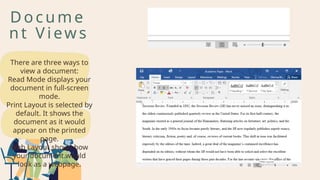
Docume
nt Views
There are three ways to
view a document:
Read Mode displays your
document in full-screen
mode.
Print Layout is selected by
default. It shows the
document as it would
appear on the printed
page.
Web Layout shows how
your document would
look as a webpage.
Docume
nt Views
There are three ways to
view a document:
Read Mode displays your
document in full-screen
mode.
Print Layout is selected by
default. It shows the
document as it would
appear on the printed
page.
Web Layout shows how
your document would
look as a webpage.
Docume
nt Views
There are three ways to
view a document:
Read Mode displays your
document in full-screen
mode.
Print Layout is selected by
default. It shows the
document as it would
appear on the printed
page.
Web Layout shows how
your document would
look as a webpage.
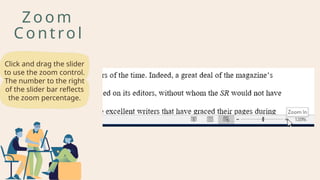
Zo om
Co ntrol
Click and drag the slider
to use the zoom control.
The number to the right
of the slider bar reflects
the zoom percentage.
ba ckSta
ge View
ackstage view gives you
various options for
saving, opening a file,
printing, and sharing
your document. To
access Backstage view,
click the File tab on the
Ribbon.
I hope you can get useful
knowledge from this
presentation. Good luck!
Thank
You!

Exploring the Microsoft Word Interface.pptx

  • 1.
    QUIZ!! ! What isthe default file extension for a document created in Microsoft Word 2016 and later? a) .doc b) .docx c) .txt d) .pdf
  • 2.
    QUIZ!! ! What isthe default file extension for a document created in Microsoft Word 2016 and later? a) .doc b) .docx c) .txt d) .pdf
  • 3.
    QUIZ!! ! Which tabon the Ribbon contains options for formatting text? a) Insert b) Review c) Home d) View
  • 4.
    QUIZ!! ! Which tabon the Ribbon contains options for formatting text? a) Insert b) Review c) Home d) View
  • 5.
    QUIZ!! ! What isthe purpose of the 'Format Painter' tool in Word? a) To copy text from one part of the document to another b) To change the background color of the document c) To apply the same formatting from one section of text to another d) To create a new document with a template
  • 6.
    QUIZ!! ! What isthe purpose of the 'Format Painter' tool in Word? a) To copy text from one part of the document to another b) To change the background color of the document c) To apply the same formatting from one section of text to another d) To create a new document with a template
  • 7.
    QUIZ!! ! Which featurein Word allows you to automatically create a list of items? a) Table b) Bullets and Numbering c) WordArt d) Footnotes
  • 8.
    QUIZ!! ! Which featurein Word allows you to automatically create a list of items? a) Table b) Bullets and Numbering c) WordArt d) Footnotes
  • 9.
    QUIZ!! ! Where canyou find the option to add a header or footer in a Word document? a) Page Layout tab b) References tab c) Insert tab d) Design tab
  • 10.
    QUIZ!! ! Where canyou find the option to add a header or footer in a Word document? a) Page Layout tab b) References tab c) Insert tab d) Design tab
  • 11.
    QUIZ!! ! What isthe function of the 'Track Changes' feature in Word? a) To track the number of pages in the document b) To highlight spelling errors c) To monitor and display changes made to the document by different users d) To save the document automatically
  • 12.
    QUIZ!! ! What isthe function of the 'Track Changes' feature in Word? a) To track the number of pages in the document b) To highlight spelling errors c) To monitor and display changes made to the document by different users d) To save the document automatically
  • 13.
    QUIZ!! ! How canyou quickly change the case of selected text in Word? a) Use the 'Find and Replace' feature b) Use the 'Change Case' button in the Font group on the Home tab c) Use the 'Spell Check' tool d) Use the 'Word Count' tool
  • 14.
    QUIZ!! ! How canyou quickly change the case of selected text in Word? a) Use the 'Find and Replace' feature b) Use the 'Change Case' button in the Font group on the Home tab c) Use the 'Spell Check' tool d) Use the 'Word Count' tool
  • 15.
    QUIZ!! ! Which viewshould you select to see a document as it will appear when printed? a) Web Layout b) Outline c) Draft d) Print Layout
  • 16.
    QUIZ!! ! Which viewshould you select to see a document as it will appear when printed? a) Web Layout b) Outline c) Draft d) Print Layout
  • 17.
    QUIZ!! ! What doesthe 'Ctrl + Z' shortcut do in Word? a) Redo the last action b) Save the document c) Undo the last action d) Copy the selected text
  • 18.
    QUIZ!! ! What doesthe 'Ctrl + Z' shortcut do in Word? a) Redo the last action b) Save the document c) Undo the last action d) Copy the selected text
  • 19.
    QUIZ!! ! Where isthe 'Word Count' feature located in the Word interface? a) View tab b) Home tab c) Review tab d) Insert tab
  • 20.
    QUIZ!! ! Where isthe 'Word Count' feature located in the Word interface? a) View tab b) Home tab c) Review tab d) Insert tab
  • 21.
  • 22.
    At the endof the lesson students will be able to: • Define Microsoft Word • Navigate MS Word Interface • Familiarize important features of MS Word OBJECTIV ES
  • 23.
    MICROSOFT WORD Microsoft Wordis a word processing application that allows you to create a variety of documents, including letters, resumes, and more. In this lesson, you'll learn how to navigate the Word interface and become familiar with some of its most important features, such as the Ribbon, Quick Access Toolbar, and Backstage view. DEFINITION
  • 24.
    COMPUTER SOFTWARE SYSTEM SOFTWARE tYPES OF cOMPUTERSOFTWARE APPLICATI ON SOFTWARE WORD PROCESSO R WORD PROCESSOR is a device or software program capable of creating, storing, and printing text documents. It allows users to write and modify text, display it on a screen, save it electronically, and print it out.
  • 25.
    WATCH THE VIDEOBELOW TO BECOME MORE FAMILIAR WITH WORD.
  • 26.
    MS WORD INTERFACE When youopen Word for the first time, the Start Screen will appear. From here, you'll be able to create a new document, choose a template, and access your recently edited documents. From the Start Screen, locate and select Blank document to access the Word interface.
  • 27.
    THE RIBBON The Ribbon containsall of the commands you will need to perform common tasks in Word. It has multiple tabs, each with several groups of commands.
  • 28.
    THE RIBBON The Ribbon containsall of the commands you will need to perform common tasks in Word. It has multiple tabs, each with several groups of commands.
  • 29.
    QUICK ACCESS TOOLBAR The Quick AccessToolbar lets you access common commands no matter which tab is selected. By default, it includes the Save, Undo, and Redo commands.
  • 30.
    COMMA ND GROUP Each group containsa series of different commands. Simply click any command to apply it. Some groups also have an arrow in the bottom- right corner, which you can click to see even more commands.
  • 31.
    Te ll Me TheTell me bar allows you to search for commands, which is especially helpful if you don't remember where to find a specific command.
  • 32.
    Micro so f t Account From here, you can access your Microsoft account information, view your profile, and switch accounts.
  • 33.
    The Ruler The Ruler islocated at the top and to the left of your document. It makes it easier to make alignment and spacing adjustments.
  • 34.
    Docume nt P ane Thisis where you'll type and edit text in the document.
  • 35.
    Scro ll Bar Click anddrag the vertical scroll bar to move up and down through the pages of your document.
  • 36.
    Pa ge and Word Co unt Fromhere, you can quickly see the number of words and pages in your document.
  • 37.
    Docume nt Views There arethree ways to view a document: Read Mode displays your document in full-screen mode. Print Layout is selected by default. It shows the document as it would appear on the printed page. Web Layout shows how your document would look as a webpage.
  • 38.
    Docume nt Views There arethree ways to view a document: Read Mode displays your document in full-screen mode. Print Layout is selected by default. It shows the document as it would appear on the printed page. Web Layout shows how your document would look as a webpage.
  • 39.
    Docume nt Views There arethree ways to view a document: Read Mode displays your document in full-screen mode. Print Layout is selected by default. It shows the document as it would appear on the printed page. Web Layout shows how your document would look as a webpage.
  • 40.
    Zo om Co ntrol Clickand drag the slider to use the zoom control. The number to the right of the slider bar reflects the zoom percentage.
  • 41.
    ba ckSta ge View ackstageview gives you various options for saving, opening a file, printing, and sharing your document. To access Backstage view, click the File tab on the Ribbon.
  • 42.
    I hope youcan get useful knowledge from this presentation. Good luck! Thank You!