Android: GridView as
ExpandableListView Item
This tutorial presentation will guide you through
the steps for using a GridView as the item of an
ExpandableListView.
2
ExpandableListView
● An ExpandableListView is a view that shows items in a
vertically scrolling two-level list.
● This differs from the ListView by allowing two levels: one
are the groups and other are the child items. The Groups
can individually be expanded to show its children.
3
Custom GridView
● Make a class named as MyCustomGridView.java.
● This class will consist the code for custom gridview which will be used
as the item of your ExpandableListView.
●
In this class add the code in the next slide:
For Using the GridView as the item of Expandable ListView we need to
create a custom GridView so that we can add more properties to it.
With this custom gridView we will be able to set the width and height
of gridview item dynamically.
4
●
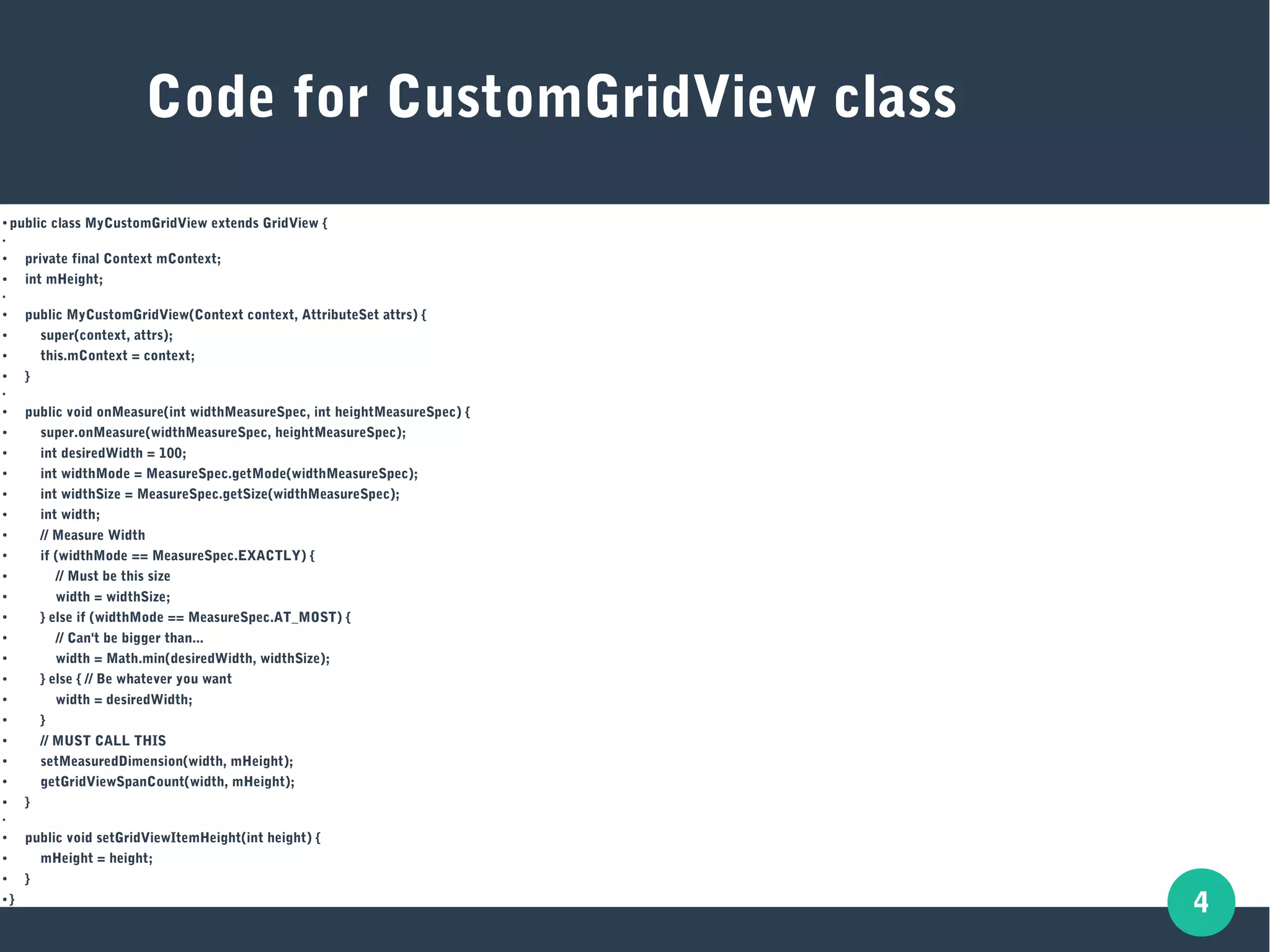
public class MyCustomGridView extends GridView {
●
● private final Context mContext;
● int mHeight;
●
●
public MyCustomGridView(Context context, AttributeSet attrs) {
● super(context, attrs);
● this.mContext = context;
●
}
●
●
public void onMeasure(int widthMeasureSpec, int heightMeasureSpec) {
● super.onMeasure(widthMeasureSpec, heightMeasureSpec);
● int desiredWidth = 100;
● int widthMode = MeasureSpec.getMode(widthMeasureSpec);
● int widthSize = MeasureSpec.getSize(widthMeasureSpec);
● int width;
● // Measure Width
● if (widthMode == MeasureSpec.EXACTLY) {
● // Must be this size
● width = widthSize;
● } else if (widthMode == MeasureSpec.AT_MOST) {
●
// Can't be bigger than...
● width = Math.min(desiredWidth, widthSize);
● } else { // Be whatever you want
●
width = desiredWidth;
● }
●
// MUST CALL THIS
●
setMeasuredDimension(width, mHeight);
● getGridViewSpanCount(width, mHeight);
●
}
●
● public void setGridViewItemHeight(int height) {
● mHeight = height;
●
}
● }
Code for CustomGridView class
5
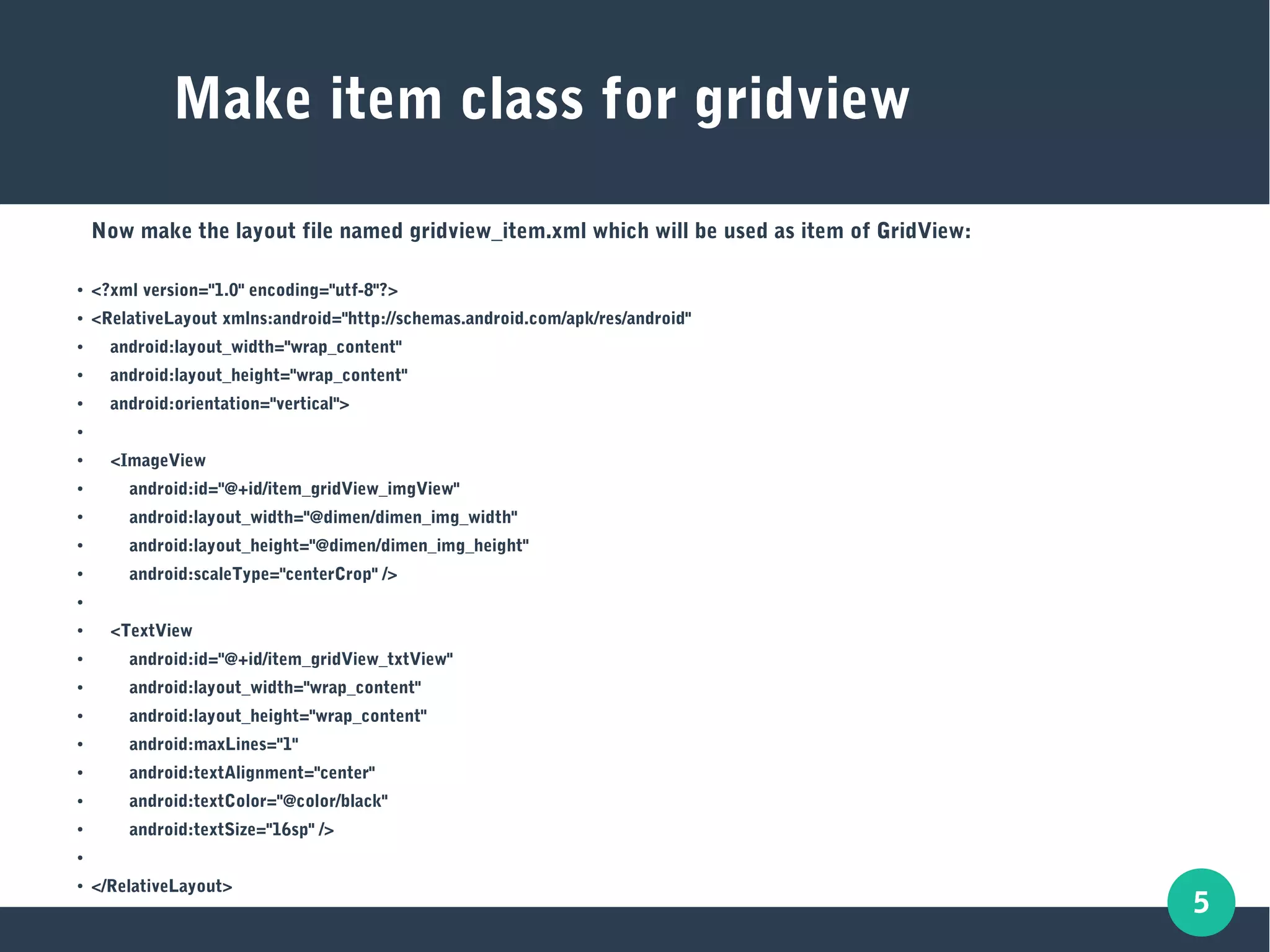
Make item class for gridview
Now make the layout file named gridview_item.xml which will be used as item of GridView:
● <?xml version="1.0" encoding="utf-8"?>
● <RelativeLayout xmlns:android="http://schemas.android.com/apk/res/android"
● android:layout_width="wrap_content"
● android:layout_height="wrap_content"
● android:orientation="vertical">
●
● <ImageView
● android:id="@+id/item_gridView_imgView"
● android:layout_width="@dimen/dimen_img_width"
● android:layout_height="@dimen/dimen_img_height"
● android:scaleType="centerCrop" />
●
● <TextView
● android:id="@+id/item_gridView_txtView"
● android:layout_width="wrap_content"
● android:layout_height="wrap_content"
● android:maxLines="1"
●
android:textAlignment="center"
● android:textColor="@color/black"
● android:textSize="16sp" />
●
● </RelativeLayout>
6
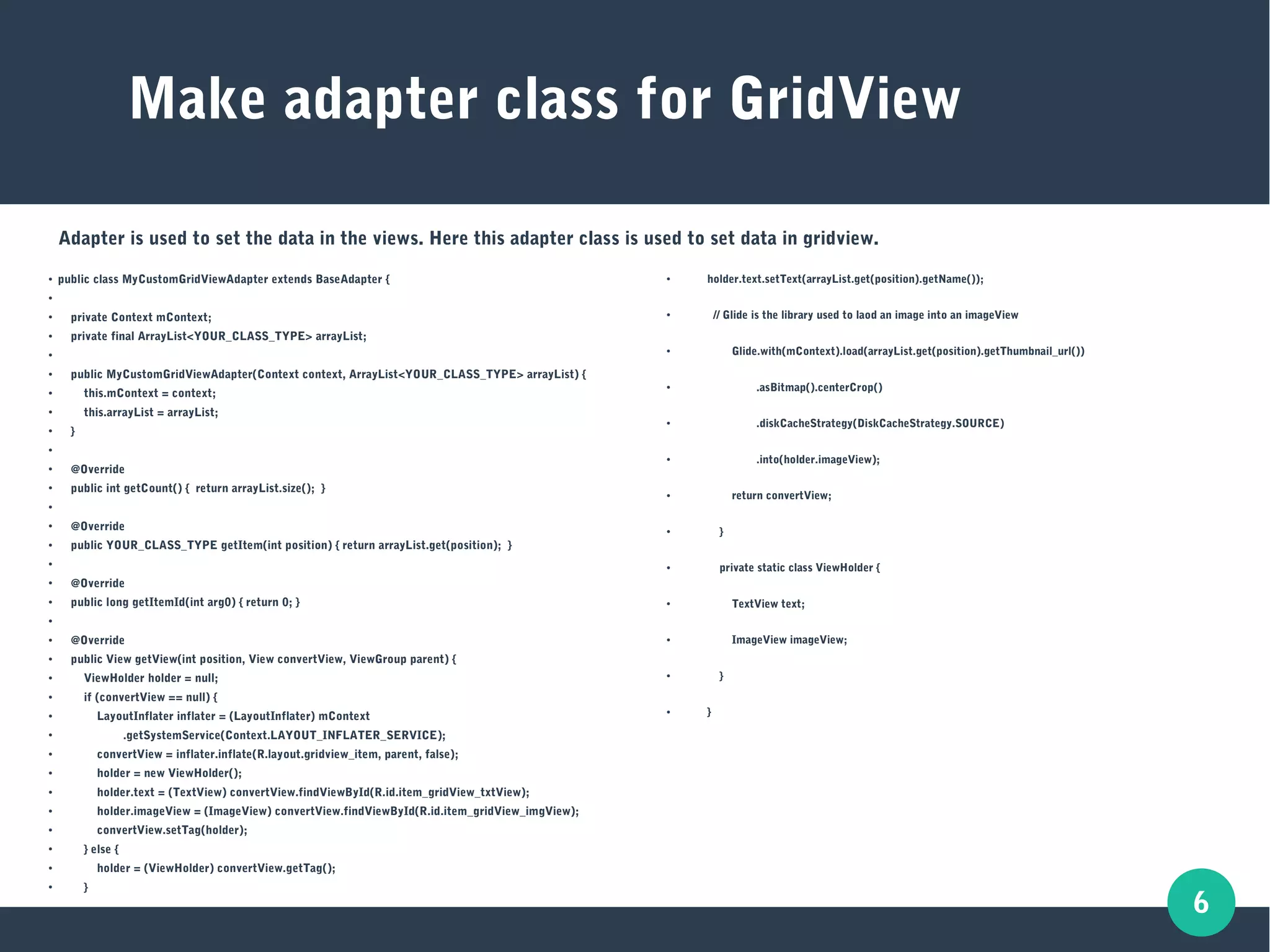
Make adapter class for GridView
● public class MyCustomGridViewAdapter extends BaseAdapter {
●
●
private Context mContext;
●
private final ArrayList<YOUR_CLASS_TYPE> arrayList;
●
●
public MyCustomGridViewAdapter(Context context, ArrayList<YOUR_CLASS_TYPE> arrayList) {
● this.mContext = context;
●
this.arrayList = arrayList;
● }
●
● @Override
●
public int getCount() { return arrayList.size(); }
●
●
@Override
● public YOUR_CLASS_TYPE getItem(int position) { return arrayList.get(position); }
●
● @Override
●
public long getItemId(int arg0) { return 0; }
●
●
@Override
●
public View getView(int position, View convertView, ViewGroup parent) {
●
ViewHolder holder = null;
● if (convertView == null) {
●
LayoutInflater inflater = (LayoutInflater) mContext
●
.getSystemService(Context.LAYOUT_INFLATER_SERVICE);
●
convertView = inflater.inflate(R.layout.gridview_item, parent, false);
● holder = new ViewHolder();
●
holder.text = (TextView) convertView.findViewById(R.id.item_gridView_txtView);
●
holder.imageView = (ImageView) convertView.findViewById(R.id.item_gridView_imgView);
● convertView.setTag(holder);
●
} else {
●
holder = (ViewHolder) convertView.getTag();
●
}
● holder.text.setText(arrayList.get(position).getName());
● // Glide is the library used to laod an image into an imageView
● Glide.with(mContext).load(arrayList.get(position).getThumbnail_url())
● .asBitmap().centerCrop()
● .diskCacheStrategy(DiskCacheStrategy.SOURCE)
● .into(holder.imageView);
● return convertView;
● }
● private static class ViewHolder {
● TextView text;
● ImageView imageView;
● }
● }
Adapter is used to set the data in the views. Here this adapter class is used to set data in gridview.
7
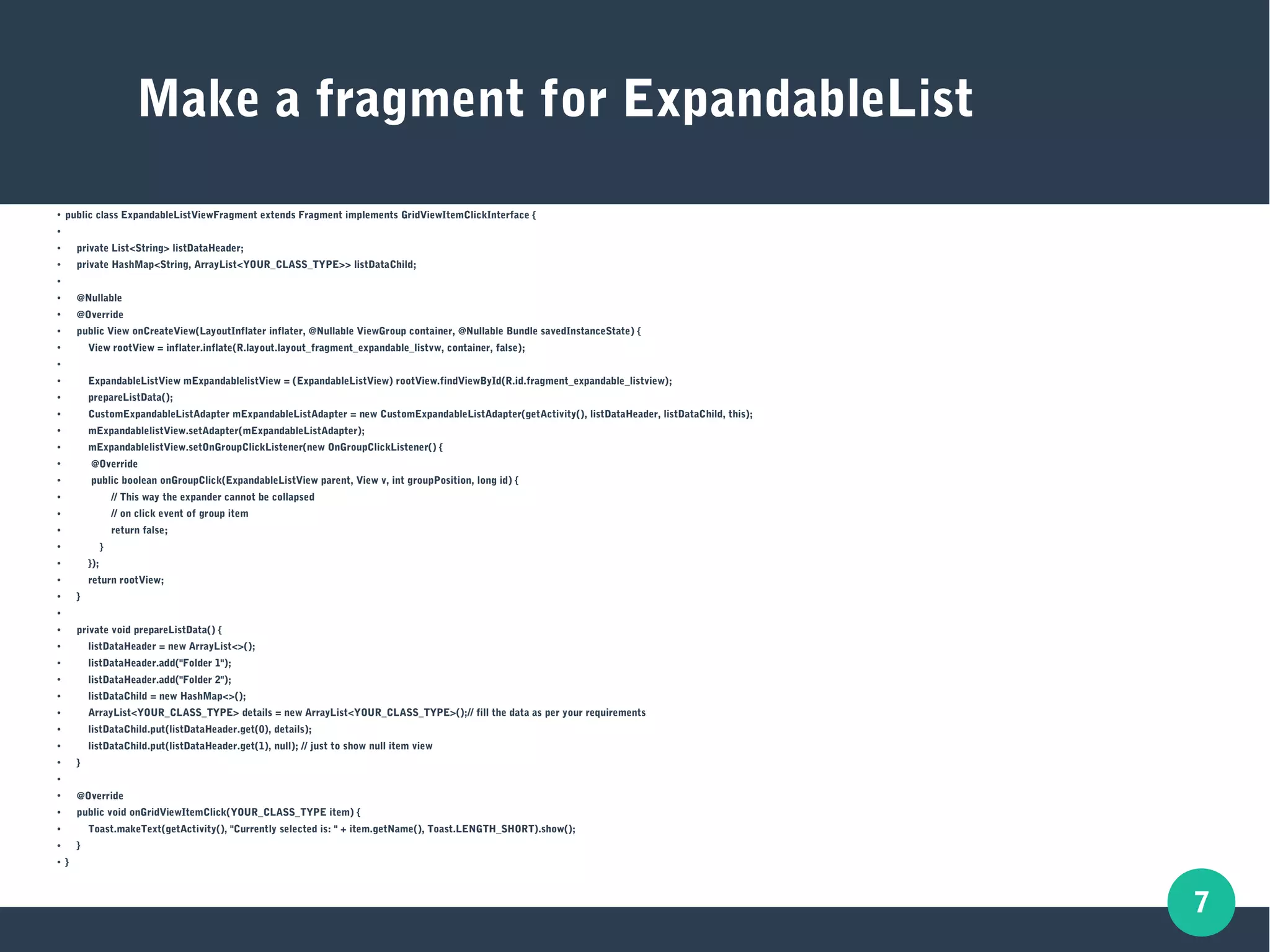
Make a fragment for ExpandableList
● public class ExpandableListViewFragment extends Fragment implements GridViewItemClickInterface {
●
● private List<String> listDataHeader;
● private HashMap<String, ArrayList<YOUR_CLASS_TYPE>> listDataChild;
●
● @Nullable
● @Override
● public View onCreateView(LayoutInflater inflater, @Nullable ViewGroup container, @Nullable Bundle savedInstanceState) {
● View rootView = inflater.inflate(R.layout.layout_fragment_expandable_listvw, container, false);
●
● ExpandableListView mExpandablelistView = (ExpandableListView) rootView.findViewById(R.id.fragment_expandable_listview);
● prepareListData();
● CustomExpandableListAdapter mExpandableListAdapter = new CustomExpandableListAdapter(getActivity(), listDataHeader, listDataChild, this);
● mExpandablelistView.setAdapter(mExpandableListAdapter);
● mExpandablelistView.setOnGroupClickListener(new OnGroupClickListener() {
● @Override
● public boolean onGroupClick(ExpandableListView parent, View v, int groupPosition, long id) {
● // This way the expander cannot be collapsed
● // on click event of group item
● return false;
● }
● });
● return rootView;
● }
●
● private void prepareListData() {
● listDataHeader = new ArrayList<>();
● listDataHeader.add("Folder 1");
● listDataHeader.add("Folder 2");
● listDataChild = new HashMap<>();
● ArrayList<YOUR_CLASS_TYPE> details = new ArrayList<YOUR_CLASS_TYPE>();// fill the data as per your requirements
● listDataChild.put(listDataHeader.get(0), details);
● listDataChild.put(listDataHeader.get(1), null); // just to show null item view
● }
●
● @Override
● public void onGridViewItemClick(YOUR_CLASS_TYPE item) {
● Toast.makeText(getActivity(), "Currently selected is: " + item.getName(), Toast.LENGTH_SHORT).show();
● }
● }
8
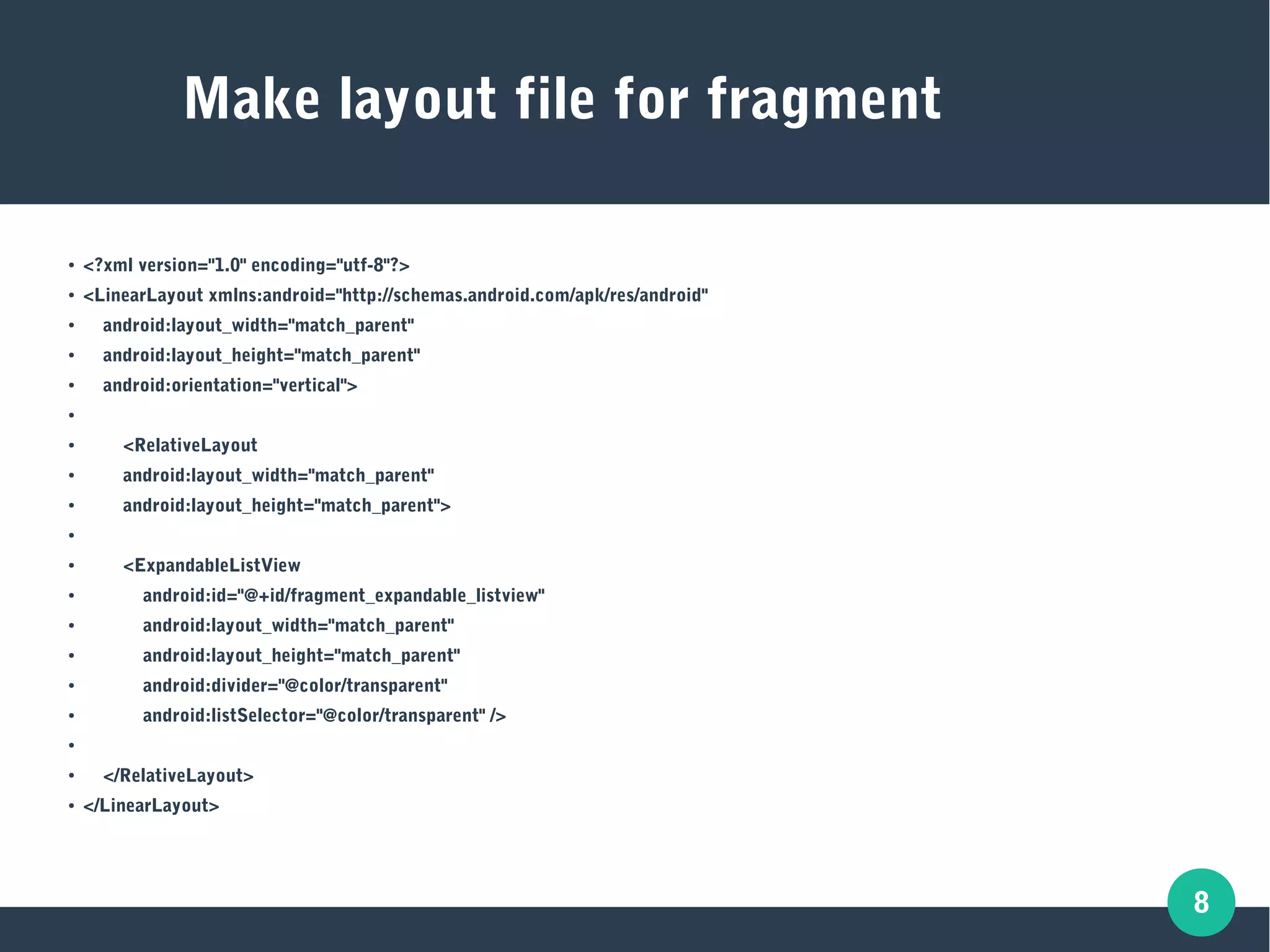
Make layout file for fragment
● <?xml version="1.0" encoding="utf-8"?>
● <LinearLayout xmlns:android="http://schemas.android.com/apk/res/android"
● android:layout_width="match_parent"
● android:layout_height="match_parent"
● android:orientation="vertical">
●
● <RelativeLayout
● android:layout_width="match_parent"
● android:layout_height="match_parent">
●
● <ExpandableListView
● android:id="@+id/fragment_expandable_listview"
● android:layout_width="match_parent"
● android:layout_height="match_parent"
● android:divider="@color/transparent"
● android:listSelector="@color/transparent" />
●
● </RelativeLayout>
● </LinearLayout>
9
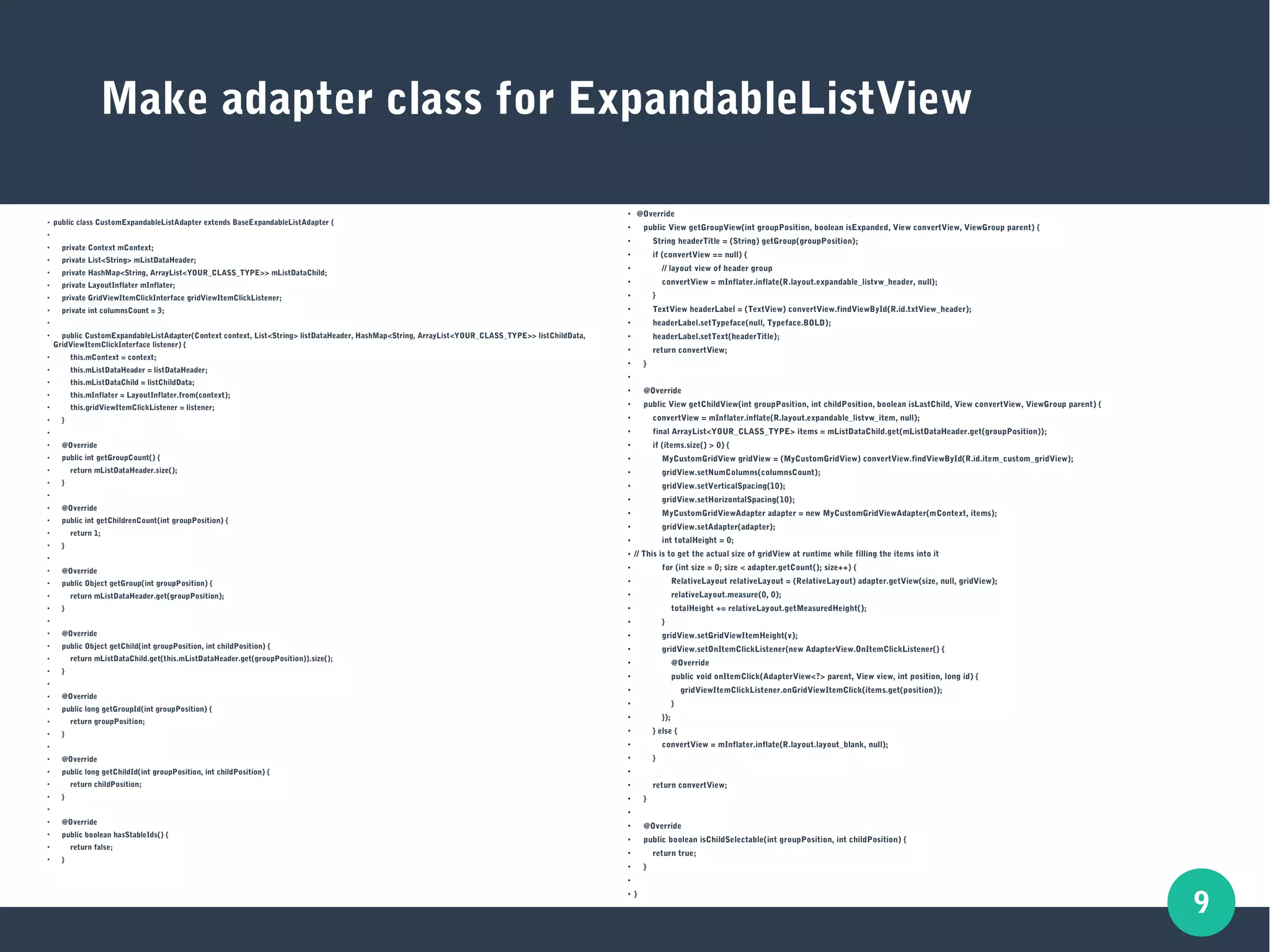
Make adapter class for ExpandableListView
●
public class CustomExpandableListAdapter extends BaseExpandableListAdapter {
●
●
private Context mContext;
●
private List<String> mListDataHeader;
●
private HashMap<String, ArrayList<YOUR_CLASS_TYPE>> mListDataChild;
●
private LayoutInflater mInflater;
●
private GridViewItemClickInterface gridViewItemClickListener;
●
private int columnsCount = 3;
●
●
public CustomExpandableListAdapter(Context context, List<String> listDataHeader, HashMap<String, ArrayList<YOUR_CLASS_TYPE>> listChildData,
GridViewItemClickInterface listener) {
●
this.mContext = context;
●
this.mListDataHeader = listDataHeader;
●
this.mListDataChild = listChildData;
●
this.mInflater = LayoutInflater.from(context);
●
this.gridViewItemClickListener = listener;
●
}
●
●
@Override
●
public int getGroupCount() {
●
return mListDataHeader.size();
●
}
●
●
@Override
●
public int getChildrenCount(int groupPosition) {
●
return 1;
●
}
●
●
@Override
●
public Object getGroup(int groupPosition) {
●
return mListDataHeader.get(groupPosition);
●
}
●
●
@Override
●
public Object getChild(int groupPosition, int childPosition) {
●
return mListDataChild.get(this.mListDataHeader.get(groupPosition)).size();
●
}
●
●
@Override
●
public long getGroupId(int groupPosition) {
●
return groupPosition;
●
}
●
●
@Override
●
public long getChildId(int groupPosition, int childPosition) {
●
return childPosition;
●
}
●
●
@Override
●
public boolean hasStableIds() {
●
return false;
●
}
●
@Override
●
public View getGroupView(int groupPosition, boolean isExpanded, View convertView, ViewGroup parent) {
●
String headerTitle = (String) getGroup(groupPosition);
●
if (convertView == null) {
●
// layout view of header group
●
convertView = mInflater.inflate(R.layout.expandable_listvw_header, null);
●
}
●
TextView headerLabel = (TextView) convertView.findViewById(R.id.txtView_header);
●
headerLabel.setTypeface(null, Typeface.BOLD);
●
headerLabel.setText(headerTitle);
●
return convertView;
●
}
●
●
@Override
●
public View getChildView(int groupPosition, int childPosition, boolean isLastChild, View convertView, ViewGroup parent) {
●
convertView = mInflater.inflate(R.layout.expandable_listvw_item, null);
●
final ArrayList<YOUR_CLASS_TYPE> items = mListDataChild.get(mListDataHeader.get(groupPosition));
●
if (items.size() > 0) {
●
MyCustomGridView gridView = (MyCustomGridView) convertView.findViewById(R.id.item_custom_gridView);
●
gridView.setNumColumns(columnsCount);
●
gridView.setVerticalSpacing(10);
●
gridView.setHorizontalSpacing(10);
● MyCustomGridViewAdapter adapter = new MyCustomGridViewAdapter(mContext, items);
● gridView.setAdapter(adapter);
● int totalHeight = 0;
● // This is to get the actual size of gridView at runtime while filling the items into it
● for (int size = 0; size < adapter.getCount(); size++) {
● RelativeLayout relativeLayout = (RelativeLayout) adapter.getView(size, null, gridView);
● relativeLayout.measure(0, 0);
● totalHeight += relativeLayout.getMeasuredHeight();
● }
● gridView.setGridViewItemHeight(v);
●
gridView.setOnItemClickListener(new AdapterView.OnItemClickListener() {
●
@Override
●
public void onItemClick(AdapterView<?> parent, View view, int position, long id) {
●
gridViewItemClickListener.onGridViewItemClick(items.get(position));
●
}
●
});
●
} else {
●
convertView = mInflater.inflate(R.layout.layout_blank, null);
●
}
●
●
return convertView;
●
}
●
●
@Override
●
public boolean isChildSelectable(int groupPosition, int childPosition) {
●
return true;
●
}
●
●
}
10
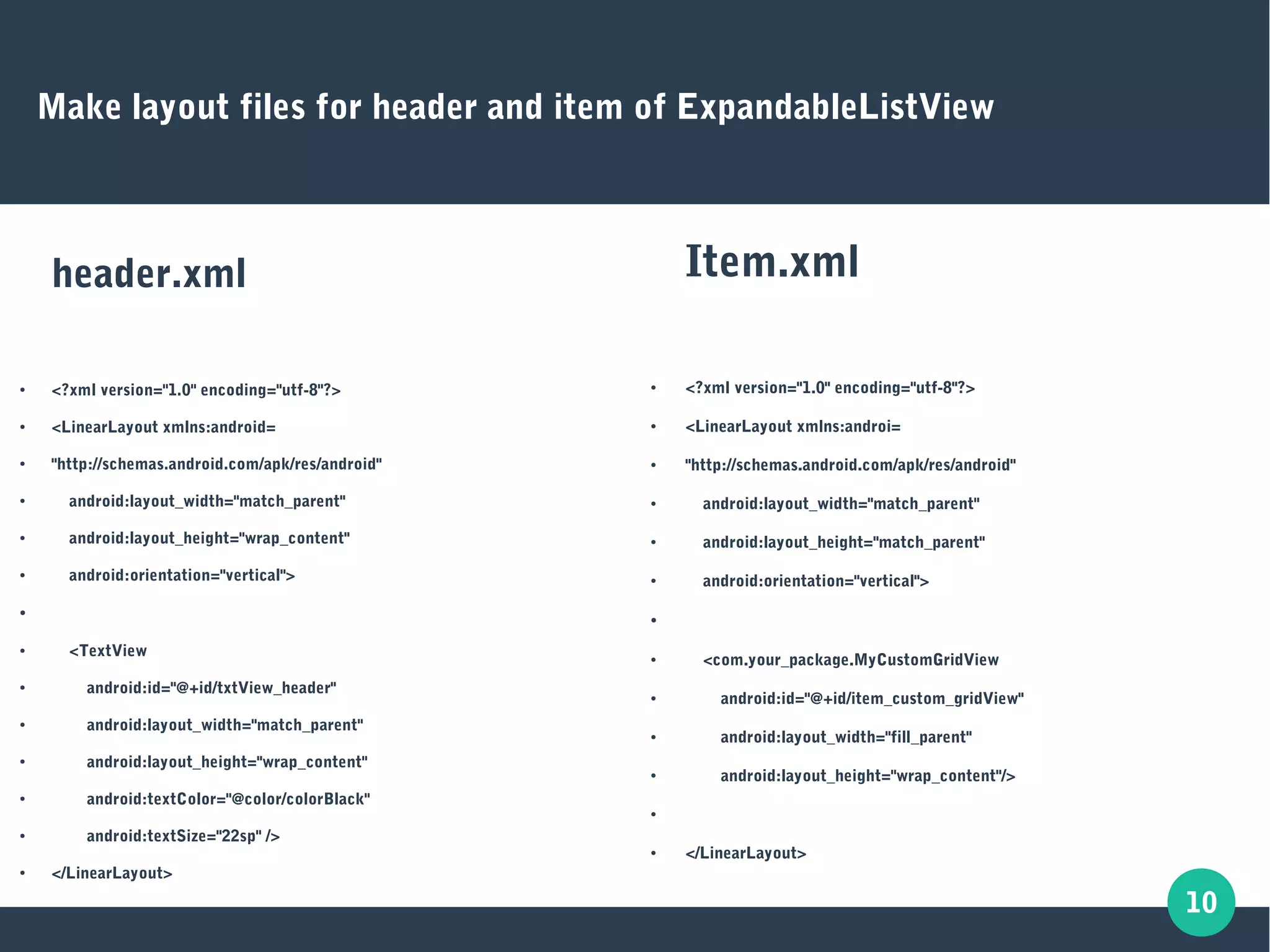
Make layout files for header and item of ExpandableListView
header.xml
● <?xml version="1.0" encoding="utf-8"?>
● <LinearLayout xmlns:android=
● "http://schemas.android.com/apk/res/android"
● android:layout_width="match_parent"
● android:layout_height="wrap_content"
● android:orientation="vertical">
●
● <TextView
● android:id="@+id/txtView_header"
● android:layout_width="match_parent"
● android:layout_height="wrap_content"
● android:textColor="@color/colorBlack"
● android:textSize="22sp" />
● </LinearLayout>
Item.xml
● <?xml version="1.0" encoding="utf-8"?>
● <LinearLayout xmlns:androi=
● "http://schemas.android.com/apk/res/android"
● android:layout_width="match_parent"
● android:layout_height="match_parent"
● android:orientation="vertical">
●
● <com.your_package.MyCustomGridView
● android:id="@+id/item_custom_gridView"
● android:layout_width="fill_parent"
● android:layout_height="wrap_content"/>
●
● </LinearLayout>
11
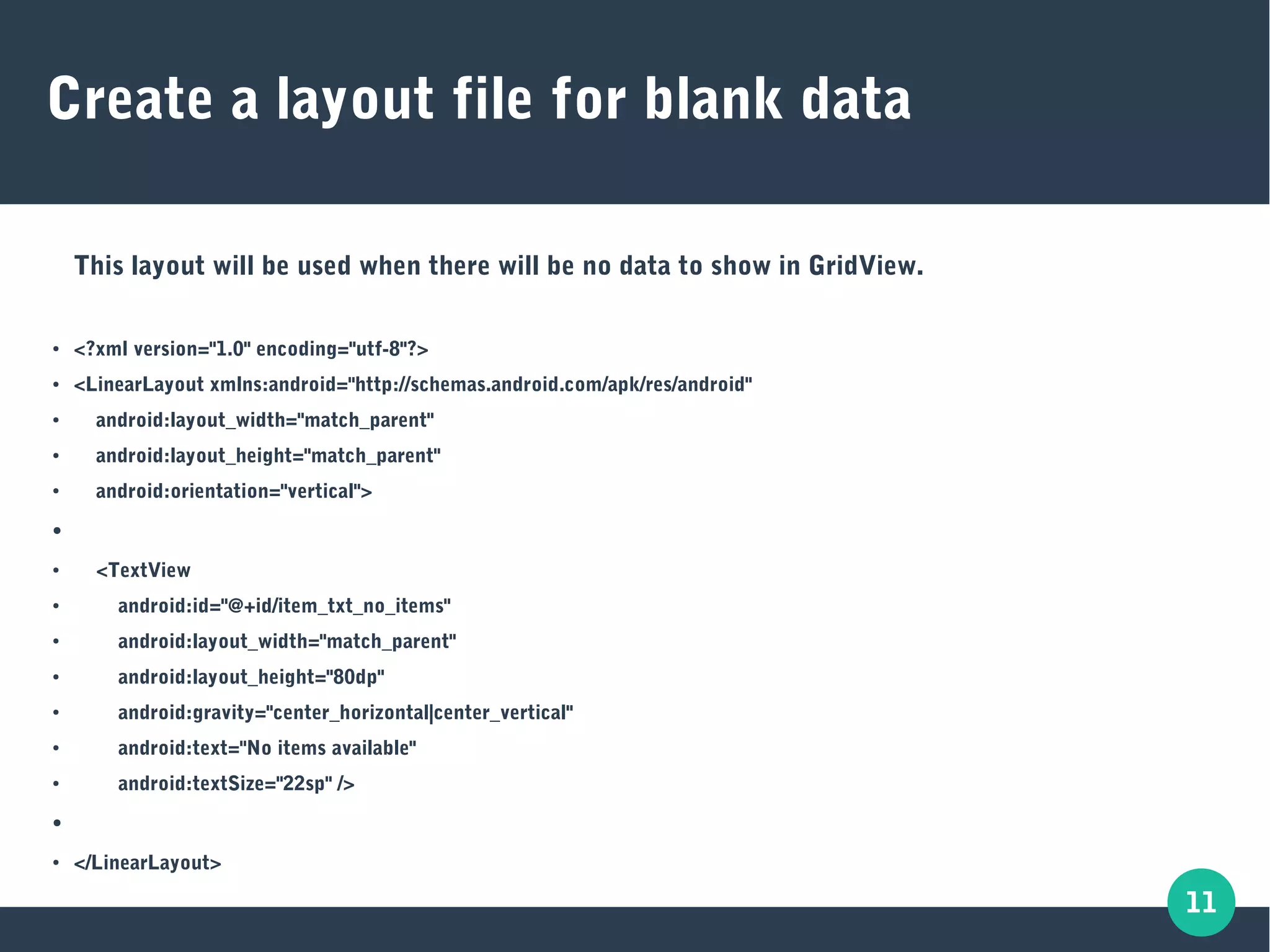
Create a layout file for blank data
This layout will be used when there will be no data to show in GridView.
● <?xml version="1.0" encoding="utf-8"?>
● <LinearLayout xmlns:android="http://schemas.android.com/apk/res/android"
● android:layout_width="match_parent"
● android:layout_height="match_parent"
● android:orientation="vertical">
●
● <TextView
● android:id="@+id/item_txt_no_items"
● android:layout_width="match_parent"
● android:layout_height="80dp"
● android:gravity="center_horizontal|center_vertical"
● android:text="No items available"
● android:textSize="22sp" />
●
● </LinearLayout>
12
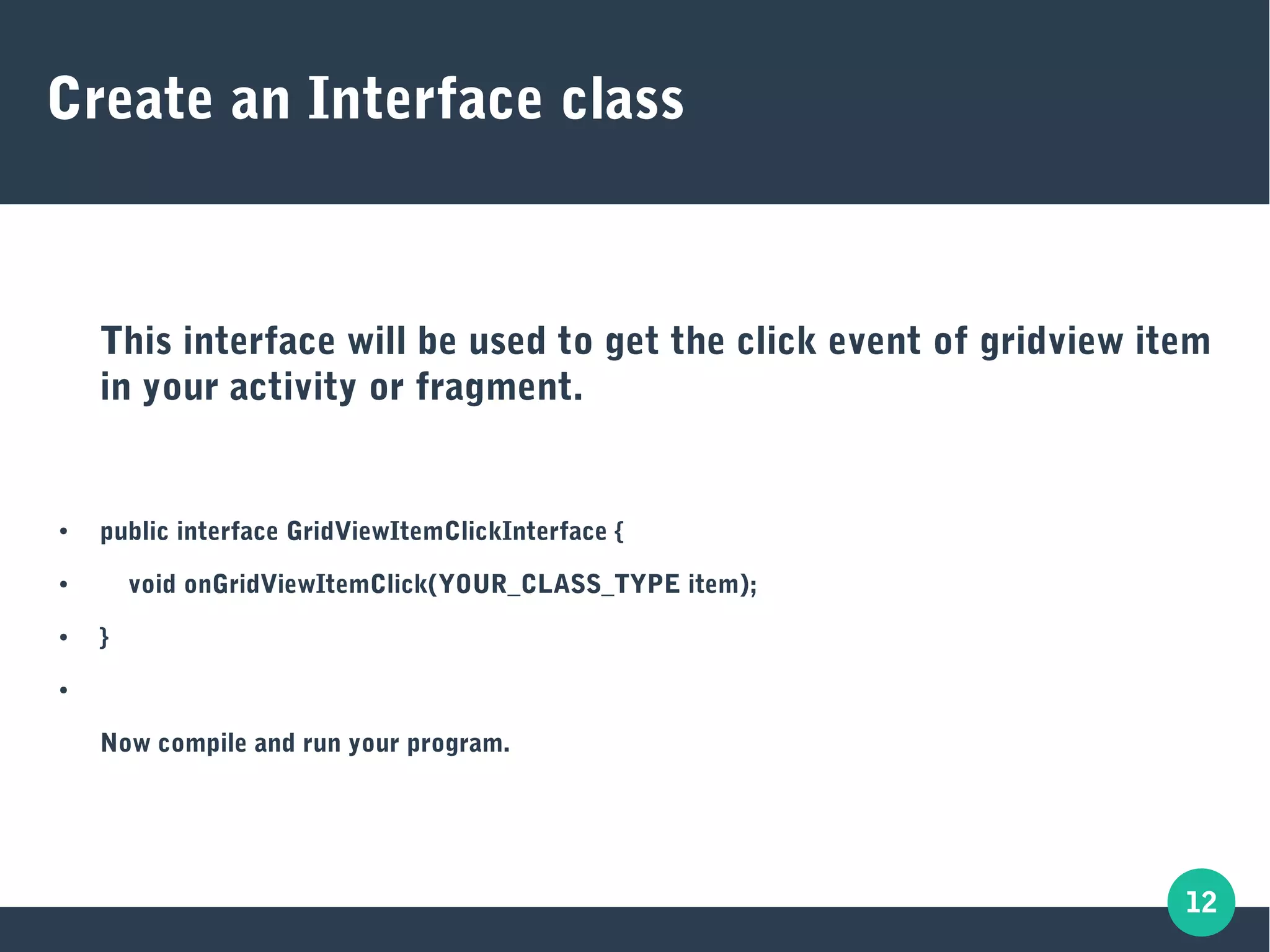
Create an Interface class
This interface will be used to get the click event of gridview item
in your activity or fragment.
● public interface GridViewItemClickInterface {
● void onGridViewItemClick(YOUR_CLASS_TYPE item);
● }
●
Now compile and run your program.
13
Output
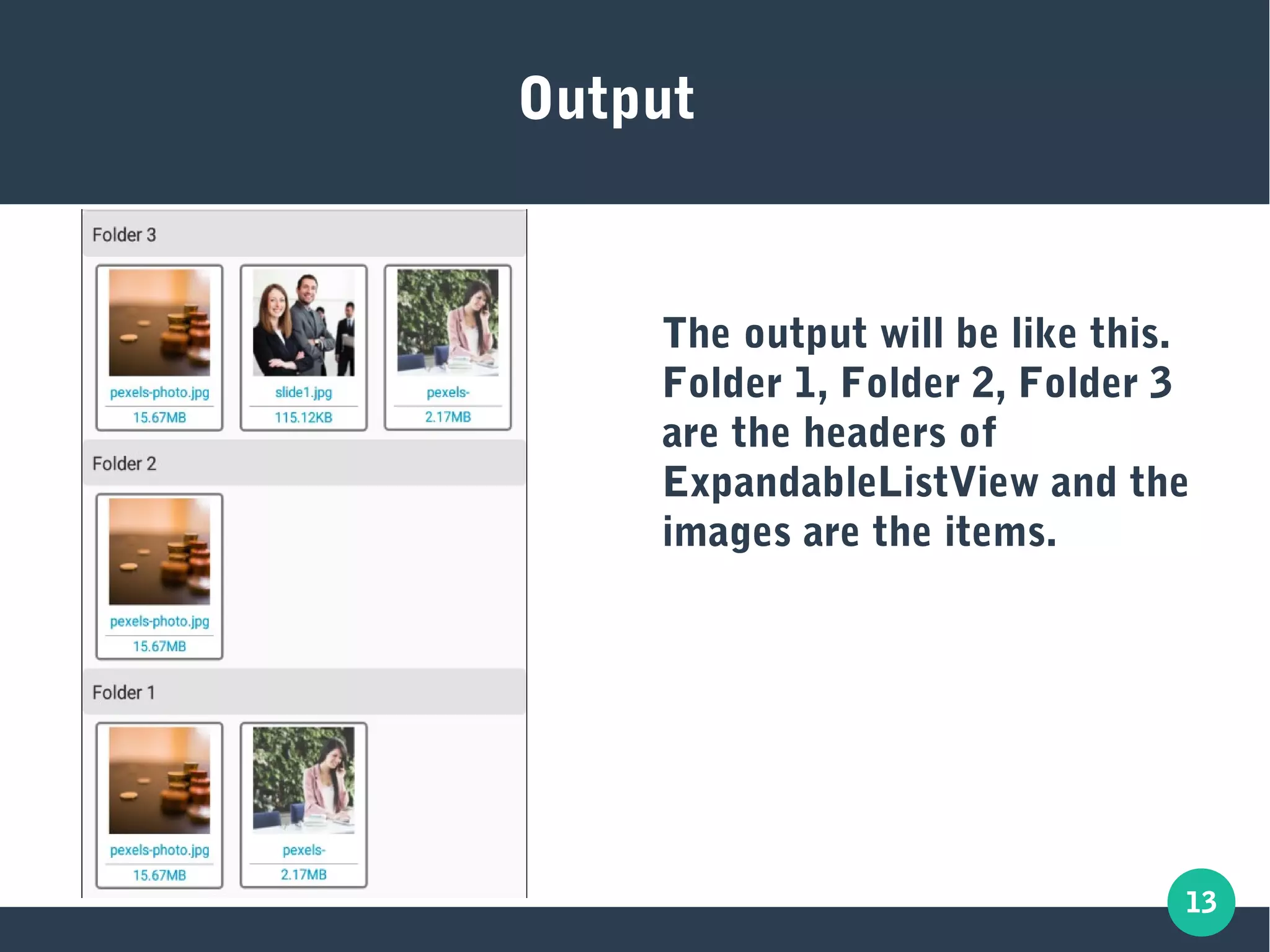
The output will be like this.
Folder 1, Folder 2, Folder 3
are the headers of
ExpandableListView and the
images are the items.
14
Any questions?

ExpandableListView and GridView

  • 1.
    Android: GridView as ExpandableListViewItem This tutorial presentation will guide you through the steps for using a GridView as the item of an ExpandableListView.
  • 2.
    2 ExpandableListView ● An ExpandableListViewis a view that shows items in a vertically scrolling two-level list. ● This differs from the ListView by allowing two levels: one are the groups and other are the child items. The Groups can individually be expanded to show its children.
  • 3.
    3 Custom GridView ● Makea class named as MyCustomGridView.java. ● This class will consist the code for custom gridview which will be used as the item of your ExpandableListView. ● In this class add the code in the next slide: For Using the GridView as the item of Expandable ListView we need to create a custom GridView so that we can add more properties to it. With this custom gridView we will be able to set the width and height of gridview item dynamically.
  • 4.
    4 ● public class MyCustomGridViewextends GridView { ● ● private final Context mContext; ● int mHeight; ● ● public MyCustomGridView(Context context, AttributeSet attrs) { ● super(context, attrs); ● this.mContext = context; ● } ● ● public void onMeasure(int widthMeasureSpec, int heightMeasureSpec) { ● super.onMeasure(widthMeasureSpec, heightMeasureSpec); ● int desiredWidth = 100; ● int widthMode = MeasureSpec.getMode(widthMeasureSpec); ● int widthSize = MeasureSpec.getSize(widthMeasureSpec); ● int width; ● // Measure Width ● if (widthMode == MeasureSpec.EXACTLY) { ● // Must be this size ● width = widthSize; ● } else if (widthMode == MeasureSpec.AT_MOST) { ● // Can't be bigger than... ● width = Math.min(desiredWidth, widthSize); ● } else { // Be whatever you want ● width = desiredWidth; ● } ● // MUST CALL THIS ● setMeasuredDimension(width, mHeight); ● getGridViewSpanCount(width, mHeight); ● } ● ● public void setGridViewItemHeight(int height) { ● mHeight = height; ● } ● } Code for CustomGridView class
  • 5.
    5 Make item classfor gridview Now make the layout file named gridview_item.xml which will be used as item of GridView: ● <?xml version="1.0" encoding="utf-8"?> ● <RelativeLayout xmlns:android="http://schemas.android.com/apk/res/android" ● android:layout_width="wrap_content" ● android:layout_height="wrap_content" ● android:orientation="vertical"> ● ● <ImageView ● android:id="@+id/item_gridView_imgView" ● android:layout_width="@dimen/dimen_img_width" ● android:layout_height="@dimen/dimen_img_height" ● android:scaleType="centerCrop" /> ● ● <TextView ● android:id="@+id/item_gridView_txtView" ● android:layout_width="wrap_content" ● android:layout_height="wrap_content" ● android:maxLines="1" ● android:textAlignment="center" ● android:textColor="@color/black" ● android:textSize="16sp" /> ● ● </RelativeLayout>
  • 6.
    6 Make adapter classfor GridView ● public class MyCustomGridViewAdapter extends BaseAdapter { ● ● private Context mContext; ● private final ArrayList<YOUR_CLASS_TYPE> arrayList; ● ● public MyCustomGridViewAdapter(Context context, ArrayList<YOUR_CLASS_TYPE> arrayList) { ● this.mContext = context; ● this.arrayList = arrayList; ● } ● ● @Override ● public int getCount() { return arrayList.size(); } ● ● @Override ● public YOUR_CLASS_TYPE getItem(int position) { return arrayList.get(position); } ● ● @Override ● public long getItemId(int arg0) { return 0; } ● ● @Override ● public View getView(int position, View convertView, ViewGroup parent) { ● ViewHolder holder = null; ● if (convertView == null) { ● LayoutInflater inflater = (LayoutInflater) mContext ● .getSystemService(Context.LAYOUT_INFLATER_SERVICE); ● convertView = inflater.inflate(R.layout.gridview_item, parent, false); ● holder = new ViewHolder(); ● holder.text = (TextView) convertView.findViewById(R.id.item_gridView_txtView); ● holder.imageView = (ImageView) convertView.findViewById(R.id.item_gridView_imgView); ● convertView.setTag(holder); ● } else { ● holder = (ViewHolder) convertView.getTag(); ● } ● holder.text.setText(arrayList.get(position).getName()); ● // Glide is the library used to laod an image into an imageView ● Glide.with(mContext).load(arrayList.get(position).getThumbnail_url()) ● .asBitmap().centerCrop() ● .diskCacheStrategy(DiskCacheStrategy.SOURCE) ● .into(holder.imageView); ● return convertView; ● } ● private static class ViewHolder { ● TextView text; ● ImageView imageView; ● } ● } Adapter is used to set the data in the views. Here this adapter class is used to set data in gridview.
  • 7.
    7 Make a fragmentfor ExpandableList ● public class ExpandableListViewFragment extends Fragment implements GridViewItemClickInterface { ● ● private List<String> listDataHeader; ● private HashMap<String, ArrayList<YOUR_CLASS_TYPE>> listDataChild; ● ● @Nullable ● @Override ● public View onCreateView(LayoutInflater inflater, @Nullable ViewGroup container, @Nullable Bundle savedInstanceState) { ● View rootView = inflater.inflate(R.layout.layout_fragment_expandable_listvw, container, false); ● ● ExpandableListView mExpandablelistView = (ExpandableListView) rootView.findViewById(R.id.fragment_expandable_listview); ● prepareListData(); ● CustomExpandableListAdapter mExpandableListAdapter = new CustomExpandableListAdapter(getActivity(), listDataHeader, listDataChild, this); ● mExpandablelistView.setAdapter(mExpandableListAdapter); ● mExpandablelistView.setOnGroupClickListener(new OnGroupClickListener() { ● @Override ● public boolean onGroupClick(ExpandableListView parent, View v, int groupPosition, long id) { ● // This way the expander cannot be collapsed ● // on click event of group item ● return false; ● } ● }); ● return rootView; ● } ● ● private void prepareListData() { ● listDataHeader = new ArrayList<>(); ● listDataHeader.add("Folder 1"); ● listDataHeader.add("Folder 2"); ● listDataChild = new HashMap<>(); ● ArrayList<YOUR_CLASS_TYPE> details = new ArrayList<YOUR_CLASS_TYPE>();// fill the data as per your requirements ● listDataChild.put(listDataHeader.get(0), details); ● listDataChild.put(listDataHeader.get(1), null); // just to show null item view ● } ● ● @Override ● public void onGridViewItemClick(YOUR_CLASS_TYPE item) { ● Toast.makeText(getActivity(), "Currently selected is: " + item.getName(), Toast.LENGTH_SHORT).show(); ● } ● }
  • 8.
    8 Make layout filefor fragment ● <?xml version="1.0" encoding="utf-8"?> ● <LinearLayout xmlns:android="http://schemas.android.com/apk/res/android" ● android:layout_width="match_parent" ● android:layout_height="match_parent" ● android:orientation="vertical"> ● ● <RelativeLayout ● android:layout_width="match_parent" ● android:layout_height="match_parent"> ● ● <ExpandableListView ● android:id="@+id/fragment_expandable_listview" ● android:layout_width="match_parent" ● android:layout_height="match_parent" ● android:divider="@color/transparent" ● android:listSelector="@color/transparent" /> ● ● </RelativeLayout> ● </LinearLayout>
  • 9.
    9 Make adapter classfor ExpandableListView ● public class CustomExpandableListAdapter extends BaseExpandableListAdapter { ● ● private Context mContext; ● private List<String> mListDataHeader; ● private HashMap<String, ArrayList<YOUR_CLASS_TYPE>> mListDataChild; ● private LayoutInflater mInflater; ● private GridViewItemClickInterface gridViewItemClickListener; ● private int columnsCount = 3; ● ● public CustomExpandableListAdapter(Context context, List<String> listDataHeader, HashMap<String, ArrayList<YOUR_CLASS_TYPE>> listChildData, GridViewItemClickInterface listener) { ● this.mContext = context; ● this.mListDataHeader = listDataHeader; ● this.mListDataChild = listChildData; ● this.mInflater = LayoutInflater.from(context); ● this.gridViewItemClickListener = listener; ● } ● ● @Override ● public int getGroupCount() { ● return mListDataHeader.size(); ● } ● ● @Override ● public int getChildrenCount(int groupPosition) { ● return 1; ● } ● ● @Override ● public Object getGroup(int groupPosition) { ● return mListDataHeader.get(groupPosition); ● } ● ● @Override ● public Object getChild(int groupPosition, int childPosition) { ● return mListDataChild.get(this.mListDataHeader.get(groupPosition)).size(); ● } ● ● @Override ● public long getGroupId(int groupPosition) { ● return groupPosition; ● } ● ● @Override ● public long getChildId(int groupPosition, int childPosition) { ● return childPosition; ● } ● ● @Override ● public boolean hasStableIds() { ● return false; ● } ● @Override ● public View getGroupView(int groupPosition, boolean isExpanded, View convertView, ViewGroup parent) { ● String headerTitle = (String) getGroup(groupPosition); ● if (convertView == null) { ● // layout view of header group ● convertView = mInflater.inflate(R.layout.expandable_listvw_header, null); ● } ● TextView headerLabel = (TextView) convertView.findViewById(R.id.txtView_header); ● headerLabel.setTypeface(null, Typeface.BOLD); ● headerLabel.setText(headerTitle); ● return convertView; ● } ● ● @Override ● public View getChildView(int groupPosition, int childPosition, boolean isLastChild, View convertView, ViewGroup parent) { ● convertView = mInflater.inflate(R.layout.expandable_listvw_item, null); ● final ArrayList<YOUR_CLASS_TYPE> items = mListDataChild.get(mListDataHeader.get(groupPosition)); ● if (items.size() > 0) { ● MyCustomGridView gridView = (MyCustomGridView) convertView.findViewById(R.id.item_custom_gridView); ● gridView.setNumColumns(columnsCount); ● gridView.setVerticalSpacing(10); ● gridView.setHorizontalSpacing(10); ● MyCustomGridViewAdapter adapter = new MyCustomGridViewAdapter(mContext, items); ● gridView.setAdapter(adapter); ● int totalHeight = 0; ● // This is to get the actual size of gridView at runtime while filling the items into it ● for (int size = 0; size < adapter.getCount(); size++) { ● RelativeLayout relativeLayout = (RelativeLayout) adapter.getView(size, null, gridView); ● relativeLayout.measure(0, 0); ● totalHeight += relativeLayout.getMeasuredHeight(); ● } ● gridView.setGridViewItemHeight(v); ● gridView.setOnItemClickListener(new AdapterView.OnItemClickListener() { ● @Override ● public void onItemClick(AdapterView<?> parent, View view, int position, long id) { ● gridViewItemClickListener.onGridViewItemClick(items.get(position)); ● } ● }); ● } else { ● convertView = mInflater.inflate(R.layout.layout_blank, null); ● } ● ● return convertView; ● } ● ● @Override ● public boolean isChildSelectable(int groupPosition, int childPosition) { ● return true; ● } ● ● }
  • 10.
    10 Make layout filesfor header and item of ExpandableListView header.xml ● <?xml version="1.0" encoding="utf-8"?> ● <LinearLayout xmlns:android= ● "http://schemas.android.com/apk/res/android" ● android:layout_width="match_parent" ● android:layout_height="wrap_content" ● android:orientation="vertical"> ● ● <TextView ● android:id="@+id/txtView_header" ● android:layout_width="match_parent" ● android:layout_height="wrap_content" ● android:textColor="@color/colorBlack" ● android:textSize="22sp" /> ● </LinearLayout> Item.xml ● <?xml version="1.0" encoding="utf-8"?> ● <LinearLayout xmlns:androi= ● "http://schemas.android.com/apk/res/android" ● android:layout_width="match_parent" ● android:layout_height="match_parent" ● android:orientation="vertical"> ● ● <com.your_package.MyCustomGridView ● android:id="@+id/item_custom_gridView" ● android:layout_width="fill_parent" ● android:layout_height="wrap_content"/> ● ● </LinearLayout>
  • 11.
    11 Create a layoutfile for blank data This layout will be used when there will be no data to show in GridView. ● <?xml version="1.0" encoding="utf-8"?> ● <LinearLayout xmlns:android="http://schemas.android.com/apk/res/android" ● android:layout_width="match_parent" ● android:layout_height="match_parent" ● android:orientation="vertical"> ● ● <TextView ● android:id="@+id/item_txt_no_items" ● android:layout_width="match_parent" ● android:layout_height="80dp" ● android:gravity="center_horizontal|center_vertical" ● android:text="No items available" ● android:textSize="22sp" /> ● ● </LinearLayout>
  • 12.
    12 Create an Interfaceclass This interface will be used to get the click event of gridview item in your activity or fragment. ● public interface GridViewItemClickInterface { ● void onGridViewItemClick(YOUR_CLASS_TYPE item); ● } ● Now compile and run your program.
  • 13.
    13 Output The output willbe like this. Folder 1, Folder 2, Folder 3 are the headers of ExpandableListView and the images are the items.
  • 14.