Data dictionary activities for E-way bill solution
I. Domain Creation:
1. Run SE11 transaction and select the option Domain and give the domain name as
J_1IG_DOCTYP and click on Create button as shown below,
In the next screen give Short Description as ‘Document Type’ and in the
definition Tab give data type as ‘CHAR’ and No. of Places as 4 as shown in the
below screen shot
Now save it in the package ‘J1I_GST_LO’ and activate.
Same way create below Domains,
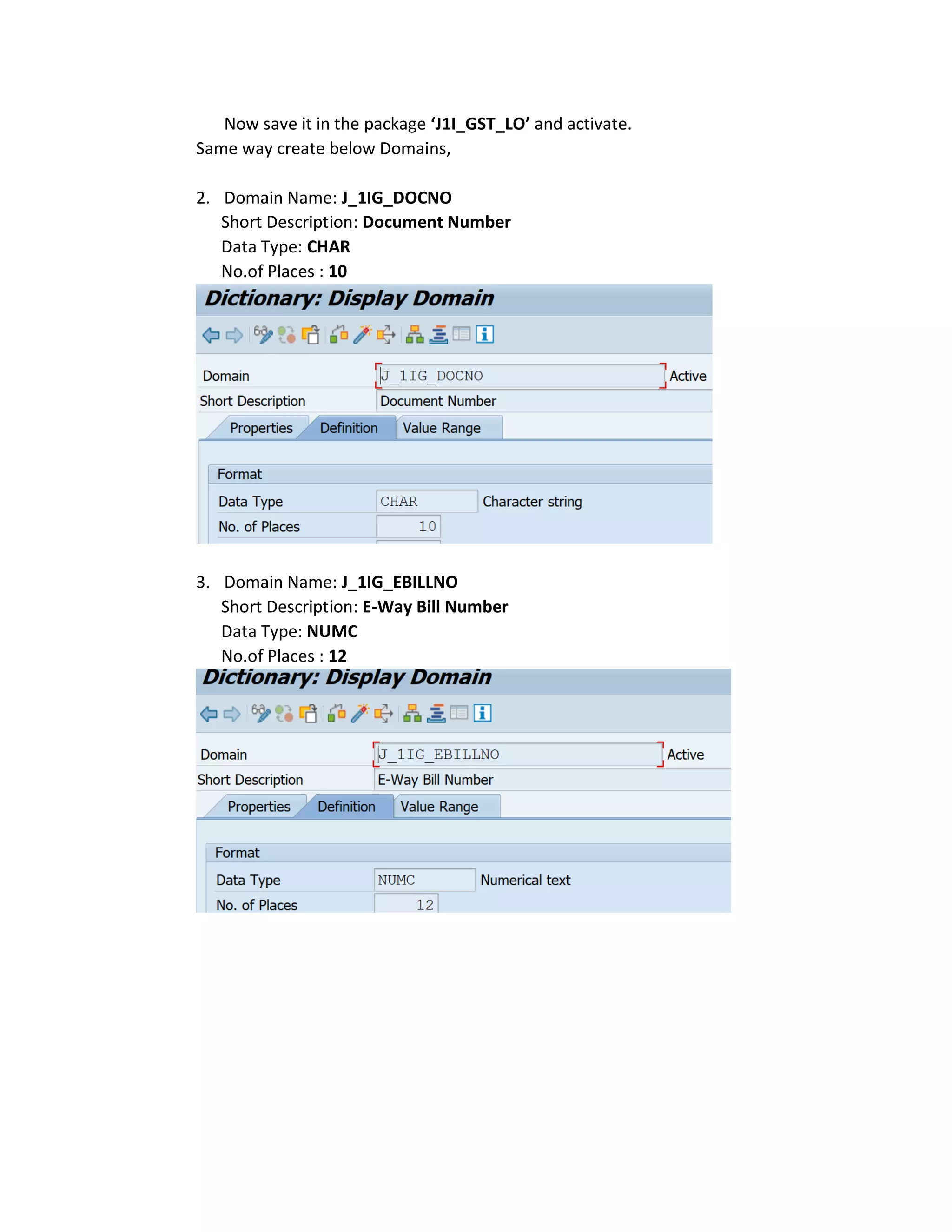
2. Domain Name: J_1IG_DOCNO
Short Description: Document Number
Data Type: CHAR
No.of Places : 10
3. Domain Name: J_1IG_EBILLNO
Short Description: E-Way Bill Number
Data Type: NUMC
No.of Places : 12
4. Domain Name: J_1IG_STAT
Short Description: E-way Bill Status
Data Type: CHAR
No.of Places : 1
Now go to Value Range Tab and add below entries save and activate
II. Data Element Creation
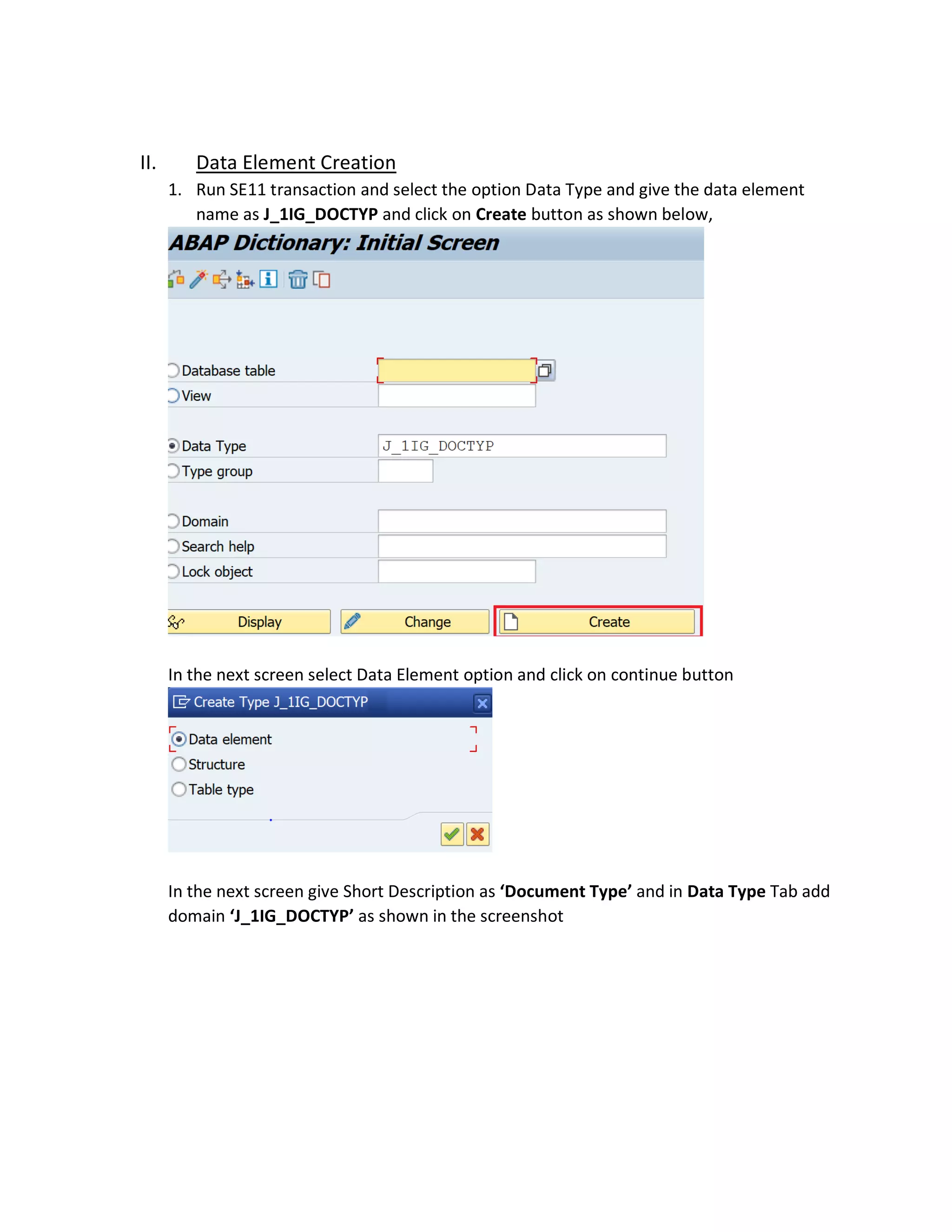
1. Run SE11 transaction and select the option Data Type and give the data element
name as J_1IG_DOCTYP and click on Create button as shown below,
In the next screen select Data Element option and click on continue button
In the next screen give Short Description as ‘Document Type’ and in Data Type Tab add
domain ‘J_1IG_DOCTYP’ as shown in the screenshot
Now go to Field Labels Tab and add below field labels as give in the screen shot save
and active in the package ‘J1I_GST_LO’
Similarly create below Data Elements,
2. Data Element: J_1IG_DOCNO
Short Description: Document Number
Domain: J_1IG_DOCNO
Refer below screen shots
3. Data Element: J_1IG_EBILLNO
Short Description: E-way Bill Number
Domain: J_1IG_EBILLNO
Refer below screen shots
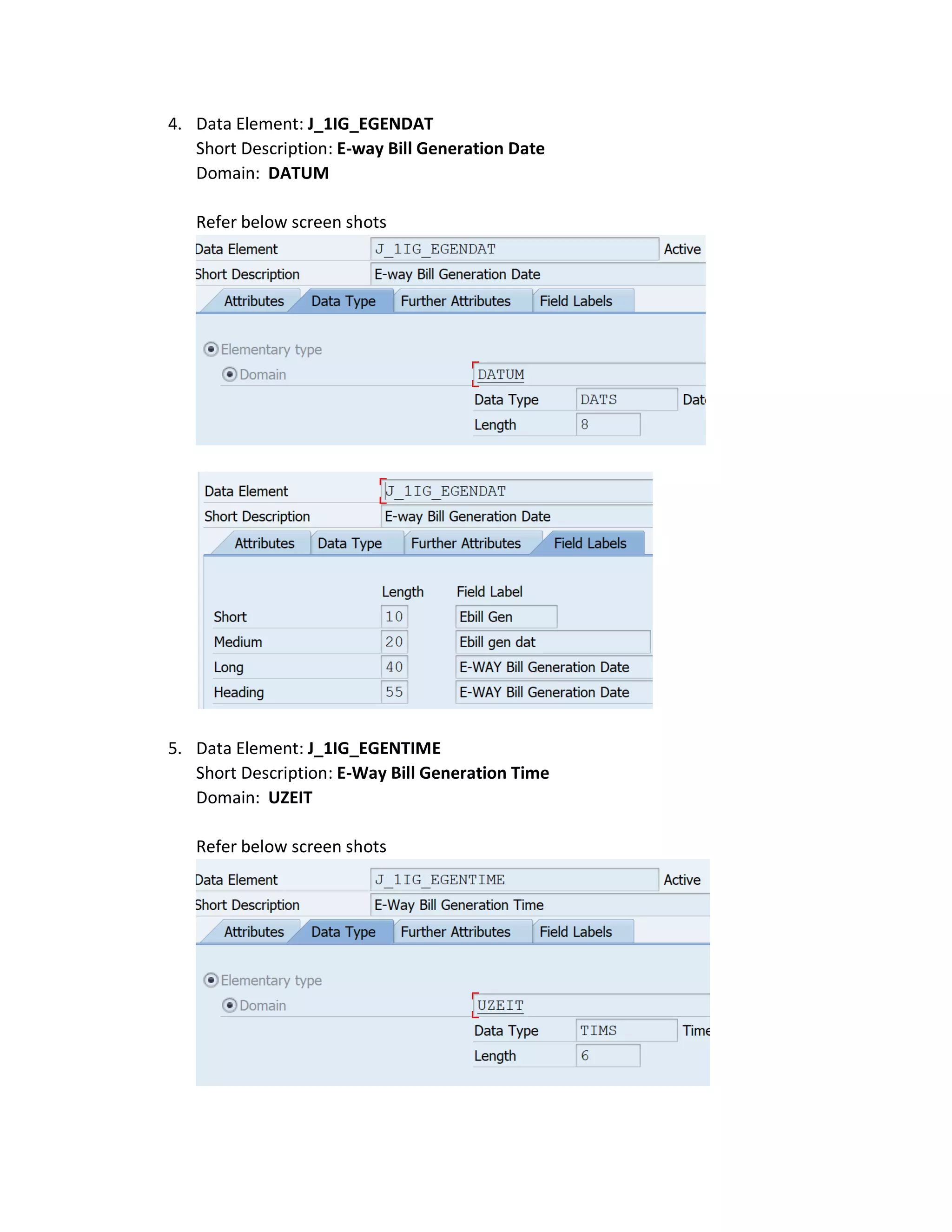
4. Data Element: J_1IG_EGENDAT
Short Description: E-way Bill Generation Date
Domain: DATUM
Refer below screen shots
5. Data Element: J_1IG_EGENTIME
Short Description: E-Way Bill Generation Time
Domain: UZEIT
Refer below screen shots
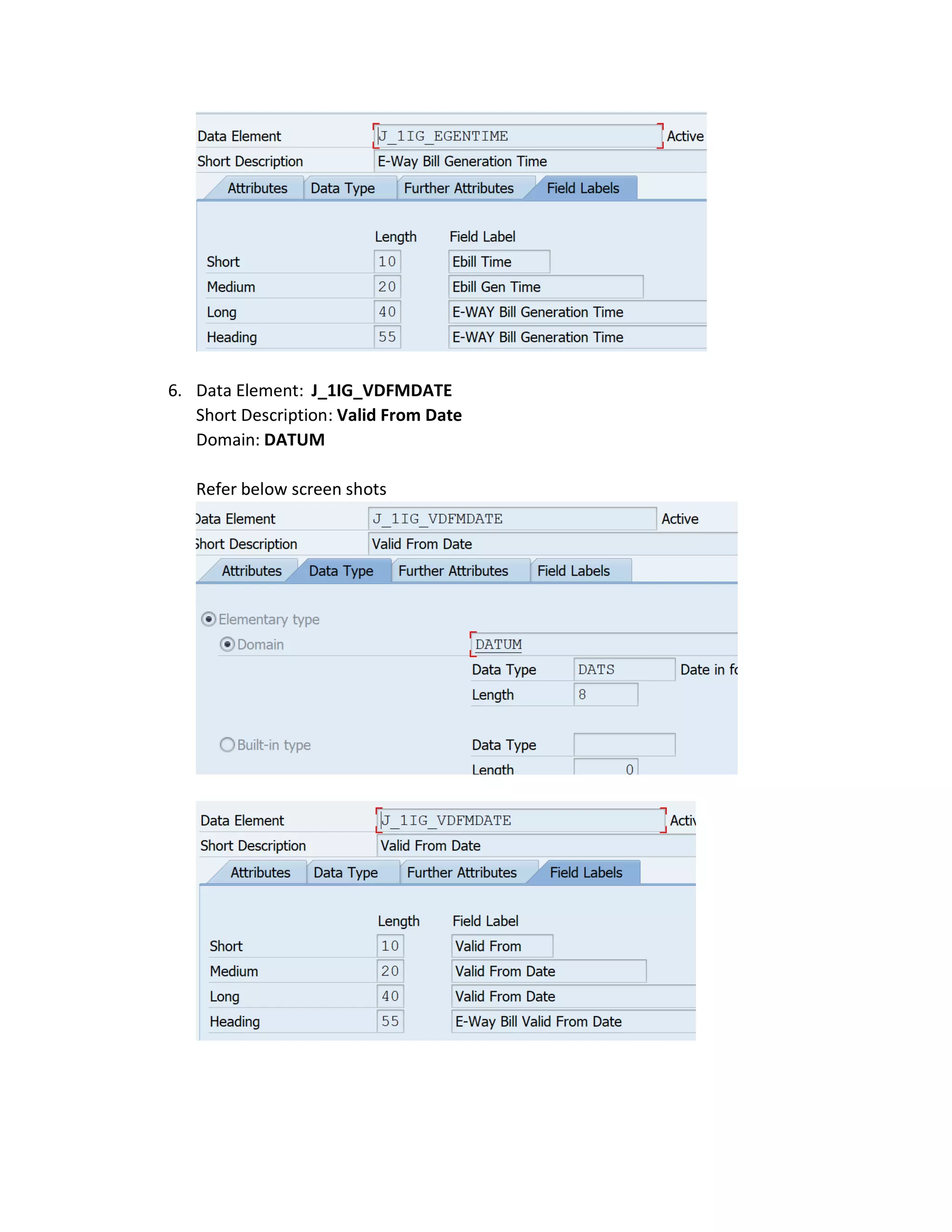
6. Data Element: J_1IG_VDFMDATE
Short Description: Valid From Date
Domain: DATUM
Refer below screen shots
7. Data Element: J_1IG_VDFMTIME
Short Description: Valid From Time
Domain: UZEIT
Refer below screen shots
8. Data Element: J_1IG_VDTODATE
Short Description: Valid To Date
Domain: DATUM
Refer below screen shots
9. Data Element: J_1IG_VDTOTIME
Short Description: Valid To Time
Domain: UZEIT
Refer below screen shots
10. Data Element: J_1IG_STAT
Short Description: E-Way Bill Status
Domain: J_1IG_STAT
Refer below screen shots
III. Table Creation
1. Run SE11 transaction and select the option Data Base Table and give the table
name as ‘ J_1IG_EWAYBILL’ and click on Create button as shown below,
In the next screen give Short Description as ‘Link E-Way Bill to Document’
Now go to Delivery and Maintenance Tab and main the information as
mentioned in the screen shot
Now go to Fields Tab and enter the below fields and mark the key fields as given
in the screen shot
Field Data Element
MANDT MANDT
BUKRS BUKRS
DOCTYP J_1IG_DOCTYP
DOCNO J_1IG_DOCNO
GJAHR GJAHR
EBILLNO J_1IG_EBILLNO
EGEN_DAT J_1IG_EGENDAT
EGEN_TIME J_1IG_EGENTIME
VDFMDATE J_1IG_VDFMDATE
VDFMTIME J_1IG_VDFMTIME
VDTODATE J_1IG_VDTODATE
VDTOTIME J_1IG_VDTOTIME
STATUS J_1IG_STAT
ERNAM ERNAM
ERDAT ERDAT
AENAM AENAM
AEDAT AEDAT
Now go to Technical Settings as shown below screen shot,
And maintain below information as per the screen shot,
Now save and activate in package ‘ J1I_GST_LO’
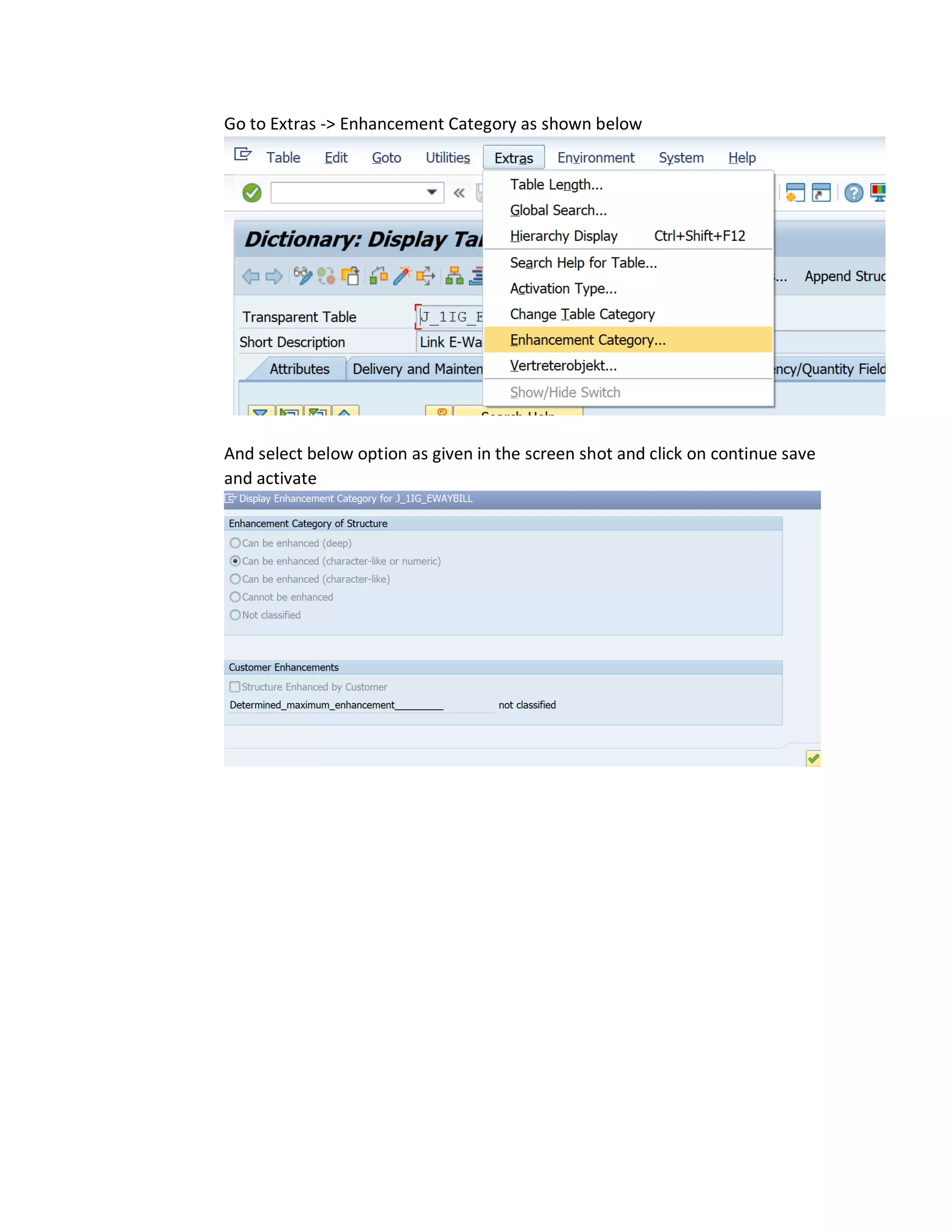
Go to Extras -> Enhancement Category as shown below
And select below option as given in the screen shot and click on continue save
and activate
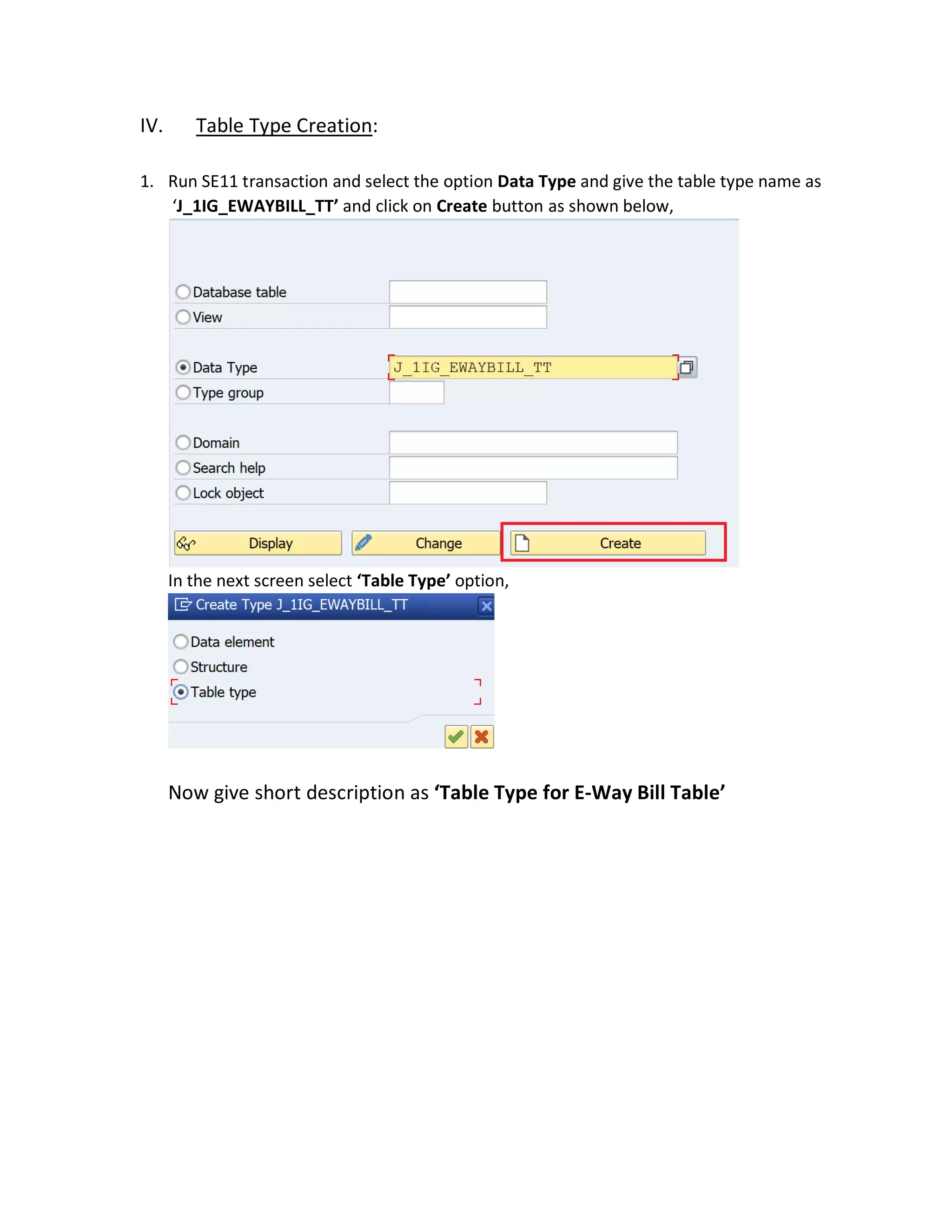
IV. Table Type Creation:
1. Run SE11 transaction and select the option Data Type and give the table type name as
‘J_1IG_EWAYBILL_TT’ and click on Create button as shown below,
In the next screen select ‘Table Type’ option,
Now give short description as ‘Table Type for E-Way Bill Table’
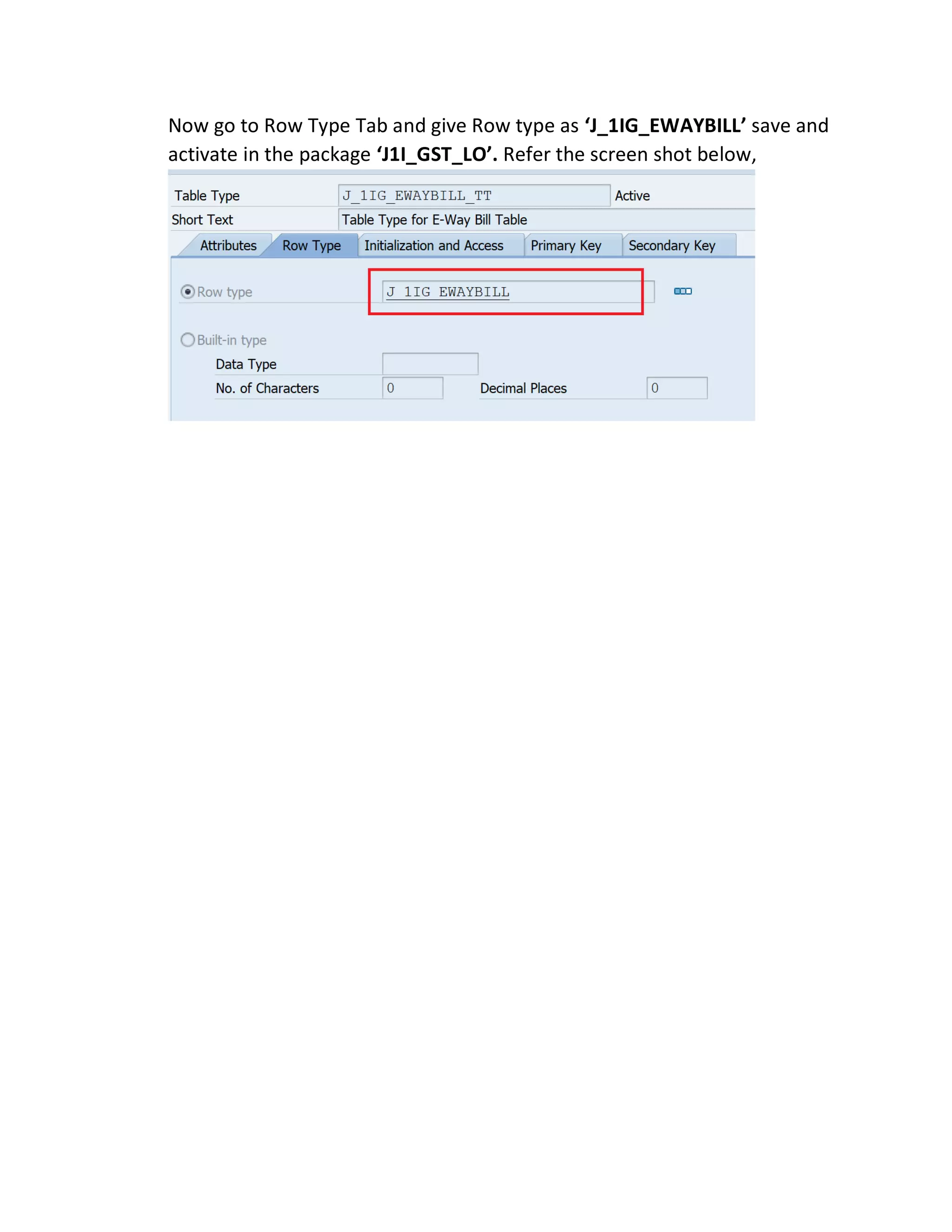
Now go to Row Type Tab and give Row type as ‘J_1IG_EWAYBILL’ save and
activate in the package ‘J1I_GST_LO’. Refer the screen shot below,

EWAY BILL Ddic creation

  • 1.
    Data dictionary activitiesfor E-way bill solution I. Domain Creation: 1. Run SE11 transaction and select the option Domain and give the domain name as J_1IG_DOCTYP and click on Create button as shown below, In the next screen give Short Description as ‘Document Type’ and in the definition Tab give data type as ‘CHAR’ and No. of Places as 4 as shown in the below screen shot
  • 2.
    Now save itin the package ‘J1I_GST_LO’ and activate. Same way create below Domains, 2. Domain Name: J_1IG_DOCNO Short Description: Document Number Data Type: CHAR No.of Places : 10 3. Domain Name: J_1IG_EBILLNO Short Description: E-Way Bill Number Data Type: NUMC No.of Places : 12
  • 3.
    4. Domain Name:J_1IG_STAT Short Description: E-way Bill Status Data Type: CHAR No.of Places : 1 Now go to Value Range Tab and add below entries save and activate
  • 4.
    II. Data ElementCreation 1. Run SE11 transaction and select the option Data Type and give the data element name as J_1IG_DOCTYP and click on Create button as shown below, In the next screen select Data Element option and click on continue button In the next screen give Short Description as ‘Document Type’ and in Data Type Tab add domain ‘J_1IG_DOCTYP’ as shown in the screenshot
  • 5.
    Now go toField Labels Tab and add below field labels as give in the screen shot save and active in the package ‘J1I_GST_LO’ Similarly create below Data Elements, 2. Data Element: J_1IG_DOCNO Short Description: Document Number Domain: J_1IG_DOCNO Refer below screen shots
  • 6.
    3. Data Element:J_1IG_EBILLNO Short Description: E-way Bill Number Domain: J_1IG_EBILLNO Refer below screen shots
  • 7.
    4. Data Element:J_1IG_EGENDAT Short Description: E-way Bill Generation Date Domain: DATUM Refer below screen shots 5. Data Element: J_1IG_EGENTIME Short Description: E-Way Bill Generation Time Domain: UZEIT Refer below screen shots
  • 8.
    6. Data Element:J_1IG_VDFMDATE Short Description: Valid From Date Domain: DATUM Refer below screen shots
  • 9.
    7. Data Element:J_1IG_VDFMTIME Short Description: Valid From Time Domain: UZEIT Refer below screen shots 8. Data Element: J_1IG_VDTODATE Short Description: Valid To Date Domain: DATUM Refer below screen shots
  • 10.
    9. Data Element:J_1IG_VDTOTIME Short Description: Valid To Time Domain: UZEIT Refer below screen shots
  • 11.
    10. Data Element:J_1IG_STAT Short Description: E-Way Bill Status Domain: J_1IG_STAT Refer below screen shots
  • 12.
    III. Table Creation 1.Run SE11 transaction and select the option Data Base Table and give the table name as ‘ J_1IG_EWAYBILL’ and click on Create button as shown below, In the next screen give Short Description as ‘Link E-Way Bill to Document’ Now go to Delivery and Maintenance Tab and main the information as mentioned in the screen shot
  • 13.
    Now go toFields Tab and enter the below fields and mark the key fields as given in the screen shot Field Data Element MANDT MANDT BUKRS BUKRS DOCTYP J_1IG_DOCTYP DOCNO J_1IG_DOCNO GJAHR GJAHR EBILLNO J_1IG_EBILLNO EGEN_DAT J_1IG_EGENDAT EGEN_TIME J_1IG_EGENTIME VDFMDATE J_1IG_VDFMDATE VDFMTIME J_1IG_VDFMTIME VDTODATE J_1IG_VDTODATE VDTOTIME J_1IG_VDTOTIME STATUS J_1IG_STAT ERNAM ERNAM ERDAT ERDAT AENAM AENAM AEDAT AEDAT
  • 14.
    Now go toTechnical Settings as shown below screen shot, And maintain below information as per the screen shot, Now save and activate in package ‘ J1I_GST_LO’
  • 15.
    Go to Extras-> Enhancement Category as shown below And select below option as given in the screen shot and click on continue save and activate
  • 16.
    IV. Table TypeCreation: 1. Run SE11 transaction and select the option Data Type and give the table type name as ‘J_1IG_EWAYBILL_TT’ and click on Create button as shown below, In the next screen select ‘Table Type’ option, Now give short description as ‘Table Type for E-Way Bill Table’
  • 17.
    Now go toRow Type Tab and give Row type as ‘J_1IG_EWAYBILL’ save and activate in the package ‘J1I_GST_LO’. Refer the screen shot below,