Printing or Copying?You must purchase an Equitrac card at the Equitrac Pay Station AND add value to it.Equitrac card			  	$1.00Printing value increments		$1.00Keep the card when you have used up its printing value, and add value to it as needed.
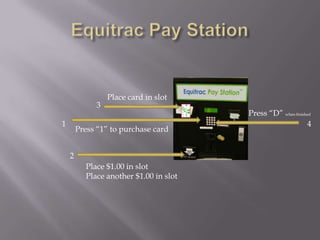
Equitrac Pay StationPlace card in slot3Press “D” when finished14Press “1” to purchase card2Place $1.00 in slotPlace another $1.00 in slot
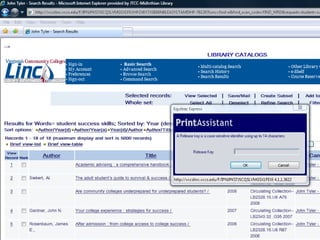
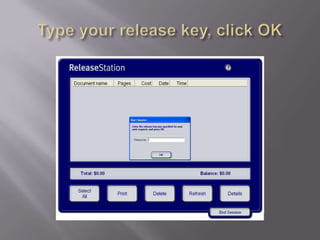
Type your release key, click OK
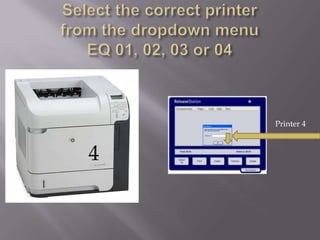
Select the correct printerfrom the dropdown menu EQ 01, 02, 03 or 04Printer 44
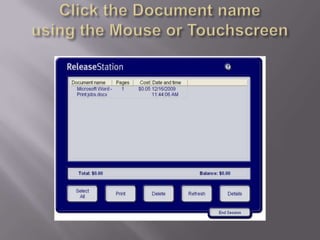
Click the Document nameusing the Mouse or Touchscreen
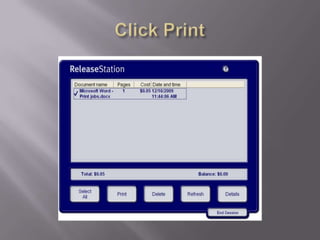
Click Print
Place your Pay-to-Print card in the card reader.Your document will print automatically at the designated printer.Have a great day!

Equitrac printing

  • 1.
    Printing or Copying?Youmust purchase an Equitrac card at the Equitrac Pay Station AND add value to it.Equitrac card $1.00Printing value increments $1.00Keep the card when you have used up its printing value, and add value to it as needed.
  • 2.
    Equitrac Pay StationPlacecard in slot3Press “D” when finished14Press “1” to purchase card2Place $1.00 in slotPlace another $1.00 in slot
  • 5.
    Type your releasekey, click OK
  • 6.
    Select the correctprinterfrom the dropdown menu EQ 01, 02, 03 or 04Printer 44
  • 7.
    Click the Documentnameusing the Mouse or Touchscreen
  • 8.
  • 9.
    Place your Pay-to-Printcard in the card reader.Your document will print automatically at the designated printer.Have a great day!

Editor's Notes

  • #2 The Pay-to-Print system was implemented on January 4, 2010 at the College.Printing from computers costs .05 per page.Black and white copies from the copier costs .05 per page.
  • #3 Press #1 to purchase a pay-to-print card. .Place a one dollar bill in the slot and a card will be generated.Place the card in the slot in the upper left hand corner of the pay station.Place another $1.00 bill in the lower left hand slot.Press D when finished.Printouts and copies are .05 per page
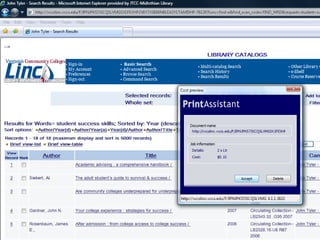
  • #4 When you click print on your computer, a print assistant pop up message appears. Enter a release key (most students enter their name)Click OK
  • #5 Another Print Assistant pop up message will appear and display the charges.Click Accept.
  • #6 Walk to the Print Release Station and type your release key in the pop up box.Click OK
  • #7 Select the correct printer from the dropdown menu.Click OK
  • #8 Click the Document name on the touchscreen.
  • #9 Click Print
  • #10 Place your Pay-to-Print card in the card reader.Your document will print automatically at the designated printer.