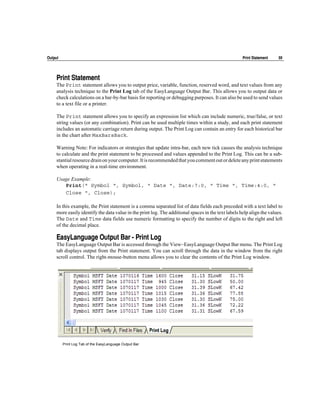



i


EasyLanguage Essentials
Programmers Guide
ii                                                                               EasyLanguage Essentials Programmers Guide


Important Information and Disclaimer:
     This book discusses how TradeStation EasyLanguage allows you to develop and implement custom indicators
     and trading strategies. However, neither TradeStation Technologies nor its affiliates provide or suggest any
     specific indicator or trading strategies. We offer unique tools to help you design indicators and strategies and
     measure how they could have performed in the past. While we believe this is very valuable information, we
     caution you that simulated past performance of a trading strategy is no guarantee of its future performance or
     success. We also do not recommend or solicit the purchase or sale of any particular securities or securities
     derivative products. Any securities symbols referenced in this book are used only for the purposes of the
     demonstration, as an example ---- not a recommendation.

     Finally, this book may discuss topics related to automation of trading strategies. Please note that even though
     TradeStation has been designed to automate trading strategies, access to the Internet, real-time data, and trade
     servers may at times be delayed or even fail due to market volatility, quote delays, system and software errors,
     internet traffic, outages and other factors.

     All proprietary technology in TradeStation is owned by TradeStation Technologies, Inc. The order execution
     services accessible from within TradeStation are provided solely by TradeStation Securities, Inc. (an affiliate
     of TradeStation Technologies) pursuant to a technology license from its affiliate and its authority as a registered
     broker-dealer and futures commission merchant. All other features and functions of TradeStation are provided
     directly by TradeStation Technologies. TradeStation and EasyLanguage are registered trademarks of
     TradeStation Technologies, Inc. "TradeStation," as used in this document, should be understood in the fore-
     going context.

     Published by TradeStation Securities, Inc.

     Copyright © 2007 TradeStation Securities, Inc. All rights reserved.

     While every precaution has been taken in the preparation of this book, TradeStation Securities assumes no
     responsibility for error or omission, or for any damages resulting from the use of the information contained
     herein.
iii


EasyLanguage Essentials Programmers Guide
Audience
  This book has been designed with the beginning EasyLanguage programmer in mind. Our goal with this book
  is to provide useful information to anyone interested in learning more about the features and uses of TradeS-
  tation EasyLanguage. The primary audience for this material is traders and developers of technical analysis
  indicators and trading strategies.

  Experience in any other programming language is helpful but is not required to learn and utilize EasyLanguage.


About This Book
  EasyLanguage Essentials Programmers Guide is a programmers introduction to TradeStation’s EasyLanguage
  programming tools. This book is based on the current release of TradeStation 8.3.

  It is assumed that the reader has access to the TradeStation platform.

  The book is divided into several chapters and appendixes each designed to familiarize you with the basic
  concepts and principles of EasyLanguage programming.

  Although the book is comprehensive, it not designed to answer every question you may have about EasyLan-
  guage, and is not a complete reference guide. There are many additional on-line resources available that can
  help answer those issues not covered in the book.

  Visit the TradeStation Support site at: www.tradestation.com.
iv   EasyLanguage Essentials Programmers Guide
v                                                                            EasyLanguage Essentials Programmers Guide


    Table of Contents
    Preface.........................................................................................................1
         What is EasyLanguage? .................................................................................. 1
         Compatibility with Previous Versions............................................................. 2
         Forward Compatibility .................................................................................... 2
         Backward Compatibility.................................................................................. 2
         3rd Party Development Platform..................................................................... 2
         Security............................................................................................................ 2
    Introduction................................................................................................3
         Analysis Applications: Chart Analysis, RadarScreen, and OptionStation ...... 3
         Naming Conventions ....................................................................................... 3
         Text Conventions............................................................................................. 4
         Example Conventions...................................................................................... 4
    Program Structure.....................................................................................5
         Scope ............................................................................................................... 5
         Calculation Procedures.................................................................................... 5
         MaxBarsBack .................................................................................................. 6
    Charting Basics ..........................................................................................8
         Data Intervals................................................................................................... 8
         Bar Attribute Reserved Words ........................................................................ 8
         BarType ........................................................................................................... 8
         BarInterval....................................................................................................... 9
         CurrentBar ....................................................................................................... 9
         BarNumber ...................................................................................................... 9
    Price Data Elements.................................................................................10
         Bar Price Data Points..................................................................................... 10
         Trade Volume, Tick Count, and Open Interest ............................................. 10
         Bar Volume Data Points................................................................................ 10
         Option Volume, Option Open Interest, and Implied Volatility..................... 11
         Option Volume Data Points........................................................................... 11
         Time and Date Data Points............................................................................ 12
         Quote Fields................................................................................................... 13
         Fundamental Data.......................................................................................... 14
         GetFundData.................................................................................................. 14
         Available Fundamental Data Fields .............................................................. 14
         Multi-Data Analysis ...................................................................................... 15
vi                                                                            EasyLanguage Essentials Programmers Guide


          Session Information....................................................................................... 16
     PowerEditor .............................................................................................17
          Creating a New Analysis Technique ............................................................. 17
          Study File Types............................................................................................ 18
          Syntax Coloring............................................................................................. 19
          Verify............................................................................................................. 19
          EasyLanguage Output Bar............................................................................. 20
          Analysis Technique Properties ...................................................................... 21
          Analysis Technique Properties Tabs ............................................................. 22
          EasyLanguage Dictionary ............................................................................. 23
          PowerEditor Window Preferences ................................................................ 24
          EasyLanguage PowerEditor Debugger.......................................................... 25
          BreakPoint ..................................................................................................... 25
     Language Elements..................................................................................27
          Punctuation .................................................................................................... 28
          Operators ....................................................................................................... 30
          Mathematical Operators ................................................................................ 30
          Relational Operators...................................................................................... 31
          Logical Operators .......................................................................................... 32
          Precedence-Order of Operations ................................................................... 32
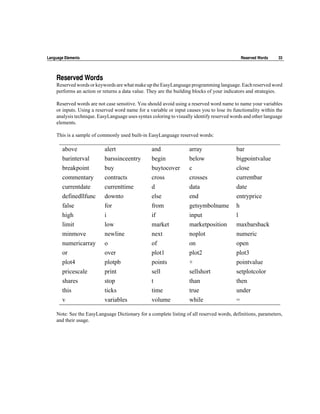
          Reserved Words............................................................................................. 33
          Constants ....................................................................................................... 34
          Skip Words .................................................................................................... 34
          Attributes ....................................................................................................... 34
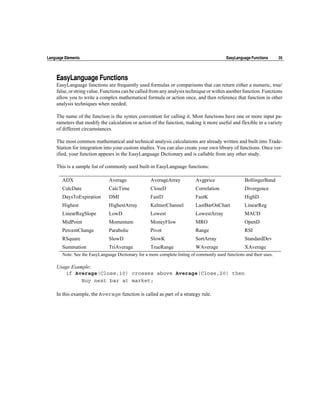
          EasyLanguage Functions............................................................................... 35
     EasyLanguage Statements ......................................................................36
          Declaration .................................................................................................... 36
          Inputs ............................................................................................................. 37
          Variables........................................................................................................ 38
          Variable Assignment ..................................................................................... 38
          Understanding Variable Types ...................................................................... 39
          Pre-Declared Variables.................................................................................. 39
          Arrays ............................................................................................................ 40
          Dynamic Arrays............................................................................................. 42
          Variable Calculation and Storage.................................................................. 42
          IntrabarPersist Variables and Arrays............................................................. 43
          Numeric Types .............................................................................................. 43
          Historical Reference of Variables ................................................................. 44
          Variables as Counters .................................................................................... 45
          Setting and Holding Variables Conditionally................................................ 45
          Conditional Branching................................................................................... 46
vii


     If...Then.......................................................................................................... 46
     If...Then...Else................................................................................................ 46
     If...Then Begin...End (Block Statement) ....................................................... 46
     If...Then Begin...End Else Begin...End.......................................................... 47
     ONCE...Begin...End....................................................................................... 47
     Switch/Case.................................................................................................... 48
Iteration ....................................................................................................49
     For Loop......................................................................................................... 49
     While Loop .................................................................................................... 50
     Repeat/Until Loop.......................................................................................... 50
     Infinite Loop Detection.................................................................................. 50
Output .......................................................................................................51
     Plot Statement ................................................................................................ 51
     Plot Reference................................................................................................ 52
     PlotPB ............................................................................................................ 52
     NoPlot ............................................................................................................ 53
     Displacing Plots ............................................................................................. 53
     Conditional Plot Formatting .......................................................................... 54
     16 Million Colors........................................................................................... 55
     Color Gradients.............................................................................................. 55
     Legacy Predefined Colors.............................................................................. 56
     Alerts in EasyLanguage ................................................................................. 57
     CheckAlert ..................................................................................................... 58
     Enabling the Alert in the Window ................................................................. 58
     Print Statement............................................................................................... 59
     EasyLanguage Output Bar - Print Log........................................................... 59
     Print to File .................................................................................................... 60
     File Append.................................................................................................... 60
     File Delete...................................................................................................... 61
     Analysis Commentary.................................................................................... 61
     Commentary................................................................................................... 62
     Commentary and HTML................................................................................ 62
     Common HTML functions ............................................................................ 63
     AtCommentaryBar......................................................................................... 64
     CommentaryEnabled...................................................................................... 64
     Multimedia and EasyLanguage...................................................................... 65
     PlaySound ...................................................................................................... 65
     Play Movies ................................................................................................... 65
     Play Movie Examples .................................................................................... 66
Creating Indicators..................................................................................67
     Indicator Basics.............................................................................................. 68
viii                                                                           EasyLanguage Essentials Programmers Guide


            Indicator Templates ....................................................................................... 68
            Indicator Naming Conventions...................................................................... 68
            Determining Application Availability........................................................... 68
            Indicator Code Structure................................................................................ 69
            Standard Code Structure................................................................................ 69
            Multi-Data Indicators .................................................................................... 71
            Multi-Data Reference .................................................................................... 72
            Data(n)........................................................................................................... 72
            Indicator Properties in the PowerEditor ........................................................ 73
       Creating a ShowMe Study ......................................................................75
       Creating a PaintBar Study......................................................................77
       Creating Trading Strategies ...................................................................79
            What is a Strategy?........................................................................................ 79
            Strategy Order Syntax ................................................................................... 80
            Strategy Engine Calculations ........................................................................ 81
            Intra-bar Order Generation ............................................................................ 82
            Basic Strategy Code Structure....................................................................... 83
            Signal Names................................................................................................. 84
            Setting Trade Size in EasyLanguage............................................................. 85
            Open Next Bar............................................................................................... 85
            Strategy Position Reserved Words ................................................................ 86
            Strategy Performance Reserved Words......................................................... 88
            Built-in Stops................................................................................................. 90
            Symbol Attribute Reserved Words................................................................ 91
            Tying Entry and Exit ..................................................................................... 93
            Advanced Order Automation in EasyLanguage............................................ 94
            TradeManager Reserved Words .................................................................... 96
            TradeManager Position Reserved Words...................................................... 98
            Strategy Properties....................................................................................... 100
            Strategy Automation.................................................................................... 103
            Strategy Automation Synchronization ........................................................ 104
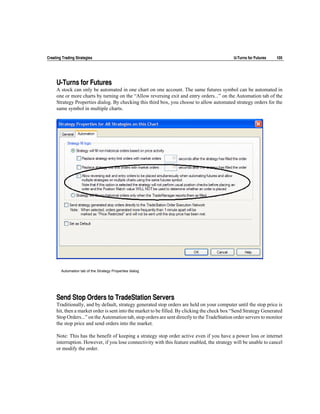
            U-Turns for Futures..................................................................................... 105
            Send Stop Orders to TradeStation Servers .................................................. 105
       Creating Functions ................................................................................106
            Function Input Parameters........................................................................... 107
            Parameter Subtypes ..................................................................................... 107
            Function Input/Output Parameters .............................................................. 108
            Function Array Parameter Declaration........................................................ 109
            Function Array Input/Output Declaration ................................................... 110
            Function Property Dialog in the PowerEditor ............................................. 110
            Function Storage and Memory Optimization .............................................. 111
ix


Drawing Objects ....................................................................................112
     Text Objects ................................................................................................. 112
     Creating a Text Object ................................................................................. 112
     Moving a Text Object .................................................................................. 113
     Removing a Text Object .............................................................................. 113
     Formatting Style of Text Objects................................................................. 113
     Formatting the Color of a Text Object......................................................... 114
     Changing the Text Object Message ............................................................. 114
     Getting Text Object Values ......................................................................... 114
     Text Object Errors........................................................................................ 115
     Trendlines .................................................................................................... 116
     Creating a Trendline .................................................................................... 116
     Moving a Trendline...................................................................................... 117
     Removing a Trendline.................................................................................. 117
     Formatting the Thickness of a Trendline ..................................................... 117
     Formatting the Color of a Trendline ............................................................ 118
     Extending a Trendline Left and Right ......................................................... 118
     Finding a Trendline on the Chart ................................................................. 119
     Trendline Get Info Reserved Words ............................................................ 120
     Trendline Errors ........................................................................................... 120
Writing Indicators for RadarScreen....................................................121
     Loading Additional Data for Accumulative Calculations ........................... 122
     Plot Statements in RadarScreen ................................................................... 122
     ShowMes and PaintBars in RadarScreen..................................................... 122
     Conditional Plot Color Styling in RadarScreen ........................................... 123
     Gradient Background Cell Colors................................................................ 123
GetAppInfo.............................................................................................124
Importing / Exporting EasyLanguage .................................................125
Learning more about EasyLanguage ...................................................126
     TradeStation Support Site ............................................................................ 126
TradeStation EasyLanguage Support Resources ...............................128
Appendix A .............................................................................................129
     Volume Reserved Words Usage Tables ...................................................... 129
x   EasyLanguage Essentials Programmers Guide
Preface                                                                                   What is EasyLanguage?    1


Preface
     What is EasyLanguage?
     EasyLanguage is an easy-to-learn, but powerful, computer programming language for creating technical in-
     dicators and trading strategies for the TradeStation trading platform.

     EasyLanguage is designed by traders, for traders, to describe trading ideas to a computer in plain English-like
     expressions using trading terms and phrases traders are already familiar with. By combining common trading
     terminology with conditional rules and historical price data, EasyLanguage makes it possible to create custom
     indicators and trading strategies in a straightforward and intuitive manner.

     TradeStation is powered by EasyLanguage; every built-in strategy and indicator in TradeStation is written in
     EasyLanguage and the programming code for each of them is easily accessible to view, copy, and modify as
     needed. In addition, there are hundreds of additional EasyLanguage strategies, indicators, and functions that
     are readily available from the EasyLanguage File Library on our web site. These are free and easily imported
     into TradeStation.

     The types of trading and technical analysis tools you can create for TradeStation are:
             Indicators
             ShowMe Studies
             PaintBar Studies
             ActivityBar Studies
             ProbabilityMap Studies
             Trading Strategies
             Functions
             OptionStation Pricing Models
             OptionStation Search Strategies

     TradeStation can store an unlimited number of these analysis techniques, and allows the easy import and export
     of EasyLanguage studies from one computer to another.

     Even those traders who don't intend to write complex indicators or strategies using EasyLanguage can benefit
     from a little EasyLanguage knowledge. Many indicators and strategies have input parameters that utilize simple
     EasyLanguage statements. EasyLanguage makes it possible to modify alert and trading criteria or add additional
     calculations.
2   Compatibility with Previous Versions                                        EasyLanguage Essentials Programmers Guide


    Compatibility with Previous Versions
    Forward Compatibility
    With some minor exceptions, EasyLanguage code written in any previous version of TradeStation should be
    compatible with the current release version. The exceptions would be any reserved words or functions that
    have been renamed and the older names removed from the language.

    In most cases, it is possible to edit the code to reflect the new naming convention, which will correct most
    versioning issues. As a policy, TradeStation makes every effort to minimize language changes that would affect
    EasyLanguage code written in prior versions.

    Backward Compatibility
    EasyLanguage code written in the current version of TradeStation is less likely to be compatible with an older
    version of TradeStation. This is due to the fact that EasyLanguage is constantly expanding and evolving new
    language elements. It may be necessary in these cases to rewrite portions of the code to reflect the older language
    syntax.


    3rd Party Development Platform
    As the foundation of the TradeStation trading platform, EasyLanguage provides opportunities to create add-
    on products, such as indicators or trading strategies, which can be marketed to TradeStation clients. Currently
    in place is a network of third party providers that offer a variety of EasyLanguage products and services.


    Security
    All EasyLanguage code resides on the local computer only and is not viewable or accessible by anyone over
    the TradeStation network.

    EasyLanguage code can be protected with a variety of security schemes which enables developers to distribute
    strategies and indicators without exposing their actual EasyLanguage code.
Introduction                                        Analysis Applications: Chart Analysis, RadarScreen, and OptionStation   3


Introduction
     Analysis Applications: Chart Analysis, RadarScreen, and OptionStation
     EasyLanguage is the underlying technology that drives all of the analysis techniques throughout the Trade-
     Station platform. EasyLanguage studies can be written for ChartAnalysis, RadarScreen, and OptionStation.

     Although the Chart Analysis window is used for most examples and discussion topics in this book, be aware
     that the underlying concepts apply equally to the RadarScreen and OptionStation windows. There are a few
     minor differences and restrictions between applications which will be discussed.

     This book contains many short sections divided into specific topics with examples. It is important to recognize
     that this is not a complete reference, but covers most major topics and common language elements and con-
     ventions. Web resources, the TradeStation User Guide, and the EasyLanguage Dictionary offer additional ref-
     erence to specific language elements.

     The book has been written for all levels of EasyLanguage developers. If you are completely new to EasyLan-
     guage, you may wish to attend some live training courses, purchase the EasyLanguage Home Study Guide,
     or work with the tutorials first and then use this book as a reference for specific topics.

     The best way to learn a programming language is to look at code examples and start writing code. Every built-
     in strategy and indicator in TradeStation is written in EasyLanguage, and the programming code is easily ac-
     cessible to view.

     Naming Conventions
     Throughout the book the following naming conventions will apply:

     EasyLanguage Analysis Technique or EasyLanguage Study: Refers to any EasyLanguage file type (Indi-
     cator, Strategy, Function, etc.).
     Indicator: Can refer to any EasyLanguage indicator file type: Indicator, ShowMe, PaintBar, ActivityBar, or
     ProbabilityMap.
     Chart or Chart Analysis Window: Refers to a TradeStation chart window, but be aware that the concept
     being discussed may be equally valid in RadarScreen or OptionStation.
     Keyword or Reserved Word: Refers to any built-in EasyLanguage syntax element.
     Function or User Function: Refers to a callable procedure written in EasyLanguage.
     ~ or tilde: Refers to a Main Menu and dialog navigation as in:
     (View~EasyLanguage Preferences~Syntax Coloring)

     EL: An abbreviation for EasyLanguage.
     TS: An abbreviation for TradeStation.
4   Text Conventions                                                        EasyLanguage Essentials Programmers Guide


    Text Conventions
    This book uses the following typographic conventions:

      • Courier
        This font is used for EasyLanguage code and highlights a reserved word, function, or topic being dis-
        cussed.

      • Courier Bold
        Highlights a reserved word or function in the EasyLanguage code.

      • Courier + Italic
        This style is used for user provided parameter items.

      • Bold
        This style is used for filenames and for items emphasized in the text.


    Example Conventions
    There are two example types in this book - concept examples and code examples:

    Concept example show EL programming conventions:

    Concept Examples (EL Date Format):
       990320 = March 20, 1999
       1001010 = October 10, 2000
       1040608 = June 8, 2004

    Code examples show actual EL statement syntax:

    Usage Examples:
       Plot1(Close);
       Value1 = Average(Close,20);
       Condition1 = Close > Close[1];
       Buy next bar at Close of this bar limit;
Program Structure                                                                                          Scope      5


Program Structure
     At the highest level, EasyLanguage is a programming language consisting of multiple mathematical and bool-
     ean expressions that are processed to analyze and trade historical data in a chart. Originally based on the Pascal
     programming language, statements are evaluated from the top of the code down to the bottom, once for each
     historical bar in a chart, and then calculated tick by tick real-time when the markets are open.

     EasyLanguage is a compiled language. All EL code is compiled into a machine language that makes processing
     faster and more efficient.

     Built into EasyLanguage is a library of reserved words and EL functions that includes most mathematical and
     technical indicator calculations.

     EasyLanguage is built around an automatic database management system that keeps track of all the data in
     the chart, as well as all historical reference to calculations or procedures within an analysis technique. This
     allows you to concentrate on your calculations and trading rules and not on database storage and maintenance.

     Most run-time error handling is automatically done behind the scenes. When problems do occur, operations
     are aborted, you are alerted with a dialog, and the error is logged in the Events Log.

     Scope
     All calculations, data storage, and other code references are local to each unique EasyLanguage study file within
     one chart window. You may use the same variable and input names in different analysis techniques. Each vari-
     able and input is local to the analysis technique in which it is declared.

     There are no built-in global variables in EasyLanguage, however, an external program (dll) may accomplish
     this if needed.

     Calculation Procedures
     Before you start writing analysis techniques in EasyLanguage, it is important to review how EasyLanguage
     operates and calculates on historical and real-time data.

     In TradeStation, a chart typically consists of a number of bars built from price data for a specified symbol.
     Each bar summarizes the price action for a specified trading interval, most commonly a time period such as
     five minutes or daily. Each bar contains the data values open, high, low, and close. Each bar may also contain
     data for volume, option volume, implied volatility, and open interest (depending on the symbol). Each bar
     also has a date and time stamp.

     You can also specify the amount of historical data to load into the chart. The amount of data loaded is another
     factor that may affect indicator values and strategy back-testing.

     Typically, an EasyLanguage analysis technique includes some number of statements, each of which can result
     in an action such as plotting a line on the chart or generating a buy or sell short order. All of the statements
     in EasyLanguage are processed once for each historical bar, starting from the first bar in the chart.
6   MaxBarsBack                                                                      EasyLanguage Essentials Programmers Guide


    An analysis technique is then processed across the chart from left to right for each bar on the chart until it gets
    to the last bar in the chart. If the last bar in the chart is the current real-time in-progress bar, the analysis technique
    can be set to calculate on each new trade tick that comes across the datafeed, or can be set to calculate only
    when the bar closes.

    EasyLanguage always thinks and calculates in bars, not in days or minutes or ticks. The type of chart you
    build determines the calculation analysis. A 10-bar moving average can be based on ten 1-minute bars or ten
    daily bars.

    Note: You should have a general knowledge of charting in order to maximize your efforts in EasyLanguage,
    includeing: how to create charts, modify intervals, and how to load additional historical data.


    MaxBarsBack
    Any analysis technique that references historical data will require a certain number of historical bars before
    it can start calculating. This required starting data is called the "Maximum number of bars a study will refer-
    ence," also known as MaxBarsBack. For example, a 10-bar moving average would require a MaxBarsBack
    setting of 10 to begin calculating, which is 9 historical bars and the current calculation bar.

    EasyLanguage indicators can automatically calculate the MaxBarsBack setting; this is an indicator property
    setting. By default, most indicators are set to Auto Detect. However, strategies have a fixed user-defined Max-
    BarsBack setting; this value can be set in the Strategy Properties dialog. By default, strategies have an ar-
    bitrary MaxBarsBack value of 50.
Program Structure                                                                                  MaxBarsBack      7


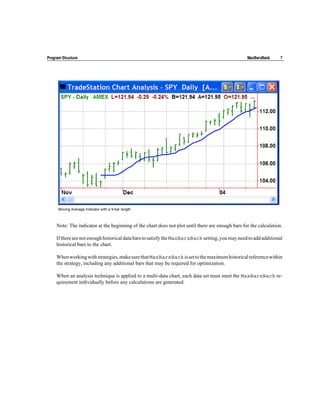
      Moving Average Indicator with a 9-bar length


     Note: The indicator at the beginning of the chart does not plot until there are enough bars for the calculation.

     If there are not enough historical data bars to satisfy the MaxBarsBack setting, you may need to add additional
     historical bars to the chart.

     When working with strategies, make sure that MaxBarsBack is set to the maximum historical reference within
     the strategy, including any additional bars that may be required for optimization.

     When an analysis technique is applied to a multi-data chart, each data set must meet the MaxBarsBack re-
     quirement individually before any calculations are generated.
8   Data Intervals                                                             EasyLanguage Essentials Programmers Guide


Charting Basics
    Data Intervals
    The terms Data Interval, Bar Interval, and Data Compression, all refer to the Data Interval for each bar
    in a chart. It is the amount of time or trading activity used to determine when a bar ends and another bar begins.
    Most traders are familiar with daily bar charts in which the interval for each bar is one day.

    Here are the available data intervals:

    Non-time based Intervals:
       Tick Bars - values can range from 1 to 4095.
       Volume Bars - values can range from 1 to 500,000,000.

    Time based Intervals:
       Intra-day Minute Bars - values can range from 1 to the number of minutes in the trading day.
       Daily, Weekly, or Monthly Bars - no interval setting is required.

    Note: Chart Analysis also allows you to create Point & Figure charts.


    Bar Attribute Reserved Words
    The Charting application keeps track of bar attributes and makes this information available through reserved
    words. Bar attribute information includes bar type, bar interval and bar number. These words allow us to de-
    termine the type of bars that are in the chart, what bar interval value is being used, and which bar in the chart
    is being calculated.


    BarType
    BarType is an EL reserved word that allows you to determine the type of bars in the chart from within your
    analysis technique.

    BarType returns a numeric value that represents the bar interval type of the chart:
       0 = Tick Bar or Volume Bar
       1 = Intraday Minute Bar
       2 = Daily Bar
       3 = Weekly Bar
       4 = Monthly Bar
       5 = Point & Figure

    Usage Example:
       Plot1(BarType);

    In this example, BarType plots the bar interval type in the chart.
Charting Basics                                                                                      BarInterval    9


     BarInterval
     BarInterval is an EL reserved word that allows you to determine the bar interval value for intra-day charts
     from within your analysis technique.

     BarInterval returns a numeric value that represents the intra-day interval value.

     Usage Example:
        if BarType < 2 then
        Plot1(BarInterval);

     In this example, if the chart interval is set to 15 min, then BarInterval will plot 15.

     CurrentBar
     CurrentBar is an EL reserved word that allows you to determine the number of the bar that is currently
     being calculated. Starting with the first calculation bar after MaxBarsBack, each bar is assigned a number
     starting at 1.

     CurrentBar returns the number of the current calculating bar in the chart.

     Usage Example:
        Plot1(CurrentBar);

     In this example, CurrentBar plots the bar number for each bar.

     BarNumber
     BarNumber is an EL function that allows you to determine the number of the bar that is currently being cal-
     culated. Starting with the first calculation bar after MaxBarsBack, each bar is assigned a number starting at 1.

     BarNumber returns the number of the current calculating bar in the chart.

     Usage Example:
        Plot1(BarNumber[1]);

     In this example, BarNumber[1] plots the bar number of the prior bar for each bar.

     Note: BarNumber is functionally the same as CurrentBar. The only difference is that BarNumber can
     be referenced historically.
10   Bar Price Data Points                                                      EasyLanguage Essentials Programmers Guide


Price Data Elements
     EasyLanguage studies can operate on both historical and real-time data. Each bar in a chart has a set of four
     price data points that can be referenced in your studies. The EasyLanguage reserved words for these price
     data points are as follows:

     Bar Price Data Points
          Open or O: The opening price of the bar.
          High or H: The high price of the bar.
          Low or L: The low price of the bar.
          Close or C: The closing price or the bar.

     Usage Examples:
        Plot1(Close);
        Plot2(High);
        Plot3(Low);
        Plot4(Open);

     Trade Volume, Tick Count, and Open Interest
     Volume for a symbol can be referenced in one of two ways on intra-day charts: total share/contract volume
     per bar, or the number of trades/ticks per bar. Each bar in a chart also has a set of five volume data points that
     can be referenced in your studies. The EasyLanguage reserved words for these volume data points are as fol-
     lows:

     Bar Volume Data Points
          Volume or V: The trade volume in shares or contracts, or the number of trades or ticks for a bar
          depending on the symbol settings (see note below).
          Ticks: Functionally the same as Volume (see note below).
          OpenInt or I: Returns the number of outstanding contracts for a future or option.
          Upticks: Returns the up-ticks or up-volume for a bar.
          Downticks: Returns the down-ticks or down-volume for a bar.

     Usage Examples:
          Plot1(Volume);
          Plot2(Ticks);
          Plot3(OpenInt);
          Plot4(UpTicks);
          Plot5(DownTicks);
     Note: You can specify whether EL will display and calculate volume based on tick count or trade volume on
     intra-day charts from the Format Symbol dialog. Daily, weekly, or monthly charts can only show total share
     or total contract volume.
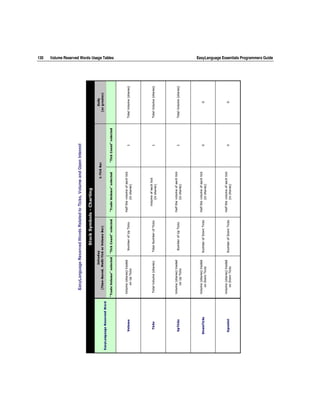
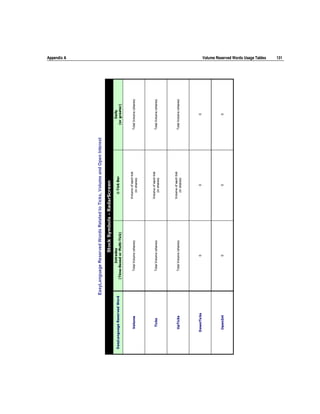
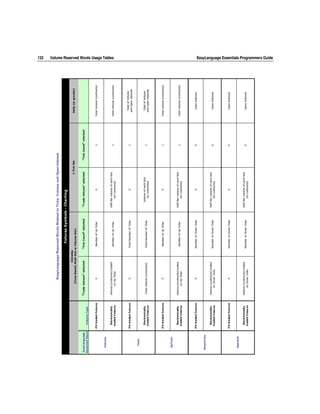
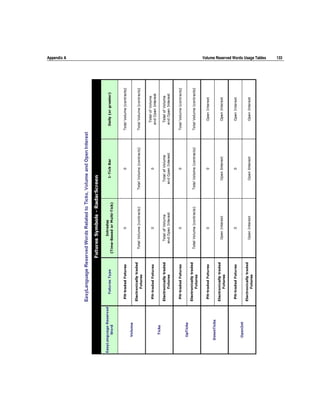
     See Appendix A for the volume and tick usage tables for more detailed information on which volume reserved
     word to use for different bar interval and symbol situations.
Price Data Elements                                          Option Volume, Option Open Interest, and Implied Volatility   11


     Option Volume, Option Open Interest, and Implied Volatility
     Optionable stock and index symbols have additional options-related volume and calculated implied volatility
     data fields that can be referenced in your studies. These values are only available on daily charts for symbols
     with options. The EasyLanguage reserved words for these options related data points are as follows:

     Option Volume Data Points
          IVolatility: Returns a daily Implied Volatility value based on a weighted average of the raw
          implied volatilities for the options trading for the symbol.
          CallVolume: Returns the total Call option volume for all options for the symbol.
          PutVolume: Returns the total Put option volume for all options for the symbol.
          CallOpenInt: Returns the total Call option open interest for all options for the symbol.
          PutOpenInt: Returns the total Put option open interest for all options for the symbol.

     Usage Examples:
        Plot1(IVolatility);
        Plot2(CallVolume);
        Plot3(PutVolume);
        Plot4(CallOpenInt);
        Plot5(PutOpenInt);
12   Time and Date Data Points                                                  EasyLanguage Essentials Programmers Guide


     Time and Date Data Points
     Each bar in a chart has a Time and Date stamp that can be referenced in your studies. EasyLanguage uses
     simple numeric values for a bar time and date stamp. Bar time and date stamps are always the closing time
     and closing date of the bar.

     Date or D: EasyLanguage uses a unique numeric date format of: YYYMMDD or 1040615 for June 15,
     2004. If you hold your left mouse button down on a chart, a data tip will display a more familiar bar date format.
     The Date stamp of each bar in a chart is always the closing date of the bar.

     Concept Examples:
        990320 = March 20, 1999
        1050105 = January 5, 2005

     Usage Example:
        Plot1(Date);

     Note: EasyLanguage has a number of built-in functions for converting and formatting of EasyLanguage dates
     to standard date formats and to Julian dates.
     Time or T: EasyLanguage uses a numeric military time format of: HHMM or 1315 for 1:15pm. The time
     zone used by EasyLanguage is determined by your computer’s Windows clock settings and the Time Zone
     selection in the Format Symbol dialog. The time and date bar scale you see at the bottom of the chart is the
     time and date EasyLanguage will use for calculations and evaluations. The Time stamp of each bar in a chart
     is always the closing time of the bar.

     Concept Examples:
        935 = 9:35 am
        1755 = 5:55 pm

     Usage Example:
        Plot1(Time);

     Note: The CalcTime and CalcDate functions can be used to add or subtract minutes or days from an Ea-
     syLanguage bar time or bar date.

     Computer date and computer time can be referenced using with the CurrentDate and CurrentTime re-
     served words.
Price Data Elements                                                                                 Quote Fields    13


     Quote Fields
     Quote fields are EL reserved words that are real-time snap-shot fields of price information generally used to
     create indicators in the RadarScreen and Quote windows. There are many of these fields provided by the TradeS-
     tation Data Network.

     These quote fields can be used on any bar-interval. Many of the fields refer to daily price values, bid-ask data,
     and other technical and fundamental data values that can be used on any intra-day charts. Quote field reserved
     words only provide a value on the last bar in a chart, and return no historical values.

     The EasyLanguage Dictionary contains a complete list of these snapshot quote fields.

     Quote Field Examples:
        InsideBid: The current inside bid.
        InsideAsk: The current inside ask.
        High52Wk: The current 52-week high.
        Low52Wk: The current 52-week low.
        VWAP: Volume weighted average price.

     Usage Example:
        if LastBarOnChart then
              Plot1(High52Wk);

     In this indicator example we are plotting the 52 week high on the last bar in the chart.

     Usage Example:
        if LastBarOnChart then
              Buy next bar at InsideBid Limit
        Else
              Buy next bar at Close Limit;

     In this strategy example, we need a historical value for back-testing but are using the snapshot InsideBid
     for real-time orders.
14   Fundamental Data                                                            EasyLanguage Essentials Programmers Guide


     Fundamental Data
     EasyLanguage allows for the integration of fundamental data into your technical analysis techniques and strat-
     egies for most US stocks. The data provided is both current snapshot values as well as historical data. Easy-
     Language provides a number of functions that allow easy access to nearly 500 snapshot and 500 historical
     fundamental data fields.

     Fundamental data is updated daily and available the next business day as new data is reported. For example,
     if a company announced earnings on a Friday, the first associated earnings data would be plotted on a chart
     as of the opening bar on the following Monday.
     Snapshot Fundamental Data
     Snapshot data represents the current value for a fundamental field for a symbol. These snapshot fields have
     no historical values.
     Historical Fundamental Data
     Historical data provides the current value for a fundamental field for a symbol as well as access to up to 15
     years of historical data. This data is usually provided and updated once per quarter when it is reported. When
     referencing this historical data you can specify the number of periods back from the current period, where 0
     is the current period, 1 would be one period ago, and so on.

     Examples:
        BETA: Snapshot field of the current BETA value.
        QNI: Snapshot field of the most recent quarter earnings.
        SCSI: Historical field of total cash and equivalents.
        ATOT: Historical field of the total assets.
        LTLL: Historical field of the total liabilities.

     GetFundData
     The GetFundData reserved word returns both fundamental snapshot and historical data.

     Usage Example:
        Plot1(GetFundData(“BETA”,0));

     Usage Example:
        Plot1(GetFundData(“SCSI”,0));

     In these examples, the fundamental field is a text string followed by the period to return. 0 is always the current
     period.

     Available Fundamental Data Fields
     The TS User Guide provides a complete list of the fundamental data fields that are available from EasyLan-
     guage.

     See also: GetFundPostDate, GetFundPeriodEndDate, FundValue, FundDate, and FundPe-
     riodEndDate in the EL Dictionary and User Guide for more information.
Price Data Elements                                                                       Multi-Data Analysis   15


     Multi-Data Analysis
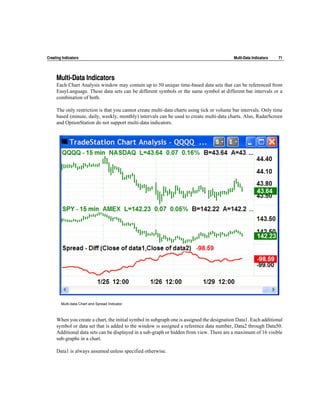
     In TradeStation Chart Analysis, you can plot and reference more than one set of historical data in the same
     chart window. Each additional data set can display in a separate sub-graph or can be hidden from view. A
     maximum of 50 data sets can be inserted in one chart; each data set can be a different symbol or the same
     symbol at different bar intervals, or any combination of data sets.


       Multi-data chart


     Each data set inserted into a chart with Insert~Symbol, is assigned an EasyLanguage data ID number as it is
     added to the window, ranging from "Data2" to "Data50." The symbol that created the chart is always Data1.

     Usage Example1:
        Plot1(Close); // Data1 is implied
        Plot2(Close Data2); // Reference Data2;

     Multiple data streams may also be referenced with the Data(n) reserved word, where n is the data stream
     to reference.

     Usage Example2:
        Plot1(Close of Data(2));

     Note: RadarScreen and OptionStation do not currently support multi-data analysis.
16   Session Information                                                       EasyLanguage Essentials Programmers Guide


     Session Information
     A session is a period of trading activity from the time a market opens until it closes. TradeStation allows you
     to determine which sessions are displayed in a chart and allows you to reference session information within
     your EasyLanguage studies.

     You can create charts that include or exclude pre-market and post-market data for stocks, as well as include
     or exclude the 24 hour session for electronic futures. Remember, EasyLanguage calculates based on the bars
     that are loaded in the chart. By default, each symbol has a regular session that is used when creating a chart.
     These default sessions, as well as new unique session periods, are customizable by the user. You can view
     and modify session information in the Format~Symbol~Properties dialog.

     You can view the default session details for a symbol type as well as create custom session templates for use
     in Chart Analysis, OptionStation, and RadarScreen. Custom session templates allow you to specify the sessions
     for which data will be displayed. By using custom session templates, you can specify the data that will be
     included in the calculation of analysis techniques and strategies. This allows trading strategies to participate
     in specific sessions that are inside or outside of regular market hours.

     There are a number of reserved words and EL functions that will allow you to access and manipulate the various
     session start and end times.

     Usage Example:
        Plot1(SessionStartTime(1,1));
        Plot2(SessionEndTime(1,1));

     Note: Reported session times are based on chart time, either exchange time or your local time, depending on
     your charting settings.
PowerEditor                                                                     Creating a New Analysis Technique   17


PowerEditor
     The EasyLanguage PowerEditor can be thought of as a specialized word processor that allows you to view,
     write, and modify indicators, functions, and strategies in EasyLanguage. The PowerEditor automatically starts
     whenever you open an existing analysis technique or create one.

     The PowerEditor has a number of features that allow you to create analysis techniques, check code for errors,
     explore the syntax library, and manage EL files.

     Create or Open EasyLanguage Analysis Techniques
     To open the PowerEditor, you need to create a new analysis technique or open an existing one.

     Creating a New Analysis Technique
     From the EasyLanguage shortcut bar, click on one of the EL shortcut icons to create a new analysis technique.
     This will bring up a New [Analysis Technique] dialog. When creating a new analysis technique, give it a unique
     name and select to which applications the study will be available.


     New Indicator Dialog


     Short name is an optional alternate column-heading name used in RadarScreen and OptionStation. Notes is
     an optional description of the analysis technique, and Select Templates are a fill-in-the-blanks structured way
     to create analysis techniques.
18   Study File Types                                                         EasyLanguage Essentials Programmers Guide


     Study File Types
     The PowerEditor can create and modify each of the EasyLanguage study file types for use in Chart Analysis,
     RadarScreen and OptionStation. Some file types are specific to Chart Analysis, others are specific to
     OptionStation, and some can be applied to all three windows.

     Indicator: Displays up to 99 plots. Plots can be displayed as an overlay on the chart bars or in a sub-graph
     within the chart window. They can contain alert criteria based on conditional rules. Indicators can be applied
     to Chart Analysis, RadarScreen, and OptionStation.

     ShowMe: Plots a dot on the bars in a chart window based on a true/false condition. They can contain alert
     criteria based on conditional rules. ShowMes can also be applied to the RadarScreen window, but not Option-
     Station.

     PaintBar: Paints all or part of the bars in a chart window based on a true-false condition. They can contain
     alert criteria based on conditional rules. PaintBars can also be applied to the RadarScreen window, but not
     OptionStation.

     ActivityBar: Displays multiple data cells along the sides of the bars in a chart window based on data from
     a finer interval resolution. This "look inside a bar" technology enables you to display and analyze prices that
     occurred within each bar on your chart. They can contain alert criteria based on conditional rules. Activity
     Bars cannot be applied to RadarScreen or OptionStation.

     ProbabilityMap: Displays on the background of the chart window the varying probability of the direction
     of price movement based on a historical price data calculation. They can contain alert criteria based on con-
     ditional rules. Probability Maps cannot be applied to RadarScreen or OptionStation.

     Strategy: Generates one or more trading actions (Buy, Sell, SellShort, or BuyToCover) based on technical
     rules using bar price data. They can be simple one order action strategy components, or complete multi-signal
     entry and exit order strategies. Strategies cannot be applied to RadarScreen or OptionStation.

     Function: A commonly used formula that is assigned a name. They allow convenient reference to complex
     calculations and usually contain user editable parameters that make the calculation usage more flexible. Hun-
     dreds of functions are already included within TradeStation including most mathematical and indicator cal-
     culations. Functions can be called from any EasyLanguage study including another function.

     OptionStation Pricing Model: Generates theoretical option prices and Greek risk calculations for dis-
     play in the OptionStation Analysis window. Pricing Models require a strict adherence to OptionStation Ea-
     syLanguage syntax rules so that theoretical values are passed seamlessly into the OptionStation window.
     OptionStation Pricing Models are not used in RadarScreen or Chart Analysis windows.

     OptionStation Volatility Model: Generates the volatility input parameter to the OptionStation Pricing
     Model. Volatility Models require a strict adherence to OptionStation EasyLanguage syntax. OptionStation Vol-
     atility Models are not used in RadarScreen or Chart Analysis windows.
PowerEditor                                                                                    Syntax Coloring   19


     OptionStation Bid-Ask Model: Generates the best bid and best ask values for use in position tracking
     and analysis within the OptionStation Analysis window. When available, raw bid-ask prices are passed through
     without modification. Bid-Ask Models require a strict adherence to OptionStation EasyLanguage syntax. Op-
     tionStation Bid-Ask Models are not used in RadarScreen or Chart Analysis windows.

     OptionStation Search Strategy: Identifies an option position for evaluation by the OptionStation
     Search calculation engine. Using option type, strike price, and expiration date, you can describe any option
     position. OptionStation Search Strategies cannot be applied to RadarScreen or Chart Analysis windows.


     Syntax Coloring
     The PowerEditor automatically color codes various language keywords making it easy to identify functions,
     reserved words, and other EasyLanguage elements.

     Default EasyLanguage Syntax Colors:
         Blue: Reserved words, such as Data Elements and Strategy Orders
         Dark Magenta: EasyLanguage functions
         Dark Green: Comments
         Dark Cyan: Text Strings
         Dark Green: Skip Words
         Black: User-defined variables, inputs, calculations, and all other syntax elements.

     Note: You can change the default colors for syntax coloring from the: View~EasyLanguage PowerEditor Pref-
     erences~Syntax Coloring dialog.


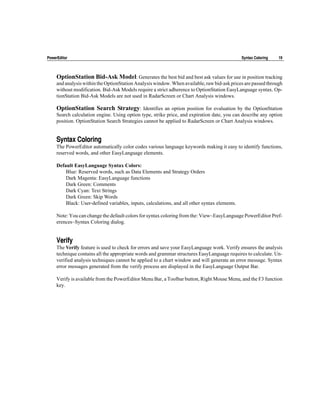
     Verify
     The Verify feature is used to check for errors and save your EasyLanguage work. Verify ensures the analysis
     technique contains all the appropriate words and grammar structures EasyLanguage requires to calculate. Un-
     verified analysis techniques cannot be applied to a chart window and will generate an error message. Syntax
     error messages generated from the verify process are displayed in the EasyLanguage Output Bar.

     Verify is available from the PowerEditor Menu Bar, a Toolbar button, Right Mouse Menu, and the F3 function
     key.
20   EasyLanguage Output Bar                                                   EasyLanguage Essentials Programmers Guide


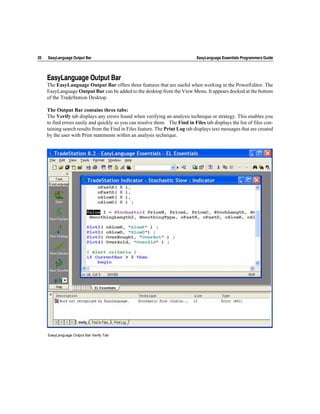
     EasyLanguage Output Bar
     The EasyLanguage Output Bar offers three features that are useful when working in the PowerEditor. The
     EasyLanguage Output Bar can be added to the desktop from the View Menu. It appears docked at the bottom
     of the TradeStation Desktop.

     The Output Bar contains three tabs:
     The Verify tab displays any errors found when verifying an analysis technique or strategy. This enables you
     to find errors easily and quickly so you can resolve them. The Find in Files tab displays the list of files con-
     taining search results from the Find in Files feature. The Print Log tab displays text messages that are created
     by the user with Print statements within an analysis technique.


     EasyLanguage Output Bar Verify Tab
PowerEditor                                                                        Analysis Technique Properties   21


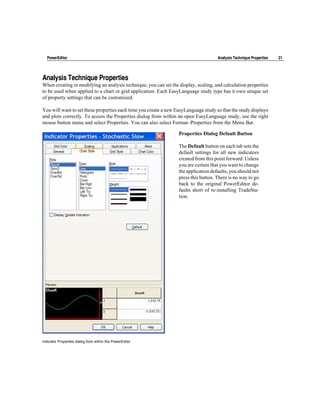
Analysis Technique Properties
When creating or modifying an analysis technique, you can set the display, scaling, and calculation properties
to be used when applied to a chart or grid application. Each EasyLanguage study type has it own unique set
of property settings that can be customized.

You will want to set these properties each time you create a new EasyLanguage study so that the study displays
and plots correctly. To access the Properties dialog from within an open EasyLanguage study, use the right
mouse button menu and select Properties. You can also select Format~Properties from the Menu Bar.

                                                                  Properties Dialog Default Button

                                                                  The Default button on each tab sets the
                                                                  default settings for all new indicators
                                                                  created from this point forward. Unless
                                                                  you are certain that you want to change
                                                                  the application defaults, you should not
                                                                  press this button. There is no way to go
                                                                  back to the original PowerEditor de-
                                                                  faults short of re-installing TradeSta-
                                                                  tion.


Indicator Properties dialog from within the PowerEditor
22   Analysis Technique Properties Tabs                                          EasyLanguage Essentials Programmers Guide


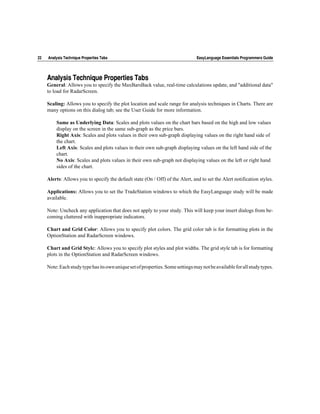
     Analysis Technique Properties Tabs
     General: Allows you to specify the MaxBarsBack value, real-time calculations update, and "additional data"
     to load for RadarScreen.

     Scaling: Allows you to specify the plot location and scale range for analysis techniques in Charts. There are
     many options on this dialog tab; see the User Guide for more information.

         Same as Underlying Data: Scales and plots values on the chart bars based on the high and low values
         display on the screen in the same sub-graph as the price bars.
         Right Axis: Scales and plots values in their own sub-graph displaying values on the right hand side of
         the chart.
         Left Axis: Scales and plots values in their own sub-graph displaying values on the left hand side of the
         chart.
         No Axis: Scales and plots values in their own sub-graph not displaying values on the left or right hand
         sides of the chart.

     Alerts: Allows you to specify the default state (On / Off) of the Alert, and to set the Alert notification styles.

     Applications: Allows you to set the TradeStation windows to which the EasyLanguage study will be made
     available.

     Note: Uncheck any application that does not apply to your study. This will keep your insert dialogs from be-
     coming cluttered with inappropriate indicators.

     Chart and Grid Color: Allows you to specify plot colors. The grid color tab is for formatting plots in the
     OptionStation and RadarScreen windows.

     Chart and Grid Style: Allows you to specify plot styles and plot widths. The grid style tab is for formatting
     plots in the OptionStation and RadarScreen windows.

     Note: Each study type has its own unique set of properties. Some settings may not be available for all study types.
PowerEditor                                                                              EasyLanguage Dictionary   23


     EasyLanguage Dictionary
     The EasyLanguage Dictionary is a reference of all reserved words and functions that can be used in an Easy-
     Language analysis technique. It is organized by category and based on the various elements, so it is easy to
     find the reserved words or functions needed to program your ideas. The Dictionary also provides notes, ex-
     amples, and parameter values to help you quickly understand how each item is used, what it does, and how
     the item can be incorporated into your analysis technique or strategy.

     The Dictionary is accessible only when an EasyLanguage document is open. It is then available from the Menu:
     Tools~EasyLanguage Dictionary, or from the Toolbar (it is the book icon on the far right).


        The EasyLanguage Dictionary from within the PowerEditor

     Category: The Category tab within the EasyLanguage Dictionary groups together related elements. Under
     each category is a list of related reserved words. Clicking on an entry brings up a brief description, and usage
     example. The User Function category lists all built-in and user created functions.

     Note: The category lists are a great way to learn about the EasyLanguage elements and incorporate them into
     your studies.
24   PowerEditor Window Preferences                                          EasyLanguage Essentials Programmers Guide


     Find: The Find tab allows you to search for specific words using partial or complete words. Type in a word
     or partial word, and a list of matching entries are displayed.

     Definition Button: The EasyLanguage Dictionary is tightly integrated with the TradeStation User Guide so
     that you can easily receive additional documentation on a specific function or reserved word. Click the Def-
     inition button for any selected entry to bring up a detailed description from the User Guide.

     Notes and Examples: In many cases, notes and examples are provided as well as EL code usage examples.

     Parameters: Most reserved words and functions require one or more input parameters in order to calculate.
     The Dictionary displays a list of these required parameters.


     PowerEditor Window Preferences
     You can customize the EasyLanguage PowerEditor environment by setting preferences for text formatting
     and size, text and background color, syntax coloring, and fonts. To customize these general preference, go to
     View~EasyLanguage PowerEditor Preferences.

     Tip: The EasyLanguage PowerEditor Preferences-General tab is also where you can Verify all EasyLanguage
     studies in one operation.
PowerEditor                                                                     EasyLanguage PowerEditor Debugger     25


     EasyLanguage PowerEditor Debugger
     The Debugger is a development tool designed to help check the calculations within an EasyLanguage study.
     This tool enables you to view the values of the various elements within your code (including inputs, arrays,
     functions, and variables) on a bar-by-bar, or breakpoint-by-breakpoint basis, allowing you to step through the
     code and evaluate the calculations.

     The variable data shows the values for the current bar being evaluated and all historical values being stored
     at that point for that variable. If a study calls one or more functions, the return values, along with all variable
     values within the function, are displayed as well.

     These values are displayed in a pop-up window that is generated whenever the EasyLanguage calculation en-
     counters the reserved word BreakPoint within the code of any EasyLanguage analysis technique. You can
     include BreakPoint anywhere within the EasyLanguage code and set it to execute on every bar or you can call
     it conditionally to view values on a specific bar or under specific conditions.

     Once the EasyLanguage Debugger is displayed, you can step through the code BreakPoint-by-BreakPoint or
     close the Debugger and return to the chart.

     BreakPoint
     The EasyLanguage Debugger opens automatically when the BreakPoint keyword is encountered in an anal-
     ysis technique while the EasyLanguage code is being executed.

     Each occurrence of BreakPoint within your code must be assigned a label which allows you to more easily
     identify which specific BreakPoint has caused the calculations to stop and where you are in your code.
     The label is specified as a string parameter.

     Usage Example:
        BreakPoint("1st");

     Note: Place BreakPoints anywhere in your code where you want to evaluate calculations.

     Important Warning: While the EasyLanguage Debugger is open, all data activity in all TradeStation windows
     is halted. No data, alerts, or strategy orders will be generated. No windows will update until the EasyLanguage
     Debugger is closed. The EasyLanguage Debugger is intended for use in a development environment. Debug-
     ging should not take place while trading or using strategy automation.
26   BreakPoint                                                              EasyLanguage Essentials Programmers Guide


      The EasyLanguage Debugger called from within a strategy.


     The EasyLanguage Debugger window is divided into three panes:

         Module Tree (left pane): A tree control that shows a breakdown of the variables in the applied study, as
         well as any functions that are referenced. Click + to expand the contents of a category; click - to col-
         lapse the contents of a category. The Module Tree pane displays items such as inputs, constants, vari-
         ables, and the return values of the functions that are associated with the study.

         Properties (upper right pane): Displays the type of object, its name, data number, and memory location.

         Watcher (lower right pane): Shows the values, including historical values stored up to that point, of any
         variable or return values that were double-clicked in the Module Tree pane.
Language Elements                                                                                  BreakPoint     27


Language Elements
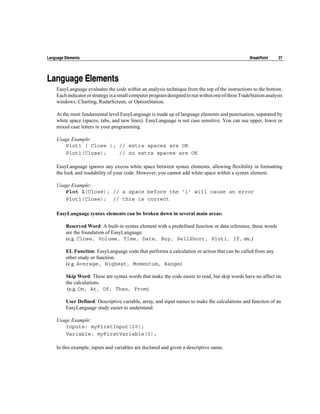
    EasyLanguage evaluates the code within an analysis technique from the top of the instructions to the bottom.
    Each indicator or strategy is a small computer program designed to run within one of three TradeStation analysis
    windows: Charting, RadarScreen, or OptionStation.

    At the most fundamental level EasyLanguage is made up of language elements and punctuation, separated by
    white space (spaces, tabs, and new lines). EasyLanguage is not case sensitive. You can use upper, lower or
    mixed case letters in your programming.

    Usage Example:
       Plot1 ( Close ); // extra spaces are OK
       Plot1(Close);    // no extra spaces are OK

    EasyLanguage ignores any excess white space between syntax elements, allowing flexibility in formatting
    the look and readability of your code. However, you cannot add white space within a syntax element.

    Usage Example:
       Plot 1(Close); // a space before the ‘1’ will cause an error
       Plot1(Close); // this is correct

    EasyLanguage syntax elements can be broken down in several main areas:

         Reserved Word: A built-in syntax element with a predefined function or data reference, these words
         are the foundation of EasyLanguage.
         (e.g. Close, Volume, Time, Date, Buy, SellShort, Plot1, If, etc.)

         EL Function: EasyLanguage code that performs a calculation or action that can be called from any
         other study or function.
         (e.g. Average, Highest, Momentum, Range)

         Skip Word: These are syntax words that make the code easier to read, but skip words have no affect on
         the calculations.
          (e.g. On, At, Of, Than, From)

         User Defined: Descriptive variable, array, and input names to make the calculations and function of an
         EasyLanguage study easier to understand.

    Usage Example:
       Inputs: myFirstInput(20);
       Variable: myFirstVariable(0);

    In this example, inputs and variables are declared and given a descriptive name.
28   Punctuation                                                               EasyLanguage Essentials Programmers Guide


     Punctuation
     Like any written language, EasyLanguage requires the correct punctuation in order to accurately convey the
     meaning of the words. Here are the punctuation conventions:
         ;   Semicolon: Must be used to end each complete EasyLanguage statement.

         Usage Example:
               Plot1(Close);


         , Comma: Separates each item in a set of parameters to a function, or separates a list of declared input
         or variable names.

          Usage Examples:
               Plot1(Average(Close,10));
               Vars: var1(0), var2(0), Var3(0);

         ()  Parentheses: Used to group and set the precedent for mathematical calculations or true/false
         comparisons; used to group sets of function parameters.

         Usage Example:
               Plot1(Average(Close,10));
               Plot2((Close + High + Low) / 3);


         []   Square Brackets: Used to reference previous values of data-related reserved words, calculations,
         and functions. (e.g. [0] = the current bar, [1] = of 1 bar ago, and so on; used to specify an array variable
         element.

         Usage Example:
               Plot1(High[1]);              // High of one bar ago

          Usage Example:
               Array: PrevHighs[5](0); { Declare a 5 element array }
               Plot1(PrevHighs[5]);               { Reference fifth array element }


         { } Curly Brackets: Allows for comments within your code; everything within a set of curly brackets
         is ignored in the calculations of EasyLanguage.

         Usage Example:
               {   Code comments and notation goes here                      }
Language Elements                                                                               Punctuation    29


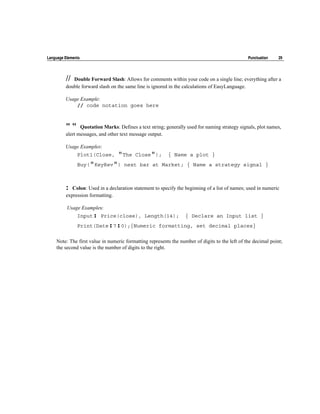
         // Double Forward Slash: Allows for comments within your code on a single line; everything after a
         double forward slash on the same line is ignored in the calculations of EasyLanguage.

         Usage Example:
             // code notation goes here


         ""     Quotation Marks: Defines a text string; generally used for naming strategy signals, plot names,
         alert messages, and other text message output.

         Usage Examples:
               Plot1(Close,      "The     Close");       { Name a plot }
               Buy("KeyRev") next bar at Market; { Name a strategy signal }


         :  Colon: Used in a declaration statement to specify the beginning of a list of names; used in numeric
         expression formatting.

          Usage Examples:
               Input: Price(close), Length(14);                   { Declare an Input list }
               Print(Date:7:0);{Numeric formatting, set decimal places}

    Note: The first value in numeric formatting represents the number of digits to the left of the decimal point;
    the second value is the number of digits to the right.
30   Operators                                                                  EasyLanguage Essentials Programmers Guide


     Operators
     An operator is used to perform a specific operation on a set of values or conditions in an EasyLanguage state-
     ment. There are three types of operators: Mathematical, Relational, and Logical.


     Mathematical Operators
     Mathematical operators are used to perform math calculations: addition, subtraction, multiplication, and di-
     vision. Multiplication and division have precedence over addition and subtraction.

         +       Add: Perform addition.

          Usage Example:
                  Plot1(Upticks        +   DownTicks);


         -   Subtract: Perform subtraction.

          Usage Example:
                  Plot1(Close      -   Close[1]);


         *   Multiply: Perform multiplication.

          Usage Example:
              Plot1(Close * 1.01);

         /   Divide: Perform division.

            Usage Example:
                 Plot1((Open + High + Low + Close) / 4);
     Tip: It is preferable to use multiplication instead of division whenever possible. Multiplication is slightly more
     efficient and does not require an internal division-by-zero check. However, when dividing by an odd number
     it is better to use division for the most accurate calculation values.

     Concept Example (Multiplication versus Division):
         (High + Low) / 2
         (High + Low) * .5               (Better)
     Dividing by 2 or multiplying by .5 is an equivalent operation.

          (High + Low + Close) * .3334
          (High + Low + Close) / 3                       (Better)
     In the second example, it is better to divide by 3 so that you don’t lose precision.
Language Elements                                                                             Relational Operators   31


    Relational Operators
    Relational operators are used to perform true/false comparisons of numeric values; each comparison must have
    a right and left numeric expression. Relational operators yield either a true or false value. True and false values
    are also called boolean values. Boolean is a data type in EasyLanguage for variables and inputs.

    There are six standard relational operators in EasyLanguage and two additional multi-bar relational compar-
    isons for evaluating crossing conditions.

         =    Equal to

         Usage Example:
             if Close        =   Close[1] then Value1 = Close;
    In this example, the equal sign is being used in two ways: first as the relational operator comparing the true/
    false expression, and second as a variable assignment operator.

         <>     Does Not Equal

         Usage Example:
               if Close      <> Close[1] then Alert;

         >    Greater Than
         <    Less Than

         Usage Examples:
             if Close   > Close[1] then Alert;
               if Close < Close[1] then Alert;

         >= Greater Than or Equal To
         <= Lesser Than or Equal To

         Usage Examples:
             if Close   >= Close[1] then Alert;
               if Close <= Close[1] then Alert;
    The equal sign must always be on the right.

         Crosses Above or Crosses Over and
         Crosses Below or Crosses Under

    These are multiple bar patterns that look for one value from the previous bar to cross above or below another
    value on the current bar. This can also be a multi-bar pattern if the values are equal for one or more bars.
32   Logical Operators                                                         EasyLanguage Essentials Programmers Guide


     Note: If the two values are equal on one or more bars, this is not considered a cross.

         Usage Example:
             if Close crosses above Average(Close,10) then Alert;
             if Close crosses below Average(Close,10) then Alert;

     Logical Operators
     Logical operators combine two or more true/false expressions to evaluate their truth. The logical AND yields
     true only when all expressions are true. The logical OR yields true when at least one of the expressions is true.

         AND        Logical AND

         Usage Example:
             if Close > Close[1] AND Low < Low[1] then Alert;

         OR          Logical OR

         Usage Example:
             if Close > Close[1] OR High > High[1] then Alert;

     Note: The logical operator AND reduces the number of possible true occurrences, and OR increases the number
     of possible true occurrences.

     Precedence-Order of Operations
     Operators have an order or precedence by which statements are evaluated. Certain operators have higher pre-
     cedence over others and those operator calculations are performed before those with lower precedence. Op-
     erators are evaluated from left to right through the calculation or comparison. Multiplication and division have
     precedence over addition and subtraction. AND has higher precedence over OR.

     You can use parentheses around expressions to force grouping. Calculations or comparisons inside parentheses
     are always performed first, with the innermost set having precedence working outward. Even if you don't need
     parentheses, they are a good way to document your calculation or comparison intentions.

     Concept Examples (Mathematical Precedence):
        1 + 5 * 3 + 4 = 20
        (1+5) * (3+4) = 42
        1 + (5*(3+4)) = 36

     Concept Examples (Logical Precedence):
        FALSE AND TRUE OR FALSE AND TRUE = FALSE
        FALSE OR TRUE AND FALSE OR TRUE = TRUE
        FALSE AND (TRUE OR FALSE) AND TRUE = FALSE
Language Elements                                                                           Reserved Words     33


    Reserved Words
    Reserved words or keywords are what make up the EasyLanguage programming language. Each reserved word
    performs an action or returns a data value. They are the building blocks of your indicators and strategies.

    Reserved words are not case sensitive. You should avoid using a reserved word name to name your variables
    or inputs. Using a reserved word name for a variable or input causes you to lose its functionality within the
    analysis technique. EasyLanguage uses syntax coloring to visually identify reserved words and other language
    elements.

    This is a sample of commonly used built-in EasyLanguage reserved words:

       above               alert                 and                array                 bar
       barinterval         barssinceentry        begin              below                 bigpointvalue
       breakpoint          buy                   buytocover         c                     close
       commentary          contracts             cross              crosses               currentbar
       currentdate         currenttime           d                  data                  date
       definedllfunc       downto                else               end                   entryprice
       false               for                   from               getsymbolname         h
       high                i                     if                 input                 l
       limit               low                   market             marketposition        maxbarsback
       minmove             newline               next               noplot                numeric
       numericarray        o                     of                 on                    open
       or                  over                  plot1              plot2                 plot3
       plot4               plotpb                points             +                     pointvalue
       pricescale          print                 sell               sellshort             setplotcolor
       shares              stop                  t                  than                  then
       this                ticks                 time               true                  under
       v                   variables             volume             while                 =

    Note: See the EasyLanguage Dictionary for a complete listing of all reserved words, definitions, parameters,
    and their usage.
34   Constants                                                                  EasyLanguage Essentials Programmers Guide


     Constants
     Constants are reserved words that represent a fixed value, where the name of the constant represents the value.
     (e.g. The word Blue is a numeric constant representing the numeric EasyLanguage value for the color Blue,
     which is 2.)

     Usage Example:
        SetPlotColor(1,Blue); { Blue = 2 }
        Condition1 = DayofWeek(Date) = Monday; { Monday = 1 }

     Skip Words
     Skip words are reserved words used to improve the readability of your EasyLanguage code. They have no
     other function and are ignored when executing the EasyLanguage instructions.

     This is a sample of commonly used EasyLanguage skip words:

       a               an           at               by             the
       is              of           on               than           the

     Usage Example:
        Buy next bar  at Market;
         Buy next bar at the Close of this bar Limit;

     In these examples, the skip words make the code more readable.

     Attributes
     Attributes are switches that turn on or off certain functionality for the entire analysis technique. They are only
     evaluated and set once at verify time and cannot be changed within the code. Attributes affect only the analysis
     technique in which they are referenced, so it is possible to have a function with Infinite Loop detection enabled
     but the calling analysis technique with the logic disabled.

     Usage Example:
         [LegacyColorValue = TRUE]
     This turns on or off the legacy color values.

     Usage Example:
         [IntrabarOrderGeneration = TRUE]
     This turns on or off intra-bar strategy order generation.

     Usage Example:
         [InfiniteLoopDetection = TRUE]
     This turns on or off infinite loop detection.
Language Elements                                                                          EasyLanguage Functions     35


    EasyLanguage Functions
    EasyLanguage functions are frequently used formulas or comparisons that can return either a numeric, true/
    false, or string value. Functions can be called from any analysis technique or within another function. Functions
    allow you to write a complex mathematical formula or action once, and then reference that function in other
    analysis techniques when needed.

    The name of the function is the syntax convention for calling it. Most functions have one or more input pa-
    rameters that modify the calculation or action of the function, making it more useful and flexible in a variety
    of different circumstances.

    The most common mathematical and technical analysis calculations are already written and built into Trade-
    Station for integration into your custom studies. You can also create your own library of functions. Once ver-
    ified, your function appears in the EasyLanguage Dictionary and is callable from any other study.

    This is a sample list of commonly used built-in EasyLanguage functions:

       ADX                    Average               AverageArray           Avgprice                 BollingerBand
       CalcDate               CalcTime              CloseD                 Correlation              Divergence
       DaysToExpiration       DMI                   FastD                  FastK                    HighD
       Highest                HighestArray          KeltnerChannel         LastBarOnChart           LinearReg
       LinearRegSlope         LowD                  Lowest                 LowestArray              MACD
       MidPoint               Momentum              MoneyFlow              MRO                      OpenD
       PercentChange          Parabolic             Pivot                  Range                    RSI
       RSquare                SlowD                 SlowK                  SortArray                StandardDev
       Summation              TriAverage            TrueRange              WAverage                 XAverage
       Note: See the EasyLanguage Dictionary for a more complete listing of commonly used functions and their uses.

    Usage Example:
       if Average(Close,10) crosses above Average(Close,20) then
              Buy next bar at market;

    In this example, the Average function is called as part of a strategy rule.
36   Declaration                                                                 EasyLanguage Essentials Programmers Guide


EasyLanguage Statements
     Computer programs are a series of instructions written by a programmer according to a given set of rules or
     conventions (syntax). All computer programs basically do three main things: evaluate expressions, change
     the order in which expressions are evaluated, and output data to a user.

     EasyLanguage provides a wide variety of additional tools and actions that are trading related that can be in-
     corporated into your analysis techniques.

     Each complete statement in EasyLanguage is followed by a semicolon       ; which signifies the end of a statement.
     Usage Example:
        Value1 = Highest(High,20)[1];

     There are relatively few reserved words that can start an EasyLanguage statement. These few reserved words
     are the building blocks of all indicators and strategies.

     Here is a list of some of the more common EL statements:

     Usage Examples:
        Inputs: inputname(defaultvalue);
        Variables: variablename(intialvalue);
        Arrays: arrayname[arraysize](intialvalue);
        If <true/false expression> then begin <EL statement> end;
        Plot1(numericvalue);
        Alert(alert string);
        Buy next bar at Market;
        Sell Short next bar at Market;
        For <variablename> = 1 to <num> then begin <EL statement> end;
        Print(expression list);
        Commentary(expression list);

     There are other reserved words that can start an EL statement, like variable assignment statements, comments,
     and others.


     Declaration
     Declaration statements allow you to create your own unique language elements for input parameters, variables,
     and array variables. These names should be descriptive of the calculation or value they are storing, making it
     easier to follow the logic and intent on the syntax. Again, input and variable declarations are not case sensitive.

     The declaration name of an input, variable, or array can be a maximum of 42 characters long. They must start
     with an alpha character and cannot start with a number or symbol, with the exception of an underscore.
EasyLanguage Statements                                                                                Inputs     37


    Inputs
    Declaration of inputs creates names for parameters in an analysis technique. These parameters can be used to
    alter the calculated values, change displayed colors, or introduce branching logic. Inputs allow you to modify
    the calculation logic from within an analysis window once the study is applied, making it easy to test different
    ideas and scenarios without having to modify the EasyLanguage code.

    When declared in a strategy, inputs allow you to utilize the optimization features in a Chart Analysis window.
    Optimization allows you to set a range of parameters for your strategy inputs and have each scenario evaluated
    and displayed in a comprehensive report.

    The value held by an input cannot be modified within the body of the code in the study.

    Input names are unique to the study they are declared in. You can use the same name over again in any other
    study, but you cannot use the same name within the same study; for example declaring an input with the same
    name as a variable. Also, remember to avoid naming inputs with the same name as an EasyLanguage reserved
    word or function.

    The Input reserved word has two forms: Input and Inputs, and must be followed by a colon : then a
    list of input names separated by commas.

    Each declared input must be given a default value that is generally set to some useful value. This default value
    determines the data type of the input (numeric, true/false, or text).

    Usage Example:
       Inputs: Price(Close), Length(20);
       Plot1(Average(Price, Length);

    In this example, the declared input name Price represents the Close of each bar and the input name Length
    represents the number 20.
38   Variables                                                                 EasyLanguage Essentials Programmers Guide


     Variables
     Variables are a programming tool that allow you to store values and refer to those values when needed. Each
     variable has a unique name that can be referenced in an analysis technique when needed. Variables can be
     numeric values, true/false comparisons, or text strings. Variables allow you to organize and annotate your code
     with descriptive names that describe the nature of the calculation or purpose of the data. Variables hold their
     value from bar to bar until changed.

     There are several benefits to storing values in variables: they can reduce typographical errors, complex state-
     ments can be referred to by a simple name, readability and understanding are improved, and they are processing
     and memory efficient.

     Variables names, like inputs, are unique to the study they are declared in. You can use the same name over
     again in any other study, but you cannot reuse the same name within the same study, for example declaring
     a variable with the same name as an input. Also, remember to avoid naming variables with the same name as
     an EL reserved word or function.

     User-named variables must be declared before they can be used. The Variables reserved word is used to
     declare variables, and it has four forms: Variables, Variable, Vars, Var. Each is functionally
     equivalent and each must be followed by a colon ( : ), then a list of variable names separated by commas.

     Each declared variable must be given an initial value. Variables are generally initialized to 0, but can be
     initialized to any useful value. This initialized value determines the data type of the variable (numeric, true/
     false, or text string).

     Usage Example:
        Variables:
           LastHigh(0),   { creates a numeric variable }
           NewHigh(false),{ creates a true/false variable }
           HighAlert(""); { creates a text variable }

     Variable Assignment
     Calculations, comparisons, and other values are often stored in variables for use throughout an analysis tech-
     nique or strategy. The act of setting a variable to some new value or state is called assignment. The equal sign
     ( = ) reserved word is used for variable assignment.

     Usage Example:
        Vars: SlowAverage(0), FastAverage(0);
        SlowAverage = Average(Close, 18);
        FastAverage = Average(Close, 9);

     In this example, the declared Vars names are descriptive of the intended calculations.
EasyLanguage Statements                                                             Understanding Variable Types   39


    Understanding Variable Types
    Many indicators, strategies, and functions are written using variables, inputs, and arrays. These language el-
    ements allow you to organize and manage information, as well as build in flexibility when the study is applied.

    There are three variable, input, and array types:

         Numeric - Holds a simple or complex number, positive or negative. There are three numeric types in
         EasyLanguage: Integer, Float, and Double (see Numeric Types).
         True/false - Holds a true/false state, either a true/false expression or the words true or false.
         Text String - Holds a text string, numbers or letters enclosed in quotation marks (“text”).

    Pre-Declared Variables
    Pre-declared variables are variables that are automatically recognized by the language. They are functionally
    equivalent to user-declared variables, but do not need to be declared.

    Pre-declared variables come in two types: numeric and true/false. There are no pre-declared text variables or
    arrays in EasyLanguage.

    Value0 to Value99 - There are 100 pre-declared numeric variables.
    Condition0 to Conditition99 - There are 100 pre-declared true/false variables.

    Usage Example:
       Value1 = Average(Price, Length);
       Condition1 = Close Crosses Above Value1;

    Note: Pre-declared variables are generally used during the early development stage of a study and later replaced
    with more descriptive user-declared variables in the final version of the analysis technique.
40   Arrays                                                                     EasyLanguage Essentials Programmers Guide


     Arrays
     An array is a programming tool that allows you to store, organize, and reference non-linear data values. The
     declaration of an array creates a name that refers to a grouped set of data elements within an analysis technique.
     An array can hold numeric values, true/false comparisons, or text strings. You reference data elements within
     an array with an index number. Like variables, you can organize and annotate your arrays with descriptive
     names that describe the nature or purpose of the values stored.

     An array may be described as a table of variables. Where a variable only holds one value, an array can hold
     many values. Using an array has the advantage of allowing manipulation of the values in all or part of the
     array at once. That is, all the values can be averaged or sorted as a group.

     The elements in an array may be organized in a single dimension or multiple dimensions. In spreadsheet terms,
     a 1-dimensional array has 1 column, a 2-dimensional array has columns and rows, a 3-dimensional array has
     additional spreadsheets one on top of the other.

                        1-dimensional Array                           2-dimensional Array


     Note: The numbers in the cell are the reference numbers of the array data element. Also, arrays in EasyLanguage
     actually start at data element 0. However, all built-in user-functions that operate on arrays ignore the zero el-
     ement, so it is advised not to use the zero element.

     Array names, like variables, are unique to the study they are declared in and the same array name can be used
     again in any other study. Remember to avoid naming arrays with the same name as an EasyLanguage reserved
     word or function.

     An array can hold a fixed number of elements or the number of elements can be dynamic. Each fixed array
     must specify the maximum element reference number, and give an initial default value for each element; array
     elements are generally initialized to 0, but can also be initialized to any useful value.

     The arrays reserved word has two forms: arrays and array. Each is functionally equivalent and each must
EasyLanguage Statements                                                                               Arrays     41


    be followed by a colon ( : ), then a list of array names separated by commas. The number in brackets after the
    array name is the maximum element number of the array (not the size) and the number in parentheses is the
    initial value for each element and the type of the array (numeric, true/false, or text string).

    Note: The size of an array would be the maximum element number plus 1 for the zero element.

    Usage Example:
       Arrays: WeeklyHighs[52](0), WeeklyLows[52](0);

    This example declares two 1-dimensional arrays, each with 53 elements, 0 to 52, and initializes each numeric
    element to 0.

    Usage Example:
       Arrays: VolumeHighs[5,20](0), VolumeLows[5,20](0);

    This example declares two 2-dimensional arrays, each with 6 elements (columns) by 21 elements (rows), a
    total of 126 elements, and initializes each numeric element to 0.

    Note: Remember to avoid using data element 0 if you are going to use any of the built-in array functions.
    These functions do not reference the zero element in an array.

    EL functions that operate on arrays include:

    SummationArray(ArrayName, Size) - This function sums the values in the first Size elements of
    the array identified by ArrayName.

    SortArray(ArrayName, Size, HiLo) - This function sorts the values in the first Size elements of
    the array identified by ArrayName, in either ascending or descending HiLo order.

    AverageArray(ArrayName, Size) - This function averages the values in the first Size elements of
    the array identified by ArrayName.

    See also: Sort2DArray, HighestArray, LowestArray, and other array related reserved words
    and functions in the EL Dictionary.

    Error Checking in Arrays:
    It is good programming practice to have checks within your code to avoid referencing array elements that do
    not exist. If you attempt to reference an array element that has not been declared, a runtime error will occur.
42   Dynamic Arrays                                                            EasyLanguage Essentials Programmers Guide


     Dynamic Arrays
     Dynamic arrays are used when the number of elements needed in an array is not known at the time of declaration.
     All Dynamic arrays in EasyLanguage are 1-dimensional arrays. Currently, multi-dimensional dynamic arrays
     are not supported.

     Dynamic array declarations are similar to fixed array declarations except that the maximum element number
     in brackets will be left blank. Once declared, you must call the reserved word, Array_SetMaxIndex, to
     set the maximum index value of the array prior to setting or referencing values in the array.

     Usage Example:
        Vars: Count(0);
        if High > Highest(High,20)[1] then Count = Count + 1;
        Array: MyDynamicArray[](0);
        Array_SetMaxIndex(MyDynamicArray, Count);
        MyDynamicArray[Count] = High;

     This example stores the highest highs within the chart in a dynamic array.

     There are special functions within EasyLanguage that operate exclusively on dynamic arrays. These functions
     will not accept fixed arrays as inputs. However, most of the built-in functions that operate on fixed arrays will
     also work on dynamic arrays.

     EL reserved words that operate only dynamic arrays include:

     Array_Sum(ArrayName, BegElementNum, EndElementNum) - This function sums the values
     in the dynamic array identified by ArrayName starting with BegElementNum and ending with EndElement-
     Num.

     Array_Sort(ArrayName, BegElementNum, EndElementNum, SortOrder) - This function
     sorts the values in the dynamic array identified by ArrayName starting with BegElementNum and ending with
     EndElementNum in either ascending or descending order.

     See also: Array_Compare and Array_Copy

     Variable Calculation and Storage
     When you reference a variable, the value the variable returns is the value of the variable as of the close of the
     previous bar. Take a look at the following example.

     Usage Example:
        Value1 = Value1 + 1;

     In this variable assignment statement, we are incrementing Value1 on each bar. Since the reference to
     Value1 refers to the last closed bar value of Value1, Value1 can only increment once per bar, regardless
     of the number of times an analysis technique calculates per bar.
EasyLanguage Statements                                                         IntrabarPersist Variables and Arrays   43


    So each time an analysis technique calculates intra-bar, the previous intra-bar value of a variable is thrown
    away. Each variable value only gets permanently set once per bar when the bar closes.

    If you need to count events within a bar, you will need to declare a specialized variable type that allows storage
    of variables on a tick-by-tick basis. This specialized variable is called an ‘IntrabarPersist’ variable and can be
    used to save variable values intra-bar.


    IntrabarPersist Variables and Arrays
    IntrabarPersist is a type of variable or array declaration keyword that creates a specialized variable or array
    that can store and update variable values tick-by-tick.

    Usage Example:
       Vars: IntrabarPersist tickcount(0) ;
       tickcount = tickcount + 1;

    In this example, the variable tickcount is able to count the total number of ticks on each bar.

    Usage Example:
       Vars: IntrabarPersist count(0);
       Array: IntrabarPersist lastthree[3](0) ;
       count = count + 1;
       lastthree[count] = close;
       if count = 3 then count = 0;

    In this example, the array is able to hold the last three trade prices.

    Numeric Types
    EasyLanguage has three main data types for inputs, variables, and arrays: numeric, boolean(true/false), and
    strings.

    Numeric inputs, variables, and arrays can be declared with a numeric type that specifies the precision of the
    numeric value being stored depending on the precision needed in your calculations. Integers take up less mem-
    ory than doubles.

    Integers (int) in EasyLanguage are signed integers meaning that they can represent both positive and negative
    whole numbers in a range from -2,147,483,648 to 2,147,483,647. Integers cannot store the decimal portion
    of a numeric value.

    Floats (float) in EasyLanguage are signed values meaning that they can represent both positive and negative
    numbers. Floats offer the ability to store large decimal values at a reduced memory usage but with less precision
    than doubles. Since most internal EL values are doubles, comparison errors may occur if you mix numeric
    types. It is not recommended to use Floats.
44   Historical Reference of Variables                                         EasyLanguage Essentials Programmers Guide


     Doubles (double) in EasyLanguage are signed values meaning that they can represent both positive and negative
     numbers. Doubles offer the ability to store very large values with the highest precision.

     Note: For most EasyLanguage studies, it is unnecessary to type inputs, variables, and arrays. By default, inputs,
     variables, and arrays are initially typed to double for the greatest flexibility. However, EasyLanguage will
     automatically try to retype variables to integer if possible. Typing variables is always optional, but when used
     in complex analysis techniques and strategies it may produce substantial memory savings.

     There are three reserved words used to identify the three numeric types:
         INT for integer
         FLOAT for float
         DOUBLE for double

     The variable data type is identified at the beginning of every unique declaration. For example,

     Usage Example:1
        Variables: double AvgHighs(0), int LookBack(0);

     The type does not carry into the next variable after the comma as it does in other programming languages.

     Usage Example2:
        Variables: float AvgHighs(0), AvgLows(0), int LookBack(0);

     If you do not declare a specific type for each new variable, the type will default to double.


     Historical Reference of Variables
     Variables, formulas, functions, and reserved words can reference previous bar values of themselves on any
     historical bar within the chart using square bracket notation. You can also reference array elements historically
     by adding an additional set of square brackets [n] to the array reference.

     Remember that EasyLanguage calculates in bars. The bar interval is what makes the analysis whether it is
     tick, minute, daily, or any other interval. The number in the square-bracket notation is always the number of
     bars to look back. Use "[0]" to reference the current bar.

     Usage Example:
        Plot1(Close[5]);
        Plot2(Highest(High, 10)[1]);
        Plot3((Close - Open)[1]);
        Condition1 = Condition2[1] OR Condition2[2];
        Array: myarray[5](0);
        Value1 = myarray[5][10]; { element 5 of 10 bars ago }
EasyLanguage Statements                                                                     Variables as Counters   45


    Variables as Counters
    Variables hold their values from bar to bar and can reference the previous bar value of themselves in the same
    assignment statement. This is useful for counting events and accumulating values.

    Usage Example:
       Value1 = Value1 + 1; // simple once per bar event counter
       Value2 = Value2 + (Close - Close[1]); // sum net changes
       Value3 = Value2 / Value1; // Cumulative average

    In this example, we are counting bars in order to cumulatively average the net change.

    Setting and Holding Variables Conditionally
    Variables hold their value from bar to bar until they are re-assigned, i.e., reset or recalculated. This allows
    you to capture a value and hold it until needed. When doing this, the variable assignment statement is placed
    inside a conditional so that the variable is set or calculated only when the condition is true. The variable holds
    the new value until the next time the condition is true.

    Usage Example:
       Vars: Bar1Range(0);
       if Date <> Date[1] then
             Bar1Range = Range;

    In this example, on the first bar of each day on an intraday chart, the variable Bar1Range will be set to the
    range of that first bar. Bar1Range will retain that value until the first bar of the next day. Referring to
    Bar1Range on any intraday bar will return the range of the first bar of that day.
46   Conditional Branching                                                        EasyLanguage Essentials Programmers Guide


     Conditional Branching
     Conditional branching or selection statements execute one of more instructions based on certain true/false con-
     ditions. The if reserved word starts all conditional statements in EasyLanguage. Complex if statements can
     be nested and grouped to create multifaceted logic trees that perform certain actions under certain conditions.

     If statements are the engines that drive all computer programming languages and applications, they are what
     computer programming is all about. By performing certain calculations or actions at different times, you are
     able to build logic that can accomplish almost anything.

     There are four forms of the if statement that we will discuss. In addition there are once and switch/case
     statements which add additional programming flexibility and performance enhancements:


     If...Then...
     This is the simplest form where one action is performed based on a true/false test.

     Usage Example:
        if High > Highest(High,10)[1] then
            Alert;

     If...Then...Else...
     In this form, one action is performed if a true/false test is true, and another action is taken if false.

     Usage Example:
        if Close > Average(Close, 20) then
            SetPlotColor(1, Green)
        Else
            SetPlotColor(1, Red);

     Note: The use of the semicolon is only required when the entire statement is complete.

     If...Then Begin...End (Block Statement)
     In this form, multiple actions are performed within the block statement. Block statements always have a begin
     and an end, with one or more statements within the block to be executed.

     Usage Example:
        if Close > Average(Close, 20) then begin
            SetPlotColor(1, Green);
            Alert;
        end;

     Note: The use of the semicolon is required for each complete statement within the block.
EasyLanguage Statements                                                       If...Then Begin...End Else Begin...End   47


    If...Then Begin...End Else Begin...End
    In this form, multiple actions are performed within each block statement.

    Usage Example:
       if Close > Average(Close, 20) then begin
           SetPlotColor(1, Green);
           Alert("Close Above Average");
       end
       Else begin
           SetPlotColor(1, Red);
           Alert(“Close Below Average”);
       end;

    Note: The use of the semicolon is not required after the first end because the overall statement in not complete
    until the final end.


    ONCE...Begin...End
    This is a boolean expression that is never tested again once the expression becomes true. Once the expression
    is true the entire piece of code is skipped. The once statement can be used instead of any true/false expression
    that only needs to be evaluated once.

    Usage Example:
       Var: Counter(0)
       if( CurrentBar = 1 ) and ( Counter = 0 ) then
           Counter = 1000;

    This can be rewritten using once

         Var: Counter(0)
         once ( CurrentBar = 1 ) and ( Counter = 0 ) begin
            Counter = 1000;
         end;

    In this case the Boolean expression evaluated on every bar/tick is eliminated, enhancing overall performance.
48   Switch/Case                                                                 EasyLanguage Essentials Programmers Guide


     Switch/Case
     The switch and case statements help manage complex conditional branching operations. The switch state-
     ment executes one of the case sections of code based on the value of the switch expression. Code processing
     begins at the first matching case statement and proceeds until the end of that case code section or until a break
     statement transfers control out of the entire switch statement.

     Usage Example:
        switch ( Close ) begin
            default :
                    SetPlotColor(1,Yellow);
            case 24.00:
                    SetPlotColor(1,Red);
            case 25.00 to 30.00:
                    SetPlotColor(1,Cyan);
                             // implicit break
            case 31.00, 32.00, 33.00:
                    SetPlotColor(1,Blue);
                    Alert;
                    Break;   // explicit break
        end;

     The break statement is used to end processing of a particular case code section within the switch statement
     and to branch to the end of the switch statement. If no break statement is used, an implied break transfers control
     out of the case code section to the end of the switch statement. Only one case code section will ever be executed
     during a calculation cycle. If more than one case statement matches the switch condition only the first matching
     case code section will be executed.

     The default code section is executed if no case expression matches the value of the switch expression. The
     default section can appear anywhere in the body of the switch statement but there can be only one default section.

     Switch expressions and case conditions can be either numeric or text string. Switch statements can be nested
     and the switch statement can include any number of case conditions.

     Note: Although it is possible to use relational operators (e.g. >, =, and < ) or logical operators (e.g. AND /
     OR) in case conditions, it is common programming practice to use if...then statements in those type of con-
     ditional statements.
Iteration                                                                                             For Loop     49


Iteration
      Iteration statements cause one or more EL statements to be executed repeatedly on the same bar for a specific
      number of iterations or until a true/false condition is met. There are three types of iteration statements in
      EasyLanguage: For loops, while loops, and repeat loops.

      For Loop
      A for loop repeats one or more statements a specific number of iterations defined by the user in the for
      statement loop range values. This numeric range is incremented in a loop counter stored in a variable for ref-
      erence within the block of statements. Once the counter reaches the specified limit, the for loop ends and
      the next statement in the code is evaluated.

      For loops can iterate the count either ascending or descending depending on which reserved word is used:
      To - count ascending
      DownTo - count descending

      Usage Example1 (ascending):
          Vars: RangeSum(0), x(0);{ Declare Variables }
          RangeSum = 0; { Reset variable each bar}
          For x = 0 to 5 begin
               RangeSum = RangeSum + Range[x];
          end;
      This for loop will iterate through the statement block 6 times (0, 1, 2, 3, 4, 5).

      Usage Example2 (descending):
         Vars: RangeSum(0), x(0);{Declare Variables}
         RangeSum = 0; {Reset variable each bar}
         For x = 5 downto 0 begin
             RangeSum = RangeSum + Range[x];
         end;

      This for loop will iterate through the statement block 6 times (5, 4, 3, 2, 1, 0).

      To break out of a loop prior to the completion of all iterations, add a conditional statement that sets the for
      loop variable to its maximum or final value.

      Usage Example:
         For value1 = 0 to 4 begin
               if Close[value1] > Close[value1 + 1] then
                     Value1 = 4;
         end;
50   While Loop                                                                  EasyLanguage Essentials Programmers Guide


     While Loop
     A while loop repeats one or more statements while some condition is true or false. If the condition at the
     beginning of the while loop is never true, the while loop will never execute.

     Usage Example:
        while Value1 = 0 begin
              Value2 = Value2 + 1;
              if Value2 > 100 then                 //infinite loop test
                    Value1 = 1;
        end;


     Repeat/Until Loop
     The repeat/until statement is similar to the while loop, however, with the repeat statement the con-
     ditional test occurs after the loop. The program statement(s) which constitute the loop body will be executed
     at least once.

     Usage Example:
        repeat
            Value1 = Value1 + 1
        until Value1 = 1;

     There is no need to use the begin/end keywords to group more than one program statement in a repeat/
     until loop, as all statements between repeat and until are treated as a block.


     Infinite Loop Detection
     It is always a good idea to build your own logic to avoid infinite loop situations like in the example above.
     This will help avoid a run-time error. If you inadvertently create an infinite loop, EasyLanguage has an internal
     check that will stop execution after approximately 30 seconds. This will cause a run-time error, stop execution
     of the study, and turn the study status to off.

     There may be times when you don’t want EasyLanguage to break execution for an infinite loop detection event.
     You can turn off infinite loop detection with an Attribute switch.

     Usage Example:
         [InfiniteLoopDetect = FALSE];
     This turns off the infinite loop detection attribute.

     Infinite loop detection logic will always be enabled by default, that is if no attribute is present, detection logic
     will be enabled.
Output                                                                                           Plot Statement    51


Output
     EasyLanguage gives you several ways to output data, indicator values, and conditional comparisons. These
     output options allow you to display and analyze information in Chart Analysis, RadarScreen, and OptionSta-
     tion. You can also output values to check and debug your EasyLanguage code.

     Plot Statement
     Displaying indicator values in Chart Analysis, RadarScreen, or OptionStation requires the use of plot state-
     ments. In charting, plot statements draw lines or points based on the numeric Y-axis value specified. However,
     both RadarScreen and OptionStation allow for the plotting of numeric, text, and true/false values. Plot state-
     ments are not allowed in strategies.

     The basic structure of a plot statement for an indicator:
     PlotN: PlotN(numeric expression, "plot name"); //(where N = 1 to 99, no space)
     Usage Example1:
        Plot1(Close, "The Close");

     Usage Example2:
        Plot1(High, "The High");
        Plot2(Low, "The Low");

     In these examples, the numeric expression is the value to be plotted at the y-axis of the chart, or displayed in
     a cell in RadarScreen or OptionStation. The plot name is used to identify the plot in formatting dialogs, data
     tips, or as the column heading in RadarScreen or OptionStation.

     Plot statements are used in indicators, ShowMe, and PaintBar studies. An indicator may contain a maximum
     of 99 simultaneous plots.

     The complete structure of a plot statement includes formatting parameters for foreground color, background
     color, and width. These additional parameters are optional and generally not used to format a plot statement
     because of other more flexible plot formatting functions.

     The complete structure of a plot statement for an indicator:
     PlotN: PlotN(numeric expression, "plot name", foreground color, background
     color, width);
     Usage Example:
        Plot1(Close, "The Close", Red, Default, 3);

     Not all parameters apply to all applications: Chart Analysis does not allow background color changes and Ra-
     darScreen has no concept of width.
     Note: It is generally more useful to set colors and width for an indicator conditionally based on some technical
     condition than to hard-code colors in the plot statement. There are three reserved words that can be used for
     this purpose: SetPlotColor, SetPlotBGColor, and SetPlotWidth.
52   Plot Reference                                                             EasyLanguage Essentials Programmers Guide


     Plot Reference
     Once you have defined a plot using the PlotN reserved word, you can reference the value of the plot in other
     EasyLanguage statements.

     Usage Example:
        Plot1(Average(Close, 10), "Avg Close");
        if Close crosses above Plot1[1] then Alert;

     In this example, the reserved word Plot1 is used to display an average. The value of the plot is also referenced
     in the next statement in order to write the alert criteria. This allows you to historically reference plot values.
     Notice that the plot reference above is for the previous bar value of the plot statement.

     PlotPB
     The PlotPB statement is a specialized plot statement that is used in PaintBar studies. It instructs TradeStation
     where to draw on a bar so that the bar is painted a different color from the other bars based on some conditional
     criteria. PlotPB can also be used to display values in RadarScreen. PlotPB can only be used in PaintBar studies.

     The structure of a PlotPB statement for a PaintBar is:
     PlotPB: PlotPB(Price Point, Price Point, "plot name");
     Usage Example1 (paint full bar) :
        if Close > Close[1] then
            PlotPB(High, Low, "Up Bar");

     Usage Example2 (paint top half of the bar):
        if Close > Close[1] then
            PlotPB(High, High - Range * .5, "Up Bar");

     In these examples the reserved word PlotPB is used to paint the bars, or a portion of the bar, a different color
     based on a specified condition.

     Usage Example3 (paint entire bar and set color):
        if Close > Close[1] then
            PlotPB(High, Low, "Up Bar", Cyan);

     In these examples the reserved word PlotPB is used to paint the bar a different color and the color is specified
     in the PlotPB statement.
Output                                                                                                    NoPlot     53


     NoPlot
     The NoPlot statement removes a specified drawn plot from the current bar. It is most often used to remove
     ShowMe or PaintBar plots that are no longer true on the current in-progress bar. If a ShowMe or PaintBar
     condition is true on the real-time in-progress bar, but during the same bar becomes false before the close of
     the bar, the drawn ShowMe or PaintBar can be removed with NoPlot.

     The structure of a NoPlot statement for an indicator is:
     NoPlot: NoPlot(plot number);
     Usage Example:
          if (High < Low[1]) Then
                Plot1(Low[1], "GapDown")
          Else
                NoPlot(1) ;
     This ShowMe example marks the low price of a gap-down bar, but removes the ShowMe marker if the condition
     is no longer true on the real-time bar.

     Usage Example:
          if Close > Average(Close,10) then
               PlotPB(High, Low, "Up Bar")
          Else
               NoPlot(1);
     This PaintBar example paints the entire bar if the Close is greater than the average Close but removes the
     PaintBar if the condition is no longer true on the real-time bar. You may use number 1 to refer to a PlotPB
     statement in the NoPlot parameter.

     Displacing Plots
     Displacing plots allows you to visually move any analysis technique plots left or right on the chart by some
     number of specified bars. A positive number moves the plot to the left and a negative number moves the plot
     to the right. Space to the right of the last bar must be sufficient to accommodate the displaced plots or an error
     will occur.

     The structure of a NoPlot statement for an indicator is:
     Plot1[+/-N ] Square brackets after the Plot statement are used to indicate the number of bars to displace the
     plot left or right. Positive = left and Negative = right.

     Usage Example1 (displacing a plot into the future):
        Plot1[-5](Average(Close,5), “avg close”);

     Usage Example2 (displacing a plot historically):
        Plot1[5](Average(Close,5), “avg close”);

     These examples move the plot right and left, respectively, on the chart.
54   Conditional Plot Formatting                                               EasyLanguage Essentials Programmers Guide


     Conditional Plot Formatting
     Conditional plot formatting, sometimes called “smart styling”, is the ability to change the color or width of a
     plot based on a specified price or indicator criteria. Each of the plots in an indicator can be conditionally set
     to change color and width based on your criteria on a bar-by-bar and real-time basis.

     The three reserved words that conditionally set plot styling are:
         SetPlotColor(PlotNum, Color) (Charting, RadarScreen & OptionStation) changes the plot fore-
         ground color for the specified plot number to the specified color. There are 16 standard colors available
         in EasyLanguage along with the 16-million color palette.
         SetPlotWith(PlotNum, Width) (Charting only) changes the plot width for the specified plot number
         to the specified width. There are 7 widths in the charting application: 0-thinnest to 6-thickest. Radar-
         Screen and OptionStation have no concept of width.
         SetPlotBGColor(PlotNum, Color) (RadarScreen & OptionStation) changes the plot background
         color for the specified plot number to the specified color. Chart Analysis has no concept of background
         color and the SetPlotBGColor command is ignored.

     Usage Example:
          if Close > Average(Close,10) then
                SetPlotColor(1, Cyan)
          else
                SetPlotColor(1, Red);
          Plot1(Average(Close,10), "MovAvg");
     In this example, the plot color changes from red to cyan based on the close being above or below the average
     close.

     Usage Example:
          if Volume > Average(Volume,10) then
                SetPlotWidth(1, 4)              // Thicker
          else
                SetPlotWidth(1, 2); // Thinner
          Plot1(Average(Close,10), "MovAvg");
     In this example, the plot width changes from thick to thin based on the volume being above or below the average
     volume.

     Usage Example:
          if Close > Average(Close,10) then
                SetPlotBGColor(1, DarkGreen)
          else
                SetPlotBGColor(1, DarkRed);
          Plot1(Average(Close,10), "MovAvg");
     In this example, the plot background color in RadarScreen or OptionStation changes from dark green to dark
     red based on the close being above or below the average close.
Output                                                                                          16 Million Colors   55


     16 Million Colors
     The colors to plot or display in EasyLanguage are set by referring to a RGB color value. Each of the unique
     16 million colors available have three color components; Red, Green, and Blue (RGB). These three component
     values combine to represent the overall RGB color value to be displayed. The values for each color component
     range from 0 (darkest) to 255 (lightest) and can produce the 16 million color combinations.

     Concept Examples (RGB Color Codes):
        Red(255), Green(255), Blue(255) = White
        Red(0), Green(0), Blue(0) = Black
        Red(255), Green(0), Blue(0) = Red
        Red(255), Green(255), Blue(0) = Yellow

     Usage Example:
        Value1 = RGB (0,255,255);
        SetPlotColor (1, Value1);
        Plot1(Close, “Close”);

     In this example, the RGB function is used to specify the color Cyan by supplying the three RGB color component
     parameter. The RGB function returns a 16 million color value that can be used to specify plot colors.

     Note: The Other button on the Color tab of the Format~Indicator dialog allows you to view the 16-million
     color palette and to see the RGB color codes.

     Color Gradients
     The GradientColor reserved word returns a color, between two specified colors, based on a value within
     a specified range of values. This allows indicators to display detailed levels of intensity and relative compar-
     isons.

     Usage Example:
        Value1 = SlowK(14);
        Value2 = GradientColor( Value1, 0, 100, Cyan, Red);
        SetPlotColor(1, Value2);
        Plot1(Value1, “SlowK”);

     In this example, the GradientColor function returns a color between Cyan and Red, based on the value
     of the SlowK function within the range of 0 to 100. As SlowK gets closer to 0, the color returned gets closer
     to Cyan; as SlowK gets closer to 100 the color returned gets closer to Red.

     TradeStation also has a simpler color system using 16 standard colors. You can use one or both systems in
     your color selection. The standard 16 color constant keywords will return the appropriate RGB color code
     (e.g. Blue, Red, Yellow, Cyan).
56   Legacy Predefined Colors                                                 EasyLanguage Essentials Programmers Guide


     Legacy Predefined Colors
     Each of the standard 16 color constant keywords returns the appropriate RGB color value. In the previous
     versions of EasyLanguage, these 16 standard color keywords used a basic numbering system (1 to 16) to specify
     a color (see below).

     To use this legacy color numbering system you can set the LegacyColorValue attribute to true, and the
     color constant keywords will return their former legacy value.

     Usage Example:
        [LegacyColorValue = True]
        SetPlotColor(1,2); // 2 = Blue in the legacy color system
        Plot1(Close);
     In this example, the LegacyColorValue attribute is set to TRUE so that the number 2 color value refers to the
     color Blue in the old numbering system.

     Note: The LegacyColorValue attribute is a switch that is set once at verify time and is used when the standard
     color values are needed. If you do not use the LegacyColorValue attribute, the color system uses the 16 million
     RGB color values by default.
       Color                            Legacy Value                RGBValue
       Black                             1                                 0
       Blue                              2                          16711680
       Cyan                              3                          16776960
       Green                             4                             65280
       Magenta                           5                          16711935
       Red                               6                               255
       Yellow                            7                             65535
       White                             8                          16777215
       Dark Blue                         9                           8388608
       Dark Cyan                        10                           8421376
       Dark Green                       11                             32768
       Dark Magenta                     12                           8388736
       Dark Red                         13                               128
       Dark Brown                       14                             32896
       Dark Gray                        15                           8421504
       Light Gray                       16                          12632256
Output                                                                                       Alerts in EasyLanguage    57


     Alerts in EasyLanguage
     Alerts allow an indicator to generate an audio, visual, or email notification triggered when a specific condition
     or set of conditions is met. Alerts are only triggered on the last bar in the chart. Alert criteria can be evaluated
     on every tick if the market is open.

     To use alerts requires two actions: 1) the indicator must contain the alert criteria and the reserved word Alert
     must appear in the code; 2) the alert setting must be enabled within the Chart Analysis, RadarScreen, or Op-
     tionStation window. This is done from the Format~Indicator~Alert tab. The default Alert settings can be set
     in the PowerEditor properties dialog.

     Usage Example:
        if Close > Highest(Close, 10)[1] then
              Alert;
        if Close < Lowest(Close, 10)[1] then
              Alert;

     In this example, an Alert would be triggered if the Close of the last bar, or any real-time price on the last
     bar, is greater (less) than the highest (lowest) close for the last 10 bars.

     Note: In the above example, with the market open, the alert would trigger on every tick above the Highest
     High for ten bars, potentially generating hundreds of alerts. This multi-alert issue can be addressed in the alert
     settings or within the EasyLanguage code.

     The Alert reserved word also allows you to specify a descriptive message that describes the conditions that
     triggered the alert. This message can be displayed in the Alert box, sent with an email, and logged in the Message
     Center. Alert descriptions are optional but very useful when there is more than one alert criteria.

     Usage Example:
        if Close > Highest(Close, 10)[1] then
              Alert("A New High has been hit for ” + GetSymbolName);
        if Close < Lowest(Close, 10)[1] then
              Alert("A New Low has been hit for ” + GetSymbolName);

     In this example, a text alert description is added to the Alert keyword. The GetSymbolName reserved
     word is used to add the symbol name to the alert message.

     In TradeStation, all alerts are logged to the Message Center. You can also customize the visual and sound
     styles of your alert notifications. Most built-in indicators, ShowMe and PaintBar studies contain Alert instruc-
     tions.

     Note: The Alert reserved word cannot be used in a strategy.
58   CheckAlert                                                                EasyLanguage Essentials Programmers Guide


     CheckAlert
     The CheckAlert reserved word allows you to optimize your Alert code so that the alert conditions are not
     evaluated on every bar but only on the last bar in the chart and only if the Alert is enabled in the window.

     When the Alert is enabled and calculations are being processed on the last bar on the chart, CheckAlert returns
     a value of True. CheckAlert will return a value of False for all other bars in the chart, and on the last bar of
     the price chart if the Alert is not enabled.

     Usage Example:
          if CheckAlert Then begin
               if Close > Highest(Close, 10)[1] then
                  Alert("A New High has been hit for ” + GetSymbolName);
          end ;
     In this example, the Alert code section is ignored unless CheckAlert is True, (the Alert is enabled in the window
     and the calculation bar is the last bar in the chart.)

     Enabling the Alert in the Window
     The Format~Indicator~Alerts tab lets you enable an Alert and set the Alert notification styles.


                                                                  Note: An alert can be enabled to trigger:
                                                                   1. Once per bar the disable the alert
                                                                   2. Once per bar and re-enable the alert
                                                                   3. Multiple time per bar

                                                                  Alerts in RadarScreen generally do not use the au-
                                                                  dio and visual notification system.

                                                                  You can import and sound to be used as the audio
                                                                  alert notification.
Output                                                                                               Print Statement   59


     Print Statement
     The Print statement allows you to output price, variable, function, reserved word, and text values from any
     analysis technique to the Print Log tab of the EasyLanguage Output Bar. This allows you to output data or
     check calculations on a bar-by-bar basis for reporting or debugging purposes. It can also be used to send values
     to a text file or a printer.

     The Print statement allows you to specify an expression list which can include numeric, true/false, or text
     string values (or any combination). Print can be used multiple times within a study, and each print statement
     includes an automatic carriage return during output. The Print Log can contain an entry for each historical bar
     in the chart after MaxBarsBack.

     Warning Note: For indicators or strategies that update intra-bar, each new tick causes the analysis technique
     to calculate and the print statement to be processed and values appended to the Print Log. This can be a sub-
     stantial resource drain on your computer. It is recommended that you comment out or delete any print statements
     when operating in a real-time environment.

     Usage Example:
        Print(" Symbol ", Symbol, " Date ", Date:7:0, " Time ", Time:4:0, "
        Close ", Close);

     In this example, the Print statement is a comma separated list of data fields each preceded with a text label to
     more easily identify the data value in the print log. The additional spaces in the text labels help align the values.
     The Date and Time data fields use numeric formatting to specify the number of digits to the right and left
     of the decimal place.

     EasyLanguage Output Bar - Print Log
     The EasyLanguage Output Bar is accessed through the View~EasyLanguage Output Bar menu. The Print Log
     tab displays output from the Print statement. You can scroll through the data in the window from the right
     scroll control. The right-mouse-button menu allows you to clear the contents of the Print Log window.


         Print Log Tab of the EasyLanguage Output Bar
60   Print to File                                                                 EasyLanguage Essentials Programmers Guide


     Print to File
     The File reserved word is a modifier to the Print statement. It allows you to send a print statement expression
     to a specified text file. Just like the Print Log, data is output on a bar-by-bar line-by-line basis, with a carriage
     return at the end of each expression. The word File must appear first in the statement, followed by the path
     and file name for the file you wish to create. This creates a simple text file that can be accessed for other external
     applications and viewing.

     The text file can contain an entry for each historical bar in the chart after MaxBarsBack, and if the analysis
     technique is set to update intra-bar, a new entry will be appended to the file for every real-time tick. Each time
     the analysis technique is re-verified or reloaded into the chart, the file is recreated and overwritten.

     Usage Example:
        Print(File(“c:test.txt”), “Date “,Date:7:0,“ Last ”,Close);

     In this example, the File modifier specifies the complete path and file name to create and append.


     File Append
     The reserved word File Append sends data to an existing text file specified in the File Append statement
     and then appends the information to the bottom of the file. If the file does not exist, it will be created, but File
     Append never overwrites an existing file, it simply adds information to the end of a file.

     File Append does not use the Print statement and the output expression must be in the form of a text string.
     A carriage return is not automatically added to the end of each line, but you can include the NewLine reserved
     word to add a line return to each new entry.

     The text file can contain an entry for each historical bar in the chart after MaxBarsBack and will append an
     entry for every real-time tick if the analysis technique is set to update intra-bar.

     Usage Example:
        FileAppend("c:test1.txt", NumtoStr(Date,0) + Spaces(2) + Num-
        toStr(Close,2) + Newline);

     In this example, the File Append command specifies the complete path and file name to create and append.
     The text string combines the date of each bar with the close of each bar, a couple of spaces, and a NewLine
     string at the end. Since a text string is required, the numeric values are converted to text strings with the Num-
     toStr reserved word.

     To comma delimit an output file, add + “,” + to any text expression between data values.

     Note: Yyou cannot use the File modifier within a Print statement and File Append in the same study, you must
     chose only one file output mechanism.
Output                                                                                                   File Delete    61


     File Delete
     The reserved word FileDelete deletes a specified text file from the disk. You must specify the full path
     and file name.

     Remember that statements are evaluated on every bar and possible on every tick. Generally, FileDelete is placed
     conditionally in your code and executed only once or when needed.

     Usage Example:
        Once (BarNumber = 1) then
            FileDelete("c:test.txt");

     In this example, the Once command evaluates the condition and executes the File Delete command only once
     at the beginning of the chart calculations.

     Print to Printer
     The reserved word Printer is a modifier to the Print statement, it allows you to send a print statement ex-
     pression to the default printer. Just like the Print Log, data is output on a bar by bar line by line basis, with a
     carriage return at the end of each expression. The word Printer must be the first expression listed in the print
     statement followed by a comma, and then the rest of the labels and data fields.

     Just like the File reserved word, if an analysis technique is applied to a chart with 5000 bars, the Print statement
     will send one line to the printer for every bar on the chart, the first printout will consist of 5000 lines, then, as
     data is collected real-time, one line may be sent to the printer for each real-time tick update.

     Usage Example:
        Print(Printer, “ Date “,Date:7:0,“ Last ”,Close);

     Important Note:
     Using File, File Append, and Printer reserved words for data output are all extremely processor intensive and
     can cause severe resource issues, especially with very active symbols updating real-time. It may be useful to
     turn off “Update Intra-Bar” calculations for your analysis techniques until you have a feel for this functionality.

     Analysis Commentary
     Analysis Commentary is a unique output mechanism that allows any analysis technique to send price data,
     calculated values, and other information to the Analysis Commentary window on request. The Analysis Com-
     mentary window is accessed by clicking on the Analysis Commentary toolbar icon from within the Chart Anal-
     ysis, RadarScreen or OptionStation windows, then clicking on a specific bar or cell.

     When Commentary is requested for a specific bar, the analysis technique is recalculated for the entire chart
     up to the requested bar, then stops, and brings up the Commentary window. While the window is open you
     can click on other bars to view the Analysis Commentary data for other specific bars.
62   Commentary                                                              EasyLanguage Essentials Programmers Guide


     Commentary
     The Commentary reserved word sends a text and numeric expression list to the Analysis Commentary window
     for whatever bar is selected on the price chart. You can use the Commentary reserved word multiple times in
     the same analysis technique.

     Unlike the Print statement, Commentary does not add a carriage return after the expression list.

     Usage Example:
        Commentary( “Date: ”, Date, “ Time: “, Time, “ Close: “, Close);

     Usage Example:
        Commentary( " Date: ", Date:7:0, " Range: ", Range, NewLine);
        Commentary( " Time: ", Time:4:0, " SlowK: ", oSlowK, NewLine);

     In this example, the NewLine reserved word is used to add a line return to the output.


     Commentary and HTML
     The Commentary output window is an HTML control, and you can embed just about any standard HTML tag
     and code into the Commentary statement to enhance the output; for example: set font properties, display a
     picture, play a multimedia file, create a table, or include a web link.

     Note: The brackets <> are required in the commentary syntax.
Output                                                              Common HTML functions   63


     Common HTML functions
     To create link to a web page in a separate window.
         Commentary("<a HREF = 'http://www.tradestationsupport.com'");
         Commentary("target = '_blank' > click here </a>");

     To display an image in the Commentary window.
         Commentary("<IMG SRC=c:tempm.bmp> ");

     To play a sound n number of times.
         Commentary("<BGSOUND SRC='c:tempchime.wav' LOOP=2>");

     To play a sound 1 time with a mouse click.
         Commentary("<a HREF = 'c:tempchime.wav' >");
         Commentary(" click here </a>");

     To play a multimedia file in a separate window with a mouse click.
         Commentary("<a HREF = 'http://www.tradestationsupport.com");
         Commentary("/resources/08_00/tutorials/tours/movie_data_windows.htm'
         ");
         Commentary("target = '_blank' > click here </a>");

     To use bold text.
         Commentary("<b>This is sample Text</b>", newline);

     To use italic text.
         Commentary("<i>This is sample Text</i>", newline);

     To use underlined text.
         Commentary("<u>This is sample Text</u>", newline);

     To change the text color.
         Commentary("<FONT COLOR='red'>This is sample Text");

     To change the text size.
         Commentary("<FONT SIZE=12>This is sample Text");

     To create a scrolling message.
         Commentary("<MARQUEE> Alert </MARQUEE>");

     To create a horizontal line and set the thickness and color.
         Commentary("<BR><HR SIZE= 5 COLOR='blue'>");
64   AtCommentaryBar                                                         EasyLanguage Essentials Programmers Guide


     AtCommentaryBar
     The AtCommentaryBar reserved word returns a value of true only on the bar clicked by the user with the
     Analysis Commentary pointer, and will return a value of false for all other bars. This allows you to optimize
     analysis techniques with Commentary, since all commentary-related calculations can be skipped until a bar
     is clicked.

     Usage Example:
        if AtCommentaryBar Then
              Commentary(“The 50-bar vol avg: ”, Average(Volume, 50));


     CommentaryEnabled
     The reserved word CommentaryEnabled is similar to AtCommentaryBar in that CommentaryEnabled re-
     turns a value of true for ALL bars when the Analysis Commentary window is open, not just the calculation
     bar. This is used when the Commentary output requires accumulation type calculations on every bar.

     Usage Example:
     For example, the following statements calculate a cumulative up/down volume line to be displayed in the
     Analysis Commentary window:
         if CommentaryEnabled Then begin
               if Close > Close[1] Then
                     Value1 = Value1 + Volume
               Else
                     Value1 = Value1 - Volume;
               Commentary(“The value of the U/D line is: ”, Value1);
         end;

     In this example, the up/down volume calculations can be performed on every bar when commentary is enabled.
Output                                                                                 Multimedia and EasyLanguage    65


     Multimedia and EasyLanguage
     You can include a sound (.wav) file or a video file (.avi) in any of your trading strategies, analysis techniques,
     or functions. Common uses of audio and video include alerts and commentary. You can write your analysis
     techniques so that when an alert is triggered, a video and/or a sound file is played.

     PlaySound
     The PlaySound reserved word plays a specified sound file (.wav file) from a specific location. This is gen-
     erally used when an alert condition is met. To use this reserved word, you must assign it to a true/false variable.
     PlaySound returns a value of true if it was able to find and play the sound file, and it returns a value of false
     if it is not able to find or play it.

     Usage Example:
        Vars: intrabarpersist Played(FALSE);
        if LastBarOnChart AND Played = FALSE then
              Played = PlaySound(“C:windowsbuzzer.wav”);

     It is recommended that you use PlaySound only on the last bar of the chart or on bars where the Analysis
     Commentary is processed. Otherwise, you may find that the .wav file is played more often than intended. Also,
     in the example above the PlaySound will only play once, but you could have the variable reset each bar.

     Play Movies
     EasyLanguage allows you to play a movie clip in a pop-up window when some conditional criteria is met.
     Like PlaySound, it is important to restrict this feature so that it does not inadvertently play many times. Playing
     video files (.avi file) from EasyLanguage requires using a combination of three reserved words. The process
     involves building or chaining together one or more video clips (.avi files).

     The first step is to obtain a video clip ID number for each video clip that you will be playing. Next, specify
     what .avi file(s) will make up the video clip. Finally, play the resulting video clip.

     The three reserved words that are used to create video clips are:

         MakeNewMovieRef - creates a new video clip object and returns the Movie ID number of the new
         video clip. You must assign this reserved word to a numeric variable to call this reserved word and save
         the reference ID number. Once you create the video clip object and ID, you can chain one or more
         movie .avi files to it using AddToMovieChain.

         AddToMovieChain - this reserved word adds or chains .avi files to an existing video clip object and
         returns a true/false value representing the success of the operation. You must assign this function to a
         true/false variable to call this function.

         PlayMovieChain - plays a video clip and returns a true/false expression representing the success of the
         operation. You must assign this function to a true/false variable to call this function.
66   Play Movie Examples                                                       EasyLanguage Essentials Programmers Guide


     Play Movie Examples
     Usage Example:
        Vars: intrabarpersist Played(FALSE);
        Once (Barnumber = 1) begin
            Value1 = MakeNewMovieRef;
            Condition1 = AddToMovieChain(Value1, “C:windowsclock.avi”);
        end;
        if LastBarOnChart AND Played = FALSE then
            Played = PlayMovieChain(Value1);

     In this example, a new movie object is created, a video clip is added to it, and then played. Creating the video
     clip is done only once at the beginning of the chart. Here the movie will only play once, but you could have
     the variable reset each bar.

     Usage Example:
        Vars: intrabarpersist Played(FALSE);
        Once (Barnumber = 1) begin
            Value1 = MakeNewMovieRef;
            Condition1 = AddToMovieChain(Value1, “C:windowsclock.avi”);
            Condition1 = AddToMovieChain(Value1, “C:windowsclock.avi”);
        end;
        if LastBarOnChart AND Played = FALSE then
            Played = PlayMovieChain(Value1);

     In this example, a new movie object is created, two video clips are added to it, and then played.

     Usage Example:
        Vars: intrabarpersist Played(FALSE);
        Once (Barnumber = 1) begin
            Value1 = MakeNewMovieRef;
            Condition1 = AddToMovieChain(Value1, “C:windowsclock.avi”);
          end;
        if AtCommentaryBar then
            Played = PlayMovieChain(Value1);

     In this example, a new movie object is created, a video clip is added to it, and then played when Commentary
     is activated by clicking on a bar.
Creating Indicators                                                                            Play Movie Examples    67


Creating Indicators
     Analysis techniques are calculations and conditions based on market price data. In TradeStation, indicators
     can be displayed in the Chart Analysis, RadarScreen, and OptionStation Analysis windows. Built into Trade-
     Station are most of the standard technical indicators used by traders today. Each of the built-in analysis tech-
     niques is written in EasyLanguage and you can easily open and view the code.

     There are five types of analysis techniques in TradeStation and each type has unique display properties that
     allow for flexible analysis of historical data. The five types are:
         Indicator
         ShowMe
         PaintBar
         ActivityBar
         Probability Map

     When you apply an indicator to a price chart, the indicator can display values either on the price bars, or in a
     separate sub-graph. Where an indicator is displayed is determined by the scaling settings of the indicator. The
     style of the indicator (line, dot, histogram) is also a property of the indicator.


     For example, in this chart two moving averages are plotted as lines on the prices bars because the average
     calculations y-axis scale is the same as the bar prices. The volume indicator scale is not based on bar prices
     but volume. Since volume has generally larger values and a different scale range than the price bars, it is plotted
     as a histogram in a separate sub-graph with its own y-axis scaling range.
68   Indicator Basics                                                            EasyLanguage Essentials Programmers Guide


     Indicator Basics
     In Chart Analysis, indicator values are calculated for every bar after MaxBarsBack and plotted at a value on
     the y-axis, either on the price data bars or in a separate subgraph. An indicator can display up to 99 plot values,
     but all plots must be in the same sub-graph.

     Indicators can be displayed in a variety of styles: Line, Histogram, Point, Cross, or Bar Point. You can determine
     the default color and line thickness for each indicator plot. Color and width can also be set conditionally from
     EasyLanguage. Both plot style and scaling are properties of an indicator that can be set when an indicator is
     created or applied to a chart. Plots can be drawn over the bars or in a sub-graph based on the price scale of
     the indicator.

     Indicator Templates
     When creating a new indicator, you can choose from one of the pre-built code templates that come with Trade-
     Station. Templates are a kind of fill-in-the-blank boiler plate that allows you to see the structure of different
     types of indicators. Templates provide you with instructions on how to store numeric values into variables
     and plot them in a variety of indicator styles. The instructions are included within comment braces { } in the
     code. They also include instructions on how to trigger an alert based on true/false criteria.

     Indicator Naming Conventions
     When you create your own indicators, the first thing you need to decide on is a name. Choosing the right indicator
     name can be important. It should be descriptive and have a unique character identifier to differentiate from
     the built-in TradeStation indicators.

     Concept Examples: (Indicator Names)
        !Mov Avg 5 Line
        #my RSI
        $Volume Weighted

     Each of these example would appear at the beginning of the indicator list since the unique character identifier
     (! # $) would alpha sort to the top. This is a great way to group and find your custom indicators easily.

     Determining Application Availability
     When you create an indicator, you need to determine which analysis windows the indicator will work with.
     By unchecking those analysis windows where the new indicator will not be used, you prevent the Insert In-
     dicator dialog in those windows from being cluttered with indicators that are not appropriate.
Creating Indicators                                                                      Indicator Code Structure   69


     Indicator Code Structure
     To create a new indicator, click on the EasyLanguage navigation bar in the left-hand Shortcut Bar, then click
     on the New Indicator icon. Specify a name, applications, and a template, then click OK.

     Usage Example:
          Plot1(Close);
     Usage Example:
          Plot1(Volume);
     In these two examples, we can see an indicator in its simplest form. All that is required to output a value to a
     chart or RadarScreen is a plot statement. More complex indicators require additional syntax and structure.

     Standard Code Structure
     Built-in EasyLanguage indicators have a consistent structure that most new programmers should follow. A
     consistent format will make it easier for you to follow your logic and stay organized.

     Usage Example:
        // Declare Input
        Input:Length(9);
        // Declare Variables
        Vars:Avg(0), AlertCond(false);
        // Calculate and Assign Values to Variable
        Avg = Average(Close,Length); // Call Average Function
        // Create Alert Criteria and Assign to Variable
        AlertCond = Close Crosses Above Avg OR Close Crosses Below Avg;
        // Plot Moving Average Value
        Plot1(Avg, "Avg");
        // Create and Test Alert Condition
        if AlertCond then Alert;

     Here is the structure of a very typical EasyLanguage 1-line moving average indicator. It incorporates most of
     the basic elements used in creating indicators. This indicator calculates and plots a 1-line moving average and
     alerts when the close crosses above or below the average.

     Note: The comment lines in the code (preceded with //) allow you to add inline notation to your code.
70   Standard Code Structure                                                   EasyLanguage Essentials Programmers Guide


     In addition to the basic indicator syntax, EasyLanguage provides many additional functions and features that
     allow you to create, test, and output almost any analytical idea you may have: changing plot colors based on
     a criteria, drawing trendlines, counting events, running a macro, pattern recognition, and many other powerful
     and useful tools.

     Usage Example:
        // Declare Inputs
        Input:Length(14), OverBought(80), OverSold(20);
        // Declare Variables
        Vars:SlowkVal(0), AlertCond(false);
        // Calculate and Assign Values to Variable
        SlowkVal = SlowK(Length); // Call Stochastic SlowK Function
        // Create Alert Criteria and Assign to Variable
        AlertCond = SlowkVal Crosses Above OverSold OR
                     SlowkVal Crosses Below OverBought;
        // Plot Stochastic Value and Reference lines
        Plot1(SlowkVal, "SlowK");
        Plot2(OverSold, "OS");
        Plot3(OverBought, "OB");
        // Create and Test Alert Condition
        if AlertCond AND LastBarOnChart then Alert;
        // Create Smart Style Plot Coloring
        if SlowkVal > OverBought - 5 then
            SetPlotColor(3, Magenta);
        if SlowkVal < OverSold + 5 then
            SetPlotColor(3, Cyan);

     In this example of a typical EasyLanguage Stochastic Oscillator indicator, we have incorporated all of the
     basic indicator syntax elements used in creating indicators. This indicator calculates and plots the SlowK value
     along with two horizontal reference lines at 20 and 80. It also incorporates the SetPlotColor reserved word to
     conditionally set the plot color based on its value.
Creating Indicators                                                                        Multi-Data Indicators   71


     Multi-Data Indicators
     Each Chart Analysis window may contain up to 50 unique time-based data sets that can be referenced from
     EasyLanguage. These data sets can be different symbols or the same symbol at different bar intervals or a
     combination of both.

     The only restriction is that you cannot create multi-data charts using tick or volume bar intervals. Only time
     based (minute, daily, weekly, monthly) intervals can be used to create multi-data charts. Also, RadarScreen
     and OptionStation do not support multi-data indicators.


        Multi-data Chart and Spread Indicator


     When you create a chart, the initial symbol in subgraph one is assigned the designation Data1. Each additional
     symbol or data set that is added to the window is assigned a reference data number, Data2 through Data50.
     Additional data sets can be displayed in a sub-graph or hidden from view. There are a maximum of 16 visible
     sub-graphs in a chart.

     Data1 is always assumed unless specified otherwise.
72   Multi-Data Reference                                                    EasyLanguage Essentials Programmers Guide


     Multi-Data Reference
     Not only can you reference price data using the DataX reserved word, but you can also reference formulas,
     functions, and other symbol-specific reserved words.

     Usage Example:
          Value1 = Average(Close, 10) of Data2;
          Value2 = ((High + Low) * .5) of Data2;
          Plot1(Value2 - Value1, "Avg Spread");
     In this example, we can calculate the 10-bar average and mid-price of data2 by calling the average function
     and calculating the midprice with the of data2 modifier. Almost any data-related information can be ref-
     erenced in this manner.

     Concept Example (Multi-Data Reference):
        BigPointValue of Data2
        GetSymbolName of Data2
        SessionEndTime(1,1) of Data2

     Data(n)
     The reserved word Data has an additional parameter that makes it easier to work with many multi-data-stream
     elements in a single chart. The Data parameter is the data element you want to reference. This data reference
     is written as Data(1), Data(2), etc. When written this way, the data element number may be changed using an
     input or a variable, and can be used within a loop to easily manage the calculations for many data streams.

     Usage Example1:
        Input: DataNum(2);
        Value1 = Close - Close Data(DataNum);
        Plot1(Value1, "Spread");

     Usage Example2:
        Value1 = 0;
        For Value99 = 1 to 6 begin
            Value1 = Value1 + Close Data(Value99);
        end;
        Value2 = Value1 / 6;
        Plot1(Value2, "Index");

     In these examples, the multi-data element is specified using data(n), where n is the number of the multi-data
     element in the chart.

     Plotting Indicators in Multi-Data Sub-graphs
     An indicator can be plotted and based on any symbol in a chart window, and you can specify the subgraph
     where you want to plot the indicator. These settings can be accessed from the Format Indicator~Scaling tab
     once the indicator is applied to a chart.
Creating Indicators                                                            Indicator Properties in the PowerEditor   73


     Indicator Properties in the PowerEditor
     Each indicator has a default set of properties that dictate the behavior of the indicator once applied to a Chart,
     RadarScreen, or OptionStation window. These properties include settings for scaling, color of the plots, real-
     time updating, and many others. These default properties are set in the PowerEditor and saved with the indicator
     at creation time. Once applied, theses properties can be changed from the Format Indicator dialog.

     Default Button: Each property dialog tab has a Default button. Click this button to apply the settings on this
     tab as the default for this and all future analysis techniques of this type. Generally, you won’t need to change
     these defaults unless you change the same setting over and over again.

     General Tab
     On this tab, you can format the general properties of an analysis technique/indicator column. The options avail-
     able depend on the type of analysis technique/indicator column you are formatting and where it is located.
     The following settings are available for all analysis techniques unless otherwise noted.

           Base Study On: Allows you to insert indicators on any multi-data element. The calculations for the
           indicator will be based on the price data in the specified data stream.
           Note: Base Study On is only available in the Format Indicator dialog in a chart and not in the PowerEd-
           itor.

           Maximum number of bars study will reference: This is the MaxBarsBack setting for the indicator. By
           default this is set to Auto-detect. You can also set a value for MaxBarsBack manually by entering a
           number of bars in the edit box.

           Update value intra-bar: On by default. Uncheck this box if you only want to recalculate the indicator
           only on the bar close event. (This option is not available for ActivityBars.)

           Load additional data for accumulative calculations: Used only for RadarScreen and OptionStation to
           provide a mechanism for loading additional bars for historical calculations. We will discuss this more in
           the chapter on RadarScreen indicators.

     Applications Tab
     Use this tab to determine in which TradeStation applications your indicator will be available. Indicators that
     are not designed for a particular application only clutter up the Insert Indicator dialog. Check only those ap-
     plications that are appropriate for your new analysis technique.

     Note: The Applications tab is only available in the PowerEditor, and not accessible in the Format Indicator
     dialog.
74   Indicator Properties in the PowerEditor                                     EasyLanguage Essentials Programmers Guide


     Scaling Tab
     This tab is used to modify the scaling settings for the y-axis of an indicator in a Chart Analysis window or the
     scaling properties of an EasyLanguage document. When applied to its own sub-graph, the y-axis displays values
     specific to the indicator.

          Axis
          Scale On determines where on the chart and what axis will be used for the indicator scale. If you choose
          'Same Axis As Underlying Data,' the indicator will plot on the same sub-graph as the price data stream
          (Symbol). If you select Right, Left, or No Axis the indicator will plot in a subgraph. In addition, you can
          select the sub-graph number on which to plot the indicator. Selecting Hidden will cause the indicator not
          to be displayed on any sub-graph.

          Scale Type
          Select either Linear or Semi-Log for the scale type of the plotted data.

          Scale Range
          Select the y-axis range of values to display.

          Display
          Determine how the y-axis values will be displayed.

     Chart Color Tab
     Use this tab to select the default colors for each of the indicator plots in a chart.

     Chart Style Tab
     Use this tab to select the default width and style for each of the indicator plots in a chart.

     Grid Color Tab
     Use this tab to select the default foreground and background colors for each of the indicator plots in RadarScreen
     or OptionStation.

     Grid Style Tab
     Use this tab to select the default formatting of values for each of the indicator plots in RadarScreen or Op-
     tionStation. Styles for grid applications include, Text, Date, Time, Number, Currency, and Percentage.

     Note: See the TradeStation User Guide for more information on Properties Dialog.
Creating a ShowMe Study                                                      Indicator Properties in the PowerEditor   75


Creating a ShowMe Study
     ShowMe studies place a dot on those bars that meets a specific condition or set of conditions. They are best
     used when the objective of the analysis is to find a unique criteria that normally happens once every so many
     bars. ShowMe studies are invaluable tools for identifying chart patterns and conditions that can be the basis
     for your strategy trading rules.

     Writing a ShowMe study is very similar to writing an indicator. By using the Plot statement inside a true/false
     IF condition, the Plot is only executed and a dot plotted on the bar when the criteria is met. A single ShowMe
     study can have a single condition and plot, or multiple conditions and plot statements.


           ShowMe Indicator

     Usage Example:
          if High > High[1] AND Close < Close[1] Then
                Plot1(High, “Key Rev Dn”);
          if Low < Low[1] AND Close > Close[1] Then
                Plot2(Low, “Key Rev Up”);
     In this example of a Key Reversal ShowMe, a dot is plotted at the high of the bar for a down reversal and at
     the low for an up reversal. Notice that in a ShowMe the plot statement specifies the value at which to place
     the ShowMe on the y-axis in the chart. A ShowMe can be applied to RadarScreen as well.
76   Indicator Properties in the PowerEditor                                   EasyLanguage Essentials Programmers Guide


     NoPlot
     When working with ShowMe studies with real-time data it is possible that the ShowMe condition will be true
     for some of the time during the in-progress bar and false at other times during the same bar. The issue is that
     once a ShowMe is plotted on the chart the dot stays on the chart even if the condition becomes false for the
     in-progress bar. To overcome this problem we use the NoPlot statement. The NoPlot reserved word allows
     you to remove a plot from the current bar for the specified plot number. This is also useful in PaintBars and
     other true/false situations.

     Usage Example:
          if High > High[1] AND Close < Close[1] Then
                Plot1(High, “Key Rev Dn”)
          Else
                NoPlot(1);
          if Low < Low[1] AND Close > Close[1] Then
                Plot2(Low, “Key Rev Up”)
          Else
                NoPlot(2);
     In this example, if the key reversals are true and then become false on the same bar, the NoPlot will remove
     the dot.

     Note: If your ShowMe or PaintBar does not update tick by tick you do not need to use NoPlot.

     ShowMe Plot Placement
     The price you specify in the Plot statement is the price on the y-axis on which the ShowMe will plot. Generally,
     you will see the high, low, or close of the bar used because it is easy. But a ShowMe can place a dot anywhere
     along the y-axis: on the bar, above it, or below it.

     Often, a ShowMe dot on the high or low of the bar blocks part of the bar data from view. To get around this,
     you can specify a price for the ShowMe to be just a little above or below the bar. By using the range of the
     bar, the plot is placed correctly regardless of bar interval.

     Usage Example:
          if High > High[1] AND Close < Close[1] Then
                Plot1(High + Range * .25, “Key Rev Dn”)
          Else
                NoPlot(1);
          if Low < Low[1] AND Close > Close[1] Then
                Plot2(Low - Range * .25, “Key Rev Up”)
          Else
                NoPlot(2);
     In this example, the ShowMe is place at the high plus 25% of the bar range, moving the mark just a little higher
     so the entire bar is visible and at the low minus 25% of the bar range, moving the mark just a little lower.
Creating a PaintBar Study                                                       Indicator Properties in the PowerEditor   77


Creating a PaintBar Study
     PaintBar studies paint over those bars that meet a specific condition or set of conditions. They are best used
     when the objective of the analysis is to find a unique criteria that is true over a swatch of bars. PaintBar studies
     are invaluable tools for identifying market modes and conditions that can be the basis for your strategy trading
     rules.

     Writing a PaintBar study is very similar to writing any other indicator. By using the specialized PlotPB statement
     inside a true/talse IF condition, the PlotPB is only executed on those bars where the criteria is met. The PlotPB
     statement requires two numeric values and paints between the two values, normally the entire bar (High to
     Low), but you can specify any two points on, above, or below the bar.


             Paint Bar Indicator


     Usage Example:
        Input: Length(14), OvBought(80), OvSold(20);
        Vars: SlowKVal(0);
        SlowKVal = SlowK(Length);
        if SlowKVal > OvBought then PlotPB(High, Low, "SlowK", Red);
        if SlowKVal < OvSold then PlotPB(High, Low, "SlowK", Blue);

     In this example, the PlotPB statement specifies two values that define the painted area on the y-axis.
78   Indicator Properties in the PowerEditor                                     EasyLanguage Essentials Programmers Guide


     NoPlot
     Just like a ShowMe, when working with PaintBar studies with real-time data it is possible that the PaintBar
     condition will be true for some of the time during the in-progress bar and false at other times during the same bar.

     The NoPlot reserved word removes a plot from the current bar for the specified plot number. When used with
     PaintBar plots (PlotPB), the NoPlot statement plot number is 1, 3, 5, etc. (see previous section on NoPlot).

     Usage Example:
        Input: Length(14), OvBought(80), OvSold(20);
        Vars: SlowKVal(0);
        SlowKVal = SlowK(Length);
        if SlowKVal > OvBought then
            PlotPB(High, Low, "SlowK", Red)
        else NoPlot(1);
        if SlowKVal < OvSold then
            PlotPB(High, Low, "SlowK", Blue)
        else NoPlot(3);

     In this example, if the Stochastic condition is ever true and then becomes false on the same bar, the NoPlot
     will remove the PaintBar.

     Note: If your PaintBar does not update tick by tick you do not need to use NoPlot.

     PaintBar Placement
     The two numeric prices you specify in the PlotPB statement are the prices on the y-axis to paint between.
     Generally this is the high to low on the bar, but a PaintBar can paint anywhere on the y-axis, either on the bar,
     above it, below it, or just part of it.

     Usage Example:
        Input: Length(14), OvBought(80), OvSold(20);
        Vars: SlowKVal(0);
        SlowKVal = SlowK(Length);
        if SlowKVal > OvBought then
            PlotPB(High, High - Range * .5, "SlowK", Red)
        else NoPlot(1);
        if SlowKVal < OvSold then
            PlotPB(Low, Low + Range * .5, "SlowK", Blue)
        else NoPlot(3);

     In this example, the PaintBar paints only the top or bottom half of the bar when a condition is met.
Creating Trading Strategies                                                                   What is a Strategy?   79


Creating Trading Strategies
     What is a Strategy?
     A strategy is a set of trading rules for programmatically entering and exiting trading positions. These rules
     are generally based on technical analysis using price action and volume, but can also include fundamental and
     external data. TradeStation provides the mechanism to historically back-test strategies, evaluate historical per-
     formance, optimize parameters, and automate real-world buy and sell orders.

     An example of a simple strategy would be to Buy when a fast moving average crosses above a slow moving
     average, and to Sell Short when the fast moving average crosses below the slow moving average.

     Usage Example:
        if Average(Close,9) Crosses above the Average(Close,18) then
              Buy(“MA2CrossLE”) next bar 100 shares at Market;
        if Average(Close,9) Crosses Below the Average(Close,18) then
            Sell Short(“MA2CrossSE”) next bar 100 shares at Market;


       The chart shows the moving average strategy.
80   Strategy Order Syntax                                                   EasyLanguage Essentials Programmers Guide


     Strategy Order Syntax
     Strategy orders are made up of several components, each designed to describe trading orders into the market
     and/or for historical testing. The EasyLanguage syntax is similar to how you would describe an order to your
     broker if you were placing an order by phone. Where some of the order syntax components are optional, others
     are required for a valid order statement. The two required components are the Order Verb and the Order Action.

     EasyLanguage uses four order verbs to identify the market action to be taken. These four order verbs work
     the same way across all asset types.

     Order Verbs
       Buy: Establish or add to a long position. Any existing short position will be covered entirely before the
         long position is established. Two orders are generated.
         SellShort or Sell Short: Establish or add to a short position. Any existing long position will be liq-
         uidated entirely before the short position is established. Two orders are generated.
         Sell: Liquidates a long position only. Can never establishes a short position.
         BuyToCover or Buy To Cover: Cover a short position only.


     These four order verbs must be followed by the words next bar, and one of four order actions:

     Order Actions
        next bar at Market: Market order at the open of the next bar or the next tick.
        next bar Stop: Market order on the next bar when the stop price is reached. All stop orders in Easy-
         Language are Stop Market.
         next bar Limit: Limit order on the next bar if the limit price is reached.
         this bar on Close: Market order on the close of this bar, generally used for historical backtesting
         purposes only. This will not generate a market on close order.

     Usage Examples:
        Buy next bar at Market;
        Sell Short next bar 50 Limit;
        Sell next bar 50 Stop;
        Buy to Cover this bar on Close;
Creating Trading Strategies                                                            Strategy Engine Calculations   81


     Strategy Engine Calculations
     In order to effectively write EasyLanguage strategies, it is important to understand the underlying calculation
     engine and evaluation method that TradeStation uses to process your strategies. The next few topics will look
     at these concepts.

     To reproduce how a strategy would have performed in the past, TradeStation uses a powerful strategy calcu-
     lation engine that processes your rules against the historical data in the chart as well as real-time data when
     the markets are open.

     The strategy testing engine performs two basic functions, historical backtesting and real-time trading auto-
     mation. Backtesting is the process of analyzing trading rules on historical data and deriving historical profit-
     ability results. Automation is the process of monitoring trading rules and generating real-time orders.

     When a strategy is applied to a price chart, TradeStation evaluates the EasyLanguage code from the first (oldest)
     bar on the chart after MaxBarsBack to the current (newest) bar on the chart. Strategy entries and exits are
     displayed on the chart as blue and red arrows. Automated real-world orders can also be generated, but only
     on the last bar and only if automation is turned on.

     Conflicting orders are automatically handled by the strategy engine. If you are flat, and the strategy generates
     a Sell order, it is ignored. If you are long, and the strategy generates a Buy to Cover order, it is ignored. The
     strategy engine is designed to only process those orders that make sense for the current open position.

     Strategies can evaluate strategy rules and generate orders based on one of two methods:

           On Bar Close (default) - Historically and realtime, the strategy is calculated only once per bar at the
           close of the bar. All orders are generated for the next bar. This means that even if your conditions
           become true intra-bar, the strategy waits until the bar closes before generating orders. The orders gener-
           ated have a one bar duration and are cancelled if they are not filled by the end of the next bar.

           Intra-Bar - Historically, the strategy is calculated four times on each bar at the four price points on the
           bar: open, close, high and low. In realtime, the strategy is calculated on a tick by tick basis, generating
           orders at that price where the conditions becomes true intra-bar. Orders have a one tick duration and are
           then cancelled if not filled.

     Note: In order to backtest intra-bar order generation, we need to add an additional data stream to the chart at
     a finer resolution than the bars in the chart. This is called “look inside bar back-testing”, and can be turned on
     the Format~Strategy~Properties dialog.
82   Intra-bar Order Generation                                                EasyLanguage Essentials Programmers Guide


     Intra-bar Order Generation
     Intra-bar order generation allows strategy orders to be generated on a tick-by-tick calculation basis instead of
     only at the close of a bar. Creating an intra-bar order strategy is exactly the same as a close of bar strategy;
     it’s only the calculation procedure which is different.

     Intra-bar order generation can be turned on or off for each unique strategy applied to the chart, from the For-
     mat~Stategy~Format~Calculation dialog, or can be set on or off from within your strategy code. Different
     strategies in the chart can calculate close-of-bar and others can calculate intra-bar. The 'Enable intrabar order
     generation and calculation' checkbox allows users to control when orders should be generated.


     When 'Enable intrabar order generation and calculation' is checked users will be able to choose whether fills
     should occur more than once per bar.

     Setting Intra-bar Order Generation Within your Code
     You can programmatically turn on or off intra-bar order generation using an attribute at the beginning of your
     code. Attributes are switches set at the start of your code.

     Usage Example:
        [IntraBarOrderGeneration = TRUE]
        if Close > Close[1] then
            Buy next bar at Market;

     Here the strategy will generate a market order on the first tick that is higher than the previous bar close. When
     intra-bar order generation turned on, next bar really means next tick.
Creating Trading Strategies                                                         Basic Strategy Code Structure   83


     Basic Strategy Code Structure
     Like indicators, strategies have a consistent structure that most programmers follow. Take a look at the code
     provided by the built-in strategies to see how strategies are written at TradeStation. You can also look at the
     TradeStation EL support forums to see how other users structure their strategy code.

     Usage Example:

           // Declare Inputs for flexibility and optimization
           Inputs: MoLength(10), StopAmt(100), ProfitAmt(100);
           // Declare Variables to hold calculated values
           Vars: MoValue(0);
           // Variable assignment stores the calculation
           MoValue = Momentum(Close, MoLength);
           // Buy condition
           if MoValue crosses over 0 then
           // Buy order
              Buy(“Mo LE”) 100 Shares next bar at Market;
           // Sell Short condition
           if MoValue crosses under 0 then
           // Sell Short order
              Sell Short(“Mo SE”) 100 shares next bar at Market;
           // Set a safety stop loss for both long and short positions
           SetStopLoss(StopAmt);
           // Set a profit target for both long and short positions
           SetProfitTarget(ProfitAmt);

     In this code example we buy and sell short when momentum crosses above or below zero. The strategy also
     uses built-in stops to exit with a fixed profit target or stop loss.

     You can build more complexity into your strategies by creating additional rules for buying and selling. You
     can also set your trade size programmatically and incorporate more complex money-management techniques.
84   Signal Names                                                                 EasyLanguage Essentials Programmers Guide


     Signal Names
     Each strategy entry (Buy, SellShort, Sell, or BuyToCover) should be given an order name or signal name that
     will appear on the chart. The signal name is specified in the order syntax, and is optional but recommended.
     If no signal name is specified, the default signal name for the order will be the order verb: "Buy", “Sell”, “Short”,
     or “Cover”.

     When using multiple entries and exits within a strategy, it is required to label each order signal with a different
     name. By naming entry orders, you can easily identify what signal generated what position, both on the chart
     and in the Strategy Performance Report~Trades tab. Also, naming the entry orders allows you to tie an exit
     to a particular entry order. When naming a strategy signal, try to use a descriptive name or code you can re-
     member easily. The signal name is set with quotation marks within parentheses immediately after an order verb.

     Usage Example:
        Buy(“L1LE”) this bar on Close;
        SellShort(“L1SE”) next bar at Market;


      Signal names appear above or below the order arrows in the chart.
Creating Trading Strategies                                                      Setting Trade Size in EasyLanguage   85


     Setting Trade Size in EasyLanguage
     To specify the number of shares programmatically within your strategy, EasyLanguage requires a qualifier
     along with the trade size as part of the strategy order syntax. If the number of shares is not specified within
     the strategy, the trade size setting in the strategy properties dialog is used.

     Usage Example:
        Buy 500 shares next bar at Market;
        Sell Short 10 contracts next bar at Market;

     The number of shares or contacts to trade can also be a variable that can be programmatically calculated or
     an input. For example, a money management entry trade size rule or an exit scaling out rule.

     Usage Example:
        Input: TrdQty(500);
        Buy next bar TrdQty shares at Market;
        Sell Short next bar TrdQty contracts at Market;

     The reserved words shares and contracts are the qualifiers, and must come after the number of shares
     or contracts specified. These qualifiers are synonymous and can be used with all symbol types (Stock, Futures,
     etc.). With Forex symbols, shares and contracts refer to lots.

     Open Next Bar
     Strategies, by default, calculate on the close of each bar and generate orders into the next bar. However, traders
     often want to base their strategy rules on the open of the next new bar. Open Next Bar syntax allows the
     calculation engine to delay the strategy calculation until the opening tick of the next bar, and allows you to
     reference that opening price in your strategy conditions for orders on that same bar.

     Usage Example:
         Buy next bar at open next bar - .05 Limit;
     (The syntax ‘Open Next Bar’ refers to the opening price of the next bar.)

     In this example, we delay the strategy calculation with ‘open next bar’ until the opening tick and then
     use that opening price in our order.

     You can also reference the bar Time and Date stamp by using next bar syntax.

     Usage Example:
          if time next bar = 1500 then
               Buy next bar at Open next bar - .05 Limit;
     In this example, we can use ‘time next bar’ syntax to see the time of the next bar.

     Note: You cannot mix next bar syntax with data streams other than data1. Also, you cannot mix ‘open next
     bar’ and ‘this bar on close’ orders within the same strategy.
86   Strategy Position Reserved Words                                           EasyLanguage Essentials Programmers Guide


     Strategy Position Reserved Words
     The EasyLanguage strategy engine keeps track of strategy position information and makes that information
     available through reserved words. Position information includes: Entry Price, Exit Price, Bars Since Entry
     and Exit, Market Position, Net Profit, and Current Contracts (or Shares).

     Most strategy position reserved words can only be used in a strategy and will not verify in an indicator. However,
     there are some specialized strategy position reserved words that can be used in indicators. Look at the code
     for the Strategy Equity indicator for an example.

     Strategy position reserved words can also report what the position information was N closed positions ago.
     The maximum value for N closed positions ago is 10 (0 = current, and is assumed.)

     MarketPosition
     MarketPosition(N) returns whether the strategy is currently flat, short, or long on the current bar or for
     N closed positions ago. MarketPosition return values are:
         -1 for a short position.
          1 for a long position.
          0 for flat (no position).

     Usage Example:
        if MarketPosition = 0 then
            Buy next bar at Market;

     In this example, a long entry is only allowed if the market position is flat.

     Usage Example:
        if MarketPosition(1) = -1 then
            Buy next bar at Market;

     In this example, a long entry is only allowed if the last closed market position was short.

     Historical Reference of Strategy Position Reserved Words
     Most of the strategy position reserved words cannot be referenced historically. To reference these fields his-
     torically, it is necessary to assign them to a variable and then reference the variable.

     Usage Example:
        Vars: MP(0);
        MP = MarketPosition;
        if MP[2] = -1 AND MP[1] = 0 then
            Buy next bar at Market;

     In this example, we declare a variable to hold the MarketPosition state. We can then reference market-
     position historically. A long entry is only allowed if a short position was closed on the previous bar.
Creating Trading Strategies                                                        Strategy Position Reserved Words   87


     EntryPrice
     EntryPrice returns the entry price for the current position. It can also report what the entry price was N
     closed positions ago.

     Usage Example:
        if MarketPosition = 1 then
            Sell next bar at EntryPrice - .10 Stop;

     In this example, a sell stop is set for a long position .10 below the entry price.

     BarsSinceEntry
     BarsSinceEntry returns the number of bars from the entry bar for the current position. It can also report
     how many bars from the entry bar of N closed positions ago.

     Usage Example:
        if MarketPosition = 1 AND BarsSinceEntry > 5 then
            Sell next bar at Market;

     In this example, sell a long position at market 5 bars after the entry bar.

     Usage Example:
        if MarketPosition = 1 AND BarsSinceEntry > 5 then
           Sell next bar at Low[BarsSinceEntry] Stop;

     In this example, we can use BarsSinceEntry to reference bar prices on the bar of entry. Here we set a
     sell stop for a long position at the low of the entry bar.

     Additional Strategy Position Reserved Words
     There are a number of additional strategy position reserved words that allow you to get information from the
     strategy engine, including:

           AvgEntryPrice
           BarsSinceExit
           Current Shares
           Current Contracts
           EntryDate
           EntryTime
           ExitDate
           ExitTime

     Look in the EasyLanguage Dictionary and TS User Guide for a complete listing of strategy position reserved
     words and details on how they are used.
88   Strategy Performance Reserved Words                                        EasyLanguage Essentials Programmers Guide


     Strategy Performance Reserved Words
     The EasyLanguage strategy engine also keeps track of strategy performance information and makes this in-
     formation available through reserved words. Performance information includes Net Profit, Total Trades, and
     Open Position Profit.

     Strategy performance reserved words can only be used in a strategy, and will not verify in an indicator. However,
     there are some specialized strategy position reserved words that can be used in indicators. Look at the code
     for the Strategy Equity indicator for an example.

     NetProfit
     NetProfit returns the cumulative net profit or loss for all closed trades in the chart; this is the closed trade
     equity curve value for each bar. The value will either be positive, negative, or zero.

     Usage Example:
        Vars: TradeSize(0);
        TradeSize = 1000;
        TradeSize = TradeSize +( NetProfit / Close);
        Buy next bar TradeSize Shares at Market;

     In this example, the trade size is increased or decreased by referencing NetProfit.

     Historical NetProfit
     To reference historical NetProfit values, or to reference the netprofit N closed trades ago, we will need to store
     the data in a variable or array.

     Usage Example:
        Vars: NP(0);
        NP = NetProfit;
        if NP[1] > NP[2] then
            Buy next bar at Market;

     In this example, we store NetProfit in a variable NP, and then test to see if NP changes bar to bar. We can
     then test to see if the last trade was a winning or losing trade by comparing to the previous NP value. Here, a
     long entry is allowed if the previous trade was profitable.
Creating Trading Strategies                                                Strategy Performance Reserved Words   89


     OpenPositonProfit
     OpenPositionProfit returns net profit or loss for the current open position. If you add OpenPosi-
     tionProfit to NetProfit, you get the same value as the detailed equity curve on a bar-by-bar basis.
     The value will either be positive, negative, or zero.

     Usage Example:
        Input: ProfitExit(200);
        if OpenPositionProfit >= ProfitExit then begin
            Sell next bar at Market;
            BuyToCover next bar at Market;
        end;

     In this example, the strategy exits a long or short position when the OpenPositionProfit meets or exceeds
     the input profit amount.

     Note: Both long and short exits are generated here and only the one that is appropriate for the current open
     position will be generated.

     Additional Strategy Performance Reserved Words
     There are a number of additional Strategy Performance reserved words that allow you to get information from
     the strategy engine, including:

           GrossProfit
           GrossLoss
           NumWinTrades
           NumLosTrades
           PercentProfit
           Total Trades

     Look in the EasyLanguage Dictionary and TS User Guide for a complete listing of Strategy Performance re-
     served words and details on how they are used.
90   Built-in Stops                                                             EasyLanguage Essentials Programmers Guide


     Built-in Stops
     EasyLanguage includes built-in exit commands that may be included directly in your strategies. These special
     commands will be active even on the bar of entry; that is, they are evaluated on each tick (regardless of any
     setting for Intrabar Order Generation on the Calculation tab of the Format Strategy dialog). These stops are
     not written in EasyLanguage, but are part of the strategy engine.

     The built-in stop commands are:

          SetBreakEven - sets an exit stop at the entry price, after a minimum profit is achieved.
          SetDollarTrailing - sets an exit stop a fixed number of dollars away from the peak profit.
          SetPercentTrailing - sets an exit stop a fixed percent of the peak profit away from the peak profit, after
          a minimum profit is achieved.
          SetProfitTarget - sets an exit order at a fixed dollar profit target.
          SetStopLoss - sets a stop loss order at a fixed dollar risk from entry.

     Each of these exits have one or more parameters that set the stop amount. The stop amount can be set to operate
     on a position basis in dollars or share/contract basis relative to entry price.

     By default these exits operate on a position basis and stop amounts are set in dollars.

     Usage Example:
        Vars: MoValue(0);
        MoValue = Momentum(Close, 10);
        if MoValue crosses over 0 then
            Buy next bar at Market;
        SetStopLoss(100);
        SetProfitTarget(100);

     In this example, the built-in stops will exit either the long position with a safety stop or profit target of $100
     whichever gets hit first.

     There are two code switches that determine how the stop amount for built-in stops is specified: position basis
     in dollars or per share or per contract basis from the entry price.

          SetStopPosition - exit is calculated for the entire position in dollars.
          SetStopShare or SetStopContract - exits are calculated per share or contract.

     Usage Example:
        Inputs: StopAmt(1), ProfitAmt(1);
        SetStopShare;
        SetStopLoss(StopAmt);
        SetProfitTarget(ProfitAmt);

     In this example, the built-in stops are set to accept inputs on a per share basis.
Creating Trading Strategies                                                     Symbol Attribute Reserved Words   91


     Symbol Attribute Reserved Words
     EasyLanguage reports a number of symbol attributes that can be referenced in strategies and indicators. Symbol
     attribute information includes: BigPointValue, PriceScale, MinMove, and session information. This
     allows us to determine the dollar value of a minimum price movement, when the markets open and close, and
     calculate dollar based stop and profit exits for any symbol.

     BigPointValue
     BigPointValue returns the dollar market value for a single whole number move in price for a symbol.

     Sample big point values:
        US Stock = 1
        E-Mini S&P 500 Future = 50
        E-Mini NASDAQ 100 Future = 20
        US Stock Option = 100
        US Bond Future = 1000
        EURUSD Forex = 1

     Usage Example:
        Input: StopLoss(5);
        Var: StopPx(0);
        StopPx = StopLoss * BigPointValue;
        SetStopContract;
        SetStopLoss(StopPx);

     In this example, we set a stop loss on a per contract basis and adjust the StopPx by the BigPointValue
     so that it will work with any instrument.
92   Symbol Attribute Reserved Words                                         EasyLanguage Essentials Programmers Guide


     PriceScale
     PriceScale returns the fractional portion of a full point move for a particular symbol. The PriceScale value
     is represented by a whole number.

     For example, the PriceScale for a stock is 100. Therefore, the minimum price increment for a stock is
     0.01 (1/PriceScale = 1/100) .

     Sample Price Scale Values:
        US Stock = 100
        E-Mini S&P 500 = 100
        E-Mini NASDAQ 100 = 100
        US Stock Option = 100
        US Bonds = 32
        EURUSD Forex = 10000

     Usage Example:
        Plot1(1/PriceScale);

     In this example, we are plotting the price scale value as a decimal value for any symbol.

     MinMove
     MinMove or minimum move returns the smallest amount of price change, in PriceScale units, allowed for a
     symbol. This value is expressed in whole numbers. For example, the minimum move for a stock is 1.

     Sample MinMove Values:
        US Stock = 1
        E-Mini S&P 500 = 25
        E-Mini NASDAQ 100 = 25
        US Stock Option = 1
        US Bonds = 1
        EURUSD Forex = 1

     Usage Example1:
        Plot1(MinMove / PriceScale);

     In this example, we are plotting the smallest price increment between trades.

     Usage Example2:
        Plot1((MinMove / PriceScale) * BigPointValue);

     In this example, we are plotting the dollar value of the smallest price increment between trades.

     Note: You can find the BigPointValue, PriceScale and MinMove values for a symbol plotted in a Chart Analysis
     window on the Format~Symbol~Properties tab.
Creating Trading Strategies                                                                      Tying Entry and Exit   93


     Tying Entry and Exit
     When working with strategies that take multiple positions in the same direction, known as scaling or pyra-
     miding, it is possible to tie a specific exit signal to a specific entry. Exit signals can reference entries by their
     signal name.

     Usage Example (strategy signal names):
        Buy("My1stBuy") Next Bar 200 Shares at Market;
        Buy("My2ndBuy") Next Bar 100 Shares at High Stop;
        Sell("My1stSell") Next Bar From Entry ("My1stBuy")
                100 shares at High Limit;
        Sell("My2ndSell") Next Bar From Entry ("My2ndBuy")
                50 shares at Low Stop;
        if Time = 1500 then Sell next bar at Market;

     In this example, the strategy may buy up to 300 shares. However, the Sell exits only close out 150 shares, 100
     from the first entry and 50 from the second entry. The remaining position is closed out entirely at 1500 hours
     (3 pm). When exiting, if a trade size is not specified, the entire position is closed out.


        Tying Exits and Entries
94   Advanced Order Automation in EasyLanguage                                    EasyLanguage Essentials Programmers Guide


     Advanced Order Automation in EasyLanguage
     Advanced orders are features provided to stock traders by ECNs (Electronic Communication Networks) that
     allow control of order routing, price and size visibility, and other settings. These advanced order features can
     be set within a strategy using the automation reserved words.

     These features have no affect on back-testing.

     Advanced Orders are turned on and off with "Set" reserved wrods. Once turned on, all orders generated from
     any strategy component applied to the chart will continue to use the same advanced order feature. It is therefore
     a good idea to turn off the feature when not needed.

     Some of the more commonly used advanced order features include Show Only and Peg. Multiple advanced
     orders can be used together for the same order.

     Note: No advanced order validation of strategy orders will be done by the strategy engine. Any incorrect com-
     bination will result in the trade server rejecting the order. A good rule of thumb is that advanced orders are
     always limit orders.

     SetRouteName
     SetRouteName is an advanced order feature of the TradeStation that allow you to set the routing for a stock
     order only. The route name is an input to the set function, and is a text string corresponding to an order routing
     choice.

     Intelligent routing is the default when not specified in EasyLanguage.

     These are the EasyLanguage names for routes:
         Intelligent
         ARCA
         BTRD
         NSDQ
         SuperDOT

     Usage Example:
        SetRouteName("ARCA");
        Buy 500 shares next bar at 5.50 limit;
        SetRouteName(“Intelligent”);

     In this example the stock trade route is set to ARCA. The order is then placed and the route is reset to Intelligent.
Creating Trading Strategies                                              Advanced Order Automation in EasyLanguage   95


     SetShowOnly
     SetShowOnly is an advanced order feature of the ECN’s that allows you to set a smaller number of shares
     to be displayed to the market for a stock order instead of the actual order size. This allows you to hide the
     actual number of shares you wish to buy or sell when you have a large order to place. If SetShowOnly is set
     to zero, the feature will be disabled.

     Usage Example:
        SetShowOnly(200);
        Buy next bar 1000 shares at InsideBid Limit;
        SetShowOnly(0);

     In this example, the bid size to be displayed is 200 shares out of a total of the 1000 share order. SetShowOnly
     is disabled after the order is placed.

     SetPeg
     SetPeg is an advanced order feature of the ECN’s that allows you to place a dynamic limit order that always
     stays on the best bid or best ask up or down to a set limit amount. The SetPeg order can be placed to peg to
     the best bid/ask or a midpoint between the bid and ask. If the market moves, your order is automatically canceled
     and moved to the new best bid or ask.

     These are the EasyLanguage constants used with SetPeg:

           0 = PegDisable (Disable Peg Feature)
           1 = PegBest (Best Bid for a Buy, Best Ask for a Sell Short)
           2 = PegMid (Mid Price for both Buy and Sell Short)

     Usage Example:
        SetPeg(PegBest);
        Buy next bar at InsideBid +.10 Limit;
        SetPeg(PegDisable);

     In this example, a dynamic limit order is created up to .10 above the current inside bid and then the feature is
     disabled.

     Note: Look in the EasyLanguage Dictionary and TS User Guide for a complete listing of Strategy Advanced
     Order reserved words and details on how they can be used.
96   TradeManager Reserved Words                                               EasyLanguage Essentials Programmers Guide


     TradeManager Reserved Words
     EasyLanguage allows you to access brokerage account information within your strategies so you can more
     accurately tie your account money management to your real-time strategy trading.

     For example, you have the ability to see real-time buying power and adjust the share/contract size of an au-
     tomated strategy in order to avoid exceeding buying power or margin limits.

     You can also check real-world positions for the purpose of keeping a strategy synchronized with the real-world
     or to verify a trade was made before placing the other side of a "pairs" trade.

     TradeManager reserved words allow you to access fields from the TradeManager's Balances and Positions
     tabs. There are specific reserved words for both your equity and futures accounts. These reserved words will
     return zero when referencing historical bars.

     Each of these TradeManager reserved words requires an AccountID input, which is a string representation
     of the account number to reference.
     GetAccountID
     GetAccountID retrieves the account that has been selected in the Format Strategy dialog. The return string
     value from this reserved word can be used as an input to the other TradeManager reserved words to identify
     the account to access. An empty string will be returned if called from an indicator.
     GetBDAccountNetWorth
     GetBDAccountNetWorth retrieves the Beginning Day Account Net Worth amount from the TradeMan-
     ager's Balances tab for the given equity/stock account. Zero will be returned for a futures account or an invalid
     account.
     GetRTAccountNetWorth
     GetRTAccountNetWorth retrieves the real-time Account Net Worth amount from the TradeManager's
     Balances tab for the given equity account. Zero will be returned for a futures account or an invalid account.

     Usage Example (TradeManager account balances):
         Vars: NetProf(0);
         NetProf = GetRTAccountNetWorth(GetAccountID) -
                   GetBDAccountNetWorth(GetAccountID);

     In this example, we can calculate the real-time net profit for an account.
Creating Trading Strategies                                                         TradeManager Reserved Words    97


     GetRTDayTradingBuyingPower
     GetRTDayTradingBuyingPower retrieves the real-time day trading buying power amount from the
     TradeManager's Balances tab for the given equity/stock account. Zero will be returned for a futures account
     or an invalid account.

     Usage Example:
          Input: TradeSize(500);
          Vars: AvailCap(0), TradeCost(0);
          TradeCost = (TradeSize * Close) *.25;
          // 4 to 1 margin on day trading positions
          AvailCap = GetRTDayTradingBuyingPower(GetAccountID);
          if AvailCap > TradeCost then
                Buy next bar TradeSize shares at market;
     In this example, the real-time cost of a day trading position is calculated, and then the strategy checks to see
     if there is enough money in the account to make the trade.
     GetRTPurchasingPower
     GetRTPurchasingPower retrieves the real-time buying power amount from the TradeManager's Balances
     tab for the given futures account. Zero will be returned for an equities/stock account or an invalid account.

     Usage Example:
        Input: TradeSize(5), MarginReq(5000);
        Vars: AvailCap(0), TradeCost(0);
        TradeCost = (TradeSize * MarginReq);
        AvailCap = GetRTPurchasingPower (GetAccountID);
        if AvailCap > TradeCost then
            Buy next bar TradeSize contracts at market;

     In this example, the margin for the futures is an input. The total margin requirement is calculated and then the
     strategy checks to see if there is enough money in the account to make the trade.
     Additional TradeManager Account Reserved Words
     TradeManager Account reserved words that allow you to get information from the strategy engine include:

           GetAccountStatus
           GetBDCashBalance
           GetBDAccountEquity
           GetRTCashBalance
           GetRTAccountEquity

     Look in the EasyLanguage Dictionary and TS User Guide for a complete listing of TradeManager Account
     reserved words and details on how they are used.
98   TradeManager Position Reserved Words                                          EasyLanguage Essentials Programmers Guide


     TradeManager Position Reserved Words
     TradeManager reserved words also allow you to access specific positions that are open in a specified account.
     This information is also available in the TradeManager's Open Positions tab.

     Each of these reserved words requires two inputs: Symbol - a string that identifies the symbol to check; and
     AccountNumber - a string representation of the accountID to check.

     GetPositionQuantity
     GetPositionQuantity retrieves the net quantity and side (long / short) of the equity or futures position
     for the given symbol in the given account. A negative value indicates the position is net short. A positive
     value indicates the position is net long. Zero indicates the position is net flat or the symbol or account are invalid.

     Usage Example:
        Input: TotalShares(5000), TradeSize(500);
        Vars: CurShares(0);
        CurShares = GetPositionQuantity(GetSymbolName,GetAccountID);
        if CurShares < TotalShares AND CurShares > 0 then
            Buy next bar TradeSize shares at Market;

     In this example the strategy retrieves the total number of shares for a given symbol in a given account, and
     buys on each bar up to the specified total position of 5000 shares in 500 share increments.

     GetPositionAveragePrice
     GetPositionAveragePrice retrieves the average price of the equity or futures position for the given
     symbol in the given account. If no position exists, or if the symbol or account is invalid, the return value will
     be zero.

     Usage Example:
        Input: StopLvl(5);
        Vars: AvgPrc(0);
        AvgPrc = GetPositionAveragePrice(GetSymbolName,GetAccountID);
        Sell next bar at AvgPrc - StopLvl Stop;

     In this example, the strategy retrieves the average entry price for a position and sets a sell stop 5 below that
     entry price.
Creating Trading Strategies                                                 TradeManager Position Reserved Words   99


     GetPositionOpenPL
     GetPositionOpenPL retrieves a future or equity position's Open P/L for the given symbol in the given
     account. If no position exists, or if the symbol or account is invalid, the return value will be zero.

     Usage Example:
        Input: ProfTrgt(500), StopLoss(500);
        Vars: OpenPosPL(0);
        OpenPosPL = GetPositionOpenPL(GetSymbolName,GetAccountID);
        if OpenPosPL > ProfTrgt then
            Sell next bar at market;
        if OpenPosPL < StopLoss then
            Sell next bar at market;

     In this example the strategy retrieves the open position profit for a given symbol in a given account and sells
     for a profit or loss at given levels.

     Additional TradeManager Position Reserved Words
     TradeManager Position reserved words that will allow you to get information from the strategy engine include:

           GetNumPositions
           GetPositionSymbol

     Look in the EasyLanguage Dictionary and TS User Guide for a complete listing of TradeManager Position
     reserved words and details on how they are used
100    Strategy Properties                                                      EasyLanguage Essentials Programmers Guide


      Strategy Properties
      Once applied to a chart, a strategy has a number of settings that affect the historical calculation procedures,
      order sizing, scaling, and performance measures. These properties are set either when the strategy is written
      in the PowerEditor or once the strategy is applied to the chart from the Format~Strategy~Properties dialog.


        Strategy Properties


      Costs and Capitalization
      In order to more accurately model a strategy’s historical performance, commission and slippage can be added
      as cost offsets. Commission and slippage can be set on a per trade or per share/contract basis.

      Slippage is a way of factoring in a worst case scenario for historical market orders.

      For certain performance measure like annual rate of return, you need to specify the initial capital required to
      trade the tested instrument. Interest rate is also used in certain performance measures and should be set to the
      current annual risk free rate of return.
Creating Trading Strategies                                                                   Strategy Properties   101


     Look-Inside-Bar Back-Testing
     To enhance the historical performance simulation when calculating a strategy using intra-bar order generation,
     TradeStation allows you to add a second finer data stream for better calculation resolution of strategy rules
     and order fill prices. This finer data stream is added to the chart from the strategy properties dialog.

     The Format~Strategy~Properties dialog includes a section labeled Backtesting Resolution that allows you to
     enable Look-Inside-Bar Back-Testing. This setting allows you to specify the data resolution to use when back-
     testing your Strategies. Depending on the bar interval in the chart, you can add minute or tick data to the chart.
     Once enabled, the strategy then calculates and tests order prices at the four price points of the second finer
     data stream.

     Note: When operating in a real-time mode, strategies ignore this second finer data stream. The strategy will
     use real-time price data for strategy rule and order fill evaluation. Therefore, you should turn this feature off
     to recapture memory when you are finished back-testing your strategy.


     MaxBarsBack in Strategies
     Unlike indicators, trading strategies cannot automatically detect the number of bars necessary to calculate the
     strategy for the first time. By default, strategies have a fixed user defined MaxBarsBack setting of 50. This
     should be reset to the maximum historical reference used within your strategy rules and calculations, including
     the highest optimized value you may test.


     Position Sizing
     Determining the number of shares or contracts a strategy will trade can be set in two ways: 1) it can be set
     manually in the strategy properties dialog, or 2) it can be set programmatically inside the strategy EasyLanguage
     code.

     When setting the trade size manually in the strategy properties dialog there are two options. You can specify
     a fixed number of shares or contracts per trade, or you can specify tradesize based on dollars per trade, rounded
     to an even lot size. The dollars-per-trade option should only be used when trading stocks.

     If you are setting trade size programmatically inside the strategy EasyLanguage code, EasyLanguage always
     controls and will override the trade size settings in the strategy properties dialog.

     Position Limits
     Normally, when a strategy is applied to a chart, TradeStation allows only one trade in one direction at a time.
     This is designed to prevent strategies from inadvertently generating many multiple orders in the same direction
     while a strategy rule is true for many bars or ticks in a row.
102    Strategy Properties                                                          EasyLanguage Essentials Programmers Guide


      Scaling In
      However, there are times when a strategy will include scaling into a position. To implement scaling-in in a
      strategy, turn on Position Limits and specify the number of trades to allow for the maximum overall position
      in the same direction.

      The maximum number of shares or contracts to trade for the entire position can also be specified. If a strategy
      order would result in exceeding this maximum number, the order quantity is reduced to maintain the desired
      maximum.

      Enable this feature from the Position Limits setting in the Strategy Properties dialog.

      When Pyramiding into a position, specify which signals in your strategy may generate additional orders:
         1. Strategy orders must be from different signals (one trade per signal).
         2. Strategy orders can be from the same or different signals (multiple possible trades per signal).

      Scaling Out
      There is no setting required or restrictions for scaling out of a position.

      Usage Examples:
         Buy(“Entry1”)           next   bar    at 100 Shares         at   25 Stop;
         Buy(“Entry2”)           next   bar    at 200 Shares         at   26 Stop;
         Sell(“Exit1”)           next   bar    100 Shares at         27   Limit;
         Sell(“Exit2”)           next   bar    100 Shares at         28   Limit;
         Sell(“Exit3”)           next   bar    100 Shares at         28   Limit;

      In this example, the strategy scales in with buy orders at two price levels and then sells a third of the position
      at each of three different price levels.

      Note: A sell order is only executed once per position, which avoids multiple trades at the same order price.
Creating Trading Strategies                                                                  Strategy Automation   103


     Strategy Automation
     Automation is the real-time monitoring of strategy rules for the purpose of real-world buy/sell order generation.
     A strategy is considered automated when the strategy makes all of the decisions required to generate entry
     and exit orders. As new data comes into the chart, rules are evaluated and orders can be automatically generated.

     Automation is always turned off by default, and must be enabled in the Format Strategy dialog.


        Format Strategy dialog


     When enabling strategy automation from the bottom of the Format Strategy dialog, new orders will be displayed
     in real-time on the Strategy Orders tab in the TradeManager window. We refer to these orders as strategy-
     generated orders. Automated strategy orders can then be sent automatically into the market to execute with
     or without a user confirmation.

     Trade Manager
     The TradeManager is the control center for all strategy automation operations. There are two strategy auto-
     mation tabs that should be monitored when automation is enabled.

           The TradeManager Strategy Positions tab shows which symbols and charts are automated, and
           whether real-world position and strategy position match.

           The TradeManager Strategy Orders tab shows all orders generated by all strategies. It shows what
           symbols and charts generated the orders, the order prices, and any restrictions that may affect the orders.
104    Strategy Automation Synchronization                                       EasyLanguage Essentials Programmers Guide


      Strategy Automation Synchronization
      In strategy automation, strategy orders are considered filled once their price is touched regardless of whether
      the orders are actually filled in the real market. This could result in a position difference between the strategy
      position and actual real-world position. When this "out-of-sync" state occurs the strategy automation is no
      longer able to send orders to the market. If the strategy remains "out-of-sync" for more than 3 minutes a dialog
      will prompt you to take action.

      As an alternative, TradeStation allows you to specify how strategy fills for limit orders are to be handled. The
      Automation tab of the Strategy Properties dialog offers a couple of ways to handle automatic execution of
      limit orders:

          1. You can instruct TradeStation to replace an unfilled strategy generated entry or exit limit order with a
             market order after a specified number of seconds.
          2. You can have TradeStation confirm an actual market fill before the strategy reports the fill.


        Automation tab of the Strategy Properties dialog


      Note: Synchronization is generally only an issue with limit orders, since the market may trade at the limit
      price but the order may not be filled. Stop Market and Market orders will generally fill when hit and do not
      cause synchronization issues.
Creating Trading Strategies                                                                  U-Turns for Futures   105


     U-Turns for Futures
     A stock can only be automated in one chart on one account. The same futures symbol can be automated in
     one or more charts by turning on the “Allow reversing exit and entry orders...” on the Automation tab of the
     Strategy Properties dialog. By checking this third box, you choose to allow automated strategy orders for the
     same symbol in multiple charts.


        Automation tab of the Strategy Properties dialog


     Send Stop Orders to TradeStation Servers
     Traditionally, and by default, strategy generated stop orders are held on your computer until the stop price is
     hit, then a market order is sent into the market to be filled. By clicking the check box “Send Strategy Generated
     Stop Orders...” on the Automation tab, stop orders are sent directly to the TradeStation order servers to monitor
     the stop price and send orders into the market.

     Note: This has the benefit of keeping a strategy stop order active even if you have a power loss or internet
     interruption. However, if you lose connectivity with this feature enabled, the strategy will be unable to cancel
     or modify the order.
106    Send Stop Orders to TradeStation Servers                                 EasyLanguage Essentials Programmers Guide


Creating Functions
      A function is an EasyLanguage document that performs a defined set of instructions and returns one or more
      values. Most indicators and strategies utilize functions to perform mathematical calculations. The return value
      type of a function is set at creation time and can be numeric, true/false, or string. The return type can also be
      modified in the property setting of the function.

      Functions help minimize complexity in indicators, strategies, and other functions. They improve readability
      and reduce errors. Most functions have parameters which add flexibility to the calculation, allowing a single
      function to be used in a variety of situations.

      A function is referenced by its file name. The value a function returns is assigned to the function file name
      within the code. This assignment to the function file name is required in all functions. Even if a function does
      not return a useful value, as in a sorting type function, or drawing tool function, the function must return some
      dummy value. Function names may not contain spaces or non-alpha characters with the exception of an un-
      derscore.

      A function can be a single statement, or can be as complex as the calculations require. Functions often call
      other functions to derive values and streamline code.

      Usage Example (function named “Range”):
         Range = High - Low;

      In this example, the function name Range is assigned the calculation for the range of a bar.

      Usage Example (function named “Summation”):
           inputs: Price(numericseries), Length(numericsimple) ;
           variables: Sum( 0 ) ;
           Sum = 0 ;
           for Value1 = 0 to Length - 1 begin
                Sum = Sum + Price[Value1];
           end ;
           Summation = Sum ;
      In this example, the function name Summation is assigned the calculated Sum of the Price of Length bars.
      Input values, Price and Length, are provided by the calling analysis technique.

      Usage Example:
           inputs: Price(Close), Length(10);
           variables: Avg( 0 ) ;
           Avg = Summation(Price, Length) / Length;
           Plot1(Avg, “Avg”);
      In this example, the Summation function is called in an indicator to calculate a moving average the inputs for
      price and length are required by the function. By default, all function names in EasyLanguage code are syntax-
      colored purple.
Creating Functions                                                                     Function Input Parameters   107


     Function Input Parameters
     Many functions are written with input parameters which adds flexibility to the function calculations. Input
     parameter values are passed into the function from a calling analysis technique based on the input declaration.
     The name and type of input value needed is determined by the user, and the declared input parameter names
     should be descriptive of their function and purpose.

     There are three types of function input parameters: Numeric, TrueFalse, and String(text):
        Numeric - When a parameter of a function is defined as numeric, the function requires a numeric value
        or expression (e.g., 3, .456, 100.234, Close, Average(Close, 20), etc.).
        TrueFalse - When a parameter of a function is defined as true/false, the function requires a true/false
        value or expression (e.g., True, False, Close > Close[1], etc.).
        String - When a parameter of a function is defined as String, the function requires a String value or
        expression (e.g., “B”, “Sell”, “New High”).

     Usage Example:
        Inputs: Price(numeric), BuyCond(TrueFalse), Label(string);

     Parameter Subtypes
     Parameter subtypes allow the management of memory overhead for function inputs. The two main parameter
     subtypes are: Simple and Series. The parameter subtype determines whether the input parameter is constant
     bar to bar (Simple), or the input parameter refers to values that may be different on every bar (Series).

          Simple Parameters
          Simple parameters are constant values that do not change from bar to bar. Simple parameters require
          less memory and may improve processor speed. For example, the length input for the Average function,
          (20), would be a simple parameter, since this number does not change from bar to bar. The function
          code cannot refer to a simple input parameter value historically.

          Series Parameters
          Series parameters are values that are generally going to be different on every bar. For example, the price
          input for the Average function, (Close), would be a series parameter. The function code can refer to a
          series parameter value historically.

     Usage Example:
     Inputs: Price(numericseries), Length(numericsimple) ;
     Inputs: BuyCond(truefalseseries), TimeCond(truefalsesimple) ;
     Inputs: Message(stringseries), SymbolName(stringsimple) ;

     These are all examples of function input subtype declarations.

     Note: If a specific subtype is not selected, EasyLanguage will automatically set the appropriate subtype based
     on the input code references.
108    Function Input/Output Parameters                                         EasyLanguage Essentials Programmers Guide


      Function Input/Output Parameters
      Input/output parameters, also known as ’by reference’ parameters, allow a function to modify and return mul-
      tiple additional values to the calling analysis technique. This allows a function to make many related calcu-
      lations and then return all the values. It also allows a function to modify an array and then return the entire
      modified array. These multiple output parameter values are in addition to the normal function return value.

      An input/output parameter requires a specialized input declaration statement that sets the input parameter type.
      In Tradestation, these types of parameter are prefixed with an ‘o’ in the name to idenify them as output pa-
      rameters and to distinguish them from standard inputs. The ‘o’ should be used in the calling analysis technique
      as well.

      Usage Example (function named “MyBands”):
         Inputs: oUpperBand(NumericRef), oLowerBand(NumericRef);
         oUpperBand = Highest(High, 10)[1];
         oLowerBand = Lowest(Low, 10)[1];
         MyBands = 1;

      In this example, the function calculates and returns two values using input/output parameters. The function
      itself does not return a useful value, but the assignment is still required and a dummy value of 1 is returned.


      Calling a Multi-Output Function
      Calling a multi-output function from within an analysis technique requires that you declare a variable for each
      input/output parameter required by the function. These variables are passed into the function as inputs, the
      function calculates and returns the values by modifying the inputs. The modified variables now hold the cal-
      culated values.

      Usage Example:
         Vars: oUpperBand(0), oLowerBand(0);
         Value1 = MyBands(oUpperBand, oLowerBand);
         Plot1(oUpperBand);
         Plot2(oLowerBand);

      In this example, the indicator calls the ‘MyBands’ function which passes both band values back through input/
      output parameters. Notice that the function is assigned to a dummy variable ‘Value1’ in order to call the func-
      tion.

      Numeric Reference Types
      The input/output parameter types are numeric, true/false, and string.

      Usage Example:
      Inputs: oNum(NumericRef), oCond(TrueFalseRef), oText(StringRef);
Creating Functions                                                              Function Array Parameter Declaration   109


     Function Array Parameter Declaration
     An array can also be used as a function parameter in an Input declaration statement. The array can be of
     any type: numeric, true/false, or string. You must create an array size and dimension holder. Arrays can also
     be declared as input/output parameters so that the entire array can be passed back.

     Usage Example:
        Input: MyNumericArray1[X](NumericArray);//1 Dimensional Array
        Input: MyNumericArray1[X,Y](NumericArray);//2 Dimensional Array
        Input: MyNumericArray1[X,Y,Z](NumericArray);//3 Dimensional Array
        Input: MyNumericArray1[X](NumericArrayRef);//Input/Output Array

     The size of the array is determined when the function is called. The size holders X,Y, and Z are automatically
     declared as integers, and can be referenced in your function code. You can give these holders any custom name.

     Usage Example (function named "MaxValArray"):
        Input: MyNumericArray[M](NumericArray);
        Variable: Result(0);
        Result = MyNumericArray[0]; //Reset variable each time.
        For Value1 = 1 To M begin
            if MyNumericArray[Value1] > Result Then
                Result = MyNumericArray[Value1];
        end;
        MaxValArray = Result;

     In this example, the function will return the maximum value stored in an array passed into the function by the
     calling analysis technique.

     Usage Example:
        Vars: Result(0);
        Array: MyNumericArray[](0);
        Array_SetMaxIndex(MyNumericArray, 10);                            //Set dynamic array size
        For Value1 = 0 to 9 begin
            MyNumericArray[Value1] = Close;
        end;
        Result = MaxValArray(MyNumericArray);
        Plot1(Result);

     In this example, the MaxValArray function is called in an indicator to find the largest value in an Array. The
     Array is declared as a dynamic array, and the size is automatically passed into the function each time it is called.
110    Function Array Input/Output Declaration                                    EasyLanguage Essentials Programmers Guide


      Function Array Input/Output Declaration
      When an Array is declared as an input/output parameter in a function, all of the Array elements can be modified
      and returned to the calling analysis technique. For example, the built-in SortArray function accepts a one-
      dimensional array by reference, sorts the array, then passes back the entire array to the calling analysis technique
      with the new sort order.

      Usage Example:
      Inputs: oPxArray[X](NumericArrayRef),
                oCondArray[Y](TrueFalseArrayRef),
                oNoteArray[Z](StringArrayRef);

      In this example, the function is declaring three input/output array parameters. The function can then modify
      these arrays and pass back the entire array.

      Function Property Dialog in the PowerEditor
      Once you create a function, you can change the Return Type and Function Storage settings in the Function
      Properties dialog. From within the PowerEditor, right click on your function code and select Properties. If
      you create and type a Long Description and Usage Example, the text will appear in the entry for your function
      in the EasyLanguage Dictionary.
Creating Functions                                                       Function Storage and Memory Optimization   111


     Function Storage and Memory Optimization
     Functions in EasyLanguage can be created to return numeric, text string, or true/false values. To optimize
     memory, numeric functions can be set to only return an Integer, Float or Double Float value. Return types are
     set when creating the function or from the function Property settings in the PowerEditor.

     Integers use the least amount of memory, Double Floats use the most, but give you the highest precision when
     comparing values. Floats are only retained for backward compatibility with older TradeStation versions and
     are not recommended for the current version.

     EasyLanguage also allows for optimizing the memory storage of the function itself, by determining how the
     function can be referenced historically. The two settings are: Series Function or Simple Function. The function
     storage can also be set in the Properties dialog of the function.

     Simple Functions are functions that cannot reference previous values of itself. Simple functions require less
     memory and are not calculated bar by bar, but only when called. However, simple functions can internally
     reference series functions and historical values like bar price data.

     Series Functions are functions that can reference previous values of themselves, or previous values of any
     variables or arrays within the function. Series functions are calculated on every bar (whether they are called
     or not), and all previous values of variables are stored in memory.

     For example, the built-in function BarNumber counts the number of bars after MaxBarsBack is satisfied. In
     the example below, however, it is only called conditionally. In order for BarNumber to return the correct value
     on every bar it must be called on every bar, so that it can count the bars.

     Usage Example:
        // Call BarNumber Function
        if Close > Close[1] then Value1 = BarNumber;

          // Inside the function the calculation is done on every bar.

     Usage Example:
        BarNumber = BarNumber[1] + 1;

     In these two examples, the function BarNumber returns the correct value because, as a series function, it is
     automatically called on every bar regardless of whether or not it is actually called in the indicator code on
     every bar.

     Memory Optimization
     When you create a function, EasyLanguage automatically sets the function storage based on the historical ref-
     erences within the code. At Verify time, if possible, it will set the function storage to Simple to save memory.
     If this causes problems in the calculations you can always override and set the function storage to Series in
     the Properties Dialog.
112    Text Objects                                                             EasyLanguage Essentials Programmers Guide


Drawing Objects
      Text Objects
      Text objects are drawing objects that can be hand drawn on the chart or can be placed on the chart program-
      matically through EasyLanguage. Text objects are anchored to bars at a specific price on the Y-axis. The bar
      location, price, and text of a hand drawn text object also can be seen by EasyLanguage.

      EasyLanguage includes commands to create, move, read, and format text objects in a chart window. These
      commands may be used by any analysis techniques or strategies including functions.

      Text Object Properties:
       • Each text object is assigned a unique ID reference number, starting with the number 1.
       • Text objects will appear in the same subgraph as the data on which the study is based.
       • Text objects are not part of the symbol scaling in a Chart Analysis window.
       • Color of text objects may be set in EasyLanguage.
       • Location of text objects may be set in EasyLanguage.
       • Content of text objects may be set in EasyLanguage.

      Note: The font and font size for text objects cannot be set in EasyLanguage but are are set in the text object
      properties in a chart.


      Creating a Text Object
      Generally, a command to create a new text object is placed inside a conditional statement so that a new object
      is created only under the appropriate conditions. Be aware that if you create a text object unconditionally, a
      new object would be created on every bar.

      New text objects are created with the reserved word; Text_New. You need to specify the bar date, bar time,
      price, and the text message to display.

      Usage Example:
         if High > Highest(High,10)[1] then
             Value1 = Text_New(Date, Time, High, "10-Bar High");

      In this example, a text object is created when the current bar is a new 10-bar high. The object number is stored
      in Value1.

      It is required to assign the Text_New reserved word to a variable so that the text object return ID number is
      captured. By assigning the text object number to a variable, we can reference that text object ID in other text
      object related formatting and manipulating reserved words.
Drawing Objects                                                                             Moving a Text Object   113


     Moving a Text Object
     Once a text object is in the chart, it can be moved to any bar. By referecing the text object ID number we
     captured when creating the text object, we can move the text object using the Text_SetLocation reserved
     word.

     Usage Example:
        if High > Highest(High,10)[1] AND Value1 > 0 then
            Text_SetLocation(Value1, Date, Time, High);

     In this example, a previously created text object numbered Value1 is moved to the current bar if the current
     bar is a new 10-bar high.

     Note: Before using any text object related reserved word a check is done to see if Value1 is greater than zero
     in order to know if the text object exists.

     Removing a Text Object
     Text objects can be removed from a chart by using the Text_Delete reserved word.

     Usage Example:
        if Low < Lowest(Low,10)[1] AND Value1 > 0 then
            Text_Delete(Value1);

     In this example, a previously created text object is removed from the chart when a new low is hit.

     Formatting Style of Text Objects
     Once a text object is created, we can align the text object relative to the bar and price on both the horizontal
     and vertical axes. By using the text object reference number we captured when creating the text object, we
     can format the alignment of the text object with the Text_SetStyle reserved word.

                  Text_SetStyle(Horizontal value, Vertical value)

                             Horizontal Value               Vertical Value


     Usage Example:
        if Value1 > 0 then
            Text_SetStyle(Value1, 2, 1);

     In this example, the text object is centered on the bar and aligns the bottom of the text to the price.
114    Formatting the Color of a Text Object                                     EasyLanguage Essentials Programmers Guide


      Formatting the Color of a Text Object
      Once a text object is created, we can set the text object color using either the basic 16 colors or the 16 million
      color palette. By using the text object reference ID number we captured when creating the text object, we can
      format the color of the text object with the Text_SetColor reserved word.

      Usage Example:
         if Value1 > 0 then
             Text_SetColor(Value1, Blue);

      This changes the color of the text object to Blue.

      Usage Example:
         Value2 = RGB(5, 50, 150);
         if Value1 > 0 then
             Text_SetColor(Value1, Value2);

      In this example, the color of the text object is changed to the RGB color specified.

      Changing the Text Object Message
      Once a text object is created we can change the text object message. By using the text object reference number
      we captured when creating the text object, we can change the message of the text object with the 'Text_SetString'
      reserved word.

      Usage Example:
         if Low < Lowest(Low, 10)[1] AND Value1 > 0 then
             Text_SetString(Value1, "10-Bar Low");

      In this example, the text message is changed to 10-Bar Low.

      Getting Text Object Values
      There are a number of additional text object reserved words that allow you to get information from an existing
      text object in the chart. These reserved words allow you to find and get text object values and then use that
      information in your analysis techniques.

      Usage Example:
         Vars: TextMessage(““);
         TextMessage = Text_GetString(Value1);
         Print(TextMessage);
      In this example, the text object message is retrieved and output to the print log on every bar.
      Here is a list of additional text object GET reserved words:
           Text_GetDate, Text_GetTime, Text_GetValue, Text_GetColor

      Look in the EasyLanguage Dictionary and TS User Guide for a complete listing of Text Object reserved words
      and details on how they are used.
Drawing Objects                                                                                  Text Object Errors   115


     Text Object Errors
     All of the reserved words that work with text objects can return a numeric error code representing the result
     of a failed operation. If the text reserved word was able to carry out its task successfully, it will return a value
     of 0 or in the case of Text_New the ID number.

     Text Object Error codes:

          -2 - The identification number used was invalid (i.e., there is no object on the chart with
               this ID number).
          -3 - The data number (Data2, Data3, etc.) passed to the function was invalid. There is no symbol (or
               data stream) on the chart with this data number.
          -4 - The value passed to a SET function was invalid (for example, an invalid color or line thickness was
               used).
          -6 - The function was unable to load the default values for the tool.
          -7 - Unable to add the object. Possibly due to an out of memory condition. Your system resources have
               been taxed and it cannot process the request.
          -8 - Invalid pointer. Your system resources have been taxed and it cannot process the request.
          -9 - Previous failure error.
          -11 - Too many text objects in chart.

     Once a text object function error occurs, the trading strategy, analysis technique or function will stop drawing
     all text objects from that bar forward. The trading strategy, analysis technique or function will continue to
     calculate as normal, but all text object reserved words will return a value of -9 (previous failure error) and
     will not perform the intended action.

     By assigning the text objects reserved words to a variable, you can capture the return value error code. As-
     signment to a variable is optional here and only needed to capture the return value.

     Usage Example:
        Value10 = Text_SetColor(Value1, Value2);
        Print(Date, Time, Value10);

     In this example, the print statement outputs the text object error value to the Print Log.
116    Trendlines                                                               EasyLanguage Essentials Programmers Guide


      Trendlines
      Trendlines are drawing objects that can be hand drawn on the chart, or can be placed on the chart program-
      matically through EasyLanguage. Trendlines are anchored to two bars at specific prices on the Y axis. The
      bar dates, times, and prices of a hand drawn trendline can be seen by EasyLanguage.

      EasyLanguage includes commands to create, move, get values, and format Trendlines in a chart window. These
      commands may be used by any analysis techniques or strategies including functions.

      Trendline Properties:
       • Each trendline is assigned a unique reference number, starting with the number 1.
       • A trendline will appear in the same subgraph as the data on which the study is based.
       • Trendlines are not part of the symbol scaling in a Chart Analysis window.
       • Color of trendlines may be set in EasyLanguage.
       • Beginning and ending points of trendlines may be set in EasyLanguage.
       • Trendlines can be extended right or left in EasyLanguage.

      Trendlines and text objects are very similar in functionality and programming, once you know one, you pretty
      much know the other.

      Creating a Trendline
      Generally, the command to create a new trendline is placed inside a conditional statement so that a new trendline
      is created only under the stated conditions. But you could create trendlines on every bar if you needed to.

      New trendlines are created with the reserved word TL_New. You need to specify the beginning bar date, be-
      ginning bar time, beginning price, ending bar date, ending bar time, and ending price.

      Usage Example:
         if High > Highest(High, 10)[1] then
             Value1 = TL_New(Date[10], Time[10], High, Date, Time, High);

      In this example, a horizontal trendline is created at every new 10-bar high on the chart.

      It is required to capture the trendline ID number when the TL_New reserved word is used. By assigning the
      trendline ID number to a variable, we can reference that trendline in other trendline related formatting and
      manipulating reserved words.
Drawing Objects                                                                            Moving a Trendline   117


     Moving a Trendline
     Once a trendline is on the chart, the beginning and ending points can be moved to any bar and the trendline
     is automatically moved and redrawn. By using the trendline reference ID number captured when creating the
     trendline, the trendline can be moved with the TL_SetBegin and TL_SetEnd reserved words.

     Usage Example:
        if High > Highest(High,10)[1] AND Value1 > 0 then begin
            TL_SetBegin(Value1, Date[10], Time[10], High);
            TL_SetEnd(Value1, Date, Time, High);
        end;

     In this example, a previously created trendline numbered Value1 is redrawn to the current bar if the current
     bar is a new 10-bar high.

     Note: Before using any trendline related reserved word always check to see if the trendline exists by checking
     to see if Value1 is greater than zero.

     Removing a Trendline
     Once a trendline is on the chart it can be removed. Using the trendline ID number we captured when creating
     the trendline, we can remove the trendline with the TL_Delete reserved word.

     Usage Example:
        if Low < Lowest(Low,10)[1] AND Value1 > 0 then
            TL_Delete(Value1);

     In this example, a previously created trendline numbered Value1 is removed from the chart.

     Formatting the Thickness of a Trendline
     Once a trendline is created we can size the trendline thickness by using the trendline reference number we
     captured when creating the trendline. We can format the line thickness of the trendline with the TL_SetSize
     reserved word. Available trendline size settings range from thinnest ( 0 ) to thickest ( 6 ).

     Usage Example:
        if Value1 > 0 then
            TL_SetSize(Value1,4);

     In this example, the trendline is changed to a thicker line style.

     Note: There is also a trendline reserved word TL_SetStyle, that allows you to change the trendline line
     style from solid to dashed or other styles.
118    Formatting the Color of a Trendline                                       EasyLanguage Essentials Programmers Guide


      Formatting the Color of a Trendline
      Once a trendline is created, the trendline color can be changed using either the basic 16 colors or the 16 million
      color palette. By using the trendline reference number captured when creating the trendline, format the color
      of the trendline with the TL_SetColor reserved word.

      Usage Example:
         if Value1 > 0 then
             TL_SetColor(Value1, Blue);

      In this example, the color of the trendline is changed to blue.

      Usage Example:
         Value2 = RGB(15, 150, 50);
         if Value1 > 0 then
             TL_SetColor(Value1, Value2);

      In this example, the color of the trendline is changed to the RGB color specified.

      Extending a Trendline Left and Right
      Once a trendline is created we can extend the trendline right or left on the chart. Using the reference number
      we captured when creating the trendline, we can extend the trendline with the TL_SetExtLeft and
      TL_SetExtRight reserved words. You can also turn off extend right and extend left with the same reserved
      words.

      Usage Example:
         if Value1 > 0 then begin
             TL_SetExtRight(Value1, TRUE);
             TL_SetExtLeft(Value1, TRUE);
         end;

      In this example, the trendline is extended left and right on the chart.

      Usage Example:
         if Value1 > 0 then begin
             TL_SetExtRight(Value1, FALSE);
             TL_SetExtLeft(Value1, FALSE);
         end;

      In this example, extend left and right are turned off for the trendline by setting the parameter switch to false.
Drawing Objects                                                                       Finding a Trendline on the Chart   119


     Finding a Trendline on the Chart
     The Chart Analysis window makes the trendline information available to EasyLanguage. This information
     includes how a trendline was created (see the table below), the color, and the reference ID number of the
     trendline.

     To find a specific trendline on a chart two specialized reserved words are used; TL_GetFirst and
     TL_GetNext. TL_GetFirst finds the reference ID number of the first trendline of a specific type. Type
     is how the trendline was added to the chart. TL_GetNext gets the reference ID number of the next trendline
     of a specific type added to the chart.

     Trendline and Text Object Creation Type Values:
         1 - Trendline/text object created by the current analysis technique/strategy.
         2 - Trendline/text object created by an analysis technique/strategy other than the current analysis tech-
              nique/strategy or manually drawn by the user.
         3 - Trendline/text object created by other means.
         4 - Trendline/text object created by the current analysis technique/strategy or manually drawn by the
              user.
         5 - Trendline/text object created by an analysis technique/strategy other than the current analysis tech-
              nique/strategy.
         6 - Trendline/text object created by any analysis technique/strategy.
         7 - Trendline/text object manually drawn by the user.

     Usage Example:
        if LastBarOnChart then begin
            Value1 = TL_GetFirst(7) ;
        if TL_GetColor(Value1)= Red then
            Value2 = TL_GetValue(Value1, Date, Time )
        Else
            While Value2 = 0 begin
            Value1 = TL_GetNext(Value1, 7) ;
            if TL_GetColor(Value1)= Red then
                Value2 = TL_GetValue(Value1, Date, Time );
            end;
        end;
        if Close crosses above Value2 then Alert;

     In this example, we are looking for a red trendline so we can set an alert for the close crossing above the trendline.
120    Trendline Get Info Reserved Words                                        EasyLanguage Essentials Programmers Guide


      Trendline Get Info Reserved Words
      There are a number of additional trendline "TL_Get.." reserved words that allow access to trendline data and
      information, including:

          TL_GetBeginDate, TL_GetBeginTime, TL_GetBeginVal,                               TL_GetEndDate,
          TL_GetEndTime, TL_GetEndVal, TL_GetColor

      Look in the EasyLanguage Dictionary and TS User Guide for a complete listing of trendline reserved words
      and details on how they are used.

      Trendline Errors
      All of the reserved words that work with trendlines return a numeric error code representing the result of the
      operation they performed. If the trendline reserved word was able to carry out its task successfully, it will
      return a value of 0. However, if an error occurred, the reserved word will return a numeric value representing
      the specific error. Trendline Error Codes:

          -2 - The identification number used was invalid (i.e., there is no object on the chart with
               this ID number).
          -3 - The data number (Data2, Data3, etc.) passed to the function was invalid. There is no symbol (or
               data stream) on the chart with this data number.
          -4 - The value passed to a SET function was invalid (for example, an invalid color or line thickness was
               used).
          -5 - The beginning and ending points were the same (only when working with trendlines). Can occur
               when you relocate a trendline or change the begin/end points.
          -6 - The function was unable to load the default values for the tool.
          -7 - Unable to add the object. Possibly due to an out of memory condition. Your system resources have
               been taxed and it cannot process the request.
          -8 - Invalid pointer. your system resources have been taxed and it cannot process the request.
          -9 - Previous failure. Once an object returns an error code, no additional objects can be created by the
               trading strategy, analysis technique, or function that generated the error.
          -10 - Too many trendline objects on the chart.

      Whenever any of the trendline reserved words are unable to perform their task, they will return an error code.
      Once an error occurs, the trading strategy, analysis technique or function will stop manipulating all trendlines
      from that bar forward. The trading strategy, analysis technique or function will continue to be evaluated, but
      all statements that include trendline reserved words will return a value of -9 (previous failure error) and will
      not perform the intended action.

      By assigning the trendline reserved words to a variable, you can capture the return value error code. Assignment
      to a variable is optional here and only needed to capture the return value.

      Usage Example:
           Value10 = TL_SetExtRight(Value1, FALSE);
           Value11 = TL_SetExtLeft(Value1, FALSE);
           Print(Date, Time, Value10, Value11);
      In this example, the print statement outputs the error return values to the Print Log for each bar.
Writing Indicators for RadarScreen                                                              Trendline Errors   121


Writing Indicators for RadarScreen
     RadarScreen is an innovative trading tool that allows you to monitor, scan and set alerts on hundreds of symbols,
     using the same EasyLanguage indicators, PaintBars, and ShowMes that are used on historical charts. Radar-
     Screen is also your quote window, with the ability to set real-time alerts and dynamically sort and rank symbols
     on any column.

     Each row in RadarScreen is equivalent to a historical chart for which you can specify the bar interval and the
     amount of history needed to calculate indicators.

     Most indicators that work in charting will work in RadarScreen without modification (one exception is multi-
     data indicators). The structure, logic and flow of an EasyLanguage RadarScreen indicator is the same as a
     charting indicator.

     Note: You can not apply strategies to RadarScreen.


        RadarScreen Window


     Built into RadarScreen are hundreds of symbol lists based on industry groups, major market indices and custom
     symbol lists you create. These lists make it easy to populate the window. RadarScreen indicators can also ref-
     erence hundreds of historical and snapshot fundamental stock fields.
122    Loading Additional Data for Accumulative Calculations                    EasyLanguage Essentials Programmers Guide


      Loading Additional Data for Accumulative Calculations
      By default, RadarScreen loads only the minimum required historical data to calculate an indicator. Indicators
      that accumulate values bar by bar require additional data to calculate correctly.

      To ensure that the calculated values of these indicators are consistent between RadarScreen and charting, you
      need to load additional bars of data. This is done with the “Load additional data for accumulative calculations”
      option on the Format Indicator~General tab.

      Plot Statements in RadarScreen
      Where as charting can only plot numeric values, RadarScreen can plot numeric, text, and true/false data values.
      In fact, each unique plot statement can display a different data type. An indicator can have up to 99 plots and
      each plot is a unique column in the window.

      Usage Example:
         Plot1(Close, "The Close");
         Plot2(Close > Close[1], "Up Bar");
         if High > Highest(High,10)[1] then
             Plot3("New High", "New High");

      In this example, we are plotting the three data types in a RadarScreen window. The plot name becomes the
      sub-column heading when an indicator has two or more plots.

      ShowMes and PaintBars in RadarScreen
      ShowMes and PaintBars can also be created for RadarScreen. Generally, these types of indicators only plot
      when a condition is met. In RadarScreen, ShowMes and PaintBars will display a blank cell until the condition
      is true, then the plot value is display. You can rewrite a charting ShowMe or Paintbar to display more useful
      information for RadarScreen.

      Usage Example:
           inputs: Len( 1 ) ;
           vars: Text("");
           if Lastbaronchart then begin
             if Low < Lowest(Low, Len)[1] and Close > Close[1] then begin
                 Text = "KeyRevUp"; Alert ; SetPlotBGColor(1, Cyan); end
             else begin Text = "No Pattern"; SetPlotBGColor(1, White); end;
             if High > Highest(High, Len)[1] and Close < Close[1] then begin
                 Text = "KeyRevDn"; Alert; SetPlotBGColor(1, Red); end
             else begin Text = "No Pattern"; SetPlotBGColor(1, White); end;
             Plot1(Text, "Key Rev");
           end;
      In this example, the charting ShowMes KeyRevUp and KeyRevDn are combined into one RadarScreen ShowMe
      that displays a text message and colors the background of the cell.

      Note: To save space above, multiple statements were placed on the same line separated by a colon.
Writing Indicators for RadarScreen                                       Conditional Plot Color Styling in RadarScreen   123


     Conditional Plot Color Styling in RadarScreen
     As discussed earlier, conditional plot styling is the ability to change the color or width of a plot based on a
     specified price or indicator criteria. Each of the plots in an indicator can be conditionally set to change color
     and width based on your criteria, on a bar-by-bar and real-time basis. In RadarScreen we can also set the back-
     ground color of a cell conditionally.

     The two plot styling reserved words used in RadarSceen are:
         SetPlotColor(PlotN, Color) changes the plot foreground color for the specified plot number to the spec-
         ified color. There are 16 legacy colors available in EasyLanguage, along with the 16-million color pal-
         lete.

           SetPlotBGColor(PlotN, Color) changes the plot background color for the specified plot number to the
           specified color. Chart Analysis has no concept of background color and the SetPlotBGColor command
           is ignored.

     Usage Example:
        if Close > Average(Close,10) then
              SetPlotColor(1, Cyan)
        else
              SetPlotColor(1, Red);
        Plot1(Average(Close,10), "MovAvg");

           Usage Example:
           if Close > Average(Close,10) then
                SetPlotBGColor(1, DarkBlue)
           else
                SetPlotBGColor(1, DarkRed);
           Plot1(Average(Close,10), "MovAvg");

     Gradient Background Cell Colors
     The GradientColor function returns a color within a range of two specified colors, based on a value within a
     specified range of values. This allows indicators to display detailed levels of intensity and relative comparisons.

     Usage Example:
        Value1 = SlowK(14);
        Value2 = GradientColor( Value1, 0, 100, Cyan, Red);
        SetPlotBGColor(1, Value2);
        Plot1(Value1, "SlowK");

     In this example, the GradientColor function returns an RGB color between cyan and red, based on the value
     of SlowK.
124    Gradient Background Cell Colors                                           EasyLanguage Essentials Programmers Guide


GetAppInfo
      GetAppInfo (get application information) is a reserved word that returns information about the environment
      in which an EasyLanguage analysis technique is running. This allows you to make decisions based the analysis
      window, strategy automation status, optimization status, and other environmental information.

      The GetAppInfo reserved word has one input which determines the information to retrieve. The value returned
      is specific to the field being requested. See the TS User Guide for more information. The fields are numeric
      constants and can be found in the dictionary.

      GetAppInfo(aiApplicationType)
      aiApplicationType allows you to identify the calling application.
      0 = Unknown, 1 = Charting, 2 = RadarScreen, 3 = OptionStation

      Usage Example:
         if GetAppInfo(aiApplicationType) = 1 then
             SetPlotColor(1, Red);
         if GetAppInfo(aiApplicationType) = 2 then
             SetPlotBGColor(1, DarkRed);

      In this example, the plot color for an indicator running in charting is set to red. If the indicator is running in
      RadarScreen it will set the background color of the cell to dark red.

      GetAppInfo(aiOptimizing)
      aiOptimizing allows you to identify whether the charting application is currently running an optimization.
      0 = Not Optimizing, 1 = Running an optimization

      Usage Example:
         if GetAppInfo(aiOptimizing) <> 1 then
             Print(" Date ", Date, "Time", Time, "Close", Close);

      In this example, the indicator or strategy will bypass the Print statement while running an optimization oper-
      ation.

      Additional GetAppInfo Fields
      Other GetAppInfo fields include: aiOptionStationPane, aiSpaceToRight, aiPercentChange, aiStrategyAuto,
      aiStrategyAutoConf, aiIntrabarOrder, aiRealTimeCalc. New fields may added as the language expands.

      Look in the EasyLanguage Dictionary and TS User Guide for a complete listing of Additional GetAppInfo
      fields and details on how they are used.
Importing / Exporting EasyLanguage                                                 Gradient Background Cell Colors   125


Importing / Exporting EasyLanguage
     Every indicator and strategy that is built into TradeStation is written in EasyLanguage. The EasyLanguage
     Import/Export Wizard (File Menu) allows easy transfer of indicators and strategies so you can copy them to
     and from another computer, share with others traders, or backup your work.

     The Import/Export Wizard steps you through the process of importing or exporting EasyLanguage analysis
     techniques into or out of a computer. When exporting, the wizard creates a file with the extension ".eld" which
     is short for EasyLanguage document. This .eld file can then be used to transfer the analysis techniques to another
     computer with TradeStation. Just click on an .eld file and the Import/Export Wizard automatically starts.


       EasyLanguage Import/Export Wizard
     Any EasyLanguage functions associated with the analysis techniques being exported are automatically added
     to the exported .eld file.
     Note: Indicators and strategies are stored in large database files in two formats on your computer. First, they
     are stored together as text files that can be opened for viewing and editing. Second, they are stored together
     as executable files that can be inserted in a chart, RadarScreen or OptionStation. These files reside in the 'my-
     work' folder in the TradeStation folder.

     Protected ELD Files
     Developers who wish to protect their creative work, can export analysis techniques in a ’protected’ mode. In
     this protected mode, only the executable Indicator or Strategy is exported and not the associated EasyLanguage
     code.

     Note: You can not recover your EasyLanguage code from a protected .eld file, so make sure you always backup
     your custom work.
126    TradeStation Support Site                                               EasyLanguage Essentials Programmers Guide


Learning more about EasyLanguage
      TradeStation User Guide
      The TradeStation User Guide is your ready reference to descriptions of product features and to detailed pro-
      cedural instructions on their use. In addition, the User Guide includes definitions of EasyLanguage analysis
      techniques, functions, and strategies along with other conceptual topics relating to EasyLanguage and the use
      of the TradeStation platform.

      The TradeStation User Guide may be accessed from the Help menu in the TradeStation platform.

      TradeStation Support Site
      The TradeStation Support Center on the TradeStation.com website contains many additional EasyLanguage
      and TradeStation Platform support and training resources designed to help you get up to speed with TradeStation
      and EasyLanguage quickly.

      The TradeStation Support Center may be accessed from the home page for TradeStation Securities at
      www.tradestation.com, or from the Help menu in the TradeStation platform. From this site you can access all
      of the following support resources and tools.

          Live Training
          Providing intensive training, our comprehensive two-day EasyLanguage Bootcamp training course cov-
          ers everything from the basics of creating indicators and strategies, to understanding and utilizing the
          more advanced features of EasyLanguage.

          Online Seminars
          TradeStation’s Online Seminars deliver a live training seminar directly to your home or office. When
          you login to one of our virtual classrooms, you will both hear and see the instructor's presentation in
          realtime. Clients may interact with the instructor by submitting questions during the presentation. All
          online seminars are archived for viewing at a time more convenient for you.

          EasyLanguage Library
          The EasyLanguage Library is a community forum where TradeStation clients from all over the world
          come together to share EasyLanguage ideas and EasyLanguage code. Each post in the library contains
          an analysis technique, concept documentation, help resources, and discussion posts. The library is a
          great way to learn what other traders are working on, developing new ideas and improving your pro-
          gramming skills.

          Books
          TradeStation offers a number of free downloadable books covering EasyLanguage, the TradeStation
          platform, and general market information.

          We also offer a for sale “EasyLanguage Home Study Course” based on our popular live BootCamp
          course. This work-at-your-own-pace course is an expanded version of the live BootCamp course with
          20 additional exercises and examples. If you can’t attend a live BootCamp event, this is the next best
          thing.
Learning more about EasyLanguage                                                      TradeStation Support Site   127


          Third Party Consultants
          TradeStation Technologies, Inc. administers a directory of independent, EasyLanguage Specialists who
          provide custom EasyLanguage programming services and other educational materials to assist you in
          implementing trading strategies with TradeStation.

          The EasyLanguage Specialist directory provides contact information for independent, third-party Easy-
          Language programmers for the TradeStation platform. Services and rates vary by individual and are
          established at the sole discretion of each EasyLanguage Specialist. TradeStation does not certify or
          endorse or recommend any of the persons or companies listed, or their qualifications or expertise.

          Community Support Forums
          The EasyLanguage community support forums are a free and easy way to ask simple EasyLanguage
          related question and get EasyLanguage support. The support forums are monitored and questions
          answered by our customer support team.

          You can also view posted question from other traders and programmers and see the responses as well.
          Often the question you have has already been asked and you can save time using the forum search fea-
          tures to find topics quickly.

          Trader Wiki
          This is the place to get and to share knowledge about EasyLanguage. The Trader Wiki is a user-created
          and user-managed resource. Anyone can create or modify content. If you think information is missing,
          add it. If you see something that is wrong, correct it. The Trader Wiki is just another additional refer-
          ence and educational tool to help you become more proficient in EasyLanguage.

          The web address for the Trader Wiki is:
          https://www.tradestation.com/wiki/display/EasyLanguage/Home

          Note: The postings on the Trader Wiki site reflect the personal views of the authors and do not necessar-
          ily represent the views, positions, or opinions of TradeStation Securities.
128    TradeStation Support Site                                                          EasyLanguage Essentials Programmers Guide


TradeStation EasyLanguage Support Resources
           TradeStation EasyLanguage Support
           TradeStation users have access to a wide variety of EasyLanguage support resources designed to help
           both beginners and advanced users learn how to write custom strategies and studies, including EasyLan-
           guage Support Discussion Forums, the EasyLanguage Library, as well as EasyLanguage Books.

           EasyLanguage Consulting Services*
           EasyLanguage Support Professionals are available to provide private, phone-based EasyLanguage con-
           sulting. EasyLanguage Consulting is offered by TradeStation Securities for $150/hr. Please note that
           there is a minimum charge of $50 for the first 20 minutes.
           Phone: (800) 823-2462 or (954) 652-7676
           Monday - Friday, 9:30am - 6:30pm ET

      *EasyLanguage Consulting Services are technical support services provided by TradeStation Securities, Inc., an affiliate
      of TradeStation Technologies, the company that developed and owns the technologies in TradeStation. Neither company
      offers or suggests trading strategies or systems, or investment or trading advice, of any kind. The sole purpose of the service
      is to help you express, in EasyLanguage, your personal trading strategies. Solely you assume the risk that the technical
      suggestions you receive in the service accurately represent your trading strategy and the intent or objective of what you
      are seeking to accomplish with your strategy. Your use of EasyLanguage Consulting Services constitutes a conclusive
      acknowledgment and agreement by you that you knowingly and fully assume this risk. EasyLanguage is a registered trade-
      mark of TradeStation Technologies. It is the policy of TradeStation Securities, in the performance of EasyLanguage®
      consulting services, not to share or publish your specific trading strategies with or for the benefit of other customers.
Appendix A                                                                        Volume Reserved Words Usage Tables     129


Appendix A
    Volume Reserved Words Usage Tables
    To a trader, volume refers to the number of shares or contracts traded, while ticks or tick count refers to the number of
    transactions. These words are also part of EasyLanguage, as are some variations on them such as upTicks and downTicks.
    Although their EasyLanguage meanings coincide with general trading terminology, they may be processed differently when
    applied to different types of charts and in RadarScreen.

    These factors will affect how the words are processed:

    Type of window:
              Chart Analysis
              RadarScreen

    Type of symbol:
              Stock
              Electronic futures
              Pit-traded futures

    Chart interval:
              Intra-day
              Daily, weekly, monthly

    Formatting:
              Intra-day set to Trade Volume or Tick Count

    For more detailed information please see the reference tables below:
130   Volume Reserved Words Usage Tables   EasyLanguage Essentials Programmers Guide
Appendix A   Volume Reserved Words Usage Tables   131
132   Volume Reserved Words Usage Tables   EasyLanguage Essentials Programmers Guide
Appendix A   Volume Reserved Words Usage Tables   133

El essentials

  • 1.
  • 2.
    ii EasyLanguage Essentials Programmers Guide Important Information and Disclaimer: This book discusses how TradeStation EasyLanguage allows you to develop and implement custom indicators and trading strategies. However, neither TradeStation Technologies nor its affiliates provide or suggest any specific indicator or trading strategies. We offer unique tools to help you design indicators and strategies and measure how they could have performed in the past. While we believe this is very valuable information, we caution you that simulated past performance of a trading strategy is no guarantee of its future performance or success. We also do not recommend or solicit the purchase or sale of any particular securities or securities derivative products. Any securities symbols referenced in this book are used only for the purposes of the demonstration, as an example ---- not a recommendation. Finally, this book may discuss topics related to automation of trading strategies. Please note that even though TradeStation has been designed to automate trading strategies, access to the Internet, real-time data, and trade servers may at times be delayed or even fail due to market volatility, quote delays, system and software errors, internet traffic, outages and other factors. All proprietary technology in TradeStation is owned by TradeStation Technologies, Inc. The order execution services accessible from within TradeStation are provided solely by TradeStation Securities, Inc. (an affiliate of TradeStation Technologies) pursuant to a technology license from its affiliate and its authority as a registered broker-dealer and futures commission merchant. All other features and functions of TradeStation are provided directly by TradeStation Technologies. TradeStation and EasyLanguage are registered trademarks of TradeStation Technologies, Inc. "TradeStation," as used in this document, should be understood in the fore- going context. Published by TradeStation Securities, Inc. Copyright © 2007 TradeStation Securities, Inc. All rights reserved. While every precaution has been taken in the preparation of this book, TradeStation Securities assumes no responsibility for error or omission, or for any damages resulting from the use of the information contained herein.
  • 3.
    iii EasyLanguage Essentials ProgrammersGuide Audience This book has been designed with the beginning EasyLanguage programmer in mind. Our goal with this book is to provide useful information to anyone interested in learning more about the features and uses of TradeS- tation EasyLanguage. The primary audience for this material is traders and developers of technical analysis indicators and trading strategies. Experience in any other programming language is helpful but is not required to learn and utilize EasyLanguage. About This Book EasyLanguage Essentials Programmers Guide is a programmers introduction to TradeStation’s EasyLanguage programming tools. This book is based on the current release of TradeStation 8.3. It is assumed that the reader has access to the TradeStation platform. The book is divided into several chapters and appendixes each designed to familiarize you with the basic concepts and principles of EasyLanguage programming. Although the book is comprehensive, it not designed to answer every question you may have about EasyLan- guage, and is not a complete reference guide. There are many additional on-line resources available that can help answer those issues not covered in the book. Visit the TradeStation Support site at: www.tradestation.com.
  • 4.
    iv EasyLanguage Essentials Programmers Guide
  • 5.
    v EasyLanguage Essentials Programmers Guide Table of Contents Preface.........................................................................................................1 What is EasyLanguage? .................................................................................. 1 Compatibility with Previous Versions............................................................. 2 Forward Compatibility .................................................................................... 2 Backward Compatibility.................................................................................. 2 3rd Party Development Platform..................................................................... 2 Security............................................................................................................ 2 Introduction................................................................................................3 Analysis Applications: Chart Analysis, RadarScreen, and OptionStation ...... 3 Naming Conventions ....................................................................................... 3 Text Conventions............................................................................................. 4 Example Conventions...................................................................................... 4 Program Structure.....................................................................................5 Scope ............................................................................................................... 5 Calculation Procedures.................................................................................... 5 MaxBarsBack .................................................................................................. 6 Charting Basics ..........................................................................................8 Data Intervals................................................................................................... 8 Bar Attribute Reserved Words ........................................................................ 8 BarType ........................................................................................................... 8 BarInterval....................................................................................................... 9 CurrentBar ....................................................................................................... 9 BarNumber ...................................................................................................... 9 Price Data Elements.................................................................................10 Bar Price Data Points..................................................................................... 10 Trade Volume, Tick Count, and Open Interest ............................................. 10 Bar Volume Data Points................................................................................ 10 Option Volume, Option Open Interest, and Implied Volatility..................... 11 Option Volume Data Points........................................................................... 11 Time and Date Data Points............................................................................ 12 Quote Fields................................................................................................... 13 Fundamental Data.......................................................................................... 14 GetFundData.................................................................................................. 14 Available Fundamental Data Fields .............................................................. 14 Multi-Data Analysis ...................................................................................... 15
  • 6.
    vi EasyLanguage Essentials Programmers Guide Session Information....................................................................................... 16 PowerEditor .............................................................................................17 Creating a New Analysis Technique ............................................................. 17 Study File Types............................................................................................ 18 Syntax Coloring............................................................................................. 19 Verify............................................................................................................. 19 EasyLanguage Output Bar............................................................................. 20 Analysis Technique Properties ...................................................................... 21 Analysis Technique Properties Tabs ............................................................. 22 EasyLanguage Dictionary ............................................................................. 23 PowerEditor Window Preferences ................................................................ 24 EasyLanguage PowerEditor Debugger.......................................................... 25 BreakPoint ..................................................................................................... 25 Language Elements..................................................................................27 Punctuation .................................................................................................... 28 Operators ....................................................................................................... 30 Mathematical Operators ................................................................................ 30 Relational Operators...................................................................................... 31 Logical Operators .......................................................................................... 32 Precedence-Order of Operations ................................................................... 32 Reserved Words............................................................................................. 33 Constants ....................................................................................................... 34 Skip Words .................................................................................................... 34 Attributes ....................................................................................................... 34 EasyLanguage Functions............................................................................... 35 EasyLanguage Statements ......................................................................36 Declaration .................................................................................................... 36 Inputs ............................................................................................................. 37 Variables........................................................................................................ 38 Variable Assignment ..................................................................................... 38 Understanding Variable Types ...................................................................... 39 Pre-Declared Variables.................................................................................. 39 Arrays ............................................................................................................ 40 Dynamic Arrays............................................................................................. 42 Variable Calculation and Storage.................................................................. 42 IntrabarPersist Variables and Arrays............................................................. 43 Numeric Types .............................................................................................. 43 Historical Reference of Variables ................................................................. 44 Variables as Counters .................................................................................... 45 Setting and Holding Variables Conditionally................................................ 45 Conditional Branching................................................................................... 46
  • 7.
    vii If...Then.......................................................................................................... 46 If...Then...Else................................................................................................ 46 If...Then Begin...End (Block Statement) ....................................................... 46 If...Then Begin...End Else Begin...End.......................................................... 47 ONCE...Begin...End....................................................................................... 47 Switch/Case.................................................................................................... 48 Iteration ....................................................................................................49 For Loop......................................................................................................... 49 While Loop .................................................................................................... 50 Repeat/Until Loop.......................................................................................... 50 Infinite Loop Detection.................................................................................. 50 Output .......................................................................................................51 Plot Statement ................................................................................................ 51 Plot Reference................................................................................................ 52 PlotPB ............................................................................................................ 52 NoPlot ............................................................................................................ 53 Displacing Plots ............................................................................................. 53 Conditional Plot Formatting .......................................................................... 54 16 Million Colors........................................................................................... 55 Color Gradients.............................................................................................. 55 Legacy Predefined Colors.............................................................................. 56 Alerts in EasyLanguage ................................................................................. 57 CheckAlert ..................................................................................................... 58 Enabling the Alert in the Window ................................................................. 58 Print Statement............................................................................................... 59 EasyLanguage Output Bar - Print Log........................................................... 59 Print to File .................................................................................................... 60 File Append.................................................................................................... 60 File Delete...................................................................................................... 61 Analysis Commentary.................................................................................... 61 Commentary................................................................................................... 62 Commentary and HTML................................................................................ 62 Common HTML functions ............................................................................ 63 AtCommentaryBar......................................................................................... 64 CommentaryEnabled...................................................................................... 64 Multimedia and EasyLanguage...................................................................... 65 PlaySound ...................................................................................................... 65 Play Movies ................................................................................................... 65 Play Movie Examples .................................................................................... 66 Creating Indicators..................................................................................67 Indicator Basics.............................................................................................. 68
  • 8.
    viii EasyLanguage Essentials Programmers Guide Indicator Templates ....................................................................................... 68 Indicator Naming Conventions...................................................................... 68 Determining Application Availability........................................................... 68 Indicator Code Structure................................................................................ 69 Standard Code Structure................................................................................ 69 Multi-Data Indicators .................................................................................... 71 Multi-Data Reference .................................................................................... 72 Data(n)........................................................................................................... 72 Indicator Properties in the PowerEditor ........................................................ 73 Creating a ShowMe Study ......................................................................75 Creating a PaintBar Study......................................................................77 Creating Trading Strategies ...................................................................79 What is a Strategy?........................................................................................ 79 Strategy Order Syntax ................................................................................... 80 Strategy Engine Calculations ........................................................................ 81 Intra-bar Order Generation ............................................................................ 82 Basic Strategy Code Structure....................................................................... 83 Signal Names................................................................................................. 84 Setting Trade Size in EasyLanguage............................................................. 85 Open Next Bar............................................................................................... 85 Strategy Position Reserved Words ................................................................ 86 Strategy Performance Reserved Words......................................................... 88 Built-in Stops................................................................................................. 90 Symbol Attribute Reserved Words................................................................ 91 Tying Entry and Exit ..................................................................................... 93 Advanced Order Automation in EasyLanguage............................................ 94 TradeManager Reserved Words .................................................................... 96 TradeManager Position Reserved Words...................................................... 98 Strategy Properties....................................................................................... 100 Strategy Automation.................................................................................... 103 Strategy Automation Synchronization ........................................................ 104 U-Turns for Futures..................................................................................... 105 Send Stop Orders to TradeStation Servers .................................................. 105 Creating Functions ................................................................................106 Function Input Parameters........................................................................... 107 Parameter Subtypes ..................................................................................... 107 Function Input/Output Parameters .............................................................. 108 Function Array Parameter Declaration........................................................ 109 Function Array Input/Output Declaration ................................................... 110 Function Property Dialog in the PowerEditor ............................................. 110 Function Storage and Memory Optimization .............................................. 111
  • 9.
    ix Drawing Objects ....................................................................................112 Text Objects ................................................................................................. 112 Creating a Text Object ................................................................................. 112 Moving a Text Object .................................................................................. 113 Removing a Text Object .............................................................................. 113 Formatting Style of Text Objects................................................................. 113 Formatting the Color of a Text Object......................................................... 114 Changing the Text Object Message ............................................................. 114 Getting Text Object Values ......................................................................... 114 Text Object Errors........................................................................................ 115 Trendlines .................................................................................................... 116 Creating a Trendline .................................................................................... 116 Moving a Trendline...................................................................................... 117 Removing a Trendline.................................................................................. 117 Formatting the Thickness of a Trendline ..................................................... 117 Formatting the Color of a Trendline ............................................................ 118 Extending a Trendline Left and Right ......................................................... 118 Finding a Trendline on the Chart ................................................................. 119 Trendline Get Info Reserved Words ............................................................ 120 Trendline Errors ........................................................................................... 120 Writing Indicators for RadarScreen....................................................121 Loading Additional Data for Accumulative Calculations ........................... 122 Plot Statements in RadarScreen ................................................................... 122 ShowMes and PaintBars in RadarScreen..................................................... 122 Conditional Plot Color Styling in RadarScreen ........................................... 123 Gradient Background Cell Colors................................................................ 123 GetAppInfo.............................................................................................124 Importing / Exporting EasyLanguage .................................................125 Learning more about EasyLanguage ...................................................126 TradeStation Support Site ............................................................................ 126 TradeStation EasyLanguage Support Resources ...............................128 Appendix A .............................................................................................129 Volume Reserved Words Usage Tables ...................................................... 129
  • 10.
    x EasyLanguage Essentials Programmers Guide
  • 11.
    Preface What is EasyLanguage? 1 Preface What is EasyLanguage? EasyLanguage is an easy-to-learn, but powerful, computer programming language for creating technical in- dicators and trading strategies for the TradeStation trading platform. EasyLanguage is designed by traders, for traders, to describe trading ideas to a computer in plain English-like expressions using trading terms and phrases traders are already familiar with. By combining common trading terminology with conditional rules and historical price data, EasyLanguage makes it possible to create custom indicators and trading strategies in a straightforward and intuitive manner. TradeStation is powered by EasyLanguage; every built-in strategy and indicator in TradeStation is written in EasyLanguage and the programming code for each of them is easily accessible to view, copy, and modify as needed. In addition, there are hundreds of additional EasyLanguage strategies, indicators, and functions that are readily available from the EasyLanguage File Library on our web site. These are free and easily imported into TradeStation. The types of trading and technical analysis tools you can create for TradeStation are: Indicators ShowMe Studies PaintBar Studies ActivityBar Studies ProbabilityMap Studies Trading Strategies Functions OptionStation Pricing Models OptionStation Search Strategies TradeStation can store an unlimited number of these analysis techniques, and allows the easy import and export of EasyLanguage studies from one computer to another. Even those traders who don't intend to write complex indicators or strategies using EasyLanguage can benefit from a little EasyLanguage knowledge. Many indicators and strategies have input parameters that utilize simple EasyLanguage statements. EasyLanguage makes it possible to modify alert and trading criteria or add additional calculations.
  • 12.
    2 Compatibility with Previous Versions EasyLanguage Essentials Programmers Guide Compatibility with Previous Versions Forward Compatibility With some minor exceptions, EasyLanguage code written in any previous version of TradeStation should be compatible with the current release version. The exceptions would be any reserved words or functions that have been renamed and the older names removed from the language. In most cases, it is possible to edit the code to reflect the new naming convention, which will correct most versioning issues. As a policy, TradeStation makes every effort to minimize language changes that would affect EasyLanguage code written in prior versions. Backward Compatibility EasyLanguage code written in the current version of TradeStation is less likely to be compatible with an older version of TradeStation. This is due to the fact that EasyLanguage is constantly expanding and evolving new language elements. It may be necessary in these cases to rewrite portions of the code to reflect the older language syntax. 3rd Party Development Platform As the foundation of the TradeStation trading platform, EasyLanguage provides opportunities to create add- on products, such as indicators or trading strategies, which can be marketed to TradeStation clients. Currently in place is a network of third party providers that offer a variety of EasyLanguage products and services. Security All EasyLanguage code resides on the local computer only and is not viewable or accessible by anyone over the TradeStation network. EasyLanguage code can be protected with a variety of security schemes which enables developers to distribute strategies and indicators without exposing their actual EasyLanguage code.
  • 13.
    Introduction Analysis Applications: Chart Analysis, RadarScreen, and OptionStation 3 Introduction Analysis Applications: Chart Analysis, RadarScreen, and OptionStation EasyLanguage is the underlying technology that drives all of the analysis techniques throughout the Trade- Station platform. EasyLanguage studies can be written for ChartAnalysis, RadarScreen, and OptionStation. Although the Chart Analysis window is used for most examples and discussion topics in this book, be aware that the underlying concepts apply equally to the RadarScreen and OptionStation windows. There are a few minor differences and restrictions between applications which will be discussed. This book contains many short sections divided into specific topics with examples. It is important to recognize that this is not a complete reference, but covers most major topics and common language elements and con- ventions. Web resources, the TradeStation User Guide, and the EasyLanguage Dictionary offer additional ref- erence to specific language elements. The book has been written for all levels of EasyLanguage developers. If you are completely new to EasyLan- guage, you may wish to attend some live training courses, purchase the EasyLanguage Home Study Guide, or work with the tutorials first and then use this book as a reference for specific topics. The best way to learn a programming language is to look at code examples and start writing code. Every built- in strategy and indicator in TradeStation is written in EasyLanguage, and the programming code is easily ac- cessible to view. Naming Conventions Throughout the book the following naming conventions will apply: EasyLanguage Analysis Technique or EasyLanguage Study: Refers to any EasyLanguage file type (Indi- cator, Strategy, Function, etc.). Indicator: Can refer to any EasyLanguage indicator file type: Indicator, ShowMe, PaintBar, ActivityBar, or ProbabilityMap. Chart or Chart Analysis Window: Refers to a TradeStation chart window, but be aware that the concept being discussed may be equally valid in RadarScreen or OptionStation. Keyword or Reserved Word: Refers to any built-in EasyLanguage syntax element. Function or User Function: Refers to a callable procedure written in EasyLanguage. ~ or tilde: Refers to a Main Menu and dialog navigation as in: (View~EasyLanguage Preferences~Syntax Coloring) EL: An abbreviation for EasyLanguage. TS: An abbreviation for TradeStation.
  • 14.
    4 Text Conventions EasyLanguage Essentials Programmers Guide Text Conventions This book uses the following typographic conventions: • Courier This font is used for EasyLanguage code and highlights a reserved word, function, or topic being dis- cussed. • Courier Bold Highlights a reserved word or function in the EasyLanguage code. • Courier + Italic This style is used for user provided parameter items. • Bold This style is used for filenames and for items emphasized in the text. Example Conventions There are two example types in this book - concept examples and code examples: Concept example show EL programming conventions: Concept Examples (EL Date Format): 990320 = March 20, 1999 1001010 = October 10, 2000 1040608 = June 8, 2004 Code examples show actual EL statement syntax: Usage Examples: Plot1(Close); Value1 = Average(Close,20); Condition1 = Close > Close[1]; Buy next bar at Close of this bar limit;
  • 15.
    Program Structure Scope 5 Program Structure At the highest level, EasyLanguage is a programming language consisting of multiple mathematical and bool- ean expressions that are processed to analyze and trade historical data in a chart. Originally based on the Pascal programming language, statements are evaluated from the top of the code down to the bottom, once for each historical bar in a chart, and then calculated tick by tick real-time when the markets are open. EasyLanguage is a compiled language. All EL code is compiled into a machine language that makes processing faster and more efficient. Built into EasyLanguage is a library of reserved words and EL functions that includes most mathematical and technical indicator calculations. EasyLanguage is built around an automatic database management system that keeps track of all the data in the chart, as well as all historical reference to calculations or procedures within an analysis technique. This allows you to concentrate on your calculations and trading rules and not on database storage and maintenance. Most run-time error handling is automatically done behind the scenes. When problems do occur, operations are aborted, you are alerted with a dialog, and the error is logged in the Events Log. Scope All calculations, data storage, and other code references are local to each unique EasyLanguage study file within one chart window. You may use the same variable and input names in different analysis techniques. Each vari- able and input is local to the analysis technique in which it is declared. There are no built-in global variables in EasyLanguage, however, an external program (dll) may accomplish this if needed. Calculation Procedures Before you start writing analysis techniques in EasyLanguage, it is important to review how EasyLanguage operates and calculates on historical and real-time data. In TradeStation, a chart typically consists of a number of bars built from price data for a specified symbol. Each bar summarizes the price action for a specified trading interval, most commonly a time period such as five minutes or daily. Each bar contains the data values open, high, low, and close. Each bar may also contain data for volume, option volume, implied volatility, and open interest (depending on the symbol). Each bar also has a date and time stamp. You can also specify the amount of historical data to load into the chart. The amount of data loaded is another factor that may affect indicator values and strategy back-testing. Typically, an EasyLanguage analysis technique includes some number of statements, each of which can result in an action such as plotting a line on the chart or generating a buy or sell short order. All of the statements in EasyLanguage are processed once for each historical bar, starting from the first bar in the chart.
  • 16.
    6 MaxBarsBack EasyLanguage Essentials Programmers Guide An analysis technique is then processed across the chart from left to right for each bar on the chart until it gets to the last bar in the chart. If the last bar in the chart is the current real-time in-progress bar, the analysis technique can be set to calculate on each new trade tick that comes across the datafeed, or can be set to calculate only when the bar closes. EasyLanguage always thinks and calculates in bars, not in days or minutes or ticks. The type of chart you build determines the calculation analysis. A 10-bar moving average can be based on ten 1-minute bars or ten daily bars. Note: You should have a general knowledge of charting in order to maximize your efforts in EasyLanguage, includeing: how to create charts, modify intervals, and how to load additional historical data. MaxBarsBack Any analysis technique that references historical data will require a certain number of historical bars before it can start calculating. This required starting data is called the "Maximum number of bars a study will refer- ence," also known as MaxBarsBack. For example, a 10-bar moving average would require a MaxBarsBack setting of 10 to begin calculating, which is 9 historical bars and the current calculation bar. EasyLanguage indicators can automatically calculate the MaxBarsBack setting; this is an indicator property setting. By default, most indicators are set to Auto Detect. However, strategies have a fixed user-defined Max- BarsBack setting; this value can be set in the Strategy Properties dialog. By default, strategies have an ar- bitrary MaxBarsBack value of 50.
  • 17.
    Program Structure MaxBarsBack 7 Moving Average Indicator with a 9-bar length Note: The indicator at the beginning of the chart does not plot until there are enough bars for the calculation. If there are not enough historical data bars to satisfy the MaxBarsBack setting, you may need to add additional historical bars to the chart. When working with strategies, make sure that MaxBarsBack is set to the maximum historical reference within the strategy, including any additional bars that may be required for optimization. When an analysis technique is applied to a multi-data chart, each data set must meet the MaxBarsBack re- quirement individually before any calculations are generated.
  • 18.
    8 Data Intervals EasyLanguage Essentials Programmers Guide Charting Basics Data Intervals The terms Data Interval, Bar Interval, and Data Compression, all refer to the Data Interval for each bar in a chart. It is the amount of time or trading activity used to determine when a bar ends and another bar begins. Most traders are familiar with daily bar charts in which the interval for each bar is one day. Here are the available data intervals: Non-time based Intervals: Tick Bars - values can range from 1 to 4095. Volume Bars - values can range from 1 to 500,000,000. Time based Intervals: Intra-day Minute Bars - values can range from 1 to the number of minutes in the trading day. Daily, Weekly, or Monthly Bars - no interval setting is required. Note: Chart Analysis also allows you to create Point & Figure charts. Bar Attribute Reserved Words The Charting application keeps track of bar attributes and makes this information available through reserved words. Bar attribute information includes bar type, bar interval and bar number. These words allow us to de- termine the type of bars that are in the chart, what bar interval value is being used, and which bar in the chart is being calculated. BarType BarType is an EL reserved word that allows you to determine the type of bars in the chart from within your analysis technique. BarType returns a numeric value that represents the bar interval type of the chart: 0 = Tick Bar or Volume Bar 1 = Intraday Minute Bar 2 = Daily Bar 3 = Weekly Bar 4 = Monthly Bar 5 = Point & Figure Usage Example: Plot1(BarType); In this example, BarType plots the bar interval type in the chart.
  • 19.
    Charting Basics BarInterval 9 BarInterval BarInterval is an EL reserved word that allows you to determine the bar interval value for intra-day charts from within your analysis technique. BarInterval returns a numeric value that represents the intra-day interval value. Usage Example: if BarType < 2 then Plot1(BarInterval); In this example, if the chart interval is set to 15 min, then BarInterval will plot 15. CurrentBar CurrentBar is an EL reserved word that allows you to determine the number of the bar that is currently being calculated. Starting with the first calculation bar after MaxBarsBack, each bar is assigned a number starting at 1. CurrentBar returns the number of the current calculating bar in the chart. Usage Example: Plot1(CurrentBar); In this example, CurrentBar plots the bar number for each bar. BarNumber BarNumber is an EL function that allows you to determine the number of the bar that is currently being cal- culated. Starting with the first calculation bar after MaxBarsBack, each bar is assigned a number starting at 1. BarNumber returns the number of the current calculating bar in the chart. Usage Example: Plot1(BarNumber[1]); In this example, BarNumber[1] plots the bar number of the prior bar for each bar. Note: BarNumber is functionally the same as CurrentBar. The only difference is that BarNumber can be referenced historically.
  • 20.
    10 Bar Price Data Points EasyLanguage Essentials Programmers Guide Price Data Elements EasyLanguage studies can operate on both historical and real-time data. Each bar in a chart has a set of four price data points that can be referenced in your studies. The EasyLanguage reserved words for these price data points are as follows: Bar Price Data Points Open or O: The opening price of the bar. High or H: The high price of the bar. Low or L: The low price of the bar. Close or C: The closing price or the bar. Usage Examples: Plot1(Close); Plot2(High); Plot3(Low); Plot4(Open); Trade Volume, Tick Count, and Open Interest Volume for a symbol can be referenced in one of two ways on intra-day charts: total share/contract volume per bar, or the number of trades/ticks per bar. Each bar in a chart also has a set of five volume data points that can be referenced in your studies. The EasyLanguage reserved words for these volume data points are as fol- lows: Bar Volume Data Points Volume or V: The trade volume in shares or contracts, or the number of trades or ticks for a bar depending on the symbol settings (see note below). Ticks: Functionally the same as Volume (see note below). OpenInt or I: Returns the number of outstanding contracts for a future or option. Upticks: Returns the up-ticks or up-volume for a bar. Downticks: Returns the down-ticks or down-volume for a bar. Usage Examples: Plot1(Volume); Plot2(Ticks); Plot3(OpenInt); Plot4(UpTicks); Plot5(DownTicks); Note: You can specify whether EL will display and calculate volume based on tick count or trade volume on intra-day charts from the Format Symbol dialog. Daily, weekly, or monthly charts can only show total share or total contract volume. See Appendix A for the volume and tick usage tables for more detailed information on which volume reserved word to use for different bar interval and symbol situations.
  • 21.
    Price Data Elements Option Volume, Option Open Interest, and Implied Volatility 11 Option Volume, Option Open Interest, and Implied Volatility Optionable stock and index symbols have additional options-related volume and calculated implied volatility data fields that can be referenced in your studies. These values are only available on daily charts for symbols with options. The EasyLanguage reserved words for these options related data points are as follows: Option Volume Data Points IVolatility: Returns a daily Implied Volatility value based on a weighted average of the raw implied volatilities for the options trading for the symbol. CallVolume: Returns the total Call option volume for all options for the symbol. PutVolume: Returns the total Put option volume for all options for the symbol. CallOpenInt: Returns the total Call option open interest for all options for the symbol. PutOpenInt: Returns the total Put option open interest for all options for the symbol. Usage Examples: Plot1(IVolatility); Plot2(CallVolume); Plot3(PutVolume); Plot4(CallOpenInt); Plot5(PutOpenInt);
  • 22.
    12 Time and Date Data Points EasyLanguage Essentials Programmers Guide Time and Date Data Points Each bar in a chart has a Time and Date stamp that can be referenced in your studies. EasyLanguage uses simple numeric values for a bar time and date stamp. Bar time and date stamps are always the closing time and closing date of the bar. Date or D: EasyLanguage uses a unique numeric date format of: YYYMMDD or 1040615 for June 15, 2004. If you hold your left mouse button down on a chart, a data tip will display a more familiar bar date format. The Date stamp of each bar in a chart is always the closing date of the bar. Concept Examples: 990320 = March 20, 1999 1050105 = January 5, 2005 Usage Example: Plot1(Date); Note: EasyLanguage has a number of built-in functions for converting and formatting of EasyLanguage dates to standard date formats and to Julian dates. Time or T: EasyLanguage uses a numeric military time format of: HHMM or 1315 for 1:15pm. The time zone used by EasyLanguage is determined by your computer’s Windows clock settings and the Time Zone selection in the Format Symbol dialog. The time and date bar scale you see at the bottom of the chart is the time and date EasyLanguage will use for calculations and evaluations. The Time stamp of each bar in a chart is always the closing time of the bar. Concept Examples: 935 = 9:35 am 1755 = 5:55 pm Usage Example: Plot1(Time); Note: The CalcTime and CalcDate functions can be used to add or subtract minutes or days from an Ea- syLanguage bar time or bar date. Computer date and computer time can be referenced using with the CurrentDate and CurrentTime re- served words.
  • 23.
    Price Data Elements Quote Fields 13 Quote Fields Quote fields are EL reserved words that are real-time snap-shot fields of price information generally used to create indicators in the RadarScreen and Quote windows. There are many of these fields provided by the TradeS- tation Data Network. These quote fields can be used on any bar-interval. Many of the fields refer to daily price values, bid-ask data, and other technical and fundamental data values that can be used on any intra-day charts. Quote field reserved words only provide a value on the last bar in a chart, and return no historical values. The EasyLanguage Dictionary contains a complete list of these snapshot quote fields. Quote Field Examples: InsideBid: The current inside bid. InsideAsk: The current inside ask. High52Wk: The current 52-week high. Low52Wk: The current 52-week low. VWAP: Volume weighted average price. Usage Example: if LastBarOnChart then Plot1(High52Wk); In this indicator example we are plotting the 52 week high on the last bar in the chart. Usage Example: if LastBarOnChart then Buy next bar at InsideBid Limit Else Buy next bar at Close Limit; In this strategy example, we need a historical value for back-testing but are using the snapshot InsideBid for real-time orders.
  • 24.
    14 Fundamental Data EasyLanguage Essentials Programmers Guide Fundamental Data EasyLanguage allows for the integration of fundamental data into your technical analysis techniques and strat- egies for most US stocks. The data provided is both current snapshot values as well as historical data. Easy- Language provides a number of functions that allow easy access to nearly 500 snapshot and 500 historical fundamental data fields. Fundamental data is updated daily and available the next business day as new data is reported. For example, if a company announced earnings on a Friday, the first associated earnings data would be plotted on a chart as of the opening bar on the following Monday. Snapshot Fundamental Data Snapshot data represents the current value for a fundamental field for a symbol. These snapshot fields have no historical values. Historical Fundamental Data Historical data provides the current value for a fundamental field for a symbol as well as access to up to 15 years of historical data. This data is usually provided and updated once per quarter when it is reported. When referencing this historical data you can specify the number of periods back from the current period, where 0 is the current period, 1 would be one period ago, and so on. Examples: BETA: Snapshot field of the current BETA value. QNI: Snapshot field of the most recent quarter earnings. SCSI: Historical field of total cash and equivalents. ATOT: Historical field of the total assets. LTLL: Historical field of the total liabilities. GetFundData The GetFundData reserved word returns both fundamental snapshot and historical data. Usage Example: Plot1(GetFundData(“BETA”,0)); Usage Example: Plot1(GetFundData(“SCSI”,0)); In these examples, the fundamental field is a text string followed by the period to return. 0 is always the current period. Available Fundamental Data Fields The TS User Guide provides a complete list of the fundamental data fields that are available from EasyLan- guage. See also: GetFundPostDate, GetFundPeriodEndDate, FundValue, FundDate, and FundPe- riodEndDate in the EL Dictionary and User Guide for more information.
  • 25.
    Price Data Elements Multi-Data Analysis 15 Multi-Data Analysis In TradeStation Chart Analysis, you can plot and reference more than one set of historical data in the same chart window. Each additional data set can display in a separate sub-graph or can be hidden from view. A maximum of 50 data sets can be inserted in one chart; each data set can be a different symbol or the same symbol at different bar intervals, or any combination of data sets. Multi-data chart Each data set inserted into a chart with Insert~Symbol, is assigned an EasyLanguage data ID number as it is added to the window, ranging from "Data2" to "Data50." The symbol that created the chart is always Data1. Usage Example1: Plot1(Close); // Data1 is implied Plot2(Close Data2); // Reference Data2; Multiple data streams may also be referenced with the Data(n) reserved word, where n is the data stream to reference. Usage Example2: Plot1(Close of Data(2)); Note: RadarScreen and OptionStation do not currently support multi-data analysis.
  • 26.
    16 Session Information EasyLanguage Essentials Programmers Guide Session Information A session is a period of trading activity from the time a market opens until it closes. TradeStation allows you to determine which sessions are displayed in a chart and allows you to reference session information within your EasyLanguage studies. You can create charts that include or exclude pre-market and post-market data for stocks, as well as include or exclude the 24 hour session for electronic futures. Remember, EasyLanguage calculates based on the bars that are loaded in the chart. By default, each symbol has a regular session that is used when creating a chart. These default sessions, as well as new unique session periods, are customizable by the user. You can view and modify session information in the Format~Symbol~Properties dialog. You can view the default session details for a symbol type as well as create custom session templates for use in Chart Analysis, OptionStation, and RadarScreen. Custom session templates allow you to specify the sessions for which data will be displayed. By using custom session templates, you can specify the data that will be included in the calculation of analysis techniques and strategies. This allows trading strategies to participate in specific sessions that are inside or outside of regular market hours. There are a number of reserved words and EL functions that will allow you to access and manipulate the various session start and end times. Usage Example: Plot1(SessionStartTime(1,1)); Plot2(SessionEndTime(1,1)); Note: Reported session times are based on chart time, either exchange time or your local time, depending on your charting settings.
  • 27.
    PowerEditor Creating a New Analysis Technique 17 PowerEditor The EasyLanguage PowerEditor can be thought of as a specialized word processor that allows you to view, write, and modify indicators, functions, and strategies in EasyLanguage. The PowerEditor automatically starts whenever you open an existing analysis technique or create one. The PowerEditor has a number of features that allow you to create analysis techniques, check code for errors, explore the syntax library, and manage EL files. Create or Open EasyLanguage Analysis Techniques To open the PowerEditor, you need to create a new analysis technique or open an existing one. Creating a New Analysis Technique From the EasyLanguage shortcut bar, click on one of the EL shortcut icons to create a new analysis technique. This will bring up a New [Analysis Technique] dialog. When creating a new analysis technique, give it a unique name and select to which applications the study will be available. New Indicator Dialog Short name is an optional alternate column-heading name used in RadarScreen and OptionStation. Notes is an optional description of the analysis technique, and Select Templates are a fill-in-the-blanks structured way to create analysis techniques.
  • 28.
    18 Study File Types EasyLanguage Essentials Programmers Guide Study File Types The PowerEditor can create and modify each of the EasyLanguage study file types for use in Chart Analysis, RadarScreen and OptionStation. Some file types are specific to Chart Analysis, others are specific to OptionStation, and some can be applied to all three windows. Indicator: Displays up to 99 plots. Plots can be displayed as an overlay on the chart bars or in a sub-graph within the chart window. They can contain alert criteria based on conditional rules. Indicators can be applied to Chart Analysis, RadarScreen, and OptionStation. ShowMe: Plots a dot on the bars in a chart window based on a true/false condition. They can contain alert criteria based on conditional rules. ShowMes can also be applied to the RadarScreen window, but not Option- Station. PaintBar: Paints all or part of the bars in a chart window based on a true-false condition. They can contain alert criteria based on conditional rules. PaintBars can also be applied to the RadarScreen window, but not OptionStation. ActivityBar: Displays multiple data cells along the sides of the bars in a chart window based on data from a finer interval resolution. This "look inside a bar" technology enables you to display and analyze prices that occurred within each bar on your chart. They can contain alert criteria based on conditional rules. Activity Bars cannot be applied to RadarScreen or OptionStation. ProbabilityMap: Displays on the background of the chart window the varying probability of the direction of price movement based on a historical price data calculation. They can contain alert criteria based on con- ditional rules. Probability Maps cannot be applied to RadarScreen or OptionStation. Strategy: Generates one or more trading actions (Buy, Sell, SellShort, or BuyToCover) based on technical rules using bar price data. They can be simple one order action strategy components, or complete multi-signal entry and exit order strategies. Strategies cannot be applied to RadarScreen or OptionStation. Function: A commonly used formula that is assigned a name. They allow convenient reference to complex calculations and usually contain user editable parameters that make the calculation usage more flexible. Hun- dreds of functions are already included within TradeStation including most mathematical and indicator cal- culations. Functions can be called from any EasyLanguage study including another function. OptionStation Pricing Model: Generates theoretical option prices and Greek risk calculations for dis- play in the OptionStation Analysis window. Pricing Models require a strict adherence to OptionStation Ea- syLanguage syntax rules so that theoretical values are passed seamlessly into the OptionStation window. OptionStation Pricing Models are not used in RadarScreen or Chart Analysis windows. OptionStation Volatility Model: Generates the volatility input parameter to the OptionStation Pricing Model. Volatility Models require a strict adherence to OptionStation EasyLanguage syntax. OptionStation Vol- atility Models are not used in RadarScreen or Chart Analysis windows.
  • 29.
    PowerEditor Syntax Coloring 19 OptionStation Bid-Ask Model: Generates the best bid and best ask values for use in position tracking and analysis within the OptionStation Analysis window. When available, raw bid-ask prices are passed through without modification. Bid-Ask Models require a strict adherence to OptionStation EasyLanguage syntax. Op- tionStation Bid-Ask Models are not used in RadarScreen or Chart Analysis windows. OptionStation Search Strategy: Identifies an option position for evaluation by the OptionStation Search calculation engine. Using option type, strike price, and expiration date, you can describe any option position. OptionStation Search Strategies cannot be applied to RadarScreen or Chart Analysis windows. Syntax Coloring The PowerEditor automatically color codes various language keywords making it easy to identify functions, reserved words, and other EasyLanguage elements. Default EasyLanguage Syntax Colors: Blue: Reserved words, such as Data Elements and Strategy Orders Dark Magenta: EasyLanguage functions Dark Green: Comments Dark Cyan: Text Strings Dark Green: Skip Words Black: User-defined variables, inputs, calculations, and all other syntax elements. Note: You can change the default colors for syntax coloring from the: View~EasyLanguage PowerEditor Pref- erences~Syntax Coloring dialog. Verify The Verify feature is used to check for errors and save your EasyLanguage work. Verify ensures the analysis technique contains all the appropriate words and grammar structures EasyLanguage requires to calculate. Un- verified analysis techniques cannot be applied to a chart window and will generate an error message. Syntax error messages generated from the verify process are displayed in the EasyLanguage Output Bar. Verify is available from the PowerEditor Menu Bar, a Toolbar button, Right Mouse Menu, and the F3 function key.
  • 30.
    20 EasyLanguage Output Bar EasyLanguage Essentials Programmers Guide EasyLanguage Output Bar The EasyLanguage Output Bar offers three features that are useful when working in the PowerEditor. The EasyLanguage Output Bar can be added to the desktop from the View Menu. It appears docked at the bottom of the TradeStation Desktop. The Output Bar contains three tabs: The Verify tab displays any errors found when verifying an analysis technique or strategy. This enables you to find errors easily and quickly so you can resolve them. The Find in Files tab displays the list of files con- taining search results from the Find in Files feature. The Print Log tab displays text messages that are created by the user with Print statements within an analysis technique. EasyLanguage Output Bar Verify Tab
  • 31.
    PowerEditor Analysis Technique Properties 21 Analysis Technique Properties When creating or modifying an analysis technique, you can set the display, scaling, and calculation properties to be used when applied to a chart or grid application. Each EasyLanguage study type has it own unique set of property settings that can be customized. You will want to set these properties each time you create a new EasyLanguage study so that the study displays and plots correctly. To access the Properties dialog from within an open EasyLanguage study, use the right mouse button menu and select Properties. You can also select Format~Properties from the Menu Bar. Properties Dialog Default Button The Default button on each tab sets the default settings for all new indicators created from this point forward. Unless you are certain that you want to change the application defaults, you should not press this button. There is no way to go back to the original PowerEditor de- faults short of re-installing TradeSta- tion. Indicator Properties dialog from within the PowerEditor
  • 32.
    22 Analysis Technique Properties Tabs EasyLanguage Essentials Programmers Guide Analysis Technique Properties Tabs General: Allows you to specify the MaxBarsBack value, real-time calculations update, and "additional data" to load for RadarScreen. Scaling: Allows you to specify the plot location and scale range for analysis techniques in Charts. There are many options on this dialog tab; see the User Guide for more information. Same as Underlying Data: Scales and plots values on the chart bars based on the high and low values display on the screen in the same sub-graph as the price bars. Right Axis: Scales and plots values in their own sub-graph displaying values on the right hand side of the chart. Left Axis: Scales and plots values in their own sub-graph displaying values on the left hand side of the chart. No Axis: Scales and plots values in their own sub-graph not displaying values on the left or right hand sides of the chart. Alerts: Allows you to specify the default state (On / Off) of the Alert, and to set the Alert notification styles. Applications: Allows you to set the TradeStation windows to which the EasyLanguage study will be made available. Note: Uncheck any application that does not apply to your study. This will keep your insert dialogs from be- coming cluttered with inappropriate indicators. Chart and Grid Color: Allows you to specify plot colors. The grid color tab is for formatting plots in the OptionStation and RadarScreen windows. Chart and Grid Style: Allows you to specify plot styles and plot widths. The grid style tab is for formatting plots in the OptionStation and RadarScreen windows. Note: Each study type has its own unique set of properties. Some settings may not be available for all study types.
  • 33.
    PowerEditor EasyLanguage Dictionary 23 EasyLanguage Dictionary The EasyLanguage Dictionary is a reference of all reserved words and functions that can be used in an Easy- Language analysis technique. It is organized by category and based on the various elements, so it is easy to find the reserved words or functions needed to program your ideas. The Dictionary also provides notes, ex- amples, and parameter values to help you quickly understand how each item is used, what it does, and how the item can be incorporated into your analysis technique or strategy. The Dictionary is accessible only when an EasyLanguage document is open. It is then available from the Menu: Tools~EasyLanguage Dictionary, or from the Toolbar (it is the book icon on the far right). The EasyLanguage Dictionary from within the PowerEditor Category: The Category tab within the EasyLanguage Dictionary groups together related elements. Under each category is a list of related reserved words. Clicking on an entry brings up a brief description, and usage example. The User Function category lists all built-in and user created functions. Note: The category lists are a great way to learn about the EasyLanguage elements and incorporate them into your studies.
  • 34.
    24 PowerEditor Window Preferences EasyLanguage Essentials Programmers Guide Find: The Find tab allows you to search for specific words using partial or complete words. Type in a word or partial word, and a list of matching entries are displayed. Definition Button: The EasyLanguage Dictionary is tightly integrated with the TradeStation User Guide so that you can easily receive additional documentation on a specific function or reserved word. Click the Def- inition button for any selected entry to bring up a detailed description from the User Guide. Notes and Examples: In many cases, notes and examples are provided as well as EL code usage examples. Parameters: Most reserved words and functions require one or more input parameters in order to calculate. The Dictionary displays a list of these required parameters. PowerEditor Window Preferences You can customize the EasyLanguage PowerEditor environment by setting preferences for text formatting and size, text and background color, syntax coloring, and fonts. To customize these general preference, go to View~EasyLanguage PowerEditor Preferences. Tip: The EasyLanguage PowerEditor Preferences-General tab is also where you can Verify all EasyLanguage studies in one operation.
  • 35.
    PowerEditor EasyLanguage PowerEditor Debugger 25 EasyLanguage PowerEditor Debugger The Debugger is a development tool designed to help check the calculations within an EasyLanguage study. This tool enables you to view the values of the various elements within your code (including inputs, arrays, functions, and variables) on a bar-by-bar, or breakpoint-by-breakpoint basis, allowing you to step through the code and evaluate the calculations. The variable data shows the values for the current bar being evaluated and all historical values being stored at that point for that variable. If a study calls one or more functions, the return values, along with all variable values within the function, are displayed as well. These values are displayed in a pop-up window that is generated whenever the EasyLanguage calculation en- counters the reserved word BreakPoint within the code of any EasyLanguage analysis technique. You can include BreakPoint anywhere within the EasyLanguage code and set it to execute on every bar or you can call it conditionally to view values on a specific bar or under specific conditions. Once the EasyLanguage Debugger is displayed, you can step through the code BreakPoint-by-BreakPoint or close the Debugger and return to the chart. BreakPoint The EasyLanguage Debugger opens automatically when the BreakPoint keyword is encountered in an anal- ysis technique while the EasyLanguage code is being executed. Each occurrence of BreakPoint within your code must be assigned a label which allows you to more easily identify which specific BreakPoint has caused the calculations to stop and where you are in your code. The label is specified as a string parameter. Usage Example: BreakPoint("1st"); Note: Place BreakPoints anywhere in your code where you want to evaluate calculations. Important Warning: While the EasyLanguage Debugger is open, all data activity in all TradeStation windows is halted. No data, alerts, or strategy orders will be generated. No windows will update until the EasyLanguage Debugger is closed. The EasyLanguage Debugger is intended for use in a development environment. Debug- ging should not take place while trading or using strategy automation.
  • 36.
    26 BreakPoint EasyLanguage Essentials Programmers Guide The EasyLanguage Debugger called from within a strategy. The EasyLanguage Debugger window is divided into three panes: Module Tree (left pane): A tree control that shows a breakdown of the variables in the applied study, as well as any functions that are referenced. Click + to expand the contents of a category; click - to col- lapse the contents of a category. The Module Tree pane displays items such as inputs, constants, vari- ables, and the return values of the functions that are associated with the study. Properties (upper right pane): Displays the type of object, its name, data number, and memory location. Watcher (lower right pane): Shows the values, including historical values stored up to that point, of any variable or return values that were double-clicked in the Module Tree pane.
  • 37.
    Language Elements BreakPoint 27 Language Elements EasyLanguage evaluates the code within an analysis technique from the top of the instructions to the bottom. Each indicator or strategy is a small computer program designed to run within one of three TradeStation analysis windows: Charting, RadarScreen, or OptionStation. At the most fundamental level EasyLanguage is made up of language elements and punctuation, separated by white space (spaces, tabs, and new lines). EasyLanguage is not case sensitive. You can use upper, lower or mixed case letters in your programming. Usage Example: Plot1 ( Close ); // extra spaces are OK Plot1(Close); // no extra spaces are OK EasyLanguage ignores any excess white space between syntax elements, allowing flexibility in formatting the look and readability of your code. However, you cannot add white space within a syntax element. Usage Example: Plot 1(Close); // a space before the ‘1’ will cause an error Plot1(Close); // this is correct EasyLanguage syntax elements can be broken down in several main areas: Reserved Word: A built-in syntax element with a predefined function or data reference, these words are the foundation of EasyLanguage. (e.g. Close, Volume, Time, Date, Buy, SellShort, Plot1, If, etc.) EL Function: EasyLanguage code that performs a calculation or action that can be called from any other study or function. (e.g. Average, Highest, Momentum, Range) Skip Word: These are syntax words that make the code easier to read, but skip words have no affect on the calculations. (e.g. On, At, Of, Than, From) User Defined: Descriptive variable, array, and input names to make the calculations and function of an EasyLanguage study easier to understand. Usage Example: Inputs: myFirstInput(20); Variable: myFirstVariable(0); In this example, inputs and variables are declared and given a descriptive name.
  • 38.
    28 Punctuation EasyLanguage Essentials Programmers Guide Punctuation Like any written language, EasyLanguage requires the correct punctuation in order to accurately convey the meaning of the words. Here are the punctuation conventions: ; Semicolon: Must be used to end each complete EasyLanguage statement. Usage Example: Plot1(Close); , Comma: Separates each item in a set of parameters to a function, or separates a list of declared input or variable names. Usage Examples: Plot1(Average(Close,10)); Vars: var1(0), var2(0), Var3(0); () Parentheses: Used to group and set the precedent for mathematical calculations or true/false comparisons; used to group sets of function parameters. Usage Example: Plot1(Average(Close,10)); Plot2((Close + High + Low) / 3); [] Square Brackets: Used to reference previous values of data-related reserved words, calculations, and functions. (e.g. [0] = the current bar, [1] = of 1 bar ago, and so on; used to specify an array variable element. Usage Example: Plot1(High[1]); // High of one bar ago Usage Example: Array: PrevHighs[5](0); { Declare a 5 element array } Plot1(PrevHighs[5]); { Reference fifth array element } { } Curly Brackets: Allows for comments within your code; everything within a set of curly brackets is ignored in the calculations of EasyLanguage. Usage Example: { Code comments and notation goes here }
  • 39.
    Language Elements Punctuation 29 // Double Forward Slash: Allows for comments within your code on a single line; everything after a double forward slash on the same line is ignored in the calculations of EasyLanguage. Usage Example: // code notation goes here "" Quotation Marks: Defines a text string; generally used for naming strategy signals, plot names, alert messages, and other text message output. Usage Examples: Plot1(Close, "The Close"); { Name a plot } Buy("KeyRev") next bar at Market; { Name a strategy signal } : Colon: Used in a declaration statement to specify the beginning of a list of names; used in numeric expression formatting. Usage Examples: Input: Price(close), Length(14); { Declare an Input list } Print(Date:7:0);{Numeric formatting, set decimal places} Note: The first value in numeric formatting represents the number of digits to the left of the decimal point; the second value is the number of digits to the right.
  • 40.
    30 Operators EasyLanguage Essentials Programmers Guide Operators An operator is used to perform a specific operation on a set of values or conditions in an EasyLanguage state- ment. There are three types of operators: Mathematical, Relational, and Logical. Mathematical Operators Mathematical operators are used to perform math calculations: addition, subtraction, multiplication, and di- vision. Multiplication and division have precedence over addition and subtraction. + Add: Perform addition. Usage Example: Plot1(Upticks + DownTicks); - Subtract: Perform subtraction. Usage Example: Plot1(Close - Close[1]); * Multiply: Perform multiplication. Usage Example: Plot1(Close * 1.01); / Divide: Perform division. Usage Example: Plot1((Open + High + Low + Close) / 4); Tip: It is preferable to use multiplication instead of division whenever possible. Multiplication is slightly more efficient and does not require an internal division-by-zero check. However, when dividing by an odd number it is better to use division for the most accurate calculation values. Concept Example (Multiplication versus Division): (High + Low) / 2 (High + Low) * .5 (Better) Dividing by 2 or multiplying by .5 is an equivalent operation. (High + Low + Close) * .3334 (High + Low + Close) / 3 (Better) In the second example, it is better to divide by 3 so that you don’t lose precision.
  • 41.
    Language Elements Relational Operators 31 Relational Operators Relational operators are used to perform true/false comparisons of numeric values; each comparison must have a right and left numeric expression. Relational operators yield either a true or false value. True and false values are also called boolean values. Boolean is a data type in EasyLanguage for variables and inputs. There are six standard relational operators in EasyLanguage and two additional multi-bar relational compar- isons for evaluating crossing conditions. = Equal to Usage Example: if Close = Close[1] then Value1 = Close; In this example, the equal sign is being used in two ways: first as the relational operator comparing the true/ false expression, and second as a variable assignment operator. <> Does Not Equal Usage Example: if Close <> Close[1] then Alert; > Greater Than < Less Than Usage Examples: if Close > Close[1] then Alert; if Close < Close[1] then Alert; >= Greater Than or Equal To <= Lesser Than or Equal To Usage Examples: if Close >= Close[1] then Alert; if Close <= Close[1] then Alert; The equal sign must always be on the right. Crosses Above or Crosses Over and Crosses Below or Crosses Under These are multiple bar patterns that look for one value from the previous bar to cross above or below another value on the current bar. This can also be a multi-bar pattern if the values are equal for one or more bars.
  • 42.
    32 Logical Operators EasyLanguage Essentials Programmers Guide Note: If the two values are equal on one or more bars, this is not considered a cross. Usage Example: if Close crosses above Average(Close,10) then Alert; if Close crosses below Average(Close,10) then Alert; Logical Operators Logical operators combine two or more true/false expressions to evaluate their truth. The logical AND yields true only when all expressions are true. The logical OR yields true when at least one of the expressions is true. AND Logical AND Usage Example: if Close > Close[1] AND Low < Low[1] then Alert; OR Logical OR Usage Example: if Close > Close[1] OR High > High[1] then Alert; Note: The logical operator AND reduces the number of possible true occurrences, and OR increases the number of possible true occurrences. Precedence-Order of Operations Operators have an order or precedence by which statements are evaluated. Certain operators have higher pre- cedence over others and those operator calculations are performed before those with lower precedence. Op- erators are evaluated from left to right through the calculation or comparison. Multiplication and division have precedence over addition and subtraction. AND has higher precedence over OR. You can use parentheses around expressions to force grouping. Calculations or comparisons inside parentheses are always performed first, with the innermost set having precedence working outward. Even if you don't need parentheses, they are a good way to document your calculation or comparison intentions. Concept Examples (Mathematical Precedence): 1 + 5 * 3 + 4 = 20 (1+5) * (3+4) = 42 1 + (5*(3+4)) = 36 Concept Examples (Logical Precedence): FALSE AND TRUE OR FALSE AND TRUE = FALSE FALSE OR TRUE AND FALSE OR TRUE = TRUE FALSE AND (TRUE OR FALSE) AND TRUE = FALSE
  • 43.
    Language Elements Reserved Words 33 Reserved Words Reserved words or keywords are what make up the EasyLanguage programming language. Each reserved word performs an action or returns a data value. They are the building blocks of your indicators and strategies. Reserved words are not case sensitive. You should avoid using a reserved word name to name your variables or inputs. Using a reserved word name for a variable or input causes you to lose its functionality within the analysis technique. EasyLanguage uses syntax coloring to visually identify reserved words and other language elements. This is a sample of commonly used built-in EasyLanguage reserved words: above alert and array bar barinterval barssinceentry begin below bigpointvalue breakpoint buy buytocover c close commentary contracts cross crosses currentbar currentdate currenttime d data date definedllfunc downto else end entryprice false for from getsymbolname h high i if input l limit low market marketposition maxbarsback minmove newline next noplot numeric numericarray o of on open or over plot1 plot2 plot3 plot4 plotpb points + pointvalue pricescale print sell sellshort setplotcolor shares stop t than then this ticks time true under v variables volume while = Note: See the EasyLanguage Dictionary for a complete listing of all reserved words, definitions, parameters, and their usage.
  • 44.
    34 Constants EasyLanguage Essentials Programmers Guide Constants Constants are reserved words that represent a fixed value, where the name of the constant represents the value. (e.g. The word Blue is a numeric constant representing the numeric EasyLanguage value for the color Blue, which is 2.) Usage Example: SetPlotColor(1,Blue); { Blue = 2 } Condition1 = DayofWeek(Date) = Monday; { Monday = 1 } Skip Words Skip words are reserved words used to improve the readability of your EasyLanguage code. They have no other function and are ignored when executing the EasyLanguage instructions. This is a sample of commonly used EasyLanguage skip words: a an at by the is of on than the Usage Example: Buy next bar at Market; Buy next bar at the Close of this bar Limit; In these examples, the skip words make the code more readable. Attributes Attributes are switches that turn on or off certain functionality for the entire analysis technique. They are only evaluated and set once at verify time and cannot be changed within the code. Attributes affect only the analysis technique in which they are referenced, so it is possible to have a function with Infinite Loop detection enabled but the calling analysis technique with the logic disabled. Usage Example: [LegacyColorValue = TRUE] This turns on or off the legacy color values. Usage Example: [IntrabarOrderGeneration = TRUE] This turns on or off intra-bar strategy order generation. Usage Example: [InfiniteLoopDetection = TRUE] This turns on or off infinite loop detection.
  • 45.
    Language Elements EasyLanguage Functions 35 EasyLanguage Functions EasyLanguage functions are frequently used formulas or comparisons that can return either a numeric, true/ false, or string value. Functions can be called from any analysis technique or within another function. Functions allow you to write a complex mathematical formula or action once, and then reference that function in other analysis techniques when needed. The name of the function is the syntax convention for calling it. Most functions have one or more input pa- rameters that modify the calculation or action of the function, making it more useful and flexible in a variety of different circumstances. The most common mathematical and technical analysis calculations are already written and built into Trade- Station for integration into your custom studies. You can also create your own library of functions. Once ver- ified, your function appears in the EasyLanguage Dictionary and is callable from any other study. This is a sample list of commonly used built-in EasyLanguage functions: ADX Average AverageArray Avgprice BollingerBand CalcDate CalcTime CloseD Correlation Divergence DaysToExpiration DMI FastD FastK HighD Highest HighestArray KeltnerChannel LastBarOnChart LinearReg LinearRegSlope LowD Lowest LowestArray MACD MidPoint Momentum MoneyFlow MRO OpenD PercentChange Parabolic Pivot Range RSI RSquare SlowD SlowK SortArray StandardDev Summation TriAverage TrueRange WAverage XAverage Note: See the EasyLanguage Dictionary for a more complete listing of commonly used functions and their uses. Usage Example: if Average(Close,10) crosses above Average(Close,20) then Buy next bar at market; In this example, the Average function is called as part of a strategy rule.
  • 46.
    36 Declaration EasyLanguage Essentials Programmers Guide EasyLanguage Statements Computer programs are a series of instructions written by a programmer according to a given set of rules or conventions (syntax). All computer programs basically do three main things: evaluate expressions, change the order in which expressions are evaluated, and output data to a user. EasyLanguage provides a wide variety of additional tools and actions that are trading related that can be in- corporated into your analysis techniques. Each complete statement in EasyLanguage is followed by a semicolon ; which signifies the end of a statement. Usage Example: Value1 = Highest(High,20)[1]; There are relatively few reserved words that can start an EasyLanguage statement. These few reserved words are the building blocks of all indicators and strategies. Here is a list of some of the more common EL statements: Usage Examples: Inputs: inputname(defaultvalue); Variables: variablename(intialvalue); Arrays: arrayname[arraysize](intialvalue); If <true/false expression> then begin <EL statement> end; Plot1(numericvalue); Alert(alert string); Buy next bar at Market; Sell Short next bar at Market; For <variablename> = 1 to <num> then begin <EL statement> end; Print(expression list); Commentary(expression list); There are other reserved words that can start an EL statement, like variable assignment statements, comments, and others. Declaration Declaration statements allow you to create your own unique language elements for input parameters, variables, and array variables. These names should be descriptive of the calculation or value they are storing, making it easier to follow the logic and intent on the syntax. Again, input and variable declarations are not case sensitive. The declaration name of an input, variable, or array can be a maximum of 42 characters long. They must start with an alpha character and cannot start with a number or symbol, with the exception of an underscore.
  • 47.
    EasyLanguage Statements Inputs 37 Inputs Declaration of inputs creates names for parameters in an analysis technique. These parameters can be used to alter the calculated values, change displayed colors, or introduce branching logic. Inputs allow you to modify the calculation logic from within an analysis window once the study is applied, making it easy to test different ideas and scenarios without having to modify the EasyLanguage code. When declared in a strategy, inputs allow you to utilize the optimization features in a Chart Analysis window. Optimization allows you to set a range of parameters for your strategy inputs and have each scenario evaluated and displayed in a comprehensive report. The value held by an input cannot be modified within the body of the code in the study. Input names are unique to the study they are declared in. You can use the same name over again in any other study, but you cannot use the same name within the same study; for example declaring an input with the same name as a variable. Also, remember to avoid naming inputs with the same name as an EasyLanguage reserved word or function. The Input reserved word has two forms: Input and Inputs, and must be followed by a colon : then a list of input names separated by commas. Each declared input must be given a default value that is generally set to some useful value. This default value determines the data type of the input (numeric, true/false, or text). Usage Example: Inputs: Price(Close), Length(20); Plot1(Average(Price, Length); In this example, the declared input name Price represents the Close of each bar and the input name Length represents the number 20.
  • 48.
    38 Variables EasyLanguage Essentials Programmers Guide Variables Variables are a programming tool that allow you to store values and refer to those values when needed. Each variable has a unique name that can be referenced in an analysis technique when needed. Variables can be numeric values, true/false comparisons, or text strings. Variables allow you to organize and annotate your code with descriptive names that describe the nature of the calculation or purpose of the data. Variables hold their value from bar to bar until changed. There are several benefits to storing values in variables: they can reduce typographical errors, complex state- ments can be referred to by a simple name, readability and understanding are improved, and they are processing and memory efficient. Variables names, like inputs, are unique to the study they are declared in. You can use the same name over again in any other study, but you cannot reuse the same name within the same study, for example declaring a variable with the same name as an input. Also, remember to avoid naming variables with the same name as an EL reserved word or function. User-named variables must be declared before they can be used. The Variables reserved word is used to declare variables, and it has four forms: Variables, Variable, Vars, Var. Each is functionally equivalent and each must be followed by a colon ( : ), then a list of variable names separated by commas. Each declared variable must be given an initial value. Variables are generally initialized to 0, but can be initialized to any useful value. This initialized value determines the data type of the variable (numeric, true/ false, or text string). Usage Example: Variables: LastHigh(0), { creates a numeric variable } NewHigh(false),{ creates a true/false variable } HighAlert(""); { creates a text variable } Variable Assignment Calculations, comparisons, and other values are often stored in variables for use throughout an analysis tech- nique or strategy. The act of setting a variable to some new value or state is called assignment. The equal sign ( = ) reserved word is used for variable assignment. Usage Example: Vars: SlowAverage(0), FastAverage(0); SlowAverage = Average(Close, 18); FastAverage = Average(Close, 9); In this example, the declared Vars names are descriptive of the intended calculations.
  • 49.
    EasyLanguage Statements Understanding Variable Types 39 Understanding Variable Types Many indicators, strategies, and functions are written using variables, inputs, and arrays. These language el- ements allow you to organize and manage information, as well as build in flexibility when the study is applied. There are three variable, input, and array types: Numeric - Holds a simple or complex number, positive or negative. There are three numeric types in EasyLanguage: Integer, Float, and Double (see Numeric Types). True/false - Holds a true/false state, either a true/false expression or the words true or false. Text String - Holds a text string, numbers or letters enclosed in quotation marks (“text”). Pre-Declared Variables Pre-declared variables are variables that are automatically recognized by the language. They are functionally equivalent to user-declared variables, but do not need to be declared. Pre-declared variables come in two types: numeric and true/false. There are no pre-declared text variables or arrays in EasyLanguage. Value0 to Value99 - There are 100 pre-declared numeric variables. Condition0 to Conditition99 - There are 100 pre-declared true/false variables. Usage Example: Value1 = Average(Price, Length); Condition1 = Close Crosses Above Value1; Note: Pre-declared variables are generally used during the early development stage of a study and later replaced with more descriptive user-declared variables in the final version of the analysis technique.
  • 50.
    40 Arrays EasyLanguage Essentials Programmers Guide Arrays An array is a programming tool that allows you to store, organize, and reference non-linear data values. The declaration of an array creates a name that refers to a grouped set of data elements within an analysis technique. An array can hold numeric values, true/false comparisons, or text strings. You reference data elements within an array with an index number. Like variables, you can organize and annotate your arrays with descriptive names that describe the nature or purpose of the values stored. An array may be described as a table of variables. Where a variable only holds one value, an array can hold many values. Using an array has the advantage of allowing manipulation of the values in all or part of the array at once. That is, all the values can be averaged or sorted as a group. The elements in an array may be organized in a single dimension or multiple dimensions. In spreadsheet terms, a 1-dimensional array has 1 column, a 2-dimensional array has columns and rows, a 3-dimensional array has additional spreadsheets one on top of the other. 1-dimensional Array 2-dimensional Array Note: The numbers in the cell are the reference numbers of the array data element. Also, arrays in EasyLanguage actually start at data element 0. However, all built-in user-functions that operate on arrays ignore the zero el- ement, so it is advised not to use the zero element. Array names, like variables, are unique to the study they are declared in and the same array name can be used again in any other study. Remember to avoid naming arrays with the same name as an EasyLanguage reserved word or function. An array can hold a fixed number of elements or the number of elements can be dynamic. Each fixed array must specify the maximum element reference number, and give an initial default value for each element; array elements are generally initialized to 0, but can also be initialized to any useful value. The arrays reserved word has two forms: arrays and array. Each is functionally equivalent and each must
  • 51.
    EasyLanguage Statements Arrays 41 be followed by a colon ( : ), then a list of array names separated by commas. The number in brackets after the array name is the maximum element number of the array (not the size) and the number in parentheses is the initial value for each element and the type of the array (numeric, true/false, or text string). Note: The size of an array would be the maximum element number plus 1 for the zero element. Usage Example: Arrays: WeeklyHighs[52](0), WeeklyLows[52](0); This example declares two 1-dimensional arrays, each with 53 elements, 0 to 52, and initializes each numeric element to 0. Usage Example: Arrays: VolumeHighs[5,20](0), VolumeLows[5,20](0); This example declares two 2-dimensional arrays, each with 6 elements (columns) by 21 elements (rows), a total of 126 elements, and initializes each numeric element to 0. Note: Remember to avoid using data element 0 if you are going to use any of the built-in array functions. These functions do not reference the zero element in an array. EL functions that operate on arrays include: SummationArray(ArrayName, Size) - This function sums the values in the first Size elements of the array identified by ArrayName. SortArray(ArrayName, Size, HiLo) - This function sorts the values in the first Size elements of the array identified by ArrayName, in either ascending or descending HiLo order. AverageArray(ArrayName, Size) - This function averages the values in the first Size elements of the array identified by ArrayName. See also: Sort2DArray, HighestArray, LowestArray, and other array related reserved words and functions in the EL Dictionary. Error Checking in Arrays: It is good programming practice to have checks within your code to avoid referencing array elements that do not exist. If you attempt to reference an array element that has not been declared, a runtime error will occur.
  • 52.
    42 Dynamic Arrays EasyLanguage Essentials Programmers Guide Dynamic Arrays Dynamic arrays are used when the number of elements needed in an array is not known at the time of declaration. All Dynamic arrays in EasyLanguage are 1-dimensional arrays. Currently, multi-dimensional dynamic arrays are not supported. Dynamic array declarations are similar to fixed array declarations except that the maximum element number in brackets will be left blank. Once declared, you must call the reserved word, Array_SetMaxIndex, to set the maximum index value of the array prior to setting or referencing values in the array. Usage Example: Vars: Count(0); if High > Highest(High,20)[1] then Count = Count + 1; Array: MyDynamicArray[](0); Array_SetMaxIndex(MyDynamicArray, Count); MyDynamicArray[Count] = High; This example stores the highest highs within the chart in a dynamic array. There are special functions within EasyLanguage that operate exclusively on dynamic arrays. These functions will not accept fixed arrays as inputs. However, most of the built-in functions that operate on fixed arrays will also work on dynamic arrays. EL reserved words that operate only dynamic arrays include: Array_Sum(ArrayName, BegElementNum, EndElementNum) - This function sums the values in the dynamic array identified by ArrayName starting with BegElementNum and ending with EndElement- Num. Array_Sort(ArrayName, BegElementNum, EndElementNum, SortOrder) - This function sorts the values in the dynamic array identified by ArrayName starting with BegElementNum and ending with EndElementNum in either ascending or descending order. See also: Array_Compare and Array_Copy Variable Calculation and Storage When you reference a variable, the value the variable returns is the value of the variable as of the close of the previous bar. Take a look at the following example. Usage Example: Value1 = Value1 + 1; In this variable assignment statement, we are incrementing Value1 on each bar. Since the reference to Value1 refers to the last closed bar value of Value1, Value1 can only increment once per bar, regardless of the number of times an analysis technique calculates per bar.
  • 53.
    EasyLanguage Statements IntrabarPersist Variables and Arrays 43 So each time an analysis technique calculates intra-bar, the previous intra-bar value of a variable is thrown away. Each variable value only gets permanently set once per bar when the bar closes. If you need to count events within a bar, you will need to declare a specialized variable type that allows storage of variables on a tick-by-tick basis. This specialized variable is called an ‘IntrabarPersist’ variable and can be used to save variable values intra-bar. IntrabarPersist Variables and Arrays IntrabarPersist is a type of variable or array declaration keyword that creates a specialized variable or array that can store and update variable values tick-by-tick. Usage Example: Vars: IntrabarPersist tickcount(0) ; tickcount = tickcount + 1; In this example, the variable tickcount is able to count the total number of ticks on each bar. Usage Example: Vars: IntrabarPersist count(0); Array: IntrabarPersist lastthree[3](0) ; count = count + 1; lastthree[count] = close; if count = 3 then count = 0; In this example, the array is able to hold the last three trade prices. Numeric Types EasyLanguage has three main data types for inputs, variables, and arrays: numeric, boolean(true/false), and strings. Numeric inputs, variables, and arrays can be declared with a numeric type that specifies the precision of the numeric value being stored depending on the precision needed in your calculations. Integers take up less mem- ory than doubles. Integers (int) in EasyLanguage are signed integers meaning that they can represent both positive and negative whole numbers in a range from -2,147,483,648 to 2,147,483,647. Integers cannot store the decimal portion of a numeric value. Floats (float) in EasyLanguage are signed values meaning that they can represent both positive and negative numbers. Floats offer the ability to store large decimal values at a reduced memory usage but with less precision than doubles. Since most internal EL values are doubles, comparison errors may occur if you mix numeric types. It is not recommended to use Floats.
  • 54.
    44 Historical Reference of Variables EasyLanguage Essentials Programmers Guide Doubles (double) in EasyLanguage are signed values meaning that they can represent both positive and negative numbers. Doubles offer the ability to store very large values with the highest precision. Note: For most EasyLanguage studies, it is unnecessary to type inputs, variables, and arrays. By default, inputs, variables, and arrays are initially typed to double for the greatest flexibility. However, EasyLanguage will automatically try to retype variables to integer if possible. Typing variables is always optional, but when used in complex analysis techniques and strategies it may produce substantial memory savings. There are three reserved words used to identify the three numeric types: INT for integer FLOAT for float DOUBLE for double The variable data type is identified at the beginning of every unique declaration. For example, Usage Example:1 Variables: double AvgHighs(0), int LookBack(0); The type does not carry into the next variable after the comma as it does in other programming languages. Usage Example2: Variables: float AvgHighs(0), AvgLows(0), int LookBack(0); If you do not declare a specific type for each new variable, the type will default to double. Historical Reference of Variables Variables, formulas, functions, and reserved words can reference previous bar values of themselves on any historical bar within the chart using square bracket notation. You can also reference array elements historically by adding an additional set of square brackets [n] to the array reference. Remember that EasyLanguage calculates in bars. The bar interval is what makes the analysis whether it is tick, minute, daily, or any other interval. The number in the square-bracket notation is always the number of bars to look back. Use "[0]" to reference the current bar. Usage Example: Plot1(Close[5]); Plot2(Highest(High, 10)[1]); Plot3((Close - Open)[1]); Condition1 = Condition2[1] OR Condition2[2]; Array: myarray[5](0); Value1 = myarray[5][10]; { element 5 of 10 bars ago }
  • 55.
    EasyLanguage Statements Variables as Counters 45 Variables as Counters Variables hold their values from bar to bar and can reference the previous bar value of themselves in the same assignment statement. This is useful for counting events and accumulating values. Usage Example: Value1 = Value1 + 1; // simple once per bar event counter Value2 = Value2 + (Close - Close[1]); // sum net changes Value3 = Value2 / Value1; // Cumulative average In this example, we are counting bars in order to cumulatively average the net change. Setting and Holding Variables Conditionally Variables hold their value from bar to bar until they are re-assigned, i.e., reset or recalculated. This allows you to capture a value and hold it until needed. When doing this, the variable assignment statement is placed inside a conditional so that the variable is set or calculated only when the condition is true. The variable holds the new value until the next time the condition is true. Usage Example: Vars: Bar1Range(0); if Date <> Date[1] then Bar1Range = Range; In this example, on the first bar of each day on an intraday chart, the variable Bar1Range will be set to the range of that first bar. Bar1Range will retain that value until the first bar of the next day. Referring to Bar1Range on any intraday bar will return the range of the first bar of that day.
  • 56.
    46 Conditional Branching EasyLanguage Essentials Programmers Guide Conditional Branching Conditional branching or selection statements execute one of more instructions based on certain true/false con- ditions. The if reserved word starts all conditional statements in EasyLanguage. Complex if statements can be nested and grouped to create multifaceted logic trees that perform certain actions under certain conditions. If statements are the engines that drive all computer programming languages and applications, they are what computer programming is all about. By performing certain calculations or actions at different times, you are able to build logic that can accomplish almost anything. There are four forms of the if statement that we will discuss. In addition there are once and switch/case statements which add additional programming flexibility and performance enhancements: If...Then... This is the simplest form where one action is performed based on a true/false test. Usage Example: if High > Highest(High,10)[1] then Alert; If...Then...Else... In this form, one action is performed if a true/false test is true, and another action is taken if false. Usage Example: if Close > Average(Close, 20) then SetPlotColor(1, Green) Else SetPlotColor(1, Red); Note: The use of the semicolon is only required when the entire statement is complete. If...Then Begin...End (Block Statement) In this form, multiple actions are performed within the block statement. Block statements always have a begin and an end, with one or more statements within the block to be executed. Usage Example: if Close > Average(Close, 20) then begin SetPlotColor(1, Green); Alert; end; Note: The use of the semicolon is required for each complete statement within the block.
  • 57.
    EasyLanguage Statements If...Then Begin...End Else Begin...End 47 If...Then Begin...End Else Begin...End In this form, multiple actions are performed within each block statement. Usage Example: if Close > Average(Close, 20) then begin SetPlotColor(1, Green); Alert("Close Above Average"); end Else begin SetPlotColor(1, Red); Alert(“Close Below Average”); end; Note: The use of the semicolon is not required after the first end because the overall statement in not complete until the final end. ONCE...Begin...End This is a boolean expression that is never tested again once the expression becomes true. Once the expression is true the entire piece of code is skipped. The once statement can be used instead of any true/false expression that only needs to be evaluated once. Usage Example: Var: Counter(0) if( CurrentBar = 1 ) and ( Counter = 0 ) then Counter = 1000; This can be rewritten using once Var: Counter(0) once ( CurrentBar = 1 ) and ( Counter = 0 ) begin Counter = 1000; end; In this case the Boolean expression evaluated on every bar/tick is eliminated, enhancing overall performance.
  • 58.
    48 Switch/Case EasyLanguage Essentials Programmers Guide Switch/Case The switch and case statements help manage complex conditional branching operations. The switch state- ment executes one of the case sections of code based on the value of the switch expression. Code processing begins at the first matching case statement and proceeds until the end of that case code section or until a break statement transfers control out of the entire switch statement. Usage Example: switch ( Close ) begin default : SetPlotColor(1,Yellow); case 24.00: SetPlotColor(1,Red); case 25.00 to 30.00: SetPlotColor(1,Cyan); // implicit break case 31.00, 32.00, 33.00: SetPlotColor(1,Blue); Alert; Break; // explicit break end; The break statement is used to end processing of a particular case code section within the switch statement and to branch to the end of the switch statement. If no break statement is used, an implied break transfers control out of the case code section to the end of the switch statement. Only one case code section will ever be executed during a calculation cycle. If more than one case statement matches the switch condition only the first matching case code section will be executed. The default code section is executed if no case expression matches the value of the switch expression. The default section can appear anywhere in the body of the switch statement but there can be only one default section. Switch expressions and case conditions can be either numeric or text string. Switch statements can be nested and the switch statement can include any number of case conditions. Note: Although it is possible to use relational operators (e.g. >, =, and < ) or logical operators (e.g. AND / OR) in case conditions, it is common programming practice to use if...then statements in those type of con- ditional statements.
  • 59.
    Iteration For Loop 49 Iteration Iteration statements cause one or more EL statements to be executed repeatedly on the same bar for a specific number of iterations or until a true/false condition is met. There are three types of iteration statements in EasyLanguage: For loops, while loops, and repeat loops. For Loop A for loop repeats one or more statements a specific number of iterations defined by the user in the for statement loop range values. This numeric range is incremented in a loop counter stored in a variable for ref- erence within the block of statements. Once the counter reaches the specified limit, the for loop ends and the next statement in the code is evaluated. For loops can iterate the count either ascending or descending depending on which reserved word is used: To - count ascending DownTo - count descending Usage Example1 (ascending): Vars: RangeSum(0), x(0);{ Declare Variables } RangeSum = 0; { Reset variable each bar} For x = 0 to 5 begin RangeSum = RangeSum + Range[x]; end; This for loop will iterate through the statement block 6 times (0, 1, 2, 3, 4, 5). Usage Example2 (descending): Vars: RangeSum(0), x(0);{Declare Variables} RangeSum = 0; {Reset variable each bar} For x = 5 downto 0 begin RangeSum = RangeSum + Range[x]; end; This for loop will iterate through the statement block 6 times (5, 4, 3, 2, 1, 0). To break out of a loop prior to the completion of all iterations, add a conditional statement that sets the for loop variable to its maximum or final value. Usage Example: For value1 = 0 to 4 begin if Close[value1] > Close[value1 + 1] then Value1 = 4; end;
  • 60.
    50 While Loop EasyLanguage Essentials Programmers Guide While Loop A while loop repeats one or more statements while some condition is true or false. If the condition at the beginning of the while loop is never true, the while loop will never execute. Usage Example: while Value1 = 0 begin Value2 = Value2 + 1; if Value2 > 100 then //infinite loop test Value1 = 1; end; Repeat/Until Loop The repeat/until statement is similar to the while loop, however, with the repeat statement the con- ditional test occurs after the loop. The program statement(s) which constitute the loop body will be executed at least once. Usage Example: repeat Value1 = Value1 + 1 until Value1 = 1; There is no need to use the begin/end keywords to group more than one program statement in a repeat/ until loop, as all statements between repeat and until are treated as a block. Infinite Loop Detection It is always a good idea to build your own logic to avoid infinite loop situations like in the example above. This will help avoid a run-time error. If you inadvertently create an infinite loop, EasyLanguage has an internal check that will stop execution after approximately 30 seconds. This will cause a run-time error, stop execution of the study, and turn the study status to off. There may be times when you don’t want EasyLanguage to break execution for an infinite loop detection event. You can turn off infinite loop detection with an Attribute switch. Usage Example: [InfiniteLoopDetect = FALSE]; This turns off the infinite loop detection attribute. Infinite loop detection logic will always be enabled by default, that is if no attribute is present, detection logic will be enabled.
  • 61.
    Output Plot Statement 51 Output EasyLanguage gives you several ways to output data, indicator values, and conditional comparisons. These output options allow you to display and analyze information in Chart Analysis, RadarScreen, and OptionSta- tion. You can also output values to check and debug your EasyLanguage code. Plot Statement Displaying indicator values in Chart Analysis, RadarScreen, or OptionStation requires the use of plot state- ments. In charting, plot statements draw lines or points based on the numeric Y-axis value specified. However, both RadarScreen and OptionStation allow for the plotting of numeric, text, and true/false values. Plot state- ments are not allowed in strategies. The basic structure of a plot statement for an indicator: PlotN: PlotN(numeric expression, "plot name"); //(where N = 1 to 99, no space) Usage Example1: Plot1(Close, "The Close"); Usage Example2: Plot1(High, "The High"); Plot2(Low, "The Low"); In these examples, the numeric expression is the value to be plotted at the y-axis of the chart, or displayed in a cell in RadarScreen or OptionStation. The plot name is used to identify the plot in formatting dialogs, data tips, or as the column heading in RadarScreen or OptionStation. Plot statements are used in indicators, ShowMe, and PaintBar studies. An indicator may contain a maximum of 99 simultaneous plots. The complete structure of a plot statement includes formatting parameters for foreground color, background color, and width. These additional parameters are optional and generally not used to format a plot statement because of other more flexible plot formatting functions. The complete structure of a plot statement for an indicator: PlotN: PlotN(numeric expression, "plot name", foreground color, background color, width); Usage Example: Plot1(Close, "The Close", Red, Default, 3); Not all parameters apply to all applications: Chart Analysis does not allow background color changes and Ra- darScreen has no concept of width. Note: It is generally more useful to set colors and width for an indicator conditionally based on some technical condition than to hard-code colors in the plot statement. There are three reserved words that can be used for this purpose: SetPlotColor, SetPlotBGColor, and SetPlotWidth.
  • 62.
    52 Plot Reference EasyLanguage Essentials Programmers Guide Plot Reference Once you have defined a plot using the PlotN reserved word, you can reference the value of the plot in other EasyLanguage statements. Usage Example: Plot1(Average(Close, 10), "Avg Close"); if Close crosses above Plot1[1] then Alert; In this example, the reserved word Plot1 is used to display an average. The value of the plot is also referenced in the next statement in order to write the alert criteria. This allows you to historically reference plot values. Notice that the plot reference above is for the previous bar value of the plot statement. PlotPB The PlotPB statement is a specialized plot statement that is used in PaintBar studies. It instructs TradeStation where to draw on a bar so that the bar is painted a different color from the other bars based on some conditional criteria. PlotPB can also be used to display values in RadarScreen. PlotPB can only be used in PaintBar studies. The structure of a PlotPB statement for a PaintBar is: PlotPB: PlotPB(Price Point, Price Point, "plot name"); Usage Example1 (paint full bar) : if Close > Close[1] then PlotPB(High, Low, "Up Bar"); Usage Example2 (paint top half of the bar): if Close > Close[1] then PlotPB(High, High - Range * .5, "Up Bar"); In these examples the reserved word PlotPB is used to paint the bars, or a portion of the bar, a different color based on a specified condition. Usage Example3 (paint entire bar and set color): if Close > Close[1] then PlotPB(High, Low, "Up Bar", Cyan); In these examples the reserved word PlotPB is used to paint the bar a different color and the color is specified in the PlotPB statement.
  • 63.
    Output NoPlot 53 NoPlot The NoPlot statement removes a specified drawn plot from the current bar. It is most often used to remove ShowMe or PaintBar plots that are no longer true on the current in-progress bar. If a ShowMe or PaintBar condition is true on the real-time in-progress bar, but during the same bar becomes false before the close of the bar, the drawn ShowMe or PaintBar can be removed with NoPlot. The structure of a NoPlot statement for an indicator is: NoPlot: NoPlot(plot number); Usage Example: if (High < Low[1]) Then Plot1(Low[1], "GapDown") Else NoPlot(1) ; This ShowMe example marks the low price of a gap-down bar, but removes the ShowMe marker if the condition is no longer true on the real-time bar. Usage Example: if Close > Average(Close,10) then PlotPB(High, Low, "Up Bar") Else NoPlot(1); This PaintBar example paints the entire bar if the Close is greater than the average Close but removes the PaintBar if the condition is no longer true on the real-time bar. You may use number 1 to refer to a PlotPB statement in the NoPlot parameter. Displacing Plots Displacing plots allows you to visually move any analysis technique plots left or right on the chart by some number of specified bars. A positive number moves the plot to the left and a negative number moves the plot to the right. Space to the right of the last bar must be sufficient to accommodate the displaced plots or an error will occur. The structure of a NoPlot statement for an indicator is: Plot1[+/-N ] Square brackets after the Plot statement are used to indicate the number of bars to displace the plot left or right. Positive = left and Negative = right. Usage Example1 (displacing a plot into the future): Plot1[-5](Average(Close,5), “avg close”); Usage Example2 (displacing a plot historically): Plot1[5](Average(Close,5), “avg close”); These examples move the plot right and left, respectively, on the chart.
  • 64.
    54 Conditional Plot Formatting EasyLanguage Essentials Programmers Guide Conditional Plot Formatting Conditional plot formatting, sometimes called “smart styling”, is the ability to change the color or width of a plot based on a specified price or indicator criteria. Each of the plots in an indicator can be conditionally set to change color and width based on your criteria on a bar-by-bar and real-time basis. The three reserved words that conditionally set plot styling are: SetPlotColor(PlotNum, Color) (Charting, RadarScreen & OptionStation) changes the plot fore- ground color for the specified plot number to the specified color. There are 16 standard colors available in EasyLanguage along with the 16-million color palette. SetPlotWith(PlotNum, Width) (Charting only) changes the plot width for the specified plot number to the specified width. There are 7 widths in the charting application: 0-thinnest to 6-thickest. Radar- Screen and OptionStation have no concept of width. SetPlotBGColor(PlotNum, Color) (RadarScreen & OptionStation) changes the plot background color for the specified plot number to the specified color. Chart Analysis has no concept of background color and the SetPlotBGColor command is ignored. Usage Example: if Close > Average(Close,10) then SetPlotColor(1, Cyan) else SetPlotColor(1, Red); Plot1(Average(Close,10), "MovAvg"); In this example, the plot color changes from red to cyan based on the close being above or below the average close. Usage Example: if Volume > Average(Volume,10) then SetPlotWidth(1, 4) // Thicker else SetPlotWidth(1, 2); // Thinner Plot1(Average(Close,10), "MovAvg"); In this example, the plot width changes from thick to thin based on the volume being above or below the average volume. Usage Example: if Close > Average(Close,10) then SetPlotBGColor(1, DarkGreen) else SetPlotBGColor(1, DarkRed); Plot1(Average(Close,10), "MovAvg"); In this example, the plot background color in RadarScreen or OptionStation changes from dark green to dark red based on the close being above or below the average close.
  • 65.
    Output 16 Million Colors 55 16 Million Colors The colors to plot or display in EasyLanguage are set by referring to a RGB color value. Each of the unique 16 million colors available have three color components; Red, Green, and Blue (RGB). These three component values combine to represent the overall RGB color value to be displayed. The values for each color component range from 0 (darkest) to 255 (lightest) and can produce the 16 million color combinations. Concept Examples (RGB Color Codes): Red(255), Green(255), Blue(255) = White Red(0), Green(0), Blue(0) = Black Red(255), Green(0), Blue(0) = Red Red(255), Green(255), Blue(0) = Yellow Usage Example: Value1 = RGB (0,255,255); SetPlotColor (1, Value1); Plot1(Close, “Close”); In this example, the RGB function is used to specify the color Cyan by supplying the three RGB color component parameter. The RGB function returns a 16 million color value that can be used to specify plot colors. Note: The Other button on the Color tab of the Format~Indicator dialog allows you to view the 16-million color palette and to see the RGB color codes. Color Gradients The GradientColor reserved word returns a color, between two specified colors, based on a value within a specified range of values. This allows indicators to display detailed levels of intensity and relative compar- isons. Usage Example: Value1 = SlowK(14); Value2 = GradientColor( Value1, 0, 100, Cyan, Red); SetPlotColor(1, Value2); Plot1(Value1, “SlowK”); In this example, the GradientColor function returns a color between Cyan and Red, based on the value of the SlowK function within the range of 0 to 100. As SlowK gets closer to 0, the color returned gets closer to Cyan; as SlowK gets closer to 100 the color returned gets closer to Red. TradeStation also has a simpler color system using 16 standard colors. You can use one or both systems in your color selection. The standard 16 color constant keywords will return the appropriate RGB color code (e.g. Blue, Red, Yellow, Cyan).
  • 66.
    56 Legacy Predefined Colors EasyLanguage Essentials Programmers Guide Legacy Predefined Colors Each of the standard 16 color constant keywords returns the appropriate RGB color value. In the previous versions of EasyLanguage, these 16 standard color keywords used a basic numbering system (1 to 16) to specify a color (see below). To use this legacy color numbering system you can set the LegacyColorValue attribute to true, and the color constant keywords will return their former legacy value. Usage Example: [LegacyColorValue = True] SetPlotColor(1,2); // 2 = Blue in the legacy color system Plot1(Close); In this example, the LegacyColorValue attribute is set to TRUE so that the number 2 color value refers to the color Blue in the old numbering system. Note: The LegacyColorValue attribute is a switch that is set once at verify time and is used when the standard color values are needed. If you do not use the LegacyColorValue attribute, the color system uses the 16 million RGB color values by default. Color Legacy Value RGBValue Black 1 0 Blue 2 16711680 Cyan 3 16776960 Green 4 65280 Magenta 5 16711935 Red 6 255 Yellow 7 65535 White 8 16777215 Dark Blue 9 8388608 Dark Cyan 10 8421376 Dark Green 11 32768 Dark Magenta 12 8388736 Dark Red 13 128 Dark Brown 14 32896 Dark Gray 15 8421504 Light Gray 16 12632256
  • 67.
    Output Alerts in EasyLanguage 57 Alerts in EasyLanguage Alerts allow an indicator to generate an audio, visual, or email notification triggered when a specific condition or set of conditions is met. Alerts are only triggered on the last bar in the chart. Alert criteria can be evaluated on every tick if the market is open. To use alerts requires two actions: 1) the indicator must contain the alert criteria and the reserved word Alert must appear in the code; 2) the alert setting must be enabled within the Chart Analysis, RadarScreen, or Op- tionStation window. This is done from the Format~Indicator~Alert tab. The default Alert settings can be set in the PowerEditor properties dialog. Usage Example: if Close > Highest(Close, 10)[1] then Alert; if Close < Lowest(Close, 10)[1] then Alert; In this example, an Alert would be triggered if the Close of the last bar, or any real-time price on the last bar, is greater (less) than the highest (lowest) close for the last 10 bars. Note: In the above example, with the market open, the alert would trigger on every tick above the Highest High for ten bars, potentially generating hundreds of alerts. This multi-alert issue can be addressed in the alert settings or within the EasyLanguage code. The Alert reserved word also allows you to specify a descriptive message that describes the conditions that triggered the alert. This message can be displayed in the Alert box, sent with an email, and logged in the Message Center. Alert descriptions are optional but very useful when there is more than one alert criteria. Usage Example: if Close > Highest(Close, 10)[1] then Alert("A New High has been hit for ” + GetSymbolName); if Close < Lowest(Close, 10)[1] then Alert("A New Low has been hit for ” + GetSymbolName); In this example, a text alert description is added to the Alert keyword. The GetSymbolName reserved word is used to add the symbol name to the alert message. In TradeStation, all alerts are logged to the Message Center. You can also customize the visual and sound styles of your alert notifications. Most built-in indicators, ShowMe and PaintBar studies contain Alert instruc- tions. Note: The Alert reserved word cannot be used in a strategy.
  • 68.
    58 CheckAlert EasyLanguage Essentials Programmers Guide CheckAlert The CheckAlert reserved word allows you to optimize your Alert code so that the alert conditions are not evaluated on every bar but only on the last bar in the chart and only if the Alert is enabled in the window. When the Alert is enabled and calculations are being processed on the last bar on the chart, CheckAlert returns a value of True. CheckAlert will return a value of False for all other bars in the chart, and on the last bar of the price chart if the Alert is not enabled. Usage Example: if CheckAlert Then begin if Close > Highest(Close, 10)[1] then Alert("A New High has been hit for ” + GetSymbolName); end ; In this example, the Alert code section is ignored unless CheckAlert is True, (the Alert is enabled in the window and the calculation bar is the last bar in the chart.) Enabling the Alert in the Window The Format~Indicator~Alerts tab lets you enable an Alert and set the Alert notification styles. Note: An alert can be enabled to trigger: 1. Once per bar the disable the alert 2. Once per bar and re-enable the alert 3. Multiple time per bar Alerts in RadarScreen generally do not use the au- dio and visual notification system. You can import and sound to be used as the audio alert notification.
  • 69.
    Output Print Statement 59 Print Statement The Print statement allows you to output price, variable, function, reserved word, and text values from any analysis technique to the Print Log tab of the EasyLanguage Output Bar. This allows you to output data or check calculations on a bar-by-bar basis for reporting or debugging purposes. It can also be used to send values to a text file or a printer. The Print statement allows you to specify an expression list which can include numeric, true/false, or text string values (or any combination). Print can be used multiple times within a study, and each print statement includes an automatic carriage return during output. The Print Log can contain an entry for each historical bar in the chart after MaxBarsBack. Warning Note: For indicators or strategies that update intra-bar, each new tick causes the analysis technique to calculate and the print statement to be processed and values appended to the Print Log. This can be a sub- stantial resource drain on your computer. It is recommended that you comment out or delete any print statements when operating in a real-time environment. Usage Example: Print(" Symbol ", Symbol, " Date ", Date:7:0, " Time ", Time:4:0, " Close ", Close); In this example, the Print statement is a comma separated list of data fields each preceded with a text label to more easily identify the data value in the print log. The additional spaces in the text labels help align the values. The Date and Time data fields use numeric formatting to specify the number of digits to the right and left of the decimal place. EasyLanguage Output Bar - Print Log The EasyLanguage Output Bar is accessed through the View~EasyLanguage Output Bar menu. The Print Log tab displays output from the Print statement. You can scroll through the data in the window from the right scroll control. The right-mouse-button menu allows you to clear the contents of the Print Log window. Print Log Tab of the EasyLanguage Output Bar
  • 70.
    60 Print to File EasyLanguage Essentials Programmers Guide Print to File The File reserved word is a modifier to the Print statement. It allows you to send a print statement expression to a specified text file. Just like the Print Log, data is output on a bar-by-bar line-by-line basis, with a carriage return at the end of each expression. The word File must appear first in the statement, followed by the path and file name for the file you wish to create. This creates a simple text file that can be accessed for other external applications and viewing. The text file can contain an entry for each historical bar in the chart after MaxBarsBack, and if the analysis technique is set to update intra-bar, a new entry will be appended to the file for every real-time tick. Each time the analysis technique is re-verified or reloaded into the chart, the file is recreated and overwritten. Usage Example: Print(File(“c:test.txt”), “Date “,Date:7:0,“ Last ”,Close); In this example, the File modifier specifies the complete path and file name to create and append. File Append The reserved word File Append sends data to an existing text file specified in the File Append statement and then appends the information to the bottom of the file. If the file does not exist, it will be created, but File Append never overwrites an existing file, it simply adds information to the end of a file. File Append does not use the Print statement and the output expression must be in the form of a text string. A carriage return is not automatically added to the end of each line, but you can include the NewLine reserved word to add a line return to each new entry. The text file can contain an entry for each historical bar in the chart after MaxBarsBack and will append an entry for every real-time tick if the analysis technique is set to update intra-bar. Usage Example: FileAppend("c:test1.txt", NumtoStr(Date,0) + Spaces(2) + Num- toStr(Close,2) + Newline); In this example, the File Append command specifies the complete path and file name to create and append. The text string combines the date of each bar with the close of each bar, a couple of spaces, and a NewLine string at the end. Since a text string is required, the numeric values are converted to text strings with the Num- toStr reserved word. To comma delimit an output file, add + “,” + to any text expression between data values. Note: Yyou cannot use the File modifier within a Print statement and File Append in the same study, you must chose only one file output mechanism.
  • 71.
    Output File Delete 61 File Delete The reserved word FileDelete deletes a specified text file from the disk. You must specify the full path and file name. Remember that statements are evaluated on every bar and possible on every tick. Generally, FileDelete is placed conditionally in your code and executed only once or when needed. Usage Example: Once (BarNumber = 1) then FileDelete("c:test.txt"); In this example, the Once command evaluates the condition and executes the File Delete command only once at the beginning of the chart calculations. Print to Printer The reserved word Printer is a modifier to the Print statement, it allows you to send a print statement ex- pression to the default printer. Just like the Print Log, data is output on a bar by bar line by line basis, with a carriage return at the end of each expression. The word Printer must be the first expression listed in the print statement followed by a comma, and then the rest of the labels and data fields. Just like the File reserved word, if an analysis technique is applied to a chart with 5000 bars, the Print statement will send one line to the printer for every bar on the chart, the first printout will consist of 5000 lines, then, as data is collected real-time, one line may be sent to the printer for each real-time tick update. Usage Example: Print(Printer, “ Date “,Date:7:0,“ Last ”,Close); Important Note: Using File, File Append, and Printer reserved words for data output are all extremely processor intensive and can cause severe resource issues, especially with very active symbols updating real-time. It may be useful to turn off “Update Intra-Bar” calculations for your analysis techniques until you have a feel for this functionality. Analysis Commentary Analysis Commentary is a unique output mechanism that allows any analysis technique to send price data, calculated values, and other information to the Analysis Commentary window on request. The Analysis Com- mentary window is accessed by clicking on the Analysis Commentary toolbar icon from within the Chart Anal- ysis, RadarScreen or OptionStation windows, then clicking on a specific bar or cell. When Commentary is requested for a specific bar, the analysis technique is recalculated for the entire chart up to the requested bar, then stops, and brings up the Commentary window. While the window is open you can click on other bars to view the Analysis Commentary data for other specific bars.
  • 72.
    62 Commentary EasyLanguage Essentials Programmers Guide Commentary The Commentary reserved word sends a text and numeric expression list to the Analysis Commentary window for whatever bar is selected on the price chart. You can use the Commentary reserved word multiple times in the same analysis technique. Unlike the Print statement, Commentary does not add a carriage return after the expression list. Usage Example: Commentary( “Date: ”, Date, “ Time: “, Time, “ Close: “, Close); Usage Example: Commentary( " Date: ", Date:7:0, " Range: ", Range, NewLine); Commentary( " Time: ", Time:4:0, " SlowK: ", oSlowK, NewLine); In this example, the NewLine reserved word is used to add a line return to the output. Commentary and HTML The Commentary output window is an HTML control, and you can embed just about any standard HTML tag and code into the Commentary statement to enhance the output; for example: set font properties, display a picture, play a multimedia file, create a table, or include a web link. Note: The brackets <> are required in the commentary syntax.
  • 73.
    Output Common HTML functions 63 Common HTML functions To create link to a web page in a separate window. Commentary("<a HREF = 'http://www.tradestationsupport.com'"); Commentary("target = '_blank' > click here </a>"); To display an image in the Commentary window. Commentary("<IMG SRC=c:tempm.bmp> "); To play a sound n number of times. Commentary("<BGSOUND SRC='c:tempchime.wav' LOOP=2>"); To play a sound 1 time with a mouse click. Commentary("<a HREF = 'c:tempchime.wav' >"); Commentary(" click here </a>"); To play a multimedia file in a separate window with a mouse click. Commentary("<a HREF = 'http://www.tradestationsupport.com"); Commentary("/resources/08_00/tutorials/tours/movie_data_windows.htm' "); Commentary("target = '_blank' > click here </a>"); To use bold text. Commentary("<b>This is sample Text</b>", newline); To use italic text. Commentary("<i>This is sample Text</i>", newline); To use underlined text. Commentary("<u>This is sample Text</u>", newline); To change the text color. Commentary("<FONT COLOR='red'>This is sample Text"); To change the text size. Commentary("<FONT SIZE=12>This is sample Text"); To create a scrolling message. Commentary("<MARQUEE> Alert </MARQUEE>"); To create a horizontal line and set the thickness and color. Commentary("<BR><HR SIZE= 5 COLOR='blue'>");
  • 74.
    64 AtCommentaryBar EasyLanguage Essentials Programmers Guide AtCommentaryBar The AtCommentaryBar reserved word returns a value of true only on the bar clicked by the user with the Analysis Commentary pointer, and will return a value of false for all other bars. This allows you to optimize analysis techniques with Commentary, since all commentary-related calculations can be skipped until a bar is clicked. Usage Example: if AtCommentaryBar Then Commentary(“The 50-bar vol avg: ”, Average(Volume, 50)); CommentaryEnabled The reserved word CommentaryEnabled is similar to AtCommentaryBar in that CommentaryEnabled re- turns a value of true for ALL bars when the Analysis Commentary window is open, not just the calculation bar. This is used when the Commentary output requires accumulation type calculations on every bar. Usage Example: For example, the following statements calculate a cumulative up/down volume line to be displayed in the Analysis Commentary window: if CommentaryEnabled Then begin if Close > Close[1] Then Value1 = Value1 + Volume Else Value1 = Value1 - Volume; Commentary(“The value of the U/D line is: ”, Value1); end; In this example, the up/down volume calculations can be performed on every bar when commentary is enabled.
  • 75.
    Output Multimedia and EasyLanguage 65 Multimedia and EasyLanguage You can include a sound (.wav) file or a video file (.avi) in any of your trading strategies, analysis techniques, or functions. Common uses of audio and video include alerts and commentary. You can write your analysis techniques so that when an alert is triggered, a video and/or a sound file is played. PlaySound The PlaySound reserved word plays a specified sound file (.wav file) from a specific location. This is gen- erally used when an alert condition is met. To use this reserved word, you must assign it to a true/false variable. PlaySound returns a value of true if it was able to find and play the sound file, and it returns a value of false if it is not able to find or play it. Usage Example: Vars: intrabarpersist Played(FALSE); if LastBarOnChart AND Played = FALSE then Played = PlaySound(“C:windowsbuzzer.wav”); It is recommended that you use PlaySound only on the last bar of the chart or on bars where the Analysis Commentary is processed. Otherwise, you may find that the .wav file is played more often than intended. Also, in the example above the PlaySound will only play once, but you could have the variable reset each bar. Play Movies EasyLanguage allows you to play a movie clip in a pop-up window when some conditional criteria is met. Like PlaySound, it is important to restrict this feature so that it does not inadvertently play many times. Playing video files (.avi file) from EasyLanguage requires using a combination of three reserved words. The process involves building or chaining together one or more video clips (.avi files). The first step is to obtain a video clip ID number for each video clip that you will be playing. Next, specify what .avi file(s) will make up the video clip. Finally, play the resulting video clip. The three reserved words that are used to create video clips are: MakeNewMovieRef - creates a new video clip object and returns the Movie ID number of the new video clip. You must assign this reserved word to a numeric variable to call this reserved word and save the reference ID number. Once you create the video clip object and ID, you can chain one or more movie .avi files to it using AddToMovieChain. AddToMovieChain - this reserved word adds or chains .avi files to an existing video clip object and returns a true/false value representing the success of the operation. You must assign this function to a true/false variable to call this function. PlayMovieChain - plays a video clip and returns a true/false expression representing the success of the operation. You must assign this function to a true/false variable to call this function.
  • 76.
    66 Play Movie Examples EasyLanguage Essentials Programmers Guide Play Movie Examples Usage Example: Vars: intrabarpersist Played(FALSE); Once (Barnumber = 1) begin Value1 = MakeNewMovieRef; Condition1 = AddToMovieChain(Value1, “C:windowsclock.avi”); end; if LastBarOnChart AND Played = FALSE then Played = PlayMovieChain(Value1); In this example, a new movie object is created, a video clip is added to it, and then played. Creating the video clip is done only once at the beginning of the chart. Here the movie will only play once, but you could have the variable reset each bar. Usage Example: Vars: intrabarpersist Played(FALSE); Once (Barnumber = 1) begin Value1 = MakeNewMovieRef; Condition1 = AddToMovieChain(Value1, “C:windowsclock.avi”); Condition1 = AddToMovieChain(Value1, “C:windowsclock.avi”); end; if LastBarOnChart AND Played = FALSE then Played = PlayMovieChain(Value1); In this example, a new movie object is created, two video clips are added to it, and then played. Usage Example: Vars: intrabarpersist Played(FALSE); Once (Barnumber = 1) begin Value1 = MakeNewMovieRef; Condition1 = AddToMovieChain(Value1, “C:windowsclock.avi”); end; if AtCommentaryBar then Played = PlayMovieChain(Value1); In this example, a new movie object is created, a video clip is added to it, and then played when Commentary is activated by clicking on a bar.
  • 77.
    Creating Indicators Play Movie Examples 67 Creating Indicators Analysis techniques are calculations and conditions based on market price data. In TradeStation, indicators can be displayed in the Chart Analysis, RadarScreen, and OptionStation Analysis windows. Built into Trade- Station are most of the standard technical indicators used by traders today. Each of the built-in analysis tech- niques is written in EasyLanguage and you can easily open and view the code. There are five types of analysis techniques in TradeStation and each type has unique display properties that allow for flexible analysis of historical data. The five types are: Indicator ShowMe PaintBar ActivityBar Probability Map When you apply an indicator to a price chart, the indicator can display values either on the price bars, or in a separate sub-graph. Where an indicator is displayed is determined by the scaling settings of the indicator. The style of the indicator (line, dot, histogram) is also a property of the indicator. For example, in this chart two moving averages are plotted as lines on the prices bars because the average calculations y-axis scale is the same as the bar prices. The volume indicator scale is not based on bar prices but volume. Since volume has generally larger values and a different scale range than the price bars, it is plotted as a histogram in a separate sub-graph with its own y-axis scaling range.
  • 78.
    68 Indicator Basics EasyLanguage Essentials Programmers Guide Indicator Basics In Chart Analysis, indicator values are calculated for every bar after MaxBarsBack and plotted at a value on the y-axis, either on the price data bars or in a separate subgraph. An indicator can display up to 99 plot values, but all plots must be in the same sub-graph. Indicators can be displayed in a variety of styles: Line, Histogram, Point, Cross, or Bar Point. You can determine the default color and line thickness for each indicator plot. Color and width can also be set conditionally from EasyLanguage. Both plot style and scaling are properties of an indicator that can be set when an indicator is created or applied to a chart. Plots can be drawn over the bars or in a sub-graph based on the price scale of the indicator. Indicator Templates When creating a new indicator, you can choose from one of the pre-built code templates that come with Trade- Station. Templates are a kind of fill-in-the-blank boiler plate that allows you to see the structure of different types of indicators. Templates provide you with instructions on how to store numeric values into variables and plot them in a variety of indicator styles. The instructions are included within comment braces { } in the code. They also include instructions on how to trigger an alert based on true/false criteria. Indicator Naming Conventions When you create your own indicators, the first thing you need to decide on is a name. Choosing the right indicator name can be important. It should be descriptive and have a unique character identifier to differentiate from the built-in TradeStation indicators. Concept Examples: (Indicator Names) !Mov Avg 5 Line #my RSI $Volume Weighted Each of these example would appear at the beginning of the indicator list since the unique character identifier (! # $) would alpha sort to the top. This is a great way to group and find your custom indicators easily. Determining Application Availability When you create an indicator, you need to determine which analysis windows the indicator will work with. By unchecking those analysis windows where the new indicator will not be used, you prevent the Insert In- dicator dialog in those windows from being cluttered with indicators that are not appropriate.
  • 79.
    Creating Indicators Indicator Code Structure 69 Indicator Code Structure To create a new indicator, click on the EasyLanguage navigation bar in the left-hand Shortcut Bar, then click on the New Indicator icon. Specify a name, applications, and a template, then click OK. Usage Example: Plot1(Close); Usage Example: Plot1(Volume); In these two examples, we can see an indicator in its simplest form. All that is required to output a value to a chart or RadarScreen is a plot statement. More complex indicators require additional syntax and structure. Standard Code Structure Built-in EasyLanguage indicators have a consistent structure that most new programmers should follow. A consistent format will make it easier for you to follow your logic and stay organized. Usage Example: // Declare Input Input:Length(9); // Declare Variables Vars:Avg(0), AlertCond(false); // Calculate and Assign Values to Variable Avg = Average(Close,Length); // Call Average Function // Create Alert Criteria and Assign to Variable AlertCond = Close Crosses Above Avg OR Close Crosses Below Avg; // Plot Moving Average Value Plot1(Avg, "Avg"); // Create and Test Alert Condition if AlertCond then Alert; Here is the structure of a very typical EasyLanguage 1-line moving average indicator. It incorporates most of the basic elements used in creating indicators. This indicator calculates and plots a 1-line moving average and alerts when the close crosses above or below the average. Note: The comment lines in the code (preceded with //) allow you to add inline notation to your code.
  • 80.
    70 Standard Code Structure EasyLanguage Essentials Programmers Guide In addition to the basic indicator syntax, EasyLanguage provides many additional functions and features that allow you to create, test, and output almost any analytical idea you may have: changing plot colors based on a criteria, drawing trendlines, counting events, running a macro, pattern recognition, and many other powerful and useful tools. Usage Example: // Declare Inputs Input:Length(14), OverBought(80), OverSold(20); // Declare Variables Vars:SlowkVal(0), AlertCond(false); // Calculate and Assign Values to Variable SlowkVal = SlowK(Length); // Call Stochastic SlowK Function // Create Alert Criteria and Assign to Variable AlertCond = SlowkVal Crosses Above OverSold OR SlowkVal Crosses Below OverBought; // Plot Stochastic Value and Reference lines Plot1(SlowkVal, "SlowK"); Plot2(OverSold, "OS"); Plot3(OverBought, "OB"); // Create and Test Alert Condition if AlertCond AND LastBarOnChart then Alert; // Create Smart Style Plot Coloring if SlowkVal > OverBought - 5 then SetPlotColor(3, Magenta); if SlowkVal < OverSold + 5 then SetPlotColor(3, Cyan); In this example of a typical EasyLanguage Stochastic Oscillator indicator, we have incorporated all of the basic indicator syntax elements used in creating indicators. This indicator calculates and plots the SlowK value along with two horizontal reference lines at 20 and 80. It also incorporates the SetPlotColor reserved word to conditionally set the plot color based on its value.
  • 81.
    Creating Indicators Multi-Data Indicators 71 Multi-Data Indicators Each Chart Analysis window may contain up to 50 unique time-based data sets that can be referenced from EasyLanguage. These data sets can be different symbols or the same symbol at different bar intervals or a combination of both. The only restriction is that you cannot create multi-data charts using tick or volume bar intervals. Only time based (minute, daily, weekly, monthly) intervals can be used to create multi-data charts. Also, RadarScreen and OptionStation do not support multi-data indicators. Multi-data Chart and Spread Indicator When you create a chart, the initial symbol in subgraph one is assigned the designation Data1. Each additional symbol or data set that is added to the window is assigned a reference data number, Data2 through Data50. Additional data sets can be displayed in a sub-graph or hidden from view. There are a maximum of 16 visible sub-graphs in a chart. Data1 is always assumed unless specified otherwise.
  • 82.
    72 Multi-Data Reference EasyLanguage Essentials Programmers Guide Multi-Data Reference Not only can you reference price data using the DataX reserved word, but you can also reference formulas, functions, and other symbol-specific reserved words. Usage Example: Value1 = Average(Close, 10) of Data2; Value2 = ((High + Low) * .5) of Data2; Plot1(Value2 - Value1, "Avg Spread"); In this example, we can calculate the 10-bar average and mid-price of data2 by calling the average function and calculating the midprice with the of data2 modifier. Almost any data-related information can be ref- erenced in this manner. Concept Example (Multi-Data Reference): BigPointValue of Data2 GetSymbolName of Data2 SessionEndTime(1,1) of Data2 Data(n) The reserved word Data has an additional parameter that makes it easier to work with many multi-data-stream elements in a single chart. The Data parameter is the data element you want to reference. This data reference is written as Data(1), Data(2), etc. When written this way, the data element number may be changed using an input or a variable, and can be used within a loop to easily manage the calculations for many data streams. Usage Example1: Input: DataNum(2); Value1 = Close - Close Data(DataNum); Plot1(Value1, "Spread"); Usage Example2: Value1 = 0; For Value99 = 1 to 6 begin Value1 = Value1 + Close Data(Value99); end; Value2 = Value1 / 6; Plot1(Value2, "Index"); In these examples, the multi-data element is specified using data(n), where n is the number of the multi-data element in the chart. Plotting Indicators in Multi-Data Sub-graphs An indicator can be plotted and based on any symbol in a chart window, and you can specify the subgraph where you want to plot the indicator. These settings can be accessed from the Format Indicator~Scaling tab once the indicator is applied to a chart.
  • 83.
    Creating Indicators Indicator Properties in the PowerEditor 73 Indicator Properties in the PowerEditor Each indicator has a default set of properties that dictate the behavior of the indicator once applied to a Chart, RadarScreen, or OptionStation window. These properties include settings for scaling, color of the plots, real- time updating, and many others. These default properties are set in the PowerEditor and saved with the indicator at creation time. Once applied, theses properties can be changed from the Format Indicator dialog. Default Button: Each property dialog tab has a Default button. Click this button to apply the settings on this tab as the default for this and all future analysis techniques of this type. Generally, you won’t need to change these defaults unless you change the same setting over and over again. General Tab On this tab, you can format the general properties of an analysis technique/indicator column. The options avail- able depend on the type of analysis technique/indicator column you are formatting and where it is located. The following settings are available for all analysis techniques unless otherwise noted. Base Study On: Allows you to insert indicators on any multi-data element. The calculations for the indicator will be based on the price data in the specified data stream. Note: Base Study On is only available in the Format Indicator dialog in a chart and not in the PowerEd- itor. Maximum number of bars study will reference: This is the MaxBarsBack setting for the indicator. By default this is set to Auto-detect. You can also set a value for MaxBarsBack manually by entering a number of bars in the edit box. Update value intra-bar: On by default. Uncheck this box if you only want to recalculate the indicator only on the bar close event. (This option is not available for ActivityBars.) Load additional data for accumulative calculations: Used only for RadarScreen and OptionStation to provide a mechanism for loading additional bars for historical calculations. We will discuss this more in the chapter on RadarScreen indicators. Applications Tab Use this tab to determine in which TradeStation applications your indicator will be available. Indicators that are not designed for a particular application only clutter up the Insert Indicator dialog. Check only those ap- plications that are appropriate for your new analysis technique. Note: The Applications tab is only available in the PowerEditor, and not accessible in the Format Indicator dialog.
  • 84.
    74 Indicator Properties in the PowerEditor EasyLanguage Essentials Programmers Guide Scaling Tab This tab is used to modify the scaling settings for the y-axis of an indicator in a Chart Analysis window or the scaling properties of an EasyLanguage document. When applied to its own sub-graph, the y-axis displays values specific to the indicator. Axis Scale On determines where on the chart and what axis will be used for the indicator scale. If you choose 'Same Axis As Underlying Data,' the indicator will plot on the same sub-graph as the price data stream (Symbol). If you select Right, Left, or No Axis the indicator will plot in a subgraph. In addition, you can select the sub-graph number on which to plot the indicator. Selecting Hidden will cause the indicator not to be displayed on any sub-graph. Scale Type Select either Linear or Semi-Log for the scale type of the plotted data. Scale Range Select the y-axis range of values to display. Display Determine how the y-axis values will be displayed. Chart Color Tab Use this tab to select the default colors for each of the indicator plots in a chart. Chart Style Tab Use this tab to select the default width and style for each of the indicator plots in a chart. Grid Color Tab Use this tab to select the default foreground and background colors for each of the indicator plots in RadarScreen or OptionStation. Grid Style Tab Use this tab to select the default formatting of values for each of the indicator plots in RadarScreen or Op- tionStation. Styles for grid applications include, Text, Date, Time, Number, Currency, and Percentage. Note: See the TradeStation User Guide for more information on Properties Dialog.
  • 85.
    Creating a ShowMeStudy Indicator Properties in the PowerEditor 75 Creating a ShowMe Study ShowMe studies place a dot on those bars that meets a specific condition or set of conditions. They are best used when the objective of the analysis is to find a unique criteria that normally happens once every so many bars. ShowMe studies are invaluable tools for identifying chart patterns and conditions that can be the basis for your strategy trading rules. Writing a ShowMe study is very similar to writing an indicator. By using the Plot statement inside a true/false IF condition, the Plot is only executed and a dot plotted on the bar when the criteria is met. A single ShowMe study can have a single condition and plot, or multiple conditions and plot statements. ShowMe Indicator Usage Example: if High > High[1] AND Close < Close[1] Then Plot1(High, “Key Rev Dn”); if Low < Low[1] AND Close > Close[1] Then Plot2(Low, “Key Rev Up”); In this example of a Key Reversal ShowMe, a dot is plotted at the high of the bar for a down reversal and at the low for an up reversal. Notice that in a ShowMe the plot statement specifies the value at which to place the ShowMe on the y-axis in the chart. A ShowMe can be applied to RadarScreen as well.
  • 86.
    76 Indicator Properties in the PowerEditor EasyLanguage Essentials Programmers Guide NoPlot When working with ShowMe studies with real-time data it is possible that the ShowMe condition will be true for some of the time during the in-progress bar and false at other times during the same bar. The issue is that once a ShowMe is plotted on the chart the dot stays on the chart even if the condition becomes false for the in-progress bar. To overcome this problem we use the NoPlot statement. The NoPlot reserved word allows you to remove a plot from the current bar for the specified plot number. This is also useful in PaintBars and other true/false situations. Usage Example: if High > High[1] AND Close < Close[1] Then Plot1(High, “Key Rev Dn”) Else NoPlot(1); if Low < Low[1] AND Close > Close[1] Then Plot2(Low, “Key Rev Up”) Else NoPlot(2); In this example, if the key reversals are true and then become false on the same bar, the NoPlot will remove the dot. Note: If your ShowMe or PaintBar does not update tick by tick you do not need to use NoPlot. ShowMe Plot Placement The price you specify in the Plot statement is the price on the y-axis on which the ShowMe will plot. Generally, you will see the high, low, or close of the bar used because it is easy. But a ShowMe can place a dot anywhere along the y-axis: on the bar, above it, or below it. Often, a ShowMe dot on the high or low of the bar blocks part of the bar data from view. To get around this, you can specify a price for the ShowMe to be just a little above or below the bar. By using the range of the bar, the plot is placed correctly regardless of bar interval. Usage Example: if High > High[1] AND Close < Close[1] Then Plot1(High + Range * .25, “Key Rev Dn”) Else NoPlot(1); if Low < Low[1] AND Close > Close[1] Then Plot2(Low - Range * .25, “Key Rev Up”) Else NoPlot(2); In this example, the ShowMe is place at the high plus 25% of the bar range, moving the mark just a little higher so the entire bar is visible and at the low minus 25% of the bar range, moving the mark just a little lower.
  • 87.
    Creating a PaintBarStudy Indicator Properties in the PowerEditor 77 Creating a PaintBar Study PaintBar studies paint over those bars that meet a specific condition or set of conditions. They are best used when the objective of the analysis is to find a unique criteria that is true over a swatch of bars. PaintBar studies are invaluable tools for identifying market modes and conditions that can be the basis for your strategy trading rules. Writing a PaintBar study is very similar to writing any other indicator. By using the specialized PlotPB statement inside a true/talse IF condition, the PlotPB is only executed on those bars where the criteria is met. The PlotPB statement requires two numeric values and paints between the two values, normally the entire bar (High to Low), but you can specify any two points on, above, or below the bar. Paint Bar Indicator Usage Example: Input: Length(14), OvBought(80), OvSold(20); Vars: SlowKVal(0); SlowKVal = SlowK(Length); if SlowKVal > OvBought then PlotPB(High, Low, "SlowK", Red); if SlowKVal < OvSold then PlotPB(High, Low, "SlowK", Blue); In this example, the PlotPB statement specifies two values that define the painted area on the y-axis.
  • 88.
    78 Indicator Properties in the PowerEditor EasyLanguage Essentials Programmers Guide NoPlot Just like a ShowMe, when working with PaintBar studies with real-time data it is possible that the PaintBar condition will be true for some of the time during the in-progress bar and false at other times during the same bar. The NoPlot reserved word removes a plot from the current bar for the specified plot number. When used with PaintBar plots (PlotPB), the NoPlot statement plot number is 1, 3, 5, etc. (see previous section on NoPlot). Usage Example: Input: Length(14), OvBought(80), OvSold(20); Vars: SlowKVal(0); SlowKVal = SlowK(Length); if SlowKVal > OvBought then PlotPB(High, Low, "SlowK", Red) else NoPlot(1); if SlowKVal < OvSold then PlotPB(High, Low, "SlowK", Blue) else NoPlot(3); In this example, if the Stochastic condition is ever true and then becomes false on the same bar, the NoPlot will remove the PaintBar. Note: If your PaintBar does not update tick by tick you do not need to use NoPlot. PaintBar Placement The two numeric prices you specify in the PlotPB statement are the prices on the y-axis to paint between. Generally this is the high to low on the bar, but a PaintBar can paint anywhere on the y-axis, either on the bar, above it, below it, or just part of it. Usage Example: Input: Length(14), OvBought(80), OvSold(20); Vars: SlowKVal(0); SlowKVal = SlowK(Length); if SlowKVal > OvBought then PlotPB(High, High - Range * .5, "SlowK", Red) else NoPlot(1); if SlowKVal < OvSold then PlotPB(Low, Low + Range * .5, "SlowK", Blue) else NoPlot(3); In this example, the PaintBar paints only the top or bottom half of the bar when a condition is met.
  • 89.
    Creating Trading Strategies What is a Strategy? 79 Creating Trading Strategies What is a Strategy? A strategy is a set of trading rules for programmatically entering and exiting trading positions. These rules are generally based on technical analysis using price action and volume, but can also include fundamental and external data. TradeStation provides the mechanism to historically back-test strategies, evaluate historical per- formance, optimize parameters, and automate real-world buy and sell orders. An example of a simple strategy would be to Buy when a fast moving average crosses above a slow moving average, and to Sell Short when the fast moving average crosses below the slow moving average. Usage Example: if Average(Close,9) Crosses above the Average(Close,18) then Buy(“MA2CrossLE”) next bar 100 shares at Market; if Average(Close,9) Crosses Below the Average(Close,18) then Sell Short(“MA2CrossSE”) next bar 100 shares at Market; The chart shows the moving average strategy.
  • 90.
    80 Strategy Order Syntax EasyLanguage Essentials Programmers Guide Strategy Order Syntax Strategy orders are made up of several components, each designed to describe trading orders into the market and/or for historical testing. The EasyLanguage syntax is similar to how you would describe an order to your broker if you were placing an order by phone. Where some of the order syntax components are optional, others are required for a valid order statement. The two required components are the Order Verb and the Order Action. EasyLanguage uses four order verbs to identify the market action to be taken. These four order verbs work the same way across all asset types. Order Verbs Buy: Establish or add to a long position. Any existing short position will be covered entirely before the long position is established. Two orders are generated. SellShort or Sell Short: Establish or add to a short position. Any existing long position will be liq- uidated entirely before the short position is established. Two orders are generated. Sell: Liquidates a long position only. Can never establishes a short position. BuyToCover or Buy To Cover: Cover a short position only. These four order verbs must be followed by the words next bar, and one of four order actions: Order Actions next bar at Market: Market order at the open of the next bar or the next tick. next bar Stop: Market order on the next bar when the stop price is reached. All stop orders in Easy- Language are Stop Market. next bar Limit: Limit order on the next bar if the limit price is reached. this bar on Close: Market order on the close of this bar, generally used for historical backtesting purposes only. This will not generate a market on close order. Usage Examples: Buy next bar at Market; Sell Short next bar 50 Limit; Sell next bar 50 Stop; Buy to Cover this bar on Close;
  • 91.
    Creating Trading Strategies Strategy Engine Calculations 81 Strategy Engine Calculations In order to effectively write EasyLanguage strategies, it is important to understand the underlying calculation engine and evaluation method that TradeStation uses to process your strategies. The next few topics will look at these concepts. To reproduce how a strategy would have performed in the past, TradeStation uses a powerful strategy calcu- lation engine that processes your rules against the historical data in the chart as well as real-time data when the markets are open. The strategy testing engine performs two basic functions, historical backtesting and real-time trading auto- mation. Backtesting is the process of analyzing trading rules on historical data and deriving historical profit- ability results. Automation is the process of monitoring trading rules and generating real-time orders. When a strategy is applied to a price chart, TradeStation evaluates the EasyLanguage code from the first (oldest) bar on the chart after MaxBarsBack to the current (newest) bar on the chart. Strategy entries and exits are displayed on the chart as blue and red arrows. Automated real-world orders can also be generated, but only on the last bar and only if automation is turned on. Conflicting orders are automatically handled by the strategy engine. If you are flat, and the strategy generates a Sell order, it is ignored. If you are long, and the strategy generates a Buy to Cover order, it is ignored. The strategy engine is designed to only process those orders that make sense for the current open position. Strategies can evaluate strategy rules and generate orders based on one of two methods: On Bar Close (default) - Historically and realtime, the strategy is calculated only once per bar at the close of the bar. All orders are generated for the next bar. This means that even if your conditions become true intra-bar, the strategy waits until the bar closes before generating orders. The orders gener- ated have a one bar duration and are cancelled if they are not filled by the end of the next bar. Intra-Bar - Historically, the strategy is calculated four times on each bar at the four price points on the bar: open, close, high and low. In realtime, the strategy is calculated on a tick by tick basis, generating orders at that price where the conditions becomes true intra-bar. Orders have a one tick duration and are then cancelled if not filled. Note: In order to backtest intra-bar order generation, we need to add an additional data stream to the chart at a finer resolution than the bars in the chart. This is called “look inside bar back-testing”, and can be turned on the Format~Strategy~Properties dialog.
  • 92.
    82 Intra-bar Order Generation EasyLanguage Essentials Programmers Guide Intra-bar Order Generation Intra-bar order generation allows strategy orders to be generated on a tick-by-tick calculation basis instead of only at the close of a bar. Creating an intra-bar order strategy is exactly the same as a close of bar strategy; it’s only the calculation procedure which is different. Intra-bar order generation can be turned on or off for each unique strategy applied to the chart, from the For- mat~Stategy~Format~Calculation dialog, or can be set on or off from within your strategy code. Different strategies in the chart can calculate close-of-bar and others can calculate intra-bar. The 'Enable intrabar order generation and calculation' checkbox allows users to control when orders should be generated. When 'Enable intrabar order generation and calculation' is checked users will be able to choose whether fills should occur more than once per bar. Setting Intra-bar Order Generation Within your Code You can programmatically turn on or off intra-bar order generation using an attribute at the beginning of your code. Attributes are switches set at the start of your code. Usage Example: [IntraBarOrderGeneration = TRUE] if Close > Close[1] then Buy next bar at Market; Here the strategy will generate a market order on the first tick that is higher than the previous bar close. When intra-bar order generation turned on, next bar really means next tick.
  • 93.
    Creating Trading Strategies Basic Strategy Code Structure 83 Basic Strategy Code Structure Like indicators, strategies have a consistent structure that most programmers follow. Take a look at the code provided by the built-in strategies to see how strategies are written at TradeStation. You can also look at the TradeStation EL support forums to see how other users structure their strategy code. Usage Example: // Declare Inputs for flexibility and optimization Inputs: MoLength(10), StopAmt(100), ProfitAmt(100); // Declare Variables to hold calculated values Vars: MoValue(0); // Variable assignment stores the calculation MoValue = Momentum(Close, MoLength); // Buy condition if MoValue crosses over 0 then // Buy order Buy(“Mo LE”) 100 Shares next bar at Market; // Sell Short condition if MoValue crosses under 0 then // Sell Short order Sell Short(“Mo SE”) 100 shares next bar at Market; // Set a safety stop loss for both long and short positions SetStopLoss(StopAmt); // Set a profit target for both long and short positions SetProfitTarget(ProfitAmt); In this code example we buy and sell short when momentum crosses above or below zero. The strategy also uses built-in stops to exit with a fixed profit target or stop loss. You can build more complexity into your strategies by creating additional rules for buying and selling. You can also set your trade size programmatically and incorporate more complex money-management techniques.
  • 94.
    84 Signal Names EasyLanguage Essentials Programmers Guide Signal Names Each strategy entry (Buy, SellShort, Sell, or BuyToCover) should be given an order name or signal name that will appear on the chart. The signal name is specified in the order syntax, and is optional but recommended. If no signal name is specified, the default signal name for the order will be the order verb: "Buy", “Sell”, “Short”, or “Cover”. When using multiple entries and exits within a strategy, it is required to label each order signal with a different name. By naming entry orders, you can easily identify what signal generated what position, both on the chart and in the Strategy Performance Report~Trades tab. Also, naming the entry orders allows you to tie an exit to a particular entry order. When naming a strategy signal, try to use a descriptive name or code you can re- member easily. The signal name is set with quotation marks within parentheses immediately after an order verb. Usage Example: Buy(“L1LE”) this bar on Close; SellShort(“L1SE”) next bar at Market; Signal names appear above or below the order arrows in the chart.
  • 95.
    Creating Trading Strategies Setting Trade Size in EasyLanguage 85 Setting Trade Size in EasyLanguage To specify the number of shares programmatically within your strategy, EasyLanguage requires a qualifier along with the trade size as part of the strategy order syntax. If the number of shares is not specified within the strategy, the trade size setting in the strategy properties dialog is used. Usage Example: Buy 500 shares next bar at Market; Sell Short 10 contracts next bar at Market; The number of shares or contacts to trade can also be a variable that can be programmatically calculated or an input. For example, a money management entry trade size rule or an exit scaling out rule. Usage Example: Input: TrdQty(500); Buy next bar TrdQty shares at Market; Sell Short next bar TrdQty contracts at Market; The reserved words shares and contracts are the qualifiers, and must come after the number of shares or contracts specified. These qualifiers are synonymous and can be used with all symbol types (Stock, Futures, etc.). With Forex symbols, shares and contracts refer to lots. Open Next Bar Strategies, by default, calculate on the close of each bar and generate orders into the next bar. However, traders often want to base their strategy rules on the open of the next new bar. Open Next Bar syntax allows the calculation engine to delay the strategy calculation until the opening tick of the next bar, and allows you to reference that opening price in your strategy conditions for orders on that same bar. Usage Example: Buy next bar at open next bar - .05 Limit; (The syntax ‘Open Next Bar’ refers to the opening price of the next bar.) In this example, we delay the strategy calculation with ‘open next bar’ until the opening tick and then use that opening price in our order. You can also reference the bar Time and Date stamp by using next bar syntax. Usage Example: if time next bar = 1500 then Buy next bar at Open next bar - .05 Limit; In this example, we can use ‘time next bar’ syntax to see the time of the next bar. Note: You cannot mix next bar syntax with data streams other than data1. Also, you cannot mix ‘open next bar’ and ‘this bar on close’ orders within the same strategy.
  • 96.
    86 Strategy Position Reserved Words EasyLanguage Essentials Programmers Guide Strategy Position Reserved Words The EasyLanguage strategy engine keeps track of strategy position information and makes that information available through reserved words. Position information includes: Entry Price, Exit Price, Bars Since Entry and Exit, Market Position, Net Profit, and Current Contracts (or Shares). Most strategy position reserved words can only be used in a strategy and will not verify in an indicator. However, there are some specialized strategy position reserved words that can be used in indicators. Look at the code for the Strategy Equity indicator for an example. Strategy position reserved words can also report what the position information was N closed positions ago. The maximum value for N closed positions ago is 10 (0 = current, and is assumed.) MarketPosition MarketPosition(N) returns whether the strategy is currently flat, short, or long on the current bar or for N closed positions ago. MarketPosition return values are: -1 for a short position. 1 for a long position. 0 for flat (no position). Usage Example: if MarketPosition = 0 then Buy next bar at Market; In this example, a long entry is only allowed if the market position is flat. Usage Example: if MarketPosition(1) = -1 then Buy next bar at Market; In this example, a long entry is only allowed if the last closed market position was short. Historical Reference of Strategy Position Reserved Words Most of the strategy position reserved words cannot be referenced historically. To reference these fields his- torically, it is necessary to assign them to a variable and then reference the variable. Usage Example: Vars: MP(0); MP = MarketPosition; if MP[2] = -1 AND MP[1] = 0 then Buy next bar at Market; In this example, we declare a variable to hold the MarketPosition state. We can then reference market- position historically. A long entry is only allowed if a short position was closed on the previous bar.
  • 97.
    Creating Trading Strategies Strategy Position Reserved Words 87 EntryPrice EntryPrice returns the entry price for the current position. It can also report what the entry price was N closed positions ago. Usage Example: if MarketPosition = 1 then Sell next bar at EntryPrice - .10 Stop; In this example, a sell stop is set for a long position .10 below the entry price. BarsSinceEntry BarsSinceEntry returns the number of bars from the entry bar for the current position. It can also report how many bars from the entry bar of N closed positions ago. Usage Example: if MarketPosition = 1 AND BarsSinceEntry > 5 then Sell next bar at Market; In this example, sell a long position at market 5 bars after the entry bar. Usage Example: if MarketPosition = 1 AND BarsSinceEntry > 5 then Sell next bar at Low[BarsSinceEntry] Stop; In this example, we can use BarsSinceEntry to reference bar prices on the bar of entry. Here we set a sell stop for a long position at the low of the entry bar. Additional Strategy Position Reserved Words There are a number of additional strategy position reserved words that allow you to get information from the strategy engine, including: AvgEntryPrice BarsSinceExit Current Shares Current Contracts EntryDate EntryTime ExitDate ExitTime Look in the EasyLanguage Dictionary and TS User Guide for a complete listing of strategy position reserved words and details on how they are used.
  • 98.
    88 Strategy Performance Reserved Words EasyLanguage Essentials Programmers Guide Strategy Performance Reserved Words The EasyLanguage strategy engine also keeps track of strategy performance information and makes this in- formation available through reserved words. Performance information includes Net Profit, Total Trades, and Open Position Profit. Strategy performance reserved words can only be used in a strategy, and will not verify in an indicator. However, there are some specialized strategy position reserved words that can be used in indicators. Look at the code for the Strategy Equity indicator for an example. NetProfit NetProfit returns the cumulative net profit or loss for all closed trades in the chart; this is the closed trade equity curve value for each bar. The value will either be positive, negative, or zero. Usage Example: Vars: TradeSize(0); TradeSize = 1000; TradeSize = TradeSize +( NetProfit / Close); Buy next bar TradeSize Shares at Market; In this example, the trade size is increased or decreased by referencing NetProfit. Historical NetProfit To reference historical NetProfit values, or to reference the netprofit N closed trades ago, we will need to store the data in a variable or array. Usage Example: Vars: NP(0); NP = NetProfit; if NP[1] > NP[2] then Buy next bar at Market; In this example, we store NetProfit in a variable NP, and then test to see if NP changes bar to bar. We can then test to see if the last trade was a winning or losing trade by comparing to the previous NP value. Here, a long entry is allowed if the previous trade was profitable.
  • 99.
    Creating Trading Strategies Strategy Performance Reserved Words 89 OpenPositonProfit OpenPositionProfit returns net profit or loss for the current open position. If you add OpenPosi- tionProfit to NetProfit, you get the same value as the detailed equity curve on a bar-by-bar basis. The value will either be positive, negative, or zero. Usage Example: Input: ProfitExit(200); if OpenPositionProfit >= ProfitExit then begin Sell next bar at Market; BuyToCover next bar at Market; end; In this example, the strategy exits a long or short position when the OpenPositionProfit meets or exceeds the input profit amount. Note: Both long and short exits are generated here and only the one that is appropriate for the current open position will be generated. Additional Strategy Performance Reserved Words There are a number of additional Strategy Performance reserved words that allow you to get information from the strategy engine, including: GrossProfit GrossLoss NumWinTrades NumLosTrades PercentProfit Total Trades Look in the EasyLanguage Dictionary and TS User Guide for a complete listing of Strategy Performance re- served words and details on how they are used.
  • 100.
    90 Built-in Stops EasyLanguage Essentials Programmers Guide Built-in Stops EasyLanguage includes built-in exit commands that may be included directly in your strategies. These special commands will be active even on the bar of entry; that is, they are evaluated on each tick (regardless of any setting for Intrabar Order Generation on the Calculation tab of the Format Strategy dialog). These stops are not written in EasyLanguage, but are part of the strategy engine. The built-in stop commands are: SetBreakEven - sets an exit stop at the entry price, after a minimum profit is achieved. SetDollarTrailing - sets an exit stop a fixed number of dollars away from the peak profit. SetPercentTrailing - sets an exit stop a fixed percent of the peak profit away from the peak profit, after a minimum profit is achieved. SetProfitTarget - sets an exit order at a fixed dollar profit target. SetStopLoss - sets a stop loss order at a fixed dollar risk from entry. Each of these exits have one or more parameters that set the stop amount. The stop amount can be set to operate on a position basis in dollars or share/contract basis relative to entry price. By default these exits operate on a position basis and stop amounts are set in dollars. Usage Example: Vars: MoValue(0); MoValue = Momentum(Close, 10); if MoValue crosses over 0 then Buy next bar at Market; SetStopLoss(100); SetProfitTarget(100); In this example, the built-in stops will exit either the long position with a safety stop or profit target of $100 whichever gets hit first. There are two code switches that determine how the stop amount for built-in stops is specified: position basis in dollars or per share or per contract basis from the entry price. SetStopPosition - exit is calculated for the entire position in dollars. SetStopShare or SetStopContract - exits are calculated per share or contract. Usage Example: Inputs: StopAmt(1), ProfitAmt(1); SetStopShare; SetStopLoss(StopAmt); SetProfitTarget(ProfitAmt); In this example, the built-in stops are set to accept inputs on a per share basis.
  • 101.
    Creating Trading Strategies Symbol Attribute Reserved Words 91 Symbol Attribute Reserved Words EasyLanguage reports a number of symbol attributes that can be referenced in strategies and indicators. Symbol attribute information includes: BigPointValue, PriceScale, MinMove, and session information. This allows us to determine the dollar value of a minimum price movement, when the markets open and close, and calculate dollar based stop and profit exits for any symbol. BigPointValue BigPointValue returns the dollar market value for a single whole number move in price for a symbol. Sample big point values: US Stock = 1 E-Mini S&P 500 Future = 50 E-Mini NASDAQ 100 Future = 20 US Stock Option = 100 US Bond Future = 1000 EURUSD Forex = 1 Usage Example: Input: StopLoss(5); Var: StopPx(0); StopPx = StopLoss * BigPointValue; SetStopContract; SetStopLoss(StopPx); In this example, we set a stop loss on a per contract basis and adjust the StopPx by the BigPointValue so that it will work with any instrument.
  • 102.
    92 Symbol Attribute Reserved Words EasyLanguage Essentials Programmers Guide PriceScale PriceScale returns the fractional portion of a full point move for a particular symbol. The PriceScale value is represented by a whole number. For example, the PriceScale for a stock is 100. Therefore, the minimum price increment for a stock is 0.01 (1/PriceScale = 1/100) . Sample Price Scale Values: US Stock = 100 E-Mini S&P 500 = 100 E-Mini NASDAQ 100 = 100 US Stock Option = 100 US Bonds = 32 EURUSD Forex = 10000 Usage Example: Plot1(1/PriceScale); In this example, we are plotting the price scale value as a decimal value for any symbol. MinMove MinMove or minimum move returns the smallest amount of price change, in PriceScale units, allowed for a symbol. This value is expressed in whole numbers. For example, the minimum move for a stock is 1. Sample MinMove Values: US Stock = 1 E-Mini S&P 500 = 25 E-Mini NASDAQ 100 = 25 US Stock Option = 1 US Bonds = 1 EURUSD Forex = 1 Usage Example1: Plot1(MinMove / PriceScale); In this example, we are plotting the smallest price increment between trades. Usage Example2: Plot1((MinMove / PriceScale) * BigPointValue); In this example, we are plotting the dollar value of the smallest price increment between trades. Note: You can find the BigPointValue, PriceScale and MinMove values for a symbol plotted in a Chart Analysis window on the Format~Symbol~Properties tab.
  • 103.
    Creating Trading Strategies Tying Entry and Exit 93 Tying Entry and Exit When working with strategies that take multiple positions in the same direction, known as scaling or pyra- miding, it is possible to tie a specific exit signal to a specific entry. Exit signals can reference entries by their signal name. Usage Example (strategy signal names): Buy("My1stBuy") Next Bar 200 Shares at Market; Buy("My2ndBuy") Next Bar 100 Shares at High Stop; Sell("My1stSell") Next Bar From Entry ("My1stBuy") 100 shares at High Limit; Sell("My2ndSell") Next Bar From Entry ("My2ndBuy") 50 shares at Low Stop; if Time = 1500 then Sell next bar at Market; In this example, the strategy may buy up to 300 shares. However, the Sell exits only close out 150 shares, 100 from the first entry and 50 from the second entry. The remaining position is closed out entirely at 1500 hours (3 pm). When exiting, if a trade size is not specified, the entire position is closed out. Tying Exits and Entries
  • 104.
    94 Advanced Order Automation in EasyLanguage EasyLanguage Essentials Programmers Guide Advanced Order Automation in EasyLanguage Advanced orders are features provided to stock traders by ECNs (Electronic Communication Networks) that allow control of order routing, price and size visibility, and other settings. These advanced order features can be set within a strategy using the automation reserved words. These features have no affect on back-testing. Advanced Orders are turned on and off with "Set" reserved wrods. Once turned on, all orders generated from any strategy component applied to the chart will continue to use the same advanced order feature. It is therefore a good idea to turn off the feature when not needed. Some of the more commonly used advanced order features include Show Only and Peg. Multiple advanced orders can be used together for the same order. Note: No advanced order validation of strategy orders will be done by the strategy engine. Any incorrect com- bination will result in the trade server rejecting the order. A good rule of thumb is that advanced orders are always limit orders. SetRouteName SetRouteName is an advanced order feature of the TradeStation that allow you to set the routing for a stock order only. The route name is an input to the set function, and is a text string corresponding to an order routing choice. Intelligent routing is the default when not specified in EasyLanguage. These are the EasyLanguage names for routes: Intelligent ARCA BTRD NSDQ SuperDOT Usage Example: SetRouteName("ARCA"); Buy 500 shares next bar at 5.50 limit; SetRouteName(“Intelligent”); In this example the stock trade route is set to ARCA. The order is then placed and the route is reset to Intelligent.
  • 105.
    Creating Trading Strategies Advanced Order Automation in EasyLanguage 95 SetShowOnly SetShowOnly is an advanced order feature of the ECN’s that allows you to set a smaller number of shares to be displayed to the market for a stock order instead of the actual order size. This allows you to hide the actual number of shares you wish to buy or sell when you have a large order to place. If SetShowOnly is set to zero, the feature will be disabled. Usage Example: SetShowOnly(200); Buy next bar 1000 shares at InsideBid Limit; SetShowOnly(0); In this example, the bid size to be displayed is 200 shares out of a total of the 1000 share order. SetShowOnly is disabled after the order is placed. SetPeg SetPeg is an advanced order feature of the ECN’s that allows you to place a dynamic limit order that always stays on the best bid or best ask up or down to a set limit amount. The SetPeg order can be placed to peg to the best bid/ask or a midpoint between the bid and ask. If the market moves, your order is automatically canceled and moved to the new best bid or ask. These are the EasyLanguage constants used with SetPeg: 0 = PegDisable (Disable Peg Feature) 1 = PegBest (Best Bid for a Buy, Best Ask for a Sell Short) 2 = PegMid (Mid Price for both Buy and Sell Short) Usage Example: SetPeg(PegBest); Buy next bar at InsideBid +.10 Limit; SetPeg(PegDisable); In this example, a dynamic limit order is created up to .10 above the current inside bid and then the feature is disabled. Note: Look in the EasyLanguage Dictionary and TS User Guide for a complete listing of Strategy Advanced Order reserved words and details on how they can be used.
  • 106.
    96 TradeManager Reserved Words EasyLanguage Essentials Programmers Guide TradeManager Reserved Words EasyLanguage allows you to access brokerage account information within your strategies so you can more accurately tie your account money management to your real-time strategy trading. For example, you have the ability to see real-time buying power and adjust the share/contract size of an au- tomated strategy in order to avoid exceeding buying power or margin limits. You can also check real-world positions for the purpose of keeping a strategy synchronized with the real-world or to verify a trade was made before placing the other side of a "pairs" trade. TradeManager reserved words allow you to access fields from the TradeManager's Balances and Positions tabs. There are specific reserved words for both your equity and futures accounts. These reserved words will return zero when referencing historical bars. Each of these TradeManager reserved words requires an AccountID input, which is a string representation of the account number to reference. GetAccountID GetAccountID retrieves the account that has been selected in the Format Strategy dialog. The return string value from this reserved word can be used as an input to the other TradeManager reserved words to identify the account to access. An empty string will be returned if called from an indicator. GetBDAccountNetWorth GetBDAccountNetWorth retrieves the Beginning Day Account Net Worth amount from the TradeMan- ager's Balances tab for the given equity/stock account. Zero will be returned for a futures account or an invalid account. GetRTAccountNetWorth GetRTAccountNetWorth retrieves the real-time Account Net Worth amount from the TradeManager's Balances tab for the given equity account. Zero will be returned for a futures account or an invalid account. Usage Example (TradeManager account balances): Vars: NetProf(0); NetProf = GetRTAccountNetWorth(GetAccountID) - GetBDAccountNetWorth(GetAccountID); In this example, we can calculate the real-time net profit for an account.
  • 107.
    Creating Trading Strategies TradeManager Reserved Words 97 GetRTDayTradingBuyingPower GetRTDayTradingBuyingPower retrieves the real-time day trading buying power amount from the TradeManager's Balances tab for the given equity/stock account. Zero will be returned for a futures account or an invalid account. Usage Example: Input: TradeSize(500); Vars: AvailCap(0), TradeCost(0); TradeCost = (TradeSize * Close) *.25; // 4 to 1 margin on day trading positions AvailCap = GetRTDayTradingBuyingPower(GetAccountID); if AvailCap > TradeCost then Buy next bar TradeSize shares at market; In this example, the real-time cost of a day trading position is calculated, and then the strategy checks to see if there is enough money in the account to make the trade. GetRTPurchasingPower GetRTPurchasingPower retrieves the real-time buying power amount from the TradeManager's Balances tab for the given futures account. Zero will be returned for an equities/stock account or an invalid account. Usage Example: Input: TradeSize(5), MarginReq(5000); Vars: AvailCap(0), TradeCost(0); TradeCost = (TradeSize * MarginReq); AvailCap = GetRTPurchasingPower (GetAccountID); if AvailCap > TradeCost then Buy next bar TradeSize contracts at market; In this example, the margin for the futures is an input. The total margin requirement is calculated and then the strategy checks to see if there is enough money in the account to make the trade. Additional TradeManager Account Reserved Words TradeManager Account reserved words that allow you to get information from the strategy engine include: GetAccountStatus GetBDCashBalance GetBDAccountEquity GetRTCashBalance GetRTAccountEquity Look in the EasyLanguage Dictionary and TS User Guide for a complete listing of TradeManager Account reserved words and details on how they are used.
  • 108.
    98 TradeManager Position Reserved Words EasyLanguage Essentials Programmers Guide TradeManager Position Reserved Words TradeManager reserved words also allow you to access specific positions that are open in a specified account. This information is also available in the TradeManager's Open Positions tab. Each of these reserved words requires two inputs: Symbol - a string that identifies the symbol to check; and AccountNumber - a string representation of the accountID to check. GetPositionQuantity GetPositionQuantity retrieves the net quantity and side (long / short) of the equity or futures position for the given symbol in the given account. A negative value indicates the position is net short. A positive value indicates the position is net long. Zero indicates the position is net flat or the symbol or account are invalid. Usage Example: Input: TotalShares(5000), TradeSize(500); Vars: CurShares(0); CurShares = GetPositionQuantity(GetSymbolName,GetAccountID); if CurShares < TotalShares AND CurShares > 0 then Buy next bar TradeSize shares at Market; In this example the strategy retrieves the total number of shares for a given symbol in a given account, and buys on each bar up to the specified total position of 5000 shares in 500 share increments. GetPositionAveragePrice GetPositionAveragePrice retrieves the average price of the equity or futures position for the given symbol in the given account. If no position exists, or if the symbol or account is invalid, the return value will be zero. Usage Example: Input: StopLvl(5); Vars: AvgPrc(0); AvgPrc = GetPositionAveragePrice(GetSymbolName,GetAccountID); Sell next bar at AvgPrc - StopLvl Stop; In this example, the strategy retrieves the average entry price for a position and sets a sell stop 5 below that entry price.
  • 109.
    Creating Trading Strategies TradeManager Position Reserved Words 99 GetPositionOpenPL GetPositionOpenPL retrieves a future or equity position's Open P/L for the given symbol in the given account. If no position exists, or if the symbol or account is invalid, the return value will be zero. Usage Example: Input: ProfTrgt(500), StopLoss(500); Vars: OpenPosPL(0); OpenPosPL = GetPositionOpenPL(GetSymbolName,GetAccountID); if OpenPosPL > ProfTrgt then Sell next bar at market; if OpenPosPL < StopLoss then Sell next bar at market; In this example the strategy retrieves the open position profit for a given symbol in a given account and sells for a profit or loss at given levels. Additional TradeManager Position Reserved Words TradeManager Position reserved words that will allow you to get information from the strategy engine include: GetNumPositions GetPositionSymbol Look in the EasyLanguage Dictionary and TS User Guide for a complete listing of TradeManager Position reserved words and details on how they are used
  • 110.
    100 Strategy Properties EasyLanguage Essentials Programmers Guide Strategy Properties Once applied to a chart, a strategy has a number of settings that affect the historical calculation procedures, order sizing, scaling, and performance measures. These properties are set either when the strategy is written in the PowerEditor or once the strategy is applied to the chart from the Format~Strategy~Properties dialog. Strategy Properties Costs and Capitalization In order to more accurately model a strategy’s historical performance, commission and slippage can be added as cost offsets. Commission and slippage can be set on a per trade or per share/contract basis. Slippage is a way of factoring in a worst case scenario for historical market orders. For certain performance measure like annual rate of return, you need to specify the initial capital required to trade the tested instrument. Interest rate is also used in certain performance measures and should be set to the current annual risk free rate of return.
  • 111.
    Creating Trading Strategies Strategy Properties 101 Look-Inside-Bar Back-Testing To enhance the historical performance simulation when calculating a strategy using intra-bar order generation, TradeStation allows you to add a second finer data stream for better calculation resolution of strategy rules and order fill prices. This finer data stream is added to the chart from the strategy properties dialog. The Format~Strategy~Properties dialog includes a section labeled Backtesting Resolution that allows you to enable Look-Inside-Bar Back-Testing. This setting allows you to specify the data resolution to use when back- testing your Strategies. Depending on the bar interval in the chart, you can add minute or tick data to the chart. Once enabled, the strategy then calculates and tests order prices at the four price points of the second finer data stream. Note: When operating in a real-time mode, strategies ignore this second finer data stream. The strategy will use real-time price data for strategy rule and order fill evaluation. Therefore, you should turn this feature off to recapture memory when you are finished back-testing your strategy. MaxBarsBack in Strategies Unlike indicators, trading strategies cannot automatically detect the number of bars necessary to calculate the strategy for the first time. By default, strategies have a fixed user defined MaxBarsBack setting of 50. This should be reset to the maximum historical reference used within your strategy rules and calculations, including the highest optimized value you may test. Position Sizing Determining the number of shares or contracts a strategy will trade can be set in two ways: 1) it can be set manually in the strategy properties dialog, or 2) it can be set programmatically inside the strategy EasyLanguage code. When setting the trade size manually in the strategy properties dialog there are two options. You can specify a fixed number of shares or contracts per trade, or you can specify tradesize based on dollars per trade, rounded to an even lot size. The dollars-per-trade option should only be used when trading stocks. If you are setting trade size programmatically inside the strategy EasyLanguage code, EasyLanguage always controls and will override the trade size settings in the strategy properties dialog. Position Limits Normally, when a strategy is applied to a chart, TradeStation allows only one trade in one direction at a time. This is designed to prevent strategies from inadvertently generating many multiple orders in the same direction while a strategy rule is true for many bars or ticks in a row.
  • 112.
    102 Strategy Properties EasyLanguage Essentials Programmers Guide Scaling In However, there are times when a strategy will include scaling into a position. To implement scaling-in in a strategy, turn on Position Limits and specify the number of trades to allow for the maximum overall position in the same direction. The maximum number of shares or contracts to trade for the entire position can also be specified. If a strategy order would result in exceeding this maximum number, the order quantity is reduced to maintain the desired maximum. Enable this feature from the Position Limits setting in the Strategy Properties dialog. When Pyramiding into a position, specify which signals in your strategy may generate additional orders: 1. Strategy orders must be from different signals (one trade per signal). 2. Strategy orders can be from the same or different signals (multiple possible trades per signal). Scaling Out There is no setting required or restrictions for scaling out of a position. Usage Examples: Buy(“Entry1”) next bar at 100 Shares at 25 Stop; Buy(“Entry2”) next bar at 200 Shares at 26 Stop; Sell(“Exit1”) next bar 100 Shares at 27 Limit; Sell(“Exit2”) next bar 100 Shares at 28 Limit; Sell(“Exit3”) next bar 100 Shares at 28 Limit; In this example, the strategy scales in with buy orders at two price levels and then sells a third of the position at each of three different price levels. Note: A sell order is only executed once per position, which avoids multiple trades at the same order price.
  • 113.
    Creating Trading Strategies Strategy Automation 103 Strategy Automation Automation is the real-time monitoring of strategy rules for the purpose of real-world buy/sell order generation. A strategy is considered automated when the strategy makes all of the decisions required to generate entry and exit orders. As new data comes into the chart, rules are evaluated and orders can be automatically generated. Automation is always turned off by default, and must be enabled in the Format Strategy dialog. Format Strategy dialog When enabling strategy automation from the bottom of the Format Strategy dialog, new orders will be displayed in real-time on the Strategy Orders tab in the TradeManager window. We refer to these orders as strategy- generated orders. Automated strategy orders can then be sent automatically into the market to execute with or without a user confirmation. Trade Manager The TradeManager is the control center for all strategy automation operations. There are two strategy auto- mation tabs that should be monitored when automation is enabled. The TradeManager Strategy Positions tab shows which symbols and charts are automated, and whether real-world position and strategy position match. The TradeManager Strategy Orders tab shows all orders generated by all strategies. It shows what symbols and charts generated the orders, the order prices, and any restrictions that may affect the orders.
  • 114.
    104 Strategy Automation Synchronization EasyLanguage Essentials Programmers Guide Strategy Automation Synchronization In strategy automation, strategy orders are considered filled once their price is touched regardless of whether the orders are actually filled in the real market. This could result in a position difference between the strategy position and actual real-world position. When this "out-of-sync" state occurs the strategy automation is no longer able to send orders to the market. If the strategy remains "out-of-sync" for more than 3 minutes a dialog will prompt you to take action. As an alternative, TradeStation allows you to specify how strategy fills for limit orders are to be handled. The Automation tab of the Strategy Properties dialog offers a couple of ways to handle automatic execution of limit orders: 1. You can instruct TradeStation to replace an unfilled strategy generated entry or exit limit order with a market order after a specified number of seconds. 2. You can have TradeStation confirm an actual market fill before the strategy reports the fill. Automation tab of the Strategy Properties dialog Note: Synchronization is generally only an issue with limit orders, since the market may trade at the limit price but the order may not be filled. Stop Market and Market orders will generally fill when hit and do not cause synchronization issues.
  • 115.
    Creating Trading Strategies U-Turns for Futures 105 U-Turns for Futures A stock can only be automated in one chart on one account. The same futures symbol can be automated in one or more charts by turning on the “Allow reversing exit and entry orders...” on the Automation tab of the Strategy Properties dialog. By checking this third box, you choose to allow automated strategy orders for the same symbol in multiple charts. Automation tab of the Strategy Properties dialog Send Stop Orders to TradeStation Servers Traditionally, and by default, strategy generated stop orders are held on your computer until the stop price is hit, then a market order is sent into the market to be filled. By clicking the check box “Send Strategy Generated Stop Orders...” on the Automation tab, stop orders are sent directly to the TradeStation order servers to monitor the stop price and send orders into the market. Note: This has the benefit of keeping a strategy stop order active even if you have a power loss or internet interruption. However, if you lose connectivity with this feature enabled, the strategy will be unable to cancel or modify the order.
  • 116.
    106 Send Stop Orders to TradeStation Servers EasyLanguage Essentials Programmers Guide Creating Functions A function is an EasyLanguage document that performs a defined set of instructions and returns one or more values. Most indicators and strategies utilize functions to perform mathematical calculations. The return value type of a function is set at creation time and can be numeric, true/false, or string. The return type can also be modified in the property setting of the function. Functions help minimize complexity in indicators, strategies, and other functions. They improve readability and reduce errors. Most functions have parameters which add flexibility to the calculation, allowing a single function to be used in a variety of situations. A function is referenced by its file name. The value a function returns is assigned to the function file name within the code. This assignment to the function file name is required in all functions. Even if a function does not return a useful value, as in a sorting type function, or drawing tool function, the function must return some dummy value. Function names may not contain spaces or non-alpha characters with the exception of an un- derscore. A function can be a single statement, or can be as complex as the calculations require. Functions often call other functions to derive values and streamline code. Usage Example (function named “Range”): Range = High - Low; In this example, the function name Range is assigned the calculation for the range of a bar. Usage Example (function named “Summation”): inputs: Price(numericseries), Length(numericsimple) ; variables: Sum( 0 ) ; Sum = 0 ; for Value1 = 0 to Length - 1 begin Sum = Sum + Price[Value1]; end ; Summation = Sum ; In this example, the function name Summation is assigned the calculated Sum of the Price of Length bars. Input values, Price and Length, are provided by the calling analysis technique. Usage Example: inputs: Price(Close), Length(10); variables: Avg( 0 ) ; Avg = Summation(Price, Length) / Length; Plot1(Avg, “Avg”); In this example, the Summation function is called in an indicator to calculate a moving average the inputs for price and length are required by the function. By default, all function names in EasyLanguage code are syntax- colored purple.
  • 117.
    Creating Functions Function Input Parameters 107 Function Input Parameters Many functions are written with input parameters which adds flexibility to the function calculations. Input parameter values are passed into the function from a calling analysis technique based on the input declaration. The name and type of input value needed is determined by the user, and the declared input parameter names should be descriptive of their function and purpose. There are three types of function input parameters: Numeric, TrueFalse, and String(text): Numeric - When a parameter of a function is defined as numeric, the function requires a numeric value or expression (e.g., 3, .456, 100.234, Close, Average(Close, 20), etc.). TrueFalse - When a parameter of a function is defined as true/false, the function requires a true/false value or expression (e.g., True, False, Close > Close[1], etc.). String - When a parameter of a function is defined as String, the function requires a String value or expression (e.g., “B”, “Sell”, “New High”). Usage Example: Inputs: Price(numeric), BuyCond(TrueFalse), Label(string); Parameter Subtypes Parameter subtypes allow the management of memory overhead for function inputs. The two main parameter subtypes are: Simple and Series. The parameter subtype determines whether the input parameter is constant bar to bar (Simple), or the input parameter refers to values that may be different on every bar (Series). Simple Parameters Simple parameters are constant values that do not change from bar to bar. Simple parameters require less memory and may improve processor speed. For example, the length input for the Average function, (20), would be a simple parameter, since this number does not change from bar to bar. The function code cannot refer to a simple input parameter value historically. Series Parameters Series parameters are values that are generally going to be different on every bar. For example, the price input for the Average function, (Close), would be a series parameter. The function code can refer to a series parameter value historically. Usage Example: Inputs: Price(numericseries), Length(numericsimple) ; Inputs: BuyCond(truefalseseries), TimeCond(truefalsesimple) ; Inputs: Message(stringseries), SymbolName(stringsimple) ; These are all examples of function input subtype declarations. Note: If a specific subtype is not selected, EasyLanguage will automatically set the appropriate subtype based on the input code references.
  • 118.
    108 Function Input/Output Parameters EasyLanguage Essentials Programmers Guide Function Input/Output Parameters Input/output parameters, also known as ’by reference’ parameters, allow a function to modify and return mul- tiple additional values to the calling analysis technique. This allows a function to make many related calcu- lations and then return all the values. It also allows a function to modify an array and then return the entire modified array. These multiple output parameter values are in addition to the normal function return value. An input/output parameter requires a specialized input declaration statement that sets the input parameter type. In Tradestation, these types of parameter are prefixed with an ‘o’ in the name to idenify them as output pa- rameters and to distinguish them from standard inputs. The ‘o’ should be used in the calling analysis technique as well. Usage Example (function named “MyBands”): Inputs: oUpperBand(NumericRef), oLowerBand(NumericRef); oUpperBand = Highest(High, 10)[1]; oLowerBand = Lowest(Low, 10)[1]; MyBands = 1; In this example, the function calculates and returns two values using input/output parameters. The function itself does not return a useful value, but the assignment is still required and a dummy value of 1 is returned. Calling a Multi-Output Function Calling a multi-output function from within an analysis technique requires that you declare a variable for each input/output parameter required by the function. These variables are passed into the function as inputs, the function calculates and returns the values by modifying the inputs. The modified variables now hold the cal- culated values. Usage Example: Vars: oUpperBand(0), oLowerBand(0); Value1 = MyBands(oUpperBand, oLowerBand); Plot1(oUpperBand); Plot2(oLowerBand); In this example, the indicator calls the ‘MyBands’ function which passes both band values back through input/ output parameters. Notice that the function is assigned to a dummy variable ‘Value1’ in order to call the func- tion. Numeric Reference Types The input/output parameter types are numeric, true/false, and string. Usage Example: Inputs: oNum(NumericRef), oCond(TrueFalseRef), oText(StringRef);
  • 119.
    Creating Functions Function Array Parameter Declaration 109 Function Array Parameter Declaration An array can also be used as a function parameter in an Input declaration statement. The array can be of any type: numeric, true/false, or string. You must create an array size and dimension holder. Arrays can also be declared as input/output parameters so that the entire array can be passed back. Usage Example: Input: MyNumericArray1[X](NumericArray);//1 Dimensional Array Input: MyNumericArray1[X,Y](NumericArray);//2 Dimensional Array Input: MyNumericArray1[X,Y,Z](NumericArray);//3 Dimensional Array Input: MyNumericArray1[X](NumericArrayRef);//Input/Output Array The size of the array is determined when the function is called. The size holders X,Y, and Z are automatically declared as integers, and can be referenced in your function code. You can give these holders any custom name. Usage Example (function named "MaxValArray"): Input: MyNumericArray[M](NumericArray); Variable: Result(0); Result = MyNumericArray[0]; //Reset variable each time. For Value1 = 1 To M begin if MyNumericArray[Value1] > Result Then Result = MyNumericArray[Value1]; end; MaxValArray = Result; In this example, the function will return the maximum value stored in an array passed into the function by the calling analysis technique. Usage Example: Vars: Result(0); Array: MyNumericArray[](0); Array_SetMaxIndex(MyNumericArray, 10); //Set dynamic array size For Value1 = 0 to 9 begin MyNumericArray[Value1] = Close; end; Result = MaxValArray(MyNumericArray); Plot1(Result); In this example, the MaxValArray function is called in an indicator to find the largest value in an Array. The Array is declared as a dynamic array, and the size is automatically passed into the function each time it is called.
  • 120.
    110 Function Array Input/Output Declaration EasyLanguage Essentials Programmers Guide Function Array Input/Output Declaration When an Array is declared as an input/output parameter in a function, all of the Array elements can be modified and returned to the calling analysis technique. For example, the built-in SortArray function accepts a one- dimensional array by reference, sorts the array, then passes back the entire array to the calling analysis technique with the new sort order. Usage Example: Inputs: oPxArray[X](NumericArrayRef), oCondArray[Y](TrueFalseArrayRef), oNoteArray[Z](StringArrayRef); In this example, the function is declaring three input/output array parameters. The function can then modify these arrays and pass back the entire array. Function Property Dialog in the PowerEditor Once you create a function, you can change the Return Type and Function Storage settings in the Function Properties dialog. From within the PowerEditor, right click on your function code and select Properties. If you create and type a Long Description and Usage Example, the text will appear in the entry for your function in the EasyLanguage Dictionary.
  • 121.
    Creating Functions Function Storage and Memory Optimization 111 Function Storage and Memory Optimization Functions in EasyLanguage can be created to return numeric, text string, or true/false values. To optimize memory, numeric functions can be set to only return an Integer, Float or Double Float value. Return types are set when creating the function or from the function Property settings in the PowerEditor. Integers use the least amount of memory, Double Floats use the most, but give you the highest precision when comparing values. Floats are only retained for backward compatibility with older TradeStation versions and are not recommended for the current version. EasyLanguage also allows for optimizing the memory storage of the function itself, by determining how the function can be referenced historically. The two settings are: Series Function or Simple Function. The function storage can also be set in the Properties dialog of the function. Simple Functions are functions that cannot reference previous values of itself. Simple functions require less memory and are not calculated bar by bar, but only when called. However, simple functions can internally reference series functions and historical values like bar price data. Series Functions are functions that can reference previous values of themselves, or previous values of any variables or arrays within the function. Series functions are calculated on every bar (whether they are called or not), and all previous values of variables are stored in memory. For example, the built-in function BarNumber counts the number of bars after MaxBarsBack is satisfied. In the example below, however, it is only called conditionally. In order for BarNumber to return the correct value on every bar it must be called on every bar, so that it can count the bars. Usage Example: // Call BarNumber Function if Close > Close[1] then Value1 = BarNumber; // Inside the function the calculation is done on every bar. Usage Example: BarNumber = BarNumber[1] + 1; In these two examples, the function BarNumber returns the correct value because, as a series function, it is automatically called on every bar regardless of whether or not it is actually called in the indicator code on every bar. Memory Optimization When you create a function, EasyLanguage automatically sets the function storage based on the historical ref- erences within the code. At Verify time, if possible, it will set the function storage to Simple to save memory. If this causes problems in the calculations you can always override and set the function storage to Series in the Properties Dialog.
  • 122.
    112 Text Objects EasyLanguage Essentials Programmers Guide Drawing Objects Text Objects Text objects are drawing objects that can be hand drawn on the chart or can be placed on the chart program- matically through EasyLanguage. Text objects are anchored to bars at a specific price on the Y-axis. The bar location, price, and text of a hand drawn text object also can be seen by EasyLanguage. EasyLanguage includes commands to create, move, read, and format text objects in a chart window. These commands may be used by any analysis techniques or strategies including functions. Text Object Properties: • Each text object is assigned a unique ID reference number, starting with the number 1. • Text objects will appear in the same subgraph as the data on which the study is based. • Text objects are not part of the symbol scaling in a Chart Analysis window. • Color of text objects may be set in EasyLanguage. • Location of text objects may be set in EasyLanguage. • Content of text objects may be set in EasyLanguage. Note: The font and font size for text objects cannot be set in EasyLanguage but are are set in the text object properties in a chart. Creating a Text Object Generally, a command to create a new text object is placed inside a conditional statement so that a new object is created only under the appropriate conditions. Be aware that if you create a text object unconditionally, a new object would be created on every bar. New text objects are created with the reserved word; Text_New. You need to specify the bar date, bar time, price, and the text message to display. Usage Example: if High > Highest(High,10)[1] then Value1 = Text_New(Date, Time, High, "10-Bar High"); In this example, a text object is created when the current bar is a new 10-bar high. The object number is stored in Value1. It is required to assign the Text_New reserved word to a variable so that the text object return ID number is captured. By assigning the text object number to a variable, we can reference that text object ID in other text object related formatting and manipulating reserved words.
  • 123.
    Drawing Objects Moving a Text Object 113 Moving a Text Object Once a text object is in the chart, it can be moved to any bar. By referecing the text object ID number we captured when creating the text object, we can move the text object using the Text_SetLocation reserved word. Usage Example: if High > Highest(High,10)[1] AND Value1 > 0 then Text_SetLocation(Value1, Date, Time, High); In this example, a previously created text object numbered Value1 is moved to the current bar if the current bar is a new 10-bar high. Note: Before using any text object related reserved word a check is done to see if Value1 is greater than zero in order to know if the text object exists. Removing a Text Object Text objects can be removed from a chart by using the Text_Delete reserved word. Usage Example: if Low < Lowest(Low,10)[1] AND Value1 > 0 then Text_Delete(Value1); In this example, a previously created text object is removed from the chart when a new low is hit. Formatting Style of Text Objects Once a text object is created, we can align the text object relative to the bar and price on both the horizontal and vertical axes. By using the text object reference number we captured when creating the text object, we can format the alignment of the text object with the Text_SetStyle reserved word. Text_SetStyle(Horizontal value, Vertical value) Horizontal Value Vertical Value Usage Example: if Value1 > 0 then Text_SetStyle(Value1, 2, 1); In this example, the text object is centered on the bar and aligns the bottom of the text to the price.
  • 124.
    114 Formatting the Color of a Text Object EasyLanguage Essentials Programmers Guide Formatting the Color of a Text Object Once a text object is created, we can set the text object color using either the basic 16 colors or the 16 million color palette. By using the text object reference ID number we captured when creating the text object, we can format the color of the text object with the Text_SetColor reserved word. Usage Example: if Value1 > 0 then Text_SetColor(Value1, Blue); This changes the color of the text object to Blue. Usage Example: Value2 = RGB(5, 50, 150); if Value1 > 0 then Text_SetColor(Value1, Value2); In this example, the color of the text object is changed to the RGB color specified. Changing the Text Object Message Once a text object is created we can change the text object message. By using the text object reference number we captured when creating the text object, we can change the message of the text object with the 'Text_SetString' reserved word. Usage Example: if Low < Lowest(Low, 10)[1] AND Value1 > 0 then Text_SetString(Value1, "10-Bar Low"); In this example, the text message is changed to 10-Bar Low. Getting Text Object Values There are a number of additional text object reserved words that allow you to get information from an existing text object in the chart. These reserved words allow you to find and get text object values and then use that information in your analysis techniques. Usage Example: Vars: TextMessage(““); TextMessage = Text_GetString(Value1); Print(TextMessage); In this example, the text object message is retrieved and output to the print log on every bar. Here is a list of additional text object GET reserved words: Text_GetDate, Text_GetTime, Text_GetValue, Text_GetColor Look in the EasyLanguage Dictionary and TS User Guide for a complete listing of Text Object reserved words and details on how they are used.
  • 125.
    Drawing Objects Text Object Errors 115 Text Object Errors All of the reserved words that work with text objects can return a numeric error code representing the result of a failed operation. If the text reserved word was able to carry out its task successfully, it will return a value of 0 or in the case of Text_New the ID number. Text Object Error codes: -2 - The identification number used was invalid (i.e., there is no object on the chart with this ID number). -3 - The data number (Data2, Data3, etc.) passed to the function was invalid. There is no symbol (or data stream) on the chart with this data number. -4 - The value passed to a SET function was invalid (for example, an invalid color or line thickness was used). -6 - The function was unable to load the default values for the tool. -7 - Unable to add the object. Possibly due to an out of memory condition. Your system resources have been taxed and it cannot process the request. -8 - Invalid pointer. Your system resources have been taxed and it cannot process the request. -9 - Previous failure error. -11 - Too many text objects in chart. Once a text object function error occurs, the trading strategy, analysis technique or function will stop drawing all text objects from that bar forward. The trading strategy, analysis technique or function will continue to calculate as normal, but all text object reserved words will return a value of -9 (previous failure error) and will not perform the intended action. By assigning the text objects reserved words to a variable, you can capture the return value error code. As- signment to a variable is optional here and only needed to capture the return value. Usage Example: Value10 = Text_SetColor(Value1, Value2); Print(Date, Time, Value10); In this example, the print statement outputs the text object error value to the Print Log.
  • 126.
    116 Trendlines EasyLanguage Essentials Programmers Guide Trendlines Trendlines are drawing objects that can be hand drawn on the chart, or can be placed on the chart program- matically through EasyLanguage. Trendlines are anchored to two bars at specific prices on the Y axis. The bar dates, times, and prices of a hand drawn trendline can be seen by EasyLanguage. EasyLanguage includes commands to create, move, get values, and format Trendlines in a chart window. These commands may be used by any analysis techniques or strategies including functions. Trendline Properties: • Each trendline is assigned a unique reference number, starting with the number 1. • A trendline will appear in the same subgraph as the data on which the study is based. • Trendlines are not part of the symbol scaling in a Chart Analysis window. • Color of trendlines may be set in EasyLanguage. • Beginning and ending points of trendlines may be set in EasyLanguage. • Trendlines can be extended right or left in EasyLanguage. Trendlines and text objects are very similar in functionality and programming, once you know one, you pretty much know the other. Creating a Trendline Generally, the command to create a new trendline is placed inside a conditional statement so that a new trendline is created only under the stated conditions. But you could create trendlines on every bar if you needed to. New trendlines are created with the reserved word TL_New. You need to specify the beginning bar date, be- ginning bar time, beginning price, ending bar date, ending bar time, and ending price. Usage Example: if High > Highest(High, 10)[1] then Value1 = TL_New(Date[10], Time[10], High, Date, Time, High); In this example, a horizontal trendline is created at every new 10-bar high on the chart. It is required to capture the trendline ID number when the TL_New reserved word is used. By assigning the trendline ID number to a variable, we can reference that trendline in other trendline related formatting and manipulating reserved words.
  • 127.
    Drawing Objects Moving a Trendline 117 Moving a Trendline Once a trendline is on the chart, the beginning and ending points can be moved to any bar and the trendline is automatically moved and redrawn. By using the trendline reference ID number captured when creating the trendline, the trendline can be moved with the TL_SetBegin and TL_SetEnd reserved words. Usage Example: if High > Highest(High,10)[1] AND Value1 > 0 then begin TL_SetBegin(Value1, Date[10], Time[10], High); TL_SetEnd(Value1, Date, Time, High); end; In this example, a previously created trendline numbered Value1 is redrawn to the current bar if the current bar is a new 10-bar high. Note: Before using any trendline related reserved word always check to see if the trendline exists by checking to see if Value1 is greater than zero. Removing a Trendline Once a trendline is on the chart it can be removed. Using the trendline ID number we captured when creating the trendline, we can remove the trendline with the TL_Delete reserved word. Usage Example: if Low < Lowest(Low,10)[1] AND Value1 > 0 then TL_Delete(Value1); In this example, a previously created trendline numbered Value1 is removed from the chart. Formatting the Thickness of a Trendline Once a trendline is created we can size the trendline thickness by using the trendline reference number we captured when creating the trendline. We can format the line thickness of the trendline with the TL_SetSize reserved word. Available trendline size settings range from thinnest ( 0 ) to thickest ( 6 ). Usage Example: if Value1 > 0 then TL_SetSize(Value1,4); In this example, the trendline is changed to a thicker line style. Note: There is also a trendline reserved word TL_SetStyle, that allows you to change the trendline line style from solid to dashed or other styles.
  • 128.
    118 Formatting the Color of a Trendline EasyLanguage Essentials Programmers Guide Formatting the Color of a Trendline Once a trendline is created, the trendline color can be changed using either the basic 16 colors or the 16 million color palette. By using the trendline reference number captured when creating the trendline, format the color of the trendline with the TL_SetColor reserved word. Usage Example: if Value1 > 0 then TL_SetColor(Value1, Blue); In this example, the color of the trendline is changed to blue. Usage Example: Value2 = RGB(15, 150, 50); if Value1 > 0 then TL_SetColor(Value1, Value2); In this example, the color of the trendline is changed to the RGB color specified. Extending a Trendline Left and Right Once a trendline is created we can extend the trendline right or left on the chart. Using the reference number we captured when creating the trendline, we can extend the trendline with the TL_SetExtLeft and TL_SetExtRight reserved words. You can also turn off extend right and extend left with the same reserved words. Usage Example: if Value1 > 0 then begin TL_SetExtRight(Value1, TRUE); TL_SetExtLeft(Value1, TRUE); end; In this example, the trendline is extended left and right on the chart. Usage Example: if Value1 > 0 then begin TL_SetExtRight(Value1, FALSE); TL_SetExtLeft(Value1, FALSE); end; In this example, extend left and right are turned off for the trendline by setting the parameter switch to false.
  • 129.
    Drawing Objects Finding a Trendline on the Chart 119 Finding a Trendline on the Chart The Chart Analysis window makes the trendline information available to EasyLanguage. This information includes how a trendline was created (see the table below), the color, and the reference ID number of the trendline. To find a specific trendline on a chart two specialized reserved words are used; TL_GetFirst and TL_GetNext. TL_GetFirst finds the reference ID number of the first trendline of a specific type. Type is how the trendline was added to the chart. TL_GetNext gets the reference ID number of the next trendline of a specific type added to the chart. Trendline and Text Object Creation Type Values: 1 - Trendline/text object created by the current analysis technique/strategy. 2 - Trendline/text object created by an analysis technique/strategy other than the current analysis tech- nique/strategy or manually drawn by the user. 3 - Trendline/text object created by other means. 4 - Trendline/text object created by the current analysis technique/strategy or manually drawn by the user. 5 - Trendline/text object created by an analysis technique/strategy other than the current analysis tech- nique/strategy. 6 - Trendline/text object created by any analysis technique/strategy. 7 - Trendline/text object manually drawn by the user. Usage Example: if LastBarOnChart then begin Value1 = TL_GetFirst(7) ; if TL_GetColor(Value1)= Red then Value2 = TL_GetValue(Value1, Date, Time ) Else While Value2 = 0 begin Value1 = TL_GetNext(Value1, 7) ; if TL_GetColor(Value1)= Red then Value2 = TL_GetValue(Value1, Date, Time ); end; end; if Close crosses above Value2 then Alert; In this example, we are looking for a red trendline so we can set an alert for the close crossing above the trendline.
  • 130.
    120 Trendline Get Info Reserved Words EasyLanguage Essentials Programmers Guide Trendline Get Info Reserved Words There are a number of additional trendline "TL_Get.." reserved words that allow access to trendline data and information, including: TL_GetBeginDate, TL_GetBeginTime, TL_GetBeginVal, TL_GetEndDate, TL_GetEndTime, TL_GetEndVal, TL_GetColor Look in the EasyLanguage Dictionary and TS User Guide for a complete listing of trendline reserved words and details on how they are used. Trendline Errors All of the reserved words that work with trendlines return a numeric error code representing the result of the operation they performed. If the trendline reserved word was able to carry out its task successfully, it will return a value of 0. However, if an error occurred, the reserved word will return a numeric value representing the specific error. Trendline Error Codes: -2 - The identification number used was invalid (i.e., there is no object on the chart with this ID number). -3 - The data number (Data2, Data3, etc.) passed to the function was invalid. There is no symbol (or data stream) on the chart with this data number. -4 - The value passed to a SET function was invalid (for example, an invalid color or line thickness was used). -5 - The beginning and ending points were the same (only when working with trendlines). Can occur when you relocate a trendline or change the begin/end points. -6 - The function was unable to load the default values for the tool. -7 - Unable to add the object. Possibly due to an out of memory condition. Your system resources have been taxed and it cannot process the request. -8 - Invalid pointer. your system resources have been taxed and it cannot process the request. -9 - Previous failure. Once an object returns an error code, no additional objects can be created by the trading strategy, analysis technique, or function that generated the error. -10 - Too many trendline objects on the chart. Whenever any of the trendline reserved words are unable to perform their task, they will return an error code. Once an error occurs, the trading strategy, analysis technique or function will stop manipulating all trendlines from that bar forward. The trading strategy, analysis technique or function will continue to be evaluated, but all statements that include trendline reserved words will return a value of -9 (previous failure error) and will not perform the intended action. By assigning the trendline reserved words to a variable, you can capture the return value error code. Assignment to a variable is optional here and only needed to capture the return value. Usage Example: Value10 = TL_SetExtRight(Value1, FALSE); Value11 = TL_SetExtLeft(Value1, FALSE); Print(Date, Time, Value10, Value11); In this example, the print statement outputs the error return values to the Print Log for each bar.
  • 131.
    Writing Indicators forRadarScreen Trendline Errors 121 Writing Indicators for RadarScreen RadarScreen is an innovative trading tool that allows you to monitor, scan and set alerts on hundreds of symbols, using the same EasyLanguage indicators, PaintBars, and ShowMes that are used on historical charts. Radar- Screen is also your quote window, with the ability to set real-time alerts and dynamically sort and rank symbols on any column. Each row in RadarScreen is equivalent to a historical chart for which you can specify the bar interval and the amount of history needed to calculate indicators. Most indicators that work in charting will work in RadarScreen without modification (one exception is multi- data indicators). The structure, logic and flow of an EasyLanguage RadarScreen indicator is the same as a charting indicator. Note: You can not apply strategies to RadarScreen. RadarScreen Window Built into RadarScreen are hundreds of symbol lists based on industry groups, major market indices and custom symbol lists you create. These lists make it easy to populate the window. RadarScreen indicators can also ref- erence hundreds of historical and snapshot fundamental stock fields.
  • 132.
    122 Loading Additional Data for Accumulative Calculations EasyLanguage Essentials Programmers Guide Loading Additional Data for Accumulative Calculations By default, RadarScreen loads only the minimum required historical data to calculate an indicator. Indicators that accumulate values bar by bar require additional data to calculate correctly. To ensure that the calculated values of these indicators are consistent between RadarScreen and charting, you need to load additional bars of data. This is done with the “Load additional data for accumulative calculations” option on the Format Indicator~General tab. Plot Statements in RadarScreen Where as charting can only plot numeric values, RadarScreen can plot numeric, text, and true/false data values. In fact, each unique plot statement can display a different data type. An indicator can have up to 99 plots and each plot is a unique column in the window. Usage Example: Plot1(Close, "The Close"); Plot2(Close > Close[1], "Up Bar"); if High > Highest(High,10)[1] then Plot3("New High", "New High"); In this example, we are plotting the three data types in a RadarScreen window. The plot name becomes the sub-column heading when an indicator has two or more plots. ShowMes and PaintBars in RadarScreen ShowMes and PaintBars can also be created for RadarScreen. Generally, these types of indicators only plot when a condition is met. In RadarScreen, ShowMes and PaintBars will display a blank cell until the condition is true, then the plot value is display. You can rewrite a charting ShowMe or Paintbar to display more useful information for RadarScreen. Usage Example: inputs: Len( 1 ) ; vars: Text(""); if Lastbaronchart then begin if Low < Lowest(Low, Len)[1] and Close > Close[1] then begin Text = "KeyRevUp"; Alert ; SetPlotBGColor(1, Cyan); end else begin Text = "No Pattern"; SetPlotBGColor(1, White); end; if High > Highest(High, Len)[1] and Close < Close[1] then begin Text = "KeyRevDn"; Alert; SetPlotBGColor(1, Red); end else begin Text = "No Pattern"; SetPlotBGColor(1, White); end; Plot1(Text, "Key Rev"); end; In this example, the charting ShowMes KeyRevUp and KeyRevDn are combined into one RadarScreen ShowMe that displays a text message and colors the background of the cell. Note: To save space above, multiple statements were placed on the same line separated by a colon.
  • 133.
    Writing Indicators forRadarScreen Conditional Plot Color Styling in RadarScreen 123 Conditional Plot Color Styling in RadarScreen As discussed earlier, conditional plot styling is the ability to change the color or width of a plot based on a specified price or indicator criteria. Each of the plots in an indicator can be conditionally set to change color and width based on your criteria, on a bar-by-bar and real-time basis. In RadarScreen we can also set the back- ground color of a cell conditionally. The two plot styling reserved words used in RadarSceen are: SetPlotColor(PlotN, Color) changes the plot foreground color for the specified plot number to the spec- ified color. There are 16 legacy colors available in EasyLanguage, along with the 16-million color pal- lete. SetPlotBGColor(PlotN, Color) changes the plot background color for the specified plot number to the specified color. Chart Analysis has no concept of background color and the SetPlotBGColor command is ignored. Usage Example: if Close > Average(Close,10) then SetPlotColor(1, Cyan) else SetPlotColor(1, Red); Plot1(Average(Close,10), "MovAvg"); Usage Example: if Close > Average(Close,10) then SetPlotBGColor(1, DarkBlue) else SetPlotBGColor(1, DarkRed); Plot1(Average(Close,10), "MovAvg"); Gradient Background Cell Colors The GradientColor function returns a color within a range of two specified colors, based on a value within a specified range of values. This allows indicators to display detailed levels of intensity and relative comparisons. Usage Example: Value1 = SlowK(14); Value2 = GradientColor( Value1, 0, 100, Cyan, Red); SetPlotBGColor(1, Value2); Plot1(Value1, "SlowK"); In this example, the GradientColor function returns an RGB color between cyan and red, based on the value of SlowK.
  • 134.
    124 Gradient Background Cell Colors EasyLanguage Essentials Programmers Guide GetAppInfo GetAppInfo (get application information) is a reserved word that returns information about the environment in which an EasyLanguage analysis technique is running. This allows you to make decisions based the analysis window, strategy automation status, optimization status, and other environmental information. The GetAppInfo reserved word has one input which determines the information to retrieve. The value returned is specific to the field being requested. See the TS User Guide for more information. The fields are numeric constants and can be found in the dictionary. GetAppInfo(aiApplicationType) aiApplicationType allows you to identify the calling application. 0 = Unknown, 1 = Charting, 2 = RadarScreen, 3 = OptionStation Usage Example: if GetAppInfo(aiApplicationType) = 1 then SetPlotColor(1, Red); if GetAppInfo(aiApplicationType) = 2 then SetPlotBGColor(1, DarkRed); In this example, the plot color for an indicator running in charting is set to red. If the indicator is running in RadarScreen it will set the background color of the cell to dark red. GetAppInfo(aiOptimizing) aiOptimizing allows you to identify whether the charting application is currently running an optimization. 0 = Not Optimizing, 1 = Running an optimization Usage Example: if GetAppInfo(aiOptimizing) <> 1 then Print(" Date ", Date, "Time", Time, "Close", Close); In this example, the indicator or strategy will bypass the Print statement while running an optimization oper- ation. Additional GetAppInfo Fields Other GetAppInfo fields include: aiOptionStationPane, aiSpaceToRight, aiPercentChange, aiStrategyAuto, aiStrategyAutoConf, aiIntrabarOrder, aiRealTimeCalc. New fields may added as the language expands. Look in the EasyLanguage Dictionary and TS User Guide for a complete listing of Additional GetAppInfo fields and details on how they are used.
  • 135.
    Importing / ExportingEasyLanguage Gradient Background Cell Colors 125 Importing / Exporting EasyLanguage Every indicator and strategy that is built into TradeStation is written in EasyLanguage. The EasyLanguage Import/Export Wizard (File Menu) allows easy transfer of indicators and strategies so you can copy them to and from another computer, share with others traders, or backup your work. The Import/Export Wizard steps you through the process of importing or exporting EasyLanguage analysis techniques into or out of a computer. When exporting, the wizard creates a file with the extension ".eld" which is short for EasyLanguage document. This .eld file can then be used to transfer the analysis techniques to another computer with TradeStation. Just click on an .eld file and the Import/Export Wizard automatically starts. EasyLanguage Import/Export Wizard Any EasyLanguage functions associated with the analysis techniques being exported are automatically added to the exported .eld file. Note: Indicators and strategies are stored in large database files in two formats on your computer. First, they are stored together as text files that can be opened for viewing and editing. Second, they are stored together as executable files that can be inserted in a chart, RadarScreen or OptionStation. These files reside in the 'my- work' folder in the TradeStation folder. Protected ELD Files Developers who wish to protect their creative work, can export analysis techniques in a ’protected’ mode. In this protected mode, only the executable Indicator or Strategy is exported and not the associated EasyLanguage code. Note: You can not recover your EasyLanguage code from a protected .eld file, so make sure you always backup your custom work.
  • 136.
    126 TradeStation Support Site EasyLanguage Essentials Programmers Guide Learning more about EasyLanguage TradeStation User Guide The TradeStation User Guide is your ready reference to descriptions of product features and to detailed pro- cedural instructions on their use. In addition, the User Guide includes definitions of EasyLanguage analysis techniques, functions, and strategies along with other conceptual topics relating to EasyLanguage and the use of the TradeStation platform. The TradeStation User Guide may be accessed from the Help menu in the TradeStation platform. TradeStation Support Site The TradeStation Support Center on the TradeStation.com website contains many additional EasyLanguage and TradeStation Platform support and training resources designed to help you get up to speed with TradeStation and EasyLanguage quickly. The TradeStation Support Center may be accessed from the home page for TradeStation Securities at www.tradestation.com, or from the Help menu in the TradeStation platform. From this site you can access all of the following support resources and tools. Live Training Providing intensive training, our comprehensive two-day EasyLanguage Bootcamp training course cov- ers everything from the basics of creating indicators and strategies, to understanding and utilizing the more advanced features of EasyLanguage. Online Seminars TradeStation’s Online Seminars deliver a live training seminar directly to your home or office. When you login to one of our virtual classrooms, you will both hear and see the instructor's presentation in realtime. Clients may interact with the instructor by submitting questions during the presentation. All online seminars are archived for viewing at a time more convenient for you. EasyLanguage Library The EasyLanguage Library is a community forum where TradeStation clients from all over the world come together to share EasyLanguage ideas and EasyLanguage code. Each post in the library contains an analysis technique, concept documentation, help resources, and discussion posts. The library is a great way to learn what other traders are working on, developing new ideas and improving your pro- gramming skills. Books TradeStation offers a number of free downloadable books covering EasyLanguage, the TradeStation platform, and general market information. We also offer a for sale “EasyLanguage Home Study Course” based on our popular live BootCamp course. This work-at-your-own-pace course is an expanded version of the live BootCamp course with 20 additional exercises and examples. If you can’t attend a live BootCamp event, this is the next best thing.
  • 137.
    Learning more aboutEasyLanguage TradeStation Support Site 127 Third Party Consultants TradeStation Technologies, Inc. administers a directory of independent, EasyLanguage Specialists who provide custom EasyLanguage programming services and other educational materials to assist you in implementing trading strategies with TradeStation. The EasyLanguage Specialist directory provides contact information for independent, third-party Easy- Language programmers for the TradeStation platform. Services and rates vary by individual and are established at the sole discretion of each EasyLanguage Specialist. TradeStation does not certify or endorse or recommend any of the persons or companies listed, or their qualifications or expertise. Community Support Forums The EasyLanguage community support forums are a free and easy way to ask simple EasyLanguage related question and get EasyLanguage support. The support forums are monitored and questions answered by our customer support team. You can also view posted question from other traders and programmers and see the responses as well. Often the question you have has already been asked and you can save time using the forum search fea- tures to find topics quickly. Trader Wiki This is the place to get and to share knowledge about EasyLanguage. The Trader Wiki is a user-created and user-managed resource. Anyone can create or modify content. If you think information is missing, add it. If you see something that is wrong, correct it. The Trader Wiki is just another additional refer- ence and educational tool to help you become more proficient in EasyLanguage. The web address for the Trader Wiki is: https://www.tradestation.com/wiki/display/EasyLanguage/Home Note: The postings on the Trader Wiki site reflect the personal views of the authors and do not necessar- ily represent the views, positions, or opinions of TradeStation Securities.
  • 138.
    128 TradeStation Support Site EasyLanguage Essentials Programmers Guide TradeStation EasyLanguage Support Resources TradeStation EasyLanguage Support TradeStation users have access to a wide variety of EasyLanguage support resources designed to help both beginners and advanced users learn how to write custom strategies and studies, including EasyLan- guage Support Discussion Forums, the EasyLanguage Library, as well as EasyLanguage Books. EasyLanguage Consulting Services* EasyLanguage Support Professionals are available to provide private, phone-based EasyLanguage con- sulting. EasyLanguage Consulting is offered by TradeStation Securities for $150/hr. Please note that there is a minimum charge of $50 for the first 20 minutes. Phone: (800) 823-2462 or (954) 652-7676 Monday - Friday, 9:30am - 6:30pm ET *EasyLanguage Consulting Services are technical support services provided by TradeStation Securities, Inc., an affiliate of TradeStation Technologies, the company that developed and owns the technologies in TradeStation. Neither company offers or suggests trading strategies or systems, or investment or trading advice, of any kind. The sole purpose of the service is to help you express, in EasyLanguage, your personal trading strategies. Solely you assume the risk that the technical suggestions you receive in the service accurately represent your trading strategy and the intent or objective of what you are seeking to accomplish with your strategy. Your use of EasyLanguage Consulting Services constitutes a conclusive acknowledgment and agreement by you that you knowingly and fully assume this risk. EasyLanguage is a registered trade- mark of TradeStation Technologies. It is the policy of TradeStation Securities, in the performance of EasyLanguage® consulting services, not to share or publish your specific trading strategies with or for the benefit of other customers.
  • 139.
    Appendix A Volume Reserved Words Usage Tables 129 Appendix A Volume Reserved Words Usage Tables To a trader, volume refers to the number of shares or contracts traded, while ticks or tick count refers to the number of transactions. These words are also part of EasyLanguage, as are some variations on them such as upTicks and downTicks. Although their EasyLanguage meanings coincide with general trading terminology, they may be processed differently when applied to different types of charts and in RadarScreen. These factors will affect how the words are processed: Type of window: Chart Analysis RadarScreen Type of symbol: Stock Electronic futures Pit-traded futures Chart interval: Intra-day Daily, weekly, monthly Formatting: Intra-day set to Trade Volume or Tick Count For more detailed information please see the reference tables below:
  • 140.
    130 Volume Reserved Words Usage Tables EasyLanguage Essentials Programmers Guide
  • 141.
    Appendix A Volume Reserved Words Usage Tables 131
  • 142.
    132 Volume Reserved Words Usage Tables EasyLanguage Essentials Programmers Guide
  • 143.
    Appendix A Volume Reserved Words Usage Tables 133