Installation Guide for Windows
SAP BusinessObjects Enterprise XI 3.1
windows
© 2010 SAP AG. All rights reserved.SAP, R/3, SAP NetWeaver, Duet, PartnerEdge,
ByDesign, SAP Business ByDesign, and other SAP products and services
Copyright
mentioned herein as well as their respective logos are trademarks or registered
trademarks of SAP AG in Germany and other countries. Business Objects and the
Business Objects logo, BusinessObjects, Crystal Reports, Crystal Decisions, Web
Intelligence, Xcelsius, and other Business Objects products and services mentioned
herein as well as their respective logos are trademarks or registered trademarks
of Business Objects S.A. in the United States and in other countries. Business
Objects is an SAP company.All other product and service names mentioned are
the trademarks of their respective companies. Data contained in this document
serves informational purposes only. National product specifications may vary.These
materials are subject to change without notice. These materials are provided by
SAP AG and its affiliated companies ("SAP Group") for informational purposes
only, without representation or warranty of any kind, and SAP Group shall not be
liable for errors or omissions with respect to the materials. The only warranties for
SAP Group products and services are those that are set forth in the express
warranty statements accompanying such products and services, if any. Nothing
herein should be construed as constituting an additional warranty.
2010-05-24
Contents
Getting Started 9Chapter 1
About this documentation..........................................................................10
Who should read this documentation........................................................10
SAP BusinessObjects Enterprise guides...................................................10
What is BusinessObjects Enterprise?.......................................................12
What's new in the BusinessObjects Enterprise Installation Guide?..........13
Preparing to Install BusinessObjects Enterprise 15Chapter 2
Installation overview..................................................................................16
System requirements ..........................................................................17
Network requirements .........................................................................19
User permissions for installing BusinessObjects Enterprise................19
Installing on a non-system drive...........................................................20
Setting up server communication.........................................................21
Installation types........................................................................................22
New installation ...................................................................................23
Custom or Expand installation .............................................................23
Web Tier installation ............................................................................25
Installation modes......................................................................................25
Silent installation .................................................................................26
Installing client tools only ..........................................................................26
CMS Database requirements and preparation..........................................28
Using MySQL as the Central Management Server (CMS) database....29
To setup a database account for BusinessObjects Enterprise.............29
Setting up an empty database for the CMS.........................................30
Preparing an existing database server......................................................33
Installation Guide for Windows 3
Before you deploy web applications..........................................................34
Before deploying to IIS.........................................................................35
Beginning the Installation of BusinessObjects Enterprise 37Chapter 3
Installation checklist...................................................................................38
Beginning your installation.........................................................................38
Running the installer.............................................................................39
Entering user information and a product keycode................................41
To install Language Packs ...................................................................41
To select an installation type................................................................42
New Installation 45Chapter 4
Performing a New installation....................................................................46
To perform a new BusinessObjects Enterprise installation..................46
To enter information on your new CMS................................................48
To enter Server Intelligence Agent information....................................48
CMS database configuration................................................................49
To select a web application server configuration option.......................52
To start the installation..........................................................................58
Custom or Expand Installations 59Chapter 5
Custom or Expand installation...................................................................60
To select or deselect features...............................................................60
BusinessObjects Enterprise Client Components.................................61
BusinessObjects Enterprise Web Tier Components............................63
BusinessObjects Server Components.................................................64
Database Access ................................................................................65
Export Support.....................................................................................66
Samples...............................................................................................66
Help Files ............................................................................................67
4 Installation Guide for Windows
Contents
To perform a Custom or Expand installation..............................................67
To install only the client components....................................................68
To install only the server components..................................................69
To install only the web tier components...............................................76
Web Applications Installation 85Chapter 6
Performing a Web Tier installation.............................................................86
BusinessObjects Enterprise Web Tier Components............................86
To perform a Web Tier installation........................................................87
To select and deselect web tier components.......................................88
To specify an existing CMS for web tier components...........................89
To select a web application server configuration option.......................90
To start the installation..........................................................................96
Silent Installation 97Chapter 7
Overview of silent installation....................................................................98
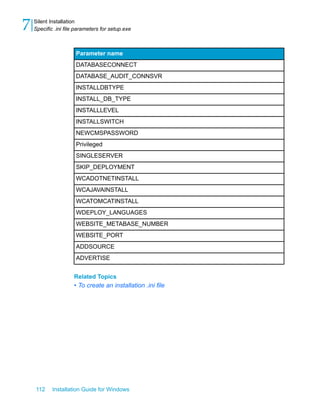
Specific .ini file parameters for setup.exe .................................................99
To create an installation .ini file............................................................99
Sample .ini file....................................................................................100
Silent installation parameters.............................................................102
After Installing BusinessObjects Enterprise 113Chapter 8
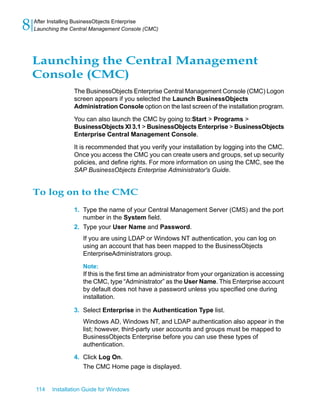
Launching the Central Management Console (CMC)..............................114
To log on to the CMC..........................................................................114
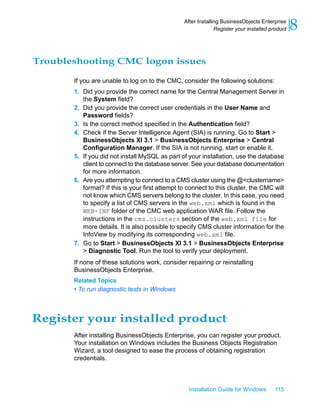
Troubleshooting CMC logon issues...................................................115
Register your installed product................................................................115
Language Packs 117Chapter 9
About language packs ............................................................................118
English language fall-back ................................................................118
Installation Guide for Windows 5
Contents
Product locale changes .....................................................................118
Installing language packs with complex deployments .......................118
Installing language packs .......................................................................119
Locating language packs ...................................................................119
To install language packs ..................................................................119
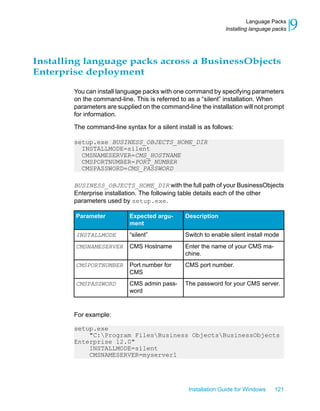
Installing language packs across a BusinessObjects Enterprise
deployment ........................................................................................121
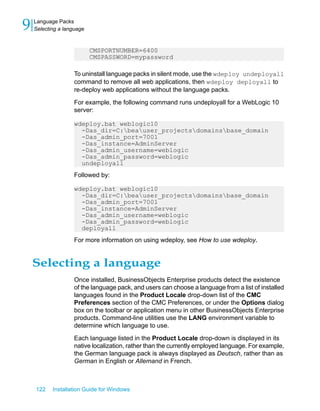
Selecting a language ..............................................................................122
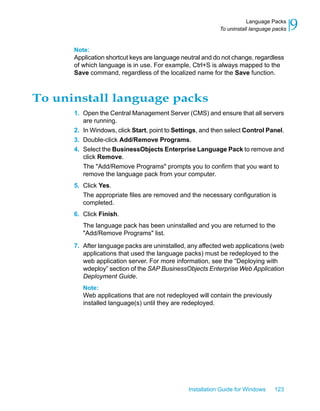
To uninstall language packs ...................................................................123
Client Tools Installation 125Chapter 10
Overview of Client Tools installation........................................................126
BusinessObjects Enterprise Client Components.....................................126
To install client tools.................................................................................128
Client Tools silent installations ................................................................131
Sample client tools .ini file..................................................................132
Maintaining your Installation 135Chapter 11
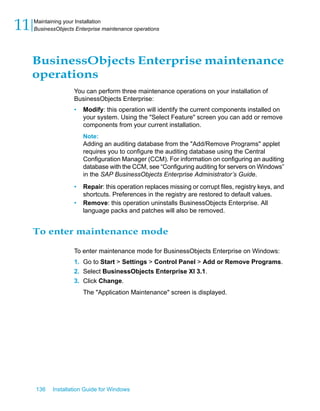
BusinessObjects Enterprise maintenance operations.............................136
To enter maintenance mode...............................................................136
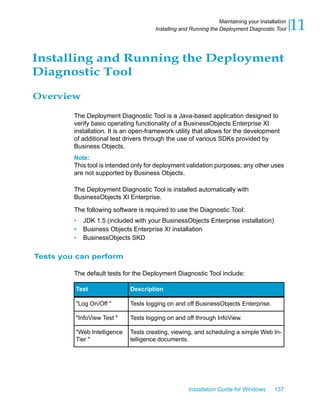
Installing and Running the Deployment Diagnostic Tool.........................137
Overview............................................................................................137
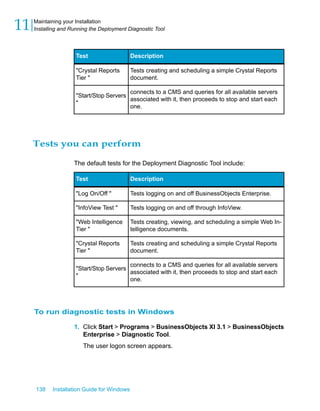
Tests you can perform........................................................................138
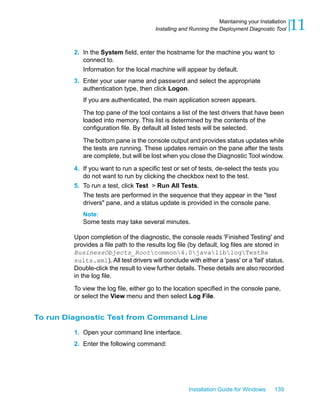
Deployment Diagnostic Tool settings.......................................................142
Configuration files ..............................................................................142
Log files..............................................................................................143
Uninstalling BusinessObjects Enterprise from Windows.........................143
Silent uninstallation............................................................................144
The installation log file.............................................................................145
6 Installation Guide for Windows
Contents
More Information 147Appendix A
Index 151
Installation Guide for Windows 7
Contents
8 Installation Guide for Windows
Contents
Getting Started
1
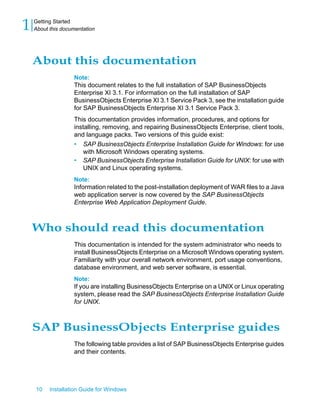
About this documentation
Note:
This document relates to the full installation of SAP BusinessObjects
Enterprise XI 3.1. For information on the full installation of SAP
BusinessObjects Enterprise XI 3.1 Service Pack 3, see the installation guide
for SAP BusinessObjects Enterprise XI 3.1 Service Pack 3.
This documentation provides information, procedures, and options for
installing, removing, and repairing BusinessObjects Enterprise, client tools,
and language packs. Two versions of this guide exist:
• SAP BusinessObjects Enterprise Installation Guide for Windows: for use
with Microsoft Windows operating systems.
• SAP BusinessObjects Enterprise Installation Guide for UNIX: for use with
UNIX and Linux operating systems.
Note:
Information related to the post-installation deployment of WAR files to a Java
web application server is now covered by the SAP BusinessObjects
Enterprise Web Application Deployment Guide.
Who should read this documentation
This documentation is intended for the system administrator who needs to
install BusinessObjects Enterprise on a Microsoft Windows operating system.
Familiarity with your overall network environment, port usage conventions,
database environment, and web server software, is essential.
Note:
If you are installing BusinessObjects Enterprise on a UNIX or Linux operating
system, please read the SAP BusinessObjects Enterprise Installation Guide
for UNIX.
SAP BusinessObjects Enterprise guides
The following table provides a list of SAP BusinessObjects Enterprise guides
and their contents.
10 Installation Guide for Windows
Getting Started
1 About this documentation
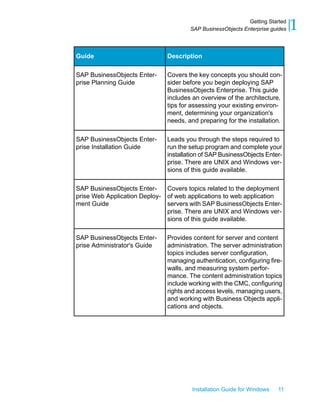
DescriptionGuide
Covers the key concepts you should con-
sider before you begin deploying SAP
BusinessObjects Enterprise. This guide
includes an overview of the architecture,
tips for assessing your existing environ-
ment, determining your organization's
needs, and preparing for the installation.
SAP BusinessObjects Enter-
prise Planning Guide
Leads you through the steps required to
run the setup program and complete your
installation of SAP BusinessObjects Enter-
prise. There are UNIX and Windows ver-
sions of this guide available.
SAP BusinessObjects Enter-
prise Installation Guide
Covers topics related to the deployment
of web applications to web application
servers with SAP BusinessObjects Enter-
prise. There are UNIX and Windows ver-
sions of this guide available.
SAP BusinessObjects Enter-
prise Web Application Deploy-
ment Guide
Provides content for server and content
administration. The server administration
topics includes server configuration,
managing authentication, configuring fire-
walls, and measuring system perfor-
mance. The content administration topics
include working with the CMC, configuring
rights and access levels, managing users,
and working with Business Objects appli-
cations and objects.
SAP BusinessObjects Enter-
prise Administrator's Guide
Installation Guide for Windows 11
1Getting Started
SAP BusinessObjects Enterprise guides
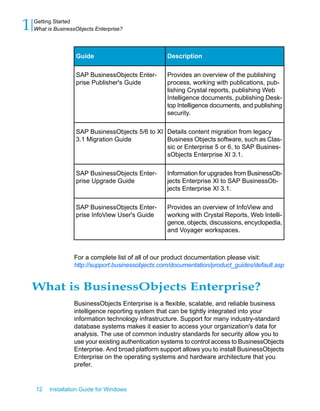
DescriptionGuide
Provides an overview of the publishing
process, working with publications, pub-
lishing Crystal reports, publishing Web
Intelligence documents, publishing Desk-
top Intelligence documents, and publishing
security.
SAP BusinessObjects Enter-
prise Publisher's Guide
Details content migration from legacy
Business Objects software, such as Clas-
sic or Enterprise 5 or 6, to SAP Busines-
sObjects Enterprise XI 3.1.
SAP BusinessObjects 5/6 to XI
3.1 Migration Guide
Information for upgrades from BusinessOb-
jects Enterprise XI to SAP BusinessOb-
jects Enterprise XI 3.1.
SAP BusinessObjects Enter-
prise Upgrade Guide
Provides an overview of InfoView and
working with Crystal Reports, Web Intelli-
gence, objects, discussions, encyclopedia,
and Voyager workspaces.
SAP BusinessObjects Enter-
prise InfoView User's Guide
For a complete list of all of our product documentation please visit:
http://support.businessobjects.com/documentation/product_guides/default.asp
What is BusinessObjects Enterprise?
BusinessObjects Enterprise is a flexible, scalable, and reliable business
intelligence reporting system that can be tightly integrated into your
information technology infrastructure. Support for many industry-standard
database systems makes it easier to access your organization's data for
analysis. The use of common industry standards for security allow you to
use your existing authentication systems to control access to BusinessObjects
Enterprise. And broad platform support allows you to install BusinessObjects
Enterprise on the operating systems and hardware architecture that you
prefer.
12 Installation Guide for Windows
Getting Started
1 What is BusinessObjects Enterprise?
As a system administrator, you will be faced with many choices when installing
BusinessObjects Enterprise. This documentation helps you to make the right
decisions to create a reliable and powerful business intelligence reporting
system for your organization.
What's new in the BusinessObjects
Enterprise Installation Guide?
The installation and deployment documentation from previous releases of
BusinessObjects Enterprise has been split into separate installation and web
application deployment guides:
• For information related to the installation of BusinessObjects Enterprise,
see the SAP BusinessObjects Enterprise Installation Guide (this guide).
• For information related to the post-installation deployment of web
applications, see the SAP BusinessObjects Enterprise Web Application
Deployment Guide.
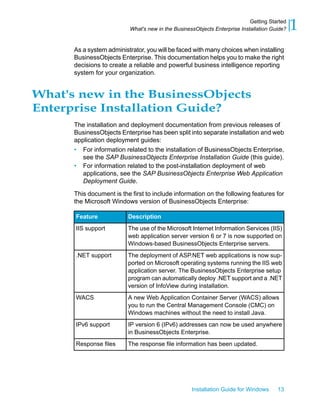
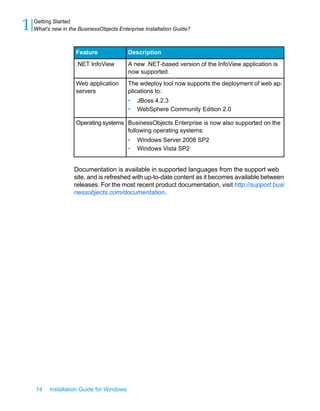
This document is the first to include information on the following features for
the Microsoft Windows version of BusinessObjects Enterprise:
DescriptionFeature
The use of the Microsoft Internet Information Services (IIS)
web application server version 6 or 7 is now supported on
Windows-based BusinessObjects Enterprise servers.
IIS support
The deployment of ASP.NET web applications is now sup-
ported on Microsoft operating systems running the IIS web
application server. The BusinessObjects Enterprise setup
program can automatically deploy .NET support and a .NET
version of InfoView during installation.
.NET support
A new Web Application Container Server (WACS) allows
you to run the Central Management Console (CMC) on
Windows machines without the need to install Java.
WACS
IP version 6 (IPv6) addresses can now be used anywhere
in BusinessObjects Enterprise.
IPv6 support
The response file information has been updated.Response files
Installation Guide for Windows 13
1Getting Started
What's new in the BusinessObjects Enterprise Installation Guide?
DescriptionFeature
A new .NET-based version of the InfoView application is
now supported.
.NET InfoView
The wdeploy tool now supports the deployment of web ap-
plications to:
• JBoss 4.2.3
• WebSphere Community Edition 2.0
Web application
servers
BusinessObjects Enterprise is now also supported on the
following operating systems:
• Windows Server 2008 SP2
• Windows Vista SP2
Operating systems
Documentation is available in supported languages from the support web
site, and is refreshed with up-to-date content as it becomes available between
releases. For the most recent product documentation, visit http://support.busi
nessobjects.com/documentation.
14 Installation Guide for Windows
Getting Started
1 What's new in the BusinessObjects Enterprise Installation Guide?
Preparing to Install
BusinessObjects Enterprise
2
Installation overview
Before you install BusinessObjects Enterprise, you should:
• Consult the SAP BusinessObjects Enterprise Planning Guide to gain a
general understanding of the installation process and the different options
available.
• Review your systems to ensure they meets the basic requirements for a
BusinessObjects Enterprise installation. See System requirements .
• Ensure that all machines that will be part of your BusinessObjects
Enterprise deployment can communicate across your network. See
Network requirements .
• Decide which BusinessObjects Enterprise components to install, and
which of your own components to integrate.
Note:
If you are upgrading from an earlier version of BusinessObjects Enterprise,
ensure that all components are at the same patch level before starting
the system. If the components are at different patch levels, some
components may encounter communication problems.
• Determine the location of the components to be installed. This includes
the specific subnet, machine, database, security, or cluster systems that
will be used to run your system.
• Decide which installation method to use. See Installation types.
The following sections list the core software requirements, the choices
available to you within the core requirements, and the installation methods
that you can use when you install BusinessObjects Enterprise.
An installation checklist is provided to help ensure you are prepared before
you begin your installation of BusinessObjects Enterprise.
Related Topics
• Installation checklist
• System requirements
16 Installation Guide for Windows
Preparing to Install BusinessObjects Enterprise
2 Installation overview
System requirements
For a detailed list of supported environments and hardware requirements,
consult the Products Availability Report (PAR) document available on the
Business Objects support site http://support.businessobjects.com/documen
tation/supported_platforms. This document includes specific version and
patch-level requirements for web application servers, web browsers, and
operating systems. For information related to the planning of a
BusinessObjects Enterprise deployment, consult the SAP BusinessObjects
Enterprise Planning Guide.
BusinessObjects Enterprise ships with the Tomcat web application server
and MySQL database server. If you are planning to use a different web
application or database server, it must be installed and configured before
BusinessObjects Enterprise.
Related Topics
• CMS Database requirements and preparation
Choosing a web development environment
BusinessObjects Enterprise supports Active Server Pages (ASP), Java
Server Pages (JSP) and .NET applications (ASP.NET), allowing your
organization to use and develop custom web applications for its preferred
web application server and operating system platforms.
Java Server Pages allow you to develop cross-platform J2EE applications
that use BusinessObjects Enterprise objects in conjunction with your own
custom objects, or use objects available from a wide variety third parties.
BusinessObjects Enterprise also includes Primary Interop Assemblies (PIAs)
that enable you to use the BusinessObjects Enterprise and Report Application
Server SDKs with ASP.NET. It also includes a set of .NET Server
Components to simplify development of custom web applications in ASP.NET.
Choosing a web application server
With Windows-based BusinessObjects Enterprise deployments, you can use
a Java web application server, a .NET web application server, or both. The
Installation Guide for Windows 17
2Preparing to Install BusinessObjects Enterprise
Installation overview
default option is to install the Tomcat Java web application server and
ASP.NET extensions, so you can utilize both technologies on the same
server.
Depending upon your needs, you can use one of these options:
• Java web application server
InfoView and the Central Management Console (CMC) are both supported
on Java web application servers.
The BusinessObjects Enterprise setup program will install and deploy
InfoView and the CMC to Tomcat 5.5 by default.
If you have one of the following web application servers installed on your
system, the setup program can also automatically deploy InfoView and
the CMC to it
• Tomcat 5.5
• WebLogic 9
• WebLogic 10
• WebSphere 6.1
• Oracle Application Server 10g R3
• Sun Java Application Server 9.0
The following web application servers are also supported, but InfoView
and the CMC must be manually deployed:
• SAP Web Application Server 7
• WebSphere Community Edition 2.0
• Jboss 4.04
• Microsoft Internet Information Server (IIS) .NET web application server
InfoView is supported on Microsoft Information Server (IIS), and, when
detected, the BusinessObjects Enterprise setup program will automatically
install and delpoy InfoView to IIS .
The CMC is not supported on IIS. In order to manage your
BusinessObjects Enterprise system with the CMC, you must deploy the
CMC to a Java web application server or install the Web Application
Container Service (WACS).
18 Installation Guide for Windows
Preparing to Install BusinessObjects Enterprise
2 Installation overview
Network requirements
When installing BusinessObjects Enterprise on multiple machines, ensure
that each machine can communicate over TCP/IP with the machine running
the Central Management Server (CMS), and all other machines in the
deployment. A dedicated web server must be able to communicate with the
web application server. All web desktop clients must be able to access the
web server. For more information on the communication between components
please refer to the Architecture chapter in the SAP BusinessObjects
Enterprise Planning Guide.
Note:
• If you are installing BusinessObjects Enterprise in a firewalled
environment, see the Working with Firewalls chapter of the SAP
BusinessObjects Enterprise Administrator's Guide.
• If you are installing on a VMware virtual machine, ensure the machine
name does not include underscore (_), period (.), or slash (/ or )
characters.
User permissions for installing BusinessObjects
Enterprise
To install BusinessObjects Enterprise on Windows, the user running the
setup program must have the permissions listed in the table below:
Installation Guide for Windows 19
2Preparing to Install BusinessObjects Enterprise
Installation overview
Required permissionsCategory
Administrative privileges on the local machine.Operating System
Network connectivity to all machines in the deployment, as
well access to as the appropriate ports on each of the ma-
chines.
Network
Rights to create and drop tables, plus rights to read, write,
and edit rows. For more information on the database privi-
leges required, see “Databases in BusinessObjects Enter-
prise” in the SAP BusinessObjects Enterprise Planning
Guide.
Database
Use the same user account for installing both BusinessOb-
jects Enterprise and your web application server, to reduce
the likelihood of encountering a problem with access control
settings.
Web application
server
Note:
The following scenarios are not supported:
• Installation on a domain controller.
• Installation on a Windows machine where the default local Administrator
group security settings have been modified.
Installing on a non-system drive
You can use the setup program to install BusinessObjects Enterprise on any
local drive. When installing to the a directory on the same partition as the
operating system, ensure that there is enough room for both the operating
system and BusinessObjects Enterprise to expand as updates and new
features are added.
If you previously installed another Business Objects product of the same
version, the BusinessObjects Enterprise setup program automatically uses
that installation's common directory to add new Business Objects products.
To install several Business Objects products on a non-system drive, you
must first install BusinessObjects Enterprise. All Business Objects products
subsequently installed will use the same drive for shared files.
20 Installation Guide for Windows
Preparing to Install BusinessObjects Enterprise
2 Installation overview
Setting up server communication
• Each BusinessObjects Enterprise machine must be able to communicate
over TCP/IP with the machine that runs your Central Management Server
(CMS). The CMS is responsible for maintaining a database of information
about your BusinessObjects Enterprise system, which other components
can access as required. The data stored by the CMS includes information
about users and groups, security levels, BusinessObjects Enterprise
content, and servers. For more information about the CMS, see the
“Managing and Configuring Servers” chapter in the SAP BusinessObjects
Enterprise Administrator's Guide.
• If the host machine has more than one network interface card (NIC), the
CMS may automatically bind to a primary NIC. If the primary NIC is not
routable, you may have to configure your servers after installation.
Alternatively, you could make the primary NIC routable before installing
BusinessObjects Enterprise. For more information on how to reconfigure
to bind to routable NICs see the “Managing and Configuring Servers”
chapter in the SAP BusinessObjects Enterprise Administrator's Guide.
• Servers that run BusinessObjects Enterprise must have a fixed hostname.
Administrative privileges are required to set a fixed hostname. You can
use fully qualified domain names to specify the location of the CMS.
Note:
Please ensure that the host name you use does not include any of the
following characters: an underscore (_), a period (.), a back-slash (),
or a forward-slash (/).
• Ensure that your database client and server are set up to use Unicode
character encoding, such as UTF-8. Consult your database documentation
to determine the settings required for a Unicode configuration.
• If you connect BusinessObjects Enterprise to a web application server,
the web application server must be able to communicate with all
BusinessObjects Enterprise machines. This communication is enabled
by the BusinessObjects Enterprise Software Development Kit (SDK),
which is installed as part of the Web Tier Components. If you plan to use
a Java application server and your existing application server does not
include a version of the Java Development Kit (JDK) supported by
BusinessObjects Enterprise, you will need to install it.
• If you are installing BusinessObjects Enterprise in a firewall environment,
you will need additional configuration details. See the “Working with
Installation Guide for Windows 21
2Preparing to Install BusinessObjects Enterprise
Installation overview
Firewalls” section of the SAP BusinessObjects Enterprise Administrator's
Guide.
• If you are clustering multiple file repository servers on separate machines,
ensure that each server has read and write permissions to the folder used
to store data.
Choosing a server location
When planning your BusinessObjects Enterprise installation, you should also
consider where you will place your deployment’s servers.
Your Crystal Reports Page Server, Desktop Intelligence Report Server,
Connection Server, Web Intelligence Report Server, Job Servers, and Report
Application Server communicate frequently with the database servers
containing the data in your published reports. To optimize data retrieval and
minimize network traffic, place your processing servers close to your database
servers (ideally, on the same subnet).
If your BusinessObjects Enterprise installation is distributed over a wide
geographic region, use server groups to create groups of nearby servers to
process reports. The Central Management Server (CMS) stores data about
users and groups, security levels, published objects, and servers in the CMS
database. The CMS can also maintain a separate audit database of
information about user actions. To optimize CMS performance, place your
CMS on the same LAN as the database servers that host your CMS database
and the BusinessObjects Enterprise audit database. The CMS can be
clustered. If you are deploying more than one CMS, ensure each machine
that runs a CMS process experiences the same latency to the system
database.
Consult the “Managing and Configuring Servers” section of the SAP
BusinessObjects Enterprise Administrator's Guide for information on other
factors that you may want to consider in planning your BusinessObjects
Enterprise installation.
Installation types
When you install BusinessObjects Enterprise, you can choose one of the
following installation types. Consider which of these types is your best suited
for your intended deployment:
22 Installation Guide for Windows
Preparing to Install BusinessObjects Enterprise
2 Installation types
• "New": Installs all components on one machine.
Select this installation type to quickly set up a complete deployment, with
all server and client components on a single machine.
• "Custom or Expand": Installs the components that you select on the
machine.
Select this installation type to specify which components to install when
performing a distributed deployment, or when adding servers to an existing
deployment.
• "Web Tier": Installs only the used by a web application server to run web
applications.
Select this installation type to set up Java or .NET web application
components when performing a distributed deployment.
For information on performing installation upgrades, see the SAP
BusinessObjects Enterprise Upgrade Guide.
"New" installation
Installing a "New" installation puts all of the required client, server, and
optional components onto one machine. This configuration can be useful for
small, trial, or tested installations. Components can be disabled after the
installation if they are not required.
You may want to choose a "New" installation if:
• This is the first time that you've installed BusinessObjects Enterprise, and
you are unsure of which components to install.
• You want to install all the components on the same machine.
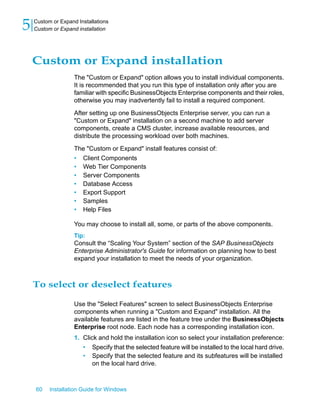
"Custom or Expand" installation
The "Custom or Expand" installation option allows you to select individual
components. It is recommended that you run this type of installation only
after you are familiar with specific BusinessObjects Enterprise components
and their roles, otherwise you may inadvertently fail to install a required
component.
Installation Guide for Windows 23
2Preparing to Install BusinessObjects Enterprise
Installation types
You should perform a "Custom or Expand" installation if you plan to use
BusinessObjects Enterprise in a distributed environment. For example, in a
distributed deployment you can install the BusinessObjects Enterprise
Desktop Intelligence server components on one machine, and use another
machine to host Crystal Reports server components.
After setting up one BusinessObjects Enterprise server, you can run a
"Custom or Expand" installation on a second machine to add server
components, create a CMS cluster, increase available resources, and
distribute the processing workload over both machines.
The "Custom or Expand" install features consist of:
• Client Components
• Web Tier Components
• Server Components
• Database Access
• Export Support
• Samples
• Help Files
You may choose to install all, some, or parts of the above components.
Tip:
Consult the “Scaling Your System” section of the SAP BusinessObjects
Enterprise Administrator's Guide for information on planning how to best
expand your installation to meet the needs of your organization. In addition,
consult the SAP BusinessObjects Enterprise Planning Guide for general
scalability considerations, sample configurations, and information about CMS
clustering.
You may want to choose a "Custom or Expand" installation if:
• You have already completed your initial installation of BusinessObjects
Enterprise and would like to deploy additional components to another
machine.
• Your deployment of BusinessObjects Enterprise will be distributed across
multiple computers.
• You have resource limitations and need to consider disk space constraints.
24 Installation Guide for Windows
Preparing to Install BusinessObjects Enterprise
2 Installation types
"Web Tier" installation
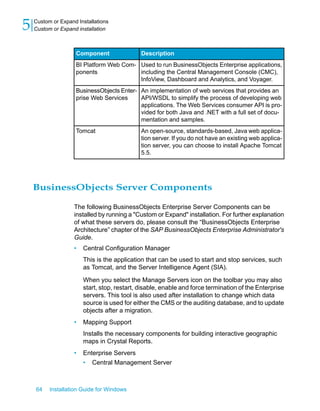
The "Web Tier" option installs all of components used by the web application
server to run BusinessObjects Enterprise web applications. These
components include:
DescriptionComponent
Installs the Java version of BusinessObjects Enter-
prise applications including CMC, infoview, and
Dashboards and Analytics.
BI Platform Java Web
Components
Installs the .NET version of BusinessObjects Enter-
prise applications including CMC, infoview, and
Dashboards and Analytics.
BI Platform .NET Web
Components
An implementation of web services that provides an
API/WSDL to simplify the process of developing web
applications.
BusinessObjects Enter-
prise Web Services
An open-source, standards-based, Java web applica-
tion server. If you do not have an existing web appli-
cation server, you can choose to install Apache
Tomcat 5.5.
Tomcat
You may want to choose a "Web Tier" installation if:
• If you want to install the web applications separately from the server
components.
• You completed your initial installation of BusinessObjects Enterprise, and
you want to configure an additional web application server on a separate
machine.
Installation modes
There are two methods that you can use to install BusinessObjects Enterprise:
• Running the installation setup program.
Installation Guide for Windows 25
2Preparing to Install BusinessObjects Enterprise
Installation modes
The installation set up program provides a number of screens that allow
to select an installation type, specify the details for your CMS database,
and to deploy web applications to a supported application server.
• Running a silent or scripted installation.
A silent or scripted installation uses configuration information that has
been stored in a .ini response file during a previous command-line
installation of BusinessObjects Enterprise. This method is useful when
you need to perform multiple installations, or you want to install without
the setup program prompting for configuration information.
Silent installation
A silent installation uses configuration information that has been stored in a
.ini response file during a previous command-line installation of
BusinessObjects Enterprise. This method is useful when you need to perform
multiple installations, or you want to install without the setup program
prompting for configuration information.
You can also incorporate the silent installation command into your own build
scripts. For example, if your organization uses scripts to install software on
machines, you can add the silent BusinessObjects Enterprise installation
command to those scripts.
You may want to choose a silent installation if:
• You need an automated method for performing identical or similar
installations on several machines.
• You do not want to run the BusinessObjects Enterprise setup program.
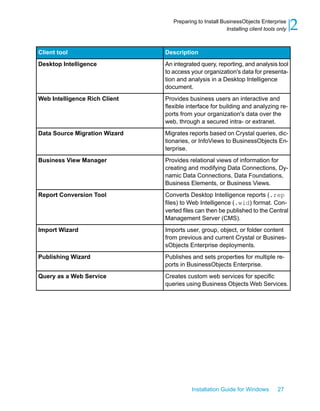
Installing client tools only
You can install the Business Objects client tools by using the BusinessObjects
Enterprise Client Tools installation package.
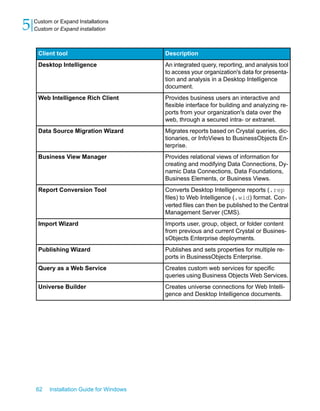
The available tools are:
26 Installation Guide for Windows
Preparing to Install BusinessObjects Enterprise
2 Installing client tools only
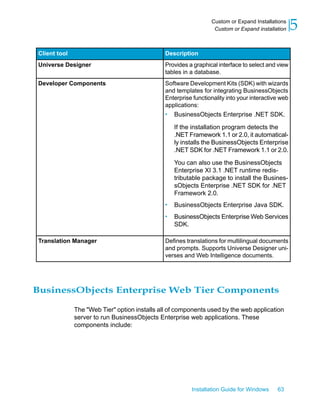
DescriptionClient tool
An integrated query, reporting, and analysis tool
to access your organization's data for presenta-
tion and analysis in a Desktop Intelligence
document.
Desktop Intelligence
Provides business users an interactive and
flexible interface for building and analyzing re-
ports from your organization's data over the
web, through a secured intra- or extranet.
Web Intelligence Rich Client
Migrates reports based on Crystal queries, dic-
tionaries, or InfoViews to BusinessObjects En-
terprise.
Data Source Migration Wizard
Provides relational views of information for
creating and modifying Data Connections, Dy-
namic Data Connections, Data Foundations,
Business Elements, or Business Views.
Business View Manager
Converts Desktop Intelligence reports (.rep
files) to Web Intelligence (.wid) format. Con-
verted files can then be published to the Central
Management Server (CMS).
Report Conversion Tool
Imports user, group, object, or folder content
from previous and current Crystal or Busines-
sObjects Enterprise deployments.
Import Wizard
Publishes and sets properties for multiple re-
ports in BusinessObjects Enterprise.
Publishing Wizard
Creates custom web services for specific
queries using Business Objects Web Services.
Query as a Web Service
Installation Guide for Windows 27
2Preparing to Install BusinessObjects Enterprise
Installing client tools only
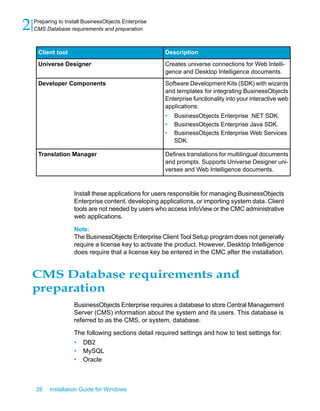
DescriptionClient tool
Creates universe connections for Web Intelli-
gence and Desktop Intelligence documents.
Universe Designer
Software Development Kits (SDK) with wizards
and templates for integrating BusinessObjects
Enterprise functionality into your interactive web
applications:
• BusinessObjects Enterprise .NET SDK.
• BusinessObjects Enterprise Java SDK.
• BusinessObjects Enterprise Web Services
SDK.
Developer Components
Defines translations for multilingual documents
and prompts. Supports Universe Designer uni-
verses and Web Intelligence documents.
Translation Manager
Install these applications for users responsible for managing BusinessObjects
Enterprise content, developing applications, or importing system data. Client
tools are not needed by users who access InfoView or the CMC administrative
web applications.
Note:
The BusinessObjects Enterprise Client Tool Setup program does not generally
require a license key to activate the product. However, Desktop Intelligence
does require that a license key be entered in the CMC after the installation.
CMS Database requirements and
preparation
BusinessObjects Enterprise requires a database to store Central Management
Server (CMS) information about the system and its users. This database is
referred to as the CMS, or system, database.
The following sections detail required settings and how to test settings for:
• DB2
• MySQL
• Oracle
28 Installation Guide for Windows
Preparing to Install BusinessObjects Enterprise
2 CMS Database requirements and preparation
• Sybase
The following sections detail required settings and how to test settings for:
• DB2
• MySQL
• Microsoft SQL Server
• Oracle
• Sybase
Before installing BusinessObjects Enterprise, review this information in order
to properly prepare your CMS system and auditing database. For more
information on database requirements, refer to the “Databases in
BusinessObjects Enterprise” section in the SAP BusinessObjects Enterprise
Planning Guide.
Note:
Regardless of database type, the database must be setup to use Unicode
character encoding, such as UTF-8.
Using MySQL as the Central Management Server
(CMS) database
MySQL is an open-source database included with BusinessObjects Enterprise
that can be automatically installed and configured for use as the Central
Management Server (CMS), or system, database.
If you want to use an existing supported database server, you can enter
connection and authentication parameters during the BusinessObjects
Enterprise installation process.
To setup a database account for BusinessObjects
Enterprise
The Central Management Server (CMS) uses a database to store system
information. If you choose to install MySQL as part of your BusinessObjects
Enterprise installation, a MySQL CMS database will be created for you. If
you plan to use your own database, you should complete the steps listed
below before installing BusinessObjects Enterprise.
Installation Guide for Windows 29
2Preparing to Install BusinessObjects Enterprise
CMS Database requirements and preparation
To create tables and write data to your new CMS database, the installation
program needs to establish a connection to the database server. When you
log on to the account being used to install BusinessObjects Enterprise, the
environment must include the appropriate variables and database drivers to
access your chosen database. Only then can the installation program access
the CMS database using your database client software.
1. Create or select a user account that provides BusinessObjects Enterprise
with the appropriate privileges to your database server.
2. Verify that you can log on to your database and that you have rights to
add or remove database tables and to add, delete, or edit table rows with
the user account.
Setting up an empty database for the CMS
If you want to use an existing database server as the Central Management
Server (CMS) or auditing database, you must create a new tablespace or
database before installing BusinessObjects Enterprise.
The installer will prompt for the connection and authentication details if you
choose to use your own database during the installation of BusinessObjects
Enterprise. The following database servers are supported for the CMS system
and audit databases:
• Microsoft SQL Server (ODBC)
• Oracle
• DB2
• MySQL
• Sybase
Note:
Review the online BusinessObjects Enterprise supported platforms document
for information related to supported database software and version
requirements:http://support.businessobjects.com/documentation/.
To integrate your existing database with BusinessObjects Enterprise, you
need to prepare it. Here is a summary of the steps to prepare your database:
• Create a new tablespace, schema, or database (the exact terminology
will depend on the database platform you're using) to act as the CMS
30 Installation Guide for Windows
Preparing to Install BusinessObjects Enterprise
2 CMS Database requirements and preparation
database. Create a second for the auditing database, if you plan to enable
auditing.
• Create a new user account and password to be used by BusinessObjects
Enterprise to access the CMS database. Create a second username and
password if you plan to enable auditing.
• Specify that the new user account has required permissions to create,
modify, and delete tables and create procedures so that database can
be modified as required.
• Record the name of the database(s), the user account(s), and the
password(s) you created, so you can enter the details when you run the
BusinessObjects Enterprise installer.
During the installation, you can choose to reinitialize the existing database.
This will cause new tables to be created in your existing database. Consult
your specific database server documentation if you are unsure of the
procedure for creating a new tablespace, schema, or database. Ensure that
your database server is set up to use Unicode character encoding (such as
UTF-8).
Note:
If you have a previous release of BusinessObjects Enterprise you cannot
use your database from a previous release for BusinessObjects Enterprise.
You must create a new database, or existing data from the previous release
will be destroyed. To migrate from an previous release, create a new
database migrate your old content to the new current version's database
after the installation is complete.
Microsoft SQL Server database requirements
If you are using Microsoft SQL Server for the CMS or auditing database:
• Use a collation that supports the Unicode nchar, nvarchar and ntext
column data types, such as Latin1_General_CI_AS.
Once the database is created, you will need to prepare it for the
BusinessObjects Enterprise installation.
Related Topics
• Preparing an existing database server
Installation Guide for Windows 31
2Preparing to Install BusinessObjects Enterprise
CMS Database requirements and preparation
Oracle database requirements
If you are using Oracle for the CMS or auditing database:
• Use a Unicode character set, such as UTF-8.
Once the database is created, you will need to prepare it for the
BusinessObjects Enterprise installation.
Related Topics
• Preparing an existing database server
DB2 database requirements
If you are using DB2 for the Central Management Console (CMC) or auditing
database:
• Ensure that the CMS database is not partitioned.
Note:
The auditing database can be partitioned.
• Create the database with these settings:
Collating Sequence = “Identity”
Codeset = “UTF-8”
Territory = “XX”
If your DB2 database does not have the correct Collating Sequence
setting, the user and usergroup objects may not sort properly in the CMC.
Replace XX with the code that is appropriate for your location. Consult
your DB2 documentation for more information.
Once the database is created, you will need to prepare it for the
BusinessObjects Enterprise installation.
Related Topics
• Preparing an existing database server
32 Installation Guide for Windows
Preparing to Install BusinessObjects Enterprise
2 CMS Database requirements and preparation
MySQL database requirements
If you are using your own MySQL installation for the CMS or auditing
database:
• Use a Unicode character set, such as UTF-8.
Once the database is created, you will need to prepare it for the
BusinessObjects Enterprise installation.
Related Topics
• Preparing an existing database server
Sybase database requirements
If you are using Sybase for the CMS or auditing database:
• Create a database with a page size of 8 KB. The Sybase database default
page size is 2KB, which is too small for the CMS system database to run
efficiently. The page size is set up during the database creation and
cannot be changed after the database is created.
• Use a Unicode character set, such as UTF-8.
Once the database is created, you must prepare it for the BusinessObjects
Enterprise installation.
Related Topics
• Preparing an existing database server
Preparing an existing database server
After you have created your database, setup the database client, and before
you install BusinessObjects Enterprise, ensure that the Central Management
Server (CMS) can connect to it.
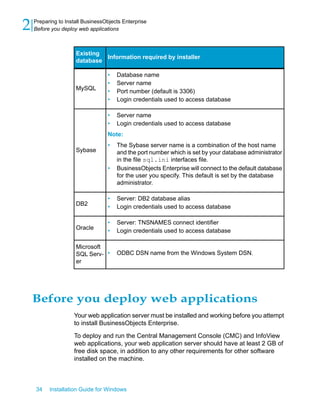
During your installation, you will be asked whether you want to install MySQL
or use an existing database. If you opt to use an existing database, you will
be asked for the connection and authentication details by the BusinessObjects
Enterprise installer:
Installation Guide for Windows 33
2Preparing to Install BusinessObjects Enterprise
Preparing an existing database server
Information required by installer
Existing
database
• Database name
• Server name
• Port number (default is 3306)
• Login credentials used to access database
MySQL
• Server name
• Login credentials used to access database
Note:
• The Sybase server name is a combination of the host name
and the port number which is set by your database administrator
in the file sql.ini interfaces file.
• BusinessObjects Enterprise will connect to the default database
for the user you specify. This default is set by the database
administrator.
Sybase
• Server: DB2 database alias
• Login credentials used to access databaseDB2
• Server: TNSNAMES connect identifier
• Login credentials used to access databaseOracle
• ODBC DSN name from the Windows System DSN.
Microsoft
SQL Serv-
er
Before you deploy web applications
Your web application server must be installed and working before you attempt
to install BusinessObjects Enterprise.
To deploy and run the Central Management Console (CMC) and InfoView
web applications, your web application server should have at least 2 GB of
free disk space, in addition to any other requirements for other software
installed on the machine.
34 Installation Guide for Windows
Preparing to Install BusinessObjects Enterprise
2 Before you deploy web applications
Before deploying to IIS
When installing SAP BusinessObjects Enterprise on an IIS 6 web application
server, you may find that the setup program does not enable the option to
deploy to IIS 6. If this is the case:
• Ensure that ASP.NET 1.1 is installed.
• Ensure that IIS 6 is installed.
• If you are using the 64-bit version of IIS 6, switch to the 32-bit version of
ASP.NET by following the instructions in the Microsoft Support article at
http://support.microsoft.com/?id=894435.
When installing SAP BusinessObjects Enterprise on an IIS 7 web application
server, you may find that the setup program does not enable the option to
deploy to IIS 7. If this is the case:
• Ensure that the following development components are installed:
• ASP.NET
• .NET Extensibility
• ASP
• CGI
• ISAPI Extensions
• ISAPI Filters
• Ensure that ASP.NET is enabled.
• Ensure that the advanced IIS 7 setting Enable 32-bit Applications is
set to "True".
• Ensure that the advanced IIS 7 setting .NET Application Pool is set to
"Classic" mode.
Installation Guide for Windows 35
2Preparing to Install BusinessObjects Enterprise
Before you deploy web applications
36 Installation Guide for Windows
Preparing to Install BusinessObjects Enterprise
2 Before you deploy web applications
Beginning the Installation of
BusinessObjects Enterprise
3
Installation checklist
Prior to installing BusinessObjects Enterprise, review the checklist below.
• Have you verified appropriate network connectivity between all machines
that will be part of your deployment?
• If you are using your own database server:
• Have you created a database for the CMS?
• Have you created an auditing database, if required?
• Have you created a user id and password with access to your existing
database (if you are integrating your existing database server
software), so that the installation can access your database to configure
the CMS database?
• Have you made sure you can log onto the database with your logon
ID and password?
• Have you tested the database connection between the machine hosting
the database servers and the Central Management Server (CMS)?
• If you are using DB2 or Sybase, have you verified that your database
was created with the correct settings? (Some settings can't be modified
after the database has been created.)
• Has the database client software been properly configured?
• If you are using your own web application server:
• Have you decided on which web application server to use?
• Has the server already been installed and configured?
• Have you ensured that your existing web application server has the
required JDK installed?
• If you are installing on a VMware virtual machine, ensure the machine
name does not include underscore (_), period(.), or slash (/ or )
characters.
Beginning your installation
Note:
This document relates to the full installation of SAP BusinessObjects
Enterprise XI 3.1. For information on the full installation of SAP
BusinessObjects Enterprise XI 3.1 Service Pack 3, see the installation guide
for SAP BusinessObjects Enterprise XI 3.1 Service Pack 3.
38 Installation Guide for Windows
Beginning the Installation of BusinessObjects Enterprise
3 Installation checklist
The following instructions lead you through the initial steps of setting up your
BusinessObjects Enterprise installation on Windows. In this stage you will
do the following:
• Choose the language for the installation setup.
• Agree to the license terms.
• Enter the product key codes.
• Select which language packs to install.
• Select where to install BusinessObjects Enterprise.
• Select an installation type and installation directory.
When you perform the following installation, all the components associated
with your product key are installed on the local machine. Default user and
group accounts are created, and sample reports are published to the system.
Running the installer
If the installer detects that BusinessObjects Enterprise is already installed
on the machine, an error message is displayed. Click OK to exit the program.
The installer program does not continue if it finds a pre-existing version of
BusinessObjects Enterprise.
1. If you are installing from a DVD and the Windows autoplay setting is
enabled, the installer will start automatically. If autoplay is not enabled,
or you're installing from a hard drive, run setup.exe from the root
directory of the product distribution media.
The "Please Choose Setup Language" dialog is displayed.
2. Select the language that you'd like the Setup program to use.
Note:
• This setting is only used by the Setup program for the duration of the
installation. You select languages to be installed on your new
BusinessObjects Enterprise server later.
• The Setup program will create system objects, such as default user
groups, with names localized to the locale of the user running the
Setup program.
You have a choice of the following languages for setup:
• Chinese Simplified
Installation Guide for Windows 39
3Beginning the Installation of BusinessObjects Enterprise
Beginning your installation
• Chinese Traditional
• Danish
• Dutch
• English
• French
• German
• Italian
• Japanese
• Korean
• Norwegian
• Polish
• Portuguese (Brazil)
• Russian
• Spanish
• Swedish
• Thai
3. Deselect Create log file during installation if you don't want the installer
to create a log file.
The log file is created as: <INSTALLDIR>BusinessObjects
Enterprise 12.0LoggingBOEInstall_X.log.
4. Click OK.
The installation wizard welcome screen is displayed.
5. Click Next to proceed with the installation.
If you are installing BusinessObjects Enterprise on Windows XP Service
Pack 2 or higher, an Internet Connection Firewall warning message is
displayed. Click OK to continue.
The "License Agreement" dialog is displayed.
6. Review the agreement.
7. Select I accept the License Agreement and click Next.
The "User Information" screen is displayed.
Related Topics
• Installation modes
40 Installation Guide for Windows
Beginning the Installation of BusinessObjects Enterprise
3 Beginning your installation
Entering user information and a product keycode
Use the "User Information" screen to enter user information and provide a
keycode for your BusinessObjects Enterprise product.
1. Provide an appropriate user and organization name in the Full Name
and Organization fields.
The Organization field is optional.
2. Enter a valid code in the Product Keycode field and click Next.
Valid keycodes are formatted XXXXX-XXXXXXX-XXXXXXX-XXXX.
The "Choose Language Packs" screen is displayed.
To install Language Packs
You can choose to install specific or all available language packs. These
languages can be used by administrators and users in BusinessObjects
Enterprise products.
Note:
English is mandatory because it's used as a back-up language if a problem
with a language pack is detected. English cannot be deselected.
1. Select the language packs you want to install.
The language packs currently available for installation include:
• Chinese Simplified
• Chinese Traditional
• Danish
• Dutch
• English
• French
• German
• Italian
• Japanese
• Korean
• Norwegian
• Polish
Installation Guide for Windows 41
3Beginning the Installation of BusinessObjects Enterprise
Beginning your installation
• Portuguese (Brazil)
• Russian
• Spanish
• Swedish
• Thai
Note:
You can also add language packs after installing BusinessObjects
Enterprise.
2. Click Next.
The "Install Type" screen is displayed.
Related Topics
• Installing language packs
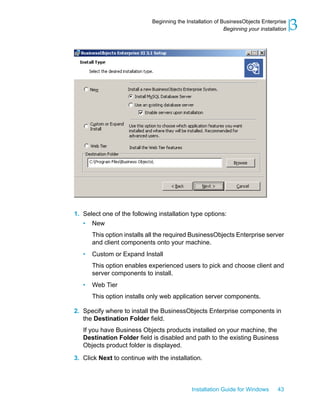
To select an installation type
The "Install Type" screen is used to select an installation method and to
specify an installation directory.
42 Installation Guide for Windows
Beginning the Installation of BusinessObjects Enterprise
3 Beginning your installation
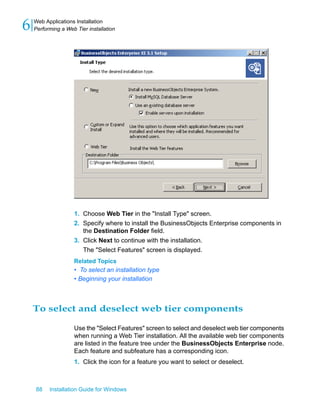
1. Select one of the following installation type options:
• New
This option installs all the required BusinessObjects Enterprise server
and client components onto your machine.
• Custom or Expand Install
This option enables experienced users to pick and choose client and
server components to install.
• Web Tier
This option installs only web application server components.
2. Specify where to install the BusinessObjects Enterprise components in
the Destination Folder field.
If you have Business Objects products installed on your machine, the
Destination Folder field is disabled and path to the existing Business
Objects product folder is displayed.
3. Click Next to continue with the installation.
Installation Guide for Windows 43
3Beginning the Installation of BusinessObjects Enterprise
Beginning your installation
Proceed to the chapter related to the installation type you selected.
Related Topics
• Installing on a non-system drive
• Performing a New installation
• Custom or Expand installation
• Performing a Web Tier installation
44 Installation Guide for Windows
Beginning the Installation of BusinessObjects Enterprise
3 Beginning your installation
New Installation
4
Performing a "New" installation
Performing a "New" installation deploys all of the required and optional
components onto one machine.
A "New" installation:
1. Requires you to enter a password to use for the BusinessObjects
Enterprise system administrator account.
2. Prompts for system database connection and authentication details. You
can choose to install and configure a new MySQL database, or use an
existing database.
3. Requires you to enter a name for the Server Intelligence Agent (SIA).
4. Prompts you to choose one of the following installation options:
• Use a Java web application server. You can choose to install and
configure Tomcat, or use an existing Java web application server.
• Use the IIS web application server included with your Windows
operating system.
• Use both Java and IIS web application servers.
Related Topics
• To perform a new BusinessObjects Enterprise installation
• Beginning your installation
To perform a new BusinessObjects Enterprise
installation
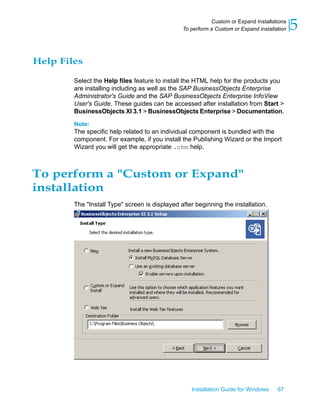
The "Install Type" screen is displayed once you complete the initial set up
of the BusinessObjects Enterprise installation.
46 Installation Guide for Windows
New Installation
4 Performing a New installation
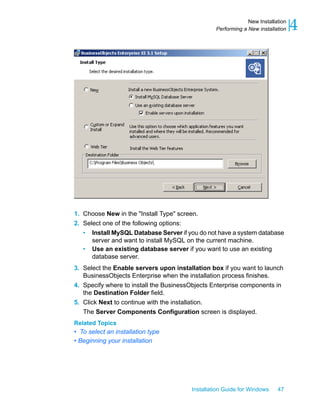
1. Choose New in the "Install Type" screen.
2. Select one of the following options:
• Install MySQL Database Server if you do not have a system database
server and want to install MySQL on the current machine.
• Use an existing database server if you want to use an existing
database server.
3. Select the Enable servers upon installation box if you want to launch
BusinessObjects Enterprise when the installation process finishes.

4. Specify where to install the BusinessObjects Enterprise components in
the Destination Folder field.
5. Click Next to continue with the installation.
The Server Components Configuration screen is displayed.
Related Topics
• To select an installation type
• Beginning your installation
Installation Guide for Windows 47
4New Installation
Performing a New installation
To enter information on your new CMS
The "Server Components Configuration" screen is used to enter the port
number and an administrator password for the new Central Management
Server (CMS). The CMS manages BusinessObjects Enterprise servers and
manages the system and audit databases.
1. Specify a port number in the CMS port field.
The default CMS port number is 6400.
The CMS will communicate with other BusinessObjects Enterprise servers
through the specified port.
2. Specify a password for the CMS administrator account in the Password
and Confirm password fields.
Tip:
You can opt to skip this step - select the Configure the BusinessObjects
Enterprise Administrator password at a later time box.
3. Click Next to continue with the installation.
The "Server Intelligence Agent" screen is displayed.
Note:
If the port you specified in step 1 is unavailable, you will be requested to
specify another port number.
To enter Server Intelligence Agent information
A Server Intelligence Agent (SIA) node is automatically created during
installation of BusinessObjects Enterprise. For more information on Server
Intelligence and the Server Intelligence Agent, refer to the SAP
BusinessObjects Enterprise Administrator's Guide. The "Server Intelligence
Agent" screen is used to name and designate a port address for the SIA.
1. Provide a unique name to identify the SIA node in the Node Name field.
Note:
Do not use spaces or non-alphanumeric characters in a SIA node name.
2. Specify a port number for the SIA in the Port field (default is 6410).
48 Installation Guide for Windows
New Installation
4 Performing a New installation
This port will be used by the SIA to communicate with the Central
Management Server (CMS).
3. Click Next to continue with the installation.
Once the SIA information is entered, the port number will be validated
before you can proceed to configure the CMS database for your
installation. A warning will display if the port you specified is not available.
Related Topics
• To configure your MySQL database server
• To configure an existing database server
CMS database configuration
To configure your MySQL database server
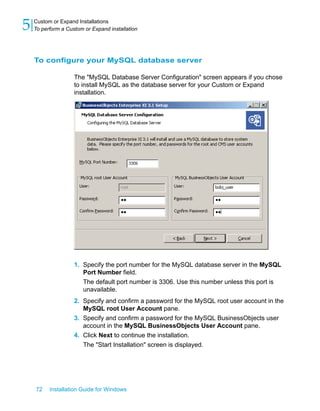
The "MySQL Database Server Configuration" screen appears if you chose
to install MySQL as part of the BusinessObjects Enterprise installation.
1. Specify the port number for the MySQL database server in the MySQL
Port Number field.
The default port number is 3306. Use this number unless the port is
unavailable.
2. Specify and confirm a password for the MySQL root user account in the
MySQL root User Account area.
3. Confirm the username and give a password for the MySQL
BusinessObjects database user account in the MySQL BusinessObjects
User Account area and click Next.
The "Select Web Application Server" screen is displayed.
Related Topics
• To perform a new BusinessObjects Enterprise installation
• To select a web application server configuration option
Installation Guide for Windows 49
4New Installation
Performing a New installation
To configure an existing database server
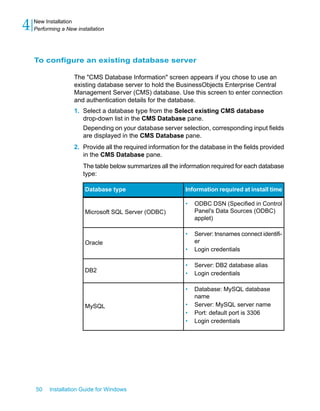
The "CMS Database Information" screen appears if you chose to use an
existing database server to hold the BusinessObjects Enterprise Central
Management Server (CMS) database. Use this screen to enter connection
and authentication details for the database.
1. Select a database type from the Select existing CMS database
drop-down list in the CMS Database pane.
Depending on your database server selection, corresponding input fields
are displayed in the CMS Database pane.
2. Provide all the required information for the database in the fields provided
in the CMS Database pane.
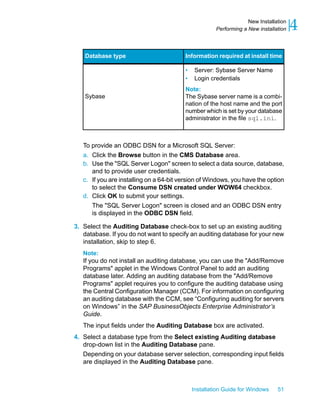
The table below summarizes all the information required for each database
type:
Information required at install timeDatabase type
• ODBC DSN (Specified in Control
Panel's Data Sources (ODBC)
applet)
Microsoft SQL Server (ODBC)
• Server: tnsnames connect identifi-
er
• Login credentials
Oracle
• Server: DB2 database alias
• Login credentialsDB2
• Database: MySQL database
name
• Server: MySQL server name
• Port: default port is 3306
• Login credentials
MySQL
50 Installation Guide for Windows
New Installation
4 Performing a New installation
Information required at install timeDatabase type
• Server: Sybase Server Name
• Login credentials
Note:
The Sybase server name is a combi-
nation of the host name and the port
number which is set by your database
administrator in the file sql.ini.
Sybase
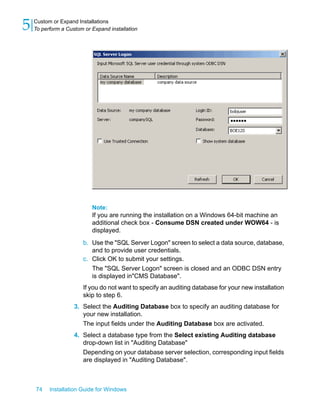
To provide an ODBC DSN for a Microsoft SQL Server:
a. Click the Browse button in the CMS Database area.
b. Use the "SQL Server Logon" screen to select a data source, database,
and to provide user credentials.
c. If you are installing on a 64-bit version of Windows, you have the option
to select the Consume DSN created under WOW64 checkbox.
d. Click OK to submit your settings.
The "SQL Server Logon" screen is closed and an ODBC DSN entry
is displayed in the ODBC DSN field.
3. Select the Auditing Database check-box to set up an existing auditing
database. If you do not want to specify an auditing database for your new
installation, skip to step 6.
Note:
If you do not install an auditing database, you can use the "Add/Remove
Programs" applet in the Windows Control Panel to add an auditing
database later. Adding an auditing database from the "Add/Remove
Programs" applet requires you to configure the auditing database using
the Central Configuration Manager (CCM). For information on configuring
an auditing database with the CCM, see “Configuring auditing for servers
on Windows” in the SAP BusinessObjects Enterprise Administrator’s
Guide.
The input fields under the Auditing Database box are activated.
4. Select a database type from the Select existing Auditing database
drop-down list in the Auditing Database pane.
Depending on your database server selection, corresponding input fields
are displayed in the Auditing Database pane.
Installation Guide for Windows 51
4New Installation
Performing a New installation
5. Provide all the required information for the database in the fields provided
in the Auditing Database pane.
6. Select the Reset existing database box to delete all current tables and
entries in existing database CMS and auditing databases.
7. Click Next to continue with the installation.
The "Select Web Application Server" screen is displayed. This screen
only displays if a connection is established with the database configuration
you provided.
Related Topics
• To select a web application server configuration option
To select a web application server configuration
option
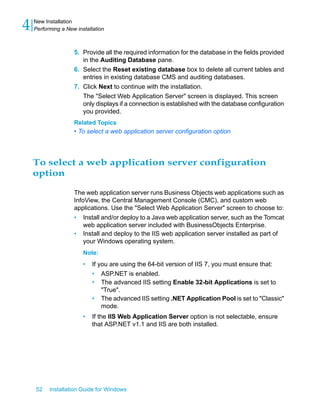
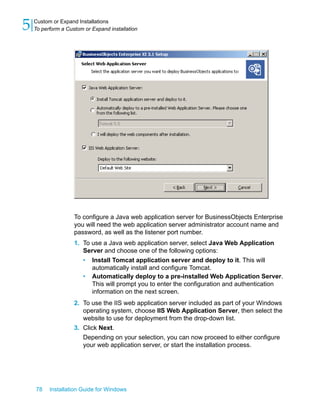
The web application server runs Business Objects web applications such as
InfoView, the Central Management Console (CMC), and custom web
applications. Use the "Select Web Application Server" screen to choose to:
• Install and/or deploy to a Java web application server, such as the Tomcat
web application server included with BusinessObjects Enterprise.
• Install and deploy to the IIS web application server installed as part of
your Windows operating system.
Note:
• If you are using the 64-bit version of IIS 7, you must ensure that:
• ASP.NET is enabled.
• The advanced IIS setting Enable 32-bit Applications is set to
"True".
• The advanced IIS setting .NET Application Pool is set to "Classic"
mode.
• If the IIS Web Application Server option is not selectable, ensure
that ASP.NET v1.1 and IIS are both installed.
52 Installation Guide for Windows
New Installation
4 Performing a New installation
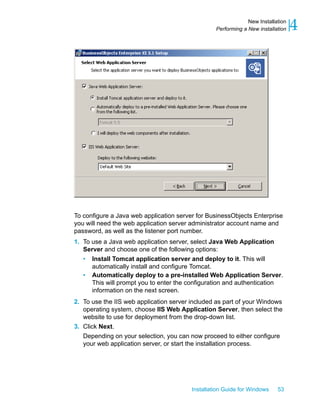
To configure a Java web application server for BusinessObjects Enterprise
you will need the web application server administrator account name and
password, as well as the listener port number.
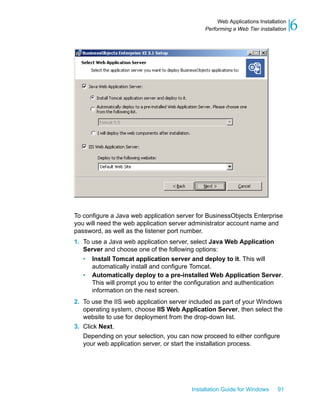
1. To use a Java web application server, select Java Web Application
Server and choose one of the following options:
• Install Tomcat application server and deploy to it. This will
automatically install and configure Tomcat.
• Automatically deploy to a pre-installed Web Application Server.
This will prompt you to enter the configuration and authentication
information on the next screen.
2. To use the IIS web application server included as part of your Windows
operating system, choose IIS Web Application Server, then select the
website to use for deployment from the drop-down list.
3. Click Next.
Depending on your selection, you can now proceed to either configure
your web application server, or start the installation process.
Installation Guide for Windows 53
4New Installation
Performing a New installation
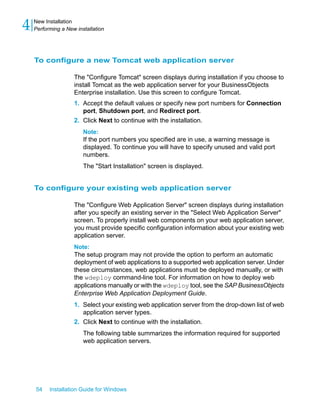
To configure a new Tomcat web application server
The "Configure Tomcat" screen displays during installation if you choose to
install Tomcat as the web application server for your BusinessObjects
Enterprise installation. Use this screen to configure Tomcat.
1. Accept the default values or specify new port numbers for Connection
port, Shutdown port, and Redirect port.
2. Click Next to continue with the installation.
Note:
If the port numbers you specified are in use, a warning message is
displayed. To continue you will have to specify unused and valid port
numbers.
The "Start Installation" screen is displayed.
To configure your existing web application server
The "Configure Web Application Server" screen displays during installation
after you specify an existing server in the "Select Web Application Server"
screen. To properly install web components on your web application server,
you must provide specific configuration information about your existing web
application server.
Note:
The setup program may not provide the option to perform an automatic
deployment of web applications to a supported web application server. Under
these circumstances, web applications must be deployed manually, or with
the wdeploy command-line tool. For information on how to deploy web
applications manually or with the wdeploy tool, see the SAP BusinessObjects
Enterprise Web Application Deployment Guide.
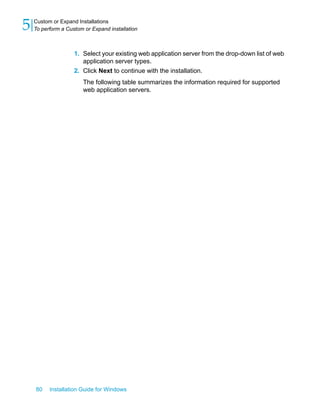
1. Select your existing web application server from the drop-down list of web
application server types.
2. Click Next to continue with the installation.
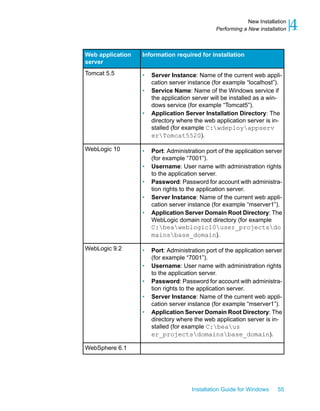
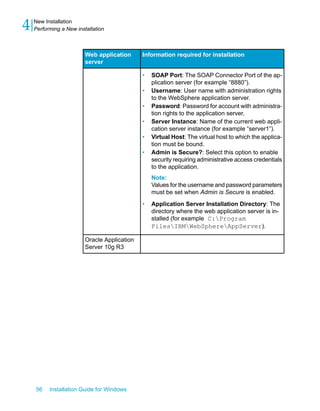
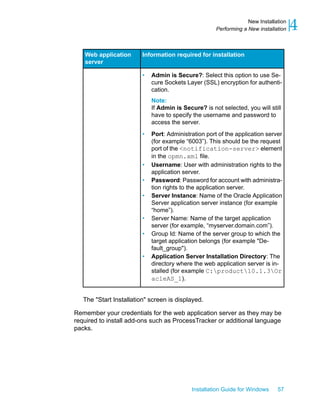
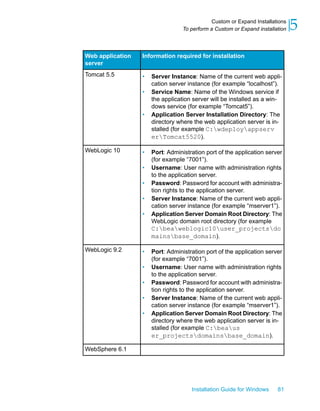
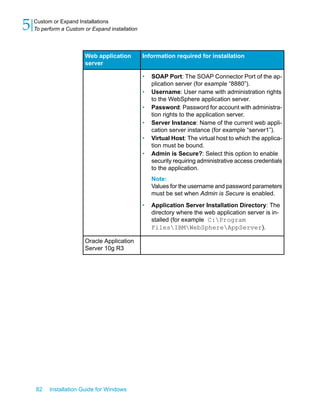
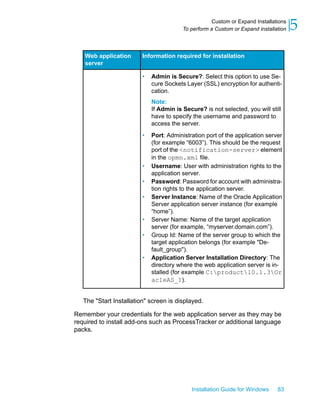
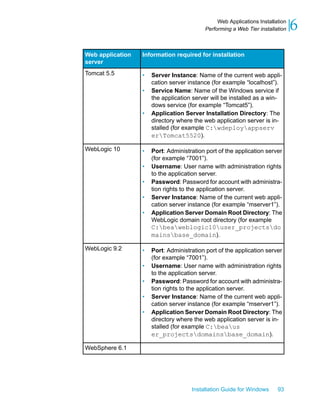
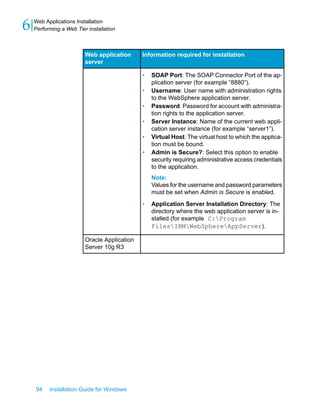
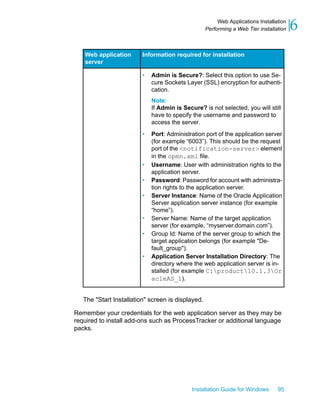
The following table summarizes the information required for supported
web application servers.
54 Installation Guide for Windows
New Installation
4 Performing a New installation
Information required for installationWeb application
server
• Server Instance: Name of the current web appli-
cation server instance (for example “localhost”).
• Service Name: Name of the Windows service if
the application server will be installed as a win-
dows service (for example “Tomcat5”).
• Application Server Installation Directory: The
directory where the web application server is in-
stalled (for example C:wdeployappserv
erTomcat5520).
Tomcat 5.5
• Port: Administration port of the application server
(for example “7001”).
• Username: User name with administration rights
to the application server.
• Password: Password for account with administra-
tion rights to the application server.
• Server Instance: Name of the current web appli-
cation server instance (for example “mserver1”).
• Application Server Domain Root Directory: The
WebLogic domain root directory (for example
C:beaweblogic10user_projectsdo
mainsbase_domain).
WebLogic 10
• Port: Administration port of the application server
(for example “7001”).
• Username: User name with administration rights
to the application server.
• Password: Password for account with administra-
tion rights to the application server.
• Server Instance: Name of the current web appli-
cation server instance (for example “mserver1”).
• Application Server Domain Root Directory: The
directory where the web application server is in-
stalled (for example C:beaus
er_projectsdomainsbase_domain).
WebLogic 9.2
WebSphere 6.1
Installation Guide for Windows 55
4New Installation
Performing a New installation
Information required for installationWeb application
server
• SOAP Port: The SOAP Connector Port of the ap-
plication server (for example “8880”).
• Username: User name with administration rights
to the WebSphere application server.
• Password: Password for account with administra-
tion rights to the application server.
• Server Instance: Name of the current web appli-
cation server instance (for example “server1”).
• Virtual Host: The virtual host to which the applica-
tion must be bound.
• Admin is Secure?: Select this option to enable
security requiring administrative access credentials
to the application.
Note:
Values for the username and password parameters
must be set when Admin is Secure is enabled.
• Application Server Installation Directory: The
directory where the web application server is in-
stalled (for example C:Program
FilesIBMWebSphereAppServer).
Oracle Application
Server 10g R3
56 Installation Guide for Windows
New Installation
4 Performing a New installation
Information required for installationWeb application
server
• Admin is Secure?: Select this option to use Se-
cure Sockets Layer (SSL) encryption for authenti-
cation.
Note:
If Admin is Secure? is not selected, you will still
have to specify the username and password to
access the server.
• Port: Administration port of the application server
(for example “6003”). This should be the request
port of the <notification-server> element
in the opmn.xml file.
• Username: User with administration rights to the
application server.
• Password: Password for account with administra-
tion rights to the application server.
• Server Instance: Name of the Oracle Application
Server application server instance (for example
“home”).
• Server Name: Name of the target application
server (for example, “myserver.domain.com”).
• Group Id: Name of the server group to which the
target application belongs (for example "De-
fault_group").
• Application Server Installation Directory: The
directory where the web application server is in-
stalled (for example C:product10.1.3Or
acleAS_1).
The "Start Installation" screen is displayed.
Remember your credentials for the web application server as they may be
required to install add-ons such as ProcessTracker or additional language
packs.
Installation Guide for Windows 57
4New Installation
Performing a New installation
To enter a Web Application Container Server (WACS) HTTP port
number
The Web Application Container Server (WACS) is a container that provides
Central Management Console (CMC) services for .NET installations. If you
are not using a Java web application server in your deployment, the "Web
Application Container Server Configuration" screen appears.
This screen allows you to either accept the default HTTP port number, 6405,
or to specify a different port. This is the HTTP port number on which you will
access the CMC through WACS.
1. If you want to change the HTTP port number for the WACS server, enter
a new value in the HTTP Port field.
2. Click Next to continue.
To start the installation
The "Start Installation" screen is the final screen in the installation.
• Click the Next button to start the installation process.
Note:
If you ran setup.exe from the command line with the -w [filename]
parameter, this is the point at which you can Cancel the installation
process, as the .ini configuration file has been written.
58 Installation Guide for Windows
New Installation
4 Performing a New installation
Custom or Expand
Installations
5
Custom or Expand installation
The "Custom or Expand" option allows you to install individual components.
It is recommended that you run this type of installation only after you are
familiar with specific BusinessObjects Enterprise components and their roles,
otherwise you may inadvertently fail to install a required component.
After setting up one BusinessObjects Enterprise server, you can run a
"Custom or Expand" installation on a second machine to add server
components, create a CMS cluster, increase available resources, and
distribute the processing workload over both machines.
The "Custom or Expand" install features consist of:
• Client Components
• Web Tier Components
• Server Components
• Database Access
• Export Support
• Samples
• Help Files
You may choose to install all, some, or parts of the above components.
Tip:
Consult the “Scaling Your System” section of the SAP BusinessObjects
Enterprise Administrator's Guide for information on planning how to best
expand your installation to meet the needs of your organization.
To select or deselect features
Use the "Select Features" screen to select BusinessObjects Enterprise
components when running a "Custom and Expand" installation. All the
available features are listed in the feature tree under the BusinessObjects
Enterprise root node. Each node has a corresponding installation icon.
1. Click and hold the installation icon so select your installation preference:
• Specify that the selected feature will be installed to the local hard drive.
• Specify that the selected feature and its subfeatures will be installed
on the local hard drive.
60 Installation Guide for Windows
Custom or Expand Installations
5 Custom or Expand installation
• Specify that a selected feature and its subfeatures will not be installed.
MeaningNode installa-
tion icon
The feature and some subfeatures will be installed on the
local hard drive.
The feature and all subfeatures will be installed on the local
hard drive.
The feature is either unavailable or will not be installed.
a. Click Disk Cost to calculate the amount of disk space required for the
selected features.
A separate screen is displayed indicating storage space available on
the local machine and mapped network drives. Drives that do not have
enough disk space for the currently selected features are highlighted.
Click OK to return to the "Select Features" screen.
2. Click Next.
BusinessObjects Enterprise Client Components
The client components are rich client tools that provide end users with access
to BusinessObjects Enterprise server functions. Client component tools are
only available for Windows operating systems, but do connect to servers
running non-Windows operating systems.
To install client components on a BusinessObjects Enterprise server system,
you must use the BusinessObjects Enterprise setup program "Custom or
Expand install" option. Do not attempt to install client components on a server
system by installing the stand-alone client tool installer, which is intended to
install on client systems only. The available tools are:
Installation Guide for Windows 61
5Custom or Expand Installations
Custom or Expand installation
DescriptionClient tool
An integrated query, reporting, and analysis tool
to access your organization's data for presenta-
tion and analysis in a Desktop Intelligence
document.
Desktop Intelligence
Provides business users an interactive and
flexible interface for building and analyzing re-
ports from your organization's data over the
web, through a secured intra- or extranet.
Web Intelligence Rich Client
Migrates reports based on Crystal queries, dic-
tionaries, or InfoViews to BusinessObjects En-
terprise.
Data Source Migration Wizard
Provides relational views of information for
creating and modifying Data Connections, Dy-
namic Data Connections, Data Foundations,
Business Elements, or Business Views.
Business View Manager
Converts Desktop Intelligence reports (.rep
files) to Web Intelligence (.wid) format. Con-
verted files can then be published to the Central
Management Server (CMS).
Report Conversion Tool
Imports user, group, object, or folder content
from previous and current Crystal or Busines-
sObjects Enterprise deployments.
Import Wizard
Publishes and sets properties for multiple re-
ports in BusinessObjects Enterprise.
Publishing Wizard
Creates custom web services for specific
queries using Business Objects Web Services.
Query as a Web Service
Creates universe connections for Web Intelli-
gence and Desktop Intelligence documents.
Universe Builder
62 Installation Guide for Windows
Custom or Expand Installations
5 Custom or Expand installation
DescriptionClient tool
Provides a graphical interface to select and view
tables in a database.
Universe Designer
Software Development Kits (SDK) with wizards
and templates for integrating BusinessObjects
Enterprise functionality into your interactive web
applications:
• BusinessObjects Enterprise .NET SDK.
If the installation program detects the
.NET Framework 1.1 or 2.0, it automatical-
ly installs the BusinessObjects Enterprise
.NET SDK for .NET Framework 1.1 or 2.0.
You can also use the BusinessObjects
Enterprise XI 3.1 .NET runtime redis-
tributable package to install the Busines-
sObjects Enterprise .NET SDK for .NET
Framework 2.0.
• BusinessObjects Enterprise Java SDK.
• BusinessObjects Enterprise Web Services
SDK.
Developer Components
Defines translations for multilingual documents
and prompts. Supports Universe Designer uni-
verses and Web Intelligence documents.
Translation Manager
BusinessObjects Enterprise Web Tier Components
The "Web Tier" option installs all of components used by the web application
server to run BusinessObjects Enterprise web applications. These
components include:
Installation Guide for Windows 63
5Custom or Expand Installations
Custom or Expand installation
DescriptionComponent
Used to run BusinessObjects Enterprise applications,
including the Central Management Console (CMC),
InfoView, Dashboard and Analytics, and Voyager.
BI Platform Web Com-
ponents
An implementation of web services that provides an
API/WSDL to simplify the process of developing web
applications. The Web Services consumer API is pro-
vided for both Java and .NET with a full set of docu-
mentation and samples.
BusinessObjects Enter-
prise Web Services
An open-source, standards-based, Java web applica-
tion server. If you do not have an existing web applica-
tion server, you can choose to install Apache Tomcat
5.5.
Tomcat
BusinessObjects Server Components
The following BusinessObjects Enterprise Server Components can be
installed by running a "Custom or Expand" installation. For further explanation
of what these servers do, please consult the “BusinessObjects Enterprise
Architecture” chapter of the SAP BusinessObjects Enterprise Administrator's
Guide.
• Central Configuration Manager
This is the application that can be used to start and stop services, such
as Tomcat, and the Server Intelligence Agent (SIA).
When you select the Manage Servers icon on the toolbar you may also
start, stop, restart, disable, enable and force termination of the Enterprise
servers. This tool is also used after installation to change which data
source is used for either the CMS or the auditing database, and to update
objects after a migration.
• Mapping Support
Installs the necessary components for building interactive geographic
maps in Crystal Reports.
• Enterprise Servers
• Central Management Server
64 Installation Guide for Windows
Custom or Expand Installations
5 Custom or Expand installation
• MySQL Database Server
• Auditor
• Event Server
• Input File Repository Server
• Output File Repository Server
• Crystal Reports Cache Server
• Crystal Reports Processing Server
• Publication Job Server
• Web Intelligence Processing Server
• Desktop Intelligence Servers
• Adaptive Processing Server
• Crystal Reports Job Server
• Program Job Server
• Destination Job Server
• List of Values Job Server
• Desktop Intelligence Job Server
• Adaptive Job Server
• Report Application Server
• Multi Dimensional Analysis Services Server
• Dashboard and Analytics Servers
• Web Application Container Server (WACS)
Database Access
BusinessObjects Enterprise supports business intelligence gathering from
many different databases. The database access feature installs support for
access to the following data sources:
• Data Federator
• HP Neoview
• MySQL
• Generic ODBC, JDBC
• Salesforce.com Driver
• Netezza
• Microsoft
• IBM DB2
Installation Guide for Windows 65
5Custom or Expand Installations
Custom or Expand installation
• IBM Informix (includes Redbrick)
• Progress OpenEdge
• Oracle
• Sybase
• NCRTeradata
Export Support
The Export Support feature provides drivers and files to enable export to a
variety of industry standard file formats.
• Character Separated Format (CSV)
• Disk File Destination
• Rich Text Format (RTF)
• Word for Windows Format
• Acrobat PDF Format
• Text Format
• Excel Format
• Crystal Reports Format
• XML Format
• Legacy XML Format
Samples
Select the Samples feature to include sample reports in your BusinessObjects
Enterprise installation. These reports are found in the Report Samples folder.
Included are sample reports for Crystal Reports, a BIAR file that includes
Web Intelligence reports as well as the Universe for those sample reports.
Note:
Only English samples will be installed. Samples in other languages can be
downloaded from http://support.businessobjects.com/.
66 Installation Guide for Windows
Custom or Expand Installations
5 Custom or Expand installation
Help Files
Select the Help files feature to install the HTML help for the products you
are installing including as well as the SAP BusinessObjects Enterprise
Administrator's Guide and the SAP BusinessObjects Enterprise InfoView
User's Guide. These guides can be accessed after installation from Start >
BusinessObjects XI 3.1 > BusinessObjects Enterprise > Documentation.
Note:
The specific help related to an individual component is bundled with the
component. For example, if you install the Publishing Wizard or the Import
Wizard you will get the appropriate .chm help.
To perform a "Custom or Expand"
installation
The "Install Type" screen is displayed after beginning the installation.
Installation Guide for Windows 67
5Custom or Expand Installations
To perform a Custom or Expand installation
1. Choose Custom or Expand in the "Install Type" screen.
2. Specify where to install the BusinessObjects Enterprise components in
the Destination Folder field.
3. Click Next.
The "Select Features" screen is displayed.
Related Topics
• To select an installation type
• To select or deselect features
• To install only the server components
• Beginning your installation
To install only the client components
Use the procedure below when running a "Custom or Expand" installation
to install BusinessObjects Enterprise client components.
1. Left-click on the icon beside BusinessObjects Enterprise in the "Select
Features" screen.
2. Select Entire feature will be unavailable.
All the icons under BusinessObjects Enterprise will change to .
3. Left-click on the Client Components icon.
4. Select Entire feature will be installed on local hard drive.
The Client Components icon will display as .
5. Click Next to continue with the installation.
The installation setup program displays the following error message:
You are installing one or more features without any
Database Access drivers. Without these, installed
features may
not function properly. Do you wish to continue?
6. Click Yes.
The "Start Installation" screen is displayed.
7. Click Next to start the installation.
68 Installation Guide for Windows
Custom or Expand Installations
5 To perform a Custom or Expand installation
To install only the server components
Use the procedure below to install BusinessObjects Enterprise server
components. When you perform this installation, server components are
installed, the default user and group accounts are created, and sample reports
are published to the system. When the installation is complete, the servers
are started.
1. Left-click on the icon beside Client Components in the "Select Features"
screen and select Entire feature will be unavailable.
The Client Components icon changes to
2. Left-click on the icon beside Web Tier Components and select Entire
feature will be unavailable.
The Web Tier Components icon changes to
3. If you want to install MySQL, skip to step 4. Expand Server Components.
Note:
Do not install MySQL if you want to use an existing database server. Do
not install MySQL if you only want to add server components to an existing
CMS cluster.
a. Expand Central Management Server.
b. Left-click on the icon beside Auditor and select Entire Feature will
be unavailable.
c. Left-click on the icon beside MySQL and select Entire Feature will
be unavailable.
4. Deselect the Database Access, Export Support, Samples, and Help
Files options if they are not required.
5. Click Next to continue with the installation.
If you chose to install MySQL, enter information on your new CMS. If you
chose not to install MySQL you need to specify whether or not this is your
first CMS cluster.
Related Topics
• To enter CMS clustering information
Installation Guide for Windows 69
5Custom or Expand Installations
To perform a Custom or Expand installation
To enter CMS clustering information
If you chose not to install MySQL, and are installing server components
through a "Custom or Expand" installation, you need to provide information
in the "CMS Clustering" screen.
1. If this installation is the first CMS in your deployment, select If 'Yes,' enter
the information for the new CMS. You can now do one of the following.
• In the fields provided on the right of the screen, enter the CMS port
number and administrator password.
• Select Configure the BusinessObjects Enterprise Administrator
password at a later time.
2. Select If 'no,' enter the new CMS port, and details for a CMS with
which to cluster if this server installation is not the first CMS in your
deployment. New information entry fields will be displayed on the right
side of the screen.
a. Specify a port number for your new CMS installation.
b. Provide the CMS hostname, port number, and password for the cluster
to which you want to add the CMS of your installation.
Before proceeding to the next screen, the installation setup program will
test connectivity to your existing CMS cluster based on the information
you provided.
3. Click Next to continue with the installation.
The "Server Intelligence Agent" screen is displayed.
Related Topics
• To enter Server Intelligence Agent information
To enter information on your new CMS
The "Server Components Configuration" screen is used to enter the port
number and an administrator password for the new Central Management
Server (CMS). The CMS manages BusinessObjects Enterprise servers and
manages the system and audit databases.
1. Specify a port number in the CMS port field.
The default CMS port number is 6400.
70 Installation Guide for Windows
Custom or Expand Installations
5 To perform a Custom or Expand installation
The CMS will communicate with other BusinessObjects Enterprise servers
through the specified port.
2. Specify a password for the CMS administrator account in the Password
and Confirm password fields.
Tip:
You can opt to skip this step - select the Configure the BusinessObjects
Enterprise Administrator password at a later time box.
3. Click Next to continue with the installation.
The "Server Intelligence Agent" screen is displayed.
Note:
If the port you specified in step 1 is unavailable, you will be requested to
specify another port number.
To enter Server Intelligence Agent information
A Server Intelligence Agent (SIA) node is automatically created during
installation of BusinessObjects Enterprise. For more information on Server
Intelligence and the Server Intelligence Agent, refer to the SAP
BusinessObjects Enterprise Administrator's Guide. The "Server Intelligence
Agent" screen is used to name and designate a port address for the SIA.
1. Provide a unique name to identify the SIA node in the Node Name field.
Note:
Do not use spaces or non-alphanumeric characters in a SIA node name.
2. Specify a port number for the SIA in the Port field (default is 6410).
This port will be used by the SIA to communicate with the Central
Management Server (CMS).
3. Click Next to continue with the installation.
Once the SIA information is entered, the port number will be validated
before you can proceed to configure the CMS database for your
installation. A warning will display if the port you specified is not available.
Related Topics
• To configure your MySQL database server
• To configure an existing database server
Installation Guide for Windows 71
5Custom or Expand Installations
To perform a Custom or Expand installation
To configure your MySQL database server
The "MySQL Database Server Configuration" screen appears if you chose
to install MySQL as the database server for your Custom or Expand
installation.
1. Specify the port number for the MySQL database server in the MySQL
Port Number field.
The default port number is 3306. Use this number unless this port is
unavailable.
2. Specify and confirm a password for the MySQL root user account in the
MySQL root User Account pane.
3. Specify and confirm a password for the MySQL BusinessObjects user
account in the MySQL BusinessObjects User Account pane.
4. Click Next to continue the installation.
The "Start Installation" screen is displayed.
72 Installation Guide for Windows
Custom or Expand Installations
5 To perform a Custom or Expand installation
To configure an existing database server
The "CMS Database Information" screen appears if you chose to use an
existing database server as your CMS for your Custom or Expand installation.
1. Select a database type from the Select existing CMS database
drop-down list in "CMS Database".
Depending on your database server selection, corresponding input fields
are displayed in "CMS Database".
2. Provide all the required information for the database in the fields provided
in "CMS Database".
The table below summarizes all the information required for each database
type.
Information required for installa-
tion
Database type
Data Source NameMySQL
Sybase Server NameSybase
DB2 database aliasDB2
tnsnames connect identifierOracle
ODBC DSNMicrosoft SQL Server
a. To provide an ODBC DSN for a Microsoft SQL Server, click the
Browse button in "CMS Database".
The "SQL Server Logon" screen is displayed.
Installation Guide for Windows 73
5Custom or Expand Installations
To perform a Custom or Expand installation
Note:
If you are running the installation on a Windows 64-bit machine an
additional check box - Consume DSN created under WOW64 - is
displayed.
b. Use the "SQL Server Logon" screen to select a data source, database,
and to provide user credentials.
c. Click OK to submit your settings.
The "SQL Server Logon" screen is closed and an ODBC DSN entry
is displayed in"CMS Database".
If you do not want to specify an auditing database for your new installation
skip to step 6.
3. Select the Auditing Database box to specify an auditing database for
your new installation.
The input fields under the Auditing Database box are activated.
4. Select a database type from the Select existing Auditing database
drop-down list in "Auditing Database"
Depending on your database server selection, corresponding input fields
are displayed in "Auditing Database".
74 Installation Guide for Windows
Custom or Expand Installations
5 To perform a Custom or Expand installation
5. Provide all the required information for the database in the fields provided
in "Auditing Database".
The table below summarizes all the information required for each database
type.
Information required for installa-
tion
Database type
Data Source NameMySQL
Sybase Server NameSybase
DB2 database aliasDB2
tnsnames connect identifierOracle
ODBC DSNMicrosoft SQL Server
6. Select the Reset existing database box to delete all current tables and
entries in the existing database.
7. Click Next to continue with the installation.
The "Start Installation" screen is displayed. This screen only displays if
a connection is established with the database configuration you provided.
To start the installation
The "Start Installation" screen is the final screen in the installation.
• Click the Next button to start the installation process.
Note:
If you ran setup.exe from the command line with the -w [filename]
parameter, this is the point at which you can Cancel the installation
process, as the .ini configuration file has been written.
Installation Guide for Windows 75
5Custom or Expand Installations
To perform a Custom or Expand installation
To install only the web tier components
Use the procedure below when running a Custom or Expand installation type
to only install the BusinessObjects Enterprise Web Tier Components.
1. Left-click on the icon beside BusinessObjects Enterprise in the "Select
Features" screen.
2. Select Entire feature will be unavailable.
All the icons under BusinessObjects Enterprise will change to .
3. Left-click on the Web Tier Components icon.
4. Select Will be installed on local hard drive.
The Web Tier Components icon will display as .
5. If you want to install Apache Tomcat as your web application server skip
to step 6. Expand Web Tier components if you want to use your existing
web application server.
a. Left-click on the icon beside Tomcat.
b. Select Entire Feature will be unavailable.
6. Click Next to continue with the installation.
The "CMS Clustering" screen is displayed.
To specify CMS cluster information
When you only install Web Tier components as part of a custom or expand
installation, you need to specify an existing CMS. Use the "CMS Clustering"
screen to provide information on CMS to which you want to cluster your web
tier components.
1. Enter information on your existing CMS in the fields provided.
• Existing CMS Hostname
• Existing CMS Port
• CMS Administrator Password
Note:
The CMS Hostname defaults to your local computer name.
2. Click Next to continue.
76 Installation Guide for Windows
Custom or Expand Installations
5 To perform a Custom or Expand installation
The installation program will attempt to communicate with your existing
CMS cluster using the information you provided.
You now need to configure your web application server.
To select a web application server configuration option
The web application server runs Business Objects web applications such as
InfoView, the Central Management Console (CMC), and custom web
applications. Use the "Select Web Application Server" screen to choose to:
• Install and/or deploy to a Java web application server, such as the Tomcat
web application server included with BusinessObjects Enterprise.
• Install and deploy to the IIS web application server installed as part of
your Windows operating system.
Note:
• If you are using the 64-bit version of IIS 7, you must ensure that:
• ASP.NET is enabled.
• The advanced IIS setting Enable 32-bit Applications is set to
"True".
• The advanced IIS setting .NET Application Pool is set to "Classic"
mode.
• If the IIS Web Application Server option is not selectable, ensure
that ASP.NET v1.1 and IIS are both installed.
Installation Guide for Windows 77
5Custom or Expand Installations
To perform a Custom or Expand installation
To configure a Java web application server for BusinessObjects Enterprise
you will need the web application server administrator account name and
password, as well as the listener port number.
1. To use a Java web application server, select Java Web Application
Server and choose one of the following options:
• Install Tomcat application server and deploy to it. This will
automatically install and configure Tomcat.
• Automatically deploy to a pre-installed Web Application Server.
This will prompt you to enter the configuration and authentication
information on the next screen.
2. To use the IIS web application server included as part of your Windows
operating system, choose IIS Web Application Server, then select the
website to use for deployment from the drop-down list.
3. Click Next.
Depending on your selection, you can now proceed to either configure
your web application server, or start the installation process.
78 Installation Guide for Windows
Custom or Expand Installations
5 To perform a Custom or Expand installation
To enter a Web Application Container Service (WACS) HTTP port number
A Web Application Container Service (WACS) will automatically be installed
if the setup program determines that no Java web application server will be
used.
You must enter a port number for the HTTP listener.
• Enter the port number into the HTTP Port field. The default port number
is 6405.
The WACS will listen for HTTP requests on the port you enter.
To configure a new Tomcat web application server
The "Configure Tomcat" screen displays during installation if you choose to
install Tomcat as the web application server for your BusinessObjects
Enterprise installation. Use this screen to configure Tomcat.
1. Accept the default values or specify new port numbers for Connection
port, Shutdown port, and Redirect port.
2. Click Next to continue with the installation.
Note:
If the port numbers you specified are in use, a warning message is
displayed. To continue you will have to specify unused and valid port
numbers.
The "Start Installation" screen is displayed.
To configure your existing web application server
The "Configure Web Application Server" screen displays during installation
after you specify an existing server in the "Select Web Application Server"
screen. To properly install web components on your web application server,
you must provide specific configuration information about your existing web
application server.
Note:
The setup program may not provide the option to perform an automatic
deployment of web applications to a supported web application server. Under
these circumstances, web applications must be deployed manually, or with
the wdeploy command-line tool. For information on how to deploy web
applications manually or with the wdeploy tool, see the SAP BusinessObjects
Enterprise Web Application Deployment Guide.
Installation Guide for Windows 79
5Custom or Expand Installations
To perform a Custom or Expand installation
1. Select your existing web application server from the drop-down list of web
application server types.
2. Click Next to continue with the installation.
The following table summarizes the information required for supported
web application servers.
80 Installation Guide for Windows
Custom or Expand Installations
5 To perform a Custom or Expand installation
Information required for installationWeb application
server
• Server Instance: Name of the current web appli-
cation server instance (for example “localhost”).
• Service Name: Name of the Windows service if
the application server will be installed as a win-
dows service (for example “Tomcat5”).
• Application Server Installation Directory: The
directory where the web application server is in-
stalled (for example C:wdeployappserv
erTomcat5520).
Tomcat 5.5
• Port: Administration port of the application server
(for example “7001”).
• Username: User name with administration rights
to the application server.
• Password: Password for account with administra-
tion rights to the application server.
• Server Instance: Name of the current web appli-
cation server instance (for example “mserver1”).
• Application Server Domain Root Directory: The
WebLogic domain root directory (for example
C:beaweblogic10user_projectsdo
mainsbase_domain).
WebLogic 10
• Port: Administration port of the application server
(for example “7001”).
• Username: User name with administration rights
to the application server.
• Password: Password for account with administra-
tion rights to the application server.
• Server Instance: Name of the current web appli-
cation server instance (for example “mserver1”).
• Application Server Domain Root Directory: The
directory where the web application server is in-
stalled (for example C:beaus
er_projectsdomainsbase_domain).
WebLogic 9.2
WebSphere 6.1
Installation Guide for Windows 81
5Custom or Expand Installations
To perform a Custom or Expand installation
Information required for installationWeb application
server
• SOAP Port: The SOAP Connector Port of the ap-
plication server (for example “8880”).
• Username: User name with administration rights
to the WebSphere application server.
• Password: Password for account with administra-
tion rights to the application server.
• Server Instance: Name of the current web appli-
cation server instance (for example “server1”).
• Virtual Host: The virtual host to which the applica-
tion must be bound.
• Admin is Secure?: Select this option to enable
security requiring administrative access credentials
to the application.
Note:
Values for the username and password parameters
must be set when Admin is Secure is enabled.
• Application Server Installation Directory: The
directory where the web application server is in-
stalled (for example C:Program
FilesIBMWebSphereAppServer).
Oracle Application
Server 10g R3
82 Installation Guide for Windows
Custom or Expand Installations
5 To perform a Custom or Expand installation
Information required for installationWeb application
server
• Admin is Secure?: Select this option to use Se-
cure Sockets Layer (SSL) encryption for authenti-
cation.
Note:
If Admin is Secure? is not selected, you will still
have to specify the username and password to
access the server.
• Port: Administration port of the application server
(for example “6003”). This should be the request
port of the <notification-server> element
in the opmn.xml file.
• Username: User with administration rights to the
application server.
• Password: Password for account with administra-
tion rights to the application server.
• Server Instance: Name of the Oracle Application
Server application server instance (for example
“home”).
• Server Name: Name of the target application
server (for example, “myserver.domain.com”).
• Group Id: Name of the server group to which the
target application belongs (for example "De-
fault_group").
• Application Server Installation Directory: The
directory where the web application server is in-
stalled (for example C:product10.1.3Or
acleAS_1).
The "Start Installation" screen is displayed.
Remember your credentials for the web application server as they may be
required to install add-ons such as ProcessTracker or additional language
packs.
Installation Guide for Windows 83
5Custom or Expand Installations
To perform a Custom or Expand installation
To start the installation
The "Start Installation" screen is the final screen in the installation.
• Click the Next button to start the installation process.
Note:
If you ran setup.exe from the command line with the -w [filename]
parameter, this is the point at which you can Cancel the installation
process, as the .ini configuration file has been written.
84 Installation Guide for Windows
Custom or Expand Installations
5 To perform a Custom or Expand installation
Web Applications
Installation
6
Performing a Web Tier installation
The web tier installation type installs the appropriate web application
components on the machine running your web application server. You will
need user account and port information to configure your web application
server through the BusinessObjects Enterprise setup program.
The Java SDK 1.5 is installed by default with a web tier installation.
The web application server processes scripts, communicates with report and
cache servers, translates cached files to DHTML, facilitates OLAP view
requests and manages session state information for users.
Tip:
If you have not yet installed the server components in your deployment, you
will not be able to verify the connectivity for the web applications. It is best
practice to install the server and client components to verify connectivity.
BusinessObjects Enterprise Web Tier Components
The "Web Tier" option installs all of components used by the web application
server to run BusinessObjects Enterprise web applications. These
components include:
86 Installation Guide for Windows
Web Applications Installation
6 Performing a Web Tier installation
DescriptionComponent
Used to run BusinessObjects Enterprise applications,
including the Central Management Console (CMC),
InfoView, Dashboard and Analytics, and Voyager.
BI Platform Web Com-
ponents
An implementation of web services that provides an
API/WSDL to simplify the process of developing web
applications. The Web Services consumer API is pro-
vided for both Java and .NET with a full set of docu-
mentation and samples.
BusinessObjects Enter-
prise Web Services
An open-source, standards-based, Java web applica-
tion server. If you do not have an existing web applica-
tion server, you can choose to install Apache Tomcat
5.5.
Tomcat
To perform a Web Tier installation
The "Install Type" screen is displayed once you complete the initial set up
of the BusinessObjects Enterprise installation.
Installation Guide for Windows 87
6Web Applications Installation
Performing a Web Tier installation
1. Choose Web Tier in the "Install Type" screen.
2. Specify where to install the BusinessObjects Enterprise components in
the Destination Folder field.
3. Click Next to continue with the installation.
The "Select Features" screen is displayed.
Related Topics
• To select an installation type
• Beginning your installation
To select and deselect web tier components
Use the "Select Features" screen to select and deselect web tier components
when running a Web Tier installation. All the available web tier components
are listed in the feature tree under the BusinessObjects Enterprise node.
Each feature and subfeature has a corresponding icon.
1. Click the icon for a feature you want to select or deselect.
88 Installation Guide for Windows
Web Applications Installation
6 Performing a Web Tier installation
You can do any of the following:
• Specify that the selected feature will be installed on the local hard
drive.
• Specify that the selected feature and its subfeatures will be installed
on the local hard drive.
• Specify that a selected feature and its subfeatures will not be installed.
MeaningIcon associat-
ed with fea-
ture
The feature and only the subfeatures you select will be in-
stalled on the local hard drive you specified in the Setup
program.
The feature and all its subfeatures will be installed on the
local hard drive you specified earlier .
The feature or subfeature is either unavailable or will not
be installed.
a. Click Disk Cost to calculate if sufficient disk space is available for
your selected features.
A separate screen is displayed indicating storage space available on
the local machine and mapped network drives. Drives that do not have
enough disk space for the currently selected features are highlighted.
Click OK to close to return to the "Select Features" page.
2. Click Next to continue with the installation.
The "CMS Clustering" screen is displayed.
To specify an existing CMS for web tier components
The web tier components need to be associated with an existing Central
Management Server. Use the "CMS Clustering" screen to provide information
on the CMS that will manage the web tier components you are installing.
1. Specify the host name for the CMS in the Existing CMS Hostname field.
2. Specify the port number used to communicate with the CMS in the
Existing CMS Port field.
The default port number used by the CMS is 6400.
Installation Guide for Windows 89
6Web Applications Installation
Performing a Web Tier installation
3. Specify the password used by CMS Administrator in the CMS
Administrator Password field.
4. Click Next to continue with the installation.
The information on the CMS is verified. Once the verification is complete,
the "Select Web Application Server" screen is displayed.
To select a web application server configuration
option
The web application server runs Business Objects web applications such as
InfoView, the Central Management Console (CMC), and custom web
applications. Use the "Select Web Application Server" screen to choose to:
• Install and/or deploy to a Java web application server, such as the Tomcat
web application server included with BusinessObjects Enterprise.
• Install and deploy to the IIS web application server installed as part of
your Windows operating system.
Note:
• If you are using the 64-bit version of IIS 7, you must ensure that:
• ASP.NET is enabled.
• The advanced IIS setting Enable 32-bit Applications is set to
"True".
• The advanced IIS setting .NET Application Pool is set to "Classic"
mode.
• If the IIS Web Application Server option is not selectable, ensure
that ASP.NET v1.1 and IIS are both installed.
90 Installation Guide for Windows
Web Applications Installation
6 Performing a Web Tier installation
To configure a Java web application server for BusinessObjects Enterprise
you will need the web application server administrator account name and
password, as well as the listener port number.
1. To use a Java web application server, select Java Web Application
Server and choose one of the following options:
• Install Tomcat application server and deploy to it. This will
automatically install and configure Tomcat.
• Automatically deploy to a pre-installed Web Application Server.
This will prompt you to enter the configuration and authentication
information on the next screen.
2. To use the IIS web application server included as part of your Windows
operating system, choose IIS Web Application Server, then select the
website to use for deployment from the drop-down list.
3. Click Next.
Depending on your selection, you can now proceed to either configure
your web application server, or start the installation process.
Installation Guide for Windows 91
6Web Applications Installation
Performing a Web Tier installation
To configure a new Tomcat web application server
The "Configure Tomcat" screen displays during installation if you choose to
install Tomcat as the web application server for your BusinessObjects
Enterprise installation. Use this screen to configure Tomcat.
1. Accept the default values or specify new port numbers for Connection
port, Shutdown port, and Redirect port.
2. Click Next to continue with the installation.
Note:
If the port numbers you specified are in use, a warning message is
displayed. To continue you will have to specify unused and valid port
numbers.
The "Start Installation" screen is displayed.
To configure your existing web application server
The "Configure Web Application Server" screen displays during installation
after you specify an existing server in the "Select Web Application Server"
screen. To properly install web components on your web application server,
you must provide specific configuration information about your existing web
application server.
Note:
The setup program may not provide the option to perform an automatic
deployment of web applications to a supported web application server. Under
these circumstances, web applications must be deployed manually, or with
the wdeploy command-line tool. For information on how to deploy web
applications manually or with the wdeploy tool, see the SAP BusinessObjects
Enterprise Web Application Deployment Guide.
1. Select your existing web application server from the drop-down list of web
application server types.
2. Click Next to continue with the installation.
The following table summarizes the information required for supported
web application servers.
92 Installation Guide for Windows
Web Applications Installation
6 Performing a Web Tier installation
Information required for installationWeb application
server
• Server Instance: Name of the current web appli-
cation server instance (for example “localhost”).
• Service Name: Name of the Windows service if
the application server will be installed as a win-
dows service (for example “Tomcat5”).
• Application Server Installation Directory: The
directory where the web application server is in-
stalled (for example C:wdeployappserv
erTomcat5520).
Tomcat 5.5
• Port: Administration port of the application server
(for example “7001”).
• Username: User name with administration rights
to the application server.
• Password: Password for account with administra-
tion rights to the application server.
• Server Instance: Name of the current web appli-
cation server instance (for example “mserver1”).
• Application Server Domain Root Directory: The
WebLogic domain root directory (for example
C:beaweblogic10user_projectsdo
mainsbase_domain).
WebLogic 10
• Port: Administration port of the application server
(for example “7001”).
• Username: User name with administration rights
to the application server.
• Password: Password for account with administra-
tion rights to the application server.
• Server Instance: Name of the current web appli-
cation server instance (for example “mserver1”).
• Application Server Domain Root Directory: The
directory where the web application server is in-
stalled (for example C:beaus
er_projectsdomainsbase_domain).
WebLogic 9.2
WebSphere 6.1
Installation Guide for Windows 93
6Web Applications Installation
Performing a Web Tier installation
Information required for installationWeb application
server
• SOAP Port: The SOAP Connector Port of the ap-
plication server (for example “8880”).
• Username: User name with administration rights
to the WebSphere application server.
• Password: Password for account with administra-
tion rights to the application server.
• Server Instance: Name of the current web appli-
cation server instance (for example “server1”).
• Virtual Host: The virtual host to which the applica-
tion must be bound.
• Admin is Secure?: Select this option to enable
security requiring administrative access credentials
to the application.
Note:
Values for the username and password parameters
must be set when Admin is Secure is enabled.
• Application Server Installation Directory: The
directory where the web application server is in-
stalled (for example C:Program
FilesIBMWebSphereAppServer).
Oracle Application
Server 10g R3
94 Installation Guide for Windows
Web Applications Installation
6 Performing a Web Tier installation
Information required for installationWeb application
server
• Admin is Secure?: Select this option to use Se-
cure Sockets Layer (SSL) encryption for authenti-
cation.
Note:
If Admin is Secure? is not selected, you will still
have to specify the username and password to
access the server.
• Port: Administration port of the application server
(for example “6003”). This should be the request
port of the <notification-server> element
in the opmn.xml file.
• Username: User with administration rights to the
application server.
• Password: Password for account with administra-
tion rights to the application server.
• Server Instance: Name of the Oracle Application
Server application server instance (for example
“home”).
• Server Name: Name of the target application
server (for example, “myserver.domain.com”).
• Group Id: Name of the server group to which the
target application belongs (for example "De-
fault_group").
• Application Server Installation Directory: The
directory where the web application server is in-
stalled (for example C:product10.1.3Or
acleAS_1).
The "Start Installation" screen is displayed.
Remember your credentials for the web application server as they may be
required to install add-ons such as ProcessTracker or additional language
packs.
Installation Guide for Windows 95
6Web Applications Installation
Performing a Web Tier installation
To start the installation
The "Start Installation" screen is the final screen in the installation.
• Click the Next button to start the installation process.
Note:
If you ran setup.exe from the command line with the -w [filename]
parameter, this is the point at which you can Cancel the installation
process, as the .ini configuration file has been written.
96 Installation Guide for Windows
Web Applications Installation
6 Performing a Web Tier installation
Silent Installation
7
Overview of silent installation
There are two methods for running BusinessObjects Enterprise installations
for Windows directly from the command line:
• Silent installation using a response file - referred to as a scripted
installation in this guide
• Silent installation specifying parameters directly on the command line
Both methods can be used to automate installations across multiple
machines. The scripted installation method requires that you to specify an
.ini file. The silent installation allows you to specify parameters for running
setup.exe.
The same parameters are used for both methods. It is recommended that
you use the scripted installation method to run custom installations, so that
you avoid having to pass a large number of parameter settings directly
through the command line.
Note:
If you pass a parameter directly in the command line, the setting will override
any setting specified in the .ini file.
These installation methods are particularly useful when you need to quickly
perform multiple installations. You can also integrate the scripts and
commands into your own installation scripts.
Silent installations include a series of parameters including installation settings
and directory paths to system resources. You can also specify settings that
control the level of prompts during an installation.
Note:
BusinessObjects Enterprise does not support silent installations when the
install contents are on multiple DVDs. If your install is on multiple DVDs, you
must first copy the contents from all the DVDs to a central location, such as
the local hard-drive, and then run the silent install from the location that
contains the content from all the DVDs.
Related Topics
• To create an installation .ini file
• Silent installation parameters
98 Installation Guide for Windows
Silent Installation
7 Overview of silent installation
Specific .ini file parameters for setup.exe
There are three parameters used in conjunction with the .ini file than can
be used when running setup.exe on the command line.
DescriptionParameter
Writes all the installation settings to an .ini file to
the specified filepath. If a filepath is not specified,
the file is stored in the system default %TEMP% fold-
er.
-w <PATHCONFIGURA
TION_FILE .ini>
Reads the specified.ini file and passes the set-
tings to the installer as settings.
Note:
If you pass a parameter directly in the command
line, the setting will override any setting specified in
the .ini file.
-r <PATHCONFIGURA
TION_FILE .ini
Creates an installation log file in the specified
filepath. If a filepath is not specified, the system de-
fault %TEMP% folder is used. This parameter can
only be used if -r is also specified.
-l <PATHCONFIGURA
TION_FILE.ini
Related Topics
• Silent installation parameters
To create an installation .ini file
You need to access the directory containing the setup.exe file.
1. Open a command line console.
2. Change directories to the folder containing the BusinessObjects Enterprise
setup.exe.
3. In the command-line type the following:
setup.exe -w <PATH><FILENAME.ini>
Installation Guide for Windows 99
7Silent Installation
Specific .ini file parameters for setup.exe
4. Press Enter to launch the installation program.
5. Follow the on-screen instructions to enter your preferred installation
settings until you reach the final screen of the setup program.
These settings are recorded in the response file.
6. Click Cancel to abort the installation.
User-defined and default parameters from installation setup are written to
the .ini file , which is stored in the directory specified in step 3.
Note:
If a path is not specified, the file is stored in the current working directory.
Related Topics
• To create an installation .ini file
• Silent installation parameters
Sample .ini file
The following example installation .ini file was generated for a new
BusinessObjects Enterprise installation in which MySQL and Tomcat were
selected. The French language pack was added to the English default.
[OTHER]
[OTHER]
QUIET=/qa
[INSTALL]
ALLUSERS="1"
AS_ADMIN_IS_SECURE=""
AS_ADMIN_PASSWORD=""
AS_ADMIN_PORT="8080"
AS_ADMIN_USERNAME="admin"
AS_DIR="C:Program FilesBusiness ObjectsTomcat55"
AS_INSTANCE="localhost"
AS_SERVER="tomcat55"
AS_SERVICE_NAME="BOE120Tomcat"
AS_VIRTUAL_HOST=""
ApplicationUsers="AllUsers"
CADNODE="BUSINESSABCDEF"
CADPORT="6410"
CLIENTAUDITINGPORT="6420"
CLIENTLANGUAGE="EN"
CLUSTERCMS="False"
100 Installation Guide for Windows
Silent Installation
7 Specific .ini file parameters for setup.exe
CMSPASSWORD=""
COMPANYNAME=""
DATABASEAUDITDRIVER="MySQLDatabaseSubSystem"
DATABASECONNECT=""
DATABASEDB="BOE120"
DATABASEDB_AUDIT="BOE120_AUDIT"
DATABASEDRIVER="MySQLDatabaseSubSystem"
DATABASEDSN="Business Objects CMS"
DATABASEDSN_AUDIT="Business Objects Audit Server"
DATABASENWLAYER_AUDIT="ODBC"
DATABASEPORT="3306"
DATABASEPORT_AUDIT="3306"
DATABASEPWD="password1"
DATABASEPWD_AUDIT="password1"
DATABASEPWD_MYSQLROOT="password1"
DATABASERDMS_AUDIT="MySQL 5"
DATABASESERVER_AUDIT="localhost"
DATABASEUID="sa"
DATABASEUID_AUDIT="sa"
DATABASE_AUDIT_CONNSVR="connsvr"
ENABLELOGFILE="1"
ENABLESERVERS="1"
INSTALL.LP.EN.SELECTED="1"
INSTALL.LP.FR.SELECTED="1"
INSTALLDBTYPE="SQL"
INSTALLDIR="C:Program FilesBusiness Objects"
INSTALLLEVEL="6"
INSTALLMODE="New"
INSTALLSWITCH="Server"
INSTALL_DB_TYPE="InstallMySQL"
MYSQLPORT="3306"
MYSQL_REMOTE_ACCESS=""
NEWCMSPASSWORD="password1"
NSPORT="6400"
PIDKEY="XXXXX-XXXXXXX-XXXXXXX-XXXX"
Privileged="1"
SINGLESERVER=""
SKIP_DEPLOYMENT=""
TOMCAT_CONNECTION_PORT="8080"
TOMCAT_REDIRECT_PORT="8443"
TOMCAT_SHUTDOWN_PORT="8005"
USERNAME="Business Objects"
WCADOTNETINSTALL="False"
WCAEXISTINGINSTALL="False"
WCAJAVAINSTALL="True"
WCATOMCATINSTALL="True"
WDEPLOY_LANGUAGES="en,fr"
WDEPLOY_LATER=""
WEBSITE_METABASE_NUMBER="1"
Installation Guide for Windows 101
7Silent Installation
Specific .ini file parameters for setup.exe
WEBSITE_NAME=""
WEBSITE_PORT="80"
[FEATURES]
REMOVE="WCADotNet,WebApplicationContainer"
ADDLOCAL="Tomcat,Universe,qaaws,Complete,DotNETSDK,Dot
NET2SDK,ImportWizard,VSDesigner,AlwaysInstall,BeforeIn
stall,VBA62,Reporter,Clients,WRC,DataSourceMigrationWiz
ard,CrystalBVM,MetaDataDesigner,ConversionTool,PubWiz,De
signer,DotNetRASSDK,DotNetViewersSDK,VSHELP,RenetSDK,De
velopersFiles,JavaRASSDK,BOEJavaSDK,JavaViewersSDK,Re
beanSDK,WebServicesSDK,UnivTransMgr,wdeploy,BIPWeb
Comp,WebTierComp,BOEWebServices,CCM,ServerComponents,Map
ping,Repository,CRPE,MetaData,CMS,Auditor,MySQL,EventServ
er,InputFRS,OutputFRS,CacheServer,PageServer,Publication
Server,DotNETOnly,ReportAppServer,MDASS,CRJobServ
er,DestJobServer,LOVJobServer,DeskIJobServer,ProgramJob
Server,WebIJobServer,AdaptiveJobServer,PublishingSer
vice,AdaptiveProcessingServer,SearchingService,CrystalRe
portDataProvider,AuditProxyService,Webi,RAS21,DAS,AuditRp
tUnvEN,DADataFederator,DataAccess,HPNeoview,OLAP,My
Cube,SOFA,DAMySQL,DAGenericOD
BC,SFORCE,XML,BDE,dBase,FileSystem,DANETEZZA,DAMi
crosoft,DAIBMDB2,IBM,Redbrick,DAIBMInformix,OLE_DB_Da
ta,DAProgressOpenEdge,DAOracle,SybaseAnywhere,DASy
base,SybaseASE,SybaseIQ,SymantecACT,DANCRTeradata,Text
DA,Btrieve,CharacterSeparated,ExportSupport,ExpDisk
File,ExpRichTextFormat,ExpWordforWindows,PDF,ExpText,Ex
pExcel,ExpCrystalReports,XMLExport,LegacyXMLExport,Sam
plesEN,UserHelp,LanguagePackCostingFeatureen,LanguagePack
CostingFeature"
ADDSOURCE=""
ADVERTISE=""
This script can now be used for future silent installations by including the file
name and path in the command line as shown below:
setup.exe -r FILEPATH
Silent installation parameters
The following table lists common parameters that are used for both silent
and scripted installations of BusinessObjects Enterprise on Windows.
102 Installation Guide for Windows
Silent Installation
7 Specific .ini file parameters for setup.exe
Caution:
If you pass a parameter directly in the command line, the setting will override
any setting specified in the .ini file.
DescriptionParameter
Specifies not to prompt during or after the installation.
Note:
You must also enter the CLIENTLANGUAGE parameter
as part of your silent install string or the language selec-
tion screen will appear at the beginning of your install.
/qn
Specifies to prompt when the installation is complete.
Note:
You must also enter the CLIENTLANGUAGE parameter
as part of your silent install string or the language selec-
tion screen will appear at the beginning of your install.
/qn+
Specifies that an administrator credential must be passed
to access the web application server. This setting only
valid for WebSphere 6 and Oracle.
AS_ADMIN_IS_SECURE="true"
AS_ADMIN_IS_SE-
CURE
Password used by the administrator account to access
the web application server.
AS_ADMIN_PASSWORD="pass"
AS_ADMIN_PASS-
WORD
Specifies the port used by the web application server.
AS_ADMIN_PORT="8080"
AS_ADMIN_PORT
Specifies the account name used by the administrator
to access the web application server.
AS_ADMIN_USERNAME="admin"
AS_ADMIN_USER-
NAME
Specifies the installation directory for the web application
server.
AS_DIR="<INSTALLDIR>/Tomcat55"
AS_DIR
Installation Guide for Windows 103
7Silent Installation
Specific .ini file parameters for setup.exe
DescriptionParameter
Specifies the name of the current web application server
instance.
AS_INSTANCE="localhost"
AS_INSTANCE
Jave web application server:
• Use tomcat55 for Tomcat
• Use oas1013 for Oracle Application Server 10g R3
• Use weblogic9 for WebLogic 9
• Use weblogic10 for WebLogic 10
• Use websphere6 for WebSphere 6.1
AS_SERVER="tomcat55"
Note:
This parameter is blank when installing to a .NET web
application server.
AS_SERVER
Specifies the name of the Windows service if the appli-
cation server will be installed as a service on Windows.
AS_SERVICE_NAME="BOE120Tomcat"
AS_SERVICE_NAME
Specifies virtual host to which the application must be
bound.
AS_VIRTUAL_HOST="hostname"
AS_VIRTUAL_HOST
Specifies the node name for the Server Intelligence
Agent.
CADNODE="SIA1"
Note:
Do not use spaces or non-alphanumeric characters in
a SIA node name.
CADNODE
Specifies the port used by Server Intelligence Agent.
CADPORT="6410"
CADPORT
104 Installation Guide for Windows
Silent Installation
7 Specific .ini file parameters for setup.exe
DescriptionParameter
Specifies the language used by the installer:
• en=English
• chs=Simplified Chinese
• cht=Traditional Chinese
• de=German
• es=Spanish
• ko=Korean
• nl=Dutch
• jp=Japanese
• pt=Portuguese
• sv=Swedish
• ru=Russian
• fr=French
• it=Italian
• th=Thai
• pl=Polish
• da=Danish
• no=Norwegian
• sv=Swedish
• pt=Portuguese
Note:
If this parameter not specified, you will be prompted to
select a language when the installation begins.
CLIENTLANGUAGE="EN"
CLIENTLANGUAGE
Specifies if you are adding servers to an existing CMS.
To change this setting, it is recommended that you create
a new .ini file.
CLUSTERCMS="False"
CLUSTERCMS
Specifies the administrator password for an existing CMS
to use in either a custom or web tier installation.
CMSPASSWORD="password"
CMSPASSWORD
Installation Guide for Windows 105
7Silent Installation
Specific .ini file parameters for setup.exe
DescriptionParameter
The company name specified when setting user creden-
tials in the installation.
COMPANYNAME="MyCompanyName"
COMPANYNAME
Specifies which driver to use for the auditing database.
To change this setting, it is recommended that you create
a new ini file.
DATABASEAUDITDRIVER="MySQLDatabaseSub
System"
DATABASEAUDIT-
INGDRIVER
Name of the CMS database on the database server.
DATABASEDB="BOE120"
DATABASEDB
Name of the auditing database on the database server.
DATABASEDB_AUDIT="BOE120_AUDIT"
DATABASEDB_AU-
DIT
Specifies which driver to use for the CMS database.To
change this setting, it is recommended that you create
a new ini file.
DATABASEDRIVER="MySQLDatabaseSubSystem"
DATABASEDRIVER
Specifies the ODBC connection to connect to the CMS
database.
DATABASEDSN="Business Objects CMS"
DATABASEDSN
Specifies the ODBC connection to connect to the audit-
ing database.
DATABASEDSN_AUDIT="Business Objects Au
dit Server"
DATABASEDSN_AU-
DIT
Specifies auditing database type. To change this setting,
it is recommended that you create a new ini file.
DATABASENWLAYER_AUDIT="ODBC"
DATABASENWLAY-
ER_AUDIT
106 Installation Guide for Windows
Silent Installation
7 Specific .ini file parameters for setup.exe
DescriptionParameter
Specifies the password used to access the database
server.
DATABASEPWD="password"
DATABASEPWD
Specifies the password used to access the auditing
database server.
DATABASEPWD_AUDIT="password"
DATABASEPWD_AU-
DIT
The password used by the root account to access if you
are installing the MySQL database server.
DATABASEPWD_MYSQLROOT="password"
DATABASEP-
WD_MYSQLROOT
Specifies the auditing database type. To change this
setting, it is recommended that you create a new ini file.
DATABASERDMS_AUDIT="MySQL 5"
DATABASERDMS_AU-
DIT
Specifies the CMS database server name.
DATABASESERVER="localhost"
DATABASESERVER
Specifies the auditing database server name.
DATABASESERVER_AUDIT="localhost"
DATABASESERV-
ER_AUDIT
Specifies the username used to access the CMS
database.
DATABASEUID="servername"
DATABASEUID
Specifies the username used to access the auditing
database.
DATABASEUID_AUDIT="auditname"
DATABASEUID_AU-
DIT
Specifies if a log file will be created for the installation.
ENABLELOGFILE="1"
ENABLELOGFILE
Installation Guide for Windows 107
7Silent Installation
Specific .ini file parameters for setup.exe
DescriptionParameter
Specifies if servers should be enabled once the installa-
tion is complete.
ENABLESERVERS="1"
ENABLESERVERS
Specifies which language pack to install. The following
options are available :
• en=English
• chs=Simplified Chinese
• cht=Traditional Chinese
• de=German
• es=Spanish
• ko=Korean
• nl=Dutch
• jp=Japanese
• pt=Portuguese
• sv=Swedish
• ru=Russian
• fr=French
• it=Italian
• th=Thai
• pl=Polish
• da=Danish
• no=Norwegian
• sv=Swedish
• pt=Portuguese
Note:
The English language pack is always selected by default.
INSTALL.LP.EN.SELECTED="1"
INSTALL.LP.JA.SELECTED="1"
INSTALL.LP.<LAN-
GUAGE_CODE>.SE-
LECTED
Specifies the directory where you want to install the
BusinessObjects Enterprise components.
INSTALLDIR="C:Program FilesBusiness
Objects"
INSTALLDIR
108 Installation Guide for Windows
Silent Installation
7 Specific .ini file parameters for setup.exe
DescriptionParameter
Specifies the installation method from one of the follow-
ing options:
• New
• Custom
• WebTier
INSTALLMODE="New"
INSTALLMODE
Specifies the port if you are installing the MySQL
database server.
MYSQLPORT="3306"
MYSQLPORT
Specifies to enable remote access if you are installing
the MySQL database server.
MYSQL_REMOTE_ACCESS="1"
MYSQL_RE-
MOTE_ACCESS
Specifies the port used by the CMS.
NSPORT="6400"
NSPORT
Specifies your product license key code.
PIDKEY="xxxxx-xxxxxx-xxxxxx-xxxx"
PIDKEY
Specifies the port number that Tomcat uses to connect.
TOMCAT_CONNECTION_PORT="8080"
TOMCAT_CONNEC-
TION_PORT
Specifies the port number that Tomcat uses to redirect.
TOMCAT_REDIRECT_PORT="8443"
TOMCAT_REDI-
RECT_PORT
Specifies the port number that Tomcat uses to shut down
TOMCAT_SHUTDOWN_PORT="8005"
TOMCAT_SHUT-
DOWN_PORT
Installation Guide for Windows 109
7Silent Installation
Specific .ini file parameters for setup.exe
DescriptionParameter
The username specified in the installation when providing
the license key code .
USERNAME="Licensed User"
USERNAME
Option to install .NET web application components to
the IIS web application server.
WCADOTNETINSTALL="True"
WCADOT-
NETINSTALL
Specifies not to automatically deploy the web application
on the target web application server. This is an automat-
ically generated parameter that should not be modified.
WDEPLOY_LATER="1"
WDEPLOY_LATER
110 Installation Guide for Windows
Silent Installation
7 Specific .ini file parameters for setup.exe
DescriptionParameter
Specifies the name of the IIS web site.
WEBSITE_NAME="Default Web Site"
WEBSITE_NAME
Specifies which client, server, web tier, and other Busi-
nessObjects Enterprise components will not be installed.
To change this setting, it is recommended that you create
a new ini file.
REMOVE="Tomcat,BIPWebComp,Designer,Re
porter,Clients,WRC,
DataSourceMigrationWizard,MetaDataDe
signer,ConversionTool,ImportWizard,
PubWiz,qaaws,BOEJavaSDK,Developers
Files,WebServicesSDK,UnivTransMgr,
WebTierComp,BOEWebServices"
REMOVE
Specifies which client, server, web tier, and other Busi-
nessObjects Enterprise components will be installed. To
change this setting, it is recommended that you create
a new ini file.
ADDLOCAL="Tomcat,Universe,Complete,BIP
WebComp,Designer,AlwaysInstall,
BeforeInstall,VBA62,Re
porter,Clients,WRC,DataSourceMigra
tionWizard,
CrystalBVM,MetaDataDesigner,Conver
sionTool,ImportWizard,PubWiz,qaaws,
JavaRASSDK,BOEJavaSDK,JavaViewersS
DK,RebeanSDK,DevelopersFiles,
WebServicesSDK,UnivTransMgr,wde
ploy,WebTierComp,BOEWebServices,
CCM,ServerComponents,Mapping,Repos
itory,CRPE,MetaData,CMS,Auditor"
ADDLOCAL
Other automatically generated parameters
The following parameters are automatically generated parameters and should
not be modified.
Installation Guide for Windows 111
7Silent Installation
Specific .ini file parameters for setup.exe
Parameter name
DATABASECONNECT
DATABASE_AUDIT_CONNSVR
INSTALLDBTYPE
INSTALL_DB_TYPE
INSTALLLEVEL
INSTALLSWITCH
NEWCMSPASSWORD
Privileged
SINGLESERVER
SKIP_DEPLOYMENT
WCADOTNETINSTALL
WCAJAVAINSTALL
WCATOMCATINSTALL
WDEPLOY_LANGUAGES
WEBSITE_METABASE_NUMBER
WEBSITE_PORT
ADDSOURCE
ADVERTISE
Related Topics
• To create an installation .ini file
112 Installation Guide for Windows
Silent Installation
7 Specific .ini file parameters for setup.exe
After Installing
BusinessObjects Enterprise
8
Launching the Central Management
Console (CMC)
The BusinessObjects Enterprise Central Management Console (CMC) Logon
screen appears if you selected the Launch BusinessObjects
Administration Console option on the last screen of the installation program.
You can also launch the CMC by going to:Start > Programs >
BusinessObjects XI 3.1 > BusinessObjects Enterprise > BusinessObjects
Enterprise Central Management Console.
It is recommended that you verify your installation by logging into the CMC.
Once you access the CMC you can create users and groups, set up security
policies, and define rights. For more information on using the CMC, see the
SAP BusinessObjects Enterprise Administrator's Guide.
To log on to the CMC
1. Type the name of your Central Management Server (CMS) and the port
number in the System field.
2. Type your User Name and Password.
If you are using LDAP or Windows NT authentication, you can log on
using an account that has been mapped to the BusinessObjects
EnterpriseAdministrators group.
Note:
If this is the first time an administrator from your organization is accessing
the CMC, type “Administrator” as the User Name. This Enterprise account
by default does not have a password unless you specified one during
installation.
3. Select Enterprise in the Authentication Type list.
Windows AD, Windows NT, and LDAP authentication also appear in the
list; however, third-party user accounts and groups must be mapped to
BusinessObjects Enterprise before you can use these types of
authentication.
4. Click Log On.
The CMC Home page is displayed.
114 Installation Guide for Windows
After Installing BusinessObjects Enterprise
8 Launching the Central Management Console (CMC)
Troubleshooting CMC logon issues
If you are unable to log on to the CMC, consider the following solutions:
1. Did you provide the correct name for the Central Management Server in
the System field?
2. Did you provide the correct user credentials in the User Name and
Password fields?
3. Is the correct method specified in the Authentication field?
4. Check if the Server Intelligence Agent (SIA) is running. Go to Start >
BusinessObjects XI 3.1 > BusinessObjects Enterprise > Central
Configuration Manager. If the SIA is not running, start or enable it.
5. If you did not install MySQL as part of your installation, use the database
client to connect to the database server. See your database documentation
for more information.
6. Are you attempting to connect to a CMS cluster using the @<clustername>
format? If this is your first attempt to connect to this cluster, the CMC will
not know which CMS servers belong to the cluster. In this case, you need
to specify a list of CMS servers in the web.xml which is found in the
WEB-INF folder of the CMC web application WAR file. Follow the
instructions in the cms.clusters section of the web.xml file for
more details. It is also possible to specify CMS cluster information for the
InfoView by modifying its corresponding web.xml file.
7. Go to Start > BusinessObjects XI 3.1 > BusinessObjects Enterprise
> Diagnostic Tool. Run the tool to verify your deployment.
If none of these solutions work, consider repairing or reinstalling
BusinessObjects Enterprise.
Related Topics
• To run diagnostic tests in Windows
Register your installed product
After installing BusinessObjects Enterprise, you can register your product.
Your installation on Windows includes the Business Objects Registration
Wizard, a tool designed to ease the process of obtaining registration
credentials.
Installation Guide for Windows 115
8After Installing BusinessObjects Enterprise
Register your installed product
Once registered, you can access Business Objects support programs and
services. The Registration Wizard also provides links for resources to help
you evaluate or purchase Business Objects products.
To access the wizard, go toStart > Programs > BusinessObjects >
Registration Wizard.
116 Installation Guide for Windows
After Installing BusinessObjects Enterprise
8 Register your installed product
Language Packs
9
About language packs
A language pack is a resource package that gives a BusinessObjects
Enterprise system the ability to interact with users in a specific language. An
individual language is known as a locale.
You can install as many different language packs as you want. The default
language pack, English, is always installed.
English language fall-back
In the event of a localization error, such as a missing, corrupted, or uninstalled
language pack, BusinessObjects Enterprise products fall back to using the
default English language. If a preferred language has not been set in the
Product Locale drop-down, BusinessObjects Enterprise defaults to using the
locale of the installed operating system. If a language pack corresponding
to the locale of the operating system is not found, the default English is used.
Product locale changes
Product Locale changes are immediately reflected in the current product's
interface, reports, and help. Where multiple client applications are installed,
the selected Product Locale is only displayed when client is next started.
For example, setting the Crystal Report Designer product locale to Japanese
will cause the Business Intelligence Modeler client to also display in
Japanese. However, if the Business Intelligence Modeler is running at the
time of the change, it must be restarted in order for the change to take effect.
Installing language packs with complex deployments
If your organization uses a BusinessObjects Enterprise deployment with
more than one server, you will need to deploy language packs to each server
individually.
118 Installation Guide for Windows
Language Packs
9 About language packs
Installing language packs
Language packs can be installed either during the initial installation of
BusinessObjects Enterprise, or post-install using a dedicated language pack
installer. The installer is a single executable that adds the localized language
resources to your Business Objects software deployment.
English is the default option during the installation of BusinessObjects
Enterprise, but administrators can opt to install any or all of the other available
languages. Additional languages can also be installed onto an existing system
by downloading the appropriate language pack from the Business Objects
support web site at http://technicalsupport.businessobjects.com.
In the event of an operational problem with a language pack, BusinessObjects
Enterprise will default back to English localization. Because of this fall-back
system, English cannot be deselected as an installable option during the
installation of BusinessObjects Enterprise.
Note:
An error message will be displayed if a language pack detects that it is
incompatible with a previously installed version of BusinessObjects Enterprise.
Locating language packs
Language packs can be found in the langs folder of the BusinessObjects
Enterprise for Windows distribution package.
Alternatively, language packs can be downloaded from the Business Objects
technical support site at http://technicalsupport.businessobjects.com.
To install language packs
Before installing a language pack, your BusinessObjects Enterprise server
must be running and patched to the required revision level.
Note:
If you are using Tomcat as you web application server, ensure that Tomcat
is shut down before installing language packs.
Installation Guide for Windows 119
9Language Packs
Installing language packs
You will be asked for CMS administrator credentials. If any part of your
BusinessObjects Enterprise deployment is not patched to the required
software version, the language pack installation will abort and must be
reapplied after the system has been patched to the correct level. Please
review the requirements for language packs at the Business Objects customer
support site: http://support.businessobjects.com/documentation/support
ed_platforms.
Note:
Language packs do not require a keycode.
1. Open the Central Management Console (CMC) and ensure that the server
processes are running.
2. Locate the language pack to install under BUSINESS_OBJECTS_IN
STALL_CD_DIRlangsLANGUAGE.
3. Run the setup.exe installer.
Replace LANGUAGE with the ISO code of the language you are installing.
The Microsoft Windows installer will search for all installed Business
Objects applications.
4. Click Next.
5. Check I accept the License Agreement, and then click Next.
6. Enter values for the CMS, CMS Port, User Name, Password, and
Authentication fields. Click Next.
7. Enter values for the Port, Username, Password, Server Instance, and
Virtual Host, and Application Server Installation Directory fields. If
your web application server uses a password for the administrator account,
select the Admin is Secure check-box. Click Next.
8. Click Next to begin the installation.
The language pack will now begin the installation process.
Once the installation is complete, you will be able to choose the installed
language from the Options dialog window in BusinessObjects Enterprise
applications.
Note:
• All fix packs or other updates to BusinessObjects Enterprise released on
a date after the language pack release date must be re-applied to ensure
that updated functionality is maintained.
• Language packs must be re-installed after you have added or removed
a component from your BusinessObjects Enterprise deployment.
120 Installation Guide for Windows
Language Packs
9 Installing language packs
Installing language packs across a BusinessObjects
Enterprise deployment
You can install language packs with one command by specifying parameters
on the command-line. This is referred to as a “silent” installation. When
parameters are supplied on the command-line the installation will not prompt
for information.
The command-line syntax for a silent install is as follows:
setup.exe BUSINESS_OBJECTS_HOME_DIR
INSTALLMODE=silent
CMSNAMESERVER=CMS_HOSTNAME
CMSPORTNUMBER=PORT_NUMBER
CMSPASSWORD=CMS_PASSWORD
BUSINESS_OBJECTS_HOME_DIR with the full path of your BusinessObjects
Enterprise installation. The following table details each of the other
parameters used by setup.exe.
DescriptionExpected argu-
ment
Parameter
Switch to enable silent install mode“silent”INSTALLMODE
Enter the name of your CMS ma-
chine.
CMS HostnameCMSNAMESERVER
CMS port number.Port number for
CMS
CMSPORTNUMBER
The password for your CMS server.CMS admin pass-
word
CMSPASSWORD
For example:
setup.exe
"C:Program FilesBusiness ObjectsBusinessObjects
Enterprise 12.0"
INSTALLMODE=silent
CMSNAMESERVER=myserver1
Installation Guide for Windows 121
9Language Packs
Installing language packs
CMSPORTNUMBER=6400
CMSPASSWORD=mypassword
To uninstall language packs in silent mode, use the wdeploy undeployall
command to remove all web applications, then wdeploy deployall to
re-deploy web applications without the language packs.
For example, the following command runs undeployall for a WebLogic 10
server:
wdeploy.bat weblogic10
-Das_dir=C:beauser_projectsdomainsbase_domain
-Das_admin_port=7001
-Das_instance=AdminServer
-Das_admin_username=weblogic
-Das_admin_password=weblogic
undeployall
Followed by:
wdeploy.bat weblogic10
-Das_dir=C:beauser_projectsdomainsbase_domain
-Das_admin_port=7001
-Das_instance=AdminServer
-Das_admin_username=weblogic
-Das_admin_password=weblogic
deployall
For more information on using wdeploy, see How to use wdeploy.
Selecting a language
Once installed, BusinessObjects Enterprise products detect the existence
of the language pack, and users can choose a language from a list of installed
languages found in the Product Locale drop-down list of the CMC
Preferences section of the CMC Preferences, or under the Options dialog
box on the toolbar or application menu in other BusinessObjects Enterprise
products. Command-line utilities use the LANG environment variable to
determine which language to use.
Each language listed in the Product Locale drop-down is displayed in its
native localization, rather than the currently employed language. For example,
the German language pack is always displayed as Deutsch, rather than as
German in English or Allemand in French.
122 Installation Guide for Windows
Language Packs
9 Selecting a language
Note:
Application shortcut keys are language neutral and do not change, regardless
of which language is in use. For example, Ctrl+S is always mapped to the
Save command, regardless of the localized name for the Save function.
To uninstall language packs
1. Open the Central Management Server (CMS) and ensure that all servers
are running.
2. In Windows, click Start, point to Settings, and then select Control Panel.
3. Double-click Add/Remove Programs.
4. Select the BusinessObjects Enterprise Language Pack to remove and
click Remove.
The "Add/Remove Programs" prompts you to confirm that you want to
remove the language pack from your computer.
5. Click Yes.
The appropriate files are removed and the necessary configuration is
completed.
6. Click Finish.
The language pack has been uninstalled and you are returned to the
"Add/Remove Programs" list.
7. After language packs are uninstalled, any affected web applications (web
applications that used the language packs) must be redeployed to the
web application server. For more information, see the “Deploying with
wdeploy” section of the SAP BusinessObjects Enterprise Web Application
Deployment Guide.
Note:
Web applications that are not redeployed will contain the previously
installed language(s) until they are redeployed.
Installation Guide for Windows 123
9Language Packs
To uninstall language packs
124 Installation Guide for Windows
Language Packs
9 To uninstall language packs
Client Tools Installation
10
Overview of Client Tools installation
BusinessObjects Enterprise client applications are available for installation
through a separate installation program. You can use this stand alone installer
to add client tools and their related components to an existing installation.
The Client Tools installation program enables you to select which client tools
to install and to assess disk space costs.
Note:
You can also install client tools by selecting the BusinessObjects Enterprise
Custom or Expand install option.
BusinessObjects Enterprise Client
Components
The client components are rich client tools that provide end users with access
to BusinessObjects Enterprise server functions. Client component tools are
only available for Windows operating systems, but do connect to servers
running non-Windows operating systems.
To install client components on a BusinessObjects Enterprise server system,
you must use the BusinessObjects Enterprise setup program "Custom or
Expand install" option. Do not attempt to install client components on a server
system by installing the stand-alone client tool installer, which is intended to
install on client systems only. The available tools are:
126 Installation Guide for Windows
Client Tools Installation
10 Overview of Client Tools installation
DescriptionClient tool
An integrated query, reporting, and analysis tool
to access your organization's data for presenta-
tion and analysis in a Desktop Intelligence
document.
Desktop Intelligence
Provides business users an interactive and
flexible interface for building and analyzing re-
ports from your organization's data over the
web, through a secured intra- or extranet.
Web Intelligence Rich Client
Migrates reports based on Crystal queries, dic-
tionaries, or InfoViews to BusinessObjects En-
terprise.
Data Source Migration Wizard
Provides relational views of information for
creating and modifying Data Connections, Dy-
namic Data Connections, Data Foundations,
Business Elements, or Business Views.
Business View Manager
Converts Desktop Intelligence reports (.rep
files) to Web Intelligence (.wid) format. Con-
verted files can then be published to the Central
Management Server (CMS).
Report Conversion Tool
Imports user, group, object, or folder content
from previous and current Crystal or Busines-
sObjects Enterprise deployments.
Import Wizard
Publishes and sets properties for multiple re-
ports in BusinessObjects Enterprise.
Publishing Wizard
Creates custom web services for specific
queries using Business Objects Web Services.
Query as a Web Service
Creates universe connections for Web Intelli-
gence and Desktop Intelligence documents.
Universe Builder
Installation Guide for Windows 127
10Client Tools Installation
BusinessObjects Enterprise Client Components
DescriptionClient tool
Provides a graphical interface to select and view
tables in a database.
Universe Designer
Software Development Kits (SDK) with wizards
and templates for integrating BusinessObjects
Enterprise functionality into your interactive web
applications:
• BusinessObjects Enterprise .NET SDK.
If the installation program detects the
.NET Framework 1.1 or 2.0, it automatical-
ly installs the BusinessObjects Enterprise
.NET SDK for .NET Framework 1.1 or 2.0.
You can also use the BusinessObjects
Enterprise XI 3.1 .NET runtime redis-
tributable package to install the Busines-
sObjects Enterprise .NET SDK for .NET
Framework 2.0.
• BusinessObjects Enterprise Java SDK.
• BusinessObjects Enterprise Web Services
SDK.
Developer Components
Defines translations for multilingual documents
and prompts. Supports Universe Designer uni-
verses and Web Intelligence documents.
Translation Manager
To install client tools
A product distribution DVD for the BusinessObjects Enterprise Client Tools
Installation.
1. Run setup.exe from the root directory of your product distribution.
2. Click Install to launch the installation program.
Note:
If you are installing from a DVD and if the Autoplay is enabled for your
DVD-ROM drive, the Autorun program will start automatically. "Please
Choose Setup Language" is displayed.
128 Installation Guide for Windows
Client Tools Installation
10 To install client tools
3. Select the language for the installation from the pull-down list provided.
You have a choice of the following languages for setup:
• Chinese Simplified
• Chinese Traditional
• Danish
• Dutch
• English
• French
• German
• Italian
• Japanese
• Korean
• Norwegian
• Polish
• Portuguese (Brazil)
• Russian
• Spanish
• Swedish
• Thai
4. Check the Create log file during installation box if you want to create
an installation log file.
The log file is saved under the following directory:
<INSTALLDIR>BusinessObjects Enterprise 12.0Logging.
5. Click OK.
The "Welcome to the BusinessObjects Enterprise Installation Wizard" is
displayed after you specify a language for the installation.
6. Click Next to proceed with the installation.
Note:
Click Cancel to abort the installation
If you are installing BusinessObjects Enterprise on Windows XP Service
Pack 2 or higher, is message is displayed. Click OK to continue with the
installation.
The "License Agreement" screen is displayed
7. Select I accept the License Agreement and click Next.
The "Choose Language Packs" screen is displayed.
Installation Guide for Windows 129
10Client Tools Installation
To install client tools
8. Select the Language Packs you want to install with the client tools click
Next.
The language packs currently available for installation include:
• English
• French
• Japanese
• German
• Spanish
• Italian
• Chinese Simplified
• Chinese Traditional
• Korean
• Dutch
• Swedish
• Portuguese (Brazil)
Note:
English is a required language and is automatically selected.
Tip:
Select the All Languages box to select all the available language packs.
The "Directory Selection" screen is displayed.
9. Type the installation directory for the client tools in Destination Folder
or accept the default selection and click Next.
The "Select Features" screen is displayed.
10. Click the icon for a feature you want to select or deselect under the
"BusinessObjects Enterprise Client Tools" node. When you have finished
making your selections click Next.
You can do any of the following:
• Specify that the selected feature will be installed on the local hard
drive.
• Specify that the selected feature and its subfeatures will be installed
on the local hard drive.
• Specify that a selected feature and its subfeatures will not be installed.
130 Installation Guide for Windows
Client Tools Installation
10 To install client tools
MeaningIcon associat-
ed with fea-
ture
The feature and only the subfeatures you select will be in-
stalled on the local hard drive you specified in the Setup
program.
The feature and all its subfeatures will be installed on the
local hard drive you specified earlier .
The feature or subfeature is either unavailable or will not
be installed.
a. Click Disk Cost to calculate if sufficient disk space is available for
your selected features.
A separate screen is displayed indicating storage space available on
the local machine and mapped network drives. Drives that do not have
enough disk space for the currently selected features are highlighted.
Click OK to close to return to the "Select Features" screen.
The "Start Installation" screen is displayed.
11. Click Next.
The installation process begins and is complete when the BusinessObjects
Enterprise XI Client Tools has been successfully installed screen is
displayed.
12. Click Finish to exit the installation.
Client Tools silent installations
There are two methods for running BusinessObjects Enterprise Client Tools
installations directly from the command line:
• Scripted installations
• Silent installations
Both methods can be used to automate installations across multiple
machines. The scripted installation method requires that you to specify an
.ini file. The silent installation allows you to specify parameters for running
setup.exe. The same parameters are used for both methods. It is
recommended that you use the scripted installation method to run custom
Installation Guide for Windows 131
10Client Tools Installation
Client Tools silent installations
installations, so that you avoid having to pass a large number of parameter
settings directly through the command line. These installation methods are
particularly useful when you need to quickly perform multiple installations.
You can also integrate the scripts and commands into your own installation
scripts.
Note:
If you pass a parameter directly in the command line, the setting will override
any setting specified in the .ini file.
Related Topics
• Specific .ini file parameters for setup.exe
• To create an installation .ini file
Sample client tools .ini file
The following installation script was generated for a BusinessObjects
Enterprise Client Tools installation. The Dutch language pack was added to
the default English language pack.
[OTHER]
QUIET=/qa
[INSTALL]
CLIENTLANGUAGE="EN"
DATABASEAUDITDRIVER="MySQLDatabaseSubSystem"
DATABASEDRIVER="MySQLDatabaseSubSystem"
ENABLELOGFILE="1"
INSTALL.LP.EN.SELECTED="1"
INSTALL.LP.NL.SELECTED="1"
INSTALLDIR="C:Program FilesBusiness Objects"
INSTALLLEVEL="4"
WDEPLOY_LANGUAGES="en,nl"
[FEATURES]
REMOVE="UnivTransMgr"
ADDLOCAL="Complete,AlwaysInstall,BeforeInstall,VBA62,Re
porter,Clients,WRC,
DataSourceMigrationWizard,CrystalBVM,MetaDataDesigner,Con
versionTool,
ImportWizard,PubWiz,qaaws,Designer,JavaRASSDK,BOEJavaS
DK,JavaViewersSDK,
RebeanSDK,DevelopersFiles,WebServicesSDK,DADataFedera
tor,DataAccess,HPNeoview,
WebActivityLog,OLAP,MyCube,SOFA,DAMySQL,DAGenericOD
132 Installation Guide for Windows
Client Tools Installation
10 Client Tools silent installations
BC,SFORCE,XML,Universe,BDE,
dBase,FileSystem,DANETEZZA,DAMicrosoft,DAIBMDB2,IBM,Red
brick,DAIBMInformix,
OLE_DB_Data,DAProgressOpenEdge,DAOracle,SybaseAny
where,DASybase,SybaseASE,
SybaseIQ,SymantecACT,DANCRTeradata,TextDA,Btrieve,Charac
terSeparated,
ExportSupport,ExpDiskFile,ExpRichTextFormat,ExpWordfor
Windows,PDF,ExpText,
ExpExcel,ExpCrystalReports,XMLExport,LegacyXMLExport,Sam
plesEN,UserHelp,
LanguagePackCostingFeatureen,LanguagePackCostingFeature,
LanguagePackCostingFeaturenl"
ADDSOURCE=""
ADVERTISE=""
This script can now be used for future silent installations by including the file
name and path in the command line as shown below:
setup.exe -r FILEPATH
Installation Guide for Windows 133
10Client Tools Installation
Client Tools silent installations
134 Installation Guide for Windows
Client Tools Installation
10 Client Tools silent installations
Maintaining your Installation
11
BusinessObjects Enterprise maintenance
operations
You can perform three maintenance operations on your installation of
BusinessObjects Enterprise:
• Modify: this operation will identify the current components installed on
your system. Using the "Select Feature" screen you can add or remove
components from your current installation.
Note:
Adding an auditing database from the "Add/Remove Programs" applet
requires you to configure the auditing database using the Central
Configuration Manager (CCM). For information on configuring an auditing
database with the CCM, see “Configuring auditing for servers on Windows”
in the SAP BusinessObjects Enterprise Administrator’s Guide.
• Repair: this operation replaces missing or corrupt files, registry keys, and
shortcuts. Preferences in the registry are restored to default values.
• Remove: this operation uninstalls BusinessObjects Enterprise. All
language packs and patches will also be removed.
To enter maintenance mode
To enter maintenance mode for BusinessObjects Enterprise on Windows:
1. Go to Start > Settings > Control Panel > Add or Remove Programs.
2. Select BusinessObjects Enterprise XI 3.1.
3. Click Change.
The "Application Maintenance" screen is displayed.
136 Installation Guide for Windows
Maintaining your Installation
11 BusinessObjects Enterprise maintenance operations
Installing and Running the Deployment
Diagnostic Tool
Overview
The Deployment Diagnostic Tool is a Java-based application designed to
verify basic operating functionality of a BusinessObjects Enterprise XI
installation. It is an open-framework utility that allows for the development
of additional test drivers through the use of various SDKs provided by
Business Objects.
Note:
This tool is intended only for deployment validation purposes; any other uses
are not supported by Business Objects.
The Deployment Diagnostic Tool is installed automatically with
BusinessObjects XI Enterprise.
The following software is required to use the Diagnostic Tool:
• JDK 1.5 (included with your BusinessObjects Enterprise installation)
• Business Objects Enterprise XI installation
• BusinessObjects SKD
Tests you can perform
The default tests for the Deployment Diagnostic Tool include:
DescriptionTest
Tests logging on and off BusinessObjects Enterprise."Log On/Off "
Tests logging on and off through InfoView."InfoView Test "
Tests creating, viewing, and scheduling a simple Web In-
telligence documents.
"Web Intelligence
Tier "
Installation Guide for Windows 137
11Maintaining your Installation
Installing and Running the Deployment Diagnostic Tool
DescriptionTest
Tests creating and scheduling a simple Crystal Reports
document.
"Crystal Reports
Tier "
connects to a CMS and queries for all available servers
associated with it, then proceeds to stop and start each
one.
"Start/Stop Servers
"
Tests you can perform
The default tests for the Deployment Diagnostic Tool include:
DescriptionTest
Tests logging on and off BusinessObjects Enterprise."Log On/Off "
Tests logging on and off through InfoView."InfoView Test "
Tests creating, viewing, and scheduling a simple Web In-
telligence documents.
"Web Intelligence
Tier "
Tests creating and scheduling a simple Crystal Reports
document.
"Crystal Reports
Tier "
connects to a CMS and queries for all available servers
associated with it, then proceeds to stop and start each
one.
"Start/Stop Servers
"
To run diagnostic tests in Windows
1. Click Start > Programs > BusinessObjects XI 3.1 > BusinessObjects
Enterprise > Diagnostic Tool.
The user logon screen appears.
138 Installation Guide for Windows
Maintaining your Installation
11 Installing and Running the Deployment Diagnostic Tool
2. In the System field, enter the hostname for the machine you want to
connect to.
Information for the local machine will appear by default.
3. Enter your user name and password and select the appropriate
authentication type, then click Logon.
If you are authenticated, the main application screen appears.
The top pane of the tool contains a list of the test drivers that have been
loaded into memory. This list is determined by the contents of the
configuration file. By default all listed tests will be selected.
The bottom pane is the console output and provides status updates while
the tests are running. These updates remain on the pane after the tests
are complete, but will be lost when you close the Diagnostic Tool window.
4. If you want to run a specific test or set of tests, de-select the tests you
do not want to run by clicking the checkbox next to the test.
5. To run a test, click Test > Run All Tests.
The tests are performed in the sequence that they appear in the "test
drivers" pane, and a status update is provided in the console pane.
Note:
Some tests may take several minutes.
Upon completion of the diagnostic, the console reads 'Finished Testing' and
provides a file path to the results log file (by default, log files are stored in
BusinessObjects_Rootcommon4.0javaliblogTestRe
sults.xml). All test drivers will conclude with either a 'pass' or a 'fail' status.
Double-click the result to view further details. These details are also recorded
in the log file.
To view the log file, either go to the location specified in the console pane,
or select the View menu and then select Log File.
To run Diagnostic Test from Command Line
1. Open your command line interface.
2. Enter the following command:
Installation Guide for Windows 139
11Maintaining your Installation
Installing and Running the Deployment Diagnostic Tool
"C:Program FilesBusiness Objectsjavasdkjrebinjava.exe" -jar
diagnosticTool.jar -console -user UserName -password Your Password
-system SystemName -authtype AuthType
Note:
This assumes you installed BuisnessObjects Enterprise to the default
location. If you installed to a different folder, you will need to update the
file path with your custom information.
The Diagnostic Tool launches.
Once the tool has finished running, you can view the log file for the results
of the test. By default, this file is stored in BusinessObjects_rootcom
mon4.0javaliblogTestResults.xml
Example:
The following command launches the tool, opens a login dialog box, opens
the tool interface in a window, and overrides the default configuration file
and log file with the ones presented.
'java -jar diagnosticTool.jar -gui
-configfile 'c:tempconfig.xml' -logfile
'c:loglog.xml'
Note:
If you want to bypass the login screen, you can uncomment the xml tags in the
configuration file and fill in the necessary authentication tags, as shown below.
<authentication>
<user>administrator</user>
<password> </password>
<system>TestBOESystem</system>
<authtype>Enterprise</authtype>
</authentication>
Launching in CONSOLE mode
140 Installation Guide for Windows
Maintaining your Installation
11 Installing and Running the Deployment Diagnostic Tool
The following command launches the tool, automatically logs in with the
credentials supplied, uses the default configuration file and log file, and
automatically runs the test case.
'java -jar
-diagnosticTool.jar -console
-user Administrator -password 'Password'
-system TestBOESystem -authtype Enterprise'
Deployment Diagnostic Tool parameters
Table 11-3: Deployment Diagnostic Tool command line parameters
DescriptionParameter
Runs the application in graphical modegui
Runs the application in console modeconsole
Launches and runs the test drivers immediately. De-
fault behavior is to have the user manually initiate
the tests.
run
Specifies the absolute or relative path to the configu-
ration xml file which tells the tool what test drivers to
run (optional).
configfile
Specifies the absolute or relative path to the results
xml log file (optional).
logfile
Required if the tool is run in console mode. This is
the BusinessObjects Enterprise user name that the
tool uses to log in and it should have administrative
rights.
user
Required if the tool is run in console mode. This is
the BusinessObjects Enterprise user password.
password
Installation Guide for Windows 141
11Maintaining your Installation
Installing and Running the Deployment Diagnostic Tool
DescriptionParameter
Required if the tool is run in console mode. This is
the machine name followed by the port number for
the CMS the tool will connect to (e.g. CMSserv-
er:6400). An IP address can be used in place of the
machine name.
system
Required if the tool is run in console mode. This is
the authentication method used to connect the tool
to BusinessObjects Enterprise. Possible values:
• Enterprise
• LDAP
• WinAD
• WindowsNT
authtype
Deployment Diagnostic Tool settings
Configuration files
Configuration files are used to determine which tests to run, the order in
which to run them, and any parameters for those tests.
By default, these files are located in the c:Program FilesBusiness
Objectscommon4.0javalib directory.
Note:
This assumes you installed BuisnessObjects Enterprise to the default location.
If you installed to a different folder, you will need to update the file path with
your custom information.
To select configuration files
1. Click Test > Set Config File.
A file dialog appears. The default XML file TestClasses.xml is currently
selected.
142 Installation Guide for Windows
Maintaining your Installation
11 Deployment Diagnostic Tool settings
2. Navigate to the XML file you want to set and select it.
3. Click Open, then click OK.
This will set the configuration XML for the tool.
Log files
Log files provide a permanent record of the results of the tests run by the
Deployment Diagnostic Tool.
By default the files are stored in C:Program FilesBusiness
Objectscommon4.0javaliblogTestResults.xml.
Note:
This assumes you installed BuisnessObjects Enterprise to the default location.
If you installed to a different folder, you will need to update the file path with
your custom information.
To set a custom log file location
1. Click Test > Set Log File.
A file dialog will appear.
2. Browse to the location where you want to store the log file.
3. Type a name for the log file, and click Open.
Log files for tests will now appear in the directory you selected.
Uninstalling BusinessObjects Enterprise
from Windows
Note:
The steps below will remove all BusinessObjects Enterprise components
from the system. To uninstall a service pack, fix pack, or other post-install
update, refer to the SAP BusinessObjects Enterprise Update Install and
Deployment Guide for Windows.
It is recommended that you back up reports, documents and system
information before uninstalling BusinessObjects Enterprise. For more
Installation Guide for Windows 143
11Maintaining your Installation
Uninstalling BusinessObjects Enterprise from Windows
information on backing up your system see “Managing and Configuring
Servers” in the SAP BusinessObjects Enterprise Administrator's Guide.
To uninstall BusinessObjects Enterprise from your system:
1. Go to Start > Programs > BusinessObjects XI 3.1 > BusinessObjects
Enterprise > Central Configuration Manager.
The CCM console is displayed.
2. Right-click to highlight all listed servers and select Stop.
For more information on stopping servers see “Managing and Configuring
Servers” in the SAP BusinessObjects Enterprise Administrator's Guide.
3. Go to Start > Settings > Control Panel > Add or Remove Programs.
4. Select BusinessObjects Enterprise XI 3.1.
5. Click Remove.
The "Add or Remove Programs" dialog prompts to confirm that you want
to remove BusinessObjects Enterprise.
6. Click Yes.
The system is reconfigured, and you are returned to "Add or Remove
Programs".
Your BusinessObjects Enterprise installation may have included an installation
of the Web Application Container Service (WACS). WACS is also removed
during the uninstall process.
Note:
Only web applications deployed on a Tomcat server installed through the
BusinessObjects Enterprise installer are automatically removed. You will
manually have to remove web applications deployed on other servers.
The installer removes only the files that it originally installed. Folders or files
created after the installation, for example log or report files, are not uninstalled
by the uninstallation process.
Silent uninstallation
Note:
This step will remove all BusinessObjects Enterprise components from the
system. To uninstall a service pack, fix pack, or other post-install update,
144 Installation Guide for Windows
Maintaining your Installation
11 Uninstalling BusinessObjects Enterprise from Windows
refer to the SAP BusinessObjects Enterprise Update Install and Deployment
Guide for Windows.
If the installation source is available, you can use the command-line console
to uninstall BusinessObjects Enterprise. In the command-line specify the
following method:
setup.exe REMOVE=ALL
The installation log file
The installation log file contains information on all the parameter settings
used in a BusinessObjects Enterprise installation. The log file can be used
as a reference or to troubleshoot installation errors. The name of the initial
log file is BOEInstall_0.log and it is saved under the following directory:
<INSTALLDIR>BusinessObjects Enterprise 12.0Logging. Each
time you run the BusinessObjects Enterprise installer, a new log file is
generated. For example after the initial installation you choose run the
“Modify” maintenance operation. Once the process is completed, BOEIn
stall_1.log is stored in the Logging directory.
Information specific to web application deployment is also included in the
log file.
Installation Guide for Windows 145
11Maintaining your Installation
The installation log file
146 Installation Guide for Windows
Maintaining your Installation
11 The installation log file
More Information
A
LocationInformation Resource
http://www.sap.com
SAP BusinessObjects product
information
Select http://help.sap.com > SAP BusinessObjects.
You can access the most up-to-date documentation cover-
ing all SAP BusinessObjects products and their deployment
at the SAP Help Portal. You can download PDF versions
or installable HTML libraries.
Certain guides are stored on the SAP Service Marketplace
and are not available from the SAP Help Portal. These
guides are listed on the Help Portal accompanied by a link
to the SAP Service Marketplace. Customers with a mainte-
nance agreement have an authorized user ID to access
this site. To obtain an ID, contact your customer support
representative.
SAP Help Portal
http://service.sap.com/bosap-support > Documentation
• Installation guides: https://service.sap.com/bosap-inst
guides
• Release notes: http://service.sap.com/releasenotes
The SAP Service Marketplace stores certain installation
guides, upgrade and migration guides, deployment guides,
release notes and Supported Platforms documents. Cus-
tomers with a maintenance agreement have an authorized
user ID to access this site. Contact your customer support
representative to obtain an ID. If you are redirected to the
SAP Service Marketplace from the SAP Help Portal, use
the menu in the navigation pane on the left to locate the
category containing the documentation you want to access.
SAP Service Marketplace
https://boc.sdn.sap.com/
https://www.sdn.sap.com/irj/sdn/businessobjects-sdklibrary
Developer resources
148 Installation Guide for Windows
More Information
A
LocationInformation Resource
https://www.sdn.sap.com/irj/boc/businessobjects-articles
These articles were formerly known as technical papers.
SAP BusinessObjects articles
on the SAP Community Net-
work
https://service.sap.com/notes
These notes were formerly known as Knowledge Base ar-
ticles.
Notes
https://www.sdn.sap.com/irj/scn/forums
Forums on the SAP Communi-
ty Network
http://www.sap.com/services/education
From traditional classroom learning to targeted e-learning
seminars, we can offer a training package to suit your
learning needs and preferred learning style.
Training
http://service.sap.com/bosap-support
The SAP Support Portal contains information about Cus-
tomer Support programs and services. It also has links to
a wide range of technical information and downloads.
Customers with a maintenance agreement have an autho-
rized user ID to access this site. To obtain an ID, contact
your customer support representative.
Online customer support
http://www.sap.com/services/bysubject/businessobjectscon
sulting
Consultants can accompany you from the initial analysis
stage to the delivery of your deployment project. Expertise
is available in topics such as relational and multidimensional
databases, connectivity, database design tools, and cus
tomized embedding technology.
Consulting
Installation Guide for Windows 149
AMore Information
150 Installation Guide for Windows
More Information
A
Index
A
Apache Tomcat 5.5
configuration details 54, 79, 92
B
BusinessObjects Enterprise
documentation 10
installation 38
installation overview 16
network requirements 19
non-system drive installation 20
silent 144
uninstalling 143
BusinessObjects Enterprise client tools
scripted 131
silent installation 131
C
client tools installation 126
.ini file 132
procedure 128
scripted 131
silent 131
CMC
logging into 114
CMC logon issues 115
CMS clustering 70
CMS database
setting up on Windows 30
components, selecting individually on Windows
60
configuring existing database 73
custom and expand installation
deselecting features 60
selecting features 60
custom or expand installation 23, 67
clients only 68
Windows 60
D
database
configuring existing 73
installing MySQL 29
preparing your existing 33
supported 65
database requirements
character encoding 28
CMS overview 28
DB2 32
Microsoft SQL Server 31
MySQL 33
Oracle 32
Sybase 33
database server preparations 33
database, CMS 30
DB2 30
BusinessObjects Enterprise installer 50
deployment
documentation 10
user permissions 19
Deployment diagnostic tool
available tests 137, 138
Deployment Diagnostic Tool 137
command line parameters 141
configuration files 142
log files 143
Installation Guide for Windows 151
Deployment Diagnostic Tool (continued)
running from command line 139
Deployment DiagnosticTool
running on Windows 138
deployments, complex
installing language packs 118
domain names
CMS location 21
fully qualified 21
E
environment
database 30
I
IIS
requirements 17
InfoView
logging into 114
installation
.ini file creation 99
.ini file example 100
.ini file usage 102
beginning 38
client tools 26, 61, 126
database configuration 50
install type 42
language packs 41
modes 25
MySQL 49
new 46
only server components 69
running 39
silent 26
specifying CMS information 48, 70
Tomcat 54, 79, 92
types 22
user information 41
Web Application Container Server (WACS)
58
installation (continued)
web application option 52, 77, 90
web application server 34
web tier 86
installation .ini file
parameters 99
installation checklist 63, 86
installation log file 145
installation types 23, 25
custom or expand 23
new 23
web tier 25
L
language packs
definition 118
English fallback 118
fallback to English 118
installation 41
installation on Windows 119
installing 119
locale 118
locating 119
manual deployment 118
Product Locale 118
selecting locale 118, 122
silent mode 121
uninstalling 123
log file
installation 145
logging
to the CMC 114
M
maintenance mode
modify 136
remove 136
repair 136
Microsoft SQL Server
BusinessObjects Enterprise installer 50
152 Installation Guide for Windows
Index
modify installation 136
evoking maintenance mode 136
MySQL
BusinessObjects Enterprise installer 49, 50
installing as database 29
N
network requirements 19
new installation 23
O
Oracle 30
BusinessObjects Enterprise installer 50
Oracle Application Server 10g R3
configuration details 54, 79, 92
P
preparing your database server 33
product registration 115
R
registration wizard 115
remove installation 136
evoking maintenance mode 136
repair installation 136
evoking maintenance mode 136
S
SAP BusinessObjects Enterprise
new features 13
scripted installation 98
server
choosing location 22
server communication
fixed host names 21
multiple NIC hosts 21
server communication (continued)
set up 21
Server Intelligence Agent
installation settings 48, 71
setup.exe parameters
-w 99
additional parameters 99
silent installation 98
common parameters 102
Sybase 30
BusinessObjects Enterprise installer 50
system requirements 17
T
Tomcat
configuring 54, 79, 92
troubleshooting CMC logon 115
U
Unicode 30
uninstalling 136, 143
silent 144
W
WACS
port number 79
wdeploy
user permissions 19
Web Application Container Server (WACS) 58
web application server
configuration details 54, 79, 92
initial installation 34
user permissions required 19
web server 17
web tier 25
web tier components
features 63, 86
specifying a CMS 89
Installation Guide for Windows 153
Index
web tier components (continued)
Tomcat installation option 63, 86
web applications 63, 86
web services 63, 86
web tier installation
deselecting features 88
selecting features 88
WebLogic 10
configuration details 54, 79, 92
WebLogic 9
configuration details 54, 79, 92
WebSphere 6.1
configuration details 54, 79, 92
WebSphere Community Edition 2.0
configuration details 54, 79, 92
what's new 13
Windows
BusinessObjects Enterprise
custom or expand installation 60
scripted 98
silent installation 98
154 Installation Guide for Windows
Index

SAP BusinessObjects Installation Guide

  • 1.
    Installation Guide forWindows SAP BusinessObjects Enterprise XI 3.1 windows
  • 2.
    © 2010 SAPAG. All rights reserved.SAP, R/3, SAP NetWeaver, Duet, PartnerEdge, ByDesign, SAP Business ByDesign, and other SAP products and services Copyright mentioned herein as well as their respective logos are trademarks or registered trademarks of SAP AG in Germany and other countries. Business Objects and the Business Objects logo, BusinessObjects, Crystal Reports, Crystal Decisions, Web Intelligence, Xcelsius, and other Business Objects products and services mentioned herein as well as their respective logos are trademarks or registered trademarks of Business Objects S.A. in the United States and in other countries. Business Objects is an SAP company.All other product and service names mentioned are the trademarks of their respective companies. Data contained in this document serves informational purposes only. National product specifications may vary.These materials are subject to change without notice. These materials are provided by SAP AG and its affiliated companies ("SAP Group") for informational purposes only, without representation or warranty of any kind, and SAP Group shall not be liable for errors or omissions with respect to the materials. The only warranties for SAP Group products and services are those that are set forth in the express warranty statements accompanying such products and services, if any. Nothing herein should be construed as constituting an additional warranty. 2010-05-24
  • 3.
    Contents Getting Started 9Chapter1 About this documentation..........................................................................10 Who should read this documentation........................................................10 SAP BusinessObjects Enterprise guides...................................................10 What is BusinessObjects Enterprise?.......................................................12 What's new in the BusinessObjects Enterprise Installation Guide?..........13 Preparing to Install BusinessObjects Enterprise 15Chapter 2 Installation overview..................................................................................16 System requirements ..........................................................................17 Network requirements .........................................................................19 User permissions for installing BusinessObjects Enterprise................19 Installing on a non-system drive...........................................................20 Setting up server communication.........................................................21 Installation types........................................................................................22 New installation ...................................................................................23 Custom or Expand installation .............................................................23 Web Tier installation ............................................................................25 Installation modes......................................................................................25 Silent installation .................................................................................26 Installing client tools only ..........................................................................26 CMS Database requirements and preparation..........................................28 Using MySQL as the Central Management Server (CMS) database....29 To setup a database account for BusinessObjects Enterprise.............29 Setting up an empty database for the CMS.........................................30 Preparing an existing database server......................................................33 Installation Guide for Windows 3
  • 4.
    Before you deployweb applications..........................................................34 Before deploying to IIS.........................................................................35 Beginning the Installation of BusinessObjects Enterprise 37Chapter 3 Installation checklist...................................................................................38 Beginning your installation.........................................................................38 Running the installer.............................................................................39 Entering user information and a product keycode................................41 To install Language Packs ...................................................................41 To select an installation type................................................................42 New Installation 45Chapter 4 Performing a New installation....................................................................46 To perform a new BusinessObjects Enterprise installation..................46 To enter information on your new CMS................................................48 To enter Server Intelligence Agent information....................................48 CMS database configuration................................................................49 To select a web application server configuration option.......................52 To start the installation..........................................................................58 Custom or Expand Installations 59Chapter 5 Custom or Expand installation...................................................................60 To select or deselect features...............................................................60 BusinessObjects Enterprise Client Components.................................61 BusinessObjects Enterprise Web Tier Components............................63 BusinessObjects Server Components.................................................64 Database Access ................................................................................65 Export Support.....................................................................................66 Samples...............................................................................................66 Help Files ............................................................................................67 4 Installation Guide for Windows Contents
  • 5.
    To perform aCustom or Expand installation..............................................67 To install only the client components....................................................68 To install only the server components..................................................69 To install only the web tier components...............................................76 Web Applications Installation 85Chapter 6 Performing a Web Tier installation.............................................................86 BusinessObjects Enterprise Web Tier Components............................86 To perform a Web Tier installation........................................................87 To select and deselect web tier components.......................................88 To specify an existing CMS for web tier components...........................89 To select a web application server configuration option.......................90 To start the installation..........................................................................96 Silent Installation 97Chapter 7 Overview of silent installation....................................................................98 Specific .ini file parameters for setup.exe .................................................99 To create an installation .ini file............................................................99 Sample .ini file....................................................................................100 Silent installation parameters.............................................................102 After Installing BusinessObjects Enterprise 113Chapter 8 Launching the Central Management Console (CMC)..............................114 To log on to the CMC..........................................................................114 Troubleshooting CMC logon issues...................................................115 Register your installed product................................................................115 Language Packs 117Chapter 9 About language packs ............................................................................118 English language fall-back ................................................................118 Installation Guide for Windows 5 Contents
  • 6.
    Product locale changes.....................................................................118 Installing language packs with complex deployments .......................118 Installing language packs .......................................................................119 Locating language packs ...................................................................119 To install language packs ..................................................................119 Installing language packs across a BusinessObjects Enterprise deployment ........................................................................................121 Selecting a language ..............................................................................122 To uninstall language packs ...................................................................123 Client Tools Installation 125Chapter 10 Overview of Client Tools installation........................................................126 BusinessObjects Enterprise Client Components.....................................126 To install client tools.................................................................................128 Client Tools silent installations ................................................................131 Sample client tools .ini file..................................................................132 Maintaining your Installation 135Chapter 11 BusinessObjects Enterprise maintenance operations.............................136 To enter maintenance mode...............................................................136 Installing and Running the Deployment Diagnostic Tool.........................137 Overview............................................................................................137 Tests you can perform........................................................................138 Deployment Diagnostic Tool settings.......................................................142 Configuration files ..............................................................................142 Log files..............................................................................................143 Uninstalling BusinessObjects Enterprise from Windows.........................143 Silent uninstallation............................................................................144 The installation log file.............................................................................145 6 Installation Guide for Windows Contents
  • 7.
    More Information 147AppendixA Index 151 Installation Guide for Windows 7 Contents
  • 8.
    8 Installation Guidefor Windows Contents
  • 9.
  • 10.
    About this documentation Note: Thisdocument relates to the full installation of SAP BusinessObjects Enterprise XI 3.1. For information on the full installation of SAP BusinessObjects Enterprise XI 3.1 Service Pack 3, see the installation guide for SAP BusinessObjects Enterprise XI 3.1 Service Pack 3. This documentation provides information, procedures, and options for installing, removing, and repairing BusinessObjects Enterprise, client tools, and language packs. Two versions of this guide exist: • SAP BusinessObjects Enterprise Installation Guide for Windows: for use with Microsoft Windows operating systems. • SAP BusinessObjects Enterprise Installation Guide for UNIX: for use with UNIX and Linux operating systems. Note: Information related to the post-installation deployment of WAR files to a Java web application server is now covered by the SAP BusinessObjects Enterprise Web Application Deployment Guide. Who should read this documentation This documentation is intended for the system administrator who needs to install BusinessObjects Enterprise on a Microsoft Windows operating system. Familiarity with your overall network environment, port usage conventions, database environment, and web server software, is essential. Note: If you are installing BusinessObjects Enterprise on a UNIX or Linux operating system, please read the SAP BusinessObjects Enterprise Installation Guide for UNIX. SAP BusinessObjects Enterprise guides The following table provides a list of SAP BusinessObjects Enterprise guides and their contents. 10 Installation Guide for Windows Getting Started 1 About this documentation
  • 11.
    DescriptionGuide Covers the keyconcepts you should con- sider before you begin deploying SAP BusinessObjects Enterprise. This guide includes an overview of the architecture, tips for assessing your existing environ- ment, determining your organization's needs, and preparing for the installation. SAP BusinessObjects Enter- prise Planning Guide Leads you through the steps required to run the setup program and complete your installation of SAP BusinessObjects Enter- prise. There are UNIX and Windows ver- sions of this guide available. SAP BusinessObjects Enter- prise Installation Guide Covers topics related to the deployment of web applications to web application servers with SAP BusinessObjects Enter- prise. There are UNIX and Windows ver- sions of this guide available. SAP BusinessObjects Enter- prise Web Application Deploy- ment Guide Provides content for server and content administration. The server administration topics includes server configuration, managing authentication, configuring fire- walls, and measuring system perfor- mance. The content administration topics include working with the CMC, configuring rights and access levels, managing users, and working with Business Objects appli- cations and objects. SAP BusinessObjects Enter- prise Administrator's Guide Installation Guide for Windows 11 1Getting Started SAP BusinessObjects Enterprise guides
  • 12.
    DescriptionGuide Provides an overviewof the publishing process, working with publications, pub- lishing Crystal reports, publishing Web Intelligence documents, publishing Desk- top Intelligence documents, and publishing security. SAP BusinessObjects Enter- prise Publisher's Guide Details content migration from legacy Business Objects software, such as Clas- sic or Enterprise 5 or 6, to SAP Busines- sObjects Enterprise XI 3.1. SAP BusinessObjects 5/6 to XI 3.1 Migration Guide Information for upgrades from BusinessOb- jects Enterprise XI to SAP BusinessOb- jects Enterprise XI 3.1. SAP BusinessObjects Enter- prise Upgrade Guide Provides an overview of InfoView and working with Crystal Reports, Web Intelli- gence, objects, discussions, encyclopedia, and Voyager workspaces. SAP BusinessObjects Enter- prise InfoView User's Guide For a complete list of all of our product documentation please visit: http://support.businessobjects.com/documentation/product_guides/default.asp What is BusinessObjects Enterprise? BusinessObjects Enterprise is a flexible, scalable, and reliable business intelligence reporting system that can be tightly integrated into your information technology infrastructure. Support for many industry-standard database systems makes it easier to access your organization's data for analysis. The use of common industry standards for security allow you to use your existing authentication systems to control access to BusinessObjects Enterprise. And broad platform support allows you to install BusinessObjects Enterprise on the operating systems and hardware architecture that you prefer. 12 Installation Guide for Windows Getting Started 1 What is BusinessObjects Enterprise?
  • 13.
    As a systemadministrator, you will be faced with many choices when installing BusinessObjects Enterprise. This documentation helps you to make the right decisions to create a reliable and powerful business intelligence reporting system for your organization. What's new in the BusinessObjects Enterprise Installation Guide? The installation and deployment documentation from previous releases of BusinessObjects Enterprise has been split into separate installation and web application deployment guides: • For information related to the installation of BusinessObjects Enterprise, see the SAP BusinessObjects Enterprise Installation Guide (this guide). • For information related to the post-installation deployment of web applications, see the SAP BusinessObjects Enterprise Web Application Deployment Guide. This document is the first to include information on the following features for the Microsoft Windows version of BusinessObjects Enterprise: DescriptionFeature The use of the Microsoft Internet Information Services (IIS) web application server version 6 or 7 is now supported on Windows-based BusinessObjects Enterprise servers. IIS support The deployment of ASP.NET web applications is now sup- ported on Microsoft operating systems running the IIS web application server. The BusinessObjects Enterprise setup program can automatically deploy .NET support and a .NET version of InfoView during installation. .NET support A new Web Application Container Server (WACS) allows you to run the Central Management Console (CMC) on Windows machines without the need to install Java. WACS IP version 6 (IPv6) addresses can now be used anywhere in BusinessObjects Enterprise. IPv6 support The response file information has been updated.Response files Installation Guide for Windows 13 1Getting Started What's new in the BusinessObjects Enterprise Installation Guide?
  • 14.
    DescriptionFeature A new .NET-basedversion of the InfoView application is now supported. .NET InfoView The wdeploy tool now supports the deployment of web ap- plications to: • JBoss 4.2.3 • WebSphere Community Edition 2.0 Web application servers BusinessObjects Enterprise is now also supported on the following operating systems: • Windows Server 2008 SP2 • Windows Vista SP2 Operating systems Documentation is available in supported languages from the support web site, and is refreshed with up-to-date content as it becomes available between releases. For the most recent product documentation, visit http://support.busi nessobjects.com/documentation. 14 Installation Guide for Windows Getting Started 1 What's new in the BusinessObjects Enterprise Installation Guide?
  • 15.
  • 16.
    Installation overview Before youinstall BusinessObjects Enterprise, you should: • Consult the SAP BusinessObjects Enterprise Planning Guide to gain a general understanding of the installation process and the different options available. • Review your systems to ensure they meets the basic requirements for a BusinessObjects Enterprise installation. See System requirements . • Ensure that all machines that will be part of your BusinessObjects Enterprise deployment can communicate across your network. See Network requirements . • Decide which BusinessObjects Enterprise components to install, and which of your own components to integrate. Note: If you are upgrading from an earlier version of BusinessObjects Enterprise, ensure that all components are at the same patch level before starting the system. If the components are at different patch levels, some components may encounter communication problems. • Determine the location of the components to be installed. This includes the specific subnet, machine, database, security, or cluster systems that will be used to run your system. • Decide which installation method to use. See Installation types. The following sections list the core software requirements, the choices available to you within the core requirements, and the installation methods that you can use when you install BusinessObjects Enterprise. An installation checklist is provided to help ensure you are prepared before you begin your installation of BusinessObjects Enterprise. Related Topics • Installation checklist • System requirements 16 Installation Guide for Windows Preparing to Install BusinessObjects Enterprise 2 Installation overview
  • 17.
    System requirements For adetailed list of supported environments and hardware requirements, consult the Products Availability Report (PAR) document available on the Business Objects support site http://support.businessobjects.com/documen tation/supported_platforms. This document includes specific version and patch-level requirements for web application servers, web browsers, and operating systems. For information related to the planning of a BusinessObjects Enterprise deployment, consult the SAP BusinessObjects Enterprise Planning Guide. BusinessObjects Enterprise ships with the Tomcat web application server and MySQL database server. If you are planning to use a different web application or database server, it must be installed and configured before BusinessObjects Enterprise. Related Topics • CMS Database requirements and preparation Choosing a web development environment BusinessObjects Enterprise supports Active Server Pages (ASP), Java Server Pages (JSP) and .NET applications (ASP.NET), allowing your organization to use and develop custom web applications for its preferred web application server and operating system platforms. Java Server Pages allow you to develop cross-platform J2EE applications that use BusinessObjects Enterprise objects in conjunction with your own custom objects, or use objects available from a wide variety third parties. BusinessObjects Enterprise also includes Primary Interop Assemblies (PIAs) that enable you to use the BusinessObjects Enterprise and Report Application Server SDKs with ASP.NET. It also includes a set of .NET Server Components to simplify development of custom web applications in ASP.NET. Choosing a web application server With Windows-based BusinessObjects Enterprise deployments, you can use a Java web application server, a .NET web application server, or both. The Installation Guide for Windows 17 2Preparing to Install BusinessObjects Enterprise Installation overview
  • 18.
    default option isto install the Tomcat Java web application server and ASP.NET extensions, so you can utilize both technologies on the same server. Depending upon your needs, you can use one of these options: • Java web application server InfoView and the Central Management Console (CMC) are both supported on Java web application servers. The BusinessObjects Enterprise setup program will install and deploy InfoView and the CMC to Tomcat 5.5 by default. If you have one of the following web application servers installed on your system, the setup program can also automatically deploy InfoView and the CMC to it • Tomcat 5.5 • WebLogic 9 • WebLogic 10 • WebSphere 6.1 • Oracle Application Server 10g R3 • Sun Java Application Server 9.0 The following web application servers are also supported, but InfoView and the CMC must be manually deployed: • SAP Web Application Server 7 • WebSphere Community Edition 2.0 • Jboss 4.04 • Microsoft Internet Information Server (IIS) .NET web application server InfoView is supported on Microsoft Information Server (IIS), and, when detected, the BusinessObjects Enterprise setup program will automatically install and delpoy InfoView to IIS . The CMC is not supported on IIS. In order to manage your BusinessObjects Enterprise system with the CMC, you must deploy the CMC to a Java web application server or install the Web Application Container Service (WACS). 18 Installation Guide for Windows Preparing to Install BusinessObjects Enterprise 2 Installation overview
  • 19.
    Network requirements When installingBusinessObjects Enterprise on multiple machines, ensure that each machine can communicate over TCP/IP with the machine running the Central Management Server (CMS), and all other machines in the deployment. A dedicated web server must be able to communicate with the web application server. All web desktop clients must be able to access the web server. For more information on the communication between components please refer to the Architecture chapter in the SAP BusinessObjects Enterprise Planning Guide. Note: • If you are installing BusinessObjects Enterprise in a firewalled environment, see the Working with Firewalls chapter of the SAP BusinessObjects Enterprise Administrator's Guide. • If you are installing on a VMware virtual machine, ensure the machine name does not include underscore (_), period (.), or slash (/ or ) characters. User permissions for installing BusinessObjects Enterprise To install BusinessObjects Enterprise on Windows, the user running the setup program must have the permissions listed in the table below: Installation Guide for Windows 19 2Preparing to Install BusinessObjects Enterprise Installation overview
  • 20.
    Required permissionsCategory Administrative privilegeson the local machine.Operating System Network connectivity to all machines in the deployment, as well access to as the appropriate ports on each of the ma- chines. Network Rights to create and drop tables, plus rights to read, write, and edit rows. For more information on the database privi- leges required, see “Databases in BusinessObjects Enter- prise” in the SAP BusinessObjects Enterprise Planning Guide. Database Use the same user account for installing both BusinessOb- jects Enterprise and your web application server, to reduce the likelihood of encountering a problem with access control settings. Web application server Note: The following scenarios are not supported: • Installation on a domain controller. • Installation on a Windows machine where the default local Administrator group security settings have been modified. Installing on a non-system drive You can use the setup program to install BusinessObjects Enterprise on any local drive. When installing to the a directory on the same partition as the operating system, ensure that there is enough room for both the operating system and BusinessObjects Enterprise to expand as updates and new features are added. If you previously installed another Business Objects product of the same version, the BusinessObjects Enterprise setup program automatically uses that installation's common directory to add new Business Objects products. To install several Business Objects products on a non-system drive, you must first install BusinessObjects Enterprise. All Business Objects products subsequently installed will use the same drive for shared files. 20 Installation Guide for Windows Preparing to Install BusinessObjects Enterprise 2 Installation overview
  • 21.
    Setting up servercommunication • Each BusinessObjects Enterprise machine must be able to communicate over TCP/IP with the machine that runs your Central Management Server (CMS). The CMS is responsible for maintaining a database of information about your BusinessObjects Enterprise system, which other components can access as required. The data stored by the CMS includes information about users and groups, security levels, BusinessObjects Enterprise content, and servers. For more information about the CMS, see the “Managing and Configuring Servers” chapter in the SAP BusinessObjects Enterprise Administrator's Guide. • If the host machine has more than one network interface card (NIC), the CMS may automatically bind to a primary NIC. If the primary NIC is not routable, you may have to configure your servers after installation. Alternatively, you could make the primary NIC routable before installing BusinessObjects Enterprise. For more information on how to reconfigure to bind to routable NICs see the “Managing and Configuring Servers” chapter in the SAP BusinessObjects Enterprise Administrator's Guide. • Servers that run BusinessObjects Enterprise must have a fixed hostname. Administrative privileges are required to set a fixed hostname. You can use fully qualified domain names to specify the location of the CMS. Note: Please ensure that the host name you use does not include any of the following characters: an underscore (_), a period (.), a back-slash (), or a forward-slash (/). • Ensure that your database client and server are set up to use Unicode character encoding, such as UTF-8. Consult your database documentation to determine the settings required for a Unicode configuration. • If you connect BusinessObjects Enterprise to a web application server, the web application server must be able to communicate with all BusinessObjects Enterprise machines. This communication is enabled by the BusinessObjects Enterprise Software Development Kit (SDK), which is installed as part of the Web Tier Components. If you plan to use a Java application server and your existing application server does not include a version of the Java Development Kit (JDK) supported by BusinessObjects Enterprise, you will need to install it. • If you are installing BusinessObjects Enterprise in a firewall environment, you will need additional configuration details. See the “Working with Installation Guide for Windows 21 2Preparing to Install BusinessObjects Enterprise Installation overview
  • 22.
    Firewalls” section ofthe SAP BusinessObjects Enterprise Administrator's Guide. • If you are clustering multiple file repository servers on separate machines, ensure that each server has read and write permissions to the folder used to store data. Choosing a server location When planning your BusinessObjects Enterprise installation, you should also consider where you will place your deployment’s servers. Your Crystal Reports Page Server, Desktop Intelligence Report Server, Connection Server, Web Intelligence Report Server, Job Servers, and Report Application Server communicate frequently with the database servers containing the data in your published reports. To optimize data retrieval and minimize network traffic, place your processing servers close to your database servers (ideally, on the same subnet). If your BusinessObjects Enterprise installation is distributed over a wide geographic region, use server groups to create groups of nearby servers to process reports. The Central Management Server (CMS) stores data about users and groups, security levels, published objects, and servers in the CMS database. The CMS can also maintain a separate audit database of information about user actions. To optimize CMS performance, place your CMS on the same LAN as the database servers that host your CMS database and the BusinessObjects Enterprise audit database. The CMS can be clustered. If you are deploying more than one CMS, ensure each machine that runs a CMS process experiences the same latency to the system database. Consult the “Managing and Configuring Servers” section of the SAP BusinessObjects Enterprise Administrator's Guide for information on other factors that you may want to consider in planning your BusinessObjects Enterprise installation. Installation types When you install BusinessObjects Enterprise, you can choose one of the following installation types. Consider which of these types is your best suited for your intended deployment: 22 Installation Guide for Windows Preparing to Install BusinessObjects Enterprise 2 Installation types
  • 23.
    • "New": Installsall components on one machine. Select this installation type to quickly set up a complete deployment, with all server and client components on a single machine. • "Custom or Expand": Installs the components that you select on the machine. Select this installation type to specify which components to install when performing a distributed deployment, or when adding servers to an existing deployment. • "Web Tier": Installs only the used by a web application server to run web applications. Select this installation type to set up Java or .NET web application components when performing a distributed deployment. For information on performing installation upgrades, see the SAP BusinessObjects Enterprise Upgrade Guide. "New" installation Installing a "New" installation puts all of the required client, server, and optional components onto one machine. This configuration can be useful for small, trial, or tested installations. Components can be disabled after the installation if they are not required. You may want to choose a "New" installation if: • This is the first time that you've installed BusinessObjects Enterprise, and you are unsure of which components to install. • You want to install all the components on the same machine. "Custom or Expand" installation The "Custom or Expand" installation option allows you to select individual components. It is recommended that you run this type of installation only after you are familiar with specific BusinessObjects Enterprise components and their roles, otherwise you may inadvertently fail to install a required component. Installation Guide for Windows 23 2Preparing to Install BusinessObjects Enterprise Installation types
  • 24.
    You should performa "Custom or Expand" installation if you plan to use BusinessObjects Enterprise in a distributed environment. For example, in a distributed deployment you can install the BusinessObjects Enterprise Desktop Intelligence server components on one machine, and use another machine to host Crystal Reports server components. After setting up one BusinessObjects Enterprise server, you can run a "Custom or Expand" installation on a second machine to add server components, create a CMS cluster, increase available resources, and distribute the processing workload over both machines. The "Custom or Expand" install features consist of: • Client Components • Web Tier Components • Server Components • Database Access • Export Support • Samples • Help Files You may choose to install all, some, or parts of the above components. Tip: Consult the “Scaling Your System” section of the SAP BusinessObjects Enterprise Administrator's Guide for information on planning how to best expand your installation to meet the needs of your organization. In addition, consult the SAP BusinessObjects Enterprise Planning Guide for general scalability considerations, sample configurations, and information about CMS clustering. You may want to choose a "Custom or Expand" installation if: • You have already completed your initial installation of BusinessObjects Enterprise and would like to deploy additional components to another machine. • Your deployment of BusinessObjects Enterprise will be distributed across multiple computers. • You have resource limitations and need to consider disk space constraints. 24 Installation Guide for Windows Preparing to Install BusinessObjects Enterprise 2 Installation types
  • 25.
    "Web Tier" installation The"Web Tier" option installs all of components used by the web application server to run BusinessObjects Enterprise web applications. These components include: DescriptionComponent Installs the Java version of BusinessObjects Enter- prise applications including CMC, infoview, and Dashboards and Analytics. BI Platform Java Web Components Installs the .NET version of BusinessObjects Enter- prise applications including CMC, infoview, and Dashboards and Analytics. BI Platform .NET Web Components An implementation of web services that provides an API/WSDL to simplify the process of developing web applications. BusinessObjects Enter- prise Web Services An open-source, standards-based, Java web applica- tion server. If you do not have an existing web appli- cation server, you can choose to install Apache Tomcat 5.5. Tomcat You may want to choose a "Web Tier" installation if: • If you want to install the web applications separately from the server components. • You completed your initial installation of BusinessObjects Enterprise, and you want to configure an additional web application server on a separate machine. Installation modes There are two methods that you can use to install BusinessObjects Enterprise: • Running the installation setup program. Installation Guide for Windows 25 2Preparing to Install BusinessObjects Enterprise Installation modes
  • 26.
    The installation setup program provides a number of screens that allow to select an installation type, specify the details for your CMS database, and to deploy web applications to a supported application server. • Running a silent or scripted installation. A silent or scripted installation uses configuration information that has been stored in a .ini response file during a previous command-line installation of BusinessObjects Enterprise. This method is useful when you need to perform multiple installations, or you want to install without the setup program prompting for configuration information. Silent installation A silent installation uses configuration information that has been stored in a .ini response file during a previous command-line installation of BusinessObjects Enterprise. This method is useful when you need to perform multiple installations, or you want to install without the setup program prompting for configuration information. You can also incorporate the silent installation command into your own build scripts. For example, if your organization uses scripts to install software on machines, you can add the silent BusinessObjects Enterprise installation command to those scripts. You may want to choose a silent installation if: • You need an automated method for performing identical or similar installations on several machines. • You do not want to run the BusinessObjects Enterprise setup program. Installing client tools only You can install the Business Objects client tools by using the BusinessObjects Enterprise Client Tools installation package. The available tools are: 26 Installation Guide for Windows Preparing to Install BusinessObjects Enterprise 2 Installing client tools only
  • 27.
    DescriptionClient tool An integratedquery, reporting, and analysis tool to access your organization's data for presenta- tion and analysis in a Desktop Intelligence document. Desktop Intelligence Provides business users an interactive and flexible interface for building and analyzing re- ports from your organization's data over the web, through a secured intra- or extranet. Web Intelligence Rich Client Migrates reports based on Crystal queries, dic- tionaries, or InfoViews to BusinessObjects En- terprise. Data Source Migration Wizard Provides relational views of information for creating and modifying Data Connections, Dy- namic Data Connections, Data Foundations, Business Elements, or Business Views. Business View Manager Converts Desktop Intelligence reports (.rep files) to Web Intelligence (.wid) format. Con- verted files can then be published to the Central Management Server (CMS). Report Conversion Tool Imports user, group, object, or folder content from previous and current Crystal or Busines- sObjects Enterprise deployments. Import Wizard Publishes and sets properties for multiple re- ports in BusinessObjects Enterprise. Publishing Wizard Creates custom web services for specific queries using Business Objects Web Services. Query as a Web Service Installation Guide for Windows 27 2Preparing to Install BusinessObjects Enterprise Installing client tools only
  • 28.
    DescriptionClient tool Creates universeconnections for Web Intelli- gence and Desktop Intelligence documents. Universe Designer Software Development Kits (SDK) with wizards and templates for integrating BusinessObjects Enterprise functionality into your interactive web applications: • BusinessObjects Enterprise .NET SDK. • BusinessObjects Enterprise Java SDK. • BusinessObjects Enterprise Web Services SDK. Developer Components Defines translations for multilingual documents and prompts. Supports Universe Designer uni- verses and Web Intelligence documents. Translation Manager Install these applications for users responsible for managing BusinessObjects Enterprise content, developing applications, or importing system data. Client tools are not needed by users who access InfoView or the CMC administrative web applications. Note: The BusinessObjects Enterprise Client Tool Setup program does not generally require a license key to activate the product. However, Desktop Intelligence does require that a license key be entered in the CMC after the installation. CMS Database requirements and preparation BusinessObjects Enterprise requires a database to store Central Management Server (CMS) information about the system and its users. This database is referred to as the CMS, or system, database. The following sections detail required settings and how to test settings for: • DB2 • MySQL • Oracle 28 Installation Guide for Windows Preparing to Install BusinessObjects Enterprise 2 CMS Database requirements and preparation
  • 29.
    • Sybase The followingsections detail required settings and how to test settings for: • DB2 • MySQL • Microsoft SQL Server • Oracle • Sybase Before installing BusinessObjects Enterprise, review this information in order to properly prepare your CMS system and auditing database. For more information on database requirements, refer to the “Databases in BusinessObjects Enterprise” section in the SAP BusinessObjects Enterprise Planning Guide. Note: Regardless of database type, the database must be setup to use Unicode character encoding, such as UTF-8. Using MySQL as the Central Management Server (CMS) database MySQL is an open-source database included with BusinessObjects Enterprise that can be automatically installed and configured for use as the Central Management Server (CMS), or system, database. If you want to use an existing supported database server, you can enter connection and authentication parameters during the BusinessObjects Enterprise installation process. To setup a database account for BusinessObjects Enterprise The Central Management Server (CMS) uses a database to store system information. If you choose to install MySQL as part of your BusinessObjects Enterprise installation, a MySQL CMS database will be created for you. If you plan to use your own database, you should complete the steps listed below before installing BusinessObjects Enterprise. Installation Guide for Windows 29 2Preparing to Install BusinessObjects Enterprise CMS Database requirements and preparation
  • 30.
    To create tablesand write data to your new CMS database, the installation program needs to establish a connection to the database server. When you log on to the account being used to install BusinessObjects Enterprise, the environment must include the appropriate variables and database drivers to access your chosen database. Only then can the installation program access the CMS database using your database client software. 1. Create or select a user account that provides BusinessObjects Enterprise with the appropriate privileges to your database server. 2. Verify that you can log on to your database and that you have rights to add or remove database tables and to add, delete, or edit table rows with the user account. Setting up an empty database for the CMS If you want to use an existing database server as the Central Management Server (CMS) or auditing database, you must create a new tablespace or database before installing BusinessObjects Enterprise. The installer will prompt for the connection and authentication details if you choose to use your own database during the installation of BusinessObjects Enterprise. The following database servers are supported for the CMS system and audit databases: • Microsoft SQL Server (ODBC) • Oracle • DB2 • MySQL • Sybase Note: Review the online BusinessObjects Enterprise supported platforms document for information related to supported database software and version requirements:http://support.businessobjects.com/documentation/. To integrate your existing database with BusinessObjects Enterprise, you need to prepare it. Here is a summary of the steps to prepare your database: • Create a new tablespace, schema, or database (the exact terminology will depend on the database platform you're using) to act as the CMS 30 Installation Guide for Windows Preparing to Install BusinessObjects Enterprise 2 CMS Database requirements and preparation
  • 31.
    database. Create asecond for the auditing database, if you plan to enable auditing. • Create a new user account and password to be used by BusinessObjects Enterprise to access the CMS database. Create a second username and password if you plan to enable auditing. • Specify that the new user account has required permissions to create, modify, and delete tables and create procedures so that database can be modified as required. • Record the name of the database(s), the user account(s), and the password(s) you created, so you can enter the details when you run the BusinessObjects Enterprise installer. During the installation, you can choose to reinitialize the existing database. This will cause new tables to be created in your existing database. Consult your specific database server documentation if you are unsure of the procedure for creating a new tablespace, schema, or database. Ensure that your database server is set up to use Unicode character encoding (such as UTF-8). Note: If you have a previous release of BusinessObjects Enterprise you cannot use your database from a previous release for BusinessObjects Enterprise. You must create a new database, or existing data from the previous release will be destroyed. To migrate from an previous release, create a new database migrate your old content to the new current version's database after the installation is complete. Microsoft SQL Server database requirements If you are using Microsoft SQL Server for the CMS or auditing database: • Use a collation that supports the Unicode nchar, nvarchar and ntext column data types, such as Latin1_General_CI_AS. Once the database is created, you will need to prepare it for the BusinessObjects Enterprise installation. Related Topics • Preparing an existing database server Installation Guide for Windows 31 2Preparing to Install BusinessObjects Enterprise CMS Database requirements and preparation
  • 32.
    Oracle database requirements Ifyou are using Oracle for the CMS or auditing database: • Use a Unicode character set, such as UTF-8. Once the database is created, you will need to prepare it for the BusinessObjects Enterprise installation. Related Topics • Preparing an existing database server DB2 database requirements If you are using DB2 for the Central Management Console (CMC) or auditing database: • Ensure that the CMS database is not partitioned. Note: The auditing database can be partitioned. • Create the database with these settings: Collating Sequence = “Identity” Codeset = “UTF-8” Territory = “XX” If your DB2 database does not have the correct Collating Sequence setting, the user and usergroup objects may not sort properly in the CMC. Replace XX with the code that is appropriate for your location. Consult your DB2 documentation for more information. Once the database is created, you will need to prepare it for the BusinessObjects Enterprise installation. Related Topics • Preparing an existing database server 32 Installation Guide for Windows Preparing to Install BusinessObjects Enterprise 2 CMS Database requirements and preparation
  • 33.
    MySQL database requirements Ifyou are using your own MySQL installation for the CMS or auditing database: • Use a Unicode character set, such as UTF-8. Once the database is created, you will need to prepare it for the BusinessObjects Enterprise installation. Related Topics • Preparing an existing database server Sybase database requirements If you are using Sybase for the CMS or auditing database: • Create a database with a page size of 8 KB. The Sybase database default page size is 2KB, which is too small for the CMS system database to run efficiently. The page size is set up during the database creation and cannot be changed after the database is created. • Use a Unicode character set, such as UTF-8. Once the database is created, you must prepare it for the BusinessObjects Enterprise installation. Related Topics • Preparing an existing database server Preparing an existing database server After you have created your database, setup the database client, and before you install BusinessObjects Enterprise, ensure that the Central Management Server (CMS) can connect to it. During your installation, you will be asked whether you want to install MySQL or use an existing database. If you opt to use an existing database, you will be asked for the connection and authentication details by the BusinessObjects Enterprise installer: Installation Guide for Windows 33 2Preparing to Install BusinessObjects Enterprise Preparing an existing database server
  • 34.
    Information required byinstaller Existing database • Database name • Server name • Port number (default is 3306) • Login credentials used to access database MySQL • Server name • Login credentials used to access database Note: • The Sybase server name is a combination of the host name and the port number which is set by your database administrator in the file sql.ini interfaces file. • BusinessObjects Enterprise will connect to the default database for the user you specify. This default is set by the database administrator. Sybase • Server: DB2 database alias • Login credentials used to access databaseDB2 • Server: TNSNAMES connect identifier • Login credentials used to access databaseOracle • ODBC DSN name from the Windows System DSN. Microsoft SQL Serv- er Before you deploy web applications Your web application server must be installed and working before you attempt to install BusinessObjects Enterprise. To deploy and run the Central Management Console (CMC) and InfoView web applications, your web application server should have at least 2 GB of free disk space, in addition to any other requirements for other software installed on the machine. 34 Installation Guide for Windows Preparing to Install BusinessObjects Enterprise 2 Before you deploy web applications
  • 35.
    Before deploying toIIS When installing SAP BusinessObjects Enterprise on an IIS 6 web application server, you may find that the setup program does not enable the option to deploy to IIS 6. If this is the case: • Ensure that ASP.NET 1.1 is installed. • Ensure that IIS 6 is installed. • If you are using the 64-bit version of IIS 6, switch to the 32-bit version of ASP.NET by following the instructions in the Microsoft Support article at http://support.microsoft.com/?id=894435. When installing SAP BusinessObjects Enterprise on an IIS 7 web application server, you may find that the setup program does not enable the option to deploy to IIS 7. If this is the case: • Ensure that the following development components are installed: • ASP.NET • .NET Extensibility • ASP • CGI • ISAPI Extensions • ISAPI Filters • Ensure that ASP.NET is enabled. • Ensure that the advanced IIS 7 setting Enable 32-bit Applications is set to "True". • Ensure that the advanced IIS 7 setting .NET Application Pool is set to "Classic" mode. Installation Guide for Windows 35 2Preparing to Install BusinessObjects Enterprise Before you deploy web applications
  • 36.
    36 Installation Guidefor Windows Preparing to Install BusinessObjects Enterprise 2 Before you deploy web applications
  • 37.
    Beginning the Installationof BusinessObjects Enterprise 3
  • 38.
    Installation checklist Prior toinstalling BusinessObjects Enterprise, review the checklist below. • Have you verified appropriate network connectivity between all machines that will be part of your deployment? • If you are using your own database server: • Have you created a database for the CMS? • Have you created an auditing database, if required? • Have you created a user id and password with access to your existing database (if you are integrating your existing database server software), so that the installation can access your database to configure the CMS database? • Have you made sure you can log onto the database with your logon ID and password? • Have you tested the database connection between the machine hosting the database servers and the Central Management Server (CMS)? • If you are using DB2 or Sybase, have you verified that your database was created with the correct settings? (Some settings can't be modified after the database has been created.) • Has the database client software been properly configured? • If you are using your own web application server: • Have you decided on which web application server to use? • Has the server already been installed and configured? • Have you ensured that your existing web application server has the required JDK installed? • If you are installing on a VMware virtual machine, ensure the machine name does not include underscore (_), period(.), or slash (/ or ) characters. Beginning your installation Note: This document relates to the full installation of SAP BusinessObjects Enterprise XI 3.1. For information on the full installation of SAP BusinessObjects Enterprise XI 3.1 Service Pack 3, see the installation guide for SAP BusinessObjects Enterprise XI 3.1 Service Pack 3. 38 Installation Guide for Windows Beginning the Installation of BusinessObjects Enterprise 3 Installation checklist
  • 39.
    The following instructionslead you through the initial steps of setting up your BusinessObjects Enterprise installation on Windows. In this stage you will do the following: • Choose the language for the installation setup. • Agree to the license terms. • Enter the product key codes. • Select which language packs to install. • Select where to install BusinessObjects Enterprise. • Select an installation type and installation directory. When you perform the following installation, all the components associated with your product key are installed on the local machine. Default user and group accounts are created, and sample reports are published to the system. Running the installer If the installer detects that BusinessObjects Enterprise is already installed on the machine, an error message is displayed. Click OK to exit the program. The installer program does not continue if it finds a pre-existing version of BusinessObjects Enterprise. 1. If you are installing from a DVD and the Windows autoplay setting is enabled, the installer will start automatically. If autoplay is not enabled, or you're installing from a hard drive, run setup.exe from the root directory of the product distribution media. The "Please Choose Setup Language" dialog is displayed. 2. Select the language that you'd like the Setup program to use. Note: • This setting is only used by the Setup program for the duration of the installation. You select languages to be installed on your new BusinessObjects Enterprise server later. • The Setup program will create system objects, such as default user groups, with names localized to the locale of the user running the Setup program. You have a choice of the following languages for setup: • Chinese Simplified Installation Guide for Windows 39 3Beginning the Installation of BusinessObjects Enterprise Beginning your installation
  • 40.
    • Chinese Traditional •Danish • Dutch • English • French • German • Italian • Japanese • Korean • Norwegian • Polish • Portuguese (Brazil) • Russian • Spanish • Swedish • Thai 3. Deselect Create log file during installation if you don't want the installer to create a log file. The log file is created as: <INSTALLDIR>BusinessObjects Enterprise 12.0LoggingBOEInstall_X.log. 4. Click OK. The installation wizard welcome screen is displayed. 5. Click Next to proceed with the installation. If you are installing BusinessObjects Enterprise on Windows XP Service Pack 2 or higher, an Internet Connection Firewall warning message is displayed. Click OK to continue. The "License Agreement" dialog is displayed. 6. Review the agreement. 7. Select I accept the License Agreement and click Next. The "User Information" screen is displayed. Related Topics • Installation modes 40 Installation Guide for Windows Beginning the Installation of BusinessObjects Enterprise 3 Beginning your installation
  • 41.
    Entering user informationand a product keycode Use the "User Information" screen to enter user information and provide a keycode for your BusinessObjects Enterprise product. 1. Provide an appropriate user and organization name in the Full Name and Organization fields. The Organization field is optional. 2. Enter a valid code in the Product Keycode field and click Next. Valid keycodes are formatted XXXXX-XXXXXXX-XXXXXXX-XXXX. The "Choose Language Packs" screen is displayed. To install Language Packs You can choose to install specific or all available language packs. These languages can be used by administrators and users in BusinessObjects Enterprise products. Note: English is mandatory because it's used as a back-up language if a problem with a language pack is detected. English cannot be deselected. 1. Select the language packs you want to install. The language packs currently available for installation include: • Chinese Simplified • Chinese Traditional • Danish • Dutch • English • French • German • Italian • Japanese • Korean • Norwegian • Polish Installation Guide for Windows 41 3Beginning the Installation of BusinessObjects Enterprise Beginning your installation
  • 42.
    • Portuguese (Brazil) •Russian • Spanish • Swedish • Thai Note: You can also add language packs after installing BusinessObjects Enterprise. 2. Click Next. The "Install Type" screen is displayed. Related Topics • Installing language packs To select an installation type The "Install Type" screen is used to select an installation method and to specify an installation directory. 42 Installation Guide for Windows Beginning the Installation of BusinessObjects Enterprise 3 Beginning your installation
  • 43.
    1. Select oneof the following installation type options: • New This option installs all the required BusinessObjects Enterprise server and client components onto your machine. • Custom or Expand Install This option enables experienced users to pick and choose client and server components to install. • Web Tier This option installs only web application server components. 2. Specify where to install the BusinessObjects Enterprise components in the Destination Folder field. If you have Business Objects products installed on your machine, the Destination Folder field is disabled and path to the existing Business Objects product folder is displayed. 3. Click Next to continue with the installation. Installation Guide for Windows 43 3Beginning the Installation of BusinessObjects Enterprise Beginning your installation
  • 44.
    Proceed to thechapter related to the installation type you selected. Related Topics • Installing on a non-system drive • Performing a New installation • Custom or Expand installation • Performing a Web Tier installation 44 Installation Guide for Windows Beginning the Installation of BusinessObjects Enterprise 3 Beginning your installation
  • 45.
  • 46.
    Performing a "New"installation Performing a "New" installation deploys all of the required and optional components onto one machine. A "New" installation: 1. Requires you to enter a password to use for the BusinessObjects Enterprise system administrator account. 2. Prompts for system database connection and authentication details. You can choose to install and configure a new MySQL database, or use an existing database. 3. Requires you to enter a name for the Server Intelligence Agent (SIA). 4. Prompts you to choose one of the following installation options: • Use a Java web application server. You can choose to install and configure Tomcat, or use an existing Java web application server. • Use the IIS web application server included with your Windows operating system. • Use both Java and IIS web application servers. Related Topics • To perform a new BusinessObjects Enterprise installation • Beginning your installation To perform a new BusinessObjects Enterprise installation The "Install Type" screen is displayed once you complete the initial set up of the BusinessObjects Enterprise installation. 46 Installation Guide for Windows New Installation 4 Performing a New installation
  • 47.
    1. Choose Newin the "Install Type" screen. 2. Select one of the following options: • Install MySQL Database Server if you do not have a system database server and want to install MySQL on the current machine. • Use an existing database server if you want to use an existing database server. 3. Select the Enable servers upon installation box if you want to launch BusinessObjects Enterprise when the installation process finishes. 4. Specify where to install the BusinessObjects Enterprise components in the Destination Folder field. 5. Click Next to continue with the installation. The Server Components Configuration screen is displayed. Related Topics • To select an installation type • Beginning your installation Installation Guide for Windows 47 4New Installation Performing a New installation
  • 48.
    To enter informationon your new CMS The "Server Components Configuration" screen is used to enter the port number and an administrator password for the new Central Management Server (CMS). The CMS manages BusinessObjects Enterprise servers and manages the system and audit databases. 1. Specify a port number in the CMS port field. The default CMS port number is 6400. The CMS will communicate with other BusinessObjects Enterprise servers through the specified port. 2. Specify a password for the CMS administrator account in the Password and Confirm password fields. Tip: You can opt to skip this step - select the Configure the BusinessObjects Enterprise Administrator password at a later time box. 3. Click Next to continue with the installation. The "Server Intelligence Agent" screen is displayed. Note: If the port you specified in step 1 is unavailable, you will be requested to specify another port number. To enter Server Intelligence Agent information A Server Intelligence Agent (SIA) node is automatically created during installation of BusinessObjects Enterprise. For more information on Server Intelligence and the Server Intelligence Agent, refer to the SAP BusinessObjects Enterprise Administrator's Guide. The "Server Intelligence Agent" screen is used to name and designate a port address for the SIA. 1. Provide a unique name to identify the SIA node in the Node Name field. Note: Do not use spaces or non-alphanumeric characters in a SIA node name. 2. Specify a port number for the SIA in the Port field (default is 6410). 48 Installation Guide for Windows New Installation 4 Performing a New installation
  • 49.
    This port willbe used by the SIA to communicate with the Central Management Server (CMS). 3. Click Next to continue with the installation. Once the SIA information is entered, the port number will be validated before you can proceed to configure the CMS database for your installation. A warning will display if the port you specified is not available. Related Topics • To configure your MySQL database server • To configure an existing database server CMS database configuration To configure your MySQL database server The "MySQL Database Server Configuration" screen appears if you chose to install MySQL as part of the BusinessObjects Enterprise installation. 1. Specify the port number for the MySQL database server in the MySQL Port Number field. The default port number is 3306. Use this number unless the port is unavailable. 2. Specify and confirm a password for the MySQL root user account in the MySQL root User Account area. 3. Confirm the username and give a password for the MySQL BusinessObjects database user account in the MySQL BusinessObjects User Account area and click Next. The "Select Web Application Server" screen is displayed. Related Topics • To perform a new BusinessObjects Enterprise installation • To select a web application server configuration option Installation Guide for Windows 49 4New Installation Performing a New installation
  • 50.
    To configure anexisting database server The "CMS Database Information" screen appears if you chose to use an existing database server to hold the BusinessObjects Enterprise Central Management Server (CMS) database. Use this screen to enter connection and authentication details for the database. 1. Select a database type from the Select existing CMS database drop-down list in the CMS Database pane. Depending on your database server selection, corresponding input fields are displayed in the CMS Database pane. 2. Provide all the required information for the database in the fields provided in the CMS Database pane. The table below summarizes all the information required for each database type: Information required at install timeDatabase type • ODBC DSN (Specified in Control Panel's Data Sources (ODBC) applet) Microsoft SQL Server (ODBC) • Server: tnsnames connect identifi- er • Login credentials Oracle • Server: DB2 database alias • Login credentialsDB2 • Database: MySQL database name • Server: MySQL server name • Port: default port is 3306 • Login credentials MySQL 50 Installation Guide for Windows New Installation 4 Performing a New installation
  • 51.
    Information required atinstall timeDatabase type • Server: Sybase Server Name • Login credentials Note: The Sybase server name is a combi- nation of the host name and the port number which is set by your database administrator in the file sql.ini. Sybase To provide an ODBC DSN for a Microsoft SQL Server: a. Click the Browse button in the CMS Database area. b. Use the "SQL Server Logon" screen to select a data source, database, and to provide user credentials. c. If you are installing on a 64-bit version of Windows, you have the option to select the Consume DSN created under WOW64 checkbox. d. Click OK to submit your settings. The "SQL Server Logon" screen is closed and an ODBC DSN entry is displayed in the ODBC DSN field. 3. Select the Auditing Database check-box to set up an existing auditing database. If you do not want to specify an auditing database for your new installation, skip to step 6. Note: If you do not install an auditing database, you can use the "Add/Remove Programs" applet in the Windows Control Panel to add an auditing database later. Adding an auditing database from the "Add/Remove Programs" applet requires you to configure the auditing database using the Central Configuration Manager (CCM). For information on configuring an auditing database with the CCM, see “Configuring auditing for servers on Windows” in the SAP BusinessObjects Enterprise Administrator’s Guide. The input fields under the Auditing Database box are activated. 4. Select a database type from the Select existing Auditing database drop-down list in the Auditing Database pane. Depending on your database server selection, corresponding input fields are displayed in the Auditing Database pane. Installation Guide for Windows 51 4New Installation Performing a New installation
  • 52.
    5. Provide allthe required information for the database in the fields provided in the Auditing Database pane. 6. Select the Reset existing database box to delete all current tables and entries in existing database CMS and auditing databases. 7. Click Next to continue with the installation. The "Select Web Application Server" screen is displayed. This screen only displays if a connection is established with the database configuration you provided. Related Topics • To select a web application server configuration option To select a web application server configuration option The web application server runs Business Objects web applications such as InfoView, the Central Management Console (CMC), and custom web applications. Use the "Select Web Application Server" screen to choose to: • Install and/or deploy to a Java web application server, such as the Tomcat web application server included with BusinessObjects Enterprise. • Install and deploy to the IIS web application server installed as part of your Windows operating system. Note: • If you are using the 64-bit version of IIS 7, you must ensure that: • ASP.NET is enabled. • The advanced IIS setting Enable 32-bit Applications is set to "True". • The advanced IIS setting .NET Application Pool is set to "Classic" mode. • If the IIS Web Application Server option is not selectable, ensure that ASP.NET v1.1 and IIS are both installed. 52 Installation Guide for Windows New Installation 4 Performing a New installation
  • 53.
    To configure aJava web application server for BusinessObjects Enterprise you will need the web application server administrator account name and password, as well as the listener port number. 1. To use a Java web application server, select Java Web Application Server and choose one of the following options: • Install Tomcat application server and deploy to it. This will automatically install and configure Tomcat. • Automatically deploy to a pre-installed Web Application Server. This will prompt you to enter the configuration and authentication information on the next screen. 2. To use the IIS web application server included as part of your Windows operating system, choose IIS Web Application Server, then select the website to use for deployment from the drop-down list. 3. Click Next. Depending on your selection, you can now proceed to either configure your web application server, or start the installation process. Installation Guide for Windows 53 4New Installation Performing a New installation
  • 54.
    To configure anew Tomcat web application server The "Configure Tomcat" screen displays during installation if you choose to install Tomcat as the web application server for your BusinessObjects Enterprise installation. Use this screen to configure Tomcat. 1. Accept the default values or specify new port numbers for Connection port, Shutdown port, and Redirect port. 2. Click Next to continue with the installation. Note: If the port numbers you specified are in use, a warning message is displayed. To continue you will have to specify unused and valid port numbers. The "Start Installation" screen is displayed. To configure your existing web application server The "Configure Web Application Server" screen displays during installation after you specify an existing server in the "Select Web Application Server" screen. To properly install web components on your web application server, you must provide specific configuration information about your existing web application server. Note: The setup program may not provide the option to perform an automatic deployment of web applications to a supported web application server. Under these circumstances, web applications must be deployed manually, or with the wdeploy command-line tool. For information on how to deploy web applications manually or with the wdeploy tool, see the SAP BusinessObjects Enterprise Web Application Deployment Guide. 1. Select your existing web application server from the drop-down list of web application server types. 2. Click Next to continue with the installation. The following table summarizes the information required for supported web application servers. 54 Installation Guide for Windows New Installation 4 Performing a New installation
  • 55.
    Information required forinstallationWeb application server • Server Instance: Name of the current web appli- cation server instance (for example “localhost”). • Service Name: Name of the Windows service if the application server will be installed as a win- dows service (for example “Tomcat5”). • Application Server Installation Directory: The directory where the web application server is in- stalled (for example C:wdeployappserv erTomcat5520). Tomcat 5.5 • Port: Administration port of the application server (for example “7001”). • Username: User name with administration rights to the application server. • Password: Password for account with administra- tion rights to the application server. • Server Instance: Name of the current web appli- cation server instance (for example “mserver1”). • Application Server Domain Root Directory: The WebLogic domain root directory (for example C:beaweblogic10user_projectsdo mainsbase_domain). WebLogic 10 • Port: Administration port of the application server (for example “7001”). • Username: User name with administration rights to the application server. • Password: Password for account with administra- tion rights to the application server. • Server Instance: Name of the current web appli- cation server instance (for example “mserver1”). • Application Server Domain Root Directory: The directory where the web application server is in- stalled (for example C:beaus er_projectsdomainsbase_domain). WebLogic 9.2 WebSphere 6.1 Installation Guide for Windows 55 4New Installation Performing a New installation
  • 56.
    Information required forinstallationWeb application server • SOAP Port: The SOAP Connector Port of the ap- plication server (for example “8880”). • Username: User name with administration rights to the WebSphere application server. • Password: Password for account with administra- tion rights to the application server. • Server Instance: Name of the current web appli- cation server instance (for example “server1”). • Virtual Host: The virtual host to which the applica- tion must be bound. • Admin is Secure?: Select this option to enable security requiring administrative access credentials to the application. Note: Values for the username and password parameters must be set when Admin is Secure is enabled. • Application Server Installation Directory: The directory where the web application server is in- stalled (for example C:Program FilesIBMWebSphereAppServer). Oracle Application Server 10g R3 56 Installation Guide for Windows New Installation 4 Performing a New installation
  • 57.
    Information required forinstallationWeb application server • Admin is Secure?: Select this option to use Se- cure Sockets Layer (SSL) encryption for authenti- cation. Note: If Admin is Secure? is not selected, you will still have to specify the username and password to access the server. • Port: Administration port of the application server (for example “6003”). This should be the request port of the <notification-server> element in the opmn.xml file. • Username: User with administration rights to the application server. • Password: Password for account with administra- tion rights to the application server. • Server Instance: Name of the Oracle Application Server application server instance (for example “home”). • Server Name: Name of the target application server (for example, “myserver.domain.com”). • Group Id: Name of the server group to which the target application belongs (for example "De- fault_group"). • Application Server Installation Directory: The directory where the web application server is in- stalled (for example C:product10.1.3Or acleAS_1). The "Start Installation" screen is displayed. Remember your credentials for the web application server as they may be required to install add-ons such as ProcessTracker or additional language packs. Installation Guide for Windows 57 4New Installation Performing a New installation
  • 58.
    To enter aWeb Application Container Server (WACS) HTTP port number The Web Application Container Server (WACS) is a container that provides Central Management Console (CMC) services for .NET installations. If you are not using a Java web application server in your deployment, the "Web Application Container Server Configuration" screen appears. This screen allows you to either accept the default HTTP port number, 6405, or to specify a different port. This is the HTTP port number on which you will access the CMC through WACS. 1. If you want to change the HTTP port number for the WACS server, enter a new value in the HTTP Port field. 2. Click Next to continue. To start the installation The "Start Installation" screen is the final screen in the installation. • Click the Next button to start the installation process. Note: If you ran setup.exe from the command line with the -w [filename] parameter, this is the point at which you can Cancel the installation process, as the .ini configuration file has been written. 58 Installation Guide for Windows New Installation 4 Performing a New installation
  • 59.
  • 60.
    Custom or Expandinstallation The "Custom or Expand" option allows you to install individual components. It is recommended that you run this type of installation only after you are familiar with specific BusinessObjects Enterprise components and their roles, otherwise you may inadvertently fail to install a required component. After setting up one BusinessObjects Enterprise server, you can run a "Custom or Expand" installation on a second machine to add server components, create a CMS cluster, increase available resources, and distribute the processing workload over both machines. The "Custom or Expand" install features consist of: • Client Components • Web Tier Components • Server Components • Database Access • Export Support • Samples • Help Files You may choose to install all, some, or parts of the above components. Tip: Consult the “Scaling Your System” section of the SAP BusinessObjects Enterprise Administrator's Guide for information on planning how to best expand your installation to meet the needs of your organization. To select or deselect features Use the "Select Features" screen to select BusinessObjects Enterprise components when running a "Custom and Expand" installation. All the available features are listed in the feature tree under the BusinessObjects Enterprise root node. Each node has a corresponding installation icon. 1. Click and hold the installation icon so select your installation preference: • Specify that the selected feature will be installed to the local hard drive. • Specify that the selected feature and its subfeatures will be installed on the local hard drive. 60 Installation Guide for Windows Custom or Expand Installations 5 Custom or Expand installation
  • 61.
    • Specify thata selected feature and its subfeatures will not be installed. MeaningNode installa- tion icon The feature and some subfeatures will be installed on the local hard drive. The feature and all subfeatures will be installed on the local hard drive. The feature is either unavailable or will not be installed. a. Click Disk Cost to calculate the amount of disk space required for the selected features. A separate screen is displayed indicating storage space available on the local machine and mapped network drives. Drives that do not have enough disk space for the currently selected features are highlighted. Click OK to return to the "Select Features" screen. 2. Click Next. BusinessObjects Enterprise Client Components The client components are rich client tools that provide end users with access to BusinessObjects Enterprise server functions. Client component tools are only available for Windows operating systems, but do connect to servers running non-Windows operating systems. To install client components on a BusinessObjects Enterprise server system, you must use the BusinessObjects Enterprise setup program "Custom or Expand install" option. Do not attempt to install client components on a server system by installing the stand-alone client tool installer, which is intended to install on client systems only. The available tools are: Installation Guide for Windows 61 5Custom or Expand Installations Custom or Expand installation
  • 62.
    DescriptionClient tool An integratedquery, reporting, and analysis tool to access your organization's data for presenta- tion and analysis in a Desktop Intelligence document. Desktop Intelligence Provides business users an interactive and flexible interface for building and analyzing re- ports from your organization's data over the web, through a secured intra- or extranet. Web Intelligence Rich Client Migrates reports based on Crystal queries, dic- tionaries, or InfoViews to BusinessObjects En- terprise. Data Source Migration Wizard Provides relational views of information for creating and modifying Data Connections, Dy- namic Data Connections, Data Foundations, Business Elements, or Business Views. Business View Manager Converts Desktop Intelligence reports (.rep files) to Web Intelligence (.wid) format. Con- verted files can then be published to the Central Management Server (CMS). Report Conversion Tool Imports user, group, object, or folder content from previous and current Crystal or Busines- sObjects Enterprise deployments. Import Wizard Publishes and sets properties for multiple re- ports in BusinessObjects Enterprise. Publishing Wizard Creates custom web services for specific queries using Business Objects Web Services. Query as a Web Service Creates universe connections for Web Intelli- gence and Desktop Intelligence documents. Universe Builder 62 Installation Guide for Windows Custom or Expand Installations 5 Custom or Expand installation
  • 63.
    DescriptionClient tool Provides agraphical interface to select and view tables in a database. Universe Designer Software Development Kits (SDK) with wizards and templates for integrating BusinessObjects Enterprise functionality into your interactive web applications: • BusinessObjects Enterprise .NET SDK. If the installation program detects the .NET Framework 1.1 or 2.0, it automatical- ly installs the BusinessObjects Enterprise .NET SDK for .NET Framework 1.1 or 2.0. You can also use the BusinessObjects Enterprise XI 3.1 .NET runtime redis- tributable package to install the Busines- sObjects Enterprise .NET SDK for .NET Framework 2.0. • BusinessObjects Enterprise Java SDK. • BusinessObjects Enterprise Web Services SDK. Developer Components Defines translations for multilingual documents and prompts. Supports Universe Designer uni- verses and Web Intelligence documents. Translation Manager BusinessObjects Enterprise Web Tier Components The "Web Tier" option installs all of components used by the web application server to run BusinessObjects Enterprise web applications. These components include: Installation Guide for Windows 63 5Custom or Expand Installations Custom or Expand installation
  • 64.
    DescriptionComponent Used to runBusinessObjects Enterprise applications, including the Central Management Console (CMC), InfoView, Dashboard and Analytics, and Voyager. BI Platform Web Com- ponents An implementation of web services that provides an API/WSDL to simplify the process of developing web applications. The Web Services consumer API is pro- vided for both Java and .NET with a full set of docu- mentation and samples. BusinessObjects Enter- prise Web Services An open-source, standards-based, Java web applica- tion server. If you do not have an existing web applica- tion server, you can choose to install Apache Tomcat 5.5. Tomcat BusinessObjects Server Components The following BusinessObjects Enterprise Server Components can be installed by running a "Custom or Expand" installation. For further explanation of what these servers do, please consult the “BusinessObjects Enterprise Architecture” chapter of the SAP BusinessObjects Enterprise Administrator's Guide. • Central Configuration Manager This is the application that can be used to start and stop services, such as Tomcat, and the Server Intelligence Agent (SIA). When you select the Manage Servers icon on the toolbar you may also start, stop, restart, disable, enable and force termination of the Enterprise servers. This tool is also used after installation to change which data source is used for either the CMS or the auditing database, and to update objects after a migration. • Mapping Support Installs the necessary components for building interactive geographic maps in Crystal Reports. • Enterprise Servers • Central Management Server 64 Installation Guide for Windows Custom or Expand Installations 5 Custom or Expand installation
  • 65.
    • MySQL DatabaseServer • Auditor • Event Server • Input File Repository Server • Output File Repository Server • Crystal Reports Cache Server • Crystal Reports Processing Server • Publication Job Server • Web Intelligence Processing Server • Desktop Intelligence Servers • Adaptive Processing Server • Crystal Reports Job Server • Program Job Server • Destination Job Server • List of Values Job Server • Desktop Intelligence Job Server • Adaptive Job Server • Report Application Server • Multi Dimensional Analysis Services Server • Dashboard and Analytics Servers • Web Application Container Server (WACS) Database Access BusinessObjects Enterprise supports business intelligence gathering from many different databases. The database access feature installs support for access to the following data sources: • Data Federator • HP Neoview • MySQL • Generic ODBC, JDBC • Salesforce.com Driver • Netezza • Microsoft • IBM DB2 Installation Guide for Windows 65 5Custom or Expand Installations Custom or Expand installation
  • 66.
    • IBM Informix(includes Redbrick) • Progress OpenEdge • Oracle • Sybase • NCRTeradata Export Support The Export Support feature provides drivers and files to enable export to a variety of industry standard file formats. • Character Separated Format (CSV) • Disk File Destination • Rich Text Format (RTF) • Word for Windows Format • Acrobat PDF Format • Text Format • Excel Format • Crystal Reports Format • XML Format • Legacy XML Format Samples Select the Samples feature to include sample reports in your BusinessObjects Enterprise installation. These reports are found in the Report Samples folder. Included are sample reports for Crystal Reports, a BIAR file that includes Web Intelligence reports as well as the Universe for those sample reports. Note: Only English samples will be installed. Samples in other languages can be downloaded from http://support.businessobjects.com/. 66 Installation Guide for Windows Custom or Expand Installations 5 Custom or Expand installation
  • 67.
    Help Files Select theHelp files feature to install the HTML help for the products you are installing including as well as the SAP BusinessObjects Enterprise Administrator's Guide and the SAP BusinessObjects Enterprise InfoView User's Guide. These guides can be accessed after installation from Start > BusinessObjects XI 3.1 > BusinessObjects Enterprise > Documentation. Note: The specific help related to an individual component is bundled with the component. For example, if you install the Publishing Wizard or the Import Wizard you will get the appropriate .chm help. To perform a "Custom or Expand" installation The "Install Type" screen is displayed after beginning the installation. Installation Guide for Windows 67 5Custom or Expand Installations To perform a Custom or Expand installation
  • 68.
    1. Choose Customor Expand in the "Install Type" screen. 2. Specify where to install the BusinessObjects Enterprise components in the Destination Folder field. 3. Click Next. The "Select Features" screen is displayed. Related Topics • To select an installation type • To select or deselect features • To install only the server components • Beginning your installation To install only the client components Use the procedure below when running a "Custom or Expand" installation to install BusinessObjects Enterprise client components. 1. Left-click on the icon beside BusinessObjects Enterprise in the "Select Features" screen. 2. Select Entire feature will be unavailable. All the icons under BusinessObjects Enterprise will change to . 3. Left-click on the Client Components icon. 4. Select Entire feature will be installed on local hard drive. The Client Components icon will display as . 5. Click Next to continue with the installation. The installation setup program displays the following error message: You are installing one or more features without any Database Access drivers. Without these, installed features may not function properly. Do you wish to continue? 6. Click Yes. The "Start Installation" screen is displayed. 7. Click Next to start the installation. 68 Installation Guide for Windows Custom or Expand Installations 5 To perform a Custom or Expand installation
  • 69.
    To install onlythe server components Use the procedure below to install BusinessObjects Enterprise server components. When you perform this installation, server components are installed, the default user and group accounts are created, and sample reports are published to the system. When the installation is complete, the servers are started. 1. Left-click on the icon beside Client Components in the "Select Features" screen and select Entire feature will be unavailable. The Client Components icon changes to 2. Left-click on the icon beside Web Tier Components and select Entire feature will be unavailable. The Web Tier Components icon changes to 3. If you want to install MySQL, skip to step 4. Expand Server Components. Note: Do not install MySQL if you want to use an existing database server. Do not install MySQL if you only want to add server components to an existing CMS cluster. a. Expand Central Management Server. b. Left-click on the icon beside Auditor and select Entire Feature will be unavailable. c. Left-click on the icon beside MySQL and select Entire Feature will be unavailable. 4. Deselect the Database Access, Export Support, Samples, and Help Files options if they are not required. 5. Click Next to continue with the installation. If you chose to install MySQL, enter information on your new CMS. If you chose not to install MySQL you need to specify whether or not this is your first CMS cluster. Related Topics • To enter CMS clustering information Installation Guide for Windows 69 5Custom or Expand Installations To perform a Custom or Expand installation
  • 70.
    To enter CMSclustering information If you chose not to install MySQL, and are installing server components through a "Custom or Expand" installation, you need to provide information in the "CMS Clustering" screen. 1. If this installation is the first CMS in your deployment, select If 'Yes,' enter the information for the new CMS. You can now do one of the following. • In the fields provided on the right of the screen, enter the CMS port number and administrator password. • Select Configure the BusinessObjects Enterprise Administrator password at a later time. 2. Select If 'no,' enter the new CMS port, and details for a CMS with which to cluster if this server installation is not the first CMS in your deployment. New information entry fields will be displayed on the right side of the screen. a. Specify a port number for your new CMS installation. b. Provide the CMS hostname, port number, and password for the cluster to which you want to add the CMS of your installation. Before proceeding to the next screen, the installation setup program will test connectivity to your existing CMS cluster based on the information you provided. 3. Click Next to continue with the installation. The "Server Intelligence Agent" screen is displayed. Related Topics • To enter Server Intelligence Agent information To enter information on your new CMS The "Server Components Configuration" screen is used to enter the port number and an administrator password for the new Central Management Server (CMS). The CMS manages BusinessObjects Enterprise servers and manages the system and audit databases. 1. Specify a port number in the CMS port field. The default CMS port number is 6400. 70 Installation Guide for Windows Custom or Expand Installations 5 To perform a Custom or Expand installation
  • 71.
    The CMS willcommunicate with other BusinessObjects Enterprise servers through the specified port. 2. Specify a password for the CMS administrator account in the Password and Confirm password fields. Tip: You can opt to skip this step - select the Configure the BusinessObjects Enterprise Administrator password at a later time box. 3. Click Next to continue with the installation. The "Server Intelligence Agent" screen is displayed. Note: If the port you specified in step 1 is unavailable, you will be requested to specify another port number. To enter Server Intelligence Agent information A Server Intelligence Agent (SIA) node is automatically created during installation of BusinessObjects Enterprise. For more information on Server Intelligence and the Server Intelligence Agent, refer to the SAP BusinessObjects Enterprise Administrator's Guide. The "Server Intelligence Agent" screen is used to name and designate a port address for the SIA. 1. Provide a unique name to identify the SIA node in the Node Name field. Note: Do not use spaces or non-alphanumeric characters in a SIA node name. 2. Specify a port number for the SIA in the Port field (default is 6410). This port will be used by the SIA to communicate with the Central Management Server (CMS). 3. Click Next to continue with the installation. Once the SIA information is entered, the port number will be validated before you can proceed to configure the CMS database for your installation. A warning will display if the port you specified is not available. Related Topics • To configure your MySQL database server • To configure an existing database server Installation Guide for Windows 71 5Custom or Expand Installations To perform a Custom or Expand installation
  • 72.
    To configure yourMySQL database server The "MySQL Database Server Configuration" screen appears if you chose to install MySQL as the database server for your Custom or Expand installation. 1. Specify the port number for the MySQL database server in the MySQL Port Number field. The default port number is 3306. Use this number unless this port is unavailable. 2. Specify and confirm a password for the MySQL root user account in the MySQL root User Account pane. 3. Specify and confirm a password for the MySQL BusinessObjects user account in the MySQL BusinessObjects User Account pane. 4. Click Next to continue the installation. The "Start Installation" screen is displayed. 72 Installation Guide for Windows Custom or Expand Installations 5 To perform a Custom or Expand installation
  • 73.
    To configure anexisting database server The "CMS Database Information" screen appears if you chose to use an existing database server as your CMS for your Custom or Expand installation. 1. Select a database type from the Select existing CMS database drop-down list in "CMS Database". Depending on your database server selection, corresponding input fields are displayed in "CMS Database". 2. Provide all the required information for the database in the fields provided in "CMS Database". The table below summarizes all the information required for each database type. Information required for installa- tion Database type Data Source NameMySQL Sybase Server NameSybase DB2 database aliasDB2 tnsnames connect identifierOracle ODBC DSNMicrosoft SQL Server a. To provide an ODBC DSN for a Microsoft SQL Server, click the Browse button in "CMS Database". The "SQL Server Logon" screen is displayed. Installation Guide for Windows 73 5Custom or Expand Installations To perform a Custom or Expand installation
  • 74.
    Note: If you arerunning the installation on a Windows 64-bit machine an additional check box - Consume DSN created under WOW64 - is displayed. b. Use the "SQL Server Logon" screen to select a data source, database, and to provide user credentials. c. Click OK to submit your settings. The "SQL Server Logon" screen is closed and an ODBC DSN entry is displayed in"CMS Database". If you do not want to specify an auditing database for your new installation skip to step 6. 3. Select the Auditing Database box to specify an auditing database for your new installation. The input fields under the Auditing Database box are activated. 4. Select a database type from the Select existing Auditing database drop-down list in "Auditing Database" Depending on your database server selection, corresponding input fields are displayed in "Auditing Database". 74 Installation Guide for Windows Custom or Expand Installations 5 To perform a Custom or Expand installation
  • 75.
    5. Provide allthe required information for the database in the fields provided in "Auditing Database". The table below summarizes all the information required for each database type. Information required for installa- tion Database type Data Source NameMySQL Sybase Server NameSybase DB2 database aliasDB2 tnsnames connect identifierOracle ODBC DSNMicrosoft SQL Server 6. Select the Reset existing database box to delete all current tables and entries in the existing database. 7. Click Next to continue with the installation. The "Start Installation" screen is displayed. This screen only displays if a connection is established with the database configuration you provided. To start the installation The "Start Installation" screen is the final screen in the installation. • Click the Next button to start the installation process. Note: If you ran setup.exe from the command line with the -w [filename] parameter, this is the point at which you can Cancel the installation process, as the .ini configuration file has been written. Installation Guide for Windows 75 5Custom or Expand Installations To perform a Custom or Expand installation
  • 76.
    To install onlythe web tier components Use the procedure below when running a Custom or Expand installation type to only install the BusinessObjects Enterprise Web Tier Components. 1. Left-click on the icon beside BusinessObjects Enterprise in the "Select Features" screen. 2. Select Entire feature will be unavailable. All the icons under BusinessObjects Enterprise will change to . 3. Left-click on the Web Tier Components icon. 4. Select Will be installed on local hard drive. The Web Tier Components icon will display as . 5. If you want to install Apache Tomcat as your web application server skip to step 6. Expand Web Tier components if you want to use your existing web application server. a. Left-click on the icon beside Tomcat. b. Select Entire Feature will be unavailable. 6. Click Next to continue with the installation. The "CMS Clustering" screen is displayed. To specify CMS cluster information When you only install Web Tier components as part of a custom or expand installation, you need to specify an existing CMS. Use the "CMS Clustering" screen to provide information on CMS to which you want to cluster your web tier components. 1. Enter information on your existing CMS in the fields provided. • Existing CMS Hostname • Existing CMS Port • CMS Administrator Password Note: The CMS Hostname defaults to your local computer name. 2. Click Next to continue. 76 Installation Guide for Windows Custom or Expand Installations 5 To perform a Custom or Expand installation
  • 77.
    The installation programwill attempt to communicate with your existing CMS cluster using the information you provided. You now need to configure your web application server. To select a web application server configuration option The web application server runs Business Objects web applications such as InfoView, the Central Management Console (CMC), and custom web applications. Use the "Select Web Application Server" screen to choose to: • Install and/or deploy to a Java web application server, such as the Tomcat web application server included with BusinessObjects Enterprise. • Install and deploy to the IIS web application server installed as part of your Windows operating system. Note: • If you are using the 64-bit version of IIS 7, you must ensure that: • ASP.NET is enabled. • The advanced IIS setting Enable 32-bit Applications is set to "True". • The advanced IIS setting .NET Application Pool is set to "Classic" mode. • If the IIS Web Application Server option is not selectable, ensure that ASP.NET v1.1 and IIS are both installed. Installation Guide for Windows 77 5Custom or Expand Installations To perform a Custom or Expand installation
  • 78.
    To configure aJava web application server for BusinessObjects Enterprise you will need the web application server administrator account name and password, as well as the listener port number. 1. To use a Java web application server, select Java Web Application Server and choose one of the following options: • Install Tomcat application server and deploy to it. This will automatically install and configure Tomcat. • Automatically deploy to a pre-installed Web Application Server. This will prompt you to enter the configuration and authentication information on the next screen. 2. To use the IIS web application server included as part of your Windows operating system, choose IIS Web Application Server, then select the website to use for deployment from the drop-down list. 3. Click Next. Depending on your selection, you can now proceed to either configure your web application server, or start the installation process. 78 Installation Guide for Windows Custom or Expand Installations 5 To perform a Custom or Expand installation
  • 79.
    To enter aWeb Application Container Service (WACS) HTTP port number A Web Application Container Service (WACS) will automatically be installed if the setup program determines that no Java web application server will be used. You must enter a port number for the HTTP listener. • Enter the port number into the HTTP Port field. The default port number is 6405. The WACS will listen for HTTP requests on the port you enter. To configure a new Tomcat web application server The "Configure Tomcat" screen displays during installation if you choose to install Tomcat as the web application server for your BusinessObjects Enterprise installation. Use this screen to configure Tomcat. 1. Accept the default values or specify new port numbers for Connection port, Shutdown port, and Redirect port. 2. Click Next to continue with the installation. Note: If the port numbers you specified are in use, a warning message is displayed. To continue you will have to specify unused and valid port numbers. The "Start Installation" screen is displayed. To configure your existing web application server The "Configure Web Application Server" screen displays during installation after you specify an existing server in the "Select Web Application Server" screen. To properly install web components on your web application server, you must provide specific configuration information about your existing web application server. Note: The setup program may not provide the option to perform an automatic deployment of web applications to a supported web application server. Under these circumstances, web applications must be deployed manually, or with the wdeploy command-line tool. For information on how to deploy web applications manually or with the wdeploy tool, see the SAP BusinessObjects Enterprise Web Application Deployment Guide. Installation Guide for Windows 79 5Custom or Expand Installations To perform a Custom or Expand installation
  • 80.
    1. Select yourexisting web application server from the drop-down list of web application server types. 2. Click Next to continue with the installation. The following table summarizes the information required for supported web application servers. 80 Installation Guide for Windows Custom or Expand Installations 5 To perform a Custom or Expand installation
  • 81.
    Information required forinstallationWeb application server • Server Instance: Name of the current web appli- cation server instance (for example “localhost”). • Service Name: Name of the Windows service if the application server will be installed as a win- dows service (for example “Tomcat5”). • Application Server Installation Directory: The directory where the web application server is in- stalled (for example C:wdeployappserv erTomcat5520). Tomcat 5.5 • Port: Administration port of the application server (for example “7001”). • Username: User name with administration rights to the application server. • Password: Password for account with administra- tion rights to the application server. • Server Instance: Name of the current web appli- cation server instance (for example “mserver1”). • Application Server Domain Root Directory: The WebLogic domain root directory (for example C:beaweblogic10user_projectsdo mainsbase_domain). WebLogic 10 • Port: Administration port of the application server (for example “7001”). • Username: User name with administration rights to the application server. • Password: Password for account with administra- tion rights to the application server. • Server Instance: Name of the current web appli- cation server instance (for example “mserver1”). • Application Server Domain Root Directory: The directory where the web application server is in- stalled (for example C:beaus er_projectsdomainsbase_domain). WebLogic 9.2 WebSphere 6.1 Installation Guide for Windows 81 5Custom or Expand Installations To perform a Custom or Expand installation
  • 82.
    Information required forinstallationWeb application server • SOAP Port: The SOAP Connector Port of the ap- plication server (for example “8880”). • Username: User name with administration rights to the WebSphere application server. • Password: Password for account with administra- tion rights to the application server. • Server Instance: Name of the current web appli- cation server instance (for example “server1”). • Virtual Host: The virtual host to which the applica- tion must be bound. • Admin is Secure?: Select this option to enable security requiring administrative access credentials to the application. Note: Values for the username and password parameters must be set when Admin is Secure is enabled. • Application Server Installation Directory: The directory where the web application server is in- stalled (for example C:Program FilesIBMWebSphereAppServer). Oracle Application Server 10g R3 82 Installation Guide for Windows Custom or Expand Installations 5 To perform a Custom or Expand installation
  • 83.
    Information required forinstallationWeb application server • Admin is Secure?: Select this option to use Se- cure Sockets Layer (SSL) encryption for authenti- cation. Note: If Admin is Secure? is not selected, you will still have to specify the username and password to access the server. • Port: Administration port of the application server (for example “6003”). This should be the request port of the <notification-server> element in the opmn.xml file. • Username: User with administration rights to the application server. • Password: Password for account with administra- tion rights to the application server. • Server Instance: Name of the Oracle Application Server application server instance (for example “home”). • Server Name: Name of the target application server (for example, “myserver.domain.com”). • Group Id: Name of the server group to which the target application belongs (for example "De- fault_group"). • Application Server Installation Directory: The directory where the web application server is in- stalled (for example C:product10.1.3Or acleAS_1). The "Start Installation" screen is displayed. Remember your credentials for the web application server as they may be required to install add-ons such as ProcessTracker or additional language packs. Installation Guide for Windows 83 5Custom or Expand Installations To perform a Custom or Expand installation
  • 84.
    To start theinstallation The "Start Installation" screen is the final screen in the installation. • Click the Next button to start the installation process. Note: If you ran setup.exe from the command line with the -w [filename] parameter, this is the point at which you can Cancel the installation process, as the .ini configuration file has been written. 84 Installation Guide for Windows Custom or Expand Installations 5 To perform a Custom or Expand installation
  • 85.
  • 86.
    Performing a WebTier installation The web tier installation type installs the appropriate web application components on the machine running your web application server. You will need user account and port information to configure your web application server through the BusinessObjects Enterprise setup program. The Java SDK 1.5 is installed by default with a web tier installation. The web application server processes scripts, communicates with report and cache servers, translates cached files to DHTML, facilitates OLAP view requests and manages session state information for users. Tip: If you have not yet installed the server components in your deployment, you will not be able to verify the connectivity for the web applications. It is best practice to install the server and client components to verify connectivity. BusinessObjects Enterprise Web Tier Components The "Web Tier" option installs all of components used by the web application server to run BusinessObjects Enterprise web applications. These components include: 86 Installation Guide for Windows Web Applications Installation 6 Performing a Web Tier installation
  • 87.
    DescriptionComponent Used to runBusinessObjects Enterprise applications, including the Central Management Console (CMC), InfoView, Dashboard and Analytics, and Voyager. BI Platform Web Com- ponents An implementation of web services that provides an API/WSDL to simplify the process of developing web applications. The Web Services consumer API is pro- vided for both Java and .NET with a full set of docu- mentation and samples. BusinessObjects Enter- prise Web Services An open-source, standards-based, Java web applica- tion server. If you do not have an existing web applica- tion server, you can choose to install Apache Tomcat 5.5. Tomcat To perform a Web Tier installation The "Install Type" screen is displayed once you complete the initial set up of the BusinessObjects Enterprise installation. Installation Guide for Windows 87 6Web Applications Installation Performing a Web Tier installation
  • 88.
    1. Choose WebTier in the "Install Type" screen. 2. Specify where to install the BusinessObjects Enterprise components in the Destination Folder field. 3. Click Next to continue with the installation. The "Select Features" screen is displayed. Related Topics • To select an installation type • Beginning your installation To select and deselect web tier components Use the "Select Features" screen to select and deselect web tier components when running a Web Tier installation. All the available web tier components are listed in the feature tree under the BusinessObjects Enterprise node. Each feature and subfeature has a corresponding icon. 1. Click the icon for a feature you want to select or deselect. 88 Installation Guide for Windows Web Applications Installation 6 Performing a Web Tier installation
  • 89.
    You can doany of the following: • Specify that the selected feature will be installed on the local hard drive. • Specify that the selected feature and its subfeatures will be installed on the local hard drive. • Specify that a selected feature and its subfeatures will not be installed. MeaningIcon associat- ed with fea- ture The feature and only the subfeatures you select will be in- stalled on the local hard drive you specified in the Setup program. The feature and all its subfeatures will be installed on the local hard drive you specified earlier . The feature or subfeature is either unavailable or will not be installed. a. Click Disk Cost to calculate if sufficient disk space is available for your selected features. A separate screen is displayed indicating storage space available on the local machine and mapped network drives. Drives that do not have enough disk space for the currently selected features are highlighted. Click OK to close to return to the "Select Features" page. 2. Click Next to continue with the installation. The "CMS Clustering" screen is displayed. To specify an existing CMS for web tier components The web tier components need to be associated with an existing Central Management Server. Use the "CMS Clustering" screen to provide information on the CMS that will manage the web tier components you are installing. 1. Specify the host name for the CMS in the Existing CMS Hostname field. 2. Specify the port number used to communicate with the CMS in the Existing CMS Port field. The default port number used by the CMS is 6400. Installation Guide for Windows 89 6Web Applications Installation Performing a Web Tier installation
  • 90.
    3. Specify thepassword used by CMS Administrator in the CMS Administrator Password field. 4. Click Next to continue with the installation. The information on the CMS is verified. Once the verification is complete, the "Select Web Application Server" screen is displayed. To select a web application server configuration option The web application server runs Business Objects web applications such as InfoView, the Central Management Console (CMC), and custom web applications. Use the "Select Web Application Server" screen to choose to: • Install and/or deploy to a Java web application server, such as the Tomcat web application server included with BusinessObjects Enterprise. • Install and deploy to the IIS web application server installed as part of your Windows operating system. Note: • If you are using the 64-bit version of IIS 7, you must ensure that: • ASP.NET is enabled. • The advanced IIS setting Enable 32-bit Applications is set to "True". • The advanced IIS setting .NET Application Pool is set to "Classic" mode. • If the IIS Web Application Server option is not selectable, ensure that ASP.NET v1.1 and IIS are both installed. 90 Installation Guide for Windows Web Applications Installation 6 Performing a Web Tier installation
  • 91.
    To configure aJava web application server for BusinessObjects Enterprise you will need the web application server administrator account name and password, as well as the listener port number. 1. To use a Java web application server, select Java Web Application Server and choose one of the following options: • Install Tomcat application server and deploy to it. This will automatically install and configure Tomcat. • Automatically deploy to a pre-installed Web Application Server. This will prompt you to enter the configuration and authentication information on the next screen. 2. To use the IIS web application server included as part of your Windows operating system, choose IIS Web Application Server, then select the website to use for deployment from the drop-down list. 3. Click Next. Depending on your selection, you can now proceed to either configure your web application server, or start the installation process. Installation Guide for Windows 91 6Web Applications Installation Performing a Web Tier installation
  • 92.
    To configure anew Tomcat web application server The "Configure Tomcat" screen displays during installation if you choose to install Tomcat as the web application server for your BusinessObjects Enterprise installation. Use this screen to configure Tomcat. 1. Accept the default values or specify new port numbers for Connection port, Shutdown port, and Redirect port. 2. Click Next to continue with the installation. Note: If the port numbers you specified are in use, a warning message is displayed. To continue you will have to specify unused and valid port numbers. The "Start Installation" screen is displayed. To configure your existing web application server The "Configure Web Application Server" screen displays during installation after you specify an existing server in the "Select Web Application Server" screen. To properly install web components on your web application server, you must provide specific configuration information about your existing web application server. Note: The setup program may not provide the option to perform an automatic deployment of web applications to a supported web application server. Under these circumstances, web applications must be deployed manually, or with the wdeploy command-line tool. For information on how to deploy web applications manually or with the wdeploy tool, see the SAP BusinessObjects Enterprise Web Application Deployment Guide. 1. Select your existing web application server from the drop-down list of web application server types. 2. Click Next to continue with the installation. The following table summarizes the information required for supported web application servers. 92 Installation Guide for Windows Web Applications Installation 6 Performing a Web Tier installation
  • 93.
    Information required forinstallationWeb application server • Server Instance: Name of the current web appli- cation server instance (for example “localhost”). • Service Name: Name of the Windows service if the application server will be installed as a win- dows service (for example “Tomcat5”). • Application Server Installation Directory: The directory where the web application server is in- stalled (for example C:wdeployappserv erTomcat5520). Tomcat 5.5 • Port: Administration port of the application server (for example “7001”). • Username: User name with administration rights to the application server. • Password: Password for account with administra- tion rights to the application server. • Server Instance: Name of the current web appli- cation server instance (for example “mserver1”). • Application Server Domain Root Directory: The WebLogic domain root directory (for example C:beaweblogic10user_projectsdo mainsbase_domain). WebLogic 10 • Port: Administration port of the application server (for example “7001”). • Username: User name with administration rights to the application server. • Password: Password for account with administra- tion rights to the application server. • Server Instance: Name of the current web appli- cation server instance (for example “mserver1”). • Application Server Domain Root Directory: The directory where the web application server is in- stalled (for example C:beaus er_projectsdomainsbase_domain). WebLogic 9.2 WebSphere 6.1 Installation Guide for Windows 93 6Web Applications Installation Performing a Web Tier installation
  • 94.
    Information required forinstallationWeb application server • SOAP Port: The SOAP Connector Port of the ap- plication server (for example “8880”). • Username: User name with administration rights to the WebSphere application server. • Password: Password for account with administra- tion rights to the application server. • Server Instance: Name of the current web appli- cation server instance (for example “server1”). • Virtual Host: The virtual host to which the applica- tion must be bound. • Admin is Secure?: Select this option to enable security requiring administrative access credentials to the application. Note: Values for the username and password parameters must be set when Admin is Secure is enabled. • Application Server Installation Directory: The directory where the web application server is in- stalled (for example C:Program FilesIBMWebSphereAppServer). Oracle Application Server 10g R3 94 Installation Guide for Windows Web Applications Installation 6 Performing a Web Tier installation
  • 95.
    Information required forinstallationWeb application server • Admin is Secure?: Select this option to use Se- cure Sockets Layer (SSL) encryption for authenti- cation. Note: If Admin is Secure? is not selected, you will still have to specify the username and password to access the server. • Port: Administration port of the application server (for example “6003”). This should be the request port of the <notification-server> element in the opmn.xml file. • Username: User with administration rights to the application server. • Password: Password for account with administra- tion rights to the application server. • Server Instance: Name of the Oracle Application Server application server instance (for example “home”). • Server Name: Name of the target application server (for example, “myserver.domain.com”). • Group Id: Name of the server group to which the target application belongs (for example "De- fault_group"). • Application Server Installation Directory: The directory where the web application server is in- stalled (for example C:product10.1.3Or acleAS_1). The "Start Installation" screen is displayed. Remember your credentials for the web application server as they may be required to install add-ons such as ProcessTracker or additional language packs. Installation Guide for Windows 95 6Web Applications Installation Performing a Web Tier installation
  • 96.
    To start theinstallation The "Start Installation" screen is the final screen in the installation. • Click the Next button to start the installation process. Note: If you ran setup.exe from the command line with the -w [filename] parameter, this is the point at which you can Cancel the installation process, as the .ini configuration file has been written. 96 Installation Guide for Windows Web Applications Installation 6 Performing a Web Tier installation
  • 97.
  • 98.
    Overview of silentinstallation There are two methods for running BusinessObjects Enterprise installations for Windows directly from the command line: • Silent installation using a response file - referred to as a scripted installation in this guide • Silent installation specifying parameters directly on the command line Both methods can be used to automate installations across multiple machines. The scripted installation method requires that you to specify an .ini file. The silent installation allows you to specify parameters for running setup.exe. The same parameters are used for both methods. It is recommended that you use the scripted installation method to run custom installations, so that you avoid having to pass a large number of parameter settings directly through the command line. Note: If you pass a parameter directly in the command line, the setting will override any setting specified in the .ini file. These installation methods are particularly useful when you need to quickly perform multiple installations. You can also integrate the scripts and commands into your own installation scripts. Silent installations include a series of parameters including installation settings and directory paths to system resources. You can also specify settings that control the level of prompts during an installation. Note: BusinessObjects Enterprise does not support silent installations when the install contents are on multiple DVDs. If your install is on multiple DVDs, you must first copy the contents from all the DVDs to a central location, such as the local hard-drive, and then run the silent install from the location that contains the content from all the DVDs. Related Topics • To create an installation .ini file • Silent installation parameters 98 Installation Guide for Windows Silent Installation 7 Overview of silent installation
  • 99.
    Specific .ini fileparameters for setup.exe There are three parameters used in conjunction with the .ini file than can be used when running setup.exe on the command line. DescriptionParameter Writes all the installation settings to an .ini file to the specified filepath. If a filepath is not specified, the file is stored in the system default %TEMP% fold- er. -w <PATHCONFIGURA TION_FILE .ini> Reads the specified.ini file and passes the set- tings to the installer as settings. Note: If you pass a parameter directly in the command line, the setting will override any setting specified in the .ini file. -r <PATHCONFIGURA TION_FILE .ini Creates an installation log file in the specified filepath. If a filepath is not specified, the system de- fault %TEMP% folder is used. This parameter can only be used if -r is also specified. -l <PATHCONFIGURA TION_FILE.ini Related Topics • Silent installation parameters To create an installation .ini file You need to access the directory containing the setup.exe file. 1. Open a command line console. 2. Change directories to the folder containing the BusinessObjects Enterprise setup.exe. 3. In the command-line type the following: setup.exe -w <PATH><FILENAME.ini> Installation Guide for Windows 99 7Silent Installation Specific .ini file parameters for setup.exe
  • 100.
    4. Press Enterto launch the installation program. 5. Follow the on-screen instructions to enter your preferred installation settings until you reach the final screen of the setup program. These settings are recorded in the response file. 6. Click Cancel to abort the installation. User-defined and default parameters from installation setup are written to the .ini file , which is stored in the directory specified in step 3. Note: If a path is not specified, the file is stored in the current working directory. Related Topics • To create an installation .ini file • Silent installation parameters Sample .ini file The following example installation .ini file was generated for a new BusinessObjects Enterprise installation in which MySQL and Tomcat were selected. The French language pack was added to the English default. [OTHER] [OTHER] QUIET=/qa [INSTALL] ALLUSERS="1" AS_ADMIN_IS_SECURE="" AS_ADMIN_PASSWORD="" AS_ADMIN_PORT="8080" AS_ADMIN_USERNAME="admin" AS_DIR="C:Program FilesBusiness ObjectsTomcat55" AS_INSTANCE="localhost" AS_SERVER="tomcat55" AS_SERVICE_NAME="BOE120Tomcat" AS_VIRTUAL_HOST="" ApplicationUsers="AllUsers" CADNODE="BUSINESSABCDEF" CADPORT="6410" CLIENTAUDITINGPORT="6420" CLIENTLANGUAGE="EN" CLUSTERCMS="False" 100 Installation Guide for Windows Silent Installation 7 Specific .ini file parameters for setup.exe
  • 101.
    CMSPASSWORD="" COMPANYNAME="" DATABASEAUDITDRIVER="MySQLDatabaseSubSystem" DATABASECONNECT="" DATABASEDB="BOE120" DATABASEDB_AUDIT="BOE120_AUDIT" DATABASEDRIVER="MySQLDatabaseSubSystem" DATABASEDSN="Business Objects CMS" DATABASEDSN_AUDIT="BusinessObjects Audit Server" DATABASENWLAYER_AUDIT="ODBC" DATABASEPORT="3306" DATABASEPORT_AUDIT="3306" DATABASEPWD="password1" DATABASEPWD_AUDIT="password1" DATABASEPWD_MYSQLROOT="password1" DATABASERDMS_AUDIT="MySQL 5" DATABASESERVER_AUDIT="localhost" DATABASEUID="sa" DATABASEUID_AUDIT="sa" DATABASE_AUDIT_CONNSVR="connsvr" ENABLELOGFILE="1" ENABLESERVERS="1" INSTALL.LP.EN.SELECTED="1" INSTALL.LP.FR.SELECTED="1" INSTALLDBTYPE="SQL" INSTALLDIR="C:Program FilesBusiness Objects" INSTALLLEVEL="6" INSTALLMODE="New" INSTALLSWITCH="Server" INSTALL_DB_TYPE="InstallMySQL" MYSQLPORT="3306" MYSQL_REMOTE_ACCESS="" NEWCMSPASSWORD="password1" NSPORT="6400" PIDKEY="XXXXX-XXXXXXX-XXXXXXX-XXXX" Privileged="1" SINGLESERVER="" SKIP_DEPLOYMENT="" TOMCAT_CONNECTION_PORT="8080" TOMCAT_REDIRECT_PORT="8443" TOMCAT_SHUTDOWN_PORT="8005" USERNAME="Business Objects" WCADOTNETINSTALL="False" WCAEXISTINGINSTALL="False" WCAJAVAINSTALL="True" WCATOMCATINSTALL="True" WDEPLOY_LANGUAGES="en,fr" WDEPLOY_LATER="" WEBSITE_METABASE_NUMBER="1" Installation Guide for Windows 101 7Silent Installation Specific .ini file parameters for setup.exe
  • 102.
    WEBSITE_NAME="" WEBSITE_PORT="80" [FEATURES] REMOVE="WCADotNet,WebApplicationContainer" ADDLOCAL="Tomcat,Universe,qaaws,Complete,DotNETSDK,Dot NET2SDK,ImportWizard,VSDesigner,AlwaysInstall,BeforeIn stall,VBA62,Reporter,Clients,WRC,DataSourceMigrationWiz ard,CrystalBVM,MetaDataDesigner,ConversionTool,PubWiz,De signer,DotNetRASSDK,DotNetViewersSDK,VSHELP,RenetSDK,De velopersFiles,JavaRASSDK,BOEJavaSDK,JavaViewersSDK,Re beanSDK,WebServicesSDK,UnivTransMgr,wdeploy,BIPWeb Comp,WebTierComp,BOEWebServices,CCM,ServerComponents,Map ping,Repository,CRPE,MetaData,CMS,Auditor,MySQL,EventServ er,InputFRS,OutputFRS,CacheServer,PageServer,Publication Server,DotNETOnly,ReportAppServer,MDASS,CRJobServ er,DestJobServer,LOVJobServer,DeskIJobServer,ProgramJob Server,WebIJobServer,AdaptiveJobServer,PublishingSer vice,AdaptiveProcessingServer,SearchingService,CrystalRe portDataProvider,AuditProxyService,Webi,RAS21,DAS,AuditRp tUnvEN,DADataFederator,DataAccess,HPNeoview,OLAP,My Cube,SOFA,DAMySQL,DAGenericOD BC,SFORCE,XML,BDE,dBase,FileSystem,DANETEZZA,DAMi crosoft,DAIBMDB2,IBM,Redbrick,DAIBMInformix,OLE_DB_Da ta,DAProgressOpenEdge,DAOracle,SybaseAnywhere,DASy base,SybaseASE,SybaseIQ,SymantecACT,DANCRTeradata,Text DA,Btrieve,CharacterSeparated,ExportSupport,ExpDisk File,ExpRichTextFormat,ExpWordforWindows,PDF,ExpText,Ex pExcel,ExpCrystalReports,XMLExport,LegacyXMLExport,Sam plesEN,UserHelp,LanguagePackCostingFeatureen,LanguagePack CostingFeature" ADDSOURCE="" ADVERTISE="" This script cannow be used for future silent installations by including the file name and path in the command line as shown below: setup.exe -r FILEPATH Silent installation parameters The following table lists common parameters that are used for both silent and scripted installations of BusinessObjects Enterprise on Windows. 102 Installation Guide for Windows Silent Installation 7 Specific .ini file parameters for setup.exe
  • 103.
    Caution: If you passa parameter directly in the command line, the setting will override any setting specified in the .ini file. DescriptionParameter Specifies not to prompt during or after the installation. Note: You must also enter the CLIENTLANGUAGE parameter as part of your silent install string or the language selec- tion screen will appear at the beginning of your install. /qn Specifies to prompt when the installation is complete. Note: You must also enter the CLIENTLANGUAGE parameter as part of your silent install string or the language selec- tion screen will appear at the beginning of your install. /qn+ Specifies that an administrator credential must be passed to access the web application server. This setting only valid for WebSphere 6 and Oracle. AS_ADMIN_IS_SECURE="true" AS_ADMIN_IS_SE- CURE Password used by the administrator account to access the web application server. AS_ADMIN_PASSWORD="pass" AS_ADMIN_PASS- WORD Specifies the port used by the web application server. AS_ADMIN_PORT="8080" AS_ADMIN_PORT Specifies the account name used by the administrator to access the web application server. AS_ADMIN_USERNAME="admin" AS_ADMIN_USER- NAME Specifies the installation directory for the web application server. AS_DIR="<INSTALLDIR>/Tomcat55" AS_DIR Installation Guide for Windows 103 7Silent Installation Specific .ini file parameters for setup.exe
  • 104.
    DescriptionParameter Specifies the nameof the current web application server instance. AS_INSTANCE="localhost" AS_INSTANCE Jave web application server: • Use tomcat55 for Tomcat • Use oas1013 for Oracle Application Server 10g R3 • Use weblogic9 for WebLogic 9 • Use weblogic10 for WebLogic 10 • Use websphere6 for WebSphere 6.1 AS_SERVER="tomcat55" Note: This parameter is blank when installing to a .NET web application server. AS_SERVER Specifies the name of the Windows service if the appli- cation server will be installed as a service on Windows. AS_SERVICE_NAME="BOE120Tomcat" AS_SERVICE_NAME Specifies virtual host to which the application must be bound. AS_VIRTUAL_HOST="hostname" AS_VIRTUAL_HOST Specifies the node name for the Server Intelligence Agent. CADNODE="SIA1" Note: Do not use spaces or non-alphanumeric characters in a SIA node name. CADNODE Specifies the port used by Server Intelligence Agent. CADPORT="6410" CADPORT 104 Installation Guide for Windows Silent Installation 7 Specific .ini file parameters for setup.exe
  • 105.
    DescriptionParameter Specifies the languageused by the installer: • en=English • chs=Simplified Chinese • cht=Traditional Chinese • de=German • es=Spanish • ko=Korean • nl=Dutch • jp=Japanese • pt=Portuguese • sv=Swedish • ru=Russian • fr=French • it=Italian • th=Thai • pl=Polish • da=Danish • no=Norwegian • sv=Swedish • pt=Portuguese Note: If this parameter not specified, you will be prompted to select a language when the installation begins. CLIENTLANGUAGE="EN" CLIENTLANGUAGE Specifies if you are adding servers to an existing CMS. To change this setting, it is recommended that you create a new .ini file. CLUSTERCMS="False" CLUSTERCMS Specifies the administrator password for an existing CMS to use in either a custom or web tier installation. CMSPASSWORD="password" CMSPASSWORD Installation Guide for Windows 105 7Silent Installation Specific .ini file parameters for setup.exe
  • 106.
    DescriptionParameter The company namespecified when setting user creden- tials in the installation. COMPANYNAME="MyCompanyName" COMPANYNAME Specifies which driver to use for the auditing database. To change this setting, it is recommended that you create a new ini file. DATABASEAUDITDRIVER="MySQLDatabaseSub System" DATABASEAUDIT- INGDRIVER Name of the CMS database on the database server. DATABASEDB="BOE120" DATABASEDB Name of the auditing database on the database server. DATABASEDB_AUDIT="BOE120_AUDIT" DATABASEDB_AU- DIT Specifies which driver to use for the CMS database.To change this setting, it is recommended that you create a new ini file. DATABASEDRIVER="MySQLDatabaseSubSystem" DATABASEDRIVER Specifies the ODBC connection to connect to the CMS database. DATABASEDSN="Business Objects CMS" DATABASEDSN Specifies the ODBC connection to connect to the audit- ing database. DATABASEDSN_AUDIT="Business Objects Au dit Server" DATABASEDSN_AU- DIT Specifies auditing database type. To change this setting, it is recommended that you create a new ini file. DATABASENWLAYER_AUDIT="ODBC" DATABASENWLAY- ER_AUDIT 106 Installation Guide for Windows Silent Installation 7 Specific .ini file parameters for setup.exe
  • 107.
    DescriptionParameter Specifies the passwordused to access the database server. DATABASEPWD="password" DATABASEPWD Specifies the password used to access the auditing database server. DATABASEPWD_AUDIT="password" DATABASEPWD_AU- DIT The password used by the root account to access if you are installing the MySQL database server. DATABASEPWD_MYSQLROOT="password" DATABASEP- WD_MYSQLROOT Specifies the auditing database type. To change this setting, it is recommended that you create a new ini file. DATABASERDMS_AUDIT="MySQL 5" DATABASERDMS_AU- DIT Specifies the CMS database server name. DATABASESERVER="localhost" DATABASESERVER Specifies the auditing database server name. DATABASESERVER_AUDIT="localhost" DATABASESERV- ER_AUDIT Specifies the username used to access the CMS database. DATABASEUID="servername" DATABASEUID Specifies the username used to access the auditing database. DATABASEUID_AUDIT="auditname" DATABASEUID_AU- DIT Specifies if a log file will be created for the installation. ENABLELOGFILE="1" ENABLELOGFILE Installation Guide for Windows 107 7Silent Installation Specific .ini file parameters for setup.exe
  • 108.
    DescriptionParameter Specifies if serversshould be enabled once the installa- tion is complete. ENABLESERVERS="1" ENABLESERVERS Specifies which language pack to install. The following options are available : • en=English • chs=Simplified Chinese • cht=Traditional Chinese • de=German • es=Spanish • ko=Korean • nl=Dutch • jp=Japanese • pt=Portuguese • sv=Swedish • ru=Russian • fr=French • it=Italian • th=Thai • pl=Polish • da=Danish • no=Norwegian • sv=Swedish • pt=Portuguese Note: The English language pack is always selected by default. INSTALL.LP.EN.SELECTED="1" INSTALL.LP.JA.SELECTED="1" INSTALL.LP.<LAN- GUAGE_CODE>.SE- LECTED Specifies the directory where you want to install the BusinessObjects Enterprise components. INSTALLDIR="C:Program FilesBusiness Objects" INSTALLDIR 108 Installation Guide for Windows Silent Installation 7 Specific .ini file parameters for setup.exe
  • 109.
    DescriptionParameter Specifies the installationmethod from one of the follow- ing options: • New • Custom • WebTier INSTALLMODE="New" INSTALLMODE Specifies the port if you are installing the MySQL database server. MYSQLPORT="3306" MYSQLPORT Specifies to enable remote access if you are installing the MySQL database server. MYSQL_REMOTE_ACCESS="1" MYSQL_RE- MOTE_ACCESS Specifies the port used by the CMS. NSPORT="6400" NSPORT Specifies your product license key code. PIDKEY="xxxxx-xxxxxx-xxxxxx-xxxx" PIDKEY Specifies the port number that Tomcat uses to connect. TOMCAT_CONNECTION_PORT="8080" TOMCAT_CONNEC- TION_PORT Specifies the port number that Tomcat uses to redirect. TOMCAT_REDIRECT_PORT="8443" TOMCAT_REDI- RECT_PORT Specifies the port number that Tomcat uses to shut down TOMCAT_SHUTDOWN_PORT="8005" TOMCAT_SHUT- DOWN_PORT Installation Guide for Windows 109 7Silent Installation Specific .ini file parameters for setup.exe
  • 110.
    DescriptionParameter The username specifiedin the installation when providing the license key code . USERNAME="Licensed User" USERNAME Option to install .NET web application components to the IIS web application server. WCADOTNETINSTALL="True" WCADOT- NETINSTALL Specifies not to automatically deploy the web application on the target web application server. This is an automat- ically generated parameter that should not be modified. WDEPLOY_LATER="1" WDEPLOY_LATER 110 Installation Guide for Windows Silent Installation 7 Specific .ini file parameters for setup.exe
  • 111.
    DescriptionParameter Specifies the nameof the IIS web site. WEBSITE_NAME="Default Web Site" WEBSITE_NAME Specifies which client, server, web tier, and other Busi- nessObjects Enterprise components will not be installed. To change this setting, it is recommended that you create a new ini file. REMOVE="Tomcat,BIPWebComp,Designer,Re porter,Clients,WRC, DataSourceMigrationWizard,MetaDataDe signer,ConversionTool,ImportWizard, PubWiz,qaaws,BOEJavaSDK,Developers Files,WebServicesSDK,UnivTransMgr, WebTierComp,BOEWebServices" REMOVE Specifies which client, server, web tier, and other Busi- nessObjects Enterprise components will be installed. To change this setting, it is recommended that you create a new ini file. ADDLOCAL="Tomcat,Universe,Complete,BIP WebComp,Designer,AlwaysInstall, BeforeInstall,VBA62,Re porter,Clients,WRC,DataSourceMigra tionWizard, CrystalBVM,MetaDataDesigner,Conver sionTool,ImportWizard,PubWiz,qaaws, JavaRASSDK,BOEJavaSDK,JavaViewersS DK,RebeanSDK,DevelopersFiles, WebServicesSDK,UnivTransMgr,wde ploy,WebTierComp,BOEWebServices, CCM,ServerComponents,Mapping,Repos itory,CRPE,MetaData,CMS,Auditor" ADDLOCAL Other automatically generated parameters The following parameters are automatically generated parameters and should not be modified. Installation Guide for Windows 111 7Silent Installation Specific .ini file parameters for setup.exe
  • 112.
  • 113.
  • 114.
    Launching the CentralManagement Console (CMC) The BusinessObjects Enterprise Central Management Console (CMC) Logon screen appears if you selected the Launch BusinessObjects Administration Console option on the last screen of the installation program. You can also launch the CMC by going to:Start > Programs > BusinessObjects XI 3.1 > BusinessObjects Enterprise > BusinessObjects Enterprise Central Management Console. It is recommended that you verify your installation by logging into the CMC. Once you access the CMC you can create users and groups, set up security policies, and define rights. For more information on using the CMC, see the SAP BusinessObjects Enterprise Administrator's Guide. To log on to the CMC 1. Type the name of your Central Management Server (CMS) and the port number in the System field. 2. Type your User Name and Password. If you are using LDAP or Windows NT authentication, you can log on using an account that has been mapped to the BusinessObjects EnterpriseAdministrators group. Note: If this is the first time an administrator from your organization is accessing the CMC, type “Administrator” as the User Name. This Enterprise account by default does not have a password unless you specified one during installation. 3. Select Enterprise in the Authentication Type list. Windows AD, Windows NT, and LDAP authentication also appear in the list; however, third-party user accounts and groups must be mapped to BusinessObjects Enterprise before you can use these types of authentication. 4. Click Log On. The CMC Home page is displayed. 114 Installation Guide for Windows After Installing BusinessObjects Enterprise 8 Launching the Central Management Console (CMC)
  • 115.
    Troubleshooting CMC logonissues If you are unable to log on to the CMC, consider the following solutions: 1. Did you provide the correct name for the Central Management Server in the System field? 2. Did you provide the correct user credentials in the User Name and Password fields? 3. Is the correct method specified in the Authentication field? 4. Check if the Server Intelligence Agent (SIA) is running. Go to Start > BusinessObjects XI 3.1 > BusinessObjects Enterprise > Central Configuration Manager. If the SIA is not running, start or enable it. 5. If you did not install MySQL as part of your installation, use the database client to connect to the database server. See your database documentation for more information. 6. Are you attempting to connect to a CMS cluster using the @<clustername> format? If this is your first attempt to connect to this cluster, the CMC will not know which CMS servers belong to the cluster. In this case, you need to specify a list of CMS servers in the web.xml which is found in the WEB-INF folder of the CMC web application WAR file. Follow the instructions in the cms.clusters section of the web.xml file for more details. It is also possible to specify CMS cluster information for the InfoView by modifying its corresponding web.xml file. 7. Go to Start > BusinessObjects XI 3.1 > BusinessObjects Enterprise > Diagnostic Tool. Run the tool to verify your deployment. If none of these solutions work, consider repairing or reinstalling BusinessObjects Enterprise. Related Topics • To run diagnostic tests in Windows Register your installed product After installing BusinessObjects Enterprise, you can register your product. Your installation on Windows includes the Business Objects Registration Wizard, a tool designed to ease the process of obtaining registration credentials. Installation Guide for Windows 115 8After Installing BusinessObjects Enterprise Register your installed product
  • 116.
    Once registered, youcan access Business Objects support programs and services. The Registration Wizard also provides links for resources to help you evaluate or purchase Business Objects products. To access the wizard, go toStart > Programs > BusinessObjects > Registration Wizard. 116 Installation Guide for Windows After Installing BusinessObjects Enterprise 8 Register your installed product
  • 117.
  • 118.
    About language packs Alanguage pack is a resource package that gives a BusinessObjects Enterprise system the ability to interact with users in a specific language. An individual language is known as a locale. You can install as many different language packs as you want. The default language pack, English, is always installed. English language fall-back In the event of a localization error, such as a missing, corrupted, or uninstalled language pack, BusinessObjects Enterprise products fall back to using the default English language. If a preferred language has not been set in the Product Locale drop-down, BusinessObjects Enterprise defaults to using the locale of the installed operating system. If a language pack corresponding to the locale of the operating system is not found, the default English is used. Product locale changes Product Locale changes are immediately reflected in the current product's interface, reports, and help. Where multiple client applications are installed, the selected Product Locale is only displayed when client is next started. For example, setting the Crystal Report Designer product locale to Japanese will cause the Business Intelligence Modeler client to also display in Japanese. However, if the Business Intelligence Modeler is running at the time of the change, it must be restarted in order for the change to take effect. Installing language packs with complex deployments If your organization uses a BusinessObjects Enterprise deployment with more than one server, you will need to deploy language packs to each server individually. 118 Installation Guide for Windows Language Packs 9 About language packs
  • 119.
    Installing language packs Languagepacks can be installed either during the initial installation of BusinessObjects Enterprise, or post-install using a dedicated language pack installer. The installer is a single executable that adds the localized language resources to your Business Objects software deployment. English is the default option during the installation of BusinessObjects Enterprise, but administrators can opt to install any or all of the other available languages. Additional languages can also be installed onto an existing system by downloading the appropriate language pack from the Business Objects support web site at http://technicalsupport.businessobjects.com. In the event of an operational problem with a language pack, BusinessObjects Enterprise will default back to English localization. Because of this fall-back system, English cannot be deselected as an installable option during the installation of BusinessObjects Enterprise. Note: An error message will be displayed if a language pack detects that it is incompatible with a previously installed version of BusinessObjects Enterprise. Locating language packs Language packs can be found in the langs folder of the BusinessObjects Enterprise for Windows distribution package. Alternatively, language packs can be downloaded from the Business Objects technical support site at http://technicalsupport.businessobjects.com. To install language packs Before installing a language pack, your BusinessObjects Enterprise server must be running and patched to the required revision level. Note: If you are using Tomcat as you web application server, ensure that Tomcat is shut down before installing language packs. Installation Guide for Windows 119 9Language Packs Installing language packs
  • 120.
    You will beasked for CMS administrator credentials. If any part of your BusinessObjects Enterprise deployment is not patched to the required software version, the language pack installation will abort and must be reapplied after the system has been patched to the correct level. Please review the requirements for language packs at the Business Objects customer support site: http://support.businessobjects.com/documentation/support ed_platforms. Note: Language packs do not require a keycode. 1. Open the Central Management Console (CMC) and ensure that the server processes are running. 2. Locate the language pack to install under BUSINESS_OBJECTS_IN STALL_CD_DIRlangsLANGUAGE. 3. Run the setup.exe installer. Replace LANGUAGE with the ISO code of the language you are installing. The Microsoft Windows installer will search for all installed Business Objects applications. 4. Click Next. 5. Check I accept the License Agreement, and then click Next. 6. Enter values for the CMS, CMS Port, User Name, Password, and Authentication fields. Click Next. 7. Enter values for the Port, Username, Password, Server Instance, and Virtual Host, and Application Server Installation Directory fields. If your web application server uses a password for the administrator account, select the Admin is Secure check-box. Click Next. 8. Click Next to begin the installation. The language pack will now begin the installation process. Once the installation is complete, you will be able to choose the installed language from the Options dialog window in BusinessObjects Enterprise applications. Note: • All fix packs or other updates to BusinessObjects Enterprise released on a date after the language pack release date must be re-applied to ensure that updated functionality is maintained. • Language packs must be re-installed after you have added or removed a component from your BusinessObjects Enterprise deployment. 120 Installation Guide for Windows Language Packs 9 Installing language packs
  • 121.
    Installing language packsacross a BusinessObjects Enterprise deployment You can install language packs with one command by specifying parameters on the command-line. This is referred to as a “silent” installation. When parameters are supplied on the command-line the installation will not prompt for information. The command-line syntax for a silent install is as follows: setup.exe BUSINESS_OBJECTS_HOME_DIR INSTALLMODE=silent CMSNAMESERVER=CMS_HOSTNAME CMSPORTNUMBER=PORT_NUMBER CMSPASSWORD=CMS_PASSWORD BUSINESS_OBJECTS_HOME_DIR with the full path of your BusinessObjects Enterprise installation. The following table details each of the other parameters used by setup.exe. DescriptionExpected argu- ment Parameter Switch to enable silent install mode“silent”INSTALLMODE Enter the name of your CMS ma- chine. CMS HostnameCMSNAMESERVER CMS port number.Port number for CMS CMSPORTNUMBER The password for your CMS server.CMS admin pass- word CMSPASSWORD For example: setup.exe "C:Program FilesBusiness ObjectsBusinessObjects Enterprise 12.0" INSTALLMODE=silent CMSNAMESERVER=myserver1 Installation Guide for Windows 121 9Language Packs Installing language packs
  • 122.
    CMSPORTNUMBER=6400 CMSPASSWORD=mypassword To uninstall languagepacks in silent mode, use the wdeploy undeployall command to remove all web applications, then wdeploy deployall to re-deploy web applications without the language packs. For example, the following command runs undeployall for a WebLogic 10 server: wdeploy.bat weblogic10 -Das_dir=C:beauser_projectsdomainsbase_domain -Das_admin_port=7001 -Das_instance=AdminServer -Das_admin_username=weblogic -Das_admin_password=weblogic undeployall Followed by: wdeploy.bat weblogic10 -Das_dir=C:beauser_projectsdomainsbase_domain -Das_admin_port=7001 -Das_instance=AdminServer -Das_admin_username=weblogic -Das_admin_password=weblogic deployall For more information on using wdeploy, see How to use wdeploy. Selecting a language Once installed, BusinessObjects Enterprise products detect the existence of the language pack, and users can choose a language from a list of installed languages found in the Product Locale drop-down list of the CMC Preferences section of the CMC Preferences, or under the Options dialog box on the toolbar or application menu in other BusinessObjects Enterprise products. Command-line utilities use the LANG environment variable to determine which language to use. Each language listed in the Product Locale drop-down is displayed in its native localization, rather than the currently employed language. For example, the German language pack is always displayed as Deutsch, rather than as German in English or Allemand in French. 122 Installation Guide for Windows Language Packs 9 Selecting a language
  • 123.
    Note: Application shortcut keysare language neutral and do not change, regardless of which language is in use. For example, Ctrl+S is always mapped to the Save command, regardless of the localized name for the Save function. To uninstall language packs 1. Open the Central Management Server (CMS) and ensure that all servers are running. 2. In Windows, click Start, point to Settings, and then select Control Panel. 3. Double-click Add/Remove Programs. 4. Select the BusinessObjects Enterprise Language Pack to remove and click Remove. The "Add/Remove Programs" prompts you to confirm that you want to remove the language pack from your computer. 5. Click Yes. The appropriate files are removed and the necessary configuration is completed. 6. Click Finish. The language pack has been uninstalled and you are returned to the "Add/Remove Programs" list. 7. After language packs are uninstalled, any affected web applications (web applications that used the language packs) must be redeployed to the web application server. For more information, see the “Deploying with wdeploy” section of the SAP BusinessObjects Enterprise Web Application Deployment Guide. Note: Web applications that are not redeployed will contain the previously installed language(s) until they are redeployed. Installation Guide for Windows 123 9Language Packs To uninstall language packs
  • 124.
    124 Installation Guidefor Windows Language Packs 9 To uninstall language packs
  • 125.
  • 126.
    Overview of ClientTools installation BusinessObjects Enterprise client applications are available for installation through a separate installation program. You can use this stand alone installer to add client tools and their related components to an existing installation. The Client Tools installation program enables you to select which client tools to install and to assess disk space costs. Note: You can also install client tools by selecting the BusinessObjects Enterprise Custom or Expand install option. BusinessObjects Enterprise Client Components The client components are rich client tools that provide end users with access to BusinessObjects Enterprise server functions. Client component tools are only available for Windows operating systems, but do connect to servers running non-Windows operating systems. To install client components on a BusinessObjects Enterprise server system, you must use the BusinessObjects Enterprise setup program "Custom or Expand install" option. Do not attempt to install client components on a server system by installing the stand-alone client tool installer, which is intended to install on client systems only. The available tools are: 126 Installation Guide for Windows Client Tools Installation 10 Overview of Client Tools installation
  • 127.
    DescriptionClient tool An integratedquery, reporting, and analysis tool to access your organization's data for presenta- tion and analysis in a Desktop Intelligence document. Desktop Intelligence Provides business users an interactive and flexible interface for building and analyzing re- ports from your organization's data over the web, through a secured intra- or extranet. Web Intelligence Rich Client Migrates reports based on Crystal queries, dic- tionaries, or InfoViews to BusinessObjects En- terprise. Data Source Migration Wizard Provides relational views of information for creating and modifying Data Connections, Dy- namic Data Connections, Data Foundations, Business Elements, or Business Views. Business View Manager Converts Desktop Intelligence reports (.rep files) to Web Intelligence (.wid) format. Con- verted files can then be published to the Central Management Server (CMS). Report Conversion Tool Imports user, group, object, or folder content from previous and current Crystal or Busines- sObjects Enterprise deployments. Import Wizard Publishes and sets properties for multiple re- ports in BusinessObjects Enterprise. Publishing Wizard Creates custom web services for specific queries using Business Objects Web Services. Query as a Web Service Creates universe connections for Web Intelli- gence and Desktop Intelligence documents. Universe Builder Installation Guide for Windows 127 10Client Tools Installation BusinessObjects Enterprise Client Components
  • 128.
    DescriptionClient tool Provides agraphical interface to select and view tables in a database. Universe Designer Software Development Kits (SDK) with wizards and templates for integrating BusinessObjects Enterprise functionality into your interactive web applications: • BusinessObjects Enterprise .NET SDK. If the installation program detects the .NET Framework 1.1 or 2.0, it automatical- ly installs the BusinessObjects Enterprise .NET SDK for .NET Framework 1.1 or 2.0. You can also use the BusinessObjects Enterprise XI 3.1 .NET runtime redis- tributable package to install the Busines- sObjects Enterprise .NET SDK for .NET Framework 2.0. • BusinessObjects Enterprise Java SDK. • BusinessObjects Enterprise Web Services SDK. Developer Components Defines translations for multilingual documents and prompts. Supports Universe Designer uni- verses and Web Intelligence documents. Translation Manager To install client tools A product distribution DVD for the BusinessObjects Enterprise Client Tools Installation. 1. Run setup.exe from the root directory of your product distribution. 2. Click Install to launch the installation program. Note: If you are installing from a DVD and if the Autoplay is enabled for your DVD-ROM drive, the Autorun program will start automatically. "Please Choose Setup Language" is displayed. 128 Installation Guide for Windows Client Tools Installation 10 To install client tools
  • 129.
    3. Select thelanguage for the installation from the pull-down list provided. You have a choice of the following languages for setup: • Chinese Simplified • Chinese Traditional • Danish • Dutch • English • French • German • Italian • Japanese • Korean • Norwegian • Polish • Portuguese (Brazil) • Russian • Spanish • Swedish • Thai 4. Check the Create log file during installation box if you want to create an installation log file. The log file is saved under the following directory: <INSTALLDIR>BusinessObjects Enterprise 12.0Logging. 5. Click OK. The "Welcome to the BusinessObjects Enterprise Installation Wizard" is displayed after you specify a language for the installation. 6. Click Next to proceed with the installation. Note: Click Cancel to abort the installation If you are installing BusinessObjects Enterprise on Windows XP Service Pack 2 or higher, is message is displayed. Click OK to continue with the installation. The "License Agreement" screen is displayed 7. Select I accept the License Agreement and click Next. The "Choose Language Packs" screen is displayed. Installation Guide for Windows 129 10Client Tools Installation To install client tools
  • 130.
    8. Select theLanguage Packs you want to install with the client tools click Next. The language packs currently available for installation include: • English • French • Japanese • German • Spanish • Italian • Chinese Simplified • Chinese Traditional • Korean • Dutch • Swedish • Portuguese (Brazil) Note: English is a required language and is automatically selected. Tip: Select the All Languages box to select all the available language packs. The "Directory Selection" screen is displayed. 9. Type the installation directory for the client tools in Destination Folder or accept the default selection and click Next. The "Select Features" screen is displayed. 10. Click the icon for a feature you want to select or deselect under the "BusinessObjects Enterprise Client Tools" node. When you have finished making your selections click Next. You can do any of the following: • Specify that the selected feature will be installed on the local hard drive. • Specify that the selected feature and its subfeatures will be installed on the local hard drive. • Specify that a selected feature and its subfeatures will not be installed. 130 Installation Guide for Windows Client Tools Installation 10 To install client tools
  • 131.
    MeaningIcon associat- ed withfea- ture The feature and only the subfeatures you select will be in- stalled on the local hard drive you specified in the Setup program. The feature and all its subfeatures will be installed on the local hard drive you specified earlier . The feature or subfeature is either unavailable or will not be installed. a. Click Disk Cost to calculate if sufficient disk space is available for your selected features. A separate screen is displayed indicating storage space available on the local machine and mapped network drives. Drives that do not have enough disk space for the currently selected features are highlighted. Click OK to close to return to the "Select Features" screen. The "Start Installation" screen is displayed. 11. Click Next. The installation process begins and is complete when the BusinessObjects Enterprise XI Client Tools has been successfully installed screen is displayed. 12. Click Finish to exit the installation. Client Tools silent installations There are two methods for running BusinessObjects Enterprise Client Tools installations directly from the command line: • Scripted installations • Silent installations Both methods can be used to automate installations across multiple machines. The scripted installation method requires that you to specify an .ini file. The silent installation allows you to specify parameters for running setup.exe. The same parameters are used for both methods. It is recommended that you use the scripted installation method to run custom Installation Guide for Windows 131 10Client Tools Installation Client Tools silent installations
  • 132.
    installations, so thatyou avoid having to pass a large number of parameter settings directly through the command line. These installation methods are particularly useful when you need to quickly perform multiple installations. You can also integrate the scripts and commands into your own installation scripts. Note: If you pass a parameter directly in the command line, the setting will override any setting specified in the .ini file. Related Topics • Specific .ini file parameters for setup.exe • To create an installation .ini file Sample client tools .ini file The following installation script was generated for a BusinessObjects Enterprise Client Tools installation. The Dutch language pack was added to the default English language pack. [OTHER] QUIET=/qa [INSTALL] CLIENTLANGUAGE="EN" DATABASEAUDITDRIVER="MySQLDatabaseSubSystem" DATABASEDRIVER="MySQLDatabaseSubSystem" ENABLELOGFILE="1" INSTALL.LP.EN.SELECTED="1" INSTALL.LP.NL.SELECTED="1" INSTALLDIR="C:Program FilesBusiness Objects" INSTALLLEVEL="4" WDEPLOY_LANGUAGES="en,nl" [FEATURES] REMOVE="UnivTransMgr" ADDLOCAL="Complete,AlwaysInstall,BeforeInstall,VBA62,Re porter,Clients,WRC, DataSourceMigrationWizard,CrystalBVM,MetaDataDesigner,Con versionTool, ImportWizard,PubWiz,qaaws,Designer,JavaRASSDK,BOEJavaS DK,JavaViewersSDK, RebeanSDK,DevelopersFiles,WebServicesSDK,DADataFedera tor,DataAccess,HPNeoview, WebActivityLog,OLAP,MyCube,SOFA,DAMySQL,DAGenericOD 132 Installation Guide for Windows Client Tools Installation 10 Client Tools silent installations
  • 133.
  • 134.
    134 Installation Guidefor Windows Client Tools Installation 10 Client Tools silent installations
  • 135.
  • 136.
    BusinessObjects Enterprise maintenance operations Youcan perform three maintenance operations on your installation of BusinessObjects Enterprise: • Modify: this operation will identify the current components installed on your system. Using the "Select Feature" screen you can add or remove components from your current installation. Note: Adding an auditing database from the "Add/Remove Programs" applet requires you to configure the auditing database using the Central Configuration Manager (CCM). For information on configuring an auditing database with the CCM, see “Configuring auditing for servers on Windows” in the SAP BusinessObjects Enterprise Administrator’s Guide. • Repair: this operation replaces missing or corrupt files, registry keys, and shortcuts. Preferences in the registry are restored to default values. • Remove: this operation uninstalls BusinessObjects Enterprise. All language packs and patches will also be removed. To enter maintenance mode To enter maintenance mode for BusinessObjects Enterprise on Windows: 1. Go to Start > Settings > Control Panel > Add or Remove Programs. 2. Select BusinessObjects Enterprise XI 3.1. 3. Click Change. The "Application Maintenance" screen is displayed. 136 Installation Guide for Windows Maintaining your Installation 11 BusinessObjects Enterprise maintenance operations
  • 137.
    Installing and Runningthe Deployment Diagnostic Tool Overview The Deployment Diagnostic Tool is a Java-based application designed to verify basic operating functionality of a BusinessObjects Enterprise XI installation. It is an open-framework utility that allows for the development of additional test drivers through the use of various SDKs provided by Business Objects. Note: This tool is intended only for deployment validation purposes; any other uses are not supported by Business Objects. The Deployment Diagnostic Tool is installed automatically with BusinessObjects XI Enterprise. The following software is required to use the Diagnostic Tool: • JDK 1.5 (included with your BusinessObjects Enterprise installation) • Business Objects Enterprise XI installation • BusinessObjects SKD Tests you can perform The default tests for the Deployment Diagnostic Tool include: DescriptionTest Tests logging on and off BusinessObjects Enterprise."Log On/Off " Tests logging on and off through InfoView."InfoView Test " Tests creating, viewing, and scheduling a simple Web In- telligence documents. "Web Intelligence Tier " Installation Guide for Windows 137 11Maintaining your Installation Installing and Running the Deployment Diagnostic Tool
  • 138.
    DescriptionTest Tests creating andscheduling a simple Crystal Reports document. "Crystal Reports Tier " connects to a CMS and queries for all available servers associated with it, then proceeds to stop and start each one. "Start/Stop Servers " Tests you can perform The default tests for the Deployment Diagnostic Tool include: DescriptionTest Tests logging on and off BusinessObjects Enterprise."Log On/Off " Tests logging on and off through InfoView."InfoView Test " Tests creating, viewing, and scheduling a simple Web In- telligence documents. "Web Intelligence Tier " Tests creating and scheduling a simple Crystal Reports document. "Crystal Reports Tier " connects to a CMS and queries for all available servers associated with it, then proceeds to stop and start each one. "Start/Stop Servers " To run diagnostic tests in Windows 1. Click Start > Programs > BusinessObjects XI 3.1 > BusinessObjects Enterprise > Diagnostic Tool. The user logon screen appears. 138 Installation Guide for Windows Maintaining your Installation 11 Installing and Running the Deployment Diagnostic Tool
  • 139.
    2. In theSystem field, enter the hostname for the machine you want to connect to. Information for the local machine will appear by default. 3. Enter your user name and password and select the appropriate authentication type, then click Logon. If you are authenticated, the main application screen appears. The top pane of the tool contains a list of the test drivers that have been loaded into memory. This list is determined by the contents of the configuration file. By default all listed tests will be selected. The bottom pane is the console output and provides status updates while the tests are running. These updates remain on the pane after the tests are complete, but will be lost when you close the Diagnostic Tool window. 4. If you want to run a specific test or set of tests, de-select the tests you do not want to run by clicking the checkbox next to the test. 5. To run a test, click Test > Run All Tests. The tests are performed in the sequence that they appear in the "test drivers" pane, and a status update is provided in the console pane. Note: Some tests may take several minutes. Upon completion of the diagnostic, the console reads 'Finished Testing' and provides a file path to the results log file (by default, log files are stored in BusinessObjects_Rootcommon4.0javaliblogTestRe sults.xml). All test drivers will conclude with either a 'pass' or a 'fail' status. Double-click the result to view further details. These details are also recorded in the log file. To view the log file, either go to the location specified in the console pane, or select the View menu and then select Log File. To run Diagnostic Test from Command Line 1. Open your command line interface. 2. Enter the following command: Installation Guide for Windows 139 11Maintaining your Installation Installing and Running the Deployment Diagnostic Tool
  • 140.
    "C:Program FilesBusiness Objectsjavasdkjrebinjava.exe"-jar diagnosticTool.jar -console -user UserName -password Your Password -system SystemName -authtype AuthType Note: This assumes you installed BuisnessObjects Enterprise to the default location. If you installed to a different folder, you will need to update the file path with your custom information. The Diagnostic Tool launches. Once the tool has finished running, you can view the log file for the results of the test. By default, this file is stored in BusinessObjects_rootcom mon4.0javaliblogTestResults.xml Example: The following command launches the tool, opens a login dialog box, opens the tool interface in a window, and overrides the default configuration file and log file with the ones presented. 'java -jar diagnosticTool.jar -gui -configfile 'c:tempconfig.xml' -logfile 'c:loglog.xml' Note: If you want to bypass the login screen, you can uncomment the xml tags in the configuration file and fill in the necessary authentication tags, as shown below. <authentication> <user>administrator</user> <password> </password> <system>TestBOESystem</system> <authtype>Enterprise</authtype> </authentication> Launching in CONSOLE mode 140 Installation Guide for Windows Maintaining your Installation 11 Installing and Running the Deployment Diagnostic Tool
  • 141.
    The following commandlaunches the tool, automatically logs in with the credentials supplied, uses the default configuration file and log file, and automatically runs the test case. 'java -jar -diagnosticTool.jar -console -user Administrator -password 'Password' -system TestBOESystem -authtype Enterprise' Deployment Diagnostic Tool parameters Table 11-3: Deployment Diagnostic Tool command line parameters DescriptionParameter Runs the application in graphical modegui Runs the application in console modeconsole Launches and runs the test drivers immediately. De- fault behavior is to have the user manually initiate the tests. run Specifies the absolute or relative path to the configu- ration xml file which tells the tool what test drivers to run (optional). configfile Specifies the absolute or relative path to the results xml log file (optional). logfile Required if the tool is run in console mode. This is the BusinessObjects Enterprise user name that the tool uses to log in and it should have administrative rights. user Required if the tool is run in console mode. This is the BusinessObjects Enterprise user password. password Installation Guide for Windows 141 11Maintaining your Installation Installing and Running the Deployment Diagnostic Tool
  • 142.
    DescriptionParameter Required if thetool is run in console mode. This is the machine name followed by the port number for the CMS the tool will connect to (e.g. CMSserv- er:6400). An IP address can be used in place of the machine name. system Required if the tool is run in console mode. This is the authentication method used to connect the tool to BusinessObjects Enterprise. Possible values: • Enterprise • LDAP • WinAD • WindowsNT authtype Deployment Diagnostic Tool settings Configuration files Configuration files are used to determine which tests to run, the order in which to run them, and any parameters for those tests. By default, these files are located in the c:Program FilesBusiness Objectscommon4.0javalib directory. Note: This assumes you installed BuisnessObjects Enterprise to the default location. If you installed to a different folder, you will need to update the file path with your custom information. To select configuration files 1. Click Test > Set Config File. A file dialog appears. The default XML file TestClasses.xml is currently selected. 142 Installation Guide for Windows Maintaining your Installation 11 Deployment Diagnostic Tool settings
  • 143.
    2. Navigate tothe XML file you want to set and select it. 3. Click Open, then click OK. This will set the configuration XML for the tool. Log files Log files provide a permanent record of the results of the tests run by the Deployment Diagnostic Tool. By default the files are stored in C:Program FilesBusiness Objectscommon4.0javaliblogTestResults.xml. Note: This assumes you installed BuisnessObjects Enterprise to the default location. If you installed to a different folder, you will need to update the file path with your custom information. To set a custom log file location 1. Click Test > Set Log File. A file dialog will appear. 2. Browse to the location where you want to store the log file. 3. Type a name for the log file, and click Open. Log files for tests will now appear in the directory you selected. Uninstalling BusinessObjects Enterprise from Windows Note: The steps below will remove all BusinessObjects Enterprise components from the system. To uninstall a service pack, fix pack, or other post-install update, refer to the SAP BusinessObjects Enterprise Update Install and Deployment Guide for Windows. It is recommended that you back up reports, documents and system information before uninstalling BusinessObjects Enterprise. For more Installation Guide for Windows 143 11Maintaining your Installation Uninstalling BusinessObjects Enterprise from Windows
  • 144.
    information on backingup your system see “Managing and Configuring Servers” in the SAP BusinessObjects Enterprise Administrator's Guide. To uninstall BusinessObjects Enterprise from your system: 1. Go to Start > Programs > BusinessObjects XI 3.1 > BusinessObjects Enterprise > Central Configuration Manager. The CCM console is displayed. 2. Right-click to highlight all listed servers and select Stop. For more information on stopping servers see “Managing and Configuring Servers” in the SAP BusinessObjects Enterprise Administrator's Guide. 3. Go to Start > Settings > Control Panel > Add or Remove Programs. 4. Select BusinessObjects Enterprise XI 3.1. 5. Click Remove. The "Add or Remove Programs" dialog prompts to confirm that you want to remove BusinessObjects Enterprise. 6. Click Yes. The system is reconfigured, and you are returned to "Add or Remove Programs". Your BusinessObjects Enterprise installation may have included an installation of the Web Application Container Service (WACS). WACS is also removed during the uninstall process. Note: Only web applications deployed on a Tomcat server installed through the BusinessObjects Enterprise installer are automatically removed. You will manually have to remove web applications deployed on other servers. The installer removes only the files that it originally installed. Folders or files created after the installation, for example log or report files, are not uninstalled by the uninstallation process. Silent uninstallation Note: This step will remove all BusinessObjects Enterprise components from the system. To uninstall a service pack, fix pack, or other post-install update, 144 Installation Guide for Windows Maintaining your Installation 11 Uninstalling BusinessObjects Enterprise from Windows
  • 145.
    refer to theSAP BusinessObjects Enterprise Update Install and Deployment Guide for Windows. If the installation source is available, you can use the command-line console to uninstall BusinessObjects Enterprise. In the command-line specify the following method: setup.exe REMOVE=ALL The installation log file The installation log file contains information on all the parameter settings used in a BusinessObjects Enterprise installation. The log file can be used as a reference or to troubleshoot installation errors. The name of the initial log file is BOEInstall_0.log and it is saved under the following directory: <INSTALLDIR>BusinessObjects Enterprise 12.0Logging. Each time you run the BusinessObjects Enterprise installer, a new log file is generated. For example after the initial installation you choose run the “Modify” maintenance operation. Once the process is completed, BOEIn stall_1.log is stored in the Logging directory. Information specific to web application deployment is also included in the log file. Installation Guide for Windows 145 11Maintaining your Installation The installation log file
  • 146.
    146 Installation Guidefor Windows Maintaining your Installation 11 The installation log file
  • 147.
  • 148.
    LocationInformation Resource http://www.sap.com SAP BusinessObjectsproduct information Select http://help.sap.com > SAP BusinessObjects. You can access the most up-to-date documentation cover- ing all SAP BusinessObjects products and their deployment at the SAP Help Portal. You can download PDF versions or installable HTML libraries. Certain guides are stored on the SAP Service Marketplace and are not available from the SAP Help Portal. These guides are listed on the Help Portal accompanied by a link to the SAP Service Marketplace. Customers with a mainte- nance agreement have an authorized user ID to access this site. To obtain an ID, contact your customer support representative. SAP Help Portal http://service.sap.com/bosap-support > Documentation • Installation guides: https://service.sap.com/bosap-inst guides • Release notes: http://service.sap.com/releasenotes The SAP Service Marketplace stores certain installation guides, upgrade and migration guides, deployment guides, release notes and Supported Platforms documents. Cus- tomers with a maintenance agreement have an authorized user ID to access this site. Contact your customer support representative to obtain an ID. If you are redirected to the SAP Service Marketplace from the SAP Help Portal, use the menu in the navigation pane on the left to locate the category containing the documentation you want to access. SAP Service Marketplace https://boc.sdn.sap.com/ https://www.sdn.sap.com/irj/sdn/businessobjects-sdklibrary Developer resources 148 Installation Guide for Windows More Information A
  • 149.
    LocationInformation Resource https://www.sdn.sap.com/irj/boc/businessobjects-articles These articleswere formerly known as technical papers. SAP BusinessObjects articles on the SAP Community Net- work https://service.sap.com/notes These notes were formerly known as Knowledge Base ar- ticles. Notes https://www.sdn.sap.com/irj/scn/forums Forums on the SAP Communi- ty Network http://www.sap.com/services/education From traditional classroom learning to targeted e-learning seminars, we can offer a training package to suit your learning needs and preferred learning style. Training http://service.sap.com/bosap-support The SAP Support Portal contains information about Cus- tomer Support programs and services. It also has links to a wide range of technical information and downloads. Customers with a maintenance agreement have an autho- rized user ID to access this site. To obtain an ID, contact your customer support representative. Online customer support http://www.sap.com/services/bysubject/businessobjectscon sulting Consultants can accompany you from the initial analysis stage to the delivery of your deployment project. Expertise is available in topics such as relational and multidimensional databases, connectivity, database design tools, and cus tomized embedding technology. Consulting Installation Guide for Windows 149 AMore Information
  • 150.
    150 Installation Guidefor Windows More Information A
  • 151.
    Index A Apache Tomcat 5.5 configurationdetails 54, 79, 92 B BusinessObjects Enterprise documentation 10 installation 38 installation overview 16 network requirements 19 non-system drive installation 20 silent 144 uninstalling 143 BusinessObjects Enterprise client tools scripted 131 silent installation 131 C client tools installation 126 .ini file 132 procedure 128 scripted 131 silent 131 CMC logging into 114 CMC logon issues 115 CMS clustering 70 CMS database setting up on Windows 30 components, selecting individually on Windows 60 configuring existing database 73 custom and expand installation deselecting features 60 selecting features 60 custom or expand installation 23, 67 clients only 68 Windows 60 D database configuring existing 73 installing MySQL 29 preparing your existing 33 supported 65 database requirements character encoding 28 CMS overview 28 DB2 32 Microsoft SQL Server 31 MySQL 33 Oracle 32 Sybase 33 database server preparations 33 database, CMS 30 DB2 30 BusinessObjects Enterprise installer 50 deployment documentation 10 user permissions 19 Deployment diagnostic tool available tests 137, 138 Deployment Diagnostic Tool 137 command line parameters 141 configuration files 142 log files 143 Installation Guide for Windows 151
  • 152.
    Deployment Diagnostic Tool(continued) running from command line 139 Deployment DiagnosticTool running on Windows 138 deployments, complex installing language packs 118 domain names CMS location 21 fully qualified 21 E environment database 30 I IIS requirements 17 InfoView logging into 114 installation .ini file creation 99 .ini file example 100 .ini file usage 102 beginning 38 client tools 26, 61, 126 database configuration 50 install type 42 language packs 41 modes 25 MySQL 49 new 46 only server components 69 running 39 silent 26 specifying CMS information 48, 70 Tomcat 54, 79, 92 types 22 user information 41 Web Application Container Server (WACS) 58 installation (continued) web application option 52, 77, 90 web application server 34 web tier 86 installation .ini file parameters 99 installation checklist 63, 86 installation log file 145 installation types 23, 25 custom or expand 23 new 23 web tier 25 L language packs definition 118 English fallback 118 fallback to English 118 installation 41 installation on Windows 119 installing 119 locale 118 locating 119 manual deployment 118 Product Locale 118 selecting locale 118, 122 silent mode 121 uninstalling 123 log file installation 145 logging to the CMC 114 M maintenance mode modify 136 remove 136 repair 136 Microsoft SQL Server BusinessObjects Enterprise installer 50 152 Installation Guide for Windows Index
  • 153.
    modify installation 136 evokingmaintenance mode 136 MySQL BusinessObjects Enterprise installer 49, 50 installing as database 29 N network requirements 19 new installation 23 O Oracle 30 BusinessObjects Enterprise installer 50 Oracle Application Server 10g R3 configuration details 54, 79, 92 P preparing your database server 33 product registration 115 R registration wizard 115 remove installation 136 evoking maintenance mode 136 repair installation 136 evoking maintenance mode 136 S SAP BusinessObjects Enterprise new features 13 scripted installation 98 server choosing location 22 server communication fixed host names 21 multiple NIC hosts 21 server communication (continued) set up 21 Server Intelligence Agent installation settings 48, 71 setup.exe parameters -w 99 additional parameters 99 silent installation 98 common parameters 102 Sybase 30 BusinessObjects Enterprise installer 50 system requirements 17 T Tomcat configuring 54, 79, 92 troubleshooting CMC logon 115 U Unicode 30 uninstalling 136, 143 silent 144 W WACS port number 79 wdeploy user permissions 19 Web Application Container Server (WACS) 58 web application server configuration details 54, 79, 92 initial installation 34 user permissions required 19 web server 17 web tier 25 web tier components features 63, 86 specifying a CMS 89 Installation Guide for Windows 153 Index
  • 154.
    web tier components(continued) Tomcat installation option 63, 86 web applications 63, 86 web services 63, 86 web tier installation deselecting features 88 selecting features 88 WebLogic 10 configuration details 54, 79, 92 WebLogic 9 configuration details 54, 79, 92 WebSphere 6.1 configuration details 54, 79, 92 WebSphere Community Edition 2.0 configuration details 54, 79, 92 what's new 13 Windows BusinessObjects Enterprise custom or expand installation 60 scripted 98 silent installation 98 154 Installation Guide for Windows Index