Product Listing Ads
Editing an Ad Campaign
Edit an Ad Campaign
We have introduced the feature of Editing on-going campaigns, which will enable you to
extend the campaigns which are performing well. Now, you will not have to create a fresh
campaign to replicate the success.
You will be able to edit the following in an Ad Campaign:
• Campaign Duration – Start date, End date and Pacing.
• Ad group budgets
The campaign can be edited while they are in these statuses:
• Draft
• Ready
• Live
• Paused
Edit an Ad campaign
1
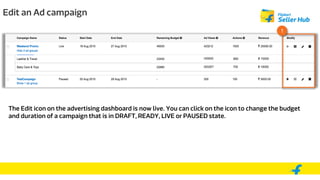
The Edit icon on the advertising dashboard is now live. You can click on the icon to change the budget
and duration of a campaign that is in DRAFT, READY, LIVE or PAUSED state.
Start date is previously set: Edit an Ad campaign
1
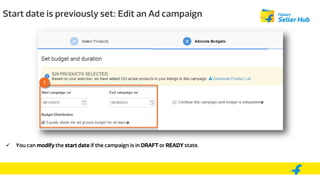
 You can modify the start date if the campaign is in DRAFT or READY state.
1
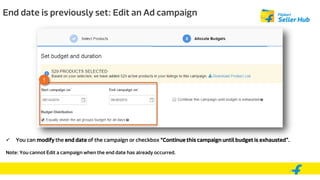
End date is previously set: Edit an Ad campaign
 You can modify the end date of the campaign or checkbox “Continue this campaign until budget is exhausted”.
Note: You cannot Edit a campaign when the end date has already occurred.
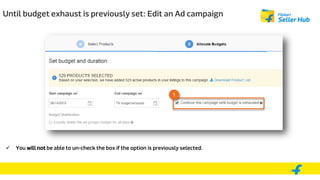
Until budget exhaust is previously set: Edit an Ad campaign
 You will not be able to un-check the box if the option is previously selected.
1
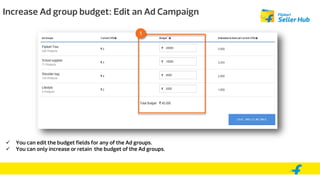
Increase Ad group budget: Edit an Ad Campaign
 You can edit the budget fields for any of the Ad groups.
 You can only increase or retain the budget of the Ad groups.
1
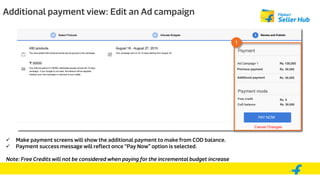
Additional payment view: Edit an Ad campaign
 Make payment screens will show the additional payment to make from COD balance.
 Payment success message will reflect once “Pay Now” option is selected.
Note: Free Credits will not be considered when paying for the incremental budget increase
1
Points to remember
 When budget and duration modifications are made on a paused campaign the status
automatically changes to Live post applications of the changes.
 You cannot edit a campaign when the end date has already occurred.
 In case of only duration change, the additional payment will be shown as ‘0’ and ‘Confirm’ button
needs to be clicked.
Thank You

Editing an ad campaign

  • 1.
  • 2.
    Edit an AdCampaign We have introduced the feature of Editing on-going campaigns, which will enable you to extend the campaigns which are performing well. Now, you will not have to create a fresh campaign to replicate the success. You will be able to edit the following in an Ad Campaign: • Campaign Duration – Start date, End date and Pacing. • Ad group budgets The campaign can be edited while they are in these statuses: • Draft • Ready • Live • Paused
  • 3.
    Edit an Adcampaign 1 The Edit icon on the advertising dashboard is now live. You can click on the icon to change the budget and duration of a campaign that is in DRAFT, READY, LIVE or PAUSED state.
  • 4.
    Start date ispreviously set: Edit an Ad campaign 1  You can modify the start date if the campaign is in DRAFT or READY state.
  • 5.
    1 End date ispreviously set: Edit an Ad campaign  You can modify the end date of the campaign or checkbox “Continue this campaign until budget is exhausted”. Note: You cannot Edit a campaign when the end date has already occurred.
  • 6.
    Until budget exhaustis previously set: Edit an Ad campaign  You will not be able to un-check the box if the option is previously selected. 1
  • 7.
    Increase Ad groupbudget: Edit an Ad Campaign  You can edit the budget fields for any of the Ad groups.  You can only increase or retain the budget of the Ad groups. 1
  • 8.
    Additional payment view:Edit an Ad campaign  Make payment screens will show the additional payment to make from COD balance.  Payment success message will reflect once “Pay Now” option is selected. Note: Free Credits will not be considered when paying for the incremental budget increase 1
  • 9.
    Points to remember When budget and duration modifications are made on a paused campaign the status automatically changes to Live post applications of the changes.  You cannot edit a campaign when the end date has already occurred.  In case of only duration change, the additional payment will be shown as ‘0’ and ‘Confirm’ button needs to be clicked.
  • 10.