DSPACE BASIC CONFIGURATION &
CUSTOMIZATION WITH XMLUI
Bharat M. Chaudhari
Email: openbharat@gmail.com
AGENDA
 Email configurations
 count/strength
 Configuring full text in Indexing
 XMLUI theme Customizations
DSPACE CONFIGURATION
• Email Configuration
- Wording of E-mail Messages
• Display item counts/ strength
DSPACE CONFIGURATION
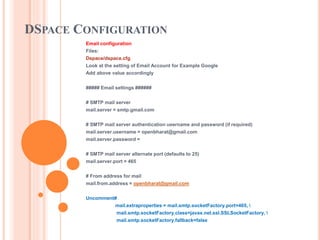
Email configuration
Files:
Dspace/dspace.cfg
Look at the setting of Email Account for Example Google
Add above value accordingly
##### Email settings ######
# SMTP mail server
mail.server = smtp.gmail.com
# SMTP mail server authentication username and password (if required)
mail.server.username = openbharat@gmail.com
mail.server.password =
# SMTP mail server alternate port (defaults to 25)
mail.server.port = 465
# From address for mail
mail.from.address = openbharat@gmail.com
Uncomment#
mail.extraproperties = mail.smtp.socketFactory.port=465, 
mail.smtp.socketFactory.class=javax.net.ssl.SSLSocketFactory, 
mail.smtp.socketFactory.fallback=false
DSPACE CONFIGURATION
WORDING OF E-MAIL MESSAGES
Sometimes DSpace automatically sends e-mail messages to users, for
example, to inform them of a new work flow task, or as a subscription e-
mail alert. The wording of emails can be changed by editing the relevant
file in [dspace]/config/emails . Each file is commented. Be careful to keep
the right number 'placeholders' (e.g.{2}).
Note: You should replace the contact-information "dspace-help@myu.edu
or call us at xxx-555-xxxx" with your own contact details in:
config/emails/change_password
config/emails/register
DSPACE CONFIGURATION
SETTINGS FOR CONTENT COUNT/STRENGTH INFORMATION
whether to display collection and community strengths
Modify the following line
The default is to count in real time – uncomment both
webui.strengths.show = true (false)
webui.strengths.cache = true (false)
Issue the command….
[dspace]/bin/dspace index-init
•Restart tomcat
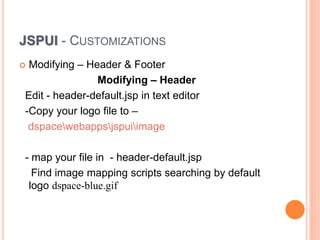
JSPUI - CUSTOMIZATIONS
 Modifying – Header & Footer
Modifying – Header
Edit - header-default.jsp in text editor
-Copy your logo file to –
dspacewebappsjspuiimage
- map your file in - header-default.jsp
Find image mapping scripts searching by default
logo dspace-blue.gif
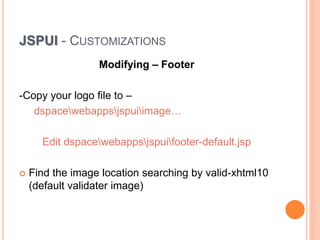
JSPUI - CUSTOMIZATIONS
Modifying – Footer
-Copy your logo file to –
dspacewebappsjspuiimage…
Edit dspacewebappsjspuifooter-default.jsp
 Find the image location searching by valid-xhtml10
(default validater image)
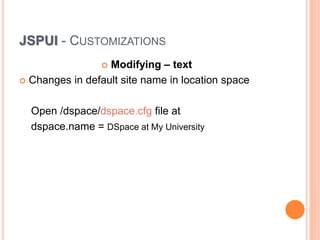
JSPUI - CUSTOMIZATIONS
 Modifying – text
 Changes in default site name in location space
Open /dspace/dspace.cfg file at
dspace.name = DSpace at My University
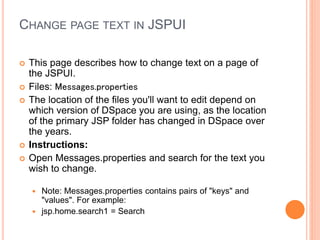
CHANGE PAGE TEXT IN JSPUI
 This page describes how to change text on a page of
the JSPUI.
 Files: Messages.properties
 The location of the files you'll want to edit depend on
which version of DSpace you are using, as the location
of the primary JSP folder has changed in DSpace over
the years.
 Instructions:
 Open Messages.properties and search for the text you
wish to change.
 Note: Messages.properties contains pairs of "keys" and
"values". For example:
 jsp.home.search1 = Search
CHANGE PAGE TEXT IN JSPUI
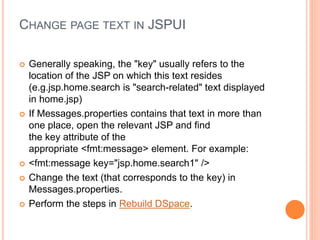
 Generally speaking, the "key" usually refers to the
location of the JSP on which this text resides
(e.g.jsp.home.search is "search-related" text displayed
in home.jsp)
 If Messages.properties contains that text in more than
one place, open the relevant JSP and find
the key attribute of the
appropriate <fmt:message> element. For example:
 <fmt:message key="jsp.home.search1" />
 Change the text (that corresponds to the key) in
Messages.properties.
 Perform the steps in Rebuild DSpace.
CHANGE PAGE TEXT IN JSPUI
 Open a command prompt (if you don't have one
already), and cd [dspace-source]/dspace/
 mvn package (recompiles all DSpace code and rebuilds
the DSpace installation package)
 cd [dspace-source]/dspace/target/dspace-[version]-
build.dir/ (move into the targetdirectory where DSpace
has been rebuilt)
 ant update (updates your DSpace install based on the
newly built content in your targetdirectory)
 Alternatively, if you do not need to reinstall JAR files, you
could instead run ant update_webapps (which just copies
over web application changes to your [dspace])
 Test your changes in DSpace
CONFIGURING FULL TEXT INDEXING
(FILE SEARCH PDF, WORD, TEXT, HTML)
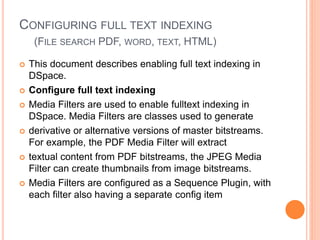
 This document describes enabling full text indexing in
DSpace.
 Configure full text indexing
 Media Filters are used to enable fulltext indexing in
DSpace. Media Filters are classes used to generate
 derivative or alternative versions of master bitstreams.
For example, the PDF Media Filter will extract
 textual content from PDF bitstreams, the JPEG Media
Filter can create thumbnails from image bitstreams.
 Media Filters are configured as a Sequence Plugin, with
each filter also having a separate config item
CONFIGURING FULL TEXT INDEXING
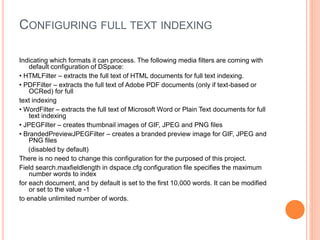
Indicating which formats it can process. The following media filters are coming with
default configuration of DSpace:
• HTMLFilter – extracts the full text of HTML documents for full text indexing.
• PDFFilter – extracts the full text of Adobe PDF documents (only if text-based or
OCRed) for full
text indexing
• WordFilter – extracts the full text of Microsoft Word or Plain Text documents for full
text indexing
• JPEGFilter – creates thumbnail images of GIF, JPEG and PNG files
• BrandedPreviewJPEGFilter – creates a branded preview image for GIF, JPEG and
PNG files
(disabled by default)
There is no need to change this configuration for the purposed of this project.
Field search.maxfieldlength in dspace.cfg configuration file specifies the maximum
number words to index
for each document, and by default is set to the first 10,000 words. It can be modified
or set to the value -1
to enable unlimited number of words.
CONFIGURING FULL TEXT INDEXING
 Running full text indexing and configuring the
script to run it regularly
 In DSpace, “media filters” are what control both full-
text indexing and automated creation of thumbnail
 images. Both can be scheduled by calling the filter-
media script.
 To run the filter-media script execute the following
command:
[dspace]/bin/filter-media
[dspace]/bin/dspace index-init
 Restart Tomcat
TYPES OF SEARCHES…..
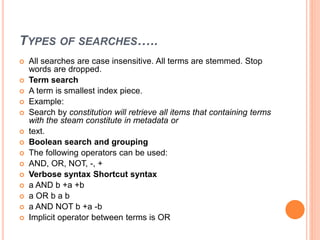
 All searches are case insensitive. All terms are stemmed. Stop
words are dropped.
 Term search
 A term is smallest index piece.
 Example:
 Search by constitution will retrieve all items that containing terms
with the steam constitute in metadata or
 text.
 Boolean search and grouping
 The following operators can be used:
 AND, OR, NOT, -, +
 Verbose syntax Shortcut syntax
 a AND b +a +b
 a OR b a b
 a AND NOT b +a -b
 Implicit operator between terms is OR
TYPES OF SEARCHES…..
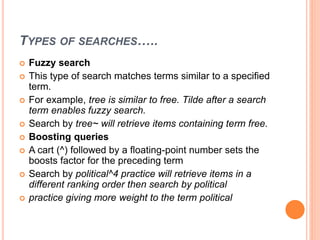
 Fuzzy search
 This type of search matches terms similar to a specified
term.
 For example, tree is similar to free. Tilde after a search
term enables fuzzy search.
 Search by tree~ will retrieve items containing term free.
 Boosting queries
 A cart (^) followed by a floating-point number sets the
boosts factor for the preceding term
 Search by political^4 practice will retrieve items in a
different ranking order then search by political
 practice giving more weight to the term political

Dspace configuration on XMLUI DSpace

  • 1.
    DSPACE BASIC CONFIGURATION& CUSTOMIZATION WITH XMLUI Bharat M. Chaudhari Email: openbharat@gmail.com
  • 2.
    AGENDA  Email configurations count/strength  Configuring full text in Indexing  XMLUI theme Customizations
  • 3.
    DSPACE CONFIGURATION • EmailConfiguration - Wording of E-mail Messages • Display item counts/ strength
  • 4.
    DSPACE CONFIGURATION Email configuration Files: Dspace/dspace.cfg Lookat the setting of Email Account for Example Google Add above value accordingly ##### Email settings ###### # SMTP mail server mail.server = smtp.gmail.com # SMTP mail server authentication username and password (if required) mail.server.username = openbharat@gmail.com mail.server.password = # SMTP mail server alternate port (defaults to 25) mail.server.port = 465 # From address for mail mail.from.address = openbharat@gmail.com Uncomment# mail.extraproperties = mail.smtp.socketFactory.port=465, mail.smtp.socketFactory.class=javax.net.ssl.SSLSocketFactory, mail.smtp.socketFactory.fallback=false
  • 5.
    DSPACE CONFIGURATION WORDING OFE-MAIL MESSAGES Sometimes DSpace automatically sends e-mail messages to users, for example, to inform them of a new work flow task, or as a subscription e- mail alert. The wording of emails can be changed by editing the relevant file in [dspace]/config/emails . Each file is commented. Be careful to keep the right number 'placeholders' (e.g.{2}). Note: You should replace the contact-information "dspace-help@myu.edu or call us at xxx-555-xxxx" with your own contact details in: config/emails/change_password config/emails/register
  • 6.
    DSPACE CONFIGURATION SETTINGS FORCONTENT COUNT/STRENGTH INFORMATION whether to display collection and community strengths Modify the following line The default is to count in real time – uncomment both webui.strengths.show = true (false) webui.strengths.cache = true (false) Issue the command…. [dspace]/bin/dspace index-init •Restart tomcat
  • 7.
    JSPUI - CUSTOMIZATIONS Modifying – Header & Footer Modifying – Header Edit - header-default.jsp in text editor -Copy your logo file to – dspacewebappsjspuiimage - map your file in - header-default.jsp Find image mapping scripts searching by default logo dspace-blue.gif
  • 8.
    JSPUI - CUSTOMIZATIONS Modifying– Footer -Copy your logo file to – dspacewebappsjspuiimage… Edit dspacewebappsjspuifooter-default.jsp  Find the image location searching by valid-xhtml10 (default validater image)
  • 9.
    JSPUI - CUSTOMIZATIONS Modifying – text  Changes in default site name in location space Open /dspace/dspace.cfg file at dspace.name = DSpace at My University
  • 10.
    CHANGE PAGE TEXTIN JSPUI  This page describes how to change text on a page of the JSPUI.  Files: Messages.properties  The location of the files you'll want to edit depend on which version of DSpace you are using, as the location of the primary JSP folder has changed in DSpace over the years.  Instructions:  Open Messages.properties and search for the text you wish to change.  Note: Messages.properties contains pairs of "keys" and "values". For example:  jsp.home.search1 = Search
  • 11.
    CHANGE PAGE TEXTIN JSPUI  Generally speaking, the "key" usually refers to the location of the JSP on which this text resides (e.g.jsp.home.search is "search-related" text displayed in home.jsp)  If Messages.properties contains that text in more than one place, open the relevant JSP and find the key attribute of the appropriate <fmt:message> element. For example:  <fmt:message key="jsp.home.search1" />  Change the text (that corresponds to the key) in Messages.properties.  Perform the steps in Rebuild DSpace.
  • 12.
    CHANGE PAGE TEXTIN JSPUI  Open a command prompt (if you don't have one already), and cd [dspace-source]/dspace/  mvn package (recompiles all DSpace code and rebuilds the DSpace installation package)  cd [dspace-source]/dspace/target/dspace-[version]- build.dir/ (move into the targetdirectory where DSpace has been rebuilt)  ant update (updates your DSpace install based on the newly built content in your targetdirectory)  Alternatively, if you do not need to reinstall JAR files, you could instead run ant update_webapps (which just copies over web application changes to your [dspace])  Test your changes in DSpace
  • 13.
    CONFIGURING FULL TEXTINDEXING (FILE SEARCH PDF, WORD, TEXT, HTML)  This document describes enabling full text indexing in DSpace.  Configure full text indexing  Media Filters are used to enable fulltext indexing in DSpace. Media Filters are classes used to generate  derivative or alternative versions of master bitstreams. For example, the PDF Media Filter will extract  textual content from PDF bitstreams, the JPEG Media Filter can create thumbnails from image bitstreams.  Media Filters are configured as a Sequence Plugin, with each filter also having a separate config item
  • 14.
    CONFIGURING FULL TEXTINDEXING Indicating which formats it can process. The following media filters are coming with default configuration of DSpace: • HTMLFilter – extracts the full text of HTML documents for full text indexing. • PDFFilter – extracts the full text of Adobe PDF documents (only if text-based or OCRed) for full text indexing • WordFilter – extracts the full text of Microsoft Word or Plain Text documents for full text indexing • JPEGFilter – creates thumbnail images of GIF, JPEG and PNG files • BrandedPreviewJPEGFilter – creates a branded preview image for GIF, JPEG and PNG files (disabled by default) There is no need to change this configuration for the purposed of this project. Field search.maxfieldlength in dspace.cfg configuration file specifies the maximum number words to index for each document, and by default is set to the first 10,000 words. It can be modified or set to the value -1 to enable unlimited number of words.
  • 15.
    CONFIGURING FULL TEXTINDEXING  Running full text indexing and configuring the script to run it regularly  In DSpace, “media filters” are what control both full- text indexing and automated creation of thumbnail  images. Both can be scheduled by calling the filter- media script.  To run the filter-media script execute the following command: [dspace]/bin/filter-media [dspace]/bin/dspace index-init  Restart Tomcat
  • 16.
    TYPES OF SEARCHES….. All searches are case insensitive. All terms are stemmed. Stop words are dropped.  Term search  A term is smallest index piece.  Example:  Search by constitution will retrieve all items that containing terms with the steam constitute in metadata or  text.  Boolean search and grouping  The following operators can be used:  AND, OR, NOT, -, +  Verbose syntax Shortcut syntax  a AND b +a +b  a OR b a b  a AND NOT b +a -b  Implicit operator between terms is OR
  • 17.
    TYPES OF SEARCHES….. Fuzzy search  This type of search matches terms similar to a specified term.  For example, tree is similar to free. Tilde after a search term enables fuzzy search.  Search by tree~ will retrieve items containing term free.  Boosting queries  A cart (^) followed by a floating-point number sets the boosts factor for the preceding term  Search by political^4 practice will retrieve items in a different ranking order then search by political  practice giving more weight to the term political