Dropbox To SharePoint Migration
INTRODUCTION
Is your company planning to migrate Dropbox files to SharePoint? As an IT admin, your
responsibilities can include choosing the right migration service/tool, and completing the
migration project quickly and securely.
CloudFuze is one of the very few tools on the market that supports Dropbox to SharePoint
migration for MSPs, Enterprises, and SMBs, besides OneDrive for Business.
MIGRATION CHALLENGES
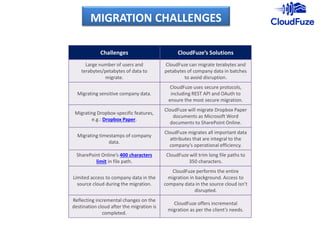
Challenges CloudFuze’s Solutions
Large number of users and
terabytes/petabytes of data to
migrate.
CloudFuze can migrate terabytes and
petabytes of company data in batches
to avoid disruption.
Migrating sensitive company data.
CloudFuze uses secure protocols,
including REST API and OAuth to
ensure the most secure migration.
Migrating Dropbox-specific features,
e.g.: Dropbox Paper.
CloudFuze will migrate Dropbox Paper
documents as Microsoft Word
documents to SharePoint Online.
Migrating timestamps of company
data.
CloudFuze migrates all important data
attributes that are integral to the
company’s operational efficiency.
SharePoint Online’s 400 characters
limit in file path.
CloudFuze will trim long file paths to
350 characters.
Limited access to company data in the
source cloud during the migration.
CloudFuze performs the entire
migration in background. Access to
company data in the source cloud isn’t
disrupted.
Reflecting incremental changes on the
destination cloud after the migration is
completed.
CloudFuze offers incremental
migration as per the client’s needs.
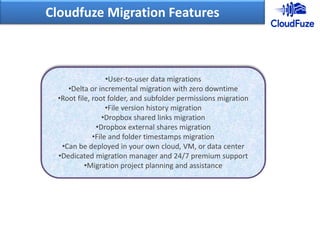
Cloudfuze Migration Features
•User-to-user data migrations
•Delta or incremental migration with zero downtime
•Root file, root folder, and subfolder permissions migration
•File version history migration
•Dropbox shared links migration
•Dropbox external shares migration
•File and folder timestamps migration
•Can be deployed in your own cloud, VM, or data center
•Dedicated migration manager and 24/7 premium support
•Migration project planning and assistance
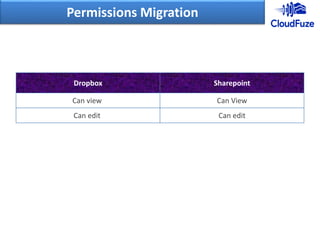
Permissions Migration
Dropbox Sharepoint
Can view Can View
Can edit Can edit
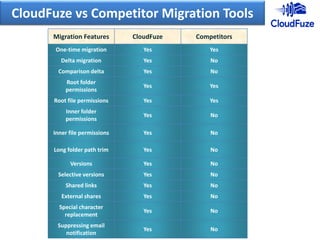
CloudFuze vs Competitor Migration Tools
Migration Features CloudFuze Competitors
One-time migration Yes Yes
Delta migration Yes No
Comparison delta Yes No
Root folder
permissions
Yes Yes
Root file permissions Yes Yes
Inner folder
permissions
Yes No
Inner file permissions Yes No
Long folder path trim Yes No
Versions Yes No
Selective versions Yes No
Shared links Yes No
External shares Yes No
Special character
replacement
Yes No
Suppressing email
notification
Yes No
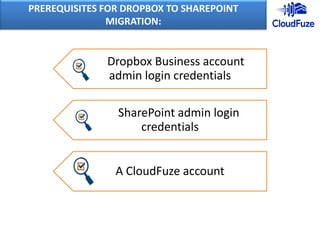
PREREQUISITES FOR DROPBOX TO SHAREPOINT
MIGRATION:
Dropbox Business account
admin login credentials
SharePoint admin login
credentials
A CloudFuze account
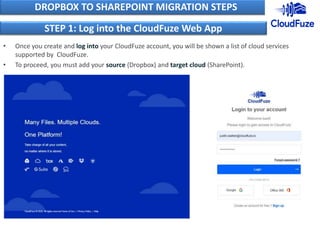
• Once you create and log into your CloudFuze account, you will be shown a list of cloud services
supported by CloudFuze.
• To proceed, you must add your source (Dropbox) and target cloud (SharePoint).
DROPBOX TO SHAREPOINT MIGRATION STEPS
STEP 1: Log into the CloudFuze Web App
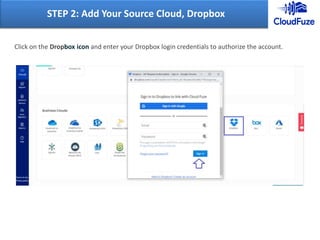
Click on the Dropbox icon and enter your Dropbox login credentials to authorize the account.
STEP 2: Add Your Source Cloud, Dropbox
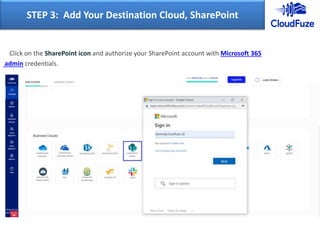
Click on the SharePoint icon and authorize your SharePoint account with Microsoft 365
admin credentials.
STEP 3: Add Your Destination Cloud, SharePoint
Click on the “Clouds” icon in the app’s navigation menu. Then go to the “Manage Clouds” tab. Check
whether both Dropbox and SharePoint accounts are displayed.
STEP 4: Validate the Cloud Addition Process
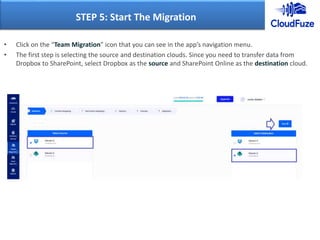
• Click on the “Team Migration” icon that you can see in the app’s navigation menu.
• The first step is selecting the source and destination clouds. Since you need to transfer data from
Dropbox to SharePoint, select Dropbox as the source and SharePoint Online as the destination cloud.
STEP 5: Start The Migration
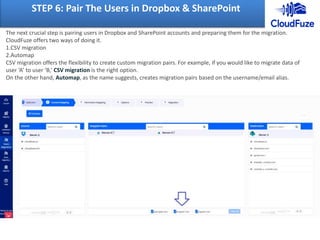
STEP 6: Pair The Users in Dropbox & SharePoint
The next crucial step is pairing users in Dropbox and SharePoint accounts and preparing them for the migration.
CloudFuze offers two ways of doing it.
1.CSV migration
2.Automap
CSV migration offers the flexibility to create custom migration pairs. For example, if you would like to migrate data of
user ‘A’ to user ‘B,’ CSV migration is the right option.
On the other hand, Automap, as the name suggests, creates migration pairs based on the username/email alias.
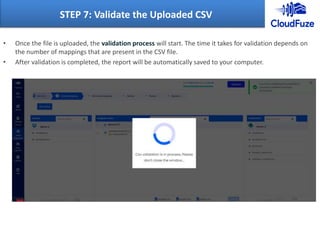
• Once the file is uploaded, the validation process will start. The time it takes for validation depends on
the number of mappings that are present in the CSV file.
• After validation is completed, the report will be automatically saved to your computer.
STEP 7: Validate the Uploaded CSV
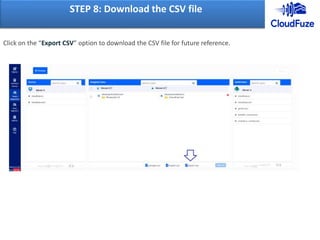
Click on the “Export CSV” option to download the CSV file for future reference.
STEP 8: Download the CSV file
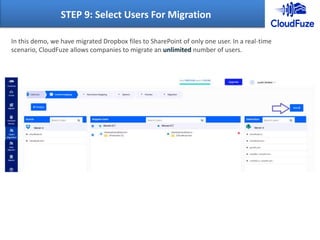
STEP 9: Select Users For Migration
In this demo, we have migrated Dropbox files to SharePoint of only one user. In a real-time
scenario, CloudFuze allows companies to migrate an unlimited number of users.
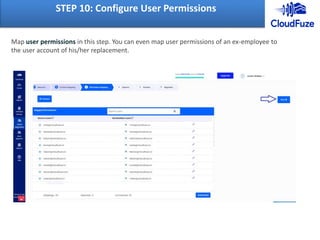
STEP 10: Configure User Permissions
Map user permissions in this step. You can even map user permissions of an ex-employee to
the user account of his/her replacement.
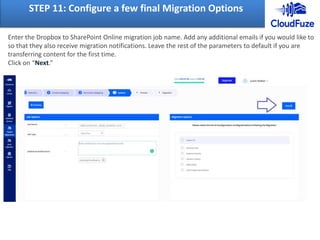
STEP 11: Configure a few final Migration Options
Enter the Dropbox to SharePoint Online migration job name. Add any additional emails if you would like to
so that they also receive migration notifications. Leave the rest of the parameters to default if you are
transferring content for the first time.
Click on “Next.”
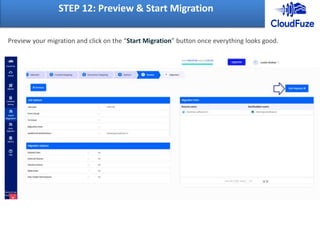
STEP 12: Preview & Start Migration
Preview your migration and click on the “Start Migration” button once everything looks good.
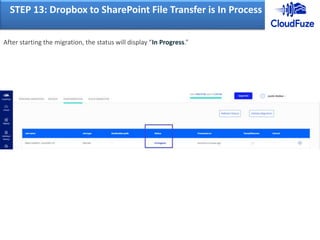
STEP 13: Dropbox to SharePoint File Transfer is In Process
After starting the migration, the status will display “In Progress.”
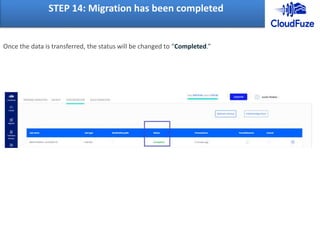
STEP 14: Migration has been completed
Once the data is transferred, the status will be changed to “Completed.”
1. Does CloudFuze migrate permissions from Dropbox to SharePoint?
Yes, CloudFuze migrates sharing permissions besides data. Learn more here.
2. What will be the speed of Dropbox to SharePoint Online migration?
Speed of migration depends on several factors such as the number of users, overall size of the data, the
average size of the files in your company’s Dropbox account, folder structure, etc.
3. How secure will our company’s data be?
Your company’s data is totally secure. CloudFuze uses OAuth and API calls to migrate data from Dropbox
to SharePoint. Neither CloudFuze app nor its employees can access your company’s data.
4. Where can I read more about CloudFuze security?
Please go to CloudFuze’s security overview.
5. How much does it cost to migrate from Dropbox to SharePoint?
Pricing depends upon the number of users and the total size of data in your Dropbox account.
Please contact us for pricing.
FAQs
Ready to Migrate from Dropbox to SharePoint?
Contact Us| Read Dropbox to SharePoint guide
800 Park Offices Drive, Suite 3416 RTP, NC
27709
Email: support@cloudfuze.com
Website : https://www.cloudfuze.com/

Dropbox to Sharepoint

  • 1.
  • 2.
    INTRODUCTION Is your companyplanning to migrate Dropbox files to SharePoint? As an IT admin, your responsibilities can include choosing the right migration service/tool, and completing the migration project quickly and securely. CloudFuze is one of the very few tools on the market that supports Dropbox to SharePoint migration for MSPs, Enterprises, and SMBs, besides OneDrive for Business.
  • 3.
    MIGRATION CHALLENGES Challenges CloudFuze’sSolutions Large number of users and terabytes/petabytes of data to migrate. CloudFuze can migrate terabytes and petabytes of company data in batches to avoid disruption. Migrating sensitive company data. CloudFuze uses secure protocols, including REST API and OAuth to ensure the most secure migration. Migrating Dropbox-specific features, e.g.: Dropbox Paper. CloudFuze will migrate Dropbox Paper documents as Microsoft Word documents to SharePoint Online. Migrating timestamps of company data. CloudFuze migrates all important data attributes that are integral to the company’s operational efficiency. SharePoint Online’s 400 characters limit in file path. CloudFuze will trim long file paths to 350 characters. Limited access to company data in the source cloud during the migration. CloudFuze performs the entire migration in background. Access to company data in the source cloud isn’t disrupted. Reflecting incremental changes on the destination cloud after the migration is completed. CloudFuze offers incremental migration as per the client’s needs.
  • 4.
    Cloudfuze Migration Features •User-to-userdata migrations •Delta or incremental migration with zero downtime •Root file, root folder, and subfolder permissions migration •File version history migration •Dropbox shared links migration •Dropbox external shares migration •File and folder timestamps migration •Can be deployed in your own cloud, VM, or data center •Dedicated migration manager and 24/7 premium support •Migration project planning and assistance
  • 5.
    Permissions Migration Dropbox Sharepoint Canview Can View Can edit Can edit
  • 6.
    CloudFuze vs CompetitorMigration Tools Migration Features CloudFuze Competitors One-time migration Yes Yes Delta migration Yes No Comparison delta Yes No Root folder permissions Yes Yes Root file permissions Yes Yes Inner folder permissions Yes No Inner file permissions Yes No Long folder path trim Yes No Versions Yes No Selective versions Yes No Shared links Yes No External shares Yes No Special character replacement Yes No Suppressing email notification Yes No
  • 7.
    PREREQUISITES FOR DROPBOXTO SHAREPOINT MIGRATION: Dropbox Business account admin login credentials SharePoint admin login credentials A CloudFuze account
  • 8.
    • Once youcreate and log into your CloudFuze account, you will be shown a list of cloud services supported by CloudFuze. • To proceed, you must add your source (Dropbox) and target cloud (SharePoint). DROPBOX TO SHAREPOINT MIGRATION STEPS STEP 1: Log into the CloudFuze Web App
  • 9.
    Click on theDropbox icon and enter your Dropbox login credentials to authorize the account. STEP 2: Add Your Source Cloud, Dropbox
  • 10.
    Click on theSharePoint icon and authorize your SharePoint account with Microsoft 365 admin credentials. STEP 3: Add Your Destination Cloud, SharePoint
  • 11.
    Click on the“Clouds” icon in the app’s navigation menu. Then go to the “Manage Clouds” tab. Check whether both Dropbox and SharePoint accounts are displayed. STEP 4: Validate the Cloud Addition Process
  • 12.
    • Click onthe “Team Migration” icon that you can see in the app’s navigation menu. • The first step is selecting the source and destination clouds. Since you need to transfer data from Dropbox to SharePoint, select Dropbox as the source and SharePoint Online as the destination cloud. STEP 5: Start The Migration
  • 13.
    STEP 6: PairThe Users in Dropbox & SharePoint The next crucial step is pairing users in Dropbox and SharePoint accounts and preparing them for the migration. CloudFuze offers two ways of doing it. 1.CSV migration 2.Automap CSV migration offers the flexibility to create custom migration pairs. For example, if you would like to migrate data of user ‘A’ to user ‘B,’ CSV migration is the right option. On the other hand, Automap, as the name suggests, creates migration pairs based on the username/email alias.
  • 14.
    • Once thefile is uploaded, the validation process will start. The time it takes for validation depends on the number of mappings that are present in the CSV file. • After validation is completed, the report will be automatically saved to your computer. STEP 7: Validate the Uploaded CSV
  • 15.
    Click on the“Export CSV” option to download the CSV file for future reference. STEP 8: Download the CSV file
  • 16.
    STEP 9: SelectUsers For Migration In this demo, we have migrated Dropbox files to SharePoint of only one user. In a real-time scenario, CloudFuze allows companies to migrate an unlimited number of users.
  • 17.
    STEP 10: ConfigureUser Permissions Map user permissions in this step. You can even map user permissions of an ex-employee to the user account of his/her replacement.
  • 18.
    STEP 11: Configurea few final Migration Options Enter the Dropbox to SharePoint Online migration job name. Add any additional emails if you would like to so that they also receive migration notifications. Leave the rest of the parameters to default if you are transferring content for the first time. Click on “Next.”
  • 19.
    STEP 12: Preview& Start Migration Preview your migration and click on the “Start Migration” button once everything looks good.
  • 20.
    STEP 13: Dropboxto SharePoint File Transfer is In Process After starting the migration, the status will display “In Progress.”
  • 21.
    STEP 14: Migrationhas been completed Once the data is transferred, the status will be changed to “Completed.”
  • 22.
    1. Does CloudFuzemigrate permissions from Dropbox to SharePoint? Yes, CloudFuze migrates sharing permissions besides data. Learn more here. 2. What will be the speed of Dropbox to SharePoint Online migration? Speed of migration depends on several factors such as the number of users, overall size of the data, the average size of the files in your company’s Dropbox account, folder structure, etc. 3. How secure will our company’s data be? Your company’s data is totally secure. CloudFuze uses OAuth and API calls to migrate data from Dropbox to SharePoint. Neither CloudFuze app nor its employees can access your company’s data. 4. Where can I read more about CloudFuze security? Please go to CloudFuze’s security overview. 5. How much does it cost to migrate from Dropbox to SharePoint? Pricing depends upon the number of users and the total size of data in your Dropbox account. Please contact us for pricing. FAQs
  • 23.
    Ready to Migratefrom Dropbox to SharePoint? Contact Us| Read Dropbox to SharePoint guide 800 Park Offices Drive, Suite 3416 RTP, NC 27709 Email: support@cloudfuze.com Website : https://www.cloudfuze.com/