www.cybrosys.com
Docparser Integration with
Odoo ERP
INTRODUCTION
• Docparser is a well-known third party application for document analysis. It's based on
Lisp systems and a great tool to analyze a number of documents in a specified manner.
In other words, when we need well-structured data information’s (e.g. Date, Register
Number, Date, Address,) from a number of pdfs, we can use Docparser to parse it so
easily. It can be integrated with trending ERP solutions like Odoo for document
analysis. These blogs describe Docparser usage and its integration with Odoo using
python api calls.
• To use Docparser, we have to define a parser and it consists of one or more parsing rules to
handle the incoming documents. Parser rules are nothing but a position with its data type. It
can be defined based on the way of output data. So basic thing is that we can upload a number
of the document to Docparser and retrieve (with the help of parser) the data as per our needs.
• The user can define some rules for fetching data from an uploaded document. Normally this
can be defined by the user by selecting an area on an uploaded document from the document
parser user interface. This parser rule will save the positions with custom label and when a
document comes to parse, it will fetch the data from input document based on the selected
position and it will save the content to the user defined label (if data exist in that area). A
number of parsing rules can configure under a single parser.
• These are the moto engines in Docparser. Parsers may exist a number of parsing rules. The user
can configure the number of parsers based on their usage. Docparser has their own
inbuilt/ready-made general purpose parser like invoice parser.
e.g. for parsers:
* Invoice Details Parser
* Student Details Parser
* Etc.
• Now, we are going through Docparser account creation & the parser creation:
We can create a Docparser account for free of cost with a username and password. After
that, we have to create a parser.
1) Create Parser:
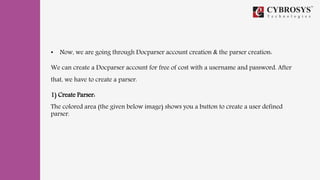
The colored area (the given below image) shows you a button to create a user defined
parser.
Image 1: Creating User defined Parser.
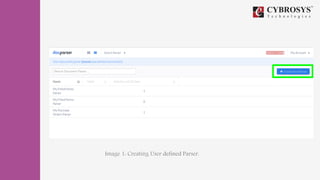
Then, we can select any inbuilt type for our parser or select the “Miscellaneous” as below.
Image 2: Selecting Parser type and naming (e.g.: Applicant Mark sheet).
2) Upload File:
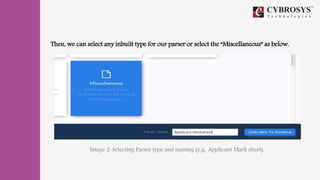
This is the next step, we have to upload a model document to create parsing rules.
Image 3: Uploading Documents
3) Create Parsing Rule:
We created a parser here (Image 1). Now as we mentioned earlier, we have to define some
parsing rules for the parser. Here we can select the type of rule. Let's go through with an
example.
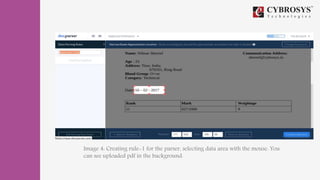
Eg: Extracting Date field from Uploaded Document:
Image 4: Creating rule-1 for the parser, selecting data area with the mouse. You
can see uploaded pdf in the background.
As above, we can create so many rules as per our needs, Here we created.
+ Rule 1: Application Date (image 4)
+ Rule 2: Applicant (follow activities just like image 4 by selecting “Name” area)
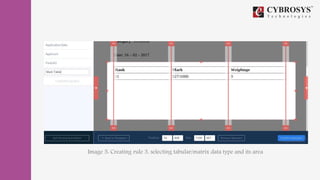
+ Rule 3: Mark Table (This is a tabular data, see the image below)
Image 5: Creating rule 3, selecting tabular/matrix data type and its area
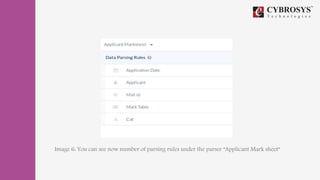
Image 6: You can see now number of parsing rules under the parser “Applicant Mark sheet”
4) Download the Output Data:
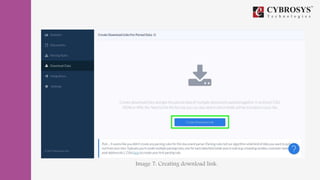
This is the next step, getting output from the Docparser. So we have to click on “Create
Download Link” button from the Download Data window.
Image 7: Creating download link.
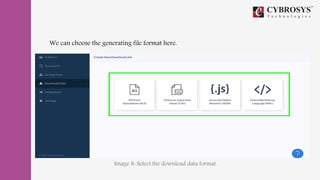
We can choose the generating file format here.
Image 8: Select the download data format.
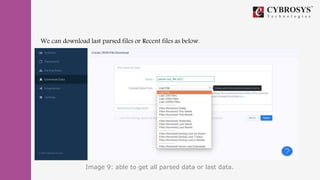
We can download last parsed files or Recent files as below.
Image 9: able to get all parsed data or last data.
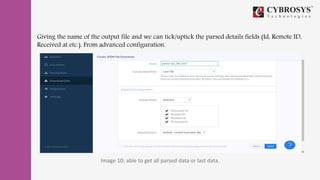
Giving the name of the output file and we can tick/uptick the parsed details fields (Id, Remote ID,
Received at etc.). From advanced configuration.
Image 10: able to get all parsed data or last data.
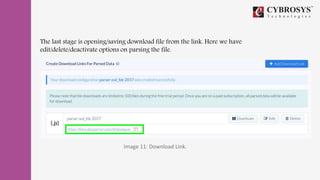
The last stage is opening/saving download file from the link. Here we have
edit/delete/deactivate options on parsing the file.
Image 11: Download Link.
So, Here we can conclude the Docparser working as below:
+ Login to Docparser.
+ Create a parser.
+ Upload document.
+ Define parsing rules over the uploaded document.
+ Get the output in the desired format.
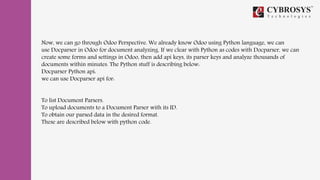
Now, we can go through Odoo Perspective. We already know Odoo using Python language, we can
use Docparser in Odoo for document analyzing. If we clear with Python as codes with Docparser, we can
create some forms and settings in Odoo, then add api keys, its parser keys and analyze thousands of
documents within minutes. The Python stuff is describing below:
Docparser Python api:
we can use Docparser api for:
To list Document Parsers.
To upload documents to a Document Parser with its ID.
To obtain our parsed data in the desired format.
These are described below with python code.
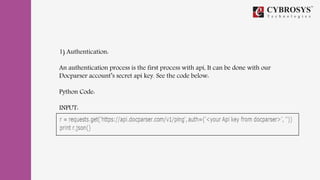
1) Authentication:
An authentication process is the first process with api, It can be done with our
Docparser account’s secret api key. See the code below:
Python Code:
INPUT:
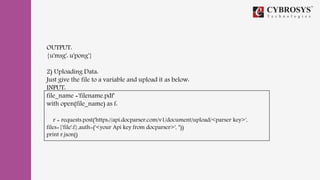
OUTPUT:
{u'msg': u'pong'}
2) Uploading Data:
Just give the file to a variable and upload it as below:
INPUT:
file_name ='filename.pdf'
with open(file_name) as f:
r = requests.post('https://api.docparser.com/v1/document/upload/<parser key>',
files={'file':f},auth=('<your Api key from docparser>', ''))
print r.json()
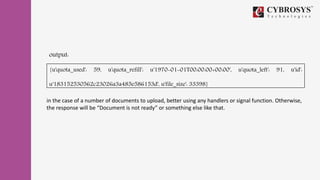
output:
{u'quota_used': 59, u'quota_refill': u'1970-01-01T00:00:00+00:00', u'quota_left': 91, u'id':
u'183152530562c23026a3a485e586153d', u'file_size': 33398}
in the case of a number of documents to upload, better using any handlers or signal function. Otherwise,
the response will be “Document is not ready” or something else like that.
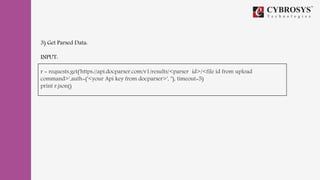
3) Get Parsed Data:
INPUT:
r = requests.get('https://api.docparser.com/v1/results/<parser id>/<file id from upload
command>',auth=('<your Api key from docparser>', ''), timeout=5)
print r.json()
OUTPUT:
"page_count":1,"uploaded_at":"2017-07-29T07:38:46+00:00","processed_at":"2017-07-
29T07:50:41+00:00","application_date":null,"applicant":{"first":":","last":"Nilmar
Shereef"},"mail_id":{"email":"shereef@cybrosys.in"},"mark_table":[{"key_0":"Rank","key_1":"Mark","key_2":"Weightage"
},{"key_0":"11","key_1":"927/1000","key_2":"9"}],"cat":": Technical"}]
These are the basic api operations in Python for managing Docparser. So this blog concludes that Odoo can
use Docparser for document management industry, OMR analysis, feedback marking system, any other
industry that process a wide range of documents for running efficiently and automatically.
Refer this link for more:
https://www.cybrosys.com/blog/doc-parser-integration-with-odoo-erp
Thank You !
Cybrosys Technologies Pvt. Ltd.
Neospace, Kinfra Techno Park,
Kakkancherry,
Calicut University P.O.
Calicut
Kerala, India - 673635.
Cybrosys Ltd
15, ST Antonys Road,
Forest Gate, London
England,
E79QA.
Cybrosys Technologies Pvt. Ltd.
1st Floor, Thapasya Building,
Infopark, Kakkanad,
Kochi, Kerala,
India-682030.

Docparser integration with odoo erp

  • 1.
  • 2.
    INTRODUCTION • Docparser isa well-known third party application for document analysis. It's based on Lisp systems and a great tool to analyze a number of documents in a specified manner. In other words, when we need well-structured data information’s (e.g. Date, Register Number, Date, Address,) from a number of pdfs, we can use Docparser to parse it so easily. It can be integrated with trending ERP solutions like Odoo for document analysis. These blogs describe Docparser usage and its integration with Odoo using python api calls.
  • 3.
    • To useDocparser, we have to define a parser and it consists of one or more parsing rules to handle the incoming documents. Parser rules are nothing but a position with its data type. It can be defined based on the way of output data. So basic thing is that we can upload a number of the document to Docparser and retrieve (with the help of parser) the data as per our needs.
  • 4.
    • The usercan define some rules for fetching data from an uploaded document. Normally this can be defined by the user by selecting an area on an uploaded document from the document parser user interface. This parser rule will save the positions with custom label and when a document comes to parse, it will fetch the data from input document based on the selected position and it will save the content to the user defined label (if data exist in that area). A number of parsing rules can configure under a single parser.
  • 5.
    • These arethe moto engines in Docparser. Parsers may exist a number of parsing rules. The user can configure the number of parsers based on their usage. Docparser has their own inbuilt/ready-made general purpose parser like invoice parser. e.g. for parsers: * Invoice Details Parser * Student Details Parser * Etc.
  • 6.
    • Now, weare going through Docparser account creation & the parser creation: We can create a Docparser account for free of cost with a username and password. After that, we have to create a parser. 1) Create Parser: The colored area (the given below image) shows you a button to create a user defined parser.
  • 7.
    Image 1: CreatingUser defined Parser.
  • 8.
    Then, we canselect any inbuilt type for our parser or select the “Miscellaneous” as below. Image 2: Selecting Parser type and naming (e.g.: Applicant Mark sheet).
  • 9.
    2) Upload File: Thisis the next step, we have to upload a model document to create parsing rules. Image 3: Uploading Documents
  • 10.
    3) Create ParsingRule: We created a parser here (Image 1). Now as we mentioned earlier, we have to define some parsing rules for the parser. Here we can select the type of rule. Let's go through with an example. Eg: Extracting Date field from Uploaded Document:
  • 11.
    Image 4: Creatingrule-1 for the parser, selecting data area with the mouse. You can see uploaded pdf in the background.
  • 12.
    As above, wecan create so many rules as per our needs, Here we created. + Rule 1: Application Date (image 4) + Rule 2: Applicant (follow activities just like image 4 by selecting “Name” area) + Rule 3: Mark Table (This is a tabular data, see the image below)
  • 13.
    Image 5: Creatingrule 3, selecting tabular/matrix data type and its area
  • 14.
    Image 6: Youcan see now number of parsing rules under the parser “Applicant Mark sheet”
  • 15.
    4) Download theOutput Data: This is the next step, getting output from the Docparser. So we have to click on “Create Download Link” button from the Download Data window.
  • 16.
    Image 7: Creatingdownload link.
  • 17.
    We can choosethe generating file format here. Image 8: Select the download data format.
  • 18.
    We can downloadlast parsed files or Recent files as below. Image 9: able to get all parsed data or last data.
  • 19.
    Giving the nameof the output file and we can tick/uptick the parsed details fields (Id, Remote ID, Received at etc.). From advanced configuration. Image 10: able to get all parsed data or last data.
  • 20.
    The last stageis opening/saving download file from the link. Here we have edit/delete/deactivate options on parsing the file. Image 11: Download Link.
  • 21.
    So, Here wecan conclude the Docparser working as below: + Login to Docparser. + Create a parser. + Upload document. + Define parsing rules over the uploaded document. + Get the output in the desired format.
  • 22.
    Now, we cango through Odoo Perspective. We already know Odoo using Python language, we can use Docparser in Odoo for document analyzing. If we clear with Python as codes with Docparser, we can create some forms and settings in Odoo, then add api keys, its parser keys and analyze thousands of documents within minutes. The Python stuff is describing below: Docparser Python api: we can use Docparser api for: To list Document Parsers. To upload documents to a Document Parser with its ID. To obtain our parsed data in the desired format. These are described below with python code.
  • 23.
    1) Authentication: An authenticationprocess is the first process with api, It can be done with our Docparser account’s secret api key. See the code below: Python Code: INPUT:
  • 24.
    OUTPUT: {u'msg': u'pong'} 2) UploadingData: Just give the file to a variable and upload it as below: INPUT: file_name ='filename.pdf' with open(file_name) as f: r = requests.post('https://api.docparser.com/v1/document/upload/<parser key>', files={'file':f},auth=('<your Api key from docparser>', '')) print r.json()
  • 25.
    output: {u'quota_used': 59, u'quota_refill':u'1970-01-01T00:00:00+00:00', u'quota_left': 91, u'id': u'183152530562c23026a3a485e586153d', u'file_size': 33398} in the case of a number of documents to upload, better using any handlers or signal function. Otherwise, the response will be “Document is not ready” or something else like that.
  • 26.
    3) Get ParsedData: INPUT: r = requests.get('https://api.docparser.com/v1/results/<parser id>/<file id from upload command>',auth=('<your Api key from docparser>', ''), timeout=5) print r.json()
  • 27.
    OUTPUT: "page_count":1,"uploaded_at":"2017-07-29T07:38:46+00:00","processed_at":"2017-07- 29T07:50:41+00:00","application_date":null,"applicant":{"first":":","last":"Nilmar Shereef"},"mail_id":{"email":"shereef@cybrosys.in"},"mark_table":[{"key_0":"Rank","key_1":"Mark","key_2":"Weightage" },{"key_0":"11","key_1":"927/1000","key_2":"9"}],"cat":": Technical"}] These arethe basic api operations in Python for managing Docparser. So this blog concludes that Odoo can use Docparser for document management industry, OMR analysis, feedback marking system, any other industry that process a wide range of documents for running efficiently and automatically.
  • 28.
    Refer this linkfor more: https://www.cybrosys.com/blog/doc-parser-integration-with-odoo-erp
  • 29.
    Thank You ! CybrosysTechnologies Pvt. Ltd. Neospace, Kinfra Techno Park, Kakkancherry, Calicut University P.O. Calicut Kerala, India - 673635. Cybrosys Ltd 15, ST Antonys Road, Forest Gate, London England, E79QA. Cybrosys Technologies Pvt. Ltd. 1st Floor, Thapasya Building, Infopark, Kakkanad, Kochi, Kerala, India-682030.