HTML Basics
HTML, Text, Images, Tables
6/26/2024 1
Table of Contents
1. Introduction to HTML
• How the Web Works?
• What is a Web Page?
• My First HTML Page
• Basic Tags: Hyperlinks, Images, Formatting
• Headings and Paragraphs
2. HTML in Details
• The <!DOCTYPE> Declaration
• The <head> Section: Title, Meta, Script, Style
6/26/2024 2
Table of Contents
2. HTML in Details
• The <body> Section
• Text Styling and Formatting Tags
• Hyperlinks: <a>, Hyperlinks and Sections
• Images: <img>
• Lists: <ol>, <ul> and <dl>
3. The <div> and <span> elements
4. HTML Tables
5. HTML Forms
3
6/26/2024 3
How the Web Works?
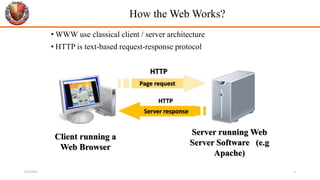
• WWW use classical client / server architecture
• HTTP is text-based request-response protocol
Page request
Client running a
Web Browser
Server running Web
Server Software (e.g
Apache)
Server response
HTTP
HTTP
6/26/2024 4
What is a Web Page?
• Web pages are text files containing HTML
HTML – Hyper Text Markup Language
• The markup tags provide information about the page content structure
6/26/2024 5
Creating HTML Pages
• An HTML file must have.html file extension
• HTML files can be created with text editors:
• NotePad
• Sublime
• Or HTML editors (WYSIWYG Editors):
• Microsoft FrontPage
• Macromedia Dreamweaver
• Visual Studio
6/26/2024 6
HTML Basics
• Text, Images, Tables, Forms
6/26/2024 7
HTML Structure
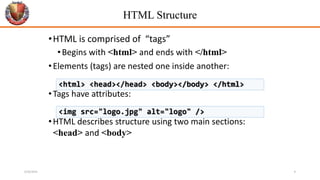
•HTML is comprised of “tags”
•Begins with <html> and ends with </html>
•Elements (tags) are nested one inside another:
•Tags have attributes:
•HTML describes structure using two main sections:
<head> and <body>
<html> <head></head> <body></body> </html>
<img src="logo.jpg" alt="logo" />
6/26/2024 8
First HTML Page
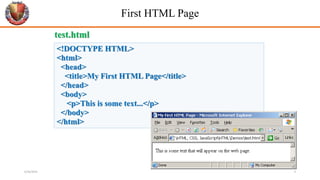
<!DOCTYPE HTML>
<html>
<head>
<title>My First HTML Page</title>
</head>
<body>
<p>This is some text...</p>
</body>
</html>
test.html
6/26/2024 9
<!DOCTYPE HTML>
<html>
<head>
<title>My First HTML Page</title>
</head>
<body>
<p>This is some text...</p>
</body>
</html>
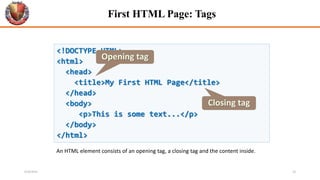
First HTML Page: Tags
Opening tag
Closing tag
An HTML element consists of an opening tag, a closing tag and the content inside.
6/26/2024 10
<!DOCTYPE HTML>
<html>
<head>
<title>My First HTML Page</title>
</head>
<body>
<p>This is some text...</p>
</body>
</html>
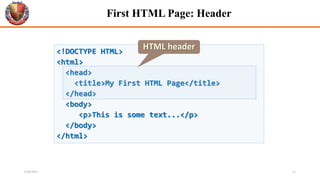
First HTML Page: Header
HTML header
6/26/2024 11
<!DOCTYPE HTML>
<html>
<head>
<title>My First HTML Page</title>
</head>
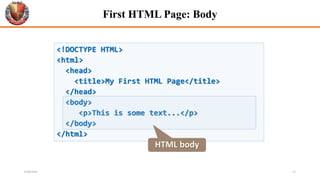
<body>
<p>This is some text...</p>
</body>
</html>
First HTML Page: Body
HTML body
6/26/2024 12
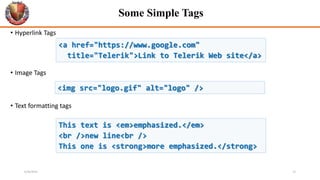
Some Simple Tags
• Hyperlink Tags
• Image Tags
• Text formatting tags
<a href="https://www.google.com"
title="Telerik">Link to Telerik Web site</a>
<img src="logo.gif" alt="logo" />
This text is <em>emphasized.</em>
<br />new line<br />
This one is <strong>more emphasized.</strong>
6/26/2024 13
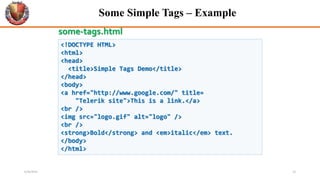
Some Simple Tags – Example
<!DOCTYPE HTML>
<html>
<head>
<title>Simple Tags Demo</title>
</head>
<body>
<a href="http://www.google.com/" title=
"Telerik site">This is a link.</a>
<br />
<img src="logo.gif" alt="logo" />
<br />
<strong>Bold</strong> and <em>italic</em> text.
</body>
</html>
some-tags.html
6/26/2024 14
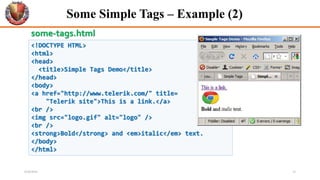
Some Simple Tags – Example (2)
<!DOCTYPE HTML>
<html>
<head>
<title>Simple Tags Demo</title>
</head>
<body>
<a href="http://www.telerik.com/" title=
"Telerik site">This is a link.</a>
<br />
<img src="logo.gif" alt="logo" />
<br />
<strong>Bold</strong> and <em>italic</em> text.
</body>
</html>
some-tags.html
6/26/2024 15
Tags Attributes
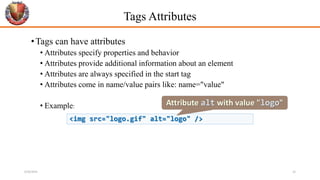
•Tags can have attributes
• Attributes specify properties and behavior
• Attributes provide additional information about an element
• Attributes are always specified in the start tag
• Attributes come in name/value pairs like: name="value"
• Example:
<img src="logo.gif" alt="logo" />
Attribute alt with value "logo"
6/26/2024 16
Headings and Paragraphs
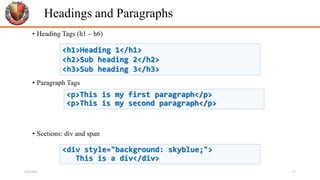
• Heading Tags (h1 – h6)
• Paragraph Tags
• Sections: div and span
<p>This is my first paragraph</p>
<p>This is my second paragraph</p>
<h1>Heading 1</h1>
<h2>Sub heading 2</h2>
<h3>Sub heading 3</h3>
<div style="background: skyblue;">
This is a div</div>
6/26/2024 17
Headings and Paragraphs – Example
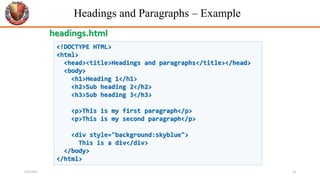
<!DOCTYPE HTML>
<html>
<head><title>Headings and paragraphs</title></head>
<body>
<h1>Heading 1</h1>
<h2>Sub heading 2</h2>
<h3>Sub heading 3</h3>
<p>This is my first paragraph</p>
<p>This is my second paragraph</p>
<div style="background:skyblue">
This is a div</div>
</body>
</html>
headings.html
6/26/2024 18
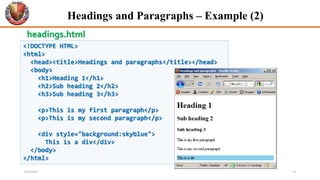
<!DOCTYPE HTML>
<html>
<head><title>Headings and paragraphs</title></head>
<body>
<h1>Heading 1</h1>
<h2>Sub heading 2</h2>
<h3>Sub heading 3</h3>
<p>This is my first paragraph</p>
<p>This is my second paragraph</p>
<div style="background:skyblue">
This is a div</div>
</body>
</html>
Headings and Paragraphs – Example (2)
headings.html
6/26/2024 19
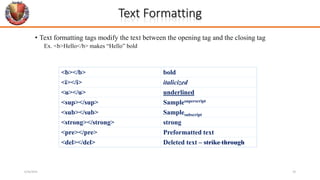
Text Formatting
• Text formatting tags modify the text between the opening tag and the closing tag
Ex. <b>Hello</b> makes “Hello” bold
<b></b> bold
<i></i> italicized
<u></u> underlined
<sup></sup> Samplesuperscript
<sub></sub> Samplesubscript
<strong></strong> strong
<pre></pre> Preformatted text
<del></del> Deleted text – strike through
6/26/2024 20
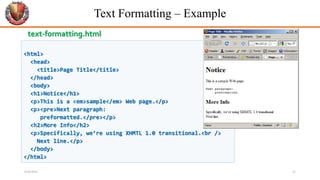
Text Formatting – Example
<html>
<head>
<title>Page Title</title>
</head>
<body>
<h1>Notice</h1>
<p>This is a <em>sample</em> Web page.</p>
<p><pre>Next paragraph:
preformatted.</pre></p>
<h2>More Info</h2>
<p>Specifically, we’re using XHMTL 1.0 transitional.<br />
Next line.</p>
</body>
</html>
text-formatting.html
6/26/2024 21
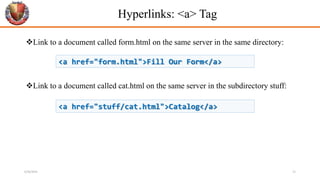
Hyperlinks: <a> Tag
Link to a document called form.html on the same server in the same directory:
Link to a document called cat.html on the same server in the subdirectory stuff:
<a href="form.html">Fill Our Form</a>
<a href="stuff/cat.html">Catalog</a>
6/26/2024 22
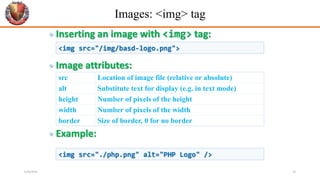
 Inserting an image with <img> tag:
 Image attributes:
 Example:
Images: <img> tag
src Location of image file (relative or absolute)
alt Substitute text for display (e.g. in text mode)
height Number of pixels of the height
width Number of pixels of the width
border Size of border, 0 for no border
<img src="/img/basd-logo.png">
<img src="./php.png" alt="PHP Logo" />
6/26/2024 23
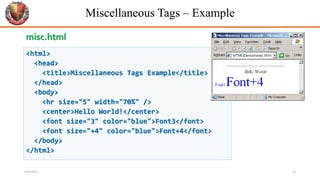
Miscellaneous Tags – Example
<html>
<head>
<title>Miscellaneous Tags Example</title>
</head>
<body>
<hr size="5" width="70%" />
<center>Hello World!</center>
<font size="3" color="blue">Font3</font>
<font size="+4" color="blue">Font+4</font>
</body>
</html>
misc.html
6/26/2024 24
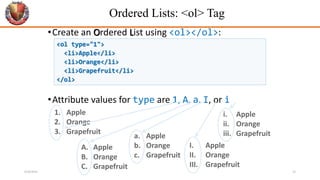
a. Apple
b. Orange
c. Grapefruit
Ordered Lists: <ol> Tag
•Create an Ordered List using <ol></ol>:
•Attribute values for type are 1, A, a, I, or i
1. Apple
2. Orange
3. Grapefruit
A. Apple
B. Orange
C. Grapefruit
I. Apple
II. Orange
III. Grapefruit
i. Apple
ii. Orange
iii. Grapefruit
<ol type="1">
<li>Apple</li>
<li>Orange</li>
<li>Grapefruit</li>
</ol>
6/26/2024 25
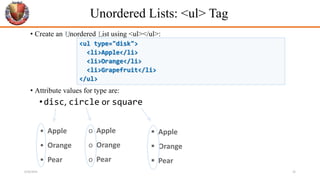
Unordered Lists: <ul> Tag
• Create an Unordered List using <ul></ul>:
• Attribute values for type are:
•disc, circle or square
• Apple
• Orange
• Pear
o Apple
o Orange
o Pear
 Apple
 Orange
 Pear
<ul type="disk">
<li>Apple</li>
<li>Orange</li>
<li>Grapefruit</li>
</ul>
6/26/2024 26
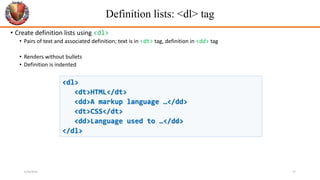
Definition lists: <dl> tag
• Create definition lists using <dl>
• Pairs of text and associated definition; text is in <dt> tag, definition in <dd> tag
• Renders without bullets
• Definition is indented
<dl>
<dt>HTML</dt>
<dd>A markup language …</dd>
<dt>CSS</dt>
<dd>Language used to …</dd>
</dl>
6/26/2024 27
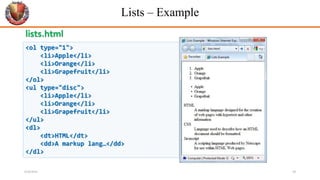
Lists – Example
<ol type="1">
<li>Apple</li>
<li>Orange</li>
<li>Grapefruit</li>
</ol>
<ul type="disc">
<li>Apple</li>
<li>Orange</li>
<li>Grapefruit</li>
</ul>
<dl>
<dt>HTML</dt>
<dd>A markup lang…</dd>
</dl>
lists.html
6/26/2024 28
HTML Tables
6/26/2024 29
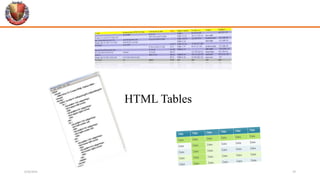
HTML Tables
•Tables represent tabular data
•A table consists of one or several rows
•Each row has one or more columns
•Tables comprised of several core tags: <table></table>: begin / end the
table
<tr></tr>: create a table row
<td></td>: create tabular data (cell)
6/26/2024
HTML Tables (2)
• Start and end of a table
• Start and end of a row
• Start and end of a cell in a row
31
<table> ... </table>
<tr> ... </tr>
<td> ... </td>
6/26/2024
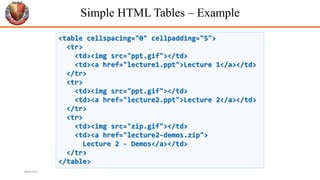
Simple HTML Tables – Example
32
<table cellspacing="0" cellpadding="5">
<tr>
<td><img src="ppt.gif"></td>
<td><a href="lecture1.ppt">Lecture 1</a></td>
</tr>
<tr>
<td><img src="ppt.gif"></td>
<td><a href="lecture2.ppt">Lecture 2</a></td>
</tr>
<tr>
<td><img src="zip.gif"></td>
<td><a href="lecture2-demos.zip">
Lecture 2 - Demos</a></td>
</tr>
</table>
6/26/2024
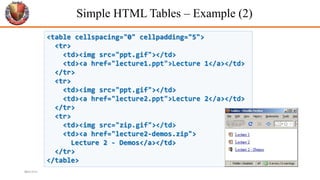
<table cellspacing="0" cellpadding="5">
<tr>
<td><img src="ppt.gif"></td>
<td><a href="lecture1.ppt">Lecture 1</a></td>
</tr>
<tr>
<td><img src="ppt.gif"></td>
<td><a href="lecture2.ppt">Lecture 2</a></td>
</tr>
<tr>
<td><img src="zip.gif"></td>
<td><a href="lecture2-demos.zip">
Lecture 2 - Demos</a></td>
</tr>
</table>
Simple HTML Tables – Example (2)
33
6/26/2024
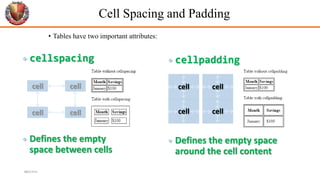
 cellpadding
 Defines the empty space
around the cell content
 cellspacing
 Defines the empty
space between cells
Cell Spacing and Padding
• Tables have two important attributes:
34
cell cell
cell cell
cell
cell
cell
cell
6/26/2024
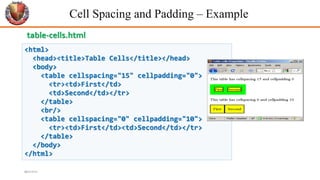
Cell Spacing and Padding – Example
35
<html>
<head><title>Table Cells</title></head>
<body>
<table cellspacing="15" cellpadding="0">
<tr><td>First</td>
<td>Second</td></tr>
</table>
<br/>
<table cellspacing="0" cellpadding="10">
<tr><td>First</td><td>Second</td></tr>
</table>
</body>
</html>
table-cells.html
6/26/2024
6/26/2024 36
HTML Task
HTML Forms
Entering User Data from a Web Page
6/26/2024 37
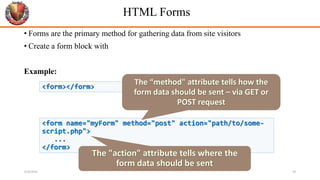
HTML Forms
• Forms are the primary method for gathering data from site visitors
• Create a form block with
Example:
<form></form>
<form name="myForm" method="post" action="path/to/some-
script.php">
...
</form>
The "action" attribute tells where the
form data should be sent
The “method" attribute tells how the
form data should be sent – via GET or
POST request
6/26/2024 38
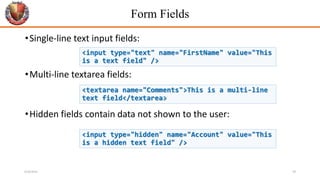
Form Fields
•Single-line text input fields:
•Multi-line textarea fields:
•Hidden fields contain data not shown to the user:
<input type="text" name="FirstName" value="This
is a text field" />
<textarea name="Comments">This is a multi-line
text field</textarea>
<input type="hidden" name="Account" value="This
is a hidden text field" />
6/26/2024 39
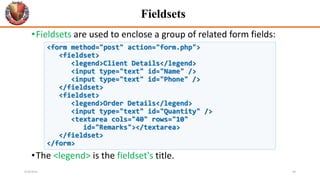
Fieldsets
•Fieldsets are used to enclose a group of related form fields:
•The <legend> is the fieldset's title.
<form method="post" action="form.php">
<fieldset>
<legend>Client Details</legend>
<input type="text" id="Name" />
<input type="text" id="Phone" />
</fieldset>
<fieldset>
<legend>Order Details</legend>
<input type="text" id="Quantity" />
<textarea cols="40" rows="10"
id="Remarks"></textarea>
</fieldset>
</form>
6/26/2024 40
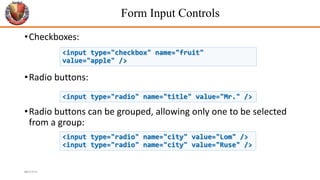
Form Input Controls
•Checkboxes:
•Radio buttons:
•Radio buttons can be grouped, allowing only one to be selected
from a group:
41
<input type="checkbox" name="fruit"
value="apple" />
<input type="radio" name="title" value="Mr." />
<input type="radio" name="city" value="Lom" />
<input type="radio" name="city" value="Ruse" />
6/26/2024
Other Form Controls
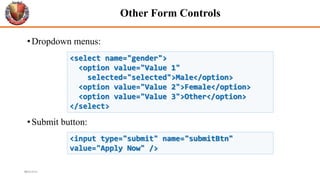
•Dropdown menus:
•Submit button:
42
<select name="gender">
<option value="Value 1"
selected="selected">Male</option>
<option value="Value 2">Female</option>
<option value="Value 3">Other</option>
</select>
<input type="submit" name="submitBtn"
value="Apply Now" />
6/26/2024
Other Form Controls (2)
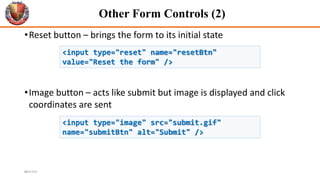
•Reset button – brings the form to its initial state
•Image button – acts like submit but image is displayed and click
coordinates are sent
43
<input type="reset" name="resetBtn"
value="Reset the form" />
<input type="image" src="submit.gif"
name="submitBtn" alt="Submit" />
6/26/2024
Other Form Controls (3)
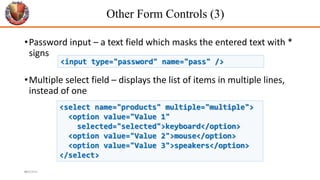
•Password input – a text field which masks the entered text with *
signs
•Multiple select field – displays the list of items in multiple lines,
instead of one
44
<input type="password" name="pass" />
<select name="products" multiple="multiple">
<option value="Value 1"
selected="selected">keyboard</option>
<option value="Value 2">mouse</option>
<option value="Value 3">speakers</option>
</select>
6/26/2024
Other Form Controls (4)
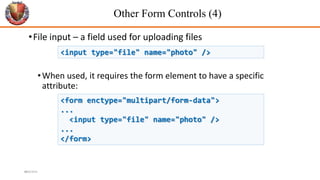
•File input – a field used for uploading files
•When used, it requires the form element to have a specific
attribute:
45
<input type="file" name="photo" />
<form enctype="multipart/form-data">
...
<input type="file" name="photo" />
...
</form>
6/26/2024
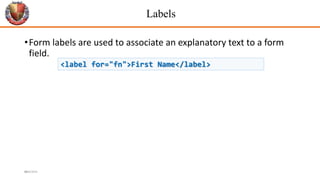
Labels
•Form labels are used to associate an explanatory text to a form
field.
46
<label for="fn">First Name</label>
6/26/2024
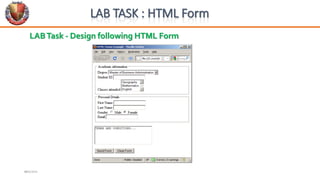
LABTask - Design following HTML Form
47
LAB TASK : HTML Form
6/26/2024

Database System Html Basics Complete Topic.pptx

  • 1.
    HTML Basics HTML, Text,Images, Tables 6/26/2024 1
  • 2.
    Table of Contents 1.Introduction to HTML • How the Web Works? • What is a Web Page? • My First HTML Page • Basic Tags: Hyperlinks, Images, Formatting • Headings and Paragraphs 2. HTML in Details • The <!DOCTYPE> Declaration • The <head> Section: Title, Meta, Script, Style 6/26/2024 2
  • 3.
    Table of Contents 2.HTML in Details • The <body> Section • Text Styling and Formatting Tags • Hyperlinks: <a>, Hyperlinks and Sections • Images: <img> • Lists: <ol>, <ul> and <dl> 3. The <div> and <span> elements 4. HTML Tables 5. HTML Forms 3 6/26/2024 3
  • 4.
    How the WebWorks? • WWW use classical client / server architecture • HTTP is text-based request-response protocol Page request Client running a Web Browser Server running Web Server Software (e.g Apache) Server response HTTP HTTP 6/26/2024 4
  • 5.
    What is aWeb Page? • Web pages are text files containing HTML HTML – Hyper Text Markup Language • The markup tags provide information about the page content structure 6/26/2024 5
  • 6.
    Creating HTML Pages •An HTML file must have.html file extension • HTML files can be created with text editors: • NotePad • Sublime • Or HTML editors (WYSIWYG Editors): • Microsoft FrontPage • Macromedia Dreamweaver • Visual Studio 6/26/2024 6
  • 7.
    HTML Basics • Text,Images, Tables, Forms 6/26/2024 7
  • 8.
    HTML Structure •HTML iscomprised of “tags” •Begins with <html> and ends with </html> •Elements (tags) are nested one inside another: •Tags have attributes: •HTML describes structure using two main sections: <head> and <body> <html> <head></head> <body></body> </html> <img src="logo.jpg" alt="logo" /> 6/26/2024 8
  • 9.
    First HTML Page <!DOCTYPEHTML> <html> <head> <title>My First HTML Page</title> </head> <body> <p>This is some text...</p> </body> </html> test.html 6/26/2024 9
  • 10.
    <!DOCTYPE HTML> <html> <head> <title>My FirstHTML Page</title> </head> <body> <p>This is some text...</p> </body> </html> First HTML Page: Tags Opening tag Closing tag An HTML element consists of an opening tag, a closing tag and the content inside. 6/26/2024 10
  • 11.
    <!DOCTYPE HTML> <html> <head> <title>My FirstHTML Page</title> </head> <body> <p>This is some text...</p> </body> </html> First HTML Page: Header HTML header 6/26/2024 11
  • 12.
    <!DOCTYPE HTML> <html> <head> <title>My FirstHTML Page</title> </head> <body> <p>This is some text...</p> </body> </html> First HTML Page: Body HTML body 6/26/2024 12
  • 13.
    Some Simple Tags •Hyperlink Tags • Image Tags • Text formatting tags <a href="https://www.google.com" title="Telerik">Link to Telerik Web site</a> <img src="logo.gif" alt="logo" /> This text is <em>emphasized.</em> <br />new line<br /> This one is <strong>more emphasized.</strong> 6/26/2024 13
  • 14.
    Some Simple Tags– Example <!DOCTYPE HTML> <html> <head> <title>Simple Tags Demo</title> </head> <body> <a href="http://www.google.com/" title= "Telerik site">This is a link.</a> <br /> <img src="logo.gif" alt="logo" /> <br /> <strong>Bold</strong> and <em>italic</em> text. </body> </html> some-tags.html 6/26/2024 14
  • 15.
    Some Simple Tags– Example (2) <!DOCTYPE HTML> <html> <head> <title>Simple Tags Demo</title> </head> <body> <a href="http://www.telerik.com/" title= "Telerik site">This is a link.</a> <br /> <img src="logo.gif" alt="logo" /> <br /> <strong>Bold</strong> and <em>italic</em> text. </body> </html> some-tags.html 6/26/2024 15
  • 16.
    Tags Attributes •Tags canhave attributes • Attributes specify properties and behavior • Attributes provide additional information about an element • Attributes are always specified in the start tag • Attributes come in name/value pairs like: name="value" • Example: <img src="logo.gif" alt="logo" /> Attribute alt with value "logo" 6/26/2024 16
  • 17.
    Headings and Paragraphs •Heading Tags (h1 – h6) • Paragraph Tags • Sections: div and span <p>This is my first paragraph</p> <p>This is my second paragraph</p> <h1>Heading 1</h1> <h2>Sub heading 2</h2> <h3>Sub heading 3</h3> <div style="background: skyblue;"> This is a div</div> 6/26/2024 17
  • 18.
    Headings and Paragraphs– Example <!DOCTYPE HTML> <html> <head><title>Headings and paragraphs</title></head> <body> <h1>Heading 1</h1> <h2>Sub heading 2</h2> <h3>Sub heading 3</h3> <p>This is my first paragraph</p> <p>This is my second paragraph</p> <div style="background:skyblue"> This is a div</div> </body> </html> headings.html 6/26/2024 18
  • 19.
    <!DOCTYPE HTML> <html> <head><title>Headings andparagraphs</title></head> <body> <h1>Heading 1</h1> <h2>Sub heading 2</h2> <h3>Sub heading 3</h3> <p>This is my first paragraph</p> <p>This is my second paragraph</p> <div style="background:skyblue"> This is a div</div> </body> </html> Headings and Paragraphs – Example (2) headings.html 6/26/2024 19
  • 20.
    Text Formatting • Textformatting tags modify the text between the opening tag and the closing tag Ex. <b>Hello</b> makes “Hello” bold <b></b> bold <i></i> italicized <u></u> underlined <sup></sup> Samplesuperscript <sub></sub> Samplesubscript <strong></strong> strong <pre></pre> Preformatted text <del></del> Deleted text – strike through 6/26/2024 20
  • 21.
    Text Formatting –Example <html> <head> <title>Page Title</title> </head> <body> <h1>Notice</h1> <p>This is a <em>sample</em> Web page.</p> <p><pre>Next paragraph: preformatted.</pre></p> <h2>More Info</h2> <p>Specifically, we’re using XHMTL 1.0 transitional.<br /> Next line.</p> </body> </html> text-formatting.html 6/26/2024 21
  • 22.
    Hyperlinks: <a> Tag Linkto a document called form.html on the same server in the same directory: Link to a document called cat.html on the same server in the subdirectory stuff: <a href="form.html">Fill Our Form</a> <a href="stuff/cat.html">Catalog</a> 6/26/2024 22
  • 23.
     Inserting animage with <img> tag:  Image attributes:  Example: Images: <img> tag src Location of image file (relative or absolute) alt Substitute text for display (e.g. in text mode) height Number of pixels of the height width Number of pixels of the width border Size of border, 0 for no border <img src="/img/basd-logo.png"> <img src="./php.png" alt="PHP Logo" /> 6/26/2024 23
  • 24.
    Miscellaneous Tags –Example <html> <head> <title>Miscellaneous Tags Example</title> </head> <body> <hr size="5" width="70%" /> <center>Hello World!</center> <font size="3" color="blue">Font3</font> <font size="+4" color="blue">Font+4</font> </body> </html> misc.html 6/26/2024 24
  • 25.
    a. Apple b. Orange c.Grapefruit Ordered Lists: <ol> Tag •Create an Ordered List using <ol></ol>: •Attribute values for type are 1, A, a, I, or i 1. Apple 2. Orange 3. Grapefruit A. Apple B. Orange C. Grapefruit I. Apple II. Orange III. Grapefruit i. Apple ii. Orange iii. Grapefruit <ol type="1"> <li>Apple</li> <li>Orange</li> <li>Grapefruit</li> </ol> 6/26/2024 25
  • 26.
    Unordered Lists: <ul>Tag • Create an Unordered List using <ul></ul>: • Attribute values for type are: •disc, circle or square • Apple • Orange • Pear o Apple o Orange o Pear  Apple  Orange  Pear <ul type="disk"> <li>Apple</li> <li>Orange</li> <li>Grapefruit</li> </ul> 6/26/2024 26
  • 27.
    Definition lists: <dl>tag • Create definition lists using <dl> • Pairs of text and associated definition; text is in <dt> tag, definition in <dd> tag • Renders without bullets • Definition is indented <dl> <dt>HTML</dt> <dd>A markup language …</dd> <dt>CSS</dt> <dd>Language used to …</dd> </dl> 6/26/2024 27
  • 28.
    Lists – Example <oltype="1"> <li>Apple</li> <li>Orange</li> <li>Grapefruit</li> </ol> <ul type="disc"> <li>Apple</li> <li>Orange</li> <li>Grapefruit</li> </ul> <dl> <dt>HTML</dt> <dd>A markup lang…</dd> </dl> lists.html 6/26/2024 28
  • 29.
  • 30.
    HTML Tables •Tables representtabular data •A table consists of one or several rows •Each row has one or more columns •Tables comprised of several core tags: <table></table>: begin / end the table <tr></tr>: create a table row <td></td>: create tabular data (cell) 6/26/2024
  • 31.
    HTML Tables (2) •Start and end of a table • Start and end of a row • Start and end of a cell in a row 31 <table> ... </table> <tr> ... </tr> <td> ... </td> 6/26/2024
  • 32.
    Simple HTML Tables– Example 32 <table cellspacing="0" cellpadding="5"> <tr> <td><img src="ppt.gif"></td> <td><a href="lecture1.ppt">Lecture 1</a></td> </tr> <tr> <td><img src="ppt.gif"></td> <td><a href="lecture2.ppt">Lecture 2</a></td> </tr> <tr> <td><img src="zip.gif"></td> <td><a href="lecture2-demos.zip"> Lecture 2 - Demos</a></td> </tr> </table> 6/26/2024
  • 33.
    <table cellspacing="0" cellpadding="5"> <tr> <td><imgsrc="ppt.gif"></td> <td><a href="lecture1.ppt">Lecture 1</a></td> </tr> <tr> <td><img src="ppt.gif"></td> <td><a href="lecture2.ppt">Lecture 2</a></td> </tr> <tr> <td><img src="zip.gif"></td> <td><a href="lecture2-demos.zip"> Lecture 2 - Demos</a></td> </tr> </table> Simple HTML Tables – Example (2) 33 6/26/2024
  • 34.
     cellpadding  Definesthe empty space around the cell content  cellspacing  Defines the empty space between cells Cell Spacing and Padding • Tables have two important attributes: 34 cell cell cell cell cell cell cell cell 6/26/2024
  • 35.
    Cell Spacing andPadding – Example 35 <html> <head><title>Table Cells</title></head> <body> <table cellspacing="15" cellpadding="0"> <tr><td>First</td> <td>Second</td></tr> </table> <br/> <table cellspacing="0" cellpadding="10"> <tr><td>First</td><td>Second</td></tr> </table> </body> </html> table-cells.html 6/26/2024
  • 36.
  • 37.
    HTML Forms Entering UserData from a Web Page 6/26/2024 37
  • 38.
    HTML Forms • Formsare the primary method for gathering data from site visitors • Create a form block with Example: <form></form> <form name="myForm" method="post" action="path/to/some- script.php"> ... </form> The "action" attribute tells where the form data should be sent The “method" attribute tells how the form data should be sent – via GET or POST request 6/26/2024 38
  • 39.
    Form Fields •Single-line textinput fields: •Multi-line textarea fields: •Hidden fields contain data not shown to the user: <input type="text" name="FirstName" value="This is a text field" /> <textarea name="Comments">This is a multi-line text field</textarea> <input type="hidden" name="Account" value="This is a hidden text field" /> 6/26/2024 39
  • 40.
    Fieldsets •Fieldsets are usedto enclose a group of related form fields: •The <legend> is the fieldset's title. <form method="post" action="form.php"> <fieldset> <legend>Client Details</legend> <input type="text" id="Name" /> <input type="text" id="Phone" /> </fieldset> <fieldset> <legend>Order Details</legend> <input type="text" id="Quantity" /> <textarea cols="40" rows="10" id="Remarks"></textarea> </fieldset> </form> 6/26/2024 40
  • 41.
    Form Input Controls •Checkboxes: •Radiobuttons: •Radio buttons can be grouped, allowing only one to be selected from a group: 41 <input type="checkbox" name="fruit" value="apple" /> <input type="radio" name="title" value="Mr." /> <input type="radio" name="city" value="Lom" /> <input type="radio" name="city" value="Ruse" /> 6/26/2024
  • 42.
    Other Form Controls •Dropdownmenus: •Submit button: 42 <select name="gender"> <option value="Value 1" selected="selected">Male</option> <option value="Value 2">Female</option> <option value="Value 3">Other</option> </select> <input type="submit" name="submitBtn" value="Apply Now" /> 6/26/2024
  • 43.
    Other Form Controls(2) •Reset button – brings the form to its initial state •Image button – acts like submit but image is displayed and click coordinates are sent 43 <input type="reset" name="resetBtn" value="Reset the form" /> <input type="image" src="submit.gif" name="submitBtn" alt="Submit" /> 6/26/2024
  • 44.
    Other Form Controls(3) •Password input – a text field which masks the entered text with * signs •Multiple select field – displays the list of items in multiple lines, instead of one 44 <input type="password" name="pass" /> <select name="products" multiple="multiple"> <option value="Value 1" selected="selected">keyboard</option> <option value="Value 2">mouse</option> <option value="Value 3">speakers</option> </select> 6/26/2024
  • 45.
    Other Form Controls(4) •File input – a field used for uploading files •When used, it requires the form element to have a specific attribute: 45 <input type="file" name="photo" /> <form enctype="multipart/form-data"> ... <input type="file" name="photo" /> ... </form> 6/26/2024
  • 46.
    Labels •Form labels areused to associate an explanatory text to a form field. 46 <label for="fn">First Name</label> 6/26/2024
  • 47.
    LABTask - Designfollowing HTML Form 47 LAB TASK : HTML Form 6/26/2024

Editor's Notes

  • #16 specifies an alternate text for an area, if the image cannot be displayed
  • #17 Alt specifies an alternate text for an area, if the image cannot be displayed
  • #31 07/16/96
  • #35 07/16/96
  • #36 07/16/96
  • #42 07/16/96
  • #43 07/16/96
  • #48 07/16/96