Introduction to R
Unit 1
What is R?
• R is a free and open-source scripting language developed by Ross Ihaka and
Robert Gentleman in 1993. It's an alternative implementation of the S
programming language, which was widely used in the 1980s for statistical
computing. The R environment is designed to perforrm complex statistical
analysis and display results using many visual graphics. The R progamming
languague is written in C, Fortran, and R itself. Most R packages are written in
the R programming language, but heavy computational chucks are written in C,
C++, and Fortran. R allows integration with Python, C, C++, .Net, and Fortran.
• R is both a programming language and a software development environment.
In other words, the name R describes both the R programming language and
the R software development environment used to run R codes.
Why use R
R is a state-of-the-art programming languague for statistical computing, data
analysis, and machine learning. It has been around for almost three decades
with over 12,000 packages available for download on CRAN. This means that
there is an R package that supports whatever type of analysis you want to
perform.
Free and open-source:
The R programming language is open-source and is issued under the General
Public License (GNU). This means that you can use all the functionalities of R
for free without any restrictions or licensing requirements. Since R is open-
source, everyone is welcome to contribute to the project, and since it's freely
available, bugs are easily detected and fixed by the open-source community.
Popularity:
The R programming language was ranked 7th in the 2021 IEEE Specturm
ranking of top programming languages and 12th in the TIOBE Index
ranking of January 2022. It's the second most popular programming
language for data science just behind Python, according to edX, and it is
the most popular programming language for statistical analysis. R's
popularity also means that there is extensive community support on
platforms like Stackoverflow. R also has a detailed online documentation
that R users can consult for help.
High-quality visualization:
The R programming languague is famous for high-quality visualizations. R’s
ggplot2 is a detailed implementation of the grammar of graphics — a
system to concisely describe the components of a graph. With R's high-
quality graphics, you can easily implement intuitive and interactive graphs.
• A language for data analytics and data science:
The R programming language isn't a general-purpose programming language. It's a
specialized programming language for statistical computing. Therefore, most of R's
functions carry out vectorized operations, meaning you don't need to loop through
each element. This makes running R code very fast. Distributed computing can be
executed in R, whereby tasks are split among multiple processing computers to
reduce execution time. R is integrated with Hadoop and Apache Spark, and it can
be used to process large amount of data. R can connect to all kinds of databases,
and it has packages to carry out machine learning and deep learning operations.
• Opportunity to pursue an exciting career in academe and industry:
The R programming language is trusted and extensively used in the academic
community for research. R is increasingly being used by government agencies,
social media, telecommunications, financial, e-commerce, manufacturing, and
pharmaceutical companies. Top companies that uses R include Amazon, Google,
ANZ Bank, Twitter, LinkedIn, Thomas Cook, Facebook, Accenture, Wipro, the New
York Times, and many more. A good mastery of the R programming language opens
all kinds of opportunities in academe and industry.
Downloading and Installing R
Installing R on Windows OS
1. Go to the https://cran.r-project.org/ website.
2. Click on "Download R for Windows".
3. Click on "install R for the first time" link to download the R
executable (.exe) file.
4. Run the R executable file to start installation, and allow the app to
make changes to your device.
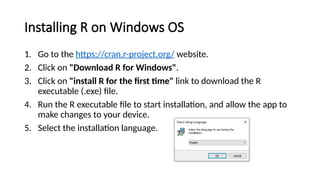
5. Select the installation language.
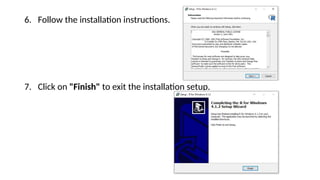
6. Follow the installation instructions.
7. Click on "Finish" to exit the installation setup.
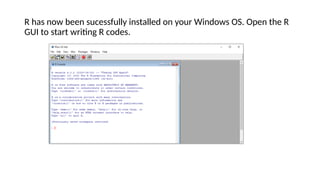
R has now been sucessfully installed on your Windows OS. Open the R
GUI to start writing R codes.
Installing R on MacOS X
Installing R on MacOS X is very similar to installing R on Window OS.
The difference is the file format that you have to download. The
procedure is as follows:
1. Go to the https://cran.r-project.org/ website.
2. Click on "Download R for macOS".
3. Download the latest version of the R GUI under (.pkg file)
under "Latest release". You can download much older versions by
following the "old directory" or "CRAN archive" links.
4. Run the .pkg file, and follow the installation instructions.
Installing RStudio Desktop
1. Go to the https://posit.co/ website.
2. Click on "DOWNLOAD" in the top-right corner.
3. Click on "DOWNLOAD" under the
"RStudio Open Source License".
4. Download RStudio Desktop
recommended for your computer.
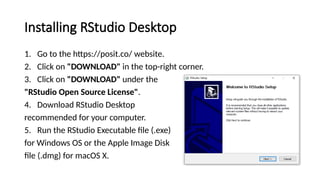
5. Run the RStudio Executable file (.exe)
for Windows OS or the Apple Image Disk
file (.dmg) for macOS X.
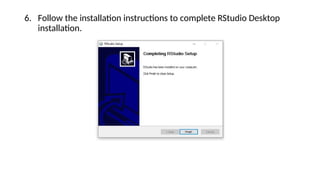
6. Follow the installation instructions to complete RStudio Desktop
installation.
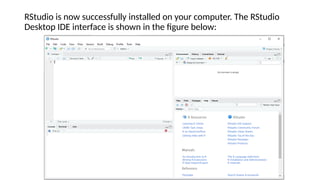
RStudio is now successfully installed on your computer. The RStudio
Desktop IDE interface is shown in the figure below:
IDEs and Text Editors
RStudio
• Rstudio holds a prominent position as a favored and esteemed R IDE, meticulously crafted for the world
of R programming. Its design encompasses a holistic environment that caters to the diverse needs of R
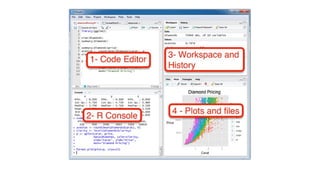
programmers. The IDE goes beyond the basics, offering features like workspace management,
debugging tools, and seamless integration with the R Language compiler to run R code.
• This harmonious integration manifests itself through functionalities such as code autocompletion,
syntax highlighting, and an arsenal of debugging capabilities. RStudio also grants users the ability to
create R Markdown documents combined into cohesive reports. Furthermore, it addresses crucial
aspects of the development process, providing essential tools for version control and package
management, all while leveraging the power of the R Language compiler. This facilitates collaboration
and empowers programmers to effortlessly manage their projects and dependencies.
Cons
• RStudio can face some performance issues with large datasets.
• RStudio uses R memory management which is less efficient than other IDEs.
• Rstudio's UI is less modern and might feel boring.
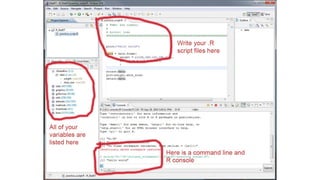
Eclipse with StatET
• Eclipse is a versatile IDE that's well-known for being compatible across various platforms and highly
customizable. It's particularly renowned for its ability to support multiple programming languages,
including R, thanks to a handy plugin called StatET, which integrates seamlessly with the R Language
compiler.
• Imagine you have a magical toolbox for doing math and statistics called "Eclipse with StatET." It's like
having a superpower to analyze data, make graphs, and solve all sorts of number puzzles. Eclipse
provides a comfortable and organized environment for you to work with data, write code, and
visualize your insights. StatET is a special add-on for Eclipse, tailor-made for R enthusiasts. It
transforms your Eclipse into an R-centric powerhouse. It understands R's language, syntax, and
quirks, making your R code experience smoother and more enjoyable
Cons
• Users unfamiliar with Eclipse with StatET might face a steep learning curve.
• It is a resource-intensive IDE.
• It can have extra features which are not necessary in R, creating more complexities.
Other IDEs for R Programming
• Jupyter Notebook
• Visual Studio Code
• R Tools for Visual Studio
• Emacs & ESS
• Sublime Text
• PyCharm
• Atom
• Spyder.
• Zeppelin
• Rodeo
Handling Packages in R
Packages in R Programming language are a set of R functions, compiled code, and sample data. These are stored
under a directory called "library" within the R environment. By default, R installs a group of packages during
installation. Once we start the R console, only the default packages are available by default. Other packages that are
already installed need to be loaded explicitly to be utilized by the R program that's getting to use them.
• What are Repositories?
• A repository is a place where packages are located and stored so we can install R packages from it. Organizations
and Developers have a local repository, typically they are online and accessible to everyone. Some of the most
popular repositories for R packages are:
• CRAN: Comprehensive R Archive Network(CRAN) is the official repository, it is a network of FTP and web servers
maintained by the R community around the world. The R community coordinates it, and for a package to be
published in CRAN, the Package needs to pass several tests to ensure that the package is following CRAN policies.
• Bioconductor: Bioconductor is a specialized repository, intended for open source software for bioinformatics.
Similar to CRAN, it has its own submission and review processes, and its community is very active having several
conferences and meetings per year in order to maintain quality.
• Github: Github is the most popular repository for open-source projects. It's popular as it comes from the unlimited
space for open source, the integration with git, a version control software, and its ease to share and collaborate
with others.
Get library locations containing R packages
> .libPaths()
[1] "C:/Users/GFG19565/AppData/Local/Programs/R/R-4.3.1/library“
The .libpath() method handles the management of library paths, which are
directories where a program searches for external libraries or modules required for
execution.
Get the list of all the R packages installed
> library()
A package is loaded using library(), the functions
and objects in that package become available in
the global environment.
Eg:
> library(dplyr)
Install an R-Package
Installing R Packages:
Syn: install.packages("package name")
Eg:
> install.packages(c(“vioplot”,”Mass”))
Update Installed Packages in R
To check what packages are installed on our computer,
type this command:
> installed.packages()
To update all the packages, type this command:
> update.packages()
To update a specific package, type this command:
> install.packages("PACKAGE NAME")
Installing Packages Using RStudio UI
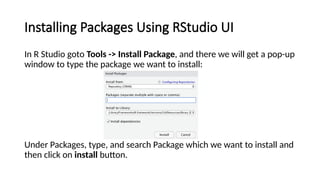
In R Studio goto Tools -> Install Package, and there we will get a pop-up
window to type the package we want to install:
Under Packages, type, and search Package which we want to install and
then click on install button.
Difference Between a Package and a Library
• library(): It is the command used to load a package, and it refers to
the place where the package is contained, usually a folder on our
computer.
• Package: It is a collection of functions bundled conveniently. The
package is an appropriate way to organize our own work and share it
with others.
Working with Directory
• getwd(): The getwd() method is used to gather information about the current working
pathname or default working directory. This function has no arguments. It returns an
absolute pathname. It returns NULL in case there is not any working directory.
> getwd()
[1] "C:/Users/STUDENT/Documents "
• setwd(): This method is used to set the specified pathname as the current working
space directory of the R console.
• Syntax: setwd(dir)
> setwd("..")
> getwd()
[1] "C:/Users/STUDENT"
Data Types in R
Basic Data Types
Basic data types in R can be divided into the following
types:
•numeric - (10.5, 55, 787)
•integer - (1L, 55L, 100L, where the letter "L" declares this as
an integer)
•complex - (9 + 3i, where "i" is the imaginary part)
•character (a.k.a. string) - ("k", "R is exciting", "FALSE", "11.5")
•logical (a.k.a. boolean) - (TRUE or FALSE)
R Data Structures
Data structures are used to store and organize values.
R provides many built-in data structures. Each is used to handle data in
different ways:
• Vectors
• Lists
• Matrices
• Arrays
• Data Frames
• Factors
Vectors
• A vector is the most basic data structure in R. It contains a list of items
of the same type.
# Vector of strings
fruits <- c("banana", "apple", "orange")
# Print fruits
fruits
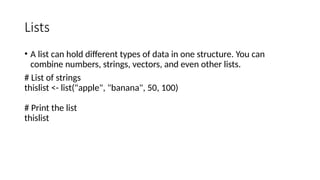
Lists
• A list can hold different types of data in one structure. You can
combine numbers, strings, vectors, and even other lists.
# List of strings
thislist <- list("apple", "banana", 50, 100)
# Print the list
thislist
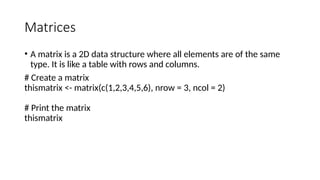
Matrices
• A matrix is a 2D data structure where all elements are of the same
type. It is like a table with rows and columns.
# Create a matrix
thismatrix <- matrix(c(1,2,3,4,5,6), nrow = 3, ncol = 2)
# Print the matrix
thismatrix
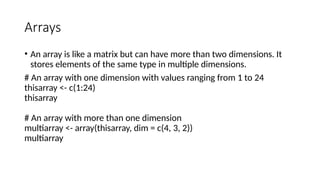
Arrays
• An array is like a matrix but can have more than two dimensions. It
stores elements of the same type in multiple dimensions.
# An array with one dimension with values ranging from 1 to 24
thisarray <- c(1:24)
thisarray
# An array with more than one dimension
multiarray <- array(thisarray, dim = c(4, 3, 2))
multiarray
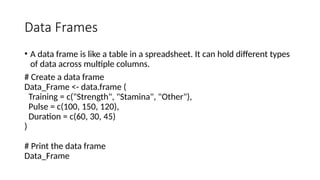
Data Frames
• A data frame is like a table in a spreadsheet. It can hold different types
of data across multiple columns.
# Create a data frame
Data_Frame <- data.frame (
Training = c("Strength", "Stamina", "Other"),
Pulse = c(100, 150, 120),
Duration = c(60, 30, 45)
)
# Print the data frame
Data_Frame
Factors
Factors are used to categorize data. Examples of factors are:
• Demography: Male/Female
• Music: Rock, Pop, Classic, Jazz
• Training: Strength, Stamina
# Create a factor
music_genre <- factor(c("Jazz", "Rock", "Classic", "Classic", "Pop", "Jazz", "Rock", "Jazz"))
# Print the factor
music_genre
Result:
[1] Jazz Rock Classic Classic Pop Jazz Rock Jazz
Levels: Classic Jazz Pop Rock
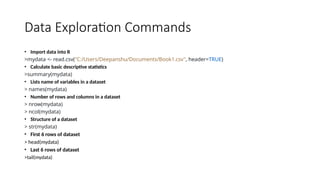
Data Exploration Commands
• Import data into R
>mydata <- read.csv("C:/Users/Deepanshu/Documents/Book1.csv", header=TRUE)
• Calculate basic descriptive statistics
>summary(mydata)
• Lists name of variables in a dataset
> names(mydata)
• Number of rows and columns in a dataset
> nrow(mydata)
> ncol(mydata)
• Structure of a dataset
> str(mydata)
• First 6 rows of dataset
> head(mydata)
• Last 6 rows of dataset
>tail(mydata)

Data Analytics and Statistical Computing Using R Programming

  • 1.
  • 2.
    What is R? •R is a free and open-source scripting language developed by Ross Ihaka and Robert Gentleman in 1993. It's an alternative implementation of the S programming language, which was widely used in the 1980s for statistical computing. The R environment is designed to perforrm complex statistical analysis and display results using many visual graphics. The R progamming languague is written in C, Fortran, and R itself. Most R packages are written in the R programming language, but heavy computational chucks are written in C, C++, and Fortran. R allows integration with Python, C, C++, .Net, and Fortran. • R is both a programming language and a software development environment. In other words, the name R describes both the R programming language and the R software development environment used to run R codes.
  • 3.
    Why use R Ris a state-of-the-art programming languague for statistical computing, data analysis, and machine learning. It has been around for almost three decades with over 12,000 packages available for download on CRAN. This means that there is an R package that supports whatever type of analysis you want to perform. Free and open-source: The R programming language is open-source and is issued under the General Public License (GNU). This means that you can use all the functionalities of R for free without any restrictions or licensing requirements. Since R is open- source, everyone is welcome to contribute to the project, and since it's freely available, bugs are easily detected and fixed by the open-source community.
  • 4.
    Popularity: The R programminglanguage was ranked 7th in the 2021 IEEE Specturm ranking of top programming languages and 12th in the TIOBE Index ranking of January 2022. It's the second most popular programming language for data science just behind Python, according to edX, and it is the most popular programming language for statistical analysis. R's popularity also means that there is extensive community support on platforms like Stackoverflow. R also has a detailed online documentation that R users can consult for help. High-quality visualization: The R programming languague is famous for high-quality visualizations. R’s ggplot2 is a detailed implementation of the grammar of graphics — a system to concisely describe the components of a graph. With R's high- quality graphics, you can easily implement intuitive and interactive graphs.
  • 5.
    • A languagefor data analytics and data science: The R programming language isn't a general-purpose programming language. It's a specialized programming language for statistical computing. Therefore, most of R's functions carry out vectorized operations, meaning you don't need to loop through each element. This makes running R code very fast. Distributed computing can be executed in R, whereby tasks are split among multiple processing computers to reduce execution time. R is integrated with Hadoop and Apache Spark, and it can be used to process large amount of data. R can connect to all kinds of databases, and it has packages to carry out machine learning and deep learning operations. • Opportunity to pursue an exciting career in academe and industry: The R programming language is trusted and extensively used in the academic community for research. R is increasingly being used by government agencies, social media, telecommunications, financial, e-commerce, manufacturing, and pharmaceutical companies. Top companies that uses R include Amazon, Google, ANZ Bank, Twitter, LinkedIn, Thomas Cook, Facebook, Accenture, Wipro, the New York Times, and many more. A good mastery of the R programming language opens all kinds of opportunities in academe and industry.
  • 6.
  • 7.
    Installing R onWindows OS 1. Go to the https://cran.r-project.org/ website. 2. Click on "Download R for Windows". 3. Click on "install R for the first time" link to download the R executable (.exe) file. 4. Run the R executable file to start installation, and allow the app to make changes to your device. 5. Select the installation language.
  • 8.
    6. Follow theinstallation instructions. 7. Click on "Finish" to exit the installation setup.
  • 9.
    R has nowbeen sucessfully installed on your Windows OS. Open the R GUI to start writing R codes.
  • 10.
    Installing R onMacOS X Installing R on MacOS X is very similar to installing R on Window OS. The difference is the file format that you have to download. The procedure is as follows: 1. Go to the https://cran.r-project.org/ website. 2. Click on "Download R for macOS". 3. Download the latest version of the R GUI under (.pkg file) under "Latest release". You can download much older versions by following the "old directory" or "CRAN archive" links. 4. Run the .pkg file, and follow the installation instructions.
  • 11.
    Installing RStudio Desktop 1.Go to the https://posit.co/ website. 2. Click on "DOWNLOAD" in the top-right corner. 3. Click on "DOWNLOAD" under the "RStudio Open Source License". 4. Download RStudio Desktop recommended for your computer. 5. Run the RStudio Executable file (.exe) for Windows OS or the Apple Image Disk file (.dmg) for macOS X.
  • 12.
    6. Follow theinstallation instructions to complete RStudio Desktop installation.
  • 13.
    RStudio is nowsuccessfully installed on your computer. The RStudio Desktop IDE interface is shown in the figure below:
  • 14.
  • 15.
    RStudio • Rstudio holdsa prominent position as a favored and esteemed R IDE, meticulously crafted for the world of R programming. Its design encompasses a holistic environment that caters to the diverse needs of R programmers. The IDE goes beyond the basics, offering features like workspace management, debugging tools, and seamless integration with the R Language compiler to run R code. • This harmonious integration manifests itself through functionalities such as code autocompletion, syntax highlighting, and an arsenal of debugging capabilities. RStudio also grants users the ability to create R Markdown documents combined into cohesive reports. Furthermore, it addresses crucial aspects of the development process, providing essential tools for version control and package management, all while leveraging the power of the R Language compiler. This facilitates collaboration and empowers programmers to effortlessly manage their projects and dependencies. Cons • RStudio can face some performance issues with large datasets. • RStudio uses R memory management which is less efficient than other IDEs. • Rstudio's UI is less modern and might feel boring.
  • 17.
    Eclipse with StatET •Eclipse is a versatile IDE that's well-known for being compatible across various platforms and highly customizable. It's particularly renowned for its ability to support multiple programming languages, including R, thanks to a handy plugin called StatET, which integrates seamlessly with the R Language compiler. • Imagine you have a magical toolbox for doing math and statistics called "Eclipse with StatET." It's like having a superpower to analyze data, make graphs, and solve all sorts of number puzzles. Eclipse provides a comfortable and organized environment for you to work with data, write code, and visualize your insights. StatET is a special add-on for Eclipse, tailor-made for R enthusiasts. It transforms your Eclipse into an R-centric powerhouse. It understands R's language, syntax, and quirks, making your R code experience smoother and more enjoyable Cons • Users unfamiliar with Eclipse with StatET might face a steep learning curve. • It is a resource-intensive IDE. • It can have extra features which are not necessary in R, creating more complexities.
  • 19.
    Other IDEs forR Programming • Jupyter Notebook • Visual Studio Code • R Tools for Visual Studio • Emacs & ESS • Sublime Text • PyCharm • Atom • Spyder. • Zeppelin • Rodeo
  • 20.
    Handling Packages inR Packages in R Programming language are a set of R functions, compiled code, and sample data. These are stored under a directory called "library" within the R environment. By default, R installs a group of packages during installation. Once we start the R console, only the default packages are available by default. Other packages that are already installed need to be loaded explicitly to be utilized by the R program that's getting to use them. • What are Repositories? • A repository is a place where packages are located and stored so we can install R packages from it. Organizations and Developers have a local repository, typically they are online and accessible to everyone. Some of the most popular repositories for R packages are: • CRAN: Comprehensive R Archive Network(CRAN) is the official repository, it is a network of FTP and web servers maintained by the R community around the world. The R community coordinates it, and for a package to be published in CRAN, the Package needs to pass several tests to ensure that the package is following CRAN policies. • Bioconductor: Bioconductor is a specialized repository, intended for open source software for bioinformatics. Similar to CRAN, it has its own submission and review processes, and its community is very active having several conferences and meetings per year in order to maintain quality. • Github: Github is the most popular repository for open-source projects. It's popular as it comes from the unlimited space for open source, the integration with git, a version control software, and its ease to share and collaborate with others.
  • 21.
    Get library locationscontaining R packages > .libPaths() [1] "C:/Users/GFG19565/AppData/Local/Programs/R/R-4.3.1/library“ The .libpath() method handles the management of library paths, which are directories where a program searches for external libraries or modules required for execution. Get the list of all the R packages installed > library() A package is loaded using library(), the functions and objects in that package become available in the global environment. Eg: > library(dplyr)
  • 22.
  • 23.
    Installing R Packages: Syn:install.packages("package name") Eg: > install.packages(c(“vioplot”,”Mass”))
  • 24.
    Update Installed Packagesin R To check what packages are installed on our computer, type this command: > installed.packages() To update all the packages, type this command: > update.packages() To update a specific package, type this command: > install.packages("PACKAGE NAME")
  • 25.
    Installing Packages UsingRStudio UI In R Studio goto Tools -> Install Package, and there we will get a pop-up window to type the package we want to install: Under Packages, type, and search Package which we want to install and then click on install button.
  • 26.
    Difference Between aPackage and a Library • library(): It is the command used to load a package, and it refers to the place where the package is contained, usually a folder on our computer. • Package: It is a collection of functions bundled conveniently. The package is an appropriate way to organize our own work and share it with others.
  • 27.
    Working with Directory •getwd(): The getwd() method is used to gather information about the current working pathname or default working directory. This function has no arguments. It returns an absolute pathname. It returns NULL in case there is not any working directory. > getwd() [1] "C:/Users/STUDENT/Documents " • setwd(): This method is used to set the specified pathname as the current working space directory of the R console. • Syntax: setwd(dir) > setwd("..") > getwd() [1] "C:/Users/STUDENT"
  • 28.
    Data Types inR Basic Data Types Basic data types in R can be divided into the following types: •numeric - (10.5, 55, 787) •integer - (1L, 55L, 100L, where the letter "L" declares this as an integer) •complex - (9 + 3i, where "i" is the imaginary part) •character (a.k.a. string) - ("k", "R is exciting", "FALSE", "11.5") •logical (a.k.a. boolean) - (TRUE or FALSE)
  • 29.
    R Data Structures Datastructures are used to store and organize values. R provides many built-in data structures. Each is used to handle data in different ways: • Vectors • Lists • Matrices • Arrays • Data Frames • Factors
  • 30.
    Vectors • A vectoris the most basic data structure in R. It contains a list of items of the same type. # Vector of strings fruits <- c("banana", "apple", "orange") # Print fruits fruits
  • 31.
    Lists • A listcan hold different types of data in one structure. You can combine numbers, strings, vectors, and even other lists. # List of strings thislist <- list("apple", "banana", 50, 100) # Print the list thislist
  • 32.
    Matrices • A matrixis a 2D data structure where all elements are of the same type. It is like a table with rows and columns. # Create a matrix thismatrix <- matrix(c(1,2,3,4,5,6), nrow = 3, ncol = 2) # Print the matrix thismatrix
  • 33.
    Arrays • An arrayis like a matrix but can have more than two dimensions. It stores elements of the same type in multiple dimensions. # An array with one dimension with values ranging from 1 to 24 thisarray <- c(1:24) thisarray # An array with more than one dimension multiarray <- array(thisarray, dim = c(4, 3, 2)) multiarray
  • 34.
    Data Frames • Adata frame is like a table in a spreadsheet. It can hold different types of data across multiple columns. # Create a data frame Data_Frame <- data.frame ( Training = c("Strength", "Stamina", "Other"), Pulse = c(100, 150, 120), Duration = c(60, 30, 45) ) # Print the data frame Data_Frame
  • 35.
    Factors Factors are usedto categorize data. Examples of factors are: • Demography: Male/Female • Music: Rock, Pop, Classic, Jazz • Training: Strength, Stamina # Create a factor music_genre <- factor(c("Jazz", "Rock", "Classic", "Classic", "Pop", "Jazz", "Rock", "Jazz")) # Print the factor music_genre Result: [1] Jazz Rock Classic Classic Pop Jazz Rock Jazz Levels: Classic Jazz Pop Rock
  • 36.
    Data Exploration Commands •Import data into R >mydata <- read.csv("C:/Users/Deepanshu/Documents/Book1.csv", header=TRUE) • Calculate basic descriptive statistics >summary(mydata) • Lists name of variables in a dataset > names(mydata) • Number of rows and columns in a dataset > nrow(mydata) > ncol(mydata) • Structure of a dataset > str(mydata) • First 6 rows of dataset > head(mydata) • Last 6 rows of dataset >tail(mydata)