How To Adjust Style with
oFeatures
www.oFeatures.com
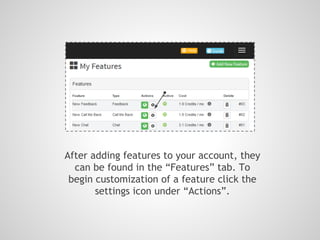
After adding features to your account, they
can be found in the “Features” tab. To
begin customization of a feature click the
settings icon under “Actions”.
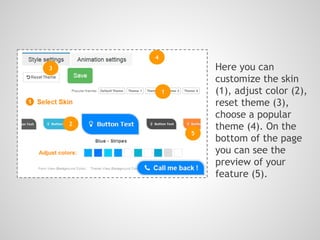
Here you can
customize the skin
(1), adjust color (2),
reset theme (3),
choose a popular
theme (4). On the
bottom of the page
you can see the
preview of your
feature (5).
1
2
3
4
5
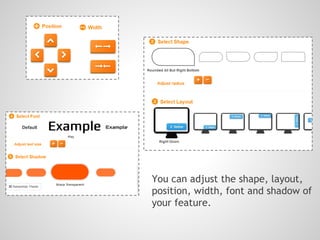
You can adjust the shape, layout,
position, width, font and shadow of
your feature.
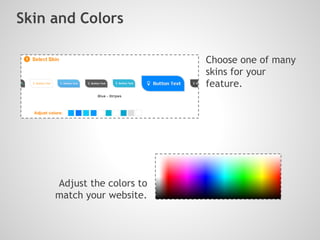
Adjust the colors to
match your website.
Skin and Colors
Choose one of many
skins for your
feature.
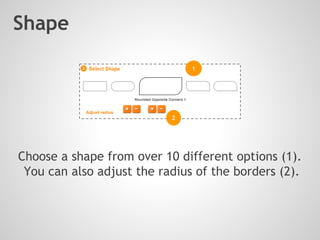
Choose a shape from over 10 different options (1).
You can also adjust the radius of the borders (2).
Shape
2
1
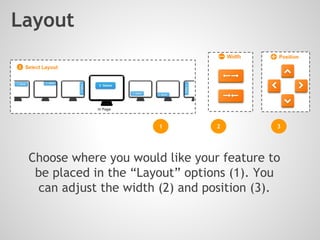
Choose where you would like your feature to
be placed in the “Layout” options (1). You
can adjust the width (2) and position (3).
Layout
1 2 3
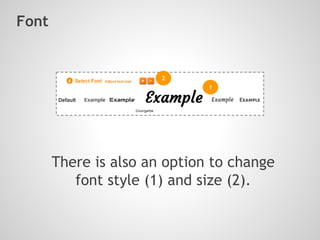
Font
There is also an option to change
font style (1) and size (2).
1
2
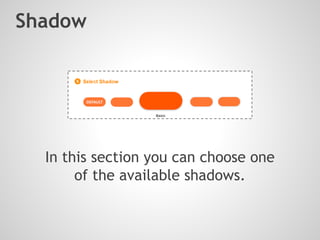
Shadow
In this section you can choose one
of the available shadows.
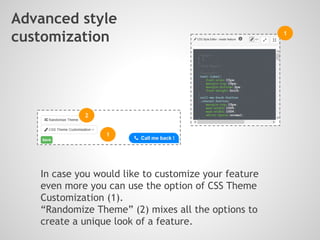
Advanced style
customization
In case you would like to customize your feature
even more you can use the option of CSS Theme
Customization (1).
“Randomize Theme” (2) mixes all the options to
create a unique look of a feature.
1
2
1
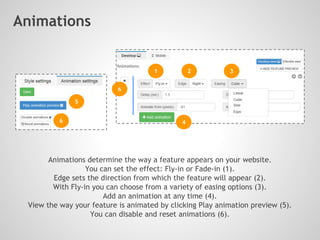
Animations
Animations determine the way a feature appears on your website.
You can set the effect: Fly-in or Fade-in (1).
Edge sets the direction from which the feature will appear (2).
With Fly-in you can choose from a variety of easing options (3).
Add an animation at any time (4).
View the way your feature is animated by clicking Play animation preview (5).
You can disable and reset animations (6).
1 2 3
4
5
6
6
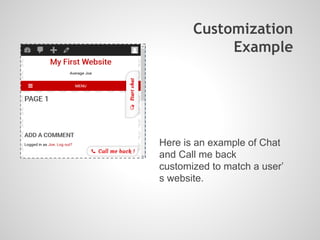
Customization
Example
Here is an example of Chat
and Call me back
customized to match a user’
s website.
How to Adjust Style with oFeatures

How to Adjust Style with oFeatures

  • 1.
    How To AdjustStyle with oFeatures www.oFeatures.com
  • 2.
    After adding featuresto your account, they can be found in the “Features” tab. To begin customization of a feature click the settings icon under “Actions”.
  • 3.
    Here you can customizethe skin (1), adjust color (2), reset theme (3), choose a popular theme (4). On the bottom of the page you can see the preview of your feature (5). 1 2 3 4 5
  • 4.
    You can adjustthe shape, layout, position, width, font and shadow of your feature.
  • 5.
    Adjust the colorsto match your website. Skin and Colors Choose one of many skins for your feature.
  • 6.
    Choose a shapefrom over 10 different options (1). You can also adjust the radius of the borders (2). Shape 2 1
  • 7.
    Choose where youwould like your feature to be placed in the “Layout” options (1). You can adjust the width (2) and position (3). Layout 1 2 3
  • 8.
    Font There is alsoan option to change font style (1) and size (2). 1 2
  • 9.
    Shadow In this sectionyou can choose one of the available shadows.
  • 10.
    Advanced style customization In caseyou would like to customize your feature even more you can use the option of CSS Theme Customization (1). “Randomize Theme” (2) mixes all the options to create a unique look of a feature. 1 2 1
  • 11.
    Animations Animations determine theway a feature appears on your website. You can set the effect: Fly-in or Fade-in (1). Edge sets the direction from which the feature will appear (2). With Fly-in you can choose from a variety of easing options (3). Add an animation at any time (4). View the way your feature is animated by clicking Play animation preview (5). You can disable and reset animations (6). 1 2 3 4 5 6 6
  • 12.
    Customization Example Here is anexample of Chat and Call me back customized to match a user’ s website.