NETWORKING ICONS – Style 2


                     www

                             Your Logo
NETWORKING ICONS – Style 2


                             Your Logo
NETWORKING ICONS – Style 2


                     www

                             Your Logo
NETWORKING ICONS – Style 2


                             Your Logo
NETWORKING ICONS – Style 2


                      www


                             Your Logo
NETWORKING ICONS – Style 2


                             Your Logo
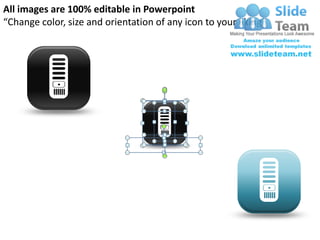
All images are 100% editable in Powerpoint
“Change color, size and orientation of any icon to your liking”
All images are 100% editable in Powerpoint
“Change color, size and orientation of any icon to your liking”
All images are 100% editable in Powerpoint
“Change color, size and orientation of any icon to your liking”
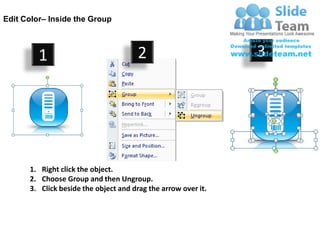
Edit Color– Inside the Group


         1                            2                        3


      1. Right click the object.
      2. Choose Group and then Ungroup.
      3. Click beside the object and drag the arrow over it.
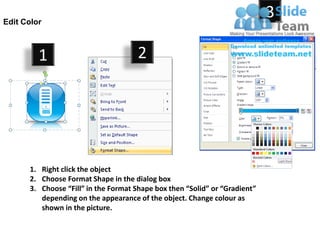
Edit Color
                                                                            3

         1                           2


      1. Right click the object
      2. Choose Format Shape in the dialog box
      3. Choose “Fill” in the Format Shape box then “Solid” or “Gradient”
         depending on the appearance of the object. Change colour as
         shown in the picture.

Networking icons style 2 powerpoint presentation slides ppt templates

  • 1.
    NETWORKING ICONS –Style 2 www Your Logo
  • 2.
    NETWORKING ICONS –Style 2 Your Logo
  • 3.
    NETWORKING ICONS –Style 2 www Your Logo
  • 4.
    NETWORKING ICONS –Style 2 Your Logo
  • 5.
    NETWORKING ICONS –Style 2 www Your Logo
  • 6.
    NETWORKING ICONS –Style 2 Your Logo
  • 7.
    All images are100% editable in Powerpoint “Change color, size and orientation of any icon to your liking”
  • 8.
    All images are100% editable in Powerpoint “Change color, size and orientation of any icon to your liking”
  • 9.
    All images are100% editable in Powerpoint “Change color, size and orientation of any icon to your liking”
  • 10.
    Edit Color– Insidethe Group 1 2 3 1. Right click the object. 2. Choose Group and then Ungroup. 3. Click beside the object and drag the arrow over it.
  • 11.
    Edit Color 3 1 2 1. Right click the object 2. Choose Format Shape in the dialog box 3. Choose “Fill” in the Format Shape box then “Solid” or “Gradient” depending on the appearance of the object. Change colour as shown in the picture.