Creating 3D cube with pure CSS3
By
Gaurav Khurana
email at khurana.g@hotmail.com 1
Getting Started
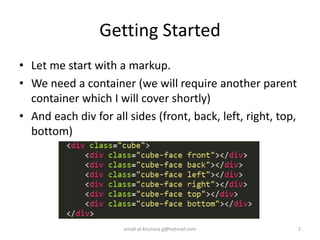
• Let me start with a markup.
• We need a container (we will require another parent
container which I will cover shortly)
• And each div for all sides (front, back, left, right, top,
bottom)
email at khurana.g@hotmail.com 2
Explaining Markup
• We require container which will act as a cube so that
we can rotate it. I will call it cube here on.
• We would require transition property on this cube to
give some animation.
• Moreover, we need to give transform-style :
preserve-3d I will explain later on why we need this.
• For each sides of the cube we have each container
with respective class “front, back, left, right, top,
bottom” respectively.
email at khurana.g@hotmail.com 3
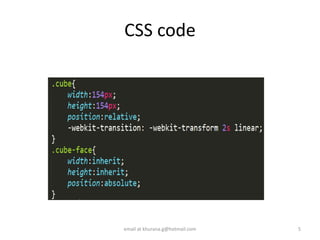
Lets start with our CSS now
• I will be inserting images to all faces/sides of
cubes and they are of dimension 154 x 154px.
• We will give width and height to cube as
154px.
• Each cube face will have width and height
inherit.
• We will now give position relative to cube and
position absolute to each side/face so they
stack upon each other at one place.
email at khurana.g@hotmail.com 4
CSS code
email at khurana.g@hotmail.com 5
CSS code for each face/side
email at khurana.g@hotmail.com 6
Result so far
• The image you are seeing is of last face/side
i.e. bottom in our case image name “6.jpg”.
email at khurana.g@hotmail.com 7
My
beautiful
girlfriend
Lets focus back on code
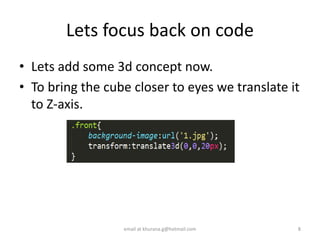
• Lets add some 3d concept now.
• To bring the cube closer to eyes we translate it
to Z-axis.
email at khurana.g@hotmail.com 8
Result
Not much of a difference? lets see why?
email at khurana.g@hotmail.com 9
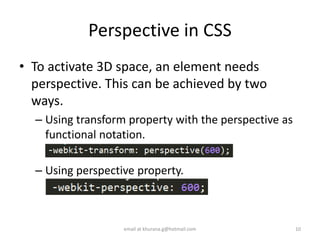
Perspective in CSS
• To activate 3D space, an element needs
perspective. This can be achieved by two
ways.
– Using transform property with the perspective as
functional notation.
– Using perspective property.
email at khurana.g@hotmail.com 10
Understanding Perspective
email at khurana.g@hotmail.com 11
Understanding Perspective
email at khurana.g@hotmail.com 12
Result of both ways
email at khurana.g@hotmail.com 13
Perspective
property
applied on
parent
Perspective
Functional
notation
applied on
element
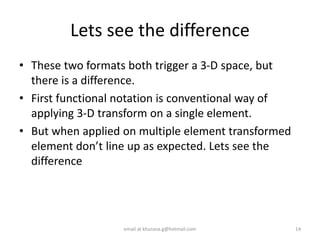
Lets see the difference
• These two formats both trigger a 3-D space, but
there is a difference.
• First functional notation is conventional way of
applying 3-D transform on a single element.
• But when applied on multiple element transformed
element don’t line up as expected. Lets see the
difference
email at khurana.g@hotmail.com 14
Perspective: Property vs Functional
Notation
email at khurana.g@hotmail.com 15
Perspective
Functional
notation to each
element
Perspective
property to parent
element
Something important about
Perspective
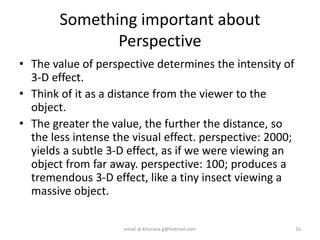
• The value of perspective determines the intensity of
3-D effect.
• Think of it as a distance from the viewer to the
object.
• The greater the value, the further the distance, so
the less intense the visual effect. perspective: 2000;
yields a subtle 3-D effect, as if we were viewing an
object from far away. perspective: 100; produces a
tremendous 3-D effect, like a tiny insect viewing a
massive object.
email at khurana.g@hotmail.com 16
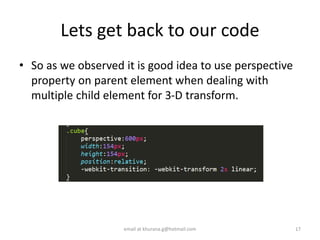
Lets get back to our code
• So as we observed it is good idea to use perspective
property on parent element when dealing with
multiple child element for 3-D transform.
email at khurana.g@hotmail.com 17
Result
• No change
email at khurana.g@hotmail.com 18
Looks like she
wants front seat.
Girls I tell you
how adamant
they are 
Why no change?
• Even after we give perspective to our scene, we still
have an issue. The front face should ideally appear
above all other faces, hiding them behind it. But it's
not.
• When we create html element z-index get associated
with each element and the stacking order determine
least element should be given higher z-index.
email at khurana.g@hotmail.com 19
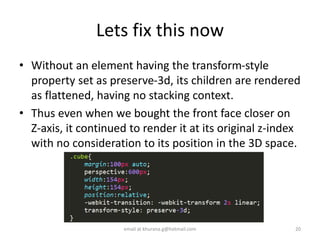
Lets fix this now
• Without an element having the transform-style
property set as preserve-3d, its children are rendered
as flattened, having no stacking context.
• Thus even when we bought the front face closer on
Z-axis, it continued to render it at its original z-index
with no consideration to its position in the 3D space.
email at khurana.g@hotmail.com 20
Result
• No change
email at khurana.g@hotmail.com 21
GOD
You gotta be
kidding me
What’s wrong now?
• Well don’t worry we have our 3-D system setup now.
Lets work on positioning.
• One face at a time. Lets begin with front face.
email at khurana.g@hotmail.com 22
Explaining cordinates
• As you can see, the Z-axis
is coming out of the
screen straight from the
element.
• Hence, when we translate
the front face positively
on the Z-axis, it appears
closer to us.
• A point to note here is
that this coordinate
system is local to this
element. Let's look at that
more closely.
email at khurana.g@hotmail.com 23
• We'll use our front face
again and rotate it a bit
about its Y-axis.
• As you see axis rotated
along with element.
• Z-axis no longer coming
straight towards us
email at khurana.g@hotmail.com 24
Lets understand one more face/side
email at khurana.g@hotmail.com 25
Left face now Left face after rotation
90 deg (vertically so
rotate Y)
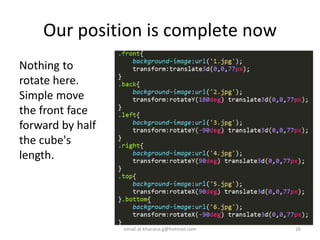
Our position is complete now
Nothing to
rotate here.
Simple move
the front face
forward by half
the cube's
length.
email at khurana.g@hotmail.com 26
Result
email at khurana.g@hotmail.com 27
Finally, but
she still hold
on to front by
sharing the
seat :D
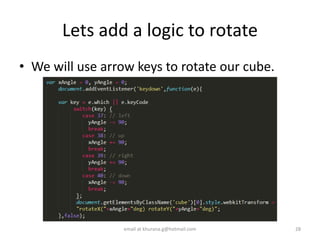
Lets add a logic to rotate
• We will use arrow keys to rotate our cube.
email at khurana.g@hotmail.com 28
Now use left arrow key to rotate left
• Notice Something wrong?
• When we press left arrow key,
we should see right face in front.
• We do see it but it is in smaller size.
email at khurana.g@hotmail.com 29
Fixing Perspective.
• If you remember we gave perspective property to
cube container.
• And when we rotated that element just now, the
perspective marked by the vanishing point also
rotated along with it.
• So the vanishing point which was initially somewhere
behind the 2D place came in front of the 2D plane
after the rotation, causing the issue.
email at khurana.g@hotmail.com 30
What we want?
• What we ideally want is that the perspective never
changes and remains constant no matter what
element we transform.
• How do we fix this? We wrap all our elements with
another DIV to which give the perspective property:
email at khurana.g@hotmail.com 31
Lets get back to our code
• So as we observed it is good idea to use perspective
property on parent element when dealing with
multiple child element for 3-D transform.
email at khurana.g@hotmail.com 32
Added parent to Markup
Added css perspective to parent
Result
email at khurana.g@hotmail.com 33
Need code?
Link to code
https://drive.google.com/file/d/0B2qTHtNDrsw
mbDJrR3R6Nkx0dU0/view?usp=sharing
email at khurana.g@hotmail.com 34

3d cubes By Gaurav Khurana using CSS3

  • 1.
    Creating 3D cubewith pure CSS3 By Gaurav Khurana email at khurana.g@hotmail.com 1
  • 2.
    Getting Started • Letme start with a markup. • We need a container (we will require another parent container which I will cover shortly) • And each div for all sides (front, back, left, right, top, bottom) email at khurana.g@hotmail.com 2
  • 3.
    Explaining Markup • Werequire container which will act as a cube so that we can rotate it. I will call it cube here on. • We would require transition property on this cube to give some animation. • Moreover, we need to give transform-style : preserve-3d I will explain later on why we need this. • For each sides of the cube we have each container with respective class “front, back, left, right, top, bottom” respectively. email at khurana.g@hotmail.com 3
  • 4.
    Lets start withour CSS now • I will be inserting images to all faces/sides of cubes and they are of dimension 154 x 154px. • We will give width and height to cube as 154px. • Each cube face will have width and height inherit. • We will now give position relative to cube and position absolute to each side/face so they stack upon each other at one place. email at khurana.g@hotmail.com 4
  • 5.
    CSS code email atkhurana.g@hotmail.com 5
  • 6.
    CSS code foreach face/side email at khurana.g@hotmail.com 6
  • 7.
    Result so far •The image you are seeing is of last face/side i.e. bottom in our case image name “6.jpg”. email at khurana.g@hotmail.com 7 My beautiful girlfriend
  • 8.
    Lets focus backon code • Lets add some 3d concept now. • To bring the cube closer to eyes we translate it to Z-axis. email at khurana.g@hotmail.com 8
  • 9.
    Result Not much ofa difference? lets see why? email at khurana.g@hotmail.com 9
  • 10.
    Perspective in CSS •To activate 3D space, an element needs perspective. This can be achieved by two ways. – Using transform property with the perspective as functional notation. – Using perspective property. email at khurana.g@hotmail.com 10
  • 11.
    Understanding Perspective email atkhurana.g@hotmail.com 11
  • 12.
    Understanding Perspective email atkhurana.g@hotmail.com 12
  • 13.
    Result of bothways email at khurana.g@hotmail.com 13 Perspective property applied on parent Perspective Functional notation applied on element
  • 14.
    Lets see thedifference • These two formats both trigger a 3-D space, but there is a difference. • First functional notation is conventional way of applying 3-D transform on a single element. • But when applied on multiple element transformed element don’t line up as expected. Lets see the difference email at khurana.g@hotmail.com 14
  • 15.
    Perspective: Property vsFunctional Notation email at khurana.g@hotmail.com 15 Perspective Functional notation to each element Perspective property to parent element
  • 16.
    Something important about Perspective •The value of perspective determines the intensity of 3-D effect. • Think of it as a distance from the viewer to the object. • The greater the value, the further the distance, so the less intense the visual effect. perspective: 2000; yields a subtle 3-D effect, as if we were viewing an object from far away. perspective: 100; produces a tremendous 3-D effect, like a tiny insect viewing a massive object. email at khurana.g@hotmail.com 16
  • 17.
    Lets get backto our code • So as we observed it is good idea to use perspective property on parent element when dealing with multiple child element for 3-D transform. email at khurana.g@hotmail.com 17
  • 18.
    Result • No change emailat khurana.g@hotmail.com 18 Looks like she wants front seat. Girls I tell you how adamant they are 
  • 19.
    Why no change? •Even after we give perspective to our scene, we still have an issue. The front face should ideally appear above all other faces, hiding them behind it. But it's not. • When we create html element z-index get associated with each element and the stacking order determine least element should be given higher z-index. email at khurana.g@hotmail.com 19
  • 20.
    Lets fix thisnow • Without an element having the transform-style property set as preserve-3d, its children are rendered as flattened, having no stacking context. • Thus even when we bought the front face closer on Z-axis, it continued to render it at its original z-index with no consideration to its position in the 3D space. email at khurana.g@hotmail.com 20
  • 21.
    Result • No change emailat khurana.g@hotmail.com 21 GOD You gotta be kidding me
  • 22.
    What’s wrong now? •Well don’t worry we have our 3-D system setup now. Lets work on positioning. • One face at a time. Lets begin with front face. email at khurana.g@hotmail.com 22
  • 23.
    Explaining cordinates • Asyou can see, the Z-axis is coming out of the screen straight from the element. • Hence, when we translate the front face positively on the Z-axis, it appears closer to us. • A point to note here is that this coordinate system is local to this element. Let's look at that more closely. email at khurana.g@hotmail.com 23
  • 24.
    • We'll useour front face again and rotate it a bit about its Y-axis. • As you see axis rotated along with element. • Z-axis no longer coming straight towards us email at khurana.g@hotmail.com 24
  • 25.
    Lets understand onemore face/side email at khurana.g@hotmail.com 25 Left face now Left face after rotation 90 deg (vertically so rotate Y)
  • 26.
    Our position iscomplete now Nothing to rotate here. Simple move the front face forward by half the cube's length. email at khurana.g@hotmail.com 26
  • 27.
    Result email at khurana.g@hotmail.com27 Finally, but she still hold on to front by sharing the seat :D
  • 28.
    Lets add alogic to rotate • We will use arrow keys to rotate our cube. email at khurana.g@hotmail.com 28
  • 29.
    Now use leftarrow key to rotate left • Notice Something wrong? • When we press left arrow key, we should see right face in front. • We do see it but it is in smaller size. email at khurana.g@hotmail.com 29
  • 30.
    Fixing Perspective. • Ifyou remember we gave perspective property to cube container. • And when we rotated that element just now, the perspective marked by the vanishing point also rotated along with it. • So the vanishing point which was initially somewhere behind the 2D place came in front of the 2D plane after the rotation, causing the issue. email at khurana.g@hotmail.com 30
  • 31.
    What we want? •What we ideally want is that the perspective never changes and remains constant no matter what element we transform. • How do we fix this? We wrap all our elements with another DIV to which give the perspective property: email at khurana.g@hotmail.com 31
  • 32.
    Lets get backto our code • So as we observed it is good idea to use perspective property on parent element when dealing with multiple child element for 3-D transform. email at khurana.g@hotmail.com 32 Added parent to Markup Added css perspective to parent
  • 33.
  • 34.