Prepared by Nawaraj Prajapati (MCA From JNU)
CSS Table:
We can apply style on HTML tables for better look and feel. There are some CSS properties that are widely
used in designing table using CSS:
o Border: Defines the border around the table and cells.
o Padding: Defines the space between the cell content and the cell border.
o Margin: Defines the space between the table and surrounding elements.
o Background color: Sets the background color of the table.
o Text-align: Sets the alignment of text within cells.
o Font size: Sets the size of the text within cells.
Here CSS properties that we use for applying a style to the table. The background-color and color properties
set the background color and the color of the text, respectively. The border-collapse property makes the
table borders collapse. The text-align property sets the text position. Also, we should use the height, width
and padding properties for styling.
Example:
<html>
<head>
<title>Title of the document</title>
<style>
table {
width: 100%;
border-collapse: collapse;
}
table,
th,
td {
border: 1px solid black;
}
thead {
background-color: #1c87c9;
color: #ffffff;
}
th {
text-align: center;
height: 50px;
}
tbody tr:nth-child(odd) {
background: #ffffff;
}
tbody tr:nth-child(even) {
background: #f4f4f4;
}
</style>
</head>
<body>
<table>
<thead>
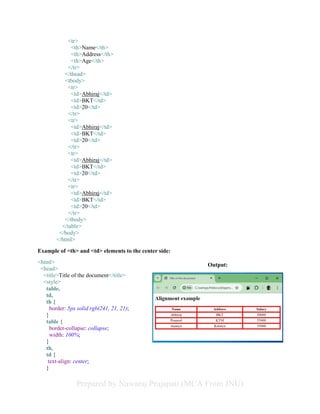
Output:
Prepared by Nawaraj Prajapati (MCA From JNU)
<tr>
<th>Name</th>
<th>Address</th>
<th>Age</th>
</tr>
</thead>
<tbody>
<tr>
<td>Abhiraj</td>
<td>BKT</td>
<td>20</td>
</tr>
<tr>
<td>Abhiraj</td>
<td>BKT</td>
<td>20</td>
</tr>
<tr>
<td>Abhiraj</td>
<td>BKT</td>
<td>20</td>
</tr>
<tr>
<td>Abhiraj</td>
<td>BKT</td>
<td>20</td>
</tr>
</tbody>
</table>
</body>
</html>
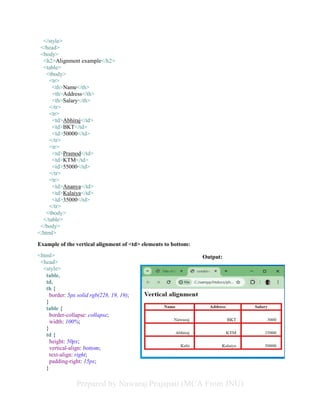
Example of <th> and <td> elements to the center side:
<html>
<head>
<title>Title of the document</title>
<style>
table,
td,
th {
border: 5px solid rgb(241, 21, 21);
}
table {
border-collapse: collapse;
width: 100%;
}
th,
td {
text-align: center;
}
Output:
Prepared by Nawaraj Prajapati (MCA From JNU)
</style>
</head>
<body>
<h2>Alignment example</h2>
<table>
<tbody>
<tr>
<th>Name</th>
<th>Address</th>
<th>Salary</th>
</tr>
<tr>
<td>Abhiraj</td>
<td>BKT</td>
<td>50000</td>
</tr>
<tr>
<td>Pramod</td>
<td>KTM</td>
<td>55000</td>
</tr>
<tr>
<td>Ananya</td>
<td>Kalaiya</td>
<td>35000</td>
</tr>
<tbody>
</table>
</body>
</html>
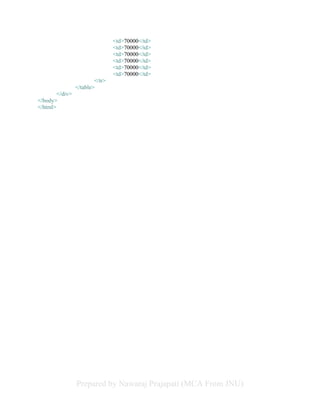
Example of the vertical alignment of <td> elements to bottom:
<html>
<head>
<style>
table,
td,
th {
border: 5px solid rgb(228, 19, 19);
}
table {
border-collapse: collapse;
width: 100%;
}
td {
height: 50px;
vertical-align: bottom;
text-align: right;
padding-right: 15px;
}
Output:
Prepared by Nawaraj Prajapati (MCA From JNU)
</style>
</head>
<body>
<h2>Vertical alignment</h2>
<table>
<tr>
<th>Name</th>
<th>Address</th>
<th>Salary</th>
</tr>
<tr>
<td>Nawaraj</td>
<td>BKT</td>
<td>3000</td>
</tr>
<tr>
<td>Abhiraj</td>
<td>KTM</td>
<td>25000</td>
</tr>
<tr>
<td>Kabi</td>
<td>Kalaiya</td>
<td>50000</td>
</tr>
</table>
</body>
</html>
Example of Responsive tables:
<html>
<head>
<title>Title of the document</title>
<style>
div {
overflow-x: auto;
}
table {
border-collapse: collapse;
width: 100%;
}
th,td {
text-align: left;
padding: 8px 5px;
}
tr:nth-child(even) {
background-color: white;
Output:
Prepared by Nawaraj Prajapati (MCA From JNU)
}
tr:nth-child(odd) {
background-color: gray;
}
</style>
</head>
<body>
<h2>Responsive table example</h2>
<div>
<table>
<tr>
<th>Name</th>
<th>Address</th>
<th>Salary</th>
<th>Salary</th>
<th>Salary</th>
<th>Salary</th>
<th>Salary</th>
<th>Salary</th>
<th>Salary</th>
<th>Salary</th>
<th>Salary</th>
<th>Salary</th>
</tr>
<tr>
<td>Nawaraj</td>
<td>BKT</td>
<td>50000</td>
<td>50000</td>
<td>50000</td>
<td>50000</td>
<td>50000</td>
<td>50000</td>
<td>50000</td>
<td>50000</td>
<td>50000</td>
<td>50000</td>
</tr>
<tr>
<td>Abhiraj</td>
<td>KTM</td>
<td>70000</td>
<td>70000</td>
<td>70000</td>
<td>70000</td>
<td>70000</td>
<td>70000</td>
<td>70000</td>
<td>70000</td>
<td>70000</td>
Prepared by Nawaraj Prajapati (MCA From JNU)
<td>70000</td>
</tr>
<tr>
<td>Rohit</td>
<td>KTM</td>
<td>70000</td>
<td>70000</td>
<td>70000</td>
<td>70000</td>
<td>70000</td>
<td>70000</td>
<td>70000</td>
<td>70000</td>
<td>70000</td>
<td>70000</td>
</tr>
<tr>
<td>Nawaraj</td>
<td>BKT</td>
<td>50000</td>
<td>50000</td>
<td>50000</td>
<td>50000</td>
<td>50000</td>
<td>50000</td>
<td>50000</td>
<td>50000</td>
<td>50000</td>
<td>50000</td>
</tr>
<tr>
<td>Abhiraj</td>
<td>KTM</td>
<td>70000</td>
<td>70000</td>
<td>70000</td>
<td>70000</td>
<td>70000</td>
<td>70000</td>
<td>70000</td>
<td>70000</td>
<td>70000</td>
<td>70000</td>
</tr>
<tr>
<td>Rohit</td>
<td>KTM</td>
<td>70000</td>
<td>70000</td>
<td>70000</td>
<td>70000</td>
Prepared by Nawaraj Prajapati (MCA From JNU)
<td>70000</td>
<td>70000</td>
<td>70000</td>
<td>70000</td>
<td>70000</td>
<td>70000</td>
</tr>
</table>
</div>
</body>
</html>
Prepared by Nawaraj Prajapati (MCA From JNU)
CSS Box Model:
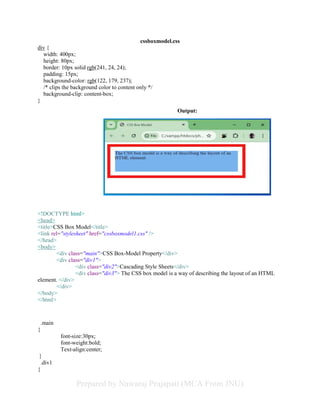
The CSS box model is the way in which CSS defines the layout of elements on a web page. It defines how
the width, height, padding, borders, and margins of an element are calculated and rendered. Each HTML
element is considered as a rectangular box, and the CSS box model describes how these boxes interact with
each other and how they are sized and positioned on the page. This model is the foundation for creating the
layout of a web page using CSS.
Explanation of the different parts:
Content: The content of the box, where text and images appear
Padding: Clears an area around the content. The padding is transparent
Border: A border that goes around the padding and content
Margin: Clears an area outside the border. The margin is transparent
Example:
<html>
<head>
<link rel="stylesheet" href="cssboxmodel.css" />
<title>CSS Box Model</title>
</head>
<body>
<div>
The CSS box model is a way of describing the layout of an HTML element.
</div>
</body>
</html>
Prepared by Nawaraj Prajapati (MCA From JNU)
cssboxmodel.css
div {
width: 400px;
height: 80px;
border: 10px solid rgb(241, 24, 24);
padding: 15px;
background-color: rgb(122, 179, 237);
/* clips the background color to content only */
background-clip: content-box;
}
<!DOCTYPE html>
<head>
<title>CSS Box Model</title>
<link rel="stylesheet" href="cssboxmodel1.css" />
</head>
<body>
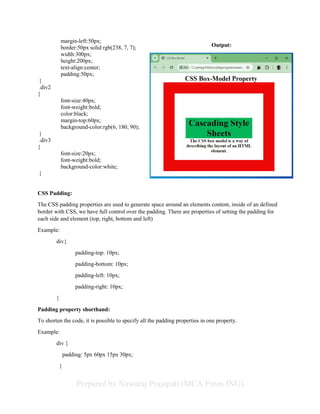
<div class="main">CSS Box-Model Property</div>
<div class="div1">
<div class="div2">Cascading Style Sheets</div>
<div class="div3"> The CSS box model is a way of describing the layout of an HTML
element. </div>
</div>
</body>
</html>
.main
{
font-size:30px;
font-weight:bold;
Text-align:center;
}
.div1
{
Output:
Prepared by Nawaraj Prajapati (MCA From JNU)
margin-left:50px;
border:50px solid rgb(238, 7, 7);
width:300px;
height:200px;
text-align:center;
padding:50px;
}
.div2
{
font-size:40px;
font-weight:bold;
color:black;
margin-top:60px;
background-color:rgb(6, 180, 90);
}
.div3
{
font-size:20px;
font-weight:bold;
background-color:white;
}
CSS Padding:
The CSS padding properties are used to generate space around an elements content, inside of an defined
border with CSS, we have full control over the padding. There are properties of setting the padding for
each side and element (top, right, bottom and left)
Example:
div{
padding-top: 10px;
padding-bottom: 10px;
padding-left: 10px;
padding-right: 10px;
}
Padding property shorthand:
To shorten the code, it is possible to specify all the padding properties in one property.
Example:
div {
padding: 5px 60px 15px 30px;
}
Output:
Prepared by Nawaraj Prajapati (MCA From JNU)
CSS Margins:
The CSS margin properties are used to create space around elements outside of any defined borders. With
CSS we have full control over the margins. There are properties of setting the margin for each side of an
element (top, right, bottom and left)
Example:
div{
margin-top: 20px;
margin-bottom: 20px;
margin-left: 20px;
margin-right: 20px;
}
Margin shorthand property:
To shorten code, it is possible to specify all margin properties in one property using margin shorthand
property.
Example:
div{
margin: 10px 20px 10px 20px;
}
CSS Positioning:
The CSS position property determines how an element should be positioned in an HTML document. The
top, right, bottom, and left properties set the final position of the elements. There are four different position
values.
1. CSS Static Positioning
2. CSS Fixed Positioning
3. CSS Relative Positioning
4. CSS Absolute Positioning
CSS Static Position:
The position of the HTML elements is static by default. It sets the position according to the normal flow
of the page. The top, bottom, left, and right properties do not affect it.
Example:
<html>
<head>
<title>Static Position</title>
<style>
Prepared by Nawaraj Prajapati (MCA From JNU)
img {
position: static;
}
</style>
</head>
<body>
<h1>This is static position</h1>
<img src="C:xampphtdocsphpprogramsexamples13913logo.jpg" alt="logo">
<p>This is static position</p>
</body>
</html>
CSS Fixed Positioning:
The fixed positioning property positions the element relative to the screen's viewport and stays fixed on the
screen when scrolling.
Example:
<html>
<head>
<title>Fixed Position</title>
<style>
h1{
position: fixed;
top: 10px;
right: 20px;
}
</style>
</head>
<body>
<h1>This is Fixed position</h1>
</body>
</html>
CSS Relative Positioning:
<html>
<head>
<title>Relative Position</title>
<style>
.relative{
position: relative;
border: 5px solid #e80c0c;
font-size: 35px;
left: 100px;
top: 50px
}
</style>
</head>
<body>
Prepared by Nawaraj Prajapati (MCA From JNU)
<h1>Relative Position</h1>
<div class="relative">
This div element has relative position
</div>
</body>
</html>
CSS Absolute Positioning:
The absolute value positions the element absolutely relative to its container. With absolute positioning, you
can place an element anywhere on a page.
Example:
<html>
<head>
<title>Absoute Position</title>
<style>
div.relative{
position: relative;
border: 5px solid #5e5a5a;
font-size: 35px;
width:500px ;
height: 300px;
}
div.absolute{
position: absolute;
border: 5px solid #e80c0c;
font-size: 35px;
top:100px;
right: 0px;
width:300px ;
height: 200px;
}
</style>
</head>
<body>
<h1>This is absolute Position</h1>
<div class="relative">This is relative position
<div class="absolute">This is absolute position</div>
</div>
</body>
</html>
Output:
Prepared by Nawaraj Prajapati (MCA From JNU)
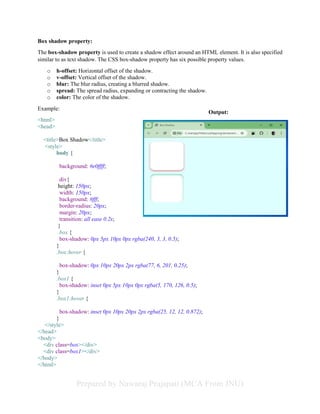
Box shadow property:
The box-shadow property is used to create a shadow effect around an HTML element. It is also specified
similar to as text shadow. The CSS box-shadow property has six possible property values.
o h-offset: Horizontal offset of the shadow.
o v-offset: Vertical offset of the shadow.
o blur: The blur radius, creating a blurred shadow.
o spread: The spread radius, expanding or contracting the shadow.
o color: The color of the shadow.
Example:
<html>
<head>
<title>Box Shadow</title>
<style>
body {
background: #e0ffff;
div{
height: 150px;
width: 150px;
background: #fff;
border-radius: 20px;
margin: 20px;
transition: all ease 0.2s;
}
.box {
box-shadow: 0px 5px 10px 0px rgba(240, 3, 3, 0.5);
}
.box:hover {
box-shadow: 0px 10px 20px 2px rgba(77, 6, 201, 0.25);
}
.box1 {
box-shadow: inset 0px 5px 10px 0px rgba(5, 170, 126, 0.5);
}
.box1:hover {
box-shadow: inset 0px 10px 20px 2px rgba(25, 12, 12, 0.872);
}
</style>
</head>
<body>
<div class=box></div>
<div class=box1></div>
</body>
</html>
Output:
Prepared by Nawaraj Prajapati (MCA From JNU)
<html>
<head>
<style>
body {
margin: 30px;
background-color: #E9E9E9;
}
div.polaroid {
width: 284px;
padding: 10px 10px 20px 10px;
border: 1px solid #BFBFBF;
background-color: white;
box-shadow: 10px 10px 5px #aaaaaa;
}
div.rotate_right {
float: left;
transform: rotate(7deg);
}
div.rotate_left {
float: left;
transform: rotate(-8deg);
}
</style>
</head>
<body>
<div class="polaroid rotate_right">
<img src="C:xampphtdocsphpprogramsexamples13913logo.jpg"
alt="Pulpit rock" width="284" height="213">
<p class="caption">This is right side This is right sideThis is
right side</p>
</div>
<div class="polaroid rotate_left">
<img src="C:xampphtdocsphpprogramsexamples13913logo.jpg"
alt="Monterosso al Mare" width="284" height="213">
<p class="caption">This is left side This is left side This is
left side This is left side This is left side</p>
</div>
</body>
</html>
Output:

CSS styling and adding description about

  • 1.
    Prepared by NawarajPrajapati (MCA From JNU) CSS Table: We can apply style on HTML tables for better look and feel. There are some CSS properties that are widely used in designing table using CSS: o Border: Defines the border around the table and cells. o Padding: Defines the space between the cell content and the cell border. o Margin: Defines the space between the table and surrounding elements. o Background color: Sets the background color of the table. o Text-align: Sets the alignment of text within cells. o Font size: Sets the size of the text within cells. Here CSS properties that we use for applying a style to the table. The background-color and color properties set the background color and the color of the text, respectively. The border-collapse property makes the table borders collapse. The text-align property sets the text position. Also, we should use the height, width and padding properties for styling. Example: <html> <head> <title>Title of the document</title> <style> table { width: 100%; border-collapse: collapse; } table, th, td { border: 1px solid black; } thead { background-color: #1c87c9; color: #ffffff; } th { text-align: center; height: 50px; } tbody tr:nth-child(odd) { background: #ffffff; } tbody tr:nth-child(even) { background: #f4f4f4; } </style> </head> <body> <table> <thead> Output:
  • 2.
    Prepared by NawarajPrajapati (MCA From JNU) <tr> <th>Name</th> <th>Address</th> <th>Age</th> </tr> </thead> <tbody> <tr> <td>Abhiraj</td> <td>BKT</td> <td>20</td> </tr> <tr> <td>Abhiraj</td> <td>BKT</td> <td>20</td> </tr> <tr> <td>Abhiraj</td> <td>BKT</td> <td>20</td> </tr> <tr> <td>Abhiraj</td> <td>BKT</td> <td>20</td> </tr> </tbody> </table> </body> </html> Example of <th> and <td> elements to the center side: <html> <head> <title>Title of the document</title> <style> table, td, th { border: 5px solid rgb(241, 21, 21); } table { border-collapse: collapse; width: 100%; } th, td { text-align: center; } Output:
  • 3.
    Prepared by NawarajPrajapati (MCA From JNU) </style> </head> <body> <h2>Alignment example</h2> <table> <tbody> <tr> <th>Name</th> <th>Address</th> <th>Salary</th> </tr> <tr> <td>Abhiraj</td> <td>BKT</td> <td>50000</td> </tr> <tr> <td>Pramod</td> <td>KTM</td> <td>55000</td> </tr> <tr> <td>Ananya</td> <td>Kalaiya</td> <td>35000</td> </tr> <tbody> </table> </body> </html> Example of the vertical alignment of <td> elements to bottom: <html> <head> <style> table, td, th { border: 5px solid rgb(228, 19, 19); } table { border-collapse: collapse; width: 100%; } td { height: 50px; vertical-align: bottom; text-align: right; padding-right: 15px; } Output:
  • 4.
    Prepared by NawarajPrajapati (MCA From JNU) </style> </head> <body> <h2>Vertical alignment</h2> <table> <tr> <th>Name</th> <th>Address</th> <th>Salary</th> </tr> <tr> <td>Nawaraj</td> <td>BKT</td> <td>3000</td> </tr> <tr> <td>Abhiraj</td> <td>KTM</td> <td>25000</td> </tr> <tr> <td>Kabi</td> <td>Kalaiya</td> <td>50000</td> </tr> </table> </body> </html> Example of Responsive tables: <html> <head> <title>Title of the document</title> <style> div { overflow-x: auto; } table { border-collapse: collapse; width: 100%; } th,td { text-align: left; padding: 8px 5px; } tr:nth-child(even) { background-color: white; Output:
  • 5.
    Prepared by NawarajPrajapati (MCA From JNU) } tr:nth-child(odd) { background-color: gray; } </style> </head> <body> <h2>Responsive table example</h2> <div> <table> <tr> <th>Name</th> <th>Address</th> <th>Salary</th> <th>Salary</th> <th>Salary</th> <th>Salary</th> <th>Salary</th> <th>Salary</th> <th>Salary</th> <th>Salary</th> <th>Salary</th> <th>Salary</th> </tr> <tr> <td>Nawaraj</td> <td>BKT</td> <td>50000</td> <td>50000</td> <td>50000</td> <td>50000</td> <td>50000</td> <td>50000</td> <td>50000</td> <td>50000</td> <td>50000</td> <td>50000</td> </tr> <tr> <td>Abhiraj</td> <td>KTM</td> <td>70000</td> <td>70000</td> <td>70000</td> <td>70000</td> <td>70000</td> <td>70000</td> <td>70000</td> <td>70000</td> <td>70000</td>
  • 6.
    Prepared by NawarajPrajapati (MCA From JNU) <td>70000</td> </tr> <tr> <td>Rohit</td> <td>KTM</td> <td>70000</td> <td>70000</td> <td>70000</td> <td>70000</td> <td>70000</td> <td>70000</td> <td>70000</td> <td>70000</td> <td>70000</td> <td>70000</td> </tr> <tr> <td>Nawaraj</td> <td>BKT</td> <td>50000</td> <td>50000</td> <td>50000</td> <td>50000</td> <td>50000</td> <td>50000</td> <td>50000</td> <td>50000</td> <td>50000</td> <td>50000</td> </tr> <tr> <td>Abhiraj</td> <td>KTM</td> <td>70000</td> <td>70000</td> <td>70000</td> <td>70000</td> <td>70000</td> <td>70000</td> <td>70000</td> <td>70000</td> <td>70000</td> <td>70000</td> </tr> <tr> <td>Rohit</td> <td>KTM</td> <td>70000</td> <td>70000</td> <td>70000</td> <td>70000</td>
  • 7.
    Prepared by NawarajPrajapati (MCA From JNU) <td>70000</td> <td>70000</td> <td>70000</td> <td>70000</td> <td>70000</td> <td>70000</td> </tr> </table> </div> </body> </html>
  • 8.
    Prepared by NawarajPrajapati (MCA From JNU) CSS Box Model: The CSS box model is the way in which CSS defines the layout of elements on a web page. It defines how the width, height, padding, borders, and margins of an element are calculated and rendered. Each HTML element is considered as a rectangular box, and the CSS box model describes how these boxes interact with each other and how they are sized and positioned on the page. This model is the foundation for creating the layout of a web page using CSS. Explanation of the different parts: Content: The content of the box, where text and images appear Padding: Clears an area around the content. The padding is transparent Border: A border that goes around the padding and content Margin: Clears an area outside the border. The margin is transparent Example: <html> <head> <link rel="stylesheet" href="cssboxmodel.css" /> <title>CSS Box Model</title> </head> <body> <div> The CSS box model is a way of describing the layout of an HTML element. </div> </body> </html>
  • 9.
    Prepared by NawarajPrajapati (MCA From JNU) cssboxmodel.css div { width: 400px; height: 80px; border: 10px solid rgb(241, 24, 24); padding: 15px; background-color: rgb(122, 179, 237); /* clips the background color to content only */ background-clip: content-box; } <!DOCTYPE html> <head> <title>CSS Box Model</title> <link rel="stylesheet" href="cssboxmodel1.css" /> </head> <body> <div class="main">CSS Box-Model Property</div> <div class="div1"> <div class="div2">Cascading Style Sheets</div> <div class="div3"> The CSS box model is a way of describing the layout of an HTML element. </div> </div> </body> </html> .main { font-size:30px; font-weight:bold; Text-align:center; } .div1 { Output:
  • 10.
    Prepared by NawarajPrajapati (MCA From JNU) margin-left:50px; border:50px solid rgb(238, 7, 7); width:300px; height:200px; text-align:center; padding:50px; } .div2 { font-size:40px; font-weight:bold; color:black; margin-top:60px; background-color:rgb(6, 180, 90); } .div3 { font-size:20px; font-weight:bold; background-color:white; } CSS Padding: The CSS padding properties are used to generate space around an elements content, inside of an defined border with CSS, we have full control over the padding. There are properties of setting the padding for each side and element (top, right, bottom and left) Example: div{ padding-top: 10px; padding-bottom: 10px; padding-left: 10px; padding-right: 10px; } Padding property shorthand: To shorten the code, it is possible to specify all the padding properties in one property. Example: div { padding: 5px 60px 15px 30px; } Output:
  • 11.
    Prepared by NawarajPrajapati (MCA From JNU) CSS Margins: The CSS margin properties are used to create space around elements outside of any defined borders. With CSS we have full control over the margins. There are properties of setting the margin for each side of an element (top, right, bottom and left) Example: div{ margin-top: 20px; margin-bottom: 20px; margin-left: 20px; margin-right: 20px; } Margin shorthand property: To shorten code, it is possible to specify all margin properties in one property using margin shorthand property. Example: div{ margin: 10px 20px 10px 20px; } CSS Positioning: The CSS position property determines how an element should be positioned in an HTML document. The top, right, bottom, and left properties set the final position of the elements. There are four different position values. 1. CSS Static Positioning 2. CSS Fixed Positioning 3. CSS Relative Positioning 4. CSS Absolute Positioning CSS Static Position: The position of the HTML elements is static by default. It sets the position according to the normal flow of the page. The top, bottom, left, and right properties do not affect it. Example: <html> <head> <title>Static Position</title> <style>
  • 12.
    Prepared by NawarajPrajapati (MCA From JNU) img { position: static; } </style> </head> <body> <h1>This is static position</h1> <img src="C:xampphtdocsphpprogramsexamples13913logo.jpg" alt="logo"> <p>This is static position</p> </body> </html> CSS Fixed Positioning: The fixed positioning property positions the element relative to the screen's viewport and stays fixed on the screen when scrolling. Example: <html> <head> <title>Fixed Position</title> <style> h1{ position: fixed; top: 10px; right: 20px; } </style> </head> <body> <h1>This is Fixed position</h1> </body> </html> CSS Relative Positioning: <html> <head> <title>Relative Position</title> <style> .relative{ position: relative; border: 5px solid #e80c0c; font-size: 35px; left: 100px; top: 50px } </style> </head> <body>
  • 13.
    Prepared by NawarajPrajapati (MCA From JNU) <h1>Relative Position</h1> <div class="relative"> This div element has relative position </div> </body> </html> CSS Absolute Positioning: The absolute value positions the element absolutely relative to its container. With absolute positioning, you can place an element anywhere on a page. Example: <html> <head> <title>Absoute Position</title> <style> div.relative{ position: relative; border: 5px solid #5e5a5a; font-size: 35px; width:500px ; height: 300px; } div.absolute{ position: absolute; border: 5px solid #e80c0c; font-size: 35px; top:100px; right: 0px; width:300px ; height: 200px; } </style> </head> <body> <h1>This is absolute Position</h1> <div class="relative">This is relative position <div class="absolute">This is absolute position</div> </div> </body> </html> Output:
  • 14.
    Prepared by NawarajPrajapati (MCA From JNU) Box shadow property: The box-shadow property is used to create a shadow effect around an HTML element. It is also specified similar to as text shadow. The CSS box-shadow property has six possible property values. o h-offset: Horizontal offset of the shadow. o v-offset: Vertical offset of the shadow. o blur: The blur radius, creating a blurred shadow. o spread: The spread radius, expanding or contracting the shadow. o color: The color of the shadow. Example: <html> <head> <title>Box Shadow</title> <style> body { background: #e0ffff; div{ height: 150px; width: 150px; background: #fff; border-radius: 20px; margin: 20px; transition: all ease 0.2s; } .box { box-shadow: 0px 5px 10px 0px rgba(240, 3, 3, 0.5); } .box:hover { box-shadow: 0px 10px 20px 2px rgba(77, 6, 201, 0.25); } .box1 { box-shadow: inset 0px 5px 10px 0px rgba(5, 170, 126, 0.5); } .box1:hover { box-shadow: inset 0px 10px 20px 2px rgba(25, 12, 12, 0.872); } </style> </head> <body> <div class=box></div> <div class=box1></div> </body> </html> Output:
  • 15.
    Prepared by NawarajPrajapati (MCA From JNU) <html> <head> <style> body { margin: 30px; background-color: #E9E9E9; } div.polaroid { width: 284px; padding: 10px 10px 20px 10px; border: 1px solid #BFBFBF; background-color: white; box-shadow: 10px 10px 5px #aaaaaa; } div.rotate_right { float: left; transform: rotate(7deg); } div.rotate_left { float: left; transform: rotate(-8deg); } </style> </head> <body> <div class="polaroid rotate_right"> <img src="C:xampphtdocsphpprogramsexamples13913logo.jpg" alt="Pulpit rock" width="284" height="213"> <p class="caption">This is right side This is right sideThis is right side</p> </div> <div class="polaroid rotate_left"> <img src="C:xampphtdocsphpprogramsexamples13913logo.jpg" alt="Monterosso al Mare" width="284" height="213"> <p class="caption">This is left side This is left side This is left side This is left side This is left side</p> </div> </body> </html> Output: