CSS
Grids and Layouts
By: Jide Adebiyi
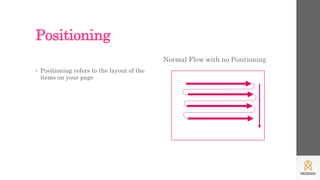
Positioning
• Positioning refers to the layout of the
items on your page
Normal Flow with no Positioning
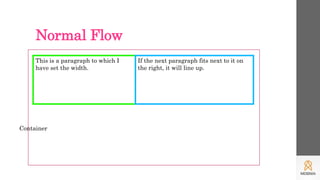
Normal Flow
This is a paragraph to which I
have set the width.
If the next paragraph fits next to it on
the right, it will line up.
Container
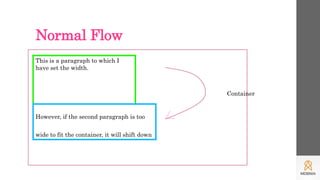
Normal Flow
This is a paragraph to which I
have set the width.
However, if the second paragraph is too
wide to fit the container, it will shift down
Container
The Box Model
• The “Box Model” is a tool we use to lay out our web pages in a
number of individual "boxes" or "containers". When we plan our web
page design, we must take into account not only the size of page
content, but also the margins, borders, and padding involved.
• Before we start building a page, we can plan where everything will
go by arranging these boxes on the screen. Our goal is to create a
balanced layout, with plenty of "white space" around the content.
The Box Model
• All of the items in on webpages are contained in invincible boxes–
Before writing your html or css, you would have to figure out how the
content on your page would fit into these boxes
Image
with
link
Image
Regular text
Small
print text,
bullet list
Set of links
(navigation)
The Box Model
Margin
Border
Content
Padding
Calculating overall dimensions
• When designing our page, we have to calculate how much size a
<div> element will consume:
• Total element width = defined width + left padding + right padding +
left border + right border + left margin + right margin.
• Total element height = defined height + top padding + bottom
padding + top border + bottom border + top margin + bottom margin
Grids
• In graphic design and word processing
applications, a grid is a series of
vertical and horizontal lines that are
used to subdivide a page vertically
and horizontally into margins,
columns, inter-column spaces, lines of
type and spaces between blocks of
type and images.
• These subdivisions form the basis of a
modular and systematic approach to
the layout, particularly for multipage
documents, making the design process
quicker, and ensuring visual
consistency between related pages.
Grids
Container
Columns
gutter
Grids
html
<div class="grid-container outline">
<div class="row">
<div class="col-1"><p>col-1</p></div>
</div>
<div class="row">
<div class="col-2"><p>col-2</p></div>
</div>
</div>
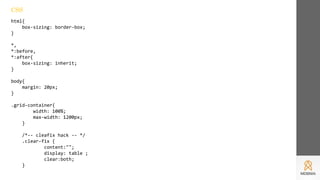
html{
box-sizing: border-box;
}
*,
*:before,
*:after{
box-sizing: inherit;
}
body{
margin: 20px;
}
.grid-container{
width: 100%;
max-width: 1200px;
}
/*-- our cleafix hack -- */
.clear-fix {
content:"";
display: table ;
clear:both;
}
CSS
[class*='col-'] {
float: left;
min-height: 1px;
width: 16.66%;
/*-- our gutter -- */
padding: 12px;
background-color: #FFDCDC;
}
.col-1{ width: 16.66%; }
.col-2{ width: 33.33%; }
.col-3{ width: 50%; }
.col-4{ width: 66.66%; }
.col-5{ width: 83.33%; }
.col-6{ width: 100%; }
.outline, .outline *{
outline: 1px solid #F6A1A1;
}
/*-- some extra column content styling --*/
[class*='col-'] > p {
background-color: #FFC2C2;
padding: 10px;
margin: 0;
text-align: center;
color: white;
}
/**responsiveness**/
@media all and (max-width:800px){
.col-1{ width: 33.33%;}
.col-2{ width: 50%;}
.col-3{ width: 83.33%;}
.col-4{ width: 100%;}
.col-5{ width: 100%;}
.col-6{ width: 100%;}
.row .col-2:last-of-type{
width: 100%;
}
.row .col-5 ~ .col-1{
width: 100%;
}
}
@media all and (max-width:650px){
.col-1{ width: 50%; }
.col-2{ width: 100%; }
.col-3{ width: 100%; }
.col-4{ width: 100%; }
.col-5{ width: 100%; }
.col-6{ width: 100%; }
}

CSS

  • 1.
  • 2.
    Positioning • Positioning refersto the layout of the items on your page Normal Flow with no Positioning
  • 3.
    Normal Flow This isa paragraph to which I have set the width. If the next paragraph fits next to it on the right, it will line up. Container
  • 4.
    Normal Flow This isa paragraph to which I have set the width. However, if the second paragraph is too wide to fit the container, it will shift down Container
  • 5.
    The Box Model •The “Box Model” is a tool we use to lay out our web pages in a number of individual "boxes" or "containers". When we plan our web page design, we must take into account not only the size of page content, but also the margins, borders, and padding involved. • Before we start building a page, we can plan where everything will go by arranging these boxes on the screen. Our goal is to create a balanced layout, with plenty of "white space" around the content.
  • 6.
    The Box Model •All of the items in on webpages are contained in invincible boxes– Before writing your html or css, you would have to figure out how the content on your page would fit into these boxes Image with link Image Regular text Small print text, bullet list Set of links (navigation)
  • 7.
  • 8.
    Calculating overall dimensions •When designing our page, we have to calculate how much size a <div> element will consume: • Total element width = defined width + left padding + right padding + left border + right border + left margin + right margin. • Total element height = defined height + top padding + bottom padding + top border + bottom border + top margin + bottom margin
  • 9.
    Grids • In graphicdesign and word processing applications, a grid is a series of vertical and horizontal lines that are used to subdivide a page vertically and horizontally into margins, columns, inter-column spaces, lines of type and spaces between blocks of type and images. • These subdivisions form the basis of a modular and systematic approach to the layout, particularly for multipage documents, making the design process quicker, and ensuring visual consistency between related pages.
  • 10.
  • 11.
  • 12.
    html <div class="grid-container outline"> <divclass="row"> <div class="col-1"><p>col-1</p></div> <div class="col-1"><p>col-1</p></div> <div class="col-1"><p>col-1</p></div> <div class="col-1"><p>col-1</p></div> <div class="col-1"><p>col-1</p></div> <div class="col-1"><p>col-1</p></div> </div> <div class="row"> <div class="col-2"><p>col-2</p></div> <div class="col-2"><p>col-2</p></div> <div class="col-2"><p>col-2</p></div> </div> </div>
  • 13.
    html{ box-sizing: border-box; } *, *:before, *:after{ box-sizing: inherit; } body{ margin:20px; } .grid-container{ width: 100%; max-width: 1200px; } /*-- our cleafix hack -- */ .clear-fix { content:""; display: table ; clear:both; } CSS
  • 14.
    [class*='col-'] { float: left; min-height:1px; width: 16.66%; /*-- our gutter -- */ padding: 12px; background-color: #FFDCDC; } .col-1{ width: 16.66%; } .col-2{ width: 33.33%; } .col-3{ width: 50%; } .col-4{ width: 66.66%; } .col-5{ width: 83.33%; } .col-6{ width: 100%; } .outline, .outline *{ outline: 1px solid #F6A1A1; }
  • 15.
    /*-- some extracolumn content styling --*/ [class*='col-'] > p { background-color: #FFC2C2; padding: 10px; margin: 0; text-align: center; color: white; }
  • 16.
    /**responsiveness**/ @media all and(max-width:800px){ .col-1{ width: 33.33%;} .col-2{ width: 50%;} .col-3{ width: 83.33%;} .col-4{ width: 100%;} .col-5{ width: 100%;} .col-6{ width: 100%;} .row .col-2:last-of-type{ width: 100%; } .row .col-5 ~ .col-1{ width: 100%; } } @media all and (max-width:650px){ .col-1{ width: 50%; } .col-2{ width: 100%; } .col-3{ width: 100%; } .col-4{ width: 100%; } .col-5{ width: 100%; } .col-6{ width: 100%; } }