Create Photo Slideshow with
Photo Slideshow Software
From:http://www.leawo.org/tutorial/create-photo-slideshow-with-photo-slideshow-software.html
- Leawo Software
"What’s a good photo slideshow maker program? – I am looking for a photo slideshow
making program to make a photo slideshow. What are some good programs that make
slideshow making easy, fun, and have good features. I am making a photo slideshow for my
cousin’s grad party."
Do you take lots of photos for your family, friends, or special events? Shooting photos with
digital camera or smartphone is a great fun in daily life. You may have a big amount of
photos and plan to make a photo slideshow with music and photos you’ve shot, but you may
wonder what kind of photo slideshow maker software to use to help you create photo
slideshow easily. While, in this post, you will get satisfactory photo slideshow making
solutions, no matter you’re using a Windows or Mac.
Part 1: Make Photo Slideshow with Windows Media Center
Part 2: Make Photo Slideshow on Mac with iMovie
Part 3: All-in-one Photo Slideshow Maker for Mac/PC
Part 4: Photo Slideshow Maker Software Alternatives
Part 1: Make Photo Slideshow on Windows
Windows users get many choices to make a photo slideshow with music and
photos shot with digital camera or smartphones. In this part, you will learn how to
make a photo slideshow with Windows Media Center in detailed steps, and how to
add music to photo slideshow in Windows Media Center, as well as some other
practical photo slideshow maker software alternatives to Windows Media Center.
1. How to Make a Photo Slideshow with Windows Media Center
Windows Media Center helps you manage video and audio files saved on Windows
PC. With Windows Media Center, you could record live TV, organize or play musics
and movies, etc. Actually, Windows Media Center could even help you create a
slide show with music and photos you’ve recorded with digital camera or
smartphones.
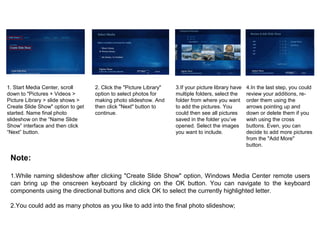
1. Start Media Center, scroll
down to "Pictures + Videos >
Picture Library > slide shows >
Create Slide Show" option to get
started. Name final photo
slideshow on the “Name Slide
Show” interface and then click
“Next” button.
2. Click the "Picture Library"
option to select photos for
making photo slideshow. And
then click "Next" button to
continue.
3.If your picture library have
multiple folders, select the
folder from where you want
to add the pictures. You
could then see all pictures
saved in the folder you’ve
opened. Select the images
you want to include.
4.In the last step, you could
review your additions, re-
order them using the
arrows pointing up and
down or delete them if you
wish using the cross
buttons. Even, you can
decide to add more pictures
from the "Add More"
button.
Note:
1.While naming slideshow after clicking "Create Slide Show" option, Windows Media Center remote users
can bring up the onscreen keyboard by clicking on the OK button. You can navigate to the keyboard
components using the directional buttons and click OK to select the currently highlighted letter.
2.You could add as many photos as you like to add into the final photo slideshow;
2. How to Make a Photo Slideshow with Music in Windows Media Center
Windows Media Center not only allows you to create photo slideshow, but also enables you to add music as
background while making a photo slideshow. To make a photo slideshow with music in Windows Media
Center, in the Step 4 of creating photo slideshow within Windows Media Center (showed above), click "Add
More" option and then follow the below steps:
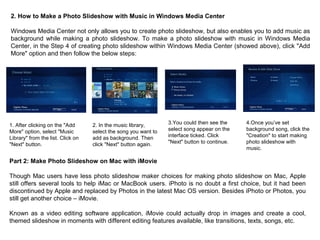
1. After clicking on the "Add
More" option, select "Music
Library" from the list. Click on
"Next" button.
2. In the music library,
select the song you want to
add as background. Then
click "Next" button again.
3.You could then see the
select song appear on the
interface ticked. Click
"Next" button to continue.
4.Once you’ve set
background song, click the
"Creation" to start making
photo slideshow with
music.
Part 2: Make Photo Slideshow on Mac with iMovie
Though Mac users have less photo slideshow maker choices for making photo slideshow on Mac, Apple
still offers several tools to help iMac or MacBook users. iPhoto is no doubt a first choice, but it had been
discontinued by Apple and replaced by Photos in the latest Mac OS version. Besides iPhoto or Photos, you
still get another choice – iMovie.
Known as a video editing software application, iMovie could actually drop in images and create a cool,
themed slideshow in moments with different editing features available, like transitions, texts, songs, etc.
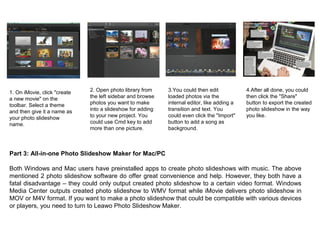
1. On iMovie, click "create
a new movie" on the
toolbar. Select a theme
and then give it a name as
your photo slideshow
name.
2. Open photo library from
the left sidebar and browse
photos you want to make
into a slideshow for adding
to your new project. You
could use Cmd key to add
more than one picture.
3.You could then edit
loaded photos via the
internal editor, like adding a
transition and text. You
could even click the "Import"
button to add a song as
background.
4.After all done, you could
then click the "Share"
button to export the created
photo slideshow in the way
you like.
Part 3: All-in-one Photo Slideshow Maker for Mac/PC
Both Windows and Mac users have preinstalled apps to create photo slideshows with music. The above
mentioned 2 photo slideshow software do offer great convenience and help. However, they both have a
fatal disadvantage – they could only output created photo slideshow to a certain video format. Windows
Media Center outputs created photo slideshow to WMV format while iMovie delivers photo slideshow in
MOV or M4V format. If you want to make a photo slideshow that could be compatible with various devices
or players, you need to turn to Leawo Photo Slideshow Maker.
Officially named as Total Media Converter Ultimate, Leawo’s Photo Slideshow Maker is built in this total
media converter suite to offer useful and easy to use photo slideshow creating solution. No matter where
your source photos are and which formats they are saved in, this Photo Slideshow Maker accepts them for
making to photo slideshow. (Leawo offers Photo Slideshow Maker for Mac to help Mac users easily create
photo slideshow off various photos for saving in 180+ formats on Mac).
Why Choose Leawo’s Photo Slideshow Maker?
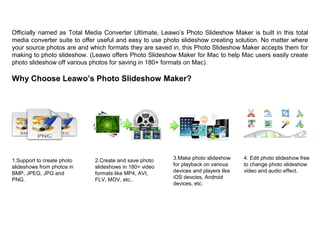
1.Support to create photo
slideshows from photos in
BMP, JPEG, JPG and
PNG.
2.Create and save photo
slideshows in 180+ video
formats like MP4, AVI,
FLV, MOV, etc..
3.Make photo slideshow
for playback on various
devices and players like
iOS devcies, Android
devices, etc.
4. Edit photo slideshow free
to change photo slideshow
video and audio effect.
For more details,welcome to visit
http://www.leawo.org/tutorial/create-photo-slideshow-with-photo-slideshow-software.html
Related Posts:
1. How to Make a Birthday Photo Slideshow on Mac with Photo Slideshow Maker Software
2. 5 Photo Slideshow Maker Tools to Create Christmas Photo Slideshows
3. Best Photo Slideshow Maker – How to Make Photo Slideshow on Mac
4. 2 Ways to Create Photo Slideshow with Easter Photos

Create photo slideshow with photo slideshow software

  • 1.
    Create Photo Slideshowwith Photo Slideshow Software From:http://www.leawo.org/tutorial/create-photo-slideshow-with-photo-slideshow-software.html - Leawo Software
  • 2.
    "What’s a goodphoto slideshow maker program? – I am looking for a photo slideshow making program to make a photo slideshow. What are some good programs that make slideshow making easy, fun, and have good features. I am making a photo slideshow for my cousin’s grad party." Do you take lots of photos for your family, friends, or special events? Shooting photos with digital camera or smartphone is a great fun in daily life. You may have a big amount of photos and plan to make a photo slideshow with music and photos you’ve shot, but you may wonder what kind of photo slideshow maker software to use to help you create photo slideshow easily. While, in this post, you will get satisfactory photo slideshow making solutions, no matter you’re using a Windows or Mac. Part 1: Make Photo Slideshow with Windows Media Center Part 2: Make Photo Slideshow on Mac with iMovie Part 3: All-in-one Photo Slideshow Maker for Mac/PC Part 4: Photo Slideshow Maker Software Alternatives
  • 3.
    Part 1: MakePhoto Slideshow on Windows Windows users get many choices to make a photo slideshow with music and photos shot with digital camera or smartphones. In this part, you will learn how to make a photo slideshow with Windows Media Center in detailed steps, and how to add music to photo slideshow in Windows Media Center, as well as some other practical photo slideshow maker software alternatives to Windows Media Center. 1. How to Make a Photo Slideshow with Windows Media Center Windows Media Center helps you manage video and audio files saved on Windows PC. With Windows Media Center, you could record live TV, organize or play musics and movies, etc. Actually, Windows Media Center could even help you create a slide show with music and photos you’ve recorded with digital camera or smartphones.
  • 4.
    1. Start MediaCenter, scroll down to "Pictures + Videos > Picture Library > slide shows > Create Slide Show" option to get started. Name final photo slideshow on the “Name Slide Show” interface and then click “Next” button. 2. Click the "Picture Library" option to select photos for making photo slideshow. And then click "Next" button to continue. 3.If your picture library have multiple folders, select the folder from where you want to add the pictures. You could then see all pictures saved in the folder you’ve opened. Select the images you want to include. 4.In the last step, you could review your additions, re- order them using the arrows pointing up and down or delete them if you wish using the cross buttons. Even, you can decide to add more pictures from the "Add More" button. Note: 1.While naming slideshow after clicking "Create Slide Show" option, Windows Media Center remote users can bring up the onscreen keyboard by clicking on the OK button. You can navigate to the keyboard components using the directional buttons and click OK to select the currently highlighted letter. 2.You could add as many photos as you like to add into the final photo slideshow;
  • 5.
    2. How toMake a Photo Slideshow with Music in Windows Media Center Windows Media Center not only allows you to create photo slideshow, but also enables you to add music as background while making a photo slideshow. To make a photo slideshow with music in Windows Media Center, in the Step 4 of creating photo slideshow within Windows Media Center (showed above), click "Add More" option and then follow the below steps: 1. After clicking on the "Add More" option, select "Music Library" from the list. Click on "Next" button. 2. In the music library, select the song you want to add as background. Then click "Next" button again. 3.You could then see the select song appear on the interface ticked. Click "Next" button to continue. 4.Once you’ve set background song, click the "Creation" to start making photo slideshow with music. Part 2: Make Photo Slideshow on Mac with iMovie Though Mac users have less photo slideshow maker choices for making photo slideshow on Mac, Apple still offers several tools to help iMac or MacBook users. iPhoto is no doubt a first choice, but it had been discontinued by Apple and replaced by Photos in the latest Mac OS version. Besides iPhoto or Photos, you still get another choice – iMovie. Known as a video editing software application, iMovie could actually drop in images and create a cool, themed slideshow in moments with different editing features available, like transitions, texts, songs, etc.
  • 6.
    1. On iMovie,click "create a new movie" on the toolbar. Select a theme and then give it a name as your photo slideshow name. 2. Open photo library from the left sidebar and browse photos you want to make into a slideshow for adding to your new project. You could use Cmd key to add more than one picture. 3.You could then edit loaded photos via the internal editor, like adding a transition and text. You could even click the "Import" button to add a song as background. 4.After all done, you could then click the "Share" button to export the created photo slideshow in the way you like. Part 3: All-in-one Photo Slideshow Maker for Mac/PC Both Windows and Mac users have preinstalled apps to create photo slideshows with music. The above mentioned 2 photo slideshow software do offer great convenience and help. However, they both have a fatal disadvantage – they could only output created photo slideshow to a certain video format. Windows Media Center outputs created photo slideshow to WMV format while iMovie delivers photo slideshow in MOV or M4V format. If you want to make a photo slideshow that could be compatible with various devices or players, you need to turn to Leawo Photo Slideshow Maker.
  • 7.
    Officially named asTotal Media Converter Ultimate, Leawo’s Photo Slideshow Maker is built in this total media converter suite to offer useful and easy to use photo slideshow creating solution. No matter where your source photos are and which formats they are saved in, this Photo Slideshow Maker accepts them for making to photo slideshow. (Leawo offers Photo Slideshow Maker for Mac to help Mac users easily create photo slideshow off various photos for saving in 180+ formats on Mac). Why Choose Leawo’s Photo Slideshow Maker? 1.Support to create photo slideshows from photos in BMP, JPEG, JPG and PNG. 2.Create and save photo slideshows in 180+ video formats like MP4, AVI, FLV, MOV, etc.. 3.Make photo slideshow for playback on various devices and players like iOS devcies, Android devices, etc. 4. Edit photo slideshow free to change photo slideshow video and audio effect.
  • 8.
    For more details,welcometo visit http://www.leawo.org/tutorial/create-photo-slideshow-with-photo-slideshow-software.html Related Posts: 1. How to Make a Birthday Photo Slideshow on Mac with Photo Slideshow Maker Software 2. 5 Photo Slideshow Maker Tools to Create Christmas Photo Slideshows 3. Best Photo Slideshow Maker – How to Make Photo Slideshow on Mac 4. 2 Ways to Create Photo Slideshow with Easter Photos