Introduction to BIOS
- BIOS stands for Basic Input/Output System.
- It is the firmware embedded in a computer's motherboard.
- BIOS is responsible for initializing and testing hardware
components during startup.
- Acts as an interface between the operating system and
hardware.
3.
Functions of BIOS
- POST (Power-On Self-Test): Checks hardware functionality
before booting.
- Bootstrap Loader: Loads the operating system into memory.
- BIOS Setup Utility: Allows users to configure hardware settings.
- CMOS Settings Management: Stores system time, date, and
configuration settings.
4.
Types of BIOS
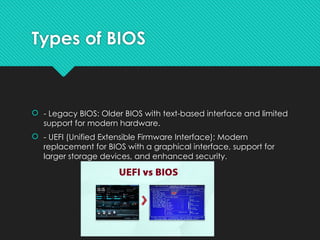
- Legacy BIOS: Older BIOS with text-based interface and limited
support for modern hardware.
- UEFI (Unified Extensible Firmware Interface): Modern
replacement for BIOS with a graphical interface, support for
larger storage devices, and enhanced security.
5.
BIOS vs. UEFI
- BIOS: Text-based, supports up to 2TB storage, limited security,
slower boot speed.
- UEFI: Graphical interface, supports larger storage, Secure
Boot, faster boot speed.
6.
How to AccessBIOS
- Restart your computer.
- Press the designated key during boot (e.g., F2, F10, DEL, or
ESC).
- Navigate through the BIOS/UEFI menu to configure settings.
7.
Common BIOS Settings
- Boot Order: Determines the sequence of devices for startup.
- CPU and RAM Configuration: Adjust processor and memory
settings.
- Power Management: Controls power-saving features.
- Security Options: Set up passwords and Secure Boot.
8.
BIOS Update Process
- Identify your motherboard model.
- Download the latest BIOS update from the manufacturer’s
website.
- Use a USB drive to flash the update in BIOS/UEFI.
- Restart your system after the update.
9.
DUEL BIOS
TheASUS Extreme 4 mobo & many modern motherboards have a
feature called "dual bios support." Evidently if you flash your bios
incorrectly you can return the previous bios because there are
two separate bios chips.
10.
Importance of BIOSSecurity
- Secure Boot: Prevents unauthorized OS loading.
- BIOS Password Protection: Restricts access to system settings.
- Firmware Updates: Fix security vulnerabilities and improve
performance.
11.
Conclusion
- BIOSis an essential part of a computer’s startup process.
- UEFI has largely replaced Legacy BIOS due to its advanced
features.
- Understanding BIOS settings can help optimize and secure
your computer.
12.
Q&A
- Feelfree to ask any questions!
- Thank you for your time!




![Lect 1 Number systems and base conversions. [Autosaved].pptx](https://cdn.slidesharecdn.com/ss_thumbnails/lect1numbersystemsandbaseconversions-260111134109-67c2d865-thumbnail.jpg?width=640&height=640&fit=bounds)
