What is aComputer?
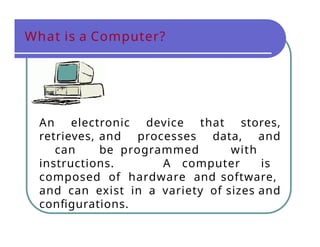
An electronic device that stores,
retrieves, and processes data, and
can be programmed with
instructions. A computer is
composed of hardware and software,
and can exist in a variety of sizes and
configurations.
5.
Hardware & Software
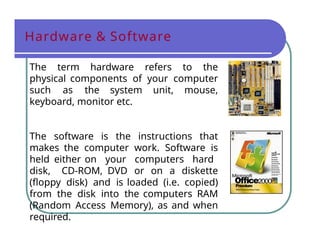
Theterm hardware refers to the
physical components of your computer
such as the system unit, mouse,
keyboard, monitor etc.
The software is the instructions that
makes the computer work. Software is
held either on your computers hard
disk, CD-ROM, DVD or on a diskette
(floppy disk) and is loaded (i.e. copied)
from the disk into the computers RAM
(Random Access Memory), as and when
required.
6.
Types of Computers
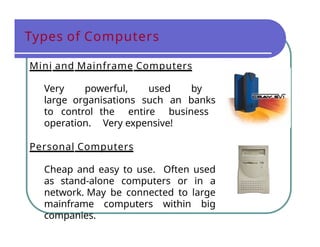
Miniand Mainframe Computers
Very powerful, used by
large organisations such an banks
to control the entire business
operation. Very expensive!
Personal Computers
Cheap and easy to use. Often used
as stand-alone computers or in a
network. May be connected to large
mainframe computers within big
companies.
7.
Hardware Components
Input Devices-- "How to tell it what to do“
-A keyboard and mouse are the standard
way to interact with the computer. Other devices
include joysticks and game pads used primarily for
games.
Output Devices -- "How it shows you what it is
doing"
-The monitor (the screen) is how the
computer sends information back to you. A
printer is also an output device.
8.
Hardware Components
INPUT DEVICES
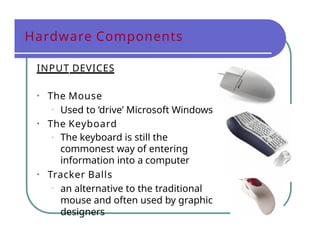
•The Mouse
• Used to ‘drive’ Microsoft Windows
• The Keyboard
• The keyboard is still the
commonest way of entering
information into a computer
• Tracker Balls
• an alternative to the traditional
mouse and often used by graphic
designers
9.
Hardware Components
INPUT DEVICES
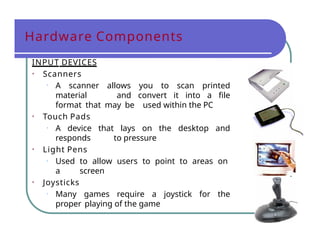
•Scanners
• A scanner allows you to scan printed
material and convert it into a file
format that may be used within the PC
• Touch Pads
• A device that lays on the desktop and
responds to pressure
• Light Pens
• Used to allow users to point to areas on
a screen
• Joysticks
• Many games require a joystick for the
proper playing of the game
10.
Hardware Components
OUTPUT DEVICES
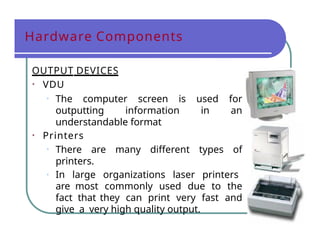
•VDU
• The computer screen is used for
outputting information in an
understandable format
• Printers
• There are many different types of
printers.
• In large organizations laser printers
are most commonly used due to the
fact that they can print very fast and
give a very high quality output.
11.
Hardware Components
OUTPUT DEVICES
•Plotters
• A plotter is an output device similar
to a printer, but normally allows you
to print larger images.
• Speakers
• Enhances the value of educational
and presentation products.
• Speech synthesisers
• Gives you the ability to not only to
display text on a monitor but also to
read the text to you
12.
Hardware Components
Storage Devices-- "How it saves data
and programs“
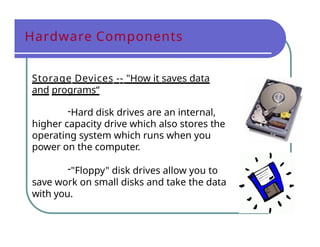
-Hard disk drives are an internal,
higher capacity drive which also stores the
operating system which runs when you
power on the computer.
-"Floppy" disk drives allow you to
save work on small disks and take the data
with you.
13.
Hardware Components
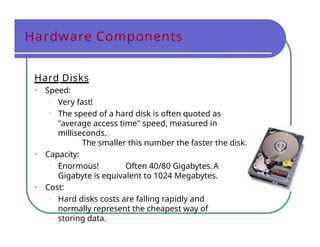
Hard Disks
•Speed:
• Very fast!
• The speed of a hard disk is often quoted as
"average access time" speed, measured in
milliseconds.
The smaller this number the faster the disk.
• Capacity:
• Enormous! Often 40/80 Gigabytes.A
Gigabyte is equivalent to 1024 Megabytes.
• Cost:
• Hard disks costs are falling rapidly and
normally represent the cheapest way of
storing data.
Hardware Components
CD-ROM Disks
•Speed:
• Much slower than hard disks. The
original CD-ROM speciation is given a
value of 1x speed, and later, faster CD-
ROMs are quoted as a multiple of this
value.
• Capacity:
• Around 650 Mbytes and more
16.
Hardware Components
DVD Drives
•Speed:
• Much faster than CD-ROM drives
but not as fast as hard disks.
• Capacity:
• Up to 17 Gbytes.
• Cost:
• Slightly higher than CD-ROM
drives.
17.
Main Parts ofComputer
Memory -- "How the processor stores and
uses immediate data“
• RAM - Random Access Memory
• The main 'working' memory used by the
computer.
• When the operating system loads from disk when
you first switch on the computer, it is copied into
RAM.
• As a rough rule, a Microsoft Windows based computer
will operate faster if you install more RAM. Data and
programs stored in RAM are volatile (i.e. the
information is lost when you switch off the computer).
18.
Hardware Components
Memory
• ROM– Read Only Memory
• Read Only Memory (ROM) as the name suggests is a
special type of memory chip that holds software that can
be read but not written to.
• A good example is the ROM-BIOS chip, which contains
read- only software.
• Often network cards and video cards also contain
ROM chips.
19.
Hardware Components
How ComputerMemory Is Measured
• Bit
• All computers work on a binary numbering system, i.e.
they process data in one's or zero's. This 1 or 0 level of
storage is called a bit.
• Byte
• A byte consists of eight bits.
• Kilobyte
• A kilobyte (KB) consists of 1024 bytes.
• Megabyte
• A megabyte (MB) consists of 1024 kilobytes.
• Gigabyte
• A gigabyte (GB) consists of 1024 megabytes.
20.
Hardware Components
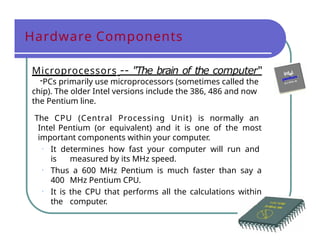
Microprocessors --"The brain of the computer“
-PCs primarily use microprocessors (sometimes called the
chip). The older Intel versions include the 386, 486 and now
the Pentium line.
The CPU (Central Processing Unit) is normally an
Intel Pentium (or equivalent) and it is one of the most
important components within your computer.
• It determines how fast your computer will run and
is measured by its MHz speed.
• Thus a 600 MHz Pentium is much faster than say a
400 MHz Pentium CPU.
• It is the CPU that performs all the calculations within
the computer.
21.
Hardware Components
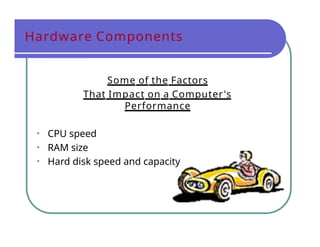
Some ofthe Factors
That Impact on a Computer's
Performance
• CPU speed
• RAM size
• Hard disk speed and capacity
22.
Software Component
Operating systemssoftware
The operating system is a special type of program that
loads automatically when you start your computer.
The operating system allows you to use the advanced
features of a modern computer without having to learn all
the details of how the hardware works
The link between the hardware and you, the user
Makes the computer easy to use without having to understand
bits and bytes!
23.
Software Component
Applications software
Anapplication program is the type of program
that you use once the operating system has been
loaded.
Examples include word-processing
programs, spreadsheets and databases
24.
Software Component
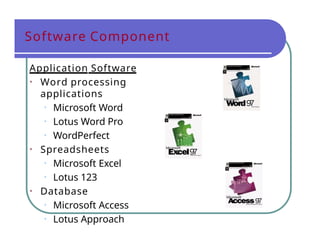
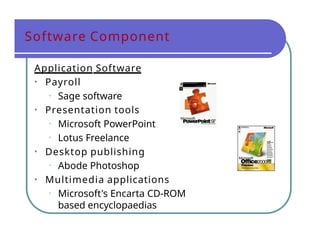
Application Software
•Word processing
applications
• Microsoft Word
• Lotus Word Pro
• WordPerfect
• Spreadsheets
• Microsoft Excel
• Lotus 123
• Database
• Microsoft Access
• Lotus Approach
Information Network
• LAN
•A LAN (Local Area Network) is a system
whereby individual PCs are connected
together within a company or organization
• WAN
• A WAN (Wide Area Network) as the name
implies allows you to connect to other
computers over a wider area (i.e. the whole
world).
27.
Information Network
Uses ofNetwork
If ten people are working together within an
office it makes sense for them all to be
connected.
• In this way the office can have a single
printer and all ten people can print to it.
• In a similar way other devices such as modems
or scanners can be shared.
• Even more useful is the ability to
share information when connected to a
network.
28.
Computer Accessories
• Modem
•Short for “MODulate/DEModulate”. The
modem sends information from your
computer across the telephone system.
• The modem at the other end of the phone
line, converts the signal back into a format that
can be used by the receiving computer.
29.
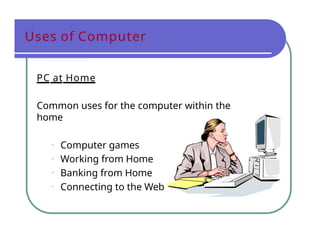
Uses of Computer
PCat Home
Common uses for the computer within the
home
• Computer games
• Working from Home
• Banking from Home
• Connecting to the Web
30.
Uses of Computer
Computersin Education
• CBT (Computer Based Training)
• Computer Based Training (CBT) offers a low
cost solution to training needs where you need
to train a large amount of people on a single
subject.
• These programs are normally supplied on CD-
ROM and combine text, graphics and sound.
• Packages range from general encyclopaedias
right through to learning a foreign language.
31.
Uses of Computer
OfficeApplications
• Automated Production Systems
• Many car factories are almost completely automated and
the cars are assembled by computer-controlled robots.
• This automation is becoming increasingly
common throughout industry.
• Design Systems
• Many products are designed using CAD (Computer
Aided Design) programs to produce exact
specifications and detailed drawings on the
computer before producing models of new products.
32.
Uses of Computer
OfficeApplications
• Stock Control
• Stock control is ideal for automation and in many
companies it is now completely computerized.
• The stock control system keeps track of the number of
items in stock and can automatically order
replacement items when required.
• Accounts / Payroll
• In most large organizations the accounts are
maintained by a computerized system.
• Due to the repetitive nature of accounts a computer
system is ideally suited to this task and accuracy is
guaranteed.
33.
Uses of Computer
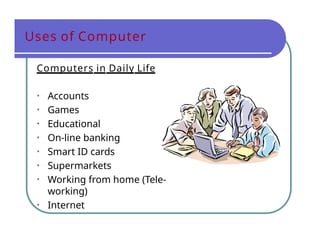
Computersin Daily Life
• Accounts
• Games
• Educational
• On-line banking
• Smart ID cards
• Supermarkets
• Working from home (Tele-
working)
• Internet
34.
• Frequent breaksaway from the computer
• Appropriate positioning of screens, chairs
and keyboards
• Provision of adequate lighting and
ventilation.
Create a Good Working
Environment
35.
Health & SafetyPrecautions
• Make sure that cables are safely secured
• Make sure that power points are not
overloaded
• Also be aware of:
• Repetitive Strain Injury (RSI)
• Glare from screens
• Bad posture
36.
Value of Backup
•The most important thing that you
store on your computer is
information.
• Often the contents of a hard disk
can represent years of work.
• If the hard disk stops working one day
you could lose all those years of work.
• For this reason it is VITAL that you
take regular backups of the
information that is stored on the
computer.
37.
Value of Backup
•Organize your computer for more
efficient backups
• Complete vs. incremental backups
• Use 'off-site' storage
38.
Value of Backup
•Use passwords
• Understand the Importance of
shutting down your computer
properly
• Use a UPS (Un-interruptible Power
Supply)
39.
Likes & Dislikesof Computer
• Things computer like:
• Good ventilation
• Clean environment
• Stable, vibration free surface
• Things computer don’t like:
• Dust
• Drinking and eating over the
keyboard
• Heat, Cold or Moisture
• Don’t place objects on top of
monitors.
• Don’t place floppy disks near
monitors.
40.
Computer Virus
• Whatare computer
viruses?
• Viruses are small
programs that hide
themselves on your disks
(both diskettes and your
hard disk).
• Unless you use
virus detection software
the first time that you
know that you have a
virus is when it
activates.
• Different viruses
are activated in different
41.
Computer Virus
• Howdo viruses infect PCs?
• Viruses hide on a disk and when
you access the disk (either a
diskette or another hard disk
over a network) the virus
program will start and infect
your computer.
• The worst thing about a
computer virus is that they can
spread from one computer to
another, either via use of
infected floppy disk, or over
a computer network,
including the Internet.
42.
Computer Virus
• Howto prevent virus damage
• There are a number of third party
anti- virus products available.
• Most of these are better than the
rather rudimentary products
available within DOS and
Windows, but of course you do
have to pay for them!
• The main thing about your virus
checker is that it should be kept
up to date.
• Many companies supply updated disks
on a regular basis or allow you to
receive updates through an
electronic, on-line bulletin board.
43.
Software Copyright
• Beaware on software copyright
issues
• Freeware
• Shareware
• What about software that you find
on the Internet?
• Software site licenses
44.
Software Copyright
• Ifyour computer system
holds information about individuals
then you have a moral and
legal duty to treat that
information with respect.
• In a free society you have a right
to ensure that information
held about you is not abused.
• In many countries this right
is enshrined under data protection
laws