Computer Essential
 FIRST STAGE
 Public Health
 College of health and medical technology, shekhan
1
Computer: Definition
A computer is a machine that can be programmed to manipulate symbols. Its
principal characteristics are:
 It responds to a specific set of instructions in a well-defined manner.
 It can execute a prerecorded list of instructions (a program).
 It can quickly store and retrieve large amounts of data.
The actual machinery (wires, transistors, and circuits) is called hardware.
the instructions and data are called software.
2
Hardware and Software
A computer system is made up of a combination of hardware and software.
Hardware:
3
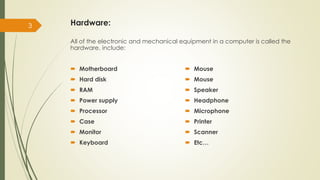
All of the electronic and mechanical equipment in a computer is called the
hardware. include:
 Motherboard
 Hard disk
 RAM
 Power supply
 Processor
 Case
 Monitor
 Keyboard
 Mouse
 Mouse
 Speaker
 Headphone
 Microphone
 Printer
 Scanner
 Etc…
Software:
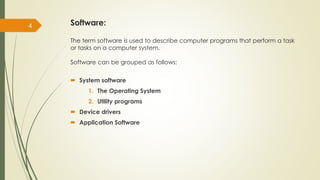
The term software is used to describe computer programs that perform a task
or tasks on a computer system.
Software can be grouped as follows:
 System software
1. The Operating System
2. Utility programs
 Device drivers
 Application Software
4
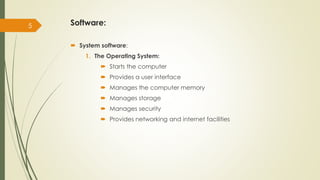
Software:
 System software:
1. The Operating System:
 Starts the computer
 Provides a user interface
 Manages the computer memory
 Manages storage
 Manages security
 Provides networking and internet facilities
5
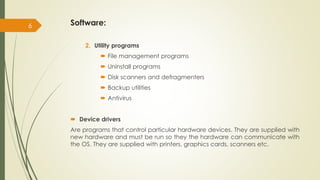
Software:
2. Utility programs
 File management programs
 Uninstall programs
 Disk scanners and defragmenters
 Backup utilities
 Antivirus
 Device drivers
Are programs that control particular hardware devices. They are supplied with
new hardware and must be run so they the hardware can communicate with
the OS. They are supplied with printers, graphics cards, scanners etc.
6
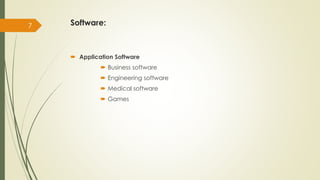
Software:
 Application Software
 Business software
 Engineering software
 Medical software
 Games
7
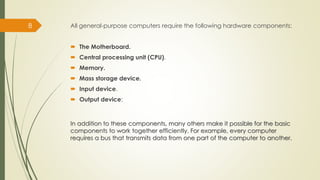
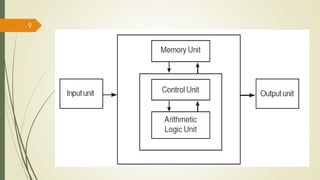
All general-purpose computers require the following hardware components:
 The Motherboard.
 Central processing unit (CPU).
 Memory.
 Mass storage device.
 Input device.
 Output device:
8
In addition to these components, many others make it possible for the basic
components to work together efficiently. For example, every computer
requires a bus that transmits data from one part of the computer to another.
9
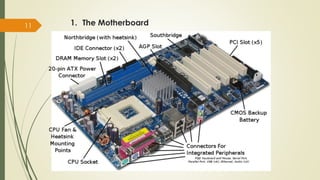
1. The Motherboard
Often called the mainboard or system board, it is the main circuit board for
the computer system. Every device in the computer system will either be part
of the motherboard or connected to it.
10
1. The Motherboard
11
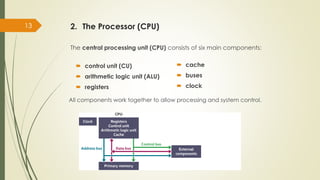
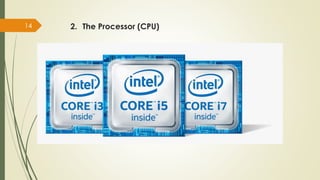
2. The Processor (CPU)
 The heart of the computer, this is the component that actually executes
instructions organized in programs ("software") which tell the computer
what to do.
The processor’s function is to control the activities of the computer system.
12
2. The Processor (CPU)
The central processing unit (CPU) consists of six main components:
13
 control unit (CU)
 arithmetic logic unit (ALU)
 registers
All components work together to allow processing and system control.
 cache
 buses
 clock
2. The Processor (CPU)
14
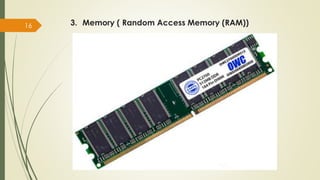
3. Memory ( Random Access Memory (RAM))
 Fast, expensive, short-term memory enables a computer to store, at least
temporarily, data, programs, and intermediate results.
15
3. Memory ( Random Access Memory (RAM))
16
4. Memory :(Hard disk drive)
 Slower, cheaper, long-term memory allows a computer to permanently
retain large amounts of data and programs between jobs.
17
4. Memory :(Hard disk drive)
18
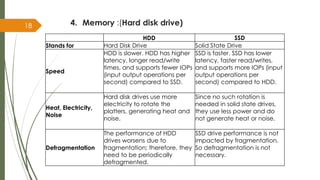
HDD SSD
Stands for Hard Disk Drive Solid State Drive
Speed
HDD is slower. HDD has higher
latency, longer read/write
times, and supports fewer IOPs
(input output operations per
second) compared to SSD.
SSD is faster. SSD has lower
latency, faster read/writes,
and supports more IOPs (input
output operations per
second) compared to HDD.
Heat, Electricity,
Noise
Hard disk drives use more
electricity to rotate the
platters, generating heat and
noise.
Since no such rotation is
needed in solid state drives,
they use less power and do
not generate heat or noise.
Defragmentation
The performance of HDD
drives worsens due to
fragmentation; therefore, they
need to be periodically
defragmented.
SSD drive performance is not
impacted by fragmentation.
So defragmentation is not
necessary.
4. Memory :(Hard disk drive)
19
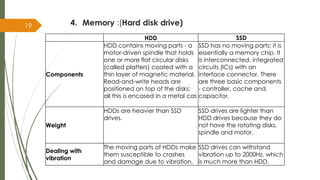
HDD SSD
Components
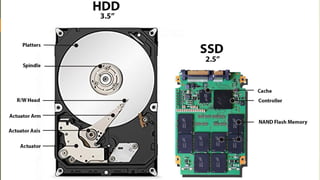
HDD contains moving parts - a
motor-driven spindle that holds
one or more flat circular disks
(called platters) coated with a
thin layer of magnetic material.
Read-and-write heads are
positioned on top of the disks;
all this is encased in a metal cas
SSD has no moving parts; it is
essentially a memory chip. It
is interconnected, integrated
circuits (ICs) with an
interface connector. There
are three basic components
- controller, cache and
capacitor.
Weight
HDDs are heavier than SSD
drives.
SSD drives are lighter than
HDD drives because they do
not have the rotating disks,
spindle and motor.
Dealing with
vibration
The moving parts of HDDs make
them susceptible to crashes
and damage due to vibration.
SSD drives can withstand
vibration up to 2000Hz, which
is much more than HDD.
20
5. INPUT DEVICES
Input devices accept data and instructions from the user. Following are the
examples of various input devices, which are connected to the computer for
this purpose.
 Keyboard
 Mouse
 Light Pen
 Optical/magnetic Scanner
 Touch Screen
 Microphone for voice as input
 Etc..
21
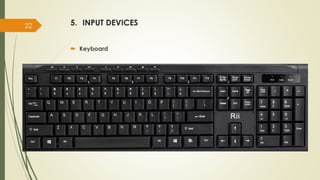
5. INPUT DEVICES
 Keyboard
22
5. INPUT DEVICES
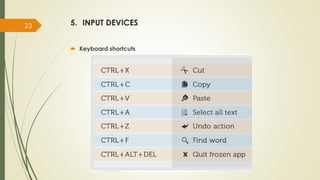
 Keyboard shortcuts
23
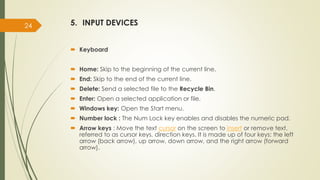
5. INPUT DEVICES
 Keyboard
 Home: Skip to the beginning of the current line.
 End: Skip to the end of the current line.
 Delete: Send a selected file to the Recycle Bin.
 Enter: Open a selected application or file.
 Windows key: Open the Start menu.
 Number lock : The Num Lock key enables and disables the numeric pad.
 Arrow keys : Move the text cursor on the screen to insert or remove text.
referred to as cursor keys, direction keys. It is made up of four keys: the left
arrow (back arrow), up arrow, down arrow, and the right arrow (forward
arrow).
24
5. INPUT DEVICES
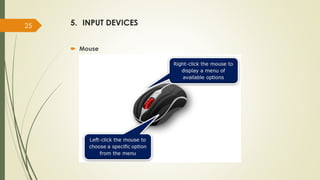
 Mouse
25
5. INPUT DEVICES
 Mouse
 Left click
 Single-click: This is the most common type of mouse click. To single-click,
press the left mouse button once and immediately release it. Single-clicks
are used in a variety of situations
 Double-click: To double-click, click twice in rapid succession. If you do not
click fast enough, however, the computer will register it as a single-click
twice; if you are having trouble, try tapping your finger on the mouse
button instead of pressing it. Use double-clicks for operations
26
5. INPUT DEVICES
 Mouse
 Right-click:
 When using the right mouse button, you need only single-click. You will not
cause any problems if you double-click or click twice, but your computer
will not interpret these types of clicking as being any different from a single-
click.
 Right-clicking will cause a drop-down menu to appear with multiple
options. This is called a contextual menu, and the options in the menu will
be different depending on the application you are using and where your
mouse pointer is positioned on the screen when you click.
 From the contextual menu, you can do such things as rename the file or
folder you right-clicked, save it to a different location, or move it to the
Recycle Bin.
27
6. OUTPUT DEVICES
Output devices return processed data that is information, back to the user.
Some of the commonly used output devices are:
 Monitor (Visual Display Unit)
 Printers
 Plotter
 Speakers
28

Computer 2023 public health.pdf

  • 1.
    Computer Essential  FIRSTSTAGE  Public Health  College of health and medical technology, shekhan 1
  • 2.
    Computer: Definition A computeris a machine that can be programmed to manipulate symbols. Its principal characteristics are:  It responds to a specific set of instructions in a well-defined manner.  It can execute a prerecorded list of instructions (a program).  It can quickly store and retrieve large amounts of data. The actual machinery (wires, transistors, and circuits) is called hardware. the instructions and data are called software. 2 Hardware and Software A computer system is made up of a combination of hardware and software.
  • 3.
    Hardware: 3 All of theelectronic and mechanical equipment in a computer is called the hardware. include:  Motherboard  Hard disk  RAM  Power supply  Processor  Case  Monitor  Keyboard  Mouse  Mouse  Speaker  Headphone  Microphone  Printer  Scanner  Etc…
  • 4.
    Software: The term softwareis used to describe computer programs that perform a task or tasks on a computer system. Software can be grouped as follows:  System software 1. The Operating System 2. Utility programs  Device drivers  Application Software 4
  • 5.
    Software:  System software: 1.The Operating System:  Starts the computer  Provides a user interface  Manages the computer memory  Manages storage  Manages security  Provides networking and internet facilities 5
  • 6.
    Software: 2. Utility programs File management programs  Uninstall programs  Disk scanners and defragmenters  Backup utilities  Antivirus  Device drivers Are programs that control particular hardware devices. They are supplied with new hardware and must be run so they the hardware can communicate with the OS. They are supplied with printers, graphics cards, scanners etc. 6
  • 7.
    Software:  Application Software Business software  Engineering software  Medical software  Games 7
  • 8.
    All general-purpose computersrequire the following hardware components:  The Motherboard.  Central processing unit (CPU).  Memory.  Mass storage device.  Input device.  Output device: 8 In addition to these components, many others make it possible for the basic components to work together efficiently. For example, every computer requires a bus that transmits data from one part of the computer to another.
  • 9.
  • 10.
    1. The Motherboard Oftencalled the mainboard or system board, it is the main circuit board for the computer system. Every device in the computer system will either be part of the motherboard or connected to it. 10
  • 11.
  • 12.
    2. The Processor(CPU)  The heart of the computer, this is the component that actually executes instructions organized in programs ("software") which tell the computer what to do. The processor’s function is to control the activities of the computer system. 12
  • 13.
    2. The Processor(CPU) The central processing unit (CPU) consists of six main components: 13  control unit (CU)  arithmetic logic unit (ALU)  registers All components work together to allow processing and system control.  cache  buses  clock
  • 14.
  • 15.
    3. Memory (Random Access Memory (RAM))  Fast, expensive, short-term memory enables a computer to store, at least temporarily, data, programs, and intermediate results. 15
  • 16.
    3. Memory (Random Access Memory (RAM)) 16
  • 17.
    4. Memory :(Harddisk drive)  Slower, cheaper, long-term memory allows a computer to permanently retain large amounts of data and programs between jobs. 17
  • 18.
    4. Memory :(Harddisk drive) 18 HDD SSD Stands for Hard Disk Drive Solid State Drive Speed HDD is slower. HDD has higher latency, longer read/write times, and supports fewer IOPs (input output operations per second) compared to SSD. SSD is faster. SSD has lower latency, faster read/writes, and supports more IOPs (input output operations per second) compared to HDD. Heat, Electricity, Noise Hard disk drives use more electricity to rotate the platters, generating heat and noise. Since no such rotation is needed in solid state drives, they use less power and do not generate heat or noise. Defragmentation The performance of HDD drives worsens due to fragmentation; therefore, they need to be periodically defragmented. SSD drive performance is not impacted by fragmentation. So defragmentation is not necessary.
  • 19.
    4. Memory :(Harddisk drive) 19 HDD SSD Components HDD contains moving parts - a motor-driven spindle that holds one or more flat circular disks (called platters) coated with a thin layer of magnetic material. Read-and-write heads are positioned on top of the disks; all this is encased in a metal cas SSD has no moving parts; it is essentially a memory chip. It is interconnected, integrated circuits (ICs) with an interface connector. There are three basic components - controller, cache and capacitor. Weight HDDs are heavier than SSD drives. SSD drives are lighter than HDD drives because they do not have the rotating disks, spindle and motor. Dealing with vibration The moving parts of HDDs make them susceptible to crashes and damage due to vibration. SSD drives can withstand vibration up to 2000Hz, which is much more than HDD.
  • 20.
  • 21.
    5. INPUT DEVICES Inputdevices accept data and instructions from the user. Following are the examples of various input devices, which are connected to the computer for this purpose.  Keyboard  Mouse  Light Pen  Optical/magnetic Scanner  Touch Screen  Microphone for voice as input  Etc.. 21
  • 22.
  • 23.
    5. INPUT DEVICES Keyboard shortcuts 23
  • 24.
    5. INPUT DEVICES Keyboard  Home: Skip to the beginning of the current line.  End: Skip to the end of the current line.  Delete: Send a selected file to the Recycle Bin.  Enter: Open a selected application or file.  Windows key: Open the Start menu.  Number lock : The Num Lock key enables and disables the numeric pad.  Arrow keys : Move the text cursor on the screen to insert or remove text. referred to as cursor keys, direction keys. It is made up of four keys: the left arrow (back arrow), up arrow, down arrow, and the right arrow (forward arrow). 24
  • 25.
  • 26.
    5. INPUT DEVICES Mouse  Left click  Single-click: This is the most common type of mouse click. To single-click, press the left mouse button once and immediately release it. Single-clicks are used in a variety of situations  Double-click: To double-click, click twice in rapid succession. If you do not click fast enough, however, the computer will register it as a single-click twice; if you are having trouble, try tapping your finger on the mouse button instead of pressing it. Use double-clicks for operations 26
  • 27.
    5. INPUT DEVICES Mouse  Right-click:  When using the right mouse button, you need only single-click. You will not cause any problems if you double-click or click twice, but your computer will not interpret these types of clicking as being any different from a single- click.  Right-clicking will cause a drop-down menu to appear with multiple options. This is called a contextual menu, and the options in the menu will be different depending on the application you are using and where your mouse pointer is positioned on the screen when you click.  From the contextual menu, you can do such things as rename the file or folder you right-clicked, save it to a different location, or move it to the Recycle Bin. 27
  • 28.
    6. OUTPUT DEVICES Outputdevices return processed data that is information, back to the user. Some of the commonly used output devices are:  Monitor (Visual Display Unit)  Printers  Plotter  Speakers 28