This work is licensed under the Apache 2.0 License
Kotlin Fundamentals
This work is licensed under the Apache 2.0 License
Compose apps are written in
the Kotlin programming
language.
Kotlin is the language that the
majority of professional Android
developers use to build apps.
This work is licensed under the Apache 2.0 License
Kotlin Playground
Write and run Kotlin code in
the browser.
https://play.kotlinlang.org/
This work is licensed under the Apache 2.0 License
Program
A series of instructions for a
computer to perform some
action.
fun main() {
println("Hello, world!")
}
Output:
Hello, world!
Functions
A function is a segment of a program that
performs a specific task.
You can have many functions in your program
This work is licensed under the Apache 2.0 License
main Function
The main function is the entry
point, or starting point, of the
program.
Start here
fun main() {
println("Hello, world!")
}
Output:
Hello, world!
This work is licensed under the Apache 2.0 License
Defining a function
Functions begin with the fun
keyword.
fun displayIntroduction() {
}
This work is licensed under the Apache 2.0 License
Defining a function
Functions have a name so that
they can be called.
fun displayIntroduction() {
}
This work is licensed under the Apache 2.0 License
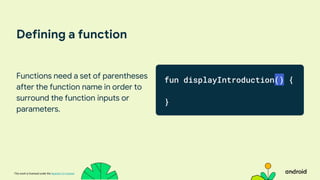
Defining a function
Functions need a set of parentheses
after the function name in order to
surround the function inputs or
parameters.
fun displayIntroduction() {
}
This work is licensed under the Apache 2.0 License
Defining a function
The curly braces make up the
function body and contain the
instructions needed to execute
a task.
fun displayIntroduction() {
// Body
}
This work is licensed under the Apache 2.0 License
Putting it together
fun main() {
firstFunction() // Call a function
}
// Define a function
fun firstFunction() {
// Function Body
}
This work is licensed under the Apache 2.0 License
Basic data types
Kotlin Data type What kind of data it can contain Example literal values
String Text
“Add contact”
“Search”
Int Whole integer number
32
-59873
Double Decimal number
2.0
-37123.9999
Float
Decimal number (less precise than a Double).
Has an f or F at the end of the number.
5.0f
-1630.209f
Boolean
true or false. Use this data type when there
are only two possible values.
true
false
This work is licensed under the Apache 2.0 License
A container for a single piece of
data.
Variables
This work is licensed under the Apache 2.0 License
val keyword
Use when you expect the variable value will
not change.
Example: name
var keyword
Use when you expect the variable value can
change.
Example: age
Defining a variable
This work is licensed under the Apache 2.0 License
Defining a variable
Variables start with a var or val
keyword.
fun main() {
val name: String = "Bhavye"
var age: Int = 20
}
This work is licensed under the Apache 2.0 License
Defining a variable
All variables must have a name.
fun main() {
val name: String = "Meghan"
var age: Int = 28
}
This work is licensed under the Apache 2.0 License
Defining a variable
Data type is the type of data
that the variable holds.
fun main() {
val name: String = "Meghan"
var age: Int = 28
}
This work is licensed under the Apache 2.0 License
Defining a variable
The initial value is the value that
is stored in the variable.
fun main() {
val name: String = "Meghan"
var age: Int = 28
// val name = “Meghan”
// var age = 28
}
This work is licensed under the Apache 2.0 License
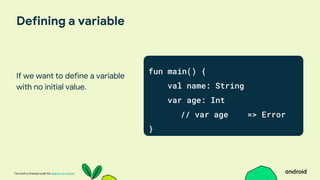
Defining a variable
If we want to define a variable
with no initial value.
fun main() {
val name: String
var age: Int
// var age => Error
}
This work is licensed under the Apache 2.0 License
Compose Camp Ses 3
Android Basics with Compose:
Unit 1&2
This work is licensed under the Apache 2.0 License
Welcome back
Any questions?
This work is licensed under the Apache 2.0 License
TOPIC TIME
Presentation 12:00 - 12:30
Download and Install Android Studio 12:30- 1:30
Create your first Android app 1:30 - 2:30
Run your first app on the Android emulator 2:30 - 2:45
Connect your physical Android device 2:45 - 3:00
Wrap up 3:00 - 3:15
Today’s Schedule
This work is licensed under the Apache 2.0 License
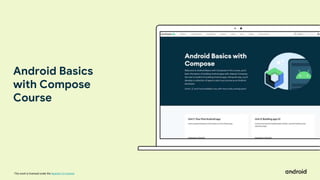
Android Basics
with Compose
Course
This work is licensed under the Apache 2.0 License
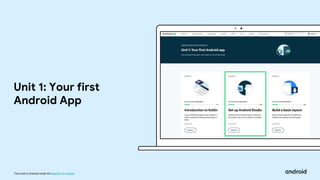
Unit 1: Your first
Android App
This work is licensed under the Apache 2.0 License
Session Overview
This work is licensed under the Apache 2.0 License
Android Studio
This work is licensed under the Apache 2.0 License
Android Studio
This work is licensed under the Apache 2.0 License
Android Studio - Project View
This work is licensed under the Apache 2.0 License
Android Studio - Code View
This work is licensed under the Apache 2.0 License
Android Studio - Code View
This work is licensed under the Apache 2.0 License
Android Studio - Design View
This work is licensed under the Apache 2.0 License
Android Studio - Design View
This work is licensed under the Apache 2.0 License
Android Studio - Split View
This work is licensed under the Apache 2.0 License
Android Studio - Greeting function
This work is licensed under the Apache 2.0 License
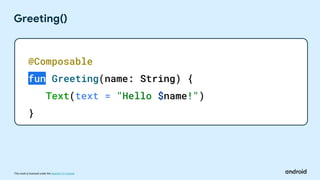
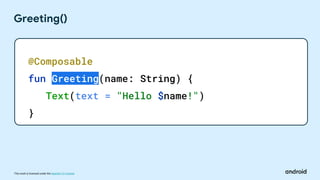
Greeting()
@Composable
fun Greeting(name: String) {
Text(text = "Hello $name!")
}
This work is licensed under the Apache 2.0 License
Greeting()
@Composable
fun Greeting(name: String) {
Text(text = "Howdy $name!")
}
This work is licensed under the Apache 2.0 License
Greeting()
@Composable
fun Greeting(name: String) {
Text(text = "Howdy $name!")
}
This work is licensed under the Apache 2.0 License
DefaultPreview()
@Preview(showBackground = true)
@Composable
fun DefaultPreview() {
FirstComposeProjectTheme {
Greeting("Android")
}
}
This work is licensed under the Apache 2.0 License
DefaultPreview()
@Preview(showBackground = true)
@Composable
fun DefaultPreview() {
FirstComposeProjectTheme {
Greeting("Meghan")
}
}
This work is licensed under the Apache 2.0 License
Greeting()
@Composable
fun Greeting(name: String) {
Text(text = "Howdy $name!")
}
@Preview(showBackground = true)
@Composable
fun DefaultPreview() {
FirstComposeProjectTheme {
Greeting("Meghan")
}
}
This work is licensed under the Apache 2.0 License
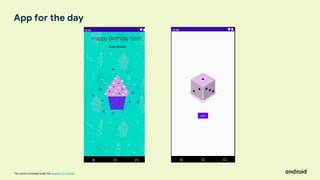
App for the day
This work is licensed under the Apache 2.0 License
The Android Emulator emulates Android devices on your computer
so that you can test your application on a variety of devices and
Android API levels without needing to have each physical device.
What is an emulator?
This work is licensed under the Apache 2.0 License
Creating an emulator
This work is licensed under the Apache 2.0 License
Creating an emulator
This work is licensed under the Apache 2.0 License
Let’s get started
Let’s get started
This work is licensed under the Apache 2.0 License
Greeting()
@Composable
fun Greeting(name: String) {
Text(text = "Hello $name!")
}
This work is licensed under the Apache 2.0 License
Greeting()
@Composable
fun Greeting(name: String) {
Text(text = "Hello $name!")
}
This work is licensed under the Apache 2.0 License
Greeting()
@Composable
fun Greeting(name: String) {
Text(text = "Hello $name!")
}
This work is licensed under the Apache 2.0 License
Greeting()
@Composable
fun Greeting(name: String) {
Text(text = "Hello $name!")
}
This work is licensed under the Apache 2.0 License
Greeting()
@Composable
fun Greeting(name: String) {
Text(text = "Hello $name!")
}
This work is licensed under the Apache 2.0 License
Greeting()
@Composable
fun Greeting(name: String) {
Text(text = "Hello $name!")
}
This work is licensed under the Apache 2.0 License
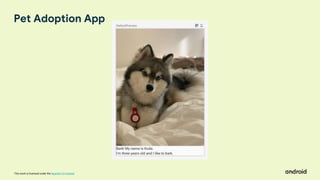
Pet Adoption App
This work is licensed under the Apache 2.0 License
PetName()
@Composable
fun PetName() {
}
This work is licensed under the Apache 2.0 License
PetName()
@Composable
fun PetName() {
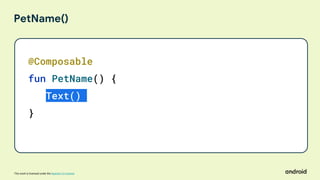
Text()
}
This work is licensed under the Apache 2.0 License
PetName()
@Composable
fun PetName() {
Text(text = "Bark! My name is Koda.")
}
This work is licensed under the Apache 2.0 License
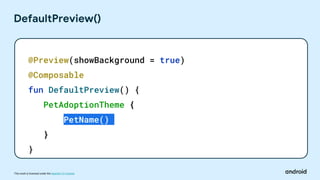
DefaultPreview()
@Preview(showBackground = true)
@Composable
fun DefaultPreview() {
PetAdoptionTheme {
PetName()
}
}
This work is licensed under the Apache 2.0 License
DefaultPreview()
This work is licensed under the Apache 2.0 License
PetInformation()
@Composable
fun PetInformation() {
Text(text = "I'm three years old and I like to bark.")
}
This work is licensed under the Apache 2.0 License
Column and Row
Column
Row
This work is licensed under the Apache 2.0 License
DefaultPreview()
This work is licensed under the Apache 2.0 License
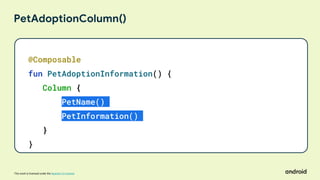
PetAdoptionColumn()
@Composable
fun PetAdoptionInformation() {
Column {
}
}
This work is licensed under the Apache 2.0 License
PetAdoptionColumn()
@Composable
fun PetAdoptionInformation() {
Column {
PetName()
PetInformation()
}
}
This work is licensed under the Apache 2.0 License
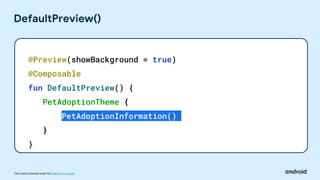
DefaultPreview()
@Preview(showBackground = true)
@Composable
fun DefaultPreview() {
PetAdoptionTheme {
PetAdoptionInformation()
}
}
This work is licensed under the Apache 2.0 License
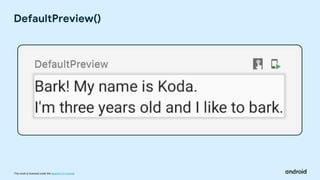
DefaultPreview()
This work is licensed under the Apache 2.0 License
Resources()
This work is licensed under the Apache 2.0 License
Accessing Resources
R.drawable.koda
This work is licensed under the Apache 2.0 License
Accessing Resources
R.drawable.koda
This work is licensed under the Apache 2.0 License
Accessing Resources
R.drawable.koda
This work is licensed under the Apache 2.0 License
Accessing Resources
R.drawable.koda
This work is licensed under the Apache 2.0 License
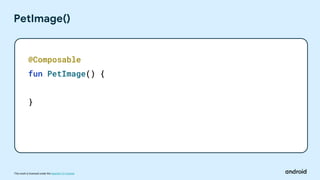
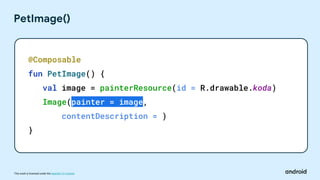
PetImage()
@Composable
fun PetImage() {
}
This work is licensed under the Apache 2.0 License
PetImage()
@Composable
fun PetImage() {
val image =
}
This work is licensed under the Apache 2.0 License
PetImage()
@Composable
fun PetImage() {
val image = painterResource(...)
}
This work is licensed under the Apache 2.0 License
PetImage()
@Composable
fun PetImage() {
val image = painterResource(id = R.drawable.koda)
}
This work is licensed under the Apache 2.0 License
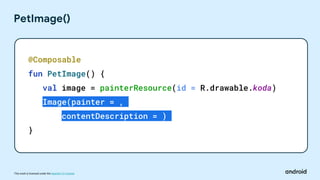
PetImage()
@Composable
fun PetImage() {
val image = painterResource(id = R.drawable.koda)
Image(painter = ,
contentDescription = )
}
This work is licensed under the Apache 2.0 License
PetImage()
@Composable
fun PetImage() {
val image = painterResource(id = R.drawable.koda)
Image(painter = image,
contentDescription = )
}
This work is licensed under the Apache 2.0 License
PetImage()
@Composable
fun PetImage() {
val image = painterResource(id = R.drawable.koda)
Image(painter = image,
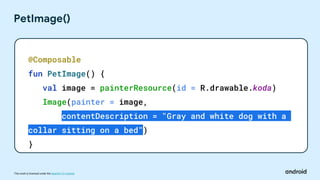
contentDescription = "Gray and white dog with a
collar sitting on a bed")
}
This work is licensed under the Apache 2.0 License
PetAdoptionInformation()
@Composable
fun PetAdoptionInformation() {
Column {
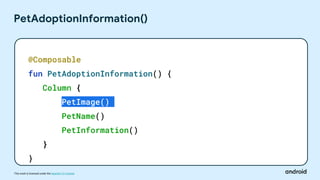
PetImage()
PetName()
PetInformation()
}
}
This work is licensed under the Apache 2.0 License
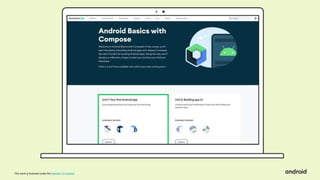
g.co/android/basics-compose
Start here:
This work is licensed under the Apache 2.0 License
Unit 1: Pathway 2
This work is licensed under the Apache 2.0 License
Have a Question? Just ask
Work on Unit 1, Pathway 2
This work is licensed under the Apache 2.0 License
Thank You
And congrats!
This work is licensed under the Apache 2.0 License
Share what you’ve
learned using
.#ComposeCamp
on Twitter
For a chance to be
featured by Android,
submit your tips on
learning Compose to
goo.gle/compose-tips
This work is licensed under the Apache 2.0 License
Learn More
All the learning resources and code will be
Shared
This work is licensed under the Apache 2.0 License
See you at the next Compose Camp Session!
Optional resources to check out:
● Official Android Developers Site: developer.android.com
● Official Android Developers Blog (for announcements)
● Android Developers Medium Blog (for more technical articles)
● Android Developers YouTube channel
● Follow @AndroidDev on Twitter
● Follow @AndroidDev on LinkedIn
● Subscribe to the Android Developer Newsletter

Compose Camp #1.pptx

  • 1.
    This work islicensed under the Apache 2.0 License Kotlin Fundamentals
  • 2.
    This work islicensed under the Apache 2.0 License Compose apps are written in the Kotlin programming language. Kotlin is the language that the majority of professional Android developers use to build apps.
  • 3.
    This work islicensed under the Apache 2.0 License Kotlin Playground Write and run Kotlin code in the browser. https://play.kotlinlang.org/
  • 4.
    This work islicensed under the Apache 2.0 License Program A series of instructions for a computer to perform some action. fun main() { println("Hello, world!") } Output: Hello, world!
  • 5.
    Functions A function isa segment of a program that performs a specific task. You can have many functions in your program
  • 6.
    This work islicensed under the Apache 2.0 License main Function The main function is the entry point, or starting point, of the program. Start here fun main() { println("Hello, world!") } Output: Hello, world!
  • 7.
    This work islicensed under the Apache 2.0 License Defining a function Functions begin with the fun keyword. fun displayIntroduction() { }
  • 8.
    This work islicensed under the Apache 2.0 License Defining a function Functions have a name so that they can be called. fun displayIntroduction() { }
  • 9.
    This work islicensed under the Apache 2.0 License Defining a function Functions need a set of parentheses after the function name in order to surround the function inputs or parameters. fun displayIntroduction() { }
  • 10.
    This work islicensed under the Apache 2.0 License Defining a function The curly braces make up the function body and contain the instructions needed to execute a task. fun displayIntroduction() { // Body }
  • 11.
    This work islicensed under the Apache 2.0 License Putting it together fun main() { firstFunction() // Call a function } // Define a function fun firstFunction() { // Function Body }
  • 12.
    This work islicensed under the Apache 2.0 License Basic data types Kotlin Data type What kind of data it can contain Example literal values String Text “Add contact” “Search” Int Whole integer number 32 -59873 Double Decimal number 2.0 -37123.9999 Float Decimal number (less precise than a Double). Has an f or F at the end of the number. 5.0f -1630.209f Boolean true or false. Use this data type when there are only two possible values. true false
  • 13.
    This work islicensed under the Apache 2.0 License A container for a single piece of data. Variables
  • 14.
    This work islicensed under the Apache 2.0 License val keyword Use when you expect the variable value will not change. Example: name var keyword Use when you expect the variable value can change. Example: age Defining a variable
  • 15.
    This work islicensed under the Apache 2.0 License Defining a variable Variables start with a var or val keyword. fun main() { val name: String = "Bhavye" var age: Int = 20 }
  • 16.
    This work islicensed under the Apache 2.0 License Defining a variable All variables must have a name. fun main() { val name: String = "Meghan" var age: Int = 28 }
  • 17.
    This work islicensed under the Apache 2.0 License Defining a variable Data type is the type of data that the variable holds. fun main() { val name: String = "Meghan" var age: Int = 28 }
  • 18.
    This work islicensed under the Apache 2.0 License Defining a variable The initial value is the value that is stored in the variable. fun main() { val name: String = "Meghan" var age: Int = 28 // val name = “Meghan” // var age = 28 }
  • 19.
    This work islicensed under the Apache 2.0 License Defining a variable If we want to define a variable with no initial value. fun main() { val name: String var age: Int // var age => Error }
  • 20.
    This work islicensed under the Apache 2.0 License Compose Camp Ses 3 Android Basics with Compose: Unit 1&2
  • 21.
    This work islicensed under the Apache 2.0 License Welcome back Any questions?
  • 22.
    This work islicensed under the Apache 2.0 License TOPIC TIME Presentation 12:00 - 12:30 Download and Install Android Studio 12:30- 1:30 Create your first Android app 1:30 - 2:30 Run your first app on the Android emulator 2:30 - 2:45 Connect your physical Android device 2:45 - 3:00 Wrap up 3:00 - 3:15 Today’s Schedule
  • 23.
    This work islicensed under the Apache 2.0 License Android Basics with Compose Course
  • 24.
    This work islicensed under the Apache 2.0 License Unit 1: Your first Android App
  • 25.
    This work islicensed under the Apache 2.0 License Session Overview
  • 26.
    This work islicensed under the Apache 2.0 License Android Studio
  • 27.
    This work islicensed under the Apache 2.0 License Android Studio
  • 28.
    This work islicensed under the Apache 2.0 License Android Studio - Project View
  • 29.
    This work islicensed under the Apache 2.0 License Android Studio - Code View
  • 30.
    This work islicensed under the Apache 2.0 License Android Studio - Code View
  • 31.
    This work islicensed under the Apache 2.0 License Android Studio - Design View
  • 32.
    This work islicensed under the Apache 2.0 License Android Studio - Design View
  • 33.
    This work islicensed under the Apache 2.0 License Android Studio - Split View
  • 34.
    This work islicensed under the Apache 2.0 License Android Studio - Greeting function
  • 35.
    This work islicensed under the Apache 2.0 License Greeting() @Composable fun Greeting(name: String) { Text(text = "Hello $name!") }
  • 36.
    This work islicensed under the Apache 2.0 License Greeting() @Composable fun Greeting(name: String) { Text(text = "Howdy $name!") }
  • 37.
    This work islicensed under the Apache 2.0 License Greeting() @Composable fun Greeting(name: String) { Text(text = "Howdy $name!") }
  • 38.
    This work islicensed under the Apache 2.0 License DefaultPreview() @Preview(showBackground = true) @Composable fun DefaultPreview() { FirstComposeProjectTheme { Greeting("Android") } }
  • 39.
    This work islicensed under the Apache 2.0 License DefaultPreview() @Preview(showBackground = true) @Composable fun DefaultPreview() { FirstComposeProjectTheme { Greeting("Meghan") } }
  • 40.
    This work islicensed under the Apache 2.0 License Greeting() @Composable fun Greeting(name: String) { Text(text = "Howdy $name!") } @Preview(showBackground = true) @Composable fun DefaultPreview() { FirstComposeProjectTheme { Greeting("Meghan") } }
  • 41.
    This work islicensed under the Apache 2.0 License App for the day
  • 42.
    This work islicensed under the Apache 2.0 License The Android Emulator emulates Android devices on your computer so that you can test your application on a variety of devices and Android API levels without needing to have each physical device. What is an emulator?
  • 43.
    This work islicensed under the Apache 2.0 License Creating an emulator
  • 44.
    This work islicensed under the Apache 2.0 License Creating an emulator
  • 45.
    This work islicensed under the Apache 2.0 License Let’s get started Let’s get started
  • 46.
    This work islicensed under the Apache 2.0 License Greeting() @Composable fun Greeting(name: String) { Text(text = "Hello $name!") }
  • 47.
    This work islicensed under the Apache 2.0 License Greeting() @Composable fun Greeting(name: String) { Text(text = "Hello $name!") }
  • 48.
    This work islicensed under the Apache 2.0 License Greeting() @Composable fun Greeting(name: String) { Text(text = "Hello $name!") }
  • 49.
    This work islicensed under the Apache 2.0 License Greeting() @Composable fun Greeting(name: String) { Text(text = "Hello $name!") }
  • 50.
    This work islicensed under the Apache 2.0 License Greeting() @Composable fun Greeting(name: String) { Text(text = "Hello $name!") }
  • 51.
    This work islicensed under the Apache 2.0 License Greeting() @Composable fun Greeting(name: String) { Text(text = "Hello $name!") }
  • 52.
    This work islicensed under the Apache 2.0 License Pet Adoption App
  • 53.
    This work islicensed under the Apache 2.0 License PetName() @Composable fun PetName() { }
  • 54.
    This work islicensed under the Apache 2.0 License PetName() @Composable fun PetName() { Text() }
  • 55.
    This work islicensed under the Apache 2.0 License PetName() @Composable fun PetName() { Text(text = "Bark! My name is Koda.") }
  • 56.
    This work islicensed under the Apache 2.0 License DefaultPreview() @Preview(showBackground = true) @Composable fun DefaultPreview() { PetAdoptionTheme { PetName() } }
  • 57.
    This work islicensed under the Apache 2.0 License DefaultPreview()
  • 58.
    This work islicensed under the Apache 2.0 License PetInformation() @Composable fun PetInformation() { Text(text = "I'm three years old and I like to bark.") }
  • 59.
    This work islicensed under the Apache 2.0 License Column and Row Column Row
  • 60.
    This work islicensed under the Apache 2.0 License DefaultPreview()
  • 61.
    This work islicensed under the Apache 2.0 License PetAdoptionColumn() @Composable fun PetAdoptionInformation() { Column { } }
  • 62.
    This work islicensed under the Apache 2.0 License PetAdoptionColumn() @Composable fun PetAdoptionInformation() { Column { PetName() PetInformation() } }
  • 63.
    This work islicensed under the Apache 2.0 License DefaultPreview() @Preview(showBackground = true) @Composable fun DefaultPreview() { PetAdoptionTheme { PetAdoptionInformation() } }
  • 64.
    This work islicensed under the Apache 2.0 License DefaultPreview()
  • 65.
    This work islicensed under the Apache 2.0 License Resources()
  • 66.
    This work islicensed under the Apache 2.0 License Accessing Resources R.drawable.koda
  • 67.
    This work islicensed under the Apache 2.0 License Accessing Resources R.drawable.koda
  • 68.
    This work islicensed under the Apache 2.0 License Accessing Resources R.drawable.koda
  • 69.
    This work islicensed under the Apache 2.0 License Accessing Resources R.drawable.koda
  • 70.
    This work islicensed under the Apache 2.0 License PetImage() @Composable fun PetImage() { }
  • 71.
    This work islicensed under the Apache 2.0 License PetImage() @Composable fun PetImage() { val image = }
  • 72.
    This work islicensed under the Apache 2.0 License PetImage() @Composable fun PetImage() { val image = painterResource(...) }
  • 73.
    This work islicensed under the Apache 2.0 License PetImage() @Composable fun PetImage() { val image = painterResource(id = R.drawable.koda) }
  • 74.
    This work islicensed under the Apache 2.0 License PetImage() @Composable fun PetImage() { val image = painterResource(id = R.drawable.koda) Image(painter = , contentDescription = ) }
  • 75.
    This work islicensed under the Apache 2.0 License PetImage() @Composable fun PetImage() { val image = painterResource(id = R.drawable.koda) Image(painter = image, contentDescription = ) }
  • 76.
    This work islicensed under the Apache 2.0 License PetImage() @Composable fun PetImage() { val image = painterResource(id = R.drawable.koda) Image(painter = image, contentDescription = "Gray and white dog with a collar sitting on a bed") }
  • 77.
    This work islicensed under the Apache 2.0 License PetAdoptionInformation() @Composable fun PetAdoptionInformation() { Column { PetImage() PetName() PetInformation() } }
  • 78.
    This work islicensed under the Apache 2.0 License
  • 79.
    This work islicensed under the Apache 2.0 License g.co/android/basics-compose Start here:
  • 80.
    This work islicensed under the Apache 2.0 License
  • 81.
    This work islicensed under the Apache 2.0 License Unit 1: Pathway 2
  • 82.
    This work islicensed under the Apache 2.0 License Have a Question? Just ask Work on Unit 1, Pathway 2
  • 83.
    This work islicensed under the Apache 2.0 License Thank You And congrats!
  • 84.
    This work islicensed under the Apache 2.0 License Share what you’ve learned using .#ComposeCamp on Twitter For a chance to be featured by Android, submit your tips on learning Compose to goo.gle/compose-tips
  • 85.
    This work islicensed under the Apache 2.0 License Learn More All the learning resources and code will be Shared
  • 86.
    This work islicensed under the Apache 2.0 License See you at the next Compose Camp Session! Optional resources to check out: ● Official Android Developers Site: developer.android.com ● Official Android Developers Blog (for announcements) ● Android Developers Medium Blog (for more technical articles) ● Android Developers YouTube channel ● Follow @AndroidDev on Twitter ● Follow @AndroidDev on LinkedIn ● Subscribe to the Android Developer Newsletter

Editor's Notes

  • #4 To make it easier for you to learn, you’ll be writing your code in the Kotlin Playground which you can access via the web browser. The site looks something like this. You can write your code in this window and run it by hitting the green Run button. The result of your code (known as the output) will show up at the bottom of the window (where it says “Hello, world!”). To illustrate a few important concepts that you’ll learn in this pathway, we will go through a short code demo to create a program in Kotlin.
  • #5 In Kotlin Playground, you will learn to explore and modify simple programs in Kotlin. You can think of a program as a series of instructions for a computer or mobile device to perform some action. In this program, the action is printing “Hello, world!”.
  • #6 A function is a segment of a program that performs a specific task. You can have many functions in your program or only a single one. Creating separate functions for specific tasks has a number of benefits. Reusable code: Rather than copying and pasting code that you need to use more than once, you can simply call a function wherever needed. Readability: Ensuring functions do one and only one specific task helps other developers and teammates, as well as your future self to know exactly what a piece of code does.
  • #7 A Kotlin program is required to have a main function, which is the entry point, or starting point, of the program. You may be asking what a function is…
  • #8 We will demonstrate how to define a function with a function called displayIntroduction() that we will use to print our name and age. A function definition starts with the fun keyword. A keyword is a reserved word that has a special meaning in Kotlin, in this case the fun keyword tells Kotlin that you are going to make a function.
  • #9 Functions need to have a descriptive name so that they can be called from other parts of the program.
  • #10 Functions need a set of parentheses which you can use to optionally pass information into the function. displayIntroduction() won’t need information passed in. You will learn more about passing in inputs into functions later in the course.
  • #11 Functions need curly braces that contain the instructions needed to execute a task.
  • #12 Finally, we will replace the contents of the main() function with a call to the displayIntroduction() function when we run it, “Hi I’m Meghan and I am 28 years old” will print to the output. In this lecture we went over functions and variables and how to put them together to create a function that introduces you. Soon you will go deeper into these concepts and try them out for yourself in the codelabs.
  • #13 When you decide what aspects of your app can be variables, it's important to specify what type of data can be stored in those variables. In Kotlin, there are some common basic data types. This table shows a different data type in each row. For each data type, there's a description of what kind of data it can hold and example values. A String holds text so you will use it to store your name, and an Int holds an integer number so you will use it to store your age.
  • #14 In computer programming, a variable is a container for a single piece of data. You can envision it as a box that contains a value. The box has a label, which is the name of the variable. By referring to the box by its name, you have access to the value it holds.
  • #15 Now, let’s jump into how you define a variable. You can declare a variable using either val or var. With val, the variable is read-only, which means you can only read, or access, the value of the variable. Once the value is set, you cannot edit or modify its value. With var, the variable is mutable, which means the value can be changed or modified. The value can be mutated. In Kotlin, it's preferred to use val over var when possible. We will store your name as a val because that will not change. We will store your age as a var because it changes every year.
  • #16 To demonstrate how to define a variable we will define both name and age variables. Before you use a variable, you must declare it. To declare a variable, start with the val or var keyword.
  • #17 All variables must have a name that they can be referenced by.
  • #18 The data type specifies the type of data that the variable holds. Note that a colon separates the name and data type.
  • #19 In the variable declaration, the equal sign symbol (=) follows the data type. The equal sign symbol is called the assignment operator. The assignment operator assigns a value to the variable. The variable’s initial value is the data stored in the variable.
  • #20 In the variable declaration, the equal sign symbol (=) follows the data type. The equal sign symbol is called the assignment operator. The assignment operator assigns a value to the variable. The variable’s initial value is the data stored in the variable.
  • #21 Welcome back to Compose Camp session 2!
  • #22 Does anyone have questions since the last session?
  • #23 [If the group has downloaded Android Studio before the session (recommended) they can skip the Download and Install Android Studio portion of this session. Students can also choose between running apps on their Android devices if they have one or use the emulator, they don’t need to do both codelabs if they don’t want to.] Let’s look at the schedule for this session. First, we have a short presentation covering a high-level introduction to the concepts, to help you with the hands-on portion of the session later. Once I’m done talking, you’ll be able to dive into the course. You’ll be working independently on four codelabs of the second pathway of the course. This is just a suggested schedule. You can work through the codelabs at your own pace and let me or any of the other facilitators know if you have questions. At the end of the session, I’ll bring everyone together and we can recap what we learned today and celebrate your progress!!
  • #24 You’ll be working through the Android Basics with Compose course. This is an online training course developed by Google for people like yourself to learn how to build basic Android apps.
  • #25 In session 1 you worked on pathway 1. In this session you will be conquering pathway 2.
  • #26 Let’s dive into some important concepts that you’ll be learning about.
  • #27 Android Studio is the official integrated development environment (IDE) for Android app development built and distributed by Google. An IDE contains tools that make it easy for software developers to design, build, run, and test software, in this case, apps for the Android platform. [If students have already downloaded Android Studio, skip the text below.] You will be downloading Android Studio in today’s session. Note that you will need to verify that your computer meets the Android Studio system requirements. If your computer doesn’t meet the requirements Android Studio may not run or may run suboptimally. Android Studio may also take a while to install. [Android Studio can be downloaded here]
  • #28 This is what Android Studio looks like: let’s talk about the different components of it.
  • #29 The Project view displays the files and folders of our project.
  • #30 The Code view is where we will view and edit code.
  • #31 To see the Design tab, we click Design at the top right of the window.
  • #32 The Design tab is where we can preview what our app looks like. Currently, the Design tab shows the default app that displays the text “Hello Android!”.
  • #33 To see the Split view, we click Split at the top right of the window.
  • #34 This is the Split view where you can see both the Code and Design tabs. You’ll be working in split view during Compose Camp. This is helpful because you are able to see how your code updates are reflected in the apps UI.
  • #35 In the code view, let’s take a look at the Greeting() function.
  • #36 In the code view, let’s take a look at the Greeting() function. This function has a Text() Composable that takes in a String parameter named name and says hello to that name.
  • #37 We can update the text in the Greeting() function to say something else. Let’s update the text to say “Howdy” instead of “Hello”
  • #38 When we rebuild, we will see the text “Howdy Android” instead of “Hello Android” in the Design tab.
  • #39 My name isn’t Android and I’m guessing yours isn’t either so let’s learn how to update the name passed into the Greeting() function. The DefaultPreview() is where you set what shows up in the Design tab. The FirstComposeProjectTheme sets the styling for the app. See that the Greeting() function is being called and “Android” is passed in.
  • #40 Let’s replace the argument passed into Greeting() with “Meghan” instead of “Android”.
  • #41 Now when we refresh we see “Howdy Meghan” displayed in the Design tab. The Design tab is a great way to quickly see how your UI changes but it is not a replacement for testing your app on an emulator or physical device.
  • #42 When the emulator runs you will see this in Android Studio. The device shows the text “Howdy Meghan!”
  • #43 The Android Emulator emulates Android devices on your computer so that you can test your application on a variety of devices and Android API levels without needing to have each physical device. The emulator is a great option to be familiar with even if you do have a physical device because it allows you to simulate your app on a variety of mobile devices without having to own any of them. The emulator allows you to test on multiple devices to make sure that your app runs as expected on different phones, sizes, API levels and more.
  • #44 You can create your own emulator in Android Studio using the Device Manager. As you can see, you are able to choose from a variety of devices.
  • #45 You can also choose from a variety API levels.
  • #46 Okay that’s it! In a moment, I’ll let you get started on the course. Work at your own pace. If you get stuck, you can ask me or the other facilitators who will be available. [Introduce facilitators if applicable.] We’re here to answer whatever questions you have, for example, if you need help installing Android Studio or getting your app to run on your Android device. Also feel free to ask each other for help and work together to find solutions.
  • #47 To see the parts of a Composable function, let’s take a look at the Greeting() function that is in MainActivity when you create a new Compose project.
  • #48 All Composable functions must have the Composable annotation which informs the Compose compiler that this is a Composable function. If you forget to add this annotation, your code will not compile! An annotation is applied by prefixing its name (the annotation) with the @ character at the beginning of the declaration you are annotating. Annotations are means of attaching extra information to code. This information helps tools like the Jetpack Compose compiler understand the app's code.
  • #49 You use the fun keyword to denote to the Kotlin compiler that it is a function.
  • #50 In Compose, function names are capitalized. Note that this is only in Compose, a non Compose function should start with a lowercase letter.
  • #51 Composable functions can accept parameters. When the value of those parameters change, the displayed UI will change as well.
  • #52 Composable functions don't return anything. Since Composable functions only describe the UI, they don't construct or create the UI, so there is nothing to return.
  • #53 For our example app we will be creating a pet adoption app that showcases a pet that is up for adoption. This includes an Image Composable and two Text Composables. We will build the app piece by piece but at the end it will look like this!
  • #54 We will start by creating a new Composable function called PetName().
  • #55 Inside of the function body we will add a Text() Composable.
  • #56 In the Text() Composable we will use the named argument, text, and set it to a String saying: “Bark! My name is Koda”. Feel free to replace the name with a different dog name if you want.
  • #57 In order to see the contents of PetName() add it into the DefaultPreview().
  • #58 This is how PetName() shows up in the Design pane. Looks good!
  • #59 In order to adopt a pet you would want more information about it like it’s age and hobbies. In order to display that we will make another Composable called PetInformation() and displays the Koda’s age and hobbies. Set the text equal to “I’m three years old and I like to bark”.
  • #60 Now we have two Composables that we want to display. Column and Row are two layout Composables that are used in Compose to arrange multiple Composables.
  • #61 For this app we will use a Column to arrange the information vertically with PetName() appearing before PetInformation().
  • #62 In order to add a Column to the app add a new Composable called PetAdoptionInformation() and add a Column Composable inside of it.
  • #63 Next, add both Composables to the Column. Add PetName() before PetInformation() so that it displays first.
  • #64 To view the new Column you added, add PetAdoptionInformation() to the DefaultPreview().
  • #65 This is what the DefaultPreview() looks like with the Column showing. Notice how the PetName() shows up first since we added it to the Column first.
  • #66 Now that we have the age and information, it’s time to add the photo of Koda. In Android Studio image assets are stored under app → res → drawable. The image asset we are using is named koda.jpg.
  • #67 We have an image saved in the drawable folder that we want to use for this app. Now, let’s talk about how to access that resource in the app. This is the syntax that we use to access resources. Let’s break down the components of it.
  • #68 The R represents the R class which is an automatically generated class by Android that contains the IDs of all resources in the project.
  • #69 Drawable refers to the subdirectory of the res folder that the image is located in.
  • #70 Lastly, we will specify the Resource ID which is usually saved as the filename.
  • #71 Let’s hop back into the app! In order to add this photo, we will need to add a new Composable function called PetImage().
  • #72 Now we will add a val named image to store our image.
  • #73 We set image to painterResource() which loads a drawable resource image and takes a resource ID as an argument.
  • #74 Pass in R.drawable.koda as the argument for the painterResource() to load the photo of Koda.
  • #75 Add an Image() Composable which has two arguments to fill in: painter and contentDescription.
  • #76 For the painter argument, pass in the image that we defined above the Image() composable.
  • #77 A contentDescription defines the purpose of a UI element and makes your app more accessible. Accessibility can make it easier for all users, not only those with disabilities, to interact with your app. We will set the image's contentDescription argument to “Gray and white dog with a collar sitting on a bed”. That’s it for the PetImage() Composable!
  • #78 In the Column of the PetAdoptionInformation(), we will add in the new PetImage() Composable.
  • #79 When we build and refresh the preview, we will see our final app complete with a photo of Koda! That concludes this lecture. Soon you will be implementing these concepts yourself!
  • #80 Open the course page with the link we provided you.
  • #81 Then, click Unit 1 to start the Android Basics course.
  • #82 We will be going over pathway 2 today.
  • #83 [You can give them about an 2.5 - 3 hours to work on this, with a break if needed.]
  • #84 Alright everyone welcome back! How was it? Does anyone want to share what your apps looks like?
  • #85 Great job everyone on your progress! You can post photos or highlights from today’s session on social media using #ComposeCamp. [Include your own developer community and chapter hashtags (i.e. #developerstudentclubs #dsccmu)] Submit any tips you have about learning Compose to goo.gle/compose-tips for a chance to be featured. We encourage you to share a screenshot of your greeting card app!
  • #86 If you liked creating your first Android apps and want to continue learning more on your own, here are some resources.
  • #87 We are excited to see you at the next Compose Camp session! In the meantime you check out these additional resources, which professional developers use to stay up to date on Android. As you get into more advanced features, you will likely need to learn more programming concepts. You can check out the Learn Kotlin By Example resource for that. Thank you so much for being a part of Compose Camp!