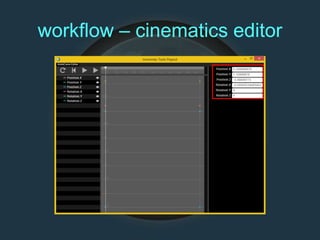
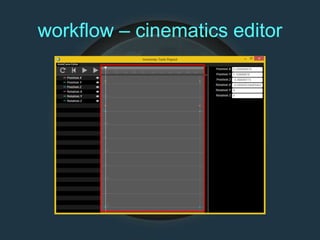
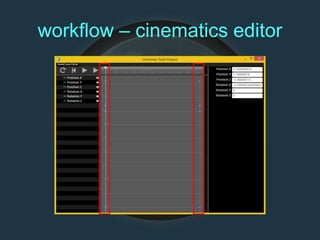
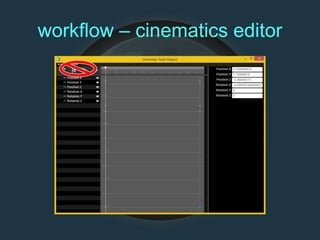
cinematic quests
4/23/2014
intro
• goals:
– quickly set up (compelling) quest cinematics
– minimize animator dependencies
– empower designers
intro
• goals:
– quickly set up (compelling) quest cinematics
– minimize animator dependencies
– empower designers
• lots to cover – lots of information
• chris / giac / reddy / dave jump in
intro
• goals:
– quickly set up (compelling) quest cinematics
– minimize animator dependencies
– empower designers
• lots to cover – lots of information
• chris / giac / reddy / dave jump in
• movie icon:
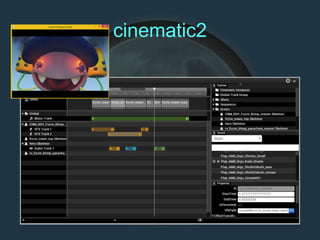
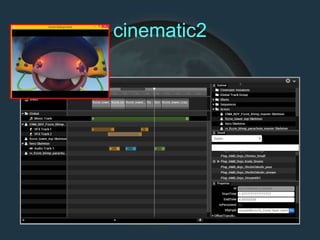
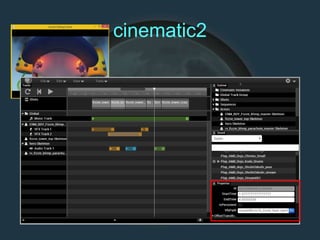
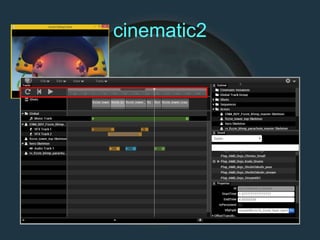
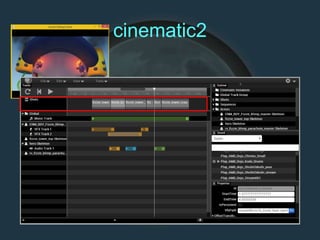
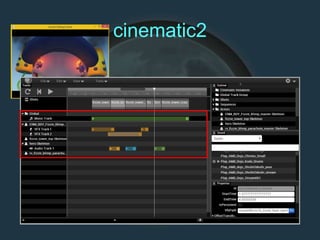
cinematic2
• new cinematic system
• fully replaces previous system
• numerous track types
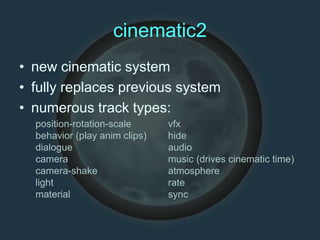
cinematic2
• new cinematic system
• fully replaces previous system
• numerous track types:
position-rotation-scale
behavior (play anim clips)
dialogue
camera
camera-shake
light
material
vfx
hide
audio
music (drives cinematic time)
atmosphere
rate
sync
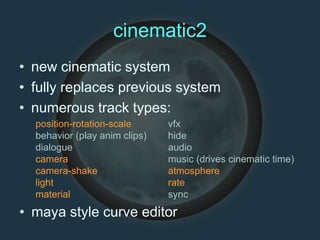
cinematic2
• new cinematic system
• fully replaces previous system
• numerous track types:
position-rotation-scale
behavior (play anim clips)
dialogue
camera
camera-shake
light
material
vfx
hide
audio
music (drives cinematic time)
atmosphere
rate
sync
• maya style curve editor
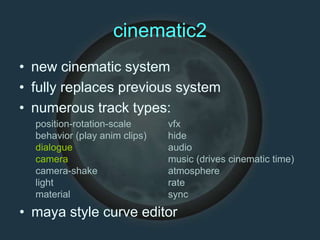
cinematic2
• new cinematic system
• fully replaces previous system
• numerous track types:
position-rotation-scale
behavior (play anim clips)
dialogue
camera
camera-shake
light
material
vfx
hide
audio
music (drives cinematic time)
atmosphere
rate
sync
• maya style curve editor
cinematic2
cinematic2
cinematic2
cinematic2
cinematic2
cinematic2
cinematic2
cinematic2
dialogue track
• triggers dialogue for a specific actor
• one or more tracks per actor
• one or more actions per track
dialogue – two bits
• lipsync
–automatically generated
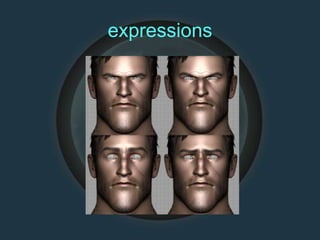
• facial expressions
–designer (or whoever) generated
lipsync - emes
• phoneme
smallest structural unit of sound which
can convey meaning
lipsync - emes
• phoneme
smallest structural unit of sound which
can convey meaning
• viseme
facial positions and movements
representing a specific phoneme
lipsync - emes
• phoneme (aural)
• viseme (visual)
lipsync - emes
• english uses around 40 phonemes
• engine maps phonemes to visemes
at runtime
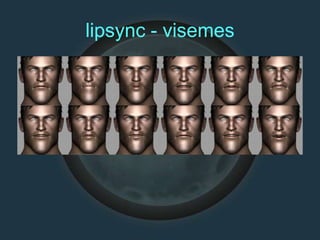
• current setup maps to 12 visemes
– user editable
– can be different per character
lipsync - visemes
expressions
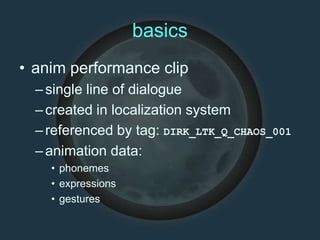
basics
• anim performance clip
–single line of dialogue
–created in localization system
–referenced by tag: DIRK_LTK_Q_CHAOS_001
–animation data:
• phonemes
• expressions
• gestures
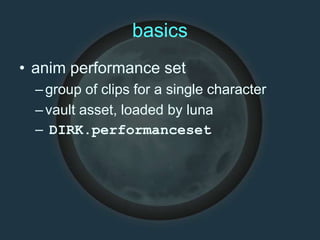
basics
• anim performance set
–group of clips for a single character
–vault asset, loaded by luna
– DIRK.performanceset
basics
• dialogue line:
–text
–recorded wav (or robovoice)
basics
• dialogue line:
–text
–recorded wav (or robovoice)
• auto generated mouth movement
• manually created expressions
• manually created gestures
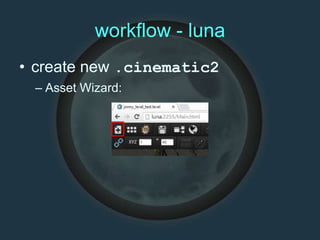
workflow - luna
• create new .cinematic2
– Asset Wizard:
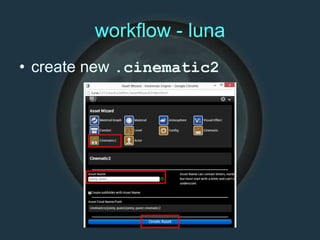
workflow - luna
• create new .cinematic2
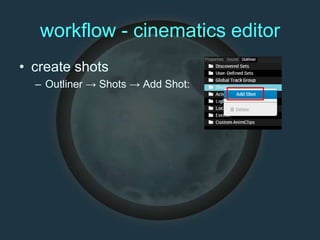
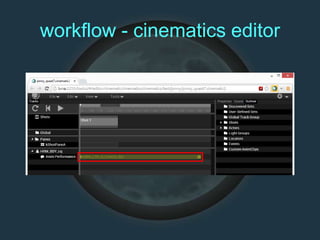
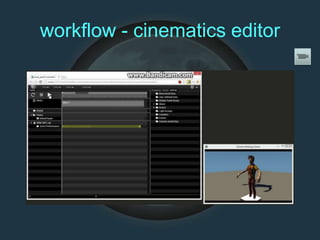
workflow - cinematics editor
• create shots
– Outliner → Shots → Add Shot:
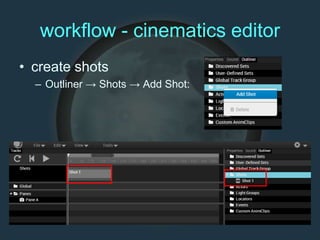
workflow - cinematics editor
• create shots
– Outliner → Shots → Add Shot:
workflow - cinematics editor
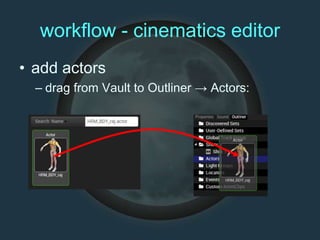
• add actors
– drag from Vault to Outliner → Actors:
workflow - cinematics editor
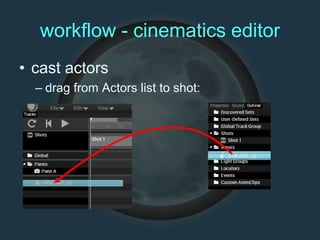
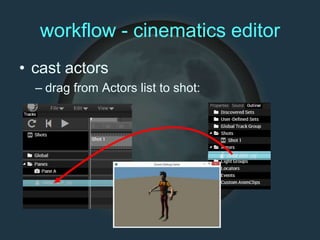
• cast actors
– drag from Actors list to shot:
workflow - cinematics editor
• cast actors
– drag from Actors list to shot:
workflow - cinematics editor
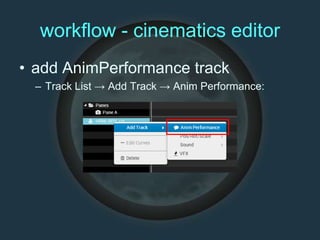
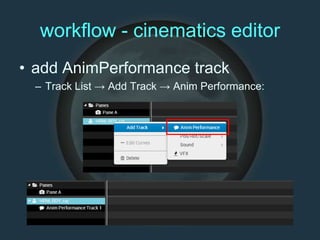
• add AnimPerformance track
– Track List → Add Track → Anim Performance:
workflow - cinematics editor
• add AnimPerformance track
– Track List → Add Track → Anim Performance:
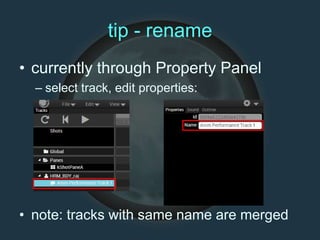
tip - rename
• currently through Property Panel
– select track, edit properties:
• note: tracks with same name are merged
workflow - cinematics editor
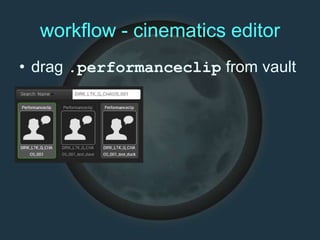
• drag .performanceclip from vault
workflow - cinematics editor
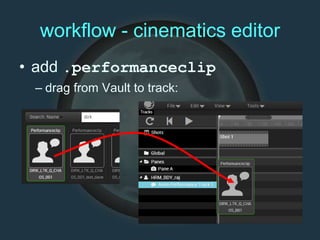
• add .performanceclip
– drag from Vault to track:
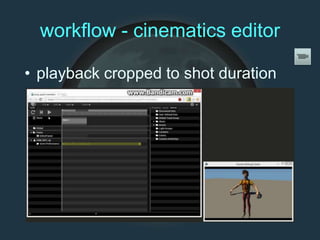
workflow - cinematics editor
• playback cropped to shot duration
workflow - cinematics editor
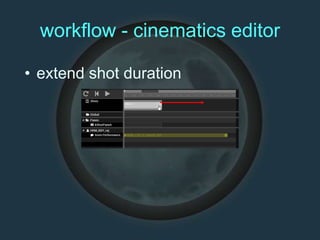
• extend shot duration
workflow - cinematics editor
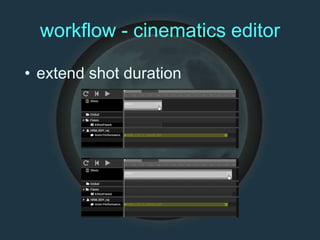
• extend shot duration
workflow - cinematics editor
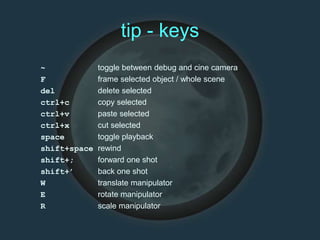
tip - keys
~ toggle between debug and cine camera
F frame selected object / whole scene
del delete selected
ctrl+c copy selected
ctrl+v paste selected
ctrl+x cut selected
space toggle playback
shift+space rewind
shift+; forward one shot
shift+’ back one shot
W translate manipulator
E rotate manipulator
R scale manipulator
workflow - cinematics editor
• pure auto generated dialogue line
– just mouth movement
– no facial expressions
– no head / body movement
workflow - cinematics editor
• pure auto generated dialogue line
– just mouth movement
– no facial expressions
– no head / body movement
• edit in performance editor
workflow - performance editor
• per character:
–set up phoneme → viseme mapping
–set up expression pose palette
–set up gesture clip palette
• test palette already set up by Dave
• more to come
workflow - performance editor
• per line:
–phoneme animation auto generated
from localization line
–assign facial expressions
–assign body gestures
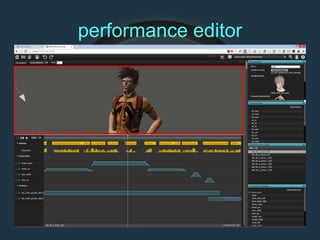
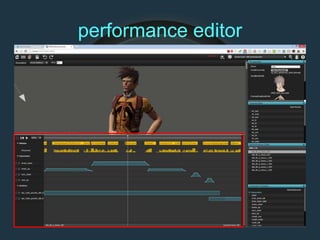
performance editor
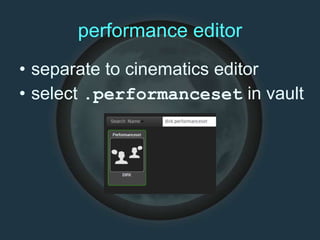
• separate to cinematics editor
• select .performanceset in vault
performance editor
performance editor
performance editor
performance editor
performance editor
performance editor
performance editor
performance editor
performance editor
performance editor
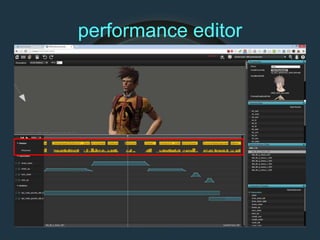
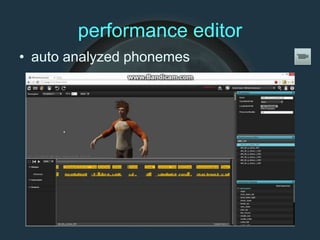
• auto analyzed phonemes
performance editor
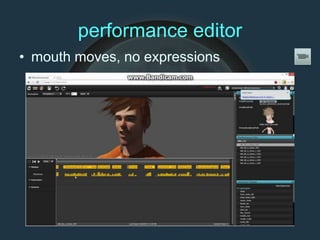
• mouth moves, no expressions
workflow - performance editor
• per line:
–phoneme animation auto generated
from localization line
–assign facial expressions
–assign body gestures
performance editor
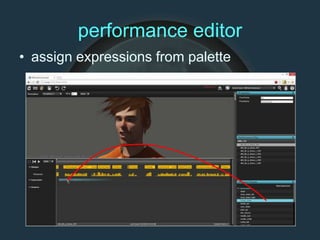
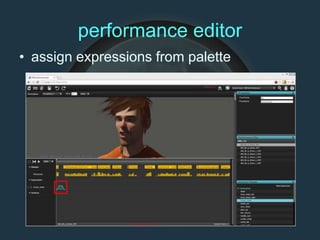
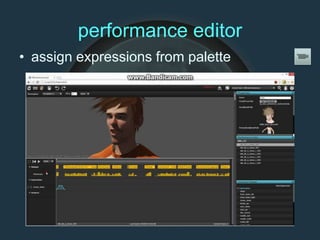
• assign expressions from palette
performance editor
• assign expressions from palette
performance editor
• assign expressions from palette
performance editor
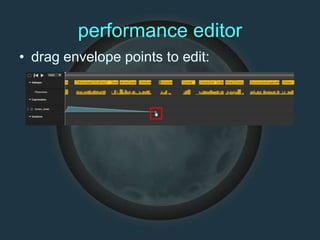
• drag envelope points to edit:
performance editor
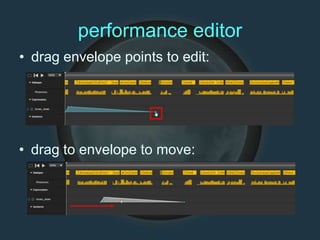
• drag envelope points to edit:
• drag to envelope to move:
performance editor
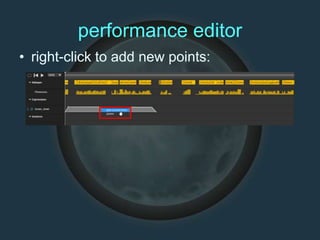
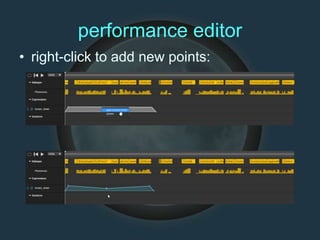
• right-click to add new points:
performance editor
• right-click to add new points:
performance editor
• rinse and repeat
• note:
– each add point requires a save (very quick)
– each point / envelope move done directly
(instant)
performance editor
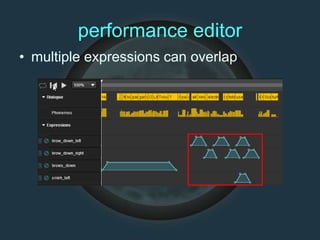
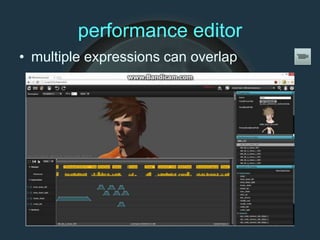
• multiple expressions can overlap
performance editor
• multiple expressions can overlap
performance editor
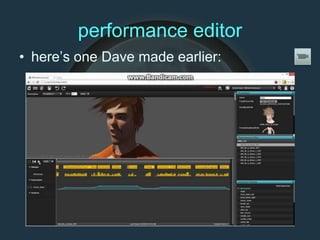
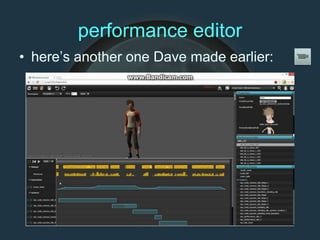
• here’s one Dave made earlier:
workflow - performance editor
• per line:
–phoneme animation auto generated
from localization line
–assign facial expressions
–assign body gestures
performance editor
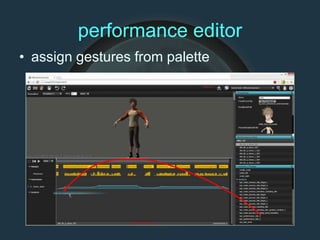
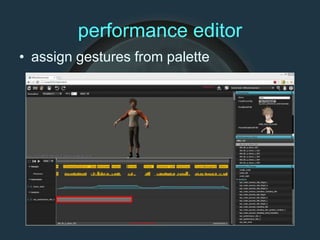
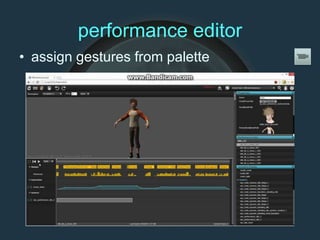
• assign gestures from palette
performance editor
• assign gestures from palette
performance editor
• assign gestures from palette
performance editor
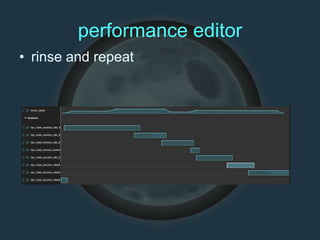
• rinse and repeat
performance editor
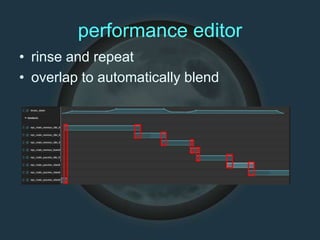
• rinse and repeat
• overlap to automatically blend
performance editor
• here’s another one Dave made earlier:
performance editor
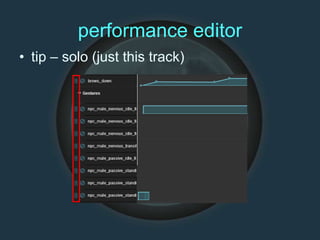
• tip – solo (just this track)
performance editor
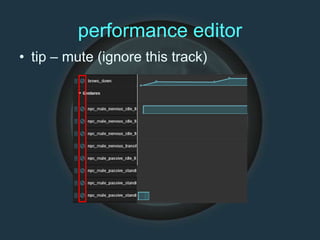
• tip – mute (ignore this track)
workflow - cinematics editor
• sequence multiple lines on
timeline
–add AnimPerformance track for
each actor
–assign .performanceclips from
vault
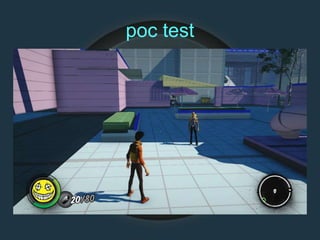
poc test
cameras
• (optionally) assigned per shot
• edited in luna using AnimCurves
• piecewise Bezier curves with per
key time and tangent control
• attempt to match maya curve
editor
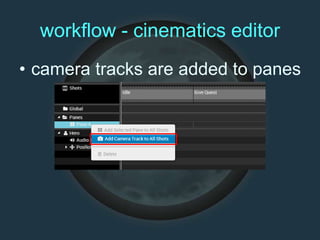
workflow - cinematics editor
• camera tracks are added to panes
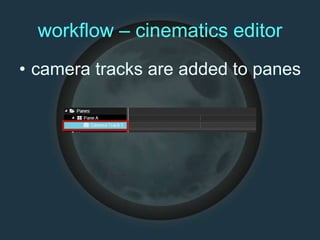
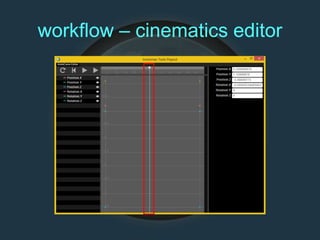
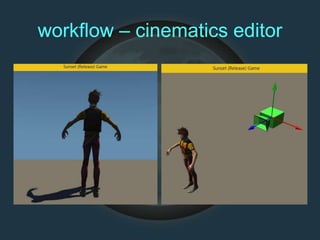
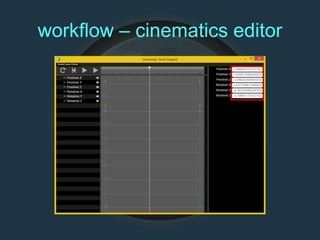
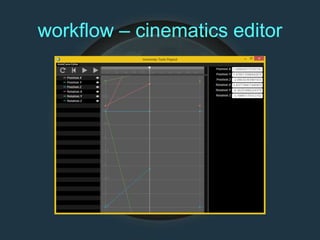
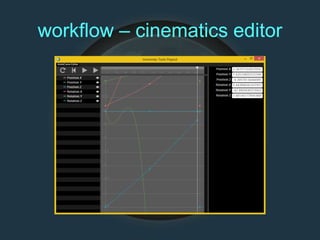
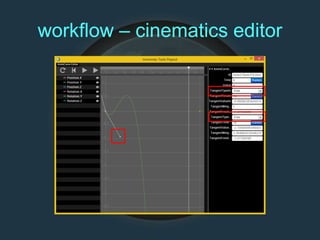
workflow – cinematics editor
• camera tracks are added to panes
workflow – cinematics editor
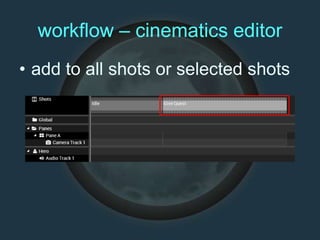
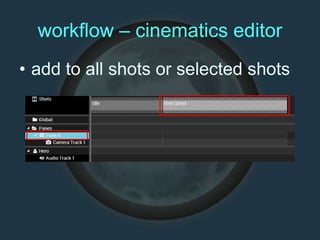
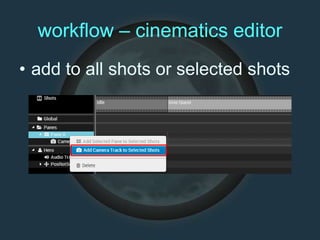
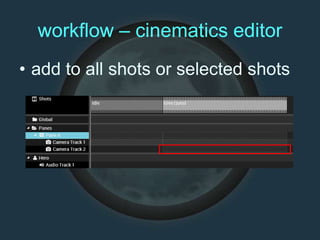
• add to all shots or selected shots
workflow – cinematics editor
• add to all shots or selected shots
workflow – cinematics editor
• add to all shots or selected shots
workflow – cinematics editor
• add to all shots or selected shots
workflow – cinematics editor
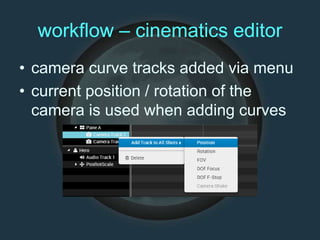
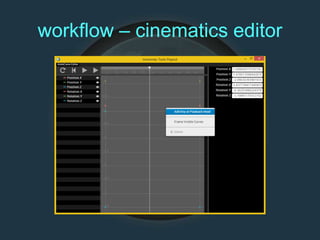
• camera curve tracks added via menu
• current position / rotation of the
camera is used when adding curves
workflow – cinematics editor
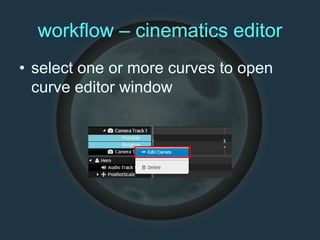
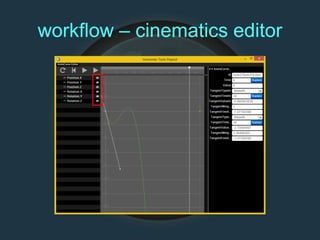
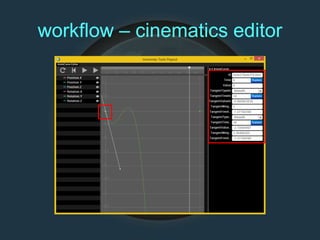
• select one or more curves to open
curve editor window
workflow – cinematics editor
camera keys
• tangent types:
–Linear (matches maya)
match slope from previous / to next key
camera keys
• tangent types:
–Linear (matches maya)
–Flat (matches maya)
slope is horizontal
camera keys
• tangent types:
–Linear (matches maya)
–Flat (matches maya)
–Smooth (maya Auto)
slope based on neighbor keys
camera keys
• tangent types:
–Linear (matches maya)
–Flat (matches maya)
–Smooth (maya Auto)
–Free
user editable
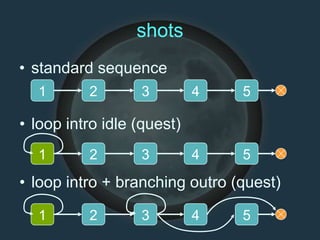
shots
• optionally associated with a camera
– shots without hold last camera
• by default, stepped in order
– shot1, shot2, shot3, end
• each shot can specify a loop shot
– can be itself
• script plug advances / sets specific shot
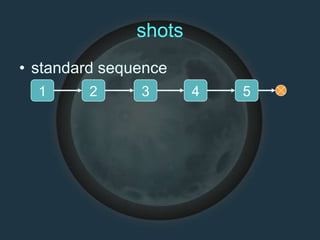
shots
• standard sequence
1 2 3 4 5
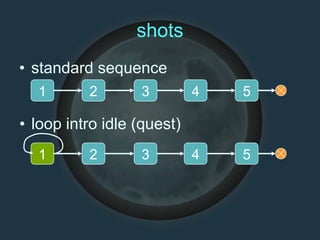
shots
• standard sequence
1 2 3 4 5
• loop intro idle (quest)
1 2 3 4 5
shots
• standard sequence
1 2 3 4 5
• loop intro idle (quest)
1 2 3 4 5
• loop intro + branching outro (quest)
1 2 3 4 5
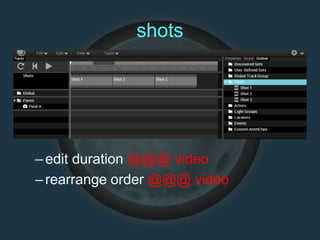
shots
–edit duration @@@ video
–rearrange order @@@ video
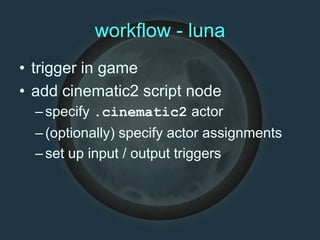
workflow - luna
• trigger in game
• add cinematic2 script node
–specify .cinematic2 actor
–(optionally) specify actor assignments
–set up input / output triggers
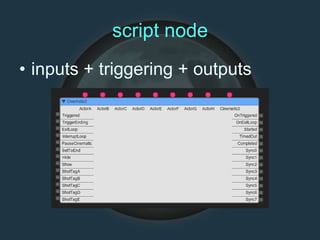
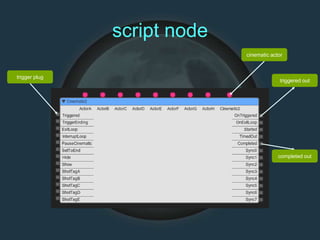
script node
• inputs + triggering + outputs
script node
cinematic actor
trigger plug
triggered out
completed out
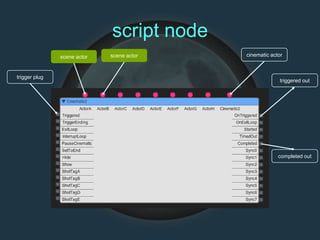
script node
cinematic actorscene actor scene actor
trigger plug
triggered out
completed out
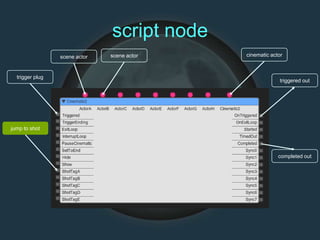
script node
jump to shot
cinematic actorscene actor scene actor
trigger plug
triggered out
completed out
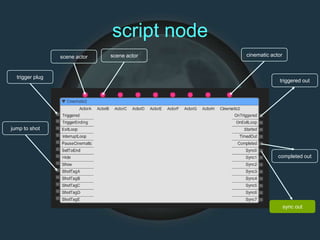
script node
jump to shot
cinematic actorscene actor scene actor
trigger plug
triggered out
completed out
sync out
workflow - luna
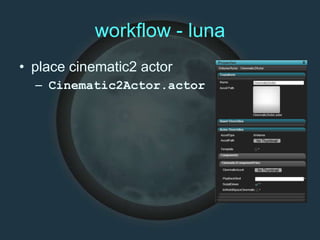
• place cinematic2 actor
– Cinematic2Actor.actor
workflow - luna
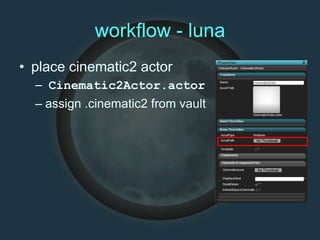
• place cinematic2 actor
– Cinematic2Actor.actor
– assign .cinematic2 from vault
workflow - luna
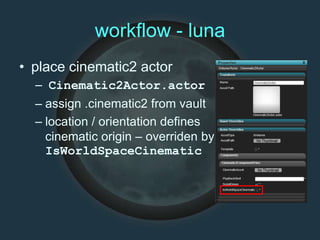
• place cinematic2 actor
– Cinematic2Actor.actor
– assign .cinematic2 from vault
– location / orientation defines
cinematic origin – overriden by
IsWorldSpaceCinematic
workflow - luna
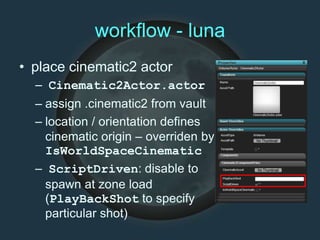
• place cinematic2 actor
– Cinematic2Actor.actor
– assign .cinematic2 from vault
– location / orientation defines
cinematic origin – overriden by
IsWorldSpaceCinematic
– ScriptDriven: disable to
spawn at zone load
(PlayBackShot to specify
particular shot)
workflow – cinematics editor
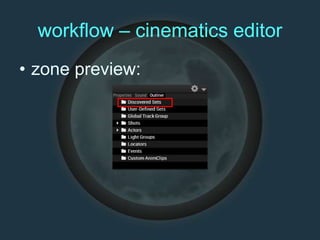
• zone preview:
workflow – cinematics editor
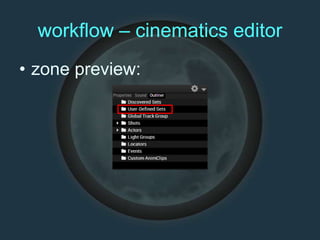
• zone preview:
workflow – cinematics editor
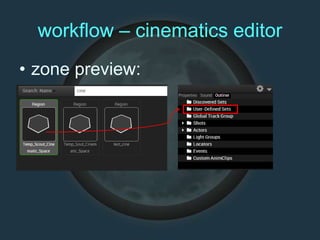
• zone preview:
workflow – cinematics editor
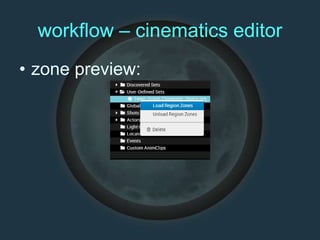
• zone preview:
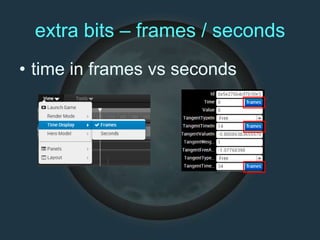
extra bits – frames / seconds
• time in frames vs seconds
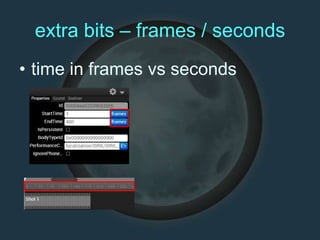
extra bits – frames / seconds
• time in frames vs seconds
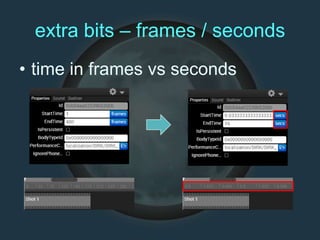
extra bits – frames / seconds
• time in frames vs seconds
extra bits
• specialized hero tracks
–any track
–generally
• anim (behavior)
• camera
• dialogue
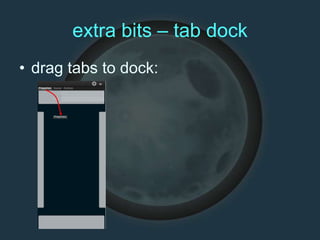
extra bits – tab dock
• drag tabs to dock:
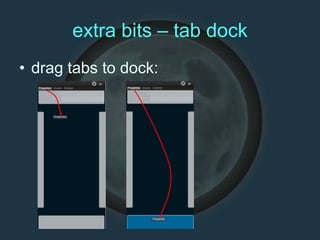
extra bits – tab dock
• drag tabs to dock:
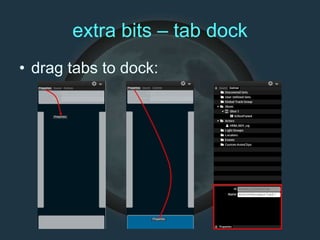
extra bits – tab dock
• drag tabs to dock:
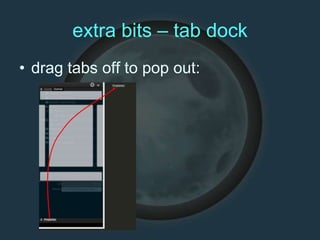
extra bits – tab dock
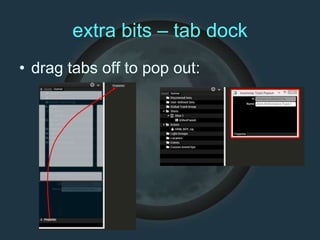
• drag tabs off to pop out:
extra bits – tab dock
• drag tabs off to pop out:
extra bits – tab dock
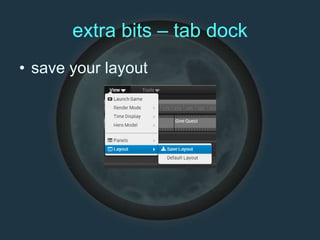
• save your layout
coming soon
• specialized hero tracks
– camera / behavior (hero / prop anim)
• sync track
– trigger script node plugs from timeline
• event track
– trigger arbitrary game event from timeline
• lighting groups
summary
• we have a new cinematics editor!
• hopefully make compelling quest intros
summary
• we have a new cinematics editor!
• hopefully make compelling quest intros
• lots of information
• some areas covered more than others
• come talk to us
end!
• thanks for turning up
• questions ?

Cinematic quests

Editor's Notes

  • #5 movie icon is to remind me that there’s a movie to play, and it’s not just an image
  • #7 position-rotation-scale track to scale, rotate, translate an object using curves – behavior track to play anim clips (and later sequence AI behavior) – dialogue track to trigger lipsynched dialogue lines – camera track to animate the camera using a maya clip or in-editor curves (also handles dof and fov) – camera-shake track to shake the camera – light track to update light properties (color, falloff, spot angle etc) using curves – material track to update material properties – vfx track to trigger vfx – hide track to hide / shot actors (no need to teleport out of view) – audio track to trigger wwise audio events for playing sfx / setting wwise state – music track to play music which is used to drive the cinematic timeline – atmosphere track to update atmosphere properties using curves – rate track to modify overall playback rate using a curve (slowmo) – sync track to allow scripts to sync with specific points on timeline
  • #8 these tracks use our curve editor
  • #9 will be talking about dialogue and camera tracks today specifically for quests
  • #10 here’s the new cinematics editor
  • #11 game view (it *is* the game – running all update code)
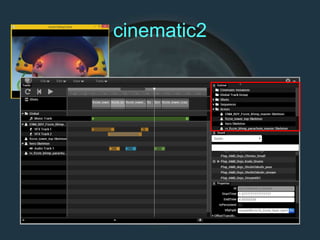
  • #12 the outliner – similar to the scene editor – shows everything in the cinematic
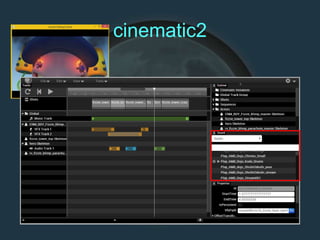
  • #13 sound panel (shows all sound banks and sound events) – search / create favorites / audition events
  • #14 properties panel (for currently selected thing)
  • #15 timeline and playback controll
  • #16 shots list (can be edited and rearranged)
  • #17 tracks list
  • #18 ‘actions’ are used by most tracks – they refer to the individual things being triggered by the track
  • #23 phoneme to viseme mapping is editable directly in the performance editor
  • #24 sorry these are old!
  • #51 localization file is exported form localization database (jon / qa support ?) – causes auto generation of new / updated lines
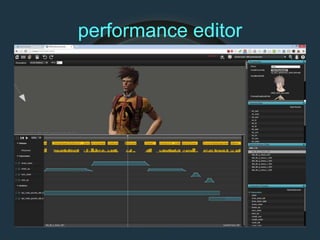
  • #53 use performance editor to set up the performance (will be integrated into cinematics editor next project)
  • #54 3d view
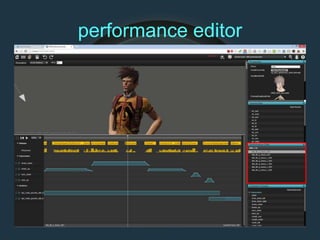
  • #55 clips in the performance set
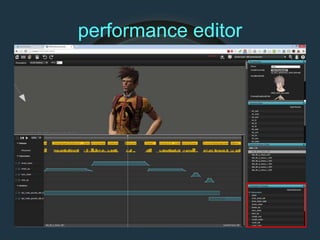
  • #56 animation palette (expressions + gestures)
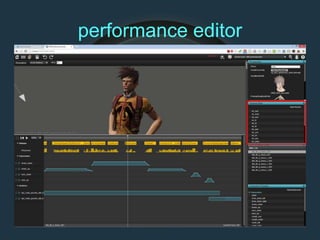
  • #57 phoneme -> viseme map
  • #58 timeline
  • #59 phonemes (automatically generated)
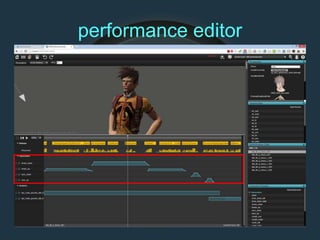
  • #60 expressions
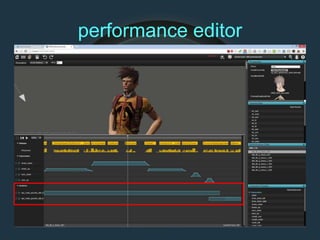
  • #61 gestures
  • #64 expressions affect the face – frowns, smiles, winks etc – they’re contained in a single anim clip – specify frame number for particular pose and name – represent joints at the 100% expression (eg. FULL FROWN)
  • #67 creates an envelope – cheap curve – blend in, hold, blend out (will use curves next time)
  • #71 can add multiple points and move to get something which blends in, holds, blends down, holds, blends up, holds, blends out
  • #76 gestures are short pre-created clips which are designed to be reused and sequenced together and overlapped to create many variations
  • #80 drag multiple gestures to cover the whole timeline
  • #85 each track can contain multiple actions (triggering multiple lines) or can add multiple tracks
  • #88 right click Pane -> add CameraTrack
  • #90 Select the shot
  • #91 Hold Control and select the pane
  • #92 This allows you to only add a camera track to a single shot
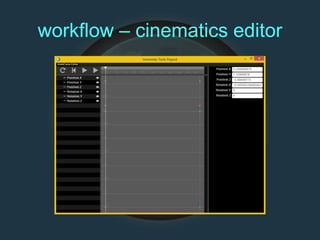
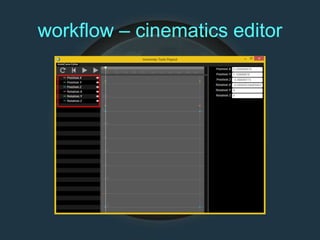
  • #97 List of keys that are being edited and a legend indicating the color of each
  • #98 Property panel showing the camera’s current settings if no points are selected; otherwise shows the properties of the selected points
  • #99 Timeline and curve editing area
  • #100 Vertical lines indicate shot boundaries
  • #101 Playback buttons don’t yet work in this view, use the ones on the main window
  • #102 Move playhead to desired time
  • #103 Adjust the camera (either while looking through it or by moving the camera widget). Use tilda (~) to toggle camera views.
  • #104 Property panel updates with the camera position and rotation
  • #105 Right-click anywhere in the track area to access the menu for adding keys
  • #106 Curves will be shown
  • #107 Repeat for additional keys
  • #108 Toggle visibility to work with single elements of the curve
  • #109 Select control points on the curve to access their individual properties; can select multiple points at a time and edit them at once; you can drag a control point to adjust the curve.
  • #110 When the tangent types are set to Free, you can freely move the tangent control point to adjust the curve
  • #120 talk about triggering in game – starts with .cinematic2 script node – similar to previous .cinematic script node - specifies the .cinematic2 actor (placement + refers to asset) – (optionally) specifies actor assignments – sets up input and output triggers
  • #121 *lots* of plugs! – we’ll remove of the unused ones
  • #122 standard inputs – cinematic actor reference – trigger plugstandard outputs – triggered / completed
  • #123 scene actor inputs – if specified, will use existing scene actor for cinematic actor – it not specified will spawn new actor
  • #124 jump-to-shot allows triggering a specific shot from script
  • #125 sync outputs allow synchronizing timeline with script (unlock door at specific point in the cinematic) – adding UI support to set them on the timeline
  • #130 Automatically populated based upon placement of Cinematic2Actor nodes within zones
  • #131 You can manually specify whatever regions you want
  • #132 Drag and drop a region from the vault
  • #133 Load the region into the game using the context menu
  • #134 Use the View menu or the button on a property panel field to toggle time between frames and seconds (adjusts the property panel, the timeline, and tooltips)