
3
4


                                  Chapter 1: Overview
Contents
Chapter 1: Overview .................................................................................................................. 1

   The Frog Interface .................................................................................................................. 1
   Frog Bar ..................................................................................................................................2
   Frog Head Menu....................................................................................................................2
   Application Title Context Menu ............................................................................................. 2
   Site Menu ............................................................................................................................... 3
   Help ........................................................................................................................................3
   Dashboard Selector ...............................................................................................................3
   Global Search.........................................................................................................................3
   Home......................................................................................................................................4
   Quick Launch .........................................................................................................................4
   Resource Manager ................................................................................................................4
   Application Tray .....................................................................................................................4
   Notifications ...........................................................................................................................5

Overview of the Frog VLE ........................................................................................................6

   1. Bookshelf ............................................................................................................................ 7
   2. Assignments ...................................................................................................................... 7
   3. Calendar ............................................................................................................................ 8
   4. School Dashboard .............................................................................................................9
   5. Booking Calendar ..............................................................................................................9
   6. Frog Community .............................................................................................................. 10
   7. Lesson Resources ............................................................................................................. 11
   8. Forums ............................................................................................................................. 12
   9. My Documents................................................................................................................. 12
   10. Sites ................................................................................................................................. 13
   11. Quizzes ............................................................................................................................ 14
   12. Analytics ......................................................................................................................... 14
   13. Resource Manager ........................................................................................................ 15
   14. Email ............................................................................................................................... 16
   15. Polls ................................................................................................................................. 16
   16. Forms .............................................................................................................................. 17
   17. The Pond ......................................................................................................................... 18
   18. School Documents ......................................................................................................... 18
   19. FrogStore......................................................................................................................... 19
   20. Pin-Point .........................................................................................................................20
   21. Departmental Sites .........................................................................................................20
   21. My Dashboard ............................................................................................................... 21
1


                                  Chapter 1: Overview

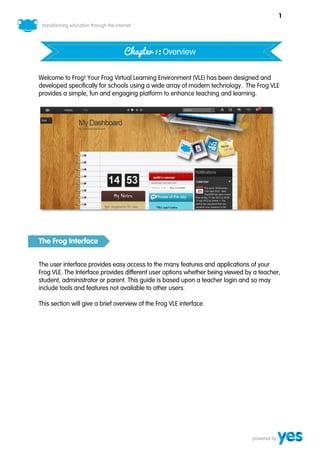
Welcome to Frog! Your Frog Virtual Learning Environment (VLE) has been designed and
developed specifically for schools using a wide array of modern technology. The Frog VLE
provides a simple, fun and engaging platform to enhance teaching and learning.


The Frog Interface


The user interface provides easy access to the many features and applications of your
Frog VLE. The Interface provides different user options whether being viewed by a teacher,
student, administrator or parent. This guide is based upon a teacher login and so may
include tools and features not available to other users.

This section will give a brief overview of the Frog VLE interface.
2


Frog Bar


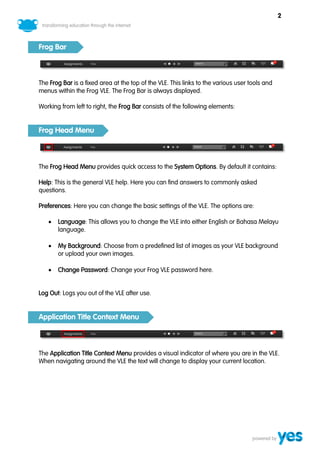
The Frog Bar is a fixed area at the top of the VLE. This links to the various user tools and
menus within the Frog VLE. The Frog Bar is always displayed.

Working from left to right, the Frog Bar consists of the following elements:


Frog Head Menu


The Frog Head Menu provides quick access to the System Options. By default it contains:

Help: This is the general VLE help. Here you can find answers to commonly asked
questions.

Preferences: Here you can change the basic settings of the VLE. The options are:

      Language: This allows you to change the VLE into either English or Bahasa Melayu
       language.

      My Background: Choose from a predefined list of images as your VLE background
       or upload your own images.

      Change Password: Change your Frog VLE password here.


Log Out: Logs you out of the VLE after use.


Application Title Context Menu


The Application Title Context Menu provides a visual indicator of where you are in the VLE.
When navigating around the VLE the text will change to display your current location.
3


Site Menu


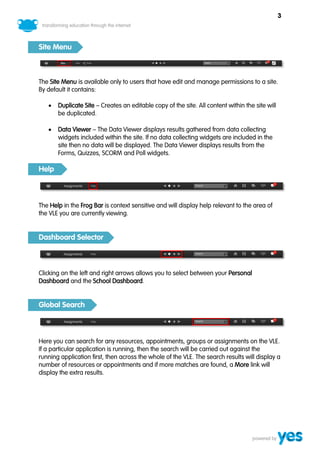
The Site Menu is available only to users that have edit and manage permissions to a site.
By default it contains:

      Duplicate Site – Creates an editable copy of the site. All content within the site will
       be duplicated.

      Data Viewer – The Data Viewer displays results gathered from data collecting
       widgets included within the site. If no data collecting widgets are included in the
       site then no data will be displayed. The Data Viewer displays results from the
       Forms, Quizzes, SCORM and Poll widgets.

Help


The Help in the Frog Bar is context sensitive and will display help relevant to the area of
the VLE you are currently viewing.


Dashboard Selector


Clicking on the left and right arrows allows you to select between your Personal
Dashboard and the School Dashboard.


Global Search


Here you can search for any resources, appointments, groups or assignments on the VLE.
If a particular application is running, then the search will be carried out against the
running application first, then across the whole of the VLE. The search results will display a
number of resources or appointments and if more matches are found, a More link will
display the extra results.
4


Home


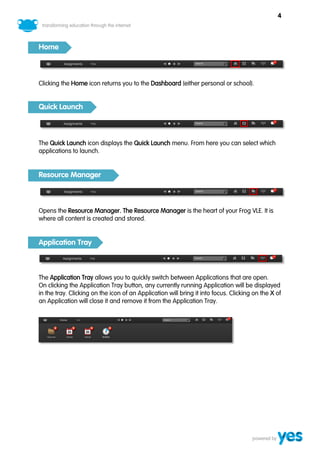
Clicking the Home icon returns you to the Dashboard (either personal or school).


Quick Launch


The Quick Launch icon displays the Quick Launch menu. From here you can select which
applications to launch.


Resource Manager


Opens the Resource Manager. The Resource Manager is the heart of your Frog VLE. It is
where all content is created and stored.


Application Tray


The Application Tray allows you to quickly switch between Applications that are open.
On clicking the Application Tray button, any currently running Application will be displayed
in the tray. Clicking on the icon of an Application will bring it into focus. Clicking on the X of
an Application will close it and remove it from the Application Tray.
5


Notifications


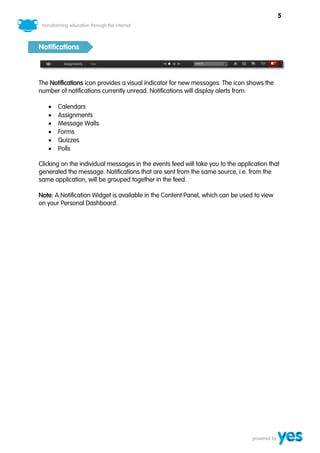
The Notifications icon provides a visual indicator for new messages. The icon shows the
number of notifications currently unread. Notifications will display alerts from:

      Calendars
      Assignments
      Message Walls
      Forms
      Quizzes
      Polls

Clicking on the individual messages in the events feed will take you to the application that
generated the message. Notifications that are sent from the same source, i.e. from the
same application, will be grouped together in the feed.

Note: A Notification Widget is available in the Content Panel, which can be used to view
on your Personal Dashboard.
6


Overview of the Frog VLE

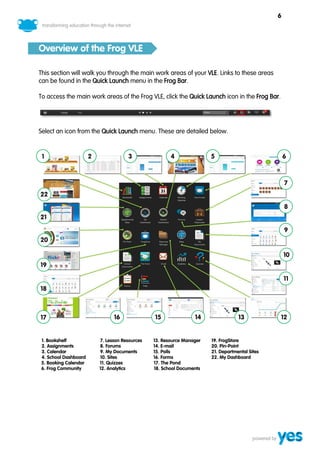
This section will walk you through the main work areas of your VLE. Links to these areas
can be found in the Quick Launch menu in the Frog Bar.

To access the main work areas of the Frog VLE, click the Quick Launch icon in the Frog Bar.


Select an icon from the Quick Launch menu. These are detailed below.


 1                    2               3                4               5                            6
 .                    .               .                .               .                            .

                                                                                                    7
                                                                                                    .
22
.
                                                                                                    8
21                                                                                                  .

                                                                                                    9
20                                                                                                  .
.
                                                                                                    10
19                                                                                                  .
.
                                                                                                    11
18
.


17                              16              15               14                13           12
.                               .               .                .                 .            .

1. Bookshelf              7. Lesson Resources   13. Resource Manager   19. FrogStore
2. Assignments            8. Forums             14. E-mail             20. Pin-Point
3. Calendar               9. My Documents       15. Polls              21. Departmental Sites
4. School Dashboard       10. Sites             16. Forms              22. My Dashboard
5. Booking Calendar       11. Quizzes           17. The Pond
6. Frog Community         12. Analytics         18. School Documents
7


           1. Bookshelf


Available to: Teachers, Students and Frog Admin.

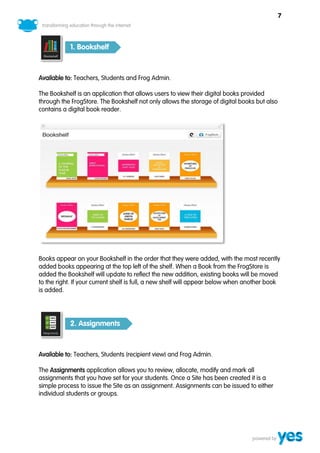
The Bookshelf is an application that allows users to view their digital books provided
through the FrogStore. The Bookshelf not only allows the storage of digital books but also
contains a digital book reader.


Books appear on your Bookshelf in the order that they were added, with the most recently
added books appearing at the top left of the shelf. When a Book from the FrogStore is
added the Bookshelf will update to reflect the new addition, existing books will be moved
to the right. If your current shelf is full, a new shelf will appear below when another book
is added.


           2. Assignments


Available to: Teachers, Students (recipient view) and Frog Admin.

The Assignments application allows you to review, allocate, modify and mark all
assignments that you have set for your students. Once a Site has been created it is a
simple process to issue the Site as an assignment. Assignments can be issued to either
individual students or groups.
8


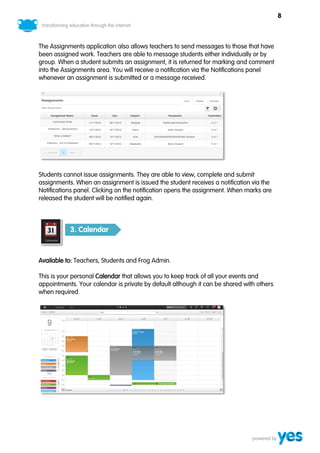
The Assignments application also allows teachers to send messages to those that have
been assigned work. Teachers are able to message students either individually or by
group. When a student submits an assignment, it is returned for marking and comment
into the Assignments area. You will receive a notification via the Notifications panel
whenever an assignment is submitted or a message received.


Students cannot issue assignments. They are able to view, complete and submit
assignments. When an assignment is issued the student receives a notification via the
Notifications panel. Clicking on the notification opens the assignment. When marks are
released the student will be notified again.


           3. Calendar


Available to: Teachers, Students and Frog Admin.

This is your personal Calendar that allows you to keep track of all your events and
appointments. Your calendar is private by default although it can be shared with others
when required.
9


Extra calendars can be created and shared either publicly or privately. These can be
colour coded to make identification easier. These may be for co-curricular activities or
special events. Additional information may be attached to events and bookings such as
location, invitees and notes.


           4. School Dashboard


Available to: Teachers, Students and Frog Admin.

The School Dashboard displays notices and information vital to the smooth running of the
school. Here you can view noticeboards, images, videos and download important files.


It also contains an MoE RSS feed to keep you informed of any education news or
information that is of interest to schools and teachers. This feed also displays regional
JPN/PPD RSS feeds.

Note: The School Dashboard is managed by the Frog Admin.


            5. Booking Calendar


Available to: Teachers, Frog Admin.

The Booking Calendar allows you to book any rooms or resources that are available in
your school. If you have made a room/resource booking, the Frog VLE will not allow
anyone else to book that room/resource at that time and date.
10


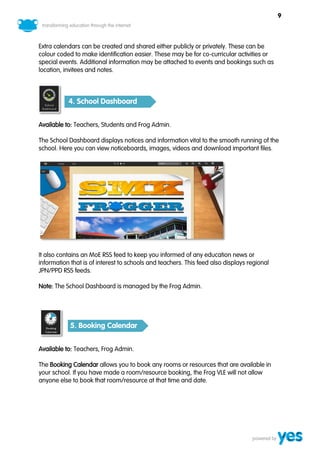
As new rooms or resources become available the Frog Admin can simply add them to the
Booking Calendar. Each room or resource calendar can be colour coded to make
identification easier.


           6. Frog Community


Available to: Teachers, Frog Admin.

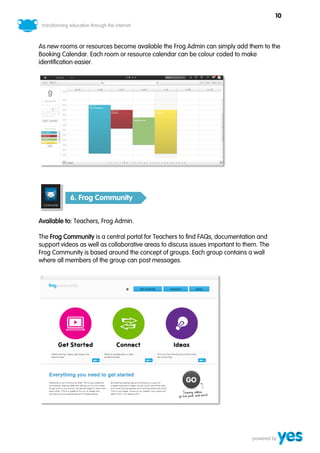
The Frog Community is a central portal for Teachers to find FAQs, documentation and
support videos as well as collaborative areas to discuss issues important to them. The
Frog Community is based around the concept of groups. Each group contains a wall
where all members of the group can post messages.
11


Teachers can search for and join any public groups that are displayed in the search
results. If no group is found, the teacher will have the option to create a new group and
mark it either:

Public: The group will appear in search results and anyone can join.

Private: The group will not appear in search results and members have to be invited by
the owner.


           7. Lesson Resources


Available to: Teachers, Frog Admin.

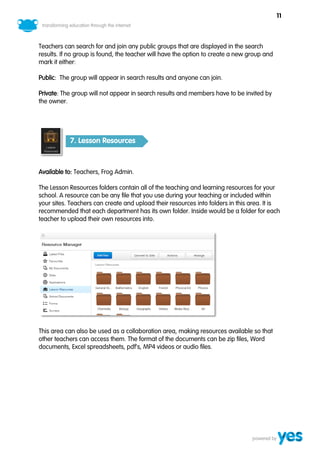
The Lesson Resources folders contain all of the teaching and learning resources for your
school. A resource can be any file that you use during your teaching or included within
your sites. Teachers can create and upload their resources into folders in this area. It is
recommended that each department has its own folder. Inside would be a folder for each
teacher to upload their own resources into.


This area can also be used as a collaboration area, making resources available so that
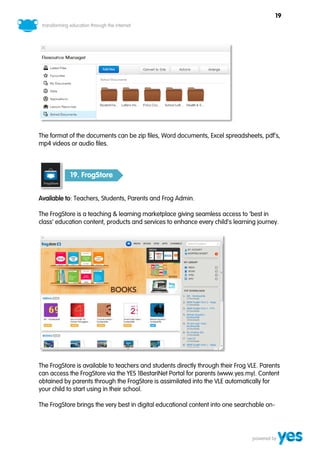
other teachers can access them. The format of the documents can be zip files, Word
documents, Excel spreadsheets, pdf’s, MP4 videos or audio files.
12


           8. Forums


Available to: Teachers, Students and Frog Admin.

The Forums area displays the School Forum. This is a forum for the whole school and is
visible by both teachers and students. Only the Frog Admin can create topics in the School
Forum.


Discussion forums can be created for group discussions regarding school specific topics,
allowing users to add their own views and see other forum users’ contributions. Data is
historic and date stamped so at any point as a teacher you can go back and check what
has been said, and by whom. The Frog Admin controls all the topic and access settings of
the School Forum.


          9. My Documents


Available to: Teachers, Students and Frog Admin.

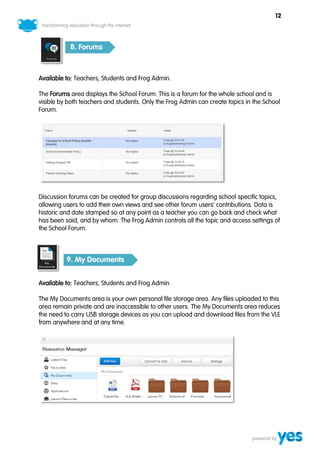
The My Documents area is your own personal file storage area. Any files uploaded to this
area remain private and are inaccessible to other users. The My Documents area reduces
the need to carry USB storage devices as you can upload and download files from the VLE
from anywhere and at any time.
13


            10. Sites


Available to: Teachers, Students and Frog Admin.

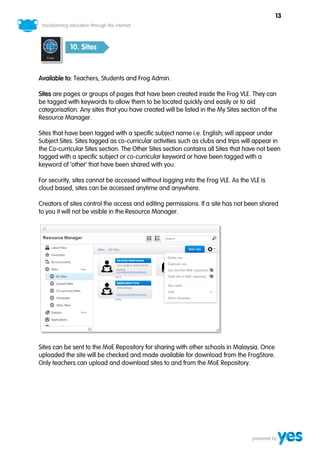
Sites are pages or groups of pages that have been created inside the Frog VLE. They can
be tagged with keywords to allow them to be located quickly and easily or to aid
categorisation. Any sites that you have created will be listed in the My Sites section of the
Resource Manager.

Sites that have been tagged with a specific subject name i.e. English; will appear under
Subject Sites. Sites tagged as co-curricular activities such as clubs and trips will appear in
the Co-curricular Sites section. The Other Sites section contains all Sites that have not been
tagged with a specific subject or co-curricular keyword or have been tagged with a
keyword of ‘other’ that have been shared with you.

For security, sites cannot be accessed without logging into the Frog VLE. As the VLE is
cloud based, sites can be accessed anytime and anywhere.

Creators of sites control the access and editing permissions. If a site has not been shared
to you it will not be visible in the Resource Manager.


Sites can be sent to the MoE Repository for sharing with other schools in Malaysia. Once
uploaded the site will be checked and made available for download from the FrogStore.
Only teachers can upload and download sites to and from the MoE Repository.
14


           11. Quizzes


Available to: Teachers and Frog Admin.

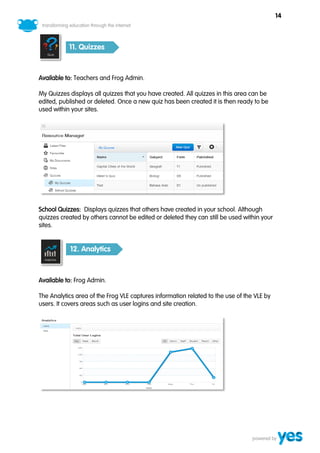
My Quizzes displays all quizzes that you have created. All quizzes in this area can be
edited, published or deleted. Once a new quiz has been created it is then ready to be
used within your sites.


School Quizzes: Displays quizzes that others have created in your school. Although
quizzes created by others cannot be edited or deleted they can still be used within your
sites.


           12. Analytics


Available to: Frog Admin.

The Analytics area of the Frog VLE captures information related to the use of the VLE by
users. It covers areas such as user logins and site creation.
15


The information collected allows you to determine how often users have logged in to the
VLE. It also displays which users that have never logged in. Information on site creation is
captured allowing you to see how many sites have been created within a given time
frame.


            13. Resource Manager


Available to: Teachers, Students (limited) and Frog Admin.

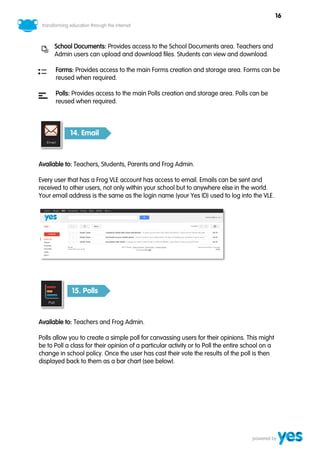
                The Resource Manager is the heart of your Frog VLE. It is the central
                storage area and the main application for accessing resources that you
                have created or have been shared with you.

                It gives you the ability to store, view and - where appropriate - create, edit
                and delete content in all of the areas of the VLE in which you have the
                appropriate access.


The Resource Manager menu contains links to multiple work areas. These are:

      Latest Files: Displays only the most recent files that you have uploaded to the My
      Documents area.

      Favourites: Displays any sites that you have added to your Favourites area for quick
      and easy access.

       My Documents: Provides access to your private file storage area. Files uploaded
       here cannot be viewed or accessed by other users. The My Library subsection
       contains media files downloaded from the FrogStore.

      Sites: Any Sites created by or shared to you will appear in this area. The My Library
      subsection contains sites downloaded from the FrogStore.

       Quizzes: Quizzes created by you will appear in the My Quizzes area. The School
       Quizzes area displays a non-editable list of all quizzes created in your school.

      Applications: Displays all installed Applications. Frog Admin users can access user
      and group data from this area.

       Lesson Resources: All teaching and learning files should be uploaded into the
       Lesson Resources area. Both teachers and admin users have access to this shared
       area, but not students.
16


      School Documents: Provides access to the School Documents area. Teachers and
      Admin users can upload and download files. Students can view and download.

      Forms: Provides access to the main Forms creation and storage area. Forms can be
      reused when required.

      Polls: Provides access to the main Polls creation and storage area. Polls can be
      reused when required.


            14. Email


Available to: Teachers, Students, Parents and Frog Admin.

Every user that has a Frog VLE account has access to email. Emails can be sent and
received to other users, not only within your school but to anywhere else in the world.
Your email address is the same as the login name (your Yes ID) used to log into the VLE.


             15. Polls


Available to: Teachers and Frog Admin.

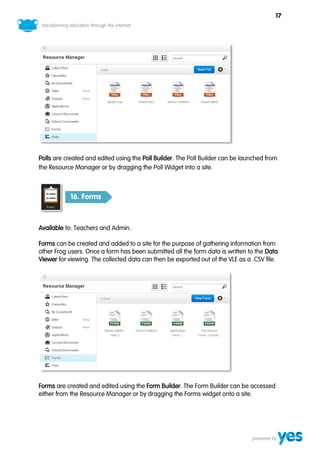
Polls allow you to create a simple poll for canvassing users for their opinions. This might
be to Poll a class for their opinion of a particular activity or to Poll the entire school on a
change in school policy. Once the user has cast their vote the results of the poll is then
displayed back to them as a bar chart (see below).
17


Polls are created and edited using the Poll Builder. The Poll Builder can be launched from
the Resource Manager or by dragging the Poll Widget into a site.


           16. Forms


Available to: Teachers and Admin.

Forms can be created and added to a site for the purpose of gathering information from
other Frog users. Once a form has been submitted all the form data is written to the Data
Viewer for viewing. The collected data can then be exported out of the VLE as a .CSV file.


Forms are created and edited using the Form Builder. The Form Builder can be accessed
either from the Resource Manager or by dragging the Forms widget onto a site.
18


           17. The Pond


Available to: Teachers, Students and Frog Admin.

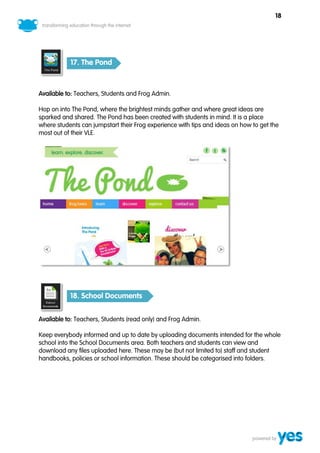
Hop on into The Pond, where the brightest minds gather and where great ideas are
sparked and shared. The Pond has been created with students in mind. It is a place
where students can jumpstart their Frog experience with tips and ideas on how to get the
most out of their VLE.


           18. School Documents


Available to: Teachers, Students (read only) and Frog Admin.

Keep everybody informed and up to date by uploading documents intended for the whole
school into the School Documents area. Both teachers and students can view and
download any files uploaded here. These may be (but not limited to) staff and student
handbooks, policies or school information. These should be categorised into folders.
19


The format of the documents can be zip files, Word documents, Excel spreadsheets, pdf’s,
mp4 videos or audio files.


            19. FrogStore


Available to: Teachers, Students, Parents and Frog Admin.

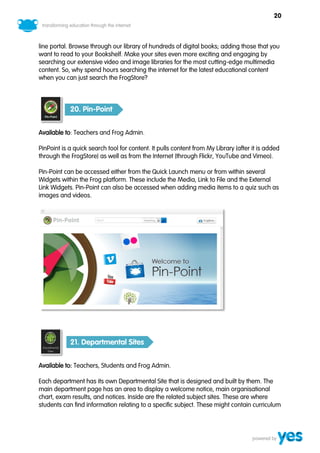
The FrogStore is a teaching & learning marketplace giving seamless access to ‘best in
class’ education content, products and services to enhance every child’s learning journey.


The FrogStore is available to teachers and students directly through their Frog VLE. Parents
can access the FrogStore via the YES 1BestariNet Portal for parents (www.yes.my). Content
obtained by parents through the FrogStore is assimilated into the VLE automatically for
your child to start using in their school.

The FrogStore brings the very best in digital educational content into one searchable on-
20


line portal. Browse through our library of hundreds of digital books; adding those that you
want to read to your Bookshelf. Make your sites even more exciting and engaging by
searching our extensive video and image libraries for the most cutting-edge multimedia
content. So, why spend hours searching the internet for the latest educational content
when you can just search the FrogStore?


            20. Pin-Point


Available to: Teachers and Frog Admin.

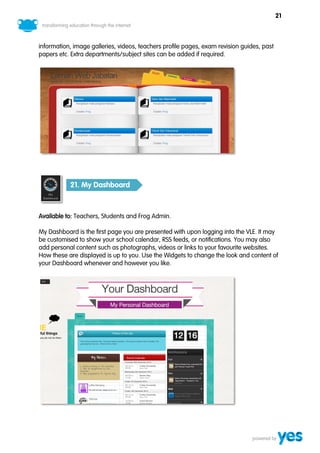
PinPoint is a quick search tool for content. It pulls content from My Library (after it is added
through the FrogStore) as well as from the Internet (through Flickr, YouTube and Vimeo).

Pin-Point can be accessed either from the Quick Launch menu or from within several
Widgets within the Frog platform. These include the Media, Link to File and the External
Link Widgets. Pin-Point can also be accessed when adding media items to a quiz such as
images and videos.


            21. Departmental Sites


Available to: Teachers, Students and Frog Admin.

Each department has its own Departmental Site that is designed and built by them. The
main department page has an area to display a welcome notice, main organisational
chart, exam results, and notices. Inside are the related subject sites. These are where
students can find information relating to a specific subject. These might contain curriculum
21


information, image galleries, videos, teachers profile pages, exam revision guides, past
papers etc. Extra departments/subject sites can be added if required.


           21. My Dashboard


Available to: Teachers, Students and Frog Admin.

My Dashboard is the first page you are presented with upon logging into the VLE. It may
be customised to show your school calendar, RSS feeds, or notifications. You may also
add personal content such as photographs, videos or links to your favourite websites.
How these are displayed is up to you. Use the Widgets to change the look and content of
your Dashboard whenever and however you like.
22

Chapter 1 overview

  • 1.
  • 2.
    4 Chapter 1: Overview Contents Chapter 1: Overview .................................................................................................................. 1 The Frog Interface .................................................................................................................. 1 Frog Bar ..................................................................................................................................2 Frog Head Menu....................................................................................................................2 Application Title Context Menu ............................................................................................. 2 Site Menu ............................................................................................................................... 3 Help ........................................................................................................................................3 Dashboard Selector ...............................................................................................................3 Global Search.........................................................................................................................3 Home......................................................................................................................................4 Quick Launch .........................................................................................................................4 Resource Manager ................................................................................................................4 Application Tray .....................................................................................................................4 Notifications ...........................................................................................................................5 Overview of the Frog VLE ........................................................................................................6 1. Bookshelf ............................................................................................................................ 7 2. Assignments ...................................................................................................................... 7 3. Calendar ............................................................................................................................ 8 4. School Dashboard .............................................................................................................9 5. Booking Calendar ..............................................................................................................9 6. Frog Community .............................................................................................................. 10 7. Lesson Resources ............................................................................................................. 11 8. Forums ............................................................................................................................. 12 9. My Documents................................................................................................................. 12 10. Sites ................................................................................................................................. 13 11. Quizzes ............................................................................................................................ 14 12. Analytics ......................................................................................................................... 14 13. Resource Manager ........................................................................................................ 15 14. Email ............................................................................................................................... 16 15. Polls ................................................................................................................................. 16 16. Forms .............................................................................................................................. 17 17. The Pond ......................................................................................................................... 18 18. School Documents ......................................................................................................... 18 19. FrogStore......................................................................................................................... 19 20. Pin-Point .........................................................................................................................20 21. Departmental Sites .........................................................................................................20 21. My Dashboard ............................................................................................................... 21
  • 3.
    1 Chapter 1: Overview Welcome to Frog! Your Frog Virtual Learning Environment (VLE) has been designed and developed specifically for schools using a wide array of modern technology. The Frog VLE provides a simple, fun and engaging platform to enhance teaching and learning. The Frog Interface The user interface provides easy access to the many features and applications of your Frog VLE. The Interface provides different user options whether being viewed by a teacher, student, administrator or parent. This guide is based upon a teacher login and so may include tools and features not available to other users. This section will give a brief overview of the Frog VLE interface.
  • 4.
    2 Frog Bar The FrogBar is a fixed area at the top of the VLE. This links to the various user tools and menus within the Frog VLE. The Frog Bar is always displayed. Working from left to right, the Frog Bar consists of the following elements: Frog Head Menu The Frog Head Menu provides quick access to the System Options. By default it contains: Help: This is the general VLE help. Here you can find answers to commonly asked questions. Preferences: Here you can change the basic settings of the VLE. The options are:  Language: This allows you to change the VLE into either English or Bahasa Melayu language.  My Background: Choose from a predefined list of images as your VLE background or upload your own images.  Change Password: Change your Frog VLE password here. Log Out: Logs you out of the VLE after use. Application Title Context Menu The Application Title Context Menu provides a visual indicator of where you are in the VLE. When navigating around the VLE the text will change to display your current location.
  • 5.
    3 Site Menu The SiteMenu is available only to users that have edit and manage permissions to a site. By default it contains:  Duplicate Site – Creates an editable copy of the site. All content within the site will be duplicated.  Data Viewer – The Data Viewer displays results gathered from data collecting widgets included within the site. If no data collecting widgets are included in the site then no data will be displayed. The Data Viewer displays results from the Forms, Quizzes, SCORM and Poll widgets. Help The Help in the Frog Bar is context sensitive and will display help relevant to the area of the VLE you are currently viewing. Dashboard Selector Clicking on the left and right arrows allows you to select between your Personal Dashboard and the School Dashboard. Global Search Here you can search for any resources, appointments, groups or assignments on the VLE. If a particular application is running, then the search will be carried out against the running application first, then across the whole of the VLE. The search results will display a number of resources or appointments and if more matches are found, a More link will display the extra results.
  • 6.
    4 Home Clicking the Homeicon returns you to the Dashboard (either personal or school). Quick Launch The Quick Launch icon displays the Quick Launch menu. From here you can select which applications to launch. Resource Manager Opens the Resource Manager. The Resource Manager is the heart of your Frog VLE. It is where all content is created and stored. Application Tray The Application Tray allows you to quickly switch between Applications that are open. On clicking the Application Tray button, any currently running Application will be displayed in the tray. Clicking on the icon of an Application will bring it into focus. Clicking on the X of an Application will close it and remove it from the Application Tray.
  • 7.
    5 Notifications The Notifications iconprovides a visual indicator for new messages. The icon shows the number of notifications currently unread. Notifications will display alerts from:  Calendars  Assignments  Message Walls  Forms  Quizzes  Polls Clicking on the individual messages in the events feed will take you to the application that generated the message. Notifications that are sent from the same source, i.e. from the same application, will be grouped together in the feed. Note: A Notification Widget is available in the Content Panel, which can be used to view on your Personal Dashboard.
  • 8.
    6 Overview of theFrog VLE This section will walk you through the main work areas of your VLE. Links to these areas can be found in the Quick Launch menu in the Frog Bar. To access the main work areas of the Frog VLE, click the Quick Launch icon in the Frog Bar. Select an icon from the Quick Launch menu. These are detailed below. 1 2 3 4 5 6 . . . . . . 7 . 22 . 8 21 . 9 20 . . 10 19 . . 11 18 . 17 16 15 14 13 12 . . . . . . 1. Bookshelf 7. Lesson Resources 13. Resource Manager 19. FrogStore 2. Assignments 8. Forums 14. E-mail 20. Pin-Point 3. Calendar 9. My Documents 15. Polls 21. Departmental Sites 4. School Dashboard 10. Sites 16. Forms 22. My Dashboard 5. Booking Calendar 11. Quizzes 17. The Pond 6. Frog Community 12. Analytics 18. School Documents
  • 9.
    7 1. Bookshelf Available to: Teachers, Students and Frog Admin. The Bookshelf is an application that allows users to view their digital books provided through the FrogStore. The Bookshelf not only allows the storage of digital books but also contains a digital book reader. Books appear on your Bookshelf in the order that they were added, with the most recently added books appearing at the top left of the shelf. When a Book from the FrogStore is added the Bookshelf will update to reflect the new addition, existing books will be moved to the right. If your current shelf is full, a new shelf will appear below when another book is added. 2. Assignments Available to: Teachers, Students (recipient view) and Frog Admin. The Assignments application allows you to review, allocate, modify and mark all assignments that you have set for your students. Once a Site has been created it is a simple process to issue the Site as an assignment. Assignments can be issued to either individual students or groups.
  • 10.
    8 The Assignments applicationalso allows teachers to send messages to those that have been assigned work. Teachers are able to message students either individually or by group. When a student submits an assignment, it is returned for marking and comment into the Assignments area. You will receive a notification via the Notifications panel whenever an assignment is submitted or a message received. Students cannot issue assignments. They are able to view, complete and submit assignments. When an assignment is issued the student receives a notification via the Notifications panel. Clicking on the notification opens the assignment. When marks are released the student will be notified again. 3. Calendar Available to: Teachers, Students and Frog Admin. This is your personal Calendar that allows you to keep track of all your events and appointments. Your calendar is private by default although it can be shared with others when required.
  • 11.
    9 Extra calendars canbe created and shared either publicly or privately. These can be colour coded to make identification easier. These may be for co-curricular activities or special events. Additional information may be attached to events and bookings such as location, invitees and notes. 4. School Dashboard Available to: Teachers, Students and Frog Admin. The School Dashboard displays notices and information vital to the smooth running of the school. Here you can view noticeboards, images, videos and download important files. It also contains an MoE RSS feed to keep you informed of any education news or information that is of interest to schools and teachers. This feed also displays regional JPN/PPD RSS feeds. Note: The School Dashboard is managed by the Frog Admin. 5. Booking Calendar Available to: Teachers, Frog Admin. The Booking Calendar allows you to book any rooms or resources that are available in your school. If you have made a room/resource booking, the Frog VLE will not allow anyone else to book that room/resource at that time and date.
  • 12.
    10 As new roomsor resources become available the Frog Admin can simply add them to the Booking Calendar. Each room or resource calendar can be colour coded to make identification easier. 6. Frog Community Available to: Teachers, Frog Admin. The Frog Community is a central portal for Teachers to find FAQs, documentation and support videos as well as collaborative areas to discuss issues important to them. The Frog Community is based around the concept of groups. Each group contains a wall where all members of the group can post messages.
  • 13.
    11 Teachers can searchfor and join any public groups that are displayed in the search results. If no group is found, the teacher will have the option to create a new group and mark it either: Public: The group will appear in search results and anyone can join. Private: The group will not appear in search results and members have to be invited by the owner. 7. Lesson Resources Available to: Teachers, Frog Admin. The Lesson Resources folders contain all of the teaching and learning resources for your school. A resource can be any file that you use during your teaching or included within your sites. Teachers can create and upload their resources into folders in this area. It is recommended that each department has its own folder. Inside would be a folder for each teacher to upload their own resources into. This area can also be used as a collaboration area, making resources available so that other teachers can access them. The format of the documents can be zip files, Word documents, Excel spreadsheets, pdf’s, MP4 videos or audio files.
  • 14.
    12 8. Forums Available to: Teachers, Students and Frog Admin. The Forums area displays the School Forum. This is a forum for the whole school and is visible by both teachers and students. Only the Frog Admin can create topics in the School Forum. Discussion forums can be created for group discussions regarding school specific topics, allowing users to add their own views and see other forum users’ contributions. Data is historic and date stamped so at any point as a teacher you can go back and check what has been said, and by whom. The Frog Admin controls all the topic and access settings of the School Forum. 9. My Documents Available to: Teachers, Students and Frog Admin. The My Documents area is your own personal file storage area. Any files uploaded to this area remain private and are inaccessible to other users. The My Documents area reduces the need to carry USB storage devices as you can upload and download files from the VLE from anywhere and at any time.
  • 15.
    13 10. Sites Available to: Teachers, Students and Frog Admin. Sites are pages or groups of pages that have been created inside the Frog VLE. They can be tagged with keywords to allow them to be located quickly and easily or to aid categorisation. Any sites that you have created will be listed in the My Sites section of the Resource Manager. Sites that have been tagged with a specific subject name i.e. English; will appear under Subject Sites. Sites tagged as co-curricular activities such as clubs and trips will appear in the Co-curricular Sites section. The Other Sites section contains all Sites that have not been tagged with a specific subject or co-curricular keyword or have been tagged with a keyword of ‘other’ that have been shared with you. For security, sites cannot be accessed without logging into the Frog VLE. As the VLE is cloud based, sites can be accessed anytime and anywhere. Creators of sites control the access and editing permissions. If a site has not been shared to you it will not be visible in the Resource Manager. Sites can be sent to the MoE Repository for sharing with other schools in Malaysia. Once uploaded the site will be checked and made available for download from the FrogStore. Only teachers can upload and download sites to and from the MoE Repository.
  • 16.
    14 11. Quizzes Available to: Teachers and Frog Admin. My Quizzes displays all quizzes that you have created. All quizzes in this area can be edited, published or deleted. Once a new quiz has been created it is then ready to be used within your sites. School Quizzes: Displays quizzes that others have created in your school. Although quizzes created by others cannot be edited or deleted they can still be used within your sites. 12. Analytics Available to: Frog Admin. The Analytics area of the Frog VLE captures information related to the use of the VLE by users. It covers areas such as user logins and site creation.
  • 17.
    15 The information collectedallows you to determine how often users have logged in to the VLE. It also displays which users that have never logged in. Information on site creation is captured allowing you to see how many sites have been created within a given time frame. 13. Resource Manager Available to: Teachers, Students (limited) and Frog Admin. The Resource Manager is the heart of your Frog VLE. It is the central storage area and the main application for accessing resources that you have created or have been shared with you. It gives you the ability to store, view and - where appropriate - create, edit and delete content in all of the areas of the VLE in which you have the appropriate access. The Resource Manager menu contains links to multiple work areas. These are: Latest Files: Displays only the most recent files that you have uploaded to the My Documents area. Favourites: Displays any sites that you have added to your Favourites area for quick and easy access. My Documents: Provides access to your private file storage area. Files uploaded here cannot be viewed or accessed by other users. The My Library subsection contains media files downloaded from the FrogStore. Sites: Any Sites created by or shared to you will appear in this area. The My Library subsection contains sites downloaded from the FrogStore. Quizzes: Quizzes created by you will appear in the My Quizzes area. The School Quizzes area displays a non-editable list of all quizzes created in your school. Applications: Displays all installed Applications. Frog Admin users can access user and group data from this area. Lesson Resources: All teaching and learning files should be uploaded into the Lesson Resources area. Both teachers and admin users have access to this shared area, but not students.
  • 18.
    16 School Documents: Provides access to the School Documents area. Teachers and Admin users can upload and download files. Students can view and download. Forms: Provides access to the main Forms creation and storage area. Forms can be reused when required. Polls: Provides access to the main Polls creation and storage area. Polls can be reused when required. 14. Email Available to: Teachers, Students, Parents and Frog Admin. Every user that has a Frog VLE account has access to email. Emails can be sent and received to other users, not only within your school but to anywhere else in the world. Your email address is the same as the login name (your Yes ID) used to log into the VLE. 15. Polls Available to: Teachers and Frog Admin. Polls allow you to create a simple poll for canvassing users for their opinions. This might be to Poll a class for their opinion of a particular activity or to Poll the entire school on a change in school policy. Once the user has cast their vote the results of the poll is then displayed back to them as a bar chart (see below).
  • 19.
    17 Polls are createdand edited using the Poll Builder. The Poll Builder can be launched from the Resource Manager or by dragging the Poll Widget into a site. 16. Forms Available to: Teachers and Admin. Forms can be created and added to a site for the purpose of gathering information from other Frog users. Once a form has been submitted all the form data is written to the Data Viewer for viewing. The collected data can then be exported out of the VLE as a .CSV file. Forms are created and edited using the Form Builder. The Form Builder can be accessed either from the Resource Manager or by dragging the Forms widget onto a site.
  • 20.
    18 17. The Pond Available to: Teachers, Students and Frog Admin. Hop on into The Pond, where the brightest minds gather and where great ideas are sparked and shared. The Pond has been created with students in mind. It is a place where students can jumpstart their Frog experience with tips and ideas on how to get the most out of their VLE. 18. School Documents Available to: Teachers, Students (read only) and Frog Admin. Keep everybody informed and up to date by uploading documents intended for the whole school into the School Documents area. Both teachers and students can view and download any files uploaded here. These may be (but not limited to) staff and student handbooks, policies or school information. These should be categorised into folders.
  • 21.
    19 The format ofthe documents can be zip files, Word documents, Excel spreadsheets, pdf’s, mp4 videos or audio files. 19. FrogStore Available to: Teachers, Students, Parents and Frog Admin. The FrogStore is a teaching & learning marketplace giving seamless access to ‘best in class’ education content, products and services to enhance every child’s learning journey. The FrogStore is available to teachers and students directly through their Frog VLE. Parents can access the FrogStore via the YES 1BestariNet Portal for parents (www.yes.my). Content obtained by parents through the FrogStore is assimilated into the VLE automatically for your child to start using in their school. The FrogStore brings the very best in digital educational content into one searchable on-
  • 22.
    20 line portal. Browsethrough our library of hundreds of digital books; adding those that you want to read to your Bookshelf. Make your sites even more exciting and engaging by searching our extensive video and image libraries for the most cutting-edge multimedia content. So, why spend hours searching the internet for the latest educational content when you can just search the FrogStore? 20. Pin-Point Available to: Teachers and Frog Admin. PinPoint is a quick search tool for content. It pulls content from My Library (after it is added through the FrogStore) as well as from the Internet (through Flickr, YouTube and Vimeo). Pin-Point can be accessed either from the Quick Launch menu or from within several Widgets within the Frog platform. These include the Media, Link to File and the External Link Widgets. Pin-Point can also be accessed when adding media items to a quiz such as images and videos. 21. Departmental Sites Available to: Teachers, Students and Frog Admin. Each department has its own Departmental Site that is designed and built by them. The main department page has an area to display a welcome notice, main organisational chart, exam results, and notices. Inside are the related subject sites. These are where students can find information relating to a specific subject. These might contain curriculum
  • 23.
    21 information, image galleries,videos, teachers profile pages, exam revision guides, past papers etc. Extra departments/subject sites can be added if required. 21. My Dashboard Available to: Teachers, Students and Frog Admin. My Dashboard is the first page you are presented with upon logging into the VLE. It may be customised to show your school calendar, RSS feeds, or notifications. You may also add personal content such as photographs, videos or links to your favourite websites. How these are displayed is up to you. Use the Widgets to change the look and content of your Dashboard whenever and however you like.
  • 24.