Chapter 1
Introduction to Matlab
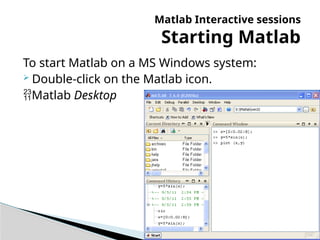
To start Matlab on a MS Windows system:
 Double-click on the Matlab icon.
Matlab Desktop
Matlab Interactive sessions
Starting Matlab
Matlab Interactive sessions
Starting Matlab
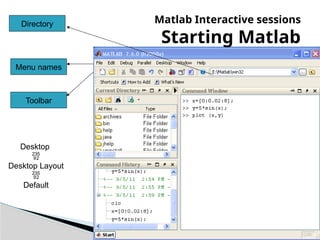
Menu names
Toolbar
Directory
Desktop

Desktop Layout

Default
Matlab Interactive sessions
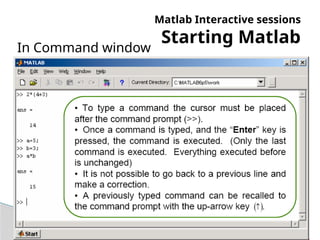
Starting Matlab
In Command window
Matlab Interactive sessions
Starting Matlab
The Current Directory:
a file manager window  used to access files.
open a file by double-clicking on the file name
with the extension .m (Matlab Editor)
Matlab Interactive sessions
Starting Matlab
Workspace window:
Displays the variables created in the
Command window.
Open Array Editor by double-clicking on a
variable name.
Matlab Interactive sessions
Starting Matlab
Command History window:
Show all the previous keystrokes entered in
the Command window.
Used for keeping track what are typed.
Can click on a keystroke and drag it to the
Command Window or the Editor.
Double-click on a keystrokeexecute it in
the Command Window.
Matlab Interactive sessions
Entering commands and
Expressions
Enter: Executes the command, retype if there is a
mistake.
Backspace key, Delete key, the left- / right
arrow keys ( )
← → : edit the commands.
up- /down-arrow ( )
↑↓ : scroll back/forward
through the commands (once to see the
previous entry, twice to see the entry before
that, and so on)
Matlab Interactive sessions
Entering commands and
Expressions
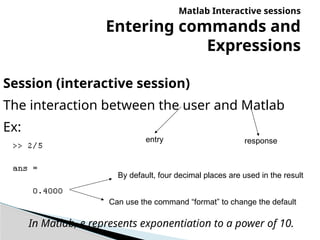
Session (interactive session)
The interaction between the user and Matlab
Ex:
By default, four decimal places are used in the result
entry response
Can use the command “format” to change the default
In Matlab, e represents exponentiation to a power of 10.
Matlab Interactive sessions
Entering commands and
Expressions
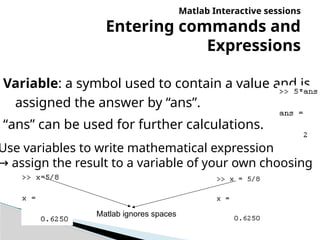
Variable: a symbol used to contain a value and is
assigned the answer by “ans”.
“ans” can be used for further calculations.
Use variables to write mathematical expression
→ assign the result to a variable of your own choosing
Matlab ignores spaces
Matlab Interactive sessions
Entering commands and
Expressions
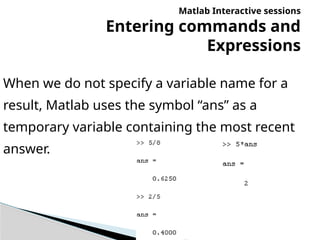
When we do not specify a variable name for a
result, Matlab uses the symbol “ans” as a
temporary variable containing the most recent
answer.
Matlab Interactive sessions
Entering commands and
Expressions
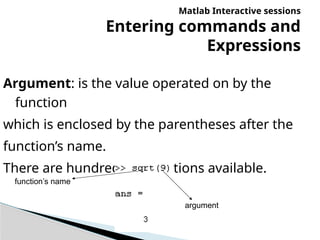
Argument: is the value operated on by the
function
which is enclosed by the parentheses after the
function’s name.
There are hundreds of functions available.
function’s name
argument
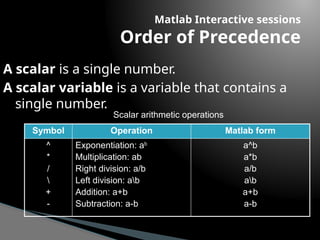
Symbol Operation Matlab form
^
*
/

+
-
Exponentiation: ab
Multiplication: ab
Right division: a/b
Left division: ab
Addition: a+b
Subtraction: a-b
a^b
a*b
a/b
ab
a+b
a-b
Matlab Interactive sessions
Order of Precedence
A scalar is a single number.
A scalar variable is a variable that contains a
single number.
Scalar arithmetic operations
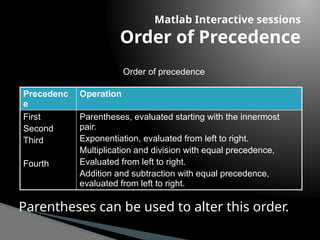
Precedenc
e
Operation
First
Second
Third
Fourth
Parentheses, evaluated starting with the innermost
pair.
Exponentiation, evaluated from left to right.
Multiplication and division with equal precedence,
Evaluated from left to right.
Addition and subtraction with equal precedence,
evaluated from left to right.
Matlab Interactive sessions
Order of Precedence
Order of precedence
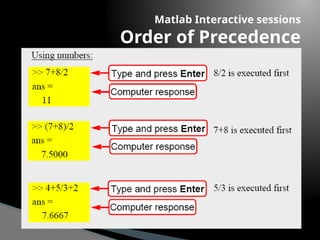
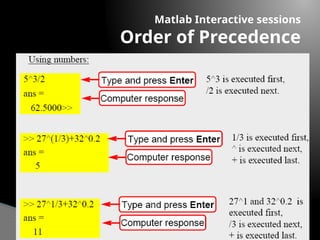
Parentheses can be used to alter this order.
Matlab Interactive sessions
Order of Precedence
Matlab Interactive sessions
Order of Precedence
  
 
  3
5
/
4
2
2
4
2
5
2
14
60
5
319
4
27
.
14
53
9
55
2
.
48
.
145
7
4
7
6
4
3
.







c
b
a
Matlab Interactive sessions
Order of Precedence
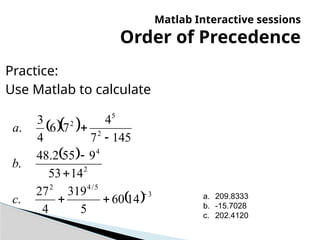
Practice:
Use Matlab to calculate
a. 209.8333
b. -15.7028
c. 202.4120
Matlab Interactive sessions
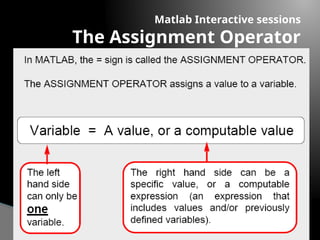
The Assignment Operator
Matlab Interactive sessions
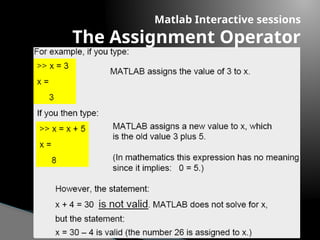
The Assignment Operator
Matlab Interactive sessions
The Assignment Operator
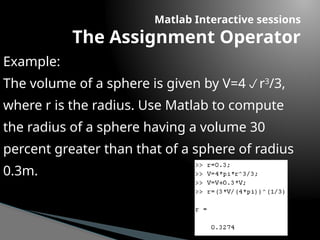
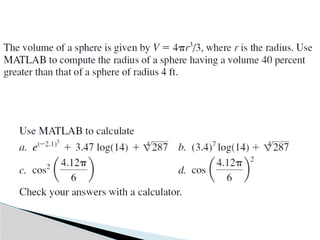
Example:
The volume of a sphere is given by V=4r3
/3,
where r is the radius. Use Matlab to compute
the radius of a sphere having a volume 30
percent greater than that of a sphere of radius
0.3m.
Matlab Interactive sessions
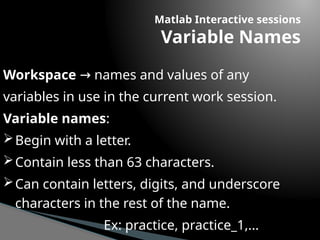
Variable Names
Workspace names and values of any
→
variables in use in the current work session.
Variable names:
Begin with a letter.
Contain less than 63 characters.
Can contain letters, digits, and underscore
characters in the rest of the name.
Ex: practice, practice_1,...
Matlab Interactive sessions
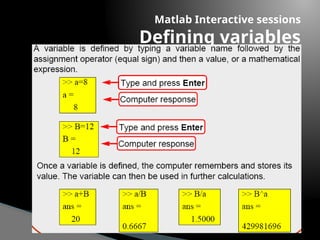
Defining variables
Matlab Interactive sessions
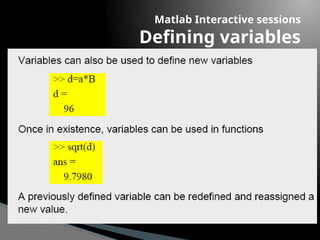
Defining variables
Matlab Interactive sessions
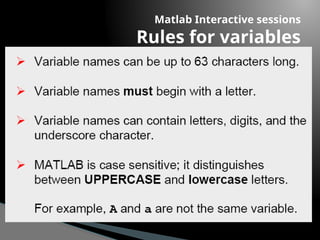
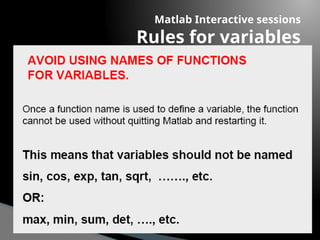
Rules for variables
Matlab Interactive sessions
Rules for variables
Matlab Interactive sessions
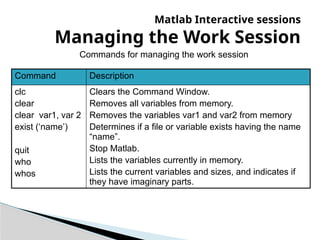
Managing the Work Session
Command Description
clc
clear
clear var1, var 2
exist (‘name’)
quit
who
whos
Clears the Command Window.
Removes all variables from memory.
Removes the variables var1 and var2 from memory
Determines if a file or variable exists having the name
“name”.
Stop Matlab.
Lists the variables currently in memory.
Lists the current variables and sizes, and indicates if
they have imaginary parts.
Commands for managing the work session
Matlab Interactive sessions
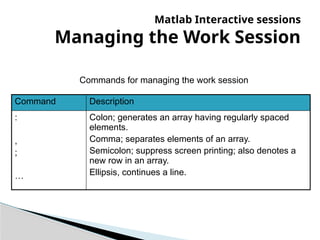
Managing the Work Session
Command Description
:
,
;
…
Colon; generates an array having regularly spaced
elements.
Comma; separates elements of an array.
Semicolon; suppress screen printing; also denotes a
new row in an array.
Ellipsis, continues a line.
Commands for managing the work session
Matlab Interactive sessions
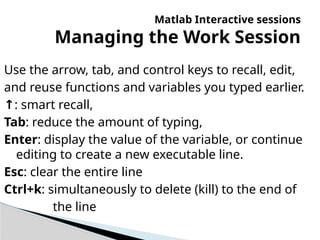
Managing the Work Session
Use the arrow, tab, and control keys to recall, edit,
and reuse functions and variables you typed earlier.
↑: smart recall,
Tab: reduce the amount of typing,
Enter: display the value of the variable, or continue
editing to create a new executable line.
Esc: clear the entire line
Ctrl+k: simultaneously to delete (kill) to the end of
the line
Matlab Interactive sessions
Managing the Work Session
Command Description
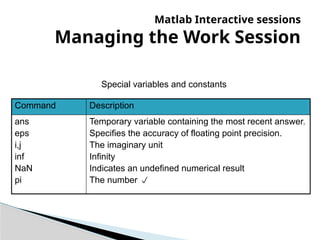
ans
eps
i,j
inf
NaN
pi
Temporary variable containing the most recent answer.
Specifies the accuracy of floating point precision.
The imaginary unit
Infinity
Indicates an undefined numerical result
The number 
Special variables and constants
Matlab Interactive sessions
Managing the Work Session
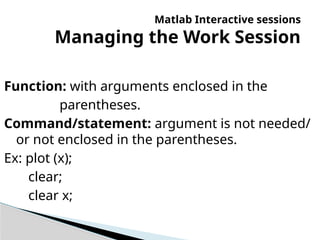
Function: with arguments enclosed in the
parentheses.
Command/statement: argument is not needed/
or not enclosed in the parentheses.
Ex: plot (x);
clear;
clear x;
Matlab Interactive sessions
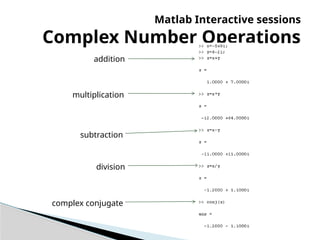
Complex Number Operations
addition
multiplication
subtraction
division
complex conjugate
Matlab Interactive sessions
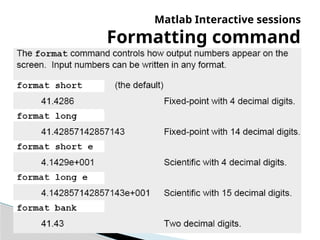
Formatting command
Menus and the Toolbar
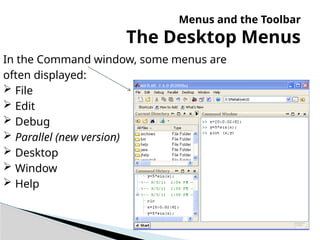
The Desktop Menus
In the Command window, some menus are
often displayed:
 File
 Edit
 Debug
 Parallel (new version)
 Desktop
 Window
 Help
Menus and the Toolbar
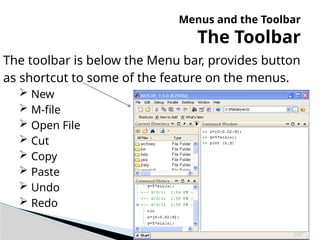
The Toolbar
The toolbar is below the Menu bar, provides button
as shortcut to some of the feature on the menus.
 New
 M-file
 Open File
 Cut
 Copy
 Paste
 Undo
 Redo
Computing with Matlab
Computational capabilities of Matlab
Some features used to solve
engineering problems
Introduction to Matlab
Computing with Matlab
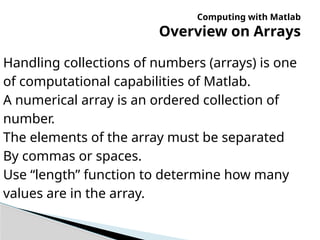
Overview on Arrays
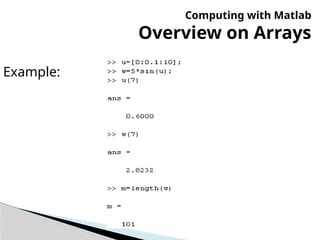
Handling collections of numbers (arrays) is one
of computational capabilities of Matlab.
A numerical array is an ordered collection of
number.
The elements of the array must be separated
By commas or spaces.
Use “length” function to determine how many
values are in the array.
Example:
Computing with Matlab
Overview on Arrays
Computing with Matlab
Polynomial Roots
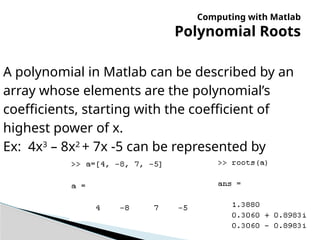
A polynomial in Matlab can be described by an
array whose elements are the polynomial’s
coefficients, starting with the coefficient of
highest power of x.
Ex: 4x3
– 8x2
+ 7x -5 can be represented by
Computing with Matlab
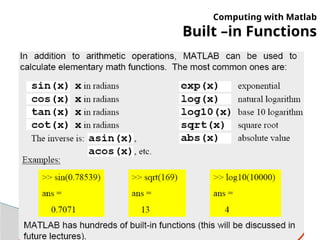
Built –in Functions
Practice
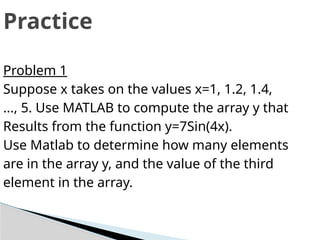
Problem 1
Suppose x takes on the values x=1, 1.2, 1.4,
..., 5. Use MATLAB to compute the array y that
Results from the function y=7Sin(4x).
Use Matlab to determine how many elements
are in the array y, and the value of the third
element in the array.
Practice
Problem 2
Use Matlab to determine how many elements
are in the array [sin(-pi/2):0.05:Cos(0)]. Use
Matlab to:
1. Determine the 10th
element.
2. Create a new array taking the values from the
4th
to 8th
element.
3. Calculate sum of the first three elements of the
new array.
Chapter 1 _  Introduction to Matlab.pptx

Chapter 1 _ Introduction to Matlab.pptx

  • 1.
  • 2.
    To start Matlabon a MS Windows system:  Double-click on the Matlab icon. Matlab Desktop Matlab Interactive sessions Starting Matlab
  • 3.
    Matlab Interactive sessions StartingMatlab Menu names Toolbar Directory Desktop  Desktop Layout  Default
  • 4.
    Matlab Interactive sessions StartingMatlab In Command window
  • 5.
    Matlab Interactive sessions StartingMatlab The Current Directory: a file manager window  used to access files. open a file by double-clicking on the file name with the extension .m (Matlab Editor)
  • 6.
    Matlab Interactive sessions StartingMatlab Workspace window: Displays the variables created in the Command window. Open Array Editor by double-clicking on a variable name.
  • 7.
    Matlab Interactive sessions StartingMatlab Command History window: Show all the previous keystrokes entered in the Command window. Used for keeping track what are typed. Can click on a keystroke and drag it to the Command Window or the Editor. Double-click on a keystrokeexecute it in the Command Window.
  • 8.
    Matlab Interactive sessions Enteringcommands and Expressions Enter: Executes the command, retype if there is a mistake. Backspace key, Delete key, the left- / right arrow keys ( ) ← → : edit the commands. up- /down-arrow ( ) ↑↓ : scroll back/forward through the commands (once to see the previous entry, twice to see the entry before that, and so on)
  • 9.
    Matlab Interactive sessions Enteringcommands and Expressions Session (interactive session) The interaction between the user and Matlab Ex: By default, four decimal places are used in the result entry response Can use the command “format” to change the default In Matlab, e represents exponentiation to a power of 10.
  • 10.
    Matlab Interactive sessions Enteringcommands and Expressions Variable: a symbol used to contain a value and is assigned the answer by “ans”. “ans” can be used for further calculations. Use variables to write mathematical expression → assign the result to a variable of your own choosing Matlab ignores spaces
  • 11.
    Matlab Interactive sessions Enteringcommands and Expressions When we do not specify a variable name for a result, Matlab uses the symbol “ans” as a temporary variable containing the most recent answer.
  • 12.
    Matlab Interactive sessions Enteringcommands and Expressions Argument: is the value operated on by the function which is enclosed by the parentheses after the function’s name. There are hundreds of functions available. function’s name argument
  • 13.
    Symbol Operation Matlabform ^ * / + - Exponentiation: ab Multiplication: ab Right division: a/b Left division: ab Addition: a+b Subtraction: a-b a^b a*b a/b ab a+b a-b Matlab Interactive sessions Order of Precedence A scalar is a single number. A scalar variable is a variable that contains a single number. Scalar arithmetic operations
  • 14.
    Precedenc e Operation First Second Third Fourth Parentheses, evaluated startingwith the innermost pair. Exponentiation, evaluated from left to right. Multiplication and division with equal precedence, Evaluated from left to right. Addition and subtraction with equal precedence, evaluated from left to right. Matlab Interactive sessions Order of Precedence Order of precedence Parentheses can be used to alter this order.
  • 15.
  • 16.
  • 17.
          3 5 / 4 2 2 4 2 5 2 14 60 5 319 4 27 . 14 53 9 55 2 . 48 . 145 7 4 7 6 4 3 .        c b a Matlab Interactive sessions Order of Precedence Practice: Use Matlab to calculate a. 209.8333 b. -15.7028 c. 202.4120
  • 18.
  • 19.
  • 20.
    Matlab Interactive sessions TheAssignment Operator Example: The volume of a sphere is given by V=4r3 /3, where r is the radius. Use Matlab to compute the radius of a sphere having a volume 30 percent greater than that of a sphere of radius 0.3m.
  • 21.
    Matlab Interactive sessions VariableNames Workspace names and values of any → variables in use in the current work session. Variable names: Begin with a letter. Contain less than 63 characters. Can contain letters, digits, and underscore characters in the rest of the name. Ex: practice, practice_1,...
  • 22.
  • 23.
  • 24.
  • 25.
  • 26.
    Matlab Interactive sessions Managingthe Work Session Command Description clc clear clear var1, var 2 exist (‘name’) quit who whos Clears the Command Window. Removes all variables from memory. Removes the variables var1 and var2 from memory Determines if a file or variable exists having the name “name”. Stop Matlab. Lists the variables currently in memory. Lists the current variables and sizes, and indicates if they have imaginary parts. Commands for managing the work session
  • 27.
    Matlab Interactive sessions Managingthe Work Session Command Description : , ; … Colon; generates an array having regularly spaced elements. Comma; separates elements of an array. Semicolon; suppress screen printing; also denotes a new row in an array. Ellipsis, continues a line. Commands for managing the work session
  • 28.
    Matlab Interactive sessions Managingthe Work Session Use the arrow, tab, and control keys to recall, edit, and reuse functions and variables you typed earlier. ↑: smart recall, Tab: reduce the amount of typing, Enter: display the value of the variable, or continue editing to create a new executable line. Esc: clear the entire line Ctrl+k: simultaneously to delete (kill) to the end of the line
  • 29.
    Matlab Interactive sessions Managingthe Work Session Command Description ans eps i,j inf NaN pi Temporary variable containing the most recent answer. Specifies the accuracy of floating point precision. The imaginary unit Infinity Indicates an undefined numerical result The number  Special variables and constants
  • 30.
    Matlab Interactive sessions Managingthe Work Session Function: with arguments enclosed in the parentheses. Command/statement: argument is not needed/ or not enclosed in the parentheses. Ex: plot (x); clear; clear x;
  • 31.
    Matlab Interactive sessions ComplexNumber Operations addition multiplication subtraction division complex conjugate
  • 32.
  • 33.
    Menus and theToolbar The Desktop Menus In the Command window, some menus are often displayed:  File  Edit  Debug  Parallel (new version)  Desktop  Window  Help
  • 34.
    Menus and theToolbar The Toolbar The toolbar is below the Menu bar, provides button as shortcut to some of the feature on the menus.  New  M-file  Open File  Cut  Copy  Paste  Undo  Redo
  • 35.
    Computing with Matlab Computationalcapabilities of Matlab Some features used to solve engineering problems Introduction to Matlab
  • 36.
    Computing with Matlab Overviewon Arrays Handling collections of numbers (arrays) is one of computational capabilities of Matlab. A numerical array is an ordered collection of number. The elements of the array must be separated By commas or spaces. Use “length” function to determine how many values are in the array.
  • 37.
  • 38.
    Computing with Matlab PolynomialRoots A polynomial in Matlab can be described by an array whose elements are the polynomial’s coefficients, starting with the coefficient of highest power of x. Ex: 4x3 – 8x2 + 7x -5 can be represented by
  • 39.
  • 40.
    Practice Problem 1 Suppose xtakes on the values x=1, 1.2, 1.4, ..., 5. Use MATLAB to compute the array y that Results from the function y=7Sin(4x). Use Matlab to determine how many elements are in the array y, and the value of the third element in the array.
  • 41.
    Practice Problem 2 Use Matlabto determine how many elements are in the array [sin(-pi/2):0.05:Cos(0)]. Use Matlab to: 1. Determine the 10th element. 2. Create a new array taking the values from the 4th to 8th element. 3. Calculate sum of the first three elements of the new array.