Building Your WordPress Site Using Google
by Kim Beasley
@kimbeasley ~ http://google.com/+kimbeasley
Presented at WordCamp KC 2015
+
● WordPress business providing development, training, consulting, speaking and
support desk services
● Specialize in integrating social media, developing membership website, creating
online portfolios, and provide WordPress support desk
About Me
Building Your WordPress Site Using Google ~ by Kim Beasley ~ http://KimBeasley.com
1. Getting started with Google Developer
Console
2. Installing WordPress using Google App
Engine
3. Determining your idea WordPress
environment
4. Developing WordPress website within
Google App Engine environment
5. Growing WordPress website using
Google App components
Your Takeaway Tips
Building Your WordPress Site Using Google ~ by Kim Beasley ~ http://KimBeasley.com
Deploy WordPress using Google Compute Engine
● Setup (Deploy) using Compute Engine
a. Go to: https://goo.gl/lGtYot (you will need to signin to get
started)
b. Deploy WordPress
● Access your WordPress environment in the Google Developers
Console to see your installation details and to connect server for
SSH access from your browser
Getting started with Google Developer Console
Building Your WordPress Site Using Google ~ by Kim Beasley ~ http://KimBeasley.com
Installing WordPress using Google App Engine
Basic steps explained by Kim Beasley
+
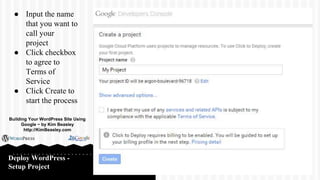
Deploy WordPress -
Setup Project
● Input the name
that you want to
call your
project
● Click checkbox
to agree to
Terms of
Service
● Click Create to
start the process
Building Your WordPress Site Using
Google ~ by Kim Beasley
http://KimBeasley.com
Deploy WordPress -
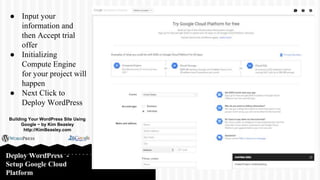
Setup Google Cloud
Platform
● Input your
information and
then Accept trial
offer
● Initializing
Compute Engine
for your project will
happen
● Next Click to
Deploy WordPress
Building Your WordPress Site Using
Google ~ by Kim Beasley
http://KimBeasley.com
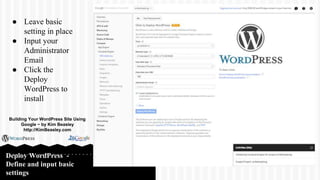
Deploy WordPress -
Define and input basic
settings
● Leave basic
setting in place
● Input your
Administrator
Email
● Click the
Deploy
WordPress to
install
Building Your WordPress Site Using
Google ~ by Kim Beasley
http://KimBeasley.com
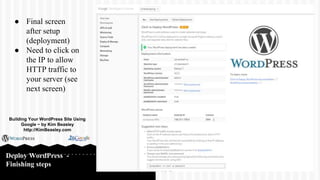
Deploy WordPress -
Finishing steps
● Final screen
after setup
(deployment)
● Need to click on
the IP to allow
HTTP traffic to
your server (see
next screen)
Building Your WordPress Site Using
Google ~ by Kim Beasley
http://KimBeasley.com
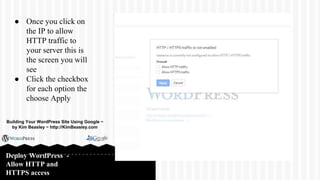
Deploy WordPress -
Allow HTTP and
HTTPS access
● Once you click on
the IP to allow
HTTP traffic to
your server this is
the screen you will
see
● Click the checkbox
for each option the
choose Apply
Building Your WordPress Site Using Google ~
by Kim Beasley ~ http://KimBeasley.com
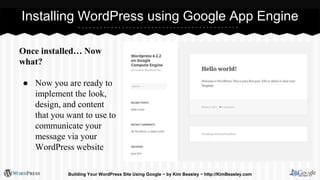
Once installed… Now
what?
● Now you are ready to
implement the look,
design, and content
that you want to use to
communicate your
message via your
WordPress website
Installing WordPress using Google App Engine
Building Your WordPress Site Using Google ~ by Kim Beasley ~ http://KimBeasley.com
What will your WordPress environment include?
● Theme - design and look that is appealing to your website visitors
● Layout - columns, sidebars, or wide page
● Content - text and images that communicate your message
● Plugins - gives additional functionality to your WordPress website
Determining your idea WordPress environment
Building Your WordPress Site Using Google ~ by Kim Beasley ~ http://KimBeasley.com
Things you need to keep in mind…
● You will need to use SSH for server access to make any changes to the
server
● Be aware of the size allotment for uploading files
● Become familiar with the LAMP environment
● The deployment is the easy part; server access is more technical
Developing WordPress website within Google
App Engine environment
Building Your WordPress Site Using Google ~ by Kim Beasley ~ http://KimBeasley.com
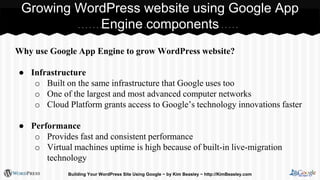
Why use Google App Engine to grow WordPress website?
● Infrastructure
o Built on the same infrastructure that Google uses too
o One of the largest and most advanced computer networks
o Cloud Platform grants access to Google’s technology innovations faster
● Performance
o Provides fast and consistent performance
o Virtual machines uptime is high because of built-in live-migration
technology
Growing WordPress website using Google App
Engine components
Building Your WordPress Site Using Google ~ by Kim Beasley ~ http://KimBeasley.com
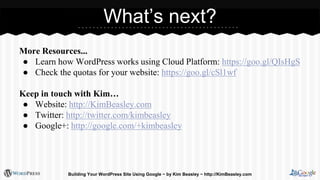
More Resources...
● Learn how WordPress works using Cloud Platform: https://goo.gl/QIsHgS
● Check the quotas for your website: https://goo.gl/cSl1wf
Keep in touch with Kim…
● Website: http://KimBeasley.com
● Twitter: http://twitter.com/kimbeasley
● Google+: http://google.com/+kimbeasley
What’s next?
Building Your WordPress Site Using Google ~ by Kim Beasley ~ http://KimBeasley.com

Building Your WordPress Website Using Google Apps Engine

  • 1.
    Building Your WordPressSite Using Google by Kim Beasley @kimbeasley ~ http://google.com/+kimbeasley Presented at WordCamp KC 2015 +
  • 2.
    ● WordPress businessproviding development, training, consulting, speaking and support desk services ● Specialize in integrating social media, developing membership website, creating online portfolios, and provide WordPress support desk About Me Building Your WordPress Site Using Google ~ by Kim Beasley ~ http://KimBeasley.com
  • 3.
    1. Getting startedwith Google Developer Console 2. Installing WordPress using Google App Engine 3. Determining your idea WordPress environment 4. Developing WordPress website within Google App Engine environment 5. Growing WordPress website using Google App components Your Takeaway Tips Building Your WordPress Site Using Google ~ by Kim Beasley ~ http://KimBeasley.com
  • 4.
    Building Your WordPressSite Using Google ~ by Kim Beasley ~ http://KimBeasley.com
  • 5.
    Deploy WordPress usingGoogle Compute Engine ● Setup (Deploy) using Compute Engine a. Go to: https://goo.gl/lGtYot (you will need to signin to get started) b. Deploy WordPress ● Access your WordPress environment in the Google Developers Console to see your installation details and to connect server for SSH access from your browser Getting started with Google Developer Console Building Your WordPress Site Using Google ~ by Kim Beasley ~ http://KimBeasley.com
  • 6.
    Installing WordPress usingGoogle App Engine Basic steps explained by Kim Beasley +
  • 7.
    Deploy WordPress - SetupProject ● Input the name that you want to call your project ● Click checkbox to agree to Terms of Service ● Click Create to start the process Building Your WordPress Site Using Google ~ by Kim Beasley http://KimBeasley.com
  • 8.
    Deploy WordPress - SetupGoogle Cloud Platform ● Input your information and then Accept trial offer ● Initializing Compute Engine for your project will happen ● Next Click to Deploy WordPress Building Your WordPress Site Using Google ~ by Kim Beasley http://KimBeasley.com
  • 9.
    Deploy WordPress - Defineand input basic settings ● Leave basic setting in place ● Input your Administrator Email ● Click the Deploy WordPress to install Building Your WordPress Site Using Google ~ by Kim Beasley http://KimBeasley.com
  • 10.
    Deploy WordPress - Finishingsteps ● Final screen after setup (deployment) ● Need to click on the IP to allow HTTP traffic to your server (see next screen) Building Your WordPress Site Using Google ~ by Kim Beasley http://KimBeasley.com
  • 11.
    Deploy WordPress - AllowHTTP and HTTPS access ● Once you click on the IP to allow HTTP traffic to your server this is the screen you will see ● Click the checkbox for each option the choose Apply Building Your WordPress Site Using Google ~ by Kim Beasley ~ http://KimBeasley.com
  • 12.
    Once installed… Now what? ●Now you are ready to implement the look, design, and content that you want to use to communicate your message via your WordPress website Installing WordPress using Google App Engine Building Your WordPress Site Using Google ~ by Kim Beasley ~ http://KimBeasley.com
  • 13.
    Building Your WordPressSite Using Google ~ by Kim Beasley ~ http://KimBeasley.com
  • 14.
    What will yourWordPress environment include? ● Theme - design and look that is appealing to your website visitors ● Layout - columns, sidebars, or wide page ● Content - text and images that communicate your message ● Plugins - gives additional functionality to your WordPress website Determining your idea WordPress environment Building Your WordPress Site Using Google ~ by Kim Beasley ~ http://KimBeasley.com
  • 15.
    Things you needto keep in mind… ● You will need to use SSH for server access to make any changes to the server ● Be aware of the size allotment for uploading files ● Become familiar with the LAMP environment ● The deployment is the easy part; server access is more technical Developing WordPress website within Google App Engine environment Building Your WordPress Site Using Google ~ by Kim Beasley ~ http://KimBeasley.com
  • 16.
    Why use GoogleApp Engine to grow WordPress website? ● Infrastructure o Built on the same infrastructure that Google uses too o One of the largest and most advanced computer networks o Cloud Platform grants access to Google’s technology innovations faster ● Performance o Provides fast and consistent performance o Virtual machines uptime is high because of built-in live-migration technology Growing WordPress website using Google App Engine components Building Your WordPress Site Using Google ~ by Kim Beasley ~ http://KimBeasley.com
  • 17.
    Building Your WordPressSite Using Google ~ by Kim Beasley ~ http://KimBeasley.com
  • 18.
    More Resources... ● Learnhow WordPress works using Cloud Platform: https://goo.gl/QIsHgS ● Check the quotas for your website: https://goo.gl/cSl1wf Keep in touch with Kim… ● Website: http://KimBeasley.com ● Twitter: http://twitter.com/kimbeasley ● Google+: http://google.com/+kimbeasley What’s next? Building Your WordPress Site Using Google ~ by Kim Beasley ~ http://KimBeasley.com