BIG Mack                                                                     Quick Guide
                                                                                  Updated     10/02


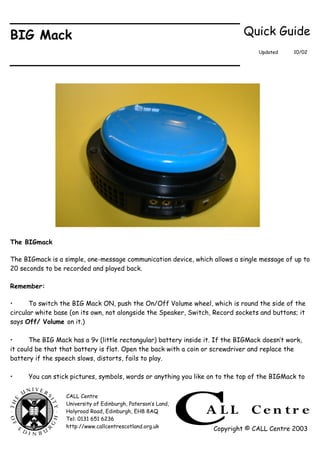
The BIGmack

The BIGmack is a simple, one-message communication device, which allows a single message of up to
20 seconds to be recorded and played back.

Remember:

•     To switch the BIG Mack ON, push the On/Off Volume wheel, which is round the side of the
circular white base (on its own, not alongside the Speaker, Switch, Record sockets and buttons; it
says Off/ Volume on it.)

•      The BIG Mack has a 9v (little rectangular) battery inside it. If the BIGMack doesn’t work,
it could be that that battery is flat. Open the back with a coin or screwdriver and replace the
battery if the speech slows, distorts, fails to play.

•     You can stick pictures, symbols, words or anything you like on to the top of the BIGMack to


                  CALL Centre
                  University of Edinburgh, Paterson’s Land,
                  Holyrood Road, Edinburgh, EH8 8AQ
                  Tel: 0131 651 6236
                  http://www.callcentrescotland.org.uk             Copyright © CALL Centre 2003
prompt the user.

•     You can plug an external switch into the SWITCH socket on the BIGMack, to activate it, if
the user can’t hit the BIGMack itself but can operate some other switch.

Programming:

You don’t have to erase any existing message, you just record over the top of it.

1.     Decide what sound, song, message etc. you mean to store in the BIGMack (up to 20 seconds
in length). If necessary, practise saying it out loud to get the right intonation etc.

2.    With one hand, press the RECORD button in and keep it held down. With the other hand,
press and hold down the coloured top part of the BIGMack. Speak the message in a normal voice
directed towards the MIC hole. Release both switches as soon as the message is finished.

3.    Hit the coloured top to check it’s recorded OK.

4.    Remember to change the message to match the real situation the user is in don’t leave it
stuck in the same one message (boring!). Always record the new message in in front of the user, so
they can see that it has been changed.

Troubleshooting:

•     If there is a lot of ‘noise’ before and/or after the message, it’s because you’ve held the
Record button down too long before or after you were actually speaking. You should only hold it
down as you speak otherwise you record ‘dead’ time. Experiment a bit - if you hold it down too long
you will record silence or background noise; if you hold it down too short you might ‘chop off’ the
beginning or end of your message.

If the quality of the recording doesn’t sound too good, try this:

•    turn the VOLUME wheel down before you record. Record, then remember to turn it UP again
afterwards to play/listen to the message (- don’t panic and think that it’s not working! ).

•     experiment with making your voice softer or louder or moving it nearer or further away
from the MIC when recording, to find the best position / level.
***


                                           Page 2 of 2

Big mack

  • 1.
    BIG Mack Quick Guide Updated 10/02 The BIGmack The BIGmack is a simple, one-message communication device, which allows a single message of up to 20 seconds to be recorded and played back. Remember: • To switch the BIG Mack ON, push the On/Off Volume wheel, which is round the side of the circular white base (on its own, not alongside the Speaker, Switch, Record sockets and buttons; it says Off/ Volume on it.) • The BIG Mack has a 9v (little rectangular) battery inside it. If the BIGMack doesn’t work, it could be that that battery is flat. Open the back with a coin or screwdriver and replace the battery if the speech slows, distorts, fails to play. • You can stick pictures, symbols, words or anything you like on to the top of the BIGMack to CALL Centre University of Edinburgh, Paterson’s Land, Holyrood Road, Edinburgh, EH8 8AQ Tel: 0131 651 6236 http://www.callcentrescotland.org.uk Copyright © CALL Centre 2003
  • 2.
    prompt the user. • You can plug an external switch into the SWITCH socket on the BIGMack, to activate it, if the user can’t hit the BIGMack itself but can operate some other switch. Programming: You don’t have to erase any existing message, you just record over the top of it. 1. Decide what sound, song, message etc. you mean to store in the BIGMack (up to 20 seconds in length). If necessary, practise saying it out loud to get the right intonation etc. 2. With one hand, press the RECORD button in and keep it held down. With the other hand, press and hold down the coloured top part of the BIGMack. Speak the message in a normal voice directed towards the MIC hole. Release both switches as soon as the message is finished. 3. Hit the coloured top to check it’s recorded OK. 4. Remember to change the message to match the real situation the user is in don’t leave it stuck in the same one message (boring!). Always record the new message in in front of the user, so they can see that it has been changed. Troubleshooting: • If there is a lot of ‘noise’ before and/or after the message, it’s because you’ve held the Record button down too long before or after you were actually speaking. You should only hold it down as you speak otherwise you record ‘dead’ time. Experiment a bit - if you hold it down too long you will record silence or background noise; if you hold it down too short you might ‘chop off’ the beginning or end of your message. If the quality of the recording doesn’t sound too good, try this: • turn the VOLUME wheel down before you record. Record, then remember to turn it UP again afterwards to play/listen to the message (- don’t panic and think that it’s not working! ). • experiment with making your voice softer or louder or moving it nearer or further away from the MIC when recording, to find the best position / level. *** Page 2 of 2