Welcome
Planning RouterOS Networks
with GNS3
By: Michael Omondi
Who am I?
Name: Michael Omondi
Preferred Name: Mike
8+ years in the IT industry.
Introduced to Mikrotik in 2014
Areas of interest:
ISP Solutions
Wireless Services
Network Security
Certifications
Mikrotik:- MTCNA, MTCRE, MTCWE & MTCTCE,
Other Vendors:- Cisco, CompTIA, Vmware, Solarwinds, Ubiquiti, Cyberoam
Who Are We?
We are an IT company
• Training
• Consultancy
• Design, deployment and management of computer networks
• Server deployment and management
• Cloud services (storage, backup & archiving, web & application
hosting etc.), Data Center Virtualization and many more.
• For more about us, please visit http://lockstepit.com
Goal
Provide adequate knowledge to
make you comfortable running
RouterOS in GNS3
• In 2015, Mikrotik released a virtual RouterOS
instance for x86_64 architecture.
• They called it Cloud Hosted Router (CHR)
• Designed for virtualized environments.
Introduction
• Currently there are 4 levels of licensing.
a) Free- 1Mbps interface speed
b) P1- 1Gbps
c) P10- 10Gbps
d) P-Unlimited
Licensing
• Training classes
• Exam preparation
• Testing configuration before deployment
• Production
Where to Use It?
• Graphical Network Simulator
• Originally developed to emulate Cisco’s IOS
• It’s capabilities have been extended beyond just Ciscos’
IOS
• For this Lab setup version 1.5.2 of GNS3 installation and
its Virtual Machine counterpart will be used.
GNS3
• Quick Emulator
• Developed to virtualize x86_64 architectures in
Linux
• REMEMBER: RouterOS is a Linux
• To successfully build a virtual RouterOS Lab we will
enlist QEMU version 2.5.0
QEMU
System Requirement
• 64bit CPU with virtualization support
• 128 MB or more RAM for the CHR instance
• 128 MB disk space for the CHR virtual hard
drive
Testing
CHR has been tested on the following platforms:
• VirtualBox 5 on Linux and OS X
• VMWare Fusion 7 and 8 on OS X
• Qemu 2.4.0.1 on OS X
• Hyper-V on Windows Server 2012 (Only Generation
1 Hyper-V virtual machine is supported at the
moment)
GNS3 can run on Windows, Linux and OSX
For my Presentation, I have used;
Processor: Intel Core i5 2.50GHz
RAM: 8GB
OS: Windows 10 Pro
Hypervisor: VMware Workstation 12 Pro
My System Specs
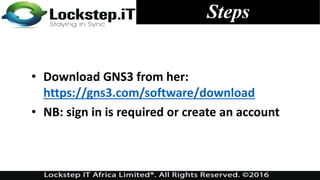
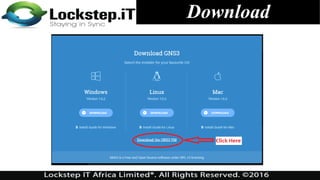
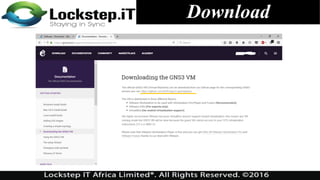
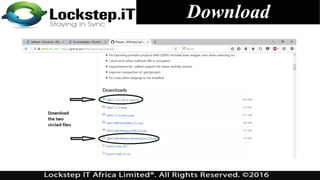
• Download GNS3 from her:
https://gns3.com/software/download
• NB: sign in is required or create an account
Steps
Download
Download
Download
Installation
Once the download is finished;
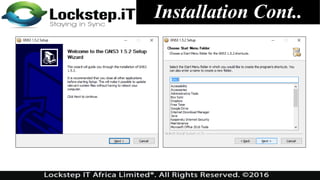
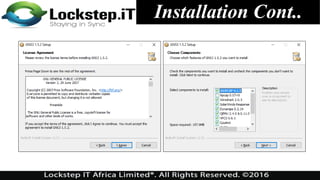
Run the .exe file, follow the prompts.
NB: you need to be connected to the internet as the
installation will download additional files
Installation Cont..
Installation Cont..
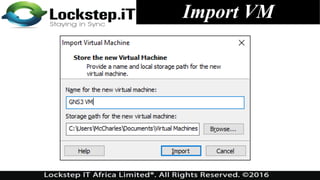
Import VM
Once the installation is finished;
Extract the zipped VM (OVA) file
Import it into VMware
NB: you can use VMware player (free) or VMware
workstation (license required).
We will use VMware Workstation 12 Pro.
Import VM
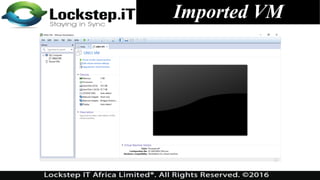
Imported VM
What Next?
The Next thing is;
Download CHR from here:
http://www.mikrotik.com/download
NB: The file format to be downloaded depends on the
hypervisor.
For our case we will download the VHDX file.
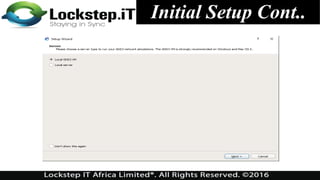
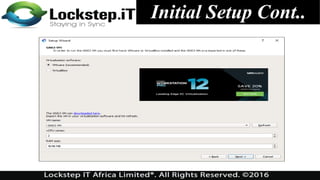
Initial Setup
Time to put the pieces together.
Open GNS3
Configure GNS3 to use the GNS3 VM
Initial Setup Cont..
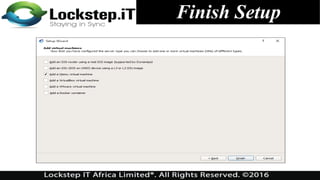
Finish Setup
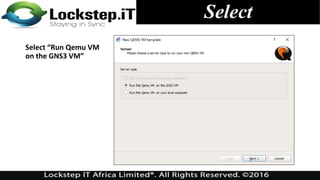
Select
Select “Run Qemu VM
on the GNS3 VM”
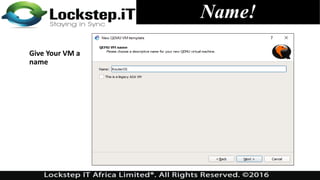
Give Your VM a
name
Name!
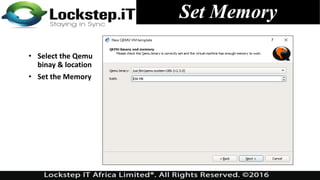
Set Memory
• Select the Qemu
binay & location
• Set the Memory
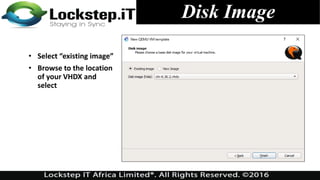
Disk Image
• Select “existing image”
• Browse to the location
of your VHDX and
select
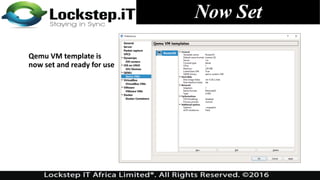
Now Set
Qemu VM template is
now set and ready for use
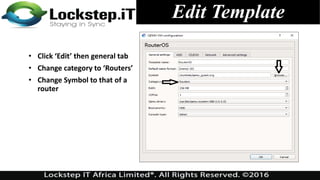
Edit Template
• Click ‘Edit’ then general tab
• Change category to ‘Routers’
• Change Symbol to that of a
router
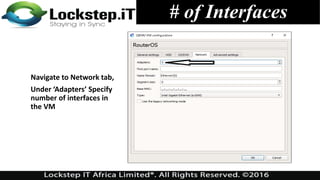
# of Interfaces
Navigate to Network tab,
Under ‘Adapters’ Specify
number of interfaces in
the VM
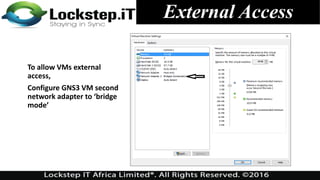
External Access
To allow VMs external
access,
Configure GNS3 VM second
network adapter to ‘bridge
mode’
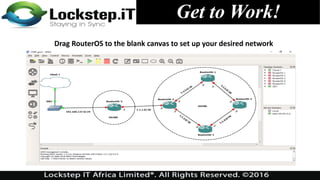
Get to Work!
Drag RouterOS to the blank canvas to set up your desired network
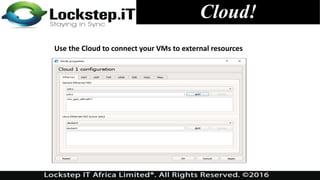
Cloud!
Use the Cloud to connect your VMs to external resources
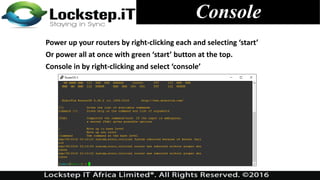
Console
Power up your routers by right-clicking each and selecting ‘start’
Or power all at once with green ‘start’ button at the top.
Console in by right-clicking and select ‘console’
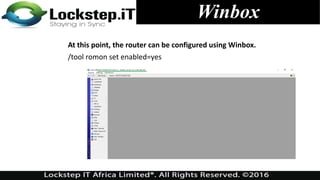
Winbox
At this point, the router can be configured using Winbox.
/tool romon set enabled=yes
Application (in my Case)
• Consulting for a small WISP
that wanted to scale up
• Need for uptime/HA with BGP
• Faster convergence with OSPF
• Improved Network Security
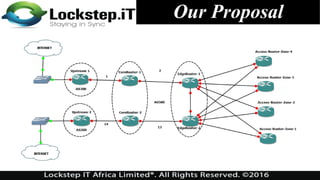
Our Proposal
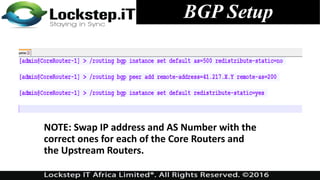
BGP Setup
NOTE: Swap IP address and AS Number with the
correct ones for each of the Core Routers and
the Upstream Routers.
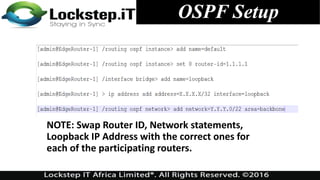
OSPF Setup
NOTE: Swap Router ID, Network statements,
Loopback IP Address with the correct ones for
each of the participating routers.
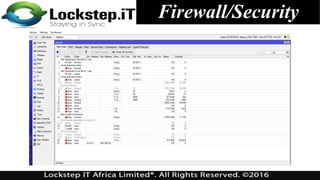
Firewall/Security
Other Tools
• GNS3 is bundled with useful
tools such as;
 VPCS (Virtual PC Simulator)- This is a simple
network testing tool that has essential
commands like traceroute, ping, arp built
in.
 Wireshark: A powerful protocol analyzer
that can be used to capture and analyze
packets
Migration
Q. How do we move from simulation to
production Or to another platform?
 GNS3 stores all project files under one folder which is movable
to another computer. RouterOS template image file (.img)
should also be copied together with the project itself and
placed into 'GNS3/images' folder on target machine.
 Qemu stores images in qcow2 (copy-on-write) format. These
images can be run separately from GNS3.
 If in production environment different hypervisor is used,
qcow2 image can be converted to various formats using
'qemu-img convert' command
Advantages
Training –Almost as realistic as building a
mock network with real equipment
Network Validation –Allows you test network
designs and changes before they are applied
to a production network
Reduces downtime
Increases ROI
Summary
• CHR is a fully functional RouterOS
• Any descent computer that supports
virtualization can be used for Lab scenario
• GNS3 Lab configurations can be migrated to other
systems or production.
• Wireshark and other tools are bundled with GNS3
for testing and analysis
• The uses are only limited by your imagination
Network Setup LAB
The End
49
Thank You!

basic mikrotikbasic mikrotikbasic mikrotik.pdf

  • 1.
  • 2.
    Who am I? Name:Michael Omondi Preferred Name: Mike 8+ years in the IT industry. Introduced to Mikrotik in 2014 Areas of interest: ISP Solutions Wireless Services Network Security Certifications Mikrotik:- MTCNA, MTCRE, MTCWE & MTCTCE, Other Vendors:- Cisco, CompTIA, Vmware, Solarwinds, Ubiquiti, Cyberoam
  • 3.
    Who Are We? Weare an IT company • Training • Consultancy • Design, deployment and management of computer networks • Server deployment and management • Cloud services (storage, backup & archiving, web & application hosting etc.), Data Center Virtualization and many more. • For more about us, please visit http://lockstepit.com
  • 4.
    Goal Provide adequate knowledgeto make you comfortable running RouterOS in GNS3
  • 5.
    • In 2015,Mikrotik released a virtual RouterOS instance for x86_64 architecture. • They called it Cloud Hosted Router (CHR) • Designed for virtualized environments. Introduction
  • 6.
    • Currently thereare 4 levels of licensing. a) Free- 1Mbps interface speed b) P1- 1Gbps c) P10- 10Gbps d) P-Unlimited Licensing
  • 7.
    • Training classes •Exam preparation • Testing configuration before deployment • Production Where to Use It?
  • 8.
    • Graphical NetworkSimulator • Originally developed to emulate Cisco’s IOS • It’s capabilities have been extended beyond just Ciscos’ IOS • For this Lab setup version 1.5.2 of GNS3 installation and its Virtual Machine counterpart will be used. GNS3
  • 9.
    • Quick Emulator •Developed to virtualize x86_64 architectures in Linux • REMEMBER: RouterOS is a Linux • To successfully build a virtual RouterOS Lab we will enlist QEMU version 2.5.0 QEMU
  • 10.
    System Requirement • 64bitCPU with virtualization support • 128 MB or more RAM for the CHR instance • 128 MB disk space for the CHR virtual hard drive
  • 11.
    Testing CHR has beentested on the following platforms: • VirtualBox 5 on Linux and OS X • VMWare Fusion 7 and 8 on OS X • Qemu 2.4.0.1 on OS X • Hyper-V on Windows Server 2012 (Only Generation 1 Hyper-V virtual machine is supported at the moment)
  • 12.
    GNS3 can runon Windows, Linux and OSX For my Presentation, I have used; Processor: Intel Core i5 2.50GHz RAM: 8GB OS: Windows 10 Pro Hypervisor: VMware Workstation 12 Pro My System Specs
  • 13.
    • Download GNS3from her: https://gns3.com/software/download • NB: sign in is required or create an account Steps
  • 14.
  • 15.
  • 16.
  • 17.
    Installation Once the downloadis finished; Run the .exe file, follow the prompts. NB: you need to be connected to the internet as the installation will download additional files
  • 18.
  • 19.
  • 20.
    Import VM Once theinstallation is finished; Extract the zipped VM (OVA) file Import it into VMware NB: you can use VMware player (free) or VMware workstation (license required). We will use VMware Workstation 12 Pro.
  • 21.
  • 22.
  • 23.
    What Next? The Nextthing is; Download CHR from here: http://www.mikrotik.com/download NB: The file format to be downloaded depends on the hypervisor. For our case we will download the VHDX file.
  • 24.
    Initial Setup Time toput the pieces together. Open GNS3 Configure GNS3 to use the GNS3 VM
  • 25.
  • 26.
  • 27.
  • 28.
    Select Select “Run QemuVM on the GNS3 VM”
  • 29.
    Give Your VMa name Name!
  • 30.
    Set Memory • Selectthe Qemu binay & location • Set the Memory
  • 31.
    Disk Image • Select“existing image” • Browse to the location of your VHDX and select
  • 32.
    Now Set Qemu VMtemplate is now set and ready for use
  • 33.
    Edit Template • Click‘Edit’ then general tab • Change category to ‘Routers’ • Change Symbol to that of a router
  • 34.
    # of Interfaces Navigateto Network tab, Under ‘Adapters’ Specify number of interfaces in the VM
  • 35.
    External Access To allowVMs external access, Configure GNS3 VM second network adapter to ‘bridge mode’
  • 36.
    Get to Work! DragRouterOS to the blank canvas to set up your desired network
  • 37.
    Cloud! Use the Cloudto connect your VMs to external resources
  • 38.
    Console Power up yourrouters by right-clicking each and selecting ‘start’ Or power all at once with green ‘start’ button at the top. Console in by right-clicking and select ‘console’
  • 39.
    Winbox At this point,the router can be configured using Winbox. /tool romon set enabled=yes
  • 40.
    Application (in myCase) • Consulting for a small WISP that wanted to scale up • Need for uptime/HA with BGP • Faster convergence with OSPF • Improved Network Security
  • 41.
  • 42.
    BGP Setup NOTE: SwapIP address and AS Number with the correct ones for each of the Core Routers and the Upstream Routers.
  • 43.
    OSPF Setup NOTE: SwapRouter ID, Network statements, Loopback IP Address with the correct ones for each of the participating routers.
  • 44.
  • 45.
    Other Tools • GNS3is bundled with useful tools such as;  VPCS (Virtual PC Simulator)- This is a simple network testing tool that has essential commands like traceroute, ping, arp built in.  Wireshark: A powerful protocol analyzer that can be used to capture and analyze packets
  • 46.
    Migration Q. How dowe move from simulation to production Or to another platform?  GNS3 stores all project files under one folder which is movable to another computer. RouterOS template image file (.img) should also be copied together with the project itself and placed into 'GNS3/images' folder on target machine.  Qemu stores images in qcow2 (copy-on-write) format. These images can be run separately from GNS3.  If in production environment different hypervisor is used, qcow2 image can be converted to various formats using 'qemu-img convert' command
  • 47.
    Advantages Training –Almost asrealistic as building a mock network with real equipment Network Validation –Allows you test network designs and changes before they are applied to a production network Reduces downtime Increases ROI
  • 48.
    Summary • CHR isa fully functional RouterOS • Any descent computer that supports virtualization can be used for Lab scenario • GNS3 Lab configurations can be migrated to other systems or production. • Wireshark and other tools are bundled with GNS3 for testing and analysis • The uses are only limited by your imagination
  • 49.
  • 50.