Basic HTML tags
DAV
Structural Tags
<HTML>
These tags enclose the entire Web page document.
</HTML>
<HEAD>
These tags enclose the Head part of the document
</HEAD>
<TITLE>
These tags enclose the title of the document. This text appears in the title bar in
the browser and on the bookmark list if someone bookmarks your web page.
</TITLE>
Sample Structure of a Web Site
<HTML>
<HEAD>
<TITLE> John Q. Public's Web Page </TITLE>
</HEAD>
<BODY>
This is John Public's Webpage!
</BODY>
</HTML>
Header Tags
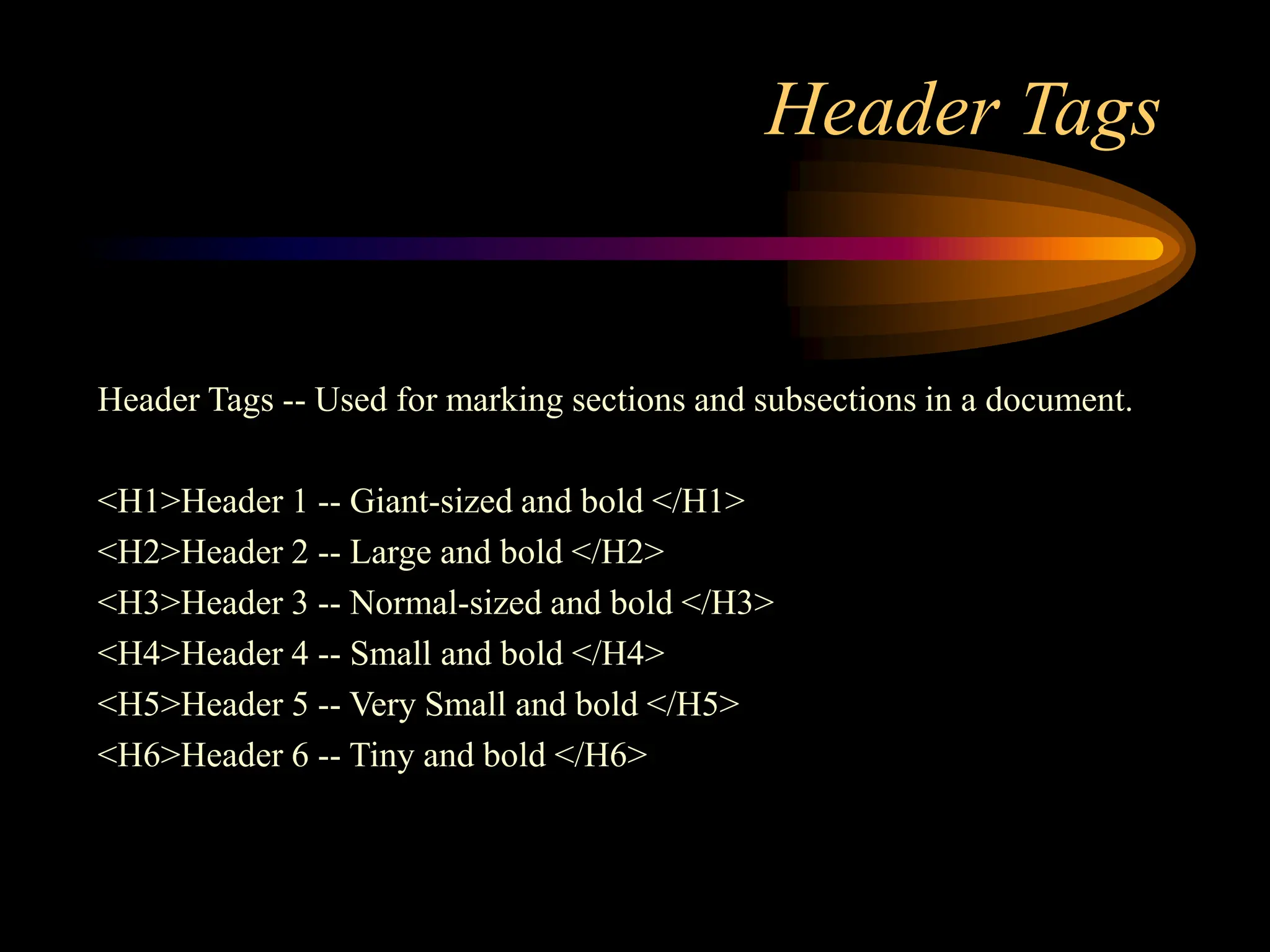
Header Tags -- Used for marking sections and subsections in a document.
<H1>Header 1 -- Giant-sized and bold </H1>
<H2>Header 2 -- Large and bold </H2>
<H3>Header 3 -- Normal-sized and bold </H3>
<H4>Header 4 -- Small and bold </H4>
<H5>Header 5 -- Very Small and bold </H5>
<H6>Header 6 -- Tiny and bold </H6>
Header Tags (cont.)
H1 = Giant-sized and bold
H2 = Large and bold
H3 = Normal-sized and bold
H4 = Small and bold
H5 = Very Small and bold
H6 = Tiny and bold
Breaking Lines and Paragraphs
• <P> text </P>
– Paragraph tag
– Most browsers render (process) this with blank lines between each
paragraph
• <BR>
– Line break tag
– Used when the webmaster wants a carriage return but doesn't want a blank
line to follow
Example: text a
<p>text a</p>
<p>text b</p> text b
<br>text c
<br>text d text c
text d
Horizontal Rule
The <HR> tag puts a graphical line across the page.
Ex:
Horizontal Rule Attributes:
NOSHADE -- A solid line with no shading
WIDTH="xx%/xx" -- Controls the width of the line. You may specify
either percentage of the width of a page or actual
pixel length
SIZE="xx" -- Controls the height of the line. You need to specify the
dimension in pixels.
ALIGN="left/center/right" -- This allows the line to be aligned to the left,
right, or center of the page
Text Formatting Tags
Some basic text formatting styles:
Tag Result
<I> Italics </I> Italics
<B> Bold </B> Bold
<PRE> Preformatted Text </PRE> Preformatted Text
<STRONG> Strong </STRONG> Strong
<ADDRESS> Address </ADDRESS> Address
<CITE> Citations </CITE> Citations
<CODE> Source Code </CODE> Source Code
Font modifications
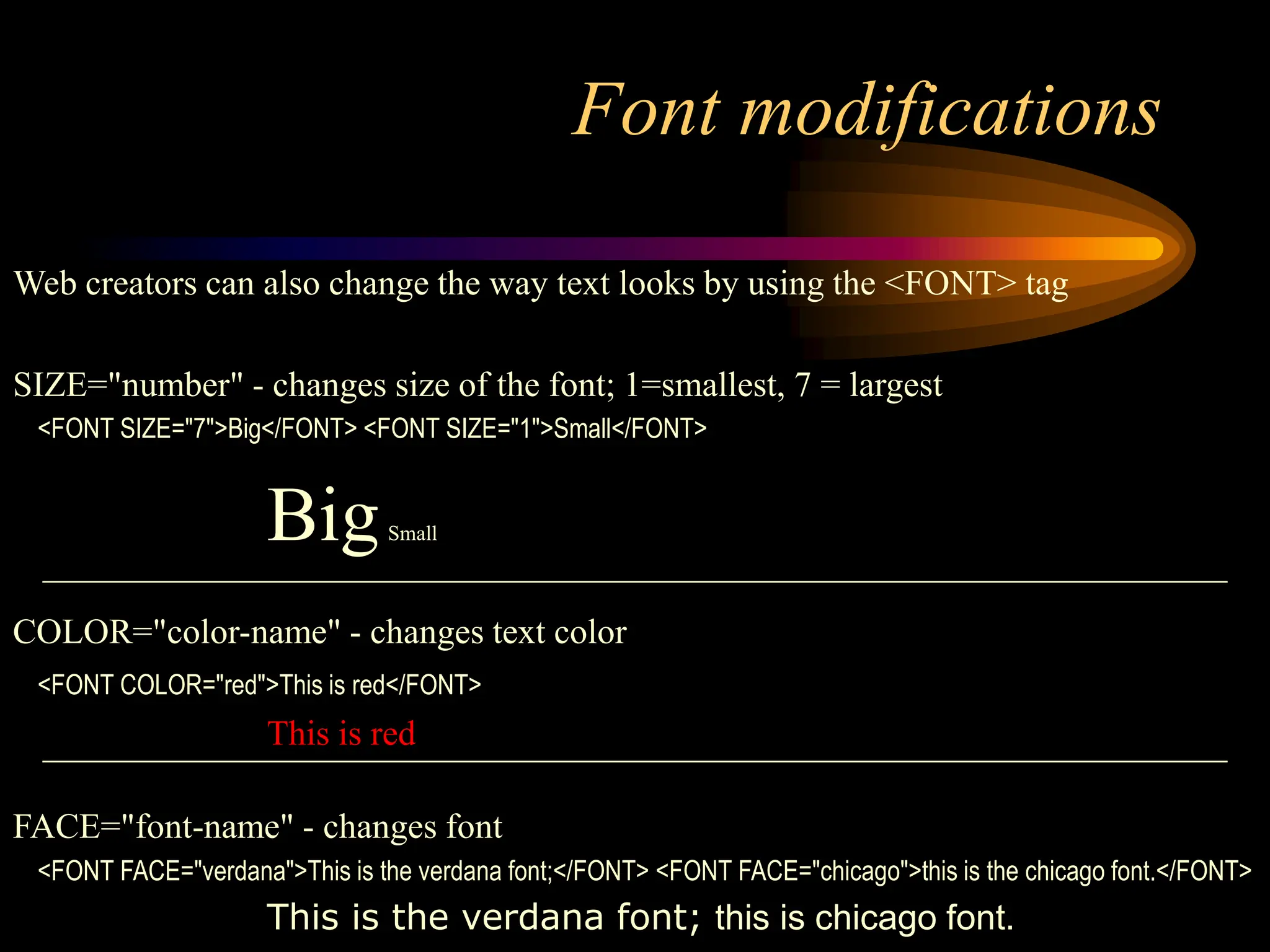
Web creators can also change the way text looks by using the <FONT> tag
SIZE="number" - changes size of the font; 1=smallest, 7 = largest
<FONT SIZE="7">Big</FONT> <FONT SIZE="1">Small</FONT>
BigSmall
COLOR="color-name" - changes text color
<FONT COLOR="red">This is red</FONT>
This is red
FACE="font-name" - changes font
<FONT FACE="verdana">This is the verdana font;</FONT> <FONT FACE="chicago">this is the chicago font.</FONT>
This is the verdana font; this is chicago font.
<Font> modifications (cont.)
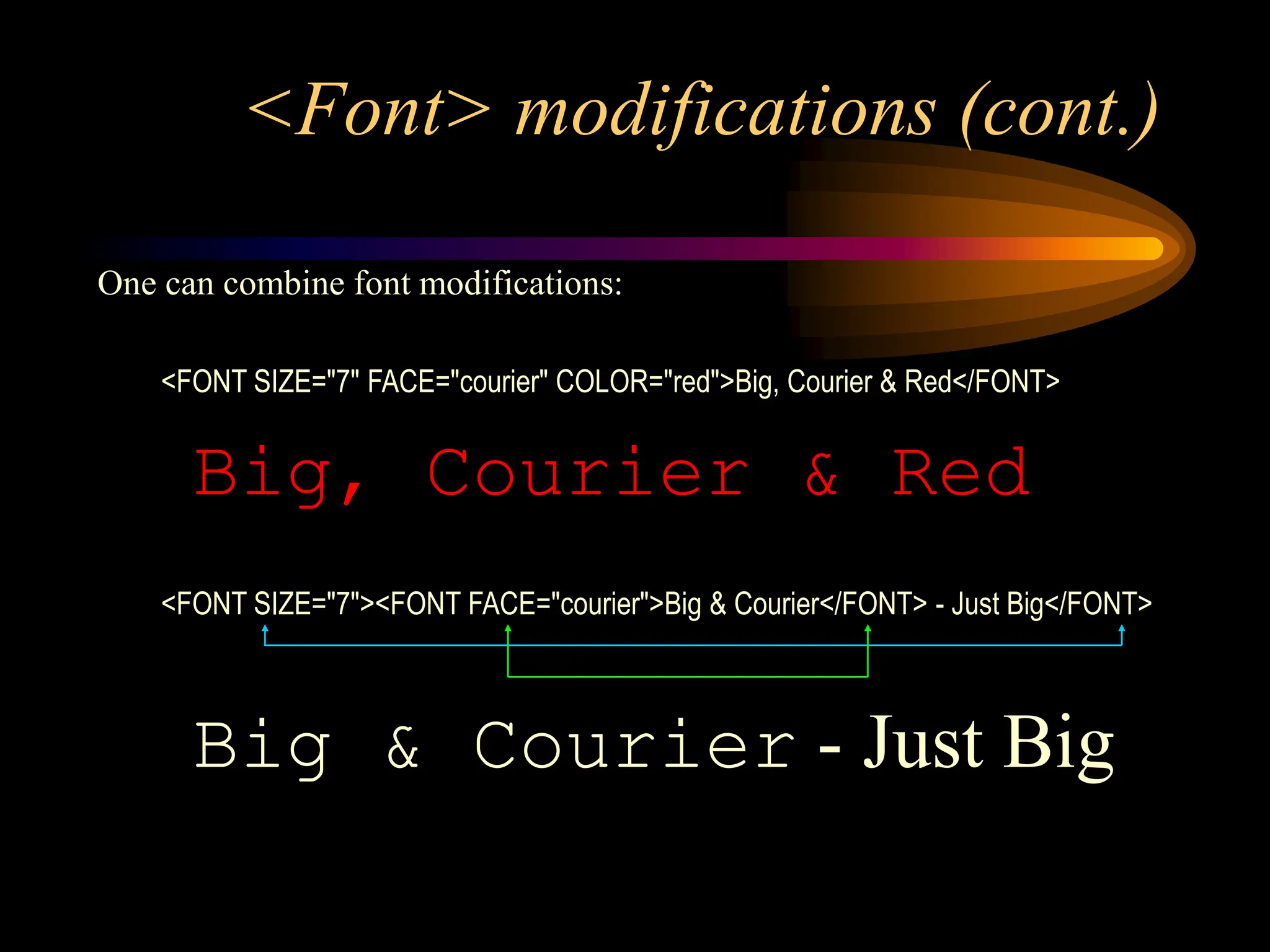
One can combine font modifications:
<FONT SIZE="7" FACE="courier" COLOR="red">Big, Courier & Red</FONT>
Big, Courier & Red
<FONT SIZE="7"><FONT FACE="courier">Big & Courier</FONT> - Just Big</FONT>
Big & Courier - Just Big
Lists -- Unordered Lists
Unordered lists:
<UL>
<LI>Item One
<LI>Item Two
<LI>Item Three
<LI>Item Four
</UL>
• Item One
• Item Two
• Item Three
• Item Four
Unordered List Attributes:
type="disc/circle/square"
• Disc (default)  Circle  Square
Lists -- Ordered Lists
<OL>
<LI> Item One
<LI> Item Two
<LI> Item Three
<LI> Item Four
</OL>
1. Item One
2. Item Two
3. Item Three
4. Item Four
type="i/I/a/A/1" (default)
i = i. Item One I = I. Item One a = a. Item One A = A. Item One 1 = 1.Item One
ii. Item Two II. Item Two b. Item Two B. Item Two 2. Item Two
iii. Item Three III. Item Three c. Item Three C. Item Three 3. Item Three
iv. Item Four IV. Item Four d. Item Four D. Item Four 4. Item Four
start="xx"
• This attribute lets you specify which number/letter will start the list
Ordered (Numbered) Lists:
Ordered List Attributes:
Lists -- Definition Lists
Definition Lists:
<DL>
<DT>List Name One
<DD>This is where information about List Name One would go</DD>
</DT>
<DT>List Name Two
<DD>This is where information about List Name Two would go</DD>
</DT>
</DL>
List Name One
This is where information about List Name One
would go
List Name Two
This is where information about List Name Two
would go
LINKING WEB PAGES
Types of Linking
Internal Linking :-
When one part of the
web page is linked to
another section on the
same page
External Linking:-
When one part is
linked to another web
pages or website.
ANCHOR TAG<A>
• It is used to mark the text as a hyperlink, which a user can click to
display the document, anchored to it.
• It is container tag so it requires closing tag</a> to mark the end of the
text or image.
• Use of Anchor tag
– The text or images that is clicked to active the link.
– The address that will be opened using the defined link.
Links
The anchor tag <A> is used to link one document to another or from one part of a document
to another part of the same document.
Basic Links:
<A HREF="http://www.stanford.edu/">Stanford University</A>
Inter-document Links:
<A HREF="#spot">Point to 'spot' in this document</A>
Defining a point in a document:
<A NAME="spot">Spot</A>
Email links:
<A HREF="mailto:someone@somehost.com">Email someone@somehost.com</A>
CSS and Links
• CSS affects the links differently on the state they are in. You can divide
the link states in four categories:
a: link – a normal , unvisited link
a :visited – a link user has visited
a: hover – a link when user moves the mouse
over it
a : active – an activated link the moment it is
clicked
Audio
• HTML5 defines <audio> tag that specifies a standard way to insert an
audio file in a web page.
• Format : .mp3 , . Ogg, .wav
Attribute Purpose
src Specifies the URL of the audio file
controls Displays the controls on the web page.
autoplay Plays the audio file automatically when the web
page is loaded.
loop Replays the audio file
Video
• HTML5 defines <video> tag that specifies a standard way to insert a
video file in a web page.
• Format : .mp4, . webm, .ogg
Attribute Purpose
src Specifies the URL of the Video file
controls Displays the controls on the web page.
autoplay Plays the audio file automatically when the web page is loaded.
Height Specifies the height of the video player displayed
Width Specifies the width of the video player displayed
Graphics
To have a graphic appear on a webpage, web designers must to put the
<IMG> tag in with the address where the graphic "lives":
<IMG SRC="http://www.someplace.com/images/fish.gif">
Graphics attributes:
alt="text": insert a description of the graphic for those who are using browsers that cannot
process images (e.g., page readers for the blind)
width="xx/xx%": width in pixels/percentage
height="xx/xx%": height in pixels/percentage
border="xx": pixel length of the border surrounding the image.
hspace="xx": places a buffer of space horizontally around the image
vspace="xx": places a buffer of space vertically around the image
align="top/middle/bottom/right/left": aligns image in relation to the text (see next 2 slides)
Graphics (cont.)
<img src="http://www.someplace.com/images/fish.gif" align="top">All about Fish
<img src="http://www.someplace.com/images/fish.gif" align="middle">All about Fish
<img src="http://www.someplace.com/images/fish.gif" align="bottom">All about Fish
All about Fish
All about Fish
All about Fish
Graphics (cont.)
<img src="http://www.someplace.com/images/fish.gif" align="left">
<img src="http://www.someplace.com/images/fish.gif" align="right">

Basic HTML Tag For beginner(std-8)CBSC.PPT

  • 1.
  • 2.
    Structural Tags <HTML> These tagsenclose the entire Web page document. </HTML> <HEAD> These tags enclose the Head part of the document </HEAD> <TITLE> These tags enclose the title of the document. This text appears in the title bar in the browser and on the bookmark list if someone bookmarks your web page. </TITLE>
  • 3.
    Sample Structure ofa Web Site <HTML> <HEAD> <TITLE> John Q. Public's Web Page </TITLE> </HEAD> <BODY> This is John Public's Webpage! </BODY> </HTML>
  • 4.
    Header Tags Header Tags-- Used for marking sections and subsections in a document. <H1>Header 1 -- Giant-sized and bold </H1> <H2>Header 2 -- Large and bold </H2> <H3>Header 3 -- Normal-sized and bold </H3> <H4>Header 4 -- Small and bold </H4> <H5>Header 5 -- Very Small and bold </H5> <H6>Header 6 -- Tiny and bold </H6>
  • 5.
    Header Tags (cont.) H1= Giant-sized and bold H2 = Large and bold H3 = Normal-sized and bold H4 = Small and bold H5 = Very Small and bold H6 = Tiny and bold
  • 6.
    Breaking Lines andParagraphs • <P> text </P> – Paragraph tag – Most browsers render (process) this with blank lines between each paragraph • <BR> – Line break tag – Used when the webmaster wants a carriage return but doesn't want a blank line to follow Example: text a <p>text a</p> <p>text b</p> text b <br>text c <br>text d text c text d
  • 7.
    Horizontal Rule The <HR>tag puts a graphical line across the page. Ex: Horizontal Rule Attributes: NOSHADE -- A solid line with no shading WIDTH="xx%/xx" -- Controls the width of the line. You may specify either percentage of the width of a page or actual pixel length SIZE="xx" -- Controls the height of the line. You need to specify the dimension in pixels. ALIGN="left/center/right" -- This allows the line to be aligned to the left, right, or center of the page
  • 8.
    Text Formatting Tags Somebasic text formatting styles: Tag Result <I> Italics </I> Italics <B> Bold </B> Bold <PRE> Preformatted Text </PRE> Preformatted Text <STRONG> Strong </STRONG> Strong <ADDRESS> Address </ADDRESS> Address <CITE> Citations </CITE> Citations <CODE> Source Code </CODE> Source Code
  • 9.
    Font modifications Web creatorscan also change the way text looks by using the <FONT> tag SIZE="number" - changes size of the font; 1=smallest, 7 = largest <FONT SIZE="7">Big</FONT> <FONT SIZE="1">Small</FONT> BigSmall COLOR="color-name" - changes text color <FONT COLOR="red">This is red</FONT> This is red FACE="font-name" - changes font <FONT FACE="verdana">This is the verdana font;</FONT> <FONT FACE="chicago">this is the chicago font.</FONT> This is the verdana font; this is chicago font.
  • 10.
    <Font> modifications (cont.) Onecan combine font modifications: <FONT SIZE="7" FACE="courier" COLOR="red">Big, Courier & Red</FONT> Big, Courier & Red <FONT SIZE="7"><FONT FACE="courier">Big & Courier</FONT> - Just Big</FONT> Big & Courier - Just Big
  • 11.
    Lists -- UnorderedLists Unordered lists: <UL> <LI>Item One <LI>Item Two <LI>Item Three <LI>Item Four </UL> • Item One • Item Two • Item Three • Item Four Unordered List Attributes: type="disc/circle/square" • Disc (default)  Circle  Square
  • 12.
    Lists -- OrderedLists <OL> <LI> Item One <LI> Item Two <LI> Item Three <LI> Item Four </OL> 1. Item One 2. Item Two 3. Item Three 4. Item Four type="i/I/a/A/1" (default) i = i. Item One I = I. Item One a = a. Item One A = A. Item One 1 = 1.Item One ii. Item Two II. Item Two b. Item Two B. Item Two 2. Item Two iii. Item Three III. Item Three c. Item Three C. Item Three 3. Item Three iv. Item Four IV. Item Four d. Item Four D. Item Four 4. Item Four start="xx" • This attribute lets you specify which number/letter will start the list Ordered (Numbered) Lists: Ordered List Attributes:
  • 13.
    Lists -- DefinitionLists Definition Lists: <DL> <DT>List Name One <DD>This is where information about List Name One would go</DD> </DT> <DT>List Name Two <DD>This is where information about List Name Two would go</DD> </DT> </DL> List Name One This is where information about List Name One would go List Name Two This is where information about List Name Two would go
  • 14.
    LINKING WEB PAGES Typesof Linking Internal Linking :- When one part of the web page is linked to another section on the same page External Linking:- When one part is linked to another web pages or website.
  • 15.
    ANCHOR TAG<A> • Itis used to mark the text as a hyperlink, which a user can click to display the document, anchored to it. • It is container tag so it requires closing tag</a> to mark the end of the text or image. • Use of Anchor tag – The text or images that is clicked to active the link. – The address that will be opened using the defined link.
  • 16.
    Links The anchor tag<A> is used to link one document to another or from one part of a document to another part of the same document. Basic Links: <A HREF="http://www.stanford.edu/">Stanford University</A> Inter-document Links: <A HREF="#spot">Point to 'spot' in this document</A> Defining a point in a document: <A NAME="spot">Spot</A> Email links: <A HREF="mailto:someone@somehost.com">Email someone@somehost.com</A>
  • 17.
    CSS and Links •CSS affects the links differently on the state they are in. You can divide the link states in four categories: a: link – a normal , unvisited link a :visited – a link user has visited a: hover – a link when user moves the mouse over it a : active – an activated link the moment it is clicked
  • 18.
    Audio • HTML5 defines<audio> tag that specifies a standard way to insert an audio file in a web page. • Format : .mp3 , . Ogg, .wav Attribute Purpose src Specifies the URL of the audio file controls Displays the controls on the web page. autoplay Plays the audio file automatically when the web page is loaded. loop Replays the audio file
  • 19.
    Video • HTML5 defines<video> tag that specifies a standard way to insert a video file in a web page. • Format : .mp4, . webm, .ogg Attribute Purpose src Specifies the URL of the Video file controls Displays the controls on the web page. autoplay Plays the audio file automatically when the web page is loaded. Height Specifies the height of the video player displayed Width Specifies the width of the video player displayed
  • 20.
    Graphics To have agraphic appear on a webpage, web designers must to put the <IMG> tag in with the address where the graphic "lives": <IMG SRC="http://www.someplace.com/images/fish.gif"> Graphics attributes: alt="text": insert a description of the graphic for those who are using browsers that cannot process images (e.g., page readers for the blind) width="xx/xx%": width in pixels/percentage height="xx/xx%": height in pixels/percentage border="xx": pixel length of the border surrounding the image. hspace="xx": places a buffer of space horizontally around the image vspace="xx": places a buffer of space vertically around the image align="top/middle/bottom/right/left": aligns image in relation to the text (see next 2 slides)
  • 21.
    Graphics (cont.) <img src="http://www.someplace.com/images/fish.gif"align="top">All about Fish <img src="http://www.someplace.com/images/fish.gif" align="middle">All about Fish <img src="http://www.someplace.com/images/fish.gif" align="bottom">All about Fish All about Fish All about Fish All about Fish
  • 22.
    Graphics (cont.) <img src="http://www.someplace.com/images/fish.gif"align="left"> <img src="http://www.someplace.com/images/fish.gif" align="right">