3 Month Computer Basic Course Syllabus:
Table of Content: Page No.
A) Fundamentals of Computer:
2
1. Introduction
2
2. Input / Output & Processing (CPU)
4
3. Memory Device
54. Types of computers
65. Characteristics of Computer
76. History & Generation
7. Applications of Computer 7
B) Windows XP Overview:
1. Some Basic Terminology & Typing Skills 8
2. Desktop Settings & Control Panel 13
3. Ms. DOS 14
4. Ms. Paint 15
5. WordPad
17
6. Accessories & Multimedia
21
C) E-mail & Internet:
21
1. Introduction
232. E-mail Account & Its Functions
233. Search Engine
244. Surfing WebPages
5. Basics of Social Networking Site 24
D) Virus: 25
1. General Introduction
& Antivirus Utilities
E) Application Software: 26
1. Microsoft Word
35
2. Microsoft PowerPoint
38
3. Microsoft Excel
F) More: (#Practically Performed activities)

Widows Seven Overview


Burning CD/DVD



Basics ofAudio/Video editing



Fundamentals ofHardware & Networking


Formatting Hard disk


Installing Windows

Page 1
RACE COMPUTER INSTITUTE (RCI): 3 Month ComputerBasicCourse
A) Fundamentals of Computer
1.Introduction: The term 'Computer' is derived fromthe Latin word
'Computar' which means to calculate.

C = Commonly



O = Oriented



M = Machine



P = Properly



U = Used for



T = Training



E = Education



R = Research

Computer is an electronic machine, that process the input data according to the
given instruction & gives output as a result. It also saves the result for future use.
2. Input / Output & Processing of the Computer:
INPUT DEVICES
Keyboard
Mouse OUTPUT DEVICES
Scanner Monitor
Digital Camera Printer
Joystick Plotter
Pen drive
Page 2
RACE COMPUTER INSTITUTE (RCI): 3 Month ComputerBasicCourse
PROCESSING OF THE COMPUTER: (CPU)
The most essential part of the computer that perform the various
operations provided. It is also called the brain of the computer. It is
mainly divided into three categories:
Arithmetic & logic Unit: It performs all arithmetical as well as
logical operations such as addition, subtraction, multiplication
& division. Also it performs the comparison between the
entities & thus help in decision making to the computer.
Control Unit: It controls the flow of instruction within the system. CU
gets the program
instruction from memory & executes them one after another.
Memory Unit:It saves the instructions that are being executed for the
future use. Each
instruction takes certain memory for its proper execution.
Components of the CPU

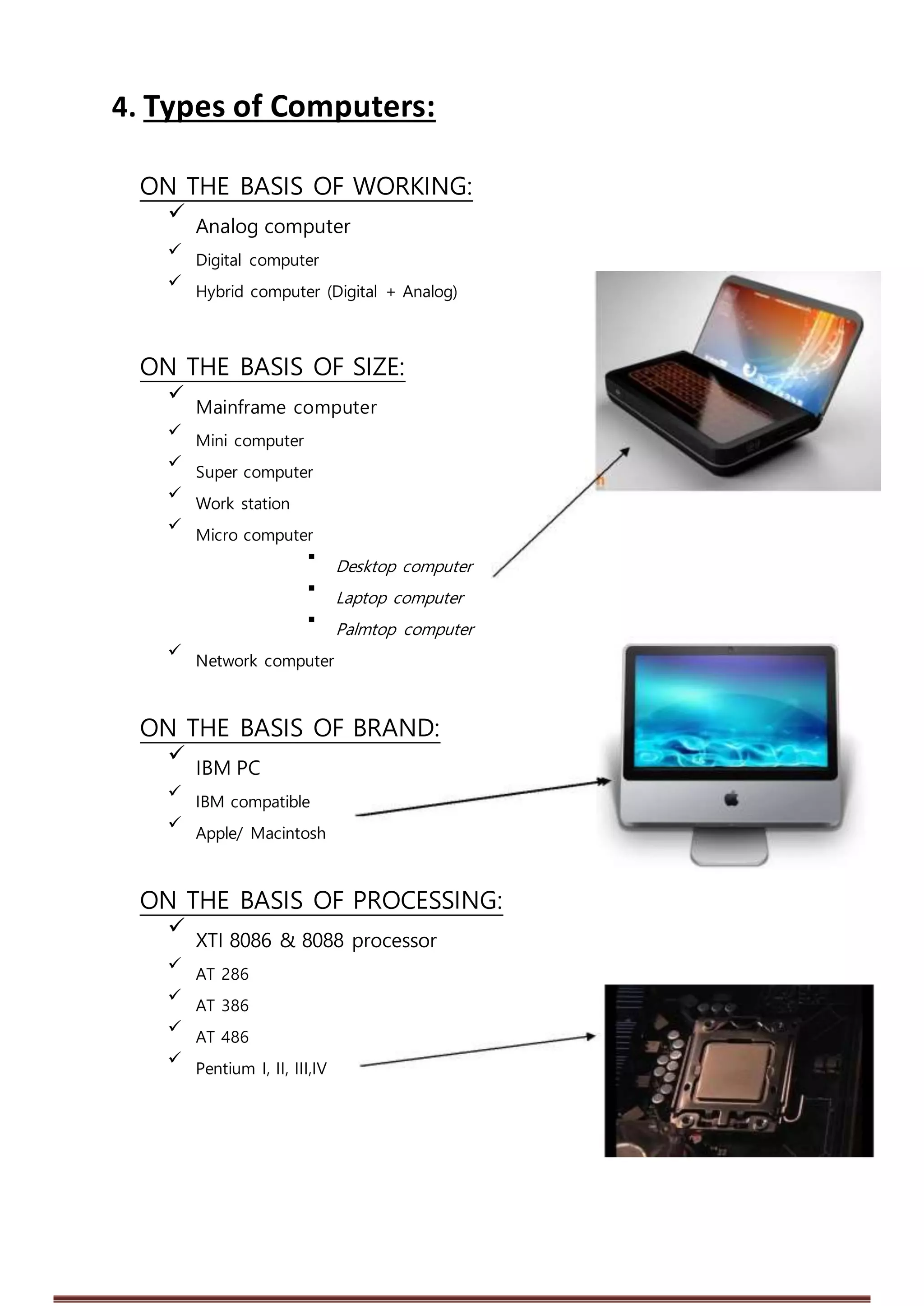
Motherboard 
DVD/CD R-W

Hard disk 
Floppy Drive

RAM 
Modem

ROM 
Graphics Card

Processor 
Sound Card

SMPS & Connectingwire



UPS

Page 3
RACE COMPUTER INSTITUTE (RCI): 3 Month ComputerBasicCourse
3.Memory Device

The storing capacity of computer expressed in bytes. Bytes store one character of
data.

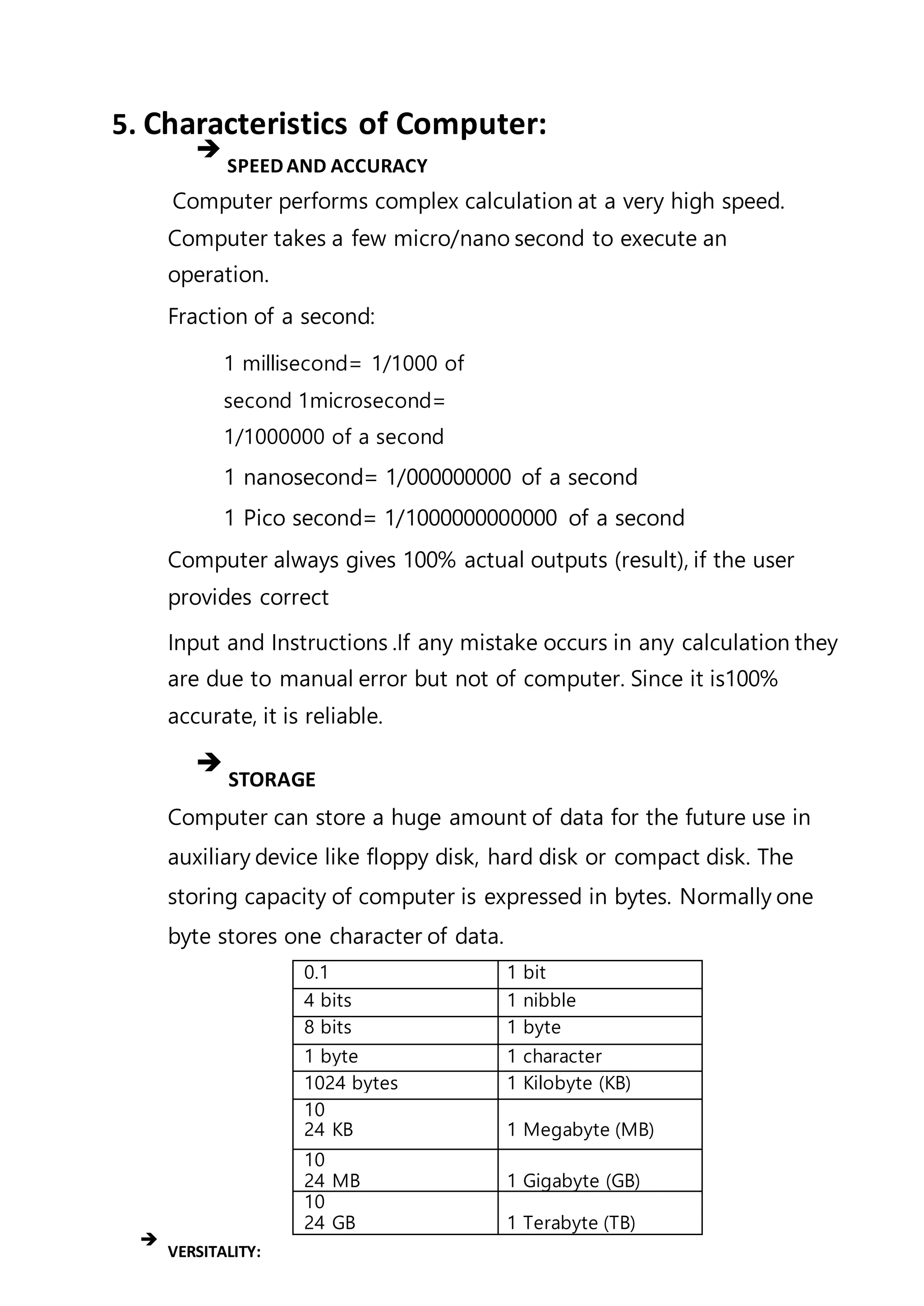
0.1 1 bit
4 bits 1 nibble
8 bits 1 byte
1 byte 1 character
1024 bytes 1 Kilobyte (KB)
1024 KB 1 Megabyte (MB)
1024 MB 1 Gigabyte (GB)
1024 GB 1 Terabyte (TB)
There are mainly two types of memory:
Primary Memory: This is the main memory of the computer. This memory is
used frequently by the CPU for execution of the instructions. There are again two
types of Primary Memory.

RAM:RAM stands for Random Access Memory. Initially every
task is stored in RAM & then executed or stored in Hard disk. It
is volatile, it stores data temporarily. So no data will remain
when the power is switched off. It ranges from 64 MB to 16 GB.



ROM:ROM stands for Read Only Memory. It is a programming
chip, where all the system information are recorded & can't be
changed. Its types are PROM, EPROM, EEPROM, etc. It is non-
volatile.

Secondary Memory: These are the storage devices & are used to save the
programs files permanently. There are different types of Secondary Memory. They
are:

Hard
disk
(ranges from 40 GB
to 1 TB)

Floppy
disk (1.44 MB)
 CD (720MB), DVD (4.7 GB,
8.5 GB)
 Blue ray Disc (25 GB, 40 GB)

Pen
Drive
(ranges from 128 MB
to 256 GB)
Magnetic Tapes, Zip disk, etc.
Page 4
RACE COMPUTER INSTITUTE (RCI): 3 Month ComputerBasicCourse
4. Types of Computers:
ON THE BASIS OF WORKING:

Analog computer



Digital computer



Hybrid computer (Digital + Analog)

ON THE BASIS OF SIZE:

Mainframe computer



Mini computer



Super computer



Work station



Micro computer



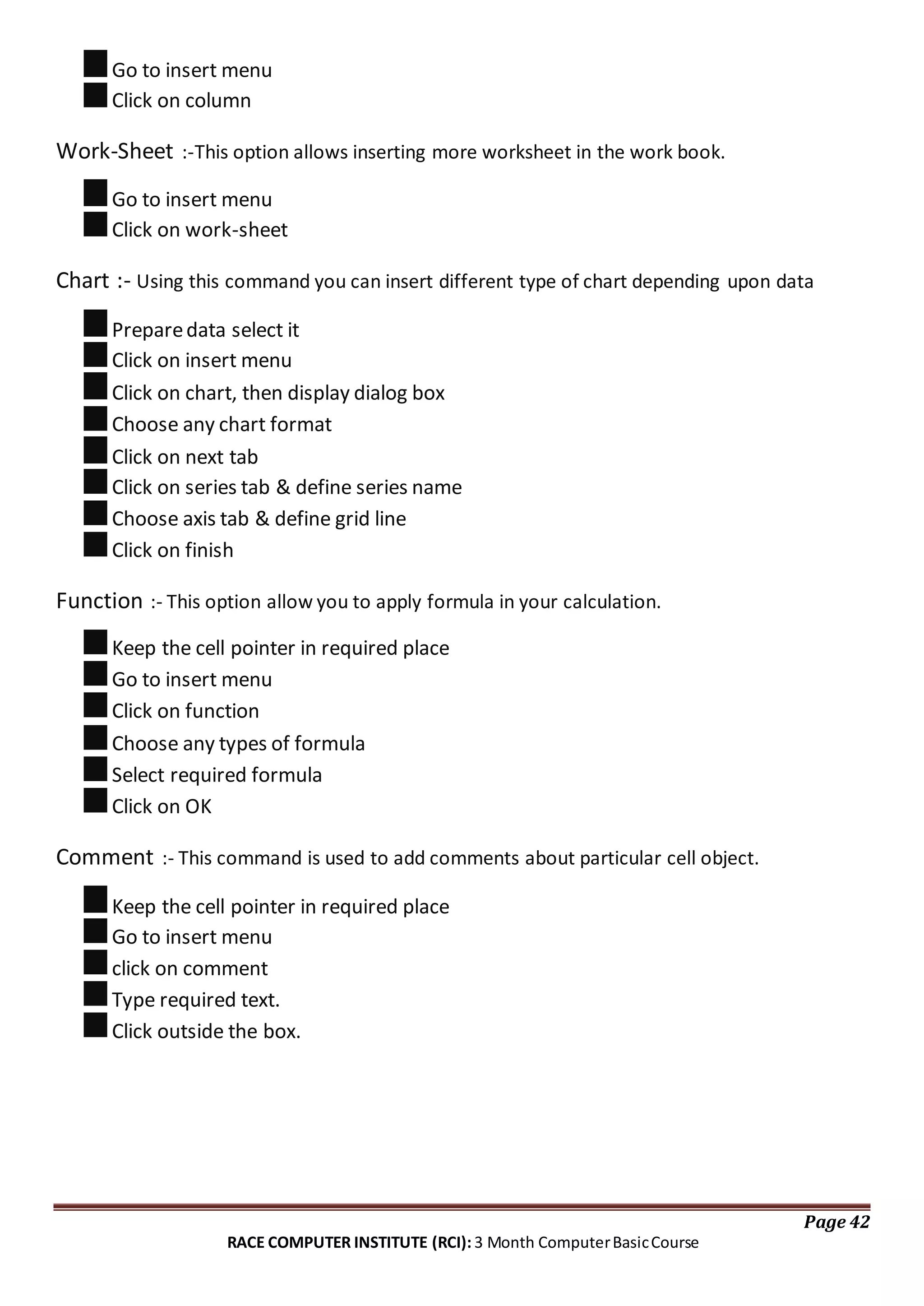
Desktop computer



Laptop computer



Palmtop computer



Network computer

ON THE BASIS OF BRAND:

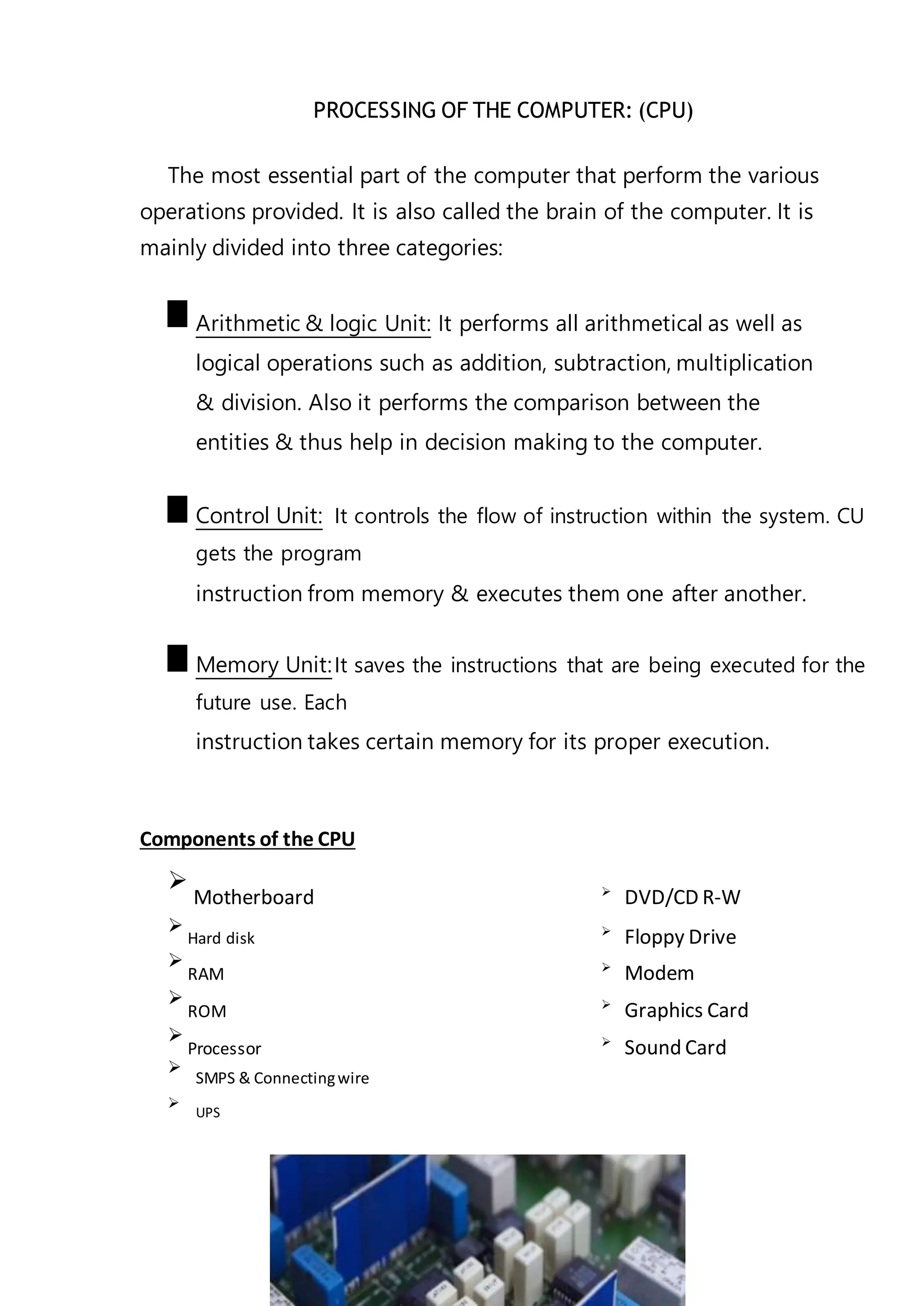
IBM PC


IBM compatible



Apple/ Macintosh

ON THE BASIS OF PROCESSING:

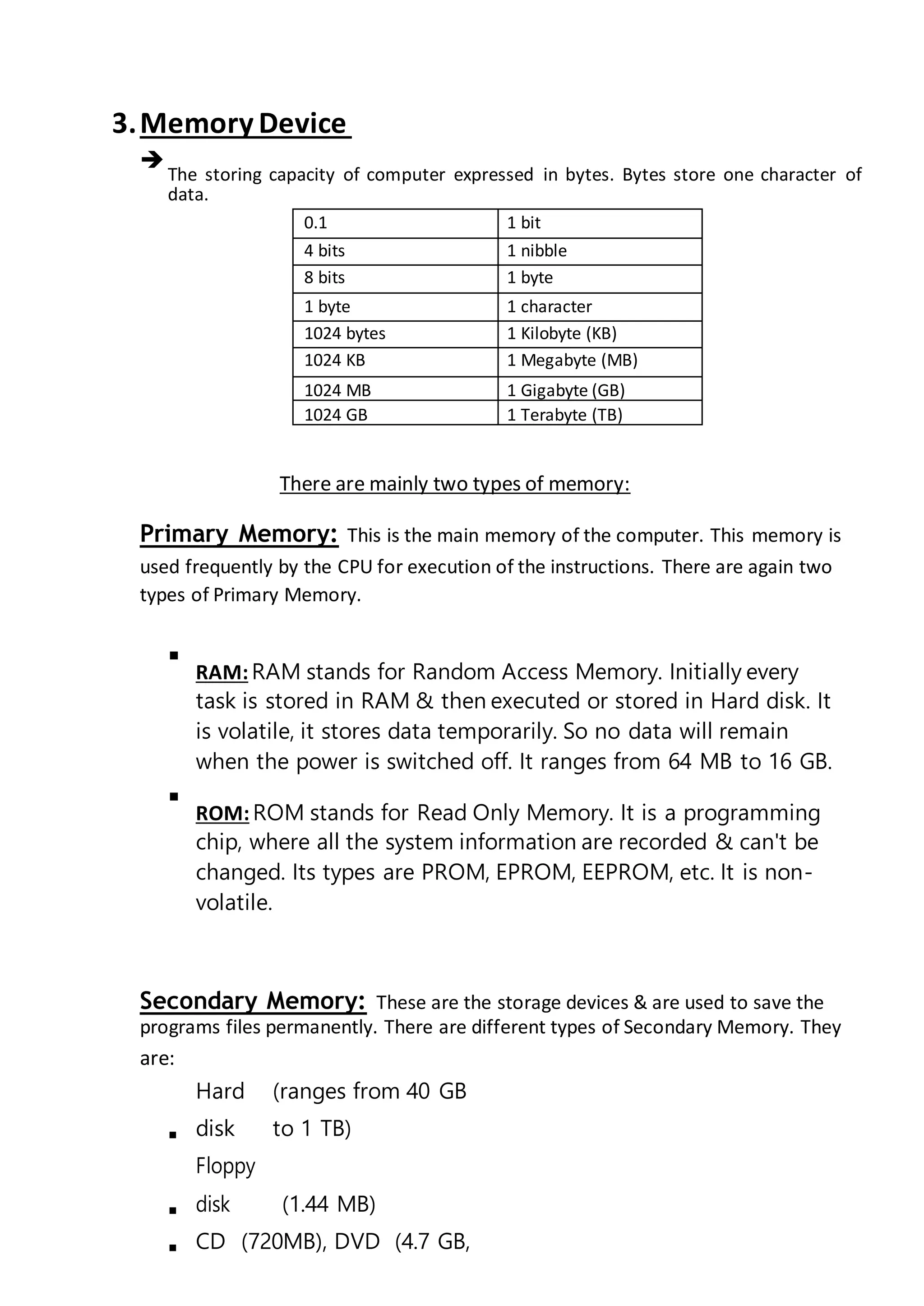
XTI 8086 & 8088 processor


AT 286



AT 386



AT 486



Pentium I, II, III,IV

Page 5
RACE COMPUTER INSTITUTE (RCI): 3 Month ComputerBasicCourse
5. Characteristics of Computer:

SPEEDAND ACCURACY
Computer performs complex calculation at a very high speed.
Computer takes a few micro/nano second to execute an
operation.
Fraction of a second:
1 millisecond= 1/1000 of
second 1microsecond=
1/1000000 of a second
1 nanosecond= 1/000000000 of a second
1 Pico second= 1/1000000000000 of a second
Computer always gives 100% actual outputs (result), if the user
provides correct
Input and Instructions .If any mistake occurs in any calculation they
are due to manual error but not of computer. Since it is100%
accurate, it is reliable.

STORAGE
Computer can store a huge amount of data for the future use in
auxiliary device like floppy disk, hard disk or compact disk. The
storing capacity of computer is expressed in bytes. Normally one
byte stores one character of data.
0.1 1 bit
4 bits 1 nibble
8 bits 1 byte
1 byte 1 character
1024 bytes 1 Kilobyte (KB)
10
24 KB 1 Megabyte (MB)
10
24 MB 1 Gigabyte (GB)
10
24 GB 1 Terabyte (TB)

VERSITALITY:


Computers are being used in different fields such as offices, school,
hospital, etc. to perform various tasks. Versatile means ability to
perform various tasks & computer can capable to do so. A computer
can process any kind of data.



DILLIGENCE:


It is a capacity of performing repeated operation without any
tiredness & any mistakes. A computer is capable of performing the
required tasks continuously with the same speed, accuracy &
efficiency without any error.

Page 6
RACE COMPUTER INSTITUTE (RCI): 3 Month ComputerBasicCourse
6. HISTORY & GENERATION OF COMPUTER
It took thousands of years for the computer to develop in to the
present state. Earlier the process of computing was done by counting with
their own figures, stones & through scratches on the sand or walls. But this
idea is only for the counting of small entities. So later, various types of
computing devices such as ABACUS, Napier's bone slide rule, diffence engine,
lady Augusta Ada Lovelace, etc. On the processing of previous calculating
machines & continuous development on them, makes modern computer
come to this stage.
Generations of Computer

First generation of computer
(1946 to 1958)


i. Vacuum tubes are used to
electronic circuit
ii. Storage capacity was limited (1kb
to 4kb)
iii. Slow processing (millisecond)
iv. High voltage needed up to 150000
volts.
v. large in size (51002
feet)

2nd
generation of computer
(1959 to 1964)

i. Transistor were used
ii. processing speed was faster
iii. Smaller in size(512
feet)
iv. Input and output device were faster

3rd
generation of computer
(1965 to 1974)

i. ICs were used in place of transistor
ii. processing speed is faster than
second generation
iii. minicomputer were in produced
during this generation
iv. Storage capacity in measured in
mega byte.

4th
generation of computer
(1975 to 1990

i. VLSI and micro processer are used
ii. processing speed is very high Giga
bytes
iii. very smaller size
iv. input and output devices were
versatile

5th
generation of computer (1990
to

incomplete…)
i. Intelligent processing
ii. Easy human computing
iii. computer will understand natural
language
iv. They have artificial intelligence.
7. Applications Of Computer:
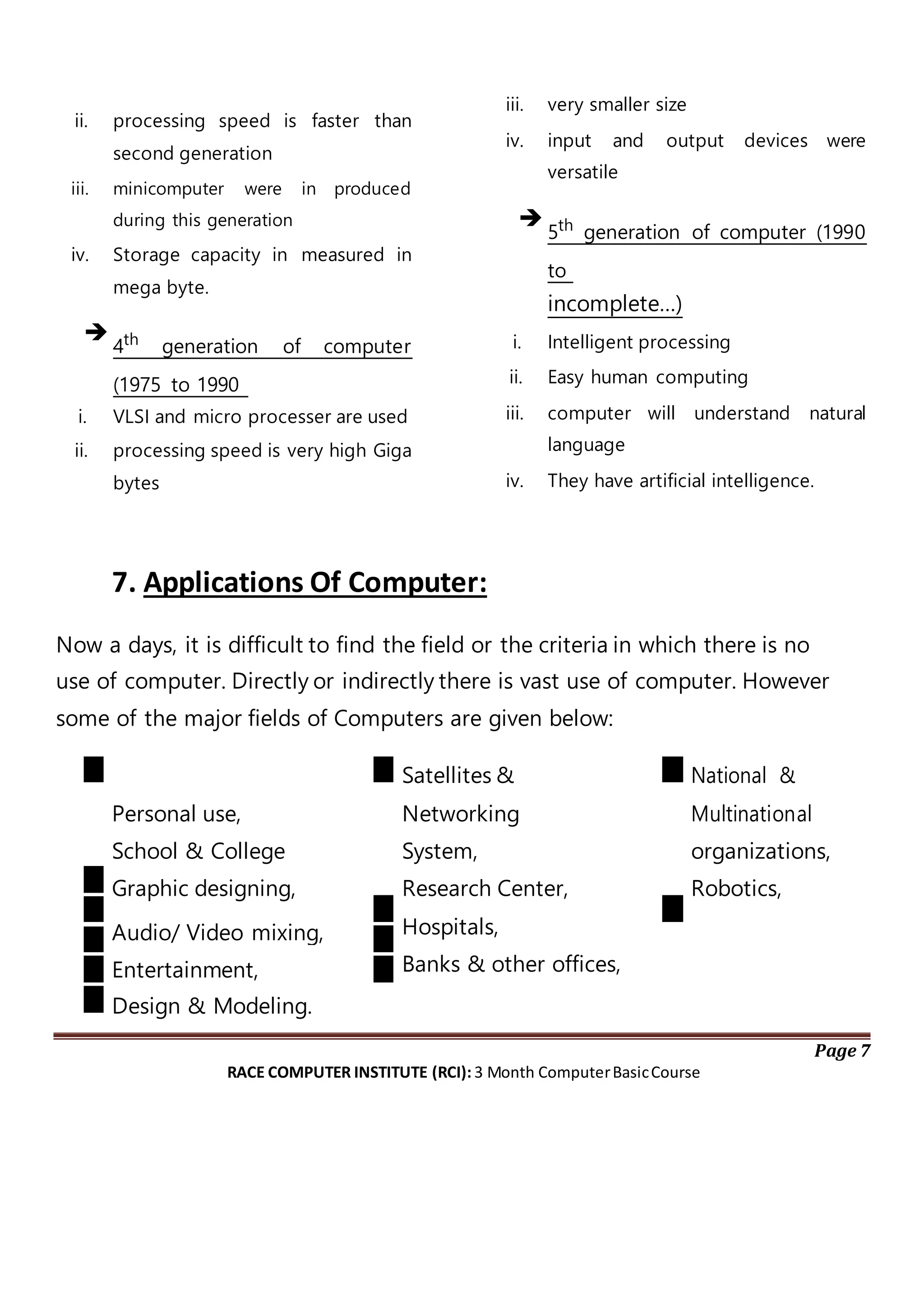
Now a days, it is difficult to find the field or the criteria in which there is no
use of computer. Directly or indirectly there is vast use of computer. However
some of the major fields of Computers are given below:
Personal use,
Satellites &
Networking
National &
Multinational
School & College System, organizations,
Graphic designing, Research Center, Robotics,
Audio/ Video mixing, Hospitals,
Entertainment, Banks & other offices,
Design & Modeling.
Page 7
RACE COMPUTER INSTITUTE (RCI): 3 Month ComputerBasicCourse
B) Windows XP Overview
1.Some Basic Terminology:

AC : Alternating current

ALU : Arithmetic and logical unit

CD-RW : compact disk re-writable

BIOS : basic input and output system

CPU : central processing unit

FDD : floppy disk drive

HDD : hard disk drive

MS : Microsoft

MS-DOS : Microsoft disk operating system

PC : personal computer

ROM : read only memory

RAM : random access memory

DVD : digital video disk

CU : control unit

ISP : internet service provider

WWW : world wide web

LCD : liquid crystal display

NTFS : network transfer file system

USB : universal serial bus

XT : extended technology

AT : advanced technology
FIG: Windows XP
Page 8
RACE COMPUTER INSTITUTE (RCI): 3 Month ComputerBasicCourse
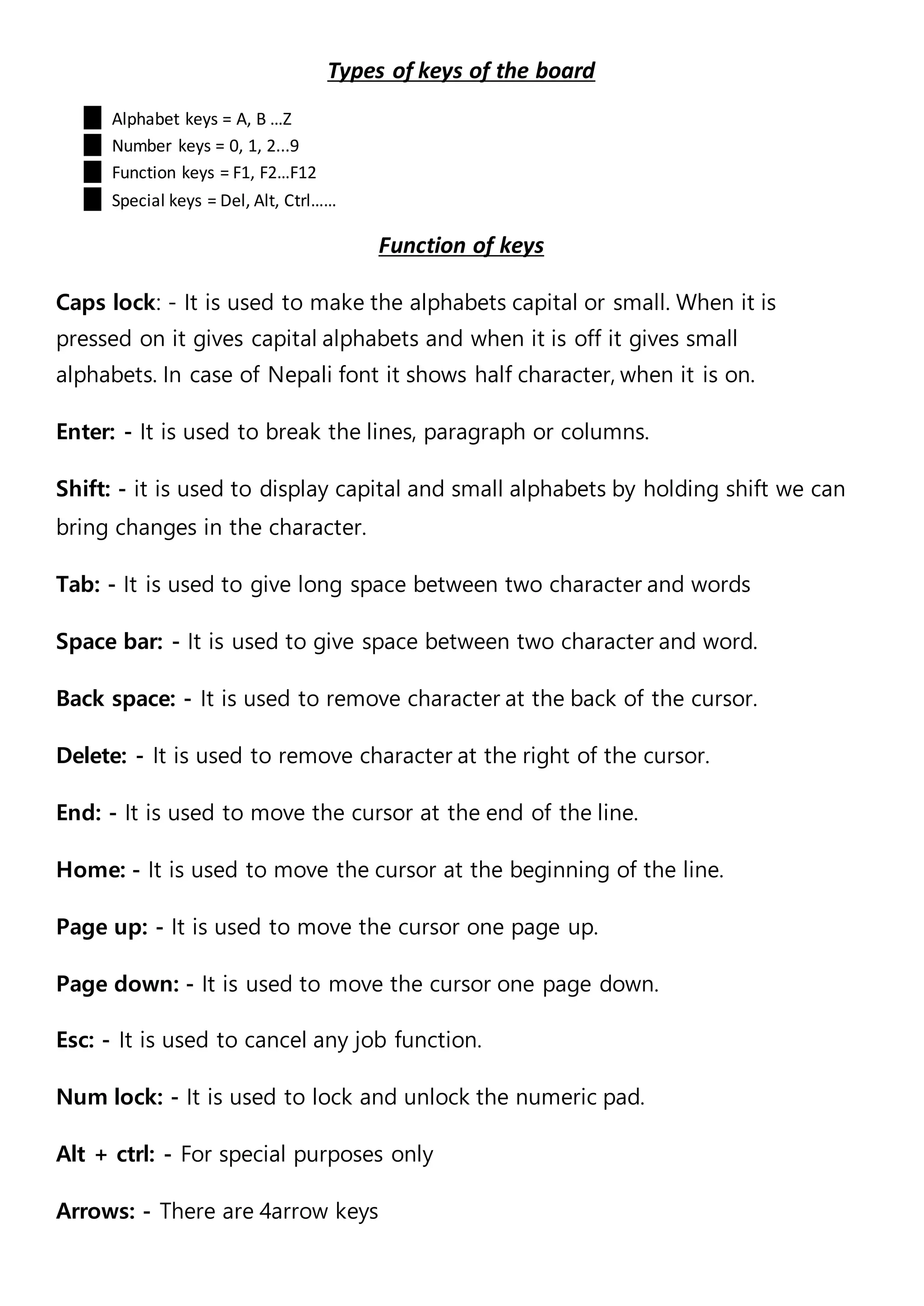
Types of keys of the board
Alphabet keys = A, B …Z
Number keys = 0, 1, 2...9
Function keys = F1, F2…F12
Special keys = Del, Alt, Ctrl……
Function of keys
Caps lock: - It is used to make the alphabets capital or small. When it is
pressed on it gives capital alphabets and when it is off it gives small
alphabets. In case of Nepali font it shows half character, when it is on.
Enter: - It is used to break the lines, paragraph or columns.
Shift: - it is used to display capital and small alphabets by holding shift we can
bring changes in the character.
Tab: - It is used to give long space between two character and words
Space bar: - It is used to give space between two character and word.
Back space: - It is used to remove character at the back of the cursor.
Delete: - It is used to remove character at the right of the cursor.
End: - It is used to move the cursor at the end of the line.
Home: - It is used to move the cursor at the beginning of the line.
Page up: - It is used to move the cursor one page up.
Page down: - It is used to move the cursor one page down.
Esc: - It is used to cancel any job function.
Num lock: - It is used to lock and unlock the numeric pad.
Alt + ctrl: - For special purposes only
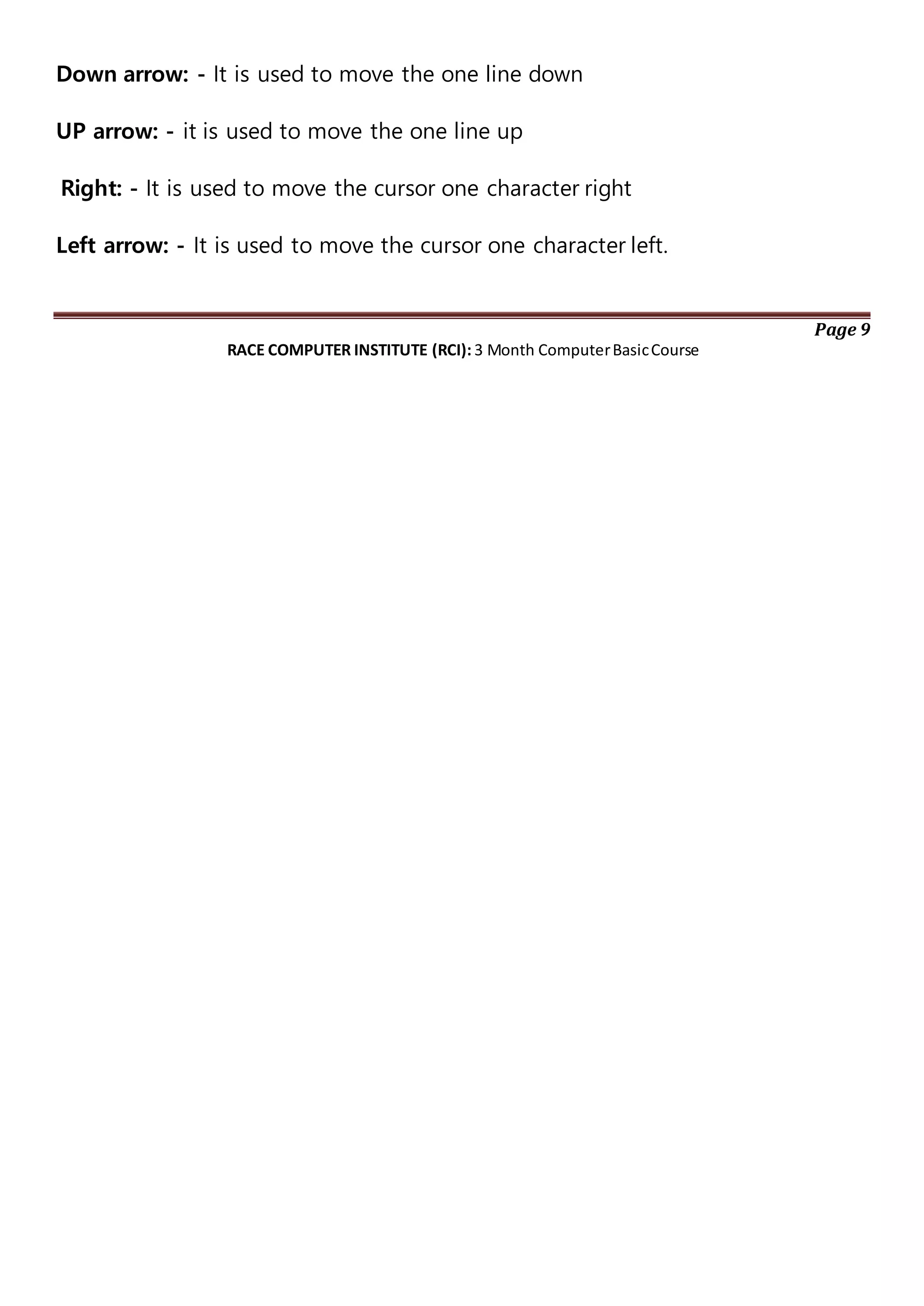
Arrows: - There are 4arrow keys
Down arrow: - It is used to move the one line down
UP arrow: - it is used to move the one line up
Right: - It is used to move the cursor one character right
Left arrow: - It is used to move the cursor one character left.
Page 9
RACE COMPUTER INSTITUTE (RCI): 3 Month ComputerBasicCourse

How TO STARTTHE COMPUTER IN MS-WINDOWS MODE?

SWITCHon theelectric(AC) power supply.



Switch on the volt guard or UPS(uninterrupted power supply)



Turn on the power switch ofthe CPU



Turn on the power switch ofthe monitor


Just wait few minutes when computer display windows environment. 

HOWTO SHUTDOWN THE COMPUTER

Saveand closeall theprograms



Click on start menu



Click on Turn off computer



Then you will see: -

o Stand by
o shut down
o re-start

Click on Turn off
Just wait few minutes, your computer will automatically shutdown.
Some basic terms related to start button

Start button: It is the especial button, is used to start almost all of the programs based on
the windows. When you click the start button, you will see a menu, which contains
everything you need to begin using windows.


Program: It display a list of program's nameand program group thatcan bedirectory used


Document: It displays a listof 15 files,which are recently created or opened.



Setting: It displays a list of system component's, which lets you to change the
configuration as your requirement.


Find: It provides online help



Run: It helps to run any program by browsing the location and also used to setup any new program.


Shut down: It enablesyou to shutdown or restarts your computer


Log off: Itenables your closethemulti user'sdesktop setting

Basic terms related to windows

Desktop: It is the background area of windows on which windows on which windows, icon, menu
and dialog box appear.

Page 10
RACE COMPUTER INSTITUTE (RCI): 3 Month ComputerBasicCourse

Icon: Icon is the graphical presentation of the computer's items. Desktop icons are those icons,
which remains on the desktop.


Taskbar: Taskbar is the grey horizontal line location at the bottom of the desktop with
start button and indicators. It is especially used for switching between opened programs
and folders.

Typing Skills:
The keyboard we useis QUERTY Keyboard. The figure is given below:
For simplicity on typing we accept the following rule: # (Left Hand __ Right Hand)
Number ~ 1 2 3 4 5 6 7 8 9 0 - = 
Keys l r m i i i i i m m r r l l
Top Q W E R T Y U I O P [ ]
Keys l r m i i i i m r l l l
Home A S D F G H J K L ; '
Keys l r m i i i i m r l l
Bottom Z X C V B N M , . / 
Keys l r m i i i i m r l l
Here:
1. l = little finger 4. m = middle finger
2. r = right finger
3. i = index finger # space key is pressed by thumb
finger.
Page 11
RACE COMPUTER INSTITUTE (RCI): 3 Month ComputerBasicCourse

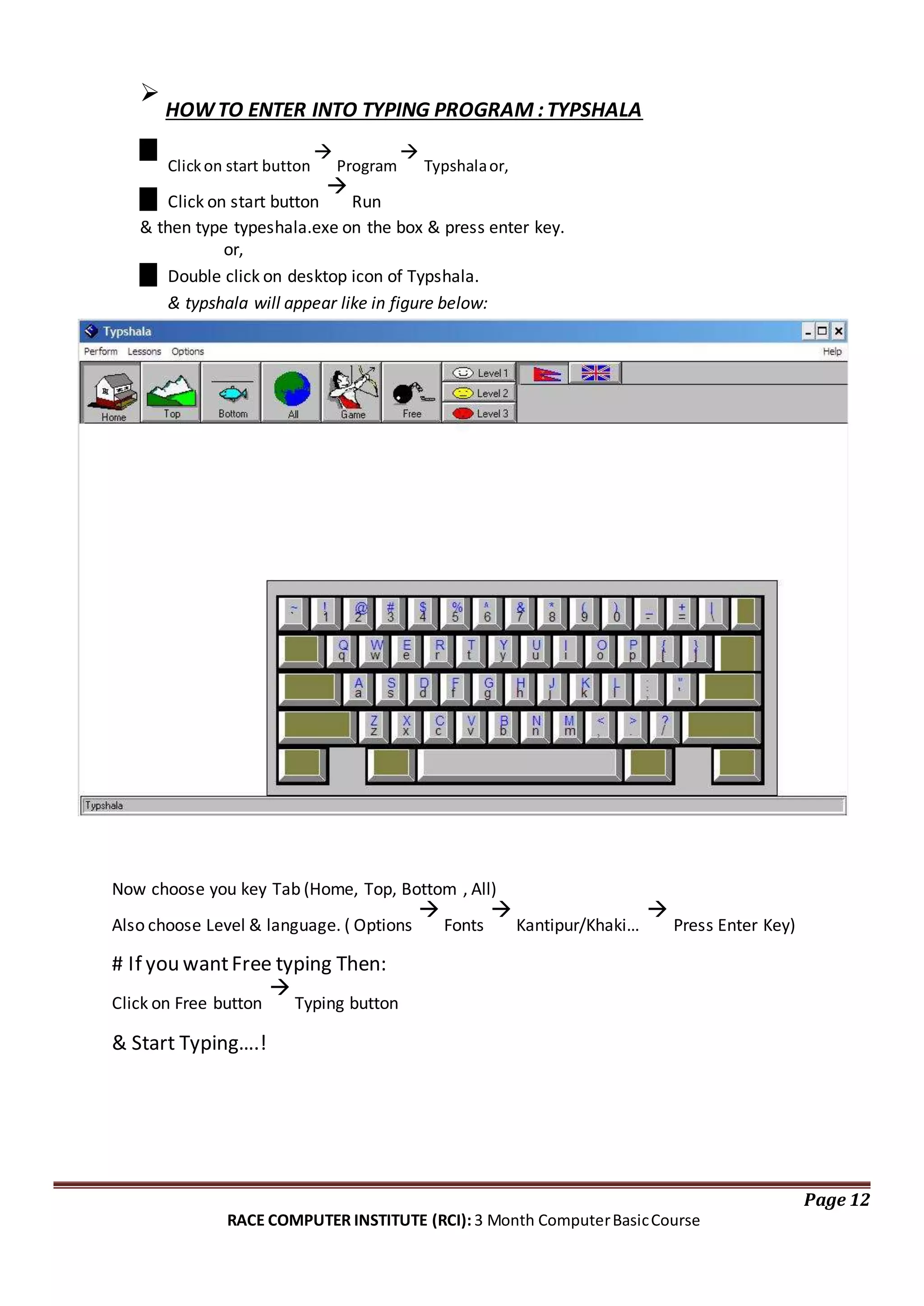
HOWTO ENTER INTO TYPING PROGRAM :TYPSHALA
Clickon start button

Program

Typshalaor,
Click on start button

Run
& then type typeshala.exe on the box & press enter key.
or,
Double click on desktop icon of Typshala.
& typshala will appear like in figure below:
Now choose you key Tab (Home, Top, Bottom , All)
Also choose Level & language. ( Options

Fonts

Kantipur/Khaki…

Press Enter Key)
# If you wantFree typing Then:
Click on Free button

Typing button
& Start Typing….!
Page 12
RACE COMPUTER INSTITUTE (RCI): 3 Month ComputerBasicCourse
2. DesktopSetting & Control Panel:
For Desktop Setting:
Right Click on Desktop
Click on properties.
Or,
Start

Control Panel

Display
Then the following box will occur.
Here:
Themes: Changes the current
theme on desktop Desktop:
Changes the wallpapers or fill
color on background of desktop
Screen Saver: Apply screen saver using
photo slideshow, text, flag, ribbons, etc.
Appearance: Just as Themes, but only
changes the outlook for windows &
have more customizable option.
Setting: Using this features, resolution
& refresh rate of the monitor can be
adjusted.
For Control Panel
On category view:
Changing keyboard setting:
Start

Control Panel

Keyboard
Changing Mouse Setting:
Start

Control Panel

Mouse
Changing Time & Date:
Start

Control Panel

date & Time
Page 13
RACE COMPUTER INSTITUTE (RCI): 3 Month ComputerBasicCourse

Organization files and folders:
You can organizethefiles and folders by using
theMy computer icon from thedesktop.

Creating a new folder:

1. Double-click My computer and then
double-click the disk drive or folder in
which you want to place the new folder.
2. On the file menu, Select New Folder
or
right click on mouse --> new --> folder
3. Type the name of the folder and then press
enter

Copingor movinga file or folder: select
the item
click on edit --> click copy or move
open folder on which you want to copy
the selected item
click --> edit --> paste

Deleting the file or folder:

Choose the file or folder

direct press delete from keyboard
click on yes, if confirmation is asked.


Renaming a file or folder:

click the right mouse button on selected
item click on rename & write a new name
press enter key.

Recycle bin:
It consists of thedeleted item for recovery.
We can restorethe accidently deleted item
form recyclebin. Or we can delete
permanently deleteany filefrom recycle bin

Start button:
Right click on taskbar

properties

chooseyour option
from dialog box Click
on start tab for
changing thestart
button interface.
3. Ms DOS
Ms DOS: Microsoft Disk operating System. It is a popular operating
system developed by Microsoft Corporation. It is an TUI (Text user
Interface). All commands & correct syntax has to keep in mind & all are
in text form.
Some of the common commands are described below:

dir: used to open & display any directory (folder)

c:>dir

time:displayscurrenttime

c:>time

date:displaystoday'sdate

c:>date

cls: makesthe screenclear

c:>cls

copy: allowsuserto copyfile indifferentlocation

c:>copy aaa bbb or
c:>copy aaa d:
Page 14
RACE COMPUTER INSTITUTE (RCI): 3 Month ComputerBasicCourse

del |erase: it delete the files

c:>del aaa

md: makesa newdirectory

c:>md ram

cd: change anyfoldertodirectory

c:>cd ram

rd: remove directory

c:>rd ram

ver: displays the version of MS-DOS

c:>ver

exit: close the DOS mode

c:>exit







4. Ms. Paint:

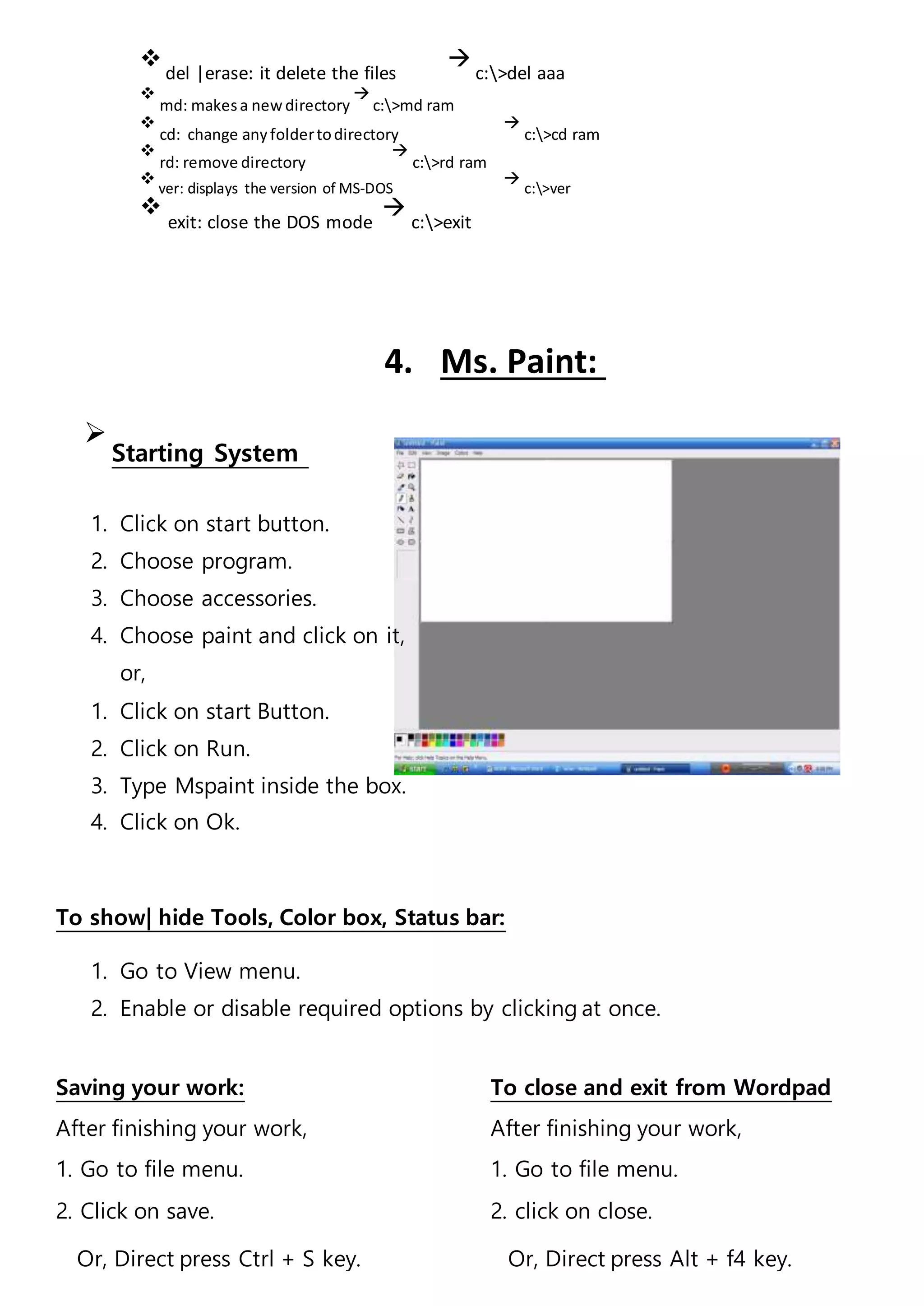
Starting System

1. Click on start button.
2. Choose program.
3. Choose accessories.
4. Choose paint and click on it,
or,
1. Click on start Button.
2. Click on Run.
3. Type Mspaint inside the box.
4. Click on Ok.
To show| hide Tools, Color box, Status bar:
1. Go to View menu.
2. Enable or disable required options by clicking at once.
Saving your work: To close and exit from Wordpad
After finishing your work, After finishing your work,
1. Go to file menu. 1. Go to file menu.
2. Click on save. 2. click on close.
Or, Direct press Ctrl + S key. Or, Direct press Alt + f4 key.
3. Then, click on yes, if you want to
save and click on
No, if you don't want to save.
Page 15
RACE COMPUTER INSTITUTE (RCI): 3 Month ComputerBasicCourse
To open the stored file:
1. Go to file menu.
2.Click on open, Direct press
Ctrl + O key. Then, Open
dialog box will appear.
3.Type the required file name at
file name box or, direct choose the
required file, which you want to
open.
4. Click on open.
To get new document:
1. Go to file menu.
2.Click on new.
Or, Direct press Ctrl +
N key. Then, New
dialog box will appear.
3.Choose required document type.
4. Click on ok.

Importing existing image:

Go to edit menu

click on paste

paste from dialog box

choose reqd. image file

open.

To flipor rotate:
Select the reqd. figure

go to image
menu

click on flip/ rotate

give
your option & click on Ok.

To stretchor skewthe image:
Go to image menu

stretch/skew

define needed value

ok

To set the bitmap as desktop
wallpaper:

Go to file menu

click on Set as
wallpaper

then selected bitmap will
appear in your desktop.

To edit color:
Go to option menu

choose edit
color

choose the color

click on
Ok.

Print:
Go to file menu

print.
Page 16
RACE COMPUTER INSTITUTE (RCI): 3 Month ComputerBasicCourse
5. WordPad

To start WordPad:


1. Start

Programs

Accessories

WordPad or,
2. Start

run

type WordPad & press enter.

To show/hide Toolbar, format bar, ruler, status bar:


1. Go to view menu.
2. Put or remove the tick mark from required above items.

To save the document first time:

1. Go to file menu.
2. Click on either or save As.
Or,
_direct click on save icon on Toolbar.
Or,
_ Direct press Ctrl+ s key.
Then, save as dialog box will appear.
3. Give required file name.
4. Click on save.

Methods for selecting the text:


1. One word = Double click any where inside the required word.
2. One paragraph = Triple click any where inside the required paragraph.
3. One line = single click just in front of required line.
4. Required text: Click the left mouse button either in initial or final point of the text and
drag it up to destination and release it.
5. Whole document = Press ctrl+A key. Or, go to edit menu and click on select all.

Deleting required text:

1. First select required text.
Page 17
RACE COMPUTER INSTITUTE (RCI): 3 Month ComputerBasicCourse
2. Then press either Delete or, Backspace key.

Saving your work:
After finishing your work,
1. Go to file menu.
2. Click on save.
Or, Direct click on save icon on the toolbar.
Or, Direct press Ctrl + S key.

To close and exit from WordPad
After finishing your work,
1. Go to file menu.
2. Click on close.
Or, Direct click on close button of the
program. Or, Direct press Alt + f4 key.
3. Then, click on yes, if you want to save and click on No, if you don't want to save.

To open the stored file:


1. Go to file menu.
2. Click on open button at toolbar (Standard toolbar) Or, Direct press Ctrl + O key.
Then, Open dialog box will appear.
3. Type the required file name at file name box or, direct choose the required file, which
you want to open.
4. Click on open.

To get new document:

1. Go to file menu.
2. Click on new.
Or, direct click on new button at standard toolbar.
Or, Direct press Ctrl + N key.
Then, new dialog box will appear.
3. Choose required document type (either Word 6 document or Rich text document or,
text document).
4. Click on ok.

Changing Font ,Size and Font color:


1. First select required text.
2. Then click on dropdown arrow of Font size and Font color tool on the format bar.
3. Select required font, size, and Color from the dropdown list.
Or,
Page 18
RACE COMPUTER INSTITUTE (RCI): 3 Month ComputerBasicCourse
1. Select the required text.
2. Go to Format menu.
3. Click on font.
Then Font dialog box appear:
4. Choose required font, font size and font color.
5. Click on ok.

To change the text appearance/style:


1. First select the required text.
2. Then direct click on B, I, U icon on the format bar as per required.
Or,
3. Direct press:
Ctrl + B= bold, Ctrl+ I =Italic, Ctrl +U = Underline
Or,
1. Go to Format menu.
2. Click on Font.
3. Choose Bold, Italic, Bold & Italic as per required.
4. But, in case of Underline, put the tick mark on Underline.
5. Click on Ok

Undo/redo


1. Click on edit --> undo (to remove changes)
2. Click on edit --> redo (to attain changes)

Alignment:

Alignment is a position of text on a paper. There are 3 types of alignment in WordPad.
1. Left Alignment.
2. Center Alignment.
3. Right Alignment.
Methods:
1. Select the required text.
2. Direct click on alignment icon on format bar.
Or,
Ctrl+ L= for Left Alignment
Ctrl+ E= for Centre
Alignment Ctrl+ R= for Right
Alignment Or,
1. Go to Format menu
2. Click on paragraph.
Page 19
RACE COMPUTER INSTITUTE (RCI): 3 Month ComputerBasicCourse
3. Click on dropdown arrow of alignment.
4. Choose required one.
5. Click on Ok.

Replacing text:


1. Go to Edit menu.
2. Click on replace
Or, direct press Ctrl+H key.
3. Then type the required word, which you want you want to replace at find what box.
4. Click on replace all.

Inserting Current date & time

1. Click on insert
2. click on date & time

cut/copy & paste


1. select the item to be copy or cut.
2. click on edit
3. click on cut or copy for the selected item
if you want to paste that item, then click to paste from edit

To print documents:


1. click on file
2. click on print
3. choose your printer & then click on print.

some useful shortcuts:

ctrl+N open new document
ctrl+O open saved documents
ctrl+S save the current documents
ctrl+C copy the selected item
ctrl+X cut the selected item
ctrl+V paste the selected item
ctrl+Z undo changes
ctrl+Y redo changes
ctrl+P print documents
Page 20
RACE COMPUTER INSTITUTE (RCI): 3 Month ComputerBasicCourse
6. Accessories & Multimedia:
Media Player:
Click on start button

Program

Accessories

Multimedia

Media player
Go to file menu

open

browse

choose CD
or any drive to choose reqd. media files to play.
Click on open

ok
Calculator:
Click on start button

Program

Accessories

Calculator
Recording Sound:
Click on start button

Program

Accessories

Multimedia

Sound recorder
C) Internet & E-mail:
(We will go practically along every section individually.)
1. Some Basic Terminology:
o http: hypertext markup language
o www: world wide web
o Kbps: Kilobyte per second
o Mbps: Megabyte per second
o Server: main computer in the network
o Client: sub-computer that are networked to server.
o E-mail: electronic mail
Internet is the world's largest network in the world
that has made the communication easy around entire globe. Now days, internet is so popular that
it becomes basic need of human beings. It can be used not only in PC but in some of the mobile
Page 21
RACE COMPUTER INSTITUTE (RCI): 3 Month ComputerBasicCourse
phones, ITV, digital vehicles, etc. We all peoples can share our ideas around this whole planet & also
get the news & information more accurate & fast. Some of the common features of Internet are:
Sending & Receiving mails, Listen radio, watch video & TV programs, Chat with anybody around
world, Education , Entertainment & Games, News & many more…
For internet surfing we need a PC or mobile, modem, cable line & Internet
browser software.
To access internet we need some browsers such as Internet Explorer (IE), Opera, Firefox, K-melon,
etc. However Internet Explorer & Firefox are the most used browsers in the world. To open any
website:
Click on start

Programs

Internet Explorer
Type address of webpage on the Address bar & press enter.

E-Mail is themost widely used futures on theInternet. You can exchange any massagewith
people around theworld by using e-mail. Even with themultimedia excitement of thewed,
electronic mail is themost frequently used application of theinternet. Many peoplewho have
access to the internet at school, and work, usethe internet for no other purposethen to send
and receive email.

An example of webpage:
Page 22
RACE COMPUTER INSTITUTE (RCI): 3 Month ComputerBasicCourse
2. E-mail Account & its functions:
E-mail Account can be made by signing up with some e-mail serviceprovider, a formis
filled & accept the agreement. We will study this section practically.
E-mail address:-
E-mail address is the location of individual's mail box on the internet. Email address consists of two
parts which is separated by @ (at the rate) symbol.
User name & Domain name
For ex. special95_rajesh@yahoo.com
Features of e- mail
1. sending mail
2. Receiving mail
3. Forwarding mail
4. Storing mail
5. Deleting mail
6. Printing mail
# There are many free e-mail service providers such as: Yahoo.com, Gmail.com,
live.com, etc. The process of making e-mail account & differ according as the service
provider.
There are mainly four locationof inside the e-mail account.
1. Inbox: it contains receiving mail
2. Outbox: when we send mail then it will store at outbox folder at first
3. send items: after sending mail offer connecting your computer to the internet then it will
store sent items folder
4. Deleted items: when we delete any unwanted mail them it will store at deleted items
folder.
3. Search engines:
These are the website that are loaded with each & every type of database in the main server. So
they makes our search fast & accurate. Some of the common ex. of search engines are: Google,
Yahoo, Bing, Ask, etc
Page 23
RACE COMPUTER INSTITUTE (RCI): 3 Month ComputerBasicCourse
4. Surfing WebPages:
There is a list of most popular websites till date. Write these addresses on Address bar & watch.
www.yahoo.com
www.msn.com
www.facebook.com
www.ekantopur.com
www.ntc.net.np
www.jokesduniya.com
www.sms4masti.com
www.myspace.com
www.emajja.com
www.fursad.com
www.radiokantipur.com
www.bbc.co.uk
www.cybersansar.com
www.miniclip.com
www.time.com
www.chip.in
www.wikkipedia.com
Basics of social Networking site:
Social Networking sites are the most popular sites of today's world. Over 2,000,000,000 users use
these sites. We can make new friends, find old as well as new friends & also chat with them. And
the pictures & videos can also be uploaded so as to share them with this whole world.
e.g. facebook.com, myspace.com, hi5.com, orkut.com, bigadda.com, twitter.com,
bloggers.com, etc.
Page 24
RACE COMPUTER INSTITUTE (RCI): 3 Month ComputerBasicCourse
D) Virus:

Introduction:


What is computer virus?

Virus is a program that has been coded to cause problems on someone
else computer. Viruses may cause data to be lost or corrupted. A virus is
usually passed from computer on floppy disk or pen drive or internet.
Virus is defined as the program inserted into another program. It gets
activated by its host program. It replicates itself and spread to other.

Some of the common virus activities are as follows:



The computer may not
boot

The window may
crash


Data may automatically delete.


The size & format of the file may
change

The computer becomes
slow


Computer perform wrong data & instructions


How to save computer from Viruses:


Computer must be kept in safe & clean place with optimum temperature


Floppy disk or pen drive must be carefully used.


A strong antivirus must be installed & update regularly using internet.


Don't use others pen drive until you are sure that there is no virus.


Antivirus Utilities:
There are many antiviruses like Avira, Norton, Kaspersky, K7, Panda, Avast, etc.
# Their way of usage is different according to different version & product. So
we go on practically.
Page 25
RACE COMPUTER INSTITUTE (RCI): 3 Month ComputerBasicCourse
MS-Word
Application File Name: winword.exe
Extension Name: doc
Introduction
Ms-Word is an advanced word processing program,developed by MicrosoftCorporation
USA. Itis a family member of Ms-Officegroup. With the help of this programwecan create
any type of documents report, thesis, designing & news paper etc.
Italso savethe documentfor futureuse with revision facility.

How to load Ms-Word?
Click on start menu
Choose program
Click on Ms-Word
File Menu
New ( Ctrl+N) :- To create a new blank document.
Go to file menu
Click on new command
Click on blank document
Open( Ctrl+O) :- To open saved file.
Go to file menu
Click on open button
Then display small dialog box.
Choose required file
Click on open button
Page 26
RACE COMPUTER INSTITUTE (RCI): 3 Month ComputerBasicCourse
Save( Ctrl+S) :- To save current document for future use,
Go to file menu
Click on savecommand
Then display small dialog box,
Type file name
Click on savebutton
Save as command :- To change file name & its location
Go to file menu
Click on saveas
Choose target location to changefile position
Type another name to change file name
Click on savebutton.
Page Setup :- To fixed pages properties.
Go to file menu
Click on page setup
Then display page setup dialog box,
Choose margin & fixed page margin
Choose paper size
When finish page setting, click on Ok
Close (Alt+F4):- This command is used to close opened file.
Go to file menu
Click on close
Print (Ctrl+P):- This command is used to print document on paper by the help of printer.
Page 27
RACE COMPUTER INSTITUTE (RCI): 3 Month ComputerBasicCourse
At firstready your document
Keep paper inside the printer
Go to file menu
Click on printer
Choose printer
Choose no of copies
Choose pages
Click on print button.
Edit Menu
Undo(Ctrl+z) :- To cancel some recently working document.
Go to edit menu
Click on Undo
Cut(Ctrl+X) :- To create original clipboard fromselected text & objects.
Select text or object
Go to edit menu
Click on cut command
Copy( Ctrl+C) :- To create duplicate clipboard fromselected text.
Select text or object
Go to edit menu
Click on copy
Paste( Ctrl+V) :- This command is used to Paste Clipboard in particular
place.
Keep the cursor in required place
Go to edit menu
Click on paste command
Page 28
RACE COMPUTER INSTITUTE (RCI): 3 Month ComputerBasicCourse
Special Paste :- In this command we can paste special effect.
Select required text
Go to edit menu, Click on Cut or copy command
Again Go to edit menu
Click on paste special
Choose any option (Picture)
Click on ok
Replace: - Using this command we can replace required text in selected place.
Go to edit menu
Click on replace command
Type target text in find whatcriteria.
Also type required text in replace criteria
Click on replace button
View Menu
Page Number: - This command allows adding page number on the document.
Go to insert menu
Click on page number
Choose position of page for page number
Click on OK
Date & Time :- This command is used to insert current date & time on the document.
Go to insert menu
Click on Date & Time
Choose any format
Click on OK
Auto Text :- Using this command we can add automatic text set in the document.
Go to insert menu
Click on auto text
Choose any required text
Page 29
RACE COMPUTER INSTITUTE (RCI): 3 Month ComputerBasicCourse
Symbol :- This command is apply to insert symbolic text from symbolic page.
Keep cursor in required place
Go to insert menu
Click on symbol
Choose any required symbol
Click on insert button
Click on close button
Picture :- Using this command we can insert different type of picture.
Go to insert menu
Click on picture
Choose any option which you want
If choosefromfile, computer display dialog box with picture file
Choose required picture file Click on insert button
File :- To insert another file in the current document
Keep the cursor in required place
Go to insert menu
Click on file, then display dialog box
Choose required file
Click on insert button
Format Menu
Font :- Using this command we can change font size, style & font effects.
Select your text
Go to format menu
Click on font
Then display font dialog box,
Choose any one option what you want
Click on OK
Page 30
RACE COMPUTER INSTITUTE (RCI): 3 Month ComputerBasicCourse
Bullets & Numbers :- To format our selected text with bulleting & numbering.
Select required text
Go to format menu
Click on format menu
Click on bullet & numbers
Choose any bullets
Click on OK
Border & Shading :- This option is used to applying borders in the pages.
Go to format menu
Click on borders and shading command
Choose page border tab
Choose any border
Click on OK
Columns :- Using this command we can divide our document page into column wise.
Select your page
Go to format menu
Click on columns command
Then display small dialog box,
Choose column
number click on OK
Change Case :- Using this option we can change our document in different case.
Select your text line
Go to format menu
Click on change case
Choose any one case
Click on OK
Background :- This command is used to change background color of pages.
Page 31
RACE COMPUTER INSTITUTE (RCI): 3 Month ComputerBasicCourse
Go to format menu
Click on background
Choose any color
Tools Menu
Spelling & Grammar :- This command is used to check spelling error & grammar.
Go to tools menu
Click on spelling & grammar command
Then display dialog box
Choose rightword
Click on change button
Word Count:-This command is used to counting word of documents.
Select required text
Go to tools menu
Click on word count
Then display dialog with result.
Protect Document: - Using this command we connot modify file only read documents.
Go to tools menu
Click on protect document
Then display dialog box.
Click on forms
Type password, Click on OK
Again type same password
Click on OK
Latter & Mailing: - In this command we can easily join particular letter in different address.
At firsttype your letter
Go to tool menu
Click on letter & mailing & choosemail merge wizard
Page 32
RACE COMPUTER INSTITUTE (RCI): 3 Month ComputerBasicCourse
Select letter option & click on next
Choose “ Usethe currentdocument” & click on next
Choose “Typing a new list”
Click on create…
Then display “new address list” dialog box,
Click on OK
Type required address
Click on customizebutton & fixed address list
Click on OK
Type required address
Click on new button to entry more address
Click on close button
Type name to saveaddress list
Click on savebutton
Click on OK
Then display letter & mailing toolbars
Click on ^^^^ “ Insertmergefield icon”
Choose field, Click on insertbutton
Click on close button
Click on ^^^^merge to new document tool icon
Table Menu
Draw Table :- Using this command we can draw require table.
Go to table menu
Click on draw table
Now drawing your image by using toolbars.
Insert: - This command is used to insert defined table in the document.
Go to table menu
Click on insert
Click on table
Page 33
RACE COMPUTER INSTITUTE (RCI): 3 Month ComputerBasicCourse
Then display small dialog box,
Define number of row & column
Click on ok.
Delete: - This command is used to remove table from document.
Select table
Go to table menu
Click on delete
Choose table
Merge cells: - This command is used to join two or more cells each other.
Select required cells
Go to table menu
Click on merge cells
Formula: - This command is used to apply formula on the calculation.
Keep the cursor, whereyou want
Go to table menu
Click on formula
Choose required formula
Click on OK
**************************MS-WORD END**************************
Page 34
RACE COMPUTER INSTITUTE (RCI): 3 Month ComputerBasicCourse
MS-Power point
Application File Name: Powerpnt.exe
Extension Name: .ppt
Introduction:
Ms-Powerpointis the presentation package.This application softwareis developed by
Microsoft Corporation. It is used to make slideshow, design, & formatting, set animation,
sound in particular slide.
This is mostlyusein displayprojectoverview,displayprogramon monitor orprojector.
How to open Power Point?
Go to start menu
Choose program
Click on power point

How to create slide?
Click on slide
Type required text

How to create duplicate slide?

Select slide

Go to Insertmenu

Click on duplicate slide


How to removeslidefrom presentation?

Select slide which you want to remove
Go to edit menu
Click on delete slide

How to remove slide object?

Select slide

Go to edit menu

Click on clear


How to arrangeslides?

Go to view menu

Page 35
RACE COMPUTER INSTITUTE (RCI): 3 Month ComputerBasicCourse
Click on slide sorter
This display slide sorter window,
Hold mouse& drag up to target
place.

How to display slide in full screen?
Go to view menu
Click on slide show

How to change slide color?
Select slide
Click on color/grayscale
Choose any color style

How to show/ hide line from slide?
Go to view menu
Click on grid & guides
Select display grid on screen
Click on OK

How to add new slide in the presentation?
Go to insert menu
Click on new slide

How to add slide number?
Go to insert menu
click on slide number
Select slide number
Click on apply button

How to insert slide from another file?
Go to insert menu
Click on slide from file
Choose requirefile
Click on insert button

How to insert movies & sounds slide in current slide?
Go to insert menu
Click on movies & sounds
Choose movies fromfile
Choose any one movies file
Click on OK

How to Change slide design?
Page 36
RACE COMPUTER INSTITUTE (RCI): 3 Month ComputerBasicCourse
Go to format menu
Click on slide design
Choose any design

How to change slide layout?
Select required slide
Go to format menu
Click on slide layout
Choose any one layout what you want.

How to change slide background color?
Select slide
Go to format menu
Click on background
Choose any color whatyou want.

How to displaying presentation with continuous?
Go to slide show menu
Click on setup show
Then display setup show dialog box,
Choose Loop continuously until ‘Esc’
Click on OK

How to add custom animation in the slide object?
Select object or text
Go to slide show menu
Click on custom animation
Click on add effect button
Choose any option(entrance, emphasis…)
Choose any one effects

How to add effect when slide transition?
Select slide menu
Click on slide transition
Choose any one effect Speed, sound & select automatically after
*********************MS-POWER POINTEND********************
Page 37
RACE COMPUTER INSTITUTE (RCI): 3 Month ComputerBasicCourse
MS-Excel
Application file name: excel.exe
Extension Name: xls
Introduction
Ms- Excel is one of the DBMS Software. Itmanipulates and manages the
database in very well manner. It provides the sophisticated tool for calculating,
projecting and analyzing numeric data & presenting the resultin professional
quality documents & chart.
Excel, for that matter any spreadsheetessentially comprises of row &
column. Inter section of row & column is called cell.
Work Book: - A work book is the main document of excel. By default a work-book has
three work-sheet, we can add more work-sheets.
Work sheet:-A work-sheetis the working document of excel. It has an electronic sheet
wherecalculation & operation are performed. The worksheethas 256 column & 65536
rows.
How to load Ms-Excel
Go to start menu
Click on program
Click on MicrosoftExcel
To setting print area
Select required cell range
Go to file menu
Click on print area
Click on set print area
Click on clear print area to removeprint area
Page 38
RACE COMPUTER INSTITUTE (RCI): 3 Month ComputerBasicCourse
To remove sheets element.
Select required cell range
Go to edit menu
Click on clear
Then display dialog box,
Choose all to removewhole element
Choose formats to removeformatting effect
Choose Comments to remove comment text.
To Delete Cell.
Keep cell pointer in target cell
Go to edit menu
Click on delete
Choose any
one option what your requirement
To Jump defined place of sheet.
Go to edit menu
Click on Go to command
Type particular address
Click on OK
To Show page with page effect.
Go to view menu
Click on page break preview
Formula Bar :- To show/hide formula bar from screen
Go to view menu
Click on formula bar
Comment :- To show/hide comments from sheet.
Page 39
RACE COMPUTER INSTITUTE (RCI): 3 Month ComputerBasicCourse
Go to view menu
Click on comment
Custom View :- This command is used to define particular cell range.
Select required cell range
Go to view menu
Click on Custom view
Click on add button
Type required name
Click on OK
Fill :- This command is used to fill data, value, contents of sheet.
Select required cell fromtarget cell
Go to edit menu
Click on fill, then appear small dialog box
Choose series
Type the starting or stop value
Click on OK
Clear :- This command is used to remove particular effect,value from selector cell.
Select cell range
Go to edit menu
Click on clear
Choose all to removewhole data fromcell
Choose formatto remove only formatting effect
After define effect click on OK
Delete :- Remove selected cell from sheet.
Keep the cursor in particular cell
Go to edit menu
Click on delete
Choose any one option what you want
Click on OK
Page 40
RACE COMPUTER INSTITUTE (RCI): 3 Month ComputerBasicCourse
Delete Sheet :- Using this command you canremove selected sheet from work book.
Select Sheet
Go to edit menu
Click on delete sheet
Move or Copy sheet :- This command allows changing sheet position & creating
Duplicate sheet.
Select sheet
Go to edit menu
Click on move or copy sheet
Then display a dialog box,
Choose Sheet & its location
Click on OK
INSERT MENU
Cells :- To add cell in the work sheet.
Keep the cell pointer in required place
Go to insert menu
Click on cells
Then display dialog box,
Choose any one option
Rows :- To insert row in the work-sheet.
Select row whereyou wanton add cell
Go to insert menu
Click on rows
Columns :- To add column in particular place of sheet
Select column
Page 41
RACE COMPUTER INSTITUTE (RCI): 3 Month ComputerBasicCourse
Go to insert menu
Click on column
Work-Sheet :-This option allows inserting more worksheet in the work book.
Go to insert menu
Click on work-sheet
Chart :- Using this command you can insert different type of chart depending upon data
Preparedata select it
Click on insert menu
Click on chart, then display dialog box
Choose any chart format
Click on next tab
Click on series tab & define series name
Choose axis tab & define grid line
Click on finish
Function :- This option allow you to apply formula in your calculation.
Keep the cell pointer in required place
Go to insert menu
Click on function
Choose any types of formula
Select required formula
Click on OK
Comment :- This command is used to add comments about particular cell object.
Keep the cell pointer in required place
Go to insert menu
click on comment
Type required text.
Click outside the box.
Page 42
RACE COMPUTER INSTITUTE (RCI): 3 Month ComputerBasicCourse
FORMATMENU
Cells:- I helps to change cells format & also change font, font color,border, number
format, alignment of the cell.
Go to format menu
Click on cell
Choose number tab & select any one number format
Choose alignment tab & select alignment
After finishing format click on OK
Rows :- Using this command we can change rows height, hide/unhide row
Keep the cell pointer
Go to format menu
Click on rows
Choose height to determine row height
Click on OK
Column :- This command helps to determine the column width, Auto fit, hide/unhide &
also fixed standard width.
Go to format menu
Click on column
Choose any one option
Choose its value
Click on Ok
Sheet :- It helps to change sheet name, hide/unhide sheet, define sheet, and define
background color.
Go to format menu
Click on sheet
Choose rename & type its name
Choose background to change background effect
Click on OK
Auto Format :- This option is used to apply automatic style in to the required sheet.
Page 43
RACE COMPUTER INSTITUTE (RCI): 3 Month ComputerBasicCourse
Preparedata & select it
Go to format menu
Click on auto format, then appear dialog boxwith different style
Choose any one style
Click on OK
Conditional Formatting :- This option is used to set data in selected condition format.
Fill data & select it
go to format menu
Click on conditional format
Choose any condition as you like
Click on format option
Choose any format
Click on OK
Click on OK, & then appear data in selected format
TOOL MENU
Spelling :- This command is used to check spelling of work-sheet.
Keep the cell pointer in the beginning of the cell
Go to tool menu
Click on spelling, then display spelling dialog box
Choose any correctword & Click on change button
After finishing checking spelling click on OK.
Protecion :-

Protect Sheet :- This option is used to secured work-sheet. In this modeExcel cannot
allow modifying document.
Go to tools menu
Click on protection
Click on protect sheet
Type password for protectsheet
Retype samepassword to conformpassword
Click on OK
Page 44
RACE COMPUTER INSTITUTE (RCI): 3 Month ComputerBasicCourse

Protect Work-book :- Using this command we can protect a work-books structure &
window. In this modeexcel cannot allows to deletesheet, rename sheet & insert.

Go to tools menu
Click on protection
Click on protect work –sheet
Type password to protect work –book
Retype samepassword to conformpassword
Click on Ok
Goal Seeks :- Goal seek command allows to adjust the value in a specific cell until the
formula that is dependent on that cell reaches a target value.
Keep the cell pointer on the resultwhere mustbe apply
formulas Go to tools menu
Click on goal seek
Type target value on ‘to value’ criteria
Type cell name which value you want to change on ‘by changing cell’
Click on OK
Formula Auditing :- It helps to auditing the required cell where must be apply formula.
Place cell pointer whereformula
apply Go to tools menu
Click on auditing, then display small dialog box
Choose trace precedents, then show arrow key up to formula
Choose trace dependents, then show arrow key up to firstvalue cell
Click on remove arrow to clear arrow
Data Menu
Sort :- This is used to arrange data in ascending or descending order in the selected column of
the work-sheet.
Select required data
Go to data menu
Click on sort, then display sortdialog box
Choose column & select order
Click on OK
Page 45
RACE COMPUTER INSTITUTE (RCI): 3 Month ComputerBasicCourse
Filter :- Using this command we can display only defined data of the column.
Select required cell range
Go to data menu
Click on filter & select auto filter
Then appear drop down arrow on the selected top of the row
Click on ^^ arrow & choose required value.
Form :- Using this command we canconvert selected table data in to form. We can also fill
data & delete other unnecessary data.
Select require data
Go to data menu
Click on form, then display data on form
Now fill your data
Click on close
WINDOWS MENU
Split :- This command is used to break windows in to two or more parts. Split command
allows working easy in to the large sheet at a time.
Select entire row whereyou want to break
window Go to window menu
Click on split
Then display sheet in to two window
If you want to remove splitting window click on removesplit window.
Freezing Window :- This command is used to fix(unmovable) of the some rows &
columns of work-sheet. In this mode we can fill data in large table with easily.
Keep the cell pointer where you want to freeze sheet
Go to window menu
Click on freezing window
If you want to remove this effect, click on unfreeze panes.
Page 46
RACE COMPUTER INSTITUTE (RCI): 3 Month ComputerBasicCourse
Some Mathematical Operations
1. * (asterisk) :- Used for Multiplication
2. /(slash) :- Used for division
3. +(plus) :- Used for addition
4. –(minus) :- Used for subtraction
5. >(greater than :- Used for compression
6. ∑(Summation) :- Auto sum.
***********************MS-EXCEL END*********************
Best of Luck!
Page 47
RACE COMPUTER INSTITUTE (RCI): 3 Month ComputerBasicCourse

Basic course

  • 1.
    3 Month ComputerBasic Course Syllabus: Table of Content: Page No. A) Fundamentals of Computer: 2 1. Introduction 2 2. Input / Output & Processing (CPU) 4 3. Memory Device 54. Types of computers 65. Characteristics of Computer 76. History & Generation 7. Applications of Computer 7 B) Windows XP Overview: 1. Some Basic Terminology & Typing Skills 8 2. Desktop Settings & Control Panel 13 3. Ms. DOS 14 4. Ms. Paint 15 5. WordPad 17 6. Accessories & Multimedia 21 C) E-mail & Internet: 21 1. Introduction 232. E-mail Account & Its Functions 233. Search Engine 244. Surfing WebPages 5. Basics of Social Networking Site 24 D) Virus: 25 1. General Introduction & Antivirus Utilities E) Application Software: 26 1. Microsoft Word 35 2. Microsoft PowerPoint 38 3. Microsoft Excel F) More: (#Practically Performed activities)  Widows Seven Overview   Burning CD/DVD    Basics ofAudio/Video editing    Fundamentals ofHardware & Networking   Formatting Hard disk   Installing Windows  Page 1 RACE COMPUTER INSTITUTE (RCI): 3 Month ComputerBasicCourse
  • 2.
    A) Fundamentals ofComputer 1.Introduction: The term 'Computer' is derived fromthe Latin word 'Computar' which means to calculate.  C = Commonly    O = Oriented    M = Machine    P = Properly    U = Used for    T = Training    E = Education    R = Research  Computer is an electronic machine, that process the input data according to the given instruction & gives output as a result. It also saves the result for future use. 2. Input / Output & Processing of the Computer: INPUT DEVICES Keyboard Mouse OUTPUT DEVICES Scanner Monitor Digital Camera Printer Joystick Plotter Pen drive
  • 3.
    Page 2 RACE COMPUTERINSTITUTE (RCI): 3 Month ComputerBasicCourse
  • 4.
    PROCESSING OF THECOMPUTER: (CPU) The most essential part of the computer that perform the various operations provided. It is also called the brain of the computer. It is mainly divided into three categories: Arithmetic & logic Unit: It performs all arithmetical as well as logical operations such as addition, subtraction, multiplication & division. Also it performs the comparison between the entities & thus help in decision making to the computer. Control Unit: It controls the flow of instruction within the system. CU gets the program instruction from memory & executes them one after another. Memory Unit:It saves the instructions that are being executed for the future use. Each instruction takes certain memory for its proper execution. Components of the CPU  Motherboard  DVD/CD R-W  Hard disk  Floppy Drive  RAM  Modem  ROM  Graphics Card  Processor  Sound Card  SMPS & Connectingwire    UPS 
  • 5.
    Page 3 RACE COMPUTERINSTITUTE (RCI): 3 Month ComputerBasicCourse
  • 6.
    3.Memory Device  The storingcapacity of computer expressed in bytes. Bytes store one character of data.  0.1 1 bit 4 bits 1 nibble 8 bits 1 byte 1 byte 1 character 1024 bytes 1 Kilobyte (KB) 1024 KB 1 Megabyte (MB) 1024 MB 1 Gigabyte (GB) 1024 GB 1 Terabyte (TB) There are mainly two types of memory: Primary Memory: This is the main memory of the computer. This memory is used frequently by the CPU for execution of the instructions. There are again two types of Primary Memory.  RAM:RAM stands for Random Access Memory. Initially every task is stored in RAM & then executed or stored in Hard disk. It is volatile, it stores data temporarily. So no data will remain when the power is switched off. It ranges from 64 MB to 16 GB.    ROM:ROM stands for Read Only Memory. It is a programming chip, where all the system information are recorded & can't be changed. Its types are PROM, EPROM, EEPROM, etc. It is non- volatile.  Secondary Memory: These are the storage devices & are used to save the programs files permanently. There are different types of Secondary Memory. They are:  Hard disk (ranges from 40 GB to 1 TB)  Floppy disk (1.44 MB)  CD (720MB), DVD (4.7 GB,
  • 7.
    8.5 GB)  Blueray Disc (25 GB, 40 GB)  Pen Drive (ranges from 128 MB to 256 GB) Magnetic Tapes, Zip disk, etc. Page 4 RACE COMPUTER INSTITUTE (RCI): 3 Month ComputerBasicCourse
  • 8.
    4. Types ofComputers: ON THE BASIS OF WORKING:  Analog computer    Digital computer    Hybrid computer (Digital + Analog)  ON THE BASIS OF SIZE:  Mainframe computer    Mini computer    Super computer    Work station    Micro computer    Desktop computer    Laptop computer    Palmtop computer    Network computer  ON THE BASIS OF BRAND:  IBM PC   IBM compatible    Apple/ Macintosh  ON THE BASIS OF PROCESSING:  XTI 8086 & 8088 processor   AT 286    AT 386    AT 486    Pentium I, II, III,IV 
  • 9.
    Page 5 RACE COMPUTERINSTITUTE (RCI): 3 Month ComputerBasicCourse
  • 10.
    5. Characteristics ofComputer:  SPEEDAND ACCURACY Computer performs complex calculation at a very high speed. Computer takes a few micro/nano second to execute an operation. Fraction of a second: 1 millisecond= 1/1000 of second 1microsecond= 1/1000000 of a second 1 nanosecond= 1/000000000 of a second 1 Pico second= 1/1000000000000 of a second Computer always gives 100% actual outputs (result), if the user provides correct Input and Instructions .If any mistake occurs in any calculation they are due to manual error but not of computer. Since it is100% accurate, it is reliable.  STORAGE Computer can store a huge amount of data for the future use in auxiliary device like floppy disk, hard disk or compact disk. The storing capacity of computer is expressed in bytes. Normally one byte stores one character of data. 0.1 1 bit 4 bits 1 nibble 8 bits 1 byte 1 byte 1 character 1024 bytes 1 Kilobyte (KB) 10 24 KB 1 Megabyte (MB) 10 24 MB 1 Gigabyte (GB) 10 24 GB 1 Terabyte (TB)  VERSITALITY:  
  • 11.
    Computers are beingused in different fields such as offices, school, hospital, etc. to perform various tasks. Versatile means ability to perform various tasks & computer can capable to do so. A computer can process any kind of data.    DILLIGENCE:   It is a capacity of performing repeated operation without any tiredness & any mistakes. A computer is capable of performing the required tasks continuously with the same speed, accuracy & efficiency without any error.  Page 6 RACE COMPUTER INSTITUTE (RCI): 3 Month ComputerBasicCourse
  • 12.
    6. HISTORY &GENERATION OF COMPUTER It took thousands of years for the computer to develop in to the present state. Earlier the process of computing was done by counting with their own figures, stones & through scratches on the sand or walls. But this idea is only for the counting of small entities. So later, various types of computing devices such as ABACUS, Napier's bone slide rule, diffence engine, lady Augusta Ada Lovelace, etc. On the processing of previous calculating machines & continuous development on them, makes modern computer come to this stage. Generations of Computer  First generation of computer (1946 to 1958)   i. Vacuum tubes are used to electronic circuit ii. Storage capacity was limited (1kb to 4kb) iii. Slow processing (millisecond) iv. High voltage needed up to 150000 volts. v. large in size (51002 feet)  2nd generation of computer (1959 to 1964)  i. Transistor were used ii. processing speed was faster iii. Smaller in size(512 feet) iv. Input and output device were faster  3rd generation of computer (1965 to 1974)  i. ICs were used in place of transistor
  • 13.
    ii. processing speedis faster than second generation iii. minicomputer were in produced during this generation iv. Storage capacity in measured in mega byte.  4th generation of computer (1975 to 1990  i. VLSI and micro processer are used ii. processing speed is very high Giga bytes iii. very smaller size iv. input and output devices were versatile  5th generation of computer (1990 to  incomplete…) i. Intelligent processing ii. Easy human computing iii. computer will understand natural language iv. They have artificial intelligence. 7. Applications Of Computer: Now a days, it is difficult to find the field or the criteria in which there is no use of computer. Directly or indirectly there is vast use of computer. However some of the major fields of Computers are given below: Personal use, Satellites & Networking National & Multinational School & College System, organizations, Graphic designing, Research Center, Robotics, Audio/ Video mixing, Hospitals, Entertainment, Banks & other offices, Design & Modeling. Page 7 RACE COMPUTER INSTITUTE (RCI): 3 Month ComputerBasicCourse
  • 14.
    B) Windows XPOverview 1.Some Basic Terminology:  AC : Alternating current  ALU : Arithmetic and logical unit  CD-RW : compact disk re-writable  BIOS : basic input and output system  CPU : central processing unit  FDD : floppy disk drive  HDD : hard disk drive  MS : Microsoft  MS-DOS : Microsoft disk operating system  PC : personal computer  ROM : read only memory  RAM : random access memory  DVD : digital video disk  CU : control unit  ISP : internet service provider  WWW : world wide web  LCD : liquid crystal display  NTFS : network transfer file system  USB : universal serial bus  XT : extended technology  AT : advanced technology FIG: Windows XP Page 8 RACE COMPUTER INSTITUTE (RCI): 3 Month ComputerBasicCourse
  • 15.
    Types of keysof the board Alphabet keys = A, B …Z Number keys = 0, 1, 2...9 Function keys = F1, F2…F12 Special keys = Del, Alt, Ctrl…… Function of keys Caps lock: - It is used to make the alphabets capital or small. When it is pressed on it gives capital alphabets and when it is off it gives small alphabets. In case of Nepali font it shows half character, when it is on. Enter: - It is used to break the lines, paragraph or columns. Shift: - it is used to display capital and small alphabets by holding shift we can bring changes in the character. Tab: - It is used to give long space between two character and words Space bar: - It is used to give space between two character and word. Back space: - It is used to remove character at the back of the cursor. Delete: - It is used to remove character at the right of the cursor. End: - It is used to move the cursor at the end of the line. Home: - It is used to move the cursor at the beginning of the line. Page up: - It is used to move the cursor one page up. Page down: - It is used to move the cursor one page down. Esc: - It is used to cancel any job function. Num lock: - It is used to lock and unlock the numeric pad. Alt + ctrl: - For special purposes only Arrows: - There are 4arrow keys
  • 16.
    Down arrow: -It is used to move the one line down UP arrow: - it is used to move the one line up Right: - It is used to move the cursor one character right Left arrow: - It is used to move the cursor one character left. Page 9 RACE COMPUTER INSTITUTE (RCI): 3 Month ComputerBasicCourse
  • 17.
     How TO STARTTHECOMPUTER IN MS-WINDOWS MODE?  SWITCHon theelectric(AC) power supply.    Switch on the volt guard or UPS(uninterrupted power supply)    Turn on the power switch ofthe CPU    Turn on the power switch ofthe monitor   Just wait few minutes when computer display windows environment.   HOWTO SHUTDOWN THE COMPUTER  Saveand closeall theprograms    Click on start menu    Click on Turn off computer    Then you will see: -  o Stand by o shut down o re-start  Click on Turn off Just wait few minutes, your computer will automatically shutdown. Some basic terms related to start button  Start button: It is the especial button, is used to start almost all of the programs based on the windows. When you click the start button, you will see a menu, which contains everything you need to begin using windows.   Program: It display a list of program's nameand program group thatcan bedirectory used   Document: It displays a listof 15 files,which are recently created or opened.    Setting: It displays a list of system component's, which lets you to change the configuration as your requirement.   Find: It provides online help    Run: It helps to run any program by browsing the location and also used to setup any new program.   Shut down: It enablesyou to shutdown or restarts your computer   Log off: Itenables your closethemulti user'sdesktop setting  Basic terms related to windows  Desktop: It is the background area of windows on which windows on which windows, icon, menu and dialog box appear.  Page 10 RACE COMPUTER INSTITUTE (RCI): 3 Month ComputerBasicCourse
  • 18.
     Icon: Icon isthe graphical presentation of the computer's items. Desktop icons are those icons, which remains on the desktop.   Taskbar: Taskbar is the grey horizontal line location at the bottom of the desktop with start button and indicators. It is especially used for switching between opened programs and folders.  Typing Skills: The keyboard we useis QUERTY Keyboard. The figure is given below: For simplicity on typing we accept the following rule: # (Left Hand __ Right Hand) Number ~ 1 2 3 4 5 6 7 8 9 0 - = Keys l r m i i i i i m m r r l l Top Q W E R T Y U I O P [ ] Keys l r m i i i i m r l l l Home A S D F G H J K L ; ' Keys l r m i i i i m r l l Bottom Z X C V B N M , . / Keys l r m i i i i m r l l Here: 1. l = little finger 4. m = middle finger 2. r = right finger 3. i = index finger # space key is pressed by thumb finger. Page 11 RACE COMPUTER INSTITUTE (RCI): 3 Month ComputerBasicCourse
  • 19.
     HOWTO ENTER INTOTYPING PROGRAM :TYPSHALA Clickon start button  Program  Typshalaor, Click on start button  Run & then type typeshala.exe on the box & press enter key. or, Double click on desktop icon of Typshala. & typshala will appear like in figure below: Now choose you key Tab (Home, Top, Bottom , All) Also choose Level & language. ( Options  Fonts  Kantipur/Khaki…  Press Enter Key) # If you wantFree typing Then: Click on Free button  Typing button & Start Typing….! Page 12 RACE COMPUTER INSTITUTE (RCI): 3 Month ComputerBasicCourse
  • 20.
    2. DesktopSetting &Control Panel: For Desktop Setting: Right Click on Desktop Click on properties. Or, Start  Control Panel  Display Then the following box will occur. Here: Themes: Changes the current theme on desktop Desktop: Changes the wallpapers or fill color on background of desktop Screen Saver: Apply screen saver using photo slideshow, text, flag, ribbons, etc. Appearance: Just as Themes, but only changes the outlook for windows & have more customizable option. Setting: Using this features, resolution & refresh rate of the monitor can be adjusted. For Control Panel On category view: Changing keyboard setting: Start  Control Panel  Keyboard Changing Mouse Setting: Start  Control Panel  Mouse
  • 21.
    Changing Time &Date: Start  Control Panel  date & Time Page 13 RACE COMPUTER INSTITUTE (RCI): 3 Month ComputerBasicCourse
  • 22.
     Organization files andfolders: You can organizethefiles and folders by using theMy computer icon from thedesktop.  Creating a new folder:  1. Double-click My computer and then double-click the disk drive or folder in which you want to place the new folder. 2. On the file menu, Select New Folder or right click on mouse --> new --> folder 3. Type the name of the folder and then press enter  Copingor movinga file or folder: select the item click on edit --> click copy or move open folder on which you want to copy the selected item click --> edit --> paste  Deleting the file or folder:  Choose the file or folder  direct press delete from keyboard click on yes, if confirmation is asked.   Renaming a file or folder:  click the right mouse button on selected item click on rename & write a new name press enter key.  Recycle bin: It consists of thedeleted item for recovery. We can restorethe accidently deleted item form recyclebin. Or we can delete permanently deleteany filefrom recycle bin  Start button: Right click on taskbar  properties  chooseyour option from dialog box Click on start tab for changing thestart button interface. 3. Ms DOS Ms DOS: Microsoft Disk operating System. It is a popular operating system developed by Microsoft Corporation. It is an TUI (Text user Interface). All commands & correct syntax has to keep in mind & all are in text form. Some of the common commands are described below:  dir: used to open & display any directory (folder)  c:>dir  time:displayscurrenttime  c:>time  date:displaystoday'sdate  c:>date  cls: makesthe screenclear  c:>cls  copy: allowsuserto copyfile indifferentlocation  c:>copy aaa bbb or c:>copy aaa d:
  • 23.
    Page 14 RACE COMPUTERINSTITUTE (RCI): 3 Month ComputerBasicCourse
  • 24.
     del |erase: itdelete the files  c:>del aaa  md: makesa newdirectory  c:>md ram  cd: change anyfoldertodirectory  c:>cd ram  rd: remove directory  c:>rd ram  ver: displays the version of MS-DOS  c:>ver  exit: close the DOS mode  c:>exit        4. Ms. Paint:  Starting System  1. Click on start button. 2. Choose program. 3. Choose accessories. 4. Choose paint and click on it, or, 1. Click on start Button. 2. Click on Run. 3. Type Mspaint inside the box. 4. Click on Ok. To show| hide Tools, Color box, Status bar: 1. Go to View menu. 2. Enable or disable required options by clicking at once. Saving your work: To close and exit from Wordpad After finishing your work, After finishing your work, 1. Go to file menu. 1. Go to file menu. 2. Click on save. 2. click on close. Or, Direct press Ctrl + S key. Or, Direct press Alt + f4 key.
  • 25.
    3. Then, clickon yes, if you want to save and click on No, if you don't want to save. Page 15 RACE COMPUTER INSTITUTE (RCI): 3 Month ComputerBasicCourse
  • 26.
    To open thestored file: 1. Go to file menu. 2.Click on open, Direct press Ctrl + O key. Then, Open dialog box will appear. 3.Type the required file name at file name box or, direct choose the required file, which you want to open. 4. Click on open. To get new document: 1. Go to file menu. 2.Click on new. Or, Direct press Ctrl + N key. Then, New dialog box will appear. 3.Choose required document type. 4. Click on ok.  Importing existing image:  Go to edit menu  click on paste  paste from dialog box  choose reqd. image file  open.  To flipor rotate: Select the reqd. figure  go to image menu  click on flip/ rotate  give your option & click on Ok.  To stretchor skewthe image:
  • 27.
    Go to imagemenu  stretch/skew  define needed value  ok  To set the bitmap as desktop wallpaper:  Go to file menu  click on Set as wallpaper  then selected bitmap will appear in your desktop.  To edit color: Go to option menu  choose edit color  choose the color  click on Ok.  Print: Go to file menu  print. Page 16 RACE COMPUTER INSTITUTE (RCI): 3 Month ComputerBasicCourse
  • 28.
    5. WordPad  To startWordPad:   1. Start  Programs  Accessories  WordPad or, 2. Start  run  type WordPad & press enter.  To show/hide Toolbar, format bar, ruler, status bar:   1. Go to view menu. 2. Put or remove the tick mark from required above items.  To save the document first time:  1. Go to file menu. 2. Click on either or save As. Or, _direct click on save icon on Toolbar. Or, _ Direct press Ctrl+ s key. Then, save as dialog box will appear. 3. Give required file name. 4. Click on save.  Methods for selecting the text:   1. One word = Double click any where inside the required word. 2. One paragraph = Triple click any where inside the required paragraph. 3. One line = single click just in front of required line. 4. Required text: Click the left mouse button either in initial or final point of the text and drag it up to destination and release it. 5. Whole document = Press ctrl+A key. Or, go to edit menu and click on select all.  Deleting required text:  1. First select required text. Page 17 RACE COMPUTER INSTITUTE (RCI): 3 Month ComputerBasicCourse
  • 29.
    2. Then presseither Delete or, Backspace key.  Saving your work: After finishing your work, 1. Go to file menu. 2. Click on save. Or, Direct click on save icon on the toolbar. Or, Direct press Ctrl + S key.  To close and exit from WordPad After finishing your work, 1. Go to file menu. 2. Click on close. Or, Direct click on close button of the program. Or, Direct press Alt + f4 key. 3. Then, click on yes, if you want to save and click on No, if you don't want to save.  To open the stored file:   1. Go to file menu. 2. Click on open button at toolbar (Standard toolbar) Or, Direct press Ctrl + O key. Then, Open dialog box will appear. 3. Type the required file name at file name box or, direct choose the required file, which you want to open. 4. Click on open.  To get new document:  1. Go to file menu. 2. Click on new. Or, direct click on new button at standard toolbar. Or, Direct press Ctrl + N key. Then, new dialog box will appear. 3. Choose required document type (either Word 6 document or Rich text document or, text document). 4. Click on ok.  Changing Font ,Size and Font color:   1. First select required text. 2. Then click on dropdown arrow of Font size and Font color tool on the format bar. 3. Select required font, size, and Color from the dropdown list. Or, Page 18 RACE COMPUTER INSTITUTE (RCI): 3 Month ComputerBasicCourse
  • 30.
    1. Select therequired text. 2. Go to Format menu. 3. Click on font. Then Font dialog box appear: 4. Choose required font, font size and font color. 5. Click on ok.  To change the text appearance/style:   1. First select the required text. 2. Then direct click on B, I, U icon on the format bar as per required. Or, 3. Direct press: Ctrl + B= bold, Ctrl+ I =Italic, Ctrl +U = Underline Or, 1. Go to Format menu. 2. Click on Font. 3. Choose Bold, Italic, Bold & Italic as per required. 4. But, in case of Underline, put the tick mark on Underline. 5. Click on Ok  Undo/redo   1. Click on edit --> undo (to remove changes) 2. Click on edit --> redo (to attain changes)  Alignment:  Alignment is a position of text on a paper. There are 3 types of alignment in WordPad. 1. Left Alignment. 2. Center Alignment. 3. Right Alignment. Methods: 1. Select the required text. 2. Direct click on alignment icon on format bar. Or, Ctrl+ L= for Left Alignment Ctrl+ E= for Centre Alignment Ctrl+ R= for Right Alignment Or, 1. Go to Format menu 2. Click on paragraph. Page 19 RACE COMPUTER INSTITUTE (RCI): 3 Month ComputerBasicCourse
  • 31.
    3. Click ondropdown arrow of alignment. 4. Choose required one. 5. Click on Ok.  Replacing text:   1. Go to Edit menu. 2. Click on replace Or, direct press Ctrl+H key. 3. Then type the required word, which you want you want to replace at find what box. 4. Click on replace all.  Inserting Current date & time  1. Click on insert 2. click on date & time  cut/copy & paste   1. select the item to be copy or cut. 2. click on edit 3. click on cut or copy for the selected item if you want to paste that item, then click to paste from edit  To print documents:   1. click on file 2. click on print 3. choose your printer & then click on print.  some useful shortcuts:  ctrl+N open new document ctrl+O open saved documents ctrl+S save the current documents ctrl+C copy the selected item ctrl+X cut the selected item ctrl+V paste the selected item ctrl+Z undo changes ctrl+Y redo changes ctrl+P print documents Page 20 RACE COMPUTER INSTITUTE (RCI): 3 Month ComputerBasicCourse
  • 32.
    6. Accessories &Multimedia: Media Player: Click on start button  Program  Accessories  Multimedia  Media player Go to file menu  open  browse  choose CD or any drive to choose reqd. media files to play. Click on open  ok Calculator: Click on start button  Program  Accessories  Calculator Recording Sound: Click on start button  Program  Accessories  Multimedia  Sound recorder C) Internet & E-mail: (We will go practically along every section individually.) 1. Some Basic Terminology: o http: hypertext markup language o www: world wide web o Kbps: Kilobyte per second o Mbps: Megabyte per second o Server: main computer in the network o Client: sub-computer that are networked to server. o E-mail: electronic mail Internet is the world's largest network in the world that has made the communication easy around entire globe. Now days, internet is so popular that it becomes basic need of human beings. It can be used not only in PC but in some of the mobile Page 21 RACE COMPUTER INSTITUTE (RCI): 3 Month ComputerBasicCourse
  • 33.
    phones, ITV, digitalvehicles, etc. We all peoples can share our ideas around this whole planet & also get the news & information more accurate & fast. Some of the common features of Internet are: Sending & Receiving mails, Listen radio, watch video & TV programs, Chat with anybody around world, Education , Entertainment & Games, News & many more… For internet surfing we need a PC or mobile, modem, cable line & Internet browser software. To access internet we need some browsers such as Internet Explorer (IE), Opera, Firefox, K-melon, etc. However Internet Explorer & Firefox are the most used browsers in the world. To open any website: Click on start  Programs  Internet Explorer Type address of webpage on the Address bar & press enter.  E-Mail is themost widely used futures on theInternet. You can exchange any massagewith people around theworld by using e-mail. Even with themultimedia excitement of thewed, electronic mail is themost frequently used application of theinternet. Many peoplewho have access to the internet at school, and work, usethe internet for no other purposethen to send and receive email.  An example of webpage: Page 22 RACE COMPUTER INSTITUTE (RCI): 3 Month ComputerBasicCourse
  • 34.
    2. E-mail Account& its functions: E-mail Account can be made by signing up with some e-mail serviceprovider, a formis filled & accept the agreement. We will study this section practically. E-mail address:- E-mail address is the location of individual's mail box on the internet. Email address consists of two parts which is separated by @ (at the rate) symbol. User name & Domain name For ex. special95_rajesh@yahoo.com Features of e- mail 1. sending mail 2. Receiving mail 3. Forwarding mail 4. Storing mail 5. Deleting mail 6. Printing mail # There are many free e-mail service providers such as: Yahoo.com, Gmail.com, live.com, etc. The process of making e-mail account & differ according as the service provider. There are mainly four locationof inside the e-mail account. 1. Inbox: it contains receiving mail 2. Outbox: when we send mail then it will store at outbox folder at first 3. send items: after sending mail offer connecting your computer to the internet then it will store sent items folder 4. Deleted items: when we delete any unwanted mail them it will store at deleted items folder. 3. Search engines: These are the website that are loaded with each & every type of database in the main server. So they makes our search fast & accurate. Some of the common ex. of search engines are: Google, Yahoo, Bing, Ask, etc Page 23 RACE COMPUTER INSTITUTE (RCI): 3 Month ComputerBasicCourse
  • 35.
    4. Surfing WebPages: Thereis a list of most popular websites till date. Write these addresses on Address bar & watch. www.yahoo.com www.msn.com www.facebook.com www.ekantopur.com www.ntc.net.np www.jokesduniya.com www.sms4masti.com www.myspace.com www.emajja.com www.fursad.com www.radiokantipur.com www.bbc.co.uk www.cybersansar.com www.miniclip.com www.time.com www.chip.in www.wikkipedia.com Basics of social Networking site: Social Networking sites are the most popular sites of today's world. Over 2,000,000,000 users use these sites. We can make new friends, find old as well as new friends & also chat with them. And the pictures & videos can also be uploaded so as to share them with this whole world. e.g. facebook.com, myspace.com, hi5.com, orkut.com, bigadda.com, twitter.com, bloggers.com, etc. Page 24 RACE COMPUTER INSTITUTE (RCI): 3 Month ComputerBasicCourse
  • 36.
    D) Virus:  Introduction:   What iscomputer virus?  Virus is a program that has been coded to cause problems on someone else computer. Viruses may cause data to be lost or corrupted. A virus is usually passed from computer on floppy disk or pen drive or internet. Virus is defined as the program inserted into another program. It gets activated by its host program. It replicates itself and spread to other.  Some of the common virus activities are as follows:    The computer may not boot  The window may crash   Data may automatically delete.   The size & format of the file may change  The computer becomes slow   Computer perform wrong data & instructions   How to save computer from Viruses:   Computer must be kept in safe & clean place with optimum temperature   Floppy disk or pen drive must be carefully used.   A strong antivirus must be installed & update regularly using internet.   Don't use others pen drive until you are sure that there is no virus.   Antivirus Utilities: There are many antiviruses like Avira, Norton, Kaspersky, K7, Panda, Avast, etc. # Their way of usage is different according to different version & product. So we go on practically.
  • 37.
    Page 25 RACE COMPUTERINSTITUTE (RCI): 3 Month ComputerBasicCourse
  • 38.
    MS-Word Application File Name:winword.exe Extension Name: doc Introduction Ms-Word is an advanced word processing program,developed by MicrosoftCorporation USA. Itis a family member of Ms-Officegroup. With the help of this programwecan create any type of documents report, thesis, designing & news paper etc. Italso savethe documentfor futureuse with revision facility.  How to load Ms-Word? Click on start menu Choose program Click on Ms-Word File Menu New ( Ctrl+N) :- To create a new blank document. Go to file menu Click on new command Click on blank document Open( Ctrl+O) :- To open saved file. Go to file menu Click on open button Then display small dialog box. Choose required file Click on open button Page 26 RACE COMPUTER INSTITUTE (RCI): 3 Month ComputerBasicCourse
  • 39.
    Save( Ctrl+S) :-To save current document for future use, Go to file menu Click on savecommand Then display small dialog box, Type file name Click on savebutton Save as command :- To change file name & its location Go to file menu Click on saveas Choose target location to changefile position Type another name to change file name Click on savebutton. Page Setup :- To fixed pages properties. Go to file menu Click on page setup Then display page setup dialog box, Choose margin & fixed page margin Choose paper size When finish page setting, click on Ok Close (Alt+F4):- This command is used to close opened file. Go to file menu Click on close Print (Ctrl+P):- This command is used to print document on paper by the help of printer. Page 27 RACE COMPUTER INSTITUTE (RCI): 3 Month ComputerBasicCourse
  • 40.
    At firstready yourdocument Keep paper inside the printer Go to file menu Click on printer Choose printer Choose no of copies Choose pages Click on print button. Edit Menu Undo(Ctrl+z) :- To cancel some recently working document. Go to edit menu Click on Undo Cut(Ctrl+X) :- To create original clipboard fromselected text & objects. Select text or object Go to edit menu Click on cut command Copy( Ctrl+C) :- To create duplicate clipboard fromselected text. Select text or object Go to edit menu Click on copy Paste( Ctrl+V) :- This command is used to Paste Clipboard in particular place. Keep the cursor in required place Go to edit menu Click on paste command Page 28 RACE COMPUTER INSTITUTE (RCI): 3 Month ComputerBasicCourse
  • 41.
    Special Paste :-In this command we can paste special effect. Select required text Go to edit menu, Click on Cut or copy command Again Go to edit menu Click on paste special Choose any option (Picture) Click on ok Replace: - Using this command we can replace required text in selected place. Go to edit menu Click on replace command Type target text in find whatcriteria. Also type required text in replace criteria Click on replace button View Menu Page Number: - This command allows adding page number on the document. Go to insert menu Click on page number Choose position of page for page number Click on OK Date & Time :- This command is used to insert current date & time on the document. Go to insert menu Click on Date & Time Choose any format Click on OK Auto Text :- Using this command we can add automatic text set in the document. Go to insert menu Click on auto text Choose any required text Page 29 RACE COMPUTER INSTITUTE (RCI): 3 Month ComputerBasicCourse
  • 42.
    Symbol :- Thiscommand is apply to insert symbolic text from symbolic page. Keep cursor in required place Go to insert menu Click on symbol Choose any required symbol Click on insert button Click on close button Picture :- Using this command we can insert different type of picture. Go to insert menu Click on picture Choose any option which you want If choosefromfile, computer display dialog box with picture file Choose required picture file Click on insert button File :- To insert another file in the current document Keep the cursor in required place Go to insert menu Click on file, then display dialog box Choose required file Click on insert button Format Menu Font :- Using this command we can change font size, style & font effects. Select your text Go to format menu Click on font Then display font dialog box, Choose any one option what you want Click on OK Page 30 RACE COMPUTER INSTITUTE (RCI): 3 Month ComputerBasicCourse
  • 43.
    Bullets & Numbers:- To format our selected text with bulleting & numbering. Select required text Go to format menu Click on format menu Click on bullet & numbers Choose any bullets Click on OK Border & Shading :- This option is used to applying borders in the pages. Go to format menu Click on borders and shading command Choose page border tab Choose any border Click on OK Columns :- Using this command we can divide our document page into column wise. Select your page Go to format menu Click on columns command Then display small dialog box, Choose column number click on OK Change Case :- Using this option we can change our document in different case. Select your text line Go to format menu Click on change case Choose any one case Click on OK Background :- This command is used to change background color of pages. Page 31 RACE COMPUTER INSTITUTE (RCI): 3 Month ComputerBasicCourse
  • 44.
    Go to formatmenu Click on background Choose any color Tools Menu Spelling & Grammar :- This command is used to check spelling error & grammar. Go to tools menu Click on spelling & grammar command Then display dialog box Choose rightword Click on change button Word Count:-This command is used to counting word of documents. Select required text Go to tools menu Click on word count Then display dialog with result. Protect Document: - Using this command we connot modify file only read documents. Go to tools menu Click on protect document Then display dialog box. Click on forms Type password, Click on OK Again type same password Click on OK Latter & Mailing: - In this command we can easily join particular letter in different address. At firsttype your letter Go to tool menu Click on letter & mailing & choosemail merge wizard Page 32 RACE COMPUTER INSTITUTE (RCI): 3 Month ComputerBasicCourse
  • 45.
    Select letter option& click on next Choose “ Usethe currentdocument” & click on next Choose “Typing a new list” Click on create… Then display “new address list” dialog box, Click on OK Type required address Click on customizebutton & fixed address list Click on OK Type required address Click on new button to entry more address Click on close button Type name to saveaddress list Click on savebutton Click on OK Then display letter & mailing toolbars Click on ^^^^ “ Insertmergefield icon” Choose field, Click on insertbutton Click on close button Click on ^^^^merge to new document tool icon Table Menu Draw Table :- Using this command we can draw require table. Go to table menu Click on draw table Now drawing your image by using toolbars. Insert: - This command is used to insert defined table in the document. Go to table menu Click on insert Click on table Page 33 RACE COMPUTER INSTITUTE (RCI): 3 Month ComputerBasicCourse
  • 46.
    Then display smalldialog box, Define number of row & column Click on ok. Delete: - This command is used to remove table from document. Select table Go to table menu Click on delete Choose table Merge cells: - This command is used to join two or more cells each other. Select required cells Go to table menu Click on merge cells Formula: - This command is used to apply formula on the calculation. Keep the cursor, whereyou want Go to table menu Click on formula Choose required formula Click on OK **************************MS-WORD END************************** Page 34 RACE COMPUTER INSTITUTE (RCI): 3 Month ComputerBasicCourse
  • 47.
    MS-Power point Application FileName: Powerpnt.exe Extension Name: .ppt Introduction: Ms-Powerpointis the presentation package.This application softwareis developed by Microsoft Corporation. It is used to make slideshow, design, & formatting, set animation, sound in particular slide. This is mostlyusein displayprojectoverview,displayprogramon monitor orprojector. How to open Power Point? Go to start menu Choose program Click on power point  How to create slide? Click on slide Type required text  How to create duplicate slide?  Select slide  Go to Insertmenu  Click on duplicate slide   How to removeslidefrom presentation?  Select slide which you want to remove Go to edit menu Click on delete slide  How to remove slide object?  Select slide  Go to edit menu  Click on clear   How to arrangeslides? 
  • 48.
    Go to viewmenu  Page 35 RACE COMPUTER INSTITUTE (RCI): 3 Month ComputerBasicCourse
  • 49.
    Click on slidesorter This display slide sorter window, Hold mouse& drag up to target place.  How to display slide in full screen? Go to view menu Click on slide show  How to change slide color? Select slide Click on color/grayscale Choose any color style  How to show/ hide line from slide? Go to view menu Click on grid & guides Select display grid on screen Click on OK  How to add new slide in the presentation? Go to insert menu Click on new slide  How to add slide number? Go to insert menu click on slide number Select slide number Click on apply button  How to insert slide from another file? Go to insert menu Click on slide from file Choose requirefile Click on insert button  How to insert movies & sounds slide in current slide? Go to insert menu Click on movies & sounds Choose movies fromfile Choose any one movies file Click on OK  How to Change slide design? Page 36 RACE COMPUTER INSTITUTE (RCI): 3 Month ComputerBasicCourse
  • 50.
    Go to formatmenu Click on slide design Choose any design  How to change slide layout? Select required slide Go to format menu Click on slide layout Choose any one layout what you want.  How to change slide background color? Select slide Go to format menu Click on background Choose any color whatyou want.  How to displaying presentation with continuous? Go to slide show menu Click on setup show Then display setup show dialog box, Choose Loop continuously until ‘Esc’ Click on OK  How to add custom animation in the slide object? Select object or text Go to slide show menu Click on custom animation Click on custom animation Click on add effect button Choose any option(entrance, emphasis…) Choose any one effects  How to add effect when slide transition? Select slide menu Click on slide transition Choose any one effect Speed, sound & select automatically after *********************MS-POWER POINTEND******************** Page 37 RACE COMPUTER INSTITUTE (RCI): 3 Month ComputerBasicCourse
  • 51.
    MS-Excel Application file name:excel.exe Extension Name: xls Introduction Ms- Excel is one of the DBMS Software. Itmanipulates and manages the database in very well manner. It provides the sophisticated tool for calculating, projecting and analyzing numeric data & presenting the resultin professional quality documents & chart. Excel, for that matter any spreadsheetessentially comprises of row & column. Inter section of row & column is called cell. Work Book: - A work book is the main document of excel. By default a work-book has three work-sheet, we can add more work-sheets. Work sheet:-A work-sheetis the working document of excel. It has an electronic sheet wherecalculation & operation are performed. The worksheethas 256 column & 65536 rows. How to load Ms-Excel Go to start menu Click on program Click on MicrosoftExcel To setting print area Select required cell range Go to file menu Click on print area Click on set print area Click on clear print area to removeprint area Page 38 RACE COMPUTER INSTITUTE (RCI): 3 Month ComputerBasicCourse
  • 52.
    To remove sheetselement. Select required cell range Go to edit menu Click on clear Then display dialog box, Choose all to removewhole element Choose formats to removeformatting effect Choose Comments to remove comment text. To Delete Cell. Keep cell pointer in target cell Go to edit menu Click on delete Choose any one option what your requirement To Jump defined place of sheet. Go to edit menu Click on Go to command Type particular address Click on OK To Show page with page effect. Go to view menu Click on page break preview Formula Bar :- To show/hide formula bar from screen Go to view menu Click on formula bar Comment :- To show/hide comments from sheet. Page 39 RACE COMPUTER INSTITUTE (RCI): 3 Month ComputerBasicCourse
  • 53.
    Go to viewmenu Click on comment Custom View :- This command is used to define particular cell range. Select required cell range Go to view menu Click on Custom view Click on add button Type required name Click on OK Fill :- This command is used to fill data, value, contents of sheet. Select required cell fromtarget cell Go to edit menu Click on fill, then appear small dialog box Choose series Type the starting or stop value Click on OK Clear :- This command is used to remove particular effect,value from selector cell. Select cell range Go to edit menu Click on clear Choose all to removewhole data fromcell Choose formatto remove only formatting effect After define effect click on OK Delete :- Remove selected cell from sheet. Keep the cursor in particular cell Go to edit menu Click on delete Choose any one option what you want Click on OK Page 40 RACE COMPUTER INSTITUTE (RCI): 3 Month ComputerBasicCourse
  • 54.
    Delete Sheet :-Using this command you canremove selected sheet from work book. Select Sheet Go to edit menu Click on delete sheet Move or Copy sheet :- This command allows changing sheet position & creating Duplicate sheet. Select sheet Go to edit menu Click on move or copy sheet Then display a dialog box, Choose Sheet & its location Click on OK INSERT MENU Cells :- To add cell in the work sheet. Keep the cell pointer in required place Go to insert menu Click on cells Then display dialog box, Choose any one option Rows :- To insert row in the work-sheet. Select row whereyou wanton add cell Go to insert menu Click on rows Columns :- To add column in particular place of sheet Select column Page 41 RACE COMPUTER INSTITUTE (RCI): 3 Month ComputerBasicCourse
  • 55.
    Go to insertmenu Click on column Work-Sheet :-This option allows inserting more worksheet in the work book. Go to insert menu Click on work-sheet Chart :- Using this command you can insert different type of chart depending upon data Preparedata select it Click on insert menu Click on chart, then display dialog box Choose any chart format Click on next tab Click on series tab & define series name Choose axis tab & define grid line Click on finish Function :- This option allow you to apply formula in your calculation. Keep the cell pointer in required place Go to insert menu Click on function Choose any types of formula Select required formula Click on OK Comment :- This command is used to add comments about particular cell object. Keep the cell pointer in required place Go to insert menu click on comment Type required text. Click outside the box. Page 42 RACE COMPUTER INSTITUTE (RCI): 3 Month ComputerBasicCourse
  • 56.
    FORMATMENU Cells:- I helpsto change cells format & also change font, font color,border, number format, alignment of the cell. Go to format menu Click on cell Choose number tab & select any one number format Choose alignment tab & select alignment After finishing format click on OK Rows :- Using this command we can change rows height, hide/unhide row Keep the cell pointer Go to format menu Click on rows Choose height to determine row height Click on OK Column :- This command helps to determine the column width, Auto fit, hide/unhide & also fixed standard width. Go to format menu Click on column Choose any one option Choose its value Click on Ok Sheet :- It helps to change sheet name, hide/unhide sheet, define sheet, and define background color. Go to format menu Click on sheet Choose rename & type its name Choose background to change background effect Click on OK Auto Format :- This option is used to apply automatic style in to the required sheet. Page 43 RACE COMPUTER INSTITUTE (RCI): 3 Month ComputerBasicCourse
  • 57.
    Preparedata & selectit Go to format menu Click on auto format, then appear dialog boxwith different style Choose any one style Click on OK Conditional Formatting :- This option is used to set data in selected condition format. Fill data & select it go to format menu Click on conditional format Choose any condition as you like Click on format option Choose any format Click on OK Click on OK, & then appear data in selected format TOOL MENU Spelling :- This command is used to check spelling of work-sheet. Keep the cell pointer in the beginning of the cell Go to tool menu Click on spelling, then display spelling dialog box Choose any correctword & Click on change button After finishing checking spelling click on OK. Protecion :-  Protect Sheet :- This option is used to secured work-sheet. In this modeExcel cannot allow modifying document. Go to tools menu Click on protection Click on protect sheet Type password for protectsheet Retype samepassword to conformpassword Click on OK Page 44 RACE COMPUTER INSTITUTE (RCI): 3 Month ComputerBasicCourse
  • 58.
     Protect Work-book :-Using this command we can protect a work-books structure & window. In this modeexcel cannot allows to deletesheet, rename sheet & insert.  Go to tools menu Click on protection Click on protect work –sheet Type password to protect work –book Retype samepassword to conformpassword Click on Ok Goal Seeks :- Goal seek command allows to adjust the value in a specific cell until the formula that is dependent on that cell reaches a target value. Keep the cell pointer on the resultwhere mustbe apply formulas Go to tools menu Click on goal seek Type target value on ‘to value’ criteria Type cell name which value you want to change on ‘by changing cell’ Click on OK Formula Auditing :- It helps to auditing the required cell where must be apply formula. Place cell pointer whereformula apply Go to tools menu Click on auditing, then display small dialog box Choose trace precedents, then show arrow key up to formula Choose trace dependents, then show arrow key up to firstvalue cell Click on remove arrow to clear arrow Data Menu Sort :- This is used to arrange data in ascending or descending order in the selected column of the work-sheet. Select required data Go to data menu Click on sort, then display sortdialog box Choose column & select order Click on OK Page 45 RACE COMPUTER INSTITUTE (RCI): 3 Month ComputerBasicCourse
  • 59.
    Filter :- Usingthis command we can display only defined data of the column. Select required cell range Go to data menu Click on filter & select auto filter Then appear drop down arrow on the selected top of the row Click on ^^ arrow & choose required value. Form :- Using this command we canconvert selected table data in to form. We can also fill data & delete other unnecessary data. Select require data Go to data menu Click on form, then display data on form Now fill your data Click on close WINDOWS MENU Split :- This command is used to break windows in to two or more parts. Split command allows working easy in to the large sheet at a time. Select entire row whereyou want to break window Go to window menu Click on split Then display sheet in to two window If you want to remove splitting window click on removesplit window. Freezing Window :- This command is used to fix(unmovable) of the some rows & columns of work-sheet. In this mode we can fill data in large table with easily. Keep the cell pointer where you want to freeze sheet Go to window menu Click on freezing window If you want to remove this effect, click on unfreeze panes. Page 46 RACE COMPUTER INSTITUTE (RCI): 3 Month ComputerBasicCourse
  • 60.
    Some Mathematical Operations 1.* (asterisk) :- Used for Multiplication 2. /(slash) :- Used for division 3. +(plus) :- Used for addition 4. –(minus) :- Used for subtraction 5. >(greater than :- Used for compression 6. ∑(Summation) :- Auto sum. ***********************MS-EXCEL END********************* Best of Luck! Page 47 RACE COMPUTER INSTITUTE (RCI): 3 Month ComputerBasicCourse