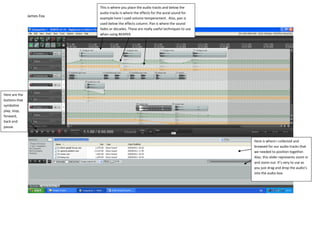
This is where you place the audio tracks and below the
                           audio tracks is where the effects for the aural sound for
               James Fox
                           example here I used volume temperament. Also, pan is
                           used below the effects column. Pan is where the sound
                           fades or decades. These are really useful techniques to use
                           when using REAPER.


Here are the
buttons that
symbolize
play, stop,
forward,
back and
pause.


                                                                                         Here is where I collected and
                                                                                         browsed for our audio tracks that
                                                                                         we needed to position together.
                                                                                         Also, this slider represents zoom in
                                                                                         and zoom out. It’s very to use as
                                                                                         you just drag and drop the audio’s
                                                                                         into the audio box.
James Fox


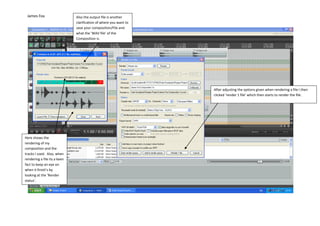
            In this print screen the selection of rendering a file is shown.
            Firstly, when rendering its accessional that master mix is picked
            as it illustrates all of the track rather than specific tracks. There
            are other options such as Stems which represents selected
            tracks and the other alternative is Master Mix and Stems. This
            portrays where to save the rendered file when you’ve finished.
            This is where you choose the name for your composition. Just
            below the name is clarification for the name of your
            composition.

            Here the options of choosing stereo or mono are impeccable
            because stereo represents two and mono is only one. Also the
            Sample rate depicts how much of your composition you would
            like to render. Resample mode tells you what quality you what
            your tracks and the render to be. I’ve picked ‘Better [192pt Sinc
            – SLOW] ‘but there is other qualities that are better than the
            one I’ve used such as ‘Extreme [512pt HQ Sinc – NON-
            REALTIME]’. WAV also alters the quality of your compostion and
            the tracks inside it but internally depends on which one you pick
            for example I’ve kept mine on its original format but could have
            tempered with it and made it to FLAC or MP3 but WAV is a good
            quality Output format. Also WAV bit depth modifies the quality
            I’ve kept it on 16 bit PCM but could be changed to a higher
            standard such as 64 bit FP which is defiantly of a enhanced
            criterion.
James Fox                    Also the output file is another
                              clarification of where you want to
                              save your composition/File and
                              what the ‘WAV file’ of the
                              Composition is.


                                                                   After adjusting the options given when rendering a file I then
                                                                   clicked ‘render 1 file’ which then starts to render the file.


Here shows the
rendering of my
composition and the
tracks I used. Also, when
rendering a file its a keen
fact to keep an eye on
when it finish’s by
looking at the ‘Render
status’.

Audio sequencing annotations

  • 1.
    This is whereyou place the audio tracks and below the audio tracks is where the effects for the aural sound for James Fox example here I used volume temperament. Also, pan is used below the effects column. Pan is where the sound fades or decades. These are really useful techniques to use when using REAPER. Here are the buttons that symbolize play, stop, forward, back and pause. Here is where I collected and browsed for our audio tracks that we needed to position together. Also, this slider represents zoom in and zoom out. It’s very to use as you just drag and drop the audio’s into the audio box.
  • 2.
    James Fox In this print screen the selection of rendering a file is shown. Firstly, when rendering its accessional that master mix is picked as it illustrates all of the track rather than specific tracks. There are other options such as Stems which represents selected tracks and the other alternative is Master Mix and Stems. This portrays where to save the rendered file when you’ve finished. This is where you choose the name for your composition. Just below the name is clarification for the name of your composition. Here the options of choosing stereo or mono are impeccable because stereo represents two and mono is only one. Also the Sample rate depicts how much of your composition you would like to render. Resample mode tells you what quality you what your tracks and the render to be. I’ve picked ‘Better [192pt Sinc – SLOW] ‘but there is other qualities that are better than the one I’ve used such as ‘Extreme [512pt HQ Sinc – NON- REALTIME]’. WAV also alters the quality of your compostion and the tracks inside it but internally depends on which one you pick for example I’ve kept mine on its original format but could have tempered with it and made it to FLAC or MP3 but WAV is a good quality Output format. Also WAV bit depth modifies the quality I’ve kept it on 16 bit PCM but could be changed to a higher standard such as 64 bit FP which is defiantly of a enhanced criterion.
  • 3.
    James Fox Also the output file is another clarification of where you want to save your composition/File and what the ‘WAV file’ of the Composition is. After adjusting the options given when rendering a file I then clicked ‘render 1 file’ which then starts to render the file. Here shows the rendering of my composition and the tracks I used. Also, when rendering a file its a keen fact to keep an eye on when it finish’s by looking at the ‘Render status’.