Aslı Sencer Erdem Slide 1
Graduate Program in Business Information Systems
BIS 517
Simulation with Arena
Part 1
Simulation with Arena Chapter 3 – A Guided Tour Through Arena Slide 2
Behavior of Arena
• Arena is a true Windows application
 Appearance, operation, functions, are standard
 Interoperability with other software (MS Office, CAD)
 Can interact, communicate with other software
• Assume you already know basics of Windows:
 Disks, files, folders, paths
 Mousing, keyboarding
 Resizing, moving, maximizing, minimizing windows
 Menu operations
 Ctrl, Alt, Shift keys
 Cut, copy, paste
 Filling out dialog fields
Simulation with Arena Chapter 3 – A Guided Tour Through Arena Slide 3
Starting Up
• Installing Arena – Appendix E
• Locate icon or shortcut; double-click
 Also Start/Programs/Rockwell Software/Arena/Arena icon
 Licensed vs. Academic, Evaluation mode
• See File, View, Tools, Help menus
 Other menus present if a model file is open
• Toolbars with buttons
 Unless a model file is open, only New model file, Open
model file, Template Attach/Detach, Context Help (click it,
then click on buttons or menu items)
• Tooltips – roll over toolbar buttons for names
• Quitting Arena: File/Exit or Alt+F4 or top right
button
Simulation with Arena Chapter 3 – A Guided Tour Through Arena Slide 4
Opening an Existing Model
• File/Open … or button
 Navigate to desired disk/directory
 Click/Open or double-click Model 03-01.doe
 Book examples in … Rockwell SoftwareArenaArena Book
 Additional examples in … Rockwell
SoftwareArenaExamples
• Model window (usually on right side of Arena
window)
 Where model is built
 Resize, maximize, minimize, scroll/pan, zoom
 Can have multiple model windows open at once
• Cut, Copy, Paste within Arena, and between
Arena and other applications (when sensible)
Why the .doe
default
extension to
Arena model
filenames?
Simulation with Arena Chapter 3 – A Guided Tour Through Arena Slide 5
Flowchart and Spreadsheet Views
• Model window split into two views
 Flowchart view
– Graphics
– Process flowchart
– Animation, drawing
– Edit things by double-clicking on them, get into a dialog
 Spreadsheet view
– Displays model data directly
– Can edit, add, delete data in spreadsheet view
– Displays all similar kinds of modeling elements at once
 Many model parameters can be edited in either view
 Horizontal splitter bar to apportion the two views
 View/Split Screen (or ) to see only the most recently
selected view
Simulation with Arena Chapter 3 – A Guided Tour Through Arena Slide 6
Project Bar
• Usually down the left edge of Arena window
• Hosts panels with modeling building blocks:
modules
 Both flowchart and spreadsheet modules
• Displays one panel at a time
 Switch to different panels via horizontal buttons
 Panels for Basic Process, Reports (after running), Navigate
(to different views within a model or to different hierarchical
submodels), … others can be attached (Template Attach
button ) for different modeling levels, specialties
• Usually docked to left edge but can move, float
• Can hide it via View/Project Bar or its own small
Simulation with Arena Chapter 3 – A Guided Tour Through Arena Slide 7
Status Bar
• At very bottom of Arena window
• Displays various information sensitive to status
 Coordinates of cursor in “worldspace”
 Clock value, replication number when simulation is running
• Hide it by clearing (unchecking) View/Status Bar
Simulation with Arena Chapter 3 – A Guided Tour Through Arena Slide
Moving Around, Up, Down
in Flowchart View of Model Window
• Underlying world space for model
 (x, y) coordinates in arbitrary units (> 32K in each direction)
• Pan with scroll bars, arrow keys
• Zoom in (down): or + key
• Zoom out (up): or – key
• See all at min altitude: or * key
• Named views
 Save a pan/zoom view for different parts of model
 Assign a Hot key (case-sensitive)
 Access via View/Named Views … or ? key
• Display grid ( ), snap to grid ( ) toggles
Simulation with Arena Chapter 3 – A Guided Tour Through Arena Slide 9
Modules
• Basic building blocks of a simulation model
• Two basic types: flowchart and data
• Different types of modules for different actions,
specifications
• “Blank” modules are on the Project Bar
 To add a flowchart module to your model, drag it from the
Project Bar into the flowchart view of the model window
– Can have many instances of the same kind of flowchart module in
your model
 To use a data module, select it (single-click) in the Project
Bar and edit in the spreadsheet view of the model window
– Only one instance of each kind of data module in your model, but it
can have many entries (rows) in the spreadsheet view
Simulation with Arena Chapter 3 – A Guided Tour Through Arena Slide 10
Flowchart Modules
• Describe dynamic processes
 Nodes/places through which entities flow
 Typically connected to each other in some way
• Basic Process panel flowchart module types:
 Create, Dispose, Process, Decide, Batch, Separate,
Assign, Record
• Other panels – many other kinds
• Shape like flowcharting (also use colors for hints)
• Two ways to edit
 Double-click to open up, then fill out dialogs
 Select (single-click) a module type in model or Project Bar,
get all modules of that type in the spreadsheet view
Simulation with Arena Chapter 3 – A Guided Tour Through Arena Slide 11
Data Modules
• Set values, conditions, etc. for whole model
 No entity flow, no connections
• Basic Process panel data module types:
 Entity, Queue, Resource, Variable, Schedule, Set
• Other panels – many other kinds
• Icons in Project Bar look like little spreadsheets
• To use a data module, select it (single-click) in
the Project Bar, edit in spreadsheet view
 Double-click where indicated to add new row
 Right-click on row, column to do different things
• Only one instance of each kind of data module in
a model
 But each one can have many entries (rows)
Simulation with Arena Chapter 3 – A Guided Tour Through Arena Slide 12
Relations Among Modules
• Flowchart and data modules are related via
names for objects
 Queues, Resources, Entity types, Variables … others
• Arena keeps internal lists of different kinds of
names
 Presents existing lists to you where appropriate
 Helps you remember names, protects you from typos
• All names you make up in a model must be
unique across the model, even across different
types of modules
Simulation with Arena Chapter 3 – A Guided Tour Through Arena Slide 13
Browsing Through Model 3-1
• Open Model 03-01.mod (in Arena Book folder)
• Three flowchart modules (Create, Process,
Dispose)
• Entries in three data modules (Entity, Queue,
Resource)
• Animation objects
 Resource animation
 Two plots
 Some (passive) labels, artwork
Simulation with Arena Chapter 3 – A Guided Tour Through Arena Slide 14
The Create Flowchart Module
• “Birth” node for entities
• Gave this instance of the Create-type module the
Name Part Arrives to System
 If we had other Create modules (we don’t) they’d all have
different Names
• Double-click on module to open property dialog:
Simulation with Arena Chapter 3 – A Guided Tour Through Arena Slide 15
The Create Flowchart Module(cont’d.)
• Name – for module (type it in, overriding default)
• Entity Type – enter a descriptive name
 Can have multiple Entity Types with distinct names
• Time Between Arrivals area
 Specify nature of the time separating consecutive arrivals
 Type – pull-down list with several options
 Value – depends on Type … for Random (Expo) is mean
 Units – time units for Value
• Entities per Arrival – constant, random variable,
very general “Expression” (more later …)
• Max Arrivals – choke off arrivals after this many
entities
• First Creation – time of first arrival (need not be 0)
Simulation with Arena Chapter 3 – A Guided Tour Through Arena Slide 16
Editing Flowchart Modules in the
Spreadsheet View
• Alternative to dialog for each instance of a
module type
• See all instances of a module type at once
 Convenient for seeing, editing lots of things at once
• Selecting a module in either flowchart or
spreadsheet view also selects it in the other view
• Click, double-click fields to view, edit
• Right-click to on left margin to delete a row (and
the associated module)
• Right-click in many fields to invoke Expression
Builder for help on constructing complex
expressions with Arena variables (more later …)
Simulation with Arena Chapter 3 – A Guided Tour Through Arena Slide 17
The Entity Data Module
• A data module, so edit in spreadsheet view only
• View, edit aspects of different kinds of entities in
your model (we have just one type, Part)
• Pull-down lists activated as you select fields
• Our only edit – Initial Picture for animation
 We picked Picture.Blue Ball from the default list
Simulation with Arena Chapter 3 – A Guided Tour Through Arena Slide 18
The Process Flowchart Module
• Represents the machine, including the resource,
queue, and entity delay time (processing)
• Enter Name – Drilling Center
• Type – picked Standard to define logic here
rather than in a submodel (more later …)
• Report Statistics check box at bottom
 To get utilizations, queue lengths, queue waiting times, etc.
Simulation with Arena Chapter 3 – A Guided Tour Through Arena Slide 19
The Process Flowchart Module(cont’d.)
• Logic area – what happens to entities here
 Action
– Seize Delay Release – entity Seizes some number of units of a Resource
(maybe after a wait in queue), Delay itself there for the processing time,
then Release the units of the Resource it had Seized – we chose this option
– Could just Delay entity (red traffic light) – no Resources or queueing
– Could also Seize Delay (no Release … Release downstream) or Delay
Release (if Resource had been Seized upstream)
– Priority for seizing – lower numbers mean higher priority
– Different Action choices could allow stringing together several Process
modules for modeling flexibility
 Resources – define Resource(s) to be seized, released
– Double-click on row to open subdialog
– Define Resource Name, number of units to be Seized/Released
– Several Resources present (Add) – entities must first Seize all
Simulation with Arena Chapter 3 – A Guided Tour Through Arena Slide 20
The Process Flowchart Module(cont’d.)
• Delay Type – choice of probability distributions,
constant or general Expression (more later …)
• Units – time units for the delay
• Allocation – how to “charge” delay in costing
(more later …)
• Prompts on next line – change depending on
choice of Delay Type – specify numerical
parameters involved
• Can also edit in spreadsheet view
 Subdialogs (e.g., Resource here) become secondary
spreadsheets that pop up, must be closed
Simulation with Arena Chapter 3 – A Guided Tour Through Arena Slide 21
The Resource Data Module
• Defining the Drilling Center Resource in the
Process module automatically creates an entry
for it in the Resource data module
• Can edit it here for more options
 Type – could vary capacity via a Schedule instead of
having a fixed Capacity
– Would define the Schedule via Schedule data module … more later
 Failures – could cause resource to fail according to some
pattern
– Define this pattern via Failure data module (Advanced Process
panel) … more later
Simulation with Arena Chapter 3 – A Guided Tour Through Arena Slide 22
The Queue Data Module
• Specify aspects of the queues in the model
 We only have one, named Drilling Center.Queue
(the default name given the Process name)
• Type – specifies queue discipline or ranking rule
 If Lowest or Highest Attribute Value, then another field
appears where you specify which attribute
• Shared – it this queue will be shared among
several resources (more later …)
• Report Statistics – check to get automatic
collection and reporting of queue length, time in
queue
Simulation with Arena Chapter 3 – A Guided Tour Through Arena Slide 23
Animating Resources and Queues
• Got queue animation automatically by
specifying a Seize in the Process module
 Entity pictures (blue balls) will line up here in animation
• Don’t get Resource animation automatically
 To add it, use Resource button in Animate toolbar … get
Resource Picture Placement dialog
– Identifier – link to Resource name in pull-down list
– Specify different pictures for Idle, Busy state
For pre-defined artwork, Open a picture library (.plb filename extension)
Scroll up/down on right, select (single-click) a picture on right, select Idle or Busy
state on left, then to copy the picture
 To edit later, double-click on picture in flowchart view
Simulation with Arena Chapter 3 – A Guided Tour Through Arena Slide 24
The Dispose Flowchart Module
• Represents entities leaving model boundaries
• Name the module
• Decide on Record Entity Statistics (average and
maximum time in system of entities exiting here,
costing information)
Check boxes for statistics collection and
reporting:
 Most are checked (turned on) by default
 Little or no modeling effort to say yes to these
 However, in some models this can slow
execution markedly
 Moral – if you have speed problems, clear
these if you don’t care about them
Simulation with Arena Chapter 3 – A Guided Tour Through Arena Slide 25
Connecting Flowchart Modules
• Establishes the (fixed) sequence of flowchart
modules through which entities will flow
• To make a connection
 Click Connect button (or Object/Connect)
 Cursor changes to cross hairs
 Click on exit point from source module, then entry point
on destination module
 Make intermediate clicks for non-straight line in segments
• Object menu toggles
 Auto-Connect – automatically connect entry point of newly
placed module from exit point of selected module
 Smart Connect – force segments to horizontal/vertical
 Animate Connectors – show entities moving along
connectors (zero time for statistics collection)
Simulation with Arena Chapter 3 – A Guided Tour Through Arena Slide 26
Dynamic Plots
• Trace variables, queues as simulation runs
• Disappear after run ends (to keep, must save
data, postprocess via Output Analyzer — later)
• A kind of “data animation”
• Plot button from Animate toolbar… “Add” for
 Expression to plot (help via Expression Builder … later)
 Min/Max y-axis values (initially guesses, maybe revise)
 Number of “corners” to show (# History Points) at a time
 Stepped option (for piecewise-constant curves)
 Colors
• In Plot dialog – Time Range (x axis), cosmetics
• Resize plot itself by dragging corners
Simulation with Arena Chapter 3 – A Guided Tour Through Arena Slide 27
Dressing Things Up
• Add drawing objects from Draw toolbar
 Similar to other drawing, CAD packages
 Object-oriented drawing tools (layers, etc.), not just a
painting tool
• Add Text to annotate things
 Control font, size, color, orientation
Simulation with Arena Chapter 3 – A Guided Tour Through Arena Slide 28
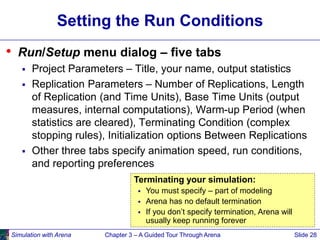
Setting the Run Conditions
• Run/Setup menu dialog – five tabs
 Project Parameters – Title, your name, output statistics
 Replication Parameters – Number of Replications, Length
of Replication (and Time Units), Base Time Units (output
measures, internal computations), Warm-up Period (when
statistics are cleared), Terminating Condition (complex
stopping rules), Initialization options Between Replications
 Other three tabs specify animation speed, run conditions,
and reporting preferences
Terminating your simulation:
 You must specify – part of modeling
 Arena has no default termination
 If you don’t specify termination, Arena will
usually keep running forever
Simulation with Arena Chapter 3 – A Guided Tour Through Arena Slide 29
Running It
• Plain-vanilla run: Click from Standard toolbar
(like VCRs, CD players, etc.)
 First time or after changes: Check
 Enters run mode — can move around but not edit
 Speed up (> on keyboard) or slow down (<) animation
display
 When done, asked if you want to see summary reports
 Click to get out of run mode
 Can pause run with
• Other run control, viewing, checking options
Simulation with Arena Chapter 3 – A Guided Tour Through Arena Slide 30
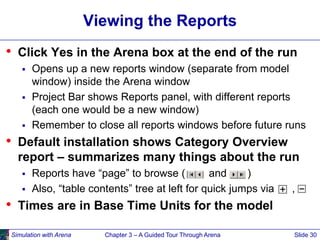
Viewing the Reports
• Click Yes in the Arena box at the end of the run
 Opens up a new reports window (separate from model
window) inside the Arena window
 Project Bar shows Reports panel, with different reports
(each one would be a new window)
 Remember to close all reports windows before future runs
• Default installation shows Category Overview
report – summarizes many things about the run
 Reports have “page” to browse ( and )
 Also, “table contents” tree at left for quick jumps via ,
• Times are in Base Time Units for the model
Simulation with Arena Chapter 3 – A Guided Tour Through Arena Slide 31
Viewing the Reports – Examples
• Entity  Time  Total Time  Part:
 Avg. time in system was 6.4397 min., max was 12.6185
• Resource  Usage  Utilization  Drill Press:
 Utilization was 0.9171 (busy 91.71% of the time)
• Process  Other  Number In  Drilling Center:
 During the run, 7 parts entered the Drilling Center
• Process  Other  Number Out  Drilling Center:
 5 entities left the Drilling Center (so were produced)
• Entity  Time  Wait Time  Part:
 Avg. wait time in all queues was 3.0340 min. (counts only
entities that left the system, but Queue  Time  Waiting
Time  Drilling Center.Queue counts all entities that left
this queue, so can differ)
• Entity  Other  Wip  Part:
 Average Work in Process was 1.7060, max WIP was 4
Simulation with Arena Chapter 3 – A Guided Tour Through Arena Slide 32
Types of Statistics Reported
• Many output statistics are one of three types:
 Tally – avg., max, min of a discrete list of numbers
– Used for discrete-time output processes like waiting times in queue,
total times in system
 Time-persistent – time-average, max, min of a plot of
something where the x-axis is continuous time
– Used for continuous-time output processes like queue lengths, WIP,
server-busy functions (for utilizations)
 Counter – accumulated sums of something, usually just
nose counts of how many times something happened
– Often used to count entities passing through a point in the model
Simulation with Arena Chapter 3 – A Guided Tour Through Arena Slide 33
More on Reports and their Files
• Reports we just saw – based on a MS Access
database that Arena writes as it runs
 Can be saved and viewed later
 Viewing within Arena done via Seagate Crystal Reports to
query the Access database
• Arena also produces a plain-text summary report
(.out filename extension)
 Was in previous versions of Arena
 Fairly cryptic, but gives quick view of lots of output data
• Get multiple reports for multiple replications
• “Half Width” columns – for confidence intervals
on outputs in long-run simulations … more later
Simulation with Arena Chapter 3 – A Guided Tour Through Arena Slide 34
Display for the Create Module
Simulation with Arena Chapter 3 – A Guided Tour Through Arena Slide 35
Display for the Process Module
Simulation with Arena Chapter 3 – A Guided Tour Through Arena Slide 36
Display for the Dispose Module
Simulation with Arena Chapter 3 – A Guided Tour Through Arena Slide 37
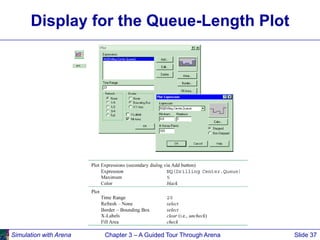
Display for the Queue-Length Plot
Simulation with Arena Chapter 3 – A Guided Tour Through Arena Slide 38
Expression Builder for Queue-Length-
Plot Expression
Simulation with Arena Chapter 3 – A Guided Tour Through Arena Slide 39
Edit Menu
• Undo/Redo
• Cut/Copy/Paste
• Paste Link (create OLE link)
• Duplicate, Delete selection
• Select/Deselect All
• Entity Pictures – change content, definition of
pictures presented in Entity data module
• Find – searches all modules and animation
objects for a text string … useful for finding
wrong names, typos after an error message from
Arena
Simulation with Arena Chapter 3 – A Guided Tour Through Arena Slide 40
Edit Menu(cont’d.)
• Properties – display internal Arena object
properties
• Links – to link to other files (spreadsheets,
sounds, etc.)
• Insert New Object – from other applications (e.g.,
graphics)
• Object – edit object imported from another
application
Simulation with Arena Chapter 3 – A Guided Tour Through Arena Slide 41
View Menu
• Zooming – discussed before
• Zoom Factor – step size when zooming
• Views – canned Arena views of flowchart view
• Named Views – define, change, use views
• Grid/Snap/Grid Settings – control grid, snapping
• Layers – which objects show up in which mode
• Split Screen – toggle for viewing both flowchart
and spreadsheet views, or just one of them
• Toolbars – decide which toolbars show up
• Project/Status Bar – toggle to show up or not
Simulation with Arena Chapter 3 – A Guided Tour Through Arena Slide 42
Tools Menu
• Separate applications related to Arena model
building and analysis
 Input Analyzer
 Process Analyzer
– Also Output Analyzer … does not show on menus
 OptQuest for Arena
• Other special “editions” of Arena (e.g., Contact
Center) – depends on what’s been licensed
• Import/Export model to/from Database – bring in,
save model details to Excel or Access
• Show Visual Basic Editor to write VBA code for
model (see Chapter 9)
• Options – control many aspects of how Arena
works, looks
Simulation with Arena Chapter 3 – A Guided Tour Through Arena Slide 43
Arrange Menu
• For modeling, graphics objects – first select
object(s)
• Bring object to Front, Send it to Back — for
“stacking” effects
• Group, Ungroup
• Flip around Vertical, Horizontal line
• Rotate object (90° clockwise)
• Align objects on top, bottom, left, or right edges
• Distribute objects evenly (horizontally, vertically)
• Flowchart Alignment – arrange flowchart modules
(horizontally, vertically)
• Snap to Grid the selected object(s)
• Change Snap Point on object that gets snapped
Simulation with Arena Chapter 3 – A Guided Tour Through Arena Slide 44
Object Menu
• Connect tool – changes cursor to cross hairs
• Auto-Connect newly placed module to selected
module – toggle on/off
• Smart Connect – new connections in
horizontal/vertical segments rather than one
diagonal segment – toggle on/off
• Animate Connectors – to show entities moving
(at infinite speed for statistics collection)
• Submodel – define and manage hierarchical
submodels (see Chapter 5)
Simulation with Arena Chapter 3 – A Guided Tour Through Arena Slide 45
Run Menu
• Setup – control model run conditions
• Entries to run, check, pause, step through
• Alternatives to watch execution, view results (or
errors)
• Control how run goes and is displayed
• Most capabilities on Run or Run Interaction
Toolbar, and will be described a bit later in detail
• Access the “code” in the underlying SIMAN
simulation language
Simulation with Arena Chapter 3 – A Guided Tour Through Arena Slide 46
Window Menu
• Cascade, Tile multiple open model windows
• Arrange Icons for any minimized model windows
• Use system Background Color — use Windows
colors rather than Arena settings
• List of open model windows
Simulation with Arena Chapter 3 – A Guided Tour Through Arena Slide 47
Help Menu
• One of several ways to get into Help system
• Arena Help Topics – TOC, Index, Find
• Using Help – info about Windows Help systems
• List of attached modeling panels – click to get
Help on that one
• Web links to product support
• Information on product support
• About Arena… version number, etc.
Simulation with Arena Chapter 3 – A Guided Tour Through Arena Slide 48
More on Toolbars
• Collections of buttons for “frequent” operations
 Most are duplication of menu entries
 Standard, View, Draw, Animate, Integration, View, Arrange,
Run Interaction, Animate Transfer
• View/Toolbars (or right-click in a toolbar area) to
decide which ones show up, which to hide
• Toolbars can be torn off (“floating” palettes), or
“docked” to an edge of screen
• Arena remembers your Toolbar configuration for
next time
Simulation with Arena Chapter 3 – A Guided Tour Through Arena Slide 49
More on Drawing
• Draw via toolbar buttons only (no menus):
• Line, Polyline (hold Shift key for 45
0
), Arc, Bézier
Curve
• Box, Polygon, Ellipse (fill, line, shade)
• Text (font, size, style)
• Colors for Lines, Fill, Text, Window Background
• Line Style, Fill Pattern
• By far best way to learn: just play around
Simulation with Arena Chapter 3 – A Guided Tour Through Arena Slide 50
Printing
• Print all or parts of flowchart view of active model
window – supports color
• Usual Print, Print Preview, Print Setup (File menu)
• Could consume many pages … also prints named
views separately
 Print Preview, select only what you want for printing
• Alternative to printing directly from Arena:
PrintScreen key — sends screen to clipboard,
paste into another application
 Alt+PrintScreen — sends only active window to clipboard
 Could first pass through a paint application to crop, etc.
Simulation with Arena Chapter 3 – A Guided Tour Through Arena Slide 51
Help!
• Extensive, comprehensive online system –
replaces traditional manuals
• Interlinked via hypertext for cross referencing
• Multiple entry points, including Help menu, links
to websites
• button for context-sensitive help
• button in most dialogs
• button (What’s This?) for info on items
• Tooltips – roll over things, get little sticky note
• Examples folder inside Arena folder
• SMARTs library – small models illustrating points
– indexed in “SMART Files Library” Help topic
Simulation with Arena Chapter 3 – A Guided Tour Through Arena Slide 52
More on Running Models
• Run Menu; Standard & Run Interaction toolbars
• Run/Setup – many options for controlling the run
 These are attached to the model, and are not global
• Run/Go – run simulation “normally” (depends
on selects from Run/Run Control and
Tools/Options/Run Control)
• Run/Step – one “step” at a time (verify, debug)
• Run/Fast-Forward – disable animation (faster)
• Run/Pause (or Esc key) – freeze run, resume
with Go
• Run/Start Over – go back to beginning of
simulation
Simulation with Arena Chapter 3 – A Guided Tour Through Arena Slide 53
More on Running Models(cont’d.)
• Run/End – get out of run mode
• Run/Check Model – like compiling
• Run/Review Errors – for most recent Check
• Run/Run Control/Command – bring up
interactive command-line window to control run
• Run/Run Control/Break – set times, conditions
to interrupt for checks, illustration
• Run/Run Control/Watch – bring up a window to
watch a variable or expression during run
Simulation with Arena Chapter 3 – A Guided Tour Through Arena Slide 54
More on Running Models(cont’d.)
• Run/Run Control/Break on Module – set/clear
break when an entity enters or resumes activity
on a module
• Run/Run Control/Highlight Active Module –
highlight the flowchart module being executed
• Run/Run Control/Batch Run (No Animation) – run
model with no animation … this is even faster
than Fast-Forward … usually used for
“production runs” for statistical analysis
• Run/SIMAN – view or write the model (.mod) and
experiment (.exp) files for the underlying SIMAN
model

arena_basics.ppt

  • 1.
    Aslı Sencer ErdemSlide 1 Graduate Program in Business Information Systems BIS 517 Simulation with Arena Part 1
  • 2.
    Simulation with ArenaChapter 3 – A Guided Tour Through Arena Slide 2 Behavior of Arena • Arena is a true Windows application  Appearance, operation, functions, are standard  Interoperability with other software (MS Office, CAD)  Can interact, communicate with other software • Assume you already know basics of Windows:  Disks, files, folders, paths  Mousing, keyboarding  Resizing, moving, maximizing, minimizing windows  Menu operations  Ctrl, Alt, Shift keys  Cut, copy, paste  Filling out dialog fields
  • 3.
    Simulation with ArenaChapter 3 – A Guided Tour Through Arena Slide 3 Starting Up • Installing Arena – Appendix E • Locate icon or shortcut; double-click  Also Start/Programs/Rockwell Software/Arena/Arena icon  Licensed vs. Academic, Evaluation mode • See File, View, Tools, Help menus  Other menus present if a model file is open • Toolbars with buttons  Unless a model file is open, only New model file, Open model file, Template Attach/Detach, Context Help (click it, then click on buttons or menu items) • Tooltips – roll over toolbar buttons for names • Quitting Arena: File/Exit or Alt+F4 or top right button
  • 4.
    Simulation with ArenaChapter 3 – A Guided Tour Through Arena Slide 4 Opening an Existing Model • File/Open … or button  Navigate to desired disk/directory  Click/Open or double-click Model 03-01.doe  Book examples in … Rockwell SoftwareArenaArena Book  Additional examples in … Rockwell SoftwareArenaExamples • Model window (usually on right side of Arena window)  Where model is built  Resize, maximize, minimize, scroll/pan, zoom  Can have multiple model windows open at once • Cut, Copy, Paste within Arena, and between Arena and other applications (when sensible) Why the .doe default extension to Arena model filenames?
  • 5.
    Simulation with ArenaChapter 3 – A Guided Tour Through Arena Slide 5 Flowchart and Spreadsheet Views • Model window split into two views  Flowchart view – Graphics – Process flowchart – Animation, drawing – Edit things by double-clicking on them, get into a dialog  Spreadsheet view – Displays model data directly – Can edit, add, delete data in spreadsheet view – Displays all similar kinds of modeling elements at once  Many model parameters can be edited in either view  Horizontal splitter bar to apportion the two views  View/Split Screen (or ) to see only the most recently selected view
  • 6.
    Simulation with ArenaChapter 3 – A Guided Tour Through Arena Slide 6 Project Bar • Usually down the left edge of Arena window • Hosts panels with modeling building blocks: modules  Both flowchart and spreadsheet modules • Displays one panel at a time  Switch to different panels via horizontal buttons  Panels for Basic Process, Reports (after running), Navigate (to different views within a model or to different hierarchical submodels), … others can be attached (Template Attach button ) for different modeling levels, specialties • Usually docked to left edge but can move, float • Can hide it via View/Project Bar or its own small
  • 7.
    Simulation with ArenaChapter 3 – A Guided Tour Through Arena Slide 7 Status Bar • At very bottom of Arena window • Displays various information sensitive to status  Coordinates of cursor in “worldspace”  Clock value, replication number when simulation is running • Hide it by clearing (unchecking) View/Status Bar
  • 8.
    Simulation with ArenaChapter 3 – A Guided Tour Through Arena Slide Moving Around, Up, Down in Flowchart View of Model Window • Underlying world space for model  (x, y) coordinates in arbitrary units (> 32K in each direction) • Pan with scroll bars, arrow keys • Zoom in (down): or + key • Zoom out (up): or – key • See all at min altitude: or * key • Named views  Save a pan/zoom view for different parts of model  Assign a Hot key (case-sensitive)  Access via View/Named Views … or ? key • Display grid ( ), snap to grid ( ) toggles
  • 9.
    Simulation with ArenaChapter 3 – A Guided Tour Through Arena Slide 9 Modules • Basic building blocks of a simulation model • Two basic types: flowchart and data • Different types of modules for different actions, specifications • “Blank” modules are on the Project Bar  To add a flowchart module to your model, drag it from the Project Bar into the flowchart view of the model window – Can have many instances of the same kind of flowchart module in your model  To use a data module, select it (single-click) in the Project Bar and edit in the spreadsheet view of the model window – Only one instance of each kind of data module in your model, but it can have many entries (rows) in the spreadsheet view
  • 10.
    Simulation with ArenaChapter 3 – A Guided Tour Through Arena Slide 10 Flowchart Modules • Describe dynamic processes  Nodes/places through which entities flow  Typically connected to each other in some way • Basic Process panel flowchart module types:  Create, Dispose, Process, Decide, Batch, Separate, Assign, Record • Other panels – many other kinds • Shape like flowcharting (also use colors for hints) • Two ways to edit  Double-click to open up, then fill out dialogs  Select (single-click) a module type in model or Project Bar, get all modules of that type in the spreadsheet view
  • 11.
    Simulation with ArenaChapter 3 – A Guided Tour Through Arena Slide 11 Data Modules • Set values, conditions, etc. for whole model  No entity flow, no connections • Basic Process panel data module types:  Entity, Queue, Resource, Variable, Schedule, Set • Other panels – many other kinds • Icons in Project Bar look like little spreadsheets • To use a data module, select it (single-click) in the Project Bar, edit in spreadsheet view  Double-click where indicated to add new row  Right-click on row, column to do different things • Only one instance of each kind of data module in a model  But each one can have many entries (rows)
  • 12.
    Simulation with ArenaChapter 3 – A Guided Tour Through Arena Slide 12 Relations Among Modules • Flowchart and data modules are related via names for objects  Queues, Resources, Entity types, Variables … others • Arena keeps internal lists of different kinds of names  Presents existing lists to you where appropriate  Helps you remember names, protects you from typos • All names you make up in a model must be unique across the model, even across different types of modules
  • 13.
    Simulation with ArenaChapter 3 – A Guided Tour Through Arena Slide 13 Browsing Through Model 3-1 • Open Model 03-01.mod (in Arena Book folder) • Three flowchart modules (Create, Process, Dispose) • Entries in three data modules (Entity, Queue, Resource) • Animation objects  Resource animation  Two plots  Some (passive) labels, artwork
  • 14.
    Simulation with ArenaChapter 3 – A Guided Tour Through Arena Slide 14 The Create Flowchart Module • “Birth” node for entities • Gave this instance of the Create-type module the Name Part Arrives to System  If we had other Create modules (we don’t) they’d all have different Names • Double-click on module to open property dialog:
  • 15.
    Simulation with ArenaChapter 3 – A Guided Tour Through Arena Slide 15 The Create Flowchart Module(cont’d.) • Name – for module (type it in, overriding default) • Entity Type – enter a descriptive name  Can have multiple Entity Types with distinct names • Time Between Arrivals area  Specify nature of the time separating consecutive arrivals  Type – pull-down list with several options  Value – depends on Type … for Random (Expo) is mean  Units – time units for Value • Entities per Arrival – constant, random variable, very general “Expression” (more later …) • Max Arrivals – choke off arrivals after this many entities • First Creation – time of first arrival (need not be 0)
  • 16.
    Simulation with ArenaChapter 3 – A Guided Tour Through Arena Slide 16 Editing Flowchart Modules in the Spreadsheet View • Alternative to dialog for each instance of a module type • See all instances of a module type at once  Convenient for seeing, editing lots of things at once • Selecting a module in either flowchart or spreadsheet view also selects it in the other view • Click, double-click fields to view, edit • Right-click to on left margin to delete a row (and the associated module) • Right-click in many fields to invoke Expression Builder for help on constructing complex expressions with Arena variables (more later …)
  • 17.
    Simulation with ArenaChapter 3 – A Guided Tour Through Arena Slide 17 The Entity Data Module • A data module, so edit in spreadsheet view only • View, edit aspects of different kinds of entities in your model (we have just one type, Part) • Pull-down lists activated as you select fields • Our only edit – Initial Picture for animation  We picked Picture.Blue Ball from the default list
  • 18.
    Simulation with ArenaChapter 3 – A Guided Tour Through Arena Slide 18 The Process Flowchart Module • Represents the machine, including the resource, queue, and entity delay time (processing) • Enter Name – Drilling Center • Type – picked Standard to define logic here rather than in a submodel (more later …) • Report Statistics check box at bottom  To get utilizations, queue lengths, queue waiting times, etc.
  • 19.
    Simulation with ArenaChapter 3 – A Guided Tour Through Arena Slide 19 The Process Flowchart Module(cont’d.) • Logic area – what happens to entities here  Action – Seize Delay Release – entity Seizes some number of units of a Resource (maybe after a wait in queue), Delay itself there for the processing time, then Release the units of the Resource it had Seized – we chose this option – Could just Delay entity (red traffic light) – no Resources or queueing – Could also Seize Delay (no Release … Release downstream) or Delay Release (if Resource had been Seized upstream) – Priority for seizing – lower numbers mean higher priority – Different Action choices could allow stringing together several Process modules for modeling flexibility  Resources – define Resource(s) to be seized, released – Double-click on row to open subdialog – Define Resource Name, number of units to be Seized/Released – Several Resources present (Add) – entities must first Seize all
  • 20.
    Simulation with ArenaChapter 3 – A Guided Tour Through Arena Slide 20 The Process Flowchart Module(cont’d.) • Delay Type – choice of probability distributions, constant or general Expression (more later …) • Units – time units for the delay • Allocation – how to “charge” delay in costing (more later …) • Prompts on next line – change depending on choice of Delay Type – specify numerical parameters involved • Can also edit in spreadsheet view  Subdialogs (e.g., Resource here) become secondary spreadsheets that pop up, must be closed
  • 21.
    Simulation with ArenaChapter 3 – A Guided Tour Through Arena Slide 21 The Resource Data Module • Defining the Drilling Center Resource in the Process module automatically creates an entry for it in the Resource data module • Can edit it here for more options  Type – could vary capacity via a Schedule instead of having a fixed Capacity – Would define the Schedule via Schedule data module … more later  Failures – could cause resource to fail according to some pattern – Define this pattern via Failure data module (Advanced Process panel) … more later
  • 22.
    Simulation with ArenaChapter 3 – A Guided Tour Through Arena Slide 22 The Queue Data Module • Specify aspects of the queues in the model  We only have one, named Drilling Center.Queue (the default name given the Process name) • Type – specifies queue discipline or ranking rule  If Lowest or Highest Attribute Value, then another field appears where you specify which attribute • Shared – it this queue will be shared among several resources (more later …) • Report Statistics – check to get automatic collection and reporting of queue length, time in queue
  • 23.
    Simulation with ArenaChapter 3 – A Guided Tour Through Arena Slide 23 Animating Resources and Queues • Got queue animation automatically by specifying a Seize in the Process module  Entity pictures (blue balls) will line up here in animation • Don’t get Resource animation automatically  To add it, use Resource button in Animate toolbar … get Resource Picture Placement dialog – Identifier – link to Resource name in pull-down list – Specify different pictures for Idle, Busy state For pre-defined artwork, Open a picture library (.plb filename extension) Scroll up/down on right, select (single-click) a picture on right, select Idle or Busy state on left, then to copy the picture  To edit later, double-click on picture in flowchart view
  • 24.
    Simulation with ArenaChapter 3 – A Guided Tour Through Arena Slide 24 The Dispose Flowchart Module • Represents entities leaving model boundaries • Name the module • Decide on Record Entity Statistics (average and maximum time in system of entities exiting here, costing information) Check boxes for statistics collection and reporting:  Most are checked (turned on) by default  Little or no modeling effort to say yes to these  However, in some models this can slow execution markedly  Moral – if you have speed problems, clear these if you don’t care about them
  • 25.
    Simulation with ArenaChapter 3 – A Guided Tour Through Arena Slide 25 Connecting Flowchart Modules • Establishes the (fixed) sequence of flowchart modules through which entities will flow • To make a connection  Click Connect button (or Object/Connect)  Cursor changes to cross hairs  Click on exit point from source module, then entry point on destination module  Make intermediate clicks for non-straight line in segments • Object menu toggles  Auto-Connect – automatically connect entry point of newly placed module from exit point of selected module  Smart Connect – force segments to horizontal/vertical  Animate Connectors – show entities moving along connectors (zero time for statistics collection)
  • 26.
    Simulation with ArenaChapter 3 – A Guided Tour Through Arena Slide 26 Dynamic Plots • Trace variables, queues as simulation runs • Disappear after run ends (to keep, must save data, postprocess via Output Analyzer — later) • A kind of “data animation” • Plot button from Animate toolbar… “Add” for  Expression to plot (help via Expression Builder … later)  Min/Max y-axis values (initially guesses, maybe revise)  Number of “corners” to show (# History Points) at a time  Stepped option (for piecewise-constant curves)  Colors • In Plot dialog – Time Range (x axis), cosmetics • Resize plot itself by dragging corners
  • 27.
    Simulation with ArenaChapter 3 – A Guided Tour Through Arena Slide 27 Dressing Things Up • Add drawing objects from Draw toolbar  Similar to other drawing, CAD packages  Object-oriented drawing tools (layers, etc.), not just a painting tool • Add Text to annotate things  Control font, size, color, orientation
  • 28.
    Simulation with ArenaChapter 3 – A Guided Tour Through Arena Slide 28 Setting the Run Conditions • Run/Setup menu dialog – five tabs  Project Parameters – Title, your name, output statistics  Replication Parameters – Number of Replications, Length of Replication (and Time Units), Base Time Units (output measures, internal computations), Warm-up Period (when statistics are cleared), Terminating Condition (complex stopping rules), Initialization options Between Replications  Other three tabs specify animation speed, run conditions, and reporting preferences Terminating your simulation:  You must specify – part of modeling  Arena has no default termination  If you don’t specify termination, Arena will usually keep running forever
  • 29.
    Simulation with ArenaChapter 3 – A Guided Tour Through Arena Slide 29 Running It • Plain-vanilla run: Click from Standard toolbar (like VCRs, CD players, etc.)  First time or after changes: Check  Enters run mode — can move around but not edit  Speed up (> on keyboard) or slow down (<) animation display  When done, asked if you want to see summary reports  Click to get out of run mode  Can pause run with • Other run control, viewing, checking options
  • 30.
    Simulation with ArenaChapter 3 – A Guided Tour Through Arena Slide 30 Viewing the Reports • Click Yes in the Arena box at the end of the run  Opens up a new reports window (separate from model window) inside the Arena window  Project Bar shows Reports panel, with different reports (each one would be a new window)  Remember to close all reports windows before future runs • Default installation shows Category Overview report – summarizes many things about the run  Reports have “page” to browse ( and )  Also, “table contents” tree at left for quick jumps via , • Times are in Base Time Units for the model
  • 31.
    Simulation with ArenaChapter 3 – A Guided Tour Through Arena Slide 31 Viewing the Reports – Examples • Entity  Time  Total Time  Part:  Avg. time in system was 6.4397 min., max was 12.6185 • Resource  Usage  Utilization  Drill Press:  Utilization was 0.9171 (busy 91.71% of the time) • Process  Other  Number In  Drilling Center:  During the run, 7 parts entered the Drilling Center • Process  Other  Number Out  Drilling Center:  5 entities left the Drilling Center (so were produced) • Entity  Time  Wait Time  Part:  Avg. wait time in all queues was 3.0340 min. (counts only entities that left the system, but Queue  Time  Waiting Time  Drilling Center.Queue counts all entities that left this queue, so can differ) • Entity  Other  Wip  Part:  Average Work in Process was 1.7060, max WIP was 4
  • 32.
    Simulation with ArenaChapter 3 – A Guided Tour Through Arena Slide 32 Types of Statistics Reported • Many output statistics are one of three types:  Tally – avg., max, min of a discrete list of numbers – Used for discrete-time output processes like waiting times in queue, total times in system  Time-persistent – time-average, max, min of a plot of something where the x-axis is continuous time – Used for continuous-time output processes like queue lengths, WIP, server-busy functions (for utilizations)  Counter – accumulated sums of something, usually just nose counts of how many times something happened – Often used to count entities passing through a point in the model
  • 33.
    Simulation with ArenaChapter 3 – A Guided Tour Through Arena Slide 33 More on Reports and their Files • Reports we just saw – based on a MS Access database that Arena writes as it runs  Can be saved and viewed later  Viewing within Arena done via Seagate Crystal Reports to query the Access database • Arena also produces a plain-text summary report (.out filename extension)  Was in previous versions of Arena  Fairly cryptic, but gives quick view of lots of output data • Get multiple reports for multiple replications • “Half Width” columns – for confidence intervals on outputs in long-run simulations … more later
  • 34.
    Simulation with ArenaChapter 3 – A Guided Tour Through Arena Slide 34 Display for the Create Module
  • 35.
    Simulation with ArenaChapter 3 – A Guided Tour Through Arena Slide 35 Display for the Process Module
  • 36.
    Simulation with ArenaChapter 3 – A Guided Tour Through Arena Slide 36 Display for the Dispose Module
  • 37.
    Simulation with ArenaChapter 3 – A Guided Tour Through Arena Slide 37 Display for the Queue-Length Plot
  • 38.
    Simulation with ArenaChapter 3 – A Guided Tour Through Arena Slide 38 Expression Builder for Queue-Length- Plot Expression
  • 39.
    Simulation with ArenaChapter 3 – A Guided Tour Through Arena Slide 39 Edit Menu • Undo/Redo • Cut/Copy/Paste • Paste Link (create OLE link) • Duplicate, Delete selection • Select/Deselect All • Entity Pictures – change content, definition of pictures presented in Entity data module • Find – searches all modules and animation objects for a text string … useful for finding wrong names, typos after an error message from Arena
  • 40.
    Simulation with ArenaChapter 3 – A Guided Tour Through Arena Slide 40 Edit Menu(cont’d.) • Properties – display internal Arena object properties • Links – to link to other files (spreadsheets, sounds, etc.) • Insert New Object – from other applications (e.g., graphics) • Object – edit object imported from another application
  • 41.
    Simulation with ArenaChapter 3 – A Guided Tour Through Arena Slide 41 View Menu • Zooming – discussed before • Zoom Factor – step size when zooming • Views – canned Arena views of flowchart view • Named Views – define, change, use views • Grid/Snap/Grid Settings – control grid, snapping • Layers – which objects show up in which mode • Split Screen – toggle for viewing both flowchart and spreadsheet views, or just one of them • Toolbars – decide which toolbars show up • Project/Status Bar – toggle to show up or not
  • 42.
    Simulation with ArenaChapter 3 – A Guided Tour Through Arena Slide 42 Tools Menu • Separate applications related to Arena model building and analysis  Input Analyzer  Process Analyzer – Also Output Analyzer … does not show on menus  OptQuest for Arena • Other special “editions” of Arena (e.g., Contact Center) – depends on what’s been licensed • Import/Export model to/from Database – bring in, save model details to Excel or Access • Show Visual Basic Editor to write VBA code for model (see Chapter 9) • Options – control many aspects of how Arena works, looks
  • 43.
    Simulation with ArenaChapter 3 – A Guided Tour Through Arena Slide 43 Arrange Menu • For modeling, graphics objects – first select object(s) • Bring object to Front, Send it to Back — for “stacking” effects • Group, Ungroup • Flip around Vertical, Horizontal line • Rotate object (90° clockwise) • Align objects on top, bottom, left, or right edges • Distribute objects evenly (horizontally, vertically) • Flowchart Alignment – arrange flowchart modules (horizontally, vertically) • Snap to Grid the selected object(s) • Change Snap Point on object that gets snapped
  • 44.
    Simulation with ArenaChapter 3 – A Guided Tour Through Arena Slide 44 Object Menu • Connect tool – changes cursor to cross hairs • Auto-Connect newly placed module to selected module – toggle on/off • Smart Connect – new connections in horizontal/vertical segments rather than one diagonal segment – toggle on/off • Animate Connectors – to show entities moving (at infinite speed for statistics collection) • Submodel – define and manage hierarchical submodels (see Chapter 5)
  • 45.
    Simulation with ArenaChapter 3 – A Guided Tour Through Arena Slide 45 Run Menu • Setup – control model run conditions • Entries to run, check, pause, step through • Alternatives to watch execution, view results (or errors) • Control how run goes and is displayed • Most capabilities on Run or Run Interaction Toolbar, and will be described a bit later in detail • Access the “code” in the underlying SIMAN simulation language
  • 46.
    Simulation with ArenaChapter 3 – A Guided Tour Through Arena Slide 46 Window Menu • Cascade, Tile multiple open model windows • Arrange Icons for any minimized model windows • Use system Background Color — use Windows colors rather than Arena settings • List of open model windows
  • 47.
    Simulation with ArenaChapter 3 – A Guided Tour Through Arena Slide 47 Help Menu • One of several ways to get into Help system • Arena Help Topics – TOC, Index, Find • Using Help – info about Windows Help systems • List of attached modeling panels – click to get Help on that one • Web links to product support • Information on product support • About Arena… version number, etc.
  • 48.
    Simulation with ArenaChapter 3 – A Guided Tour Through Arena Slide 48 More on Toolbars • Collections of buttons for “frequent” operations  Most are duplication of menu entries  Standard, View, Draw, Animate, Integration, View, Arrange, Run Interaction, Animate Transfer • View/Toolbars (or right-click in a toolbar area) to decide which ones show up, which to hide • Toolbars can be torn off (“floating” palettes), or “docked” to an edge of screen • Arena remembers your Toolbar configuration for next time
  • 49.
    Simulation with ArenaChapter 3 – A Guided Tour Through Arena Slide 49 More on Drawing • Draw via toolbar buttons only (no menus): • Line, Polyline (hold Shift key for 45 0 ), Arc, Bézier Curve • Box, Polygon, Ellipse (fill, line, shade) • Text (font, size, style) • Colors for Lines, Fill, Text, Window Background • Line Style, Fill Pattern • By far best way to learn: just play around
  • 50.
    Simulation with ArenaChapter 3 – A Guided Tour Through Arena Slide 50 Printing • Print all or parts of flowchart view of active model window – supports color • Usual Print, Print Preview, Print Setup (File menu) • Could consume many pages … also prints named views separately  Print Preview, select only what you want for printing • Alternative to printing directly from Arena: PrintScreen key — sends screen to clipboard, paste into another application  Alt+PrintScreen — sends only active window to clipboard  Could first pass through a paint application to crop, etc.
  • 51.
    Simulation with ArenaChapter 3 – A Guided Tour Through Arena Slide 51 Help! • Extensive, comprehensive online system – replaces traditional manuals • Interlinked via hypertext for cross referencing • Multiple entry points, including Help menu, links to websites • button for context-sensitive help • button in most dialogs • button (What’s This?) for info on items • Tooltips – roll over things, get little sticky note • Examples folder inside Arena folder • SMARTs library – small models illustrating points – indexed in “SMART Files Library” Help topic
  • 52.
    Simulation with ArenaChapter 3 – A Guided Tour Through Arena Slide 52 More on Running Models • Run Menu; Standard & Run Interaction toolbars • Run/Setup – many options for controlling the run  These are attached to the model, and are not global • Run/Go – run simulation “normally” (depends on selects from Run/Run Control and Tools/Options/Run Control) • Run/Step – one “step” at a time (verify, debug) • Run/Fast-Forward – disable animation (faster) • Run/Pause (or Esc key) – freeze run, resume with Go • Run/Start Over – go back to beginning of simulation
  • 53.
    Simulation with ArenaChapter 3 – A Guided Tour Through Arena Slide 53 More on Running Models(cont’d.) • Run/End – get out of run mode • Run/Check Model – like compiling • Run/Review Errors – for most recent Check • Run/Run Control/Command – bring up interactive command-line window to control run • Run/Run Control/Break – set times, conditions to interrupt for checks, illustration • Run/Run Control/Watch – bring up a window to watch a variable or expression during run
  • 54.
    Simulation with ArenaChapter 3 – A Guided Tour Through Arena Slide 54 More on Running Models(cont’d.) • Run/Run Control/Break on Module – set/clear break when an entity enters or resumes activity on a module • Run/Run Control/Highlight Active Module – highlight the flowchart module being executed • Run/Run Control/Batch Run (No Animation) – run model with no animation … this is even faster than Fast-Forward … usually used for “production runs” for statistical analysis • Run/SIMAN – view or write the model (.mod) and experiment (.exp) files for the underlying SIMAN model