SmartConnector™
Configuration Guide for
ArcSight™ Logger Forwarding Connector for HP Operations
Manager i
June, 2011
SmartConnectorTM
Guide for ArcSight™ Logger Forwarding Connector for HP Operations
Manager i
Copyright © 2001-2011 ArcSight, LLC. All rights reserved.
ArcSight and the ArcSight logo are registered trademarks of ArcSight in the United States and in some other
countries. Where not registered, these marks and ArcSight Console, ArcSight ESM, ArcSight Express,
ArcSight Manager, ArcSight Web, ArcSight Enterprise View, FlexConnector, ArcSight FraudView, ArcSight
Identity View, ArcSight Interactive Discovery, ArcSight Logger, ArcSight NCM, SmartConnector, ArcSight
Threat Detector, ArcSight TRM, and ArcSight Viewer, are trademarks of ArcSight, LLC. All other brands,
products and company names used herein may be trademarks of their respective owners.
Follow this link to see a complete statement of ArcSight's copyrights, trademarks, and acknowledgements:
http://www.arcsight.com/copyrightnotice
The network information used in the examples in this document (including IP addresses and hostnames) is
for illustration purposes only.
This document is ArcSight Confidential.
Revision History
Release Notes template version: 2.1.0
ArcSight Customer Support
Date Description
06/2011 First release of Logger Forwarding Connector for HP OMi documentation.
Phone 1-866-535-3285 (North America)
+44 (0)870 141 7487 (EMEA)
E-mail support@arcsight.com
Support Web Site http://www.arcsight.com/supportportal
Customer Forum https://forum.arcsight.com
ArcSight Confidential 3
Contents
Configuration Guide for Logger Forwarding Connector for HP OMi ......................................................... 5
Sending Events From Logger to HP OMi .............................................................................. 6
Installing the Connector ................................................................................................... 6
Logger Forwarders .......................................................................................................... 9
Creating a Forwarder to Forward Events ....................................................................... 9
Creating an SNMP Interceptor Policy ................................................................................ 10
Uploading Interceptor Template ................................................................................ 11
Using the HP BSM Adapter to Import and Activate Policies ............................................ 11
Troubleshooting Tips ............................................................................................... 11
Duplicate Events ............................................................................................... 11
Dropped Events ................................................................................................ 11
Adjusting the Event Processing Rate ................................................................................ 12
4 ArcSight Confidential
ArcSight Confidential 5
Configuration Guide for Logger
Forwarding Connector for HP OMi
This guide provides information on installing and configuring the Logger Forwarding
Connector for HP OMi. This software supports Logger versions 5.0 and 5.1, and OMi
v9.0.1.
ArcSight Logger is a log management solution that is optimized for extremely high event
throughput, efficient long-term storage, and rapid data analysis. Logger receives and
stores events; supports search, retrieval, and reporting; and can forward selected
events.The ArcSight Logger Forwarding Connector allows you to send these event logs
from Logger to the HP Operations Manager i (HP OMi).
HP Operations Manager i (HP OMi) enables the HP BSM Operations Management
component in BSM. BSM Operations Management provides a complete monitoring solution,
consolidating all IT infrastructure monitoring in a central event console, and relating the
events to the IT services that depend on that infrastructure. See the HP Business Service
Management Operations Manager i Concepts Guide for details on BSM.
HP BSM Integration Adapter is an integration solution that enables you to monitor event
sources, and, if certain conditions apply, to forward the detected events as HP Business
Service Management (BSM) events directly to BSM Operations Management. See the Using
HP BSM Integration Adapter Guide for details on HP BSM Integration Adapter.
OMi users are strongly encouraged to apply the latest patch, OMI_00005
(build 09.01.210), to obtain critical fixes before running this integration.
“Sending Events From Logger to HP OMi” on page 6
“Installing the Connector” on page 6
“Logger Forwarders” on page 9
“Creating an SNMP Interceptor Policy” on page 10
“Uploading Interceptor Template” on page 11
“Using the HP BSM Adapter to Import and Activate Policies” on page 11
“Troubleshooting Tips” on page 11
“Adjusting the Event Processing Rate” on page 12
Configuration Guide for Logger Forwarding Connector for OMi
6 ArcSight Confidential
Sending Events From Logger to HP OMi
ArcSight Logger sends events to the Logger Forwarding Connector using CEF Syslog, then
forwards the events to HP OMi through HP BSM Integration Adapter using SNMP. A Logger
forwarder must be created to send these events. For instructions on how to create a
forwarder to send the events, see “Creating a Forwarder to Forward Events” on page 9.
HP BSM Integration Adapter uses a SNMP interceptor policy to allow ArcSight events to be
accepted within the HP OMi environment. For instructions on how to create an SNMP
interceptor policy, see “Creating an SNMP Interceptor Policy” on page 10.
Installing the Connector
Before you install the connector, make sure that the ArcSight products with which the
connectors will communicate have already been installed correctly (the ArcSight Logger,
and HP BSM Integration Adapter, for example) and you have assigned appropriate
privileges. For data security, ArcSight recommends that you install the connector and HP
BSM Integration Adapter on the same system.
1 Download the ArcSight executable for your operating system from the ArcSight
Customer Support Site.
2 Start the ArcSight Installer by running the executable.
Follow the installation wizard through the following folder selection tasks and
installation of the core connector software:
Introduction
Choose Install Folder
Choose Install Set
Choose Shortcut Folder
Pre-Installation Summary
Installing...
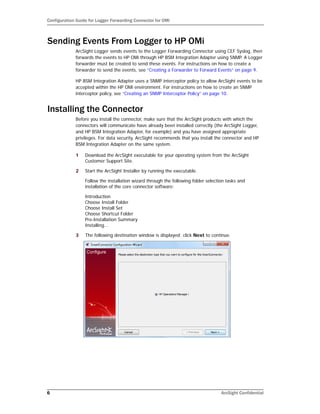
3 The following destination window is displayed; click Next to continue.
Configuration Guide for Logger Forwarding Connector for OMi
ArcSight Confidential 7
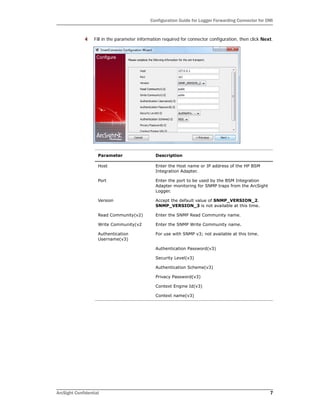
4 Fill in the parameter information required for connector configuration, then click Next.
Parameter Description
Host Enter the Host name or IP address of the HP BSM
Integration Adapter.
Port Enter the port to be used by the BSM Integration
Adapter monitoring for SNMP traps from the ArcSight
Logger.
Version Accept the default value of SNMP_VERSION_2.
SNMP_VERSION_3 is not available at this time.
Read Community(v2) Enter the SNMP Read Community name.
Write Community(v2 Enter the SNMP Write Community name.
Authentication
Username(v3)
For use with SNMP v3; not available at this time.
Authentication Password(v3)
Security Level(v3)
Authentication Scheme(v3)
Privacy Password(v3)
Context Engine Id(v3)
Context name(v3)
Configuration Guide for Logger Forwarding Connector for OMi
8 ArcSight Confidential
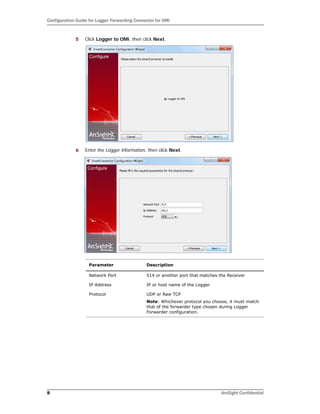
5 Click Logger to OMi, then click Next.
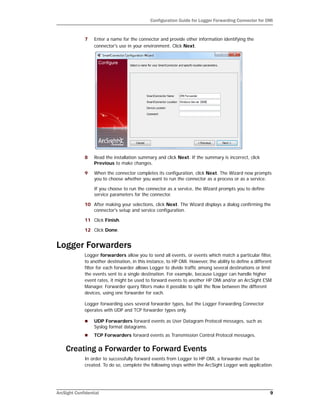
6 Enter the Logger information, then click Next.
Parameter Description
Network Port 514 or another port that matches the Receiver
IP Address IP or host name of the Logger
Protocol UDP or Raw TCP
Note: Whichever protocol you choose, it must match
that of the forwarder type chosen during Logger
Forwarder configuration.
Configuration Guide for Logger Forwarding Connector for OMi
ArcSight Confidential 9
7 Enter a name for the connector and provide other information identifying the
connector's use in your environment. Click Next.
8 Read the installation summary and click Next. If the summary is incorrect, click
Previous to make changes.
9 When the connector completes its configuration, click Next. The Wizard now prompts
you to choose whether you want to run the connector as a process or as a service.
If you choose to run the connector as a service, the Wizard prompts you to define
service parameters for the connector.
10 After making your selections, click Next. The Wizard displays a dialog confirming the
connector's setup and service configuration.
11 Click Finish.
12 Click Done.
Logger Forwarders
Logger forwarders allow you to send all events, or events which match a particular filter,
to another destination, in this instance, to HP OMi. However, the ability to define a different
filter for each forwarder allows Logger to divide traffic among several destinations or limit
the events sent to a single destination. For example, because Logger can handle higher
event rates, it might be used to forward events to another HP OMi and/or an ArcSight ESM
Manager. Forwarder query filters make it possible to split the flow between the different
devices, using one forwarder for each.
Logger forwarding uses several forwarder types, but the Logger Forwarding Connector
operates with UDP and TCP forwarder types only.
 UDP Forwarders forward events as User Datagram Protocol messages, such as
Syslog format datagrams.
 TCP Forwarders forward events as Transmission Control Protocol messages.
Creating a Forwarder to Forward Events
In order to successfully forward events from Logger to HP OMi, a forwarder must be
created. To do so, complete the following steps within the ArcSight Logger web application.
Configuration Guide for Logger Forwarding Connector for OMi
10 ArcSight Confidential
1 Click Configuration from the top-level menu bar.
2 Click Event Input/Output in the left panel.
3 Click the Forwarder tab, then click Add. The Add Forwarder page appears.
4 Enter a name for the new forwarder and choose either “UDP Forwarder” or “TCP
Forwarder”.
5 Click Next.
6 The Edit Forwarder page appears.
7 Within the Query field, create a query to filter the events sent to HP OMi, or leave the
default, NONE, to send all events.
8 Continue to fill in the remaining parameters, ensuring that the IP/Host field contains
the correct Logger Forwarding Connector IP address and that the Port number
matches that of the connector.
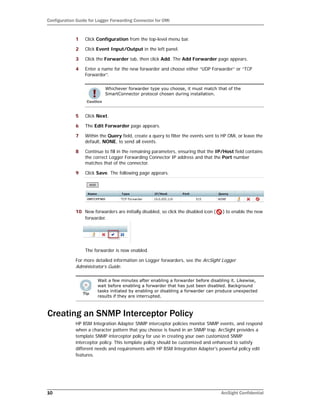
9 Click Save. The following page appears.
10 New forwarders are initially disabled, so click the disabled icon ( ) to enable the new
forwarder.
The forwarder is now enabled.
For more detailed information on Logger forwarders, see the ArcSight Logger
Administrator’s Guide.
Creating an SNMP Interceptor Policy
HP BSM Integration Adapter SNMP interceptor policies monitor SNMP events, and respond
when a character pattern that you choose is found in an SNMP trap. ArcSight provides a
template SNMP interceptor policy for use in creating your own customized SNMP
interceptor policy. This template policy should be customized and enhanced to satisfy
different needs and requirements with HP BSM Integration Adapter's powerful policy edit
features.
Whichever forwarder type you choose, it must match that of the
SmartConnector protocol chosen during installation.
Wait a few minutes after enabling a forwarder before disabling it. Likewise,
wait before enabling a forwarder that has just been disabled. Background
tasks initiated by enabling or disabling a forwarder can produce unexpected
results if they are interrupted.
Configuration Guide for Logger Forwarding Connector for OMi
ArcSight Confidential 11
Uploading Interceptor Template
After you have completed connector installation, navigate to
$ARCSIGHT_HOMEcurrentsystemagentconfigsmnp-policieshpom. This
folder provides policy files as a basic SNMP interceptor template. Copy or provide network
access to this folder.
Using the HP BSM Adapter to Import and Activate Policies
In the BSM Integration Adapter, you must import and activate the policy. To do so:
1 Click the Import icon in the BSM Integration Adapter UI.
2 Browse to find the policy files.
3 Select header and data files and click Open to import the files. The files will resolve
into a policy listed in the BSM Integration Adapter UI. You must import both files for
the policy to function correctly.
4 Select the policy and click the Activate icon.
5 Configure the HP Operations Agent to receive SNMPv2 traps by setting the
SNMP_SESSION_MODE variable. Refer to the Using HP BSM Integration Adapter Guide
for details on the HP BSM Adapter.
Troubleshooting Tips
Duplicate Events
If there appear to be duplicate events forwarded to the HP OMi console:
1 Check and adjust deduplication options as needed.
2 If, after modifying deduplication options, there still appear to be duplicate events,
check the Custom Message Attributes (event details and data), and apply rules to
differentiate the events.
Refer to the HP Business Service Management Using Operations Management Guide
and help for details.
Dropped Events
If you notice that some events forwarded from ArcSight ESM/Logger are dropped, verify
whether the Agent Severity is set correctly in those events. The default SNMP interceptor
policy provided by ArcSight in the connector distribution has rules to pick up and forward
SNMP Traps from ArcSight ESM/Logger based on the Agent Severity. Events that do not
have Agent Severity set are dropped and not forwarded by the SNMP interceptor policy. If
the dropped events are correlated events from ESM, make sure that the rules on ESM are
set for the correct Agent Severity in the correlated events they generate. If the dropped
events are normalized events from devices, then verify that the originating connector that
has normalized the event has mapped the Agent Severity correctly from the Device
Severity. If the originating connector (that is not setting the Agent Severity) is a
FlexConnector, review the mappings and map all of the device severities to one of these
Agent Severity values: Low, Medium, High, or Very-High. If the connector is a supported
connector, contact customer support.
Configuration Guide for Logger Forwarding Connector for OMi
12 ArcSight Confidential
Adjusting the Event Processing Rate
The default event processing rate for forwarding events from Logger to HP OMi is 10 eps.
If this rate proves excessive for your system, HP OMi might drop some incoming events. If
events are being dropped, decrease the event rate until you find that all events have
arrived.
If this occurs, you can adjust the rate at which events are forwarded to HP OMi. To do so,
you will need to change the event processing rate within your XML properties file.
To adjust the event processing rate:
1 Stop the currently running SmartConnector from operating.
2 From a Windows command line, access your XML properties file using the command
cd %ARCSIGHT_HOME%/current/user/agent
3 Use WordPad or any XML Editor to open the .xml file for your HP OMi destination,
similar to the example below:
0Ajv5S8BABCAAeabNXP5Rw==.xml
4 From within the .xml file, search for the following:
ProcessingSettings.ThrottleRate="10"
This value controls the current processing event rate, and has a default value of
10 eps.
5 Change this value to the desired rate of events per second. For example, to lower the
rate of events to 5 eps, change the value after the string to 5:
ProcessingSettings.ThrottleRate="5"
6 Save the .xml file and exit the XML editor.
7 Restart the SmartConnector.
If there are multiple destinations, repeat the steps above to change the
rate for each destination, as required.

ArcSight Logger Forwarding Connector for HP Operations Manager i

  • 1.
    SmartConnector™ Configuration Guide for ArcSight™Logger Forwarding Connector for HP Operations Manager i June, 2011
  • 2.
    SmartConnectorTM Guide for ArcSight™Logger Forwarding Connector for HP Operations Manager i Copyright © 2001-2011 ArcSight, LLC. All rights reserved. ArcSight and the ArcSight logo are registered trademarks of ArcSight in the United States and in some other countries. Where not registered, these marks and ArcSight Console, ArcSight ESM, ArcSight Express, ArcSight Manager, ArcSight Web, ArcSight Enterprise View, FlexConnector, ArcSight FraudView, ArcSight Identity View, ArcSight Interactive Discovery, ArcSight Logger, ArcSight NCM, SmartConnector, ArcSight Threat Detector, ArcSight TRM, and ArcSight Viewer, are trademarks of ArcSight, LLC. All other brands, products and company names used herein may be trademarks of their respective owners. Follow this link to see a complete statement of ArcSight's copyrights, trademarks, and acknowledgements: http://www.arcsight.com/copyrightnotice The network information used in the examples in this document (including IP addresses and hostnames) is for illustration purposes only. This document is ArcSight Confidential. Revision History Release Notes template version: 2.1.0 ArcSight Customer Support Date Description 06/2011 First release of Logger Forwarding Connector for HP OMi documentation. Phone 1-866-535-3285 (North America) +44 (0)870 141 7487 (EMEA) E-mail support@arcsight.com Support Web Site http://www.arcsight.com/supportportal Customer Forum https://forum.arcsight.com
  • 3.
    ArcSight Confidential 3 Contents ConfigurationGuide for Logger Forwarding Connector for HP OMi ......................................................... 5 Sending Events From Logger to HP OMi .............................................................................. 6 Installing the Connector ................................................................................................... 6 Logger Forwarders .......................................................................................................... 9 Creating a Forwarder to Forward Events ....................................................................... 9 Creating an SNMP Interceptor Policy ................................................................................ 10 Uploading Interceptor Template ................................................................................ 11 Using the HP BSM Adapter to Import and Activate Policies ............................................ 11 Troubleshooting Tips ............................................................................................... 11 Duplicate Events ............................................................................................... 11 Dropped Events ................................................................................................ 11 Adjusting the Event Processing Rate ................................................................................ 12
  • 4.
  • 5.
    ArcSight Confidential 5 ConfigurationGuide for Logger Forwarding Connector for HP OMi This guide provides information on installing and configuring the Logger Forwarding Connector for HP OMi. This software supports Logger versions 5.0 and 5.1, and OMi v9.0.1. ArcSight Logger is a log management solution that is optimized for extremely high event throughput, efficient long-term storage, and rapid data analysis. Logger receives and stores events; supports search, retrieval, and reporting; and can forward selected events.The ArcSight Logger Forwarding Connector allows you to send these event logs from Logger to the HP Operations Manager i (HP OMi). HP Operations Manager i (HP OMi) enables the HP BSM Operations Management component in BSM. BSM Operations Management provides a complete monitoring solution, consolidating all IT infrastructure monitoring in a central event console, and relating the events to the IT services that depend on that infrastructure. See the HP Business Service Management Operations Manager i Concepts Guide for details on BSM. HP BSM Integration Adapter is an integration solution that enables you to monitor event sources, and, if certain conditions apply, to forward the detected events as HP Business Service Management (BSM) events directly to BSM Operations Management. See the Using HP BSM Integration Adapter Guide for details on HP BSM Integration Adapter. OMi users are strongly encouraged to apply the latest patch, OMI_00005 (build 09.01.210), to obtain critical fixes before running this integration. “Sending Events From Logger to HP OMi” on page 6 “Sending Events From Logger to HP OMi” on page 6 “Installing the Connector” on page 6 “Logger Forwarders” on page 9 “Creating an SNMP Interceptor Policy” on page 10 “Uploading Interceptor Template” on page 11 “Using the HP BSM Adapter to Import and Activate Policies” on page 11 “Troubleshooting Tips” on page 11 “Adjusting the Event Processing Rate” on page 12
  • 6.
    Configuration Guide forLogger Forwarding Connector for OMi 6 ArcSight Confidential Sending Events From Logger to HP OMi ArcSight Logger sends events to the Logger Forwarding Connector using CEF Syslog, then forwards the events to HP OMi through HP BSM Integration Adapter using SNMP. A Logger forwarder must be created to send these events. For instructions on how to create a forwarder to send the events, see “Creating a Forwarder to Forward Events” on page 9. HP BSM Integration Adapter uses a SNMP interceptor policy to allow ArcSight events to be accepted within the HP OMi environment. For instructions on how to create an SNMP interceptor policy, see “Creating an SNMP Interceptor Policy” on page 10. Installing the Connector Before you install the connector, make sure that the ArcSight products with which the connectors will communicate have already been installed correctly (the ArcSight Logger, and HP BSM Integration Adapter, for example) and you have assigned appropriate privileges. For data security, ArcSight recommends that you install the connector and HP BSM Integration Adapter on the same system. 1 Download the ArcSight executable for your operating system from the ArcSight Customer Support Site. 2 Start the ArcSight Installer by running the executable. Follow the installation wizard through the following folder selection tasks and installation of the core connector software: Introduction Choose Install Folder Choose Install Set Choose Shortcut Folder Pre-Installation Summary Installing... 3 The following destination window is displayed; click Next to continue.
  • 7.
    Configuration Guide forLogger Forwarding Connector for OMi ArcSight Confidential 7 4 Fill in the parameter information required for connector configuration, then click Next. Parameter Description Host Enter the Host name or IP address of the HP BSM Integration Adapter. Port Enter the port to be used by the BSM Integration Adapter monitoring for SNMP traps from the ArcSight Logger. Version Accept the default value of SNMP_VERSION_2. SNMP_VERSION_3 is not available at this time. Read Community(v2) Enter the SNMP Read Community name. Write Community(v2 Enter the SNMP Write Community name. Authentication Username(v3) For use with SNMP v3; not available at this time. Authentication Password(v3) Security Level(v3) Authentication Scheme(v3) Privacy Password(v3) Context Engine Id(v3) Context name(v3)
  • 8.
    Configuration Guide forLogger Forwarding Connector for OMi 8 ArcSight Confidential 5 Click Logger to OMi, then click Next. 6 Enter the Logger information, then click Next. Parameter Description Network Port 514 or another port that matches the Receiver IP Address IP or host name of the Logger Protocol UDP or Raw TCP Note: Whichever protocol you choose, it must match that of the forwarder type chosen during Logger Forwarder configuration.
  • 9.
    Configuration Guide forLogger Forwarding Connector for OMi ArcSight Confidential 9 7 Enter a name for the connector and provide other information identifying the connector's use in your environment. Click Next. 8 Read the installation summary and click Next. If the summary is incorrect, click Previous to make changes. 9 When the connector completes its configuration, click Next. The Wizard now prompts you to choose whether you want to run the connector as a process or as a service. If you choose to run the connector as a service, the Wizard prompts you to define service parameters for the connector. 10 After making your selections, click Next. The Wizard displays a dialog confirming the connector's setup and service configuration. 11 Click Finish. 12 Click Done. Logger Forwarders Logger forwarders allow you to send all events, or events which match a particular filter, to another destination, in this instance, to HP OMi. However, the ability to define a different filter for each forwarder allows Logger to divide traffic among several destinations or limit the events sent to a single destination. For example, because Logger can handle higher event rates, it might be used to forward events to another HP OMi and/or an ArcSight ESM Manager. Forwarder query filters make it possible to split the flow between the different devices, using one forwarder for each. Logger forwarding uses several forwarder types, but the Logger Forwarding Connector operates with UDP and TCP forwarder types only.  UDP Forwarders forward events as User Datagram Protocol messages, such as Syslog format datagrams.  TCP Forwarders forward events as Transmission Control Protocol messages. Creating a Forwarder to Forward Events In order to successfully forward events from Logger to HP OMi, a forwarder must be created. To do so, complete the following steps within the ArcSight Logger web application.
  • 10.
    Configuration Guide forLogger Forwarding Connector for OMi 10 ArcSight Confidential 1 Click Configuration from the top-level menu bar. 2 Click Event Input/Output in the left panel. 3 Click the Forwarder tab, then click Add. The Add Forwarder page appears. 4 Enter a name for the new forwarder and choose either “UDP Forwarder” or “TCP Forwarder”. 5 Click Next. 6 The Edit Forwarder page appears. 7 Within the Query field, create a query to filter the events sent to HP OMi, or leave the default, NONE, to send all events. 8 Continue to fill in the remaining parameters, ensuring that the IP/Host field contains the correct Logger Forwarding Connector IP address and that the Port number matches that of the connector. 9 Click Save. The following page appears. 10 New forwarders are initially disabled, so click the disabled icon ( ) to enable the new forwarder. The forwarder is now enabled. For more detailed information on Logger forwarders, see the ArcSight Logger Administrator’s Guide. Creating an SNMP Interceptor Policy HP BSM Integration Adapter SNMP interceptor policies monitor SNMP events, and respond when a character pattern that you choose is found in an SNMP trap. ArcSight provides a template SNMP interceptor policy for use in creating your own customized SNMP interceptor policy. This template policy should be customized and enhanced to satisfy different needs and requirements with HP BSM Integration Adapter's powerful policy edit features. Whichever forwarder type you choose, it must match that of the SmartConnector protocol chosen during installation. Wait a few minutes after enabling a forwarder before disabling it. Likewise, wait before enabling a forwarder that has just been disabled. Background tasks initiated by enabling or disabling a forwarder can produce unexpected results if they are interrupted.
  • 11.
    Configuration Guide forLogger Forwarding Connector for OMi ArcSight Confidential 11 Uploading Interceptor Template After you have completed connector installation, navigate to $ARCSIGHT_HOMEcurrentsystemagentconfigsmnp-policieshpom. This folder provides policy files as a basic SNMP interceptor template. Copy or provide network access to this folder. Using the HP BSM Adapter to Import and Activate Policies In the BSM Integration Adapter, you must import and activate the policy. To do so: 1 Click the Import icon in the BSM Integration Adapter UI. 2 Browse to find the policy files. 3 Select header and data files and click Open to import the files. The files will resolve into a policy listed in the BSM Integration Adapter UI. You must import both files for the policy to function correctly. 4 Select the policy and click the Activate icon. 5 Configure the HP Operations Agent to receive SNMPv2 traps by setting the SNMP_SESSION_MODE variable. Refer to the Using HP BSM Integration Adapter Guide for details on the HP BSM Adapter. Troubleshooting Tips Duplicate Events If there appear to be duplicate events forwarded to the HP OMi console: 1 Check and adjust deduplication options as needed. 2 If, after modifying deduplication options, there still appear to be duplicate events, check the Custom Message Attributes (event details and data), and apply rules to differentiate the events. Refer to the HP Business Service Management Using Operations Management Guide and help for details. Dropped Events If you notice that some events forwarded from ArcSight ESM/Logger are dropped, verify whether the Agent Severity is set correctly in those events. The default SNMP interceptor policy provided by ArcSight in the connector distribution has rules to pick up and forward SNMP Traps from ArcSight ESM/Logger based on the Agent Severity. Events that do not have Agent Severity set are dropped and not forwarded by the SNMP interceptor policy. If the dropped events are correlated events from ESM, make sure that the rules on ESM are set for the correct Agent Severity in the correlated events they generate. If the dropped events are normalized events from devices, then verify that the originating connector that has normalized the event has mapped the Agent Severity correctly from the Device Severity. If the originating connector (that is not setting the Agent Severity) is a FlexConnector, review the mappings and map all of the device severities to one of these Agent Severity values: Low, Medium, High, or Very-High. If the connector is a supported connector, contact customer support.
  • 12.
    Configuration Guide forLogger Forwarding Connector for OMi 12 ArcSight Confidential Adjusting the Event Processing Rate The default event processing rate for forwarding events from Logger to HP OMi is 10 eps. If this rate proves excessive for your system, HP OMi might drop some incoming events. If events are being dropped, decrease the event rate until you find that all events have arrived. If this occurs, you can adjust the rate at which events are forwarded to HP OMi. To do so, you will need to change the event processing rate within your XML properties file. To adjust the event processing rate: 1 Stop the currently running SmartConnector from operating. 2 From a Windows command line, access your XML properties file using the command cd %ARCSIGHT_HOME%/current/user/agent 3 Use WordPad or any XML Editor to open the .xml file for your HP OMi destination, similar to the example below: 0Ajv5S8BABCAAeabNXP5Rw==.xml 4 From within the .xml file, search for the following: ProcessingSettings.ThrottleRate="10" This value controls the current processing event rate, and has a default value of 10 eps. 5 Change this value to the desired rate of events per second. For example, to lower the rate of events to 5 eps, change the value after the string to 5: ProcessingSettings.ThrottleRate="5" 6 Save the .xml file and exit the XML editor. 7 Restart the SmartConnector. If there are multiple destinations, repeat the steps above to change the rate for each destination, as required.