
Introduction to Android
Vidya T
opa Institute of P
rofessional Studies
www.vtips.org
Programming Tutorial(Applications)
• Transmitting SMS messages across the network
Intent and IntentFilter
Intents request for an action to be performed
and supports interaction among the Android
components.
◦ For an activity it conveys a request to present an image
to the user
◦ For broadcast receivers, the Intent object names the
action being announced.

Intent Filter Registers Activities, Services and
Broadcast Receivers(as being capable of
performing an action on a set of data).
SMS Sending
• STEP 1
– In the AndroidManifest.xml file, add the two permissions - SEND_SMS
and RECEIVE_SMS.

• STEP 2
– In the main.xml, add Text view to display "Enter the phone number of
recipient“ and "Message"
– EditText with id txtPhoneNo and txtMessage
– Add the button ID "Send SMS“
• Step 3 Import Classes and Interfaces
import android.app.Activity;
import android.app.PendingIntent;
import android.content.Intent;
import android.os.Bundle;
import android.telephony.SmsManager;
import android.view.View;
import android.widget.Button;
import android.widget.EditText;
import android.widget.Toast;
Step 4 Write the SMS class
public class SMS extends Activity {
Button btnSendSMS;
EditText txtPhoneNo;
EditText txtMessage;
/** Called when the activity is first created. */
@Override
public void onCreate(Bundle savedInstanceState) {
super.onCreate(savedInstanceState);
setContentView(R.layout.main);
btnSendSMS = (Button) findViewById(R.id.btnSendSMS);
txtPhoneNo = (EditText) findViewById(R.id.txtPhoneNo);
txtMessage = (EditText) findViewById(R.id.txtMessage);
btnSendSMS.setOnClickListener(new View.OnClickListener() {
public void onClick(View v) {
String phoneNo = txtPhoneNo.getText().toString();
String message = txtMessage.getText().toString();
if (phoneNo.length()>0 && message.length()>0)
sendSMS(phoneNo, message);
else
Toast.makeText(getBaseContext(),
"Please enter both phone number and message.",
Toast.LENGTH_SHORT).show();
}
});
}
}

SMS Sending

Input from the
user (i.e., the
phone no, text
message and
sendSMS is
implemented).
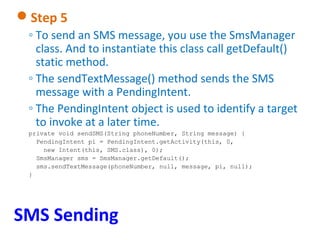
Step 5
◦ To send an SMS message, you use the SmsManager
class. And to instantiate this class call getDefault()
static method.
◦ The sendTextMessage() method sends the SMS
message with a PendingIntent.
◦ The PendingIntent object is used to identify a target
to invoke at a later time.
private void sendSMS(String phoneNumber, String message) {
PendingIntent pi = PendingIntent.getActivity(this, 0,
new Intent(this, SMS.class), 0);
SmsManager sms = SmsManager.getDefault();
sms.sendTextMessage(phoneNumber, null, message, pi, null);
}

SMS Sending
SMS Sending

Receiving SMS
Find Us
• Facebookhttps://www.facebook.com/vtips.org
• Twitterhttps://twitter.com/v_vtips
• Linked Inhttp://www.linkedin.com/company/vtips

Android introduction by vidya topa

  • 1.
    Introduction to Android VidyaT opa Institute of P rofessional Studies www.vtips.org
  • 16.
  • 17.
    Intent and IntentFilter Intentsrequest for an action to be performed and supports interaction among the Android components. ◦ For an activity it conveys a request to present an image to the user ◦ For broadcast receivers, the Intent object names the action being announced. Intent Filter Registers Activities, Services and Broadcast Receivers(as being capable of performing an action on a set of data).
  • 18.
    SMS Sending • STEP1 – In the AndroidManifest.xml file, add the two permissions - SEND_SMS and RECEIVE_SMS. • STEP 2 – In the main.xml, add Text view to display "Enter the phone number of recipient“ and "Message" – EditText with id txtPhoneNo and txtMessage – Add the button ID "Send SMS“
  • 19.
    • Step 3Import Classes and Interfaces import android.app.Activity; import android.app.PendingIntent; import android.content.Intent; import android.os.Bundle; import android.telephony.SmsManager; import android.view.View; import android.widget.Button; import android.widget.EditText; import android.widget.Toast;
  • 20.
    Step 4 Writethe SMS class public class SMS extends Activity { Button btnSendSMS; EditText txtPhoneNo; EditText txtMessage; /** Called when the activity is first created. */ @Override public void onCreate(Bundle savedInstanceState) { super.onCreate(savedInstanceState); setContentView(R.layout.main); btnSendSMS = (Button) findViewById(R.id.btnSendSMS); txtPhoneNo = (EditText) findViewById(R.id.txtPhoneNo); txtMessage = (EditText) findViewById(R.id.txtMessage); btnSendSMS.setOnClickListener(new View.OnClickListener() { public void onClick(View v) { String phoneNo = txtPhoneNo.getText().toString(); String message = txtMessage.getText().toString(); if (phoneNo.length()>0 && message.length()>0) sendSMS(phoneNo, message); else Toast.makeText(getBaseContext(), "Please enter both phone number and message.", Toast.LENGTH_SHORT).show(); } }); } } SMS Sending Input from the user (i.e., the phone no, text message and sendSMS is implemented).
  • 21.
    Step 5 ◦ Tosend an SMS message, you use the SmsManager class. And to instantiate this class call getDefault() static method. ◦ The sendTextMessage() method sends the SMS message with a PendingIntent. ◦ The PendingIntent object is used to identify a target to invoke at a later time. private void sendSMS(String phoneNumber, String message) { PendingIntent pi = PendingIntent.getActivity(this, 0, new Intent(this, SMS.class), 0); SmsManager sms = SmsManager.getDefault(); sms.sendTextMessage(phoneNumber, null, message, pi, null); } SMS Sending
  • 22.
  • 25.
    Find Us • Facebookhttps://www.facebook.com/vtips.org •Twitterhttps://twitter.com/v_vtips • Linked Inhttp://www.linkedin.com/company/vtips