Khaleel Jageer
Villupuram Gnu/Linux Users Group
.
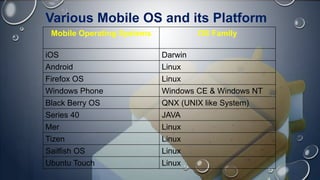
Various Mobile OS and its Platform
Mobile Operating Systems OS Family
iOS Darwin
Android Linux
Firefox OS Linux
Windows Phone Windows CE & Windows NT
Black Berry OS QNX (UNIX like System)
Series 40 JAVA
Mer Linux
Tizen Linux
Sailfish OS Linux
Ubuntu Touch Linux
1.What is Android???
1.Why Android???
1.What it do???
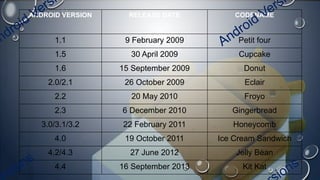
ANDROID VERSION RELEASE DATE CODENAME
1.1 9 February 2009 Petit four
1.5 30 April 2009 Cupcake
1.6 15 September 2009 Donut
2.0/2.1 26 October 2009 Eclair
2.2 20 May 2010 Froyo
2.3 6 December 2010 Gingerbread
3.0/3.1/3.2 22 February 2011 Honeycomb
4.0 19 October 2011 Ice Cream Sandwich
4.2/4.3 27 June 2012 Jelly Bean
4.4 16 September 2013 Kit Kat
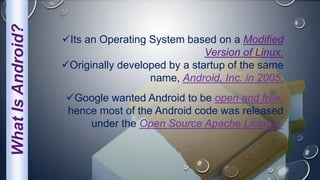
WhatIsAndroid?
Its an Operating System based on a Modified
Version of Linux.
Originally developed by a startup of the same
name, Android, Inc. in 2005.
Google wanted Android to be open and free;
hence most of the Android code was released
under the Open Source Apache License.
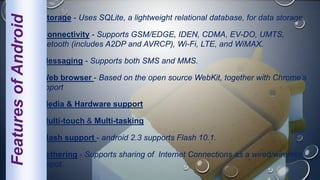
Storage - Uses SQLite, a lightweight relational database, for data storage.
Connectivity - Supports GSM/EDGE, IDEN, CDMA, EV-DO, UMTS,
Bluetooth (includes A2DP and AVRCP), Wi-Fi, LTE, and WiMAX.
Messaging - Supports both SMS and MMS.
Web browser - Based on the open source WebKit, together with Chrome’s
Support
Media & Hardware support
Multi-touch & Multi-tasking
Flash support - android 2.3 supports Flash 10.1.
Tethering - Supports sharing of Internet Connections as a wired/wireless
hotspot.
FeaturesofAndroid
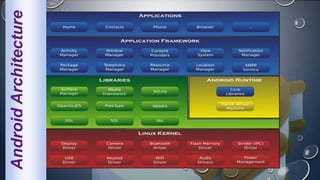
AndroidArchitecture
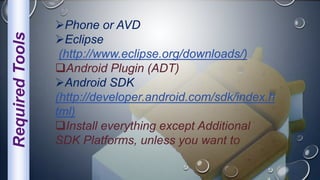
Phone or AVD
Eclipse
(http://www.eclipse.org/downloads/)
Android Plugin (ADT)
Android SDK
(http://developer.android.com/sdk/index.h
tml)
Install everything except Additional
SDK Platforms, unless you want to
RequiredTools
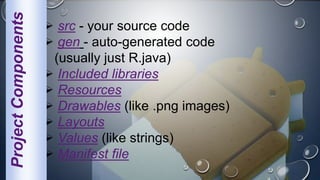
 src - your source code
 gen - auto-generated code
(usually just R.java)
 Included libraries
 Resources
 Drawables (like .png images)
 Layouts
 Values (like strings)
 Manifest file
ProjectComponents
XML Used to define some of the resources

 Layouts (UI)
 Strings
Manifest file
Shouldn't usually have to edit it directly, Eclipse
can do that for you
Preferred way of creating UI’s
Separates the description of the layout from any
actual code that controls it
Can easily take a UI from one platform to another
RClass
Auto-generated: you shouldn't edit it
Contains IDs of the project resources
Enforces good software engineering
Use findViewById and Resources object to get
access to the resources
Ex. Button b = (Button) findViewById
(R.id.button1);
Ex. getResources().getString(R.string.hello));
Layouts
Eclipse has a great UI creator
 Generates the XML for you
Composed of View objects
Can be specified for portrait and landscape
mode
Use same file name, so can make
completely different UIs for the orientations
without modifying any code
ManifestFile Contains characteristics about your application
When have more than one Activity in app, NEED
to specify it in manifest file
 Go to graphical view of the manifest file
 Add an Activity in the bottom right
 Browse for the name of the activity
Need to specify Services and other components
too
Also important to define permissions and external
libraries, like Google Maps API
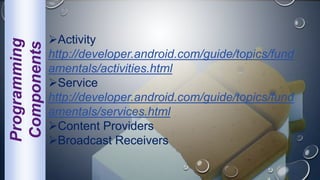
Programming
Components Activity
http://developer.android.com/guide/topics/fund
amentals/activities.html
Service
http://developer.android.com/guide/topics/fund
amentals/services.html
Content Providers
Broadcast Receivers
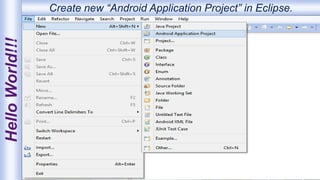
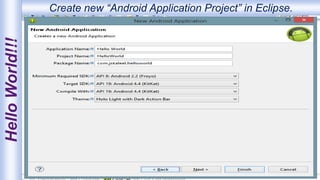
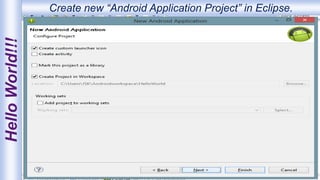
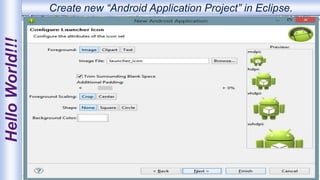
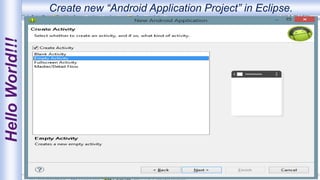
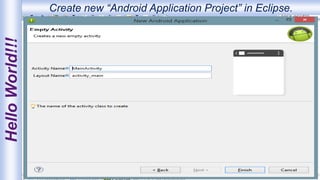
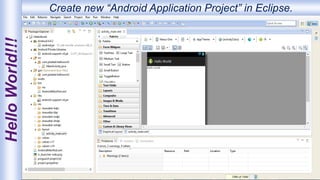
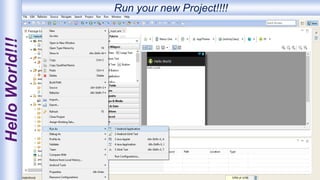
HelloWorld!!! Create new “Android Application Project” in Eclipse.
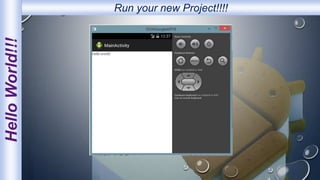
HelloWorld!!! Run your new Project!!!!
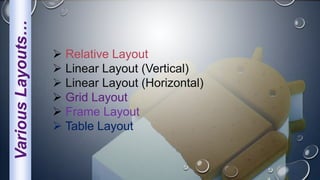
VariousLayouts…
 Relative Layout
 Linear Layout (Vertical)
 Linear Layout (Horizontal)
 Grid Layout
 Frame Layout
 Table Layout
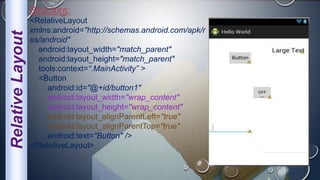
RelativeLayout
Structure:
<RelativeLayout
xmlns:android="http://schemas.android.com/apk/r
es/android"
android:layout_width="match_parent"
android:layout_height="match_parent"
tools:context=“.MainActivity” >
<Button
android:id="@+id/button1"
android:layout_width="wrap_content"
android:layout_height="wrap_content"
android:layout_alignParentLeft="true"
android:layout_alignParentTop="true"
android:text="Button" />
</RelativeLayout>
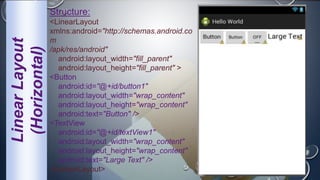
LinearLayout
(Horizontal)
Structure:
<LinearLayout
xmlns:android="http://schemas.android.co
m
/apk/res/android"
android:layout_width="fill_parent"
android:layout_height="fill_parent" >
<Button
android:id="@+id/button1"
android:layout_width="wrap_content"
android:layout_height="wrap_content"
android:text="Button" />
<TextView
android:id="@+id/textView1"
android:layout_width="wrap_content"
android:layout_height="wrap_content"
android:text="Large Text" />
</LinearLayout>
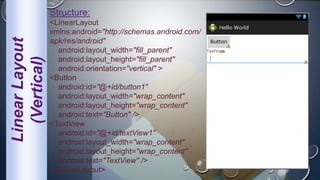
LinearLayout
(Vertical)
Structure:
<LinearLayout
xmlns:android="http://schemas.android.com/
apk/res/android"
android:layout_width="fill_parent"
android:layout_height="fill_parent"
android:orientation="vertical" >
<Button
android:id="@+id/button1"
android:layout_width="wrap_content"
android:layout_height="wrap_content"
android:text="Button" />
<TextView
android:id="@+id/textView1"
android:layout_width="wrap_content"
android:layout_height="wrap_content"
android:text="TextView" />
</LinearLayout>
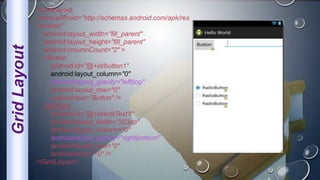
GridLayout
<GridLayout
xmlns:android="http://schemas.android.com/apk/res
/android"
android:layout_width="fill_parent"
android:layout_height="fill_parent"
android:columnCount="2" >
<Button
android:id="@+id/button1"
android:layout_column="0"
android:layout_gravity="left|top"
android:layout_row="0"
android:text="Button" />
<EditText
android:id="@+id/editText1"
android:layout_width="323dp"
android:layout_column="0"
android:layout_gravity="right|bottom"
android:layout_row="0"
android:ems="10" />
</GridLayout>
WorkingwithIntent!!!
Calling Built-In Applications Using Intents.
Intent i = new Intent
(android.content.Intent.ACTION_VIEW,
Uri.parse(“http://www.amazon.com”));
startActivity(i);
To Make Call:
Intent i=new Intent
(android.content.Intent.ACTION_DIAL,Uri.parse(“tel:+918148308508));
To View Map:
Intent i=new Intent
(android.content.Intent.ACTION_VIEW,Uri.parse(“geo:12.25,79.30”));
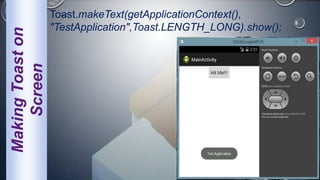
MakingToaston
Screen
Toast.makeText(getApplicationContext(),
"TestApplication",Toast.LENGTH_LONG).show();
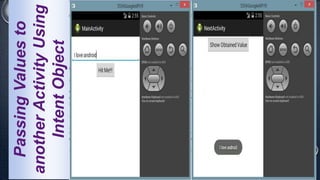
PassingValuesto
anotherActivityUsing
IntentObject
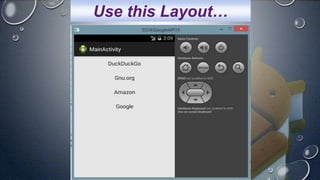
Use this Layout…
1.en.wikipedia.org/wiki/comparison_of_mobile_
operating_systems
2.en.wikipedia.org/wiki/list_of_custom_android
_firmware
3.developer.android.com/training/basics/firstap
p/starting-activity.html
4.http://stackoverflow.com/
5.http://www.wileyindia.com/
Android Application Development

Android Application Development