COURSE PLAN in Microsoft Advanced Productivity
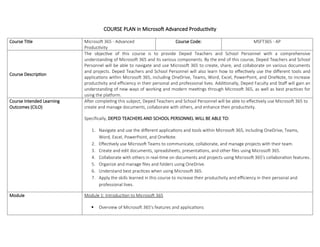
Course Title Microsoft 365 - Advanced
Productivity
Course Code: MSFT365 - AP
Course Description
The objective of this course is to provide Deped Teachers and School Personnel with a comprehensive
understanding of Microsoft 365 and its various components. By the end of this course, Deped Teachers and School
Personnel will be able to navigate and use Microsoft 365 to create, share, and collaborate on various documents
and projects. Deped Teachers and School Personnel will also learn how to effectively use the different tools and
applications within Microsoft 365, including OneDrive, Teams, Word, Excel, PowerPoint, and OneNote, to increase
productivity and efficiency in their personal and professional lives. Additionally, Deped Faculty and Staff will gain an
understanding of new ways of working and modern meetings through Microsoft 365, as well as best practices for
using the platform.
Course Intended Learning
Outcomes (CILO)
After completing this subject, Deped Teachers and School Personnel will be able to effectively use Microsoft 365 to
create and manage documents, collaborate with others, and enhance their productivity.
Specifically, DEPED TEACHERS AND SCHOOL PERSONNEL WILL BE ABLE TO:
1. Navigate and use the different applications and tools within Microsoft 365, including OneDrive, Teams,
Word, Excel, PowerPoint, and OneNote.
2. Effectively use Microsoft Teams to communicate, collaborate, and manage projects with their team.
3. Create and edit documents, spreadsheets, presentations, and other files using Microsoft 365.
4. Collaborate with others in real-time on documents and projects using Microsoft 365's collaboration features.
5. Organize and manage files and folders using OneDrive.
6. Understand best practices when using Microsoft 365.
7. Apply the skills learned in this course to increase their productivity and efficiency in their personal and
professional lives.
Module Module 1: Introduction to Microsoft 365
 Overview of Microsoft 365's features and applications
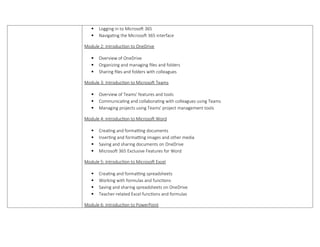
 Logging in to Microsoft 365
 Navigating the Microsoft 365 interface
Module 2: Introduction to OneDrive
 Overview of OneDrive
 Organizing and managing files and folders
 Sharing files and folders with colleagues
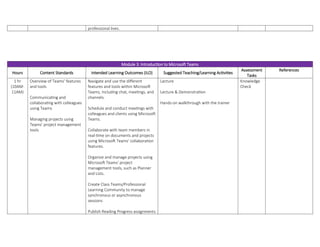
Module 3: Introduction to Microsoft Teams
 Overview of Teams' features and tools
 Communicating and collaborating with colleagues using Teams
 Managing projects using Teams' project management tools
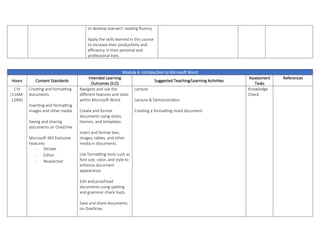
Module 4: Introduction to Microsoft Word
 Creating and formatting documents
 Inserting and formatting images and other media
 Saving and sharing documents on OneDrive
 Microsoft 365 Exclusive Features for Word
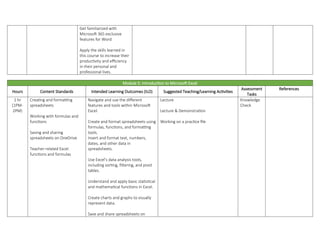
Module 5: Introduction to Microsoft Excel
 Creating and formatting spreadsheets
 Working with formulas and functions
 Saving and sharing spreadsheets on OneDrive
 Teacher-related Excel functions and formulas
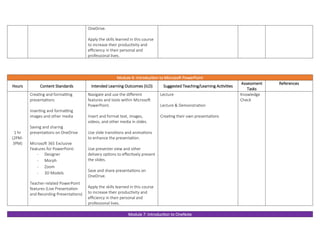
Module 6: Introduction to PowerPoint
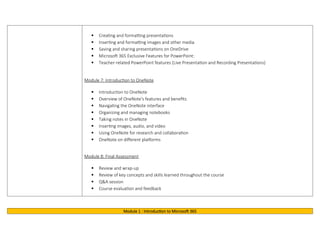
 Creating and formatting presentations
 Inserting and formatting images and other media
 Saving and sharing presentations on OneDrive
 Microsoft 365 Exclusive Features for PowerPoint:
 Teacher-related PowerPoint features (Live Presentation and Recording Presentations)
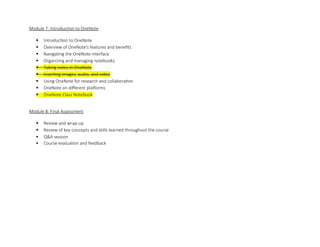
Module 7: Introduction to OneNote
 Introduction to OneNote
 Overview of OneNote's features and benefits
 Navigating the OneNote interface
 Organizing and managing notebooks
 Taking notes in OneNote
 Inserting images, audio, and video
 Using OneNote for research and collaboration
 OneNote on different platforms
Module 8: Final Assessment
 Review and wrap-up
 Review of key concepts and skills learned throughout the course
 Q&A session
 Course evaluation and feedback
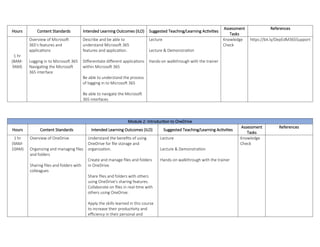
Module 1 : Introduction to Microsoft 365
Hours Content Standards Intended Learning Outcomes (ILO) Suggested Teaching/Learning Activities
Assessment
Tasks
References
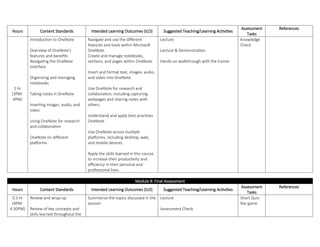
1 hr
(8AM-
9AM)
Overview of Microsoft
365's features and
applications
Logging in to Microsoft 365
Navigating the Microsoft
365 interface
Describe and be able to
understand Microsoft 365
features and application.
Differentiate different applications
within Microsoft 365
Be able to understand the process
of logging in to Microsoft 365
Be able to navigate the Microsoft
365 interfaces
Lecture
Lecture & Demonstration
Hands-on walkthrough with the trainer
Knowledge
Check
https://bit.ly/DepEdM365Support
Module 2: Introduction to OneDrive
Hours Content Standards Intended Learning Outcomes (ILO) Suggested Teaching/Learning Activities
Assessment
Tasks
References
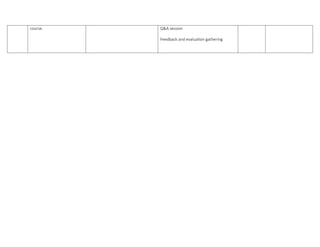
1 hr
(9AM-
10AM)
Overview of OneDrive
Organizing and managing files
and folders
Sharing files and folders with
colleagues
Understand the benefits of using
OneDrive for file storage and
organization.
Create and manage files and folders
in OneDrive.
Share files and folders with others
using OneDrive's sharing features.
Collaborate on files in real-time with
others using OneDrive.
Apply the skills learned in this course
to increase their productivity and
efficiency in their personal and
Lecture
Lecture & Demonstration
Hands-on walkthrough with the trainer
Knowledge
Check
professional lives.
Module 3: Introduction to Microsoft Teams
Hours Content Standards Intended Learning Outcomes (ILO) Suggested Teaching/Learning Activities
Assessment
Tasks
References
1 hr
(10AM-
11AM)
Overview of Teams' features
and tools
Communicating and
collaborating with colleagues
using Teams
Managing projects using
Teams' project management
tools
Navigate and use the different
features and tools within Microsoft
Teams, including chat, meetings, and
channels.
Schedule and conduct meetings with
colleagues and clients using Microsoft
Teams.
Collaborate with team members in
real-time on documents and projects
using Microsoft Teams' collaboration
features.
Organize and manage projects using
Microsoft Teams' project
management tools, such as Planner
and Lists.
Create Class Teams/Professional
Learning Community to manage
synchronous or asynchronous
sessions
Publish Reading Progress assignments
Lecture
Lecture & Demonstration
Hands-on walkthrough with the trainer
Knowledge
Check
to develop learners' reading fluency
Apply the skills learned in this course
to increase their productivity and
efficiency in their personal and
professional lives.
Module 4: Introduction to Microsoft Word
Hours Content Standards
Intended Learning
Outcomes (ILO)
Suggested Teaching/Learning Activities
Assessment
Tasks
References
1 hr
(11AM-
12NN)
Creating and formatting
documents
Inserting and formatting
images and other media
Saving and sharing
documents on OneDrive
Microsoft 365 Exclusive
Features:
- Dictate
- Editor
- Researcher
Navigate and use the
different features and tools
within Microsoft Word.
Create and format
documents using styles,
themes, and templates.
Insert and format text,
images, tables, and other
media in documents.
Use formatting tools such as
font size, color, and style to
enhance document
appearance.
Edit and proofread
documents using spelling
and grammar check tools.
Save and share documents
on OneDrive.
Lecture
Lecture & Demonstration
Creating a formatting mock document
Knowledge
Check
Get familiarized with
Microsoft 365 exclusive
features for Word
Apply the skills learned in
this course to increase their
productivity and efficiency
in their personal and
professional lives.
Module 5: Introduction to Microsoft Excel
Hours Content Standards Intended Learning Outcomes (ILO) Suggested Teaching/Learning Activities
Assessment
Tasks
References
1 hr
(1PM-
2PM)
Creating and formatting
spreadsheets
Working with formulas and
functions
Saving and sharing
spreadsheets on OneDrive
Teacher-related Excel
functions and formulas
Navigate and use the different
features and tools within Microsoft
Excel.
Create and format spreadsheets using
formulas, functions, and formatting
tools.
Insert and format text, numbers,
dates, and other data in
spreadsheets.
Use Excel's data analysis tools,
including sorting, filtering, and pivot
tables.
Understand and apply basic statistical
and mathematical functions in Excel.
Create charts and graphs to visually
represent data.
Save and share spreadsheets on
Lecture
Lecture & Demonstration
Working on a practice file
Knowledge
Check
OneDrive.
Apply the skills learned in this course
to increase their productivity and
efficiency in their personal and
professional lives.
Module 6: Introduction to Microsoft PowerPoint
Hours Content Standards Intended Learning Outcomes (ILO) Suggested Teaching/Learning Activities
Assessment
Tasks
References
1 hr
(2PM-
3PM)
Creating and formatting
presentations
Inserting and formatting
images and other media
Saving and sharing
presentations on OneDrive
Microsoft 365 Exclusive
Features for PowerPoint:
- Designer
- Morph
- Zoom
- 3D Models
Teacher-related PowerPoint
features (Live Presentation
and Recording Presentations)
Navigate and use the different
features and tools within Microsoft
PowerPoint.
Insert and format text, images,
videos, and other media in slides.
Use slide transitions and animations
to enhance the presentation.
Use presenter view and other
delivery options to effectively present
the slides.
Save and share presentations on
OneDrive.
Apply the skills learned in this course
to increase their productivity and
efficiency in their personal and
professional lives.
Lecture
Lecture & Demonstration
Creating their own presentations
Knowledge
Check
Module 7: Introduction to OneNote
Hours Content Standards Intended Learning Outcomes (ILO) Suggested Teaching/Learning Activities
Assessment
Tasks
References
1 hr
(3PM-
4PM)
Introduction to OneNote
Overview of OneNote's
features and benefits
Navigating the OneNote
interface
Organizing and managing
notebooks
Taking notes in OneNote
Inserting images, audio, and
video
Using OneNote for research
and collaboration
OneNote on different
platforms
Navigate and use the different
features and tools within Microsoft
OneNote.
Create and manage notebooks,
sections, and pages within OneNote.
Insert and format text, images, audio,
and video into OneNote.
Use OneNote for research and
collaboration, including capturing
webpages and sharing notes with
others.
Understand and apply best practices
OneNote.
Use OneNote across multiple
platforms, including desktop, web,
and mobile devices.
Apply the skills learned in this course
to increase their productivity and
efficiency in their personal and
professional lives.
Lecture
Lecture & Demonstration
Hands-on walkthrough with the trainer
Knowledge
Check
Module 8: Final Assessment
Hours Content Standards Intended Learning Outcomes (ILO) Suggested Teaching/Learning Activities
Assessment
Tasks
References
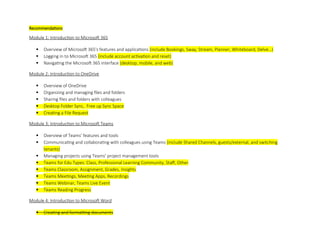
0.5 hr
(4PM-
4:30PM)
Review and wrap-up
Review of key concepts and
skills learned throughout the
Summarize the topics discussed in the
session
Lecture
Assessment Check
Short Quiz-
like game
course. Q&A session
Feedback and evaluation gathering
Recommendations
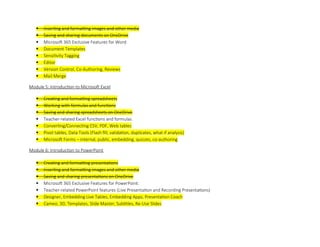
Module 1: Introduction to Microsoft 365
 Overview of Microsoft 365's features and applications (include Bookings, Sway, Stream, Planner, Whiteboard, Delve…)
 Logging in to Microsoft 365 (include account activation and reset)
 Navigating the Microsoft 365 interface (desktop, mobile, and web)
Module 2: Introduction to OneDrive
 Overview of OneDrive
 Organizing and managing files and folders
 Sharing files and folders with colleagues
 Desktop Folder Sync, Free up Sync Space
 Creating a File Request
Module 3: Introduction to Microsoft Teams
 Overview of Teams' features and tools
 Communicating and collaborating with colleagues using Teams (include Shared Channels, guests/external, and switching
tenants)
 Managing projects using Teams' project management tools
 Teams for Edu Types: Class, Professional Learning Community, Staff, Other
 Teams Classroom, Assignment, Grades, Insights
 Teams Meetings, Meeting Apps, Recordings
 Teams Webinar, Teams Live Event
 Teams Reading Progress
Module 4: Introduction to Microsoft Word
 Creating and formatting documents
 Inserting and formatting images and other media
 Saving and sharing documents on OneDrive
 Microsoft 365 Exclusive Features for Word
 Document Templates
 Sensitivity Tagging
 Editor
 Version Control, Co-Authoring, Reviews
 Mail Merge
Module 5: Introduction to Microsoft Excel
 Creating and formatting spreadsheets
 Working with formulas and functions
 Saving and sharing spreadsheets on OneDrive
 Teacher-related Excel functions and formulas
 Converting/Connecting CSV, PDF, Web tables
 Pivot tables, Data Tools (Flash fill, validation, duplicates, what if analysis)
 Microsoft Forms – internal, public, embedding, quizzes, co-authoring
Module 6: Introduction to PowerPoint
 Creating and formatting presentations
 Inserting and formatting images and other media
 Saving and sharing presentations on OneDrive
 Microsoft 365 Exclusive Features for PowerPoint:
 Teacher-related PowerPoint features (Live Presentation and Recording Presentations)
 Designer, Embedding Live Tables, Embedding Apps, Presentation Coach
 Cameo, 3D, Templates, Slide Master, Subtitles, Re-Use Slides
Module 7: Introduction to OneNote
 Introduction to OneNote
 Overview of OneNote's features and benefits
 Navigating the OneNote interface
 Organizing and managing notebooks
 Taking notes in OneNote
 Inserting images, audio, and video
 Using OneNote for research and collaboration
 OneNote on different platforms
 OneNote Class Notebook
Module 8: Final Assessment
 Review and wrap-up
 Review of key concepts and skills learned throughout the course
 Q&A session
 Course evaluation and feedback

Advanced Productivity Lesson Plan Deped.docx

  • 1.
    COURSE PLAN inMicrosoft Advanced Productivity Course Title Microsoft 365 - Advanced Productivity Course Code: MSFT365 - AP Course Description The objective of this course is to provide Deped Teachers and School Personnel with a comprehensive understanding of Microsoft 365 and its various components. By the end of this course, Deped Teachers and School Personnel will be able to navigate and use Microsoft 365 to create, share, and collaborate on various documents and projects. Deped Teachers and School Personnel will also learn how to effectively use the different tools and applications within Microsoft 365, including OneDrive, Teams, Word, Excel, PowerPoint, and OneNote, to increase productivity and efficiency in their personal and professional lives. Additionally, Deped Faculty and Staff will gain an understanding of new ways of working and modern meetings through Microsoft 365, as well as best practices for using the platform. Course Intended Learning Outcomes (CILO) After completing this subject, Deped Teachers and School Personnel will be able to effectively use Microsoft 365 to create and manage documents, collaborate with others, and enhance their productivity. Specifically, DEPED TEACHERS AND SCHOOL PERSONNEL WILL BE ABLE TO: 1. Navigate and use the different applications and tools within Microsoft 365, including OneDrive, Teams, Word, Excel, PowerPoint, and OneNote. 2. Effectively use Microsoft Teams to communicate, collaborate, and manage projects with their team. 3. Create and edit documents, spreadsheets, presentations, and other files using Microsoft 365. 4. Collaborate with others in real-time on documents and projects using Microsoft 365's collaboration features. 5. Organize and manage files and folders using OneDrive. 6. Understand best practices when using Microsoft 365. 7. Apply the skills learned in this course to increase their productivity and efficiency in their personal and professional lives. Module Module 1: Introduction to Microsoft 365  Overview of Microsoft 365's features and applications
  • 2.
     Logging into Microsoft 365  Navigating the Microsoft 365 interface Module 2: Introduction to OneDrive  Overview of OneDrive  Organizing and managing files and folders  Sharing files and folders with colleagues Module 3: Introduction to Microsoft Teams  Overview of Teams' features and tools  Communicating and collaborating with colleagues using Teams  Managing projects using Teams' project management tools Module 4: Introduction to Microsoft Word  Creating and formatting documents  Inserting and formatting images and other media  Saving and sharing documents on OneDrive  Microsoft 365 Exclusive Features for Word Module 5: Introduction to Microsoft Excel  Creating and formatting spreadsheets  Working with formulas and functions  Saving and sharing spreadsheets on OneDrive  Teacher-related Excel functions and formulas Module 6: Introduction to PowerPoint
  • 3.
     Creating andformatting presentations  Inserting and formatting images and other media  Saving and sharing presentations on OneDrive  Microsoft 365 Exclusive Features for PowerPoint:  Teacher-related PowerPoint features (Live Presentation and Recording Presentations) Module 7: Introduction to OneNote  Introduction to OneNote  Overview of OneNote's features and benefits  Navigating the OneNote interface  Organizing and managing notebooks  Taking notes in OneNote  Inserting images, audio, and video  Using OneNote for research and collaboration  OneNote on different platforms Module 8: Final Assessment  Review and wrap-up  Review of key concepts and skills learned throughout the course  Q&A session  Course evaluation and feedback Module 1 : Introduction to Microsoft 365
  • 4.
    Hours Content StandardsIntended Learning Outcomes (ILO) Suggested Teaching/Learning Activities Assessment Tasks References 1 hr (8AM- 9AM) Overview of Microsoft 365's features and applications Logging in to Microsoft 365 Navigating the Microsoft 365 interface Describe and be able to understand Microsoft 365 features and application. Differentiate different applications within Microsoft 365 Be able to understand the process of logging in to Microsoft 365 Be able to navigate the Microsoft 365 interfaces Lecture Lecture & Demonstration Hands-on walkthrough with the trainer Knowledge Check https://bit.ly/DepEdM365Support Module 2: Introduction to OneDrive Hours Content Standards Intended Learning Outcomes (ILO) Suggested Teaching/Learning Activities Assessment Tasks References 1 hr (9AM- 10AM) Overview of OneDrive Organizing and managing files and folders Sharing files and folders with colleagues Understand the benefits of using OneDrive for file storage and organization. Create and manage files and folders in OneDrive. Share files and folders with others using OneDrive's sharing features. Collaborate on files in real-time with others using OneDrive. Apply the skills learned in this course to increase their productivity and efficiency in their personal and Lecture Lecture & Demonstration Hands-on walkthrough with the trainer Knowledge Check
  • 5.
    professional lives. Module 3:Introduction to Microsoft Teams Hours Content Standards Intended Learning Outcomes (ILO) Suggested Teaching/Learning Activities Assessment Tasks References 1 hr (10AM- 11AM) Overview of Teams' features and tools Communicating and collaborating with colleagues using Teams Managing projects using Teams' project management tools Navigate and use the different features and tools within Microsoft Teams, including chat, meetings, and channels. Schedule and conduct meetings with colleagues and clients using Microsoft Teams. Collaborate with team members in real-time on documents and projects using Microsoft Teams' collaboration features. Organize and manage projects using Microsoft Teams' project management tools, such as Planner and Lists. Create Class Teams/Professional Learning Community to manage synchronous or asynchronous sessions Publish Reading Progress assignments Lecture Lecture & Demonstration Hands-on walkthrough with the trainer Knowledge Check
  • 6.
    to develop learners'reading fluency Apply the skills learned in this course to increase their productivity and efficiency in their personal and professional lives. Module 4: Introduction to Microsoft Word Hours Content Standards Intended Learning Outcomes (ILO) Suggested Teaching/Learning Activities Assessment Tasks References 1 hr (11AM- 12NN) Creating and formatting documents Inserting and formatting images and other media Saving and sharing documents on OneDrive Microsoft 365 Exclusive Features: - Dictate - Editor - Researcher Navigate and use the different features and tools within Microsoft Word. Create and format documents using styles, themes, and templates. Insert and format text, images, tables, and other media in documents. Use formatting tools such as font size, color, and style to enhance document appearance. Edit and proofread documents using spelling and grammar check tools. Save and share documents on OneDrive. Lecture Lecture & Demonstration Creating a formatting mock document Knowledge Check
  • 7.
    Get familiarized with Microsoft365 exclusive features for Word Apply the skills learned in this course to increase their productivity and efficiency in their personal and professional lives. Module 5: Introduction to Microsoft Excel Hours Content Standards Intended Learning Outcomes (ILO) Suggested Teaching/Learning Activities Assessment Tasks References 1 hr (1PM- 2PM) Creating and formatting spreadsheets Working with formulas and functions Saving and sharing spreadsheets on OneDrive Teacher-related Excel functions and formulas Navigate and use the different features and tools within Microsoft Excel. Create and format spreadsheets using formulas, functions, and formatting tools. Insert and format text, numbers, dates, and other data in spreadsheets. Use Excel's data analysis tools, including sorting, filtering, and pivot tables. Understand and apply basic statistical and mathematical functions in Excel. Create charts and graphs to visually represent data. Save and share spreadsheets on Lecture Lecture & Demonstration Working on a practice file Knowledge Check
  • 8.
    OneDrive. Apply the skillslearned in this course to increase their productivity and efficiency in their personal and professional lives. Module 6: Introduction to Microsoft PowerPoint Hours Content Standards Intended Learning Outcomes (ILO) Suggested Teaching/Learning Activities Assessment Tasks References 1 hr (2PM- 3PM) Creating and formatting presentations Inserting and formatting images and other media Saving and sharing presentations on OneDrive Microsoft 365 Exclusive Features for PowerPoint: - Designer - Morph - Zoom - 3D Models Teacher-related PowerPoint features (Live Presentation and Recording Presentations) Navigate and use the different features and tools within Microsoft PowerPoint. Insert and format text, images, videos, and other media in slides. Use slide transitions and animations to enhance the presentation. Use presenter view and other delivery options to effectively present the slides. Save and share presentations on OneDrive. Apply the skills learned in this course to increase their productivity and efficiency in their personal and professional lives. Lecture Lecture & Demonstration Creating their own presentations Knowledge Check Module 7: Introduction to OneNote
  • 9.
    Hours Content StandardsIntended Learning Outcomes (ILO) Suggested Teaching/Learning Activities Assessment Tasks References 1 hr (3PM- 4PM) Introduction to OneNote Overview of OneNote's features and benefits Navigating the OneNote interface Organizing and managing notebooks Taking notes in OneNote Inserting images, audio, and video Using OneNote for research and collaboration OneNote on different platforms Navigate and use the different features and tools within Microsoft OneNote. Create and manage notebooks, sections, and pages within OneNote. Insert and format text, images, audio, and video into OneNote. Use OneNote for research and collaboration, including capturing webpages and sharing notes with others. Understand and apply best practices OneNote. Use OneNote across multiple platforms, including desktop, web, and mobile devices. Apply the skills learned in this course to increase their productivity and efficiency in their personal and professional lives. Lecture Lecture & Demonstration Hands-on walkthrough with the trainer Knowledge Check Module 8: Final Assessment Hours Content Standards Intended Learning Outcomes (ILO) Suggested Teaching/Learning Activities Assessment Tasks References 0.5 hr (4PM- 4:30PM) Review and wrap-up Review of key concepts and skills learned throughout the Summarize the topics discussed in the session Lecture Assessment Check Short Quiz- like game
  • 10.
    course. Q&A session Feedbackand evaluation gathering
  • 11.
    Recommendations Module 1: Introductionto Microsoft 365  Overview of Microsoft 365's features and applications (include Bookings, Sway, Stream, Planner, Whiteboard, Delve…)  Logging in to Microsoft 365 (include account activation and reset)  Navigating the Microsoft 365 interface (desktop, mobile, and web) Module 2: Introduction to OneDrive  Overview of OneDrive  Organizing and managing files and folders  Sharing files and folders with colleagues  Desktop Folder Sync, Free up Sync Space  Creating a File Request Module 3: Introduction to Microsoft Teams  Overview of Teams' features and tools  Communicating and collaborating with colleagues using Teams (include Shared Channels, guests/external, and switching tenants)  Managing projects using Teams' project management tools  Teams for Edu Types: Class, Professional Learning Community, Staff, Other  Teams Classroom, Assignment, Grades, Insights  Teams Meetings, Meeting Apps, Recordings  Teams Webinar, Teams Live Event  Teams Reading Progress Module 4: Introduction to Microsoft Word  Creating and formatting documents
  • 12.
     Inserting andformatting images and other media  Saving and sharing documents on OneDrive  Microsoft 365 Exclusive Features for Word  Document Templates  Sensitivity Tagging  Editor  Version Control, Co-Authoring, Reviews  Mail Merge Module 5: Introduction to Microsoft Excel  Creating and formatting spreadsheets  Working with formulas and functions  Saving and sharing spreadsheets on OneDrive  Teacher-related Excel functions and formulas  Converting/Connecting CSV, PDF, Web tables  Pivot tables, Data Tools (Flash fill, validation, duplicates, what if analysis)  Microsoft Forms – internal, public, embedding, quizzes, co-authoring Module 6: Introduction to PowerPoint  Creating and formatting presentations  Inserting and formatting images and other media  Saving and sharing presentations on OneDrive  Microsoft 365 Exclusive Features for PowerPoint:  Teacher-related PowerPoint features (Live Presentation and Recording Presentations)  Designer, Embedding Live Tables, Embedding Apps, Presentation Coach  Cameo, 3D, Templates, Slide Master, Subtitles, Re-Use Slides
  • 13.
    Module 7: Introductionto OneNote  Introduction to OneNote  Overview of OneNote's features and benefits  Navigating the OneNote interface  Organizing and managing notebooks  Taking notes in OneNote  Inserting images, audio, and video  Using OneNote for research and collaboration  OneNote on different platforms  OneNote Class Notebook Module 8: Final Assessment  Review and wrap-up  Review of key concepts and skills learned throughout the course  Q&A session  Course evaluation and feedback