Adobe Acrobat  Presented by,Melissa Andre and Anne Washack
Adobe Acrobat Share IdeasMeetingsVideo/AudioCollaborate on projectsWeb ConferencingSimple to useTablesWorkspacesFile OrganizerConvert to PDF FilesPresentationsAccess available where a computer is available
Getting StartedClick on the Internet icon on the desktop of your computerOpen the Internet
Launch Internet Browser
Home Page
Type in the search bar: adobe connect
press enterSearch bar
Adobe Home PageClick here
Sign UpClick here
Information BoxInformation box       pops up
Fill in the information needed   Information Box CompletedInformation filled out
Press enterAccount Home Page
Meetings Home PageTip #1
Tip #2
Tip #3
Tip #4
Tip #5
Tip #6
Click on this to get started
Loading to your meeting room
Meeting URLSend meeting URL to 2 or more people but not exceeding 20 people
Adobe FeaturesSome of the features offered by adobe are:Interact with others-chat, notes, videoInstant access from anywhereRequest control of another computerTaker control of another's computer with their permissionVideo ConferencingAudio OptionsRemote Control
Larger MeetingsFor larger meetings of 20 or more persons you must upgrade to Adobe Acrobat Connect ProThere is a fee for this, but it is worth it if you use it, and when you have more than 20 people in a conference.
BrainKeeperBy Melissa Andre and Anne Washack
What’s It All About?Brainkeeper  is a website that can help you in your schooling or in your careerIt has create  a      New content      Anywhere      Within the        Wiki. The  Quick  Navigation   Screen  isautomatically
Screen OneAdded to the left-hand of the screen for easy accessMy starred content is where you can trackFavorite content here with one-click navigationRecently viewed – notice content appear in this listing as you navigate.
DashboardThis is where you start to put your content into the website for easy access to your files.As you upgrade your files and content it will show up here in the left-hand navigation screen.
DashboardHere you have three possible icons: 1. My Starred Content 2.  Recently Viewed 3. My ContentHere you can get started by creating a new workspaceCreating a New PageCreating a New BlogSearching your ContentInviting People to Collaborate within a file
All Recent Changes TabHere Are:Customer ServiceMarketingProduct Management files to name a few. You can see who modified it, the date it was modified, and what time it was done
My Brainkeeper TabYou have these icons to choose from:My Personal ProfileMy SettingsMy ContentMy Shared ContentMy AlertsMy RSS FeedsMy ContactsSite Tools:DirectoryTags QuestionsManage Templates
Workspace TabYou can Create New Workspace 1) Organization of    	Workspaces 2) Customer Service          	File 3) Marketing File 4) Product    Management File
Blog TabCreate New BlogOrganization BlogsOr Non Available
Forum TabCreate New ForumOrganization ForumNone Available
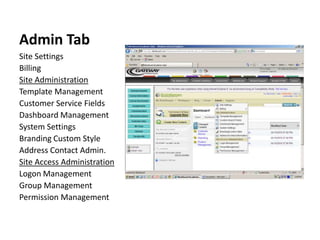
Admin TabSite SettingsBillingSite AdministrationTemplate ManagementCustomer Service FieldsDashboard ManagementSystem SettingsBranding Custom StyleAddress Contact Admin.Site Access AdministrationLogon ManagementGroup ManagementPermission Management
Support TabAdmin. Contact InformationHelp FAQ SearchBrainkeeper Support SystemSubmit a Support TicketMy Support Tickets
Search BoxHere you can type in what you are looking for and the search box will locate it and give you the needed information that you need by displaying it on the screen

Adobe brain keeper

  • 1.
    Adobe Acrobat Presented by,Melissa Andre and Anne Washack
  • 2.
    Adobe Acrobat ShareIdeasMeetingsVideo/AudioCollaborate on projectsWeb ConferencingSimple to useTablesWorkspacesFile OrganizerConvert to PDF FilesPresentationsAccess available where a computer is available
  • 3.
    Getting StartedClick onthe Internet icon on the desktop of your computerOpen the Internet
  • 4.
  • 5.
  • 6.
    Type in thesearch bar: adobe connect
  • 7.
  • 9.
  • 10.
  • 11.
  • 12.
    Fill in theinformation needed Information Box CompletedInformation filled out
  • 13.
  • 14.
  • 15.
  • 16.
  • 17.
  • 18.
  • 19.
  • 20.
    Click on thisto get started
  • 21.
    Loading to yourmeeting room
  • 22.
    Meeting URLSend meetingURL to 2 or more people but not exceeding 20 people
  • 23.
    Adobe FeaturesSome ofthe features offered by adobe are:Interact with others-chat, notes, videoInstant access from anywhereRequest control of another computerTaker control of another's computer with their permissionVideo ConferencingAudio OptionsRemote Control
  • 24.
    Larger MeetingsFor largermeetings of 20 or more persons you must upgrade to Adobe Acrobat Connect ProThere is a fee for this, but it is worth it if you use it, and when you have more than 20 people in a conference.
  • 25.
  • 26.
    What’s It AllAbout?Brainkeeper is a website that can help you in your schooling or in your careerIt has create a New content Anywhere Within the Wiki. The Quick Navigation Screen isautomatically
  • 27.
    Screen OneAdded tothe left-hand of the screen for easy accessMy starred content is where you can trackFavorite content here with one-click navigationRecently viewed – notice content appear in this listing as you navigate.
  • 28.
    DashboardThis is whereyou start to put your content into the website for easy access to your files.As you upgrade your files and content it will show up here in the left-hand navigation screen.
  • 29.
    DashboardHere you havethree possible icons: 1. My Starred Content 2. Recently Viewed 3. My ContentHere you can get started by creating a new workspaceCreating a New PageCreating a New BlogSearching your ContentInviting People to Collaborate within a file
  • 30.
    All Recent ChangesTabHere Are:Customer ServiceMarketingProduct Management files to name a few. You can see who modified it, the date it was modified, and what time it was done
  • 31.
    My Brainkeeper TabYouhave these icons to choose from:My Personal ProfileMy SettingsMy ContentMy Shared ContentMy AlertsMy RSS FeedsMy ContactsSite Tools:DirectoryTags QuestionsManage Templates
  • 32.
    Workspace TabYou canCreate New Workspace 1) Organization of Workspaces 2) Customer Service File 3) Marketing File 4) Product Management File
  • 33.
    Blog TabCreate NewBlogOrganization BlogsOr Non Available
  • 34.
    Forum TabCreate NewForumOrganization ForumNone Available
  • 35.
    Admin TabSite SettingsBillingSiteAdministrationTemplate ManagementCustomer Service FieldsDashboard ManagementSystem SettingsBranding Custom StyleAddress Contact Admin.Site Access AdministrationLogon ManagementGroup ManagementPermission Management
  • 36.
    Support TabAdmin. ContactInformationHelp FAQ SearchBrainkeeper Support SystemSubmit a Support TicketMy Support Tickets
  • 37.
    Search BoxHere youcan type in what you are looking for and the search box will locate it and give you the needed information that you need by displaying it on the screen