Adobe After Effects
Adobe After Effects Level 1
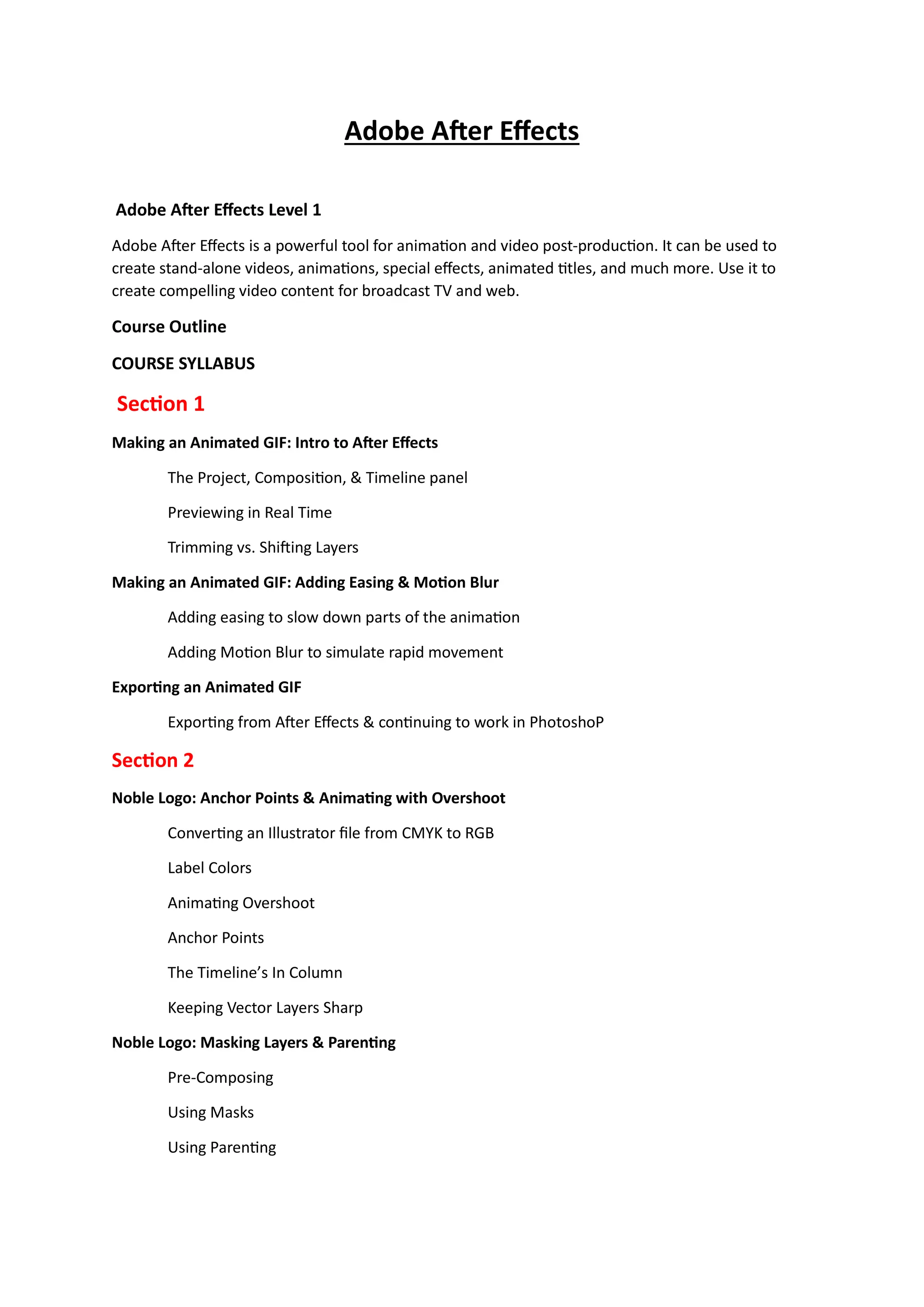
Adobe After Effects is a powerful tool for animation and video post-production. It can be used to
create stand-alone videos, animations, special effects, animated titles, and much more. Use it to
create compelling video content for broadcast TV and web.
Course Outline
COURSE SYLLABUS
Section 1
Making an Animated GIF: Intro to After Effects
The Project, Composition, & Timeline panel
Previewing in Real Time
Trimming vs. Shifting Layers
Making an Animated GIF: Adding Easing & Motion Blur
Adding easing to slow down parts of the animation
Adding Motion Blur to simulate rapid movement
Exporting an Animated GIF
Exporting from After Effects & continuing to work in PhotoshoP
Section 2
Noble Logo: Anchor Points & Animating with Overshoot
Converting an Illustrator file from CMYK to RGB
Label Colors
Animating Overshoot
Anchor Points
The Timeline’s In Column
Keeping Vector Layers Sharp
Noble Logo: Masking Layers & Parenting
Pre-Composing
Using Masks
Using Parenting
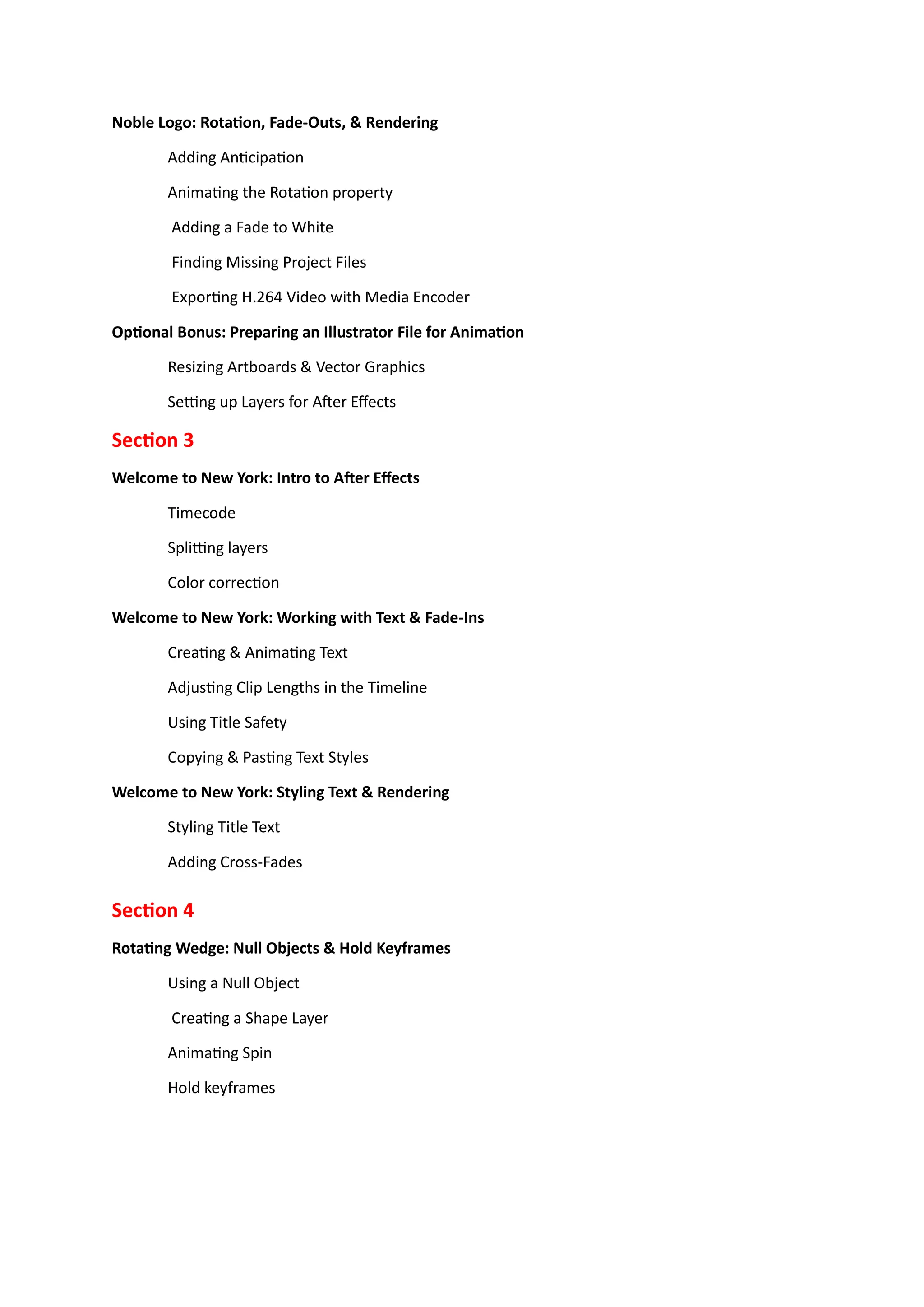
Noble Logo: Rotation, Fade-Outs, & Rendering
Adding Anticipation
Animating the Rotation property
Adding a Fade to White
Finding Missing Project Files
Exporting H.264 Video with Media Encoder
Optional Bonus: Preparing an Illustrator File for Animation
Resizing Artboards & Vector Graphics
Setting up Layers for After Effects
Section 3
Welcome to New York: Intro to After Effects
Timecode
Splitting layers
Color correction
Welcome to New York: Working with Text & Fade-Ins
Creating & Animating Text
Adjusting Clip Lengths in the Timeline
Using Title Safety
Copying & Pasting Text Styles
Welcome to New York: Styling Text & Rendering
Styling Title Text
Adding Cross-Fades
Section 4
Rotating Wedge: Null Objects & Hold Keyframes
Using a Null Object
Creating a Shape Layer
Animating Spin
Hold keyframes
Rotating Wedge: Alpha Mattes & Animated Colors
Alpha Mattes
Bringing Back the Colored Wedge
Animating Instant Color Changes
Rendering & Exporting Options
Rendering Uncompressed Files
Rendering Video with Transparency
After Effects: Creating a Custom Render Template
Adobe Media Encoder: Creating a User Preset
Exporting images
Section 5
HBO Logo: Importing Layered Files & Adding Easing
Importing a Layered File as Flattened
Importing Individual Layers
Importing a Layered File with All Layers Intact
Converting Photoshop Text to be Editable in After Effects
Separating Text Layers with Masks
Offsetting Animation
Ease-ins and Ease-outs
HBO Photo Tiles: Working with Numerous Layers
Cropping Layouts & Creating Guides in Photoshop
Randomizing Layer Entrance
Orchestrating Exit Animation
HBO Movie Rating: Vector Layouts & the Graph Editor
Adjustment Layers
The Invert Effect
The Value Graph Editor
Animating Vector Shapes Using Trim Paths
Moving Together, Fading Separately
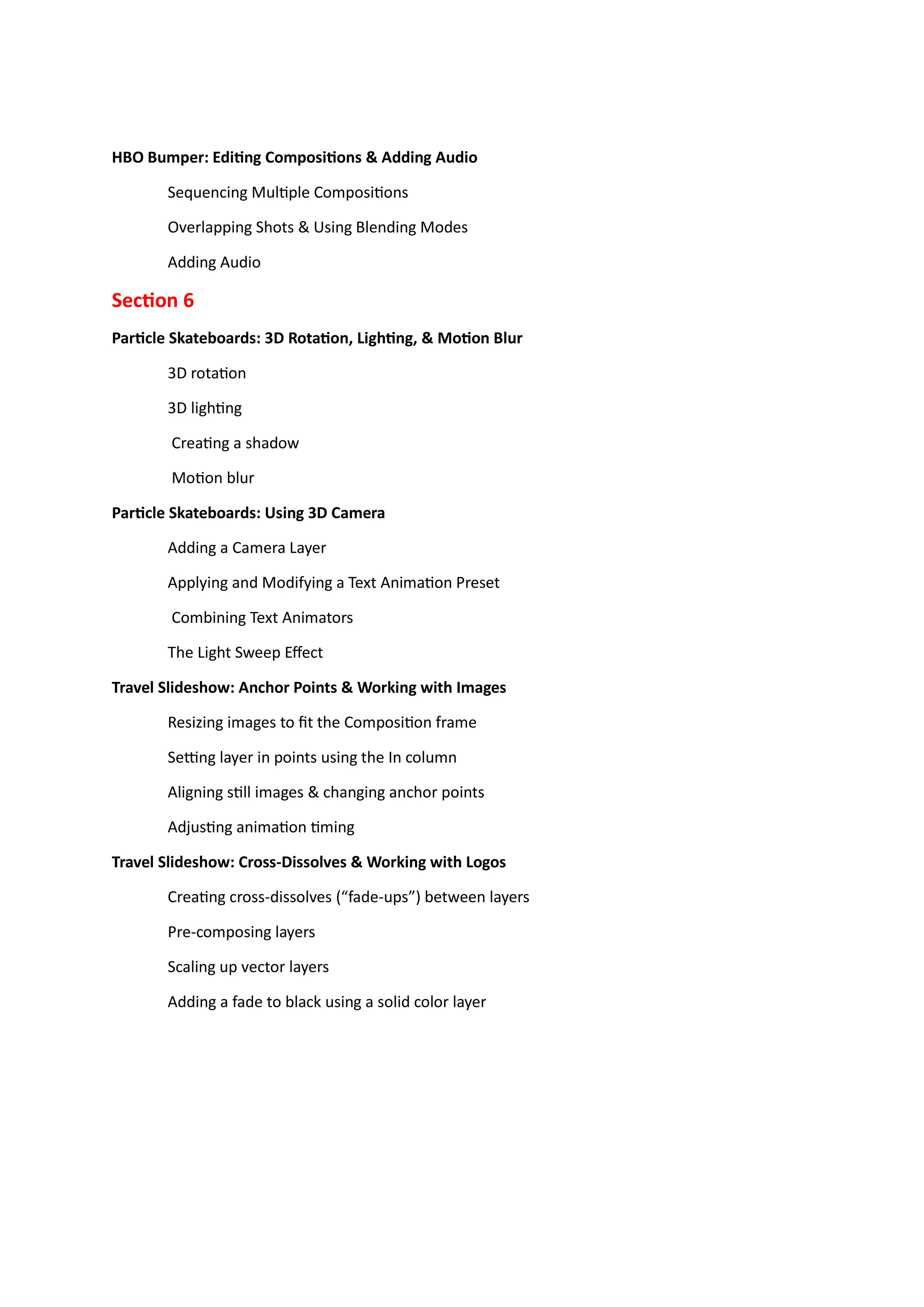
HBO Bumper: Editing Compositions & Adding Audio
Sequencing Multiple Compositions
Overlapping Shots & Using Blending Modes
Adding Audio
Section 6
Particle Skateboards: 3D Rotation, Lighting, & Motion Blur
3D rotation
3D lighting
Creating a shadow
Motion blur
Particle Skateboards: Using 3D Camera
Adding a Camera Layer
Applying and Modifying a Text Animation Preset
Combining Text Animators
The Light Sweep Effect
Travel Slideshow: Anchor Points & Working with Images
Resizing images to fit the Composition frame
Setting layer in points using the In column
Aligning still images & changing anchor points
Adjusting animation timing
Travel Slideshow: Cross-Dissolves & Working with Logos
Creating cross-dissolves (“fade-ups”) between layers
Pre-composing layers
Scaling up vector layers
Adding a fade to black using a solid color layer

Adobe After Effects Training Institute.docx

  • 1.
    Adobe After Effects AdobeAfter Effects Level 1 Adobe After Effects is a powerful tool for animation and video post-production. It can be used to create stand-alone videos, animations, special effects, animated titles, and much more. Use it to create compelling video content for broadcast TV and web. Course Outline COURSE SYLLABUS Section 1 Making an Animated GIF: Intro to After Effects The Project, Composition, & Timeline panel Previewing in Real Time Trimming vs. Shifting Layers Making an Animated GIF: Adding Easing & Motion Blur Adding easing to slow down parts of the animation Adding Motion Blur to simulate rapid movement Exporting an Animated GIF Exporting from After Effects & continuing to work in PhotoshoP Section 2 Noble Logo: Anchor Points & Animating with Overshoot Converting an Illustrator file from CMYK to RGB Label Colors Animating Overshoot Anchor Points The Timeline’s In Column Keeping Vector Layers Sharp Noble Logo: Masking Layers & Parenting Pre-Composing Using Masks Using Parenting
  • 2.
    Noble Logo: Rotation,Fade-Outs, & Rendering Adding Anticipation Animating the Rotation property Adding a Fade to White Finding Missing Project Files Exporting H.264 Video with Media Encoder Optional Bonus: Preparing an Illustrator File for Animation Resizing Artboards & Vector Graphics Setting up Layers for After Effects Section 3 Welcome to New York: Intro to After Effects Timecode Splitting layers Color correction Welcome to New York: Working with Text & Fade-Ins Creating & Animating Text Adjusting Clip Lengths in the Timeline Using Title Safety Copying & Pasting Text Styles Welcome to New York: Styling Text & Rendering Styling Title Text Adding Cross-Fades Section 4 Rotating Wedge: Null Objects & Hold Keyframes Using a Null Object Creating a Shape Layer Animating Spin Hold keyframes
  • 3.
    Rotating Wedge: AlphaMattes & Animated Colors Alpha Mattes Bringing Back the Colored Wedge Animating Instant Color Changes Rendering & Exporting Options Rendering Uncompressed Files Rendering Video with Transparency After Effects: Creating a Custom Render Template Adobe Media Encoder: Creating a User Preset Exporting images Section 5 HBO Logo: Importing Layered Files & Adding Easing Importing a Layered File as Flattened Importing Individual Layers Importing a Layered File with All Layers Intact Converting Photoshop Text to be Editable in After Effects Separating Text Layers with Masks Offsetting Animation Ease-ins and Ease-outs HBO Photo Tiles: Working with Numerous Layers Cropping Layouts & Creating Guides in Photoshop Randomizing Layer Entrance Orchestrating Exit Animation HBO Movie Rating: Vector Layouts & the Graph Editor Adjustment Layers The Invert Effect The Value Graph Editor Animating Vector Shapes Using Trim Paths Moving Together, Fading Separately
  • 4.
    HBO Bumper: EditingCompositions & Adding Audio Sequencing Multiple Compositions Overlapping Shots & Using Blending Modes Adding Audio Section 6 Particle Skateboards: 3D Rotation, Lighting, & Motion Blur 3D rotation 3D lighting Creating a shadow Motion blur Particle Skateboards: Using 3D Camera Adding a Camera Layer Applying and Modifying a Text Animation Preset Combining Text Animators The Light Sweep Effect Travel Slideshow: Anchor Points & Working with Images Resizing images to fit the Composition frame Setting layer in points using the In column Aligning still images & changing anchor points Adjusting animation timing Travel Slideshow: Cross-Dissolves & Working with Logos Creating cross-dissolves (“fade-ups”) between layers Pre-composing layers Scaling up vector layers Adding a fade to black using a solid color layer