3
Methods of Analysisin ABAQUS
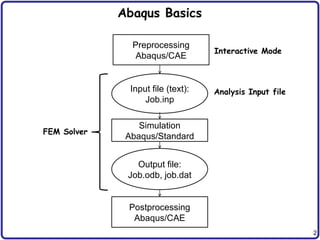
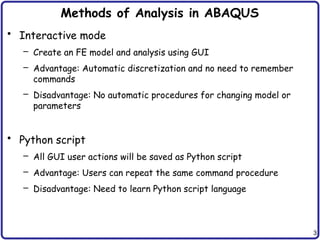
• Interactive mode
– Create an FE model and analysis using GUI
– Advantage: Automatic discretization and no need to remember
commands
– Disadvantage: No automatic procedures for changing model or
parameters
• Python script
– All GUI user actions will be saved as Python script
– Advantage: Users can repeat the same command procedure
– Disadvantage: Need to learn Python script language
4.
4
Methods of Analysisin ABAQUS
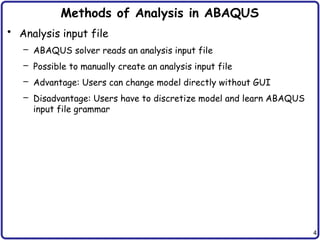
• Analysis input file
– ABAQUS solver reads an analysis input file
– Possible to manually create an analysis input file
– Advantage: Users can change model directly without GUI
– Disadvantage: Users have to discretize model and learn ABAQUS
input file grammar
5.
5
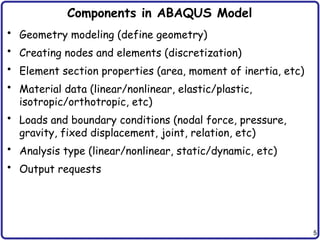
Components in ABAQUSModel
• Geometry modeling (define geometry)
• Creating nodes and elements (discretization)
• Element section properties (area, moment of inertia, etc)
• Material data (linear/nonlinear, elastic/plastic,
isotropic/orthotropic, etc)
• Loads and boundary conditions (nodal force, pressure,
gravity, fixed displacement, joint, relation, etc)
• Analysis type (linear/nonlinear, static/dynamic, etc)
• Output requests
7
FEM Modeling
Pressure
• Whichanalysis type?
• Which element type?
– Section properties
– Material properties
– Loads and boundary conditions
– Output requests
Beam element
Solid element
8.
8
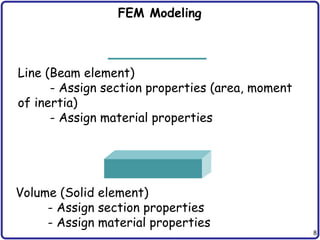
Line (Beam element)
-Assign section properties (area, moment
of inertia)
- Assign material properties
Volume (Solid element)
- Assign section properties
- Assign material properties
FEM Modeling
9.
9
FEM Modeling
Line (Beamelement)
- Apply distributed load “on the line”
- Apply fixed BC “at the point”
Volume (Solid element)
- Apply distribution load “on the surface”
- Apply fixed BC “on the surface”
fixed BC
fixed BC
10.
10
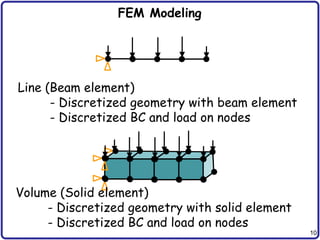
FEM Modeling
Line (Beamelement)
- Discretized geometry with beam element
- Discretized BC and load on nodes
Volume (Solid element)
- Discretized geometry with solid element
- Discretized BC and load on nodes
13
Units
Quantity SI SI(mm) US Unit (ft) US Unit (inch)
Length m mm ft in
Force N N lbf lbf
Mass kg tonne (103
kg) slug lbf s2
/in
Time s s s s
Stress Pa (N/m2
) MPa (N/mm2
) lbf/ft2
psi (lbf/in2
)
Energy J mJ (10–3
J) ft lbf in lbf
Density kg/m3
tonne/mm3
slug/ft3
lbf s2
/in4
• Abaqus does not have built-in units
• Users must use consistent units
14.
14
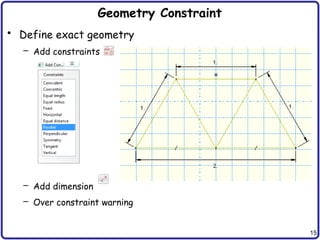
Create Part
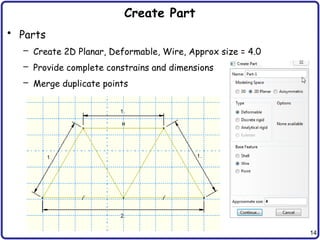
• Parts
–Create 2D Planar, Deformable, Wire, Approx size = 4.0
– Provide complete constrains and dimensions
– Merge duplicate points
18
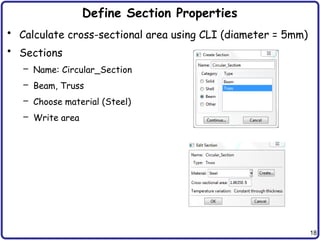
Define Section Properties
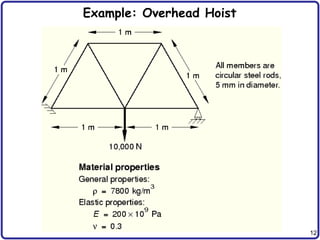
•Calculate cross-sectional area using CLI (diameter = 5mm)
• Sections
– Name: Circular_Section
– Beam, Truss
– Choose material (Steel)
– Write area
19.
19
Define Section Properties
•Assign the section to the part
– Section Assignments
– Select all wires
– Assign Circular_Section
20.
20
Assembly and AnalysisStep
• Different parts can be assembled in a model
• Single assembly per model
• Assembly
– Instances: Choose the frame wireframe
• Analysis Step
– Configuring analysis procedure
• Steps
– Name: Apply Load
– Type: Linear perturbation
– Choose Static, Linear perturbation
21.
21
Assembly and AnalysisStep
• Examine Field Output Request (automatically requested)
• User can change the request
22.
22
Boundary Conditions
• Boundaryconditions: Displacements or rotations are known
• BCs
– Name: Fixed
– Step: Initial
– Category: Mechanical
– Type: Displacement/Rotation
– Choose lower-left point
– Select U1 and U2
• Repeat for lower-right corner
– Fix U2 only
23.
23
Applied Loads
• Loads
–Name: Force
– Step: Applied Load
– Category: Mechanical
– Type: Concentrated force
• Choose lower-center point
• CF2 = -10000.0
24.
24
Meshing the Model
•Parts
– Part-1, Mesh
• Menu Mesh, Element Types (side menu )
• Select all wireframes
• Library: Standard
• Order: Linear
• Family: Truss
• T2D2: 2-node linear
2-D truss
25.
25
Meshing the Model
•Seed a mesh
– Control how to mesh (element size, etc)
• Menu Seed, Part (side menu )
– Global size = 1.0
• Menu Mesh, Part, Yes (side menu )
• Menu View, Part Display Option
– Label on
26.
26
Mesh Modification
• MenuSeed, Part (side menu )
– Change the seed size (Global size) 1.0 to 0.5
– Delete the previous mesh
• Menu Mesh, Part, Yes (side menu )
27.
27
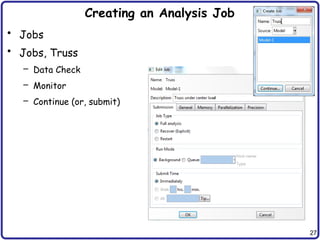
Creating an AnalysisJob
• Jobs
• Jobs, Truss
– Data Check
– Monitor
– Continue (or, submit)
28.
28
Postprocessing
• Change “Model”tab to “Results” tab
• Menu File, Open Job.odb file
• Common Plot Option (side menu ), click on the Labels tab
(Show element labels, Show node labels)
Set Font for All Model Labels…
30
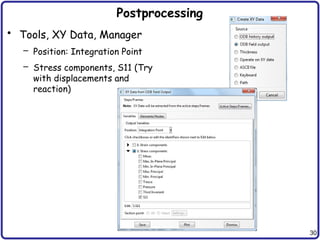
Postprocessing
• Tools, XYData, Manager
– Position: Integration Point
– Stress components, S11 (Try
with displacements and
reaction)
31.
31
Postprocessing
– Click onthe Elements/Nodes tab
– Select Element/Nodes you want to
see result and save
– Click Edit… to see the result
32.
32
Postprocessing
• Report, FieldOutput
– Position: Integration Point
– Stress components, S11 (Try
with displacements and
reaction)
– Default report file name is
“abaqus.rpt”
– The report file is generated in
“C:temp” folder
33.
33
Save
• Save job.caefile
• Menu, File, Save As…
- job.cae file is saved
- job.jnl file is saved as well (user action history, python
code)