

UPK Tips Author: Larry Sherrod
UPK Tips Embedding Modules Good Naming Conventions Keep your Processes Brief Your First Screen Defines the Process Make an Effort to Capture All the Relevant Screen Data Capture Screens from Other Applications when Necessary Include Relevant Screenshots in Word and PDF Documents Use Explanation Frames Publish only the Documents you Need
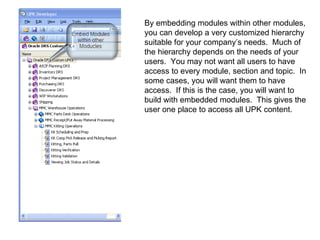
By embedding modules within other modules, you can develop a very customized hierarchy suitable for your company’s needs.  Much of the hierarchy depends on the needs of your users.  You may not want all users to have access to every module, section and topic.  In some cases, you will want them to have access.  If this is the case, you will want to build with embedded modules.  This gives the user one place to access all UPK content.
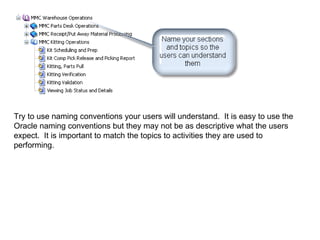
Try to use naming conventions your users will understand.  It is easy to use the Oracle naming conventions but they may not be as descriptive what the users expect.  It is important to match the topics to activities they are used to performing.
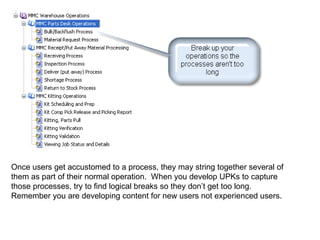
Once users get accustomed to a process, they may string together several of them as part of their normal operation.  When you develop UPKs to capture those processes, try to find logical breaks so they don’t get too long.  Remember you are developing content for new users not experienced users.
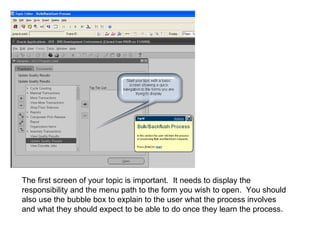
The first screen of your topic is important.  It needs to display the responsibility and the menu path to the form you wish to open.  You should also use the bubble box to explain to the user what the process involves and what they should expect to be able to do once they learn the process.
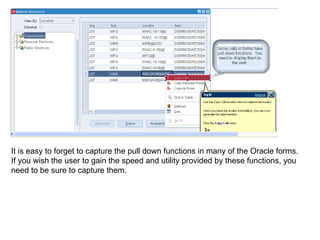
It is easy to forget to capture the pull down functions in many of the Oracle forms.  If you wish the user to gain the speed and utility provided by these functions, you need to be sure to capture them.
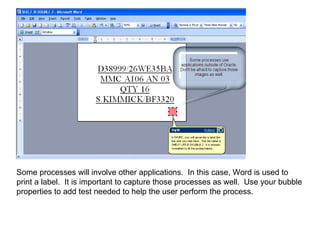
Some processes will involve other applications.  In this case, Word is used to print a label.  It is important to capture those processes as well.  Use your bubble properties to add test needed to help the user perform the process.
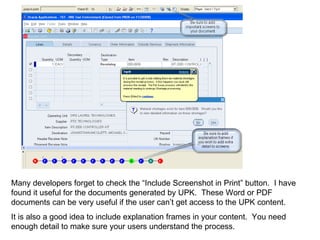
Many developers forget to check the “Include Screenshot in Print” button.  I have found it useful for the documents generated by UPK.  These Word or PDF documents can be very useful if the user can’t get access to the UPK content. It is also a good idea to include explanation frames in your content.  You need enough detail to make sure your users understand the process.
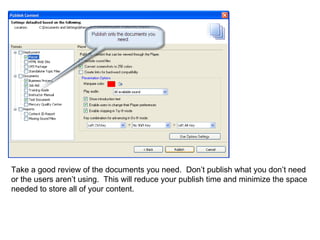
Take a good review of the documents you need.  Don’t publish what you don’t need or the users aren’t using.  This will reduce your publish time and minimize the space needed to store all of your content.
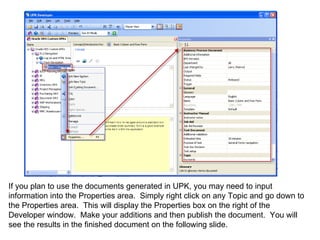
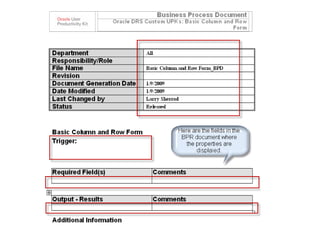
If you plan to use the documents generated in UPK, you may need to input information into the Properties area.  Simply right click on any Topic and go down to the Properties area.  This will display the Properties box on the right of the Developer window.  Make your additions and then publish the document.  You will see the results in the finished document on the following slide.
 
This content has been developed and provided by Larry Sherrod.  Please do not duplicate, redistribute or change any of the content without my permission. Author: Larry Sherrod Website: www.larrysherrod.com

Upk Tips

  • 1.
    UPK Tips Author:Larry Sherrod
  • 2.
    UPK Tips EmbeddingModules Good Naming Conventions Keep your Processes Brief Your First Screen Defines the Process Make an Effort to Capture All the Relevant Screen Data Capture Screens from Other Applications when Necessary Include Relevant Screenshots in Word and PDF Documents Use Explanation Frames Publish only the Documents you Need
  • 3.
    By embedding moduleswithin other modules, you can develop a very customized hierarchy suitable for your company’s needs. Much of the hierarchy depends on the needs of your users. You may not want all users to have access to every module, section and topic. In some cases, you will want them to have access. If this is the case, you will want to build with embedded modules. This gives the user one place to access all UPK content.
  • 4.
    Try to usenaming conventions your users will understand. It is easy to use the Oracle naming conventions but they may not be as descriptive what the users expect. It is important to match the topics to activities they are used to performing.
  • 5.
    Once users getaccustomed to a process, they may string together several of them as part of their normal operation. When you develop UPKs to capture those processes, try to find logical breaks so they don’t get too long. Remember you are developing content for new users not experienced users.
  • 6.
    The first screenof your topic is important. It needs to display the responsibility and the menu path to the form you wish to open. You should also use the bubble box to explain to the user what the process involves and what they should expect to be able to do once they learn the process.
  • 7.
    It is easyto forget to capture the pull down functions in many of the Oracle forms. If you wish the user to gain the speed and utility provided by these functions, you need to be sure to capture them.
  • 8.
    Some processes willinvolve other applications. In this case, Word is used to print a label. It is important to capture those processes as well. Use your bubble properties to add test needed to help the user perform the process.
  • 9.
    Many developers forgetto check the “Include Screenshot in Print” button. I have found it useful for the documents generated by UPK. These Word or PDF documents can be very useful if the user can’t get access to the UPK content. It is also a good idea to include explanation frames in your content. You need enough detail to make sure your users understand the process.
  • 10.
    Take a goodreview of the documents you need. Don’t publish what you don’t need or the users aren’t using. This will reduce your publish time and minimize the space needed to store all of your content.
  • 11.
    If you planto use the documents generated in UPK, you may need to input information into the Properties area. Simply right click on any Topic and go down to the Properties area. This will display the Properties box on the right of the Developer window. Make your additions and then publish the document. You will see the results in the finished document on the following slide.
  • 12.
  • 13.
    This content hasbeen developed and provided by Larry Sherrod. Please do not duplicate, redistribute or change any of the content without my permission. Author: Larry Sherrod Website: www.larrysherrod.com