
EYE
BLINKING
CHIBI
ANIMATION
MR. DENNIS “TOODEE” A. EVANGELISTA
2D ANIMATOR
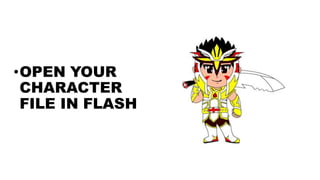
•OPEN YOUR
CHARACTER
FILE IN FLASH
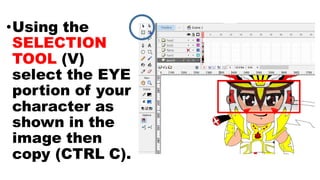
•Using the
SELECTION
TOOL (V)
select the EYE
portion of your
character as
shown in the
image then
copy (CTRL C).
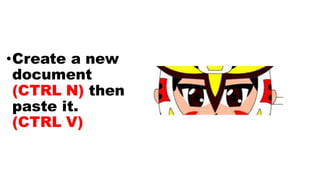
•Create a new
document
(CTRL N) then
paste it.
(CTRL V)
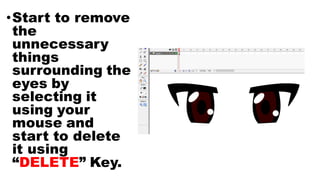
•Start to remove
the
unnecessary
things
surrounding the
eyes by
selecting it
using your
mouse and
start to delete
it using
“DELETE” Key.
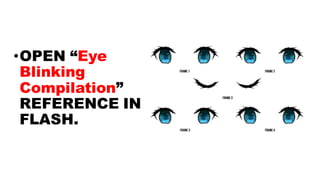
•OPEN “Eye
Blinking
Compilation”
REFERENCE IN
FLASH.
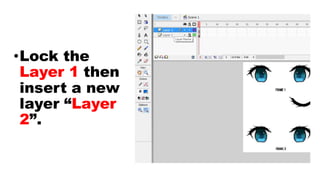
•Lock the
Layer 1 then
insert a new
layer “Layer
2”.
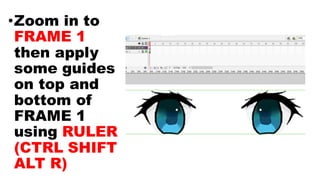
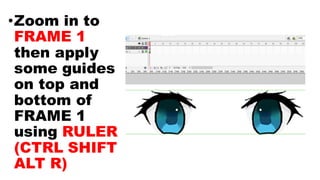
•Zoom in to
FRAME 1
then apply
some guides
on top and
bottom of
FRAME 1
using RULER
(CTRL SHIFT
ALT R)
•Zoom in to
FRAME 1
then apply
some guides
on top and
bottom of
FRAME 1
using RULER
(CTRL SHIFT
ALT R)
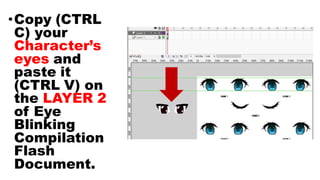
•Copy (CTRL
C) your
Character’s
eyes and
paste it
(CTRL V) on
the LAYER 2
of Eye
Blinking
Compilation
Flash
Document.
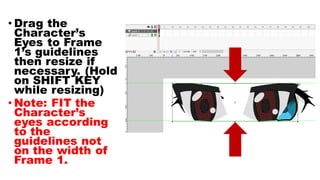
• Drag the
Character’s
Eyes to Frame
1’s guidelines
then resize if
necessary. (Hold
on SHIFT KEY
while resizing)
• Note: FIT the
Character’s
eyes according
to the
guidelines not
on the width of
Frame 1.
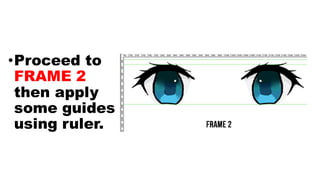
•Proceed to
FRAME 2
then apply
some guides
using ruler.
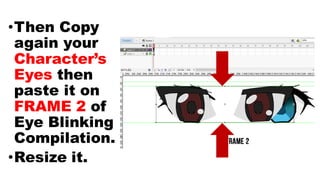
•Then Copy
again your
Character’s
Eyes then
paste it on
FRAME 2 of
Eye Blinking
Compilation.
•Resize it.
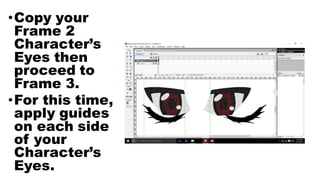
•Copy your
Frame 2
Character’s
Eyes then
proceed to
Frame 3.
•For this time,
apply guides
on each side
of your
Character’s
Eyes.
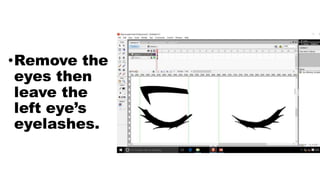
•Remove the
eyes then
leave the
left eye’s
eyelashes.
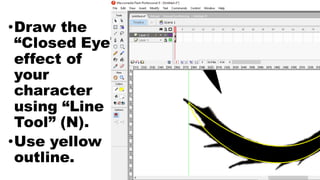
•Draw the
“Closed Eye”
effect of
your
character
using “Line
Tool” (N).
•Use yellow
outline.
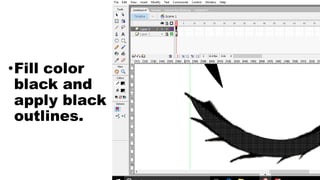
•Fill color
black and
apply black
outlines.
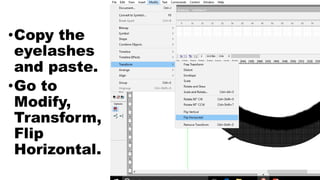
•Copy the
eyelashes
and paste.
•Go to
Modify,
Transform,
Flip
Horizontal.
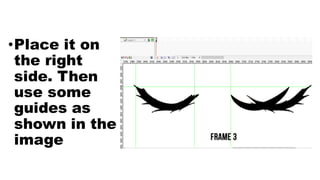
•Place it on
the right
side. Then
use some
guides as
shown in the
image
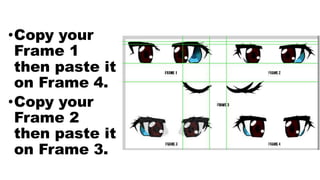
•Copy your
Frame 1
then paste it
on Frame 4.
•Copy your
Frame 2
then paste it
on Frame 3.
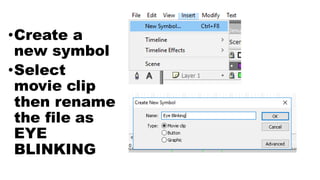
•Create a
new symbol
•Select
movie clip
then rename
the file as
EYE
BLINKING
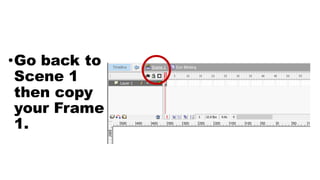
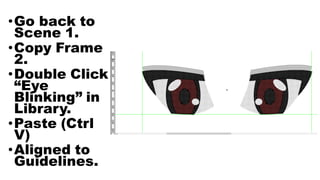
•Go back to
Scene 1
then copy
your Frame
1.
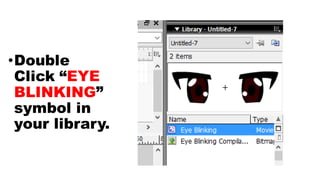
•Double
Click “EYE
BLINKING”
symbol in
your library.
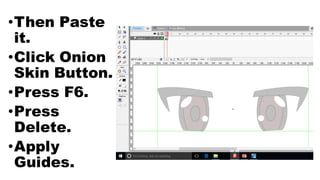
•Then Paste
it.
•Click Onion
Skin Button.
•Press F6.
•Press
Delete.
•Apply
Guides.
•Go back to
Scene 1.
•Copy Frame
2.
•Double Click
“Eye
Blinking” in
Library.
•Paste (Ctrl
V)
•Aligned to
Guidelines.
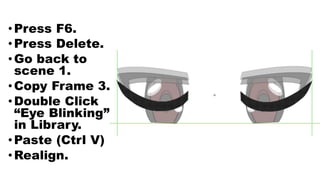
•Press F6.
•Press Delete.
•Go back to
scene 1.
•Copy Frame 3.
•Double Click
“Eye Blinking”
in Library.
•Paste (Ctrl V)
•Realign.
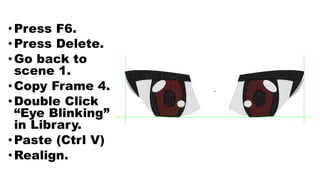
•Press F6.
•Press Delete.
•Go back to
scene 1.
•Copy Frame 4.
•Double Click
“Eye Blinking”
in Library.
•Paste (Ctrl V)
•Realign.
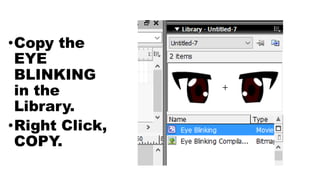
•Copy the
EYE
BLINKING
in the
Library.
•Right Click,
COPY.
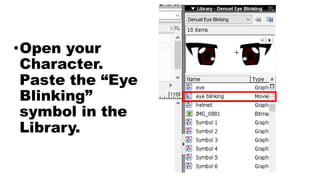
•Open your
Character.
Paste the “Eye
Blinking”
symbol in the
Library.
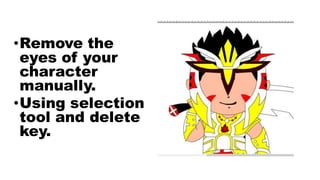
•Remove the
eyes of your
character
manually.
•Using selection
tool and delete
key.
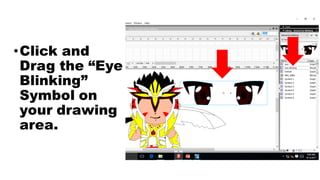
•Click and
Drag the “Eye
Blinking”
Symbol on
your drawing
area.
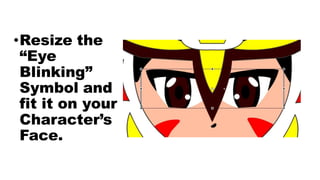
•Resize the
“Eye
Blinking”
Symbol and
fit it on your
Character’s
Face.
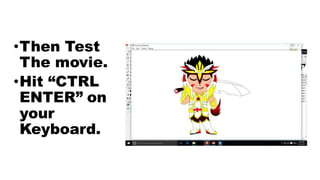
•Then Test
The movie.
•Hit “CTRL
ENTER” on
your
Keyboard.
Save your
FILE…
Senpai!

2D Animation: Eye Blinking Tutorial