HTTPS and Certificates explained 
31st of July 2014 
What is it? How does it work? 
by Pierre Cornic
31st of July 2014 
Table of content 
1. Why HTTPS? 
2. Public/private key, encrypt, sign 
3. Certificate authority & PKI 
4. Let’s use it
31st of July 2014 
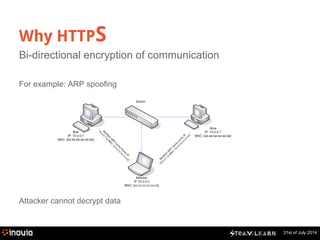
Why HTTPS 
Bi-directional encryption of communication 
For example: ARP spoofing 
Attacker cannot decrypt data
31st of July 2014 
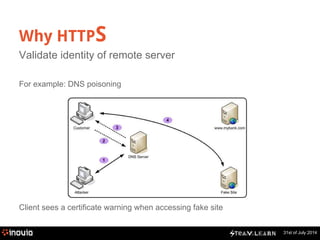
Why HTTPS 
Validate identity of remote server 
For example: DNS poisoning 
Client sees a certificate warning when accessing fake site
31st of July 2014 
Table of content 
1. Why HTTPS? 
2. Public/private key, encrypt, sign 
3. Certificate authority & PKI 
4. Let’s use it
31st of July 2014 
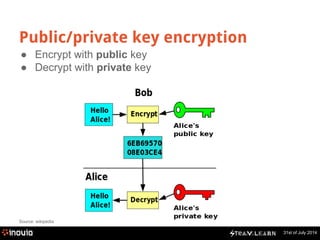
Public/private key encryption 
● Encrypt with public key 
● Decrypt with private key 
Source: wikipedia
31st of July 2014 
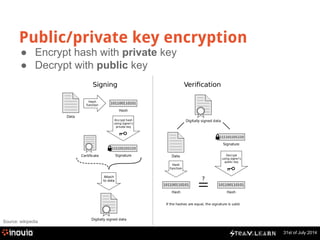
Public/private key encryption 
● Encrypt hash with private key 
● Decrypt with public key 
Source: wikipedia
31st of July 2014 
Table of content 
1. Why HTTPS? 
2. Public/private key, encrypt, sign 
3. Certificate authority & PKI 
4. Let’s use it
31st of July 2014 
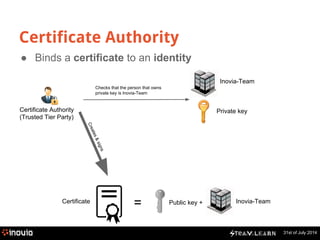
Certificate Authority 
● Binds a certificate to an identity 
Inovia-Team 
Certificate Authority 
(Trusted Tier Party) 
Private key 
Checks that the person that owns 
private key is Inovia-Team 
Creates & signs 
Certificate = Public key + Inovia-Team
31st of July 2014 
What is inside a x509 certificate? 
$ openssl x509 -in inovia.fr.crt -noout -text 
Version: 3 (0x2) 
Serial Number: 92675 (0x16a03) 
Signature Algorithm: sha1WithRSAEncryption 
Issuer: C=IL, O=StartCom Ltd., OU=Secure Digital Certificate Signing, CN=StartCom Class 2 Primary Intermediate Server CA 
Validity 
Not Before: May 23 01:18:37 2013 GMT 
Not After : May 23 19:03:12 2015 GMT 
Subject: description=zyBDci1AcdG79M0X, C=FR, ST=Ile-de-France, L=PARIS, O=Inovia-Team SARL, CN=inovia.fr/emailAddress=webmaster@inovia-team.com 
Subject Public Key Info: 
Public Key Algorithm: rsaEncryption 
RSA Public Key: (2048 bit) 
Modulus (2048 bit): 
00:e5:2b:b0:66:ac:f5:22:5b:64:b5:19:58:25:c3: 
[………] 
Exponent: 65537 (0x10001) 
X509v3 extensions: 
X509v3 Basic Constraints: 
CA:FALSE 
X509v3 Key Usage: 
Digital Signature, Key Encipherment, Key Agreement 
X509v3 Extended Key Usage: 
TLS Web Client Authentication, TLS Web Server Authentication 
X509v3 Subject Key Identifier: 
E7:39:36:3C:96:C6:AA:C2:83:73:7E:8A:4E:1B:9C:9B:34:C6:52:7D 
X509v3 Authority Key Identifier: 
keyid:11:DB:23:45:FD:54:CC:6A:71:6F:84:8A:03:D7:BE:F7:01:2F:26:86 
Certificate authority 
Subject: Inovia-Team 
Public key
31st of July 2014 
What is inside a x509 certificate? 
X509v3 Subject Alternative Name: 
DNS:inovia.fr, DNS:inovia-team.com, DNS:*.inovia-team.com, DNS:*.inovia-team.com, DNS:*.inovia.fr 
X509v3 Certificate Policies: 
Policy: 2.23.140.1.2.2 
Policy: 1.3.6.1.4.1.23223.1.2.3 
CPS: http://www.startssl.com/policy.pdf 
User Notice: 
Organization: StartCom Certification Authority 
Number: 1 
Explicit Text: This certificate was issued according to the Class 2 Validation requirements of the StartCom CA policy, reliance only for the intended purpose in 
compliance of the relying party obligations. 
X509v3 CRL Distribution Points: 
URI:http://crl.startssl.com/crt2-crl.crl 
Authority Information Access: 
OCSP - URI:http://ocsp.startssl.com/sub/class2/server/ca 
CA Issuers - URI:http://aia.startssl.com/certs/sub.class2.server.ca.crt 
X509v3 Issuer Alternative Name: 
URI:http://www.startssl.com/ 
Signature Algorithm: sha1WithRSAEncryption 
7d:a9:eb:10:28:6a:75:a2:65:f6:7b:38:13:c4:f4:61:f6:43: 
[...] 
46:72:3f:e8:b3:1f:0f:ab:56:25:1d:6a:cb:5d:78:c0:b8:e1: 
b5:58:95:bd 
Subject other names 
Signature using CA private key
31st of July 2014 
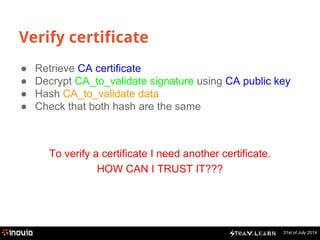
Verify certificate 
● Retrieve CA certificate 
● Decrypt CA_to_validate signature using CA public key 
● Hash CA_to_validate data 
● Check that both hash are the same 
To verify a certificate I need another certificate. 
HOW CAN I TRUST IT???
31st of July 2014 
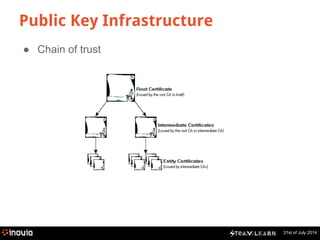
Public Key Infrastructure 
● Chain of trust
31st of July 2014 
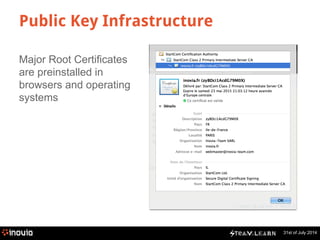
Public Key Infrastructure 
Major Root Certificates 
are preinstalled in 
browsers and operating 
systems
31st of July 2014 
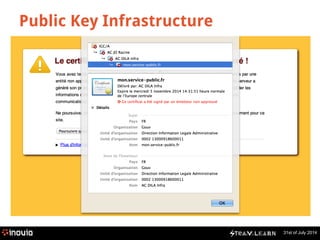
Public Key Infrastructure 
Major Root Certificates 
are preinstalled in 
browsers and operating 
systems
31st of July 2014 
Table of content 
1. Why HTTPS? 
2. Public/private key, encrypt, sign 
3. Certificate authority & PKI 
4. Let’s use it
31st of July 2014 
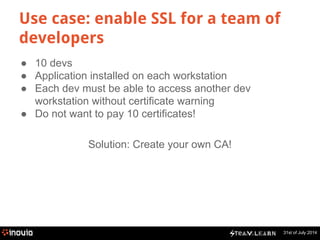
Use case: enable SSL for a team of 
developers 
● 10 devs 
● Application installed on each workstation 
● Each dev must be able to access another dev 
workstation without certificate warning 
● Do not want to pay 10 certificates! 
Solution: Create your own CA!
31st of July 2014 
Let’s use it: create your own CA 
● Generate password-protected CA Key 
$ openssl genrsa -out rootCA.key 2048 -des3 
● Generate CA Certificate 
$ openssl req -x509 -new -nodes -key rootCA.key -days 1024 -out rootCA.pem 
You are about to be asked to enter information that will be incorporated into your certificate 
request. What you are about to enter is what is called a Distinguished Name or a DN. 
There are quite a few fields but you can leave some blank 
For some fields there will be a default value, 
If you enter '.', the field will be left blank. 
----- 
Country Name (2 letter code) [AU]:FR 
State or Province Name (full name) [Some-State]:Ile-de-France 
Locality Name (eg, city) []:Paris 
Organization Name (eg, company) [Internet Widgits Pty Ltd]:Inovia-Team 
Organizational Unit Name (eg, section) []:IT Department 
Common Name (e.g. server FQDN or YOUR name) []:Inovia Certificate Authority 
Email Address []:
31st of July 2014 
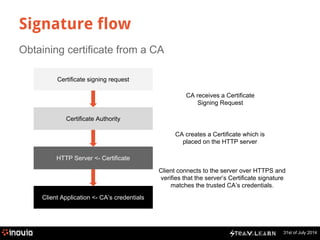
Signature flow 
Obtaining certificate from a CA 
Certificate signing request 
Certificate Authority 
HTTP Server <- Certificate 
Client Application <- CA’s credentials 
CA receives a Certificate 
Signing Request 
CA creates a Certificate which is 
placed on the HTTP server 
Client connects to the server over HTTPS and 
verifies that the server’s Certificate signature 
matches the trusted CA’s credentials.
Create Certificate Signing Request 
31st of July 2014 
● Generate Key 
$ openssl genrsa -out mywebsite.key 2048 
● Generate Certificate Signing Request (CSR) 
$ openssl req -new -key mywebsite.key -days -out mywebsite.csr 
You are about to be asked to enter information that will be incorporated into your certificate 
request. What you are about to enter is what is called a Distinguished Name or a DN. 
There are quite a few fields but you can leave some blank 
For some fields there will be a default value, 
If you enter '.', the field will be left blank. 
----- 
Country Name (2 letter code) [AU]:FR 
State or Province Name (full name) [Some-State]:Ile-de-France 
Locality Name (eg, city) []:Paris 
Organization Name (eg, company) [Internet Widgits Pty Ltd]:Inovia-Team 
Organizational Unit Name (eg, section) []:MyTeam 
Common Name (e.g. server FQDN or YOUR name) []:*.myhostname.local 
Email Address []:
31st of July 2014 
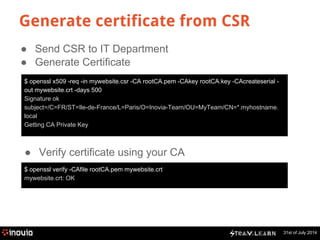
Generate certificate from CSR 
● Send CSR to IT Department 
● Generate Certificate 
$ openssl x509 -req -in mywebsite.csr -CA rootCA.pem -CAkey rootCA.key -CAcreateserial - 
out mywebsite.crt -days 500 
Signature ok 
subject=/C=FR/ST=Ile-de-France/L=Paris/O=Inovia-Team/OU=MyTeam/CN=*.myhostname. 
local 
Getting CA Private Key 
● Verify certificate using your CA 
$ openssl verify -CAfile rootCA.pem mywebsite.crt 
mywebsite.crt: OK
31st of July 2014 
Verify certificate 
$ openssl x509 -in mywebsite.crt -noout -text 
Certificate: 
Data: 
Version: 1 (0x0) 
Serial Number: 
92:72:d1:12:be:f4:07:8e 
Signature Algorithm: sha1WithRSAEncryption 
Issuer: C=FR, ST=Ile-de-France, L=Paris, O=Inovia-Team, OU=IT Department, CN=Inovia Certificate Authority 
Validity 
Not Before: Jul 31 12:32:41 2014 GMT 
Not After : Dec 13 12:32:41 2015 GMT 
Subject: C=FR, ST=Ile-de-France, L=Paris, O=Inovia-Team, OU=MyTeam, CN=*.myhostname.local 
Subject Public Key Info: 
Public Key Algorithm: rsaEncryption 
RSA Public Key: (2048 bit) 
Modulus (2048 bit): 
00:d0:bd:82:bc:9c:36:ea:7e:a3:ee:c5:86:70:e5: 
[...] 
22:0b:72:fc:46:ac:aa:6d:76:e4:2b:1c:09:1e:78: 
6e:bd:81:a1:57:03:f8:91:7e:54:8b:38:9e:ec:19: 
e3:27 
Exponent: 65537 (0x10001) 
Signature Algorithm: sha1WithRSAEncryption 
b6:d5:74:81:26:96:8a:37:51:c0:33:97:c5:65:c3:8a:f5:94: 
[...] 
90:fc:c8:8d:e1:2b:4f:c7:fd:6d:8c:f7:3b:0e:fd:42:86:8e:
31st of July 2014 
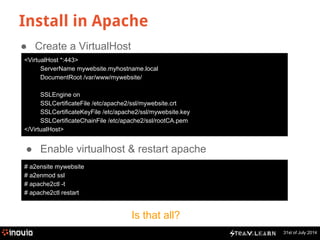
Install in Apache 
● Create a VirtualHost 
<VirtualHost *:443> 
ServerName mywebsite.myhostname.local 
DocumentRoot /var/www/mywebsite/ 
SSLEngine on 
SSLCertificateFile /etc/apache2/ssl/mywebsite.crt 
SSLCertificateKeyFile /etc/apache2/ssl/mywebsite.key 
SSLCertificateChainFile /etc/apache2/ssl/rootCA.pem 
</VirtualHost> 
● Enable virtualhost & restart apache 
# a2ensite mywebsite 
# a2enmod ssl 
# apache2ctl -t 
# apache2ctl restart 
Is that all?
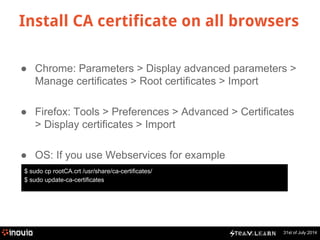
Install CA certificate on all browsers 
● Chrome: Parameters > Display advanced parameters > 
31st of July 2014 
Manage certificates > Root certificates > Import 
● Firefox: Tools > Preferences > Advanced > Certificates 
> Display certificates > Import 
● OS: If you use Webservices for example 
$ sudo cp rootCA.crt /usr/share/ca-certificates/ 
$ sudo update-ca-certificates
31st of July 2014 
Questions ? 
For online questions, please leave a comment on the article.
31st of July 2014 
Join the community ! 
(in Paris) 
Social networks : 
● Follow us on Twitter : https://twitter.com/steamlearn 
● Like us on Facebook : https://www.facebook.com/steamlearn 
SteamLearn is an Inovia initiative : inovia.fr 
You wish to be in the audience ? Contact us at 
learn@steamhouse.fr
31st of July 2014 
Sources 
http://securitymusings.com (images) 
http://www.technicalinfo.net/papers/images/pharming030.jpg (images) 
http://dm3.github.io/(images) 
http://technet.microsoft.com/ (images) 
http://icons.iconarchive.com (images) 
www.flaticon.com (images)

Steam Learn: HTTPS and certificates explained

  • 1.
    HTTPS and Certificatesexplained 31st of July 2014 What is it? How does it work? by Pierre Cornic
  • 2.
    31st of July2014 Table of content 1. Why HTTPS? 2. Public/private key, encrypt, sign 3. Certificate authority & PKI 4. Let’s use it
  • 3.
    31st of July2014 Why HTTPS Bi-directional encryption of communication For example: ARP spoofing Attacker cannot decrypt data
  • 4.
    31st of July2014 Why HTTPS Validate identity of remote server For example: DNS poisoning Client sees a certificate warning when accessing fake site
  • 5.
    31st of July2014 Table of content 1. Why HTTPS? 2. Public/private key, encrypt, sign 3. Certificate authority & PKI 4. Let’s use it
  • 6.
    31st of July2014 Public/private key encryption ● Encrypt with public key ● Decrypt with private key Source: wikipedia
  • 7.
    31st of July2014 Public/private key encryption ● Encrypt hash with private key ● Decrypt with public key Source: wikipedia
  • 8.
    31st of July2014 Table of content 1. Why HTTPS? 2. Public/private key, encrypt, sign 3. Certificate authority & PKI 4. Let’s use it
  • 9.
    31st of July2014 Certificate Authority ● Binds a certificate to an identity Inovia-Team Certificate Authority (Trusted Tier Party) Private key Checks that the person that owns private key is Inovia-Team Creates & signs Certificate = Public key + Inovia-Team
  • 10.
    31st of July2014 What is inside a x509 certificate? $ openssl x509 -in inovia.fr.crt -noout -text Version: 3 (0x2) Serial Number: 92675 (0x16a03) Signature Algorithm: sha1WithRSAEncryption Issuer: C=IL, O=StartCom Ltd., OU=Secure Digital Certificate Signing, CN=StartCom Class 2 Primary Intermediate Server CA Validity Not Before: May 23 01:18:37 2013 GMT Not After : May 23 19:03:12 2015 GMT Subject: description=zyBDci1AcdG79M0X, C=FR, ST=Ile-de-France, L=PARIS, O=Inovia-Team SARL, CN=inovia.fr/emailAddress=webmaster@inovia-team.com Subject Public Key Info: Public Key Algorithm: rsaEncryption RSA Public Key: (2048 bit) Modulus (2048 bit): 00:e5:2b:b0:66:ac:f5:22:5b:64:b5:19:58:25:c3: [………] Exponent: 65537 (0x10001) X509v3 extensions: X509v3 Basic Constraints: CA:FALSE X509v3 Key Usage: Digital Signature, Key Encipherment, Key Agreement X509v3 Extended Key Usage: TLS Web Client Authentication, TLS Web Server Authentication X509v3 Subject Key Identifier: E7:39:36:3C:96:C6:AA:C2:83:73:7E:8A:4E:1B:9C:9B:34:C6:52:7D X509v3 Authority Key Identifier: keyid:11:DB:23:45:FD:54:CC:6A:71:6F:84:8A:03:D7:BE:F7:01:2F:26:86 Certificate authority Subject: Inovia-Team Public key
  • 11.
    31st of July2014 What is inside a x509 certificate? X509v3 Subject Alternative Name: DNS:inovia.fr, DNS:inovia-team.com, DNS:*.inovia-team.com, DNS:*.inovia-team.com, DNS:*.inovia.fr X509v3 Certificate Policies: Policy: 2.23.140.1.2.2 Policy: 1.3.6.1.4.1.23223.1.2.3 CPS: http://www.startssl.com/policy.pdf User Notice: Organization: StartCom Certification Authority Number: 1 Explicit Text: This certificate was issued according to the Class 2 Validation requirements of the StartCom CA policy, reliance only for the intended purpose in compliance of the relying party obligations. X509v3 CRL Distribution Points: URI:http://crl.startssl.com/crt2-crl.crl Authority Information Access: OCSP - URI:http://ocsp.startssl.com/sub/class2/server/ca CA Issuers - URI:http://aia.startssl.com/certs/sub.class2.server.ca.crt X509v3 Issuer Alternative Name: URI:http://www.startssl.com/ Signature Algorithm: sha1WithRSAEncryption 7d:a9:eb:10:28:6a:75:a2:65:f6:7b:38:13:c4:f4:61:f6:43: [...] 46:72:3f:e8:b3:1f:0f:ab:56:25:1d:6a:cb:5d:78:c0:b8:e1: b5:58:95:bd Subject other names Signature using CA private key
  • 12.
    31st of July2014 Verify certificate ● Retrieve CA certificate ● Decrypt CA_to_validate signature using CA public key ● Hash CA_to_validate data ● Check that both hash are the same To verify a certificate I need another certificate. HOW CAN I TRUST IT???
  • 13.
    31st of July2014 Public Key Infrastructure ● Chain of trust
  • 14.
    31st of July2014 Public Key Infrastructure Major Root Certificates are preinstalled in browsers and operating systems
  • 15.
    31st of July2014 Public Key Infrastructure Major Root Certificates are preinstalled in browsers and operating systems
  • 16.
    31st of July2014 Table of content 1. Why HTTPS? 2. Public/private key, encrypt, sign 3. Certificate authority & PKI 4. Let’s use it
  • 17.
    31st of July2014 Use case: enable SSL for a team of developers ● 10 devs ● Application installed on each workstation ● Each dev must be able to access another dev workstation without certificate warning ● Do not want to pay 10 certificates! Solution: Create your own CA!
  • 18.
    31st of July2014 Let’s use it: create your own CA ● Generate password-protected CA Key $ openssl genrsa -out rootCA.key 2048 -des3 ● Generate CA Certificate $ openssl req -x509 -new -nodes -key rootCA.key -days 1024 -out rootCA.pem You are about to be asked to enter information that will be incorporated into your certificate request. What you are about to enter is what is called a Distinguished Name or a DN. There are quite a few fields but you can leave some blank For some fields there will be a default value, If you enter '.', the field will be left blank. ----- Country Name (2 letter code) [AU]:FR State or Province Name (full name) [Some-State]:Ile-de-France Locality Name (eg, city) []:Paris Organization Name (eg, company) [Internet Widgits Pty Ltd]:Inovia-Team Organizational Unit Name (eg, section) []:IT Department Common Name (e.g. server FQDN or YOUR name) []:Inovia Certificate Authority Email Address []:
  • 19.
    31st of July2014 Signature flow Obtaining certificate from a CA Certificate signing request Certificate Authority HTTP Server <- Certificate Client Application <- CA’s credentials CA receives a Certificate Signing Request CA creates a Certificate which is placed on the HTTP server Client connects to the server over HTTPS and verifies that the server’s Certificate signature matches the trusted CA’s credentials.
  • 20.
    Create Certificate SigningRequest 31st of July 2014 ● Generate Key $ openssl genrsa -out mywebsite.key 2048 ● Generate Certificate Signing Request (CSR) $ openssl req -new -key mywebsite.key -days -out mywebsite.csr You are about to be asked to enter information that will be incorporated into your certificate request. What you are about to enter is what is called a Distinguished Name or a DN. There are quite a few fields but you can leave some blank For some fields there will be a default value, If you enter '.', the field will be left blank. ----- Country Name (2 letter code) [AU]:FR State or Province Name (full name) [Some-State]:Ile-de-France Locality Name (eg, city) []:Paris Organization Name (eg, company) [Internet Widgits Pty Ltd]:Inovia-Team Organizational Unit Name (eg, section) []:MyTeam Common Name (e.g. server FQDN or YOUR name) []:*.myhostname.local Email Address []:
  • 21.
    31st of July2014 Generate certificate from CSR ● Send CSR to IT Department ● Generate Certificate $ openssl x509 -req -in mywebsite.csr -CA rootCA.pem -CAkey rootCA.key -CAcreateserial - out mywebsite.crt -days 500 Signature ok subject=/C=FR/ST=Ile-de-France/L=Paris/O=Inovia-Team/OU=MyTeam/CN=*.myhostname. local Getting CA Private Key ● Verify certificate using your CA $ openssl verify -CAfile rootCA.pem mywebsite.crt mywebsite.crt: OK
  • 22.
    31st of July2014 Verify certificate $ openssl x509 -in mywebsite.crt -noout -text Certificate: Data: Version: 1 (0x0) Serial Number: 92:72:d1:12:be:f4:07:8e Signature Algorithm: sha1WithRSAEncryption Issuer: C=FR, ST=Ile-de-France, L=Paris, O=Inovia-Team, OU=IT Department, CN=Inovia Certificate Authority Validity Not Before: Jul 31 12:32:41 2014 GMT Not After : Dec 13 12:32:41 2015 GMT Subject: C=FR, ST=Ile-de-France, L=Paris, O=Inovia-Team, OU=MyTeam, CN=*.myhostname.local Subject Public Key Info: Public Key Algorithm: rsaEncryption RSA Public Key: (2048 bit) Modulus (2048 bit): 00:d0:bd:82:bc:9c:36:ea:7e:a3:ee:c5:86:70:e5: [...] 22:0b:72:fc:46:ac:aa:6d:76:e4:2b:1c:09:1e:78: 6e:bd:81:a1:57:03:f8:91:7e:54:8b:38:9e:ec:19: e3:27 Exponent: 65537 (0x10001) Signature Algorithm: sha1WithRSAEncryption b6:d5:74:81:26:96:8a:37:51:c0:33:97:c5:65:c3:8a:f5:94: [...] 90:fc:c8:8d:e1:2b:4f:c7:fd:6d:8c:f7:3b:0e:fd:42:86:8e:
  • 23.
    31st of July2014 Install in Apache ● Create a VirtualHost <VirtualHost *:443> ServerName mywebsite.myhostname.local DocumentRoot /var/www/mywebsite/ SSLEngine on SSLCertificateFile /etc/apache2/ssl/mywebsite.crt SSLCertificateKeyFile /etc/apache2/ssl/mywebsite.key SSLCertificateChainFile /etc/apache2/ssl/rootCA.pem </VirtualHost> ● Enable virtualhost & restart apache # a2ensite mywebsite # a2enmod ssl # apache2ctl -t # apache2ctl restart Is that all?
  • 24.
    Install CA certificateon all browsers ● Chrome: Parameters > Display advanced parameters > 31st of July 2014 Manage certificates > Root certificates > Import ● Firefox: Tools > Preferences > Advanced > Certificates > Display certificates > Import ● OS: If you use Webservices for example $ sudo cp rootCA.crt /usr/share/ca-certificates/ $ sudo update-ca-certificates
  • 25.
    31st of July2014 Questions ? For online questions, please leave a comment on the article.
  • 26.
    31st of July2014 Join the community ! (in Paris) Social networks : ● Follow us on Twitter : https://twitter.com/steamlearn ● Like us on Facebook : https://www.facebook.com/steamlearn SteamLearn is an Inovia initiative : inovia.fr You wish to be in the audience ? Contact us at learn@steamhouse.fr
  • 27.
    31st of July2014 Sources http://securitymusings.com (images) http://www.technicalinfo.net/papers/images/pharming030.jpg (images) http://dm3.github.io/(images) http://technet.microsoft.com/ (images) http://icons.iconarchive.com (images) www.flaticon.com (images)